User Interface
P a g e 1 | 38
Project:
Online shopping
Project name:
Buy Smart
Create Interface By:
Sofia Munawar
User Interface
P a g e 2 | 38
Project
Buy Smart
Content
MOBILE VIEW:
1. Home......................................................................................................................................................... 4
2. View items ................................................................................................................................................ 5
3. List of items .............................................................................................................................................. 6
4. Cart............................................................................................................................................................ 7
5. Create an account...................................................................................................................................... 8
6. Login......................................................................................................................................................... 9
7. Login with email………………………………...……....………………………………………….......10
8. Login with Facebook……….....…………………...……………….......……...……………………….11
9. Order……………………………………………………...…………………….………………………12
10. After doing order (How to payment)…....…...…………………………….………………………….13
11. Cash on delivery……………………………………………………………………………………….14
12. Card Payment………………………………………………………………………………………….15
13. Help……………………………………………………………………………………………………16
14. Feedback……………………………………………………...……………………………………….17
15. Track Package…………………………………………………...…………………………………….18
LAPTOP OR COMPUTER SCREEN VIEW:
1. Home Screen start view .......................................................................................................................... 19
2. Home Screen end view ........................................................................................................................... 20
3. View items .............................................................................................................................................. 21
4. List of items ............................................................................................................................................ 22
5. Cart.......................................................................................................................................................... 23
6. Create an account.................................................................................................................................... 24
7. Login....................................................................................................................................................... 25
8. Login with email…...…………………………………....………………………………………….......26
9. Login with Facebook...…….....…………………………………….......……...……………………….27
10. Order.………………………………………………………………………….………………………28
11. After doing order (How to payment)…....………...……………………….………………………….29
User Interface
P a g e 3 | 38
12. Cash on delivery……………………………………………………………………………………….30
13. Card Payment………………………………………………………………………………………….31
14. Help……………………………………………………………………………………………………32
15. Feedback…………………………………………………………...………………………………….33
16. Track Package………………………………...……………………………………………………….34
ADMIN VIEW:
1. Add Product…………………………………………………………………….35
2. When Customer place the order the information show the admin……………..36
3. The detail receive admin when customer receive the product:………………...37
User Interface
P a g e 4 | 38
Home
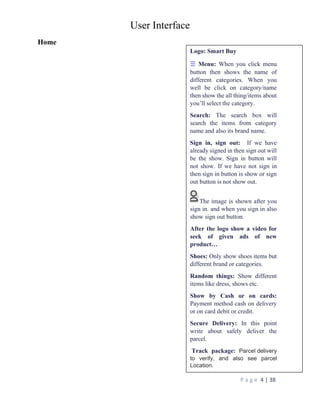
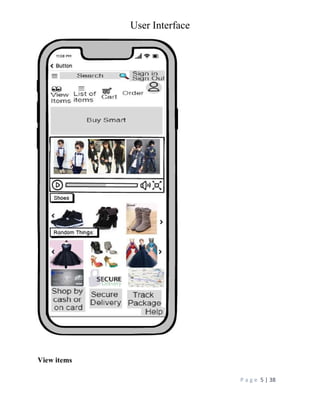
Logo: Smart Buy
☰ Menu: When you click menu
button then shows the name of
different categories. When you
well be click on category/name
then show the all thing/items about
you’ll select the category.
Search: The search box will
search the items from category
name and also its brand name.
Sign in, sign out: If we have
already signed in then sign out will
be the show. Sign in button will
not show. If we have not sign in
then sign in button is show or sign
out button is not show out.
The image is shown after you
sign in. and when you sign in also
show sign out button.
After the logo show a video for
seek of given ads of new
product…
Shoes: Only show shoes items but
different brand or categories.
Random things: Show different
items like dress, shows etc.
Show by Cash or on cards:
Payment method cash on delivery
or on card debit or credit.
Secure Delivery: In this point
write about safely deliver the
parcel.
Track package: Parcel delivery
to verify, and also see parcel
Location.
User Interface
P a g e 5 | 38
View items
User Interface
P a g e 6 | 38
View Items: In view items same
product present in the one
category just like shoes and dress.
Side arrow present for view the
category all product.
The category product move left or
right because of arrow.
Ads/ Recommendation: Its
basically use for given ads of new
product or related product.
User Interface
P a g e 7 | 38
List of items
List of items:
List of items given the category
name when you click on one
category then open the list of the
category items.
User Interface
P a g e 8 | 38
Cart
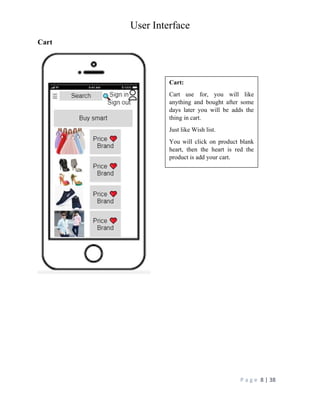
Cart:
Cart use for, you will like
anything and bought after some
days later you will be adds the
thing in cart.
Just like Wish list.
You will click on product blank
heart, then the heart is red the
product is add your cart.
User Interface
P a g e 9 | 38
Create an account
Create an account:
When you will be bought or add
to cart something you must need
to create account.
When you create a account you
give your information like full
name, email, password, phone no,
date of birth etc then you will be
sign up or make a account.
User Interface
P a g e 10 | 38
Loge in
Sign in: Before you sign in you
make your account and then any
time any place you will use your
account.
You will do different task
Bought product
Watch product
Add to cart
Etc.
User Interface
P a g e 11 | 38
Login with email
Login with email:
If you lost your password you
will open your account through
email account.
You will click login with email
button
Then
Give right email or password or
login your account
And do different task.
User Interface
P a g e 12 | 38
Login with Facebook:
If you lost your password you
will open your account through
Facebook account.
You will click login with
Facebook button
Then
Give right email or password or
login your account
And do different task.
User Interface
P a g e 13 | 38
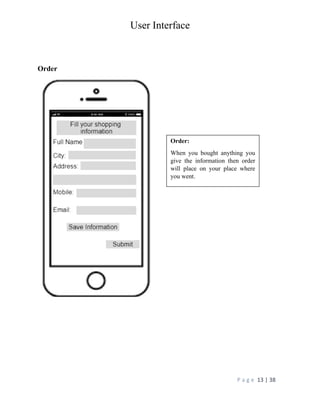
Order
Order:
When you bought anything you
give the information then order
will place on your place where
you went.
User Interface
P a g e 14 | 38
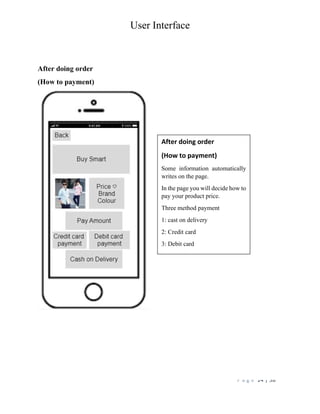
After doing order
(How to payment)
After doing order
(How to payment)
Some information automatically
writes on the page.
In the page you will decide how to
pay your product price.
Three method payment
1: cast on delivery
2: Credit card
3: Debit card
User Interface
P a g e 15 | 38
Cash on delivery
Cash on delivery:
It’s the method of payment
When the courier delivery
person delivers the parcel
you will pay the amount.
He will give you parcel.
You will give the amount of
the parcel.
User Interface
P a g e 16 | 38
Card payment
Card payment:
It’s the method of payment
The method is same to debit
or credit card payment.
It’s an online payment
method
You will click credit card then
you put the information
about credit card.
Otherwise you will click
debit card then you will
write debit card
information.
User Interface
P a g e 17 | 38
Help
Help:
If you can’t understand the
thing you will ask question.
And also ask the question
you about product.
User Interface
P a g e 18 | 38
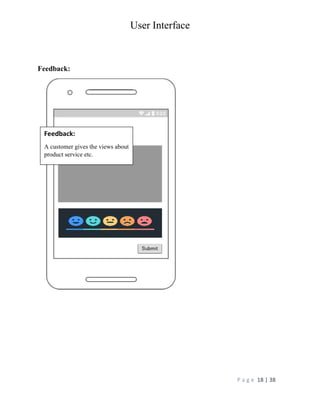
Feedback:
Feedback:
A customer gives the views about
product service etc.
User Interface
P a g e 19 | 38
Track package
Laptop Home Screen starts view:
Track package:
Customer:
Parcel delivery to verify, and also
see parcel Location.
User Interface
P a g e 20 | 38
Logo: Smart Buy
☰ Menu: When you click menu button then shows the name of different categories. When
you well are click on category/name then show the all thing/items about you’ll select the
category.
After the logo show a video for seek of given ads of new product…
Search: The search box will search the items from category name and also its brand name.
Sign in, sign out: If we have already signed in then sign out will be the show. Sign in
button will not show. If we have not sign in then sign in button is show or sign out button
is not show out.
Dashboared: its shows after you sign in. when you sign in also show sign out button.
Shoes: Only show shoes items but different brand or categories.
Home screen end view
User Interface
P a g e 21 | 38
Random things: Show different items like dress, shows etc.
Show by Cash or on cards: Payment method cash on delivery or on card debit or credit.
Secure Delivery: In this point write about safely deliver the parcel.
Track package: Parcel delivery to verify, and also see parcel Location.
Help: User ask question, we will give the ans.
View items
User Interface
P a g e 22 | 38
List of items
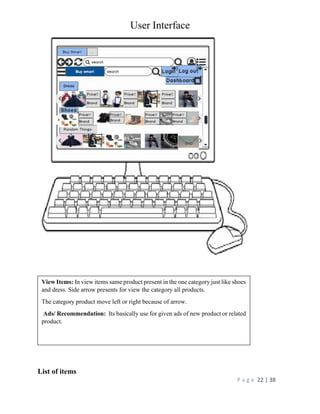
View Items: In view items same product present in the one category just like shoes
and dress. Side arrow presents for view the category all products.
The category product move left or right because of arrow.
Ads/ Recommendation: Its basically use for given ads of new product or related
product.
User Interface
P a g e 23 | 38
Cart
List of items:
List of items given the category name when you click on one category
then open the list of the category items.
User Interface
P a g e 24 | 38
Create a new account
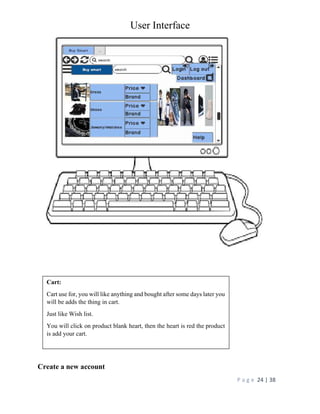
Cart:
Cart use for, you will like anything and bought after some days later you
will be adds the thing in cart.
Just like Wish list.
You will click on product blank heart, then the heart is red the product
is add your cart.
User Interface
P a g e 25 | 38
Login
Create an account:
When you will be bought or add to cart something you must need to
create account.
When you create a account you give your information like full name,
email, password, phone no, date of birth etc then you will be sign up
or make a account.
User Interface
P a g e 26 | 38
Login with email
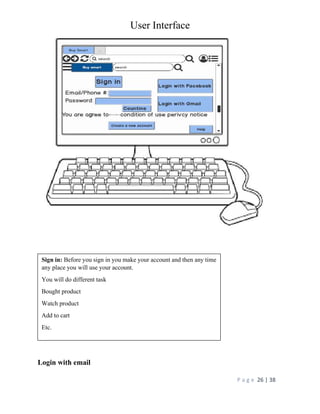
Sign in: Before you sign in you make your account and then any time
any place you will use your account.
You will do different task
Bought product
Watch product
Add to cart
Etc.
User Interface
P a g e 27 | 38
Login with Facebook:
Login with email:
If you lost your password you will open your account through email
account.
You will click login with email button
Then
Give right email or password or login your account
And do different task.
User Interface
P a g e 28 | 38
Order:
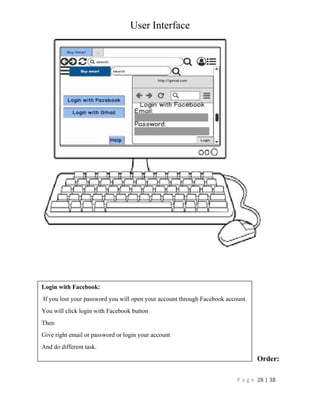
Login with Facebook:
If you lost your password you will open your account through Facebook account.
You will click login with Facebook button
Then
Give right email or password or login your account
And do different task.
User Interface
P a g e 29 | 38
After doing order (How to payment)
Order:
When you bought anything you give the
information then order will place on your place
where you went.
User Interface
P a g e 30 | 38
Cash on delivery:
After doing order
(How to payment)
Some information automatically writes on the page.
In the page you will decide how to pay your product price.
Three method payment
1: cast on delivery
2: Credit card
3: Debit card
User Interface
P a g e 31 | 38
Payment by card
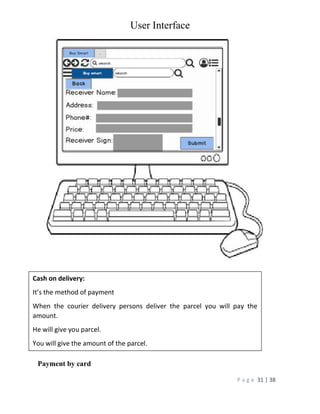
Cash on delivery:
It’s the method of payment
When the courier delivery persons deliver the parcel you will pay the
amount.
He will give you parcel.
You will give the amount of the parcel.
User Interface
P a g e 32 | 38
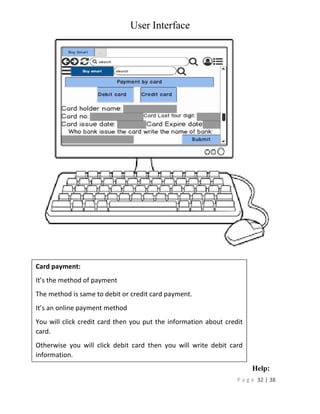
Help:
Card payment:
It’s the method of payment
The method is same to debit or credit card payment.
It’s an online payment method
You will click credit card then you put the information about credit
card.
Otherwise you will click debit card then you will write debit card
information.
User Interface
P a g e 33 | 38
Feedback
Help:
If you can’t understand the thing you will
ask question.
And also ask the question you about
User Interface
P a g e 34 | 38
Track package:
Feedback:
A customer give the views about product service etc.
User Interface
P a g e 35 | 38
Add Product:
Track package:
Customer:
Parcel delivery to verify, and also see parcel
Location.
User Interface
P a g e 36 | 38
When Customer place the order the information show the admin:
Add Product: Admin Perform job
Admin fill these informs for add product
Put these information like admin code, product name type, brand name, price, color
etc.
When we enter the information we give the list in different blocks like when we enter
product name then shoe the list in this list show different name of product.
User Interface
P a g e 37 | 38
The detail receives admin when customer receives the product:
When Customer places the order, the information shows the admin:
Show the customer name, address, price and show what product can customer buy,
what type of payment like debit, credit, payment on cash?
User Interface
P a g e 38 | 38
The detail receives admin when customer receives the product:
When the customer receives the product a massage goes to a admin:
Customer name, Product name, price, receiver name, cash payment type etc
That information write in admin massage then the massage goes to admin.

Online Shopping interface.pdf

  • 1.
    User Interface P ag e 1 | 38 Project: Online shopping Project name: Buy Smart Create Interface By: Sofia Munawar
  • 2.
    User Interface P ag e 2 | 38 Project Buy Smart Content MOBILE VIEW: 1. Home......................................................................................................................................................... 4 2. View items ................................................................................................................................................ 5 3. List of items .............................................................................................................................................. 6 4. Cart............................................................................................................................................................ 7 5. Create an account...................................................................................................................................... 8 6. Login......................................................................................................................................................... 9 7. Login with email………………………………...……....………………………………………….......10 8. Login with Facebook……….....…………………...……………….......……...……………………….11 9. Order……………………………………………………...…………………….………………………12 10. After doing order (How to payment)…....…...…………………………….………………………….13 11. Cash on delivery……………………………………………………………………………………….14 12. Card Payment………………………………………………………………………………………….15 13. Help……………………………………………………………………………………………………16 14. Feedback……………………………………………………...……………………………………….17 15. Track Package…………………………………………………...…………………………………….18 LAPTOP OR COMPUTER SCREEN VIEW: 1. Home Screen start view .......................................................................................................................... 19 2. Home Screen end view ........................................................................................................................... 20 3. View items .............................................................................................................................................. 21 4. List of items ............................................................................................................................................ 22 5. Cart.......................................................................................................................................................... 23 6. Create an account.................................................................................................................................... 24 7. Login....................................................................................................................................................... 25 8. Login with email…...…………………………………....………………………………………….......26 9. Login with Facebook...…….....…………………………………….......……...……………………….27 10. Order.………………………………………………………………………….………………………28 11. After doing order (How to payment)…....………...……………………….………………………….29
  • 3.
    User Interface P ag e 3 | 38 12. Cash on delivery……………………………………………………………………………………….30 13. Card Payment………………………………………………………………………………………….31 14. Help……………………………………………………………………………………………………32 15. Feedback…………………………………………………………...………………………………….33 16. Track Package………………………………...……………………………………………………….34 ADMIN VIEW: 1. Add Product…………………………………………………………………….35 2. When Customer place the order the information show the admin……………..36 3. The detail receive admin when customer receive the product:………………...37
  • 4.
    User Interface P ag e 4 | 38 Home Logo: Smart Buy ☰ Menu: When you click menu button then shows the name of different categories. When you well be click on category/name then show the all thing/items about you’ll select the category. Search: The search box will search the items from category name and also its brand name. Sign in, sign out: If we have already signed in then sign out will be the show. Sign in button will not show. If we have not sign in then sign in button is show or sign out button is not show out. The image is shown after you sign in. and when you sign in also show sign out button. After the logo show a video for seek of given ads of new product… Shoes: Only show shoes items but different brand or categories. Random things: Show different items like dress, shows etc. Show by Cash or on cards: Payment method cash on delivery or on card debit or credit. Secure Delivery: In this point write about safely deliver the parcel. Track package: Parcel delivery to verify, and also see parcel Location.
  • 5.
    User Interface P ag e 5 | 38 View items
  • 6.
    User Interface P ag e 6 | 38 View Items: In view items same product present in the one category just like shoes and dress. Side arrow present for view the category all product. The category product move left or right because of arrow. Ads/ Recommendation: Its basically use for given ads of new product or related product.
  • 7.
    User Interface P ag e 7 | 38 List of items List of items: List of items given the category name when you click on one category then open the list of the category items.
  • 8.
    User Interface P ag e 8 | 38 Cart Cart: Cart use for, you will like anything and bought after some days later you will be adds the thing in cart. Just like Wish list. You will click on product blank heart, then the heart is red the product is add your cart.
  • 9.
    User Interface P ag e 9 | 38 Create an account Create an account: When you will be bought or add to cart something you must need to create account. When you create a account you give your information like full name, email, password, phone no, date of birth etc then you will be sign up or make a account.
  • 10.
    User Interface P ag e 10 | 38 Loge in Sign in: Before you sign in you make your account and then any time any place you will use your account. You will do different task Bought product Watch product Add to cart Etc.
  • 11.
    User Interface P ag e 11 | 38 Login with email Login with email: If you lost your password you will open your account through email account. You will click login with email button Then Give right email or password or login your account And do different task.
  • 12.
    User Interface P ag e 12 | 38 Login with Facebook: Login with Facebook: If you lost your password you will open your account through Facebook account. You will click login with Facebook button Then Give right email or password or login your account And do different task.
  • 13.
    User Interface P ag e 13 | 38 Order Order: When you bought anything you give the information then order will place on your place where you went.
  • 14.
    User Interface P ag e 14 | 38 After doing order (How to payment) After doing order (How to payment) Some information automatically writes on the page. In the page you will decide how to pay your product price. Three method payment 1: cast on delivery 2: Credit card 3: Debit card
  • 15.
    User Interface P ag e 15 | 38 Cash on delivery Cash on delivery: It’s the method of payment When the courier delivery person delivers the parcel you will pay the amount. He will give you parcel. You will give the amount of the parcel.
  • 16.
    User Interface P ag e 16 | 38 Card payment Card payment: It’s the method of payment The method is same to debit or credit card payment. It’s an online payment method You will click credit card then you put the information about credit card. Otherwise you will click debit card then you will write debit card information.
  • 17.
    User Interface P ag e 17 | 38 Help Help: If you can’t understand the thing you will ask question. And also ask the question you about product.
  • 18.
    User Interface P ag e 18 | 38 Feedback: Feedback: A customer gives the views about product service etc.
  • 19.
    User Interface P ag e 19 | 38 Track package Laptop Home Screen starts view: Track package: Customer: Parcel delivery to verify, and also see parcel Location.
  • 20.
    User Interface P ag e 20 | 38 Logo: Smart Buy ☰ Menu: When you click menu button then shows the name of different categories. When you well are click on category/name then show the all thing/items about you’ll select the category. After the logo show a video for seek of given ads of new product… Search: The search box will search the items from category name and also its brand name. Sign in, sign out: If we have already signed in then sign out will be the show. Sign in button will not show. If we have not sign in then sign in button is show or sign out button is not show out. Dashboared: its shows after you sign in. when you sign in also show sign out button. Shoes: Only show shoes items but different brand or categories. Home screen end view
  • 21.
    User Interface P ag e 21 | 38 Random things: Show different items like dress, shows etc. Show by Cash or on cards: Payment method cash on delivery or on card debit or credit. Secure Delivery: In this point write about safely deliver the parcel. Track package: Parcel delivery to verify, and also see parcel Location. Help: User ask question, we will give the ans. View items
  • 22.
    User Interface P ag e 22 | 38 List of items View Items: In view items same product present in the one category just like shoes and dress. Side arrow presents for view the category all products. The category product move left or right because of arrow. Ads/ Recommendation: Its basically use for given ads of new product or related product.
  • 23.
    User Interface P ag e 23 | 38 Cart List of items: List of items given the category name when you click on one category then open the list of the category items.
  • 24.
    User Interface P ag e 24 | 38 Create a new account Cart: Cart use for, you will like anything and bought after some days later you will be adds the thing in cart. Just like Wish list. You will click on product blank heart, then the heart is red the product is add your cart.
  • 25.
    User Interface P ag e 25 | 38 Login Create an account: When you will be bought or add to cart something you must need to create account. When you create a account you give your information like full name, email, password, phone no, date of birth etc then you will be sign up or make a account.
  • 26.
    User Interface P ag e 26 | 38 Login with email Sign in: Before you sign in you make your account and then any time any place you will use your account. You will do different task Bought product Watch product Add to cart Etc.
  • 27.
    User Interface P ag e 27 | 38 Login with Facebook: Login with email: If you lost your password you will open your account through email account. You will click login with email button Then Give right email or password or login your account And do different task.
  • 28.
    User Interface P ag e 28 | 38 Order: Login with Facebook: If you lost your password you will open your account through Facebook account. You will click login with Facebook button Then Give right email or password or login your account And do different task.
  • 29.
    User Interface P ag e 29 | 38 After doing order (How to payment) Order: When you bought anything you give the information then order will place on your place where you went.
  • 30.
    User Interface P ag e 30 | 38 Cash on delivery: After doing order (How to payment) Some information automatically writes on the page. In the page you will decide how to pay your product price. Three method payment 1: cast on delivery 2: Credit card 3: Debit card
  • 31.
    User Interface P ag e 31 | 38 Payment by card Cash on delivery: It’s the method of payment When the courier delivery persons deliver the parcel you will pay the amount. He will give you parcel. You will give the amount of the parcel.
  • 32.
    User Interface P ag e 32 | 38 Help: Card payment: It’s the method of payment The method is same to debit or credit card payment. It’s an online payment method You will click credit card then you put the information about credit card. Otherwise you will click debit card then you will write debit card information.
  • 33.
    User Interface P ag e 33 | 38 Feedback Help: If you can’t understand the thing you will ask question. And also ask the question you about
  • 34.
    User Interface P ag e 34 | 38 Track package: Feedback: A customer give the views about product service etc.
  • 35.
    User Interface P ag e 35 | 38 Add Product: Track package: Customer: Parcel delivery to verify, and also see parcel Location.
  • 36.
    User Interface P ag e 36 | 38 When Customer place the order the information show the admin: Add Product: Admin Perform job Admin fill these informs for add product Put these information like admin code, product name type, brand name, price, color etc. When we enter the information we give the list in different blocks like when we enter product name then shoe the list in this list show different name of product.
  • 37.
    User Interface P ag e 37 | 38 The detail receives admin when customer receives the product: When Customer places the order, the information shows the admin: Show the customer name, address, price and show what product can customer buy, what type of payment like debit, credit, payment on cash?
  • 38.
    User Interface P ag e 38 | 38 The detail receives admin when customer receives the product: When the customer receives the product a massage goes to a admin: Customer name, Product name, price, receiver name, cash payment type etc That information write in admin massage then the massage goes to admin.