Presenter’s Title
Organization, Division or Business Unit
Month 00, 2020
Name
NetSuite WMS
SuiteSuccess Alignment
2 Confidential – © 2020 Oracle Internal/Restricted/Highly Restricted
The following is intended to outline our general product direction. It is intended for information purposes
only, and may not be incorporated into any contract. It is not a commitment to deliver any material, code,
or functionality, and should not be relied upon in making purchasing decisions. The development, release,
timing, and pricing of any features or functionality described for Oracle’s products may change and
remains at the sole discretion of Oracle Corporation.
Statements in this presentation relating to Oracle’s future plans, expectations, beliefs, intentions and
prospects are “forward-looking statements” and are subject to material risks and uncertainties. A detailed
discussion of these factors and other risks that affect our business is contained in Oracle’s Securities and
Exchange Commission (SEC) filings, including our most recent reports on Form 10-K and Form 10-Q
under the heading “Risk Factors.” These filings are available on the SEC’s website or on Oracle’s website
at http://www.oracle.com/investor. All information in this presentation is current as of September 2019 and
Oracle undertakes no duty to update any statement in light of new information or future events.
Safe harbor statement
4 Confidential – © 2020 Oracle Internal/Restricted/Highly Restricted
4
3
2
1
Inventory Operations
Inbound Operations
Out
Configuration
Agenda
Outbound Operations
Warehouse
Management
Introduction
6 Confidential – © 2020 Oracle Internal/Restricted/Highly Restricted
7 Confidential – © 2020 Oracle Internal/Restricted/Highly Restricted
Warehouse Management Overview
8 Confidential – © 2020 Oracle Internal/Restricted/Highly Restricted
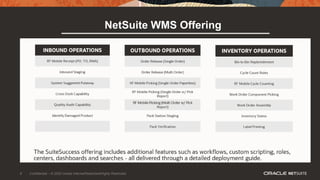
NetSuite WMS Offering
9 Confidential – © 2020 Oracle Internal/Restricted/Highly Restricted
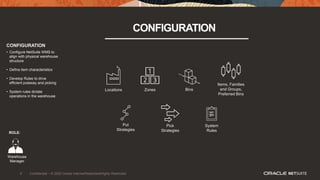
CONFIGURATION
Locations Bins
Put
Strategies
Pick
Strategies
Zones
Items, Families
and Groups,
Preferred Bins
System
Rules
CONFIGURATION
• Configure NetSuite WMS to
align with physical warehouse
structure
• Define item characteristics
• Develop Rules to drive
efficient putaway and picking
• System rules dictate
operations in the warehouse
ROLE:
Warehouse
Manager
10 Confidential – © 2020 Oracle Internal/Restricted/Highly Restricted
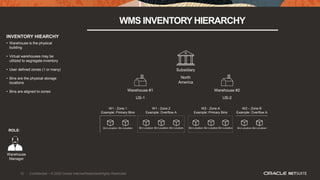
INVENTORY HIEARCHY
WMS INVENTORYHIERARCHY
• Warehouse is the physical
building
• Virtual warehouses may be
utilized to segregate inventory
• User defined zones (1 or many)
• Bins are the physical storage
locations
• Bins are aligned to zones
ROLE:
Warehouse
Manager
Subsidiary
North
America
Warehouse #2
US-2
W1 - Zone 1
Example: Primary Bins
W1 - Zone 2
Example: Overflow A
Warehouse #1
US-1
W2 - Zone A
Example: Primary Bins
W2 – Zone B
Example: Overflow A
11 Confidential – © 2020 Oracle Internal/Restricted/Highly Restricted
DEMO FACILTY LAYOUT
12 Confidential – © 2020 Oracle Internal/Restricted/Highly Restricted
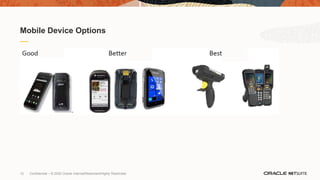
Mobile Device Options
13 Confidential – © 2020 Oracle Internal/Restricted/Highly Restricted
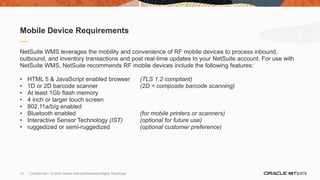
NetSuite WMS leverages the mobility and convenience of RF mobile devices to process inbound,
outbound, and inventory transactions and post real-time updates to your NetSuite account. For use with
NetSuite WMS, NetSuite recommends RF mobile devices include the following features:
• HTML 5 & JavaScript enabled browser (TLS 1.2 compliant)
• 1D or 2D barcode scanner (2D = composite barcode scanning)
• At least 1Gb flash memory
• 4 inch or larger touch screen
• 802.11a/b/g enabled
• Bluetooth enabled (for mobile printers or scanners)
• Interactive Sensor Technology (IST) (optional for future use)
• ruggedized or semi-ruggedized (optional customer preference)
Mobile Device Requirements
InboundOperations
14 Confidential – © 2020 Oracle Internal/Restricted/Highly Restricted
15 Confidential – © 2020 Oracle Internal/Restricted/Highly Restricted
Unload
Truck
NS WMS Mobile
Putaway
Print
Labels
Dmg /
Inspect Bin
Cross Dock
Staging
NetSuite PO /
TO / RA
NS WMS
Mobile
Receiving
Assign
Inv Status
Inbound
Staging
Preferred
Bin
Put
Strategies
Overflow
Zone 1
Overflow
Zone “x”
Outbound
Operations
(Fulfillment)
Manufacturing
Internal
Operations
Item Receipt
Posted
Inventory On-
Hand / Available
Cross Dock
Storage
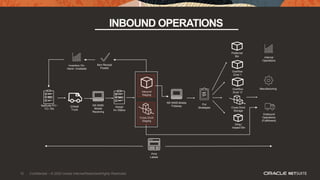
INBOUND OPERATIONS
16 Confidential – © 2020 Oracle Internal/Restricted/Highly Restricted
MOBILE RECEIVING
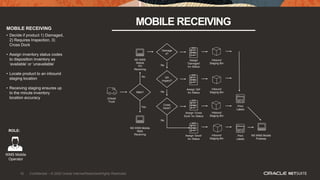
MOBILE RECEIVING
• Decide if product 1) Damaged,
2) Requires Inspection, 3)
Cross Dock
• Assign inventory status codes
to disposition inventory as
‘available’ or ‘unavailable’
• Locate product to an inbound
staging location
• Receiving staging ensures up
to the minute inventory
location accuracy
ROLE:
WMS Mobile
Operator
Unload
Truck
Damage
d?
No
NS WMS
Mobile
PO
Receiving
RMA?
QA
Inspect?
NS WMS Mobile
Putaway
Print
Labels
Cross
Dock?
Assign
‘Damaged’
Inv Status
Inbound
Staging Bin
Inbound
Staging Bin
Yes
Assign ‘QA’
Inv Status
Assign ‘Cross
Dock’ Inv Status
No
No
No
Inbound
Staging Bin
Assign ‘Good’
Inv Status
Inbound
Staging Bin
Print
Labels
NS WMS Mobile
RMA
Receiving
17 Confidential – © 2020 Oracle Internal/Restricted/Highly Restricted
I
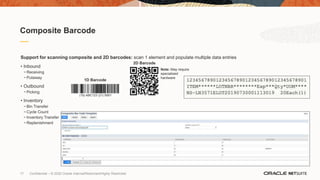
Composite Barcode
Support for scanning composite and 2D barcodes: scan 1 element and populate multiple data entries
• Inbound
− Receiving
− Putaway
• Outbound
− Picking
• Inventory
− Bin Transfer
− Cycle Count
− Inventory Transfer
− Replenishment
2D Barcode
Note: May require
specialized
hardware
1D Barcode
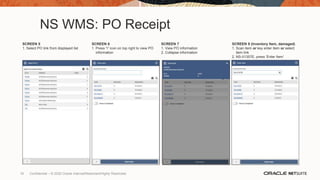
NS WMS: PO Receipt
SCREEN 5
1. Select PO link from displayed list
SCREEN 6
1. Press “i” icon on top right to view PO
information
SCREEN 7
1. View PO information
2. Collapse information
SCREEN 8 (Inventory Item, damaged)
1. Scan item or key enter item or select
item link
2. NS-II1357E, press ‘Enter Item’
18 Confidential – © 2020 Oracle Internal/Restricted/Highly Restricted
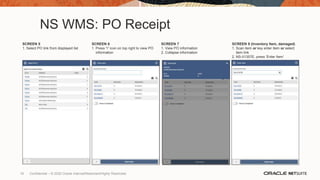
NS WMS: PO Receipt
SCREEN 5
1. Select PO link from displayed list
SCREEN 6
1. Press “i” icon on top right to view PO
information
SCREEN 7
1. View PO information
2. Collapse information
SCREEN 8 (Inventory Item, damaged)
1. Scan item or key enter item or select
item link
2. NS-II1357E, press ‘Enter Item’
19 Confidential – © 2020 Oracle Internal/Restricted/Highly Restricted
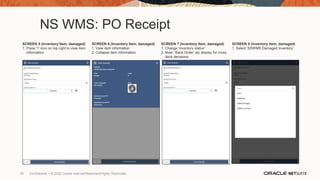
NS WMS: PO Receipt
SCREEN 5 (Inventory Item, damaged)
1. Press “i” icon on top right to view item
information
SCREEN 6 (Inventory Item, damaged)
1. View item information
2. Collapse item information
SCREEN 7 (Inventory Item, damaged)
1. Change ‘inventory status’
2. Note: ’Back Order’ qty display for cross
dock decisions
SCREEN 8 (Inventory Item, damaged)
1. Select ‘SSWMS Damaged Inventory’
20 Confidential – © 2020 Oracle Internal/Restricted/Highly Restricted
NS WMS: PO Receipt
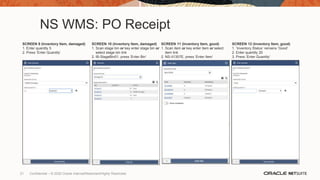
SCREEN 9 (Inventory Item, damaged)
1. Enter quantity 5
2. Press ‘Enter Quantity’
SCREEN 10 (Inventory Item, damaged)
1. Scan stage bin or key enter stage bin or
select stage bin link
2. IB-StageBin01, press ‘Enter Bin’
SCREEN 11 (Inventory Item, good)
1. Scan item or key enter item or select
item link
2. NS-II1357E, press ‘Enter Item’
SCREEN 12 (Inventory Item, good)
1. ‘Inventory Status’ remains ‘Good’
2. Enter quantity 20
3. Press ‘Enter Quantity’
21 Confidential – © 2020 Oracle Internal/Restricted/Highly Restricted
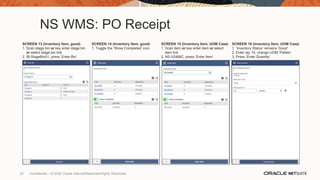
NS WMS: PO Receipt
SCREEN 13 (Inventory Item, good)
1. Scan stage bin or key enter stage bin
or select stage bin link
2. IB-StageBin01, press ‘Enter Bin’
SCREEN 14 (Inventory Item, good)
1. Toggle the ‘Show Completed’ icon
SCREEN 15 (Inventory Item, UOM Case)
1. Scan item or key enter item or select
item link
2. NS-II2468C, press ‘Enter Item’
SCREEN 16 (Inventory Item, UOM Case)
1. ‘Inventory Status’ remains ‘Good’
2. Enter qty 10, change UOM ‘Pallets’
3. Press ‘Enter Quantity’
22 Confidential – © 2020 Oracle Internal/Restricted/Highly Restricted
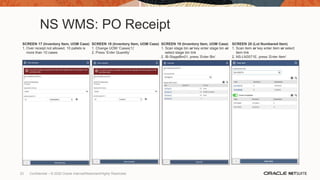
NS WMS: PO Receipt
SCREEN 17 (Inventory Item, UOM Case)
1. Over receipt not allowed, 10 pallets is
more than 10 cases
SCREEN 18 (Inventory Item, UOM Case)
1. Change UOM ‘Cases(1)’
2. Press ‘Enter Quantity’
SCREEN 19 (Inventory Item, UOM Case)
1. Scan stage bin or key enter stage bin or
select stage bin link
2. IB-StageBin01, press ‘Enter Bin’
SCREEN 20 (Lot Numbered Item)
1. Scan item or key enter item or select
item link
2. NS-LN3571E, press ‘Enter Item’
23 Confidential – © 2020 Oracle Internal/Restricted/Highly Restricted
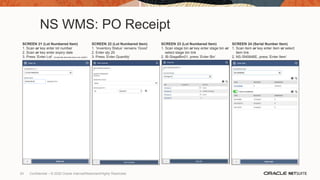
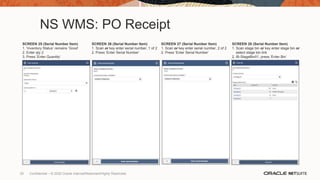
NS WMS: PO Receipt
SCREEN 21 (Lot Numbered Item)
1. Scan or key enter lot number
2. Scan or key enter expiry date
3. Press ‘Enter Lot’ *composite barcode scan is an option*
SCREEN 22 (Lot Numbered Item)
1. ‘Inventory Status’ remains ‘Good’
2. Enter qty 20
3. Press ‘Enter Quantity’
SCREEN 23 (Lot Numbered Item)
1. Scan stage bin or key enter stage bin or
select stage bin link
2. IB-StageBin01, press ‘Enter Bin’
SCREEN 24 (Serial Number Item)
1. Scan item or key enter item or select
item link
2. NS-SN0846E, press ‘Enter Item’
24 Confidential – © 2020 Oracle Internal/Restricted/Highly Restricted
NS WMS: PO Receipt
SCREEN 25 (Serial Number Item)
1. ‘Inventory Status’ remains ‘Good’
2. Enter qty 2
3. Press ‘Enter Quantity’
SCREEN 26 (Serial Number Item)
1. Scan or key enter serial number, 1 of 2
2. Press ‘Enter Serial Number’
SCREEN 27 (Serial Number Item)
1. Scan or key enter serial number, 2 of 2
2. Press ‘Enter Serial Number’
SCREEN 28 (Serial Number Item)
1. Scan stage bin or key enter stage bin or
select stage bin link
2. IB-StageBin01, press ‘Enter Bin’
25 Confidential – © 2020 Oracle Internal/Restricted/Highly Restricted
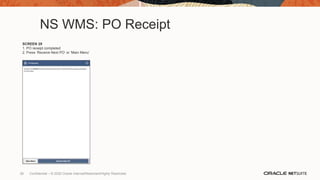
NS WMS: PO Receipt
SCREEN 29
1. PO receipt completed
2. Press ‘Receive Next PO’ or ‘Main Menu’
26 Confidential – © 2020 Oracle Internal/Restricted/Highly Restricted
27
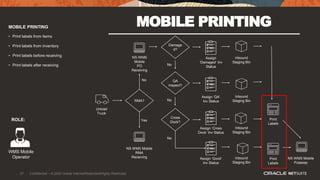
MOBILE PRINTING MOBILE PRINTING
• Print labels from items
• Print labels from inventory
• Print labels before receiving
• Print labels after receiving
ROLE:
WMS Mobile
Operator
Unload
Truck
Damage
d?
No
NS WMS
Mobile
PO
Receiving
RMA?
QA
Inspect?
NS WMS Mobile
Putaway
Print
Labels
Cross
Dock?
Assign
‘Damaged’ Inv
Status
Inbound
Staging Bin
Inbound
Staging Bin
Yes
Assign ‘QA’
Inv Status
Assign ‘Cross
Dock’ Inv Status
No
No
No
Inbound
Staging Bin
Assign ‘Good’
Inv Status
Inbound
Staging Bin
Print
Labels
NS WMS Mobile
RMA
Receiving
27 Confidential – © 2020 Oracle Internal/Restricted/Highly Restricted
28 Confidential – © 2020 Oracle Internal/Restricted/Highly Restricted
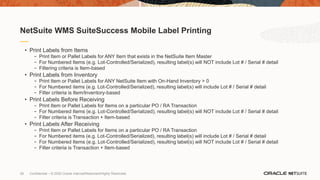
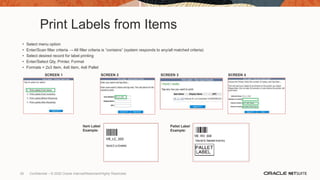
• Print Labels from Items
- Print Item or Pallet Labels for ANY Item that exists in the NetSuite Item Master
- For Numbered Items (e.g. Lot-Controlled/Serialized), resulting label(s) will NOT include Lot # / Serial # detail
- Filtering criteria is Item-based
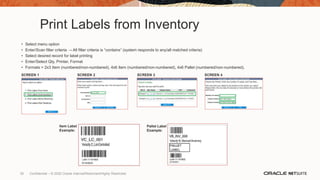
• Print Labels from Inventory
- Print Item or Pallet Labels for ANY NetSuite Item with On-Hand Inventory > 0
- For Numbered items (e.g. Lot-Controlled/Serialized), resulting label(s) will include Lot # / Serial # detail
- Filter criteria is Item/Inventory-based
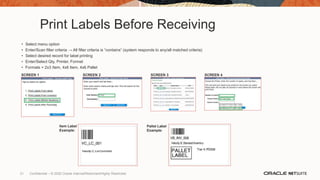
• Print Labels Before Receiving
- Print Item or Pallet Labels for Items on a particular PO / RA Transaction
- For Numbered Items (e.g. Lot-Controlled/Serialized), resulting label(s) will NOT include Lot # / Serial # detail
- Filter criteria is Transaction + Item-based
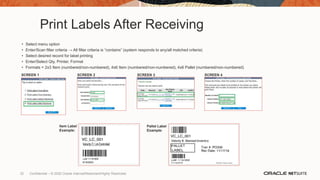
• Print Labels After Receiving
- Print Item or Pallet Labels for Items on a particular PO / RA Transaction
- For Numbered items (e.g. Lot-Controlled/Serialized), resulting label(s) will include Lot # / Serial # detail
- For Numbered Items (e.g. Lot-Controlled/Serialized), resulting label(s) will NOT include Lot # / Serial # detail
- Filter criteria is Transaction + Item-based
NetSuite WMS SuiteSuccess Mobile Label Printing
Print Labels from Items
• Select menu option
• Enter/Scan filter criteria → All filter criteria is “contains” (system responds to any/all matched criteria)
• Select desired record for label printing
• Enter/Select Qty, Printer, Format
• Formats = 2x3 Item, 4x6 Item, 4x6 Pallet
SCREEN 1 SCREEN 3
SCREEN 2 SCREEN 4
Item Label
Example:
Pallet Label
Example:
29 Confidential – © 2020 Oracle Internal/Restricted/Highly Restricted
Print Labels from Inventory
• Select menu option
• Enter/Scan filter criteria → All filter criteria is “contains” (system responds to any/all matched criteria)
• Select desired record for label printing
• Enter/Select Qty, Printer, Format
• Formats = 2x3 Item (numbered/non-numbered), 4x6 Item (numbered/non-numbered), 4x6 Pallet (numbered/non-numbered),
SCREEN 1 SCREEN 3
SCREEN 2 SCREEN 4
Item Label
Example:
Pallet Label
Example:
30 Confidential – © 2020 Oracle Internal/Restricted/Highly Restricted
Print Labels Before Receiving
• Select menu option
• Enter/Scan filter criteria → All filter criteria is “contains” (system responds to any/all matched criteria)
• Select desired record for label printing
• Enter/Select Qty, Printer, Format
• Formats = 2x3 Item, 4x6 Item, 4x6 Pallet
SCREEN 1 SCREEN 3
SCREEN 2 SCREEN 4
Item Label
Example:
Pallet Label
Example:
31 Confidential – © 2020 Oracle Internal/Restricted/Highly Restricted
Print Labels After Receiving
• Select menu option
• Enter/Scan filter criteria → All filter criteria is “contains” (system responds to any/all matched criteria)
• Select desired record for label printing
• Enter/Select Qty, Printer, Format
• Formats = 2x3 Item (numbered/non-numbered), 4x6 Item (numbered/non-numbered), 4x6 Pallet (numbered/non-numbered)
SCREEN 1 SCREEN 3
SCREEN 2 SCREEN 4
Item Label
Example:
Pallet Label
Example:
32 Confidential – © 2020 Oracle Internal/Restricted/Highly Restricted
33
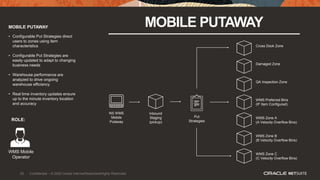
MOBILE PUTAWAY MOBILE PUTAWAY
• Configurable Put Strategies direct
users to zones using item
characteristics
• Configurable Put Strategies are
easily updated to adapt to changing
business needs
• Warehouse performance are
analyzed to drive ongoing
warehouse efficiency
• Real time inventory updates ensure
up to the minute inventory location
and accuracy
ROLE:
WMS Mobile
Operator
NS WMS
Mobile
Putaway
WMS Zone A
(A Velocity Overflow Bins)
Inbound
Staging
(pickup)
Put
Strategies
WMS Zone C
(C Velocity Overflow Bins)
WMS Zone B
(B Velocity Overflow Bins)
WMS Preferred Bins
(IF Item Configured)
QA Inspection Zone
Damaged Zone
Cross Dock Zone
33 Confidential – © 2020 Oracle Internal/Restricted/Highly Restricted
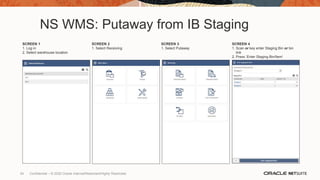
NS WMS: Putaway from IB Staging
SCREEN 1
1. Log in
2. Select warehouse location
SCREEN 2
1. Select Receiving
SCREEN 3
1. Select Putaway
SCREEN 4
1. Scan or key enter Staging Bin or bin
link
2. Press ‘Enter Staging Bin/Item’
34 Confidential – © 2020 Oracle Internal/Restricted/Highly Restricted
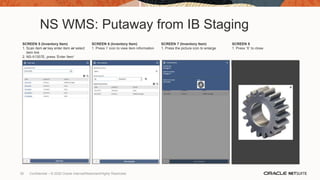
NS WMS: Putaway from IB Staging
SCREEN 5 (Inventory Item)
1. Scan item or key enter item or select
item link
2. NS-II1357E, press ‘Enter Item’
SCREEN 6 (Inventory Item)
1. Press ‘i’ icon to view item information
SCREEN 7 (Inventory Item)
1. Press the picture icon to enlarge
SCREEN 8
1. Press ‘X’ to close
35 Confidential – © 2020 Oracle Internal/Restricted/Highly Restricted
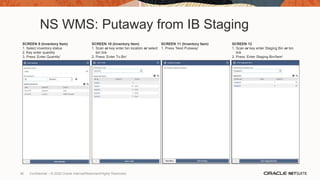
NS WMS: Putaway from IB Staging
SCREEN 9 (Inventory Item)
1. Select inventory status
2. Key enter quantity
3. Press ‘Enter Quantity’
SCREEN 10 (Inventory Item)
1. Scan or key enter bin location or select
bin link
2. Press ‘Enter To Bin’
SCREEN 11 (Inventory Item)
1. Press ‘Next Putaway’
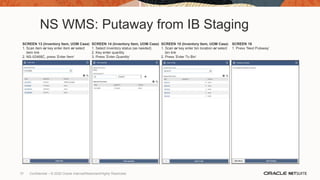
SCREEN 12
1. Scan or key enter Staging Bin or bin
link
2. Press ‘Enter Staging Bin/Item’
36 Confidential – © 2020 Oracle Internal/Restricted/Highly Restricted
NS WMS: Putaway from IB Staging
SCREEN 13 (Inventory Item, UOM Case)
1. Scan item or key enter item or select
item link
2. NS-II2468C, press ‘Enter Item’
SCREEN 14 (Inventory Item, UOM Case)
1. Select inventory status (as needed)
2. Key enter quantity
3. Press ‘Enter Quantity’
SCREEN 15 (Inventory Item, UOM Case)
1. Scan or key enter bin location or select
bin link
2. Press ‘Enter To Bin’
SCREEN 16
1. Press ‘Next Putaway’
37 Confidential – © 2020 Oracle Internal/Restricted/Highly Restricted
NS WMS: Putaway from IB Staging
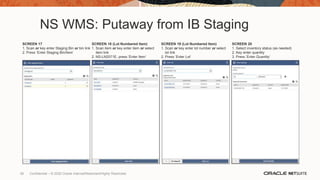
SCREEN 17
1. Scan or key enter Staging Bin or bin link
2. Press ‘Enter Staging Bin/Item’
SCREEN 18 (Lot Numbered Item)
1. Scan item or key enter item or select
item link
2. NS-LN2571E, press ‘Enter Item’
SCREEN 19 (Lot Numbered Item)
1. Scan or key enter lot number or select
lot link
2. Press ‘Enter Lot’
SCREEN 20
1. Select inventory status (as needed)
2. Key enter quantity
3. Press ‘Enter Quantity’
38 Confidential – © 2020 Oracle Internal/Restricted/Highly Restricted
NS WMS: Putaway from IB Staging
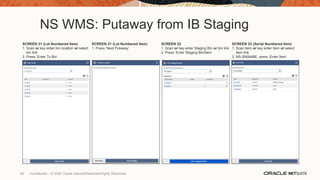
SCREEN 21 (Lot Numbered Item)
1. Scan or key enter bin location or select
bin link
2. Press ‘Enter To Bin’
SCREEN 21 (Lot Numbered Item)
1. Press ‘Next Putaway’
SCREEN 22
1. Scan or key enter Staging Bin or bin link
2. Press ‘Enter Staging Bin/Item’
SCREEN 23 (Serial Numbered Item)
1. Scan item or key enter item or select
item link
2. NS-SN0848E, press ‘Enter Item’
39 Confidential – © 2020 Oracle Internal/Restricted/Highly Restricted
NS WMS: Putaway from IB Staging
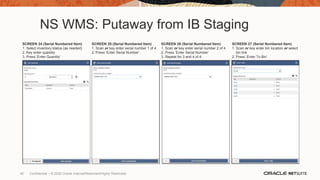
SCREEN 24 (Serial Numbered Item)
1. Select inventory status (as needed)
2. Key enter quantity
3. Press ‘Enter Quantity’
SCREEN 25 (Serial Numbered Item)
1. Scan or key enter serial number 1 of 4
2. Press ‘Enter Serial Number’
SCREEN 26 (Serial Numbered Item)
1. Scan or key enter serial number 2 of 4
2. Press ‘Enter Serial Number’
3. Repeat for 3 and 4 of 4
SCREEN 27 (Serial Numbered Item)
1. Scan or key enter bin location or select
bin link
2. Press ‘Enter To Bin’
40 Confidential – © 2020 Oracle Internal/Restricted/Highly Restricted
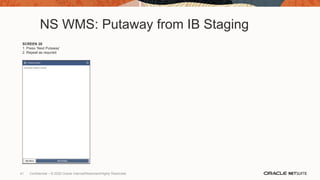
NS WMS: Putaway from IB Staging
SCREEN 28
1. Press ‘Next Putaway’
2. Repeat as requried
41 Confidential – © 2020 Oracle Internal/Restricted/Highly Restricted
42
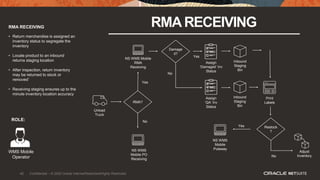
RMA RECEIVING RMARECEIVING
• Return merchandise is assigned an
inventory status to segregate the
inventory
• Locate product to an inbound
returns staging location
• After inspection, return inventory
may be returned to stock or
removed’
• Receiving staging ensures up to the
minute inventory location accuracy
ROLE:
WMS Mobile
Operator
Yes
NS WMS
Mobile PO
Receiving
RMA?
Print
Labels
Assign
‘Damaged’ Inv
Status
No
Assign
‘QA’ Inv
Status
No
No
Damage
d?
Restock
?
NS WMS
Mobile
Putaway
Adjust
Inventory
Yes
Inbound
Staging
Bin
Yes
Unload
Truck
Inbound
Staging
Bin
NS WMS Mobile
RMA
Receiving
42 Confidential – © 2020 Oracle Internal/Restricted/Highly Restricted
OutboundOperations
43 Confidential – © 2020 Oracle Internal/Restricted/Highly Restricted
44
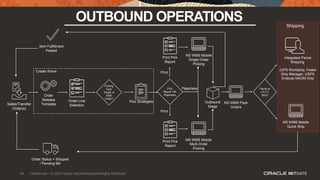
OUTBOUND OPERATIONS
Sales/Transfer
Order(s)
Parcel or
LTL/TL
Ship?
Integrated Parcel
Shipping
(UPS Worldship, Fedex
Ship Manager, USPS
Endicia) NAOM Only
Shipping
Item Fulfillment
Posted
Order Status = Shipped
/ Pending Bill
Order
Release
Template
Order Line
Selection
Picking
Type:
Single or
Multi
Order?
Pick
Report OR
Paperless
Pick Strategies Outbound
Stage
NS WMS Mobile
Multi-Order
Picking
NS WMS Mobile
Single Order
Picking
Print Pick
Report
Print Pick
Report
NS WMS Mobile
Quick Ship
Print
Print
Paperless
NS WMS Pack
Orders
Create Wave
44 Confidential – © 2020 Oracle Internal/Restricted/Highly Restricted
45
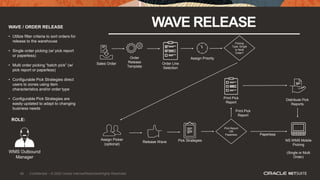
WAVE / ORDER RELEASE WAVE RELEASE
• Utilize filter criteria to sort orders for
release to the warehouse
• Single order picking (w/ pick report
or paperless)
• Multi order picking “batch pick” (w/
pick report or paperless)
• Configurable Pick Strategies direct
users to zones using item
characteristics and/or order type
• Configurable Pick Strategies are
easily updated to adapt to changing
business needs
ROLE:
WMS Outbound
Manager
Sales Order Order Line
Selection
Order
Release
Template
Pick Strategies
Print Pick
Report
NS WMS Mobile
Picking
(Single or Multi
Order)
Distribute Pick
Reports
Paperless
Pick Report
OR
Paperless
Print Pick
Report
Picking
Type: Single
or Multi
Order?
Assign Priority
Assign Picker
(optional)
Release Wave
45 Confidential – © 2020 Oracle Internal/Restricted/Highly Restricted
46
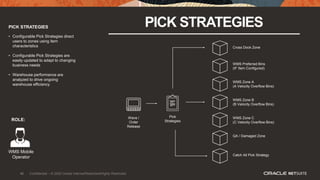
PICK STRATEGIES PICK STRATEGIES
• Configurable Pick Strategies direct
users to zones using item
characteristics
• Configurable Pick Strategies are
easily updated to adapt to changing
business needs
• Warehouse performance are
analyzed to drive ongoing
warehouse efficiency
ROLE:
WMS Mobile
Operator
Wave /
Order
Release
WMS Zone C
(C Velocity Overflow Bins)
Pick
Strategies
QA / Damaged Zone
WMS Zone B
(B Velocity Overflow Bins)
WMS Zone A
(A Velocity Overflow Bins)
WMS Preferred Bins
(IF Item Configured)
Cross Dock Zone
Catch All Pick Strategy
46 Confidential – © 2020 Oracle Internal/Restricted/Highly Restricted
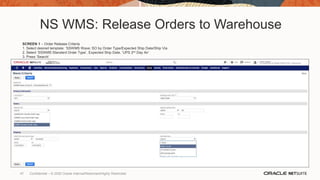
NS WMS: Release Orders to Warehouse
SCREEN 1 – Order Release Criteria
1. Select desired template: ‘SSWMS Wave: SO by Order Type/Expected Ship Date/Ship Via
2. Select ‘SSWMS Standard Order Type’, Expected Ship Date, ’UPS 2nd Day Air’
3. Press ‘Search’
47 Confidential – © 2020 Oracle Internal/Restricted/Highly Restricted
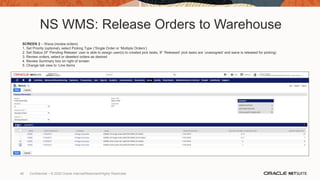
NS WMS: Release Orders to Warehouse
SCREEN 2 – Wave (review orders)
1. Set Priority (optional), select Picking Type (‘Single Order or ‘Multiple Orders’)
2. Set Status (IF ‘Pending Release’ user is able to assign user(s) to created pick tasks, IF ‘Released’ pick tasks are ‘unassigned’ and wave is released for picking)
3. Review orders, select or deselect orders as desired
4. Review Summary box on right of screen
5. Change tab view to ‘Line Items
48 Confidential – © 2020 Oracle Internal/Restricted/Highly Restricted
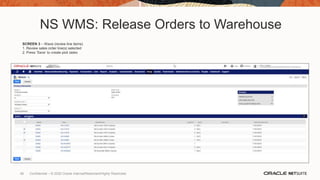
NS WMS: Release Orders to Warehouse
SCREEN 3 – Wave (review line items)
1. Review sales order line(s) selected
2. Press ‘Save’ to create pick tasks
49 Confidential – © 2020 Oracle Internal/Restricted/Highly Restricted
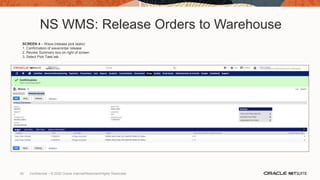
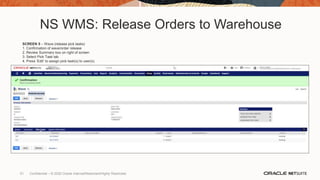
NS WMS: Release Orders to Warehouse
SCREEN 4 – Wave (release pick tasks)
1. Confirmation of wave/order release
2. Review Summary box on right of screen
3. Select Pick Task tab
50 Confidential – © 2020 Oracle Internal/Restricted/Highly Restricted
NS WMS: Release Orders to Warehouse
SCREEN 5 – Wave (release pick tasks)
1. Confirmation of wave/order release
2. Review Summary box on right of screen
3. Select Pick Task tab
4. Press ’Edit’ to assign pick task(s) to user(s)
51 Confidential – © 2020 Oracle Internal/Restricted/Highly Restricted
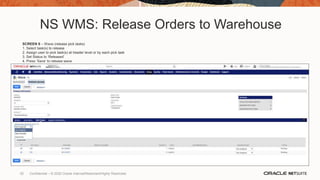
NS WMS: Release Orders to Warehouse
SCREEN 6 – Wave (release pick tasks)
1. Select task(s) to release
2. Assign user to pick task(s) at header level or by each pick task
3. Set Status to ‘Released’
4. Press ’Save’ to release wave
52 Confidential – © 2020 Oracle Internal/Restricted/Highly Restricted
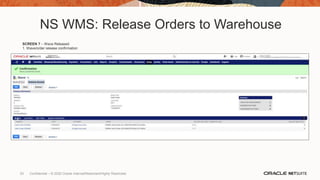
NS WMS: Release Orders to Warehouse
SCREEN 7 – Wave Released
1. Wave/order release confirmation
53 Confidential – © 2020 Oracle Internal/Restricted/Highly Restricted
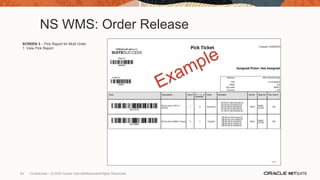
NS WMS: Order Release
SCREEN 3 – Pick Report for Multi Order
1. View Pick Report
54 Confidential – © 2020 Oracle Internal/Restricted/Highly Restricted
55
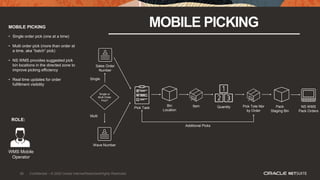
MOBILE PICKING MOBILE PICKING
• Single order pick (one at a time)
• Multi order pick (more than order at
a time, aka “batch” pick)
• NS WMS provides suggested pick
bin locations in the directed zone to
improve picking efficiency
• Real time updates for order
fulfillment visibility
ROLE:
WMS Mobile
Operator
Single or
Multi Order
Pick?
NS WMS
Pack Orders
Multi
Single
Wave Number
Item Pack
Staging Bin
Bin
Location
Quantity
Additional Picks
Pick Task Pick Tote Nbr
by Order
Sales Order
Number
55 Confidential – © 2020 Oracle Internal/Restricted/Highly Restricted
56
MOBILE PICKING
Multi Order
56 Confidential – © 2020 Oracle Internal/Restricted/Highly Restricted
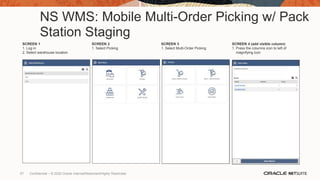
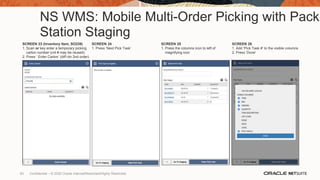
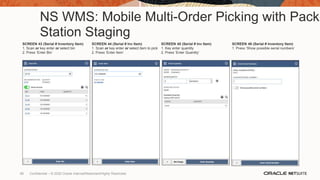
NS WMS: Mobile Multi-Order Picking w/ Pack
Station Staging
SCREEN 1
1. Log in
2. Select warehouse location
SCREEN 2
1. Select Picking
SCREEN 3
1. Select Multi-Order Picking
SCREEN 4 (add visible column)
1. Press the columns icon to left of
magnifying icon
57 Confidential – © 2020 Oracle Internal/Restricted/Highly Restricted
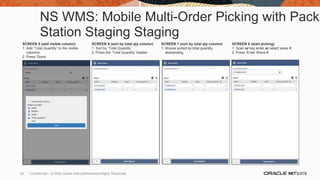
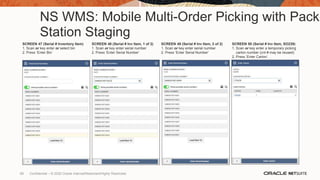
NS WMS: Mobile Multi-Order Picking with Pack
Station Staging Staging
SCREEN 5 (add visible column)
1. Add ‘Total Quantity’ to the visible
columns
2. Press ‘Done’
SCREEN 6 (sort by total qty column)
1. Sort by ’Total Quantity’
2. Press the ‘Total Quantity’ header
SCREEN 7 (sort by total qty column)
1. Waves sorted by total quantity
descending
SCREEN 8 (start picking)
1. Scan or key enter or select wave #
2. Press ‘Enter Wave #’
58 Confidential – © 2020 Oracle Internal/Restricted/Highly Restricted
NS WMS: Mobile Multi-Order Picking with Pack
Station Staging
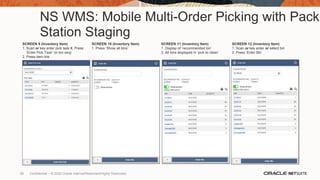
SCREEN 9 (Inventory Item)
1. Scan or key enter pick task #, Press
‘Enter Pick Task’ (in bin seq)
2. Press item link
SCREEN 10 (Inventory Item)
1. Press ‘Show all bins’
SCREEN 11 (Inventory Item)
1. Display of ‘recommended bin’
2. All bins displayed in ‘pick to clean’
SCREEN 12 (Inventory Item)
1. Scan or key enter or select bin
2. Press ‘Enter Bin’
59 Confidential – © 2020 Oracle Internal/Restricted/Highly Restricted
NS WMS: Mobile Multi-Order Picking with Pack
Station Staging
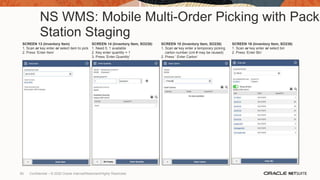
SCREEN 13 (Inventory Item)
1. Scan or key enter or select item to pick
2. Press ‘Enter Item’
SCREEN 14 (Inventory Item, SO238)
1. Need 5, 1 available
2. Key enter quantity = 1
3. Press ‘Enter Quantity’
SCREEN 15 (Inventory Item, SO238)
1. Scan or key enter a temporary picking
carton number (cnt # may be reused)
2. Press ‘ Enter Carton’
SCREEN 16 (Inventory Item, SO238)
1. Scan or key enter or select bin
2. Press ‘Enter Bin’
60 Confidential – © 2020 Oracle Internal/Restricted/Highly Restricted
NS WMS: Mobile Multi-Order Picking with Pack
Station Staging
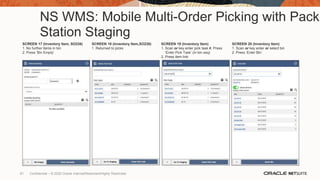
SCREEN 17 (Inventory Item, SO238)
1. No further items in bin
2. Press ‘Bin Empty’
SCREEN 18 (Inventory Item,SO238)
1. Returned to picks
SCREEN 19 (Inventory Item)
1. Scan or key enter pick task #, Press
‘Enter Pick Task’ (in bin seq)
2. Press item link
SCREEN 20 (Inventory Item)
1. Scan or key enter or select bin
2. Press ‘Enter Bin’
61 Confidential – © 2020 Oracle Internal/Restricted/Highly Restricted
NS WMS: Mobile Multi-Order Picking with Pack
Station Staging
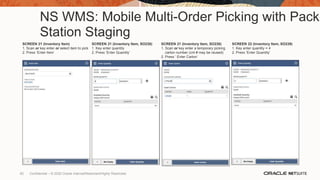
SCREEN 21 (Inventory Item)
1. Scan or key enter or select item to pick
2. Press ‘Enter Item’
SCREEN 21 (Inventory Item, SO238)
1. Key enter quantity
2. Press ‘Enter Quantity’
SCREEN 21 (Inventory Item, SO238)
1. Scan or key enter a temporary picking
carton number (cnt # may be reused)
2. Press ‘ Enter Carton’
SCREEN 22 (Inventory Item, SO239)
1. Key enter quantity = 4
2. Press ‘Enter Quantity’
62 Confidential – © 2020 Oracle Internal/Restricted/Highly Restricted
NS WMS: Mobile Multi-Order Picking with Pack
Station Staging
SCREEN 23 (Inventory Item, SO239)
1. Scan or key enter a temporary picking
carton number (cnt # may be reused)
2. Press ‘ Enter Carton’ (diff ctn 2nd order)
SCREEN 24
1. Press ‘Next Pick Task’
SCREEN 25
1. Press the columns icon to left of
magnifying icon
SCREEN 26
1. Add ‘Pick Task #’ to the visible columns
2. Press ‘Done’
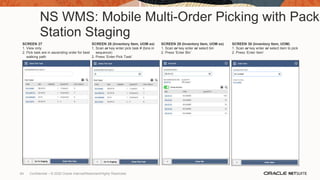
63 Confidential – © 2020 Oracle Internal/Restricted/Highly Restricted
NS WMS: Mobile Multi-Order Picking with Pack
Station Staging
SCREEN 27
1. View only
2. Pick task are in ascending order for best
walking path
SCREEN 28 (Inventory Item, UOM ex)
1. Scan or key enter pick task # (bins in
sequence)
2. Press ‘Enter Pick Task’
SCREEN 29 (Inventory Item, UOM ex)
1. Scan or key enter or select bin
2. Press ‘Enter Bin’
SCREEN 30 (Inventory Item, UOM)
1. Scan or key enter or select item to pick
2. Press ‘Enter Item’
64 Confidential – © 2020 Oracle Internal/Restricted/Highly Restricted
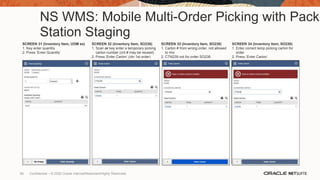
NS WMS: Mobile Multi-Order Picking with Pack
Station Staging
SCREEN 31 (Inventory Item, UOM ex)
1. Key enter quantity
2. Press ‘Enter Quantity’
SCREEN 32 (Inventory Item, SO238)
1. Scan or key enter a temporary picking
carton number (cnt # may be reused)
2. Press ‘Enter Carton’ (ctn 1st order)
SCREEN 33 (Inventory Item, SO238)
1. Carton # from wrong order, not allowed
to mix
2. CTN239 not for order SO238
SCREEN 34 (Inventory Item, SO238)
1. Enter correct temp picking carton for
order
2. Press ‘Enter Carton’
65 Confidential – © 2020 Oracle Internal/Restricted/Highly Restricted
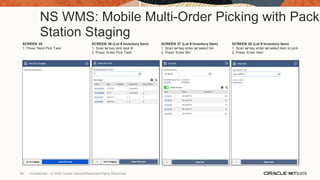
NS WMS: Mobile Multi-Order Picking with Pack
Station Staging
SCREEN 35
1. Press ‘Next Pick Task’
SCREEN 36 (Lot # Inventory Item)
1. Scan or key pick task #
2. Press ‘Enter Pick Task’
SCREEN 37 (Lot # Inventory Item)
1. Scan or key enter or select bin
2. Press ‘Enter Bin’
SCREEN 38 (Lot # Inventory Item)
1. Scan or key enter or select item to pick
2. Press ‘Enter Item’
66 Confidential – © 2020 Oracle Internal/Restricted/Highly Restricted
NS WMS: Mobile Multi-Order Picking with Pack
Station Staging
SCREEN 39 (Lot # Inventory Item)
1. Key enter quantity
2. Scan or key enter or select lot # link
3. Press ‘Enter Quantity’
SCREEN 40 (Lot # Inv Item, SO238)
1. Scan or key enter a temporary picking
carton number (cnt # may be reused)
2. Press ‘Enter Carton’
SCREEN 41
1. Press ‘Next Pick Task’
SCREEN 42 (Serial # Inventory Item)
1. Scan or key enter pick task # (bins in
sequence)
2. Press ‘Enter Pick Task’
67 Confidential – © 2020 Oracle Internal/Restricted/Highly Restricted
NS WMS: Mobile Multi-Order Picking with Pack
Station Staging
SCREEN 43 (Serial # Inventory Item)
1. Scan or key enter or select bin
2. Press ‘Enter Bin’
SCREEN 44 (Serial # Inv Item)
1. Scan or key enter or select item to pick
2. Press ‘Enter Item’
SCREEN 45 (Serial # Inv Item)
1. Key enter quantity
2. Press ‘Enter Quantity’
SCREEN 46 (Serial # Inventory Item)
1. Press ‘Show possible serial numbers’
68 Confidential – © 2020 Oracle Internal/Restricted/Highly Restricted
NS WMS: Mobile Multi-Order Picking with Pack
Station Staging
SCREEN 47 (Serial # Inventory Item)
1. Scan or key enter or select bin
2. Press ‘Enter Bin’
SCREEN 48 (Serial # Inv Item, 1 of 2)
1. Scan or key enter serial number
2. Press ‘Enter Serial Number’
SCREEN 49 (Serial # Inv Item, 2 of 2)
1. Scan or key enter serial number
2. Press ‘Enter Serial Number’
SCREEN 50 (Serial # Inv Item, SO239)
1. Scan or key enter a temporary picking
carton number (cnt # may be reused)
2. Press ‘Enter Carton’
69 Confidential – © 2020 Oracle Internal/Restricted/Highly Restricted
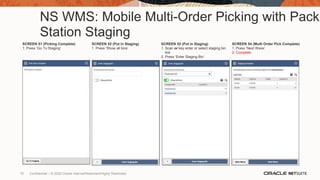
NS WMS: Mobile Multi-Order Picking with Pack
Station Staging
SCREEN 51 (Picking Complete)
1. Press ‘Go To Staging’
SCREEN 52 (Put in Staging)
1. Press ‘Show all bins’
SCREEN 53 (Put in Staging)
1. Scan or key enter or select staging bin
link
2. Press ‘Enter Staging Bin’
SCREEN 54 (Multi Order Pick Complete)
1. Press ‘Next Wave’
2. Complete
70 Confidential – © 2020 Oracle Internal/Restricted/Highly Restricted
71
MOBILE PICKING
Single Order
71 Confidential – © 2020 Oracle Internal/Restricted/Highly Restricted
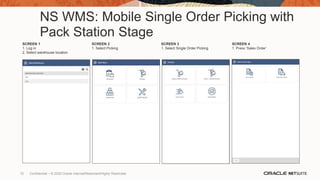
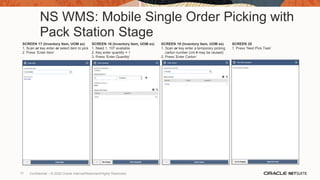
NS WMS: Mobile Single Order Picking with
Pack Station Stage
SCREEN 1
1. Log in
2. Select warehouse location
SCREEN 2
1. Select Picking
SCREEN 3
1. Select Single Order Picking
SCREEN 4
1. Press ‘Sales Order’
72 Confidential – © 2020 Oracle Internal/Restricted/Highly Restricted
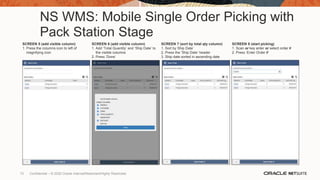
NS WMS: Mobile Single Order Picking with
Pack Station Stage
SCREEN 5 (add visible column)
1. Press the columns icon to left of
magnifying icon
SCREEN 6 (add visible column)
1. Add ‘Total Quantity’ and ‘Ship Date’ to
the visible columns
2. Press ‘Done’
SCREEN 7 (sort by total qty column)
1. Sort by Ship Date’
2. Press the ‘Ship Date’ header
3. Ship date sorted in ascending date
SCREEN 8 (start picking)
1. Scan or key enter or select order #
2. Press ‘Enter Order #’
73 Confidential – © 2020 Oracle Internal/Restricted/Highly Restricted
NS WMS: Mobile Single Order Picking with
Pack Station Stage
SCREEN 5 (add visible column)
1. Press the columns icon to left of
magnifying icon
SCREEN 6 (sort by total qty column)
1. Add ‘Pick Task #’ to the visible columns
2. Press ‘Done’
SCREEN 7 (sort by total qty column)
1. View only
2. Pick task are in ascending order for best
walking path
SCREEN 8 (start picking)
1. Scan or key enter pick task # (bins in
sequence)
2. Press ‘Enter Pick Task’
74 Confidential – © 2020 Oracle Internal/Restricted/Highly Restricted
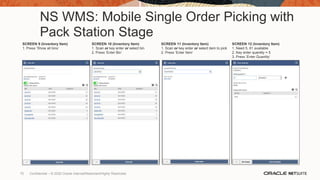
NS WMS: Mobile Single Order Picking with
Pack Station Stage
SCREEN 9 (Inventory Item)
1. Press ‘Show all bins’
SCREEN 10 (Inventory Item)
1. Scan or key enter or select bin
2. Press ‘Enter Bin’
SCREEN 11 (Inventory Item)
1. Scan or key enter or select item to pick
2. Press ‘Enter Item’
SCREEN 12 (Inventory Item)
1. Need 5, 61 available
2. Key enter quantity = 5
3. Press ‘Enter Quantity’
75 Confidential – © 2020 Oracle Internal/Restricted/Highly Restricted
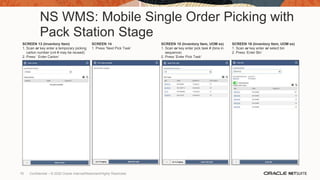
NS WMS: Mobile Single Order Picking with
Pack Station Stage
SCREEN 13 (Inventory Item)
1. Scan or key enter a temporary picking
carton number (cnt # may be reused)
2. Press ‘ Enter Carton’
SCREEN 14
1. Press ‘Next Pick Task’
SCREEN 15 (Inventory Item, UOM ex)
1. Scan or key enter pick task # (bins in
sequence)
2. Press ‘Enter Pick Task’
SCREEN 16 (Inventory Item, UOM ex)
1. Scan or key enter or select bin
2. Press ‘Enter Bin’
76 Confidential – © 2020 Oracle Internal/Restricted/Highly Restricted
NS WMS: Mobile Single Order Picking with
Pack Station Stage
SCREEN 17 (Inventory Item, UOM ex)
1. Scan or key enter or select item to pick
2. Press ‘Enter Item’
SCREEN 18 (Inventory Item, UOM ex)
1. Need 1, 107 available
2. Key enter quantity = 1
3. Press ‘Enter Quantity’
SCREEN 19 (Inventory Item, UOM ex)
1. Scan or key enter a temporary picking
carton number (cnt # may be reused)
2. Press ‘Enter Carton’
SCREEN 20
1. Press ‘Next Pick Task’
77 Confidential – © 2020 Oracle Internal/Restricted/Highly Restricted
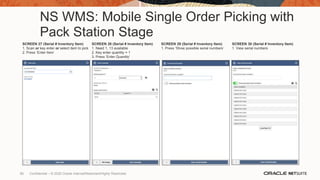
NS WMS: Mobile Single Order Picking with
Pack Station Stage
SCREEN 21 (Lot Inventory Item)
1. Scan or key enter pick task # (bins in
sequence)
2. Press ‘Enter Pick Task’
SCREEN 21 (Lot Inventory Item)
1. Scan or key enter or select bin
2. Press ‘Enter Bin’
SCREEN 21 (Lot Inventory Item)
1. Scan or key enter or select item to pick
2. Press ‘Enter Item’
SCREEN 22 (Lot Inventory Item)
1. Key enter quantity
2. Scan or key enter or select lot # link
3. Press ‘Enter Quantity’
78 Confidential – © 2020 Oracle Internal/Restricted/Highly Restricted
NS WMS: Mobile Single Order Picking with
Pack Station Stage
SCREEN 23 (Lot Inventory Item)
1. Scan or key enter a temporary picking
carton number (cnt # may be reused)
2. Press ‘Enter Carton’
SCREEN 24
1. Press ‘Next Pick Task’
SCREEN 25 (Serial # Inventory Item)
1. Scan or key enter pick task # (bins in
sequence)
2. Press ‘Enter Pick Task’
SCREEN 26 (Serial # Inventory Item)
1. Scan or key enter or select bin
2. Press ‘Enter Bin’
79 Confidential – © 2020 Oracle Internal/Restricted/Highly Restricted
NS WMS: Mobile Single Order Picking with
Pack Station Stage
SCREEN 27 (Serial # Inventory Item)
1. Scan or key enter or select item to pick
2. Press ‘Enter Item’
SCREEN 28 (Serial # Inventory Item)
1. Need 1, 13 available
2. Key enter quantity = 1
3. Press ‘Enter Quantity’
SCREEN 29 (Serial # Inventory Item)
1. Press ‘Show possible serial numbers’
SCREEN 30 (Serial # Inventory Item)
1. View serial numbers
80 Confidential – © 2020 Oracle Internal/Restricted/Highly Restricted
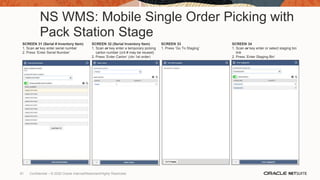
NS WMS: Mobile Single Order Picking with
Pack Station Stage
SCREEN 31 (Serial # Inventory Item)
1. Scan or key enter serial number
2. Press ‘Enter Serial Number’
SCREEN 32 (Serial Inventory Item)
1. Scan or key enter a temporary picking
carton number (cnt # may be reused)
2. Press ‘Enter Carton’ (ctn 1st order)
SCREEN 33
1. Press ‘Go To Staging’
SCREEN 34
1. Scan or key enter or select staging bin
link
2. Press ‘Enter Staging Bin’
81 Confidential – © 2020 Oracle Internal/Restricted/Highly Restricted
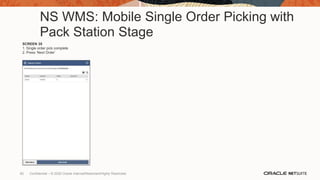
NS WMS: Mobile Single Order Picking with
Pack Station Stage
SCREEN 35
1. Single order pick complete
2. Press ‘Next Order’
82 Confidential – © 2020 Oracle Internal/Restricted/Highly Restricted
83
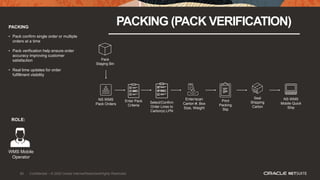
PACKING
PACKING (PACK VERIFICATION)
• Pack confirm single order or multiple
orders at a time
• Pack verification help ensure order
accuracy improving customer
satisfaction
• Real time updates for order
fulfillment visibility
ROLE:
WMS Mobile
Operator
NS WMS
Pack Orders
Seal
Shipping
Carton
Pack
Staging Bin
NS WMS
Mobile Quick
Ship
Enter Pack
Criteria
Enter/scan
Carton #, Box
Size, Weight
Select/Confirm
Order Lines to
Carton(s) LPN
Print
Packing
Slip
83 Confidential – © 2020 Oracle Internal/Restricted/Highly Restricted
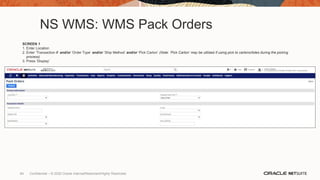
NS WMS: WMS Pack Orders
SCREEN 1
1. Enter Location
2. Enter ‘Transaction #’ and/or ‘Order Type’ and/or ‘Ship Method’ and/or ‘Pick Carton’ (Note: ‘Pick Carton’ may be utilized if using pick to cartons/totes during the picking
process)
3. Press ‘Display’
84 Confidential – © 2020 Oracle Internal/Restricted/Highly Restricted
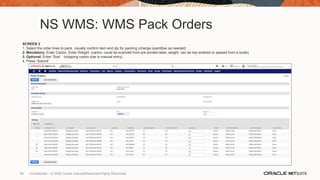
NS WMS: WMS Pack Orders
SCREEN 2
1. Select the order lines to pack, visually confirm item and qty for packing (change quantities as needed)
2. Mandatory: Enter Carton, Enter Weight (carton: could be scanned from pre-printed label, weight: can be key entered or passed from a scale)
3. Optional: Enter ‘Size’ (shipping carton size is manual entry)
4. Press ‘Submit’
85 Confidential – © 2020 Oracle Internal/Restricted/Highly Restricted
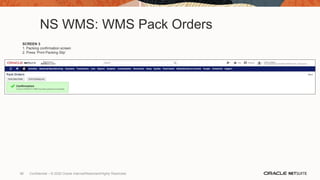
NS WMS: WMS Pack Orders
SCREEN 3
1. Packing confirmation screen
2. Press ‘Print Packing Slip’
86 Confidential – © 2020 Oracle Internal/Restricted/Highly Restricted
NS WMS: WMS Pack Orders
SCREEN 4
1. Example Packing Slip (print or save to computer)
87 Confidential – © 2020 Oracle Internal/Restricted/Highly Restricted
88
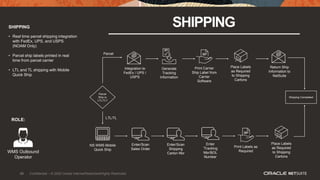
SHIPPING SHIPPING
• Real time parcel shipping integration
with FedEx, UPS, and USPS
(NOAM Only)
• Parcel ship labels printed in real
time from parcel carrier
• LTL and TL shipping with Mobile
Quick Ship
ROLE:
WMS Outbound
Operator
Parcel
Ship or
LTL/TL?
Enter
‘Tracking
Nbr/BOL
Number
Integration to
FedEx / UPS /
USPS
NS WMS Mobile
Quick Ship
Shipping Completed
Enter/Scan
Sales Order
Print Carrier
Ship Label from
Carrier
Software
Return Ship
Information to
NetSuite
Generate
Tracking
Information
Place Labels
as Required
to Shipping
Cartons
Place Labels
as Required
to Shipping
Cartons
Print Labels as
Required
Parcel
LTL/TL
Enter/Scan
Shipping
Carton Nbr
88 Confidential – © 2020 Oracle Internal/Restricted/Highly Restricted
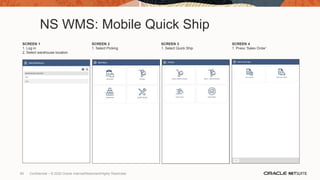
NS WMS: Mobile Quick Ship
SCREEN 1
1. Log in
2. Select warehouse location
SCREEN 2
1. Select Picking
SCREEN 3
1. Select Quick Ship
SCREEN 4
1. Press ‘Sales Order’
89 Confidential – © 2020 Oracle Internal/Restricted/Highly Restricted
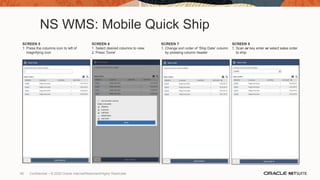
NS WMS: Mobile Quick Ship
SCREEN 5
1. Press the columns icon to left of
magnifying icon
SCREEN 6
1. Select desired columns to view
2. Press ‘Done’
SCREEN 7
1. Change sort order of ‘Ship Date’ column
by pressing column header
SCREEN 8
1. Scan or key enter or select sales order
to ship
90 Confidential – © 2020 Oracle Internal/Restricted/Highly Restricted
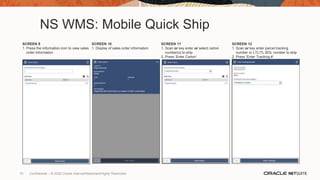
NS WMS: Mobile Quick Ship
SCREEN 9
1. Press the information icon to view sales
order information
SCREEN 10
1. Display of sales order information
SCREEN 11
1. Scan or key enter or select carton
number(s) to ship
2. Press ‘Enter Carton’
SCREEN 12
1. Scan or key enter parcel tracking
number or LTL/TL BOL number to ship
2. Press ‘Enter Tracking #’
91 Confidential – © 2020 Oracle Internal/Restricted/Highly Restricted
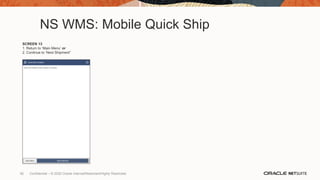
NS WMS: Mobile Quick Ship
SCREEN 13
1. Return to ‘Main Menu’ or
2. Continue to ‘Next Shipment”
92 Confidential – © 2020 Oracle Internal/Restricted/Highly Restricted
InventoryOperations
93 Confidential – © 2020 Oracle Internal/Restricted/Highly Restricted
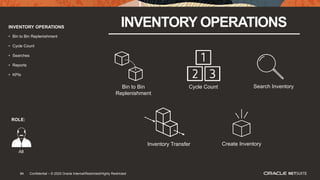
94
INVENTORY OPERATIONS INVENTORY OPERATIONS
• Bin to Bin Replenishment
• Cycle Count
• Searches
• Reports
• KPIs
ROLE:
All
Bin to Bin
Replenishment
Cycle Count Search Inventory
Inventory Transfer Create Inventory
94 Confidential – © 2020 Oracle Internal/Restricted/Highly Restricted
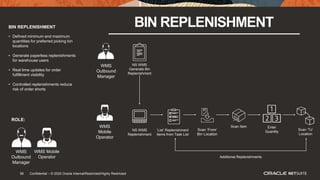
95
BIN REPLENISHMENT BIN REPLENISHMENT
• Defined minimum and maximum
quantities for preferred picking bin
locations
• Generate paperless replenishments
for warehouse users
• Real time updates for order
fulfillment visibility
• Controlled replenishments reduce
risk of order shorts
ROLE:
WMS
Outbound
Manager
WMS Mobile
Operator
WMS
Outbound
Manager
WMS
Mobile
Operator
Additional Replenishments
Scan ‘From’
Bin Location
‘List’ Replenishment
Items from Task List
NS WMS
Generate Bin
Replenishment
NS WMS
Replenishment
Scan ‘To’
Location
Scan Item Enter
Quantity
95 Confidential – © 2020 Oracle Internal/Restricted/Highly Restricted
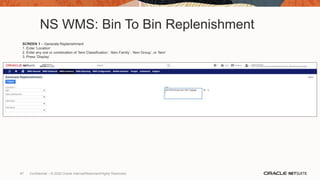
NS WMS: Bin To Bin Replenishment
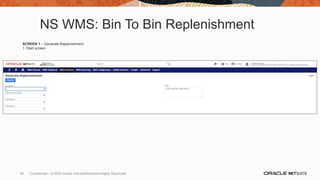
SCREEN 1 – Generate Replenishment
1. Start screen
96 Confidential – © 2020 Oracle Internal/Restricted/Highly Restricted
NS WMS: Bin To Bin Replenishment
SCREEN 1 – Generate Replenishment
1. Enter ‘Location’
2. Enter any one or combination of ‘Item Classification’, ‘Item Family’, ‘Item Group’, or ‘Item’
3. Press ‘Display’
97 Confidential – © 2020 Oracle Internal/Restricted/Highly Restricted
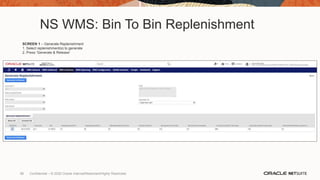
NS WMS: Bin To Bin Replenishment
SCREEN 1 – Generate Replenishment
1. Select replenishment(s) to generate
2. Press ‘Generate & Release’
98 Confidential – © 2020 Oracle Internal/Restricted/Highly Restricted
NS WMS: Bin To Bin Replenishment
SCREEN 1 – Generate Replenishment
1. Replenishment confirmation
99 Confidential – © 2020 Oracle Internal/Restricted/Highly Restricted
NS WMS: Bin To Bin Replenishment
SCREEN 1
1. Log in
2. Select warehouse location
SCREEN 2
1. Select Inventory
SCREEN 3
1. Select Replenishment
SCREEN 4
1. Select item to replenish
100 Confidential – © 2020 Oracle Internal/Restricted/Highly Restricted
NS WMS: Bin To Bin Replenishment
SCREEN 5
1. Press ‘Show all bins’ to view all
available pull from bins
SCREEN 6
1. Select information icon to see
replenishment task details
SCREEN 7
1. Scan or key enter or select link for pull
from bin
2. Press ‘Enter Bin’
SCREEN 8
1. Scan or key enter or select link to
confirm item
2. Press ‘Enter Item’
101 Confidential – © 2020 Oracle Internal/Restricted/Highly Restricted
NS WMS: Bin To Bin Replenishment
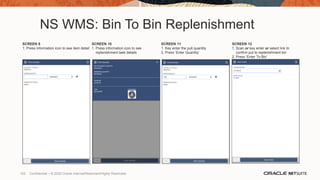
SCREEN 9
1. Press information icon to see item detail
SCREEN 10
1. Press information icon to see
replenishment task details
SCREEN 11
1. Key enter the pull quantity
2. Press ‘Enter Quantity’
SCREEN 12
1. Scan or key enter or select link to
confirm put to replenishment bin
2. Press ‘Enter To Bin’
102 Confidential – © 2020 Oracle Internal/Restricted/Highly Restricted
NS WMS: Bin To Bin Replenishment
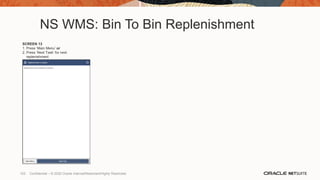
SCREEN 13
1. Press ‘Main Menu’ or
2. Press ‘Next Task’ for next
replenishment
103 Confidential – © 2020 Oracle Internal/Restricted/Highly Restricted
104
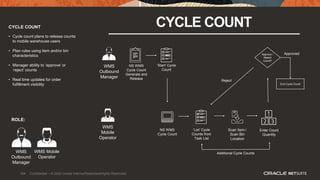
CYCLE COUNT CYCLE COUNT
• Cycle count plans to release counts
to mobile warehouse users
• Plan rules using item and/or bin
characteristics
• Manager ability to ‘approve’ or
‘reject’ counts
• Real time updates for order
fulfillment visibility
ROLE:
WMS
Outbound
Manager
WMS Mobile
Operator
WMS
Outbound
Manager
WMS
Mobile
Operator
Additional Cycle Counts
Scan Item /
Scan Bin
Location
‘List’ Cycle
Counts from
Task List
NS WMS
Cycle Count
Generate and
Release
NS WMS
Cycle Count
Enter Count
Quantity
Approve /
Reject
Count?
End Cycle Count
‘Start’ Cycle
Count
Reject
Approved
104 Confidential – © 2020 Oracle Internal/Restricted/Highly Restricted
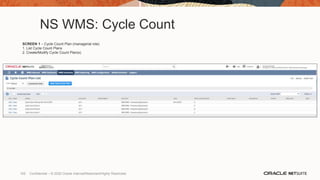
NS WMS: Cycle Count
SCREEN 1 – Cycle Count Plan (managerial role)
1. List Cycle Count Plans
2. Create/Modify Cycle Count Plan(s)
105 Confidential – © 2020 Oracle Internal/Restricted/Highly Restricted
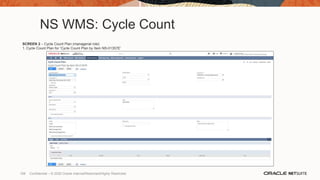
NS WMS: Cycle Count
SCREEN 2 – Cycle Count Plan (managerial role)
1. Cycle Count Plan for ‘Cycle Count Plan by Item NS-II1357E’
106 Confidential – © 2020 Oracle Internal/Restricted/Highly Restricted
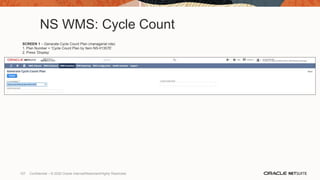
NS WMS: Cycle Count
SCREEN 1 – Generate Cycle Count Plan (managerial role)
1. Plan Number = ‘Cycle Count Plan by Item NS-II1357E’
2. Press ‘Display’
107 Confidential – © 2020 Oracle Internal/Restricted/Highly Restricted
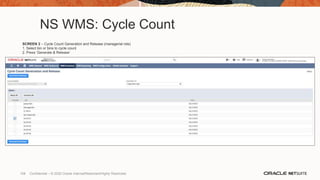
NS WMS: Cycle Count
SCREEN 2 – Cycle Count Generation and Release (managerial role)
1. Select bin or bins to cycle count
2. Press ‘Generate & Release’
108 Confidential – © 2020 Oracle Internal/Restricted/Highly Restricted
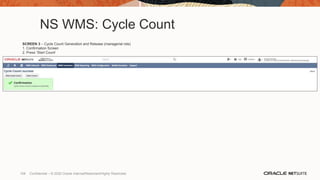
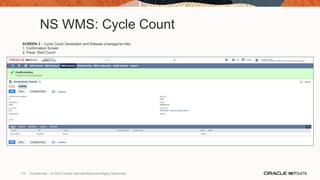
NS WMS: Cycle Count
SCREEN 3 – Cycle Count Generation and Release (managerial role)
1. Confirmation Screen
2. Press ‘Start Count’
109 Confidential – © 2020 Oracle Internal/Restricted/Highly Restricted
NS WMS: Cycle Count
SCREEN 3 – Cycle Count Generation and Release (managerial role)
1. Confirmation Screen
2. Press ‘Start Count’
110 Confidential – © 2020 Oracle Internal/Restricted/Highly Restricted
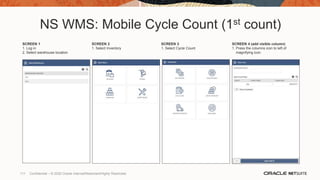
NS WMS: Mobile Cycle Count (1st count)
SCREEN 1
1. Log in
2. Select warehouse location
SCREEN 2
1. Select Inventory
SCREEN 3
1. Select Cycle Count
SCREEN 4 (add visible column)
1. Press the columns icon to left of
magnifying icon.
111 Confidential – © 2020 Oracle Internal/Restricted/Highly Restricted
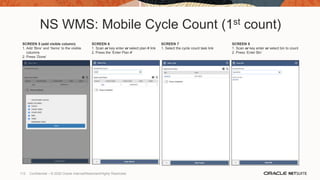
NS WMS: Mobile Cycle Count (1st count)
SCREEN 5 (add visible column)
1. Add ‘Bins’ and ‘Items’ to the visible
columns
2. Press ‘Done’
SCREEN 6
1. Scan or key enter or select plan # link
2. Press the ‘Enter Plan #’
SCREEN 7
1. Select the cycle count task link
SCREEN 8
1. Scan or key enter or select bin to count
2. Press ‘Enter Bin’
112 Confidential – © 2020 Oracle Internal/Restricted/Highly Restricted
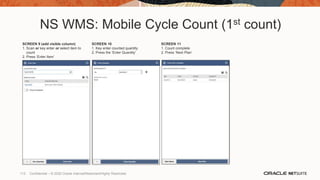
NS WMS: Mobile Cycle Count (1st count)
SCREEN 9 (add visible column)
1. Scan or key enter or select item to
count
2. Press ‘Enter Item’
SCREEN 10
1. Key enter counted quantity
2. Press the ‘Enter Quantity’
SCREEN 11
1. Count complete
2. Press ‘Next Plan’
113 Confidential – © 2020 Oracle Internal/Restricted/Highly Restricted
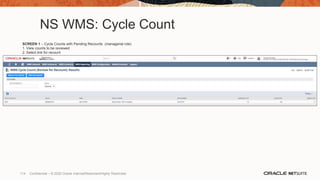
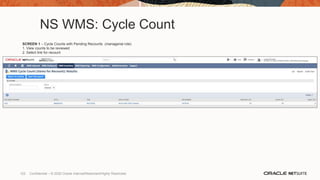
NS WMS: Cycle Count
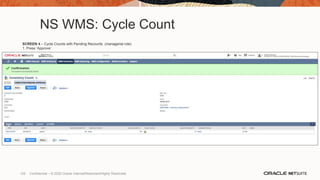
SCREEN 1 – Cycle Counts with Pending Recounts (managerial role)
1. View counts to be reviewed
2. Select link for recount
114 Confidential – © 2020 Oracle Internal/Restricted/Highly Restricted
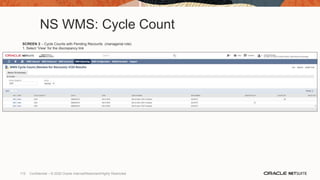
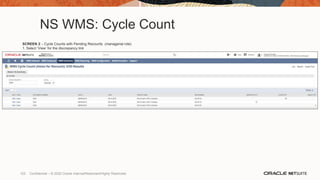
NS WMS: Cycle Count
SCREEN 2 – Cycle Counts with Pending Recounts (managerial role)
1. Select ‘View’ for the discrepancy link
115 Confidential – © 2020 Oracle Internal/Restricted/Highly Restricted
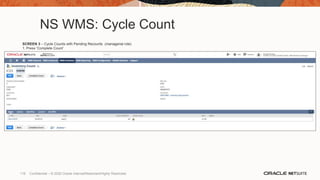
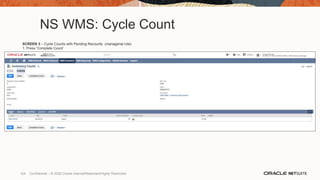
NS WMS: Cycle Count
SCREEN 3 – Cycle Counts with Pending Recounts (managerial role)
1. Press ‘Complete Count’
116 Confidential – © 2020 Oracle Internal/Restricted/Highly Restricted
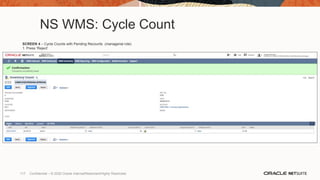
NS WMS: Cycle Count
SCREEN 4 – Cycle Counts with Pending Recounts (managerial role)
1. Press ‘Reject’
117 Confidential – © 2020 Oracle Internal/Restricted/Highly Restricted
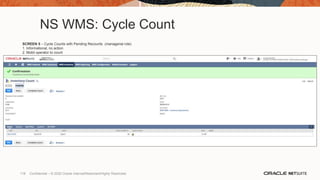
NS WMS: Cycle Count
SCREEN 5 – Cycle Counts with Pending Recounts (managerial role)
1. Informational, no action
2. Mobil operator to count
118 Confidential – © 2020 Oracle Internal/Restricted/Highly Restricted
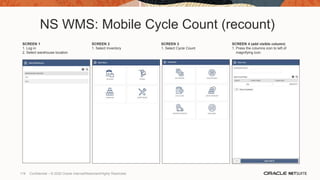
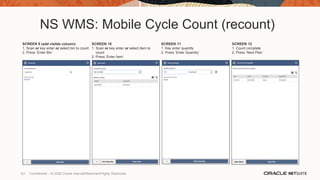
NS WMS: Mobile Cycle Count (recount)
SCREEN 1
1. Log in
2. Select warehouse location
SCREEN 2
1. Select Inventory
SCREEN 3
1. Select Cycle Count
SCREEN 4 (add visible column)
1. Press the columns icon to left of
magnifying icon.
119 Confidential – © 2020 Oracle Internal/Restricted/Highly Restricted
NS WMS: Mobile Cycle Count (recount)
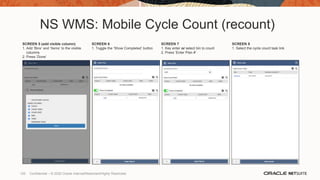
SCREEN 5 (add visible column)
1. Add ‘Bins’ and ‘Items’ to the visible
columns
2. Press ‘Done’
SCREEN 6
1. Toggle the ‘Show Completed’ button
SCREEN 7
1. Key enter or select bin to count
2. Press ‘Enter Plan #’
SCREEN 8
1. Select the cycle count task link
120 Confidential – © 2020 Oracle Internal/Restricted/Highly Restricted
NS WMS: Mobile Cycle Count (recount)
SCREEN 9 (add visible column)
1. Scan or key enter or select bin to count
2. Press ‘Enter Bin’
SCREEN 10
1. Scan or key enter or select item to
count
2. Press ‘Enter Item’
SCREEN 11
1. Key enter quantity
2. Press ‘Enter Quantity’
SCREEN 12
1. Count complete
2. Press ‘Next Plan’
121 Confidential – © 2020 Oracle Internal/Restricted/Highly Restricted
NS WMS: Cycle Count
SCREEN 1 – Cycle Counts with Pending Recounts (managerial role)
1. View counts to be reviewed
2. Select link for recount
122 Confidential – © 2020 Oracle Internal/Restricted/Highly Restricted
NS WMS: Cycle Count
SCREEN 2 – Cycle Counts with Pending Recounts (managerial role)
1. Select ‘View’ for the discrepancy link
123 Confidential – © 2020 Oracle Internal/Restricted/Highly Restricted
NS WMS: Cycle Count
SCREEN 3 – Cycle Counts with Pending Recounts (managerial role)
1. Press ‘Complete Count’
124 Confidential – © 2020 Oracle Internal/Restricted/Highly Restricted
NS WMS: Cycle Count
SCREEN 4 – Cycle Counts with Pending Recounts (managerial role)
1. Press ‘Approve’
125 Confidential – © 2020 Oracle Internal/Restricted/Highly Restricted
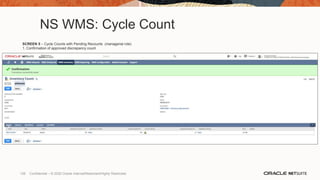
NS WMS: Cycle Count
SCREEN 5 – Cycle Counts with Pending Recounts (managerial role)
1. Confirmation of approved discrepancy count
126 Confidential – © 2020 Oracle Internal/Restricted/Highly Restricted
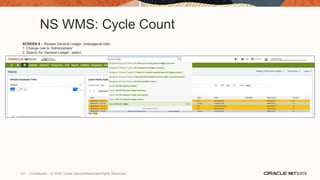
NS WMS: Cycle Count
SCREEN 6 – Review General Ledger (managerial role)
1. Change role to ‘Administrator’
2. Search for ‘General Ledger’, select
127 Confidential – © 2020 Oracle Internal/Restricted/Highly Restricted
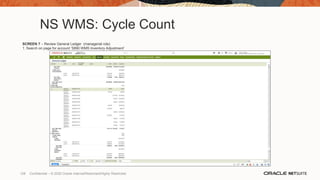
NS WMS: Cycle Count
SCREEN 7 – Review General Ledger (managerial role)
1. Search on page for account ‘5890 WMS Inventory Adjustment’
128 Confidential – © 2020 Oracle Internal/Restricted/Highly Restricted
129
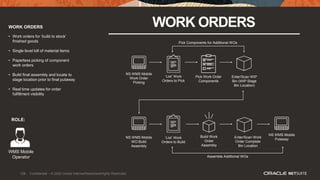
WORK ORDERS WORK ORDERS
• Work orders for ‘build to stock’
finished goods
• Single level bill of material items
• Paperless picking of component
work orders
• Build final assembly and locate to
stage location prior to final putaway
• Real time updates for order
fulfillment visibility
ROLE:
NS WMS Mobile
WO Build
Assembly
NS WMS Mobile
Work Order
Picking
Pick Work Order
Components
‘List’ Work
Orders to Pick
Enter/Scan WIP
Bin (WIP Stage
Bin Location)
‘List’ Work
Orders to Build
Build Work
Order
Assembly
Enter/Scan Work
Order Complete
Bin Location
Pick Components for Additional WOs
Assemble Additional WOs
NS WMS Mobile
Putaway
WMS Mobile
Operator
129 Confidential – © 2020 Oracle Internal/Restricted/Highly Restricted
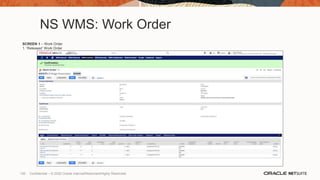
NS WMS: Work Order
SCREEN 1 – Work Order
1. ‘Released’ Work Order
130 Confidential – © 2020 Oracle Internal/Restricted/Highly Restricted
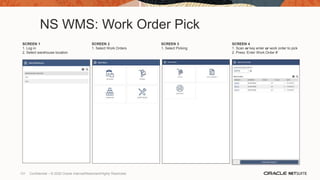
NS WMS: Work Order Pick
SCREEN 1
1. Log in
2. Select warehouse location
SCREEN 2
1. Select Work Orders
SCREEN 3
1. Select Picking
SCREEN 4
1. Scan or key enter or work order to pick
2. Press ‘Enter Work Order #’
131 Confidential – © 2020 Oracle Internal/Restricted/Highly Restricted
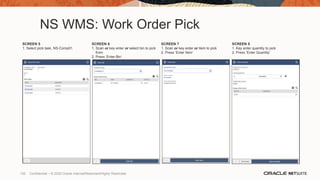
NS WMS: Work Order Pick
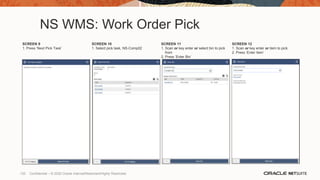
SCREEN 5
1. Select pick task, NS-Comp01
SCREEN 6
1. Scan or key enter or select bin to pick
from
2. Press ‘Enter Bin’
SCREEN 7
1. Scan or key enter or item to pick
2. Press ‘Enter Item’
SCREEN 8
1. Key enter quantity to pick
2. Press ‘Enter Quantity’
132 Confidential – © 2020 Oracle Internal/Restricted/Highly Restricted
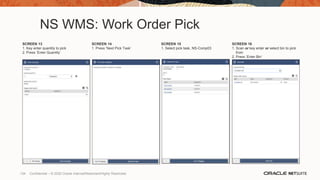
NS WMS: Work Order Pick
SCREEN 9
1. Press ‘Next Pick Task’
SCREEN 10
1. Select pick task, NS-Comp02
SCREEN 11
1. Scan or key enter or select bin to pick
from
2. Press ‘Enter Bin’
SCREEN 12
1. Scan or key enter or item to pick
2. Press ‘Enter Item’
133 Confidential – © 2020 Oracle Internal/Restricted/Highly Restricted
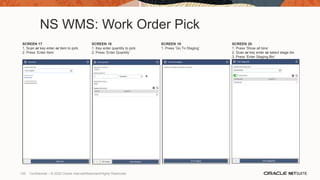
NS WMS: Work Order Pick
SCREEN 13
1. Key enter quantity to pick
2. Press ‘Enter Quantity’
SCREEN 14
1. Press ‘Next Pick Task’
SCREEN 15
1. Select pick task, NS-Comp03
SCREEN 16
1. Scan or key enter or select bin to pick
from
2. Press ‘Enter Bin’
134 Confidential – © 2020 Oracle Internal/Restricted/Highly Restricted
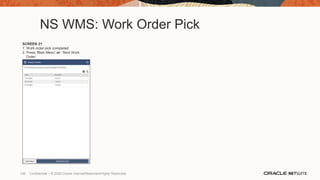
NS WMS: Work Order Pick
SCREEN 17
1. Scan or key enter or item to pick
2. Press ‘Enter Item’
SCREEN 18
1. Key enter quantity to pick
2. Press ‘Enter Quantity’
SCREEN 19
1. Press ‘Go To Staging’
SCREEN 20
1. Press ‘Show all bins’
2. Scan or key enter or select stage bin
3. Press ‘Enter Staging Bin’
135 Confidential – © 2020 Oracle Internal/Restricted/Highly Restricted
NS WMS: Work Order Pick
SCREEN 21
1. Work order pick completed
2. Press ‘Main Menu’ or ‘ Next Work
Order’
136 Confidential – © 2020 Oracle Internal/Restricted/Highly Restricted
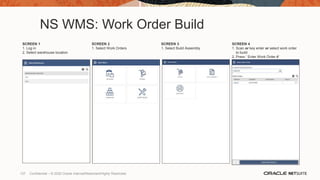
NS WMS: Work Order Build
SCREEN 1
1. Log in
2. Select warehouse location
SCREEN 2
1. Select Work Orders
SCREEN 3
1. Select Build Assembly
SCREEN 4
1. Scan or key enter or select work order
to build
2. Press ‘ Enter Work Order #’
137 Confidential – © 2020 Oracle Internal/Restricted/Highly Restricted
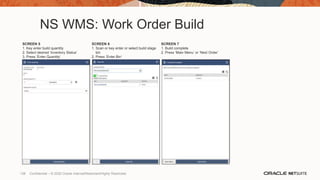
NS WMS: Work Order Build
SCREEN 5
1. Key enter build quantity
2. Select desired ‘Inventory Status’
3. Press ‘Enter Quantity’
SCREEN 6
1. Scan or key enter or select build stage
bin
2. Press ‘Enter Bin’
SCREEN 7
1. Build complete
2. Press ‘Main Menu’ or ‘Next Order’
138 Confidential – © 2020 Oracle Internal/Restricted/Highly Restricted
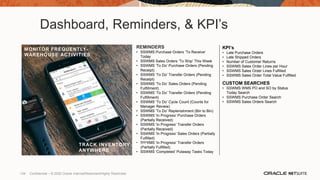
Dashboard, Reminders, & KPI’s
KPI’s
• Late Purchase Orders
• Late Shipped Orders
• Number of Customer Returns
• SSWMS Sales Order Lines per Hour
• SSWMS Sales Order Lines Fulfilled
• SSWMS Sales Order Total Value Fulfilled
CUSTOM SEARCHES
• SSWMS WMS PO and SO by Status
Today Search
• SSWMS Purchase Order Search
• SSWMS Sales Orders Search
REMINDERS
• SSWMS Purchase Orders ‘To Receive’
Today
• SSWMS Sales Orders ‘To Ship’ This Week
• SSWMS ‘To Do’ Purchase Orders (Pending
Receipt)
• SSWMS ‘To Do’ Transfer Orders (Pending
Receipt)
• SSWMS ‘To Do’ Sales Orders (Pending
Fulfillment)
• SSWMS ‘To Do’ Transfer Orders (Pending
Fulfillment)
• SSWMS ‘To Do’ Cycle Count (Counts for
Manager Review)
• SSWMS ‘To Do’ Replenishment (Bin to Bin)
• SSWMS ‘In Progress’ Purchase Orders
(Partially Received)
• SSWMS ‘In Progress’ Transfer Orders
(Partially Received)
• SSWMS ‘In Progress’ Sales Orders (Partially
Fulfilled)
• SSWMS ‘In Progress’ Transfer Orders
(Partially Fulfilled)
• SSWMS ‘Completed’ Putaway Tasks Today
MANAGE TEAM TASKS, EVENTS,
AND BUSINESS HEALTH
REAL-TIME REPORTS
ANYWHERE
TRACK INVENTORY FROM
ANYWHERE
MONITOR FREQUENTLY-
WAREHOUSE ACTIVITIES
139 Confidential – © 2020 Oracle Internal/Restricted/Highly Restricted
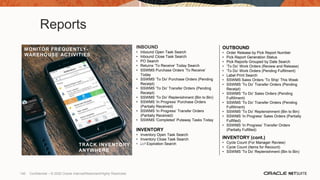
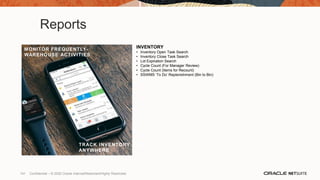
Reports
OUTBOUND
• Order Release by Pick Report Number
• Pick Report Generation Status
• Pick Reports Grouped by Date Search
• ‘To Do’ Work Orders (Review and Release)
• ‘To Do’ Work Orders (Pending Fulfilment)
• Label Print Search
• SSWMS Sales Orders ‘To Ship’ This Week
• SSWMS ‘To Do’ Transfer Orders (Pending
Receipt)
• SSWMS ‘To Do’ Sales Orders (Pending
Fulfillment)
• SSWMS ‘To Do’ Transfer Orders (Pending
Fulfillment)
• SSWMS ‘To Do’ Replenishment (Bin to Bin)
• SSWMS ‘In Progress’ Sales Orders (Partially
Fulfilled)
• SSWMS ‘In Progress’ Transfer Orders
(Partially Fulfilled)
INVENTORY (cont.)
• Cycle Count (For Manager Review)
• Cycle Count (Items for Recount)
• SSWMS ‘To Do’ Replenishment (Bin to Bin)
INBOUND
• Inbound Open Task Search
• Inbound Close Task Search
• PO Search
• Returns ‘To Receive’ Today Search
• SSWMS Purchase Orders ‘To Receive’
Today
• SSWMS ‘To Do’ Purchase Orders (Pending
Receipt)
• SSWMS ‘To Do’ Transfer Orders (Pending
Receipt)
• SSWMS ‘To Do’ Replenishment (Bin to Bin)
• SSWMS ‘In Progress’ Purchase Orders
(Partially Received)
• SSWMS ‘In Progress’ Transfer Orders
(Partially Received)
• SSWMS ‘Completed’ Putaway Tasks Today
INVENTORY
• Inventory Open Task Search
• Inventory Close Task Search
• Lot Expiration Search
MANAGE TEAM TASKS, EVENTS,
AND BUSINESS HEALTH
REAL-TIME REPORTS
ANYWHERE
TRACK INVENTORY FROM
ANYWHERE
MONITOR FREQUENTLY-
WAREHOUSE ACTIVITIES
140 Confidential – © 2020 Oracle Internal/Restricted/Highly Restricted
Reports
INVENTORY
• Inventory Open Task Search
• Inventory Close Task Search
• Lot Expiration Search
• Cycle Count (For Manager Review)
• Cycle Count (Items for Recount)
• SSWMS ‘To Do’ Replenishment (Bin to Bin)
MANAGE TEAM TASKS, EVENTS,
AND BUSINESS HEALTH
REAL-TIME REPORTS
ANYWHERE
TRACK INVENTORY FROM
ANYWHERE
MONITOR FREQUENTLY-
WAREHOUSE ACTIVITIES
141 Confidential – © 2020 Oracle Internal/Restricted/Highly Restricted
Thankyou
Increase
Profitability
Easily Manage
Traffic
Collaborate As
Virtual Teams
Gain Executive
Visibility
Gain Real-time
Visibility
Eliminate Manual
Processes
Scale Your
Business
Single Unified
Solution
Optimized
Staffing
Manage
Profitability
Improve
Collaboration
Automate Time
And Expense
Accelerate
Growth
Breakdown
Silos
Adapt to
Change
Streamline
Compliance
Innovate
Engage
Omnichannel
Ready
Modernize
Improve Visibility
and Transparency
Streamlined
Operations
Track Advertising
Performance
Flexibility Global ER P
Built For
Manufacturers
Fuel Your
Mission
Break
Down Silos
Streamlined
Sales Cycles
Optimized
Suppy Chain
Built for Food
and Beverage
Empower
Virtual Teams
Improve Project
Profitability
Improve Resource
Utilization
Drive Operational
Effectiveness
Improve Project
Profitability
Transform
Connect
Customize
Manage
Increase
Profitability
Easily Manage
Traffic
Collaborate As
Virtual Teams
Gain Executive
Visibility
Gain Real-time
Visibility
Eliminate Manual
Processes
Scale Your
Business
Single Unified
Solution
Optimized
Staffing
Manage
Profitability
Improve
Collaboration
Automate Time
And Expense
Accelerate
Growth
Breakdown
Silos
Adapt to
Change
Streamline
Compliance
Innovate
Engage
Omnichannel
Ready
Modernize
Improve Visibility
and Transparency
Streamlined
Operations
Track Advertising
Performance
Flexibility Global ER P
Built For
Manufacturers
Fuel Your
Mission
Break
Down Silos
Streamlined
Sales Cycles
Optimized
Suppy Chain
Built for Food
and Beverage
Empower
Virtual Teams
Improve Project
Profitability
Improve Resource
Utilization
Drive Operational
Effectiveness
Improve Project
Profitability
Transform
Connect
Customize
Manage
Increase
Profitability
Easily Manage
Traffic
Collaborate As
Virtual Teams
Gain Executive
Visibility
Gain Real-time
Visibility
Eliminate Manual
Processes
Scale Your
Business
Single Unified
Solution
Optimized
Staffing
Manage
Profitability
Improve
Collaboration
Automate Time
And Expense
Accelerate
Growth
Breakdown
Silos
Adapt to
Change
Streamline
Compliance
Innovate
Engage
Omnichannel
Ready
Modernize
Improve Visibility
and Transparency
Streamlined
Operations
Track Advertising
Performance
Flexibility Global ER P
Built For
Manufacturers
Fuel Your
Mission
Break
Down Silos
Streamlined
Sales Cycles
Optimized
Suppy Chain
Built for Food
and Beverage
Empower
Virtual Teams
Improve Project
Profitability
Improve Resource
Utilization
Drive Operational
Effectiveness
Improve Project
Profitability
Transform
Connect
Customize
Manage
Increase
Profitability
Easily Manage
Traffic
Collaborate As
Virtual Teams
Gain Executive
Visibility
Gain Real-time
Visibility
Eliminate Manual
Processes
Scale Your
Business
Single Unified
Solution
Optimized
Staffing
Manage
Profitability
Improve
Collaboration
Automate Time
And Expense
Accelerate
Growth
Breakdown
Silos
Adapt to
Change
Streamline
Compliance
Innovate
Engage
Omnichannel
Ready
Modernize
Improve Visibility
and Transparency
Streamlined
Operations
Track Advertising
Performance
Flexibility Global ER P
Built For
Manufacturers
Fuel Your
Mission
Break
Down Silos
Streamlined
Sales Cycles
Optimized
Suppy Chain
Built for Food
and Beverage
Empower
Virtual Teams
Improve Project
Profitability
Improve Resource
Utilization
Drive Operational
Effectiveness
Improve Project
Profitability
Transform
Connect
Customize
Manage

Netsuite - WMS Alignment Deck 2019_NOAM_WMS_EN

  • 1.
    Presenter’s Title Organization, Divisionor Business Unit Month 00, 2020 Name NetSuite WMS SuiteSuccess Alignment
  • 2.
    2 Confidential –© 2020 Oracle Internal/Restricted/Highly Restricted The following is intended to outline our general product direction. It is intended for information purposes only, and may not be incorporated into any contract. It is not a commitment to deliver any material, code, or functionality, and should not be relied upon in making purchasing decisions. The development, release, timing, and pricing of any features or functionality described for Oracle’s products may change and remains at the sole discretion of Oracle Corporation. Statements in this presentation relating to Oracle’s future plans, expectations, beliefs, intentions and prospects are “forward-looking statements” and are subject to material risks and uncertainties. A detailed discussion of these factors and other risks that affect our business is contained in Oracle’s Securities and Exchange Commission (SEC) filings, including our most recent reports on Form 10-K and Form 10-Q under the heading “Risk Factors.” These filings are available on the SEC’s website or on Oracle’s website at http://www.oracle.com/investor. All information in this presentation is current as of September 2019 and Oracle undertakes no duty to update any statement in light of new information or future events. Safe harbor statement
  • 3.
    4 Confidential –© 2020 Oracle Internal/Restricted/Highly Restricted 4 3 2 1 Inventory Operations Inbound Operations Out Configuration Agenda Outbound Operations
  • 4.
    Warehouse Management Introduction 6 Confidential –© 2020 Oracle Internal/Restricted/Highly Restricted
  • 5.
    7 Confidential –© 2020 Oracle Internal/Restricted/Highly Restricted Warehouse Management Overview
  • 6.
    8 Confidential –© 2020 Oracle Internal/Restricted/Highly Restricted NetSuite WMS Offering
  • 7.
    9 Confidential –© 2020 Oracle Internal/Restricted/Highly Restricted CONFIGURATION Locations Bins Put Strategies Pick Strategies Zones Items, Families and Groups, Preferred Bins System Rules CONFIGURATION • Configure NetSuite WMS to align with physical warehouse structure • Define item characteristics • Develop Rules to drive efficient putaway and picking • System rules dictate operations in the warehouse ROLE: Warehouse Manager
  • 8.
    10 Confidential –© 2020 Oracle Internal/Restricted/Highly Restricted INVENTORY HIEARCHY WMS INVENTORYHIERARCHY • Warehouse is the physical building • Virtual warehouses may be utilized to segregate inventory • User defined zones (1 or many) • Bins are the physical storage locations • Bins are aligned to zones ROLE: Warehouse Manager Subsidiary North America Warehouse #2 US-2 W1 - Zone 1 Example: Primary Bins W1 - Zone 2 Example: Overflow A Warehouse #1 US-1 W2 - Zone A Example: Primary Bins W2 – Zone B Example: Overflow A
  • 9.
    11 Confidential –© 2020 Oracle Internal/Restricted/Highly Restricted DEMO FACILTY LAYOUT
  • 10.
    12 Confidential –© 2020 Oracle Internal/Restricted/Highly Restricted Mobile Device Options
  • 11.
    13 Confidential –© 2020 Oracle Internal/Restricted/Highly Restricted NetSuite WMS leverages the mobility and convenience of RF mobile devices to process inbound, outbound, and inventory transactions and post real-time updates to your NetSuite account. For use with NetSuite WMS, NetSuite recommends RF mobile devices include the following features: • HTML 5 & JavaScript enabled browser (TLS 1.2 compliant) • 1D or 2D barcode scanner (2D = composite barcode scanning) • At least 1Gb flash memory • 4 inch or larger touch screen • 802.11a/b/g enabled • Bluetooth enabled (for mobile printers or scanners) • Interactive Sensor Technology (IST) (optional for future use) • ruggedized or semi-ruggedized (optional customer preference) Mobile Device Requirements
  • 12.
    InboundOperations 14 Confidential –© 2020 Oracle Internal/Restricted/Highly Restricted
  • 13.
    15 Confidential –© 2020 Oracle Internal/Restricted/Highly Restricted Unload Truck NS WMS Mobile Putaway Print Labels Dmg / Inspect Bin Cross Dock Staging NetSuite PO / TO / RA NS WMS Mobile Receiving Assign Inv Status Inbound Staging Preferred Bin Put Strategies Overflow Zone 1 Overflow Zone “x” Outbound Operations (Fulfillment) Manufacturing Internal Operations Item Receipt Posted Inventory On- Hand / Available Cross Dock Storage INBOUND OPERATIONS
  • 14.
    16 Confidential –© 2020 Oracle Internal/Restricted/Highly Restricted MOBILE RECEIVING MOBILE RECEIVING • Decide if product 1) Damaged, 2) Requires Inspection, 3) Cross Dock • Assign inventory status codes to disposition inventory as ‘available’ or ‘unavailable’ • Locate product to an inbound staging location • Receiving staging ensures up to the minute inventory location accuracy ROLE: WMS Mobile Operator Unload Truck Damage d? No NS WMS Mobile PO Receiving RMA? QA Inspect? NS WMS Mobile Putaway Print Labels Cross Dock? Assign ‘Damaged’ Inv Status Inbound Staging Bin Inbound Staging Bin Yes Assign ‘QA’ Inv Status Assign ‘Cross Dock’ Inv Status No No No Inbound Staging Bin Assign ‘Good’ Inv Status Inbound Staging Bin Print Labels NS WMS Mobile RMA Receiving
  • 15.
    17 Confidential –© 2020 Oracle Internal/Restricted/Highly Restricted I Composite Barcode Support for scanning composite and 2D barcodes: scan 1 element and populate multiple data entries • Inbound − Receiving − Putaway • Outbound − Picking • Inventory − Bin Transfer − Cycle Count − Inventory Transfer − Replenishment 2D Barcode Note: May require specialized hardware 1D Barcode
  • 16.
    NS WMS: POReceipt SCREEN 5 1. Select PO link from displayed list SCREEN 6 1. Press “i” icon on top right to view PO information SCREEN 7 1. View PO information 2. Collapse information SCREEN 8 (Inventory Item, damaged) 1. Scan item or key enter item or select item link 2. NS-II1357E, press ‘Enter Item’ 18 Confidential – © 2020 Oracle Internal/Restricted/Highly Restricted
  • 17.
    NS WMS: POReceipt SCREEN 5 1. Select PO link from displayed list SCREEN 6 1. Press “i” icon on top right to view PO information SCREEN 7 1. View PO information 2. Collapse information SCREEN 8 (Inventory Item, damaged) 1. Scan item or key enter item or select item link 2. NS-II1357E, press ‘Enter Item’ 19 Confidential – © 2020 Oracle Internal/Restricted/Highly Restricted
  • 18.
    NS WMS: POReceipt SCREEN 5 (Inventory Item, damaged) 1. Press “i” icon on top right to view item information SCREEN 6 (Inventory Item, damaged) 1. View item information 2. Collapse item information SCREEN 7 (Inventory Item, damaged) 1. Change ‘inventory status’ 2. Note: ’Back Order’ qty display for cross dock decisions SCREEN 8 (Inventory Item, damaged) 1. Select ‘SSWMS Damaged Inventory’ 20 Confidential – © 2020 Oracle Internal/Restricted/Highly Restricted
  • 19.
    NS WMS: POReceipt SCREEN 9 (Inventory Item, damaged) 1. Enter quantity 5 2. Press ‘Enter Quantity’ SCREEN 10 (Inventory Item, damaged) 1. Scan stage bin or key enter stage bin or select stage bin link 2. IB-StageBin01, press ‘Enter Bin’ SCREEN 11 (Inventory Item, good) 1. Scan item or key enter item or select item link 2. NS-II1357E, press ‘Enter Item’ SCREEN 12 (Inventory Item, good) 1. ‘Inventory Status’ remains ‘Good’ 2. Enter quantity 20 3. Press ‘Enter Quantity’ 21 Confidential – © 2020 Oracle Internal/Restricted/Highly Restricted
  • 20.
    NS WMS: POReceipt SCREEN 13 (Inventory Item, good) 1. Scan stage bin or key enter stage bin or select stage bin link 2. IB-StageBin01, press ‘Enter Bin’ SCREEN 14 (Inventory Item, good) 1. Toggle the ‘Show Completed’ icon SCREEN 15 (Inventory Item, UOM Case) 1. Scan item or key enter item or select item link 2. NS-II2468C, press ‘Enter Item’ SCREEN 16 (Inventory Item, UOM Case) 1. ‘Inventory Status’ remains ‘Good’ 2. Enter qty 10, change UOM ‘Pallets’ 3. Press ‘Enter Quantity’ 22 Confidential – © 2020 Oracle Internal/Restricted/Highly Restricted
  • 21.
    NS WMS: POReceipt SCREEN 17 (Inventory Item, UOM Case) 1. Over receipt not allowed, 10 pallets is more than 10 cases SCREEN 18 (Inventory Item, UOM Case) 1. Change UOM ‘Cases(1)’ 2. Press ‘Enter Quantity’ SCREEN 19 (Inventory Item, UOM Case) 1. Scan stage bin or key enter stage bin or select stage bin link 2. IB-StageBin01, press ‘Enter Bin’ SCREEN 20 (Lot Numbered Item) 1. Scan item or key enter item or select item link 2. NS-LN3571E, press ‘Enter Item’ 23 Confidential – © 2020 Oracle Internal/Restricted/Highly Restricted
  • 22.
    NS WMS: POReceipt SCREEN 21 (Lot Numbered Item) 1. Scan or key enter lot number 2. Scan or key enter expiry date 3. Press ‘Enter Lot’ *composite barcode scan is an option* SCREEN 22 (Lot Numbered Item) 1. ‘Inventory Status’ remains ‘Good’ 2. Enter qty 20 3. Press ‘Enter Quantity’ SCREEN 23 (Lot Numbered Item) 1. Scan stage bin or key enter stage bin or select stage bin link 2. IB-StageBin01, press ‘Enter Bin’ SCREEN 24 (Serial Number Item) 1. Scan item or key enter item or select item link 2. NS-SN0846E, press ‘Enter Item’ 24 Confidential – © 2020 Oracle Internal/Restricted/Highly Restricted
  • 23.
    NS WMS: POReceipt SCREEN 25 (Serial Number Item) 1. ‘Inventory Status’ remains ‘Good’ 2. Enter qty 2 3. Press ‘Enter Quantity’ SCREEN 26 (Serial Number Item) 1. Scan or key enter serial number, 1 of 2 2. Press ‘Enter Serial Number’ SCREEN 27 (Serial Number Item) 1. Scan or key enter serial number, 2 of 2 2. Press ‘Enter Serial Number’ SCREEN 28 (Serial Number Item) 1. Scan stage bin or key enter stage bin or select stage bin link 2. IB-StageBin01, press ‘Enter Bin’ 25 Confidential – © 2020 Oracle Internal/Restricted/Highly Restricted
  • 24.
    NS WMS: POReceipt SCREEN 29 1. PO receipt completed 2. Press ‘Receive Next PO’ or ‘Main Menu’ 26 Confidential – © 2020 Oracle Internal/Restricted/Highly Restricted
  • 25.
    27 MOBILE PRINTING MOBILEPRINTING • Print labels from items • Print labels from inventory • Print labels before receiving • Print labels after receiving ROLE: WMS Mobile Operator Unload Truck Damage d? No NS WMS Mobile PO Receiving RMA? QA Inspect? NS WMS Mobile Putaway Print Labels Cross Dock? Assign ‘Damaged’ Inv Status Inbound Staging Bin Inbound Staging Bin Yes Assign ‘QA’ Inv Status Assign ‘Cross Dock’ Inv Status No No No Inbound Staging Bin Assign ‘Good’ Inv Status Inbound Staging Bin Print Labels NS WMS Mobile RMA Receiving 27 Confidential – © 2020 Oracle Internal/Restricted/Highly Restricted
  • 26.
    28 Confidential –© 2020 Oracle Internal/Restricted/Highly Restricted • Print Labels from Items - Print Item or Pallet Labels for ANY Item that exists in the NetSuite Item Master - For Numbered Items (e.g. Lot-Controlled/Serialized), resulting label(s) will NOT include Lot # / Serial # detail - Filtering criteria is Item-based • Print Labels from Inventory - Print Item or Pallet Labels for ANY NetSuite Item with On-Hand Inventory > 0 - For Numbered items (e.g. Lot-Controlled/Serialized), resulting label(s) will include Lot # / Serial # detail - Filter criteria is Item/Inventory-based • Print Labels Before Receiving - Print Item or Pallet Labels for Items on a particular PO / RA Transaction - For Numbered Items (e.g. Lot-Controlled/Serialized), resulting label(s) will NOT include Lot # / Serial # detail - Filter criteria is Transaction + Item-based • Print Labels After Receiving - Print Item or Pallet Labels for Items on a particular PO / RA Transaction - For Numbered items (e.g. Lot-Controlled/Serialized), resulting label(s) will include Lot # / Serial # detail - For Numbered Items (e.g. Lot-Controlled/Serialized), resulting label(s) will NOT include Lot # / Serial # detail - Filter criteria is Transaction + Item-based NetSuite WMS SuiteSuccess Mobile Label Printing
  • 27.
    Print Labels fromItems • Select menu option • Enter/Scan filter criteria → All filter criteria is “contains” (system responds to any/all matched criteria) • Select desired record for label printing • Enter/Select Qty, Printer, Format • Formats = 2x3 Item, 4x6 Item, 4x6 Pallet SCREEN 1 SCREEN 3 SCREEN 2 SCREEN 4 Item Label Example: Pallet Label Example: 29 Confidential – © 2020 Oracle Internal/Restricted/Highly Restricted
  • 28.
    Print Labels fromInventory • Select menu option • Enter/Scan filter criteria → All filter criteria is “contains” (system responds to any/all matched criteria) • Select desired record for label printing • Enter/Select Qty, Printer, Format • Formats = 2x3 Item (numbered/non-numbered), 4x6 Item (numbered/non-numbered), 4x6 Pallet (numbered/non-numbered), SCREEN 1 SCREEN 3 SCREEN 2 SCREEN 4 Item Label Example: Pallet Label Example: 30 Confidential – © 2020 Oracle Internal/Restricted/Highly Restricted
  • 29.
    Print Labels BeforeReceiving • Select menu option • Enter/Scan filter criteria → All filter criteria is “contains” (system responds to any/all matched criteria) • Select desired record for label printing • Enter/Select Qty, Printer, Format • Formats = 2x3 Item, 4x6 Item, 4x6 Pallet SCREEN 1 SCREEN 3 SCREEN 2 SCREEN 4 Item Label Example: Pallet Label Example: 31 Confidential – © 2020 Oracle Internal/Restricted/Highly Restricted
  • 30.
    Print Labels AfterReceiving • Select menu option • Enter/Scan filter criteria → All filter criteria is “contains” (system responds to any/all matched criteria) • Select desired record for label printing • Enter/Select Qty, Printer, Format • Formats = 2x3 Item (numbered/non-numbered), 4x6 Item (numbered/non-numbered), 4x6 Pallet (numbered/non-numbered) SCREEN 1 SCREEN 3 SCREEN 2 SCREEN 4 Item Label Example: Pallet Label Example: 32 Confidential – © 2020 Oracle Internal/Restricted/Highly Restricted
  • 31.
    33 MOBILE PUTAWAY MOBILEPUTAWAY • Configurable Put Strategies direct users to zones using item characteristics • Configurable Put Strategies are easily updated to adapt to changing business needs • Warehouse performance are analyzed to drive ongoing warehouse efficiency • Real time inventory updates ensure up to the minute inventory location and accuracy ROLE: WMS Mobile Operator NS WMS Mobile Putaway WMS Zone A (A Velocity Overflow Bins) Inbound Staging (pickup) Put Strategies WMS Zone C (C Velocity Overflow Bins) WMS Zone B (B Velocity Overflow Bins) WMS Preferred Bins (IF Item Configured) QA Inspection Zone Damaged Zone Cross Dock Zone 33 Confidential – © 2020 Oracle Internal/Restricted/Highly Restricted
  • 32.
    NS WMS: Putawayfrom IB Staging SCREEN 1 1. Log in 2. Select warehouse location SCREEN 2 1. Select Receiving SCREEN 3 1. Select Putaway SCREEN 4 1. Scan or key enter Staging Bin or bin link 2. Press ‘Enter Staging Bin/Item’ 34 Confidential – © 2020 Oracle Internal/Restricted/Highly Restricted
  • 33.
    NS WMS: Putawayfrom IB Staging SCREEN 5 (Inventory Item) 1. Scan item or key enter item or select item link 2. NS-II1357E, press ‘Enter Item’ SCREEN 6 (Inventory Item) 1. Press ‘i’ icon to view item information SCREEN 7 (Inventory Item) 1. Press the picture icon to enlarge SCREEN 8 1. Press ‘X’ to close 35 Confidential – © 2020 Oracle Internal/Restricted/Highly Restricted
  • 34.
    NS WMS: Putawayfrom IB Staging SCREEN 9 (Inventory Item) 1. Select inventory status 2. Key enter quantity 3. Press ‘Enter Quantity’ SCREEN 10 (Inventory Item) 1. Scan or key enter bin location or select bin link 2. Press ‘Enter To Bin’ SCREEN 11 (Inventory Item) 1. Press ‘Next Putaway’ SCREEN 12 1. Scan or key enter Staging Bin or bin link 2. Press ‘Enter Staging Bin/Item’ 36 Confidential – © 2020 Oracle Internal/Restricted/Highly Restricted
  • 35.
    NS WMS: Putawayfrom IB Staging SCREEN 13 (Inventory Item, UOM Case) 1. Scan item or key enter item or select item link 2. NS-II2468C, press ‘Enter Item’ SCREEN 14 (Inventory Item, UOM Case) 1. Select inventory status (as needed) 2. Key enter quantity 3. Press ‘Enter Quantity’ SCREEN 15 (Inventory Item, UOM Case) 1. Scan or key enter bin location or select bin link 2. Press ‘Enter To Bin’ SCREEN 16 1. Press ‘Next Putaway’ 37 Confidential – © 2020 Oracle Internal/Restricted/Highly Restricted
  • 36.
    NS WMS: Putawayfrom IB Staging SCREEN 17 1. Scan or key enter Staging Bin or bin link 2. Press ‘Enter Staging Bin/Item’ SCREEN 18 (Lot Numbered Item) 1. Scan item or key enter item or select item link 2. NS-LN2571E, press ‘Enter Item’ SCREEN 19 (Lot Numbered Item) 1. Scan or key enter lot number or select lot link 2. Press ‘Enter Lot’ SCREEN 20 1. Select inventory status (as needed) 2. Key enter quantity 3. Press ‘Enter Quantity’ 38 Confidential – © 2020 Oracle Internal/Restricted/Highly Restricted
  • 37.
    NS WMS: Putawayfrom IB Staging SCREEN 21 (Lot Numbered Item) 1. Scan or key enter bin location or select bin link 2. Press ‘Enter To Bin’ SCREEN 21 (Lot Numbered Item) 1. Press ‘Next Putaway’ SCREEN 22 1. Scan or key enter Staging Bin or bin link 2. Press ‘Enter Staging Bin/Item’ SCREEN 23 (Serial Numbered Item) 1. Scan item or key enter item or select item link 2. NS-SN0848E, press ‘Enter Item’ 39 Confidential – © 2020 Oracle Internal/Restricted/Highly Restricted
  • 38.
    NS WMS: Putawayfrom IB Staging SCREEN 24 (Serial Numbered Item) 1. Select inventory status (as needed) 2. Key enter quantity 3. Press ‘Enter Quantity’ SCREEN 25 (Serial Numbered Item) 1. Scan or key enter serial number 1 of 4 2. Press ‘Enter Serial Number’ SCREEN 26 (Serial Numbered Item) 1. Scan or key enter serial number 2 of 4 2. Press ‘Enter Serial Number’ 3. Repeat for 3 and 4 of 4 SCREEN 27 (Serial Numbered Item) 1. Scan or key enter bin location or select bin link 2. Press ‘Enter To Bin’ 40 Confidential – © 2020 Oracle Internal/Restricted/Highly Restricted
  • 39.
    NS WMS: Putawayfrom IB Staging SCREEN 28 1. Press ‘Next Putaway’ 2. Repeat as requried 41 Confidential – © 2020 Oracle Internal/Restricted/Highly Restricted
  • 40.
    42 RMA RECEIVING RMARECEIVING •Return merchandise is assigned an inventory status to segregate the inventory • Locate product to an inbound returns staging location • After inspection, return inventory may be returned to stock or removed’ • Receiving staging ensures up to the minute inventory location accuracy ROLE: WMS Mobile Operator Yes NS WMS Mobile PO Receiving RMA? Print Labels Assign ‘Damaged’ Inv Status No Assign ‘QA’ Inv Status No No Damage d? Restock ? NS WMS Mobile Putaway Adjust Inventory Yes Inbound Staging Bin Yes Unload Truck Inbound Staging Bin NS WMS Mobile RMA Receiving 42 Confidential – © 2020 Oracle Internal/Restricted/Highly Restricted
  • 41.
    OutboundOperations 43 Confidential –© 2020 Oracle Internal/Restricted/Highly Restricted
  • 42.
    44 OUTBOUND OPERATIONS Sales/Transfer Order(s) Parcel or LTL/TL Ship? IntegratedParcel Shipping (UPS Worldship, Fedex Ship Manager, USPS Endicia) NAOM Only Shipping Item Fulfillment Posted Order Status = Shipped / Pending Bill Order Release Template Order Line Selection Picking Type: Single or Multi Order? Pick Report OR Paperless Pick Strategies Outbound Stage NS WMS Mobile Multi-Order Picking NS WMS Mobile Single Order Picking Print Pick Report Print Pick Report NS WMS Mobile Quick Ship Print Print Paperless NS WMS Pack Orders Create Wave 44 Confidential – © 2020 Oracle Internal/Restricted/Highly Restricted
  • 43.
    45 WAVE / ORDERRELEASE WAVE RELEASE • Utilize filter criteria to sort orders for release to the warehouse • Single order picking (w/ pick report or paperless) • Multi order picking “batch pick” (w/ pick report or paperless) • Configurable Pick Strategies direct users to zones using item characteristics and/or order type • Configurable Pick Strategies are easily updated to adapt to changing business needs ROLE: WMS Outbound Manager Sales Order Order Line Selection Order Release Template Pick Strategies Print Pick Report NS WMS Mobile Picking (Single or Multi Order) Distribute Pick Reports Paperless Pick Report OR Paperless Print Pick Report Picking Type: Single or Multi Order? Assign Priority Assign Picker (optional) Release Wave 45 Confidential – © 2020 Oracle Internal/Restricted/Highly Restricted
  • 44.
    46 PICK STRATEGIES PICKSTRATEGIES • Configurable Pick Strategies direct users to zones using item characteristics • Configurable Pick Strategies are easily updated to adapt to changing business needs • Warehouse performance are analyzed to drive ongoing warehouse efficiency ROLE: WMS Mobile Operator Wave / Order Release WMS Zone C (C Velocity Overflow Bins) Pick Strategies QA / Damaged Zone WMS Zone B (B Velocity Overflow Bins) WMS Zone A (A Velocity Overflow Bins) WMS Preferred Bins (IF Item Configured) Cross Dock Zone Catch All Pick Strategy 46 Confidential – © 2020 Oracle Internal/Restricted/Highly Restricted
  • 45.
    NS WMS: ReleaseOrders to Warehouse SCREEN 1 – Order Release Criteria 1. Select desired template: ‘SSWMS Wave: SO by Order Type/Expected Ship Date/Ship Via 2. Select ‘SSWMS Standard Order Type’, Expected Ship Date, ’UPS 2nd Day Air’ 3. Press ‘Search’ 47 Confidential – © 2020 Oracle Internal/Restricted/Highly Restricted
  • 46.
    NS WMS: ReleaseOrders to Warehouse SCREEN 2 – Wave (review orders) 1. Set Priority (optional), select Picking Type (‘Single Order or ‘Multiple Orders’) 2. Set Status (IF ‘Pending Release’ user is able to assign user(s) to created pick tasks, IF ‘Released’ pick tasks are ‘unassigned’ and wave is released for picking) 3. Review orders, select or deselect orders as desired 4. Review Summary box on right of screen 5. Change tab view to ‘Line Items 48 Confidential – © 2020 Oracle Internal/Restricted/Highly Restricted
  • 47.
    NS WMS: ReleaseOrders to Warehouse SCREEN 3 – Wave (review line items) 1. Review sales order line(s) selected 2. Press ‘Save’ to create pick tasks 49 Confidential – © 2020 Oracle Internal/Restricted/Highly Restricted
  • 48.
    NS WMS: ReleaseOrders to Warehouse SCREEN 4 – Wave (release pick tasks) 1. Confirmation of wave/order release 2. Review Summary box on right of screen 3. Select Pick Task tab 50 Confidential – © 2020 Oracle Internal/Restricted/Highly Restricted
  • 49.
    NS WMS: ReleaseOrders to Warehouse SCREEN 5 – Wave (release pick tasks) 1. Confirmation of wave/order release 2. Review Summary box on right of screen 3. Select Pick Task tab 4. Press ’Edit’ to assign pick task(s) to user(s) 51 Confidential – © 2020 Oracle Internal/Restricted/Highly Restricted
  • 50.
    NS WMS: ReleaseOrders to Warehouse SCREEN 6 – Wave (release pick tasks) 1. Select task(s) to release 2. Assign user to pick task(s) at header level or by each pick task 3. Set Status to ‘Released’ 4. Press ’Save’ to release wave 52 Confidential – © 2020 Oracle Internal/Restricted/Highly Restricted
  • 51.
    NS WMS: ReleaseOrders to Warehouse SCREEN 7 – Wave Released 1. Wave/order release confirmation 53 Confidential – © 2020 Oracle Internal/Restricted/Highly Restricted
  • 52.
    NS WMS: OrderRelease SCREEN 3 – Pick Report for Multi Order 1. View Pick Report 54 Confidential – © 2020 Oracle Internal/Restricted/Highly Restricted
  • 53.
    55 MOBILE PICKING MOBILEPICKING • Single order pick (one at a time) • Multi order pick (more than order at a time, aka “batch” pick) • NS WMS provides suggested pick bin locations in the directed zone to improve picking efficiency • Real time updates for order fulfillment visibility ROLE: WMS Mobile Operator Single or Multi Order Pick? NS WMS Pack Orders Multi Single Wave Number Item Pack Staging Bin Bin Location Quantity Additional Picks Pick Task Pick Tote Nbr by Order Sales Order Number 55 Confidential – © 2020 Oracle Internal/Restricted/Highly Restricted
  • 54.
    56 MOBILE PICKING Multi Order 56Confidential – © 2020 Oracle Internal/Restricted/Highly Restricted
  • 55.
    NS WMS: MobileMulti-Order Picking w/ Pack Station Staging SCREEN 1 1. Log in 2. Select warehouse location SCREEN 2 1. Select Picking SCREEN 3 1. Select Multi-Order Picking SCREEN 4 (add visible column) 1. Press the columns icon to left of magnifying icon 57 Confidential – © 2020 Oracle Internal/Restricted/Highly Restricted
  • 56.
    NS WMS: MobileMulti-Order Picking with Pack Station Staging Staging SCREEN 5 (add visible column) 1. Add ‘Total Quantity’ to the visible columns 2. Press ‘Done’ SCREEN 6 (sort by total qty column) 1. Sort by ’Total Quantity’ 2. Press the ‘Total Quantity’ header SCREEN 7 (sort by total qty column) 1. Waves sorted by total quantity descending SCREEN 8 (start picking) 1. Scan or key enter or select wave # 2. Press ‘Enter Wave #’ 58 Confidential – © 2020 Oracle Internal/Restricted/Highly Restricted
  • 57.
    NS WMS: MobileMulti-Order Picking with Pack Station Staging SCREEN 9 (Inventory Item) 1. Scan or key enter pick task #, Press ‘Enter Pick Task’ (in bin seq) 2. Press item link SCREEN 10 (Inventory Item) 1. Press ‘Show all bins’ SCREEN 11 (Inventory Item) 1. Display of ‘recommended bin’ 2. All bins displayed in ‘pick to clean’ SCREEN 12 (Inventory Item) 1. Scan or key enter or select bin 2. Press ‘Enter Bin’ 59 Confidential – © 2020 Oracle Internal/Restricted/Highly Restricted
  • 58.
    NS WMS: MobileMulti-Order Picking with Pack Station Staging SCREEN 13 (Inventory Item) 1. Scan or key enter or select item to pick 2. Press ‘Enter Item’ SCREEN 14 (Inventory Item, SO238) 1. Need 5, 1 available 2. Key enter quantity = 1 3. Press ‘Enter Quantity’ SCREEN 15 (Inventory Item, SO238) 1. Scan or key enter a temporary picking carton number (cnt # may be reused) 2. Press ‘ Enter Carton’ SCREEN 16 (Inventory Item, SO238) 1. Scan or key enter or select bin 2. Press ‘Enter Bin’ 60 Confidential – © 2020 Oracle Internal/Restricted/Highly Restricted
  • 59.
    NS WMS: MobileMulti-Order Picking with Pack Station Staging SCREEN 17 (Inventory Item, SO238) 1. No further items in bin 2. Press ‘Bin Empty’ SCREEN 18 (Inventory Item,SO238) 1. Returned to picks SCREEN 19 (Inventory Item) 1. Scan or key enter pick task #, Press ‘Enter Pick Task’ (in bin seq) 2. Press item link SCREEN 20 (Inventory Item) 1. Scan or key enter or select bin 2. Press ‘Enter Bin’ 61 Confidential – © 2020 Oracle Internal/Restricted/Highly Restricted
  • 60.
    NS WMS: MobileMulti-Order Picking with Pack Station Staging SCREEN 21 (Inventory Item) 1. Scan or key enter or select item to pick 2. Press ‘Enter Item’ SCREEN 21 (Inventory Item, SO238) 1. Key enter quantity 2. Press ‘Enter Quantity’ SCREEN 21 (Inventory Item, SO238) 1. Scan or key enter a temporary picking carton number (cnt # may be reused) 2. Press ‘ Enter Carton’ SCREEN 22 (Inventory Item, SO239) 1. Key enter quantity = 4 2. Press ‘Enter Quantity’ 62 Confidential – © 2020 Oracle Internal/Restricted/Highly Restricted
  • 61.
    NS WMS: MobileMulti-Order Picking with Pack Station Staging SCREEN 23 (Inventory Item, SO239) 1. Scan or key enter a temporary picking carton number (cnt # may be reused) 2. Press ‘ Enter Carton’ (diff ctn 2nd order) SCREEN 24 1. Press ‘Next Pick Task’ SCREEN 25 1. Press the columns icon to left of magnifying icon SCREEN 26 1. Add ‘Pick Task #’ to the visible columns 2. Press ‘Done’ 63 Confidential – © 2020 Oracle Internal/Restricted/Highly Restricted
  • 62.
    NS WMS: MobileMulti-Order Picking with Pack Station Staging SCREEN 27 1. View only 2. Pick task are in ascending order for best walking path SCREEN 28 (Inventory Item, UOM ex) 1. Scan or key enter pick task # (bins in sequence) 2. Press ‘Enter Pick Task’ SCREEN 29 (Inventory Item, UOM ex) 1. Scan or key enter or select bin 2. Press ‘Enter Bin’ SCREEN 30 (Inventory Item, UOM) 1. Scan or key enter or select item to pick 2. Press ‘Enter Item’ 64 Confidential – © 2020 Oracle Internal/Restricted/Highly Restricted
  • 63.
    NS WMS: MobileMulti-Order Picking with Pack Station Staging SCREEN 31 (Inventory Item, UOM ex) 1. Key enter quantity 2. Press ‘Enter Quantity’ SCREEN 32 (Inventory Item, SO238) 1. Scan or key enter a temporary picking carton number (cnt # may be reused) 2. Press ‘Enter Carton’ (ctn 1st order) SCREEN 33 (Inventory Item, SO238) 1. Carton # from wrong order, not allowed to mix 2. CTN239 not for order SO238 SCREEN 34 (Inventory Item, SO238) 1. Enter correct temp picking carton for order 2. Press ‘Enter Carton’ 65 Confidential – © 2020 Oracle Internal/Restricted/Highly Restricted
  • 64.
    NS WMS: MobileMulti-Order Picking with Pack Station Staging SCREEN 35 1. Press ‘Next Pick Task’ SCREEN 36 (Lot # Inventory Item) 1. Scan or key pick task # 2. Press ‘Enter Pick Task’ SCREEN 37 (Lot # Inventory Item) 1. Scan or key enter or select bin 2. Press ‘Enter Bin’ SCREEN 38 (Lot # Inventory Item) 1. Scan or key enter or select item to pick 2. Press ‘Enter Item’ 66 Confidential – © 2020 Oracle Internal/Restricted/Highly Restricted
  • 65.
    NS WMS: MobileMulti-Order Picking with Pack Station Staging SCREEN 39 (Lot # Inventory Item) 1. Key enter quantity 2. Scan or key enter or select lot # link 3. Press ‘Enter Quantity’ SCREEN 40 (Lot # Inv Item, SO238) 1. Scan or key enter a temporary picking carton number (cnt # may be reused) 2. Press ‘Enter Carton’ SCREEN 41 1. Press ‘Next Pick Task’ SCREEN 42 (Serial # Inventory Item) 1. Scan or key enter pick task # (bins in sequence) 2. Press ‘Enter Pick Task’ 67 Confidential – © 2020 Oracle Internal/Restricted/Highly Restricted
  • 66.
    NS WMS: MobileMulti-Order Picking with Pack Station Staging SCREEN 43 (Serial # Inventory Item) 1. Scan or key enter or select bin 2. Press ‘Enter Bin’ SCREEN 44 (Serial # Inv Item) 1. Scan or key enter or select item to pick 2. Press ‘Enter Item’ SCREEN 45 (Serial # Inv Item) 1. Key enter quantity 2. Press ‘Enter Quantity’ SCREEN 46 (Serial # Inventory Item) 1. Press ‘Show possible serial numbers’ 68 Confidential – © 2020 Oracle Internal/Restricted/Highly Restricted
  • 67.
    NS WMS: MobileMulti-Order Picking with Pack Station Staging SCREEN 47 (Serial # Inventory Item) 1. Scan or key enter or select bin 2. Press ‘Enter Bin’ SCREEN 48 (Serial # Inv Item, 1 of 2) 1. Scan or key enter serial number 2. Press ‘Enter Serial Number’ SCREEN 49 (Serial # Inv Item, 2 of 2) 1. Scan or key enter serial number 2. Press ‘Enter Serial Number’ SCREEN 50 (Serial # Inv Item, SO239) 1. Scan or key enter a temporary picking carton number (cnt # may be reused) 2. Press ‘Enter Carton’ 69 Confidential – © 2020 Oracle Internal/Restricted/Highly Restricted
  • 68.
    NS WMS: MobileMulti-Order Picking with Pack Station Staging SCREEN 51 (Picking Complete) 1. Press ‘Go To Staging’ SCREEN 52 (Put in Staging) 1. Press ‘Show all bins’ SCREEN 53 (Put in Staging) 1. Scan or key enter or select staging bin link 2. Press ‘Enter Staging Bin’ SCREEN 54 (Multi Order Pick Complete) 1. Press ‘Next Wave’ 2. Complete 70 Confidential – © 2020 Oracle Internal/Restricted/Highly Restricted
  • 69.
    71 MOBILE PICKING Single Order 71Confidential – © 2020 Oracle Internal/Restricted/Highly Restricted
  • 70.
    NS WMS: MobileSingle Order Picking with Pack Station Stage SCREEN 1 1. Log in 2. Select warehouse location SCREEN 2 1. Select Picking SCREEN 3 1. Select Single Order Picking SCREEN 4 1. Press ‘Sales Order’ 72 Confidential – © 2020 Oracle Internal/Restricted/Highly Restricted
  • 71.
    NS WMS: MobileSingle Order Picking with Pack Station Stage SCREEN 5 (add visible column) 1. Press the columns icon to left of magnifying icon SCREEN 6 (add visible column) 1. Add ‘Total Quantity’ and ‘Ship Date’ to the visible columns 2. Press ‘Done’ SCREEN 7 (sort by total qty column) 1. Sort by Ship Date’ 2. Press the ‘Ship Date’ header 3. Ship date sorted in ascending date SCREEN 8 (start picking) 1. Scan or key enter or select order # 2. Press ‘Enter Order #’ 73 Confidential – © 2020 Oracle Internal/Restricted/Highly Restricted
  • 72.
    NS WMS: MobileSingle Order Picking with Pack Station Stage SCREEN 5 (add visible column) 1. Press the columns icon to left of magnifying icon SCREEN 6 (sort by total qty column) 1. Add ‘Pick Task #’ to the visible columns 2. Press ‘Done’ SCREEN 7 (sort by total qty column) 1. View only 2. Pick task are in ascending order for best walking path SCREEN 8 (start picking) 1. Scan or key enter pick task # (bins in sequence) 2. Press ‘Enter Pick Task’ 74 Confidential – © 2020 Oracle Internal/Restricted/Highly Restricted
  • 73.
    NS WMS: MobileSingle Order Picking with Pack Station Stage SCREEN 9 (Inventory Item) 1. Press ‘Show all bins’ SCREEN 10 (Inventory Item) 1. Scan or key enter or select bin 2. Press ‘Enter Bin’ SCREEN 11 (Inventory Item) 1. Scan or key enter or select item to pick 2. Press ‘Enter Item’ SCREEN 12 (Inventory Item) 1. Need 5, 61 available 2. Key enter quantity = 5 3. Press ‘Enter Quantity’ 75 Confidential – © 2020 Oracle Internal/Restricted/Highly Restricted
  • 74.
    NS WMS: MobileSingle Order Picking with Pack Station Stage SCREEN 13 (Inventory Item) 1. Scan or key enter a temporary picking carton number (cnt # may be reused) 2. Press ‘ Enter Carton’ SCREEN 14 1. Press ‘Next Pick Task’ SCREEN 15 (Inventory Item, UOM ex) 1. Scan or key enter pick task # (bins in sequence) 2. Press ‘Enter Pick Task’ SCREEN 16 (Inventory Item, UOM ex) 1. Scan or key enter or select bin 2. Press ‘Enter Bin’ 76 Confidential – © 2020 Oracle Internal/Restricted/Highly Restricted
  • 75.
    NS WMS: MobileSingle Order Picking with Pack Station Stage SCREEN 17 (Inventory Item, UOM ex) 1. Scan or key enter or select item to pick 2. Press ‘Enter Item’ SCREEN 18 (Inventory Item, UOM ex) 1. Need 1, 107 available 2. Key enter quantity = 1 3. Press ‘Enter Quantity’ SCREEN 19 (Inventory Item, UOM ex) 1. Scan or key enter a temporary picking carton number (cnt # may be reused) 2. Press ‘Enter Carton’ SCREEN 20 1. Press ‘Next Pick Task’ 77 Confidential – © 2020 Oracle Internal/Restricted/Highly Restricted
  • 76.
    NS WMS: MobileSingle Order Picking with Pack Station Stage SCREEN 21 (Lot Inventory Item) 1. Scan or key enter pick task # (bins in sequence) 2. Press ‘Enter Pick Task’ SCREEN 21 (Lot Inventory Item) 1. Scan or key enter or select bin 2. Press ‘Enter Bin’ SCREEN 21 (Lot Inventory Item) 1. Scan or key enter or select item to pick 2. Press ‘Enter Item’ SCREEN 22 (Lot Inventory Item) 1. Key enter quantity 2. Scan or key enter or select lot # link 3. Press ‘Enter Quantity’ 78 Confidential – © 2020 Oracle Internal/Restricted/Highly Restricted
  • 77.
    NS WMS: MobileSingle Order Picking with Pack Station Stage SCREEN 23 (Lot Inventory Item) 1. Scan or key enter a temporary picking carton number (cnt # may be reused) 2. Press ‘Enter Carton’ SCREEN 24 1. Press ‘Next Pick Task’ SCREEN 25 (Serial # Inventory Item) 1. Scan or key enter pick task # (bins in sequence) 2. Press ‘Enter Pick Task’ SCREEN 26 (Serial # Inventory Item) 1. Scan or key enter or select bin 2. Press ‘Enter Bin’ 79 Confidential – © 2020 Oracle Internal/Restricted/Highly Restricted
  • 78.
    NS WMS: MobileSingle Order Picking with Pack Station Stage SCREEN 27 (Serial # Inventory Item) 1. Scan or key enter or select item to pick 2. Press ‘Enter Item’ SCREEN 28 (Serial # Inventory Item) 1. Need 1, 13 available 2. Key enter quantity = 1 3. Press ‘Enter Quantity’ SCREEN 29 (Serial # Inventory Item) 1. Press ‘Show possible serial numbers’ SCREEN 30 (Serial # Inventory Item) 1. View serial numbers 80 Confidential – © 2020 Oracle Internal/Restricted/Highly Restricted
  • 79.
    NS WMS: MobileSingle Order Picking with Pack Station Stage SCREEN 31 (Serial # Inventory Item) 1. Scan or key enter serial number 2. Press ‘Enter Serial Number’ SCREEN 32 (Serial Inventory Item) 1. Scan or key enter a temporary picking carton number (cnt # may be reused) 2. Press ‘Enter Carton’ (ctn 1st order) SCREEN 33 1. Press ‘Go To Staging’ SCREEN 34 1. Scan or key enter or select staging bin link 2. Press ‘Enter Staging Bin’ 81 Confidential – © 2020 Oracle Internal/Restricted/Highly Restricted
  • 80.
    NS WMS: MobileSingle Order Picking with Pack Station Stage SCREEN 35 1. Single order pick complete 2. Press ‘Next Order’ 82 Confidential – © 2020 Oracle Internal/Restricted/Highly Restricted
  • 81.
    83 PACKING PACKING (PACK VERIFICATION) •Pack confirm single order or multiple orders at a time • Pack verification help ensure order accuracy improving customer satisfaction • Real time updates for order fulfillment visibility ROLE: WMS Mobile Operator NS WMS Pack Orders Seal Shipping Carton Pack Staging Bin NS WMS Mobile Quick Ship Enter Pack Criteria Enter/scan Carton #, Box Size, Weight Select/Confirm Order Lines to Carton(s) LPN Print Packing Slip 83 Confidential – © 2020 Oracle Internal/Restricted/Highly Restricted
  • 82.
    NS WMS: WMSPack Orders SCREEN 1 1. Enter Location 2. Enter ‘Transaction #’ and/or ‘Order Type’ and/or ‘Ship Method’ and/or ‘Pick Carton’ (Note: ‘Pick Carton’ may be utilized if using pick to cartons/totes during the picking process) 3. Press ‘Display’ 84 Confidential – © 2020 Oracle Internal/Restricted/Highly Restricted
  • 83.
    NS WMS: WMSPack Orders SCREEN 2 1. Select the order lines to pack, visually confirm item and qty for packing (change quantities as needed) 2. Mandatory: Enter Carton, Enter Weight (carton: could be scanned from pre-printed label, weight: can be key entered or passed from a scale) 3. Optional: Enter ‘Size’ (shipping carton size is manual entry) 4. Press ‘Submit’ 85 Confidential – © 2020 Oracle Internal/Restricted/Highly Restricted
  • 84.
    NS WMS: WMSPack Orders SCREEN 3 1. Packing confirmation screen 2. Press ‘Print Packing Slip’ 86 Confidential – © 2020 Oracle Internal/Restricted/Highly Restricted
  • 85.
    NS WMS: WMSPack Orders SCREEN 4 1. Example Packing Slip (print or save to computer) 87 Confidential – © 2020 Oracle Internal/Restricted/Highly Restricted
  • 86.
    88 SHIPPING SHIPPING • Realtime parcel shipping integration with FedEx, UPS, and USPS (NOAM Only) • Parcel ship labels printed in real time from parcel carrier • LTL and TL shipping with Mobile Quick Ship ROLE: WMS Outbound Operator Parcel Ship or LTL/TL? Enter ‘Tracking Nbr/BOL Number Integration to FedEx / UPS / USPS NS WMS Mobile Quick Ship Shipping Completed Enter/Scan Sales Order Print Carrier Ship Label from Carrier Software Return Ship Information to NetSuite Generate Tracking Information Place Labels as Required to Shipping Cartons Place Labels as Required to Shipping Cartons Print Labels as Required Parcel LTL/TL Enter/Scan Shipping Carton Nbr 88 Confidential – © 2020 Oracle Internal/Restricted/Highly Restricted
  • 87.
    NS WMS: MobileQuick Ship SCREEN 1 1. Log in 2. Select warehouse location SCREEN 2 1. Select Picking SCREEN 3 1. Select Quick Ship SCREEN 4 1. Press ‘Sales Order’ 89 Confidential – © 2020 Oracle Internal/Restricted/Highly Restricted
  • 88.
    NS WMS: MobileQuick Ship SCREEN 5 1. Press the columns icon to left of magnifying icon SCREEN 6 1. Select desired columns to view 2. Press ‘Done’ SCREEN 7 1. Change sort order of ‘Ship Date’ column by pressing column header SCREEN 8 1. Scan or key enter or select sales order to ship 90 Confidential – © 2020 Oracle Internal/Restricted/Highly Restricted
  • 89.
    NS WMS: MobileQuick Ship SCREEN 9 1. Press the information icon to view sales order information SCREEN 10 1. Display of sales order information SCREEN 11 1. Scan or key enter or select carton number(s) to ship 2. Press ‘Enter Carton’ SCREEN 12 1. Scan or key enter parcel tracking number or LTL/TL BOL number to ship 2. Press ‘Enter Tracking #’ 91 Confidential – © 2020 Oracle Internal/Restricted/Highly Restricted
  • 90.
    NS WMS: MobileQuick Ship SCREEN 13 1. Return to ‘Main Menu’ or 2. Continue to ‘Next Shipment” 92 Confidential – © 2020 Oracle Internal/Restricted/Highly Restricted
  • 91.
    InventoryOperations 93 Confidential –© 2020 Oracle Internal/Restricted/Highly Restricted
  • 92.
    94 INVENTORY OPERATIONS INVENTORYOPERATIONS • Bin to Bin Replenishment • Cycle Count • Searches • Reports • KPIs ROLE: All Bin to Bin Replenishment Cycle Count Search Inventory Inventory Transfer Create Inventory 94 Confidential – © 2020 Oracle Internal/Restricted/Highly Restricted
  • 93.
    95 BIN REPLENISHMENT BINREPLENISHMENT • Defined minimum and maximum quantities for preferred picking bin locations • Generate paperless replenishments for warehouse users • Real time updates for order fulfillment visibility • Controlled replenishments reduce risk of order shorts ROLE: WMS Outbound Manager WMS Mobile Operator WMS Outbound Manager WMS Mobile Operator Additional Replenishments Scan ‘From’ Bin Location ‘List’ Replenishment Items from Task List NS WMS Generate Bin Replenishment NS WMS Replenishment Scan ‘To’ Location Scan Item Enter Quantity 95 Confidential – © 2020 Oracle Internal/Restricted/Highly Restricted
  • 94.
    NS WMS: BinTo Bin Replenishment SCREEN 1 – Generate Replenishment 1. Start screen 96 Confidential – © 2020 Oracle Internal/Restricted/Highly Restricted
  • 95.
    NS WMS: BinTo Bin Replenishment SCREEN 1 – Generate Replenishment 1. Enter ‘Location’ 2. Enter any one or combination of ‘Item Classification’, ‘Item Family’, ‘Item Group’, or ‘Item’ 3. Press ‘Display’ 97 Confidential – © 2020 Oracle Internal/Restricted/Highly Restricted
  • 96.
    NS WMS: BinTo Bin Replenishment SCREEN 1 – Generate Replenishment 1. Select replenishment(s) to generate 2. Press ‘Generate & Release’ 98 Confidential – © 2020 Oracle Internal/Restricted/Highly Restricted
  • 97.
    NS WMS: BinTo Bin Replenishment SCREEN 1 – Generate Replenishment 1. Replenishment confirmation 99 Confidential – © 2020 Oracle Internal/Restricted/Highly Restricted
  • 98.
    NS WMS: BinTo Bin Replenishment SCREEN 1 1. Log in 2. Select warehouse location SCREEN 2 1. Select Inventory SCREEN 3 1. Select Replenishment SCREEN 4 1. Select item to replenish 100 Confidential – © 2020 Oracle Internal/Restricted/Highly Restricted
  • 99.
    NS WMS: BinTo Bin Replenishment SCREEN 5 1. Press ‘Show all bins’ to view all available pull from bins SCREEN 6 1. Select information icon to see replenishment task details SCREEN 7 1. Scan or key enter or select link for pull from bin 2. Press ‘Enter Bin’ SCREEN 8 1. Scan or key enter or select link to confirm item 2. Press ‘Enter Item’ 101 Confidential – © 2020 Oracle Internal/Restricted/Highly Restricted
  • 100.
    NS WMS: BinTo Bin Replenishment SCREEN 9 1. Press information icon to see item detail SCREEN 10 1. Press information icon to see replenishment task details SCREEN 11 1. Key enter the pull quantity 2. Press ‘Enter Quantity’ SCREEN 12 1. Scan or key enter or select link to confirm put to replenishment bin 2. Press ‘Enter To Bin’ 102 Confidential – © 2020 Oracle Internal/Restricted/Highly Restricted
  • 101.
    NS WMS: BinTo Bin Replenishment SCREEN 13 1. Press ‘Main Menu’ or 2. Press ‘Next Task’ for next replenishment 103 Confidential – © 2020 Oracle Internal/Restricted/Highly Restricted
  • 102.
    104 CYCLE COUNT CYCLECOUNT • Cycle count plans to release counts to mobile warehouse users • Plan rules using item and/or bin characteristics • Manager ability to ‘approve’ or ‘reject’ counts • Real time updates for order fulfillment visibility ROLE: WMS Outbound Manager WMS Mobile Operator WMS Outbound Manager WMS Mobile Operator Additional Cycle Counts Scan Item / Scan Bin Location ‘List’ Cycle Counts from Task List NS WMS Cycle Count Generate and Release NS WMS Cycle Count Enter Count Quantity Approve / Reject Count? End Cycle Count ‘Start’ Cycle Count Reject Approved 104 Confidential – © 2020 Oracle Internal/Restricted/Highly Restricted
  • 103.
    NS WMS: CycleCount SCREEN 1 – Cycle Count Plan (managerial role) 1. List Cycle Count Plans 2. Create/Modify Cycle Count Plan(s) 105 Confidential – © 2020 Oracle Internal/Restricted/Highly Restricted
  • 104.
    NS WMS: CycleCount SCREEN 2 – Cycle Count Plan (managerial role) 1. Cycle Count Plan for ‘Cycle Count Plan by Item NS-II1357E’ 106 Confidential – © 2020 Oracle Internal/Restricted/Highly Restricted
  • 105.
    NS WMS: CycleCount SCREEN 1 – Generate Cycle Count Plan (managerial role) 1. Plan Number = ‘Cycle Count Plan by Item NS-II1357E’ 2. Press ‘Display’ 107 Confidential – © 2020 Oracle Internal/Restricted/Highly Restricted
  • 106.
    NS WMS: CycleCount SCREEN 2 – Cycle Count Generation and Release (managerial role) 1. Select bin or bins to cycle count 2. Press ‘Generate & Release’ 108 Confidential – © 2020 Oracle Internal/Restricted/Highly Restricted
  • 107.
    NS WMS: CycleCount SCREEN 3 – Cycle Count Generation and Release (managerial role) 1. Confirmation Screen 2. Press ‘Start Count’ 109 Confidential – © 2020 Oracle Internal/Restricted/Highly Restricted
  • 108.
    NS WMS: CycleCount SCREEN 3 – Cycle Count Generation and Release (managerial role) 1. Confirmation Screen 2. Press ‘Start Count’ 110 Confidential – © 2020 Oracle Internal/Restricted/Highly Restricted
  • 109.
    NS WMS: MobileCycle Count (1st count) SCREEN 1 1. Log in 2. Select warehouse location SCREEN 2 1. Select Inventory SCREEN 3 1. Select Cycle Count SCREEN 4 (add visible column) 1. Press the columns icon to left of magnifying icon. 111 Confidential – © 2020 Oracle Internal/Restricted/Highly Restricted
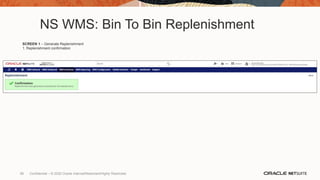
  • 110.
    NS WMS: MobileCycle Count (1st count) SCREEN 5 (add visible column) 1. Add ‘Bins’ and ‘Items’ to the visible columns 2. Press ‘Done’ SCREEN 6 1. Scan or key enter or select plan # link 2. Press the ‘Enter Plan #’ SCREEN 7 1. Select the cycle count task link SCREEN 8 1. Scan or key enter or select bin to count 2. Press ‘Enter Bin’ 112 Confidential – © 2020 Oracle Internal/Restricted/Highly Restricted
  • 111.
    NS WMS: MobileCycle Count (1st count) SCREEN 9 (add visible column) 1. Scan or key enter or select item to count 2. Press ‘Enter Item’ SCREEN 10 1. Key enter counted quantity 2. Press the ‘Enter Quantity’ SCREEN 11 1. Count complete 2. Press ‘Next Plan’ 113 Confidential – © 2020 Oracle Internal/Restricted/Highly Restricted
  • 112.
    NS WMS: CycleCount SCREEN 1 – Cycle Counts with Pending Recounts (managerial role) 1. View counts to be reviewed 2. Select link for recount 114 Confidential – © 2020 Oracle Internal/Restricted/Highly Restricted
  • 113.
    NS WMS: CycleCount SCREEN 2 – Cycle Counts with Pending Recounts (managerial role) 1. Select ‘View’ for the discrepancy link 115 Confidential – © 2020 Oracle Internal/Restricted/Highly Restricted
  • 114.
    NS WMS: CycleCount SCREEN 3 – Cycle Counts with Pending Recounts (managerial role) 1. Press ‘Complete Count’ 116 Confidential – © 2020 Oracle Internal/Restricted/Highly Restricted
  • 115.
    NS WMS: CycleCount SCREEN 4 – Cycle Counts with Pending Recounts (managerial role) 1. Press ‘Reject’ 117 Confidential – © 2020 Oracle Internal/Restricted/Highly Restricted
  • 116.
    NS WMS: CycleCount SCREEN 5 – Cycle Counts with Pending Recounts (managerial role) 1. Informational, no action 2. Mobil operator to count 118 Confidential – © 2020 Oracle Internal/Restricted/Highly Restricted
  • 117.
    NS WMS: MobileCycle Count (recount) SCREEN 1 1. Log in 2. Select warehouse location SCREEN 2 1. Select Inventory SCREEN 3 1. Select Cycle Count SCREEN 4 (add visible column) 1. Press the columns icon to left of magnifying icon. 119 Confidential – © 2020 Oracle Internal/Restricted/Highly Restricted
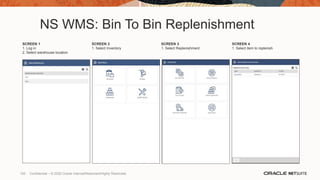
  • 118.
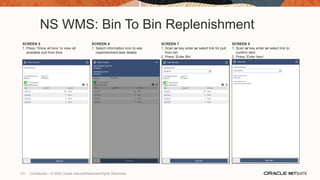
    NS WMS: MobileCycle Count (recount) SCREEN 5 (add visible column) 1. Add ‘Bins’ and ‘Items’ to the visible columns 2. Press ‘Done’ SCREEN 6 1. Toggle the ‘Show Completed’ button SCREEN 7 1. Key enter or select bin to count 2. Press ‘Enter Plan #’ SCREEN 8 1. Select the cycle count task link 120 Confidential – © 2020 Oracle Internal/Restricted/Highly Restricted
  • 119.
    NS WMS: MobileCycle Count (recount) SCREEN 9 (add visible column) 1. Scan or key enter or select bin to count 2. Press ‘Enter Bin’ SCREEN 10 1. Scan or key enter or select item to count 2. Press ‘Enter Item’ SCREEN 11 1. Key enter quantity 2. Press ‘Enter Quantity’ SCREEN 12 1. Count complete 2. Press ‘Next Plan’ 121 Confidential – © 2020 Oracle Internal/Restricted/Highly Restricted
  • 120.
    NS WMS: CycleCount SCREEN 1 – Cycle Counts with Pending Recounts (managerial role) 1. View counts to be reviewed 2. Select link for recount 122 Confidential – © 2020 Oracle Internal/Restricted/Highly Restricted
  • 121.
    NS WMS: CycleCount SCREEN 2 – Cycle Counts with Pending Recounts (managerial role) 1. Select ‘View’ for the discrepancy link 123 Confidential – © 2020 Oracle Internal/Restricted/Highly Restricted
  • 122.
    NS WMS: CycleCount SCREEN 3 – Cycle Counts with Pending Recounts (managerial role) 1. Press ‘Complete Count’ 124 Confidential – © 2020 Oracle Internal/Restricted/Highly Restricted
  • 123.
    NS WMS: CycleCount SCREEN 4 – Cycle Counts with Pending Recounts (managerial role) 1. Press ‘Approve’ 125 Confidential – © 2020 Oracle Internal/Restricted/Highly Restricted
  • 124.
    NS WMS: CycleCount SCREEN 5 – Cycle Counts with Pending Recounts (managerial role) 1. Confirmation of approved discrepancy count 126 Confidential – © 2020 Oracle Internal/Restricted/Highly Restricted
  • 125.
    NS WMS: CycleCount SCREEN 6 – Review General Ledger (managerial role) 1. Change role to ‘Administrator’ 2. Search for ‘General Ledger’, select 127 Confidential – © 2020 Oracle Internal/Restricted/Highly Restricted
  • 126.
    NS WMS: CycleCount SCREEN 7 – Review General Ledger (managerial role) 1. Search on page for account ‘5890 WMS Inventory Adjustment’ 128 Confidential – © 2020 Oracle Internal/Restricted/Highly Restricted
  • 127.
    129 WORK ORDERS WORKORDERS • Work orders for ‘build to stock’ finished goods • Single level bill of material items • Paperless picking of component work orders • Build final assembly and locate to stage location prior to final putaway • Real time updates for order fulfillment visibility ROLE: NS WMS Mobile WO Build Assembly NS WMS Mobile Work Order Picking Pick Work Order Components ‘List’ Work Orders to Pick Enter/Scan WIP Bin (WIP Stage Bin Location) ‘List’ Work Orders to Build Build Work Order Assembly Enter/Scan Work Order Complete Bin Location Pick Components for Additional WOs Assemble Additional WOs NS WMS Mobile Putaway WMS Mobile Operator 129 Confidential – © 2020 Oracle Internal/Restricted/Highly Restricted
  • 128.
    NS WMS: WorkOrder SCREEN 1 – Work Order 1. ‘Released’ Work Order 130 Confidential – © 2020 Oracle Internal/Restricted/Highly Restricted
  • 129.
    NS WMS: WorkOrder Pick SCREEN 1 1. Log in 2. Select warehouse location SCREEN 2 1. Select Work Orders SCREEN 3 1. Select Picking SCREEN 4 1. Scan or key enter or work order to pick 2. Press ‘Enter Work Order #’ 131 Confidential – © 2020 Oracle Internal/Restricted/Highly Restricted
  • 130.
    NS WMS: WorkOrder Pick SCREEN 5 1. Select pick task, NS-Comp01 SCREEN 6 1. Scan or key enter or select bin to pick from 2. Press ‘Enter Bin’ SCREEN 7 1. Scan or key enter or item to pick 2. Press ‘Enter Item’ SCREEN 8 1. Key enter quantity to pick 2. Press ‘Enter Quantity’ 132 Confidential – © 2020 Oracle Internal/Restricted/Highly Restricted
  • 131.
    NS WMS: WorkOrder Pick SCREEN 9 1. Press ‘Next Pick Task’ SCREEN 10 1. Select pick task, NS-Comp02 SCREEN 11 1. Scan or key enter or select bin to pick from 2. Press ‘Enter Bin’ SCREEN 12 1. Scan or key enter or item to pick 2. Press ‘Enter Item’ 133 Confidential – © 2020 Oracle Internal/Restricted/Highly Restricted
  • 132.
    NS WMS: WorkOrder Pick SCREEN 13 1. Key enter quantity to pick 2. Press ‘Enter Quantity’ SCREEN 14 1. Press ‘Next Pick Task’ SCREEN 15 1. Select pick task, NS-Comp03 SCREEN 16 1. Scan or key enter or select bin to pick from 2. Press ‘Enter Bin’ 134 Confidential – © 2020 Oracle Internal/Restricted/Highly Restricted
  • 133.
    NS WMS: WorkOrder Pick SCREEN 17 1. Scan or key enter or item to pick 2. Press ‘Enter Item’ SCREEN 18 1. Key enter quantity to pick 2. Press ‘Enter Quantity’ SCREEN 19 1. Press ‘Go To Staging’ SCREEN 20 1. Press ‘Show all bins’ 2. Scan or key enter or select stage bin 3. Press ‘Enter Staging Bin’ 135 Confidential – © 2020 Oracle Internal/Restricted/Highly Restricted
  • 134.
    NS WMS: WorkOrder Pick SCREEN 21 1. Work order pick completed 2. Press ‘Main Menu’ or ‘ Next Work Order’ 136 Confidential – © 2020 Oracle Internal/Restricted/Highly Restricted
  • 135.
    NS WMS: WorkOrder Build SCREEN 1 1. Log in 2. Select warehouse location SCREEN 2 1. Select Work Orders SCREEN 3 1. Select Build Assembly SCREEN 4 1. Scan or key enter or select work order to build 2. Press ‘ Enter Work Order #’ 137 Confidential – © 2020 Oracle Internal/Restricted/Highly Restricted
  • 136.
    NS WMS: WorkOrder Build SCREEN 5 1. Key enter build quantity 2. Select desired ‘Inventory Status’ 3. Press ‘Enter Quantity’ SCREEN 6 1. Scan or key enter or select build stage bin 2. Press ‘Enter Bin’ SCREEN 7 1. Build complete 2. Press ‘Main Menu’ or ‘Next Order’ 138 Confidential – © 2020 Oracle Internal/Restricted/Highly Restricted
  • 137.
    Dashboard, Reminders, &KPI’s KPI’s • Late Purchase Orders • Late Shipped Orders • Number of Customer Returns • SSWMS Sales Order Lines per Hour • SSWMS Sales Order Lines Fulfilled • SSWMS Sales Order Total Value Fulfilled CUSTOM SEARCHES • SSWMS WMS PO and SO by Status Today Search • SSWMS Purchase Order Search • SSWMS Sales Orders Search REMINDERS • SSWMS Purchase Orders ‘To Receive’ Today • SSWMS Sales Orders ‘To Ship’ This Week • SSWMS ‘To Do’ Purchase Orders (Pending Receipt) • SSWMS ‘To Do’ Transfer Orders (Pending Receipt) • SSWMS ‘To Do’ Sales Orders (Pending Fulfillment) • SSWMS ‘To Do’ Transfer Orders (Pending Fulfillment) • SSWMS ‘To Do’ Cycle Count (Counts for Manager Review) • SSWMS ‘To Do’ Replenishment (Bin to Bin) • SSWMS ‘In Progress’ Purchase Orders (Partially Received) • SSWMS ‘In Progress’ Transfer Orders (Partially Received) • SSWMS ‘In Progress’ Sales Orders (Partially Fulfilled) • SSWMS ‘In Progress’ Transfer Orders (Partially Fulfilled) • SSWMS ‘Completed’ Putaway Tasks Today MANAGE TEAM TASKS, EVENTS, AND BUSINESS HEALTH REAL-TIME REPORTS ANYWHERE TRACK INVENTORY FROM ANYWHERE MONITOR FREQUENTLY- WAREHOUSE ACTIVITIES 139 Confidential – © 2020 Oracle Internal/Restricted/Highly Restricted
  • 138.
    Reports OUTBOUND • Order Releaseby Pick Report Number • Pick Report Generation Status • Pick Reports Grouped by Date Search • ‘To Do’ Work Orders (Review and Release) • ‘To Do’ Work Orders (Pending Fulfilment) • Label Print Search • SSWMS Sales Orders ‘To Ship’ This Week • SSWMS ‘To Do’ Transfer Orders (Pending Receipt) • SSWMS ‘To Do’ Sales Orders (Pending Fulfillment) • SSWMS ‘To Do’ Transfer Orders (Pending Fulfillment) • SSWMS ‘To Do’ Replenishment (Bin to Bin) • SSWMS ‘In Progress’ Sales Orders (Partially Fulfilled) • SSWMS ‘In Progress’ Transfer Orders (Partially Fulfilled) INVENTORY (cont.) • Cycle Count (For Manager Review) • Cycle Count (Items for Recount) • SSWMS ‘To Do’ Replenishment (Bin to Bin) INBOUND • Inbound Open Task Search • Inbound Close Task Search • PO Search • Returns ‘To Receive’ Today Search • SSWMS Purchase Orders ‘To Receive’ Today • SSWMS ‘To Do’ Purchase Orders (Pending Receipt) • SSWMS ‘To Do’ Transfer Orders (Pending Receipt) • SSWMS ‘To Do’ Replenishment (Bin to Bin) • SSWMS ‘In Progress’ Purchase Orders (Partially Received) • SSWMS ‘In Progress’ Transfer Orders (Partially Received) • SSWMS ‘Completed’ Putaway Tasks Today INVENTORY • Inventory Open Task Search • Inventory Close Task Search • Lot Expiration Search MANAGE TEAM TASKS, EVENTS, AND BUSINESS HEALTH REAL-TIME REPORTS ANYWHERE TRACK INVENTORY FROM ANYWHERE MONITOR FREQUENTLY- WAREHOUSE ACTIVITIES 140 Confidential – © 2020 Oracle Internal/Restricted/Highly Restricted
  • 139.
    Reports INVENTORY • Inventory OpenTask Search • Inventory Close Task Search • Lot Expiration Search • Cycle Count (For Manager Review) • Cycle Count (Items for Recount) • SSWMS ‘To Do’ Replenishment (Bin to Bin) MANAGE TEAM TASKS, EVENTS, AND BUSINESS HEALTH REAL-TIME REPORTS ANYWHERE TRACK INVENTORY FROM ANYWHERE MONITOR FREQUENTLY- WAREHOUSE ACTIVITIES 141 Confidential – © 2020 Oracle Internal/Restricted/Highly Restricted
  • 140.
  • 141.
    Increase Profitability Easily Manage Traffic Collaborate As VirtualTeams Gain Executive Visibility Gain Real-time Visibility Eliminate Manual Processes Scale Your Business Single Unified Solution Optimized Staffing Manage Profitability Improve Collaboration Automate Time And Expense Accelerate Growth Breakdown Silos Adapt to Change Streamline Compliance Innovate Engage Omnichannel Ready Modernize Improve Visibility and Transparency Streamlined Operations Track Advertising Performance Flexibility Global ER P Built For Manufacturers Fuel Your Mission Break Down Silos Streamlined Sales Cycles Optimized Suppy Chain Built for Food and Beverage Empower Virtual Teams Improve Project Profitability Improve Resource Utilization Drive Operational Effectiveness Improve Project Profitability Transform Connect Customize Manage
  • 142.
    Increase Profitability Easily Manage Traffic Collaborate As VirtualTeams Gain Executive Visibility Gain Real-time Visibility Eliminate Manual Processes Scale Your Business Single Unified Solution Optimized Staffing Manage Profitability Improve Collaboration Automate Time And Expense Accelerate Growth Breakdown Silos Adapt to Change Streamline Compliance Innovate Engage Omnichannel Ready Modernize Improve Visibility and Transparency Streamlined Operations Track Advertising Performance Flexibility Global ER P Built For Manufacturers Fuel Your Mission Break Down Silos Streamlined Sales Cycles Optimized Suppy Chain Built for Food and Beverage Empower Virtual Teams Improve Project Profitability Improve Resource Utilization Drive Operational Effectiveness Improve Project Profitability Transform Connect Customize Manage
  • 143.
    Increase Profitability Easily Manage Traffic Collaborate As VirtualTeams Gain Executive Visibility Gain Real-time Visibility Eliminate Manual Processes Scale Your Business Single Unified Solution Optimized Staffing Manage Profitability Improve Collaboration Automate Time And Expense Accelerate Growth Breakdown Silos Adapt to Change Streamline Compliance Innovate Engage Omnichannel Ready Modernize Improve Visibility and Transparency Streamlined Operations Track Advertising Performance Flexibility Global ER P Built For Manufacturers Fuel Your Mission Break Down Silos Streamlined Sales Cycles Optimized Suppy Chain Built for Food and Beverage Empower Virtual Teams Improve Project Profitability Improve Resource Utilization Drive Operational Effectiveness Improve Project Profitability Transform Connect Customize Manage
  • 144.
    Increase Profitability Easily Manage Traffic Collaborate As VirtualTeams Gain Executive Visibility Gain Real-time Visibility Eliminate Manual Processes Scale Your Business Single Unified Solution Optimized Staffing Manage Profitability Improve Collaboration Automate Time And Expense Accelerate Growth Breakdown Silos Adapt to Change Streamline Compliance Innovate Engage Omnichannel Ready Modernize Improve Visibility and Transparency Streamlined Operations Track Advertising Performance Flexibility Global ER P Built For Manufacturers Fuel Your Mission Break Down Silos Streamlined Sales Cycles Optimized Suppy Chain Built for Food and Beverage Empower Virtual Teams Improve Project Profitability Improve Resource Utilization Drive Operational Effectiveness Improve Project Profitability Transform Connect Customize Manage