Agenda
• School cyberresilience in numbers
• Who is behind school cyber attacks?
• Cyber threats from outside the school
• Cyber threats from inside the school
• 4 key ways to defend yourself
3.
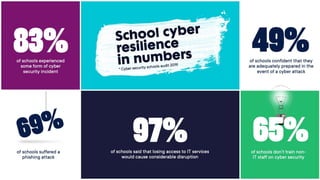
School cyber
resilience
in numbers
*Cyber security schools audit 2019
of schools
experienced some
form of cyber
security incident
83%
of schools said that losing access to IT
services would cause considerable
disruption
97% of schools don’t train
non-IT staff on cyber
security
65%
of schools confident that
they are adequately
prepared in the event of a
cyber attack
49%
of schools suffered a
phishing attack
69%
4.
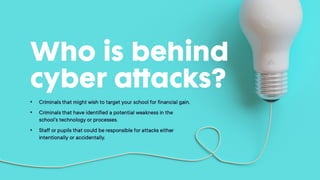
Who is behindcyber
attacks?
• Criminals that might wish to target your school for
financial gain.
• Criminals that have identified a potential weakness in
the school's technology or processes.
• Staff or pupils that could be responsible for attacks
either intentionally or accidentally.
5.
Why would they
targetmy school?
• Schools hold lots of sensitive data that can be very
valuable.
• Lots of financial transactions signed off by one
person.
• May be seen as a soft target.
• Don’t have dedicated security and fraud teams.
• IT may be older and therefore more vulnerable.
‘Payment fraud’ and
ransomwareattacks in
schools
Case Study – Fraud and ransomware
The case study will automatically play
when progressing to the next slide
10.
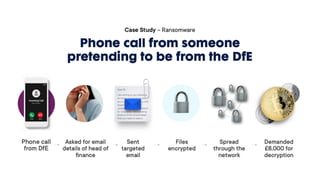
Case Study –Ransomware
Phone call from someone
pretending to be from the DfE
Phone
call from
DfE
Asked for email
details of head
of finance
Sent
targeted
email
Files
encrypte
d
Spread
through
the
network
Demande
d £8,000
for
decryptio
n
12.
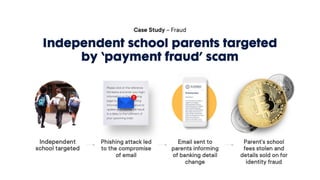
Case Study –Fraud
Independent school parents targeted
by ‘payment fraud’ scam
Independent
school
targeted
Phishing attack
led to the
compromise of
email
Email sent to
parents
informing of
banking detail
change
Parent’s school
fees stolen and
details sold on
for identity
fraud
School hacked bypupil
broke Data Protection
Act
Case Study – Password management
The case study will automatically play
when progressing to the next slide
18.
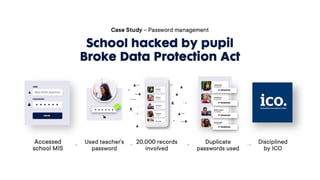
Case Study –Password management
School hacked by pupil
Broke Data Protection Act
Accessed
school
MIS
Used
teacher’s
password
20,000
records
involved
Duplicate
passwords
used
Discipline
d by ICO
IT manager convictedafter
school’s computer network
hacked
Case Study – Access control
22.
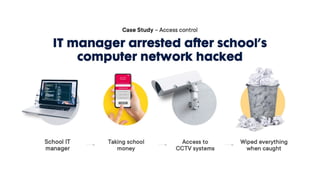
Case Study –Access control
IT manager arrested after school’s
computer network hacked
School IT
manager
Taking school
money
Access to
CCTV
systems
Wiped
everything
when caught
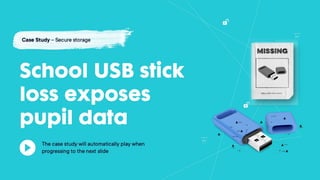
School USB stickloss
exposes pupil data
Case Study – Secure storage
The case study will automatically play
when progressing to the next slide
26.
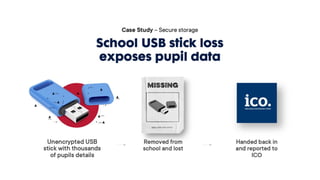
Case Study –Secure storage
School USB stick loss
exposes pupil data
Unencrypted USB
stick with
thousands of
pupils details
Removed from
school and lost
Handed back in
and reported to
ICO
27.
4 key waysto
defend yourself
• Defend against phishing attempts.
• Use strong passwords.
• Secure your devices.
• If in doubt call it out.
How do Idefend
myself against
phishing attempts?
1. Reduce the information
available to attackers.
2. Know the influence techniques.
3. Know what ‘normal’ looks like.
4. Don’t be embarrassed to ask for
help.
5. Report if you click!
Using strong
passwords
• Avoidcommonly used
passwords.
• Avoid passwords relating
to personal information.
• Avoid passwords that have
been breached previously.
34.
Using strong
passwords
1. Createa strong password
for important accounts.
2. Use a separate password
for your work account.
3. Where available, switch on
two-factor authentication
for important accounts.
4. Store passwords securely.
Secure your
devices
1. Donot ignore updates.
2. Only download apps from
trustworthy sources.
3. Physically protect your
device.
4. If you need to use USB
storage, ensure it is
encrypted.
If in doubt
callit out
1. Report any suspicious
activity.
2. Report as soon as possible.
3. Don’t be afraid to
challenge.
40.
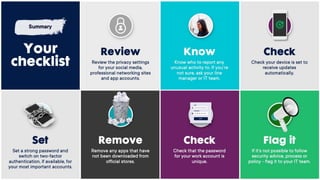
Review the privacy
settingsfor your social
media, professional
networking sites and app
accounts.
Review
Know who to report any
unusual activity to. If
you’re not sure, ask your
line manager or IT team.
Know
Check your device is set
to receive updates
automatically.
Check
Remove any apps that
have not been
downloaded from official
stores.
Remove
Check that the
password for your
work account is
unique.
Check
If it’s not possible to
follow security advice,
process or policy - flag it
to your IT team.
Flag it
Set a strong password and
switch on two-factor
authentication, if available,
for your most important
accounts.
Set
Your
checklist
Summary
41.
Thank you
To downloadyour cyber security training certificate please click on this link:
https://www.ncsc.gov.uk/cyber-security-schools-training-certificate
For other useful school cyber security resources please visit:
https://www.ncsc.gov.uk/cyber-security-schools
Editor's Notes
#1 Slide 1- Introduction
Your school will be reliant on technology to run. For example, the school's email, online lesson plans and Management Information System (MIS) is now a crucial part of everyday life in a school. When something goes wrong with this technology, it can have a devastating and sometimes critical impact on the operation of the school.
A cyber incident is when your systems, processes or people are negatively impacted through the means of your IT.
Your IT team or IT support provider will be responsible for securing your systems and should be ensuring basic protection from cyber attacks. However no technological solution is 100% effective. Often the best defence is staff who are aware of the main cyber risks and threats to a school. School staff can be a crucial part of a schools' cyber defences by following some key cyber security steps.
Your school should have an IT security and acceptable use policy. This guidance should be read alongside these to ensure you understand your school policies
#2 Slide 2 – Agenda
During this training we will look at how and why cyber attacks happen. We will also give you some tips to ensure you are practising good cyber hygiene in both the school and at home.
First we will look at the results of a Cyber Security schools audit from 2019, then we will look at the types of people that might be a risk to your school from a cyber security perspective.
We will then look at the practical steps you can take to protect yourself and your school from cyber attacks.
#3 Slide 3 – Statistics from Cyber Security School Research
A survey from 2019 looked at cyber security in over 400 schools. The key responses included:
83% of schools had experienced some type of cyber incident or attack
69% of schools had suffered a phishing attack. This was the most common form of cyber attack across the schools surveyed
97% of schools said losing access to IT would cause considerable disruption. This is not unusual considering how dependant schools have become on technology
65% of schools don’t train non-IT staff on cyber security. When trained, staff play a valuable role in defending against cyber attacks and incidents.
#4
Slide 4 – Who is behind the cyber-attacks?
There are all sorts of individuals and groups that might wish to target a school. They may try to con or use unknowing staff to gain access to the school’s data or money
You might also be caught up in an un-targeted attack or incident. Often perpetrators send out blanket emails to organisations in the hope that a member of staff clicks on a dodgy web link or attachment
To begin with we are going to look at schools that are targeted. In a school you may face targeted threats. This is where individuals or groups identify weaknesses in the cyber defences or processes of that school. This could involve stealing or guessing log in credentials or exploiting flaws in software.
Attackers may also have identified some personal information about a member of staff online. Attackers can use this information to manipulate victims into performing actions or divulging confidential information, usually for fraud purposes. This is called “social engineering”, and often the victim has no idea that it is being done to them.
#5
Slide 5 – Why would they target my school?
Schools hold sensitive data on pupils, parents and staff. This can be valuable to perpetrators for a range of reasons: from setting up fake bank accounts to reselling the details online.
Schools carry out lots of financial transactions. Often these are only signed off by a few members of staff in a school. Cyber criminals might only need to target one or two individuals in order to steal or con money from a school or supplier
Whilst a school may have a dedicated IT team or IT support, these people are not normally security specialists, cyber security is only a small part of their day job. This can mean the school's IT systems are not adequately protected and are a soft target for cyber attackers.
A school could have older equipment or software that is more vulnerable to cyber attacks
Schools are busy places where quite rightly the focus is on teaching. This can mean security measures aren’t adopted or discussed that could improve the school’s cyber resilience.
Now let’s have a look now at some of the types of individuals that could target a school.
#6 Slide 6 - Threats from outside the school.
Threats are normally described as being external or internal. In this section we are going to look at external threats. External threats are people from outside the school that may seek to cause harm.
#7 Slide 7 – Online Criminals
Criminals are generally interested in making money and are very good at identifying what can be monetised. They will steal and sell sensitive school data. They can also block access to IT systems and demand a money ransom to let you back in. They may also look to exploit weak school processes and target members of staff that authorise school payments. This could involve taking advantage of how you log in to systems and services. Organised criminals have the resources to perfect their approach
#8 Slide 8- Case Studies 1 & 2 Intro Slide
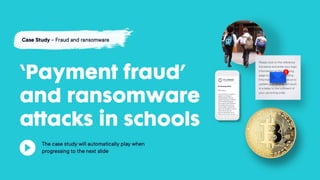
We are now going to watch two short video case studies. These are based on real events and demonstrate how the threat from cyber criminals have impacted schools.
#9 Case Study 1- School Fraud Scam- Phone call and ransomware
#10 Slide 10 – School Fraud Scam- Phone call and ransomware
As we saw in the previous video. This school had their data encrypted and this resulted in the school having no access to its computer network or data for several days. The criminals began the scam by phoning the school and pretending to be from the Department for Education in England. It's worth noting criminals might pretend to be from any education department in the UK depending on where the school is they are targeting.
#12 Slide 12 - School Fraud Scam- Phishing
As we saw in the previous video, this school was targeted by criminals, using a phishing technique, who wanted to steal money from parents and the school. This also led to the criminals using and selling on the parents' personal details for future attacks. This isn’t just a problem for independent schools. Nurseries, academies, local authority schools and school suppliers have also fallen victim to this type of cyber fraud.
#13 Slide 13 – Foreign governments
Foreign governments are generally interested in accessing sensitive or valuable information that may give them a strategic or political advantage.
It is highly unlikely that a foreign government would directly target a school. However, schools can be caught up in cyber attacks by foreign government actors that are untargeted. A good example of this was the WannaCry ransomware developed by North Korea cyber actors which affected the NHS and other organisations in 2017. This attack was possible because there was a security vulnerability in Windows devices that allowed ransomware to run and spread very easily from one computer to another on the same network. Whilst this ransomware has been attributed to North Korean cyber actors, it is not believed that they specifically targeted the NHS.
#14 Slide 14 – Threats from inside the school
We are now going to look at threats originating from inside the school. Whilst it is common to think about the threats that may come from outside your school, there may also be attempts to access your data or disrupt systems from inside the school. This is commonly referred to as the “insider” threat. On very rare occasions it may be a disgruntled employee, or more commonly, an honest mistake from a member of staff. However, in a school you might also have curious pupils eager to practise their hacking skills!
#15 Slide 15 – Potential threats from pupils
These days pupils have access to an abundance of material on the internet, that can guide and coach them on computer hacking. There are plenty of tutorials, videos and free tools that they can use to practise their skills. At school they have access to a fully working network where they may try and practise what they have learnt.
It may be that your pupils are just curious and are looking to test their skills with no malicious intent. They may not completely understand the implications of their actions and might do something that seriously impacts the school network.
Other pupils may be looking to disrupt the school network just to be a nuisance, think of it as the modern-day equivalent of setting off the fire alarm!
They may also try and access their own data (or their friends) to change behaviour records or coursework grades.
There are many websites that offer services to help attack networks and websites for a small fee. This may be in the form of a Distributed Denial of Service attack (often referred to as DDOS) where lots of internet traffic is deliberately aimed at the school to overload its network. This can be very disruptive leading to IT outages lasting for hours. Although it doesn’t delete or change information on the school’s network, DDOS attacks can prevent access to critical internet-based services
#16 Slide 16 – Case 3 Intro Slide
We are now going to watch another short case study of a real cyber event that involved a pupil which took place in a school.
#18 Slide 18- Pupil password hack
So just to recap. In the previous video a pupil was able to access the schools MIS system because a teacher left a password for their computer out in the open. The teacher had used this same password for the MIS system and other school IT accounts. The pupil guessed this and accessed the MIS system which contained thousands of bits of sensitive data on other pupils stored on it. This contributed to a major breach of the school’s data and the school had to report the incident to the Information Commissioner's Office.
#19 Slide 19 – Potential threats from staff
Schools rightly have a strict and careful recruitment process. This often means that we implicitly trust our school staff and would not consider them a threat to our school networks.
Whilst it is very rare, there is a small risk where a disgruntled member of staff might act against the school through its IT networks. This risk of this is low, but it’s important you are aware of that this can happen. If individual members of staff have increased levels of IT access, they also have the potential to cause increased levels of damage to the school's IT – either accidentally or on purpose.
To help defend against this malicious activity you should understand your school’s whistle blowing policy to raise a concern if you see something that doesn’t seem right.
#20 Slide 20 – Case Study of staff unauthorised access
We are going to look at another short video animation. This was a rare but real event involving a disgruntled member of staff at a school.
#21 Case Study 4 - Suspended member of staff with access to schools IT
#22 Slide 22, Suspended member of staff with access to schools IT
Thankfully whilst these types of incidents are rare, this case study is a good reminder that there is still a risk from staff in this way and schools should be aware of it so they can manage it. A good step from the school in this situation would’ve been to remove access from the member of staff when they were initially suspended. It’s important when staff move on from the school access to their IT accounts is removed. This is also relevant for temporary members of staff.
#23 Slide 23 – Accidental cyber incidents
Accidental cyber incidents by staff or pupils are far more common than malicious insider attacks. They are the main reason why schools report data breaches to the Information Commissioner's Office (ICO). This is not a surprise as staff in schools are very busy, and it is very easy to overlook something when trying to do things in a hurry. It’s important to ensure there is not a fear of reporting by staff because of the threat of repercussions from a school. It is typically easier to fix IT issues and reduce the negative impact they create the earlier they are reported.
An accidental cyber incident may involve losing a USB storage device that wasn’t encrypted, or accidentally emailing the wrong person with information containing sensitive data.
Staff may also feel compelled to respond to school emails on their personal devices. These devices may not be as well protected as your school-issued device.
#24 Slide 24 – Case Study 4
In the next video case study, we see a real example of an accidental data breach involving a member of staff
#26 Slide 26- Accidental loss of USB stick
As we saw in the case study video, storing data on a USB stick that has no password or encryption protections could lead to a major data breach if it lost or stolen.
Try to avoid using USB sticks if you can. If you do need to use one try to use a stick issued by your school.
#27 Slide 27 – 4 Key ways to defend yourself
Now that we understand some of the most common threats and types of cyber incidents facing schools, let’s have a look at how we might defend ourselves against them.
#28 Slide 28 – Defend yourself against phishing
This section looks at how you might defend yourself from phishing attacks. Phishing is one of the most common types of cyber attack and can be targeted or un-targeted.
#29 Slide 29 - What is Phishing?
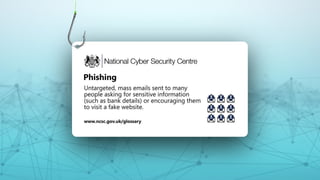
Phishing is where an email appears genuine but is actually fake. It might try and trick you into revealing sensitive information, or it might contain a link to a malicious website or an attachment that is infected with malware. Some phishing attempts are random, while others might be more targeted to you as an individual, or to specific organisations like schools
Phishing attempts typically arrive via email but can also arrive by: social media, text message or phone call. Your IT team or IT supplier should have security tools working behind the scenes to help protect your school from phishing. You can also play a massive role by following some key steps.
#30 Slide 30 – Example of a phishing attempt
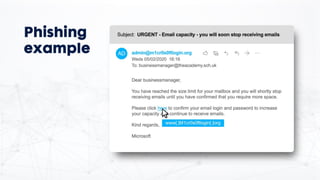
Here is an example of what a phishing email might look like.
In this email phishing example, someone is pretending to be from Microsoft. The email is telling the school’s business manager that they have reached the size limit on their email account. Phishing emails will often compel someone to act. For most people not being able to receive or send emails is something that would worry them so they will usually act quickly to help prevent it.
The phishing email is prompting the user to click on a link to increase their email capacity. When the user clicks on the dodgy link, they will be taken to a website that looks like a genuine Microsoft webpage. Once the user enters their username and password on this webpage, the attacker will see these credentials and use them to access the business manager’s email account. Once the attacker has gained access, they may steal the school's data or try and use the business manager's email account to phish other user accounts within the school. They might also try to convince a parent, supplier or other member of staff to transfer money to the attacker’s bank account.
#31 Slide 31- Phishing
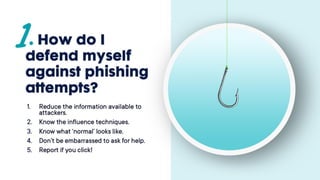
Cyber attackers can use publicly available information about you and your school to help make their targeted phishing attempts look more convincing. This information is often taken from the school’s website, social media channels and professional networking sites (information known as your 'digital footprint’). We don’t advise removing all traces of yourselves from the internet but would encourage you to review the privacy settings on your accounts and to think about what you post online. For example:
Reduce the information available to attackers. Avoid posting specific details about your school and your role. Especially if your role involves handling sensitive information about children, the school’s finances or you have highly privileged IT access.
Know the influence techniques. You are less likely to fall for a social engineering attack if you know what to look out for. Hallmarks of a phishing attempt include urgency or authority statements that pressure you to act. Checking for poor spelling and grammar is also a good place to start, but this won’t apply to all phishing emails. If you have a feeling that something doesn’t look quite right then it probably isn’t and you should ask for help.
Know what normal looks like. Cyber attackers using phishing techniques often target certain people and processes in a school. For example, cyber attackers looking to steal money from your school might target someone in your finance team to influence your schools' invoice process. Make sure you know your schools invoice policies and processes so it’s easier to spot unusual activity.
Don’t be too embarrassed to ask for help. Many phishing attacks rely on the victim being too embarrassed to ask colleagues for help. For example, if someone contacts you claiming to have compromising or personal material about you, don’t be afraid to raise it with your IT team or manager. Phishing emails might also try and confuse you with technical terms and ask you to pay a ransom for their silence. They may even have discovered one of your passwords through an earlier data breach. This could have come from a website you have previously used that was compromised in the past. This means the cyber criminal might already have your email address and password you used for that website account. Therefore, it’s extremely important to avoid using the same password for different accounts.
Report if you click. Phishing attempts can be very difficult to spot. If you fall victim to one don’t panic. If you do click on a link or file by mistake it’s important to tell the right people immediately. This will reduce the potential harm caused. Find out who in your school to report such an incident like this to.
#32 Slide 32 – Use Strong passwords
Cyber attackers may try to guess your password in order to access your devices or important accounts, like your email and online banking account. They can guess your passwords based on the most common passwords in use (e.g. password1). Attackers can also use public information about you and your school to guess your password.
Once they have guessed one password, they will try to use this same password to access your other accounts. This is because people often use the same passwords for several different accounts. The strongest passwords are hard to guess and are not repeated across your different accounts
#33 Slide 33 – Using Strong passwords
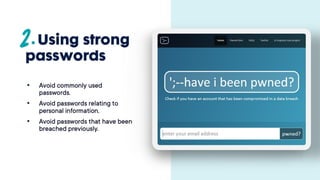
If you have used the same password for multiple online accounts, you should check to see whether those accounts have ever been compromised through a data breach. You can visit the site www.haveIbeenpwned.com (pronounced p-owned) to find out if your email addresses have been involved in a data breach and whether your passwords for that account were exposed.
If you discover some of your accounts have been breached, you should reset your passwords for these accounts and any others where you have used the same password.
In the phishing email example we saw earlier in the presentation, sometimes a password you have used is added to the phishing email to make the request seem more credible. This password was probably obtained from one of your accounts that was involved in an earlier breach. If you have reset those accounts with a new password, then you can be more confident that they cannot reuse that password to access other accounts.
#34 Slide 34 – Using strong passwords
1. Create a strong password for important accounts. Weak passwords can be hacked in seconds. The longer it is, the stronger it becomes and the harder to hack. Make yours strong by using a sequence of three random words.
You can make it even stronger with special characters, so ‘FlamingoHeadMan’ could be ’42@FlamingoHeadMan’.
Starting with your most important accounts (such as banking, email and social media), replace your old passwords with new ones, by stringing three random words together.
2. Use a separate password for your work and personal accounts
You are likely to have loads of online accounts. If one of those accounts gets compromised, you don’t want the attacker to have your school password so make sure your domestic and work passwords are different. Try not to use your school email address for personal websites or applications and use a separate unique password for your email accounts as you will often use that email address to reset other passwords.
3. Where available, switch on two-factor authentication for important accounts
Two-factor authentication (2FA) is normally a free security feature that gives you an extra layer of protection online and stops cyber criminals getting into your accounts – even if they have your password. It reduces the risk by asking you to provide a second factor, such as getting a text or code when you log in, to double check you are who you say you are.
Check if the online services and apps you use offer 2FA. If they do, turn it on and begin setting it up with accounts you care most about such as banking, email and social media. For your school accounts this may be enabled by your IT team or provider.
4. Store passwords securely
Using the same password all over the internet for your accounts makes you vulnerable. For example, if that one password is stolen all your accounts can be accessed. It’s good practice to use different passwords for the accounts you most care about. Remembering lots of passwords can be difficult, but if you save them in your browser or a password manager, you don’t have to.
Online service providers are constantly updating their software to keep your sensitive personal data secure, so store your passwords in your browser when prompted. It’s quick, convenient and safer than re-using the same password for all your accounts.
If you do need to write a password down, make sure you lock it away in a secure place.
#35 Slide 35 – Secure your devices
In this section we will look at how you can protect both your school and personal devices
#36 Slide 36 – Secure your devices
Whilst the device that you use for school is likely to be managed and protected by the IT team, there are some things you can do to ensure that your devices stay safe and secure.
You might also access school data on your own devices or use external devices to store that data on. It is equally important that you keep those devices secure, as any cyber incident on them could impact on the cyber security of you and your school.
Make sure that you are complying with your school’s IT security policies if you are using your own devices or external storage.
#37 Slide 37 – Secure your devices
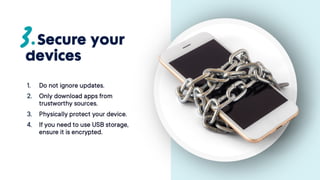
Do not ignore updates
The IT devices you use will undoubtedly use software and apps. Software and apps will have flaws, some of which can be exploited leading to security problems. When flaws are discovered, the manufacturer will normally fix them and send the fix out as a patch or part of an update. Attackers try to take advantage of those flaws when they find out about them. This can happen before your school has had a chance to apply the fix.
Your school may manage updates for you. In some cases, this means updates are applied automatically; but sometimes you may be prompted to install the update, which you should do. Sometimes the updates are scheduled to update at night, this is perfectly fine. The few minutes it takes to update could save you time and trouble in the long run and will reduce the risk of you or your school becoming a victim of a cyber attack.
If you see error messages or you believe software or apps aren’t updating as you’d expect, then contact your IT support.
2. Only download software and apps from official app stores
Your organisation is likely to control the software or apps that can be installed on your school devices. Devices may come already installed with software or apps or you might be given access to an approved store of software that you can use.
If it’s your personal device or you control what apps and software you install, it’s best to only use official app stores (like Google Play or Apple App Store). These apps are checked to provide a certain level of protection from viruses that might cause harm. You should avoid downloading third party apps from unknown websites or vendors.
You should also be aware of what data your apps may be accessing. If you find out apps are accessing your school data, then you should ensure that this is absolutely necessary and within your school’s data protection policy by carefully reading the permissions information when installing the application. GDPR might accidentally be breached if you do not check.
3. Physically protect your device
Cyber attackers may try to physically exploit your device to access your sensitive information or accounts, for example, if it’s left unlocked, lost or stolen. Always secure your device with a screen lock. A screen lock can be a PIN, password, biometric (fingerprint or FaceID) or pattern. Pick any one of these security controls. Some are more secure than others but it’s important you choose one that works for you. If you are storing sensitive information on your device then you should also make sure it is encrypted and backed up. Speak to your IT team if you are unsure if your device is sufficiently protected.
If your device is compromised by a cyber criminal your sensitive personal data can be lost, damaged or stolen.
Keep a copy of all your important information by backing it up to the cloud or somewhere offline. You can choose to back up all your data or only information that is important to you.
4. Only use IT-issued encrypted USB storage
Using USB storage that has not been scanned for malware could lead to your device being infected. Beware of free giveaways as these could have malware already on them and may infect your devices. Any data stored on USB storage devices should be encrypted so that the data cannot be accessed if the device is lost
#38 Slide 38 – If in doubt, call it out
It is important that everyone feels comfortable speaking out if they feel that something isn’t right. By calling it out at the right time you could prevent something that may seem irrelevant at first, turning into a critical cyber incident.
#39 Slide 35 – If in doubt, call it out, by:
Report any suspicious activity
Cyber attacks can be difficult to spot, and you cannot be expected to identify them all of the time. Don’t hesitate to ask for further guidance or support when something feels suspicious, unexpected or unusual.
2. Report as soon as possible
The sooner you report, the quicker it can be resolved and the less damage it will cause. Don’t assume that someone else will do it.
Even if you suspect you’ve accidentally done something to contribute to the harm like clicking on a dodgy link, please still report what’s happened. Everyone makes mistakes. It’s important to report them as early as possible.
3. Don’t be afraid to challenge
Security that doesn't work for staff, doesn't work. Don’t be afraid to flag up policies or processes that make your job difficult.
#40 Slide 36 – Summary and checklist
Hopefully you’ll now understand some of the main threats and types of cyber incident that you or your school might experience. Also you will have a good idea on how to protect yourself against those kinds of attacks.
Here is a quick summary of the key points and things you should do as soon as possible:
Review the privacy settings for your social media, professional networking site and app accounts
Know who to report any unusual activity to. If you’re not sure, ask your line manager or IT team
Check your device is set to receive updates automatically
Remove any apps that have not been downloaded from official stores
For your most important accounts, set a strong password and switch on two-factor authentication, if available
Check that the password for your work account is unique.
If it’s not possible to follow security advice, process or policy - flag it to your IT team
#41 Thank you.
* Signpost to extra NCSC resources and training certificate in links