How to implement Data Entry
        into the VAN


  This is for both Grid View and Script
                   View
First make sure you are in My Voters


You can make sure you are in My Voters by clicking here before you start.
Grid View Instructions
Implementing Data entry of your door or phone canvass using Grid View


Click Grid View here, in order to begin entering in your canvass information into the VAN
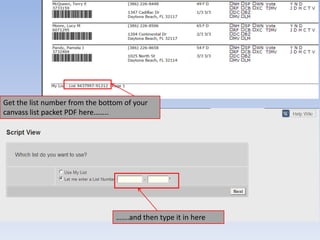
Get the list number from the bottom of your
canvass list packet PDF here……..


                                 …….and then type it in here
These numbers must be the same


                                 Then click Next
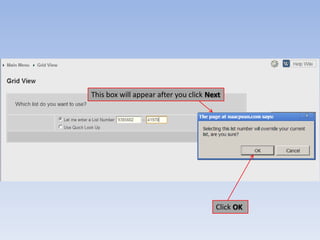
This box will appear after you click Next


                                       Click OK
Type in What survey you used during your canvass here

                                                  Enter your name here

                                 The date you did your canvass here


                                  Enter whether it was a door or phone
                                  canvass here


                                        Then click Next
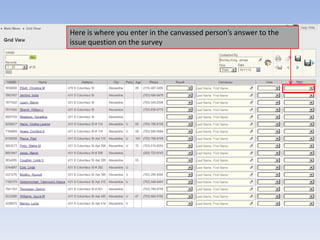
Here is the Grid View Data entry screen
Here is the name of the person who was on your walk or phone list
Here are the addresses and phone numbers of the people who were
on your walk or phone list
Here is where you enter in the status of the person you canvassed if
they did not answer or respond to the survey
Here is where you enter in the canvassed person’s answer to if they
are voting in this upcoming election
Here is where you enter in the canvassed person’s answer to the
issue question on the survey
Here is an example of a completed survey
from a successfully canvassed person
entered into the VAN
Here is an example of an incomplete
survey from a person who was not
canvassed entered into the VAN
Once all information is completed on the
first screen, if you have additional click
the Save and Next icon here
Once all information is completed overall
click the Save icon here and you are done
Script View Instructions
Implementing Data entry of your door or phone canvass using Script View


Click Script View here, in order to begin entering in your canvass information into the VAN
Get the list number from the bottom of your
canvass list packet PDF here……..


                                 …….and then type it in here
These numbers must be the same


                                 Then click Next
This box will appear after you click Next


                                       Click OK
Here is the Script View Data entry page
Here is the name and number of the person you canvassed


                              Here is where you enter in
                              the status information of the
                              canvassed person if they DO
                              NOT complete the survey


                               Here is where you enter
                               canvass information
                               collected from the person
                               who’s name is at the top of
                               the screen.


                              Then click Next
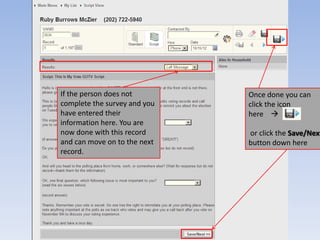
If the person does not        Once done you can
complete the survey and you   click the icon
have entered their            here 
information here. You are
now done with this record     or click the Save/Next
and can move on to the next   button down here
record.
Once done you can
                              click the icon
                              here 

Once the survey information   or click the Save/Next
is collected on your survey   button down here
sheet you the canvassed
person’s survey response
here and here.
This concludes the tutorial
• Repeat the instructions as many times until all of
  the information has been entered.
• Whether you are using Grid View or Script View
  the information will be entered into the VAN and
  it will be credited to you.
• There are easier ways to implement data entry
  into the VAN if you have access to a barcode
  reading laser pen.
• Use the support request system in the VAN to ask
  how to use it if you have access to a barcode
  reading laser pen, a smartphone will not work.

NAACPData entry for van final

  • 1.
    How to implementData Entry into the VAN This is for both Grid View and Script View
  • 2.
    First make sureyou are in My Voters You can make sure you are in My Voters by clicking here before you start.
  • 3.
  • 4.
    Implementing Data entryof your door or phone canvass using Grid View Click Grid View here, in order to begin entering in your canvass information into the VAN
  • 5.
    Get the listnumber from the bottom of your canvass list packet PDF here…….. …….and then type it in here
  • 6.
    These numbers mustbe the same Then click Next
  • 7.
    This box willappear after you click Next Click OK
  • 8.
    Type in Whatsurvey you used during your canvass here Enter your name here The date you did your canvass here Enter whether it was a door or phone canvass here Then click Next
  • 9.
    Here is theGrid View Data entry screen
  • 10.
    Here is thename of the person who was on your walk or phone list
  • 11.
    Here are theaddresses and phone numbers of the people who were on your walk or phone list
  • 12.
    Here is whereyou enter in the status of the person you canvassed if they did not answer or respond to the survey
  • 13.
    Here is whereyou enter in the canvassed person’s answer to if they are voting in this upcoming election
  • 14.
    Here is whereyou enter in the canvassed person’s answer to the issue question on the survey
  • 15.
    Here is anexample of a completed survey from a successfully canvassed person entered into the VAN
  • 16.
    Here is anexample of an incomplete survey from a person who was not canvassed entered into the VAN
  • 17.
    Once all informationis completed on the first screen, if you have additional click the Save and Next icon here
  • 18.
    Once all informationis completed overall click the Save icon here and you are done
  • 19.
  • 20.
    Implementing Data entryof your door or phone canvass using Script View Click Script View here, in order to begin entering in your canvass information into the VAN
  • 21.
    Get the listnumber from the bottom of your canvass list packet PDF here…….. …….and then type it in here
  • 22.
    These numbers mustbe the same Then click Next
  • 23.
    This box willappear after you click Next Click OK
  • 24.
    Here is theScript View Data entry page
  • 25.
    Here is thename and number of the person you canvassed Here is where you enter in the status information of the canvassed person if they DO NOT complete the survey Here is where you enter canvass information collected from the person who’s name is at the top of the screen. Then click Next
  • 26.
    If the persondoes not Once done you can complete the survey and you click the icon have entered their here  information here. You are now done with this record or click the Save/Next and can move on to the next button down here record.
  • 27.
    Once done youcan click the icon here  Once the survey information or click the Save/Next is collected on your survey button down here sheet you the canvassed person’s survey response here and here.
  • 28.
    This concludes thetutorial • Repeat the instructions as many times until all of the information has been entered. • Whether you are using Grid View or Script View the information will be entered into the VAN and it will be credited to you. • There are easier ways to implement data entry into the VAN if you have access to a barcode reading laser pen. • Use the support request system in the VAN to ask how to use it if you have access to a barcode reading laser pen, a smartphone will not work.