How to use the VAN to pull your
        GOTV Universe

   This will be a step by step instruction
document for NAACP members to get their
     Walk and Phone GOTV Universes.
Please Note: These universes will change as
 we make adjustments adding new names
        leading up to election day.
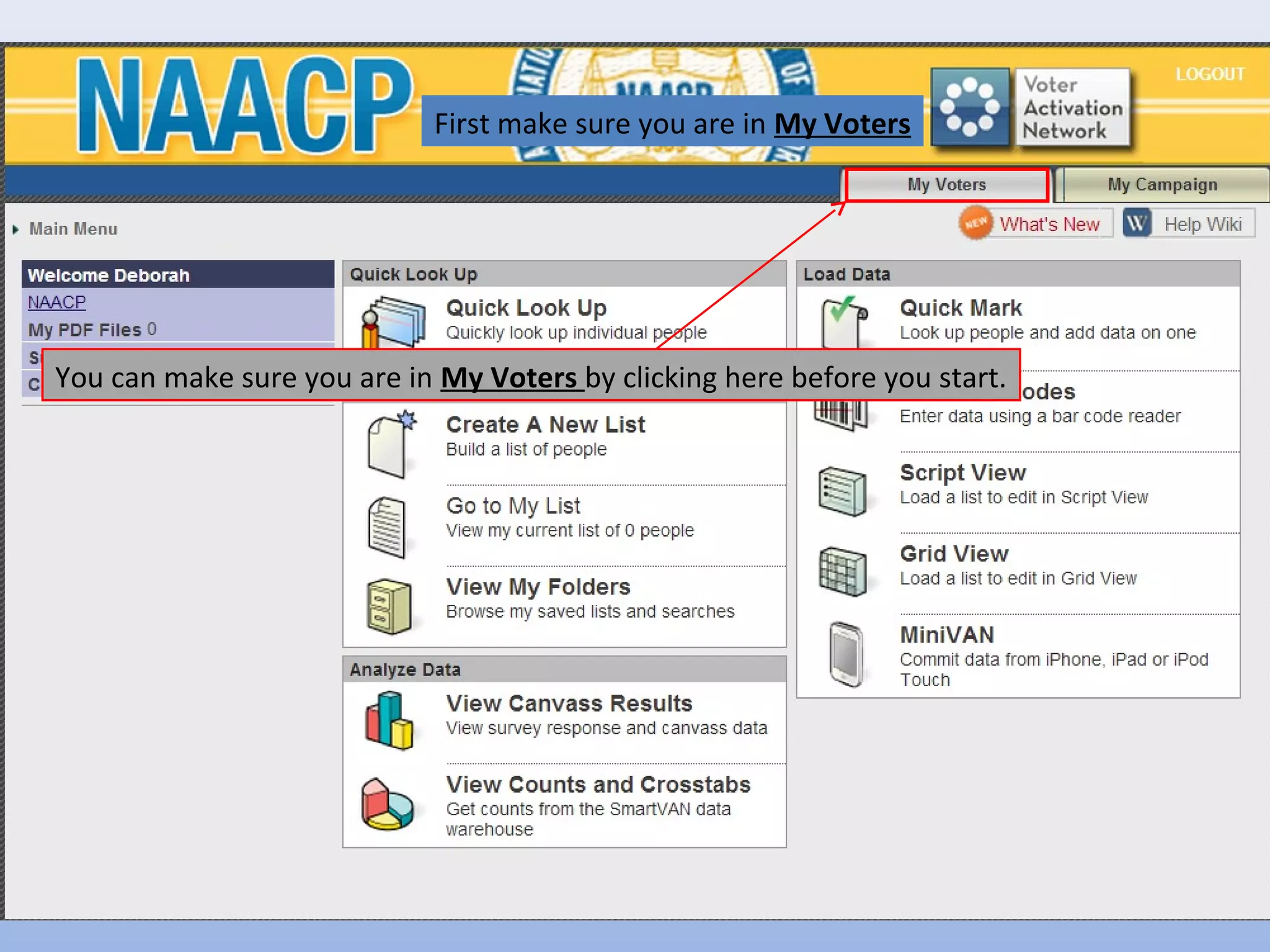
First make sure you are in My Voters


You can make sure you are in My Voters by clicking here before you start.
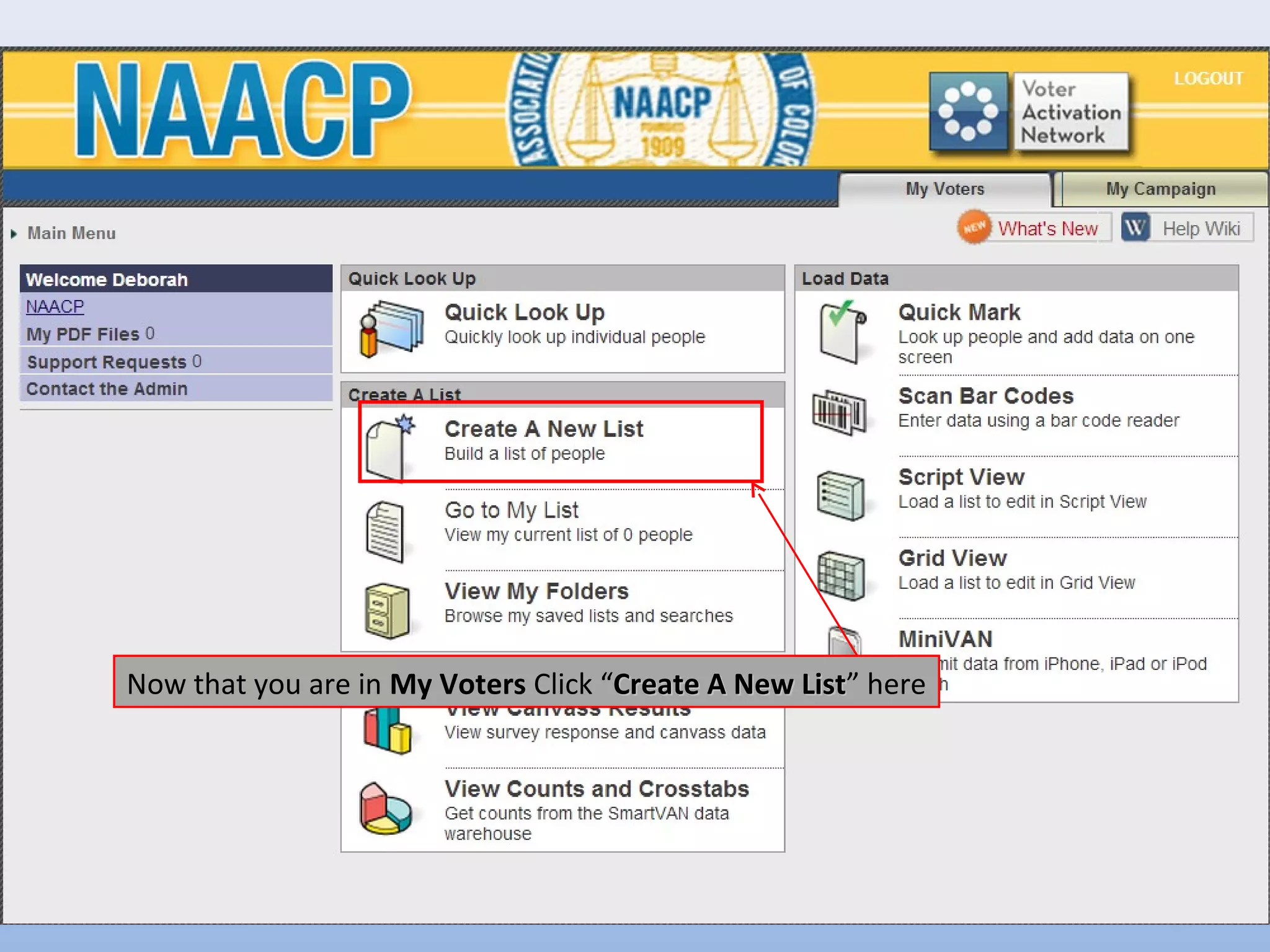
Now that you are in My Voters Click “Create A New List” here
                                                  List
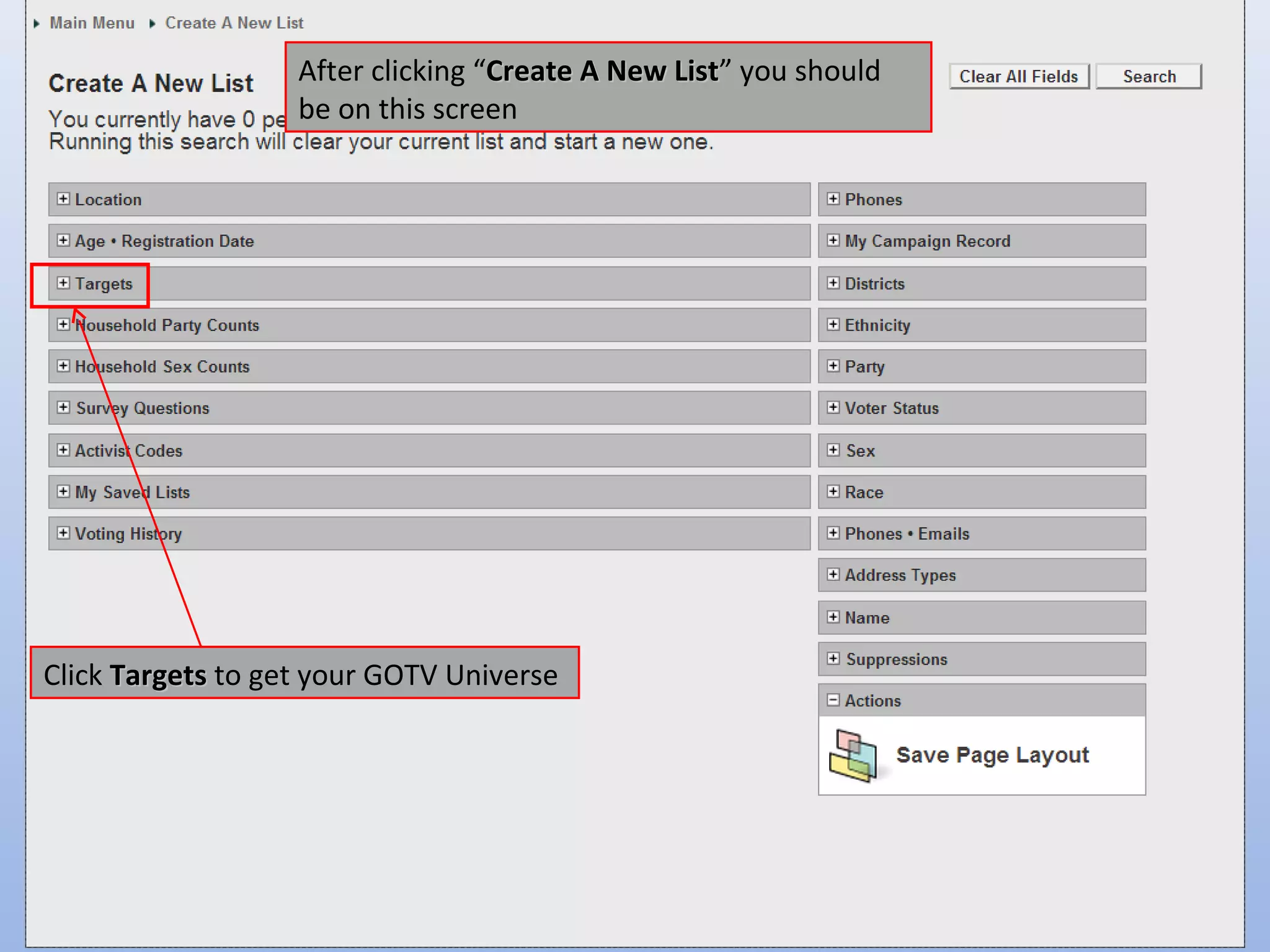
After clicking “Create A New List” you should
                                                List
                   be on this screen


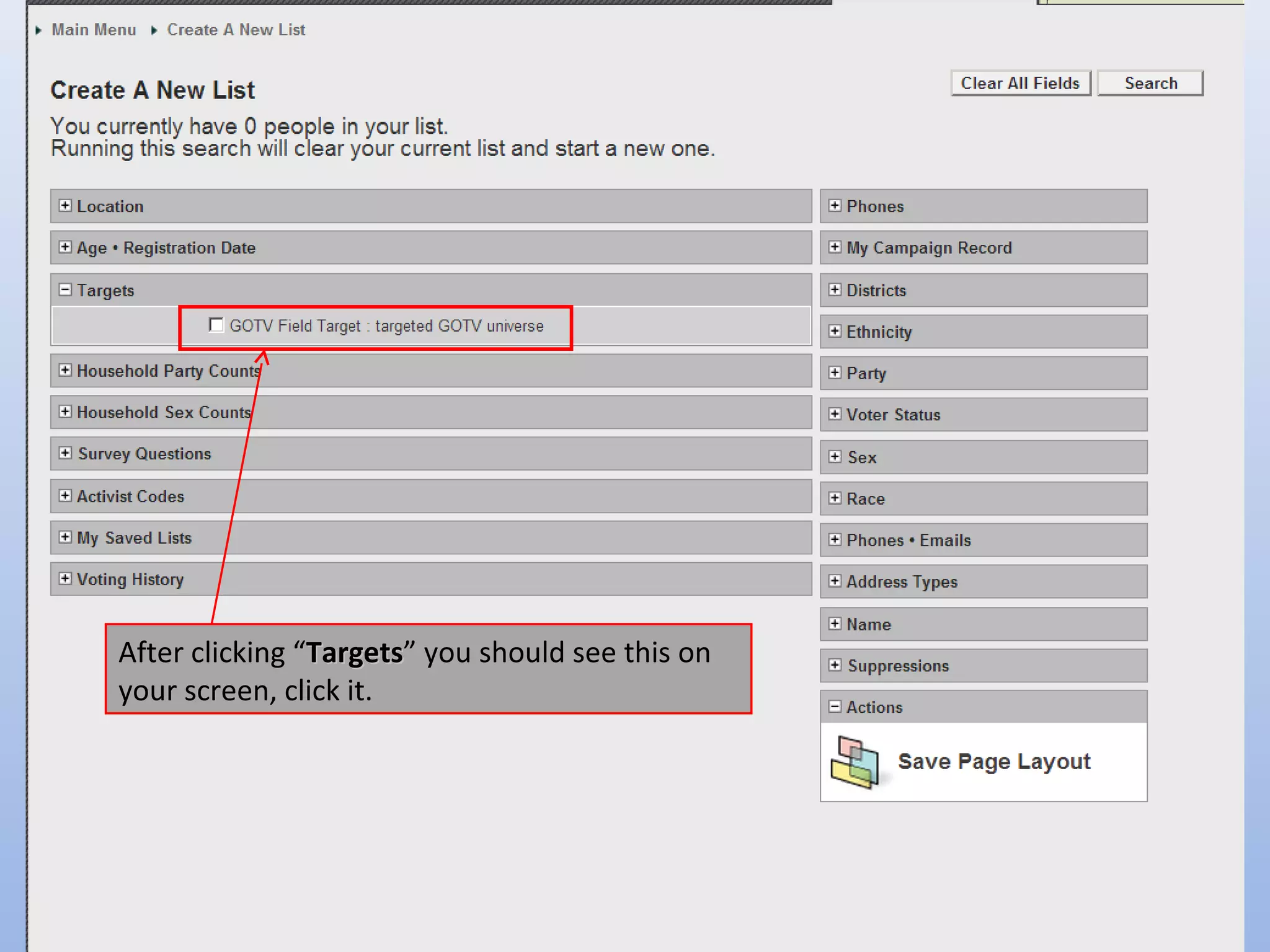
Click Targets to get your GOTV Universe
After clicking “Targets” you should see this on
                Targets
your screen, click it.
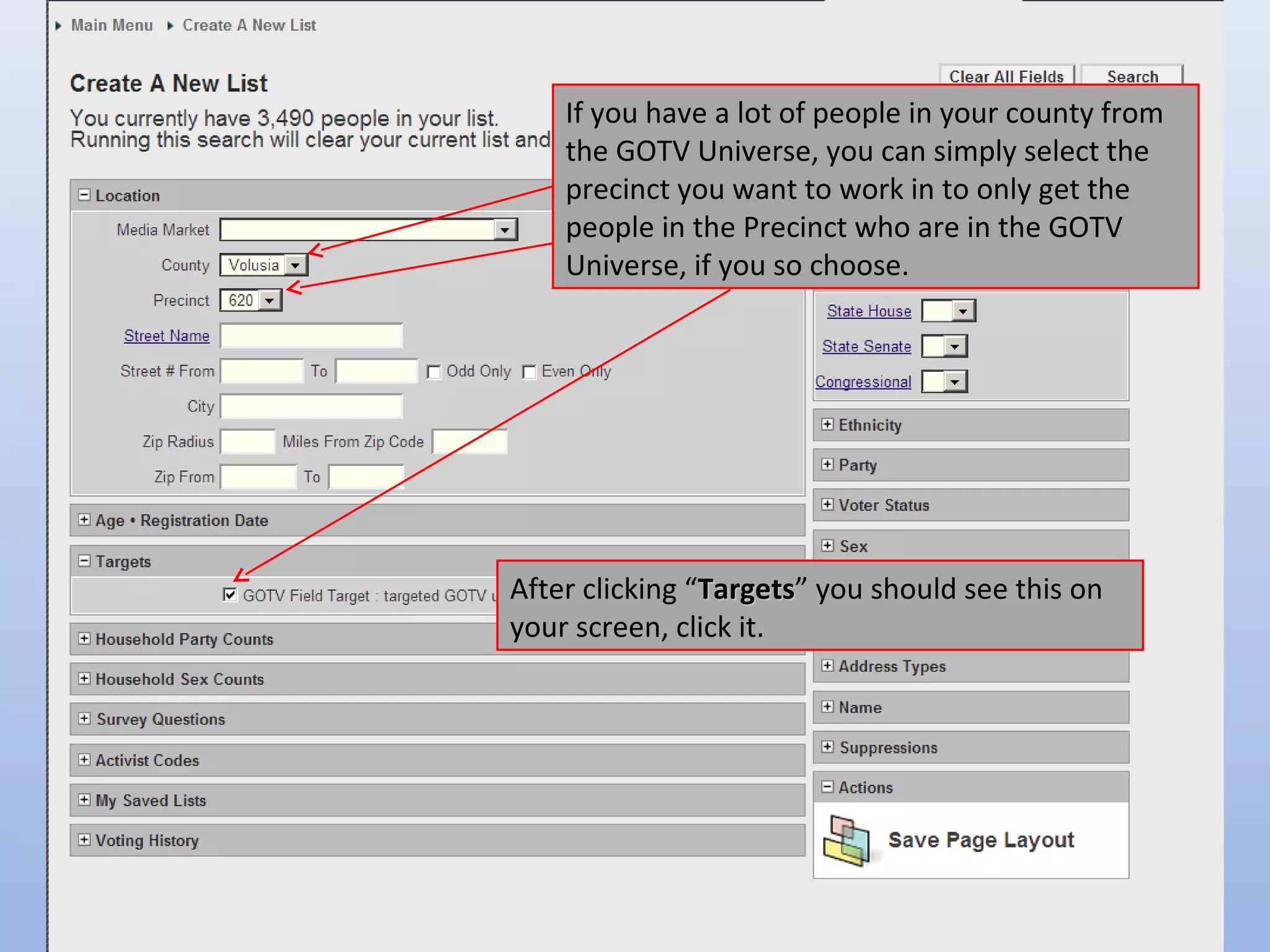
If you have a lot of people in your county from
    the GOTV Universe, you can simply select the
    precinct you want to work in to only get the
    people in the Precinct who are in the GOTV
    Universe, if you so choose.


After clicking “Targets” you should see this on
                Targets
your screen, click it.
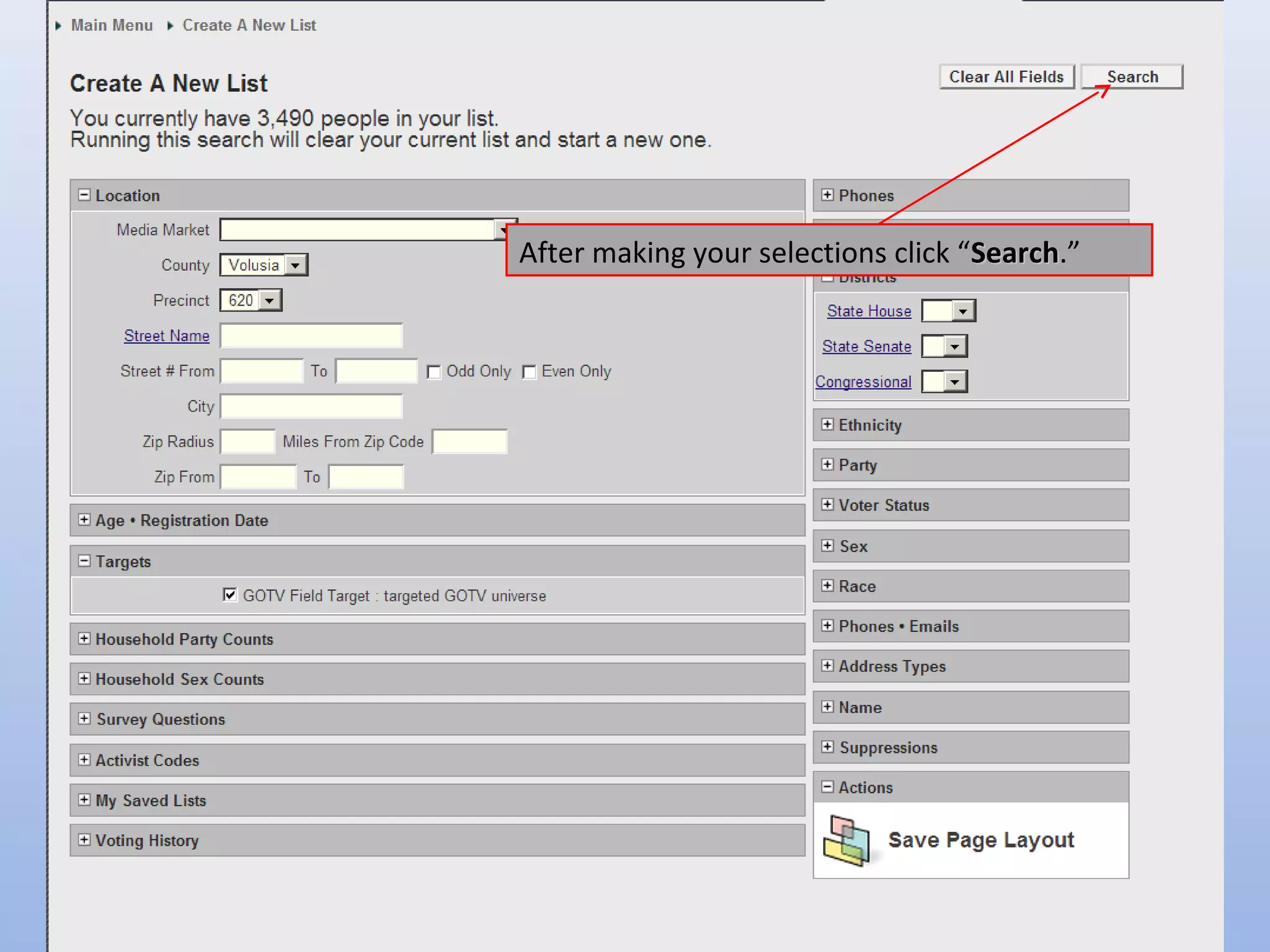
After making your selections click “Search.”
                                    Search
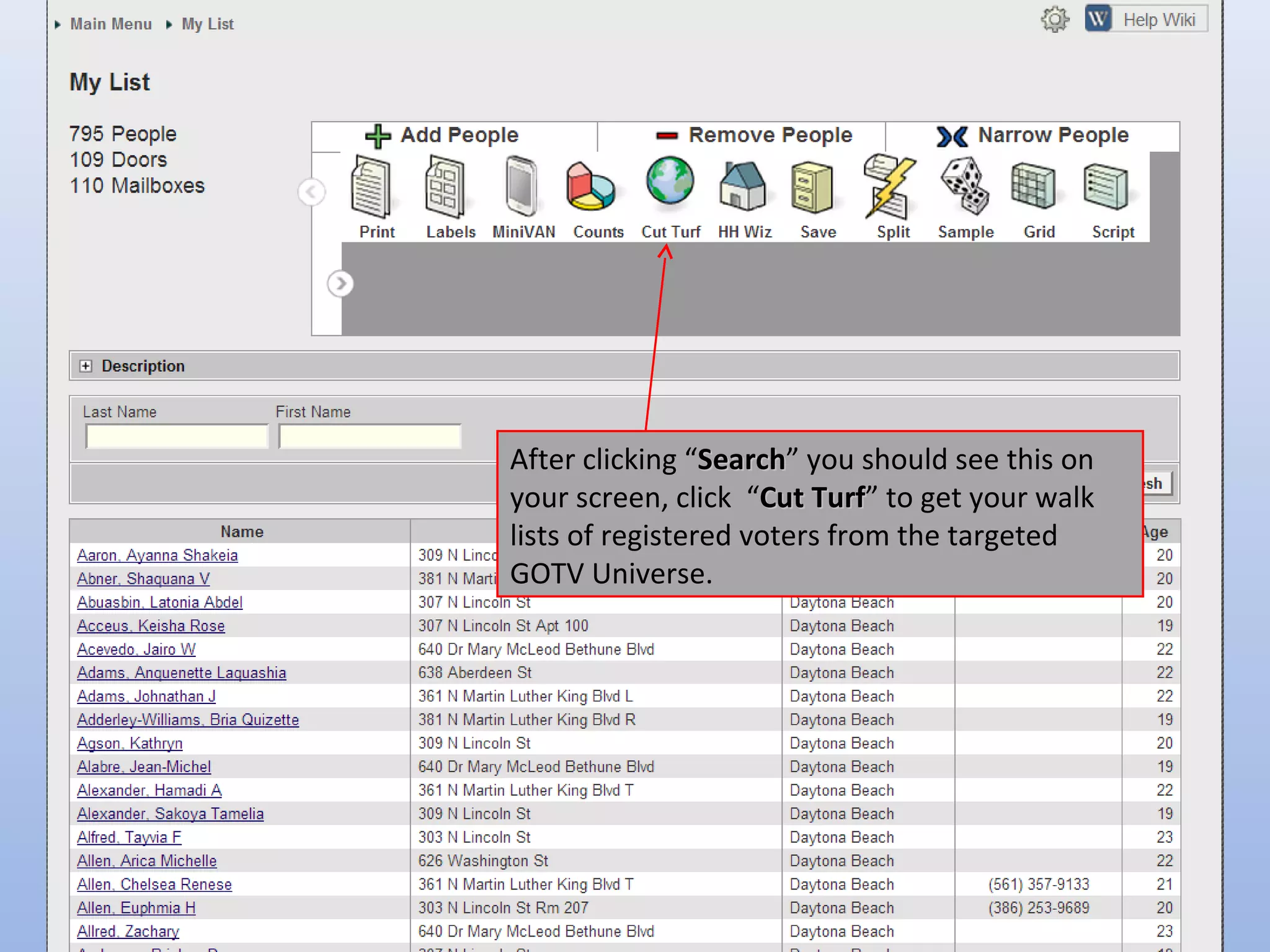
After clicking “Search” you should see this on
                 Search
your screen, click “Cut Turf” to get your walk
                         Turf
lists of registered voters from the targeted
GOTV Universe.
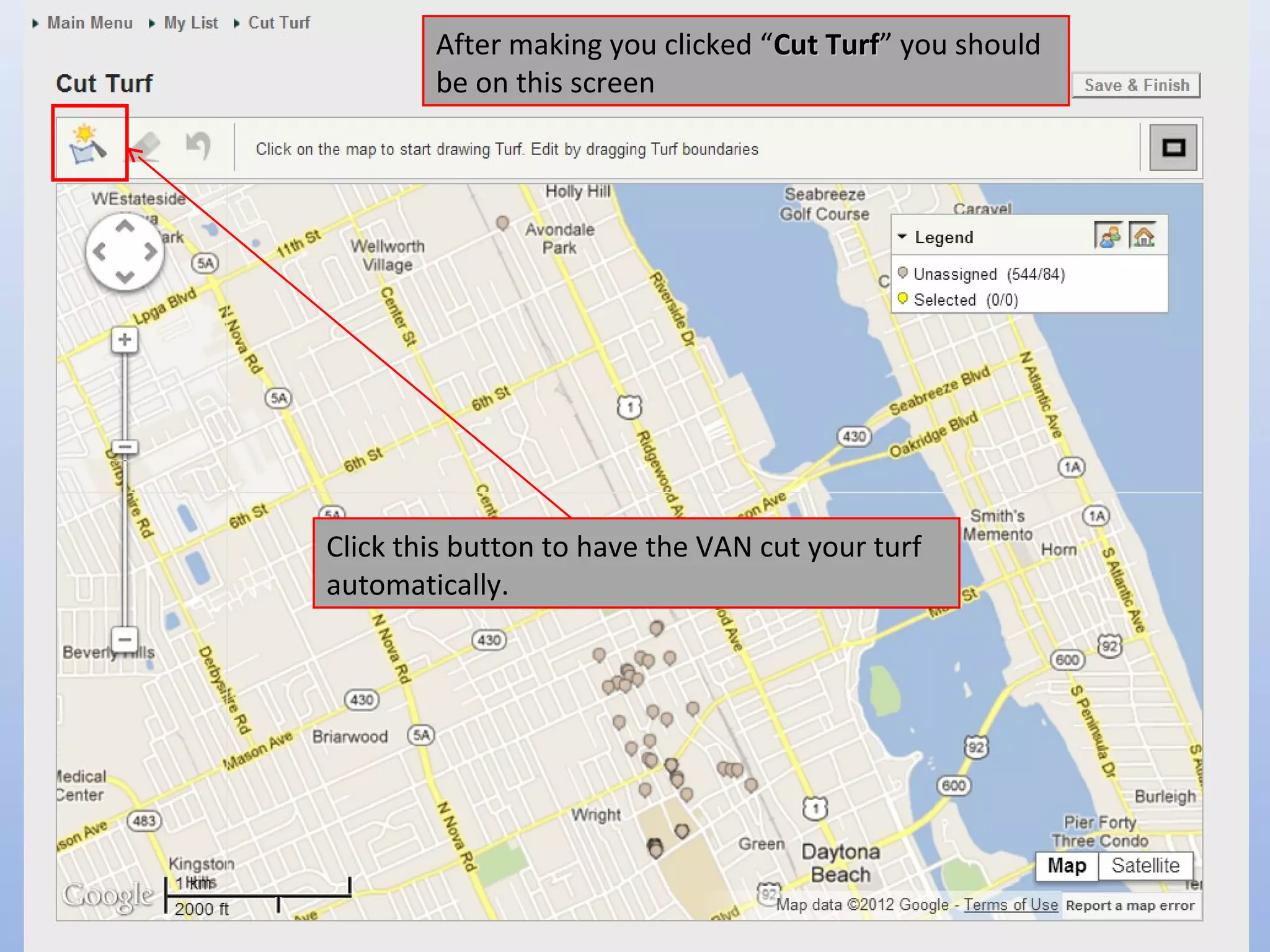
After making you clicked “Cut Turf” you should
                                      Turf
        be on this screen


Click this button to have the VAN cut your turf
automatically.
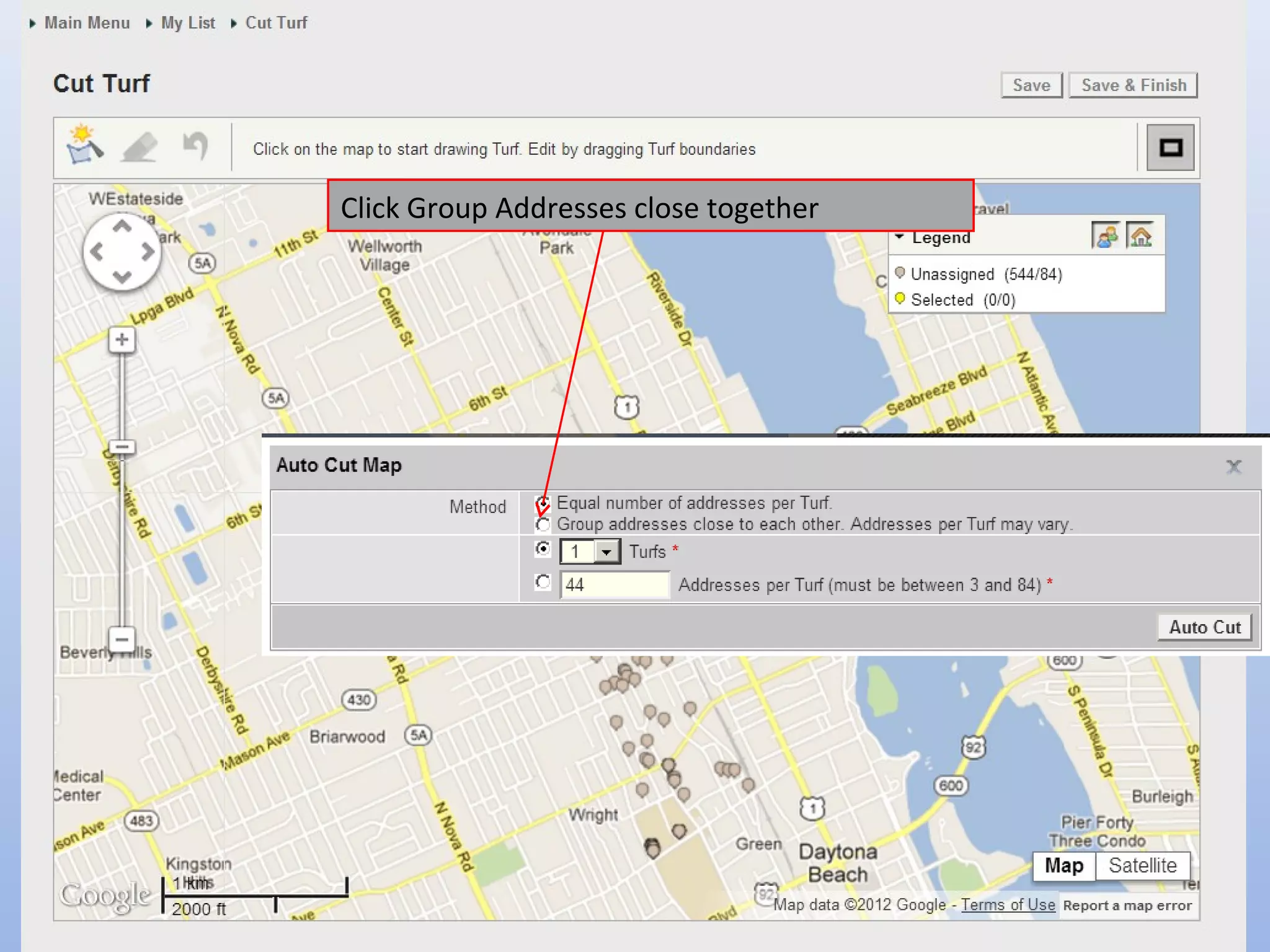
Click Group Addresses close together
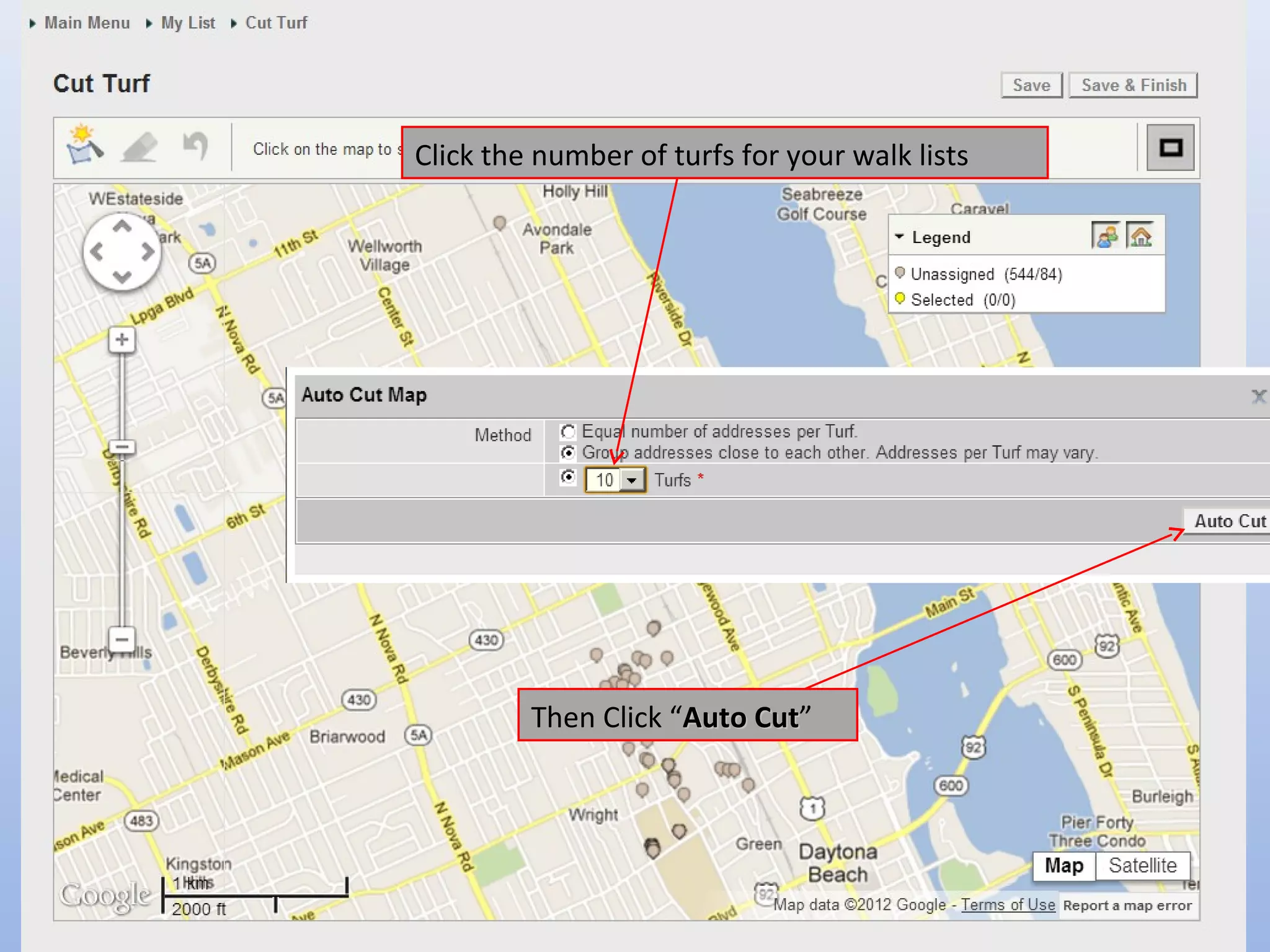
Click the number of turfs for your walk lists


         Then Click “Auto Cut”
                          Cut
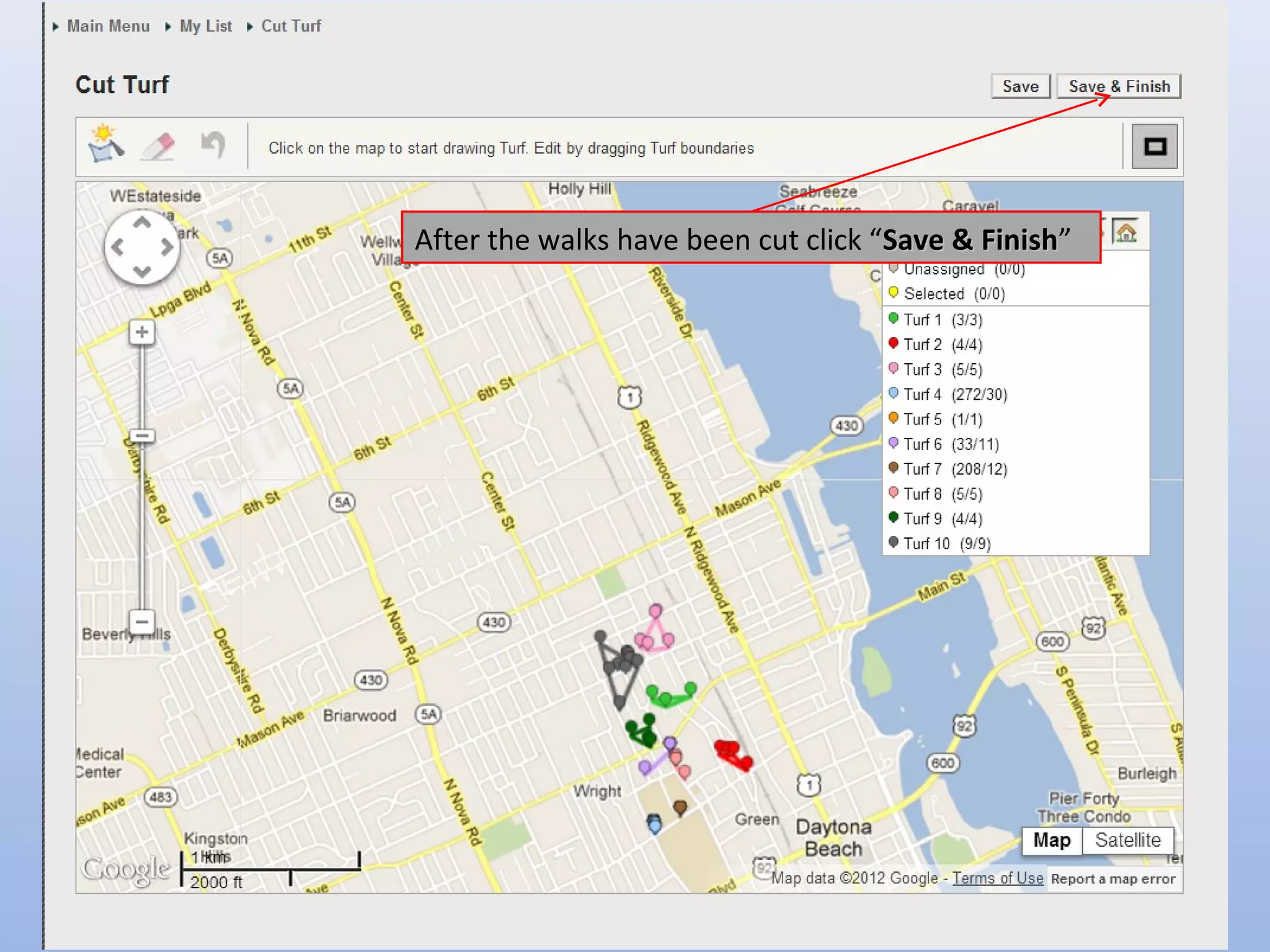
After the walks have been cut click “Save & Finish”
                                            Finish
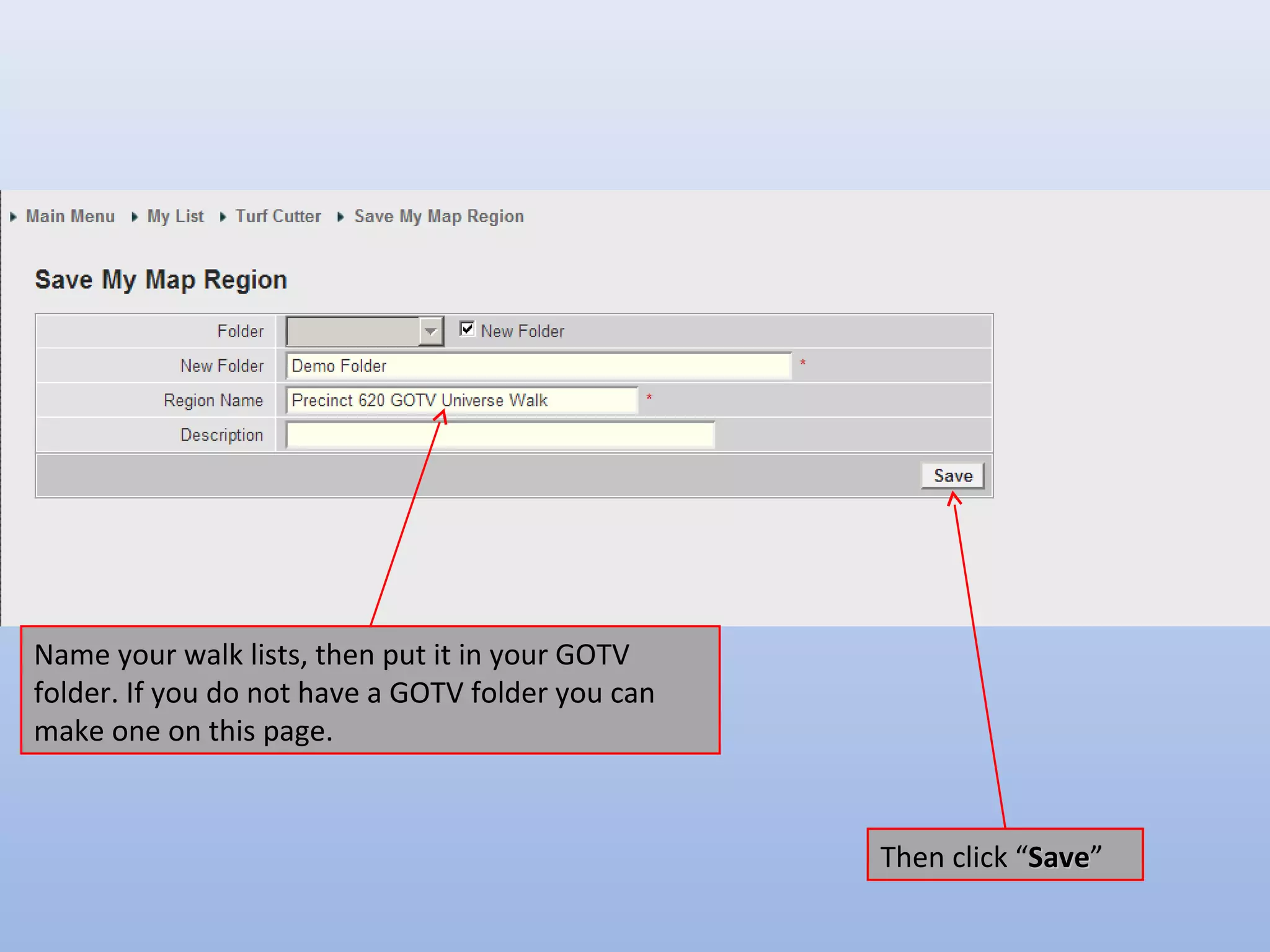
Name your walk lists, then put it in your GOTV
folder. If you do not have a GOTV folder you can
make one on this page.


                                                   Then click “Save”
                                                               Save
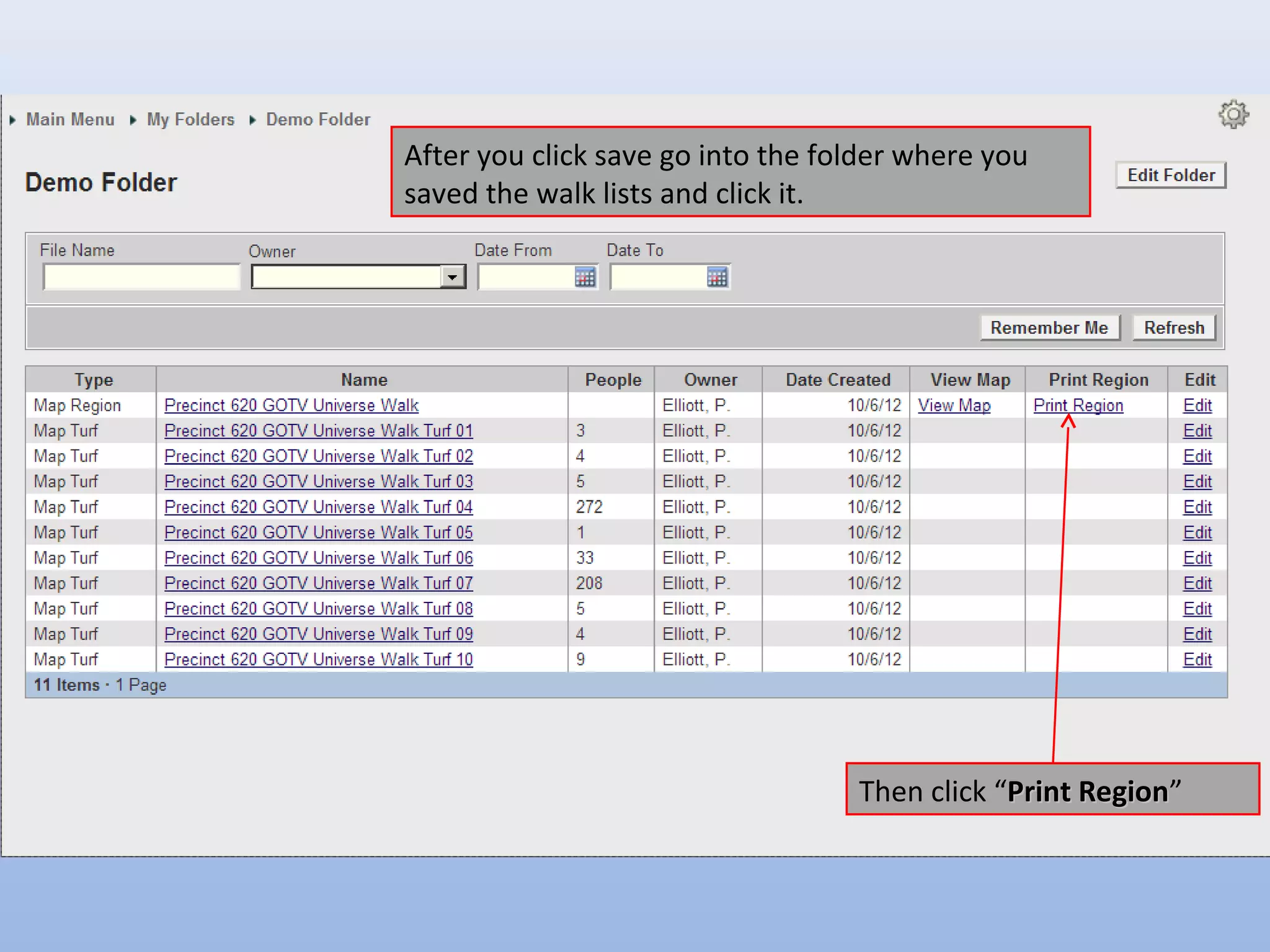
After you click save go into the folder where you
saved the walk lists and click it.


                                   Then click “Print Region”
                                                     Region
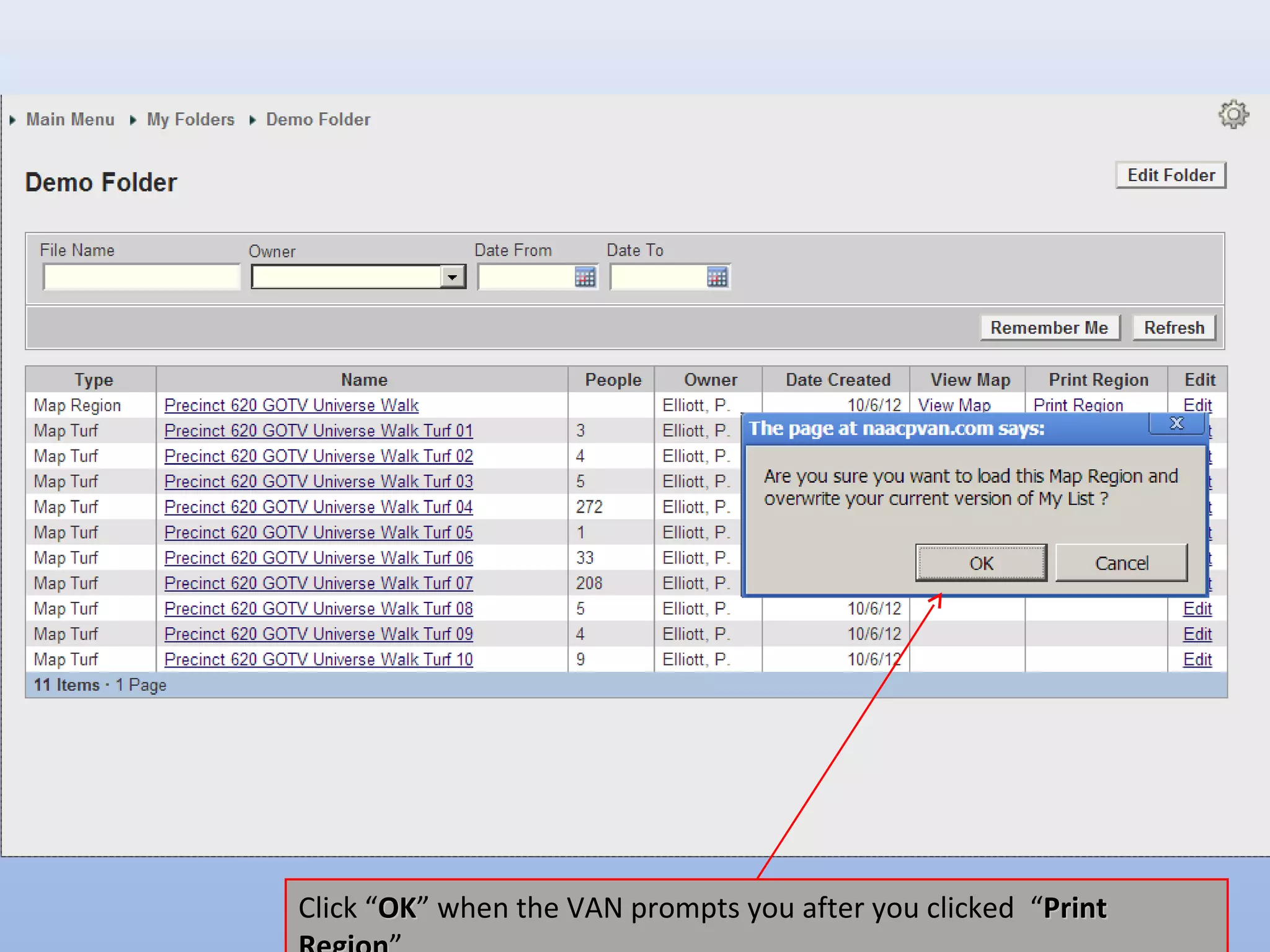
Click “OK” when the VAN prompts you after you clicked “Print
       OK
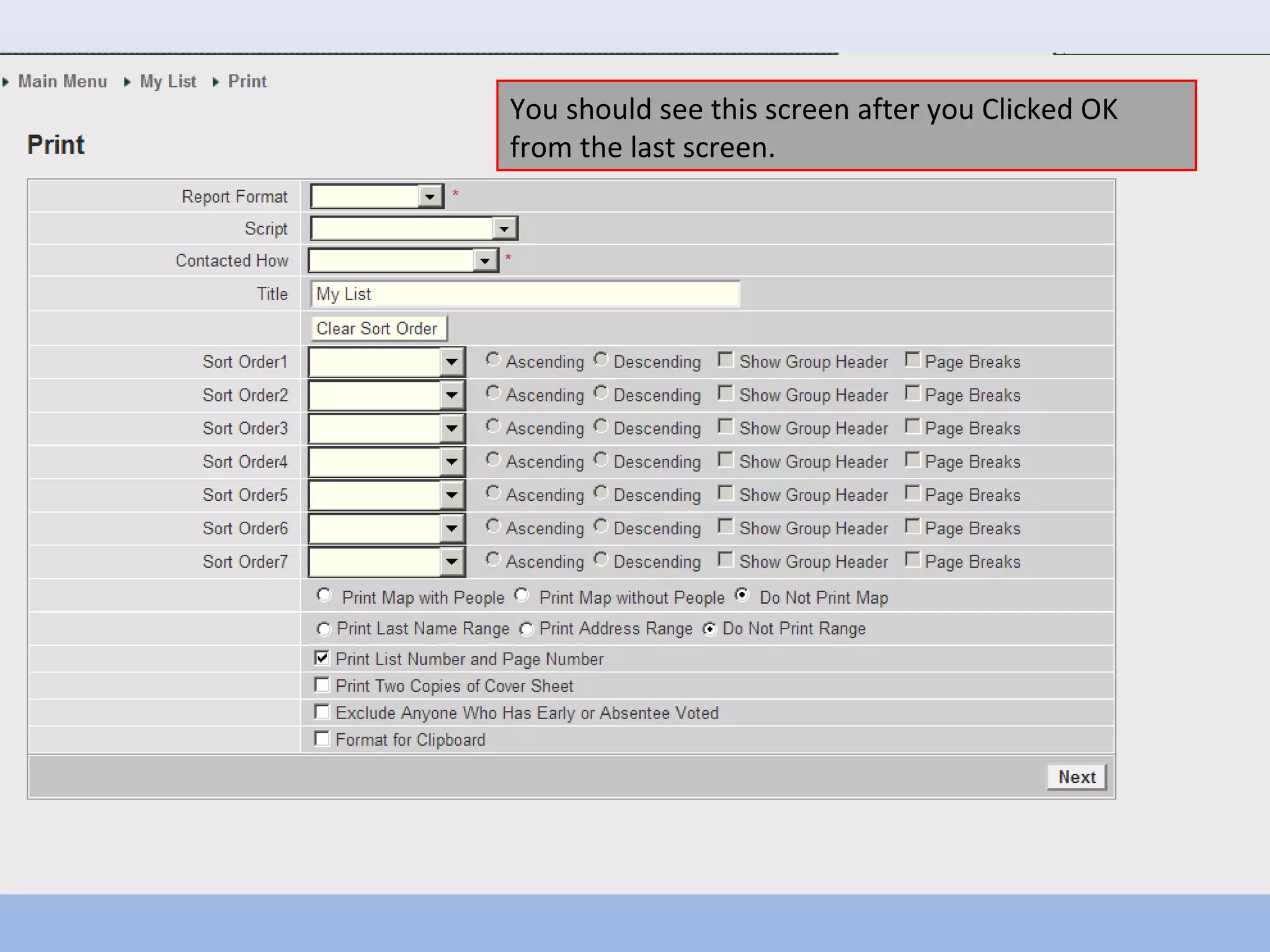
You should see this screen after you Clicked OK
from the last screen.
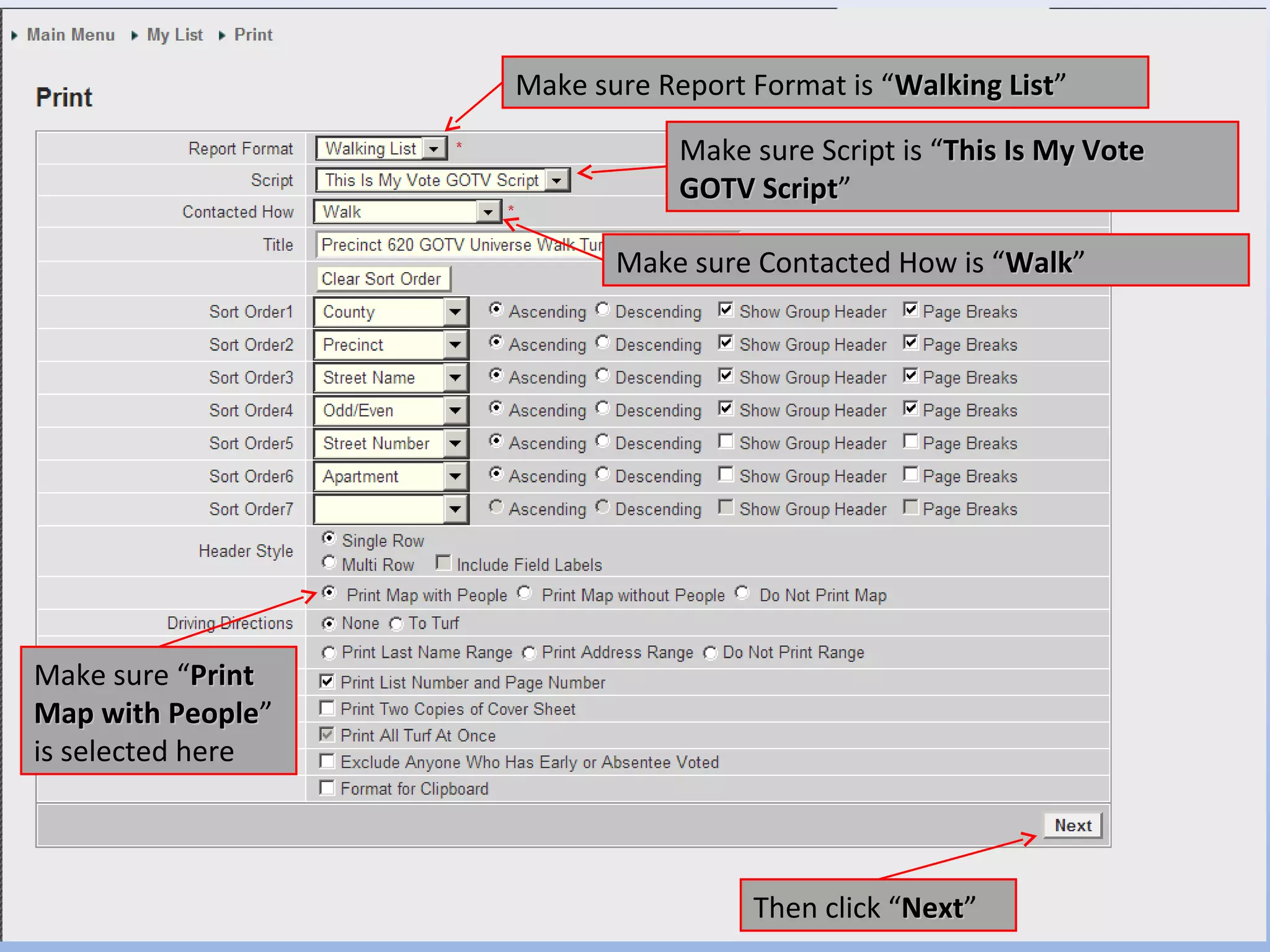
Make sure Report Format is “Walking List”
                                                        List

                                Make sure Script is “This Is My Vote
                                GOTV Script”
                                     Script

                           Make sure Contacted How is “Walk”
                                                       Walk


Make sure “Print
Map with People”
           People
is selected here


                                     Then click “Next”
                                                 Next
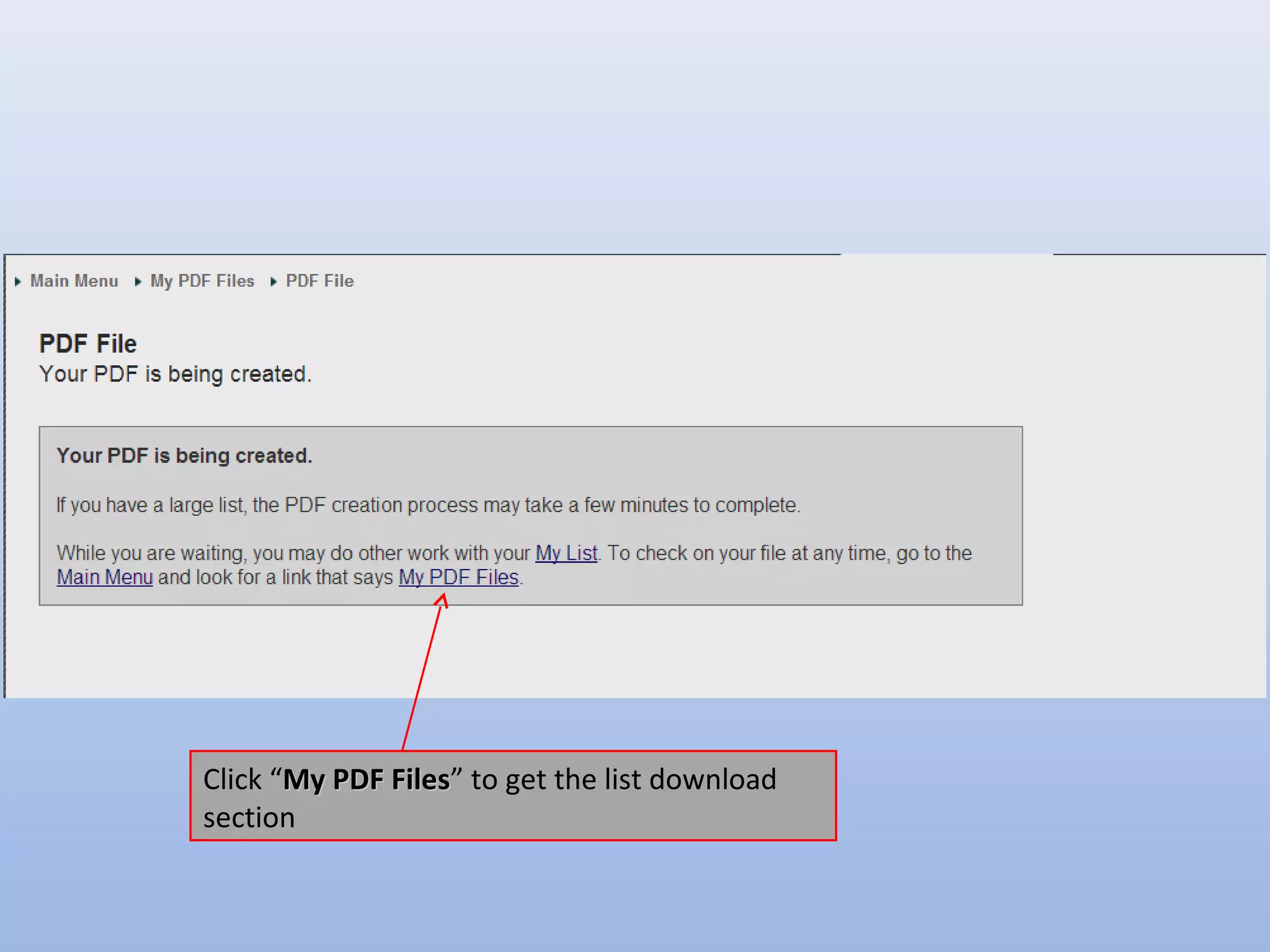
Click “My PDF Files” to get the list download
              Files
section
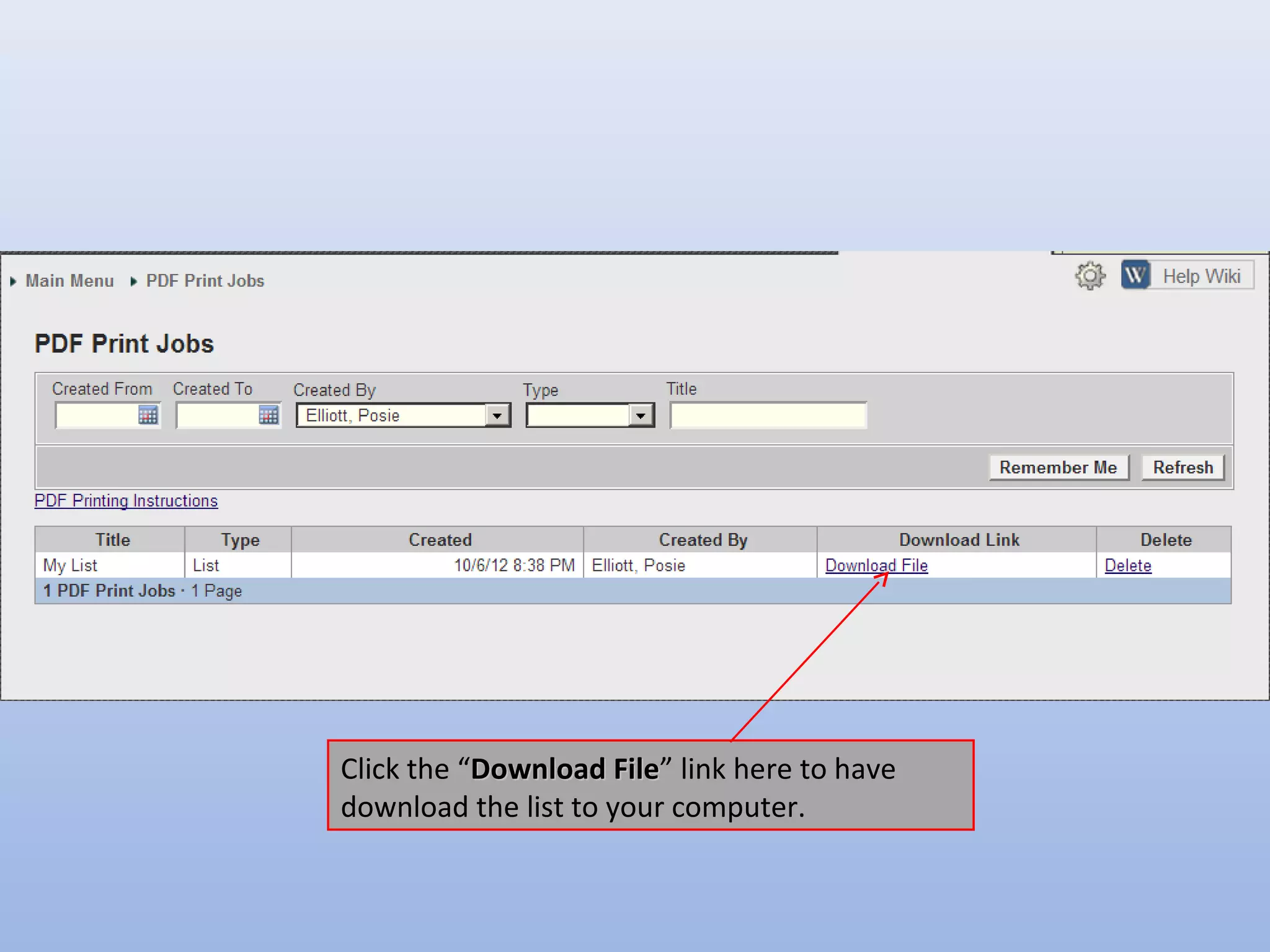
Click the “Download File” link here to have
                      File
download the list to your computer.
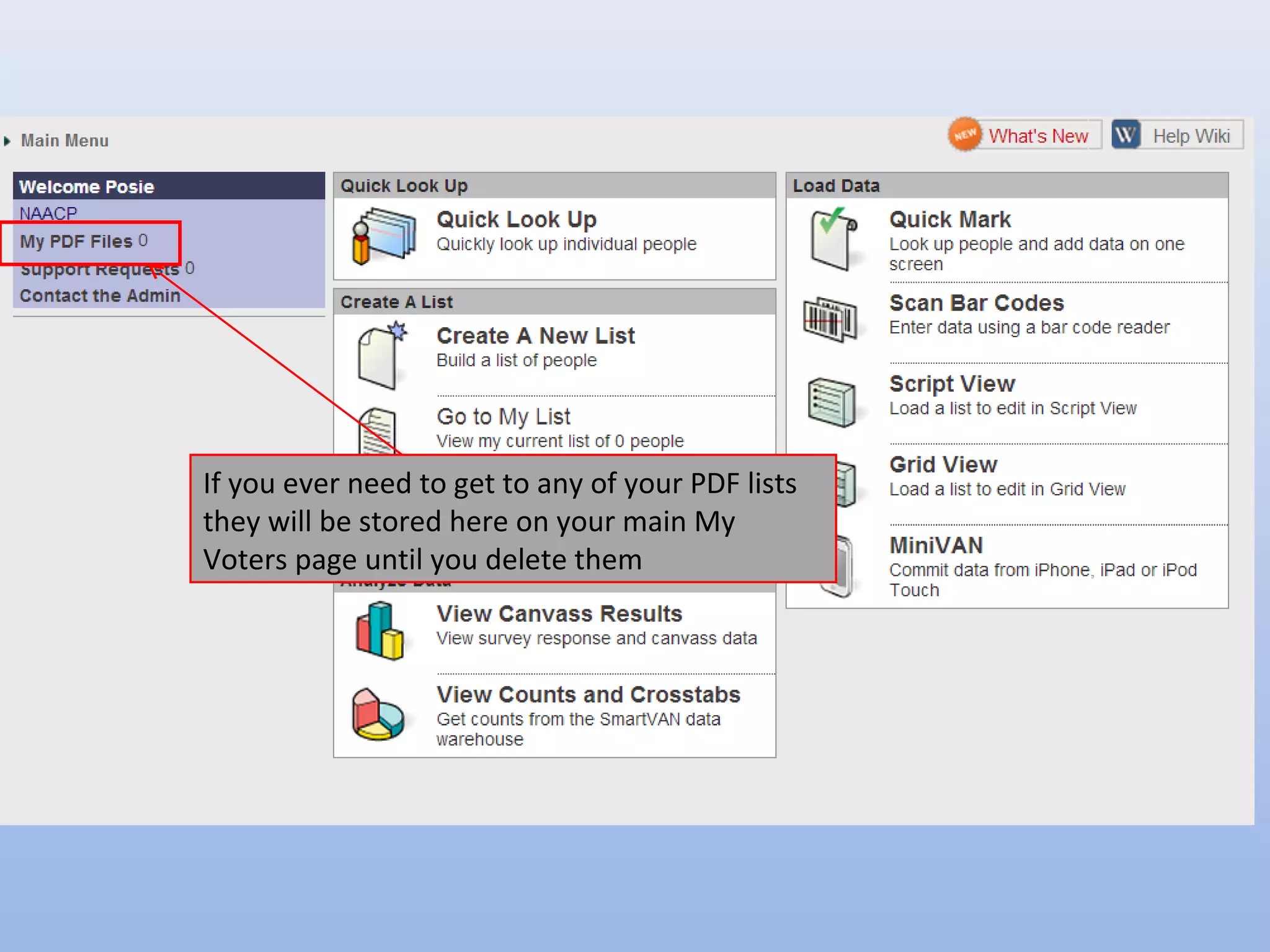
If you ever need to get to any of your PDF lists
they will be stored here on your main My
Voters page until you delete them

NAACPGotv walk list creation instructions final

  • 1.
    How to usethe VAN to pull your GOTV Universe This will be a step by step instruction document for NAACP members to get their Walk and Phone GOTV Universes. Please Note: These universes will change as we make adjustments adding new names leading up to election day.
  • 2.
    First make sureyou are in My Voters You can make sure you are in My Voters by clicking here before you start.
  • 3.
    Now that youare in My Voters Click “Create A New List” here List
  • 4.
    After clicking “CreateA New List” you should List be on this screen Click Targets to get your GOTV Universe
  • 5.
    After clicking “Targets”you should see this on Targets your screen, click it.
  • 6.
    If you havea lot of people in your county from the GOTV Universe, you can simply select the precinct you want to work in to only get the people in the Precinct who are in the GOTV Universe, if you so choose. After clicking “Targets” you should see this on Targets your screen, click it.
  • 7.
    After making yourselections click “Search.” Search
  • 8.
    After clicking “Search”you should see this on Search your screen, click “Cut Turf” to get your walk Turf lists of registered voters from the targeted GOTV Universe.
  • 9.
    After making youclicked “Cut Turf” you should Turf be on this screen Click this button to have the VAN cut your turf automatically.
  • 10.
    Click Group Addressesclose together
  • 11.
    Click the numberof turfs for your walk lists Then Click “Auto Cut” Cut
  • 12.
    After the walkshave been cut click “Save & Finish” Finish
  • 13.
    Name your walklists, then put it in your GOTV folder. If you do not have a GOTV folder you can make one on this page. Then click “Save” Save
  • 14.
    After you clicksave go into the folder where you saved the walk lists and click it. Then click “Print Region” Region
  • 15.
    Click “OK” whenthe VAN prompts you after you clicked “Print OK
  • 16.
    You should seethis screen after you Clicked OK from the last screen.
  • 17.
    Make sure ReportFormat is “Walking List” List Make sure Script is “This Is My Vote GOTV Script” Script Make sure Contacted How is “Walk” Walk Make sure “Print Map with People” People is selected here Then click “Next” Next
  • 18.
    Click “My PDFFiles” to get the list download Files section
  • 19.
    Click the “DownloadFile” link here to have File download the list to your computer.
  • 20.
    If you everneed to get to any of your PDF lists they will be stored here on your main My Voters page until you delete them