Integrated


     Microsoft Dynamics™ AX

     Configuring the Application
     Integration Framework (AIF)
     BizTalk Adapter for Data
     Exchange
     White Paper


     Instructions for configuring the AIF BizTalk adapter to exchange data in
     Microsoft Dynamics AX.


     Date: March 26, 2007

     http://www.microsoft.com/dynamics/ax/
Table of Contents
Introduction ....................................................................................................................... 4

Overview of AIF Configuration ........................................................................................ 4
  Inbound and Outbound Exchanges .......................................................................................................................................... 5
  Synchronous Versus Asynchronous Mode ............................................................................................................................. 7
  Documents in AIF ............................................................................................................................................................................. 8

Setting up a BizTalk Document Exchange ...................................................................... 8
  Configuring a BizTalk Exchange .............................................................................................................................................. 11
    Step 1: Set up the AIF environment ...................................................................................................................................11
    Step 2: Install the BizTalk adapter .......................................................................................................................................12
    Step 3: Configure the BizTalk adapter ...............................................................................................................................12
  Send a Document Asynchronously to BizTalk (internal request) ................................................................................ 15
    Create the BizTalk assembly ..................................................................................................................................................15
    Configure the BizTalk application .......................................................................................................................................23
    Send the sales invoice from Microsoft Dynamics AX...................................................................................................29
  Send a Document Synchronously to BizTalk (external request) ................................................................................. 30
    Create the BizTalk assembly ..................................................................................................................................................31
    Configure the BizTalk application .......................................................................................................................................42
    Send the sales order ID to Microsoft Dynamics AX......................................................................................................50
  Send a Document Asynchronously to BizTalk (External Request) .............................................................................. 51
    Create the BizTalk assembly ..................................................................................................................................................52
    Configure the BizTalk application .......................................................................................................................................65
    Send the sales order ID to Microsoft Dynamics AX......................................................................................................75
  Create a Document Synchronously (External Request) .................................................................................................. 76
    Create the BizTalk assembly ..................................................................................................................................................77
    Configure the BizTalk application .......................................................................................................................................89
    Send the sales order to Microsoft Dynamics AX ...........................................................................................................97

Managing AIF and Documents ....................................................................................... 98
  Configuring Global Settings ...................................................................................................................................................... 98
    Resource locking interval global setting ..........................................................................................................................98
    Web methods global setting ................................................................................................................................................99
    Default encoding format global setting ...........................................................................................................................99
    Outbound schema validation global setting ..................................................................................................................99
  Setting Up and Configuring AIF Services ........................................................................................................................... 100
  Sending and Receiving Documents Electronically ......................................................................................................... 101
    Sending documents automatically .................................................................................................................................. 102
    Sending documents manually ........................................................................................................................................... 102

                                                                                                                                                                                                2

CONFIGURING THE APPLICATION INTEGRATION FRAMEWORK (AIF) BIZTALK ADAPTER FOR DATA EXCHANGE
Receiving documents ............................................................................................................................................................ 103
  Managing Document Exchanges .......................................................................................................................................... 107
   View document history ........................................................................................................................................................ 107
   View the exception logs ....................................................................................................................................................... 108
   Manage the AIF queues ....................................................................................................................................................... 108

AIF and BizTalk Resources ............................................................................................ 109


                                                                                                                                                                                       3

CONFIGURING THE APPLICATION INTEGRATION FRAMEWORK (AIF) BIZTALK ADAPTER FOR DATA EXCHANGE
Introduction
This document provides instructions for configuring the Application Integration Framework (AIF) BizTalk
adapter for data exchange in Microsoft Dynamics™ AX. The BizTalk adapter is part of
Microsoft Dynamics AX 4.0 Service Pack 1, which must be installed to (be able to) use this white paper.
Note: Throughout this document, you’ll see frequent use of the terms document and message. This is
because when data is transferred in AIF, it’s referred to as a document. When data is transferred in BizTalk,
it’s referred to as a message. These terms are used interchangeably and both refer to the XML as it is being
transferred from system to system.


Overview of AIF Configuration
The Application Integration Framework (AIF) provides an extensible framework that enables the exchange
of documents in XML format from within Microsoft Dynamics AX. AIF replaces the Commerce Gateway for
Microsoft Dynamics AX 3.0 (formerly Microsoft Business Solutions—Axapta 3.0), and provides a more
secure business-to-business and application-to-application integration between Microsoft Dynamics AX
and trading partners or other software systems.
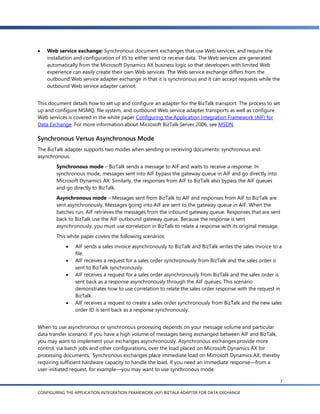
This framework includes adapters and Web services that enable document exchange. The BizTalk adapter
uses the .NET Business Connector in Microsoft Dynamics AX to send messages to and receive messages
from Microsoft® BizTalk® Server.
Figure 1 – Overview of the Application Integration Framework (AIF) components.


                                                                             Trading Partners
                                                                             3rd Party Systems


                                                                   BizTalk Server 2006
                                                                                           Microsoft Dynamics
                                                                                           BizTalk Adapter for
                                                                                           BizTalk Adapter for


                                                                 XML          XML
                    Direct
                   X++ API
                    Calls                                     Web Services   Asynchronou
                                                                                  s
                                                                              Transports
                                             .NET Business
                     CLR Interop                                               AIF
                                               Connector


                                                    AOS
                                            Microsoft Dynamics AX


                                                                                                                 4

CONFIGURING THE APPLICATION INTEGRATION FRAMEWORK (AIF) BIZTALK ADAPTER FOR DATA EXCHANGE
Inbound and Outbound Exchanges
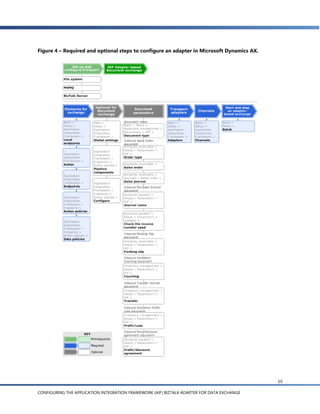
AIF is the mechanism through which data transfer is automated. The AIF infrastructure provides the ability
to implement loosely coupled transfer of data through XML documents. A document exchange can be
inbound or outbound.
 Inbound exchange: One in which your Microsoft Dynamics AX system accepts data as input.
Figure 2 – Overview of how a document enters Microsoft Dynamics AX through AIF.


                                                       External Web Services                                                  BizTalk Server 2006
                                                                                                            File
                                                                                                       MSMQ System


                                               Web Service                                                                        Gateway
                                                                                                                                  Service            1
                                                                    1
          Web Services Framework (.NET)                                                                Messaging Gateway (X++)

                                                                                                                                                Gateway
                                                                                                                                         2      Queue
                                                                                                                                11
                Supporting Components
                             Endpoint Policy
                                                  User Validation                                5   Request         10         Inbound
                             Enforcement
                                                                               4                     Processor            3     Processing Service

                                                                        Document Services (X++)
          Transformation    Schema Validation      Idempotency
                                                   Enforcement
           Value
           Substitution
                                       Document                                         9
                                       Logging/History
                                                                                            6
        Document Processing Pipeline
                                                                            Document

            Configuration (X++)
                                                                            Broker
                                                                                                 Integration Layer (X++)
                                                                                                 8               7        AxdBase

                                                             Business Logic (X++)
                                                                                                                          Read/Create


                                                                        Microsoft Confidential


                                                                                                                                                          5

CONFIGURING THE APPLICATION INTEGRATION FRAMEWORK (AIF) BIZTALK ADAPTER FOR DATA EXCHANGE
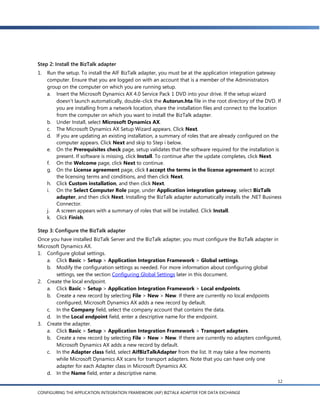
   Outbound exchange: An exchange in which your Microsoft Dynamics AX system sends data to
    another system. An outbound exchange can originate from within the system, such as configuring AIF
    to send out a price list to your customers each time it is updated. Or, an outbound exchange can
    originate as a request from another authorized system. In this case, Microsoft Dynamics AX would
    receive the request, retrieve the requested information from the database, and return it to the
    requesting system with appropriate filtering and security.

Figure 3 – Overview of how a document leaves Microsoft Dynamics AX through AIF.


                                                   External Web Services                                       BizTalk Server 2006
                                                                                                File
                                                                                           MSMQ System


                                                                                                                                 Gateway
                                                                                                                                 Service
        Web Services Framework (.NET)                                                 Messaging Gateway (X++)
                                                                                                                                       12
                                                                                                                                       12

                                                                                                                                Gateway
                                                                                                                                Queue
                   Supporting Components                                                                            11
                                Endpoint Policy
                                Enforcement                  9                            Request   10
                                                                                          Processor    4
                                                                                                               Outbound                3
             Transformation                                                                                    Processing
                                                   Document Services (X++)
                               Schema Validation                                                               Service
              Value
              Substitution
                                Document                                                                                      Outbound
                                Logging/History                     8                                                         Processing
                                                                          5                                                   Queue
           Document Processing Pipeline


           Configuration (X++)
                                                                 Document
                                                                 Broker              Integration Layer (X++)
                                                                                                                     AifSend Service        2
                                                                               7      6         AxdBase Read

                                                     Business Logic (X++)                                              1        X++ Code


                                                            Microsoft Confidential


AIF comprises both synchronous Web services as well as adapters that support a variety of asynchronous
transports. Within AIF there are two types of exchanges, and each has different requirements for
installation and configuration. Understanding the types of exchanges that are available allows you to
better match the functionality in AIF with your data transfer requirements and environment.
   Adapter-based exchange: Asynchronous document exchanges that use adapters in
    Microsoft Dynamics AX and do not require the installation of Microsoft® Internet Information Services
    (IIS). Adapter transports supported by AIF are:
     Message queuing (also known as MSMQ)
     File system
     Microsoft BizTalk Server
     Outbound Web service

                                                                                                                                                6

CONFIGURING THE APPLICATION INTEGRATION FRAMEWORK (AIF) BIZTALK ADAPTER FOR DATA EXCHANGE
   Web service exchange: Synchronous document exchanges that use Web services, and require the
    installation and configuration of IIS to either send or receive data. The Web services are generated
    automatically from the Microsoft Dynamics AX business logic so that developers with limited Web
    experience can easily create their own Web services. The Web service exchange differs from the
    outbound Web service adapter exchange in that it is synchronous and it can accept requests while the
    outbound Web service adapter cannot.


This document details how to set up and configure an adapter for the BizTalk transport. The process to set
up and configure MSMQ, file system, and outbound Web service adapter transports as well as configure
Web services is covered in the white paper Configuring the Application Integration Framework (AIF) for
Data Exchange. For more information about Microsoft BizTalk Server 2006, see MSDN.

Synchronous Versus Asynchronous Mode
The BizTalk adapter supports two modes when sending or receiving documents: synchronous and
asynchronous.
        Synchronous mode – BizTalk sends a message to AIF and waits to receive a response. In
        synchronous mode, messages sent into AIF bypass the gateway queue in AIF and go directly into
        Microsoft Dynamics AX. Similarly, the responses from AIF to BizTalk also bypass the AIF queues
        and go directly to BizTalk.
        Asynchronous mode – Messages sent from BizTalk to AIF and responses from AIF to BizTalk are
        sent asynchronously. Messages going into AIF are sent to the gateway queue in AIF. When the
        batches run, AIF retrieves the messages from the inbound gateway queue. Responses that are sent
        back to BizTalk use the AIF outbound gateway queue. Because the response is sent
        asynchronously, you must use correlation in BizTalk to relate a response with its original message.
        This white paper covers the following scenarios:
               AIF sends a sales invoice asynchronously to BizTalk and BizTalk writes the sales invoice to a
                file.
               AIF receives a request for a sales order synchronously from BizTalk and the sales order is
                sent to BizTalk synchronously.
               AIF receives a request for a sales order asynchronously from BizTalk and the sales order is
                sent back as a response asynchronously through the AIF queues. This scenario
                demonstrates how to use correlation to relate the sales order response with the request in
                BizTalk.
               AIF receives a request to create a sales order synchronously from BizTalk and the new sales
                order ID is sent back as a response synchronously.


When to use asynchronous or synchronous processing depends on your message volume and particular
data transfer scenario. If you have a high volume of messages being exchanged between AIF and BizTalk,
you may want to implement your exchanges asynchronously. Asynchronous exchanges provide more
control, via batch jobs and other configurations, over the load placed on Microsoft Dynamics AX for
processing documents. Synchronous exchanges place immediate load on Microsoft Dynamics AX, thereby
requiring sufficient hardware capacity to handle the load. If you need an immediate response—from a
user-initiated request, for example—you may want to use synchronous mode.

                                                                                                             7

CONFIGURING THE APPLICATION INTEGRATION FRAMEWORK (AIF) BIZTALK ADAPTER FOR DATA EXCHANGE
Documents in AIF
An exchange starts with a document (based on a document class) defined using Microsoft Dynamics AX
business logic. The document is serialized into XML, and header information is added to create a message
that can then be transferred into or out of the Microsoft Dynamics AX system (called the local endpoint in
AIF). The other entity taking part in the exchanges is called the endpoint. The document and the direction
of the exchange is called an action in AIF. For example, selecting the readPurchaseRequisition action means
that you are sending Microsoft Dynamics AX purchase requisition data to another system.
AIF includes out-of-the-box support for sending and receiving commonly used documents, including:
   ASN (Advance shipping notice) (outbound)
   Exchange rates (outbound and inbound)
   Free text invoice (inbound)
   Inventory balances (outbound)
   Inventory counting journal (inbound)
   Inventory profit and loss journal (inbound)
   Inventory transactions (outbound)
   Inventory transfer journal (inbound)
   Ledger chart of account (outbound and inbound)
   Ledger dimensions (outbound and inbound)
   Packing slip update (inbound)
   Picking list (outbound)
   Price discount agreement journal (inbound)
   Price list (outbound)
   Purchase invoice (inbound)
   Purchase order (outbound)
   Sales invoice (outbound)
   Sales order (inbound)
   EDI 820 remittance advice (inbound)


Setting up a BizTalk Document Exchange
A core installation of Microsoft Dynamics AX includes the software to enable adapter-based connections.
After a connection is configured and processing is initiated by starting the Microsoft Dynamics AX batch
jobs, messages are exchanged between the local endpoint and the endpoint using the channel that you
define. The XML messages consist of the document and a header, and can be viewed during the exchange
as they appear in the queues (in asynchronous mode).
To set up an adapter-based exchange, you must first set up and configure the transport. The adapter
transports available with Microsoft Dynamics AX 4.0 Service Pack 1 are MSMQ, file system, BizTalk, or
outbound Web services. Note that MSMQ, file system, and outbound Web service adapters are included in
Microsoft Dynamics AX 4.0. The BizTalk adapter is part of Microsoft Dynamics AX 4.0 Service Pack 1 so you
must have this version installed to use this white paper. Regardless of the adapter type, you must first
configure the elements of the exchange, including:
   Local endpoint
   Actions

                                                                                                           8

CONFIGURING THE APPLICATION INTEGRATION FRAMEWORK (AIF) BIZTALK ADAPTER FOR DATA EXCHANGE
   Endpoints
   Endpoint action policy
   Endpoint action data policy (or simply ―data policy‖)
Once the exchange elements are set up, you configure the transport adapter and channel. Next, you
configure the batch job that controls the initiation of the transfer. Optionally, you can select global settings
for the exchange, configure pipeline components, and set up value mapping for the individual fields in the
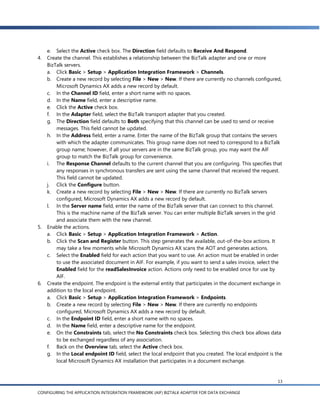
document being exchanged. For a diagram of the steps involved in setting up an adapter-based exchange,
see Figure 4 in this document.


                                                                                                               9

CONFIGURING THE APPLICATION INTEGRATION FRAMEWORK (AIF) BIZTALK ADAPTER FOR DATA EXCHANGE
Figure 4 – Required and optional steps to configure an adapter in Microsoft Dynamics AX.


                                                                                            10

CONFIGURING THE APPLICATION INTEGRATION FRAMEWORK (AIF) BIZTALK ADAPTER FOR DATA EXCHANGE
Configuring a BizTalk Exchange
The following steps explain how to set up Microsoft Dynamics AX for data exchange using the BizTalk
adapter. To configure a document exchange using the BizTalk adapter, you must have Microsoft BizTalk
Server 2006 installed and you must install the AIF BizTalk adapter itself.

Step 1: Set up the AIF environment
Before installing and configuring the BizTalk adapter, first install the prerequisite software and configure
the Business Connector Proxy. To install the BizTalk adapter, you must be at the application integration
gateway computer. The application integration gateway is typically a separate computer from the AOS.
This computer acts as a proxy between systems that are sending or receiving data and the AOS server.
After you install the BizTalk adapter services, you must finish configuring and deploying it within
Microsoft Dynamics AX.
Setting up a computer as an application integration gateway installs the following components on the
computer:
        BizTalk adapter for Microsoft Dynamics AX
        .NET Business Connector
1.   Check for prerequisites. The following software must be installed to enable a BizTalk document
     exchange in Microsoft Dynamics AX:
      Microsoft BizTalk Server 2006. For more information on installing BizTalk, download the BizTalk
          Installation Guide.
     Make sure the following are available in the domain:
      A core Microsoft Dynamics AX Service Pack 1 installation. This installation must be completed
          before you install the BizTalk adapter.
      Microsoft® Active Directory® directory service configured in native mode.
2.   Set up the Business Connector Proxy. The Business Connector Proxy is a Microsoft® Windows® domain
     account that is used to connect to Microsoft Dynamics AX for applications that require ―act-on-behalf-
     of‖ functionality for external users or users who have an intermittent network connection. The Business
     Connector Proxy account should not be set up as a Microsoft Dynamics AX user account. If you have
     already set up the Business Connector Proxy account, you don’t need to set it up again.
     a. Have the domain administrator create a unique user in Active Directory using the format
          domainusername. This domain account should have the following characteristics:
           User cannot have the same name as an existing Microsoft Dynamics AX user.
           Password does not expire.
           No interactive logon rights.
3.   Associate the proxy account with Business Connector in Microsoft Dynamics AX. This step adds the
     proxy account to the database. Storing the proxy account in the database ensures that multiple AOS
     instances can access the proxy.
     a. Click Administration > Setup > Security > Business Connector Proxy.
     b. In the Alias field, enter the name of proxy user created in Active Directory.
     c. In the Network domain field, enter the domain name.
     d. To propagate the change to the Microsoft Dynamics AX database, you must restart the AOS
          service. To restart the AOS service, click Start > Programs > Administrative Tools > Services.
     e. Right-click the Microsoft Dynamics AX service and click Restart. The service will have a name
          similar to Dynamics Server$01-Company1.

                                                                                                               11

CONFIGURING THE APPLICATION INTEGRATION FRAMEWORK (AIF) BIZTALK ADAPTER FOR DATA EXCHANGE
Step 2: Install the BizTalk adapter
1.   Run the setup. To install the AIF BizTalk adapter, you must be at the application integration gateway
     computer. Ensure that you are logged on with an account that is a member of the Administrators
     group on the computer on which you are running setup.
     a. Insert the Microsoft Dynamics AX 4.0 Service Pack 1 DVD into your drive. If the setup wizard
         doesn’t launch automatically, double-click the Autorun.hta file in the root directory of the DVD. If
         you are installing from a network location, share the installation files and connect to the location
         from the computer on which you want to install the BizTalk adapter.
     b. Under Install, select Microsoft Dynamics AX.
     c. The Microsoft Dynamics AX Setup Wizard appears. Click Next.
     d. If you are updating an existing installation, a summary of roles that are already configured on the
         computer appears. Click Next and skip to Step i below.
     e. On the Prerequisites check page, setup validates that the software required for the installation is
         present. If software is missing, click Install. To continue after the update completes, click Next.
     f. On the Welcome page, click Next to continue.
     g. On the License agreement page, click I accept the terms in the license agreement to accept
         the licensing terms and conditions, and then click Next.
     h. Click Custom installation, and then click Next.
     i. On the Select Computer Role page, under Application integration gateway, select BizTalk
         adapter, and then click Next. Installing the BizTalk adapter automatically installs the .NET Business
         Connector.
     j. A screen appears with a summary of roles that will be installed. Click Install.
     k. Click Finish.

Step 3: Configure the BizTalk adapter
Once you have installed BizTalk Server and the BizTalk adapter, you must configure the BizTalk adapter in
Microsoft Dynamics AX.
1. Configure global settings.
    a. Click Basic > Setup > Application Integration Framework > Global settings.
    b. Modify the configuration settings as needed. For more information about configuring global
       settings, see the section Configuring Global Settings later in this document.
2. Create the local endpoint.
    a. Click Basic > Setup > Application Integration Framework > Local endpoints.
    b. Create a new record by selecting File > New > New. If there are currently no local endpoints
       configured, Microsoft Dynamics AX adds a new record by default.
    c. In the Company field, select the company account that contains the data.
    d. In the Local endpoint field, enter a descriptive name for the endpoint.
3. Create the adapter.
    a. Click Basic > Setup > Application Integration Framework > Transport adapters.
    b. Create a new record by selecting File > New > New. If there are currently no adapters configured,
       Microsoft Dynamics AX adds a new record by default.
    c. In the Adapter class field, select AifBizTalkAdapter from the list. It may take a few moments
       while Microsoft Dynamics AX scans for transport adapters. Note that you can have only one
       adapter for each Adapter class in Microsoft Dynamics AX.
    d. In the Name field, enter a descriptive name.
                                                                                                            12

CONFIGURING THE APPLICATION INTEGRATION FRAMEWORK (AIF) BIZTALK ADAPTER FOR DATA EXCHANGE
e. Select the Active check box. The Direction field defaults to Receive And Respond.
4.   Create the channel. This establishes a relationship between the BizTalk adapter and one or more
     BizTalk servers.
     a. Click Basic > Setup > Application Integration Framework > Channels.
     b. Create a new record by selecting File > New > New. If there are currently no channels configured,
         Microsoft Dynamics AX adds a new record by default.
     c. In the Channel ID field, enter a short name with no spaces.
     d. In the Name field, enter a descriptive name.
     e. Click the Active check box.
     f. In the Adapter field, select the BizTalk transport adapter that you created.
     g. The Direction field defaults to Both specifying that this channel can be used to send or receive
         messages. This field cannot be updated.
     h. In the Address field, enter a name. Enter the name of the BizTalk group that contains the servers
         with which the adapter communicates. This group name does not need to correspond to a BizTalk
         group name; however, if all your servers are in the same BizTalk group, you may want the AIF
         group to match the BizTalk group for convenience.
     i. The Response Channel defaults to the current channel that you are configuring. This specifies that
         any responses in synchronous transfers are sent using the same channel that received the request.
         This field cannot be updated.
     j. Click the Configure button.
     k. Create a new record by selecting File > New > New. If there are currently no BizTalk servers
         configured, Microsoft Dynamics AX adds a new record by default.
     l. In the Server name field, enter the name of the BizTalk server that can connect to this channel.
         This is the machine name of the BizTalk server. You can enter multiple BizTalk servers in the grid
         and associate them with the new channel.
5.   Enable the actions.
     a. Click Basic > Setup > Application Integration Framework > Action.
     b. Click the Scan and Register button. This step generates the available, out-of-the-box actions. It
         may take a few moments while Microsoft Dynamics AX scans the AOT and generates actions.
     c. Select the Enabled field for each action that you want to use. An action must be enabled in order
         to use the associated document in AIF. For example, if you want to send a sales invoice, select the
         Enabled field for the readSalesInvoice action. Actions only need to be enabled once for use by
         AIF.
6.   Create the endpoint. The endpoint is the external entity that participates in the document exchange in
     addition to the local endpoint.
     a. Click Basic > Setup > Application Integration Framework > Endpoints.
     b. Create a new record by selecting File > New > New. If there are currently no endpoints
         configured, Microsoft Dynamics AX adds a new record by default.
     c. In the Endpoint ID field, enter a short name with no spaces.
     d. In the Name field, enter a descriptive name for the endpoint.
     e. On the Constraints tab, select the No Constraints check box. Selecting this check box allows data
         to be exchanged regardless of any association.
     f. Back on the Overview tab, select the Active check box.
     g. In the Local endpoint ID field, select the local endpoint that you created. The local endpoint is the
         local Microsoft Dynamics AX installation that participates in a document exchange.


                                                                                                           13

CONFIGURING THE APPLICATION INTEGRATION FRAMEWORK (AIF) BIZTALK ADAPTER FOR DATA EXCHANGE
h.   On the General tab, ensure that the Outbound channel ID is set to the correct BizTalk channel
         that you created.
    i. On the Users tab, add users or user groups by selecting a value in the User type field and
         selecting the user name or group name in the Application user or group field. This specifies
         which users and groups can submit or receive documents for the endpoint.
7. Create the endpoint action policy. This step associates an endpoint with an action.
    a. Click Basic > Setup > Application Integration Framework > Endpoints.
    b. Click the Action policies button. You must have at least one endpoint created for this button to
         be enabled.
    c. Create a new record by selecting File > New > New. If there are currently no endpoint action
         policies configured, Microsoft Dynamics AX adds a new record by default.
    d. In the Action ID field, select an action such as readSalesInvoice.
    e. In the Status field, select Enabled. The Class name defaults to the class associated with the action
         you selected in the Action ID field.
    f. In the Logging Mode field, select Log All.
    g. On the General tab, select the Automatically respond to errors field. This ensures that you can
         see in BizTalk any AIF errors that occur.
8. Create the endpoint action data policy.
    a. Click Basic > Setup > Application Integration Framework > Endpoints.
    b. Select an endpoint in the grid and click the Action policies button.
    c. Select an endpoint action policy and click the Data Policies button.
    d. Click the Enabled field for each of the elements that you want to include in the data exchange.
         Use the Set button to enable or disable all of the elements.
9. Configure the AIF services. If you have not already set up the AIF services for inbound and outbound
    document transfer, see the Setting up and Configuring AIF Services section later in this document. If
    the AIF document processing components are already configured, continue to the next step below.
10. Send or receive documents. See one of the following scenarios below:
      Scenario                                           Description

     Send a Document Asynchronously to BizTalk         Sends a sales invoice asynchronously from AIF to
     (internal request)                                BizTalk where the request originates from inside
                                                       Microsoft Dynamics AX. BizTalk saves the sales
                                                       invoice to a file.
     Send a Document Synchronously to BizTalk          Sends a sales order synchronously from AIF to
     (external request)                                BizTalk. The request for the sales order originates as
                                                       a message from BizTalk containing the sales order
                                                       ID of the order being requested. BizTalk saves the
                                                       sale order to a file.
     Send a Document Asynchronously to BizTalk         Sends a sales order asynchronously from AIF to
     (external request)                                BizTalk. The request for the sales order originates
                                                       as a message from BizTalk containing the sales
                                                       order ID of the order being requested. Both the
                                                       request and the response use the AIF gateway
                                                       queues. BizTalk uses correlation to match the
                                                       response to the requesting instance of BizTalk and


                                                                                                           14

CONFIGURING THE APPLICATION INTEGRATION FRAMEWORK (AIF) BIZTALK ADAPTER FOR DATA EXCHANGE
saves the sale order to a file.

      Create a Document Synchronously (external          Creates a sales order inside Microsoft Dynamics AX.
      request)                                           The request for the sales order originates as a
                                                         message from BizTalk containing the sales order
                                                         information. AIF sends the sales order ID of the
                                                         newly created sales order as a response to BizTalk
                                                         synchronously. BizTalk saves the new sales order ID
                                                         to a file.


11. Once you have sent documents electronically you may need to research exceptions or edit and
    resubmit a message. To find out more about the tools that are available for managing document
    exchanges in Microsoft Dynamics AX, see the Managing Document Exchanges section later in this
    document.

You have completed configuration of the BizTalk exchange.


Send a Document Asynchronously to BizTalk (internal request)
In this scenario, AIF sends a sales invoice to BizTalk asynchronously. BizTalk receives the sales invoice and
saves it to a file. The sales invoice request originates from within Microsoft Dynamics AX (as opposed to an
external request from BizTalk). To enable a document exchange between AIF and BizTalk, you must first
create a BizTalk assembly in Visual Studio.

Create the BizTalk assembly
1.   Open Visual Studio and click File > New > Project.
2.   Under Project types, click the BizTalk Projects node.
3.   Select Empty BizTalk Server Project.
     a. In the Name field, enter a name for the BizTalk project such as ReceiveSalesInvoice.
     b. In the Location field, enter a directory location for the project.
     c. In the Solution Name field, keep the default solution. You can enter an alternate name if you
         want the solution name to be different from the project name.
4.   Click OK.
5.   Add a reference to the Microsoft Dynamics AX schemas assembly.
     a. In the Solution Explorer, right-click the References node and select Add Reference.
     b. Click the Browse tab.
     c. Browse to the default install location of Program FilesMicrosoft Dynamics AX40ClientBin
         Microsoft.Dynamics.BizTak.Adapter.Schemas.dll.
     d. Double-click the assembly (.dll file). It will appear in the Selected projects and components grid.
     e. Click OK. The assembly reference appears under the References node in the Visual Studio Solution
         Explorer.
6.   Import the sales invoice schemas.
     a. In the Solution Explorer, right-click the project and select Add > Add Generated Items.
     b. Under Categories, the Add Adapter Metadata node should be selected. In the Templates pane,
         select Add Adapter Metadata.
     c. Click Add. The Add Adapter Wizard appears.
                                                                                                           15

CONFIGURING THE APPLICATION INTEGRATION FRAMEWORK (AIF) BIZTALK ADAPTER FOR DATA EXCHANGE
d. Select the Microsoft Dynamics AX adapter and click Next.
    e. In the Server name field, enter the name of the server running the AOS. The name entered in this
       field should be the machine name of the server.
    f. In the TCP/IP Port field, enter the port of the AOS server and click Next.
       To find the server port, open the Microsoft Dynamics AX Server Configuration Utility by clicking
       Start > Administrative Tools > Microsoft Dynamics AX Server Configuration Utility. Select a
       configuration in the Configuration field and you will see the port number in the TCP/IP port field
       in the Settings frame.
    g. In the Schema Import Wizard, you see a list of the document schemas for documents that are
       enabled in AIF. Expand the Sales Invoice node and select readSalesInvoice():SalesInvoice
       [async]. The other schemas, readSalesInvoice(EntityKey):SalesInvoice [sync] and
       readSalesInvoice(EntityKey) [async], apply to the external request scenarios discussed later.


                                                                                                       16

CONFIGURING THE APPLICATION INTEGRATION FRAMEWORK (AIF) BIZTALK ADAPTER FOR DATA EXCHANGE
h.   Click Finish. A sales invoice schema called SalesInvoiceService_SalesInvoice.xsd can be seen in
          the Solution Explorer. An orchestration has also been created. An orchestration is created in Visual
          Studio and graphically models a workflow process. Orchestrations are the primary mechanism in
          BizTalk for automating a workflow process.

          When using automatically generated orchestrations containing message and port types to
          implement the actions for a project, you may encounter naming conflicts. To avoid these conflicts,
          it’s recommended that you create an orchestration containing the message and port types, and
          reference those types from the generated orchestration.

7.   Modify the BizTalk orchestration.
     a. In the Solution Explorer, double-click the new orchestration called BizTalk Orchestration.odx.
     b. Drag a Receive action from the Toolbox to the orchestration. This is the first step in the
        orchestration.
     c. Drag a Message Assignment action from the Toolbox to be the second step in the orchestration.
     d. Drag a Send action from the Toolbox to be the third step in the orchestration.


8.   Create a port to receive the sales invoice from AIF.
                                                                                                             17

CONFIGURING THE APPLICATION INTEGRATION FRAMEWORK (AIF) BIZTALK ADAPTER FOR DATA EXCHANGE
a. Double-click the Port action in the Toolbox to open the Port Configuration Wizard.
     b. Click Next.
     c. In the Name field, enter the name of the port such as ReceiveSalesInvoicePort.
     d. Click Next.
     e. Select Use an existing Port Type and under Available Port Types, select
        ReceiveSalesInvoice.SalesInvoiceAsyncResponse.
     f. Click Next.
     g. In the Port direction of communication field, keep the default of I’ll always be receiving
        messages on this port and click Next.
     h. Click Finish.
     i. Connect the port ReceiveSalesInvoicePort to the receive action by dragging from the green
        arrow on the port to the incoming green arrow of the Receive_1 action.


9.  Rename the message being received from AIF.
    a. In the Orchestration View, expand the Messages node and click the message named Message_1.
    b. In the Properties pane, set the Identifier property to a meaningful name such as SalesInvoiceIn.
10. Create a new message to be saved to the file system.
    a. In the Orchestration View, right-click the Messages node and select New Message.
                                                                                                     18

CONFIGURING THE APPLICATION INTEGRATION FRAMEWORK (AIF) BIZTALK ADAPTER FOR DATA EXCHANGE
b.   Select the new message and set the Identifier property to a meaningful name such as
         SalesInvoiceOut.
    c. In the Message Type property, expand the Multi-part Message Types node and select
         ReceiveSalesInvoice.SalesInvoice.
11. Set the message.
    a. In the orchestration, click the ConstructMessage_1 shape.
    b. Set the Messages Constructed property to SalesInvoiceOut.
    c. Click the MessageAssignment_1 shape found within the ConstructMessage_1 shape.
    d. In the Expression property, click the ellipses to open the BizTalk Expression Editor.
    e. In the BizTalk Expression Editor, set the value of the outbound message to the inbound
         message.


    f. Click OK.
12. Modify the send action message.
    a. Click the Send_1 shape.
    b. Set the Message property to SalesInvoiceOut.
13. Create a port to save the sales invoice to a file.
    a. Double-click the Port action in the Toolbox to open the Port Configuration Wizard.
    b. Click Next.

                                                                                                19

CONFIGURING THE APPLICATION INTEGRATION FRAMEWORK (AIF) BIZTALK ADAPTER FOR DATA EXCHANGE
c. In the Name field, enter the name of the port such as SaveSalesInvoicePort.
    d. Click Next and select Create a new Port Type.
    e. In the Port Type Name field, enter a name such as SaveSalesInvoicePortType and click Next.
    f. In the Port direction of communication field, select I’ll always be sending messages on this
       port and click Next.
    g. Click Finish.
    h. Connect the port SaveSalesInvoicePort to the send action by dragging from the green arrow on
       the port to the outgoing green arrow of the Send_1 action.


14. Activate the receive action.
    a. Click the Receive_1 shape.
    b. Set the Activate property to True.
15. Set the assembly key file. The BizTalk project assembly must be strong named in order to compile the
    project. To create a strong-named assembly, you must specify the key pair file in the project. To create
    a key pair file for strong naming, use the Strong Name tool.
    a. In the Solution Explorer, right-click the project and select Properties.


                                                                                                          20

CONFIGURING THE APPLICATION INTEGRATION FRAMEWORK (AIF) BIZTALK ADAPTER FOR DATA EXCHANGE
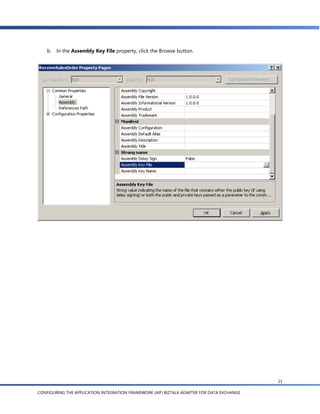
b.   In the Assembly Key File property, click the Browse button.


                                                                                            21

CONFIGURING THE APPLICATION INTEGRATION FRAMEWORK (AIF) BIZTALK ADAPTER FOR DATA EXCHANGE
c.   In the Assembly Key File dialog box, navigate to the path of the key file (.snk) and click Open.


                                                                                                            22

CONFIGURING THE APPLICATION INTEGRATION FRAMEWORK (AIF) BIZTALK ADAPTER FOR DATA EXCHANGE
16. In the project property pages, specify the name of the BizTalk application by expanding the
    Configuration Properties node, selecting Deployment, and setting the Application Name property.


17. Click OK to exit.
18. Rebuild the project by right-clicking the project and selecting Rebuild.
19. Deploy the project by right-clicking the project and selecting Deploy. This deploys the assembly to the
    specified BizTalk application. If the BizTalk application doesn’t exist, deployment creates the
    application.

Configure the BizTalk application
1.   Open the BizTalk Server 2006 Administration Console by clicking Start > All Programs >
     Microsoft BizTalk Server 2006 > BizTalk Server Administration. If the BizTalk Server 2006
     Administration Console is already open, select Action > Refresh to refresh the tree.
2.   Expand the Applications node. The BizTalk application is called ReceiveSalesInvoice. Right-click it
     and select Configure.


                                                                                                           23

CONFIGURING THE APPLICATION INTEGRATION FRAMEWORK (AIF) BIZTALK ADAPTER FOR DATA EXCHANGE
3.   In the navigation pane, click Orchestration_1.


4.   In the Host field, select BizTalkServerApplication.
5.   In the Receive Ports field, select New receive port.


                                                                                            24

CONFIGURING THE APPLICATION INTEGRATION FRAMEWORK (AIF) BIZTALK ADAPTER FOR DATA EXCHANGE
6.   In the Name field, enter a name such as AxReceivePort. This is the port that receives messages from
     AIF.


7.  In the navigation pane, click Receive Locations. This is where the messages for this orchestration will
    be received.
8. Click New.
9. In the Name field, enter a name such as AxReceiveLocation.
10. In the Type field, select Microsoft Dynamics AX.


                                                                                                              25

CONFIGURING THE APPLICATION INTEGRATION FRAMEWORK (AIF) BIZTALK ADAPTER FOR DATA EXCHANGE
11. In the Receive pipeline field, select XMLReceive.


12. Click the Configure button.
13. Set the Authentication Type property. This specifies the credentials that BizTalk uses to connect to
    AIF.
    a. If your BizTalk application is already running under the credentials of the Business Connector Proxy
         account, set the Authentication Type property to Host User. To verify the Business Connector
         Proxy account in Microsoft Dynamics AX, go to Administration > Setup > Security > Business
         Connector Proxy.
    b. If the BizTalk application is running under the credentials of a user other than the Business
         Connector Proxy account, do the following:
         i. Set the Authentication Type property to Proxy User.
         ii. Set the Proxy User property to the Business Connector Proxy account in domainusername
              format.
         iii. Set the Proxy Password property to the password of the Business Connector Proxy account.


                                                                                                         26

CONFIGURING THE APPLICATION INTEGRATION FRAMEWORK (AIF) BIZTALK ADAPTER FOR DATA EXCHANGE
14. Set the Gateway User property to the account of a Microsoft Dynamics AX user who has access to the
    AIF gateway queues. The property should be in domainusername format.


15. Set the AOS Server property to the name of the AOS server.
16. Set the AOS Port property to the port of the AOS server. You can find the AOS server port by clicking
    Start > Administrative Tools > Microsoft Dynamics AX Server Configuration Utility. Instead of
    setting the AOS Server and AOS Port properties, you can specify a configuration file in the
    Configuration property. For more information about managing server configurations, see the topic
    Managing configurations (server) in the Microsoft Dynamics AX Help.
    You can modify the Polling Interval property depending on how frequently you want BizTalk to check
    this location for messages.
17. Close out of the open dialog boxes by clicking OK.
18. In the Configure Application screen, in the Send Ports/Send Port Groups field, select New send
    port. This is the port that saves the sales invoice to a file.
19. In the Name field, enter a name such as SendFilePort.
20. In the Type field, select FILE.
21. In the Send pipeline field, select PassThruTransmit.
22. Click the Configure button.
23. In the Destination folder field, enter the directory path or browse to the folder where you want to
    save the sales invoice file.
                                                                                                       27

CONFIGURING THE APPLICATION INTEGRATION FRAMEWORK (AIF) BIZTALK ADAPTER FOR DATA EXCHANGE
24. Click OK to close the FILE Transport Properties dialog box.


                                                                                            28

CONFIGURING THE APPLICATION INTEGRATION FRAMEWORK (AIF) BIZTALK ADAPTER FOR DATA EXCHANGE
25. Click OK to close the Send Port Properties dialog box. You should now see a receive port named
    AxReceivePort and a send port called FileSendPort in your orchestration.
26. Click OK to exit the Configure Application dialog box.


27. In the BizTalk Server 2006 Administration Console, right-click the ReceiveSalesInvoice application
    and select Start.
28. Click the Start button. This starts the BizTalk application so that it can send and receive messages.

Send the sales invoice from Microsoft Dynamics AX
1.   Open Microsoft Dynamics AX and click Accounts receivable > Sales order.
2.   Click Advanced and select an invoice in the grid.
3.   Click Inquiries > Invoice > Copy (select Original to send the original invoice). The Invoice menu
     option is only available after the sales order has been posted.
     The sales invoice can now be seen in the Queue Manager. If the AIF batch services have been started,
     the next time those services run, the sales invoice in the queue will be processed.


                                                                                                            29

CONFIGURING THE APPLICATION INTEGRATION FRAMEWORK (AIF) BIZTALK ADAPTER FOR DATA EXCHANGE
4.   Verify that BizTalk has received the sales order by checking the directory you specified in the previous
     procedure in step 23. You should see an XML document with a name such as {18F819BD-2A3C-4865-
     A884-34D2F1CA51E0}.xml. The XML for the sales order will look similar to the following illustration.
     There may be a delay from the time the document goes into the queue and when it appears in the
     directory depending on how often the AIF batch services run and the value of the polling interval for
     the BizTalk receive port.


For more information about sending and receiving documents, see the Sending and Receiving Documents
Electronically section later in this document.

Send a Document Synchronously to BizTalk (external request)
In this scenario, AIF sends a sales order to BizTalk synchronously from a request made by BizTalk. In
synchronous document exchanges using the BizTalk adapter, documents bypass the AIF queues and are
sent directly through the .NET Business Connector. This scenario contains the following steps:
     1.   BizTalk reads a sales order ID from a file. Reading the sales order ID from a file is arbitrary for the
          purposes of this scenario. BizTalk could receive the sales order ID in another manner such as
          another BizTalk message or from a Web service.
     2.   BizTalk sends the sales order ID (also called an entity key in general terms) to AIF and waits for a
          response.
     3.   AIF receives the entity key request and sends the sales order to the waiting BizTalk adapter.
     4.   BizTalk receives the sales order and saves it to a file.


Note: In Microsoft Dynamics AX, the term entity key refers to the key of a particular entity whether it is a
sales order, invoice, purchase order, and so on. In scenarios where we are sending and receiving sales
orders, the term entity key is interchangeable with the term sales order ID.
To enable a document exchange between AIF and BizTalk, you must first create a BizTalk assembly in
Visual Studio.


                                                                                                                    30

CONFIGURING THE APPLICATION INTEGRATION FRAMEWORK (AIF) BIZTALK ADAPTER FOR DATA EXCHANGE
Create the BizTalk assembly
1.   Open Visual Studio and click File > New > Project.
2.   Under Project types, click the BizTalk Projects node.
3.   Select Empty BizTalk Server Project.
     a. In the Name field, enter a name for the BizTalk project such as ReceiveSalesOrder.
     b. In the Location field, enter a directory location for the project.
     c. In the Solution Name field, keep the default solution. You can enter an alternate name if you
         want the solution name to be different from the project name.
4.   Click OK.
5.   Add a reference to the Microsoft Dynamics AX schemas assembly.
     a. In the Solution Explorer, right-click the References node and select Add Reference.
     b. Click the Browse tab.
     c. Browse to the default install location of Program FilesMicrosoft Dynamics AX40ClientBin
         Microsoft.Dynamics.BizTak.Adapter.Schemas.dll.
     d. Double-click the assembly (.dll file). It will appear in the Selected projects and components grid.
     e. Click OK. The assembly reference appears under the References node in the Visual Studio Solution
         Explorer.
6.   Import the sales order schemas.
     a. Right-click the project and select Add > Add Generated Items.
     b. Under Categories, the Add Adapter Metadata node should be selected. In the Templates pane,
         select Add Adapter Metadata.
     c. Click Add. The Add Adapter Wizard appears.
     d. Select the Microsoft Dynamics AX adapter and click Next.
     e. In the Server name field, enter the name of the server running the AOS. The name entered in this
         field should be the machine name of the server.
     f. In the TCP/IP Port field, enter the port of the AOS server and click Next.
         To find the server port, open the Microsoft Dynamics AX Server Configuration Utility by clicking
         Start > Administrative Tools > Microsoft Dynamics AX Server Configuration Utility. Select a
         configuration in the Configuration field. You will see the port number in the TCP/IP port field in
         the Settings frame.


                                                                                                         31

CONFIGURING THE APPLICATION INTEGRATION FRAMEWORK (AIF) BIZTALK ADAPTER FOR DATA EXCHANGE
g. In the Schema Import Wizard, you’ll see a list of the document schemas for documents that are
        enabled in AIF. Expand the Sales Order node and select readSalesOrder(EntityKey):SalesOrder
        [sync].


     h.   Click Finish. A sales order schema called SalesOrderService_SalesOrder.xsd can be seen in the
          Solution Explorer. An orchestration has also been created.

          When using automatically generated orchestrations containing message and port types to
          implement the actions for a project, you may encounter naming conflicts. To avoid these conflicts,
          it’s recommended that you create an orchestration containing the message and port types, and
          reference those types from the generated orchestration.

7.   Select the schema for the entity key message.
     a. In the Solution Explorer, double-click BizTalk Orchestration.odx to open the orchestration.
     b. In the Orchestration View, expand the Types node and then expand the Multi-part Message
         Types node.
     c. Expand the EntityKey node, click the Body node and open the Type property list.
     d. In the drop-down list, expand the Schemas node and click Select from referenced assembly.
         The Select Artifact Type dialog appears.


                                                                                                           32

CONFIGURING THE APPLICATION INTEGRATION FRAMEWORK (AIF) BIZTALK ADAPTER FOR DATA EXCHANGE
e.   Expand the Microsoft.Dynamics.BizTalk.Adapter.Schemas node, click the { } Dynamics node,
          and then in the Type Name field, select EntityKey.


     f. Click OK.
8.   Modify the BizTalk orchestration.
     a. In the Solution Explorer, double-click the new orchestration called BizTalk Orchestration.odx.
     b. Drag a Receive action from the Toolbox to the orchestration to be first step in the orchestration.
        This step reads in the entity key from a file.
     c. Drag a Message Assignment action from the Toolbox to be the second step in the orchestration.
        This step creates the message that is sent to AIF containing the entity key.
     d. Drag a Send action from the Toolbox to be the third step in the orchestration. This step sends the
        entity key to AIF.
     e. Drag a Receive action from the Toolbox to be the fourth step in the orchestration. This step
        receives the sales order from AIF.
     f. Drag a Message Assignment action from the Toolbox to be the fifth step in the orchestration.
        This step creates the sales order to be saved.


                                                                                                         33

CONFIGURING THE APPLICATION INTEGRATION FRAMEWORK (AIF) BIZTALK ADAPTER FOR DATA EXCHANGE
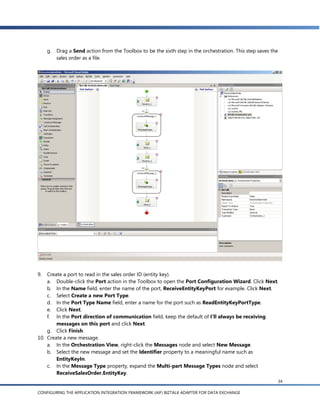
g. Drag a Send action from the Toolbox to be the sixth step in the orchestration. This step saves the
        sales order as a file.


9.  Create a port to read in the sales order ID (entity key).
    a. Double-click the Port action in the Toolbox to open the Port Configuration Wizard. Click Next.
    b. In the Name field, enter the name of the port, ReceiveEntityKeyPort for example. Click Next.
    c. Select Create a new Port Type.
    d. In the Port Type Name field, enter a name for the port such as ReadEntityKeyPortType.
    e. Click Next.
    f. In the Port direction of communication field, keep the default of I’ll always be receiving
        messages on this port and click Next.
    g. Click Finish.
10. Create a new message.
    a. In the Orchestration View, right-click the Messages node and select New Message.
    b. Select the new message and set the Identifier property to a meaningful name such as
        EntityKeyIn.
    c. In the Message Type property, expand the Multi-part Message Types node and select
        ReceiveSalesOrder.EntityKey.
                                                                                                         34

CONFIGURING THE APPLICATION INTEGRATION FRAMEWORK (AIF) BIZTALK ADAPTER FOR DATA EXCHANGE
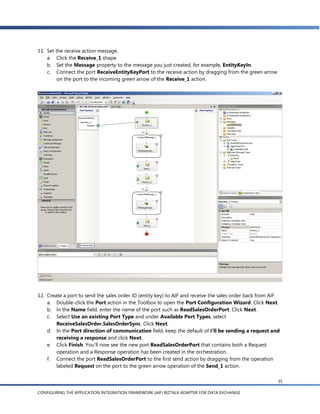
11. Set the receive action message.
    a. Click the Receive_1 shape.
    b. Set the Message property to the message you just created, for example, EntityKeyIn.
    c. Connect the port ReceiveEntityKeyPort to the receive action by dragging from the green arrow
         on the port to the incoming green arrow of the Receive_1 action.


12. Create a port to send the sales order ID (entity key) to AIF and receive the sales order back from AIF.
    a. Double-click the Port action in the Toolbox to open the Port Configuration Wizard. Click Next.
    b. In the Name field, enter the name of the port such as ReadSalesOrderPort. Click Next.
    c. Select Use an existing Port Type and under Available Port Types, select
        ReceiveSalesOrder.SalesOrderSync. Click Next.
    d. In the Port direction of communication field, keep the default of I’ll be sending a request and
        receiving a response and click Next.
    e. Click Finish. You’ll now see the new port ReadSalesOrderPort that contains both a Request
        operation and a Response operation has been created in the orchestration.
    f. Connect the port ReadSalesOrderPort to the first send action by dragging from the operation
        labeled Request on the port to the green arrow operation of the Send_1 action.

                                                                                                          35

CONFIGURING THE APPLICATION INTEGRATION FRAMEWORK (AIF) BIZTALK ADAPTER FOR DATA EXCHANGE
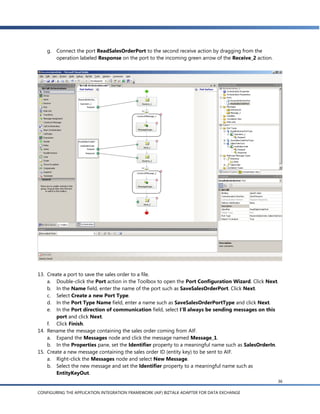
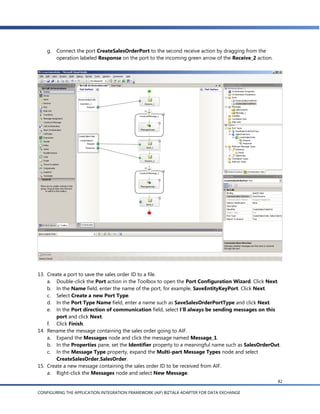
g. Connect the port ReadSalesOrderPort to the second receive action by dragging from the
       operation labeled Response on the port to the incoming green arrow of the Receive_2 action.


13. Create a port to save the sales order to a file.
    a. Double-click the Port action in the Toolbox to open the Port Configuration Wizard. Click Next.
    b. In the Name field, enter the name of the port such as SaveSalesOrderPort. Click Next.
    c. Select Create a new Port Type.
    d. In the Port Type Name field, enter a name such as SaveSalesOrderPortType and click Next.
    e. In the Port direction of communication field, select I’ll always be sending messages on this
        port and click Next.
    f. Click Finish.
14. Rename the message containing the sales order coming from AIF.
    a. Expand the Messages node and click the message named Message_1.
    b. In the Properties pane, set the Identifier property to a meaningful name such as SalesOrderIn.
15. Create a new message containing the sales order ID (entity key) to be sent to AIF.
    a. Right-click the Messages node and select New Message.
    b. Select the new message and set the Identifier property to a meaningful name such as
        EntityKeyOut.
                                                                                                     36

CONFIGURING THE APPLICATION INTEGRATION FRAMEWORK (AIF) BIZTALK ADAPTER FOR DATA EXCHANGE
c.   In the Message Type property, expand the Multi-part Message Types node and select
         ReceiveSalesOrder.EntityKey.
16. Create a new message containing the sales order to save to the file system.
    a. Right-click the Messages node and select New Message.
    b. Select the new message and set the Identifier property to a meaningful name such as
         SalesOrderOut.
    c. In the Message Type property, expand the Multi-part Message Types node and select
         ReceiveSalesOrder.SalesOrder.
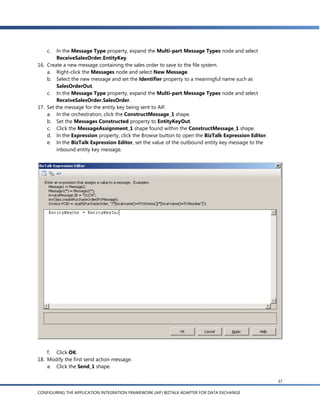
17. Set the message for the entity key being sent to AIF.
    a. In the orchestration, click the ConstructMessage_1 shape.
    b. Set the Messages Constructed property to EntityKeyOut.
    c. Click the MessageAssignment_1 shape found within the ConstructMessage_1 shape.
    d. In the Expression property, click the Browse button to open the BizTalk Expression Editor.
    e. In the BizTalk Expression Editor, set the value of the outbound entity key message to the
         inbound entity key message.


    f. Click OK.
18. Modify the first send action message.
    a. Click the Send_1 shape.

                                                                                                    37

CONFIGURING THE APPLICATION INTEGRATION FRAMEWORK (AIF) BIZTALK ADAPTER FOR DATA EXCHANGE
b. Set the Message property to EntityKeyOut
19. Set the message for the sales order being saved to a file.
    a. In the orchestration, click the ConstructMessage_2 shape.
    b. Set the Messages Constructed property to SalesOrderOut.
    c. Click the MessageAssignment_2 shape found within the ConstructMessage_2 shape.
    d. In the Expression property, click the ellipses to open the BizTalk Expression Editor.
    e. In the BizTalk Expression Editor, set the value of the outbound sales order message to the
         inbound sales order message. Click OK.


20. Modify the second send action message.
    a. Click the Send_2 shape.
    b. Set the Message property to SalesOrderOut.


                                                                                                    38

CONFIGURING THE APPLICATION INTEGRATION FRAMEWORK (AIF) BIZTALK ADAPTER FOR DATA EXCHANGE
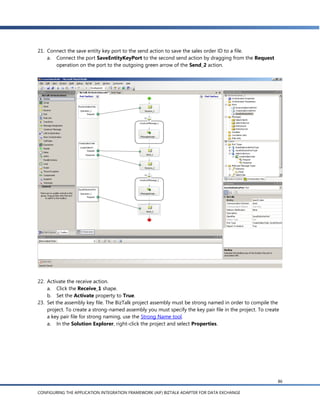
21. Connect the save sales order port to the send action to save the sales order to a file.
    a. Connect the port SaveSalesOrderPort to the second send action by dragging from the Request
       operation on the port to the outgoing green arrow of the Send_2 action.


22. Activate the receive action.
    a. Click the Receive_1 shape.
    b. Set the Activate property to True.
23. Set the assembly key file. The BizTalk project assembly must be strong named in order to compile the
    project. To create a strong-named assembly, you must specify the key pair file in the project. To create
    a key pair file for strong naming, use the Strong Name tool.
    a. In the Solution Explorer, right-click the project and select Properties.


                                                                                                          39

CONFIGURING THE APPLICATION INTEGRATION FRAMEWORK (AIF) BIZTALK ADAPTER FOR DATA EXCHANGE
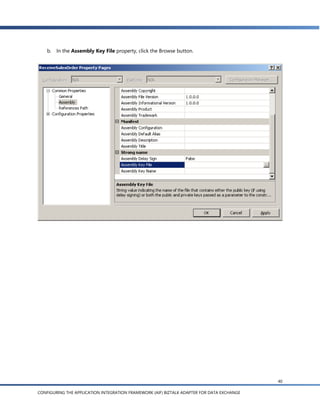
b.   In the Assembly Key File property, click the Browse button.


                                                                                            40

CONFIGURING THE APPLICATION INTEGRATION FRAMEWORK (AIF) BIZTALK ADAPTER FOR DATA EXCHANGE
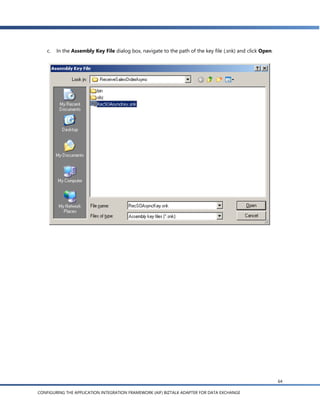
c.   In the Assembly Key File dialog box, navigate to the path of the key file (.snk) and click Open.


                                                                                                            41

CONFIGURING THE APPLICATION INTEGRATION FRAMEWORK (AIF) BIZTALK ADAPTER FOR DATA EXCHANGE
24. In the project property pages, specify the name of the BizTalk application by expanding the
    Configuration Properties node, selecting Deployment, and setting the Application Name property.


25. Click OK to exit.
26. Rebuild the project by right-clicking the project and selecting Rebuild.
27. Deploy the project by right-clicking the project and selecting Deploy. This deploys the assembly to the
    specified BizTalk application. If the BizTalk application doesn’t exist, the deployment process creates
    the application.

Configure the BizTalk application
1.   Open the BizTalk Server 2006 Administration Console by clicking Start > All Programs >
     Microsoft BizTalk Server 2006 > BizTalk Server Administration. If the BizTalk Server 2006
     Administration Console is already open, select Action > Refresh to refresh the tree.
2.   Expand the Applications node. The BizTalk application is called SendSalesOrderSync. Right-click it
     and select Configure.


                                                                                                          42

CONFIGURING THE APPLICATION INTEGRATION FRAMEWORK (AIF) BIZTALK ADAPTER FOR DATA EXCHANGE
3.   In the navigation pane, click Orchestration_1.


4.   In the Host field, select BizTalkServerApplication.
5.   In the Receive Ports field, select New receive port. This is the port that receives the sales order ID
     (entity key).


                                                                                                              43

CONFIGURING THE APPLICATION INTEGRATION FRAMEWORK (AIF) BIZTALK ADAPTER FOR DATA EXCHANGE
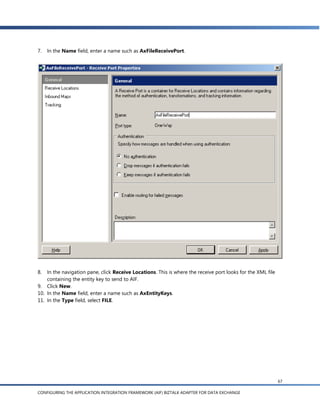
6.   In the Name field, enter a name such as AxFileReceivePort.


7.  In the navigation pane, click Receive Locations. This is where the receive port looks for the XML file
    containing the entity key to send to AIF.
8. Click New.
9. In the Name field, enter a name such as AxEntityKeys.
10. In the Type field, select FILE.


                                                                                                             44

CONFIGURING THE APPLICATION INTEGRATION FRAMEWORK (AIF) BIZTALK ADAPTER FOR DATA EXCHANGE
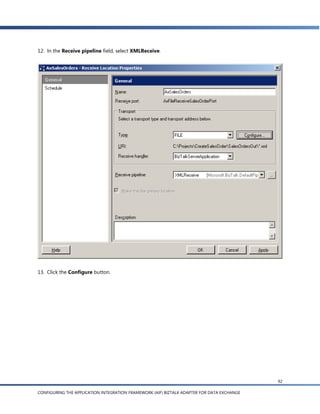
11. In the Receive pipeline field, select XMLReceive.


12. Click the Configure button.


                                                                                            45

CONFIGURING THE APPLICATION INTEGRATION FRAMEWORK (AIF) BIZTALK ADAPTER FOR DATA EXCHANGE
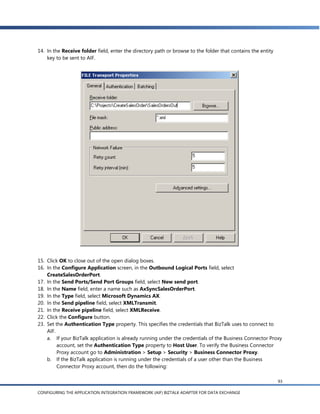
13. In the Receive folder field, enter the directory path or browse to the folder that contains the entity
    key to be sent to AIF.


14. Click OK to close out of the open dialog boxes.
15. In the Configure Application screen, in the Outbound Logical Ports field, select
    ReadSalesOrderPort.
16. In the Send Ports/Send Port Groups field, select New send port.
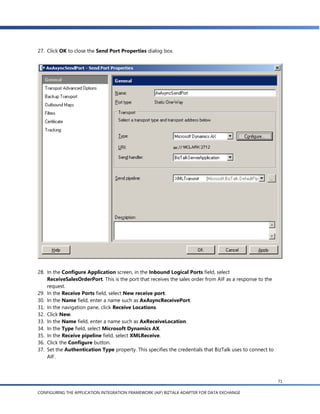
17. In the Name field, enter a name such as AxSyncSendPort.
18. In the Type field, select Microsoft Dynamics AX.
19. In the Send pipeline field, select XMLTransmit.
20. In the Receive pipeline field, select XMLReceive.
21. Click the Configure button.
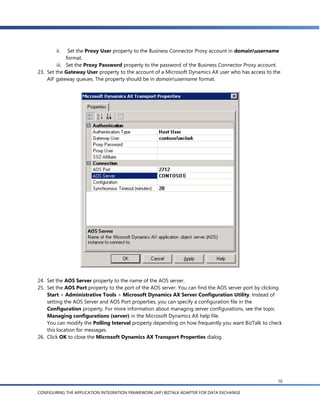
22. Set the Authentication Type property. This specifies the credentials that BizTalk uses to connect to
    AIF.
    a. If your BizTalk application is already running under the credentials of the Business Connector Proxy
         account, set the Authentication Type property to Host User. To verify the Business Connector
         Proxy account go to Administration > Setup > Security > Business Connector Proxy.
    b. If the BizTalk application is running under the credentials of a user other than the Business
         Connector Proxy account, do the following:

                                                                                                             46

CONFIGURING THE APPLICATION INTEGRATION FRAMEWORK (AIF) BIZTALK ADAPTER FOR DATA EXCHANGE
i.    Set the Authentication Type property to Proxy User.
        ii.    Set the Proxy User property to the Business Connector Proxy account in domainusername
              format.
         iii. Set the Proxy Password property to the password of the Business Connector Proxy account.
23. Set the Gateway User property to the account of a Microsoft Dynamics AX user who has access to the
    AIF gateway queues. The property should be in domainusername format. This property needs to be
    set even though the AIF queues aren’t used in synchronous document exchange.


24. Set the AOS Server property to the name of the AOS server.
25. Set the AOS Port property to the port of the AOS server. You can find the AOS server port by clicking
    Start > Administrative Tools > Microsoft Dynamics AX Server Configuration Utility. Instead of
    setting the AOS Server and AOS Port properties, you can specify a configuration file in the
    Configuration property. For more information about managing server configurations, see the topic
    Managing configurations (server) in the Microsoft Dynamics AX Help.
    You can modify the Polling Interval property depending on how frequently you want BizTalk to check
    this location for messages.
26. Click OK to close out of the dialog boxes.
27. In the Configure Application screen, in the Outbound Logical Ports field, select
    SaveSalesOrderPort.


                                                                                                       47

CONFIGURING THE APPLICATION INTEGRATION FRAMEWORK (AIF) BIZTALK ADAPTER FOR DATA EXCHANGE
28. In the Send Ports/Send Port Groups field, select New send port. This is the port that saves the sales
    order to a file.
29. In the Name field, enter a name such as FileSendPort.
30. In the Type field, select FILE.
31. In the Send pipeline field, select PassThruTransmit.
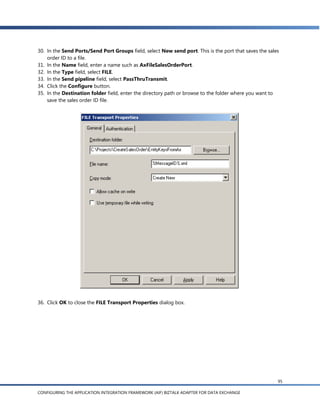
32. Click the Configure button.
33. In the Destination folder field, enter the directory path or browse to the folder where you want to
    save the sales order file.


34. Click OK to close the FILE Transport Properties dialog box.


                                                                                                        48

CONFIGURING THE APPLICATION INTEGRATION FRAMEWORK (AIF) BIZTALK ADAPTER FOR DATA EXCHANGE
35. Click OK to close the Send Port Properties dialog box. You should now see a receive port named
    AxFileReceivePort, a send port called AxSyncSendPort, and a send port called FileSendPort in your
    orchestration.
36. Click OK to exit the Configure Application dialog box.


37. In the BizTalk Server 2006 Administration Console, right-click the SendSalesOrderSync application
    and select Start.
38. Click the Start button. This starts the BizTalk application so that it can send and receive messages.


                                                                                                       49

CONFIGURING THE APPLICATION INTEGRATION FRAMEWORK (AIF) BIZTALK ADAPTER FOR DATA EXCHANGE
Send the sales order ID to Microsoft Dynamics AX
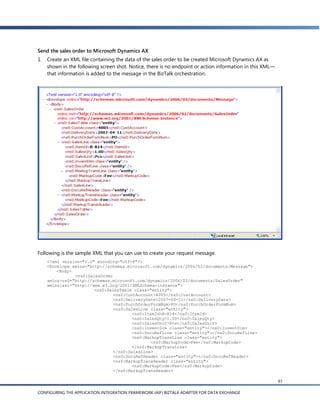
1.   Create an XML file containing the sales order ID of the sales order to be returned from
     Microsoft Dynamics AX. The source endpoint user, source endpoint, destination endpoint, and other
     elements of information are contained in the message envelope as seen in the following screen shot.


Following is the sample XML that you can use to create your request message.
<?xml version="1.0" encoding="utf-8"?>
<Envelope xmlns="http://schemas.microsoft.com/dynamics/2006/02/documents/Message">
        <Header>
                <MessageId>{D0522EFC-A7A3-4E86-855B-7406A6FD0747}</MessageId>
                <SourceEndpointUser>contosomclark</SourceEndpointUser>
                <SourceEndpoint>EP</SourceEndpoint>
                <DestinationEndpoint>LocalEP</DestinationEndpoint>
                <Action>ReadSalesOrder</Action>
                <RequestMessageId></RequestMessageId>
        </Header>
        <Body>
<EntityKey
xmlns="http://schemas.microsoft.com/dynamics/2006/02/documents/EntityKey"><KeyData><KeyField><Fie
ld>SalesId</Field><Value>00016_036</Value></KeyField></KeyData></EntityKey>

       </Body>
</Envelope>
2.   Copy this file to the directory specified previously in step 13.
3.   Verify that BizTalk has sent the request and received the sales order by checking the directory you
     specified previously in step 38. You should see an XML document with a name such as {B264E9B5-

                                                                                                           50

CONFIGURING THE APPLICATION INTEGRATION FRAMEWORK (AIF) BIZTALK ADAPTER FOR DATA EXCHANGE
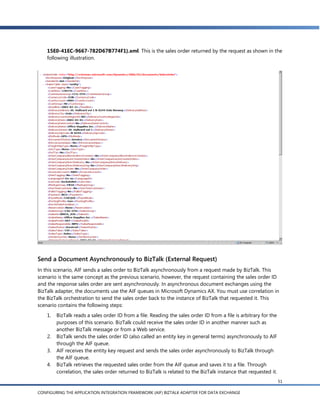
15E0-41EC-9667-782D67B774F1}.xml. This is the sales order returned by the request as shown in the
    following illustration.


Send a Document Asynchronously to BizTalk (External Request)
In this scenario, AIF sends a sales order to BizTalk asynchronously from a request made by BizTalk. This
scenario is the same concept as the previous scenario, however, the request containing the sales order ID
and the response sales order are sent asynchronously. In asynchronous document exchanges using the
BizTalk adapter, the documents use the AIF queues in Microsoft Dynamics AX. You must use correlation in
the BizTalk orchestration to send the sales order back to the instance of BizTalk that requested it. This
scenario contains the following steps:
    1.   BizTalk reads a sales order ID from a file. Reading the sales order ID from a file is arbitrary for the
         purposes of this scenario. BizTalk could receive the sales order ID in another manner such as
         another BizTalk message or from a Web service.
    2.   BizTalk sends the sales order ID (also called an entity key in general terms) asynchronously to AIF
         through the AIF queue.
    3.   AIF receives the entity key request and sends the sales order asynchronously to BizTalk through
         the AIF queue.
    4.   BizTalk retrieves the requested sales order from the AIF queue and saves it to a file. Through
         correlation, the sales order returned to BizTalk is related to the BizTalk instance that requested it.
                                                                                                                   51

CONFIGURING THE APPLICATION INTEGRATION FRAMEWORK (AIF) BIZTALK ADAPTER FOR DATA EXCHANGE
To enable a document exchange between AIF and BizTalk, you must first create a BizTalk assembly in
Microsoft® Visual Studio®.

Create the BizTalk assembly
1.   Open Microsoft Visual Studio and click File > New > Project.
2.   Under Project types, click the BizTalk Projects node.
3.   Select Empty BizTalk Server Project.
     a. In the Name field, enter a name for the BizTalk project such as ReceiveSalesOrderAsync.
     b. In the Location field, enter a directory location for the project.
     c. In the Solution Name field, keep the default solution. You can enter an alternate name if you
         want the solution name to be different from the project name.
4.   Click OK.
5.   Add a reference to the Microsoft Dynamics AX schemas assembly.
     a. In the Solution Explorer, right-click the References node and select Add Reference.
     b. Click the Browse tab.
     c. Browse to the default install location of Program FilesMicrosoft Dynamics AX40ClientBin
         Microsoft.Dynamics.BizTak.Adapter.Schemas.dll.
     d. Double-click the assembly (.dll file). It will appear in the Selected projects and components grid.
     e. Click OK. The assembly reference appears under the References node in the Visual Studio Solution
         Explorer.
6.   Import the sales order schemas.
     a. Right-click the project and select Add > Add Generated Items.
     b. Under Categories, the Add Adapter Metadata node should be selected. In the Templates pane,
         select Add Adapter Metadata.
     c. Click Add. The Add Adapter Wizard appears.
     d. Select the Microsoft Dynamics AX adapter and click Next.
     e. In the Server name field, enter the name of the server running the AOS. The name entered in this
         field should be the machine name of the server.
     f. In the TCP/IP Port field, enter the port of the AOS server and click Next.
         To find the server port, open the Microsoft Dynamics AX Server Configuration Utility by clicking
         Start > Administrative Tools > Microsoft Dynamics AX Server Configuration Utility. Select a
         configuration in the Configuration field and you’ll find the port number in the TCP/IP port field
         in the Settings frame.


                                                                                                         52

CONFIGURING THE APPLICATION INTEGRATION FRAMEWORK (AIF) BIZTALK ADAPTER FOR DATA EXCHANGE
g. In the Schema Import Wizard, you’ll see a list of the document schemas for documents that are
        enabled in AIF. Expand the Sales Order node and select readSalesOrder(EntityKey) [async] (for
        sending the sales order ID to AIF) and readSalesOrder( ):SalesOrder [async] (for sending the
        response back to BizTalk).


     h.   Click Finish. A sales order schema called SalesOrderService_SalesOrder.xsd can be seen in the
          Solution Explorer. An orchestration has also been created.

          When using automatically generated orchestrations containing message and port types to
          implement the actions for a project, you may encounter naming conflicts. To avoid these conflicts,
          it’s recommended that you create an orchestration containing the message and port types, and
          reference those types from the generated orchestration.

7.   Select the schema for the entity key message.
     a. In the Solution Explorer, double-click BizTalk Orchestration.odx to open the orchestration.
     b. In the Orchestration View, expand the Types node and then expand the Multi-part Message
         Types node.
     c. Expand the EntityKey node, click the Body node and open the Type property dropdown list.
     d. In the dropdown list, expand the Schemas node and click Select from referenced assembly. The
         Select Artifact Type dialog appears.


                                                                                                           53

CONFIGURING THE APPLICATION INTEGRATION FRAMEWORK (AIF) BIZTALK ADAPTER FOR DATA EXCHANGE
e.   Expand the Microsoft.Dynamics.BizTalk.Adapter.Schemas node, click the { } Dynamics node,
          and then in the Type Name field, select EntityKey.


     f. Click OK.
8.   Modify the BizTalk orchestration.
     a. In the Solution Explorer, double-click the new orchestration called BizTalk Orchestration.odx.
     b. Drag a Receive action from the Toolbox to the orchestration to be first step in the orchestration.
        This step reads in the entity key from a file.
     c. Drag a Message Assignment action from the Toolbox to be the second step in the orchestration.
        This step creates the message that is sent to AIF containing the entity key.
     d. Drag a Send action from the Toolbox to be the third step in the orchestration. This step sends the
        entity key to AIF.
     e. Drag a Receive action from the Toolbox to be the fourth step in the orchestration. This step
        receives the sales order from AIF.
     f. Drag a Message Assignment action from the Toolbox to be the fifth step in the orchestration.
        This step creates the sales order to be saved.


                                                                                                         54

CONFIGURING THE APPLICATION INTEGRATION FRAMEWORK (AIF) BIZTALK ADAPTER FOR DATA EXCHANGE
g. Drag a Send action from the Toolbox to be the sixth step in the orchestration. This step saves the
        sales order as a file.


9.  Create a port to read in the sales order ID (entity key).
    a. Double-click the Port action in the Toolbox to open the Port Configuration Wizard. Click Next.
    b. In the Name field, enter the name of the port, ReceiveEntityKeyPort for example. Click Next.
    c. Select Create a new Port Type.
    d. In the Port Type Name field, enter a name for the port such as ReadEntityKeyPortType. Click
        Next.
    e. In the Port direction of communication field, keep the default of I’ll always be receiving
        messages on this port and click Next.
    f. Click Finish.
10. Create a new message.
    a. In the Orchestration View, right-click the Messages node and select New Message.
    b. Select the new message and set the Identifier property to a meaningful name such as
        EntityKeyIn.
    c. In the Message Type property, expand the Multi-part Message Types node and select
        ReceiveSalesOrder.EntityKey.
                                                                                                             55

CONFIGURING THE APPLICATION INTEGRATION FRAMEWORK (AIF) BIZTALK ADAPTER FOR DATA EXCHANGE
11. Set the receive action message.
    a. Click the Receive_1 shape.
    b. Set the Message property to the message you just created, for example, EntityKeyIn.
    c. Connect the port ReceiveEntityKeyPort to the receive action by dragging from the green arrow
         on the Request operation to the incoming green arrow of the Receive_1 action.


12. Create a port to send the sales order ID (entity key) to AIF.
    a. Double-click the Port action in the Toolbox to open the Port Configuration Wizard. Click Next.
    b. In the Name field, enter the name of the port, SendEntityKeyPort for example. Click Next.
    c. Select Create a new Port Type.
    d. In the Port Type Name field, enter a name such as SendEntityKeyAxPortType and click Next.
    e. In the Port direction of communication field, keep the default of I’ll always be sending
        messages on this port and click Next.
    f. Click Finish. You’ll now see the new port SendEntityKeyPort that contains a Request operation.
13. Create a port to receive the sales order back from AIF.
    a. Double-click the Port action in the Toolbox to open the Port Configuration Wizard. Click Next.
    b. In the Name field, enter the name of the port, for example, ReceiveSalesOrderPort. Click Next.
    c. Select Create a new Port Type.
                                                                                                      56

CONFIGURING THE APPLICATION INTEGRATION FRAMEWORK (AIF) BIZTALK ADAPTER FOR DATA EXCHANGE
d. In the Port Type Name field, enter a name such as ReceiveSalesOrderAxPortType and click
        Next.
    e. In the Port direction of communication field, keep the default of I’ll always be receiving
        messages on this port and click Next.
    f. Click Finish. You’ll now see the new port ReceiveSalesOrderPort that contains a Request
        operation has been created in the orchestration.
14. Create a port to save the sales order to a file.
    a. Double-click the Port action in the Toolbox to open the Port Configuration Wizard. Click Next.
    b. In the Name field, enter the name of the port, for example, SaveSalesOrderPort. Click Next.
    c. Select Create a new Port Type.
    d. In the Port Type Name field, enter a name such as SaveSalesOrderPortType and click Next.
    e. In the Port direction of communication field, select I’ll always be sending messages on this
        port and click Next.
    f. Click Finish.


15. Create a new message containing the sales order ID (entity key) to be sent to AIF.
    a. Right-click the Messages node and select New Message.

                                                                                                    57

CONFIGURING THE APPLICATION INTEGRATION FRAMEWORK (AIF) BIZTALK ADAPTER FOR DATA EXCHANGE
b.   Select the new message and set the Identifier property to a meaningful name such as
         EntityKeyOut.
    c. In the Message Type property, expand the Multi-part Message Types node and select
         ReceiveSalesOrderAsync.EntityKey.
16. Create a new message containing the sales order coming from AIF.
    a. Right-click the Messages node and select New Message.
    b. Select the new message and set the Identifier property to a meaningful name such as
         SalesOrderIn.
    c. In the Message Type property, expand the Multi-part Message Types node and select
         ReceiveSalesOrderAsync.SalesOrder.
17. Create a new message containing the sales order to be saved to the file system.
    a. Right-click the Messages node and select New Message.
    b. Select the new message and set the Identifier property to a meaningful name such as
         SalesOrderOut.
    c. In the Message Type property, expand the Multi-part Message Types node and select
         ReceiveSalesOrderAsync.SalesOrder.
18. Set the value of the message for the entity being sent to AIF.
    a. In the orchestration, click the ConstructMessage_1 shape.
    b. Set the Messages Constructed property to EntityKeyOut.
    c. Click the MessageAssignment_1 shape found within the ConstructMessage_1 shape.
    d. In the Expression property, click the ellipses to open the BizTalk Expression Editor.


                                                                                               58

CONFIGURING THE APPLICATION INTEGRATION FRAMEWORK (AIF) BIZTALK ADAPTER FOR DATA EXCHANGE
e.   In the BizTalk Expression Editor, set the value of the outbound entity key message to the
         inbound entity key message.


    f. Click OK.
19. Modify the first send action message.
    a. Click the Send_1 shape.
    b. Set the Message property to EntityKeyOut.
20. Modify the second receive action message.
    a. Click the Receive_2 shape.
    b. Set the Message property to SalesOrderIn.
21. Set the value of the message for the sales order being saved to a file.
    a. In the orchestration, click the ConstructMessage_2 shape.
    b. Set the Messages Constructed property to SalesOrderOut.
    c. Click the MessageAssignment_2 shape found within the ConstructMessage_2 shape.
    d. In the Expression property, click the ellipses to open the BizTalk Expression Editor.


                                                                                                     59

CONFIGURING THE APPLICATION INTEGRATION FRAMEWORK (AIF) BIZTALK ADAPTER FOR DATA EXCHANGE
e.   In the BizTalk Expression Editor, set the value of the outbound sales order message to the
         inbound sales order message.


    f. Click OK.
22. Modify the second send action message.
    a. Click the Send_2 shape.
    b. Set the Message property to SalesOrderOut.
23. Connect the port SendEntityKeyPort to the first send action by dragging from the operation labeled
    Request on the port to the green arrow operation of the Send_1 action.


                                                                                                      60

CONFIGURING THE APPLICATION INTEGRATION FRAMEWORK (AIF) BIZTALK ADAPTER FOR DATA EXCHANGE
24. Connect the port ReceiveSalesOrderPort to the second receive action by dragging from the
    operation labeled Request on the port to the incoming green arrow of the Receive_2 action.
25. Connect the port SaveSalesOrderPort to the second send action by dragging from the Request
    operation on the port to the outgoing green arrow of the Send_2 action.


26. Create the correlation to correlate the response message (the sales order) with the request message
    (the entity key).
    a. In the Orchestration View, click Correlation Types and select New Correlation Type.
    b. In the Available Properties tree, expand the Dynamics node and select RequestMessageId.
    c. Click Add.
    d. Click OK.
27. Rename the new correlation type by clicking it and setting the Identifier property, for example,
    RequestMessageIdCorType.
28. Create a new correlation set.
    a. Click Correlation Sets and select New Correlation Set.
    b. Set the Identifier property to something meaningful like RequestMessageIdCorSet.
    c. Set the Correlation Type property to ReceiveSalesOrderAsync.RequestMessageIdCorType.

                                                                                                          61

CONFIGURING THE APPLICATION INTEGRATION FRAMEWORK (AIF) BIZTALK ADAPTER FOR DATA EXCHANGE
29. Rename the new correlation set by clicking it and setting the Identifier property,
    RequestMessageIdCorSet for example.
30. Implement the correlation set in the orchestration.
    a. Click the Send_1 shape and set the Initializing Correlation Sets property to
         RequestMessageIdCorSet.
    b. Click the Receive_2 shape and set the Following Correlation Sets property to
         RequestMessageIdCorSet.
31. Set the RequestMessageId of the message sending the entity key to AIF. The RequestMessageId is set
    to the original MessageId so that when the sales order response is returned to BizTalk, the message
    can be correlated through the RequestMessageId values of the original message and the response
    message.
    a. Click the MessageAssignment_1 shape found within the ConstructMessage_1 shape.
    b. In the Expression property, click the ellipses to open the BizTalk Expression Editor.
    c. In the BizTalk Expression Editor, set the value of the RequestMessageId.


    d. Click OK.
32. Activate the receive action.
    a. Click the Receive_1 shape.
    b. Set the Activate property to True.

                                                                                                          62

CONFIGURING THE APPLICATION INTEGRATION FRAMEWORK (AIF) BIZTALK ADAPTER FOR DATA EXCHANGE
33. Set the assembly key file. The BizTalk project assembly must be strong named in order to compile the
    project. To create a strong-named assembly you must specify the key pair file in the project. To create
    a key pair file for strong naming, use the Strong Name tool.
    a. In the Solution Explorer, right-click the project and select Properties.
    b. In the Assembly Key File property, click the Browse button.


                                                                                                          63

CONFIGURING THE APPLICATION INTEGRATION FRAMEWORK (AIF) BIZTALK ADAPTER FOR DATA EXCHANGE
c.   In the Assembly Key File dialog box, navigate to the path of the key file (.snk) and click Open.


                                                                                                            64

CONFIGURING THE APPLICATION INTEGRATION FRAMEWORK (AIF) BIZTALK ADAPTER FOR DATA EXCHANGE
34. In the project property pages, specify the name of the BizTalk application by expanding the
    Configuration Properties node, selecting Deployment and setting the Application Name property.


35. Click OK to exit.
36. Rebuild the project by right-clicking the project and selecting Rebuild.
37. Deploy the project by right-clicking the project and selecting Deploy. This deploys the assembly to the
    specified BizTalk application. If the BizTalk application doesn’t exist, deployment creates the
    application.

Configure the BizTalk application
1.   Open the BizTalk Server 2006 Administration Console by clicking Start > All Programs >
     Microsoft BizTalk Server 2006 > BizTalk Server Administration. If the BizTalk Server 2006
     Administration Console is already open, select Action > Refresh to refresh the tree.
2.   Expand the Applications node. You will see the BizTalk application as SendSalesOrderAsync. Right-
     click it and select Configure.


                                                                                                         65

CONFIGURING THE APPLICATION INTEGRATION FRAMEWORK (AIF) BIZTALK ADAPTER FOR DATA EXCHANGE
3.   In the navigation pane, click Orchestration_1.


4.   In the Host field, select BizTalkServerApplication.
5.   In the Configure Application screen, in the Inbound Logical Ports field, select
     ReceiveEntityKeyPort.
6.   In the Receive Ports field, select New receive port. This is the port that receives the sales order ID
     (entity key).


                                                                                                              66

CONFIGURING THE APPLICATION INTEGRATION FRAMEWORK (AIF) BIZTALK ADAPTER FOR DATA EXCHANGE
7.   In the Name field, enter a name such as AxFileReceivePort.


8.  In the navigation pane, click Receive Locations. This is where the receive port looks for the XML file
    containing the entity key to send to AIF.
9. Click New.
10. In the Name field, enter a name such as AxEntityKeys.
11. In the Type field, select FILE.


                                                                                                             67

CONFIGURING THE APPLICATION INTEGRATION FRAMEWORK (AIF) BIZTALK ADAPTER FOR DATA EXCHANGE
12. In the Receive pipeline field, select XMLReceive.


13. Click the Configure button.


                                                                                            68

CONFIGURING THE APPLICATION INTEGRATION FRAMEWORK (AIF) BIZTALK ADAPTER FOR DATA EXCHANGE
14. In the Receive folder field, enter the directory path or browse to the folder that contains the entity
    key to be sent to AIF.


15. Click OK to close out of the open dialog boxes.
16. In the Configure Application screen, in the Outbound Logical Ports field, select
    SendEntityKeyPort. This is the port that sends the sales order ID to AIF.
17. In the Send Ports/Send Port Groups field, select New send port.
18. In the Name field, enter a name such as AxAsyncSendPort.
19. In the Type field, select Microsoft Dynamics AX.
20. In the Send pipeline field, select XMLTransmit.
21. Click the Configure button.
22. Set the Authentication Type property. This specifies the credentials that BizTalk uses to connect to
    AIF.
    a. If your BizTalk application is already running under the credentials of the Business Connector Proxy
         account, set the Authentication Type property to Host User. To verify the Business Connector
         Proxy account go to Administration > Setup > Security > Business Connector Proxy.
    b. If the BizTalk application is running under the credentials of a user other than the Business
         Connector Proxy account then do the following:
         i. Set the Authentication Type property to Proxy User.

                                                                                                             69

CONFIGURING THE APPLICATION INTEGRATION FRAMEWORK (AIF) BIZTALK ADAPTER FOR DATA EXCHANGE
ii.    Set the Proxy User property to the Business Connector Proxy account in domainusername
              format.
         iii. Set the Proxy Password property to the password of the Business Connector Proxy account.
23. Set the Gateway User property to the account of a Microsoft Dynamics AX user who has access to the
    AIF gateway queues. The property should be in domainusername format.


24. Set the AOS Server property to the name of the AOS server.
25. Set the AOS Port property to the port of the AOS server. You can find the AOS server port by clicking
    Start > Administrative Tools > Microsoft Dynamics AX Server Configuration Utility. Instead of
    setting the AOS Server and AOS Port properties, you can specify a configuration file in the
    Configuration property. For more information about managing server configurations, see the topic
    Managing configurations (server) in the Microsoft Dynamics AX help file.
    You can modify the Polling Interval property depending on how frequently you want BizTalk to check
    this location for messages.
26. Click OK to close the Microsoft Dynamics AX Transport Properties dialog.


                                                                                                       70

CONFIGURING THE APPLICATION INTEGRATION FRAMEWORK (AIF) BIZTALK ADAPTER FOR DATA EXCHANGE
27. Click OK to close the Send Port Properties dialog box.


28. In the Configure Application screen, in the Inbound Logical Ports field, select
    ReceiveSalesOrderPort. This is the port that receives the sales order from AIF as a response to the
    request.
29. In the Receive Ports field, select New receive port.
30. In the Name field, enter a name such as AxAsyncReceivePort.
31. In the navigation pane, click Receive Locations.
32. Click New.
33. In the Name field, enter a name such as AxReceiveLocation.
34. In the Type field, select Microsoft Dynamics AX.
35. In the Receive pipeline field, select XMLReceive.
36. Click the Configure button.
37. Set the Authentication Type property. This specifies the credentials that BizTalk uses to connect to
    AIF.


                                                                                                           71

CONFIGURING THE APPLICATION INTEGRATION FRAMEWORK (AIF) BIZTALK ADAPTER FOR DATA EXCHANGE
a.   If your BizTalk application is already running under the credentials of the Business Connector Proxy
         account, set the Authentication Type property to Host User. To verify the Business Connector
         Proxy account go to Administration > Setup > Security > Business Connector Proxy.
    b. If the BizTalk application is running under the credentials of a user other than the Business
         Connector Proxy account, do the following:
         i. Set the Authentication Type property to Proxy User.
         ii. Set the Proxy User property to the Business Connector Proxy account in domainusername
              format.
         iii. Set the Proxy Password property to the password of the Business Connector Proxy account.
38. Set the Gateway User property to the account of a Microsoft Dynamics AX user that has access to the
    AIF gateway queues. The property should be in domainusername format.


39. Set the AOS Server property to the name of the AOS server.
40. Set the AOS Port property to the port of the AOS server. You can find the AOS server port by clicking
    Start > Administrative Tools > Microsoft Dynamics AX Server Configuration Utility. Instead of
    setting the AOS Server and AOS Port properties, you can specify a configuration file in the
    Configuration property. For more information about managing server configurations, see the topic
    Managing configurations (server) in the Microsoft Dynamics AX Help.
    You can modify the Polling Interval property depending on how frequently you want BizTalk to check
    this location for messages.
                                                                                                           72

CONFIGURING THE APPLICATION INTEGRATION FRAMEWORK (AIF) BIZTALK ADAPTER FOR DATA EXCHANGE
41. Click OK to close out of the open dialog boxes.
42. In the Configure Application screen, in the Outbound Logical Ports field, select
    SaveSalesOrderPort.
43. In the Send Ports/Send Port Groups field, select New send port. This is the port that saves the sales
    order to a file.
44. In the Name field, enter a name such as AxFileSendPort.
45. In the Type field, select FILE.
46. In the Send pipeline field, select PassThruTransmit.
47. Click the Configure button.
48. In the Destination folder field, enter the directory path or browse to the folder where you want to
    save the sales order file.


49. Click OK to close the FILE Transport Properties dialog box.
50. Click OK to close the Send Port Properties dialog. You should now see two receive ports named
    AxFileReceivePort and AxAsyncReceivePort and two send ports named AxAsyncSendPort and
    AxFileSendPort in your orchestration.


                                                                                                        73

CONFIGURING THE APPLICATION INTEGRATION FRAMEWORK (AIF) BIZTALK ADAPTER FOR DATA EXCHANGE
51. Click OK to exit the Configure Application dialog box.


52. In the BizTalk Server 2006 Administration Console, right-click the SendSalesOrderAsync
    application and select Start.
53. Click the Start button. This starts the BizTalk application so that it can send and receive messages.


                                                                                                            74

CONFIGURING THE APPLICATION INTEGRATION FRAMEWORK (AIF) BIZTALK ADAPTER FOR DATA EXCHANGE
Send the sales order ID to Microsoft Dynamics AX
1.   Create an XML file containing the sales order ID of the sales order to be returned from
     Microsoft Dynamics AX. The source endpoint user, source endpoint, destination endpoint, and other
     elements of information are contained in the message envelope as seen in the following screen shot.


Following is the sample XML that you can use to create your request message.
<?xml version="1.0" encoding="utf-8"?>
<Envelope xmlns="http://schemas.microsoft.com/dynamics/2006/02/documents/Message">
       <Header>
               <MessageId>{D0522EFC-A7A3-4E86-855B-7406A6FD0740}</MessageId>
               <SourceEndpointUser>contosomclark</SourceEndpointUser>
               <SourceEndpoint>EP</SourceEndpoint>
               <DestinationEndpoint>LocalEP</DestinationEndpoint>
               <Action>ReadSalesOrder</Action>
               <RequestMessageId></RequestMessageId>
       </Header>
       <Body>
<EntityKey
xmlns="http://schemas.microsoft.com/dynamics/2006/02/documents/EntityKey"><KeyData><KeyField><Fie
ld>SalesId</Field><Value>00016_036</Value></KeyField></KeyData></EntityKey>

       </Body>
</Envelope>
2.   Copy this file to the directory specified in the previous procedure in step 14
3.   Verify that the sales order request has been sent to Microsoft Dynamics AX by checking the Queue
     Manager. If the AIF services are not yet running and processing documents in the queue, you’ll see the
     sales order request in the Queue Manager. To open the Queue Manager, click Basic > Periodic >
     Application Integration Framework > Queue manager. For more information about the Queue
     Manager, see the section Managing Document Exchanges later in this document.

                                                                                                           75

CONFIGURING THE APPLICATION INTEGRATION FRAMEWORK (AIF) BIZTALK ADAPTER FOR DATA EXCHANGE
4.   Start the AIF batch services as detailed in the section Setting up and Configuring AIF Services later in
     this document. Once the AIF batch services are started, the sales order will be removed from the queue
     and sent to BizTalk.
5.   Verify that BizTalk has received the sales order by checking the directory you specified in the previous
     procedure in step 48. You should see an XML document with a name such as {4553710D-F516-45C8-
     AD72-8FAA00F1920C}.xml. This is the sales order returned by the request as shown in the following
     figure.


Create a Document Synchronously (External Request)
In this scenario, AIF creates a sales order and sends the sales order ID to BizTalk synchronously from a
request made by BizTalk. In synchronous document exchanges using the BizTalk adapter, documents
bypass the AIF queues and are sent directly through the .NET Business Connector. This scenario contains
the following steps:
     1.   BizTalk reads a sales order from a file. Reading the sales order from a file is arbitrary for the
          purposes of this scenario. BizTalk could receive the sales order in another manner such as another
          BizTalk message or from a Web service.
     2.   BizTalk sends the sales order to AIF and waits for a response.
     3.   AIF receives the sales order request, creates the sales order and sends the sales order ID to the
          waiting BizTalk adapter.

                                                                                                           76

CONFIGURING THE APPLICATION INTEGRATION FRAMEWORK (AIF) BIZTALK ADAPTER FOR DATA EXCHANGE
4. BizTalk receives the sales order ID and saves it to a file.
This scenario is similar to the ―Send a Document Synchronously to BizTalk (external request)‖ scenario;
however, in this scenario a sales order is sent to AIF, the sales order is created, and the entity key is sent
back to BizTalk. In the previous scenario, an entity key is sent to AIF and the sales order is sent back to
BizTalk. To enable a document exchange between AIF and BizTalk you must first create a BizTalk assembly
in Visual Studio.

Create the BizTalk assembly
1.   Open Visual Studio and click File > New > Project.
2.   Under Project types, click the BizTalk Projects node.
3.   Select Empty BizTalk Server Project.
     a. In the Name field, enter a name for the BizTalk project such as CreateSalesOrder.
     b. In the Location field, enter a directory location for the project.
     c. In the Solution Name field, keep the default solution. You can enter an alternate name if you
         want the solution name to be different from the project name.
4.   Click OK.
5.   Add a reference to the Microsoft Dynamics AX schemas assembly.
     a. In the Solution Explorer, right-click the References node and select Add Reference.
     b. Click the Browse tab.
     c. Browse to the default install location Program FilesMicrosoft Dynamics AX40ClientBin
         Microsoft.Dynamics.BizTak.Adapter.Schemas.dll.
     d. Double-click the assembly (.dll file). It will appear in the Selected projects and components grid.
     e. Click OK. The assembly reference appears under the References node in the Visual Studio Solution
         Explorer.
6.   Import the sales order schemas.
     a. Right-click the project and select Add > Add Generated Items.
     b. Under Categories, the Add Adapter Metadata node should be selected. In the Templates pane,
         select Add Adapter Metadata.
     c. Click Add. The Add Adapter Wizard appears.
     d. Select the Microsoft Dynamics AX adapter and click Next.
     e. In the Server name field, enter the name of the server running the AOS. The name entered in this
         field should be the machine name of the server.
     f. In the TCP/IP Port field, enter the port of the AOS server and click Next.
         To find the server port, open the Microsoft Dynamics AX Server Configuration Utility by clicking
         Start > Administrative Tools > Microsoft Dynamics AX Server Configuration Utility. Select a
         configuration in the Configuration field and you’ll find the port number in the TCP/IP port field
         in the Settings frame.


                                                                                                             77

CONFIGURING THE APPLICATION INTEGRATION FRAMEWORK (AIF) BIZTALK ADAPTER FOR DATA EXCHANGE
g. In the Schema Import Wizard, you’ll see a list of the document schemas for documents that are
        enabled in AIF. Expand the Sales Order node and select createSalesOrder(SalesOrder):EntityKey
        [sync].


     h.   Click Finish. A sales order schema called SalesOrderService_SalesOrder.xsd can be seen in the
          Solution Explorer. An orchestration has also been created.

          When using automatically generated orchestrations containing message and port types to
          implement the actions for a project, you may encounter naming conflicts. To avoid these conflicts,
          it’s recommended that you create an orchestration containing the message and port types, and
          reference those types from the generated orchestration.

7.   Select the schema for the entity key message.
     a. In the Solution Explorer, double-click BizTalk Orchestration.odx to open the orchestration.
     b. In the Orchestration View, expand the Types node, and then expand the Multi-part Message
         Types node.
     c. Expand the EntityKey node, click the Body node, and open the Type property list.
     d. In the list, expand the Schemas node and click Select from referenced assembly. The Select
         Artifact Type dialog box appears.


                                                                                                           78

CONFIGURING THE APPLICATION INTEGRATION FRAMEWORK (AIF) BIZTALK ADAPTER FOR DATA EXCHANGE
e.   Expand the Microsoft.Dynamics.BizTalk.Adapter.Schemas node, click the { } Dynamics node,
          and then in the Type Name field, select EntityKey.


     f. Click OK.
8.   Modify the BizTalk orchestration.
     a. In the Solution Explorer, double-click the new orchestration called BizTalk Orchestration.odx.
     b. Drag a Receive action from the Toolbox to the orchestration to be first step in the orchestration.
        This step reads in the sales order from a file.
     c. Drag a Message Assignment action from the Toolbox to be the second step in the orchestration.
        This step creates the message that is sent to AIF containing the sales order information.
     d. Drag a Send action from the Toolbox to be the third step in the orchestration. This step sends the
        sales order to AIF.
     e. Drag a Receive action from the Toolbox to be the fourth step in the orchestration. This step
        receives the sales order ID of the new sales order from AIF.
     f. Drag a Message Assignment action from the Toolbox to be the fifth step in the orchestration.
        This step creates the sales order ID XML to be saved.


                                                                                                         79

CONFIGURING THE APPLICATION INTEGRATION FRAMEWORK (AIF) BIZTALK ADAPTER FOR DATA EXCHANGE
g. Drag a Send action from the Toolbox to be the sixth step in the orchestration. This step saves the
        sales order ID to a file.


9.  Create a port to read in the sales order information.
    a. Double-click the Port action in the Toolbox to open the Port Configuration Wizard. Click Next.
    b. In the Name field, enter the name of the port such as ReceiveSalesOrderPort. Click Next.
    c. Select Create a new Port Type.
    d. In the Port Type Name field, enter a name for the port such as ReadSalesOrderPortType. Click
        Next.
    e. In the Port direction of communication field, keep the default of I’ll always be receiving
        messages on this port and click Next.
    f. Click Finish.
10. Create a new message.
    a. In the Orchestration View, right-click the Messages node and select New Message.
    b. Select the new message and set the Identifier property to a meaningful name such as
        SalesOrderIn.
    c. In the Message Type property, expand the Multi-part Message Types node and select
        CreateSalesOrder.SalesOrder.
                                                                                                             80

CONFIGURING THE APPLICATION INTEGRATION FRAMEWORK (AIF) BIZTALK ADAPTER FOR DATA EXCHANGE
11. Set the receive action message.
    a. Click the Receive_1 shape.
    b. Set the Message property to the message you just created, for example, SalesOrderIn.
    c. Connect the port ReceiveSalesOrderPort to the receive action by dragging from the green arrow
         on the port to the incoming green arrow of the Receive_1 action.


12. Create a port to send the sales order to AIF and receive the sales order ID back from AIF.
    a. Double-click the Port action in the Toolbox to open the Port Configuration Wizard. Click Next.
    b. In the Name field, enter the name of the port such as CreateSalesOrderPort. Click Next.
    c. Select Use an existing Port Type and under Available Port Types, select
        CreateSalesOrder.SalesOrderSync. Click Next.
    d. In the Port direction of communication field, keep the default of I’ll be sending a request and
        receiving a response and click Next.
    e. Click Finish. You’ll now see the new port CreateSalesOrderPort that contains both a Request
        operation and a Response operation has been created in the orchestration.
    f. Connect the port CreateSalesOrderPort to the first send action by dragging from the operation
        labeled Request on the port to the green arrow operation of the Send_1 action.

                                                                                                     81

CONFIGURING THE APPLICATION INTEGRATION FRAMEWORK (AIF) BIZTALK ADAPTER FOR DATA EXCHANGE
g. Connect the port CreateSalesOrderPort to the second receive action by dragging from the
       operation labeled Response on the port to the incoming green arrow of the Receive_2 action.


13. Create a port to save the sales order ID to a file.
    a. Double-click the Port action in the Toolbox to open the Port Configuration Wizard. Click Next.
    b. In the Name field, enter the name of the port, for example, SaveEntityKeyPort. Click Next.
    c. Select Create a new Port Type.
    d. In the Port Type Name field, enter a name such as SaveSalesOrderPortType and click Next.
    e. In the Port direction of communication field, select I’ll always be sending messages on this
        port and click Next.
    f. Click Finish.
14. Rename the message containing the sales order going to AIF.
    a. Expand the Messages node and click the message named Message_1.
    b. In the Properties pane, set the Identifier property to a meaningful name such as SalesOrderOut.
    c. In the Message Type property, expand the Multi-part Message Types node and select
        CreateSalesOrder.SalesOrder.
15. Create a new message containing the sales order ID to be received from AIF.
    a. Right-click the Messages node and select New Message.
                                                                                                     82

CONFIGURING THE APPLICATION INTEGRATION FRAMEWORK (AIF) BIZTALK ADAPTER FOR DATA EXCHANGE
b.   Select the new message and set the Identifier property to a meaningful name such as
         EntityKeyIn.
    c. In the Message Type property, expand the Multi-part Message Types node and select
         CreateSalesOrder.EntityKey.
16. Create a new message containing the sales order ID to be saved the file system.
    a. Right-click the Messages node and select New Message.
    b. Select the new message and set the Identifier property to a meaningful name such as
         EntityKeyOut.
    c. In the Message Type property, expand the Multi-part Message Types node and select
         CreateSalesOrder.EntityKey.
17. Set the message for the entity being sent to AIF.
    a. In the orchestration, click the ConstructMessage_1 shape.
    b. Set the Messages Constructed property to SalesOrderOut.
    c. Click the MessageAssignment_1 shape found within the ConstructMessage_1 shape.
    d. In the Expression property, click the ellipses to open the BizTalk Expression Editor.


                                                                                               83

CONFIGURING THE APPLICATION INTEGRATION FRAMEWORK (AIF) BIZTALK ADAPTER FOR DATA EXCHANGE
e.   In the BizTalk Expression Editor, set the value of the outbound sales order message to the
         inbound sales order message. In this screen, you must also set the values for the action, the
         destination endpoint, the source endpoint and the source endpoint user for the document
         exchange.
         In previous scenarios, these element values were part of the request message XML. If you don’t
         know these values at the time of the request, they can be added in the orchestration. For example,
         the system that originates the sales order may not have this information available so it must be
         added to the message before it is sent to AIF.


    f. Click OK.
18. Modify the first send action message.
    a. Click the Send_1 shape.
    b. Set the Message property to EntityKeyOut.
19. Set the message for the sales order being saved to a file.
    a. In the orchestration, click the ConstructMessage_2 shape.
    b. Set the Messages Constructed property to EntityKeyOut.
    c. Click the MessageAssignment_2 shape found within the ConstructMessage_2 shape.
    d. In the Expression property, click the Browse button to open the BizTalk Expression Editor.


                                                                                                         84

CONFIGURING THE APPLICATION INTEGRATION FRAMEWORK (AIF) BIZTALK ADAPTER FOR DATA EXCHANGE
e.   In the BizTalk Expression Editor, set the value of the outbound sales order ID message to the
         inbound sales order ID message.


    f. Click OK.
20. Modify the second send action message.
    a. Click the Send_2 shape.
    b. Set the Message property to EntityKeyOut.


                                                                                                         85

CONFIGURING THE APPLICATION INTEGRATION FRAMEWORK (AIF) BIZTALK ADAPTER FOR DATA EXCHANGE
21. Connect the save entity key port to the send action to save the sales order ID to a file.
    a. Connect the port SaveEntityKeyPort to the second send action by dragging from the Request
       operation on the port to the outgoing green arrow of the Send_2 action.


22. Activate the receive action.
    a. Click the Receive_1 shape.
    b. Set the Activate property to True.
23. Set the assembly key file. The BizTalk project assembly must be strong named in order to compile the
    project. To create a strong-named assembly you must specify the key pair file in the project. To create
    a key pair file for strong naming, use the Strong Name tool.
    a. In the Solution Explorer, right-click the project and select Properties.


                                                                                                          86

CONFIGURING THE APPLICATION INTEGRATION FRAMEWORK (AIF) BIZTALK ADAPTER FOR DATA EXCHANGE
b.   In the Assembly Key File property, click the Browse button.


                                                                                            87

CONFIGURING THE APPLICATION INTEGRATION FRAMEWORK (AIF) BIZTALK ADAPTER FOR DATA EXCHANGE
c.   In the Assembly Key File dialog, navigate to the path of the key file (.snk) and click Open.


                                                                                                        88

CONFIGURING THE APPLICATION INTEGRATION FRAMEWORK (AIF) BIZTALK ADAPTER FOR DATA EXCHANGE
24. In the project property pages, specify the name of the BizTalk application by expanding the
    Configuration Properties node, selecting Deployment, and setting the Application Name property.


25. Click OK to exit.
26. Rebuild the project by right-clicking the project and selecting Rebuild.
27. Deploy the project by right-clicking the project and selecting Deploy. This deploys the assembly to the
    specified BizTalk application. If the BizTalk application doesn’t exist, deployment creates the
    application.

Configure the BizTalk application
1.   Open the BizTalk Server 2006 Administration Console by clicking Start > All Programs > Microsoft
     BizTalk Server 2006 > BizTalk Server Administration. If the BizTalk Server 2006 Administration
     Console is already open, select Action > Refresh to refresh the tree.
2.   Expand the Applications node and you’ll see the BizTalk application, in this case it’s called
     CreateSalesOrder application.
3.   Right-click the application and select Configure.


                                                                                                         89

CONFIGURING THE APPLICATION INTEGRATION FRAMEWORK (AIF) BIZTALK ADAPTER FOR DATA EXCHANGE
4.   In the navigation pane, click Orchestration_1.


5.   In the Host field, select BizTalkServerApplication.
6.   In the Receive Ports field, select New receive port. This is the port that receives the sales order.


                                                                                                            90

CONFIGURING THE APPLICATION INTEGRATION FRAMEWORK (AIF) BIZTALK ADAPTER FOR DATA EXCHANGE
7.   In the Name field, enter a name such as AxFileReceiveSalesOrderPort.


8.  In the navigation pane, click Receive Locations. This is where the receive port looks for the XML file
    containing the entity key to send to AIF.
9. Click New.
10. In the Name field, enter a name such as AxSalesOrders.
11. In the Type field, select FILE.


                                                                                                             91

CONFIGURING THE APPLICATION INTEGRATION FRAMEWORK (AIF) BIZTALK ADAPTER FOR DATA EXCHANGE
12. In the Receive pipeline field, select XMLReceive.


13. Click the Configure button.


                                                                                            92

CONFIGURING THE APPLICATION INTEGRATION FRAMEWORK (AIF) BIZTALK ADAPTER FOR DATA EXCHANGE
14. In the Receive folder field, enter the directory path or browse to the folder that contains the entity
    key to be sent to AIF.


15. Click OK to close out of the open dialog boxes.
16. In the Configure Application screen, in the Outbound Logical Ports field, select
    CreateSalesOrderPort.
17. In the Send Ports/Send Port Groups field, select New send port.
18. In the Name field, enter a name such as AxSyncSalesOrderPort.
19. In the Type field, select Microsoft Dynamics AX.
20. In the Send pipeline field, select XMLTransmit.
21. In the Receive pipeline field, select XMLReceive.
22. Click the Configure button.
23. Set the Authentication Type property. This specifies the credentials that BizTalk uses to connect to
    AIF.
    a. If your BizTalk application is already running under the credentials of the Business Connector Proxy
         account, set the Authentication Type property to Host User. To verify the Business Connector
         Proxy account go to Administration > Setup > Security > Business Connector Proxy.
    b. If the BizTalk application is running under the credentials of a user other than the Business
         Connector Proxy account, then do the following:

                                                                                                             93

CONFIGURING THE APPLICATION INTEGRATION FRAMEWORK (AIF) BIZTALK ADAPTER FOR DATA EXCHANGE
i.    Set the Authentication Type property to Proxy User.
        ii.    Set the Proxy User property to the Business Connector Proxy account in domainusername
              format.
         iii. Set the Proxy Password property to the password of the Business Connector Proxy account.
24. Set the Gateway User property to the account of a Microsoft Dynamics AX user that has access to the
    AIF gateway queues. The property should be in domainusername format. This property needs to be
    set even though the AIF queues aren’t used in synchronous document exchange.


25. Set the AOS Server property to the name of the AOS server.
26. Set the AOS Port property to the port of the AOS server. You can find the AOS server port by clicking
    Start > Administrative Tools > Microsoft Dynamics AX Server Configuration Utility. Instead of
    setting the AOS Server and AOS Port properties, you can specify a configuration file in the
    Configuration property. For more information about managing server configurations, see the topic
    Managing configurations (server) in the Microsoft Dynamics AX Help.
    You can modify the Polling Interval property depending on how frequently you want BizTalk to check
    this location for messages.
27. Click OK to close the Microsoft Dynamics AX Transport Properties dialog box.
28. Click OK to close the Send Port Properties dialog box.
29. In the Configure Application screen, in the Outbound Logical Ports field, select SaveEntityKeyPort.


                                                                                                       94

CONFIGURING THE APPLICATION INTEGRATION FRAMEWORK (AIF) BIZTALK ADAPTER FOR DATA EXCHANGE
30. In the Send Ports/Send Port Groups field, select New send port. This is the port that saves the sales
    order ID to a file.
31. In the Name field, enter a name such as AxFileSalesOrderPort.
32. In the Type field, select FILE.
33. In the Send pipeline field, select PassThruTransmit.
34. Click the Configure button.
35. In the Destination folder field, enter the directory path or browse to the folder where you want to
    save the sales order ID file.


36. Click OK to close the FILE Transport Properties dialog box.


                                                                                                        95

CONFIGURING THE APPLICATION INTEGRATION FRAMEWORK (AIF) BIZTALK ADAPTER FOR DATA EXCHANGE
37. Click OK to close the Send Port Properties dialog box. You should now see a receive port named
    AxFileReceiveSalesOrderPort, a send port called AxSyncSalesOrderPort, and a send port called
    AxFileSendSalesOrderPort in your orchestration.
38. Click OK to exit the Configure Application dialog box.


39. In the BizTalk Server 2006 Administration Console, right-click the CreateSalesOrder application
    and select Start.
40. Click the Start button. This starts the BizTalk application so that it can send and receive messages.


                                                                                                            96

CONFIGURING THE APPLICATION INTEGRATION FRAMEWORK (AIF) BIZTALK ADAPTER FOR DATA EXCHANGE
Send the sales order to Microsoft Dynamics AX
1.   Create an XML file containing the data of the sales order to be created Microsoft Dynamics AX as
     shown in the following screen shot. Notice, there is no endpoint or action information in this XML—
     that information is added to the message in the BizTalk orchestration.


Following is the sample XML that you can use to create your request message.
     <?xml version="1.0" encoding="utf-8"?>
     <Envelope xmlns="http://schemas.microsoft.com/dynamics/2006/02/documents/Message">
         <Body>
                <ns0:SalesOrder
     xmlns:ns0="http://schemas.microsoft.com/dynamics/2006/02/documents/SalesOrder"
     xmlns:xsi="http://www.w3.org/2001/XMLSchema-instance">
                        <ns0:SalesTable class="entity">
                                <ns0:CustAccount>4005</ns0:CustAccount>
                                <ns0:DeliveryDate>2007-04-11</ns0:DeliveryDate>
                                <ns0:PurchOrderFormNum>PO</ns0:PurchOrderFormNum>
                                <ns0:SalesLine class="entity">
                                       <ns0:ItemId>B-R14</ns0:ItemId>
                                       <ns0:SalesQty>1.00</ns0:SalesQty>
                                       <ns0:SalesUnit>Pcs</ns0:SalesUnit>
                                       <ns0:InventDim class="entity"></ns0:InventDim>
                                       <ns0:DocuRefLine class="entity"></ns0:DocuRefLine>
                                       <ns0:MarkupTransLine class="entity">
                                               <ns0:MarkupCode>Fee</ns0:MarkupCode>
                                       </ns0:MarkupTransLine>
                                </ns0:SalesLine>
                                <ns0:DocuRefHeader class="entity"></ns0:DocuRefHeader>
                                <ns0:MarkupTransHeader class="entity">
                                       <ns0:MarkupCode>Fee</ns0:MarkupCode>
                                </ns0:MarkupTransHeader>

                                                                                                           97

CONFIGURING THE APPLICATION INTEGRATION FRAMEWORK (AIF) BIZTALK ADAPTER FOR DATA EXCHANGE
</ns0:SalesTable>
                   </ns0:SalesOrder>
         </Body>
     </Envelope>
2.   Copy this file to the directory specified in the previous procedure in step 14.
3.   Verify that BizTalk has sent the request and received the sales order ID by checking the directory you
     specified in the previous procedure in step 35. You should see an XML document with a name such as
     {FD17224A-F5BC-46C1-9C00-10A5563467B9}.xml. This is the sales order ID of the new sales order
     as shown in the following figure.


Managing AIF and Documents
There are a number of activities related to AIF and managing documents in Microsoft Dynamics AX. This
section covers the following topics:
     Configuring global settings
     Setting up and configuring AIF Services
     Sending and receiving documents electronically
     Managing document exchanges

Configuring Global Settings
AIF includes global defaults for the following:
      Resource locking interval
      Web methods
      Default encoding format
      Outbound schema validation

Resource locking interval global setting
The default value for the resource locking interval is 30 minutes. The locking interval only needs to be
modified if you have multiple AOS instances running. Setting the maximum resource locking interval
determines how often the various services lock resources when processing messages. The locking interval is
used by the gateway service to lock channels for inbound and outbound processing, by the inbound
processing service to lock channel for inbound processing, and by the outbound processing service to lock
endpoints for outbound processing.


                                                                                                          98

CONFIGURING THE APPLICATION INTEGRATION FRAMEWORK (AIF) BIZTALK ADAPTER FOR DATA EXCHANGE
The following is an example using the resource locking interval. You have two AOS instances, AOS1 and
AOS2. When AOS1 retrieves messages from the channel, it locks the channel so that AOS2 cannot access
those messages and send them out twice. If AOS1 fails, that channel remains locked for the time specified
in the global settings. If AOS1 remains unavailable, when the lock expires after 30 minutes, AOS2 can
access those messages and deliver them. It is recommended that you monitor the volume of exchanges for
your particular system and then set the maximum locking interval.
Keep in mind:
        If the locking interval is too short, the locks expire faster. When a lock expires and another AOS is
         available, the same channel or endpoint is processed again. This can lead to wasted resources
         because the channel or endpoint is processed continuously when no messages are present.
     If the locking interval is too long, it takes the system longer to recover in the event of a system
    failure.

To set the locking interval:
1. Click Basic > Setup > Application Integration Framework > Global settings.
2. In the Maximum resource locking interval (minutes) field, enter the number of minutes.

Web methods global setting
The default value for enabling Web methods is off. Note that if no Web sites have been configured in
Microsoft Dynamics AX, the Web services check box is not selected in the Actions form regardless of this
global setting.

To enable web methods:
1. Click Basic > Setup > Application Integration Framework > Global settings.
2. Select the Enable Web methods by default check box.

Default encoding format global setting
The default encoding format specifies the encoding of the documents exchanged with an endpoint. When
a new endpoint is created, the encoding format defaults to the specified value in the global settings.

To select a default encoding format:
1. Click Basic > Setup > Application Integration Framework > Global settings.
2. In the Default encoding format field, select a supported encoding format from the list to be used as
    the default on the Endpoints form.

Outbound schema validation global setting
Configure validation for all outbound documents. This causes each document being sent to be validated
against the document schema. Note that validating the schema for every outbound document can
negatively impact performance.

To enable outbound schema validation:
1. Open the Basic menu then click Setup > Application Integration Framework > Global settings.
2. Select the Validate outbound schema check box.


                                                                                                                 99

CONFIGURING THE APPLICATION INTEGRATION FRAMEWORK (AIF) BIZTALK ADAPTER FOR DATA EXCHANGE
Setting Up and Configuring AIF Services
If you use the BizTalk adapter in asynchronous mode, you must configure AIF to send and receive
documents. If you’re using the BizTalk only for synchronous document exchange, you don’t need to run
the AIF batch services. Once a document is ready to be sent or received, four services within AIF handle the
internal processing of the document. In order for AIF to begin sending and receiving documents with
adapters, these four services must be running as batch jobs within Microsoft Dynamics AX:
    AIFGatewayReceiveService – Communicates with the adapters, receiving messages from their
     external locations and bringing them into AIF.
    AIFInboundProcessingService – Takes inbound messages received by AIF through the
     AIFGatewayReceiveService and then hands them off to the correct Microsoft Dynamics AX document
     class (referred to as an Axd class).
    AIFOutboundProcessingService – Bundles an outbound document from Microsoft Dynamics AX with
     the document endpoint and channel information, and creates a fully-formed AIF message. The service
     then sends these messages to the AIFGatewaySendService.
    AIFGatewaySendService – Communicates with the adapters and writes the messages to the correct
     external locations.


Until all of these batch jobs are started, no documents can be processed in adapter-based exchanges.
Inbound documents cannot enter your Microsoft Dynamics AX system, and outbound documents
accumulate in the AIF outbound processing queue.
All the services are implemented as Microsoft Dynamics AX batch jobs. You can create a single batch job to
support both inbound and outbound processing, or you can create multiple batch jobs to run on one or
more computers, depending on your processing needs. To start the services and enable AIF to begin
processing documents from the queues, perform the following steps.
1.   Create a batch group.
     a. Click Basic > Setup > Batch > Batch groups.
     b. Create a new record by selecting File > New > New. If there are currently no batch groups
         configured, Microsoft Dynamics AX adds a new record by default.
     c. In the Group field, enter a short name for the batch group (for example, AIFSvcs).
     d. In the Description field, enter a descriptive name for the batch group (for example AIF Services).
2.   Create a new batch journal type.
     a. Click Basic > Setup > Batch > Journal types. It may take a few moments while
         Microsoft Dynamics AX scans for classes.
     b. Create a new record by selecting File > New > New. If you currently have no batch groups
         configured, Microsoft Dynamics AX adds a new record by default.
     c. In the Journal type field, enter a short name.
     d. In the Description field, enter a descriptive name.
     e. Click the General tab. This is where you add the document processing components (called
         AIFGatewaySendService, AIFInboundProcessingService, AIFGatewayReceiveService and
         AIFOutboundProcessingService) to the journal type.
     f. Create a new record by selecting File > New > New.
     g. In the Class name field, select the service you want to add to the journal type, for example
         AIFGatewayReceiveService. Add a new record for each service to add to the journal type.
3.   Create a new batch journal. This creates a new journal associated with an existing journal type.
                                                                                                         100

CONFIGURING THE APPLICATION INTEGRATION FRAMEWORK (AIF) BIZTALK ADAPTER FOR DATA EXCHANGE
a.  Click Basic > Setup > Batch > Journal names.
     b.  Create a new record by selecting File > New > New. If you currently have no batch journals
         configured, Microsoft Dynamics AX adds a new record by default.
     c. In the Journal field, enter a short name.
     d. In the Journal type field, select the journal type you created in the previous step.
     e. In the Name field, enter a descriptive name.
     f. In the Batch field, select Run all jobs. This starts the processing of all the jobs added to the journal
         type created in Step 2. If you want to stop processing after an error is encountered, select Stop at
         first error.
4.   Create the processing rules for the journal.
     a. Click Basic > Setup > Batch > Journal names.
     b. Select the journal you just created from the grid.
     c. Click the Processing button.
     d. Click the Batch tab, and then select the Batch processing check box.
     e. In the Batch group field, select the batch group you created earlier.
     f. Click the Recurrence button.
     g. Click the No end date button. This specifies that the batch will execute continuously.
     h. Click the Minutes radio button and in the Count field, enter 1. This sets the AIF services to run
         every minute. Note that a longer time between execution of batch jobs may be more efficient in
         production depending on your installation.
     i. Click OK twice to exit the Batch journal execution form. After a short processing time, you’ll see
         an Infolog message indicating ―The Batch journal execution job is added to the batch queue.‖
     j. On the Batch-journal name form, click Jobs.
     k. On the Batch journal line form, create a new record by selecting File > New > New.
     l. In the Class name field, select the AIF service to add, and ensure that the Active check box is
         selected. Add a new record for each AIF service (AIFGatewaySendService,
         AIFInboundProcessingService, AIFGatewayReceiveService and AIFOutboundProcessingService).
5.   Start processing documents in the AIF queues.
     a. Click Basic > Periodic > Batch > Processing.
     b. In the Group field, select the AIF batch group that you created earlier.
     c. Click OK. The Batch processing screen appears and starts the batch jobs. Now the AIF services
         that you specified are running and processing documents.
     d. You can view the status of the batch job execution in the Infolog screen. You can start and stop
         the batch job execution by clicking the Start or Stop button on the Batch processing screen.

Sending and Receiving Documents Electronically
AIF is the logic by which electronic documents are serialized and deserialized into XML, placed in sending
and receiving queues, and finally sent or received. In order to send and receive electronic documents, the
AIF and each local endpoint and endpoint must be correctly configured. Once AIF is configured,
documents are sent and received in the individual forms that relate to each action. The end result of
sending documents is that they end up in the AIF queues.
There are three ways that you can send documents electronically from forms:
    Automatically when you post a record that the document is based on.
    Manually by sending the document from the journal form or by batch printing.


                                                                                                             101

CONFIGURING THE APPLICATION INTEGRATION FRAMEWORK (AIF) BIZTALK ADAPTER FOR DATA EXCHANGE
Sending documents automatically
A document is sent to the recipient automatically when you post or print the posting for a record from any
form on which:
 An electronic document has been set up.
 The recipient has a configured endpoint and endpoint policy.
The following table lists the documents included with Microsoft Dynamics AX and their related posting
forms:

 Outbound Document                  Posting Form

 Purchase requisition                   1.   Click Accounts payable > Purchase order.
                                        2.   Click Posting, and then select Purchase order.
 Sales invoice                          1.   Click Accounts receivable > Sales order.
                                        2.   Click Posting, and then select Invoice.
 Picking list                           1.   Click Accounts receivable > Sales order.
                                        2.   Click Posting, and then select Picking list.
 Advance ship notice                    1.   Click Accounts receivable > Sales order.
                                        2.   Click Posting, and then click Packing slip.
 Price list                             1.   Click Accounts receivable > Customers.
                                        2.   Click Trade agrmt.
                                        3.   Select Send electronically.
 Chart of accounts                      1.   Click General ledger > Chart of accounts.
                                        2.   Click Send electronically.
 Dimensions                             1.   Click General ledger > Dimensions.
                                        2.   Click Send electronically.
 Exchange rates                         1.   Click General ledger > Setup > Exchange rates.
                                        2.   Click Send electronically.

To enable the sending of documents when posting:
1.   Open the posting form. For example, if you want to automatically send a picking list, follow the steps
     in the above table to navigate to the picking list.
2.   Click the Batch button, and select the Batch processing check box.
3.   In the Batch group field, select a batch group in which the document should be included.
4.   Click OK. An Infolog message confirms ―The Picking list job is added to the batch queue.‖

Sending documents manually
When sending a document manually, you can send the original or a copy. Documents sent manually are
sent either from the journal form or from the original form depending on the type of outbound document.
Some outbound documents can only be manually sent from the original form and others can only be sent
from the journal form. To send a document manually:


                                                                                                          102

CONFIGURING THE APPLICATION INTEGRATION FRAMEWORK (AIF) BIZTALK ADAPTER FOR DATA EXCHANGE
1.   Open the form from which you want to send the document. The following table lists the forms and
     how to navigate to the send feature.
 Outbound Document                  Journal Form

 Purchase requisition                   1.   Click Accounts payable > Inquiries > Journals >
                                             Purchase order.
                                        2.   Click Send electronically, and then select the type of
                                             document (Original or Copy) you want to send.

 Sales invoice                          1.   Click Accounts receivable > Sales order > Inquiries >
                                             Invoice.
                                        2.   Click Send electronically, and then select the type of
                                             document (Original or Copy) you want to send.

 Picking list                           1.   Click Accounts receivable > Inquiries > Journals >
                                             Picking list.
                                        2.   Click Send electronically, and then select the type of
                                             document (Original or Copy) you want to send.

 Advance ship notice                    1.   Click Accounts receivable > Inquiries > Journals >
                                             Packing slip.
                                        2.   Click Send ASN electronically, and then select the type of
                                             document (Original or Copy) you want to send.

 Price list                             1.   Click Accounts receivable > Customers.
                                        2.   Click Trade agrmt, and then select Send electronically.

 Chart of accounts                      1.   Click General ledger > Chart of accounts.
                                        2.   Click Send electronically.

 Dimensions                             1.   Click General ledger > Dimensions.
                                        2.   Click Send electronically.

 Exchange rates                         1.   Click General ledger > Setup.
                                        2.   Click Exchange rates > Send electronically.


2.  In the Send document electronically form, complete any empty fields or change information, and
    then click the OK button to send.
You can also send documents manually through the batch printing functionality. When you use batch
printing, if a document is correctly set up to be sent electronically, it will be sent automatically. If a
document is not set up to be sent electronically, it will be sent to the printer.

Receiving documents
If the endpoint policy has been correctly configured, incoming electronic documents automatically appear
in the tables and forms defined in the document and endpoint policy. The following table details the
inbound document types, their corresponding forms, and rules regarding updates.


                                                                                                             103

CONFIGURING THE APPLICATION INTEGRATION FRAMEWORK (AIF) BIZTALK ADAPTER FOR DATA EXCHANGE
Inbound Document                  Receiving Form                     Updates

 Sales order                       The receiving form depends on      Updates to sales orders that
                                   the parameter set in the Order     have been received previously
                                   type field on the AIF tab of the   are added to the sales order
                                   Parameters form (Accounts          journal (Accounts receivable >
                                   receivable > Setup >               Journals > Sales order > Sales
                                   Parameters).                       journal)
                                    If the Order type field is set   Any differences between the
                                     to Sales order, the receiving    original sales order and the
                                     form is Accounts receivable      updated sales order must be
                                     > Sales order.                   resolved before posting the
                                    If the Order type field is set   sales order.
                                     to Journal, the receiving
                                     form is Accounts receivable
                                     > Journals > Sales order >
                                     Sales journal.
 Invoice                           The invoice document is            Updates to existing invoices and
                                   received in the invoice register   invoices that are received more
                                   defined in the Journal name        than once (duplicates) are
                                   field on the AIF tab of the        received as new and
                                   Parameters form (Accounts          independent invoices in the
                                   payable > Setup >                  defined invoice register.
                                   Parameters)
                                                                      Hint: You can set up how the
                                    The invoice document is          application is to process
                                     found at Accounts payable        duplicate invoices in the Check
                                     > Journals > Invoices >          the invoice number used field
                                     Invoice register                 on the Updates tab of the
                                    Supporting information for       Parameters form (Accounts
                                     an existing invoice document     payable > Setup >
                                     is located on the Invoice        Parameters).
                                     information tab of the
                                     Lines form (Accounts
                                     payable > Journals >
                                     Invoices > Invoice register
                                     > Lines, or Accounts
                                     payable > Journals >
                                     Invoice approval journal >
                                     Lines


                                                                                                         104

CONFIGURING THE APPLICATION INTEGRATION FRAMEWORK (AIF) BIZTALK ADAPTER FOR DATA EXCHANGE
Inbound Document                  Receiving Form                     Updates

 Packing slip                      The packing slip document is       Updates to existing packing
                                   received in the Packing slip       slips are accepted and posted
                                   form. (Accounts receivable >       into the system, permitting
                                   Inquiries > Journals > Packing     partial deliveries of the sales
                                   slip).                             order lines.
                                    The default settings for the     If the remaining sales line
                                     inbound packing slip are         quantity is less than packing slip
                                     defined by clicking Accounts     quantity, the packing slip
                                     receivable > Setup >             update document is rejected.
                                     Parameters, selecting the
                                     AIF tab, and then selecting
                                     the relevant options in the
                                     Packing slip field group.
 Inventory counting                The Inventory counting             Updates to the inventory
                                   document is received in the        counting document are treated
                                   Counting form (Inventory           as new inventory counting
                                   management > Journals >            documents, and a new
                                   Item counting > Counting).         inventory counting record is
                                    The default journal name for     created by the document.
                                     the inventory counting           Duplicate inventory counting
                                     journal is specified in the      documents are also treated as
                                     Parameters form (Inventory       new inventory documents, and
                                     management > Setup >             a new inventory counting
                                     Parameters). On the AIF          record is created by the
                                     tab, in the Counting field,      document.
                                     select a name.
 Inventory transfer journal        The Inventory transfer journal     Updates to the inventory
                                   document is received in the        transfer document are treated
                                   Transfer form (Inventory           as new inventory transfer
                                   management > Journals >            documents and a new inventory
                                   Item transaction > Transfer).      transfer record is created by the
                                    The default journal name for     document.
                                     the inventory counting           Duplicate inventory transfer
                                     journal is specified in the      documents are also treated as
                                     Parameters form.                 new inventory transfer
                                     (Inventory management >          documents, and a new
                                     Setup > Parameters). On          inventory transfer record is
                                     the AIF tab, in the Transfer     created by the document.
                                     field, select a name.


                                                                                                           105

CONFIGURING THE APPLICATION INTEGRATION FRAMEWORK (AIF) BIZTALK ADAPTER FOR DATA EXCHANGE
Inbound Document                  Receiving Form                     Updates

 Inventory profit/loss             The Inventory Profit/loss          Updates to the inventory
                                   document is received in the        profit/loss document are treated
                                   Profit/Loss form (Inventory        as new inventory profit/loss
                                   management > Journals >            documents and a new inventory
                                   Item transaction >                 profit/loss record is created by
                                   Profit/Loss).                      the document.
                                    The default journal name for     Duplicate inventory profit/loss
                                     the inventory counting           documents are also treated as
                                     journal is specified in the      new inventory profit/loss
                                     Parameters form.                 documents, and a new
                                     (Inventory management >          inventory profit/loss record is
                                     Setup > Parameters). On          created by the document.
                                     the AIF tab, in the
                                     Profit/Loss field, select a
                                     name.
 Chart of accounts                 The chart of accounts document     Updates to the existing chart of
                                   is received in the Chart of        accounts are not permitted and
                                   accounts form (General ledger      the chart of accounts document
                                   > Chart of accounts).              is rejected.
                                                                      Duplicate chart of account
                                                                      documents are treated as an
                                                                      update of the chart of accounts
                                                                      and are rejected.
 Dimensions                        The dimensions document is         Updates to the existing
                                   received in the Dimensions         dimensions are not permitted,
                                   form (General ledger >             and the dimensions document is
                                   Dimensions).                       rejected.
                                                                      Duplicate dimensions
                                                                      documents are treated as an
                                                                      update of the dimensions and
                                                                      are rejected.
 Exchange rates                    The exchange rates document is     Updates to the existing
                                   received in the Exchange rates     exchange rates are not
                                   form (General ledger > Setup       permitted, and the exchange
                                   > Exchange rates).                 rates document is rejected.
                                                                      Duplicate exchange rates
                                                                      documents are treated as an
                                                                      update of the exchange rates
                                                                      and are rejected.


                                                                                                         106

CONFIGURING THE APPLICATION INTEGRATION FRAMEWORK (AIF) BIZTALK ADAPTER FOR DATA EXCHANGE
Inbound Document                Receiving Form                     Updates

    Price/discount agreement        The default journal name for the   Updates of existing trade
                                    Price/discount agreement           agreements are not permitted,
                                    journal is specified in the        and the price discount
                                    Parameters form (Accounts          document is rejected.
                                    payable > Setup >
                                                                       Duplicate price discount
                                    Parameters). On the AIF tab, in
                                                                       documents are treated as an
                                    the Price/Discount agreement
                                                                       update of the trade agreement
                                    field, select a name.
                                                                       and are rejected.
                                     For customers, click
                                      Accounts receivable >
                                      Setup > Price/Discount >
                                      Trade agreement journal
                                      names, and then click
                                      Price/discount agreement
                                      journals.

                                       For vendors, click Accounts
                                       payable > Setup >
                                       Price/Discount > Trade
                                       agreement journal names
                                       and then click
                                       Price/discount agreement
                                       journals.

Managing Document Exchanges
Microsoft Dynamics AX provides tools that allow you to manage the documents as they pass through the
framework. These tools enable you to:
     View document history.
     View the exception logs when problems arise.
     Clear and review messages in the AIF queues.

View document history
Information about messages and document history are organized by action for each endpoint. You set the
parameters for logging this information when you configure endpoint action policies. To view the logged
information:
1.    Click Basic > Periodic > Application Integration Framework > Document history.
2.    In the Display by field, select Message or Document to filter the records in the grid.
       Message displays the action, the source and destination endpoints, and the date and time of the
           message transfer.
       Document displays the above information and the form name and entity key for the document.
3.    To view the Message ID field, click the General tab.
4.    Click the Details tab to view the following information:
       The message direction (inbound or outbound).
                                                                                                       107

CONFIGURING THE APPLICATION INTEGRATION FRAMEWORK (AIF) BIZTALK ADAPTER FOR DATA EXCHANGE
    The pipeline identification (if any).
         User information for the endpoint (the Microsoft Dynamics AX user associated with the endpoint)
          and the submitting user. This is the user associated with the process that submitted the message
          (either the Microsoft Dynamics AX user that submitted the message for the source endpoint or a
          trusted intermediary).
      For outbound documents sent in response to read requests, the Request message ID field shows
          the identification of the original request.
      Processing details including the channel, the adapter, and the transport address used in the
          exchange.
5.   To view the documents in the database that correspond to the message, click the Correlation button.
6.   To view the raw XML for each version of the document as it is transformed by each of the components
     in the pipeline, click Document logs.
7.   To clear all or some of the XML for any of the versions of the document that currently exist in the
     system, click Clear document XML.
8.   To delete a message from the Document history form:
     a. Click Basic > Periodic > Application Integration Framework > Document history.
     b. In the Display by field, select Message.
     c. Select a message in the grid and click the Correlation button.
     d. Press the Delete icon (the icon with an ―X‖) in the toolbar to delete the record.

View the exception logs
If you encounter any errors during document exchange, use the exception log to research them. The
exception log contains information about the module and subsystem where the error occurred, a
description of the error, when the error was logged, the user associated with the error, and the form or
business logic where the error occurred.
To view the exception log:
1.   Click Basic > Periodic > Application Integration Framework > Exceptions.
2.   Click the Overview tab, and then select an exception record.
3.   To see the form or business logic related to the exception, click View.
4.   To see more information about the exception, click the Exception help.

To clear the exception log:
1. Click Basic > Periodic > Application Integration Framework > Exceptions.
2. Click the Overview tab, and then select an exception record.
3. Press the Delete icon (the icon with an ―X‖) in the toolbar to delete the record.

Manage the AIF queues
After documents are sent by the AIFGatewaySendService or received by the AIFGatewayReceiveService but
before they are processed by the AIFOutboundProcessingService or the AIFInboundProcessingService, they
reside in the AIF queues. You can monitor the activity of documents as well as edit and resubmit messages
in the AIF queues with the Queue Manager. To view the status and other details about a message:
1.   Click Basic > Periodic > Application Integration Framework > Queue manager.
2.   On the Overview tab, view the channel, direction, status, source endpoint (for inbound messages),
     destination endpoint (for outbound messages), and any associated error message. The message status
     can be any one of the following values:
                                                                                                           108

CONFIGURING THE APPLICATION INTEGRATION FRAMEWORK (AIF) BIZTALK ADAPTER FOR DATA EXCHANGE
 Ready
      In Process (inbound messages only)
      Hold
      Error
      In Transport Process (outbound messages only)
      Malformed XML
3.   On the Overview tab, you can change the status of a message from Ready to Hold and vice versa.
     You can only delete or edit a message if its status is Error or Hold.
4.   On the Details tab, view information about the submitting user, the user identification for the
     endpoint and the date and time the message was created.
5.   Click the Refresh button to update the display.
6.   Click the Document log button to view information about the document contained in the message,
     depending on the log options set for the endpoint.
     a. If you selected Log All in the Logging Mode field, click the Document log button to view the
         document at each stage of its transformation.
     b. If you selected Log Original in the Logging Mode field, click the Document log button to view
         the original document.
     c. If you selected Log None in the Logging Mode field then no document log is available.

To edit and resubmit a message in Queue Manager:
1. Click Basic > Periodic > Application Integration Framework > Queue manager.
2. In the Status field, select Hold to change the message status. If the message status is Error it is not
    necessary to change the status to Hold.
3. Click the View message button.
4. Click the Save as button and save the XML. The message is exported as an XML file without the
    message header information. Close the XML form.
5. Edit the file in any XML editor to correct the fields in error.
6. On the Queue Manager form, click the Import message button, navigate to the updated file, and
    click Open. Check the changes you made in the message XML by clicking the View message button.
7. Change the status of the message from Hold or Error to Ready to signal the queue that the message
    is ready to be processed.


AIF and BizTalk Resources
A number of resources are available to help you configure and use AIF and BizTalk:
    Administrator Help File – Information about AIF for administrators is available in the Help file
     included with Dynamics AX as well as online on MSDN. To access the AIF administrator help online, go
     to msdn.microsoft.com/library and on the left-hand tree navigate to Servers and Enterprise
     Development > Microsoft Business Solutions > Microsoft Dynamics AX > Administering
     Microsoft Dynamics AX > Microsoft Dynamics AX Administrator’s Guide > Managing external
     connections > Application Integration Framework node.
    Inside Microsoft Dynamics AX 4.0 – Published by Microsoft Press, this book is the definitive
     developer’s reference to Microsoft Dynamics AX. This book explains the internal architecture of
     Microsoft Dynamics AX as well as the application frameworks and the development environment.
     You’ll find out how to use the development tools to plan, program, and maintain an adaptable ERP
     solution.
                                                                                                        109

CONFIGURING THE APPLICATION INTEGRATION FRAMEWORK (AIF) BIZTALK ADAPTER FOR DATA EXCHANGE
      Learn BizTalk Server Website – The Learn BizTalk Server Website has all the resources you need to
       learn how to develop and deploy BizTalk solutions. This website contains information about the new
       features in BizTalk Server 2006, planning, architecture, and security as well as tutorials.
      BizTalk Server 2006 Tutorials – The BizTalk Server 2006 tutorials contain detailed steps for
       implementing simple scenarios and provide experience with a variety of BizTalk tools while creating
       compiled, testable solutions. Download the tutorials from the Microsoft Download Center.


Microsoft Dynamics is a line of integrated, adaptable business management solutions that enables you and your people
to make business decisions with greater confidence. Microsoft Dynamics works like and with familiar Microsoft
software, automating and streamlining financial, customer relationship and supply chain processes in a way that helps
you drive business success.


U.S. and Canada Toll Free 1-888-477-7989
Worldwide +1-701-281-6500
www.microsoft.com/dynamics


    The information contained in this document represents the current view of Microsoft Corporation on the issues discussed as of the date of publication.
    Because Microsoft must respond to changing market conditions, this document should not be interpreted to be a commitment on the part of Microsoft,
    and Microsoft cannot guarantee the accuracy of any information presented after the date of publication.
    This White Paper is for informational purposes only. MICROSOFT MAKES NO WARRANTIES, EXPRESS, IMPLIED, OR STATUTORY, AS TO THE
    INFORMATION IN THIS DOCUMENT.
    Complying with all applicable copyright laws is the responsibility of the user. Without limiting the rights under copyright, no part of this document may
    be reproduced, stored in or introduced into a retrieval system, or transmitted in any form or by any means (electronic, mechanical, photocopying,
    recording, or otherwise), or for any purpose, without the express written permission of Microsoft Corporation.
    Microsoft may have patents, patent applications, trademarks, copyrights, or other intellectual property rights covering subject matter in this document.
    Except as expressly provided in any written license agreement from Microsoft, the furnishing of this document does not give you any license to these
    patents, trademarks, copyrights, or other intellectual property.
    © 2006 Microsoft Corporation. All rights reserved.
    Microsoft, Microsoft Dynamics, BizTalk, Active Directory, Visual Studio and Windows are either registered trademarks or trademarks of Microsoft
    Corporation or Microsoft Dynamics in the United States and/or other countries. Microsoft Dynamics is a subsidiary of Microsoft Corporation.


                                                                                                                                                        110

CONFIGURING THE APPLICATION INTEGRATION FRAMEWORK (AIF) BIZTALK ADAPTER FOR DATA EXCHANGE

My cool newSlideshow!

  • 1.
    Integrated Microsoft Dynamics™ AX Configuring the Application Integration Framework (AIF) BizTalk Adapter for Data Exchange White Paper Instructions for configuring the AIF BizTalk adapter to exchange data in Microsoft Dynamics AX. Date: March 26, 2007 http://www.microsoft.com/dynamics/ax/
  • 2.
    Table of Contents Introduction....................................................................................................................... 4 Overview of AIF Configuration ........................................................................................ 4 Inbound and Outbound Exchanges .......................................................................................................................................... 5 Synchronous Versus Asynchronous Mode ............................................................................................................................. 7 Documents in AIF ............................................................................................................................................................................. 8 Setting up a BizTalk Document Exchange ...................................................................... 8 Configuring a BizTalk Exchange .............................................................................................................................................. 11 Step 1: Set up the AIF environment ...................................................................................................................................11 Step 2: Install the BizTalk adapter .......................................................................................................................................12 Step 3: Configure the BizTalk adapter ...............................................................................................................................12 Send a Document Asynchronously to BizTalk (internal request) ................................................................................ 15 Create the BizTalk assembly ..................................................................................................................................................15 Configure the BizTalk application .......................................................................................................................................23 Send the sales invoice from Microsoft Dynamics AX...................................................................................................29 Send a Document Synchronously to BizTalk (external request) ................................................................................. 30 Create the BizTalk assembly ..................................................................................................................................................31 Configure the BizTalk application .......................................................................................................................................42 Send the sales order ID to Microsoft Dynamics AX......................................................................................................50 Send a Document Asynchronously to BizTalk (External Request) .............................................................................. 51 Create the BizTalk assembly ..................................................................................................................................................52 Configure the BizTalk application .......................................................................................................................................65 Send the sales order ID to Microsoft Dynamics AX......................................................................................................75 Create a Document Synchronously (External Request) .................................................................................................. 76 Create the BizTalk assembly ..................................................................................................................................................77 Configure the BizTalk application .......................................................................................................................................89 Send the sales order to Microsoft Dynamics AX ...........................................................................................................97 Managing AIF and Documents ....................................................................................... 98 Configuring Global Settings ...................................................................................................................................................... 98 Resource locking interval global setting ..........................................................................................................................98 Web methods global setting ................................................................................................................................................99 Default encoding format global setting ...........................................................................................................................99 Outbound schema validation global setting ..................................................................................................................99 Setting Up and Configuring AIF Services ........................................................................................................................... 100 Sending and Receiving Documents Electronically ......................................................................................................... 101 Sending documents automatically .................................................................................................................................. 102 Sending documents manually ........................................................................................................................................... 102 2 CONFIGURING THE APPLICATION INTEGRATION FRAMEWORK (AIF) BIZTALK ADAPTER FOR DATA EXCHANGE
  • 3.
    Receiving documents ............................................................................................................................................................103 Managing Document Exchanges .......................................................................................................................................... 107 View document history ........................................................................................................................................................ 107 View the exception logs ....................................................................................................................................................... 108 Manage the AIF queues ....................................................................................................................................................... 108 AIF and BizTalk Resources ............................................................................................ 109 3 CONFIGURING THE APPLICATION INTEGRATION FRAMEWORK (AIF) BIZTALK ADAPTER FOR DATA EXCHANGE
  • 4.
    Introduction This document providesinstructions for configuring the Application Integration Framework (AIF) BizTalk adapter for data exchange in Microsoft Dynamics™ AX. The BizTalk adapter is part of Microsoft Dynamics AX 4.0 Service Pack 1, which must be installed to (be able to) use this white paper. Note: Throughout this document, you’ll see frequent use of the terms document and message. This is because when data is transferred in AIF, it’s referred to as a document. When data is transferred in BizTalk, it’s referred to as a message. These terms are used interchangeably and both refer to the XML as it is being transferred from system to system. Overview of AIF Configuration The Application Integration Framework (AIF) provides an extensible framework that enables the exchange of documents in XML format from within Microsoft Dynamics AX. AIF replaces the Commerce Gateway for Microsoft Dynamics AX 3.0 (formerly Microsoft Business Solutions—Axapta 3.0), and provides a more secure business-to-business and application-to-application integration between Microsoft Dynamics AX and trading partners or other software systems. This framework includes adapters and Web services that enable document exchange. The BizTalk adapter uses the .NET Business Connector in Microsoft Dynamics AX to send messages to and receive messages from Microsoft® BizTalk® Server. Figure 1 – Overview of the Application Integration Framework (AIF) components. Trading Partners 3rd Party Systems BizTalk Server 2006 Microsoft Dynamics BizTalk Adapter for BizTalk Adapter for XML XML Direct X++ API Calls Web Services Asynchronou s Transports .NET Business CLR Interop AIF Connector AOS Microsoft Dynamics AX 4 CONFIGURING THE APPLICATION INTEGRATION FRAMEWORK (AIF) BIZTALK ADAPTER FOR DATA EXCHANGE
  • 5.
    Inbound and OutboundExchanges AIF is the mechanism through which data transfer is automated. The AIF infrastructure provides the ability to implement loosely coupled transfer of data through XML documents. A document exchange can be inbound or outbound.  Inbound exchange: One in which your Microsoft Dynamics AX system accepts data as input. Figure 2 – Overview of how a document enters Microsoft Dynamics AX through AIF. External Web Services BizTalk Server 2006 File MSMQ System Web Service Gateway Service 1 1 Web Services Framework (.NET) Messaging Gateway (X++) Gateway 2 Queue 11 Supporting Components Endpoint Policy User Validation 5 Request 10 Inbound Enforcement 4 Processor 3 Processing Service Document Services (X++) Transformation Schema Validation Idempotency Enforcement Value Substitution Document 9 Logging/History 6 Document Processing Pipeline Document Configuration (X++) Broker Integration Layer (X++) 8 7 AxdBase Business Logic (X++) Read/Create Microsoft Confidential 5 CONFIGURING THE APPLICATION INTEGRATION FRAMEWORK (AIF) BIZTALK ADAPTER FOR DATA EXCHANGE
  • 6.
    Outbound exchange: An exchange in which your Microsoft Dynamics AX system sends data to another system. An outbound exchange can originate from within the system, such as configuring AIF to send out a price list to your customers each time it is updated. Or, an outbound exchange can originate as a request from another authorized system. In this case, Microsoft Dynamics AX would receive the request, retrieve the requested information from the database, and return it to the requesting system with appropriate filtering and security. Figure 3 – Overview of how a document leaves Microsoft Dynamics AX through AIF. External Web Services BizTalk Server 2006 File MSMQ System Gateway Service Web Services Framework (.NET) Messaging Gateway (X++) 12 12 Gateway Queue Supporting Components 11 Endpoint Policy Enforcement 9 Request 10 Processor 4 Outbound 3 Transformation Processing Document Services (X++) Schema Validation Service Value Substitution Document Outbound Logging/History 8 Processing 5 Queue Document Processing Pipeline Configuration (X++) Document Broker Integration Layer (X++) AifSend Service 2 7 6 AxdBase Read Business Logic (X++) 1 X++ Code Microsoft Confidential AIF comprises both synchronous Web services as well as adapters that support a variety of asynchronous transports. Within AIF there are two types of exchanges, and each has different requirements for installation and configuration. Understanding the types of exchanges that are available allows you to better match the functionality in AIF with your data transfer requirements and environment.  Adapter-based exchange: Asynchronous document exchanges that use adapters in Microsoft Dynamics AX and do not require the installation of Microsoft® Internet Information Services (IIS). Adapter transports supported by AIF are:  Message queuing (also known as MSMQ)  File system  Microsoft BizTalk Server  Outbound Web service 6 CONFIGURING THE APPLICATION INTEGRATION FRAMEWORK (AIF) BIZTALK ADAPTER FOR DATA EXCHANGE
  • 7.
    Web service exchange: Synchronous document exchanges that use Web services, and require the installation and configuration of IIS to either send or receive data. The Web services are generated automatically from the Microsoft Dynamics AX business logic so that developers with limited Web experience can easily create their own Web services. The Web service exchange differs from the outbound Web service adapter exchange in that it is synchronous and it can accept requests while the outbound Web service adapter cannot. This document details how to set up and configure an adapter for the BizTalk transport. The process to set up and configure MSMQ, file system, and outbound Web service adapter transports as well as configure Web services is covered in the white paper Configuring the Application Integration Framework (AIF) for Data Exchange. For more information about Microsoft BizTalk Server 2006, see MSDN. Synchronous Versus Asynchronous Mode The BizTalk adapter supports two modes when sending or receiving documents: synchronous and asynchronous. Synchronous mode – BizTalk sends a message to AIF and waits to receive a response. In synchronous mode, messages sent into AIF bypass the gateway queue in AIF and go directly into Microsoft Dynamics AX. Similarly, the responses from AIF to BizTalk also bypass the AIF queues and go directly to BizTalk. Asynchronous mode – Messages sent from BizTalk to AIF and responses from AIF to BizTalk are sent asynchronously. Messages going into AIF are sent to the gateway queue in AIF. When the batches run, AIF retrieves the messages from the inbound gateway queue. Responses that are sent back to BizTalk use the AIF outbound gateway queue. Because the response is sent asynchronously, you must use correlation in BizTalk to relate a response with its original message. This white paper covers the following scenarios:  AIF sends a sales invoice asynchronously to BizTalk and BizTalk writes the sales invoice to a file.  AIF receives a request for a sales order synchronously from BizTalk and the sales order is sent to BizTalk synchronously.  AIF receives a request for a sales order asynchronously from BizTalk and the sales order is sent back as a response asynchronously through the AIF queues. This scenario demonstrates how to use correlation to relate the sales order response with the request in BizTalk.  AIF receives a request to create a sales order synchronously from BizTalk and the new sales order ID is sent back as a response synchronously. When to use asynchronous or synchronous processing depends on your message volume and particular data transfer scenario. If you have a high volume of messages being exchanged between AIF and BizTalk, you may want to implement your exchanges asynchronously. Asynchronous exchanges provide more control, via batch jobs and other configurations, over the load placed on Microsoft Dynamics AX for processing documents. Synchronous exchanges place immediate load on Microsoft Dynamics AX, thereby requiring sufficient hardware capacity to handle the load. If you need an immediate response—from a user-initiated request, for example—you may want to use synchronous mode. 7 CONFIGURING THE APPLICATION INTEGRATION FRAMEWORK (AIF) BIZTALK ADAPTER FOR DATA EXCHANGE
  • 8.
    Documents in AIF Anexchange starts with a document (based on a document class) defined using Microsoft Dynamics AX business logic. The document is serialized into XML, and header information is added to create a message that can then be transferred into or out of the Microsoft Dynamics AX system (called the local endpoint in AIF). The other entity taking part in the exchanges is called the endpoint. The document and the direction of the exchange is called an action in AIF. For example, selecting the readPurchaseRequisition action means that you are sending Microsoft Dynamics AX purchase requisition data to another system. AIF includes out-of-the-box support for sending and receiving commonly used documents, including:  ASN (Advance shipping notice) (outbound)  Exchange rates (outbound and inbound)  Free text invoice (inbound)  Inventory balances (outbound)  Inventory counting journal (inbound)  Inventory profit and loss journal (inbound)  Inventory transactions (outbound)  Inventory transfer journal (inbound)  Ledger chart of account (outbound and inbound)  Ledger dimensions (outbound and inbound)  Packing slip update (inbound)  Picking list (outbound)  Price discount agreement journal (inbound)  Price list (outbound)  Purchase invoice (inbound)  Purchase order (outbound)  Sales invoice (outbound)  Sales order (inbound)  EDI 820 remittance advice (inbound) Setting up a BizTalk Document Exchange A core installation of Microsoft Dynamics AX includes the software to enable adapter-based connections. After a connection is configured and processing is initiated by starting the Microsoft Dynamics AX batch jobs, messages are exchanged between the local endpoint and the endpoint using the channel that you define. The XML messages consist of the document and a header, and can be viewed during the exchange as they appear in the queues (in asynchronous mode). To set up an adapter-based exchange, you must first set up and configure the transport. The adapter transports available with Microsoft Dynamics AX 4.0 Service Pack 1 are MSMQ, file system, BizTalk, or outbound Web services. Note that MSMQ, file system, and outbound Web service adapters are included in Microsoft Dynamics AX 4.0. The BizTalk adapter is part of Microsoft Dynamics AX 4.0 Service Pack 1 so you must have this version installed to use this white paper. Regardless of the adapter type, you must first configure the elements of the exchange, including:  Local endpoint  Actions 8 CONFIGURING THE APPLICATION INTEGRATION FRAMEWORK (AIF) BIZTALK ADAPTER FOR DATA EXCHANGE
  • 9.
    Endpoints  Endpoint action policy  Endpoint action data policy (or simply ―data policy‖) Once the exchange elements are set up, you configure the transport adapter and channel. Next, you configure the batch job that controls the initiation of the transfer. Optionally, you can select global settings for the exchange, configure pipeline components, and set up value mapping for the individual fields in the document being exchanged. For a diagram of the steps involved in setting up an adapter-based exchange, see Figure 4 in this document. 9 CONFIGURING THE APPLICATION INTEGRATION FRAMEWORK (AIF) BIZTALK ADAPTER FOR DATA EXCHANGE
  • 10.
    Figure 4 –Required and optional steps to configure an adapter in Microsoft Dynamics AX. 10 CONFIGURING THE APPLICATION INTEGRATION FRAMEWORK (AIF) BIZTALK ADAPTER FOR DATA EXCHANGE
  • 11.
    Configuring a BizTalkExchange The following steps explain how to set up Microsoft Dynamics AX for data exchange using the BizTalk adapter. To configure a document exchange using the BizTalk adapter, you must have Microsoft BizTalk Server 2006 installed and you must install the AIF BizTalk adapter itself. Step 1: Set up the AIF environment Before installing and configuring the BizTalk adapter, first install the prerequisite software and configure the Business Connector Proxy. To install the BizTalk adapter, you must be at the application integration gateway computer. The application integration gateway is typically a separate computer from the AOS. This computer acts as a proxy between systems that are sending or receiving data and the AOS server. After you install the BizTalk adapter services, you must finish configuring and deploying it within Microsoft Dynamics AX. Setting up a computer as an application integration gateway installs the following components on the computer:  BizTalk adapter for Microsoft Dynamics AX  .NET Business Connector 1. Check for prerequisites. The following software must be installed to enable a BizTalk document exchange in Microsoft Dynamics AX:  Microsoft BizTalk Server 2006. For more information on installing BizTalk, download the BizTalk Installation Guide. Make sure the following are available in the domain:  A core Microsoft Dynamics AX Service Pack 1 installation. This installation must be completed before you install the BizTalk adapter.  Microsoft® Active Directory® directory service configured in native mode. 2. Set up the Business Connector Proxy. The Business Connector Proxy is a Microsoft® Windows® domain account that is used to connect to Microsoft Dynamics AX for applications that require ―act-on-behalf- of‖ functionality for external users or users who have an intermittent network connection. The Business Connector Proxy account should not be set up as a Microsoft Dynamics AX user account. If you have already set up the Business Connector Proxy account, you don’t need to set it up again. a. Have the domain administrator create a unique user in Active Directory using the format domainusername. This domain account should have the following characteristics:  User cannot have the same name as an existing Microsoft Dynamics AX user.  Password does not expire.  No interactive logon rights. 3. Associate the proxy account with Business Connector in Microsoft Dynamics AX. This step adds the proxy account to the database. Storing the proxy account in the database ensures that multiple AOS instances can access the proxy. a. Click Administration > Setup > Security > Business Connector Proxy. b. In the Alias field, enter the name of proxy user created in Active Directory. c. In the Network domain field, enter the domain name. d. To propagate the change to the Microsoft Dynamics AX database, you must restart the AOS service. To restart the AOS service, click Start > Programs > Administrative Tools > Services. e. Right-click the Microsoft Dynamics AX service and click Restart. The service will have a name similar to Dynamics Server$01-Company1. 11 CONFIGURING THE APPLICATION INTEGRATION FRAMEWORK (AIF) BIZTALK ADAPTER FOR DATA EXCHANGE
  • 12.
    Step 2: Installthe BizTalk adapter 1. Run the setup. To install the AIF BizTalk adapter, you must be at the application integration gateway computer. Ensure that you are logged on with an account that is a member of the Administrators group on the computer on which you are running setup. a. Insert the Microsoft Dynamics AX 4.0 Service Pack 1 DVD into your drive. If the setup wizard doesn’t launch automatically, double-click the Autorun.hta file in the root directory of the DVD. If you are installing from a network location, share the installation files and connect to the location from the computer on which you want to install the BizTalk adapter. b. Under Install, select Microsoft Dynamics AX. c. The Microsoft Dynamics AX Setup Wizard appears. Click Next. d. If you are updating an existing installation, a summary of roles that are already configured on the computer appears. Click Next and skip to Step i below. e. On the Prerequisites check page, setup validates that the software required for the installation is present. If software is missing, click Install. To continue after the update completes, click Next. f. On the Welcome page, click Next to continue. g. On the License agreement page, click I accept the terms in the license agreement to accept the licensing terms and conditions, and then click Next. h. Click Custom installation, and then click Next. i. On the Select Computer Role page, under Application integration gateway, select BizTalk adapter, and then click Next. Installing the BizTalk adapter automatically installs the .NET Business Connector. j. A screen appears with a summary of roles that will be installed. Click Install. k. Click Finish. Step 3: Configure the BizTalk adapter Once you have installed BizTalk Server and the BizTalk adapter, you must configure the BizTalk adapter in Microsoft Dynamics AX. 1. Configure global settings. a. Click Basic > Setup > Application Integration Framework > Global settings. b. Modify the configuration settings as needed. For more information about configuring global settings, see the section Configuring Global Settings later in this document. 2. Create the local endpoint. a. Click Basic > Setup > Application Integration Framework > Local endpoints. b. Create a new record by selecting File > New > New. If there are currently no local endpoints configured, Microsoft Dynamics AX adds a new record by default. c. In the Company field, select the company account that contains the data. d. In the Local endpoint field, enter a descriptive name for the endpoint. 3. Create the adapter. a. Click Basic > Setup > Application Integration Framework > Transport adapters. b. Create a new record by selecting File > New > New. If there are currently no adapters configured, Microsoft Dynamics AX adds a new record by default. c. In the Adapter class field, select AifBizTalkAdapter from the list. It may take a few moments while Microsoft Dynamics AX scans for transport adapters. Note that you can have only one adapter for each Adapter class in Microsoft Dynamics AX. d. In the Name field, enter a descriptive name. 12 CONFIGURING THE APPLICATION INTEGRATION FRAMEWORK (AIF) BIZTALK ADAPTER FOR DATA EXCHANGE
  • 13.
    e. Select theActive check box. The Direction field defaults to Receive And Respond. 4. Create the channel. This establishes a relationship between the BizTalk adapter and one or more BizTalk servers. a. Click Basic > Setup > Application Integration Framework > Channels. b. Create a new record by selecting File > New > New. If there are currently no channels configured, Microsoft Dynamics AX adds a new record by default. c. In the Channel ID field, enter a short name with no spaces. d. In the Name field, enter a descriptive name. e. Click the Active check box. f. In the Adapter field, select the BizTalk transport adapter that you created. g. The Direction field defaults to Both specifying that this channel can be used to send or receive messages. This field cannot be updated. h. In the Address field, enter a name. Enter the name of the BizTalk group that contains the servers with which the adapter communicates. This group name does not need to correspond to a BizTalk group name; however, if all your servers are in the same BizTalk group, you may want the AIF group to match the BizTalk group for convenience. i. The Response Channel defaults to the current channel that you are configuring. This specifies that any responses in synchronous transfers are sent using the same channel that received the request. This field cannot be updated. j. Click the Configure button. k. Create a new record by selecting File > New > New. If there are currently no BizTalk servers configured, Microsoft Dynamics AX adds a new record by default. l. In the Server name field, enter the name of the BizTalk server that can connect to this channel. This is the machine name of the BizTalk server. You can enter multiple BizTalk servers in the grid and associate them with the new channel. 5. Enable the actions. a. Click Basic > Setup > Application Integration Framework > Action. b. Click the Scan and Register button. This step generates the available, out-of-the-box actions. It may take a few moments while Microsoft Dynamics AX scans the AOT and generates actions. c. Select the Enabled field for each action that you want to use. An action must be enabled in order to use the associated document in AIF. For example, if you want to send a sales invoice, select the Enabled field for the readSalesInvoice action. Actions only need to be enabled once for use by AIF. 6. Create the endpoint. The endpoint is the external entity that participates in the document exchange in addition to the local endpoint. a. Click Basic > Setup > Application Integration Framework > Endpoints. b. Create a new record by selecting File > New > New. If there are currently no endpoints configured, Microsoft Dynamics AX adds a new record by default. c. In the Endpoint ID field, enter a short name with no spaces. d. In the Name field, enter a descriptive name for the endpoint. e. On the Constraints tab, select the No Constraints check box. Selecting this check box allows data to be exchanged regardless of any association. f. Back on the Overview tab, select the Active check box. g. In the Local endpoint ID field, select the local endpoint that you created. The local endpoint is the local Microsoft Dynamics AX installation that participates in a document exchange. 13 CONFIGURING THE APPLICATION INTEGRATION FRAMEWORK (AIF) BIZTALK ADAPTER FOR DATA EXCHANGE
  • 14.
    h. On the General tab, ensure that the Outbound channel ID is set to the correct BizTalk channel that you created. i. On the Users tab, add users or user groups by selecting a value in the User type field and selecting the user name or group name in the Application user or group field. This specifies which users and groups can submit or receive documents for the endpoint. 7. Create the endpoint action policy. This step associates an endpoint with an action. a. Click Basic > Setup > Application Integration Framework > Endpoints. b. Click the Action policies button. You must have at least one endpoint created for this button to be enabled. c. Create a new record by selecting File > New > New. If there are currently no endpoint action policies configured, Microsoft Dynamics AX adds a new record by default. d. In the Action ID field, select an action such as readSalesInvoice. e. In the Status field, select Enabled. The Class name defaults to the class associated with the action you selected in the Action ID field. f. In the Logging Mode field, select Log All. g. On the General tab, select the Automatically respond to errors field. This ensures that you can see in BizTalk any AIF errors that occur. 8. Create the endpoint action data policy. a. Click Basic > Setup > Application Integration Framework > Endpoints. b. Select an endpoint in the grid and click the Action policies button. c. Select an endpoint action policy and click the Data Policies button. d. Click the Enabled field for each of the elements that you want to include in the data exchange. Use the Set button to enable or disable all of the elements. 9. Configure the AIF services. If you have not already set up the AIF services for inbound and outbound document transfer, see the Setting up and Configuring AIF Services section later in this document. If the AIF document processing components are already configured, continue to the next step below. 10. Send or receive documents. See one of the following scenarios below: Scenario Description Send a Document Asynchronously to BizTalk Sends a sales invoice asynchronously from AIF to (internal request) BizTalk where the request originates from inside Microsoft Dynamics AX. BizTalk saves the sales invoice to a file. Send a Document Synchronously to BizTalk Sends a sales order synchronously from AIF to (external request) BizTalk. The request for the sales order originates as a message from BizTalk containing the sales order ID of the order being requested. BizTalk saves the sale order to a file. Send a Document Asynchronously to BizTalk Sends a sales order asynchronously from AIF to (external request) BizTalk. The request for the sales order originates as a message from BizTalk containing the sales order ID of the order being requested. Both the request and the response use the AIF gateway queues. BizTalk uses correlation to match the response to the requesting instance of BizTalk and 14 CONFIGURING THE APPLICATION INTEGRATION FRAMEWORK (AIF) BIZTALK ADAPTER FOR DATA EXCHANGE
  • 15.
    saves the saleorder to a file. Create a Document Synchronously (external Creates a sales order inside Microsoft Dynamics AX. request) The request for the sales order originates as a message from BizTalk containing the sales order information. AIF sends the sales order ID of the newly created sales order as a response to BizTalk synchronously. BizTalk saves the new sales order ID to a file. 11. Once you have sent documents electronically you may need to research exceptions or edit and resubmit a message. To find out more about the tools that are available for managing document exchanges in Microsoft Dynamics AX, see the Managing Document Exchanges section later in this document. You have completed configuration of the BizTalk exchange. Send a Document Asynchronously to BizTalk (internal request) In this scenario, AIF sends a sales invoice to BizTalk asynchronously. BizTalk receives the sales invoice and saves it to a file. The sales invoice request originates from within Microsoft Dynamics AX (as opposed to an external request from BizTalk). To enable a document exchange between AIF and BizTalk, you must first create a BizTalk assembly in Visual Studio. Create the BizTalk assembly 1. Open Visual Studio and click File > New > Project. 2. Under Project types, click the BizTalk Projects node. 3. Select Empty BizTalk Server Project. a. In the Name field, enter a name for the BizTalk project such as ReceiveSalesInvoice. b. In the Location field, enter a directory location for the project. c. In the Solution Name field, keep the default solution. You can enter an alternate name if you want the solution name to be different from the project name. 4. Click OK. 5. Add a reference to the Microsoft Dynamics AX schemas assembly. a. In the Solution Explorer, right-click the References node and select Add Reference. b. Click the Browse tab. c. Browse to the default install location of Program FilesMicrosoft Dynamics AX40ClientBin Microsoft.Dynamics.BizTak.Adapter.Schemas.dll. d. Double-click the assembly (.dll file). It will appear in the Selected projects and components grid. e. Click OK. The assembly reference appears under the References node in the Visual Studio Solution Explorer. 6. Import the sales invoice schemas. a. In the Solution Explorer, right-click the project and select Add > Add Generated Items. b. Under Categories, the Add Adapter Metadata node should be selected. In the Templates pane, select Add Adapter Metadata. c. Click Add. The Add Adapter Wizard appears. 15 CONFIGURING THE APPLICATION INTEGRATION FRAMEWORK (AIF) BIZTALK ADAPTER FOR DATA EXCHANGE
  • 16.
    d. Select theMicrosoft Dynamics AX adapter and click Next. e. In the Server name field, enter the name of the server running the AOS. The name entered in this field should be the machine name of the server. f. In the TCP/IP Port field, enter the port of the AOS server and click Next. To find the server port, open the Microsoft Dynamics AX Server Configuration Utility by clicking Start > Administrative Tools > Microsoft Dynamics AX Server Configuration Utility. Select a configuration in the Configuration field and you will see the port number in the TCP/IP port field in the Settings frame. g. In the Schema Import Wizard, you see a list of the document schemas for documents that are enabled in AIF. Expand the Sales Invoice node and select readSalesInvoice():SalesInvoice [async]. The other schemas, readSalesInvoice(EntityKey):SalesInvoice [sync] and readSalesInvoice(EntityKey) [async], apply to the external request scenarios discussed later. 16 CONFIGURING THE APPLICATION INTEGRATION FRAMEWORK (AIF) BIZTALK ADAPTER FOR DATA EXCHANGE
  • 17.
    h. Click Finish. A sales invoice schema called SalesInvoiceService_SalesInvoice.xsd can be seen in the Solution Explorer. An orchestration has also been created. An orchestration is created in Visual Studio and graphically models a workflow process. Orchestrations are the primary mechanism in BizTalk for automating a workflow process. When using automatically generated orchestrations containing message and port types to implement the actions for a project, you may encounter naming conflicts. To avoid these conflicts, it’s recommended that you create an orchestration containing the message and port types, and reference those types from the generated orchestration. 7. Modify the BizTalk orchestration. a. In the Solution Explorer, double-click the new orchestration called BizTalk Orchestration.odx. b. Drag a Receive action from the Toolbox to the orchestration. This is the first step in the orchestration. c. Drag a Message Assignment action from the Toolbox to be the second step in the orchestration. d. Drag a Send action from the Toolbox to be the third step in the orchestration. 8. Create a port to receive the sales invoice from AIF. 17 CONFIGURING THE APPLICATION INTEGRATION FRAMEWORK (AIF) BIZTALK ADAPTER FOR DATA EXCHANGE
  • 18.
    a. Double-click thePort action in the Toolbox to open the Port Configuration Wizard. b. Click Next. c. In the Name field, enter the name of the port such as ReceiveSalesInvoicePort. d. Click Next. e. Select Use an existing Port Type and under Available Port Types, select ReceiveSalesInvoice.SalesInvoiceAsyncResponse. f. Click Next. g. In the Port direction of communication field, keep the default of I’ll always be receiving messages on this port and click Next. h. Click Finish. i. Connect the port ReceiveSalesInvoicePort to the receive action by dragging from the green arrow on the port to the incoming green arrow of the Receive_1 action. 9. Rename the message being received from AIF. a. In the Orchestration View, expand the Messages node and click the message named Message_1. b. In the Properties pane, set the Identifier property to a meaningful name such as SalesInvoiceIn. 10. Create a new message to be saved to the file system. a. In the Orchestration View, right-click the Messages node and select New Message. 18 CONFIGURING THE APPLICATION INTEGRATION FRAMEWORK (AIF) BIZTALK ADAPTER FOR DATA EXCHANGE
  • 19.
    b. Select the new message and set the Identifier property to a meaningful name such as SalesInvoiceOut. c. In the Message Type property, expand the Multi-part Message Types node and select ReceiveSalesInvoice.SalesInvoice. 11. Set the message. a. In the orchestration, click the ConstructMessage_1 shape. b. Set the Messages Constructed property to SalesInvoiceOut. c. Click the MessageAssignment_1 shape found within the ConstructMessage_1 shape. d. In the Expression property, click the ellipses to open the BizTalk Expression Editor. e. In the BizTalk Expression Editor, set the value of the outbound message to the inbound message. f. Click OK. 12. Modify the send action message. a. Click the Send_1 shape. b. Set the Message property to SalesInvoiceOut. 13. Create a port to save the sales invoice to a file. a. Double-click the Port action in the Toolbox to open the Port Configuration Wizard. b. Click Next. 19 CONFIGURING THE APPLICATION INTEGRATION FRAMEWORK (AIF) BIZTALK ADAPTER FOR DATA EXCHANGE
  • 20.
    c. In theName field, enter the name of the port such as SaveSalesInvoicePort. d. Click Next and select Create a new Port Type. e. In the Port Type Name field, enter a name such as SaveSalesInvoicePortType and click Next. f. In the Port direction of communication field, select I’ll always be sending messages on this port and click Next. g. Click Finish. h. Connect the port SaveSalesInvoicePort to the send action by dragging from the green arrow on the port to the outgoing green arrow of the Send_1 action. 14. Activate the receive action. a. Click the Receive_1 shape. b. Set the Activate property to True. 15. Set the assembly key file. The BizTalk project assembly must be strong named in order to compile the project. To create a strong-named assembly, you must specify the key pair file in the project. To create a key pair file for strong naming, use the Strong Name tool. a. In the Solution Explorer, right-click the project and select Properties. 20 CONFIGURING THE APPLICATION INTEGRATION FRAMEWORK (AIF) BIZTALK ADAPTER FOR DATA EXCHANGE
  • 21.
    b. In the Assembly Key File property, click the Browse button. 21 CONFIGURING THE APPLICATION INTEGRATION FRAMEWORK (AIF) BIZTALK ADAPTER FOR DATA EXCHANGE
  • 22.
    c. In the Assembly Key File dialog box, navigate to the path of the key file (.snk) and click Open. 22 CONFIGURING THE APPLICATION INTEGRATION FRAMEWORK (AIF) BIZTALK ADAPTER FOR DATA EXCHANGE
  • 23.
    16. In theproject property pages, specify the name of the BizTalk application by expanding the Configuration Properties node, selecting Deployment, and setting the Application Name property. 17. Click OK to exit. 18. Rebuild the project by right-clicking the project and selecting Rebuild. 19. Deploy the project by right-clicking the project and selecting Deploy. This deploys the assembly to the specified BizTalk application. If the BizTalk application doesn’t exist, deployment creates the application. Configure the BizTalk application 1. Open the BizTalk Server 2006 Administration Console by clicking Start > All Programs > Microsoft BizTalk Server 2006 > BizTalk Server Administration. If the BizTalk Server 2006 Administration Console is already open, select Action > Refresh to refresh the tree. 2. Expand the Applications node. The BizTalk application is called ReceiveSalesInvoice. Right-click it and select Configure. 23 CONFIGURING THE APPLICATION INTEGRATION FRAMEWORK (AIF) BIZTALK ADAPTER FOR DATA EXCHANGE
  • 24.
    3. In the navigation pane, click Orchestration_1. 4. In the Host field, select BizTalkServerApplication. 5. In the Receive Ports field, select New receive port. 24 CONFIGURING THE APPLICATION INTEGRATION FRAMEWORK (AIF) BIZTALK ADAPTER FOR DATA EXCHANGE
  • 25.
    6. In the Name field, enter a name such as AxReceivePort. This is the port that receives messages from AIF. 7. In the navigation pane, click Receive Locations. This is where the messages for this orchestration will be received. 8. Click New. 9. In the Name field, enter a name such as AxReceiveLocation. 10. In the Type field, select Microsoft Dynamics AX. 25 CONFIGURING THE APPLICATION INTEGRATION FRAMEWORK (AIF) BIZTALK ADAPTER FOR DATA EXCHANGE
  • 26.
    11. In theReceive pipeline field, select XMLReceive. 12. Click the Configure button. 13. Set the Authentication Type property. This specifies the credentials that BizTalk uses to connect to AIF. a. If your BizTalk application is already running under the credentials of the Business Connector Proxy account, set the Authentication Type property to Host User. To verify the Business Connector Proxy account in Microsoft Dynamics AX, go to Administration > Setup > Security > Business Connector Proxy. b. If the BizTalk application is running under the credentials of a user other than the Business Connector Proxy account, do the following: i. Set the Authentication Type property to Proxy User. ii. Set the Proxy User property to the Business Connector Proxy account in domainusername format. iii. Set the Proxy Password property to the password of the Business Connector Proxy account. 26 CONFIGURING THE APPLICATION INTEGRATION FRAMEWORK (AIF) BIZTALK ADAPTER FOR DATA EXCHANGE
  • 27.
    14. Set theGateway User property to the account of a Microsoft Dynamics AX user who has access to the AIF gateway queues. The property should be in domainusername format. 15. Set the AOS Server property to the name of the AOS server. 16. Set the AOS Port property to the port of the AOS server. You can find the AOS server port by clicking Start > Administrative Tools > Microsoft Dynamics AX Server Configuration Utility. Instead of setting the AOS Server and AOS Port properties, you can specify a configuration file in the Configuration property. For more information about managing server configurations, see the topic Managing configurations (server) in the Microsoft Dynamics AX Help. You can modify the Polling Interval property depending on how frequently you want BizTalk to check this location for messages. 17. Close out of the open dialog boxes by clicking OK. 18. In the Configure Application screen, in the Send Ports/Send Port Groups field, select New send port. This is the port that saves the sales invoice to a file. 19. In the Name field, enter a name such as SendFilePort. 20. In the Type field, select FILE. 21. In the Send pipeline field, select PassThruTransmit. 22. Click the Configure button. 23. In the Destination folder field, enter the directory path or browse to the folder where you want to save the sales invoice file. 27 CONFIGURING THE APPLICATION INTEGRATION FRAMEWORK (AIF) BIZTALK ADAPTER FOR DATA EXCHANGE
  • 28.
    24. Click OKto close the FILE Transport Properties dialog box. 28 CONFIGURING THE APPLICATION INTEGRATION FRAMEWORK (AIF) BIZTALK ADAPTER FOR DATA EXCHANGE
  • 29.
    25. Click OKto close the Send Port Properties dialog box. You should now see a receive port named AxReceivePort and a send port called FileSendPort in your orchestration. 26. Click OK to exit the Configure Application dialog box. 27. In the BizTalk Server 2006 Administration Console, right-click the ReceiveSalesInvoice application and select Start. 28. Click the Start button. This starts the BizTalk application so that it can send and receive messages. Send the sales invoice from Microsoft Dynamics AX 1. Open Microsoft Dynamics AX and click Accounts receivable > Sales order. 2. Click Advanced and select an invoice in the grid. 3. Click Inquiries > Invoice > Copy (select Original to send the original invoice). The Invoice menu option is only available after the sales order has been posted. The sales invoice can now be seen in the Queue Manager. If the AIF batch services have been started, the next time those services run, the sales invoice in the queue will be processed. 29 CONFIGURING THE APPLICATION INTEGRATION FRAMEWORK (AIF) BIZTALK ADAPTER FOR DATA EXCHANGE
  • 30.
    4. Verify that BizTalk has received the sales order by checking the directory you specified in the previous procedure in step 23. You should see an XML document with a name such as {18F819BD-2A3C-4865- A884-34D2F1CA51E0}.xml. The XML for the sales order will look similar to the following illustration. There may be a delay from the time the document goes into the queue and when it appears in the directory depending on how often the AIF batch services run and the value of the polling interval for the BizTalk receive port. For more information about sending and receiving documents, see the Sending and Receiving Documents Electronically section later in this document. Send a Document Synchronously to BizTalk (external request) In this scenario, AIF sends a sales order to BizTalk synchronously from a request made by BizTalk. In synchronous document exchanges using the BizTalk adapter, documents bypass the AIF queues and are sent directly through the .NET Business Connector. This scenario contains the following steps: 1. BizTalk reads a sales order ID from a file. Reading the sales order ID from a file is arbitrary for the purposes of this scenario. BizTalk could receive the sales order ID in another manner such as another BizTalk message or from a Web service. 2. BizTalk sends the sales order ID (also called an entity key in general terms) to AIF and waits for a response. 3. AIF receives the entity key request and sends the sales order to the waiting BizTalk adapter. 4. BizTalk receives the sales order and saves it to a file. Note: In Microsoft Dynamics AX, the term entity key refers to the key of a particular entity whether it is a sales order, invoice, purchase order, and so on. In scenarios where we are sending and receiving sales orders, the term entity key is interchangeable with the term sales order ID. To enable a document exchange between AIF and BizTalk, you must first create a BizTalk assembly in Visual Studio. 30 CONFIGURING THE APPLICATION INTEGRATION FRAMEWORK (AIF) BIZTALK ADAPTER FOR DATA EXCHANGE
  • 31.
    Create the BizTalkassembly 1. Open Visual Studio and click File > New > Project. 2. Under Project types, click the BizTalk Projects node. 3. Select Empty BizTalk Server Project. a. In the Name field, enter a name for the BizTalk project such as ReceiveSalesOrder. b. In the Location field, enter a directory location for the project. c. In the Solution Name field, keep the default solution. You can enter an alternate name if you want the solution name to be different from the project name. 4. Click OK. 5. Add a reference to the Microsoft Dynamics AX schemas assembly. a. In the Solution Explorer, right-click the References node and select Add Reference. b. Click the Browse tab. c. Browse to the default install location of Program FilesMicrosoft Dynamics AX40ClientBin Microsoft.Dynamics.BizTak.Adapter.Schemas.dll. d. Double-click the assembly (.dll file). It will appear in the Selected projects and components grid. e. Click OK. The assembly reference appears under the References node in the Visual Studio Solution Explorer. 6. Import the sales order schemas. a. Right-click the project and select Add > Add Generated Items. b. Under Categories, the Add Adapter Metadata node should be selected. In the Templates pane, select Add Adapter Metadata. c. Click Add. The Add Adapter Wizard appears. d. Select the Microsoft Dynamics AX adapter and click Next. e. In the Server name field, enter the name of the server running the AOS. The name entered in this field should be the machine name of the server. f. In the TCP/IP Port field, enter the port of the AOS server and click Next. To find the server port, open the Microsoft Dynamics AX Server Configuration Utility by clicking Start > Administrative Tools > Microsoft Dynamics AX Server Configuration Utility. Select a configuration in the Configuration field. You will see the port number in the TCP/IP port field in the Settings frame. 31 CONFIGURING THE APPLICATION INTEGRATION FRAMEWORK (AIF) BIZTALK ADAPTER FOR DATA EXCHANGE
  • 32.
    g. In theSchema Import Wizard, you’ll see a list of the document schemas for documents that are enabled in AIF. Expand the Sales Order node and select readSalesOrder(EntityKey):SalesOrder [sync]. h. Click Finish. A sales order schema called SalesOrderService_SalesOrder.xsd can be seen in the Solution Explorer. An orchestration has also been created. When using automatically generated orchestrations containing message and port types to implement the actions for a project, you may encounter naming conflicts. To avoid these conflicts, it’s recommended that you create an orchestration containing the message and port types, and reference those types from the generated orchestration. 7. Select the schema for the entity key message. a. In the Solution Explorer, double-click BizTalk Orchestration.odx to open the orchestration. b. In the Orchestration View, expand the Types node and then expand the Multi-part Message Types node. c. Expand the EntityKey node, click the Body node and open the Type property list. d. In the drop-down list, expand the Schemas node and click Select from referenced assembly. The Select Artifact Type dialog appears. 32 CONFIGURING THE APPLICATION INTEGRATION FRAMEWORK (AIF) BIZTALK ADAPTER FOR DATA EXCHANGE
  • 33.
    e. Expand the Microsoft.Dynamics.BizTalk.Adapter.Schemas node, click the { } Dynamics node, and then in the Type Name field, select EntityKey. f. Click OK. 8. Modify the BizTalk orchestration. a. In the Solution Explorer, double-click the new orchestration called BizTalk Orchestration.odx. b. Drag a Receive action from the Toolbox to the orchestration to be first step in the orchestration. This step reads in the entity key from a file. c. Drag a Message Assignment action from the Toolbox to be the second step in the orchestration. This step creates the message that is sent to AIF containing the entity key. d. Drag a Send action from the Toolbox to be the third step in the orchestration. This step sends the entity key to AIF. e. Drag a Receive action from the Toolbox to be the fourth step in the orchestration. This step receives the sales order from AIF. f. Drag a Message Assignment action from the Toolbox to be the fifth step in the orchestration. This step creates the sales order to be saved. 33 CONFIGURING THE APPLICATION INTEGRATION FRAMEWORK (AIF) BIZTALK ADAPTER FOR DATA EXCHANGE
  • 34.
    g. Drag aSend action from the Toolbox to be the sixth step in the orchestration. This step saves the sales order as a file. 9. Create a port to read in the sales order ID (entity key). a. Double-click the Port action in the Toolbox to open the Port Configuration Wizard. Click Next. b. In the Name field, enter the name of the port, ReceiveEntityKeyPort for example. Click Next. c. Select Create a new Port Type. d. In the Port Type Name field, enter a name for the port such as ReadEntityKeyPortType. e. Click Next. f. In the Port direction of communication field, keep the default of I’ll always be receiving messages on this port and click Next. g. Click Finish. 10. Create a new message. a. In the Orchestration View, right-click the Messages node and select New Message. b. Select the new message and set the Identifier property to a meaningful name such as EntityKeyIn. c. In the Message Type property, expand the Multi-part Message Types node and select ReceiveSalesOrder.EntityKey. 34 CONFIGURING THE APPLICATION INTEGRATION FRAMEWORK (AIF) BIZTALK ADAPTER FOR DATA EXCHANGE
  • 35.
    11. Set thereceive action message. a. Click the Receive_1 shape. b. Set the Message property to the message you just created, for example, EntityKeyIn. c. Connect the port ReceiveEntityKeyPort to the receive action by dragging from the green arrow on the port to the incoming green arrow of the Receive_1 action. 12. Create a port to send the sales order ID (entity key) to AIF and receive the sales order back from AIF. a. Double-click the Port action in the Toolbox to open the Port Configuration Wizard. Click Next. b. In the Name field, enter the name of the port such as ReadSalesOrderPort. Click Next. c. Select Use an existing Port Type and under Available Port Types, select ReceiveSalesOrder.SalesOrderSync. Click Next. d. In the Port direction of communication field, keep the default of I’ll be sending a request and receiving a response and click Next. e. Click Finish. You’ll now see the new port ReadSalesOrderPort that contains both a Request operation and a Response operation has been created in the orchestration. f. Connect the port ReadSalesOrderPort to the first send action by dragging from the operation labeled Request on the port to the green arrow operation of the Send_1 action. 35 CONFIGURING THE APPLICATION INTEGRATION FRAMEWORK (AIF) BIZTALK ADAPTER FOR DATA EXCHANGE
  • 36.
    g. Connect theport ReadSalesOrderPort to the second receive action by dragging from the operation labeled Response on the port to the incoming green arrow of the Receive_2 action. 13. Create a port to save the sales order to a file. a. Double-click the Port action in the Toolbox to open the Port Configuration Wizard. Click Next. b. In the Name field, enter the name of the port such as SaveSalesOrderPort. Click Next. c. Select Create a new Port Type. d. In the Port Type Name field, enter a name such as SaveSalesOrderPortType and click Next. e. In the Port direction of communication field, select I’ll always be sending messages on this port and click Next. f. Click Finish. 14. Rename the message containing the sales order coming from AIF. a. Expand the Messages node and click the message named Message_1. b. In the Properties pane, set the Identifier property to a meaningful name such as SalesOrderIn. 15. Create a new message containing the sales order ID (entity key) to be sent to AIF. a. Right-click the Messages node and select New Message. b. Select the new message and set the Identifier property to a meaningful name such as EntityKeyOut. 36 CONFIGURING THE APPLICATION INTEGRATION FRAMEWORK (AIF) BIZTALK ADAPTER FOR DATA EXCHANGE
  • 37.
    c. In the Message Type property, expand the Multi-part Message Types node and select ReceiveSalesOrder.EntityKey. 16. Create a new message containing the sales order to save to the file system. a. Right-click the Messages node and select New Message. b. Select the new message and set the Identifier property to a meaningful name such as SalesOrderOut. c. In the Message Type property, expand the Multi-part Message Types node and select ReceiveSalesOrder.SalesOrder. 17. Set the message for the entity key being sent to AIF. a. In the orchestration, click the ConstructMessage_1 shape. b. Set the Messages Constructed property to EntityKeyOut. c. Click the MessageAssignment_1 shape found within the ConstructMessage_1 shape. d. In the Expression property, click the Browse button to open the BizTalk Expression Editor. e. In the BizTalk Expression Editor, set the value of the outbound entity key message to the inbound entity key message. f. Click OK. 18. Modify the first send action message. a. Click the Send_1 shape. 37 CONFIGURING THE APPLICATION INTEGRATION FRAMEWORK (AIF) BIZTALK ADAPTER FOR DATA EXCHANGE
  • 38.
    b. Set theMessage property to EntityKeyOut 19. Set the message for the sales order being saved to a file. a. In the orchestration, click the ConstructMessage_2 shape. b. Set the Messages Constructed property to SalesOrderOut. c. Click the MessageAssignment_2 shape found within the ConstructMessage_2 shape. d. In the Expression property, click the ellipses to open the BizTalk Expression Editor. e. In the BizTalk Expression Editor, set the value of the outbound sales order message to the inbound sales order message. Click OK. 20. Modify the second send action message. a. Click the Send_2 shape. b. Set the Message property to SalesOrderOut. 38 CONFIGURING THE APPLICATION INTEGRATION FRAMEWORK (AIF) BIZTALK ADAPTER FOR DATA EXCHANGE
  • 39.
    21. Connect thesave sales order port to the send action to save the sales order to a file. a. Connect the port SaveSalesOrderPort to the second send action by dragging from the Request operation on the port to the outgoing green arrow of the Send_2 action. 22. Activate the receive action. a. Click the Receive_1 shape. b. Set the Activate property to True. 23. Set the assembly key file. The BizTalk project assembly must be strong named in order to compile the project. To create a strong-named assembly, you must specify the key pair file in the project. To create a key pair file for strong naming, use the Strong Name tool. a. In the Solution Explorer, right-click the project and select Properties. 39 CONFIGURING THE APPLICATION INTEGRATION FRAMEWORK (AIF) BIZTALK ADAPTER FOR DATA EXCHANGE
  • 40.
    b. In the Assembly Key File property, click the Browse button. 40 CONFIGURING THE APPLICATION INTEGRATION FRAMEWORK (AIF) BIZTALK ADAPTER FOR DATA EXCHANGE
  • 41.
    c. In the Assembly Key File dialog box, navigate to the path of the key file (.snk) and click Open. 41 CONFIGURING THE APPLICATION INTEGRATION FRAMEWORK (AIF) BIZTALK ADAPTER FOR DATA EXCHANGE
  • 42.
    24. In theproject property pages, specify the name of the BizTalk application by expanding the Configuration Properties node, selecting Deployment, and setting the Application Name property. 25. Click OK to exit. 26. Rebuild the project by right-clicking the project and selecting Rebuild. 27. Deploy the project by right-clicking the project and selecting Deploy. This deploys the assembly to the specified BizTalk application. If the BizTalk application doesn’t exist, the deployment process creates the application. Configure the BizTalk application 1. Open the BizTalk Server 2006 Administration Console by clicking Start > All Programs > Microsoft BizTalk Server 2006 > BizTalk Server Administration. If the BizTalk Server 2006 Administration Console is already open, select Action > Refresh to refresh the tree. 2. Expand the Applications node. The BizTalk application is called SendSalesOrderSync. Right-click it and select Configure. 42 CONFIGURING THE APPLICATION INTEGRATION FRAMEWORK (AIF) BIZTALK ADAPTER FOR DATA EXCHANGE
  • 43.
    3. In the navigation pane, click Orchestration_1. 4. In the Host field, select BizTalkServerApplication. 5. In the Receive Ports field, select New receive port. This is the port that receives the sales order ID (entity key). 43 CONFIGURING THE APPLICATION INTEGRATION FRAMEWORK (AIF) BIZTALK ADAPTER FOR DATA EXCHANGE
  • 44.
    6. In the Name field, enter a name such as AxFileReceivePort. 7. In the navigation pane, click Receive Locations. This is where the receive port looks for the XML file containing the entity key to send to AIF. 8. Click New. 9. In the Name field, enter a name such as AxEntityKeys. 10. In the Type field, select FILE. 44 CONFIGURING THE APPLICATION INTEGRATION FRAMEWORK (AIF) BIZTALK ADAPTER FOR DATA EXCHANGE
  • 45.
    11. In theReceive pipeline field, select XMLReceive. 12. Click the Configure button. 45 CONFIGURING THE APPLICATION INTEGRATION FRAMEWORK (AIF) BIZTALK ADAPTER FOR DATA EXCHANGE
  • 46.
    13. In theReceive folder field, enter the directory path or browse to the folder that contains the entity key to be sent to AIF. 14. Click OK to close out of the open dialog boxes. 15. In the Configure Application screen, in the Outbound Logical Ports field, select ReadSalesOrderPort. 16. In the Send Ports/Send Port Groups field, select New send port. 17. In the Name field, enter a name such as AxSyncSendPort. 18. In the Type field, select Microsoft Dynamics AX. 19. In the Send pipeline field, select XMLTransmit. 20. In the Receive pipeline field, select XMLReceive. 21. Click the Configure button. 22. Set the Authentication Type property. This specifies the credentials that BizTalk uses to connect to AIF. a. If your BizTalk application is already running under the credentials of the Business Connector Proxy account, set the Authentication Type property to Host User. To verify the Business Connector Proxy account go to Administration > Setup > Security > Business Connector Proxy. b. If the BizTalk application is running under the credentials of a user other than the Business Connector Proxy account, do the following: 46 CONFIGURING THE APPLICATION INTEGRATION FRAMEWORK (AIF) BIZTALK ADAPTER FOR DATA EXCHANGE
  • 47.
    i. Set the Authentication Type property to Proxy User. ii. Set the Proxy User property to the Business Connector Proxy account in domainusername format. iii. Set the Proxy Password property to the password of the Business Connector Proxy account. 23. Set the Gateway User property to the account of a Microsoft Dynamics AX user who has access to the AIF gateway queues. The property should be in domainusername format. This property needs to be set even though the AIF queues aren’t used in synchronous document exchange. 24. Set the AOS Server property to the name of the AOS server. 25. Set the AOS Port property to the port of the AOS server. You can find the AOS server port by clicking Start > Administrative Tools > Microsoft Dynamics AX Server Configuration Utility. Instead of setting the AOS Server and AOS Port properties, you can specify a configuration file in the Configuration property. For more information about managing server configurations, see the topic Managing configurations (server) in the Microsoft Dynamics AX Help. You can modify the Polling Interval property depending on how frequently you want BizTalk to check this location for messages. 26. Click OK to close out of the dialog boxes. 27. In the Configure Application screen, in the Outbound Logical Ports field, select SaveSalesOrderPort. 47 CONFIGURING THE APPLICATION INTEGRATION FRAMEWORK (AIF) BIZTALK ADAPTER FOR DATA EXCHANGE
  • 48.
    28. In theSend Ports/Send Port Groups field, select New send port. This is the port that saves the sales order to a file. 29. In the Name field, enter a name such as FileSendPort. 30. In the Type field, select FILE. 31. In the Send pipeline field, select PassThruTransmit. 32. Click the Configure button. 33. In the Destination folder field, enter the directory path or browse to the folder where you want to save the sales order file. 34. Click OK to close the FILE Transport Properties dialog box. 48 CONFIGURING THE APPLICATION INTEGRATION FRAMEWORK (AIF) BIZTALK ADAPTER FOR DATA EXCHANGE
  • 49.
    35. Click OKto close the Send Port Properties dialog box. You should now see a receive port named AxFileReceivePort, a send port called AxSyncSendPort, and a send port called FileSendPort in your orchestration. 36. Click OK to exit the Configure Application dialog box. 37. In the BizTalk Server 2006 Administration Console, right-click the SendSalesOrderSync application and select Start. 38. Click the Start button. This starts the BizTalk application so that it can send and receive messages. 49 CONFIGURING THE APPLICATION INTEGRATION FRAMEWORK (AIF) BIZTALK ADAPTER FOR DATA EXCHANGE
  • 50.
    Send the salesorder ID to Microsoft Dynamics AX 1. Create an XML file containing the sales order ID of the sales order to be returned from Microsoft Dynamics AX. The source endpoint user, source endpoint, destination endpoint, and other elements of information are contained in the message envelope as seen in the following screen shot. Following is the sample XML that you can use to create your request message. <?xml version="1.0" encoding="utf-8"?> <Envelope xmlns="http://schemas.microsoft.com/dynamics/2006/02/documents/Message"> <Header> <MessageId>{D0522EFC-A7A3-4E86-855B-7406A6FD0747}</MessageId> <SourceEndpointUser>contosomclark</SourceEndpointUser> <SourceEndpoint>EP</SourceEndpoint> <DestinationEndpoint>LocalEP</DestinationEndpoint> <Action>ReadSalesOrder</Action> <RequestMessageId></RequestMessageId> </Header> <Body> <EntityKey xmlns="http://schemas.microsoft.com/dynamics/2006/02/documents/EntityKey"><KeyData><KeyField><Fie ld>SalesId</Field><Value>00016_036</Value></KeyField></KeyData></EntityKey> </Body> </Envelope> 2. Copy this file to the directory specified previously in step 13. 3. Verify that BizTalk has sent the request and received the sales order by checking the directory you specified previously in step 38. You should see an XML document with a name such as {B264E9B5- 50 CONFIGURING THE APPLICATION INTEGRATION FRAMEWORK (AIF) BIZTALK ADAPTER FOR DATA EXCHANGE
  • 51.
    15E0-41EC-9667-782D67B774F1}.xml. This isthe sales order returned by the request as shown in the following illustration. Send a Document Asynchronously to BizTalk (External Request) In this scenario, AIF sends a sales order to BizTalk asynchronously from a request made by BizTalk. This scenario is the same concept as the previous scenario, however, the request containing the sales order ID and the response sales order are sent asynchronously. In asynchronous document exchanges using the BizTalk adapter, the documents use the AIF queues in Microsoft Dynamics AX. You must use correlation in the BizTalk orchestration to send the sales order back to the instance of BizTalk that requested it. This scenario contains the following steps: 1. BizTalk reads a sales order ID from a file. Reading the sales order ID from a file is arbitrary for the purposes of this scenario. BizTalk could receive the sales order ID in another manner such as another BizTalk message or from a Web service. 2. BizTalk sends the sales order ID (also called an entity key in general terms) asynchronously to AIF through the AIF queue. 3. AIF receives the entity key request and sends the sales order asynchronously to BizTalk through the AIF queue. 4. BizTalk retrieves the requested sales order from the AIF queue and saves it to a file. Through correlation, the sales order returned to BizTalk is related to the BizTalk instance that requested it. 51 CONFIGURING THE APPLICATION INTEGRATION FRAMEWORK (AIF) BIZTALK ADAPTER FOR DATA EXCHANGE
  • 52.
    To enable adocument exchange between AIF and BizTalk, you must first create a BizTalk assembly in Microsoft® Visual Studio®. Create the BizTalk assembly 1. Open Microsoft Visual Studio and click File > New > Project. 2. Under Project types, click the BizTalk Projects node. 3. Select Empty BizTalk Server Project. a. In the Name field, enter a name for the BizTalk project such as ReceiveSalesOrderAsync. b. In the Location field, enter a directory location for the project. c. In the Solution Name field, keep the default solution. You can enter an alternate name if you want the solution name to be different from the project name. 4. Click OK. 5. Add a reference to the Microsoft Dynamics AX schemas assembly. a. In the Solution Explorer, right-click the References node and select Add Reference. b. Click the Browse tab. c. Browse to the default install location of Program FilesMicrosoft Dynamics AX40ClientBin Microsoft.Dynamics.BizTak.Adapter.Schemas.dll. d. Double-click the assembly (.dll file). It will appear in the Selected projects and components grid. e. Click OK. The assembly reference appears under the References node in the Visual Studio Solution Explorer. 6. Import the sales order schemas. a. Right-click the project and select Add > Add Generated Items. b. Under Categories, the Add Adapter Metadata node should be selected. In the Templates pane, select Add Adapter Metadata. c. Click Add. The Add Adapter Wizard appears. d. Select the Microsoft Dynamics AX adapter and click Next. e. In the Server name field, enter the name of the server running the AOS. The name entered in this field should be the machine name of the server. f. In the TCP/IP Port field, enter the port of the AOS server and click Next. To find the server port, open the Microsoft Dynamics AX Server Configuration Utility by clicking Start > Administrative Tools > Microsoft Dynamics AX Server Configuration Utility. Select a configuration in the Configuration field and you’ll find the port number in the TCP/IP port field in the Settings frame. 52 CONFIGURING THE APPLICATION INTEGRATION FRAMEWORK (AIF) BIZTALK ADAPTER FOR DATA EXCHANGE
  • 53.
    g. In theSchema Import Wizard, you’ll see a list of the document schemas for documents that are enabled in AIF. Expand the Sales Order node and select readSalesOrder(EntityKey) [async] (for sending the sales order ID to AIF) and readSalesOrder( ):SalesOrder [async] (for sending the response back to BizTalk). h. Click Finish. A sales order schema called SalesOrderService_SalesOrder.xsd can be seen in the Solution Explorer. An orchestration has also been created. When using automatically generated orchestrations containing message and port types to implement the actions for a project, you may encounter naming conflicts. To avoid these conflicts, it’s recommended that you create an orchestration containing the message and port types, and reference those types from the generated orchestration. 7. Select the schema for the entity key message. a. In the Solution Explorer, double-click BizTalk Orchestration.odx to open the orchestration. b. In the Orchestration View, expand the Types node and then expand the Multi-part Message Types node. c. Expand the EntityKey node, click the Body node and open the Type property dropdown list. d. In the dropdown list, expand the Schemas node and click Select from referenced assembly. The Select Artifact Type dialog appears. 53 CONFIGURING THE APPLICATION INTEGRATION FRAMEWORK (AIF) BIZTALK ADAPTER FOR DATA EXCHANGE
  • 54.
    e. Expand the Microsoft.Dynamics.BizTalk.Adapter.Schemas node, click the { } Dynamics node, and then in the Type Name field, select EntityKey. f. Click OK. 8. Modify the BizTalk orchestration. a. In the Solution Explorer, double-click the new orchestration called BizTalk Orchestration.odx. b. Drag a Receive action from the Toolbox to the orchestration to be first step in the orchestration. This step reads in the entity key from a file. c. Drag a Message Assignment action from the Toolbox to be the second step in the orchestration. This step creates the message that is sent to AIF containing the entity key. d. Drag a Send action from the Toolbox to be the third step in the orchestration. This step sends the entity key to AIF. e. Drag a Receive action from the Toolbox to be the fourth step in the orchestration. This step receives the sales order from AIF. f. Drag a Message Assignment action from the Toolbox to be the fifth step in the orchestration. This step creates the sales order to be saved. 54 CONFIGURING THE APPLICATION INTEGRATION FRAMEWORK (AIF) BIZTALK ADAPTER FOR DATA EXCHANGE
  • 55.
    g. Drag aSend action from the Toolbox to be the sixth step in the orchestration. This step saves the sales order as a file. 9. Create a port to read in the sales order ID (entity key). a. Double-click the Port action in the Toolbox to open the Port Configuration Wizard. Click Next. b. In the Name field, enter the name of the port, ReceiveEntityKeyPort for example. Click Next. c. Select Create a new Port Type. d. In the Port Type Name field, enter a name for the port such as ReadEntityKeyPortType. Click Next. e. In the Port direction of communication field, keep the default of I’ll always be receiving messages on this port and click Next. f. Click Finish. 10. Create a new message. a. In the Orchestration View, right-click the Messages node and select New Message. b. Select the new message and set the Identifier property to a meaningful name such as EntityKeyIn. c. In the Message Type property, expand the Multi-part Message Types node and select ReceiveSalesOrder.EntityKey. 55 CONFIGURING THE APPLICATION INTEGRATION FRAMEWORK (AIF) BIZTALK ADAPTER FOR DATA EXCHANGE
  • 56.
    11. Set thereceive action message. a. Click the Receive_1 shape. b. Set the Message property to the message you just created, for example, EntityKeyIn. c. Connect the port ReceiveEntityKeyPort to the receive action by dragging from the green arrow on the Request operation to the incoming green arrow of the Receive_1 action. 12. Create a port to send the sales order ID (entity key) to AIF. a. Double-click the Port action in the Toolbox to open the Port Configuration Wizard. Click Next. b. In the Name field, enter the name of the port, SendEntityKeyPort for example. Click Next. c. Select Create a new Port Type. d. In the Port Type Name field, enter a name such as SendEntityKeyAxPortType and click Next. e. In the Port direction of communication field, keep the default of I’ll always be sending messages on this port and click Next. f. Click Finish. You’ll now see the new port SendEntityKeyPort that contains a Request operation. 13. Create a port to receive the sales order back from AIF. a. Double-click the Port action in the Toolbox to open the Port Configuration Wizard. Click Next. b. In the Name field, enter the name of the port, for example, ReceiveSalesOrderPort. Click Next. c. Select Create a new Port Type. 56 CONFIGURING THE APPLICATION INTEGRATION FRAMEWORK (AIF) BIZTALK ADAPTER FOR DATA EXCHANGE
  • 57.
    d. In thePort Type Name field, enter a name such as ReceiveSalesOrderAxPortType and click Next. e. In the Port direction of communication field, keep the default of I’ll always be receiving messages on this port and click Next. f. Click Finish. You’ll now see the new port ReceiveSalesOrderPort that contains a Request operation has been created in the orchestration. 14. Create a port to save the sales order to a file. a. Double-click the Port action in the Toolbox to open the Port Configuration Wizard. Click Next. b. In the Name field, enter the name of the port, for example, SaveSalesOrderPort. Click Next. c. Select Create a new Port Type. d. In the Port Type Name field, enter a name such as SaveSalesOrderPortType and click Next. e. In the Port direction of communication field, select I’ll always be sending messages on this port and click Next. f. Click Finish. 15. Create a new message containing the sales order ID (entity key) to be sent to AIF. a. Right-click the Messages node and select New Message. 57 CONFIGURING THE APPLICATION INTEGRATION FRAMEWORK (AIF) BIZTALK ADAPTER FOR DATA EXCHANGE
  • 58.
    b. Select the new message and set the Identifier property to a meaningful name such as EntityKeyOut. c. In the Message Type property, expand the Multi-part Message Types node and select ReceiveSalesOrderAsync.EntityKey. 16. Create a new message containing the sales order coming from AIF. a. Right-click the Messages node and select New Message. b. Select the new message and set the Identifier property to a meaningful name such as SalesOrderIn. c. In the Message Type property, expand the Multi-part Message Types node and select ReceiveSalesOrderAsync.SalesOrder. 17. Create a new message containing the sales order to be saved to the file system. a. Right-click the Messages node and select New Message. b. Select the new message and set the Identifier property to a meaningful name such as SalesOrderOut. c. In the Message Type property, expand the Multi-part Message Types node and select ReceiveSalesOrderAsync.SalesOrder. 18. Set the value of the message for the entity being sent to AIF. a. In the orchestration, click the ConstructMessage_1 shape. b. Set the Messages Constructed property to EntityKeyOut. c. Click the MessageAssignment_1 shape found within the ConstructMessage_1 shape. d. In the Expression property, click the ellipses to open the BizTalk Expression Editor. 58 CONFIGURING THE APPLICATION INTEGRATION FRAMEWORK (AIF) BIZTALK ADAPTER FOR DATA EXCHANGE
  • 59.
    e. In the BizTalk Expression Editor, set the value of the outbound entity key message to the inbound entity key message. f. Click OK. 19. Modify the first send action message. a. Click the Send_1 shape. b. Set the Message property to EntityKeyOut. 20. Modify the second receive action message. a. Click the Receive_2 shape. b. Set the Message property to SalesOrderIn. 21. Set the value of the message for the sales order being saved to a file. a. In the orchestration, click the ConstructMessage_2 shape. b. Set the Messages Constructed property to SalesOrderOut. c. Click the MessageAssignment_2 shape found within the ConstructMessage_2 shape. d. In the Expression property, click the ellipses to open the BizTalk Expression Editor. 59 CONFIGURING THE APPLICATION INTEGRATION FRAMEWORK (AIF) BIZTALK ADAPTER FOR DATA EXCHANGE
  • 60.
    e. In the BizTalk Expression Editor, set the value of the outbound sales order message to the inbound sales order message. f. Click OK. 22. Modify the second send action message. a. Click the Send_2 shape. b. Set the Message property to SalesOrderOut. 23. Connect the port SendEntityKeyPort to the first send action by dragging from the operation labeled Request on the port to the green arrow operation of the Send_1 action. 60 CONFIGURING THE APPLICATION INTEGRATION FRAMEWORK (AIF) BIZTALK ADAPTER FOR DATA EXCHANGE
  • 61.
    24. Connect theport ReceiveSalesOrderPort to the second receive action by dragging from the operation labeled Request on the port to the incoming green arrow of the Receive_2 action. 25. Connect the port SaveSalesOrderPort to the second send action by dragging from the Request operation on the port to the outgoing green arrow of the Send_2 action. 26. Create the correlation to correlate the response message (the sales order) with the request message (the entity key). a. In the Orchestration View, click Correlation Types and select New Correlation Type. b. In the Available Properties tree, expand the Dynamics node and select RequestMessageId. c. Click Add. d. Click OK. 27. Rename the new correlation type by clicking it and setting the Identifier property, for example, RequestMessageIdCorType. 28. Create a new correlation set. a. Click Correlation Sets and select New Correlation Set. b. Set the Identifier property to something meaningful like RequestMessageIdCorSet. c. Set the Correlation Type property to ReceiveSalesOrderAsync.RequestMessageIdCorType. 61 CONFIGURING THE APPLICATION INTEGRATION FRAMEWORK (AIF) BIZTALK ADAPTER FOR DATA EXCHANGE
  • 62.
    29. Rename thenew correlation set by clicking it and setting the Identifier property, RequestMessageIdCorSet for example. 30. Implement the correlation set in the orchestration. a. Click the Send_1 shape and set the Initializing Correlation Sets property to RequestMessageIdCorSet. b. Click the Receive_2 shape and set the Following Correlation Sets property to RequestMessageIdCorSet. 31. Set the RequestMessageId of the message sending the entity key to AIF. The RequestMessageId is set to the original MessageId so that when the sales order response is returned to BizTalk, the message can be correlated through the RequestMessageId values of the original message and the response message. a. Click the MessageAssignment_1 shape found within the ConstructMessage_1 shape. b. In the Expression property, click the ellipses to open the BizTalk Expression Editor. c. In the BizTalk Expression Editor, set the value of the RequestMessageId. d. Click OK. 32. Activate the receive action. a. Click the Receive_1 shape. b. Set the Activate property to True. 62 CONFIGURING THE APPLICATION INTEGRATION FRAMEWORK (AIF) BIZTALK ADAPTER FOR DATA EXCHANGE
  • 63.
    33. Set theassembly key file. The BizTalk project assembly must be strong named in order to compile the project. To create a strong-named assembly you must specify the key pair file in the project. To create a key pair file for strong naming, use the Strong Name tool. a. In the Solution Explorer, right-click the project and select Properties. b. In the Assembly Key File property, click the Browse button. 63 CONFIGURING THE APPLICATION INTEGRATION FRAMEWORK (AIF) BIZTALK ADAPTER FOR DATA EXCHANGE
  • 64.
    c. In the Assembly Key File dialog box, navigate to the path of the key file (.snk) and click Open. 64 CONFIGURING THE APPLICATION INTEGRATION FRAMEWORK (AIF) BIZTALK ADAPTER FOR DATA EXCHANGE
  • 65.
    34. In theproject property pages, specify the name of the BizTalk application by expanding the Configuration Properties node, selecting Deployment and setting the Application Name property. 35. Click OK to exit. 36. Rebuild the project by right-clicking the project and selecting Rebuild. 37. Deploy the project by right-clicking the project and selecting Deploy. This deploys the assembly to the specified BizTalk application. If the BizTalk application doesn’t exist, deployment creates the application. Configure the BizTalk application 1. Open the BizTalk Server 2006 Administration Console by clicking Start > All Programs > Microsoft BizTalk Server 2006 > BizTalk Server Administration. If the BizTalk Server 2006 Administration Console is already open, select Action > Refresh to refresh the tree. 2. Expand the Applications node. You will see the BizTalk application as SendSalesOrderAsync. Right- click it and select Configure. 65 CONFIGURING THE APPLICATION INTEGRATION FRAMEWORK (AIF) BIZTALK ADAPTER FOR DATA EXCHANGE
  • 66.
    3. In the navigation pane, click Orchestration_1. 4. In the Host field, select BizTalkServerApplication. 5. In the Configure Application screen, in the Inbound Logical Ports field, select ReceiveEntityKeyPort. 6. In the Receive Ports field, select New receive port. This is the port that receives the sales order ID (entity key). 66 CONFIGURING THE APPLICATION INTEGRATION FRAMEWORK (AIF) BIZTALK ADAPTER FOR DATA EXCHANGE
  • 67.
    7. In the Name field, enter a name such as AxFileReceivePort. 8. In the navigation pane, click Receive Locations. This is where the receive port looks for the XML file containing the entity key to send to AIF. 9. Click New. 10. In the Name field, enter a name such as AxEntityKeys. 11. In the Type field, select FILE. 67 CONFIGURING THE APPLICATION INTEGRATION FRAMEWORK (AIF) BIZTALK ADAPTER FOR DATA EXCHANGE
  • 68.
    12. In theReceive pipeline field, select XMLReceive. 13. Click the Configure button. 68 CONFIGURING THE APPLICATION INTEGRATION FRAMEWORK (AIF) BIZTALK ADAPTER FOR DATA EXCHANGE
  • 69.
    14. In theReceive folder field, enter the directory path or browse to the folder that contains the entity key to be sent to AIF. 15. Click OK to close out of the open dialog boxes. 16. In the Configure Application screen, in the Outbound Logical Ports field, select SendEntityKeyPort. This is the port that sends the sales order ID to AIF. 17. In the Send Ports/Send Port Groups field, select New send port. 18. In the Name field, enter a name such as AxAsyncSendPort. 19. In the Type field, select Microsoft Dynamics AX. 20. In the Send pipeline field, select XMLTransmit. 21. Click the Configure button. 22. Set the Authentication Type property. This specifies the credentials that BizTalk uses to connect to AIF. a. If your BizTalk application is already running under the credentials of the Business Connector Proxy account, set the Authentication Type property to Host User. To verify the Business Connector Proxy account go to Administration > Setup > Security > Business Connector Proxy. b. If the BizTalk application is running under the credentials of a user other than the Business Connector Proxy account then do the following: i. Set the Authentication Type property to Proxy User. 69 CONFIGURING THE APPLICATION INTEGRATION FRAMEWORK (AIF) BIZTALK ADAPTER FOR DATA EXCHANGE
  • 70.
    ii. Set the Proxy User property to the Business Connector Proxy account in domainusername format. iii. Set the Proxy Password property to the password of the Business Connector Proxy account. 23. Set the Gateway User property to the account of a Microsoft Dynamics AX user who has access to the AIF gateway queues. The property should be in domainusername format. 24. Set the AOS Server property to the name of the AOS server. 25. Set the AOS Port property to the port of the AOS server. You can find the AOS server port by clicking Start > Administrative Tools > Microsoft Dynamics AX Server Configuration Utility. Instead of setting the AOS Server and AOS Port properties, you can specify a configuration file in the Configuration property. For more information about managing server configurations, see the topic Managing configurations (server) in the Microsoft Dynamics AX help file. You can modify the Polling Interval property depending on how frequently you want BizTalk to check this location for messages. 26. Click OK to close the Microsoft Dynamics AX Transport Properties dialog. 70 CONFIGURING THE APPLICATION INTEGRATION FRAMEWORK (AIF) BIZTALK ADAPTER FOR DATA EXCHANGE
  • 71.
    27. Click OKto close the Send Port Properties dialog box. 28. In the Configure Application screen, in the Inbound Logical Ports field, select ReceiveSalesOrderPort. This is the port that receives the sales order from AIF as a response to the request. 29. In the Receive Ports field, select New receive port. 30. In the Name field, enter a name such as AxAsyncReceivePort. 31. In the navigation pane, click Receive Locations. 32. Click New. 33. In the Name field, enter a name such as AxReceiveLocation. 34. In the Type field, select Microsoft Dynamics AX. 35. In the Receive pipeline field, select XMLReceive. 36. Click the Configure button. 37. Set the Authentication Type property. This specifies the credentials that BizTalk uses to connect to AIF. 71 CONFIGURING THE APPLICATION INTEGRATION FRAMEWORK (AIF) BIZTALK ADAPTER FOR DATA EXCHANGE
  • 72.
    a. If your BizTalk application is already running under the credentials of the Business Connector Proxy account, set the Authentication Type property to Host User. To verify the Business Connector Proxy account go to Administration > Setup > Security > Business Connector Proxy. b. If the BizTalk application is running under the credentials of a user other than the Business Connector Proxy account, do the following: i. Set the Authentication Type property to Proxy User. ii. Set the Proxy User property to the Business Connector Proxy account in domainusername format. iii. Set the Proxy Password property to the password of the Business Connector Proxy account. 38. Set the Gateway User property to the account of a Microsoft Dynamics AX user that has access to the AIF gateway queues. The property should be in domainusername format. 39. Set the AOS Server property to the name of the AOS server. 40. Set the AOS Port property to the port of the AOS server. You can find the AOS server port by clicking Start > Administrative Tools > Microsoft Dynamics AX Server Configuration Utility. Instead of setting the AOS Server and AOS Port properties, you can specify a configuration file in the Configuration property. For more information about managing server configurations, see the topic Managing configurations (server) in the Microsoft Dynamics AX Help. You can modify the Polling Interval property depending on how frequently you want BizTalk to check this location for messages. 72 CONFIGURING THE APPLICATION INTEGRATION FRAMEWORK (AIF) BIZTALK ADAPTER FOR DATA EXCHANGE
  • 73.
    41. Click OKto close out of the open dialog boxes. 42. In the Configure Application screen, in the Outbound Logical Ports field, select SaveSalesOrderPort. 43. In the Send Ports/Send Port Groups field, select New send port. This is the port that saves the sales order to a file. 44. In the Name field, enter a name such as AxFileSendPort. 45. In the Type field, select FILE. 46. In the Send pipeline field, select PassThruTransmit. 47. Click the Configure button. 48. In the Destination folder field, enter the directory path or browse to the folder where you want to save the sales order file. 49. Click OK to close the FILE Transport Properties dialog box. 50. Click OK to close the Send Port Properties dialog. You should now see two receive ports named AxFileReceivePort and AxAsyncReceivePort and two send ports named AxAsyncSendPort and AxFileSendPort in your orchestration. 73 CONFIGURING THE APPLICATION INTEGRATION FRAMEWORK (AIF) BIZTALK ADAPTER FOR DATA EXCHANGE
  • 74.
    51. Click OKto exit the Configure Application dialog box. 52. In the BizTalk Server 2006 Administration Console, right-click the SendSalesOrderAsync application and select Start. 53. Click the Start button. This starts the BizTalk application so that it can send and receive messages. 74 CONFIGURING THE APPLICATION INTEGRATION FRAMEWORK (AIF) BIZTALK ADAPTER FOR DATA EXCHANGE
  • 75.
    Send the salesorder ID to Microsoft Dynamics AX 1. Create an XML file containing the sales order ID of the sales order to be returned from Microsoft Dynamics AX. The source endpoint user, source endpoint, destination endpoint, and other elements of information are contained in the message envelope as seen in the following screen shot. Following is the sample XML that you can use to create your request message. <?xml version="1.0" encoding="utf-8"?> <Envelope xmlns="http://schemas.microsoft.com/dynamics/2006/02/documents/Message"> <Header> <MessageId>{D0522EFC-A7A3-4E86-855B-7406A6FD0740}</MessageId> <SourceEndpointUser>contosomclark</SourceEndpointUser> <SourceEndpoint>EP</SourceEndpoint> <DestinationEndpoint>LocalEP</DestinationEndpoint> <Action>ReadSalesOrder</Action> <RequestMessageId></RequestMessageId> </Header> <Body> <EntityKey xmlns="http://schemas.microsoft.com/dynamics/2006/02/documents/EntityKey"><KeyData><KeyField><Fie ld>SalesId</Field><Value>00016_036</Value></KeyField></KeyData></EntityKey> </Body> </Envelope> 2. Copy this file to the directory specified in the previous procedure in step 14 3. Verify that the sales order request has been sent to Microsoft Dynamics AX by checking the Queue Manager. If the AIF services are not yet running and processing documents in the queue, you’ll see the sales order request in the Queue Manager. To open the Queue Manager, click Basic > Periodic > Application Integration Framework > Queue manager. For more information about the Queue Manager, see the section Managing Document Exchanges later in this document. 75 CONFIGURING THE APPLICATION INTEGRATION FRAMEWORK (AIF) BIZTALK ADAPTER FOR DATA EXCHANGE
  • 76.
    4. Start the AIF batch services as detailed in the section Setting up and Configuring AIF Services later in this document. Once the AIF batch services are started, the sales order will be removed from the queue and sent to BizTalk. 5. Verify that BizTalk has received the sales order by checking the directory you specified in the previous procedure in step 48. You should see an XML document with a name such as {4553710D-F516-45C8- AD72-8FAA00F1920C}.xml. This is the sales order returned by the request as shown in the following figure. Create a Document Synchronously (External Request) In this scenario, AIF creates a sales order and sends the sales order ID to BizTalk synchronously from a request made by BizTalk. In synchronous document exchanges using the BizTalk adapter, documents bypass the AIF queues and are sent directly through the .NET Business Connector. This scenario contains the following steps: 1. BizTalk reads a sales order from a file. Reading the sales order from a file is arbitrary for the purposes of this scenario. BizTalk could receive the sales order in another manner such as another BizTalk message or from a Web service. 2. BizTalk sends the sales order to AIF and waits for a response. 3. AIF receives the sales order request, creates the sales order and sends the sales order ID to the waiting BizTalk adapter. 76 CONFIGURING THE APPLICATION INTEGRATION FRAMEWORK (AIF) BIZTALK ADAPTER FOR DATA EXCHANGE
  • 77.
    4. BizTalk receivesthe sales order ID and saves it to a file. This scenario is similar to the ―Send a Document Synchronously to BizTalk (external request)‖ scenario; however, in this scenario a sales order is sent to AIF, the sales order is created, and the entity key is sent back to BizTalk. In the previous scenario, an entity key is sent to AIF and the sales order is sent back to BizTalk. To enable a document exchange between AIF and BizTalk you must first create a BizTalk assembly in Visual Studio. Create the BizTalk assembly 1. Open Visual Studio and click File > New > Project. 2. Under Project types, click the BizTalk Projects node. 3. Select Empty BizTalk Server Project. a. In the Name field, enter a name for the BizTalk project such as CreateSalesOrder. b. In the Location field, enter a directory location for the project. c. In the Solution Name field, keep the default solution. You can enter an alternate name if you want the solution name to be different from the project name. 4. Click OK. 5. Add a reference to the Microsoft Dynamics AX schemas assembly. a. In the Solution Explorer, right-click the References node and select Add Reference. b. Click the Browse tab. c. Browse to the default install location Program FilesMicrosoft Dynamics AX40ClientBin Microsoft.Dynamics.BizTak.Adapter.Schemas.dll. d. Double-click the assembly (.dll file). It will appear in the Selected projects and components grid. e. Click OK. The assembly reference appears under the References node in the Visual Studio Solution Explorer. 6. Import the sales order schemas. a. Right-click the project and select Add > Add Generated Items. b. Under Categories, the Add Adapter Metadata node should be selected. In the Templates pane, select Add Adapter Metadata. c. Click Add. The Add Adapter Wizard appears. d. Select the Microsoft Dynamics AX adapter and click Next. e. In the Server name field, enter the name of the server running the AOS. The name entered in this field should be the machine name of the server. f. In the TCP/IP Port field, enter the port of the AOS server and click Next. To find the server port, open the Microsoft Dynamics AX Server Configuration Utility by clicking Start > Administrative Tools > Microsoft Dynamics AX Server Configuration Utility. Select a configuration in the Configuration field and you’ll find the port number in the TCP/IP port field in the Settings frame. 77 CONFIGURING THE APPLICATION INTEGRATION FRAMEWORK (AIF) BIZTALK ADAPTER FOR DATA EXCHANGE
  • 78.
    g. In theSchema Import Wizard, you’ll see a list of the document schemas for documents that are enabled in AIF. Expand the Sales Order node and select createSalesOrder(SalesOrder):EntityKey [sync]. h. Click Finish. A sales order schema called SalesOrderService_SalesOrder.xsd can be seen in the Solution Explorer. An orchestration has also been created. When using automatically generated orchestrations containing message and port types to implement the actions for a project, you may encounter naming conflicts. To avoid these conflicts, it’s recommended that you create an orchestration containing the message and port types, and reference those types from the generated orchestration. 7. Select the schema for the entity key message. a. In the Solution Explorer, double-click BizTalk Orchestration.odx to open the orchestration. b. In the Orchestration View, expand the Types node, and then expand the Multi-part Message Types node. c. Expand the EntityKey node, click the Body node, and open the Type property list. d. In the list, expand the Schemas node and click Select from referenced assembly. The Select Artifact Type dialog box appears. 78 CONFIGURING THE APPLICATION INTEGRATION FRAMEWORK (AIF) BIZTALK ADAPTER FOR DATA EXCHANGE
  • 79.
    e. Expand the Microsoft.Dynamics.BizTalk.Adapter.Schemas node, click the { } Dynamics node, and then in the Type Name field, select EntityKey. f. Click OK. 8. Modify the BizTalk orchestration. a. In the Solution Explorer, double-click the new orchestration called BizTalk Orchestration.odx. b. Drag a Receive action from the Toolbox to the orchestration to be first step in the orchestration. This step reads in the sales order from a file. c. Drag a Message Assignment action from the Toolbox to be the second step in the orchestration. This step creates the message that is sent to AIF containing the sales order information. d. Drag a Send action from the Toolbox to be the third step in the orchestration. This step sends the sales order to AIF. e. Drag a Receive action from the Toolbox to be the fourth step in the orchestration. This step receives the sales order ID of the new sales order from AIF. f. Drag a Message Assignment action from the Toolbox to be the fifth step in the orchestration. This step creates the sales order ID XML to be saved. 79 CONFIGURING THE APPLICATION INTEGRATION FRAMEWORK (AIF) BIZTALK ADAPTER FOR DATA EXCHANGE
  • 80.
    g. Drag aSend action from the Toolbox to be the sixth step in the orchestration. This step saves the sales order ID to a file. 9. Create a port to read in the sales order information. a. Double-click the Port action in the Toolbox to open the Port Configuration Wizard. Click Next. b. In the Name field, enter the name of the port such as ReceiveSalesOrderPort. Click Next. c. Select Create a new Port Type. d. In the Port Type Name field, enter a name for the port such as ReadSalesOrderPortType. Click Next. e. In the Port direction of communication field, keep the default of I’ll always be receiving messages on this port and click Next. f. Click Finish. 10. Create a new message. a. In the Orchestration View, right-click the Messages node and select New Message. b. Select the new message and set the Identifier property to a meaningful name such as SalesOrderIn. c. In the Message Type property, expand the Multi-part Message Types node and select CreateSalesOrder.SalesOrder. 80 CONFIGURING THE APPLICATION INTEGRATION FRAMEWORK (AIF) BIZTALK ADAPTER FOR DATA EXCHANGE
  • 81.
    11. Set thereceive action message. a. Click the Receive_1 shape. b. Set the Message property to the message you just created, for example, SalesOrderIn. c. Connect the port ReceiveSalesOrderPort to the receive action by dragging from the green arrow on the port to the incoming green arrow of the Receive_1 action. 12. Create a port to send the sales order to AIF and receive the sales order ID back from AIF. a. Double-click the Port action in the Toolbox to open the Port Configuration Wizard. Click Next. b. In the Name field, enter the name of the port such as CreateSalesOrderPort. Click Next. c. Select Use an existing Port Type and under Available Port Types, select CreateSalesOrder.SalesOrderSync. Click Next. d. In the Port direction of communication field, keep the default of I’ll be sending a request and receiving a response and click Next. e. Click Finish. You’ll now see the new port CreateSalesOrderPort that contains both a Request operation and a Response operation has been created in the orchestration. f. Connect the port CreateSalesOrderPort to the first send action by dragging from the operation labeled Request on the port to the green arrow operation of the Send_1 action. 81 CONFIGURING THE APPLICATION INTEGRATION FRAMEWORK (AIF) BIZTALK ADAPTER FOR DATA EXCHANGE
  • 82.
    g. Connect theport CreateSalesOrderPort to the second receive action by dragging from the operation labeled Response on the port to the incoming green arrow of the Receive_2 action. 13. Create a port to save the sales order ID to a file. a. Double-click the Port action in the Toolbox to open the Port Configuration Wizard. Click Next. b. In the Name field, enter the name of the port, for example, SaveEntityKeyPort. Click Next. c. Select Create a new Port Type. d. In the Port Type Name field, enter a name such as SaveSalesOrderPortType and click Next. e. In the Port direction of communication field, select I’ll always be sending messages on this port and click Next. f. Click Finish. 14. Rename the message containing the sales order going to AIF. a. Expand the Messages node and click the message named Message_1. b. In the Properties pane, set the Identifier property to a meaningful name such as SalesOrderOut. c. In the Message Type property, expand the Multi-part Message Types node and select CreateSalesOrder.SalesOrder. 15. Create a new message containing the sales order ID to be received from AIF. a. Right-click the Messages node and select New Message. 82 CONFIGURING THE APPLICATION INTEGRATION FRAMEWORK (AIF) BIZTALK ADAPTER FOR DATA EXCHANGE
  • 83.
    b. Select the new message and set the Identifier property to a meaningful name such as EntityKeyIn. c. In the Message Type property, expand the Multi-part Message Types node and select CreateSalesOrder.EntityKey. 16. Create a new message containing the sales order ID to be saved the file system. a. Right-click the Messages node and select New Message. b. Select the new message and set the Identifier property to a meaningful name such as EntityKeyOut. c. In the Message Type property, expand the Multi-part Message Types node and select CreateSalesOrder.EntityKey. 17. Set the message for the entity being sent to AIF. a. In the orchestration, click the ConstructMessage_1 shape. b. Set the Messages Constructed property to SalesOrderOut. c. Click the MessageAssignment_1 shape found within the ConstructMessage_1 shape. d. In the Expression property, click the ellipses to open the BizTalk Expression Editor. 83 CONFIGURING THE APPLICATION INTEGRATION FRAMEWORK (AIF) BIZTALK ADAPTER FOR DATA EXCHANGE
  • 84.
    e. In the BizTalk Expression Editor, set the value of the outbound sales order message to the inbound sales order message. In this screen, you must also set the values for the action, the destination endpoint, the source endpoint and the source endpoint user for the document exchange. In previous scenarios, these element values were part of the request message XML. If you don’t know these values at the time of the request, they can be added in the orchestration. For example, the system that originates the sales order may not have this information available so it must be added to the message before it is sent to AIF. f. Click OK. 18. Modify the first send action message. a. Click the Send_1 shape. b. Set the Message property to EntityKeyOut. 19. Set the message for the sales order being saved to a file. a. In the orchestration, click the ConstructMessage_2 shape. b. Set the Messages Constructed property to EntityKeyOut. c. Click the MessageAssignment_2 shape found within the ConstructMessage_2 shape. d. In the Expression property, click the Browse button to open the BizTalk Expression Editor. 84 CONFIGURING THE APPLICATION INTEGRATION FRAMEWORK (AIF) BIZTALK ADAPTER FOR DATA EXCHANGE
  • 85.
    e. In the BizTalk Expression Editor, set the value of the outbound sales order ID message to the inbound sales order ID message. f. Click OK. 20. Modify the second send action message. a. Click the Send_2 shape. b. Set the Message property to EntityKeyOut. 85 CONFIGURING THE APPLICATION INTEGRATION FRAMEWORK (AIF) BIZTALK ADAPTER FOR DATA EXCHANGE
  • 86.
    21. Connect thesave entity key port to the send action to save the sales order ID to a file. a. Connect the port SaveEntityKeyPort to the second send action by dragging from the Request operation on the port to the outgoing green arrow of the Send_2 action. 22. Activate the receive action. a. Click the Receive_1 shape. b. Set the Activate property to True. 23. Set the assembly key file. The BizTalk project assembly must be strong named in order to compile the project. To create a strong-named assembly you must specify the key pair file in the project. To create a key pair file for strong naming, use the Strong Name tool. a. In the Solution Explorer, right-click the project and select Properties. 86 CONFIGURING THE APPLICATION INTEGRATION FRAMEWORK (AIF) BIZTALK ADAPTER FOR DATA EXCHANGE
  • 87.
    b. In the Assembly Key File property, click the Browse button. 87 CONFIGURING THE APPLICATION INTEGRATION FRAMEWORK (AIF) BIZTALK ADAPTER FOR DATA EXCHANGE
  • 88.
    c. In the Assembly Key File dialog, navigate to the path of the key file (.snk) and click Open. 88 CONFIGURING THE APPLICATION INTEGRATION FRAMEWORK (AIF) BIZTALK ADAPTER FOR DATA EXCHANGE
  • 89.
    24. In theproject property pages, specify the name of the BizTalk application by expanding the Configuration Properties node, selecting Deployment, and setting the Application Name property. 25. Click OK to exit. 26. Rebuild the project by right-clicking the project and selecting Rebuild. 27. Deploy the project by right-clicking the project and selecting Deploy. This deploys the assembly to the specified BizTalk application. If the BizTalk application doesn’t exist, deployment creates the application. Configure the BizTalk application 1. Open the BizTalk Server 2006 Administration Console by clicking Start > All Programs > Microsoft BizTalk Server 2006 > BizTalk Server Administration. If the BizTalk Server 2006 Administration Console is already open, select Action > Refresh to refresh the tree. 2. Expand the Applications node and you’ll see the BizTalk application, in this case it’s called CreateSalesOrder application. 3. Right-click the application and select Configure. 89 CONFIGURING THE APPLICATION INTEGRATION FRAMEWORK (AIF) BIZTALK ADAPTER FOR DATA EXCHANGE
  • 90.
    4. In the navigation pane, click Orchestration_1. 5. In the Host field, select BizTalkServerApplication. 6. In the Receive Ports field, select New receive port. This is the port that receives the sales order. 90 CONFIGURING THE APPLICATION INTEGRATION FRAMEWORK (AIF) BIZTALK ADAPTER FOR DATA EXCHANGE
  • 91.
    7. In the Name field, enter a name such as AxFileReceiveSalesOrderPort. 8. In the navigation pane, click Receive Locations. This is where the receive port looks for the XML file containing the entity key to send to AIF. 9. Click New. 10. In the Name field, enter a name such as AxSalesOrders. 11. In the Type field, select FILE. 91 CONFIGURING THE APPLICATION INTEGRATION FRAMEWORK (AIF) BIZTALK ADAPTER FOR DATA EXCHANGE
  • 92.
    12. In theReceive pipeline field, select XMLReceive. 13. Click the Configure button. 92 CONFIGURING THE APPLICATION INTEGRATION FRAMEWORK (AIF) BIZTALK ADAPTER FOR DATA EXCHANGE
  • 93.
    14. In theReceive folder field, enter the directory path or browse to the folder that contains the entity key to be sent to AIF. 15. Click OK to close out of the open dialog boxes. 16. In the Configure Application screen, in the Outbound Logical Ports field, select CreateSalesOrderPort. 17. In the Send Ports/Send Port Groups field, select New send port. 18. In the Name field, enter a name such as AxSyncSalesOrderPort. 19. In the Type field, select Microsoft Dynamics AX. 20. In the Send pipeline field, select XMLTransmit. 21. In the Receive pipeline field, select XMLReceive. 22. Click the Configure button. 23. Set the Authentication Type property. This specifies the credentials that BizTalk uses to connect to AIF. a. If your BizTalk application is already running under the credentials of the Business Connector Proxy account, set the Authentication Type property to Host User. To verify the Business Connector Proxy account go to Administration > Setup > Security > Business Connector Proxy. b. If the BizTalk application is running under the credentials of a user other than the Business Connector Proxy account, then do the following: 93 CONFIGURING THE APPLICATION INTEGRATION FRAMEWORK (AIF) BIZTALK ADAPTER FOR DATA EXCHANGE
  • 94.
    i. Set the Authentication Type property to Proxy User. ii. Set the Proxy User property to the Business Connector Proxy account in domainusername format. iii. Set the Proxy Password property to the password of the Business Connector Proxy account. 24. Set the Gateway User property to the account of a Microsoft Dynamics AX user that has access to the AIF gateway queues. The property should be in domainusername format. This property needs to be set even though the AIF queues aren’t used in synchronous document exchange. 25. Set the AOS Server property to the name of the AOS server. 26. Set the AOS Port property to the port of the AOS server. You can find the AOS server port by clicking Start > Administrative Tools > Microsoft Dynamics AX Server Configuration Utility. Instead of setting the AOS Server and AOS Port properties, you can specify a configuration file in the Configuration property. For more information about managing server configurations, see the topic Managing configurations (server) in the Microsoft Dynamics AX Help. You can modify the Polling Interval property depending on how frequently you want BizTalk to check this location for messages. 27. Click OK to close the Microsoft Dynamics AX Transport Properties dialog box. 28. Click OK to close the Send Port Properties dialog box. 29. In the Configure Application screen, in the Outbound Logical Ports field, select SaveEntityKeyPort. 94 CONFIGURING THE APPLICATION INTEGRATION FRAMEWORK (AIF) BIZTALK ADAPTER FOR DATA EXCHANGE
  • 95.
    30. In theSend Ports/Send Port Groups field, select New send port. This is the port that saves the sales order ID to a file. 31. In the Name field, enter a name such as AxFileSalesOrderPort. 32. In the Type field, select FILE. 33. In the Send pipeline field, select PassThruTransmit. 34. Click the Configure button. 35. In the Destination folder field, enter the directory path or browse to the folder where you want to save the sales order ID file. 36. Click OK to close the FILE Transport Properties dialog box. 95 CONFIGURING THE APPLICATION INTEGRATION FRAMEWORK (AIF) BIZTALK ADAPTER FOR DATA EXCHANGE
  • 96.
    37. Click OKto close the Send Port Properties dialog box. You should now see a receive port named AxFileReceiveSalesOrderPort, a send port called AxSyncSalesOrderPort, and a send port called AxFileSendSalesOrderPort in your orchestration. 38. Click OK to exit the Configure Application dialog box. 39. In the BizTalk Server 2006 Administration Console, right-click the CreateSalesOrder application and select Start. 40. Click the Start button. This starts the BizTalk application so that it can send and receive messages. 96 CONFIGURING THE APPLICATION INTEGRATION FRAMEWORK (AIF) BIZTALK ADAPTER FOR DATA EXCHANGE
  • 97.
    Send the salesorder to Microsoft Dynamics AX 1. Create an XML file containing the data of the sales order to be created Microsoft Dynamics AX as shown in the following screen shot. Notice, there is no endpoint or action information in this XML— that information is added to the message in the BizTalk orchestration. Following is the sample XML that you can use to create your request message. <?xml version="1.0" encoding="utf-8"?> <Envelope xmlns="http://schemas.microsoft.com/dynamics/2006/02/documents/Message"> <Body> <ns0:SalesOrder xmlns:ns0="http://schemas.microsoft.com/dynamics/2006/02/documents/SalesOrder" xmlns:xsi="http://www.w3.org/2001/XMLSchema-instance"> <ns0:SalesTable class="entity"> <ns0:CustAccount>4005</ns0:CustAccount> <ns0:DeliveryDate>2007-04-11</ns0:DeliveryDate> <ns0:PurchOrderFormNum>PO</ns0:PurchOrderFormNum> <ns0:SalesLine class="entity"> <ns0:ItemId>B-R14</ns0:ItemId> <ns0:SalesQty>1.00</ns0:SalesQty> <ns0:SalesUnit>Pcs</ns0:SalesUnit> <ns0:InventDim class="entity"></ns0:InventDim> <ns0:DocuRefLine class="entity"></ns0:DocuRefLine> <ns0:MarkupTransLine class="entity"> <ns0:MarkupCode>Fee</ns0:MarkupCode> </ns0:MarkupTransLine> </ns0:SalesLine> <ns0:DocuRefHeader class="entity"></ns0:DocuRefHeader> <ns0:MarkupTransHeader class="entity"> <ns0:MarkupCode>Fee</ns0:MarkupCode> </ns0:MarkupTransHeader> 97 CONFIGURING THE APPLICATION INTEGRATION FRAMEWORK (AIF) BIZTALK ADAPTER FOR DATA EXCHANGE
  • 98.
    </ns0:SalesTable> </ns0:SalesOrder> </Body> </Envelope> 2. Copy this file to the directory specified in the previous procedure in step 14. 3. Verify that BizTalk has sent the request and received the sales order ID by checking the directory you specified in the previous procedure in step 35. You should see an XML document with a name such as {FD17224A-F5BC-46C1-9C00-10A5563467B9}.xml. This is the sales order ID of the new sales order as shown in the following figure. Managing AIF and Documents There are a number of activities related to AIF and managing documents in Microsoft Dynamics AX. This section covers the following topics:  Configuring global settings  Setting up and configuring AIF Services  Sending and receiving documents electronically  Managing document exchanges Configuring Global Settings AIF includes global defaults for the following:  Resource locking interval  Web methods  Default encoding format  Outbound schema validation Resource locking interval global setting The default value for the resource locking interval is 30 minutes. The locking interval only needs to be modified if you have multiple AOS instances running. Setting the maximum resource locking interval determines how often the various services lock resources when processing messages. The locking interval is used by the gateway service to lock channels for inbound and outbound processing, by the inbound processing service to lock channel for inbound processing, and by the outbound processing service to lock endpoints for outbound processing. 98 CONFIGURING THE APPLICATION INTEGRATION FRAMEWORK (AIF) BIZTALK ADAPTER FOR DATA EXCHANGE
  • 99.
    The following isan example using the resource locking interval. You have two AOS instances, AOS1 and AOS2. When AOS1 retrieves messages from the channel, it locks the channel so that AOS2 cannot access those messages and send them out twice. If AOS1 fails, that channel remains locked for the time specified in the global settings. If AOS1 remains unavailable, when the lock expires after 30 minutes, AOS2 can access those messages and deliver them. It is recommended that you monitor the volume of exchanges for your particular system and then set the maximum locking interval. Keep in mind:  If the locking interval is too short, the locks expire faster. When a lock expires and another AOS is available, the same channel or endpoint is processed again. This can lead to wasted resources because the channel or endpoint is processed continuously when no messages are present.  If the locking interval is too long, it takes the system longer to recover in the event of a system failure. To set the locking interval: 1. Click Basic > Setup > Application Integration Framework > Global settings. 2. In the Maximum resource locking interval (minutes) field, enter the number of minutes. Web methods global setting The default value for enabling Web methods is off. Note that if no Web sites have been configured in Microsoft Dynamics AX, the Web services check box is not selected in the Actions form regardless of this global setting. To enable web methods: 1. Click Basic > Setup > Application Integration Framework > Global settings. 2. Select the Enable Web methods by default check box. Default encoding format global setting The default encoding format specifies the encoding of the documents exchanged with an endpoint. When a new endpoint is created, the encoding format defaults to the specified value in the global settings. To select a default encoding format: 1. Click Basic > Setup > Application Integration Framework > Global settings. 2. In the Default encoding format field, select a supported encoding format from the list to be used as the default on the Endpoints form. Outbound schema validation global setting Configure validation for all outbound documents. This causes each document being sent to be validated against the document schema. Note that validating the schema for every outbound document can negatively impact performance. To enable outbound schema validation: 1. Open the Basic menu then click Setup > Application Integration Framework > Global settings. 2. Select the Validate outbound schema check box. 99 CONFIGURING THE APPLICATION INTEGRATION FRAMEWORK (AIF) BIZTALK ADAPTER FOR DATA EXCHANGE
  • 100.
    Setting Up andConfiguring AIF Services If you use the BizTalk adapter in asynchronous mode, you must configure AIF to send and receive documents. If you’re using the BizTalk only for synchronous document exchange, you don’t need to run the AIF batch services. Once a document is ready to be sent or received, four services within AIF handle the internal processing of the document. In order for AIF to begin sending and receiving documents with adapters, these four services must be running as batch jobs within Microsoft Dynamics AX:  AIFGatewayReceiveService – Communicates with the adapters, receiving messages from their external locations and bringing them into AIF.  AIFInboundProcessingService – Takes inbound messages received by AIF through the AIFGatewayReceiveService and then hands them off to the correct Microsoft Dynamics AX document class (referred to as an Axd class).  AIFOutboundProcessingService – Bundles an outbound document from Microsoft Dynamics AX with the document endpoint and channel information, and creates a fully-formed AIF message. The service then sends these messages to the AIFGatewaySendService.  AIFGatewaySendService – Communicates with the adapters and writes the messages to the correct external locations. Until all of these batch jobs are started, no documents can be processed in adapter-based exchanges. Inbound documents cannot enter your Microsoft Dynamics AX system, and outbound documents accumulate in the AIF outbound processing queue. All the services are implemented as Microsoft Dynamics AX batch jobs. You can create a single batch job to support both inbound and outbound processing, or you can create multiple batch jobs to run on one or more computers, depending on your processing needs. To start the services and enable AIF to begin processing documents from the queues, perform the following steps. 1. Create a batch group. a. Click Basic > Setup > Batch > Batch groups. b. Create a new record by selecting File > New > New. If there are currently no batch groups configured, Microsoft Dynamics AX adds a new record by default. c. In the Group field, enter a short name for the batch group (for example, AIFSvcs). d. In the Description field, enter a descriptive name for the batch group (for example AIF Services). 2. Create a new batch journal type. a. Click Basic > Setup > Batch > Journal types. It may take a few moments while Microsoft Dynamics AX scans for classes. b. Create a new record by selecting File > New > New. If you currently have no batch groups configured, Microsoft Dynamics AX adds a new record by default. c. In the Journal type field, enter a short name. d. In the Description field, enter a descriptive name. e. Click the General tab. This is where you add the document processing components (called AIFGatewaySendService, AIFInboundProcessingService, AIFGatewayReceiveService and AIFOutboundProcessingService) to the journal type. f. Create a new record by selecting File > New > New. g. In the Class name field, select the service you want to add to the journal type, for example AIFGatewayReceiveService. Add a new record for each service to add to the journal type. 3. Create a new batch journal. This creates a new journal associated with an existing journal type. 100 CONFIGURING THE APPLICATION INTEGRATION FRAMEWORK (AIF) BIZTALK ADAPTER FOR DATA EXCHANGE
  • 101.
    a. ClickBasic > Setup > Batch > Journal names. b. Create a new record by selecting File > New > New. If you currently have no batch journals configured, Microsoft Dynamics AX adds a new record by default. c. In the Journal field, enter a short name. d. In the Journal type field, select the journal type you created in the previous step. e. In the Name field, enter a descriptive name. f. In the Batch field, select Run all jobs. This starts the processing of all the jobs added to the journal type created in Step 2. If you want to stop processing after an error is encountered, select Stop at first error. 4. Create the processing rules for the journal. a. Click Basic > Setup > Batch > Journal names. b. Select the journal you just created from the grid. c. Click the Processing button. d. Click the Batch tab, and then select the Batch processing check box. e. In the Batch group field, select the batch group you created earlier. f. Click the Recurrence button. g. Click the No end date button. This specifies that the batch will execute continuously. h. Click the Minutes radio button and in the Count field, enter 1. This sets the AIF services to run every minute. Note that a longer time between execution of batch jobs may be more efficient in production depending on your installation. i. Click OK twice to exit the Batch journal execution form. After a short processing time, you’ll see an Infolog message indicating ―The Batch journal execution job is added to the batch queue.‖ j. On the Batch-journal name form, click Jobs. k. On the Batch journal line form, create a new record by selecting File > New > New. l. In the Class name field, select the AIF service to add, and ensure that the Active check box is selected. Add a new record for each AIF service (AIFGatewaySendService, AIFInboundProcessingService, AIFGatewayReceiveService and AIFOutboundProcessingService). 5. Start processing documents in the AIF queues. a. Click Basic > Periodic > Batch > Processing. b. In the Group field, select the AIF batch group that you created earlier. c. Click OK. The Batch processing screen appears and starts the batch jobs. Now the AIF services that you specified are running and processing documents. d. You can view the status of the batch job execution in the Infolog screen. You can start and stop the batch job execution by clicking the Start or Stop button on the Batch processing screen. Sending and Receiving Documents Electronically AIF is the logic by which electronic documents are serialized and deserialized into XML, placed in sending and receiving queues, and finally sent or received. In order to send and receive electronic documents, the AIF and each local endpoint and endpoint must be correctly configured. Once AIF is configured, documents are sent and received in the individual forms that relate to each action. The end result of sending documents is that they end up in the AIF queues. There are three ways that you can send documents electronically from forms:  Automatically when you post a record that the document is based on.  Manually by sending the document from the journal form or by batch printing. 101 CONFIGURING THE APPLICATION INTEGRATION FRAMEWORK (AIF) BIZTALK ADAPTER FOR DATA EXCHANGE
  • 102.
    Sending documents automatically Adocument is sent to the recipient automatically when you post or print the posting for a record from any form on which:  An electronic document has been set up.  The recipient has a configured endpoint and endpoint policy. The following table lists the documents included with Microsoft Dynamics AX and their related posting forms: Outbound Document Posting Form Purchase requisition 1. Click Accounts payable > Purchase order. 2. Click Posting, and then select Purchase order. Sales invoice 1. Click Accounts receivable > Sales order. 2. Click Posting, and then select Invoice. Picking list 1. Click Accounts receivable > Sales order. 2. Click Posting, and then select Picking list. Advance ship notice 1. Click Accounts receivable > Sales order. 2. Click Posting, and then click Packing slip. Price list 1. Click Accounts receivable > Customers. 2. Click Trade agrmt. 3. Select Send electronically. Chart of accounts 1. Click General ledger > Chart of accounts. 2. Click Send electronically. Dimensions 1. Click General ledger > Dimensions. 2. Click Send electronically. Exchange rates 1. Click General ledger > Setup > Exchange rates. 2. Click Send electronically. To enable the sending of documents when posting: 1. Open the posting form. For example, if you want to automatically send a picking list, follow the steps in the above table to navigate to the picking list. 2. Click the Batch button, and select the Batch processing check box. 3. In the Batch group field, select a batch group in which the document should be included. 4. Click OK. An Infolog message confirms ―The Picking list job is added to the batch queue.‖ Sending documents manually When sending a document manually, you can send the original or a copy. Documents sent manually are sent either from the journal form or from the original form depending on the type of outbound document. Some outbound documents can only be manually sent from the original form and others can only be sent from the journal form. To send a document manually: 102 CONFIGURING THE APPLICATION INTEGRATION FRAMEWORK (AIF) BIZTALK ADAPTER FOR DATA EXCHANGE
  • 103.
    1. Open the form from which you want to send the document. The following table lists the forms and how to navigate to the send feature. Outbound Document Journal Form Purchase requisition 1. Click Accounts payable > Inquiries > Journals > Purchase order. 2. Click Send electronically, and then select the type of document (Original or Copy) you want to send. Sales invoice 1. Click Accounts receivable > Sales order > Inquiries > Invoice. 2. Click Send electronically, and then select the type of document (Original or Copy) you want to send. Picking list 1. Click Accounts receivable > Inquiries > Journals > Picking list. 2. Click Send electronically, and then select the type of document (Original or Copy) you want to send. Advance ship notice 1. Click Accounts receivable > Inquiries > Journals > Packing slip. 2. Click Send ASN electronically, and then select the type of document (Original or Copy) you want to send. Price list 1. Click Accounts receivable > Customers. 2. Click Trade agrmt, and then select Send electronically. Chart of accounts 1. Click General ledger > Chart of accounts. 2. Click Send electronically. Dimensions 1. Click General ledger > Dimensions. 2. Click Send electronically. Exchange rates 1. Click General ledger > Setup. 2. Click Exchange rates > Send electronically. 2. In the Send document electronically form, complete any empty fields or change information, and then click the OK button to send. You can also send documents manually through the batch printing functionality. When you use batch printing, if a document is correctly set up to be sent electronically, it will be sent automatically. If a document is not set up to be sent electronically, it will be sent to the printer. Receiving documents If the endpoint policy has been correctly configured, incoming electronic documents automatically appear in the tables and forms defined in the document and endpoint policy. The following table details the inbound document types, their corresponding forms, and rules regarding updates. 103 CONFIGURING THE APPLICATION INTEGRATION FRAMEWORK (AIF) BIZTALK ADAPTER FOR DATA EXCHANGE
  • 104.
    Inbound Document Receiving Form Updates Sales order The receiving form depends on Updates to sales orders that the parameter set in the Order have been received previously type field on the AIF tab of the are added to the sales order Parameters form (Accounts journal (Accounts receivable > receivable > Setup > Journals > Sales order > Sales Parameters). journal)  If the Order type field is set Any differences between the to Sales order, the receiving original sales order and the form is Accounts receivable updated sales order must be > Sales order. resolved before posting the  If the Order type field is set sales order. to Journal, the receiving form is Accounts receivable > Journals > Sales order > Sales journal. Invoice The invoice document is Updates to existing invoices and received in the invoice register invoices that are received more defined in the Journal name than once (duplicates) are field on the AIF tab of the received as new and Parameters form (Accounts independent invoices in the payable > Setup > defined invoice register. Parameters) Hint: You can set up how the  The invoice document is application is to process found at Accounts payable duplicate invoices in the Check > Journals > Invoices > the invoice number used field Invoice register on the Updates tab of the  Supporting information for Parameters form (Accounts an existing invoice document payable > Setup > is located on the Invoice Parameters). information tab of the Lines form (Accounts payable > Journals > Invoices > Invoice register > Lines, or Accounts payable > Journals > Invoice approval journal > Lines 104 CONFIGURING THE APPLICATION INTEGRATION FRAMEWORK (AIF) BIZTALK ADAPTER FOR DATA EXCHANGE
  • 105.
    Inbound Document Receiving Form Updates Packing slip The packing slip document is Updates to existing packing received in the Packing slip slips are accepted and posted form. (Accounts receivable > into the system, permitting Inquiries > Journals > Packing partial deliveries of the sales slip). order lines.  The default settings for the If the remaining sales line inbound packing slip are quantity is less than packing slip defined by clicking Accounts quantity, the packing slip receivable > Setup > update document is rejected. Parameters, selecting the AIF tab, and then selecting the relevant options in the Packing slip field group. Inventory counting The Inventory counting Updates to the inventory document is received in the counting document are treated Counting form (Inventory as new inventory counting management > Journals > documents, and a new Item counting > Counting). inventory counting record is  The default journal name for created by the document. the inventory counting Duplicate inventory counting journal is specified in the documents are also treated as Parameters form (Inventory new inventory documents, and management > Setup > a new inventory counting Parameters). On the AIF record is created by the tab, in the Counting field, document. select a name. Inventory transfer journal The Inventory transfer journal Updates to the inventory document is received in the transfer document are treated Transfer form (Inventory as new inventory transfer management > Journals > documents and a new inventory Item transaction > Transfer). transfer record is created by the  The default journal name for document. the inventory counting Duplicate inventory transfer journal is specified in the documents are also treated as Parameters form. new inventory transfer (Inventory management > documents, and a new Setup > Parameters). On inventory transfer record is the AIF tab, in the Transfer created by the document. field, select a name. 105 CONFIGURING THE APPLICATION INTEGRATION FRAMEWORK (AIF) BIZTALK ADAPTER FOR DATA EXCHANGE
  • 106.
    Inbound Document Receiving Form Updates Inventory profit/loss The Inventory Profit/loss Updates to the inventory document is received in the profit/loss document are treated Profit/Loss form (Inventory as new inventory profit/loss management > Journals > documents and a new inventory Item transaction > profit/loss record is created by Profit/Loss). the document.  The default journal name for Duplicate inventory profit/loss the inventory counting documents are also treated as journal is specified in the new inventory profit/loss Parameters form. documents, and a new (Inventory management > inventory profit/loss record is Setup > Parameters). On created by the document. the AIF tab, in the Profit/Loss field, select a name. Chart of accounts The chart of accounts document Updates to the existing chart of is received in the Chart of accounts are not permitted and accounts form (General ledger the chart of accounts document > Chart of accounts). is rejected. Duplicate chart of account documents are treated as an update of the chart of accounts and are rejected. Dimensions The dimensions document is Updates to the existing received in the Dimensions dimensions are not permitted, form (General ledger > and the dimensions document is Dimensions). rejected. Duplicate dimensions documents are treated as an update of the dimensions and are rejected. Exchange rates The exchange rates document is Updates to the existing received in the Exchange rates exchange rates are not form (General ledger > Setup permitted, and the exchange > Exchange rates). rates document is rejected. Duplicate exchange rates documents are treated as an update of the exchange rates and are rejected. 106 CONFIGURING THE APPLICATION INTEGRATION FRAMEWORK (AIF) BIZTALK ADAPTER FOR DATA EXCHANGE
  • 107.
    Inbound Document Receiving Form Updates Price/discount agreement The default journal name for the Updates of existing trade Price/discount agreement agreements are not permitted, journal is specified in the and the price discount Parameters form (Accounts document is rejected. payable > Setup > Duplicate price discount Parameters). On the AIF tab, in documents are treated as an the Price/Discount agreement update of the trade agreement field, select a name. and are rejected.  For customers, click Accounts receivable > Setup > Price/Discount > Trade agreement journal names, and then click Price/discount agreement journals. For vendors, click Accounts payable > Setup > Price/Discount > Trade agreement journal names and then click Price/discount agreement journals. Managing Document Exchanges Microsoft Dynamics AX provides tools that allow you to manage the documents as they pass through the framework. These tools enable you to:  View document history.  View the exception logs when problems arise.  Clear and review messages in the AIF queues. View document history Information about messages and document history are organized by action for each endpoint. You set the parameters for logging this information when you configure endpoint action policies. To view the logged information: 1. Click Basic > Periodic > Application Integration Framework > Document history. 2. In the Display by field, select Message or Document to filter the records in the grid.  Message displays the action, the source and destination endpoints, and the date and time of the message transfer.  Document displays the above information and the form name and entity key for the document. 3. To view the Message ID field, click the General tab. 4. Click the Details tab to view the following information:  The message direction (inbound or outbound). 107 CONFIGURING THE APPLICATION INTEGRATION FRAMEWORK (AIF) BIZTALK ADAPTER FOR DATA EXCHANGE
  • 108.
    The pipeline identification (if any).  User information for the endpoint (the Microsoft Dynamics AX user associated with the endpoint) and the submitting user. This is the user associated with the process that submitted the message (either the Microsoft Dynamics AX user that submitted the message for the source endpoint or a trusted intermediary).  For outbound documents sent in response to read requests, the Request message ID field shows the identification of the original request.  Processing details including the channel, the adapter, and the transport address used in the exchange. 5. To view the documents in the database that correspond to the message, click the Correlation button. 6. To view the raw XML for each version of the document as it is transformed by each of the components in the pipeline, click Document logs. 7. To clear all or some of the XML for any of the versions of the document that currently exist in the system, click Clear document XML. 8. To delete a message from the Document history form: a. Click Basic > Periodic > Application Integration Framework > Document history. b. In the Display by field, select Message. c. Select a message in the grid and click the Correlation button. d. Press the Delete icon (the icon with an ―X‖) in the toolbar to delete the record. View the exception logs If you encounter any errors during document exchange, use the exception log to research them. The exception log contains information about the module and subsystem where the error occurred, a description of the error, when the error was logged, the user associated with the error, and the form or business logic where the error occurred. To view the exception log: 1. Click Basic > Periodic > Application Integration Framework > Exceptions. 2. Click the Overview tab, and then select an exception record. 3. To see the form or business logic related to the exception, click View. 4. To see more information about the exception, click the Exception help. To clear the exception log: 1. Click Basic > Periodic > Application Integration Framework > Exceptions. 2. Click the Overview tab, and then select an exception record. 3. Press the Delete icon (the icon with an ―X‖) in the toolbar to delete the record. Manage the AIF queues After documents are sent by the AIFGatewaySendService or received by the AIFGatewayReceiveService but before they are processed by the AIFOutboundProcessingService or the AIFInboundProcessingService, they reside in the AIF queues. You can monitor the activity of documents as well as edit and resubmit messages in the AIF queues with the Queue Manager. To view the status and other details about a message: 1. Click Basic > Periodic > Application Integration Framework > Queue manager. 2. On the Overview tab, view the channel, direction, status, source endpoint (for inbound messages), destination endpoint (for outbound messages), and any associated error message. The message status can be any one of the following values: 108 CONFIGURING THE APPLICATION INTEGRATION FRAMEWORK (AIF) BIZTALK ADAPTER FOR DATA EXCHANGE
  • 109.
     Ready  In Process (inbound messages only)  Hold  Error  In Transport Process (outbound messages only)  Malformed XML 3. On the Overview tab, you can change the status of a message from Ready to Hold and vice versa. You can only delete or edit a message if its status is Error or Hold. 4. On the Details tab, view information about the submitting user, the user identification for the endpoint and the date and time the message was created. 5. Click the Refresh button to update the display. 6. Click the Document log button to view information about the document contained in the message, depending on the log options set for the endpoint. a. If you selected Log All in the Logging Mode field, click the Document log button to view the document at each stage of its transformation. b. If you selected Log Original in the Logging Mode field, click the Document log button to view the original document. c. If you selected Log None in the Logging Mode field then no document log is available. To edit and resubmit a message in Queue Manager: 1. Click Basic > Periodic > Application Integration Framework > Queue manager. 2. In the Status field, select Hold to change the message status. If the message status is Error it is not necessary to change the status to Hold. 3. Click the View message button. 4. Click the Save as button and save the XML. The message is exported as an XML file without the message header information. Close the XML form. 5. Edit the file in any XML editor to correct the fields in error. 6. On the Queue Manager form, click the Import message button, navigate to the updated file, and click Open. Check the changes you made in the message XML by clicking the View message button. 7. Change the status of the message from Hold or Error to Ready to signal the queue that the message is ready to be processed. AIF and BizTalk Resources A number of resources are available to help you configure and use AIF and BizTalk:  Administrator Help File – Information about AIF for administrators is available in the Help file included with Dynamics AX as well as online on MSDN. To access the AIF administrator help online, go to msdn.microsoft.com/library and on the left-hand tree navigate to Servers and Enterprise Development > Microsoft Business Solutions > Microsoft Dynamics AX > Administering Microsoft Dynamics AX > Microsoft Dynamics AX Administrator’s Guide > Managing external connections > Application Integration Framework node.  Inside Microsoft Dynamics AX 4.0 – Published by Microsoft Press, this book is the definitive developer’s reference to Microsoft Dynamics AX. This book explains the internal architecture of Microsoft Dynamics AX as well as the application frameworks and the development environment. You’ll find out how to use the development tools to plan, program, and maintain an adaptable ERP solution. 109 CONFIGURING THE APPLICATION INTEGRATION FRAMEWORK (AIF) BIZTALK ADAPTER FOR DATA EXCHANGE
  • 110.
    Learn BizTalk Server Website – The Learn BizTalk Server Website has all the resources you need to learn how to develop and deploy BizTalk solutions. This website contains information about the new features in BizTalk Server 2006, planning, architecture, and security as well as tutorials.  BizTalk Server 2006 Tutorials – The BizTalk Server 2006 tutorials contain detailed steps for implementing simple scenarios and provide experience with a variety of BizTalk tools while creating compiled, testable solutions. Download the tutorials from the Microsoft Download Center. Microsoft Dynamics is a line of integrated, adaptable business management solutions that enables you and your people to make business decisions with greater confidence. Microsoft Dynamics works like and with familiar Microsoft software, automating and streamlining financial, customer relationship and supply chain processes in a way that helps you drive business success. U.S. and Canada Toll Free 1-888-477-7989 Worldwide +1-701-281-6500 www.microsoft.com/dynamics The information contained in this document represents the current view of Microsoft Corporation on the issues discussed as of the date of publication. Because Microsoft must respond to changing market conditions, this document should not be interpreted to be a commitment on the part of Microsoft, and Microsoft cannot guarantee the accuracy of any information presented after the date of publication. This White Paper is for informational purposes only. MICROSOFT MAKES NO WARRANTIES, EXPRESS, IMPLIED, OR STATUTORY, AS TO THE INFORMATION IN THIS DOCUMENT. Complying with all applicable copyright laws is the responsibility of the user. Without limiting the rights under copyright, no part of this document may be reproduced, stored in or introduced into a retrieval system, or transmitted in any form or by any means (electronic, mechanical, photocopying, recording, or otherwise), or for any purpose, without the express written permission of Microsoft Corporation. Microsoft may have patents, patent applications, trademarks, copyrights, or other intellectual property rights covering subject matter in this document. Except as expressly provided in any written license agreement from Microsoft, the furnishing of this document does not give you any license to these patents, trademarks, copyrights, or other intellectual property. © 2006 Microsoft Corporation. All rights reserved. Microsoft, Microsoft Dynamics, BizTalk, Active Directory, Visual Studio and Windows are either registered trademarks or trademarks of Microsoft Corporation or Microsoft Dynamics in the United States and/or other countries. Microsoft Dynamics is a subsidiary of Microsoft Corporation. 110 CONFIGURING THE APPLICATION INTEGRATION FRAMEWORK (AIF) BIZTALK ADAPTER FOR DATA EXCHANGE