MX Management Center User Guide
VERSION 2 CREATED 5 FEB 2016
This Guide Covers 3 Things
1. How To See What’s Going On Now
2. How To See What Happened In The Past
3. How To Send Evidence To Someone Else
This Guide Covers 3 Things
1. How To See What’s Going On Now
2. How To See What Happened In The Past
3. How To Send Evidence To Someone Else
1. How To See
What’s Going On
Now
3 Options
Live GraphicGrid
One camera at a time Several cameras
1. How To See
What’s Going On
Now
KEY CONCEPT
SHORT TAP selects the icon
LONG TAP shows a menu behind the icon
This button is the
most important one
in the whole system.
It lets you switch
between the different
views.
1. How To See
What’s Going On
Now
This is how you tell
which view you’re in
Zoom
Look at recent events
Drag any image
into focus
window
1. How To See
What’s Going On
Now
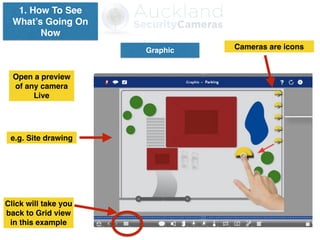
Switch views with this button
Graphic
e.g. Site drawing
Cameras are icons
Open a preview
of any camera
Live
1. How To See
What’s Going On
Now
Click will take you
back to Grid view
in this example
2 things that are always available at the top
of the screen are the Group Bar and the
Camera Bar, no matter what view you’re in.
1. How To See
What’s Going On
Now
Use the camera bar at
any time, to go to the
Live view of any
particular camera
If you get lost …
remember you
can always go
Home
1. How To See
What’s Going On
Now
This Guide Covers 3 Things
1. How To See What’s Going On Now
2. How To See What Happened In The Past
3. How To Send Evidence To Someone Else
This Guide Covers 3 Things
1. How To See What’s Going On Now
2. How To See What Happened In The Past
3. How To Send Evidence To Someone Else
There are 3 main ways to get into Playback view
2. How To See What
Happened In The
Past
1. Drag the
Recent Events
slider to see
previews of
what happened
recently
2. Then either
play a preview
right there using
play button on
left , or go to
Player by
clicking the play
icon
1st way to Playback
2. How To See What
Happened In The
Past
1. Open the
Camera Bar at
the top of the
screen
2. Click on the
Player icon for
the camera you
want
2nd way to Playback
2. How To See What
Happened In The
Past
1. Long click on
the View
Selection button
2. Select
Playback
3rd way to Playback
Use these controls for searching and playback
2. How To See What
Happened In The
Past
2. How To See What
Happened
Type in a date
and time and hit
enter
2. How To See What
Happened In The
Past
2. How To See What
Happened
This button determines what you
see when you search so always
check what it’s set to
2. How To See What
Happened In The
Past
2. How To See What
Happened
Event Images
is really useful for
searching for footage
of an incident
Select it and then click
the Play button
2. How To See What
Happened In The
Past
2. How To See What
Happened
Time Lapse can be
handy when you’re not
sure of the time frame
Select it
and then
click the
Play
backwards
button
2. How To See What
Happened In The
Past
2. How To See What
Happened
Entire Recordings
plays video from now
until the end of all
recordings
Event Recording
plays a single whole
recording event only
Then once you’re
around the right time,
use Normal Playback
to see real time video
clips
2. How To See What
Happened In The
Past
2. How To See What
Happened
1. Long click and
select Research
Lets you see recent
events in mini.
Then lets you switch
to the Playback view
for more detailed
analysis
4. Playback & even
zoom
2. Choose whether 1 camera,
1 Group or All cameras
3. Mouse over an event
2. How To See What
Happened In The
Past
This Guide Covers 3 Things
1. How To See What’s Going On Now
2. How To See What Happened In The Past
3. How To Send Evidence To Someone Else
3. How To Send
Evidence To
Someone Else
Playback
Entire Recordings
plays one whole
recording event after
another
1. Go to start of
incident.
3. How To Send
Evidence To
Someone Else
2. Click on the little flag. It turns green. This
selects 1 minute of footage starting at the time
shown. (If you want more or less than 1 minute
simply play to the end of your selection, Pause,
Long Click on the flag & Adjust End.)
FYI:
During testing
1 minute = 15.7 Mb
Playback
3. How To Send
Evidence To
Someone Else
3. Click on the Export button. Select MOBOTIX
from the pop-up menu. Tell it where to save the
footage. DONE!
Playback
3. How To Send
Evidence To
Someone Else
Well … almost done.
First you need to have some software to play
MOBOTIX videos.
On PC download Direct Show Codec from
MOBOTIX site or use VLC
On Mac use VLC
This button is the
most important one
in the whole system.
It lets you switch
between the different
views.
Recap This is how you tell
which view you’re in
If you get lost Go
Home!
MX Management Center User Guide
VERSION 2 CREATED 5 FEB 2016

Mx management center user guide v2

  • 1.
    MX Management CenterUser Guide VERSION 2 CREATED 5 FEB 2016
  • 2.
    This Guide Covers3 Things 1. How To See What’s Going On Now 2. How To See What Happened In The Past 3. How To Send Evidence To Someone Else
  • 3.
    This Guide Covers3 Things 1. How To See What’s Going On Now 2. How To See What Happened In The Past 3. How To Send Evidence To Someone Else
  • 4.
    1. How ToSee What’s Going On Now 3 Options Live GraphicGrid One camera at a time Several cameras
  • 5.
    1. How ToSee What’s Going On Now KEY CONCEPT SHORT TAP selects the icon LONG TAP shows a menu behind the icon
  • 6.
    This button isthe most important one in the whole system. It lets you switch between the different views. 1. How To See What’s Going On Now This is how you tell which view you’re in
  • 7.
    Zoom Look at recentevents Drag any image into focus window 1. How To See What’s Going On Now Switch views with this button
  • 8.
    Graphic e.g. Site drawing Camerasare icons Open a preview of any camera Live 1. How To See What’s Going On Now Click will take you back to Grid view in this example
  • 9.
    2 things thatare always available at the top of the screen are the Group Bar and the Camera Bar, no matter what view you’re in. 1. How To See What’s Going On Now Use the camera bar at any time, to go to the Live view of any particular camera
  • 10.
    If you getlost … remember you can always go Home 1. How To See What’s Going On Now
  • 11.
    This Guide Covers3 Things 1. How To See What’s Going On Now 2. How To See What Happened In The Past 3. How To Send Evidence To Someone Else
  • 12.
    This Guide Covers3 Things 1. How To See What’s Going On Now 2. How To See What Happened In The Past 3. How To Send Evidence To Someone Else There are 3 main ways to get into Playback view
  • 13.
    2. How ToSee What Happened In The Past 1. Drag the Recent Events slider to see previews of what happened recently 2. Then either play a preview right there using play button on left , or go to Player by clicking the play icon 1st way to Playback
  • 14.
    2. How ToSee What Happened In The Past 1. Open the Camera Bar at the top of the screen 2. Click on the Player icon for the camera you want 2nd way to Playback
  • 15.
    2. How ToSee What Happened In The Past 1. Long click on the View Selection button 2. Select Playback 3rd way to Playback
  • 16.
    Use these controlsfor searching and playback 2. How To See What Happened In The Past
  • 17.
    2. How ToSee What Happened Type in a date and time and hit enter 2. How To See What Happened In The Past
  • 18.
    2. How ToSee What Happened This button determines what you see when you search so always check what it’s set to 2. How To See What Happened In The Past
  • 19.
    2. How ToSee What Happened Event Images is really useful for searching for footage of an incident Select it and then click the Play button 2. How To See What Happened In The Past
  • 20.
    2. How ToSee What Happened Time Lapse can be handy when you’re not sure of the time frame Select it and then click the Play backwards button 2. How To See What Happened In The Past
  • 21.
    2. How ToSee What Happened Entire Recordings plays video from now until the end of all recordings Event Recording plays a single whole recording event only Then once you’re around the right time, use Normal Playback to see real time video clips 2. How To See What Happened In The Past
  • 22.
    2. How ToSee What Happened 1. Long click and select Research Lets you see recent events in mini. Then lets you switch to the Playback view for more detailed analysis 4. Playback & even zoom 2. Choose whether 1 camera, 1 Group or All cameras 3. Mouse over an event 2. How To See What Happened In The Past
  • 23.
    This Guide Covers3 Things 1. How To See What’s Going On Now 2. How To See What Happened In The Past 3. How To Send Evidence To Someone Else
  • 24.
    3. How ToSend Evidence To Someone Else Playback Entire Recordings plays one whole recording event after another 1. Go to start of incident.
  • 25.
    3. How ToSend Evidence To Someone Else 2. Click on the little flag. It turns green. This selects 1 minute of footage starting at the time shown. (If you want more or less than 1 minute simply play to the end of your selection, Pause, Long Click on the flag & Adjust End.) FYI: During testing 1 minute = 15.7 Mb Playback
  • 26.
    3. How ToSend Evidence To Someone Else 3. Click on the Export button. Select MOBOTIX from the pop-up menu. Tell it where to save the footage. DONE! Playback
  • 27.
    3. How ToSend Evidence To Someone Else Well … almost done. First you need to have some software to play MOBOTIX videos. On PC download Direct Show Codec from MOBOTIX site or use VLC On Mac use VLC
  • 28.
    This button isthe most important one in the whole system. It lets you switch between the different views. Recap This is how you tell which view you’re in If you get lost Go Home!
  • 29.
    MX Management CenterUser Guide VERSION 2 CREATED 5 FEB 2016