




05.More on Application
Structure
Oum Saokosal
Master of Engineering in Information Systems, South Korea
855-12-252-752
oum_saokosal@yahoo.com
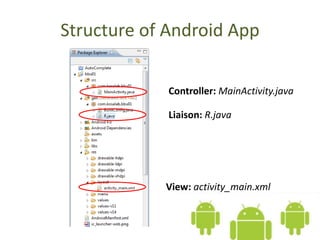
Structure of Android App
Controller: MainActivity.java
Liaison: R.java
View: activity_main.xml
R.java
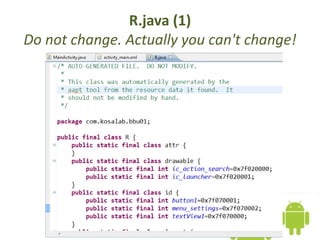
R.java (1)
Do not change. Actually you can't change!
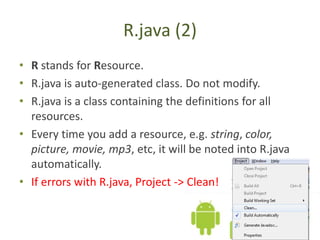
R.java (2)
• R stands for Resource.
• R.java is auto-generated class. Do not modify.
• R.java is a class containing the definitions for all
resources.
• Every time you add a resource, e.g. string, color,
picture, movie, mp3, etc, it will be noted into R.java
automatically.
• If errors with R.java, Project -> Clean!
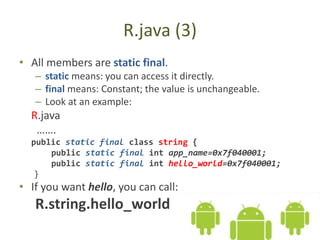
R.java (3)
• All members are static final.
– static means: you can access it directly.
– final means: Constant; the value is unchangeable.
– Look at an example:
R.java
…….
public static final class string {
public static final int app_name=0x7f040001;
public static final int hello_world=0x7f040001;
}
• If you want hello, you can call:
R.string.hello_world
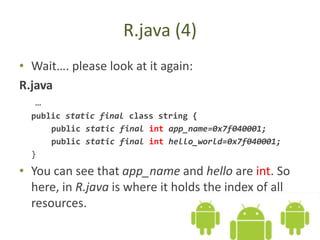
R.java (4)
• Wait…. please look at it again:
R.java
…
public static final class string {
public static final int app_name=0x7f040001;
public static final int hello_world=0x7f040001;
}
• You can see that app_name and hello are int. So
here, in R.java is where it holds the index of all
resources.
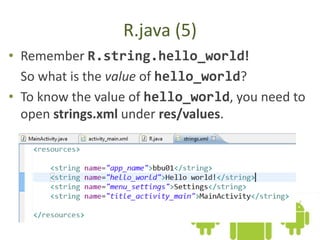
R.java (5)
• Remember R.string.hello_world!
So what is the value of hello_world?
• To know the value of hello_world, you need to
open strings.xml under res/values.
R.java (6)
• Bottom line, when you invoke
R.string.hello_world in an Activity,
you get the "hello World!" from
strings.xml
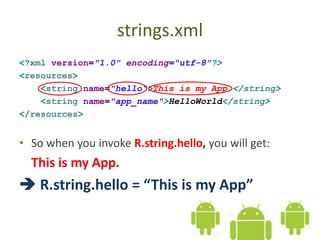
strings.xml
strings.xml
<?xml version="1.0" encoding="utf-8"?>
<resources>
<string name="hello“>This is my App.</string>
<string name="app_name">HelloWorld</string>
</resources>
• So when you invoke R.string.hello, you will get:
This is my App.
 R.string.hello = “This is my App”
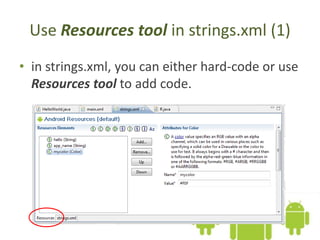
Use Resources tool in strings.xml (1)
• in strings.xml, you can either hard-code or use
Resources tool to add code.
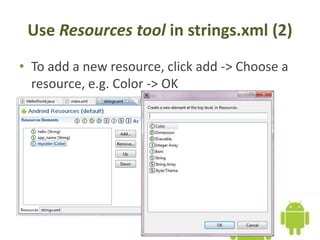
Use Resources tool in strings.xml (2)
• To add a new resource, click add -> Choose a
resource, e.g. Color -> OK
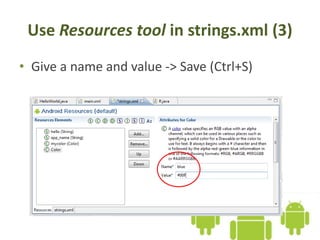
Use Resources tool in strings.xml (3)
• Give a name and value -> Save (Ctrl+S)
Use Resources tool in strings.xml (4)
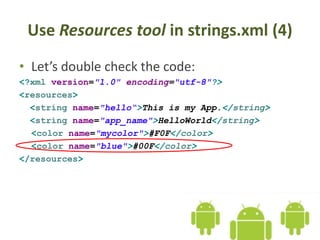
• Let’s double check the code:
<?xml version="1.0" encoding="utf-8"?>
<resources>
<string name="hello“>This is my App.</string>
<string name="app_name">HelloWorld</string>
<color name="mycolor">#F0F</color>
<color name="blue">#00F</color>
</resources>
activity_main.xml
main.xml (1) – A Call from HelloWorld.java
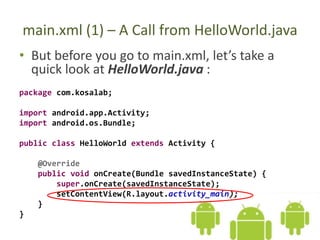
• But before you go to main.xml, let’s take a
quick look at HelloWorld.java :
package com.kosalab;
import android.app.Activity;
import android.os.Bundle;
public class HelloWorld extends Activity {
@Override
public void onCreate(Bundle savedInstanceState) {
super.onCreate(savedInstanceState);
setContentView(R.layout.activity_main);
}
}
main.xml (2) – R.layout.main
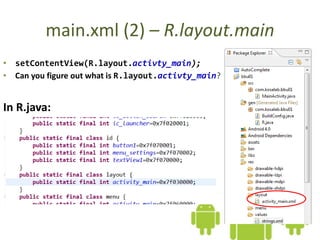
• setContentView(R.layout.activty_main);
• Can you figure out what is R.layout.activty_main?
In R.java:
main.xml (3) – setContentView()
• setContentView(int layoutResId):
By using setContentView(int layoutResId) method, a
layout will be displayed on the screen.
• setContentView(R.layout.activity_main)
means to add activity_main.xml layout onto the
screen.
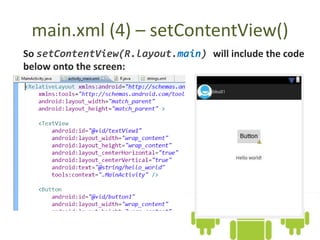
main.xml (4) – setContentView()
So setContentView(R.layout.main) will include the code
below onto the screen:
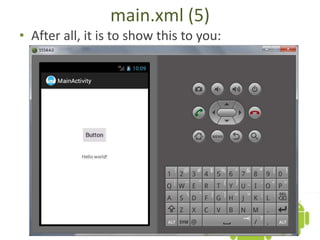
main.xml (5)
• After all, it is to show this to you:
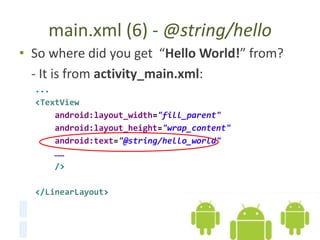
main.xml (6) - @string/hello
• So where did you get “Hello World!” from?
- It is from activity_main.xml:
...
<TextView
android:layout_width="fill_parent"
android:layout_height="wrap_content"
android:text="@string/hello_world"
……
/>
</LinearLayout>
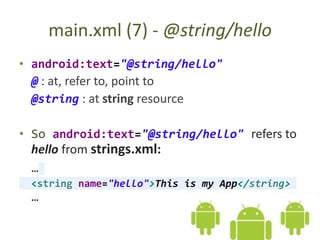
main.xml (7) - @string/hello
• android:text="@string/hello"
@ : at, refer to, point to
@string : at string resource
• So android:text="@string/hello" refers to
hello from strings.xml:
…
<string name="hello">This is my App</string>
…
main.xml (8) – Skeleton
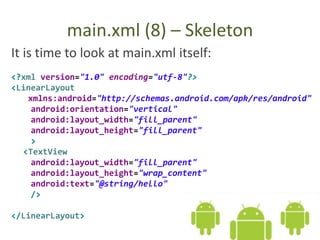
It is time to look at main.xml itself:
<?xml version="1.0" encoding="utf-8"?>
<LinearLayout
xmlns:android="http://schemas.android.com/apk/res/android"
android:orientation="vertical"
android:layout_width="fill_parent"
android:layout_height="fill_parent"
>
<TextView
android:layout_width="fill_parent"
android:layout_height="wrap_content"
android:text="@string/hello"
/>
</LinearLayout>
main.xml (9) – Skeleton
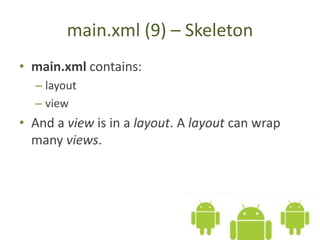
• main.xml contains:
– layout
– view
• And a view is in a layout. A layout can wrap
many views.
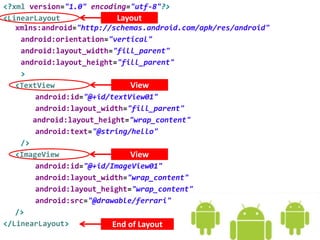
<?xml version="1.0" encoding="utf-8"?>
<LinearLayout
xmlns:android="http://schemas.android.com/apk/res/android"
android:orientation="vertical"
android:layout_width="fill_parent"
android:layout_height="fill_parent"
>
<TextView
android:id="@+id/textView01"
android:layout_width="fill_parent"
android:layout_height="wrap_content"
android:text="@string/hello"
/>
<ImageView
android:id="@+id/ImageView01"
android:layout_width="wrap_content"
android:layout_height="wrap_content"
android:src="@drawable/ferrari"
/>
</LinearLayout>
Layout
View
View
End of Layout
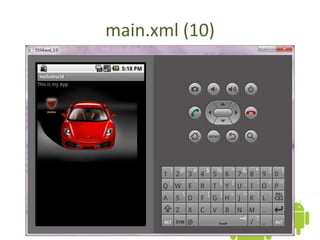
main.xml (10)
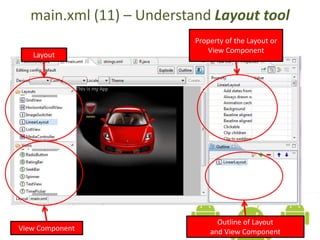
main.xml (11) – Understand Layout tool
Layout
View Component
Outline of Layout
and View Component
Property of the Layout or
View Component
Go on to the next slide

More on Application Structure