Presenter : Khizra Samad
   Previously named "FoneMonkey"

   Tool for automated testing of
    iOS, Android, HTML5 and Adobe Flex
    applications

    MonkeyTalk is an integrated environment for
    recording, customizing, running and managing
    test suites.
Features and Benefits
   Free & Open Source

   Powerful and robust record and playback functions for
    mobile applications.

   Powerful IDE

   Fully cross platform

   No jailbreaking needed

                                                   Continue….
   Run on real hardware

   Readable scripts

   Javascript scripts

   Data-driven scripts

   JUnit-compatible XML reports

   HTML reports too
Components

   MonkeyTalk IDE

   MonkeyTalk Agents
MonkeyTalk IDE
MonkeyTalk Agents
Monkey Talk Capabilities

   Test suites / Test Case Creation
   Reusing scripts
   Data-driving scripts with CSV files
   Extending MonkeyTalk with JavaScript
Installing MonkeyTalk Android Agent
1- Open Android Project in Eclipse Convert Android project to Aspect J


2- Copy the MonkeyTalk-agent.jar into the libs folder in Project
Installation conti…


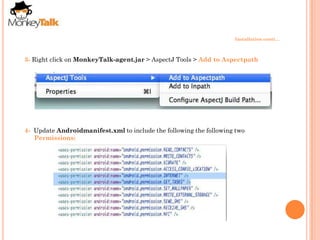
3- Right click on MonkeyTalk-agent.jar > AspectJ Tools > Add to Aspectpath


4- Update Androidmanifest.xml to include the following the following two
   Permissions:
Installation conti…

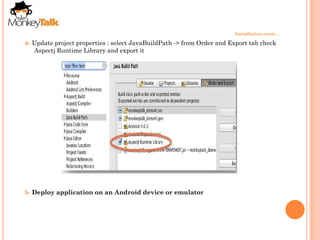
4- Update project properties : select JavaBuildPath -> from Order and Export tab check
   Aspectj Runtime Library and export it


5- Deploy application on an Android device or emulator
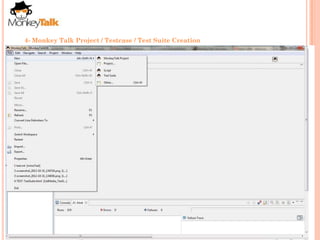
4- Monkey Talk Project / Testcase / Test Suite Creation
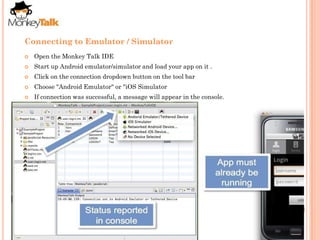
Connecting to Emulator / Simulator
   Open the Monkey Talk IDE
   Start up Android emulator/simulator and load your app on it .
   Click on the connection dropdown button on the tool bar
   Choose "Android Emulator" or "iOS Simulator
   If connection was successful, a message will appear in the console.
   Open the IDE
   Start up your Android device, connect it to your local wireless network, load your app
    on it.
   Click on the connection dropdown button on the tool.
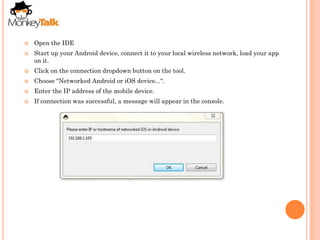
   Choose "Networked Android or iOS device...".
   Enter the IP address of the mobile device.
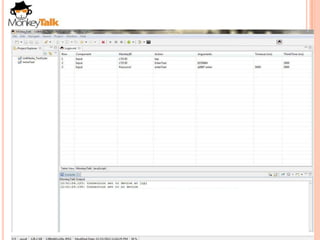
   If connection was successful, a message will appear in the console.
REFERENCE

   https://www.gorillalogic.com/monkeytalk
Thank You

Monkey talk

  • 1.
  • 2.
    Previously named "FoneMonkey"  Tool for automated testing of iOS, Android, HTML5 and Adobe Flex applications  MonkeyTalk is an integrated environment for recording, customizing, running and managing test suites.
  • 3.
    Features and Benefits  Free & Open Source  Powerful and robust record and playback functions for mobile applications.  Powerful IDE  Fully cross platform  No jailbreaking needed Continue….
  • 4.
    Run on real hardware  Readable scripts  Javascript scripts  Data-driven scripts  JUnit-compatible XML reports  HTML reports too
  • 5.
    Components  MonkeyTalk IDE  MonkeyTalk Agents
  • 6.
  • 7.
  • 8.
    Monkey Talk Capabilities  Test suites / Test Case Creation  Reusing scripts  Data-driving scripts with CSV files  Extending MonkeyTalk with JavaScript
  • 9.
    Installing MonkeyTalk AndroidAgent 1- Open Android Project in Eclipse Convert Android project to Aspect J 2- Copy the MonkeyTalk-agent.jar into the libs folder in Project
  • 10.
    Installation conti… 3- Rightclick on MonkeyTalk-agent.jar > AspectJ Tools > Add to Aspectpath 4- Update Androidmanifest.xml to include the following the following two Permissions:
  • 11.
    Installation conti… 4- Updateproject properties : select JavaBuildPath -> from Order and Export tab check Aspectj Runtime Library and export it 5- Deploy application on an Android device or emulator
  • 12.
    4- Monkey TalkProject / Testcase / Test Suite Creation
  • 13.
    Connecting to Emulator/ Simulator  Open the Monkey Talk IDE  Start up Android emulator/simulator and load your app on it .  Click on the connection dropdown button on the tool bar  Choose "Android Emulator" or "iOS Simulator  If connection was successful, a message will appear in the console.
  • 14.
    Open the IDE  Start up your Android device, connect it to your local wireless network, load your app on it.  Click on the connection dropdown button on the tool.  Choose "Networked Android or iOS device...".  Enter the IP address of the mobile device.  If connection was successful, a message will appear in the console.
  • 16.
    REFERENCE  https://www.gorillalogic.com/monkeytalk
  • 17.