WorkshopPLUS -
Data AI: Business
Analytics with Power
BI
Module 1
CONDITIONS AND TERMS OF USE:
© Microsoft Corporation. All rights reserved.
You may use these training materials solely for your personal internal reference and non-commercial purposes. You may not
distribute, transmit, resell or otherwise make these training materials available to any other person or party without express
permission from Microsoft Corporation. URL’s or other internet website references in the training materials may change without
notice. Unless otherwise noted, any companies, organizations, domain names, e-mail addresses, people, places and events
depicted in the training materials are for illustration only and are fictitious. No real association is intended or inferred. THESE
TRAINING MATERIALS ARE PROVIDED “AS IS”; MICROSOFT MAKES NO WARRANTIES, EXPRESS OR IMPLIED IN
THESE TRAINING MATERIALS.
Learning Units
covered in this
Module
• Lesson 1: Motivation
• Lesson 2: Connecting to Data
• Lesson 3: Shaping Data
• Lesson 4: Creating a Data Model
• Lesson 5: Calculations
• Lesson 6: Building Reports
• Lesson 7: Sharing
Lesson 1: Motivation
Objectives
After completing this learning, you will be able to:
 Describe Power BI components and its benefits to business
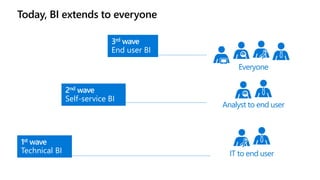
Today, BI extends to everyone
Everyone
Analyst to end user
IT to end user
2nd wave
Self-service BI
1st wave
Technical BI
3rd wave
End user BI
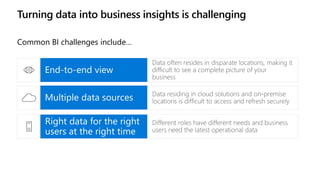
Turning data into business insights is challenging
Common BI challenges include…
Multiple data sources
End-to-end view
Right data for the right
users at the right time
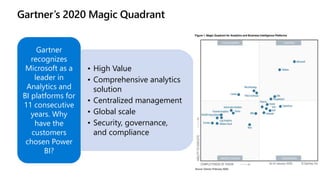
Gartner’s 2020 Magic Quadrant
• High Value
• Comprehensive analytics
solution
• Centralized management
• Global scale
• Security, governance,
and compliance
Gartner
recognizes
Microsoft as a
leader in
Analytics and
BI platforms for
11 consecutive
years. Why
have the
customers
chosen Power
BI?
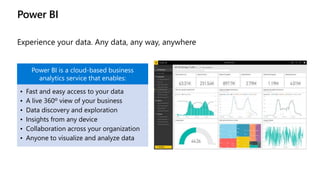
Power BI
Experience your data. Any data, any way, anywhere
Power BI is a cloud-based business
analytics service that enables:
• Fast and easy access to your data
• A live 360º view of your business
• Data discovery and exploration
• Insights from any device
• Collaboration across your organization
• Anyone to visualize and analyze data
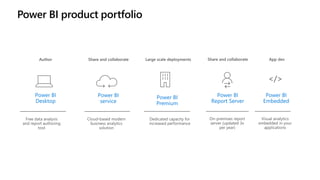
Power BI product portfolio
Power BI
service
Power BI
Premium
Power BI
Desktop
Power BI
Report Server
Power BI
Embedded
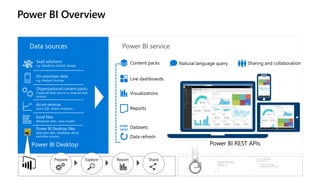
Power BI Overview
Data sources Power BI service
SaaS solutions
e.g. Salesforce, GitHub, Google
On-premises data
e.g. Analysis Services
Organizational content packs
Corporate data sources or external data
services
Azure services
Azure SQL, Stream Analytics…
Excel files
Workbook data / data models
Power BI Desktop files
Data from files, databases, Azure,
and other sources Data refresh
Visualizations
Live dashboards
Content packs Sharing and collaboration
Natural language query
Reports
Datasets
01001
10101
Power BI REST APIs
Power BI Desktop
Prepare Explore Share
Report
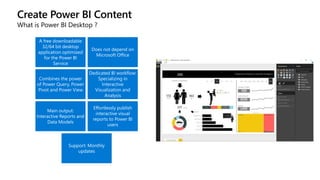
Create Power BI Content
What is Power BI Desktop ?
A free downloadable
32/64 bit desktop
application optimized
for the Power BI
Service
Does not depend on
Microsoft Office
Combines the power
of Power Query, Power
Pivot and Power View
Dedicated BI workflow:
Specializing in
Interactive
Visualization and
Analysis
Main output:
Interactive Reports and
Data Models
Effortlessly publish
interactive visual
reports to Power BI
users
Support: Monthly
updates
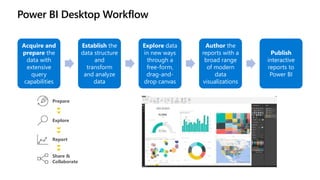
Power BI Desktop Workflow
Acquire and
prepare the
data with
extensive
query
capabilities
Establish the
data structure
and
transform
and analyze
data
Explore data
in new ways
through a
free-form,
drag-and-
drop canvas
Author the
reports with a
broad range
of modern
data
visualizations
Publish
interactive
reports to
Power BI
Prepare
Explore
Report
Share &
Collaborate
Questions?
Knowledge Check
What are the different business intelligence challenges?
•What is the primary tool used for Power BI Report development?
Lesson 2: Connection to Data
Objectives
After completing this learning, you will be able to:
 Describe different data sources for Power BI
 Describe different data connectivity modes
Connecting Data - Prepare
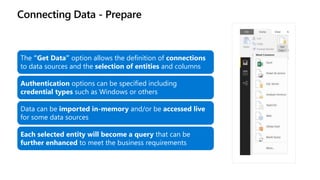
The “Get Data” option allows the definition of connections
to data sources and the selection of entities and columns
Authentication options can be specified including
credential types such as Windows or others
Data can be imported in-memory and/or be accessed live
for some data sources
Each selected entity will become a query that can be
further enhanced to meet the business requirements
Connecting Data - Prepare
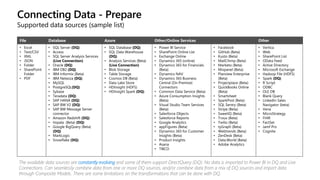
Supported data sources (sample list)
The available data sources are constantly evolving and some of them support DirectQuery (DQ). No data is imported to Power BI in DQ and Live
Connections. Can seamlessly combine data from one or more DQ sources, and/or combine data from a mix of DQ sources and import data
through Composite Models. There are some limitations on the transformations that can be done with DQ.
File Database Azure Other/Online Services Other
• Excel
• Text/CSV
• XML
• JSON
• Folder
• SharePoint
Folder
• PDF
• SQL Server (DQ)
• Access
• SQL Server Analysis Services
(Live Connection)
• Oracle (DQ)
• IBM DB2 (DQ)
• IBM Informix (Beta)
• IBM Netezza (DQ)
• MySQL
• PostgreSQL(DQ)
• Sybase
• Teradata (DQ)
• SAP HANA (DQ)
• SAP BW V2 (DQ)
• SAP BW Message Server
connector
• Amazon Redshift (DQ)
• Impala (Beta) (DQ)
• Google BigQuery (Beta)
(DQ)
• MarkLogic
• Snowflake (DQ)
• SQL Database (DQ)
• SQL Data Warehouse
(DQ)
• Analysis Services (Beta)
(Live Connection)
• Blob Storage
• Table Storage
• Cosmos DB (Beta)
• Data Lake Store
• HDInsight (HDFS)
• HDInsight Spark (DQ)
• Power BI Service
• SharePoint Online List
• Exchange Online
• Dynamics 365 (online)
• Dynamics 365 for Financials
(Beta)
• Dynamics NAV
• Dynamics 365 Business
Central (On Premise)
Connectors
• Common Data Service (Beta)
• Azure Consumption Insights
(Beta)
• Visual Studio Team Services
(Beta)
• Salesforce Objects
• Salesforce Reports
• Google Analytics
• appFigures (Beta)
• Dynamics 365 for Customer
Insights (Beta)
• Product Insights
• Asana
• TIBCO
• Facebook
• GitHub (Beta)
• Kusto (Beta)
• MailChimp (Beta)
• Marketo (Beta)
• Mixpanel (Beta)
• Planview Enterprise
(Beta)
• Projectplace (Beta)
• QuickBooks Online
(Beta)
• Smartsheet
• SparkPost (Beta)
• SQL Sentry (Beta)
• Stripe (Beta)
• SweetIQ (Beta)
• Troux (Beta)
• Twilio (Beta)
• tyGraph (Beta)
• Webtrends (Beta)
• ZenDesk (Beta)
• Data.World (Beta)
• Adobe Analytics
• Vertica
• Web
• SharePoint List
• OData Feed
• Active Directory
• Microsoft Exchange
• Hadoop File (HDFS)
• Spark (DQ)
• R Script
• ODBC
• OLE DB
• Blank Query
• LinkedIn Sales
Navigator (beta)
• Vena
• MicroStrategy
• FHIR
• FactSet
• Jamf Pro
• Cognite
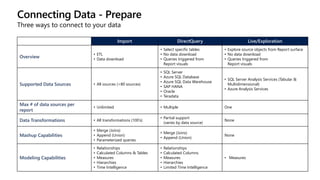
Import DirectQuery Live/Exploration
Overview
• ETL
• Data download
• Select specific tables
• No data download
• Queries triggered from
Report visuals
• Explore source objects from Report surface
• No data download
• Queries triggered from
Report visuals
Supported Data Sources • All sources (>80 sources)
• SQL Server
• Azure SQL Database
• Azure SQL Data Warehouse
• SAP HANA
• Oracle
• Teradata
• SQL Server Analysis Services (Tabular &
Multidimensional)
• Azure Analysis Services
Max # of data sources per
report
• Unlimited • Multiple One
Data Transformations • All transformations (100’s)
• Partial support
(varies by data source)
None
Mashup Capabilities
• Merge (Joins)
• Append (Union)
• Parameterized queries
• Merge (Joins)
• Append (Union)
None
Modeling Capabilities
• Relationships
• Calculated Columns & Tables
• Measures
• Hierarchies
• Time Intelligence
• Relationships
• Calculated Columns
• Measures
• Hierarchies
• Limited Time Intelligence
• Measures
Connecting Data - Prepare
Three ways to connect to your data
Connecting Data - Prepare
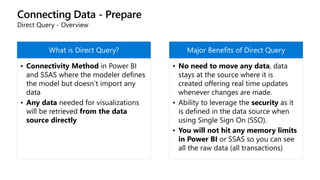
Direct Query - Overview
What is Direct Query?
• Connectivity Method in Power BI
and SSAS where the modeler defines
the model but doesn’t import any
data
• Any data needed for visualizations
will be retrieved from the data
source directly
Major Benefits of Direct Query
• No need to move any data, data
stays at the source where it is
created offering real time updates
whenever changes are made.
• Ability to leverage the security as it
is defined in the data source when
using Single Sign On (SSO).
• You will not hit any memory limits
in Power BI or SSAS so you can see
all the raw data (all transactions)
Connecting Data - Prepare
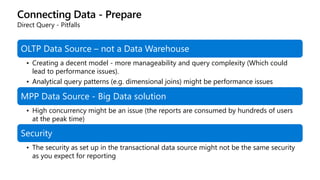
Direct Query - Pitfalls
OLTP Data Source – not a Data Warehouse
• Creating a decent model - more manageability and query complexity (Which could
lead to performance issues).
• Analytical query patterns (e.g. dimensional joins) might be performance issues
MPP Data Source - Big Data solution
• High concurrency might be an issue (the reports are consumed by hundreds of users
at the peak time)
Security
• The security as set up in the transactional data source might not be the same security
as you expect for reporting
Connecting Data - Prepare
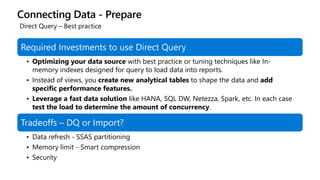
Required Investments to use Direct Query
• Optimizing your data source with best practice or tuning techniques like In-
memory indexes designed for query to load data into reports.
• Instead of views, you create new analytical tables to shape the data and add
specific performance features.
• Leverage a fast data solution like HANA, SQL DW, Netezza, Spark, etc. In each case
test the load to determine the amount of concurrency.
Tradeoffs – DQ or Import?
• Data refresh - SSAS partitioning
• Memory limit - Smart compression
• Security
Direct Query – Best practice
Connecting Data - Prepare
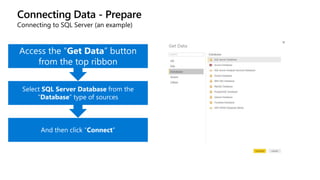
And then click “Connect”
Select SQL Server Database from the
“Database” type of sources
Access the “Get Data” button
from the top ribbon
Connecting to SQL Server (an example)
Connecting Data - Prepare
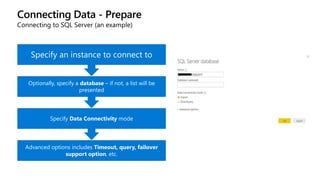
Advanced options includes Timeout, query, failover
support option, etc.
Specify Data Connectivity mode
Optionally, specify a database – if not, a list will be
presented
Specify an instance to connect to
Connecting to SQL Server (an example)
Connecting Data - Prepare
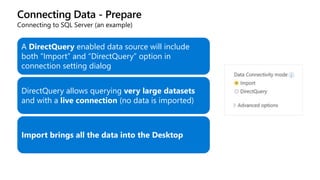
Connecting to SQL Server (an example)
A DirectQuery enabled data source will include
both “Import” and “DirectQuery” option in
connection setting dialog
DirectQuery allows querying very large datasets
and with a live connection (no data is imported)
Import brings all the data into the Desktop
Connecting Data - Prepare
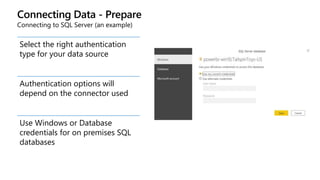
Connecting to SQL Server (an example)
Select the right authentication
type for your data source
Authentication options will
depend on the connector used
Use Windows or Database
credentials for on premises SQL
databases
Connecting Data - Prepare
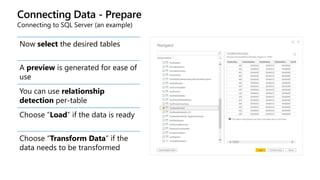
Connecting to SQL Server (an example)
Now select the desired tables
A preview is generated for ease of
use
You can use relationship
detection per-table
Choose “Load” if the data is ready
Choose “Transform Data” if the
data needs to be transformed
Connecting Data - Prepare
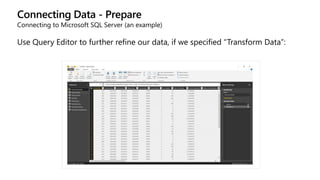
Connecting to Microsoft SQL Server (an example)
Use Query Editor to further refine our data, if we specified “Transform Data”:
Connecting Data - Prepare
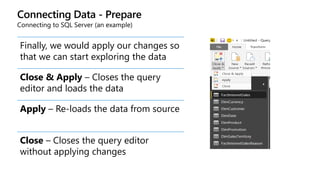
Connecting to SQL Server (an example)
Finally, we would apply our changes so
that we can start exploring the data
Close & Apply – Closes the query
editor and loads the data
Apply – Re-loads the data from source
Close – Closes the query editor
without applying changes
Connecting Data - Prepare
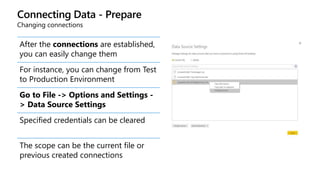
Changing connections
After the connections are established,
you can easily change them
For instance, you can change from Test
to Production Environment
Go to File -> Options and Settings -
> Data Source Settings
Specified credentials can be cleared
The scope can be the current file or
previous created connections
Connecting Data - Prepare
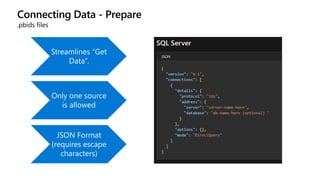
.pbids files
Streamlines “Get
Data”.
Only one source
is allowed
JSON Format
(requires escape
characters)
Connecting Data - Prepare
Power BI Custom Connectors
Create your own data connector which can be added to the Get Data menu.
Connect to a data source that may not be supported yet by Power BI Desktop or simplify
access to data marts or other sources
Use your own logic, and use multiple options for credentials, such as Windows, basic, API
Key, and database authentication; and more.
The connector can work in both Import or DirectQuery and works with the gateway.
Created using the same M language used by Power Query; (Power Query SDK is available for
Visual Studio)
Connecting Data - Prepare
Power BI Custom Connectors
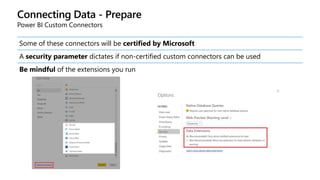
Some of these connectors will be certified by Microsoft
A security parameter dictates if non-certified custom connectors can be used
Be mindful of the extensions you run
Questions?
Knowledge Check
•What is the primary difference between the two data connectivity modes in
Power BI - Direct Query (DQ) and Import?
•Name some connectors that support Direct Query connection
Lesson 3: Shaping Data
Objectives
After completing this learning, you will be able to:
 Describe shaping data to meet business requirements
 Learn different data transformation methods in Power BI
Shaping Data
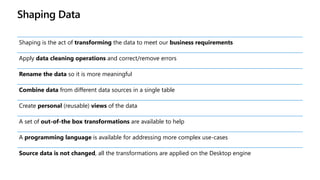
Shaping is the act of transforming the data to meet our business requirements
Apply data cleaning operations and correct/remove errors
Rename the data so it is more meaningful
Combine data from different data sources in a single table
Create personal (reusable) views of the data
A set of out-of-the box transformations are available to help
A programming language is available for addressing more complex use-cases
Source data is not changed, all the transformations are applied on the Desktop engine
Shaping Data
Power Query Editor
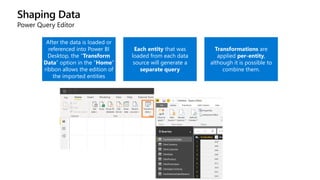
After the data is loaded or
referenced into Power BI
Desktop, the “Transform
Data” option in the “Home”
ribbon allows the edition of
the imported entities
Each entity that was
loaded from each data
source will generate a
separate query
Transformations are
applied per-entity,
although it is possible to
combine them.
Shaping Data
Power Query Editor
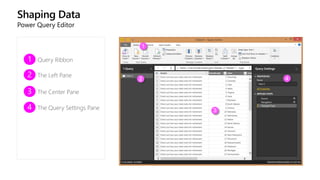
Query Ribbon
The Left Pane
The Center Pane
The Query Settings Pane
Shaping Data
Power Query Editor – Ribbon
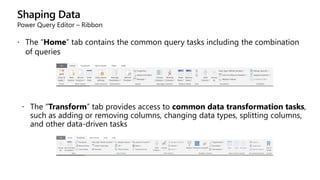
 The “Home” tab contains the common query tasks including the combination
of queries
 The “Transform” tab provides access to common data transformation tasks,
such as adding or removing columns, changing data types, splitting columns,
and other data-driven tasks
Shaping Data
Power Query Editor – Ribbon
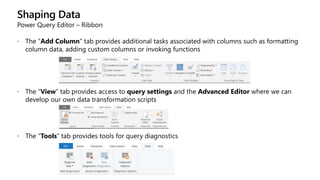
 The “Add Column” tab provides additional tasks associated with columns such as formatting
column data, adding custom columns or invoking functions
 The “View” tab provides access to query settings and the Advanced Editor where we can
develop our own data transformation scripts
 The “Tools” tab provides tools for query diagnostics
Shaping Data
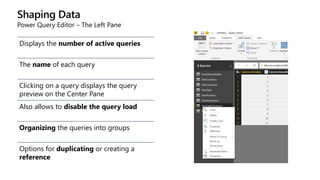
Power Query Editor – The Left Pane
Displays the number of active queries
The name of each query
Clicking on a query displays the query
preview on the Center Pane
Also allows to disable the query load
Organizing the queries into groups
Options for duplicating or creating a
reference
Shaping Data
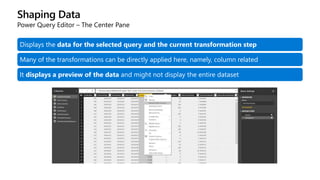
Power Query Editor – The Center Pane
Displays the data for the selected query and the current transformation step
Many of the transformations can be directly applied here, namely, column related
It displays a preview of the data and might not display the entire dataset
Shaping Data
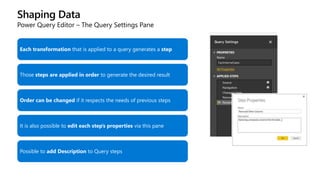
Power Query Editor – The Query Settings Pane
Each transformation that is applied to a query generates a step
Those steps are applied in order to generate the desired result
Order can be changed if it respects the needs of previous steps
It is also possible to edit each step’s properties via this pane
Possible to add Description to Query steps
Demonstration
Building a Query
• Query Features Inside of
Power BI Desktop
Shaping Data
Available Data Transformations
• Filter Table
• Pivot/Unpivot
• Change Data Types
• Text/Number/Date Formatting
• Extract parts of strings
• Fill Rows
• Expand Rows from a related table
• Merge Queries
• Append Queries
• Combine Binaries
And more …
• Manage columns
• Reduce rows
• Merge/Split columns
• Group rows in a table
• Aggregate data from a table
• Use first Row as headers
• Replace Values
• Transpose
• Reverse Rows
• Count Rows
• Conditional Columns
Transform
Shaping Data
Available Data Transformations
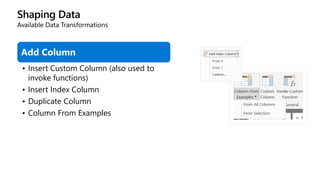
Add Column
• Insert Custom Column (also used to
invoke functions)
• Insert Index Column
• Duplicate Column
• Column From Examples
Shaping Data
Available Data Transformations
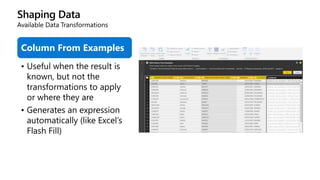
Column From Examples
• Useful when the result is
known, but not the
transformations to apply
or where they are
• Generates an expression
automatically (like Excel’s
Flash Fill)
Shaping Data
Available Data Transformations – Machine Learning Scripts
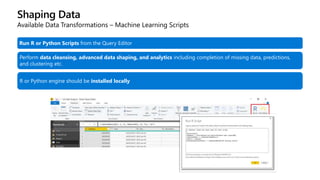
Run R or Python Scripts from the Query Editor
Perform data cleansing, advanced data shaping, and analytics including completion of missing data, predictions,
and clustering etc.
R or Python engine should be installed locally
Shaping Data
Available Data Transformations – Advanced Editor
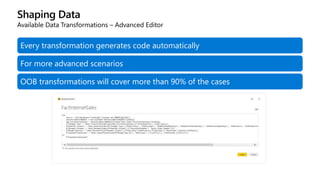
Every transformation generates code automatically
For more advanced scenarios
OOB transformations will cover more than 90% of the cases
Shaping Data
Query folding
In some cases, Power BI Desktop will be able to push the transformation work to the data source
This is important from an optimization perspective.
If query folding doesn’t happen, all the data has to be loaded into the tool
SELECT
[salesordernumber] as [Sales Order Number],
[salesorderlinenumber] AS
[SalesOrderLineNumber],
[salesreasonkey] AS [SalesReasonKey]
FROM
[dbo].[factinternetsalesreason]
WHERE
[salesorderlinenumber] = 2
Shaping Data
Query folding
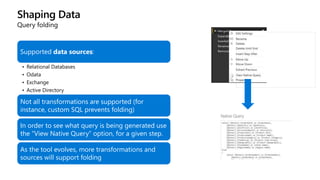
Supported data sources:
• Relational Databases
• Odata
• Exchange
• Active Directory
Not all transformations are supported (for
instance, custom SQL prevents folding)
In order to see what query is being generated use
the “View Native Query” option, for a given step.
As the tool evolves, more transformations and
sources will support folding
Shaping Data
Query formulas
The language was previously known as M or Power Query Formula Language
Has a standard library with built-in functions:
https://msdn.microsoft.com/library/Mt253322?ui=en-US&rs=en-IN&ad=IN
Is case-sensitive and strongly typed
Every transformation generates code automatically. Each step maps to an instruction.
Use the Advanced Editor to edit the query or Blank Query data source to start from an
empty query
Shaping Data
Query formulas – an example
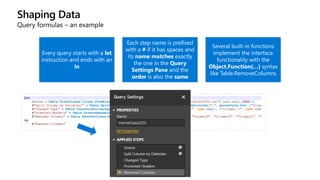
Every query starts with a let
instruction and ends with an
in
Each step name is prefixed
with a # if it has spaces and
its name matches exactly
the one in the Query
Settings Pane and the
order is also the same
Several built-in functions
implement the interface
functionality with the
Object.Function(…) syntax
like Table.RemoveColumns
Shaping Data
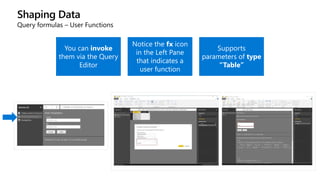
Query formulas – User Functions
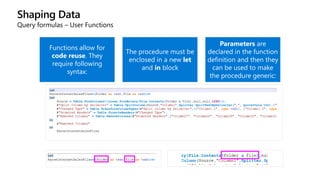
Functions allow for
code reuse. They
require following
syntax:
The procedure must be
enclosed in a new let
and in block
Parameters are
declared in the function
definition and then they
can be used to make
the procedure generic:
Shaping Data
Query formulas – User Functions
You can invoke
them via the Query
Editor
Notice the fx icon
in the Left Pane
that indicates a
user function
Supports
parameters of type
“Table”
Shaping Data
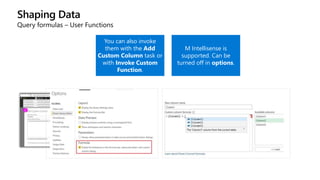
Query formulas – User Functions
You can also invoke
them with the Add
Custom Column task or
with Invoke Custom
Function.
M Intellisense is
supported. Can be
turned off in options.
Shaping Data
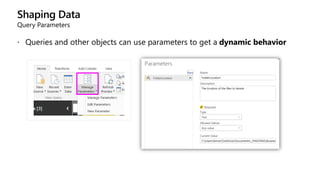
Query Parameters
 Queries and other objects can use parameters to get a dynamic behavior
Shaping Data
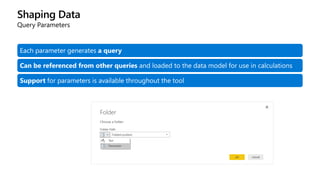
Query Parameters
Each parameter generates a query
Can be referenced from other queries and loaded to the data model for use in calculations
Support for parameters is available throughout the tool
Shaping Data
Query data profiling
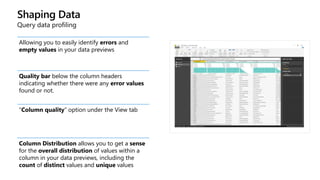
Allowing you to easily identify errors and
empty values in your data previews
Quality bar below the column headers
indicating whether there were any error values
found or not.
“Column quality” option under the View tab
Column Distribution allows you to get a sense
for the overall distribution of values within a
column in your data previews, including the
count of distinct values and unique values
Shaping Data
Query data profiling
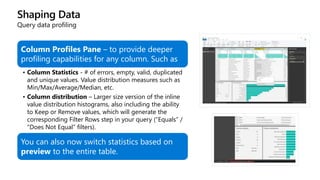
Column Profiles Pane – to provide deeper
profiling capabilities for any column. Such as
• Column Statistics - # of errors, empty, valid, duplicated
and unique values. Value distribution measures such as
Min/Max/Average/Median, etc.
• Column distribution – Larger size version of the inline
value distribution histograms, also including the ability
to Keep or Remove values, which will generate the
corresponding Filter Rows step in your query (“Equals” /
“Does Not Equal” filters).
You can also now switch statistics based on
preview to the entire table.
Shaping Data
Query data profiling
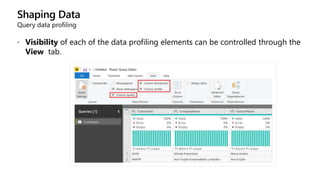
 Visibility of each of the data profiling elements can be controlled through the
View tab.
Shaping Data
AI Insights Query Editor
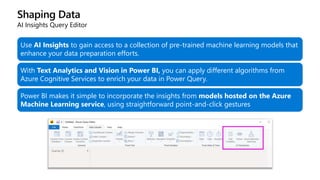
Use AI Insights to gain access to a collection of pre-trained machine learning models that
enhance your data preparation efforts.
With Text Analytics and Vision in Power BI, you can apply different algorithms from
Azure Cognitive Services to enrich your data in Power Query.
Power BI makes it simple to incorporate the insights from models hosted on the Azure
Machine Learning service, using straightforward point-and-click gestures
Shaping Data
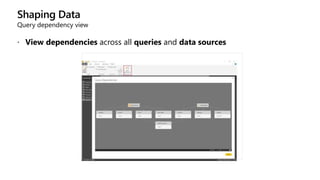
Query dependency view
 View dependencies across all queries and data sources
Demonstration
• Power Query Editor
walkthrough
Power BI Desktop
• Shaping Data
Questions?
Knowledge Check
•Why do we need to shape our data?
•What are some examples of available data transformations in Power BI Desktop?
Lesson 4: Creating a Data Model
Objectives
After completing this learning, you will be able to:
 Describe modeling data to meet business requirements
 Learn different relationship models
 Learn different data types
Creating a Data Model
After data connections are created and the data is shaped according to the business requirements, we
start modeling it
Relationships between the extracted tables can be established to allow filtering
Calculations can be created for additional context or for implementing business metrics or even key
performance indicators
Data can be categorized, typed, and formatted
Custom sorting can be implemented for the attributes
Creating a Data Model
Data View
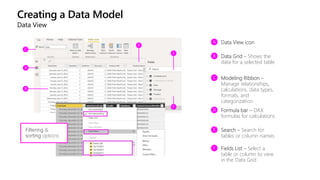
Data View icon
Data Grid – Shows the
data for a selected table
Modeling Ribbon –
Manage relationships,
calculations, data types,
formats, and
categorization
Formula bar – DAX
formulas for calculations
Search – Search for
tables or column names
Fields List – Select a
table or column to view
in the Data Grid
Creating a Data Model
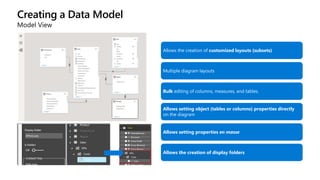
Model View
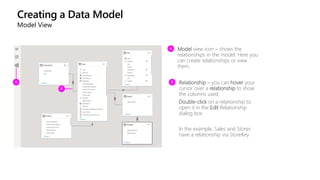
Model view icon – shows the
relationships in the model. Here you
can create relationships or view
them.
Relationship – you can hover your
cursor over a relationship to show
the columns used.
Double-click on a relationship to
open it in the Edit Relationship
dialog box
In the example, Sales and Stores
have a relationship via StoreKey
Creating a Data Model
Model View
Allows the creation of customized layouts (subsets)
Multiple diagram layouts
Bulk editing of columns, measures, and tables.
Allows setting object (tables or columns) properties directly
on the diagram
Allows setting properties en masse
Allows the creation of display folders
Creating a Data Model
Relationships
They connect two tables allowing filtering and calculations using columns from both. No
need to flatten!
They are based on a single column from each table. One table acts as a lookup table and
the other as a referencing table
The datatypes for the columns do not have to be the same
Relationships can be created manually or automatically inferred by the tool
More than one relationship can exist between two tables
Creating a Data Model
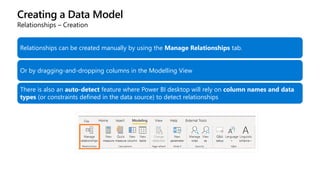
Relationships – Creation
Relationships can be created manually by using the Manage Relationships tab.
Or by dragging-and-dropping columns in the Modelling View
There is also an auto-detect feature where Power BI desktop will rely on column names and data
types (or constraints defined in the data source) to detect relationships
Creating a Data Model
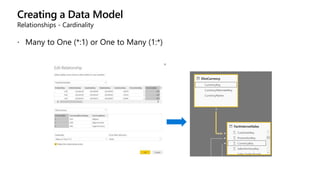
Relationships - Cardinality
 Many to One (*:1) or One to Many (1:*)
Creating a Data Model
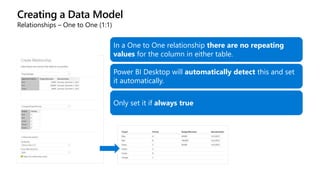
Relationships – One to One (1:1)
In a One to One relationship there are no repeating
values for the column in either table.
Power BI Desktop will automatically detect this and set
it automatically.
Only set it if always true
Creating a Data Model
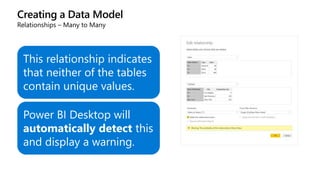
Relationships – Many to Many
This relationship indicates
that neither of the tables
contain unique values.
Power BI Desktop will
automatically detect this
and display a warning.
Creating a Data Model
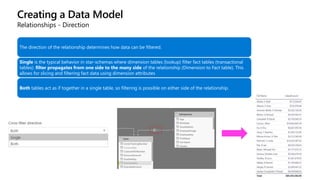
Relationships - Direction
The direction of the relationship determines how data can be filtered.
Single is the typical behavior in star-schemas where dimension tables (lookup) filter fact tables (transactional
tables). filter propagates from one side to the many side of the relationship (Dimension to Fact table). This
allows for slicing and filtering fact data using dimension attributes
Both tables act as if together in a single table, so filtering is possible on either side of the relationship.
Creating a Data Model
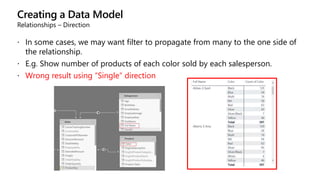
Relationships – Direction
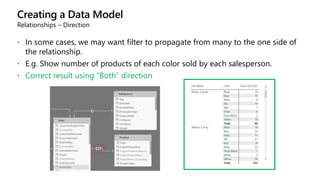
 In some cases, we may want filter to propagate from many to the one side of
the relationship.
 E.g. Show number of products of each color sold by each salesperson.
 Wrong result using “Single” direction
Creating a Data Model
Relationships – Direction
 In some cases, we may want filter to propagate from many to the one side of
the relationship.
 E.g. Show number of products of each color sold by each salesperson.
 Correct result using “Both” direction
Creating a Data Model
Relationships – Direction
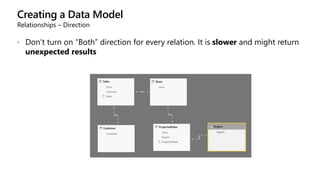
 Don’t turn on “Both” direction for every relation. It is slower and might return
unexpected results
Creating a Data Model
Relationships – Direction
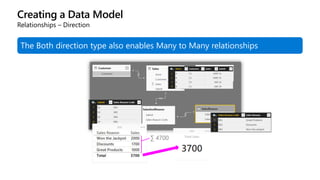
The Both direction type also enables Many to Many relationships
∑ 4700
Creating a Data Model
Relationships – Active and Inactive
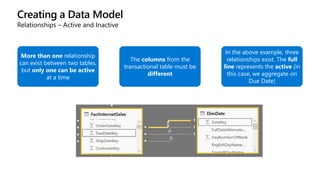
More than one relationship
can exist between two tables,
but only one can be active
at a time
The columns from the
transactional table must be
different
In the above example, three
relationships exist. The full
line represents the active (in
this case, we aggregate on
Due Date)
Creating a Data Model
Relationships – Active and Inactive
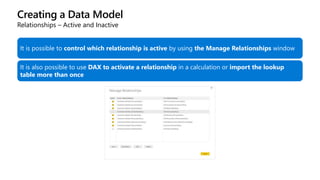
It is possible to control which relationship is active by using the Manage Relationships window
It is also possible to use DAX to activate a relationship in a calculation or import the lookup
table more than once
Creating a Data Model
Relationships – Parent-Child
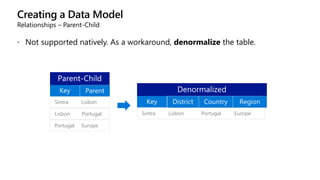
 Not supported natively. As a workaround, denormalize the table.
Sintra Lisbon
Lisbon Portugal
Portugal Europe
Sintra Lisbon Portugal Europe
Creating a Data Model
Relationships – Data Quality Issues
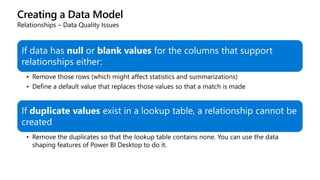
If data has null or blank values for the columns that support
relationships either:
• Remove those rows (which might affect statistics and summarizations)
• Define a default value that replaces those values so that a match is made
If duplicate values exist in a lookup table, a relationship cannot be
created
• Remove the duplicates so that the lookup table contains none. You can use the data
shaping features of Power BI Desktop to do it.
Creating a Data Model
Relationships – Options
Import relationships
from data sources on
first load (like foreign
keys in relational
databases)
Update or delete
relationships when
refreshing data– might
remove manual
relationships
Autodetect new
relationships after
data is loaded – useful
when adding more
tables to the model
Creating a Data Model
Relationships – DirectQuery
Assume Referential Integrity
is an optimization to tell the
engine that there are no
“lookup failures” between the
two tables – typical in data
warehousing scenarios between
facts and dimensions
Creating a Data Model
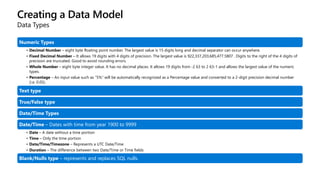
Data Types
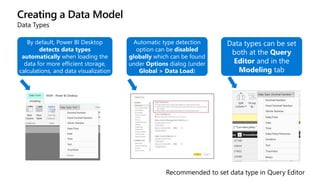
By default, Power BI Desktop
detects data types
automatically when loading the
data for more efficient storage,
calculations, and data visualization
Automatic type detection
option can be disabled
globally which can be found
under Options dialog (under
Global > Data Load)
Data types can be set
both at the Query
Editor and in the
Modeling tab
Creating a Data Model
Data Types
Numeric Types
• Decimal Number – eight byte floating point number. The largest value is 15 digits long and decimal separator can occur anywhere.
• Fixed Decimal Number – It allows 19 digits with 4 digits of precision. The largest value is 922,337,203,685,477.5807 . Digits to the right of the 4 digits of
precision are truncated. Good to avoid rounding errors.
• Whole Number – eight byte integer value. It has no decimal places. It allows 19 digits from -2 63 to 2 63-1 and allows the largest value of the numeric
types.
• Percentage – An input value such as “5%” will be automatically recognized as a Percentage value and converted to a 2-digit precision decimal number
(i.e. 0.05).
Text type
True/False type
Date/Time Types
Date/Time – Dates with time from year 1900 to 9999
• Date – A date without a time portion
• Time – Only the time portion
• Date/Time/Timezone – Represents a UTC Date/Time
• Duration – The difference between two Date/Time or Time fields
Blank/Nulls type – represents and replaces SQL nulls.
Creating a Data Model
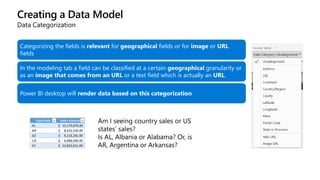
Data Categorization
Categorizing the fields is relevant for geographical fields or for image or URL
fields
In the modeling tab a field can be classified at a certain geographical granularity or
as an image that comes from an URL or a text field which is actually an URL.
Power BI desktop will render data based on this categorization
Creating a Data Model
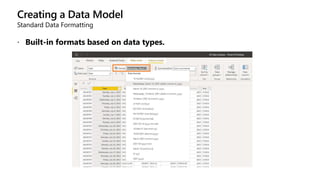
Standard Data Formatting
 Built-in formats based on data types.
Creating a Data Model
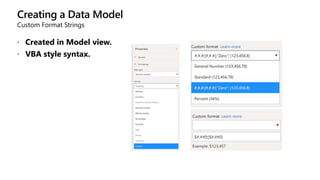
Custom Format Strings
 Created in Model view.
 VBA style syntax.
Creating a Data Model
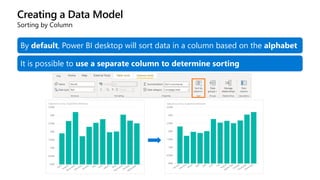
Sorting by Column
By default, Power BI desktop will sort data in a column based on the alphabet
It is possible to use a separate column to determine sorting
Creating a Data Model
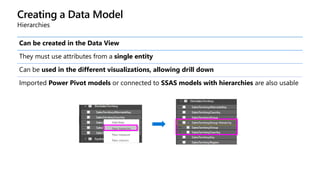
Hierarchies
Can be created in the Data View
They must use attributes from a single entity
Can be used in the different visualizations, allowing drill down
Imported Power Pivot models or connected to SSAS models with hierarchies are also usable
Creating a Data Model
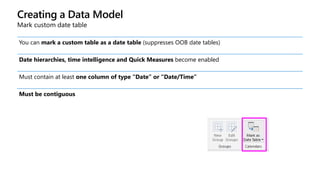
Mark custom date table
You can mark a custom table as a date table (suppresses OOB date tables)
Date hierarchies, time intelligence and Quick Measures become enabled
Must contain at least one column of type “Date” or “Date/Time”
Must be contiguous
Creating a Data Model
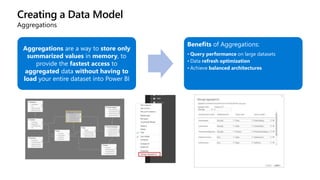
Aggregations
Aggregations are a way to store only
summarized values in memory, to
provide the fastest access to
aggregated data without having to
load your entire dataset into Power BI
Benefits of Aggregations:
• Query performance on large datasets
• Data refresh optimization
• Achieve balanced architectures
Creating a Data Model
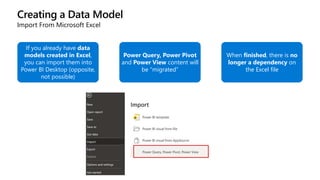
Import From Microsoft Excel
If you already have data
models created in Excel,
you can import them into
Power BI Desktop (opposite,
not possible)
Power Query, Power Pivot
and Power View content will
be “migrated”
When finished, there is no
longer a dependency on
the Excel file
Creating a Data Model
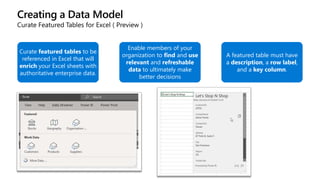
Curate Featured Tables for Excel ( Preview )
Curate featured tables to be
referenced in Excel that will
enrich your Excel sheets with
authoritative enterprise data.
Enable members of your
organization to find and use
relevant and refreshable
data to ultimately make
better decisions
A featured table must have
a description, a row label,
and a key column.
Demonstration
Data Model Quick Tour
Power BI Desktop
• Creating the Data Model
Questions?
Knowledge Check
•What are the different relationship cardinality supported in Power BI data
models?
•What is the impact of using “Both” filter direction?
Lesson 5: Calculations
Objectives
After completing this learning, you will be able to:
 Learn different calculation methods to prepare data
Calculations
DAX Basics
Microsoft Excel like Language that allows the extension of the model
with additional business logic
Ideal for complex calculations such as time intelligence, growth
formulas, ratios, and more complex KPIs
Business rules can be materialized at the row level (Calculated Column)
or can be calculated on-the-fly (Measures)
Certain capabilities might overlap with Formula Language
Calculations
DAX Basics – Syntax
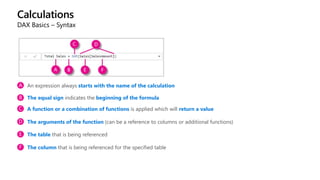
An expression always starts with the name of the calculation
The equal sign indicates the beginning of the formula
A function or a combination of functions is applied which will return a value
The arguments of the function (can be a reference to columns or additional functions)
The table that is being referenced
The column that is being referenced for the specified table
Calculations
DAX Basics - Functions
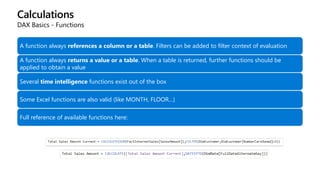
A function always references a column or a table. Filters can be added to filter context of evaluation
A function always returns a value or a table. When a table is returned, further functions should be
applied to obtain a value
Several time intelligence functions exist out of the box
Some Excel functions are also valid (like MONTH, FLOOR…)
Full reference of available functions here: https://msdn.microsoft.com/en-us/library/ee634396.aspx
Calculations
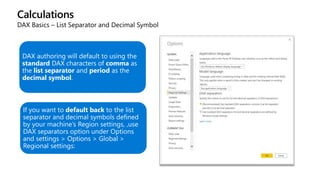
DAX Basics – List Separator and Decimal Symbol
DAX authoring will default to using the
standard DAX characters of comma as
the list separator and period as the
decimal symbol.
If you want to default back to the list
separator and decimal symbols defined
by your machine’s Region settings, ,use
DAX separators option under Options
and settings > Options > Global >
Regional settings:
Calculations
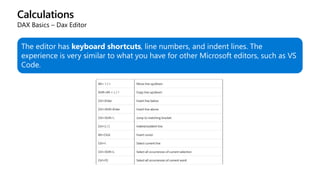
DAX Basics – Dax Editor
The editor has keyboard shortcuts, line numbers, and indent lines. The
experience is very similar to what you have for other Microsoft editors, such as VS
Code.
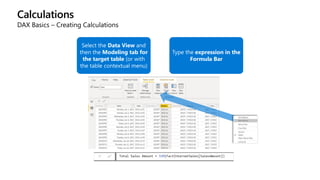
Calculations
DAX Basics – Creating Calculations
Select the Data View and
then the Modeling tab for
the target table (or with
the table contextual menu)
Type the expression in the
Formula Bar
Calculations
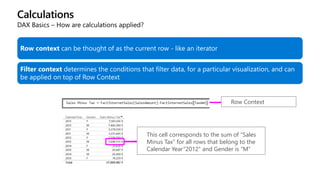
DAX Basics – How are calculations applied?
Row context can be thought of as the current row - like an iterator
Filter context determines the conditions that filter data, for a particular visualization, and can
be applied on top of Row Context
This cell corresponds to the sum of “Sales
Minus Tax” for all rows that belong to the
Calendar Year“2012” and Gender is “M”
Row Context
Calculations
Calculated Columns
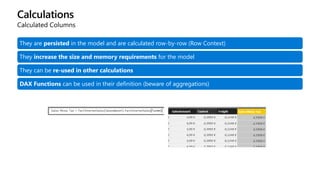
They are persisted in the model and are calculated row-by-row (Row Context)
They increase the size and memory requirements for the model
They can be re-used in other calculations
DAX Functions can be used in their definition (beware of aggregations)
Calculations
Calculated Columns
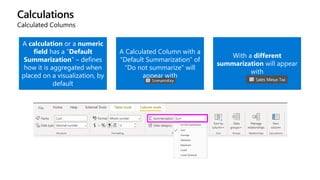
A calculation or a numeric
field has a “Default
Summarization” – defines
how it is aggregated when
placed on a visualization, by
default
A Calculated Column with a
“Default Summarization” of
“Do not summarize” will
appear with
With a different
summarization will appear
with
Calculations
Measures
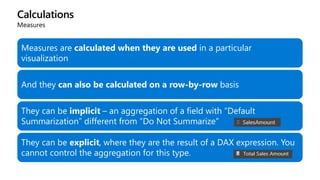
Measures are calculated when they are used in a particular
visualization
And they can also be calculated on a row-by-row basis
They can be implicit – an aggregation of a field with “Default
Summarization” different from “Do Not Summarize”
They can be explicit, where they are the result of a DAX expression. You
cannot control the aggregation for this type.
Calculations
Measures
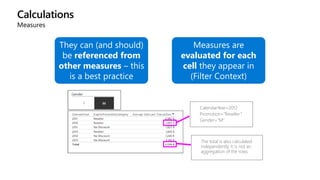
They can (and should)
be referenced from
other measures – this
is a best practice
Measures are
evaluated for each
cell they appear in
(Filter Context)
CalendarYear=2012
Promotion=“Reseller”
Gender=“M”
The total is also calculated
independently. It is not an
aggregation of the rows.
Calculations
Measures
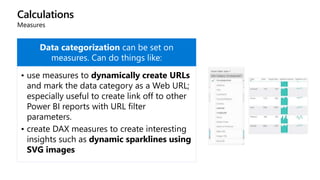
Data categorization can be set on
measures. Can do things like:
• use measures to dynamically create URLs
and mark the data category as a Web URL;
especially useful to create link off to other
Power BI reports with URL filter
parameters.
• create DAX measures to create interesting
insights such as dynamic sparklines using
SVG images
Calculations
Calculated Tables
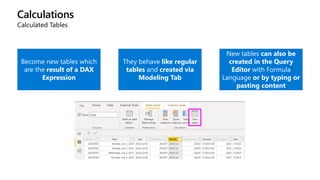
Become new tables which
are the result of a DAX
Expression
They behave like regular
tables and created via
Modeling Tab
New tables can also be
created in the Query
Editor with Formula
Language or by typing or
pasting content
Calculations
Show value as
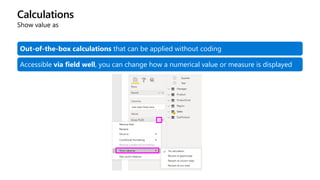
Out-of-the-box calculations that can be applied without coding
Accessible via field well, you can change how a numerical value or measure is displayed
Calculations
Advanced Calculations
 CALCULATE(<measure expression>, <filter1>, <filter2>, …) allows us to
change the filter context
No Discount Sales =
CALCULATE (
SUM ( FactResellerSales[SalesAmount] );
DimPromotion[EnglishPromotionName] = "No Discount"
)
Calculations
Advanced Calculations
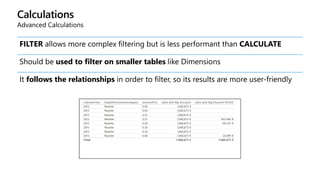
FILTER allows more complex filtering but is less performant than CALCULATE
Should be used to filter on smaller tables like Dimensions
It follows the relationships in order to filter, so its results are more user-friendly
Calculations
Advanced Calculations
Sales with Big Discount =
CALCULATE (
SUM ( FactResellerSales[SalesAmount] );
DimPromotion[DiscountPct] > 0.1
)
Sales with Big Discount FILTER =
CALCULATE (
SUM ( FactResellerSales[SalesAmount] );
FILTER ( DimPromotion; DimPromotion[DiscountPct] > 0.1 )
)
Calculations
Advanced Calculations
 ALL removes the filter applied to a table or column.
 Useful for ratio-to-parent calculations
Percentage of Product Net Revenue =
DIVIDE (
SUM (Sales[Net Revenue]);
CALCULATE (
SUM (Sales[Net Revenue]);
ALL ( Product[Product Name] )
)
)
Calculations
Advanced Calculations
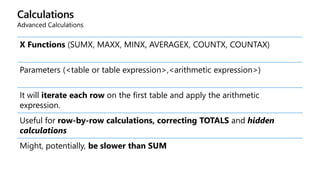
X Functions (SUMX, MAXX, MINX, AVERAGEX, COUNTX, COUNTAX)
Parameters (<table or table expression>,<arithmetic expression>)
It will iterate each row on the first table and apply the arithmetic
expression.
Useful for row-by-row calculations, correcting TOTALS and hidden
calculations
Might, potentially, be slower than SUM
Calculations
Advanced Calculations
X Functions - Row-by-row
SalesAmountwithSUMX =
SUMX (
FactResellerSales;
FactResellerSales[OrderQuantity] * FactResellerSales[UnitPrice]
)
Calculations
Advanced Calculations
 RANKX(<table expression>;<arithmetic expression>;<sort order>;<tie
handler>)
 Gets an ordinal position for the selected column
ProductRank =
RANKX ( ALL ( DimProduct[ProductAlternateKey] ); [Sales];; DESC; SKIP )
Calculations
Advanced Calculations
 HASONEVALUE lets us test if only a single element is selected for a column
ProductRankEnhanced =
IF (
HASONEVALUE ( DimProduct[ProductAlternateKey] );
RANKX ( ALL ( DimProduct[ProductAlternateKey] ); [Sales];; DESC; SKIP );
BLANK ()
)
Calculations
Advanced Calculations
 TOPN(<n>;<table>;<order by expression>) returns the top N rows for a table
TOPN ( 10; VALUES ( DimProduct[ProductAlternateKey] ); [Sales]; DESC )
 The VALUES function is required to remove duplicates, if they exist. Not
needed if they don’t
Calculations
Advanced Calculations
 TOPN does not return a scalar
 It should be then used as context to return a scalar
TOP10Products =
CALCULATE (
[Sales];
TOPN ( 10; VALUES ( DimProduct[ProductAlternateKey] );
[Sales]; DESC )
Calculations
Advanced Calculations – Support for Excel Financial Functions
Almost all financial functions that you know and love from Excel are now available in DAX.
The functions have the same name and signature as their Excel counterpart.
These financial functions make it easier to build financial reports and perform otherwise
complex calculations in Power BI
Calculations
Advanced Calculations – Time Intelligence
Many DAX functions exist to support time calculations. There are two types:
 Functions that require a CALCULATE
SalesYTD =
CALCULATE ( [Sales]; DATESYTD ( DimDate[FullDateAlternateKey] ) )
• Functions that return a scalar (syntactic sugar)
SalesYTDNoCalculate =
TOTALYTD ( [Sales]; DimDate[FullDateAlternateKey] )
Calculations
Advanced Calculations – Time Intelligence
SalesLastMonth =
CALCULATE ( [Sales];
DATEADD ( DimDate[FullDateAlternateKey]; -1; MONTH ) )
SalesSamePeriodLastYear =
CALCULATE ( [Sales];
SAMEPERIODLASTYEAR ( DimDate[FullDateAlternateKey] ) )
MonthOverMonth =
DIVIDE ( ( [Sales] - [SalesLastMonth] ); [SalesLastMonth] )
SalesSinceEver =
CALCULATE (
[Sales];
DATESBETWEEN (
DimDate[FullDateAlternateKey];
FIRSTDATE ( ALL ( DimDate[FullDateAlternateKey] ) );
LASTDATE ( DimDate[FullDateAlternateKey] )
)
)
Calculations
Advanced Calculations – Time Intelligence
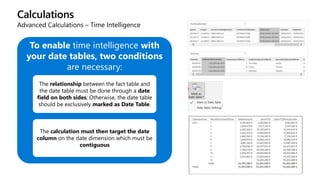
To enable time intelligence with
your date tables, two conditions
are necessary:
The relationship between the fact table and
the date table must be done through a date
field on both sides; Otherwise, the date table
should be exclusively marked as Date Table.
The calculation must then target the date
column on the date dimension which must be
contiguous
Calculations
Advanced Calculations – Time Intelligence with Auto Date/Time
 A hierarchy is automatically generated for each date field on each table
 Calculations need to be done with the “in-line” notation
SalesAmountYTD =
CALCULATE (
SUM ( FactInternetSales[SalesAmount] );
DATESYTD ( FactInternetSales[OrderDate].[Date] )
)
Calculations
Advanced Calculations – Note on Auto date/time
Auto date/time is not recommended for large tables with many
different date attributes and/or broad range of dates.
This feature can bloat the data model by creating separate internal
date dimension tables for each date attribute.
Can be disabled under Data Load settings.
For large tables, bring your own Date table and mark it as Date Table.
Calculations
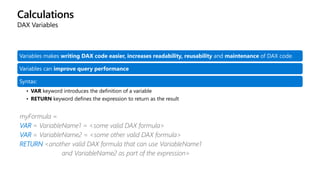
DAX Variables
Variables makes writing DAX code easier, increases readability, reusability and maintenance of DAX code.
Variables can improve query performance
Syntax:
• VAR keyword introduces the definition of a variable
• RETURN keyword defines the expression to return as the result
myFormula =
VAR = VariableName1 = <some valid DAX formula>
VAR = VariableName2 = <some other valid DAX formula>
RETURN <another valid DAX formula that can use VariableName1
and VariableName2 as part of the expression>
Calculations
DAX Variables
Can have as many variables in an expression as required, and each one has its own definition
Variables can contain scalar values or tables
DAX evaluates variables in the context of their definition, not in the one where they are used.
Once the variable has been assigned a value, that value cannot change during the execution of the RETURN portion of
the formula
The results of the variable calculations are cached for reuse inside the formula
Variables can refer other variables, measures or calculated columns
VAR myScalarValue = SUM(Sales[Extended Amount])
VAR myTable = FILTER(Customer, Customer[Post Code] = 50210)
Calculations
DAX Variables (example)
To calculate a percentage of year-over-year growth without using a variable, we could create three separate
measures:
• Sum of SalesAmount = SUM(SalesTable[SalesAmount])
• SalesAmount PreviousYear=CALCULATE([Sum of SalesAmount], SAMEPERIODLASTYEAR(Calendar[Date]))
• Sum of SalesAmount YoY%=DIVIDE(([Sum of SalesAmount] – [SalesAmount PreviousYear]), [Sum of SalesAmount]))
Using a variable, we can create a single measure that calculates the same result
• YOY% = VAR CurrentSales = SUM(Sales[Net Revenue])
• VAR SalesLastYear = CALCULATE(SUM(Sales[Net Revenue]), SAMEPERIODLASTYEAR('Date'[Date]))
• RETURN IF(CurrentSales, DIVIDE(CurrentSales - SalesLastYear, CurrentSales))
Advantages:
• More readable code
• Better query performance (result of expression is stored in the variable upon declaration and doesn’t have to be recalculated each time it is
used)
Calculations
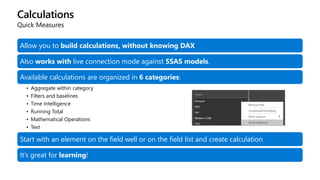
Quick Measures
Allow you to build calculations, without knowing DAX
Also works with live connection mode against SSAS models.
Available calculations are organized in 6 categories:
• Aggregate within category
• Filters and baselines
• Time Intelligence
• Running Total
• Mathematical Operations
• Text
Start with an element on the field well or on the field list and create calculation
It’s great for learning!
Demonstration
Calculations (optional)
Disconnected Tables
(optional)
Power BI Desktop
• Extending the Data Model
Questions?
Knowledge Check
What are some of the differences between Calculated Columns and Calculated
Measures?
Why should you avoid Auto Datetime feature?
What are the advantages of using DAX variables?
Lesson 6: Building a Report
Objectives
After completing this learning, you will be able to:
 Describe building a report
 Learn different chart types on Power BI Desktop
 Learn different interactive features on Power BI Desktop
Building a Report
Report View
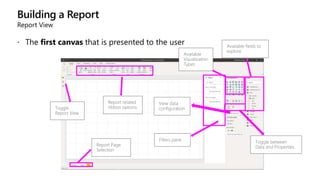
 The first canvas that is presented to the user
Building a Report
Report View
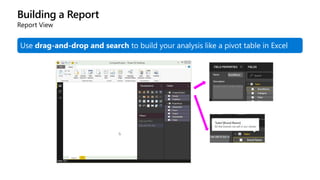
Use drag-and-drop and search to build your analysis like a pivot table in Excel
Building a Report
Modern Ribbon
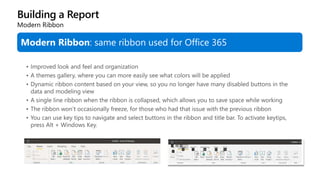
Modern Ribbon: same ribbon used for Office 365
Building a Report
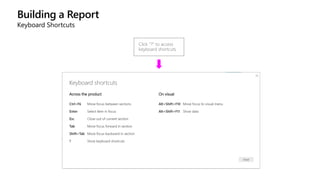
Keyboard Shortcuts
Click “?” to access
keyboard shortcuts
Building a Report
Visualizations
Several visualizations exist out-of-the box and developed by 3rd party
Choose the one that best conveys your message
New visualizations are released frequently
Change easily between visualizations
Each visualization has its own data settings and properties
Fine control on display settings
Visualizations can be responsive
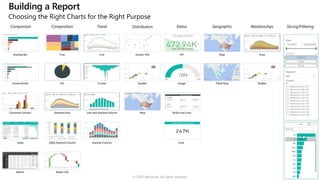
Water Fall
100% Stacked Column
Tree
Bubble
Scatter Plot
Stacked Bar
Clustered Bar
Clustered Column
Map
Map
Stacked Column
Table
Matrix
Line
Funnel
Line and Stacked Column
Area
Stacked Area
Filled Map
KPI
Gauge
Pie Bubble
Multi-row Card
Card
© 2020 Microsoft. All rights reserved.
Building a Report
Choosing the Right Charts for the Right Purpose
Building a Report
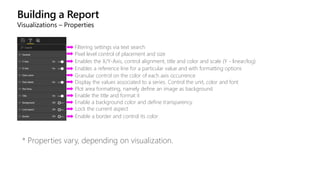
Visualizations – Properties
* Properties vary, depending on visualization.
Enables the X/Y-Axis, control alignment, title and color and scale (Y - linear/log)
Enables a reference line for a particular value and with formatting options
Granular control on the color of each axis occurrence
Display the values associated to a series. Control the unit, color and font
Plot area formatting, namely define an image as background
Enable the title and format it
Enable a background color and define transparency
Lock the current aspect
Pixel level control of placement and size
Enable a border and control its color
Filtering settings via text search
Building a Report
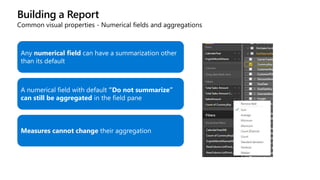
Common visual properties - Numerical fields and aggregations
Any numerical field can have a summarization other
than its default
A numerical field with default “Do not summarize”
can still be aggregated in the field pane
Measures cannot change their aggregation
Building a Report
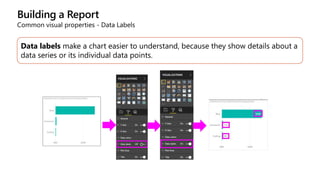
Common visual properties - Data Labels
Data labels make a chart easier to understand, because they show details about a
data series or its individual data points.
Building a Report
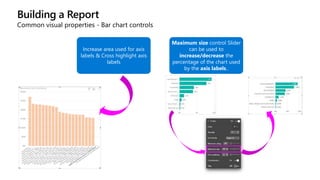
Common visual properties - Bar chart controls
Increase area used for axis
labels & Cross highlight axis
labels
Maximum size control Slider
can be used to
increase/decrease the
percentage of the chart used
by the axis labels..
Building a Report
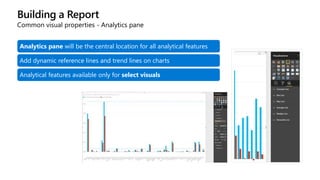
Common visual properties - Analytics pane
Analytics pane will be the central location for all analytical features
Add dynamic reference lines and trend lines on charts
Analytical features available only for select visuals
Building a Report
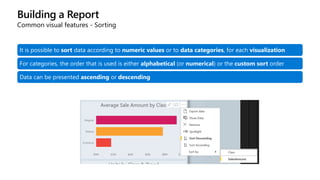
Common visual features - Sorting
It is possible to sort data according to numeric values or to data categories, for each visualization
For categories, the order that is used is either alphabetical (or numerical) or the custom sort order
Data can be presented ascending or descending
Building a Report
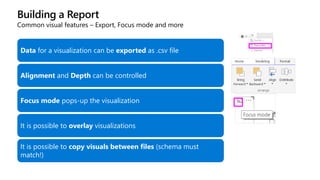
Common visual features – Export, Focus mode and more
Data for a visualization can be exported as .csv file
Alignment and Depth can be controlled
Focus mode pops-up the visualization
It is possible to overlay visualizations
It is possible to copy visuals between files (schema must
match!)
Building a Report
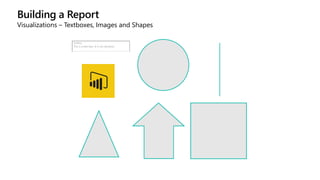
Visualizations – Textboxes, Images and Shapes
Building a Report
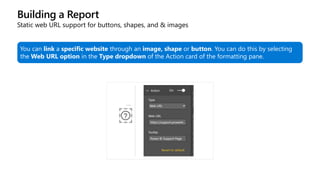
Static web URL support for buttons, shapes, and & images
You can link a specific website through an image, shape or button. You can do this by selecting
the Web URL option in the Type dropdown of the Action card of the formatting pane.
Building a Report
Wallpapers
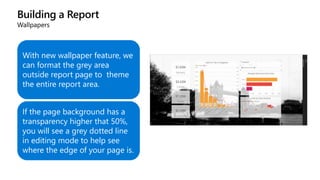
With new wallpaper feature, we
can format the grey area
outside report page to theme
the entire report area.
If the page background has a
transparency higher that 50%,
you will see a grey dotted line
in editing mode to help see
where the edge of your page is.
Building a Report
Report Themes
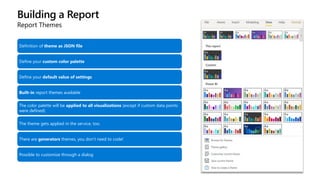
Definition of theme as JSON file
Define your custom color palette
Define your default value of settings
Built-in report themes available
The color palette will be applied to all visualizations (except if custom data points
were defined)
The theme gets applied in the service, too.
There are generators themes, you don’t need to code!
Possible to customize through a dialog
Building a Report
Customize & Export Current Theme
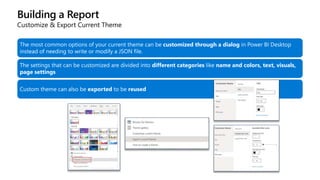
The most common options of your current theme can be customized through a dialog in Power BI Desktop
instead of needing to write or modify a JSON file.
The settings that can be customized are divided into different categories like name and colors, text, visuals,
page settings
Custom theme can also be exported to be reused
Building a Report
Page View
Building a Report
Page Properties
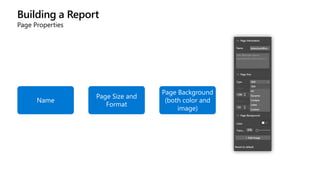
Name
Page Size and
Format
Page Background
(both color and
image)
Building a Report
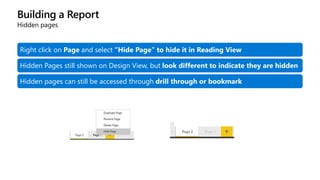
Hidden pages
Right click on Page and select “Hide Page” to hide it in Reading View
Hidden Pages still shown on Design View, but look different to indicate they are hidden
Hidden pages can still be accessed through drill through or bookmark
Building a Report
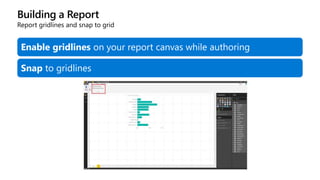
Report gridlines and snap to grid
Enable gridlines on your report canvas while authoring
Snap to gridlines
Demonstration
Report Design Basics
Building a Report
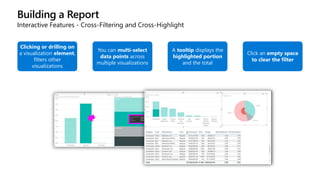
Interactive Features - Cross-Filtering and Cross-Highlight
Clicking or drilling on
a visualization element,
filters other
visualizations
You can multi-select
data points across
multiple visualizations
A tooltip displays the
highlighted portion
and the total
Click an empty space
to clear the filter
Building a Report
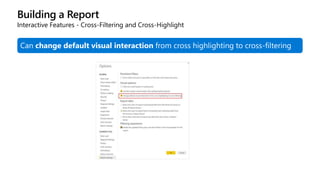
Interactive Features - Cross-Filtering and Cross-Highlight
Can change default visual interaction from cross highlighting to cross-filtering
Building a Report
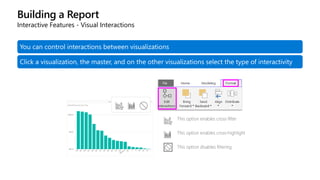
Interactive Features - Visual Interactions
You can control interactions between visualizations
Click a visualization, the master, and on the other visualizations select the type of interactivity
Building a Report
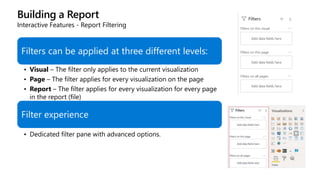
Interactive Features - Report Filtering
Filters can be applied at three different levels:
• Visual – The filter only applies to the current visualization
• Page – The filter applies for every visualization on the page
• Report – The filter applies for every visualization for every page
in the report (file)
Filter experience
• Dedicated filter pane with advanced options.
Building a Report
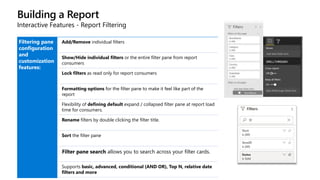
Interactive Features - Report Filtering
Filtering pane
configuration
and
customization
features:
Add/Remove individual filters
Show/Hide individual filters or the entire filter pane from report
consumers
Lock filters as read only for report consumers
Formatting options for the filter pane to make it feel like part of the
report
Flexibility of defining default expand / collapsed filter pane at report load
time for consumers.
Rename filters by double clicking the filter title.
Sort the filter pane
Filter pane search allows you to search across your filter cards.
Supports basic, advanced, conditional (AND OR), Top N, relative date
filters and more
Building a Report
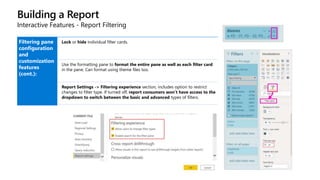
Interactive Features - Report Filtering
Filtering pane
configuration
and
customization
features
(cont.):
Lock or hide individual filter cards.
Use the formatting pane to format the entire pane as well as each filter card
in the pane. Can format using theme files too.
Report Settings -> Filtering experience section, includes option to restrict
changes to filter type. If turned off, report consumers won’t have access to the
dropdown to switch between the basic and advanced types of filters.
Building a Report
Report Filtering Pane (cont.)
Filtering pane
configuration
and
customization
features
(cont.):
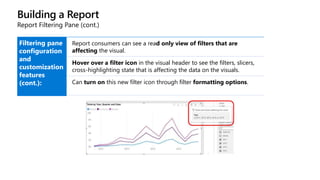
Report consumers can see a read only view of filters that are
affecting the visual.
Hover over a filter icon in the visual header to see the filters, slicers,
cross-highlighting state that is affecting the data on the visuals.
Can turn on this new filter icon through filter formatting options.
Building a Report
Interactive Features - Report Filtering
Basic filtering, which allows searching
Filters on measures differ in behavior when
placed at different filtering levels
• Visual Level – the filter is for the aggregated values (default is
sum)
• Page or Report Level – the filter is applied at row level
Include/Exclude data points
Building a Report
Interactive Features - Slicers
Filter data on multiple visualizations (like Excel slicers)
Allow Select All
Multi and Single selection
Radio buttons and allows one and only one filter selection
Special slicers for date field (relative!) and numeric
Slicers are searchable
Hierarchical slicer with various collapse/expand icons
Building a Report
Interactive Features - Slicers
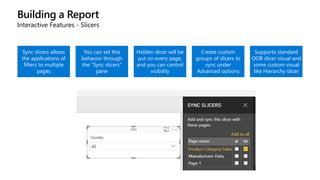
Sync slicers allows
the applications of
filters to multiple
pages
You can set this
behavior through
the “Sync slicers”
pane
Hidden slicer will be
put on every page,
and you can control
visibility
Create custom
groups of slicers to
sync under
Advanced options
Supports standard
OOB slicer visual and
some custom visual
like Hierarchy slicer
Building a Report
Query reduction
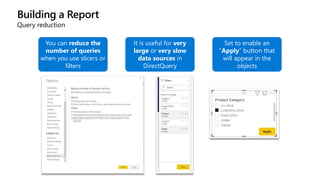
You can reduce the
number of queries
when you use slicers or
filters
It is useful for very
large or very slow
data sources in
DirectQuery
Set to enable an
“Apply” button that
will appear in the
objects
Building a Report
Interactive Features - What-If Parameter
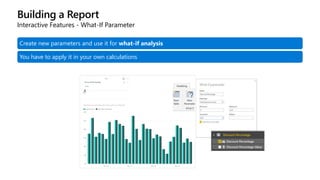
Create new parameters and use it for what-if analysis
You have to apply it in your own calculations
Demonstration
Visual Interactions, Filters &
Slicers
Building a Report
Visualizations – Table and Matrix
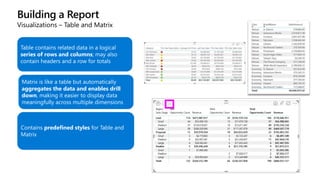
Table contains related data in a logical
series of rows and columns; may also
contain headers and a row for totals
Matrix is like a table but automatically
aggregates the data and enables drill
down, making it easier to display data
meaningfully across multiple dimensions
Contains predefined styles for Table and
Matrix
Building a Report
Visualizations – Table and Matrix (Conditional Formatting)
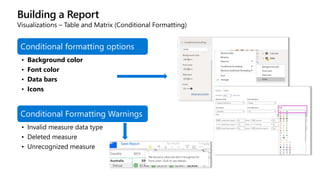
Conditional formatting options
• Background color
• Font color
• Data bars
• Icons
Conditional Formatting Warnings
• Invalid measure data type
• Deleted measure
• Unrecognized measure
Building a Report
Visualizations – Table and Matrix (Conditional Formatting)
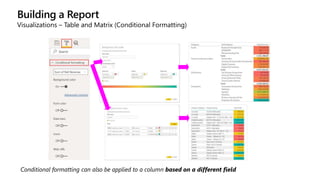
Conditional formatting can also be applied to a column based on a different field
Building a Report
Visualizations – Table and Matrix
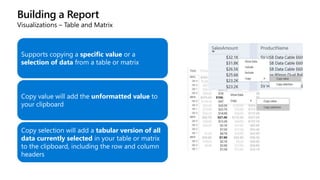
Supports copying a specific value or a
selection of data from a table or matrix
Copy value will add the unformatted value to
your clipboard
Copy selection will add a tabular version of all
data currently selected in your table or matrix
to the clipboard, including the row and column
headers
Building a Report
Visualizations – Matrix
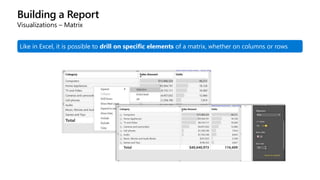
Like in Excel, it is possible to drill on specific elements of a matrix, whether on columns or rows
Building a Report
Map visuals – Bubble map
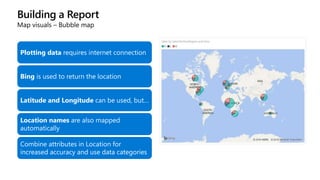
Plotting data requires internet connection
Bing is used to return the location
Latitude and Longitude can be used, but…
Location names are also mapped
automatically
Combine attributes in Location for
increased accuracy and use data categories
Building a Report
Map visuals – Heat map
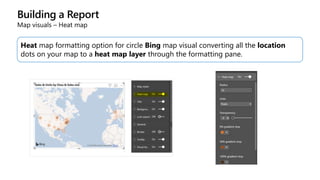
Heat map formatting option for circle Bing map visual converting all the location
dots on your map to a heat map layer through the formatting pane.
Building a Report
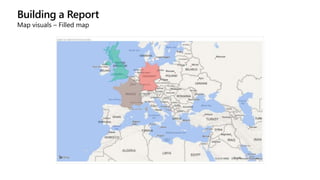
Map visuals – Filled map
Building a Report
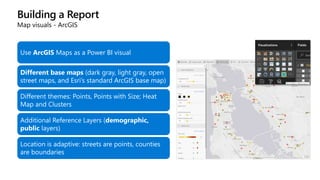
Map visuals - ArcGIS
Use ArcGIS Maps as a Power BI visual
Different base maps (dark gray, light gray, open
street maps, and Esri’s standard ArcGIS base map)
Different themes: Points, Points with Size; Heat
Map and Clusters
Additional Reference Layers (demographic,
public layers)
Location is adaptive: streets are points, counties
are boundaries
Building a Report
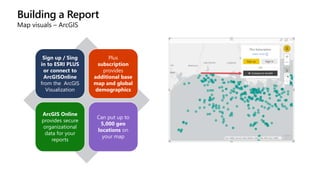
Map visuals – ArcGIS
Sign up / Sing
in to ESRI PLUS
or connect to
ArcGISOnline
from the ArcGIS
Visualization
Plus
subscription
provides
additional base
map and global
demographics
ArcGIS Online
provides secure
organizational
data for your
reports
Can put up to
5,000 geo
locations on
your map
Building a Report
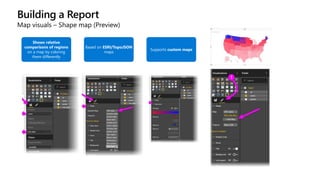
Map visuals – Shape map (Preview)
Shows relative
comparisons of regions
on a map by coloring
them differently
Based on ESRI/TopoJSON
maps
Supports custom maps
Building a Report
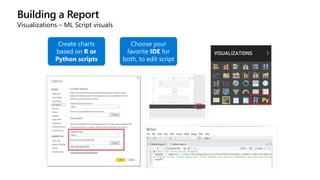
Visualizations – ML Script visuals
Create charts
based on R or
Python scripts
Choose your
favorite IDE for
both, to edit script
Building a Report
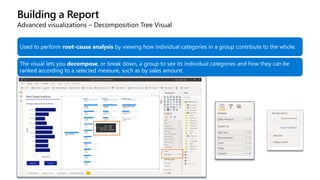
Advanced visualizations – Decomposition Tree Visual
Used to perform root-cause analysis by viewing how individual categories in a group contribute to the whole.
The visual lets you decompose, or break down, a group to see its individual categories and how they can be
ranked according to a selected measure, such as by sales amount.
Building a Report
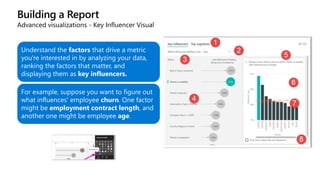
Advanced visualizations - Key Influencer Visual
Understand the factors that drive a metric
you're interested in by analyzing your data,
ranking the factors that matter, and
displaying them as key influencers.
For example, suppose you want to figure out
what influences' employee churn. One factor
might be employment contract length, and
another one might be employee age.
Building a Report
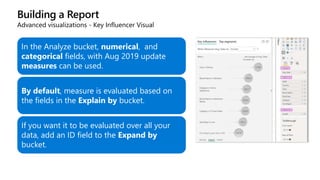
Advanced visualizations - Key Influencer Visual
In the Analyze bucket, numerical, and
categorical fields, with Aug 2019 update
measures can be used.
By default, measure is evaluated based on
the fields in the Explain by bucket.
If you want it to be evaluated over all your
data, add an ID field to the Expand by
bucket.
Building a Report
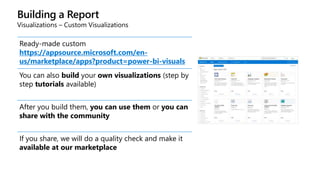
Visualizations – Custom Visualizations
Ready-made custom visuals
https://appsource.microsoft.com/en-
us/marketplace/apps?product=power-bi-visuals
You can also build your own visualizations (step by
step tutorials available)
After you build them, you can use them or you can
share with the community
If you share, we will do a quality check and make it
available at our marketplace
Demonstration
Conditional formatting
Building a Report
Visualizations – Custom Visualizations
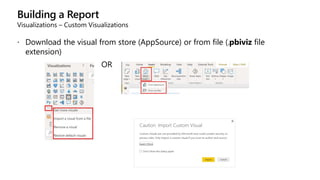
 Download the visual from store (AppSource) or from file (.pbiviz file
extension)
OR
Building a Report
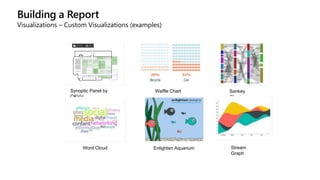
Visualizations – Custom Visualizations (examples)
Synoptic Panel by
OKViz
Waffle Chart Sankey
Chart
Enlighten Aquarium
Word Cloud Stream
Graph
Building a Report
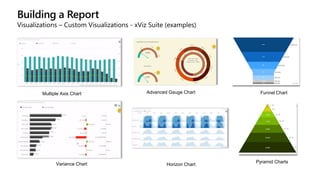
Visualizations – Custom Visualizations - xViz Suite (examples)
Multiple Axis Chart Advanced Gauge Chart
Variance Chart Horizon Chart
Funnel Chart
Pyramid Charts
Building a Report
Visualizations – Custom Visualizations
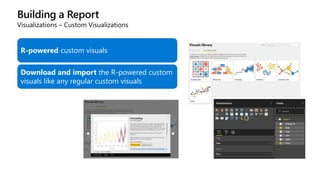
R-powered custom visuals
Download and import the R-powered custom
visuals like any regular custom visuals
Building a Report
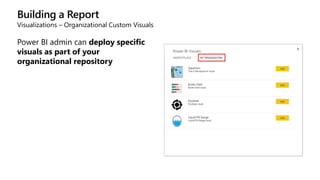
Visualizations – Organizational Custom Visuals
Power BI admin can deploy specific
visuals as part of your
organizational repository
Building a Report
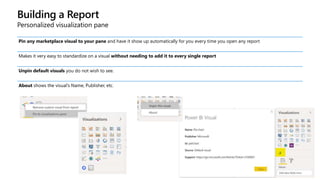
Personalized visualization pane
Pin any marketplace visual to your pane and have it show up automatically for you every time you open any report
Makes it very easy to standardize on a visual without needing to add it to every single report
Unpin default visuals you do not wish to see.
About shows the visual’s Name, Publisher, etc.
Demonstration
Custom Visuals
Building a Report
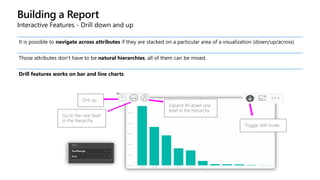
Interactive Features - Drill down and up
It is possible to navigate across attributes if they are stacked on a particular area of a visualization (down/up/across)
Those attributes don’t have to be natural hierarchies, all of them can be mixed.
Drill features works on bar and line charts
Building a Report
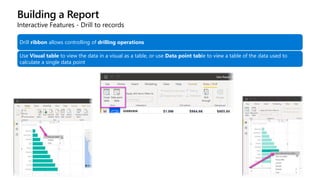
Interactive Features - Drill to records
Drill ribbon allows controlling of drilling operations
Use Visual table to view the data in a visual as a table, or use Data point table to view a table of the data used to
calculate a single data point
Building a Report
Interactive Features - Drill through
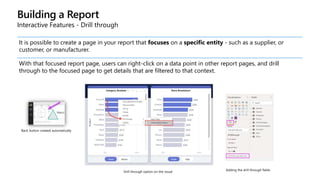
It is possible to create a page in your report that focuses on a specific entity - such as a supplier, or
customer, or manufacturer.
With that focused report page, users can right-click on a data point in other report pages, and drill
through to the focused page to get details that are filtered to that context.
Building a Report
Interactive Features - Drill through
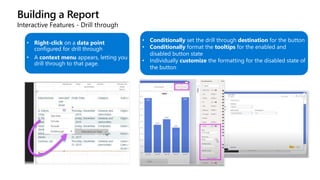
• Right-click on a data point
configured for drill through
• A context menu appears, letting you
drill through to that page.
• Conditionally set the drill through destination for the button
• Conditionally format the tooltips for the enabled and
disabled button state
• Individually customize the formatting for the disabled state of
the button
Building a Report
Interactive Features - Drill through (Measures)
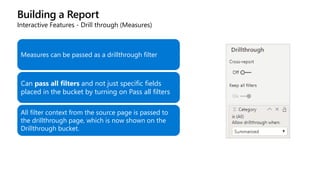
Measures can be passed as a drillthrough filter
Can pass all filters and not just specific fields
placed in the bucket by turning on Pass all filters
All filter context from the source page is passed to
the drillthrough page, which is now shown on the
Drillthrough bucket.
Building a Report
Interactive Features - Drill through (cross-report)
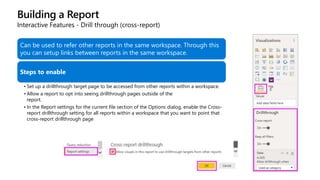
Can be used to refer other reports in the same workspace. Through this
you can setup links between reports in the same workspace.
Steps to enable
• Set up a drillthrough target page to be accessed from other reports within a workspace.
• Allow a report to opt into seeing drillthrough pages outside of the
report.
• In the Report settings for the current file section of the Options dialog, enable the Cross-
report drillthrough setting for all reports within a workspace that you want to point that
cross-report drillthrough page
Building a Report
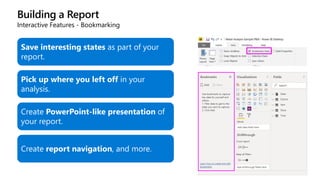
Interactive Features - Bookmarking
Save interesting states as part of your
report.
Pick up where you left off in your
analysis.
Create PowerPoint-like presentation of
your report.
Create report navigation, and more.
Building a Report
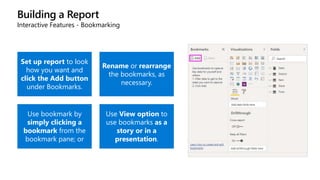
Interactive Features - Bookmarking
Set up report to look
how you want and
click the Add button
under Bookmarks.
Rename or rearrange
the bookmarks, as
necessary.
Use bookmark by
simply clicking a
bookmark from the
bookmark pane; or
Use View option to
use bookmarks as a
story or in a
presentation.
Building a Report
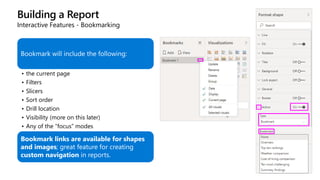
Interactive Features - Bookmarking
Bookmark will include the following:
• the current page
• Filters
• Slicers
• Sort order
• Drill location
• Visibility (more on this later)
• Any of the “focus” modes
Bookmark links are available for shapes
and images; great feature for creating
custom navigation in reports.
Building a Report
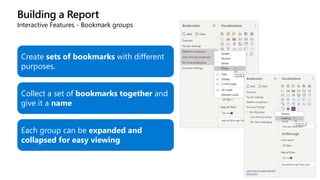
Interactive Features - Bookmark groups
Create sets of bookmarks with different
purposes.

Collect a set of bookmarks together and
give it a name
Each group can be expanded and
collapsed for easy viewing
Building a Report
Interactive Features - Selection Pane
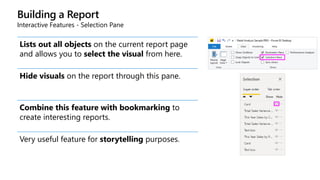
Lists out all objects on the current report page
and allows you to select the visual from here.
Hide visuals on the report through this pane.
Combine this feature with bookmarking to
create interesting reports.
Very useful feature for storytelling purposes.
Building a Report
Interactive Features – Selection Pane (Control order)
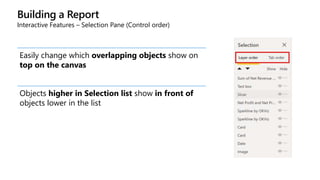
Easily change which overlapping objects show on
top on the canvas
Objects higher in Selection list show in front of
objects lower in the list
Building a Report
Interactive Features – Selection Pane (Grouping Visuals)
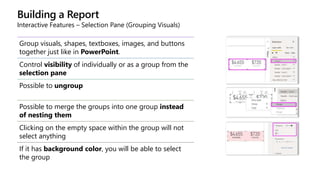
Group visuals, shapes, textboxes, images, and buttons
together just like in PowerPoint.
Control visibility of individually or as a group from the
selection pane
Possible to ungroup
Possible to merge the groups into one group instead
of nesting them
Clicking on the empty space within the group will not
select anything
If it has background color, you will be able to select
the group
Building a Report
Interactive Features – Spotlight
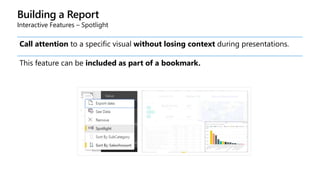
Call attention to a specific visual without losing context during presentations.
This feature can be included as part of a bookmark.
Building a Report
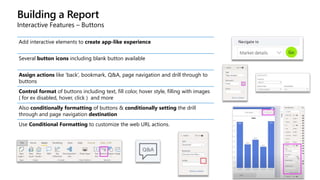
Interactive Features – Buttons
Add interactive elements to create app-like experience
Several button icons including blank button available
Assign actions like ‘back’, bookmark, Q&A, page navigation and drill through to
buttons
Control format of buttons including text, fill color, hover style, filling with images
( for ex disabled, hover, click ) and more
Also conditionally formatting of buttons & conditionally setting the drill
through and page navigation destination
Use Conditional Formatting to customize the web URL actions.
Building a Report
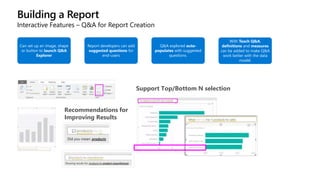
Interactive Features – Q&A for Report Creation
Can set up an image, shape
or button to launch Q&A
Explorer
Report developers can add
suggested questions for
end-users
Q&A explored auto-
populates with suggested
questions.
With Teach Q&A,
definitions and measures
can be added to make Q&A
work better with the data
model.
Support Top/Bottom N selection
Recommendations for
Improving Results
Building a Report
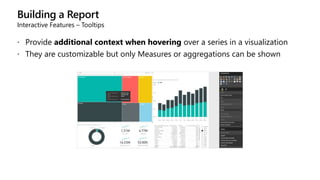
Interactive Features – Tooltips
 Provide additional context when hovering over a series in a visualization
 They are customizable but only Measures or aggregations can be shown
Building a Report
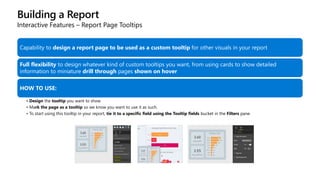
Interactive Features – Report Page Tooltips
Capability to design a report page to be used as a custom tooltip for other visuals in your report
Full flexibility to design whatever kind of custom tooltips you want, from using cards to show detailed
information to miniature drill through pages shown on hover
HOW TO USE:
• Design the tooltip you want to show
• Mark the page as a tooltip so we know you want to use it as such.
• To start using this tooltip in your report, tie it to a specific field using the Tooltip fields bucket in the Filters pane.
Demonstration
Drill through, Bookmarks and
Storytelling example
Report Page Tooltips
Building a Report
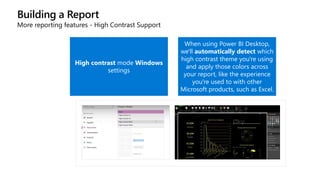
More reporting features - High Contrast Support
High contrast mode Windows
settings
When using Power BI Desktop,
we'll automatically detect which
high contrast theme you're using
and apply those colors across
your report, like the experience
you're used to with other
Microsoft products, such as Excel.
Building a Report
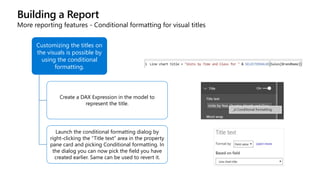
More reporting features - Conditional formatting for visual titles
Customizing the titles on
the visuals is possible by
using the conditional
formatting.
Create a DAX Expression in the model to
represent the title.
Launch the conditional formatting dialog by
right-clicking the “Title text” area in the property
pane card and picking Conditional formatting. In
the dialog you can now pick the field you have
created earlier. Same can be used to revert it.
Building a Report
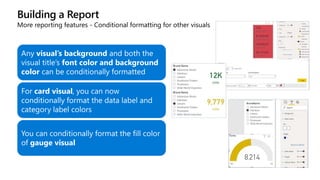
More reporting features - Conditional formatting for other visuals
Any visual’s background and both the
visual title’s font color and background
color can be conditionally formatted
For card visual, you can now
conditionally format the data label and
category label colors
You can conditionally format the fill color
of gauge visual
Building a Report
More reporting features - Gradient Legend
You can include a legend for data colors that
have been conditionally formatted by color
scale to help clarify the meaning of the colors.
You can use conditional formatting dialog in
the Data colors card of the formatting pane to
set a new rule to format your data along a color
scale.
This will enable the Legend card in the
formatting pane. You can enable the gradient
legend by toggling it on, then format the
legend as desired.
Building a Report
More reporting features - Grouping and Binning
Group up points on your visual
to easily explore and analyze
related categories
Bin on numerical and time fields
to create data categories
Building a Report
More reporting features - Clustering
Clustering lets you quickly find groups of similar data points in a subset of your data
Building a Report
More reporting features - Forecasting
You can use the forecasting feature on your line chart to do predictive analytics on
your data.
Built-in predictive forecasting models to automatically detect the step
(monthly/weekly/annually) and seasonality in your data to provide forecasting results.
Building a Report
More reporting features - Automatic Date
Automatic detection of DateTime fields
DateTime Fields are automatically expanded when added to a visualization and drilling is
enabled
The DateTime field cannot be connected to an external table
Enable or disable under Options and Data Load
Shows date hierarchy in the field list and allows individual selection
Building a Report
More reporting features - Increase/Decrease Insights
Right click on a bar or a data point in a line chart
Ask us to explain why the data point increased or decreased compared to the data point before it.
waterfall chart,
scatter chart,
stacked column
chart or
the ribbon chart
machine learning
algorithms
Building a Report
More reporting features - Mobile report layout
Create report layouts specific to mobile devices
Visibility indicator allows you to differentiate between hidden and shown
visuals.
After publishing, anyone who views this report on their Power BI mobile
app will see the phone layout of the report
The ability to overlay visuals makes it possible for you to use the same
design techniques you use in web layout to create beautiful, interactive,
mobile-optimized reports.
Building a Report
Row-Level-Security (Creation)
Define roles and rules within Power BI Desktop to restrict the data users see
Supported for both Imported models and DirectQuery connections
Rules (or filters) defined within roles restrict data at the row level
Rules are defined using DAX
Building a Report
Row-Level-Security (Validation)
Test the results of the role within Power BI Desktop
Note that users are assigned to a role within the Power BI service after the solution is published
Building a Report
Incremental Refresh – PRO + Premium
Define refresh policy in Power BI Desktop to determine how data is refreshed
incrementally when published to Power BI Service
Filtering needs to be done using Power Query date/time parameters with the
reserved names RangeStart and RangeEnd
Building a Report
Performance Analyzer
Measures the processing time (including the time to
create or update a visual) required to update report
elements.
To have Performance Analyzer begin recording, simply
select Start recording.
View and Copy exact DAX query for each visual.
Power BI Desktop
• Exploring and Reporting
Questions?
Knowledge Check
Name some of the features available in Power BI desktop to make your
report interactive
How can you import custom visuals to Power BI desktop?
Lesson 7: Sharing
Objectives
After completing this learning, you will be able to:
 Learn Power BI template files
 Learn how to publish data and reports to the cloud and connecting back to
the cloud
Sharing
Personalize Visuals Experience for PBI Reports ( Preview )
Empower your end-users to explore and personalize visuals all within the consumption
Consumer capabilities:
• Change the visualization type
• Swap out a measure or dimension
• Add or remove a legend
• Compare two or measures
• Change aggregations
• Capture their changes
• Share their changes
• Reset all changes to a report
• Reset all changes to a visual
It can be saved as a bookmark.
Sharing
Publish to the Cloud
The data model, its data, and reports are uploaded to the service
Sharing
Publish to the Cloud
Any changes made in the report after this or made in the service will not be synced
The filename is used for the dataset name
Republishing replaces the existing dataset (name must be the same)
In order to publish, you must sign-in to the service
Sharing
Connecting back to the Cloud
Once a report is published, a dataset with the data model
becomes available.
It is possible to connect to it from Power BI Desktop and use
it as a support for reports
It is not possible to change the queries or the model, but you
can create DAX measures (like LQ connections to SSAS Tabular
model)
Can also connect to dataflows from Power BI Desktop
Sharing
Export report to PDF
Can export all
visible report
pages to PDF and
then print or
share via email
Sharing
Power BI Template Files
They are generated from existing PBIX files and contain everything, except the data
They are Exported and Imported (also with double-click on template file) via the File Menu
A template file has the PBIT extension
When a template is instantiated, the data is re-read, so the credentials of the current user can be used and any
parameters will have to be input.
The template file will be considerably smaller
Several PBI templates on AppSource ( for ex Microsoft 365 Usage Analytics )
Sharing
Export data options
Flexibility to control what types of data export options are
available for your consumers when the report is published to the
Power BI service.
You can choose to:
• Allow exporting only of summarized data (this will be the
new default for reports)
• Allow exporting of summarized and underlying data (this is
the default for all old reports)
• Don't allow exporting of any data
You can set this in Power BI Desktop through the options dialog
under Report settings.
Demonstration
Using Templates
Questions?
Knowledge Check
What are some of the data connectivity modes in Power BI?
•Name a few built-in transformations in Power Query editor.
•What are calculated columns and calculated measures?
•What is DAX used for?
•Can you build your own visuals for Power BI reports?
•What are some of the ways to share your Power BI reports?
Module Summary
• Power BI report authoring process
Describe Power BI Desktop
Workflow
• Connect to data using different methods
Get Data
• Transform data to meet business requirements
Shape Data
• Create relationships and calculations
Model Data
• Visualize data
Visualize Data
• Share report with consumers
Sharing
© Copyright Microsoft Corporation. All rights reserved.

Module_01_formation-PowerBI Desktop.pptx

  • 1.
    WorkshopPLUS - Data AI:Business Analytics with Power BI Module 1
  • 2.
    CONDITIONS AND TERMSOF USE: © Microsoft Corporation. All rights reserved. You may use these training materials solely for your personal internal reference and non-commercial purposes. You may not distribute, transmit, resell or otherwise make these training materials available to any other person or party without express permission from Microsoft Corporation. URL’s or other internet website references in the training materials may change without notice. Unless otherwise noted, any companies, organizations, domain names, e-mail addresses, people, places and events depicted in the training materials are for illustration only and are fictitious. No real association is intended or inferred. THESE TRAINING MATERIALS ARE PROVIDED “AS IS”; MICROSOFT MAKES NO WARRANTIES, EXPRESS OR IMPLIED IN THESE TRAINING MATERIALS.
  • 3.
    Learning Units covered inthis Module • Lesson 1: Motivation • Lesson 2: Connecting to Data • Lesson 3: Shaping Data • Lesson 4: Creating a Data Model • Lesson 5: Calculations • Lesson 6: Building Reports • Lesson 7: Sharing
  • 4.
  • 5.
    Objectives After completing thislearning, you will be able to:  Describe Power BI components and its benefits to business
  • 6.
    Today, BI extendsto everyone Everyone Analyst to end user IT to end user 2nd wave Self-service BI 1st wave Technical BI 3rd wave End user BI
  • 7.
    Turning data intobusiness insights is challenging Common BI challenges include… Multiple data sources End-to-end view Right data for the right users at the right time
  • 8.
    Gartner’s 2020 MagicQuadrant • High Value • Comprehensive analytics solution • Centralized management • Global scale • Security, governance, and compliance Gartner recognizes Microsoft as a leader in Analytics and BI platforms for 11 consecutive years. Why have the customers chosen Power BI?
  • 9.
    Power BI Experience yourdata. Any data, any way, anywhere Power BI is a cloud-based business analytics service that enables: • Fast and easy access to your data • A live 360º view of your business • Data discovery and exploration • Insights from any device • Collaboration across your organization • Anyone to visualize and analyze data
  • 10.
    Power BI productportfolio Power BI service Power BI Premium Power BI Desktop Power BI Report Server Power BI Embedded
  • 11.
    Power BI Overview Datasources Power BI service SaaS solutions e.g. Salesforce, GitHub, Google On-premises data e.g. Analysis Services Organizational content packs Corporate data sources or external data services Azure services Azure SQL, Stream Analytics… Excel files Workbook data / data models Power BI Desktop files Data from files, databases, Azure, and other sources Data refresh Visualizations Live dashboards Content packs Sharing and collaboration Natural language query Reports Datasets 01001 10101 Power BI REST APIs Power BI Desktop Prepare Explore Share Report
  • 12.
    Create Power BIContent What is Power BI Desktop ? A free downloadable 32/64 bit desktop application optimized for the Power BI Service Does not depend on Microsoft Office Combines the power of Power Query, Power Pivot and Power View Dedicated BI workflow: Specializing in Interactive Visualization and Analysis Main output: Interactive Reports and Data Models Effortlessly publish interactive visual reports to Power BI users Support: Monthly updates
  • 13.
    Power BI DesktopWorkflow Acquire and prepare the data with extensive query capabilities Establish the data structure and transform and analyze data Explore data in new ways through a free-form, drag-and- drop canvas Author the reports with a broad range of modern data visualizations Publish interactive reports to Power BI Prepare Explore Report Share & Collaborate
  • 14.
  • 15.
    Knowledge Check What arethe different business intelligence challenges? •What is the primary tool used for Power BI Report development?
  • 16.
  • 17.
    Objectives After completing thislearning, you will be able to:  Describe different data sources for Power BI  Describe different data connectivity modes
  • 18.
    Connecting Data -Prepare The “Get Data” option allows the definition of connections to data sources and the selection of entities and columns Authentication options can be specified including credential types such as Windows or others Data can be imported in-memory and/or be accessed live for some data sources Each selected entity will become a query that can be further enhanced to meet the business requirements
  • 19.
    Connecting Data -Prepare Supported data sources (sample list) The available data sources are constantly evolving and some of them support DirectQuery (DQ). No data is imported to Power BI in DQ and Live Connections. Can seamlessly combine data from one or more DQ sources, and/or combine data from a mix of DQ sources and import data through Composite Models. There are some limitations on the transformations that can be done with DQ. File Database Azure Other/Online Services Other • Excel • Text/CSV • XML • JSON • Folder • SharePoint Folder • PDF • SQL Server (DQ) • Access • SQL Server Analysis Services (Live Connection) • Oracle (DQ) • IBM DB2 (DQ) • IBM Informix (Beta) • IBM Netezza (DQ) • MySQL • PostgreSQL(DQ) • Sybase • Teradata (DQ) • SAP HANA (DQ) • SAP BW V2 (DQ) • SAP BW Message Server connector • Amazon Redshift (DQ) • Impala (Beta) (DQ) • Google BigQuery (Beta) (DQ) • MarkLogic • Snowflake (DQ) • SQL Database (DQ) • SQL Data Warehouse (DQ) • Analysis Services (Beta) (Live Connection) • Blob Storage • Table Storage • Cosmos DB (Beta) • Data Lake Store • HDInsight (HDFS) • HDInsight Spark (DQ) • Power BI Service • SharePoint Online List • Exchange Online • Dynamics 365 (online) • Dynamics 365 for Financials (Beta) • Dynamics NAV • Dynamics 365 Business Central (On Premise) Connectors • Common Data Service (Beta) • Azure Consumption Insights (Beta) • Visual Studio Team Services (Beta) • Salesforce Objects • Salesforce Reports • Google Analytics • appFigures (Beta) • Dynamics 365 for Customer Insights (Beta) • Product Insights • Asana • TIBCO • Facebook • GitHub (Beta) • Kusto (Beta) • MailChimp (Beta) • Marketo (Beta) • Mixpanel (Beta) • Planview Enterprise (Beta) • Projectplace (Beta) • QuickBooks Online (Beta) • Smartsheet • SparkPost (Beta) • SQL Sentry (Beta) • Stripe (Beta) • SweetIQ (Beta) • Troux (Beta) • Twilio (Beta) • tyGraph (Beta) • Webtrends (Beta) • ZenDesk (Beta) • Data.World (Beta) • Adobe Analytics • Vertica • Web • SharePoint List • OData Feed • Active Directory • Microsoft Exchange • Hadoop File (HDFS) • Spark (DQ) • R Script • ODBC • OLE DB • Blank Query • LinkedIn Sales Navigator (beta) • Vena • MicroStrategy • FHIR • FactSet • Jamf Pro • Cognite
  • 20.
    Import DirectQuery Live/Exploration Overview •ETL • Data download • Select specific tables • No data download • Queries triggered from Report visuals • Explore source objects from Report surface • No data download • Queries triggered from Report visuals Supported Data Sources • All sources (>80 sources) • SQL Server • Azure SQL Database • Azure SQL Data Warehouse • SAP HANA • Oracle • Teradata • SQL Server Analysis Services (Tabular & Multidimensional) • Azure Analysis Services Max # of data sources per report • Unlimited • Multiple One Data Transformations • All transformations (100’s) • Partial support (varies by data source) None Mashup Capabilities • Merge (Joins) • Append (Union) • Parameterized queries • Merge (Joins) • Append (Union) None Modeling Capabilities • Relationships • Calculated Columns & Tables • Measures • Hierarchies • Time Intelligence • Relationships • Calculated Columns • Measures • Hierarchies • Limited Time Intelligence • Measures Connecting Data - Prepare Three ways to connect to your data
  • 21.
    Connecting Data -Prepare Direct Query - Overview What is Direct Query? • Connectivity Method in Power BI and SSAS where the modeler defines the model but doesn’t import any data • Any data needed for visualizations will be retrieved from the data source directly Major Benefits of Direct Query • No need to move any data, data stays at the source where it is created offering real time updates whenever changes are made. • Ability to leverage the security as it is defined in the data source when using Single Sign On (SSO). • You will not hit any memory limits in Power BI or SSAS so you can see all the raw data (all transactions)
  • 22.
    Connecting Data -Prepare Direct Query - Pitfalls OLTP Data Source – not a Data Warehouse • Creating a decent model - more manageability and query complexity (Which could lead to performance issues). • Analytical query patterns (e.g. dimensional joins) might be performance issues MPP Data Source - Big Data solution • High concurrency might be an issue (the reports are consumed by hundreds of users at the peak time) Security • The security as set up in the transactional data source might not be the same security as you expect for reporting
  • 23.
    Connecting Data -Prepare Required Investments to use Direct Query • Optimizing your data source with best practice or tuning techniques like In- memory indexes designed for query to load data into reports. • Instead of views, you create new analytical tables to shape the data and add specific performance features. • Leverage a fast data solution like HANA, SQL DW, Netezza, Spark, etc. In each case test the load to determine the amount of concurrency. Tradeoffs – DQ or Import? • Data refresh - SSAS partitioning • Memory limit - Smart compression • Security Direct Query – Best practice
  • 24.
    Connecting Data -Prepare And then click “Connect” Select SQL Server Database from the “Database” type of sources Access the “Get Data” button from the top ribbon Connecting to SQL Server (an example)
  • 25.
    Connecting Data -Prepare Advanced options includes Timeout, query, failover support option, etc. Specify Data Connectivity mode Optionally, specify a database – if not, a list will be presented Specify an instance to connect to Connecting to SQL Server (an example)
  • 26.
    Connecting Data -Prepare Connecting to SQL Server (an example) A DirectQuery enabled data source will include both “Import” and “DirectQuery” option in connection setting dialog DirectQuery allows querying very large datasets and with a live connection (no data is imported) Import brings all the data into the Desktop
  • 27.
    Connecting Data -Prepare Connecting to SQL Server (an example) Select the right authentication type for your data source Authentication options will depend on the connector used Use Windows or Database credentials for on premises SQL databases
  • 28.
    Connecting Data -Prepare Connecting to SQL Server (an example) Now select the desired tables A preview is generated for ease of use You can use relationship detection per-table Choose “Load” if the data is ready Choose “Transform Data” if the data needs to be transformed
  • 29.
    Connecting Data -Prepare Connecting to Microsoft SQL Server (an example) Use Query Editor to further refine our data, if we specified “Transform Data”:
  • 30.
    Connecting Data -Prepare Connecting to SQL Server (an example) Finally, we would apply our changes so that we can start exploring the data Close & Apply – Closes the query editor and loads the data Apply – Re-loads the data from source Close – Closes the query editor without applying changes
  • 31.
    Connecting Data -Prepare Changing connections After the connections are established, you can easily change them For instance, you can change from Test to Production Environment Go to File -> Options and Settings - > Data Source Settings Specified credentials can be cleared The scope can be the current file or previous created connections
  • 32.
    Connecting Data -Prepare .pbids files Streamlines “Get Data”. Only one source is allowed JSON Format (requires escape characters)
  • 33.
    Connecting Data -Prepare Power BI Custom Connectors Create your own data connector which can be added to the Get Data menu. Connect to a data source that may not be supported yet by Power BI Desktop or simplify access to data marts or other sources Use your own logic, and use multiple options for credentials, such as Windows, basic, API Key, and database authentication; and more. The connector can work in both Import or DirectQuery and works with the gateway. Created using the same M language used by Power Query; (Power Query SDK is available for Visual Studio)
  • 34.
    Connecting Data -Prepare Power BI Custom Connectors Some of these connectors will be certified by Microsoft A security parameter dictates if non-certified custom connectors can be used Be mindful of the extensions you run
  • 35.
  • 36.
    Knowledge Check •What isthe primary difference between the two data connectivity modes in Power BI - Direct Query (DQ) and Import? •Name some connectors that support Direct Query connection
  • 37.
  • 38.
    Objectives After completing thislearning, you will be able to:  Describe shaping data to meet business requirements  Learn different data transformation methods in Power BI
  • 39.
    Shaping Data Shaping isthe act of transforming the data to meet our business requirements Apply data cleaning operations and correct/remove errors Rename the data so it is more meaningful Combine data from different data sources in a single table Create personal (reusable) views of the data A set of out-of-the box transformations are available to help A programming language is available for addressing more complex use-cases Source data is not changed, all the transformations are applied on the Desktop engine
  • 40.
    Shaping Data Power QueryEditor After the data is loaded or referenced into Power BI Desktop, the “Transform Data” option in the “Home” ribbon allows the edition of the imported entities Each entity that was loaded from each data source will generate a separate query Transformations are applied per-entity, although it is possible to combine them.
  • 41.
    Shaping Data Power QueryEditor Query Ribbon The Left Pane The Center Pane The Query Settings Pane
  • 42.
    Shaping Data Power QueryEditor – Ribbon  The “Home” tab contains the common query tasks including the combination of queries  The “Transform” tab provides access to common data transformation tasks, such as adding or removing columns, changing data types, splitting columns, and other data-driven tasks
  • 43.
    Shaping Data Power QueryEditor – Ribbon  The “Add Column” tab provides additional tasks associated with columns such as formatting column data, adding custom columns or invoking functions  The “View” tab provides access to query settings and the Advanced Editor where we can develop our own data transformation scripts  The “Tools” tab provides tools for query diagnostics
  • 44.
    Shaping Data Power QueryEditor – The Left Pane Displays the number of active queries The name of each query Clicking on a query displays the query preview on the Center Pane Also allows to disable the query load Organizing the queries into groups Options for duplicating or creating a reference
  • 45.
    Shaping Data Power QueryEditor – The Center Pane Displays the data for the selected query and the current transformation step Many of the transformations can be directly applied here, namely, column related It displays a preview of the data and might not display the entire dataset
  • 46.
    Shaping Data Power QueryEditor – The Query Settings Pane Each transformation that is applied to a query generates a step Those steps are applied in order to generate the desired result Order can be changed if it respects the needs of previous steps It is also possible to edit each step’s properties via this pane Possible to add Description to Query steps
  • 47.
    Demonstration Building a Query •Query Features Inside of Power BI Desktop
  • 48.
    Shaping Data Available DataTransformations • Filter Table • Pivot/Unpivot • Change Data Types • Text/Number/Date Formatting • Extract parts of strings • Fill Rows • Expand Rows from a related table • Merge Queries • Append Queries • Combine Binaries And more … • Manage columns • Reduce rows • Merge/Split columns • Group rows in a table • Aggregate data from a table • Use first Row as headers • Replace Values • Transpose • Reverse Rows • Count Rows • Conditional Columns Transform
  • 49.
    Shaping Data Available DataTransformations Add Column • Insert Custom Column (also used to invoke functions) • Insert Index Column • Duplicate Column • Column From Examples
  • 50.
    Shaping Data Available DataTransformations Column From Examples • Useful when the result is known, but not the transformations to apply or where they are • Generates an expression automatically (like Excel’s Flash Fill)
  • 51.
    Shaping Data Available DataTransformations – Machine Learning Scripts Run R or Python Scripts from the Query Editor Perform data cleansing, advanced data shaping, and analytics including completion of missing data, predictions, and clustering etc. R or Python engine should be installed locally
  • 52.
    Shaping Data Available DataTransformations – Advanced Editor Every transformation generates code automatically For more advanced scenarios OOB transformations will cover more than 90% of the cases
  • 53.
    Shaping Data Query folding Insome cases, Power BI Desktop will be able to push the transformation work to the data source This is important from an optimization perspective. If query folding doesn’t happen, all the data has to be loaded into the tool SELECT [salesordernumber] as [Sales Order Number], [salesorderlinenumber] AS [SalesOrderLineNumber], [salesreasonkey] AS [SalesReasonKey] FROM [dbo].[factinternetsalesreason] WHERE [salesorderlinenumber] = 2
  • 54.
    Shaping Data Query folding Supporteddata sources: • Relational Databases • Odata • Exchange • Active Directory Not all transformations are supported (for instance, custom SQL prevents folding) In order to see what query is being generated use the “View Native Query” option, for a given step. As the tool evolves, more transformations and sources will support folding
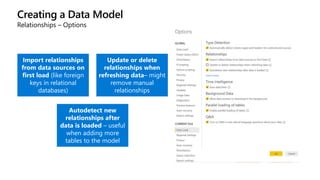
  • 55.
    Shaping Data Query formulas Thelanguage was previously known as M or Power Query Formula Language Has a standard library with built-in functions: https://msdn.microsoft.com/library/Mt253322?ui=en-US&rs=en-IN&ad=IN Is case-sensitive and strongly typed Every transformation generates code automatically. Each step maps to an instruction. Use the Advanced Editor to edit the query or Blank Query data source to start from an empty query
  • 56.
    Shaping Data Query formulas– an example Every query starts with a let instruction and ends with an in Each step name is prefixed with a # if it has spaces and its name matches exactly the one in the Query Settings Pane and the order is also the same Several built-in functions implement the interface functionality with the Object.Function(…) syntax like Table.RemoveColumns
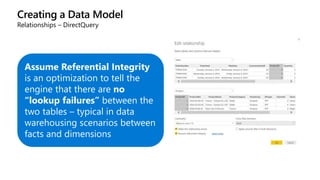
  • 57.
    Shaping Data Query formulas– User Functions Functions allow for code reuse. They require following syntax: The procedure must be enclosed in a new let and in block Parameters are declared in the function definition and then they can be used to make the procedure generic:
  • 58.
    Shaping Data Query formulas– User Functions You can invoke them via the Query Editor Notice the fx icon in the Left Pane that indicates a user function Supports parameters of type “Table”
  • 59.
    Shaping Data Query formulas– User Functions You can also invoke them with the Add Custom Column task or with Invoke Custom Function. M Intellisense is supported. Can be turned off in options.
  • 60.
    Shaping Data Query Parameters Queries and other objects can use parameters to get a dynamic behavior
  • 61.
    Shaping Data Query Parameters Eachparameter generates a query Can be referenced from other queries and loaded to the data model for use in calculations Support for parameters is available throughout the tool
  • 62.
    Shaping Data Query dataprofiling Allowing you to easily identify errors and empty values in your data previews Quality bar below the column headers indicating whether there were any error values found or not. “Column quality” option under the View tab Column Distribution allows you to get a sense for the overall distribution of values within a column in your data previews, including the count of distinct values and unique values
  • 63.
    Shaping Data Query dataprofiling Column Profiles Pane – to provide deeper profiling capabilities for any column. Such as • Column Statistics - # of errors, empty, valid, duplicated and unique values. Value distribution measures such as Min/Max/Average/Median, etc. • Column distribution – Larger size version of the inline value distribution histograms, also including the ability to Keep or Remove values, which will generate the corresponding Filter Rows step in your query (“Equals” / “Does Not Equal” filters). You can also now switch statistics based on preview to the entire table.
  • 64.
    Shaping Data Query dataprofiling  Visibility of each of the data profiling elements can be controlled through the View tab.
  • 65.
    Shaping Data AI InsightsQuery Editor Use AI Insights to gain access to a collection of pre-trained machine learning models that enhance your data preparation efforts. With Text Analytics and Vision in Power BI, you can apply different algorithms from Azure Cognitive Services to enrich your data in Power Query. Power BI makes it simple to incorporate the insights from models hosted on the Azure Machine Learning service, using straightforward point-and-click gestures
  • 66.
    Shaping Data Query dependencyview  View dependencies across all queries and data sources
  • 67.
  • 68.
  • 69.
  • 70.
    Knowledge Check •Why dowe need to shape our data? •What are some examples of available data transformations in Power BI Desktop?
  • 71.
    Lesson 4: Creatinga Data Model
  • 72.
    Objectives After completing thislearning, you will be able to:  Describe modeling data to meet business requirements  Learn different relationship models  Learn different data types
  • 73.
    Creating a DataModel After data connections are created and the data is shaped according to the business requirements, we start modeling it Relationships between the extracted tables can be established to allow filtering Calculations can be created for additional context or for implementing business metrics or even key performance indicators Data can be categorized, typed, and formatted Custom sorting can be implemented for the attributes
  • 74.
    Creating a DataModel Data View Data View icon Data Grid – Shows the data for a selected table Modeling Ribbon – Manage relationships, calculations, data types, formats, and categorization Formula bar – DAX formulas for calculations Search – Search for tables or column names Fields List – Select a table or column to view in the Data Grid
  • 75.
    Creating a DataModel Model View Model view icon – shows the relationships in the model. Here you can create relationships or view them. Relationship – you can hover your cursor over a relationship to show the columns used. Double-click on a relationship to open it in the Edit Relationship dialog box In the example, Sales and Stores have a relationship via StoreKey
  • 76.
    Creating a DataModel Model View Allows the creation of customized layouts (subsets) Multiple diagram layouts Bulk editing of columns, measures, and tables. Allows setting object (tables or columns) properties directly on the diagram Allows setting properties en masse Allows the creation of display folders
  • 77.
    Creating a DataModel Relationships They connect two tables allowing filtering and calculations using columns from both. No need to flatten! They are based on a single column from each table. One table acts as a lookup table and the other as a referencing table The datatypes for the columns do not have to be the same Relationships can be created manually or automatically inferred by the tool More than one relationship can exist between two tables
  • 78.
    Creating a DataModel Relationships – Creation Relationships can be created manually by using the Manage Relationships tab. Or by dragging-and-dropping columns in the Modelling View There is also an auto-detect feature where Power BI desktop will rely on column names and data types (or constraints defined in the data source) to detect relationships
  • 79.
    Creating a DataModel Relationships - Cardinality  Many to One (*:1) or One to Many (1:*)
  • 80.
    Creating a DataModel Relationships – One to One (1:1) In a One to One relationship there are no repeating values for the column in either table. Power BI Desktop will automatically detect this and set it automatically. Only set it if always true
  • 81.
    Creating a DataModel Relationships – Many to Many This relationship indicates that neither of the tables contain unique values. Power BI Desktop will automatically detect this and display a warning.
  • 82.
    Creating a DataModel Relationships - Direction The direction of the relationship determines how data can be filtered. Single is the typical behavior in star-schemas where dimension tables (lookup) filter fact tables (transactional tables). filter propagates from one side to the many side of the relationship (Dimension to Fact table). This allows for slicing and filtering fact data using dimension attributes Both tables act as if together in a single table, so filtering is possible on either side of the relationship.
  • 83.
    Creating a DataModel Relationships – Direction  In some cases, we may want filter to propagate from many to the one side of the relationship.  E.g. Show number of products of each color sold by each salesperson.  Wrong result using “Single” direction
  • 84.
    Creating a DataModel Relationships – Direction  In some cases, we may want filter to propagate from many to the one side of the relationship.  E.g. Show number of products of each color sold by each salesperson.  Correct result using “Both” direction
  • 85.
    Creating a DataModel Relationships – Direction  Don’t turn on “Both” direction for every relation. It is slower and might return unexpected results
  • 86.
    Creating a DataModel Relationships – Direction The Both direction type also enables Many to Many relationships ∑ 4700
  • 87.
    Creating a DataModel Relationships – Active and Inactive More than one relationship can exist between two tables, but only one can be active at a time The columns from the transactional table must be different In the above example, three relationships exist. The full line represents the active (in this case, we aggregate on Due Date)
  • 88.
    Creating a DataModel Relationships – Active and Inactive It is possible to control which relationship is active by using the Manage Relationships window It is also possible to use DAX to activate a relationship in a calculation or import the lookup table more than once
  • 89.
    Creating a DataModel Relationships – Parent-Child  Not supported natively. As a workaround, denormalize the table. Sintra Lisbon Lisbon Portugal Portugal Europe Sintra Lisbon Portugal Europe
  • 90.
    Creating a DataModel Relationships – Data Quality Issues If data has null or blank values for the columns that support relationships either: • Remove those rows (which might affect statistics and summarizations) • Define a default value that replaces those values so that a match is made If duplicate values exist in a lookup table, a relationship cannot be created • Remove the duplicates so that the lookup table contains none. You can use the data shaping features of Power BI Desktop to do it.
  • 91.
    Creating a DataModel Relationships – Options Import relationships from data sources on first load (like foreign keys in relational databases) Update or delete relationships when refreshing data– might remove manual relationships Autodetect new relationships after data is loaded – useful when adding more tables to the model
  • 92.
    Creating a DataModel Relationships – DirectQuery Assume Referential Integrity is an optimization to tell the engine that there are no “lookup failures” between the two tables – typical in data warehousing scenarios between facts and dimensions
  • 93.
    Creating a DataModel Data Types By default, Power BI Desktop detects data types automatically when loading the data for more efficient storage, calculations, and data visualization Automatic type detection option can be disabled globally which can be found under Options dialog (under Global > Data Load) Data types can be set both at the Query Editor and in the Modeling tab
  • 94.
    Creating a DataModel Data Types Numeric Types • Decimal Number – eight byte floating point number. The largest value is 15 digits long and decimal separator can occur anywhere. • Fixed Decimal Number – It allows 19 digits with 4 digits of precision. The largest value is 922,337,203,685,477.5807 . Digits to the right of the 4 digits of precision are truncated. Good to avoid rounding errors. • Whole Number – eight byte integer value. It has no decimal places. It allows 19 digits from -2 63 to 2 63-1 and allows the largest value of the numeric types. • Percentage – An input value such as “5%” will be automatically recognized as a Percentage value and converted to a 2-digit precision decimal number (i.e. 0.05). Text type True/False type Date/Time Types Date/Time – Dates with time from year 1900 to 9999 • Date – A date without a time portion • Time – Only the time portion • Date/Time/Timezone – Represents a UTC Date/Time • Duration – The difference between two Date/Time or Time fields Blank/Nulls type – represents and replaces SQL nulls.
  • 95.
    Creating a DataModel Data Categorization Categorizing the fields is relevant for geographical fields or for image or URL fields In the modeling tab a field can be classified at a certain geographical granularity or as an image that comes from an URL or a text field which is actually an URL. Power BI desktop will render data based on this categorization
  • 96.
    Creating a DataModel Standard Data Formatting  Built-in formats based on data types.
  • 97.
    Creating a DataModel Custom Format Strings  Created in Model view.  VBA style syntax.
  • 98.
    Creating a DataModel Sorting by Column By default, Power BI desktop will sort data in a column based on the alphabet It is possible to use a separate column to determine sorting
  • 99.
    Creating a DataModel Hierarchies Can be created in the Data View They must use attributes from a single entity Can be used in the different visualizations, allowing drill down Imported Power Pivot models or connected to SSAS models with hierarchies are also usable
  • 100.
    Creating a DataModel Mark custom date table You can mark a custom table as a date table (suppresses OOB date tables) Date hierarchies, time intelligence and Quick Measures become enabled Must contain at least one column of type “Date” or “Date/Time” Must be contiguous
  • 101.
    Creating a DataModel Aggregations Aggregations are a way to store only summarized values in memory, to provide the fastest access to aggregated data without having to load your entire dataset into Power BI Benefits of Aggregations: • Query performance on large datasets • Data refresh optimization • Achieve balanced architectures
  • 102.
    Creating a DataModel Import From Microsoft Excel If you already have data models created in Excel, you can import them into Power BI Desktop (opposite, not possible) Power Query, Power Pivot and Power View content will be “migrated” When finished, there is no longer a dependency on the Excel file
  • 103.
    Creating a DataModel Curate Featured Tables for Excel ( Preview ) Curate featured tables to be referenced in Excel that will enrich your Excel sheets with authoritative enterprise data. Enable members of your organization to find and use relevant and refreshable data to ultimately make better decisions A featured table must have a description, a row label, and a key column.
  • 104.
  • 105.
    Power BI Desktop •Creating the Data Model
  • 106.
  • 107.
    Knowledge Check •What arethe different relationship cardinality supported in Power BI data models? •What is the impact of using “Both” filter direction?
  • 108.
  • 109.
    Objectives After completing thislearning, you will be able to:  Learn different calculation methods to prepare data
  • 110.
    Calculations DAX Basics Microsoft Excellike Language that allows the extension of the model with additional business logic Ideal for complex calculations such as time intelligence, growth formulas, ratios, and more complex KPIs Business rules can be materialized at the row level (Calculated Column) or can be calculated on-the-fly (Measures) Certain capabilities might overlap with Formula Language
  • 111.
    Calculations DAX Basics –Syntax An expression always starts with the name of the calculation The equal sign indicates the beginning of the formula A function or a combination of functions is applied which will return a value The arguments of the function (can be a reference to columns or additional functions) The table that is being referenced The column that is being referenced for the specified table
  • 112.
    Calculations DAX Basics -Functions A function always references a column or a table. Filters can be added to filter context of evaluation A function always returns a value or a table. When a table is returned, further functions should be applied to obtain a value Several time intelligence functions exist out of the box Some Excel functions are also valid (like MONTH, FLOOR…) Full reference of available functions here: https://msdn.microsoft.com/en-us/library/ee634396.aspx
  • 113.
    Calculations DAX Basics –List Separator and Decimal Symbol DAX authoring will default to using the standard DAX characters of comma as the list separator and period as the decimal symbol. If you want to default back to the list separator and decimal symbols defined by your machine’s Region settings, ,use DAX separators option under Options and settings > Options > Global > Regional settings:
  • 114.
    Calculations DAX Basics –Dax Editor The editor has keyboard shortcuts, line numbers, and indent lines. The experience is very similar to what you have for other Microsoft editors, such as VS Code.
  • 115.
    Calculations DAX Basics –Creating Calculations Select the Data View and then the Modeling tab for the target table (or with the table contextual menu) Type the expression in the Formula Bar
  • 116.
    Calculations DAX Basics –How are calculations applied? Row context can be thought of as the current row - like an iterator Filter context determines the conditions that filter data, for a particular visualization, and can be applied on top of Row Context This cell corresponds to the sum of “Sales Minus Tax” for all rows that belong to the Calendar Year“2012” and Gender is “M” Row Context
  • 117.
    Calculations Calculated Columns They arepersisted in the model and are calculated row-by-row (Row Context) They increase the size and memory requirements for the model They can be re-used in other calculations DAX Functions can be used in their definition (beware of aggregations)
  • 118.
    Calculations Calculated Columns A calculationor a numeric field has a “Default Summarization” – defines how it is aggregated when placed on a visualization, by default A Calculated Column with a “Default Summarization” of “Do not summarize” will appear with With a different summarization will appear with
  • 119.
    Calculations Measures Measures are calculatedwhen they are used in a particular visualization And they can also be calculated on a row-by-row basis They can be implicit – an aggregation of a field with “Default Summarization” different from “Do Not Summarize” They can be explicit, where they are the result of a DAX expression. You cannot control the aggregation for this type.
  • 120.
    Calculations Measures They can (andshould) be referenced from other measures – this is a best practice Measures are evaluated for each cell they appear in (Filter Context) CalendarYear=2012 Promotion=“Reseller” Gender=“M” The total is also calculated independently. It is not an aggregation of the rows.
  • 121.
    Calculations Measures Data categorization canbe set on measures. Can do things like: • use measures to dynamically create URLs and mark the data category as a Web URL; especially useful to create link off to other Power BI reports with URL filter parameters. • create DAX measures to create interesting insights such as dynamic sparklines using SVG images
  • 122.
    Calculations Calculated Tables Become newtables which are the result of a DAX Expression They behave like regular tables and created via Modeling Tab New tables can also be created in the Query Editor with Formula Language or by typing or pasting content
  • 123.
    Calculations Show value as Out-of-the-boxcalculations that can be applied without coding Accessible via field well, you can change how a numerical value or measure is displayed
  • 124.
    Calculations Advanced Calculations  CALCULATE(<measureexpression>, <filter1>, <filter2>, …) allows us to change the filter context No Discount Sales = CALCULATE ( SUM ( FactResellerSales[SalesAmount] ); DimPromotion[EnglishPromotionName] = "No Discount" )
  • 125.
    Calculations Advanced Calculations FILTER allowsmore complex filtering but is less performant than CALCULATE Should be used to filter on smaller tables like Dimensions It follows the relationships in order to filter, so its results are more user-friendly
  • 126.
    Calculations Advanced Calculations Sales withBig Discount = CALCULATE ( SUM ( FactResellerSales[SalesAmount] ); DimPromotion[DiscountPct] > 0.1 ) Sales with Big Discount FILTER = CALCULATE ( SUM ( FactResellerSales[SalesAmount] ); FILTER ( DimPromotion; DimPromotion[DiscountPct] > 0.1 ) )
  • 127.
    Calculations Advanced Calculations  ALLremoves the filter applied to a table or column.  Useful for ratio-to-parent calculations Percentage of Product Net Revenue = DIVIDE ( SUM (Sales[Net Revenue]); CALCULATE ( SUM (Sales[Net Revenue]); ALL ( Product[Product Name] ) ) )
  • 128.
    Calculations Advanced Calculations X Functions(SUMX, MAXX, MINX, AVERAGEX, COUNTX, COUNTAX) Parameters (<table or table expression>,<arithmetic expression>) It will iterate each row on the first table and apply the arithmetic expression. Useful for row-by-row calculations, correcting TOTALS and hidden calculations Might, potentially, be slower than SUM
  • 129.
    Calculations Advanced Calculations X Functions- Row-by-row SalesAmountwithSUMX = SUMX ( FactResellerSales; FactResellerSales[OrderQuantity] * FactResellerSales[UnitPrice] )
  • 130.
    Calculations Advanced Calculations  RANKX(<tableexpression>;<arithmetic expression>;<sort order>;<tie handler>)  Gets an ordinal position for the selected column ProductRank = RANKX ( ALL ( DimProduct[ProductAlternateKey] ); [Sales];; DESC; SKIP )
  • 131.
    Calculations Advanced Calculations  HASONEVALUElets us test if only a single element is selected for a column ProductRankEnhanced = IF ( HASONEVALUE ( DimProduct[ProductAlternateKey] ); RANKX ( ALL ( DimProduct[ProductAlternateKey] ); [Sales];; DESC; SKIP ); BLANK () )
  • 132.
    Calculations Advanced Calculations  TOPN(<n>;<table>;<orderby expression>) returns the top N rows for a table TOPN ( 10; VALUES ( DimProduct[ProductAlternateKey] ); [Sales]; DESC )  The VALUES function is required to remove duplicates, if they exist. Not needed if they don’t
  • 133.
    Calculations Advanced Calculations  TOPNdoes not return a scalar  It should be then used as context to return a scalar TOP10Products = CALCULATE ( [Sales]; TOPN ( 10; VALUES ( DimProduct[ProductAlternateKey] ); [Sales]; DESC )
  • 134.
    Calculations Advanced Calculations –Support for Excel Financial Functions Almost all financial functions that you know and love from Excel are now available in DAX. The functions have the same name and signature as their Excel counterpart. These financial functions make it easier to build financial reports and perform otherwise complex calculations in Power BI
  • 135.
    Calculations Advanced Calculations –Time Intelligence Many DAX functions exist to support time calculations. There are two types:  Functions that require a CALCULATE SalesYTD = CALCULATE ( [Sales]; DATESYTD ( DimDate[FullDateAlternateKey] ) ) • Functions that return a scalar (syntactic sugar) SalesYTDNoCalculate = TOTALYTD ( [Sales]; DimDate[FullDateAlternateKey] )
  • 136.
    Calculations Advanced Calculations –Time Intelligence SalesLastMonth = CALCULATE ( [Sales]; DATEADD ( DimDate[FullDateAlternateKey]; -1; MONTH ) ) SalesSamePeriodLastYear = CALCULATE ( [Sales]; SAMEPERIODLASTYEAR ( DimDate[FullDateAlternateKey] ) ) MonthOverMonth = DIVIDE ( ( [Sales] - [SalesLastMonth] ); [SalesLastMonth] ) SalesSinceEver = CALCULATE ( [Sales]; DATESBETWEEN ( DimDate[FullDateAlternateKey]; FIRSTDATE ( ALL ( DimDate[FullDateAlternateKey] ) ); LASTDATE ( DimDate[FullDateAlternateKey] ) ) )
  • 137.
    Calculations Advanced Calculations –Time Intelligence To enable time intelligence with your date tables, two conditions are necessary: The relationship between the fact table and the date table must be done through a date field on both sides; Otherwise, the date table should be exclusively marked as Date Table. The calculation must then target the date column on the date dimension which must be contiguous
  • 138.
    Calculations Advanced Calculations –Time Intelligence with Auto Date/Time  A hierarchy is automatically generated for each date field on each table  Calculations need to be done with the “in-line” notation SalesAmountYTD = CALCULATE ( SUM ( FactInternetSales[SalesAmount] ); DATESYTD ( FactInternetSales[OrderDate].[Date] ) )
  • 139.
    Calculations Advanced Calculations –Note on Auto date/time Auto date/time is not recommended for large tables with many different date attributes and/or broad range of dates. This feature can bloat the data model by creating separate internal date dimension tables for each date attribute. Can be disabled under Data Load settings. For large tables, bring your own Date table and mark it as Date Table.
  • 140.
    Calculations DAX Variables Variables makeswriting DAX code easier, increases readability, reusability and maintenance of DAX code. Variables can improve query performance Syntax: • VAR keyword introduces the definition of a variable • RETURN keyword defines the expression to return as the result myFormula = VAR = VariableName1 = <some valid DAX formula> VAR = VariableName2 = <some other valid DAX formula> RETURN <another valid DAX formula that can use VariableName1 and VariableName2 as part of the expression>
  • 141.
    Calculations DAX Variables Can haveas many variables in an expression as required, and each one has its own definition Variables can contain scalar values or tables DAX evaluates variables in the context of their definition, not in the one where they are used. Once the variable has been assigned a value, that value cannot change during the execution of the RETURN portion of the formula The results of the variable calculations are cached for reuse inside the formula Variables can refer other variables, measures or calculated columns VAR myScalarValue = SUM(Sales[Extended Amount]) VAR myTable = FILTER(Customer, Customer[Post Code] = 50210)
  • 142.
    Calculations DAX Variables (example) Tocalculate a percentage of year-over-year growth without using a variable, we could create three separate measures: • Sum of SalesAmount = SUM(SalesTable[SalesAmount]) • SalesAmount PreviousYear=CALCULATE([Sum of SalesAmount], SAMEPERIODLASTYEAR(Calendar[Date])) • Sum of SalesAmount YoY%=DIVIDE(([Sum of SalesAmount] – [SalesAmount PreviousYear]), [Sum of SalesAmount])) Using a variable, we can create a single measure that calculates the same result • YOY% = VAR CurrentSales = SUM(Sales[Net Revenue]) • VAR SalesLastYear = CALCULATE(SUM(Sales[Net Revenue]), SAMEPERIODLASTYEAR('Date'[Date])) • RETURN IF(CurrentSales, DIVIDE(CurrentSales - SalesLastYear, CurrentSales)) Advantages: • More readable code • Better query performance (result of expression is stored in the variable upon declaration and doesn’t have to be recalculated each time it is used)
  • 143.
    Calculations Quick Measures Allow youto build calculations, without knowing DAX Also works with live connection mode against SSAS models. Available calculations are organized in 6 categories: • Aggregate within category • Filters and baselines • Time Intelligence • Running Total • Mathematical Operations • Text Start with an element on the field well or on the field list and create calculation It’s great for learning!
  • 144.
  • 145.
    Power BI Desktop •Extending the Data Model
  • 146.
  • 147.
    Knowledge Check What aresome of the differences between Calculated Columns and Calculated Measures? Why should you avoid Auto Datetime feature? What are the advantages of using DAX variables?
  • 148.
  • 149.
    Objectives After completing thislearning, you will be able to:  Describe building a report  Learn different chart types on Power BI Desktop  Learn different interactive features on Power BI Desktop
  • 150.
    Building a Report ReportView  The first canvas that is presented to the user
  • 151.
    Building a Report ReportView Use drag-and-drop and search to build your analysis like a pivot table in Excel
  • 152.
    Building a Report ModernRibbon Modern Ribbon: same ribbon used for Office 365
  • 153.
    Building a Report KeyboardShortcuts Click “?” to access keyboard shortcuts
  • 154.
    Building a Report Visualizations Severalvisualizations exist out-of-the box and developed by 3rd party Choose the one that best conveys your message New visualizations are released frequently Change easily between visualizations Each visualization has its own data settings and properties Fine control on display settings Visualizations can be responsive
  • 155.
    Water Fall 100% StackedColumn Tree Bubble Scatter Plot Stacked Bar Clustered Bar Clustered Column Map Map Stacked Column Table Matrix Line Funnel Line and Stacked Column Area Stacked Area Filled Map KPI Gauge Pie Bubble Multi-row Card Card © 2020 Microsoft. All rights reserved. Building a Report Choosing the Right Charts for the Right Purpose
  • 156.
    Building a Report Visualizations– Properties * Properties vary, depending on visualization. Enables the X/Y-Axis, control alignment, title and color and scale (Y - linear/log) Enables a reference line for a particular value and with formatting options Granular control on the color of each axis occurrence Display the values associated to a series. Control the unit, color and font Plot area formatting, namely define an image as background Enable the title and format it Enable a background color and define transparency Lock the current aspect Pixel level control of placement and size Enable a border and control its color Filtering settings via text search
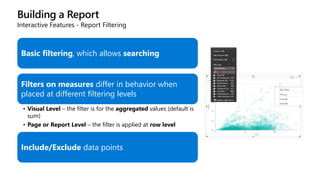
  • 157.
    Building a Report Commonvisual properties - Numerical fields and aggregations Any numerical field can have a summarization other than its default A numerical field with default “Do not summarize” can still be aggregated in the field pane Measures cannot change their aggregation
  • 158.
    Building a Report Commonvisual properties - Data Labels Data labels make a chart easier to understand, because they show details about a data series or its individual data points.
  • 159.
    Building a Report Commonvisual properties - Bar chart controls Increase area used for axis labels & Cross highlight axis labels Maximum size control Slider can be used to increase/decrease the percentage of the chart used by the axis labels..
  • 160.
    Building a Report Commonvisual properties - Analytics pane Analytics pane will be the central location for all analytical features Add dynamic reference lines and trend lines on charts Analytical features available only for select visuals
  • 161.
    Building a Report Commonvisual features - Sorting It is possible to sort data according to numeric values or to data categories, for each visualization For categories, the order that is used is either alphabetical (or numerical) or the custom sort order Data can be presented ascending or descending
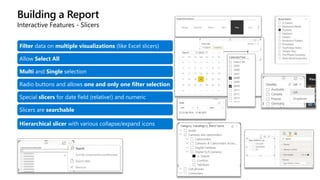
  • 162.
    Building a Report Commonvisual features – Export, Focus mode and more Data for a visualization can be exported as .csv file Alignment and Depth can be controlled Focus mode pops-up the visualization It is possible to overlay visualizations It is possible to copy visuals between files (schema must match!)
  • 163.
    Building a Report Visualizations– Textboxes, Images and Shapes
  • 164.
    Building a Report Staticweb URL support for buttons, shapes, and & images You can link a specific website through an image, shape or button. You can do this by selecting the Web URL option in the Type dropdown of the Action card of the formatting pane.
  • 165.
    Building a Report Wallpapers Withnew wallpaper feature, we can format the grey area outside report page to theme the entire report area. If the page background has a transparency higher that 50%, you will see a grey dotted line in editing mode to help see where the edge of your page is.
  • 166.
    Building a Report ReportThemes Definition of theme as JSON file Define your custom color palette Define your default value of settings Built-in report themes available The color palette will be applied to all visualizations (except if custom data points were defined) The theme gets applied in the service, too. There are generators themes, you don’t need to code! Possible to customize through a dialog
  • 167.
    Building a Report Customize& Export Current Theme The most common options of your current theme can be customized through a dialog in Power BI Desktop instead of needing to write or modify a JSON file. The settings that can be customized are divided into different categories like name and colors, text, visuals, page settings Custom theme can also be exported to be reused
  • 168.
  • 169.
    Building a Report PageProperties Name Page Size and Format Page Background (both color and image)
  • 170.
    Building a Report Hiddenpages Right click on Page and select “Hide Page” to hide it in Reading View Hidden Pages still shown on Design View, but look different to indicate they are hidden Hidden pages can still be accessed through drill through or bookmark
  • 171.
    Building a Report Reportgridlines and snap to grid Enable gridlines on your report canvas while authoring Snap to gridlines
  • 172.
  • 173.
    Building a Report InteractiveFeatures - Cross-Filtering and Cross-Highlight Clicking or drilling on a visualization element, filters other visualizations You can multi-select data points across multiple visualizations A tooltip displays the highlighted portion and the total Click an empty space to clear the filter
  • 174.
    Building a Report InteractiveFeatures - Cross-Filtering and Cross-Highlight Can change default visual interaction from cross highlighting to cross-filtering
  • 175.
    Building a Report InteractiveFeatures - Visual Interactions You can control interactions between visualizations Click a visualization, the master, and on the other visualizations select the type of interactivity
  • 176.
    Building a Report InteractiveFeatures - Report Filtering Filters can be applied at three different levels: • Visual – The filter only applies to the current visualization • Page – The filter applies for every visualization on the page • Report – The filter applies for every visualization for every page in the report (file) Filter experience • Dedicated filter pane with advanced options.
  • 177.
    Building a Report InteractiveFeatures - Report Filtering Filtering pane configuration and customization features: Add/Remove individual filters Show/Hide individual filters or the entire filter pane from report consumers Lock filters as read only for report consumers Formatting options for the filter pane to make it feel like part of the report Flexibility of defining default expand / collapsed filter pane at report load time for consumers. Rename filters by double clicking the filter title. Sort the filter pane Filter pane search allows you to search across your filter cards. Supports basic, advanced, conditional (AND OR), Top N, relative date filters and more
  • 178.
    Building a Report InteractiveFeatures - Report Filtering Filtering pane configuration and customization features (cont.): Lock or hide individual filter cards. Use the formatting pane to format the entire pane as well as each filter card in the pane. Can format using theme files too. Report Settings -> Filtering experience section, includes option to restrict changes to filter type. If turned off, report consumers won’t have access to the dropdown to switch between the basic and advanced types of filters.
  • 179.
    Building a Report ReportFiltering Pane (cont.) Filtering pane configuration and customization features (cont.): Report consumers can see a read only view of filters that are affecting the visual. Hover over a filter icon in the visual header to see the filters, slicers, cross-highlighting state that is affecting the data on the visuals. Can turn on this new filter icon through filter formatting options.
  • 180.
    Building a Report InteractiveFeatures - Report Filtering Basic filtering, which allows searching Filters on measures differ in behavior when placed at different filtering levels • Visual Level – the filter is for the aggregated values (default is sum) • Page or Report Level – the filter is applied at row level Include/Exclude data points
  • 181.
    Building a Report InteractiveFeatures - Slicers Filter data on multiple visualizations (like Excel slicers) Allow Select All Multi and Single selection Radio buttons and allows one and only one filter selection Special slicers for date field (relative!) and numeric Slicers are searchable Hierarchical slicer with various collapse/expand icons
  • 182.
    Building a Report InteractiveFeatures - Slicers Sync slicers allows the applications of filters to multiple pages You can set this behavior through the “Sync slicers” pane Hidden slicer will be put on every page, and you can control visibility Create custom groups of slicers to sync under Advanced options Supports standard OOB slicer visual and some custom visual like Hierarchy slicer
  • 183.
    Building a Report Queryreduction You can reduce the number of queries when you use slicers or filters It is useful for very large or very slow data sources in DirectQuery Set to enable an “Apply” button that will appear in the objects
  • 184.
    Building a Report InteractiveFeatures - What-If Parameter Create new parameters and use it for what-if analysis You have to apply it in your own calculations
  • 185.
  • 186.
    Building a Report Visualizations– Table and Matrix Table contains related data in a logical series of rows and columns; may also contain headers and a row for totals Matrix is like a table but automatically aggregates the data and enables drill down, making it easier to display data meaningfully across multiple dimensions Contains predefined styles for Table and Matrix
  • 187.
    Building a Report Visualizations– Table and Matrix (Conditional Formatting) Conditional formatting options • Background color • Font color • Data bars • Icons Conditional Formatting Warnings • Invalid measure data type • Deleted measure • Unrecognized measure
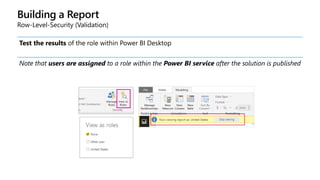
  • 188.
    Building a Report Visualizations– Table and Matrix (Conditional Formatting) Conditional formatting can also be applied to a column based on a different field
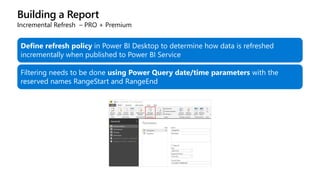
  • 189.
    Building a Report Visualizations– Table and Matrix Supports copying a specific value or a selection of data from a table or matrix Copy value will add the unformatted value to your clipboard Copy selection will add a tabular version of all data currently selected in your table or matrix to the clipboard, including the row and column headers
  • 190.
    Building a Report Visualizations– Matrix Like in Excel, it is possible to drill on specific elements of a matrix, whether on columns or rows
  • 191.
    Building a Report Mapvisuals – Bubble map Plotting data requires internet connection Bing is used to return the location Latitude and Longitude can be used, but… Location names are also mapped automatically Combine attributes in Location for increased accuracy and use data categories
  • 192.
    Building a Report Mapvisuals – Heat map Heat map formatting option for circle Bing map visual converting all the location dots on your map to a heat map layer through the formatting pane.
  • 193.
    Building a Report Mapvisuals – Filled map
  • 194.
    Building a Report Mapvisuals - ArcGIS Use ArcGIS Maps as a Power BI visual Different base maps (dark gray, light gray, open street maps, and Esri’s standard ArcGIS base map) Different themes: Points, Points with Size; Heat Map and Clusters Additional Reference Layers (demographic, public layers) Location is adaptive: streets are points, counties are boundaries
  • 195.
    Building a Report Mapvisuals – ArcGIS Sign up / Sing in to ESRI PLUS or connect to ArcGISOnline from the ArcGIS Visualization Plus subscription provides additional base map and global demographics ArcGIS Online provides secure organizational data for your reports Can put up to 5,000 geo locations on your map
  • 196.
    Building a Report Mapvisuals – Shape map (Preview) Shows relative comparisons of regions on a map by coloring them differently Based on ESRI/TopoJSON maps Supports custom maps
  • 197.
    Building a Report Visualizations– ML Script visuals Create charts based on R or Python scripts Choose your favorite IDE for both, to edit script
  • 198.
    Building a Report Advancedvisualizations – Decomposition Tree Visual Used to perform root-cause analysis by viewing how individual categories in a group contribute to the whole. The visual lets you decompose, or break down, a group to see its individual categories and how they can be ranked according to a selected measure, such as by sales amount.
  • 199.
    Building a Report Advancedvisualizations - Key Influencer Visual Understand the factors that drive a metric you're interested in by analyzing your data, ranking the factors that matter, and displaying them as key influencers. For example, suppose you want to figure out what influences' employee churn. One factor might be employment contract length, and another one might be employee age.
  • 200.
    Building a Report Advancedvisualizations - Key Influencer Visual In the Analyze bucket, numerical, and categorical fields, with Aug 2019 update measures can be used. By default, measure is evaluated based on the fields in the Explain by bucket. If you want it to be evaluated over all your data, add an ID field to the Expand by bucket.
  • 201.
    Building a Report Visualizations– Custom Visualizations Ready-made custom visuals https://appsource.microsoft.com/en- us/marketplace/apps?product=power-bi-visuals You can also build your own visualizations (step by step tutorials available) After you build them, you can use them or you can share with the community If you share, we will do a quality check and make it available at our marketplace
  • 202.
  • 203.
    Building a Report Visualizations– Custom Visualizations  Download the visual from store (AppSource) or from file (.pbiviz file extension) OR
  • 204.
    Building a Report Visualizations– Custom Visualizations (examples) Synoptic Panel by OKViz Waffle Chart Sankey Chart Enlighten Aquarium Word Cloud Stream Graph
  • 205.
    Building a Report Visualizations– Custom Visualizations - xViz Suite (examples) Multiple Axis Chart Advanced Gauge Chart Variance Chart Horizon Chart Funnel Chart Pyramid Charts
  • 206.
    Building a Report Visualizations– Custom Visualizations R-powered custom visuals Download and import the R-powered custom visuals like any regular custom visuals
  • 207.
    Building a Report Visualizations– Organizational Custom Visuals Power BI admin can deploy specific visuals as part of your organizational repository
  • 208.
    Building a Report Personalizedvisualization pane Pin any marketplace visual to your pane and have it show up automatically for you every time you open any report Makes it very easy to standardize on a visual without needing to add it to every single report Unpin default visuals you do not wish to see. About shows the visual’s Name, Publisher, etc.
  • 209.
  • 210.
    Building a Report InteractiveFeatures - Drill down and up It is possible to navigate across attributes if they are stacked on a particular area of a visualization (down/up/across) Those attributes don’t have to be natural hierarchies, all of them can be mixed. Drill features works on bar and line charts
  • 211.
    Building a Report InteractiveFeatures - Drill to records Drill ribbon allows controlling of drilling operations Use Visual table to view the data in a visual as a table, or use Data point table to view a table of the data used to calculate a single data point
  • 212.
    Building a Report InteractiveFeatures - Drill through It is possible to create a page in your report that focuses on a specific entity - such as a supplier, or customer, or manufacturer. With that focused report page, users can right-click on a data point in other report pages, and drill through to the focused page to get details that are filtered to that context.
  • 213.
    Building a Report InteractiveFeatures - Drill through • Right-click on a data point configured for drill through • A context menu appears, letting you drill through to that page. • Conditionally set the drill through destination for the button • Conditionally format the tooltips for the enabled and disabled button state • Individually customize the formatting for the disabled state of the button
  • 214.
    Building a Report InteractiveFeatures - Drill through (Measures) Measures can be passed as a drillthrough filter Can pass all filters and not just specific fields placed in the bucket by turning on Pass all filters All filter context from the source page is passed to the drillthrough page, which is now shown on the Drillthrough bucket.
  • 215.
    Building a Report InteractiveFeatures - Drill through (cross-report) Can be used to refer other reports in the same workspace. Through this you can setup links between reports in the same workspace. Steps to enable • Set up a drillthrough target page to be accessed from other reports within a workspace. • Allow a report to opt into seeing drillthrough pages outside of the report. • In the Report settings for the current file section of the Options dialog, enable the Cross- report drillthrough setting for all reports within a workspace that you want to point that cross-report drillthrough page
  • 216.
    Building a Report InteractiveFeatures - Bookmarking Save interesting states as part of your report. Pick up where you left off in your analysis. Create PowerPoint-like presentation of your report. Create report navigation, and more.
  • 217.
    Building a Report InteractiveFeatures - Bookmarking Set up report to look how you want and click the Add button under Bookmarks. Rename or rearrange the bookmarks, as necessary. Use bookmark by simply clicking a bookmark from the bookmark pane; or Use View option to use bookmarks as a story or in a presentation.
  • 218.
    Building a Report InteractiveFeatures - Bookmarking Bookmark will include the following: • the current page • Filters • Slicers • Sort order • Drill location • Visibility (more on this later) • Any of the “focus” modes Bookmark links are available for shapes and images; great feature for creating custom navigation in reports.
  • 219.
    Building a Report InteractiveFeatures - Bookmark groups Create sets of bookmarks with different purposes. Collect a set of bookmarks together and give it a name Each group can be expanded and collapsed for easy viewing
  • 220.
    Building a Report InteractiveFeatures - Selection Pane Lists out all objects on the current report page and allows you to select the visual from here. Hide visuals on the report through this pane. Combine this feature with bookmarking to create interesting reports. Very useful feature for storytelling purposes.
  • 221.
    Building a Report InteractiveFeatures – Selection Pane (Control order) Easily change which overlapping objects show on top on the canvas Objects higher in Selection list show in front of objects lower in the list
  • 222.
    Building a Report InteractiveFeatures – Selection Pane (Grouping Visuals) Group visuals, shapes, textboxes, images, and buttons together just like in PowerPoint. Control visibility of individually or as a group from the selection pane Possible to ungroup Possible to merge the groups into one group instead of nesting them Clicking on the empty space within the group will not select anything If it has background color, you will be able to select the group
  • 223.
    Building a Report InteractiveFeatures – Spotlight Call attention to a specific visual without losing context during presentations. This feature can be included as part of a bookmark.
  • 224.
    Building a Report InteractiveFeatures – Buttons Add interactive elements to create app-like experience Several button icons including blank button available Assign actions like ‘back’, bookmark, Q&A, page navigation and drill through to buttons Control format of buttons including text, fill color, hover style, filling with images ( for ex disabled, hover, click ) and more Also conditionally formatting of buttons & conditionally setting the drill through and page navigation destination Use Conditional Formatting to customize the web URL actions.
  • 225.
    Building a Report InteractiveFeatures – Q&A for Report Creation Can set up an image, shape or button to launch Q&A Explorer Report developers can add suggested questions for end-users Q&A explored auto- populates with suggested questions. With Teach Q&A, definitions and measures can be added to make Q&A work better with the data model. Support Top/Bottom N selection Recommendations for Improving Results
  • 226.
    Building a Report InteractiveFeatures – Tooltips  Provide additional context when hovering over a series in a visualization  They are customizable but only Measures or aggregations can be shown
  • 227.
    Building a Report InteractiveFeatures – Report Page Tooltips Capability to design a report page to be used as a custom tooltip for other visuals in your report Full flexibility to design whatever kind of custom tooltips you want, from using cards to show detailed information to miniature drill through pages shown on hover HOW TO USE: • Design the tooltip you want to show • Mark the page as a tooltip so we know you want to use it as such. • To start using this tooltip in your report, tie it to a specific field using the Tooltip fields bucket in the Filters pane.
  • 228.
    Demonstration Drill through, Bookmarksand Storytelling example Report Page Tooltips
  • 229.
    Building a Report Morereporting features - High Contrast Support High contrast mode Windows settings When using Power BI Desktop, we'll automatically detect which high contrast theme you're using and apply those colors across your report, like the experience you're used to with other Microsoft products, such as Excel.
  • 230.
    Building a Report Morereporting features - Conditional formatting for visual titles Customizing the titles on the visuals is possible by using the conditional formatting. Create a DAX Expression in the model to represent the title. Launch the conditional formatting dialog by right-clicking the “Title text” area in the property pane card and picking Conditional formatting. In the dialog you can now pick the field you have created earlier. Same can be used to revert it.
  • 231.
    Building a Report Morereporting features - Conditional formatting for other visuals Any visual’s background and both the visual title’s font color and background color can be conditionally formatted For card visual, you can now conditionally format the data label and category label colors You can conditionally format the fill color of gauge visual
  • 232.
    Building a Report Morereporting features - Gradient Legend You can include a legend for data colors that have been conditionally formatted by color scale to help clarify the meaning of the colors. You can use conditional formatting dialog in the Data colors card of the formatting pane to set a new rule to format your data along a color scale. This will enable the Legend card in the formatting pane. You can enable the gradient legend by toggling it on, then format the legend as desired.
  • 233.
    Building a Report Morereporting features - Grouping and Binning Group up points on your visual to easily explore and analyze related categories Bin on numerical and time fields to create data categories
  • 234.
    Building a Report Morereporting features - Clustering Clustering lets you quickly find groups of similar data points in a subset of your data
  • 235.
    Building a Report Morereporting features - Forecasting You can use the forecasting feature on your line chart to do predictive analytics on your data. Built-in predictive forecasting models to automatically detect the step (monthly/weekly/annually) and seasonality in your data to provide forecasting results.
  • 236.
    Building a Report Morereporting features - Automatic Date Automatic detection of DateTime fields DateTime Fields are automatically expanded when added to a visualization and drilling is enabled The DateTime field cannot be connected to an external table Enable or disable under Options and Data Load Shows date hierarchy in the field list and allows individual selection
  • 237.
    Building a Report Morereporting features - Increase/Decrease Insights Right click on a bar or a data point in a line chart Ask us to explain why the data point increased or decreased compared to the data point before it. waterfall chart, scatter chart, stacked column chart or the ribbon chart machine learning algorithms
  • 238.
    Building a Report Morereporting features - Mobile report layout Create report layouts specific to mobile devices Visibility indicator allows you to differentiate between hidden and shown visuals. After publishing, anyone who views this report on their Power BI mobile app will see the phone layout of the report The ability to overlay visuals makes it possible for you to use the same design techniques you use in web layout to create beautiful, interactive, mobile-optimized reports.
  • 239.
    Building a Report Row-Level-Security(Creation) Define roles and rules within Power BI Desktop to restrict the data users see Supported for both Imported models and DirectQuery connections Rules (or filters) defined within roles restrict data at the row level Rules are defined using DAX
  • 240.
    Building a Report Row-Level-Security(Validation) Test the results of the role within Power BI Desktop Note that users are assigned to a role within the Power BI service after the solution is published
  • 241.
    Building a Report IncrementalRefresh – PRO + Premium Define refresh policy in Power BI Desktop to determine how data is refreshed incrementally when published to Power BI Service Filtering needs to be done using Power Query date/time parameters with the reserved names RangeStart and RangeEnd
  • 242.
    Building a Report PerformanceAnalyzer Measures the processing time (including the time to create or update a visual) required to update report elements. To have Performance Analyzer begin recording, simply select Start recording. View and Copy exact DAX query for each visual.
  • 243.
    Power BI Desktop •Exploring and Reporting
  • 244.
  • 245.
    Knowledge Check Name someof the features available in Power BI desktop to make your report interactive How can you import custom visuals to Power BI desktop?
  • 246.
  • 247.
    Objectives After completing thislearning, you will be able to:  Learn Power BI template files  Learn how to publish data and reports to the cloud and connecting back to the cloud
  • 248.
    Sharing Personalize Visuals Experiencefor PBI Reports ( Preview ) Empower your end-users to explore and personalize visuals all within the consumption Consumer capabilities: • Change the visualization type • Swap out a measure or dimension • Add or remove a legend • Compare two or measures • Change aggregations • Capture their changes • Share their changes • Reset all changes to a report • Reset all changes to a visual It can be saved as a bookmark.
  • 249.
    Sharing Publish to theCloud The data model, its data, and reports are uploaded to the service
  • 250.
    Sharing Publish to theCloud Any changes made in the report after this or made in the service will not be synced The filename is used for the dataset name Republishing replaces the existing dataset (name must be the same) In order to publish, you must sign-in to the service
  • 251.
    Sharing Connecting back tothe Cloud Once a report is published, a dataset with the data model becomes available. It is possible to connect to it from Power BI Desktop and use it as a support for reports It is not possible to change the queries or the model, but you can create DAX measures (like LQ connections to SSAS Tabular model) Can also connect to dataflows from Power BI Desktop
  • 252.
    Sharing Export report toPDF Can export all visible report pages to PDF and then print or share via email
  • 253.
    Sharing Power BI TemplateFiles They are generated from existing PBIX files and contain everything, except the data They are Exported and Imported (also with double-click on template file) via the File Menu A template file has the PBIT extension When a template is instantiated, the data is re-read, so the credentials of the current user can be used and any parameters will have to be input. The template file will be considerably smaller Several PBI templates on AppSource ( for ex Microsoft 365 Usage Analytics )
  • 254.
    Sharing Export data options Flexibilityto control what types of data export options are available for your consumers when the report is published to the Power BI service. You can choose to: • Allow exporting only of summarized data (this will be the new default for reports) • Allow exporting of summarized and underlying data (this is the default for all old reports) • Don't allow exporting of any data You can set this in Power BI Desktop through the options dialog under Report settings.
  • 255.
  • 256.
  • 257.
    Knowledge Check What aresome of the data connectivity modes in Power BI? •Name a few built-in transformations in Power Query editor. •What are calculated columns and calculated measures? •What is DAX used for? •Can you build your own visuals for Power BI reports? •What are some of the ways to share your Power BI reports?
  • 258.
    Module Summary • PowerBI report authoring process Describe Power BI Desktop Workflow • Connect to data using different methods Get Data • Transform data to meet business requirements Shape Data • Create relationships and calculations Model Data • Visualize data Visualize Data • Share report with consumers Sharing
  • 259.
    © Copyright MicrosoftCorporation. All rights reserved.