Creating a WebsiteUsing
Microsoft Expression Web 4
Step-by-Step Guide with Detailed
Instructions
2.
Lesson Objectives
• Bythe end of this lesson, learners should be
able to:
• 1. Understand the basics of Microsoft
Expression Web 4.
• 2. Create and manage a website project.
• 3. Design and format web pages using HTML
and CSS.
• 4. Insert images, links, and multimedia
elements.
• 5. Preview and publish the website.
3.
Introduction to ExpressionWeb 4
• • A web design and development tool from
Microsoft.
• • Supports web technologies such as HTML,
CSS, JavaScript, and PHP.
• • Provides both a design (WYSIWYG) and code
view for flexible editing.
• • Enables users to build professional websites
with an easy-to-use interface.
4.
Installing Expression Web4
• 1. Download the software from a trusted
source (it is now free from Microsoft).
• 2. Run the installer and follow the setup
instructions.
• 3. Choose the installation directory and
complete the setup.
• 4. Launch the program from the Start menu or
desktop shortcut.
5.
Creating a NewWebsite
• 1. Open Microsoft Expression Web 4.
• 2. Click on 'Site' > 'New Site'.
• 3. Choose 'Empty Site' and select a location to
save the project.
• 4. Click 'OK' to create a new website folder.
6.
Creating and Editinga Web Page
• 1. In the Site View panel, right-click on your
website folder.
• 2. Select 'New' > 'HTML' to create a new HTML
file.
• 3. Name the file (e.g., index.html) and open it.
• 4. Use Design View for easy visual editing or
Code View for direct coding.
• 5. Save the file and view changes in a browser.
7.
Adding and FormattingContent
• • Add text directly in Design View by typing in
the editor.
• • Format text using the toolbar (bold, italics,
headings, etc.).
• • Use the 'Format' menu for additional styling
options.
8.
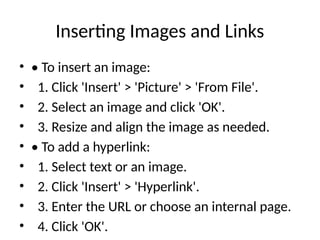
Inserting Images andLinks
• • To insert an image:
• 1. Click 'Insert' > 'Picture' > 'From File'.
• 2. Select an image and click 'OK'.
• 3. Resize and align the image as needed.
• • To add a hyperlink:
• 1. Select text or an image.
• 2. Click 'Insert' > 'Hyperlink'.
• 3. Enter the URL or choose an internal page.
• 4. Click 'OK'.
9.
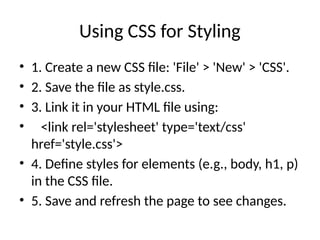
Using CSS forStyling
• 1. Create a new CSS file: 'File' > 'New' > 'CSS'.
• 2. Save the file as style.css.
• 3. Link it in your HTML file using:
• <link rel='stylesheet' type='text/css'
href='style.css'>
• 4. Define styles for elements (e.g., body, h1, p)
in the CSS file.
• 5. Save and refresh the page to see changes.
10.
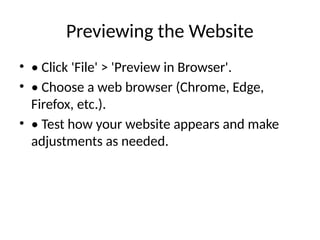
Previewing the Website
•• Click 'File' > 'Preview in Browser'.
• • Choose a web browser (Chrome, Edge,
Firefox, etc.).
• • Test how your website appears and make
adjustments as needed.
11.
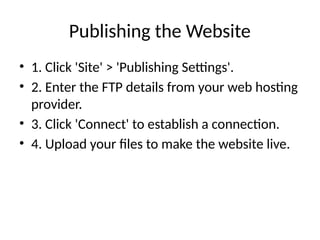
Publishing the Website
•1. Click 'Site' > 'Publishing Settings'.
• 2. Enter the FTP details from your web hosting
provider.
• 3. Click 'Connect' to establish a connection.
• 4. Upload your files to make the website live.
12.
Conclusion & PracticeTask
• • Microsoft Expression Web 4 is a powerful
web design tool.
• • It supports HTML, CSS, and other web
technologies.
• • Practice Task:
• - Create a homepage (index.html) with a title,
paragraph, image, and hyperlink.
• - Apply CSS styling.
• - Preview the page in a browser.