Micro - services from scratch using JHipster and
JBoss.
By Azrul MADISA (May 2017)
Setting up for Windows
1) Install Java JDK 8
http://www.oracle.com/technetwork/java/javase/downloads/jdk8-downloads-2133151.html
2) Install Git for Windows
https://git-for-windows.github.io/
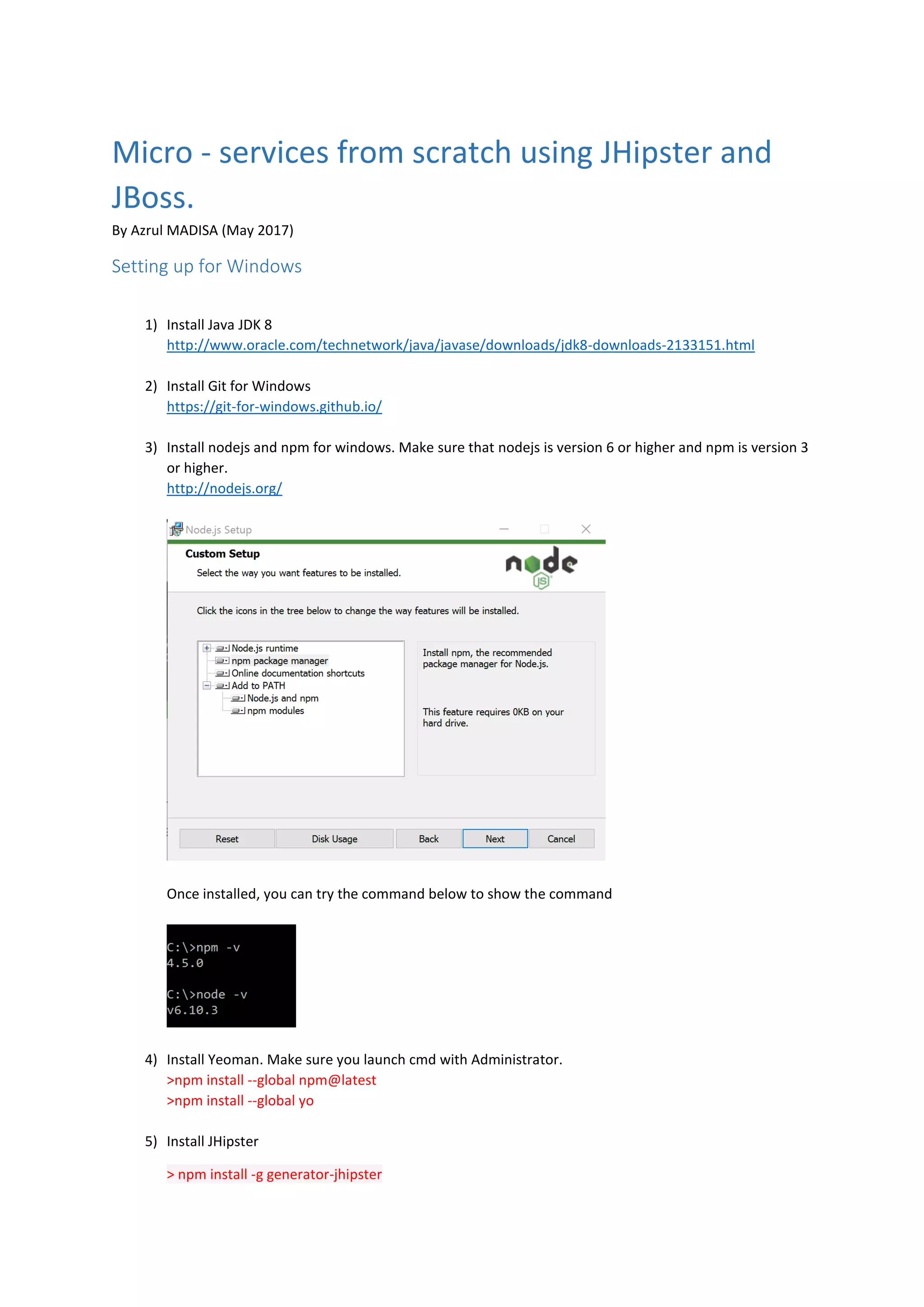
3) Install nodejs and npm for windows. Make sure that nodejs is version 6 or higher and npm is version 3
or higher.
http://nodejs.org/
Once installed, you can try the command below to show the command
4) Install Yeoman. Make sure you launch cmd with Administrator.
>npm install --global npm@latest
>npm install --global yo
5) Install JHipster
> npm install -g generator-jhipster
Setting up for Linux (Ubuntu)
1) Install Java JDK 8
> sudo add-apt-repository ppa:webupd8team/java
> sudo apt-get update
> sudo apt-get install oracle-java8-installer
2) Install git
> sudo apt-get install git
3) Install Node.js
a. Install nvm
> sudo apt-get install build-essential libssl-dev
> curl -sL https://raw.githubusercontent.com/creationix/nvm/v0.33.2/install.sh -o
install_nvm.sh
Then inspect
> nano install_nvm.sh
Run
>Bash install_nvm.sh
b. Install nodejs.
To list
>nvm ls-remote
To install
>nvm install 6.10.3
c. Upgrade npm
> sudo apt-get install npm
> sudo -E env "PATH=$PATH" npm install -g npm
4) Install Yeoman
> npm install -g yo
5) Install JHipster
> npm install -g generator-jhipster
JHipster architecture
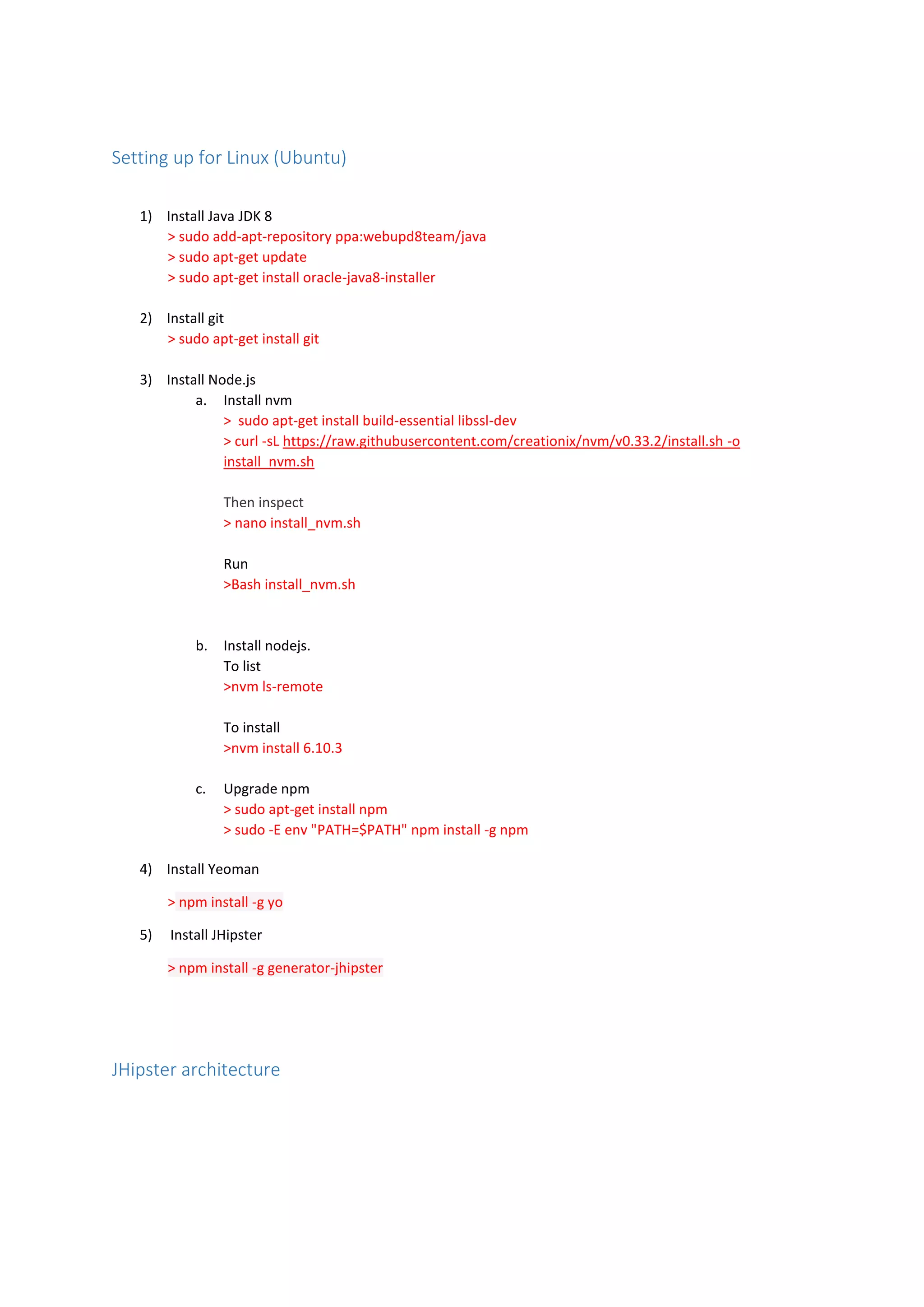
<<MicroService>>
banking
<<MicroService>>
banking
<<MicroService>>
Jhipster-registry-
master
<<MicroService>>
Jhipster-registry-
master
<<MicroService>>
gateway
<<MicroService>>
gateway
<host>:8080
<host>:8081 <host>:8086
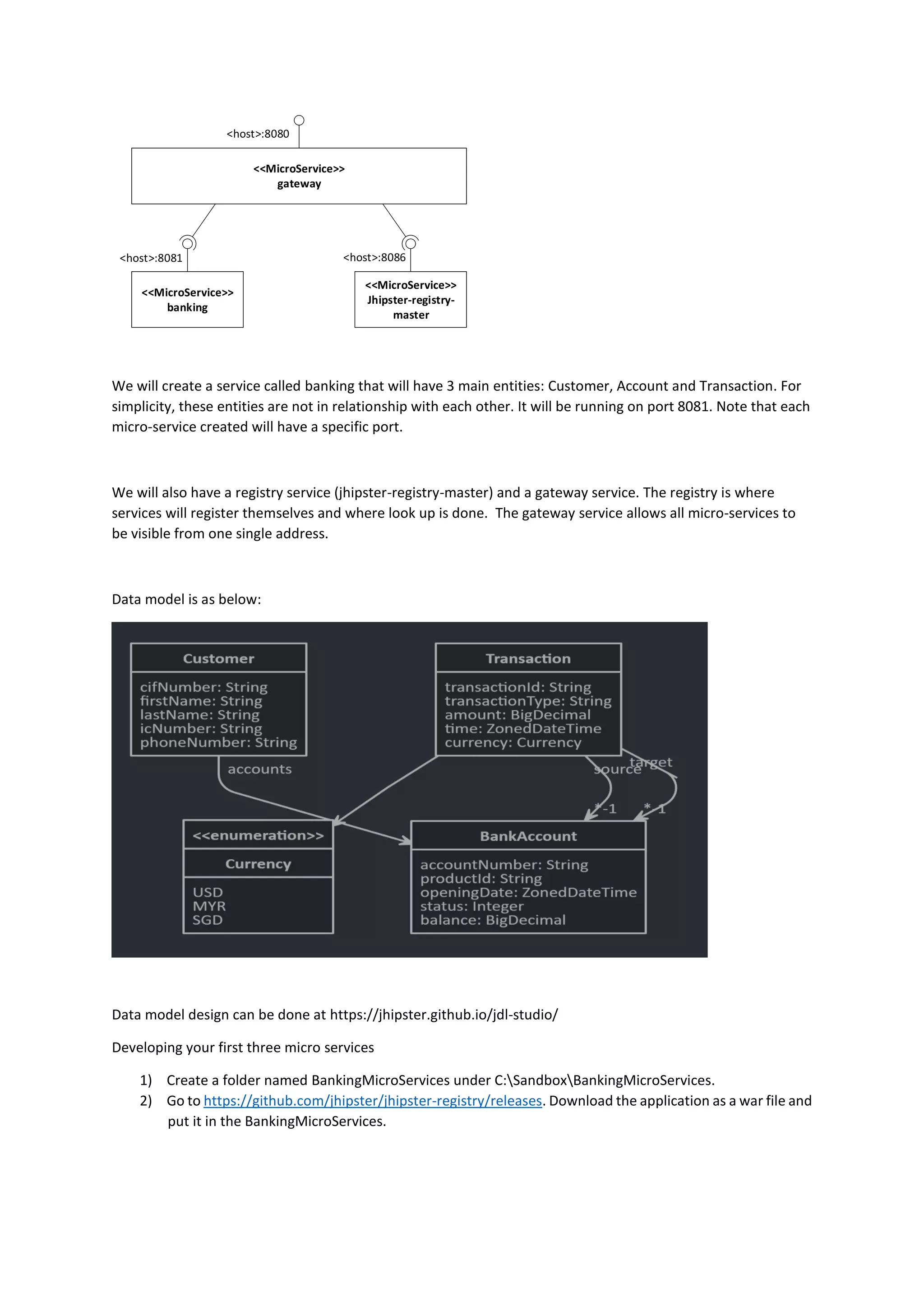
We will create a service called banking that will have 3 main entities: Customer, Account and Transaction. For
simplicity, these entities are not in relationship with each other. It will be running on port 8081. Note that each
micro-service created will have a specific port.
We will also have a registry service (jhipster-registry-master) and a gateway service. The registry is where
services will register themselves and where look up is done. The gateway service allows all micro-services to
be visible from one single address.
Data model is as below:
Data model design can be done at https://jhipster.github.io/jdl-studio/
Developing your first three micro services
1) Create a folder named BankingMicroServices under C:SandboxBankingMicroServices.
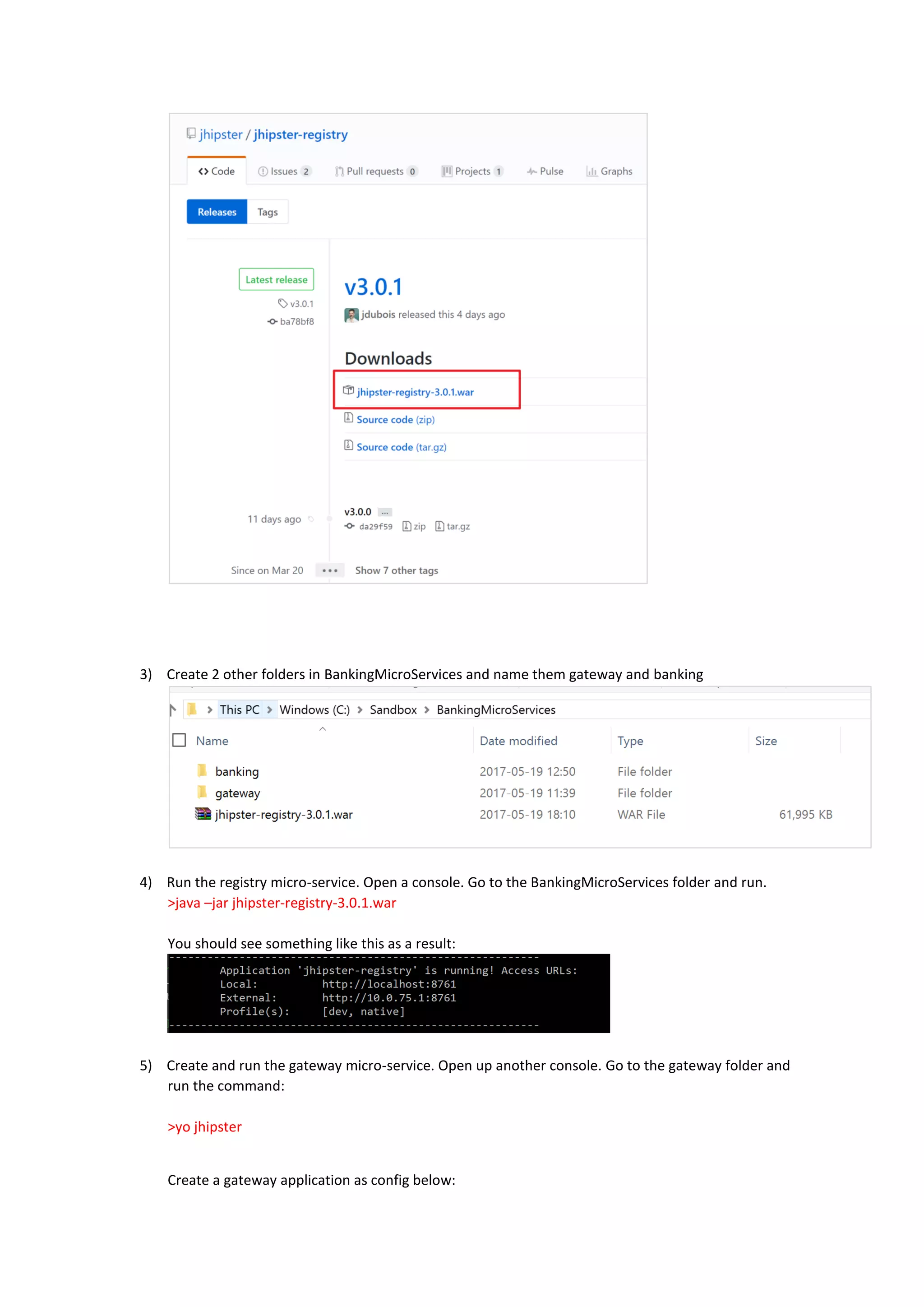
2) Go to https://github.com/jhipster/jhipster-registry/releases. Download the application as a war file and
put it in the BankingMicroServices.
3) Create 2 other folders in BankingMicroServices and name them gateway and banking
4) Run the registry micro-service. Open a console. Go to the BankingMicroServices folder and run.
>java –jar jhipster-registry-3.0.1.war
You should see something like this as a result:
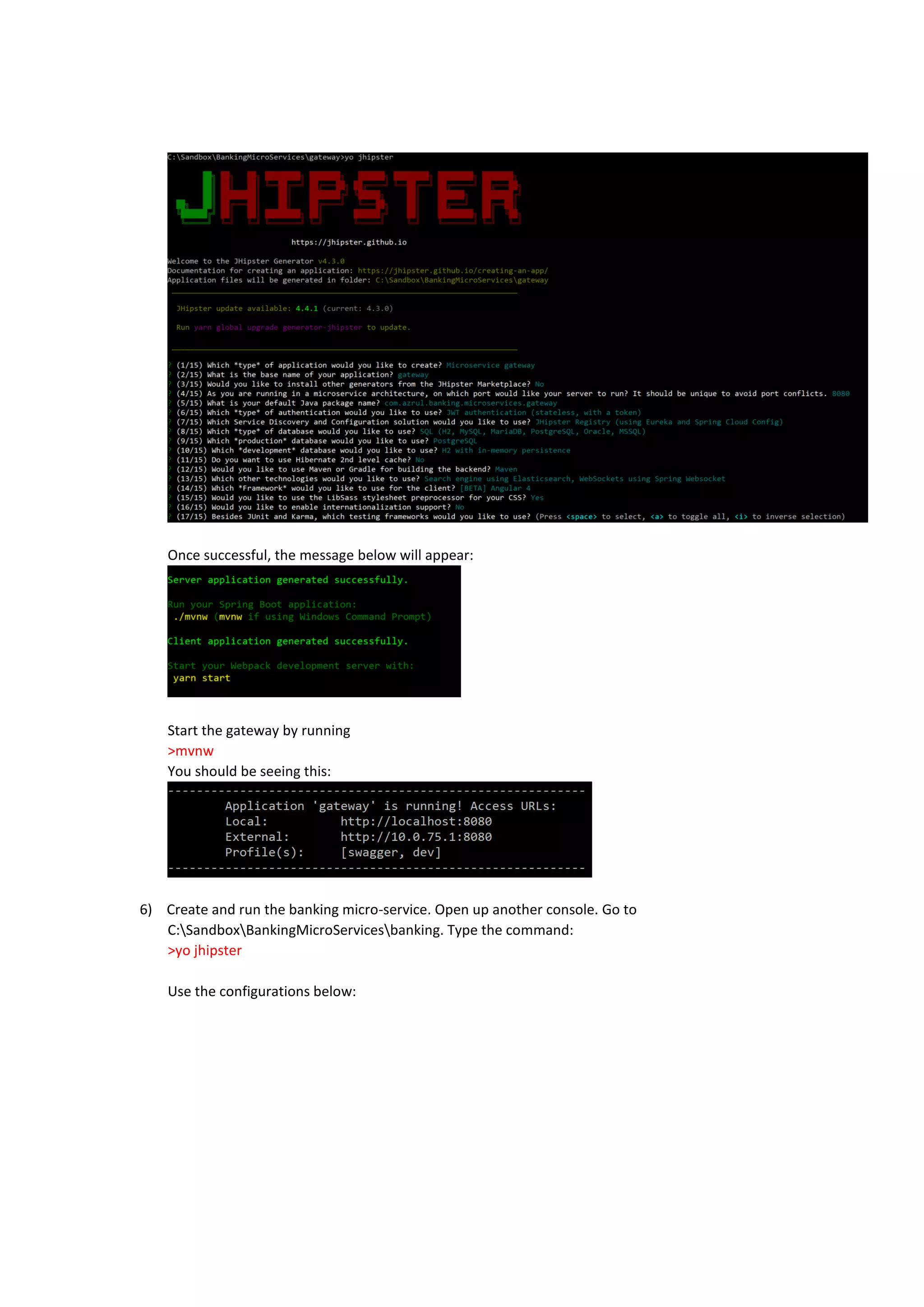
5) Create and run the gateway micro-service. Open up another console. Go to the gateway folder and
run the command:
>yo jhipster
Create a gateway application as config below:
Once successful, the message below will appear:
Start the gateway by running
>mvnw
You should be seeing this:
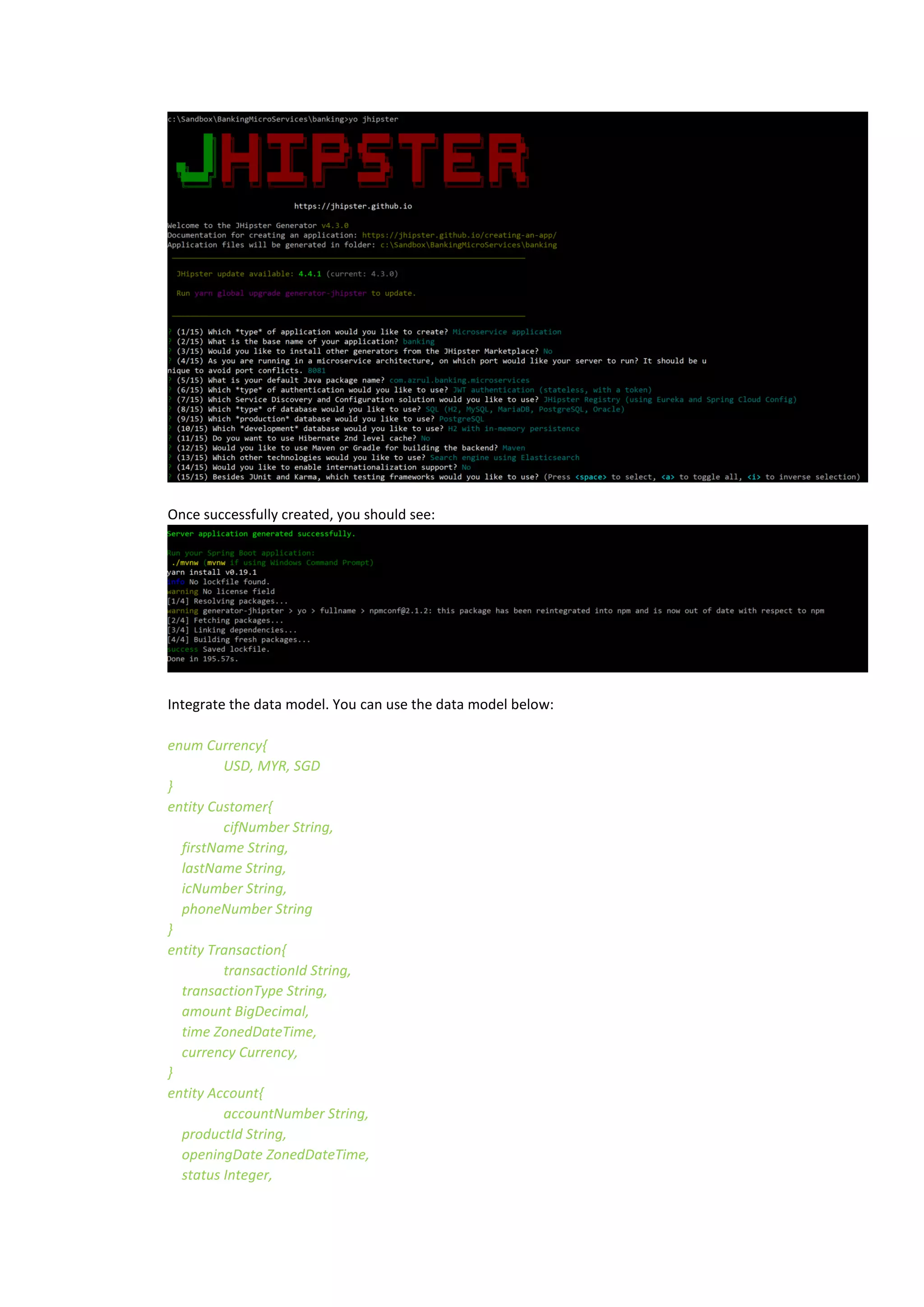
6) Create and run the banking micro-service. Open up another console. Go to
C:SandboxBankingMicroServicesbanking. Type the command:
>yo jhipster
Use the configurations below:
Once successfully created, you should see:
Integrate the data model. You can use the data model below:
enum Currency{
USD, MYR, SGD
}
entity Customer{
cifNumber String,
firstName String,
lastName String,
icNumber String,
phoneNumber String
}
entity Transaction{
transactionId String,
transactionType String,
amount BigDecimal,
time ZonedDateTime,
currency Currency,
}
entity Account{
accountNumber String,
productId String,
openingDate ZonedDateTime,
status Integer,
balance BigDecimal
}
relationship OneToMany {
Customer{accounts} to Account
}
relationship ManyToOne {
Transaction{source} to Account
}
relationship ManyToOne {
Transaction{target} to Account
}
// Set pagination options
paginate Account, Transaction with infinite-scroll
paginate Customer with pagination
dto * with mapstruct
// Set service options to all except few
service all with serviceImpl
// Set an angular suffix
angularSuffix * with banking
Save the script above in a file called datamodel.jh. Save that file in the banking folder. Go to the
command prompt and type:
>yo jhipster:import-jdl datamodel.jh
If asked to override, type Y.
This will create all the code needed to persist and manage data for your micro-service. Run the micro-
service by typing
>mvnw
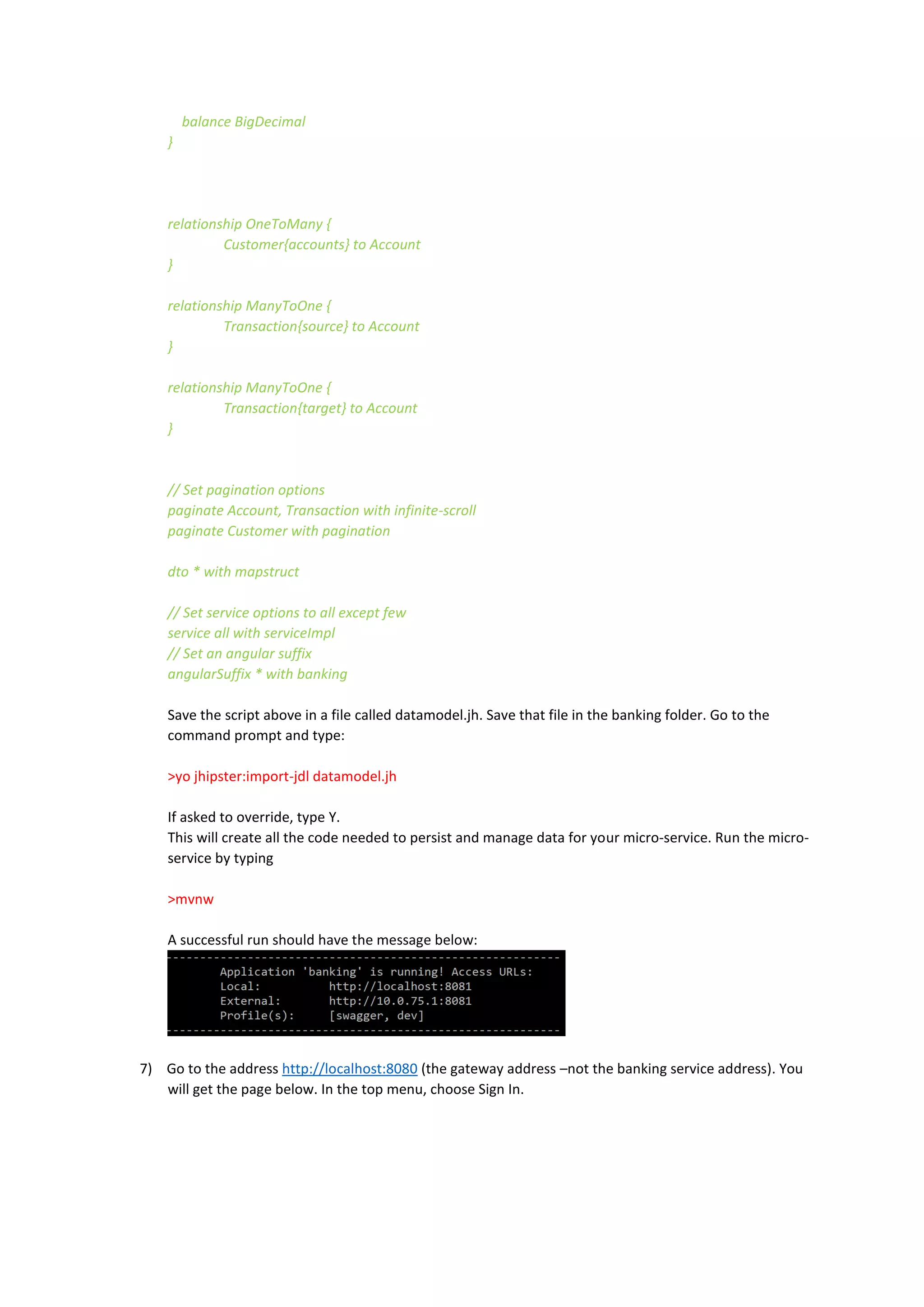
A successful run should have the message below:
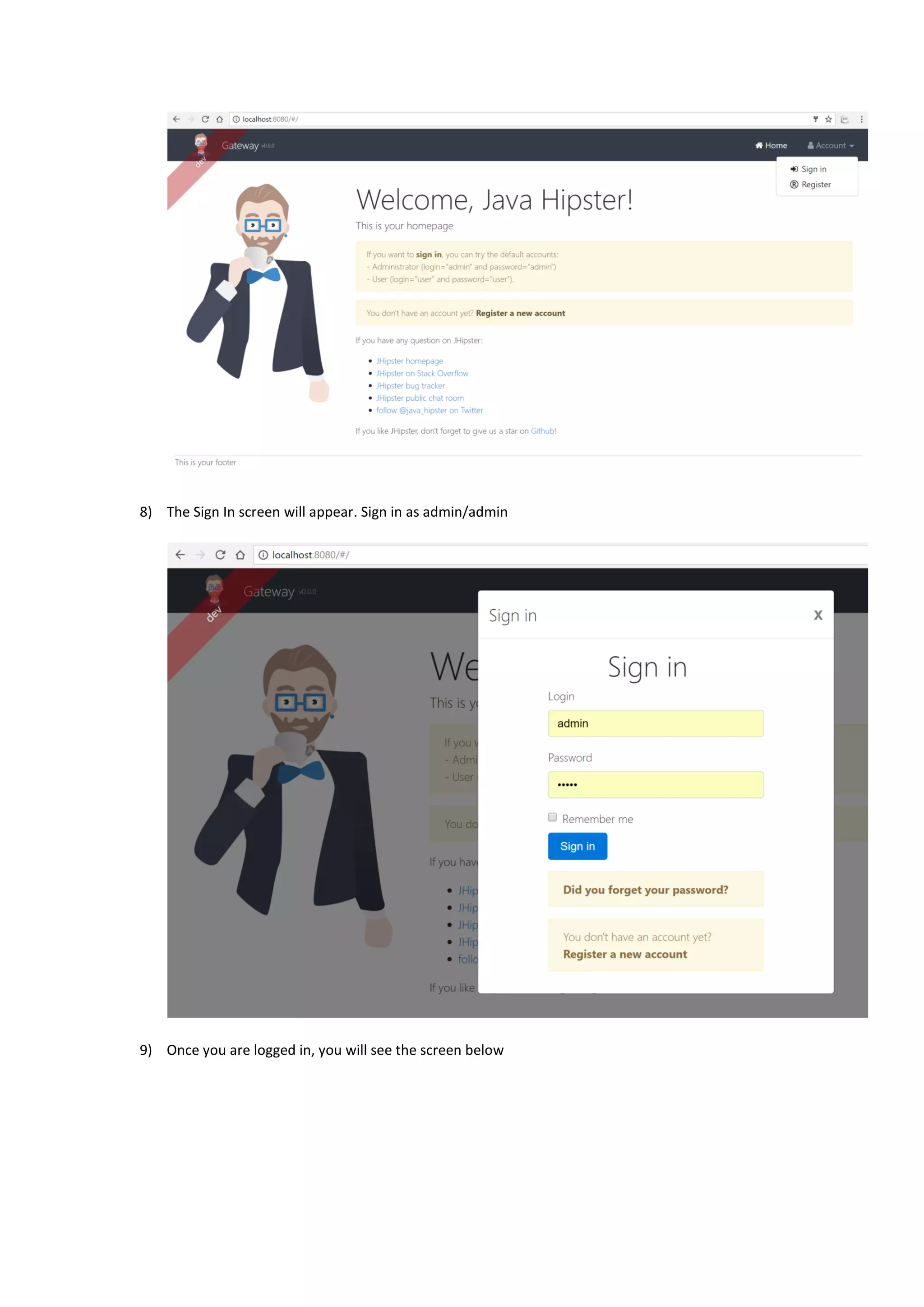
7) Go to the address http://localhost:8080 (the gateway address –not the banking service address). You
will get the page below. In the top menu, choose Sign In.
8) The Sign In screen will appear. Sign in as admin/admin
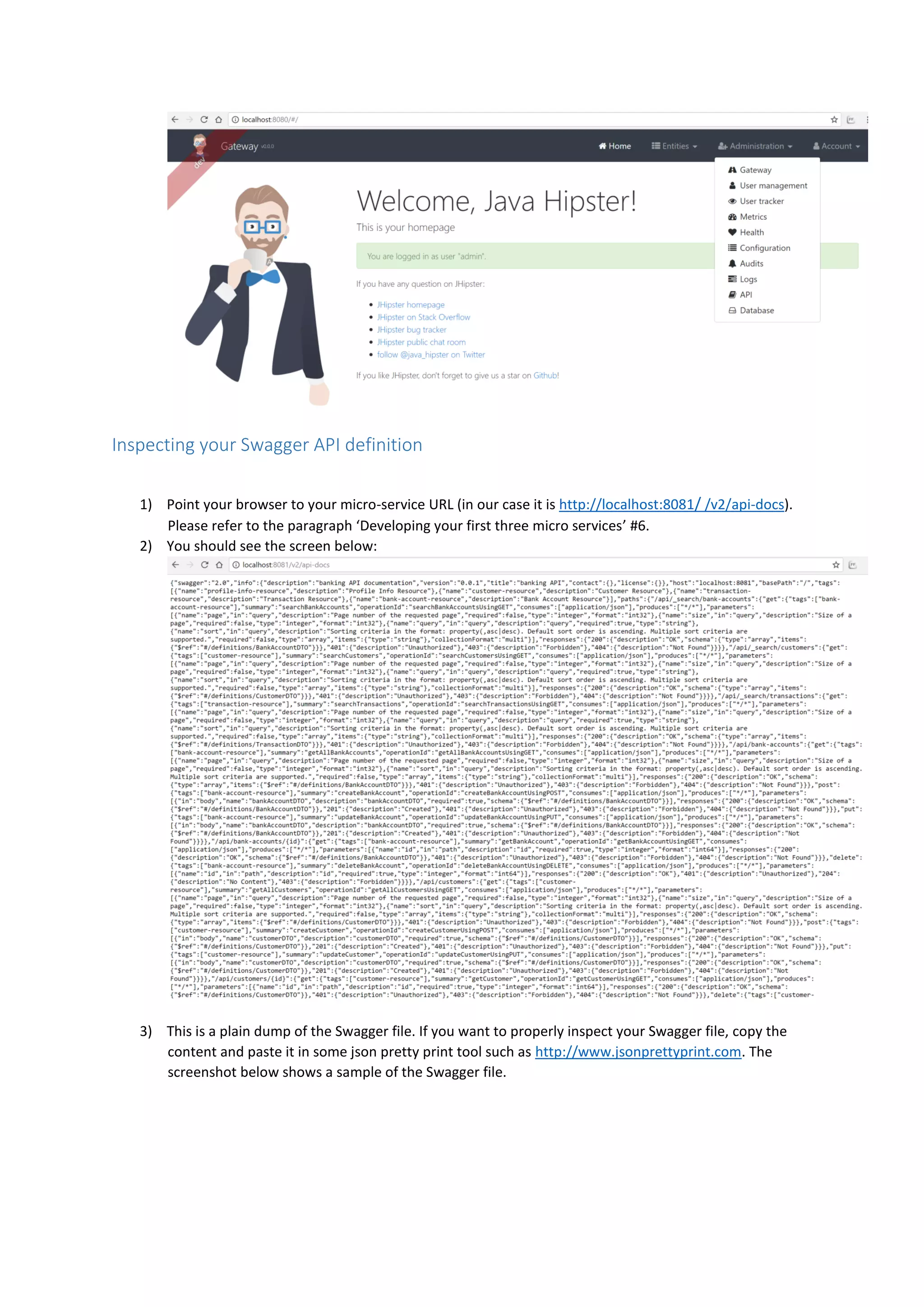
9) Once you are logged in, you will see the screen below
Inspecting your Swagger API definition
1) Point your browser to your micro-service URL (in our case it is http://localhost:8081/ /v2/api-docs).
Please refer to the paragraph ‘Developing your first three micro services’ #6.
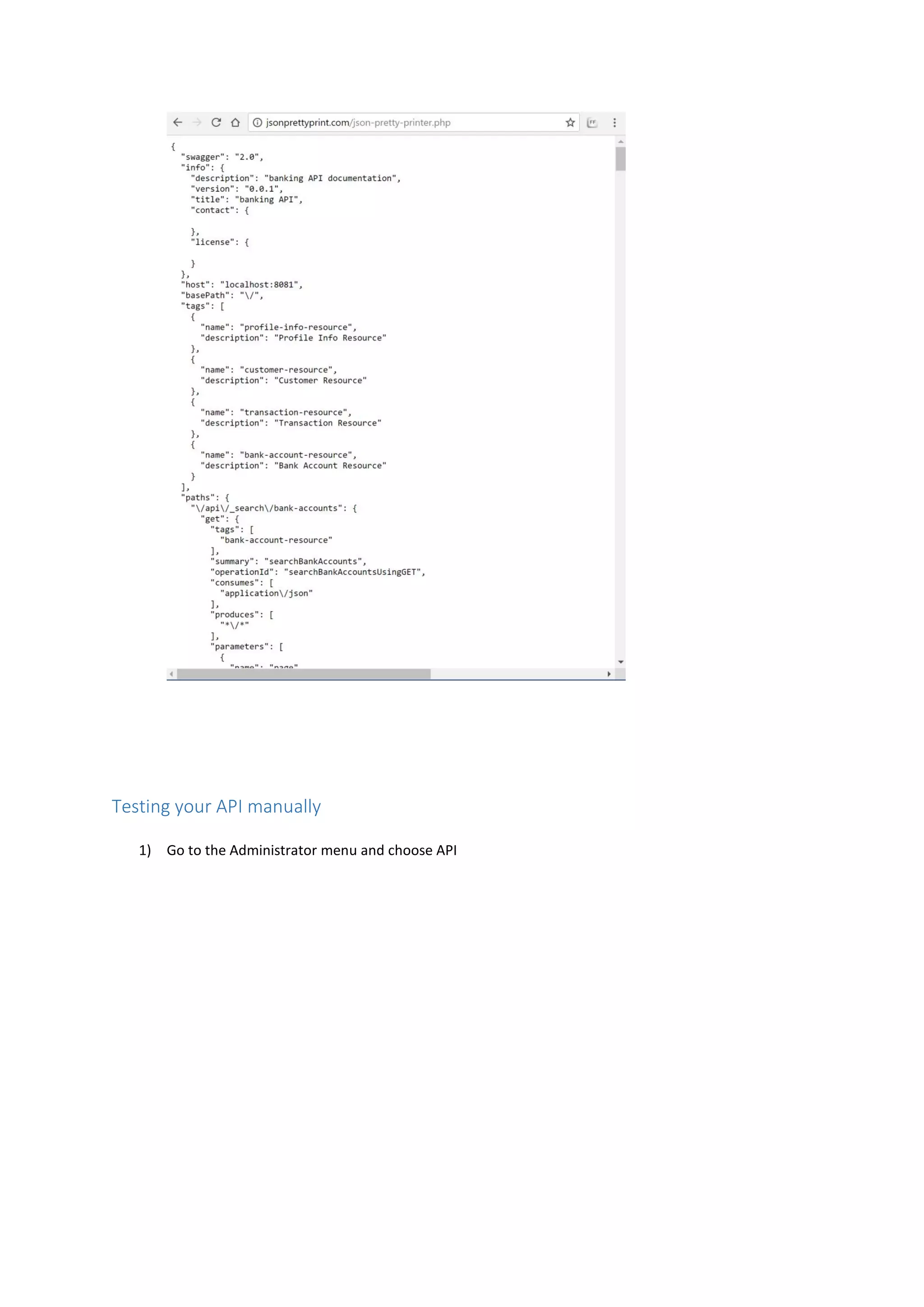
2) You should see the screen below:
3) This is a plain dump of the Swagger file. If you want to properly inspect your Swagger file, copy the
content and paste it in some json pretty print tool such as http://www.jsonprettyprint.com. The
screenshot below shows a sample of the Swagger file.
Testing your API manually
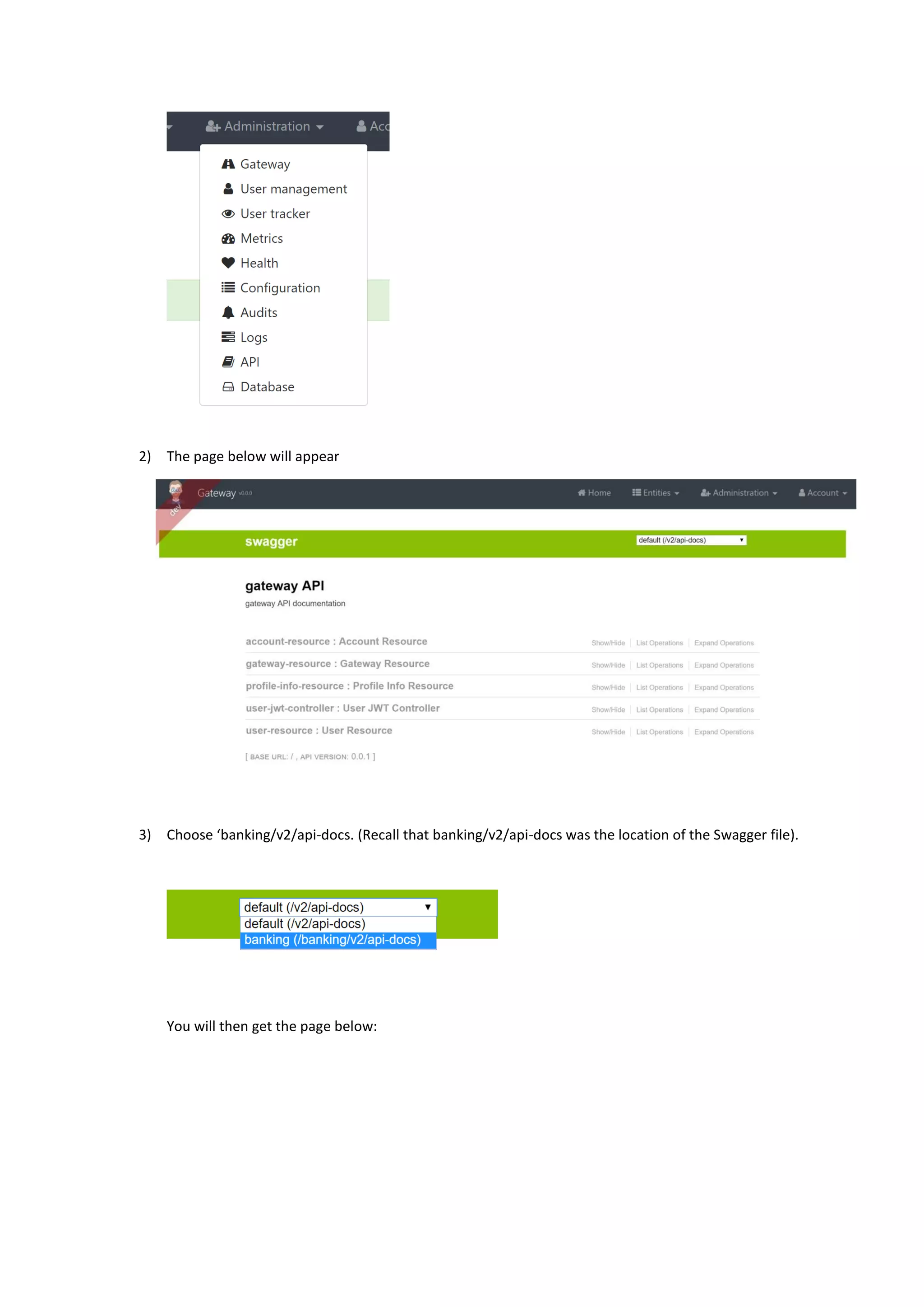
1) Go to the Administrator menu and choose API
2) The page below will appear
3) Choose ‘banking/v2/api-docs. (Recall that banking/v2/api-docs was the location of the Swagger file).
You will then get the page below:
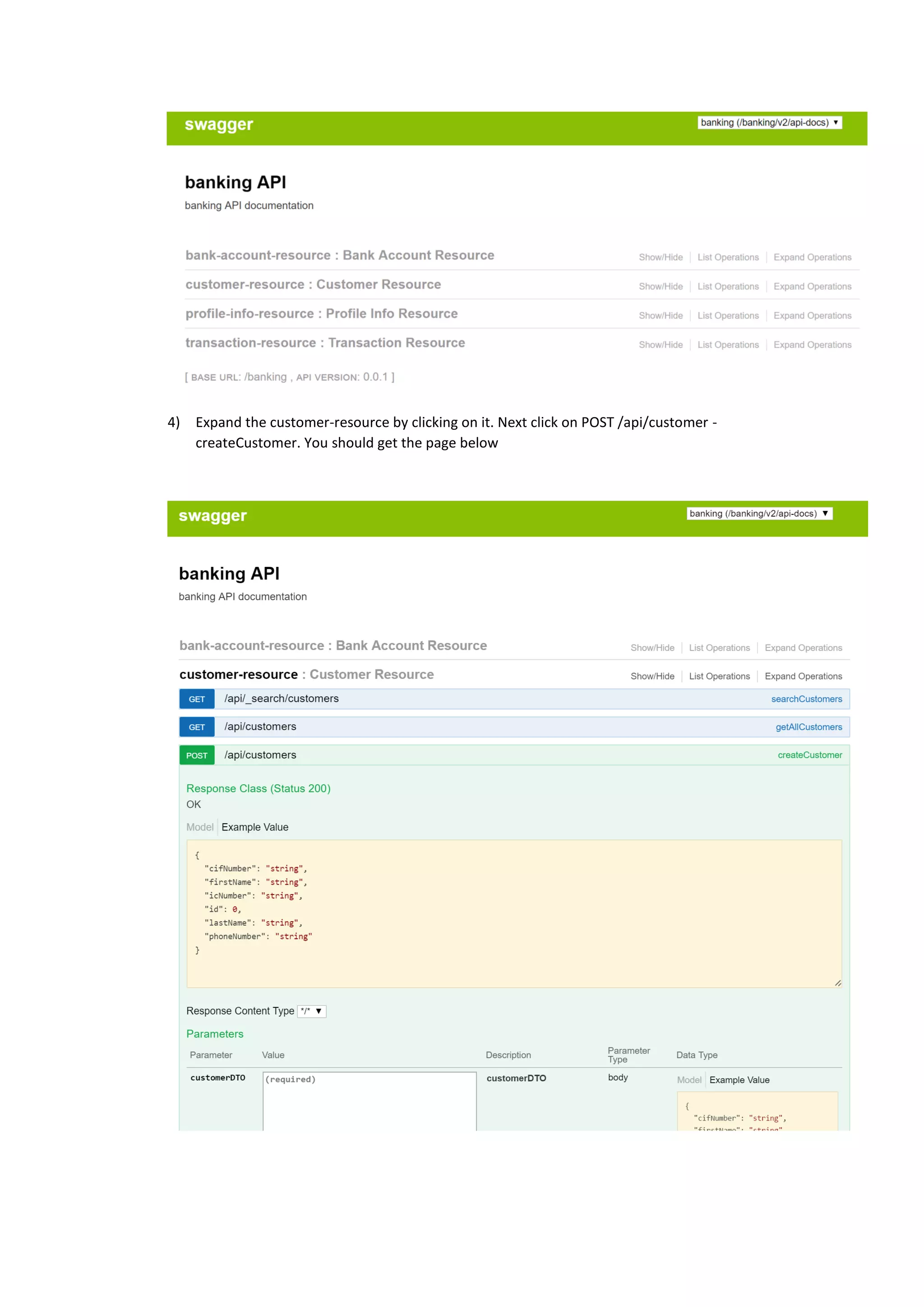
4) Expand the customer-resource by clicking on it. Next click on POST /api/customer -
createCustomer. You should get the page below
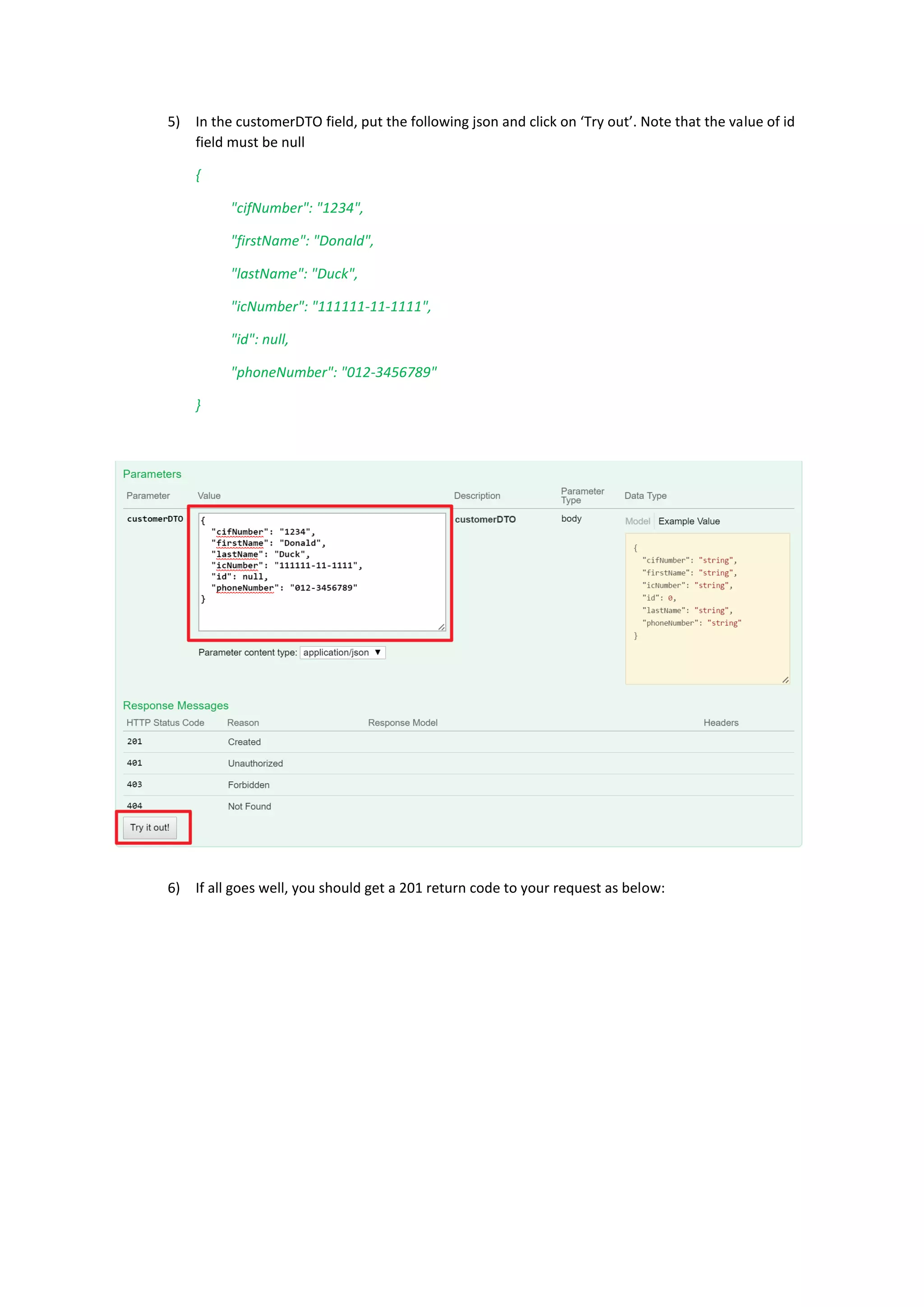
5) In the customerDTO field, put the following json and click on ‘Try out’. Note that the value of id
field must be null
{
"cifNumber": "1234",
"firstName": "Donald",
"lastName": "Duck",
"icNumber": "111111-11-1111",
"id": null,
"phoneNumber": "012-3456789"
}
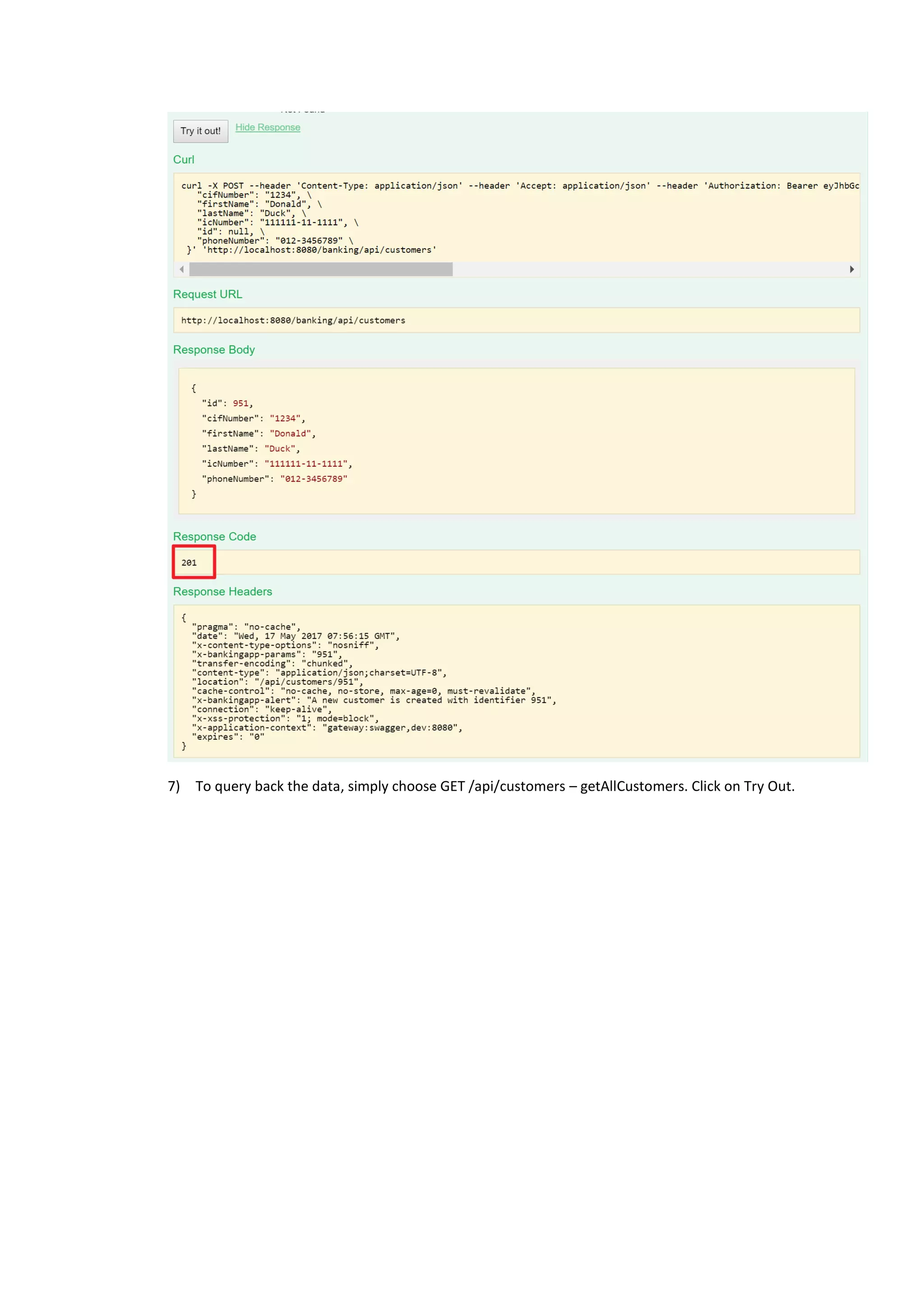
6) If all goes well, you should get a 201 return code to your request as below:
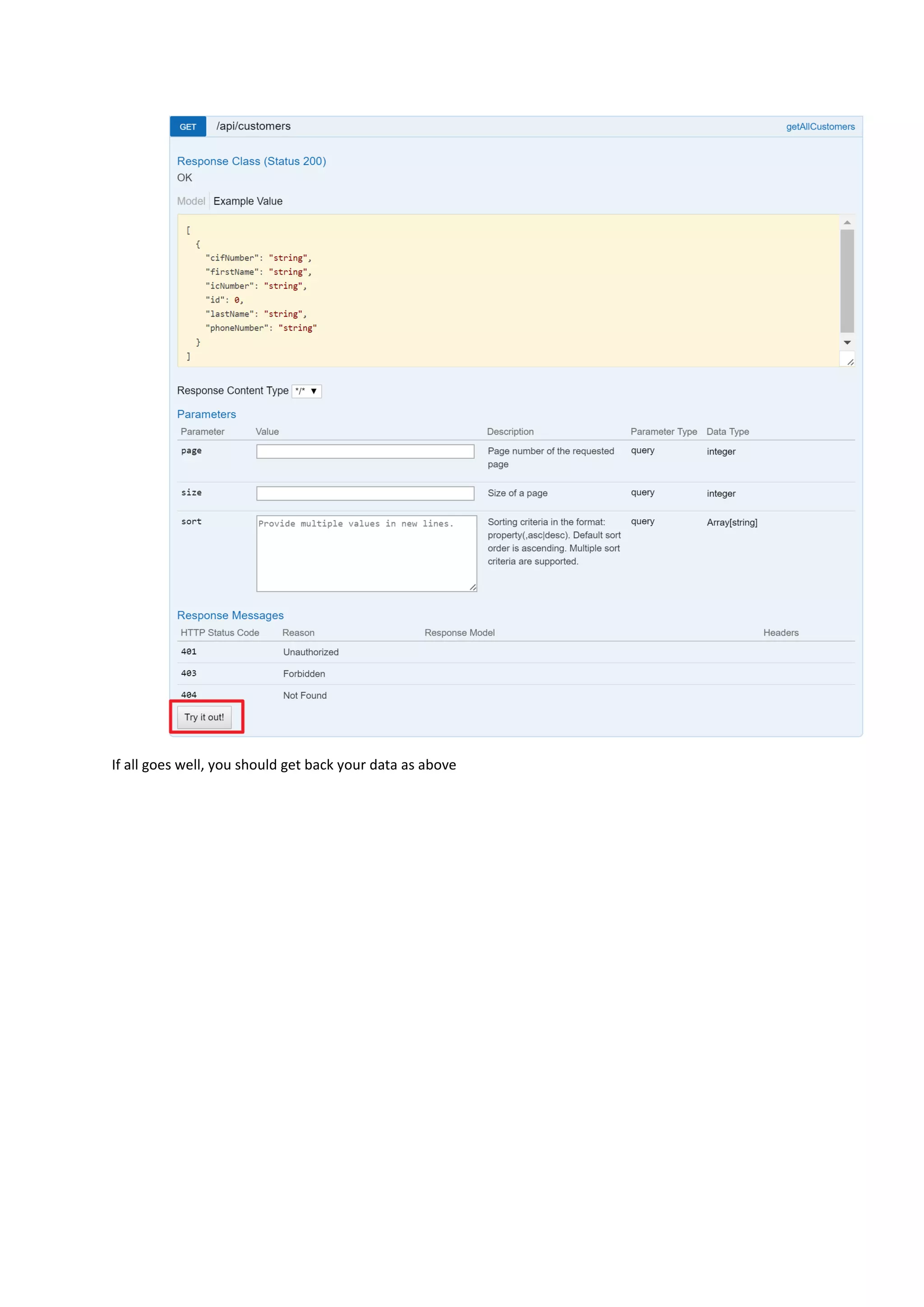
7) To query back the data, simply choose GET /api/customers – getAllCustomers. Click on Try Out.
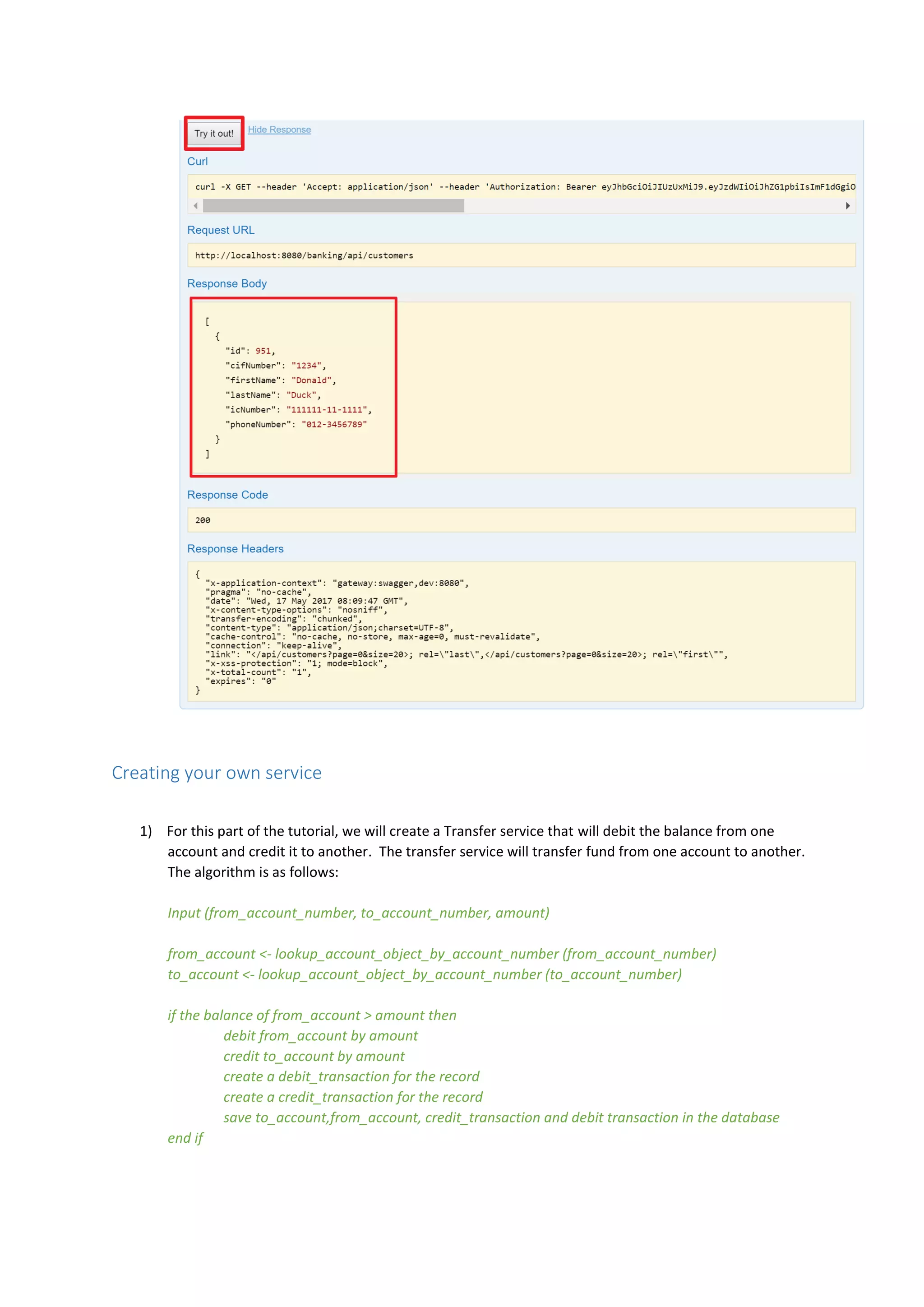
If all goes well, you should get back your data as above
Creating your own service
1) For this part of the tutorial, we will create a Transfer service that will debit the balance from one
account and credit it to another. The transfer service will transfer fund from one account to another.
The algorithm is as follows:
Input (from_account_number, to_account_number, amount)
from_account <- lookup_account_object_by_account_number (from_account_number)
to_account <- lookup_account_object_by_account_number (to_account_number)
if the balance of from_account > amount then
debit from_account by amount
credit to_account by amount
create a debit_transaction for the record
create a credit_transaction for the record
save to_account,from_account, credit_transaction and debit transaction in the database
end if
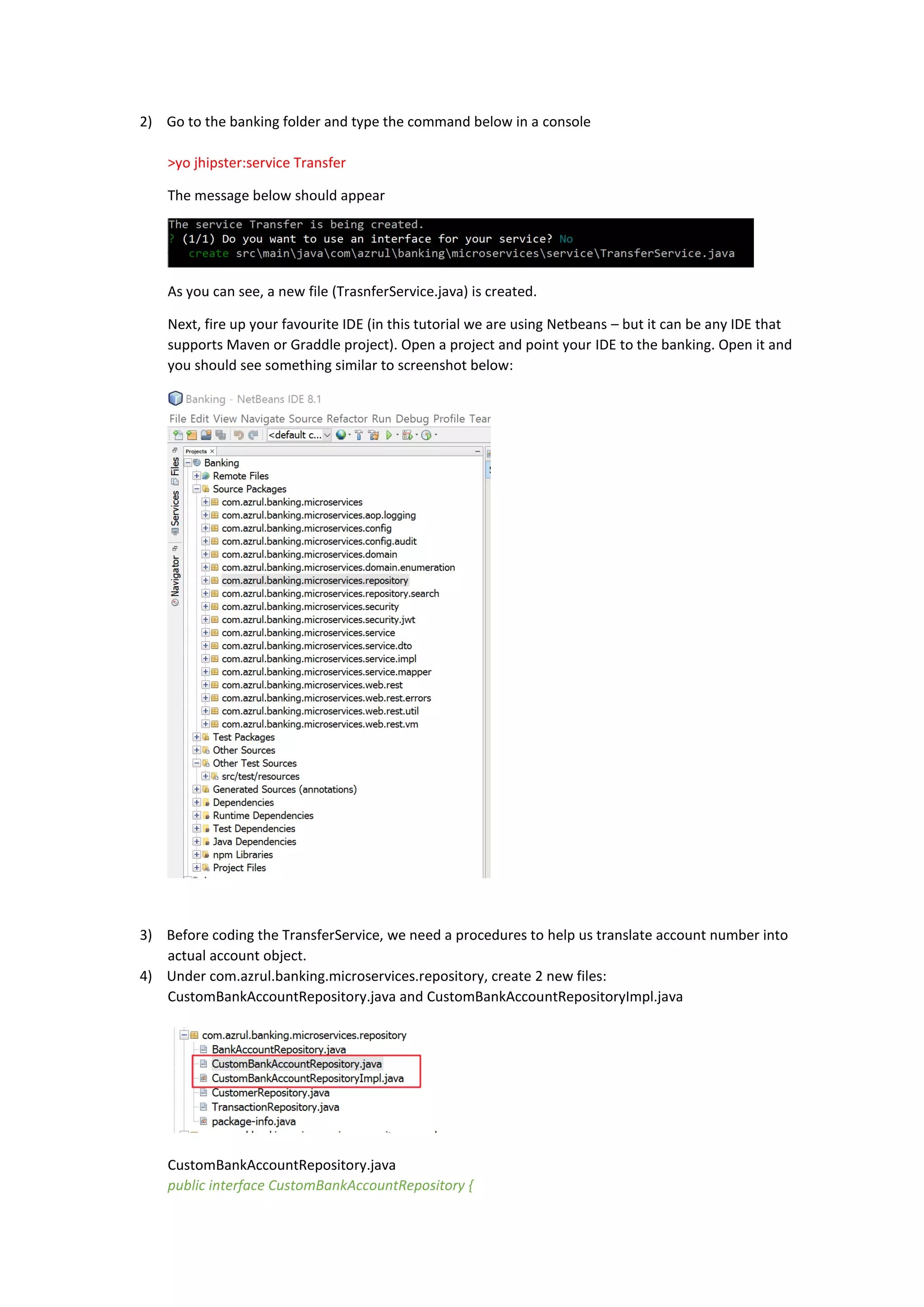
2) Go to the banking folder and type the command below in a console
>yo jhipster:service Transfer
The message below should appear
As you can see, a new file (TrasnferService.java) is created.
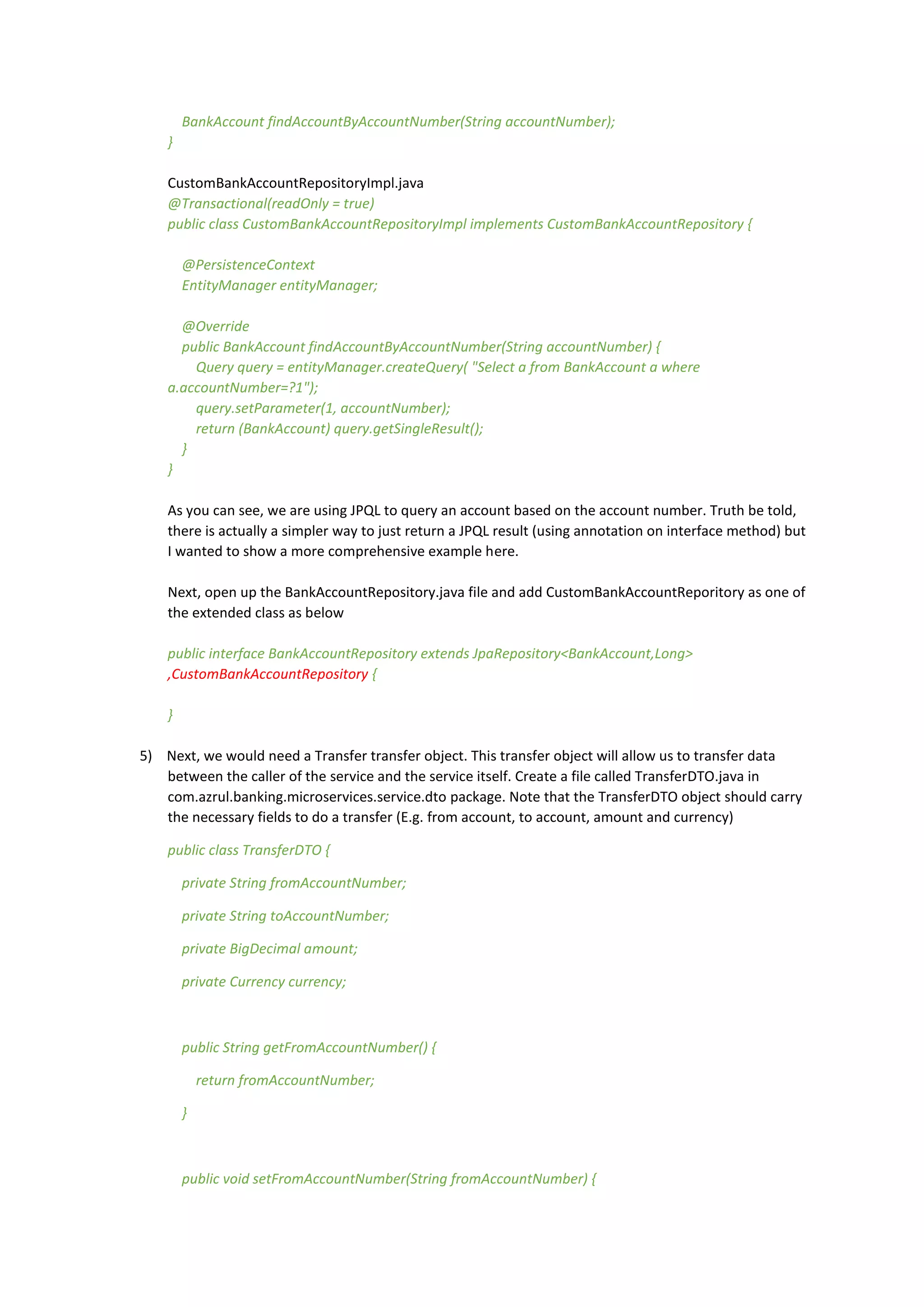
Next, fire up your favourite IDE (in this tutorial we are using Netbeans – but it can be any IDE that
supports Maven or Graddle project). Open a project and point your IDE to the banking. Open it and
you should see something similar to screenshot below:
3) Before coding the TransferService, we need a procedures to help us translate account number into
actual account object.
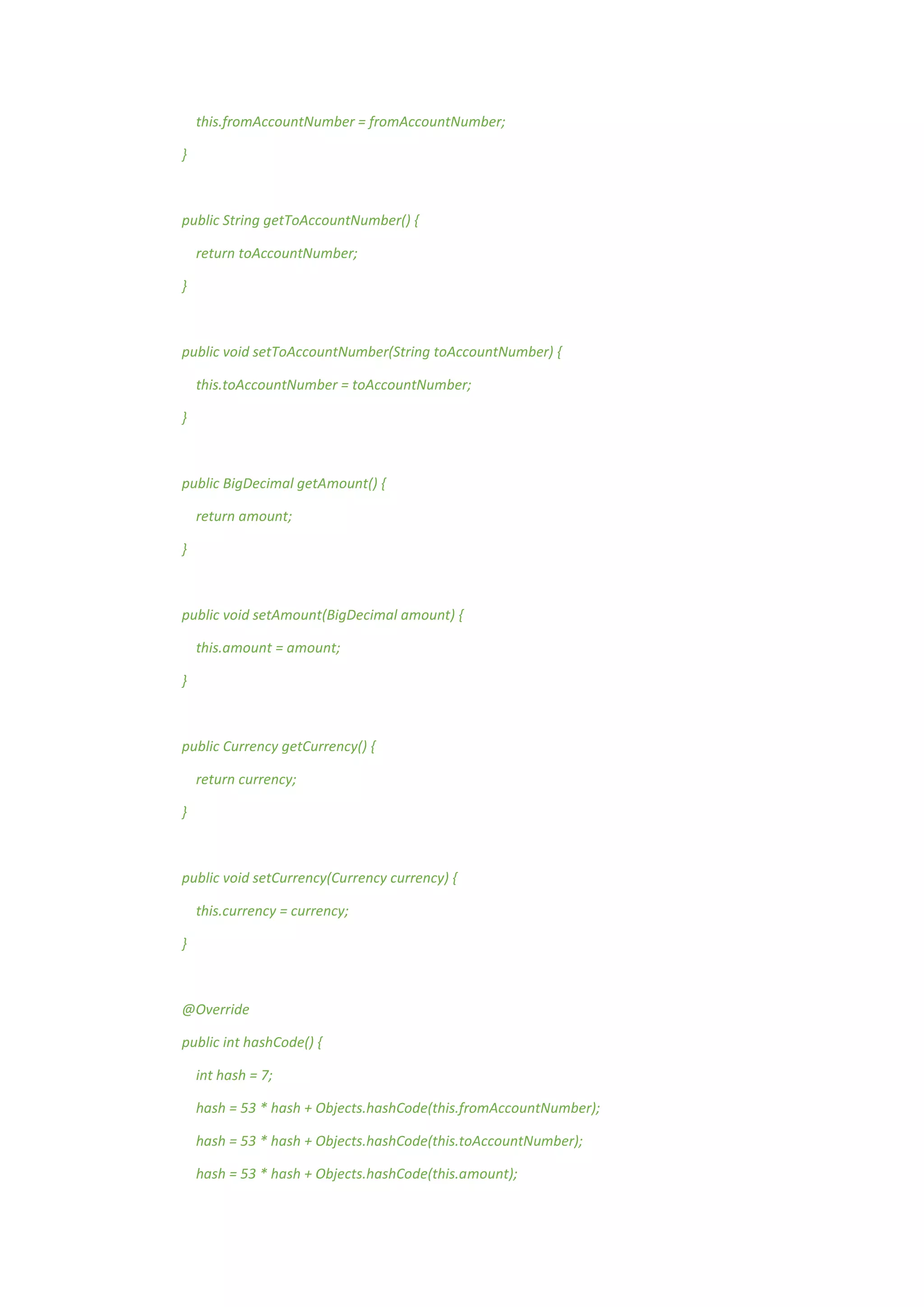
4) Under com.azrul.banking.microservices.repository, create 2 new files:
CustomBankAccountRepository.java and CustomBankAccountRepositoryImpl.java
CustomBankAccountRepository.java
public interface CustomBankAccountRepository {
BankAccount findAccountByAccountNumber(String accountNumber);
}
CustomBankAccountRepositoryImpl.java
@Transactional(readOnly = true)
public class CustomBankAccountRepositoryImpl implements CustomBankAccountRepository {
@PersistenceContext
EntityManager entityManager;
@Override
public BankAccount findAccountByAccountNumber(String accountNumber) {
Query query = entityManager.createQuery( "Select a from BankAccount a where
a.accountNumber=?1");
query.setParameter(1, accountNumber);
return (BankAccount) query.getSingleResult();
}
}
As you can see, we are using JPQL to query an account based on the account number. Truth be told,
there is actually a simpler way to just return a JPQL result (using annotation on interface method) but
I wanted to show a more comprehensive example here.
Next, open up the BankAccountRepository.java file and add CustomBankAccountReporitory as one of
the extended class as below
public interface BankAccountRepository extends JpaRepository<BankAccount,Long>
,CustomBankAccountRepository {
}
5) Next, we would need a Transfer transfer object. This transfer object will allow us to transfer data
between the caller of the service and the service itself. Create a file called TransferDTO.java in
com.azrul.banking.microservices.service.dto package. Note that the TransferDTO object should carry
the necessary fields to do a transfer (E.g. from account, to account, amount and currency)
public class TransferDTO {
private String fromAccountNumber;
private String toAccountNumber;
private BigDecimal amount;
private Currency currency;
public String getFromAccountNumber() {
return fromAccountNumber;
}
public void setFromAccountNumber(String fromAccountNumber) {
this.fromAccountNumber = fromAccountNumber;
}
public String getToAccountNumber() {
return toAccountNumber;
}
public void setToAccountNumber(String toAccountNumber) {
this.toAccountNumber = toAccountNumber;
}
public BigDecimal getAmount() {
return amount;
}
public void setAmount(BigDecimal amount) {
this.amount = amount;
}
public Currency getCurrency() {
return currency;
}
public void setCurrency(Currency currency) {
this.currency = currency;
}
@Override
public int hashCode() {
int hash = 7;
hash = 53 * hash + Objects.hashCode(this.fromAccountNumber);
hash = 53 * hash + Objects.hashCode(this.toAccountNumber);
hash = 53 * hash + Objects.hashCode(this.amount);
hash = 53 * hash + Objects.hashCode(this.currency);
return hash;
}
@Override
public boolean equals(Object obj) {
if (this == obj) {
return true;
}
if (obj == null) {
return false;
}
if (getClass() != obj.getClass()) {
return false;
}
final TransferDTO other = (TransferDTO) obj;
return true;
}
@Override
public String toString() {
return "TransferDTO{" + "fromAccountNumber=" + fromAccountNumber + ", toAccountNumber="
+ toAccountNumber + ", amount=" + amount + ", currency=" + currency + '}';
}
}
6) Now we will start developing the Transfer service. Open up the TransferService.java file. Firstly we
need to initialize the service properly. Include the repositories TransactionRepository and
BankAccountRepository in the constructor. This will allow Spring to inject the implementation of
these repositories directly into our service. We should also include Mappers (TransactionMapper and
BankAccountMapper). Mappers will help us translate between domain objects (such as Transaction
and Account) into transfer objects (such as TransactionDTO and AccountDTO). Transfer objects will
contain data that will be delivered back to the client of the service.
private final Logger log = LoggerFactory.getLogger(TransferService.class);
private final BankAccountRepository bankAccountRepository;
private final BankAccountMapper bankAccountMapper;
private final BankAccountSearchRepository bankAccountSearchRepository;
private final TransactionRepository transactionRepository;
private final TransactionMapper transactionMapper;
private final TransactionSearchRepository transactionSearchRepository;
public TransferService(BankAccountRepository bankAccountRepository,
BankAccountMapper bankAccountMapper,
BankAccountSearchRepository bankAccountSearchRepository,
TransactionRepository transactionRepository,
TransactionMapper transactionMapper,
TransactionSearchRepository transactionSearchRepository) {
this.bankAccountRepository = bankAccountRepository;
this.bankAccountMapper = bankAccountMapper;
this.bankAccountSearchRepository = bankAccountSearchRepository;
this.transactionRepository = transactionRepository;
this.transactionMapper = transactionMapper;
this.transactionSearchRepository = transactionSearchRepository;
}
Now it’s time to finally code our transfer service. Please refer to the listing below. As you can see we
are following the algorithm stated before. The findAccountByAccountNumber procedure created
before is being used to look up actual account object from account number. We will also do a simple
null check to see if the account number is really associated with actual account. In case of success, we
will return back the two transactions that were created (debit and credit transactions). In case of
exception (such as null check violation or inadequate fund balance to do a transfer), we will return an
empty list.
public List<TransactionDTO> doTransfer(TransferDTO transferDTO) {
List<TransactionDTO> transactions = new ArrayList<>();
BankAccount fromAcct =
bankAccountRepository.findAccountByAccountNumber(transferDTO.getFromAccountNumber());
BankAccount toAcct =
bankAccountRepository.findAccountByAccountNumber(transferDTO.getToAccountNumber());
if (fromAcct==null){
return transactions; //if account is null return empty transaction
}
if (toAcct==null){
return transactions; //if account is null return empty transaction
}
if (fromAcct.getBalance().compareTo(transferDTO.getAmmount()) == 1) { //if balance is bigger
than the transacted ammount
Transaction credit = new Transaction();
credit.setAmount(transferDTO.getAmmount());
credit.setCurrency(transferDTO.getCurrency());
credit.setSource(fromAcct);
credit.setTime(ZonedDateTime.now());
credit.setTransactionId(UUID.randomUUID().toString());
credit.setTransactionType("CREDIT");
Transaction debit = new Transaction();
debit.setAmount(transferDTO.getAmmount());
debit.setCurrency(transferDTO.getCurrency());
debit.setTarget(toAcct);
debit.setTime(ZonedDateTime.now());
debit.setTransactionId(UUID.randomUUID().toString());
debit.setTransactionType("DEBIT");
fromAcct.setBalance(fromAcct.getBalance().subtract(transferDTO.getAmmount()));
toAcct.setBalance(toAcct.getBalance().add(transferDTO.getAmmount()));
bankAccountRepository.save(fromAcct);
bankAccountRepository.save(toAcct);
credit = transactionRepository.save(credit);
debit = transactionRepository.save(debit);
transactions.add(transactionMapper.transactionToTransactionDTO(credit));
transactions.add(transactionMapper.transactionToTransactionDTO(debit));
}
return transactions;
}
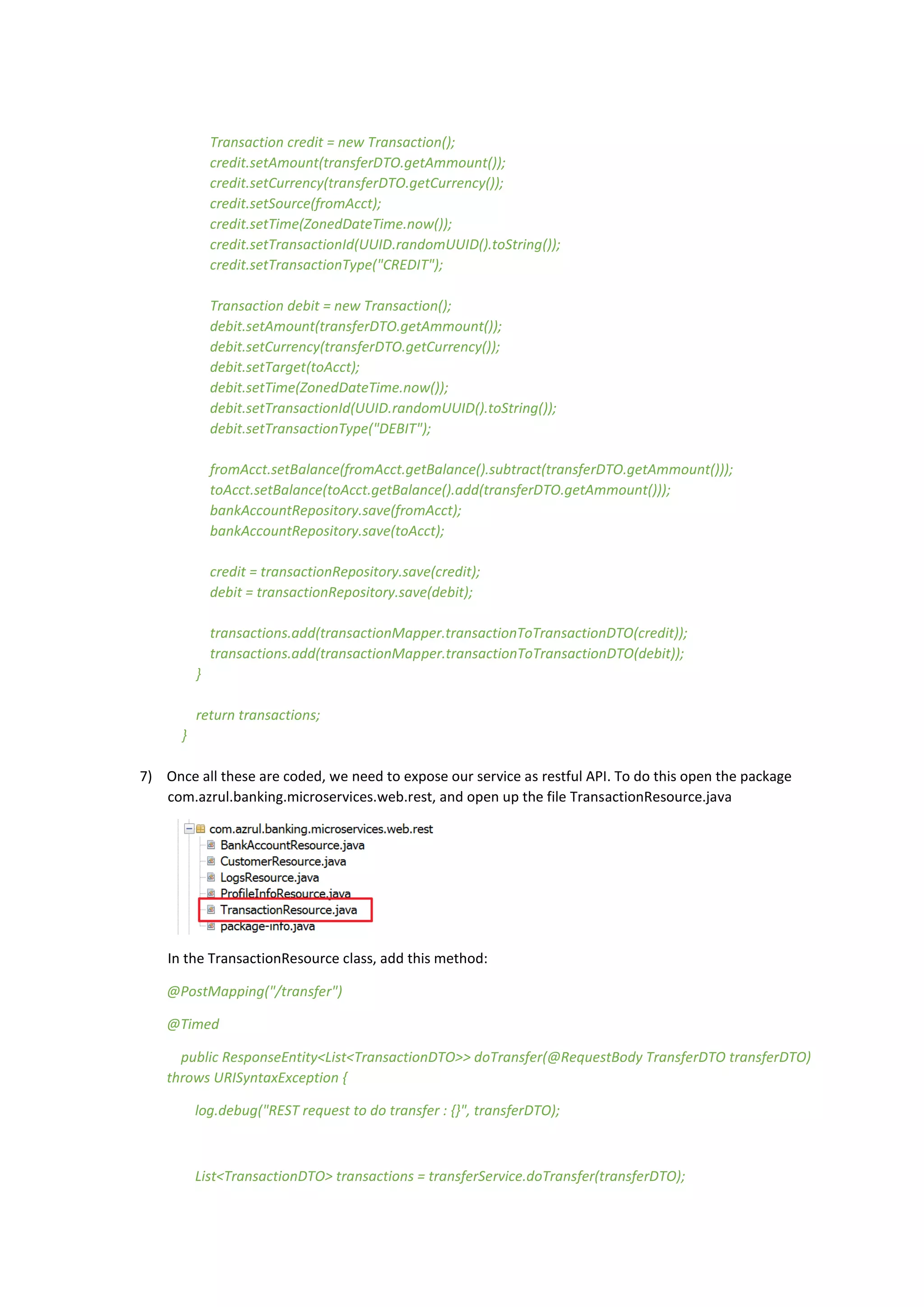
7) Once all these are coded, we need to expose our service as restful API. To do this open the package
com.azrul.banking.microservices.web.rest, and open up the file TransactionResource.java
In the TransactionResource class, add this method:
@PostMapping("/transfer")
@Timed
public ResponseEntity<List<TransactionDTO>> doTransfer(@RequestBody TransferDTO transferDTO)
throws URISyntaxException {
log.debug("REST request to do transfer : {}", transferDTO);
List<TransactionDTO> transactions = transferService.doTransfer(transferDTO);
HttpHeaders headers = HeaderUtil.createEntityCreationAlert(ENTITY_NAME,
transactions.toString());
return new ResponseEntity<>(transactions, headers, HttpStatus.OK);
}
The annotation PostMapping indicate that this method is of type HTTP POST. This is
appropriate since we are modifying data. If this is a plain read-only API, we should use HTTP-GET
instead. The annotation PostMapping also shows how the parameters of this API is represented in the
URL. Since we have 3 parameters (to account, from account and amount), we would need three place-
holders indicated by the curly brackets. The tree parameters are also reflected in the method input
parameters. Special annotation (PathValue) is used to map a method input parameter to its
counterpart in the URL.
Note that the return value of this API has a root type TransactionDTO. As mentioned before,
DTOs, or transfer objects, are used to transport data from a service to its client.
Note also that this method would call and use the TransferService created previously. To
make TransferService available, we need to have it injected through the constructor as shown in red
below:
private final TransactionService transactionService;
private final TransferService transferService;
public TransactionResource(TransactionService transactionService, TransferService transferService) {
this.transactionService = transactionService;
this.transferService = transferService;
}
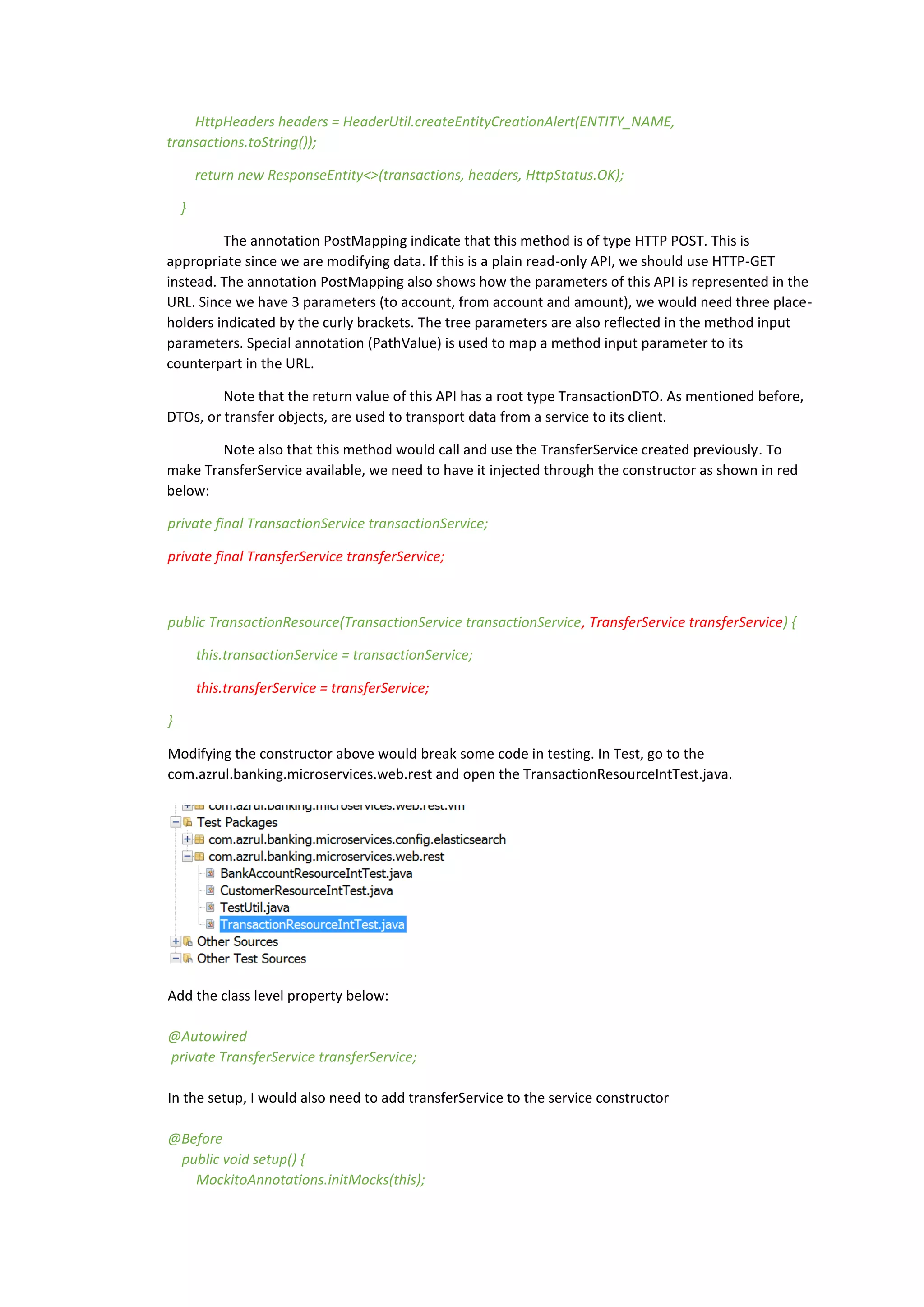
Modifying the constructor above would break some code in testing. In Test, go to the
com.azrul.banking.microservices.web.rest and open the TransactionResourceIntTest.java.
Add the class level property below:
@Autowired
private TransferService transferService;
In the setup, I would also need to add transferService to the service constructor
@Before
public void setup() {
MockitoAnnotations.initMocks(this);
TransactionResource transactionResource = new
TransactionResource(transactionService,transferService);
this.restTransactionMockMvc = MockMvcBuilders.standaloneSetup(transactionResource)
.setCustomArgumentResolvers(pageableArgumentResolver)
.setControllerAdvice(exceptionTranslator)
.setMessageConverters(jacksonMessageConverter).build();
}
8) Once all the required code is written, we would proceed to compile the service. Open up a console
and point it to the banking folder. Type the command below
>mvnw
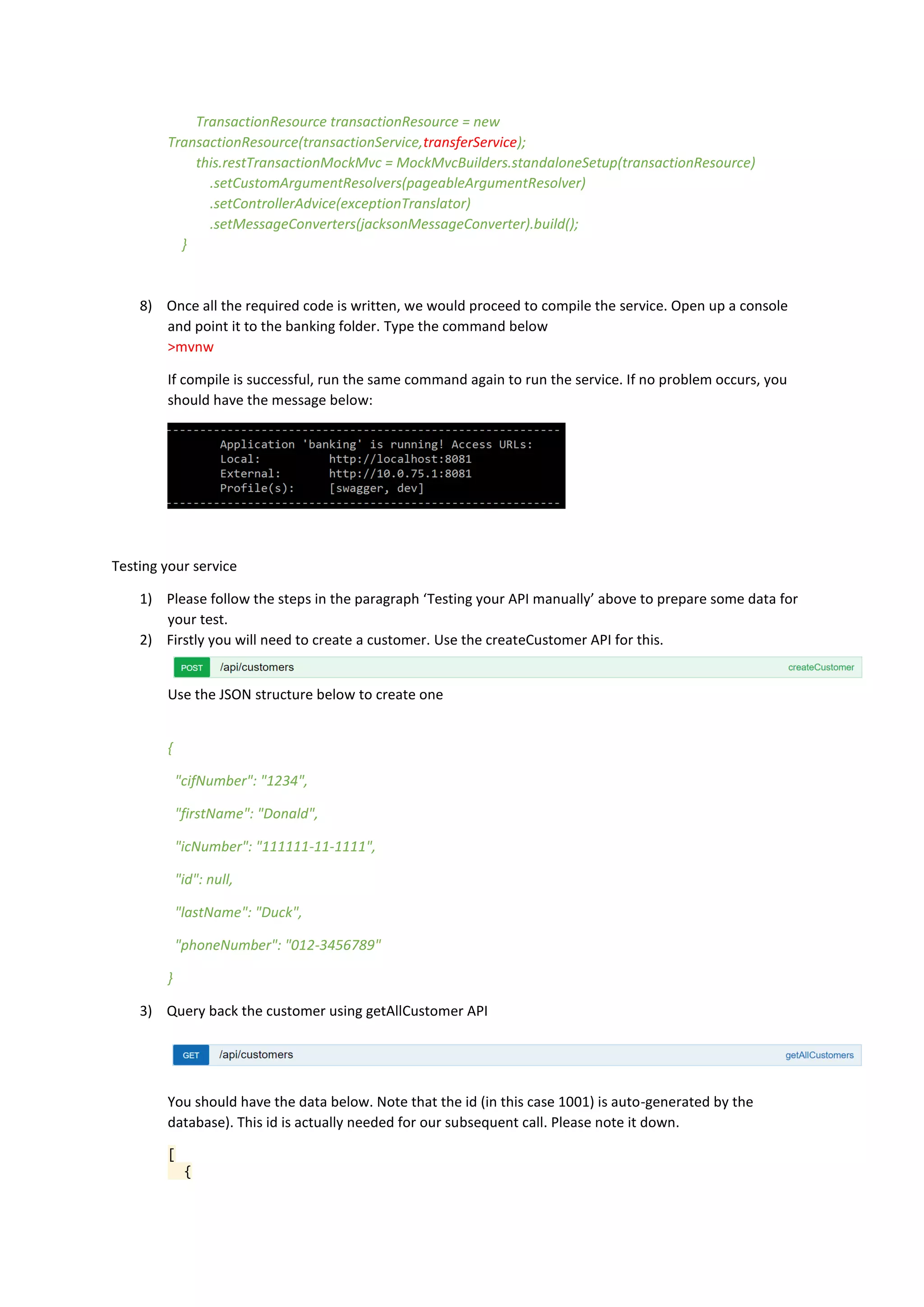
If compile is successful, run the same command again to run the service. If no problem occurs, you
should have the message below:
Testing your service
1) Please follow the steps in the paragraph ‘Testing your API manually’ above to prepare some data for
your test.
2) Firstly you will need to create a customer. Use the createCustomer API for this.
Use the JSON structure below to create one
{
"cifNumber": "1234",
"firstName": "Donald",
"icNumber": "111111-11-1111",
"id": null,
"lastName": "Duck",
"phoneNumber": "012-3456789"
}
3) Query back the customer using getAllCustomer API
You should have the data below. Note that the id (in this case 1001) is auto-generated by the
database). This id is actually needed for our subsequent call. Please note it down.
[
{
"id": 1001,
"cifNumber": "1234",
"firstName": "Donald",
"lastName": "Duck",
"icNumber": "111111-11-1111",
"phoneNumber": "012-3456789"
}
]
4) Then, use the createAccount API.
Create two accounts as indicated below. Note that the field customerId must contain the id noted
back in #3. We will be using the account number (represented by accountNumber field) to do the
transfer, please note them down.
{
"accountNumber": "1111",
"balance": "100.40",
"customerId": 1001,
"id": null,
"openingDate": "2017-05-18T02:53:25.432Z",
"productId": "CASA",
"status": 0
}
{
"accountNumber": "2222",
"balance": "200.40",
"customerId": 1001,
"id": null,
"openingDate": "2017-05-18T02:53:25.432Z",
"productId": "CASA",
"status": 0
}
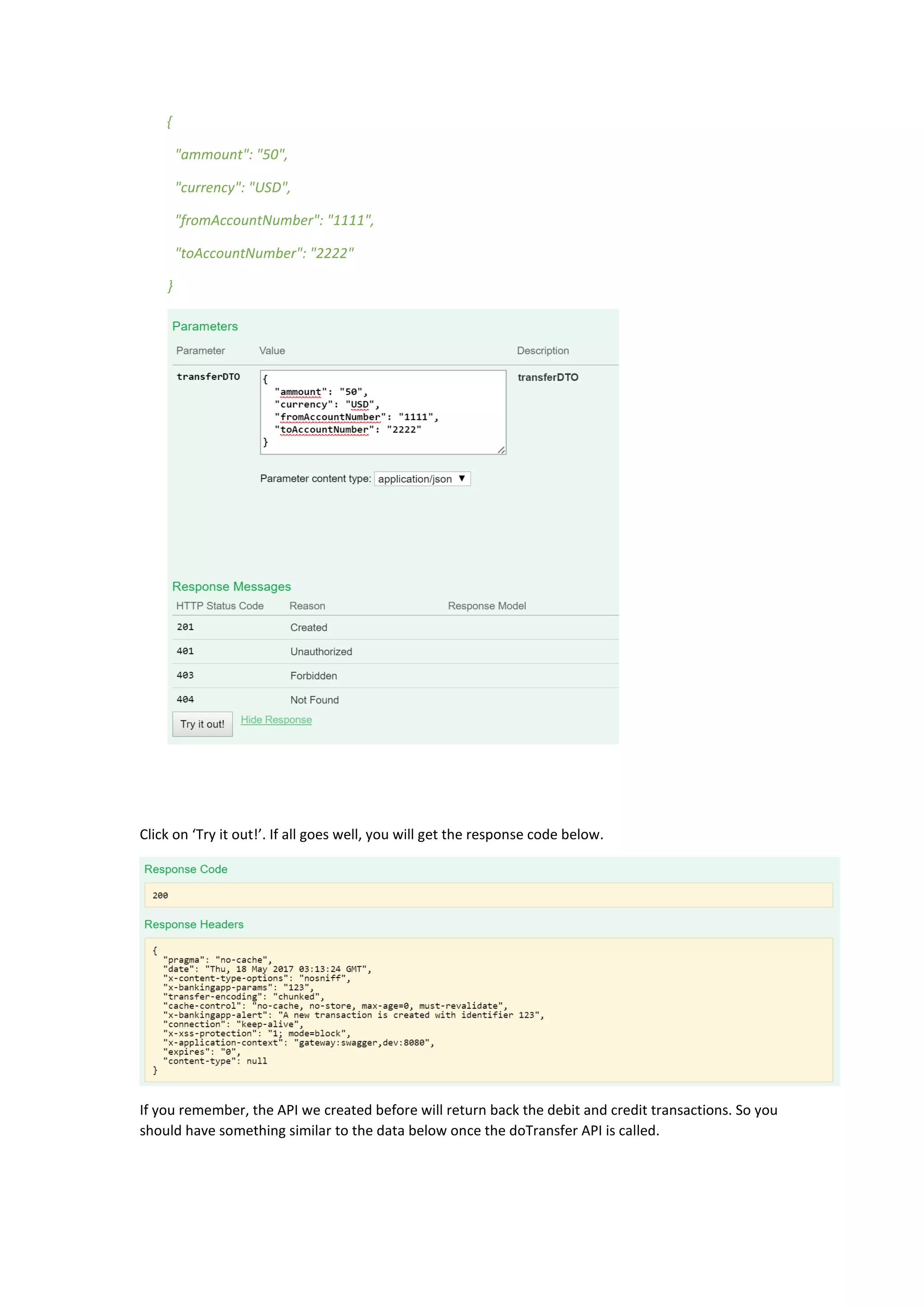
5) Next, open up the doTransfer API
We will transfer 50 from account 1111 to 2222. Enter the data as below to test the API.
{
"ammount": "50",
"currency": "USD",
"fromAccountNumber": "1111",
"toAccountNumber": "2222"
}
Click on ‘Try it out!’. If all goes well, you will get the response code below.
If you remember, the API we created before will return back the debit and credit transactions. So you
should have something similar to the data below once the doTransfer API is called.
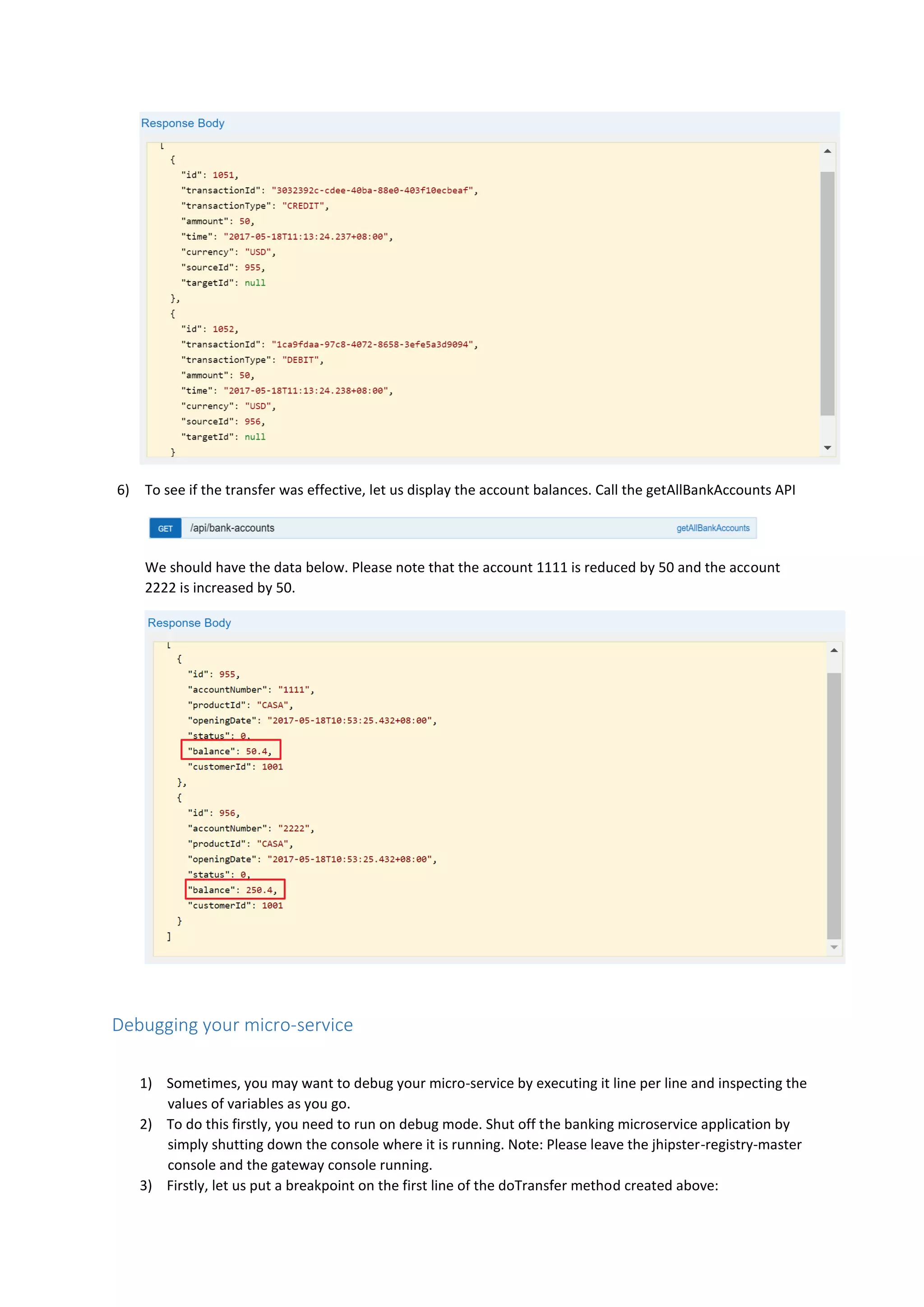
6) To see if the transfer was effective, let us display the account balances. Call the getAllBankAccounts API
We should have the data below. Please note that the account 1111 is reduced by 50 and the account
2222 is increased by 50.
Debugging your micro-service
1) Sometimes, you may want to debug your micro-service by executing it line per line and inspecting the
values of variables as you go.
2) To do this firstly, you need to run on debug mode. Shut off the banking microservice application by
simply shutting down the console where it is running. Note: Please leave the jhipster-registry-master
console and the gateway console running.
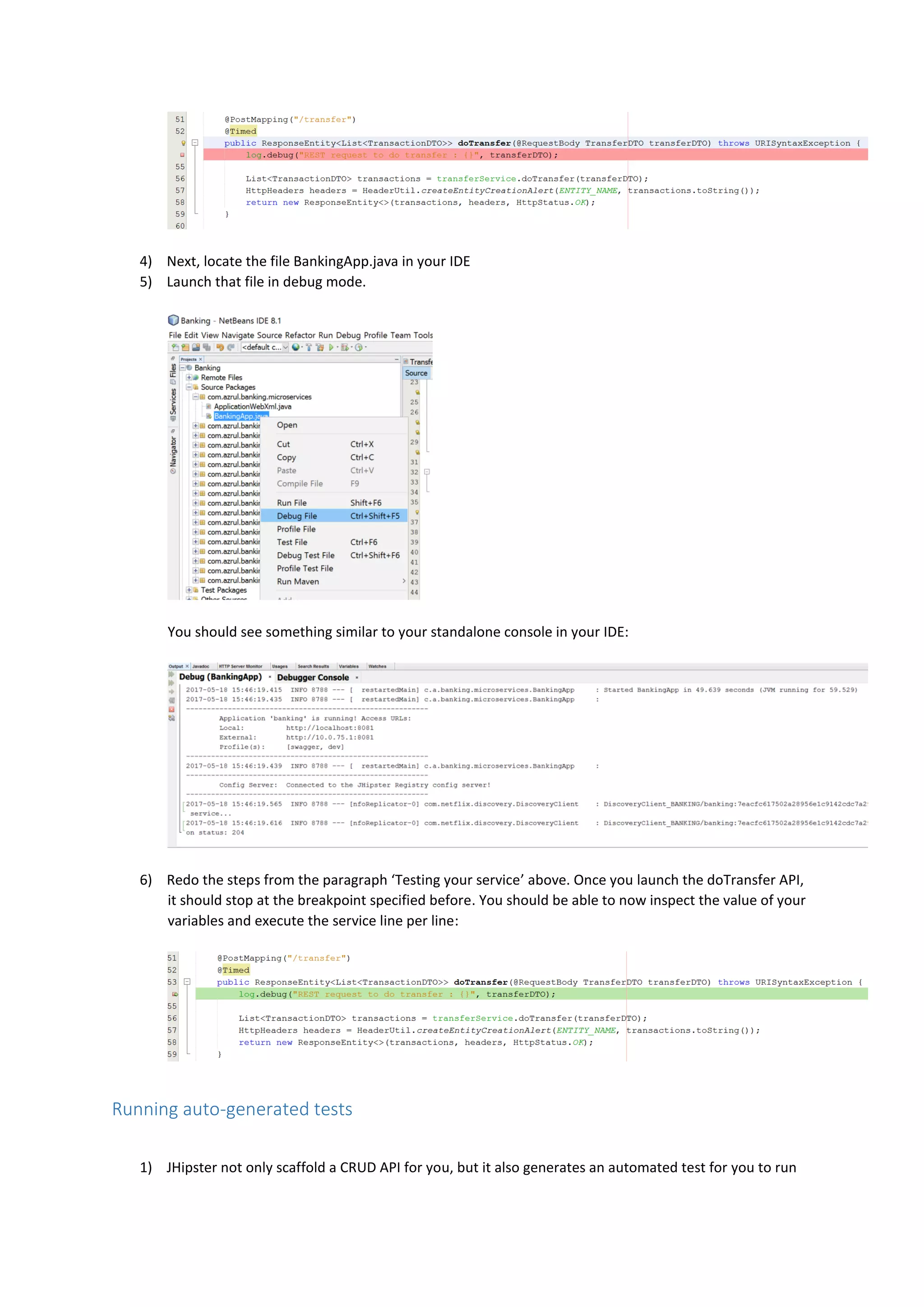
3) Firstly, let us put a breakpoint on the first line of the doTransfer method created above:
4) Next, locate the file BankingApp.java in your IDE
5) Launch that file in debug mode.
You should see something similar to your standalone console in your IDE:
6) Redo the steps from the paragraph ‘Testing your service’ above. Once you launch the doTransfer API,
it should stop at the breakpoint specified before. You should be able to now inspect the value of your
variables and execute the service line per line:
Running auto-generated tests
1) JHipster not only scaffold a CRUD API for you, but it also generates an automated test for you to run
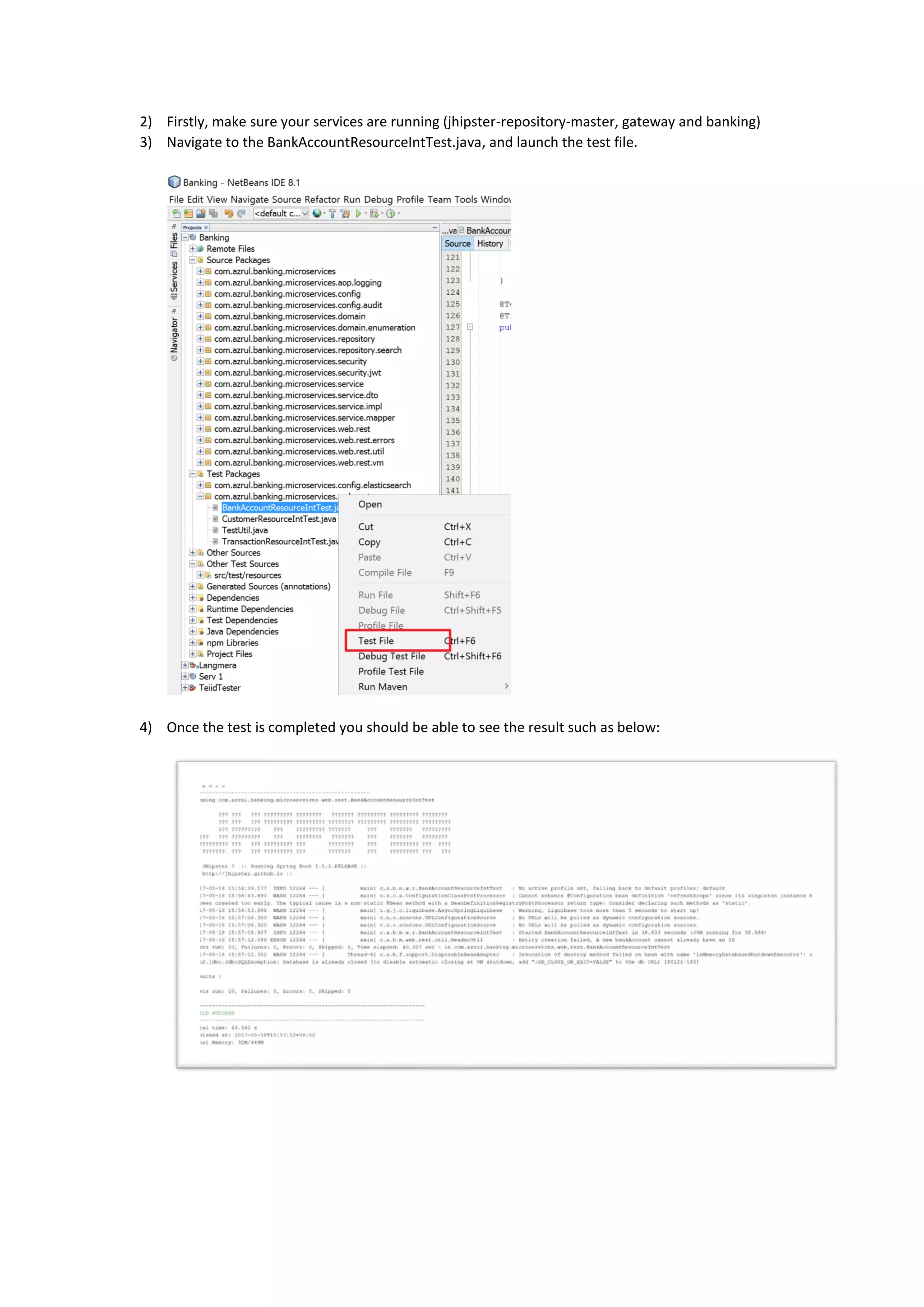
2) Firstly, make sure your services are running (jhipster-repository-master, gateway and banking)
3) Navigate to the BankAccountResourceIntTest.java, and launch the test file.
4) Once the test is completed you should be able to see the result such as below:
Monitoring
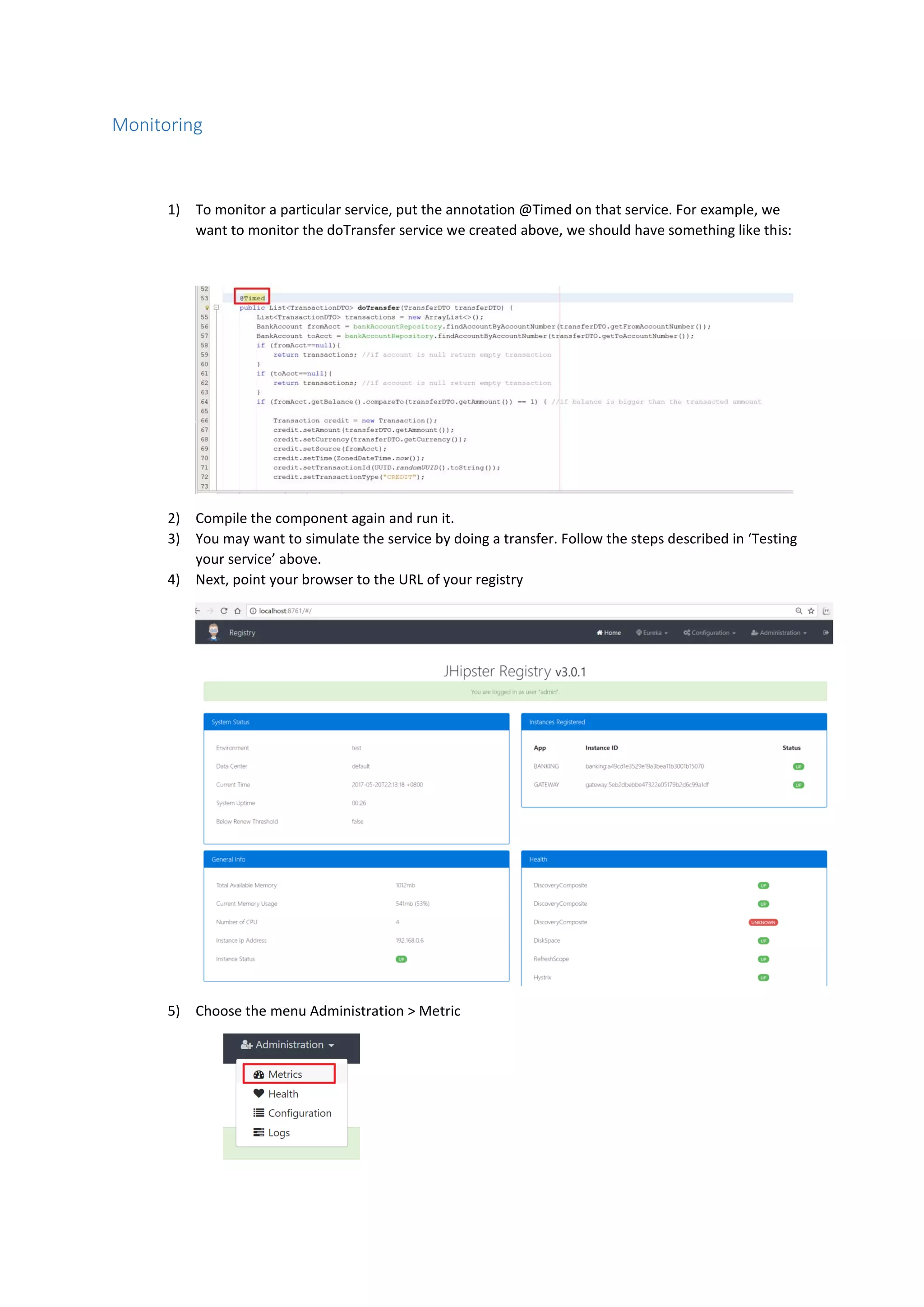
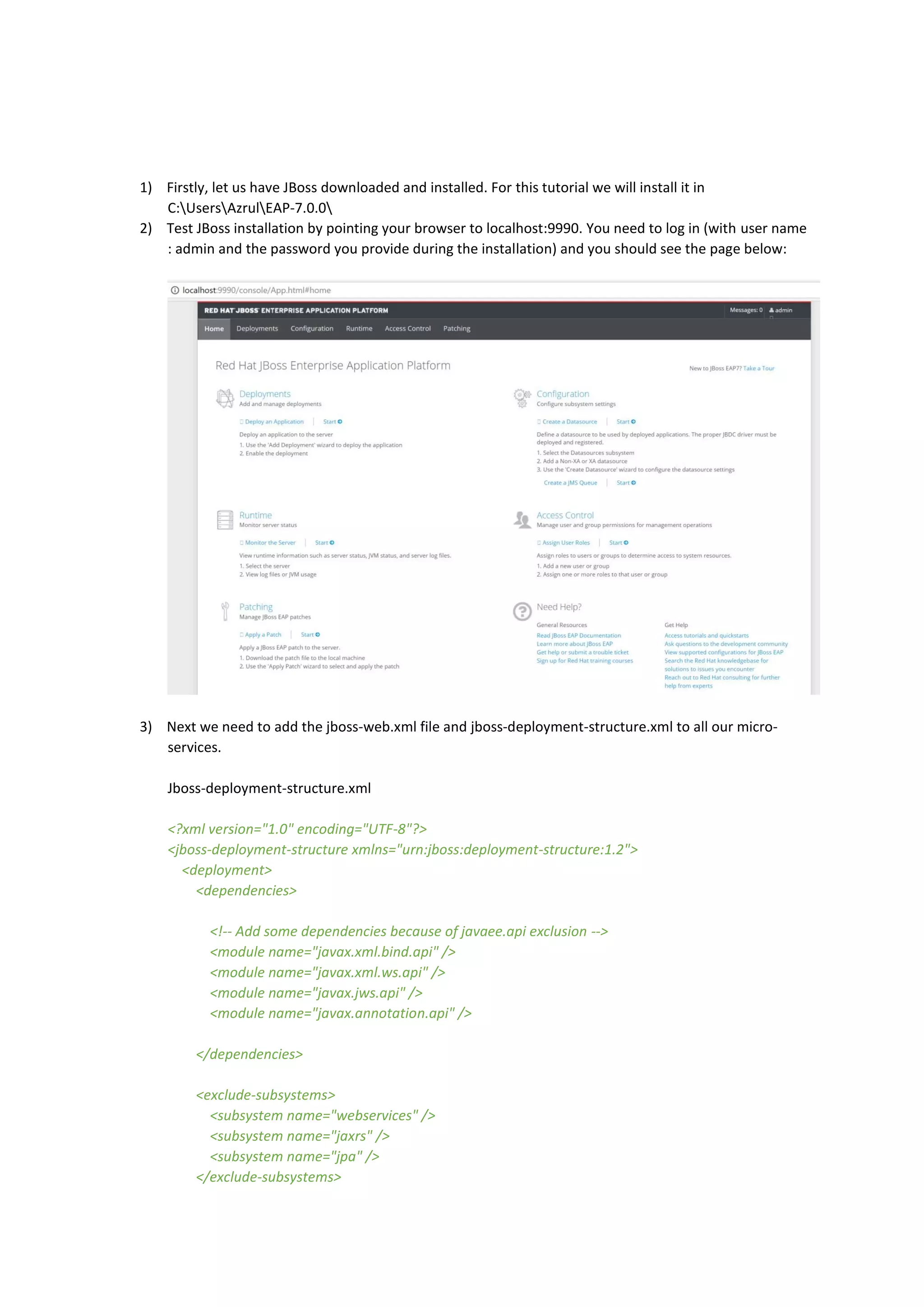
1) To monitor a particular service, put the annotation @Timed on that service. For example, we
want to monitor the doTransfer service we created above, we should have something like this:
2) Compile the component again and run it.
3) You may want to simulate the service by doing a transfer. Follow the steps described in ‘Testing
your service’ above.
4) Next, point your browser to the URL of your registry
5) Choose the menu Administration > Metric
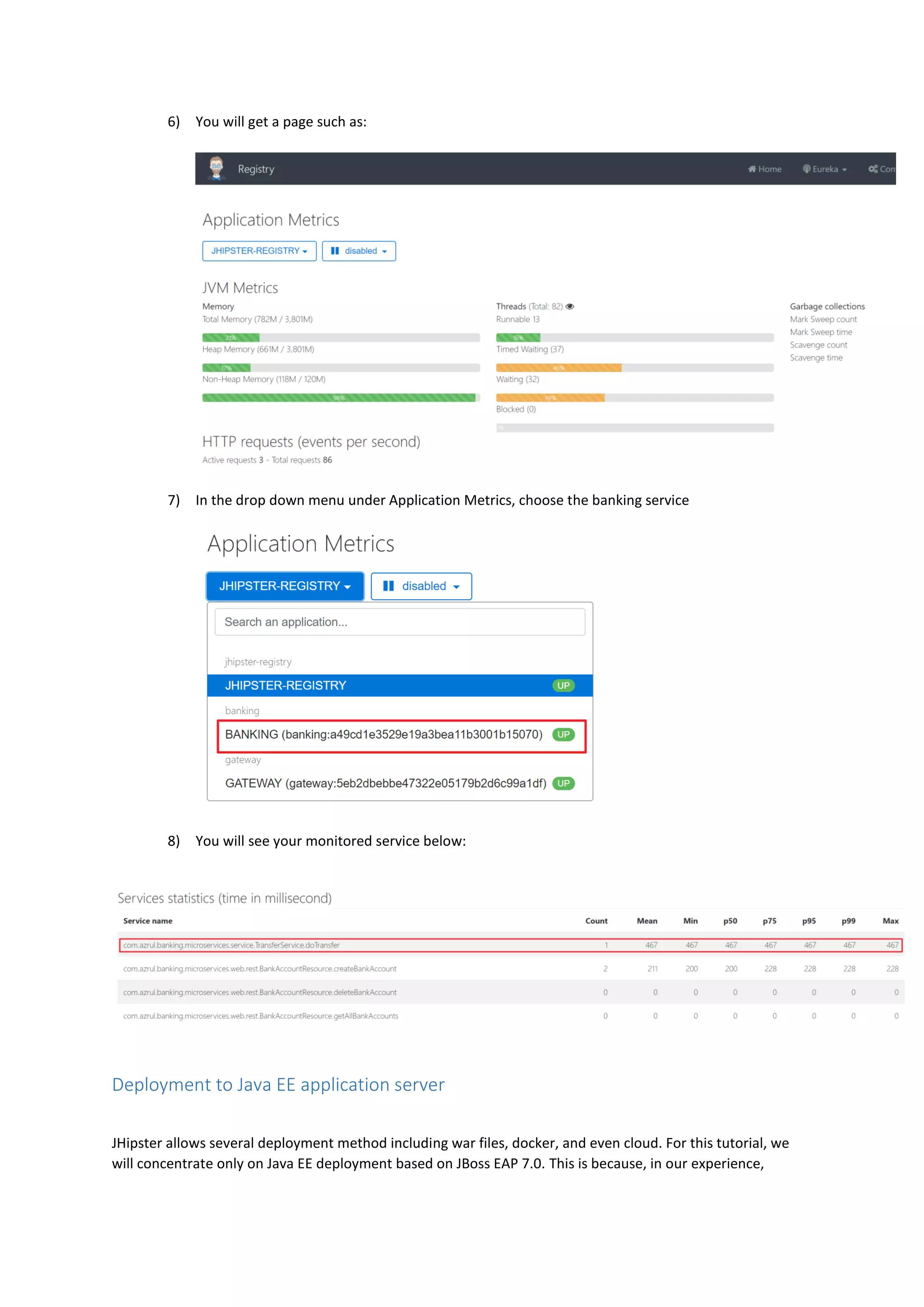
6) You will get a page such as:
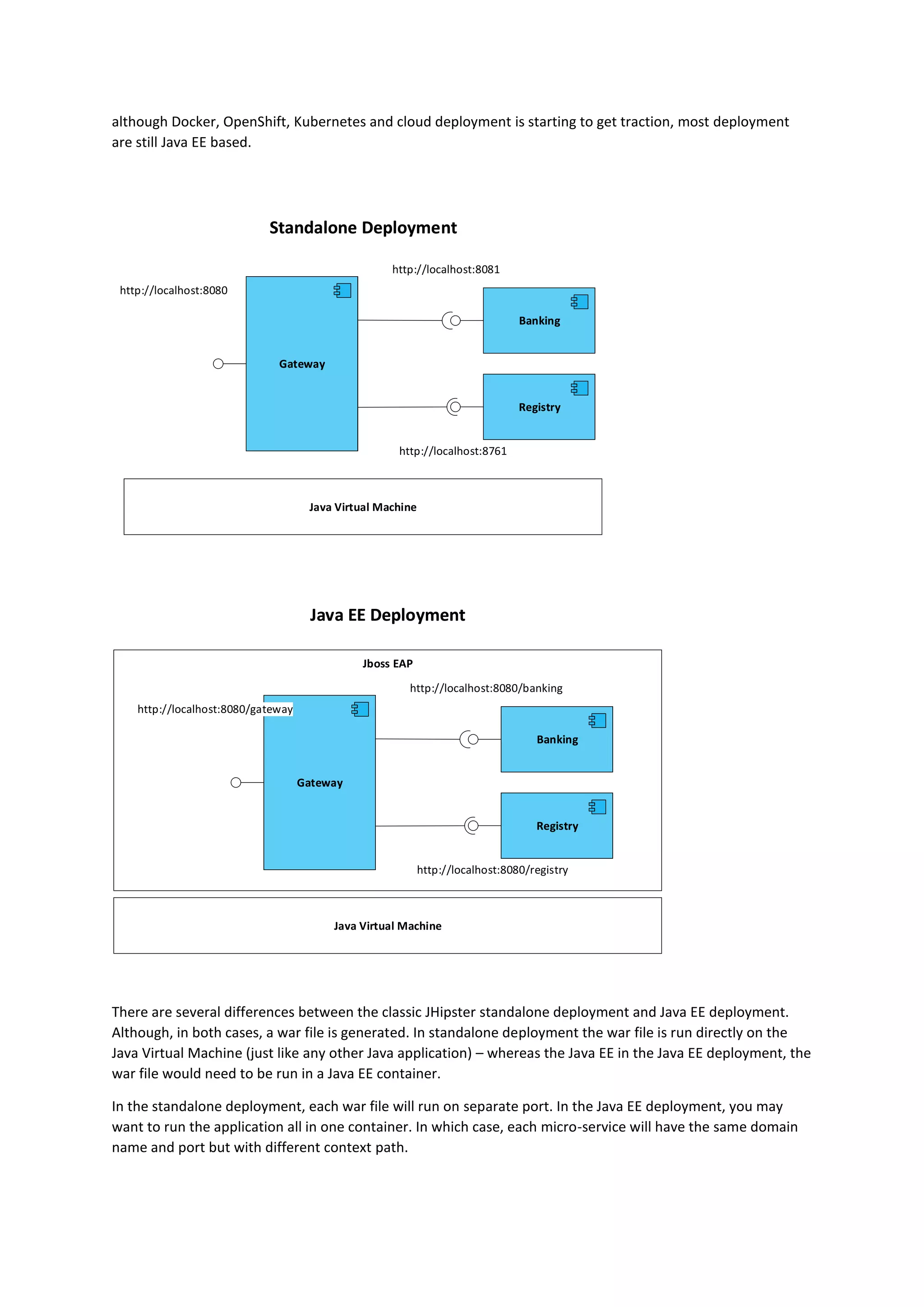
7) In the drop down menu under Application Metrics, choose the banking service
8) You will see your monitored service below:
Deployment to Java EE application server
JHipster allows several deployment method including war files, docker, and even cloud. For this tutorial, we
will concentrate only on Java EE deployment based on JBoss EAP 7.0. This is because, in our experience,
although Docker, OpenShift, Kubernetes and cloud deployment is starting to get traction, most deployment
are still Java EE based.
BankingBanking
GatewayGateway
RegistryRegistry
http://localhost:8081
http://localhost:8080
http://localhost:8761
Java Virtual MachineJava Virtual Machine
Standalone DeploymentStandalone Deployment
Jboss EAPJboss EAP
BankingBanking
GatewayGateway
RegistryRegistry
http://localhost:8080/banking
http://localhost:8080/gateway
http://localhost:8080/registry
Java Virtual MachineJava Virtual Machine
Java EE DeploymentJava EE Deployment
There are several differences between the classic JHipster standalone deployment and Java EE deployment.
Although, in both cases, a war file is generated. In standalone deployment the war file is run directly on the
Java Virtual Machine (just like any other Java application) – whereas the Java EE in the Java EE deployment, the
war file would need to be run in a Java EE container.
In the standalone deployment, each war file will run on separate port. In the Java EE deployment, you may
want to run the application all in one container. In which case, each micro-service will have the same domain
name and port but with different context path.
1) Firstly, let us have JBoss downloaded and installed. For this tutorial we will install it in
C:UsersAzrulEAP-7.0.0
2) Test JBoss installation by pointing your browser to localhost:9990. You need to log in (with user name
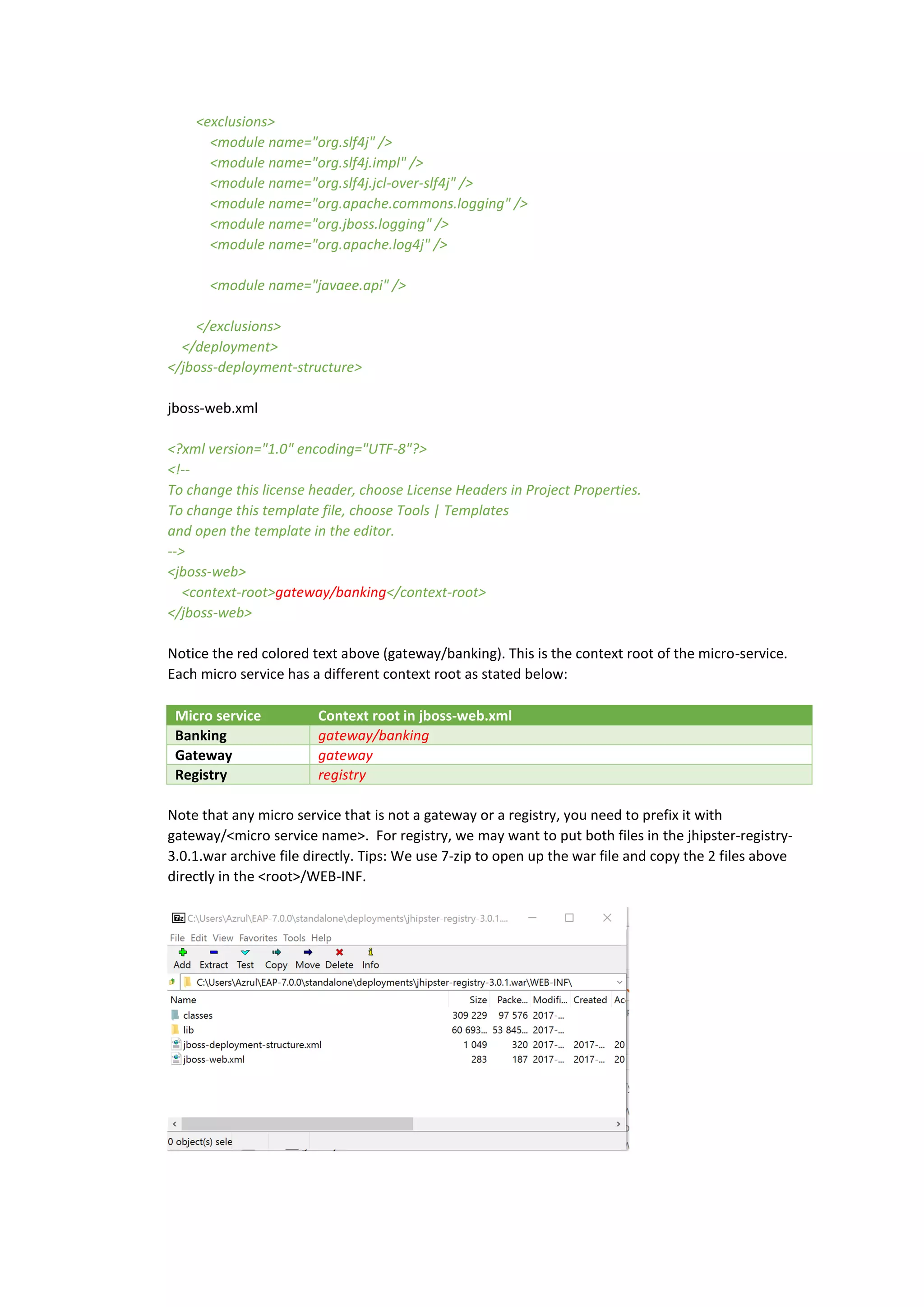
: admin and the password you provide during the installation) and you should see the page below:
3) Next we need to add the jboss-web.xml file and jboss-deployment-structure.xml to all our micro-
services.
Jboss-deployment-structure.xml
<?xml version="1.0" encoding="UTF-8"?>
<jboss-deployment-structure xmlns="urn:jboss:deployment-structure:1.2">
<deployment>
<dependencies>
<!-- Add some dependencies because of javaee.api exclusion -->
<module name="javax.xml.bind.api" />
<module name="javax.xml.ws.api" />
<module name="javax.jws.api" />
<module name="javax.annotation.api" />
</dependencies>
<exclude-subsystems>
<subsystem name="webservices" />
<subsystem name="jaxrs" />
<subsystem name="jpa" />
</exclude-subsystems>
<exclusions>
<module name="org.slf4j" />
<module name="org.slf4j.impl" />
<module name="org.slf4j.jcl-over-slf4j" />
<module name="org.apache.commons.logging" />
<module name="org.jboss.logging" />
<module name="org.apache.log4j" />
<module name="javaee.api" />
</exclusions>
</deployment>
</jboss-deployment-structure>
jboss-web.xml
<?xml version="1.0" encoding="UTF-8"?>
<!--
To change this license header, choose License Headers in Project Properties.
To change this template file, choose Tools | Templates
and open the template in the editor.
-->
<jboss-web>
<context-root>gateway/banking</context-root>
</jboss-web>
Notice the red colored text above (gateway/banking). This is the context root of the micro-service.
Each micro service has a different context root as stated below:
Micro service Context root in jboss-web.xml
Banking gateway/banking
Gateway gateway
Registry registry
Note that any micro service that is not a gateway or a registry, you need to prefix it with
gateway/<micro service name>. For registry, we may want to put both files in the jhipster-registry-
3.0.1.war archive file directly. Tips: We use 7-zip to open up the war file and copy the 2 files above
directly in the <root>/WEB-INF.
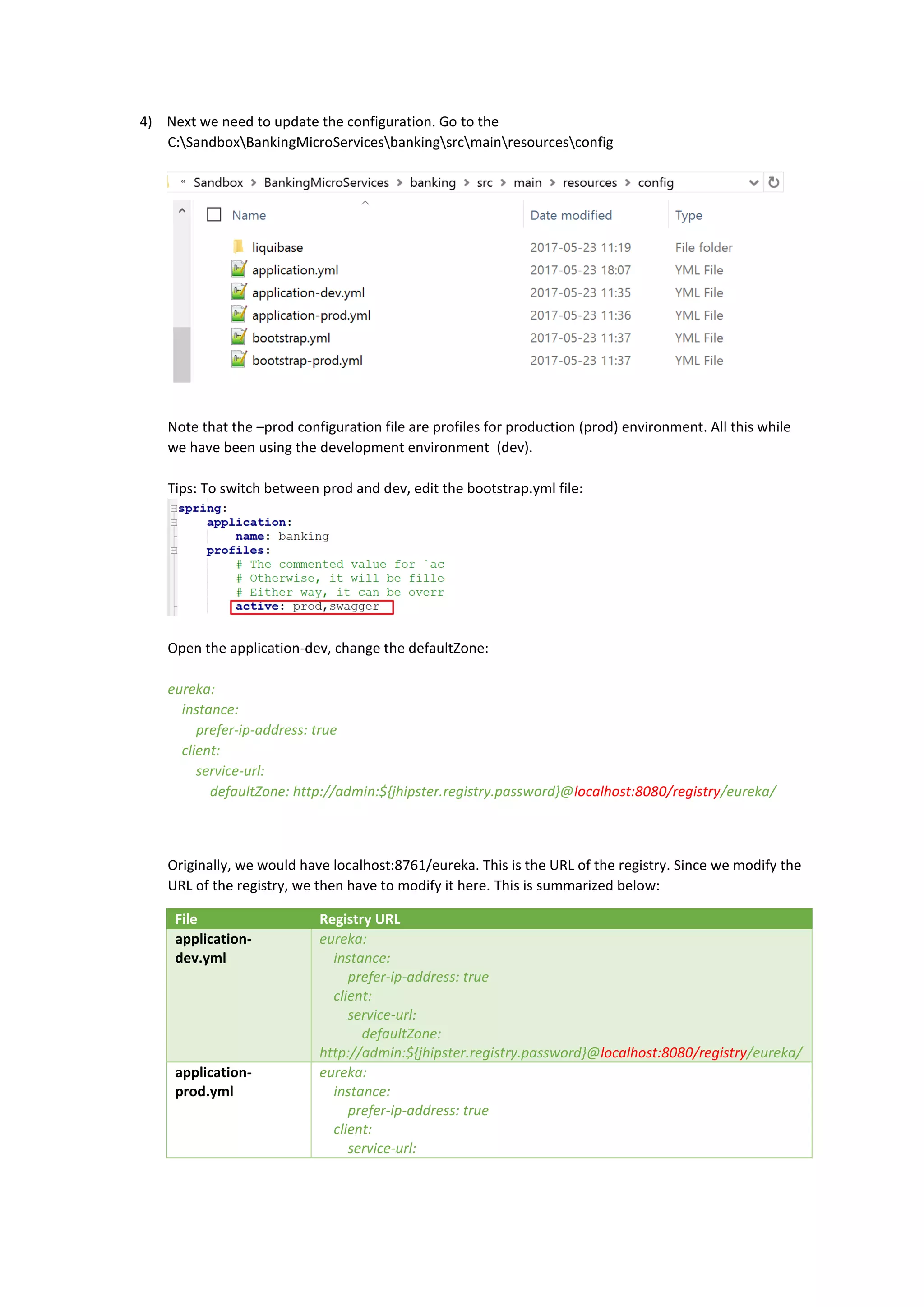
4) Next we need to update the configuration. Go to the
C:SandboxBankingMicroServicesbankingsrcmainresourcesconfig
Note that the –prod configuration file are profiles for production (prod) environment. All this while
we have been using the development environment (dev).
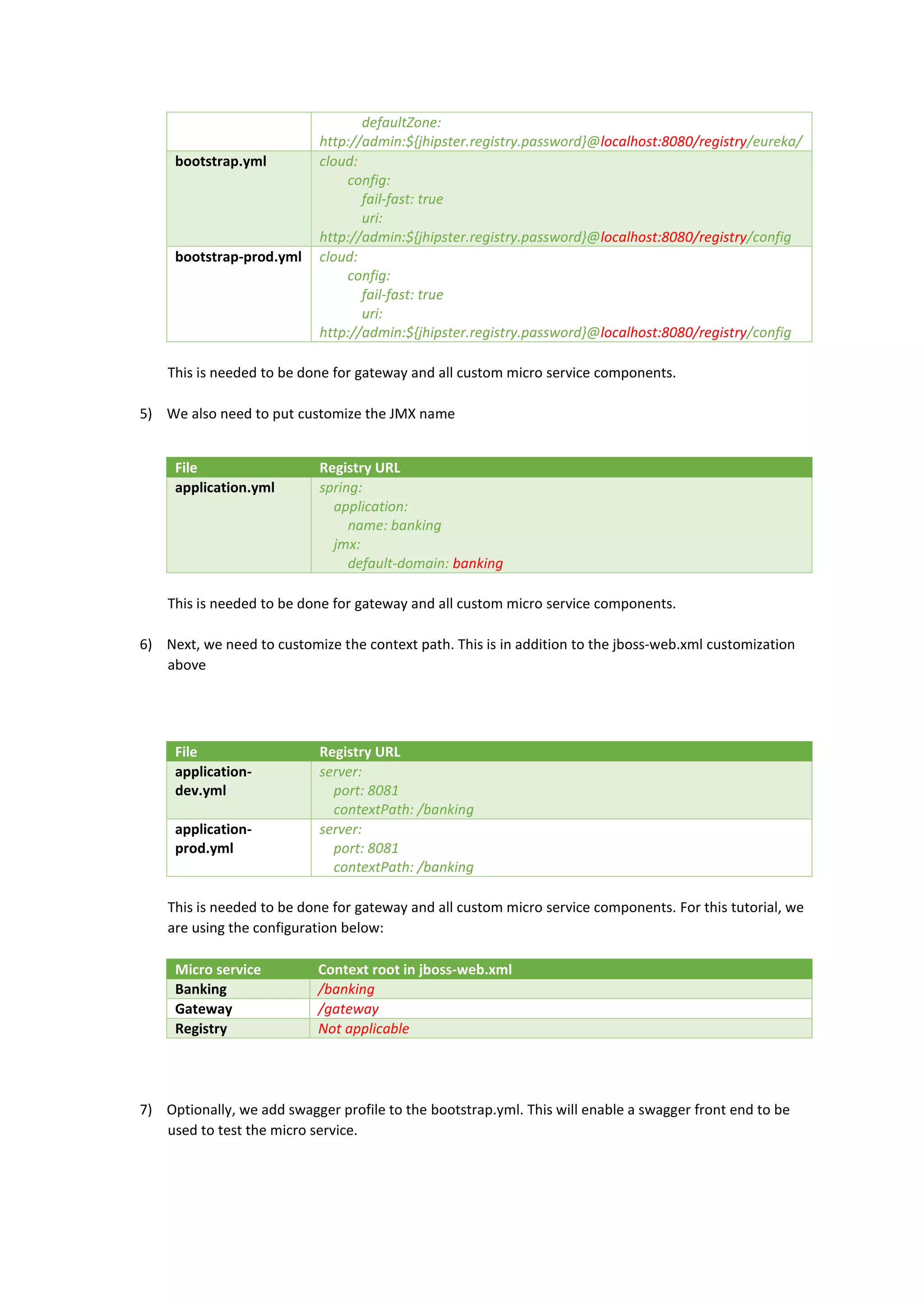
Tips: To switch between prod and dev, edit the bootstrap.yml file:
Open the application-dev, change the defaultZone:
eureka:
instance:
prefer-ip-address: true
client:
service-url:
defaultZone: http://admin:${jhipster.registry.password}@localhost:8080/registry/eureka/
Originally, we would have localhost:8761/eureka. This is the URL of the registry. Since we modify the
URL of the registry, we then have to modify it here. This is summarized below:
File Registry URL
application-
dev.yml
eureka:
instance:
prefer-ip-address: true
client:
service-url:
defaultZone:
http://admin:${jhipster.registry.password}@localhost:8080/registry/eureka/
application-
prod.yml
eureka:
instance:
prefer-ip-address: true
client:
service-url:
defaultZone:
http://admin:${jhipster.registry.password}@localhost:8080/registry/eureka/
bootstrap.yml cloud:
config:
fail-fast: true
uri:
http://admin:${jhipster.registry.password}@localhost:8080/registry/config
bootstrap-prod.yml cloud:
config:
fail-fast: true
uri:
http://admin:${jhipster.registry.password}@localhost:8080/registry/config
This is needed to be done for gateway and all custom micro service components.
5) We also need to put customize the JMX name
File Registry URL
application.yml spring:
application:
name: banking
jmx:
default-domain: banking
This is needed to be done for gateway and all custom micro service components.
6) Next, we need to customize the context path. This is in addition to the jboss-web.xml customization
above
File Registry URL
application-
dev.yml
server:
port: 8081
contextPath: /banking
application-
prod.yml
server:
port: 8081
contextPath: /banking
This is needed to be done for gateway and all custom micro service components. For this tutorial, we
are using the configuration below:
Micro service Context root in jboss-web.xml
Banking /banking
Gateway /gateway
Registry Not applicable
7) Optionally, we add swagger profile to the bootstrap.yml. This will enable a swagger front end to be
used to test the micro service.
8) Now we need to compile the banking and gateway micro services. Go to banking folder and run
>mvnw –Pprod package
We should be creating war files in the target folder
(C:SandboxBankingMicroServicesbankingtarget)
Repeat the same procedure for all micro services.
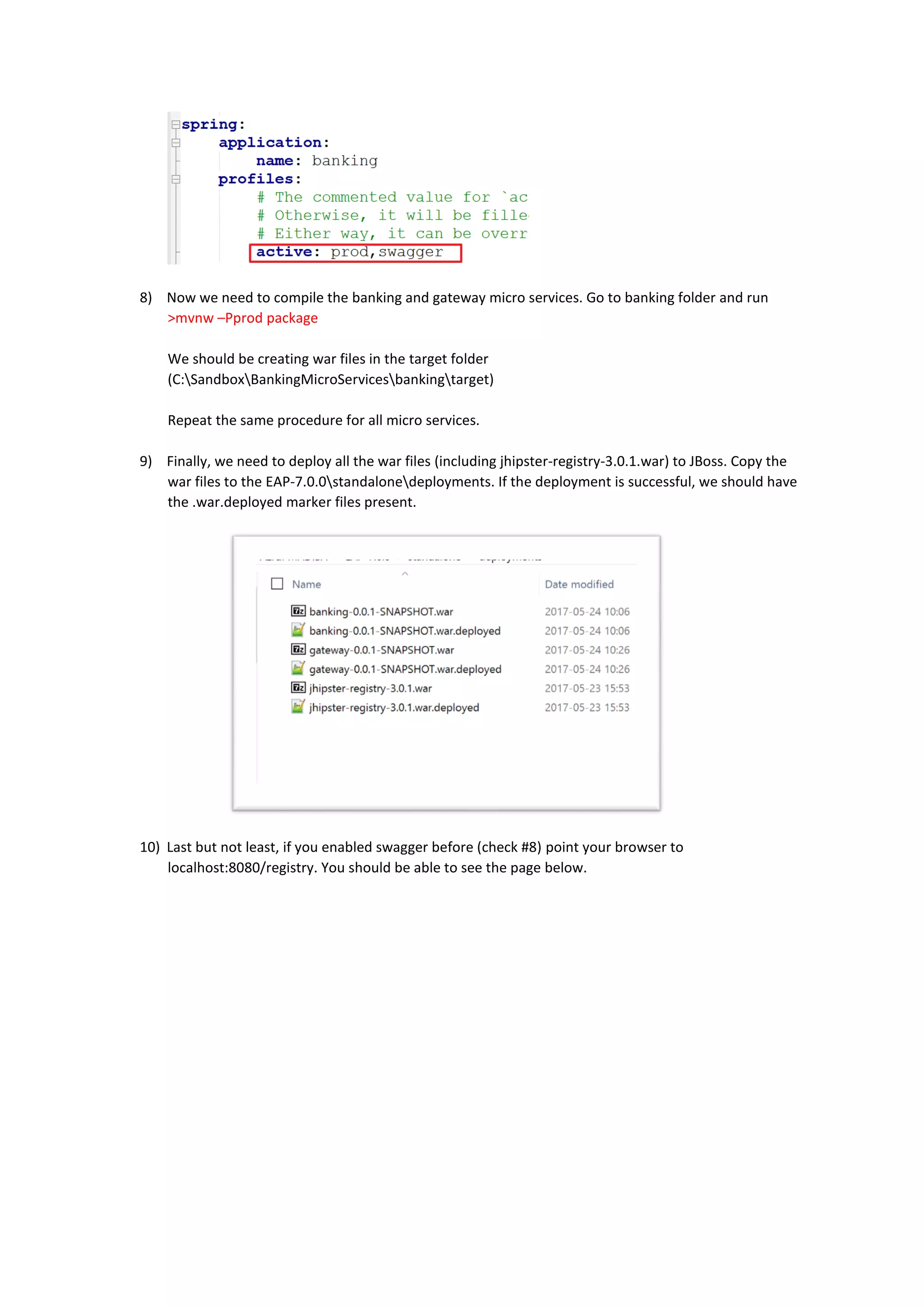
9) Finally, we need to deploy all the war files (including jhipster-registry-3.0.1.war) to JBoss. Copy the
war files to the EAP-7.0.0standalonedeployments. If the deployment is successful, we should have
the .war.deployed marker files present.
10) Last but not least, if you enabled swagger before (check #8) point your browser to
localhost:8080/registry. You should be able to see the page below.
Micro services from scratch - Part 1

Micro services from scratch - Part 1

  • 1.
    Micro - servicesfrom scratch using JHipster and JBoss. By Azrul MADISA (May 2017) Setting up for Windows 1) Install Java JDK 8 http://www.oracle.com/technetwork/java/javase/downloads/jdk8-downloads-2133151.html 2) Install Git for Windows https://git-for-windows.github.io/ 3) Install nodejs and npm for windows. Make sure that nodejs is version 6 or higher and npm is version 3 or higher. http://nodejs.org/ Once installed, you can try the command below to show the command 4) Install Yeoman. Make sure you launch cmd with Administrator. >npm install --global npm@latest >npm install --global yo 5) Install JHipster > npm install -g generator-jhipster
  • 2.
    Setting up forLinux (Ubuntu) 1) Install Java JDK 8 > sudo add-apt-repository ppa:webupd8team/java > sudo apt-get update > sudo apt-get install oracle-java8-installer 2) Install git > sudo apt-get install git 3) Install Node.js a. Install nvm > sudo apt-get install build-essential libssl-dev > curl -sL https://raw.githubusercontent.com/creationix/nvm/v0.33.2/install.sh -o install_nvm.sh Then inspect > nano install_nvm.sh Run >Bash install_nvm.sh b. Install nodejs. To list >nvm ls-remote To install >nvm install 6.10.3 c. Upgrade npm > sudo apt-get install npm > sudo -E env "PATH=$PATH" npm install -g npm 4) Install Yeoman > npm install -g yo 5) Install JHipster > npm install -g generator-jhipster JHipster architecture
  • 3.
    <<MicroService>> banking <<MicroService>> banking <<MicroService>> Jhipster-registry- master <<MicroService>> Jhipster-registry- master <<MicroService>> gateway <<MicroService>> gateway <host>:8080 <host>:8081 <host>:8086 We willcreate a service called banking that will have 3 main entities: Customer, Account and Transaction. For simplicity, these entities are not in relationship with each other. It will be running on port 8081. Note that each micro-service created will have a specific port. We will also have a registry service (jhipster-registry-master) and a gateway service. The registry is where services will register themselves and where look up is done. The gateway service allows all micro-services to be visible from one single address. Data model is as below: Data model design can be done at https://jhipster.github.io/jdl-studio/ Developing your first three micro services 1) Create a folder named BankingMicroServices under C:SandboxBankingMicroServices. 2) Go to https://github.com/jhipster/jhipster-registry/releases. Download the application as a war file and put it in the BankingMicroServices.
  • 4.
    3) Create 2other folders in BankingMicroServices and name them gateway and banking 4) Run the registry micro-service. Open a console. Go to the BankingMicroServices folder and run. >java –jar jhipster-registry-3.0.1.war You should see something like this as a result: 5) Create and run the gateway micro-service. Open up another console. Go to the gateway folder and run the command: >yo jhipster Create a gateway application as config below:
  • 5.
    Once successful, themessage below will appear: Start the gateway by running >mvnw You should be seeing this: 6) Create and run the banking micro-service. Open up another console. Go to C:SandboxBankingMicroServicesbanking. Type the command: >yo jhipster Use the configurations below:
  • 6.
    Once successfully created,you should see: Integrate the data model. You can use the data model below: enum Currency{ USD, MYR, SGD } entity Customer{ cifNumber String, firstName String, lastName String, icNumber String, phoneNumber String } entity Transaction{ transactionId String, transactionType String, amount BigDecimal, time ZonedDateTime, currency Currency, } entity Account{ accountNumber String, productId String, openingDate ZonedDateTime, status Integer,
  • 7.
    balance BigDecimal } relationship OneToMany{ Customer{accounts} to Account } relationship ManyToOne { Transaction{source} to Account } relationship ManyToOne { Transaction{target} to Account } // Set pagination options paginate Account, Transaction with infinite-scroll paginate Customer with pagination dto * with mapstruct // Set service options to all except few service all with serviceImpl // Set an angular suffix angularSuffix * with banking Save the script above in a file called datamodel.jh. Save that file in the banking folder. Go to the command prompt and type: >yo jhipster:import-jdl datamodel.jh If asked to override, type Y. This will create all the code needed to persist and manage data for your micro-service. Run the micro- service by typing >mvnw A successful run should have the message below: 7) Go to the address http://localhost:8080 (the gateway address –not the banking service address). You will get the page below. In the top menu, choose Sign In.
  • 8.
    8) The SignIn screen will appear. Sign in as admin/admin 9) Once you are logged in, you will see the screen below
  • 9.
    Inspecting your SwaggerAPI definition 1) Point your browser to your micro-service URL (in our case it is http://localhost:8081/ /v2/api-docs). Please refer to the paragraph ‘Developing your first three micro services’ #6. 2) You should see the screen below: 3) This is a plain dump of the Swagger file. If you want to properly inspect your Swagger file, copy the content and paste it in some json pretty print tool such as http://www.jsonprettyprint.com. The screenshot below shows a sample of the Swagger file.
  • 10.
    Testing your APImanually 1) Go to the Administrator menu and choose API
  • 11.
    2) The pagebelow will appear 3) Choose ‘banking/v2/api-docs. (Recall that banking/v2/api-docs was the location of the Swagger file). You will then get the page below:
  • 12.
    4) Expand thecustomer-resource by clicking on it. Next click on POST /api/customer - createCustomer. You should get the page below
  • 13.
    5) In thecustomerDTO field, put the following json and click on ‘Try out’. Note that the value of id field must be null { "cifNumber": "1234", "firstName": "Donald", "lastName": "Duck", "icNumber": "111111-11-1111", "id": null, "phoneNumber": "012-3456789" } 6) If all goes well, you should get a 201 return code to your request as below:
  • 14.
    7) To queryback the data, simply choose GET /api/customers – getAllCustomers. Click on Try Out.
  • 15.
    If all goeswell, you should get back your data as above
  • 16.
    Creating your ownservice 1) For this part of the tutorial, we will create a Transfer service that will debit the balance from one account and credit it to another. The transfer service will transfer fund from one account to another. The algorithm is as follows: Input (from_account_number, to_account_number, amount) from_account <- lookup_account_object_by_account_number (from_account_number) to_account <- lookup_account_object_by_account_number (to_account_number) if the balance of from_account > amount then debit from_account by amount credit to_account by amount create a debit_transaction for the record create a credit_transaction for the record save to_account,from_account, credit_transaction and debit transaction in the database end if
  • 17.
    2) Go tothe banking folder and type the command below in a console >yo jhipster:service Transfer The message below should appear As you can see, a new file (TrasnferService.java) is created. Next, fire up your favourite IDE (in this tutorial we are using Netbeans – but it can be any IDE that supports Maven or Graddle project). Open a project and point your IDE to the banking. Open it and you should see something similar to screenshot below: 3) Before coding the TransferService, we need a procedures to help us translate account number into actual account object. 4) Under com.azrul.banking.microservices.repository, create 2 new files: CustomBankAccountRepository.java and CustomBankAccountRepositoryImpl.java CustomBankAccountRepository.java public interface CustomBankAccountRepository {
  • 18.
    BankAccount findAccountByAccountNumber(String accountNumber); } CustomBankAccountRepositoryImpl.java @Transactional(readOnly= true) public class CustomBankAccountRepositoryImpl implements CustomBankAccountRepository { @PersistenceContext EntityManager entityManager; @Override public BankAccount findAccountByAccountNumber(String accountNumber) { Query query = entityManager.createQuery( "Select a from BankAccount a where a.accountNumber=?1"); query.setParameter(1, accountNumber); return (BankAccount) query.getSingleResult(); } } As you can see, we are using JPQL to query an account based on the account number. Truth be told, there is actually a simpler way to just return a JPQL result (using annotation on interface method) but I wanted to show a more comprehensive example here. Next, open up the BankAccountRepository.java file and add CustomBankAccountReporitory as one of the extended class as below public interface BankAccountRepository extends JpaRepository<BankAccount,Long> ,CustomBankAccountRepository { } 5) Next, we would need a Transfer transfer object. This transfer object will allow us to transfer data between the caller of the service and the service itself. Create a file called TransferDTO.java in com.azrul.banking.microservices.service.dto package. Note that the TransferDTO object should carry the necessary fields to do a transfer (E.g. from account, to account, amount and currency) public class TransferDTO { private String fromAccountNumber; private String toAccountNumber; private BigDecimal amount; private Currency currency; public String getFromAccountNumber() { return fromAccountNumber; } public void setFromAccountNumber(String fromAccountNumber) {
  • 19.
    this.fromAccountNumber = fromAccountNumber; } publicString getToAccountNumber() { return toAccountNumber; } public void setToAccountNumber(String toAccountNumber) { this.toAccountNumber = toAccountNumber; } public BigDecimal getAmount() { return amount; } public void setAmount(BigDecimal amount) { this.amount = amount; } public Currency getCurrency() { return currency; } public void setCurrency(Currency currency) { this.currency = currency; } @Override public int hashCode() { int hash = 7; hash = 53 * hash + Objects.hashCode(this.fromAccountNumber); hash = 53 * hash + Objects.hashCode(this.toAccountNumber); hash = 53 * hash + Objects.hashCode(this.amount);
  • 20.
    hash = 53* hash + Objects.hashCode(this.currency); return hash; } @Override public boolean equals(Object obj) { if (this == obj) { return true; } if (obj == null) { return false; } if (getClass() != obj.getClass()) { return false; } final TransferDTO other = (TransferDTO) obj; return true; } @Override public String toString() { return "TransferDTO{" + "fromAccountNumber=" + fromAccountNumber + ", toAccountNumber=" + toAccountNumber + ", amount=" + amount + ", currency=" + currency + '}'; } } 6) Now we will start developing the Transfer service. Open up the TransferService.java file. Firstly we need to initialize the service properly. Include the repositories TransactionRepository and BankAccountRepository in the constructor. This will allow Spring to inject the implementation of these repositories directly into our service. We should also include Mappers (TransactionMapper and BankAccountMapper). Mappers will help us translate between domain objects (such as Transaction and Account) into transfer objects (such as TransactionDTO and AccountDTO). Transfer objects will contain data that will be delivered back to the client of the service. private final Logger log = LoggerFactory.getLogger(TransferService.class); private final BankAccountRepository bankAccountRepository; private final BankAccountMapper bankAccountMapper;
  • 21.
    private final BankAccountSearchRepositorybankAccountSearchRepository; private final TransactionRepository transactionRepository; private final TransactionMapper transactionMapper; private final TransactionSearchRepository transactionSearchRepository; public TransferService(BankAccountRepository bankAccountRepository, BankAccountMapper bankAccountMapper, BankAccountSearchRepository bankAccountSearchRepository, TransactionRepository transactionRepository, TransactionMapper transactionMapper, TransactionSearchRepository transactionSearchRepository) { this.bankAccountRepository = bankAccountRepository; this.bankAccountMapper = bankAccountMapper; this.bankAccountSearchRepository = bankAccountSearchRepository; this.transactionRepository = transactionRepository; this.transactionMapper = transactionMapper; this.transactionSearchRepository = transactionSearchRepository; } Now it’s time to finally code our transfer service. Please refer to the listing below. As you can see we are following the algorithm stated before. The findAccountByAccountNumber procedure created before is being used to look up actual account object from account number. We will also do a simple null check to see if the account number is really associated with actual account. In case of success, we will return back the two transactions that were created (debit and credit transactions). In case of exception (such as null check violation or inadequate fund balance to do a transfer), we will return an empty list. public List<TransactionDTO> doTransfer(TransferDTO transferDTO) { List<TransactionDTO> transactions = new ArrayList<>(); BankAccount fromAcct = bankAccountRepository.findAccountByAccountNumber(transferDTO.getFromAccountNumber()); BankAccount toAcct = bankAccountRepository.findAccountByAccountNumber(transferDTO.getToAccountNumber()); if (fromAcct==null){ return transactions; //if account is null return empty transaction } if (toAcct==null){ return transactions; //if account is null return empty transaction } if (fromAcct.getBalance().compareTo(transferDTO.getAmmount()) == 1) { //if balance is bigger than the transacted ammount
  • 22.
    Transaction credit =new Transaction(); credit.setAmount(transferDTO.getAmmount()); credit.setCurrency(transferDTO.getCurrency()); credit.setSource(fromAcct); credit.setTime(ZonedDateTime.now()); credit.setTransactionId(UUID.randomUUID().toString()); credit.setTransactionType("CREDIT"); Transaction debit = new Transaction(); debit.setAmount(transferDTO.getAmmount()); debit.setCurrency(transferDTO.getCurrency()); debit.setTarget(toAcct); debit.setTime(ZonedDateTime.now()); debit.setTransactionId(UUID.randomUUID().toString()); debit.setTransactionType("DEBIT"); fromAcct.setBalance(fromAcct.getBalance().subtract(transferDTO.getAmmount())); toAcct.setBalance(toAcct.getBalance().add(transferDTO.getAmmount())); bankAccountRepository.save(fromAcct); bankAccountRepository.save(toAcct); credit = transactionRepository.save(credit); debit = transactionRepository.save(debit); transactions.add(transactionMapper.transactionToTransactionDTO(credit)); transactions.add(transactionMapper.transactionToTransactionDTO(debit)); } return transactions; } 7) Once all these are coded, we need to expose our service as restful API. To do this open the package com.azrul.banking.microservices.web.rest, and open up the file TransactionResource.java In the TransactionResource class, add this method: @PostMapping("/transfer") @Timed public ResponseEntity<List<TransactionDTO>> doTransfer(@RequestBody TransferDTO transferDTO) throws URISyntaxException { log.debug("REST request to do transfer : {}", transferDTO); List<TransactionDTO> transactions = transferService.doTransfer(transferDTO);
  • 23.
    HttpHeaders headers =HeaderUtil.createEntityCreationAlert(ENTITY_NAME, transactions.toString()); return new ResponseEntity<>(transactions, headers, HttpStatus.OK); } The annotation PostMapping indicate that this method is of type HTTP POST. This is appropriate since we are modifying data. If this is a plain read-only API, we should use HTTP-GET instead. The annotation PostMapping also shows how the parameters of this API is represented in the URL. Since we have 3 parameters (to account, from account and amount), we would need three place- holders indicated by the curly brackets. The tree parameters are also reflected in the method input parameters. Special annotation (PathValue) is used to map a method input parameter to its counterpart in the URL. Note that the return value of this API has a root type TransactionDTO. As mentioned before, DTOs, or transfer objects, are used to transport data from a service to its client. Note also that this method would call and use the TransferService created previously. To make TransferService available, we need to have it injected through the constructor as shown in red below: private final TransactionService transactionService; private final TransferService transferService; public TransactionResource(TransactionService transactionService, TransferService transferService) { this.transactionService = transactionService; this.transferService = transferService; } Modifying the constructor above would break some code in testing. In Test, go to the com.azrul.banking.microservices.web.rest and open the TransactionResourceIntTest.java. Add the class level property below: @Autowired private TransferService transferService; In the setup, I would also need to add transferService to the service constructor @Before public void setup() { MockitoAnnotations.initMocks(this);
  • 24.
    TransactionResource transactionResource =new TransactionResource(transactionService,transferService); this.restTransactionMockMvc = MockMvcBuilders.standaloneSetup(transactionResource) .setCustomArgumentResolvers(pageableArgumentResolver) .setControllerAdvice(exceptionTranslator) .setMessageConverters(jacksonMessageConverter).build(); } 8) Once all the required code is written, we would proceed to compile the service. Open up a console and point it to the banking folder. Type the command below >mvnw If compile is successful, run the same command again to run the service. If no problem occurs, you should have the message below: Testing your service 1) Please follow the steps in the paragraph ‘Testing your API manually’ above to prepare some data for your test. 2) Firstly you will need to create a customer. Use the createCustomer API for this. Use the JSON structure below to create one { "cifNumber": "1234", "firstName": "Donald", "icNumber": "111111-11-1111", "id": null, "lastName": "Duck", "phoneNumber": "012-3456789" } 3) Query back the customer using getAllCustomer API You should have the data below. Note that the id (in this case 1001) is auto-generated by the database). This id is actually needed for our subsequent call. Please note it down. [ {
  • 25.
    "id": 1001, "cifNumber": "1234", "firstName":"Donald", "lastName": "Duck", "icNumber": "111111-11-1111", "phoneNumber": "012-3456789" } ] 4) Then, use the createAccount API. Create two accounts as indicated below. Note that the field customerId must contain the id noted back in #3. We will be using the account number (represented by accountNumber field) to do the transfer, please note them down. { "accountNumber": "1111", "balance": "100.40", "customerId": 1001, "id": null, "openingDate": "2017-05-18T02:53:25.432Z", "productId": "CASA", "status": 0 } { "accountNumber": "2222", "balance": "200.40", "customerId": 1001, "id": null, "openingDate": "2017-05-18T02:53:25.432Z", "productId": "CASA", "status": 0 } 5) Next, open up the doTransfer API We will transfer 50 from account 1111 to 2222. Enter the data as below to test the API.
  • 26.
    { "ammount": "50", "currency": "USD", "fromAccountNumber":"1111", "toAccountNumber": "2222" } Click on ‘Try it out!’. If all goes well, you will get the response code below. If you remember, the API we created before will return back the debit and credit transactions. So you should have something similar to the data below once the doTransfer API is called.
  • 27.
    6) To seeif the transfer was effective, let us display the account balances. Call the getAllBankAccounts API We should have the data below. Please note that the account 1111 is reduced by 50 and the account 2222 is increased by 50. Debugging your micro-service 1) Sometimes, you may want to debug your micro-service by executing it line per line and inspecting the values of variables as you go. 2) To do this firstly, you need to run on debug mode. Shut off the banking microservice application by simply shutting down the console where it is running. Note: Please leave the jhipster-registry-master console and the gateway console running. 3) Firstly, let us put a breakpoint on the first line of the doTransfer method created above:
  • 28.
    4) Next, locatethe file BankingApp.java in your IDE 5) Launch that file in debug mode. You should see something similar to your standalone console in your IDE: 6) Redo the steps from the paragraph ‘Testing your service’ above. Once you launch the doTransfer API, it should stop at the breakpoint specified before. You should be able to now inspect the value of your variables and execute the service line per line: Running auto-generated tests 1) JHipster not only scaffold a CRUD API for you, but it also generates an automated test for you to run
  • 29.
    2) Firstly, makesure your services are running (jhipster-repository-master, gateway and banking) 3) Navigate to the BankAccountResourceIntTest.java, and launch the test file. 4) Once the test is completed you should be able to see the result such as below:
  • 30.
    Monitoring 1) To monitora particular service, put the annotation @Timed on that service. For example, we want to monitor the doTransfer service we created above, we should have something like this: 2) Compile the component again and run it. 3) You may want to simulate the service by doing a transfer. Follow the steps described in ‘Testing your service’ above. 4) Next, point your browser to the URL of your registry 5) Choose the menu Administration > Metric
  • 31.
    6) You willget a page such as: 7) In the drop down menu under Application Metrics, choose the banking service 8) You will see your monitored service below: Deployment to Java EE application server JHipster allows several deployment method including war files, docker, and even cloud. For this tutorial, we will concentrate only on Java EE deployment based on JBoss EAP 7.0. This is because, in our experience,
  • 32.
    although Docker, OpenShift,Kubernetes and cloud deployment is starting to get traction, most deployment are still Java EE based. BankingBanking GatewayGateway RegistryRegistry http://localhost:8081 http://localhost:8080 http://localhost:8761 Java Virtual MachineJava Virtual Machine Standalone DeploymentStandalone Deployment Jboss EAPJboss EAP BankingBanking GatewayGateway RegistryRegistry http://localhost:8080/banking http://localhost:8080/gateway http://localhost:8080/registry Java Virtual MachineJava Virtual Machine Java EE DeploymentJava EE Deployment There are several differences between the classic JHipster standalone deployment and Java EE deployment. Although, in both cases, a war file is generated. In standalone deployment the war file is run directly on the Java Virtual Machine (just like any other Java application) – whereas the Java EE in the Java EE deployment, the war file would need to be run in a Java EE container. In the standalone deployment, each war file will run on separate port. In the Java EE deployment, you may want to run the application all in one container. In which case, each micro-service will have the same domain name and port but with different context path.
  • 33.
    1) Firstly, letus have JBoss downloaded and installed. For this tutorial we will install it in C:UsersAzrulEAP-7.0.0 2) Test JBoss installation by pointing your browser to localhost:9990. You need to log in (with user name : admin and the password you provide during the installation) and you should see the page below: 3) Next we need to add the jboss-web.xml file and jboss-deployment-structure.xml to all our micro- services. Jboss-deployment-structure.xml <?xml version="1.0" encoding="UTF-8"?> <jboss-deployment-structure xmlns="urn:jboss:deployment-structure:1.2"> <deployment> <dependencies> <!-- Add some dependencies because of javaee.api exclusion --> <module name="javax.xml.bind.api" /> <module name="javax.xml.ws.api" /> <module name="javax.jws.api" /> <module name="javax.annotation.api" /> </dependencies> <exclude-subsystems> <subsystem name="webservices" /> <subsystem name="jaxrs" /> <subsystem name="jpa" /> </exclude-subsystems>
  • 34.
    <exclusions> <module name="org.slf4j" /> <modulename="org.slf4j.impl" /> <module name="org.slf4j.jcl-over-slf4j" /> <module name="org.apache.commons.logging" /> <module name="org.jboss.logging" /> <module name="org.apache.log4j" /> <module name="javaee.api" /> </exclusions> </deployment> </jboss-deployment-structure> jboss-web.xml <?xml version="1.0" encoding="UTF-8"?> <!-- To change this license header, choose License Headers in Project Properties. To change this template file, choose Tools | Templates and open the template in the editor. --> <jboss-web> <context-root>gateway/banking</context-root> </jboss-web> Notice the red colored text above (gateway/banking). This is the context root of the micro-service. Each micro service has a different context root as stated below: Micro service Context root in jboss-web.xml Banking gateway/banking Gateway gateway Registry registry Note that any micro service that is not a gateway or a registry, you need to prefix it with gateway/<micro service name>. For registry, we may want to put both files in the jhipster-registry- 3.0.1.war archive file directly. Tips: We use 7-zip to open up the war file and copy the 2 files above directly in the <root>/WEB-INF.
  • 35.
    4) Next weneed to update the configuration. Go to the C:SandboxBankingMicroServicesbankingsrcmainresourcesconfig Note that the –prod configuration file are profiles for production (prod) environment. All this while we have been using the development environment (dev). Tips: To switch between prod and dev, edit the bootstrap.yml file: Open the application-dev, change the defaultZone: eureka: instance: prefer-ip-address: true client: service-url: defaultZone: http://admin:${jhipster.registry.password}@localhost:8080/registry/eureka/ Originally, we would have localhost:8761/eureka. This is the URL of the registry. Since we modify the URL of the registry, we then have to modify it here. This is summarized below: File Registry URL application- dev.yml eureka: instance: prefer-ip-address: true client: service-url: defaultZone: http://admin:${jhipster.registry.password}@localhost:8080/registry/eureka/ application- prod.yml eureka: instance: prefer-ip-address: true client: service-url:
  • 36.
    defaultZone: http://admin:${jhipster.registry.password}@localhost:8080/registry/eureka/ bootstrap.yml cloud: config: fail-fast: true uri: http://admin:${jhipster.registry.password}@localhost:8080/registry/config bootstrap-prod.ymlcloud: config: fail-fast: true uri: http://admin:${jhipster.registry.password}@localhost:8080/registry/config This is needed to be done for gateway and all custom micro service components. 5) We also need to put customize the JMX name File Registry URL application.yml spring: application: name: banking jmx: default-domain: banking This is needed to be done for gateway and all custom micro service components. 6) Next, we need to customize the context path. This is in addition to the jboss-web.xml customization above File Registry URL application- dev.yml server: port: 8081 contextPath: /banking application- prod.yml server: port: 8081 contextPath: /banking This is needed to be done for gateway and all custom micro service components. For this tutorial, we are using the configuration below: Micro service Context root in jboss-web.xml Banking /banking Gateway /gateway Registry Not applicable 7) Optionally, we add swagger profile to the bootstrap.yml. This will enable a swagger front end to be used to test the micro service.
  • 37.
    8) Now weneed to compile the banking and gateway micro services. Go to banking folder and run >mvnw –Pprod package We should be creating war files in the target folder (C:SandboxBankingMicroServicesbankingtarget) Repeat the same procedure for all micro services. 9) Finally, we need to deploy all the war files (including jhipster-registry-3.0.1.war) to JBoss. Copy the war files to the EAP-7.0.0standalonedeployments. If the deployment is successful, we should have the .war.deployed marker files present. 10) Last but not least, if you enabled swagger before (check #8) point your browser to localhost:8080/registry. You should be able to see the page below.