MALAYSIA GOVERNMENT PORTALS
& WEBSITES ASSESSMENT 2014
Self-Assessment
Manual
A Reference
for the Government
Agencies
A COMPLETE GUIDE TO
Version 1.4
© Multimedia Development Corporation 2014
Unauthorised reproduction, lending, hiring, transmission or distribution of any data
is prohibited. The manual and associated materials and any elements thereof must
be treated like any other copyrighted material.
Request should be made to:
Special Projects, Stakeholder Engagement
Multimedia Development Corporation
2360 Persiaran APEC
63000 Cyberjaya
Selangor Darul Ehsan
E-mail: dige@mdec.com.my
Tel: +603 8315 3211 Fax: +603 8318 9216
Summary of the 7 Pillars of Malaysia Government
Portals and Websites Assessment	
Details of the Criteria of the 7 Pillars of Malaysia
Government Portals and Websites Assessment
Instructions for Self-Assessment of Malaysia
Government Portals and Websites Assessment
PILLAR 1: SITE PERFORMANCE
Loading Time	
PILLAR 2: FUNCTIONALITY
Aid, Tools & Help Resources
Frequently Asked Questions (FAQ)
Feedback Form
Feedback Auto-Notification
Number of Online Services
Broadcast
Electronic Archive
Mobile Web/ Version
W3C Disability Accessibility
Notification of Transaction
New Media
PILLAR 3: CONTENT
About Us
Audio/Video
Contact Details
Multi Language
Publications
Updating Activities
A
B
C
4
5
6
7
8	
13
14
19
23
27
32
37
41
45
49
53
57
TABLE OF CONTENT
62
63
67
71
75
80
84
i.
ii.
iii.
iv.
v.
vi.
i.
ii.
iii.
iv.
v.
vi.
vii.
viii.
ix.
x.
xi.
i.
PILLAR 4: NAVIGATION
Homepage Length
No Broken Link
Personalisation
Sitemap
Link to myGov
PILLAR 5: SEARCH
Search
Searchable Database
PILLAR 6: ONLINE TRANSPARENCY
Client’s Charter
Achievement of Client’s Charter
Statistic of Online Services
Feedback Response
Online Services Security
PILLAR 7: LOOK AND FEEL
Look and Feel
Frequently Asked Questions
Self-Assessment Checklist
D
E
89
93
98
102
106
110
111
116
TABLE OF CONTENT
88
121
122
126
130
134
138
143
148
155
142
i.
ii.
iii.
iv.
v.
i.
ii.
iii.
iv.
v.
i.
ii.
i.
The speed, consistency,
and reliability of loading
pages on the website
SITE PERFORMANCE
1
The usefulness,
convenience and
variety of online features
and tools available on the
website
FUNCTIONALITY
2
A. Summary of the 7 Pillars of Assessment
The accuracy,
quality, and freshness
of news, information,
and content on the
website
CONTENT
3 The organization of the
site and options for
navigation and how well
the layout helps you find
what you are looking for
NAVIGATION
4
The relevance, organisation,
and quality of search results
available on the site
(Although this element is not
applicable universally, it is
often extremely impactful for
sites where it is relevant)
SEARCH
5
How thoroughly, quickly,
and accessibly the website
discloses information about
what the agency is doing
ONLINE TRANSPARENCY
6
The visual
appeal of the site
and its consistency
throughout the site
LOOK AND FEEL
7
Self-Assessment Manual
Malaysia Government Portals and Websites Assessment
4
P3: CONTENT
B. Criteria of the 7 Pillars
i. Loading Time	
Self-Assessment Manual
Malaysia Government Portals and Websites Assessment
5
About Us
Audio/Video
Contact Details
Multi Language
Publications
Updating Activities
i.
ii.
iii.
iv.
v.
vi.
P1: SITE PERFORMANCE P2: FUNCTIONALITY
Aid, Tools & Help Resources
Frequently Asked Questions
(FAQ)
Feedback Form
Feedback Auto-Notification
Number of Online Services
Broadcast
Electronic Archive
Mobile Web/ Version
W3C Disability Accessibility
Notification of Transaction
New Media
i.
ii.
iii.
iv.
v.
vi.
vii.
ix.
x.
xi.
xii.
P4: NAVIGATION
Homepage Length
No Broken Link
Personalisation
Sitemap
Link to myGov
i.
ii.
iii.
iv.
v.
P5: SEARCH
Search Within Website
Searchable Database
i.
ii.
P6: ONLINE TRANSPARENCY
Client’s Charter
Achievement of Client’s
Charter
Statistic of Online Services
Feedback Response
Online Services Security
i.
ii.
iii.
iv.
v.
i. Look and Feel
P7: LOOK AND FEEL
C. Instructions for Self-Assessment
Self-Assessment Manual
Malaysia Government Portals and Websites Assessment
6
DESCRIPTION:
The speed, consistency, and reliability of loading pages
on the website
CRITERIA
i. Loading Time
P1: SITE PERFORMANCE
Self-Assessment Manual
Malaysia Government Portals and Websites Assessment
7
•	 Ideal loading time is 10 seconds and below
Conditions:
•	 Site Performance assessment must be undertaken during peak
hours
Peak Hours:
- 10.00am to 1.00pm, and
- 2.00pm to 4.00pm
•	 Assessment to be undertaken by using an online tool “Search-
Metrics Rapid”
http://rapid.searchmetrics.com/en/seo-tools.site-analysis.
website-speed-test,46.html
KEYWORD: LOADING TIME, LOAD TIME, SPEED
i. Loading Time
Self-Assessment Manual
Malaysia Government Portals and Websites Assessment
8
FLOW CHART
Type the Online Tool URL Address into your Internet Browser:
http://rapid.searchmetrics.com/en/seo-tools.site-analysis.
website-speed-test,46.html
Look for Website Speed Check header
Type Your Organisation URL Address
and the Captcha-Result
Click Submit
Identify the result of
Loading Time
Snap a screen shot of the page that displays the
Loading Time result
FLOW CHART
10 seconds
and below
Above 10
seconds
Self-Assessment Manual
Malaysia Government Portals and Websites Assessment
9
1
FLOW CHARTSTEPS
Type the Online Tool URL Address in your Internet Browser
http://rapid.searchmetrics.com/en/seo-tools.site-analysis.website-speed-
test,46.html
2
Look for Website Speed Check header
You may also search the Online Tool “Search Metrics Rapid”
using search engine such as Google or Yahoo
It is usually placed on the main page of the website
Self-Assessment Manual
Malaysia Government Portals and Websites Assessment
10
3
Enter Your Organisation URL Address and the Captcha-Result
4
Click the Submit button
Self-Assessment Manual
Malaysia Government Portals and Websites Assessment
11
5
Identify the result of Loading Time
6
Snap a screen shot of the page that displays the Loading Time result
It may take several seconds before the result is displayed
Press Alt+Print Screen by holding down the Alt key and then pressing the Print
Screen key. The Print Screen key is at the upper-right corner of your key-
board. The key name may vary depending on the the type of keyboard. Some
of the common ones are Print Screen, Prt Scr, Prt Sc
Self-Assessment Manual
Malaysia Government Portals and Websites Assessment
12
DESCRIPTION:
The usefulness, convenience, and variety of online fea-
tures and tools available on the website.
CRITERIA
P2: FUNCTIONALITY
i.
ii.
iii.
iv.
v.
vi.
vii.
ix.
x.
xi.
xii.
Aid, Tools & Help Resources
Frequently Asked Questions
Feedback Form
Feedback Auto-Notification
Number of Online Services
Broadcast
Electronic Archive
Mobile Web/ Version
W3C Disability Accessibility
Notification of Transaction
New Media
Self-Assessment Manual
Malaysia Government Portals and Websites Assessment
13
•	 Refers to information beyond User Manual of online services,
such as the tips provided by eFiling by LHDN
•	 Examples:
a) Tips
b) Guidelines
c) Manual
d) Flowchart
e) Video Tutorial
Conditions:
a) All of the online services provided in the website must have
either one of the five examples
b) FAQ is not considered as Aid, Tools & Help Resources
KEYWORD: TOOLS, TIPS, GUIDELINES, MANUAL, HELP, AID
i. Aid, Tools & Help Resources
Self-Assessment Manual
Malaysia Government Portals and Websites Assessment
14
FLOW CHART
Go to main page of your website
Enter / Log-In into all of the
Online Services
FLOW CHART
Identify Online
Services
Snap a screen shot of the page
that display the information Screen shot is not required
Identify whether
the conditions
are fulfilled
Identify
availability of any
of 5 examples
Yes No
No
Yes
Available
Not Available
Note: Steps to be repeated for all Online Services available on the website
Self-Assessment Manual
Malaysia Government Portals and Websites Assessment
15
1
FLOW CHARTSTEPS
Go to the main page of the website
2
Identify Online Services provided by the website
You can go to the main page by clicking “Home” / “Main Page”
text or icons
You may have to log-in to enter some of the Online Services
Self-Assessment Manual
Malaysia Government Portals and Websites Assessment
16
3
Enter into all of the Online Services
4
Look for the availability of any of the 5 examples
You may have to log-in to enter some of the Online Services
Browse the page to look for any form of assistance to ease
your online services
Remember to look for ALL of your online services
Self-Assessment Manual
Malaysia Government Portals and Websites Assessment
17
6
Snap screen shots for all of the Online Services page that display the Aid,
Tools & Help Resources
Remember to snap screen shots for ALL of your online services
Press Alt+Print Screen by holding down the Alt key and then pressing the Print
Screen key. The Print Screen key is at the upper-right corner of your key-
board. The key name may vary depending on the the type of keyboard. Some
of the common ones are Print Screen, Prt Scr, Prt Sc
5
Identify whether the conditions are fulfilled:
a) All of the online services provided in the website must have
either one of the five examples
b) FAQ is not considered as Aid, Tools & Help Resources
18
Self-Assessment Manual
Malaysia Government Portals and Websites Assessment
•	 A list of questions that are frequently asked by the website users
Condition:
a) Must be created to answer specific questions related to
the agency
•	 Advisable to provide contact details of the relevant officer of the
agencies in order to allow users to enquire or send questions that
are not provided in the FAQ section
KEYWORD: FREQUENTLY ASKED QUESTIONS, FAQ, QUESTIONS,
HELP, ENQUIRIES
ii. Frequently Asked Questions (FAQ)
19
Self-Assessment Manual
Malaysia Government Portals and Websites Assessment
FLOW CHART
Go to the main page of your website
FLOW CHART
Identify the
availability of FAQ
Snap a screen shot of the page
that display the information
Screen shot is not required
Identify whether
the condition is
fulfilled
Yes
Available Not Available
No
20
Self-Assessment Manual
Malaysia Government Portals and Websites Assessment
1
FLOW CHARTSTEPS
Go to the main page of the website
2
Look for the availability of FAQ
You can go to the main page by clicking “Home” / “Main Page”
text or icons
The FAQ is usually placed at the Contact Us section or the
top right of the page
Self-Assessment Manual
Malaysia Government Portals and Websites Assessment
21
4
Snap a screen shot of the page that display the FAQ information
Press Alt+Print Screen by holding down the Alt key and then pressing the Print
Screen key. The Print Screen key is at the upper-right corner of your keyboard.
The key name may vary depending on the the type of keyboard. Some of the
common ones are Print Screen, Prt Scr, Prt Sc
3
Identify whether the conditions are fulfilled:
a) Must be created to answer specific questions related to
the agency
Self-Assessment Manual
Malaysia Government Portals and Websites Assessment
22
•	 Feedback / Comment refers to the the opinion expressed by
users with regards to the website functionality, usage experience
or related agency’s issues
Conditions:
a) Complaints are not considered as Feedback
b) Signing up and logging in to the feedback form are
discouraged
KEYWORD: FEEDBACK, QUESTION, COMMENT, REMARKS, ENQUIRY
iii. Feedback Form
Self-Assessment Manual
Malaysia Government Portals and Websites Assessment
23
FLOW CHART
Go to the main page of your website
FLOW CHART
Send a sample
enquiry to
observe whether
the form is
working
Snap a screen shot of the page
that display the information
Screen shot is not required
Working Not Working
Look for Feedback Form
Identify whether
the condition is
fulfilled
Yes
No
Self-Assessment Manual
Malaysia Government Portals and Websites Assessment
24
1
FLOW CHARTSTEPS
Go to the main page of the website
2
Look for the availability of Feedback Form
You can go to the main page by clicking “Home” / “Main Page”
text or icons
Browse the page to look for any form of assistance. The Feedback
Form is usually available at the Contact Us section
Self-Assessment Manual
Malaysia Government Portals and Websites Assessment
25
5
Snap a screen shot of the page that display the Feedback Form
Press Alt+Print Screen by holding down the Alt key and then pressing the Print
Screen key. The Print Screen key is at the upper-right corner of your keyboard.
The key name may vary depending on the the type of keyboard. Some of the
common ones are Print Screen, Prt Scr, Prt Sc
4
Identify whether the conditions are fulfilled:
a) Complaints are not considered as Feedback
b) Signing up and logging in to the feedback form are discouraged
3
Send a sample enquiry to observe whether the form is functional
Self-Assessment Manual
Malaysia Government Portals and Websites Assessment
26
•	 Upon submission of Feedback, a notification must be prompted
/ displayed to inform user that the Feedback has been sent /
received and the time frame for feedback response.
•	 Reference / Tracking number is encouraged to be included in the
notification message
•	 Example: Pop-Up Message after clicking the “Submit” icon that
inform the user that the message have been received by the
system and to expect a reply by a time frame
Condition:
a) Time frame for expected response from the agency
KEYWORD: FEEDBACK, AUTO NOTIFICATION, QUESTION,
RESPONSE
iv. Feedback Auto Notification
Self-Assessment Manual
Malaysia Government Portals and Websites Assessment
27
FLOW CHART
Go to the main page of your website
FLOW CHART
Identify whether
time frame for
response is readily
available in the
feedback form
Snap a screen shot of the page
that display the information
Screen shot is not required
No
Look for Feedback Form
Yes
Error-Free
Snap a screen shot of the page
that display the information
Send a sample
enquiry using the
feedback form
No
Identify the
availability of
time frame in the
notification message
received after the
enquiry submission
Error
Yes
Self-Assessment Manual
Malaysia Government Portals and Websites Assessment
28
1
FLOW CHARTSTEPS
Go to the main page of the website
2
Look for the availability of Feedback Form
You can go to the main page by clicking “Home” / “Main Page”
text or icons
3
Identify whether the Feedback Auto Notification is displayed:
A) Auto Notification is displayed
B) Auto Notification is not displayed
Self-Assessment Manual
Malaysia Government Portals and Websites Assessment
29
Press Alt+Print Screen by holding down the Alt key and then pressing the Print
Screen key. The Print Screen key is at the upper-right corner of your keyboard.
The key name may vary depending on the the type of keyboard. Some of the
common ones are Print Screen, Prt Scr, Prt Sc
4
Identify whether the Notification message includes the response time
5
Snap a screen shot of the page that display response time within the
Feedback Form
A) Auto Notification is displayed
The response time may be displayed anywhere on the Feedback Form
Self-Assessment Manual
Malaysia Government Portals and Websites Assessment
30
Press Alt+Print Screen by holding down the Alt key and then pressing the Print
Screen key. The Print Screen key is at the upper-right corner of your keyboard.
The key name may vary depending on the the type of keyboard. Some of the
common ones are Print Screen, Prt Scr, Prt Sc
7
Snap a screen shot of the page that display response time within the
Feedback Form
B) Auto Notification is not displayed
4 Fill up the Feedback Form and Submit
5
Identify whether the Auto-Notification message is prompted after the
submission of Feedback Form
6
Identify whether the Notification message includes the response time
Self-Assessment Manual
Malaysia Government Portals and Websites Assessment
31
•	 Online Services is defined as services that can be fully transacted
online
•	 These include any Government to Citizens (G2C), Government to
Business (G2B) or Government to Government (G2G) services
•	 E-Payment is considered as an Online Service
•	 Maximum of 5 Online Services to be assessed
Conditions:
a) End-to-end services without off-line transaction requirement
b) Services must be provided within the website domain
c) Intranet, Complaint and Feedback forms are not considered
as Online Services
d) Should the Online Services are not published on the
website’s domain, the ownership of information of the
Online Services will be verified
KEYWORD: ONLINE SERVICES, E-SERVICES, ELECTRONIC SERVICES
v. Number of Online Services
Self-Assessment Manual
Malaysia Government Portals and Websites Assessment
32
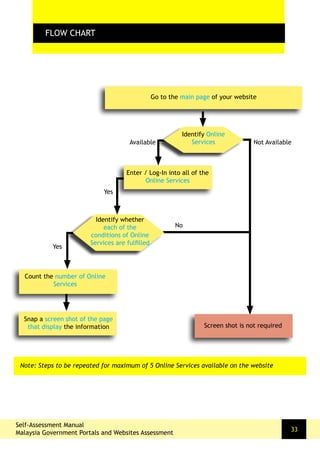
FLOW CHART
Go to the main page of your website
FLOW CHART
Identify Online
Services
Snap a screen shot of the page
that display the information Screen shot is not required
Yes
Available Not Available
No
Enter / Log-In into all of the
Online Services
Identify whether
each of the
conditions of Online
Services are fulfilled
Count the number of Online
Services
Yes
Note: Steps to be repeated for maximum of 5 Online Services available on the website
Self-Assessment Manual
Malaysia Government Portals and Websites Assessment
33
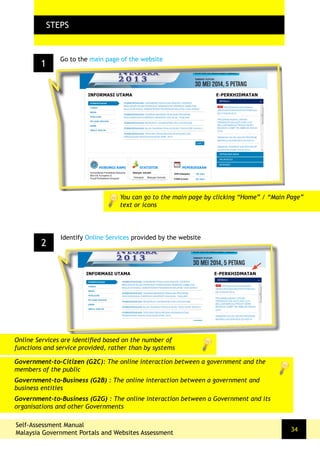
1
FLOW CHARTSTEPS
Go to the main page of the website
2
Identify Online Services provided by the website
You can go to the main page by clicking “Home” / “Main Page”
text or icons
Self-Assessment Manual
Malaysia Government Portals and Websites Assessment
34
Online Services are identified based on the number of
functions and service provided, rather than by systems
Government-to-Citizen (G2C): The online interaction between a government and the
members of the public
Government-to-Business (G2B) : The online interaction between a government and
business entities
Government-to-Business (G2G) : The online interaction between a Government and its
organisations and other Governments
4
Identify whether each of the five Online Services fulfil the relevant condi-
tions for respective Online Services:
a) End-to-end services without off-line transaction requirement
b) Services must be provided within the website domain
c) Intranet, Complaint and Feedback forms are not considered
as Online Services
d) Should the Online Services are not published on the
website’s domain, the ownership of information of the
Online Services will be verified
Self-Assessment Manual
Malaysia Government Portals and Websites Assessment
35
3
Enter or log-in into each of the Online Services
Count the number of Online Services available
5
Self-Assessment Manual
Malaysia Government Portals and Websites Assessment
36
6
Snap the screen shot of the completed transaction of maximum of 5 Online
Services provided in the website
Press Alt+Print Screen by holding down the Alt key and then pressing the Print
Screen key. The Print Screen key is at the upper-right corner of your keyboard.
The key name may vary depending on the the type of keyboard. Some of the
common ones are Print Screen, Prt Scr, Prt Sc
•	 Broadcast refer to the Announcements, News and Latest Changes
in the agency
Condition:
a) The section should not be left blank. If there is no
update / announcement, it must be displayed as “No latest
announcement is available”
KEYWORD: BROADCAST, ANNOUNCEMENTS, NEWS, UPDATES,
LATEST
vi. Broadcast
Self-Assessment Manual
Malaysia Government Portals and Websites Assessment
37
FLOW CHARTFLOW CHART
Self-Assessment Manual
Malaysia Government Portals and Websites Assessment
38
Go to the main page of your website
Identify the
availability
of Broadcast
information
Snap a screen shot of the page
that display the information
Screen shot is not required
Available Not Available
Look for Broadcast Section / Tab / Header
Identify whether
the condition is
fulfilled
Yes
No
1
FLOW CHARTSTEPS
Go to the main page of the website
2
Look for the Broadcast section / header that include Announcements, News
and Latest Changes in the agency
You can go to the main page by clicking “Home” / “Main Page”
text or icons
Browse the page to look for Broadcast information
Self-Assessment Manual
Malaysia Government Portals and Websites Assessment
39
Self-Assessment Manual
Malaysia Government Portals and Websites Assessment
40
3
Identify whether Broadcast section fulfils the condition:
a) The section should not be left blank. If there is no update /
announcement, it must be displayed as “No latest announcement
is available”
4
Snap a screen shot of the page that display the Broadcast information
Press Alt+Print Screen by holding down the Alt key and then pressing the Print
Screen key. The Print Screen key is at the upper-right corner of your keyboard.
The key name may vary depending on the the type of keyboard. Some of the
common ones are Print Screen, Prt Scr, Prt Sc
•	 Archive of articles, news clipping and announcements
Conditions:
a) A minimum of 1 year archive information is made available
b) Archive is relevant to the agency and its portfolio
KEYWORD: ARCHIVE, ARTICLES, NEWS, CLIPPINGS,
ANNOUNCMENTS
vii. Electronic Archive
Self-Assessment Manual
Malaysia Government Portals and Websites Assessment
41
FLOW CHARTFLOW CHART
Self-Assessment Manual
Malaysia Government Portals and Websites Assessment
42
Go to the main page of your website
Identify the
availability
of Archive
information
Snap a screen shot of the page
that display the information
Screen shot is not required
Available Not Available
Look for Archive Section / Tab / Header
Identify whether
the conditions are
fulfilled
Yes
No
1
FLOW CHARTSTEPS
Go to the main page of the website
2
Look for the Archive section / header that includes Announcements, News
Clipping and Articles in the agency
You can go to the main page by clicking “Home” / “Main Page”
text or icons
Browse the page to look for Electronic Archive information
Self-Assessment Manual
Malaysia Government Portals and Websites Assessment
43
Self-Assessment Manual
Malaysia Government Portals and Websites Assessment
44
3
Identify whether the Archive information fulfils the conditions:
a) A minimum of 1 year archive information is made available
b) Archive is relevant to the agency and its portfolio
4
Snap a screen shot that display the detail page of the Electronic Archive
Press Alt+Print Screen by holding down the Alt key and then pressing the Print
Screen key. The Print Screen key is at the upper-right corner of your keyboard.
The key name may vary depending on the the type of keyboard. Some of the
common ones are Print Screen, Prt Scr, Prt Sc
•	 A version of the website that is adjusted to be viewed using
mobile devices such as smart phone, tab or iPad
•	 The version must be simpler than the full desktop version or
if it’s the same version, the view is tailored to the size of the
mobile device i.e. using responsive design
•	 Announcement on the feature, QR code or Mobile icon must
be displayed on the desktop version to inform users of the
availability of the mobile web / version
•	 A QR code may be used to notify the availability of Mobile
Version
Conditions:
a) At least one of the mobile web / version must be fulfilled
b) Must be displayed on a mobile device such as smart phone /
iPad / tab
KEYWORD: MOBILE
viii. Mobile Web / Version
Self-Assessment Manual
Malaysia Government Portals and Websites Assessment
45
FLOW CHART
Go to main page of your website
FLOW CHART
Look for Mobile Web / Version via:
Announcement / QR Code / Mobile Web
Snap a screen shot of the page
that display the mobile version
on a mobile device
Screen shot is not required
Identify the
availability of
Mobile Web /
Version
No
Yes
Available
No
Self-Assessment Manual
Malaysia Government Portals and Websites Assessment
46
Observe the
display on a
Mobile Device
Identify
whether the
conditions are
fulfilled
Yes
1
FLOW CHARTSTEPS
Go to the main page of the website
2
Look for the Mobile Web / Version announcement
You can go to the main page by clicking “Home” / “Main Page”
text or icons
Browse the page to look for Mobile Web / Version information
Self-Assessment Manual
Malaysia Government Portals and Websites Assessment
47
3
Identify whether the Archive information fulfils the conditions:
a) The Mobile version must be simpler than the full desktop version
b) Announcement on the features must be displayed in the desktop version
4
View a mobile web / version using a mobile device
Self-Assessment Manual
Malaysia Government Portals and Websites Assessment
48
6
Snap screen shots for all of the Online Services page that display the Mobile
Web Version on a mobile device
The common instruction for most mobile devices is to hold the Power button and Home
button down simultaneously for up to 2 seconds Galaxy Tab 2 lets you take a screen
capture of the image on the screen by touching “Screen Capture” icon on the tab
Xperia users may hold the Power button and Volume-down button down simultaneously
for a few seconds.
These methods varies for different models of mobile devices
Self-Assessment Manual
Malaysia Government Portals and Websites Assessment
49
•	 Websites are required to comply with Level A of Web Content
Accessibility Guidelines (WCAG) 2.0
Condition:
a) Usage of Online Tool: WAVE - http://wave.webaim.org/
KEYWORD: DISABILITY, ACCESSIBILITY, W3C, OKU
ix. W3C Disability Accessibility
FLOW CHART
Type the Online Tool URL Address in your Internet Browser
http://wave.webaim.org/
Type Your Organisation URL Address
Click Submit
Identify the result of
Level A compliance
Snap a screen shot of the page that displays the W3C
Disability Accessibility result
FLOW CHART
Error-
Free
Error
Indicated
Self-Assessment Manual
Malaysia Government Portals and Websites Assessment
50
1
FLOW CHARTSTEPS
Type the Online Tool URL Address in your Internet Browser
http://wave.webaim.org/
2
Type Your Organisation URL Address
You may also search the Online Tool “WAVE” using search en-
gine such as Google or Yahoo
Self-Assessment Manual
Malaysia Government Portals and Websites Assessment
51
3
Click Submit
4
Identify the result of W3C Disability Accessibility
Self-Assessment Manual
Malaysia Government Portals and Websites Assessment
52
6
Snap a screen shot of the page that displays the W3C Disability Accessibility
result
Press Alt+Print Screen by holding down the Alt key and then pressing the Print
Screen key. The Print Screen key is at the upper-right corner of your key-
board. The key name may vary depending on the the type of keyboard. Some
of the common ones are Print Screen, Prt Scr, Prt Sc
Should WAVE is unable to assess the website and produce the assessment result,
you are encouraged to download WAVE Toolbar for Firefox for assessment
•	 To provide notification after a transaction is completed
Conditions:
a) For each Online Services
b) All the Online Services must provide the notification of
transaction
KEYWORD: TRANSACTION, NOTIFY
x. Notification of Transaction
Self-Assessment Manual
Malaysia Government Portals and Websites Assessment
53
FLOW CHARTFLOW CHART
Self-Assessment Manual
Malaysia Government Portals and Websites Assessment
54
Go to the main page of your website
Identify whether
a notification is
received
Snap a screen shot of the page
that display the information
Screen shot is not required
Available Not Available
Enter or log in into each of your Online Services
Identify whether
the conditions are
fulfilled
Yes
No
Complete each Online Transaction
Note: Steps to be repeated for all Online Services available on the website
1
FLOW CHARTSTEPS
Go to the main page of the website
2
Enter or log in into each of your Online Services
You can go to the main page by clicking “Home” / “Main Page”
text or icons
You may have to log-in to enter some of the Online Services
Self-Assessment Manual
Malaysia Government Portals and Websites Assessment
55
3
Complete each Online Transaction and click submit
Self-Assessment Manual
Malaysia Government Portals and Websites Assessment
56
6
Snap a screen shot that display the detail page of the Electronic Archive
Press Alt+Print Screen by holding down the Alt key and then pressing the Print
Screen key. The Print Screen key is at the upper-right corner of your keyboard.
The key name may vary depending on the the type of keyboard. Some of the
common ones are Print Screen, Prt Scr, Prt Sc
4
Observe whether the Notification of Transaction is received for each of the
Online Services
Remember to look for ALL of your online services
5
Identify whether Notification of Transaction is available for each of Online
Services provided by the website
•	 All that is related to Internet and interplay between technology,
images and sounds
•	 Example of new media are blogs, video sharing, image sharing,
RSS Feed, webcast, webinar, widget, tag clouds, pinboard and
podcast
•	 Maximum of 5 New Media channels to be assessed
Conditions:
a) Additional technology such as Web 2.0 is considered part of
New Media
b) Social Media feeds must be updated regularly
c) The new media incorporated in the website such as QR
Code, tag cloud, responsive design, mobile apps, e-book
reader must be error-free
d) The Live Chat representative must be online during the set
time frame
KEYWORD: NEW MEDIA, SOCIAL MEDIA, BLOG, VIDEO, YOUTUBE,
		 RSS, PODCAST, WEBCAST, WEBINAR, WIDGET,
		 TAG CLOUDS, PINBOARD, APP
xi. New Media
Self-Assessment Manual
Malaysia Government Portals and Websites Assessment
57
FLOW CHARTFLOW CHART
Self-Assessment Manual
Malaysia Government Portals and Websites Assessment
58
Go to the main page of your website
Look for
information / icons
related to New
Media
Snap a screen shot of the page
that display the information
Screen shot is not required
Available Not Available
Identify whether
the conditions are
fulfilled
Yes
No
Note: Steps to be repeated for a maximum of 5 New Media channel available on the website
Open all the new media channels
available on the website
1
FLOW CHARTSTEPS
Go to the main page of the website
2
Look for information, technology or icon that represent New Media
You can go to the main page by clicking “Home” / “Main Page”
text or icons
Make sure you look at publication section too, in case an
e-book reader is used
Self-Assessment Manual
Malaysia Government Portals and Websites Assessment
59
You may have to log-in to enter some of the New Media channels
If the website uses Responsive Design, test it!
Self-Assessment Manual
Malaysia Government Portals and Websites Assessment
60
3
Open mximum of 5 New Media channels available on the website
Example: Open the Facebook page that is listed on the website
4
Identify whether the New Media available fulfil the conditions:
a) Additional technology such as Web 2.0 is considered part of New Media
b) Social Media feeds must be updated regularly
c) The new media incorporated in the website such as QR Code, tag cloud,
responsive design, mobile apps, e-book reader must be error-free
d) The Live Chat representative must be online during the set time frame
Self-Assessment Manual
Malaysia Government Portals and Websites Assessment
61
5
Snap screen shots for all the New Media channels published on the website
DESCRIPTION:
The accuracy, quality, and freshness of news,
information, and content on the website.
CRITERIA
P3: CONTENT
i.
ii.
iii.
iv.
v.
vi.
About Us
Audio/Video
Contact Details
Multi Language
Publications
Updating Activities
Self-Assessment Manual
Malaysia Government Portals and Websites Assessment
62
Self-Assessment Manual
Malaysia Government Portals and Websites Assessment
63
•	 Provides information on the respective unit or department
•	 It may be provided in a dedicated section or incorporated in the
introduction page
KEYWORD: ABOUT, WHO ARE WE, BACKGROUND, VISION, MISSION
i. About Us
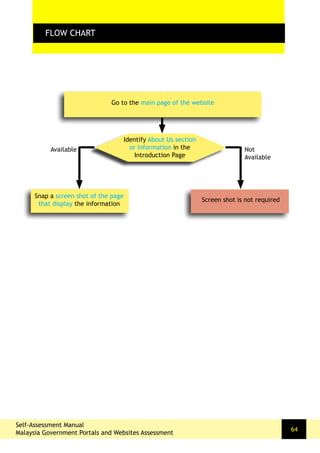
FLOW CHART
Go to the main page of the website
Identify About Us section
or information in the
Introduction Page
FLOW CHART
Available Not
Available
Self-Assessment Manual
Malaysia Government Portals and Websites Assessment
64
Snap a screen shot of the page
that display the information
Screen shot is not required
1
FLOW CHARTSTEPS
Go to the main page of the website
2
Look for About Us section or Browse through the main introduction section
You can go to the main page by clicking “Home” / “Main Page”
text or icons
Self-Assessment Manual
Malaysia Government Portals and Websites Assessment
65
Information is usually placed in the section tabs or anywhere
obvious in the main page
Self-Assessment Manual
Malaysia Government Portals and Websites Assessment
66
3
Snap a screen shot of the page that display the About Us information
Press Alt+Print Screen by holding down the Alt key and then pressing the Print
Screen key. The Print Screen key is at the upper-right corner of your key-
board. The key name may vary depending on the the type of keyboard. Some
of the common ones are Print Screen, Prt Scr, Prt Sc
Self-Assessment Manual
Malaysia Government Portals and Websites Assessment
67
•	 An audio clip or a video clip refers to a segment of video or
media files containing audio or video that has both an in-time and
an out-time within a larger video element
•	 Streaming or downloadable audio clips are clips with only sound
that were recorded for listening purposes
Conditions:
a) Background music is not considered as an audio clip
b) Flash is not considered as a video clip
c) Both the audio and video clips must be related to the
agency
KEYWORD: AUDIO, VIDEO, MEDIA, STREAMING, YOUTUBE
ii. Audio or Video
FLOW CHARTFLOW CHART
Self-Assessment Manual
Malaysia Government Portals and Websites Assessment
68
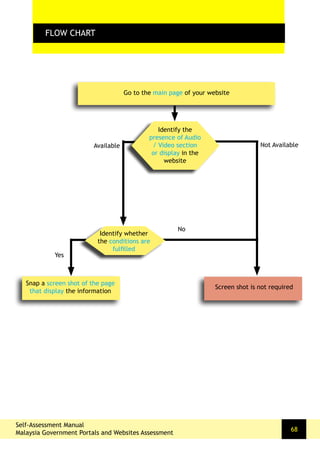
Go to the main page of your website
Identify the
presence of Audio
/ Video section
or display in the
website
Snap a screen shot of the page
that display the information
Screen shot is not required
Available Not Available
Identify whether
the conditions are
fulfilled
Yes
No
1
FLOW CHARTSTEPS
Go to the main page of the website
2
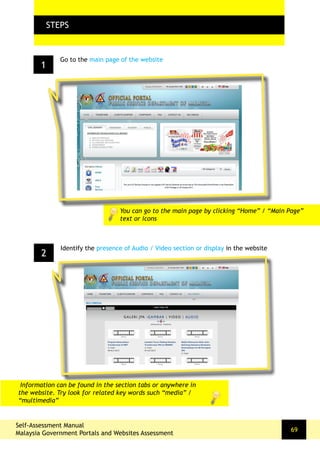
Identify the presence of Audio / Video section or display in the website
You can go to the main page by clicking “Home” / “Main Page”
text or icons
Self-Assessment Manual
Malaysia Government Portals and Websites Assessment
69
Information can be found in the section tabs or anywhere in
the website. Try look for related key words such “media” /
“multimedia”
Self-Assessment Manual
Malaysia Government Portals and Websites Assessment
70
4
Snap a screen shot of the page that display the About Us information
Press Alt+Print Screen by holding down the Alt key and then pressing the Print
Screen key. The Print Screen key is at the upper-right corner of your key-
board. The key name may vary depending on the the type of keyboard. Some
of the common ones are Print Screen, Prt Scr, Prt Sc
3
Identify whether the audio / video clips fulfil the conditions:
a) Audio clips must not be the background music
b) Video clips must not be flash videos
c) Both audio and video clips must be related to the agency
Self-Assessment Manual
Malaysia Government Portals and Websites Assessment
71
•	 Contact details refers to information by which members of the
public, business, or entity can use to reach the agency
Conditions:
a) Telephone – Telephone numbers that allow users to contact
the respective unit
b) Address – Information that allow the users to contact the
respective unit by mail, as well as location of the agency
c) Email – General e-mail or webmaster email address
KEYWORD: CONTACT, TELEPHONE, ADDRESS, E-mail, LOCATION,
GENERAL LINE
iii. Contact Details
FLOW CHARTFLOW CHART
Self-Assessment Manual
Malaysia Government Portals and Websites Assessment
72
Go to the main page of your website
Identify the
availability of the
Contact Details
section in the main
page
Snap a screen shot of the page
that display the information
Screen shot is not required
Available Not
Available
Identify the
availability
of all the 3
information
Not Available
Available
1
FLOW CHARTSTEPS
Go to the main page of the website
2
Look for Contact section or
Browse through the main page Contact Details
You can go to the main page by clicking “Home” / “Main Page”
text or icons
Self-Assessment Manual
Malaysia Government Portals and Websites Assessment
73
Information can be found in the section tabs or anywhere on the
main page. Try look for related key words such “Contact Us”
Self-Assessment Manual
Malaysia Government Portals and Websites Assessment
74
4
Snap a screen shot of the page that display the Contact Details information
Press Alt+Print Screen by holding down the Alt key and then pressing the Print
Screen key. The Print Screen key is at the upper-right corner of your key-
board. The key name may vary depending on the the type of keyboard. Some
of the common ones are Print Screen, Prt Scr, Prt Sc
3
Identify whether the Contact Details provided fulfil all the conditions:
a) Telephone Numbers
b) Address
c) Email
Self-Assessment Manual
Malaysia Government Portals and Websites Assessment
75
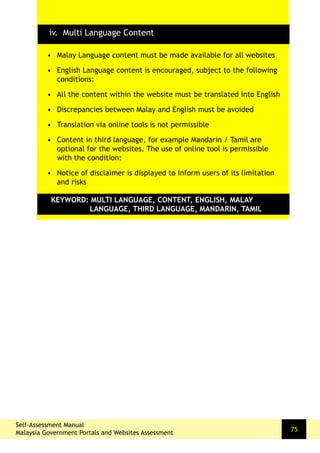
•	 Malay Language content must be made available for all websites
•	 English Language content is encouraged, subject to the following
conditions:
•	 All the content within the website must be translated into English
•	 Discrepancies between Malay and English must be avoided
•	 Translation via online tools is not permissible
•	 Content in third language, for example Mandarin / Tamil are
optional for the websites. The use of online tool is permissible
with the condition:
•	 Notice of disclaimer is displayed to inform users of its limitation
and risks
KEYWORD: MULTI LANGUAGE, CONTENT, ENGLISH, MALAY 	
		 LANGUAGE, THIRD LANGUAGE, MANDARIN, TAMIL
iv. Multi Language Content
FLOW CHARTFLOW CHART
Self-Assessment Manual
Malaysia Government Portals and Websites Assessment
76
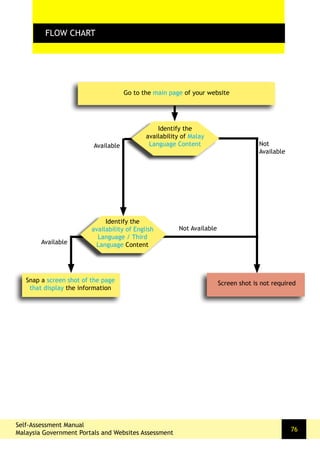
Go to the main page of your website
Identify the
availability of Malay
Language Content
Snap a screen shot of the page
that display the information
Screen shot is not required
Available Not
Available
Identify the
availability of English
Language / Third
Language Content
Not Available
Available
1
FLOW CHARTSTEPS
Go to the main page of the website
2
Look for “Malay Language” content
You can go to the main page by clicking “Home” / “Main Page”
text or icons
Self-Assessment Manual
Malaysia Government Portals and Websites Assessment
77
Information can be found in the top section or anywhere on the
main page. Try look for related key words such as “Language”
Self-Assessment Manual
Malaysia Government Portals and Websites Assessment
78
4
Identify whether the content languages meet the conditions:
a) Malay Language: Compulsory
B) English Language:
•	 All the content within the website must be translated into English
•	 Discrepancies between Malay and English must be avoided
•	 Translation via online tools is not permissible
c) Third Language: If an Online Translation tool is used, notice of disclaimer
is to be displayed to inform users of its limitation and risks
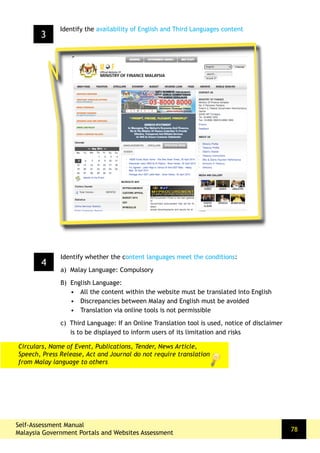
3
Identify the availability of English and Third Languages content
Circulars, Name of Event, Publications, Tender, News Article,
Speech, Press Release, Act and Journal do not require translation
from Malay language to others
Self-Assessment Manual
Malaysia Government Portals and Websites Assessment
79
5
Snap screen shots of the main page of all the languages made available by
the website
Press Alt+Print Screen by holding down the Alt key and then pressing the Print
Screen key. The Print Screen key is at the upper-right corner of your key-
board. The key name may vary depending on the the type of keyboard. Some
of the common ones are Print Screen, Prt Scr, Prt Sc
Self-Assessment Manual
Malaysia Government Portals and Websites Assessment
80
•	 Publications refer to information that are made available online
or in a downloadable manner
Conditions:
a) Majority of the publications / databases must be made
available online
b) All the links provided for the information / download are
active links
c) Journal / Publication abstracts are not considered as
Publication
d) May utilise online application such as e-book reader
KEYWORD: PUBLICATION, INFORMATION, DOWNLOAD, DATABASE,
EBOOK, ANNUAL REPORT, BULETIN, NEWSLETTER,
BOOK
v. Publications
FLOW CHARTFLOW CHART
Self-Assessment Manual
Malaysia Government Portals and Websites Assessment
81
Go to the main page of your website
Identify the
availability of
Publications
Snap a screen shot of the page
that display the information
Screen shot is not required
Available Not
Available
Identify whether
the conditions are
fulfilled
Not Available
Available
1
FLOW CHARTSTEPS
Go to the main page of the website
2
Look for Publication in the section tabs or anywhere in the main page
You can go to the main page by clicking “Home” / “Main Page”
text or icons
Self-Assessment Manual
Malaysia Government Portals and Websites Assessment
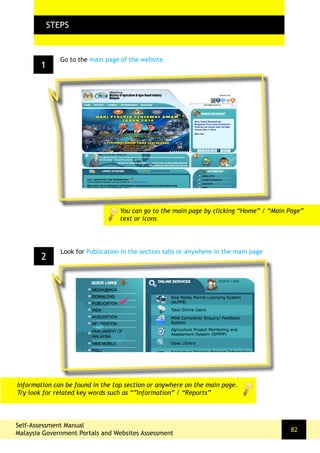
82
Information can be found in the top section or anywhere on the main page.
Try look for related key words such as “”Information” / “Reports”
Self-Assessment Manual
Malaysia Government Portals and Websites Assessment
83
4
Snap a screen shot of the page that display the Publications
Press Alt+Print Screen by holding down the Alt key and then pressing the Print
Screen key. The Print Screen key is at the upper-right corner of your key-
board. The key name may vary depending on the the type of keyboard. Some
of the common ones are Print Screen, Prt Scr, Prt Sc
3
Identify whether the available epublications meet the conditions:
a) Majority of the publications / databases must be made available online
b) All the links provided for the information / download are active links
c) Journal / Publication abstracts are not considered as Publication
d) May utilise online application such as e-book reader
Self-Assessment Manual
Malaysia Government Portals and Websites Assessment
84
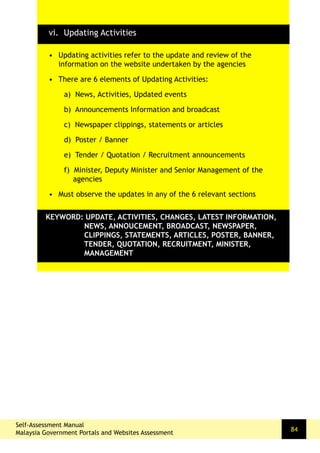
•	 Updating activities refer to the update and review of the
information on the website undertaken by the agencies
•	 There are 6 elements of Updating Activities:
a) News, Activities, Updated events
b) Announcements Information and broadcast
c) Newspaper clippings, statements or articles
d) Poster / Banner
e) Tender / Quotation / Recruitment announcements
f) Minister, Deputy Minister and Senior Management of the
agencies
•	 Must observe the updates in any of the 6 relevant sections
KEYWORD: UPDATE, ACTIVITIES, CHANGES, LATEST INFORMATION,
NEWS, ANNOUCEMENT, BROADCAST, NEWSPAPER,
CLIPPINGS, STATEMENTS, ARTICLES, POSTER, BANNER,
TENDER, QUOTATION, RECRUITMENT, MINISTER,
MANAGEMENT
vi. Updating Activities
FLOW CHARTFLOW CHART
Self-Assessment Manual
Malaysia Government Portals and Websites Assessment
85
Go to the main page of your website
Identify all the 6
elements that needs
to be updated
Snap a screen shot of the page
that display the information
Screen shot is not required
Available Not
Available
Identify whether
the information is
updated
Not Available
Available
1
FLOW CHARTSTEPS
Go to the main page of the website
2
Look for Publication in the section tabs or anywhere in the main page
You can go to the main page by clicking “Home” / “Main Page”
text or icons
Self-Assessment Manual
Malaysia Government Portals and Websites Assessment
86
Information can be found in the top section or anywhere on the main page.
Self-Assessment Manual
Malaysia Government Portals and Websites Assessment
87
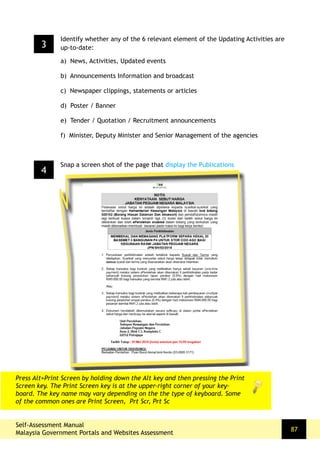
4
Snap a screen shot of the page that display the Publications
Press Alt+Print Screen by holding down the Alt key and then pressing the Print
Screen key. The Print Screen key is at the upper-right corner of your key-
board. The key name may vary depending on the the type of keyboard. Some
of the common ones are Print Screen, Prt Scr, Prt Sc
3
Identify whether any of the 6 relevant element of the Updating Activities are
up-to-date:
a) News, Activities, Updated events
b) Announcements Information and broadcast
c) Newspaper clippings, statements or articles
d) Poster / Banner
e) Tender / Quotation / Recruitment announcements
f) Minister, Deputy Minister and Senior Management of the agencies
DESCRIPTION:
The organization of the site and options for navigation
and how well the layout helps you find what you are
looking for.
CRITERIA
P4: NAVIGATION
i.
ii.
iii.
iv.
v.
Homepage Length
No Broken Link
Personalisation
Sitemap
Link to myGov
Self-Assessment Manual
Malaysia Government Portals and Websites Assessment
88
Self-Assessment Manual
Malaysia Government Portals and Websites Assessment
89
•	 Home Page length refer to the size of the home page of the
website
Conditions:
a) Scroll-down of the page must be 3 pages or less (measured
by “Page Down” key on the keyboard)
b) Resolution: Maximum of 1280 x 800
KEYWORD: LENGTH, SIZE, HOMEPAGE, RESOLUTION
i. Homepage Length
FLOW CHARTFLOW CHART
Self-Assessment Manual
Malaysia Government Portals and Websites Assessment
90
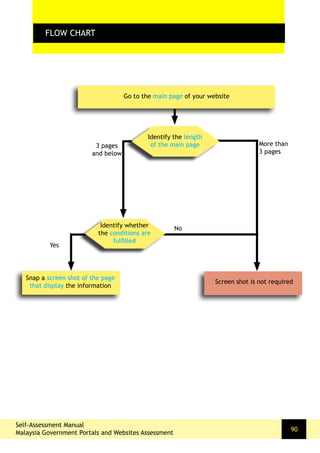
Go to the main page of your website
Identify the length
of the main page
Snap a screen shot of the page
that display the information
Screen shot is not required
3 pages
and below
More than
3 pages
Identify whether
the conditions are
fulfilled
No
Yes
1
FLOW CHARTSTEPS
Go to the main page of the website
2
Look for Publication in the section tabs or anywhere in the main page
You can go to the main page by clicking “Home” / “Main Page”
text or icons
Self-Assessment Manual
Malaysia Government Portals and Websites Assessment
91
The key for Page Down vary depending on the keyboard. Common key
labels are Page Down and PgDn
Self-Assessment Manual
Malaysia Government Portals and Websites Assessment
92
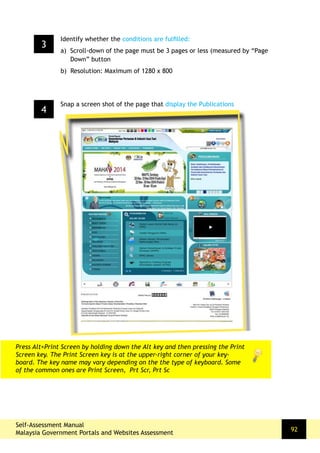
4
Snap a screen shot of the page that display the Publications
Press Alt+Print Screen by holding down the Alt key and then pressing the Print
Screen key. The Print Screen key is at the upper-right corner of your key-
board. The key name may vary depending on the the type of keyboard. Some
of the common ones are Print Screen, Prt Scr, Prt Sc
3
Identify whether the conditions are fulfilled:
a) Scroll-down of the page must be 3 pages or less (measured by “Page
Down” button
b) Resolution: Maximum of 1280 x 800
Self-Assessment Manual
Malaysia Government Portals and Websites Assessment
93
•	 Ensure that all hyperlinks are not dead links
•	 Usage of Online Tool: W3C Link Checker
http://validator.w3.org/checklink
Conditions:
a) Intranet is not considered as part of Broken Link
b) Files such as .jpg, .jpeg, .gif, .png, .css, .js, .ico, lang=bm,
jsessionid are not taken into consideration for the Broken
Link test
c) Only links that originate from the same domain are taken
into consideration
KEYWORD: LINK, HYPERLINK, BROKEN LINK
ii. No Broken Link
FLOW CHART
FLOW CHART
Self-Assessment Manual
Malaysia Government Portals and Websites Assessment
94
Type Your Organisation URL Address
Identify the result
of W3C Link
Checker
Snap screen shots for all of the broken link pages that are listed to
prove that they are not considered as broken links
Active
Link
only
Broken
Links
Broken
Link
Type the Online Tool URL Address in your Internet Browser
http://validator.w3.org/checklink
Click Submit
Verify each broken
link listed by the
tool whether it
fulfills the Broken
Link conditions
Active Link
1
FLOW CHARTSTEPS
Type the Online Tool URL Address in your Internet Browser
http://validator.w3.org/checklink
2
Type Your Organisation URL Address and Click Check
You may also search the Online Tool “W3C Link Checker” using
search engine such as Google or Yahoo
95
It is usually placed on the main page of the website
Self-Assessment Manual
Malaysia Government Portals and Websites Assessment
96
3
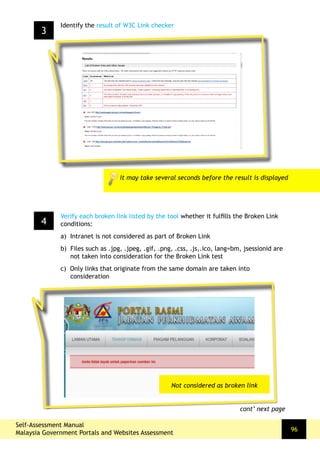
Identify the result of W3C Link checker
It may take several seconds before the result is displayed
4
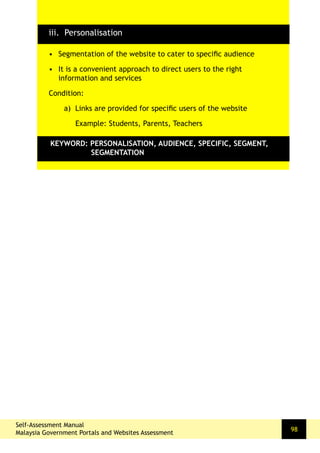
Verify each broken link listed by the tool whether it fulfills the Broken Link
conditions:
a) Intranet is not considered as part of Broken Link
b) Files such as .jpg, .jpeg, .gif, .png, .css, .js,.ico, lang=bm, jsessionid are
not taken into consideration for the Broken Link test
c) Only links that originate from the same domain are taken into
consideration
cont’ next page
Not considered as broken link
Self-Assessment Manual
Malaysia Government Portals and Websites Assessment
97
4
Snap screen shots of:
a) Page that display the result of W3C Link Checker
b) All pages that are listed in the W3C Link Checker
Press Alt+Print Screen by holding
down the Alt key and then pressing
the Print Screen key. The Print
Screen key is at the upper-right
corner of your keyboard. The key
name may vary depending on the
the type of keyboard. Some of the
common ones are Print Screen, Prt
Scr, Prt Sc
Considered as broken link
Self-Assessment Manual
Malaysia Government Portals and Websites Assessment
98
•	 Segmentation of the website to cater to specific audience
•	 It is a convenient approach to direct users to the right
information and services
Condition:
a) Links are provided for specific users of the website
Example: Students, Parents, Teachers
KEYWORD: PERSONALISATION, AUDIENCE, SPECIFIC, SEGMENT,
SEGMENTATION
iii. Personalisation
Self-Assessment Manual
Malaysia Government Portals and Websites Assessment
FLOW CHARTFLOW CHART
99
Go to the main page of your website
Identify the
availability of
segmentation of users
Snap a screen shot of the page
that display the information
Screen shot is not required
Available Not
Available
Identify whether
the conditions are
fulfilled
No
Yes
Self-Assessment Manual
Malaysia Government Portals and Websites Assessment
1
FLOW CHARTSTEPS
Go to the main page of the website
2
Look for the segmentation of the website to cater to specific audience such
as Teachers, Students and Pensioner
You can go to the main page by clicking “Home” / “Main Page”
text or icons
100
Look at the main page / main sections of the website
Self-Assessment Manual
Malaysia Government Portals and Websites Assessment
101
4
Snap screen shots of each page for the target audiences
Press Alt+Print Screen by holding down the Alt key and then pressing the Print
Screen key. The Print Screen key is at the upper-right corner of your key-
board. The key name may vary depending on the the type of keyboard. Some
of the common ones are Print Screen, Prt Scr, Prt Sc
3
Identify whether the condition is fulfilled
a) Links are provided for specific users of the website
Self-Assessment Manual
Malaysia Government Portals and Websites Assessment
102
•	 Refers to an interactive table of contents whereby the content of
the website are linked directly.
•	 Most often, it is a textually organised model of the website
content to provide an overall outlook of the website mapping
•	 In recent years, more complex dynamic and interactive Site Map
have been developed and used by the websites
Condition:
a) Links are provided for the content listed
KEYWORD: SITE MAP, CONTENT
iv. Site Map
Self-Assessment Manual
Malaysia Government Portals and Websites Assessment
FLOW CHARTFLOW CHART
103
Go to the main page of your website
Identify the
availability of Site
Map
Snap a screen shot of the page
that display the information
Screen shot is not required
Available Not
Available
Identify whether
the conditions are
fulfilled
No
Yes
Self-Assessment Manual
Malaysia Government Portals and Websites Assessment
1
FLOW CHARTSTEPS
Go to the main page of the website
2
Look for the segmentation of the website to cater to specific audience such
as Teachers, Students and Pensioner
You can go to the main page by clicking “Home” / “Main Page”
text or icons
104
Site Map is often placed at the bottom of the page
Self-Assessment Manual
Malaysia Government Portals and Websites Assessment
105
4
Snap a screen shot of the page that display the detail of the Site Map
Press Alt+Print Screen by holding down the Alt key and then pressing the Print
Screen key. The Print Screen key is at the upper-right corner of your key-
board. The key name may vary depending on the the type of keyboard. Some
of the common ones are Print Screen, Prt Scr, Prt Sc
3
Identify whether the condition is fulfilled
a) Links are provided for the content listed in the Site Map section
Self-Assessment Manual
Malaysia Government Portals and Websites Assessment
106
•	 myGov is the Official Portal of the Government of Malaysia
•	 It serves as the main gateway to all the websites of Ministries,
agencies and states
Condition:
a) Hyperlink to myGov portal is provided by all Government
websites
KEYWORD: LINK, HYPERLINK, myGov
v. Link to myGov
Self-Assessment Manual
Malaysia Government Portals and Websites Assessment
FLOW CHARTFLOW CHART
107
Go to the main page of your website
Identify the
availability of Link to
myGov
Snap a screen shot of the page
that display the information
Screen shot is not required
Available Not
Available
Identify whether
the conditions are
fulfilled
No
Yes
Self-Assessment Manual
Malaysia Government Portals and Websites Assessment
1
FLOW CHARTSTEPS
Go to the main page of the website
2
Look for the Link to myGov presence on the website
You can go to the main page by clicking “Home” / “Main Page”
text or icons
108
Links to other websites are usually placed on the sidebars or bottom of the page
Self-Assessment Manual
Malaysia Government Portals and Websites Assessment
109
4
Mouse-over the cursor to the the to myGov on the website.
Snap a screen shot of the myGov URL display on the Status bar
Press Alt+Print Screen by holding down the Alt key and then pressing the Print
Screen key. The Print Screen key is at the upper-right corner of your key-
board. The key name may vary depending on the the type of keyboard. Some
of the common ones are Print Screen, Prt Scr, Prt Sc
3
Identify whether the condition is fulfilled
a) Hyperlink to myGov portal
Self-Assessment Manual
Malaysia Government Portals and Websites Assessment
DESCRIPTION:
The relevance, organisation, and quality of search results
available on the site.
(Although this element is not applicable universally, it is
often extremely impactful for sites where it is relevant.)
CRITERIA
P5: SEARCH
i.
ii.
Search Within Website
Searchable Database
110
Self-Assessment Manual
Malaysia Government Portals and Websites Assessment
111
•	 A facility to seek general information of a website by typing
keywords into the search function
Condition:
a) The search function must be internal, within the agency
website
KEYWORD: SEARCH, LOOK, FIND
i. Search Within Website
Self-Assessment Manual
Malaysia Government Portals and Websites Assessment
FLOW CHARTFLOW CHART
112
Go to the main page of your website
Send a
search
enquiry
Snap a screen shot of the page
that display the information
Screen shot is not required
Functional
Not Functional
Identify whether
the condition is
fulfilled
No
Yes
Look for an Internal
Search engine /
function
Available Not
Available
Not Relevant
Identify
whether result
is relevant
Self-Assessment Manual
Malaysia Government Portals and Websites Assessment
1
FLOW CHARTSTEPS
Go to the main page of the website
2
Look for an Internal Search engine / function
You can go to the main page by clicking “Home” / “Main Page”
text or icons
113
The Search Button is often placed on the top right side of the website
Self-Assessment Manual
Malaysia Government Portals and Websites Assessment
114
3
Type in a keyword relevant to the agency
Possible key words such as “archive”, “location”
4
Identify the relevancy of the result from the keyword
Does the result match the key word you had entered?
5
Identify whether the conditions are fulfilled:
a) The search function must be internal, within the agency website
Self-Assessment Manual
Malaysia Government Portals and Websites Assessment
115
4
Snap a screen shot of the page that display the detail Search result
Press Alt+Print Screen by holding down the Alt key and then pressing the Print
Screen key. The Print Screen key is at the upper-right corner of your key-
board. The key name may vary depending on the the type of keyboard. Some
of the common ones are Print Screen, Prt Scr, Prt Sc
Self-Assessment Manual
Malaysia Government Portals and Websites Assessment
116
•	 Referrs to searches that access information in specific section of
the website or database
Condition:
a) Searches result / information derived from specific section
of the website or database
Example of specific section: staff directory, circular, image
gallery, news article
KEYWORD: SEARCH, LOOK, FIND
ii. Searchable Database
Self-Assessment Manual
Malaysia Government Portals and Websites Assessment
FLOW CHARTFLOW CHART
117
Look for search function in any section of the website
Type in a relevant
keyword into the
Search function
Snap a screen shot of the page
that display the information
Screen shot is not required
Information
Received
Information
Not
Received
Identify whether
the conditions are
fulfilled
No
Yes
Go to the main page of your website
Self-Assessment Manual
Malaysia Government Portals and Websites Assessment
1
FLOW CHARTSTEPS
Go to the main page of the website
2
Look for the Search Button / Function in any specific section of the website
You can go to the main page by clicking “Home” / “Main Page”
text or icons
118
You may search at sections such as staff directory, circular, image gallery, news article
Self-Assessment Manual
Malaysia Government Portals and Websites Assessment
119
3
Type in a relevant key word that search from the database of the agency
Possible key words such as a name of the staff
from the Directory. You may use common names
such as Abdul
4
Identify the relevancy of the result from the keyword
Does the result provide the information
from a database?
Self-Assessment Manual
Malaysia Government Portals and Websites Assessment
120
5
Snap a screen shot of the page that display the detail Search result
Press Alt+Print Screen by holding down the Alt key and then pressing the Print
Screen key. The Print Screen key is at the upper-right corner of your key-
board. The key name may vary depending on the the type of keyboard. Some
of the common ones are Print Screen, Prt Scr, Prt Sc
Self-Assessment Manual
Malaysia Government Portals and Websites Assessment
DESCRIPTION:
Online Transparency refers to the level of details, speed
and accessibility of the website in disclosing information
on its objectives, roles and functions.
CRITERIA
P6: ONLINE TRANSPARENCY
i.
ii.
iii.
iv.
v.
Client’s Charter
Achievement of Client’s Charter
Statistics of Online Services
Feedback Response
Online Services Security
121
Self-Assessment Manual
Malaysia Government Portals and Websites Assessment
122
•	 Client’s Charter is a compulsory information to be displayed in
the website
Condition:
a) Client’s Charter must be indicated specifically and are
measurable
KEYWORD: CLIENT, CHARTER
i. Client’s Charter
Self-Assessment Manual
Malaysia Government Portals and Websites Assessment
FLOW CHARTFLOW CHART
123
Go to the main page of your website
Identify the
availability of
Client’s Charter
Snap a screen shot of the page
that display the information
Screen shot is not required
Available Not
Available
Identify whether
the conditions are
fulfilled
No
Yes
Self-Assessment Manual
Malaysia Government Portals and Websites Assessment
1
FLOW CHARTSTEPS
Go to the main page of the website
2
Look for Client’s Charter in the section tabs or anywhere in the main page
You can go to the main page by clicking “Home” / “Main Page”
text or icons
124
The Client Charter is usually placed at the “About Us” or “Profile” sections
Self-Assessment Manual
Malaysia Government Portals and Websites Assessment
125
4
Snap a screen shot of the page that display the Client’s Charter information
Press Alt+Print Screen by holding down the Alt key and then pressing the Print
Screen key. The Print Screen key is at the upper-right corner of your key-
board. The key name may vary depending on the the type of keyboard. Some
of the common ones are Print Screen, Prt Scr, Prt Sc
3
Identify whether the Client’s Charter made available fulfilled the conditions:
a) Client’s Charter must be indicated specifically and are measurable
Self-Assessment Manual
Malaysia Government Portals and Websites Assessment
126
•	 Achievement of the Client’s Charter must be attached to the
Client’s Charter
Conditions:
a) Achievement must be updated on monthly basis
b) The past two months achievement must be included
KEYWORD: CLIENT, CHARTER
ii. Achievement of Client’s Charter
Self-Assessment Manual
Malaysia Government Portals and Websites Assessment
FLOW CHARTFLOW CHART
127
Go to the main page of your website
Identify the
availability of the
Achievement of
Client’s Charter
Snap a screen shot of the page
that display the information
Screen shot is not required
Available Not
Available
Identify whether
the conditions are
fulfilled
No
Yes
Self-Assessment Manual
Malaysia Government Portals and Websites Assessment
1
FLOW CHARTSTEPS
Go to the main page of the website
2
On the Client’s Charter page, look for Achievement of Client’s Charter
You can go to the main page by clicking “Home” / “Main Page”
text or icons
128
The Client’s Charter Achievement is usually placed with Client’s Charter
Self-Assessment Manual
Malaysia Government Portals and Websites Assessment
129
4
Snap a screen shot of the Achievement of Client Charter and detailed
achievement
Press Alt+Print Screen by holding down the Alt key and then pressing the Print
Screen key. The Print Screen key is at the upper-right corner of your key-
board. The key name may vary depending on the the type of keyboard. Some
of the common ones are Print Screen, Prt Scr, Prt Sc
3
Identify whether the displayed Achievement of Client’s Charter fulfilled the
conditions:
a) Achievement must be updated on monthly basis
b) The past two months achievement must be included
Achievement that is not updated on a monthly basis must
inform there regularity of achievement on the website
Self-Assessment Manual
Malaysia Government Portals and Websites Assessment
130
•	 To provide updated number of transaction for all of the available
online services
Conditions:
a) Statistics must be updated on monthly basis
b) The past two months achievement must be included
KEYWORD: STATISTIC OF ONLINE SERVICES,
		 HITS OF ONLINE SERVICES
iii. Statistic of Online Services
Self-Assessment Manual
Malaysia Government Portals and Websites Assessment
FLOW CHARTFLOW CHART
131
Go to the main page of your website
Identify the
availability of
Statistics of Online
Services
Snap a screen shot of the page
that display the information
Screen shot is not required
Available Not
Available
Identify whether
the conditions are
fulfilled
No
Yes
Self-Assessment Manual
Malaysia Government Portals and Websites Assessment
1
FLOW CHARTSTEPS
Go to the main page of the website
2
Look for Statistic of Online Services in the section tabs or anywhere in the
main page
You can go to the main page by clicking “Home” / “Main Page”
text or icons
132
Statistics are usually available at the Online Services tab / section
Self-Assessment Manual
Malaysia Government Portals and Websites Assessment
133
4
Snap a screen shot of the page that display the Statistic of Online Services
information
Press Alt+Print Screen by holding down the Alt key and then pressing the Print
Screen key. The Print Screen key is at the upper-right corner of your key-
board. The key name may vary depending on the the type of keyboard. Some
of the common ones are Print Screen, Prt Scr, Prt Sc
3
Identify whether the available Statistic of Online Services:
a) Statistics must be updated on monthly basis
b) The past two months achievement must be included
Self-Assessment Manual
Malaysia Government Portals and Websites Assessment
134
•	 Feedback response refer to the response provided by the agency
for the enquiries made by the users
Condition:
a) Agency has to respond within 3 working days upon
submission of feedback / comment by a visitor
KEYWORD: FEEDBACK, RESPONSE, ENQUIRY, ANSWER, REPLY, 	
		QUESTION
iv. Feedback Response
Self-Assessment Manual
Malaysia Government Portals and Websites Assessment
FLOW CHARTFLOW CHART
135
Send a sample enquiry to observe whether the form is
working
Identify the
reply from the
website
Snap a screen shot of the page that
display the information
Or the Email received from relevant
officer from the agency
Screen shot is not required
Response
Received
Response
Not
Received
Identify whether
the conditions are
fulfilled
After 3 Working Days
3 Working
Days and
below
Look for Feedback Form
Go to the main page of your website
Self-Assessment Manual
Malaysia Government Portals and Websites Assessment
1
FLOW CHARTSTEPS
Go to the main page of the website
2
Look for the Feedback Form
You can go to the main page by clicking “Home” / “Main Page”
text or icons
136
3
Send a sample enquiry to observe whether the form is working
Self-Assessment Manual
Malaysia Government Portals and Websites Assessment
137
5
Snap a screen shot of:
The response received from the agency via the Feedback Form system
Or
Email received from the website / relevant officer
Press Alt+Print Screen by holding down the Alt key and then pressing the Print
Screen key. The Print Screen key is at the upper-right corner of your key-
board. The key name may vary depending on the the type of keyboard. Some
of the common ones are Print Screen, Prt Scr, Prt Sc
4
Identify whether the Feedback Response from the relevant officers from the
agency is received with the 3 days time frame.
You can go to the main page by clicking “Home” / “Main Page”
text or icons
Self-Assessment Manual
Malaysia Government Portals and Websites Assessment
138
•	 Any form of security measures on the online services
Conditions:
a) Availability of the Public Key Infrastructure (PKI)
Examples:
i) SSL
ii) Digital Certificate
iii) Captcha
b) At least one of the Online Services must provide any of the
above security measures
KEYWORD: ONLINE SERVICES, SECURITY, SSL, PKI,
		 DIGITAL SIGNATURE, DIGITAL CERTIFICATE
v. Online Services Security
Self-Assessment Manual
Malaysia Government Portals and Websites Assessment
FLOW CHARTFLOW CHART
139
Identify the
availability of Online
Services Security
Snap a screen shot of the page that
display the information
Screen shot is not required
Available Not
Available
Identify whether
the conditions are
fulfilled
No
Yes
Enter / Log-in into Online Services
Go to the main page of your website
Self-Assessment Manual
Malaysia Government Portals and Websites Assessment
1
FLOW CHARTSTEPS
Go to the main page of the website
2
Log in into one of the Online Services available on the website
You can go to the main page by clicking “Home” / “Main Page”
text or icons
140
Self-Assessment Manual
Malaysia Government Portals and Websites Assessment
141
5
Snap a screen shot of the page that display the “Online Services Security”
information
Press Alt+Print Screen by holding down the Alt key and then pressing the Print
Screen key. The Print Screen key is at the upper-right corner of your key-
board. The key name may vary depending on the the type of keyboard. Some
of the common ones are Print Screen, Prt Scr, Prt Sc
3
Look for the Online Services Security indicators – SSL / PKI / Digital Signature
or Certificate within the Online Service
Browse the page to look for Broadcast information
4
Identify whether the conditions are fulfilled:
a) Availability of the Public Key Infrastructure (PKI)
Examples:
i) SSL
ii) Digital Certificate
iii) Captcha
b) At least one of the Online Services must provide any of the above security
measures
Self-Assessment Manual
Malaysia Government Portals and Websites Assessment
DESCRIPTION:
The visual appeal of the site and its consistency
throughout the site.
CRITERIA
P7: LOOK AND FEEL
i. Look and Feel
142
Self-Assessment Manual
Malaysia Government Portals and Websites Assessment
143
Conditions:
a) Maintain the same look and feel on every page
b) Consistent header, footer and side panels
KEYWORD: LOOK, FEEL, DESIGN
i. Look and Feel
Self-Assessment Manual
Malaysia Government Portals and Websites Assessment
FLOW CHARTFLOW CHART
144
Identify the look
and feel of the
pages
Snap several screen shots of the
pages to demonstrate the consistency
of the look and feel
Screen shot is not required
Same Different
Identify whether
the headers,
footer and
side panels are
consistent
No
Yes
Browse through every page of the website
Go to the main page of your website
Self-Assessment Manual
Malaysia Government Portals and Websites Assessment
1
FLOW CHARTSTEPS
Go to the main page of the website
2
Browse every pages of the website. Note the header, footer and side panels
You can go to the main page by clicking “Home” / “Main Page”
text or icons
145
Page Down Button is available on your keyboard
Self-Assessment Manual
Malaysia Government Portals and Websites Assessment
146
4
Snap several screen shots of the pages to demonstrate the consistency of the
look and feel
3
Identify whether the conditions are fulfilled:
a) Maintain the same look and feel on every pages
b) Consistent header, footer and side panels
Self-Assessment Manual
Malaysia Government Portals and Websites Assessment
147
Press Alt+Print Screen by holding down the Alt key and then pressing the Print
Screen key. The Print Screen key is at the upper-right corner of your key-
board. The key name may vary depending on the the type of keyboard. Some
of the common ones are Print Screen, Prt Scr, Prt Sc
Self-Assessment Manual
Malaysia Government Portals and Websites Assessment
D. FREQUENTLY ASKED QUESTIONS
148
Aid, Tools & Help Resources
Q
A
For Aid, Tools and Resources criteria, do we need to comply to the conditions for
all of our Online Services?
Yes, it is compulsory for all of the Online Services provided to provide Aid, Tools
and Resources within its Online Services.
Feedback Form
Q
A
We have provided a feedback form on my website. Why didn’t we get marks for
the feedback response?
Response must be sent to the recipient within 3 working days to be able to obtain
marks.
Feedback Auto-Notification
Q
A
Do we get marks for Auto Notification automatically by providing an Auto
Notification message?
In order to comply with this criterion, agency must include the stipulated time
frame of which they will respond to the queries sent by users/citizen. Auto
Notification message without the stipulated response time is considered as
non-compliant.
E.g. Thank you for your submission. Please anticipate our response within 3
working days.
Self-Assessment Manual
Malaysia Government Portals and Websites Assessment
Loading Time
Q
A
Is there any other tools other than “SearchMetrics Rapid” that can be used to
check Loading Time?
Yes, you may utilise other tools such as Site Speed Checker (www.seomastering.
com/site-speed-checker.php)
149
Mobile Web / Version
Q
A
Are we required to test the Mobile Web version on mobile devices?
Yes, websites with mobile web / version are required to view the website via
mobile devices. Screen shots must be taken from any type of mobile devices to be
uploaded into the MGPWA Self Assessment Online Tool
Q
A
How do we make sure that the mobile web version created for my agency fulfills
the MGPWA requirement?
The mobile web version must be simpler than the desktop version of the website
and caters to the screen size of the respective devices used by users.
W3C Disability Accessibility
Q
A
Our website provides the text resize feature for the users, but why we did not
get marks for W3C Disability Accessibility?
W3C Disability Accessibility criteria is assessed via an online tool that verify your
website compliance to the WCAG 2.0. Compliance to the WCAG 2.0 indicates that
the website is fully fuctional for the usage of Disabled persons.
Self-Assessment Manual
Malaysia Government Portals and Websites Assessment
Q
A
What are the information required for Mobile Web / Version?
Agencies may publish any relevant information in any consistent languages in its
Mobile Web / Version. There is no specific guidelines set for mobile web / version.
Q
A
Our agency utilises centralised online services. Does it still considered as part of
our online services?
Yes, centralised services is considered as part of agency’s services if the agency is
directly providing the services. An example of centralised services is the eAduan
provided by the Selangor State website, respective agencies are required to
follow-up on the feedback escalated to them by the system.
Number of Online Services
Q
A
We have listed all my Intranet services on my website. Why is no mark awarded?
Intranet services is not an assessment criteria for MGPWA 2014 as the assessment
focuses on the online services offered to external party i.e. G2G, G2C, G2B.
150
Multi Language
Q
A
Can we use Google Translator for English section?
Due to its inaccuracy in translation, agency will not obtain any marks for the
provision of English Language via any translation tool including Google Translator.
Q
A
We have provided online translator for third language but no marks are
rewarded. Why is that so?
The online translator used may not translate the content of your website
appropriately or may contain error. Therefore please check that the translator is
working from time to time.
Q
A
Our agency has published a report in Malay Language. Does it require translation
to English Language to be published on the website?
No. Publications do not require translation to other languages to be published on
the website.
Q
A
What are the main reasons for agency not being able to score any mark English
Language?
The main reason is the mixture of languages in the English section. For instance, a
banner in Malay language is displayed in the English Language version of the web-
site
Q
A
Do we have to translate special names in Malay Language to English Language for
the English language content?
 No. Special names are excluded from assessment.
Self-Assessment Manual
Malaysia Government Portals and Websites Assessment
New Media
Q
A
Is it acceptable for an agency to only provide social media on its website?
Yes, with the condition that the social media channel are updated regularly.
Q
A
I have used WAVE to check the W3C Disability Accessibility but it didn’t provide
any result. Is there any other tools than can be used?
Yes, you may utilise other tools such as AChecker or Tawdis. However, WAVE is our
primary tool for checking.
151
Updating Activities
Q
A
I lost a big chunk of marks for not updating only 1 portion of the 6 section.
Please explain.
The updating activities are very important. To obtain marks for this criterion, you
must ensure that the relevant 6 sections are kept up-to-date.
No Broken Link
Q
A
Are all the broken links listed by the tools considered as my agency broken links
and marks will not be rewarded?
All broken links listed in the result of the W3C Link Checker must be verified in
accordance to the conditions.
Personalisation
Q
A
Is there a limit of categories that a website should display?
Yes, at least two categories must be made available.
Site Map
Q
A
Sitemap is provided in our website. Why were our website not granted any
marks?
Your agency may lose mark because the sitemap provided in your website is not
dynamic.
Self-Assessment Manual
Malaysia Government Portals and Websites Assessment
Q
Is there any other tools other than W3C Link Checker that can be used to check
Broken Links?
A
Yes, you may utilise other tools such as Xenu (http://home.snafu.de/tilman/
xenulink.html)
152
Search Within Website
Q
A
Can I use Google?
Yes, you may as long as you ensure that the results listed are within your domain.
Q
A
The search engine in our website produces results beyond the domain. Will we
obtain marks?
No, the results must be internal and revolve within the agency domain.
Client’s Charter
Q
A
No marks were rewarded despite displaying the client’s charter on the website.
Why is that so?
Charter displayed on the website must be measurable.
Q
A
 What does it mean by measurable client’s charter?
It means that the charter made available on the website can be measured i.e. A
complaint will be resolved in 10 working days.
Achievement of Client’s Charter
Q
A
My agency does not track the achievement of client’s charter on monthly basis.
How do I inform assessor?
Please include a remark on the same page of the achievement that states the
tracking of this achievement e.g. quarterly, half a year, annually
Self-Assessment Manual
Malaysia Government Portals and Websites Assessment
Searchable Database
Q
A
Is searchable database similar to search engine?
No, search engine is a mechanism to allow searching for the entire website while
searchable database is limited to specific sections of the website such as Staff
directory
153
General
Q
A
Do I have to park all the criteria of MGPWA on the main page of my website?
Although you have the freedom to do so, we would advise that you strategically
arrange your content so that it won’t be too cluttered.
Q
A
Why are some of the criteria from previous assessment taken out this year?
Some criteria are taken out because they are already mandatory in the Pekeliling
Am Bilangan 1 Tahun 2006 Pengurusan Laman Web/ Portal Sektor Awam or they are
already complied by majority of the agencies involved in the assessment.
Q
A
Why is my agency portal/website not assessed in MGPWA?
MDeC only assess those portals/websites listed in Machinery of myGov portal.
Therefore, please check with myGov portal to ensure that your agency’s website is
listed in myGov portal.
Q
A
When will MDeC assessed my portal/website?
All agencies are required to undertake self-assessment. MDeC assessment will be
conducted on random basis and therefore there is no specific date as to when
MDeC will be assessing your agency’s portal/website.
Self-Assessment Manual
Malaysia Government Portals and Websites Assessment
Online Services Security
Q
A
For Online Services Security criteria, do we need to comply to the conditions for
all of our Online Services?
No, a minimum of one Online Services is required to comply to the condition.
154
Q
A
My agency name and URL in MGPWA report are incorrect. What do I do?
Report can’t be amended. However, please amend the information in myGov by
contacting the agency in charged. Also, please visit myGov from time to time to
ensure no wrong information.
Q
A
Why are we required to snap screen shots of the assessed pages?
The screen shots are evidences to support your submission in the MGPWA Self As-
sessment Online Tool. The MGPWA auditors will conduct their audits by checking
the screen shots against the websites.
Q
A
Does agency have to submit a new self-assessment each time?
Yes, because the assessment recorded in the system must be a reflection of the
actual portals/websites at the point when the assessment was conducted.
Self-Assessment Manual
Malaysia Government Portals and Websites Assessment
Q
A
Why does my portal/website rated N/A?
N/A indicates Not Accessible. It may be due to several reasons such as
UnderConstruction,Construction or page error, three attempts will be made for
three consecutive weeks. Should the website still not be available for assessment,
it will then be rated as N/A. As for the outdated URL, MDeC will try to obtain the
correct or updated URL from parent portal/website. However, each
Government agencies must update their URL in myGov from time to time to avoid
such incident.
Q
A
Is Malaysia Crest compulsory in Government portals/websites?
Yes, as per Pekeliling Am Bilangan 1 Tahun 2006 Pengurusan Laman Web/ Portal
Sektor Awam, the crest must be displayed at top of the homepage. It also
encouraged having the crest at every page in order to maintain the same look and
feel of a portal/website.
E. SELF-ASSESSMENT CHECKLIST
155
PILLAR 1 : SITE PERFORMANCE
i. Loading Time	
PILLAR 2 :FUNCTIONALITY
Aid, Tools & Help Resources
Broadcast
Electronic Archive
FAQ
Feedback Form
Feedback Auto-Notification
Mobile Web/ Version
W3C Disability Accessibility
Notification of Transaction
New Media
Number of Online Services
i.
ii.
iii.
iv.
v.
vi.
vii.
ix.
x.
xi.
xii.
xiii.
Self-Assessment Manual
Malaysia Government Portals and Websites Assessment
YES NO
YES NO
156
PILLAR 3 : CONTENT
About Us
Audio/Video
Contact Details
Multi Language
Publications
Updating Activities
i.
ii.
iii.
iv.
v.
vi.
PILLAR 4 : NAVIGATION
i.
ii.
iii.
iv.
v.
Homepage Length
No Broken Link
Personalisation
Sitemap
Link to myGov
PILLAR 5 : SEARCH
Search Within Website
Searchable Database
i.
ii.
Self-Assessment Manual
Malaysia Government Portals and Websites Assessment
YES NO
YES NO
YES NO
157
PILLAR 6 : ONLINE TRANSPARENCY
i.
ii.
iii.
iv.
v.
vi.
PILLAR 7 : LOOK AND FEEL
Client’s Charter
Achievement of Client’s Charter
Statistic of Online Services
Feedback Response
Online Services Security
i. Look and Feel
Self-Assessment Manual
Malaysia Government Portals and Websites Assessment
YES NO
YES NO
www. mscmalaysia.my

Mdec manual v1.4

  • 1.
    MALAYSIA GOVERNMENT PORTALS &WEBSITES ASSESSMENT 2014 Self-Assessment Manual A Reference for the Government Agencies A COMPLETE GUIDE TO Version 1.4
  • 2.
    © Multimedia DevelopmentCorporation 2014 Unauthorised reproduction, lending, hiring, transmission or distribution of any data is prohibited. The manual and associated materials and any elements thereof must be treated like any other copyrighted material. Request should be made to: Special Projects, Stakeholder Engagement Multimedia Development Corporation 2360 Persiaran APEC 63000 Cyberjaya Selangor Darul Ehsan E-mail: dige@mdec.com.my Tel: +603 8315 3211 Fax: +603 8318 9216
  • 3.
    Summary of the7 Pillars of Malaysia Government Portals and Websites Assessment Details of the Criteria of the 7 Pillars of Malaysia Government Portals and Websites Assessment Instructions for Self-Assessment of Malaysia Government Portals and Websites Assessment PILLAR 1: SITE PERFORMANCE Loading Time PILLAR 2: FUNCTIONALITY Aid, Tools & Help Resources Frequently Asked Questions (FAQ) Feedback Form Feedback Auto-Notification Number of Online Services Broadcast Electronic Archive Mobile Web/ Version W3C Disability Accessibility Notification of Transaction New Media PILLAR 3: CONTENT About Us Audio/Video Contact Details Multi Language Publications Updating Activities A B C 4 5 6 7 8 13 14 19 23 27 32 37 41 45 49 53 57 TABLE OF CONTENT 62 63 67 71 75 80 84 i. ii. iii. iv. v. vi. i. ii. iii. iv. v. vi. vii. viii. ix. x. xi. i.
  • 4.
    PILLAR 4: NAVIGATION HomepageLength No Broken Link Personalisation Sitemap Link to myGov PILLAR 5: SEARCH Search Searchable Database PILLAR 6: ONLINE TRANSPARENCY Client’s Charter Achievement of Client’s Charter Statistic of Online Services Feedback Response Online Services Security PILLAR 7: LOOK AND FEEL Look and Feel Frequently Asked Questions Self-Assessment Checklist D E 89 93 98 102 106 110 111 116 TABLE OF CONTENT 88 121 122 126 130 134 138 143 148 155 142 i. ii. iii. iv. v. i. ii. iii. iv. v. i. ii. i.
  • 5.
    The speed, consistency, andreliability of loading pages on the website SITE PERFORMANCE 1 The usefulness, convenience and variety of online features and tools available on the website FUNCTIONALITY 2 A. Summary of the 7 Pillars of Assessment The accuracy, quality, and freshness of news, information, and content on the website CONTENT 3 The organization of the site and options for navigation and how well the layout helps you find what you are looking for NAVIGATION 4 The relevance, organisation, and quality of search results available on the site (Although this element is not applicable universally, it is often extremely impactful for sites where it is relevant) SEARCH 5 How thoroughly, quickly, and accessibly the website discloses information about what the agency is doing ONLINE TRANSPARENCY 6 The visual appeal of the site and its consistency throughout the site LOOK AND FEEL 7 Self-Assessment Manual Malaysia Government Portals and Websites Assessment 4
  • 6.
    P3: CONTENT B. Criteriaof the 7 Pillars i. Loading Time Self-Assessment Manual Malaysia Government Portals and Websites Assessment 5 About Us Audio/Video Contact Details Multi Language Publications Updating Activities i. ii. iii. iv. v. vi. P1: SITE PERFORMANCE P2: FUNCTIONALITY Aid, Tools & Help Resources Frequently Asked Questions (FAQ) Feedback Form Feedback Auto-Notification Number of Online Services Broadcast Electronic Archive Mobile Web/ Version W3C Disability Accessibility Notification of Transaction New Media i. ii. iii. iv. v. vi. vii. ix. x. xi. xii. P4: NAVIGATION Homepage Length No Broken Link Personalisation Sitemap Link to myGov i. ii. iii. iv. v. P5: SEARCH Search Within Website Searchable Database i. ii. P6: ONLINE TRANSPARENCY Client’s Charter Achievement of Client’s Charter Statistic of Online Services Feedback Response Online Services Security i. ii. iii. iv. v. i. Look and Feel P7: LOOK AND FEEL
  • 7.
    C. Instructions forSelf-Assessment Self-Assessment Manual Malaysia Government Portals and Websites Assessment 6
  • 8.
    DESCRIPTION: The speed, consistency,and reliability of loading pages on the website CRITERIA i. Loading Time P1: SITE PERFORMANCE Self-Assessment Manual Malaysia Government Portals and Websites Assessment 7
  • 9.
    • Ideal loadingtime is 10 seconds and below Conditions: • Site Performance assessment must be undertaken during peak hours Peak Hours: - 10.00am to 1.00pm, and - 2.00pm to 4.00pm • Assessment to be undertaken by using an online tool “Search- Metrics Rapid” http://rapid.searchmetrics.com/en/seo-tools.site-analysis. website-speed-test,46.html KEYWORD: LOADING TIME, LOAD TIME, SPEED i. Loading Time Self-Assessment Manual Malaysia Government Portals and Websites Assessment 8
  • 10.
    FLOW CHART Type theOnline Tool URL Address into your Internet Browser: http://rapid.searchmetrics.com/en/seo-tools.site-analysis. website-speed-test,46.html Look for Website Speed Check header Type Your Organisation URL Address and the Captcha-Result Click Submit Identify the result of Loading Time Snap a screen shot of the page that displays the Loading Time result FLOW CHART 10 seconds and below Above 10 seconds Self-Assessment Manual Malaysia Government Portals and Websites Assessment 9
  • 11.
    1 FLOW CHARTSTEPS Type theOnline Tool URL Address in your Internet Browser http://rapid.searchmetrics.com/en/seo-tools.site-analysis.website-speed- test,46.html 2 Look for Website Speed Check header You may also search the Online Tool “Search Metrics Rapid” using search engine such as Google or Yahoo It is usually placed on the main page of the website Self-Assessment Manual Malaysia Government Portals and Websites Assessment 10
  • 12.
    3 Enter Your OrganisationURL Address and the Captcha-Result 4 Click the Submit button Self-Assessment Manual Malaysia Government Portals and Websites Assessment 11
  • 13.
    5 Identify the resultof Loading Time 6 Snap a screen shot of the page that displays the Loading Time result It may take several seconds before the result is displayed Press Alt+Print Screen by holding down the Alt key and then pressing the Print Screen key. The Print Screen key is at the upper-right corner of your key- board. The key name may vary depending on the the type of keyboard. Some of the common ones are Print Screen, Prt Scr, Prt Sc Self-Assessment Manual Malaysia Government Portals and Websites Assessment 12
  • 14.
    DESCRIPTION: The usefulness, convenience,and variety of online fea- tures and tools available on the website. CRITERIA P2: FUNCTIONALITY i. ii. iii. iv. v. vi. vii. ix. x. xi. xii. Aid, Tools & Help Resources Frequently Asked Questions Feedback Form Feedback Auto-Notification Number of Online Services Broadcast Electronic Archive Mobile Web/ Version W3C Disability Accessibility Notification of Transaction New Media Self-Assessment Manual Malaysia Government Portals and Websites Assessment 13
  • 15.
    • Refers toinformation beyond User Manual of online services, such as the tips provided by eFiling by LHDN • Examples: a) Tips b) Guidelines c) Manual d) Flowchart e) Video Tutorial Conditions: a) All of the online services provided in the website must have either one of the five examples b) FAQ is not considered as Aid, Tools & Help Resources KEYWORD: TOOLS, TIPS, GUIDELINES, MANUAL, HELP, AID i. Aid, Tools & Help Resources Self-Assessment Manual Malaysia Government Portals and Websites Assessment 14
  • 16.
    FLOW CHART Go tomain page of your website Enter / Log-In into all of the Online Services FLOW CHART Identify Online Services Snap a screen shot of the page that display the information Screen shot is not required Identify whether the conditions are fulfilled Identify availability of any of 5 examples Yes No No Yes Available Not Available Note: Steps to be repeated for all Online Services available on the website Self-Assessment Manual Malaysia Government Portals and Websites Assessment 15
  • 17.
    1 FLOW CHARTSTEPS Go tothe main page of the website 2 Identify Online Services provided by the website You can go to the main page by clicking “Home” / “Main Page” text or icons You may have to log-in to enter some of the Online Services Self-Assessment Manual Malaysia Government Portals and Websites Assessment 16
  • 18.
    3 Enter into allof the Online Services 4 Look for the availability of any of the 5 examples You may have to log-in to enter some of the Online Services Browse the page to look for any form of assistance to ease your online services Remember to look for ALL of your online services Self-Assessment Manual Malaysia Government Portals and Websites Assessment 17
  • 19.
    6 Snap screen shotsfor all of the Online Services page that display the Aid, Tools & Help Resources Remember to snap screen shots for ALL of your online services Press Alt+Print Screen by holding down the Alt key and then pressing the Print Screen key. The Print Screen key is at the upper-right corner of your key- board. The key name may vary depending on the the type of keyboard. Some of the common ones are Print Screen, Prt Scr, Prt Sc 5 Identify whether the conditions are fulfilled: a) All of the online services provided in the website must have either one of the five examples b) FAQ is not considered as Aid, Tools & Help Resources 18 Self-Assessment Manual Malaysia Government Portals and Websites Assessment
  • 20.
    • A listof questions that are frequently asked by the website users Condition: a) Must be created to answer specific questions related to the agency • Advisable to provide contact details of the relevant officer of the agencies in order to allow users to enquire or send questions that are not provided in the FAQ section KEYWORD: FREQUENTLY ASKED QUESTIONS, FAQ, QUESTIONS, HELP, ENQUIRIES ii. Frequently Asked Questions (FAQ) 19 Self-Assessment Manual Malaysia Government Portals and Websites Assessment
  • 21.
    FLOW CHART Go tothe main page of your website FLOW CHART Identify the availability of FAQ Snap a screen shot of the page that display the information Screen shot is not required Identify whether the condition is fulfilled Yes Available Not Available No 20 Self-Assessment Manual Malaysia Government Portals and Websites Assessment
  • 22.
    1 FLOW CHARTSTEPS Go tothe main page of the website 2 Look for the availability of FAQ You can go to the main page by clicking “Home” / “Main Page” text or icons The FAQ is usually placed at the Contact Us section or the top right of the page Self-Assessment Manual Malaysia Government Portals and Websites Assessment 21
  • 23.
    4 Snap a screenshot of the page that display the FAQ information Press Alt+Print Screen by holding down the Alt key and then pressing the Print Screen key. The Print Screen key is at the upper-right corner of your keyboard. The key name may vary depending on the the type of keyboard. Some of the common ones are Print Screen, Prt Scr, Prt Sc 3 Identify whether the conditions are fulfilled: a) Must be created to answer specific questions related to the agency Self-Assessment Manual Malaysia Government Portals and Websites Assessment 22
  • 24.
    • Feedback /Comment refers to the the opinion expressed by users with regards to the website functionality, usage experience or related agency’s issues Conditions: a) Complaints are not considered as Feedback b) Signing up and logging in to the feedback form are discouraged KEYWORD: FEEDBACK, QUESTION, COMMENT, REMARKS, ENQUIRY iii. Feedback Form Self-Assessment Manual Malaysia Government Portals and Websites Assessment 23
  • 25.
    FLOW CHART Go tothe main page of your website FLOW CHART Send a sample enquiry to observe whether the form is working Snap a screen shot of the page that display the information Screen shot is not required Working Not Working Look for Feedback Form Identify whether the condition is fulfilled Yes No Self-Assessment Manual Malaysia Government Portals and Websites Assessment 24
  • 26.
    1 FLOW CHARTSTEPS Go tothe main page of the website 2 Look for the availability of Feedback Form You can go to the main page by clicking “Home” / “Main Page” text or icons Browse the page to look for any form of assistance. The Feedback Form is usually available at the Contact Us section Self-Assessment Manual Malaysia Government Portals and Websites Assessment 25
  • 27.
    5 Snap a screenshot of the page that display the Feedback Form Press Alt+Print Screen by holding down the Alt key and then pressing the Print Screen key. The Print Screen key is at the upper-right corner of your keyboard. The key name may vary depending on the the type of keyboard. Some of the common ones are Print Screen, Prt Scr, Prt Sc 4 Identify whether the conditions are fulfilled: a) Complaints are not considered as Feedback b) Signing up and logging in to the feedback form are discouraged 3 Send a sample enquiry to observe whether the form is functional Self-Assessment Manual Malaysia Government Portals and Websites Assessment 26
  • 28.
    • Upon submissionof Feedback, a notification must be prompted / displayed to inform user that the Feedback has been sent / received and the time frame for feedback response. • Reference / Tracking number is encouraged to be included in the notification message • Example: Pop-Up Message after clicking the “Submit” icon that inform the user that the message have been received by the system and to expect a reply by a time frame Condition: a) Time frame for expected response from the agency KEYWORD: FEEDBACK, AUTO NOTIFICATION, QUESTION, RESPONSE iv. Feedback Auto Notification Self-Assessment Manual Malaysia Government Portals and Websites Assessment 27
  • 29.
    FLOW CHART Go tothe main page of your website FLOW CHART Identify whether time frame for response is readily available in the feedback form Snap a screen shot of the page that display the information Screen shot is not required No Look for Feedback Form Yes Error-Free Snap a screen shot of the page that display the information Send a sample enquiry using the feedback form No Identify the availability of time frame in the notification message received after the enquiry submission Error Yes Self-Assessment Manual Malaysia Government Portals and Websites Assessment 28
  • 30.
    1 FLOW CHARTSTEPS Go tothe main page of the website 2 Look for the availability of Feedback Form You can go to the main page by clicking “Home” / “Main Page” text or icons 3 Identify whether the Feedback Auto Notification is displayed: A) Auto Notification is displayed B) Auto Notification is not displayed Self-Assessment Manual Malaysia Government Portals and Websites Assessment 29
  • 31.
    Press Alt+Print Screenby holding down the Alt key and then pressing the Print Screen key. The Print Screen key is at the upper-right corner of your keyboard. The key name may vary depending on the the type of keyboard. Some of the common ones are Print Screen, Prt Scr, Prt Sc 4 Identify whether the Notification message includes the response time 5 Snap a screen shot of the page that display response time within the Feedback Form A) Auto Notification is displayed The response time may be displayed anywhere on the Feedback Form Self-Assessment Manual Malaysia Government Portals and Websites Assessment 30
  • 32.
    Press Alt+Print Screenby holding down the Alt key and then pressing the Print Screen key. The Print Screen key is at the upper-right corner of your keyboard. The key name may vary depending on the the type of keyboard. Some of the common ones are Print Screen, Prt Scr, Prt Sc 7 Snap a screen shot of the page that display response time within the Feedback Form B) Auto Notification is not displayed 4 Fill up the Feedback Form and Submit 5 Identify whether the Auto-Notification message is prompted after the submission of Feedback Form 6 Identify whether the Notification message includes the response time Self-Assessment Manual Malaysia Government Portals and Websites Assessment 31
  • 33.
    • Online Servicesis defined as services that can be fully transacted online • These include any Government to Citizens (G2C), Government to Business (G2B) or Government to Government (G2G) services • E-Payment is considered as an Online Service • Maximum of 5 Online Services to be assessed Conditions: a) End-to-end services without off-line transaction requirement b) Services must be provided within the website domain c) Intranet, Complaint and Feedback forms are not considered as Online Services d) Should the Online Services are not published on the website’s domain, the ownership of information of the Online Services will be verified KEYWORD: ONLINE SERVICES, E-SERVICES, ELECTRONIC SERVICES v. Number of Online Services Self-Assessment Manual Malaysia Government Portals and Websites Assessment 32
  • 34.
    FLOW CHART Go tothe main page of your website FLOW CHART Identify Online Services Snap a screen shot of the page that display the information Screen shot is not required Yes Available Not Available No Enter / Log-In into all of the Online Services Identify whether each of the conditions of Online Services are fulfilled Count the number of Online Services Yes Note: Steps to be repeated for maximum of 5 Online Services available on the website Self-Assessment Manual Malaysia Government Portals and Websites Assessment 33
  • 35.
    1 FLOW CHARTSTEPS Go tothe main page of the website 2 Identify Online Services provided by the website You can go to the main page by clicking “Home” / “Main Page” text or icons Self-Assessment Manual Malaysia Government Portals and Websites Assessment 34 Online Services are identified based on the number of functions and service provided, rather than by systems Government-to-Citizen (G2C): The online interaction between a government and the members of the public Government-to-Business (G2B) : The online interaction between a government and business entities Government-to-Business (G2G) : The online interaction between a Government and its organisations and other Governments
  • 36.
    4 Identify whether eachof the five Online Services fulfil the relevant condi- tions for respective Online Services: a) End-to-end services without off-line transaction requirement b) Services must be provided within the website domain c) Intranet, Complaint and Feedback forms are not considered as Online Services d) Should the Online Services are not published on the website’s domain, the ownership of information of the Online Services will be verified Self-Assessment Manual Malaysia Government Portals and Websites Assessment 35 3 Enter or log-in into each of the Online Services Count the number of Online Services available 5
  • 37.
    Self-Assessment Manual Malaysia GovernmentPortals and Websites Assessment 36 6 Snap the screen shot of the completed transaction of maximum of 5 Online Services provided in the website Press Alt+Print Screen by holding down the Alt key and then pressing the Print Screen key. The Print Screen key is at the upper-right corner of your keyboard. The key name may vary depending on the the type of keyboard. Some of the common ones are Print Screen, Prt Scr, Prt Sc
  • 38.
    • Broadcast referto the Announcements, News and Latest Changes in the agency Condition: a) The section should not be left blank. If there is no update / announcement, it must be displayed as “No latest announcement is available” KEYWORD: BROADCAST, ANNOUNCEMENTS, NEWS, UPDATES, LATEST vi. Broadcast Self-Assessment Manual Malaysia Government Portals and Websites Assessment 37
  • 39.
    FLOW CHARTFLOW CHART Self-AssessmentManual Malaysia Government Portals and Websites Assessment 38 Go to the main page of your website Identify the availability of Broadcast information Snap a screen shot of the page that display the information Screen shot is not required Available Not Available Look for Broadcast Section / Tab / Header Identify whether the condition is fulfilled Yes No
  • 40.
    1 FLOW CHARTSTEPS Go tothe main page of the website 2 Look for the Broadcast section / header that include Announcements, News and Latest Changes in the agency You can go to the main page by clicking “Home” / “Main Page” text or icons Browse the page to look for Broadcast information Self-Assessment Manual Malaysia Government Portals and Websites Assessment 39
  • 41.
    Self-Assessment Manual Malaysia GovernmentPortals and Websites Assessment 40 3 Identify whether Broadcast section fulfils the condition: a) The section should not be left blank. If there is no update / announcement, it must be displayed as “No latest announcement is available” 4 Snap a screen shot of the page that display the Broadcast information Press Alt+Print Screen by holding down the Alt key and then pressing the Print Screen key. The Print Screen key is at the upper-right corner of your keyboard. The key name may vary depending on the the type of keyboard. Some of the common ones are Print Screen, Prt Scr, Prt Sc
  • 42.
    • Archive ofarticles, news clipping and announcements Conditions: a) A minimum of 1 year archive information is made available b) Archive is relevant to the agency and its portfolio KEYWORD: ARCHIVE, ARTICLES, NEWS, CLIPPINGS, ANNOUNCMENTS vii. Electronic Archive Self-Assessment Manual Malaysia Government Portals and Websites Assessment 41
  • 43.
    FLOW CHARTFLOW CHART Self-AssessmentManual Malaysia Government Portals and Websites Assessment 42 Go to the main page of your website Identify the availability of Archive information Snap a screen shot of the page that display the information Screen shot is not required Available Not Available Look for Archive Section / Tab / Header Identify whether the conditions are fulfilled Yes No
  • 44.
    1 FLOW CHARTSTEPS Go tothe main page of the website 2 Look for the Archive section / header that includes Announcements, News Clipping and Articles in the agency You can go to the main page by clicking “Home” / “Main Page” text or icons Browse the page to look for Electronic Archive information Self-Assessment Manual Malaysia Government Portals and Websites Assessment 43
  • 45.
    Self-Assessment Manual Malaysia GovernmentPortals and Websites Assessment 44 3 Identify whether the Archive information fulfils the conditions: a) A minimum of 1 year archive information is made available b) Archive is relevant to the agency and its portfolio 4 Snap a screen shot that display the detail page of the Electronic Archive Press Alt+Print Screen by holding down the Alt key and then pressing the Print Screen key. The Print Screen key is at the upper-right corner of your keyboard. The key name may vary depending on the the type of keyboard. Some of the common ones are Print Screen, Prt Scr, Prt Sc
  • 46.
    • A versionof the website that is adjusted to be viewed using mobile devices such as smart phone, tab or iPad • The version must be simpler than the full desktop version or if it’s the same version, the view is tailored to the size of the mobile device i.e. using responsive design • Announcement on the feature, QR code or Mobile icon must be displayed on the desktop version to inform users of the availability of the mobile web / version • A QR code may be used to notify the availability of Mobile Version Conditions: a) At least one of the mobile web / version must be fulfilled b) Must be displayed on a mobile device such as smart phone / iPad / tab KEYWORD: MOBILE viii. Mobile Web / Version Self-Assessment Manual Malaysia Government Portals and Websites Assessment 45
  • 47.
    FLOW CHART Go tomain page of your website FLOW CHART Look for Mobile Web / Version via: Announcement / QR Code / Mobile Web Snap a screen shot of the page that display the mobile version on a mobile device Screen shot is not required Identify the availability of Mobile Web / Version No Yes Available No Self-Assessment Manual Malaysia Government Portals and Websites Assessment 46 Observe the display on a Mobile Device Identify whether the conditions are fulfilled Yes
  • 48.
    1 FLOW CHARTSTEPS Go tothe main page of the website 2 Look for the Mobile Web / Version announcement You can go to the main page by clicking “Home” / “Main Page” text or icons Browse the page to look for Mobile Web / Version information Self-Assessment Manual Malaysia Government Portals and Websites Assessment 47
  • 49.
    3 Identify whether theArchive information fulfils the conditions: a) The Mobile version must be simpler than the full desktop version b) Announcement on the features must be displayed in the desktop version 4 View a mobile web / version using a mobile device Self-Assessment Manual Malaysia Government Portals and Websites Assessment 48 6 Snap screen shots for all of the Online Services page that display the Mobile Web Version on a mobile device The common instruction for most mobile devices is to hold the Power button and Home button down simultaneously for up to 2 seconds Galaxy Tab 2 lets you take a screen capture of the image on the screen by touching “Screen Capture” icon on the tab Xperia users may hold the Power button and Volume-down button down simultaneously for a few seconds. These methods varies for different models of mobile devices
  • 50.
    Self-Assessment Manual Malaysia GovernmentPortals and Websites Assessment 49 • Websites are required to comply with Level A of Web Content Accessibility Guidelines (WCAG) 2.0 Condition: a) Usage of Online Tool: WAVE - http://wave.webaim.org/ KEYWORD: DISABILITY, ACCESSIBILITY, W3C, OKU ix. W3C Disability Accessibility
  • 51.
    FLOW CHART Type theOnline Tool URL Address in your Internet Browser http://wave.webaim.org/ Type Your Organisation URL Address Click Submit Identify the result of Level A compliance Snap a screen shot of the page that displays the W3C Disability Accessibility result FLOW CHART Error- Free Error Indicated Self-Assessment Manual Malaysia Government Portals and Websites Assessment 50
  • 52.
    1 FLOW CHARTSTEPS Type theOnline Tool URL Address in your Internet Browser http://wave.webaim.org/ 2 Type Your Organisation URL Address You may also search the Online Tool “WAVE” using search en- gine such as Google or Yahoo Self-Assessment Manual Malaysia Government Portals and Websites Assessment 51 3 Click Submit
  • 53.
    4 Identify the resultof W3C Disability Accessibility Self-Assessment Manual Malaysia Government Portals and Websites Assessment 52 6 Snap a screen shot of the page that displays the W3C Disability Accessibility result Press Alt+Print Screen by holding down the Alt key and then pressing the Print Screen key. The Print Screen key is at the upper-right corner of your key- board. The key name may vary depending on the the type of keyboard. Some of the common ones are Print Screen, Prt Scr, Prt Sc Should WAVE is unable to assess the website and produce the assessment result, you are encouraged to download WAVE Toolbar for Firefox for assessment
  • 54.
    • To providenotification after a transaction is completed Conditions: a) For each Online Services b) All the Online Services must provide the notification of transaction KEYWORD: TRANSACTION, NOTIFY x. Notification of Transaction Self-Assessment Manual Malaysia Government Portals and Websites Assessment 53
  • 55.
    FLOW CHARTFLOW CHART Self-AssessmentManual Malaysia Government Portals and Websites Assessment 54 Go to the main page of your website Identify whether a notification is received Snap a screen shot of the page that display the information Screen shot is not required Available Not Available Enter or log in into each of your Online Services Identify whether the conditions are fulfilled Yes No Complete each Online Transaction Note: Steps to be repeated for all Online Services available on the website
  • 56.
    1 FLOW CHARTSTEPS Go tothe main page of the website 2 Enter or log in into each of your Online Services You can go to the main page by clicking “Home” / “Main Page” text or icons You may have to log-in to enter some of the Online Services Self-Assessment Manual Malaysia Government Portals and Websites Assessment 55 3 Complete each Online Transaction and click submit
  • 57.
    Self-Assessment Manual Malaysia GovernmentPortals and Websites Assessment 56 6 Snap a screen shot that display the detail page of the Electronic Archive Press Alt+Print Screen by holding down the Alt key and then pressing the Print Screen key. The Print Screen key is at the upper-right corner of your keyboard. The key name may vary depending on the the type of keyboard. Some of the common ones are Print Screen, Prt Scr, Prt Sc 4 Observe whether the Notification of Transaction is received for each of the Online Services Remember to look for ALL of your online services 5 Identify whether Notification of Transaction is available for each of Online Services provided by the website
  • 58.
    • All thatis related to Internet and interplay between technology, images and sounds • Example of new media are blogs, video sharing, image sharing, RSS Feed, webcast, webinar, widget, tag clouds, pinboard and podcast • Maximum of 5 New Media channels to be assessed Conditions: a) Additional technology such as Web 2.0 is considered part of New Media b) Social Media feeds must be updated regularly c) The new media incorporated in the website such as QR Code, tag cloud, responsive design, mobile apps, e-book reader must be error-free d) The Live Chat representative must be online during the set time frame KEYWORD: NEW MEDIA, SOCIAL MEDIA, BLOG, VIDEO, YOUTUBE, RSS, PODCAST, WEBCAST, WEBINAR, WIDGET, TAG CLOUDS, PINBOARD, APP xi. New Media Self-Assessment Manual Malaysia Government Portals and Websites Assessment 57
  • 59.
    FLOW CHARTFLOW CHART Self-AssessmentManual Malaysia Government Portals and Websites Assessment 58 Go to the main page of your website Look for information / icons related to New Media Snap a screen shot of the page that display the information Screen shot is not required Available Not Available Identify whether the conditions are fulfilled Yes No Note: Steps to be repeated for a maximum of 5 New Media channel available on the website Open all the new media channels available on the website
  • 60.
    1 FLOW CHARTSTEPS Go tothe main page of the website 2 Look for information, technology or icon that represent New Media You can go to the main page by clicking “Home” / “Main Page” text or icons Make sure you look at publication section too, in case an e-book reader is used Self-Assessment Manual Malaysia Government Portals and Websites Assessment 59 You may have to log-in to enter some of the New Media channels If the website uses Responsive Design, test it!
  • 61.
    Self-Assessment Manual Malaysia GovernmentPortals and Websites Assessment 60 3 Open mximum of 5 New Media channels available on the website Example: Open the Facebook page that is listed on the website 4 Identify whether the New Media available fulfil the conditions: a) Additional technology such as Web 2.0 is considered part of New Media b) Social Media feeds must be updated regularly c) The new media incorporated in the website such as QR Code, tag cloud, responsive design, mobile apps, e-book reader must be error-free d) The Live Chat representative must be online during the set time frame
  • 62.
    Self-Assessment Manual Malaysia GovernmentPortals and Websites Assessment 61 5 Snap screen shots for all the New Media channels published on the website
  • 63.
    DESCRIPTION: The accuracy, quality,and freshness of news, information, and content on the website. CRITERIA P3: CONTENT i. ii. iii. iv. v. vi. About Us Audio/Video Contact Details Multi Language Publications Updating Activities Self-Assessment Manual Malaysia Government Portals and Websites Assessment 62
  • 64.
    Self-Assessment Manual Malaysia GovernmentPortals and Websites Assessment 63 • Provides information on the respective unit or department • It may be provided in a dedicated section or incorporated in the introduction page KEYWORD: ABOUT, WHO ARE WE, BACKGROUND, VISION, MISSION i. About Us
  • 65.
    FLOW CHART Go tothe main page of the website Identify About Us section or information in the Introduction Page FLOW CHART Available Not Available Self-Assessment Manual Malaysia Government Portals and Websites Assessment 64 Snap a screen shot of the page that display the information Screen shot is not required
  • 66.
    1 FLOW CHARTSTEPS Go tothe main page of the website 2 Look for About Us section or Browse through the main introduction section You can go to the main page by clicking “Home” / “Main Page” text or icons Self-Assessment Manual Malaysia Government Portals and Websites Assessment 65 Information is usually placed in the section tabs or anywhere obvious in the main page
  • 67.
    Self-Assessment Manual Malaysia GovernmentPortals and Websites Assessment 66 3 Snap a screen shot of the page that display the About Us information Press Alt+Print Screen by holding down the Alt key and then pressing the Print Screen key. The Print Screen key is at the upper-right corner of your key- board. The key name may vary depending on the the type of keyboard. Some of the common ones are Print Screen, Prt Scr, Prt Sc
  • 68.
    Self-Assessment Manual Malaysia GovernmentPortals and Websites Assessment 67 • An audio clip or a video clip refers to a segment of video or media files containing audio or video that has both an in-time and an out-time within a larger video element • Streaming or downloadable audio clips are clips with only sound that were recorded for listening purposes Conditions: a) Background music is not considered as an audio clip b) Flash is not considered as a video clip c) Both the audio and video clips must be related to the agency KEYWORD: AUDIO, VIDEO, MEDIA, STREAMING, YOUTUBE ii. Audio or Video
  • 69.
    FLOW CHARTFLOW CHART Self-AssessmentManual Malaysia Government Portals and Websites Assessment 68 Go to the main page of your website Identify the presence of Audio / Video section or display in the website Snap a screen shot of the page that display the information Screen shot is not required Available Not Available Identify whether the conditions are fulfilled Yes No
  • 70.
    1 FLOW CHARTSTEPS Go tothe main page of the website 2 Identify the presence of Audio / Video section or display in the website You can go to the main page by clicking “Home” / “Main Page” text or icons Self-Assessment Manual Malaysia Government Portals and Websites Assessment 69 Information can be found in the section tabs or anywhere in the website. Try look for related key words such “media” / “multimedia”
  • 71.
    Self-Assessment Manual Malaysia GovernmentPortals and Websites Assessment 70 4 Snap a screen shot of the page that display the About Us information Press Alt+Print Screen by holding down the Alt key and then pressing the Print Screen key. The Print Screen key is at the upper-right corner of your key- board. The key name may vary depending on the the type of keyboard. Some of the common ones are Print Screen, Prt Scr, Prt Sc 3 Identify whether the audio / video clips fulfil the conditions: a) Audio clips must not be the background music b) Video clips must not be flash videos c) Both audio and video clips must be related to the agency
  • 72.
    Self-Assessment Manual Malaysia GovernmentPortals and Websites Assessment 71 • Contact details refers to information by which members of the public, business, or entity can use to reach the agency Conditions: a) Telephone – Telephone numbers that allow users to contact the respective unit b) Address – Information that allow the users to contact the respective unit by mail, as well as location of the agency c) Email – General e-mail or webmaster email address KEYWORD: CONTACT, TELEPHONE, ADDRESS, E-mail, LOCATION, GENERAL LINE iii. Contact Details
  • 73.
    FLOW CHARTFLOW CHART Self-AssessmentManual Malaysia Government Portals and Websites Assessment 72 Go to the main page of your website Identify the availability of the Contact Details section in the main page Snap a screen shot of the page that display the information Screen shot is not required Available Not Available Identify the availability of all the 3 information Not Available Available
  • 74.
    1 FLOW CHARTSTEPS Go tothe main page of the website 2 Look for Contact section or Browse through the main page Contact Details You can go to the main page by clicking “Home” / “Main Page” text or icons Self-Assessment Manual Malaysia Government Portals and Websites Assessment 73 Information can be found in the section tabs or anywhere on the main page. Try look for related key words such “Contact Us”
  • 75.
    Self-Assessment Manual Malaysia GovernmentPortals and Websites Assessment 74 4 Snap a screen shot of the page that display the Contact Details information Press Alt+Print Screen by holding down the Alt key and then pressing the Print Screen key. The Print Screen key is at the upper-right corner of your key- board. The key name may vary depending on the the type of keyboard. Some of the common ones are Print Screen, Prt Scr, Prt Sc 3 Identify whether the Contact Details provided fulfil all the conditions: a) Telephone Numbers b) Address c) Email
  • 76.
    Self-Assessment Manual Malaysia GovernmentPortals and Websites Assessment 75 • Malay Language content must be made available for all websites • English Language content is encouraged, subject to the following conditions: • All the content within the website must be translated into English • Discrepancies between Malay and English must be avoided • Translation via online tools is not permissible • Content in third language, for example Mandarin / Tamil are optional for the websites. The use of online tool is permissible with the condition: • Notice of disclaimer is displayed to inform users of its limitation and risks KEYWORD: MULTI LANGUAGE, CONTENT, ENGLISH, MALAY LANGUAGE, THIRD LANGUAGE, MANDARIN, TAMIL iv. Multi Language Content
  • 77.
    FLOW CHARTFLOW CHART Self-AssessmentManual Malaysia Government Portals and Websites Assessment 76 Go to the main page of your website Identify the availability of Malay Language Content Snap a screen shot of the page that display the information Screen shot is not required Available Not Available Identify the availability of English Language / Third Language Content Not Available Available
  • 78.
    1 FLOW CHARTSTEPS Go tothe main page of the website 2 Look for “Malay Language” content You can go to the main page by clicking “Home” / “Main Page” text or icons Self-Assessment Manual Malaysia Government Portals and Websites Assessment 77 Information can be found in the top section or anywhere on the main page. Try look for related key words such as “Language”
  • 79.
    Self-Assessment Manual Malaysia GovernmentPortals and Websites Assessment 78 4 Identify whether the content languages meet the conditions: a) Malay Language: Compulsory B) English Language: • All the content within the website must be translated into English • Discrepancies between Malay and English must be avoided • Translation via online tools is not permissible c) Third Language: If an Online Translation tool is used, notice of disclaimer is to be displayed to inform users of its limitation and risks 3 Identify the availability of English and Third Languages content Circulars, Name of Event, Publications, Tender, News Article, Speech, Press Release, Act and Journal do not require translation from Malay language to others
  • 80.
    Self-Assessment Manual Malaysia GovernmentPortals and Websites Assessment 79 5 Snap screen shots of the main page of all the languages made available by the website Press Alt+Print Screen by holding down the Alt key and then pressing the Print Screen key. The Print Screen key is at the upper-right corner of your key- board. The key name may vary depending on the the type of keyboard. Some of the common ones are Print Screen, Prt Scr, Prt Sc
  • 81.
    Self-Assessment Manual Malaysia GovernmentPortals and Websites Assessment 80 • Publications refer to information that are made available online or in a downloadable manner Conditions: a) Majority of the publications / databases must be made available online b) All the links provided for the information / download are active links c) Journal / Publication abstracts are not considered as Publication d) May utilise online application such as e-book reader KEYWORD: PUBLICATION, INFORMATION, DOWNLOAD, DATABASE, EBOOK, ANNUAL REPORT, BULETIN, NEWSLETTER, BOOK v. Publications
  • 82.
    FLOW CHARTFLOW CHART Self-AssessmentManual Malaysia Government Portals and Websites Assessment 81 Go to the main page of your website Identify the availability of Publications Snap a screen shot of the page that display the information Screen shot is not required Available Not Available Identify whether the conditions are fulfilled Not Available Available
  • 83.
    1 FLOW CHARTSTEPS Go tothe main page of the website 2 Look for Publication in the section tabs or anywhere in the main page You can go to the main page by clicking “Home” / “Main Page” text or icons Self-Assessment Manual Malaysia Government Portals and Websites Assessment 82 Information can be found in the top section or anywhere on the main page. Try look for related key words such as “”Information” / “Reports”
  • 84.
    Self-Assessment Manual Malaysia GovernmentPortals and Websites Assessment 83 4 Snap a screen shot of the page that display the Publications Press Alt+Print Screen by holding down the Alt key and then pressing the Print Screen key. The Print Screen key is at the upper-right corner of your key- board. The key name may vary depending on the the type of keyboard. Some of the common ones are Print Screen, Prt Scr, Prt Sc 3 Identify whether the available epublications meet the conditions: a) Majority of the publications / databases must be made available online b) All the links provided for the information / download are active links c) Journal / Publication abstracts are not considered as Publication d) May utilise online application such as e-book reader
  • 85.
    Self-Assessment Manual Malaysia GovernmentPortals and Websites Assessment 84 • Updating activities refer to the update and review of the information on the website undertaken by the agencies • There are 6 elements of Updating Activities: a) News, Activities, Updated events b) Announcements Information and broadcast c) Newspaper clippings, statements or articles d) Poster / Banner e) Tender / Quotation / Recruitment announcements f) Minister, Deputy Minister and Senior Management of the agencies • Must observe the updates in any of the 6 relevant sections KEYWORD: UPDATE, ACTIVITIES, CHANGES, LATEST INFORMATION, NEWS, ANNOUCEMENT, BROADCAST, NEWSPAPER, CLIPPINGS, STATEMENTS, ARTICLES, POSTER, BANNER, TENDER, QUOTATION, RECRUITMENT, MINISTER, MANAGEMENT vi. Updating Activities
  • 86.
    FLOW CHARTFLOW CHART Self-AssessmentManual Malaysia Government Portals and Websites Assessment 85 Go to the main page of your website Identify all the 6 elements that needs to be updated Snap a screen shot of the page that display the information Screen shot is not required Available Not Available Identify whether the information is updated Not Available Available
  • 87.
    1 FLOW CHARTSTEPS Go tothe main page of the website 2 Look for Publication in the section tabs or anywhere in the main page You can go to the main page by clicking “Home” / “Main Page” text or icons Self-Assessment Manual Malaysia Government Portals and Websites Assessment 86 Information can be found in the top section or anywhere on the main page.
  • 88.
    Self-Assessment Manual Malaysia GovernmentPortals and Websites Assessment 87 4 Snap a screen shot of the page that display the Publications Press Alt+Print Screen by holding down the Alt key and then pressing the Print Screen key. The Print Screen key is at the upper-right corner of your key- board. The key name may vary depending on the the type of keyboard. Some of the common ones are Print Screen, Prt Scr, Prt Sc 3 Identify whether any of the 6 relevant element of the Updating Activities are up-to-date: a) News, Activities, Updated events b) Announcements Information and broadcast c) Newspaper clippings, statements or articles d) Poster / Banner e) Tender / Quotation / Recruitment announcements f) Minister, Deputy Minister and Senior Management of the agencies
  • 89.
    DESCRIPTION: The organization ofthe site and options for navigation and how well the layout helps you find what you are looking for. CRITERIA P4: NAVIGATION i. ii. iii. iv. v. Homepage Length No Broken Link Personalisation Sitemap Link to myGov Self-Assessment Manual Malaysia Government Portals and Websites Assessment 88
  • 90.
    Self-Assessment Manual Malaysia GovernmentPortals and Websites Assessment 89 • Home Page length refer to the size of the home page of the website Conditions: a) Scroll-down of the page must be 3 pages or less (measured by “Page Down” key on the keyboard) b) Resolution: Maximum of 1280 x 800 KEYWORD: LENGTH, SIZE, HOMEPAGE, RESOLUTION i. Homepage Length
  • 91.
    FLOW CHARTFLOW CHART Self-AssessmentManual Malaysia Government Portals and Websites Assessment 90 Go to the main page of your website Identify the length of the main page Snap a screen shot of the page that display the information Screen shot is not required 3 pages and below More than 3 pages Identify whether the conditions are fulfilled No Yes
  • 92.
    1 FLOW CHARTSTEPS Go tothe main page of the website 2 Look for Publication in the section tabs or anywhere in the main page You can go to the main page by clicking “Home” / “Main Page” text or icons Self-Assessment Manual Malaysia Government Portals and Websites Assessment 91 The key for Page Down vary depending on the keyboard. Common key labels are Page Down and PgDn
  • 93.
    Self-Assessment Manual Malaysia GovernmentPortals and Websites Assessment 92 4 Snap a screen shot of the page that display the Publications Press Alt+Print Screen by holding down the Alt key and then pressing the Print Screen key. The Print Screen key is at the upper-right corner of your key- board. The key name may vary depending on the the type of keyboard. Some of the common ones are Print Screen, Prt Scr, Prt Sc 3 Identify whether the conditions are fulfilled: a) Scroll-down of the page must be 3 pages or less (measured by “Page Down” button b) Resolution: Maximum of 1280 x 800
  • 94.
    Self-Assessment Manual Malaysia GovernmentPortals and Websites Assessment 93 • Ensure that all hyperlinks are not dead links • Usage of Online Tool: W3C Link Checker http://validator.w3.org/checklink Conditions: a) Intranet is not considered as part of Broken Link b) Files such as .jpg, .jpeg, .gif, .png, .css, .js, .ico, lang=bm, jsessionid are not taken into consideration for the Broken Link test c) Only links that originate from the same domain are taken into consideration KEYWORD: LINK, HYPERLINK, BROKEN LINK ii. No Broken Link
  • 95.
    FLOW CHART FLOW CHART Self-AssessmentManual Malaysia Government Portals and Websites Assessment 94 Type Your Organisation URL Address Identify the result of W3C Link Checker Snap screen shots for all of the broken link pages that are listed to prove that they are not considered as broken links Active Link only Broken Links Broken Link Type the Online Tool URL Address in your Internet Browser http://validator.w3.org/checklink Click Submit Verify each broken link listed by the tool whether it fulfills the Broken Link conditions Active Link
  • 96.
    1 FLOW CHARTSTEPS Type theOnline Tool URL Address in your Internet Browser http://validator.w3.org/checklink 2 Type Your Organisation URL Address and Click Check You may also search the Online Tool “W3C Link Checker” using search engine such as Google or Yahoo 95 It is usually placed on the main page of the website Self-Assessment Manual Malaysia Government Portals and Websites Assessment
  • 97.
    96 3 Identify the resultof W3C Link checker It may take several seconds before the result is displayed 4 Verify each broken link listed by the tool whether it fulfills the Broken Link conditions: a) Intranet is not considered as part of Broken Link b) Files such as .jpg, .jpeg, .gif, .png, .css, .js,.ico, lang=bm, jsessionid are not taken into consideration for the Broken Link test c) Only links that originate from the same domain are taken into consideration cont’ next page Not considered as broken link Self-Assessment Manual Malaysia Government Portals and Websites Assessment
  • 98.
    97 4 Snap screen shotsof: a) Page that display the result of W3C Link Checker b) All pages that are listed in the W3C Link Checker Press Alt+Print Screen by holding down the Alt key and then pressing the Print Screen key. The Print Screen key is at the upper-right corner of your keyboard. The key name may vary depending on the the type of keyboard. Some of the common ones are Print Screen, Prt Scr, Prt Sc Considered as broken link Self-Assessment Manual Malaysia Government Portals and Websites Assessment
  • 99.
    98 • Segmentation ofthe website to cater to specific audience • It is a convenient approach to direct users to the right information and services Condition: a) Links are provided for specific users of the website Example: Students, Parents, Teachers KEYWORD: PERSONALISATION, AUDIENCE, SPECIFIC, SEGMENT, SEGMENTATION iii. Personalisation Self-Assessment Manual Malaysia Government Portals and Websites Assessment
  • 100.
    FLOW CHARTFLOW CHART 99 Goto the main page of your website Identify the availability of segmentation of users Snap a screen shot of the page that display the information Screen shot is not required Available Not Available Identify whether the conditions are fulfilled No Yes Self-Assessment Manual Malaysia Government Portals and Websites Assessment
  • 101.
    1 FLOW CHARTSTEPS Go tothe main page of the website 2 Look for the segmentation of the website to cater to specific audience such as Teachers, Students and Pensioner You can go to the main page by clicking “Home” / “Main Page” text or icons 100 Look at the main page / main sections of the website Self-Assessment Manual Malaysia Government Portals and Websites Assessment
  • 102.
    101 4 Snap screen shotsof each page for the target audiences Press Alt+Print Screen by holding down the Alt key and then pressing the Print Screen key. The Print Screen key is at the upper-right corner of your key- board. The key name may vary depending on the the type of keyboard. Some of the common ones are Print Screen, Prt Scr, Prt Sc 3 Identify whether the condition is fulfilled a) Links are provided for specific users of the website Self-Assessment Manual Malaysia Government Portals and Websites Assessment
  • 103.
    102 • Refers toan interactive table of contents whereby the content of the website are linked directly. • Most often, it is a textually organised model of the website content to provide an overall outlook of the website mapping • In recent years, more complex dynamic and interactive Site Map have been developed and used by the websites Condition: a) Links are provided for the content listed KEYWORD: SITE MAP, CONTENT iv. Site Map Self-Assessment Manual Malaysia Government Portals and Websites Assessment
  • 104.
    FLOW CHARTFLOW CHART 103 Goto the main page of your website Identify the availability of Site Map Snap a screen shot of the page that display the information Screen shot is not required Available Not Available Identify whether the conditions are fulfilled No Yes Self-Assessment Manual Malaysia Government Portals and Websites Assessment
  • 105.
    1 FLOW CHARTSTEPS Go tothe main page of the website 2 Look for the segmentation of the website to cater to specific audience such as Teachers, Students and Pensioner You can go to the main page by clicking “Home” / “Main Page” text or icons 104 Site Map is often placed at the bottom of the page Self-Assessment Manual Malaysia Government Portals and Websites Assessment
  • 106.
    105 4 Snap a screenshot of the page that display the detail of the Site Map Press Alt+Print Screen by holding down the Alt key and then pressing the Print Screen key. The Print Screen key is at the upper-right corner of your key- board. The key name may vary depending on the the type of keyboard. Some of the common ones are Print Screen, Prt Scr, Prt Sc 3 Identify whether the condition is fulfilled a) Links are provided for the content listed in the Site Map section Self-Assessment Manual Malaysia Government Portals and Websites Assessment
  • 107.
    106 • myGov isthe Official Portal of the Government of Malaysia • It serves as the main gateway to all the websites of Ministries, agencies and states Condition: a) Hyperlink to myGov portal is provided by all Government websites KEYWORD: LINK, HYPERLINK, myGov v. Link to myGov Self-Assessment Manual Malaysia Government Portals and Websites Assessment
  • 108.
    FLOW CHARTFLOW CHART 107 Goto the main page of your website Identify the availability of Link to myGov Snap a screen shot of the page that display the information Screen shot is not required Available Not Available Identify whether the conditions are fulfilled No Yes Self-Assessment Manual Malaysia Government Portals and Websites Assessment
  • 109.
    1 FLOW CHARTSTEPS Go tothe main page of the website 2 Look for the Link to myGov presence on the website You can go to the main page by clicking “Home” / “Main Page” text or icons 108 Links to other websites are usually placed on the sidebars or bottom of the page Self-Assessment Manual Malaysia Government Portals and Websites Assessment
  • 110.
    109 4 Mouse-over the cursorto the the to myGov on the website. Snap a screen shot of the myGov URL display on the Status bar Press Alt+Print Screen by holding down the Alt key and then pressing the Print Screen key. The Print Screen key is at the upper-right corner of your key- board. The key name may vary depending on the the type of keyboard. Some of the common ones are Print Screen, Prt Scr, Prt Sc 3 Identify whether the condition is fulfilled a) Hyperlink to myGov portal Self-Assessment Manual Malaysia Government Portals and Websites Assessment
  • 111.
    DESCRIPTION: The relevance, organisation,and quality of search results available on the site. (Although this element is not applicable universally, it is often extremely impactful for sites where it is relevant.) CRITERIA P5: SEARCH i. ii. Search Within Website Searchable Database 110 Self-Assessment Manual Malaysia Government Portals and Websites Assessment
  • 112.
    111 • A facilityto seek general information of a website by typing keywords into the search function Condition: a) The search function must be internal, within the agency website KEYWORD: SEARCH, LOOK, FIND i. Search Within Website Self-Assessment Manual Malaysia Government Portals and Websites Assessment
  • 113.
    FLOW CHARTFLOW CHART 112 Goto the main page of your website Send a search enquiry Snap a screen shot of the page that display the information Screen shot is not required Functional Not Functional Identify whether the condition is fulfilled No Yes Look for an Internal Search engine / function Available Not Available Not Relevant Identify whether result is relevant Self-Assessment Manual Malaysia Government Portals and Websites Assessment
  • 114.
    1 FLOW CHARTSTEPS Go tothe main page of the website 2 Look for an Internal Search engine / function You can go to the main page by clicking “Home” / “Main Page” text or icons 113 The Search Button is often placed on the top right side of the website Self-Assessment Manual Malaysia Government Portals and Websites Assessment
  • 115.
    114 3 Type in akeyword relevant to the agency Possible key words such as “archive”, “location” 4 Identify the relevancy of the result from the keyword Does the result match the key word you had entered? 5 Identify whether the conditions are fulfilled: a) The search function must be internal, within the agency website Self-Assessment Manual Malaysia Government Portals and Websites Assessment
  • 116.
    115 4 Snap a screenshot of the page that display the detail Search result Press Alt+Print Screen by holding down the Alt key and then pressing the Print Screen key. The Print Screen key is at the upper-right corner of your key- board. The key name may vary depending on the the type of keyboard. Some of the common ones are Print Screen, Prt Scr, Prt Sc Self-Assessment Manual Malaysia Government Portals and Websites Assessment
  • 117.
    116 • Referrs tosearches that access information in specific section of the website or database Condition: a) Searches result / information derived from specific section of the website or database Example of specific section: staff directory, circular, image gallery, news article KEYWORD: SEARCH, LOOK, FIND ii. Searchable Database Self-Assessment Manual Malaysia Government Portals and Websites Assessment
  • 118.
    FLOW CHARTFLOW CHART 117 Lookfor search function in any section of the website Type in a relevant keyword into the Search function Snap a screen shot of the page that display the information Screen shot is not required Information Received Information Not Received Identify whether the conditions are fulfilled No Yes Go to the main page of your website Self-Assessment Manual Malaysia Government Portals and Websites Assessment
  • 119.
    1 FLOW CHARTSTEPS Go tothe main page of the website 2 Look for the Search Button / Function in any specific section of the website You can go to the main page by clicking “Home” / “Main Page” text or icons 118 You may search at sections such as staff directory, circular, image gallery, news article Self-Assessment Manual Malaysia Government Portals and Websites Assessment
  • 120.
    119 3 Type in arelevant key word that search from the database of the agency Possible key words such as a name of the staff from the Directory. You may use common names such as Abdul 4 Identify the relevancy of the result from the keyword Does the result provide the information from a database? Self-Assessment Manual Malaysia Government Portals and Websites Assessment
  • 121.
    120 5 Snap a screenshot of the page that display the detail Search result Press Alt+Print Screen by holding down the Alt key and then pressing the Print Screen key. The Print Screen key is at the upper-right corner of your key- board. The key name may vary depending on the the type of keyboard. Some of the common ones are Print Screen, Prt Scr, Prt Sc Self-Assessment Manual Malaysia Government Portals and Websites Assessment
  • 122.
    DESCRIPTION: Online Transparency refersto the level of details, speed and accessibility of the website in disclosing information on its objectives, roles and functions. CRITERIA P6: ONLINE TRANSPARENCY i. ii. iii. iv. v. Client’s Charter Achievement of Client’s Charter Statistics of Online Services Feedback Response Online Services Security 121 Self-Assessment Manual Malaysia Government Portals and Websites Assessment
  • 123.
    122 • Client’s Charteris a compulsory information to be displayed in the website Condition: a) Client’s Charter must be indicated specifically and are measurable KEYWORD: CLIENT, CHARTER i. Client’s Charter Self-Assessment Manual Malaysia Government Portals and Websites Assessment
  • 124.
    FLOW CHARTFLOW CHART 123 Goto the main page of your website Identify the availability of Client’s Charter Snap a screen shot of the page that display the information Screen shot is not required Available Not Available Identify whether the conditions are fulfilled No Yes Self-Assessment Manual Malaysia Government Portals and Websites Assessment
  • 125.
    1 FLOW CHARTSTEPS Go tothe main page of the website 2 Look for Client’s Charter in the section tabs or anywhere in the main page You can go to the main page by clicking “Home” / “Main Page” text or icons 124 The Client Charter is usually placed at the “About Us” or “Profile” sections Self-Assessment Manual Malaysia Government Portals and Websites Assessment
  • 126.
    125 4 Snap a screenshot of the page that display the Client’s Charter information Press Alt+Print Screen by holding down the Alt key and then pressing the Print Screen key. The Print Screen key is at the upper-right corner of your key- board. The key name may vary depending on the the type of keyboard. Some of the common ones are Print Screen, Prt Scr, Prt Sc 3 Identify whether the Client’s Charter made available fulfilled the conditions: a) Client’s Charter must be indicated specifically and are measurable Self-Assessment Manual Malaysia Government Portals and Websites Assessment
  • 127.
    126 • Achievement ofthe Client’s Charter must be attached to the Client’s Charter Conditions: a) Achievement must be updated on monthly basis b) The past two months achievement must be included KEYWORD: CLIENT, CHARTER ii. Achievement of Client’s Charter Self-Assessment Manual Malaysia Government Portals and Websites Assessment
  • 128.
    FLOW CHARTFLOW CHART 127 Goto the main page of your website Identify the availability of the Achievement of Client’s Charter Snap a screen shot of the page that display the information Screen shot is not required Available Not Available Identify whether the conditions are fulfilled No Yes Self-Assessment Manual Malaysia Government Portals and Websites Assessment
  • 129.
    1 FLOW CHARTSTEPS Go tothe main page of the website 2 On the Client’s Charter page, look for Achievement of Client’s Charter You can go to the main page by clicking “Home” / “Main Page” text or icons 128 The Client’s Charter Achievement is usually placed with Client’s Charter Self-Assessment Manual Malaysia Government Portals and Websites Assessment
  • 130.
    129 4 Snap a screenshot of the Achievement of Client Charter and detailed achievement Press Alt+Print Screen by holding down the Alt key and then pressing the Print Screen key. The Print Screen key is at the upper-right corner of your key- board. The key name may vary depending on the the type of keyboard. Some of the common ones are Print Screen, Prt Scr, Prt Sc 3 Identify whether the displayed Achievement of Client’s Charter fulfilled the conditions: a) Achievement must be updated on monthly basis b) The past two months achievement must be included Achievement that is not updated on a monthly basis must inform there regularity of achievement on the website Self-Assessment Manual Malaysia Government Portals and Websites Assessment
  • 131.
    130 • To provideupdated number of transaction for all of the available online services Conditions: a) Statistics must be updated on monthly basis b) The past two months achievement must be included KEYWORD: STATISTIC OF ONLINE SERVICES, HITS OF ONLINE SERVICES iii. Statistic of Online Services Self-Assessment Manual Malaysia Government Portals and Websites Assessment
  • 132.
    FLOW CHARTFLOW CHART 131 Goto the main page of your website Identify the availability of Statistics of Online Services Snap a screen shot of the page that display the information Screen shot is not required Available Not Available Identify whether the conditions are fulfilled No Yes Self-Assessment Manual Malaysia Government Portals and Websites Assessment
  • 133.
    1 FLOW CHARTSTEPS Go tothe main page of the website 2 Look for Statistic of Online Services in the section tabs or anywhere in the main page You can go to the main page by clicking “Home” / “Main Page” text or icons 132 Statistics are usually available at the Online Services tab / section Self-Assessment Manual Malaysia Government Portals and Websites Assessment
  • 134.
    133 4 Snap a screenshot of the page that display the Statistic of Online Services information Press Alt+Print Screen by holding down the Alt key and then pressing the Print Screen key. The Print Screen key is at the upper-right corner of your key- board. The key name may vary depending on the the type of keyboard. Some of the common ones are Print Screen, Prt Scr, Prt Sc 3 Identify whether the available Statistic of Online Services: a) Statistics must be updated on monthly basis b) The past two months achievement must be included Self-Assessment Manual Malaysia Government Portals and Websites Assessment
  • 135.
    134 • Feedback responserefer to the response provided by the agency for the enquiries made by the users Condition: a) Agency has to respond within 3 working days upon submission of feedback / comment by a visitor KEYWORD: FEEDBACK, RESPONSE, ENQUIRY, ANSWER, REPLY, QUESTION iv. Feedback Response Self-Assessment Manual Malaysia Government Portals and Websites Assessment
  • 136.
    FLOW CHARTFLOW CHART 135 Senda sample enquiry to observe whether the form is working Identify the reply from the website Snap a screen shot of the page that display the information Or the Email received from relevant officer from the agency Screen shot is not required Response Received Response Not Received Identify whether the conditions are fulfilled After 3 Working Days 3 Working Days and below Look for Feedback Form Go to the main page of your website Self-Assessment Manual Malaysia Government Portals and Websites Assessment
  • 137.
    1 FLOW CHARTSTEPS Go tothe main page of the website 2 Look for the Feedback Form You can go to the main page by clicking “Home” / “Main Page” text or icons 136 3 Send a sample enquiry to observe whether the form is working Self-Assessment Manual Malaysia Government Portals and Websites Assessment
  • 138.
    137 5 Snap a screenshot of: The response received from the agency via the Feedback Form system Or Email received from the website / relevant officer Press Alt+Print Screen by holding down the Alt key and then pressing the Print Screen key. The Print Screen key is at the upper-right corner of your key- board. The key name may vary depending on the the type of keyboard. Some of the common ones are Print Screen, Prt Scr, Prt Sc 4 Identify whether the Feedback Response from the relevant officers from the agency is received with the 3 days time frame. You can go to the main page by clicking “Home” / “Main Page” text or icons Self-Assessment Manual Malaysia Government Portals and Websites Assessment
  • 139.
    138 • Any formof security measures on the online services Conditions: a) Availability of the Public Key Infrastructure (PKI) Examples: i) SSL ii) Digital Certificate iii) Captcha b) At least one of the Online Services must provide any of the above security measures KEYWORD: ONLINE SERVICES, SECURITY, SSL, PKI, DIGITAL SIGNATURE, DIGITAL CERTIFICATE v. Online Services Security Self-Assessment Manual Malaysia Government Portals and Websites Assessment
  • 140.
    FLOW CHARTFLOW CHART 139 Identifythe availability of Online Services Security Snap a screen shot of the page that display the information Screen shot is not required Available Not Available Identify whether the conditions are fulfilled No Yes Enter / Log-in into Online Services Go to the main page of your website Self-Assessment Manual Malaysia Government Portals and Websites Assessment
  • 141.
    1 FLOW CHARTSTEPS Go tothe main page of the website 2 Log in into one of the Online Services available on the website You can go to the main page by clicking “Home” / “Main Page” text or icons 140 Self-Assessment Manual Malaysia Government Portals and Websites Assessment
  • 142.
    141 5 Snap a screenshot of the page that display the “Online Services Security” information Press Alt+Print Screen by holding down the Alt key and then pressing the Print Screen key. The Print Screen key is at the upper-right corner of your key- board. The key name may vary depending on the the type of keyboard. Some of the common ones are Print Screen, Prt Scr, Prt Sc 3 Look for the Online Services Security indicators – SSL / PKI / Digital Signature or Certificate within the Online Service Browse the page to look for Broadcast information 4 Identify whether the conditions are fulfilled: a) Availability of the Public Key Infrastructure (PKI) Examples: i) SSL ii) Digital Certificate iii) Captcha b) At least one of the Online Services must provide any of the above security measures Self-Assessment Manual Malaysia Government Portals and Websites Assessment
  • 143.
    DESCRIPTION: The visual appealof the site and its consistency throughout the site. CRITERIA P7: LOOK AND FEEL i. Look and Feel 142 Self-Assessment Manual Malaysia Government Portals and Websites Assessment
  • 144.
    143 Conditions: a) Maintain thesame look and feel on every page b) Consistent header, footer and side panels KEYWORD: LOOK, FEEL, DESIGN i. Look and Feel Self-Assessment Manual Malaysia Government Portals and Websites Assessment
  • 145.
    FLOW CHARTFLOW CHART 144 Identifythe look and feel of the pages Snap several screen shots of the pages to demonstrate the consistency of the look and feel Screen shot is not required Same Different Identify whether the headers, footer and side panels are consistent No Yes Browse through every page of the website Go to the main page of your website Self-Assessment Manual Malaysia Government Portals and Websites Assessment
  • 146.
    1 FLOW CHARTSTEPS Go tothe main page of the website 2 Browse every pages of the website. Note the header, footer and side panels You can go to the main page by clicking “Home” / “Main Page” text or icons 145 Page Down Button is available on your keyboard Self-Assessment Manual Malaysia Government Portals and Websites Assessment
  • 147.
    146 4 Snap several screenshots of the pages to demonstrate the consistency of the look and feel 3 Identify whether the conditions are fulfilled: a) Maintain the same look and feel on every pages b) Consistent header, footer and side panels Self-Assessment Manual Malaysia Government Portals and Websites Assessment
  • 148.
    147 Press Alt+Print Screenby holding down the Alt key and then pressing the Print Screen key. The Print Screen key is at the upper-right corner of your key- board. The key name may vary depending on the the type of keyboard. Some of the common ones are Print Screen, Prt Scr, Prt Sc Self-Assessment Manual Malaysia Government Portals and Websites Assessment
  • 149.
    D. FREQUENTLY ASKEDQUESTIONS 148 Aid, Tools & Help Resources Q A For Aid, Tools and Resources criteria, do we need to comply to the conditions for all of our Online Services? Yes, it is compulsory for all of the Online Services provided to provide Aid, Tools and Resources within its Online Services. Feedback Form Q A We have provided a feedback form on my website. Why didn’t we get marks for the feedback response? Response must be sent to the recipient within 3 working days to be able to obtain marks. Feedback Auto-Notification Q A Do we get marks for Auto Notification automatically by providing an Auto Notification message? In order to comply with this criterion, agency must include the stipulated time frame of which they will respond to the queries sent by users/citizen. Auto Notification message without the stipulated response time is considered as non-compliant. E.g. Thank you for your submission. Please anticipate our response within 3 working days. Self-Assessment Manual Malaysia Government Portals and Websites Assessment Loading Time Q A Is there any other tools other than “SearchMetrics Rapid” that can be used to check Loading Time? Yes, you may utilise other tools such as Site Speed Checker (www.seomastering. com/site-speed-checker.php)
  • 150.
    149 Mobile Web /Version Q A Are we required to test the Mobile Web version on mobile devices? Yes, websites with mobile web / version are required to view the website via mobile devices. Screen shots must be taken from any type of mobile devices to be uploaded into the MGPWA Self Assessment Online Tool Q A How do we make sure that the mobile web version created for my agency fulfills the MGPWA requirement? The mobile web version must be simpler than the desktop version of the website and caters to the screen size of the respective devices used by users. W3C Disability Accessibility Q A Our website provides the text resize feature for the users, but why we did not get marks for W3C Disability Accessibility? W3C Disability Accessibility criteria is assessed via an online tool that verify your website compliance to the WCAG 2.0. Compliance to the WCAG 2.0 indicates that the website is fully fuctional for the usage of Disabled persons. Self-Assessment Manual Malaysia Government Portals and Websites Assessment Q A What are the information required for Mobile Web / Version? Agencies may publish any relevant information in any consistent languages in its Mobile Web / Version. There is no specific guidelines set for mobile web / version. Q A Our agency utilises centralised online services. Does it still considered as part of our online services? Yes, centralised services is considered as part of agency’s services if the agency is directly providing the services. An example of centralised services is the eAduan provided by the Selangor State website, respective agencies are required to follow-up on the feedback escalated to them by the system. Number of Online Services Q A We have listed all my Intranet services on my website. Why is no mark awarded? Intranet services is not an assessment criteria for MGPWA 2014 as the assessment focuses on the online services offered to external party i.e. G2G, G2C, G2B.
  • 151.
    150 Multi Language Q A Can weuse Google Translator for English section? Due to its inaccuracy in translation, agency will not obtain any marks for the provision of English Language via any translation tool including Google Translator. Q A We have provided online translator for third language but no marks are rewarded. Why is that so? The online translator used may not translate the content of your website appropriately or may contain error. Therefore please check that the translator is working from time to time. Q A Our agency has published a report in Malay Language. Does it require translation to English Language to be published on the website? No. Publications do not require translation to other languages to be published on the website. Q A What are the main reasons for agency not being able to score any mark English Language? The main reason is the mixture of languages in the English section. For instance, a banner in Malay language is displayed in the English Language version of the web- site Q A Do we have to translate special names in Malay Language to English Language for the English language content?  No. Special names are excluded from assessment. Self-Assessment Manual Malaysia Government Portals and Websites Assessment New Media Q A Is it acceptable for an agency to only provide social media on its website? Yes, with the condition that the social media channel are updated regularly. Q A I have used WAVE to check the W3C Disability Accessibility but it didn’t provide any result. Is there any other tools than can be used? Yes, you may utilise other tools such as AChecker or Tawdis. However, WAVE is our primary tool for checking.
  • 152.
    151 Updating Activities Q A I losta big chunk of marks for not updating only 1 portion of the 6 section. Please explain. The updating activities are very important. To obtain marks for this criterion, you must ensure that the relevant 6 sections are kept up-to-date. No Broken Link Q A Are all the broken links listed by the tools considered as my agency broken links and marks will not be rewarded? All broken links listed in the result of the W3C Link Checker must be verified in accordance to the conditions. Personalisation Q A Is there a limit of categories that a website should display? Yes, at least two categories must be made available. Site Map Q A Sitemap is provided in our website. Why were our website not granted any marks? Your agency may lose mark because the sitemap provided in your website is not dynamic. Self-Assessment Manual Malaysia Government Portals and Websites Assessment Q Is there any other tools other than W3C Link Checker that can be used to check Broken Links? A Yes, you may utilise other tools such as Xenu (http://home.snafu.de/tilman/ xenulink.html)
  • 153.
    152 Search Within Website Q A CanI use Google? Yes, you may as long as you ensure that the results listed are within your domain. Q A The search engine in our website produces results beyond the domain. Will we obtain marks? No, the results must be internal and revolve within the agency domain. Client’s Charter Q A No marks were rewarded despite displaying the client’s charter on the website. Why is that so? Charter displayed on the website must be measurable. Q A  What does it mean by measurable client’s charter? It means that the charter made available on the website can be measured i.e. A complaint will be resolved in 10 working days. Achievement of Client’s Charter Q A My agency does not track the achievement of client’s charter on monthly basis. How do I inform assessor? Please include a remark on the same page of the achievement that states the tracking of this achievement e.g. quarterly, half a year, annually Self-Assessment Manual Malaysia Government Portals and Websites Assessment Searchable Database Q A Is searchable database similar to search engine? No, search engine is a mechanism to allow searching for the entire website while searchable database is limited to specific sections of the website such as Staff directory
  • 154.
    153 General Q A Do I haveto park all the criteria of MGPWA on the main page of my website? Although you have the freedom to do so, we would advise that you strategically arrange your content so that it won’t be too cluttered. Q A Why are some of the criteria from previous assessment taken out this year? Some criteria are taken out because they are already mandatory in the Pekeliling Am Bilangan 1 Tahun 2006 Pengurusan Laman Web/ Portal Sektor Awam or they are already complied by majority of the agencies involved in the assessment. Q A Why is my agency portal/website not assessed in MGPWA? MDeC only assess those portals/websites listed in Machinery of myGov portal. Therefore, please check with myGov portal to ensure that your agency’s website is listed in myGov portal. Q A When will MDeC assessed my portal/website? All agencies are required to undertake self-assessment. MDeC assessment will be conducted on random basis and therefore there is no specific date as to when MDeC will be assessing your agency’s portal/website. Self-Assessment Manual Malaysia Government Portals and Websites Assessment Online Services Security Q A For Online Services Security criteria, do we need to comply to the conditions for all of our Online Services? No, a minimum of one Online Services is required to comply to the condition.
  • 155.
    154 Q A My agency nameand URL in MGPWA report are incorrect. What do I do? Report can’t be amended. However, please amend the information in myGov by contacting the agency in charged. Also, please visit myGov from time to time to ensure no wrong information. Q A Why are we required to snap screen shots of the assessed pages? The screen shots are evidences to support your submission in the MGPWA Self As- sessment Online Tool. The MGPWA auditors will conduct their audits by checking the screen shots against the websites. Q A Does agency have to submit a new self-assessment each time? Yes, because the assessment recorded in the system must be a reflection of the actual portals/websites at the point when the assessment was conducted. Self-Assessment Manual Malaysia Government Portals and Websites Assessment Q A Why does my portal/website rated N/A? N/A indicates Not Accessible. It may be due to several reasons such as UnderConstruction,Construction or page error, three attempts will be made for three consecutive weeks. Should the website still not be available for assessment, it will then be rated as N/A. As for the outdated URL, MDeC will try to obtain the correct or updated URL from parent portal/website. However, each Government agencies must update their URL in myGov from time to time to avoid such incident. Q A Is Malaysia Crest compulsory in Government portals/websites? Yes, as per Pekeliling Am Bilangan 1 Tahun 2006 Pengurusan Laman Web/ Portal Sektor Awam, the crest must be displayed at top of the homepage. It also encouraged having the crest at every page in order to maintain the same look and feel of a portal/website.
  • 156.
    E. SELF-ASSESSMENT CHECKLIST 155 PILLAR1 : SITE PERFORMANCE i. Loading Time PILLAR 2 :FUNCTIONALITY Aid, Tools & Help Resources Broadcast Electronic Archive FAQ Feedback Form Feedback Auto-Notification Mobile Web/ Version W3C Disability Accessibility Notification of Transaction New Media Number of Online Services Number of Online Services i. ii. iii. iv. v. vi. vii. ix. x. xi. xii. xiii. Self-Assessment Manual Malaysia Government Portals and Websites Assessment YES NO YES NO
  • 157.
    156 PILLAR 3 :CONTENT About Us Audio/Video Contact Details Multi Language Publications Updating Activities i. ii. iii. iv. v. vi. PILLAR 4 : NAVIGATION i. ii. iii. iv. v. Homepage Length No Broken Link Personalisation Sitemap Link to myGov PILLAR 5 : SEARCH Search Within Website Searchable Database i. ii. Self-Assessment Manual Malaysia Government Portals and Websites Assessment YES NO YES NO YES NO
  • 158.
    157 PILLAR 6 :ONLINE TRANSPARENCY i. ii. iii. iv. v. vi. PILLAR 7 : LOOK AND FEEL Client’s Charter Achievement of Client’s Charter Statistic of Online Services Feedback Response Online Services Security Online Services Security i. Look and Feel Self-Assessment Manual Malaysia Government Portals and Websites Assessment YES NO YES NO
  • 159.