Manually set up ALM accelerator for
Power Platform components
The ALM Accelerator for Microsoft Power Platform components enables makers to
implement source-control strategies with Azure DevOps, and automate builds and
deployments of solutions in their environments without the need for manual intervention by
the maker, administrator, developer, or tester. deployment uses. In addition, the ALM
Accelerator helps makers work without in-depth knowledge of downstream technologies and
be able to quickly switch from developing solutions to source-controlling the solution and
ultimately getting their apps to work on their own. Pushes to other environments with minimal
interruptions.
ALM Accelerator is not dependent on other components of the CoE Starter Kit. It can be
used freely.
document structure
This setup guide is structured into seven main sections:
Prerequisites : Considerations and requirements to complete setup.
Azure AD App Enrollment Setup : This section walks you through the base setup of the ALM
Accelerator for Microsoft Power Platform. Basic setup consists of the required steps and
configurations.
Installing Azure DevOps Extensions : This section lists the required Azure DevOps
Extensions and how to install them.
Importing the solution and configuring the app : These steps are necessary to import the
actual ALM Accelerator for Power Platform canvas app and configure the included custom
connector.
Set up your first ALM Accelerator for Power Platform project for use with Azure DevOps : To
be used with Use to create and configure an Azure DevOps project using the Azure DevOps
project wizard. ALM Accelerator for Power Platform
Set up makers to use the ALM Accelerator for Power Platform app : A brief introduction to
using the ALM Accelerator for Power Platform canvas app.
Prerequisites
Dataverse environment
The ALM Accelerator for Microsoft Power Platform must be installed with a Microsoft
Dataverse database in a Power Platform environment. From this environment, the ALM
Accelerator for Power Platform app can be used to deploy solutions from development to
validation to test to production. All of these environments will also require a Dataverse
database to implement your solutions.
Azure DevOps Organization
ALM Accelerator uses Azure DevOps for source control and deployment (pipelines). You can
sign up for Azure DevOps for free on the Azure DevOps site for up to five users.
Users and Permissions
To complete the steps in this section, you need the following users and permissions in
Microsoft Power Platform, Azure DevOps, and Azure:
A licensed Azure user with permission to create and view Azure AD groups, create app
registrations, and grant admin consent for app registrations in Azure AD.
A licensed Azure DevOps user with permission to create and manage pipelines, service
connections, repos, and extensions.
A licensed Microsoft Power Platform user who has permission to create an application user
and grants administrative permissions to the application user.
Connectors and Data Loss Prevention
Policy
For the ALM Accelerator for Power Platform canvas app to work, the following connectors
must be available to be used together in the environment into which the ALM Accelerator is
imported:
Dataverse (Legacy)
https
Power Apps for makers
HTTP with Azure AD ( with endpoint access to https://graph.microsoft.com )
ALM Accelerator Custom DevOps (This connector is created as part of the Accelerator
solution import )
Office 365 users
Https
builder kit
The ALM Accelerator includes features that require the installation of the Creator Kit in the
environment where you install the ALM Accelerator for Power Platform.
Follow the steps here to install the Creator Kit : Install the Creator Kit
Azure AD App Registration Setup
The following steps guide you through setting up app registration for use with Azure Active
Directory ALM Accelerator for Power Platform. These steps are general to the ALM
Accelerator functionality, and are not project-specific or solution-specific.
Create app registration in your Azure
AD environment
Creating an app registration for ALM Accelerator is a one-time setup step to grant
permissions to the app and associated pipelines, permissions required to operate in Azure
DevOps and Power Apps or Dataverse. The following steps show how to create a single app
registration with permissions for both Dataverse and Azure DevOps. However, you may want
to separate responsibilities specifically in Dataverse and Azure DevOps by creating separate
application registrations.
Sign in to the Azure portal .
Go to Azure Active Directory > App Registration .
Select New Registration , and then give the registration a name, such as
ALAcceleratorServicePrincipal . Leave all other options as the defaults, and then select
Register .
Select API Permissions > + Add a permission .
Select Delegated Permissions .
Select user_impersonation .
Select Add Permissions .
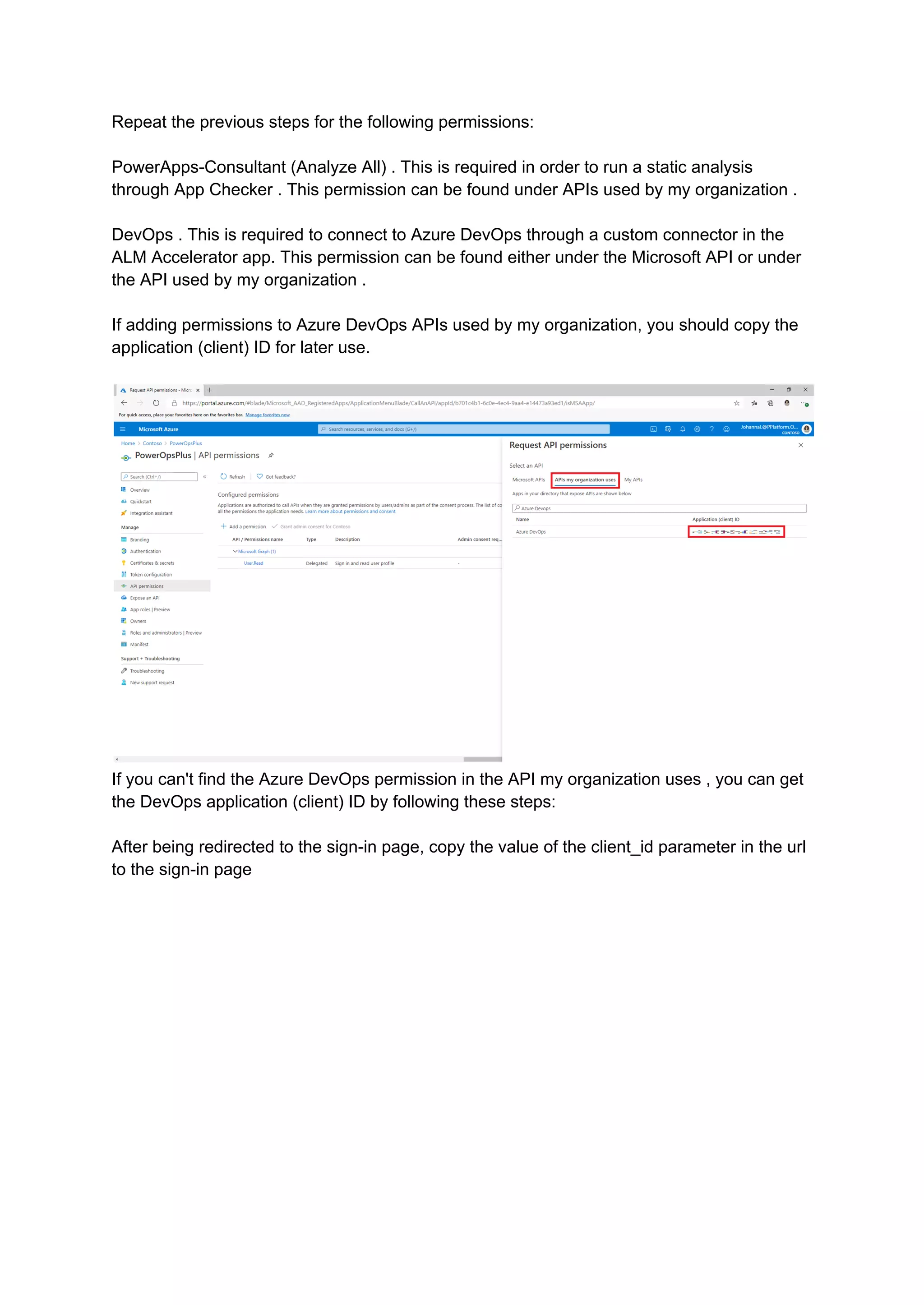
Repeat the previous steps for the following permissions:
PowerApps-Consultant (Analyze All) . This is required in order to run a static analysis
through App Checker . This permission can be found under APIs used by my organization .
DevOps . This is required to connect to Azure DevOps through a custom connector in the
ALM Accelerator app. This permission can be found either under the Microsoft API or under
the API used by my organization .
If adding permissions to Azure DevOps APIs used by my organization, you should copy the
application (client) ID for later use.
If you can't find the Azure DevOps permission in the API my organization uses , you can get
the DevOps application (client) ID by following these steps:
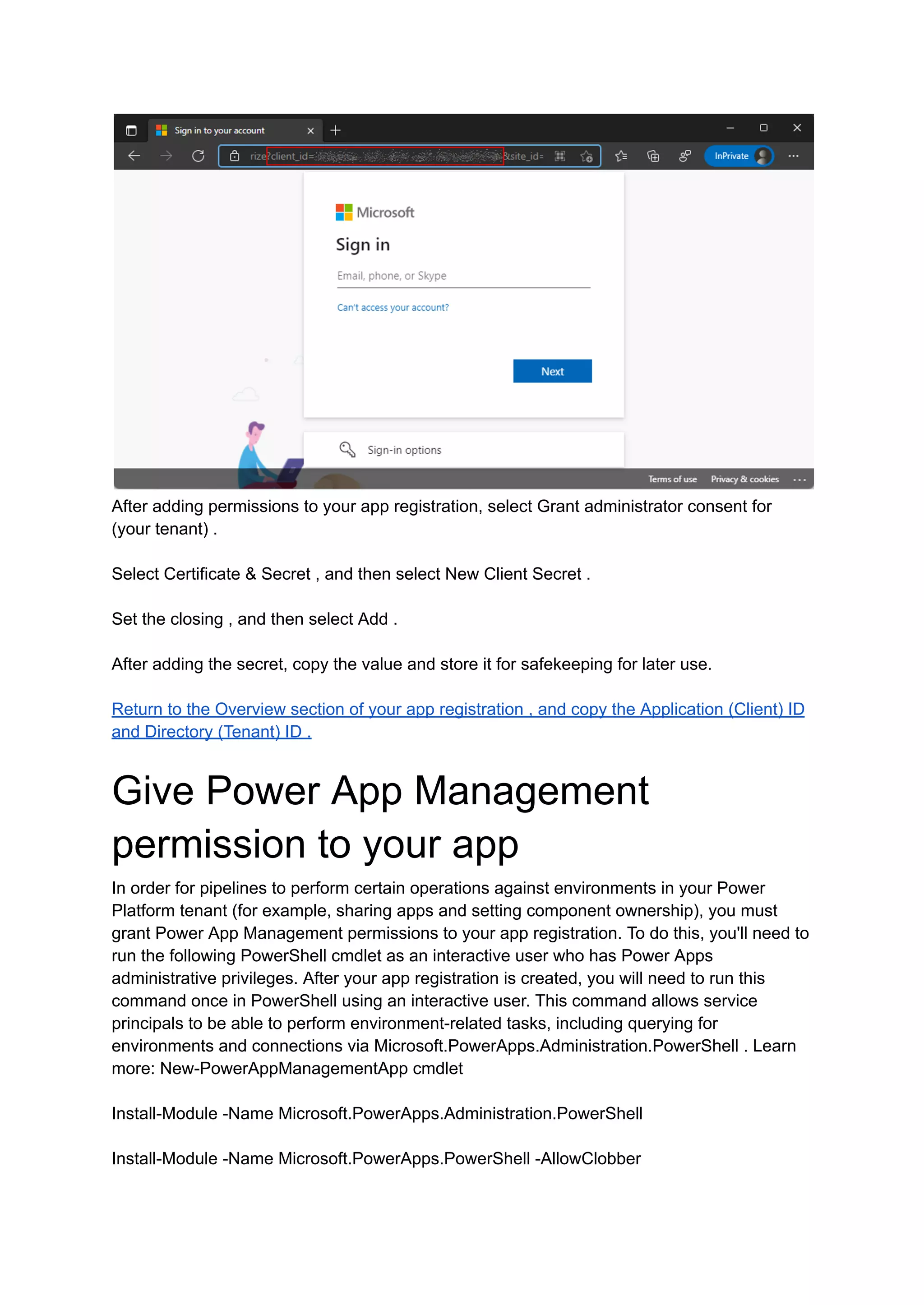
After being redirected to the sign-in page, copy the value of the client_id parameter in the url
to the sign-in page
After adding permissions to your app registration, select Grant administrator consent for
(your tenant) .
Select Certificate & Secret , and then select New Client Secret .
Set the closing , and then select Add .
After adding the secret, copy the value and store it for safekeeping for later use.
Return to the Overview section of your app registration , and copy the Application (Client) ID
and Directory (Tenant) ID .
Give Power App Management
permission to your app
In order for pipelines to perform certain operations against environments in your Power
Platform tenant (for example, sharing apps and setting component ownership), you must
grant Power App Management permissions to your app registration. To do this, you'll need to
run the following PowerShell cmdlet as an interactive user who has Power Apps
administrative privileges. After your app registration is created, you will need to run this
command once in PowerShell using an interactive user. This command allows service
principals to be able to perform environment-related tasks, including querying for
environments and connections via Microsoft.PowerApps.Administration.PowerShell . Learn
more: New-PowerAppManagementApp cmdlet
Install-Module -Name Microsoft.PowerApps.Administration.PowerShell
Install-Module -Name Microsoft.PowerApps.PowerShell -AllowClobber
New-PowerAppManagementApp -ApplicationId [the Application (client) ID you copied when
creating your app registration]
Install Azure DevOps Extension
ALM Accelerator uses a number of Azure DevOps extensions, including some third-party
extensions that are available in the Azure DevOps Marketplace. Under Organization Settings
in Azure DevOps , install the extension as described in the following procedure. For more
information about Azure DevOps extensions from Microsoft and others, visit Evaluate
Marketplace Extension Publishers . In addition, a link to each third-party extension's
webpage and their source code is provided in the following list.
Go to https://dev.azure.com , and select Organizational Settings .
Select General > Extensions .
Install the following extensions:
Power Platform Build Tools (required) : This extension includes Microsoft build tasks for
Microsoft Power Platform. (
https://marketplace.visualstudio.com/items?itemName=microsoft-IsvExpTools.PowerPlatform
-BuildTools )
Replace Token (Required) : This extension is used by pipelines to replace tokens in
configuration files in order to be able to store secure values in private variables configured
for the pipeline. (
https://marketplace.visualstudio.com/items?itemName=qetza.replacetokens |
https://github.com/qetza/vsts-replacetokens-task )
SARIF SAST Scan tab (optional) : This extension can be used to visualize the SARIF files
that are generated by the Solution Checker during a build. ( SARIF SAST Scan tab - Visual
Studio Marketplace )
Importing the solution and configuring
the app
Install ALM Accelerator in Dataverse
Download the latest managed solution file from GitHub[latest version] :
CenterofExcellenceALMaccelerator_ _managed.zip.
Go to PowerApps and select the environment you want to use to host the ALM Accelerator
for Power Platform app.
On the left pane, select Solutions .
Select Import , and browse to the location of the managed solution that you downloaded.
Select a Next , and then select Next again .
On the Connections page, select or create a new connection to use to connect to Dataverse
for the CDS DevOps connection .
Select Import , and wait for the solution import process to complete.
Configure DevOps custom connector
In Power Apps , select your environment, and then select Data > Custom Connectors >
CustomAzureDevOps .
Select Edit , go to the Security section, select Edit , and then set the following fields.
Select Update Connector .
Verify that the redirect URL is filled in on the page with the security URL .
https://global.consent.azure-apim.net/redirectIf the redirect is other than the URL
https://global.consent.azure-apim.net/redirect, copy the URL and go back to the app
registration you created and update the redirect URI you set earlier to the updated URL.
After completing the previous steps, verify the connector from the Test menu:
Open the Test menu.
Select New Connection , and then follow the prompts to create a new connection.
Select Edit , go to the Testing section, and then find the GetOrganizations action.
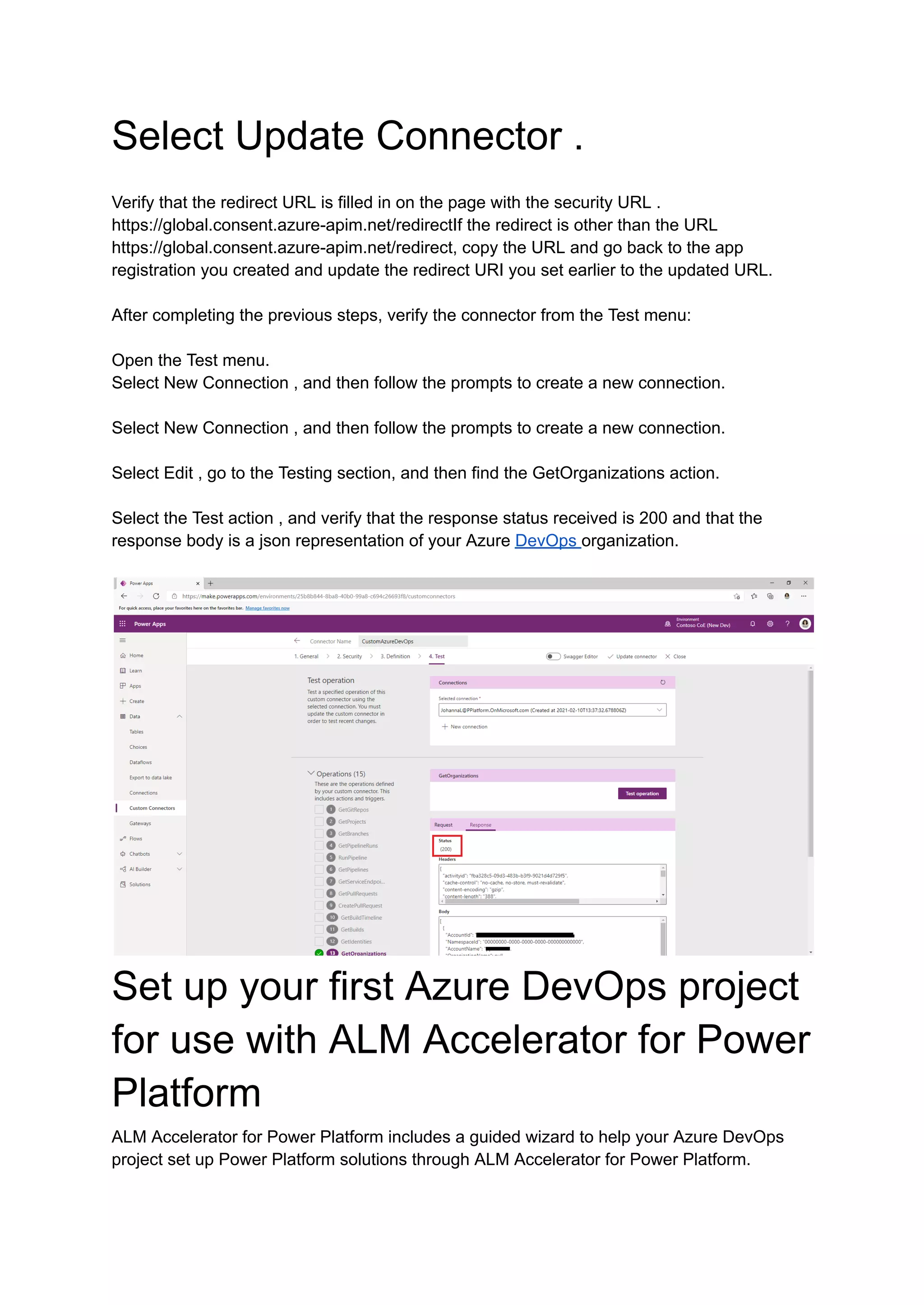
Select the Test action , and verify that the response status received is 200 and that the
response body is a json representation of your Azure DevOps organization.
Set up your first Azure DevOps project
for use with ALM Accelerator for Power
Platform
ALM Accelerator for Power Platform includes a guided wizard to help your Azure DevOps
project set up Power Platform solutions through ALM Accelerator for Power Platform.
To set up a new project for use with ALM Accelerator for Power Platform, follow these steps:
Open the ALM Accelerator for Power Platform admin app.
Select Projects Azure DevOps in the group in the left navigation .
If prompted to update the release tag , select OK. The app downloads the release tags
available from the ALM Accelerator Github repository.
Select the Azure DevOps organization in the Organization drop-down.
In the Project list , select New and select Project Wizard
In the Project step, enter the name of your project, a description (optional), enable preview
features (optional), and select Next . Alternatively you can choose to configure an existing
empty project.
In the Pipeline template step, select Next to install the template in your new project . The app
installs the pipeline template in a new repository in the project created in the previous step.
Alternatively you can configure the project to use templates from another project that already
has the templates installed
In the Service connection steps, select the environments for which you want to create the
service connection . You can select multiple environments and create service connections
for all of them at the same time. If you want to use different App Registrations for your
environment, you will need to create a service connection per App Registration. After
configuring the service connection for app registration , select Add . When you have
configured all service connections , you need to select Next .
In the General pipeline step, select Next . This creates the necessary pipelines, variable
sets, and sets the necessary permissions in ADO for the project to support ALM Accelerator
for Power Platform functionality.
Set up makers to use the ALM
Accelerator for Power Platform app
Create an app user in your Dataverse environment
Each environment (Development, Verification, Test, and Production) requires an application
user to connect Pipelines to the Dataverse. For each of your environments, follow these
steps to set up an app user.
Go to the Power Platform admin center .
Select your environment, and then select Settings .
Select Users + Permissions > Application Users .
To add a new app user, select New app user .
Select the Azure app registration, business unit , and security role that you created .
Manually set up ALM accelerator for Power Platform components

Manually set up ALM accelerator for Power Platform components

  • 1.
    Manually set upALM accelerator for Power Platform components The ALM Accelerator for Microsoft Power Platform components enables makers to implement source-control strategies with Azure DevOps, and automate builds and deployments of solutions in their environments without the need for manual intervention by the maker, administrator, developer, or tester. deployment uses. In addition, the ALM Accelerator helps makers work without in-depth knowledge of downstream technologies and be able to quickly switch from developing solutions to source-controlling the solution and ultimately getting their apps to work on their own. Pushes to other environments with minimal interruptions. ALM Accelerator is not dependent on other components of the CoE Starter Kit. It can be used freely. document structure This setup guide is structured into seven main sections: Prerequisites : Considerations and requirements to complete setup. Azure AD App Enrollment Setup : This section walks you through the base setup of the ALM Accelerator for Microsoft Power Platform. Basic setup consists of the required steps and configurations. Installing Azure DevOps Extensions : This section lists the required Azure DevOps Extensions and how to install them. Importing the solution and configuring the app : These steps are necessary to import the actual ALM Accelerator for Power Platform canvas app and configure the included custom connector. Set up your first ALM Accelerator for Power Platform project for use with Azure DevOps : To be used with Use to create and configure an Azure DevOps project using the Azure DevOps project wizard. ALM Accelerator for Power Platform Set up makers to use the ALM Accelerator for Power Platform app : A brief introduction to using the ALM Accelerator for Power Platform canvas app. Prerequisites
  • 2.
    Dataverse environment The ALMAccelerator for Microsoft Power Platform must be installed with a Microsoft Dataverse database in a Power Platform environment. From this environment, the ALM Accelerator for Power Platform app can be used to deploy solutions from development to validation to test to production. All of these environments will also require a Dataverse database to implement your solutions. Azure DevOps Organization ALM Accelerator uses Azure DevOps for source control and deployment (pipelines). You can sign up for Azure DevOps for free on the Azure DevOps site for up to five users. Users and Permissions To complete the steps in this section, you need the following users and permissions in Microsoft Power Platform, Azure DevOps, and Azure: A licensed Azure user with permission to create and view Azure AD groups, create app registrations, and grant admin consent for app registrations in Azure AD. A licensed Azure DevOps user with permission to create and manage pipelines, service connections, repos, and extensions. A licensed Microsoft Power Platform user who has permission to create an application user and grants administrative permissions to the application user. Connectors and Data Loss Prevention Policy For the ALM Accelerator for Power Platform canvas app to work, the following connectors must be available to be used together in the environment into which the ALM Accelerator is imported: Dataverse (Legacy) https Power Apps for makers HTTP with Azure AD ( with endpoint access to https://graph.microsoft.com ) ALM Accelerator Custom DevOps (This connector is created as part of the Accelerator solution import )
  • 3.
    Office 365 users Https builderkit The ALM Accelerator includes features that require the installation of the Creator Kit in the environment where you install the ALM Accelerator for Power Platform. Follow the steps here to install the Creator Kit : Install the Creator Kit Azure AD App Registration Setup The following steps guide you through setting up app registration for use with Azure Active Directory ALM Accelerator for Power Platform. These steps are general to the ALM Accelerator functionality, and are not project-specific or solution-specific. Create app registration in your Azure AD environment Creating an app registration for ALM Accelerator is a one-time setup step to grant permissions to the app and associated pipelines, permissions required to operate in Azure DevOps and Power Apps or Dataverse. The following steps show how to create a single app registration with permissions for both Dataverse and Azure DevOps. However, you may want to separate responsibilities specifically in Dataverse and Azure DevOps by creating separate application registrations. Sign in to the Azure portal . Go to Azure Active Directory > App Registration . Select New Registration , and then give the registration a name, such as ALAcceleratorServicePrincipal . Leave all other options as the defaults, and then select Register . Select API Permissions > + Add a permission . Select API Permissions > + Add a permission . Select Delegated Permissions . Select user_impersonation . Select Add Permissions .
  • 4.
    Repeat the previoussteps for the following permissions: PowerApps-Consultant (Analyze All) . This is required in order to run a static analysis through App Checker . This permission can be found under APIs used by my organization . DevOps . This is required to connect to Azure DevOps through a custom connector in the ALM Accelerator app. This permission can be found either under the Microsoft API or under the API used by my organization . If adding permissions to Azure DevOps APIs used by my organization, you should copy the application (client) ID for later use. If you can't find the Azure DevOps permission in the API my organization uses , you can get the DevOps application (client) ID by following these steps: After being redirected to the sign-in page, copy the value of the client_id parameter in the url to the sign-in page
  • 5.
    After adding permissionsto your app registration, select Grant administrator consent for (your tenant) . Select Certificate & Secret , and then select New Client Secret . Set the closing , and then select Add . After adding the secret, copy the value and store it for safekeeping for later use. Return to the Overview section of your app registration , and copy the Application (Client) ID and Directory (Tenant) ID . Give Power App Management permission to your app In order for pipelines to perform certain operations against environments in your Power Platform tenant (for example, sharing apps and setting component ownership), you must grant Power App Management permissions to your app registration. To do this, you'll need to run the following PowerShell cmdlet as an interactive user who has Power Apps administrative privileges. After your app registration is created, you will need to run this command once in PowerShell using an interactive user. This command allows service principals to be able to perform environment-related tasks, including querying for environments and connections via Microsoft.PowerApps.Administration.PowerShell . Learn more: New-PowerAppManagementApp cmdlet Install-Module -Name Microsoft.PowerApps.Administration.PowerShell Install-Module -Name Microsoft.PowerApps.PowerShell -AllowClobber
  • 6.
    New-PowerAppManagementApp -ApplicationId [theApplication (client) ID you copied when creating your app registration] Install Azure DevOps Extension ALM Accelerator uses a number of Azure DevOps extensions, including some third-party extensions that are available in the Azure DevOps Marketplace. Under Organization Settings in Azure DevOps , install the extension as described in the following procedure. For more information about Azure DevOps extensions from Microsoft and others, visit Evaluate Marketplace Extension Publishers . In addition, a link to each third-party extension's webpage and their source code is provided in the following list. Go to https://dev.azure.com , and select Organizational Settings . Select General > Extensions . Install the following extensions: Power Platform Build Tools (required) : This extension includes Microsoft build tasks for Microsoft Power Platform. ( https://marketplace.visualstudio.com/items?itemName=microsoft-IsvExpTools.PowerPlatform -BuildTools ) Replace Token (Required) : This extension is used by pipelines to replace tokens in configuration files in order to be able to store secure values in private variables configured for the pipeline. ( https://marketplace.visualstudio.com/items?itemName=qetza.replacetokens | https://github.com/qetza/vsts-replacetokens-task ) SARIF SAST Scan tab (optional) : This extension can be used to visualize the SARIF files that are generated by the Solution Checker during a build. ( SARIF SAST Scan tab - Visual Studio Marketplace )
  • 7.
    Importing the solutionand configuring the app Install ALM Accelerator in Dataverse Download the latest managed solution file from GitHub[latest version] : CenterofExcellenceALMaccelerator_ _managed.zip. Go to PowerApps and select the environment you want to use to host the ALM Accelerator for Power Platform app. On the left pane, select Solutions . Select Import , and browse to the location of the managed solution that you downloaded. Select a Next , and then select Next again . On the Connections page, select or create a new connection to use to connect to Dataverse for the CDS DevOps connection . Select Import , and wait for the solution import process to complete. Configure DevOps custom connector In Power Apps , select your environment, and then select Data > Custom Connectors > CustomAzureDevOps . Select Edit , go to the Security section, select Edit , and then set the following fields.
  • 8.
    Select Update Connector. Verify that the redirect URL is filled in on the page with the security URL . https://global.consent.azure-apim.net/redirectIf the redirect is other than the URL https://global.consent.azure-apim.net/redirect, copy the URL and go back to the app registration you created and update the redirect URI you set earlier to the updated URL. After completing the previous steps, verify the connector from the Test menu: Open the Test menu. Select New Connection , and then follow the prompts to create a new connection. Select New Connection , and then follow the prompts to create a new connection. Select Edit , go to the Testing section, and then find the GetOrganizations action. Select the Test action , and verify that the response status received is 200 and that the response body is a json representation of your Azure DevOps organization. Set up your first Azure DevOps project for use with ALM Accelerator for Power Platform ALM Accelerator for Power Platform includes a guided wizard to help your Azure DevOps project set up Power Platform solutions through ALM Accelerator for Power Platform.
  • 9.
    To set upa new project for use with ALM Accelerator for Power Platform, follow these steps: Open the ALM Accelerator for Power Platform admin app. Select Projects Azure DevOps in the group in the left navigation . If prompted to update the release tag , select OK. The app downloads the release tags available from the ALM Accelerator Github repository. Select the Azure DevOps organization in the Organization drop-down. In the Project list , select New and select Project Wizard In the Project step, enter the name of your project, a description (optional), enable preview features (optional), and select Next . Alternatively you can choose to configure an existing empty project. In the Pipeline template step, select Next to install the template in your new project . The app installs the pipeline template in a new repository in the project created in the previous step. Alternatively you can configure the project to use templates from another project that already has the templates installed In the Service connection steps, select the environments for which you want to create the service connection . You can select multiple environments and create service connections for all of them at the same time. If you want to use different App Registrations for your environment, you will need to create a service connection per App Registration. After configuring the service connection for app registration , select Add . When you have configured all service connections , you need to select Next . In the General pipeline step, select Next . This creates the necessary pipelines, variable sets, and sets the necessary permissions in ADO for the project to support ALM Accelerator for Power Platform functionality. Set up makers to use the ALM Accelerator for Power Platform app Create an app user in your Dataverse environment Each environment (Development, Verification, Test, and Production) requires an application user to connect Pipelines to the Dataverse. For each of your environments, follow these steps to set up an app user. Go to the Power Platform admin center . Select your environment, and then select Settings .
  • 10.
    Select Users +Permissions > Application Users . To add a new app user, select New app user . Select the Azure app registration, business unit , and security role that you created .