MAIstro Admin Module
All parts work together
   Thesaurus Master manages terminology
    and links between concepts
   M.A.I. handles categorization
   XIS captures content, organizes into
    fields (metadata), and applies subject
    metadata
   Admin Module manages software access
    and operation
                                             2
MAIstro Admin Module – manages
your thesaurus and indexing projects
   Create a new project
   Reconfigure an existing project
   Start and stop projects
   Change passwords for the administrator
   Set up user accounts
   Change passwords for users
   Delete a project
   Restore a project
                                             3
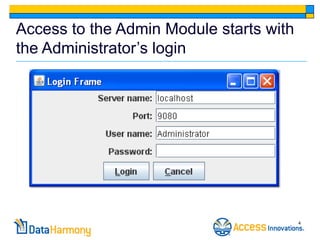
Access to the Admin Module starts with
the Administrator’s login


                                         4
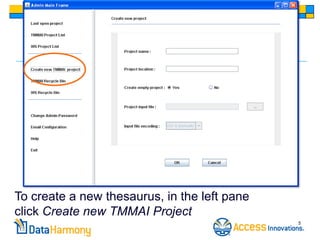
To create a new thesaurus, in the left pane
click Create new TMMAI Project
                                              5
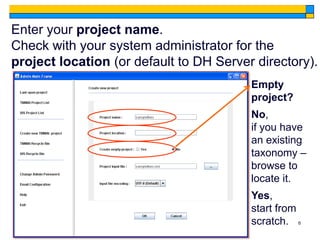
Enter your project name.
Check with your system administrator for the
project location (or default to DH Server directory).
                                         Empty
                                         project?
                                         No,
                                         if you have
                                         an existing
                                         taxonomy –
                                         browse to
                                         locate it.
                                         Yes,
                                         start from
                                         scratch. 6
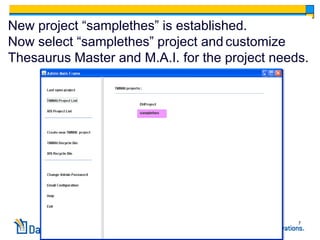
New project “samplethes” is established.
Now select “samplethes” project and customize
Thesaurus Master and M.A.I. for the project needs.


                                                7
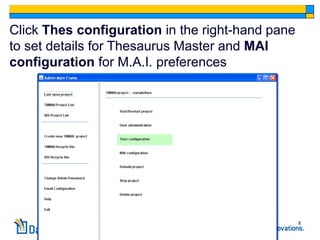
Click Thes configuration in the right-hand pane
to set details for Thesaurus Master and MAI
configuration for M.A.I. preferences


                                                  8
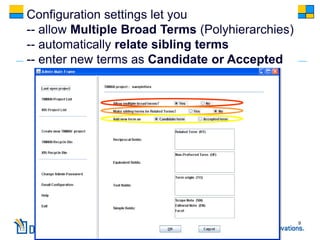
Configuration settings let you
-- allow Multiple Broad Terms (Polyhierarchies)
-- automatically relate sibling terms
-- enter new terms as Candidate or Accepted


                                                  9
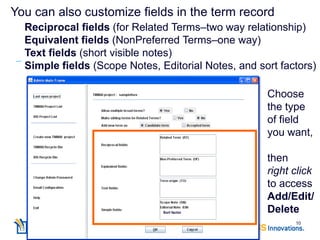
You can also customize fields in the term record
  Reciprocal fields (for Related Terms–two way relationship)
  Equivalent fields (NonPreferred Terms–one way)
  Text fields (short visible notes)
  Simple fields (Scope Notes, Editorial Notes, and sort factors)

                                                     Choose
                                                     the type
                                                     of field
                                                     you want,

                                                     then
                                                     right click
                                                     to access
                                                     Add/Edit/
                               Sort factor           Delete
                                                           10
When you Add a field
   Name the field as it will appear
       in the XML file (field name)
       to the thesaurus editor (display name)
   Specify whether it applies to
       only Preferred terms or
       Preferred and Nonpreferred terms
   Specify that it be searchable (indexable)
    or not
                                                 11
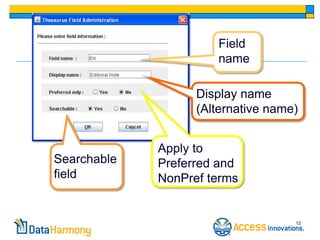
Field
                      name

                   Display name
                   (Alternative name)


             Apply to
Searchable   Preferred and
field        NonPref terms


                                    12
Use the same procedure to

             Add
             Edit
            Delete

   Equivalent fields or
Simple (free text entry) fields.

                                   13
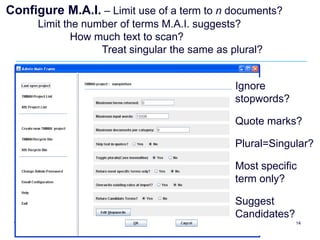
Configure M.A.I. – Limit use of a term to n documents?
      Limit the number of terms M.A.I. suggests?
              How much text to scan?
                   Treat singular the same as plural?


                                               Ignore
                                               stopwords?

                                               Quote marks?

                                               Plural=Singular?

                                               Most specific
                                               term only?

                                               Suggest
                                               Candidates?
                                                             14
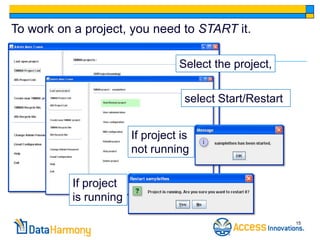
To work on a project, you need to START it.

                                 Select the project,

                                  select Start/Restart


                       If project is
                       not running

          If project
          is running

                                                         15
When you reconfigure your project

          you need to
           RESTART
             it again
    to apply the new settings


                                    16
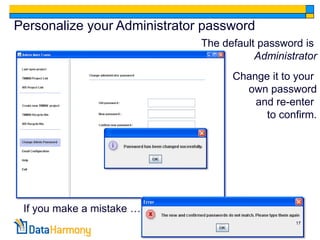
Personalize your Administrator password
                              The default password is
                                         Administrator
                                    Change it to your
                                      own password
                                        and re-enter
                                          to confirm.


 If you make a mistake …
                                                 17
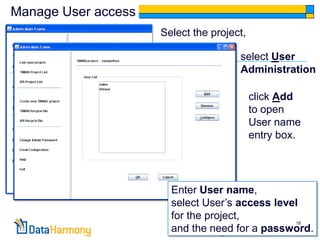
Manage User access
                     Select the project,

                                      select User
                                      Administration

                                           click Add
                                           to open
                                           User name
                                           entry box.


                       Enter User name,
                       select User’s access level
                       for the project,
                                                18
                       and the need for a password.
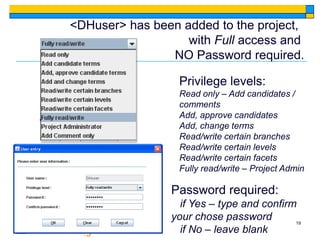
<DHuser> has been added to the project,
                   with Full access and
                NO Password required.

                  Privilege levels:
                  Read only – Add candidates /
                  comments
                  Add, approve candidates
                  Add, change terms
                  Read/write certain branches
                  Read/write certain levels
                  Read/write certain facets
                  Fully read/write – Project Admin

                Password required:
                  if Yes – type and confirm
                your chose password        19
                  if No – leave blank
To change User access:

click on the User name and

   change access level
    change password
remove user from a project


                             20
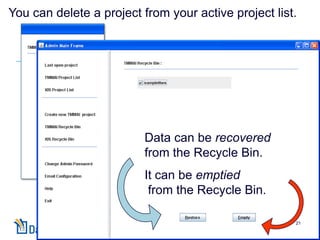
You can delete a project from your active project list.


                         Data can be recovered
                         from the Recycle Bin.
                         It can be emptied
                          from the Recycle Bin.

                                                      21
The MAIstro Admin Module provides

complete project management capability

      for your Thesaurus Master

         and M.A.I. projects.


                                     22

MAIstro™ Admin Module

  • 1.
  • 2.
    All parts worktogether  Thesaurus Master manages terminology and links between concepts  M.A.I. handles categorization  XIS captures content, organizes into fields (metadata), and applies subject metadata  Admin Module manages software access and operation 2
  • 3.
    MAIstro Admin Module– manages your thesaurus and indexing projects  Create a new project  Reconfigure an existing project  Start and stop projects  Change passwords for the administrator  Set up user accounts  Change passwords for users  Delete a project  Restore a project 3
  • 4.
    Access to theAdmin Module starts with the Administrator’s login 4
  • 5.
    To create anew thesaurus, in the left pane click Create new TMMAI Project 5
  • 6.
    Enter your projectname. Check with your system administrator for the project location (or default to DH Server directory). Empty project? No, if you have an existing taxonomy – browse to locate it. Yes, start from scratch. 6
  • 7.
    New project “samplethes”is established. Now select “samplethes” project and customize Thesaurus Master and M.A.I. for the project needs. 7
  • 8.
    Click Thes configurationin the right-hand pane to set details for Thesaurus Master and MAI configuration for M.A.I. preferences 8
  • 9.
    Configuration settings letyou -- allow Multiple Broad Terms (Polyhierarchies) -- automatically relate sibling terms -- enter new terms as Candidate or Accepted 9
  • 10.
    You can alsocustomize fields in the term record Reciprocal fields (for Related Terms–two way relationship) Equivalent fields (NonPreferred Terms–one way) Text fields (short visible notes) Simple fields (Scope Notes, Editorial Notes, and sort factors) Choose the type of field you want, then right click to access Add/Edit/ Sort factor Delete 10
  • 11.
    When you Adda field  Name the field as it will appear  in the XML file (field name)  to the thesaurus editor (display name)  Specify whether it applies to  only Preferred terms or  Preferred and Nonpreferred terms  Specify that it be searchable (indexable) or not 11
  • 12.
    Field name Display name (Alternative name) Apply to Searchable Preferred and field NonPref terms 12
  • 13.
    Use the sameprocedure to Add Edit Delete Equivalent fields or Simple (free text entry) fields. 13
  • 14.
    Configure M.A.I. –Limit use of a term to n documents? Limit the number of terms M.A.I. suggests? How much text to scan? Treat singular the same as plural? Ignore stopwords? Quote marks? Plural=Singular? Most specific term only? Suggest Candidates? 14
  • 15.
    To work ona project, you need to START it. Select the project, select Start/Restart If project is not running If project is running 15
  • 16.
    When you reconfigureyour project you need to RESTART it again to apply the new settings 16
  • 17.
    Personalize your Administratorpassword The default password is Administrator Change it to your own password and re-enter to confirm. If you make a mistake … 17
  • 18.
    Manage User access Select the project, select User Administration click Add to open User name entry box. Enter User name, select User’s access level for the project, 18 and the need for a password.
  • 19.
    <DHuser> has beenadded to the project, with Full access and NO Password required. Privilege levels: Read only – Add candidates / comments Add, approve candidates Add, change terms Read/write certain branches Read/write certain levels Read/write certain facets Fully read/write – Project Admin Password required: if Yes – type and confirm your chose password 19 if No – leave blank
  • 20.
    To change Useraccess: click on the User name and change access level change password remove user from a project 20
  • 21.
    You can deletea project from your active project list. Data can be recovered from the Recycle Bin. It can be emptied from the Recycle Bin. 21
  • 22.
    The MAIstro AdminModule provides complete project management capability for your Thesaurus Master and M.A.I. projects. 22