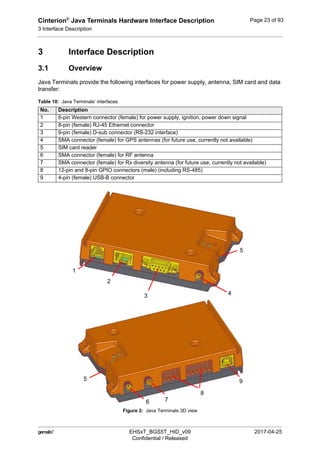
 M2M.GEMALTO.COM
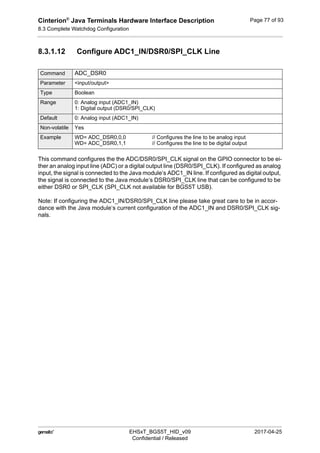
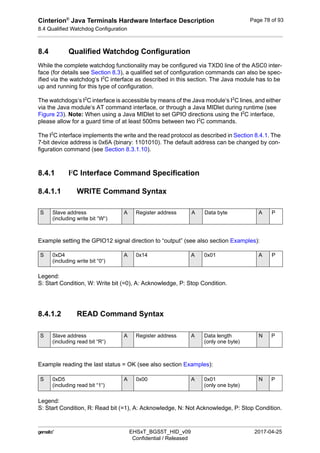
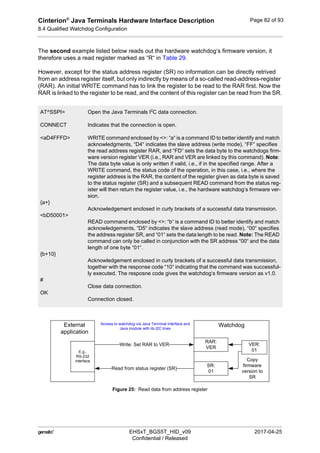
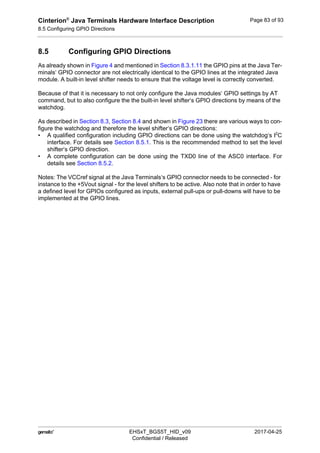
Cinterion®
Java Terminals
Hardware Interface Description
Version: 09
DocId: EHSxT_BGS5T_HID_v09
GENERAL NOTE
THE USE OF THE PRODUCT INCLUDING THE SOFTWARE AND DOCUMENTATION (THE "PROD-
UCT") IS SUBJECT TO THE RELEASE NOTE PROVIDED TOGETHER WITH PRODUCT. IN ANY
EVENT THE PROVISIONS OF THE RELEASE NOTE SHALL PREVAIL. THIS DOCUMENT CONTAINS
INFORMATION ON GEMALTO M2M PRODUCTS. THE SPECIFICATIONS IN THIS DOCUMENT ARE
SUBJECT TO CHANGE AT GEMALTO M2M'S DISCRETION. GEMALTO M2M GMBH GRANTS A NON-
EXCLUSIVE RIGHT TO USE THE PRODUCT. THE RECIPIENT SHALL NOT TRANSFER, COPY,
MODIFY, TRANSLATE, REVERSE ENGINEER, CREATE DERIVATIVE WORKS; DISASSEMBLE OR
DECOMPILE THE PRODUCT OR OTHERWISE USE THE PRODUCT EXCEPT AS SPECIFICALLY
AUTHORIZED. THE PRODUCT AND THIS DOCUMENT ARE PROVIDED ON AN "AS IS" BASIS ONLY
AND MAY CONTAIN DEFICIENCIES OR INADEQUACIES. TO THE MAXIMUM EXTENT PERMITTED
BY APPLICABLE LAW, GEMALTO M2M GMBH DISCLAIMS ALL WARRANTIES AND LIABILITIES.
THE RECIPIENT UNDERTAKES FOR AN UNLIMITED PERIOD OF TIME TO OBSERVE SECRECY
REGARDING ANY INFORMATION AND DATA PROVIDED TO HIM IN THE CONTEXT OF THE DELIV-
ERY OF THE PRODUCT. THIS GENERAL NOTE SHALL BE GOVERNED AND CONSTRUED
ACCORDING TO GERMAN LAW.
Copyright
Transmittal, reproduction, dissemination and/or editing of this document as well as utilization of its con-
tents and communication thereof to others without express authorization are prohibited. Offenders will be
held liable for payment of damages. All rights created by patent grant or registration of a utility model or
design patent are reserved.
Copyright © 2017, Gemalto M2M GmbH, a Gemalto Company
Trademark Notice
Gemalto, the Gemalto logo, are trademarks and service marks of Gemalto and are registered in certain
countries. Microsoft and Windows are either registered trademarks or trademarks of Microsoft Corpora-
tion in the United States and/or other countries. All other registered trademarks or trademarks mentioned
in this document are property of their respective owners.
 EHSxT_BGS5T_HID_v09 2017-04-25
Confidential / Released
Cinterion®
Java Terminals Hardware Interface Description
2
Page 2 of 93
Document Name: Cinterion®
Java Terminals Hardware Interface Description
Version: 09
Date: 2017-04-25
DocId: EHSxT_BGS5T_HID_v09
Status Confidential / Released
Cinterion®
Java Terminals Hardware Interface Description
Contents
124
 EHSxT_BGS5T_HID_v09 2017-04-25
Confidential / Released
Page 3 of 93
Contents
0 Document History ...................................................................................................... 8
1 Introduction ............................................................................................................... 11
1.1 Related Documents ......................................................................................... 12
1.2 Terms and Abbreviations ................................................................................. 12
1.3 Regulatory and Type Approval Information ..................................................... 14
1.3.1 Directives and Standards.................................................................... 14
1.3.2 Safety Precautions.............................................................................. 17
1.4 Product Label................................................................................................... 19
2 Product Concept ....................................................................................................... 20
2.1 Key Features at a Glance ................................................................................ 20
3 Interface Description ................................................................................................ 23
3.1 Overview.......................................................................................................... 23
3.2 Block Diagram.................................................................................................. 24
3.3 Terminal Circuit................................................................................................ 25
3.4 Operating Modes ............................................................................................. 26
3.5 RS-232 Interface.............................................................................................. 27
3.5.1 9-Pole D-sub Connector ..................................................................... 27
3.6 USB Interface................................................................................................... 28
3.7 GPIO Interface ................................................................................................. 28
3.7.1 Serial Interface ASC1 ......................................................................... 31
3.7.2 Digital Audio Interface......................................................................... 32
3.7.3 I2
C Interface ........................................................................................ 34
3.7.4 SPI Interface ....................................................................................... 35
3.7.5 PWM Interface .................................................................................... 36
3.7.6 Pulse Counter ..................................................................................... 36
3.7.7 Analog-to-Digital Converter (ADC)...................................................... 36
3.7.8 DSR0 signal........................................................................................ 36
3.8 Ethernet Interface ............................................................................................ 37
3.9 Power Supply................................................................................................... 38
3.10 Power Up/Power Down Scenarios................................................................... 39
3.10.1 Turn Java Terminals on ...................................................................... 39
3.10.2 Reset/Restart Java Terminals............................................................. 39
3.10.3 Turn Java Terminals off ...................................................................... 40
3.10.4 Disconnecting power supply ............................................................... 40
3.11 Automatic thermal shutdown............................................................................ 41
3.12 Hardware Watchdog ........................................................................................ 41
3.13 RTC.................................................................................................................. 41
3.14 SIM Interface.................................................................................................... 42
3.15 Status LEDs ..................................................................................................... 43
3.16 RF Antenna Interface....................................................................................... 44
Cinterion®
Java Terminals Hardware Interface Description
Contents
124
 EHSxT_BGS5T_HID_v09 2017-04-25
Confidential / Released
Page 4 of 93
4 Electrical and Environmental Characteristics........................................................ 45
4.1 Absolute Maximum Ratings ............................................................................. 45
4.2 Electrical Specifications of the Application Interface........................................ 46
4.2.1 On/Off Control..................................................................................... 46
4.2.2 RS-232 Interface................................................................................. 46
4.2.3 USB Interface...................................................................................... 46
4.2.4 GPIO Interface.................................................................................... 47
4.2.5 RS-485 Interface................................................................................. 48
4.2.6 Ethernet Interface ............................................................................... 48
4.3 Power Supply Ratings...................................................................................... 49
4.4 Operating Temperatures.................................................................................. 51
4.5 Antenna Interface............................................................................................. 52
4.6 Storage Conditions .......................................................................................... 54
5 Mechanics, Mounting and Packaging ..................................................................... 55
5.1 Mechanical Dimensions ................................................................................... 55
5.2 Mounting the Java Terminals........................................................................... 58
5.3 Packaging ........................................................................................................ 59
6 Full Type Approval.................................................................................................... 60
6.1 Gemalto M2M Reference Setup ...................................................................... 60
6.2 Restrictions ...................................................................................................... 61
6.3 CE Conformity.................................................................................................. 61
6.4 EMC ................................................................................................................. 61
6.5 Compliance with FCC and IC Rules and Regulations ..................................... 62
7 List of Parts and Accessories.................................................................................. 64
8 Appendix A: (Hardware) Watchdog......................................................................... 65
8.1 Reset Conditions.............................................................................................. 66
8.1.1 Reset stages ....................................................................................... 66
8.1.2 Reset Delay ........................................................................................ 67
8.2 Restart Conditions ........................................................................................... 67
8.3 Complete Watchdog Configuration .................................................................. 68
8.3.1 Watchdog (WD) Command Specification ........................................... 68
8.4 Qualified Watchdog Configuration ................................................................... 78
8.4.1 I2
C Interface Command Specification ................................................. 78
8.5 Configuring GPIO Directions............................................................................ 83
8.5.1 Configuration using I2
C Interface ........................................................ 84
8.5.2 Configuration using TXD0 Line of ASC0 Interface.............................. 85
Cinterion®
Java Terminals Hardware Interface Description
Contents
124
 EHSxT_BGS5T_HID_v09 2017-04-25
Confidential / Released
Page 5 of 93
9 Appendix B: Ethernet Setup and Usage ................................................................. 86
9.1 Connection Setup ............................................................................................ 86
9.2 Connection Usage ........................................................................................... 88
9.2.1 Access EHS6T LAN via Telnet (or SSH) ............................................ 88
9.2.2 Access EHS6T LAN via FTP .............................................................. 89
9.2.3 Security Notes..................................................................................... 90
9.2.4 Configure IP Address.......................................................................... 90
9.2.5 Edit APN List....................................................................................... 90
9.2.6 Enter SIM Pin...................................................................................... 91
9.2.7 Transparent Data Exchange............................................................... 91
9.2.8 Update EHS6 Module Firmware ......................................................... 92
9.2.9 Update Ethernet Sub-System Software .............................................. 92
Cinterion®
Java Terminals Hardware Interface Description
Tables
6
 EHSxT_BGS5T_HID_v09 2017-04-25
Confidential / Released
Page 6 of 93
Tables
Table 1: Cinterion®
Java Terminals overview ............................................................... 11
Table 2: Terms and abbreviations................................................................................. 12
Table 3: Directives ........................................................................................................ 14
Table 4: Standards of North American type approval ................................................... 14
Table 5: Standards of European type approval............................................................. 14
Table 6: Requirements of quality .................................................................................. 15
Table 7: Standards of the Ministry of Information Industry of the
People’s Republic of China............................................................................. 16
Table 8: Toxic or hazardous substances or elements with defined concentration
limits................................................................................................................ 16
Table 9: Java Terminals label information .................................................................... 19
Table 10: Java Terminals‘ interfaces .............................................................................. 23
Table 11: Overview of operating modes ......................................................................... 26
Table 12: 9-pole D-sub (female) RS-232 ........................................................................ 27
Table 13: GPIO connector pin availability and alternate pin functionalities .................... 30
Table 14: Overview of DAI/PCM signals......................................................................... 32
Table 15: Female 8-pole RJ-45 Ethernet connector ....................................................... 37
Table 16: Female 6-pole Western plug for power supply, ignition, power down............. 38
Table 17: Allowed maximum antenna gain (including cable loss)................................... 44
Table 18: Absolute maximum ratings.............................................................................. 45
Table 19: Operating supply voltage for Java Terminals.................................................. 45
Table 20: On/Off control line specifications..................................................................... 46
Table 21: RS-232 interface specifications....................................................................... 46
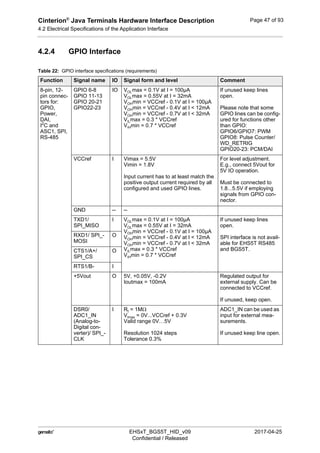
Table 22: GPIO interface specifications (requirements) ................................................. 47
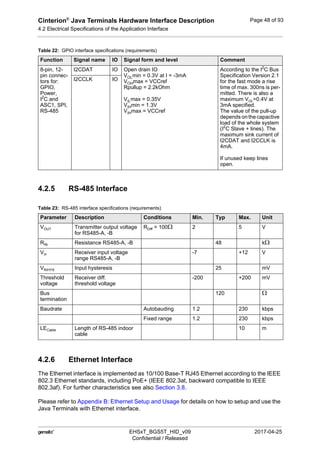
Table 23: RS-485 interface specifications (requirements) .............................................. 48
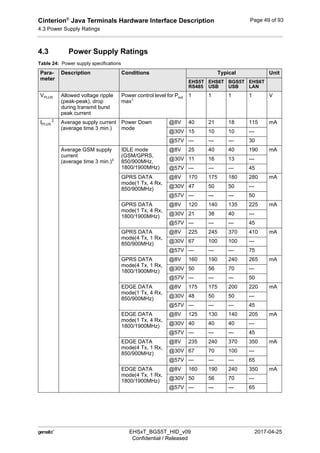
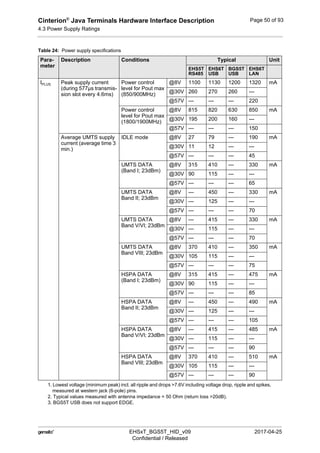
Table 24: Power supply specifications............................................................................ 49
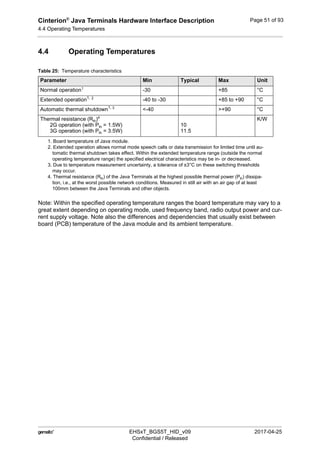
Table 25: Temperature characteristics............................................................................ 51
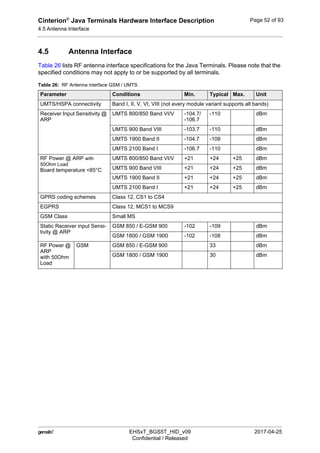
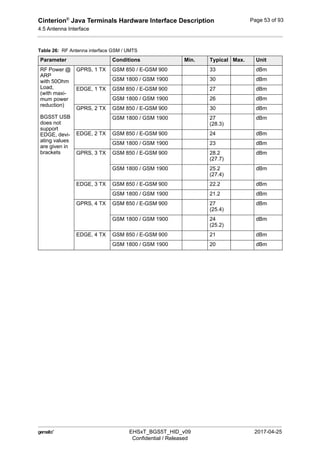
Table 26: RF Antenna interface GSM / UMTS................................................................ 52
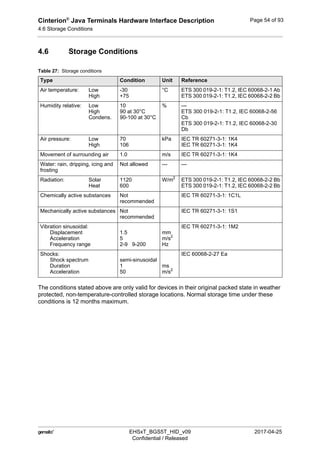
Table 27: Storage conditions .......................................................................................... 54
Table 28: List of parts and accessories........................................................................... 64
Table 29: Address register for I2
C commands ................................................................ 79
Table 30: I2
C status result codes .................................................................................... 80
Cinterion®
Java Terminals Hardware Interface Description
Figures
7
 EHSxT_BGS5T_HID_v09 2017-04-25
Confidential / Released
Page 7 of 93
Figures
Figure 1: Sample Java Terminal label (BGS5T USB) .................................................... 19
Figure 2: Java Terminals 3D view.................................................................................. 23
Figure 3: Block diagram ................................................................................................. 24
Figure 4: Java Terminals circuit block diagram.............................................................. 25
Figure 5: Pin assignment RS-232 (D-sub 9-pole female)............................................... 27
Figure 6: EHS5T RS485: GPIO connectors (8-pin and 12-pin)...................................... 28
Figure 7: EHS6T USB/EHS6T LAN: GPIO connectors (8-pin and 12-pin)..................... 29
Figure 8: BGS5T USB: GPIO connectors (8-pin and 12-pin)......................................... 29
Figure 9: Long frame PCM timing, 256kHz .................................................................... 32
Figure 10: Block circuit for DAI/PCM to analog converter................................................ 33
Figure 11: Sample circuit for analog to DAI/PCM circuit .................................................. 33
Figure 12: Characteristics of SPI modes.......................................................................... 35
Figure 13: 8-pole RJ-45 Ethernet connector (female)...................................................... 37
Figure 14: 6-pole Western jack for power supply, ignition, reset, typical connection....... 38
Figure 15: SIM interface................................................................................................... 42
Figure 16: Status LED...................................................................................................... 43
Figure 17: Antenna connector.......................................................................................... 44
Figure 18: Java Terminals 3D overview........................................................................... 55
Figure 19: Java Terminals mechanical dimensions ......................................................... 56
Figure 20: Java Terminals exploded view........................................................................ 57
Figure 21: Mounting the Java Terminals.......................................................................... 58
Figure 22: Reference equipment for approval.................................................................. 60
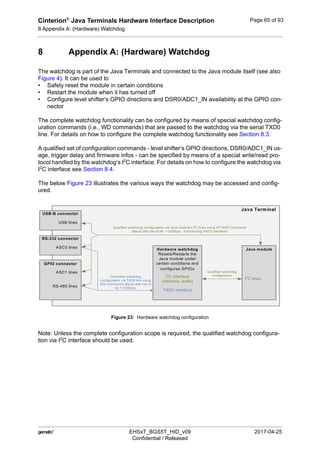
Figure 23: Hardware watchdog configuration................................................................... 65
Figure 24: Write data to address register......................................................................... 81
Figure 25: Read data from address register..................................................................... 82
Figure 26: Setting GPIO direction to OUTPUT via I2
C interface ...................................... 84
Figure 27: Setting GPIO direction to INPUT via I2
C interface .......................................... 84
Figure 28: Setting GPIO direction to OUTPUT via TXD0 line (at 1200bps)..................... 85
Figure 29: Setting GPIO direction to INPUT via TXD0 line (at 1200bps)......................... 85
Cinterion®
Java Terminals Hardware Interface Description
0 Document History
10
 EHSxT_BGS5T_HID_v09 2017-04-25
Confidential / Released
Page 8 of 93
0 Document History
Preceding document: "Cinterion®
Java Terminals Hardware Interface Description" Version 08
New document: "Cinterion®
Java Terminals Hardware Interface Description" Version 09
Preceding document: "Cinterion®
Java Terminals Hardware Interface Description" Version 07a
New document: "Cinterion®
Java Terminals Hardware Interface Description" Version 08
Preceding document: "Cinterion®
Java Terminals Hardware Interface Description" Version 06a
New document: "Cinterion®
Java Terminals Hardware Interface Description" Version 07
Preceding document: "Cinterion®
Java Terminals Hardware Interface Description" Version 06
New document: "Cinterion®
Java Terminals Hardware Interface Description" Version 06a
Preceding document: "Cinterion®
Java Terminals Hardware Interface Description" Version 05
New document: "Cinterion®
Java Terminals Hardware Interface Description" Version 06
Chapter What is new
1.3, 1.4, 6.3 Revised information with regard to the new Radio Equipment Directive (RED).
Added IP code (IP40) the Java Terminals comply with (DIN EN 60529).
8.4, 8.5.1 Added note for guard time between I2
C commands.
Chapter What is new
2.1 Added power supply range for EHS6T LAN.
3.3 Revised Figure 4.
3.8 Added further information on Power over Ethernet.
Added Link/Activity LED and showing position in Figure 13.
3.15 Changed color of Network Status LED.
4.1 Added footnote regarding EHS6T LAN to Table 18 and Table 19.
4.3 Added power consumption ratings for EHS6T LAN to Table 24.
Chapter What is new
Throughout
document
EHS6T LAN terminal is now available. Adapted descriptions accordingly.
8.3.1.6 New section I2
C Reset.
Chapter What is new
Throughout
document
EHS6T LAN terminal set to “for future use; currently not available“.
Chapter What is new
Throughout
document
Added EHS5T-US RS485 as new product.
3.7 Added note on switch off and power saving behavior if using EHS5T‘s RS-485 interface.
4.2.5 New section RS-485 Interface.
Cinterion®
Java Terminals Hardware Interface Description
0 Document History
10
 EHSxT_BGS5T_HID_v09 2017-04-25
Confidential / Released
Page 9 of 93
Preceding document: "Cinterion®
Java Terminals Hardware Interface Description" Version 04
New document: "Cinterion®
Java Terminals Hardware Interface Description" Version 05
Preceding document: "Cinterion®
Java Terminals Hardware Interface Description" Version 03
New document: "Cinterion®
Java Terminals Hardware Interface Description" Version 04
Preceding document: "Cinterion®
Java Terminals Hardware Interface Description" Version 02
New document: "Cinterion®
Java Terminals Hardware Interface Description" Version 03
4.2.6 Added Ethernet characteristics.
4.3 Revised power supply ratings.
Chapter What is new
Throughout
document
Removed SPI option for EHS5T RS485.
Added digital audio interface (DAI/PCM) lines as option for GPIO20 to GPIO23.
Replaced GPIO14 / GPIO15 with GPIO22 / GPIO23 respectively.
Assigned WD_RETRIG line to GPIO8 instead of the GPIO22.
3.7.1 New section Serial Interface ASC1.
3.7.2 New section Digital Audio Interface.
3.7.3 New section I2
C Interface.
3.7.4 New section SPI Interface.
3.7.5 New section PWM Interface.
3.7.6 New section Pulse Counter.
3.7.7 New section Analog-to-Digital Converter (ADC).
3.7.8 New section DSR0 signal.
8.3.1.11
8.4.1.4
Revised GPIO default direction settings - all are set to INPUT now.
Adapted configuration samples given in Section 8.5.1 and Section 8.5.1 accordingly.
9.4 Added Figure 34 showing result of a firmware update command.
Chapter What is new
Throughout
document
Added information for product variant EHS6T LAN.
Chapter What is new
Throughout
document
Replaced the term “Weidmueller connector“ with “GPIO connector“.
Added notes that GPIOs 14/15 will be replaced by GPIOs 22/23 in the next product
release.
1.4 Updated label shown in Figure 1.
3.9 Revised section and spun off new section 3.10 Power Up/Power Down Scenarios.
3.10.3 Removed note that watchdog can be configured to turn off Java Terminals.
4.1 Revised ESD ratings (in Table 18) and minimum voltage rating (in Table 19).
4.2.1 Revised input voltage ratings listed in Table 20.
Chapter What is new
Cinterion®
Java Terminals Hardware Interface Description
0 Document History
10
 EHSxT_BGS5T_HID_v09 2017-04-25
Confidential / Released
Page 10 of 93
Preceding document: "Cinterion®
Java Terminals Hardware Interface Description" Version 01
New document: "Cinterion®
Java Terminals Hardware Interface Description" Version 02
New document: "Cinterion®
Java Terminals Hardware Interface Description" Version 01
4.2.2 Revised ratings given in Table 21.
4.2.4 Revised description for VCCref.
4.4 Added thermal resistance and thermal power values for Java Terminals.
4.3 Revised power supply ratings.
5.1 Added new figure showing mechanical dimensions (Figure 19).
7 Revised Table 7.
8, 8.1.1 Slightly revised (hardware) watchdog introduction and modified Reset stages.
8.5 New section Configuring GPIO Directions.
Chapter What is new
1.4 Revised product label shown in Figure 1.
3.7 Revised section with regard to the GPIO connector pin availability.
4.1 Completed Table 18 giving absolute maximum ratings.
4.4 Added remarks on board temperature.
4.3 Revised and completed section listing power supply ratings.
6.3 Added CE conformity mark.
6.5 Revised section to include notes for IC (also in the Frensh language).
8 Revised and updated Appendix A: (Hardware) Watchdog.
Chapter What is new
-- Initial document setup.
Chapter What is new
Cinterion®
Java Terminals Hardware Interface Description
1 Introduction
19
 EHSxT_BGS5T_HID_v09 2017-04-25
Confidential / Released
Page 11 of 93
1 Introduction
This document1
describes the hardware of the Cinterion®
Java Terminals. The Java Terminals
come in five variants depending on the included Cinterion®
module and the available interfaces:
• EHS5T RS485 contains a Cinterion®
EHS5-E module and implements a USB 2.0 interface
with a USB-B connector as well as a 6-pole Western jack as plug-in power supply connec-
tor. Via a GPIO interface it also implements a RS-485 interface including power supply and
ignition line.
• EHS5T-US RS485 is identical to EHS5T RS485, but contains a Cinterion®
EHS5-US mod-
ule instead of a Cinterion®
EHS5-E module. Note: Unless otherwise mentioned EHS5T
RS485 refers to both product variants.
• EHS6T USB contains a Cinterion®
EHS6 module and implements a USB 2.0 interface with
a USB-B connector and also a V.24 / V.28 RS-232 interface with a D-sub 9-pole female
socket as well as a 6-pole Western jack as plug-in power supply connector.
• EHS6T LAN contains a Cinterion®
EHS6 module and implements an Ethernet interface with
a RJ-45 8-pin connector and also a V.24 / V.28 RS-232 interface with a D-sub 9-pole female
socket as well as a 6-pole Western jack as plug-in power supply connector.
• BGS5T USB contains a Cinterion®
BGS5 module and implements a USB 2.0 interface with
a USB-B connector and also a V.24 / V.28 RS-232 interface with a D-sub 9-pole female
socket as well as a 6-pole Western jack as plug-in power supply connector.
Wherever necessary and appropriate this document distinguishes between these five variants.
Table 1 gives a short overview of the available interfaces for the different Java Terminals.
The scope of this document includes interface specifications, electrical as well as mechanical
characteristics of the Java Terminals. It specifies standards pertaining to wireless applications
and outlines requirements that must be adhered to for successful product design. The Java
Terminals are compact GSM/UMTS modems for the transfer of data in GSM/UMTS networks.
Industrial standard interfaces and an integrated SIM card reader allow using the Java Termi-
nals easily as GSM/GPRS/UMTS terminals.
1. The document is effective only if listed in the appropriate Release Notes as part of the technical docu-
mentation delivered with your Gemalto M2M product.
Table 1: Cinterion®
Java Terminals overview
Module/Interface EHS5T RS485 and
EHS5T-US RS485
EHS6T USB EHS6T LAN BGS5T USB
Cinterion®
module EHS5-E or
EHS5-US
EHS6 EHS6 BGS5
RS-232 (Sub-D) -   
USB (USB-B)   - 
GPIO interface
(GPIOs, Power, ASC1, DAI,
SPI, I2
C, RS-485)
(no SPI)  (no RS-485)  (no RS-485)  (no RS-485,
no SPI)
Ethernet (RJ-45) - -  -
Power supply (RJ-11)    
RF antenna    
Cinterion®
Java Terminals Hardware Interface Description
1.1 Related Documents
19
 EHSxT_BGS5T_HID_v09 2017-04-25
Confidential / Released
Page 12 of 93
1.1 Related Documents
[1] AT Command Set for your Java Terminal product
[2] Release Notes for your Java Terminal product
To visit the Gemalto M2M GmbH Website please use the following link:
http://m2m.gemalto.com
1.2 Terms and Abbreviations
Table 2: Terms and abbreviations
Abbreviation Description
ARP Antenna Reference Point
ATC AT Command
BTS Base Transceiver Station
CB Cell Broadcast
CODEC Coder-Decoder
DAI Digital Audio Interface
DCE Data Circuit terminating Equipment
DSR Data Set Ready
DTR Data Terminal Ready
EFR Enhanced Full Rate
EGSM Enhanced GSM
EMC Electromagnetic Compatibility
ESD Electrostatic Discharge
ETS European Telecommunication Standard
FDMA Frequency Division Multiple Access
G.C.F. GSM Conformity Forum
GSM Global Standard for Mobile Communication
HW Hardware
I2
C Inter Integrated Circuit
IC Integrated Circuit
IF Intermediate Frequency
IMEI International Mobile Equipment Identifier
I/O Input/ Output
IGT Ignition
ISO International Standards Organization
ITU International Telecommunications Union
Cinterion®
Java Terminals Hardware Interface Description
1.2 Terms and Abbreviations
19
 EHSxT_BGS5T_HID_v09 2017-04-25
Confidential / Released
Page 13 of 93
kbps kbits per second
LVD Low voltage Directive
Mbps Mbits per second
MCU Microprocessor Controll Unit
MMI Machine Machine Interface
MO Mobile Originated
MS Mobile Station
MT Mobile Terminated
NC Not Connected
NTC Negative Temperature Coefficient
PA Power Amplifier
PCB Printed Circuit Board
PCM Pulse Code Modulation
PCS Personal Communication System
PD Power Down
PDU Protocol Data Unit
PoE Power over Ethernet
RED Radio Equipment Directive
RF Radio frequency
RI Ring Indication
RX Receive direction
SIM Subscriber Identification Module
SMS Short Message Service
SW Software
TDD Time Division Duplex
TDMA Time Division Multiple Access
TX Transmit direction
UART Universal Asynchronous Receiver and Transmitter
Table 2: Terms and abbreviations
Abbreviation Description
Cinterion®
Java Terminals Hardware Interface Description
1.3 Regulatory and Type Approval Information
19
 EHSxT_BGS5T_HID_v09 2017-04-25
Confidential / Released
Page 14 of 93
1.3 Regulatory and Type Approval Information
1.3.1 Directives and Standards
Java Terminals have been designed to comply with the directives and standards listed below1
.
1. Standards of North American type approval do not apply to EHS5T RS485, 3G/WCDMA related stan-
dards do not apply to BGS5T USB.
Table 3: Directives
2014/53/EU Directive of the European Parliament and of the council of 16 April 2014
on the harmonization of the laws of the Member States relating to the mak-
ing available on the market of radio equipment and repealing Directive
1999/ 05/EC.
The product is labeled with the CE conformity mark - see Section 6.3.
2002/95/EC (RoHS 1)
2011/65/EC (RoHS 2)
Directive of the European Parliament and of the Council of
27 January 2003 (and revised on 8 June 2011) on the
restriction of the use of certain hazardous substances in
electrical and electronic equipment (RoHS)
2002/96/EC Directive of the European Parliament and of the Council on waste electri-
cal and electronic equipment (WEEE)
2003/108/EC Directive of the European Parliament and of the Council of 8 December
2003 amending directive 2002/96/ec on waste electrical and electronic
equipment (WEEE)
Table 4: Standards of North American type approval
CFR Title 47 “Code of Federal Regulations, Part 15 B, Part 22 and Part 24 (Telecom-
munications, PCS)”; US Equipment Authorization FCC
OET Bulletin 65
(Edition 97-01)
Evaluating Compliance with FCC Guidelines for Human Exposure to
Radiofrequency Electromagnetic Fields
UL 60 950-1 Product Safety Certification (Safety requirements)
NAPRD.03 V5.15 “Overview of PCS Type certification review board
Mobile Equipment Type Certification and IMEI control”
PCS Type Certification Review board (PTCRB)
RSS102
RSS132
RSS133
Canadian Standard
IEEE Std. C95.1-1999 IEEE Standard for Safety Levels with Respect to Human Exposure to
Radio Frequency Electromagnetic Fields, 3 kHz to 300 GHz
Table 5: Standards of European type approval
3GPP TS 51.010-1 “Digital cellular telecommunications system (Phase 2); Mobile Station
(MS) conformance specification”
ETSI EN 301 511 V12.5.1 Global System for Mobile communications (GSM); Mobile Stations (MS)
equipment; Harmonized Standard covering the essential requirements of
article 3.2 of Directive 2014/53/EU
GCF-CC V3.49 Global Certification Forum - Certification Criteria
Cinterion®
Java Terminals Hardware Interface Description
1.3 Regulatory and Type Approval Information
19
 EHSxT_BGS5T_HID_v09 2017-04-25
Confidential / Released
Page 15 of 93
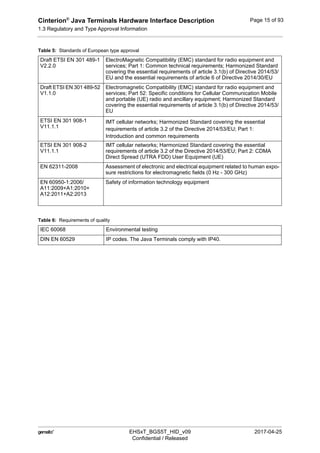
Draft ETSI EN 301 489-1
V2.2.0
ElectroMagnetic Compatibility (EMC) standard for radio equipment and
services; Part 1: Common technical requirements; Harmonized Standard
covering the essential requirements of article 3.1(b) of Directive 2014/53/
EU and the essential requirements of article 6 of Directive 2014/30/EU
Draft ETSI EN 301 489-52
V1.1.0
Electromagnetic Compatibility (EMC) standard for radio equipment and
services; Part 52: Specific conditions for Cellular Communication Mobile
and portable (UE) radio and ancillary equipment; Harmonized Standard
covering the essential requirements of article 3.1(b) of Directive 2014/53/
EU
ETSI EN 301 908-1
V11.1.1
IMT cellular networks; Harmonized Standard covering the essential
requirements of article 3.2 of the Directive 2014/53/EU; Part 1:
Introduction and common requirements
ETSI EN 301 908-2
V11.1.1
IMT cellular networks; Harmonized Standard covering the essential
requirements of article 3.2 of the Directive 2014/53/EU; Part 2: CDMA
Direct Spread (UTRA FDD) User Equipment (UE)
EN 62311-2008 Assessment of electronic and electrical equipment related to human expo-
sure restrictions for electromagnetic fields (0 Hz - 300 GHz)
EN 60950-1:2006/
A11:2009+A1:2010+
A12:2011+A2:2013
Safety of information technology equipment
Table 6: Requirements of quality
IEC 60068 Environmental testing
DIN EN 60529 IP codes. The Java Terminals comply with IP40.
Table 5: Standards of European type approval
Cinterion®
Java Terminals Hardware Interface Description
1.3 Regulatory and Type Approval Information
19
 EHSxT_BGS5T_HID_v09 2017-04-25
Confidential / Released
Page 16 of 93
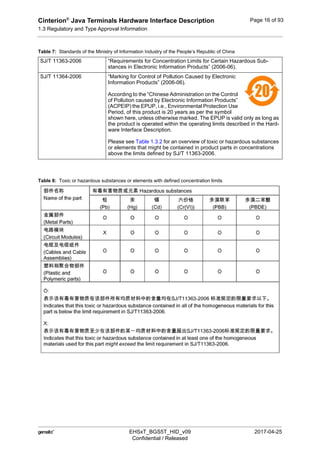
Table 8: Toxic or hazardous substances or elements with defined concentration limits
Table 7: Standards of the Ministry of Information Industry of the People’s Republic of China
SJ/T 11363-2006 “Requirements for Concentration Limits for Certain Hazardous Sub-
stances in Electronic Information Products” (2006-06).
SJ/T 11364-2006 “Marking for Control of Pollution Caused by Electronic
Information Products” (2006-06).
According to the “Chinese Administration on the Control
of Pollution caused by Electronic Information Products”
(ACPEIP) the EPUP, i.e., Environmental Protection Use
Period, of this product is 20 years as per the symbol
shown here, unless otherwise marked. The EPUP is valid only as long as
the product is operated within the operating limits described in the Hard-
ware Interface Description.
Please see Table 1.3.2 for an overview of toxic or hazardous substances
or elements that might be contained in product parts in concentrations
above the limits defined by SJ/T 11363-2006.
Cinterion®
Java Terminals Hardware Interface Description
1.3 Regulatory and Type Approval Information
19
 EHSxT_BGS5T_HID_v09 2017-04-25
Confidential / Released
Page 17 of 93
1.3.2 Safety Precautions
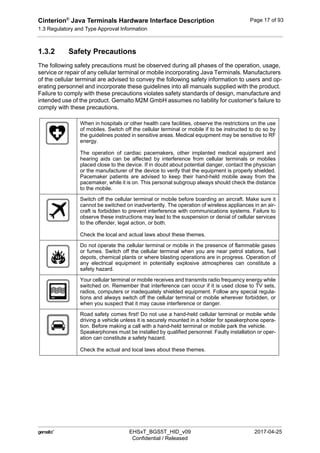
The following safety precautions must be observed during all phases of the operation, usage,
service or repair of any cellular terminal or mobile incorporating Java Terminals. Manufacturers
of the cellular terminal are advised to convey the following safety information to users and op-
erating personnel and incorporate these guidelines into all manuals supplied with the product.
Failure to comply with these precautions violates safety standards of design, manufacture and
intended use of the product. Gemalto M2M GmbH assumes no liability for customer’s failure to
comply with these precautions.
When in hospitals or other health care facilities, observe the restrictions on the use
of mobiles. Switch off the cellular terminal or mobile if to be instructed to do so by
the guidelines posted in sensitive areas. Medical equipment may be sensitive to RF
energy.
The operation of cardiac pacemakers, other implanted medical equipment and
hearing aids can be affected by interference from cellular terminals or mobiles
placed close to the device. If in doubt about potential danger, contact the physician
or the manufacturer of the device to verify that the equipment is properly shielded.
Pacemaker patients are advised to keep their hand-held mobile away from the
pacemaker, while it is on. This personal subgroup always should check the distance
to the mobile.
Switch off the cellular terminal or mobile before boarding an aircraft. Make sure it
cannot be switched on inadvertently. The operation of wireless appliances in an air-
craft is forbidden to prevent interference with communications systems. Failure to
observe these instructions may lead to the suspension or denial of cellular services
to the offender, legal action, or both.
Check the local and actual laws about these themes.
Do not operate the cellular terminal or mobile in the presence of flammable gases
or fumes. Switch off the cellular terminal when you are near petrol stations, fuel
depots, chemical plants or where blasting operations are in progress. Operation of
any electrical equipment in potentially explosive atmospheres can constitute a
safety hazard.
Your cellular terminal or mobile receives and transmits radio frequency energy while
switched on. Remember that interference can occur if it is used close to TV sets,
radios, computers or inadequately shielded equipment. Follow any special regula-
tions and always switch off the cellular terminal or mobile wherever forbidden, or
when you suspect that it may cause interference or danger.
Road safety comes first! Do not use a hand-held cellular terminal or mobile while
driving a vehicle unless it is securely mounted in a holder for speakerphone opera-
tion. Before making a call with a hand-held terminal or mobile park the vehicle.
Speakerphones must be installed by qualified personnel. Faulty installation or oper-
ation can constitute a safety hazard.
Check the actual and local laws about these themes.
Cinterion®
Java Terminals Hardware Interface Description
1.3 Regulatory and Type Approval Information
19
 EHSxT_BGS5T_HID_v09 2017-04-25
Confidential / Released
Page 18 of 93
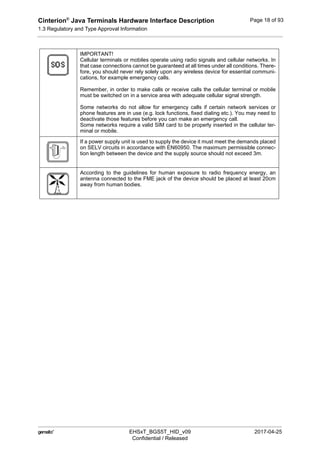
IMPORTANT!
Cellular terminals or mobiles operate using radio signals and cellular networks. In
that case connections cannot be guaranteed at all times under all conditions. There-
fore, you should never rely solely upon any wireless device for essential communi-
cations, for example emergency calls.
Remember, in order to make calls or receive calls the cellular terminal or mobile
must be switched on in a service area with adequate cellular signal strength.
Some networks do not allow for emergency calls if certain network services or
phone features are in use (e.g. lock functions, fixed dialing etc.). You may need to
deactivate those features before you can make an emergency call.
Some networks require a valid SIM card to be properly inserted in the cellular ter-
minal or mobile.
If a power supply unit is used to supply the device it must meet the demands placed
on SELV circuits in accordance with EN60950. The maximum permissible connec-
tion length between the device and the supply source should not exceed 3m.
According to the guidelines for human exposure to radio frequency energy, an
antenna connected to the FME jack of the device should be placed at least 20cm
away from human bodies.
Cinterion®
Java Terminals Hardware Interface Description
1.4 Product Label
19
 EHSxT_BGS5T_HID_v09 2017-04-25
Confidential / Released
Page 19 of 93
1.4 Product Label
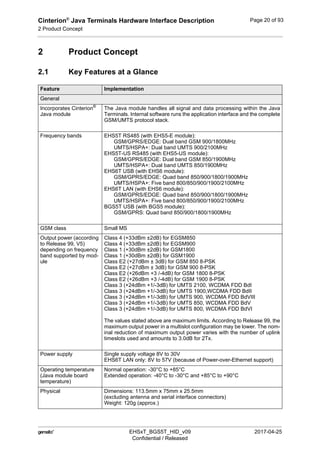
The label fixed to the bottom of a Java Terminal comprises the following information.
Figure 1: Sample Java Terminal label (BGS5T USB)
Table 9: Java Terminals label information
No. Information
1 Cinterion logo
2 Product name
3 Product variant
4 Marking "Made in Germany"
5 Product ordering number
6 Bar code (Code128)
7 Product IMEI
8 Date code
9 WEEE symbol (see Table 3)
10 Chinese RoHS symbol (see Table 7)
11 CE logo. May be replaced for samples with "Not for sale" (see also Section 6.3)
12 FCC Declaration of Conformity (DoC) logo (BGS5T USB, EHS6T LAN only; with EHS6T
LAN, a smaller FCC logo is placed between bar code and Chinese RoHS symbol)
13 FCC ID for Java Terminal (EHS5T-US RS485, EHS6T USB), or FCC and IC ID (EHS6T LAN)
14 FCC ID for Java module contained in Java Terminal (BGS5T USB, EHS5T-US RS485 and
EHS6T USB/LAN only)
15 IC ID for Java module contained in Java Terminal (BGS5T USB, EHS6T USB/LAN only)
16 Manufacturer code
17 Power supply unit ratings
18 Manufacturer code (2D)
1
2 3 4
5
6
7
8
9
1012
15
16
17 18
11
13
14
Cinterion®
Java Terminals Hardware Interface Description
2 Product Concept
22
 EHSxT_BGS5T_HID_v09 2017-04-25
Confidential / Released
Page 20 of 93
2 Product Concept
2.1 Key Features at a Glance
Feature Implementation
General
Incorporates Cinterion®
Java module
The Java module handles all signal and data processing within the Java
Terminals. Internal software runs the application interface and the complete
GSM/UMTS protocol stack.
Frequency bands EHS5T RS485 (with EHS5-E module):
GSM/GPRS/EDGE: Dual band GSM 900/1800MHz
UMTS/HSPA+: Dual band UMTS 900/2100MHz
EHS5T-US RS485 (with EHS5-US module):
GSM/GPRS/EDGE: Dual band GSM 850/1900MHz
UMTS/HSPA+: Dual band UMTS 850/1900MHz
EHS6T USB (with EHS6 module):
GSM/GPRS/EDGE: Quad band 850/900/1800/1900MHz
UMTS/HSPA+: Five band 800/850/900/1900/2100MHz
EHS6T LAN (with EHS6 module):
GSM/GPRS/EDGE: Quad band 850/900/1800/1900MHz
UMTS/HSPA+: Five band 800/850/900/1900/2100MHz
BGS5T USB (with BGS5 module):
GSM/GPRS: Quad band 850/900/1800/1900MHz
GSM class Small MS
Output power (according
to Release 99, V5)
depending on frequency
band supported by mod-
ule
Class 4 (+33dBm ±2dB) for EGSM850
Class 4 (+33dBm ±2dB) for EGSM900
Class 1 (+30dBm ±2dB) for GSM1800
Class 1 (+30dBm ±2dB) for GSM1900
Class E2 (+27dBm ± 3dB) for GSM 850 8-PSK
Class E2 (+27dBm ± 3dB) for GSM 900 8-PSK
Class E2 (+26dBm +3 /-4dB) for GSM 1800 8-PSK
Class E2 (+26dBm +3 /-4dB) for GSM 1900 8-PSK
Class 3 (+24dBm +1/-3dB) for UMTS 2100, WCDMA FDD BdI
Class 3 (+24dBm +1/-3dB) for UMTS 1900,WCDMA FDD BdII
Class 3 (+24dBm +1/-3dB) for UMTS 900, WCDMA FDD BdVIII
Class 3 (+24dBm +1/-3dB) for UMTS 850, WCDMA FDD BdV
Class 3 (+24dBm +1/-3dB) for UMTS 800, WCDMA FDD BdVI
The values stated above are maximum limits. According to Release 99, the
maximum output power in a multislot configuration may be lower. The nom-
inal reduction of maximum output power varies with the number of uplink
timeslots used and amounts to 3.0dB for 2Tx.
Power supply Single supply voltage 8V to 30V
EHS6T LAN only: 8V to 57V (because of Power-over-Ethernet support)
Operating temperature
(Java module board
temperature)
Normal operation: -30°C to +85°C
Extended operation: -40°C to -30°C and +85°C to +90°C
Physical Dimensions: 113.5mm x 75mm x 25.5mm
(excluding antenna and serial interface connectors)
Weight: 120g (approx.)
Cinterion®
Java Terminals Hardware Interface Description
2.1 Key Features at a Glance
22
 EHSxT_BGS5T_HID_v09 2017-04-25
Confidential / Released
Page 21 of 93
RoHS, WEEE All hardware components are fully compliant with the EU RoHS and WEEE
Directives
HSPA features
3GPP Release 6,7
(EHSxT only)
DL 7.2Mbps, UL 5.7Mbps
HSDPA Cat.8 / HSUPA Cat.6 data rates
Compressed mode (CM) supported according to 3GPP TS25.212
UMTS features
3GPP Release 4
(EHSxT only)
PS data rate – 384 kbps DL / 384 kbps UL
CS data rate – 64 kbps DL / 64 kbps UL
GSM / GPRS / EDGE features
Data transfer GPRS:
• Multislot Class 12
• Full PBCCH support
• Mobile Station Class B
• Coding Scheme 1 – 4
EGPRS (EHSxT only):
• Multislot Class 12
• EDGE E2 power class for 8 PSK
• Downlink coding schemes – CS 1-4, MCS 1-9
• Uplink coding schemes – CS 1-4, MCS 1-9
• SRB loopback and test mode B
• 8-bit, 11-bit RACH
• PBCCH support
• 1 phase/2 phase access procedures
• Link adaptation and IR
• NACC, extended UL TBF
• Mobile Station Class B
CSD:
• V.110, RLP, non-transparent
• 2.4, 4.8, 9.6, 14.4kbps
• USSD
SMS • Point-to-point MT and MO
• Cell broadcast
• Text and PDU mode
Software
AT commands Hayes 3GPP TS 27.007, TS 27.005, Gemalto M2M
Java™ Open Platform Java™ Open Platform with
• Java™ profile IMP-NG & CLDC 1.1 HI
• Secure data transmission via HTTPS/SSL
• Multi-threading programming and multi-application execution
Major benefits: seamless integration into Java applications, ease of pro-
gramming, no need for application micro-controller, extremely cost-efficient
hardware and software design – ideal platform for industrial GSM applica-
tions.
The memory space available for Java programs is around 10MB in the flash
file system and around 10MB RAM. Application code and data share the
space in the flash file system and in RAM.
Feature Implementation
Cinterion®
Java Terminals Hardware Interface Description
2.1 Key Features at a Glance
22
 EHSxT_BGS5T_HID_v09 2017-04-25
Confidential / Released
Page 22 of 93
SIM Application Toolkit SAT Release 99
TCP/IP stack Protocols: TCP server/client, UDP, HTTP, FTP, SMTP, POP3
Access by AT commands
Firmware update Upgradeable via serial ASC0 (RS-232 or RS-485) or USB interface
Interfaces
USB interfaces USB 2.0 Slave interface
RS232 RS-232 interface for AT commands and data:
• Supports RTS/CTS hardware handshake
• Supports software XON/XOFF flow control
• Multiplex ability according to GSM 07.10 Multiplexer protocol
• Baud rates from 1200bps to 230400bps
• Autobauding supported
GPIO connector 20-pin (8-pin and 12-pin) header with GPIO interface, external power sup-
ply, serial interface ASC1, ADC, DAI/PCM, SPI, I²C and RS-485 option,
depending on variant
Ethernet 8-pole RJ-45 Ethernet connector
Support for Power over Ethernet (PoE)
Power connector 6-pole Western connector (female) for power supply, ignition, power down
signal
SIM card reader Supported SIM cards: 3V, 1.8V
Antenna Antenna connected via female SMA connector
Power on/off, Reset
Power on DTR line at RS-232 interface, IGT_IN line at power connector or watchdog
Power off Normal switch-off by AT^SMSO
Automatic switch-off in case of critical temperature conditions
Reset Orderly shutdown and reset by AT command
Emergency restart via RST_IN line at power connector or via watchdog
Special features
Real time clock Timer functions via AT commands
Phonebook SIM card and terminal
(Hardware) Watchdog Configurable watchdog to control module
Feature Implementation
Cinterion®
Java Terminals Hardware Interface Description
3 Interface Description
44
 EHSxT_BGS5T_HID_v09 2017-04-25
Confidential / Released
Page 23 of 93
3 Interface Description
3.1 Overview
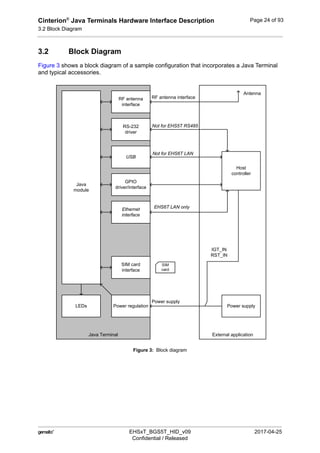
Java Terminals provide the following interfaces for power supply, antenna, SIM card and data
transfer:
Figure 2: Java Terminals 3D view
Table 10: Java Terminals‘ interfaces
No. Description
1 6-pin Western connector (female) for power supply, ignition, power down signal
2 8-pin (female) RJ-45 Ethernet connector
3 9-pin (female) D-sub connector (RS-232 interface)
4 SMA connector (female) for GPS antennas (for future use, currently not available)
5 SIM card reader
6 SMA connector (female) for RF antenna
7 SMA connector (female) for Rx diversity antenna (for future use, currently not available)
8 12-pin and 8-pin GPIO connectors (male) (including RS-485)
9 4-pin (female) USB-B connector
43
1
9
5
5
2
6 7
8
Cinterion®
Java Terminals Hardware Interface Description
3.2 Block Diagram
44
 EHSxT_BGS5T_HID_v09 2017-04-25
Confidential / Released
Page 24 of 93
3.2 Block Diagram
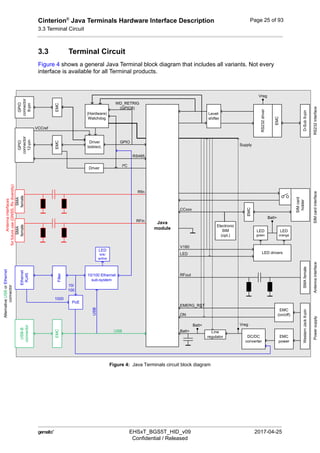
Figure 3 shows a block diagram of a sample configuration that incorporates a Java Terminal
and typical accessories.
Figure 3: Block diagram
Java Terminal
Java
module
RS-232
driver
USB
SIM card
interface
Power regulation
RF antenna
interface
LEDs
RF antenna interface
Host
controller
Power supply
External application
Power supply
SIM
card
Antenna
IGT_IN
RST_IN
GPIO
driver/interface
Ethernet
interface
EHS6T LAN only
Not for EHS6T LAN
Not for EHS5T RS485
Cinterion®
Java Terminals Hardware Interface Description
3.3 Terminal Circuit
44
 EHSxT_BGS5T_HID_v09 2017-04-25
Confidential / Released
Page 25 of 93
3.3 Terminal Circuit
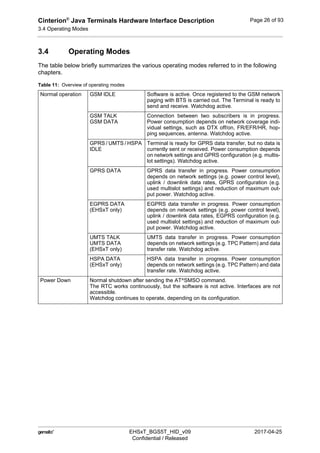
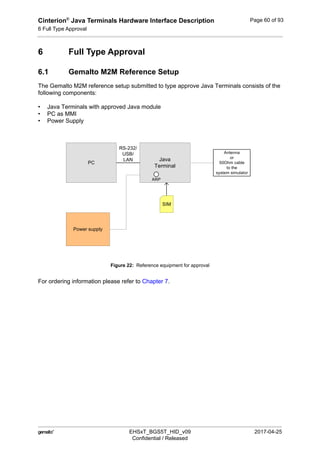
Figure 4 shows a general Java Terminal block diagram that includes all variants. Not every
interface is available for all Terminal products.
Figure 4: Java Terminals circuit block diagram
D-Sub9-pin
Level-
shifter
RS232interface
EMC
RS232driver
Vreg
SIMcard
holder
SIMcardinterface
CCxxx
EMC
Batt+
LED
green
LED
orange
LED driversLED
V180
SMAfemale
Antennainterface
RFout
WesternJack6-pin
Powersupply
EMC
(on/off)
EMC
power
DC/DC
converter
Vreg
Line
regulator
ON
EMERG_RST
Batt+
Batt+
(Hardware)
Watchdog
Ethernet
RJ45
LED
link/
active
Filter
10/100 Ethernet
sub-system
USB
GPIO
connector
12-pin
EMC
Driver
bidirect.
GPIO
USB-B
connector
EMC
USB
Electronic
SIM
(opt.)
AlternativeUSBorEthernet
connector
SMA
female
SMA
female
RFin
Rfin
Antennainterfaces
forfutureuse(GNSS,Rxdiversity)
GPIO
connector
8-pin
EMC
RS485
Driver
Java
module
Supply
VCCref
I²C
WD_RETRIG
(GPIO8)
PoE
1000
10/
100
Cinterion®
Java Terminals Hardware Interface Description
3.4 Operating Modes
44
 EHSxT_BGS5T_HID_v09 2017-04-25
Confidential / Released
Page 26 of 93
3.4 Operating Modes
The table below briefly summarizes the various operating modes referred to in the following
chapters.
Table 11: Overview of operating modes
Normal operation GSM IDLE Software is active. Once registered to the GSM network
paging with BTS is carried out. The Terminal is ready to
send and receive. Watchdog active.
GSM TALK
GSM DATA
Connection between two subscribers is in progress.
Power consumption depends on network coverage indi-
vidual settings, such as DTX off/on, FR/EFR/HR, hop-
ping sequences, antenna. Watchdog active.
GPRS / UMTS / HSPA
IDLE
Terminal is ready for GPRS data transfer, but no data is
currently sent or received. Power consumption depends
on network settings and GPRS configuration (e.g. multis-
lot settings). Watchdog active.
GPRS DATA GPRS data transfer in progress. Power consumption
depends on network settings (e.g. power control level),
uplink / downlink data rates, GPRS configuration (e.g.
used multislot settings) and reduction of maximum out-
put power. Watchdog active.
EGPRS DATA
(EHSxT only)
EGPRS data transfer in progress. Power consumption
depends on network settings (e.g. power control level),
uplink / downlink data rates, EGPRS configuration (e.g.
used multislot settings) and reduction of maximum out-
put power. Watchdog active.
UMTS TALK
UMTS DATA
(EHSxT only)
UMTS data transfer in progress. Power consumption
depends on network settings (e.g. TPC Pattern) and data
transfer rate. Watchdog active.
HSPA DATA
(EHSxT only)
HSPA data transfer in progress. Power consumption
depends on network settings (e.g. TPC Pattern) and data
transfer rate. Watchdog active.
Power Down Normal shutdown after sending the AT^SMSO command.
The RTC works continuously, but the software is not active. Interfaces are not
accessible.
Watchdog continues to operate, depending on its configuration.
Cinterion®
Java Terminals Hardware Interface Description
3.5 RS-232 Interface
44
 EHSxT_BGS5T_HID_v09 2017-04-25
Confidential / Released
Page 27 of 93
3.5 RS-232 Interface
The RS-232 interface is not available for EHS5T RS485. The interface is implemented as a se-
rial asynchronous transmitter and receiver conforming to ITU-T V.24 Interchange Circuits DCE.
It is configured for 8 data bits, no parity and 1 stop bit, and can be operated at bit rates from
1200bps to 921kbps. Autobauding supports bit rates from 1.2kbps to 230kbps.
For more information see also Section 3.5.1.
3.5.1 9-Pole D-sub Connector
Via RS-232 interface, the host controller controls the Java Terminals and transports data.
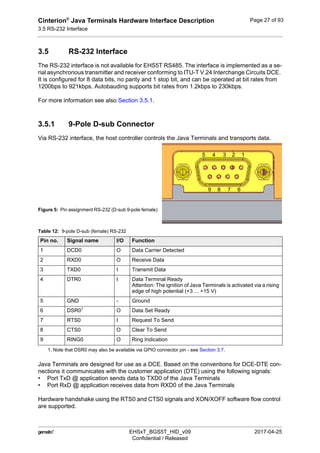
Figure 5: Pin assignment RS-232 (D-sub 9-pole female)
Java Terminals are designed for use as a DCE. Based on the conventions for DCE-DTE con-
nections it communicates with the customer application (DTE) using the following signals:
• Port TxD @ application sends data to TXD0 of the Java Terminals
• Port RxD @ application receives data from RXD0 of the Java Terminals
Hardware handshake using the RTS0 and CTS0 signals and XON/XOFF software flow control
are supported.
Table 12: 9-pole D-sub (female) RS-232
Pin no. Signal name I/O Function
1 DCD0 O Data Carrier Detected
2 RXD0 O Receive Data
3 TXD0 I Transmit Data
4 DTR0 I Data Terminal Ready
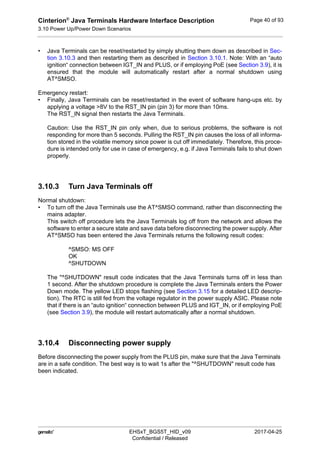
Attention: The ignition of Java Terminals is activated via a rising
edge of high potential (+3 ... +15 V)
5 GND - Ground
6 DSR01
1. Note that DSR0 may also be available via GPIO connector pin - see Section 3.7.
O Data Set Ready
7 RTS0 I Request To Send
8 CTS0 O Clear To Send
9 RING0 O Ring Indication
12345
6789
Cinterion®
Java Terminals Hardware Interface Description
3.6 USB Interface
44
 EHSxT_BGS5T_HID_v09 2017-04-25
Confidential / Released
Page 28 of 93
In addition, the modem control signals DTR0, DSR0, DCD0 and RING0 are available. The mo-
dem control signal RING0 (Ring Indication) can be used to indicate, to the cellular device ap-
plication, that a call or Unsolicited Result Code (URC) is received. There are different modes
of operation, which can be set with AT commands.
Note: The DTR0 signal will only be polled once per second from the internal firmware of Java
Terminals.
3.6 USB Interface
The USB interface is not available for EHS6T LAN. The other Java Terminals support a USB
2.0 High Speed (480Mbit/s) device interface that is Full Speed (12Mbit/s) compliant.
The USB interface can be used as command and data interface and for downloading Java
module firmware. It is only available as a slave device and not able to act as a USB host.
3.7 GPIO Interface
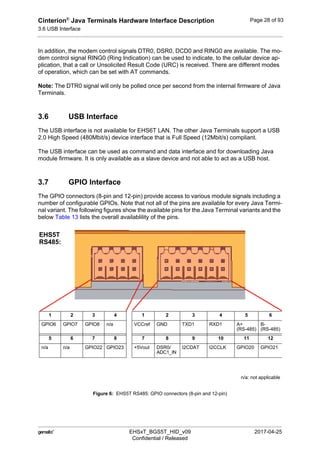
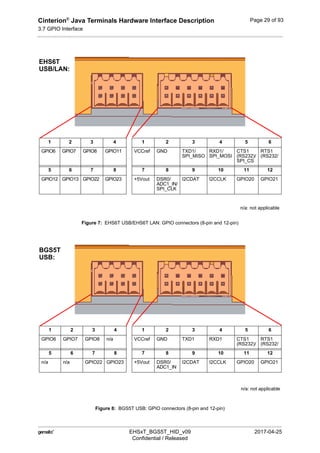
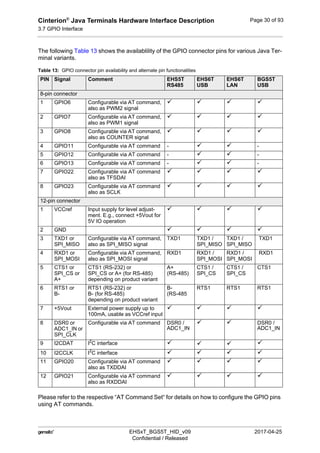
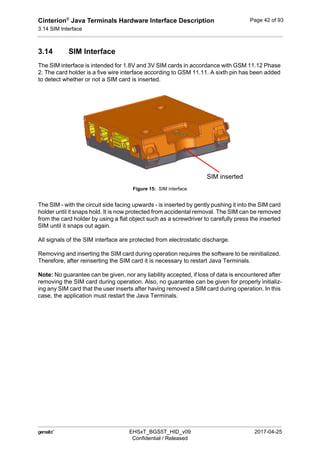
The GPIO connectors (8-pin and 12-pin) provide access to various module signals including a
number of configurable GPIOs. Note that not all of the pins are available for every Java Termi-
nal variant. The following figures show the available pins for the Java Terminal variants and the
below Table 13 lists the overall availablility of the pins.
Figure 6: EHS5T RS485: GPIO connectors (8-pin and 12-pin)
1 2 3 4 1 2 3 4 5 6
GPIO6 GPIO7 GPIO8 n/a VCCref GND TXD1 RXD1 A+
(RS-485)
B-
(RS-485)
5 6 7 8 7 8 9 10 11 12
n/a n/a GPIO22 GPIO23 +5Vout DSR0/
ADC1_IN
I2CDAT I2CCLK GPIO20 GPIO21
EHS5T
n/a: not applicable
RS485:
Cinterion®
Java Terminals Hardware Interface Description
3.7 GPIO Interface
44
 EHSxT_BGS5T_HID_v09 2017-04-25
Confidential / Released
Page 29 of 93
Figure 7: EHS6T USB/EHS6T LAN: GPIO connectors (8-pin and 12-pin)
Figure 8: BGS5T USB: GPIO connectors (8-pin and 12-pin)
1 2 3 4 1 2 3 4 5 6
GPIO6 GPIO7 GPIO8 GPIO11 VCCref GND TXD1/
SPI_MISO
RXD1/
SPI_MOSI
CTS1
(RS232)/
SPI_CS
RTS1
(RS232/
5 6 7 8 7 8 9 10 11 12
GPIO12 GPIO13 GPIO22 GPIO23 +5Vout DSR0/
ADC1_IN/
SPI_CLK
I2CDAT I2CCLK GPIO20 GPIO21
EHS6T
USB/LAN:
n/a: not applicable
1 2 3 4 1 2 3 4 5 6
GPIO6 GPIO7 GPIO8 n/a VCCref GND TXD1 RXD1 CTS1
(RS232)/
RTS1
(RS232/
5 6 7 8 7 8 9 10 11 12
n/a n/a GPIO22 GPIO23 +5Vout DSR0/
ADC1_IN
I2CDAT I2CCLK GPIO20 GPIO21
BGS5T
n/a: not applicable
USB:
Cinterion®
Java Terminals Hardware Interface Description
3.7 GPIO Interface
44
 EHSxT_BGS5T_HID_v09 2017-04-25
Confidential / Released
Page 30 of 93
The following Table 13 shows the availablility of the GPIO connector pins for various Java Ter-
minal variants.
Please refer to the respective “AT Command Set“ for details on how to configure the GPIO pins
using AT commands.
Table 13: GPIO connector pin availability and alternate pin functionalities
PIN Signal Comment EHS5T
RS485
EHS6T
USB
EHS6T
LAN
BGS5T
USB
8-pin connector
1 GPIO6 Configurable via AT command,
also as PWM2 signal
   
2 GPIO7 Configurable via AT command,
also as PWM1 signal
   
3 GPIO8 Configurable via AT command,
also as COUNTER signal
   
4 GPIO11 Configurable via AT command -   -
5 GPIO12 Configurable via AT command -   -
6 GPIO13 Configurable via AT command -   -
7 GPIO22 Configurable via AT command
also as TFSDAI
   
8 GPIO23 Configurable via AT command
also as SCLK
   
12-pin connector
1 VCCref Input supply for level adjust-
ment. E.g., connect +5Vout for
5V IO operation
   
2 GND    
3 TXD1 or
SPI_MISO
Configurable via AT command,
also as SPI_MISO signal
TXD1 TXD1 /
SPI_MISO
TXD1 /
SPI_MISO
TXD1
4 RXD1 or
SPI_MOSI
Configurable via AT command,
also as SPI_MOSI signal
RXD1 RXD1 /
SPI_MOSI
RXD1 /
SPI_MOSI
RXD1
5 CTS1 or
SPI_CS or
A+
CTS1 (RS-232) or
SPI_CS or A+ (for RS-485)
depending on product variant
A+
(RS-485)
CTS1 /
SPI_CS
CTS1 /
SPI_CS
CTS1
6 RTS1 or
B-
RTS1 (RS-232) or
B- (for RS-485)
depending on product variant
B-
(RS-485
RTS1 RTS1 RTS1
7 +5Vout External power supply up to
100mA, usable as VCCref input
   
8 DSR0 or
ADC1_IN or
SPI_CLK
Configurable via AT command DSR0 /
ADC1_IN
  DSR0 /
ADC1_IN
9 I2CDAT I2
C interface    
10 I2CCLK I2
C interface    
11 GPIO20 Configurable via AT command
also as TXDDAI
   
12 GPIO21 Configurable via AT command
also as RXDDAI
   
Cinterion®
Java Terminals Hardware Interface Description
3.7 GPIO Interface
44
 EHSxT_BGS5T_HID_v09 2017-04-25
Confidential / Released
Page 31 of 93
EHS5T‘s RS-485 interface is based on the TIA/EIA-485 standard defining electrical character-
istics of drivers and receivers for use in balanced multidrop communication systems. RS-485
is used in a lot of different fieldbus systems like Profibus, Interbus, Modbus and P-net.
RS-485 uses a shielded twisted pair cable where the inner pairs are used for balanced com-
munication. The two conductors in each pair are called A and B. RS-485 is usually half-duplex.
Data transmission speed depends on the length of the RS-485 bus cable and may be up to
115kbps.
Note: If employing EHS5T‘s RS-485 interface be sure not to switch off the EHS5 module, e.g.,
by calling AT^SMSO, to put the module into Power Down mode. This completely occupies and
therefore blocks the RS-485 bus, and may thus lead to a higher current consumption.
Also, be sure not to activate SLEEP mode, e.g., by setting AT^SPOW with <mode>=2, for the
EHS5 module, as the module may no longer be able to wake up from SLEEP mode, and will
then have to be reset.
3.7.1 Serial Interface ASC1
With EHS5T and EHS6T Java Terminals two respectively four pins at the GPIO connector can
be configured as ASC1 interface signals to provide a 2- or 4-wire serial modem interface ASC1.
For electrical characteristics please refer to Table 22.
The following pins at the GPIO connector can be configured as ASC1 interface signals: RXD1,
TXD1, RTS1 and CTS1 (see also Table 13). The configuration is done by AT command
AT^SCFG - see [1]. It is non-volatile and becomes active after a Java Terminal restart.
Java Terminals are designed for use as a DCE. Based on the conventions for DCE-DTE con-
nections they communicate with the customer application (DTE) using the following signals:
• Port TXD @ application sends data to Java Terminal’s TXD1 signal line
• Port RXD @ application receives data from the Java Terminal’s RXD1 signal line
Hardware handshake using the RTS1 and CTS1 signals is only supported for EHS6T.
Cinterion®
Java Terminals Hardware Interface Description
3.7 GPIO Interface
44
 EHSxT_BGS5T_HID_v09 2017-04-25
Confidential / Released
Page 32 of 93
3.7.2 Digital Audio Interface
Four pins at the Java Terminals‘ GPIO connector can be configured as digital audio interface
(DAI). The DAI can be used to connect audio devices capable of pulse code modulation (PCM).
The PCM functionality allows for the use of an external codec like the W681360.
The DAI interface supports a 256kHz, long frame synchronization master mode with the follow-
ing features:
• 16 Bit linear
• 8kHz sample rate / 125µs frame duration
• The most significant bit MSB is transferred first
• Data write at rising edge / data read at falling edge
• Common frame sync signal for transmit and receive
The following pins at the GPIO connector can be configured as DAI/PCM interface signals:
TXDDAI, RXDDAI, TFSDAI and SCLK (see also Table 13). The configuration is done by
AT^SCFG command - see [1]. It is non-volatile and becomes active after a module restart. DAI/
PCM and GPIO functionalities for these lines are mutually exclusive. Table 14 describes the
available DAI/PCM lines at the digital audio interface1
. For electrical details see Table 22.
Figure 9 shows the PCM timing for the master mode available with Java Terminals.
Figure 9: Long frame PCM timing, 256kHz
Section 3.7.2.1 gives an example of how the DAI can be employed.
1. Note: For the DAI interface to operate, the directions of the Java Terminals‘ GPIO level shifters must
be set according to the defined directions of the DAI signals. See Section 8.3.1.11 and Section 8.5 for
more information on how to change level shifter directions.
Table 14: Overview of DAI/PCM signals
Signal name Input/Output Description
TXDDAI (GPIO20) O PCM data from Java Terminals to external codec.
RXDDAI (GPIO21) I PCM data from external codec to Java Terminals.
TFSDAI (GPIO22) O Frame synchronization signal to external codec:
Long frame (8kHz)
SCLK (GPIO23) O Bit clock to external codec: 256kHz
SCLK
TXDDAI
RXDDAI
TFSDAI
MSB
MSB
LSB
LSB
14 13
14 13
1
1
12
12
2
2
MSB
MSB
125µs
11
Cinterion®
Java Terminals Hardware Interface Description
3.7 GPIO Interface
44
 EHSxT_BGS5T_HID_v09 2017-04-25
Confidential / Released
Page 33 of 93
3.7.2.1 Solutions for the Digital Audio Interface (DAI/PCM)
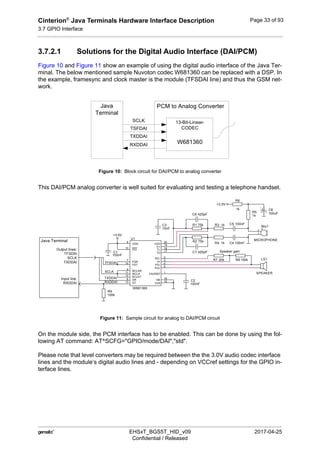
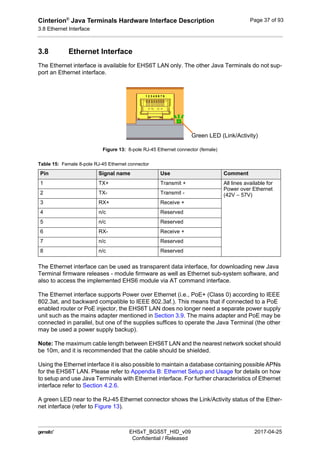
Figure 10 and Figure 11 show an example of using the digital audio interface of the Java Ter-
minal. The below mentioned sample Nuvoton codec W681360 can be replaced with a DSP. In
the example, framesync and clock master is the module (TFSDAI line) and thus the GSM net-
work.
Figure 10: Block circuit for DAI/PCM to analog converter
This DAI/PCM analog converter is well suited for evaluating and testing a telephone handset.
Figure 11: Sample circuit for analog to DAI/PCM circuit
On the module side, the PCM interface has to be enabled. This can be done by using the fol-
lowing AT command: AT^SCFG="GPIO/mode/DAI","std".
Please note that level converters may be required between the the 3.0V audio codec interface
lines and the module‘s digital audio lines and - depending on VCCref settings for the GPIO in-
terface lines.
W681360
13-Bit-Linear-
CODEC
PCM to Analog ConverterJava
Terminal
RXDDAI
TXDDAI
TSFDAI
SCLK
+3.0V
+3.0V
SCLK
TXDDAI
TFSDAI
RXDDAI
R5
1k
R6
1k
R9
100k
Mic1
MICROPHONE
1
2
+ C6
100uF
C3
10nF
C2
100nF
R8 100kR7 20k
C1
100nF
U1
W681360
15
6
5
8
1
4
9
10
2
3
19
18
17
16
14
13
12
11
7
20
VSS
VDD
PO+
DR
VAGREF
PO-
BCLKR
PDI
RO-
PI
TI+
TI-
TG
HB
FST
DT
BCLKT
MCLK
FSR
VAG
R1 75k
R2 75k
C7 420pF
C8 420pF
R4 1k
R3 1k
C4 100nF
C5 100nF
LS1
SPEAKER
Speaker gain
Java Terminal
Output lines:
TFSDAI
SCLK
TXDDAI
Input line:
RXDDAI
Cinterion®
Java Terminals Hardware Interface Description
3.7 GPIO Interface
44
 EHSxT_BGS5T_HID_v09 2017-04-25
Confidential / Released
Page 34 of 93
3.7.3 I2
C Interface
Two lines of the Java Terminals‘ GPIO connector are I2
C lines. I2
C is a serial, 8-bit oriented
data transfer bus for bit rates up to 400kbps in Fast mode. It consists of two lines, the serial
data line I2CDAT and the serial clock line I2CCLK. The Java Terminals‘ internal Java module
act as a single master device, e.g. the clock I2CCLK is driven by the Java module. I2CDAT is
a bi-directional line. Each device connected to the bus is software addressable by a unique 7-
bit address, and simple master/slave relationships exist at all times. The Java module operates
as master-transmitter or as master-receiver. An external application transmits or receives data
only on request of the module.
To configure and activate the I2C bus use the AT^SSPI command. Detailed information on the
AT^SSPI command as well explanations on the protocol and syntax required for data transmis-
sion can be found in [1].
With the external application, I2CDAT and I2CCLK lines need to be connected to a positive
supply voltage via a pull-up resistor. For electrical characteristics please refer to Table 22.
Note: Good care should be taken when connecting the I2C lines to the external application: The
wires of I2CCLK and I2CDAT should be equal in length and as short as possible.
Cinterion®
Java Terminals Hardware Interface Description
3.7 GPIO Interface
44
 EHSxT_BGS5T_HID_v09 2017-04-25
Confidential / Released
Page 35 of 93
3.7.4 SPI Interface
For EHS6T Java Terminals four GPIO interface pins can be configured as Serial Peripheral In-
terface (SPI). The SPI is a synchronous serial interface for control and data transfer between
Java Terminals and the external application. Only one application can be connected to the SPI
and the interface supports only master mode. The transmission rates are up to 6.5Mbit/s. The
SPI interface comprises the two data lines MOSI and MISO, the clock line SPI_CLK a well as
the chip select line SPI_CS.
The following pins at the GPIO connector can be configured as SPI interface signals: SPI_CLK,
SPI_MOSI, SPI_MISO and SPI_CS (see also Table 13). The configuration is done by AT com-
mand (see [1]). It is non-volatile and becomes active after a module restart. For electrical char-
acteristics please refer to Table 22.
To configure and activate the SPI interface use the AT^SSPI command. Detailed information
on the AT^SSPI command as well explanations on the SPI modes required for data transmis-
sion can be found in [1]. SPI, ADC1_IN and DSR0 functionalities are mutually exclusive.
In general, SPI supports four operation modes. The modes are different in clock phase and
clock polarity. The module’s SPI mode can be configured by using the AT command AT^SSPI.
Make sure the module and the connected slave device works with the same SPI mode.
Figure 12 shows the characteristics of the four SPI modes. The SPI modes 0 and 3 are the most
common used modes.
Figure 12: Characteristics of SPI modes
SPI MODE 0 SPI MODE 1
SPI MODE 2 SPI MODE 3
Clock phase
Clockpolarity
SPI_CS
MOSI
SPI_CLK
MISO
SPI_CS
MOSI
SPI_CLK
MISO
SPI_CS
MOSI
SPI_CLK
MISO
SPI_CS
MOSI
SPI_CLK
MISO
Sample Sample
Sample Sample
Cinterion®
Java Terminals Hardware Interface Description
3.7 GPIO Interface
44
 EHSxT_BGS5T_HID_v09 2017-04-25
Confidential / Released
Page 36 of 93
3.7.5 PWM Interface
The GPIO6 and GPIO7 pins at the GPIO connector can be configured as Pulse Width Modu-
lation signals PWM1 and PWM2 by AT^SCFG command - see [1]. The PWM interface lines
are output lines and can be used, for example, to connect buzzers. The PWM1 line is shared
with GPIO7 and the PWM2 line is shared with GPIO6 (see also Table 13). GPIO and PWM
functionalities are mutually exclusive1
.
3.7.6 Pulse Counter
The GPIO8 pin at the GPIO connector can be configured as pulse counter line COUNTER by
AT^SCFG command - see [1]. The pulse counter interface is an input line and can be used, for
example, as a clock (see also Table 13). GPIO and COUNTER functionalities are mutually ex-
clusive1
.
3.7.7 Analog-to-Digital Converter (ADC)
ADC1_IN can be used for general purpose voltage measurements. For electrical characteris-
tics see Section 4.2.4. ADC1_IN is configured and read by the AT^SRADC command - see [1].
ADC1_IN, DSR0 and SPI functionalities are mutually exclusive.
3.7.8 DSR0 signal
The DSR0 line available at the RS-232 interface is also routed to the GPIO connector and avail-
able as a separate pin. For electrical characteristics see Section 4.2.4. DSR0 can be configured
by AT^SCFG command - see [1]. DSR0, ADC1_IN and SPI functionalities are mutually exclu-
sive.
1. Note: For the PWM interface and pulse counter to operate, the directions of the Java Terminals‘ GPIO
level shifters must be set according to the defined directions of the PWM and COUNTER signals. See
Section 8.3.1.11 and Section 8.5 for more information on how to change level shifter directions.
Cinterion®
Java Terminals Hardware Interface Description
3.8 Ethernet Interface
44
 EHSxT_BGS5T_HID_v09 2017-04-25
Confidential / Released
Page 37 of 93
3.8 Ethernet Interface
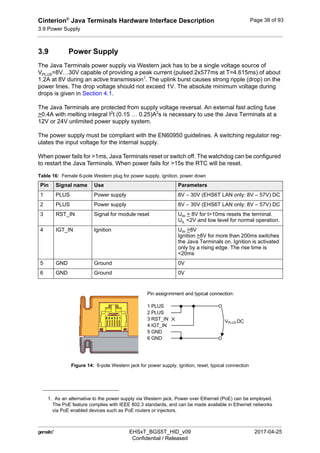
The Ethernet interface is available for EHS6T LAN only. The other Java Terminals do not sup-
port an Ethernet interface.
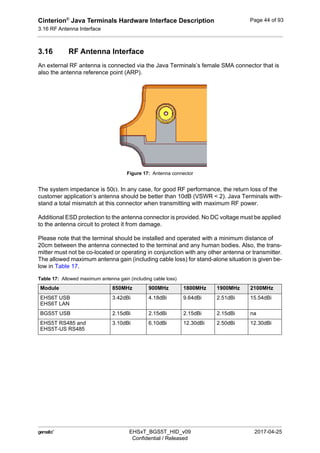
Figure 13: 8-pole RJ-45 Ethernet connector (female)
The Ethernet interface can be used as transparent data interface, for downloading new Java
Terminal firmware releases - module firmware as well as Ethernet sub-system software, and
also to access the implemented EHS6 module via AT command interface.
The Ethernet interface supports Power over Ethernet (i.e., PoE+ (Class 0) according to IEEE
802.3at, and backward compatible to IEEE 802.3af.). This means that if connected to a PoE
enabled router or PoE injector, the EHS6T LAN does no longer need a separate power supply
unit such as the mains adapter mentioned in Section 3.9. The mains adapter and PoE may be
connected in parallel, but one of the supplies suffices to operate the Java Terminal (the other
may be used a power supply backup).
Note: The maximum cable length between EHS6T LAN and the nearest network socket should
be 10m, and it is recommended that the cable should be shielded.
Using the Ethernet interface it is also possible to maintain a database containing possible APNs
for the EHS6T LAN. Please refer to Appendix B: Ethernet Setup and Usage for details on how
to setup and use Java Terminals with Ethernet interface. For further characteristics of Ethernet
interface refer to Section 4.2.6.
A green LED near to the RJ-45 Ethernet connector shows the Link/Activity status of the Ether-
net interface (refer to Figure 13).
Table 15: Female 8-pole RJ-45 Ethernet connector
Pin Signal name Use Comment
1 TX+ Transmit + All lines available for
Power over Ethernet
(42V – 57V)2 TX- Transmit -
3 RX+ Receive +
4 n/c Reserved
5 n/c Reserved
6 RX- Receive +
7 n/c Reserved
8 n/c Reserved
1 2 3 4 5 6 7 8
Green LED (Link/Activity)
Cinterion®
Java Terminals Hardware Interface Description
3.9 Power Supply
44
 EHSxT_BGS5T_HID_v09 2017-04-25
Confidential / Released
Page 38 of 93
3.9 Power Supply
The Java Terminals power supply via Western jack has to be a single voltage source of
VPLUS=8V…30V capable of providing a peak current (pulsed 2x577ms at T=4.615ms) of about
1.2A at 8V during an active transmission1
. The uplink burst causes strong ripple (drop) on the
power lines. The drop voltage should not exceed 1V. The absolute minimum voltage during
drops is given in Section 4.1.
The Java Terminals are protected from supply voltage reversal. An external fast acting fuse
>0.4A with melting integral I2
t (0.15 … 0.25)A2
s is necessary to use the Java Terminals at a
12V or 24V unlimited power supply system.
The power supply must be compliant with the EN60950 guidelines. A switching regulator reg-
ulates the input voltage for the internal supply.
When power fails for >1ms, Java Terminals reset or switch off. The watchdog can be configured
to restart the Java Terminals. When power fails for >15s the RTC will be reset.
Figure 14: 6-pole Western jack for power supply, ignition, reset, typical connection
1. As an alternative to the power supply via Western jack, Power over Ethernet (PoE) can be employed.
The PoE feature complies with IEEE 802.3 standards, and can be made available in Ethernet networks
via PoE enabled devices such as PoE routers or injectors.
Table 16: Female 6-pole Western plug for power supply, ignition, power down
Pin Signal name Use Parameters
1 PLUS Power supply 8V – 30V (EHS6T LAN only: 8V – 57V) DC
2 PLUS Power supply 8V – 30V (EHS6T LAN only: 8V – 57V) DC
3 RST_IN Signal for module reset UIH > 8V for t>10ms resets the terminal.
UIL <2V and low level for normal operation.
4 IGT_IN Ignition UIH >8V
Ignition >8V for more than 200ms switches
the Java Terminals on. Ignition is activated
only by a rising edge. The rise time is
<20ms
5 GND Ground 0V
6 GND Ground 0V
Pin assignmment and typical connection:
1 PLUS
2 PLUS
3 RST_IN
4 IGT_IN
5 GND
6 GND
VPLUS DC
6 5 4 3 2 1
Cinterion®
Java Terminals Hardware Interface Description
3.10 Power Up/Power Down Scenarios
44
 EHSxT_BGS5T_HID_v09 2017-04-25
Confidential / Released
Page 39 of 93
Mains adapter: If it fits into the design of your application we recommend the plug-in supply unit
used with the type approved Gemalto M2M reference setup. Ordering information can be found
in Chapter 7. This 12V mains adapter comes with a 6-pole Western plug and provides an inter-
nal connection between IGT_IN pin and PLUS pin. If there is such an “auto ignition” connection
between PLUS and IGT_IN, the module will restart automatically after a normal shutdown. Note
that if employing PoE for EHS6T LAN, the module will also restart automatically after a normal
shutdown.
3.10 Power Up/Power Down Scenarios
In general, be sure not to turn on the Java Terminals while it is beyond the safety limits of volt-
age and temperature stated in Section 4.1. Java Terminals immediately switch off after having
started and detected these inappropriate conditions. In extreme cases this can cause perma-
nent damage to the Java Terminals.
3.10.1 Turn Java Terminals on
There are various possibilities to turn on Java Terminals and start into normal mode, depending
on connecting and/or operating states.
If powered off (i.e., if Java Terminals‘ power supply is disconnected):
• Java Terminals can simply be started up by plugging an appropriate power supply unit
between PLUS and GND of the 6-pole Western jack. If using the PoE feature, EHS6T LAN
can also be started up by connecting simply the Ethernet interface
If switched off (i.e., while in Power Down mode):
• Java Terminals can be started up by activating the IGT_IN signal (pin 4).
• Java Terminals can be started up by activating the RS-232 DTR line (as long as RST_IN
signal (pin 3) is not active (voltage <2V)
• Java Terminals can be started up by configuring the watchdog appropriately. For details
see Chapter 8.
Note: With an “auto-ignition“ connection between IGT_IN and PLUS, or if employing PoE (see
Section 3.9), Java Terminals will automatically restart into normal mode after switch off (see
Section 3.10.3). The start up variant from Power Down mode is therefore only applicable if
there is no such “auto-ignition“ connection at the power supply unit.
3.10.2 Reset/Restart Java Terminals
There are various possibilities to reset/restart Java Terminals:
• Java Terminals can be reset/restarted by entering the command AT+CFUN=x,1. For details
on AT+CFUN please see [1].
• Java Terminals can be reset/restarted by configuring the watchdog appropriately. For
details see Chapter 8.
• Java Terminals can be reset/restarted by configuring a wake-up alarm (see Section 3.13)
before using AT^SMSO to turn them off and send them into Power Down mode.
Cinterion®
Java Terminals Hardware Interface Description
3.10 Power Up/Power Down Scenarios
44
 EHSxT_BGS5T_HID_v09 2017-04-25
Confidential / Released
Page 40 of 93
• Java Terminals can be reset/restarted by simply shutting them down as described in Sec-
tion 3.10.3 and then restarting them as described in Section 3.10.1. Note: With an “auto
ignition“ connection between IGT_IN and PLUS, or if employing PoE (see Section 3.9), it is
ensured that the module will automatically restart after a normal shutdown using
AT^SMSO.
Emergency restart:
• Finally, Java Terminals can be reset/restarted in the event of software hang-ups etc. by
applying a voltage >8V to the RST_IN pin (pin 3) for more than 10ms.
The RST_IN signal then restarts the Java Terminals.
Caution: Use the RST_IN pin only when, due to serious problems, the software is not
responding for more than 5 seconds. Pulling the RST_IN pin causes the loss of all informa-
tion stored in the volatile memory since power is cut off immediately. Therefore, this proce-
dure is intended only for use in case of emergency, e.g. if Java Terminals fails to shut down
properly.
3.10.3 Turn Java Terminals off
Normal shutdown:
• To turn off the Java Terminals use the AT^SMSO command, rather than disconnecting the
mains adapter.
This switch off procedure lets the Java Terminals log off from the network and allows the
software to enter a secure state and save data before disconnecting the power supply. After
AT^SMSO has been entered the Java Terminals returns the following result codes:
^SMSO: MS OFF
OK
^SHUTDOWN
The "^SHUTDOWN" result code indicates that the Java Terminals turns off in less than
1 second. After the shutdown procedure is complete the Java Terminals enters the Power
Down mode. The yellow LED stops flashing (see Section 3.15 for a detailed LED descrip-
tion). The RTC is still fed from the voltage regulator in the power supply ASIC. Please note
that if there is an “auto ignition“ connection between PLUS and IGT_IN, or if employing PoE
(see Section 3.9), the module will restart automatically after a normal shutdown.
3.10.4 Disconnecting power supply
Before disconnecting the power supply from the PLUS pin, make sure that the Java Terminals
are in a safe condition. The best way is to wait 1s after the "^SHUTDOWN" result code has
been indicated.
Cinterion®
Java Terminals Hardware Interface Description
3.11 Automatic thermal shutdown
44
 EHSxT_BGS5T_HID_v09 2017-04-25
Confidential / Released
Page 41 of 93
3.11 Automatic thermal shutdown
An on-board NTC measures the temperature of the built-in Java module. If over- or undertem-
perature is detected on the module the Java Terminals automatically shut down to avoid ther-
mal damage to the system. Table 25 specifies the ambient temperature threshold for the Java
Terminals.
The automatic shutdown procedure is equivalent to the power-down initiated with the AT^SM-
SO command, i.e. Java Terminals log off from the network and the software enters a secure
state avoiding loss of data.
Alert messages transmitted before the Java Terminals switch off are implemented as Unsolic-
ited Result codes (URCs). For details see the description of AT^SCTM command provided in
[1].
The watchdog can be configured to restart the Java Terminals after a defined period of time.
3.12 Hardware Watchdog
The Java Terminals feature a programmable hardware watchdog that permanently monitors
the terminals hardware and can be configured to react to various hardware states. The watch-
dog may for example be configured to periodically restart the terminal, independent of its cur-
rent operating state. Figure 4 shows how the watchdog is integrated into the Java Terminals.
Please refer to Chapter 8 for details on how to control and configure the hardware watchdog.
3.13 RTC
The internal Real Time Clock (RTC) of the Java Terminals retains the time and date and han-
dles the alarm function. The AT+CCLK command serves to set the time and date, and AT+CA-
LA specifies a reminder message or sets an alarm for the .Java Terminals to wake up. See [1]
for details.
A dedicated voltage regulator backs up the RTC even in Power Down mode and enables Java
Terminals to keep track of time and date.
However, please note that the Alarm function described in [1], Section AT+CALA, will only work
if there is no “auto ignition“ connection active between IGT_IN pin and PLUS pin at the power
supply unit that will automatically trigger a restart (see Section 3.9). Otherwise, the AT+CALA
command can only be used to set a reminder message, but not to configure the Java Terminals
to wake up from Power Down mode.
Cinterion®
Java Terminals Hardware Interface Description
3.14 SIM Interface
44
 EHSxT_BGS5T_HID_v09 2017-04-25
Confidential / Released
Page 42 of 93
3.14 SIM Interface
The SIM interface is intended for 1.8V and 3V SIM cards in accordance with GSM 11.12 Phase
2. The card holder is a five wire interface according to GSM 11.11. A sixth pin has been added
to detect whether or not a SIM card is inserted.
Figure 15: SIM interface
The SIM - with the circuit side facing upwards - is inserted by gently pushing it into the SIM card
holder until it snaps hold. It is now protected from accidental removal. The SIM can be removed
from the card holder by using a flat object such as a screwdriver to carefully press the inserted
SIM until it snaps out again.
All signals of the SIM interface are protected from electrostatic discharge.
Removing and inserting the SIM card during operation requires the software to be reinitialized.
Therefore, after reinserting the SIM card it is necessary to restart Java Terminals.
Note: No guarantee can be given, nor any liability accepted, if loss of data is encountered after
removing the SIM card during operation. Also, no guarantee can be given for properly initializ-
ing any SIM card that the user inserts after having removed a SIM card during operation. In this
case, the application must restart the Java Terminals.
SIM inserted
Cinterion®
Java Terminals Hardware Interface Description
3.15 Status LEDs
44
 EHSxT_BGS5T_HID_v09 2017-04-25
Confidential / Released
Page 43 of 93
3.15 Status LEDs
Java Terminals have two LEDs indicating its operating states through the semitransparent cas-
ing:
• A green LED indicates whether the Java Terminals are ready to operate and reports certain
watchdog operations.
• A orange LED indicates the network registration state of the Java Terminals.
Figure 16: Status LED
The orange LED can be configured by using the AT^SLED command to either light permanent-
ly or to flash. For details on the AT command please refer to [1].
Green LED
(Power on/off)
Orange LED
(Network status)
Cinterion®
Java Terminals Hardware Interface Description
3.16 RF Antenna Interface
44
 EHSxT_BGS5T_HID_v09 2017-04-25
Confidential / Released
Page 44 of 93
3.16 RF Antenna Interface
An external RF antenna is connected via the Java Terminals’s female SMA connector that is
also the antenna reference point (ARP).
Figure 17: Antenna connector
The system impedance is 50. In any case, for good RF performance, the return loss of the
customer application’s antenna should be better than 10dB (VSWR < 2). Java Terminals with-
stand a total mismatch at this connector when transmitting with maximum RF power.
Additional ESD protection to the antenna connector is provided. No DC voltage must be applied
to the antenna circuit to protect it from damage.
Please note that the terminal should be installed and operated with a minimum distance of
20cm between the antenna connected to the terminal and any human bodies. Also, the trans-
mitter must not be co-located or operating in conjunction with any other antenna or transmitter.
The allowed maximum antenna gain (including cable loss) for stand-alone situation is given be-
low in Table 17.
Table 17: Allowed maximum antenna gain (including cable loss)
Module 850MHz 900MHz 1800MHz 1900MHz 2100MHz
EHS6T USB
EHS6T LAN
3.42dBi 4.18dBi 9.64dBi 2.51dBi 15.54dBi
BGS5T USB 2.15dBi 2.15dBi 2.15dBi 2.15dBi na
EHS5T RS485 and
EHS5T-US RS485
3.10dBi 6.10dBi 12.30dBi 2.50dBi 12.30dBi
Cinterion®
Java Terminals Hardware Interface Description
4 Electrical and Environmental Characteristics
54
 EHSxT_BGS5T_HID_v09 2017-04-25
Confidential / Released
Page 45 of 93
4 Electrical and Environmental Characteristics
4.1 Absolute Maximum Ratings
Table 18: Absolute maximum ratings
Parameter Port / Description Min. Max. Unit
Supply voltage PLUS -40 301
1. EHS6T LAN only: 57V
V
Overvoltage PLUS / for 1min 33 V
Input voltage for on/off
control lines
IGT_IN, RST_IN -5 30 V
RS-232 input voltage TXD0, DTR0, RTS0 -25 +25 V
GPIO connector pins input
voltage (incl. VCCref)
8-pin and 12-pin connectors
(if pins specified/configured as input pins)
-0.3 6 V
GPIO connector pins output
current
8-pin and 12-pin connectors
(if pins specified/configured as output pins)
0 50mA drawn
@each pin2
2. Please note that if the VCCref pin is connected to the +5Vout pin, no more than 100mA should be drawn
by all pins. In this case it is no longer allowed to draw a maximum of 50mA for each pin.
--
USB interface All electrical characteristics according to
USB Implementers' Forum, USB 2.0 Spec-
ification.
-- -- --
Immunity against discharge
of static electricity
All interfaces (lines)
Contact discharge
Air discharge
-4
-8
+4
+8
kV
kV
Table 19: Operating supply voltage for Java Terminals
Parameter Min Typ Max Unit
Supply voltage PLUS
measured at (6-pole) west-
ern jack plug (1 to 6)
8 12 301
1. EHS6T LAN only: 57V
V
Minimum supply voltage
PLUS measured at (6-pole)
western jack plug (1 to 6)
@any time,
incl. all ripple, drops and
temperature fluctuations
7.6 V
Cinterion®
Java Terminals Hardware Interface Description
4.2 Electrical Specifications of the Application Interface
54
 EHSxT_BGS5T_HID_v09 2017-04-25
Confidential / Released
Page 46 of 93
4.2 Electrical Specifications of the Application Interface
4.2.1 On/Off Control
4.2.2 RS-232 Interface
4.2.3 USB Interface
All electrical characteristics according to USB Implementers' Forum, USB 2.0 Specification.
Table 20: On/Off control line specifications
Parameter Description Conditions Min. Typ Max. Unit
Vhigh Input voltage
IGT_IN, RST_IN
active high 8 30 V
Vlow 0 2 V
RIN Input resistance of
IGT_IN, RST_IN
1 M
Vhigh Input voltage
DTR
active high 2.4 +25 V
Vlow -25 0.8 V
RIN Input resistance of
DTR
3 5 7 k
Table 21: RS-232 interface specifications
Parameter Description Conditions Min. Typ Max. Unit
VOUT Transmitter output voltage
swing for
RXD0, CTS0, DSR0,
DCD0, RING0
@ 3k load ±5 ±5.4 V
ROUT Transmitter output resis-
tance
RXD0, CTS0, DSR0,
DCD0, RING0
300 
VIn Receiver input voltage
range
TXD0, RTS0, DTR0
-25 +25 V
RIN Receiver input resistance
TXD0, RTS0, DTR0
3 5 7 k
VIlow Input threshold low 0.8 1.5 V
VIhigh Input threshold high 1.8 2.4 V
Baudrate Autobauding 1.2 960 kbps
Fixed range 1.2 960 kbps
LECable Length of RS-232 cable 1.8 2 m
Cinterion®
Java Terminals Hardware Interface Description
4.2 Electrical Specifications of the Application Interface
54
 EHSxT_BGS5T_HID_v09 2017-04-25
Confidential / Released
Page 47 of 93
4.2.4 GPIO Interface
Table 22: GPIO interface specifications (requirements)
Function Signal name IO Signal form and level Comment
8-pin, 12-
pin connec-
tors for:
GPIO,
Power,
DAI,
I2
C and
ASC1, SPI,
RS-485
GPIO 6-8
GPIO 11-13
GPIO 20-21
GPIO22-23
IO VOLmax = 0.1V at I = 100µA
VOLmax = 0.55V at I = 32mA
VOHmin = VCCref - 0.1V at I = 100µA
VOHmin = VCCref - 0.4V at I < 12mA
VOHmin = VCCref - 0.7V at I < 32mA
VILmax = 0.3 * VCCref
VIHmin = 0.7 * VCCref
If unused keep lines
open.
Please note that some
GPIO lines can be config-
ured for functions other
than GPIO:
GPIO6/GPIO7: PWM
GPIO8: Pulse Counter/
WD_RETRIG
GPIO20-23: PCM/DAI
VCCref I Vimax = 5.5V
Vimin = 1.8V
Input current has to at least match the
positive output current required by all
configured and used GPIO lines.
For level adjustment.
E.g., connect 5Vout for
5V IO operation.
Must be connected to
1.8...5.5V if employing
signals from GPIO con-
nector.
GND -- --
TXD1/
SPI_MISO
I VOLmax = 0.1V at I = 100µA
VOLmax = 0.55V at I = 32mA
VOHmin = VCCref - 0.1V at I = 100µA
VOHmin = VCCref - 0.4V at I < 12mA
VOHmin = VCCref - 0.7V at I < 32mA
VILmax = 0.3 * VCCref
VIHmin = 0.7 * VCCref
If unused keep lines
open.
SPI interface is not avail-
able for EHS5T RS485
and BGS5T.
RXD1/ SPI_-
MOSI
O
CTS1/A+/
SPI_CS
O
RTS1/B- I
+5Vout O 5V, +0.05V, -0.2V
Ioutmax = 100mA
Regulated output for
external supply. Can be
connected to VCCref.
If unused, keep open.
DSR0/
ADC1_IN
(Analog-to-
Digital con-
verter)/ SPI_-
CLK
I RI = 1M
VImax = 0V...VCCref + 0.3V
Valid range 0V…5V
Resolution 1024 steps
Tolerance 0.3%
ADC1_IN can be used as
input for external mea-
surements.
If unused keep line open.
Cinterion®
Java Terminals Hardware Interface Description
4.2 Electrical Specifications of the Application Interface
54
 EHSxT_BGS5T_HID_v09 2017-04-25
Confidential / Released
Page 48 of 93
4.2.5 RS-485 Interface
4.2.6 Ethernet Interface
The Ethernet interface is implemented as 10/100 Base-T RJ45 Ethernet according to the IEEE
802.3 Ethernet standards, including PoE+ (IEEE 802.3at, backward compatible to IEEE
802.3af). For further characteristics see also Section 3.8.
Please refer to Appendix B: Ethernet Setup and Usage for details on how to setup and use the
Java Terminals with Ethernet interface.
8-pin, 12-
pin connec-
tors for:
GPIO,
Power,
I2
C and
ASC1, SPI,
RS-485
I2CDAT IO Open drain IO
VOLmin = 0.3V at I = -3mA
VOHmax = VCCref
Rpullup = 2.2kOhm
VILmax = 0.35V
VIHmin = 1.3V
VIHmax = VCCref
According to the I2
C Bus
Specification Version 2.1
for the fast mode a rise
time of max. 300ns is per-
mitted. There is also a
maximum VOL=0.4V at
3mA specified.
The value of the pull-up
depends on the capactive
load of the whole system
(I2
C Slave + lines). The
maximum sink current of
I2CDAT and I2CCLK is
4mA.
If unused keep lines
open.
I2CCLK IO
Table 23: RS-485 interface specifications (requirements)
Parameter Description Conditions Min. Typ Max. Unit
VOUT Transmitter output voltage
for RS485-A, -B
RDiff = 100 2 5 V
RIN Resistance RS485-A, -B 48 k
VIn Receiver input voltage
range RS485-A, -B
-7 +12 V
VRIHYS Input hysteresis 25 mV
Threshold
voltage
Receiver diff.
threshold voltage
-200 +200 mV
Bus
termination
120 
Baudrate Autobauding 1.2 230 kbps
Fixed range 1.2 230 kbps
LECable Length of RS-485 indoor
cable
10 m
Table 22: GPIO interface specifications (requirements)
Function Signal name IO Signal form and level Comment
Cinterion®
Java Terminals Hardware Interface Description
4.3 Power Supply Ratings
54
 EHSxT_BGS5T_HID_v09 2017-04-25
Confidential / Released
Page 49 of 93
4.3 Power Supply Ratings
Table 24: Power supply specifications
Para-
meter
Description Conditions Typical Unit
EHS5T
RS485
EHS6T
USB
BGS5T
USB
EHS6T
LAN
VPLUS Allowed voltage ripple
(peak-peak), drop
during transmit burst
peak current
Power control level for Pout
max1
1 1 1 1 V
IPLUS
2
Average supply current
(average time 3 min.)
Power Down
mode
@8V 40 21 18 115 mA
@30V 15 10 10 ---
@57V --- --- --- 30
Average GSM supply
current
(average time 3 min.)3
IDLE mode
(GSM/GPRS,
850/900MHz,
1800/1900MHz)
@8V 25 40 40 190 mA
@30V 11 16 13 ---
@57V --- --- --- 45
GPRS DATA
mode(1 Tx, 4 Rx,
850/900MHz)
@8V 170 175 180 280 mA
@30V 47 50 50 ---
@57V --- --- --- 50
GPRS DATA
mode(1 Tx, 4 Rx,
1800/1900MHz)
@8V 120 140 135 225 mA
@30V 21 38 40 ---
@57V --- --- --- 45
GPRS DATA
mode(4 Tx, 1 Rx,
850/900MHz)
@8V 225 245 370 410 mA
@30V 67 100 100 ---
@57V --- --- --- 75
GPRS DATA
mode(4 Tx, 1 Rx,
1800/1900MHz)
@8V 160 190 240 265 mA
@30V 50 56 70 ---
@57V --- --- --- 50
EDGE DATA
mode(1 Tx, 4 Rx,
850/900MHz)
@8V 175 175 200 220 mA
@30V 48 50 50 ---
@57V --- --- --- 45
EDGE DATA
mode(1 Tx, 4 Rx,
1800/1900MHz)
@8V 125 130 140 205 mA
@30V 40 40 40 ---
@57V --- --- --- 45
EDGE DATA
mode(4 Tx, 1 Rx,
850/900MHz)
@8V 235 240 370 350 mA
@30V 67 70 100 ---
@57V --- --- --- 65
EDGE DATA
mode(4 Tx, 1 Rx,
1800/1900MHz)
@8V 160 190 240 350 mA
@30V 50 56 70 ---
@57V --- --- --- 65
Cinterion®
Java Terminals Hardware Interface Description
4.3 Power Supply Ratings
54
 EHSxT_BGS5T_HID_v09 2017-04-25
Confidential / Released
Page 50 of 93
IPLUS Peak supply current
(during 577µs transmis-
sion slot every 4.6ms)
Power control
level for Pout max
(850/900MHz)
@8V 1100 1130 1200 1320 mA
@30V 260 270 260 ---
@57V --- --- --- 220
Power control
level for Pout max
(1800/1900MHz)
@8V 815 820 630 850 mA
@30V 195 200 160 ---
@57V --- --- --- 150
Average UMTS supply
current (average time 3
min.)
IDLE mode @8V 27 79 --- 190 mA
@30V 11 12 --- ---
@57V --- --- --- 45
UMTS DATA
(Band I; 23dBm)
@8V 315 410 --- 330 mA
@30V 90 115 --- ---
@57V --- --- --- 65
UMTS DATA
Band II; 23dBm
@8V --- 450 --- 330 mA
@30V --- 125 --- ---
@57V --- --- --- 70
UMTS DATA
Band V/VI; 23dBm
@8V --- 415 --- 330 mA
@30V --- 115 --- ---
@57V --- --- --- 70
UMTS DATA
Band VIII; 23dBm
@8V 370 410 --- 350 mA
@30V 105 115 --- ---
@57V --- --- --- 75
HSPA DATA
(Band I; 23dBm)
@8V 315 415 --- 475 mA
@30V 90 115 --- ---
@57V --- --- --- 85
HSPA DATA
Band II; 23dBm
@8V --- 450 --- 490 mA
@30V --- 125 --- ---
@57V --- --- --- 105
HSPA DATA
Band V/VI; 23dBm
@8V --- 415 --- 485 mA
@30V --- 115 --- ---
@57V --- --- --- 90
HSPA DATA
Band VIII; 23dBm
@8V 370 410 --- 510 mA
@30V 105 115 --- ---
@57V --- --- --- 90
1. Lowest voltage (minimum peak) incl. all ripple and drops >7.6V including voltage drop, ripple and spikes,
measured at western jack (6-pole) pins.
2. Typical values measured with antenna impedance = 50 Ohm (return loss >20dB).
3. BGS5T USB does not support EDGE.
Table 24: Power supply specifications
Para-
meter
Description Conditions Typical Unit
EHS5T
RS485
EHS6T
USB
BGS5T
USB
EHS6T
LAN
Cinterion®
Java Terminals Hardware Interface Description
4.4 Operating Temperatures
54
 EHSxT_BGS5T_HID_v09 2017-04-25
Confidential / Released
Page 51 of 93
4.4 Operating Temperatures
Note: Within the specified operating temperature ranges the board temperature may vary to a
great extent depending on operating mode, used frequency band, radio output power and cur-
rent supply voltage. Note also the differences and dependencies that usually exist between
board (PCB) temperature of the Java module and its ambient temperature.
Table 25: Temperature characteristics
Parameter Min Typical Max Unit
Normal operation1
1. Board temperature of Java module.
-30 +85 °C
Extended operation1, 2
2. Extended operation allows normal mode speech calls or data transmission for limited time until au-
tomatic thermal shutdown takes effect. Within the extended temperature range (outside the normal
operating temperature range) the specified electrical characteristics may be in- or decreased.
-40 to -30 +85 to +90 °C
Automatic thermal shutdown1, 3
3. Due to temperature measurement uncertainty, a tolerance of ±3°C on these switching thresholds
may occur.
<-40 >+90 °C
Thermal resistance (Rth)4
2G operation (with Pth = 1.5W)
3G operation (with Pth = 3.5W)
4. Thermal resistance (Rth) of the Java Terminals at the highest possible thermal power (Pth) dissipa-
tion, i.e., at the worst possible network conditions. Measured in still air with an air gap of at least
100mm between the Java Terminals and other objects.
10
11.5
K/W
Cinterion®
Java Terminals Hardware Interface Description
4.5 Antenna Interface
54
 EHSxT_BGS5T_HID_v09 2017-04-25
Confidential / Released
Page 52 of 93
4.5 Antenna Interface
Table 26 lists RF antenna interface specifications for the Java Terminals. Please note that the
specified conditions may not apply to or be supported by all terminals.
Table 26: RF Antenna interface GSM / UMTS
Parameter Conditions Min. Typical Max. Unit
UMTS/HSPA connectivity Band I, II, V, VI, VIII (not every module variant supports all bands)
Receiver Input Sensitivity @
ARP
UMTS 800/850 Band VI/V -104.7/
-106.7
-110 dBm
UMTS 900 Band VIII -103.7 -110 dBm
UMTS 1900 Band II -104.7 -109 dBm
UMTS 2100 Band I -106.7 -110 dBm
RF Power @ ARP with
50Ohm Load
Board temperature <85°C
UMTS 800/850 Band VI/V +21 +24 +25 dBm
UMTS 900 Band VIII +21 +24 +25 dBm
UMTS 1900 Band II +21 +24 +25 dBm
UMTS 2100 Band I +21 +24 +25 dBm
GPRS coding schemes Class 12, CS1 to CS4
EGPRS Class 12, MCS1 to MCS9
GSM Class Small MS
Static Receiver input Sensi-
tivity @ ARP
GSM 850 / E-GSM 900 -102 -109 dBm
GSM 1800 / GSM 1900 -102 -108 dBm
RF Power @
ARP
with 50Ohm
Load
GSM GSM 850 / E-GSM 900 33 dBm
GSM 1800 / GSM 1900 30 dBm
Cinterion®
Java Terminals Hardware Interface Description
4.5 Antenna Interface
54
 EHSxT_BGS5T_HID_v09 2017-04-25
Confidential / Released
Page 53 of 93
RF Power @
ARP
with 50Ohm
Load,
(with maxi-
mum power
reduction)
BGS5T USB
does not
support
EDGE, devi-
ating values
are given in
brackets
GPRS, 1 TX GSM 850 / E-GSM 900 33 dBm
GSM 1800 / GSM 1900 30 dBm
EDGE, 1 TX GSM 850 / E-GSM 900 27 dBm
GSM 1800 / GSM 1900 26 dBm
GPRS, 2 TX GSM 850 / E-GSM 900 30 dBm
GSM 1800 / GSM 1900 27
(28.3)
dBm
EDGE, 2 TX GSM 850 / E-GSM 900 24 dBm
GSM 1800 / GSM 1900 23 dBm
GPRS, 3 TX GSM 850 / E-GSM 900 28.2
(27.7)
dBm
GSM 1800 / GSM 1900 25.2
(27.4)
dBm
EDGE, 3 TX GSM 850 / E-GSM 900 22.2 dBm
GSM 1800 / GSM 1900 21.2 dBm
GPRS, 4 TX GSM 850 / E-GSM 900 27
(25.4)
dBm
GSM 1800 / GSM 1900 24
(25.2)
dBm
EDGE, 4 TX GSM 850 / E-GSM 900 21 dBm
GSM 1800 / GSM 1900 20 dBm
Table 26: RF Antenna interface GSM / UMTS
Parameter Conditions Min. Typical Max. Unit
Cinterion®
Java Terminals Hardware Interface Description
4.6 Storage Conditions
54
 EHSxT_BGS5T_HID_v09 2017-04-25
Confidential / Released
Page 54 of 93
4.6 Storage Conditions
The conditions stated above are only valid for devices in their original packed state in weather
protected, non-temperature-controlled storage locations. Normal storage time under these
conditions is 12 months maximum.
Table 27: Storage conditions
Type Condition Unit Reference
Air temperature: Low
High
-30
+75
°C ETS 300 019-2-1: T1.2, IEC 60068-2-1 Ab
ETS 300 019-2-1: T1.2, IEC 60068-2-2 Bb
Humidity relative: Low
High
Condens.
10
90 at 30°C
90-100 at 30°C
% ---
ETS 300 019-2-1: T1.2, IEC 60068-2-56
Cb
ETS 300 019-2-1: T1.2, IEC 60068-2-30
Db
Air pressure: Low
High
70
106
kPa IEC TR 60271-3-1: 1K4
IEC TR 60271-3-1: 1K4
Movement of surrounding air 1.0 m/s IEC TR 60271-3-1: 1K4
Water: rain, dripping, icing and
frosting
Not allowed --- ---
Radiation: Solar
Heat
1120
600
W/m2
ETS 300 019-2-1: T1.2, IEC 60068-2-2 Bb
Chemically active substances Not
recommended
IEC TR 60271-3-1: 1C1L
Mechanically active substances Not
recommended
IEC TR 60271-3-1: 1S1
Vibration sinusoidal:
Displacement
Acceleration
Frequency range
1.5
5
2-9 9-200
mm
m/s2
Hz
IEC TR 60271-3-1: 1M2
Shocks:
Shock spectrum
Duration
Acceleration
semi-sinusoidal
1
50
ms
m/s2
IEC 60068-2-27 Ea
Cinterion®
Java Terminals Hardware Interface Description
5 Mechanics, Mounting and Packaging
59
 EHSxT_BGS5T_HID_v09 2017-04-25
Confidential / Released
Page 55 of 93
5 Mechanics, Mounting and Packaging
5.1 Mechanical Dimensions
Figure 18 shows a 3D view of the Java Terminal and provides an overview of the mechanical
dimensions of the board. For further details see Figure 19 and Figure 20. To allow for an easier
mechanical implementation into an external application 3D STP data for the Java Terminals is
attached to this PDF. Please open the Attachments navigation panel to view and save this in-
formation.
Figure 18: Java Terminals 3D overview
Length: 113.5mm (including fixtures for cable straps)
Width: 75mm (excluding antenna and serial interface connectors)
Height: 25.5mm
Weight: 120g
113.5mm
75mm
25.5mm
Cinterion®
Java Terminals Hardware Interface Description
5.1 Mechanical Dimensions
59
 EHSxT_BGS5T_HID_v09 2017-04-25
Confidential / Released
Page 56 of 93
Figure 19: Java Terminals mechanical dimensions
Cinterion®
Java Terminals Hardware Interface Description
5.1 Mechanical Dimensions
59
 EHSxT_BGS5T_HID_v09 2017-04-25
Confidential / Released
Page 57 of 93
Figure 20: Java Terminals exploded view
Cinterion®
Java Terminals Hardware Interface Description
5.2 Mounting the Java Terminals
59
 EHSxT_BGS5T_HID_v09 2017-04-25
Confidential / Released
Page 58 of 93
5.2 Mounting the Java Terminals
There are a number of ways to mount the Java Terminals:
• Java Terminals can be attached to a rail installation or other surface using the two provided
screw holes for screws, e.g., size M3.
• Java Terminals can be fastened to a rack or holding using the two provided fixtures for
cable straps.
• Java Terminals can be slid onto a specific DIN rail made according to DIN EN 60715 - C
section, C30 format. A catch at the terminal’s bottom side will have to be removed to slide
multiple terminals onto a single rail.
• Using a BOPLA TSH 35-2 universal DIN rail holder the Java Terminals can be fitted onto
another special type of DIN rail made according to DIN EN 60715 - Top hat section, 35mm
(e.g., Wago 210-113 steel carrier rail).
The following figure shows the various possibilities provided to mount the Java Terminals.
Figure 21: Mounting the Java Terminals
The various ways to mount the Java Terminals may be combined where appropriate. It is for
example possible to slide the terminal onto a DIN rail and in addition use cable straps to fasten
it to a holding.
Catch to mount
Screw holes for
Screw holes
Fixtures for
cable straps
DIN rail holder
C-rail (C30)
BOPLA TSH 35-2
Cinterion®
Java Terminals Hardware Interface Description
5.3 Packaging
59
 EHSxT_BGS5T_HID_v09 2017-04-25
Confidential / Released
Page 59 of 93
5.3 Packaging
Java Terminals come in terminal boxes:
• Terminal box size: 191mm x 143mm x 44mm.
Cinterion®
Java Terminals Hardware Interface Description
6 Full Type Approval
63
 EHSxT_BGS5T_HID_v09 2017-04-25
Confidential / Released
Page 60 of 93
6 Full Type Approval
6.1 Gemalto M2M Reference Setup
The Gemalto M2M reference setup submitted to type approve Java Terminals consists of the
following components:
• Java Terminals with approved Java module
• PC as MMI
• Power Supply
Figure 22: Reference equipment for approval
For ordering information please refer to Chapter 7.
PC
Power supply
SIM
RS-232/
USB/
LAN Java
Terminal
Antenna
or
50Ohm cable
to the
system simulator
ARP
Cinterion®
Java Terminals Hardware Interface Description
6.2 Restrictions
63
 EHSxT_BGS5T_HID_v09 2017-04-25
Confidential / Released
Page 61 of 93
6.2 Restrictions
Later enhancements and modifications beyond the certified configuration require extra approv-
als. Each supplementary approval process includes submittal of the technical documentation
as well as testing of the changes made.
• No further approvals are required for customer applications that comply with the approved
Java Terminals configuration.
• Extra approval must be obtained for applications using other accessories than those
included in the approved Java Terminals configuration (power supply, MMI implementation
supported by AT commands).
6.3 CE Conformity
The Java Terminals meet the requirements of the EU directives listed below:
• RED Directive 2014/53/EU
The Java Terminals are marked with the CE conformity mark (without a notified body number):
6.4 EMC
The Java Terminals comply with the equipment requirements specified in EN 301489-1, and
-52 are covered by the RED Directive. For details see Section 1.3.
Conformity mark
Cinterion®
Java Terminals Hardware Interface Description
6.5 Compliance with FCC and IC Rules and Regulations
63
 EHSxT_BGS5T_HID_v09 2017-04-25
Confidential / Released
Page 62 of 93
6.5 Compliance with FCC and IC Rules and Regulations
As an integrated product, the Java Terminals EHS5T-US RS485, EHS6T USB, EHS6T LAN
and BGS5T USB are fully compliant with the grant of the FCC Equipment Authorization and the
Industry Canada Certificates issued for the built-in Java modules, and therefore, bear the labels
“Contains FCC ID: QIPEHS6” or “Contains FCC ID: QIPBGS5“ or “Contains FCC ID: QIPE-
HS5-US“.
The Equipment Authorization Certification for the Cinterion®
Java modules is listed under the
following identifiers:
FCC Idenitifier: QIPEHS6 or QIPBGS5 or QIPEHS5-US
Industry Canada Certification Number: 7830A-EHS6 or 7830A-BGS5 or 7830A-EHS5US
Granted to Gemalto M2M GmbH
Notes (FCC):
Radiofrequency radiation exposure Information:
This equipment complies with FCC radiation exposure limits set forth for an uncontrolled envi-
ronment. This equipment should be installed and operated with minimum distance of 20 cm be-
tween the radiator and your body. This transmitter must not be co-located or operating in
conjunction with any other antenna or transmitter.
This device complies with part 15 of the FCC Rules. Operation is subject to the following two
conditions: (1) This device may not cause harmful interference, and (2) this device must accept
any interference received, including interference that may cause undesired operation.
This terminal equipment has been tested and found to comply with the limits for a Class B dig-
ital device, pursuant to Part 15 of the FCC Rules. These limits are designed to provide reason-
able protection against harmful interference in a residential installation. This equipment
generates, uses and can radiate radio frequency energy and, if not installed and used in accor-
dance with the instructions, may cause harmful interference to radio communications. Howev-
er, there is no guarantee that interference will not occur in a particular installation. If this
equipment does cause harmful interference to radio or television reception, which can be de-
termined by turning the equipment off and on, the user is encouraged to try to correct the inter-
ference by one or more of the following measures:
• Reorient or relocate the receiving antenna.
• Increase the separation between the equipment and receiver.
• Connect the equipment into an outlet on a circuit different from that to which the receiver is
connected.
• Consult the dealer or an experienced radio/TV technician for help.
Changes or modifications made to this equipment not expressly approved by Gemalto M2M
may void the FCC authorization to operate this equipment.
This device contains UMTS, GSM and GPRS class functions in the 900, 1800 and 2100MHz
bands that are not operational in U.S. Territories. This device is to be used only for mobile and
fixed applications.
Users and installers must be provided with antenna installation instructions and transmitter op-
erating conditions for satisfying RF exposure compliance: For more information on the RF an-
tenna interface please refer to Section 3.16 and Section 4.5.
Cinterion®
Java Terminals Hardware Interface Description
6.5 Compliance with FCC and IC Rules and Regulations
63
 EHSxT_BGS5T_HID_v09 2017-04-25
Confidential / Released
Page 63 of 93
Notes (IC):
(EN) This Class B digital apparatus complies with Canadian ICES-003 and RSS-210. Opera-
tion is subject to the following two conditions: (1) this device may not cause interference, and
(2) this device must accept any interference, including interference that may cause undesired
operation of the device.
(FR) Cet appareil numérique de classe B est conforme aux normes canadiennes ICES-003 et
RSS-210. Son fonctionnement est soumis aux deux conditions suivantes: (1) cet appareil ne
doit pas causer d'interférence et (2) cet appareil doit accepter toute interférence, notamment
les interférences qui peuvent affecter son fonctionnement.
(EN) Radio frequency (RF) Exposure Information
The radiated output power of the Wireless Device is below the Industry Canada (IC) radio fre-
quency exposure limits. The Wireless Device should be used in such a manner such that the
potential for human contact during normal operation is minimized.
This device has also been evaluated and shown compliant with the IC RF Exposure limits un-
der mobile exposure conditions. (antennas are greater than 20cm from a person‘s body).
(FR) Informations concernant l'exposltion aux fréquences radio (RF)
La puissance de sortie émise par l'appareil de sans fiI est inférieure à la limite d'exposition aux
fréquences radio d‘Industry Canada (IC). Utilisez l'appareil de sans fil de façon à minimiser les
contacts humains lors du fonctionnement normal.
Ce périphérique a également été évalué et démontré conforme aux limites d'exposition aux RF
d'IC dans des conditions d'exposition à des appareils mobiles (les antennes se situent à moins
de 20cm du corps d'une personne).
Cinterion®
Java Terminals Hardware Interface Description
7 List of Parts and Accessories
64
 EHSxT_BGS5T_HID_v09 2017-04-25
Confidential / Released
Page 64 of 93
7 List of Parts and Accessories
Table 28: List of parts and accessories
Description Supplier Ordering information
Java Terminals Gemalto M2M Ordering number
EHS5T RS485: L30960-N2730-A100
EHS5T-US RS485: L30960-N2760-A100
EHS6T USB: L30960-N2740-A100
EHS6T LAN: L30960-N2750-A100
BGS5T USB: L30960-N2720-A100
Power supply unit
Input: 100-240V / 47-63Hz / 400mA
Output: 12V / 1,25A
Gemalto M2M Terminal Power Supply (incl. EU adapter)
Ordering number: L36880-N8490-A12
UK adapter for above Terminal Power Supply
Ordering number: L36880-N8490-A13
US adapter for above Terminal Power Supply
Ordering number: L36880-N8490-A14
AU adapter for above Terminal Power Supply
Ordering number: L36880-N8490-A15
DIN rail holder - BOPLA TSH 35-2 BOPLA Ordering number: 20035000
BOPLA Gehäuse Systeme GmbH
Borsigstr. 17-25
D-32257 Bünde
Phone: +49 (0)5223 / 969 - 0
Fax: +49 (0)5223 / 969 - 100
Email: info@bopla.de
Web: http://www.bopla.de
Antenna - SMARTEQ-MiniMAG
Dualband, 0dBd, 2.6m RG174, SMA
(m)
KÖBEL Mobile
Communication
Ordering number: 1140.26 with crimped SMA
connector
KÖBEL Mobile Communication
Sesamstrasse 12
D-24632 Lentföhrden
RS-232 cable with 9-pin D-sub con-
nector (male)
Tecline Tecline GmbH
Behrener Straße 8
D-66117 Saarbrücken
Phone: +49-681-926-78-70
Fax: +49-681-926-78-555
Web: http://www.tecline-edv.de/
8-pin and 12-pin header GPIO con-
nector (female plug) for GPIO inter-
face
Type:
8-pin: B2CF 3.50/08/180 SN BK BX
12-pin: B2CF 3.50/12/180 SN BK BX
Weidmueller Ordering number (12-pin): 1277510000
Ordering number (8-pin): 1277480000
Weidmüller Interface GmbH & Co. KG
Klingenbergstraße 16
D-32758 Detmold
Phone: +49 5231 14-0
Fax: +49 5231 14-2083
Email: info@weidmueller.de
Web: http://www.weidmueller.com
Cinterion®
Java Terminals Hardware Interface Description
8 Appendix A: (Hardware) Watchdog
92
 EHSxT_BGS5T_HID_v09 2017-04-25
Confidential / Released
Page 65 of 93
8 Appendix A: (Hardware) Watchdog
The watchdog is part of the Java Terminals and connected to the Java module itself (see also
Figure 4). It can be used to
• Safely reset the module in certain conditions
• Restart the module when it has turned off
• Configure level shifter‘s GPIO directions and DSR0/ADC1_IN availability at the GPIO con-
nector
The complete watchdog functionality can be configured by means of special watchdog config-
uration commands (i.e., WD commands) that are passed to the watchdog via the serial TXD0
line. For details on how to configure the complete watchdog functionality see Section 8.3.
A qualified set of configuration commands - level shifter‘s GPIO directions, DSR0/ADC1_IN us-
age, trigger delay and firmware infos - can be specified by means of a special write/read pro-
tocol handled by the watchdog‘s I2
C interface. For details on how to configure the watchdog via
I2
C interface see Section 8.4.
The below Figure 23 illustrates the various ways the watchdog may be accessed and config-
ured.
Figure 23: Hardware watchdog configuration
Note: Unless the complete configuration scope is required, the qualified watchdog configura-
tion via I2
C interface should be used.
Hardware watchdog
Resets/Restarts the
Java module under
certain conditions and
configures GPIOs
RS-232 connector
GPIO connector
Java module
Qualified watchdog
configuration
Java Terminal
USB-B connector
Qualified watchdog configuration via Java module’s I2
C lines using AT^SSPI command
(Baud rate has to be >1200bps - if employing ASC0 interface)
RS-485 lines
ASC1 lines
Complete watchdog
configuration via TXD0 line using
WD commands (Baud rate has to
be =1200bps)
USB lines
ASC0 lines
I2
C lines
I2
C interface
(Address: 0x6A)
TXD0 interface
Cinterion®
Java Terminals Hardware Interface Description
8.1 Reset Conditions
92
 EHSxT_BGS5T_HID_v09 2017-04-25
Confidential / Released
Page 66 of 93
8.1 Reset Conditions
The watchdog implements three conditions, under which a reset of the module is automatically
performed:
• Repetitive: A module reset is performed frequently and repetitive. This reset condition can
be used to force the module to reconnect to the mobile network once in a while. Typical fre-
quencies can be 24h or longer. This feature can be configured via the RST_REP timeout.
• UART activity: The watchdog can be used to reset the module, when no response from the
module on AT commands is recognized for a specified amount of time. To prevent the reset,
the module has to be active frequently on the UART interface. This reset condition can be
configured via the RST_UART timeout, it is deactivated when timeout parameter = 0.
• GPIO activity: The watchdog can be used to reset the module, when no activity on the des-
ignated GPIO signal is recognized for a specified amount of time. To prevent the reset, the
module has to be active frequently by toggling this GPIO signal. This reset condition can be
configured via the RST_GPIO timeout, it is deactivated when timeout parameter = 0.
When the watchdog is enabled, it will observe the activities on the UART and GPIO interfaces
as well as the Java module status, depending on timeout parameter settings and perform fre-
quent resets, if it is configured to do so.
8.1.1 Reset stages
Basically, there are up to two escalation stages during a module reset:
• First stage (regular fast shutdown): The watchdog shuts down the module via an internal
fast shutdown signal. The fast shutdown procedure will then still finish any data activities on
the Java module's flash file system, thus ensuring data integrity, but will no longer deregis-
ter gracefully from the network, thus saving the time required for network deregistration.
Afterwards, i.e. after an internal signaling has gone low, the module is regularly restarted.
• Second stage (emergency restart): If the module can for some reasons not be switched off
successfully during the first stage, the watchdog resets the module via an internal
EMERG_RST signal. The emergency restart procedure includes disconnecting the power
supply lines, and causes the loss of all information stored in the Java module‘s volatile
memory.
During the first stage the watchdog waits for up to three seconds for the internal signaling to go
low. If the internal signaling does not change, the watchdog escalates to the second stage in
order to switch off and restart the module.
The watchdog can also be configured to automatically switch on resp. power up the module
following a shutdown and a configured delay time (always-on mode).
Cinterion®
Java Terminals Hardware Interface Description
8.2 Restart Conditions
92
 EHSxT_BGS5T_HID_v09 2017-04-25
Confidential / Released
Page 67 of 93
8.1.2 Reset Delay
The watchdog implements a protection mechanism to prevent too frequent module resets.
When the delayed reset mechanism is enabled, the watchdog will start its activity only after the
specified amount of time, MIN_START_TIME. A reasonable value for this timeout is 30 min-
utes. After the watchdog startup, after a module reset and also after enabling the watchdog, no
reset of the module is performed before the timeout of MIN_START_TIME. The reset delay
mechanism may be useful for software updates.
When the watchdog is enabled, resets can be prevented once for a certain amount of time. This
timeout, TRG_DEL, can be configured via the I2
C interface. It can be particularly useful when
a software update is performed. Using the TRG_DEL timeout will prevent the watchdog from
resetting the module during the running TRG_DEL timeout, so that the update can be per-
formed safely. An upcoming reset event will be shifted and catch up after the TRG_DEL time-
out.
8.2 Restart Conditions
When the watchdog is enabled, it will observe the modules on/off state. When it is configured
to keep the module "always on", it will restart the module after the specified amount of time after
it has discovered that the module has turned off. This important feature is useful in rough envi-
ronments with often power losses and out-of-temperature conditions where it secures a safe
module operation. The timeout condition for the restart feature is called ALWAYS_ON.
Cinterion®
Java Terminals Hardware Interface Description
8.3 Complete Watchdog Configuration
92
 EHSxT_BGS5T_HID_v09 2017-04-25
Confidential / Released
Page 68 of 93
8.3 Complete Watchdog Configuration
The complete hardware watchdog functionality can be configured via the TXD0 line of the serial
interface ASC0 as described in this section.
The watchdog listens on the TXD0 line exclusively at the low baudrate 1200bps. This means
that if using the watchdog this low baud rate is reserved and should not be configured for the
module‘s asynchronous serial interface ASC0. The TXD0 line can be accessed either via RS-
232 interface or via RS-485 interface (in conjunction with an RS232-to-RS485 adapter). Note
that in this case the watchdog gives no feedback via an output line. Commands are acknowl-
edged by green ON LED - see Section 8.3.1.
So, to control and configure the watchdog, a terminal program MUST be set to 1200bps, before
a command can be sent to the watchdog. See Section 8.3.1 for the watchdog‘s configuration
command specification. Once completed, the terminal program should be changed to higher
baud rates again to enable proper communication with the module. Note that the Java module
has to be up and running for this type of configuration.
Please note that a qualified set of configuration commands can also be configured via I2
C in-
terface. See Section 8.4 for details.
8.3.1 Watchdog (WD) Command Specification
The general watchdog command syntax is as follows:
WD=<command>,<argument>,<checksum><NL>
Where
• <command> specifies the command name
• <argument> gives the numeric argument
• <checksum> is the sum of the digits of the argument. (e.g. the argument 124 produces a
checksum 7, because 1+2+4=7).
Whenever a non-volatile command is executed, it is saved in the watchdog's flash memory. At
watchdog start, the last state is loaded from flash memory.
If a config command was successfully executed by the watchdog, the green ON LED flashes
two times. The watchdog commands are implemented as text commands. In case a command
error occours - e.g., a checksum failure - the green ON LED flashes 4 times.
Cinterion®
Java Terminals Hardware Interface Description
8.3 Complete Watchdog Configuration
92
 EHSxT_BGS5T_HID_v09 2017-04-25
Confidential / Released
Page 69 of 93
The following watchdog configuration commands are available:
• Watchdog on/off - see Section 8.3.1.1
• Test mode - see Section 8.3.1.2
• Repetitive module reset - see Section 8.3.1.3
• UART reset - see Section 8.3.1.4
• GPIO reset - see Section 8.3.1.5
• I2
C reset - see Section 8.3.1.6
• Restart delay - see Section 8.3.1.7
• Always on - see Section 8.3.1.8
• Load default values - see Section 8.3.1.9
• Change the Watchdogs I2
C Address - see Section 8.3.1.10
• Set GPIO Direction - see Section 8.3.1.11
• Configure ADC1_IN/DSR0/SPI_CLK Line - see Section 8.3.1.12
Note: Changing the watchdog configuration using any of the following commands disables the
watchdog: Repetitive module reset, UART reset, GPIO reset, Restart delay and Always on.
With these commands the new configuration setting becomes effective only after the hardware
watchdog is enabled again.
8.3.1.1 Watchdog On/Off
This command is used to enable or disable the watchdog function. When disabled, all timers
are stopped and the watchdog doesn't perform a module reset. When enabled, all configured
timers start after a delay time of MIN_START_TIME. If MIN_START_TIME=0, all reset timers
start immediately. Also, when the watchdog is enabled and ALWAYS_ON>0, the watchdog ob-
serves the modules on/off state, and starts the module in case it detects that the module is off.
Command ON
Parameter <on|off>
Type Boolean
Range 0: Off (watchdog disabled)
1: On (watchdog enabled)
Default 0: Off
Non-volatile Yes
Example WD=ON,0,0 // disables the watchdog
WD=ON,1,1 // enables the watchdog
Cinterion®
Java Terminals Hardware Interface Description
8.3 Complete Watchdog Configuration
92
 EHSxT_BGS5T_HID_v09 2017-04-25
Confidential / Released
Page 70 of 93
8.3.1.2 Test Mode
This commands configures the watchdog‘s test mode. In test mode the watchdog operates nor-
mally, but does not actually perform a module reset. Instead, it signals the (simulated) reset via
the LED by flashing the green ON LED two times to visualize the watchdog trigger. Entering
the test mode disables the actual watchdog functionality.
8.3.1.3 Repetitive Module Reset
This command configures a repetitive module resets, if the watchdog is enabled. The param-
eter sets the RST_REP timeout value. If the watchdog is enabled, an unconditional module re-
set every RST_REP milliseconds is performed.
Changing this configuration disables the watchdog. The feature becomes active, if the watch-
dog is enabled again, and after the MIN_START_TIME has passed.
For normal operation, this value should be set to a value greater than 30 minutes, some use
cases may even require a setting > 24h.
Command TEST_MODE
Parameter <on|off>
Type Boolean
Range 0: Off (Exit test mode)
1: On (Enter test mode)
Default 0: Off
Non-volatile Yes
Example WD=TEST_MODE,0,0 // Exit test mode
WD=TEST_MODE,1,1 // Enter test mode
Command RST_REP
Parameter <timeout>
Type Milliseconds
Range 0 .. 232
-1
Default 0: Feature is disabled
Non-volatile Yes
Example WD=RST_REP,1800000,9 // Reset every 30 minutes
Cinterion®
Java Terminals Hardware Interface Description
8.3 Complete Watchdog Configuration
92
 EHSxT_BGS5T_HID_v09 2017-04-25
Confidential / Released
Page 71 of 93
8.3.1.4 UART Reset
This command configures a module reset, if no UART activity from the module was observed
for the specified amount of time - RST_UART. The module has to be active on the RXD0 signal
within the specified time period; otherwise the watchdog will reset the module.
Changing this configuration disables the watchdog. The feature becomes active, if the watch-
dog is enabled again, and after the MIN_START_TIME has passed.
For normal operation, this value should be set to a value greater than 10 minutes (600000).
8.3.1.5 GPIO Reset
This command configures a module reset, if no activity from the module was observed on the
signal WD_RETRIG for the specified amount of time (see Figure 4 for WD_RETRIG (GPIO8)
line). The module has activate the WD_RETRIG signal by toggling the GPIO8 module output
within the specified time period. Otherwise the watchdog will reset the module. If enabled, each
GPIO8 toggling resets the timer to its configured value. Note that for this feature to work,
GPIO8 has to be available and enabled, and its direction must be set to output. Please refer to
Section 8.3.1.11, Section 8.4 and Section 8.5 for details on how to configure GPIO directions.
If configured as WD_RETRIG signal, GPIO8 cannot be used for any other purpose.
Changing this configuration disables the watchdog. The feature becomes active, if the watch-
dog is enabled again, and after the MIN_START_TIME has passed.
For normal operation, this value should be set to a value greater than 10 minutes (600000).
Command RST_UART
Parameter <timeout>
Type Milliseconds
Range 0 .. 232
-1
Default 0: Feature is disabled
Non-volatile Yes
Example WD=RST_UART,600000,6 // Resets the module if there was no activity on the
RXD0 line for 10 minutes
Command RST_GPIO
Parameter <timeout>
Type Milliseconds
Range 0 .. 232
-1
Default 0: Feature is disabled
Non-volatile Yes
Example WD=RST_GPIO,600000,6 // Resets the module if there was no activity on the
WD_RETRIG line for 10 minutes
Cinterion®
Java Terminals Hardware Interface Description
8.3 Complete Watchdog Configuration
92
 EHSxT_BGS5T_HID_v09 2017-04-25
Confidential / Released
Page 72 of 93
8.3.1.6 I2
C Reset
This command configures an Ethernet sub-system reset, if no activity from the Ethernet sub-
system or a possible external application also connected to the I2
C bus was observed for the
specified amount of time (see Figure 4 and Section 3.7 for I2
C lines). If enabled, the Ethernet
sub-system or an external application will have to send keep alive signals to the I2
C bus ad-
dress 0x09 within the specified time period. If the keep alive signals are not regularly received
at this address, the watchdog will reset the Ethernet sub-system.
Changing this configuration disables the watchdog. The feature becomes active, if the watch-
dog is enabled again, and after the MIN_START_TIME has passed.
For normal operation, this value should be set to a value greater than 10 minutes (600000).
Command RST_I2C
Parameter <timeout>
Type Milliseconds
Range 0 .. 232
-1
Default 0: Feature is disabled
Non-volatile Yes
Example WD=RST_I2C,600000,6 // Resets the module if there was no keep alive signal
received at the I2
C bus address 0x09 for 10 minutes.
Cinterion®
Java Terminals Hardware Interface Description
8.3 Complete Watchdog Configuration
92
 EHSxT_BGS5T_HID_v09 2017-04-25
Confidential / Released
Page 73 of 93
8.3.1.7 Restart Delay
This command configures the MIN_START_TIME timeout value. By setting the MIN_START_-
TIME, the watchdog no longer performs a module reset for the given amount of time, after mod-
ule startup. Whenever the module has been reset and restarted, as well as after the watchdog
has been enabled, the watchdog will wait for MIN_START_TIME before performing any (fur-
ther) resets. The watchdog‘s reset timer only starts after the MIN_START_TIME has expired.
Changing this configuration disables the watchdog. The feature becomes active, if the watch-
dog is enabled again.
It is strongly recommended to set this value to a time period of more than 30 minutes for normal
operation. During development it may be set to values of less than 30 minutes, but should al-
ways be greater than the time the module needs for a complete start up including Java. Also,
a Java module firmware or userware update right after startup should be taken into account
which may take up to 15 min.
Command MIN_START_TIME
Parameter <timeout>
Type Milliseconds
Range 0 .. 232
-1
Default 18000000ms (30 minutes)
Non-volatile Yes
Example WD=MIN_START_TIME,18000000,9 // Prevents module resets for 30 minutes after
each module startup, and after the watchdog
becomes active
Cinterion®
Java Terminals Hardware Interface Description
8.3 Complete Watchdog Configuration
92
 EHSxT_BGS5T_HID_v09 2017-04-25
Confidential / Released
Page 74 of 93
8.3.1.8 Always On
This command configures the on/off-state observation of the module by specifying a timeout
value for ALWAYS_ON. If enabled, the watchdog observes the module‘s internal signalling. If
the watchdog detects that the module is OFF, it will restart the module after the timeout of AL-
WAYS_ON milliseconds.
Changing this configuration disables the watchdog. The feature becomes active, If the watch-
dog is enabled.
It is strongly recommended to set this value to a time period of more than 1 minute for normal
operation to avoid oscillation in e.g. out-of-temperature events. In case of over/under tempera-
ture shut down it can be expected that the temperature does not change significantly within a
minute. During development the timeout may be set to a period of less than 1 minute.
8.3.1.9 Load Default Values
This command loads the default configuration values. This disables the watchdog. If the watch-
dog is enabled, the reset timeout values, the MIN_START_TIME timeout and the AL-
WAYS_ON timeout become active. Other configuration values become active immediately.
The loaded default values are also persistent, i.e. written to the flash memory.
Command ALWAYS_ON
Parameter <timeout>
Type Milliseconds
Range 0 .. 232
-1
Default 0: Feature is disabled
Non-volatile Yes
Example WD= ALWAYS_ON,60000,6 // Observes the module and restarts it 60 seconds
after it has been turned off
Command DFT_VAL
Parameter <1>
Type Fixed
Range 1
Default ---
Non-volatile No
Example WD= DFT_VAL,1,1 // Loads the default values
Cinterion®
Java Terminals Hardware Interface Description
8.3 Complete Watchdog Configuration
92
 EHSxT_BGS5T_HID_v09 2017-04-25
Confidential / Released
Page 75 of 93
8.3.1.10 Change the Watchdog‘s I2
C Address
The watchdog‘s I2
C slave address can be changed to any 7-bit address. This may become nec-
essary to avoid address conflicts on the I2
C bus, if used in an environment, where the default
I2
C address "0x6A" is already in use by other slave devices connected to the Java Terminals.
Changing the I2
C address takes effect immediately and has no impact on the watchdog‘s en-
abled/disabled state.
Command I2C_ADDR
Parameter <address>
Type Number
Range 1-127
Default 106 (0x6A)
Non-volatile Yes
Example WD= I2C_ADDR,87,15 // Changes the I2
C address to 87d (0x57)
Cinterion®
Java Terminals Hardware Interface Description
8.3 Complete Watchdog Configuration
92
 EHSxT_BGS5T_HID_v09 2017-04-25
Confidential / Released
Page 76 of 93
8.3.1.11 Set GPIO Direction
This command configures the input/output direction of level-shifters to the module‘s externally
available GPIO pins. The argument is a 10-bit number, representing the 10 adjustable direc-
tions of the GPIO level-shifters. A set bit (value 1) sets the respective level-shifter to the output
direction. A cleared bit changes the respective level-shifter to input direction. The following ta-
ble describes the connection between the 10-bit argument number, the modules GPIO pins,
and the Java Terminals GPIO connectors 8-pin and 12-pin:
Changing the directions of the level-shifters must be executed with great care. They may only
be set in accordance with the Java modules‘ GPIO input/output configuration. Special care
must be taken that no outputs are cross-connected during the switching phase.
Configuring a Java Terminal output, the level shifter output should be set first, followed by the
module output configuration. Configuring an input, the module input should be set first, followed
by the level shifter input. Please refer to Section 8.5 for more information on how to configure
GPIO directions.
Please note that the GPIO direction can also be configured via I2
C interface (see Section 8.4).
It is recommended to use the I2
C interface to configure the GPIO direction.
Note: Not every GPIO is supported by every Java Terminal variant - see Section 3.7.
Command GPIO_DIR
Parameter <pin-config>
Type Number
Range 0-1023
Default 0 (0x000, 0000000000b)
Non-volatile Yes
Example WD= GPIO_DIR,682,16 // Sets the GPIOs alternating to output and input
(binary value: 1010101010b)
10-Bit number GPIO 8-pin connector 12-pin connector Default
0 GPIO6 1 - Input
1 GPIO7 2 - Input
2 GPIO8 3 - Input
3 GPIO11 4 - Input
4 GPIO12 5 - Input
5 GPIO13 6 - Input
6 GPIO22 7 - Input
7 GPIO23 8 - Input
8 GPIO21 - 12 Input
9 GPIO20 - 11 Input
Cinterion®
Java Terminals Hardware Interface Description
8.3 Complete Watchdog Configuration
92
 EHSxT_BGS5T_HID_v09 2017-04-25
Confidential / Released
Page 77 of 93
8.3.1.12 Configure ADC1_IN/DSR0/SPI_CLK Line
This command configures the the ADC/DSR0/SPI_CLK signal on the GPIO connector to be ei-
ther an analog input line (ADC) or a digital output line (DSR0/SPI_CLK). If configured as analog
input, the signal is connected to the Java module‘s ADC1_IN line. If configured as digital output,
the signal is connected to the Java module‘s DSR0/SPI_CLK line that can be configured to be
either DSR0 or SPI_CLK (SPI_CLK not available for BGS5T USB).
Note: If configuring the ADC1_IN/DSR0/SPI_CLK line please take great care to be in accor-
dance with the Java module‘s current configuration of the ADC1_IN and DSR0/SPI_CLK sig-
nals.
Command ADC_DSR0
Parameter <input/output>
Type Boolean
Range 0: Analog input (ADC1_IN)
1: Digital output (DSR0/SPI_CLK)
Default 0: Analog input (ADC1_IN)
Non-volatile Yes
Example WD= ADC_DSR0,0,0 // Configures the line to be analog input
WD= ADC_DSR0,1,1 // Configures the line to be digital output
Cinterion®
Java Terminals Hardware Interface Description
8.4 Qualified Watchdog Configuration
92
 EHSxT_BGS5T_HID_v09 2017-04-25
Confidential / Released
Page 78 of 93
8.4 Qualified Watchdog Configuration
While the complete watchdog functionality may be configured via TXD0 line of the ASC0 inter-
face (for details see Section 8.3), a qualified set of configuration commands can also be spec-
ified via the watchdog‘s I2
C interface as described in this section. The Java module has to be
up and running for this type of configuration.
The watchdogs‘s I2
C interface is accessible by means of the Java module‘s I2
C lines, and either
via the Java module‘s AT command interface, or through a Java MIDlet during runtime (see
Figure 23). Note: When using a Java MIDlet to set GPIO directions using the I2
C interface,
please allow for a guard time of at least 500ms between two I2
C commands.
The I2
C interface implements the write and the read protocol as described in Section 8.4.1. The
7-bit device address is 0x6A (binary: 1101010). The default address can be changed by con-
figuration command (see Section 8.3.1.10).
8.4.1 I2
C Interface Command Specification
8.4.1.1 WRITE Command Syntax
Example setting the GPIO12 signal direction to “output” (see also section Examples):
Legend:
S: Start Condition, W: Write bit (=0), A: Acknowledge, P: Stop Condition.
8.4.1.2 READ Command Syntax
Example reading the last status = OK (see also section Examples):
Legend:
S: Start Condition, R: Read bit (=1), A: Acknowledge, N: Not Acknowledge, P: Stop Condition.
S Slave address
(including write bit “W“)
A Register address A Data byte A P
S 0xD4
(including write bit “0“)
A 0x14 A 0x01 A P
S Slave address
(including read bit “R“)
A Register address A Data length
(only one byte)
N P
S 0xD5
(including read bit “1“)
A 0x00 A 0x01
(only one byte)
N P
Cinterion®
Java Terminals Hardware Interface Description
8.4 Qualified Watchdog Configuration
92
 EHSxT_BGS5T_HID_v09 2017-04-25
Confidential / Released
Page 79 of 93
8.4.1.3 I2
C Protocol Overview
In write mode (i.e., slave address “0xD4“), one address byte and one data byte is sent to the
Java Terminal/Watchdog. The address byte specifies a register to write the data byte to. The
data byte value is only written, if it is valid, i.e., in the specified range. After a write attempt, the
status code of the operation is saved and the read address register (RAR) is automatically set
to the status register address (SR). A subsequent read command from the status register (SR)
will then return the latest status code (see Table 30). Only when the address byte is the RAR,
i.e. another register is selected to be read, the RAR is not automatically set to the SR register.
See Section 8.4.1.4 for sample watchdog configurations via I2
C.
In read mode, one data byte can be read from the Java Terminal/Watchdog. Attempts to read
more bytes will result in undefined values being returned by the device. The device will always
return the value that is addressed by the RAR. To read a specific register, a write command
with RAR as the address byte and the register to be read as the data byte has to be issued first.
The next read will then return the value at this address. Note that there are only a few registers
that can be read (see register table - Table 29). When the RAR is written with a non-read ad-
dress, the RAR is set to the SR, and the status code ILLEGAL_ARGUMENT is saved. Note
also that a consecutive read is not valid, as the return value will be ILLEGAL_ARGUMENT, but
the caller cannot determine whether the result is the value at the faulty address or an error sta-
tus code. See Section 8.4.1.4 for sample watchdog configurations via I2
C.
8.4.1.4 I2
C Commands
The following table lists the address register for configuration commands via I2
C interface.
Table 29: Address register for I2
C commands
Register
address
Read/
Write
Description Name Non-
volatile
Default Value range
0x00 R Status; only address register to
read directly from.
SR - OK See result codes
Table 30
0x09 W RST_I2C Yes 0
0x10 W GPIO6 GPIOxR Yes 0 Level shifter‘s
GPIO direction:
0: Input
1: Output
0x11 W GPIO7 Yes 0
0x12 W GPIO8 Yes 0
0x13 W GPIO11 Yes 0
0x14 W GPIO12 Yes 0
0x15 W GPIO13 Yes 0
0x16 W GPIO22 Yes 0
0x17 W GPIO23 Yes 0
0x18 W GPIO21 Yes 0
0x19 W GPIO20 Yes 0
0x30 R GPIO direction Low Byte:
Read out 8 bits for the GPIOs
[15,14,13,12,11,8,7,6]
GPIOLBR - [0..0xFF]
Cinterion®
Java Terminals Hardware Interface Description
8.4 Qualified Watchdog Configuration
92
 EHSxT_BGS5T_HID_v09 2017-04-25
Confidential / Released
Page 80 of 93
Possible result codes for status command (see Section 8.4.1.3 and above Table 29):
Note: When using Java to set GPIO directions over the I2
C interface, please allow for a guard
time of at least 500ms between I2
C commands.
0x31 R GPIO direction High Byte:
Read out 2 bits for the GPIOs
20 and 21 in the representation:
[0,0,0,0,0,0,<20>,<21>]
GPIOHBR - [0..0xFF]
0x50 R/W ADC1_IN/DSR0 ADCDSRR Yes 0x00 0: Analog In
1: Digital Out
0x80 W Trigger delay. Specifies delay
time for a reset. If a trigger delay
time is specified, the watchdog is
prevented from resetting the
module for the given time.
TDR No 0x00 Set time in min-
utes.
1...255: Minutes
0: Disable
0xFD R Hardware watchdog‘s firmware
version
VER -- [0x00..0x99]
[MAJ MIN]
4:MSB: MAJ
4:LSB: MIN
MAJ: Mainrelease
number (e.g., 1.x)
MIN: Sub release
number (e.g., x.0)
as in version v1.0
0xFF W Read address register (RAR) RAR No 0x00 0x00..0xFF
Only valid
addresses contain
valid values
Table 30: I2
C status result codes
Result Code Comment
OK 0x00 Last command was executed successfully
PROTOCOL_ERROR 0x01 Protocol error, i.e. wrong number of bytes
ILLEGAL_ADDRESS 0x02 Illegal register address
ILLEGAL_ARGUMENT 0x03 Illegal argument. Argument is out of allowed range.
UNDEFINED 0xFF
Table 29: Address register for I2
C commands
Register
address
Read/
Write
Description Name Non-
volatile
Default Value range
Cinterion®
Java Terminals Hardware Interface Description
8.4 Qualified Watchdog Configuration
92
 EHSxT_BGS5T_HID_v09 2017-04-25
Confidential / Released
Page 81 of 93
Examples
The following two samples show how the watchdog can be configured by means of the watch-
dog‘s I2
C interface and using the AT^SSPI command over RS-232/ASC0 to transfer the I2
C
user data. Please refer to [1] for more information on the AT command AT^SSPI and on how
to configure and control the data transfer over the Java module‘s I2
C interface.
The above Table 29 specifies the address register that can be used in I2
C configuration com-
mands.
The first example sets the level shifter‘s GPIO12 direction to “output“. It therefore configures a
write register marked as “W“ in Table 29. For more information on the configuration of GPIO
directions see Section 8.5.
Figure 24: Write data to address register
AT^SSPI=
CONNECT
<aD41401>
{a+}
<bD50001>
{b+00}
#
OK
Open the Java Terminals I2
C data connection.
Indicates that the connection is open.
WRITE command enclosed by <>: “a“ is a command ID to better identify and match
acknowledgments, “D4“ indicates the slave address (write mode), “14“ specifies
the address register GPIO12, and “01“ sets the data byte (i.e., line is “output“).
Note: The data byte value is only written if valid, i.e., if in the specified range. After
a WRITE command, the status code of the operation is saved to the status register
(SR) and a subsequent READ command from the status register will then return
the latest status code as listed in Table 30.
Acknowledgement enclosed in curly brackets of a successful data transmission.
READ command enclosed by <>: “b“ is a command ID to better identify and match
acknowledgements, “D5“ indicates the slave address (read mode), “00“ specifies
the address register SR, and “01“ sets the data length to be read. Note: The READ
command can only be called in conjunction with the SR address “00“ and the data
length of one byte “01“.
Acknowledgement enclosed in curly brackets of a successful data transmission,
together with the response code “00“ indicating that the command was successful-
ly executed.
Close data connection.
Connection closed.
External
Application
Watchdog
Write: Set GPIO12 to “output“
GPIO12:
01
SR:
00
Read from status register (SR)
Command
executed
successfully
E.g.,
RS-232
interface
Access to watchdog via Java Terminal interface and
Java module with its I2
C lines
Cinterion®
Java Terminals Hardware Interface Description
8.4 Qualified Watchdog Configuration
92
 EHSxT_BGS5T_HID_v09 2017-04-25
Confidential / Released
Page 82 of 93
The second example listed below reads out the hardware watchdog‘s firmware version, it
therefore uses a read register marked as “R“ in Table 29.
However, except for the status address register (SR) no information can be directly retrived
from an address register itself, but only indirectly by means of a so-called read-address-register
(RAR). An initial WRITE command has to link the register to be read to the RAR first. Now the
RAR is linked to the register to be read, and the content of this register can be read from the SR.
Figure 25: Read data from address register
AT^SSPI=
CONNECT
<aD4FFFD>
{a+}
<bD50001>
{b+10}
#
OK
Open the Java Terminals I2
C data connection.
Indicates that the connection is open.
WRITE command enclosed by <>: “a“ is a command ID to better identify and match
acknowledgments, “D4“ indicates the slave address (write mode), “FF“ specifies
the read address register RAR, and “FD“ sets the data byte to the watchdogs firm-
ware version register VER (i.e., RAR and VER are linked by this command). Note:
The data byte value is only written if valid, i.e., if in the specified range. After a
WRITE command, the status code of the operation, in this case, i.e., where the
register address is the RAR, the content of the register given as data byte is saved
to the status register (SR) and a subsequent READ command from the status reg-
ister will then return the register value, i.e., the hardware watchdog‘s firmware ver-
sion.
Acknowledgement enclosed in curly brackets of a successful data transmission.
READ command enclosed by <>: “b“ is a command ID to better identify and match
acknowledgements, “D5“ indicates the slave address (read mode), “00“ specifies
the address register SR, and “01“ sets the data length to be read. Note: The READ
command can only be called in conjunction with the SR address “00“ and the data
length of one byte “01“.
Acknowledgement enclosed in curly brackets of a successful data transmission,
together with the response code “10“ indicating that the command was successful-
ly executed. The resposne code gives the watchdog‘s firmware version as v1.0.
Close data connection.
Connection closed.
External
application
Watchdog
Write: Set RAR to VER
RAR:
VER
SR:
01
Read from status register (SR)
Copy
firmware
version to
SR
VER:
01
Access to watchdog via Java Terminal interface and
Java module with its I2C lines
E.g.,
RS-232
interface
Cinterion®
Java Terminals Hardware Interface Description
8.5 Configuring GPIO Directions
92
 EHSxT_BGS5T_HID_v09 2017-04-25
Confidential / Released
Page 83 of 93
8.5 Configuring GPIO Directions
As already shown in Figure 4 and mentioned in Section 8.3.1.11 the GPIO pins at the Java Ter-
minals‘ GPIO connector are not electrically identical to the GPIO lines at the integrated Java
module. A built-in level shifter needs to ensure that the voltage level is correctly converted.
Because of that it is necessary to not only configure the Java modules‘ GPIO settings by AT
command, but to also configure the the built-in level shifter‘s GPIO directions by means of the
watchdog.
As described in Section 8.3, Section 8.4 and shown in Figure 23 there are various ways to con-
figure the watchdog and therefore the level shifter‘s GPIO directions:
• A qualified configuration including GPIO directions can be done using the watchdog‘s I2
C
interface. For details see Section 8.5.1. This is the recommended method to set the level
shifter‘s GPIO direction.
• A complete configuration can be done using the TXD0 line of the ASC0 interface. For
details see Section 8.5.2.
Notes: The VCCref signal at the Java Terminals‘s GPIO connector needs to be connected - for
instance to the +5Vout signal - for the level shifters to be active. Also note that in order to have
a defined level for GPIOs configured as inputs, external pull-ups or pull-downs will have to be
implemented at the GPIO lines.
Cinterion®
Java Terminals Hardware Interface Description
8.5 Configuring GPIO Directions
92
 EHSxT_BGS5T_HID_v09 2017-04-25
Confidential / Released
Page 84 of 93
8.5.1 Configuration using I2
C Interface
Please refer to Section 8.4 for more information on how to configure the watchdog via I2
C in-
terface.
Figure 26 explains the configuration steps required to set the Java Terminals‘s GPIO7 signal
direction to OUTPUT (default direction is INPUT):
Figure 26: Setting GPIO direction to OUTPUT via I2
C interface
Figure 27 shows the configuration steps required to re-set the Java Terminals‘s GPIO7 signal
direction to INPUT:
Figure 27: Setting GPIO direction to INPUT via I2
C interface
For more information on the AT commands mentioned in the above figures see also [1].
Note: When using a Java MIDlet to set GPIO directions using the I2
C interface, please allow
for a guard time of at least 500ms between two I2
C commands.
GPIO connector Java module
Level shifterGPIO7 GPIO7
Set level shifter to OUTPUT using AT^SSPI and
a specific read/write protocol over I2
C interface *
Level shifterGPIO7 GPIO7
Set GPIO7 at Java module to OUTPUT with
GPIO command AT^SCPIN=1,6,1
Now, IO state can be set with AT^SSIO=6,0
Steps:Voltage level conversion
Java Terminal = INPUT = OUTPUT
* See Section 8.4.1.4 for configuration details.
GPIO connector Java module
Level shifterGPIO7 GPIO7
Voltage level conversion
Java Terminal = INPUT = OUTPUT
Set GPIO7 at Java module to INPUT with
GPIO command AT^SCPIN=1,6,0
Set level shifter to INPUT using AT^SSPI and
a specific read/write protocol over I2
C interface *
Now, GPIO7 can be read out with AT^SGIO=6
Steps:
Cinterion®
Java Terminals Hardware Interface Description
8.5 Configuring GPIO Directions
92
 EHSxT_BGS5T_HID_v09 2017-04-25
Confidential / Released
Page 85 of 93
8.5.2 Configuration using TXD0 Line of ASC0 Interface
Please refer to Section 8.3 for more information on how to configure the watchdog via TXD0
line of ASC0 interface.
Figure 26 explains the configuration steps required to set the Java Terminals‘s GPIO7 signal
direction to OUTPUT (default direction is INPUT):
Figure 28: Setting GPIO direction to OUTPUT via TXD0 line (at 1200bps)
Figure 26 shows the configuration steps required to re-set the Java Terminals‘s GPIO7 signal
direction to INPUT:
Figure 29: Setting GPIO direction to INPUT via TXD0 line (at 1200bps)
For more information on the AT commands mentioned in the above figures see also [1].
GPIO connector Java module
Level shifterGPIO7 GPIO7
Set level shifter to OUTPUT with watchdog
command WD=GPIO_DIR,527,14 *
Level shifterGPIO7 GPIO7
Set GPIO7 at Java module to OUTPUT with
GPIO command AT^SCPIN=1,6,1
Now, IO state can be set with AT^SSIO=6,0
Steps:Voltage level conversion
Java Terminal = INPUT = OUTPUT
* See Section 8.3.1.11 for configuration details.
GPIO connector Java module
Level shifterGPIO7 GPIO7 Set level shifter to INPUT with watchdog
command WD=GPIO_DIR,525,12 *
Now, GPIO7 can be read out with AT^SGIO=6
Level shifterGPIO7 GPIO7
Set GPIO7 at Java module to INPUT with
GPIO command AT^SCPIN=1,6,0
Steps:Voltage level conversion
Java Terminal = INPUT = OUTPUT
* See Section 8.3.1.11 for configuration details.
Cinterion®
Java Terminals Hardware Interface Description
9 Appendix B: Ethernet Setup and Usage
92
 EHSxT_BGS5T_HID_v09 2017-04-25
Confidential / Released
Page 86 of 93
9 Appendix B: Ethernet Setup and Usage
Once EHS6T LAN is connected and set up as described in Section 9.1, the Ethernet connec-
tion can be used to transparently exchange data.
Via Ethernet link it is also possible to access the Java module’s AT command interface, to up-
date the Java module’s firmware, and to update the Ethernet sub-system’s software.
Section 9.2 describes how to use the EHS6T LAN Ethernet link.
9.1 Connection Setup
Please complete the following steps to set up the Ethernet connection:
1. Connect the SMA RF antenna to the EHS6T LAN.
2. Connect the power supply, e.g., the mains adapter mentioned in Chapter 7. A green LED
indicates the connected power supply, and the EHS6T LAN including EHS6 module is
started up. As an alternative it is possible to employ PoE (see Section 3.8).
3. Plug the Ethernet cable between an external application such as a PC and the EHS6T LAN.
EHS6T LAN as DHCP server is able to provide a valid IP address to the PC.
4. Insert the SIM card. If required to for instance connect to a network provider’s Internet gate-
way, a SIM pin should be entered as described in Section 9.2.6 before inserting the card.
5. Test the Ethernet connection by opening an initial Telnet connection from the PC to the
EHS6T LAN. The default IP address of EHS6T LAN is “192.168.1.1”.
If the connection setup is successful, the login shell of the EHS6T LAN’s embedded Linux
system is started, providing root access to the system, and allowing you to for instance
change the IP address of EHS6T LAN or to edit the default APN list (see Section 9.2 for
more information).
Cinterion®
Java Terminals Hardware Interface Description
9.1 Connection Setup
92
 EHSxT_BGS5T_HID_v09 2017-04-25
Confidential / Released
Page 87 of 93
Note: The Telnet connection can be opened only if no root login password is configured. In
case a root login password exists, access to the embedded Linux system is only possible
via SSH (using e.g., PuTTY for Windows).
6. Having set up the Ethernet connection, the link can now be used to exchange data as well
as for administration purposes - see Section 9.2 for details.
A Telnet (or SSH) connection can be terminated by simply closing the PC’s command shell.
 
Cinterion®
Java Terminals Hardware Interface Description
9.2 Connection Usage
92
 EHSxT_BGS5T_HID_v09 2017-04-25
Confidential / Released
Page 88 of 93
9.2 Connection Usage
Once the Ethernet connection has been set up successfully, it is possible to transparently ex-
change data with a remote application, or to administer the EHS6T LAN. Possible usages are
described in more detail in the following sections.
9.2.1 Access EHS6T LAN via Telnet (or SSH)
EHS6T LAN can be accessed from a PC via Telnet (or SSH) for administrative purposes, and
there are two types of connection:
• Calling Telnet (or SSH) as described above in Section 9.1 connects to the EHS6T LAN’s
embedded Linux system. The Linux shell provides access to files containing the network con-
figuration (see Section 9.2.4) as well as the wireless APN configuration (see Section 9.2.5).
• Calling Telnet with a dedicated port - “1234” - opens a direct link to the EHS6 module’s COM
port and with that to the EHS6 Java platform. Over this interface it is possible to control the
Java module, to for instance receive URCs, or query the current firmware version.
Cinterion®
Java Terminals Hardware Interface Description
9.2 Connection Usage
92
 EHSxT_BGS5T_HID_v09 2017-04-25
Confidential / Released
Page 89 of 93
9.2.2 Access EHS6T LAN via FTP
In addition to Telnet, it is also possible to access the EHS6T LAN via FTP, i.e., build a connec-
tion to an FTP server on the EHS6T LAN that gives access to a defined directory for FTP ser-
vices. The FTP server’s root directory in the embedded Linux file system is “/tmp/fw”, the
default user name to access FTP services is “fw”, and default password is also “fw” If accessing
the EHS6T LAN’s FTP server from a Windows PC, the FTP client should support passive FTP
(PASV). The default Windows FTP client does not support passive FTP. However, the FTP cli-
ent from WinSCP for instance supports this feature. The following figure shows how to use Win-
SCP to link to the EHS6T LAN’S FTP server - allowing access to the file “apnlist”.
Cinterion®
Java Terminals Hardware Interface Description
9.2 Connection Usage
92
 EHSxT_BGS5T_HID_v09 2017-04-25
Confidential / Released
Page 90 of 93
9.2.3 Security Notes
Please note that by delivery default it is possible to open a Telnet connection to EHS6T LAN’s
embedded Linux system without being asked for a password. A root login password should
therefore be defined to restrict this type of access. If a root login password exists, access to the
embedded Linux system is only possible via SSH root login (using e.g., PuTTY for Windows).
9.2.4 Configure IP Address
To change the default IP address for EHS6T LAN, it is necessary to access EHS6T LAN’s em-
bedded Linux system as root user. This connection can be accomplished by Telnet (or SSH)
as described in Section 9.1.
Once connected, the IP address may be configured as follows:
• Open the file “/etc/config/network”. This file can be opened either on the embedded Linux
system by using the vi editor, or on an external PC by copying the file to the FTP directory,
transferring the file from the FTP directory to the PC, changing it using a text editor, trans-
ferring it back to the FTP directory and finally from there to its original directory. For more
information on FTP access see Section 9.2.2.
• Edit the file and adapt the line “option ipaddr 192.168.1.1” to for instance “option ipaddr
192.168.2.1”.
• Commit the new IP address by entering “/etc/init.d/network restart”. After the restart, the
system can be reached via the new IP address.
9.2.5 Edit APN List
Using the APN list, EHS6T LAN determines the applicable APN for the inserted SIM card. The
APN list matches the unique mobile country and mobile network codes read from the SIM card
to the available APNs. By default, the APN list already comprises a comprehensive number of
the most commonly used APNs.
However, it may become necessary to add a particular APN, or to remove unnecessary APNs.
To do so, please complete the following steps:
• Open the file “/etc/apnlist”. This file can be opened either on the embedded Linux system
by using the vi editor, or on an external PC by copying the file to an FTP directory, transfer-
ring the file from the FTP directory to the PC, changing it using a text editor, transferring it
back to the FTP directory and finally from there to its original directory. For more information
on FTP access see Section 9.2.2.
The file “apnlist” contains one APN per line using the syntax:
<3-digit MCC><2-digit MNC> <access point name>
• Edit the file by adding, changing or removing APNs.
• Save the file. The adapted APN list is available as soon as it is saved.
Cinterion®
Java Terminals Hardware Interface Description
9.2 Connection Usage
92
 EHSxT_BGS5T_HID_v09 2017-04-25
Confidential / Released
Page 91 of 93
9.2.6 Enter SIM Pin
Normally, EHS6T LAN requires a SIM pin before being able to automatically connect to the
APN (Internet). Note: The SIM pin should be made available permanently to EHS6T LAN be-
fore the SIM is actually required, i.e., usually before the SIM is inserted, and a wireless connec-
tion is built up. Also, remember to renew the SIM pin before inserting another SIM card.
Please complete the following steps to set the pin for the SIM card to be inserted:
• Connect to EHS6T LAN using Telnet (or SSH). For more information see Section 9.2.1.
• Change to directory “/etc” and call the command to enter the <pin code>:
root@OpenWrt:/etc# uci set network.3gwan.pincode='<pin code>'
• Save the SIM pin to the flash file system, and activate the pin it through a reboot:
root@OpenWrt:/etc# uci commit
root@OpenWrt:/etc# reboot
To read the currently used SIM pin please enter the command:
root@OpenWrt:/etc# uci show network.3gwan.pincode
9.2.7 Transparent Data Exchange
To transparently exchange data please complete the following steps:
1. Set up an Ethernet connection as described in Section 9.1, and enter a SIM pin as
described in Section 9.2.6.
2. Start an Internet browser on the connected device (e.g., a PC) and call a URL. The PC must
be connected to EHS6T LAN via Ethernet, and needs to be set up in the same IP sub-net-
work, or has to be able to receive a valid IP address from EHS6T LAN’s DHCP server.
By means of EHS6T LAN, it is now possible to open up an IP connection to a remote host
using a wireless network provider’s data gateway.
3. If the Website does not open, the correct APN may not be available in the APN list. The
appropriate APN should then be added to the list as described in Section 9.2.5.
Cinterion®
Java Terminals Hardware Interface Description
9.2 Connection Usage
92
 EHSxT_BGS5T_HID_v09 2017-04-25
Confidential / Released
Page 92 of 93
9.2.8 Update EHS6 Module Firmware
To update the firmware of the Java terminal’s EHS6 module, please complete the following
steps:
• Connect to the EHS6T LAN using FTP as described in Section 9.2.2.
• Transfer the firmware download files from the PC to the EHS6T LAN’s FTP directory. The
firmware update files have the extensions “*.usf”, “*.jad”, and “*.jar”, e.g., “ehsx-
_rev03.001_arn0000007.usf”.
• Connect to the EHS6T LAN using Telnet (or SSH) as described in Section 9.2.1.
• Call the firmware update shell script: “./etc/gmup.sh”. After a successful update the Java
terminal restarts automatically.
9.2.9 Update Ethernet Sub-System Software
To update the software of the Java terminal’s Ethernet sub-system, please complete the fol-
lowing steps:
• Connect to the EHS6T LAN using FTP as described in Section 9.2.2.
• Transfer the software download file from the PC to the EHS6T LAN’s FTP directory. The
software update file has the extension “*.bin”, e.g., “xxx_yyy_zzz.bin”.
• Connect to the EHS6T LAN using Telnet (or SSH) as described in Section 9.2.1.
• Call the software update shell script: “./etc/ewup.sh”. After a successful update the Java ter-
minal restarts automatically.
93
 M2M.GEMALTO.COM
About Gemalto
Gemalto (Euronext NL0000400653 GTO) is the world leader in digital security with 2015 annual
revenues of €3.1 billion and blue-chip customers in over 180 countries. Our 14,000+ employees
operate out of 118 offices, 45 personalization and data centers, and 27 research and software
development centers located in 49 countries.
We are at the heart of the rapidly evolving digital society. Billions of people worldwide increasingly
want the freedom to communicate, travel, shop, bank, entertain and work - anytime, everywhere
- in ways that are enjoyable and safe. Gemalto delivers on their expanding needs for personal
mobile services, payment security, authenticated cloud access, identity and privacy protection,
eHealthcare and eGovernment efficiency, convenient ticketing and dependable machine-to-
machine (M2M) applications.
Gemalto develops secure embedded software and secure products which we design and
personalize. Our platforms and services manage these secure products, the confidential data they
contain and the trusted end-user services they enable. Our innovations enable our clients to offer
trusted and convenient digital services to billions of individuals.
Gemalto thrives with the growing number of people using its solutions to interact with the digital
and wireless world.
For more information please visit
m2m.gemalto.com, www.facebook.com/gemalto, or Follow@gemaltom2m on twitter.
Gemalto M2M GmbH
Werinherstrasse 81
81541 Munich
Germany
©Gemalto2017.Allrightsreserved.Gemalto,theGemaltologo,aretrademarksandservicemarksofGemaltoandareregisteredincertaincountries.April2013

M2 m ehs6t_hardware

  • 1.
     M2M.GEMALTO.COM Cinterion® Java Terminals HardwareInterface Description Version: 09 DocId: EHSxT_BGS5T_HID_v09
  • 2.
    GENERAL NOTE THE USEOF THE PRODUCT INCLUDING THE SOFTWARE AND DOCUMENTATION (THE "PROD- UCT") IS SUBJECT TO THE RELEASE NOTE PROVIDED TOGETHER WITH PRODUCT. IN ANY EVENT THE PROVISIONS OF THE RELEASE NOTE SHALL PREVAIL. THIS DOCUMENT CONTAINS INFORMATION ON GEMALTO M2M PRODUCTS. THE SPECIFICATIONS IN THIS DOCUMENT ARE SUBJECT TO CHANGE AT GEMALTO M2M'S DISCRETION. GEMALTO M2M GMBH GRANTS A NON- EXCLUSIVE RIGHT TO USE THE PRODUCT. THE RECIPIENT SHALL NOT TRANSFER, COPY, MODIFY, TRANSLATE, REVERSE ENGINEER, CREATE DERIVATIVE WORKS; DISASSEMBLE OR DECOMPILE THE PRODUCT OR OTHERWISE USE THE PRODUCT EXCEPT AS SPECIFICALLY AUTHORIZED. THE PRODUCT AND THIS DOCUMENT ARE PROVIDED ON AN "AS IS" BASIS ONLY AND MAY CONTAIN DEFICIENCIES OR INADEQUACIES. TO THE MAXIMUM EXTENT PERMITTED BY APPLICABLE LAW, GEMALTO M2M GMBH DISCLAIMS ALL WARRANTIES AND LIABILITIES. THE RECIPIENT UNDERTAKES FOR AN UNLIMITED PERIOD OF TIME TO OBSERVE SECRECY REGARDING ANY INFORMATION AND DATA PROVIDED TO HIM IN THE CONTEXT OF THE DELIV- ERY OF THE PRODUCT. THIS GENERAL NOTE SHALL BE GOVERNED AND CONSTRUED ACCORDING TO GERMAN LAW. Copyright Transmittal, reproduction, dissemination and/or editing of this document as well as utilization of its con- tents and communication thereof to others without express authorization are prohibited. Offenders will be held liable for payment of damages. All rights created by patent grant or registration of a utility model or design patent are reserved. Copyright © 2017, Gemalto M2M GmbH, a Gemalto Company Trademark Notice Gemalto, the Gemalto logo, are trademarks and service marks of Gemalto and are registered in certain countries. Microsoft and Windows are either registered trademarks or trademarks of Microsoft Corpora- tion in the United States and/or other countries. All other registered trademarks or trademarks mentioned in this document are property of their respective owners.  EHSxT_BGS5T_HID_v09 2017-04-25 Confidential / Released Cinterion® Java Terminals Hardware Interface Description 2 Page 2 of 93 Document Name: Cinterion® Java Terminals Hardware Interface Description Version: 09 Date: 2017-04-25 DocId: EHSxT_BGS5T_HID_v09 Status Confidential / Released
  • 3.
    Cinterion® Java Terminals HardwareInterface Description Contents 124  EHSxT_BGS5T_HID_v09 2017-04-25 Confidential / Released Page 3 of 93 Contents 0 Document History ...................................................................................................... 8 1 Introduction ............................................................................................................... 11 1.1 Related Documents ......................................................................................... 12 1.2 Terms and Abbreviations ................................................................................. 12 1.3 Regulatory and Type Approval Information ..................................................... 14 1.3.1 Directives and Standards.................................................................... 14 1.3.2 Safety Precautions.............................................................................. 17 1.4 Product Label................................................................................................... 19 2 Product Concept ....................................................................................................... 20 2.1 Key Features at a Glance ................................................................................ 20 3 Interface Description ................................................................................................ 23 3.1 Overview.......................................................................................................... 23 3.2 Block Diagram.................................................................................................. 24 3.3 Terminal Circuit................................................................................................ 25 3.4 Operating Modes ............................................................................................. 26 3.5 RS-232 Interface.............................................................................................. 27 3.5.1 9-Pole D-sub Connector ..................................................................... 27 3.6 USB Interface................................................................................................... 28 3.7 GPIO Interface ................................................................................................. 28 3.7.1 Serial Interface ASC1 ......................................................................... 31 3.7.2 Digital Audio Interface......................................................................... 32 3.7.3 I2 C Interface ........................................................................................ 34 3.7.4 SPI Interface ....................................................................................... 35 3.7.5 PWM Interface .................................................................................... 36 3.7.6 Pulse Counter ..................................................................................... 36 3.7.7 Analog-to-Digital Converter (ADC)...................................................... 36 3.7.8 DSR0 signal........................................................................................ 36 3.8 Ethernet Interface ............................................................................................ 37 3.9 Power Supply................................................................................................... 38 3.10 Power Up/Power Down Scenarios................................................................... 39 3.10.1 Turn Java Terminals on ...................................................................... 39 3.10.2 Reset/Restart Java Terminals............................................................. 39 3.10.3 Turn Java Terminals off ...................................................................... 40 3.10.4 Disconnecting power supply ............................................................... 40 3.11 Automatic thermal shutdown............................................................................ 41 3.12 Hardware Watchdog ........................................................................................ 41 3.13 RTC.................................................................................................................. 41 3.14 SIM Interface.................................................................................................... 42 3.15 Status LEDs ..................................................................................................... 43 3.16 RF Antenna Interface....................................................................................... 44
  • 4.
    Cinterion® Java Terminals HardwareInterface Description Contents 124  EHSxT_BGS5T_HID_v09 2017-04-25 Confidential / Released Page 4 of 93 4 Electrical and Environmental Characteristics........................................................ 45 4.1 Absolute Maximum Ratings ............................................................................. 45 4.2 Electrical Specifications of the Application Interface........................................ 46 4.2.1 On/Off Control..................................................................................... 46 4.2.2 RS-232 Interface................................................................................. 46 4.2.3 USB Interface...................................................................................... 46 4.2.4 GPIO Interface.................................................................................... 47 4.2.5 RS-485 Interface................................................................................. 48 4.2.6 Ethernet Interface ............................................................................... 48 4.3 Power Supply Ratings...................................................................................... 49 4.4 Operating Temperatures.................................................................................. 51 4.5 Antenna Interface............................................................................................. 52 4.6 Storage Conditions .......................................................................................... 54 5 Mechanics, Mounting and Packaging ..................................................................... 55 5.1 Mechanical Dimensions ................................................................................... 55 5.2 Mounting the Java Terminals........................................................................... 58 5.3 Packaging ........................................................................................................ 59 6 Full Type Approval.................................................................................................... 60 6.1 Gemalto M2M Reference Setup ...................................................................... 60 6.2 Restrictions ...................................................................................................... 61 6.3 CE Conformity.................................................................................................. 61 6.4 EMC ................................................................................................................. 61 6.5 Compliance with FCC and IC Rules and Regulations ..................................... 62 7 List of Parts and Accessories.................................................................................. 64 8 Appendix A: (Hardware) Watchdog......................................................................... 65 8.1 Reset Conditions.............................................................................................. 66 8.1.1 Reset stages ....................................................................................... 66 8.1.2 Reset Delay ........................................................................................ 67 8.2 Restart Conditions ........................................................................................... 67 8.3 Complete Watchdog Configuration .................................................................. 68 8.3.1 Watchdog (WD) Command Specification ........................................... 68 8.4 Qualified Watchdog Configuration ................................................................... 78 8.4.1 I2 C Interface Command Specification ................................................. 78 8.5 Configuring GPIO Directions............................................................................ 83 8.5.1 Configuration using I2 C Interface ........................................................ 84 8.5.2 Configuration using TXD0 Line of ASC0 Interface.............................. 85
  • 5.
    Cinterion® Java Terminals HardwareInterface Description Contents 124  EHSxT_BGS5T_HID_v09 2017-04-25 Confidential / Released Page 5 of 93 9 Appendix B: Ethernet Setup and Usage ................................................................. 86 9.1 Connection Setup ............................................................................................ 86 9.2 Connection Usage ........................................................................................... 88 9.2.1 Access EHS6T LAN via Telnet (or SSH) ............................................ 88 9.2.2 Access EHS6T LAN via FTP .............................................................. 89 9.2.3 Security Notes..................................................................................... 90 9.2.4 Configure IP Address.......................................................................... 90 9.2.5 Edit APN List....................................................................................... 90 9.2.6 Enter SIM Pin...................................................................................... 91 9.2.7 Transparent Data Exchange............................................................... 91 9.2.8 Update EHS6 Module Firmware ......................................................... 92 9.2.9 Update Ethernet Sub-System Software .............................................. 92
  • 6.
    Cinterion® Java Terminals HardwareInterface Description Tables 6  EHSxT_BGS5T_HID_v09 2017-04-25 Confidential / Released Page 6 of 93 Tables Table 1: Cinterion® Java Terminals overview ............................................................... 11 Table 2: Terms and abbreviations................................................................................. 12 Table 3: Directives ........................................................................................................ 14 Table 4: Standards of North American type approval ................................................... 14 Table 5: Standards of European type approval............................................................. 14 Table 6: Requirements of quality .................................................................................. 15 Table 7: Standards of the Ministry of Information Industry of the People’s Republic of China............................................................................. 16 Table 8: Toxic or hazardous substances or elements with defined concentration limits................................................................................................................ 16 Table 9: Java Terminals label information .................................................................... 19 Table 10: Java Terminals‘ interfaces .............................................................................. 23 Table 11: Overview of operating modes ......................................................................... 26 Table 12: 9-pole D-sub (female) RS-232 ........................................................................ 27 Table 13: GPIO connector pin availability and alternate pin functionalities .................... 30 Table 14: Overview of DAI/PCM signals......................................................................... 32 Table 15: Female 8-pole RJ-45 Ethernet connector ....................................................... 37 Table 16: Female 6-pole Western plug for power supply, ignition, power down............. 38 Table 17: Allowed maximum antenna gain (including cable loss)................................... 44 Table 18: Absolute maximum ratings.............................................................................. 45 Table 19: Operating supply voltage for Java Terminals.................................................. 45 Table 20: On/Off control line specifications..................................................................... 46 Table 21: RS-232 interface specifications....................................................................... 46 Table 22: GPIO interface specifications (requirements) ................................................. 47 Table 23: RS-485 interface specifications (requirements) .............................................. 48 Table 24: Power supply specifications............................................................................ 49 Table 25: Temperature characteristics............................................................................ 51 Table 26: RF Antenna interface GSM / UMTS................................................................ 52 Table 27: Storage conditions .......................................................................................... 54 Table 28: List of parts and accessories........................................................................... 64 Table 29: Address register for I2 C commands ................................................................ 79 Table 30: I2 C status result codes .................................................................................... 80
  • 7.
    Cinterion® Java Terminals HardwareInterface Description Figures 7  EHSxT_BGS5T_HID_v09 2017-04-25 Confidential / Released Page 7 of 93 Figures Figure 1: Sample Java Terminal label (BGS5T USB) .................................................... 19 Figure 2: Java Terminals 3D view.................................................................................. 23 Figure 3: Block diagram ................................................................................................. 24 Figure 4: Java Terminals circuit block diagram.............................................................. 25 Figure 5: Pin assignment RS-232 (D-sub 9-pole female)............................................... 27 Figure 6: EHS5T RS485: GPIO connectors (8-pin and 12-pin)...................................... 28 Figure 7: EHS6T USB/EHS6T LAN: GPIO connectors (8-pin and 12-pin)..................... 29 Figure 8: BGS5T USB: GPIO connectors (8-pin and 12-pin)......................................... 29 Figure 9: Long frame PCM timing, 256kHz .................................................................... 32 Figure 10: Block circuit for DAI/PCM to analog converter................................................ 33 Figure 11: Sample circuit for analog to DAI/PCM circuit .................................................. 33 Figure 12: Characteristics of SPI modes.......................................................................... 35 Figure 13: 8-pole RJ-45 Ethernet connector (female)...................................................... 37 Figure 14: 6-pole Western jack for power supply, ignition, reset, typical connection....... 38 Figure 15: SIM interface................................................................................................... 42 Figure 16: Status LED...................................................................................................... 43 Figure 17: Antenna connector.......................................................................................... 44 Figure 18: Java Terminals 3D overview........................................................................... 55 Figure 19: Java Terminals mechanical dimensions ......................................................... 56 Figure 20: Java Terminals exploded view........................................................................ 57 Figure 21: Mounting the Java Terminals.......................................................................... 58 Figure 22: Reference equipment for approval.................................................................. 60 Figure 23: Hardware watchdog configuration................................................................... 65 Figure 24: Write data to address register......................................................................... 81 Figure 25: Read data from address register..................................................................... 82 Figure 26: Setting GPIO direction to OUTPUT via I2 C interface ...................................... 84 Figure 27: Setting GPIO direction to INPUT via I2 C interface .......................................... 84 Figure 28: Setting GPIO direction to OUTPUT via TXD0 line (at 1200bps)..................... 85 Figure 29: Setting GPIO direction to INPUT via TXD0 line (at 1200bps)......................... 85
  • 8.
    Cinterion® Java Terminals HardwareInterface Description 0 Document History 10  EHSxT_BGS5T_HID_v09 2017-04-25 Confidential / Released Page 8 of 93 0 Document History Preceding document: "Cinterion® Java Terminals Hardware Interface Description" Version 08 New document: "Cinterion® Java Terminals Hardware Interface Description" Version 09 Preceding document: "Cinterion® Java Terminals Hardware Interface Description" Version 07a New document: "Cinterion® Java Terminals Hardware Interface Description" Version 08 Preceding document: "Cinterion® Java Terminals Hardware Interface Description" Version 06a New document: "Cinterion® Java Terminals Hardware Interface Description" Version 07 Preceding document: "Cinterion® Java Terminals Hardware Interface Description" Version 06 New document: "Cinterion® Java Terminals Hardware Interface Description" Version 06a Preceding document: "Cinterion® Java Terminals Hardware Interface Description" Version 05 New document: "Cinterion® Java Terminals Hardware Interface Description" Version 06 Chapter What is new 1.3, 1.4, 6.3 Revised information with regard to the new Radio Equipment Directive (RED). Added IP code (IP40) the Java Terminals comply with (DIN EN 60529). 8.4, 8.5.1 Added note for guard time between I2 C commands. Chapter What is new 2.1 Added power supply range for EHS6T LAN. 3.3 Revised Figure 4. 3.8 Added further information on Power over Ethernet. Added Link/Activity LED and showing position in Figure 13. 3.15 Changed color of Network Status LED. 4.1 Added footnote regarding EHS6T LAN to Table 18 and Table 19. 4.3 Added power consumption ratings for EHS6T LAN to Table 24. Chapter What is new Throughout document EHS6T LAN terminal is now available. Adapted descriptions accordingly. 8.3.1.6 New section I2 C Reset. Chapter What is new Throughout document EHS6T LAN terminal set to “for future use; currently not available“. Chapter What is new Throughout document Added EHS5T-US RS485 as new product. 3.7 Added note on switch off and power saving behavior if using EHS5T‘s RS-485 interface. 4.2.5 New section RS-485 Interface.
  • 9.
    Cinterion® Java Terminals HardwareInterface Description 0 Document History 10  EHSxT_BGS5T_HID_v09 2017-04-25 Confidential / Released Page 9 of 93 Preceding document: "Cinterion® Java Terminals Hardware Interface Description" Version 04 New document: "Cinterion® Java Terminals Hardware Interface Description" Version 05 Preceding document: "Cinterion® Java Terminals Hardware Interface Description" Version 03 New document: "Cinterion® Java Terminals Hardware Interface Description" Version 04 Preceding document: "Cinterion® Java Terminals Hardware Interface Description" Version 02 New document: "Cinterion® Java Terminals Hardware Interface Description" Version 03 4.2.6 Added Ethernet characteristics. 4.3 Revised power supply ratings. Chapter What is new Throughout document Removed SPI option for EHS5T RS485. Added digital audio interface (DAI/PCM) lines as option for GPIO20 to GPIO23. Replaced GPIO14 / GPIO15 with GPIO22 / GPIO23 respectively. Assigned WD_RETRIG line to GPIO8 instead of the GPIO22. 3.7.1 New section Serial Interface ASC1. 3.7.2 New section Digital Audio Interface. 3.7.3 New section I2 C Interface. 3.7.4 New section SPI Interface. 3.7.5 New section PWM Interface. 3.7.6 New section Pulse Counter. 3.7.7 New section Analog-to-Digital Converter (ADC). 3.7.8 New section DSR0 signal. 8.3.1.11 8.4.1.4 Revised GPIO default direction settings - all are set to INPUT now. Adapted configuration samples given in Section 8.5.1 and Section 8.5.1 accordingly. 9.4 Added Figure 34 showing result of a firmware update command. Chapter What is new Throughout document Added information for product variant EHS6T LAN. Chapter What is new Throughout document Replaced the term “Weidmueller connector“ with “GPIO connector“. Added notes that GPIOs 14/15 will be replaced by GPIOs 22/23 in the next product release. 1.4 Updated label shown in Figure 1. 3.9 Revised section and spun off new section 3.10 Power Up/Power Down Scenarios. 3.10.3 Removed note that watchdog can be configured to turn off Java Terminals. 4.1 Revised ESD ratings (in Table 18) and minimum voltage rating (in Table 19). 4.2.1 Revised input voltage ratings listed in Table 20. Chapter What is new
  • 10.
    Cinterion® Java Terminals HardwareInterface Description 0 Document History 10  EHSxT_BGS5T_HID_v09 2017-04-25 Confidential / Released Page 10 of 93 Preceding document: "Cinterion® Java Terminals Hardware Interface Description" Version 01 New document: "Cinterion® Java Terminals Hardware Interface Description" Version 02 New document: "Cinterion® Java Terminals Hardware Interface Description" Version 01 4.2.2 Revised ratings given in Table 21. 4.2.4 Revised description for VCCref. 4.4 Added thermal resistance and thermal power values for Java Terminals. 4.3 Revised power supply ratings. 5.1 Added new figure showing mechanical dimensions (Figure 19). 7 Revised Table 7. 8, 8.1.1 Slightly revised (hardware) watchdog introduction and modified Reset stages. 8.5 New section Configuring GPIO Directions. Chapter What is new 1.4 Revised product label shown in Figure 1. 3.7 Revised section with regard to the GPIO connector pin availability. 4.1 Completed Table 18 giving absolute maximum ratings. 4.4 Added remarks on board temperature. 4.3 Revised and completed section listing power supply ratings. 6.3 Added CE conformity mark. 6.5 Revised section to include notes for IC (also in the Frensh language). 8 Revised and updated Appendix A: (Hardware) Watchdog. Chapter What is new -- Initial document setup. Chapter What is new
  • 11.
    Cinterion® Java Terminals HardwareInterface Description 1 Introduction 19  EHSxT_BGS5T_HID_v09 2017-04-25 Confidential / Released Page 11 of 93 1 Introduction This document1 describes the hardware of the Cinterion® Java Terminals. The Java Terminals come in five variants depending on the included Cinterion® module and the available interfaces: • EHS5T RS485 contains a Cinterion® EHS5-E module and implements a USB 2.0 interface with a USB-B connector as well as a 6-pole Western jack as plug-in power supply connec- tor. Via a GPIO interface it also implements a RS-485 interface including power supply and ignition line. • EHS5T-US RS485 is identical to EHS5T RS485, but contains a Cinterion® EHS5-US mod- ule instead of a Cinterion® EHS5-E module. Note: Unless otherwise mentioned EHS5T RS485 refers to both product variants. • EHS6T USB contains a Cinterion® EHS6 module and implements a USB 2.0 interface with a USB-B connector and also a V.24 / V.28 RS-232 interface with a D-sub 9-pole female socket as well as a 6-pole Western jack as plug-in power supply connector. • EHS6T LAN contains a Cinterion® EHS6 module and implements an Ethernet interface with a RJ-45 8-pin connector and also a V.24 / V.28 RS-232 interface with a D-sub 9-pole female socket as well as a 6-pole Western jack as plug-in power supply connector. • BGS5T USB contains a Cinterion® BGS5 module and implements a USB 2.0 interface with a USB-B connector and also a V.24 / V.28 RS-232 interface with a D-sub 9-pole female socket as well as a 6-pole Western jack as plug-in power supply connector. Wherever necessary and appropriate this document distinguishes between these five variants. Table 1 gives a short overview of the available interfaces for the different Java Terminals. The scope of this document includes interface specifications, electrical as well as mechanical characteristics of the Java Terminals. It specifies standards pertaining to wireless applications and outlines requirements that must be adhered to for successful product design. The Java Terminals are compact GSM/UMTS modems for the transfer of data in GSM/UMTS networks. Industrial standard interfaces and an integrated SIM card reader allow using the Java Termi- nals easily as GSM/GPRS/UMTS terminals. 1. The document is effective only if listed in the appropriate Release Notes as part of the technical docu- mentation delivered with your Gemalto M2M product. Table 1: Cinterion® Java Terminals overview Module/Interface EHS5T RS485 and EHS5T-US RS485 EHS6T USB EHS6T LAN BGS5T USB Cinterion® module EHS5-E or EHS5-US EHS6 EHS6 BGS5 RS-232 (Sub-D) -    USB (USB-B)   -  GPIO interface (GPIOs, Power, ASC1, DAI, SPI, I2 C, RS-485) (no SPI)  (no RS-485)  (no RS-485)  (no RS-485, no SPI) Ethernet (RJ-45) - -  - Power supply (RJ-11)     RF antenna    
  • 12.
    Cinterion® Java Terminals HardwareInterface Description 1.1 Related Documents 19  EHSxT_BGS5T_HID_v09 2017-04-25 Confidential / Released Page 12 of 93 1.1 Related Documents [1] AT Command Set for your Java Terminal product [2] Release Notes for your Java Terminal product To visit the Gemalto M2M GmbH Website please use the following link: http://m2m.gemalto.com 1.2 Terms and Abbreviations Table 2: Terms and abbreviations Abbreviation Description ARP Antenna Reference Point ATC AT Command BTS Base Transceiver Station CB Cell Broadcast CODEC Coder-Decoder DAI Digital Audio Interface DCE Data Circuit terminating Equipment DSR Data Set Ready DTR Data Terminal Ready EFR Enhanced Full Rate EGSM Enhanced GSM EMC Electromagnetic Compatibility ESD Electrostatic Discharge ETS European Telecommunication Standard FDMA Frequency Division Multiple Access G.C.F. GSM Conformity Forum GSM Global Standard for Mobile Communication HW Hardware I2 C Inter Integrated Circuit IC Integrated Circuit IF Intermediate Frequency IMEI International Mobile Equipment Identifier I/O Input/ Output IGT Ignition ISO International Standards Organization ITU International Telecommunications Union
  • 13.
    Cinterion® Java Terminals HardwareInterface Description 1.2 Terms and Abbreviations 19  EHSxT_BGS5T_HID_v09 2017-04-25 Confidential / Released Page 13 of 93 kbps kbits per second LVD Low voltage Directive Mbps Mbits per second MCU Microprocessor Controll Unit MMI Machine Machine Interface MO Mobile Originated MS Mobile Station MT Mobile Terminated NC Not Connected NTC Negative Temperature Coefficient PA Power Amplifier PCB Printed Circuit Board PCM Pulse Code Modulation PCS Personal Communication System PD Power Down PDU Protocol Data Unit PoE Power over Ethernet RED Radio Equipment Directive RF Radio frequency RI Ring Indication RX Receive direction SIM Subscriber Identification Module SMS Short Message Service SW Software TDD Time Division Duplex TDMA Time Division Multiple Access TX Transmit direction UART Universal Asynchronous Receiver and Transmitter Table 2: Terms and abbreviations Abbreviation Description
  • 14.
    Cinterion® Java Terminals HardwareInterface Description 1.3 Regulatory and Type Approval Information 19  EHSxT_BGS5T_HID_v09 2017-04-25 Confidential / Released Page 14 of 93 1.3 Regulatory and Type Approval Information 1.3.1 Directives and Standards Java Terminals have been designed to comply with the directives and standards listed below1 . 1. Standards of North American type approval do not apply to EHS5T RS485, 3G/WCDMA related stan- dards do not apply to BGS5T USB. Table 3: Directives 2014/53/EU Directive of the European Parliament and of the council of 16 April 2014 on the harmonization of the laws of the Member States relating to the mak- ing available on the market of radio equipment and repealing Directive 1999/ 05/EC. The product is labeled with the CE conformity mark - see Section 6.3. 2002/95/EC (RoHS 1) 2011/65/EC (RoHS 2) Directive of the European Parliament and of the Council of 27 January 2003 (and revised on 8 June 2011) on the restriction of the use of certain hazardous substances in electrical and electronic equipment (RoHS) 2002/96/EC Directive of the European Parliament and of the Council on waste electri- cal and electronic equipment (WEEE) 2003/108/EC Directive of the European Parliament and of the Council of 8 December 2003 amending directive 2002/96/ec on waste electrical and electronic equipment (WEEE) Table 4: Standards of North American type approval CFR Title 47 “Code of Federal Regulations, Part 15 B, Part 22 and Part 24 (Telecom- munications, PCS)”; US Equipment Authorization FCC OET Bulletin 65 (Edition 97-01) Evaluating Compliance with FCC Guidelines for Human Exposure to Radiofrequency Electromagnetic Fields UL 60 950-1 Product Safety Certification (Safety requirements) NAPRD.03 V5.15 “Overview of PCS Type certification review board Mobile Equipment Type Certification and IMEI control” PCS Type Certification Review board (PTCRB) RSS102 RSS132 RSS133 Canadian Standard IEEE Std. C95.1-1999 IEEE Standard for Safety Levels with Respect to Human Exposure to Radio Frequency Electromagnetic Fields, 3 kHz to 300 GHz Table 5: Standards of European type approval 3GPP TS 51.010-1 “Digital cellular telecommunications system (Phase 2); Mobile Station (MS) conformance specification” ETSI EN 301 511 V12.5.1 Global System for Mobile communications (GSM); Mobile Stations (MS) equipment; Harmonized Standard covering the essential requirements of article 3.2 of Directive 2014/53/EU GCF-CC V3.49 Global Certification Forum - Certification Criteria
  • 15.
    Cinterion® Java Terminals HardwareInterface Description 1.3 Regulatory and Type Approval Information 19  EHSxT_BGS5T_HID_v09 2017-04-25 Confidential / Released Page 15 of 93 Draft ETSI EN 301 489-1 V2.2.0 ElectroMagnetic Compatibility (EMC) standard for radio equipment and services; Part 1: Common technical requirements; Harmonized Standard covering the essential requirements of article 3.1(b) of Directive 2014/53/ EU and the essential requirements of article 6 of Directive 2014/30/EU Draft ETSI EN 301 489-52 V1.1.0 Electromagnetic Compatibility (EMC) standard for radio equipment and services; Part 52: Specific conditions for Cellular Communication Mobile and portable (UE) radio and ancillary equipment; Harmonized Standard covering the essential requirements of article 3.1(b) of Directive 2014/53/ EU ETSI EN 301 908-1 V11.1.1 IMT cellular networks; Harmonized Standard covering the essential requirements of article 3.2 of the Directive 2014/53/EU; Part 1: Introduction and common requirements ETSI EN 301 908-2 V11.1.1 IMT cellular networks; Harmonized Standard covering the essential requirements of article 3.2 of the Directive 2014/53/EU; Part 2: CDMA Direct Spread (UTRA FDD) User Equipment (UE) EN 62311-2008 Assessment of electronic and electrical equipment related to human expo- sure restrictions for electromagnetic fields (0 Hz - 300 GHz) EN 60950-1:2006/ A11:2009+A1:2010+ A12:2011+A2:2013 Safety of information technology equipment Table 6: Requirements of quality IEC 60068 Environmental testing DIN EN 60529 IP codes. The Java Terminals comply with IP40. Table 5: Standards of European type approval
  • 16.
    Cinterion® Java Terminals HardwareInterface Description 1.3 Regulatory and Type Approval Information 19  EHSxT_BGS5T_HID_v09 2017-04-25 Confidential / Released Page 16 of 93 Table 8: Toxic or hazardous substances or elements with defined concentration limits Table 7: Standards of the Ministry of Information Industry of the People’s Republic of China SJ/T 11363-2006 “Requirements for Concentration Limits for Certain Hazardous Sub- stances in Electronic Information Products” (2006-06). SJ/T 11364-2006 “Marking for Control of Pollution Caused by Electronic Information Products” (2006-06). According to the “Chinese Administration on the Control of Pollution caused by Electronic Information Products” (ACPEIP) the EPUP, i.e., Environmental Protection Use Period, of this product is 20 years as per the symbol shown here, unless otherwise marked. The EPUP is valid only as long as the product is operated within the operating limits described in the Hard- ware Interface Description. Please see Table 1.3.2 for an overview of toxic or hazardous substances or elements that might be contained in product parts in concentrations above the limits defined by SJ/T 11363-2006.
  • 17.
    Cinterion® Java Terminals HardwareInterface Description 1.3 Regulatory and Type Approval Information 19  EHSxT_BGS5T_HID_v09 2017-04-25 Confidential / Released Page 17 of 93 1.3.2 Safety Precautions The following safety precautions must be observed during all phases of the operation, usage, service or repair of any cellular terminal or mobile incorporating Java Terminals. Manufacturers of the cellular terminal are advised to convey the following safety information to users and op- erating personnel and incorporate these guidelines into all manuals supplied with the product. Failure to comply with these precautions violates safety standards of design, manufacture and intended use of the product. Gemalto M2M GmbH assumes no liability for customer’s failure to comply with these precautions. When in hospitals or other health care facilities, observe the restrictions on the use of mobiles. Switch off the cellular terminal or mobile if to be instructed to do so by the guidelines posted in sensitive areas. Medical equipment may be sensitive to RF energy. The operation of cardiac pacemakers, other implanted medical equipment and hearing aids can be affected by interference from cellular terminals or mobiles placed close to the device. If in doubt about potential danger, contact the physician or the manufacturer of the device to verify that the equipment is properly shielded. Pacemaker patients are advised to keep their hand-held mobile away from the pacemaker, while it is on. This personal subgroup always should check the distance to the mobile. Switch off the cellular terminal or mobile before boarding an aircraft. Make sure it cannot be switched on inadvertently. The operation of wireless appliances in an air- craft is forbidden to prevent interference with communications systems. Failure to observe these instructions may lead to the suspension or denial of cellular services to the offender, legal action, or both. Check the local and actual laws about these themes. Do not operate the cellular terminal or mobile in the presence of flammable gases or fumes. Switch off the cellular terminal when you are near petrol stations, fuel depots, chemical plants or where blasting operations are in progress. Operation of any electrical equipment in potentially explosive atmospheres can constitute a safety hazard. Your cellular terminal or mobile receives and transmits radio frequency energy while switched on. Remember that interference can occur if it is used close to TV sets, radios, computers or inadequately shielded equipment. Follow any special regula- tions and always switch off the cellular terminal or mobile wherever forbidden, or when you suspect that it may cause interference or danger. Road safety comes first! Do not use a hand-held cellular terminal or mobile while driving a vehicle unless it is securely mounted in a holder for speakerphone opera- tion. Before making a call with a hand-held terminal or mobile park the vehicle. Speakerphones must be installed by qualified personnel. Faulty installation or oper- ation can constitute a safety hazard. Check the actual and local laws about these themes.
  • 18.
    Cinterion® Java Terminals HardwareInterface Description 1.3 Regulatory and Type Approval Information 19  EHSxT_BGS5T_HID_v09 2017-04-25 Confidential / Released Page 18 of 93 IMPORTANT! Cellular terminals or mobiles operate using radio signals and cellular networks. In that case connections cannot be guaranteed at all times under all conditions. There- fore, you should never rely solely upon any wireless device for essential communi- cations, for example emergency calls. Remember, in order to make calls or receive calls the cellular terminal or mobile must be switched on in a service area with adequate cellular signal strength. Some networks do not allow for emergency calls if certain network services or phone features are in use (e.g. lock functions, fixed dialing etc.). You may need to deactivate those features before you can make an emergency call. Some networks require a valid SIM card to be properly inserted in the cellular ter- minal or mobile. If a power supply unit is used to supply the device it must meet the demands placed on SELV circuits in accordance with EN60950. The maximum permissible connec- tion length between the device and the supply source should not exceed 3m. According to the guidelines for human exposure to radio frequency energy, an antenna connected to the FME jack of the device should be placed at least 20cm away from human bodies.
  • 19.
    Cinterion® Java Terminals HardwareInterface Description 1.4 Product Label 19  EHSxT_BGS5T_HID_v09 2017-04-25 Confidential / Released Page 19 of 93 1.4 Product Label The label fixed to the bottom of a Java Terminal comprises the following information. Figure 1: Sample Java Terminal label (BGS5T USB) Table 9: Java Terminals label information No. Information 1 Cinterion logo 2 Product name 3 Product variant 4 Marking "Made in Germany" 5 Product ordering number 6 Bar code (Code128) 7 Product IMEI 8 Date code 9 WEEE symbol (see Table 3) 10 Chinese RoHS symbol (see Table 7) 11 CE logo. May be replaced for samples with "Not for sale" (see also Section 6.3) 12 FCC Declaration of Conformity (DoC) logo (BGS5T USB, EHS6T LAN only; with EHS6T LAN, a smaller FCC logo is placed between bar code and Chinese RoHS symbol) 13 FCC ID for Java Terminal (EHS5T-US RS485, EHS6T USB), or FCC and IC ID (EHS6T LAN) 14 FCC ID for Java module contained in Java Terminal (BGS5T USB, EHS5T-US RS485 and EHS6T USB/LAN only) 15 IC ID for Java module contained in Java Terminal (BGS5T USB, EHS6T USB/LAN only) 16 Manufacturer code 17 Power supply unit ratings 18 Manufacturer code (2D) 1 2 3 4 5 6 7 8 9 1012 15 16 17 18 11 13 14
  • 20.
    Cinterion® Java Terminals HardwareInterface Description 2 Product Concept 22  EHSxT_BGS5T_HID_v09 2017-04-25 Confidential / Released Page 20 of 93 2 Product Concept 2.1 Key Features at a Glance Feature Implementation General Incorporates Cinterion® Java module The Java module handles all signal and data processing within the Java Terminals. Internal software runs the application interface and the complete GSM/UMTS protocol stack. Frequency bands EHS5T RS485 (with EHS5-E module): GSM/GPRS/EDGE: Dual band GSM 900/1800MHz UMTS/HSPA+: Dual band UMTS 900/2100MHz EHS5T-US RS485 (with EHS5-US module): GSM/GPRS/EDGE: Dual band GSM 850/1900MHz UMTS/HSPA+: Dual band UMTS 850/1900MHz EHS6T USB (with EHS6 module): GSM/GPRS/EDGE: Quad band 850/900/1800/1900MHz UMTS/HSPA+: Five band 800/850/900/1900/2100MHz EHS6T LAN (with EHS6 module): GSM/GPRS/EDGE: Quad band 850/900/1800/1900MHz UMTS/HSPA+: Five band 800/850/900/1900/2100MHz BGS5T USB (with BGS5 module): GSM/GPRS: Quad band 850/900/1800/1900MHz GSM class Small MS Output power (according to Release 99, V5) depending on frequency band supported by mod- ule Class 4 (+33dBm ±2dB) for EGSM850 Class 4 (+33dBm ±2dB) for EGSM900 Class 1 (+30dBm ±2dB) for GSM1800 Class 1 (+30dBm ±2dB) for GSM1900 Class E2 (+27dBm ± 3dB) for GSM 850 8-PSK Class E2 (+27dBm ± 3dB) for GSM 900 8-PSK Class E2 (+26dBm +3 /-4dB) for GSM 1800 8-PSK Class E2 (+26dBm +3 /-4dB) for GSM 1900 8-PSK Class 3 (+24dBm +1/-3dB) for UMTS 2100, WCDMA FDD BdI Class 3 (+24dBm +1/-3dB) for UMTS 1900,WCDMA FDD BdII Class 3 (+24dBm +1/-3dB) for UMTS 900, WCDMA FDD BdVIII Class 3 (+24dBm +1/-3dB) for UMTS 850, WCDMA FDD BdV Class 3 (+24dBm +1/-3dB) for UMTS 800, WCDMA FDD BdVI The values stated above are maximum limits. According to Release 99, the maximum output power in a multislot configuration may be lower. The nom- inal reduction of maximum output power varies with the number of uplink timeslots used and amounts to 3.0dB for 2Tx. Power supply Single supply voltage 8V to 30V EHS6T LAN only: 8V to 57V (because of Power-over-Ethernet support) Operating temperature (Java module board temperature) Normal operation: -30°C to +85°C Extended operation: -40°C to -30°C and +85°C to +90°C Physical Dimensions: 113.5mm x 75mm x 25.5mm (excluding antenna and serial interface connectors) Weight: 120g (approx.)
  • 21.
    Cinterion® Java Terminals HardwareInterface Description 2.1 Key Features at a Glance 22  EHSxT_BGS5T_HID_v09 2017-04-25 Confidential / Released Page 21 of 93 RoHS, WEEE All hardware components are fully compliant with the EU RoHS and WEEE Directives HSPA features 3GPP Release 6,7 (EHSxT only) DL 7.2Mbps, UL 5.7Mbps HSDPA Cat.8 / HSUPA Cat.6 data rates Compressed mode (CM) supported according to 3GPP TS25.212 UMTS features 3GPP Release 4 (EHSxT only) PS data rate – 384 kbps DL / 384 kbps UL CS data rate – 64 kbps DL / 64 kbps UL GSM / GPRS / EDGE features Data transfer GPRS: • Multislot Class 12 • Full PBCCH support • Mobile Station Class B • Coding Scheme 1 – 4 EGPRS (EHSxT only): • Multislot Class 12 • EDGE E2 power class for 8 PSK • Downlink coding schemes – CS 1-4, MCS 1-9 • Uplink coding schemes – CS 1-4, MCS 1-9 • SRB loopback and test mode B • 8-bit, 11-bit RACH • PBCCH support • 1 phase/2 phase access procedures • Link adaptation and IR • NACC, extended UL TBF • Mobile Station Class B CSD: • V.110, RLP, non-transparent • 2.4, 4.8, 9.6, 14.4kbps • USSD SMS • Point-to-point MT and MO • Cell broadcast • Text and PDU mode Software AT commands Hayes 3GPP TS 27.007, TS 27.005, Gemalto M2M Java™ Open Platform Java™ Open Platform with • Java™ profile IMP-NG & CLDC 1.1 HI • Secure data transmission via HTTPS/SSL • Multi-threading programming and multi-application execution Major benefits: seamless integration into Java applications, ease of pro- gramming, no need for application micro-controller, extremely cost-efficient hardware and software design – ideal platform for industrial GSM applica- tions. The memory space available for Java programs is around 10MB in the flash file system and around 10MB RAM. Application code and data share the space in the flash file system and in RAM. Feature Implementation
  • 22.
    Cinterion® Java Terminals HardwareInterface Description 2.1 Key Features at a Glance 22  EHSxT_BGS5T_HID_v09 2017-04-25 Confidential / Released Page 22 of 93 SIM Application Toolkit SAT Release 99 TCP/IP stack Protocols: TCP server/client, UDP, HTTP, FTP, SMTP, POP3 Access by AT commands Firmware update Upgradeable via serial ASC0 (RS-232 or RS-485) or USB interface Interfaces USB interfaces USB 2.0 Slave interface RS232 RS-232 interface for AT commands and data: • Supports RTS/CTS hardware handshake • Supports software XON/XOFF flow control • Multiplex ability according to GSM 07.10 Multiplexer protocol • Baud rates from 1200bps to 230400bps • Autobauding supported GPIO connector 20-pin (8-pin and 12-pin) header with GPIO interface, external power sup- ply, serial interface ASC1, ADC, DAI/PCM, SPI, I²C and RS-485 option, depending on variant Ethernet 8-pole RJ-45 Ethernet connector Support for Power over Ethernet (PoE) Power connector 6-pole Western connector (female) for power supply, ignition, power down signal SIM card reader Supported SIM cards: 3V, 1.8V Antenna Antenna connected via female SMA connector Power on/off, Reset Power on DTR line at RS-232 interface, IGT_IN line at power connector or watchdog Power off Normal switch-off by AT^SMSO Automatic switch-off in case of critical temperature conditions Reset Orderly shutdown and reset by AT command Emergency restart via RST_IN line at power connector or via watchdog Special features Real time clock Timer functions via AT commands Phonebook SIM card and terminal (Hardware) Watchdog Configurable watchdog to control module Feature Implementation
  • 23.
    Cinterion® Java Terminals HardwareInterface Description 3 Interface Description 44  EHSxT_BGS5T_HID_v09 2017-04-25 Confidential / Released Page 23 of 93 3 Interface Description 3.1 Overview Java Terminals provide the following interfaces for power supply, antenna, SIM card and data transfer: Figure 2: Java Terminals 3D view Table 10: Java Terminals‘ interfaces No. Description 1 6-pin Western connector (female) for power supply, ignition, power down signal 2 8-pin (female) RJ-45 Ethernet connector 3 9-pin (female) D-sub connector (RS-232 interface) 4 SMA connector (female) for GPS antennas (for future use, currently not available) 5 SIM card reader 6 SMA connector (female) for RF antenna 7 SMA connector (female) for Rx diversity antenna (for future use, currently not available) 8 12-pin and 8-pin GPIO connectors (male) (including RS-485) 9 4-pin (female) USB-B connector 43 1 9 5 5 2 6 7 8
  • 24.
    Cinterion® Java Terminals HardwareInterface Description 3.2 Block Diagram 44  EHSxT_BGS5T_HID_v09 2017-04-25 Confidential / Released Page 24 of 93 3.2 Block Diagram Figure 3 shows a block diagram of a sample configuration that incorporates a Java Terminal and typical accessories. Figure 3: Block diagram Java Terminal Java module RS-232 driver USB SIM card interface Power regulation RF antenna interface LEDs RF antenna interface Host controller Power supply External application Power supply SIM card Antenna IGT_IN RST_IN GPIO driver/interface Ethernet interface EHS6T LAN only Not for EHS6T LAN Not for EHS5T RS485
  • 25.
    Cinterion® Java Terminals HardwareInterface Description 3.3 Terminal Circuit 44  EHSxT_BGS5T_HID_v09 2017-04-25 Confidential / Released Page 25 of 93 3.3 Terminal Circuit Figure 4 shows a general Java Terminal block diagram that includes all variants. Not every interface is available for all Terminal products. Figure 4: Java Terminals circuit block diagram D-Sub9-pin Level- shifter RS232interface EMC RS232driver Vreg SIMcard holder SIMcardinterface CCxxx EMC Batt+ LED green LED orange LED driversLED V180 SMAfemale Antennainterface RFout WesternJack6-pin Powersupply EMC (on/off) EMC power DC/DC converter Vreg Line regulator ON EMERG_RST Batt+ Batt+ (Hardware) Watchdog Ethernet RJ45 LED link/ active Filter 10/100 Ethernet sub-system USB GPIO connector 12-pin EMC Driver bidirect. GPIO USB-B connector EMC USB Electronic SIM (opt.) AlternativeUSBorEthernet connector SMA female SMA female RFin Rfin Antennainterfaces forfutureuse(GNSS,Rxdiversity) GPIO connector 8-pin EMC RS485 Driver Java module Supply VCCref I²C WD_RETRIG (GPIO8) PoE 1000 10/ 100
  • 26.
    Cinterion® Java Terminals HardwareInterface Description 3.4 Operating Modes 44  EHSxT_BGS5T_HID_v09 2017-04-25 Confidential / Released Page 26 of 93 3.4 Operating Modes The table below briefly summarizes the various operating modes referred to in the following chapters. Table 11: Overview of operating modes Normal operation GSM IDLE Software is active. Once registered to the GSM network paging with BTS is carried out. The Terminal is ready to send and receive. Watchdog active. GSM TALK GSM DATA Connection between two subscribers is in progress. Power consumption depends on network coverage indi- vidual settings, such as DTX off/on, FR/EFR/HR, hop- ping sequences, antenna. Watchdog active. GPRS / UMTS / HSPA IDLE Terminal is ready for GPRS data transfer, but no data is currently sent or received. Power consumption depends on network settings and GPRS configuration (e.g. multis- lot settings). Watchdog active. GPRS DATA GPRS data transfer in progress. Power consumption depends on network settings (e.g. power control level), uplink / downlink data rates, GPRS configuration (e.g. used multislot settings) and reduction of maximum out- put power. Watchdog active. EGPRS DATA (EHSxT only) EGPRS data transfer in progress. Power consumption depends on network settings (e.g. power control level), uplink / downlink data rates, EGPRS configuration (e.g. used multislot settings) and reduction of maximum out- put power. Watchdog active. UMTS TALK UMTS DATA (EHSxT only) UMTS data transfer in progress. Power consumption depends on network settings (e.g. TPC Pattern) and data transfer rate. Watchdog active. HSPA DATA (EHSxT only) HSPA data transfer in progress. Power consumption depends on network settings (e.g. TPC Pattern) and data transfer rate. Watchdog active. Power Down Normal shutdown after sending the AT^SMSO command. The RTC works continuously, but the software is not active. Interfaces are not accessible. Watchdog continues to operate, depending on its configuration.
  • 27.
    Cinterion® Java Terminals HardwareInterface Description 3.5 RS-232 Interface 44  EHSxT_BGS5T_HID_v09 2017-04-25 Confidential / Released Page 27 of 93 3.5 RS-232 Interface The RS-232 interface is not available for EHS5T RS485. The interface is implemented as a se- rial asynchronous transmitter and receiver conforming to ITU-T V.24 Interchange Circuits DCE. It is configured for 8 data bits, no parity and 1 stop bit, and can be operated at bit rates from 1200bps to 921kbps. Autobauding supports bit rates from 1.2kbps to 230kbps. For more information see also Section 3.5.1. 3.5.1 9-Pole D-sub Connector Via RS-232 interface, the host controller controls the Java Terminals and transports data. Figure 5: Pin assignment RS-232 (D-sub 9-pole female) Java Terminals are designed for use as a DCE. Based on the conventions for DCE-DTE con- nections it communicates with the customer application (DTE) using the following signals: • Port TxD @ application sends data to TXD0 of the Java Terminals • Port RxD @ application receives data from RXD0 of the Java Terminals Hardware handshake using the RTS0 and CTS0 signals and XON/XOFF software flow control are supported. Table 12: 9-pole D-sub (female) RS-232 Pin no. Signal name I/O Function 1 DCD0 O Data Carrier Detected 2 RXD0 O Receive Data 3 TXD0 I Transmit Data 4 DTR0 I Data Terminal Ready Attention: The ignition of Java Terminals is activated via a rising edge of high potential (+3 ... +15 V) 5 GND - Ground 6 DSR01 1. Note that DSR0 may also be available via GPIO connector pin - see Section 3.7. O Data Set Ready 7 RTS0 I Request To Send 8 CTS0 O Clear To Send 9 RING0 O Ring Indication 12345 6789
  • 28.
    Cinterion® Java Terminals HardwareInterface Description 3.6 USB Interface 44  EHSxT_BGS5T_HID_v09 2017-04-25 Confidential / Released Page 28 of 93 In addition, the modem control signals DTR0, DSR0, DCD0 and RING0 are available. The mo- dem control signal RING0 (Ring Indication) can be used to indicate, to the cellular device ap- plication, that a call or Unsolicited Result Code (URC) is received. There are different modes of operation, which can be set with AT commands. Note: The DTR0 signal will only be polled once per second from the internal firmware of Java Terminals. 3.6 USB Interface The USB interface is not available for EHS6T LAN. The other Java Terminals support a USB 2.0 High Speed (480Mbit/s) device interface that is Full Speed (12Mbit/s) compliant. The USB interface can be used as command and data interface and for downloading Java module firmware. It is only available as a slave device and not able to act as a USB host. 3.7 GPIO Interface The GPIO connectors (8-pin and 12-pin) provide access to various module signals including a number of configurable GPIOs. Note that not all of the pins are available for every Java Termi- nal variant. The following figures show the available pins for the Java Terminal variants and the below Table 13 lists the overall availablility of the pins. Figure 6: EHS5T RS485: GPIO connectors (8-pin and 12-pin) 1 2 3 4 1 2 3 4 5 6 GPIO6 GPIO7 GPIO8 n/a VCCref GND TXD1 RXD1 A+ (RS-485) B- (RS-485) 5 6 7 8 7 8 9 10 11 12 n/a n/a GPIO22 GPIO23 +5Vout DSR0/ ADC1_IN I2CDAT I2CCLK GPIO20 GPIO21 EHS5T n/a: not applicable RS485:
  • 29.
    Cinterion® Java Terminals HardwareInterface Description 3.7 GPIO Interface 44  EHSxT_BGS5T_HID_v09 2017-04-25 Confidential / Released Page 29 of 93 Figure 7: EHS6T USB/EHS6T LAN: GPIO connectors (8-pin and 12-pin) Figure 8: BGS5T USB: GPIO connectors (8-pin and 12-pin) 1 2 3 4 1 2 3 4 5 6 GPIO6 GPIO7 GPIO8 GPIO11 VCCref GND TXD1/ SPI_MISO RXD1/ SPI_MOSI CTS1 (RS232)/ SPI_CS RTS1 (RS232/ 5 6 7 8 7 8 9 10 11 12 GPIO12 GPIO13 GPIO22 GPIO23 +5Vout DSR0/ ADC1_IN/ SPI_CLK I2CDAT I2CCLK GPIO20 GPIO21 EHS6T USB/LAN: n/a: not applicable 1 2 3 4 1 2 3 4 5 6 GPIO6 GPIO7 GPIO8 n/a VCCref GND TXD1 RXD1 CTS1 (RS232)/ RTS1 (RS232/ 5 6 7 8 7 8 9 10 11 12 n/a n/a GPIO22 GPIO23 +5Vout DSR0/ ADC1_IN I2CDAT I2CCLK GPIO20 GPIO21 BGS5T n/a: not applicable USB:
  • 30.
    Cinterion® Java Terminals HardwareInterface Description 3.7 GPIO Interface 44  EHSxT_BGS5T_HID_v09 2017-04-25 Confidential / Released Page 30 of 93 The following Table 13 shows the availablility of the GPIO connector pins for various Java Ter- minal variants. Please refer to the respective “AT Command Set“ for details on how to configure the GPIO pins using AT commands. Table 13: GPIO connector pin availability and alternate pin functionalities PIN Signal Comment EHS5T RS485 EHS6T USB EHS6T LAN BGS5T USB 8-pin connector 1 GPIO6 Configurable via AT command, also as PWM2 signal     2 GPIO7 Configurable via AT command, also as PWM1 signal     3 GPIO8 Configurable via AT command, also as COUNTER signal     4 GPIO11 Configurable via AT command -   - 5 GPIO12 Configurable via AT command -   - 6 GPIO13 Configurable via AT command -   - 7 GPIO22 Configurable via AT command also as TFSDAI     8 GPIO23 Configurable via AT command also as SCLK     12-pin connector 1 VCCref Input supply for level adjust- ment. E.g., connect +5Vout for 5V IO operation     2 GND     3 TXD1 or SPI_MISO Configurable via AT command, also as SPI_MISO signal TXD1 TXD1 / SPI_MISO TXD1 / SPI_MISO TXD1 4 RXD1 or SPI_MOSI Configurable via AT command, also as SPI_MOSI signal RXD1 RXD1 / SPI_MOSI RXD1 / SPI_MOSI RXD1 5 CTS1 or SPI_CS or A+ CTS1 (RS-232) or SPI_CS or A+ (for RS-485) depending on product variant A+ (RS-485) CTS1 / SPI_CS CTS1 / SPI_CS CTS1 6 RTS1 or B- RTS1 (RS-232) or B- (for RS-485) depending on product variant B- (RS-485 RTS1 RTS1 RTS1 7 +5Vout External power supply up to 100mA, usable as VCCref input     8 DSR0 or ADC1_IN or SPI_CLK Configurable via AT command DSR0 / ADC1_IN   DSR0 / ADC1_IN 9 I2CDAT I2 C interface     10 I2CCLK I2 C interface     11 GPIO20 Configurable via AT command also as TXDDAI     12 GPIO21 Configurable via AT command also as RXDDAI    
  • 31.
    Cinterion® Java Terminals HardwareInterface Description 3.7 GPIO Interface 44  EHSxT_BGS5T_HID_v09 2017-04-25 Confidential / Released Page 31 of 93 EHS5T‘s RS-485 interface is based on the TIA/EIA-485 standard defining electrical character- istics of drivers and receivers for use in balanced multidrop communication systems. RS-485 is used in a lot of different fieldbus systems like Profibus, Interbus, Modbus and P-net. RS-485 uses a shielded twisted pair cable where the inner pairs are used for balanced com- munication. The two conductors in each pair are called A and B. RS-485 is usually half-duplex. Data transmission speed depends on the length of the RS-485 bus cable and may be up to 115kbps. Note: If employing EHS5T‘s RS-485 interface be sure not to switch off the EHS5 module, e.g., by calling AT^SMSO, to put the module into Power Down mode. This completely occupies and therefore blocks the RS-485 bus, and may thus lead to a higher current consumption. Also, be sure not to activate SLEEP mode, e.g., by setting AT^SPOW with <mode>=2, for the EHS5 module, as the module may no longer be able to wake up from SLEEP mode, and will then have to be reset. 3.7.1 Serial Interface ASC1 With EHS5T and EHS6T Java Terminals two respectively four pins at the GPIO connector can be configured as ASC1 interface signals to provide a 2- or 4-wire serial modem interface ASC1. For electrical characteristics please refer to Table 22. The following pins at the GPIO connector can be configured as ASC1 interface signals: RXD1, TXD1, RTS1 and CTS1 (see also Table 13). The configuration is done by AT command AT^SCFG - see [1]. It is non-volatile and becomes active after a Java Terminal restart. Java Terminals are designed for use as a DCE. Based on the conventions for DCE-DTE con- nections they communicate with the customer application (DTE) using the following signals: • Port TXD @ application sends data to Java Terminal’s TXD1 signal line • Port RXD @ application receives data from the Java Terminal’s RXD1 signal line Hardware handshake using the RTS1 and CTS1 signals is only supported for EHS6T.
  • 32.
    Cinterion® Java Terminals HardwareInterface Description 3.7 GPIO Interface 44  EHSxT_BGS5T_HID_v09 2017-04-25 Confidential / Released Page 32 of 93 3.7.2 Digital Audio Interface Four pins at the Java Terminals‘ GPIO connector can be configured as digital audio interface (DAI). The DAI can be used to connect audio devices capable of pulse code modulation (PCM). The PCM functionality allows for the use of an external codec like the W681360. The DAI interface supports a 256kHz, long frame synchronization master mode with the follow- ing features: • 16 Bit linear • 8kHz sample rate / 125µs frame duration • The most significant bit MSB is transferred first • Data write at rising edge / data read at falling edge • Common frame sync signal for transmit and receive The following pins at the GPIO connector can be configured as DAI/PCM interface signals: TXDDAI, RXDDAI, TFSDAI and SCLK (see also Table 13). The configuration is done by AT^SCFG command - see [1]. It is non-volatile and becomes active after a module restart. DAI/ PCM and GPIO functionalities for these lines are mutually exclusive. Table 14 describes the available DAI/PCM lines at the digital audio interface1 . For electrical details see Table 22. Figure 9 shows the PCM timing for the master mode available with Java Terminals. Figure 9: Long frame PCM timing, 256kHz Section 3.7.2.1 gives an example of how the DAI can be employed. 1. Note: For the DAI interface to operate, the directions of the Java Terminals‘ GPIO level shifters must be set according to the defined directions of the DAI signals. See Section 8.3.1.11 and Section 8.5 for more information on how to change level shifter directions. Table 14: Overview of DAI/PCM signals Signal name Input/Output Description TXDDAI (GPIO20) O PCM data from Java Terminals to external codec. RXDDAI (GPIO21) I PCM data from external codec to Java Terminals. TFSDAI (GPIO22) O Frame synchronization signal to external codec: Long frame (8kHz) SCLK (GPIO23) O Bit clock to external codec: 256kHz SCLK TXDDAI RXDDAI TFSDAI MSB MSB LSB LSB 14 13 14 13 1 1 12 12 2 2 MSB MSB 125µs 11
  • 33.
    Cinterion® Java Terminals HardwareInterface Description 3.7 GPIO Interface 44  EHSxT_BGS5T_HID_v09 2017-04-25 Confidential / Released Page 33 of 93 3.7.2.1 Solutions for the Digital Audio Interface (DAI/PCM) Figure 10 and Figure 11 show an example of using the digital audio interface of the Java Ter- minal. The below mentioned sample Nuvoton codec W681360 can be replaced with a DSP. In the example, framesync and clock master is the module (TFSDAI line) and thus the GSM net- work. Figure 10: Block circuit for DAI/PCM to analog converter This DAI/PCM analog converter is well suited for evaluating and testing a telephone handset. Figure 11: Sample circuit for analog to DAI/PCM circuit On the module side, the PCM interface has to be enabled. This can be done by using the fol- lowing AT command: AT^SCFG="GPIO/mode/DAI","std". Please note that level converters may be required between the the 3.0V audio codec interface lines and the module‘s digital audio lines and - depending on VCCref settings for the GPIO in- terface lines. W681360 13-Bit-Linear- CODEC PCM to Analog ConverterJava Terminal RXDDAI TXDDAI TSFDAI SCLK +3.0V +3.0V SCLK TXDDAI TFSDAI RXDDAI R5 1k R6 1k R9 100k Mic1 MICROPHONE 1 2 + C6 100uF C3 10nF C2 100nF R8 100kR7 20k C1 100nF U1 W681360 15 6 5 8 1 4 9 10 2 3 19 18 17 16 14 13 12 11 7 20 VSS VDD PO+ DR VAGREF PO- BCLKR PDI RO- PI TI+ TI- TG HB FST DT BCLKT MCLK FSR VAG R1 75k R2 75k C7 420pF C8 420pF R4 1k R3 1k C4 100nF C5 100nF LS1 SPEAKER Speaker gain Java Terminal Output lines: TFSDAI SCLK TXDDAI Input line: RXDDAI
  • 34.
    Cinterion® Java Terminals HardwareInterface Description 3.7 GPIO Interface 44  EHSxT_BGS5T_HID_v09 2017-04-25 Confidential / Released Page 34 of 93 3.7.3 I2 C Interface Two lines of the Java Terminals‘ GPIO connector are I2 C lines. I2 C is a serial, 8-bit oriented data transfer bus for bit rates up to 400kbps in Fast mode. It consists of two lines, the serial data line I2CDAT and the serial clock line I2CCLK. The Java Terminals‘ internal Java module act as a single master device, e.g. the clock I2CCLK is driven by the Java module. I2CDAT is a bi-directional line. Each device connected to the bus is software addressable by a unique 7- bit address, and simple master/slave relationships exist at all times. The Java module operates as master-transmitter or as master-receiver. An external application transmits or receives data only on request of the module. To configure and activate the I2C bus use the AT^SSPI command. Detailed information on the AT^SSPI command as well explanations on the protocol and syntax required for data transmis- sion can be found in [1]. With the external application, I2CDAT and I2CCLK lines need to be connected to a positive supply voltage via a pull-up resistor. For electrical characteristics please refer to Table 22. Note: Good care should be taken when connecting the I2C lines to the external application: The wires of I2CCLK and I2CDAT should be equal in length and as short as possible.
  • 35.
    Cinterion® Java Terminals HardwareInterface Description 3.7 GPIO Interface 44  EHSxT_BGS5T_HID_v09 2017-04-25 Confidential / Released Page 35 of 93 3.7.4 SPI Interface For EHS6T Java Terminals four GPIO interface pins can be configured as Serial Peripheral In- terface (SPI). The SPI is a synchronous serial interface for control and data transfer between Java Terminals and the external application. Only one application can be connected to the SPI and the interface supports only master mode. The transmission rates are up to 6.5Mbit/s. The SPI interface comprises the two data lines MOSI and MISO, the clock line SPI_CLK a well as the chip select line SPI_CS. The following pins at the GPIO connector can be configured as SPI interface signals: SPI_CLK, SPI_MOSI, SPI_MISO and SPI_CS (see also Table 13). The configuration is done by AT com- mand (see [1]). It is non-volatile and becomes active after a module restart. For electrical char- acteristics please refer to Table 22. To configure and activate the SPI interface use the AT^SSPI command. Detailed information on the AT^SSPI command as well explanations on the SPI modes required for data transmis- sion can be found in [1]. SPI, ADC1_IN and DSR0 functionalities are mutually exclusive. In general, SPI supports four operation modes. The modes are different in clock phase and clock polarity. The module’s SPI mode can be configured by using the AT command AT^SSPI. Make sure the module and the connected slave device works with the same SPI mode. Figure 12 shows the characteristics of the four SPI modes. The SPI modes 0 and 3 are the most common used modes. Figure 12: Characteristics of SPI modes SPI MODE 0 SPI MODE 1 SPI MODE 2 SPI MODE 3 Clock phase Clockpolarity SPI_CS MOSI SPI_CLK MISO SPI_CS MOSI SPI_CLK MISO SPI_CS MOSI SPI_CLK MISO SPI_CS MOSI SPI_CLK MISO Sample Sample Sample Sample
  • 36.
    Cinterion® Java Terminals HardwareInterface Description 3.7 GPIO Interface 44  EHSxT_BGS5T_HID_v09 2017-04-25 Confidential / Released Page 36 of 93 3.7.5 PWM Interface The GPIO6 and GPIO7 pins at the GPIO connector can be configured as Pulse Width Modu- lation signals PWM1 and PWM2 by AT^SCFG command - see [1]. The PWM interface lines are output lines and can be used, for example, to connect buzzers. The PWM1 line is shared with GPIO7 and the PWM2 line is shared with GPIO6 (see also Table 13). GPIO and PWM functionalities are mutually exclusive1 . 3.7.6 Pulse Counter The GPIO8 pin at the GPIO connector can be configured as pulse counter line COUNTER by AT^SCFG command - see [1]. The pulse counter interface is an input line and can be used, for example, as a clock (see also Table 13). GPIO and COUNTER functionalities are mutually ex- clusive1 . 3.7.7 Analog-to-Digital Converter (ADC) ADC1_IN can be used for general purpose voltage measurements. For electrical characteris- tics see Section 4.2.4. ADC1_IN is configured and read by the AT^SRADC command - see [1]. ADC1_IN, DSR0 and SPI functionalities are mutually exclusive. 3.7.8 DSR0 signal The DSR0 line available at the RS-232 interface is also routed to the GPIO connector and avail- able as a separate pin. For electrical characteristics see Section 4.2.4. DSR0 can be configured by AT^SCFG command - see [1]. DSR0, ADC1_IN and SPI functionalities are mutually exclu- sive. 1. Note: For the PWM interface and pulse counter to operate, the directions of the Java Terminals‘ GPIO level shifters must be set according to the defined directions of the PWM and COUNTER signals. See Section 8.3.1.11 and Section 8.5 for more information on how to change level shifter directions.
  • 37.
    Cinterion® Java Terminals HardwareInterface Description 3.8 Ethernet Interface 44  EHSxT_BGS5T_HID_v09 2017-04-25 Confidential / Released Page 37 of 93 3.8 Ethernet Interface The Ethernet interface is available for EHS6T LAN only. The other Java Terminals do not sup- port an Ethernet interface. Figure 13: 8-pole RJ-45 Ethernet connector (female) The Ethernet interface can be used as transparent data interface, for downloading new Java Terminal firmware releases - module firmware as well as Ethernet sub-system software, and also to access the implemented EHS6 module via AT command interface. The Ethernet interface supports Power over Ethernet (i.e., PoE+ (Class 0) according to IEEE 802.3at, and backward compatible to IEEE 802.3af.). This means that if connected to a PoE enabled router or PoE injector, the EHS6T LAN does no longer need a separate power supply unit such as the mains adapter mentioned in Section 3.9. The mains adapter and PoE may be connected in parallel, but one of the supplies suffices to operate the Java Terminal (the other may be used a power supply backup). Note: The maximum cable length between EHS6T LAN and the nearest network socket should be 10m, and it is recommended that the cable should be shielded. Using the Ethernet interface it is also possible to maintain a database containing possible APNs for the EHS6T LAN. Please refer to Appendix B: Ethernet Setup and Usage for details on how to setup and use Java Terminals with Ethernet interface. For further characteristics of Ethernet interface refer to Section 4.2.6. A green LED near to the RJ-45 Ethernet connector shows the Link/Activity status of the Ether- net interface (refer to Figure 13). Table 15: Female 8-pole RJ-45 Ethernet connector Pin Signal name Use Comment 1 TX+ Transmit + All lines available for Power over Ethernet (42V – 57V)2 TX- Transmit - 3 RX+ Receive + 4 n/c Reserved 5 n/c Reserved 6 RX- Receive + 7 n/c Reserved 8 n/c Reserved 1 2 3 4 5 6 7 8 Green LED (Link/Activity)
  • 38.
    Cinterion® Java Terminals HardwareInterface Description 3.9 Power Supply 44  EHSxT_BGS5T_HID_v09 2017-04-25 Confidential / Released Page 38 of 93 3.9 Power Supply The Java Terminals power supply via Western jack has to be a single voltage source of VPLUS=8V…30V capable of providing a peak current (pulsed 2x577ms at T=4.615ms) of about 1.2A at 8V during an active transmission1 . The uplink burst causes strong ripple (drop) on the power lines. The drop voltage should not exceed 1V. The absolute minimum voltage during drops is given in Section 4.1. The Java Terminals are protected from supply voltage reversal. An external fast acting fuse >0.4A with melting integral I2 t (0.15 … 0.25)A2 s is necessary to use the Java Terminals at a 12V or 24V unlimited power supply system. The power supply must be compliant with the EN60950 guidelines. A switching regulator reg- ulates the input voltage for the internal supply. When power fails for >1ms, Java Terminals reset or switch off. The watchdog can be configured to restart the Java Terminals. When power fails for >15s the RTC will be reset. Figure 14: 6-pole Western jack for power supply, ignition, reset, typical connection 1. As an alternative to the power supply via Western jack, Power over Ethernet (PoE) can be employed. The PoE feature complies with IEEE 802.3 standards, and can be made available in Ethernet networks via PoE enabled devices such as PoE routers or injectors. Table 16: Female 6-pole Western plug for power supply, ignition, power down Pin Signal name Use Parameters 1 PLUS Power supply 8V – 30V (EHS6T LAN only: 8V – 57V) DC 2 PLUS Power supply 8V – 30V (EHS6T LAN only: 8V – 57V) DC 3 RST_IN Signal for module reset UIH > 8V for t>10ms resets the terminal. UIL <2V and low level for normal operation. 4 IGT_IN Ignition UIH >8V Ignition >8V for more than 200ms switches the Java Terminals on. Ignition is activated only by a rising edge. The rise time is <20ms 5 GND Ground 0V 6 GND Ground 0V Pin assignmment and typical connection: 1 PLUS 2 PLUS 3 RST_IN 4 IGT_IN 5 GND 6 GND VPLUS DC 6 5 4 3 2 1
  • 39.
    Cinterion® Java Terminals HardwareInterface Description 3.10 Power Up/Power Down Scenarios 44  EHSxT_BGS5T_HID_v09 2017-04-25 Confidential / Released Page 39 of 93 Mains adapter: If it fits into the design of your application we recommend the plug-in supply unit used with the type approved Gemalto M2M reference setup. Ordering information can be found in Chapter 7. This 12V mains adapter comes with a 6-pole Western plug and provides an inter- nal connection between IGT_IN pin and PLUS pin. If there is such an “auto ignition” connection between PLUS and IGT_IN, the module will restart automatically after a normal shutdown. Note that if employing PoE for EHS6T LAN, the module will also restart automatically after a normal shutdown. 3.10 Power Up/Power Down Scenarios In general, be sure not to turn on the Java Terminals while it is beyond the safety limits of volt- age and temperature stated in Section 4.1. Java Terminals immediately switch off after having started and detected these inappropriate conditions. In extreme cases this can cause perma- nent damage to the Java Terminals. 3.10.1 Turn Java Terminals on There are various possibilities to turn on Java Terminals and start into normal mode, depending on connecting and/or operating states. If powered off (i.e., if Java Terminals‘ power supply is disconnected): • Java Terminals can simply be started up by plugging an appropriate power supply unit between PLUS and GND of the 6-pole Western jack. If using the PoE feature, EHS6T LAN can also be started up by connecting simply the Ethernet interface If switched off (i.e., while in Power Down mode): • Java Terminals can be started up by activating the IGT_IN signal (pin 4). • Java Terminals can be started up by activating the RS-232 DTR line (as long as RST_IN signal (pin 3) is not active (voltage <2V) • Java Terminals can be started up by configuring the watchdog appropriately. For details see Chapter 8. Note: With an “auto-ignition“ connection between IGT_IN and PLUS, or if employing PoE (see Section 3.9), Java Terminals will automatically restart into normal mode after switch off (see Section 3.10.3). The start up variant from Power Down mode is therefore only applicable if there is no such “auto-ignition“ connection at the power supply unit. 3.10.2 Reset/Restart Java Terminals There are various possibilities to reset/restart Java Terminals: • Java Terminals can be reset/restarted by entering the command AT+CFUN=x,1. For details on AT+CFUN please see [1]. • Java Terminals can be reset/restarted by configuring the watchdog appropriately. For details see Chapter 8. • Java Terminals can be reset/restarted by configuring a wake-up alarm (see Section 3.13) before using AT^SMSO to turn them off and send them into Power Down mode.
  • 40.
    Cinterion® Java Terminals HardwareInterface Description 3.10 Power Up/Power Down Scenarios 44  EHSxT_BGS5T_HID_v09 2017-04-25 Confidential / Released Page 40 of 93 • Java Terminals can be reset/restarted by simply shutting them down as described in Sec- tion 3.10.3 and then restarting them as described in Section 3.10.1. Note: With an “auto ignition“ connection between IGT_IN and PLUS, or if employing PoE (see Section 3.9), it is ensured that the module will automatically restart after a normal shutdown using AT^SMSO. Emergency restart: • Finally, Java Terminals can be reset/restarted in the event of software hang-ups etc. by applying a voltage >8V to the RST_IN pin (pin 3) for more than 10ms. The RST_IN signal then restarts the Java Terminals. Caution: Use the RST_IN pin only when, due to serious problems, the software is not responding for more than 5 seconds. Pulling the RST_IN pin causes the loss of all informa- tion stored in the volatile memory since power is cut off immediately. Therefore, this proce- dure is intended only for use in case of emergency, e.g. if Java Terminals fails to shut down properly. 3.10.3 Turn Java Terminals off Normal shutdown: • To turn off the Java Terminals use the AT^SMSO command, rather than disconnecting the mains adapter. This switch off procedure lets the Java Terminals log off from the network and allows the software to enter a secure state and save data before disconnecting the power supply. After AT^SMSO has been entered the Java Terminals returns the following result codes: ^SMSO: MS OFF OK ^SHUTDOWN The "^SHUTDOWN" result code indicates that the Java Terminals turns off in less than 1 second. After the shutdown procedure is complete the Java Terminals enters the Power Down mode. The yellow LED stops flashing (see Section 3.15 for a detailed LED descrip- tion). The RTC is still fed from the voltage regulator in the power supply ASIC. Please note that if there is an “auto ignition“ connection between PLUS and IGT_IN, or if employing PoE (see Section 3.9), the module will restart automatically after a normal shutdown. 3.10.4 Disconnecting power supply Before disconnecting the power supply from the PLUS pin, make sure that the Java Terminals are in a safe condition. The best way is to wait 1s after the "^SHUTDOWN" result code has been indicated.
  • 41.
    Cinterion® Java Terminals HardwareInterface Description 3.11 Automatic thermal shutdown 44  EHSxT_BGS5T_HID_v09 2017-04-25 Confidential / Released Page 41 of 93 3.11 Automatic thermal shutdown An on-board NTC measures the temperature of the built-in Java module. If over- or undertem- perature is detected on the module the Java Terminals automatically shut down to avoid ther- mal damage to the system. Table 25 specifies the ambient temperature threshold for the Java Terminals. The automatic shutdown procedure is equivalent to the power-down initiated with the AT^SM- SO command, i.e. Java Terminals log off from the network and the software enters a secure state avoiding loss of data. Alert messages transmitted before the Java Terminals switch off are implemented as Unsolic- ited Result codes (URCs). For details see the description of AT^SCTM command provided in [1]. The watchdog can be configured to restart the Java Terminals after a defined period of time. 3.12 Hardware Watchdog The Java Terminals feature a programmable hardware watchdog that permanently monitors the terminals hardware and can be configured to react to various hardware states. The watch- dog may for example be configured to periodically restart the terminal, independent of its cur- rent operating state. Figure 4 shows how the watchdog is integrated into the Java Terminals. Please refer to Chapter 8 for details on how to control and configure the hardware watchdog. 3.13 RTC The internal Real Time Clock (RTC) of the Java Terminals retains the time and date and han- dles the alarm function. The AT+CCLK command serves to set the time and date, and AT+CA- LA specifies a reminder message or sets an alarm for the .Java Terminals to wake up. See [1] for details. A dedicated voltage regulator backs up the RTC even in Power Down mode and enables Java Terminals to keep track of time and date. However, please note that the Alarm function described in [1], Section AT+CALA, will only work if there is no “auto ignition“ connection active between IGT_IN pin and PLUS pin at the power supply unit that will automatically trigger a restart (see Section 3.9). Otherwise, the AT+CALA command can only be used to set a reminder message, but not to configure the Java Terminals to wake up from Power Down mode.
  • 42.
    Cinterion® Java Terminals HardwareInterface Description 3.14 SIM Interface 44  EHSxT_BGS5T_HID_v09 2017-04-25 Confidential / Released Page 42 of 93 3.14 SIM Interface The SIM interface is intended for 1.8V and 3V SIM cards in accordance with GSM 11.12 Phase 2. The card holder is a five wire interface according to GSM 11.11. A sixth pin has been added to detect whether or not a SIM card is inserted. Figure 15: SIM interface The SIM - with the circuit side facing upwards - is inserted by gently pushing it into the SIM card holder until it snaps hold. It is now protected from accidental removal. The SIM can be removed from the card holder by using a flat object such as a screwdriver to carefully press the inserted SIM until it snaps out again. All signals of the SIM interface are protected from electrostatic discharge. Removing and inserting the SIM card during operation requires the software to be reinitialized. Therefore, after reinserting the SIM card it is necessary to restart Java Terminals. Note: No guarantee can be given, nor any liability accepted, if loss of data is encountered after removing the SIM card during operation. Also, no guarantee can be given for properly initializ- ing any SIM card that the user inserts after having removed a SIM card during operation. In this case, the application must restart the Java Terminals. SIM inserted
  • 43.
    Cinterion® Java Terminals HardwareInterface Description 3.15 Status LEDs 44  EHSxT_BGS5T_HID_v09 2017-04-25 Confidential / Released Page 43 of 93 3.15 Status LEDs Java Terminals have two LEDs indicating its operating states through the semitransparent cas- ing: • A green LED indicates whether the Java Terminals are ready to operate and reports certain watchdog operations. • A orange LED indicates the network registration state of the Java Terminals. Figure 16: Status LED The orange LED can be configured by using the AT^SLED command to either light permanent- ly or to flash. For details on the AT command please refer to [1]. Green LED (Power on/off) Orange LED (Network status)
  • 44.
    Cinterion® Java Terminals HardwareInterface Description 3.16 RF Antenna Interface 44  EHSxT_BGS5T_HID_v09 2017-04-25 Confidential / Released Page 44 of 93 3.16 RF Antenna Interface An external RF antenna is connected via the Java Terminals’s female SMA connector that is also the antenna reference point (ARP). Figure 17: Antenna connector The system impedance is 50. In any case, for good RF performance, the return loss of the customer application’s antenna should be better than 10dB (VSWR < 2). Java Terminals with- stand a total mismatch at this connector when transmitting with maximum RF power. Additional ESD protection to the antenna connector is provided. No DC voltage must be applied to the antenna circuit to protect it from damage. Please note that the terminal should be installed and operated with a minimum distance of 20cm between the antenna connected to the terminal and any human bodies. Also, the trans- mitter must not be co-located or operating in conjunction with any other antenna or transmitter. The allowed maximum antenna gain (including cable loss) for stand-alone situation is given be- low in Table 17. Table 17: Allowed maximum antenna gain (including cable loss) Module 850MHz 900MHz 1800MHz 1900MHz 2100MHz EHS6T USB EHS6T LAN 3.42dBi 4.18dBi 9.64dBi 2.51dBi 15.54dBi BGS5T USB 2.15dBi 2.15dBi 2.15dBi 2.15dBi na EHS5T RS485 and EHS5T-US RS485 3.10dBi 6.10dBi 12.30dBi 2.50dBi 12.30dBi
  • 45.
    Cinterion® Java Terminals HardwareInterface Description 4 Electrical and Environmental Characteristics 54  EHSxT_BGS5T_HID_v09 2017-04-25 Confidential / Released Page 45 of 93 4 Electrical and Environmental Characteristics 4.1 Absolute Maximum Ratings Table 18: Absolute maximum ratings Parameter Port / Description Min. Max. Unit Supply voltage PLUS -40 301 1. EHS6T LAN only: 57V V Overvoltage PLUS / for 1min 33 V Input voltage for on/off control lines IGT_IN, RST_IN -5 30 V RS-232 input voltage TXD0, DTR0, RTS0 -25 +25 V GPIO connector pins input voltage (incl. VCCref) 8-pin and 12-pin connectors (if pins specified/configured as input pins) -0.3 6 V GPIO connector pins output current 8-pin and 12-pin connectors (if pins specified/configured as output pins) 0 50mA drawn @each pin2 2. Please note that if the VCCref pin is connected to the +5Vout pin, no more than 100mA should be drawn by all pins. In this case it is no longer allowed to draw a maximum of 50mA for each pin. -- USB interface All electrical characteristics according to USB Implementers' Forum, USB 2.0 Spec- ification. -- -- -- Immunity against discharge of static electricity All interfaces (lines) Contact discharge Air discharge -4 -8 +4 +8 kV kV Table 19: Operating supply voltage for Java Terminals Parameter Min Typ Max Unit Supply voltage PLUS measured at (6-pole) west- ern jack plug (1 to 6) 8 12 301 1. EHS6T LAN only: 57V V Minimum supply voltage PLUS measured at (6-pole) western jack plug (1 to 6) @any time, incl. all ripple, drops and temperature fluctuations 7.6 V
  • 46.
    Cinterion® Java Terminals HardwareInterface Description 4.2 Electrical Specifications of the Application Interface 54  EHSxT_BGS5T_HID_v09 2017-04-25 Confidential / Released Page 46 of 93 4.2 Electrical Specifications of the Application Interface 4.2.1 On/Off Control 4.2.2 RS-232 Interface 4.2.3 USB Interface All electrical characteristics according to USB Implementers' Forum, USB 2.0 Specification. Table 20: On/Off control line specifications Parameter Description Conditions Min. Typ Max. Unit Vhigh Input voltage IGT_IN, RST_IN active high 8 30 V Vlow 0 2 V RIN Input resistance of IGT_IN, RST_IN 1 M Vhigh Input voltage DTR active high 2.4 +25 V Vlow -25 0.8 V RIN Input resistance of DTR 3 5 7 k Table 21: RS-232 interface specifications Parameter Description Conditions Min. Typ Max. Unit VOUT Transmitter output voltage swing for RXD0, CTS0, DSR0, DCD0, RING0 @ 3k load ±5 ±5.4 V ROUT Transmitter output resis- tance RXD0, CTS0, DSR0, DCD0, RING0 300  VIn Receiver input voltage range TXD0, RTS0, DTR0 -25 +25 V RIN Receiver input resistance TXD0, RTS0, DTR0 3 5 7 k VIlow Input threshold low 0.8 1.5 V VIhigh Input threshold high 1.8 2.4 V Baudrate Autobauding 1.2 960 kbps Fixed range 1.2 960 kbps LECable Length of RS-232 cable 1.8 2 m
  • 47.
    Cinterion® Java Terminals HardwareInterface Description 4.2 Electrical Specifications of the Application Interface 54  EHSxT_BGS5T_HID_v09 2017-04-25 Confidential / Released Page 47 of 93 4.2.4 GPIO Interface Table 22: GPIO interface specifications (requirements) Function Signal name IO Signal form and level Comment 8-pin, 12- pin connec- tors for: GPIO, Power, DAI, I2 C and ASC1, SPI, RS-485 GPIO 6-8 GPIO 11-13 GPIO 20-21 GPIO22-23 IO VOLmax = 0.1V at I = 100µA VOLmax = 0.55V at I = 32mA VOHmin = VCCref - 0.1V at I = 100µA VOHmin = VCCref - 0.4V at I < 12mA VOHmin = VCCref - 0.7V at I < 32mA VILmax = 0.3 * VCCref VIHmin = 0.7 * VCCref If unused keep lines open. Please note that some GPIO lines can be config- ured for functions other than GPIO: GPIO6/GPIO7: PWM GPIO8: Pulse Counter/ WD_RETRIG GPIO20-23: PCM/DAI VCCref I Vimax = 5.5V Vimin = 1.8V Input current has to at least match the positive output current required by all configured and used GPIO lines. For level adjustment. E.g., connect 5Vout for 5V IO operation. Must be connected to 1.8...5.5V if employing signals from GPIO con- nector. GND -- -- TXD1/ SPI_MISO I VOLmax = 0.1V at I = 100µA VOLmax = 0.55V at I = 32mA VOHmin = VCCref - 0.1V at I = 100µA VOHmin = VCCref - 0.4V at I < 12mA VOHmin = VCCref - 0.7V at I < 32mA VILmax = 0.3 * VCCref VIHmin = 0.7 * VCCref If unused keep lines open. SPI interface is not avail- able for EHS5T RS485 and BGS5T. RXD1/ SPI_- MOSI O CTS1/A+/ SPI_CS O RTS1/B- I +5Vout O 5V, +0.05V, -0.2V Ioutmax = 100mA Regulated output for external supply. Can be connected to VCCref. If unused, keep open. DSR0/ ADC1_IN (Analog-to- Digital con- verter)/ SPI_- CLK I RI = 1M VImax = 0V...VCCref + 0.3V Valid range 0V…5V Resolution 1024 steps Tolerance 0.3% ADC1_IN can be used as input for external mea- surements. If unused keep line open.
  • 48.
    Cinterion® Java Terminals HardwareInterface Description 4.2 Electrical Specifications of the Application Interface 54  EHSxT_BGS5T_HID_v09 2017-04-25 Confidential / Released Page 48 of 93 4.2.5 RS-485 Interface 4.2.6 Ethernet Interface The Ethernet interface is implemented as 10/100 Base-T RJ45 Ethernet according to the IEEE 802.3 Ethernet standards, including PoE+ (IEEE 802.3at, backward compatible to IEEE 802.3af). For further characteristics see also Section 3.8. Please refer to Appendix B: Ethernet Setup and Usage for details on how to setup and use the Java Terminals with Ethernet interface. 8-pin, 12- pin connec- tors for: GPIO, Power, I2 C and ASC1, SPI, RS-485 I2CDAT IO Open drain IO VOLmin = 0.3V at I = -3mA VOHmax = VCCref Rpullup = 2.2kOhm VILmax = 0.35V VIHmin = 1.3V VIHmax = VCCref According to the I2 C Bus Specification Version 2.1 for the fast mode a rise time of max. 300ns is per- mitted. There is also a maximum VOL=0.4V at 3mA specified. The value of the pull-up depends on the capactive load of the whole system (I2 C Slave + lines). The maximum sink current of I2CDAT and I2CCLK is 4mA. If unused keep lines open. I2CCLK IO Table 23: RS-485 interface specifications (requirements) Parameter Description Conditions Min. Typ Max. Unit VOUT Transmitter output voltage for RS485-A, -B RDiff = 100 2 5 V RIN Resistance RS485-A, -B 48 k VIn Receiver input voltage range RS485-A, -B -7 +12 V VRIHYS Input hysteresis 25 mV Threshold voltage Receiver diff. threshold voltage -200 +200 mV Bus termination 120  Baudrate Autobauding 1.2 230 kbps Fixed range 1.2 230 kbps LECable Length of RS-485 indoor cable 10 m Table 22: GPIO interface specifications (requirements) Function Signal name IO Signal form and level Comment
  • 49.
    Cinterion® Java Terminals HardwareInterface Description 4.3 Power Supply Ratings 54  EHSxT_BGS5T_HID_v09 2017-04-25 Confidential / Released Page 49 of 93 4.3 Power Supply Ratings Table 24: Power supply specifications Para- meter Description Conditions Typical Unit EHS5T RS485 EHS6T USB BGS5T USB EHS6T LAN VPLUS Allowed voltage ripple (peak-peak), drop during transmit burst peak current Power control level for Pout max1 1 1 1 1 V IPLUS 2 Average supply current (average time 3 min.) Power Down mode @8V 40 21 18 115 mA @30V 15 10 10 --- @57V --- --- --- 30 Average GSM supply current (average time 3 min.)3 IDLE mode (GSM/GPRS, 850/900MHz, 1800/1900MHz) @8V 25 40 40 190 mA @30V 11 16 13 --- @57V --- --- --- 45 GPRS DATA mode(1 Tx, 4 Rx, 850/900MHz) @8V 170 175 180 280 mA @30V 47 50 50 --- @57V --- --- --- 50 GPRS DATA mode(1 Tx, 4 Rx, 1800/1900MHz) @8V 120 140 135 225 mA @30V 21 38 40 --- @57V --- --- --- 45 GPRS DATA mode(4 Tx, 1 Rx, 850/900MHz) @8V 225 245 370 410 mA @30V 67 100 100 --- @57V --- --- --- 75 GPRS DATA mode(4 Tx, 1 Rx, 1800/1900MHz) @8V 160 190 240 265 mA @30V 50 56 70 --- @57V --- --- --- 50 EDGE DATA mode(1 Tx, 4 Rx, 850/900MHz) @8V 175 175 200 220 mA @30V 48 50 50 --- @57V --- --- --- 45 EDGE DATA mode(1 Tx, 4 Rx, 1800/1900MHz) @8V 125 130 140 205 mA @30V 40 40 40 --- @57V --- --- --- 45 EDGE DATA mode(4 Tx, 1 Rx, 850/900MHz) @8V 235 240 370 350 mA @30V 67 70 100 --- @57V --- --- --- 65 EDGE DATA mode(4 Tx, 1 Rx, 1800/1900MHz) @8V 160 190 240 350 mA @30V 50 56 70 --- @57V --- --- --- 65
  • 50.
    Cinterion® Java Terminals HardwareInterface Description 4.3 Power Supply Ratings 54  EHSxT_BGS5T_HID_v09 2017-04-25 Confidential / Released Page 50 of 93 IPLUS Peak supply current (during 577µs transmis- sion slot every 4.6ms) Power control level for Pout max (850/900MHz) @8V 1100 1130 1200 1320 mA @30V 260 270 260 --- @57V --- --- --- 220 Power control level for Pout max (1800/1900MHz) @8V 815 820 630 850 mA @30V 195 200 160 --- @57V --- --- --- 150 Average UMTS supply current (average time 3 min.) IDLE mode @8V 27 79 --- 190 mA @30V 11 12 --- --- @57V --- --- --- 45 UMTS DATA (Band I; 23dBm) @8V 315 410 --- 330 mA @30V 90 115 --- --- @57V --- --- --- 65 UMTS DATA Band II; 23dBm @8V --- 450 --- 330 mA @30V --- 125 --- --- @57V --- --- --- 70 UMTS DATA Band V/VI; 23dBm @8V --- 415 --- 330 mA @30V --- 115 --- --- @57V --- --- --- 70 UMTS DATA Band VIII; 23dBm @8V 370 410 --- 350 mA @30V 105 115 --- --- @57V --- --- --- 75 HSPA DATA (Band I; 23dBm) @8V 315 415 --- 475 mA @30V 90 115 --- --- @57V --- --- --- 85 HSPA DATA Band II; 23dBm @8V --- 450 --- 490 mA @30V --- 125 --- --- @57V --- --- --- 105 HSPA DATA Band V/VI; 23dBm @8V --- 415 --- 485 mA @30V --- 115 --- --- @57V --- --- --- 90 HSPA DATA Band VIII; 23dBm @8V 370 410 --- 510 mA @30V 105 115 --- --- @57V --- --- --- 90 1. Lowest voltage (minimum peak) incl. all ripple and drops >7.6V including voltage drop, ripple and spikes, measured at western jack (6-pole) pins. 2. Typical values measured with antenna impedance = 50 Ohm (return loss >20dB). 3. BGS5T USB does not support EDGE. Table 24: Power supply specifications Para- meter Description Conditions Typical Unit EHS5T RS485 EHS6T USB BGS5T USB EHS6T LAN
  • 51.
    Cinterion® Java Terminals HardwareInterface Description 4.4 Operating Temperatures 54  EHSxT_BGS5T_HID_v09 2017-04-25 Confidential / Released Page 51 of 93 4.4 Operating Temperatures Note: Within the specified operating temperature ranges the board temperature may vary to a great extent depending on operating mode, used frequency band, radio output power and cur- rent supply voltage. Note also the differences and dependencies that usually exist between board (PCB) temperature of the Java module and its ambient temperature. Table 25: Temperature characteristics Parameter Min Typical Max Unit Normal operation1 1. Board temperature of Java module. -30 +85 °C Extended operation1, 2 2. Extended operation allows normal mode speech calls or data transmission for limited time until au- tomatic thermal shutdown takes effect. Within the extended temperature range (outside the normal operating temperature range) the specified electrical characteristics may be in- or decreased. -40 to -30 +85 to +90 °C Automatic thermal shutdown1, 3 3. Due to temperature measurement uncertainty, a tolerance of ±3°C on these switching thresholds may occur. <-40 >+90 °C Thermal resistance (Rth)4 2G operation (with Pth = 1.5W) 3G operation (with Pth = 3.5W) 4. Thermal resistance (Rth) of the Java Terminals at the highest possible thermal power (Pth) dissipa- tion, i.e., at the worst possible network conditions. Measured in still air with an air gap of at least 100mm between the Java Terminals and other objects. 10 11.5 K/W
  • 52.
    Cinterion® Java Terminals HardwareInterface Description 4.5 Antenna Interface 54  EHSxT_BGS5T_HID_v09 2017-04-25 Confidential / Released Page 52 of 93 4.5 Antenna Interface Table 26 lists RF antenna interface specifications for the Java Terminals. Please note that the specified conditions may not apply to or be supported by all terminals. Table 26: RF Antenna interface GSM / UMTS Parameter Conditions Min. Typical Max. Unit UMTS/HSPA connectivity Band I, II, V, VI, VIII (not every module variant supports all bands) Receiver Input Sensitivity @ ARP UMTS 800/850 Band VI/V -104.7/ -106.7 -110 dBm UMTS 900 Band VIII -103.7 -110 dBm UMTS 1900 Band II -104.7 -109 dBm UMTS 2100 Band I -106.7 -110 dBm RF Power @ ARP with 50Ohm Load Board temperature <85°C UMTS 800/850 Band VI/V +21 +24 +25 dBm UMTS 900 Band VIII +21 +24 +25 dBm UMTS 1900 Band II +21 +24 +25 dBm UMTS 2100 Band I +21 +24 +25 dBm GPRS coding schemes Class 12, CS1 to CS4 EGPRS Class 12, MCS1 to MCS9 GSM Class Small MS Static Receiver input Sensi- tivity @ ARP GSM 850 / E-GSM 900 -102 -109 dBm GSM 1800 / GSM 1900 -102 -108 dBm RF Power @ ARP with 50Ohm Load GSM GSM 850 / E-GSM 900 33 dBm GSM 1800 / GSM 1900 30 dBm
  • 53.
    Cinterion® Java Terminals HardwareInterface Description 4.5 Antenna Interface 54  EHSxT_BGS5T_HID_v09 2017-04-25 Confidential / Released Page 53 of 93 RF Power @ ARP with 50Ohm Load, (with maxi- mum power reduction) BGS5T USB does not support EDGE, devi- ating values are given in brackets GPRS, 1 TX GSM 850 / E-GSM 900 33 dBm GSM 1800 / GSM 1900 30 dBm EDGE, 1 TX GSM 850 / E-GSM 900 27 dBm GSM 1800 / GSM 1900 26 dBm GPRS, 2 TX GSM 850 / E-GSM 900 30 dBm GSM 1800 / GSM 1900 27 (28.3) dBm EDGE, 2 TX GSM 850 / E-GSM 900 24 dBm GSM 1800 / GSM 1900 23 dBm GPRS, 3 TX GSM 850 / E-GSM 900 28.2 (27.7) dBm GSM 1800 / GSM 1900 25.2 (27.4) dBm EDGE, 3 TX GSM 850 / E-GSM 900 22.2 dBm GSM 1800 / GSM 1900 21.2 dBm GPRS, 4 TX GSM 850 / E-GSM 900 27 (25.4) dBm GSM 1800 / GSM 1900 24 (25.2) dBm EDGE, 4 TX GSM 850 / E-GSM 900 21 dBm GSM 1800 / GSM 1900 20 dBm Table 26: RF Antenna interface GSM / UMTS Parameter Conditions Min. Typical Max. Unit
  • 54.
    Cinterion® Java Terminals HardwareInterface Description 4.6 Storage Conditions 54  EHSxT_BGS5T_HID_v09 2017-04-25 Confidential / Released Page 54 of 93 4.6 Storage Conditions The conditions stated above are only valid for devices in their original packed state in weather protected, non-temperature-controlled storage locations. Normal storage time under these conditions is 12 months maximum. Table 27: Storage conditions Type Condition Unit Reference Air temperature: Low High -30 +75 °C ETS 300 019-2-1: T1.2, IEC 60068-2-1 Ab ETS 300 019-2-1: T1.2, IEC 60068-2-2 Bb Humidity relative: Low High Condens. 10 90 at 30°C 90-100 at 30°C % --- ETS 300 019-2-1: T1.2, IEC 60068-2-56 Cb ETS 300 019-2-1: T1.2, IEC 60068-2-30 Db Air pressure: Low High 70 106 kPa IEC TR 60271-3-1: 1K4 IEC TR 60271-3-1: 1K4 Movement of surrounding air 1.0 m/s IEC TR 60271-3-1: 1K4 Water: rain, dripping, icing and frosting Not allowed --- --- Radiation: Solar Heat 1120 600 W/m2 ETS 300 019-2-1: T1.2, IEC 60068-2-2 Bb ETS 300 019-2-1: T1.2, IEC 60068-2-2 Bb Chemically active substances Not recommended IEC TR 60271-3-1: 1C1L Mechanically active substances Not recommended IEC TR 60271-3-1: 1S1 Vibration sinusoidal: Displacement Acceleration Frequency range 1.5 5 2-9 9-200 mm m/s2 Hz IEC TR 60271-3-1: 1M2 Shocks: Shock spectrum Duration Acceleration semi-sinusoidal 1 50 ms m/s2 IEC 60068-2-27 Ea
  • 55.
    Cinterion® Java Terminals HardwareInterface Description 5 Mechanics, Mounting and Packaging 59  EHSxT_BGS5T_HID_v09 2017-04-25 Confidential / Released Page 55 of 93 5 Mechanics, Mounting and Packaging 5.1 Mechanical Dimensions Figure 18 shows a 3D view of the Java Terminal and provides an overview of the mechanical dimensions of the board. For further details see Figure 19 and Figure 20. To allow for an easier mechanical implementation into an external application 3D STP data for the Java Terminals is attached to this PDF. Please open the Attachments navigation panel to view and save this in- formation. Figure 18: Java Terminals 3D overview Length: 113.5mm (including fixtures for cable straps) Width: 75mm (excluding antenna and serial interface connectors) Height: 25.5mm Weight: 120g 113.5mm 75mm 25.5mm
  • 56.
    Cinterion® Java Terminals HardwareInterface Description 5.1 Mechanical Dimensions 59  EHSxT_BGS5T_HID_v09 2017-04-25 Confidential / Released Page 56 of 93 Figure 19: Java Terminals mechanical dimensions
  • 57.
    Cinterion® Java Terminals HardwareInterface Description 5.1 Mechanical Dimensions 59  EHSxT_BGS5T_HID_v09 2017-04-25 Confidential / Released Page 57 of 93 Figure 20: Java Terminals exploded view
  • 58.
    Cinterion® Java Terminals HardwareInterface Description 5.2 Mounting the Java Terminals 59  EHSxT_BGS5T_HID_v09 2017-04-25 Confidential / Released Page 58 of 93 5.2 Mounting the Java Terminals There are a number of ways to mount the Java Terminals: • Java Terminals can be attached to a rail installation or other surface using the two provided screw holes for screws, e.g., size M3. • Java Terminals can be fastened to a rack or holding using the two provided fixtures for cable straps. • Java Terminals can be slid onto a specific DIN rail made according to DIN EN 60715 - C section, C30 format. A catch at the terminal’s bottom side will have to be removed to slide multiple terminals onto a single rail. • Using a BOPLA TSH 35-2 universal DIN rail holder the Java Terminals can be fitted onto another special type of DIN rail made according to DIN EN 60715 - Top hat section, 35mm (e.g., Wago 210-113 steel carrier rail). The following figure shows the various possibilities provided to mount the Java Terminals. Figure 21: Mounting the Java Terminals The various ways to mount the Java Terminals may be combined where appropriate. It is for example possible to slide the terminal onto a DIN rail and in addition use cable straps to fasten it to a holding. Catch to mount Screw holes for Screw holes Fixtures for cable straps DIN rail holder C-rail (C30) BOPLA TSH 35-2
  • 59.
    Cinterion® Java Terminals HardwareInterface Description 5.3 Packaging 59  EHSxT_BGS5T_HID_v09 2017-04-25 Confidential / Released Page 59 of 93 5.3 Packaging Java Terminals come in terminal boxes: • Terminal box size: 191mm x 143mm x 44mm.
  • 60.
    Cinterion® Java Terminals HardwareInterface Description 6 Full Type Approval 63  EHSxT_BGS5T_HID_v09 2017-04-25 Confidential / Released Page 60 of 93 6 Full Type Approval 6.1 Gemalto M2M Reference Setup The Gemalto M2M reference setup submitted to type approve Java Terminals consists of the following components: • Java Terminals with approved Java module • PC as MMI • Power Supply Figure 22: Reference equipment for approval For ordering information please refer to Chapter 7. PC Power supply SIM RS-232/ USB/ LAN Java Terminal Antenna or 50Ohm cable to the system simulator ARP
  • 61.
    Cinterion® Java Terminals HardwareInterface Description 6.2 Restrictions 63  EHSxT_BGS5T_HID_v09 2017-04-25 Confidential / Released Page 61 of 93 6.2 Restrictions Later enhancements and modifications beyond the certified configuration require extra approv- als. Each supplementary approval process includes submittal of the technical documentation as well as testing of the changes made. • No further approvals are required for customer applications that comply with the approved Java Terminals configuration. • Extra approval must be obtained for applications using other accessories than those included in the approved Java Terminals configuration (power supply, MMI implementation supported by AT commands). 6.3 CE Conformity The Java Terminals meet the requirements of the EU directives listed below: • RED Directive 2014/53/EU The Java Terminals are marked with the CE conformity mark (without a notified body number): 6.4 EMC The Java Terminals comply with the equipment requirements specified in EN 301489-1, and -52 are covered by the RED Directive. For details see Section 1.3. Conformity mark
  • 62.
    Cinterion® Java Terminals HardwareInterface Description 6.5 Compliance with FCC and IC Rules and Regulations 63  EHSxT_BGS5T_HID_v09 2017-04-25 Confidential / Released Page 62 of 93 6.5 Compliance with FCC and IC Rules and Regulations As an integrated product, the Java Terminals EHS5T-US RS485, EHS6T USB, EHS6T LAN and BGS5T USB are fully compliant with the grant of the FCC Equipment Authorization and the Industry Canada Certificates issued for the built-in Java modules, and therefore, bear the labels “Contains FCC ID: QIPEHS6” or “Contains FCC ID: QIPBGS5“ or “Contains FCC ID: QIPE- HS5-US“. The Equipment Authorization Certification for the Cinterion® Java modules is listed under the following identifiers: FCC Idenitifier: QIPEHS6 or QIPBGS5 or QIPEHS5-US Industry Canada Certification Number: 7830A-EHS6 or 7830A-BGS5 or 7830A-EHS5US Granted to Gemalto M2M GmbH Notes (FCC): Radiofrequency radiation exposure Information: This equipment complies with FCC radiation exposure limits set forth for an uncontrolled envi- ronment. This equipment should be installed and operated with minimum distance of 20 cm be- tween the radiator and your body. This transmitter must not be co-located or operating in conjunction with any other antenna or transmitter. This device complies with part 15 of the FCC Rules. Operation is subject to the following two conditions: (1) This device may not cause harmful interference, and (2) this device must accept any interference received, including interference that may cause undesired operation. This terminal equipment has been tested and found to comply with the limits for a Class B dig- ital device, pursuant to Part 15 of the FCC Rules. These limits are designed to provide reason- able protection against harmful interference in a residential installation. This equipment generates, uses and can radiate radio frequency energy and, if not installed and used in accor- dance with the instructions, may cause harmful interference to radio communications. Howev- er, there is no guarantee that interference will not occur in a particular installation. If this equipment does cause harmful interference to radio or television reception, which can be de- termined by turning the equipment off and on, the user is encouraged to try to correct the inter- ference by one or more of the following measures: • Reorient or relocate the receiving antenna. • Increase the separation between the equipment and receiver. • Connect the equipment into an outlet on a circuit different from that to which the receiver is connected. • Consult the dealer or an experienced radio/TV technician for help. Changes or modifications made to this equipment not expressly approved by Gemalto M2M may void the FCC authorization to operate this equipment. This device contains UMTS, GSM and GPRS class functions in the 900, 1800 and 2100MHz bands that are not operational in U.S. Territories. This device is to be used only for mobile and fixed applications. Users and installers must be provided with antenna installation instructions and transmitter op- erating conditions for satisfying RF exposure compliance: For more information on the RF an- tenna interface please refer to Section 3.16 and Section 4.5.
  • 63.
    Cinterion® Java Terminals HardwareInterface Description 6.5 Compliance with FCC and IC Rules and Regulations 63  EHSxT_BGS5T_HID_v09 2017-04-25 Confidential / Released Page 63 of 93 Notes (IC): (EN) This Class B digital apparatus complies with Canadian ICES-003 and RSS-210. Opera- tion is subject to the following two conditions: (1) this device may not cause interference, and (2) this device must accept any interference, including interference that may cause undesired operation of the device. (FR) Cet appareil numérique de classe B est conforme aux normes canadiennes ICES-003 et RSS-210. Son fonctionnement est soumis aux deux conditions suivantes: (1) cet appareil ne doit pas causer d'interférence et (2) cet appareil doit accepter toute interférence, notamment les interférences qui peuvent affecter son fonctionnement. (EN) Radio frequency (RF) Exposure Information The radiated output power of the Wireless Device is below the Industry Canada (IC) radio fre- quency exposure limits. The Wireless Device should be used in such a manner such that the potential for human contact during normal operation is minimized. This device has also been evaluated and shown compliant with the IC RF Exposure limits un- der mobile exposure conditions. (antennas are greater than 20cm from a person‘s body). (FR) Informations concernant l'exposltion aux fréquences radio (RF) La puissance de sortie émise par l'appareil de sans fiI est inférieure à la limite d'exposition aux fréquences radio d‘Industry Canada (IC). Utilisez l'appareil de sans fil de façon à minimiser les contacts humains lors du fonctionnement normal. Ce périphérique a également été évalué et démontré conforme aux limites d'exposition aux RF d'IC dans des conditions d'exposition à des appareils mobiles (les antennes se situent à moins de 20cm du corps d'une personne).
  • 64.
    Cinterion® Java Terminals HardwareInterface Description 7 List of Parts and Accessories 64  EHSxT_BGS5T_HID_v09 2017-04-25 Confidential / Released Page 64 of 93 7 List of Parts and Accessories Table 28: List of parts and accessories Description Supplier Ordering information Java Terminals Gemalto M2M Ordering number EHS5T RS485: L30960-N2730-A100 EHS5T-US RS485: L30960-N2760-A100 EHS6T USB: L30960-N2740-A100 EHS6T LAN: L30960-N2750-A100 BGS5T USB: L30960-N2720-A100 Power supply unit Input: 100-240V / 47-63Hz / 400mA Output: 12V / 1,25A Gemalto M2M Terminal Power Supply (incl. EU adapter) Ordering number: L36880-N8490-A12 UK adapter for above Terminal Power Supply Ordering number: L36880-N8490-A13 US adapter for above Terminal Power Supply Ordering number: L36880-N8490-A14 AU adapter for above Terminal Power Supply Ordering number: L36880-N8490-A15 DIN rail holder - BOPLA TSH 35-2 BOPLA Ordering number: 20035000 BOPLA Gehäuse Systeme GmbH Borsigstr. 17-25 D-32257 Bünde Phone: +49 (0)5223 / 969 - 0 Fax: +49 (0)5223 / 969 - 100 Email: info@bopla.de Web: http://www.bopla.de Antenna - SMARTEQ-MiniMAG Dualband, 0dBd, 2.6m RG174, SMA (m) KÖBEL Mobile Communication Ordering number: 1140.26 with crimped SMA connector KÖBEL Mobile Communication Sesamstrasse 12 D-24632 Lentföhrden RS-232 cable with 9-pin D-sub con- nector (male) Tecline Tecline GmbH Behrener Straße 8 D-66117 Saarbrücken Phone: +49-681-926-78-70 Fax: +49-681-926-78-555 Web: http://www.tecline-edv.de/ 8-pin and 12-pin header GPIO con- nector (female plug) for GPIO inter- face Type: 8-pin: B2CF 3.50/08/180 SN BK BX 12-pin: B2CF 3.50/12/180 SN BK BX Weidmueller Ordering number (12-pin): 1277510000 Ordering number (8-pin): 1277480000 Weidmüller Interface GmbH & Co. KG Klingenbergstraße 16 D-32758 Detmold Phone: +49 5231 14-0 Fax: +49 5231 14-2083 Email: info@weidmueller.de Web: http://www.weidmueller.com
  • 65.
    Cinterion® Java Terminals HardwareInterface Description 8 Appendix A: (Hardware) Watchdog 92  EHSxT_BGS5T_HID_v09 2017-04-25 Confidential / Released Page 65 of 93 8 Appendix A: (Hardware) Watchdog The watchdog is part of the Java Terminals and connected to the Java module itself (see also Figure 4). It can be used to • Safely reset the module in certain conditions • Restart the module when it has turned off • Configure level shifter‘s GPIO directions and DSR0/ADC1_IN availability at the GPIO con- nector The complete watchdog functionality can be configured by means of special watchdog config- uration commands (i.e., WD commands) that are passed to the watchdog via the serial TXD0 line. For details on how to configure the complete watchdog functionality see Section 8.3. A qualified set of configuration commands - level shifter‘s GPIO directions, DSR0/ADC1_IN us- age, trigger delay and firmware infos - can be specified by means of a special write/read pro- tocol handled by the watchdog‘s I2 C interface. For details on how to configure the watchdog via I2 C interface see Section 8.4. The below Figure 23 illustrates the various ways the watchdog may be accessed and config- ured. Figure 23: Hardware watchdog configuration Note: Unless the complete configuration scope is required, the qualified watchdog configura- tion via I2 C interface should be used. Hardware watchdog Resets/Restarts the Java module under certain conditions and configures GPIOs RS-232 connector GPIO connector Java module Qualified watchdog configuration Java Terminal USB-B connector Qualified watchdog configuration via Java module’s I2 C lines using AT^SSPI command (Baud rate has to be >1200bps - if employing ASC0 interface) RS-485 lines ASC1 lines Complete watchdog configuration via TXD0 line using WD commands (Baud rate has to be =1200bps) USB lines ASC0 lines I2 C lines I2 C interface (Address: 0x6A) TXD0 interface
  • 66.
    Cinterion® Java Terminals HardwareInterface Description 8.1 Reset Conditions 92  EHSxT_BGS5T_HID_v09 2017-04-25 Confidential / Released Page 66 of 93 8.1 Reset Conditions The watchdog implements three conditions, under which a reset of the module is automatically performed: • Repetitive: A module reset is performed frequently and repetitive. This reset condition can be used to force the module to reconnect to the mobile network once in a while. Typical fre- quencies can be 24h or longer. This feature can be configured via the RST_REP timeout. • UART activity: The watchdog can be used to reset the module, when no response from the module on AT commands is recognized for a specified amount of time. To prevent the reset, the module has to be active frequently on the UART interface. This reset condition can be configured via the RST_UART timeout, it is deactivated when timeout parameter = 0. • GPIO activity: The watchdog can be used to reset the module, when no activity on the des- ignated GPIO signal is recognized for a specified amount of time. To prevent the reset, the module has to be active frequently by toggling this GPIO signal. This reset condition can be configured via the RST_GPIO timeout, it is deactivated when timeout parameter = 0. When the watchdog is enabled, it will observe the activities on the UART and GPIO interfaces as well as the Java module status, depending on timeout parameter settings and perform fre- quent resets, if it is configured to do so. 8.1.1 Reset stages Basically, there are up to two escalation stages during a module reset: • First stage (regular fast shutdown): The watchdog shuts down the module via an internal fast shutdown signal. The fast shutdown procedure will then still finish any data activities on the Java module's flash file system, thus ensuring data integrity, but will no longer deregis- ter gracefully from the network, thus saving the time required for network deregistration. Afterwards, i.e. after an internal signaling has gone low, the module is regularly restarted. • Second stage (emergency restart): If the module can for some reasons not be switched off successfully during the first stage, the watchdog resets the module via an internal EMERG_RST signal. The emergency restart procedure includes disconnecting the power supply lines, and causes the loss of all information stored in the Java module‘s volatile memory. During the first stage the watchdog waits for up to three seconds for the internal signaling to go low. If the internal signaling does not change, the watchdog escalates to the second stage in order to switch off and restart the module. The watchdog can also be configured to automatically switch on resp. power up the module following a shutdown and a configured delay time (always-on mode).
  • 67.
    Cinterion® Java Terminals HardwareInterface Description 8.2 Restart Conditions 92  EHSxT_BGS5T_HID_v09 2017-04-25 Confidential / Released Page 67 of 93 8.1.2 Reset Delay The watchdog implements a protection mechanism to prevent too frequent module resets. When the delayed reset mechanism is enabled, the watchdog will start its activity only after the specified amount of time, MIN_START_TIME. A reasonable value for this timeout is 30 min- utes. After the watchdog startup, after a module reset and also after enabling the watchdog, no reset of the module is performed before the timeout of MIN_START_TIME. The reset delay mechanism may be useful for software updates. When the watchdog is enabled, resets can be prevented once for a certain amount of time. This timeout, TRG_DEL, can be configured via the I2 C interface. It can be particularly useful when a software update is performed. Using the TRG_DEL timeout will prevent the watchdog from resetting the module during the running TRG_DEL timeout, so that the update can be per- formed safely. An upcoming reset event will be shifted and catch up after the TRG_DEL time- out. 8.2 Restart Conditions When the watchdog is enabled, it will observe the modules on/off state. When it is configured to keep the module "always on", it will restart the module after the specified amount of time after it has discovered that the module has turned off. This important feature is useful in rough envi- ronments with often power losses and out-of-temperature conditions where it secures a safe module operation. The timeout condition for the restart feature is called ALWAYS_ON.
  • 68.
    Cinterion® Java Terminals HardwareInterface Description 8.3 Complete Watchdog Configuration 92  EHSxT_BGS5T_HID_v09 2017-04-25 Confidential / Released Page 68 of 93 8.3 Complete Watchdog Configuration The complete hardware watchdog functionality can be configured via the TXD0 line of the serial interface ASC0 as described in this section. The watchdog listens on the TXD0 line exclusively at the low baudrate 1200bps. This means that if using the watchdog this low baud rate is reserved and should not be configured for the module‘s asynchronous serial interface ASC0. The TXD0 line can be accessed either via RS- 232 interface or via RS-485 interface (in conjunction with an RS232-to-RS485 adapter). Note that in this case the watchdog gives no feedback via an output line. Commands are acknowl- edged by green ON LED - see Section 8.3.1. So, to control and configure the watchdog, a terminal program MUST be set to 1200bps, before a command can be sent to the watchdog. See Section 8.3.1 for the watchdog‘s configuration command specification. Once completed, the terminal program should be changed to higher baud rates again to enable proper communication with the module. Note that the Java module has to be up and running for this type of configuration. Please note that a qualified set of configuration commands can also be configured via I2 C in- terface. See Section 8.4 for details. 8.3.1 Watchdog (WD) Command Specification The general watchdog command syntax is as follows: WD=<command>,<argument>,<checksum><NL> Where • <command> specifies the command name • <argument> gives the numeric argument • <checksum> is the sum of the digits of the argument. (e.g. the argument 124 produces a checksum 7, because 1+2+4=7). Whenever a non-volatile command is executed, it is saved in the watchdog's flash memory. At watchdog start, the last state is loaded from flash memory. If a config command was successfully executed by the watchdog, the green ON LED flashes two times. The watchdog commands are implemented as text commands. In case a command error occours - e.g., a checksum failure - the green ON LED flashes 4 times.
  • 69.
    Cinterion® Java Terminals HardwareInterface Description 8.3 Complete Watchdog Configuration 92  EHSxT_BGS5T_HID_v09 2017-04-25 Confidential / Released Page 69 of 93 The following watchdog configuration commands are available: • Watchdog on/off - see Section 8.3.1.1 • Test mode - see Section 8.3.1.2 • Repetitive module reset - see Section 8.3.1.3 • UART reset - see Section 8.3.1.4 • GPIO reset - see Section 8.3.1.5 • I2 C reset - see Section 8.3.1.6 • Restart delay - see Section 8.3.1.7 • Always on - see Section 8.3.1.8 • Load default values - see Section 8.3.1.9 • Change the Watchdogs I2 C Address - see Section 8.3.1.10 • Set GPIO Direction - see Section 8.3.1.11 • Configure ADC1_IN/DSR0/SPI_CLK Line - see Section 8.3.1.12 Note: Changing the watchdog configuration using any of the following commands disables the watchdog: Repetitive module reset, UART reset, GPIO reset, Restart delay and Always on. With these commands the new configuration setting becomes effective only after the hardware watchdog is enabled again. 8.3.1.1 Watchdog On/Off This command is used to enable or disable the watchdog function. When disabled, all timers are stopped and the watchdog doesn't perform a module reset. When enabled, all configured timers start after a delay time of MIN_START_TIME. If MIN_START_TIME=0, all reset timers start immediately. Also, when the watchdog is enabled and ALWAYS_ON>0, the watchdog ob- serves the modules on/off state, and starts the module in case it detects that the module is off. Command ON Parameter <on|off> Type Boolean Range 0: Off (watchdog disabled) 1: On (watchdog enabled) Default 0: Off Non-volatile Yes Example WD=ON,0,0 // disables the watchdog WD=ON,1,1 // enables the watchdog
  • 70.
    Cinterion® Java Terminals HardwareInterface Description 8.3 Complete Watchdog Configuration 92  EHSxT_BGS5T_HID_v09 2017-04-25 Confidential / Released Page 70 of 93 8.3.1.2 Test Mode This commands configures the watchdog‘s test mode. In test mode the watchdog operates nor- mally, but does not actually perform a module reset. Instead, it signals the (simulated) reset via the LED by flashing the green ON LED two times to visualize the watchdog trigger. Entering the test mode disables the actual watchdog functionality. 8.3.1.3 Repetitive Module Reset This command configures a repetitive module resets, if the watchdog is enabled. The param- eter sets the RST_REP timeout value. If the watchdog is enabled, an unconditional module re- set every RST_REP milliseconds is performed. Changing this configuration disables the watchdog. The feature becomes active, if the watch- dog is enabled again, and after the MIN_START_TIME has passed. For normal operation, this value should be set to a value greater than 30 minutes, some use cases may even require a setting > 24h. Command TEST_MODE Parameter <on|off> Type Boolean Range 0: Off (Exit test mode) 1: On (Enter test mode) Default 0: Off Non-volatile Yes Example WD=TEST_MODE,0,0 // Exit test mode WD=TEST_MODE,1,1 // Enter test mode Command RST_REP Parameter <timeout> Type Milliseconds Range 0 .. 232 -1 Default 0: Feature is disabled Non-volatile Yes Example WD=RST_REP,1800000,9 // Reset every 30 minutes
  • 71.
    Cinterion® Java Terminals HardwareInterface Description 8.3 Complete Watchdog Configuration 92  EHSxT_BGS5T_HID_v09 2017-04-25 Confidential / Released Page 71 of 93 8.3.1.4 UART Reset This command configures a module reset, if no UART activity from the module was observed for the specified amount of time - RST_UART. The module has to be active on the RXD0 signal within the specified time period; otherwise the watchdog will reset the module. Changing this configuration disables the watchdog. The feature becomes active, if the watch- dog is enabled again, and after the MIN_START_TIME has passed. For normal operation, this value should be set to a value greater than 10 minutes (600000). 8.3.1.5 GPIO Reset This command configures a module reset, if no activity from the module was observed on the signal WD_RETRIG for the specified amount of time (see Figure 4 for WD_RETRIG (GPIO8) line). The module has activate the WD_RETRIG signal by toggling the GPIO8 module output within the specified time period. Otherwise the watchdog will reset the module. If enabled, each GPIO8 toggling resets the timer to its configured value. Note that for this feature to work, GPIO8 has to be available and enabled, and its direction must be set to output. Please refer to Section 8.3.1.11, Section 8.4 and Section 8.5 for details on how to configure GPIO directions. If configured as WD_RETRIG signal, GPIO8 cannot be used for any other purpose. Changing this configuration disables the watchdog. The feature becomes active, if the watch- dog is enabled again, and after the MIN_START_TIME has passed. For normal operation, this value should be set to a value greater than 10 minutes (600000). Command RST_UART Parameter <timeout> Type Milliseconds Range 0 .. 232 -1 Default 0: Feature is disabled Non-volatile Yes Example WD=RST_UART,600000,6 // Resets the module if there was no activity on the RXD0 line for 10 minutes Command RST_GPIO Parameter <timeout> Type Milliseconds Range 0 .. 232 -1 Default 0: Feature is disabled Non-volatile Yes Example WD=RST_GPIO,600000,6 // Resets the module if there was no activity on the WD_RETRIG line for 10 minutes
  • 72.
    Cinterion® Java Terminals HardwareInterface Description 8.3 Complete Watchdog Configuration 92  EHSxT_BGS5T_HID_v09 2017-04-25 Confidential / Released Page 72 of 93 8.3.1.6 I2 C Reset This command configures an Ethernet sub-system reset, if no activity from the Ethernet sub- system or a possible external application also connected to the I2 C bus was observed for the specified amount of time (see Figure 4 and Section 3.7 for I2 C lines). If enabled, the Ethernet sub-system or an external application will have to send keep alive signals to the I2 C bus ad- dress 0x09 within the specified time period. If the keep alive signals are not regularly received at this address, the watchdog will reset the Ethernet sub-system. Changing this configuration disables the watchdog. The feature becomes active, if the watch- dog is enabled again, and after the MIN_START_TIME has passed. For normal operation, this value should be set to a value greater than 10 minutes (600000). Command RST_I2C Parameter <timeout> Type Milliseconds Range 0 .. 232 -1 Default 0: Feature is disabled Non-volatile Yes Example WD=RST_I2C,600000,6 // Resets the module if there was no keep alive signal received at the I2 C bus address 0x09 for 10 minutes.
  • 73.
    Cinterion® Java Terminals HardwareInterface Description 8.3 Complete Watchdog Configuration 92  EHSxT_BGS5T_HID_v09 2017-04-25 Confidential / Released Page 73 of 93 8.3.1.7 Restart Delay This command configures the MIN_START_TIME timeout value. By setting the MIN_START_- TIME, the watchdog no longer performs a module reset for the given amount of time, after mod- ule startup. Whenever the module has been reset and restarted, as well as after the watchdog has been enabled, the watchdog will wait for MIN_START_TIME before performing any (fur- ther) resets. The watchdog‘s reset timer only starts after the MIN_START_TIME has expired. Changing this configuration disables the watchdog. The feature becomes active, if the watch- dog is enabled again. It is strongly recommended to set this value to a time period of more than 30 minutes for normal operation. During development it may be set to values of less than 30 minutes, but should al- ways be greater than the time the module needs for a complete start up including Java. Also, a Java module firmware or userware update right after startup should be taken into account which may take up to 15 min. Command MIN_START_TIME Parameter <timeout> Type Milliseconds Range 0 .. 232 -1 Default 18000000ms (30 minutes) Non-volatile Yes Example WD=MIN_START_TIME,18000000,9 // Prevents module resets for 30 minutes after each module startup, and after the watchdog becomes active
  • 74.
    Cinterion® Java Terminals HardwareInterface Description 8.3 Complete Watchdog Configuration 92  EHSxT_BGS5T_HID_v09 2017-04-25 Confidential / Released Page 74 of 93 8.3.1.8 Always On This command configures the on/off-state observation of the module by specifying a timeout value for ALWAYS_ON. If enabled, the watchdog observes the module‘s internal signalling. If the watchdog detects that the module is OFF, it will restart the module after the timeout of AL- WAYS_ON milliseconds. Changing this configuration disables the watchdog. The feature becomes active, If the watch- dog is enabled. It is strongly recommended to set this value to a time period of more than 1 minute for normal operation to avoid oscillation in e.g. out-of-temperature events. In case of over/under tempera- ture shut down it can be expected that the temperature does not change significantly within a minute. During development the timeout may be set to a period of less than 1 minute. 8.3.1.9 Load Default Values This command loads the default configuration values. This disables the watchdog. If the watch- dog is enabled, the reset timeout values, the MIN_START_TIME timeout and the AL- WAYS_ON timeout become active. Other configuration values become active immediately. The loaded default values are also persistent, i.e. written to the flash memory. Command ALWAYS_ON Parameter <timeout> Type Milliseconds Range 0 .. 232 -1 Default 0: Feature is disabled Non-volatile Yes Example WD= ALWAYS_ON,60000,6 // Observes the module and restarts it 60 seconds after it has been turned off Command DFT_VAL Parameter <1> Type Fixed Range 1 Default --- Non-volatile No Example WD= DFT_VAL,1,1 // Loads the default values
  • 75.
    Cinterion® Java Terminals HardwareInterface Description 8.3 Complete Watchdog Configuration 92  EHSxT_BGS5T_HID_v09 2017-04-25 Confidential / Released Page 75 of 93 8.3.1.10 Change the Watchdog‘s I2 C Address The watchdog‘s I2 C slave address can be changed to any 7-bit address. This may become nec- essary to avoid address conflicts on the I2 C bus, if used in an environment, where the default I2 C address "0x6A" is already in use by other slave devices connected to the Java Terminals. Changing the I2 C address takes effect immediately and has no impact on the watchdog‘s en- abled/disabled state. Command I2C_ADDR Parameter <address> Type Number Range 1-127 Default 106 (0x6A) Non-volatile Yes Example WD= I2C_ADDR,87,15 // Changes the I2 C address to 87d (0x57)
  • 76.
    Cinterion® Java Terminals HardwareInterface Description 8.3 Complete Watchdog Configuration 92  EHSxT_BGS5T_HID_v09 2017-04-25 Confidential / Released Page 76 of 93 8.3.1.11 Set GPIO Direction This command configures the input/output direction of level-shifters to the module‘s externally available GPIO pins. The argument is a 10-bit number, representing the 10 adjustable direc- tions of the GPIO level-shifters. A set bit (value 1) sets the respective level-shifter to the output direction. A cleared bit changes the respective level-shifter to input direction. The following ta- ble describes the connection between the 10-bit argument number, the modules GPIO pins, and the Java Terminals GPIO connectors 8-pin and 12-pin: Changing the directions of the level-shifters must be executed with great care. They may only be set in accordance with the Java modules‘ GPIO input/output configuration. Special care must be taken that no outputs are cross-connected during the switching phase. Configuring a Java Terminal output, the level shifter output should be set first, followed by the module output configuration. Configuring an input, the module input should be set first, followed by the level shifter input. Please refer to Section 8.5 for more information on how to configure GPIO directions. Please note that the GPIO direction can also be configured via I2 C interface (see Section 8.4). It is recommended to use the I2 C interface to configure the GPIO direction. Note: Not every GPIO is supported by every Java Terminal variant - see Section 3.7. Command GPIO_DIR Parameter <pin-config> Type Number Range 0-1023 Default 0 (0x000, 0000000000b) Non-volatile Yes Example WD= GPIO_DIR,682,16 // Sets the GPIOs alternating to output and input (binary value: 1010101010b) 10-Bit number GPIO 8-pin connector 12-pin connector Default 0 GPIO6 1 - Input 1 GPIO7 2 - Input 2 GPIO8 3 - Input 3 GPIO11 4 - Input 4 GPIO12 5 - Input 5 GPIO13 6 - Input 6 GPIO22 7 - Input 7 GPIO23 8 - Input 8 GPIO21 - 12 Input 9 GPIO20 - 11 Input
  • 77.
    Cinterion® Java Terminals HardwareInterface Description 8.3 Complete Watchdog Configuration 92  EHSxT_BGS5T_HID_v09 2017-04-25 Confidential / Released Page 77 of 93 8.3.1.12 Configure ADC1_IN/DSR0/SPI_CLK Line This command configures the the ADC/DSR0/SPI_CLK signal on the GPIO connector to be ei- ther an analog input line (ADC) or a digital output line (DSR0/SPI_CLK). If configured as analog input, the signal is connected to the Java module‘s ADC1_IN line. If configured as digital output, the signal is connected to the Java module‘s DSR0/SPI_CLK line that can be configured to be either DSR0 or SPI_CLK (SPI_CLK not available for BGS5T USB). Note: If configuring the ADC1_IN/DSR0/SPI_CLK line please take great care to be in accor- dance with the Java module‘s current configuration of the ADC1_IN and DSR0/SPI_CLK sig- nals. Command ADC_DSR0 Parameter <input/output> Type Boolean Range 0: Analog input (ADC1_IN) 1: Digital output (DSR0/SPI_CLK) Default 0: Analog input (ADC1_IN) Non-volatile Yes Example WD= ADC_DSR0,0,0 // Configures the line to be analog input WD= ADC_DSR0,1,1 // Configures the line to be digital output
  • 78.
    Cinterion® Java Terminals HardwareInterface Description 8.4 Qualified Watchdog Configuration 92  EHSxT_BGS5T_HID_v09 2017-04-25 Confidential / Released Page 78 of 93 8.4 Qualified Watchdog Configuration While the complete watchdog functionality may be configured via TXD0 line of the ASC0 inter- face (for details see Section 8.3), a qualified set of configuration commands can also be spec- ified via the watchdog‘s I2 C interface as described in this section. The Java module has to be up and running for this type of configuration. The watchdogs‘s I2 C interface is accessible by means of the Java module‘s I2 C lines, and either via the Java module‘s AT command interface, or through a Java MIDlet during runtime (see Figure 23). Note: When using a Java MIDlet to set GPIO directions using the I2 C interface, please allow for a guard time of at least 500ms between two I2 C commands. The I2 C interface implements the write and the read protocol as described in Section 8.4.1. The 7-bit device address is 0x6A (binary: 1101010). The default address can be changed by con- figuration command (see Section 8.3.1.10). 8.4.1 I2 C Interface Command Specification 8.4.1.1 WRITE Command Syntax Example setting the GPIO12 signal direction to “output” (see also section Examples): Legend: S: Start Condition, W: Write bit (=0), A: Acknowledge, P: Stop Condition. 8.4.1.2 READ Command Syntax Example reading the last status = OK (see also section Examples): Legend: S: Start Condition, R: Read bit (=1), A: Acknowledge, N: Not Acknowledge, P: Stop Condition. S Slave address (including write bit “W“) A Register address A Data byte A P S 0xD4 (including write bit “0“) A 0x14 A 0x01 A P S Slave address (including read bit “R“) A Register address A Data length (only one byte) N P S 0xD5 (including read bit “1“) A 0x00 A 0x01 (only one byte) N P
  • 79.
    Cinterion® Java Terminals HardwareInterface Description 8.4 Qualified Watchdog Configuration 92  EHSxT_BGS5T_HID_v09 2017-04-25 Confidential / Released Page 79 of 93 8.4.1.3 I2 C Protocol Overview In write mode (i.e., slave address “0xD4“), one address byte and one data byte is sent to the Java Terminal/Watchdog. The address byte specifies a register to write the data byte to. The data byte value is only written, if it is valid, i.e., in the specified range. After a write attempt, the status code of the operation is saved and the read address register (RAR) is automatically set to the status register address (SR). A subsequent read command from the status register (SR) will then return the latest status code (see Table 30). Only when the address byte is the RAR, i.e. another register is selected to be read, the RAR is not automatically set to the SR register. See Section 8.4.1.4 for sample watchdog configurations via I2 C. In read mode, one data byte can be read from the Java Terminal/Watchdog. Attempts to read more bytes will result in undefined values being returned by the device. The device will always return the value that is addressed by the RAR. To read a specific register, a write command with RAR as the address byte and the register to be read as the data byte has to be issued first. The next read will then return the value at this address. Note that there are only a few registers that can be read (see register table - Table 29). When the RAR is written with a non-read ad- dress, the RAR is set to the SR, and the status code ILLEGAL_ARGUMENT is saved. Note also that a consecutive read is not valid, as the return value will be ILLEGAL_ARGUMENT, but the caller cannot determine whether the result is the value at the faulty address or an error sta- tus code. See Section 8.4.1.4 for sample watchdog configurations via I2 C. 8.4.1.4 I2 C Commands The following table lists the address register for configuration commands via I2 C interface. Table 29: Address register for I2 C commands Register address Read/ Write Description Name Non- volatile Default Value range 0x00 R Status; only address register to read directly from. SR - OK See result codes Table 30 0x09 W RST_I2C Yes 0 0x10 W GPIO6 GPIOxR Yes 0 Level shifter‘s GPIO direction: 0: Input 1: Output 0x11 W GPIO7 Yes 0 0x12 W GPIO8 Yes 0 0x13 W GPIO11 Yes 0 0x14 W GPIO12 Yes 0 0x15 W GPIO13 Yes 0 0x16 W GPIO22 Yes 0 0x17 W GPIO23 Yes 0 0x18 W GPIO21 Yes 0 0x19 W GPIO20 Yes 0 0x30 R GPIO direction Low Byte: Read out 8 bits for the GPIOs [15,14,13,12,11,8,7,6] GPIOLBR - [0..0xFF]
  • 80.
    Cinterion® Java Terminals HardwareInterface Description 8.4 Qualified Watchdog Configuration 92  EHSxT_BGS5T_HID_v09 2017-04-25 Confidential / Released Page 80 of 93 Possible result codes for status command (see Section 8.4.1.3 and above Table 29): Note: When using Java to set GPIO directions over the I2 C interface, please allow for a guard time of at least 500ms between I2 C commands. 0x31 R GPIO direction High Byte: Read out 2 bits for the GPIOs 20 and 21 in the representation: [0,0,0,0,0,0,<20>,<21>] GPIOHBR - [0..0xFF] 0x50 R/W ADC1_IN/DSR0 ADCDSRR Yes 0x00 0: Analog In 1: Digital Out 0x80 W Trigger delay. Specifies delay time for a reset. If a trigger delay time is specified, the watchdog is prevented from resetting the module for the given time. TDR No 0x00 Set time in min- utes. 1...255: Minutes 0: Disable 0xFD R Hardware watchdog‘s firmware version VER -- [0x00..0x99] [MAJ MIN] 4:MSB: MAJ 4:LSB: MIN MAJ: Mainrelease number (e.g., 1.x) MIN: Sub release number (e.g., x.0) as in version v1.0 0xFF W Read address register (RAR) RAR No 0x00 0x00..0xFF Only valid addresses contain valid values Table 30: I2 C status result codes Result Code Comment OK 0x00 Last command was executed successfully PROTOCOL_ERROR 0x01 Protocol error, i.e. wrong number of bytes ILLEGAL_ADDRESS 0x02 Illegal register address ILLEGAL_ARGUMENT 0x03 Illegal argument. Argument is out of allowed range. UNDEFINED 0xFF Table 29: Address register for I2 C commands Register address Read/ Write Description Name Non- volatile Default Value range
  • 81.
    Cinterion® Java Terminals HardwareInterface Description 8.4 Qualified Watchdog Configuration 92  EHSxT_BGS5T_HID_v09 2017-04-25 Confidential / Released Page 81 of 93 Examples The following two samples show how the watchdog can be configured by means of the watch- dog‘s I2 C interface and using the AT^SSPI command over RS-232/ASC0 to transfer the I2 C user data. Please refer to [1] for more information on the AT command AT^SSPI and on how to configure and control the data transfer over the Java module‘s I2 C interface. The above Table 29 specifies the address register that can be used in I2 C configuration com- mands. The first example sets the level shifter‘s GPIO12 direction to “output“. It therefore configures a write register marked as “W“ in Table 29. For more information on the configuration of GPIO directions see Section 8.5. Figure 24: Write data to address register AT^SSPI= CONNECT <aD41401> {a+} <bD50001> {b+00} # OK Open the Java Terminals I2 C data connection. Indicates that the connection is open. WRITE command enclosed by <>: “a“ is a command ID to better identify and match acknowledgments, “D4“ indicates the slave address (write mode), “14“ specifies the address register GPIO12, and “01“ sets the data byte (i.e., line is “output“). Note: The data byte value is only written if valid, i.e., if in the specified range. After a WRITE command, the status code of the operation is saved to the status register (SR) and a subsequent READ command from the status register will then return the latest status code as listed in Table 30. Acknowledgement enclosed in curly brackets of a successful data transmission. READ command enclosed by <>: “b“ is a command ID to better identify and match acknowledgements, “D5“ indicates the slave address (read mode), “00“ specifies the address register SR, and “01“ sets the data length to be read. Note: The READ command can only be called in conjunction with the SR address “00“ and the data length of one byte “01“. Acknowledgement enclosed in curly brackets of a successful data transmission, together with the response code “00“ indicating that the command was successful- ly executed. Close data connection. Connection closed. External Application Watchdog Write: Set GPIO12 to “output“ GPIO12: 01 SR: 00 Read from status register (SR) Command executed successfully E.g., RS-232 interface Access to watchdog via Java Terminal interface and Java module with its I2 C lines
  • 82.
    Cinterion® Java Terminals HardwareInterface Description 8.4 Qualified Watchdog Configuration 92  EHSxT_BGS5T_HID_v09 2017-04-25 Confidential / Released Page 82 of 93 The second example listed below reads out the hardware watchdog‘s firmware version, it therefore uses a read register marked as “R“ in Table 29. However, except for the status address register (SR) no information can be directly retrived from an address register itself, but only indirectly by means of a so-called read-address-register (RAR). An initial WRITE command has to link the register to be read to the RAR first. Now the RAR is linked to the register to be read, and the content of this register can be read from the SR. Figure 25: Read data from address register AT^SSPI= CONNECT <aD4FFFD> {a+} <bD50001> {b+10} # OK Open the Java Terminals I2 C data connection. Indicates that the connection is open. WRITE command enclosed by <>: “a“ is a command ID to better identify and match acknowledgments, “D4“ indicates the slave address (write mode), “FF“ specifies the read address register RAR, and “FD“ sets the data byte to the watchdogs firm- ware version register VER (i.e., RAR and VER are linked by this command). Note: The data byte value is only written if valid, i.e., if in the specified range. After a WRITE command, the status code of the operation, in this case, i.e., where the register address is the RAR, the content of the register given as data byte is saved to the status register (SR) and a subsequent READ command from the status reg- ister will then return the register value, i.e., the hardware watchdog‘s firmware ver- sion. Acknowledgement enclosed in curly brackets of a successful data transmission. READ command enclosed by <>: “b“ is a command ID to better identify and match acknowledgements, “D5“ indicates the slave address (read mode), “00“ specifies the address register SR, and “01“ sets the data length to be read. Note: The READ command can only be called in conjunction with the SR address “00“ and the data length of one byte “01“. Acknowledgement enclosed in curly brackets of a successful data transmission, together with the response code “10“ indicating that the command was successful- ly executed. The resposne code gives the watchdog‘s firmware version as v1.0. Close data connection. Connection closed. External application Watchdog Write: Set RAR to VER RAR: VER SR: 01 Read from status register (SR) Copy firmware version to SR VER: 01 Access to watchdog via Java Terminal interface and Java module with its I2C lines E.g., RS-232 interface
  • 83.
    Cinterion® Java Terminals HardwareInterface Description 8.5 Configuring GPIO Directions 92  EHSxT_BGS5T_HID_v09 2017-04-25 Confidential / Released Page 83 of 93 8.5 Configuring GPIO Directions As already shown in Figure 4 and mentioned in Section 8.3.1.11 the GPIO pins at the Java Ter- minals‘ GPIO connector are not electrically identical to the GPIO lines at the integrated Java module. A built-in level shifter needs to ensure that the voltage level is correctly converted. Because of that it is necessary to not only configure the Java modules‘ GPIO settings by AT command, but to also configure the the built-in level shifter‘s GPIO directions by means of the watchdog. As described in Section 8.3, Section 8.4 and shown in Figure 23 there are various ways to con- figure the watchdog and therefore the level shifter‘s GPIO directions: • A qualified configuration including GPIO directions can be done using the watchdog‘s I2 C interface. For details see Section 8.5.1. This is the recommended method to set the level shifter‘s GPIO direction. • A complete configuration can be done using the TXD0 line of the ASC0 interface. For details see Section 8.5.2. Notes: The VCCref signal at the Java Terminals‘s GPIO connector needs to be connected - for instance to the +5Vout signal - for the level shifters to be active. Also note that in order to have a defined level for GPIOs configured as inputs, external pull-ups or pull-downs will have to be implemented at the GPIO lines.
  • 84.
    Cinterion® Java Terminals HardwareInterface Description 8.5 Configuring GPIO Directions 92  EHSxT_BGS5T_HID_v09 2017-04-25 Confidential / Released Page 84 of 93 8.5.1 Configuration using I2 C Interface Please refer to Section 8.4 for more information on how to configure the watchdog via I2 C in- terface. Figure 26 explains the configuration steps required to set the Java Terminals‘s GPIO7 signal direction to OUTPUT (default direction is INPUT): Figure 26: Setting GPIO direction to OUTPUT via I2 C interface Figure 27 shows the configuration steps required to re-set the Java Terminals‘s GPIO7 signal direction to INPUT: Figure 27: Setting GPIO direction to INPUT via I2 C interface For more information on the AT commands mentioned in the above figures see also [1]. Note: When using a Java MIDlet to set GPIO directions using the I2 C interface, please allow for a guard time of at least 500ms between two I2 C commands. GPIO connector Java module Level shifterGPIO7 GPIO7 Set level shifter to OUTPUT using AT^SSPI and a specific read/write protocol over I2 C interface * Level shifterGPIO7 GPIO7 Set GPIO7 at Java module to OUTPUT with GPIO command AT^SCPIN=1,6,1 Now, IO state can be set with AT^SSIO=6,0 Steps:Voltage level conversion Java Terminal = INPUT = OUTPUT * See Section 8.4.1.4 for configuration details. * See Section 8.4.1.4 for configuration details. GPIO connector Java module Level shifterGPIO7 GPIO7 Level shifterGPIO7 GPIO7 Voltage level conversion Java Terminal = INPUT = OUTPUT Set GPIO7 at Java module to INPUT with GPIO command AT^SCPIN=1,6,0 Set level shifter to INPUT using AT^SSPI and a specific read/write protocol over I2 C interface * Now, GPIO7 can be read out with AT^SGIO=6 Steps:
  • 85.
    Cinterion® Java Terminals HardwareInterface Description 8.5 Configuring GPIO Directions 92  EHSxT_BGS5T_HID_v09 2017-04-25 Confidential / Released Page 85 of 93 8.5.2 Configuration using TXD0 Line of ASC0 Interface Please refer to Section 8.3 for more information on how to configure the watchdog via TXD0 line of ASC0 interface. Figure 26 explains the configuration steps required to set the Java Terminals‘s GPIO7 signal direction to OUTPUT (default direction is INPUT): Figure 28: Setting GPIO direction to OUTPUT via TXD0 line (at 1200bps) Figure 26 shows the configuration steps required to re-set the Java Terminals‘s GPIO7 signal direction to INPUT: Figure 29: Setting GPIO direction to INPUT via TXD0 line (at 1200bps) For more information on the AT commands mentioned in the above figures see also [1]. GPIO connector Java module Level shifterGPIO7 GPIO7 Set level shifter to OUTPUT with watchdog command WD=GPIO_DIR,527,14 * Level shifterGPIO7 GPIO7 Set GPIO7 at Java module to OUTPUT with GPIO command AT^SCPIN=1,6,1 Now, IO state can be set with AT^SSIO=6,0 Steps:Voltage level conversion Java Terminal = INPUT = OUTPUT * See Section 8.3.1.11 for configuration details. GPIO connector Java module Level shifterGPIO7 GPIO7 Set level shifter to INPUT with watchdog command WD=GPIO_DIR,525,12 * Now, GPIO7 can be read out with AT^SGIO=6 Level shifterGPIO7 GPIO7 Set GPIO7 at Java module to INPUT with GPIO command AT^SCPIN=1,6,0 Steps:Voltage level conversion Java Terminal = INPUT = OUTPUT * See Section 8.3.1.11 for configuration details.
  • 86.
    Cinterion® Java Terminals HardwareInterface Description 9 Appendix B: Ethernet Setup and Usage 92  EHSxT_BGS5T_HID_v09 2017-04-25 Confidential / Released Page 86 of 93 9 Appendix B: Ethernet Setup and Usage Once EHS6T LAN is connected and set up as described in Section 9.1, the Ethernet connec- tion can be used to transparently exchange data. Via Ethernet link it is also possible to access the Java module’s AT command interface, to up- date the Java module’s firmware, and to update the Ethernet sub-system’s software. Section 9.2 describes how to use the EHS6T LAN Ethernet link. 9.1 Connection Setup Please complete the following steps to set up the Ethernet connection: 1. Connect the SMA RF antenna to the EHS6T LAN. 2. Connect the power supply, e.g., the mains adapter mentioned in Chapter 7. A green LED indicates the connected power supply, and the EHS6T LAN including EHS6 module is started up. As an alternative it is possible to employ PoE (see Section 3.8). 3. Plug the Ethernet cable between an external application such as a PC and the EHS6T LAN. EHS6T LAN as DHCP server is able to provide a valid IP address to the PC. 4. Insert the SIM card. If required to for instance connect to a network provider’s Internet gate- way, a SIM pin should be entered as described in Section 9.2.6 before inserting the card. 5. Test the Ethernet connection by opening an initial Telnet connection from the PC to the EHS6T LAN. The default IP address of EHS6T LAN is “192.168.1.1”. If the connection setup is successful, the login shell of the EHS6T LAN’s embedded Linux system is started, providing root access to the system, and allowing you to for instance change the IP address of EHS6T LAN or to edit the default APN list (see Section 9.2 for more information).
  • 87.
    Cinterion® Java Terminals HardwareInterface Description 9.1 Connection Setup 92  EHSxT_BGS5T_HID_v09 2017-04-25 Confidential / Released Page 87 of 93 Note: The Telnet connection can be opened only if no root login password is configured. In case a root login password exists, access to the embedded Linux system is only possible via SSH (using e.g., PuTTY for Windows). 6. Having set up the Ethernet connection, the link can now be used to exchange data as well as for administration purposes - see Section 9.2 for details. A Telnet (or SSH) connection can be terminated by simply closing the PC’s command shell.  
  • 88.
    Cinterion® Java Terminals HardwareInterface Description 9.2 Connection Usage 92  EHSxT_BGS5T_HID_v09 2017-04-25 Confidential / Released Page 88 of 93 9.2 Connection Usage Once the Ethernet connection has been set up successfully, it is possible to transparently ex- change data with a remote application, or to administer the EHS6T LAN. Possible usages are described in more detail in the following sections. 9.2.1 Access EHS6T LAN via Telnet (or SSH) EHS6T LAN can be accessed from a PC via Telnet (or SSH) for administrative purposes, and there are two types of connection: • Calling Telnet (or SSH) as described above in Section 9.1 connects to the EHS6T LAN’s embedded Linux system. The Linux shell provides access to files containing the network con- figuration (see Section 9.2.4) as well as the wireless APN configuration (see Section 9.2.5). • Calling Telnet with a dedicated port - “1234” - opens a direct link to the EHS6 module’s COM port and with that to the EHS6 Java platform. Over this interface it is possible to control the Java module, to for instance receive URCs, or query the current firmware version.
  • 89.
    Cinterion® Java Terminals HardwareInterface Description 9.2 Connection Usage 92  EHSxT_BGS5T_HID_v09 2017-04-25 Confidential / Released Page 89 of 93 9.2.2 Access EHS6T LAN via FTP In addition to Telnet, it is also possible to access the EHS6T LAN via FTP, i.e., build a connec- tion to an FTP server on the EHS6T LAN that gives access to a defined directory for FTP ser- vices. The FTP server’s root directory in the embedded Linux file system is “/tmp/fw”, the default user name to access FTP services is “fw”, and default password is also “fw” If accessing the EHS6T LAN’s FTP server from a Windows PC, the FTP client should support passive FTP (PASV). The default Windows FTP client does not support passive FTP. However, the FTP cli- ent from WinSCP for instance supports this feature. The following figure shows how to use Win- SCP to link to the EHS6T LAN’S FTP server - allowing access to the file “apnlist”.
  • 90.
    Cinterion® Java Terminals HardwareInterface Description 9.2 Connection Usage 92  EHSxT_BGS5T_HID_v09 2017-04-25 Confidential / Released Page 90 of 93 9.2.3 Security Notes Please note that by delivery default it is possible to open a Telnet connection to EHS6T LAN’s embedded Linux system without being asked for a password. A root login password should therefore be defined to restrict this type of access. If a root login password exists, access to the embedded Linux system is only possible via SSH root login (using e.g., PuTTY for Windows). 9.2.4 Configure IP Address To change the default IP address for EHS6T LAN, it is necessary to access EHS6T LAN’s em- bedded Linux system as root user. This connection can be accomplished by Telnet (or SSH) as described in Section 9.1. Once connected, the IP address may be configured as follows: • Open the file “/etc/config/network”. This file can be opened either on the embedded Linux system by using the vi editor, or on an external PC by copying the file to the FTP directory, transferring the file from the FTP directory to the PC, changing it using a text editor, trans- ferring it back to the FTP directory and finally from there to its original directory. For more information on FTP access see Section 9.2.2. • Edit the file and adapt the line “option ipaddr 192.168.1.1” to for instance “option ipaddr 192.168.2.1”. • Commit the new IP address by entering “/etc/init.d/network restart”. After the restart, the system can be reached via the new IP address. 9.2.5 Edit APN List Using the APN list, EHS6T LAN determines the applicable APN for the inserted SIM card. The APN list matches the unique mobile country and mobile network codes read from the SIM card to the available APNs. By default, the APN list already comprises a comprehensive number of the most commonly used APNs. However, it may become necessary to add a particular APN, or to remove unnecessary APNs. To do so, please complete the following steps: • Open the file “/etc/apnlist”. This file can be opened either on the embedded Linux system by using the vi editor, or on an external PC by copying the file to an FTP directory, transfer- ring the file from the FTP directory to the PC, changing it using a text editor, transferring it back to the FTP directory and finally from there to its original directory. For more information on FTP access see Section 9.2.2. The file “apnlist” contains one APN per line using the syntax: <3-digit MCC><2-digit MNC> <access point name> • Edit the file by adding, changing or removing APNs. • Save the file. The adapted APN list is available as soon as it is saved.
  • 91.
    Cinterion® Java Terminals HardwareInterface Description 9.2 Connection Usage 92  EHSxT_BGS5T_HID_v09 2017-04-25 Confidential / Released Page 91 of 93 9.2.6 Enter SIM Pin Normally, EHS6T LAN requires a SIM pin before being able to automatically connect to the APN (Internet). Note: The SIM pin should be made available permanently to EHS6T LAN be- fore the SIM is actually required, i.e., usually before the SIM is inserted, and a wireless connec- tion is built up. Also, remember to renew the SIM pin before inserting another SIM card. Please complete the following steps to set the pin for the SIM card to be inserted: • Connect to EHS6T LAN using Telnet (or SSH). For more information see Section 9.2.1. • Change to directory “/etc” and call the command to enter the <pin code>: root@OpenWrt:/etc# uci set network.3gwan.pincode='<pin code>' • Save the SIM pin to the flash file system, and activate the pin it through a reboot: root@OpenWrt:/etc# uci commit root@OpenWrt:/etc# reboot To read the currently used SIM pin please enter the command: root@OpenWrt:/etc# uci show network.3gwan.pincode 9.2.7 Transparent Data Exchange To transparently exchange data please complete the following steps: 1. Set up an Ethernet connection as described in Section 9.1, and enter a SIM pin as described in Section 9.2.6. 2. Start an Internet browser on the connected device (e.g., a PC) and call a URL. The PC must be connected to EHS6T LAN via Ethernet, and needs to be set up in the same IP sub-net- work, or has to be able to receive a valid IP address from EHS6T LAN’s DHCP server. By means of EHS6T LAN, it is now possible to open up an IP connection to a remote host using a wireless network provider’s data gateway. 3. If the Website does not open, the correct APN may not be available in the APN list. The appropriate APN should then be added to the list as described in Section 9.2.5.
  • 92.
    Cinterion® Java Terminals HardwareInterface Description 9.2 Connection Usage 92  EHSxT_BGS5T_HID_v09 2017-04-25 Confidential / Released Page 92 of 93 9.2.8 Update EHS6 Module Firmware To update the firmware of the Java terminal’s EHS6 module, please complete the following steps: • Connect to the EHS6T LAN using FTP as described in Section 9.2.2. • Transfer the firmware download files from the PC to the EHS6T LAN’s FTP directory. The firmware update files have the extensions “*.usf”, “*.jad”, and “*.jar”, e.g., “ehsx- _rev03.001_arn0000007.usf”. • Connect to the EHS6T LAN using Telnet (or SSH) as described in Section 9.2.1. • Call the firmware update shell script: “./etc/gmup.sh”. After a successful update the Java terminal restarts automatically. 9.2.9 Update Ethernet Sub-System Software To update the software of the Java terminal’s Ethernet sub-system, please complete the fol- lowing steps: • Connect to the EHS6T LAN using FTP as described in Section 9.2.2. • Transfer the software download file from the PC to the EHS6T LAN’s FTP directory. The software update file has the extension “*.bin”, e.g., “xxx_yyy_zzz.bin”. • Connect to the EHS6T LAN using Telnet (or SSH) as described in Section 9.2.1. • Call the software update shell script: “./etc/ewup.sh”. After a successful update the Java ter- minal restarts automatically.
  • 93.
    93  M2M.GEMALTO.COM About Gemalto Gemalto(Euronext NL0000400653 GTO) is the world leader in digital security with 2015 annual revenues of €3.1 billion and blue-chip customers in over 180 countries. Our 14,000+ employees operate out of 118 offices, 45 personalization and data centers, and 27 research and software development centers located in 49 countries. We are at the heart of the rapidly evolving digital society. Billions of people worldwide increasingly want the freedom to communicate, travel, shop, bank, entertain and work - anytime, everywhere - in ways that are enjoyable and safe. Gemalto delivers on their expanding needs for personal mobile services, payment security, authenticated cloud access, identity and privacy protection, eHealthcare and eGovernment efficiency, convenient ticketing and dependable machine-to- machine (M2M) applications. Gemalto develops secure embedded software and secure products which we design and personalize. Our platforms and services manage these secure products, the confidential data they contain and the trusted end-user services they enable. Our innovations enable our clients to offer trusted and convenient digital services to billions of individuals. Gemalto thrives with the growing number of people using its solutions to interact with the digital and wireless world. For more information please visit m2m.gemalto.com, www.facebook.com/gemalto, or Follow@gemaltom2m on twitter. Gemalto M2M GmbH Werinherstrasse 81 81541 Munich Germany ©Gemalto2017.Allrightsreserved.Gemalto,theGemaltologo,aretrademarksandservicemarksofGemaltoandareregisteredincertaincountries.April2013