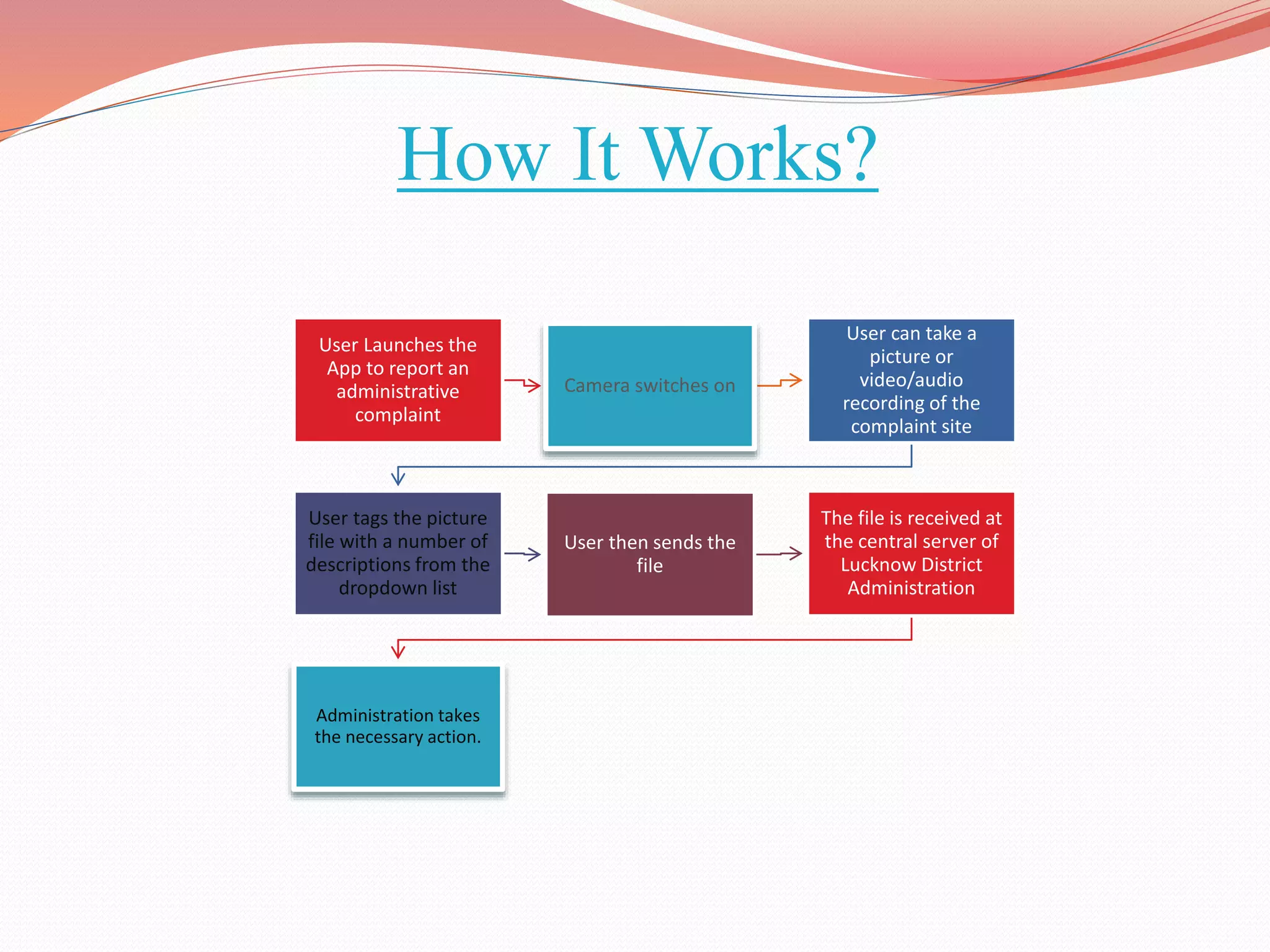
How It Works?
User Launches the
App to report an
administrative
complaint
Camera switches on
User can take a
picture or
video/audio
recording of the
complaint site
User tags the picture
file with a number of
descriptions from the
dropdown list
User then sends the
file
The file is received at
the central server of
Lucknow District
Administration
Administration takes
the necessary action.
Screenshots…..
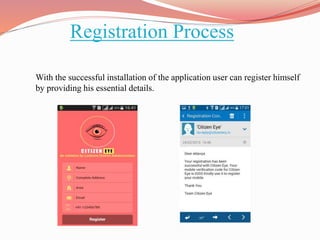
Registration Process
With the successful installation of the application user can register himself
by providing his essential details.
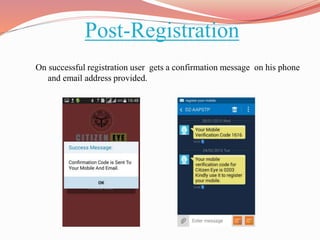
Post-Registration
On successful registration user gets a confirmation message on his phone
and email address provided.
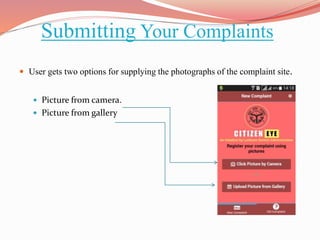
Submitting Your Complaints
 User gets two options for supplying the photographs of the complaint site.
 Picture from camera.
 Picture from gallery
Capturing Pictures
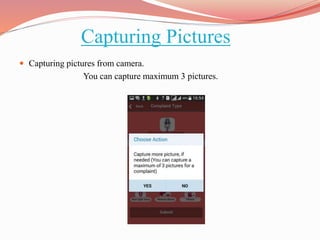
 Capturing pictures from camera.
You can capture maximum 3 pictures.
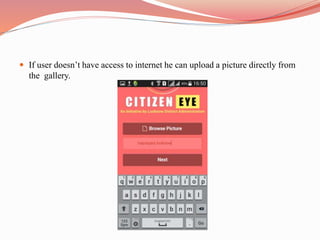
 If user doesn’t have access to internet he can upload a picture directly from
the gallery.
Complaint Section
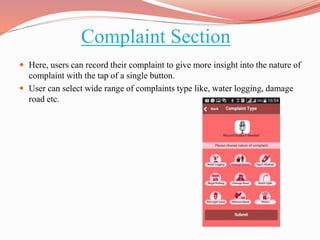
 Here, users can record their complaint to give more insight into the nature of
complaint with the tap of a single button.
 User can select wide range of complaints type like, water logging, damage
road etc.
Confirming Complaint
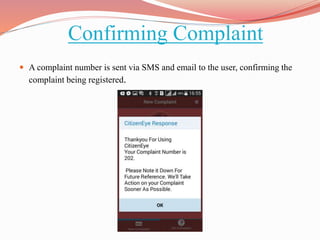
 A complaint number is sent via SMS and email to the user, confirming the
complaint being registered.
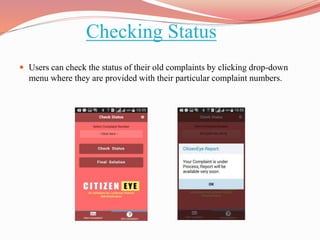
Checking Status
 Users can check the status of their old complaints by clicking drop-down
menu where they are provided with their particular complaint numbers.
Citizen Eye Administrator Section…..
Citizen Eye Admin
It is an app for the officials to manage the complaints
assigned to them by the administrator.
What Officers Can Do?
 The officer gets assigned cases which he chooses to accept or re-direct back
to the administrator (in case the complaint does not pertain to his
department).
 They can close any complaints.
 They can reply to each citizens complaints.
Screenshots….
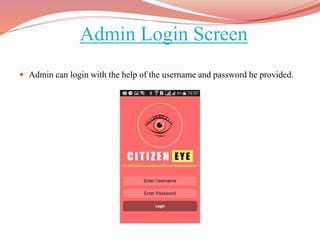
Admin Login Screen
 Admin can login with the help of the username and password he provided.
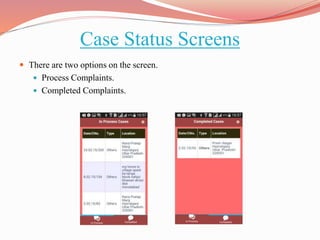
Case Status Screens
 There are two options on the screen.
 Process Complaints.
 Completed Complaints.
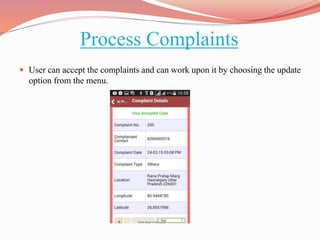
Process Complaints
 User can accept the complaints and can work upon it by choosing the update
option from the menu.
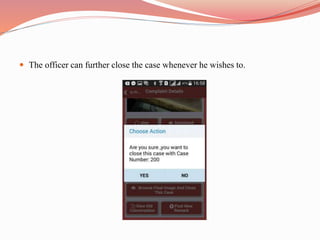
 The officer can further close the case whenever he wishes to.

Citizen Eye

  • 1.
    How It Works? UserLaunches the App to report an administrative complaint Camera switches on User can take a picture or video/audio recording of the complaint site User tags the picture file with a number of descriptions from the dropdown list User then sends the file The file is received at the central server of Lucknow District Administration Administration takes the necessary action.
  • 2.
  • 3.
    Registration Process With thesuccessful installation of the application user can register himself by providing his essential details.
  • 4.
    Post-Registration On successful registrationuser gets a confirmation message on his phone and email address provided.
  • 5.
    Submitting Your Complaints User gets two options for supplying the photographs of the complaint site.  Picture from camera.  Picture from gallery
  • 6.
    Capturing Pictures  Capturingpictures from camera. You can capture maximum 3 pictures.
  • 7.
     If userdoesn’t have access to internet he can upload a picture directly from the gallery.
  • 8.
    Complaint Section  Here,users can record their complaint to give more insight into the nature of complaint with the tap of a single button.  User can select wide range of complaints type like, water logging, damage road etc.
  • 9.
    Confirming Complaint  Acomplaint number is sent via SMS and email to the user, confirming the complaint being registered.
  • 10.
    Checking Status  Userscan check the status of their old complaints by clicking drop-down menu where they are provided with their particular complaint numbers.
  • 11.
  • 12.
    Citizen Eye Admin Itis an app for the officials to manage the complaints assigned to them by the administrator.
  • 13.
    What Officers CanDo?  The officer gets assigned cases which he chooses to accept or re-direct back to the administrator (in case the complaint does not pertain to his department).  They can close any complaints.  They can reply to each citizens complaints.
  • 14.
  • 15.
    Admin Login Screen Admin can login with the help of the username and password he provided.
  • 16.
    Case Status Screens There are two options on the screen.  Process Complaints.  Completed Complaints.
  • 17.
    Process Complaints  Usercan accept the complaints and can work upon it by choosing the update option from the menu.
  • 18.
     The officercan further close the case whenever he wishes to.