Coursenvy® www.Coursenvy.com
Setting up Your
Ledger Nano X
Coursenvy® www.Coursenvy.com
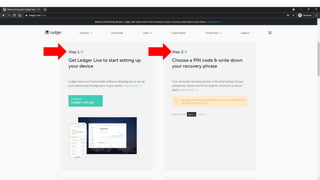
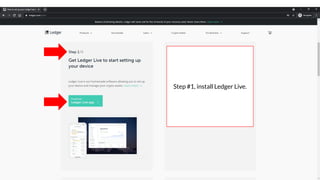
Getting Started
www.ledger.com/start
Coursenvy® www.Coursenvy.com
Step #1, install Ledger Live.
Coursenvy® www.Coursenvy.com
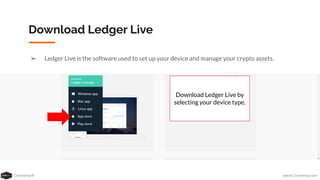
Download Ledger Live
➢ Ledger Live is the software used to set up your device and manage your crypto assets.
Download Ledger Live by
selecting your device type.
Coursenvy® www.Coursenvy.com
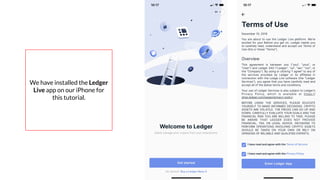
We have installed the Ledger
Live app on our iPhone for
this tutorial.
Coursenvy® www.Coursenvy.com
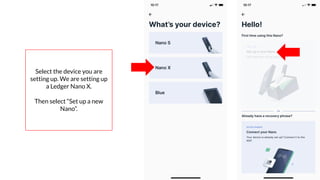
Select the device you are
setting up. We are setting up
a Ledger Nano X.
Then select “Set up a new
Nano”.
Coursenvy® www.Coursenvy.com
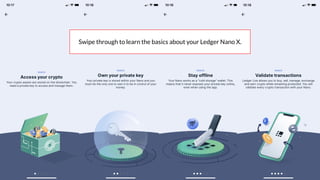
Swipe through to learn the basics about your Ledger Nano X.
Coursenvy® www.Coursenvy.com
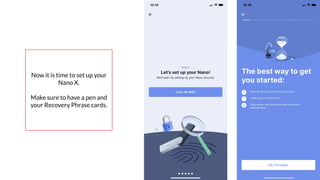
Now it is time to set up your
Nano X.
Make sure to have a pen and
your Recovery Phrase cards.
Coursenvy® www.Coursenvy.com
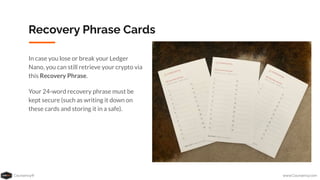
Recovery Phrase Cards
In case you lose or break your Ledger
Nano, you can still retrieve your crypto via
this Recovery Phrase.
Your 24-word recovery phrase must be
kept secure (such as writing it down on
these cards and storing it in a safe).
Coursenvy® www.Coursenvy.com
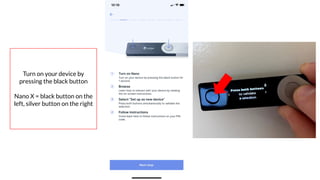
Turn on your device by
pressing the black button
Nano X = black button on the
left, silver button on the right
Coursenvy® www.Coursenvy.com
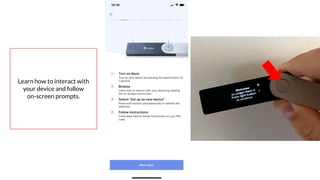
Learn how to interact with
your device and follow
on-screen prompts.
Coursenvy® www.Coursenvy.com
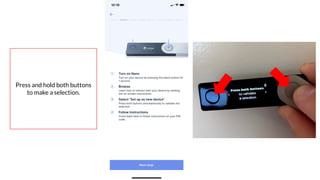
Press and hold both buttons
to make a selection.
Coursenvy® www.Coursenvy.com
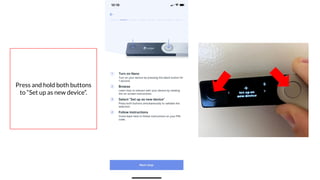
Press and hold both buttons
to “Set up as new device”.
Coursenvy® www.Coursenvy.com
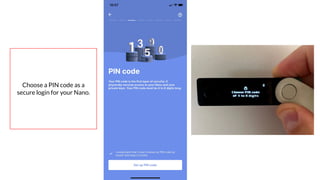
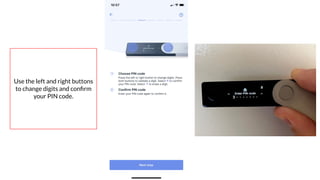
Choose a PIN code as a
secure login for your Nano.
Coursenvy® www.Coursenvy.com
Use the left and right buttons
to change digits and confirm
your PIN code.
Coursenvy® www.Coursenvy.com
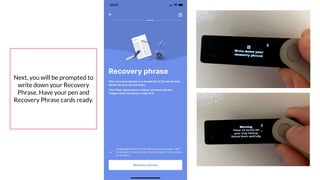
Next, you will be prompted to
write down your Recovery
Phrase. Have your pen and
Recovery Phrase cards ready.
Coursenvy® www.Coursenvy.com
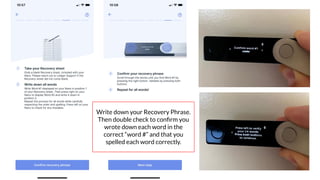
Write down your Recovery Phrase.
Then double check to confirm you
wrote down each word in the
correct “word #” and that you
spelled each word correctly.
Coursenvy® www.Coursenvy.com
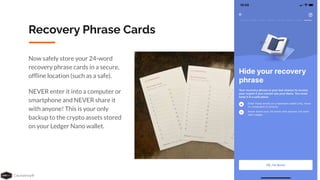
Recovery Phrase Cards
Now safely store your 24-word
recovery phrase cards in a secure,
offline location (such as a safe).
NEVER enter it into a computer or
smartphone and NEVER share it
with anyone! This is your only
backup to the crypto assets stored
on your Ledger Nano wallet.
Coursenvy® www.Coursenvy.com
CRYPTO QUIZ TIME:
Coursenvy® www.Coursenvy.com
Connect Your
Ledger Nano X
To Your iPhone
Coursenvy® www.Coursenvy.com
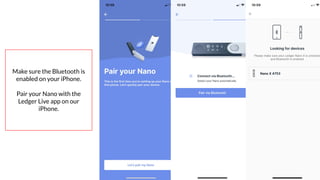
Make sure the Bluetooth is
enabled on your iPhone.
Pair your Nano with the
Ledger Live app on our
iPhone.
Coursenvy® www.Coursenvy.com
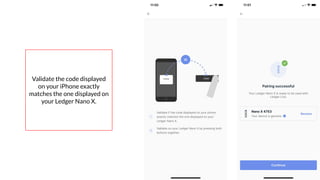
Validate the code displayed
on your iPhone exactly
matches the one displayed on
your Ledger Nano X.
Coursenvy® www.Coursenvy.com
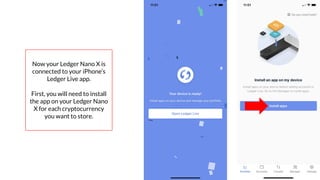
Now your Ledger Nano X is
connected to your iPhone’s
Ledger Live app.
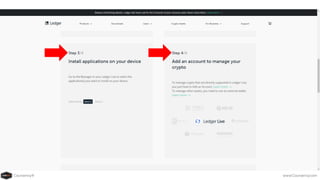
First, you will need to install
the app on your Ledger Nano
X for each cryptocurrency
you want to store.
Coursenvy® www.Coursenvy.com
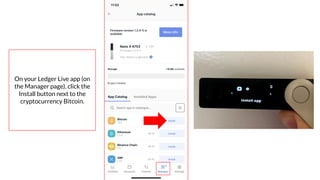
On your Ledger Live app (on
the Manager page), click the
Install button next to the
cryptocurrency Bitcoin.
Coursenvy® www.Coursenvy.com
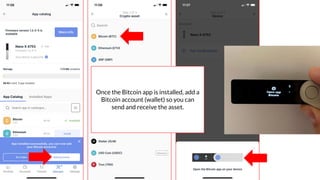
Once the Bitcoin app is installed, add a
Bitcoin account (wallet) so you can
send and receive the asset.
Coursenvy® www.Coursenvy.com
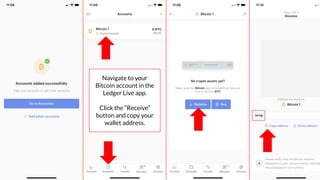
Navigate to your
Bitcoin account in the
Ledger Live app.
Click the “Receive”
button and copy your
wallet address.
Coursenvy® www.Coursenvy.com
Send BTC to Your
Ledger Nano X
From Coinbase
Coursenvy® www.Coursenvy.com
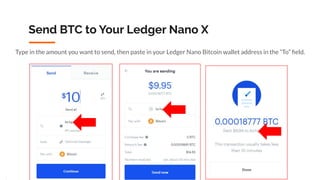
Send BTC to Your Ledger Nano X
Type in the amount you want to send, then paste in your Ledger Nano Bitcoin wallet address in the “To” field.
Coursenvy® www.Coursenvy.com
Store Your Crypto Offline
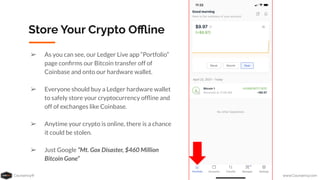
➢ As you can see, our Ledger Live app “Portfolio”
page confirms our Bitcoin transfer off of
Coinbase and onto our hardware wallet.
➢ Everyone should buy a Ledger hardware wallet
to safely store your cryptocurrency offline and
off of exchanges like Coinbase.
➢ Anytime your crypto is online, there is a chance
it could be stolen.
➢ Just Google “Mt. Gox Disaster, $460 Million
Bitcoin Gone”
Coursenvy® www.Coursenvy.com
Best Crypto Wallet = Ledger
www.Coursenvy.com/LEDGER
Buy a Ledger wallet via our partner link above for a free $25!
Coursenvy® www.Coursenvy.com
Copyright © Coursenvy. All rights reserved.

Ledger Wallet Setup - Ledger Nano X Setup Tutorial