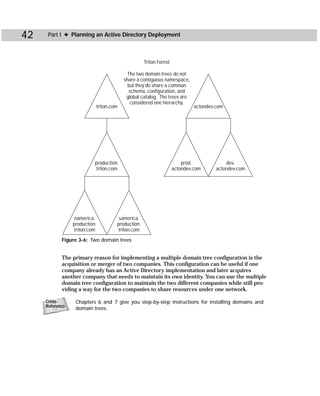
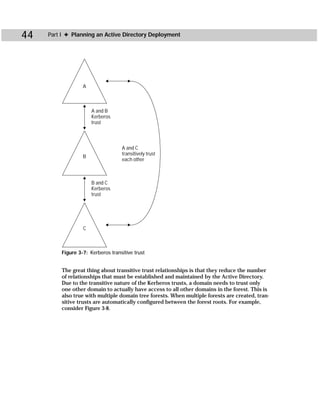
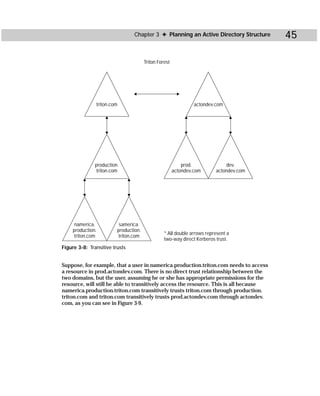
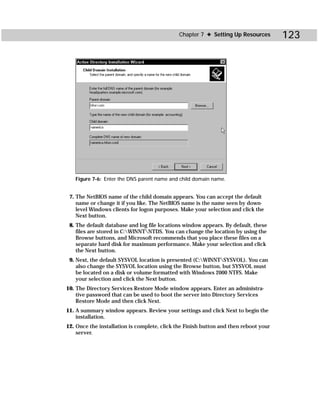
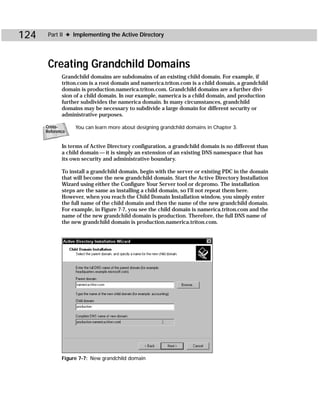
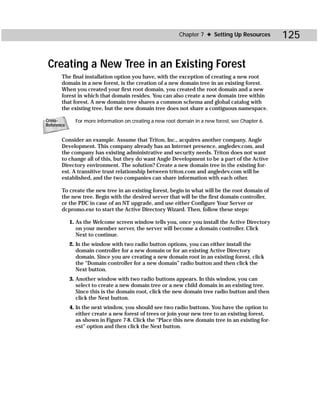
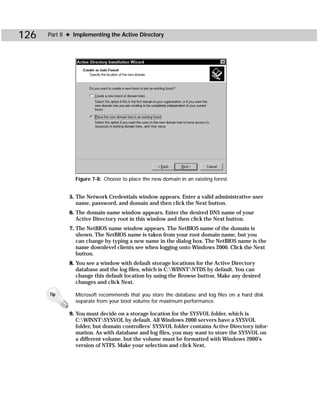
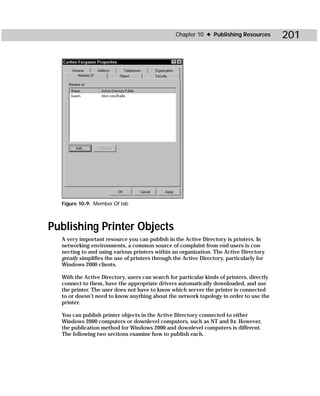
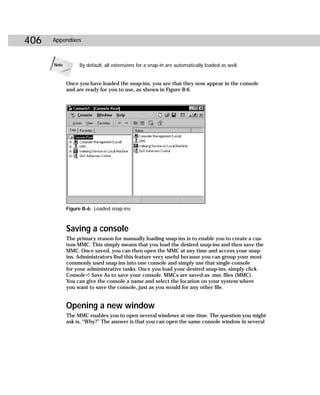
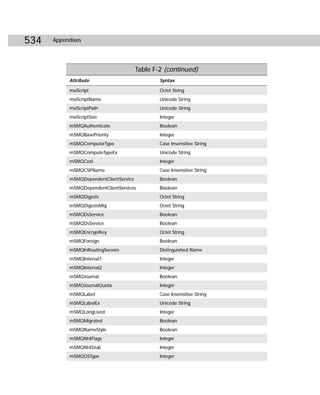
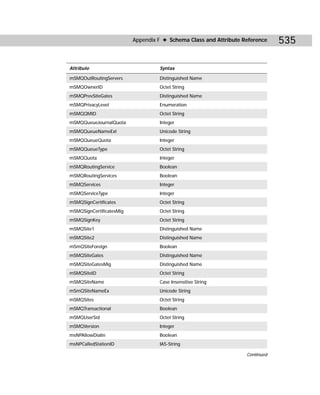
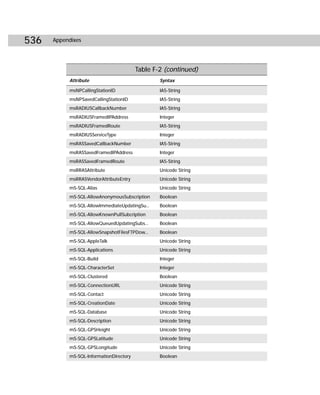
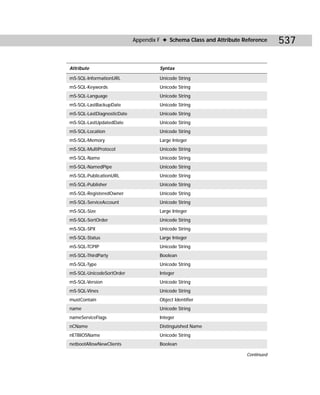
Active Directory   ™


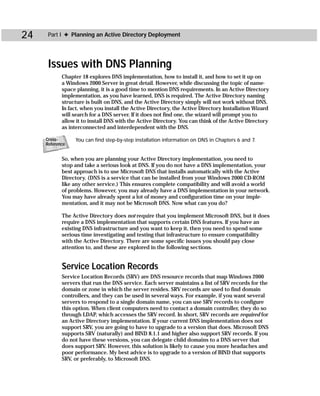
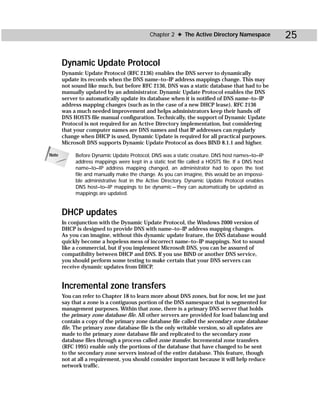
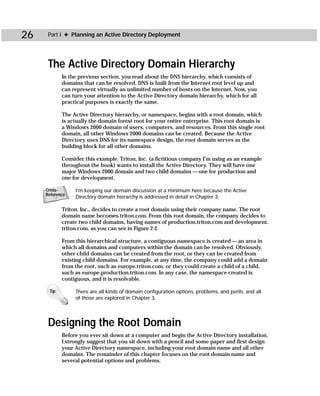
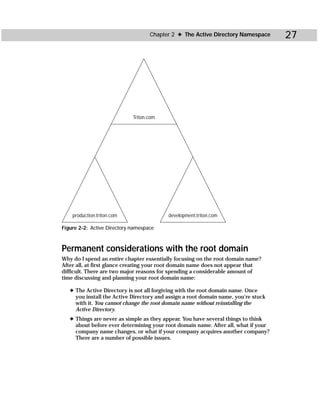
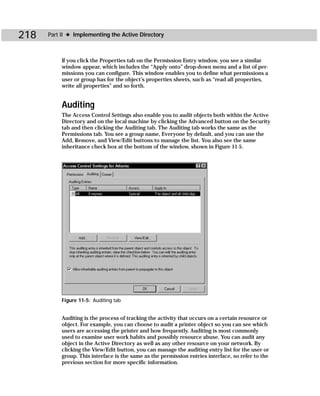
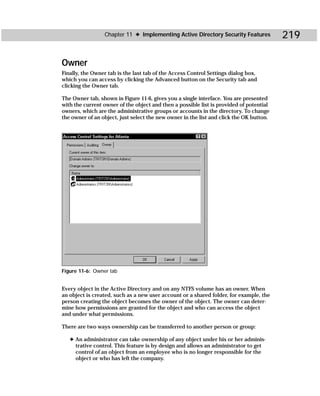
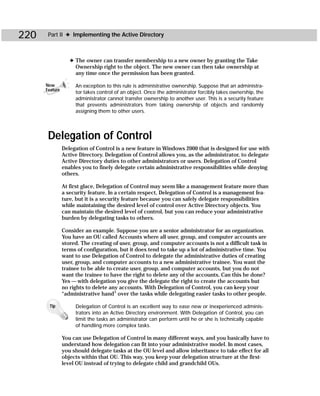
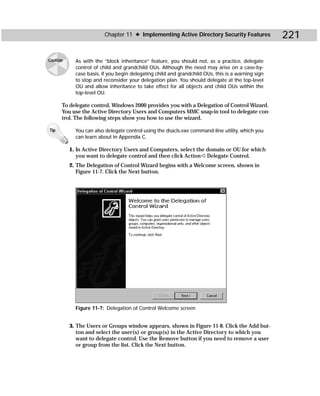
      Bible
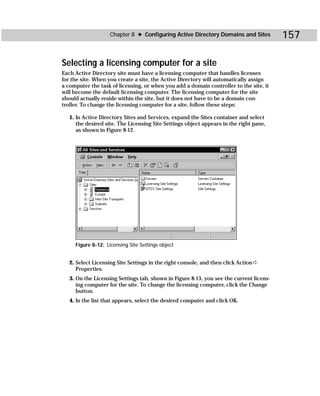
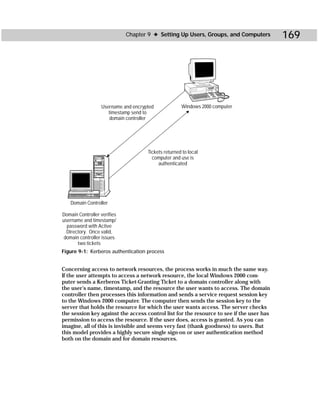
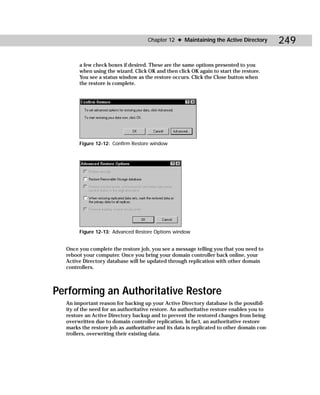
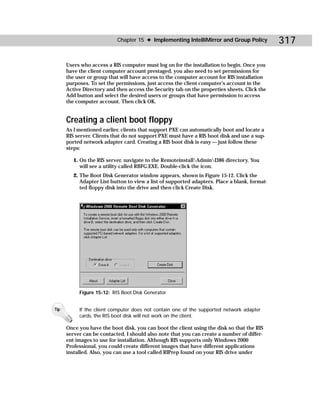
Active Directory                                                   ™


      Bible
                     Curt Simmons


                   IDG Books Worldwide, Inc.
             An International Data Group Company
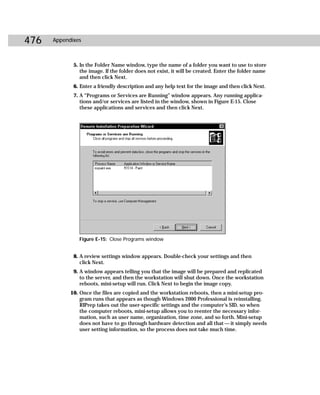
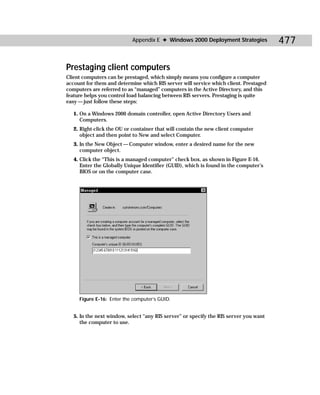
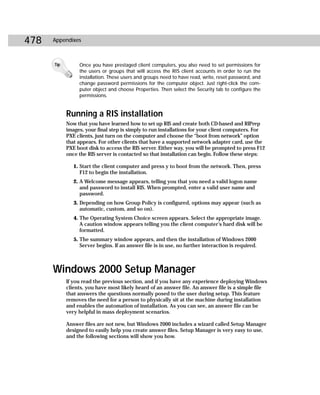
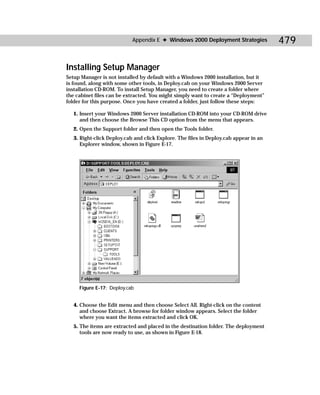
 Foster City, CA ✦ Chicago, IL ✦ Indianapolis, IN ✦ New York, NY
Active Directory™ Bible                                  For general information on IDG Books Worldwide’s
Published by                                             books in the U.S., please call our Consumer Customer
IDG Books Worldwide, Inc.                                Service department at 800-762-2974. For reseller
An International Data Group Company                      information, including discounts and premium sales,
919 E. Hillsdale Blvd., Suite 400                        please call our Reseller Customer Service
Foster City, CA 94404                                    department at 800-434-3422.
www.idgbooks.com (IDG Books Worldwide Web site)          For information on where to purchase IDG Books
Copyright © 2001 IDG Books Worldwide, Inc. All           Worldwide’s books outside the U.S., please contact
rights reserved. No part of this book, including         our International Sales department at 317-572-3993
interior design, cover design, and icons, may be         or fax 317-572-4002.
reproduced or transmitted in any form, by any means      For consumer information on foreign language
(electronic, photocopying, recording, or otherwise)      translations, please contact our Customer Service
without the prior written permission of the publisher.   department at 800-434-3422, fax 317-572-4002, or
ISBN: 0-7645-4762-3                                      e-mail rights@idgbooks.com.
Printed in the United States of America                  For information on licensing foreign or domestic
                                                         rights, please phone +1-650-653-7098.
10 9 8 7 6 5 4 3 2 1
                                                         For sales inquiries and special prices for bulk
1B/RU/RR/QQ/FC                                           quantities, please contact our Order Services
Distributed in the United States by IDG Books            department at 800-434-3422 or write to the
Worldwide, Inc.                                          address above.
Distributed by CDG Books Canada Inc. for Canada;         For information on using IDG Books Worldwide’s
by Transworld Publishers Limited in the United           books in the classroom or for ordering examination
Kingdom; by IDG Norge Books for Norway; by IDG           copies, please contact our Educational Sales
Sweden Books for Sweden; by IDG Books Australia          department at 800-434-2086 or fax 317-572-4005.
Publishing Corporation Pty. Ltd. for Australia and       For press review copies, author interviews, or other
New Zealand; by TransQuest Publishers Pte Ltd.           publicity information, please contact our Public
for Singapore, Malaysia, Thailand, Indonesia, and        Relations department at 650-653-7000 or fax
Hong Kong; by Gotop Information Inc. for Taiwan;         650-653-7500.
by ICG Muse, Inc. for Japan; by Intersoft for South
Africa; by Eyrolles for France; by International         For authorization to photocopy items for corporate,
Thomson Publishing for Germany, Austria, and             personal, or educational use, please contact
Switzerland; by Distribuidora Cuspide for Argentina;     Copyright Clearance Center, 222 Rosewood Drive,
by LR International for Brazil; by Galileo Libros for    Danvers, MA 01923, or fax 978-750-4470.
Chile; by Ediciones ZETA S.C.R. Ltda. for Peru; by       Library of Congress Cataloging-in-Publication Data
WS Computer Publishing Corporation, Inc., for the        Simmons, Curt, 1968-
Philippines; by Contemporanea de Ediciones for               Active directory bible / Curt Simmons.
Venezuela; by Express Computer Distributors                      p. cm.
for the Caribbean and West Indies; by Micronesia             ISBN 0-7645-4762-3 (alk. paper)
Media Distributor, Inc. for Micronesia; by Chips             1. Directory services (Computer network
Computadoras S.A. de C.V. for Mexico; by Editorial        technology) 2. Microsoft Windows (Computer file)
Norma de Panama S.A. for Panama; by American              I. Title.
Bookshops for Finland.                                    TK5105.595 .S55 2000
                                                          005.7'1369--dc21                            00-046159
                                                                                                           CIP
LIMIT OF LIABILITY/DISCLAIMER OF WARRANTY: THE PUBLISHER AND AUTHOR HAVE USED THEIR
BEST EFFORTS IN PREPARING THIS BOOK. THE PUBLISHER AND AUTHOR MAKE NO
REPRESENTATIONS OR WARRANTIES WITH RESPECT TO THE ACCURACY OR COMPLETENESS OF THE
CONTENTS OF THIS BOOK AND SPECIFICALLY DISCLAIM ANY IMPLIED WARRANTIES OF
MERCHANTABILITY OR FITNESS FOR A PARTICULAR PURPOSE. THERE ARE NO WARRANTIES WHICH
EXTEND BEYOND THE DESCRIPTIONS CONTAINED IN THIS PARAGRAPH. NO WARRANTY MAY BE
CREATED OR EXTENDED BY SALES REPRESENTATIVES OR WRITTEN SALES MATERIALS. THE
ACCURACY AND COMPLETENESS OF THE INFORMATION PROVIDED HEREIN AND THE OPINIONS
STATED HEREIN ARE NOT GUARANTEED OR WARRANTED TO PRODUCE ANY PARTICULAR RESULTS,
AND THE ADVICE AND STRATEGIES CONTAINED HEREIN MAY NOT BE SUITABLE FOR EVERY
INDIVIDUAL. NEITHER THE PUBLISHER NOR AUTHOR SHALL BE LIABLE FOR ANY LOSS OF PROFIT OR
ANY OTHER COMMERCIAL DAMAGES, INCLUDING BUT NOT LIMITED TO SPECIAL, INCIDENTAL,
CONSEQUENTIAL, OR OTHER DAMAGES.
Trademarks: All brand names and product names used in this book are trade names, service marks,
trademarks, or registered trademarks of their respective owners. IDG Books Worldwide is not associated
with any product or vendor mentioned in this book.

         is a registered trademark or trademark under exclusive license
         to IDG Books Worldwide, Inc. from International Data Group, Inc.
         in the United States and/or other countries.
Welcome to the world of IDG Books Worldwide.
         IDG Books Worldwide, Inc., is a subsidiary of International Data Group, the world’s largest publisher of
         computer-related information and the leading global provider of information services on information technology.
         IDG was founded more than 30 years ago by Patrick J. McGovern and now employs more than 9,000 people
         worldwide. IDG publishes more than 290 computer publications in over 75 countries. More than 90 million
         people read one or more IDG publications each month.
         Launched in 1990, IDG Books Worldwide is today the #1 publisher of best-selling computer books in the
         United States. We are proud to have received eight awards from the Computer Press Association in recognition
         of editorial excellence and three from Computer Currents’ First Annual Readers’ Choice Awards. Our best-
         selling ...For Dummies® series has more than 50 million copies in print with translations in 31 languages. IDG
         Books Worldwide, through a joint venture with IDG’s Hi-Tech Beijing, became the first U.S. publisher to
         publish a computer book in the People’s Republic of China. In record time, IDG Books Worldwide has become
         the first choice for millions of readers around the world who want to learn how to better manage their
         businesses.
         Our mission is simple: Every one of our books is designed to bring extra value and skill-building instructions
         to the reader. Our books are written by experts who understand and care about our readers. The knowledge
         base of our editorial staff comes from years of experience in publishing, education, and journalism —
         experience we use to produce books to carry us into the new millennium. In short, we care about books, so
         we attract the best people. We devote special attention to details such as audience, interior design, use of
         icons, and illustrations. And because we use an efficient process of authoring, editing, and desktop publishing
         our books electronically, we can spend more time ensuring superior content and less time on the technicalities
         of making books.
         You can count on our commitment to deliver high-quality books at competitive prices on topics you want
         to read about. At IDG Books Worldwide, we continue in the IDG tradition of delivering quality for more than
         30 years. You’ll find no better book on a subject than one from IDG Books Worldwide.


                                                                    John Kilcullen
                                                                    Chairman and CEO
                                                                    IDG Books Worldwide, Inc.


  Eighth Annual                                                                                                    Eleventh Annual
 Computer Press                                                                                                    Computer Press
 Awards     1992                Ninth Annual                                            Tenth Annual               Awards     1995
                               Computer Press                                          Computer Press
                               Awards    1993                                          Awards    1994


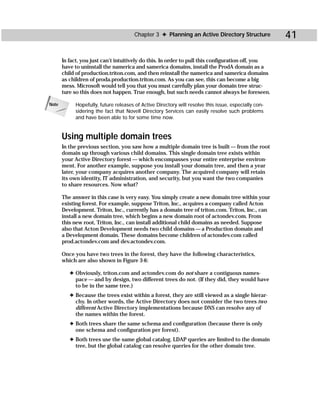
IDG is the world’s leading IT media, research and exposition company. Founded in 1964, IDG had 1997 revenues of $2.05
billion and has more than 9,000 employees worldwide. IDG offers the widest range of media options that reach IT buyers
in 75 countries representing 95% of worldwide IT spending. IDG’s diverse product and services portfolio spans six key areas
including print publishing, online publishing, expositions and conferences, market research, education and training, and
global marketing services. More than 90 million people read one or more of IDG’s 290 magazines and newspapers, including
IDG’s leading global brands — Computerworld, PC World, Network World, Macworld and the Channel World family of
publications. IDG Books Worldwide is one of the fastest-growing computer book publishers in the world, with more than
700 titles in 36 languages. The “...For Dummies®” series alone has more than 50 million copies in print. IDG offers online
users the largest network of technology-specific Web sites around the world through IDG.net (http://www.idg.net), which
comprises more than 225 targeted Web sites in 55 countries worldwide. International Data Corporation (IDC) is the world’s
largest provider of information technology data, analysis and consulting, with research centers in over 41 countries and more
than 400 research analysts worldwide. IDG World Expo is a leading producer of more than 168 globally branded conferences
and expositions in 35 countries including E3 (Electronic Entertainment Expo), Macworld Expo, ComNet, Windows World
Expo, ICE (Internet Commerce Expo), Agenda, DEMO, and Spotlight. IDG’s training subsidiary, ExecuTrain, is the world’s
largest computer training company, with more than 230 locations worldwide and 785 training courses. IDG Marketing
Services helps industry-leading IT companies build international brand recognition by developing global integrated marketing
programs via IDG’s print, online and exposition products worldwide. Further information about the company can be found
at www.idg.com.                                                                                                       1/26/00
Credits
  Acquisitions Editor                   Permissions Editor
  Judy Brief                            Carmen Krikorian

  Project Editor                        Media Development Specialists
  Amanda Munz                           Brock Bigard
                                        Angela D. Denny
  Technical Editor
  Jim Kelly                             Media Development Coordinator
                                        Marisa Pearman
  Copy Editor
  Kevin Kent                            Illustrators
                                        Gabriele McCann
  Project Coordinator                   Shelley Norris
  Marcos Vergara                        Karl Brandt

  Graphics and Production Specialists   Proofreading and Indexing
  Bob Bihlmayer                         York Production Services
  Jude Levinson
  Michael Lewis                         Cover Illustration
  Victor Pérez-Varela                   Lawrence Huck
  Ramses Ramirez

  Quality Control Technician
  Dina F Quan
About the Author
  Curt Simmons, MCSE, MCT, CTT, is a freelance author and technical trainer focus-
  ing on Microsoft operating systems and networking solutions. Curt is the author of
  almost a dozen high-level technical books on Microsoft products, including Master
  Active Directory Visually and MCSE Windows 2000 Server For Dummies. He has been
  working closely with Windows 2000 and the Active Directory since Beta 1. Curt lives
  with his wife and daughter in a small town outside of Dallas, Texas. You can reach
  him at curt_simmons@hotmail.com or at http://curtsimmons.hypermart.net.
Preface
  T    he Active Directory Bible is your comprehensive resource for planning, installing,
       configuring, and managing the Microsoft Active Directory. The Active Directory,
  which is the core networking technology in Windows 2000, provides advanced direc-
  tory service features that makes your network — regardless of its size — easier to
  manage and use.


Welcome to the World of Active Directory
  You have heard plenty of things about the Active Directory. Some say the Active
  Directory is the best product Microsoft has ever produced — some say the
  Active Directory is still a baby that has a lot of maturing to do. No matter your
  position, we can all agree that the Active Directory is Microsoft’s flagship product
  at the moment and that the Active Directory is here to stay.

  The Active Directory is the foundational networking component in Windows 2000.
  The Active Directory completely revamps Microsoft networking from the days of
  NT and brings Windows networking to a hierarchical, directory service model. This
  model modernizes NT and paves the way for the future. With the Active Directory,
  you have more manageability, more support for network resources, standardized
  naming, and excellent query capabilities. In short, the Active Directory opens an
  entire new world for Windows.

  Before I get too carried away with the details (which you can jump into in Chap-
  ter 1) and before I sound like I’m singing Microsoft’s praises, let me just answer
  two questions I am asked quite frequently. The first is simply, “Do you like the
  Active Directory?” The answer is — yes, I do. Quite a bit, actually. The second
  question is, “Is the Active Directory perfect?” I usually smile and shake my head
  because you already know the answer. No — the Active Directory is not perfect,
  and there are some serious design issues Microsoft will need to address in the
  future. But in Microsoft’s defense, I will say that the first release of the Active
  Directory is awfully good — and when you see the potential a live directory
  service can bring to a network, I think you will agree.

  If you are reading this book, you are likely one of two people. First, you’re a newcomer
  to Windows 2000. Perhaps you have joined the ranks of the technical professionals in
  search of a better career, and you know that Windows 2000 is a wise move. If that is
  you — you have come to right place. This book is all you need to learn all about the
  Active Directory and the technologies that make it tick.
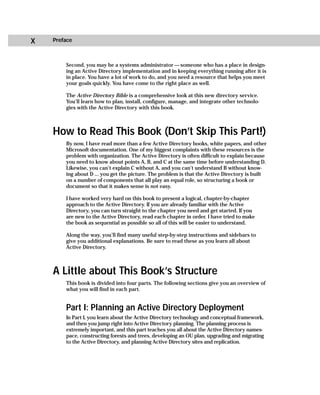
x   Preface


        Second, you may be a systems administrator — someone who has a place in design-
        ing an Active Directory implementation and in keeping everything running after it is
        in place. You have a lot of work to do, and you need a resource that helps you meet
        your goals quickly. You have come to the right place as well.

        The Active Directory Bible is a comprehensive look at this new directory service.
        You’ll learn how to plan, install, configure, manage, and integrate other technolo-
        gies with the Active Directory with this book.


    How to Read This Book (Don’t Skip This Part!)
        By now, I have read more than a few Active Directory books, white papers, and other
        Microsoft documentation. One of my biggest complaints with these resources is the
        problem with organization. The Active Directory is often difficult to explain because
        you need to know about points A, B, and C at the same time before understanding D.
        Likewise, you can’t explain C without A, and you can’t understand B without know-
        ing about D ... you get the picture. The problem is that the Active Directory is built
        on a number of components that all play an equal role, so structuring a book or
        document so that it makes sense is not easy.

        I have worked very hard on this book to present a logical, chapter-by-chapter
        approach to the Active Directory. If you are already familiar with the Active
        Directory, you can turn straight to the chapter you need and get started. If you
        are new to the Active Directory, read each chapter in order. I have tried to make
        the book as sequential as possible so all of this will be easier to understand.

        Along the way, you’ll find many useful step-by-step instructions and sidebars to
        give you additional explanations. Be sure to read these as you learn all about
        Active Directory.


    A Little about This Book’s Structure
        This book is divided into four parts. The following sections give you an overview of
        what you will find in each part.


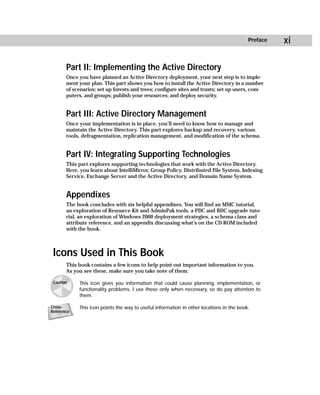
        Part I: Planning an Active Directory Deployment
        In Part I, you learn about the Active Directory technology and conceptual framework,
        and then you jump right into Active Directory planning. The planning process is
        extremely important, and this part teaches you all about the Active Directory names-
        pace, constructing forests and trees, developing an OU plan, upgrading and migrating
        to the Active Directory, and planning Active Directory sites and replication.
Preface   xi

       Part II: Implementing the Active Directory
       Once you have planned an Active Directory deployment, your next step is to imple-
       ment your plan. This part shows you how to install the Active Directory in a number
       of scenarios; set up forests and trees; configure sites and trusts; set up users, com-
       puters, and groups; publish your resources; and deploy security.


       Part III: Active Directory Management
       Once your implementation is in place, you’ll need to know how to manage and
       maintain the Active Directory. This part explores backup and recovery, various
       tools, defragmentation, replication management, and modification of the schema.


       Part IV: Integrating Supporting Technologies
       This part explores supporting technologies that work with the Active Directory.
       Here, you learn about IntelliMirror, Group Policy, Distributed File System, Indexing
       Service, Exchange Server and the Active Directory, and Domain Name System.


       Appendixes
       The book concludes with six helpful appendixes. You will find an MMC tutorial,
       an exploration of Resource Kit and AdminPak tools, a PDC and BDC upgrade tuto-
       rial, an exploration of Windows 2000 deployment strategies, a schema class and
       attribute reference, and an appendix discussing what’s on the CD-ROM included
       with the book.


 Icons Used in This Book
       This book contains a few icons to help point out important information to you.
       As you see these, make sure you take note of them:

 Caution    This icon gives you information that could cause planning, implementation, or
            functionality problems. I use these only when necessary, so do pay attention to
            them.

Cross-      This icon points the way to useful information in other locations in the book.
Reference
xii   Preface


      Note      This icon gives you some additional information about a subject at hand. You’ll
                find these helpful as you read.

      On the    This icon tells you about a utility or product that is available on this book’s CD-ROM.
      CD-ROM


       Tip      This is a piece of friendly advice.
Acknowledgments
 I  would like to thank everyone at IDG Books for all their hard work on this book.
    Thanks to Judy Brief who made the initial offer and to Amanda Munz and Kevin
 Kent, my editors at IDG Books, who have made this book easier for you to read.
 Special thanks to Jim Kelly, my technical editor, who brought his expertise and con-
 tent suggestions to this project. As always, thanks to my agent, Margot Maley, for
 taking care of my career. Finally, thanks to my wife, Dawn, and my daughter, Hannah,
 for always supporting me and giving me the “alone time” I need to write books.
Contents at a Glance
Preface. . . . . . . . . . . . . . . . . . . . . . . . . . . . . . . . . . . . . . . . . . . . ix
Acknowledgments . . . . . . . . . . . . . . . . . . . . . . . . . . . . . . . . . . . . xiii

Part I: Planning an Active Directory Deployment . . . . . . . . . . . . . 1
Chapter 1: Introduction to Active Directory Technology and Deployment Planning . . 3
Chapter 2: The Active Directory Namespace . . . . . . . . . . . . . . . . . . . . . 19
Chapter 3: Planning an Active Directory Structure . . . . . . . . . . . . . . . . . . 35
Chapter 4: Upgrading and Migrating to the Active Directory . . . . . . . . . . . . 61
Chapter 5: Planning Active Directory Sites . . . . . . . . . . . . . . . . . . . . . . 79

Part II: Implementing the Active Directory . . . . . . . . . . . . . . . . 97
Chapter 6: Installing the Root Domain . . . . . . . . . . . . . . . . . . . . . . . . . 99
Chapter 7: Setting Up Resources . . . . . . . . . . . . . . . . . . . . . . . . . . . 117
Chapter 8: Configuring Active Directory Domains and Sites . . . . . . . . . . . . 145
Chapter 9: Setting Up Users, Groups, and Computers . . . . . . . . . . . . . . . 167
Chapter 10: Publishing Resources . . . . . . . . . . . . . . . . . . . . . . . . . . . 191
Chapter 11: Implementing Active Directory Security Features . . . . . . . . . . 211

Part III: Active Directory Management . . . . . . . . . . . . . . . . . . 233
Chapter 12: Maintaining the Active Directory . . . . . . . . . . . . . . . . . . . . 235
Chapter 13: Managing Active Directory Replication . . . . . . . . . . . . . . . . 259
Chapter 14: Active Directory Schema . . . . . . . . . . . . . . . . . . . . . . . . . 285

Part IV: Integrating Supporting Technologies . . . . . . . . . . . . . . 301
Chapter 15: Implementing IntelliMirror and Group Policy . . . . . . . . .            .   .   .   .   303
Chapter 16: Implementing Distributed File System and Indexing Service                .   .   .   .   331
Chapter 17: Connecting Exchange Server and the Active Directory . . .                .   .   .   .   349
Chapter 18: Implementing Microsoft DNS . . . . . . . . . . . . . . . . . .           .   .   .   .   369
Appendix A: What’s on the CD-ROM . . . . . . . . . . . . . . . . . . . . .           .   .   .   .   399
Appendix B: Microsoft Management Console Tutorial . . . . . . . . . . .              .   .   .   .   401
Appendix C: Additional Administrative Tools . . . . . . . . . . . . . . . .          .   .   .   .   417
Appendix D: PDC and BDC Upgrade Reference . . . . . . . . . . . . . . .              .   .   .   .   449
Appendix E: Windows 2000 Deployment Strategies . . . . . . . . . . . . .             .   .   .   .   459
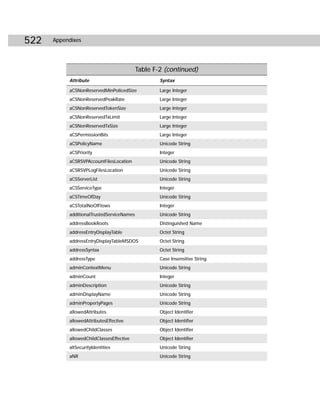
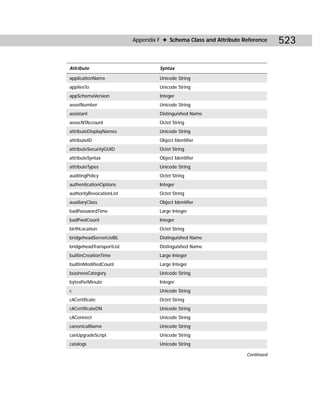
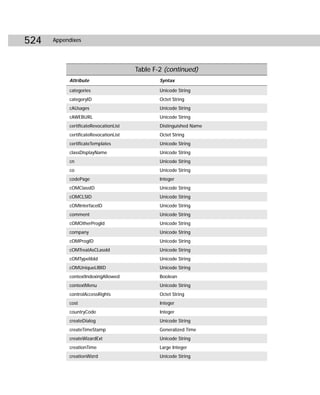
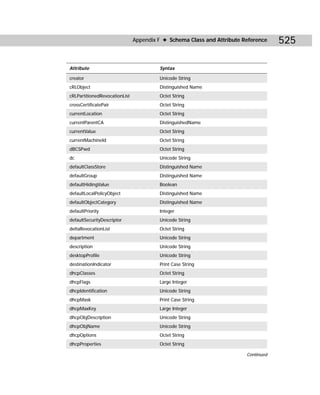
Appendix F: Schema Class and Attribute Reference . . . . . . . . . . . .             .   .   .   .   491
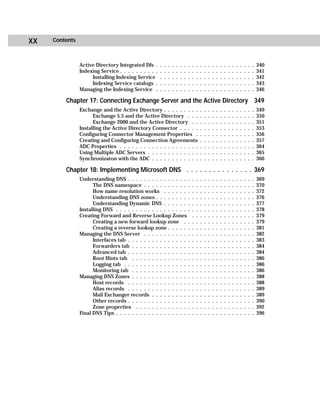
Contents
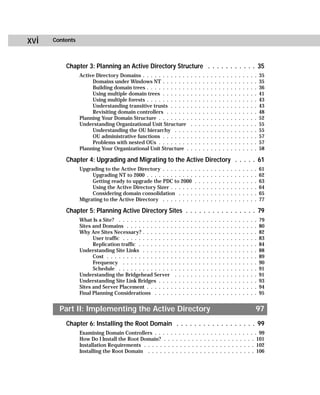
 Preface. . . . . . . . . . . . . . . . . . . . . . . . . . . . . . . . . . . . . . . . ix
 Acknowledgments . . . . . . . . . . . . . . . . . . . . . . . . . . . . . . . . xiii


Part I: Planning an Active Directory Deployment                                                                     1
 Chapter 1: Introduction to Active Directory Technology and
 Deployment Planning . . . . . . . . . . . . . . . . . . . . . . . . . . . . . 3
      What Is a Directory? . . . . . . . . . . . . . . . . . . . . . . . . . . . . . . . . . 3
      What Is a Directory Service? . . . . . . . . . . . . . . . . . . . . . . . . . . . . 4
      What Does the Active Directory Do? . . . . . . . . . . . . . . . . . . . . . . . 4
      Active Directory Logical Structure . . . . . . . . . . . . . . . . . . . . . . . . 6
      DNS and LDAP . . . . . . . . . . . . . . . . . . . . . . . . . . . . . . . . . . . . 9
      Windows 2000 Domain Controllers . . . . . . . . . . . . . . . . . . . . . . . 11
           Global catalog servers . . . . . . . . . . . . . . . . . . . . . . . . . . . 12
           Multimaster roles . . . . . . . . . . . . . . . . . . . . . . . . . . . . . . 13
      The Active Directory Schema . . . . . . . . . . . . . . . . . . . . . . . . . . . 14
      Planning an Active Directory Deployment . . . . . . . . . . . . . . . . . . . 15
           Gather business data . . . . . . . . . . . . . . . . . . . . . . . . . . . . 16
           Consider IT management structure . . . . . . . . . . . . . . . . . . . . 17
           Examine your physical locations . . . . . . . . . . . . . . . . . . . . . 17
           Examine employee distribution . . . . . . . . . . . . . . . . . . . . . . 17
           Gather network topology data . . . . . . . . . . . . . . . . . . . . . . . 17
           Study network services . . . . . . . . . . . . . . . . . . . . . . . . . . . 17
           Explore protocol usage . . . . . . . . . . . . . . . . . . . . . . . . . . . 18
           Consider computer hardware . . . . . . . . . . . . . . . . . . . . . . . 18

 Chapter 2: The Active Directory Namespace . . . . . . . . . . . . . . . 19
      What Is a Namespace? . . . . . . . . . . . . . . . . . . .    .   .   .   .   .   .   .   .   .   .   .   .   19
      Exploring the DNS Namespace . . . . . . . . . . . . . .       .   .   .   .   .   .   .   .   .   .   .   .   20
      Issues with DNS Planning . . . . . . . . . . . . . . . . .    .   .   .   .   .   .   .   .   .   .   .   .   24
           Service Location Records . . . . . . . . . . . . .       .   .   .   .   .   .   .   .   .   .   .   .   24
           Dynamic Update Protocol . . . . . . . . . . . . .        .   .   .   .   .   .   .   .   .   .   .   .   25
           DHCP updates . . . . . . . . . . . . . . . . . . . .     .   .   .   .   .   .   .   .   .   .   .   .   25
           Incremental zone transfers . . . . . . . . . . . . .     .   .   .   .   .   .   .   .   .   .   .   .   25
      The Active Directory Domain Hierarchy . . . . . . . .         .   .   .   .   .   .   .   .   .   .   .   .   26
      Designing the Root Domain . . . . . . . . . . . . . . . .     .   .   .   .   .   .   .   .   .   .   .   .   26
           Permanent considerations with the root domain            .   .   .   .   .   .   .   .   .   .   .   .   27
           Options and considerations with the Internet . .         .   .   .   .   .   .   .   .   .   .   .   .   29
      Planning Summary . . . . . . . . . . . . . . . . . . . . .    .   .   .   .   .   .   .   .   .   .   .   .   34
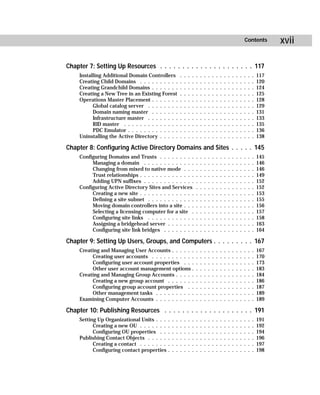
xvi   Contents


          Chapter 3: Planning an Active Directory Structure . . . . . . . . . . . 35
                 Active Directory Domains . . . . . . . . . . . .               .   .   .   .   .   .   .   .   .   .   .   .   .   .   .   .   .   35
                      Domains under Windows NT . . . . . . .                    .   .   .   .   .   .   .   .   .   .   .   .   .   .   .   .   .   35
                      Building domain trees . . . . . . . . . . .               .   .   .   .   .   .   .   .   .   .   .   .   .   .   .   .   .   36
                      Using multiple domain trees . . . . . . .                 .   .   .   .   .   .   .   .   .   .   .   .   .   .   .   .   .   41
                      Using multiple forests . . . . . . . . . . .              .   .   .   .   .   .   .   .   .   .   .   .   .   .   .   .   .   43
                      Understanding transitive trusts . . . . .                 .   .   .   .   .   .   .   .   .   .   .   .   .   .   .   .   .   43
                      Revisiting domain controllers . . . . . .                 .   .   .   .   .   .   .   .   .   .   .   .   .   .   .   .   .   48
                 Planning Your Domain Structure . . . . . . . .                 .   .   .   .   .   .   .   .   .   .   .   .   .   .   .   .   .   52
                 Understanding Organizational Unit Structure                    .   .   .   .   .   .   .   .   .   .   .   .   .   .   .   .   .   55
                      Understanding the OU hierarchy . . . .                    .   .   .   .   .   .   .   .   .   .   .   .   .   .   .   .   .   55
                      OU administrative functions . . . . . . .                 .   .   .   .   .   .   .   .   .   .   .   .   .   .   .   .   .   57
                      Problems with nested OUs . . . . . . . .                  .   .   .   .   .   .   .   .   .   .   .   .   .   .   .   .   .   57
                 Planning Your Organizational Unit Structure .                  .   .   .   .   .   .   .   .   .   .   .   .   .   .   .   .   .   58

          Chapter 4: Upgrading and Migrating to the Active Directory . . . . . 61
                 Upgrading to the Active Directory . . . . . . . .                  .   .   .   .   .   .   .   .   .   .   .   .   .   .   .   .   61
                      Upgrading NT to 2000 . . . . . . . . . . . .                  .   .   .   .   .   .   .   .   .   .   .   .   .   .   .   .   62
                      Getting ready to upgrade the PDC to 2000                      .   .   .   .   .   .   .   .   .   .   .   .   .   .   .   .   63
                      Using the Active Directory Sizer . . . . . .                  .   .   .   .   .   .   .   .   .   .   .   .   .   .   .   .   64
                      Considering domain consolidation . . . .                      .   .   .   .   .   .   .   .   .   .   .   .   .   .   .   .   65
                 Migrating to the Active Directory . . . . . . . .                  .   .   .   .   .   .   .   .   .   .   .   .   .   .   .   .   77

          Chapter 5: Planning Active Directory Sites . . . . . . . . . . . . . . . . 79
                 What Is a Site? . . . . . . . . . . . . . .    .   .   .   .   .   .   .   .   .   .   .   .   .   .   .   .   .   .   .   .   .   79
                 Sites and Domains . . . . . . . . . . . .      .   .   .   .   .   .   .   .   .   .   .   .   .   .   .   .   .   .   .   .   .   80
                 Why Are Sites Necessary? . . . . . . . .       .   .   .   .   .   .   .   .   .   .   .   .   .   .   .   .   .   .   .   .   .   82
                       User traffic . . . . . . . . . . . . .   .   .   .   .   .   .   .   .   .   .   .   .   .   .   .   .   .   .   .   .   .   83
                       Replication traffic . . . . . . . . .    .   .   .   .   .   .   .   .   .   .   .   .   .   .   .   .   .   .   .   .   .   84
                 Understanding Site Links . . . . . . . .       .   .   .   .   .   .   .   .   .   .   .   .   .   .   .   .   .   .   .   .   .   88
                       Cost . . . . . . . . . . . . . . . . .   .   .   .   .   .   .   .   .   .   .   .   .   .   .   .   .   .   .   .   .   .   89
                       Frequency . . . . . . . . . . . . .      .   .   .   .   .   .   .   .   .   .   .   .   .   .   .   .   .   .   .   .   .   90
                       Schedule . . . . . . . . . . . . . .     .   .   .   .   .   .   .   .   .   .   .   .   .   .   .   .   .   .   .   .   .   91
                 Understanding the Bridgehead Server            .   .   .   .   .   .   .   .   .   .   .   .   .   .   .   .   .   .   .   .   .   91
                 Understanding Site Link Bridges . . . .        .   .   .   .   .   .   .   .   .   .   .   .   .   .   .   .   .   .   .   .   .   93
                 Sites and Server Placement . . . . . . .       .   .   .   .   .   .   .   .   .   .   .   .   .   .   .   .   .   .   .   .   .   94
                 Final Planning Considerations . . . . .        .   .   .   .   .   .   .   .   .   .   .   .   .   .   .   .   .   .   .   .   .   95


        Part II: Implementing the Active Directory                                                                                              97
          Chapter 6: Installing the Root Domain . . . . . . . . . . . . . . . . . . 99
                 Examining Domain Controllers . . . . . . . . . . . . . . . . . . . . . . . . . . 99
                 How Do I Install the Root Domain? . . . . . . . . . . . . . . . . . . . . . . . 101
                 Installation Requirements . . . . . . . . . . . . . . . . . . . . . . . . . . . . 102
                 Installing the Root Domain . . . . . . . . . . . . . . . . . . . . . . . . . . . 106
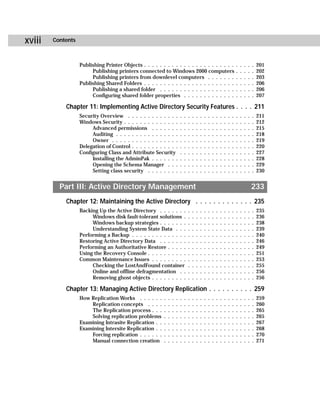
Contents          xvii

Chapter 7: Setting Up Resources . . . . . . . . . . . . . . . . . . . . . 117
     Installing Additional Domain Controllers             .   .   .   .   .   .   .   .   .   .   .   .   .   .   .   .   .   .   .   117
     Creating Child Domains . . . . . . . . . .           .   .   .   .   .   .   .   .   .   .   .   .   .   .   .   .   .   .   .   120
     Creating Grandchild Domains . . . . . . .            .   .   .   .   .   .   .   .   .   .   .   .   .   .   .   .   .   .   .   124
     Creating a New Tree in an Existing Forest            .   .   .   .   .   .   .   .   .   .   .   .   .   .   .   .   .   .   .   125
     Operations Master Placement . . . . . . .            .   .   .   .   .   .   .   .   .   .   .   .   .   .   .   .   .   .   .   128
           Global catalog server . . . . . . . .          .   .   .   .   .   .   .   .   .   .   .   .   .   .   .   .   .   .   .   129
           Domain naming master . . . . . . .             .   .   .   .   .   .   .   .   .   .   .   .   .   .   .   .   .   .   .   131
           Infrastructure master . . . . . . . .          .   .   .   .   .   .   .   .   .   .   .   .   .   .   .   .   .   .   .   133
           RID master . . . . . . . . . . . . . .         .   .   .   .   .   .   .   .   .   .   .   .   .   .   .   .   .   .   .   135
           PDC Emulator . . . . . . . . . . . . .         .   .   .   .   .   .   .   .   .   .   .   .   .   .   .   .   .   .   .   136
     Uninstalling the Active Directory . . . . .          .   .   .   .   .   .   .   .   .   .   .   .   .   .   .   .   .   .   .   138

Chapter 8: Configuring Active Directory Domains and Sites . . . . . 145
     Configuring Domains and Trusts . . . . . . . . .                     .   .   .   .   .   .   .   .   .   .   .   .   .   .   .   145
          Managing a domain . . . . . . . . . . . . .                     .   .   .   .   .   .   .   .   .   .   .   .   .   .   .   146
          Changing from mixed to native mode . . .                        .   .   .   .   .   .   .   .   .   .   .   .   .   .   .   146
          Trust relationships . . . . . . . . . . . . . .                 .   .   .   .   .   .   .   .   .   .   .   .   .   .   .   149
          Adding UPN suffixes . . . . . . . . . . . . .                   .   .   .   .   .   .   .   .   .   .   .   .   .   .   .   152
     Configuring Active Directory Sites and Services                      .   .   .   .   .   .   .   .   .   .   .   .   .   .   .   152
          Creating a new site . . . . . . . . . . . . . .                 .   .   .   .   .   .   .   .   .   .   .   .   .   .   .   153
          Defining a site subnet . . . . . . . . . . . .                  .   .   .   .   .   .   .   .   .   .   .   .   .   .   .   155
          Moving domain controllers into a site . . .                     .   .   .   .   .   .   .   .   .   .   .   .   .   .   .   156
          Selecting a licensing computer for a site .                     .   .   .   .   .   .   .   .   .   .   .   .   .   .   .   157
          Configuring site links . . . . . . . . . . . .                  .   .   .   .   .   .   .   .   .   .   .   .   .   .   .   158
          Assigning a bridgehead server . . . . . . .                     .   .   .   .   .   .   .   .   .   .   .   .   .   .   .   163
          Configuring site link bridges . . . . . . . .                   .   .   .   .   .   .   .   .   .   .   .   .   .   .   .   164

Chapter 9: Setting Up Users, Groups, and Computers . . . . . . . . . 167
     Creating and Managing User Accounts . . . . . .                      .   .   .   .   .   .   .   .   .   .   .   .   .   .   .   167
          Creating user accounts . . . . . . . . . . .                    .   .   .   .   .   .   .   .   .   .   .   .   .   .   .   170
          Configuring user account properties . . .                       .   .   .   .   .   .   .   .   .   .   .   .   .   .   .   173
          Other user account management options .                         .   .   .   .   .   .   .   .   .   .   .   .   .   .   .   183
     Creating and Managing Group Accounts . . . . .                       .   .   .   .   .   .   .   .   .   .   .   .   .   .   .   184
          Creating a new group account . . . . . . .                      .   .   .   .   .   .   .   .   .   .   .   .   .   .   .   186
          Configuring group account properties . .                        .   .   .   .   .   .   .   .   .   .   .   .   .   .   .   187
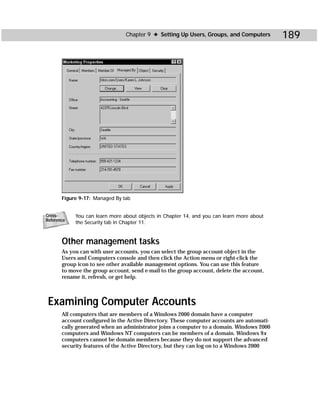
          Other management tasks . . . . . . . . . .                      .   .   .   .   .   .   .   .   .   .   .   .   .   .   .   189
     Examining Computer Accounts . . . . . . . . . .                      .   .   .   .   .   .   .   .   .   .   .   .   .   .   .   189

Chapter 10: Publishing Resources . . . . . . . . . . . . . . . . . . . . 191
     Setting Up Organizational Units . . .    .   .   .   .   .   .   .   .   .   .   .   .   .   .   .   .   .   .   .   .   .   .   191
           Creating a new OU . . . . . . .    .   .   .   .   .   .   .   .   .   .   .   .   .   .   .   .   .   .   .   .   .   .   192
           Configuring OU properties . .      .   .   .   .   .   .   .   .   .   .   .   .   .   .   .   .   .   .   .   .   .   .   194
     Publishing Contact Objects . . . . .     .   .   .   .   .   .   .   .   .   .   .   .   .   .   .   .   .   .   .   .   .   .   196
           Creating a contact . . . . . . .   .   .   .   .   .   .   .   .   .   .   .   .   .   .   .   .   .   .   .   .   .   .   197
           Configuring contact properties     .   .   .   .   .   .   .   .   .   .   .   .   .   .   .   .   .   .   .   .   .   .   198
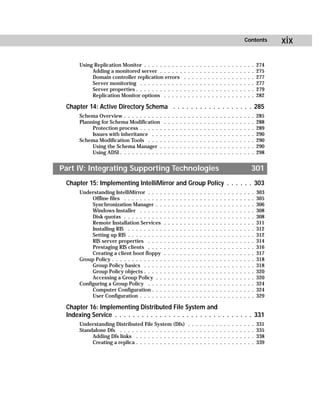
xviii   Contents


                   Publishing Printer Objects . . . . . . . . . . . . . . . . . . . . . . .                                       .   .   .   .   .   201
                        Publishing printers connected to Windows 2000 computers                                                   .   .   .   .   .   202
                        Publishing printers from downlevel computers . . . . . . .                                                .   .   .   .   .   203
                   Publishing Shared Folders . . . . . . . . . . . . . . . . . . . . . . .                                        .   .   .   .   .   206
                        Publishing a shared folder . . . . . . . . . . . . . . . . . . .                                          .   .   .   .   .   206
                        Configuring shared folder properties . . . . . . . . . . . . .                                            .   .   .   .   .   207

            Chapter 11: Implementing Active Directory Security Features . . . . 211
                   Security Overview . . . . . . . . . . . . .            .   .   .   .   .   .   .   .   .   .   .   .   .   .   .   .   .   .   .   211
                   Windows Security . . . . . . . . . . . . . .           .   .   .   .   .   .   .   .   .   .   .   .   .   .   .   .   .   .   .   212
                        Advanced permissions . . . . . . .                .   .   .   .   .   .   .   .   .   .   .   .   .   .   .   .   .   .   .   215
                        Auditing . . . . . . . . . . . . . . . .          .   .   .   .   .   .   .   .   .   .   .   .   .   .   .   .   .   .   .   218
                        Owner . . . . . . . . . . . . . . . . .           .   .   .   .   .   .   .   .   .   .   .   .   .   .   .   .   .   .   .   219
                   Delegation of Control . . . . . . . . . . . .          .   .   .   .   .   .   .   .   .   .   .   .   .   .   .   .   .   .   .   220
                   Configuring Class and Attribute Security               .   .   .   .   .   .   .   .   .   .   .   .   .   .   .   .   .   .   .   227
                        Installing the AdminPak . . . . . . .             .   .   .   .   .   .   .   .   .   .   .   .   .   .   .   .   .   .   .   228
                        Opening the Schema Manager . . .                  .   .   .   .   .   .   .   .   .   .   .   .   .   .   .   .   .   .   .   229
                        Setting class security . . . . . . . .            .   .   .   .   .   .   .   .   .   .   .   .   .   .   .   .   .   .   .   230


          Part III: Active Directory Management                                                                                                   233
            Chapter 12: Maintaining the Active Directory . . . . . . . . . . . . . 235
                   Backing Up the Active Directory . . . . . . .                  .   .   .   .   .   .   .   .   .   .   .   .   .   .   .   .   .   235
                        Windows disk fault-tolerant solutions .                   .   .   .   .   .   .   .   .   .   .   .   .   .   .   .   .   .   236
                        Windows backup strategies . . . . . . .                   .   .   .   .   .   .   .   .   .   .   .   .   .   .   .   .   .   238
                        Understanding System State Data . . .                     .   .   .   .   .   .   .   .   .   .   .   .   .   .   .   .   .   239
                   Performing a Backup . . . . . . . . . . . . . .                .   .   .   .   .   .   .   .   .   .   .   .   .   .   .   .   .   240
                   Restoring Active Directory Data . . . . . . .                  .   .   .   .   .   .   .   .   .   .   .   .   .   .   .   .   .   246
                   Performing an Authoritative Restore . . . . .                  .   .   .   .   .   .   .   .   .   .   .   .   .   .   .   .   .   249
                   Using the Recovery Console . . . . . . . . . .                 .   .   .   .   .   .   .   .   .   .   .   .   .   .   .   .   .   251
                   Common Maintenance Issues . . . . . . . . .                    .   .   .   .   .   .   .   .   .   .   .   .   .   .   .   .   .   253
                        Checking the LostAndFound container                       .   .   .   .   .   .   .   .   .   .   .   .   .   .   .   .   .   255
                        Online and offline defragmentation . .                    .   .   .   .   .   .   .   .   .   .   .   .   .   .   .   .   .   256
                        Removing ghost objects . . . . . . . . .                  .   .   .   .   .   .   .   .   .   .   .   .   .   .   .   .   .   256

            Chapter 13: Managing Active Directory Replication . . . . . . . . . . 259
                   How Replication Works . . . . . .      .   .   .   .   .   .   .   .   .   .   .   .   .   .   .   .   .   .   .   .   .   .   .   259
                       Replication concepts . . . .       .   .   .   .   .   .   .   .   .   .   .   .   .   .   .   .   .   .   .   .   .   .   .   260
                       The Replication process . . .      .   .   .   .   .   .   .   .   .   .   .   .   .   .   .   .   .   .   .   .   .   .   .   265
                       Solving replication problems       .   .   .   .   .   .   .   .   .   .   .   .   .   .   .   .   .   .   .   .   .   .   .   265
                   Examining Intrasite Replication . .    .   .   .   .   .   .   .   .   .   .   .   .   .   .   .   .   .   .   .   .   .   .   .   267
                   Examining Intersite Replication . .    .   .   .   .   .   .   .   .   .   .   .   .   .   .   .   .   .   .   .   .   .   .   .   268
                       Forcing replication . . . . . .    .   .   .   .   .   .   .   .   .   .   .   .   .   .   .   .   .   .   .   .   .   .   .   270
                       Manual connection creation         .   .   .   .   .   .   .   .   .   .   .   .   .   .   .   .   .   .   .   .   .   .   .   271
Contents          xix

      Using Replication Monitor . . . . . . . . . .                .   .   .   .   .   .   .   .   .   .   .   .   .   .   .   .   .   .   274
           Adding a monitored server . . . . . .                   .   .   .   .   .   .   .   .   .   .   .   .   .   .   .   .   .   .   275
           Domain controller replication errors                    .   .   .   .   .   .   .   .   .   .   .   .   .   .   .   .   .   .   277
           Server monitoring . . . . . . . . . . .                 .   .   .   .   .   .   .   .   .   .   .   .   .   .   .   .   .   .   277
           Server properties . . . . . . . . . . . .               .   .   .   .   .   .   .   .   .   .   .   .   .   .   .   .   .   .   279
           Replication Monitor options . . . . .                   .   .   .   .   .   .   .   .   .   .   .   .   .   .   .   .   .   .   282

 Chapter 14: Active Directory Schema . . . . . . . . . . . . . . . . . . 285
      Schema Overview . . . . . . . . . .      .   .   .   .   .   .   .   .   .   .   .   .   .   .   .   .   .   .   .   .   .   .   .   285
      Planning for Schema Modification         .   .   .   .   .   .   .   .   .   .   .   .   .   .   .   .   .   .   .   .   .   .   .   288
           Protection process . . . . . .      .   .   .   .   .   .   .   .   .   .   .   .   .   .   .   .   .   .   .   .   .   .   .   289
           Issues with inheritance . . .       .   .   .   .   .   .   .   .   .   .   .   .   .   .   .   .   .   .   .   .   .   .   .   290
      Schema Modification Tools . . . .        .   .   .   .   .   .   .   .   .   .   .   .   .   .   .   .   .   .   .   .   .   .   .   290
           Using the Schema Manager .          .   .   .   .   .   .   .   .   .   .   .   .   .   .   .   .   .   .   .   .   .   .   .   290
           Using ADSI . . . . . . . . . . .    .   .   .   .   .   .   .   .   .   .   .   .   .   .   .   .   .   .   .   .   .   .   .   298


Part IV: Integrating Supporting Technologies                                                                                           301
 Chapter 15: Implementing IntelliMirror and Group Policy . . . . . . 303
      Understanding IntelliMirror . . . .      .   .   .   .   .   .   .   .   .   .   .   .   .   .   .   .   .   .   .   .   .   .   .   303
           Offline files . . . . . . . . . .   .   .   .   .   .   .   .   .   .   .   .   .   .   .   .   .   .   .   .   .   .   .   .   305
           Synchronization Manager . .         .   .   .   .   .   .   .   .   .   .   .   .   .   .   .   .   .   .   .   .   .   .   .   306
           Windows Installer . . . . . .       .   .   .   .   .   .   .   .   .   .   .   .   .   .   .   .   .   .   .   .   .   .   .   308
           Disk quotas . . . . . . . . . .     .   .   .   .   .   .   .   .   .   .   .   .   .   .   .   .   .   .   .   .   .   .   .   308
           Remote Installation Services        .   .   .   .   .   .   .   .   .   .   .   .   .   .   .   .   .   .   .   .   .   .   .   311
           Installing RIS . . . . . . . . .    .   .   .   .   .   .   .   .   .   .   .   .   .   .   .   .   .   .   .   .   .   .   .   312
           Setting up RIS . . . . . . . . .    .   .   .   .   .   .   .   .   .   .   .   .   .   .   .   .   .   .   .   .   .   .   .   312
           RIS server properties . . . .       .   .   .   .   .   .   .   .   .   .   .   .   .   .   .   .   .   .   .   .   .   .   .   314
           Prestaging RIS clients . . . .      .   .   .   .   .   .   .   .   .   .   .   .   .   .   .   .   .   .   .   .   .   .   .   316
           Creating a client boot floppy       .   .   .   .   .   .   .   .   .   .   .   .   .   .   .   .   .   .   .   .   .   .   .   317
      Group Policy . . . . . . . . . . . . .   .   .   .   .   .   .   .   .   .   .   .   .   .   .   .   .   .   .   .   .   .   .   .   318
           Group Policy basics . . . . .       .   .   .   .   .   .   .   .   .   .   .   .   .   .   .   .   .   .   .   .   .   .   .   318
           Group Policy objects . . . . .      .   .   .   .   .   .   .   .   .   .   .   .   .   .   .   .   .   .   .   .   .   .   .   320
           Accessing a Group Policy . .        .   .   .   .   .   .   .   .   .   .   .   .   .   .   .   .   .   .   .   .   .   .   .   320
      Configuring a Group Policy . . . .       .   .   .   .   .   .   .   .   .   .   .   .   .   .   .   .   .   .   .   .   .   .   .   324
           Computer Configuration . . .        .   .   .   .   .   .   .   .   .   .   .   .   .   .   .   .   .   .   .   .   .   .   .   324
           User Configuration . . . . . .      .   .   .   .   .   .   .   .   .   .   .   .   .   .   .   .   .   .   .   .   .   .   .   329

 Chapter 16: Implementing Distributed File System and
 Indexing Service . . . . . . . . . . . . . . . . . . . . . . . . . . . . . . . 331
      Understanding Distributed File System (Dfs)                      .   .   .   .   .   .   .   .   .   .   .   .   .   .   .   .   .   331
      Standalone Dfs . . . . . . . . . . . . . . . . .                 .   .   .   .   .   .   .   .   .   .   .   .   .   .   .   .   .   335
           Adding Dfs links . . . . . . . . . . . . .                  .   .   .   .   .   .   .   .   .   .   .   .   .   .   .   .   .   338
           Creating a replica . . . . . . . . . . . . .                .   .   .   .   .   .   .   .   .   .   .   .   .   .   .   .   .   339
xx   Contents


                Active Directory Integrated Dfs .      .   .   .   .   .   .   .   .   .   .   .   .   .   .   .   .   .   .   .   .   .   .   .   .   340
                Indexing Service . . . . . . . . . .   .   .   .   .   .   .   .   .   .   .   .   .   .   .   .   .   .   .   .   .   .   .   .   .   341
                     Installing Indexing Service       .   .   .   .   .   .   .   .   .   .   .   .   .   .   .   .   .   .   .   .   .   .   .   .   342
                     Indexing Service catalogs .       .   .   .   .   .   .   .   .   .   .   .   .   .   .   .   .   .   .   .   .   .   .   .   .   343
                Managing the Indexing Service .        .   .   .   .   .   .   .   .   .   .   .   .   .   .   .   .   .   .   .   .   .   .   .   .   346

         Chapter 17: Connecting Exchange Server and the Active Directory 349
                Exchange and the Active Directory . . . . . . . . .                            .   .   .   .   .   .   .   .   .   .   .   .   .   .   349
                      Exchange 5.5 and the Active Directory . . .                              .   .   .   .   .   .   .   .   .   .   .   .   .   .   350
                      Exchange 2000 and the Active Directory . .                               .   .   .   .   .   .   .   .   .   .   .   .   .   .   351
                Installing the Active Directory Connector . . . . .                            .   .   .   .   .   .   .   .   .   .   .   .   .   .   353
                Configuring Connector Management Properties .                                  .   .   .   .   .   .   .   .   .   .   .   .   .   .   356
                Creating and Configuring Connection Agreements                                 .   .   .   .   .   .   .   .   .   .   .   .   .   .   357
                ADC Properties . . . . . . . . . . . . . . . . . . . .                         .   .   .   .   .   .   .   .   .   .   .   .   .   .   364
                Using Multiple ADC Servers . . . . . . . . . . . . .                           .   .   .   .   .   .   .   .   .   .   .   .   .   .   365
                Synchronizaton with the ADC . . . . . . . . . . . .                            .   .   .   .   .   .   .   .   .   .   .   .   .   .   366

         Chapter 18: Implementing Microsoft DNS . . . . . . . . . . . . . . . 369
                Understanding DNS . . . . . . . . . . . . . . . .                      .   .   .   .   .   .   .   .   .   .   .   .   .   .   .   .   369
                      The DNS namespace . . . . . . . . . . . .                        .   .   .   .   .   .   .   .   .   .   .   .   .   .   .   .   370
                      How name resolution works . . . . . . .                          .   .   .   .   .   .   .   .   .   .   .   .   .   .   .   .   372
                      Understanding DNS zones . . . . . . . . .                        .   .   .   .   .   .   .   .   .   .   .   .   .   .   .   .   376
                      Understanding Dynamic DNS . . . . . . .                          .   .   .   .   .   .   .   .   .   .   .   .   .   .   .   .   377
                Installing DNS . . . . . . . . . . . . . . . . . . .                   .   .   .   .   .   .   .   .   .   .   .   .   .   .   .   .   378
                Creating Forward and Reverse Lookup Zones                              .   .   .   .   .   .   .   .   .   .   .   .   .   .   .   .   379
                      Creating a new forward lookup zone . .                           .   .   .   .   .   .   .   .   .   .   .   .   .   .   .   .   379
                      Creating a reverse lookup zone . . . . . .                       .   .   .   .   .   .   .   .   .   .   .   .   .   .   .   .   381
                Managing the DNS Server . . . . . . . . . . . .                        .   .   .   .   .   .   .   .   .   .   .   .   .   .   .   .   382
                      Interfaces tab . . . . . . . . . . . . . . . .                   .   .   .   .   .   .   .   .   .   .   .   .   .   .   .   .   383
                      Forwarders tab . . . . . . . . . . . . . . .                     .   .   .   .   .   .   .   .   .   .   .   .   .   .   .   .   384
                      Advanced tab . . . . . . . . . . . . . . . .                     .   .   .   .   .   .   .   .   .   .   .   .   .   .   .   .   384
                      Root Hints tab . . . . . . . . . . . . . . .                     .   .   .   .   .   .   .   .   .   .   .   .   .   .   .   .   386
                      Logging tab . . . . . . . . . . . . . . . . .                    .   .   .   .   .   .   .   .   .   .   .   .   .   .   .   .   386
                      Monitoring tab . . . . . . . . . . . . . . .                     .   .   .   .   .   .   .   .   .   .   .   .   .   .   .   .   386
                Managing DNS Zones . . . . . . . . . . . . . . .                       .   .   .   .   .   .   .   .   .   .   .   .   .   .   .   .   388
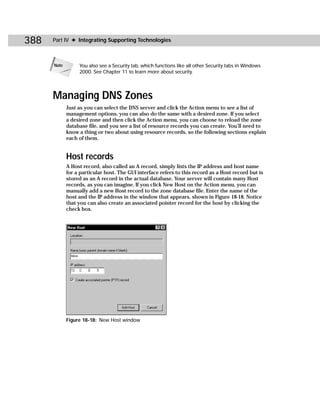
                      Host records . . . . . . . . . . . . . . . .                     .   .   .   .   .   .   .   .   .   .   .   .   .   .   .   .   388
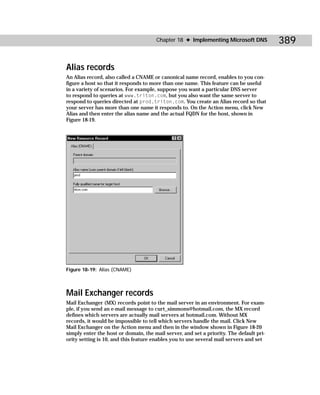
                      Alias records . . . . . . . . . . . . . . . .                    .   .   .   .   .   .   .   .   .   .   .   .   .   .   .   .   389
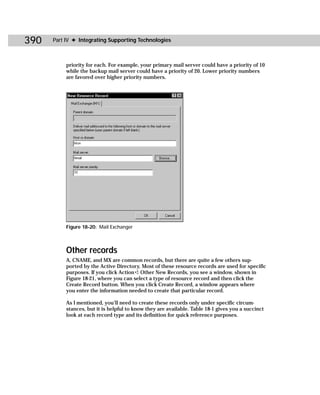
                      Mail Exchanger records . . . . . . . . . .                       .   .   .   .   .   .   .   .   .   .   .   .   .   .   .   .   389
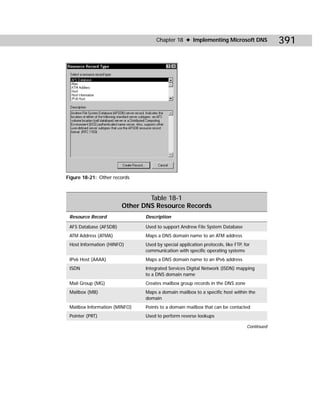
                      Other records . . . . . . . . . . . . . . . .                    .   .   .   .   .   .   .   .   .   .   .   .   .   .   .   .   390
                      Zone properties . . . . . . . . . . . . . .                      .   .   .   .   .   .   .   .   .   .   .   .   .   .   .   .   392
                Final DNS Tips . . . . . . . . . . . . . . . . . . .                   .   .   .   .   .   .   .   .   .   .   .   .   .   .   .   .   396
Contents    xxi

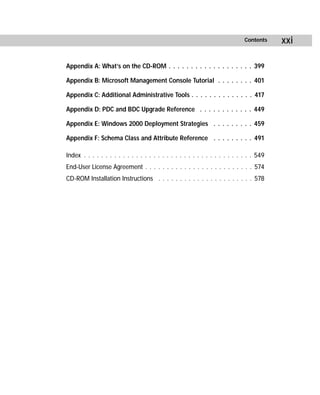
Appendix A: What’s on the CD-ROM . . . . . . . . . . . . . . . . . . . 399

Appendix B: Microsoft Management Console Tutorial . . . . . . . . 401

Appendix C: Additional Administrative Tools . . . . . . . . . . . . . . 417

Appendix D: PDC and BDC Upgrade Reference . . . . . . . . . . . . 449

Appendix E: Windows 2000 Deployment Strategies . . . . . . . . . 459

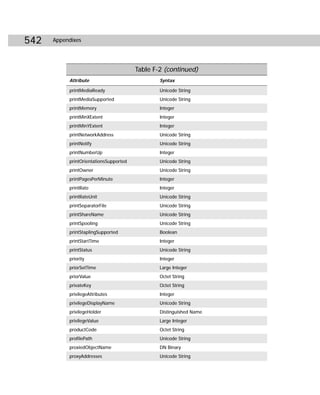
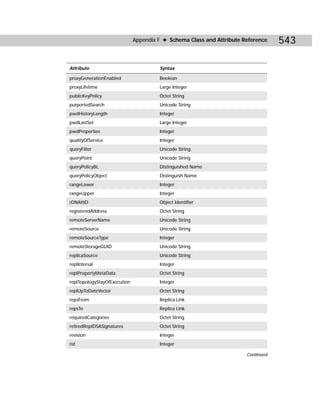
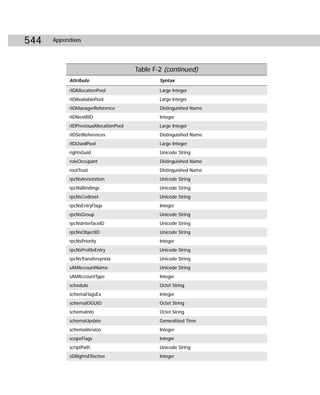
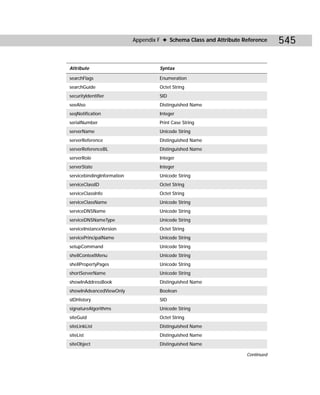
Appendix F: Schema Class and Attribute Reference . . . . . . . . . 491

Index . . . . . . . . . . . . . . . . . . . . . . . . . . . . . . . . . . . . . . . 549
End-User License Agreement . . . . . . . . . . . . . . . . . . . . . . . . . 574
CD-ROM Installation Instructions . . . . . . . . . . . . . . . . . . . . . . 578
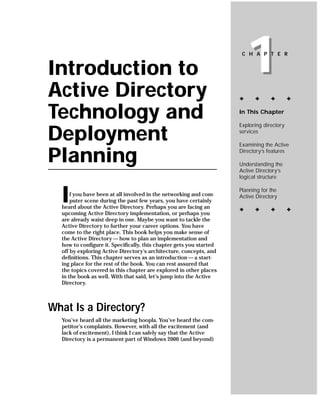
Introduction to
Active Directory
                                                                         1
                                                                      C H A P T E R


                                                                     ✦     ✦      ✦        ✦


Technology and                                                       In This Chapter

                                                                     Exploring directory

Deployment                                                           services

                                                                     Examining the Active

Planning                                                             Directory’s features

                                                                     Understanding the
                                                                     Active Directory’s
                                                                     logical structure


  I   f you have been at all involved in the networking and com-
      puter scene during the past few years, you have certainly
  heard about the Active Directory. Perhaps you are facing an
                                                                     Planning for the
                                                                     Active Directory

                                                                     ✦     ✦      ✦        ✦
  upcoming Active Directory implementation, or perhaps you
  are already waist deep in one. Maybe you want to tackle the
  Active Directory to further your career options. You have
  come to the right place. This book helps you make sense of
  the Active Directory — how to plan an implementation and
  how to configure it. Specifically, this chapter gets you started
  off by exploring Active Directory’s architecture, concepts, and
  definitions. This chapter serves as an introduction — a start-
  ing place for the rest of the book. You can rest assured that
  the topics covered in this chapter are explored in other places
  in the book as well. With that said, let’s jump into the Active
  Directory.


What Is a Directory?
  You’ve heard all the marketing hoopla. You’ve heard the com-
  petitor’s complaints. However, with all the excitement (and
  lack of excitement), I think I can safely say that the Active
  Directory is a permanent part of Windows 2000 (and beyond)
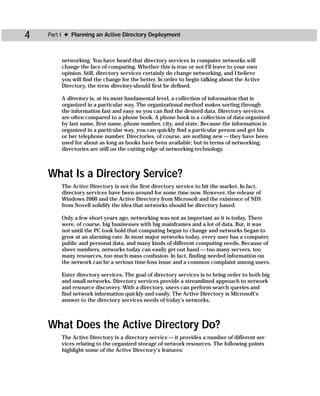
4   Part I ✦ Planning an Active Directory Deployment


        networking. You have heard that directory services in computer networks will
        change the face of computing. Whether this is true or not I’ll leave to your own
        opinion. Still, directory services certainly do change networking, and I believe
        you will find the change for the better. In order to begin talking about the Active
        Directory, the term directory should first be defined.

        A directory is, at its most fundamental level, a collection of information that is
        organized in a particular way. The organizational method makes sorting through
        the information fast and easy so you can find the desired data. Directory services
        are often compared to a phone book. A phone book is a collection of data organized
        by last name, first name, phone number, city, and state. Because the information is
        organized in a particular way, you can quickly find a particular person and get his
        or her telephone number. Directories, of course, are nothing new — they have been
        used for about as long as books have been available; but in terms of networking,
        directories are still on the cutting edge of networking technology.


    What Is a Directory Service?
        The Active Directory is not the first directory service to hit the market. In fact,
        directory services have been around for some time now. However, the release of
        Windows 2000 and the Active Directory from Microsoft and the existence of NDS
        from Novell solidify the idea that networks should be directory based.

        Only a few short years ago, networking was not as important as it is today. There
        were, of course, big businesses with big mainframes and a lot of data. But, it was
        not until the PC took hold that computing began to change and networks began to
        grow at an alarming rate. In most major networks today, every user has a computer,
        public and personal data, and many kinds of different computing needs. Because of
        sheer numbers, networks today can easily get out hand — too many servers, too
        many resources, too much mass confusion. In fact, finding needed information on
        the network can be a serious time-loss issue and a common complaint among users.

        Enter directory services. The goal of directory services is to bring order to both big
        and small networks. Directory services provide a streamlined approach to network
        and resource discovery. With a directory, users can perform search queries and
        find network information quickly and easily. The Active Directory is Microsoft’s
        answer to the directory services needs of today’s networks.


    What Does the Active Directory Do?
        The Active Directory is a directory service — it provides a number of different ser-
        vices relating to the organized storage of network resources. The following points
        highlight some of the Active Directory’s features:
Chapter 1 ✦ Introduction to Active Directory Technology and Deployment Planning              5

       ✦ Organized Approach — The Active Directory brings order to your network by
         organizing network resources, such as user accounts, group accounts, shared
         folders, printers, and so on. With the Active Directory, users can quickly find
         information they need.
       ✦ Ease of administration — Windows 2000 networks no longer use primary
         domain controllers (PDCs) and backup domain controllers (BDCs). All domain
         controllers are simply peers, providing you a single point of administration
         and excellent fault tolerance.
       ✦ Removes Topology from Users — The Active Directory helps remove knowl-
         edge of the network topology from end users. End users do not have to know
         which server holds which resource and where it is located on the network.
         The Active Directory contains powerful query capabilities so users can per-
         form full text searches to find what resources they need.
       ✦ Reduction of NT Domains — This is the part where all Windows NT network
         administrators cringe. A major goal of the Active Directory is to make large
         networks more manageable — and part of that lofty goal is to reduce the num-
         ber of NT domains. The Active Directory does not have a domain user/group
         account limit (well, it does have one of about 1 million), and due to its design,
         many networks that currently have several existing NT domains now need
         only one Windows 2000 domain.
       ✦ Growth Potential — Two buzzwords thrown around about the Active Directory
         are scalability and extensibility. Scalability means that a service can grow with
         the needs of your network. The Active Directory is a scalable product because
         it can grow to meet the needs of your network. The Active Directory works on
         a network of a few hundred computers or on a network of thousands of com-
         puters. Extensibility means that service can be extended. The Active Directory
         can be extended in terms of its namespace and through resources it contains.
       ✦ Standardization — The Active Directory is completely built on networking
         and protocol standards that currently exist and are heavily used. In other
         words, there are no totally new standards that must be mastered. The Active
         Directory is built on a TCP/IP network, which is the networking protocol of
         choice these days, and it is completely integrated with Domain Name System
         (DNS) and Lightweight Directory Access Protocol (LDAP), both of which are
         explored in detail later in this book.
       ✦ Network Control — The Active Directory offers a very fine level of network
         management, both in terms of server management and desktop management.
         Through Windows 2000’s Group Policy, you can manage network user desktop
         configurations much more easily and effectively. Through the Active Directory,
         you can finely control resource security and even delegate administrative tasks
         to other people through Delegation of Control.
6   Part I ✦ Planning an Active Directory Deployment


             ✦ Easier WAN Management — Once you get Active Directory correctly set up,
               it manages its own replication topology. The Active Directory includes more
               internal services that help it manage and control its own processes, including
               replication. This feature keeps administrators out of such deathly details and
               enables software to take care of itself and replicate data between domain con-
               trollers and sites as needed.

          Aside from these major points, the Active Directory also brings order and man-
          agement options to larger networks, which was a major pitfall with Windows NT
          networks. NT networks functioned well, especially if the network did not get too
          large. However, the NT architecture was flat in that there were not different levels
          of administration and security. The larger NT networks became, the more domains
          were needed, which increased network traffic, trust relationship issues between
          domains, and administrative headaches. The Active Directory solves this problem
          because it is built on a hierarchy where information can be managed at different
          levels.


    Active Directory Logical Structure
          To begin the exploration of the Active Directory, I want to take a look at its logical
          structure. In order to effectively plan, implement, and administer the Active Direc-
          tory, this logical structure will need to become second nature.

          The Active Directory is built on the domain level. Before Windows 2000 was released,
          it was often rumored that domains were no longer going to be a part of Windows
          2000. That is not all true, but domains have changed quite a bit because they can be
          bigger and do not have the restrictions found in NT domains. As a point of reference,
          a domain is a logical grouping of computers and users for both administrative and
          security purposes. In Windows NT, you found yourself working with and spending
          a lot of time troubleshooting domains. If you currently have an NT network of any
          size, you probably have quite a few domains. NT domains were so limited that they
          seemed to grow and multiply too rapidly, creating headaches and confusion for both
          users and administrators.

          The Windows 2000 Active Directory domain model is different. Windows 2000 Active
          Directory domains are organized into domain trees that exist in a forest. When you
          first install the Active Directory, you create the first domain in a new forest. That
          new domain becomes the root domain. If you choose to install additional domains,
          they are created from the forest root.

    Tip        You can create additional domain trees in a single forest. In other words, a forest
               can contain more than one domain tree. These issues are explored in detail in
               Chapters 2 and 3.

          The Active Directory prefers a few domains (or even just one) with several Organi-
          zational Units (OUs). An OU is like a file folder — it holds important information.
Chapter 1 ✦ Introduction to Active Directory Technology and Deployment Planning              7

    OUs are containers designed to hold all kinds of Active Directory resources, such as
    users, computers, printers, and even other OUs. The great thing about OUs is you
    can set security, administrative control, and even policies at the OU level. In fact,
    many existing NT networks that have several domains can now be replaced with
    one domain and several OUs.

    As I mentioned, an OU is designed to hold resources, such as users, computer
    accounts, printers, shared folders, and so on. These resources are called objects,
    and from this point on, I will refer to them as such. Figure 1-1 shows you a graphical
    representation of this model.


               Domain                    Domains hold organizational units, which
                                         contain Active Directory objects.


                                   Organizational
                                       Unit


      User          Computer             Printers      Applications      Shared
    Accounts        Accounts                                             Folders
    Figure 1-1: Active Directory logical structure


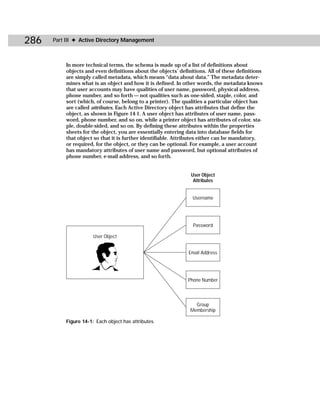
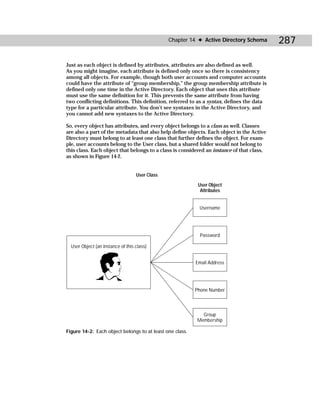
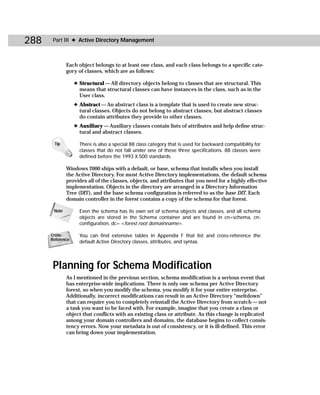
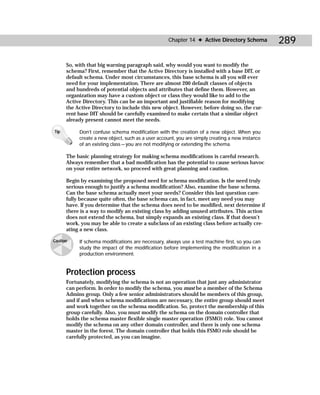
    Each object that the Active Directory contains possesses attributes, shown in
    Figure 1-2. You can think of attributes as qualities of an object that help define it.
    For example, a user account has attributes such as user name, password, e-mail
    address, phone number, group memberships, and so on. These attributes define
    the object. Each object in the Active Directory contains predefined attributes.
8   Part I ✦ Planning an Active Directory Deployment


         If you think of the Active Directory as a database (which it is), think of an object as
         a database entry and the attributes as fields for the object.


            Object                         Attributes

                                           username
                                           password
                                           email address
                                           phone number
                                           group
                                           membership
         Figure 1-2: Objects and attributes


         Consequently, in the logical structure, you have the domain, the OU, and the object,
         and each object has attributes that define it. The Active Directory also uses sites,
         but sites are not considered a part of the Active Directory logical structure, or hier-
         archy. Sites are maintained in the Active Directory for replication and traffic-control
         purposes only. A site, by definition, is a physical location of computers and users,
         contrasting to a domain, which is a logical grouping of computers and users. It is
         important to note that sites and domains are not interrelated — a site can contain
         several domains or a domain could span multiple sites. While a domain is a logical,
         administrative level of networking, a site is a physical level. In the Active Directory,
         sites are based on well-connected IP subnets, and they can be a point of planning
         and configuration confusion. Several of the following chapters address site configu-
         ration and replication traffic to help clear up this confusion.


      Say Good-bye to Difficult Trust Relationships
      If you have worked in a multiple domain NT network, you know a thing or two about trust
      relationships. Trust relationships enable a user in Domain A to access resources in Domain
      B. Trust relationships must be established to enable remote domain resource access, and in
      Windows NT, you had to configure each side of the trust — determining who was trusted
      and who was trusting. In complex environments, trust relationship became very complex
      and difficult to configure and manage.
      Say good-bye to complex trust relationships in Windows 2000. In Windows 2000 environ-
      ments that need more than one domain, automatic Kerberos transitive trusts are established
      when you create new domains in the forest tree. Kerberos is the security protocol in Windows
      2000, replacing NTLM in Windows NT. Kerberos provides superior security technology and
      many new security features, like transitive trust relationships. A transitive trust simply means
      that if Domain A trusts Domain B, and Domain B trusts Domain C, then Domain A automati-
      cally trusts Domain C. The transitive trust relationships are automatically configured with all
      other domains and domain trees within the forest. The forest serves as your boundary, and
      all domains automatically trust each other — no configuration from you required!
Chapter 1 ✦ Introduction to Active Directory Technology and Deployment Planning                9

DNS and LDAP
       I mentioned earlier in the chapter that Active Directory is fully compatible with
       Domain Name System (DNS) and Lightweight Directory Access Protocol (LDAP).
       DNS is explored in several later chapters, so I’ll approach it from an overview per-
       spective here. DNS is a name resolution method that resolves host names to IP
       addresses. DNS is used on TCP/IP networks and is the name resolution system
       used on the entire Internet. DNS enables a host name like www.microsoft.com to
       be resolved to a TCP/IP address like 131.107.2.200. Computers communicate using
       an IP address. IP addresses are difficult for humans to remember because we are
       language-based creatures. DNS allows us to give friendly, language names, like
       microsoft.com, to hosts instead of having to remember its numerical IP address.
       DNS’s job is to resolve the two. When a user requests www.microsoft.com, DNS
       uses several name servers to find the actual IP address of microsoft.com. Once
       it is found, the IP address is returned to the client so the client can use the IP
       address to contact microsoft.com. All of this is invisible to users and very fast.

       So, what does all of this have to do with the Active Directory? DNS is a namespace,
       which means it is an area that can be resolved. A phone book is a namespace because
       it contains certain data that you resolve (name to phone number) in a certain way.
       Internet names, such as microsoft.com, yahoo.com, amazon.com, and so forth, all
       follow this naming scheme in order to be resolved. The Active Directory is built on
       DNS — in fact, Active Directory names are DNS names. In earlier versions of Windows,
       NetBIOS was used to provide friendly names to computers, and Windows Internet
       Name Service (WINS) was used for the locator service. In pure Windows 2000 net-
       works, DNS is now used for the locator service.

Note        WINS is still supported in Windows 2000 for backward compatibility, but Windows
            2000 computers (Server and Professional) need only DNS.

       It is important to note that the Active Directory namespace is not the DNS name-
       space. The DNS namespace is used on the Internet while the Active Directory
       namespace is used for private networks. However, the Active Directory namespace
       is based on DNS, and it connects into the DNS namespace. In other words, DNS is a
       global namespace that makes up the entire Internet, and the Active Directory name-
       space is built on the DNS hierarchical structure so that it connects into the DNS
       global namespace. For now, it is important to remember that you cannot implement
       the Active Directory without DNS, and all Active Directory names are DNS names.

       The Active Directory is also a fully compliant LDAP directory service. To under-
       stand why this is important, you need to understand a few things about LDAP. LDAP
       is based on the Directory Access Protocol (DAP), which was an implementation of
       X.500 networks. X.500 is a very broad directory service that is built on a hierarchi-
       cal structure, much like DNS. X.500 directories are searchable, and DAP is used in
       X.500 networks to query the database in order to locate directory information. The
       problem with DAP is that it places a lot of the processing burden on client comput-
       ers and so gained the reputation of having a high overhead. LDAP was developed
10   Part I ✦ Planning an Active Directory Deployment


           from DAP (RFC 1777), but it does not have the high overhead of DAP and does not
           require the X.500 network implementation. LDAP maintains the functionality of DAP
           without the X.500 overhead.

           Since it was developed, LDAP has become an Internet standard. You use it in
           search engines and newsgroups. It works great, is a standard, and is used in the
           Active Directory for client queries. Let’s say that a user performs a directory
           search to locate all “laser printers.” LDAP uses the keywords to perform a search
           of objects and attributes to locate all laser printers. All access to Active Directory
           objects is performed through LDAP, and it is used when administrators modify
           Active Directory objects.

     Tip        LDAP can be used in any attribute-based, hierarchical directory, which is why it
                works well with the Active Directory.

           In order to provide the powerful query capabilities that make LDAP so popular,
           LDAP assigns Active Directory objects several different names. These different
           names provide information about the object that can be used for query matches.

           First, LDAP gives objects a distinguished name (DN) and a relative distinguished
           name (RDN). The DN shows the complete path to the object or where the object
           resides within the Active Directory. Remember that the Active Directory hierarchy
           begins at the domain level, then moves to the OU, and finally to the object level.
           The DN shows this complete path. The RDN provides the common name of the
           object. For example, the following line shows the DN and RDN of a user account.

             Cn=ksmith,ou=namerica,dc=triton,dc=com

           The RDN is ksmith, the common name for a user account. The DN provides the
           entire path to the user account, which exists in an Organizational Unit called
           “namerica,” which in turn resides in the triton.com domain. (Remember that all
           Active Directory names are DNS names, so your domain names will be followed
           by .com or some other DNS first-level domain.) The RDN (cn) always appears first,
           followed by the DN (path to the object — dc stands for domainDns object class).

           Here’s another example:

             Cn=HPDeskJet30,ou=resources,ou=acct,dc=triton,dc=com

           In this example, the RDN is HPDeskJet30, a shared network printer that resides
           in the Resources OU, which resides in the Acct OU, which resides in the domain
           triton.com.
Chapter 1 ✦ Introduction to Active Directory Technology and Deployment Planning                     11

 Note        Neither administrators nor users see the DN information when working with the
             Active Directory, but you can view this information using various Active Directory
             administration tools found in the Windows 2000 Resource Kit. See Appendix C for
             more information.

        In addition to the DN and RDN, LDAP also uses the user principal name (UPN) to
        locate objects. The UPN is a friendly name assigned to an object that is displayed
        as objectname@domainname. For example, a user account named ksmith in the tri-
        ton.com domain appears as ksmith@triton.com. To LDAP, this is a local name on
        a local network. On the Internet, this same name is an e-mail address. The UPN is
        used both by LDAP and to make Windows logon much simpler. Administrators can
        generate UPN suffixes to make user logon more mainstream and less confusing.

Cross-       See Chapter 8 for more information on user principal names.
Reference


        While on the subject of LDAP names, this is a good place to mention that each
        Active Directory object also has a Globally Unique Identifier (GUID). The GUID is a
        128-bit number that is assigned to the object when it is created. The GUID is worth
        mentioning here because it never changes for a particular object, unlike the DN or
        RDN, which can both change.

 Note        An object’s GUID is actually an attribute of that object. The GUID, like other attri-
             butes, is required for every object. Depending on the object, some attributes are
             mandatory while others are optional. The GUID is always required for every object.
             Which attributes are required and which attributes are not required depend on the
             object itself. For example, when creating a user account, a GUID is assigned, and
             you also have a required attribute of user name. You can’t create the account with-
             out a user name, so that attribute is required. Other attributes, such as e-mail
             address and phone number, are optional — you can include them if you want, but
             these are not required by the Active Directory.


 Windows 2000 Domain Controllers
        I mentioned earlier that Windows 2000 no longer uses PDCs or BDCs. That’s enough
        to rattle the brain of any NT administrator, but to truly get into Active Directory
        mode, you’ll have to lose a few sacred artifacts from the NT world. A couple of
        those are PDCs and BDCs.
12    Part I ✦ Planning an Active Directory Deployment


            Windows 2000 domain controllers function as peers. This means there is no single
            primary domain controller. All domain controllers are simply “domain controllers”
            and all of them are equal. Because you can use any domain controller to make
            changes to the Active Directory and fault tolerance is automatically built-in, this
            is an excellent management feature. If one domain controller crashes, no problem,
            the other domain controllers continue functioning as normal, and network activity
            functions as normal. In Windows NT networks, the PDC contains the writable copy
            of the database while BDCs all have a replicated copy from the PDC. In Windows
            2000 networks, all domain controllers contain a writable copy of the database.

            So, now that you know that all Windows 2000 domain controllers are peers, let me
            throw a little confusion into the mix. Although all Windows 2000 domain controllers
            are peers, some domain controllers have certain specialized roles assigned to them.
            These specialized roles exist because they do not work well functioning on all domain
            controllers. The following two sections examine these specialized roles.


            Global catalog servers
            Some domain controllers are global catalog servers. Depending on your network
            configuration, you may have several global catalog servers. Global catalog servers
            perform two major functions:

                 1. Global catalog servers contain a full replica of all Active Directory objects
                    in their domain and a partial replica of all Active Directory objects in other
                    domains in the forest. For example, let’s say that Karen Anderson, a user
                    in a domain called triton.com, needs to use a printer in the prod.triton.com
                    domain. Karen searches for the printer. In order to fulfill Karen’s request, a
                    global catalog server is consulted because the global catalog server has a par-
                    tial replica of all objects in the other domain. Using the global catalog server,
                    Karen can find and connect to a desired printer (assuming she has appropri-
                    ate permission to do so).

      Tip          A partial replica simply means that the global catalog server is aware of the object
                   and the most common attributes for that object. Since its job is to help with user
                   queries, only the most common attributes that might be used in a search process
                   are kept on global catalog server.

                 2. Global catalog servers are required for user logons. This may sound strange,
                    but global catalog servers assist with user logons in that they provide infor-
                    mation about Universal groups, a new type of group in Windows 2000, to a
                    domain controller where the logon request initiated.

     Cross-        For more information on Universal groups, see Chapter 9.
     Reference
Chapter 1 ✦ Introduction to Active Directory Technology and Deployment Planning                  13

           Global catalog servers are necessary for user logons if the domain is running
           in native mode — not mixed mode – because Universal groups are only sup-
           ported in Native mode. Mixed mode means that Windows NT BDCs are still in
           use while native mode means that only Windows 2000 servers are in use.

Tip        Users cannot logon to the network if a global catalog server is not available when
           the domain is running in native mode. You can learn more about mixed mode and
           native mode in Chapter 8.

      When installing the Active Directory for the first time, the first domain controller
      where you begin the installation becomes the global catalog server for the domain.
      You can change this role to another server if necessary.


      Multimaster roles
      Aside from the global catalog server, some domain controllers also run what is called
      flexible single master operation (FSMO) roles. In order to explain FSMO roles, I need
      to mention a few things about Windows 2000 replication (which is covered in detail
      in Chapters 5 and 13). Replication is the process of sending update information to
      other domain controllers. Windows 2000 uses multimaster replication. Just as with the
      absence of a PDC, there is no single master replicator. This means that changes to the
      database can occur from any domain controller and that then that domain controller
      is responsible for letting all other domain controllers know about database changes.

      Imagine this scenario. Let’s say you add a new user account to one domain controller.
      Remember that each domain controller maintains its own copy of the Active Direc-
      tory database. If the domain controller does not let all other domain controllers
      know about the new user account, will the user be able to log on? No — not unless
      by some stroke of luck the user attempts authentication on the domain controller
      where the account was created. Now imagine if this happens over and over each
      day. Eventually, each domain controller will have a different database and a different
      view of the network because the domain controller would not know about database
      changes on all other domain controllers. Enter replication. Replication is a fairly com-
      plex process that sends changes to other domain controllers so that each domain
      controller can keep up with all the database changes made on different domain con-
      trollers. Without effective replication, the Active Directory would quickly become a
      hopeless mess of inaccurate data due to the peer domain controller design.

      With all that said, turn your attention back to FSMO roles. Multimaster replication
      works great, but for some database changes, the process does not work well. In
      order to solve this problem, certain domain controllers hold certain FSMO roles.
      This means that only those domain controllers accept certain types of database
      changes and perform certain functions. There are five different FSMO roles that
      cover the replication exceptions and process handling exceptions of multimaster
      replication. Table 1-1 gives you a preliminary overview of these five roles.
14   Part I ✦ Planning an Active Directory Deployment


                                              Table 1-1
                                             FSMO Roles
           FSMO Role                  Explanation

           Schema Master              The schema master role belongs to only one domain con-
                                      troller in the entire forest. The schema is simply a schematic,
                                      or blueprint, of all Active Directory objects and their attributes.
                                      The schema determines what kinds of objects can be stored
                                      in the directory and what attributes define those objects. Any
                                      modifications made to the schema must be made on the
                                      domain controller holding the schema master role.
           Domain Naming Master       The domain naming master role belongs to only one domain
                                      controller in the forest. The domain naming master controls
                                      the addition and removal of domains in the forest.
           Relative ID (RID) Master   The RID master manages the distribution of RID numbers to
                                      other domain controllers. When a domain controller generates
                                      a new security ID (SID) for a new user, computer, or group
                                      account, a domain security ID and a RID number are used.
                                      The RID master makes certain that no two domain controllers
                                      have the same or overlapping RID numbers. Each domain in
                                      the forest has one RID master.
           PDC Emulator               Windows 2000 domains that have Windows NT BDCs still in
                                      operation (mixed mode) and Windows 2000 domains that
                                      have downlevel clients (such as 9x and NT) expect a PDC to
                                      be present on the network. The PDC Emulator role is played
                                      by one domain controller in each domain to “act like” a
                                      Window NT PDC.
           Infrastructure Master      The Infrastructure master role, which is held by one domain
                                      controller in each domain, updates group members as
                                      necessary. For example, when the membership of a particular
                                      group changes, the Infrastructure master updates the group
                                      to ensure that changes are processed appropriately.


     The Active Directory Schema
         I’ve mentioned the Active Directory schema in Table 1-1. The Active Directory
         schema is a complete collection, or schematic, of Active Directory objects and
         attributes and the classes to which objects belong. The schema determines
         what can be stored in the Active Directory, where it belongs in the database,
         and what attributes belong to what objects. As a result, you can think of the
         schema as rules that determine what can be stored in the Active Directory.
Chapter 1 ✦ Introduction to Active Directory Technology and Deployment Planning                  15

       Within the schema, objects belong to different classes. For example, user objects
       belong to the user class. Whenever you create new objects, the schema determines if
       the object can be created, and it determines what mandatory attributes and optional
       attributes belong with that class. Windows 2000 Active Directory ships with a default
       schema that is installed when you install the Active Directory. For most Active Direc-
       tory implementations, the default schema is all you need for an effective implementa-
       tion; however, you can extend the schema by adding new classes of objects and new
       attributes to define those objects. Extending the schema is a serious operation that
       can have devastating consequences on your enterprise implementation if performed
       incorrectly, so modification is something that requires careful planning. As a security
       precaution, schema modification can occur only on the domain controller holding the
       Schema master role.

Cross-      Chapter 14 explores modification issues in more detail.
Reference


       The schema exists on each domain controller in the Schema container. Upon instal-
       lation, the first domain controller receives the schema and each domain controller
       thereafter. Like all Active Directory data, the schema is replicated among domain
       controllers to ensure accuracy in the event that a schema modification does occur.
       The schema is found on all domain controllers, along with the Active Directory
       database, in %systemroot%system32ntds.


 Planning an Active Directory Deployment
       The entire first part of this book is devoted to Active Directory deployment plan-
       ning. This fact alone should tell you a thing or two. Like all complex networking tech-
       nologies, the Active Directory requires a significant amount of planning in order to
       deploy the directory service in a way that will function from a networking view to an
       administrative view. I can’t say enough here about how important deployment plan-
       ning is to the success of your Active Directory implementation. It is always tempting
       to start with that installation CD, but you have some pencil-and-paper work to do
       before ever starting an installation.

       The remaining chapters in this section explore planning your deployment — from
       your namespace to your domain and OU structure, your site structure, as well as
       upgrade and migration plans. Before getting into those technical issues, however,
       you have some up-front work to do.

       As a starting place for your implementation, you and your company will first have to
       decide who will make the Active Directory implementation decisions. Under most
       circumstances, the best solution involves a number of people, including IT adminis-
       trators, company managers, and possibly even team/division leads. Choose a mix-
       ture of people who can bring different perspectives to the table. As an administrator,
       it is easy for you to get caught up in the technical details, but when you are planning,
16   Part I ✦ Planning an Active Directory Deployment


         gather information from all kinds of people on the network. The following are some
         questions to consider:

             ✦ What do your users need?
             ✦ What have been the previous problems?
             ✦ How can an Active Directory implementation meet the needs of users and
               solve existing problems?
             ✦ How can you plan for future growth and changes?

          These are all complex questions, but ones that need to be addressed. After all,
          the Active Directory seeks to provide end users with a network environment that
          is basically invisible to them and helps them find the resources they need.

          So, you’ll need to decide who will be a part of the planning process. It is not unusual
          for an enterprise to include several people on a primary committee and a number of
          additional people on a review committee. This ensures that all issues, concerns, and
          potential problems are addressed.

          Once the planning group is established, you have some preliminary actions to take
          before you begin designing your own Active Directory infrastructure. You can call
          this boring detective work. Nevertheless, this boring detective work will pay off as
          you begin planning. I’ve broken this action out into sections for quick review and
          reference.


         Gather business data
         The Active Directory is designed to help your network meet the needs of your
         business. Thus, Active Directory’s structure and design allows business policy to
         become network policy and to assist in all business goals. Obviously, the purpose
         of networks is to exchange information so that companies can be more productive
         and lower the Total Cost of Ownership (TCO). The Active Directory can help you
         accomplish this goal, but you’ll need to know a thing or two about your business
         to make the goal a reality. Aside from business goals and processes with your com-
         pany, take a look at how your company management is structured. Businesses are
         either structured in a centralized or decentralized management structure (or a
         combination of the two). It is not unusual for a company to begin operations with
         a centralized management structure where there is one chain of command, but
         as companies grow, this structure usually becomes impractical. Therefore, most
         larger companies use a decentralized management structure where there are
         several chains of command. Of course, there is no right or wrong here, but you do
         need to find out how your business functions. A flowchart or schematic will help,
         so consider generating one as you gather data about your business.
Chapter 1 ✦ Introduction to Active Directory Technology and Deployment Planning              17

    Consider IT management structure
    Your existing IT management structure may need some revamping, and an Active
    Directory implementation gives you a good reason to do so. Let’s face the facts —
    networks grow and change and, due to growth and politics, IT administration can
    become complicated and redundant. This is a good opportunity to perform an
    analysis and make certain your IT structure is effective and logical.


    Examine your physical locations
    You should create a chart of your company’s physical locations. This data includes
    geographic locations, city locations, buildings, and even locations within a particu-
    lar building. Gather this information, chart it, and make sure it is accurate. Include
    any subsidiaries or alternate groups as well. You’ll use this information as you con-
    sider your Active Directory deployment scope.


    Examine employee distribution
    Along with your physical locations, gather information about the number of employ-
    ees at each physical location. For example, you may have one building that holds
    1,200 employees while another office across town holds only 10. Gather this data
    and combine it with the physical locations chart you created. This will give you an
    accurate view of your network employee distribution.


    Gather network topology data
    The Active Directory will function only as well as the network it is built on. If you
    have network problems now, then you will have network problems when you imple-
    ment the Active Directory (and maybe even more). During the planning process,
    you should carefully chart your network topology, noting any and all WAN links
    between sites and their speeds. This information will greatly impact your Active
    Directory design so make certain the data is accurate. As you gather network data,
    create a list of current network problems, especially problems with connectivity
    reliability and lack of bandwidth. As you consider these problems, it may be time
    to make some network upgrades in order to support the Active Directory.


    Study network services
    In an existing network, you no doubt have a number of different services that may
    be in operation. For the moment, take a look at how your network functions, con-
    sidering the following questions:

       ✦ What are the services that are needed by your clients and are critical for your
         business operations?
       ✦ What about custom applications?
18   Part I ✦ Planning an Active Directory Deployment


               ✦ Do you have applications that need to be tested before implementing
                 Windows 2000?


            Explore protocol usage
            The Active Directory must be built on a TCP/IP network. If your existing network is
            not running TCP/IP, it must be converted and updated as necessary before you con-
            tinue. Also, consider other protocols that may be in use. Will they be necessary
            once the Active Directory is in place? If not, begin removing those and streamlining
            your network.

     Note        Of course, if you are building a new network from scratch, this issue and the fol-
                 lowing issue do not apply. However, you should continue reading and considering
                 the information in this section because your design plans might still be impacted.


            Consider computer hardware
            If you are upgrading your Windows NT computers to Windows 2000 and upgrading
            your client computers to Windows 2000 Professional, you’ll need to spend some
            time examining server and computer hardware. Windows 2000 is rather resource
            intensive, and the NT server that limped along okay will probably not be able to
            handle Windows 2000. Alas, hardware upgrades may be needed to get the perfor-
            mance satisfaction you need. The Windows 2000 Server and Professional documen-
            tation lists system requirements, but keep in mind these are bare minimums. The
            reality is your server and desktop systems will need more processing power and
            RAM to perform optimally, so consider these issues and potential upgrades as a
            part of your implementation plan.

            The key point with all of these initial planning considerations is to gather informa-
            tion. As always, information is power. With more information, you will make wiser
            decisions as you prepare to implement the Active Directory.


     Summary
            This chapter gave you a technical overview of the Active Directory and explored
            a starting point for your Active Directory implementation planning. The Active
            Directory is a rich, extensible, and scalable directory service whose namespace
            is built on the DNS standard. The Active Directory is built on a TCP/IP network
            and is designed to make network management and user resource usage easier and
            less problematic. As you begin planning your Active Directory infrastructure, begin
            by collecting data about your business and your network. With this data, you can
            begin to create an Active Directory deployment that will meet your company’s busi-
            ness plans and function in an appropriate manner on your physical network.

                                            ✦       ✦       ✦
The Active
Directory
                                                                          2
                                                                       C H A P T E R


                                                                      ✦     ✦        ✦       ✦


Namespace                                                             In This Chapter

                                                                      Describing a
                                                                      namespace


  I
                                                                      Exploring the
     n Chapter 1, you learned that the Active Directory must          DNS hierarchy
     be built on some specific technologies. For example, the
  Active Directory must be built on a TCP/IP network, and             Understanding the
  the Active Directory uses LDAP for database queries. You            Active Directory
  were also introduced to the fact that the Active Directory is       namespace
  built on the Domain Name System (DNS). In fact, DNS and the
  Active Directory are completely tied together, and you cannot       Planning and
  even install the Active Directory without DNS. As a part of         designing the forest
  the planning process, you must design the Active Directory          domain root
  namespace before ever beginning an installation, and as you
  can probably guess, that namespace must follow DNS. In this         ✦     ✦        ✦       ✦
  chapter, I explore all you need to know about designing your
  namespace and give you plenty of examples along the way.


What Is a Namespace?
  A namespace is simply a word that describes an “area” that can
  be resolved. It refers to a system of name resolution where a
  single computer can be found due to the namespace pattern. If
  you are new to the concept of namespace, it can be somewhat
  confusing. The concept of namespace is often compared to a
  telephone book or the U.S. mail system. For example, the U.S.
  mail system is essentially a namespace because letters and
  packages are addressed in a particular way in order to reach a
  destination. For example, a letter always contains a person’s
  name, address, city, state, and zip code. Using these namespace
  components, a letter can be delivered to a single person in a
  single place in the United States. By the information on the let-
  ter, millions of people can be disregarded and the correct recip-
  ient located (at least, we hope).
20   Part I ✦ Planning an Active Directory Deployment


            The reason millions of people can be disregarded and the correct recipient located
            is that the letter follows addressing rules for the namespace. If some letters con-
            tained only a name and street address, or a name and a city or state, the postal
            system would never be able to deliver mail because it would not follow a particular
            namespace. In other words, the addressing information on the letter is resolvable
            to a particular person residing in a particular place.

            The Active Directory namespace is the same. Following the DNS namespace, Active
            Directory names follow a particular namespace. This organized approach enables
            a computer in one domain to locate and communicate with a computer in another
            domain. The namespace enables one domain to be distinguished from another and
            permits clients both within the domain and outside of the domain to have a unique
            name that can be resolved. Just as a person has a unique postal address, domains
            and computers in an Active Directory network all have a unique DNS name that
            can be resolved.


     Exploring the DNS Namespace
            In order to fully understand the Active Directory namespace and begin planning
            your own Active Directory domain name, you first must take a look at the DNS
            hierarchy. The Active Directory is built on DNS, and all Active Directory names
            are DNS names — you cannot separate the two. Thus, once you understand the
            DNS hierarchy, you’ll understand the Active Directory namespace hierarchy.

     Note        You should note that although the DNS namespace and the Active Directory
                 namespace are the same in terms of the hierarchy, they are not the same in terms
                 of management. DNS is used to manage the Internet while the Active Directory
                 using DNS is used to manage your private network. The two namespaces can
                 interconnect, however, so that you have both an Internet presence and a private
                 network.

            As you learned in Chapter 1, DNS is a name system that enables domain names
            to be resolved to a unique TCP/IP address. For example, www.idgbooks.com is
            a domain name that can be resolved to an exact TCP/IP address assigned to IDG
            Books. Each fully qualified domain on the Internet has a unique IP address. DNS’s
            job is to resolve the friendly name, such as www.idgbooks.com, to a not-so-friendly
            TCP/IP address, such as 131.107.2.200. Of course, you do not have to use a com-
            puter’s domain name to communicate with it. You can bypass all of this resolution
            trouble by just remembering and using the computer’s IP address. The problem
            is simply that we are language-based creatures who do not remember strings of
            numbers very well. In a large network or on the Internet, people would never be
            able to remember computers and Web sites without DNS.

            So now that you know the virtues of DNS, why did Microsoft choose to implement
            DNS in Windows 2000? In previous versions of Windows and in Windows networking,
            NetBIOS names were used with Windows Internet Name Service (WINS) to perform
            the computer name–to–IP address resolution. What happened to WINS? Why DNS?
Chapter 2 ✦ The Active Directory Namespace            21

There are a couple of reasons. First, NetBIOS works fine (although many administra-
tors will be more than happy to kiss it good-bye), but it doesn’t provide an organized,
network-wide approach to name resolution. WINS is not completely gone — yet. WINS
is supported in Windows 2000 for backward compatibility with downlevel Windows
computers, such as NT and 9x systems. However, Windows 2000 computers only
need DNS for name resolution. In a pure Windows 2000 network, you don’t need to
implement WINS at all, and you can expect WINS to die a slow death in the next sev-
eral years as NT and 9x clients are slowly retired to 2000 and beyond OS versions.

Microsoft chose DNS for a couple of important reasons, and I believe it was a wise
choice. First, DNS is an extensible name resolution method. This means that DNS
can be extended, or it can grow to meet the needs of your organization. If you have
a small network of 500 computers, DNS will work fine for you. If you have a network
of 10,000 computers, DNS will work just fine. What if you have a network of a million
computers? No problem — after all, DNS makes up the entire Internet. Because of
DNS’s extensibility, there is no concern about limiting your network’s size due to
naming limitations.

Another reason Microsoft chose to use DNS is because of its common use on the
Internet. Internet surfers use DNS all the time. They may not know it, but the system
is very familiar in today’s Internet age. Using DNS in private Active Directory net-
works makes the networks more familiar and more easily integrated with intranets
and the Internet. For example, triton.com can be both an Internet web site and the
name of a local network. Peggy_anderson@triton.com can be both an Internet e-mail
address and a user name on the private network. This integration makes remember-
ing information easier and begins to blur lines between traditional networks, the
Internet, and e-commerce.

With all that said, then, you now understand that the Active Directory is built on
the DNS namespace hierarchy. In order to build your own implementation, first
consider how the DNS hierarchy works. The DNS hierarchy can be thought of as
an upside-down tree structure. A DNS name is resolved from the root down through
the branches of the tree structure until the actual host computer is located.

Returning to the postal example, suppose that John Smith has the following address:

     John Smith
     110 Apple Bird Lane
     Anycity, Texas 75000

In order to resolve the postal address so that a letter actually reaches John Smith,
the postal service works the address in reverse order. In other words, they begin at
the root of the address in order to resolve it. Using the zip code and state, all other
49 states can be automatically ruled out. So far, the letter has been resolved from the
entire United States to Texas. Next, the address is resolved further by locating the
specific city, Anytown. Now the address has been further resolved from the entire
state to only one city. Once the letter reaches the city, a postal carrier resolves
Apple Bird Lane in order to rule out all other streets and then resolves 110 in order
22    Part I ✦ Planning an Active Directory Deployment


            to rule out all other houses on that street. The postal carrier compares the street
            address with the owner, John Smith, to verify accurate delivery.

            DNS resolves domain names in much the same way. Because a DNS address is
            made up of resolvable domain names, each domain can be resolved until the
            actual computer host is finally reached. The domains are as follows:

                 ✦ Root domain — The very top of the inverted domain tree. The root domain
                   is represented by a period. “.”
                 ✦ First-level domains — First-level domains, owned by the InterNIC, are major
                   divisions of addresses. The following are common first-level domains:
                      • com — stands for commercial
                      • net — stands for network
                      • edu — stands for education
                      • gov — stands for government
                      • mil — stands for military
                      • org — stands for nonprofit organizations
                 ✦ Second-level domains — Second-level domains represent private businesses,
                   organizations, or groups. For example, microsoft, idgbooks, amazon, msn,
                   yahoo, and so on, are all second-level domains.
                 ✦ Third-level domains — Third-level domains can be a type of service, such
                   as www or ftp, or they can further subdivide the second-level domain,
                   such as acct.idgbooks.com.
                 ✦ Child domains — You can have any additional domains beyond the third-level
                   domain. These are called child domains and are further used to subdivide
                   other domains. For example, in acct.corp.namerica.idgbooks.com, acct and
                   corp would be considered child domains.

            Beyond the final domain is the actual server or computer for which the address
            belongs. The full DNS address ending at a particular server or computer is called
            a Fully Qualified Domain Name (FQDN). As you can see in Figure 2-1, the DNS
            hierarchy begins at the root and branches from the root.

            When DNS needs to resolve a name, it begins with the Internet root and works
            it way through each domain until it reaches the final leaf or end node, which is a
            computer. The computer can then answer the resolution with its IP address so
            that the FQDN is resolved to a single IP address.

     Cross-        You can learn more about the DNS resolution process in Chapter 18.
     Reference
Chapter 2 ✦ The Active Directory Namespace   23


                             Internet
                               root
                                "."


    com             net                  gov          org

                     First-level domains


  idgbooks       microsoft              amazon       yahoo

                    Second-level domains


                 sales                  production

             Third-level domains (additional child
                      domains possible)


                         Host Computers
Figure 2-1: DNS hierarchy
24    Part I ✦ Planning an Active Directory Deployment


      Issues with DNS Planning
            Chapter 18 explores DNS implementation, how to install it, and how to set it up on
            a Windows 2000 Server in great detail. However, while discussing the topic of name-
            space planning, it is a good time to mention DNS requirements. In an Active Directory
            implementation, as you have learned, DNS is required. The Active Directory naming
            structure is built on DNS, and the Active Directory simply will not work without DNS.
            In fact, when you install the Active Directory, the Active Directory Installation Wizard
            will search for a DNS server. If it does not find one, the wizard will prompt you to
            allow it to install DNS with the Active Directory. You can think of the Active Directory
            as interconnected and interdependent with the DNS.

     Cross-      You can find step-by-step installation information on DNS in Chapters 6 and 7.
     Reference


            So, when you are planning your Active Directory implementation, you need to
            stop and take a serious look at DNS. If you do not have a DNS implementation, your
            best approach is to use Microsoft DNS that installs automatically with the Active
            Directory. (DNS is a service that can be installed from your Windows 2000 CD-ROM
            like any other service.) This ensures complete compatibility and will avoid a world
            of problems. However, you may already have a DNS implementation in your network.
            You may have already spent a lot of money and configuration time on your imple-
            mentation, and it may not be Microsoft DNS. Now what can you do?

            The Active Directory does not require that you implement Microsoft DNS, but it does
            require a DNS implementation that supports certain DNS features. If you have an
            existing DNS infrastructure and you want to keep it, then you need to spend some
            serious time investigating and testing that infrastructure to ensure compatibility
            with the Active Directory. There are some specific issues you should pay close
            attention to, and these are explored in the following sections.


            Service Location Records
            Service Location Records (SRV) are DNS resource records that map Windows 2000
            servers that run the DNS service. Each server maintains a list of SRV records for the
            domain or zone in which the server resides. SRV records are used to find domain
            controllers, and they can be used in several ways. For example, if you want several
            servers to respond to a single domain name, you can use SRV records to configure
            this option. When client computers need to contact a domain controller, they do so
            through LDAP, which accesses the SRV record. In short, SRV records are required for
            an Active Directory implementation. If your current DNS implementation does not
            support SRV, you are going to have to upgrade to a version that does. Microsoft DNS
            supports SRV (naturally) and BIND 8.1.1 and higher also support SRV records. If you
            do not have these versions, you can delegate child domains to a DNS server that
            does support SRV. However, this solution is likely to cause you more headaches and
            poor performance. My best advice is to upgrade to a version of BIND that supports
            SRV, or preferably, to Microsoft DNS.
Chapter 2 ✦ The Active Directory Namespace            25

       Dynamic Update Protocol
       Dynamic Update Protocol (RFC 2136) enables the DNS server to dynamically
       update its records when the DNS name–to–IP address mappings change. This may
       not sound like much, but before RFC 2136, DNS was a static database that had to be
       manually updated by an administrator. Dynamic Update Protocol enables the DNS
       server to automatically update its database when it is notified of DNS name–to–IP
       address mapping changes (such as in the case of a new DHCP lease). RFC 2136
       was a much needed improvement and helps administrators keep their hands off
       DNS HOSTS file manual configuration. Technically, the support of Dynamic Update
       Protocol is not required for an Active Directory implementation, but considering
       that your computer names are DNS names and that IP addresses can regularly
       change when DHCP is used, Dynamic Update is required for all practical purposes.
       Microsoft DNS supports Dynamic Update Protocol as does BIND 8.1.1 and higher.

Note        Before Dynamic Update Protocol, DNS was a static creature. DNS host names–to–IP
            address mappings were kept in a static text file called a HOSTS file. If a DNS host
            name–to–IP address mapping changed, an administrator had to open the text
            file and manually make the change. As you can imagine, this would be an impossi-
            ble administrative feat in the Active Directory. Dynamic Update Protocol enables
            DNS host–to–IP mappings to be dynamic — they can automatically be updated as
            mappings are updated.


       DHCP updates
       In conjunction with the Dynamic Update Protocol, the Windows 2000 version of
       DHCP is designed to provide DNS with name–to–IP address mapping changes.
       As you can imagine, without this dynamic update feature, the DNS database would
       quickly become a hopeless mess of incorrect name–to–IP mappings. Not to sound
       like a commercial, but if you implement Microsoft DNS, you can be assured of
       compatibility between DHCP and DNS. If you use BIND or another DNS service,
       you should perform some testing to make certain that your DNS servers can
       receive dynamic updates from DHCP.


       Incremental zone transfers
       You can refer to Chapter 18 to learn more about DNS zones, but for now, let me just
       say that a zone is a contiguous portion of the DNS namespace that is segmented for
       management purposes. Within that zone, there is a primary DNS server that holds
       the primary zone database file. All other servers are provided for load balancing and
       contain a copy of the primary zone database file called the secondary zone database
       file. The primary zone database file is the only writable version, so all updates are
       made to the primary zone database file and replicated to the secondary zone
       database files through a process called zone transfer. Incremental zone transfers
       (RFC 1995) enable only the portions of the database that have changed to be sent
       to the secondary zone servers instead of the entire database. This feature, though
       not at all a requirement, you should consider important because it will help reduce
       network traffic.
26    Part I ✦ Planning an Active Directory Deployment


      The Active Directory Domain Hierarchy
            In the previous section, you read about the DNS hierarchy, which consists of
            domains that can be resolved. DNS is built from the Internet root level up and
            can represent virtually an unlimited number of hosts on the Internet. Now, you
            can turn your attention to the Active Directory domain hierarchy, which for all
            practical purposes is exactly the same.

            The Active Directory hierarchy, or namespace, begins with a root domain, which
            is actually the domain forest root for your entire enterprise. This root domain is
            a Windows 2000 domain of users, computers, and resources. From this single root
            domain, all other Windows 2000 domains can be created. Because the Active
            Directory uses DNS for its namespace design, the root domain serves as the
            building block for all other domains.

            Consider this example. Triton, Inc. (a fictitious company I’m using as an example
            throughout the book) wants to install the Active Directory. They will have one
            major Windows 2000 domain and two child domains — one for production and
            one for development.

     Cross-      I’m keeping our domain discussion at a minimum here because the Active
     Reference
                 Directory domain hierarchy is addressed in detail in Chapter 3.

            Triton, Inc., decides to create a root domain using their company name. The root
            domain name becomes triton.com. From this root domain, the company decides to
            create two child domains, having names of production.triton.com and development.
            triton.com, as you can see in Figure 2-2.

            From this hierarchical structure, a contiguous namespace is created — an area in
            which all domains and computers within the domain can be resolved. Obviously,
            other child domains can be created from the root, or they can be created from
            existing child domains. For example, at any time, the company could add a domain
            from the root, such as europe.triton.com, or they could create a child of a child,
            such as europe.production.triton.com. In any case, the namespace created is
            contiguous, and it is resolvable.

      Tip        There are all kinds of domain configuration options, problems, and perils, and all
                 of those are explored in Chapter 3.


      Designing the Root Domain
            Before you ever sit down at a computer and begin the Active Directory installation,
            I strongly suggest that you sit down with a pencil and some paper and first design
            your Active Directory namespace, including your root domain name and all other
            domains. The remainder of this chapter focuses on the root domain name and
            several potential options and problems.
Chapter 2 ✦ The Active Directory Namespace      27


                             Triton.com


    production.triton.com                 development.triton.com

Figure 2-2: Active Directory namespace


Permanent considerations with the root domain
Why do I spend an entire chapter essentially focusing on the root domain name?
After all, at first glance creating your root domain name does not appear that
difficult. There are two major reasons for spending a considerable amount of
time discussing and planning your root domain name:

   ✦ The Active Directory is not all forgiving with the root domain name. Once
     you install the Active Directory and assign a root domain name, you’re stuck
     with it. You cannot change the root domain name without reinstalling the
     Active Directory.
   ✦ Things are never as simple as they appear. You have several things to think
     about before ever determining your root domain name. After all, what if your
     company name changes, or what if your company acquires another company?
     There are a number of possible issues.
28   Part I ✦ Planning an Active Directory Deployment


     Caution    It is very important that the root domain name is carefully planned and analyzed.
                The root domain affects all other names in your Active Directory forest, and it cannot
                be changed without starting completely over.

           So with that in mind, you can begin to think about the Active Directory root domain.
           When you create your Active Directory root domain name, it is a permanent name
           that is used to generate all other DNS names in your Active Directory implementa-
           tion. Think of this name as the root — all other names must come from the root.
           Consequently, you want your root domain to be something meaningful. In most cases,
           the domain root name will simply be the name of the company or organization. For
           example, Triton, Inc., has a single company name, so it makes sense for this company
           to use triton.com as their root domain name. All other names in their enterprise will
           be derived from this root. For that reason, your root domain name should be some-
           thing meaningful and recognizable. After all, the purpose of DNS is to enable use of
           friendly names instead of IP addresses.

           Once again this sounds very easy, but what do you do if your company’s or
           organization’s name isn’t quite so simple? For example, suppose you have two
           companies that merge together, but each retains their own name. You want one
           Active Directory implementation (one forest) for the two companies. There can be
           only one root domain name, so what do you do? You obviously have to make some
           choices. You can use one of the company names, combine both names, or try to
           figure out an alternative name to represent the company as a whole. This brings
           up the next point.

           Your root domain name should encompass your entire business or organization.
           This includes all offices, locations, child companies, subsidiaries, and so on. Think
           of your root domain name as an umbrella that must cover your entire enterprise.
           What name works best? This is a decision you will have to make, but the root
           domain must cover the entire business enterprise.

           Consider an example of these two issues. Triton, Inc., purchases a company
           called Star Works. Triton, Inc., also has a number of subsidiary companies.
           When designing the Active Directory root domain, the company has to determine
           how to handle the different names used within the environment as a whole. After
           considering the subsidiary companies, management believes that triton.com
           encompasses the entire organization. The only problem is Star Works, which is
           a very recognizable name. The company thinks about combining the two names
           and using tritonstar.com, but this name doesn’t accurately reflect their business.
           In the end, Triton, Inc., determines that triton.com is still the best root domain
           name. Later, they can create a child domain called starworks.triton.com if they
           so choose.

           So, you should strive to create a root domain that is friendly, recognizable, and
           encompasses your entire business now and into the future. Unfortunately, however,
           there are more considerations, options, and potential issues you should evaluate
           before making a permanent decision.
Chapter 2 ✦ The Active Directory Namespace              29

What if My Company Name Changes
After AD Implementation?
Here’s a pitfall of the Active Directory. Suppose your company, Wilson Dog Collars
(wilsondogcollars.com) changes its name to Wilson Pet Products. The company easily
reserves the new name of Wilsonpetproducts.com on the Internet, but now wants to change
the name of the Active Directory root to reflect the new company name. Sorry, no cigar.
You cannot change the root domain name without completely reinstalling the Active
Directory — a process that is going to be seriously time-consuming and full of problems.
While the Active Directory is a great directory service, the naming “lockdown” is a serious
problem that needs to be addressed. In fact, I’ll bet that Microsoft is going to address it, and
you can look for a future tool to solve this problem.


   Options and considerations with the Internet
   Aside from the basic root domain name consideration issues, there are a number
   of other factors you must consider before making a permanent decision. These
   options and considerations are important because they may impact the way your
   company does business and how the Active Directory impacts your internal network
   and your potential e-commerce business. The following sections outline and explore
   these options and considerations with the Internet.

   Integrating with the Internet
   In the previous example, Triton, Inc., decided to use triton.com as their Active
   Directory root domain name. The company currently does not have a Web presence,
   but they intend to have one in the next few months. The administrators would like
   to use triton.com as the Internet presence as well to integrate their private network
   and the Internet. When the administrators attempt to register triton.com with a
   naming authority, such as Network Solutions, they discover that the name triton.
   com is already reserved. Due to this, the company cannot use triton.com as both
   their Active Directory name and their Internet name. They can, of course, attempt
   to buy the name from the current owner, or they can simply use triton.com for
   their Active Directory name and a different name, such as tritonservices.com,
   for their Internet name.

   Here’s the trick — the Active Directory is used on your private network. In a
   nutshell, you can use any name you want — you just can’t use any name on the
   Internet. For example, you have a company named Micro Services National, and
   you name your Active Directory root msn.com. You can certainly do this, but you
   can’t use msn.com on the Internet because that name belongs to Microsoft. As you
   can see, this can become a sticky issue and one that has major legal ramifications.
   The simple rule is to design a root domain name that works well for your business
   and is available on the Internet. This way, you’re covered in both places. Your
   Active Directory implementation can connect to the Internet and serve Internet
   users under the same name, shown in Figure 2-3.
30   Part I ✦ Planning an Active Directory Deployment


                         Internet
                                                                          Triton.com
                                                                       private network
                                       triton.com Web server
                                                  web


           Figure 2-3: Private and public network integration


     Tip        You must use a root domain name that conforms to Internet rules. For example,
                you could not use the name triton@@!.com on the Internet, although you could
                for your private implementation. Just make sure your name conforms to DNS char-
                acter set rules, which you can read about in RFC 1035. (If you use letters only, you
                have nothing to worry about.)


       But ... I Don’t Care about the Internet
       When designing your Active Directory root domain, my suggestion is to use a name that is
       representative of and encompasses your entire company and one that is available for reser-
       vation on the Internet. Even if your company does not plan on having an Internet presence
       in the future, I still recommend that you pay the annual fee and reserve it anyway.
       The Internet is still evolving and changing the way we do business. Just because a company
       does not need an Internet presence now does not mean it won’t need one in the near
       future. If you do not reserve your name, someone else may reserve your name, which
       means your Internet name and Active Directory names will have to be different. So, my sug-
       gestion is to register the name. It’s rather inexpensive and can avoid many potential issues
       and problems in the future.
Chapter 2 ✦ The Active Directory Namespace          31

       Of course, the reverse side of this situation is also true. Suppose that Triton, Inc.,
       already has an Internet presence called triton.com. When Triton, Inc., plans to
       implement the Active Directory, they can simply use triton.com — after all, it’s
       friendly, encompasses their business, and they already own it in the public
       Internet arena.

       However, using the same name on the Internet and on your private network does
       not come without a few disadvantages. First and foremost, you may need to take
       some additional security steps to keep Internet users out of your private Active
       Directory network. This may include the use of a proxy server or firewall hardware
       and software. For example, since triton.com is both an Internet presence and a
       private network presence, savvy Internet users can more easily compromise it.
       After all, you don’t want Internet users wandering around your private network.
       The other disadvantage may just be simple confusion. In a business where a large
       Internet presence exists, general user confusion about what data belongs within
       the private network and what does not can occur. This can be especially true if
       the actual business itself is e-commerce. As I mentioned earlier, a goal of the
       Active Directory is to provide a more seamless structure to the private network
       and the Internet — but for some businesses, the division can be too seamless.

       Overall, however, using your Internet presence name as your Active Directory name
       works well, and you will probably find that DNS configuration is much easier.

Cross-      See Chapter 18 for implementing DNS.
Reference


       Avoiding Internet integration
       Integrating your Active Directory name with your Internet name may sound like the
       way to go, but for many companies, a definite distinction between the two is more
       desirable. There are a few different ways you can accomplish this goal, and this
       section points out the options you have.

       First, and most obviously, you can simply use a root domain name that is different
       from your Internet presence. For example, suppose that Triton, Inc., already had
       an Internet presence of triton.com when they decided to implement the Active
       Directory. Because of security issues, the company does not want their root domain
       name to be triton.com. In this case, they simply have to choose another friendly
       name that encompasses their business. Possible examples are tritoninternal.com,
       tritonlocal.com, tritonad.com, or whatever name best meets their needs. This way,
       the existing Internet presence and the private network are kept completely separate.
32   Part I ✦ Planning an Active Directory Deployment


         There is another option, however, and one that is somewhat more complex. In
         order to explain the option, I’ll have to spend a moment more back in the world
         of DNS. DNS zones are contiguous and discrete portions of the DNS namespace.
         For example, triton.com and prod.triton.com could be two different DNS zones
         because they each contain a different portion of the namespace. Zones are identi-
         fied for administrative purposes. For example, suppose that triton.com exists in
         Dallas while prod.triton.com exists in San Francisco. You could use zones for each
         domain so administrators at each location could manage their own DNS zones —
         which makes life easier for the administrators. When you create zones, a DNS
         server holds the primary zone database file for that zone, and it is authoritative.
         This means that the DNS server has authority over the zone and serves its zone
         clients as well as lookup requests from clients out of the zone. Within the zone,
         you can also use secondary DNS servers that hold a secondary zone database file,
         which is just a copy of the primary zone database file. Changes to the DNS database
         are written only to the primary zone database file and all secondary zone database
         files receive the changes through a replication process called zone transfer.

         With all that said, you can use DNS zones to create a child domain in order to keep
         your Active Directory implementation segmented from your Internet presence. Here’s
         how it works, using Triton, Inc., once again for an example. Triton, Inc., wants to keep
         triton.com as its Internet presence, but they want their Active Directory implementa-
         tion to connect with triton.com in order to make use of the DNS server already in use.
         The administrators create a new DNS zone on a new DNS server where the Active
         Directory domain will exist. They then install the Active Directory using a third-level
         domain, such as local.triton.com, private.triton.com, or corp.triton.com. This way,
         they get to use triton.com by beginning the Active Directory root at the third level.
         Then, they configure the triton.com DNS server with a delegation record to the new
         root, private.triton.com. This keeps triton.com in place and enables the Active
         Directory implementation to integrate with the Internet presence while keeping
         it separate, shown in Figure 2-4.

         This design works well. You’ll have additional DNS servers due to the additional
         zone, and a particular problem with this design is the third-level root. For example,
         private.triton.com is the root domain name for Triton, Inc. This means that all other
         names in the forest are derived from this root. Throw a few child or grandchild
         domains into the mix and a computer could theoretically have a DNS name of
         computer7.acct.namerica.private.triton.com — which is a little long for comfort.
         Yet, there is nothing technically wrong with this design; it just means that you may
         have long DNS names because the root is starting at the third-level DNS domain.

         In the same manner, you can use the same domain name as your Internet presence
         and Active Directory root by using two different DNS zones and a firewall. The firewall
         keeps Internet traffic out of your private network and two DNS zones, containing a
         DNS server on each side of the firewall in order to keep public and private records
         separate. As you can imagine, this type of solution requires more configuration and
         presents more possible DNS communication problems. The advantage is the single
         domain name can be used on the Internet and in your Active Directory implementa-
         tion, but the configuration of the zones and maintenance of the firewall may be
         prohibitive due to administrative costs.
Chapter 2 ✦ The Active Directory Namespace            33

                 Zone 1


                                                    Zone 2
                                 Delegation
                                  Record

               DNS Server

                triton.com


                                                  DNS Server

                                               private.triton.com

Figure 2-4: Zone divisions


Finally, there is one other option to keep your Active Directory implementation
separate from the Internet. RFC 1918 defines the use of the .local first-level domain
for private networks using DNS. With this implementation, a company would be
named, for example, triton.local for the root domain. The .local domain is reserved
by the InterNIC for private use, and you can think of it as the same as the 10.0.0.0 IP
address range that is reserved for private use. The .local implementation is good
for companies who have an Internet presence and who want to keep the Active
Directory implementation completely separate. For example, Triton, Inc., can have
triton.com for its Internet presence and triton.local for its Active Directory imple-
mentation. However, here’s the problem: .local names cannot be resolved on the
Internet, and you can never have an Internet presence using .local. If you later
decide you want to have an Internet integrated implementation, you cannot change
the .local first level on your Active Directory root without completely reinstalling
the Active Directory. My advice — proceed with caution and planning before using
this option. It is quite restrictive because it gives you no option to later use your
network with the Internet.
34   Part I ✦ Planning an Active Directory Deployment


     Planning Summary
         Well, I’ve spent quite a bit of time talking about one single planning aspect of the
         Active Directory — your domain root name. As you can see, you have a number
         of options, and you should carefully weigh them before deciding on an Active
         Directory root domain name.

         With that said, here are some final reminders and thoughts:

            ✦ You cannot change your Active Directory root domain without completely
              reinstalling the Active Directory forest — which means reinstalling everything.
              Proceed with caution and plan your root name wisely.
            ✦ Your domain root name should encompass your entire business, and it should
              be a friendly, recognizable name. Make sure your name follows DNS Internet
              standards for Internet integration.
            ✦ Take a hard look at how your company uses the Internet or how it will use
              the Internet in the future. Find a plan that works best for your company —
              one that balances Internet integration with security needs.
            ✦ And here’s the Bible statement for this chapter — Simplicity covers a
              multitude of sins. Keep your name and implementation design as simple as
              possible. Complex implementations with multiple DNS zones and firewalls,
              although effective, can cause you many problems. Examine your design and
              try to anticipate every problem that could possibly occur. Then examine how
              you would handle those problems.


     Summary
         This chapter introduced the Active Directory namespace and presented how that
         namespace is built on the DNS namespace. Active Directory names are DNS names.
         This feature provides an unlimited level of extensibility and possible integration
         with the Internet. As you plan your implementation, great care must be taken when
         designing your Active Directory forest root domain name since all other names in
         your environment are based on the root name. You should also remember that the
         root name cannot be changed at a later time without completely reinstalling the
         forest. Be certain to choose a friendly name that encompasses your entire business
         environment and to examine how you will integrate your name with the Internet
         and how you will secure your environment.

                                         ✦       ✦       ✦
Planning an
Active Directory
                                                                        3
                                                                     C H A P T E R


                                                                    ✦     ✦     ✦      ✦


Structure                                                           In This Chapter

                                                                    Understanding Active
                                                                    Directory domains


  O
                                                                    Developing a
         nce you have determined your Active Directory names-       domain structure
         pace and you understand the requirements for a DNS
  implementation, you are ready to begin creating an Active         Understanding
  Directory structure in which you design a domain and forest       Organizational Units
  configuration for your network. This chapter explores this
  process from the ground up, as if you were installing a new       Planning
  Windows 2000 network. However, even if you are upgrading          Organizational
  to the Active Directory instead of installing from scratch, you   Unit structure
  should carefully study this chapter for important planning
  and implementation issues.                                        ✦     ✦     ✦      ✦


Active Directory Domains
  If you have spent any time in an NT network, you are all too
  familiar with domains. A domain is a method of network man-
  agement. In other words, a domain is a way to partition a net-
  work for security and administrative purposes. Windows NT
  introduced the domain concept, and Windows 2000 continues
  using domains. However, Windows 2000 uses domains in a
  different, more effective manner.


  Domains under Windows NT
  Windows NT domains are limited in terms of the number of
  user and group accounts they can hold. Due to size limitation
  and administrative needs, most NT networks of any size quickly
  grow too many domains. Because of hardware and administra-
  tion costs, this design is not desirable. Domains are expensive
  in terms of hardware because you must have a primary domain
36   Part I ✦ Planning an Active Directory Deployment


         controller (PDC) and any number of backup domain controllers (BDCs) to manage
         each domain. The more domains you have, the more servers you are required to
         have. In terms of administration, domains are expensive because someone has to
         take care of all of those servers, solve problems, and ensure that network operations
         are functioning in a desirable manner. Therefore, a great number of domains in
         Windows NT networks can certainly be a problem.

         On top of all of this, multiple domains can be very difficult to manage due to trust
         relationships. Consider this example: You have four NT domains. In order to access
         resources in any other domain, trust relationships must be established, or users
         cannot reach any resources outside of their own domain. Domain A might trust
         Domain B, but Domain B wouldn’t necessarily have to trust Domain A. Domain B
         might trust domain C, and Domain C might trust both Domain A and B. Domain D
         might trust domain A, might not trust domain C, but might still be a trusting domain
         for Domain B. As you can tell, with only four domains, trust relationships can be a
         big mess. In Windows NT, you had the following trust relationship options:

             ✦ One-way trust — A single trust relationship between two domains, such as
               Domain A trusts Domain B.
             ✦ Two-way trust — Two domains trust each other, for example, Domain A trusts
               Domain B and Domain B trusts Domain A.

          That sounds simple enough, but trust relationships in Windows NT are not transi-
          tive. This means that if Domain A trusts Domain B and Domain B trusts Domain C,
          Domain A does not trust Domain C. In order for Domain A to trust Domain C, a trust
          relationship between the two domains must be directly established.

          I say all of this to make a point — administrators have to manually configure and
          administer these trust relationships along with all of the other problems associated
          with multiple domains, network traffic, and difficult resource access. This is not to
          say that NT networks aren’t effective — they definitely are. In smaller networks,
          the model works just fine. But, I also do not mind saying that the directory service
          model in Windows 2000 is incredibly better.


         Building domain trees
         Active Directory domains are based on a hierarchical structure. When you install
         the first domain controller in the first domain of your Active Directory implementa-
         tion, you create a new Active Directory forest and a new domain tree.

         A forest is simply a collection of domain tree(s). When you begin installation, a for-
         est is automatically created for your entire Active Directory implementation. Within
         that forest, you can create multiple trees if necessary, but you create only one for-
         est. While it is true that forests can be connected together, you should not inten-
         tionally create an Active Directory implementation that uses multiple forests. Think
         of a forest as all encompassing for your implementation.
Chapter 3 ✦ Planning an Active Directory Structure         37

       Within that forest, domain tree(s) are created. When you install the first domain con-
       troller in the first domain, you are creating the domain root. Think of the domain
       tree as an upside-down structure where all other domains branch from the root. As
       in an actual physical tree, the branches are all derived from the tree root — in other
       words, they all are connected together, and they all fit together.

Cross-       In Chapter 2, you explored the development of your root domain’s name. This
Reference
             name becomes the root of your domain tree, and all other domains within the
             tree are derived from the domain root.

       Consider how this works. As an example, suppose that Triton, Inc., installs its first
       domain and names it triton.com. Triton.com is now the domain root in Triton’s for-
       est, shown in Figure 3-1.


            Triton Forest


             triton.com


       Figure 3-1: Triton forest


       Now, suppose that Triton, Inc., wants to add another domain to their existing
       domain tree. The domain tree forms a contiguous namespace. Contiguous means
       that the domains in the tree share a boundary or they are adjoining. In terms of
       DNS, the new domain is extended from the root domain. For example, suppose that
       Triton, Inc., wants to create a new domain called “production” in the domain tree.
       The new domain’s name will be production.triton.com, as shown in Figure 3-2. The
       production domain becomes a child domain of triton.com and extends the names-
       pace in a contiguous manner. If you attempted to name the new domain produc-
       tion.com, prod-tri.com, or some other DNS name, the name would be rejected
       because it would not be contiguous with triton.com — the root domain.

       Continuing with the example, production.triton.com determines that it needs two
       child domains of its own, namerica and samerica, in order to manage administra-
       tion and security in the two different areas. Since these domains will be child
       domains of production.triton.com (and grandchild domains of triton.com), the new
       domains, shown in Figure 3-3, will be named namerica.production.triton.com and
       samerica.production.triton.com in order to continue the contiguous namespace.
38   Part I ✦ Planning an Active Directory Deployment


             Triton Forest      Figure 3-2: Child domain


              triton.com


              production.
               triton.com


                             Triton Forest                 Figure 3-3: Additional child
                                                           domains


                              triton.com


                             production.
                              triton.com


              namerica.                       samerica.
             production.                     production.
              triton.com                      triton.com
Chapter 3 ✦ Planning an Active Directory Structure       39

As you can see, the domain tree can be logically built in this manner. However,
suppose that the triton.com domain later determines that it needs another domain,
japan.triton.com. Can this new domain be added? Yes. Japan.triton.com is simply
a new child of triton.com. This does not interfere with production.triton.com, the
existing child, as shown in Figure 3-4.


                                    Triton Forest


                                     triton.com


                   production.                         japan.
                    triton.com                      triton.com


     namerica.                       samerica.
    production.                     production.
     triton.com                      triton.com
Figure 3-4: New child domain


However, here is another pitfall of the Active Directory (with the first being that you
cannot change the root domain name without a complete reinstallation): you can-
not insert, or graft, domains into the domain tree. In other words, the domain tree
has to be built one layer at a time — you cannot return and graft a domain between
two existing domains.

Consider an example. Suppose that triton.com has installed the domain tree config-
uration shown in Figure 3-4. However, at a later date, Triton, Inc., reorganizes so
that Production A owns the North and South America domains and Production B
40   Part I ✦ Planning an Active Directory Deployment


         owns what will be a new domain in Europe. So under the production domain, they
         need to graft a proda.production.com and change the namerica and samerica
         domains so that they are child domains of ProdA. Installing ProdB as a child of pro-
         duction.triton.com so that it is a child is no problem. It’s grafting ProdA and chang-
         ing the existing child domains that is the problem, as shown in Figure 3-5.


                                            Triton Forest


                                             triton.com


                                            production.
                                             triton.com


                                  proda.                        prodb.
                              production.                   production.
                               triton.com                    triton.com


                namerica.                    samerica.
                   proda.                       proda.
               production.                  production.
                triton.com                   triton.com

         Figure 3-5: Grafting not allowed
Chapter 3 ✦ Planning an Active Directory Structure             41

       In fact, you just can’t intuitively do this. In order to pull this configuration off, you
       have to uninstall the namerica and samerica domains, install the ProdA domain as a
       child of production.triton.com, and then reinstall the namerica and samerica domains
       as children of proda.production.triton.com. As you can see, this can become a big
       mess. Microsoft would tell you that you must carefully plan your domain tree struc-
       ture so this does not happen. True enough, but such needs cannot always be foreseen.

Note        Hopefully, future releases of Active Directory will resolve this issue, especially con-
            sidering the fact that Novell Directory Services can easily resolve such problems
            and have been able to for some time now.


       Using multiple domain trees
       In the previous section, you saw how a multiple domain tree is built — from the root
       domain up through various child domains. This single domain tree exists within
       your Active Directory forest — which encompasses your entire enterprise environ-
       ment. For another example, suppose you install your domain tree, and then a year
       later, your company acquires another company. The acquired company will retain
       its own identity, IT administration, and security, but you want the two companies
       to share resources. Now what?

       The answer in this case is very easy. You simply create a new domain tree within your
       existing forest. For example, suppose Triton, Inc., acquires a company called Acton
       Development. Triton, Inc., currently has a domain tree of triton.com. Triton, Inc., can
       install a new domain tree, which begins a new domain root of actondev.com. From
       this new root, Triton, Inc., can install additional child domains as needed. Suppose
       also that Acton Development needs two child domains — a Production domain and
       a Development domain. These domains become children of actondev.com called
       prod.actondev.com and dev.actondev.com.

       Once you have two trees in the forest, they have the following characteristics,
       which are also shown in Figure 3-6:

          ✦ Obviously, triton.com and actondev.com do not share a contiguous names-
            pace — and by design, two different trees do not. (If they did, they would have
            to be in the same tree.)
          ✦ Because the trees exist within a forest, they are still viewed as a single hierar-
            chy. In other words, the Active Directory does not consider the two trees two
            different Active Directory implementations because DNS can resolve any of
            the names within the forest.
          ✦ Both trees share the same schema and configuration (because there is only
            one schema and configuration per forest).
          ✦ Both trees use the same global catalog. LDAP queries are limited to the domain
            tree, but the global catalog can resolve queries for the other domain tree.
42    Part I ✦ Planning an Active Directory Deployment


                                                   Triton Forest

                                           The two domain trees do not
                                         share a contiguous namespace,
                                           but they do share a common
                                            schema, configuration, and
                                          global catalog. The trees are
                                            considered one hierarchy.
                           triton.com                                       actondev.com


                           production.                                 prod.             dev.
                            triton.com                             actondev.com      actondev.com


                  namerica.           samerica.
                 production.         production.
                  triton.com          triton.com
            Figure 3-6: Two domain trees


            The primary reason for implementing a multiple domain tree configuration is the
            acquisition or merger of two companies. This configuration can be useful if one
            company already has an Active Directory implementation and later acquires
            another company that needs to maintain its own identity. You can use the multiple
            domain tree configuration to maintain the two different companies while still pro-
            viding a way for the two companies to share resources under one network.

     Cross-       Chapters 6 and 7 give you step-by-step instructions for installing domains and
     Reference
                  domain trees.
Chapter 3 ✦ Planning an Active Directory Structure           43

       Using multiple forests
       I said earlier that the forest is all encompassing for your enterprise. That statement
       should be true under normal circumstances, but there are instances where two dif-
       ferent Active Directory forests need to be connected. For example, suppose your
       company works with another company on a big project on a temporary forest.
       You could potentially join the two forests for a period of time in order to access
       resources in the other forest. This configuration is incidental — it is not one that
       you should intentionally plan to implement. Although there is no advantage to
       using multiple forests over a single forest configuration, there are plenty of disad-
       vantages. First, you have to manually connect two forests together by connecting
       the domain roots in each forest through manual, one-way trust relationships. After
       this, you have the job of manually trying to manage the connection. Each forest has
       its own global catalog and schema — and simply put, accessing resources and try-
       ing to sort through effective permissions can be very difficult and troublesome. In
       such circumstances where two forests need to share information, there are often
       easier solutions, such as simply using Internet e-mail or setting up a private Web
       site for data transfer. The point here is that the multiple forest configuration is pos-
       sible, but it should never be intentionally planned and implemented.


       Understanding transitive trusts
       In Chapter 1, I mentioned that Windows 2000 leaves the legacy of ridiculously confus-
       ing domain trust relationships behind with the implementation of Kerberos transitive
       trusts. Kerberos is the security protocol in Windows 2000, replacing Windows NT
       LAN Manager (NTLM), and Kerberos trusts are a tremendous improvement over the
       manual trust options in Windows NT. Kerberos trusts are two-way transitive trust
       relationships that are automatically created and configured by the Active Directory
       within a forest. The beauty of Kerberos trusts is they work well, and you, as the
       administrator, do not have to do anything to configure them (which is always a plus).

Note        NTLM is still supported in Windows 2000 for backward compatibility, but Kerberos
            is the primary and preferred security protocol.

       As I said, Kerberos trusts are always transitive. That is, if Domain A trusts Domain
       B, then Domain B automatically trusts Domain A; or if Domain A trusts Domain B
       and Domain B trusts Domain C, then Domain A transitively trusts Domain C.
       Kerberos trusts are shown in Figure 3-7.
44   Part I ✦ Planning an Active Directory Deployment


                  A


                      A and B
                      Kerberos
                      trust


                                   A and C
                                   transitively trust
                  B
                                   each other


                      B and C
                      Kerberos
                      trust


                  C


         Figure 3-7: Kerberos transitive trust


         The great thing about transitive trust relationships is that they reduce the number
         of relationships that must be established and maintained by the Active Directory.
         Due to the transitive nature of the Kerberos trusts, a domain needs to trust only
         one other domain to actually have access to all other domains in the forest. This is
         also true with multiple domain tree forests. When multiple forests are created, tran-
         sitive trusts are automatically configured between the forest roots. For example,
         consider Figure 3-8.
Chapter 3 ✦ Planning an Active Directory Structure     45

                                       Triton Forest


               triton.com                                       actondev.com


               production.                                 prod.             dev.
                triton.com                             actondev.com      actondev.com


      namerica.           samerica.
     production.         production.
                                                 * All double arrows represent a
      triton.com          triton.com
                                                 two-way direct Kerberos trust.
Figure 3-8: Transitive trusts


Suppose, for example, that a user in namerica.production.triton.com needs to access
a resource in prod.actondev.com. There is no direct trust relationship between the
two domains, but the user, assuming he or she has appropriate permissions for the
resource, will still be able to transitively access the resource. This is all because
namerica.production.triton.com transitively trusts triton.com through production.
triton.com and triton.com transitively trusts prod.actondev.com through actondev.
com, as you can see in Figure 3-9.
46   Part I ✦ Planning an Active Directory Deployment


                                                  Triton Forest


                          triton.com                                  actondev.com


                                        transitive


            transitive
                          production.                            prod.             dev.
                           triton.com                        actondev.com      actondev.com


                 namerica.           samerica.
                production.         production.
                 triton.com          triton.com

         Figure 3-9: Access through transitive trusts


         Consider one more example. A user in dev.actondev.com needs to access a resource
         in production.triton.com. There is no direct trust relationship between these two
         domains, but the user, with appropriate permissions, can still access the resource
         through the transitive trust. Dev.actondev.com transitively trusts triton.com through
         actondev.com. Since triton.com directly trusts production.triton.com, the resource
         can be accessed, as shown in Figure 3-10.

         As you can see, any scenario I generate comes back to the same truth — if a domain
         in a tree trusts a domain in another tree, it can reach any domain in the forest
         through the transitive nature of Kerberos trusts.
Chapter 3 ✦ Planning an Active Directory Structure     47

                                      Triton Forest


               triton.com                                      actondev.com


                                        transitive


              production.                                 prod.             dev.
               triton.com                             actondev.com      actondev.com


     namerica.           samerica.
    production.         production.
     triton.com          triton.com

Figure 3-10: Access through transitive trust


As I mentioned earlier in this section, you do not have to manually create any
Kerberos trusts in an Active Directory forest because they are automatically cre-
ated with each new domain you install. However, you may need to connect some
of your Windows 2000 domains to existing Windows NT domains. Windows NT
does not support Kerberos, so you cannot configure transitive trusts between the
two. You can, however, configure one-way trust relationships as necessary. The
Active Directory still supports one-way trusts for backward compatibility purposes
with NT style domains. You cannot create one-way trusts between Windows 2000
domains within a forest (and would never want to anyway), but this backward
compatibility is provided to help you during transition to a total Windows 2000
network. You can use the Active Directory Domains and Trusts tool to manually
configure one-way trusts as necessary.
48    Part I ✦ Planning an Active Directory Deployment


     Cross-      See Chapter 8 to learn more about configuring domain trusts and sites.
     Reference


            There is one other type of trust relationship you may find useful in an Active
            Directory forest — the cross-link trust relationship. In complex Active Directory
            forests with several domains and more than one domain tree, you can create cross-
            link, or shortcut, trusts to speed resource access. Return to the example in Figure
            3-9. Namerica.production.triton.com needs to access resources on a regular basis
            in the prod.actiondev.com domain due to a new project the two groups are jointly
            working on. Users can access resources in each other’s domain due to the transi-
            tive trust, but you can improve network performance by manually creating a transi-
            tive cross-link trust between the two domains. This cross-link trust enables the two
            domains to bypass the transitive trust and communicate with each other on a one-
            on-one basis. This configuration can be helpful in large, complex environments
            where users in one domain must access resources frequently in another domain
            for which there is no direct trust relationship.

     Cross-      You can learn more about manually creating trust relationships in Chapter 8.
     Reference


            Revisiting domain controllers
            Having explored the Active Directory forest and domain tree design, I want to
            revisit the issue of domain controllers, global catalog servers, and operations mas-
            ters discussed in Chapter 1. This information is important, and you can expect me
            to discuss these issues in other relevant parts of the book as well.

            Domain controllers
            As you know, domain controllers in Windows 2000 are peers. Neither primary
            domain controllers (PDC) nor backup domain controllers (BDC) are used in a pure
            Active Directory domain.

      Tip        You can use NT BDCs in your Windows 2000 domain during implementation. The
                 Active Directory provides for backward compatibility to support NT BDCs until your
                 network upgrade is complete. However, you cannot install a Windows 2000 PDC
                 or BDC because they do not exist in 2000 networks.

            Each domain controller holds the forest schema, and each domain controller main-
            tains its own copy of the Active Directory database in %systemroot%WINNTntds.dit.
            If you are or were heavily entrenched in the Windows NT PDC/BDC model, you may
            wonder where the Active Directory actually resides on the network. The answer is that
            it resides on every domain controller — there is no single master copy of the Active
            Directory database. This is a by-design feature of a peer domain controller network.
            Because all domain controllers hold the Active Directory database, you have built-in
            fault tolerance for your domains (if you have more than one domain controller in the
Chapter 3 ✦ Planning an Active Directory Structure        49

       domain — which you should). If one domain controller goes down, all other domain
       controllers hold copies of the database, so network operations continue as normal.
       When you bring the downed domain controller back online, its database can be
       updated automatically through replication with other domain controllers.

Cross-        You can learn about fault tolerance and backup in Chapter 12 and replication in
Reference
              Chapters 5 and 13.

       In addition to fault tolerance, you also gain ease of administration because you
       can make changes to the Active Directory database on any domain controller in
       the domain. Since there is no PDC, all peer copies of the database are writable.
       As a result, you can make changes from any location that will be replicated to
       other domain controllers in the domain.

       So, if there is no single, master copy of the database, how are domain controllers
       installed? Consider the following process:

            1. When you install the first domain controller, the Active Directory forest and
               root domains are created. This domain controller automatically becomes a
               global catalog server and holds all five FSMO roles. A default database is in
               place once installation is complete. At this point, you have a functioning
               Windows 2000 domain with a single domain controller. You can begin config-
               uring user accounts and publishing other resources as needed. However, for
               fault tolerance and load balancing, you should have more than one domain
               controller in the domain.
            2. You begin the Active Directory Installation Wizard on what will be the second
               domain controller in the root domain. The Installation Wizard will ask you to
               make a selection, and you choose the “additional domain controller option.”
               When you choose this option, the Active Directory database, schema, and
               other files are copied to the domain controller from the first domain con-
               troller. This is a new “copy” of the Active Directory, yet one that is exactly
               the same and writable.
            3. The process continues for as many domain controllers as you want to use in
               the new domain.

       So, how many domain controllers do you need in a single domain? This is a question
       you must carefully answer and one to which I cannot give you an answer. The num-
       ber of domain controllers you need in a single domain depends on the following:

            ✦ Desired fault tolerance. You need two or more for the domain to be fault tol-
              erant against the failure of a single domain controller.
            ✦ Load Balancing. A domain with 10,000 users will obviously need more domain
              controllers than one with 500. Look at your network load and attempt to find a
              balance that works best for your network.
50    Part I ✦ Planning an Active Directory Deployment


                 ✦ Services. Depending on the additional services and functions of your domain
                   controllers, you may need more in your domain to handle the usage demand.
                 ✦ Cost Tolerance. In the real world, you have to balance what would be a “great”
                   design with what you can actually afford. Your budget as well as your needs
                   drive the number of domain controllers you have in your domain. However, it
                   is important to note that too few domain controllers may slow response and
                   service time due to client request overload.

      Note         You can use Windows 2000 member servers to run different services needed in
                   the domain. This configuration helps remove some of the network load from
                   domain controllers. For example, your DNS and DHCP servers do not need to
                   be domain controllers. Any Windows 2000 Server that does not have the Active
                   Directory installed is a member server.


             Global catalog servers
             Global catalog servers contain a full replica of Active Directory objects within their
             domain and a partial replica of Active Directory objects in other domains in the for-
             est. As I mentioned in the previous section, when you install the root domain in a
             forest, the first domain controller becomes a global catalog server by default.

     Cross-        You can check out Chapter 1 for a complete overview of global catalog servers.
     Reference


             In order to plan the placement of global catalog servers in your implementation,
             you have to step away from the logical structure planning and examine your physi-
             cal structure planning. Sites are maintained in the Active Directory to help control
             user and replication traffic over slower WAN links. For global catalogs, the best con-
             figuration is to have one global catalog server at each site. This will increase traffic
             somewhat, but users will experience the best query performance this way. As you
             are making notes and planning your deployment, make a note that a global catalog
             server should ideally reside in each physical site.

     Cross-        Chapter 5 explores Active Directory site configuration and planning.
     Reference


             FSMO roles
             Chapter 1 introduced you to flexible single master operation (FSMO) roles, and in
             this section, I want to reiterate their placement within the Active Directory forest.
             First, let me note that you do not have to install FSMO roles. They are installed
             automatically and placed by default when you install the Active Directory. However,
             you should know where those roles belong to avoid possible configuration errors
             later. Here’s the easiest way to remember it:
Chapter 3 ✦ Planning an Active Directory Structure          51

   ✦ Forest wide — The schema master and domain naming master exist on one
     domain controller in the entire forest. By default, the first domain controller
     installed in the root domain is assigned these roles.
   ✦ Domain wide — Each domain in the forest contains a RID master, PDC
     Emulator, and Infrastructure master. By default, these roles are assigned to
     the first domain controller installed in the child domain or in the root domain
     of a second forest domain tree.

To solidify these concepts, consider an example. Triton, Inc., installs triton.com, its
root domain in the first domain tree. On the first domain controller, which installs
triton.com, the following roles are assigned: schema master, domain naming master,
RID master, PDC Emulator, and Infrastructure master (as well as the global catalog
server). In each child domain that is installed from the triton.com root, the first
domain controller in each child domain also receives the RID master, PDC Emulator,
and Infrastructure master roles, since these are domain specific.

Next, when Triton, Inc., installs the new root domain of actondev.com in their for-
est, the first domain controller in this domain receives the roles of RID master and
PDC Emulator. Any other child domain in the new tree receives these roles as well.
Keep in mind that the schema master role and domain naming master role exist on
one domain controller in the entire forest — do not confuse this with each domain
root that might exist.

The logical question in this discussion might be, “Why examine these roles if they
are installed by default anyway?” I bring all of this up in this chapter — while you
are planning domains — to make certain you’re up to speed with the technical con-
cepts and also to assert these two points:

   ✦ Your first domain controller in your first root domain has all FSMO roles plus
     the global catalog server. Make certain this first domain controller is powerful
     enough to handle all of these roles, at least initially. The best advice is to use
     a server that has hardware that well exceeds the minimum requirements pro-
     vided by Microsoft. That should put you in the clear.
   ✦ You can move operations master roles to different domain controllers. You
     may not want that first domain controller in the first root domain to shoulder
     all of the FSMO roles as well as the global catalog server. No problem — you
     can move them to a different server, and Chapter 7 shows you how.

As you continue planning the deployment, keep in mind how FSMO roles are auto-
matically installed, where they are installed, and consider any needed plans to move
those roles to different domain controllers as needed for load balancing purposes.
52   Part I ✦ Planning an Active Directory Deployment


     Planning Your Domain Structure
           The previous section explored a number of possible domain structures in a Windows
           2000 environment. Your enterprise will always begin with a single root domain and
           build other domains from the root. It is also possible to have more than one root
           domain in your forest, depending on the structure and needs of your company.

           As you sit down and begin to plan your domain structure, you may spend some
           time scratching your head. After all, which domain structure is best? In the previ-
           ous section, for example, you considered several domain structures involving child
           and even grandchild domains. Keep in mind that these configurations are provided
           to help you understand the hierarchical nature of the structure — not necessarily
           to recommend a particular configuration.

           Here’s what I mean: Domains are expensive, both in hardware and personnel costs,
           and they require more administrative maintenance to manage. As I have mentioned
           several times, one of Microsoft’s major goals with the Active Directory is to help
           reduce the number of domains in Microsoft networks. This goal benefits us all and is
           one you should wholeheartedly consider. In Windows NT networks, you may have
           used multiple domains for a variety of reasons — with one of those being network
           size accommodation. Because of the Security Accounts Manager (SAM) database,
           NT domains had an object limit of about 40,000 objects. Remember that the Active
           Directory domain is virtually unlimited — it can hold a few hundred objects up to
           about a million (or even beyond). So, in an Active Directory network, you can imple-
           ment domains based on real needs and not due to technology limitations.

     Caution     You should never implement a domain structure based on concerns about domain
                 size in the Active Directory. Windows 2000 domains are basically unlimited.

           So, who needs multiple domains and who needs a single domain? The three ques-
           tions you should ask yourself are as follows:

               1. Do I have decentralized security needs?
               2. Do I have decentralized administrative needs?
               3. Do I have problems with network traffic?

           Although simple questions, they are not always so simple to answer. Consider
           them in more detail. First, do you have decentralized security needs? This issue
           arises when one segment of the network has a completely different security policy
           than another segment. Consider an example. Suppose that Triton, Inc., has two
           divisions — a corporate division and a production division. The production environ-
           ment is highly sensitive. Physical security is very tight, and network security is
           even tighter. The corporate division also has tight security, but nothing like the
           production division. The production division is planning on incorporating many of
           the security features in Windows 2000, including IP Security, while the corporate
           division is not. Different administrators handle security in each division. In this
Chapter 3 ✦ Planning an Active Directory Structure          53

  scenario, the two divisions have very different security needs, and different admin-
  istrators manage each division. In this case, two domains would be best.

  However, what if the two divisions had slightly different security needs, but nothing as
  dramatic as presented in the previous scenario? Suppose that one division has differ-
  ent permissions policies for resource access, but overall, the two are not that differ-
  ent. Keep in mind that you can use Organizational Units (OU) to effectively segment
  your network for moderate security needs, as well as administrative needs. In this
  situation, all you probably need is one domain with different OUs for each division.

  The next question concerns administration. You may use multiple domains if you
  have very different administrative needs. In most cases, if you have decentralized
  security needs, you will also have decentralized administrative needs, which in turn
  calls for a multiple domain structure. However, what if you do not have decentral-
  ized security needs, but you do have decentralized administrative needs? While
  there are certainly scenarios where decentralized administrative needs can require
  multiple domains, now is a good time to throw up a red flag and spend some time
  studying your network administrative structure.

  Networks are alive — they grow and change as companies grow and change. As
  companies grow, acquire other companies, and merge groups together within the
  company, the IT administrative structure is affected. It is not uncommon for this
  administrative structure to become complex and overly cumbersome. From simple
  structure issues to politics, your administrative structure can be too complex and
  unnecessary. Now is a time to take a look at that structure and determine why your
  administration is so decentralized that you are considering multiple domains. In the
  case where your decentralized administration needs are legitimate, a single domain
  with multiple OUs will still be your best choice.


NO PDC Limit Problems
While we’re on the subject of NT domain limitations, a more serious limitation than the
SAM database limit is the PDC. In Windows NT domains, only the PDC has a writable copy
of the database — all BDCs have a read-only copy of the database. This causes two prob-
lems with domain size:
   1. Changes: Only the PDC has a writable copy of the database. Changes must be
     made on the PDC, or on BDC that connects with the PDC and makes the changes to
     the PDC database. In a large domain spread over several different buildings or even
     cities, this design is impractical.
   2. Load: The domain can grow only so large because the PDC has to handle the write
     load. This can quickly become too much for one machine to handle.
Windows 2000 leaves this legacy behind with peer domain controllers — all of which have a
writable copy of the database and all of which can be used by administrators to make
update changes. As the domain grows, you need only to add more domain controllers to
scale the implementation with your growth, which solves a lot of potential problems!
54    Part I ✦ Planning an Active Directory Deployment


            Finally, think about network traffic. You can use the Active Directory to create sites
            to manage network traffic over slower WAN links, but domains can also help reduce
            network traffic.

     Cross-        See Chapter 5 for more information about sites and site planning.
     Reference


            Domains help control network traffic by keeping logon and query traffic local. In
            other words, the domain serves as a boundary for security and administration, but
            also for traffic. You can use a domain that spans multiple geographic locations, but
            consider how this design will affect network traffic between the locations and how
            capable your network is of handling the traffic.

      Caution      As you plan your domain structure, keep in mind that grafting is not allowed. Once
                   implemented, you can only add child domains to existing parents. You cannot
                   generate a new parent for an existing domain. Keep your initial domain structure
                   as simple as possible to prevent this Active Directory design limitation from
                   becoming a serious issue.

            So, when you consider these issues as you plan your own domain structure, you
            obviously have a number of things to think about. The key is to find the structure
            that works best for your company and supports your users in the best possible
            way. As you plan your domain structure, keep these points in mind (read them
            over and over!):

                 ✦ A single domain is always your best choice. It is easier to manage and is less
                   expensive.
                 ✦ Keep in mind that Organizational Units (OUs) can provide security and admin-
                   istrative boundaries. A single domain with multiple OUs is always a better
                   design choice than a multiple domain structure.
                 ✦ Make sure your decentralized security and administrative needs are real
                   needs. Analyze the need carefully. If the answer seems to be “We’ve always
                   done it that way,” then this may be a good time to consider some restructuring.
                 ✦ Administrative boundaries based on politics (or just mass confusion) need to
                   be changed. An Active Directory implementation is an excellent time to
                   change it, so study your administrative structure carefully.
                 ✦ When designing your structure, if you begin using several child domains or
                   grandchild domains, consider this a warning. You are probably trying to follow
                   the NT model. Grandchild domains should be incidental domains used for spe-
                   cific enterprise purposes — not a structure you purposefully design. In other
                   words, there is probably a more simple structure that will meet your needs.
                 ✦ As I will say over and over throughout this book, simplicity is always best. Keep
                   your domain structure as simple and generic as possible. Complicated domain
                   structures are hard to manage and hard to change when the need arises.
                 ✦ Never intentionally design a multiple forest structure.
Chapter 3 ✦ Planning an Active Directory Structure        55

Cross-        If you are upgrading an existing NT network, you will probably need to do some
Reference
              domain restructuring in order to reduce the current number of domains. See
              Chapter 4 to learn more.


 Understanding Organizational Unit Structure
       In the previous sections in this chapter, I have referred to Organizational Units (OU)
       several times and even said that OUs can effectively replace domains so that you
       can have a single domain with multiple OUs. Think of an Organizational Unit like a
       file folder. The OU’s job is to hold other Active Directory objects (including other
       OUs). The OU enables you to organize your Active Directory resources in an effec-
       tive manner.

       However, OUs are more powerful than simple containers. OUs can also serve as
       administrative and security boundaries. Different security standards can be placed
       on OUs, including different group policies. Administratively, an OU can be delegated
       so that a certain administrator or group controls it.

Cross-        See Chapter 15 to learn more about group policy and Chapter 11 to learn more
Reference
              about delegation.

       With an OU, you can set security for a subset of an existing domain, have different
       administrators manage, and place different policies on the OU — just like you would
       normally do for an NT domain. So, with all of that said, you can understand how
       important OUs are to an Active Directory design and how their effective use can
       greatly impact your Active Directory network. Before exploring the OU hierarchy,
       there are two important points about OUs that I want to mention here:

            ✦ OUs are invisible in terms of DNS. For example, suppose that computer5 is
              located in the Accounting OU of triton.com. The computer’s DNS name is
              computer5.triton.com not computer5.accounting.triton.com.
            ✦ Second, OUs are specific to the domain and can contain only resources that
              are within the domain. An OU cannot contain any resource that resides in
              another Active Directory domain.


       Understanding the OU hierarchy
       As you might guess, there is a potential OU hierarchy that you can implement, just
       as there is a domain hierarchy. The OU hierarchy is rather simple. When you create
       a domain, you implement OUs at the domain level. For example, suppose that Triton,
       Inc., decides to implement three OUs in the triton.com domain. The three OUs are
       created and named Accounting, Production, and Marketing.
56    Part I ✦ Planning an Active Directory Deployment


     Cross-      You learn how to create OUs in Chapter 10.
     Reference


            These three OUs are called first-level OUs. They are OUs directly under triton.com.
            Now suppose that Accounting decides that it needs some OUs of its own. Within the
            Accounting OU, several child OUs are created to help manage resources. These child
            OUs are called second-level OUs. Continuing with the same example, suppose these
            second-level OUs are later subdivided into additional OUs. These new OUs would be
            called third-level OUs. This process is called nesting. Beyond the third level OU, the
            OUs are called deeply nested OUs. The hierarchy is presented in Figure 3-11.


                                                                     Deeply
                                                                     Nested
                                                                      OU


                  Domain                             Third           Deeply
                                                   Level OU          Nested
                                                                      OU


                                   Second            Third           Deeply
                                  Level OU         Level OU          Nested
                                                                      OU

                   First
                 Level OU


                                   Second            Third           Deeply
                                  Level OU         Level OU          Nested
                                                                      OU


                                                     Third           Deeply
                                                   Level OU          Nested
                                                                      OU


                                                                     Deeply
                                                                     Nested
                                                                      OU

            Figure 3-11: OU hierarchy
Chapter 3 ✦ Planning an Active Directory Structure        57

      You can nest OUs to as many levels as necessary, but as you might guess, nesting
      can also cause you some problems. Before exploring those issues, however, you
      must understand the administrative function of OUs.


      OU administrative functions
      OUs are designed for administrators — not users. An OU structure should help you
      meet administrative needs and back up your existing administrative plan. With OUs,
      you can effectively group Active Directory objects and manage those objects both in
      terms of administration and security. When users browse the Active Directory, they
      can see your OU structure. For example, if users browse triton.com, they can see the
      Accounting OU, Marketing OU, and Production OU. Users can then browse those OUs
      and find resources. However, OUs are not designed to assist user browsing. The Active
      Directory provides powerful LDAP query services to users so they can find resources
      on the network. Browsing is not the preferred method of finding resources, and you
      should not design an OU structure with user browsing in mind. With that said, keep
      in mind that your OU structure should be built on your administrative plan.

Caution     It is very important that you plan your OU structure based on administration. OU
            structures not based on administrative need usually grow at an alarming rate and
            can make life difficult and very complicated for administrators.


      Problems with nested OUs
      As I mentioned previously, you can create an OU hierarchy that is uncomplicated and
      one that includes many nested OUs. However, deeply nested OUs are usually a sign of
      a faulty OU design. As a general rule of thumb, you should only use first- and second-
      level OUs. When you begin creating OUs at the third level and beyond, a warning light
      should come on in your head. Third-level OUs (and deeply nested OUs) are usually a
      sign that your OU structure is growing too much or that your hierarchical design is
      not broad enough.

      This does not at all mean that third-level OUs and beyond should not be used. In
      fact, situations do arise where they are needed. But, the point I want to make here
      is simply that third-level OUs and beyond should cause you to pause and carefully
      examine your OU structure. Here’s why:

          ✦ Deeply nested OUs can affect Group Policy. Group Policy is implemented at
            the site, domain, and OU levels. Deeply nested OUs may cause performance
            problems and user logon delays because of the filtering effect that must occur
            through the OU structure.
          ✦ Inheritance is in effect. This means that the parent OU passes its properties to
            the second-level OU, which passes its properties to the third-level OU, and so
            forth. With deeply nested and excessively complex OU structures, inheritance
            issues can be problematic both in terms of administration and performance.
58   Part I ✦ Planning an Active Directory Deployment


              ✦ Active Directory resource discovery is slower in deeply nested OUs.
              ✦ To a point, complex OU structures cause more problems than they solve.
                Remember that an OU structure should support your administrative needs —
                not user browsing. Complex structures can cause more problems than they
                solve and tend to become more confusing than helpful.


     Planning Your Organizational Unit Structure
           Just as you should carefully plan your domain structure, you should carefully plan
           your OU structure. Due to the issues explored in the previous section, you should
           attempt to use the simplest OU structure possible, always focusing on administration.
           Just like your domain structure, simplicity is your best choice. Keep your OUs broad
           so they serve a general purpose. Highly specific OU structures grow at an alarming
           rate and can get completely out of hand, so keep things as simple as possible.

           Your OU structure should also be relatively static. This means that your OUs should
           be based on network or business divisions that are not likely to change. OUs that
           are not built on static network or business divisions must be restructured or
           deleted, thus causing you to move Active Directory objects from one OU to another.
           This can be time consuming and frustrating, so keep your OUs as static as possible.

           As you plan your OU structure, take a close look at your administrative model and
           your actual IT staff. Consider the following questions:

              ✦ How can my OU structure support and simplify my administrative model?
              ✦ How can my OU structure fulfill my administrative model?
              ✦ How will my IT staff manage OUs?
              ✦ How can my OU model be generated so that it makes effective use of my IT
                staff?

           As you consider OUs, think about these issues so that you implement the best plan
           to support administration.

     Tip        When planning OUs, always keep your attention focused on your administrative
                model — do not begin to think about resources and user access to those resources
                based on browsing.

           There is no single correct way to design an OU structure. Microsoft leaves that to
           you and your network/administrative needs. Since there is no single correct way,
           you have a few different options available to you, plus a mixture of these and pos-
           sibly a design that you create yourself. The main point is that your OU structure
           should be simple, static, and should benefit administration.
Chapter 3 ✦ Planning an Active Directory Structure         59

  With that said, consider a few possible OU structure designs. Remember that OUs are
  domain specific and dependent. In other words, they are used to contain resources
  within a specific domain. A domain may physically reside in one geographic area or
  a number of areas. If your domain resides in several geographic areas, then you may
  consider creating OUs for each location. For example, suppose that the triton.com
  domain resides in Houston, Dallas, and Austin. You could create three OUs for each
  location. Then, each location OU can contain resources specific to that location, and
  administrators in each location can manage the OU and the resources. Naturally,
  each location OU could contain other OUs to further subdivide the location for man-
  agement purposes. This type of OU design is effective because administrators at each
  site can manage resources within the site, and the structure is generic enough to sur-
  vive most internal company changes.

  Another type of OU structure commonly used is the business division structure. For
  networks that use only one Active Directory domain, OUs can be used to further par-
  tition the domain by department. For example, you might have a corporate OU and
  a production OU to separate the two diverse business partitions within the domain.
  Second-level OUs can then be used in each top-level OU to further define resources
  and administration for that division. As you can imagine, this type of structure
  works well, but you must make certain that your structure is broad enough to sur-
  vive changes. Avoid using OUs for smaller departments. Try to use a higher view
  of your business structure so that policies and security can be applied at a higher
  level. Remember — the more OUs you use, the more administrative time and admin-
  istrative cost you may use.

  Finally, some Active Directory environments focus their domain OUs on large
  groupings of resources. For example, you could have a Users OU, Computers OU,
  and Published Resources OU. This design can also be effective, particularly in envi-
  ronments where administrative delegation is not a major issue and diverse security
  or group policy settings are not required. This design enables you to delegate con-
  trol of your users to a group of administrators while another group is responsible
  for published resources, and so forth.

  As you might imagine, most environments use a combination of these three so they
  are tailored to meet the needs of the business. Once again, there is no right or wrong
  structure, just avoid too many OUs and deeply nested OUs and make certain your
  OU structure supports your administrative model.


Summary
  This chapter explored the Active Directory domain structure and the OU structure
  and examined how to plan your domain and OU implementation. Active Directory
  domains are built on a DNS root domain for the forest. All domains within the root
  are derived from the root domain. An Active Directory forest can also contain
60   Part I ✦ Planning an Active Directory Deployment


         additional trees with different root domain names. With this configuration, a con-
         tiguous namespace is not shared between the two trees, but they are considered
         one single resolvable area because of the forest. Like domains, OU structures are
         built in a hierarchical fashion and can nest to as many levels as desired. For both
         domain and OU structure development, simplicity is your best option. Complex
         domain and OU structures are expensive and problematic. Your best Active
         Directory design is a single domain that contains multiple OUs. This gives you
         the administrative and security control needed for different partitions of the
         network while lowering cost and the potential for problems.

                                        ✦       ✦       ✦
Upgrading and
Migrating to the
                                                                          4
                                                                       C H A P T E R


                                                                      ✦     ✦      ✦     ✦


Active Directory                                                      In This Chapter

                                                                      Planning domain
                                                                      upgrades


  D
                                                                      Consolidating
          esigning an Active Directory infrastructure from            NT domains
          scratch is the easiest possible implementation plan.
  After all, you can design your domain structure appropriately,      Migrating to the
  create your own network wish list, and make certain all your        Active Directory
  computer hardware is up-to-speed. Unfortunately, most of us
  will be faced with either an Active Directory upgrade or a          ✦     ✦      ✦     ✦
  migration to the Active Directory from some other directory
  service. This proposition does not have to be a nightmare,
  but it can be without careful planning and consideration.

  This chapter explores the upgrade process and migration
  issues. I’m going to take a little liberty with the terms upgrade
  and migrate. For this chapter, upgrade means to move to the
  Active Directory from a previous Windows network. Migrate
  means to move to the Active Directory from a different direc-
  tory service, such as Novell’s NDS. Additionally, I will refer to
  Windows NT 3.51 and NT 4.0 simply as NT, unless otherwise
  noted. That way, when I say Windows NT, you can be assured
  that I am talking about both NT 3.51 and NT 4.0.


Upgrading to the Active Directory
  Microsoft networks using Windows NT and the NT networking
  model will need to upgrade to the Windows 2000 model in
  order to move to the Active Directory. This upgrade process
  includes many different factors to make the upgrade success-
  ful. When you think about upgrading, you can first think about
  the actual upgrade process. In other words, in a perfect world,
  consider the following questions:

     ✦ How would you like the upgrade process to work?
     ✦ What are your goals during the actual upgrade?
62    Part I ✦ Planning an Active Directory Deployment


            The possible answers vary wildly, but here are some common sentiments:

                 ✦ No network downtime! In a production environment, the availability of
                   servers and functionality of the network is considered mission critical.
                   Network downtime costs companies money and delays productivity. An
                   important upgrade goal is to perform the upgrade without losing any
                   network availability or functionality.
                 ✦ Seamlessness. This buzzword is used a lot today and rightfully so. The
                   upgrade to Windows 2000 should be seamless. Users should be able to
                   access the same servers and the same resources. User accounts and groups
                   should be upgraded without interruption, and administrators should not
                   have to visit every machine in the production environment to get everything
                   working again (in other words, no “Sneaker Net”).
                 ✦ No Security breaches. A common and quite necessary need of the upgrade is
                   the maintenance of security. An upgrade should not compromise any network
                   security at any time.

            Of course, other goals may be specific to your environment, such as application
            access and user profile maintenance. Regardless, you should know up front the
            specific needs of your network and the ways the upgrade will affect network
            performance. From this information, you can determine when to upgrade the
            network and at what time(s) of the day.


            Upgrading NT to 2000
            The actual process of upgrading refers to running the Windows 2000 Setup
            Wizard on a Windows NT Server and then installing the Active Directory.
            During installation, if a computer is a primary domain controller (PDC), the
            Active Directory Installation Wizard is immediately and automatically launched
            once Windows 2000 Server is installed.

     Cross-        See Appendix D for a PDC upgrade tutorial.
     Reference


            When you upgrade a Windows NT PDC to a Windows 2000 domain controller, the
            existing domain structure and all user and group accounts are moved to the Active
            Directory and maintained. In other words, a client that could log on before the
            upgrade will be able to log on immediately after the upgrade using the same user
            account and password. Once the PDC is upgraded to a Windows 2000 domain
            controller, the Active Directory immediately uses the PDC Emulator FSMO role
            to act like a PDC to existing backup domain controllers (BDCs) and downlevel
            clients (NT and 9x). At this point, the domain is operating in mixed mode because
            it supports NT BDCs. The new Windows 2000 domain controller acts like a PDC
            to the existing BDCs, and once the BDCs are upgraded to Windows 2000, they see
            the server as simply another domain controller. This backward compatibility is
            very effective because you can slowly upgrade your network without a loss of
Chapter 4 ✦ Upgrading and Migrating to the Active Directory              63

      functionality. You can remain in a mixed mode for as long as you like. However,
      once the upgrade is complete and there are no longer any BDCs, you should change
      the domain to native mode in order to make the best use of Windows 2000 features.

Tip        The new domain can still access your other NT domains because all trust relation-
           ships you have configured are preserved. See Chapter 8 to learn more about mixed
           and native modes.

      Because of the nature of Windows 2000 setup and Active Directory setup,
      upgrading your PDC and later your BDCs to domain controllers and installing
      the Active Directory are not difficult tasks. As I mentioned, the good news is
      that you can perform this process in stages, and you do not have to get in a
      big hurry because mixed mode will still support your BDCs.


      Getting ready to upgrade the PDC to 2000
      There are several actions you should take prior to putting the installation CD into
      your NT PDC. These actions will ensure that your domain is ready to begin the
      upgrade to Windows 2000.

Tip        Only Windows NT 3.51 and NT 4.0 servers can be directly upgraded to Windows
           2000. Earlier versions of NT must be upgraded to at least 3.51 before they can be
           upgraded to 2000.

         1. Force a synchronization of all BDCs in the domain to ensure that all have
            updated data.
         2. Perform a complete data backup. This includes all of your user and group
            accounts as well as applications and other network data.
         3. Plan how you will recovery data in the event of a serious error. How can you
            quickly recover your data so it is available?


  What Does the PDC Emulator Do, Exactly?
  The PDC Emulator performs processes that make it look like a PDC to Windows NT BDCs
  and like a logon server to downlevel client computers. The Active Directory is a hierarchical
  database, but NT BDCs have no concept of this hierarchy. The PDC Emulator displays
  directory data to BDCs as a flat store and replicates database changes to them using LAN
  Manager Replication Server. (Windows 2000 uses File Replication Service.)
  Essentially, every job function a PDC performed, the PDC Emulator performs as well.
  However, to other Windows 2000 domain controllers, the PDC Emulator appears and func-
  tions as just another domain controller. You use the PDC Emulator just like any other
  domain controller to create, modify, or delete Active Directory objects. In fact, the PDC
  Emulator role is invisible to the administrator, who simply uses the server like any other
  Windows 2000 domain controller.
64    Part I ✦ Planning an Active Directory Deployment


                 4. Consider taking one of your BDCs offline before performing the upgrade to
                    Windows 2000. Promote the offline BDC to a PDC and verify your data. You
                    can then keep this machine for online use in the case of a catastrophic
                    upgrade failure (which is unlikely, but all things are possible).

      Note         Naturally, you would need an extra BDC to keep one offline. You can consider
                   installing an additional BDC and use it for the offline copy. Any domain should have
                   at least one functioning, online BDC (and preferably more) in case of a PDC failure.

                 5. Check the PDC’s hardware very carefully for Windows 2000 compatibility and
                    minimal requirements. In fact, the minimal requirements are not enough. The
                    PDC must have plenty of RAM and a fast processor to function satisfactorily.
                    The PDC that is upgraded must also be a global catalog server and run all
                    FSMO roles because it is the first Windows 2000 domain controller. Therefore,
                    make sure the server is ready to handle the load!
                 6. Clean up the system, removing unnecessary files and applications as well
                    as protocols and services that are no longer used.

      Caution      These steps do not cover every action you need to take before beginning an
                   upgrade process because this section focuses on only the actual machine upgrade.
                   Read the entire chapter to gain a clear perspective of all planning that must be done.

     Cross-        You can see a complete walkthrough of a PDC upgrade to Windows 2000 and the
     Reference
                   Active Directory in Appendix D.


             Using the Active Directory Sizer
             While I’m on the subject of upgrading your computer to Windows 2000, I have
             an excellent opportunity to introduce you to the Active Directory Sizer Tool. The
             Active Directory Sizer is what Microsoft calls an evolving tool. As more input is
             gained from Active Directory deployments, Microsoft will continually add to the
             tool to make it work better for network environments.


         What If I Don’t Want to Use the PDC?
         What if you have a PDC that is getting old? You do not want to replace the hardware, and
         after upgrading to Windows 2000, you want to use the old PDC as a simple Windows 2000
         Server. What do you do? Because your PDC contains your user and group accounts (and
         related data), you need to upgrade to Windows 2000 domain controller in order to install
         the domain. This ensures that your user and group accounts remain intact.
         Once you install several other Windows 2000 domain controllers in the domain and you
         ensure that replication has taken place, you can then remove the Active Directory from the
         old PDC so that it becomes a simple member server. Because of Active Directory’s peer
         domain controller structure, all other domain controllers will have the user and group
         accounts from the old PDC due to replication.
Chapter 4 ✦ Upgrading and Migrating to the Active Directory      65

Tip         The Active Directory Sizer is a free download from www.microsoft.com/
            windows2000/downloads.

      So what is the Active Directory Sizer? The Active Directory Sizer is a tool that
      gathers information from you about your network and your computers and then
      gives you a report that estimates the hardware you will need on your computers
      to meet the workload demands of your environment. When you complete the wiz-
      ard, the Sizer will provide you with an estimated list of server machines, number
      of CPUs per machine and speed of CPUs, hard disk needs, memory needs, and
      network bandwidth utilization.

      Once you install the Sizer, shown in Figure 4-1, it appears in your Administrative
      Tools folder and is an MMC snap-in.


      Figure 4-1: Active Directory Sizer


      The Sizer is rather intuitive and easy to use. By using the Action menu, you can
      begin a new wizard. As you can see in Figure 4-2, the wizard gathers information
      from you about your domain, user accounts, computers, administration, Exchange
      2000 use, and services. Using this information, the Sizer generates information
      about your hardware needs. I’m not going to give any more details about the
      Sizer since it is so straightforward, but do keep the Sizer in mind as you plan
      your network upgrade and Active Directory implementation.


      Considering domain consolidation
      The act of upgrading NT Servers to Windows 2000 Servers is relatively simple. The
      process of planning the path to that upgrade and determining what to do with your
      existing NT domain structure is another story.
66   Part I ✦ Planning an Active Directory Deployment


         Figure 4-2: Sizer Wizard


         As you have learned in the previous chapters, a major benefit of Windows 2000
         networks is the reduction of domains. In Windows 2000, you are not limited by
         domain size, and you can effectively use organizational units (OUs) to replace
         domains so that you have a single domain with several OUs. Although there are
         many reasons to maintain several domains, you should be able to reduce the
         number of NT domains you currently maintain. In Windows NT, the maximum
         SAM database size was 40MB. Theoretically, this means a single domain could
         hold about 40,000 user accounts, but in practice this was not necessarily so.
         The result was excessive domains (a master domain and a number of resource
         domains) so you could store user and computer accounts separately. None of
         this is necessary in the Active Directory because there are no size limitations.
         A single Active Directory domain can hold more than a 1 million objects, so
         you don’t need all of those domains you used in NT. By decommissioning existing
         domains, you can lower your Total Cost of Ownership (TCO) by lowering adminis-
         trative time and headaches as well as domain controllers required for multiple
         domains.

         The process of restructuring or consolidating domains essentially involves
         moving security principals from one domain to another, moving computers, and
         then decommissioning the domain. Windows 2000 (finally) provides the tools
         necessary to restructure your domain without using third-party tools (although
         some excellent ones are available that you may find easier to use).
Chapter 4 ✦ Upgrading and Migrating to the Active Directory               67

       With all of that said, you have to decide what you need to do with your domain
       structure during an upgrade. The options primarily consist of the following:

            ✦ Nothing — You can keep your NT domain structure just the way it is if you
              like. Think carefully, however, and make certain that some domain consolida-
              tion would not be beneficial before taking this path. If you are certain you
              want to maintain your structure, you simply upgrade the PDC in the master
              domain so that the PDC becomes the Active Directory root. Then, begin
              upgrading other domains as desired so they become child domains, as shown
              in Figure 4-3.

Cross-        See Chapter 3 for more information about planning a forest structure.
Reference


            ✦ Consolidate Domains — You may be able to keep some domains as they
              are while consolidating other domains together, as shown in Figure 4-4.
              This typically occurs when you want to maintain your master domain and
              consolidate all resource domains together, or even consolidate the resource
              domain into a single domain with OUs to replace the resource domain.
            ✦ Complete Restructure — You may determine that your existing NT domain
              is, well, a mess. There are too many domains that never should have been
              created in the first place, resource access is complicated, you’re sick and tired
              of dealing with it all, and you want to use the Active Directory to create a new
              forest and completely restructure your existing domains. The Active Directory
              enables you to perform this option while maintaining a production environ-
              ment by creating a pristine forest, shown in Figure 4-5. A pristine forest is an
              ideal Active Directory forest containing the domain structure you want to
              implement. You create the pristine forest separately from the production
              environment and then move a test batch of users, computers, and groups into
              the pristine forest to determine the impact of the move. Once you have all of
              the bugs or issues worked out, you can begin to move all resources into the
              desired domains. Once complete, you decommission the old domains, and
              you are left with your desired implementation. Naturally, this process takes
              careful planning and testing along the way in order to avoid major disruption
              to the production environment.

       Domain consolidation, regardless of which path you choose, can be tedious and
       difficult. You’ll need to design the domain structure that you want, including your
       desired namespace, and then create a plan to transition your existing domain
       structure into the new domain structure.

 Caution      Remember that you cannot change the root domain name or child domain names
              without reinstalling the Active Directory, so proceed with caution and plan carefully.
68   Part I ✦ Planning an Active Directory Deployment


                               Existing NT Domain Structure


                                                      Resource
                                                       Domain


                             Master          One-way
                             Domain           Trusts


                                                      Resource
                                                       Domain


                             Converted to the Active Directory


                                       Root Domain
                                   (Old Master Domain)


                                      Transitive Trusts


                      Child Domain                         Child Domain
                 (Old Resource Domain)                (Old Resource Domain)

              Figure 4-3: Conversion of existing domain structure to
              Active Directory
Chapter 4 ✦ Upgrading and Migrating to the Active Directory                69

                         Existing NT Domain Structure


                                               Resource
                                                Domain


                        Master        One-way
                        Domain         Trusts


                                               Resource
                                                Domain


                       Converted to the Active Directory


                                      OR


             Single root
           domain with OUs                                New root domain
                                                        (Old Master Domain)

                                                                     Transitive Trust
           OU              OU
     (Old Resource   (Old Resource
        Domain)         Domain)


                                                              Child Domain
                                                            (Consolidated Old
                                                           Resource Domains)

Figure 4-4: Domain consolidation
70   Part I ✦ Planning an Active Directory Deployment


                                     Existing NT Domain Structure


                 Resource                                     Resource
                  Domain                                       Domain


                                   Master                                 2nd Master
                                   Domain                                   Domain


                 Resource                                     Resource
                  Domain                                       Domain


                            Desired pristine forest designed for migration of
                                  resources into appropriate domains


                                             Single domain
                                              created with
                                              multiple OUs
                                             for resources*


                                        OU        OU           OU


                            *Other options could have been used, such as
                             a domain tree with a single root and several
                               child domains, depending on the design
                                       wishes of the company.
              Figure 4-5: Pristine forest
Chapter 4 ✦ Upgrading and Migrating to the Active Directory             71

       Moving SIDS
       As I mentioned previously, the major way you consolidate domains is to move all
       of the resources from one domain to the next, which includes moving users, groups,
       computers, and so on. In Windows NT, you could not natively move users from one
       domain to the next because you could not move the SID. The SID was domain spe-
       cific, and the only way to move a user from one domain to the next was to re-create
       the user account in the target domain so it would have a new SID. This isn’t exactly
       the best way to do things. Windows 2000 includes the capability to move SIDs from
       one domain to the next. Part of this process is due to a directory attribute called
       SID History (sIDHistory). An attribute of security principals, SID History stores the
       former SID of moved objects (users and security groups). This way, the old SID is
       maintained and can still be used when necessary.

       SID History enables you to move security principals to a different domain while
       still maintaining access to resources available before the move. This feature helps
       prevent disruption of the production environment.

Caution     SID History is not the answer to all problems. Some NT 3.51 groups do not work well
            when moved to a new domain because of the way access tokens are generated, and
            both NT 3.51 and 4.0 may experience problems with profiles and policies due to the
            new SID assigned by Windows 2000. Just be aware of these issues and expect some
            possible problems to arise.

       Fortunately, you are given some native tools you can use to move objects from
       domain to domain. First, there are some command-line utilities found in the Windows
       2000 Resource Kit and AdminPak tools (see Appendix C for more information). For
       example, Movetree enables you to move objects such as OUs, groups, and user
       accounts among domains, and ClonePrincipal enables you to clone security princi-
       pals. Additionally, other tools such as SIDWalker help you move and merge users
       and groups.

       A primary tool you would want to consider using is the Active Directory Migration
       Tool (ADMT). ADMT enables you to perform cloning functions, but it also contains
       useful wizards to help you move users and groups between domains in a forest.

Note        ADMT is a free download from Microsoft, found at www.microsoft.com/
            windows2000/downloads.

       Once you install the ADMT, shown in Figure 4-6, it appears in your Administrative
       Tools folder, and as you might guess, it is an MMC snap-in.

       If you select Active Directory Migration Tool in the console, as shown in Figure 4-6,
       you can see a list of the wizards provided by the tool, shown in Figure 4-7.
72   Part I ✦ Planning an Active Directory Deployment


         Figure 4-6: ADMT


         Figure 4-7: ADMT wizards


         The ADMT wizards are rather easy to use and straightforward, so I’ll not explore
         them all in this chapter. I do, however, want to walk you through one of them so you
         can see how they work. The following steps give you a tutorial of migrating a user
         account to a different domain.

            1. In ADMT, select Active Directory Migration Tool and then click Action ➪ User
               Migration Wizard.
            2. Click Next on the Welcome Screen.
Chapter 4 ✦ Upgrading and Migrating to the Active Directory     73

3. The ADMT allows you to test a migration or to choose to migrate now. The
   test feature can be very beneficial so you can see the potential problems
   before actually migrating any objects. Make a selection by clicking the
   appropriate radio button, shown in Figure 4-8, and then click Next.
4. On the Domain Selection page, shown in Figure 4-9, select a source domain
   and a target domain using the drop-down menus. Click Next.


  Figure 4-8: Test or Make Changes


  Figure 4-9: Domain Selection
74   Part I ✦ Planning an Active Directory Deployment


            5. In the User Selection window, click the Add button and select the user(s)
               you want to migrate. Then click OK. The users you selected now appear in
               the User Selection window, shown in Figure 4-10. Click Next.


              Figure 4-10: User Selection


            6. In the Organizational Unit Selection window, click the Browse button to select
               the OU or container to which you want to move the user account in the target
               domain. Notice that the OU is displayed by its LDAP name, as shown in
               Figure 4-11. Click Next.
            7. In the User Account window, enter a valid user name and password with
               administrative rights to the target domain and then click Next.
            8. In the User Options window, shown in Figure 4-12, you see a number of check
               box options you can select. For example, you can choose to migrate roaming
               profiles, associated groups, and so forth. You can also choose to rename the
               migrated account if desired. Make your selections and then click Next.
            9. In the Naming Conflicts window, the wizard asks you how you would like to
               handle group account name conflicts. You can choose to ignore the conflict
               and not migrate the account or to replace conflicting accounts by renaming
               them or removing them. Make your selection and click Next.
           10. Click the Finish button. A window appears showing you the progress of the
               account migration. If you chose to test the account, you see any errors that
               might have occurred.
Chapter 4 ✦ Upgrading and Migrating to the Active Directory            75


Figure 4-11: Organizational Unit Selection


Figure 4-12: User Options


As you can tell, there are a number of wizards available in and things you can do
with this tool. I would also like to point out that this tool contains a reports wizard
that helps you analyze potential migrations and generate reports. This can help
identify and solve potential migration problems before attempting the actual
migration.
76   Part I ✦ Planning an Active Directory Deployment


            Moving computers
            Moving accounts is your most difficult task of domain migration. Moving computers
            so they become domain members is not so difficult — assuming those computers
            are installed with Windows 2000. Windows 2000 servers can be moved from domain
            to domain without having to completely reinstall the operating system. You can use
            ADMT or the Netdom utility to create computer accounts in the new domain for NT
            computers. You can also use Movetree to move Windows 2000 accounts between
            domains.

            Decommission the old domain
            Once all users, groups, computers, and resources have been moved, you can finally
            decommission the old domain by demoting and removing the existing BDCs and
            finally the PDC. These computers can be recommissioned in the new domain (or
            another domain) and upgraded to Windows 2000 where they can be used as
            domain controllers or member servers.

     Note        You’ll have some cleanup work to do once the process of decommissioning is
                 complete. Make sure you take a hard look at your group accounts. You may need
                 to consolidate or even remove some to make the most of Windows 2000 features.
                 See Chapter 9 to learn more.


            Domain consolidation checklist
            Consolidating domains is no fun task and a lot of planning has to go into the
            process so attempt to avoid problems. Even so, you should expect issues to arise
            and should be prepared to solve them as necessary. Depending on the existing
            structure of your network and the existing strength of your network structure,
            domain consolidation can move along somewhat smoothly. As a quick reference,
            just remember to think about the following issues before consolidating your
            domains:

               ✦ Consider your existing domain structure carefully. Do you need to restructure?
                 If so, how can you restructure your domains into the Windows 2000 model
                 using the least path of resistance?
               ✦ If you believe your existing domain structure needs to be completely revamped,
                 plan to create a pristine forest and then to move your existing resources into
                 the new forest. This process enables you to maintain a production environment
                 while you are actually restructuring your network.
               ✦ Begin the upgrade to Windows 2000 in the domain that will become the root
                 domain. You can then begin to merge existing domains into that domain and
                 then consolidate resource domains into child domains or OUs. Complete the
                 migration of that domain before beginning other domain upgrades. Once you
                 are completely upgraded, you can change the domain mode to native.
Chapter 4 ✦ Upgrading and Migrating to the Active Directory             77

 Caution      Native mode does not support Windows NT BDCs. You cannot use BDCs once you
              upgrade to native mode, and the upgrade to native mode cannot be changed back
              to mixed mode.

            ✦ Test your implementation at every step.
            ✦ Make certain you keep a current backup of data in case of problems.


 Migrating to the Active Directory
       As I mentioned in this chapter’s introduction, I’m taking a few liberties with the
       terms upgrade and migrate. In this section of the chapter, I want to briefly address
       migrating to the Active Directory from another directory service. This section
       serves as introductory material to the migration process. The actual migration
       plan will vary according to your current directory service and migration needs,
       but this section gives you an overview of the tools you can use and where to go
       to find out more information.

       Upgrading to Windows 2000 presents plenty of potential challenges, but migrating
       from another directory service can be difficult — at least in terms of preserving
       directory data. For example, suppose a network wants to migrate from Novell’s NDS
       to the Active Directory. The company does not, obviously, want to re-create all their
       user and object data — they want to migrate it into the Active Directory.

       In Services for NetWare V5, you will find a tool called Microsoft Directory
       Synchronization Service (MSDSS). MSDSS should help Novell networks migrate
       to the Active Directory, preserving accounts and even entire directory trees. You
       can purchase Services for NetWare V5 and read more about it at http://www.
       microsoft.com/windows2000/guide/server/solutions/netware.asp.

       There are a number of third-party tools that can help you migrate and manage
       directory services. For example, BindView (formerly Entevo) offers a suite of tools
       called by-Admin for Windows 2000 that includes tools to migrate objects from
       other directory services into the Active Directory.

       There are other third-party tools available as well, and you may find them useful
       for your own implementation plans.

Cross-        While I’m on the subject of connecting and synchronizing with the Active Directory,
Reference
              I should mention that Windows 2000 includes an Active Directory Connector
              (ADC) for connecting the Exchange Server 5.5 directory with the Active Directory.
              See Chapter 17 to learn more.
78    Part I ✦ Planning an Active Directory Deployment


            The previous tools I have mentioned are all graphical tools for administrators.
            However, if you have a head for programming, you can also use a few other tools
            to migrate objects between different directories. First, DirSync is a programming
            tool that gives developers a way to synchronize the information between two differ-
            ent directory services. In fact, MSDSS is based on DirSync so that LDAP-compliant
            directories can synchronize. You can learn more about DirSync on MSDN Web site
            at http://msdn.microsoft.com/windows2000.

            Finally, you can use the Active Directory Services Interface (ADSI), available on
            the Windows 2000 Resource Kit to programmatically connect the Active Directory
            with other directory services using VBScript or any COM-enabled programming
            language. You can learn more about ADSI by visiting http://msdn.microsoft.
            com/windows2000 and clicking the Active Directory link.

     Cross-      For more information on the Windows 2000 Resource Kit, see Appendix C.
     Reference


      Summary
            This chapter explored upgrading and migrating to the Active Directory. Fortunately,
            upgrading your NT network to Windows 2000 does not have to be a difficult task.
            Do your homework, understand the possible issues and problems, and always
            back up your data in case of problems. If you need to restructure your Windows
            NT domains, Windows 2000 includes tools to help you move objects and user
            accounts in order to consolidate domains together. Finally, you can access some
            available tools, as well as third-party tools, to migrate to the Active Directory
            from other directory services. All of these processes require careful planning
            and testing before implementation.

                                          ✦       ✦      ✦
Planning Active
Directory Sites
                                                                           5
                                                                        C H A P T E R


                                                                       ✦      ✦      ✦      ✦

                                                                       In This Chapter


  T    he creation and use of Active Directory sites is one of the
       most confusing aspects of planning an Active Directory
  deployment. In this chapter, I hope to help you understand
                                                                       Understanding Active
                                                                       Directory sites

                                                                       Exploring the
  how the Active Directory uses site information and how that
                                                                       necessity of sites
  information fits into the Active Directory’s grand scheme of
  things. It is impossible to talk about Active Directory sites
  without mentioning some configuration information, and it            Examining site
  is certainly impossible to talk about sites without also talking     components
  about replication. So, I approach this chapter from a planning
  perspective, but I also strongly urge you to study Chapter 8,        Understanding the
  which gives you all of the site configuration step-by-step           bridgehead server
  information, and Chapter 13, which thoroughly explores
  replication and replication management.                              Considering the final
                                                                       site planning steps

                                                                       ✦      ✦      ✦      ✦
What Is a Site?
  An Active Directory site is a physical grouping of computers. A
  site, by definition, encompasses a certain geographic location
  in which all computers reside on one or more well-connected
  subnets. In reality, a site can be one specific geographic place,
  or it can span several geographic locations. The key to under-
  standing sites in the Active Directory is to see sites in the same
  way the Active Directory sees them — in terms of connectivity.
  The Active Directory expects your sites to be based on well-
  connected TCP/IP subnets. The term well-connected is a soft
  term in that it does not mean one specific thing. Typically,
  a well-connected subnet has fast, reliable, inexpensive, and
  abundant bandwidth, such as in typical LAN connectivity. How
  you define well-connected will vary from one Active Directory
  planner to the next, but the key point — and it is a very impor-
  tant one — is to understand that the Active Directory always
  assumes a site has fast, reliable, inexpensive, and abundant
  bandwidth. In short, if your view of site definition is different
  from how the Active Directory sees sites, be sure to get on
  board with the Active Directory’s definition before planning
  your own sites.
80    Part I ✦ Planning an Active Directory Deployment


            When a site is established, the Active Directory assumes that bandwidth is readily
            available, reliable, inexpensive, and fast. Because the Active Directory assumes these
            qualities, it plans replication traffic within the site based on these well-connected
            features. So, it is important that you build your sites based on the Active Directory’s
            definition of a site.

     Cross-        You can learn all about intrasite and intersite replication in Chapter 13.
     Reference


      Sites and Domains
            A site is physical grouping of computers based on TCP/IP connectivity, and a domain
            is a logical grouping of users, computers, and other Active Directory objects based
            on administrative and security needs. It is very important to keep the definitions
            and uses of domains and sites straight as you plan your own deployment. In previous
            planning chapters, you have learned that Active Directory domains are virtually
            unlimited in size and scope. You can have smaller domains as you did in NT networks,
            or you can have a single domain encompass an entire network. The decision is based
            on security and administrative focus. With that said, constantly keep in mind that
            domains and sites are not interconnected. Several domains can exist within a single
            site, or a single domain can span several sites. The domain structure is the logical
            view of your network while the site structure is the physical view of your network.

            To solidify this concept, consider an example. Triton, Inc., has three domains: a root
            domain of triton.com and two child domains of prod.triton.com and dev.triton.com.
            The domain structure provides the logical view of the network. Each child domain
            is independently managed, and each child has its own security and administrative
            procedures, as shown in Figure 5-1.

            In reality, Triton, Inc.’s, domains span several cities and two continents, as you can
            see in Figure 5-2.

            As you can see, triton.com and dev.triton.com each reside in a site while prod.
            triton.com, a single domain, resides in two different sites.

            As you are thinking about planning sites, it is important to keep sites and domains
            clear in your mind. This may seem like a simple task, but as you are planning an
            Active Directory design and deployment, issues such as these can become tricky
            and confusing. The following bullet list summarizes the differences between sites
            and domains:

                 ✦ A domain is a logical grouping of users, computers, and other objects that
                   function as an administrative and security boundary.
Chapter 5 ✦ Planning Active Directory Sites            81


                                          Triton.com


                 prod.triton.com                                dev.triton.com

         Figure 5-1: Logical network view


       ✦ A site is a physical grouping of computers based on well-connected subnet(s).
       ✦ Domains are a part of the DNS namespace and are used to build an Active
         Directory infrastructure.
       ✦ Sites are not a part of the DNS namespace but serve as a boundary for user
         logon traffic, user service/query requests, and replication traffic.

Note     If your network is built on a single LAN or combination of LANs with a high-speed
         backbone and you need only a single site, then there is nothing for you to plan or
         configure. When you install the first Active Directory domain (explained in Chapter 6),
         a default first site is automatically created. With only a single site, you’re home free.
82   Part I ✦ Planning an Active Directory Deployment


                                    prod.triton.com resides in
                                     both the California and
                                         New York sites.


                                                      triton.com
                                                    resides in the
                                                      Texas site


                dev.triton.com
                resides in the
                 Sydney site
         Figure 5-2: Physical network view


     Why Are Sites Necessary?
         The primary reasons the Active Directory maintains sites are for user logon/query/
         service traffic and for intersite replication purposes. These sound simple enough,
         and in reality, these are the only reasons the Active Directory needs to maintain
         sites. For example, your network is spread out over several cities in North America
         and Canada. If the connectivity between your company’s offices in the various cities
         were just as fast as the LAN connectivity within each office, you would have no
         need for multiple sites. But unfortunately, networking technology hasn’t evolved
Chapter 5 ✦ Planning Active Directory Sites         83

to that point — yet, anyway. In most cases, your WAN connectivity is much slower,
more expensive, and more unreliable than your LAN connectivity. Because of these
expensive and slower WAN links, the Active Directory maintains sites to help you
control user traffic and replication traffic. The following two sections examine both
of these issues.


User traffic
It you’re like me, you have a tendency to get so bogged down in networking con-
cepts that you have a tendency to forget the fundamental purpose of networking.
The primary reason for networking is to enable users to access resources and to
provide server services to those users. After all, the basic purpose of the Active
Directory is to provide a directory service that makes networking easy on end
users as well as the administrators managing the network.

Because networking is based on user needs, it is only natural that users generate a
lot of network traffic. Users must log on to a domain controller. Then users access
various resources, such as shared folders, printers, and applications, and a variety
of services that are offered by network servers. With any Active Directory environ-
ment, you also have the added component of user query traffic as users query the
Active Directory to locate the resources they need. In a small network, this amount
of traffic is not overwhelming, but in large enterprise networks, user traffic can
greatly consume a network bandwidth. Because of user logon, service requests,
and query traffic, the Active Directory must use sites to control this traffic. The
Active Directory uses a site to contain user traffic — if at all possible. For example,
suppose Susan Anderson is a user of an Active Directory site located in Seattle.
Susan comes to work in the morning and logs on to the network, but her logon
request is sent over a WAN link to a domain controller in the Dallas site. The
domain controller in the Dallas site then has to authenticate Susan and send the
authentication tickets back to her computer in Seattle. Now, imagine that each
user in the Seattle site is being authenticated over WAN links to various remote
sites. This is obviously not a situation that you want. For networking to be effective,
you want a user within a particular site to be authenticated by a domain controller
within that site. You do not want a user authenticated by a domain controller at a
remote site, and you do not want a domain controller at a remote site to provide
the user with services — unless absolutely necessary.

Consequently, a major purpose of site configuration is to control user traffic, as
shown in Figure 5-3. Without site configuration, slower and expensive WAN links
would become hopelessly saturated.
84   Part I ✦ Planning an Active Directory Deployment


                                     Domain Controller


                  Workstation            Workstation             Workstation


                                     Domain Controller


                                         WAN Links


                 Remote Site                                      Remote Site
                                  The Active Directory uses
                                   site information to keep
                                  user traffic located within
                                 the site instead of traveling
                                 WAN links to remote sites.
         Figure 5-3: Site control of user traffic


         Replication traffic
         Aside from user traffic, the Active Directory also maintains sites for replication
         purposes. In this section, we’ll examine the planning perspective of replication.
Chapter 5 ✦ Planning Active Directory Sites          85

Cross-      Chapter 13 provides replication information in detail.
Reference


       If you read the previous chapters in this part of the book, you are well aware that
       PDCs and BDCs are no longer used in Windows 2000 networks, and all domain
       controllers function as peers. The PDC and BDC model, although effective in many
       ways, caused a lot of problems in large distributed networks because the PDC
       was writable and the BDCs received copies of the data from the PDC. This design
       required that changes be made at the PDC. In Windows 2000 networks, all domain
       controllers have a writable copy of the Active Directory database. In other words,
       there is no one master domain controller or master database, but all domain
       controllers function as peers, maintaining their own copy of the Active Directory
       database. With this design, changes to the database can be made at any domain
       controller at any time. For example, an administrator can create a user account on
       one domain controller and later create another user account on a different domain
       controller. It does not matter which domain controller the administrator uses for
       configuration because any changes made to the database will be replicated to all
       other domain controllers.

       Replication, then, is the process of sending and receiving update information to
       ensure that all domain controllers have an exact copy of the Active Directory
       database. Through replication, the integrity of the Active Directory database can
       be ensured. For example, when an administrator creates a new user account on
       a domain controller, that user account will be replicated to all other domain con-
       trollers in the domain. When the user logs on to the network, the user can then be
       authenticated by any domain controller. As you can imagine, without replication
       the Active Directory database would quickly become a hopeless collection of inac-
       curate data. In essence, as different administrators would make different database
       changes on different domain controllers, each domain controller would have a
       different view of the network and the contents of the database. In a short amount
       of time, no domain controller would have accurate data. Consequently, you can
       see how very important replication is to the integrity of data on a network.

       The Active Directory defines two kinds of replication: intrasite and intersite. Intrasite
       replication occurs within a site, while intersite replication occurs between sites.
       Before you start worrying about massive replication configuration headaches, let me
       just put your mind at ease. The Active Directory configures its own replication topol-
       ogy, which is simply a series of connections, and enables database changes to reach
       one domain controller to the next. For intrasite replication, an Active Directory ser-
       vice called the Knowledge Consistency Checker (KCC) examines all of your domain
       controllers in a site and builds connections between them so that replication can
       occur automatically. In other words, you, as the administrator, do not have to config-
       ure anything. The Active Directory completely generates its own replication topology
       within a site and then configures how replication will work. The KCC constantly moni-
       tors the replication topology and changes it if a new domain controller is added to
86   Part I ✦ Planning an Active Directory Deployment


           the domain or if one goes offline or is removed. For intrasite replication, shown in
           Figure 5-4, there’s nothing for you to configure or manage — it is all automatic.


                                                                  Within a site, the Active
                                                                  Directory automatically
                                                               creates a replication topology
                                                              so that each domain controller
                                                               has at least two connections.
                                                               This topology is automatically
                                                             adjusted when domain controllers
                                                               are down, removed, or added.


           Figure 5-4: Intrasite replication


     Tip         Although intrasite replication is automatically generated and managed, you can man-
                 ually adjust the topology for certain specific reasons. Chapter 13 shows you how.

           For intersite replication, or replication that occurs between sites — shown in
           Figure 5-5 — the Active Directory automatically generates a replication topology
           after you configure your sites and define the communication links between them,
           which are called the site links. Once you have defined your sites and site links, the
           Active Directory, using the KCC, determines how to best manage replication data
           over the WAN.

           So, the following are important points about Active Directory replication:

              ✦ It is quite capable and does a good job of managing replication. In other
                words, replication is not something you spend your time configuring as an
                administrator.
              ✦ It uses the information you give it about your sites and site links to configure
                replication between sites. Therefore, defining sites as well as the links that
                connect them appropriately is very important.

           In the past few paragraphs, I have sung the praises of the Active Directory replica-
           tion model and the automatic work of the KCC. The Active Directory does a good job
           of generating its own replication topology and managing replication on a daily basis.
           However, the Active Directory only does a good job if your network matches the
           Active Directory’s own internal assumptions. In other words, the Active Directory
           assumes that your sites are based on well-connected IP subnets and that each site
Chapter 5 ✦ Planning Active Directory Sites       87

is connected by at least one site link. So, what do you do if your site is not based
on well-connected subnets or if you have some serious connectivity problems
within a particular site? The answer is not much. The KCC manages the replication
topology and replication with the site. Intrasite replication is not scheduled, not
compressed, and occurs often. In other words, the Active Directory assumes you
have sufficient and available bandwidth within your site so that replication can
occur frequently and without restraint. If this is not the case, there’s not much you
can do to change the Active Directory’s behavior. This is why I say that the Active
Directory functions great if it is built on a physical network that can support it. If
it is not, I’m afraid you are going to have a lot of problems.


The replication topology between
 sites is generated by the Active
   Directory based on your site
configuration and link information


Figure 5-5: Intersite replication
88    Part I ✦ Planning an Active Directory Deployment


            So, once again I make the point that it is very important that your physical network
            topology and your TCP/IP implementation is carefully examined and even upgraded
            if necessary before implementing the Active Directory. Careful exploration of your
            current network enables you to resolve connectivity issues and bandwidth prob-
            lems before implementation, and doing so will help you avoid many serious
            problems with intrasite and intersite replication and connectivity.


      Understanding Site Links
            Now that you have a global understanding of Active Directory sites and why sites
            are needed due to a user traffic and database replication, I want to turn your atten-
            tion to a very important part of site configuration, the site link. As I mentioned in
            the previous section, the Active Directory assumes that each site is connected to
            at least one other site through some kind of WAN connection. The good news is
            that the Active Directory does not assume those WAN connections are fast and
            inexpensive as it does with the intrasite topology. In fact, the Active Directory
            was designed so that you must input information about site links to help the
            Active Directory determine how to control replication data.

            In a perfect world, every network would have nice, inexpensive WAN links between
            sites so that user or replication traffic would never be a problem. In reality, even
            many large networks have some WAN links that are fast and have much bandwidth
            while others are slow and unreliable. In Figure 5-6, you see a site sketch showing
            the bandwidth between each site. As you can see, this company has everything
            from a T1 link to a 56 Kbps connection — a situation that is not uncommon for
            many networks spanning multiple geographic areas. As companies change and
            grow and acquire other companies, a mixture of WAN technologies is often used.
            This is why the Active Directory needs you to get information about the links
            between your sites.

            In order to accommodate a wide variety of WAN technologies, you create site links
            to give the Active Directory information to help configure replication.

     Cross-      Chapter 8 shows you how to create site links and configure the properties that
     Reference
                 help the Active Directory make decisions based on your input.

            The following sections explore the three items that help the Active Directory deter-
            mine how replication should occur over the site link: cost, frequency, and schedule.
Chapter 5 ✦ Planning Active Directory Sites      89


                            256 K
             T1 link


                          256 K               56 K Internet
                                               connection


Figure 5-6: Typical mixture of WAN communication technologies


Cost
In order to determine how to use site links, the Active Directory enables you to
assign a cost to the link. This cost is considered a logical cost in that it defines
bandwidth usage. For example, a T1 link would have a much lower cost than a
56 Kbps dial-up connection because the T1 link has much more bandwidth avail-
able. So, in terms of the Active Directory the cost of a link is based on the amount
of available bandwidth. Low-cost links are defined as those that have a higher
amount of bandwidth and are more reliable. High-costs links have less bandwidth
and, perhaps, lower reliability. The Active Directory uses the cost information to
determine which links to favor. For example, suppose you have two sites, one in
Seattle and one in Tampa. Between those sites, you have a 1.54 Mbps connection
and also a 256 Kbps connection. The 1.54 Mbps connection should have a lower
cost than the 256 Kbps connection because more bandwidth is readily available.
So, when you create these two site links, you assign a low cost to the T1 connec-
tion, such as a cost of “10,” while you assign a higher cost to the 256 Kbps
90    Part I ✦ Planning an Active Directory Deployment


             connection, such as “100.” With these cost factors, the Active Directory will always
             attempt to use the T1 connection over the 256 Kbps connection. If the T1 connec-
             tion is unavailable, only then will the 256 Kbps connection be used.

      Note         You are not required to have multiple site links between sites, but providing at
                   least two site links, such as a primary link and a backup link, gives you fault toler-
                   ance in case the primary link fails.

             Aside from bandwidth, you can also base cost on other factors. For example, let’s
             say you have two 256 Kbps site links between two sites. Each link has the same
             available bandwidth, but one link is less reliable than the other. You can use cost to
             favor the link that is more reliable over the link that is less reliable. Consequently, a
             number of cost issues could come into play. The point to remember is that the cost
             you assign to a link enables you to tell the Active Directory to use certain site links
             first, and others second. This is one way you help the Active Directory determine
             how to use site link information.


             Frequency
             When you create a site link, you can determine how often replication should occur
             over the link. For example, you can tell the Active Directory to replicate over the link
             every 15 minutes, every hour, every three hours, and so forth. In reality, the Active
             Directory uses pull replication, which simply means that domain controllers pull
             replication data from other domain controllers instead of having it forced on them
             through push replication.

     Cross-        For more information on pull and push replication go to Chapter 13.
     Reference


             The frequency interval you input determines how often a domain controller can
             poll another domain controller over the site link for replication updates. If you have
             ever worked with replication in a WAN environment, you know that it is a juggling
             act of sorts. You want replication to occur as frequently as possible to reduce the
             amount of time when domain controller databases are out of sync due to database
             changes (called latency). However, you should consider the following questions
             about your WAN connection:

                 ✦ How much traffic can it handle?
                 ✦ How often is it available?
                 ✦ Is the WAN connection costing your company money each time it is used?

             You must weigh all of these factors and determine a frequency value that is right
             for your network and, ultimately, your users. The good news is that the frequency
             of a site link is easy to configure and easy to change, so you may have to do some
             experimenting to determine what works best for your network.
Chapter 5 ✦ Planning Active Directory Sites        91

       Schedule
       Intrasite replication occurs without a schedule because the Active Directory
       assumes you have fast, inexpensive, and available bandwidth within the site.
       However, replication between sites can be scheduled to avoid peak traffic hours.
       For example, suppose a particular site link always experiences a lot of traffic from
       10:00 a.m. to 2:00 p.m. You can use the site link’s schedule to block replication so
       that it cannot occur during those hours. Of course, the more time you block, the
       longer replication will take due to the delays, so again, you are faced with the
       proverbial juggling act to find what works best for your company and network.


 Understanding the Bridgehead Server
       When you create an Active Directory site, the Active Directory automatically assigns
       the role of bridgehead server to one domain controller. A bridgehead server sends
       and receives replication data for an Active Directory site. When the bridgehead
       server receives data from a remote site, it replicates that data to all other domain
       controllers throughout the site. In other words, domain controllers do not directly
       replicate data to domain controllers in other sites, but all exchange of information
       is performed through the bridgehead server, as shown in Figure 5-7.

       As you can see in Figure 5-7, the bridgehead server is considered the preeminent
       server for exchanging directory information between sites. As I mentioned, the
       Active Directory automatically assigns a bridgehead server when you create a new
       site, but you can change the bridgehead server to a different domain controller if
       desired. You may have a server with more system resources or a server who does
       not have as much user load that you prefer to use as the bridgehead server. At any
       rate, the bridgehead server should be a domain controller that has adequate sys-
       tem resources to handle the additional processing load placed on the bridgehead.

 Tip        An easy way to establish the bridgehead server is simply to use the domain con-
            troller in a site that has the best bandwidth and system resources, such as RAM
            and processor.

       Additionally, you can also specify additional bridgehead servers. At any given time,
       only one bridgehead server is used per site, but you specify additional bridgehead
       servers for backup purposes. For example, suppose your bridgehead server has a
       hard disk failure and goes down. The Active Directory will automatically select a new
       domain controller to be the bridgehead server, but you can control this automatic
       behavior by specifying additional bridgehead servers. This way, if the primary bridge-
       head server goes down, you have already preselected which domain controller
       should function as the replacement.

Cross-      You can learn how to select bridgehead servers in Chapter 8.
Reference
92   Part I ✦ Planning an Active Directory Deployment


                                     SITE


                               Bridgehead Server

                                         Site Link

                               Bridgehead Server


                                     SITE
         Figure 5-7: Bridgehead server
Chapter 5 ✦ Planning Active Directory Sites   93

Understanding Site Link Bridges
      Replication between the Active Directory occurs through the use of Internet Protocol
      (IP) or Simple Mail Transport Protocol (SMTP). Protocol usage and replication is
      thoroughly explained in Chapter 13, so I’m not going to repeat that discussion here.
      However, do understand that in most cases, IP is used to send replication traffic. With
      that said, we move to a discussion about site link bridges. When you create various
      site links in the Active Directory, the Active Directory automatically bridges those
      site links together if they use the same protocol (such as IP). Site link bridges are
      provided so that transitive connections can be made to other sites. For example,
      in Figure 5-8 you have an Atlanta site, a London site, and a Sydney site. Atlanta and
      London are connected by a site link, and London and Sydney are connected by a site
      link. Through the site link bridge, Atlanta and Sydney are transitively connected to
      each other through a logical link. To generate a cost of this logical link, the KCC adds
      the cost of the two links that connect the sites together. For example, in Figure 5-8,
      you can see that the site link between Atlanta and London has a cost of 1 while the
      link between London and Sydney has a cost of 10. So, the cost of the transitive site
      link is 11. The Active Directory configures the transitive link this way so that the
      actual, physical site links always have a lower cost than the transitive link. This
      feature ensures that traffic routing is always performed in an appropriate manner
      between physical and logical site links.

Tip         You can think of a site link bridge as a router in an IP network.


                                   256 K site link
                                    - cost of 10               Sydney Site


                         London Site


          T1 site link
          - cost of 1                   Transitive site link
                                           - cost of 11


         Atlanta Site


      Figure 5-8: Site link bridge
94    Part I ✦ Planning an Active Directory Deployment


            As I mentioned, the Active Directory automatically generates site link bridges, so in a
            fully routed IP network, this is not something you have to configure. However, if your
            network is not fully routed or you have an excessive number of sites, you can turn off
            this automatic site link bridge configuration feature and create them yourself.

     Cross-        Chapter 8 addresses this implementation issue in more detail.
     Reference


      Sites and Server Placement
            As you are planning your Active Directory site implementation, you will also need
            to think about server placement, such as domain controllers, global catalog servers,
            and DNS servers. Remember that sites and domains are not dependent on each other,
            so you could have a domain that spans two sites so that one site does not have any
            servers at all. As you might guess, this is not a wise configuration because one of the
            major purposes of creating a site is to restrict user traffic to the site — a task that
            requires servers. With that in mind, the following bulleted list tells you the best
            server placement decisions for your sites:

                 ✦ Each site should have at least one domain controller. In reality, depending on
                   the size of the site, you’ll need more, and to maintain fault tolerance, you will
                   need at least two. The domain controllers within the site can process user
                   logon authentication and service requests in order to keep user traffic off
                   the WAN link.
                 ✦ Each site should have a global catalog server. Global catalog server access
                   is required for user logon (in multiple domain implementations) because the
                   global catalog server determines universal group memberships for users in a
                   native mode domain and processes user logon requests when a user principal
                   name (UPN) is used. Also, the global catalog server processes user object
                   location queries for the entire forest, so your best performance option is
                   to have a global catalog server in each site.

      Caution      Although the best performance option is to have a global catalog server in each
                   site, global catalog servers increase replication because they must maintain a par-
                   tial database replica for the objects in each domain. If at all possible, have only
                   one global catalog server in each site — the more global catalog servers per site the
                   more replication traffic you will have.

                 ✦ Under most circumstances, you will see the best performance if you have at
                   least one DNS server in each site to process DNS queries. Make sure your
                   clients within the site are configured to contact the DNS server(s) existing
                   within the site.

      Tip          Make sure the DNS server in the site is authoritative for the name locator records
                   for the domain(s) that exist in the site. This prevents clients from having to query
                   remote DNS servers to locate the DNS server(s) in their own site.
Chapter 5 ✦ Planning Active Directory Sites       95

Final Planning Considerations
  The greatest trick in planning an Active Directory site configuration is making cer-
  tain you understand the Active Directory’s definition and approach to the use of
  sites. Once you are certain you are ready to begin the actual planning process,
  consider using the following planning steps to assist you:

     1. Site planning always begins with your physical network. You will need to care-
        fully examine your IP subnets that are connected by a high-speed backbone
        and then consider subnets that are connected by slower, more expensive WAN
        technologies. You need a careful and very accurate view of your physical IP
        network, so you may need to employ the help of several administrators or
        network engineers to make certain you gain a total and accurate view.
     2. Create a site where there is fast, inexpensive, reliable, and readily available
        connectivity (well-connected subnets). You must make certain your site defi-
        nition is based on well-connected subnets because the KCC will assume this
        is true and configure intrasite replication accordingly.
     3. As you begin planning your sites, think about replication and try to make site
        decisions with replication in mind. Consider how your LANs are connected
        with WAN technologies and what bearing these connections will have on the
        Active Directory.
     4. Any physical location that is not directly connected to your network, such as
        one that uses SMTP mail or a virtual private network (VPN), for communication
        with your network should be configured as a site.
     5. When you think you have your site structure in mind, create a chart that
        shows each site, the IP subnet(s) contained in each site, and the existing WAN
        technologies that connect any of the sites together.
     6. Examine the WAN links and how those will become site links in the Active
        Directory. Consider site link cost, replication frequency, and potential
        schedules. You may consider creating a chart to help you in the planning
        process. Attempt to find a balance between bandwidth usage, scheduling,
        and the replication delays that will occur between sites. There is no formula
        for this, but you will have to determine what combination works best for
        your network.
     7. Determine if you will need to manually create site link bridges or if you can
        allow the Active Directory to configure them for you by default. If you do not
        have a fully routed IP network or if you have excessive numbers of sites, you
        may need to manually configure site link bridges to see the best performance.
     8. Examine how you will place domain controllers, global catalog server(s), and
        DNS server(s) within the site. Also, examine the domain controllers that will
        be placed in the site and determine which domain controllers(s) should be
        designated as preferred bridgehead servers for the site.
96   Part I ✦ Planning an Active Directory Deployment


     Summary
         This chapter explored Active Directory sites in terms of conceptual content and
         site planning. Planning your Active Directory sites does not have to be a difficult
         task, but it is imperative that you thoroughly explore your current network TCP/IP
         implementation so that you can accurately define your well-connected subnets and
         site links. Through the effective configuration and use of sites, the Active Directory
         can control user traffic and replication traffic in order to make the most of your
         WAN bandwidth and connectivity expense.

                                        ✦       ✦       ✦
Installing the
Root Domain
                                                                        6
                                                                     C H A P T E R


                                                                    ✦      ✦      ✦       ✦

                                                                    In This Chapter


  Y      ou have planned an Active Directory implementation,
         and now it is time to begin the actual implementation of
  the Active Directory. Fortunately, compared to the planning
                                                                    Examining domain
                                                                    controllers

                                                                    Understanding the
  process, the installation of the domain root and all other
                                                                    root domain
  Active Directory domain controllers or domains after the root
  is rather easy. As with many tasks in Windows 2000, you are
  provided with a handy wizard to walk you through the instal-      Exploring installation
  lation; in fact, you must use the wizard to install the Active    requirements
  Directory. The wizard ensures that setup collects all the nec-
  essary information from you in order to install the directory     Installing the root
  service.                                                          domain

  In this chapter, you explore the domain root installation. As     ✦      ✦      ✦       ✦
  with all installations, however, there are a few last minute
  planning and consideration options that you need to address.


Examining Domain Controllers
  Remember, all domain controllers run the Active Directory.
  You cannot have a domain controller that does not run the
  Active Directory. When you install Windows 2000 Server, you
  install either a member server for an existing Windows 2000
  domain or a standalone server. In Windows 2000, there are
  only three server roles: domain controller, member server,
  and standalone server. In order to get into the Windows 2000
  mode of thinking, you have to forget about a few things close
  to your NT heart, such as primary domain controllers (PDCs)
  and backup domain controllers (BDCs).

  In Windows 2000, all domain controllers run the Active
  Directory, and all domain controllers function as peers. This
  multimaster approach to networking solves many problems
  and shortcomings of the NT network and makes your job as
  administrator much easier. With a peer-to-peer approach, you
100   Part II ✦ Implementing the Active Directory


             can use any domain controller to manage the Active Directory and make configura-
             tion changes. Once those changes are made, the changes are replicated to all other
             domain controllers. If another change is made on a different domain controller, the
             same process occurs. There is no master domain controller in Windows 2000, and
             you benefit from this design with easier administration and built-in fault tolerance.
             If one domain controller goes offline, you do not have a problem. The other domain
             controllers continue to function normally, and clients are not hindered from gaining
             access to resources. Once the domain controller comes back online, it catches up
             to the database changes through replication.

             So, if there are no PDCs and BDCs in Windows 2000 networks, how many domain
             controllers do you need per domain? At a minimum, you need two. Without two
             domain controllers in a domain:

                ✦ Your Active Directory database is not fault tolerant.
                ✦ Clients are not protected against the failure of the domain controller.

             For example, suppose that a server, ADSER1, is the only domain controller in a
             domain called AD. Clients access the server to log on to the network and use the
             Active Directory. In a small domain, the single server may be able to handle the
             logon and service requests of the hardware (depending on domain size and server
             hardware), but what happens if the server suddenly has an internal error and locks
             up? What happens if the server’s motor fan burns out, and its insides slowly cook?
             Unfortunately, if the server cannot be rebooted and the operating system regained,
             the answer is that all of the Active Directory data is lost, and you end up with a
             bunch of clients connected to the network. Clients cannot be authenticated, and
             no Active Directory services are available.

      Caution     Under no circumstances should you configure a domain with only one domain
                  controller.

             Consider this same scenario with a second domain controller. With a second
             domain controller, both servers act as peers. Through replication they have the
             exact same Active Directory information. When ADSER1 goes down, the second
             sever continues functioning normally, authenticating clients and providing services.
             When ADSER1 is repaired, it can be brought back online and even reinstalled if nec-
             essary. The remaining server can update ADSER1’s Active Directory database
             through replication. No harm done, and as far as clients are concerned, the event
             never happened (which in the end is the goal anyway).

      Note        It is important to note that this scenario refers to Active Directory data. Multiple
                  domain controllers provide fault tolerance for the Active Directory database. Other
                  data on your server and other server configurations are not protected by this
                  design. Domain controller fault tolerance is in no way a replacement for a solid
                  backup and disk fault tolerance plan.
Chapter 6 ✦ Installing the Root Domain          101

  Practically speaking, you will probably need several domain controllers per domain.
  Multiple domain controllers provide not only fault tolerance, but also load balanc-
  ing. Also, you may have other services running on your domain controllers that you
  must take into account.

  So, the final word is simply this — upgrading a member server to the Active Directory
  makes that member server a domain controller. Uninstalling the Active Directory
  from a domain controller demotes the domain controller to a member server. (You
  do not have to reinstall Windows 2000 Server, however, as you did with Windows NT
  Server 4.0.)


How Do I Install the Root Domain?
  Installation of the root domain sounds like a complicated task, but it really is
  not. Installation of the root domain occurs when you install the first domain con-
  troller in what will be the new domain. From that point, all other domain controllers
  you install in the domain receive a copy of the initial installation. So, you create the
  domain root by installing the first domain controller.

  We need to make two distinctions here. When you install the root domain, you will
  either be creating a new root domain on a new network, or you will be upgrading
  from an NT network to a Windows 2000 network. If you are creating a new network,
  you first need to choose a server that will be the first domain controller. If you are
  upgrading from NT, you begin with your primary domain controller. When you
  install Windows 2000 on the primary domain controller, setup detects that the
  machine is a PDC. Once Windows 2000 Server installation is complete, setup auto-
  matically prompts you to begin the Active Directory Installation Wizard to move
  the former PDC to a Windows 2000 domain controller. In the process, all of your
  NT accounts are preserved and migrated to the Active Directory.

  In the previous section, we explored the fact that domain controllers are peers
  in a Windows 2000 domain. Now I am going to contradict myself a little. Although
  domain controllers are peers, that statement isn’t entirely true because there are
  certain server roles that are played by certain domain controllers only. These sever
  roles, called single master operation roles, fulfill network requirements that simply
  do not function well in a multimaster setting. We explored these in Part One of the
  book, but they are important for our discussion here. The following list reviews the
  master operation roles functioning in an Active Directory environment:

     ✦ Schema Master — The schema master is a domain controller that manages
       any changes that are made to the Active Directory schema. There is only one
       schema master in an Active Directory forest.
     ✦ Domain Naming Master — The domain naming master domain controller
       manages the addition or removal of domains from the Active Directory forest.
       There can be only one domain naming master per forest.
102    Part II ✦ Implementing the Active Directory


                  ✦ Relative ID (RID) Master — The RID master manages the allocation of RIDs to
                    domain controllers in the domain. The RID master manages object security
                    IDs and RIDs for the domain. There is one RID master per domain in the forest.
                  ✦ PDC Emulator — The PDC Emulator role allows a Windows 2000 domain con-
                    troller to act like a PDC to Windows NT servers and clients. Since NT is not
                    aware of the peer-to-peer relationship, the PDC Emulator role allows the
                    Windows 2000 domain controller to act like a PDC — it emulates the PDC role.
                    This feature allows you to use Windows NT Servers and Windows 2000 Servers
                    in the same domain (called mixed mode). There can be only one PDC Emulator
                    in a domain at a time in the forest.
                  ✦ Infrastructure Master — The Infrastructure master role updates group-to-user
                    references. In other words, the Infrastructure master keeps track of what users
                    belong to what groups and in what domains. There is only one Infrastructure
                    master in each domain in the forest.
                  ✦ Global Catalog — In addition to the standard master operation roles, there are
                    also global catalog servers. Global catalog servers hold a partial replica for all
                    objects in all domains. Global catalog servers are used for network logons by
                    providing universal group membership information to a domain controller
                    when a logon occurs. Global catalogs also assist user object queries.

      Cross-        You can learn more about Windows 2000 universal groups in Chapter 9.
      Reference


             So, why review all of this again and what does this have to do with installing the
             root domain? The answer is simply this: When you install the root domain by
             installing the first domain controller, that domain controller will be assigned all of
             these roles because it is the first one. You can move these roles around to different
             domain controllers, which you can learn about in Chapter 7, but upon your initial
             installation, your first domain controller will hold all of the single master operation
             roles. With that said, you should wisely choose which server will be the first
             domain controller in the root domain.


       Installation Requirements
             Technically, if you have installed Windows 2000 Server on a computer, you can
             upgrade the member server to the Active Directory. However, as with server instal-
             lation, you should carefully examine the server to see if its hardware can meet the
             needs of your network. Your domain controllers should have fast processors and
             plenty of RAM (256 or higher is good). So, examine the server hardware and choose
             a domain controller for the initial installation that has plenty of storage space,
             plenty of processing power, and plenty of RAM.

             Next, all domain controllers must have an NTFS volume in order to install the
             Active Directory. Simply put, the Active Directory does not install on FAT or FAT32.
Chapter 6 ✦ Installing the Root Domain            103

   The Skinny on File Systems
   A file system is a like a file folder in a filing cabinet. The file system provides a way for your
   operating system to store data in a logical, organized manner. Without a file system, your
   computer would not be able to logically write and read data on a hard disk. Windows 2000
   supports FAT, FAT32, and NTFS.
   FAT (File Allocation Table) is an older file system. FAT was around when hard disks were
   rather small. In fact, FAT should not be used on disks larger than 511MB. (When was the last
   time you saw a drive that small?) You can use it on drives up to 4GB, but FAT does not make
   good use of storage space once you move away from the 511MB ceiling. As you can guess,
   FAT is provided in Windows 2000 for backward compatibility.
   FAT32 was designed to solve the size limitations of FAT, and it was first supported in
   Windows 95 OSR2 and then in Windows 98. FAT32 can make good use of space on larger
   hard drives; however, you do not have any of the security features of NTFS, and many
   Windows 2000 services and options will not work on FAT or FAT32. Like FAT, FAT32 is pro-
   vided in Windows 2000 for backward compatibility.
   Finally, the new NTFS with Windows 2000 makes excellent use of storage space and sup-
   ports all of the features provided by the Kerberos security protocol. NTFS is the file system
   of choice in Windows 2000 and is required for an Active Directory installation.


Tip         Unless you are dual-booting Windows 2000 Server with Windows 95 or 98 (which
            you are probably not), then there is no reason to use FAT or FAT32 volumes on
            your server. FAT and FAT32 are provided for backward compatibility in Windows
            2000 and do not support many of Windows 2000’s disk and security features.

      If you have not set up your Windows 2000 Server with an NTFS volume, you’ll need
      to do so before attempting the installation of the Active Directory. You have two
      options: format a volume with NTFS or convert the drive to NTFS. First, you can for-
      mat a volume with NTFS. Formatting erases all of the data on the volume and formats
      the volume with NTFS. If you have data existing on the volume that you want to keep,
      you will need to convert the volume to NTFS rather than format it. To format a vol-
      ume with NTFS, follow these steps:

Caution     The formatting process will erase any data currently residing on the volume. The
            erased data cannot be recovered.

          1. Click Start ➪ Programs ➪ Administrative Tools ➪ Computer Management.
          2. In the left pane, expand Storage and click Disk Management. The Disk
             Management console, shown in Figure 6-1, appears in the right pane.
104   Part II ✦ Implementing the Active Directory


                Figure 6-1: The Disk Management console


              3. To format the volume, right-click it in Disk Management and click Format.
              4. In the Format window that appears, select NTFS from the File System drop-
                 down menu and then click OK. You can also choose to perform a quick format.
              5. The disk will be formatted with NTFS. You do not need to reboot your server.

           The second option to set up an NTFS volume is to convert the drive to NTFS, if you
           have data on a particular FAT or FAT32 volume that you do not want to lose. The con-
           version process preserves your FAT or FAT32 data, but once you convert to NTFS,
           you cannot return to FAT or FAT32 without reformatting the disk. To convert a drive
           to NTFS, follow these steps:

              1. Click Start ➪ Run and then type CMD in the dialog box. Press OK.
              2. At the command prompt, type convert drive_letter: /fs:ntfs and press Enter.

           Once you have an NTFS volume for installation, you should verify that TCP/IP is
           installed on your server. Typically, you should have TCP/IP installed as a default
           option, and your network must use TCP/IP in order for the Active Directory to func-
           tion. You can still check your system for the protocol, however, by right-clicking My
           Network Places and clicking Properties. In the Network and Dial-up Connections
           window, right-click your Local Area Connection and click Properties. You see a
Chapter 6 ✦ Installing the Root Domain         105

      components list used by the LAN connection, and you should see Internet Protocol
      (TCP/IP), as shown in Figure 6-2.


      Figure 6-2: TCP/IP appears in the Local Area
      Connection Properties sheet.


Tip        If TCP/IP is not installed, click the Install button on the Local Area Connection
           Properties sheet. Click Protocol and then click the Add button. Select TCP/IP from
           the list and click OK. You may need your Windows 2000 Server installation
           CD-ROM.

      Finally, DNS must be installed on your network to install the Active Directory. As you
      learned in the first part of the book, DNS is required for an Active Directory imple-
      mentation. If DNS is not configured, the wizard will prompt you to allow the operating
      system to automatically configure DNS on the domain controller. It’s your choice —
      you can install and configure DNS on a different Windows 2000 Server, or you can
      allow the Active Directory installation to automatically set up and configure DNS.

      Finally, you’ll need to make certain you are ready to begin the installation. Review
      all of your implementation plans carefully and make certain you have a desired
      domain name. Once you install the domain root, you cannot change the domain
      name without reinstalling the Active Directory — which is not something you will
      want to do during your implementation. Also, before installing any new software,
      always perform a full backup to protect your data in the event of a setup failure.
106   Part II ✦ Implementing the Active Directory


      Installing the Root Domain
           Once you have checked the installation requirements and have determined which
           server to select for your Active Directory root domain installation (in an NT upgrade,
           you use the PDC), logon to the server with an administrative account. You can start
           the Active Directory installation in one of two ways. First, Windows 2000 provides a
           Configure Your Server tool that gives you a graphical interface for starting the Active
           Directory Installation Wizard, shown in Figure 6-3.


           Figure 6-3: You can use Configure Your Server to start the Active Directory
           Installation Wizard.


           You can access the Configure Your Server tool by clicking Start ➪ Programs ➪
           Administrative Tools ➪ Configure Your Server. The Configure Your Server tool
           works like a Web page. The left pane contains links to other portions of the tool,
           and you’ll notice links within the description pane where you can get additional
           information about various Windows 2000 technologies. If you click the Active
           Directory link in the left pane, the Active Directory information window appears in
           the left pane, giving you information about Active Directory installation, shown in
           Figure 6-4. If you scroll down the page, you will see a Start link. Click the Start link
           to begin the installation.
Chapter 6 ✦ Installing the Root Domain        107


          Figure 6-4: You can start an Active Directory installation from this window.


New             Configure Your Server is a simple tool that helps you install various Windows 2000
Feature
                components. It is designed to help you master the new Windows 2000 learning
                curve by providing an easy way to configure your system. You can perform the
                options provided in Configure Your Server in other places in the operating system
                as well, such as Add/Remove Programs — Add/Remove Windows Components.

          You can also start the Active Directory Installation Wizard by clicking Start ➪ Run
          and by then typing dcpromo in the dialog box. Click OK, and the wizard opens.


          Figure 6-5: Type dcpromo in the Run dialog
          box to start the wizard.
108   Part II ✦ Implementing the Active Directory


           You can start the Installation Wizard either way — just choose which method you
           like best. Once you start the Installation Wizard, you simply answer the questions
           that setup needs to know to create the new root domain. The following step-by-step
           instructions show you exactly what to do in order to install the root domain. You’ll
           also see all of the wizard’s screens here to make sure you are on track. Use this sec-
           tion as a handy reference tool.

              1. You see a Welcome screen, shown in Figure 6-6. As the window tells you, once
                 you install the Active Directory on your member server, the server will become
                 a domain controller. Click Next to continue.


                Figure 6-6: Click Next on the Welcome screen.


              2. You see a window, shown in Figure 6-7, with two radio button options. You can
                 install the domain controller either for a new domain or for an existing Active
                 Directory domain. Since you are creating the domain root, click the “Domain
                 controller for a new domain” radio button and then click the Next button.
              3. Another two radio button window appears. In this window, you can select to
                 create a new domain tree or a new child domain in an existing tree. Since this is
                 the domain root, click the new domain tree radio button, shown in Figure 6-8,
                 and then click the Next button.
Chapter 6 ✦ Installing the Root Domain   109


Figure 6-7: Click the new domain radio button and click Next.


Figure 6-8: Click the new domain tree button and then click Next.
110   Part II ✦ Implementing the Active Directory


             4. You see two radio button options in the next window, shown in Figure 6-9. You
                have the option to either create a new forest of trees or join your new tree to
                an existing forest. This step-by-step assumes you do not currently have other
                Active Directory forests, so choose the “Create a new forest of domain trees”
                radio button and then click the Next button.


                Figure 6-9: Click the create a new forest radio button and then
                click Next.


             5. The domain name window appears, shown in Figure 6-10. Enter the desired
                DNS name of your Active Directory root in this window. Throughout the rest
                of the book, my example root domain is triton.com, a fictitious company. Type
                the name into the box and click the Next button.
             6. The NetBIOS name window appears, shown in Figure 6-11. Your NetBIOS name
                of the domain is shown. The NetBIOS name is taken from your root domain
                name, but you can change it by typing a new name in the dialog box. The
                NetBIOS name is the name downlevel clients see when logging onto Windows
                2000. For example, in the domain triton.com, Windows 9x or NT clients simply
                see the domain name as TRITON. NetBIOS naming is unnecessary in pure
                Windows 2000 networks because DNS is used, but the NetBIOS name is main-
                tained for backward compatibility. Click the Next button.
Chapter 6 ✦ Installing the Root Domain   111


Figure 6-10: Enter the root domain name and click Next.


Figure 6-11: Accept or change the NetBIOS name and click Next.
112   Part II ✦ Implementing the Active Directory


             7. Next, as shown in Figure 6-12, you see a window with default storage locations
                for the Active Directory database and the log files, which is C:WINNTNTDS
                by default. You can change this default location by using the browse button.
                Make any desired changes and click Next.


                Figure 6-12: Adjust database and log file locations and click Next.


      Tip       Microsoft recommends that you store the database and log files on a hard disk
                separate from your boot volume for maximum performance.

             8. You must decide on a storage location for the SYSVOL folder, which is
                C:WINNTSYSVOL by default. All Windows 2000 servers have a SYSVOL
                folder, but domain controllers’ SYSVOL folder contains Active Directory infor-
                mation. As with database and log files, you may want to store the SYSVOL on
                a different volume, but the volume must be formatted with Windows 2000’s
                version of NTFS. In the window shown in Figure 6-13, make your selection
                and click Next.
Chapter 6 ✦ Installing the Root Domain          113


              Figure 6-13: Choose a SYSVOL location and click Next.


Cross-        You can learn more about the SYSVOL folder in Chapter 12.
Reference


            9. If you did not configure DNS on another Windows 2000 Server, then a message
               appears telling you that a DNS server could not be contacted, as shown in
               Figure 6-14. If a DNS Server could be contacted, the Active Directory Installation
               Wizard would query the DNS Server to make certain that it supports dynamic
               updates. By clicking OK to the message, you tell Windows 2000 to install and
               configure DNS automatically with the Active Directory on this domain con-
               troller. Click OK to continue.


              Figure 6-14: Click OK to automatically install DNS.
114   Part II ✦ Implementing the Active Directory


            10. The next window allows you either to let the Active Directory automatically
                set up DNS or to choose to install it yourself. Select the Yes button to allow
                the Active Directory to configure DNS and then click Next.
            11. You see a permissions window, shown in Figure 6-15. You have two options.
                You can choose to use either permissions compatible with Windows NT
                Server or permissions compatible with Windows 2000 Servers in Windows
                2000 domains only. If you use Windows NT permissions, you are using weaker
                permissions than those offered in Windows 2000, specifically in that anony-
                mous users can see domain information if anonymous logon is allowed. If your
                upgrade to Windows 2000 will take time, use the NT permissions options. If
                you are upgrading all at once and you have no intention of using NT Servers
                in the future, choose the 2000 permissions radio button. Make your selection
                and click the Next button.


                Figure 6-15: Select the desired permissions and click Next.


            12. The Active Directory contains a Restore Mode option that allows you to
                restore Active Directory data when a domain controller failure occurs. The
                use of Restore Mode is password protected as a security measure. The Restore
                Mode window asks you to enter a Restore Mode password and confirm the
                password. You will need this password if you ever have to use Restore Mode.
                Enter a password, confirm it, and then click the Next button.
            13. A summary window appears, as shown in Figure 6-16. Review your selections
                and use the Back button if you need to change anything. If the information is
                correct, click the Next button.
Chapter 6 ✦ Installing the Root Domain       115


   Figure 6-16: Review your settings and click Next.


14. Setup begins configuring the Active Directory, as shown in Figure 6-17. Config-
    uration may take several minutes. Once the installation is complete, you are
    prompted to reboot the server. Once the reboot takes place, the installation is
    complete, and your former member server is now an Active Directory domain
    controller for the root domain.


   Figure 6-17: Configuration of the Active Directory
116   Part II ✦ Implementing the Active Directory


      Summary
           In this chapter, we examined the issues and installation of the Active Directory root
           domain. Active Directory installation is not difficult due to the Active Directory Instal-
           lation Wizard, which is available by using the Configure Your Server tool or by using
           the dcpromo command. Before beginning the installation of the root domain, you
           should make certain that you have an understanding of domain controller functions,
           including the use of master operation roles in the Active Directory. Also, before
           installing the Active Directory in a new domain on a new server, make certain the
           server’s hardware can support the demands of the Active Directory and the master
           operation roles assigned to the first domain controller in the root domain. In the case
           of an upgrade from NT, begin with the PDC in the old Windows NT domain so that
           your accounts are migrated to the Active Directory. Install Windows 2000 Server on
           the PDC first and then continue with the installation to begin the domain upgrade.

                                           ✦        ✦       ✦
Setting Up
Resources
                                                                           7
                                                                        C H A P T E R


                                                                       ✦      ✦      ✦         ✦

                                                                       In This Chapter


  T     he installation of the first domain controller in your first
        Windows 2000 domain creates a new forest and the domain
  root for the first tree. From this domain root, all other domains
                                                                       Installing additional
                                                                       domain controllers

                                                                       Creating child
  within that tree are built. Once you have installed your first
                                                                       domains
  domain controller and have established your root domain, you
  can then begin the process of implementing the rest of your
  Active Directory network.                                            Forming grandchild
                                                                       domains
  That implementation task may involve several different actions,
  including adding new domain controllers to an existing domain,       Constructing a
  creating new child and grandchild domains, creating new trees,       new tree
  or possibly even uninstalling the Active Directory. This chapter
  also addresses Active Directory operations master locations          Managing operations
  and how to move master roles to different computers.                 masters

  As with all aspects of an Active Directory implementation,           Uninstalling the
  continue to proceed carefully and cautiously, testing your           Active Directory
  Active Directory implementation along the way.
                                                                       ✦      ✦      ✦         ✦


Installing Additional Domain
Controllers
  In Chapter 6, I examined the issue of domain controllers (DCs).
  Active Directory domain controllers are peers within a domain.
  There is no primary domain controller (PDC) or backup
  domain controller (BDC) in an Active Directory domain. Once
  you install the root domain, you have one domain controller in
  that domain. While technically, one domain controller is all you
  need to create the root domain, you need to install additional
  domain controllers for load balancing and fault tolerance.
  Depending on the size of your domain, you may need a few
  more domain controllers or possibly a large number in enter-
  prise networks. Regardless, additional domain controllers can
  be used to load balance user logon and service requests and
  provide fault tolerance. When several domain controllers are
118    Part II ✦ Implementing the Active Directory


              used, an Active Directory domain is protected against the failure of a domain con-
              troller because all domain controllers maintain an exact copy of the Active Directory
              database through replication.

              So, when you create the root domain, your next order of business — and one you
              should get to right away — is the installation of additional domain controllers in
              the new domain. If you are upgrading your network from Windows NT to Windows
              2000, you have already converted the PDC to a Windows 2000 domain controller.
              Your next task is to install Windows 2000 Server on your BDCs and upgrade to the
              Active Directory.

      Cross-        You can find a step-by-step reference for installing Windows 2000 Server and the
      Reference
                    Active Directory on PDCs and BDCs in Appendix D.

              In new networks, or even in existing NT networks, you may also choose to install
              Windows 2000 Server and the Active Directory on new servers. Regardless of
              whether you are upgrading your current machines or installing Windows 2000
              on new machines, the Active Directory installation functions the same.

              Before upgrading a member server or BDC to an additional domain controller for a
              domain, take note of a few warnings:

                  ✦ All local accounts on the server will be deleted. The local users and groups
                    feature of member servers is disabled on domain controllers.
                  ✦ All cryptographic keys will be deleted. You should export any cryptographic
                    keys to another server before performing the upgrade.
                  ✦ All encrypted data, such as that encrypted with Encrypting File System
                    (EFS), will become inaccessible after the upgrade. Encrypted data should
                    be decrypted first.

              After installing Windows 2000 Server on the machines, follow these steps to
              upgrade the member server to an additional domain controller for an existing
              domain:

                  1. In Configure Your Server, click the Active Directory link in the left pane,
                     then click the Start link in the right window or click Start ➪ Run. Then type
                     dcpromo in the dialog box and click OK.

       Note         If you are upgrading a former BDC, Windows 2000 will automatically prompt you
                    to begin the Active Directory installation when the Server installation portion is
                    complete.

                  2. The Active Directory Installation Wizard presents you with a Welcome screen.
                     Click the Next button.
                  3. In the Domain Controller Type window, click the “Additional domain con-
                     troller” radio button, as shown in Figure 7-1 and then click the Next button.
Chapter 7 ✦ Setting Up Resources        119


  Figure 7-1: Select additional domain controller.


4. Enter a valid administrative account, password, and domain name, as shown
   in Figure 7-2. This action authenticates you to complete the action of installing
   a new domain controller.


  Figure 7-2: Enter an administrative account and password.


5. In the Additional Domain Controller window, enter the full DNS name of the
   domain for which this computer will become an additional DC, as shown in
   Figure 7-3. Enter the name and click the Next button.
120   Part II ✦ Implementing the Active Directory


                Figure 7-3: Enter the full DNS name of the domain.


              6. The default database and log file locations window appears. By default, these
                 files are stored in C:WINNTNTDS. You can change the location by using the
                 Browse buttons, and Microsoft recommends that you place these files on a
                 separate hard disk for maximum performance. Make your selection and click
                 the Next button.
              7. Next, the default SYSVOL location is presented (C:WINNTSYSVOL). You can
                 also change the SYSVOL location using the Browse button, but SYSVOL must
                 be located on a disk or volume formatted with Windows 2000 NTFS. Make
                 your selection and click Next.
              8. The Directory Services Restore Mode window appears. Enter an administra-
                 tive password that can be used to boot the server into Directory Services
                 Restore Mode and then click Next.
              9. A summary window appears. Review your settings and click the Next button
                 to begin the installation.
            10. Once the installation is complete, click the Finish button and then reboot your
                server.


      Creating Child Domains
           Once you have a root domain established, you can install child domains as neces-
           sary. In Part I of the book, you learned about child domains, also called subdomains.
           For our discussion, I prefer to use the term child because it more accurately reflects
Chapter 7 ✦ Setting Up Resources          121

the relationship of the domain to its parent. The child domain is a subordinate
domain of the root domain, and the child domain follows a few particular rules:

   ✦ A child domain is built on the root domain namespace. It is contiguous in
     nature because the root domain and child domain share a boundary. For
     example, if the root domain (parent, in this case) is triton.com, a child domain
     must follow the triton.com namespace. If there is child domain named namer-
     ica, then the child domain’s name is namerica.triton.com. Child domains are
     built on the root domain namespace, and the Active Directory Installation
     Wizard will not allow you to build them in another manner.
   ✦ The child domain is a part of the root domain’s tree. Because it is a portion of
     the tree, the child domain shares the same Active Directory schema, configu-
     ration, and replication information.
   ✦ Child domains are automatically connected to the root domain through a
     transitive trust relationship. Transitive trusts are two-way trust relationships
     and allow all domains in a tree to trust each other automatically. Because the
     trust is transitive, if Domain 1 trusts Domain 2 and Domain 2 trusts Domain 3,
     then Domain 1 automatically trusts Domain 3 through the transitive nature of
     the trust.

To install a new child domain, begin with the server or Windows NT PDC for that
domain. Installing a child domain is just like creating a root domain in terms of
the server. If you are converting an existing Windows NT domain to the Active
Directory, you begin with the PDC. If you are installing a new domain, begin with
the server that will be the first domain controller for that domain.

As with other Active Directory configurations, you use the Active Directory
Installation Wizard to begin the installation. The following steps show you how
to install a child domain:

   1. Start the Active Directory Installation Wizard by using the Configure Your
      Server tool. Click Active Directory in the left pane and then click the Start link
      that appears in the right window. Or, simply click Start ➪ Run and then type
      dcpromo in the dialog box and click OK.
   2. The Active Directory Installation Wizard begins and presents you with a
      Welcome screen. Click the Next button.
   3. In the Domain Controller Type window, click the “Domain controller for a new
      domain” radio button, as shown in Figure 7-4, and then click the Next button.
   4. In the Create Tree or Child Domain window, click the “Create a new child
      domain in an existing tree” radio button, shown in Figure 7-5, and then click
      the Next button.
   5. Enter a valid administrative account, password, and domain name and then
      click the Next button.
122   Part II ✦ Implementing the Active Directory


                Figure 7-4: Click the “Domain controller for a new domain”
                radio button.


                Figure 7-5: Click the “Create a new child domain in an existing
                domain tree” radio button.


             6. In the Child Domain Installation window, enter the DNS name of the parent
                domain in the first dialog box and the name of the child domain in the second
                dialog box. For example, in Figure 7-6, you see the parent domain is triton.com
                and the name of the child domain is namerica. The complete DNS name of the
                new child domain is displayed automatically, in this case, namerica.triton.com.
                Enter the desired name and click the Next button.
Chapter 7 ✦ Setting Up Resources         123


   Figure 7-6: Enter the DNS parent name and child domain name.


 7. The NetBIOS name of the child domain appears. You can accept the default
    name or change it if you like. The NetBIOS name is the name seen by down-
    level Windows clients for logon purposes. Make your selection and click the
    Next button.
 8. The default database and log file locations window appears. By default, these
    files are stored in C:WINNTNTDS. You can change the location by using the
    Browse buttons, and Microsoft recommends that you place these files on a
    separate hard disk for maximum performance. Make your selection and click
    the Next button.
 9. Next, the default SYSVOL location is presented (C:WINNTSYSVOL). You can
    also change the SYSVOL location using the Browse button, but SYSVOL must
    be located on a disk or volume formatted with Windows 2000 NTFS. Make
    your selection and click the Next button.
10. The Directory Services Restore Mode window appears. Enter an administra-
    tive password that can be used to boot the server into Directory Services
    Restore Mode and then click Next.
11. A summary window appears. Review your settings and click Next to begin the
    installation.
12. Once the installation is complete, click the Finish button and then reboot your
    server.
124    Part II ✦ Implementing the Active Directory


       Creating Grandchild Domains
             Grandchild domains are subdomains of an existing child domain. For example, if
             triton.com is a root domain and namerica.triton.com is a child domain, a grandchild
             domain is production.namerica.triton.com. Grandchild domains are a further divi-
             sion of a child domain. In our example, namerica is a child domain, and production
             further subdivides the namerica domain. In many circumstances, grandchild
             domains may be necessary to subdivide a large domain for different security or
             administrative purposes.

      Cross-      You can learn more about designing grandchild domains in Chapter 3.
      Reference


             In terms of Active Directory configuration, a grandchild domain is no different than
             a child domain — it is simply an extension of an existing DNS namespace that has
             its own security and administrative boundary.

             To install a grandchild domain, begin with the server or existing PDC in the domain
             that will become the new grandchild domain. Start the Active Directory Installation
             Wizard using either the Configure Your Server tool or dcpromo. The installation
             steps are the same as installing a child domain, so I’ll not repeat them here.
             However, when you reach the Child Domain Installation window, you simply enter
             the full name of the child domain and then the name of the new grandchild domain.
             For example, in Figure 7-7, you see the child domain is namerica.triton.com and the
             name of the new grandchild domain is production. Therefore, the full DNS name of
             the new grandchild domain is production.namerica.triton.com.


             Figure 7-7: New grandchild domain
Chapter 7 ✦ Setting Up Resources        125

 Creating a New Tree in an Existing Forest
       The final installation option you have, with the exception of creating a new root
       domain in a new forest, is the creation of a new domain tree in an existing forest.
       When you created your first root domain, you created the root domain and a new
       forest in which that domain resides. You can also create a new domain tree within
       that forest. A new domain tree shares a common schema and global catalog with
       the existing tree, but the new domain tree does not share a contiguous namespace.

Cross-        For more information on creating a new root domain in a new forest, see Chapter 6.
Reference


       Consider an example. Assume that Triton, Inc., acquires another company, Angle
       Development. This company already has an Internet presence, angledev.com, and
       the company has existing administrative and security needs. Triton does not want
       to change all of this, but they do want Angle Development to be a part of the Active
       Directory environment. The solution? Create a new domain tree in the existing for-
       est. A transitive trust relationship between triton.com and angledev.com will be
       established, and the two companies can share information with each other.

       To create the new tree in an existing forest, begin in what will be the root domain of
       the new tree. Begin with the desired server that will be the first domain controller,
       or the PDC in case of an NT upgrade, and use either Configure Your Server or
       dcpromo.exe to start the Active Directory Wizard. Then, follow these steps:

            1. As the Welcome screen window tells you, once you install the Active Directory
               on your member server, the server will become a domain controller. Click
               Next to continue.
            2. In the window with two radio button options, you can either install the
               domain controller for a new domain or for an existing Active Directory
               domain. Since you are creating a new domain root in an existing forest, click
               the “Domain controller for a new domain” radio button and then click the
               Next button.
            3. Another window with two radio buttons appears. In this window, you can
               select to create a new domain tree or a new child domain in an existing tree.
               Since this is the domain root, click the new domain tree radio button and then
               click the Next button.
            4. In the next window, you should see two radio buttons. You have the option to
               either create a new forest of trees or join your new tree to an existing forest,
               as shown in Figure 7-8. Click the “Place this new domain tree in an existing for-
               est” option and then click the Next button.
126   Part II ✦ Implementing the Active Directory


                Figure 7-8: Choose to place the new domain in an existing forest.


             5. The Network Credentials window appears. Enter a valid administrative user
                name, password, and domain and then click the Next button.
             6. The domain name window appears. Enter the desired DNS name of your
                Active Directory root in this window and then click the Next button.
             7. The NetBIOS name window appears. The NetBIOS name of the domain is
                shown. The NetBIOS name is taken from your root domain name, but you
                can change by typing a new name in the dialog box. The NetBIOS name is the
                name downlevel clients see when logging onto Windows 2000. Click the Next
                button.
             8. You see a window with default storage locations for the Active Directory
                database and the log files, which is C:WINNTNTDS by default. You can
                change this default location by using the Browse button. Make any desired
                changes and click Next.

      Tip       Microsoft recommends that you store the database and log files on a hard disk
                separate from your boot volume for maximum performance.

             9. You must decide on a storage location for the SYSVOL folder, which is
                C:WINNTSYSVOL by default. All Windows 2000 servers have a SYSVOL
                folder, but domain controllers’ SYSVOL folder contains Active Directory infor-
                mation. As with database and log files, you may want to store the SYSVOL on
                a different volume, but the volume must be formatted with Windows 2000’s
                version of NTFS. Make your selection and click Next.
Chapter 7 ✦ Setting Up Resources        127

 10. If you did not configure DNS on another Windows 2000 server, then a message
     appears telling you that a DNS server could not be contacted. If a DNS server
     could be contacted, the Active Directory Wizard would query the DNS server
     to make certain that it supports dynamic updates. By clicking OK to the mes-
     sage, you tell Windows 2000 to install and configure DNS automatically with
     the Active Directory on this domain controller. Click OK to continue.
 11. The next window allows you either to let the Active Directory automatically
     set up DNS or to choose to install it yourself. Select the Yes button to allow
     the Active Directory to configure DNS and then click Next.
 12. You now see a permissions window. You have two options. You can choose to
     use either permissions compatible with Windows NT Server or permissions
     compatible with Windows 2000 servers in Windows 2000 domains only. If you
     use Windows NT permissions, you are using weaker permissions than those
     offered in Windows 2000, specifically in that anonymous users can read domain
     information if anonymous logon is allowed. If your upgrade to Windows 2000 will
     take time, use the NT permissions options. If you are upgrading all at once and
     you have no intention of using NT servers in the future, choose the Windows
     2000 permissions radio button. Make your selection and click the Next button.
 13. The Active Directory contains a Restore Mode option that allows you to
     restore Active Directory data when a domain controller failure occurs. The
     use of Restore Mode is password protected as a security measure. The
     Restore Mode window asks you to enter a Restore Mode password and con-
     firm the password. You will need this password if you ever have to use
     Restore Mode. Enter a password, confirm it, and then click the Next button.
 14. A summary window appears. Review your selections and use the Back button
     if you need to change anything. If the information is correct, click the Next
     button.
 15. Setup begins configuring the Active Directory. Configuration may take several
     minutes. Once the installation is complete, you are prompted to reboot the
     server. Once the reboot takes place, the installation is complete, and your for-
     mer member server is now an Active Directory domain controller for the root
     domain.

Because the new domain is a member of the Active Directory forest, an automatic,
transitive trust relationship is configured between domains. As you can see in Figure
7-9, triton.com and angledev.com share a tree root, transitive trust relationship.
128    Part II ✦ Implementing the Active Directory


             Figure 7-9: Tree root transitive trusts are automatic.


      Cross-       You can learn more about Windows 2000 transitive trust relationships in Chapter 8.
      Reference


       Operations Master Placement
             I want to focus attention on how to manage operations masters, and specifically,
             how to move those master operations roles among domain controllers.

      Cross-       For more information on the concept of operations masters, see Chapters 1 and 6.
      Reference


             Master operations roles are installed by default when you install Active Directory for-
             est, trees, and domains. In an Active Directory forest, there is one schema master and
             one domain naming master per forest, and there is one potentially one RID master,
             PDC Emulator, Infrastructure master, and global catalog server per domain. Those
             roles are assigned by default to the first domain controller in the first domain in the
             forest, and the domain specific roles are assigned to the first domain controller in the
             additional domains. This default behavior, however, may not be best. Depending on
             the structure of your environment, you may need to move master operations roles
             so they reside on other domain controllers in order to distribute the workload.
             Fortunately, moving master operations roles is not a difficult task The following sec-
             tion explores the movement of master operations roles to different domains con-
             trollers and provides you with the steps to accomplish these movements.
Chapter 7 ✦ Setting Up Resources           129

Note        All single master operations roles are examined in this section, except the schema
            master role, which is explored in Chapter 14. Because of the seriousness of the
            schema master and the use of the Schema Manager MMC snap-in, this operation
            is explored in conjunction with schema modifications.


       Global catalog server
       Before you send me an e-mail, I know that global catalog servers are not technically
       classified as single master operations roles. However, the global catalog always seems
       to fit into this discussion, so I am including it here. Global catalogs can be moved from
       server to server. In essence, a particular domain controller plays the role of a global
       catalog server. A global catalog server is required for successful logon attempts
       because the global catalog server determines group memberships during the logon
       process. In addition to this task, the global catalog server contains a partial replica of
       all Active Directory objects in the forest. In short, your clients must be able to contact
       a global catalog server, so your placement of global catalog servers is critical.

       A general implementation rule to follow is to place a global catalog server at each
       site. Although it greatly helps query performance, this action, however, will
       increase replication traffic.

Caution     Categorically, I can say the more global catalog servers you have on your network,
            the more replication traffic you will experience. The trick is to find the balance that
            works best for your environment.

       A final note about global catalog server placement: In a domain that has more than
       one domain controller (which they all should), do not place the global catalog server
       role on the same domain controller that holds the Infrastructure master role. The
       Infrastructure master finds data that is out-of-date and then requests updated data
       from the global catalog server. As you can see, if both roles reside on the same domain
       controller, then the Infrastructure master will not be able to function because it will
       never find any out-of-date data since the global catalog is always up-to-date.

       You may think, “So what?” The problem is that the Infrastructure master replicates
       its out-of-date and update findings from the global catalog server to other domain
       controllers. Think of it this way — global catalog servers replicate data with one
       another regularly so that object data is always up-to-date. The Infrastructure mas-
       ter compares its object references in its domain and other domains by consulting
       the global catalog. Updates are made, and then the changes are replicated to other
       domain controllers. However, if the Infrastructure master and global catalog server
       are on the same domain controller, there will never be any updates because the
       Infrastructure master role cannot detect changes. Therefore, those updates will
       never be sent to the other domain controller.
130   Part II ✦ Implementing the Active Directory


           Of course, if all domain controllers are global catalog servers, then the Infrastructure
           master is not necessary since replication among all of the global catalogs takes care
           of any outdated information. However, unless you have a lot of excessive bandwidth
           you would like to eat up, you should certainly never implement such a configuration.

           The key point — do not put the Infrastructure master and global catalog server
           roles on the same domain controller.

           With all that said, I want to consider how you enable and disable the global catalog
           server role from one domain controller to another. The following steps show you
           how to perform this task:

              1. Once you choose a domain controller you want to enable as a global catalog
                 server, click Start ➪ Programs ➪ Administrative Tools ➪ Active Directory Sites
                 and Services.
              2. Expand the Sites container, expand the desired site, and then expand the
                 Servers container, as shown in Figure 7-10. Select the desired server, and then
                 in the right pane, right-click NTDS Settings. Then click Properties.


                Figure 7-10: Right-click the desired server in the desired site and click
                Properties.


              3. On the General tab, click the Global Catalog check box to enable the server as
                 a global catalog server or clear the check box to disable the domain controller
                 from being a global catalog server, as shown in Figure 7-11.
Chapter 7 ✦ Setting Up Resources         131


            Figure 7-11: Click or clear the Global Catalog check box.


Caution     Make certain you have carefully analyzed your needs before enabling more than
            one global catalog server in a site. Typically, most sites need only a single global
            catalog server.


      Domain naming master
      There is one domain naming master per forest. The domain naming master role con-
      trols the addition or removal of domains to and from the forest. You can move the
      domain naming master role from domain controller to domain controller. However,
      there can only be one domain naming master at any given time in a forest, and that
      domain controller must be a global catalog server.

      To transfer the domain naming master role to a different domain controller in the
      forest, follow these steps:

          1. Click Start ➪ Programs ➪ Administrative Tools ➪ Active Directory Domains
             and Trusts.
          2. In the console tree, right-click Active Directory Domains and Trusts and click
             Operations Master, as shown in Figure 7-12.
132   Part II ✦ Implementing the Active Directory


                Figure 7-12: Click Operations Master.


             3. The Active Directory presents a Change Operations Master window with the
                name of an alternate domain controller, shown in Figure 7-13. To change the
                domain naming master to that computer, click the Change button.


                Figure 7-13: Change Operations Master window


           You can also use the command-line utility ntdsutil to change the domain naming
           master role instead of the GUI interface provided in the Domains and Trusts con-
           sole. To use ntdsutil for this purpose, follow these steps:

             1. Type Start ➪ Run and type ntdsutil in the dialog box and click OK.
             2. Type roles and press Enter. Then type connections and press Enter.
             3. Type connect to server new_server_name. For example, if a server is named
                XTRI23 and I want to transfer the domain naming master role to that server, I
                would type connect to server XTRI23. Press Enter.
Chapter 7 ✦ Setting Up Resources        133

          4. Type quit and press Enter.
          5. Type transfer domain naming master and press Enter. Choose Yes when the
             dialog box appears.
          6. Type quit and press Enter. (Typing quit brings you to the previous level, so
             you may have to type quit several times to completely exit out of ntdsutil.)

      Finally, concerning the domain naming master role, what do you do if the domain
      controller assigned to the role goes down? There is only one domain naming master
      role per forest, and to transfer the role, the domain naming master must be available.

      If there is a catastrophic failure of the domain naming master domain controller,
      such as one that will require a complete operating system reinstall, you can per-
      form an operation called “seizing the domain naming master role.” This allows you
      to authoritatively seize the role and assign it to another domain controller.

Caution     You should perform this action only if the existing domain naming master will
            never be available again. You should not transfer the role if the existing domain
            naming master will come back online or be used again.

      To seize the domain naming master role, you use ntdsutil. Follow these steps:

          1. Type Start ➪ Run, type ntdsutil in the dialog box, and click OK.
          2. Type roles and press Enter. Then type connections and press Enter.
          3. Type connect to server new_server_name. For example, if a server is named
             XTRI23 and I want to transfer the domain naming master role to that server, I
             would type connect to server XTRI23. Press Enter.
          4. Type quit and press Enter.
          5. Type seize domain naming master and press Enter.
          6. Type quit and press Enter. (You may have to type quit several times to com-
             pletely exit out of ntdsutil.)


      Infrastructure master
      The Infrastructure master manages updates for group-to-user references whenever
      the members of groups are changed. In other words, the Infrastructure master keeps
      track of which users belong to which groups in the domain. There can be only one
      Infrastructure master in the domain at any given time. When group-to-user changes
      are made, the Infrastructure master replicates those changes to other domain con-
      trollers in the domain through multimaster replication.

      You can move the Infrastructure master role among domain controllers within a
      domain, but you should not move the Infrastructure master role to a global catalog
      server. However, the Infrastructure master should be well connected to a global cat-
      alog server for the best performance.
134   Part II ✦ Implementing the Active Directory


           To transfer the Infrastructure master role to another domain controller in the
           domain, follow these steps:

              1. Click Start ➪ Programs ➪ Administrative Tools ➪ Active Directory Users and
                 Computers.
              2. Right-click Active Directory Users and Computers and then click Connect to
                 Domain.
              3. Type the domain name or click Browse and select the domain from the list.
                 Then click OK.
              4. Right-click Active Directory Users and Computers and then click Operations
                 Master.
              5. Click the Infrastructure tab and click Change, as shown in Figure 7-14.


                Figure 7-14: Click Change to change the role.


           You can also change the Infrastructure master role by using ntdsutil. To change
           the Infrastructure Master role using ntdsutil, follow these steps:

              1. Type Start ➪ Run, type ntdsutil in the dialog box and click OK.
              2. Type roles and press Enter. Then type connections and press Enter.
              3. Type connect to server new_server_name. For example, if a server is named
                 XTRI23 and I want to transfer the Infrastructure master role to that server, I
                 would type connect to server XTRI23. Press Enter.
Chapter 7 ✦ Setting Up Resources      135

   4. Type quit and press Enter.
   5. Type transfer infrastructure master and press Enter.
   6. Type quit and press Enter. (You may have to type quit several times to com-
      pletely exit out of ntdsutil.)


RID master
The relative ID (RID) master provides sequences of relative identifiers to domain
controllers in the domain. The relative IDs are then used by the domain controllers
to assign to new user, group, or computer objects. There is only one RID master in
each domain. As with the Infrastructure master, you can transfer this role to another
domain controller in the domain, but not to a global catalog server.

To transfer the RID master using the Active Directory Users and Computers con-
sole, follow these steps:

   1. Click Start ➪ Programs ➪ Administrative Tools ➪ Active Directory Users and
      Computers.
   2. Right-click Active Directory Users and Computers and then click Connect to
      Domain.
   3. Type the domain name or click Browse and select the domain from the list.
      Then click OK.
   4. Right-click Active Directory Users and Computers and then click Operations
      Master.
   5. Click the RID tab and click Change, as shown in Figure 7-15.

You can also change the RID master role by using ntdsutil. To change the RID
master role using ntdsutil, follow these steps:

   1. Type Start ➪ Run and type ntdsutil in the dialog box and click OK.
   2. Type roles and press Enter. Then type connections and press Enter.
   3. Type connect to server new_server_name. For example, if a server is named
      XTRI23 and I want to transfer the RID master role to that server, I would type
      connect to server XTRI23. Press Enter.
   4. Type quit and press Enter.
   5. Type transfer rid master and press Enter.
136   Part II ✦ Implementing the Active Directory


                Figure 7-15: Click the Change button.


              6. Type quit and press Enter. (You may have to type quit several times to com-
                 pletely exit out of ntdsutil.)


           PDC Emulator
           Finally, only one domain controller in an Active Directory domain can function
           as the PDC Emulator. The PDC Emulator acts like a primary domain controller to
           downlevel servers and clients (Windows NT). In mixed networks, where both
           Windows 2000 Server and Windows NT Server are used, the PDC Emulator role is
           necessary to make one of the Windows 2000 domain controllers appear as a PDC.

           You can easily move the PDC Emulator role between Windows 2000 domain con-
           trollers using the Active Directory Users and Computers tool. Follow these steps:

              1. Click Start ➪ Programs ➪ Administrative Tools ➪ Active Directory Users and
                 Computers.
              2. Right-click Active Directory Users and Computers and then click Connect to
                 Domain.
              3. Type the domain name or click Browse and select the domain from the list.
                 Then click OK.
Chapter 7 ✦ Setting Up Resources     137

  4. Right-click Active Directory Users and Computers and then click Operations
     Master.
  5. Click the PDC tab and click Change, as shown in Figure 7-16.


     Figure 7-16: Click the Change button.


You can also change the PDC Emulator role by using ntdsutil. To change the PDC
Emulator role using ntdsutil, follow these steps:

  1. Type Start ➪ Run and type ntdsutil in the dialog box and click OK.
  2. Type roles and press Enter. Then type connections and press Enter.
  3. Type connect to server new_server_name. For example, if a server is named
     XTRI23 and I want to transfer the PDC Emulator role to that server, I would
     type connect to server XTRI23. Press Enter.
  4. Type quit and press Enter.
  5. Type transfer pdc and press Enter.
  6. Type quit and press Enter. (You may have to type quit several times to com-
     pletely exit out of ntdsutil.)
138    Part II ✦ Implementing the Active Directory


       Uninstalling the Active Directory
                What! Uninstall the Active Directory? In reality, there are several reasons why you
                may need to uninstall the Active Directory, some being more serious than others.
                Fortunately, uninstalling the Active Directory is performed with a wizard and is typi-
                cally not an earth-shattering task that leaves the server in shambles. For the most
                part, uninstalling the Active Directory is straightforward and problem free.

      New            If you were a former “NT Head” like me, getting used to the Windows 2000 Server
      Feature
                     role changes requires a slight learning curve. Keep in mind that you can move
                     from member server to domain controller and vice versa without having to com-
                     pletely reinstall Windows 2000. The promotion or demotion occurs with the instal-
                     lation or removal of the Active Directory.

                There are a few reasons for uninstalling the Active Directory. First, remember that
                each domain controller in a domain has the Active Directory installed. Those domain
                controllers in the domain all work as peers; there is no one domain controller that is
                the master for the domain. Being an Active Directory administrator, you will certainly
                remove the Active Directory from a domain controller from time to time. The primary
                reason for the uninstallation is to remove the domain controller from DC status. For
                example, you have a domain controller that needs to be decommissioned because of
                its age or hardware, or perhaps you have a domain controller that simply has some
                hardware problems. By uninstalling the Active Directory, you remove the domain
                controller from DC status, and then you can simply remove it from the network. This
                brings up an interesting point — why not just unplug it? Remember that the domain
                controllers in a domain use multimaster replication to communicate with each other.
                All domain controllers are aware of the existence of other domain controllers. If you
                simply remove the domain controller from the network, the other domain controllers
                believe the missing domain controller is just offline and expect it to come back online
                at any time. Although this may not cause you any real problems, it is better to let the
                other domain controllers know that you are removing a peer from service. This
                allows the other domain controllers to adjust their replication topology to exclude
                the old domain controller. This feature keeps order in the Active Directory universe,
                so if you want to uninstall a domain controller, do use the wizard and perform a com-
                plete uninstall.

       Tip           Because all domain controllers in a domain function as peers, the removal of a
                     domain controller does not damage the Active Directory database because each
                     peer has an exact copy. You can uninstall old domain controllers and install new
                     domain controllers at any time necessary.

                Aside from removing a domain controller from a domain, another possible reason
                for uninstalling the Active Directory is the removal of a child or grandchild domain
                (or even the removal of the root domain if you are uninstalling the Active Directory
                altogether). Uninstalling a domain is easy — you simply run the uninstallation wizard
Chapter 7 ✦ Setting Up Resources          139

      on each domain controller until all of the domain controllers have been removed
      from the domain. When you remove the last domain controller, the wizard will ask if
      the domain controller “is the last DC in the domain.” If it is, all Active Directory data
      is lost, and the domain is disconnected from its parent. Any Active Directory data
      you had in the domain is gone, unless you have made some plans to move those
      users accounts and other data to another domain. Specifically, when you remove a
      domain, the following happens:

          ✦ The domain controllers become standalone servers — the domain no longer
            exists.
          ✦ No users can logon to the domain, and all user accounts for the domain
            are lost.
          ✦ Users cannot access any domain resources that were previously provided by
            the Active Directory.
          ✦ All cryptographic keys, such as those used in a Certificate Services implemen-
            tation, are deleted.
          ✦ Any data stored using Encrypting File System (EFS) or other cryptographic
            data must be unencrypted, or it becomes permanently inaccessible.

      Under most circumstances, you will not be removing domains. With careful Active
      Directory planning, your domain structure should be able to accommodate growth
      and changes in the organization for several years.

Caution     Removing a domain is a serious task and one that should be planned carefully to
            ensure that no desirable data is lost.

      As you can see, the removal of the Active Directory, whether you are simply remov-
      ing a single domain controller or an entire domain/forest structure, occurs with
      each domain controller. Because the Active Directory is built on a domain con-
      troller peer structure, you cannot run one wizard or press one button that wipes
      out an entire Active Directory implementation. Instead, removal of the Active
      Directory occurs on a domain controller by domain controller basis.

      So, how do you do it? The answer is simple. When you installed the Active Directory,
      you used either the Configure Your Server tool or dcpromo.exe. To uninstall the Active
      Directory, you can only use dcpromo.exe. This action starts the Active Directory
      Wizard, which helps you with the uninstallation. Use the following steps:

          1. Click Start ➪ Run. Then type dcpromo in the dialog box and click OK.
          2. The Welcome screen appears, shown in Figure 7-17. Notice that the message
             tells you the server is already a domain controller, and running this wizard
             will remove the Active Directory. After this is complete, the domain controller
             will become a normal member server. Click the Next button to continue.
140    Part II ✦ Implementing the Active Directory


                    Figure 7-17: Removal of the Active Directory will demote this DC
                    to a member server.


                  3. If the domain controller you want to remove is a global catalog server, you will
                     receive a message, shown in Figure 7-18, telling you that other global catalog
                     servers must be available in the domain to process user logons. If you are
                     removing a single domain controller in a domain and get this message, STOP
                     the uninstallation and do not proceed. You need to transfer the global catalog
                     server role to another domain controller before proceeding. If you are remov-
                     ing an entire domain, then you can ignore this message.

      Cross-        See the “Operations Master Placement” section earlier in this chapter for instruc-
      Reference
                    tions for transferring the global catalog server role to another domain controller in
                    the domain.


                    Figure 7-18: You must move the global catalog server
                    role before proceeding.
Chapter 7 ✦ Setting Up Resources        141

            4. The next window provides you with a single check box, as shown in Figure
               7-19. If the domain controller you are uninstalling is the last domain controller
               in the domain, check this box. You should see a list of warnings about remov-
               ing the last domain controller. If you are simply decommissioning a single
               domain controller in a domain, leave this check box unchecked.

 Caution      Make certain you understand the ramifications of removing the last domain con-
              troller from a domain before proceeding. All untransferred data will be lost if you
              continue.


              Figure 7-19: Click the check box if this is the last DC in the domain.


            5. As a security precaution, the Active Directory cannot be removed without
               Enterprise Administrator account permissions for the forest. This window,
               shown in Figure 7-20, asks you to enter the user name and password of an
               Enterprise Admin account. You cannot proceed without a valid user name
               and password. Enter this information and click the Next button.

Cross-        You can learn more about the Enterprise Admin group and other group and user
Reference
              accounts in Chapter 9.
142   Part II ✦ Implementing the Active Directory


                Figure 7-20: Enter a user name and password with Enterprise
                Admin privileges.


             6. A window appears, shown in Figure 7-21, where you enter the administrator
                account password for the local machine. When the Active Directory is removed,
                you no longer use an Enterprise Admin account, but a local administrator
                account since the computer will become a member server. Enter and confirm
                the desired administrator password. Then click the Next button.


                Figure 7-21: Enter and confirm an administrator account password.
Chapter 7 ✦ Setting Up Resources          143

     7. A summary window of your choices appears. Review your choices, then click
        Next to begin the uninstallation. When uninstallation is complete, click the Finish
        button and reboot your server. When the server is rebooted, it will be a simple
        member server in the domain, or if you have removed the domain, the server
        will be a standalone server.


Summary
  This chapter explored creating child and grandchild domains, creating new domains
  in the same forest, placing operations masters, and uninstalling the Active Directory.
  Due to the Active Directory installation, the installation tasks are not difficult, but
  they do require planning to ensure that you implement an Active Directory domain
  and forest structure that is right for your environment. Likewise, operations master
  placement is configured by default when you install the Active Directory. However,
  you may need to move these roles to other domain controllers using the Active
  Directory GUI tools or using ntdsutil. Either way, you should plan and examine
  your implementation before changing single master operations roles.

                                  ✦       ✦       ✦
Configuring
 Active Directory
                                                                              8
                                                                           C H A P T E R


                                                                          ✦     ✦      ✦      ✦


 Domains and                                                              In This Chapter

                                                                          Managing a domain

 Sites                                                                    Changing from
                                                                          domain mixed to
                                                                          native mode

                                                                          Configuring trust

       T     his chapter explores two implementation issues — Active
             Directory domains and site configuration. Once your
       Active Directory domains are configured, you can use the
                                                                          relationships

                                                                          Creating sites
       Domains and Trusts snap-in to manage the domains and trust
       relationships as needed. Active Directory sites define physical    Configuring site links
       locations on your network. They help the Active Directory          and site link bridges
       understand that a portion or portions of your network are in
       remote areas and that communication to those remote areas          ✦     ✦      ✦      ✦
       may involve slower, expensive, and possibly even unreliable
       bandwidth. This chapter tells you all about sites and site com-
       ponents and offers many step-by-step instructions to help you
       configure domains, sites, and related information.

Cross-      You can learn all about site and replication planning in
Reference
            Chapter 5.


 Configuring Domains and Trusts
       You create a domain by installing the first domain controller
       and specifying the new domain and domain name using the
       Active Directory Installation Wizard. Once your domains are
       installed, you can then use the Active Directory Domains and
       Trusts tool to configure the domains. In reality, you don’t need
       to perform a lot of configuration with this tool, and many of
       the configuration options are a one-time thing. The following
       sections explore the configuration tasks and issues.
146   Part II ✦ Implementing the Active Directory


           Managing a domain
           The Active Directory Domains and Trusts MMC snap-in, shown in Figure 8-1, pro-
           vides you with a list of all domains in your enterprise. With this snap-in, you can
           easily manage your domains from one simple interface.


           Figure 8-1: Active Directory Domains and Trusts


           If you select a desired domain in the left pane, you can then choose the Action
           menu and select Manage. This action opens the Active Directory Users and Com-
           puters console for that domain. You can then create objects, such as user accounts,
           group accounts, printer objects, and so forth. Although this is an easy task, it is
           one I wanted to point out to you as an Active Directory administrator. When you
           need to configure objects in multiple domains, you can choose to open a Users and
           Computers console and to manually load the various domains into one console, or
           you can use the Domains and Trusts console to easily access them all.


           Changing from mixed to native mode
           When you install an Active Directory domain, it is installed in mixed mode by default.
           Mixed mode is maintained for backward compatibility with Windows NT. Suppose
           you have an existing Windows NT domain, and you decide to upgrade that domain
           to Windows 2000. During the upgrade process, you begin with the PDC. Once the
           PDC has been upgraded, you can then move to your BDCs and then to your client
           computers as desired. Mixed mode enables you to take your time with the conversion
           because it permits Windows NT BDCs to function within the new Active Directory
           domain. This is because the upgraded PDC (now a Windows 2000 domain controller)
           still acts as PDC through the PDC Emulator FSMO role. The PDC Emulator handles all
           password and replication changes for BDCs. In essence, the BDCs believe the new
           Windows 2000 domain controller is still a PDC — even though PDCs do not technically
           exist in Windows 2000 domains.
Chapter 8 ✦ Configuring Active Directory Domains and Sites           147

Cross-        You can learn more about flexible single master operation (FSMO) roles in
Reference
              Chapter 3.

       Windows 2000 mixed mode is a great design because you can upgrade your PDC
       and spend some time testing and playing around with the upgrade before ever
       moving to your backup domain controllers. In other words, your domain doesn’t
       go down while you are upgrading. In fact, your domain can remain in mixed mode
       as long as you want, but there are some drawbacks:

            ✦ Windows 2000 domain controllers must support legacy services in order to
              support the NT BDCs.
            ✦ You can’t use Universal groups, Domain Local groups, or nested groups. In
              mixed mode, the Universal group option is not available when you configure
              and create groups (see Chapter 9).
            ✦ If you upgrade only the PDC and you do not upgrade any other BDCs or install
              new, additional domain controllers for the domain, then you do not have any
              inherent fault tolerance for your domain or Active Directory database for that
              domain.

       Mixed mode is a very important function of Windows 2000, but it is designed to sup-
       port Windows NT BDCs only until you upgrade them to Windows 2000. Although you
       can remain in mixed mode indefinitely, you should move to native mode as soon as
       possible to get the most from your Windows 2000 domain. Native mode simply means
       that all domain controllers are Windows 2000 domain controllers, and Windows NT
       BDCs are not supported.

 Tip          Native mode refers to domain controllers. After the change to native mode, down-
              level clients can still log on to access a Windows 2000 domain. Native mode sim-
              ply means that NT 4.0 BDCs are no longer supported. You can, however, still use
              Windows NT member servers — just not BDCs.

       Once you change to native mode, your domain:

            ✦ Will not support NT BDCs.
            ✦ Can use Universal, Domain Local, and nested groups.
            ✦ Removes the Netlogon Replication service and replaces it with File Replication
              Service (FRS). (Netlogon Replication is supplied for backward compatibility
              and is not needed in a pure Windows 2000 domain.)
            ✦ Will use true multimaster replication. In other words, you can make database
              changes at any domain controller.

       So, the overall point is mixed mode is important to your deployment. Use mixed
       mode as long as necessary, but move to native mode as soon as possible to take full
       advantage of all Windows 2000 has to offer.
148   Part II ✦ Implementing the Active Directory


      Caution     Here’s an important point to remember. The change from mixed mode to native
                  mode is one-way. You cannot change back to mixed mode once you have
                  changed to native mode. This means that the domain will never be able to support
                  any Windows NT BDCs again. Thus, make certain you are ready for the move to
                  native mode before proceeding.

            Changing to native mode is very easy. In fact, it is just the click of a single button.
            To change a domain to native mode, follow these steps:

                1. Click Start ➪ Programs ➪ Administrative Tools ➪ Active Directory Domains
                   and Trusts.
                2. Select the domain that you want to move to native mode, and then click
                   Action ➪ Properties.
                3. On the General tab, you see a Change Mode button in the lower half of the
                   window, as shown in Figure 8-2. To change the mode, click the Change Mode
                   button. Note the warning that the change to native mode cannot be reversed.
                   Click the Yes button to continue.


                  Figure 8-2: Change to native mode


                4. The domain is changed and the General tab now displays native mode, as
                   shown in Figure 8-3.
Chapter 8 ✦ Configuring Active Directory Domains and Sites            149


       Figure 8-3: Native mode


       Trust relationships
       If you have spent any time in a complex Windows NT environment with many
       domains, you know how complicated trust relationships can be. In fact, configur-
       ing and managing trust relationships were and still are a major problem for admin-
       istrators in NT networks. Thank goodness, Windows 2000 leaves all of that behind
       because automatic transitive trust relationships between domains in a forest are
       created.

Note        I talked about trust relationships in Chapter 5, where you learned about planning
            trusts, sites, and replication.

       Remember that a trust relationship is simply a method to enable users in one
       domain to access resources in another domain. This was not an easy configuration
       in Windows NT, but in Windows 2000, all domains in a forest have automatic, transi-
       tive trust relationships configured when the domains are installed. Transitive trust
       relationships are two-way relationships. In NT, you might have a situation where
       Domain A trusts Domain B, but Domain B does not trust Domain A, but does trust
       Domain C, which trusts Domain A but not Domain B. In environments with many
       domains, this process could become extremely confusing and difficult to manage.
       Transitive trusts are always two-way; if Domain A trusts Domain B, then Domain B
150   Part II ✦ Implementing the Active Directory


           trusts Domain A. In addition, transitive trusts are, well, transitive. This means
           that if Domain A trusts Domain B and Domain B trusts Domain C, then Domain A
           also trusts Domain C (and, in reality, Domain C also trusts Domain A because of
           the two-way relationship). The good news is that these transitive trusts are auto-
           matically configured in a forest or domain tree. As a part of the domain installation,
           the trust relationship for the new domain is automatically established with the exist-
           ing domains in the forest — and you don’t have to do anything! This process works
           because the Active Directory tree or forest is essentially a boundary. The Active
           Directory understands the forest boundary and can create these automatic transi-
           tive trust relationships between domains within the tree or forest.

           However, you cannot create transitive trusts between two forests or two downlevel
           NT domains. Nevertheless, you can create one-way trust relationships to connect two
           Active Directory forests or to connect a domain to a downlevel NT domain. These
           one-way trust relationships must be configured on each side of the trust, and they
           are not transitive.

           Windows 2000 also supports cross-link trusts, where you bridge certain trust rela-
           tionships in the forest to increase performance.

           So, the Active Directory automatically configures transitive trusts within the tree or
           forest, but you can also establish one-way trusts in order to trust a downlevel NT
           domain or to connect two forests. In Active Directory Domains and Trusts, select
           the desired domain and then click Action ➪ Properties. Click the Trusts tab, shown
           in Figure 8-4.


           Figure 8-4: Trusts tab
Chapter 8 ✦ Configuring Active Directory Domains and Sites           151

You can see in Figure 8-4 that there are two domain trees in this forest, tritondev.
com trusts and is trusted by triton.com. The two domain trees are shown as a Tree
Root relationship and are connected together with a transitive trust. If a child domain
existed, such as prod.triton.com, that domain would be shown as a child relationship
and have a transitive trust as well.

If you select a desired trust relationship, you can click the Edit button to learn more
about it. As you can see in Figure 8-5, this tab gives you information about the tran-
sitive trust and provides you with a Verify button. You will be prompted to provide
an enterprise administrative user name and password. The Verify option is a good
way to troubleshoot suspected trust relationship problems.


Figure 8-5: Trust properties


In order to create a one-way trust relationship, click the Add button on the Trusts
tab. A dialog box appears, shown in Figure 8-6. Enter the name of the trusted (or
trusting) domain, enter an appropriate password, and click OK.

You must also configure the trust relationship on the other side of the trust. In
other words, one domain must be the trusting domain while the other is the trusted
domain. Once you have configured the trust, it appears on the Trusts tab and is dis-
played as a nontransitive trust.
152   Part II ✦ Implementing the Active Directory


           Figure 8-6: Add Trusted Domain dialog box


           Adding UPN suffixes
           User principal name (UPN) suffixes are the names of the current domain and the
           root domain. Users use UPNs to log on to the domain. For example, janderson@
           triton.com combines the user name and the domain UPN in order to log on to the
           domain. However, in more complex tree structures, a user might have to log on as
           janderson@prod.namerica.triton.com. This longer DNS name may be difficult for
           some users to remember in order to logon. You can simplify this UPN using the
           Active Directory Domains and Trusts tool by creating an alternative UPN name so
           that logons are easier. For example, prod.namerica.triton.com could have an alter-
           nate suffix of simply “triton.com.” This way, the user can simply logon to janderson@
           triton.com and does not have to be aware of the full DNS structure of the actual
           domain — which makes life easier for users and makes for less headaches for admin-
           istrators. In the console, select Active Directory Domains and Trusts, and then click
           Action ➪ Properties. The UPN Suffixes tab appears, as shown in Figure 8-7. To add an
           alternative UPN suffix, just type the suffix in the box and click the Add button.


      Configuring Active Directory Sites and Services
           A site, in terms of the Active Directory, defines your physical network and helps
           establish boundaries within the Active Directory. In the Active Directory, sites are
           not a part of the DNS namespace, but they are maintained for traffic and replication
           flow purposes. The Active Directory assumes that within your sites connectivity is
           as fast and inexpensive as a typical LAN, and it assumes that bandwidth is readily
           available and reliable. The Active Directory also assumes that connectivity between
           sites is more costly, slower, and possibly unreliable. The Active Directory uses the
           information you enter with the Active Directory Sites and Services tool to configure
           replication and control traffic flow. Specifically, site definitions help control user
           logon traffic, service request traffic, and replication traffic. The point is to keep as
           much traffic as possible within the site, not traveling over expensive WAN links to
           remote sites.
Chapter 8 ✦ Configuring Active Directory Domains and Sites            153


       Figure 8-7: UPN Suffixes tab


Note        Don’t confuse sites and domains. A site can contain several domains, or a single
            domain can span multiple sites.

       As a part of your Active Directory implementation process, you’ll need to define
       your sites and the communication links that enable them to communicate. The
       following sections explore site and related site component configuration.


       Creating a new site
       When you install the Active Directory, a default site called Default-First-Site-Name is
       created. You can see it in the Active Directory Sites and Services console, shown in
       Figure 8-8.

       To change the name of Default-First-Site-Name, just right-click the site icon in the
       left console and click Rename. Then type a new name for the first site.

       To create a new site(s), follow these steps:

          1. Click Start ➪ Programs ➪ Administrative Tools ➪ Active Directory Sites and
             Services.
          2. Select the Sites container in the left pane, and then click Action ➪ New Site.
          3. In the New Object — Site window that appears, shown in Figure 8-9, enter
             a name for the new site and select a site link object. (You can select the
             DEFAULTIPSITELINK option for now.) Click the OK button.
154   Part II ✦ Implementing the Active Directory


                Figure 8-8: Default-First-Site-Name


                Figure 8-9: New Object — Site window


             4. A message appears, shown in Figure 8-10, telling you the additional actions
                you need to take to complete the site configuration. Click OK.
Chapter 8 ✦ Configuring Active Directory Domains and Sites               155


            Figure 8-10: Site message


Note        You can learn about the items listed in Figure 8-10 later in this chapter.


          5. The new site now appears in the console.


       Defining a site subnet
       Once you create a site object, you need to define one or more subnets for the
       site. The Active Directory uses this information for replication and traffic flow
       processes, so you are essentially telling the Active Directory which IP subnets
       belong to which site.

       To define a subnet(s) for a site, follow these steps:

          1. In Active Directory Sites and Services, expand the Sites container and select
             the Subnets container.
          2. Click Action ➪ New Subnet. The New Object — Subnet window appears, as
             shown in Figure 8-11. Enter the subnet and the mask for the subnet. The con-
             sole automatically translates this information in a subnet name in the form of
             network/bits-masked. Select the site to which this subnet physically belongs,
             and then click the OK button.

Note        Keep in mind that the subnet and mask information you enter should accurately
            reflect the subnet(s) physically existing in the site. The Active Directory uses this
            information for network communication purposes.
156   Part II ✦ Implementing the Active Directory


           Figure 8-11: New Object — Subnet window


           Moving domain controllers into a site
           A site is a physical representation not directly associated with domains. However,
           each site needs one or more domain controllers. For example, suppose that one
           domain stretches from New York to Mexico City. You decide to implement a New
           York site and a Mexico City site. Technically, all domain controllers could reside
           in New York, but in a site configuration, Mexico City needs domain controllers for
           logon and service fulfillment to client computers so that all logon and service
           requests do not have to travel across a WAN link to New York. So, once you create
           a new site, you need either to install domain controllers into that site or to move
           existing domain controllers into the site.

           To move a domain controller into a different site, simply locate the desired domain
           controller in the Sites and Services console, right-click the server icon, and click
           Move. In the window that appears, select the site that should contain the domain
           controller and then click OK.
Chapter 8 ✦ Configuring Active Directory Domains and Sites           157

Selecting a licensing computer for a site
Each Active Directory site must have a licensing computer that handles licenses
for the site. When you create a site, the Active Directory will automatically assign
a computer the task of licensing, or when you add a domain controller to the site, it
will become the default licensing computer. The licensing computer for the site
should actually reside within the site, but it does not have to be a domain con-
troller. To change the licensing computer for a site, follow these steps:

   1. In Active Directory Sites and Services, expand the Sites container and select
      the desired site. The Licensing Site Settings object appears in the right pane,
      as shown in Figure 8-12.


     Figure 8-12: Licensing Site Settings object


   2. Select Licensing Site Settings in the right console, and then click Action ➪
      Properties.
   3. On the Licensing Settings tab, shown in Figure 8-13, you see the current licens-
      ing computer for the site. To change the licensing computer, click the Change
      button.
   4. In the list that appears, select the desired computer and click OK.
158    Part II ✦ Implementing the Active Directory


             Figure 8-13: Licensing Settings tab


             Configuring site links
             Within your environment, your sites are connected to each other through some
             form of WAN connectivity. This connectivity enables your computers in different
             sites to communicate with each other. This may include fast, available bandwidth,
             such as a T3 link, or a simple dial-up 56 Kbps connection to the Internet. When you
             define various sites within the Active Directory Sites and Services tool, you enable
             the Knowledge Consistency Checker (KCC) and other Active Directory services to
             know that your enterprise contains remote sites. The KCC also knows that those
             sites are connected by WAN communication links or site links. When you define
             information about those site links, then the Active Directory can make decisions
             about how to best use the bandwidth available.

      Cross-      You can learn more about the KCC and site replication topology in Chapter 13.
      Reference


             Once you create sites in the Active Directory Sites and Services console, you then
             need to create site links to connect them together. The site links you create in this
             console should best define the type of connectivity you actually have between your
             sites. Specifically, you use the Active Directory Sites and Services tool to create site
             links and then define schedules and costs for those links. The Active Directory then
             uses this information to configure replication between the sites. Without site links,
             the Active Directory cannot replicate data between sites, so it is very important
             that you configure site links effectively for your environment.
Chapter 8 ✦ Configuring Active Directory Domains and Sites              159

Note        The Active Directory can use RPC/IP (Remote Procedure Calls over Internet Pro-
            tocol) or SMTP (Simple Mail Transport Protocol) to send replication data between
            sites. SMTP can be used for low-bandwidth links or links that use the Internet. You
            can learn more about site link protocol usage in Chapter 13.

Caution     Once again, you must manually configure site links in order for the Active Directory
            to configure site replication. The Active Directory cannot automatically generate
            site links for you.

       To create a site link, follow these steps:

          1. In Active Directory Sites and Services, expand the Sites container in the left
             pane, expand the Inter-Site Transports container, and then select either IP
             or SMTP, depending on the type of inter-site transport you want to use.
          2. Click Action ➪ New Site Link.
          3. The New Object — Site Link window appears, as shown in Figure 8-14. Select
             the sites that are connected by this link and then click the Add button to move
             them to the “Sites in this site link” dialog box. For example, in Figure 8-14, you
             see that two sites are connected together by this link, Namerica and Samerica.
             Click OK when you are done.

Tip         Because a site link connects two sites, you must have at least two sites in the
            “Sites in this site link” dialog box.


            Figure 8-14: New Object — Site Link window
160   Part II ✦ Implementing the Active Directory


            Configuring replication cost/frequency
            Once you have created the site link, you can configure two options that help the
            Active Directory determine how replication traffic should be sent over the site
            link — cost and schedule. The cost of a site link is a logical cost that you and the
            Active Directory use to determine how links should be used. For example, suppose
            you have two sites — Namerica and Samerica. You have a T1 link connecting the two
            sites, and you also have a 56 Kbps Internet connection as a backup. Obviously, you
            want all traffic to use the T1 link as long as it is available. If the T1 link becomes
            unavailable, then the 56 Kbps connection can be used. To grasp the concept of cost,
            you have to think in terms of bandwidth expense. For example, a T1 link would have
            a much lower bandwidth expense than would a 56 Kbps connection because a T1
            link has much more bandwidth available that can be used by traffic. So, to ensure
            that the Active Directory always favors the T1 link over the 56 Kbps connection, you
            could assign a cost of “10” to the T1 link and a cost of “100” to the 56 Kbps connec-
            tion. The Active Directory will always use the lower cost link (which is the T1) over
            the high cost link (which is the 56 Kbps connection).

      Tip        Always remember, high bandwidth equals low cost — low bandwidth equals high
                 cost. The Active Directory will always use lower cost links first.

            You can additionally consider the cost option in terms of the actual expense, avail-
            ability, and so forth. For example, if you have two site links that are very similar in
            bandwidth, you can further define their Active Directory cost based on physical
            expense, how often the links are available for use, and so forth. The end result
            should be that the Active Directory uses the lowest cost links before using more
            expensive links. You define this information, so consider all of the possible factors
            before assigning site link costs.

      Tip        Your method for defining site link costs should be consistent throughout the enter-
                 prise. In other words, a site link cost between two sites should be based on the
                 same criteria as a site link cost between two other sites. This ensures consistency
                 in how the Active Directory uses cost information in your network. Consider creat-
                 ing a network plan for cost determination so that all administrators judge site link
                 costs based on the same criteria.

            To configure a site link’s cost, follow these steps:

               1. In Active Directory Sites and Services, expand the Sites container and then
                  expand the Inter-Site Transports container.
               2. Select either the IP or SMTP container that contains the desired site link. The
                  site link(s) for the container appear in the right pane. Select the desired site
                  link and then click Action ➪ Properties.
Chapter 8 ✦ Configuring Active Directory Domains and Sites           161

   3. On the site link’s properties General tab, shown in Figure 8-15, enter a desired
      cost for the site link in the Cost dialog box and then click OK.


     Figure 8-15: Site link General tab


Just below the Cost dialog box in Figure 8-15, you also see a “Replicate every” dia-
log box. This number tells the Active Directory how often, in minutes, to replicate
data. The default is 180 minutes, or every 3 hours. You can change this default
behavior so that replication occurs more frequently or less frequently, depending
on your needs. Once again, you are faced with the trade-off between replication
latency and your available bandwidth. Often, administrators want a “magic” num-
ber for the replication frequency, but the frequency of replication depends on the
site link bandwidth, physical cost, availability of the connection, and the urgency
of the need of data replication in your network. At the most fundamental level, you
simply have to take a look at what you have and what you want and consider how
to make the two meet in the middle as best you can.
162   Part II ✦ Implementing the Active Directory


           Configuring the site link schedule
           By default, the Active Directory configures the site link so that replication is always
           available for use. However, this may not be the best configuration, depending on the
           link and the bandwidth available. Suppose your WAN tends to be heavily saturated
           during the hours of 10:00 a.m. and 3:00 p.m. You can configure the replication sched-
           ule so that replication traffic cannot be sent during those hours. Of course, how you
           should schedule your site link depends on many factors, and you may have to exper-
           iment with the schedule some to find the correct balance for your organization.
           Fortunately, the schedule is very easy to configure and can be changed at any time.
           Whenever you make changes to the schedule, the Active Directory automatically
           adjusts its replication configuration to accommodate the change.

           To change a site link’s availability schedule, follow these steps:

              1. In Active Directory Sites and Services, expand the Sites container, and then
                 expand the Inter-Site Transports container.
              2. Select either the IP or SMTP container that contains the desired site link. The
                 site link(s) for the container appear in the right pane. Select the desired site
                 link and then click Action ➪ Properties.
              3. On the site link’s General tab, click the Change Schedule button.
              4. You see a Schedule window with grids representing the hour of each day. When
                 the grid block is blue, that hour is available for replication. When the grid
                 block is white, the hour is not available for replication. Use the radio buttons
                 to adjust the schedule to meet your needs. As you can see in Figure 8-16, repli-
                 cation is available every hour of the week except on Mondays and Tuesdays
                 between 10:00 a.m. and 3:00 p.m.


                Figure 8-16: Site link schedule
Chapter 8 ✦ Configuring Active Directory Domains and Sites              163

      Assigning a bridgehead server
      Within each site, the Active Directory automatically configures a domain controller
      to be a bridgehead server. The bridgehead server sends and receives replication
      data from remote sites. In other words, all replication traffic in and out of a particu-
      lar site must flow through the bridgehead server in order for replication data to
      reach remote sites. The bridgehead server receives replication data and makes
      certain it is replicated throughout the site. The bridgehead server also sends repli-
      cation data to bridgehead servers at other sites. Although the Active Directory
      automatically assigns the bridgehead server role to a domain controller in a site,
      you may want to change this default configuration so that the role of bridgehead
      server is placed on the domain controller that has the best system resources
      (CPU, RAM, and so on) to handle the extra load.

      You can assign the role of bridgehead server to several domain controllers if you
      like, but only one bridgehead server is used at a time. If the primary bridgehead
      server should go offline, then the next bridgehead server is selected. This provides
      you with fault tolerance for the bridgehead server role. However, if you do not spec-
      ify any additional bridgehead servers, the Active Directory will automatically select
      one for you should the primary bridgehead server fail. If you select it, however, you
      can determine which domain controller will be the next bridgehead server instead
      of relying on the Active Directory’s random selection.

Tip        If your site uses a firewall, your proxy server must be designated as the bridgehead
           server for the replication traffic to flow through the firewall.

      To assign the bridgehead server role to a desired domain controller, follow these
      steps:

         1. In Active Directory Sites and Services, expand the Sites container in the left
            pane and then expand the desired site. Select the Servers container. The site’s
            servers appear in the right pane.
         2. Select the desired server in the left pane and then click Action ➪ Properties.
         3. On the Server tab, shown in Figure 8-17, select the inter-site transport for
            which the server will function as the bridgehead server (IP, SMTP, or both)
            and then click the Add button to move the transport to the “This server is
            a preferred bridgehead server for the following transports” dialog box. Click
            OK when you’re done.
164   Part II ✦ Implementing the Active Directory


            Figure 8-17: Server tab


            Configuring site link bridges
            Site link bridges create transitive connections between site links that use the same
            transport protocol. For example, suppose that you have a site link between Dallas
            and London and a site link between London and Sydney. Both site links use the IP
            transport. The Active Directory automatically configures a site link bridge between
            Dallas and Sydney. This bridge is transitive because Dallas and Sydney are not
            directly connected, but are connected through the London site link bridge. If all of
            your site links use a common transport, such as IP, you do not have to configure
            any site link bridges because the Active Directory automatically creates them for
            you. However, if your network is not fully routed, then you can turn off this auto-
            matic bridging feature and configure site link bridges yourself.

      Tip        Site link bridge cost is automatically configured by the Active Directory by adding the
                 cost of the two site links that form the bridge. For example, if one site link has a cost
                 of 5 and the second has a cost of 10, then the site link bridge cost is 15. This ensures
                 that that site link bridges always have a higher cost over the primary site links.

            If your network is not fully routed, follow these steps to turn off the automatic tran-
            sitive feature of site link bridges for the Active Directory:
Chapter 8 ✦ Configuring Active Directory Domains and Sites                165

         1. In Active Directory Sites and Services, expand the Sites container, expand the
            Inter-Site Transports container, and then select the desired transport.
         2. Click Action ➪ Properties.
         3. On the General tab, shown in Figure 8-18, clear the “Bridge all site links” check
            box and then click the OK button.


           Figure 8-18: General transport tab


      To manually configure a site link bridge, follow these steps:

         1. In Active Directory Sites and Services, expand the Sites container, expand the
            Inter-Site Transports container, and then select the desired transport.
         2. Click Action ➪ New Site Link Bridge.
         3. The New Object — Site Link Bridge window appears, as shown in Figure 8-19.
            A list of the current site links appears in the left dialog box. Select the site links
            you want to bridge and use the Add button to move them to the “Site links in
            this site link bridge” dialog box. Click OK when you are done.

Tip        You must have at least two site links to create a site link bridge.
166   Part II ✦ Implementing the Active Directory


           Figure 8-19: New Object — Site Link Bridge window


      Summary
           This chapter explored the actual configuration and management of Active Directory
           domains and trusts as well as sites and related site components. You use the Active
           Directory Domains and Trusts tool to manage various domains in your network,
           change the domain mode, or configure one-way trust relationships. The Active
           Directory Sites and Services tool enables you to configure Active Directory sites
           and related site components, such as site links and site link bridges. Using these
           two consoles, you can easily administer and configure these components, yet you
           should always carefully plan before using these tools to configure your enterprise.

                                          ✦      ✦       ✦
Setting Up Users,
Groups, and
                                                                          9
                                                                       C H A P T E R


                                                                      ✦    ✦     ✦      ✦


Computers                                                             In This Chapter

                                                                      Creating and
                                                                      managing user
                                                                      accounts


  O       ne of your major administrative tasks is the creation and
          management of user, group, and computer accounts. In
  a Windows 2000 network, all creation and management of user,
                                                                      Creating and
                                                                      managing group
                                                                      accounts
  group, and computer accounts is performed in the Active Direc-
  tory Users and Computers MMC snap-in. You’ll spend a lot of         Examining computer
  time working with this tool in an Active Directory network, and     accounts
  this chapter shows you how to create and manage users, groups,
  and computers in your network. You’ll find a lot of information     ✦    ✦     ✦      ✦
  in this chapter explaining Windows 2000’s perspective of users,
  groups, and computers, and hopefully you’ll learn plenty of tips
  and tricks that will help you along the way.


Creating and Managing User
Accounts
  At its core, the purpose of a user account is to allow a certain
  person to log on to a computer or a network. The user account
  enables the user to enter a user name and password to prove
  the user’s identity. User accounts give users access to network
  resources and are used to determine group membership and
  resource access rights on a network. In a nutshell, a user
  account is designed to authenticate a user. In Windows 2000
  networks, users are authenticated both at the local machine
  and by a domain controller.

  While we’re on the topic of authentication, now is a good
  time to point out that Windows 2000 supports three different
  authentication protocols. First, the primary authentication
  protocol in Windows 2000 is the Kerberos V5 security
168   Part II ✦ Implementing the Active Directory


             protocol. Kerberos is an Internet standard authentication protocol, and it provides
             much faster service and more powerful security features than NTLM, the authenti-
             cation protocol in Windows NT, does. Kerberos V5 is the default protocol among
             Windows computers (Server and Professional) within an Active Directory forest.
             Second, Windows 2000 supports Windows NT LAN Manager (NTLM) for backward
             compatibility. With NTLM, downlevel clients and servers, such as NT and 9x, can
             log on to a Windows 2000 Server.

      Note        NTLM is available only when a domain is operating in mixed mode — not native
                  mode. You can learn more about native and mixed modes in Chapter 8.

             Finally, Windows 2000 also supports Secure Sockets Layer/Transport Layer Security
             (SSL/TLS), which is a protocol used to authenticate Web clients to Web servers.
             Windows 2000 can use SSL/TLS to authenticate users on the Internet on a Windows
             2000 Server, and this protocol is used in conjunction with Windows 2000’s certifi-
             cate services.

             For our discussion, I’ll focus on Kerberos V5 since Kerberos is the new technology
             and the one natively used by Windows 2000 computers. Kerberos brings a lot of
             security features to the Windows 2000 table, but one of the best features is the sin-
             gle logon for user accounts. Single logon simply means that a user need only be
             authenticated one time by a domain controller in order to gain access to network-
             wide resources (assuming proper permissions are in place).

             Consider this Kerberos authentication process for logging onto a domain. At a
             Windows 2000 computer, the user presses Ctrl+Alt+Del and enters a user name,
             password, and domain name. The local Windows 2000 computer takes this informa-
             tion and converts the user’s password into an encryption key so that timestamp
             information for the logon can be processed. The computer then sends the user
             name and encrypted timestamp information to a domain controller. The domain
             controller unencrypts the password and checks the Active Directory for the validity
             of the user name and password. If the user name and password are valid against the
             now encrypted timestamp, the domain controller makes two Kerberos V5 tickets
             using the user’s password as an encryption key and then sends the two tickets back
             to the local computer where the user initiated the logon attempt. The two tickets
             are the following:

                ✦ Logon Session Key — This ticket contains the permissions that enable the
                  user to have a logon session in the domain.
                ✦ Ticket-Granting Ticket — This ticket is used to obtain additional access tick-
                  ets so the user can access resources on the network.

             This entire process is very secure, very fast, and completely invisible to the user.
             Figure 9-1 gives you a graphical representation of this process.
Chapter 9 ✦ Setting Up Users, Groups, and Computers          169


                  Username and encrypted             Windows 2000 computer
                     timestamp send to
                      domain controller


                                     Tickets returned to local
                                       computer and use is
                                          authenticated


   Domain Controller

Domain Controller verifies
username and timestamp/
  password with Active
  Directory. Once valid,
 domain controller issues
       two tickets
Figure 9-1: Kerberos authentication process


Concerning access to network resources, the process works in much the same way.
If the user attempts to access a network resource, the local Windows 2000 com-
puter sends a Kerberos Ticket-Granting Ticket to a domain controller along with
the user’s name, timestamp, and the resource the user wants to access. The domain
controller then processes this information and sends a service request session key
to the Windows 2000 computer. The computer then sends the session key to the
server that holds the resource for which the user wants access. The server checks
the session key against the access control list for the resource to see if the user has
permission to access the resource. If the user does, access is granted. As you can
imagine, all of this is invisible and seems very fast (thank goodness) to users. But
this model provides a highly secure single sign-on or user authentication method
both on the domain and for domain resources.
170    Part II ✦ Implementing the Active Directory


             Creating user accounts
             You create user accounts using the Active Directory Users and Computers MMC
             snap-in. Account creation is a very easy and fast process, but before walking you
             through the steps, I should mention a few related items. First, there are two built-in
             accounts in Windows 2000 computers — administrator and guest. The administrator
             account gives the user full rights to the local machine and, on a domain controller,
             rights to administer the domain. The administrator account is very powerful and
             one that should be carefully protected with a complex password. You can also
             rename the administrator account to help hide it, but you cannot delete it or remove
             it from the Administrators Local group. The guest account is also built-in, although it
             is disabled by default. You can enable it, however, and use the guest account for lim-
             ited network access and resource permission. The guest account does not require
             the use of a password, and the administrator account password is created upon
             installation of Windows 2000.

             Next, be aware of the user account creation rules. User account names can be from
             one to twenty characters in length and must be unique to all other user names on
             the network. Also, you can use any combination of letters, numbers, and symbols,
             except “/{};:|=,+*?<>

       Tip        Most networks employ the use of standardized user names that generally contain
                  a combination of the user’s first and last name or an employee ID of some kind.
                  This is, of course, not required, but is something you may want to consider to
                  reduce administrative headaches.

             Concerning passwords, you as the administrator can assign passwords, or you can
             assign a default password and then have your users change it. The second option is
             most popular because handling all user passwords can be a serious administrative
             headache. You may, however, want to require certain password lengths or pass-
             words that combine letters and numbers. Keep in mind that longer and more com-
             plex passwords are much more difficult to breach than simple passwords.

             With all that said, open the Users and Computers tool by clicking Start ➪ Programs ➪
             Administrative Tools ➪ Active Directory Users and Computers, as shown in Figure 9-2.

             Notice there is a default Users container in the left console pane. This is the default
             storage location for user accounts, but you can move and create them in any
             desired location, such as in various OUs (which you will probably want to do in
             larger environments).

      Cross-      If you are not familiar with the Microsoft Management Console, see Appendix B for
      Reference
                  a tutorial.
Chapter 9 ✦ Setting Up Users, Groups, and Computers        171


Figure 9-2: Active Directory Users and Computers


To create a user account, follow these steps:

   1. Select the Users container or the OU or container where you want to create a
      new user account. Click Action ➪ New ➪ User. The New Object — User window
      appears, as shown in Figure 9-3.


     Figure 9-3: New Object — User window
172   Part II ✦ Implementing the Active Directory


             2. Enter the user’s name and desired logon name in the appropriate dialog
                boxes. Notice that the downlevel logon name is automatically displayed.
                When the information is entered, click the Next button.
             3. Enter and confirm the user’s password in the provided dialog boxes, shown
                in Figure 9-4. You also have four check box options, which are as follows:
                   • User must change password at next logon — The user logs on with a
                     default password, but then is forced to change it.
                   • User cannot change password — This option prevents the user from
                     creating a new password or altering the existing one.
                   • Password never expires — This option does not put a time restriction
                     on the life of the password.
                   • Account is disabled — This feature locks the account so it cannot be
                     used to logon to the network.

      Tip       You don’t have to enter a password. In other words, you can use a blank password
                and require the user to create a new one at the next logon.

                Make your desired selections and then click the Next button.


                Figure 9-4: Password window


             4. A summary window appears. Review your settings and click the Finish button.
                The new user account now appears in the desired container or OU and is
                ready for use.
Chapter 9 ✦ Setting Up Users, Groups, and Computers              173

   Creating Bulk Accounts
   You can easily create new user accounts with the Active Directory Users and Computers
   tool. But what if you need to create one thousand of them, or what if you need to import a
   bunch of accounts? Windows 2000 provides two command-line utilities (which are auto-
   matically installed on Windows 2000 Server) for this purpose. The two utilities can create
   information in either comma-delimited or comma-separated value text formats.
   The first utility is Comma Separated Value (CSVDE), which you can use to add objects to the
   Active Directory using a text file that can be imported to the Active Directory. However, you
   can only create accounts with CSVDE — not delete or change them.
   The second utility is Lightweight Directory Access Protocol Interchange Format (LDIFDE),
   which enables to you to create, delete, and manage bulk import accounts.
   To learn more about either utility, just type CSVDE or LDIFDE at the command prompt and
   press enter.


      Configuring user account properties
      Once you create a user account, you can further configure the account by access-
      ing its properties sheets. You can access the properties sheets by selecting the user
      account icon in the right console window and then clicking Action ➪ Properties, or
      you can just right-click the user account icon in the right console pane and click
      Properties. Either way, the user account’s properties sheet, which contains a num-
      ber of important tabs, appears. The following sections explore the configuration
      options on each tab.

      General
      The General tab, shown in Figure 9-5, provides you a place to enter additional infor-
      mation about the user. You can enter a description, office location, telephone num-
      bers, e-mail address, and even Web pages. For telephone and Web pages, you can
      make a desired entry, but you can also click the More button to enter additional
      telephone numbers and Web pages.

Caution     As you are configuring the General tab, it is important to remember that Active
            Directory users can view this information. Therefore, make sure you do not enter
            any data that should not be made public.
174   Part II ✦ Implementing the Active Directory


                                                                Figure 9-5: General tab


           Address
           The Address tab, shown in Figure 9-6, is similar to the General tab in that it simply
           provides you a place to put address information about the user. You can enter a
           physical address on this tab. As with the General tab, it is important to remember
           that Active Directory users can view any information you input here. As a result,
           be certain that you do not enter information that should not be made public.

           Account
           The Account tab, shown in Figure 9-7, provides you a place to configure a number
           of account options. This is an important tab, and we’ll consider each part of it.

           First, at the top of the tab you see the User logon name section, which contains the
           user’s logon name and the automatic downlevel logon name. If you need to change
           the user account logon name, make the change in the dialog box provided. Notice
           that any changes made are automatically made to the downlevel name as well.
Chapter 9 ✦ Setting Up Users, Groups, and Computers   175

                      Figure 9-6: Address tab


                      Figure 9-7: Account tab
176   Part II ✦ Implementing the Active Directory


             Next, you see two buttons. First, the Logon Hours button opens the Logon Hours
             window for the user, as shown in Figure 9-8. By default, the user is permitted to log
             on to the network at all hours. However, you can select the desired grids and click
             the Logon Denied button to change this default behavior. As you can see in Figure
             9-8, this user can log on 24 hours a day Monday–Saturday, but is not permitted to
             log on Sundays.


             Figure 9-8: Logon Hours window


             Next, if you click the Log On To button on the Account tab, the Logon Workstations
             window appears, as shown in Figure 9-9. Use this dialog box to enter workstation
             restrictions for the user. For example, suppose that you want a particular user to be
             able to log on only to a certain workstation. Simply click the “The following comput-
             ers” radio button, then the NetBIOS name of the computer, and then click the Add
             button. If the user can log on to a certain list of computers, repeat the process. You
             can use the Edit and Remove buttons to manage the list.

      Note        Logon Workstations uses the NetBIOS protocol, so when you enter the computer
                  name, use the NetBIOS name and not the full DNS name for the computer.

             Next, on the Account tab directly under the Logon Hours and Log On To buttons,
             you see an “Account is locked out” check box (which is grayed out). If the account
             becomes locked, such as in the case of too many failed logon attempts, this check
             box will be selected. To unlock the user’s account, simply access this tab and clear
             the check box.
Chapter 9 ✦ Setting Up Users, Groups, and Computers          177


Figure 9-9: Logon Workstations window


In the middle of the Account tab window, you see a check box list where you can
select several different account options. Some of these were made available to you
when you first created the user account, but you can make additional configura-
tions here or make changes as necessary. The following list explains each check
box option:

   ✦ User must change password at next logon — When this option is selected,
     the user is required to create a new password for the account at the next
     logon attempt.
   ✦ User cannot change password — When this option is selected, the user can-
     not change the default password.
   ✦ Password never expires — When this option is selected, the password has
     no timestamp and will never expire.
   ✦ Store password using reversible encryption — When this option is selected,
     reversible encryption is used to store the password. This is an additional
     security feature primarily designed to support Apple computers, so use this
     reversible encryption option if the user is logging on from an Apple computer,
     such as a Macintosh.
   ✦ Account is disabled — When this option is selected, the account cannot be
     used to log on to the domain.
178    Part II ✦ Implementing the Active Directory


                  ✦ Smart card is required for interactive logon — Smart cards are somewhat
                    like credit cards in that the user uses a smart card reader and PIN to log on
                    instead of using a user name and password. Select this option if your network
                    uses smart cards.
                  ✦ Account is trusted for delegation — When this option is selected, the user
                    has the right to delegate administrative rights to other users.

      Cross-        You can learn more about delegation of control in Chapter 11.
      Reference
                  ✦ Account is sensitive and cannot be delegated — When this option is selected,
                    delegation cannot be used with this user account.
                  ✦ Use DES encryption types for this account — When selected, this option
                    enables you to use DES encryption for this account instead of standard
                    Kerberos encryption.
                  ✦ Do not require Kerberos preauthentication — When this option is selected,
                    the user can log on from a computer that supports Kerberos, but does not
                    support the preauthentication feature of Kerberos.

             Finally, at the bottom of the Account tab, you can select a date for the account to
             expire. Use the Never radio button to not set an account expiration or click the End
             Of radio button and select a desired date.

             Profile
             The Profile tab, shown in Figure 9-10, enables you to specify locations for a user
             profile and home folder. In the Profile path dialog box, enter the location for the
             profile, or if left blank, the default location is used, which is C:Documents and
             Settingsusername. You can also enter a location for a logon script if in use, as well
             as the location of a home folder. Logon scripts are stored in the NETLOGON folder
             on domain controllers and are, by default, found in the SYSVOL folder on all domain
             controllers in the domain.

             Telephones
             The Telephones tab, shown in Figure 9-11, is like the Address tab — it is a location
             where you can enter detailed telephone contact information for the user. This infor-
             mation is made available to Active Directory users, so do not enter any numbers
             that should not be made public.
Chapter 9 ✦ Setting Up Users, Groups, and Computers   179

                      Figure 9-10: Profile tab


                      Figure 9-11: Telephones tab
180    Part II ✦ Implementing the Active Directory


             Organization
             The Organization tab, shown in Figure 9-12, provides you a place to enter informa-
             tion about the user’s relationship to the organization, such as the user’s title, depart-
             ment, manager, and so forth. This information is visible to Active Directory users.


             Figure 9-12: Organization tab


             Published Certificates
             The Published Certificates tab, shown in Figure 9-13, provides you a place to add
             or remove X.509 certificates to the user’s account. If certificate services are used in
             your network, use this tab to manage the certificates for the user. If you do not see
             a Published Certificates tab, then in the Active Directory Users and Computers con-
             sole, click View ➪ Advanced to turn on advanced features. The tab will then become
             visible.

             Member Of
             The Member Of tab lists the Active Directory groups to which the user belongs. Use
             the Add and Remove buttons to select or remove groups as desired.

      Cross-      You can learn more about group accounts later in this chapter.
      Reference
Chapter 9 ✦ Setting Up Users, Groups, and Computers           181


       Figure 9-13: Published Certificates tab


       You also see a Set Primary Group button. This feature is provided for Macintosh
       and/or POSIX client applications. You do not need to set a primary group if you
       are not using Macintosh- or POSIX-compliant applications.

       Dial-in
       The Dial-in tab, shown in Figure 9-14, enables you to configure the user account for
       use with Remote Access Services (RAS) for either dial-in or virtual private network
       (VPN) access. In the top part of the window, you can choose to either allow or deny
       remote access by clicking the desired radio button, or you can choose to control
       access through remote access policy. You can also choose to verify the caller’s ID. In
       the middle of the window, you see callback options. This feature enables the server
       to call the user back as a security feature. Your three radio button options are No
       Callback, Set by Caller, or Always Callback to, an option where you enter a desired
       phone number. Finally, you see IP address and route check boxes that enable you to
       define a static IP address and a default route.

Note        Remote access is a complicated topic, and Windows 2000 provides you a number
            of important options. Although RAS is not discussed in this book, you should cer-
            tainly spend some time studying RAS before implementing a RAS plan for your
            environment. You can learn more about RAS in the Windows 2000 Help files or in
            the Windows 2000 Resource Kit.
182    Part II ✦ Implementing the Active Directory


              Figure 9-14: Dial-in tab


              Object
              The object tab provides you information about the user account object in the
              Active Directory. The fully qualified domain name of the object is displayed along
              with the date of contraction, last modification, and original and current Update
              Sequence Number (USN). There isn’t anything you can configure on this tab, but
              it is provided for informational purposes only. If you can’t see the tab in Active
              Directory Users and Computers, click View ➪ Advanced, and the tab will appear.

      Cross-        You can learn more about objects and USNs in Chapter 14.
      Reference


              Security
              The Security tab for the object functions like all other Security tabs for objects in
              the Active Directory. The Security and your configuration options for object secu-
              rity are covered in detail in Chapter 11.

       Note         Additional tabs may also be available, such as Environment, Sessions, Remote
                    Control, and Terminal Services Profile, if Terminal Services are configured for your
                    domain.
Chapter 9 ✦ Setting Up Users, Groups, and Computers           183

Other user account management options
Aside from configuring the user account properties, there are also a number of
other management tasks you can perform. Simply select the user account in the
Users and Computers console and then click the Action menu to see a list of man-
agement options (or just right-click the user account icon to see the same list).
The following bulleted list points out the management actions you can take:

   ✦ Copy — The copy option enables you to copy a user account so you can cre-
     ate a new user account for a different user. This feature enables you to config-
     ure user account settings as desired in the form of a template and then just
     copy this standardized account so you can create a lot of users more quickly.
   ✦ Add members to a group — This option enables you to quickly add the user
     account to a specified group.
   ✦ Name mappings — This option enables you to configure security identity
     mappings for X.509 certificates and Kerberos names. You don’t normally need
     to configure this option unless you want to map specific X.509 certificates to
     the user’s account or you want to map users from a trusted nonWindows
     Kerberos realm to the user account.
   ✦ Disable account — This option prevents the account from being used.
   ✦ Reset Password — This option enables you to give the user account a new
     password. This option is used when a user forgets a password, and you need
     to reset the password to a default option so the user can access the account
     and create a new password.
   ✦ Move — This option enables you to move the user account to a different
     container or OU.
   ✦ Open home page — If a home page has been configured in the user account
     properties, you can use this option to quickly access the page.
   ✦ Send mail — If an e-mail address has been configured for the user account,
     use this option to easily send an e-mail message to the user.
   ✦ Delete — This option deletes the user account.
   ✦ Rename — This option renames the user account.
   ✦ Refresh — This option refreshes the account so you can see the latest
     changes.
   ✦ Help — This option opens the Windows 2000 Help files.
184    Part II ✦ Implementing the Active Directory


       Creating and Managing Group Accounts
             The purpose of groups in a Windows 2000 network is to manage and control user
             accounts and what permissions users have. Users can be grouped by similar per-
             missions or job functions and managed as an entire group. This greatly simplifies
             your work as an Active Directory administrator because you can manage users at
             a group level instead of at an individual user level.

             Before getting into the creation and management of group accounts in the Active
             Directory, I want to spend a few moments focusing on some group account tech-
             nologies in the Active Directory. First, each group is one of three different kinds
             of groups, called Group Scopes. Table 9-1 presents these three Group Scopes and
             defines them for you.


                                                Table 9-1
                                        Windows 2000 Group Scopes
                  Group Scope       Explanation

                  Built-in Local    Built-in (Domain) local groups are used to assign permissions to
                                    resources. Built-in local groups can contain users from the local domain
                                    or from Global or Universal groups in the forest.
                  Global            A Global group is used to organize domain users with similar
                                    permission needs. Global groups are then made members of built-in
                                    local groups so that users can access certain resources. A Global group
                                    can contain user accounts and other Global groups from within its
                                    domain only.
                  Universal         Universal groups are like Global groups, but Universal groups are used
                                    to organize similar users from multiple domains in the forest. Universal
                                    groups can contain user accounts, Global groups, and other Universal
                                    groups from any domain in the forest.


             If you worked at all with Windows NT, you are certainly familiar with local and
             Global groups. Local groups are used to set permissions on resources, and then
             Global groups are used to organize users and place them in local groups so they
             can access resources. This approach enables you to easily manage many users.
             Universal groups are new in Windows 2000, and they essentially break the domain
             boundaries of Global groups. In a nutshell, your Universal groups can contain any
             user account, Global group, or other Universal group in your domain. However,
             Universal groups are available only if your domain is operating in native mode —
             not mixed mode.

      Cross-           See Chapter 8 to learn more about native and mixed mode.
      Reference
Chapter 9 ✦ Setting Up Users, Groups, and Computers             185

Also, you do have to be careful with Universal groups. Excessive numbers of Univer-
sal groups can cause a lot of replication traffic, and the permissions for Universal
groups can get complicated very easily. So, as with all aspects of the Active Directory,
planning is of key importance.

Aside from understanding the group scopes available, there are two other terms,
called Group Types, you should understand:

   ✦ Security — Security groups are used to organize users for permission pur-
     poses, which is the primary reason for local, Global, and Universal groups.
   ✦ Distribution — Distribution groups are new in Windows 2000 and provide you
     a way to organize users for nonsecurity purposes. You can expect to see more
     development with Distribution groups and other BackOffice products, such as
     Exchange Server.

Now turn your attention to the built-in group accounts that are automatically cre-
ated by the Active Directory. You need to understand the purpose of each of these
in order to design and implement groups effectively.

The following built-in local groups are created when the Active Directory is installed:

   ✦ Account Operators — Members can create, delete, and modify domain user
     and group accounts in the domain. Account Operators cannot change the
     Administrator account or the Administrators, Account Operators, Backup
     Operators, Print Operators, or Server Operators groups.
   ✦ Administrators — Members have full administrative rights to manage all
     domain objects.
   ✦ Backup Operators — Members can back up and restore all files on domain
     controllers in the domain.
   ✦ Guests — No rights or permissions are assigned by default.
   ✦ Pre-Windows Compatible Access — Members have read permission for
     domain user and group objects in the domain. This group enables Windows
     NT 4.0 users to log on to the Windows 2000 domain.
   ✦ Print Operators — Members can manage printers within the domain.
   ✦ Replicator — Members can manage replication on Windows NT. 4.0. This
     group is provided for backward compatibility.
   ✦ Server Operators — Members can share folders on domain controllers in the
     domain as well as back up and restore files and folders.
   ✦ Users — Members of this group do not have any default permissions or rights.
     New user accounts are automatically made members of this group.
186   Part II ✦ Implementing the Active Directory


             There are also a number of Global and Universal built-in groups, which you can
             view in the Users container in the Active Directory Users and Computers console.
             The following bulleted list gives you a brief definition of each:

                ✦ Cert Publishers — Members create Enterprise-wide certificates and renewals.
                ✦ DNS Update Proxy — Contains DNS clients who are permitted to perform
                  dynamic updates.
                ✦ Domain Admins — Contains administrators for the domain.
                ✦ Domain Computers — Contains domain computer accounts.
                ✦ Domain Controllers — Contains domain controllers.
                ✦ Domain Guests — Contains all domain guests.
                ✦ Domain Users — Contains all domain user accounts.
                ✦ Enterprise Admins — Contains enterprise administrative accounts. These
                  accounts have permission to perform all Active Directory management and
                  configuration tasks in the forest.
                ✦ Group Policy Creator Owners — Members can modify Group Policy objects.
                ✦ Schema Admins — Members can make configuration changes to the Active
                  Directory schema.


             Creating a new group account
             You can easily create new group accounts in Windows 2000, but you should plan
             new group accounts carefully and determine how you will use them. To create
             a new group account, log on with an administrative account, access the Active
             Directory Users and Computers console, and then follow these steps:

               1. Select the container or OU where you want to store the new group account
                  and then click Action ➪ New ➪ Group.
               2. The New Object — Group window appears, as shown in Figure 9-15. Enter a
                  group name. The pre-Windows 2000 group name appears automatically, but
                  you can change it if desired. Select a desired group scope and group type by
                  clicking the appropriate radio button and then click the OK button.

      Note        If the Universal group option is grayed out, then your domain is running in mixed
                  mode. See Chapter 8 to learn more about mixed mode.

               3. The new group now appears in the desired container or OU.
Chapter 9 ✦ Setting Up Users, Groups, and Computers          187


Figure 9-15: New Object — Group


Configuring group account properties
You can configure any group account by accessing its properties sheets. Select the
group in Active Directory Users and Computers and then click Action ➪ Properties,
or just right-click the group account icon in the console and click Properties. The
following sections show you what configuration options are available on each tab.

General
The General tab provides you the same options you configured when creating the
account. You can change the group name, and you see the group scope and type
listed. The only other configuration options you have on this tab are to enter a
description for the group, a group e-mail address, and any notes you would like
to make about the group.

Members
The Members tab, shown in Figure 9-16, lists the Active Directory user accounts
that are members of the group account and the Active Directory folder in which
the user accounts reside. Use the Add button to add new members to the group
and the Remove button to take members out of the group.
188   Part II ✦ Implementing the Active Directory


             Figure 9-16: Members tab


             Member Of
             The Member Of tab, which looks almost identical to the Members tab shown in
             Figure 9-16, lists the groups to which this group is a member. Use the Add and
             Remove buttons to manage the group memberships as desired.

             Managed By
             The Managed By tab, shown in Figure 9-17, enables you to select a user from the
             Active Directory and make that user a manager of the group. Click the Change but-
             ton and select a manager from the Active Directory. If additional information, such
             as office, street, phone numbers, and so on, is taken from the user account and
             placed on this tab, Active Directory users can see this information.

      Note        The manager’s contact information, such as office, street, phone, and so on, is
                  taken directly from the user account. You cannot manually enter them here. If the
                  user account does not have this information configured, then no information will
                  be displayed.


             Object and Security
             The Object tab gives you information about the group object. You cannot configure
             anything on this tab. The Security tab functions like all other Security tabs in the
             Active Directory.
Chapter 9 ✦ Setting Up Users, Groups, and Computers        189


       Figure 9-17: Managed By tab


Cross-      You can learn more about objects in Chapter 14, and you can learn more about
Reference
            the Security tab in Chapter 11.


       Other management tasks
       As you can with user accounts, you can select the group account object in the
       Users and Computers console and then click the Action menu or right-click the
       group icon to see other available management options. You can use this feature
       to move the group account, send e-mail to the group account, delete the account,
       rename it, refresh, or get help.


 Examining Computer Accounts
       All computers that are members of a Windows 2000 domain have a computer
       account configured in the Active Directory. These computer accounts are automati-
       cally generated when an administrator joins a computer to a domain. Windows 2000
       computers and Windows NT computers can be members of a domain. Windows 9x
       computers cannot be domain members because they do not support the advanced
       security features of the Active Directory, but they can log on to a Windows 2000
190   Part II ✦ Implementing the Active Directory


            domain and access resources within that domain. You can enable Windows 9x com-
            puters to use the Active Directory by installing the Active Directory client software
            found in the Clients folder of your Windows 2000 Server installation CD-ROM.

      Tip        You can also manually create the computer account by selecting the desired con-
                 tainer or OU and then clicking Action ➪ New ➪ Computer.

            You can use the Active Directory Users and Computers tool to access computer
            account properties, just as you would access a user or group. You have the same
            generic tabs on the properties sheets as you have seen earlier in this chapter, such
            as General, Member Of, Managed By, and so forth.


      Summary
            This chapter explored the creation and configuration of user and group accounts in
            the Active Directory using Active Directory Users and Computers. User and group
            accounts are not difficult to configure, but you should perform some planning
            actions before creating group accounts for your environment. Finally, this chapter
            explored computer accounts. Windows 2000 and NT computers automatically have
            a computer account generated when they are joined to a Windows 2000. Windows
            9x computers cannot be domain members because they do support the advanced
            security features of the Active Directory, but they can log on and use domain
            resources if the appropriate client software is installed.

                                           ✦       ✦       ✦
Publishing
Resources
                                                                       10
                                                                        C H A P T E R


                                                                       ✦     ✦      ✦       ✦

                                                                       In This Chapter


  W          ith a new Active Directory implementation, one of
             your initial jobs is setting up your Organizational
  Unit (OU) structure and all of the resources you plan on offer-
                                                                       Setting up
                                                                       Organizational Units

                                                                       Setting up contact
  ing to clients through the Active Directory. After a lot of plan-
                                                                       objects
  ning and the initial installation, now is a great time to stop and
  remind yourself that the purpose of the Active Directory is to
  bring unity to the network and to enable users to more easily        Publishing printer
  locate and use network objects. This goal alone makes the            objects
  work environment more productive.
                                                                       Publishing shared
  With that thought in mind, setting up your OUs and resource          folders
  objects will be an ongoing task. In this chapter, you explore
  all of the Active Directory object resources and how to imple-       ✦     ✦      ✦       ✦
  ment and configure them.


Setting Up Organizational Units
  I like to think of Organizational Units (OUs) as file folders in
  a filing cabinet. The Active Directory is the file cabinet, and
  each OU, or file folder, serves as an organizational boundary.
  Within each OU, you can place any Active Directory resource,
  including other OUs. Like a file folder, an OU does not have
  any functionality on its own, but it is designed to hold other
  resources.

  OUs are used in the Active Directory as an administrative
  and security boundary, as well as a Group Policy boundary.
  They can effectively take the place of Windows NT resource
  domains. In fact, NT networks with several domains can effec-
  tively upgrade to the Active Directory model and become one
  domain with several OUs.
192    Part II ✦ Implementing the Active Directory


      Cross-        Chapter 3 explores the purpose and nature of and design issues with OUs.
      Reference


              The importance of planning your OU structure before implementation cannot be
              understated. You can build multiple levels of OUs (nesting), and you can build as
              many top-level OUs as you like. However, an OU structure that is carefully planned
              should be simple and easy to use and administer. If the OU structure is not care-
              fully planned, it can quickly get out of control with many unnecessary and deeply
              nested OUs.

       Caution      Make certain you have studied the principles concerning OU structure design in
                    Chapter 3 before beginning an implementation.


              With all of that said, this section shows you how to set up and manage the proper-
              ties of OUs for your Active Directory implementation.


              Creating a new OU
              As with user, group, and computer objects, OUs are created and configured using the
              Active Directory Users and Computers tool. To create a new OU, follow these steps:

                  1. Click Start ➪ Programs ➪ Administrative Tools ➪ Active Directory Users and
                     Computers.
                  2. Select the desired domain in the left console pane and then click Action ➪
                     New ➪ Organizational Unit.

       Note         If you need to connect to a different domain than what you see in the console
                    tree, click Action ➪ Connect to Domain, then enter the domain name (or browse),
                    and then click OK.

                  3. The New Object — Organizational Unit window appears, as shown in Figure 10-1.
                     Enter the name of the new OU and click the OK button.

              Once you have created the OU, you can see it in the Users and Computers console.
              At this point, you can be moving resources into the OU as necessary. You repeat the
              previous steps to create additional OUs and sub-OUs. To create a sub-OU, simply
              select the OU in which you want to create the new OU and then click Action ➪ New ➪
              Organizational Unit. Then, repeat the process. Continue creating OUs until you have
              built the desired OU structure for the domains. As you can see in Figure 10-2, there
              are several OUs and sub-OUs for this domain.
Chapter 10 ✦ Publishing Resources   193


Figure 10-1: New Object — Organizational Unit


Figure 10-2: Domain OUs in the Users and Computers console
194   Part II ✦ Implementing the Active Directory


           Configuring OU properties
           Each OU has its own properties sheets where you have a few items that you can
           configure. The OU properties provide both configuration and general information
           about the OU and may be used differently from organization to organization. You
           can access an OU’s properties by selecting the OU in the console and clicking
           Action ➪ Properties or by just right-clicking the OU and clicking Properties. The
           following sections examine what is available on each properties tab.

           General tab
           The General tab enables you to input information about the OU. Depending on the
           structure of your domain, OUs may be physically grouped and located in different
           geographic areas. The General tab enables you to enter contact information for the
           OU location. For example, in Figure 10-3, you see an example OU called “Atlanta.”
           This OU makes up part of the domain that includes a physical site called Atlanta.
           The General tab provides physical contact information for the Atlanta office — since
           the OU is an object representation of that location. Depending on your network, you
           may not even need to use this tab, but it is provided in the Active Directory so you
           can enter information as necessary and appropriate.


           Figure 10-3: General tab
Chapter 10 ✦ Publishing Resources         195

       Managed By tab
       The Managed By tab, shown in Figure 10-4, provides two functions: You can assign a
       manager to the OU and provide contact information about that manager. Essentially,
       the manager is the person who manages the group of users or resources residing in
       that OU. Once a manager is assigned, contact information is automatically entered
       from the manager’s user account in the Active Directory. If no contact information is
       entered in the user’s account, then no contact information will appear on Managed
       By tab; you cannot manually enter the information. Active Directory users can locate
       this contact information in the Active Directory in order to contact the OU manager.


       Figure 10-4: Managed By tab


       Object tab
       The Object tab does not have anything you can configure, but it provides object
       information about the OU, as shown in Figure 10-5. Using the Object tab, you can
       note the object class, when the OU object was created, when the object was last
       modified, the original USN, and the current USN. USNs (Update Sequence Numbers)
       are used in Active Directory replication.

Cross-      You can learn more about USNs in Chapter 13.
Reference
196    Part II ✦ Implementing the Active Directory


             Figure 10-5: Object tab


             Security tab
             The Security tab for OUs functions like all other Security tabs in Windows 2000. Use
             the Security tab to configure access security for the OU.

      Cross-      The Security tab is explored in detail in Chapter 11.
      Reference


             Group Policy
             Group Policy is applied at the site, domain, or OU level, so you will see an OU tab
             where you can configure a particular Group Policy to apply to a particular OU.

      Cross-      Group Policy configuration and application is explored in Chapter 15.
      Reference


       Publishing Contact Objects
             Organizations and businesses are not static entities, and the needs of one organiza-
             tion or business vary greatly from another. Some networks are used strictly by
             sanctioned employees while others have a number of contractors and other indi-
             viduals who are a part of the business as well.
Chapter 10 ✦ Publishing Resources           197

Contact Examples
Since the contact object can be configured in a variety of ways, consider these two contact
usage examples:
Triton.com uses a number of contractors in their business. These contractors range from
individuals from other companies to independent freelancers. Triton.com has significant
security needs. Therefore, contractors are never given a user account or allowed inside of
the network infrastructure. However, these contractors are very important to Triton’s busi-
ness, and users must be able to contact them readily. The answer? Triton configures a con-
tact for each contractor for the Active Directory. The contractor’s contact information is
available to users to search and find, but the contractors themselves never have access to
the network.
Tritondev.com is another division of Triton, Inc. Tritondev uses several contractors on a regular
basis, often for six months at a time. These contractors act as though they are Tritondev
employees. Tritondev creates a contact object for each contractor, but in order to perform
their jobs, each contractor is also given a user account and assigned membership in the
Contractors group. This configuration gives the contractors access to the resources they need.
As you can see, each configuration is quite different, but each meets the desired outcomes
and goals of the company.


   Active Directory contacts allow you a loose way to include such individuals in your
   network. A contact is much like a business card; it contains information about a
   person or even a company that can be stored in the Active Directory. When a user
   searches for the person or company, the Active Directory can recall the person or
   company’s contact information. However, because contacts can also have a user
   account and be members of groups within your organization, the line between a
   contact and a user can get obscured. The point is simply that the contact object
   provides you a way to include people and businesses in your Active Directory even
   though those people or businesses are not directly a part of your network. Beyond
   that, how you choose to use contacts is up to your business needs and model as
   well as your security needs.


   Creating a contact
   You can create contacts in any OU or container using the Active Directory Users
   and Computers console. To create a new contact, follow these steps:

      1. Select the OU or container where you want to create the contact and then
         click Action ➪ New ➪ Contact.
      2. Enter the contact’s name and display name as desired, shown in Figure 10-6.
         Then, click the OK button.
198   Part II ✦ Implementing the Active Directory


             Figure 10-6: Contact object


             Configuring contact properties
             As previously explained, the contact can be a sort of “catch all” to meet the needs
             of certain business associates or contractors. Because of this, the properties sheets
             for the contact object contain several different tabs that enable you to configure
             the contact as desired. The following sections explore the configuration options
             presented to you on these tabs.

      Note        The contact object has an Object tab and a Security tab, just as an OU and many
                  other Active Directory objects. See the “Setting Up Organizational Units” section
                  earlier in this chapter for more information about these tabs.


             General tab
             The General tab for contact objects is much like the General tab for user objects.
             The General tab, shown in Figure 10-7, is a place where you can enter standard
             information about the contact, such as name, description, phone numbers, and so
             on. Notice that next to the Telephone number dialog box and Web page dialog box
             you have an Other button. Click this button to enter additional phone or Web page
             information.
Chapter 10 ✦ Publishing Resources        199


      Figure 10-7: General tab


      Address tab
      The Address tab, as you might guess, provides you a place to enter the postal
      address information for the contact.

Caution    It is important to remember that any information you put on the General and
           Address tabs will be viewable to Active Directory users. Do not enter information
           you do not want made public on these tabs.


      Telephones tab
      The Telephones tab, shown in Figure 10-8, provides you a place to enter a variety
      of telephone numbers, such as home, pager, mobile, fax, and IP Phone. As with the
      General tab, you can use the Other buttons to enter additional phone numbers as
      needed. You also have a Notes dialog box where you can enter information related
      to the contact’s telephone numbers. Again, remember that all of this information
      can be viewed by Active Directory users.
200   Part II ✦ Implementing the Active Directory


           Figure 10-8: Telephones tab


           Organization tab
           The Organization tab enables you to enter information about the contact’s organiza-
           tion, such as the contact’s title, department, company, and the manager’s name.
           The Manager information is taken from the Active Directory. Therefore, in this
           instance, the manager refers to someone within the Active Directory organization
           who manages the contact. Again, any information entered on this tab is made avail-
           able to Active Directory users.

           Member Of tab
           The Member Of tab enables you to add the contact to various Active Directory
           groups. Depending on the relationship of the contact with the organization, the con-
           tact may have a user account and be able to log on to the Active Directory network.
           The Member Of tab enables you to configure group memberships as appropriate for
           the contact. As you can see in Figure 10-9, this contact is a member of the Guests
           group. You can use the Add and Remove buttons on this window to add the contact
           to more groups or remove previously configured group memberships.
Chapter 10 ✦ Publishing Resources         201


  Figure 10-9: Member Of tab


Publishing Printer Objects
  A very important resource you can publish in the Active Directory is printers. In
  networking environments, a common source of complaint from end users is con-
  necting to and using various printers within an organization. The Active Directory
  greatly simplifies the use of printers through the Active Directory, particularly for
  Windows 2000 clients.

  With the Active Directory, users can search for particular kinds of printers, directly
  connect to them, have the appropriate drivers automatically downloaded, and use
  the printer. The user does not have to know which server the printer is connected
  to or doesn’t need to know anything about the network topology in order to use the
  printer.

  You can publish printer objects in the Active Directory connected to either
  Windows 2000 computers or downlevel computers, such as NT and 9x. However,
  the publication method for Windows 2000 and downlevel computers is different.
  The following two sections examine how to publish each.
202   Part II ✦ Implementing the Active Directory


           Publishing printers connected to
           Windows 2000 computers
           Windows 2000 computers can automatically publish shared printers in the Active
           Directory without configuration from the Active Directory administrator, which is
           a big time-saver for administrators. In Windows 2000 computers (either Server or
           Professional), you have the option to automatically list the printer in the Active
           Directory when you share the printer. As shown in Figure 10-10, click the check box
           to list the printer in the directory. Once you click OK, the printer information is sent
           to a domain controller for publication in the Active Directory.


                                                                 Figure 10-10: Printers can
                                                                 be automatically published
                                                                 using the List in the Directory
                                                                 check box.


           Windows 2000 computers also have the capability of supporting downlevel clients
           by including the drivers for those clients. For example, suppose your network is pri-
           marily composed of Windows 2000 Professional computers and Windows 98 com-
           puters. When you share a printer from a Windows 2000 computer, you can also
           install the drivers for Windows 98 computers. This information is sent to the direc-
           tory. Thus, when a Windows 98 client attempts to connect to the Windows 2000
           computer, the drivers for the Windows 98 computer can be automatically down-
           loaded so the Windows 98 client can use the printer.
Chapter 10 ✦ Publishing Resources              203

       To install additional drivers, click the Additional Drivers button. You see a list of
       operating systems, shown in Figure 10-11. Click the operating systems you want to
       install drivers for and then click OK. You will need your Windows 2000 installation
       CD-ROM and possibly a driver CD or disk, depending on your printer model.


                                                               Figure 10-11: Click the check
                                                               boxes to install additional drivers.


       Publishing printers from downlevel computers
       Downlevel computers, such as Windows NT or 9x, can also publish shared printers
       in the Active Directory so that other users can locate and access them; however,
       downlevel computers cannot automatically publish the printer. For downlevel
       shared printers, an administrator must manually add the printer object to the
       Active Directory.

       To manually add a printer to the Active Directory, follow these steps:

          1. In Active Directory Users and Computers, select the OU or container where
             you want to store the printer object. Then, click Action ➪ New ➪ Printer.
          2. In the New Object — Printer window, shown in Figure 10-12, enter the UNC
             path to the shared printer, such as server_nameshare_name and then
             click the OK button.

Note        Once you click OK, the Active Directory checks for the network share and adds the
            printer object to the directory if it is available. If the printer is not available or is not
            shared, you receive an error message telling you the printer does not exist.
204   Part II ✦ Implementing the Active Directory


             Figure 10-12: New Object — Printer window


             It is important to note here that the Active Directory stores only information about
             the printer, such as the network location and some additional property information
             you can enter, which you learn about in the next section. However, the Active
             Directory does not manage the printer. The Active Directory acts as a pointer to the
             printer object. When a user searches for a printer, discovers a desired printer, and
             then connects to the printer, the Active Directory simply redirects the request to
             the computer that holds the share. This process is invisible to the end user, who is
             not directly aware of the server or computer that actually manages the printer. This
             feature enables users to access network resources without having to know which
             server or computer holds the shared printer. To the user, all of the shared printers
             are simply in the Active Directory.

             Configuring printer properties
             Once a printer object is placed in the Active Directory, you can select the printer
             object and then click Action ➪ Properties to access its properties sheets. As dis-
             cussed in the previous paragraph, the properties sheets pertain only to Active
             Directory listing data. You cannot directly configure the printer from these proper-
             ties sheets, but rather you configure the actual printer on the server or computer
             where the shared printer actually resides. With that said, you have four configura-
             tion tabs for printer properties: General, Managed By, Object, and Security.

      Note        The Object and Security tabs are the same as all Object and Security tabs in other
                  Active Directory objects. You can learn about the Security tab features in Chapter 11.
Chapter 10 ✦ Publishing Resources          205

General tab
The printer object General properties tab enables you to enter additional informa-
tion about the printer that is listed in the directory, as shown in Figure 10-13. You
can enter the printer’s physical location and use some check boxes and dialog boxes
to enter additional information, such as whether or not the printer prints in color,
whether or not it staples documents, and so forth. You are not required to enter
information on this tab, but the information you do enter is stored in the directory.
For example, suppose you have a color printer. If you check the Color check box,
that data is stored. When a user searches for a “color printer,” this printer will be
returned as a search match. So, always use this tab and enter any applicable infor-
mation to assist in user searches.


Figure 10-13: General tab


Managed By tab
The Managed By tab functions like all other object Managed By tabs. By clicking the
Change button, you can select the printer’s manager from the Active Directory. Any
contact information configured in the manager’s user account will also appear on
this page as well. This information is available in the directory as well so that users
can contact the person who manages the actual printer.
206   Part II ✦ Implementing the Active Directory


      Publishing Shared Folders
            Shared folders function in the Active Directory the same way as printers in terms of
            Active Directory objects. When you publish a shared folder, you are simply publish-
            ing pointer information that redirects a user to the computer that holds the shared
            folder. Just as a printer share redirects the user to the server or computer where
            the shared printer is attached, shared folders redirect the user to the computer
            that actually houses the shared folder. The Active Directory does not physically
            contain shared folders and resources, but simply points to those shared folders
            and resources. Just as a phone book does not actually contain people, but rather
            a number so you can contact a desired person, the Active Directory holds the net-
            work path to the shared folder that a user wants to access.

            So, why publish shared folders? Always remember that at its basic level, the Active
            Directory is simply a directory — a place where users can find information. Users
            can search for shared folders using keywords and locate the folders they need,
            which contain the actual resources they need to use.

            From an administrative point of view, you and your administrative team may need
            to devise a plan to manage shared folders. The number of shared folders on a net-
            work can get out of hand, with many of them being unnecessary. Also, shared fold-
            ers cannot be automatically published, so the administrative load can be difficult
            in large networks. With shared folders, the better you can organize them, the easier
            users can search and locate them.

            Before you publish a shared folder to the Active Directory, the folder must be
            shared and its permissions configured as desired on the computer that holds the
            share. Then, it can be published in the Active Directory.

      Caution     All configuration and security for a shared folder is performed on the computer
                  that physically holds the share. The Active Directory does not provide any security
                  for any shared folder, but simply redirects user requests for access to the computer
                  that holds the share.


            Publishing a shared folder
            You can easily publish a shared folder using the Active Directory Users and
            Computers console. To publish a shared folder, follow these steps:

                1. In Active Directory Users and Computers, select the OU or container where
                   you want to place the shared folder object and then click Action ➪ New ➪
                   Shared Folder.
Chapter 10 ✦ Publishing Resources        207

         2. In the New Object — Shared Folder window, shown in Figure 10-14, enter a
            name for the shared folder and the UNC path to the shared folder, such as
            computer_nameshare_name.


           Figure 10-14: New Object — Shared Folder window


Tip        The name that you enter for the shared folder is what Active Directory users will
           see and what will be accessed during searches. For example, the folder name
           Standard Corporate Documents indicates shared company documents. Users who
           search for documents or corporate documents would get this folder as a search
           return. In short, use the most descriptive name possible when naming the share.
           The actual share name can be anything desired, however, such as “corpdoc” in
           Figure 10-14.


      Configuring shared folder properties
      As with printer objects, you can enter share information on the General tab. The
      information you enter on General tab enables you to define the shared folder object
      in more detail and enables users to more accurately locate the shared folder they
      want to use. As you see in Figure 10-15, you can enter a description of the shared
      folder. You should be as specific as possible with the description so that users can
      locate the shared folder that holds the desired resources.
208   Part II ✦ Implementing the Active Directory


           Figure 10-15: Shared folder General tab


           A very important part of the General tab is the Keywords button. If you click the
           button, you see a simple dialog box where you can enter a list of keywords. Use the
           Add button to enter the keywords and create the list and use the Edit and Remove
           buttons to make changes to the list, as shown in Figure 10-16.


           Figure 10-16: Keywords
Chapter 10 ✦ Publishing Resources           209

       Keywords are used to attempt to match the shared folder to user queries. For exam-
       ple, for the shared folder “Company Documents,” I have entered the keywords of
       documents, corporate, company, employee, and forms. I have brainstormed the list
       and feel that if an employee is looking for a folder containing company documents,
       he or she is most likely to use one or more of these words. By entering these key-
       words, I am attempting to guess how users will search and help them find the
       desired folder. Your keywords are very important, and they should be descriptive
       of the contents of the shared folder.

Note        The Managed By, Object, and Security tabs are the same as those on all other
            objects. Refer to the sections earlier in this chapter to learn more about these tabs.


Summary
       Publishing Active Directory resources is not a difficult task. Once your Active
       Directory installation is in place, you can begin adding OUs, contacts, printer
       objects, and shared folder objects. It is important to keep in mind that all of these
       objects give the Active Directory its administrative structure and provide end users
       with the needed resources. By design, the Active Directory contains powerful query
       capabilities so that users can locate contacts, printer objects, and shared folder
       objects easily and without having to know the network topology.

                                        ✦        ✦       ✦
Implementing
Active Directory
                                                                      11
                                                                       C H A P T E R


                                                                      ✦      ✦       ✦     ✦


Security                                                              In This Chapter

                                                                      Windows security

Features                                                              Implementing
                                                                      delegation

                                                                      Configuring class
                                                                      and attribute security

  T      he importance of security cannot be understated. As net-
         works have become more complex and the data stored
  on those networks has become just as complex and confiden-
                                                                      ✦      ✦       ✦     ✦

  tial, security is an area of great concern for most networking
  environments.

  The concept of Active Directory security is hazy at best. The
  Active Directory fully integrates with all security features of
  Windows 2000 Server — of which there are many. However,
  some security features do apply specifically to the Active
  Directory and Active Directory data. Aside from the Enterprise
  Admin group and other secure accounts, you can secure the
  Active Directory primarily through Windows security, delega-
  tion, or through object and attribute security. This chapter
  examines these issues and points out how you can make the
  most of them.


Security Overview
  As you implement and configure the Active Directory, it is
  important to always keep in mind that the Active Directory is
  simply a database of information. Objects are stored in the
  database, and each object has attributes that are like database
  fields. The Active Directory provides tight security by provid-
  ing security from as high as the domain level all the way down
  to the attribute level of an individual object. In other words,
  you, as the administrator, can set security for an entire domain,
  and you can set security for a single attribute of a particular
  Active Directory object. The end result is a database that
  allows you to finely control security.
212    Part II ✦ Implementing the Active Directory


      Cross-        You can learn more about attributes in Chapters 1 and 14.
      Reference


             In order to accomplish this fine level of security, the Active Directory is built on
             three different security components, which are as follows:

                  ✦ Security Principals — Security Principals are users, groups, or computers.
                    Security Principals are Active Directory objects that can access other Active
                    Directory objects. Security Principals are automatically assigned a Security
                    Identifier once they are created.
                  ✦ Security Identifiers (SID) — A SID is a unique number that identifies a user,
                    group, or computer account. Each user, group, or computer account in the
                    Active Directory has a unique SID. Although we see user, group, and computer
                    accounts in terms of a name, the internal processes in Windows 2000 see
                    these objects in terms of their unique SIDs. SIDs are always unique and are
                    never reused, even if an object is deleted.
                  ✦ Security Descriptor — A Security Descriptor describes the permissions that have
                    been assigned for an object. For example, a shared folder contains a Security
                    Descriptor that defines the access permissions that have been configured for
                    that object. The Security Descriptor also defines the owner of the object and
                    who is allowed to set permissions for that object. The Security Descriptor is
                    technically made up of two Access Control Lists — the Discretionary Access
                    Control List (DACL) and the System Access Control List (SACL), which are
                    defined as follows:
                       • Discretionary Access Control List (DACL) — The DACL holds the access
                         control entries (ACEs) for a particular object and the object’s attributes.
                         The DACL holds the permissions configured for an object. For example,
                         if Jane Smith is given Full Control over a particular printer object, that
                         information is stored in the DACL.
                       • System Access Control List (SACL) — The SACL determines what events
                         can be audited for a particular object. For example, you can audit a
                         printer object and determine which users are accessing the printer and
                         how they are accessing it. The SACL contains the entries that enable you
                         to audit these events.

      Cross-        You can learn more about auditing in the next section.
      Reference


       Windows Security
             If you have worked with Windows 2000 Server and the Active Directory at all, you are
             well aware that all objects and user accounts have a Security tab in their properties
             sheets. Other Windows items, such as shared folders, also have the same Security
Chapter 11 ✦ Implementing Active Directory Security Features              213

      tab. In short, the Security tab works the same for all Active Directory objects or all
      Windows items, which is a good streamlining feature of Windows 2000.

Tip        If none of your objects in Active Directory Users and Computers has a Security tab
           on the Properties sheets, then you need to enable advanced features of the con-
           sole by clicking View ➪ Advanced Features. The Security tabs will appear once you
           have enabled the feature.

      The Security tab, shown in Figure 11-1, provides a standard interface to determine
      which users or groups can access a particular resource and what rights or permis-
      sions those users or groups have for the resource.


      Figure 11-1: Security tab


      The top part of the Window lists the current users or groups that have permissions for
      the particular object. You can select any of the users or groups and click the Remove
      button to remove them from the permissions list, or you can click the Add button and
      select other users or groups from the Active Directory to add to the list. By selecting a
      user or group, you can then manipulate the permissions by clicking either the Allow or
      Deny check boxes as desired. This design makes configuring permissions very easy
      and the same for all Windows and Active Directory objects and items.
214   Part II ✦ Implementing the Active Directory


      Note        The permissions that appear in the list, such as Full Control, Read, Write, and so
                  on, vary depending on the type of object. For example, Printer objects and OU
                  objects have different check box options.

             Notice the check box at the bottom of the Security tab. This check box allows inheri-
             table permissions from the object’s parent to propagate to the object. In other words,
             the check box allows the object to inherit permissions from its parent. For example,
             suppose I have an OU called Production within an OU called Atlanta. Permissions are
             configured on Atlanta. If I keep the check box selected on the Production Security
             tab, all permissions configured on Atlanta will be inherited by Production. This inher-
             itance behavior is an excellent Windows 2000 design. By carefully creating your OU
             structure and storing items in appropriate OUs, you can simply configure security
             settings at the first-level OUs as needed. Then, those settings will be inherited by all
             other child objects. With careful organization and grouping, the inheritance feature is
             an excellent administrative tool.

             However, there may be circumstances where you need to block inheritance.
             Suppose you have a printer residing in a particular OU. You want the printer object
             to be used only by administrators. You can configure the option by opening the
             printer object’s properties, clicking the Security tab, and then clearing the “Allow
             inheritable permissions from parent to propagate to this object” check box. When
             you clear the check box, a Security window appears, shown in Figure 11-2.


             Figure 11-2: Security window


             The Security window enables you to do one of three actions:

                ✦ To copy previously inherited permissions to the object
                ✦ To remove inherited permissions (Then you can manually specify the permis-
                  sion you want to keep.)
                ✦ To abort the operation

             Normally, you will choose to just remove the inherited permissions. This removes
             any inherited permissions and blocks the object from receiving future inherited per-
             missions. You can then configure the object’s permissions as you desire.
Chapter 11 ✦ Implementing Active Directory Security Features              215

Caution    Inheritance is a design feature of Windows 2000 that reduces administrative bur-
           den. You should use the block inheritance feature only in rare cases. If you find
           yourself needing to block inheritance regularly, this is usually a sign that your OU
           structure and object organization need some work. Review Chapter 3 for impor-
           tant tips about designing an OU structure.

      Finally, you also see an Advanced button near the bottom of the Security tab. The
      Advanced button enables you to configure advanced permissions, auditing, and
      ownership. The following sections examine each of these features.


      Advanced permissions
      The Permissions tab, shown in Figure 11-3, appears when you click the Advanced
      button on the Security tab. This tab lists the permission entries for the object. In
      other words, you see the users and groups and the permissions they have. You can
      use the Add and Remove buttons to manage the list, and you also see the “Allow
      inheritable permissions from parent to propagate to this object” check box.


      Figure 11-3: Access Control — Permissions tab


      You can select a user or group and click the View/Edit button. This action opens a
      Permission Entry window, shown in Figure 11-4, that shows all of the permission
      objects for that user or group.
216   Part II ✦ Implementing the Active Directory


           Figure 11-4: Permission Entry window


           As you can see in Figure 11-4, there are many special permissions options that you
           can configure. Notice first the “Apply onto” drop-down menu. By default, the special
           permissions apply only to this object, but you can use the drop-down menu to have
           the special permissions apply to the following as well:

              ✦ This object and all child objects — Applies the settings to the current object
                and all child objects under the parent.
              ✦ Child objects only — Applies the settings to the child objects of the
                parent only.
              ✦ aCSResourceLimits objects — Applies the settings to Windows Quality of
                Service components.
              ✦ certificationAuthority objects — Applies the settings to Windows certification
                objects.
              ✦ Computer objects — Applies the settings to computer objects only.
              ✦ Connection objects — Applies the settings to connection objects only, as in
                site connection objects.
              ✦ Contact objects — Applies the settings to AD contact objects.
              ✦ Group objects — Applies the settings to AD group objects.
              ✦ groupPolicyContainer objects — Applies the settings to Group Policy con-
                tainer objects.
Chapter 11 ✦ Implementing Active Directory Security Features            217

          ✦ IntelliMirror Group objects — Applies the settings to IntelliMirror groups.
          ✦ IntelliMirror Service objects — Applies the settings to IntelliMirror services.
          ✦ MSMQ Configuration objects — Applies the settings to Microsoft Message
            Queuing configuration objects.
          ✦ Organizational Unit objects — Applies the settings to OUs.
          ✦ Printer objects — Applies the settings to all printer objects.
          ✦ Shared Folder objects — Applies the settings to all shared folders.
          ✦ Site objects — Applies the settings to all sites.
          ✦ Site Link Bridge objects — Applies the settings to all site link bridges.
          ✦ Site Setting objects — Applies the settings to all site setting objects.
          ✦ Site Container objects — Applies the settings to site containers.
          ✦ Subnet objects — Applies the settings to all subnets.
          ✦ Subnet Container objects — Applies the settings to all subnet containers.
          ✦ Trusted Domain objects — Applies the settings to all trusted domains.
          ✦ User objects — Applies the settings to all users.

       As you can see, you have several options, but they basically fall into two categories.
       You can have your advanced permissions for the user or group apply to the object
       or the object and all child objects, or you can specify the settings to apply to cer-
       tain types of objects, such as user objects, printer objects, and so forth. These set-
       tings make up the bulk of your list options. This tab can be useful in a number of
       ways. For example, suppose you want to give a particular group certain advanced
       permissions for a shared folder. Instead of having to configure those advanced per-
       missions on each folder object, you can simply use the “Apply onto Shared Folder
       objects” option to have the settings apply to all shared folders for which this group
       has permission.

       Next, you see a long list of special permissions you can choose to apply or deny.
       The permissions list will vary, depending on the type of object, but the point of the
       advanced permissions is to give you, the administrator, a very fine level of control
       over objects as needed. For example, in Figure 11-4, you see advanced permissions
       for an OU. I can allow or deny many permissions to the users or groups, so I can
       finely control what the users and groups can do with that OU.

Note        Advanced permissions are just that — advanced options you can choose to imple-
            ment in support of your environment. In most cases, you do not need to configure
            advanced permissions; the default options are all you need. However, Windows
            2000 provides the advanced permission options so you can finely control security
            as needed.
218   Part II ✦ Implementing the Active Directory


           If you click the Properties tab on the Permission Entry window, you see a similar
           window appear, which includes the “Apply onto” drop-down menu and a list of per-
           missions you can configure. This window enables you to define what permissions a
           user or group has for the object’s properties sheets, such as “read all properties,
           write all properties” and so forth.


           Auditing
           The Access Control Settings also enable you to audit objects both within the Active
           Directory and on the local machine by clicking the Advanced button on the Security
           tab and then clicking the Auditing tab. The Auditing tab works the same as the
           Permissions tab. You see a group name, Everyone by default, and you can use the
           Add, Remove, and View/Edit buttons to manage the list. You also see the same
           inheritance check box at the bottom of the window, shown in Figure 11-5.


           Figure 11-5: Auditing tab


           Auditing is the process of tracking the activity that occurs on a certain resource or
           object. For example, you can choose to audit a printer object so you can see which
           users are accessing the printer and how frequently. Auditing is most commonly
           used to examine user work habits and possibly resource abuse. You can audit any
           object in the Active Directory as well as any other resource on your network. By
           clicking the View/Edit button, you can manage the auditing entry list for the user or
           group. This interface is the same as the permission entries interface, so refer to the
           previous section for more specific information.
Chapter 11 ✦ Implementing Active Directory Security Features            219

Owner
Finally, the Owner tab is the last tab of the Access Control Settings dialog box,
which you can access by clicking the Advanced button on the Security tab and
clicking the Owner tab.

The Owner tab, shown in Figure 11-6, gives you a single interface. You are presented
with the current owner of the object and then a possible list is provided of potential
owners, which are the administrative groups or accounts in the directory. To change
the owner of an object, just select the new owner in the list and click the OK button.


Figure 11-6: Owner tab


Every object in the Active Directory and on any NTFS volume has an owner. When
an object is created, such as a new user account or a shared folder, for example, the
person creating the object becomes the owner of the object. The owner can deter-
mine how permissions are granted for the object and who can access the object
and under what permissions.

There are two ways ownership can be transferred to another person or group:

   ✦ An administrator can take ownership of any object under his or her adminis-
     trative control. This feature is by design and allows an administrator to get
     control of an object from an employee who is no longer responsible for the
     object or who has left the company.
220    Part II ✦ Implementing the Active Directory


                   ✦ The owner can transfer membership to a new owner by granting the Take
                     Ownership right to the object. The new owner can then take ownership at
                     any time once the permission has been granted.

      New            An exception to this rule is administrative ownership. Suppose that an administra-
      Feature
                     tor takes control of an object. Once the administrator forcibly takes ownership, the
                     administrator cannot transfer ownership to another user. This is a security feature
                     that prevents administrators from taking ownership of objects and randomly
                     assigning them to other users.


       Delegation of Control
                Delegation of Control is a new feature in Windows 2000 that is designed for use with
                Active Directory. Delegation of Control allows you, as the administrator, to delegate
                Active Directory duties to other administrators or users. Delegation of Control
                enables you to finely delegate certain administrative responsibilities while denying
                others.

                At first glace, Delegation of Control may seem like a management feature more than
                a security feature. In a certain respect, Delegation of Control is a management fea-
                ture, but it is a security feature because you can safely delegate responsibilities
                while maintaining the desired level of control over Active Directory objects. You
                can maintain the desired level of control, but you can reduce your administrative
                burden by delegating tasks to others.

                Consider an example. Suppose you are a senior administrator for an organization.
                You have an OU called Accounts where all user, group, and computer accounts are
                stored. The creating of user, group, and computer accounts is not a difficult task in
                terms of configuration, but it does tend to take up a lot of administrative time. You
                want to use Delegation of Control to delegate the administrative duties of creating
                user, group, and computer accounts to a new administrative trainee. You want the
                trainee to be able to create user, group, and computer accounts, but you do not
                want the trainee to have the right to delete any of the accounts. Can this be done?
                Yes — with delegation you give the delegate the right to create the accounts but
                no rights to delete any accounts. With Delegation of Control, you can keep your
                “administrative hand” over the tasks while delegating easier tasks to other people.

       Tip           Delegation of Control is an excellent way to ease new or inexperienced adminis-
                     trators into an Active Directory environment. With Delegation of Control, you can
                     limit the tasks an administrator can perform until he or she is technically capable
                     of handling more complex tasks.

                You can use Delegation of Control in many different ways, and you basically have to
                understand how delegation can fit into your administrative model. In most cases,
                you should delegate tasks at the OU level and allow inheritance to take effect for all
                objects within that OU. This way, you keep your delegation structure at the first-
                level OU instead of trying to delegate child and grandchild OUs.
Chapter 11 ✦ Implementing Active Directory Security Features               221

Caution     As with the “block inheritance” feature, you should not, as a practice, delegate
            control of child and grandchild OUs. Although the need may arise on a case-by-
            case basis, if you begin delegating child and grandchild OUs, this is a warning sign
            to stop and reconsider your delegation plan. You should delegate at the top-level
            OU and allow inheritance to take effect for all objects and child OUs within the
            top-level OU.

      To delegate control, Windows 2000 provides you with a Delegation of Control Wizard.
      You use the Active Directory Users and Computers MMC snap-in tool to delegate con-
      trol. The following steps show you how to use the wizard.

Tip         You can also delegate control using the dsacls.exe command-line utility, which you
            can learn about in Appendix C.

          1. In Active Directory Users and Computers, select the domain or OU for which
             you want to delegate control and then click Action ➪ Delegate Control.
          2. The Delegation of Control Wizard begins with a Welcome screen, shown in
             Figure 11-7. Click the Next button.


            Figure 11-7: Delegation of Control Welcome screen


          3. The Users or Groups window appears, shown in Figure 11-8. Click the Add but-
             ton and select the user(s) or group(s) in the Active Directory to which you
             want to delegate control. Use the Remove button if you need to remove a user
             or group from the list. Click the Next button.
222   Part II ✦ Implementing the Active Directory


                Figure 11-8: Users or Groups window


             4. The Tasks to Delegate window appears, shown in Figure 11-9. You have two
                radio button options. Either you can choose to delegate control of a common
                tasks list, in which you select the desired options, or you can choose to dele-
                gate a custom task that you create. If you choose the common tasks option,
                you have the following check box list from which to select:
                   • Create, delete, and manage user accounts — Delegation of this option
                     allows the user or group the right to create, delete, and configure user
                     accounts.
                   • Reset passwords on user accounts — Delegation of this option permits
                     the resetting of passwords only. Use this delegation to permit a particu-
                     lar user or group the right to reset passwords when users forget their
                     passwords or need to be assigned a new password.
                   • Read all user information — This option enables the delegate to read all
                     user information.
                   • Create, delete, and manage groups — Delegation of this option permits
                     the user or group to create, delete, and configure group accounts.
                   • Modify the membership of a group — Delegation of this option allows
                     the user or group to modify the membership of an existing group. Use
                     this delegation to allow a particular user or group to manage group
                     memberships, but not to create, delete, or configure group accounts.
                   • Manage Group Policy links — Delegation of this option allows the user
                     or group to mange Group Policy links and make changes to them.
Chapter 11 ✦ Implementing Active Directory Security Features              223

  If you want to delegate a common task, click the check box next to the desired
  task(s), click the Next button, and then click the Finish button. If you want to
  create custom tasks, click the “Create a custom task to delegate” radio button
  and then click the Next button.


  Figure 11-9: Tasks to Delegate window


5. If you chose to create custom tasks, the Active Directory Object Type window
   appears, shown in Figure 11-10. You have two radio button options. You can
   choose to delegate control of the folder, the objects in the folder, and the cre-
   ation of new objects in the folder. Essentially, when you choose this option,
   you are delegating full control for the folder (OU or container) and to all inher-
   itable objects. Your second option is to delegate certain objects in the folder,
   and you have the following objects from which to choose:
      • aCSResourceLimits objects
      • certificationAuthority objects
      • Computer objects
      • Connection objects
      • Contact objects
      • Group objects
      • groupPolicyContainer objects
      • intellimirrorGroup objects
      • intellimirrorSCP objects
      • MSMQ Configuration objects
224   Part II ✦ Implementing the Active Directory


                   • Organizational Unit objects
                   • Printer objects
                   • Shared Folder objects
                   • Site objects
                   • Site Link objects
                   • Site Link Bridge objects
                   • Site Setting objects
                   • Sites Container objects
                   • Subnet objects
                   • Subnets Container objects
                   • Trusted Domain objects
                   • User objects
                As you can see, you have quite a bit of control of your Active Directory
                objects through this delegation option. For example, for a particular OU, you
                could delegate the control of printer objects or shared folder objects to a par-
                ticular person or group. This allows one person or group to manage certain
                objects. Make your desired selections and then click Next.


                Figure 11-10: Active Directory Object Type window
Chapter 11 ✦ Implementing Active Directory Security Features        225

6. The Permissions window appears. For the option(s) you chose on the preced-
   ing window, you now configure the desired permissions, shown in Figure 11-11.
   You have three check boxes that allow you to show various levels of permis-
   sions that you may want to assign. The three levels are General, Property-
   specific, and Creation/deletion of specific child objects. You can select any
   or all of the three types, and the permissions appear in the window. Make
   your selection and then choose the permissions you want to assign. The fol-
   lowing bulleted lists present each of the options. Click the Next button.


  Figure 11-11: Permissions window


  General:
     • Full Control
     • Read
     • Write
     • Create All Child Objects
     • Delete All Child Objects
     • Read All Properties
     • Write All Properties
  Property-specific:
     • Read adminDescription
     • Write adminDescription
     • Read adminDisplayName
226   Part II ✦ Implementing the Active Directory


                   • Write adminDisplayName
                   • Read countryCode
                   • Write countryCode
                   • Read gPLink
                   • Write gPLink
                   • Read gPOptions
                   • Write gPOptions
                   • Read Managed By
                   • Write Managed By
                   • Read postalAddress
                   • Write postalAddress
                   • Read postalCode
                   • Write postalCode
                   • Read postOfficeBox
                   • Write postOfficeBox
                   • Read st
                   • Write st
                   • Read Street
                   • Write Street
                   • Read uPNSuffixes
                   • Write uPNSuffixes
                Creation/deletion of specific child objects:
                   • Create Computer objects
                   • Delete Computer objects
                   • Create Contact objects
                   • Delete Contact objects
                   • Create Group objects
                   • Delete Group objects
                   • Create groupPolicyContainer objects
                   • Delete groupPolicyContainer objects
                   • Create IntelliMirror Group objects
                   • Delete IntelliMirror Group objects
                   • Create IntelliMirror Service objects
Chapter 11 ✦ Implementing Active Directory Security Features            227

           • Delete IntelliMirror Service objects
           • Create Organizational Unit objects
           • Delete Organizational Unit objects
           • Create Printer objects
           • Delete Printer objects
           • Create Shared Folder objects
           • Delete Shared Folder objects
           • Create User objects
           • Delete Users objects
     7. A summary page appears. The summary page, shown in Figure 11-12, tells you
        what you have delegated, to whom, and the permissions that were assigned.
        Review the summary page, then click the Finish button if it is accurate. If it is
        not accurate, use the Back button to make changes.


       Figure 11-12: Summary window


Configuring Class and Attribute Security
  Objects within the Active Directory are divided into different classes. Each object in
  the Active Directory contains a predefined set of attributes. Attributes define the
  object in terms of the Active Directory. For example, a user account object can have
  attributes, such as user name, e-mail address, phone number, and so forth. The
228   Part II ✦ Implementing the Active Directory


           Active Directory allows you to set security both on classes of objects and attributes
           of objects themselves. Use the object’s Security tab and use Advanced permissions to
           configure attribute security (see the first section in this chapter). With this option,
           you have a very fine level of control over permissions to Active Directory classes and
           attributes. For example, you could choose to grant a group of users permission to
           view a user account object, but you could deny the group the right to view the e-mail
           address attribute. This way, users could read the user account object, but not the
           e-mail address.

           Obviously, this fine level of control requires some planning on your part to deter-
           mine if setting special security on classes is desirable or necessary for your imple-
           mentation. The point is that you can control security this finely and circumstances
           may present themselves where you need this fine level of control.


           Installing the AdminPak
           In order to set security on classes, you must install the Active Directory Schema
           Manager, which is a part of the AdminPak Tools found on your Windows 2000 instal-
           lation CD-ROM. To install the AdminPak, follow these steps:

              1. Log on with an administrator account.
              2. Insert your Windows 2000 Server installation CD-ROM into your CD-ROM drive
                 and choose the “Browse this CD” option when the splash screen appears.
              3. Open the I386 folder and scroll down until you locate the AdminPak icon,
                 shown in Figure 11-13.


                Figure 11-13: AdminPak found in the I386 folder
Chapter 11 ✦ Implementing Active Directory Security Features              229

          4. A Welcome screen appears. Click the Next button. The system installs the
             tools. Click the Finish button.

      Once the AdminPak is installed, you can then manually load the Active Directory
      Schema Manager snap-in.

Caution     The Schema Manager has the capacity to alter your Active Directory, a very serious
            operation that can result in failure of the Active Directory and the need for rein-
            stallation in some cases. You can learn more about the Schema Manager and the
            issues with schema modification in Chapter 14.


      Opening the Schema Manager
      To load the Schema Manager snap-in, follow these steps:

          1. Click Start ➪ Run and type mmc in the dialog box. Then click OK.
          2. Click Console ➪ Add/Remove Snap-in, as shown in Figure 11-14.


            Figure 11-14: Add/Remove Snap-in


          3. The Add/Remove Snap-in window appears. Click the Add button.
          4. From the list of snap-ins that appears, select Active Directory Schema, shown
             in Figure 11-15, click the Add button, and then click the Close button.

          5. Click the OK button. The Schema Manager appears in the console.
230   Part II ✦ Implementing the Active Directory


           Figure 11-15: Select Active Directory Schema


           Setting class security
           You can set security for a class by selecting the class container and then double-
           clicking the desired class that appears in the right pane. Once again, be careful
           when using the Schema Manager. Incorrect changes are saved immediately and
           replicated to other domain controllers.

           Right-click the desired class, shown in Figure 11-16, and then click Properties.


           Figure 11-16: Class or attribute properties
Chapter 11 ✦ Implementing Active Directory Security Features            231

  On the properties sheet that appears, click the Security tab. The Security tab for
  classes looks and functions the same as all other Security tabs in Windows 2000. See
  the first section in this chapter for more information about using the Security tab.


Summary
  This chapter explored the standard security features of the Active Directory. First,
  the Active Directory enables you to set permissions on objects and object attributes
  by accessing the Security tab on each object’s properties sheets. With the Advanced
  options, you have a fine level of security control available to you. Next, the Active
  Directory provides for delegation of administration through the Delegation of Control
  Wizard. Use this wizard to decentralize your administrative demands while maintain-
  ing administrative control. Finally, the Active Directory Schema Manager also enables
  you to set security on individual classes of Active Directory attributes. All of these
  options create a secure database that can be configured to meet the security needs
  of your organization.

                                 ✦       ✦       ✦
Maintaining the
Active Directory
                                                                       12
                                                                        C H A P T E R


                                                                       ✦     ✦      ✦         ✦

                                                                       In This Chapter


  T      he importance of effectively preserving data in the case of
         a catastrophic system failure cannot be understated. In
  fact, large companies spend a lot of time and money studying
                                                                       Backing up the Active
                                                                       Directory

                                                                       Restoring the Active
  redundancy and how to make certain that data can be recov-
                                                                       Directory
  ered in the event of a failure. In the same manner, databases
  must be maintained so they contain accurate data. Both of these
  issues are included in our discussion of maintaining the Active      Common
  Directory. Fortunately, the Active Directory does a good job of      maintenance issues
  taking care of itself, so you will not be overwhelmed with neces-
  sary maintenance tasks. However, there are a few items you           ✦     ✦      ✦         ✦
  need to know about, and this chapter explores these issues.


Backing Up the Active Directory
  As with any data, the Active Directory can be backed up using
  Windows Backup (or third-party solutions) and can be restored
  in the event of a hard disk failure. Before discussing the backup
  process and technologies in Windows 2000, it is important to
  remember that the Active Directory uses multimaster replica-
  tion. Each domain controller contains a copy of the Active
  Directory database, and that database is kept synchronized
  between the domain controllers through multimaster replica-
  tion. Because of this feature, the Active Directory database is
  inherently fault tolerant. There is no one single master replica-
  tor or a master copy of the Active Directory database that
  must be protected. Each domain controller is a peer, and each
  domain controller maintains an exact copy of the database. The
  more domain controllers in a domain, the safer the data is from
  loss. For example in a domain that has four domain controllers,
  all four domain controllers would have to have hard disk fail-
  ures simultaneously to actually “lose” the domain and all of
  your data — an event that is highly unlikely.
236    Part III ✦ Active Directory Management


      Cross-       You can learn more about the replication process in Chapter 13.
      Reference


             So, if the Active Directory database is inherently fault tolerant, why bother backing it
             up? As a part of an effective backup plan, you should back up the database so you can
             restore a domain controller to its pre-fault state. The backup procedure enables you to
             return the domain controller to its exact state with the Active Directory database from
             the time of the last backup. Of course, the database will be outdated by the time you
             repair and restore the domain controller, but normal replication with other domain
             controllers will update the old database so that it is current. Another important reason
             to use an effective backup plan is catastrophic disaster. What if there is a fire or earth-
             quake that destroys all of the servers? With an effective backup, you can restore the
             Active Directory implementation and network data on new servers.

             As mentioned, this is all part of an effective backup plan that should be imple-
             mented not only for the Active Directory database, but also for all of your critical
             data. The following two sections examine some important fault-tolerant issues and
             a later section shows you how to back up the Active Directory.


             Windows disk fault-tolerant solutions
             The term fault tolerance simply means that a system has the capability to tolerate a
             system failure, or fault. In other words, the system has the capability to continue
             functioning even through part of it has failed. For example, the use of uninterrupt-
             ible power supply (UPS) is a fault-tolerant solution. With a UPS, a server can toler-
             ate an electrical failure and run from the UPS battery for a short period of time.
             This feature prevents data loss and allows the administrator to shut down the
             server in an orderly fashion.

             Windows 2000 has two built-in fault-tolerant features for fixed hard disks. In the
             event of a hard disk failure, the system can recover the data so it is not lost.

       Caution     It is important to note that disk fault-tolerant solutions are not a replacement for
                   an effective backup plan. Although very effective and useful, you should use disk
                   fault tolerance in conjunction with a backup plan.

             Disk fault-tolerant solutions require you to have two or more hard disks, depending
             on the type of fault tolerance you want to configure. There are two supported types,
             but you can gain additional types using third-party software. The following bulleted
             list explains the two types of hard disk fault-tolerant solutions supported in
             Windows 2000:
Chapter 12 ✦ Maintaining the Active Directory          237

   ✦ Mirrored Volumes (called Mirror Sets in NT 4.0) — A mirrored volume creates
     an exact copy of a Windows 2000 volume on a separate hard disk. When you
     make changes to the mirrored volume, both the primary volume and the mir-
     ror are written so that the mirror is always, well, a mirror. If either the primary
     or mirror fail, your system can continue functioning using the other disk. Two
     advantages to a mirrored volume are read and write speed and performance.
     Write speed is faster than using a RAID-5 volume, and the mirrored volume has
     better performance. In the event of a disk failure, your system automatically
     begins using the mirror as though nothing has happened. In other words, you
     can continue working until you can conveniently repair the disk. The disadvan-
     tage of a mirrored volume is the cost. Since a complete copy of the volume is
     generated on a different disk, you have a 50 percent megabyte cost. In other
     words, it takes twice as much storage space to store the same data.
   ✦ RAID-5 Volumes (called Stripe Sets with Parity in NT 4.0) — RAID-5 volumes
     require at least three hard disks in order to create the volume. RAID-5 uses
     a redundancy technology that writes data in an array across the three hard
     disks. A parity bit is used in the write technology. If a single disk in the array
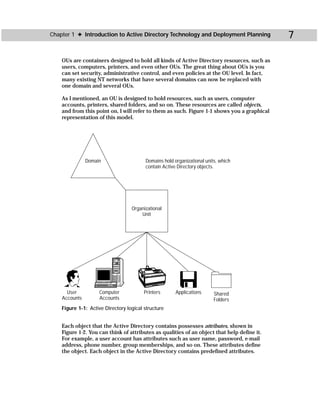
     fails, Windows 2000 can use the parity bit to generate the lost data. Parity data
     is written to all disks in the array so that a block of data on one disk has a par-
     ity block on another disk. This feature enables you to read and write data that
     is stored across three different disks and is always fault tolerant. RAID-5 vol-
     umes have better read performance than mirrored volumes, but in the event of
     a disk failure, performance is greatly hindered until you stop, replace the failed
     disk, and regenerate the lost data onto the new disk. However, RAID-5 volumes
     are not expensive in terms of megabyte cost. In other words, the RAID-5 vol-
     ume makes much better use of storage space than the mirrored volume.

In terms of Active Directory redundancy, you can use either of these solutions
to back up your System State Data (discussed later in this chapter). When you
installed the Active Directory, you could choose to place the Active Directory logs
and the SYSVOL folder on different hard disks. As with any other data, you can mir-
ror or RAID-5 the volume that contains your Active Directory data so that it is pro-
tected in the event of a single hard disk failure. It is important to once again note
that disk fault-tolerant solutions protect you only from a single disk failure — this is
not a replacement for an effective backup plan. Because a number of events, such
as fire or theft, can occur that can cause the loss of an entire system and all hard
disks, an effective backup plan is a must.
238   Part III ✦ Active Directory Management


          Windows backup strategies
          Windows 2000 includes a built-in Backup utility found by clicking Start ➪ Programs ➪
          Accessories ➪ System Tools ➪ Backup. The Windows Backup tool is rather easy to
          use and allows you to back up your data to all kinds of media devices, including tape
          drives, Zip and Jaz drives, or even a remote computer’s hard disk. With Windows
          Backup, you can develop an effective backup plan, perform periodic backups, and
          then store your back media in safe places so it can be accessed and used in the
          event of catastrophic failure. Windows 2000 supports several different types of
          backup that you can perform. The following bulleted list explains these types:

             ✦ Normal backup — A normal backup copies all selected files to the backup
               media and marks each file as having been backed up by clearing the files’
               archive attribute.
             ✦ Incremental backup — An incremental backup backs up the changes that
               have occurred in the files since the last normal or incremental backup. For
               example, suppose you have a backup set that includes 50 documents. Three
               of those documents have been edited since the last normal backup. During an
               incremental backup, only the changes to those three documents will be writ-
               ten to the backup media. An incremental backup marks the files as having
               been backed up. Incremental backups are used with normal backups, so dur-
               ing a restoration, you will need to use both normal and incremental backup
               media to accurately restore the data.
             ✦ Differential backup — A differential backup copies files that have been cre-
               ated or have been changed since the last normal or incremental backup. It
               does not mark the files as having been backed up. That the file is not marked
               as having been backed up means that the archive attribute of the file is not
               cleared. As with an incremental backup, you must use differential backup jobs
               in conjunction with a normal backup in order to accurately recover the data,
               although a differential backup uses less media when restoring than an incre-
               mental backup.
             ✦ Daily backup — A daily backup copies all selected files that have changed that
               day. The backed up files are not marked as having been backed up. That the file
               is not marked as having been backed up means that the archive attribute of the
               file is not cleared. Daily backups are an effective way to selectively backup
               important files on a daily basis.
             ✦ Copy backup — A copy backup copies all files that you select but does not
               mark the file as having been backed up. That the file is not marked as having
               been backed up means that the archive attribute of the file is not cleared. A
               copy backup is a quick and easy way to back up files between normal and
               incremental backups because it does not interfere with the markers from the
               other backup jobs.
Chapter 12 ✦ Maintaining the Active Directory         239

      As an administrator, the question you have to consider is how to use these backup
      options to create a backup strategy that is effective for your network. Though it is
      beyond the scope of this book to thoroughly explore backup strategies, most envi-
      ronments use a combination of normal and incremental/differential backups. For
      example, you perform a normal backup on Monday and incremental backups
      Tuesday–Friday. This is an effective plan that keeps backup time to minimum,
      although it can take you longer to restore your data. For example, if you have a fail-
      ure on Friday morning, you will need Monday’s normal backup job and Tuesday’s,
      Wednesday’s, and Thursday’s incremental backup jobs to accurately regain the
      data. This can be quite time-consuming, but most administrators consider the
      speed of backup more important than the speed of the restore since, hopefully, a
      restore will be a rare event. The trick is to find the right backup plan that provides
      you with current backups and doesn’t take up too much administrative time. You
      can learn more about backup strategies from the Windows 2000 Resource Kit or
      from an IT book that explores these options.


      Understanding System State Data
      When you back up the Active Directory, you back up System State Data. System State
      Data is defined as a collection of system specific data that you back up as a collec-
      tion. System State Data is made up of several components, but you cannot back up
      those components individually due to dependencies among the data. Every Windows
      2000 computer contains System State Data, and when you perform a backup for the
      Active Directory, you simply choose to back up System State Data on the domain con-
      troller. For all Windows 2000 operating systems except domain controllers, System
      State Data contains the following:

         ✦ Registry
         ✦ COM+ Class Registration database
         ✦ System boot files

Tip        You can back up System State Data only on your local server. You cannot back up
           System State Data on a remote computer, regardless of your rights. So, to back
           up the Active Directory on a domain controller, the process has to be done at the
           actual domain controller.

      For Windows 2000 domain controllers, System State Data contains the following:

         ✦ Registry
         ✦ COM+ Class Registration database
         ✦ System boot files
         ✦ Active Directory Services database
         ✦ SYSVOL directory
240   Part III ✦ Active Directory Management


      Note        Windows 2000 servers (including domain controllers) that are certificate servers
                  will also contain the Certificate Services database in the System State Data, and if
                  the server is a part of a cluster server, System State will also contain Cluster Service
                  information.


      Performing a Backup
             Now that you understand System State Data, you can use Windows Backup to back
             up the Active Directory. The Windows Backup utility provides you with a wizard
             to perform this task, or you can manually create the backup job. I want to first con-
             sider how to create a backup job using the Backup Wizard. The following steps walk
             you through this process:

                1. On a domain controller, log on with an administrative account and click
                   Start ➪ Programs ➪ Accessories ➪ System Tools ➪ Backup. The Backup
                   utility appears, shown in Figure 12-1.


                  Figure 12-1: Windows Backup
Chapter 12 ✦ Maintaining the Active Directory        241

2. Click the Backup Wizard button to start the wizard and then click Next on the
   Welcome screen.
3. On the What to Back Up window, you have three backup options. By default,
   “Back up everything on my computer” is selected. If you want to back up only
   System State data, click the “Only back up the System State data” radio but-
   ton, shown in Figure 12-2, and then click the Next button.


  Figure 12-2: What to Back Up window


4. The Where to Store the Backup window appears, shown in Figure 12-3. Use the
   Browse button to select the device drive and name for the media. Backup jobs
   are stored as .bkf files (Windows Backup) with a default name of Backup.bkf.
   Select the appropriate location and name and then click the Next button.
5. The Completion window appears. Before clicking the Finish button, click the
   Advanced button located on this window.
6. The Type of Backup window appears, shown in Figure 12-4. Use the drop-
   down menu to select normal, incremental, differential, daily, or copy backups.
   Also, you have the option to back up files that have been migrated to remote
   storage. Since you are backing up only System State Data, you do not need to
   be concerned with this option. Make your selection and click the Next button.
242   Part III ✦ Active Directory Management


               Figure 12-3: Where to Store the Backup window


               Figure 12-4: Type of Backup window
Chapter 12 ✦ Maintaining the Active Directory          243

       7. The How to Back Up window appears. You have two check box options. First,
          you can choose to verify data after backup. Selecting this check box enables the
          system to verify the backup job to make certain it is not corrupt. This option
          causes the backup job to take more time, but it does assure you of a good
          backup. Next, you can use hardware compression if it is available on your sys-
          tem. Selecting this check box enables your system to use hardware compres-
          sion technology to compress the contents in order to conserve storage space.
          However, if you use this option, only drives that support compression can be
          used to restore the data. Make your selections and click the Next button.

Note     If hardware compression is not supported on your system, this option will be
         grayed out.

       8. The Media Options window appears. This window, shown in Figure 12-5, pro-
          vides two radio buttons that enable you to determine whether to overwrite
          an existing backup job or to append this backup job to existing media. In the
          case of a full backup, you should choose to overwrite the data. Make your
          selection and click the Next Button.


         Figure 12-5: Media Options window


       9. The Backup Label window appears. In this window, you can specify a label for
          the backup job and the media. For the backup job, the default label is “Set cre-
          ated on date at time.” The date and time values are automatically filled in. The
          default label for the media is “Media created on date at time.” You can change
          these default labels by clicking the dialog box to erase them and typing your
          new desired labels. Make your selections and click the Next button.
244   Part III ✦ Active Directory Management


            10. The When to Back Up window appears. You can choose either the Now or
                Later radio button. If you choose Later, enter a job name and a start date for
                the backup to occur. You can also click the Set Schedule button to create a
                backup schedule. For now, choose Now and click the Next button.
            11. A summary window appears. Review your settings and then click the Finish but-
                ton to begin the backup job. A progress window appears, shown in Figure 12-6.


               Figure 12-6: Backup Progress window


            12. Once the backup is complete, click the Close button. You can also click the
                Report button to read a report about the backup job.

          The Backup Wizard provides you a step-by-step approach to performing backup
          jobs. However, once you are savvy with the process, you will probably choose to
          manually create the jobs. In my opinion, the manual creation is a lot faster. The fol-
          lowing steps show you how to back up System State Data manually.

             1. Log on to the domain controller with an administrative account and click
                Start ➪ Programs ➪ Accessories ➪ System Tools ➪ Backup. The Backup utility
                opens.
             2. Click the Backup tab, shown in Figure 12-7. In this window, select System State
                in the folder list and use the Browse button at the bottom of the window to
                select your desired backup media. Then, click the Start Backup button.
Chapter 12 ✦ Maintaining the Active Directory    245


  Figure 12-7: Backup tab


3. A Backup Job Information window appears, as shown in Figure 12-8. Make
   changes to this window as desired, such as the backup job and media label
   and whether to append or replace existing media.


  Figure 12-8: Backup Job Information window
246   Part III ✦ Active Directory Management


               You can also click the Schedule button to create a schedule, and you can click
               the Advanced button to open the Advanced Backup Options, shown in Figure
               12-9. On this window, you can make some standard selections and also choose
               the type of backup to perform. Make your selections in the Advanced Backup
               Options window and click OK. Then, click the Start Backup button when you
               are ready.


               Figure 12-9: Advanced Backup Options window


      Restoring Active Directory Data
          In the event of a domain controller failure, you can use your System State backup job
          to restore your Active Directory database and SYSVOL folder. Of course, this data will
          be outdated, but replication with other domain controllers will update the data once
          the domain controller is back online. In order to restore your System State Data, you
          must first repair the domain controller and ensure that it is in working order. Then
          you must reboot your server into Directory Services Restore Mode. This Safe Mode
          option enables you to restore the Active Directory database and the SYSVOL direc-
          tory. To perform a restoration on a domain controller, follow these steps:

             1. Reboot your server. At POST, hold down the F8 key on your keyboard.
             2. The Windows 2000 Advanced Options menu appears. Use your keyboard
                arrow keys to highlight Directory Services Restore Mode and then press Enter
                twice. Windows 2000 boots into Directory Services Restore Mode.
             3. Log on with an administrative account and then click OK to the Safe Mode
                message that appears.
             4. Click Start ➪ Programs ➪ Accessories ➪ System Tools ➪ Backup.
Chapter 12 ✦ Maintaining the Active Directory        247

 5. Click the Restore Wizard button on the Welcome tab and then click Next on
    the Welcome screen.
 6. In the What to Restore window, select the desired media that you want to use
    to restore the System State Data, as shown in Figure 12-10. You may need to
    expand the categories to reach the backup job. Click Next.


   Figure 12-10: What to Restore window


 7. The Completion window appears. Before clicking Finish, click the Advanced
    button.
 8. The Where to Restore window appears. You see a drop-down menu that
    enables you to select the original location, an alternate location, or a single
    folder. Make your selection and then click Next.
 9. In the How to Restore window, you can choose from three radio buttons con-
    cerning files that already exist. Your options are as follows:
       • Do not replace the file on my disk (recommended).
       • Replace the file on disk if it is older than the backup copy.
       • Always replace the file on the disk.
   Make your selection and then click the Next button.
10. In the Advanced Restore Options window, you can select three check boxes
    that may be available to you (depending on your configuration). They are
    Restore security, Restore Removable Storage database, and Restore junction
    points. Make your selections (if necessary) and click the Next button.
248   Part III ✦ Active Directory Management


            11. Click the Finish button and then click OK. The restore job begins and you see
                a Restore progress indicator. Once the restoration is complete, click Close.

          Just as you can perform a backup job without the wizard, you can also restore a
          backup job without the wizard. As with backup, you will probably find this option
          faster. The following steps show you how to perform a restore job without using the
          Restore Wizard.

             1. In Directory Services Restore Mode and when logged on as an administrator,
                click Start ➪ Programs ➪ Accessories ➪ System Tools ➪ Backup.
             2. Click the Restore tab, shown in Figure 12-11. Expand the Media and select
                your System State Data backup job. You can also use the drop-down menu at
                the bottom of the window to restore the files to the original or alternate loca-
                tion. Click the Start Restore button.


               Figure 12-11: Restore tab


             3. The Confirm Restore window appears, shown in Figure 12-12.
               If you want to configure advanced restore options, click the Advanced button.
               This action opens a single window, shown in Figure 12-13, where you can select
Chapter 12 ✦ Maintaining the Active Directory          249

       a few check boxes if desired. These are the same options presented to you
       when using the wizard. Click OK and then click OK again to start the restore.
       You see a status window as the restore occurs. Click the Close button when
       the restore is complete.


       Figure 12-12: Confirm Restore window


       Figure 12-13: Advanced Restore Options window


  Once you complete the restore job, you see a message telling you that you need to
  reboot your computer. Once you bring your domain controller back online, your
  Active Directory database will be updated through replication with other domain
  controllers.


Performing an Authoritative Restore
  An important reason for backing up your Active Directory database is the possibil-
  ity of the need for an authoritative restore. An authoritative restore enables you to
  restore an Active Directory backup and to prevent the restored changes from being
  overwritten due to domain controller replication. In fact, an authoritative restore
  marks the restore job as authoritative and its data is replicated to other domain con-
  trollers, overwriting their existing data.
250    Part III ✦ Active Directory Management


             Consider an example. Suppose you have a container that holds all of the printer
             objects on your network. You accidentally delete the entire container and all of the
             objects, and before you can do anything about it, the change is replicated to all
             domain controllers. Now, no domain controller holds this container or any of your
             printer objects. Fortunately, however you back up your System State Data each day.
             You restore your container and printer objects and bring your domain controller
             back online. However, you notice that in a short time, the container and objects are
             gone again. Why? Your restore job is older than the current Active Directory database
             residing on online domain controllers. You can restore the container and objects, but
             each time you bring the domain controller back online, replication will overwrite the
             older copy and delete the container and objects again. As you can see, this could be a
             hopeless situation. This is the purpose of an authoritative restore. You can restore
             your last backup job that will replace your container and printer objects and then use
             an authoritative restore so that your restored objects are replicated to the other
             domain controllers.

             To use an authoritative restore, boot your server into Directory Service Restore
             Mode and then perform the restore with the Backup utility as described in the pre-
             vious section. Then, before rebooting, you use the NTDSUTIL command-line utility
             to perform an authoritative restore.

       Caution      You must perform the authoritative restore after you restore your data with the
                    backup utility and before you reboot your server.

             When you use NTDSUTIL, you mark which Active Directory objects are authorita-
             tive. When you do this, the objects’ Update Sequence Numbers (USNs) are changed
             so they are higher than all other USNs. This ensures that the data is considered
             “new” and is replicated to all other domain controllers.

      Cross-        You can learn more about USNs in Chapter 13.
      Reference


             In order to use NTDSUTIL, you must install the AdminPak tools found in the I386
             folder on your installation CD-ROM. For specific steps, see Appendix C. Once the
             AdminPak has been installed on your system, click Start ➪ Run and type
             ntdsutil.exe in the dialog box and click OK.

             At the command prompt, type authoritative restore. At the prompt, type ? to see a
             list of help commands available in performing the restore. You have the following
             options:

                  ✦ Restore database — Restores the entire database.
                  ✦ Restore database verinc %d — Restores the entire database and overrides
                    version increase.
                  ✦ Restore subtree %s — Restores a subtree.
                  ✦ Restore subtree %s verinc %d — Restores a subtree and overrides version
                    increase.
Chapter 12 ✦ Maintaining the Active Directory           251

      These are your standard options. To perform the restore, type one of the above
      options and enter the LDAP information. For example:

          Ntdsutil: authoritative restore:
          Restore Subtree OU=Acct, DC=triton, DC=com

      As you can see, I have instructed NTDSUTIL to authoritatively restore an OU called
      Acct in the triton.com domain. You can also authoritatively restore specific objects
      using the CN or DN. To restore the entire database, just type the following:

          Ntdsutil: authoritative restore:
          Restore database

      Once you have completed the authoritative restore, type quit then reboot your
      computer. When the server comes back online, the authoritative objects will be
      replicated to all other domain controllers.

Caution     It is important to note here that an authoritative restore is designed to get you out
            of a jam — it’s something that should be done carefully and only in specific cir-
            cumstances.


Using the Recovery Console
      While not used in recovering Active Directory data specifically, the Recovery Console
      in Windows 2000 is an excellent command-line tool that provides you with some pow-
      erful options when you’re faced with a system that will not start. With the Recovery
      Console, you can format drives, stop and start services, read and write data on local
      drives, copy files to your system from the CD-ROM, and perform a number of other
      administrative tasks. As you can imagine, the Recovery Console can be dangerous
      and should be used only by experienced administrators.

      There are two ways to use the Recovery Console. First, you can install it on your
      system so that it becomes a boot menu option. When installed, you can boot your
      computer, hold down the F8 key, and then select the Recovery Console from the
      list. Also, you can boot your system from your Windows 2000 installation CD-ROM
      (if your system supports booting from your CD-ROM).

      You can install or access the Recovery Console at the command prompt. Insert
      your installation CD-ROM into your CD-ROM drive, and then at the command
      prompt, change to your CD-ROM drive and type the following:

          i386winnt32.exe/cmdcons

      A message appears asking if you want to install the Recovery Console (which
      requires 7MB of disk space). Click Yes if you want to install it and then follow the
      instructions that appear on your screen. Once the Recovery Console is installed,
      you can then access it by restarting your server and holding down the F8 key to
      get the boot menu.
252   Part III ✦ Active Directory Management


          If you do not want to install the Recovery Console on your computer, but you need
          to use it, restart your computer and allow it to boot off your CD-ROM drive. Your
          system will load a number of files, which will take several minutes. When prompted,
          choose the option to repair a Windows 2000 installation and then select the
          Recovery Console.

          As mentioned, there are a lot of administrative functions you can perform with the
          Recovery Console. Table 12-1 lists the commands available and gives you a descrip-
          tion of each. Also, be aware that additional parameters exist for many of the com-
          mands, so you can use the “?” feature to review parameters when you are using the
          console.


                                         Table 12-1
                                Recovery Console Commands
            Command           Explanation

            Attrib            Used to change file or directory attributes.
            Batch             Runs commands in a text file.
            Chdir (CD)        Displays the current directory; used to change directories or folders.
            Chkdsk            Checks the disk and gives you a status report.
            Cls               Clears the screen.
            Copy              Copies a single file to a specified location.
            Delete (Del)      Deletes a single specified file.
            Dir               Displays the contents in a directory.
            Disable           Used to disable a service or device driver.
            Diskpart          Creates and deletes hard disk partitions.
            Enable            Enables a service or device driver.
            Exit              Closes the Recovery Console.
            Expand            Extracts a file from a compressed file, such as a .cab file.
            Fixboot           Writes a new partition boot sector to the system partition.
            Fixmbr            Writes a new master boot record to the hard drive.
            Format            Formats a specified hard drive.
            Help              Provides help files.
            Listof            Provides a list of Recovery Console commands.
            Listsvc           Lists services and drivers on the computer.
Chapter 12 ✦ Maintaining the Active Directory         253

       Command                Explanation

       Logon                  Logs you on to an installation of Windows 2000.
       Map                    Shows you the mapping of drive letters to physical device names.
       Mkdir (md)             Creates a directory or subdirectory.
       More                   Shows you the contents of a text file.
       Rename (ren)           Changes the name of a single file.
       Rmdir (rd)             Deletes a directory.
       Set                    Displays and sets Recovery Console environment variables.
       Systemroot             Sets the current directory to the systemroot.
       Type                   Displays the contents of a text file.


Common Maintenance Issues
      Databases, the Active Directory included, are always changing. In large environ-
      ments, data in the Active Directory database is changed and updated almost con-
      stantly, and those changes are replicated among domain controllers. Fortunately, the
      Active Directory does a very good job of taking care of its own maintenance needs,
      so as an administrator, you should not be faced with a regular onslaught of mainte-
      nance tasks. However, there are a few items I would like to mention in this section.

      Before examining those issues, I want to spend a few moments examining how the
      Active Directory works in terms of storing data and managing the database file and
      transaction log file. The Active Directory is based on the Extensible Storage Engine
      (ESE) database and is considered a fault-tolerant, transaction-based database. This
      feature enables the Active Directory to totally manage and track its own data. There
      are two basic components of the Active Directory — the database file that contains
      all of the Active Directory objects and the transaction log files that provide the fault
      tolerance to the database.

      The Active Directory database file contains all objects in the Active Directory and
      their metadata.

Tip           Metadata is defined as “data about data.” Each Active Directory object contains
              attributes, which are characteristics about that object. For example, a user object
              may have attributes of user name, e-mail address, password, group membership,
              and so on. This metadata helps define the user object by providing data about
              data. You can learn more about metadata and object attributes in Chapter 13.

      Each domain controller contains the Active Directory database file, which is called
      Ntds.dit (directory information tree) and is found, by default, in systemNTDS
      directory. Replication among domain controllers ensures that each domain
254   Part III ✦ Active Directory Management


          controller’s copy of the database file is accurate and up-to-date with all other
          domain controllers’ database files. The database file stores information in three
          different tables:

             ✦ Object table — Contains objects and object attributes.
             ✦ Link table — Contains links or relationship information between the objects
               and attributes in the Object table.
             ✦ Schema table — Contains the definitions of all the possible objects that can
               be created in the Active Directory.

          The transaction log files record transactions that occur within the database. In
          actuality, when a process needs to occur, the process is written to the transaction
          log files, and then the transaction is carried out in the database file. This feature
          provides fault tolerance because a written set of instructions is created before the
          action ever occurs. If something should happen, such as a server failure or power
          outage during the write process, the Active Directory uses the log files to recon-
          struct the data that had not been written to the database when the failure occurred.

          Aside from the actual database file and the transaction log files, there are three
          other files used by the Active Directory:

             ✦ Checkpoint files — Checkpoint files hold pointers to transactions that have
               already been written to the database file.
             ✦ Reserved log files — Reserved log files are used as backups in the case of low
               disk space.
             ✦ Patch files — Patch files are used to manage data during an online backup.

          The current transaction log file is named Edb.log and is stored in the same direc-
          tory as the database file. The Edb.log file has a fixed size of about 10MB. When
          the Edb.log file fills to its capacity, a new log file is created and the old log file is
          renamed edbxxxxxx.log where xxxxxx is a hexadecimal character to indicate it is an
          old log file. Once all of the transactions in the old log file have been performed, the
          old transaction log is deleted.

          You can change this default behavior by enabling circular logging. Circular logging
          does not create new transaction log files, but rather overwrites the old one when it
          fills. In essence, it uses the same log file over and over by overwriting unneeded
          information. Circular logging enables the Active Directory to maintain fewer transac-
          tion logs, but for the best data recoverability, you should not use circular logging.
          However, if you believe that circular logging may improve the performance of your
          server, you can enable it by opening the Registry Editor and accessing the following:

          HKEY_LOCAL_MACHINECurrentControlSetServicesNTDSParamtersCircularLogging

          Enter a 1 to enable circular logging (0 to disable it).
Chapter 12 ✦ Maintaining the Active Directory           255

Caution    As always, here’s the obligatory warning about editing the registry. Incorrect edit-
           ing of the registry can cause system-wide failures and a boot failure, so edit with
           great care.


      Checking the LostAndFound container
      The LostAndFound container, shown in Figure 12-14, is a hidden container found
      in the Active Directory Users and Computers console. To see the container, click
      View ➪ Advanced, and you will see LostAndFound appear in the left console pane.


      Figure 12-14: LostAndFound container


      The LostAndFound container holds “orphaned” objects. An orphaned object is one
      that replication cannot determine where to place. When this occurs, the orphaned
      object is put into the LostAndFound container. Consider an example. Suppose that
      Administrator A wants to create a new printer object in a container called Mkt
      Printers. However, at the same time, Administrator B moves all of the existing print-
      ers from this container and deletes the container. The new object created by
      Administrator A has nowhere to go because its target container has been deleted.
      So, the Active Directory determines that this is an orphaned object and puts it in
      the LostAndFound container.

      You don’t need to spend your time worrying about orphaned objects because they
      rarely occur. However, as an Active Directory administrator, you should check the
      LostAndFound container from time to time. If objects are present, you can move
      them to an appropriate location or delete them if they are not needed.
256   Part III ✦ Active Directory Management


            Online and offline defragmentation
            You’re familiar with hard disk fragmentation, where your data is stored in noncon-
            tiguous pieces. In a likewise manner, databases become fragmented over time and
            become cluttered with “junk” and unused objects. The Active Directory performs
            its own routine maintenance by automatically deleting unused objects and files to
            recover usable space, and the Active Directory automatically defragments itself in
            order to optimize the data storage.

            The automatic cleanup process, called Garbage Collection, occurs every twelve
            hours. During Garbage Collection, old transaction logs are deleted, and unneeded
            objects are deleted from the Active Directory. The deletion of objects occurs by a
            process called tombstoning. Suppose you delete a printer object from the Active
            Directory. During Garbage Collection, the printer object is tagged with a tombstone,
            which is not visible to clients. Once an object is tombstoned, it appears as though it
            has been deleted, when in reality the tombstone is kept for a default period of 60
            days, called the Tombstone Lifetime. The process occurs to ensure that the tomb-
            stone has enough time to be replicated to all domain controllers in the forest so that
            the object can be deleted from all domain controller databases. If the tombstoning
            process did not occur, some domain controller databases would still contain the
            object while it would be deleted from others. Once the Tombstone Lifetime passes,
            the object is actually deleted from the database. Finally, the last part of Garbage
            Collection is online defragmentation of the database. This process rearranges objects
            to make the best and most logical use of space. Online defragmentation does not
            actually reduce the size of the database, but it does keep the database organized.

            You can perform an offline, or manual database defragmentation, which organizes
            data and may actually reduce the size of the database. In order to perform an offline
            defragmentation, you must boot your server into Directory Services Repair Mode
            and use NTDSUTIL to create a second, defragmented version of the database. Then
            you begin using a new database. Microsoft strongly recommends that you perform
            this process with a test database to see if offline defragmentation will actually help
            you reduce the size of the database. If it does not, there is no benefit to performing
            an offline defragmentation.

      Caution    Under most circumstances, you should not need to perform an offline defragmen-
                 tation. Make sure you study your situation and need carefully before performing
                 this action.


            Removing ghost objects
            A final maintenance issue I want to mention is ghost objects, also called phantom
            objects. Ghost objects are actually errors that occur within the database and occur
            when an object has been deleted, but some kind of error has prevented the object
            from actually being removed. You end up with a ghost object that appears in the
            directory although the object is not actually available. The same problem can
            possibly occur when you remove a domain. When the last domain controller is
            removed, you should select the “this is the last domain controller in the domain”
Chapter 12 ✦ Maintaining the Active Directory         257

  check box. If you do not, the domain still appears in the Active Directory even
  though it does not actually exist.

  Fortunately, ghost objects or domains can be easily removed. For objects, take note
  of the full object path, such as cn=object, cn=OU, dc=domain, dc=com and then
  boot the server into Directory Services Repair Mode. Run NTDSUTIL, type Files,
  and enter the full path of the object. Then run a header and integrity check in order
  to remove the ghost.

  In the case of a ghosted domain, use NTDSUTIL and follow these steps:

     1. Type metadata cleanup and press Enter.
     2. Type connections and press Enter.
     3. Type connect to server domainnamingmasterserver and press Enter.
     4. Type quit and press Enter.
     5. Type select operation target and press Enter.
     6. Type list domains and press Enter.
     7. Type select domain number, where number is the number of the domain, and
        press Enter.
     8. Type quit and press Enter.
     9. Type remove selected domain and press Enter.


Summary
  This chapter explored a number of Active Directory maintenance issues. First, you
  can back up the Active Directory database on a domain controller using Windows
  Backup. In order to back up the Active Directory database, you choose to back up
  System State Data. In the case of a failure, the database can be recovered by booting
  the server into Directory Services Repair Mode and then using Windows Backup
  to restore the database. In some cases, you may need to perform an authoritative
  restore, which marks an entire database or certain objects as authoritative for repli-
  cation purposes. This process is performed using NTDSUTIL and before you reboot
  the server. You can also use the Windows 2000 Recovery Console, which can be
  installed or run from the installation CD-ROM to perform a number of administrative
  tasks. Finally, you can maintain the Active Directory by checking the LostAndFound
  container, using manual defragmentation (if necessary), and removing ghost objects
  as needed. Overall, Active Directory maintenance is quite easy for administrators
  because the Active Directory takes care of most of its maintenance needs.

                                 ✦       ✦       ✦
Managing Active
Directory
                                                                        13
                                                                         C H A P T E R


                                                                        ✦     ✦      ✦        ✦


Replication                                                             In This Chapter

                                                                        Exploring Active
                                                                        Directory replication


  A
                                                                        Managing intrasite
          s a technical instructor, I always hated to teach the         replication
          topic of replication in the NT world. It was difficult,
  confusing, and often just irritating to students. Replication         Examining intersite
  in Windows 2000 for intrasite and intersite Active Directory          replication
  traffic is certainly no picnic either, but there have been a
  number of changes to the process that make replication more           Using Replication
  effective and certainly more hands-off for Active Directory           Monitor
  administrators. Unfortunately, the process is still quite com-
  plex, and the information from Microsoft about managing               ✦     ✦      ✦        ✦
  intersite traffic is hazy at best. In this chapter, I am going to
  explore how replication works in a Windows 2000 network.
  Then I’ll explore some practical solutions for managing
  replication traffic between your Active Directory sites.


How Replication Works
  In terms of the Active Directory, replication can be examined in
  two major categories — intrasite and intersite. Intrasite replica-
  tion is replication that occurs within an Active Directory site.
  Intersite replication is replication that occurs between different
  Active Directory sites. Before jumping into the details of replica-
  tion, I first want to review Active Directory’s replication model.

  Replication is the process of synchronizing data on several
  computers. The purpose of replication is to ensure that each
  computer has the same data — in other words, to ensure that
  a change in data made on one computer is copied to all of the
  other computers to ensure data integrity.

  The Active Directory functions by using multimaster replica-
  tion. Multimaster replication means that there is no single
  master replicator computer in the environment, but all domain
  controllers are responsible for initiating and participating in
260   Part III ✦ Active Directory Management


             replication as needed. This peer-to-peer approach is quite powerful because you can
             make configuration changes to the Active Directory on any domain controller and
             be assured that those changes will be replicated to all other domain controllers.
             Remember that each domain controller contains a copy, or replica, of the Active
             Directory database. The replica is writable, so each domain controller can update
             its copy when it receives changes through replication. In a large environment with
             several Active Directory administrators making configuration changes at different
             domain controllers, the data integrity among domain controllers would be quickly
             lost without effective replication.

      Note        In Windows NT, only the PDC is writable — BDCs have a copy that is replicated
                  from the PDC. So, all changes must be made on the writable copy — which is
                  found only on the PDC. As you can see, the multimaster approach leaves this
                  legacy behind.

             So, replication is necessary to ensure that each domain controller’s database replica
             is the same, and the Active Directory uses multimaster replication so that all domain
             controllers participate in and are responsible for the replication process. Now that
             I have covered the basics, I want to consider how replication actually works.


             Replication concepts
             You may be tempted to skip over this section, or you may be bracing for “techno-
             overload.” However, I’ll use this section to carefully explain how replication works.
             Once you have a handle on the design, this will help you understand the big picture
             of replication. The following sections examine some important conceptual informa-
             tion. Then I’ll explore an example of replication and show you how it works in a
             step-by-step format.

             Replication partitions
             Active Directory replication functions at three levels, or partitions, of replication.
             These are the schema partition, configuration partition, and domain partition.
             The schema partition contains objects and object attributes. The Active Directory
             schema defines what objects and object attributes can belong to the Active
             Directory, and this schema is enterprise in nature. In an Active Directory environ-
             ment, all domains and sites in the forest contain the same schema, and all schema
             replication is forest-wide. Next, replication functions on the configuration partition
             level. Configuration information contains the physical structure of the Active
             Directory, such as where sites are located, what domains are contained in what
             sites, and so forth. Configuration information is replicated to all domains in an
             Active Directory forest. Finally, there is a domain partition. The domain partition
             replicates information about Active Directory objects to all domain controllers
             within the domain. Then, a partial replica is also replicated to global catalog
             servers so that changes to domain objects are accurately reflected on global
             catalog servers. So, in terms of partitions, think of the schema and configuration
             partitions as forest-wide and the domain partition as domain restricted.
Chapter 13 ✦ Managing Active Directory Replication     261

Attribute replication
To understand replication, it is important to first understand that the replication in
the Active Directory is based on objects and object attributes. As you know, Active
Directory objects are basically any Active Directory resource, such as users, printers,
OUs, shared folders, and so forth. Each object contains attributes, which are descrip-
tors for objects. Think of attributes as fields in a database. For example, suppose you
have a user account object. Attributes for that object, such as user name, password,
e-mail address, and so on define the object. Now, suppose you change a user’s pass-
word. That password change must be replicated to all other domain controllers.
However, the Active Directory does not have to replicate the entire user object — it
has to replicate only the password change for the object because replication is based
on the attribute level, as shown in Figure 13-1. Only changed attributes need be repli-
cated — not entire objects. This design helps reduce network bandwidth usage
because replication occurs at the smallest level.


                                  Attributes                   Domain Controller


                               Name: XPRIN34
                                New Name:
                                 ACCTPRIN

                               Model: Z43653
           ACCTPRIN                                            Domain Controller
                                   Staple

                                    Color

                                Double-sided


                                                               Domain Controller

The name of the printer object has been changed. Due to attribute replication,
 only the name change needs to be replicated to all other domain controllers,
              not the entire object and all of its other attributes.
Figure 13-1: Attribute replication
262   Part III ✦ Active Directory Management


            Update Sequence Numbers (USNs)
            Another concept you need to understand is Update Sequence Numbers (USNs).
            The Active Directory uses USNs, which are 64-bit numbers, in order to keep track
            of changes that occur to objects in the Active Directory. When an object is changed,
            its USN is updated so that all other domain controllers have an outdated USN for that
            object. By using USNs and updating them when database changes occur, domain con-
            trollers know they must receive replication data in order to update their databases.
            Each domain controller maintains a USN table that lists all of the USN numbers. When
            replication occurs, the USN table is checked for outdated USNs. Only the highest USN
            is stored to ensure that only the most current data is saved in the database. When
            you examine an Active Directory object’s properties, such as a user account, you
            can click the Object tab and see the original USN and the current USN for the object,
            as shown in Figure 13-2.


            Figure 13-2: Object tab


      Tip        If you do not see an Object tab, then in the Active Directory Users and Computers
                 tool, click View ➪ Advanced. The Object tab will appear.
Chapter 13 ✦ Managing Active Directory Replication            263

Because of USNs, timestamps, which often made directory replication difficult due
to time synchronization, are no longer necessary. However, the Active Directory
still maintains timestamps for tiebreaking purposes using the W32Time service in
Windows 2000. For example, suppose that two different administrators working on
two different domain controllers change the same attribute of an object at almost
exactly the same time (which is rather unlikely). Now you have two USN updates
for the same object. The Active Directory can use the timestamp to determine
which update is the latest. The latest update always wins the tiebreaker.

Store and forward, replication partners, and topology
Active Directory replication uses a process called store and forward. This simply
means that replication changes are not directly sent to every domain controller.
Instead, changes made on one domain controller are replicated to that domain
controller’s replication partners, who then send the replicated data to their replica-
tion partners, and so forth until the replicated data reaches all domain controllers.
Fortunately for us, the Active Directory internally determines which domain con-
trollers will be partners. This is accomplished through an automatic replication
topology generation through the Windows 2000 Knowledge Consistency Checker
(KCC) service. The KCC is built in to every Windows 2000 domain controller and
runs every 15 minutes by default.

Within an Active Directory site, the Active Directory creates its own topology using
the KCC to determine which domain controller will replicate to another domain con-
troller. This partner approach ensures that each domain controller receives replicated
data through a partner and reduces network traffic because each domain controller
doesn’t have to replicate with every other domain controller when a database change
occurs. The KCC is used to create dynamic connection objects between domain
controllers. Replication partners can be either direct or transitive, and a connection
object is defined as a potential direct replication partner. Connection objects directly
replicate with one another and all other partners transitively receive the replicated
data. Again, this process reduces great bursts of network traffic because a single
domain controller does not need to communicate directly with all other domain
controllers for replication to occur.

By default, connection objects form a bidirectional ring based on information you
provide about sites and cost of connections. Within the site, this bidirectional ring
is constructed by the KCC so that the average number of hops a directory change
will have to make is three or less. When a change is made on one domain controller
that needs to be replicated, the process begins by waiting for a replication interval
to occur, which is every 5 minutes. After this, data is replicated around the ring
directly among connection objects and transitively to transitive partners. In a site,
a complete replication cycle should take 15 minutes or less.
264    Part III ✦ Active Directory Management


              The KCC monitors this intrasite and intersite topology to ensure integrity. If one
              domain controller should fail or be taken offline, the KCC automatically adjusts the
              topology to account for the lost domain controller. The KCC automatically builds
              the replication topology in each site and then, based on your site link information,
              also builds a replication topology between sites.

      Cross-        See Chapters 5 and 8 to learn more about sites and site links.
      Reference


              Once again, the KCC handles all of this automatically and in the background. You do
              not have to configure a replication topology manually; the Active Directory generates
              one for you based on information about your sites and site links.

       Note         You can manually alter the KCC’s automatic replication topology if necessary. This
                    issue is explored later in the chapter.


              Replication protocols
              Intrasite and intersite replication each use different transport protocols in order
              to effectively delivery Active Directory replication data. Intrasite replication uses
              Remote Procedure Calls (RPC) over Internet Protocol (IP). The RPC/IP communication
              within a site is considered synchronous. In other words, after a domain controller
              sends a request for Active Directory data replication to the originating domain con-
              troller, it waits for a reply before requesting data from any other originating domain
              controller. The synchronous request is synchronized in that the domain controller
              requests data in a “one at a time” fashion. Synchronous RPC/IP is used due to fast
              delivery nature of intrasite replication. It is also important to note that intrasite repli-
              cation is uncompressed. Due to the fast nature of delivery and available bandwidth,
              compression is unnecessary within a site.

              Intersite replication supports the use of two transport protocols. As with intrasite
              replication, intersite replication supports synchronous RPC/IP (compressed).
              However, intersite replication also supports Simple Mail Transport Protocol (SMTP)
              for directory replication. The major difference between using RPC/IP and SMTP is
              that RPC/IP is synchronous while SMTP is asynchronous, which simply means that
              a domain controller does not wait for a reply from an originating domain controller
              before making a replication request to another domain controller. SMTP is used for
              replication between the schema and configuration partitions (as well as the global
              catalog), but not for the domain partition. The purpose of SMTP transport for direc-
              tory replication is due to the nature of WAN links or transport across the Internet.
              RPC/IP often cannot be used over these links, so the Active Directory uses SMTP,
              which enables “e-mail like” transmissions between sites. SMTP ignores replication
              schedules and configured replication availability.

              The key point to remember about intersite transports is simply this: Use RPC/IP
              whenever possible. If you have well connected sites, use RPC/IP because there is
              lower latency, or delay of replication data delivery, than that of SMTP. Use SMTP
              when you have unreliable site links.
Chapter 13 ✦ Managing Active Directory Replication             265

Note        It is also important to remember that RPC/IP is synchronous. For slower WAN
            links, synchronous communication is often undesirable because you are essen-
            tially forcing a communication event to complete before another can begin. While
            it is true that SMTP is slower than RPC/IP, attempting to use RPC/IP over links that
            cannot handle the bandwidth needs of synchronous communication may produce
            even slower results (and a whole bunch of RPC time-outs).


       The Replication process
       Now that I have examined some fundamental concepts of Active Directory replication,
       it’s time to consider how the process actually works. The Active Directory uses pull
       replication. This means that database changes are pulled from a source domain
       controller where the changes are made to direct replication partners. Replication
       can also be accomplished via push replication where a domain controller pushes
       unsolicited changes to other domain controllers, but pull replication works best
       and avoids potential repetitive problems. So, when a change is made on a domain
       controller, that domain controller issues a change notification telling the other
       domain controllers that it has changes to the Active Directory database. The
       change notification occurs after an originating update has occurred. An originating
       update occurs when an LDAP change is made to an Active Directory object or an
       object has been created. Specifically, an originating update occurs when:

          ✦ an object is added to the directory
          ✦ an objected is modified (such as an attribute modification)
          ✦ an object is moved
          ✦ an object is deleted

       Replication partners respond to the change notification by pulling the originating
       update from the source domain controller. The USN table is examined on each
       domain controller, and they find that the USN for the change is outdated in
       their databases. The domain controllers accept the originating update and
       then update their databases and USN tables so they are accurate. Once the
       originating update has been accepted by the domain controllers, it is referred
       to as a replicated update.


       Solving replication problems
       Much to our advantage, the Active Directory does a good job of configuring its own
       replication topology and solving replication problems as they occur. The following
       sections point out the most common replication problems and show you how the
       Active Directory resolves these issues.
266   Part III ✦ Active Directory Management


             Resolving collisions
             Because of the Active Directory’s use of multimaster replication, the potential for
             replication collisions is present. Because of multimaster replication, two administra-
             tors could alter the same object attribute at the same time on different domain
             controllers. If this occurs, then a replication collision happens. The Active Directory
             avoids collisions first by attribute replication. For example, if one administrator
             changes the name of a user account while another changes the password, a collision
             does not occur because replication changes occur on an attribute level, not the entire
             object level. However, in the event that a collision does occur, the Active Directory
             examines the timestamps of the objects to determine which object is the latest. The
             latest timestamp wins the tiebreaker. In the unlikely event that the timestamps are
             the same, the Active Directory then examines the Globally Unique Identifier (GUID)
             of the directory system agent (DSA) to determine which change wins in order to
             resolve the collision.

      Note        As you can see, the odds of two administrators making the same attribute change
                  on the same object at the same time is small, but the Active Directory has this sys-
                  tem in place to resolve any and all collisions that occur.


             Propagation dampening
             As mentioned previously, the Active Directory maintains a bidirectional ring for
             replication purposes. However, a potential problem that could occur with this
             design is unnecessary replication traffic. Because of the loop, one domain con-
             troller could be sent the same replication traffic more than once. The Active
             Directory prevents this potential problem through a process called propagation
             dampening. Propagation dampening enables domain controllers to detect when
             replication traffic has already reached a domain controller. If the replication traffic
             has reached the domain controller, then the sending domain controller kills the
             replication traffic so that it is not sent twice to the receiving domain controllers.

             This process is accomplished through the use of two vectors called the Up-to-date
             vector and the High Watermark vector. The Up-to-date vector is a value that a domain
             controller maintains in order to track all originating updates that have been received.
             When a domain controller requests a pull change from another domain controller, it
             sends its Up-to-date vector. The resource domain controller examines the Up-to-date
             vector to determine if the domain controller in fact needs the update. The second
             vector used is the High Watermark vector. The High Watermark vector is maintained
             on a domain controller to determine the latest change for a specific object that was
             received from the source domain controller. Like the Up-to-date vector, the domain
             controller sends its High Watermark vector to the source domain controller for
             examination. The High Watermark vector prevents the same object changes from
             being sent twice.
Chapter 13 ✦ Managing Active Directory Replication            267

 Tip          The major difference between the Up-to-date and High Watermark vectors is that
              the High Watermark vector maintains values for domain controllers from which it
              requests changes, while the Up-to-date vector is maintained for every domain
              controller that has ever issued an originating update.

       As you can see, the Up-to -date and High Watermark vectors are complementary and
       are used to filter replication data so the unnecessary replication traffic does not occur.


 Examining Intrasite Replication
       Now that I have taken a look at some important replication concepts, I want to turn
       my attention to intrasite replication. Intrasite replication is replication that occurs
       within an Active Directory site. An Active Directory site is loosely defined as one
       or more IP subnets that exist where bandwidth is fast and inexpensive. This “fast
       and inexpensive” definition leaves the final determination up to you, the network
       architect, but the point is that the Active Directory assumes a site has fast and
       inexpensive connections, such as a typical LAN or comparable topology.

Cross-        The importance of understanding Active Directory sites and designing sites appro-
Reference
              priately cannot be understated. You can learn more about Active Directory sites in
              Chapters 5 and 8.

       Because the Active Directory assumes you have defined your sites in an appropri-
       ate manner, intrasite replication occurs in certain ways that make the best use of
       bandwidth that is fast and inexpensive:

            ✦ Replication occurs over synchronous RPC/IP.
            ✦ Replication data is uncompressed.
            ✦ Replication occurs automatically, without a schedule.
            ✦ Replication occurs frequently.

       Because within your site configuration, the Active Directory assumes that fast,
       available, and inexpensive bandwidth is present, replication occurs without any
       schedules, and it happens often. Due to this low cost and availability of bandwidth,
       the Active Directory maximizes the use of replication to get database changes to
       other domain controllers as quickly as possible.

       As you learned earlier in the chapter, the KCC automatically generates a replication
       topology within a site so that each domain controller has two connections in the
       replication ring. The KCC automatically monitors this replication topology and
       makes changes to it as domain controllers are added and removed. The nature
       of site replication is automatically configured.
268    Part III ✦ Active Directory Management


             So, within a site, what do you do if you want to manually change the replication
             topology? In truth — not a lot. Intrasite replication and the replication topology are
             designed to function without any human intervention. If your sites are configured
             in an appropriate manner, this is a good thing. The Active Directory handles the
             topology, replication occurs automatically, and as an administrator, you have one
             less problem to worry about. However, if you have not designed your sites carefully
             and if you have sites that do not have effective LAN bandwidth, then you’re going
             to have problems. The key point here is that you must carefully design your Active
             Directory infrastructure and plan your sites carefully before installation. Careful
             and effective planning solves many, many problems before they ever occur.

      Cross-      You can learn all about planning an infrastructure in the first part of this book, and
      Reference
                  you can learn specifically about site planning in Chapter 5.

             You can alter the replication topology by manually creating connection points
             between domain controllers. However, the Active Directory, under certain circum-
             stances, will overwrite your changes anyway, and in reality, there is seldom a
             situation where altering the automatic replication topology has any actual benefit.
             You cannot alter the RPC/IP protocol use, you cannot change the noncompression
             nature of the replication data, and you cannot create any schedules or reduce repli-
             cation within a site. In short, the default configuration for a site is automatically in
             place, and there is precious little you can do to change it. So, as you can see, the
             importance of carefully defining sites and examining your available bandwidth
             and reliability of your LAN topology is extremely important.


       Examining Intersite Replication
             Intrasite replication is quite easy because the topology is automatically generated
             and doesn’t work on a schedule. Replication occurs frequently in order to replicate
             database changes as quickly as possible. Intersite replication is an entirely different
             animal — a place where you must help the Active Directory determine how to repli-
             cate data and where you most likely will have to perform a balancing act on a thin
             tightrope.

             Replication is always a trade-off in terms of data accuracy and time. When a database
             change occurs that needs to be replicated among sites, you’re faced with the balanc-
             ing act of getting that change to other sites as quickly as possible, given the amount
             of bandwidth available or speed in which the change can occur. This issue, called
             latency, is the amount of time that domain controllers’ databases are not synchro-
             nized after a change has occurred. So, your job as an Active Directory administrator
             is to take a hard look at WAN connections between your sites and the bandwidth that
             is available on those connections and determine how to configure replication so
Chapter 13 ✦ Managing Active Directory Replication              269

       that you move data across the WAN connections as fast as possible. Of course, there
       is no one single answer because the WAN connection speeds and the needs of your
       network will vary from other networks. The trick is simply to find what works best
       for your network, making your decision from your data needs and the available
       WAN connections you have to work with.

       So, the process of managing replication between Active Directory sites begins
       with the site link. Each Active Directory site in an enterprise must be connected
       to another Active Directory site with a site link. The Active Directory automatically
       generates a replication topology and connection objects, but you must give the
       Active Directory information about site links in order for the KCC to generate a
       replication topology and connection objects between different Active Directory
       sites. Based on the site link information you configure in the Active Directory Sites
       and Services tool, the KCC determines how to use the site links for replication data.
       You can also adjust the schedule for replication and force replication to occur only
       during low site link bandwidth time periods.

Cross-        Chapter 8 thoroughly covers the creation and configuration of sites, site links, site
Reference
              link bridges, and so forth. Armed with the knowledge of site configuration and
              replication from Chapter 8 and this chapter, you can configure an effective replica-
              tion strategy.

       So, considering that replication between sites is based on site links in terms of
       transmission and scheduling, here are some important planning tips:

            ✦ Always assign low costs to fast WAN connections or backbones and assign
              high cost to backup connections or slow connections. For example, suppose
              that between two sites, there is a T1 link and a 64 Kbps backup link. The T1
              link should have a low cost and the backup link should have a high cost. This
              ensures that the T1 link is always used (if possible) over the 64 Kbps link.
            ✦ Create a schedule that balances your replication needs, user needs, and net-
              work bandwidth needs so that replication occurs as often as possible over
              the site link but does not jam the site link with traffic during peak hours. Try
              to make these schedules match between all sites and site links. This helps
              replication to occur at all sites and over all site links at the same time which
              helps reduce latency between sites. Keep in mind that RPC/IP replication can
              be scheduled but SMTP replication cannot. When creating the schedule, think
              carefully about replication latency and how much latency is acceptable for
              your network.
            ✦ Between sites, use bridgehead servers if possible.
            ✦ Between sites, use site link bridges and bridge all site links if possible.
270   Part III ✦ Active Directory Management


          A key question when defining replication within an enterprise is always, “How much
          time will replication between sites take?” There is not a specific, definite answer
          because there are too many factors that come into play. However, a general answer
          (using RPC/IP) is that replication within a site takes about 15 minutes or less. Then
          you must add the time of transport to the next site and then add about 15 minutes
          for that site to replicate. Then you consider again the time of transport to the next
          site and so on. Of course, the speed of data transfer over the WAN links and the
          network congestion between the WAN links affects this estimate. So, you’re left
          with experimenting with replication between sites and finding solutions that work
          best for your enterprise network.

          Aside from creating your site links and assigning effective costs to those links so that
          the KCC can generate appropriate connection objects and replication topology, there
          are a few other tasks you should know about. The following sections point out those
          tasks to you and show you how to perform them.


          Forcing replication
          You can force replication to occur between domain controllers. Under most circum-
          stances, there is no need to manually force replication to occur; however, the Active
          Directory gives you this option to override configured schedules so that extremely
          important data changes can be made more quickly. To manually force replication to
          occur, follow these steps:

             1. Click Start ➪ Programs ➪ Active Directory Sites and Services.
             2. Expand the Sites container, expand the desired site, then expand the desired
                server, and select NTDS Settings, shown in Figure 13-3.


               Figure 13-3: NTDS Settings
Chapter 13 ✦ Managing Active Directory Replication         271

   3. In the right console pane, right-click the connection and then click Replicate
      Now, shown in Figure 13-4.


     Figure 13-4: Replicate Now option


Manual connection creation
As I have noted a few times in this chapter, the KCC automatically generates connec-
tion objects between domain controllers and a replication topology within a site.
Then it also automatically creates connection objects and a replication topology
between sites, using your site configuration information from Active Directory Sites
and Services. However, you can manually create additional connection objects.

Before manually creating any connection objects, you should carefully evaluate
the need for manually created connection objects and remember these important
warnings:

   ✦ The KCC does a good job of creating and maintaining connection objects.
     As an administrator, manually created objects should occur only in specific
     circumstances where a specific outcome is desired. The KCC does not
     overwrite manually created connection objects.
   ✦ The more manually created connection objects, the less effectively the KCC
     can manage your replication topology. With manually created objects, the
     KCC has less topology configuration options.
272   Part III ✦ Active Directory Management


             ✦ Manually creating connection objects does not necessarily help replication
               latency. You should carefully evaluate manually created connection objects
               to determine if they are in fact assisting your replication process. If you are
               having latency problems within a site, the replication topology is almost never
               to blame. In fact, intrasite latency problems are usually caused by too much
               network congestion or too few domain controllers to handle the network load.
               In other words, replication is affected because the domain controllers are too
               busy or the network is too busy. Latency can also be caused by DNS problems
               as well. So, when latency is occurring within a site, you should check out all of
               these issues before ever turning to the site replication topology. For intersite
               replication latency, first look at your schedules and site link costs. You can
               reduce latency problems by reconfiguring these options instead of manually
               creating connection objects between sites.

          So now that you have observed the warnings, the next question is, “When should
          I create connection objects?” The following list outlines a few possible scenarios
          where connection objects could be beneficial:

             ✦ You specifically want to connect two domain controllers. For example, per-
               haps you need to force replication to occur between two domain controllers
               in an emergency situation. You can create a connection object between them,
               force replication, and then remove the connection object.
             ✦ You have had a server failure in a remote site and latency is causing
               problems. The KCC will automatically fix this situation, but in an emergency,
               you may need to connect a domain controller in one site with another domain
               controller in another site so that replication isn’t delayed any longer than
               necessary while the KCC fixes the topology change.
             ✦ Within a site, you want to connect two domain controllers to reduce hops.
               Remember that at the most, there can be three hops, but perhaps you want
               only one hop between two domain controllers in order to speed replication.
               In this case, you can create a direct connection object between the two. Again,
               consider this issue carefully and make certain you need to reduce hops, and
               keep in mind that manual connection objects reduce the KCC’s effectiveness.

          Once again, let me emphasize that manual connection objects should be rarely, if
          ever, needed. Before creating them, always carefully evaluate your needs and make
          certain the connection objects you manually create are impacting your replication
          topology in a positive way. To create a connection object, follow these steps:

             1. Click Start ➪ Programs ➪ Active Directory Sites and Services.
             2. Expand Sites, expand the desired site, then expand the desired server, and
                select NTDS Settings.
             3. Click the Action menu and then click New Active Directory Connection.
             4. The Find Domain Controllers window appears, shown in Figure 13-5. Select
                the domain controller that you want to create a connection and then click
                the OK button.
Chapter 13 ✦ Managing Active Directory Replication   273


  Figure 13-5: Find Domain Controllers window


5. The New Object — Connection window appears with the name of the server
   you selected, shown in Figure 13-6. Click the OK button.


  Figure 13-6: New Object — Connection window
274    Part III ✦ Active Directory Management


       Tip        If you want to remove a manually created connection object later, just select it in
                  the right-console pane under NTDS Settings for the server and click Delete.


       Using Replication Monitor
             Throughout this chapter, I have noted several times that one of the most important
             things you can do in an Active Directory environment that has multiple sites is to
             monitor replication traffic. Monitoring replication traffic enables you to examine
             traffic between sites and determine how effectively replication is occurring in your
             network. You can use the information you gain from monitoring replication traffic
             to address replication issues and problems.

             Windows 2000 includes a Replication Monitor that is accessible to you once you
             install the Windows 2000 Support tools.

      Cross-      For specific instructions to install the additional Windows 2000 tools, see Appendix C.
      Reference


             Once you have the tools installed, you can access Replication Monitor by clicking
             Start ➪ Programs ➪ Windows 2000 Support Tools ➪ Tools ➪ Active Directory Replica-
             tion Monitor. You can also start Replication Monitor by clicking Start ➪ Run and
             typing replmon.exe in the dialog box and clicking OK.

             Replication Monitor is a graphical interface tool that enables you to examine
             Active Directory replication among domain controllers and domains and to perform
             a number of administrative actions — such as forcing replication between domain
             controllers, generating a status report about replication, triggering the KCC,
             viewing intrasite replication topology, and so on. Replication Monitor, shown in
             Figure 13-7, is an MMC snap-in and functions like all other MMC snap-ins.


             Figure 13-7: Replication Monitor
Chapter 13 ✦ Managing Active Directory Replication            275

Replication Monitor is rather intuitive, and you’ll find it easy to use once you spend a
few minutes using it. The following sections provide you with a Replication Monitor
tutorial that shows you how to perform some of the most common Replication
Monitor tasks.


Adding a monitored server
To add a server to the console so that it can be monitored, follow these steps:

   1. In Replication Monitor, right-click Monitored Servers in the left console pane
      and click Add Monitored Server.
   2. In the Add Monitored Server Wizard, shown in Figure 13-8, select either the
      “Add server explicitly by name” radio button or the “Search the directory for
      the server to add” option. If you choose to search the directory for the server,
      enter the domain name you want to search. For the example, choose to search
      the directory and click the Next button.


     Figure 13-8: Add Monitored Server Wizard


   3. In the next window, shown in Figure 13-9, either you select the server from the
      list if you chose to search a domain or you simply enter the name of the server
      you want to monitor in the appropriate dialog box. Make your selection and
      click the Finish button.
276   Part III ✦ Active Directory Management


            Figure 13-9: Select server


            The server now appears in the Replication Monitor. You can see the LDAP informa-
            tion for the server displayed in the left pane, and you can see the default log file
            location in the right pane, shown in Figure 13-10.


            Figure 13-10: Monitored server


      Tip        Notice the Update Automatically button above the right pane. If you click this but-
                 ton, a dialog box appears that enables you to enter the number of minutes to wait
                 before the console is automatically updated with new replication information
                 about the selected server. The default is 60 minutes. If you configure this option,
                 the name of the button changes to Cancel Auto Update so you can stop the auto-
                 matic updates if desired.
Chapter 13 ✦ Managing Active Directory Replication           277

Domain controller replication errors
Once you have set up a server to monitor, you can check the domain in which the
server resides for replication errors among all domain controllers. To perform this
action, simple click Action ➪ Search Domain Controllers for Replication Errors. If
replication failures have occurred, a window appears listing them for you.


Server monitoring
If you select the server in the left console pane and click Action ➪ Server (or just
right-click the server icon), you see a list of replication actions you can take con-
cerning the domain controller. The following list explains these options to you
and shows you helpful screen prints where useful:

   ✦ Update Status (only for this server) — This option updates your server’s
     replication status in the Replication Monitor.
   ✦ Check Replication Topology — This option triggers the KCC to perform a repli-
     cation topology check. Use this action to force the KCC to examine the topology.
     If a server has been taken offline or a new server has been added, the KCC will
     adjust the topology to accommodate the change.
   ✦ Synchronize Each Directory Partition with All Servers — This option opens
     the Synchronization window, shown in Figure 13-11. You have three options that
     you can select by clicking the check box. First, you can disable transitive repli-
     cation. This setting synchronizes data only with adjacent servers. Next, you can
     use push mode. By default, pull replication is used in the Active Directory. This
     option reverses that behavior and enables you to force synchronization to all
     domain controllers. Finally, you can choose whether or not to cross site bound-
     aries. This option forces synchronization on an enterprise level instead of just
     a site level.


     Figure 13-11: Synchronization
278   Part III ✦ Active Directory Management


      Caution     Once you initiate the replication, the Replication Monitor will not be available until
                  the action is complete. This may take some time, depending on the options you
                  selected and the number of domain controllers in your site/enterprise.

                ✦ Generate Status Report — This option enables you to generate a status report.
                  When you click the option, you are prompted to enter a name for the log and
                  then to select a location on your computer to save the log. Then, the Report
                  Options window, shown in Figure 13-12 appears. Use the check boxes to select
                  what items you want to appear in the report. Make your selections and click
                  OK to generate the report. A progress window appears. Click OK when it is
                  finished. You can then open the status report (which is a notepad file) and
                  examine the report information.


                  Figure 13-12: Status report options


                ✦ Show Domain Controllers in the Domain — This option opens a window that
                  lists all of the domain controllers in the domain.
Chapter 13 ✦ Managing Active Directory Replication         279

            ✦ Show Replication Topologies — This option opens a window where you can
              see a graphical view of both your intrasite and intersite topologies.
            ✦ Show Group Policy object status — This option opens a window that presents
              the configured Group Policy objects.

Cross-        You can learn more about Group Policy in Chapter 15.
Reference


            ✦ Show Current Performance Data — This option shows you any performance
              data you have configured for display. See the “Replication Monitor Options”
              section toward the end of this chapter to learn more.
            ✦ Show Global Catalog Servers in Enterprise — This option lists all global
              catalog servers in the enterprise.
            ✦ Show Bridgehead Servers — This option lists all bridgehead servers. You can
              choose to list them in the server’s site or in the entire enterprise.
            ✦ Show Trust Relationships — This option shows trust relationships between
              domains.
            ✦ Show Attribute Meta-Data for Active Directory object — This option enables
              you to read the attribute metadata for the server. You need enterprise admin
              permission to view this data.

Cross-        You can learn more about attributes and metadata in Chapter 14.
Reference


            ✦ Clear Log — This option clears the server’s log file in the Replication Monitor
              console.
            ✦ Delete — This option deletes the server from the Replication Monitor.
            ✦ Properties — This option opens the server’s properties sheets for Replication
              Monitor, which you can learn about in the next section.


       Server properties
       If you right-click the monitored server in the left console pane and click Properties,
       you see several tabs relating to replication monitoring. You may find these tabs
       useful to configure a number of monitoring options. The following sections explain
       what you can do on each tab.
280   Part III ✦ Active Directory Management


          General tab
          The General tab provides you with the server’s name, DNS name, computer account
          LDAP name, and whether or not the server is a preferred bridgehead server. You
          cannot configure anything on this tab.

          Server Flags tab
          The Server Flags tab, shown in Figure 13-13, shows you a number of flags that point
          out specific information about the server. For example, if the server is a global cata-
          log server, a flag is present indicating so. You can’t configure anything on this tab,
          but this is an excellent place to gain a snapshot of the domain controller and infor-
          mation about specific services and functions.


          Figure 13-13: Server Flags tab


          FSMO roles
          Flexible single master operation (FSMO) roles are specific Active Directory roles
          played by certain domain controllers within the domain and enterprise.
Chapter 13 ✦ Managing Active Directory Replication             281

Cross-       You can learn more about master operation roles in Chapters 3 and 7.
Reference


       The FSMO Roles tab, shown in Figure 13-14, lists the owner of the different master
       operation roles. You can click the Query button, and Replication Monitor will attempt
       to resolve, connect, and bind to the server hosting the FSMO role. This is an easy and
       effective way to make certain all FSMO domain controllers are online and functioning
       appropriately.


       Figure 13-14: FSMO Roles tab


       Credentials tab
       This tab lists any explicit credentials for access to the particular server. If no creden-
       tials were necessary, then the connection is made using your user account.

       Inbound Replication Connections tab
       This tab, shown in Figure 13-15, gives you a detailed account of the inbound con-
       nection objects for the server. You can also read a detailed description of why the
       connections were established by the KCC. This tab is a good place to gain addi-
       tional information about the replication topology and how this particular server
       functions within that topology.
282   Part III ✦ Active Directory Management


          Figure 13-15: Inbound Replication Connections tab


          TCP/IP Configuration tab
          This tab lists the current TCP/IP configuration for the server, such as IP address,
          MAC address, subnet mask, DNS server, and so on. You can gain this same informa-
          tion at the command line by typing ipconfig /all.


          Replication Monitor options
          In Replication Monitor, you can click View ➪ Options to enable or disable some
          options from the Replication Monitor. On the General tab, shown in Figure 13-16,
          you see a number of check box options. These options are self-explanatory,
          and they allow you to display certain replication data and configure how the
          Replication Monitor log file operates.

          The Status Logging tab, shown in Figure 13-17, enables you to monitor Group Policy
          objects and performance statistics. If you choose monitor performance statistics
          for the server, a dialog box appears where you can enter the desired performance
          object and counter. You also have the option to log attribute changes, which will log
          the changes to Update Sequence Numbers (USN). Selecting this option will make the
          log file larger, but may be helpful for troubleshooting purposes.

          Finally, the Cache tab enables you to flush the Replication Monitor cache. Replication
          Monitor caches data that rarely changes, but you can use this option to force
          Replication Monitor to recollect any cached data.
Chapter 13 ✦ Managing Active Directory Replication   283


Figure 13-16: General tab


Figure 13-17: Status Logging tab
284   Part III ✦ Active Directory Management


      Summary
          This chapter explored the complicated process of Active Directory replication.
          First, it explored the important replication concepts, and then it examined
          how Active Directory replication occurs on an intrasite and intersite level. This
          chapter also explored some tips to make the most of intersite replication through
          careful planning and configuration of site links. This chapter also looked at connec-
          tion objects and how you manually create connection objects, although this action
          should be a rare event because the KCC can automatically handle this task for you.
          The Active Directory contains a powerful replication design that ensures accurate
          data and a “hands-off” approach for administrators. However, the Active Directory
          does include Replication Monitor to enable you to gather detailed information
          about your replication topology and problems or issues with replication in
          your enterprise environment.

                                         ✦       ✦      ✦
Active Directory
Schema
                                                                      14
                                                                       C H A P T E R


                                                                      ✦     ✦     ✦        ✦

                                                                      In This Chapter


  T     he Active Directory is a complex database, storing and
        dynamically manipulating objects as the need arises. This
  complex behavior is based on a list of definitions, or metadata,
                                                                      Understanding the
                                                                      schema

                                                                      Planning for schema
  that defines what kind of objects can be placed in the Active
                                                                      modification
  Directory, how those objects are defined, and how objects are
  integrated with one another. This list of definitions is called
  the Active Directory schema — which is simply a schematic           Examining schema
  or blueprint that defines how Active Directory data will be         modification tools
  stored and viewed. This chapter explores the Active Directory
  schema and how it works and gives you some information              ✦     ✦     ✦        ✦
  about how you extend or change the schema. Let me just offer
  a big warning here that you will see several times throughout
  this chapter: Modifying the Active Directory schema is a very
  serious operation that can have enterprise-wide effects. In fact,
  incorrect modifications can result in your having to completely
  reinstall the Active Directory. So, proceed with great caution,
  and if you are interested in making schema modifications,
  always begin on a test machine or small test network.


Schema Overview
  You can think of the Active Directory schema like a referee at a
  football game. The referee knows the rules inside and out, and
  his job is to enforce those rules so all players play the game
  according to the rules and the game is fair. In the Active Direc-
  tory world, the schema is the referee, and we, as directory ser-
  vice administrators, are the players. The schema’s job is to
  know the rules of the Active Directory database — to know
  the definitions that determine what objects can be stored in
  the database, how they are stored, and how they are defined.
  The schema keeps the database on a level playing field and
  makes certain that people (like us!) don’t screw it up.
286   Part III ✦ Active Directory Management


          In more technical terms, the schema is made up of a list of definitions about
          objects and even definitions about the objects’ definitions. All of these definitions
          are simply called metadata, which means “data about data.” The metadata deter-
          mines what is an object and how it is defined. In other words, the metadata knows
          that user accounts may have qualities of user name, password, physical address,
          phone number, and so forth — not qualities such as one-sided, staple, color, and
          sort (which, of course, belong to a printer). The qualities a particular object has
          are called attributes. Each Active Directory object has attributes that define the
          object, as shown in Figure 14-1. A user object has attributes of user name, pass-
          word, phone number, and so on, while a printer object has attributes of color, sta-
          ple, double-sided, and so on. By defining these attributes within the properties
          sheets for the object, you are essentially entering data into database fields for
          that object so that it is further identifiable. Attributes either can be mandatory,
          or required, for the object, or they can be optional. For example, a user account
          has mandatory attributes of user name and password, but optional attributes of
          phone number, e-mail address, and so forth.


                                                                User Object
                                                                 Attributes


                                                                Username


                                                                Password

                      User Object


                                                               Email Address


                                                              Phone Number


                                                                 Group
                                                               Membership

          Figure 14-1: Each object has attributes.
Chapter 14 ✦ Active Directory Schema       287

Just as each object is defined by attributes, attributes are also defined as well.
As you might imagine, each attribute is defined only once so there is consistency
among all objects. For example, though both user accounts and computer accounts
could have the attribute of “group membership,” the group membership attribute is
defined only one time in the Active Directory. Each object that uses this attribute
must use the same definition for it. This prevents the same attribute from having
two conflicting definitions. This definition, referred to as a syntax, defines the data
type for a particular attribute. You don’t see syntaxes in the Active Directory, and
you cannot add new syntaxes to the Active Directory.

So, every object has attributes, and every object belongs to a class as well. Classes
are also a part of the metadata that also help define objects. Each object in the Active
Directory must belong to at least one class that further defines the object. For exam-
ple, user accounts belong to the User class, but a shared folder would not belong to
this class. Each object that belongs to a class is considered an instance of that class,
as shown in Figure 14-2.


                                   User Class

                                                           User Object
                                                            Attributes


                                                           Username


                                                            Password

  User Object (an instance of this class)


                                                          Email Address


                                                          Phone Number


                                                            Group
                                                          Membership

Figure 14-2: Each object belongs to at least one class.
288    Part III ✦ Active Directory Management


              Each object belongs to at least one class, and each class belongs to a specific cate-
              gory of classes, which are as follows:

                  ✦ Structural — All directory objects belong to classes that are structural. This
                    means that structural classes can have instances in the class, such as in the
                    User class.
                  ✦ Abstract — An abstract class is a template that is used to create new struc-
                    tural classes. Objects do not belong to abstract classes, but abstract classes
                    do contain attributes they provide to other classes.
                  ✦ Auxiliary — Auxiliary classes contain lists of attributes and help define struc-
                    tural and abstract classes.

       Tip          There is also a special 88 class category that is used for backward compatibility for
                    classes that do not fall under one of these three specifications. 88 classes were
                    defined before the 1993 X.500 standards.

              Windows 2000 ships with a default, or base, schema that installs when you install
              the Active Directory. For most Active Directory implementations, the default schema
              provides all of the classes, objects, and attributes that you need for a highly effective
              implementation. Objects in the directory are arranged in a Directory Information
              Tree (DIT), and the base schema configuration is referred to as the base DIT. Each
              domain controller in the forest contains a copy of the schema for that forest.

       Note         Even the schema has its own set of schema objects and classes, and all schema
                    objects are stored in the Schema container and are found in cn=schema, cn-
                    configuration, dc= <forest root domainname>.

      Cross-        You can find extensive tables in Appendix F that list and cross-reference the
      Reference
                    default Active Directory classes, attributes, and syntax.


       Planning for Schema Modification
              As I mentioned in the previous section, schema modification is a serious event that
              has enterprise-wide implications. There is only one schema per Active Directory
              forest, so when you modify the schema, you modify it for your entire enterprise.
              Additionally, incorrect modifications can result in an Active Directory “meltdown”
              that can require you to completely reinstall the Active Directory from scratch — not
              a task you want to be faced with. For example, imagine that you create a class or
              object that conflicts with an existing class or attribute. As this change is replicated
              among your domain controllers and domains, the database begins to collect consis-
              tency errors. Now your metadata is out of consistency, or it is ill-defined. This error
              can bring down your implementation.
Chapter 14 ✦ Active Directory Schema          289

      So, with that big warning paragraph said, why would you want to modify the
      schema? First, remember that the Active Directory is installed with a base DIT, or
      default schema. Under most circumstances, this base schema is all you will ever
      need for your implementation. There are almost 200 default classes of objects
      and hundreds of potential objects and attributes that define them. However, an
      organization may have a custom object or class they would like to add to the
      Active Directory. This can be an important and justifiable reason for modifying
      the Active Directory to include this new object. However, before doing so, the cur-
      rent base DIT should be carefully examined to make certain that a similar object
      already present cannot meet the needs.

Tip        Don’t confuse schema modification with the creation of a new object. When you
           create a new object, such as a user account, you are simply creating a new instance
           of an existing class — you are not modifying or extending the schema.

      The basic planning strategy for making schema modifications is careful research.
      Always remember that a bad modification has the potential to cause serious havoc
      on your entire network, so proceed with great planning and caution.

      Begin by examining the proposed need for schema modification. Is the need truly
      serious enough to justify a schema modification? Also, examine the base schema.
      Can the base schema actually meet your needs? Consider this last question care-
      fully because quite often, the base schema can, in fact, meet any need you may
      have. If you determine that the schema does need to be modified, next determine if
      there is a way to modify an existing class by adding unused attributes. This action
      does not extend the schema, but simply expands an existing class. If that doesn’t
      work, you may be able to create a subclass of an existing class before actually cre-
      ating a new class.

Caution    If schema modifications are necessary, always use a test machine first, so you can
           study the impact of the modification before implementing the modification in a
           production environment.


      Protection process
      Fortunately, modifying the schema is not an operation that just any administrator
      can perform. In order to modify the schema, you must be a member of the Schema
      Admins group. Only a few senior administrators should be members of this group,
      and if and when schema modifications are necessary, the entire group should meet
      and work together on the schema modification. So, protect the membership of this
      group carefully. Also, you must modify the schema on the domain controller that
      holds the schema master flexible single master operation (FSMO) role. You cannot
      modify the schema on any other domain controller, and there is only one schema
      master in the forest. The domain controller that holds this FSMO role should be
      carefully protected, as you can imagine.
290    Part III ✦ Active Directory Management


             Issues with inheritance
             We have explored the concept of inheritance in several chapters throughout the
             book, and it is a concept you will consider often in a Windows 2000 network. The
             same is true for schema modifications. If you need to create a new class, inheritance
             can greatly help you or cause you a lot of problems. Remember that the schema is
             a Directory Information Tree (DIT), and with the DIT, there are parent classes and
             child classes. Child classes inherit the properties of the parent, which in this case
             are the attributes. Mandatory and optional attributes defined for the parent class are
             automatically inherited by child classes. For example, consider the User class. You
             want to create a subclass of the User class called Temps to create objects for tempo-
             rary employees. When you create the Temps subclass, it inherits the attributes from
             the parent class. Then, all you need do is define additional attributes for the Temps
             subclass. In this case, inheritance has helped you by providing User class attributes
             you will need for the Temps subclass. Of course, imagine the reverse. You create a
             subclass under an inappropriate parent class and attributes are inherited. What if
             there are mandatory attributes inherited that do not fit with your new class? This
             situation can be problematic, so once again, planning and careful research is of key
             importance. As you plan, examine how your new class will fit into the DIT and how
             inheritance will work.


       Schema Modification Tools
             You can modify the schema in a couple of ways. First, you can use the Schema
             Manager console, which is a part of the AdminPak tools found on your Windows
             2000 installation CD-ROM. You can also use Active Directory Services Interface
             (ADSI), which gives you more powerful editing options. Finally, you can make modi-
             fications programmatically using such programming languages as Visual Basic and
             C++. In this section, we explore the use of the Schema Manager and ADSI.

       Caution    Once again, as a final warning, you should use these tools only on a test machine
                  until you are ready to make actual schema modifications. Changes in a production
                  environment are replicated to all domain controllers in all domains and may have
                  devastating effects if edits are not correctly performed.


             Using the Schema Manager
             The Schema Manager is an MMC snap-in tool like your other Active Directory tools.
             It is not installed by default, but is available once you install the AdminPak tools.

      Cross-      See Appendix C for AdminPak installation instructions.
      Reference
Chapter 14 ✦ Active Directory Schema      291

Once the AdminPak tools are installed, you can manually load the Schema Manager
by following these steps:

   1. On the schema master domain controller, click Start ➪ Run, type MMC, and
      click OK.
   2. Click Console ➪ Add/Remove snap-in.
   3. Click Add in the snap-in window.
   4. In the Standalone snap-in window, select Active Directory Schema and then
      click Add.
   5. Click Close on the Standalone snap-in window and then click OK.
   6. The Schema Manager snap-in is loaded, as shown in Figure 14-3.


     Figure 14-3: Schema Manager


Enabling the console
Once you open the console, schema modification is disabled by default. This is a
protection feature so you can use the console without having to worry about actu-
ally making a change. To actually enable the console for schema modification, fol-
low these steps:

   1. Select Active Directory Schema in the left console pane and then click
      Action ➪ Operations Master.
   2. Click the check box at the bottom of the window to enable schema modifica-
      tions, shown in Figure 14-4, and then click the OK button.
292   Part III ✦ Active Directory Management


                 Figure 14-4: Change Schema Master window


      Tip        You can change the schema master role to a different domain controller in this same
                 location by clicking the Change button and selecting a different domain controller.


            Examining class properties
            Notice in the console that you have two containers — one for classes and attributes.
            If you expand Classes, you can see all of the base default classes. If you select a class
            in the left console pane, the mandatory and optional attributes for that class appear
            in the right pane. If you click Action ➪ Properties, you can see the properties sheets
            for that particular class. The properties sheets for each class contain the same infor-
            mation, and examining the properties sheets for a class can give you more under-
            standing about that class.

            In Figure 14-5, you see the General tab for the User class. The General tab contains
            the following information:

               ✦ Description — This is a description of the class (which you can change).
               ✦ Common Name — This is the CN for the class.
               ✦ X.500 OID — Each class must have a unique Object Identifier (OID). OIDs are
                 controlled by the International Organization for Standardization (ISO). The OID
                 is made up of a branch of numbers. The name registration authority issues the
                 first several digits, such as 1.2.840 in Figure 14-5, and the remaining digits are
                 assigned by the organization that acquires the OID.
               ✦ Class Type — This provides the class type, such as structural, abstract, auxil-
                 iary, or 88.
Chapter 14 ✦ Active Directory Schema          293

   ✦ Category — This provides a class category. This can be changed for some
     classes.
   ✦ Show objects of this class while browsing — This is an optional check box
     that enables you to view the objects in the class.
   ✦ Deactivate this class — You cannot remove a class from the Active Directory,
     but some classes can be deactivated. As you can see in Figure 14-5, the User
     class cannot be deactivated.


     Figure 14-5: General tab


On the Relationship tab, shown in Figure 14-6, you see how the class is related to
other classes. For example, in Figure 14-6, you see the parent class, the auxiliary
classes, and a list of other possible superior classes. You can use the Add and
Remove buttons to change these relationships as needed, but as with all schema
modifications, you must be very careful before doing so.

The Attributes tab, shown in Figure 14-7, is like the Relationship tab in that it lists
the relationship of attributes with the class. You see a list of mandatory attributes
(if there are any) and a list of optional attributes. You cannot change mandatory
attributes but you can use the Add and Remove buttons to adjust optional attributes
if necessary.
294   Part III ✦ Active Directory Management


          Figure 14-6: Relationship tab


          Figure 14-7: Attributes tab
Chapter 14 ✦ Active Directory Schema          295

       Finally, you see a Security tab that functions just like all other Security tabs in the
       Active Directory. You can use this tab to set specific security on specific schema
       classes if necessary. This fine level of control enables you to configure security
       needs for virtually any desired configuration.

Cross-      See Chapter 11 for more information about the Security tab.
Reference


       Examining attribute properties
       Just as you can access a particular class’s properties sheets, you can also click the
       Attributes container in the left pane, select a desired attribute in the right pane, and
       then click Action ➪ Properties. There is a single General tab for attribute properties,
       shown in Figure 14-8.


       Figure 14-8: Attribute properties


       You see the same kind of information displayed for attributes as classes, such
       as description, common name, and X.500 OID. You also see syntax information.
       Each attribute has a syntax attribute that enables the attribute to function in the
       Active Directory appropriately and adhere to various naming standards to ensure
       that the Active Directory provides standardized naming schemes. You cannot
       change the syntax for an attribute, and you cannot add any new syntax to the
       Active Directory. Each attribute contains one exact syntax.
296   Part III ✦ Active Directory Management


          At the bottom of the window, you see several check boxes, some of which may be
          grayed out, depending on which attribute you are examining. The following list
          explains these options:

             ✦ Show objects of this class while browsing — This option enables you to see
               objects of the class while browsing.
             ✦ Deactivate this attribute — Some attributes can be deactivated, although
               none of them can be deleted from the schema.
             ✦ Index this attribute in the Active Directory — The option allows the attribute
               to be indexed in the Active Directory so it can be searched upon.
             ✦ Ambiguous Name Resolution (ANR) — This option enables ANR, which is
               a helpful feature in locating attributes not known. For example, if a client
               searches for Karen Smith, but the directory knows the name of Smith,
               Karen, ANR enables the search to be completed.
             ✦ Replicate this attribute to the Global Catalog — This option enables the
               attribute to replicate to all global catalog servers.
             ✦ Attribute is copied when duplicating a user — This option enables you to
               configure a user account with a number of attributes and then have those
               attributes automatically copied when creating other user accounts. This
               option will obviously apply only to certain attributes.

          Creating a class
          You can use the Schema Manager console to create a new class. The Schema
          Manager must be enabled for schema modification to perform this task (see
          the “Using the Schema Manager” section earlier in this chapter), and as always,
          great care and planning should be done before creating a new schema class.
          Before creating a class, you must obtain an OID for the class from an issuing
          agency. Each class must have a custom OID, and that OID must come from a
          naming authority. You should never make up your own OID numbers because
          they may conflict with existing schema class numbers.

          You have two ways to get OIDs. First, Windows 2000 includes a utility called OIDGEN,
          which is found on the Windows 2000 Resource Kit. OIDGEN uses the OID numbers
          already assigned to Microsoft and combines them with the GUID number that is gen-
          erated when you run OIDGEN. You can then register this new OID for the new class
          with Microsoft.

          A better way to obtain an OID is to request one from the ISO for your area. There is,
          of course, a fee, but this method makes certain you obtain a registered OID instead
          of a generated one. If you are inside the United States, visit http://www.ansi.org/
          public/services/reg_org.html. If you are outside the United States, visit
Chapter 14 ✦ Active Directory Schema        297

      http://www.iso.ch/members. You can then learn how to fill out a request form
      and pay the appropriate fee.

      Once you have the OID and you have thoroughly studied the need for the new class
      and the inheritance issues for this new class, you are then ready to create the new
      class. Follow these steps:

          1. In the Schema Manager console, select the Classes container and then click
             Action ➪ Create Class.
          2. A warning message appears telling you that this is a permanent operation for
             the enterprise. Click Continue.
          3. In the Create New Schema Class window, enter the common name, LDAP
             display name, OID, parent class, and class type, as shown in Figure 14-9.
             Click Next.


            Figure 14-9: Create New Schema Class window


          4. In the next window, use the Add and Remove buttons to create a list of manda-
             tory and optional attributes for this class and then click the Finish button.

Caution     Carefully consider which mandatory attributes you assign. This cannot be changed
            later.
298    Part III ✦ Active Directory Management


             Creating new attributes
             You can also use the Schema Manager console to add new attributes. Adding
             attributes is also a serious operation; however, it is not as difficult as adding a
             class because you do not have to worry about inheritance or about where the
             attribute fits into the hierarchy. To create an attribute, follow these steps:

                  1. In the Schema Manager console, select the Attributes container and then click
                     Action ➪ Create Attribute.
                  2. A warning message appears telling you this is a permanent operation that has
                     enterprise-wide consequences. Click Continue.
                  3. Enter the common name, LDAP display name, OID, syntax, and any minimum
                     or maximum variables that may apply. You also see a check box for Multi-
                     valued. This means that the attribute can have more than one value in the
                     Active Directory schema.


             Using ADSI
             Active Directory Services Interface (ADSI) Editor is an Active Directory editor that
             enables you to add, move, and delete objects as well as view and manage attributes
             for objects. ADSI is also used to query the Active Directory and define query scopes.
             ADSI is available as an additional administrative tool once you install the Windows
             2000 Resource Kit, found on the Windows 2000 CD-ROM.

      Cross-        See Appendix C for more information about the Active Directory tools available on
      Reference
                    the Windows 2000 Resource Kit and the AdminPak.

             Once the Resource Kit is installed, you can then manually load the ADSI Edit snap-in
             into an empty MMC, or you can just access it from the Resource Kit Tools menu.
             The ADSI Editor loads the current domain schema information and presents it as
             domain, configuration, and schema containers, as shown in Figure 14-10.

             You can expand each category and explore the objects, such as users, computers,
             OUs, and so forth. You can move them, rename them, and delete them, and you can
             access properties for the objects to view their attributes, such as in Figure 14-11.

             You can use the ADSI Editor to create new objects in desired containers and query
             various portions of the schema. The ADSI Editor is very straightforward and easy to
             use, but it is a powerful tool because you can create objects, edit object attributes,
             and delete objects as well. So, do take great care when using the ADSI Editor.
Chapter 14 ✦ Active Directory Schema   299


Figure 14-10: ADSI Edit


Figure 14-11: OU properties
300   Part III ✦ Active Directory Management


      Summary
          The Active Directory schema provides a list of rules and definitions that gives the
          Active Directory its structure. Windows 2000 ships with a default base schema that
          provides plenty of objects, attribute, and classes to meet the needs of most Active
          Directory implementations. However, when it is determined that a schema modifi-
          cation is needed, great care and planning must occur before modification. Always
          carefully explore the schema before planning a modification, and if a modification is
          necessary, determine the least invasive method first. The Active Directory can be
          viewed and modified programmatically or through either the Schema Manager or
          ADSI Editor, both of which are found in the Windows 2000 Resource Kit.

                                         ✦      ✦       ✦
Implementing
IntelliMirror and
                                                                       15
                                                                        C H A P T E R


                                                                       ✦      ✦      ✦      ✦


Group Policy                                                           In This Chapter

                                                                       Exploring IntelliMirror
                                                                       technologies


  I
                                                                       Implementing Group
      ndirectly, all Active Directory configuration supports net-      Policy
      work clients in some way or the other. After all, making
  client computers function more efficiently so that users can         Configuring a Group
  find needed resources is one of the major goals of the Active        Policy
  Directory. However, Microsoft has designed the Active Directory
  so that it does not exist as an island. In fact, several technolo-   ✦      ✦      ✦      ✦
  gies natively work with the Active Directory to provide better
  client desktop configuration and control. This chapter explores
  two of those technologies — IntelliMirror and Group Policy.


Understanding IntelliMirror
  IntelliMirror is a marketing tool used to collectively group a
  number of Windows 2000 technologies together. The name
  IntelliMirror is derived from the concept of intelligently mir-
  roring a user’s computer desktop and files — regardless of
  where the user is on the network or what computer the user
  accesses. IntelliMirror encompasses a number of technologies
  that can be used to accomplish that purpose. You can imple-
  ment all of the IntelliMirror technologies, implement only a
  few, or slowly implement them over time. In fact, most of the
  technologies described in IntelliMirror can be implemented
  using Group Policy, which is explored in this chapter as well.

  So, IntelliMirror is a collection of technologies designed to sup-
  port Windows 2000 Professional clients. (Sorry, only native
  Windows 2000 clients can use all of IntelliMirror’s features —
  Windows 9x clients need not apply.) In reality, these technolo-
  gies are designed to enable network administrators to enforce
  system policies and profiles in order to manage user desktops
  and implement a standardized configuration on the network.
  Why would anyone want to do that? The answer is simple.
  When users configure their own desktop, system settings, and
304   Part IV ✦ Integrating Supporting Technologies


           applications, there are configuration errors that require help desk support. This
           wastes time and costs companies a lot of money. Aside from this fact, many com-
           panies do not want employees installing unauthorized applications and games.
           Although all of this sounds like Big Brother, the reality is that client computer man-
           agement is very important in terms of time and cost for most large companies.

           With all of that said, the following list tells you the technologies that actually make
           up IntelliMirror and what you can do with them:

              ✦ Active Directory — Of course, the Active Directory is considered a part of
                IntelliMirror because it directly affects users (as well as Group Policy).
              ✦ Group Policy — Group Policy is a powerful tool that enables administrators to
                configure and control client computer systems. The bulk of IntelliMirror con-
                figuration is performed through Group Policy.
              ✦ Offline Files — Offline files enable the storage of files and even applications on
                a network server. Users can cache those files and applications and continue to
                work with them on their local desktops when not connected to the network.
              ✦ Synchronization Manager — Synchronization Manager handles the synchro-
                nization of offline files and with the server’s copies of the files.
              ✦ Disk Quotas — Disk quotas enable you to manage a user’s server disk space
                usage. For example, you can specify a certain megabyte limit and prohibit the
                user from saving more files to the server once the limit has been reached.
              ✦ Roaming User Profiles — Roaming user profiles follow the user so that the
                user can log on to any workstation and receive the same system and desktop
                settings. You can use Group Policy to implement roaming user profiles.
              ✦ Windows Installer — You can use IntelliMirror with Windows Installer to
                remotely install, remove, and modify client software installations.
              ✦ Remote Installation Services — You can use Remote Installation Services to
                remotely install Windows 2000 Professional on client computers.

           Once again, all of these technologies are bundled together and labeled IntelliMirror.
           Obviously, several of them are not new, but you can certainly use them in conjunc-
           tion with the Active Directory to manage all aspects of the user’s computer system.

           Consider an example. A new employee, Tim Phillips, has just joined Triton, Inc. Using
           Remote Installation Services, an administrator installs Windows 2000 Professional on
           Tim’s new desktop system, and the administrator also creates a user account for Tim
           in a desired OU. Tim’s user account automatically becomes part of a Group Policy,
           depending on where in the enterprise his account is placed (site, domain, and OU).
           When Tim logs on for the first time, he receives a standardized desktop and system
           configuration that is just right for his work environment. Files and folders that Tim
           needs are automatically downloaded to his computer, and software he needs is
           automatically installed. Without lifting a finger, Tim has a complete system that is
Chapter 15 ✦ Implementing IntelliMirror and Group Policy               305

configured appropriately and has the files and software he needs. However, Tim is
left-handed, so he changes the mouse properties in Control Panel for left-handed use.
This setting is permitted under the Group Policy, saved, and reapplied at each logon.
At a later time, Tim logs on to a different workstation. He still receives the same set-
tings, files, applications, and left-handed mouse, just as though he were sitting at his
original desktop. This same process occurs even when Tim is traveling and logs onto
a computer in a remote site.

As you can see, the possibilities IntelliMirror brings are quite powerful. The follow-
ing sections explore these technologies in more detail, with the exception of Group
Policy and roaming user profiles; the second half of this chapter explores these two
items in detail.


Offline files
Offline files in Windows 2000 enable your computer to locally store files that reside on
a server. If the network connection becomes unavailable, you can continue working on
those files with no interruption — in other words, the files are available to you offline
or when you are not connected. Offline files are very easy to use and configure and are
helpful in reducing lost user work time due to problematic network conditions.

Any shared folders and files on a Microsoft network can be made available offline. Also,
any computer that supports Server Message Block (SMB)–based file and printer shar-
ing can use offline files. For example, Windows 2000, NT, and 9x can all use offline files.

To configure a folder for offline use, access the shared folder’s properties sheets,
click the Sharing Tab, and then click the Caching button. The Caching Settings win-
dow appears, shown in Figure 15-1.


Figure 15-1: Caching Settings window
306   Part IV ✦ Integrating Supporting Technologies


           Click the “Allow caching of files in this shared folder” check box to enable caching
           for the files in that folder. You can then choose the kind of caching you want to use
           from the Settings drop-down menu. You have the following options:

              ✦ Manual Caching for Documents — This setting can be used for folders contain-
                ing user documents. The user must decide which files they want downloaded for
                offline use.
              ✦ Automatic Caching for Documents — This setting can also be used for folders
                containing user documents. When this setting is selected, files the user opens
                are automatically cached on the client computer. Although the automatic fea-
                ture is effective, give some thought before using automatic caching. Excessive
                use of this caching feature will generate more network traffic and cause client
                computers to have to store more documents.
              ✦ Automatic Caching for Programs — This setting is used for folders that con-
                tain over-the-network applications or read-only data. With this feature, over-
                the-network applications are automatically cached as well as all read-only
                data accessed in the folder that has this setting applied.


           Synchronization Manager
           Synchronization Manager works with offline files to ensure that a cached copy of
           a file is synchronized with the server’s copy when the user reconnects to the net-
           work. Synchronization Manager can be set to run manually or automatically so that
           synchronization always occurs when a user reconnects.

           For example, suppose that a user named Tim uses a file offline. Tim makes several
           changes to the file. When he reconnects to the network, Tim’s file is synchronized with
           the server so that the server’s copy is updated to reflect Tim’s changes. However, as
           you can imagine, there is the possibility for synchronization conflicts because another
           user could make changes to the same file. If this happens, you are given the choice of
           either keeping your version, the one that exists on the network, or you can keep them
           both by giving your cached file a new file name and saving it. As you can see, the syn-
           chronization of offline files is very important to ensure that changes are saved to the
           server and that a user is always working with the most current file.

           Using Synchronization Manager, you can schedule synchronization to occur at spe-
           cific times, when you log on or off, when your compute is idle, as well as a number
           of other options and combinations.

           Synchronization Manager is easy to set up and configure. The following steps give
           you an example and show you the available options.

              1. To start Synchronization Manager, click Start ➪ Programs ➪ Accessories ➪
                 Synchronize.
              2. The Items to Synchronize window appears, shown in Figure 15-2. Click the
                 check box next to any items that you want to synchronize and then click the
                 Synchronize button. You will see a progress bar as synchronization occurs.
Chapter 15 ✦ Implementing IntelliMirror and Group Policy      307

3. You can also click the Setup button to configure Synchronization Manager.
   When you click this button, three tabs appear — Logon/Logoff, On Idle, and
   Scheduled, shown in Figure 15-3. Use each tab to configure how and when
   Synchronization Manager should automatically run.


  Figure 15-2: Items to Synchronize window


  Figure 15-3: Synchronization Manager setup
308   Part IV ✦ Integrating Supporting Technologies


                4. Note that on the Scheduled tab, you can click the Add button to create a
                   schedule of the days and time that synchronization should occur. When you
                   click Add, a wizard appears to help you configure the schedule. The wizard is
                   self-explanatory, so I’ll not delve into it here.


            Windows Installer
            Windows Installer, a part of the Windows 2000 operating system, enables you to
            remotely install and manage software on user desktops. Windows Installer works by
            creating setup rules that are followed during the installation process so that soft-
            ware installation is hands-off. Windows Installer uses .msi package files to deliver
            software to client desktops. You can also use the software configuration portion of
            Group Policy to access Windows Installer, so this issue is addressed in more detail
            later in the chapter.


            Disk quotas
            When users are given storage space on a server, it has been traditionally difficult
            for administrators to track and control disk space usage. After all, you do not want
            users storing megabytes of junk on your server. Welcome to disk quotas, which
            enable you to both control and track user disk space usage.

            Disk quotas are available on Windows 2000 dynamic volumes formatted with NTFS.
            Disk quotas are easy to set up and maintain. To enable disk quotas on an NTFS
            dynamic volume, access the volume’s properties sheets (either in My Computer or
            in the Disk Management console). Click the Quota tab and then click the “Enable
            quota management” check box, shown in Figure 15-4.

      Tip         If you don’t see a Quota tab, then you are not a member of the Administrators
                  group or the volume is not formatted with NTFS.

            Once you enable quotas on this tab, you can then select several check boxes and
            radio buttons on this tab in order to configure disk quota usage. You have the fol-
            lowing options:

                ✦ Deny disk space to users exceeding quota limit — This check box denies
                  storage space once the limit is exceeded. You do not have to use this option.
                  In other words, you can still allow users to save data once they have exceeded
                  their storage space limit (the user will receive warnings). This option enables
                  you to either enforce storage limits or simply use disk quotas for auditing and
                  control purposes.

      Caution     When you use the deny disk space option, users may lose data since they will be
                  unable to save it once the quota limit is exceeded.
Chapter 15 ✦ Implementing IntelliMirror and Group Policy          309


     Figure 15-4: Quota tab


   ✦ Do not limit disk space or limit disk space to — You have two radio buttons
     where you can configure the quota limit. First, you simply select to not limit
     disk usage, or alternately, you can select to limit disk usage based on a value
     that you enter. For example, suppose you give each user 5MB of storage space
     to use on the server. Enter the 5MB value and then set a warning level limit.
     The warning level limit tells the system when to issue warnings to the user
     who is getting close to exceeding his or her limit. For example, for the 5MB
     value, I could set a warning limit to 4MB. Once the user exceeded 4MB of
     storage, the user would begin receiving warnings about storage space
     running low.
   ✦ Log event when a user exceeds their quota limit — This check box tells the
     system to log an event when a user exceeds their quota limit. This option cre-
     ates a track record for you to examine.
   ✦ Log event when a user exceeds their warning level — Finally, you can also
     choose to log an event when a user exceeds his or her warning level as well.

At the bottom of the Quota tab, you see a Quota Entries button. When you config-
ure disk quotas, new users are automatically tracked in the quota system, but exist-
ing users already connected to the volume are not. You can use the Quota Entries
dialog box to add new quota entries for specific users, shown in Figure 15-5.
310   Part IV ✦ Integrating Supporting Technologies


           Figure 15-5: Quota Entries dialog box


           To add a new Quota entry, click Quota ➪ New Quota Entry and then select the user
           from the list that appears. A dialog box, shown in Figure 15-6, appears so you can
           enter the desired quota limit and warning level. This feature is quite useful because
           you can override your default settings. For example, if you wanted one user to have
           more or less disk space, you can configure it here in order to change the default set-
           ting you specified on the Quota tab.


           Figure 15-6: Add New Quota Entry dialog box


           You can also easily manage any of the quota entries in the list by right-clicking the
           entry and clicking Properties. This presents you with essentially the same dialog
           box seen in Figure 15-6, where you can change the default quota limit and warning
           values. You can also use the Quota menu to import and export quota entries to and
           from other servers.
Chapter 15 ✦ Implementing IntelliMirror and Group Policy              311

Tip        It is important to keep in mind that the big picture for disk quotas is user storage
           management. You can either deny disk space or simply warn users who are using
           too much disk space with disk quotas. This technology enables you to conserve
           storage space by forcing users to be conservative as well.


      Remote Installation Services
      Remote Installation Services, also considered an IntelliMirror technology, enables
      you to remotely install Windows 2000 Professional on client computers. Remote
      Installation Services is a chapter on its own (and quite a long one at that) so I’m not
      going to go into all of the details here. However, I do want to show you how it works
      and point out several configuration issues.

Tip        You can find an excellent step-by-step RIS usage document at www.microsoft.
           com/WINDOWS2000/library/planning/management/remotesteps.asp.

      Remote Installation Services (RIS) enables you to remotely install Windows 2000
      Professional on networked computers without having to actually visit the client
      computer (which certainly saves wear and tear on your feet). It’s designed to help
      administrators who must install Professional on a bunch of client computers to do
      so quickly and from one location.

      However, all is not as simple as it sounds. First, Remote Installation Services works
      only in a Windows 2000 environment, and it will remotely install only Windows 2000
      Professional. Also, you have to ensure that DNS, DHCP, and the Active Directory are
      installed and functioning on your network. RIS uses these network services to commu-
      nicate with the client computer. There is also an issue of getting your client computers
      to communicate with the RIS server. This can be done in two ways. First, client com-
      puters that are equipped with the Preboot Execution Protocol (PXE) located in the
      computer’s BIOS can automatically access the network upon boot and locate a DHCP
      server to find a DNS server, which then locates the RIS server. From there, installation
      can begin. So PXE-enabled computers work great with RIS because all you have to do
      is connect them to the network and turn them on. If you do not have PXE-enabled
      client computers, then you have to use a RIS boot disk to get them started (which I’ll
      show you how to make later in this section). This is more of a pain because you have
      to use the floppy disk on each client to get it started, but the boot disk is a good
      workaround for computers that do not support PXE. Now, here’s the trick. The client’s
      network adapter card must support the use of the RIS boot disk. This sounds easy, but
      at present, only 25 PCI network adapters are supported. If your client does not sup-
      port PXE and if it does not have one of these 25 adapters, you’re simply out of luck.

Tip        You can see a list of network adapters when you create a RIS boot disk, explained
           in an upcoming section.
312   Part IV ✦ Integrating Supporting Technologies


            Installing RIS
            RIS is not installed on Windows 2000 Servers by default, but you can easily install it
            using Add/Remove Programs in Control Panel. To install RIS, follow these steps:

                1. Click Start ➪ Settings ➪ Control Panel.
                2. Double-click Add/Remove Programs and then click the Add/Remove Windows
                   Components button.
                3. In the Windows Components Wizard, click the Remote Installation Services
                   check box, shown in Figure 15-7 and then click the Next button.


                  Figure 15-7: Windows Components Wizard


                4. Windows 2000 installs RIS. Click the Finish button when prompted, and you
                   will need to reboot the server.

      Caution     The RIS server must have a second volume available. RIS will not store its installa-
                  tion images on the boot volume or the volume containing your operating system.
                  The volume must be large enough to hold RIS images. A typical RIS image (includ-
                  ing applications) takes up about 500MB.


            Setting up RIS
            Once you have installed RIS and rebooted the server, you will need to complete a
            few other actions to make RIS work. First, RIS servers must be authorized by the
            Active Directory to participate on the network. If you have installed and configured
            DHCP in an Active Directory environment, you have performed this operation
Chapter 15 ✦ Implementing IntelliMirror and Group Policy              313

       before. The authorization process is a security feature designed to prevent unau-
       thorized persons from installing and using unauthorized RIS servers in your envi-
       ronment. The odd thing about authorizing a RIS server is that it must be performed
       through DHCP. This action essentially authorizes the RIS server to use DHCP for RIS
       clients. To authorize the RIS server, follow these steps:

          1. On a DHCP server, click Start ➪ Programs ➪ Administrative Tools ➪ DHCP.
          2. Click Action ➪ Manage Authorized Servers.
          3. In the Manage Authorized Servers window, click the Authorize button. Enter
             the name or IP address of the RIS server in the dialog box and click OK. Click
             Yes to the confirmation message that appears.
          4. The RIS server now appears in the authorized servers list, shown in
             Figure 15-8. Click the Close button and then close DHCP Manager.


             Figure 15-8: Authorized RIS server


       Once the RIS server is authorized to participate on the network, you next need to
       access the RIS Setup Wizard to configure it. To set up the RIS server, follow these steps:

          1. Click Start ➪ Run. Type risetup in the dialog box and click OK.
          2. The RIS Setup Wizard appears. Click Next on the Welcome screen.

Note         Note the message on the Welcome screen telling you that a DHCP and DNS server
             must be available to complete setup. You will also need a Windows 2000
             Professional installation CD-ROM or the location of a network share that holds
             the Professional setup files.

          3. The Remote Installation Folder Location window appears, as shown in Figure
             15-9. Specify the location for the RIS folder by entering a path or using the
             Browse button to select one. Remember, your drive must not be the same
             drive as the system drive, must be formatted with Windows 2000 NTFS, and
             must contain enough disk space. Also note that the folder name should
             remain “RemoteInstall.” Click the Next button.
314   Part IV ✦ Integrating Supporting Technologies


                Figure 15-9: RIS Installation Folder Location window


              4. In the Initial Settings window, you can choose either to respond immediately
                 to client computer requests when setup is finished or not. By default, RIS does
                 not respond to client computer service requests until you configure it to do
                 so after setup. Make your selection and then click the Next button.
              5. In the Source File Location window, enter the path to the Windows 2000
                 Professional image source files, such as your CD-ROM drive or a network
                 share location. Click the Next button.
              6. Enter a folder name for the folder to which the files will be copied. The default
                 name is win2000.pro, but you can change it as desired. Click the Next button.
              7. Enter a friendly description and any desired help text. Click the Next button.
              8. Review your settings and then click the Finish button. The file copy process
                 begins.


           RIS server properties
           Once you have set up the RIS server, you can select some further configuration
           options by accessing the RIS server’s computer account properties in the Active
           Directory. Notice that a Remote Install tab now appears, shown in Figure 15-10.

           You have a few configuration options here. First, if you did not specify for the RIS
           server to begin servicing clients after setup completed, you can do so now by click-
           ing the “Respond to client computers requesting service” check box. You also see a
           Verify Server button. If you are experiencing problems with the RIS server, click this
           button to start a wizard that checks the system.
Chapter 15 ✦ Implementing IntelliMirror and Group Policy            315


Figure 15-10: Remote Install tab


At the bottom of the Remote Install tab, you also see a Show Clients button and an
Advanced Settings button. The Show Clients button opens a search window that lists
all RIS, or managed, clients in the Active Directory. If you click Advanced Settings, a
new properties sheet opens that contains New Clients, Images, Tools, Object, and
Security tabs. The Object and Security tabs are like all others for Active Directory
objects, so I’ll not cover those here. However, I do want to point out what is avail-
able on the New Clients, Images, and Tools tabs.

The New Clients tab enables you to configure how RIS generates a name for the new
client computer and where in the Active Directory the computer account is created.
For the computer name, you can click a drop-down menu so that you can select a vari-
ety of options, such as a combination of the user name and numbers, MAC address,
and so forth.

The Images tab displays a list of your current installation images. You can use this
tab to view the properties of an existing installation image, to remove the image, or
to create a new one.

Finally, the Tools tab provides you with a list of additional tools you may have
installed on your server that can support RIS.
316   Part IV ✦ Integrating Supporting Technologies


           Prestaging RIS clients
           Before you can identify and install software on client computers, you must perform
           some actions that prepare the clients for RIS installation. This process is called
           prestaging, and it essentially ensures that particular clients use a particular RIS
           server and that proper permissions are in place to use RIS. Prestaging helps you,
           as the administrator, control what clients can access a RIS server, so this is an effec-
           tive security feature.

           You use the Active Directory Users and Computers console to prestage RIS clients.
           To perform the process, follow these steps:

              1. Click Start ➪ Programs ➪ Administrative Tools ➪ Active Directory Users and
                 Computers.
              2. Select the OU or container where the new computer account should be stored
                 and then click Action ➪ New ➪ Computer.
              3. In the New Object — Computer window, enter a desired computer name and
                 click the Next button.
              4. Click the “This is a managed computer” check box, shown in Figure 15-11. You
                 will need to enter the Globally Unique Identifier (GUID) number for the client
                 computer account. You can get the GUID from the system BIOS, or it may be
                 posted on the computer’s case. Enter this information and click Next.


                Figure 15-11: Managed window


              5. Select the RIS server you want to service the needs of this client or allow any
                 RIS server to service the needs of the client.
Chapter 15 ✦ Implementing IntelliMirror and Group Policy            317

      Users who access a RIS computer must log on for the installation to begin. Once you
      have the client computer account prestaged, you also need to set permissions for
      the user or group that will have access to the computer account for RIS installation
      purposes. To set the permissions, just access the client computer’s account in the
      Active Directory and then access the Security tab on the properties sheets. Click the
      Add button and select the desired users or groups that have permission to access
      the computer account. Then click OK.


      Creating a client boot floppy
      As I mentioned earlier, clients that support PXE can automatically boot and locate a
      RIS server. Clients that do not support PXE must have a RIS boot disk and use a sup-
      ported network adapter card. Creating a RIS boot disk is easy — just follow these
      steps:

         1. On the RIS server, navigate to the RemoteinstallAdminI386 directory. You
            will see a utility called RBFG.EXE. Double-click the icon.
         2. The Boot Disk Generator window appears, shown in Figure 15-12. Click the
            Adapter List button to view a list of supported adapters. Place a blank, format-
            ted floppy disk into the drive and then click Create Disk.


           Figure 15-12: RIS Boot Disk Generator


Tip        If the client computer does not contain one of the supported network adapter
           cards, the RIS boot disk will not work on the client.

      Once you have the boot disk, you can boot the client using the disk so that the RIS
      server can be contacted. I should also note that you can create a number of differ-
      ent images to use for installation. Although RIS supports only Windows 2000
      Professional, you could create different images that have different applications
      installed. Also, you can use a tool called RIPrep found on your RIS drive under
318   Part IV ✦ Integrating Supporting Technologies


            RemoteInstallAdminI3867Riprep. This tool enables you to install Windows 2000
            Professional on a client, configure the desired settings and applications, and then
            take a snapshot image of the system. You can then install this image on other com-
            puters as desired.

            All in all, RIS is an effective tool, provided you have client computers that can sup-
            port it, and it is an important part of the IntelliMirror technologies.


      Group Policy
            Now I want to turn my attention to Group Policy, which is also considered an impor-
            tant part of IntelliMirror. Group Policy basically replaces system policies in a Windows
            2000 network, and Group Policy provides you with some powerful features for desktop
            management. With Group Policy, you can enforce a standardized desktop and system
            setting configuration, install software, download documents to a client computer, and
            even configure Internet settings. Group Policy is designed to lower the Total Cost of
            Ownership (TCO) by giving administrators more control over user desktops. With
            Group Policy, you can then enforce company policy regarding configuration and use
            of client computers.


            Group Policy basics
            Before exploring Group Policy, it is very important that you understand Group Policy
            inheritance behavior. Once you understand how Group Policy is applied, you can
            then begin to plan a Group Policy implementation for your Active Directory infras-
            tructure. Group Policy can be applied at the site, domain, or OU level. The inheri-
            tance structure is site to domain, then domain to OU. In other words, inheritance
            works from the top down.

      Tip        In actuality, you can configure a local Group Policy that applies to your specific
                 computer. In this case, the processing order is local policy, site policy, domain pol-
                 icy, and then OU policy.

            Suppose that you want to configure a single Group Policy that applies to all users
            and groups in your entire enterprise. You can create the Group Policy and then
            implement the policy at the site level. Due to inheritance, the policy will be applied
            to all domains and OUs within the enterprise. Or, you may possibly have different
            Group Policies that are applied to domains. Domain A has a different Group Policy
            than Domain B. You create the Group Policy, implement it in the desired domain,
            and all users, groups, and computers in the domain receive the policy. You can per-
            form the same process on individual OUs if necessary. So inheritance is in effect
            from the site level down to the domain and OU levels. Therefore, what happens if
            there is a site policy, then a domain policy, and an OU policy?
Chapter 15 ✦ Implementing IntelliMirror and Group Policy             319

       Not to be confused with inheritance, override is also in effect by default. This simply
       means that if a site policy is in place, it is applied to all domains, unless a domain
       has its own Group Policy. In that case, the domain Group Policy overrides the site
       policy. If an OU in that domain also has a Group Policy, it overrides the domain pol-
       icy. Here’s the key — the policy closest to the user is one that will get applied. There
       may be a site policy, but if there is an OU policy for a particular OU in which a user
       or computer resides, the OU policy is the one that will be used. Figure 15-13 helps
       illustrate this process.

Note        The term Group Policy may seem like a misnomer because you can’t actually apply
            a Group Policy to a user or group of users. You can apply it only to a site, a domain,
            or an OU — those are the only three levels of application.


             Inheritance Behavior                          Override Behavior
                     SITE                                         SITE


              Site Policy applied                        Site Policy applied


                   DOMAIN                                      DOMAIN

              No domain policy                          Domain policy exists.
              exists-implement                           Override site policy
                  site policy                             and implement
                                                           domain policy.


                      OU                                          OU
                                                          OU policy exists.
             No OU policy exists-                         Override domain
            implement site policy                       policy and implement
                                                              OU policy


       Figure 15-13: Inheritance and override behavior
320   Part IV ✦ Integrating Supporting Technologies


           Now here’s the tricky and ridiculously confusing part. While it is true that the policy
           closest to the user is applied, this does not mean that no components of the higher
           policy get applied. What this means is that if a site policy says remove the Run com-
           mand and a domain policy says use the Run command, then the Run command is
           used. If however, a domain policy has “not configured” on a number of possible poli-
           cies and a site policy has a configured setting, then it is still applied at the domain
           level. The override behavior overrides conflicting policies. So, to completely stop a
           higher-level policy from becoming effective, you must block inheritance. For exam-
           ple, suppose a domain policy is in place, but a particular OU has its own policy. You
           don’t want the OU to receive any of the domain policy, so you can choose to block
           the domain policy at the OU level. This way, only the OU policy is applied. However,
           to keep the chain of command straight, a domain administrator can also configure
           “no override” so that a policy cannot be blocked. In this case, the no override over-
           rides block inheritance. As you can imagine, this can quickly become a big, configur-
           ing mess. As with all configurations in the Active Directory, simplicity is always best.
           Strive for only one or just a few Group Policies that can be applied at the highest lev-
           els possible. This reduces conflict problems and can help you avoid confusing Group
           Policy configurations.


           Group Policy objects
           There are three major components of Group Policy — Group Policy Objects, Group
           Policy Containers, and Group Policy Templates. The first is Group Policy objects
           (GPOs), which contain the actual setting configuration that is applied to user and
           groups within the Active Directory. When you create a Group Policy, you are in
           essence creating a GPO. GPOs are like all other objects in the Active Directory,
           and you apply the GPO to the site, domain, or OU where you want to implement the
           policy. The GPO stores its configuration information in a Group Policy Container
           (GPC), as well as in Group Policy Templates (GPTs). Like GPOs, GPCs and GPTs are
           Active Directory objects, but they also reside in the SYSVOL folder of domain con-
           trollers. This is a good place for them because you don’t have to worry about repli-
           cation. Windows 2000’s File Replication Service (FRS) replicates them among
           domain controllers for you.


           Accessing a Group Policy
           You can access the Group Policy console, an MMC snap-in, in two different ways.
           You can access it from the site, domain, or OU properties sheets within the Active
           Directory. For example, suppose you want to implement a site level Group Policy. In
           Active Directory Sites and Services, expand the Sites container and then select the
           desired site. Click Action ➪ Properties, and you’ll see a Group Policy tab on the
           properties sheets, shown in Figure 15-14.
Chapter 15 ✦ Implementing IntelliMirror and Group Policy        321


Figure 15-14: Group Policy tab


You’ll see the same tab if you access your domain and OU properties sheets as well.
Click the New Button to create a new policy. You see the new Group Policy Object
Link called New Group Policy Object appear in the window (you can rename it). If
you select the Group Policy object and click the Options button, a window appears,
shown in Figure 15-15, that enables you to select the “No Override” option or the
“Disabled” option, with which you can disable the Group Policy. Also notice that
the “Block Policy inheritance” check box is available at the bottom of the Group
Policy tab, as shown in Figure 15-14.


Figure 15-15: Group Policy object options
322   Part IV ✦ Integrating Supporting Technologies


           If you click the Properties button, you see a General, Links, and Security tab. The
           Links and Security tabs are standard object tabs, but do notice on the General tab
           that you can choose to disable the computer configuration or the user configura-
           tion portion of a Group Policy. This is an effective option because you could have a
           Group Policy where you configure only the user portion and not the computer por-
           tion. You could then disable the computer portion to speed the policy application
           process.

           You can also click the Add button to add a different GPO to the console. This fea-
           ture opens a window that enables you to select an existing site, domain, or OU pol-
           icy you can add and use.

           Finally, the Edit button opens the Group Policy MMC console, shown in Figure
           15-16, where you can actually configure the Group Policy. Notice that you have
           two categories — User Configuration and Computer Configuration.


           Figure 15-16: Group Policy MMC console


           Aside from accessing the Group Policy from the site, domain, or OU properties, you
           can also manually open the Group Policy snap-in. To open the GPO in this manner,
           follow these steps:

              1. Click Start ➪ Run, type MMC, and then click OK.
              2. Click Console ➪ Add/Remove snap-in.
              3. On the Add/Remove Snap-in window, click the Add button.
              4. From the snap-in list that appears, select Group Policy and click OK.
              5. The Select Group Policy Object window appears, shown in Figure 15-17.
                Thus, by default the Group Policy is focused on the local computer. You can
                change this focus by clicking the Browse button.
Chapter 15 ✦ Implementing IntelliMirror and Group Policy        323


  Figure 15-17: Select Group Policy Object window


6. The Browse for a Group Policy Object window opens, shown in Figure 15-18.
   You see tabs for Domain/OUs, Sites, Computers, or All. You can browse the
   tabs, open the desired policy, and then click OK.


  Figure 15-18: Browse for a Group Policy Object window


7. Click the Finish button, then click Close on the Add Standalone Snap-in win-
   dow, and then click OK to open the snap-in.
324   Part IV ✦ Integrating Supporting Technologies


      Configuring a Group Policy
             Once you open a Group Policy, either by using the site, domain, or OU properties
             sheets or by manually opening the console, you can then configure the Group Policy
             object as desired. You can configure either the user object or computer object (or
             both, of course) by clicking on the icon in the left pane to expand it. You’ll see that
             the categories are the same for the user and computer objects, and you’ll even find
             that many of the policies overlap.

      Tip         When the policy is applied, if the user policy and computer policy conflict, the user
                  policy is applied.

             Configuration is easy for the most part, but you do have quite a few options. The
             following two sections examine the Computer and User Configurations separately.

      Note        To create a Group Policy, you must be a member of the Administrators group or
                  the Group Policy Creator Owners group.


             Computer Configuration
             If you expand Computer Configuration in the Group Policy console, you see that
             you have three containers: Software Settings, Windows Settings, and Administrative
             Templates. The following sections consider what is available in each of these.

             Software Settings
             The Software Settings container contains a software installation icon. If you select
             the icon, you can see any configured software packages displayed in the right pane.
             You can also create a new software package by selecting Software Installation in the
             left pane and clicking Action ➪ New ➪ Package. This action opens a window where
             you can browse for a Windows Installer package (.msi) that you have previously
             created. Any installer packages you add to the console will then become a part of
             the Group Policy and will be installed on client computers to which the policy
             applies.

             If you select Software Installation in the left console pane and then click Action ➪
             Properties, you see the properties sheet for software installation. On the General
             tab, you have a few basic options to control how installation behaves when it is
             being deployed. For example, you can choose to display a Deployment Software dia-
             log box, and you can choose to display either a Basic or Maximum user interface
             while installation is occurring. You also see an option to publish. This means that
             you want the new package to be published with the standard package options. As
             you can see in Figure 15-19, the Publish option is grayed out. This is because you
             can only publish to users, not to computers. If you were to access this sheet from a
             user object, this option would be available. You can also see that you can assign
Chapter 15 ✦ Implementing IntelliMirror and Group Policy            325

software with the Assign option, which means that you have assigned a software
package to any user or computer with standard properties. You also have an
“Advanced published or assigned” option. This feature enables you to configure the
publication options at the time of deployment. You can also choose to uninstall any
applications when they fall out of the scope of management.


Figure 15-19: Software installation Properties


The File Extensions tab enables you to associate all extensions with particular
applications. This option is useful for custom applications so that correct files can
be associated with them. The Categories tab enables you to add custom categories
to Add/Remove Programs on the user’s computer. These custom categories can
store corporate software applications.

Windows Settings
If you expand Windows Settings, you see two categories: Scripts and Security Settings.
If you select Scripts in the left pane, you see Startup and Shutdown Options appear in
the right pane. If you select one of the options and then click Action ➪ Properties, you
can choose to use a desired script or you can add one as needed. When you add
scripts, or remove them for that matter, the scripts become part of the Group Policy
and will be run when the user boots the computer or shuts down.
326   Part IV ✦ Integrating Supporting Technologies


            If you expand the Security Settings container, you see a number of subcontainers
            that house different kinds of security policies. For example, if you select account
            policies in the left pane, the password policy and account lockout policy containers
            appear in the right pane. If you double-click one of the policy containers, you see a
            list of actual policies. For example, under password policy, you see such policies as
            enforce password history, maximum password age, minimum password length, and
            so on. If you double-click one of the policies, a simple dialog box appears where you
            can define a policy. For example in Figure 15-20, you see the “Enforce password his-
            tory” policy. To define the policy, simply click the check box and enter the number
            of passwords a computer should remember. Then click the OK button.


            Figure 15-20: Security Policy Setting


      Tip         You will notice that, by default, most policies are not defined. This is a big design
                  issue because you need only access and define the policies you want to imple-
                  ment. You have many policies available to you, but you will not use all of them for
                  your implementation. Therefore you need only access the ones you want to imple-
                  ment since, by default, the policies are not defined anyway.

            So, to configure the policies you want, simply move through the different contain-
            ers, and access the desired policy container, then the desired policy. You may have
            to spend some time wading around to find the exact policy you want, but the fol-
            lowing bulleted list reviews what is available in the Security Settings container.

               ✦ Account Policies — Contains subcontainers for password policy and account
                 lockout policy.
               ✦ Local Policies — Contains subcontainers for audit policy, user rights assign-
                 ment, and security options.
               ✦ Event Log — Contains policy settings for the Event Log.
               ✦ Restricted Groups — Contains security access policies for restricted group
                 access.
               ✦ System Services — Contains security policies for system services on the com-
                 puter, such as DHCP Client, FRS, and so on. This feature enables you to set
                 security on various system services to prevent user tampering.
Chapter 15 ✦ Implementing IntelliMirror and Group Policy             327

          ✦ Registry — Contains security policies for registry access and editing.
          ✦ File System — Contains security policies for file system configuration.
          ✦ Public Key Policies — Contains subcontainers for encrypted data recovery
            agents, automatic certificate request settings, trusted root certification
            authorities, and enterprise trusts.
          ✦ IP Security Policies — When IP Security (IPSec) is in effect, these policies
            define security settings client and server IP traffic.

      Administrative Templates
      The Administrative Templates container contains a number of templates and differ-
      ent categories that you can use to configure various system components. You can
      also import other templates as desired. Fortunately, policy templates all look basi-
      cally the same. When you double-click the template, you have Policy and Explain
      tabs. On the Policy tab, shown in Figure 15-21, you can choose to enable or disable
      the policy or to keep the policy not configured.

Caution     Keeping the policy not configured simply means “I don’t care — use the default set-
            ting.” Enabling and disabling both invoke registry changes. If you do not care
            whether a setting is enabled or not, always leave the “Not Configured” radio but-
            ton selected.


      Figure 15-21: Policy tab
328   Part IV ✦ Integrating Supporting Technologies


            The Explain tab, shown in Figure 15-22, gives you additional information about the
            setting and what will happen if you enable or disable the policy.


            Figure 15-22: Explain tab


      Tip        When using policy templates, you can use the Previous Policy and Next Policy but-
                 tons to navigate easily through a long list.

            For Computer Configuration, there are quite a number of helpful administrative
            templates. I’m obviously not going to list them all here, but the following list gives
            you an overview of the template categories available to you.

               ✦ Under Windows Components, you have the following:
                     • NetMeeting — Contains templates to configure NetMeeting.
                     • Internet Explorer — Contains templates to configure Internet Explore
                       and Internet connectivity settings.
                     • Task Scheduler — Contains templates to manage task usage and modifi-
                       cation.
                     • Windows Installer — Contains templates to prevent or control the use of
                       Windows Installer.
Chapter 15 ✦ Implementing IntelliMirror and Group Policy            329

   ✦ Under System, you have the following:
         • Logon — Contains templates to configure logon processes.
         • Disk Quotas — Contains templates to enforce disk quota settings.
         • DNS Client — Contains templates for DNS communication.
         • Group Policy — Contains templates to control the configuration of a
           local Group Policy.
         • Windows File Protection — Contains templates to control the use of
           Windows File Protection.
   ✦ Under Network, you have the following:
         • Offline Files — Contains templates to control and configure offline file
           usage.
         • Network and Dial-up Connections — Contains templates to configure
           connection sharing.
   ✦ Under Printers, you have a number of templates that determine what users
     can do with a local printer when logged onto the computer.


User Configuration
As you can guess, Group Policy User Configuration places management restrictions
or permissions on items directly associated with the user/group account. You have
the same Software Settings, Windows Settings, and Administrative Templates con-
tainers as you saw in the previous sections, so I’m going to point out only informa-
tion that is different in User Configuration.

First, under Windows Settings, you have a few additional categories, which are as
follows:

   ✦ Internet Explorer Maintenance — This category contains policies which
     enable you to configure a number of custom Internet Explorer options, such
     as a custom title bar, shown in Figure 15-23. You can also use animated
     bitmaps, custom logos, preconfigured connection settings, preconfigured
     URLs, security settings, and program settings.

   ✦ Remote Installation Services — This category gives you a Choice Options
     icon that presents you with a simple window so you can define the level of
     user interaction during a remote installation, such as using custom setup, and
     so on.
   ✦ Folder Redirection — Folder redirection enables a user to log on to any work-
     station and receive his or her files and folders. You can choose the target loca-
     tion on the user’s computer to redirect the folders.
330   Part IV ✦ Integrating Supporting Technologies


           Figure 15-23: Custom title bar


           Under Administrative Templates, you also have categories for the following:

              ✦ Start Menu & Task Bar — This enables you to configure Start Menu and
                taskbar items.
              ✦ Desktop — This enables you to control desktop settings including the Active
                Desktop as well as Active Directory searches.
              ✦ Control Panel — This enables you to manage and control Control Panel items.


      Summary
           This chapter explored Microsoft’s approach to computer and user management in
           Windows 2000 through IntelliMirror and specifically through the Active Directory. In
           order to reduce the TCO, organizations must control user and computer settings in
           order to create the most productive work environment and avoid help desk trouble
           tickets. IntelliMirror technologies can provide highly customized management con-
           figuration, including remote installation and software deployment. These features
           enable network and system streamlining that can enforce and implement company
           policies.

                                            ✦    ✦      ✦
Implementing
Distributed File
                                                                    16
                                                                     C H A P T E R


                                                                    ✦      ✦      ✦     ✦


System and                                                          In This Chapter

                                                                    Exploring Distributed

Indexing Service                                                    File System

                                                                    Configuring
                                                                    Distributed File
                                                                    System


  W         hen the concept of networking first came onto
            the scene, networks were rather small in terms of
  servers, workstations, and geographic area. Network users
                                                                    Exploring and
                                                                    configuring Indexing
                                                                    Service
  could more easily locate resources because network size or
  server number was not a hindrance. In today’s large dis-          Managing the
  tributed networks, where it is not uncommon for a network to      Indexing Service
  span multiple geographic locations around the world and con-
  tain thousands of users and servers, users often struggle         ✦      ✦      ✦     ✦
  when attempting to locate a particular resource. The Active
  Directory is designed to reduce this problem by giving users
  powerful query capabilities and removing the network topol-
  ogy from the users’ view. There are two other technologies,
  Distributed File System and Indexing Service, that also further
  the Active Directory’s cause by making shared folders more
  easy to locate and improving user text searches. This chapter
  explores these two technologies and how they can be useful
  in your Active Directory environment.


Understanding Distributed
File System (Dfs)
  Picture this scenario: A network user needs to find a shared
  folder that contains a group of spreadsheet templates. The
  user knows the folder exists, but does not know the name of
  the shared folder or the computer on which the shared folder
332   Part IV ✦ Integrating Supporting Technologies


           resides. What can the user do? Before the Active Directory and Dfs, the user could
           only begin browsing the network and hope he or she found the right folder. In a
           large network, this task is essentially overwhelming.

           Distributed File System is a server service that attempts to take the mystery out
           of finding shared folders and is a system that I believe is quite good. It is easy to
           set up and configure, and it greatly simplifies the work of an end user.

           Distributed File System works by having one or more servers configured for Dfs.
           You set up shared folder “links” in a hierarchy fashion on the server. The shared
           folders themselves still reside on other computers and servers, but the Dfs server
           provides an internal link to the real network location. When users view the Dfs
           hierarchy, they simply see an organized list of shared folders — as if the entire
           network’s shared folders reside on one server. In reality, when a user opens a
           shared folder in the Dfs hierarchy, the user is actually redirected to the server
           that physically holds the shared folder. That server determines if the user has
           appropriate permissions to access the folder and returns the share results to the
           user. So, in essence, the Dfs acts as a server that provides an organized view of the
           shared folders and an internal link to the actual server that holds the actual folder.
           All of this is invisible to the end user who simply sees the shared folders as if they
           physically reside in one location. Figure 16-1 gives you a graphical view of this
           discussion.

           In Figure 16-1, you see a folder hierarchy called “Sales.” Within Sales, you see a
           number of shared folders pertaining to the Sales department. Users simply see
           Sales and all of its shared folders. In reality, the shared folders exist on three differ-
           ent servers. With Dfs, users do not have to keep track of the actual location of the
           shared folders or which server holds which shared folder. Of course, keeping track
           of 3 servers would not be hard in the real world, but suppose there were 40 sales
           folders spread out over 25 servers in different network sites.

           In conjunction with Figure 16-1, now is a good time to introduce some Dfs terms
           to you. First, a Dfs starts with a root. In Figure 16-1, the Sales folder is the root and
           what is initially visible to network users. When users open the root share, they
           see the other shared folders available. In your Dfs implementation, you can have
           as many Dfs roots as you desire, but the trick is that each Dfs server can hold only
           one Dfs root. You’ll see some examples of this in upcoming sections in this chapter.

           Under each Dfs root, you have Dfs links. In Figure 16-1, each of the sales folders
           is actually a Dfs link to the actual server that holds the share. Figure 16-2 redraws
           the figure to show the root and Dfs links. In Figure 16-2, the links are shown as UNC
           paths to the correct server and share for discussion’s sake. In reality, the link would
           be the full DNS name in a pure Windows 2000 network.
Chapter 16 ✦ Implementing Distributed File System and Indexing Service                333

      As Seen in Dfs                                         On the Network


          Sales


                        Docs                                    Server1


                       Policies


                   Assignments
                                                                Server2


                       Contacts


                       Template
                        Forms
                                                                Server3
      Figure 16-1: Dfs hierarchy and actual network placement


Tip         At present, you can assign up to 1000 Dfs links to a single Dfs root. You can think
            of a Dfs link like a hyperlink in a Web page. You click the hyperlink, and you are
            redirected to the actual Web site or Web page. A Dfs link is the same. The user
            clicks the Dfs link and is redirected to the actual server and shared folder.

      Aside from the Dfs root and Dfs links, you can also have a replica, which can refer
      to either a root or a link. A replica is just that — a copy of a share. Suppose you
      have two of the same share on different servers, or perhaps in different sites. The
      two shares can be combined on the same Dfs link as Dfs replica members. In the
      same manner, you can have a replica of an existing Dfs root, such as one that exists
      in a foreign site. When you configure Dfs replica members, then the Windows 2000
      File Replication Service (FRS) keeps the replica members synchronized.
334   Part IV ✦ Integrating Supporting Technologies


           As Seen in Dfs                                     On the Network


               Root


                              Dfs Link
                             server1                          Server1
                                docs


                              Dfs Link
                             server2
                              policies


                              Dfs Link
                             server2
                            assignments                          Server2


                              Dfs Link
                             server3
                              contacts


                           Dfs Link
                          server3
                        template forms
                                                                 Server3
           Figure 16-2: Dfs root and Dfs links


           Now that you have a handle on the basic concept and terminology, I want to
           consider why a network might want to use Dfs. Consider the following bulleted
           list as you decide whether Dfs is right for your environment:

              ✦ Dfs is designed for large distributed networks and is best used in these
                environments. In smaller environments that have only one site, Dfs usually
                isn’t necessary.
              ✦ Your users access many different shared folders on a regular basis. In other
                words, the use of shared folders is very important for your business.
              ✦ You use an intranet or Internet for shared folders as well as shared folders
                on servers throughout your network.
Chapter 16 ✦ Implementing Distributed File System and Indexing Service               335

       There are two types of Dfs you can implement — a standalone Dfs and an Active
       Directory integrated Dfs. The following sections explore both of these, and Table
       16-1 is provided as a quick reference for the clients that use both standalone and
       Active Directory integrated Dfs.


                                              Table 16-1
                                              Dfs Clients
        Client             Standalone                          Active Directory Integrated

        DOS                No                                  No
        Windows 3.x        No                                  No
        WFW                No                                  No
        Windows 95         Yes, with Dfs 4.x client download   Yes, with Dfs 5.0 client download
        Windows 98         Yes                                 Yes, with Dfs 5.0 client download


Note          Windows NT server 4.0 with Service Pack 3 can host a standalone Dfs root. Only
              Windows 2000 servers can host a domain-based Dfs root.


Standalone Dfs
       A standalone Dfs is configured on a single server designated as the root Dfs server.
       A standalone Dfs does not function directly with the Active Directory, and the Dfs
       hierarchy, or topology, is stored locally on the server. When clients want to use Dfs,
       the single root server is contacted. If the root server becomes unavailable, then
       Dfs is not available to clients. As such, Dfs is not fault tolerant in terms of network
       availability.

       However, if the Active Directory has not yet been implemented, you can choose
       to use the standalone Dfs in order to begin using the technology. Other than this
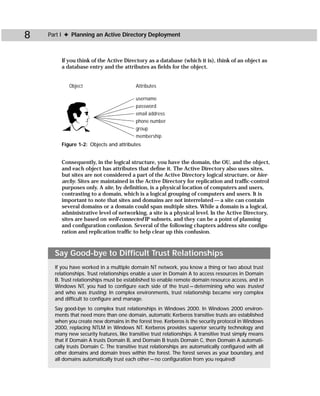
       situation, however, you should implement an Active Directory integrated Dfs if
       the Active Directory is configured.

       You can access the Dfs console by clicking Start ➪ Administrative Tools ➪
       Distributed File System. The Dfs console, which is an MMC snap-in, appears,
       as shown in Figure 16-3.
336   Part IV ✦ Integrating Supporting Technologies


           Figure 16-3: Dfs console


           Once the console is open, you can use the Action menu either to display an existing
           Dfs root or to create a new one. If you want to open an existing Dfs root, click the
           option on the Action menu. A window appears where you can enter the name of the
           Dfs root or the host server on which is resides. The trusting domains in your network
           are also displayed, shown in Figure 16-4.


           Figure 16-4: Display an existing Dfs root
Chapter 16 ✦ Implementing Distributed File System and Indexing Service              337

To create a new standalone Dfs root, follow these steps:

   1. In the Dfs console, click Action ➪ New Dfs Root.
   2. The Dfs Root Wizard begins. Click Next on the Welcome screen.
   3. In the Select the Dfs Root Type window, you have two selection options.
      Choose the “Create a standalone Dfs root” radio button, shown in Figure 16-5,
      and then click the Next button.


     Figure 16-5: Create a standalone Dfs


   4. Enter the name of host server for the standalone Dfs root or use the Browse
      button to select the desired server. Click the Next button.
   5. The Specify the Dfs Root Share window appears. Remember from our earlier
      discussion that the Dfs root is simply a shared folder. In this window, shown
      in Figure 16-6, you can select an existing shared folder to become the Dfs root,
      or you can create a new Dfs share by entering the path to the share and the
      share name. Make your selection and click the Next button.
   6. The Dfs Root Name window appears showing path and name of the Dfs root
      share. You can enter a comment if desired. Click the Next button.
   7. The Summary window appears. Review your selections and then click the
      Finish button.
338   Part IV ✦ Integrating Supporting Technologies


           Figure 16-6: Choose the Desired Share Option


           Adding Dfs links
           Once you have configured the Dfs root, you can begin setting up your Dfs by adding
           Dfs links. Remember that Dfs links are like hyperlinks — they appear as folders to
           users but they transparently redirect the user to the actual server that holds the
           shared folder.

           To create a Dfs link, follow these steps:

              1. In the Dfs console, select the Dfs root and click Action ➪ New Dfs Link (or
                 you can just click the icon that appears in the MMC).
              2. In the Create a New Dfs Link window, enter the link name as you want it to
                 appear in Dfs, the network path to the actual share, and a comment if desired.
                 Also notice that link caching is in effect for clients, with a default setting of
                 1800 seconds (30 minutes). This is the period of time the link can be cached
                 on the user’s computer before it has to be updated from Dfs. You can raise
                 or lower this value if necessary. Figure 16-7 shows you a properly configured
                 window. Enter the link information and then click OK. The new link will now
                 appear in the Dfs console.
Chapter 16 ✦ Implementing Distributed File System and Indexing Service                  339


       Figure 16-7: Create a New Dfs Link window


       Creating a replica
       A replica points the way to a different location on the network for a shared folder.
       For example, if you had two identical folders in two different locations on the
       network, the replica enables you to point to the alternate shared folder. To create
       a replica, follow these steps:

          1. In the Dfs console, select the Dfs link for which you want to specify a replica.
          2. Click Action ➪ New Replica.
          3. The Add New Replica window appears. Enter path to the shared folder
             for which you want to redirect the users and then click OK, as shown in
             Figure 16-8.

Note        Notice that the Replication Policy options are grayed out. Since this is a standalone
            Dfs, replication policies cannot be used.

       Once you create your Dfs links and any desired replicas, your job is basically done
       except for maintenance. As you use the console, notice that you can perform other
       actions, such as check the status of the root and links, remove links, and so forth.
       These actions are all self explanatory, so I’ll not address them here.
340   Part IV ✦ Integrating Supporting Technologies


            Figure 16-8: New replica


      Active Directory Integrated Dfs
            Under most circumstances, you will choose to implement an Active Directory
            integrated Dfs, also called a domain-based Dfs. With a domain-based Dfs, the Dfs
            topology is stored in the Active Directory and the Dfs information is available from
            a number of different servers. Because the Dfs topology is stored in the Active
            Directory, the Dfs is inherently fault tolerant. Additionally, with a domain-based
            Dfs, you can choose to replicate your Dfs roots and Dfs shared folders so that they
            will always be available. For example, suppose you have a shared folder called
            “Corp” that is accessed by many users every day. You can choose to replicate this
            folder so that it is physically available on several servers. If one server goes offline,
            the other servers that hold the replica can service the needs of clients. Finally, a
            domain-based Dfs provides load balancing among Dfs servers. The Dfs root can
            support multiple Dfs shared folders. This way, if one folder is accessed heavily,
            Dfs can ensure that the load is balanced among all of the servers instead of
            taxing one server. All of these features are transparent to end users.

            Concerning configuration, the Active Directory integrated Dfs is configured in the
            same manner as a standalone Dfs, so refer to the previous section for specific steps.

      Tip        When you install Dfs, choose “Active Directory integrated” when you run the wizard.


            There is one task I would like to point out that is different in the domain-based
            Dfs. You configure Dfs links and replicas in the same manner, but you can determine
            replication for the Dfs replicas. Right-click the child node with multiple members
            and choose Replication Policy. The Replication Policy window opens, shown in
            Figure 16-9.
Chapter 16 ✦ Implementing Distributed File System and Indexing Service               341


  Figure 16-9: Replication Policy window


  In the dialog box, you see each member of the replica set. Select the desired
  primary master and click the Set Master button. The primary master is the share
  from which all other replicas will be set. You can also use the console to enable
  or disable members as necessary.


Indexing Service
  Though not a part of the Active Directory itself, Microsoft Indexing Service
  enables end users to locate particular documents on your computer by performing
  text searches. This service makes your computer act like a library catalog to users
  so they can search for words, phrases, or even authors. Users can search either
  through the Start menu’s search feature or from a Web browser.

  Let me make a categorical statement here — Indexing Service is a per machine ser-
  vice. It is not used with the Active Directory or integrated with the Active Directory.
  The purpose of Indexing Service is to index a local drive and enable users to search
  for particular documents on that computer. I have included Indexing Service in this
  chapter because its goal is the same as many goals of Dfs and the Active Directory —
  to help end users find what they need.
342   Part IV ✦ Integrating Supporting Technologies


             Consider an example. Suppose you have a Windows 2000 member server that is
             being used as a file server. The server has hundreds of documents in a number of
             different shared folders. Many of those documents are research white papers and
             other scholarly documents. With Indexing Service in use, a user can connect to
             your server, search for a particular word or phrase, and find all matching docu-
             ments. The user does not have to roam through your shared folders or peruse
             hundreds of documents to find the desired information. Obviously, this saves
             the user a lot of time and aggravation.

      Note        Indexing Service is fully compliant with NTFS permissions. When performing a
                  search, the user is returned only document matches for documents he or she has
                  permissions to view. However, do not put the indexing catalog on a FAT volume, or
                  users will be able to view the entire catalog. Also, note that Indexing Service does
                  not index encrypted documents, and any document that is encrypted after it is
                  indexed is removed from the index.

             Indexing Service takes information from certain kinds of documents and organizes
             that information so it can be used to answer user search queries. The Indexing
             Service can index both the entire document and the document’s parameters, such
             as title, author, date of creation, and so forth. By indexing the document and the
             parameters, the Indexing Service gives users more search options and more
             chances to locate the actual documents they need. Users can find material
             based on keywords, phrases, titles, author’s name, and so forth.

             The Indexing Service is capable of reading a document and indexing it through the
             use of a filter. The filter enables the Indexing Service to scan the document and
             extract the necessary information for indexing. Indexing Service can scan and
             index the following documents:

                ✦ Text
                ✦ Hypertext Markup Language (HTML) files
                ✦ Microsoft Office 95 or later documents
                ✦ Internet mail and news (requires Internet Information Service to be
                  installed) files

             Additionally, Indexing Service can index any document for which you obtain a filter.
             Filters can be custom created using the Microsoft Platform Software Development Kit.


             Installing Indexing Service
             Indexing Service is not difficult to install, but before doing so, you should make certain
             that your server meet the needs of Indexing Service and your users. Indexing Service’s
             installation requirements are the same as a typical server installation. If you have a
             low to moderate number of queries, your system should be able to handle indexing,
             but in large environments with many, many queries, your server may need more RAM
             and a more powerful CPU to service clients. So, take a look at both your server and
             your environment before proceeding.
Chapter 16 ✦ Implementing Distributed File System and Indexing Service              343

To install Indexing Service, follow these steps:

   1. Open Control Panel and double-click Add/Remove Programs.
   2. In the Add/Remove Programs window, click the Add/Remove Windows
      Components button.
   3. In the Windows Components list, click the check box next to Indexing Service,
      shown in Figure 16-10, and then click the Next button.


     Figure 16-10: Indexing Service


   4. The service is installed on your system. Click Finish.

The Indexing Service interface is located in the Computer Management console.
Click Start ➪ Programs ➪ Administrative Tools ➪ Computer Management. In the
left pane, expand the Services and Applications note and select Indexing Service,
shown in Figure 16-11.


Indexing Service catalogs
When you install Indexing Service, a catalog is automatically created, and all of
your documents that can be indexed are automatically indexed. This catalog, called
the System catalog, scans and indexes all of your fixed or permanent hard disks. If
Internet Information Server (IIS) is installed, a Web catalog is also created. You can
see both of these catalogs in Figure 16-11.
344   Part IV ✦ Integrating Supporting Technologies


           Figure 16-11: Indexing Service in Computer Management console


           When the Indexing Service scans documents, it indexes all of the documents’
           contents along with their parameters. However, the Indexing Service does not
           include any words that are on the word exception list. The word exception list is
           called Noise.xxx where xxx is an extension indicating the word list language, such
           as Noise.eng. The Noise file is located by default in C:WINNTSystem32, and you
           can open it and edit it with any text editor such as Notepad. You can see the default
           file in Figure 16-12, and it includes common words and articles, such as because,
           been, before, and other words, symbols, and numbers.


           Figure 16-12: Noise.eng file
Chapter 16 ✦ Implementing Distributed File System and Indexing Service                    345

      You can choose to include or exclude any desired directory on your computer from
      the index list. This feature allows you to manage what is and what is not included in
      the catalog. To add a new directory to the catalog, follow these steps:

         1. In the Indexing Service console in Computer Management, right click either
            System or Web catalog as desired, point to New, and then click Directory.
         2. In the Add Directory dialog box, shown in Figure 16-13, enter the path to the
            new directory you want to add and include an alias if desired. If the directory
            you want to add is located on a different computer, you enter a valid user
            name and password.


           Figure 16-13: Add Directory dialog box


         3. Click the Include in Index “Yes” radio button and then click OK.

      You can prevent a directory from being indexed in the catalog in the same manner.
      Just locate the directory, then choose the Include in Index “No” radio button, and
      click OK. For directories or files stored on NTFS volumes, you can also select the
      directory or file, right-click it, and choose Properties. On the General tab, click the
      Advanced button and then clear the “Index Contents for Fast File Searching” check
      box. This prevents the directory or file from being indexed.

Tip        In addition to adding or removing a directory, you can also right-click the desired
           catalog, point to All Tasks, and then choose to stop, start, or pause a catalog if nec-
           essary. You can also use this menu to merge two catalogs together. Generally, you
           would not want to merge catalogs together, but in terms of indexing organization,
           this feature may be helpful on file servers that index many documents.

      Finally, there are two other points I would like to mention concerning catalogs.
      In the Computer Management console, you can select Indexing Service in the left
      pane, and then click Action ➪ New ➪ Catalog to create a custom catalog. You don’t
      need to do this under most circumstances, but depending on your needs, you may
      choose to create several catalogs for organizational needs and purposes.
346   Part IV ✦ Integrating Supporting Technologies


            Also, it is possible that you may need to cache some document properties.
            Remember that properties are additional document attributes, such as author
            name, date of creation, and so forth. These properties are indexed along with the
            document, but some properties cannot be directly indexed and must be stored in
            the property cache so the Indexing Service can use them. A common example is
            meta tags in an HTML document. To use meta tags, you would need to manually
            cache them.

            To perform this action, expand Indexing Service in the left pane and click the
            Properties folder. A list of properties appears in the right pane, shown in
            Figure 16-14.


            Figure 16-14: Indexing Service properties


            To cache a desired property, right-click the property in the right pane and
            click Properties. On the Property tab, simply click the Cached check box.

      Caution    You should not cache properties unless you are certain there is a need. Some
                 cached properties can cause a performance problem with the Indexing Service.


      Managing the Indexing Service
            Fortunately, managing the Indexing Service is very easy. Once you have the
            Indexing Service up and running, it takes care of itself by automatically rescanning
            documents and incorporating changes into the index. In a nutshell, there shouldn’t
            be much you need to do, but I’ll point out a few possible housekeeping tasks.
Chapter 16 ✦ Implementing Distributed File System and Indexing Service               347

  If you select the Indexing Service in the left pane and click the Action menu
  (or just right-click it), you can access the service’s properties sheets. You see
  a Generation and a Tracking tab. By default, the Indexing Service indexes files
  with unknown extensions, and it generates abstracts, with a maximum abstract
  character size of 320. You can change these features on the Generation tab if you
  like, but as a general rule, the default settings work well. The Tracking tab simply
  tells you that the inheritable setting of “Add Network Share alias automatically”
  is enabled, and it should remain enabled so that aliases are indexed as well. The
  settings configured on these tabs are automatically inherited by your catalogs,
  but you can change this by accessing a catalog’s properties sheets and manually
  changing the settings.

  As mentioned previously, Indexing Service scans documents automatically and
  updates catalogs automatically. However, you can manually rescan a directory if
  you feel there may be errors or you want the changes immediately updated. To
  perform this action, simply select the Directories folder in the left pane, then right-
  click the desired directory in the left pane, point to All Tasks, and choose either
  Rescan (Full) or Rescan (Incremental). A full scan completely reexamines the
  directory while an incremental scan looks only for changes in the directory.

  Finally, if you are having problems with Indexing Service, there is an Indexing
  Service object in Performance Monitor you can use to attempt to isolate the cause
  of performance problems. Also, you’ll find a list of error code messages for Indexing
  Service in the Windows 2000 Help files.


Summary
  This chapter explored two Active Directory–supporting technologies — Distributed
  File System and Indexing Service. Dfs makes the network transparent to your users by
  creating a shared folder hierarchy that users can use to view and locate the desired
  shared folder. Users are transparently redirected to the actual server and shared
  folder so that knowledge of the network topology is not necessary. Dfs supports
  both standalone and Active Directory integrated options. Also, you can use the
  Indexing Service to index files and folders on your local machine or Web directories.
  The Indexing Service enables users to perform full text searches in order to locate
  desired files.

                                  ✦       ✦       ✦
Connecting
Exchange Server
                                                                    17
                                                                     C H A P T E R


                                                                    ✦     ✦      ✦      ✦


and the Active                                                      In This Chapter

                                                                    Integrating Exchange

Directory                                                           5.5 with the Active
                                                                    Directory

                                                                    Understanding
                                                                    Exchange 2000
                                                                    features

  E     xchange Server is Microsoft’s enterprise messaging and
        groupware product. Through Exchange Server, enterprise
  environments can implement corporate e-mail and a number
                                                                    Installing the Active
                                                                    Directory Connector
  of related services, such as newsgroups. As the newest version
  of Exchange Server, Exchange 2000 works natively with the         Configuring the
  Active Directory. In this chapter, we explore both Exchange 5.5   Active Directory
  and Exchange 2000 and how these two products can integrate        Connector
  with the Active Directory. This chapter focuses on connecting
  the two products together, so I assume you have some previ-       Using multiple Active
  ous Exchange knowledge. If you have an existing NT network        Directory Connector
  running Exchange 5.5, you’ll find the information in this chap-   servers
  ter most helpful, and if you are considering implementing
  Exchange 2000, you learn how it integrates with the Active        ✦     ✦      ✦      ✦
  Directory.


Exchange and the Active Directory
  Exchange and the Active Directory are both directories. Both
  store information about real network objects, such as users,
  phone numbers, e-mail addresses, mailbox locations, and so
  forth. However, managing two different directories on the
  same network can be time consuming and cost more in terms
  of administrative burden. An integrated directory service is
  always best, and Exchange and the Active Directory can make
  this integration happen.
350   Part IV ✦ Integrating Supporting Technologies


            Interestingly enough, the Active Directory was initially built on the Exchange
            Server database model, but the development of the Active Directory left most
            of the Exchange concepts seen in Exchange 5.5 and earlier behind. However,
            the Active Directory provides a way to synchronize and connect Exchange 5.5
            networks with the Active Directory, and as you’ll soon find out, Exchange 2000
            and the Active Directory are integrated from the very start.


            Exchange 5.5 and the Active Directory
            As you might guess, Exchange Server 5.5 does not natively integrate with the
            Active Directory. However, Microsoft provides a way to connect Exchange 5.5 to
            the Active Directory through the Active Directory Connector (ADC). The ADC
            enables the two directories to synchronize with each other. Synchronization means
            that the two directories are equivalent, though not necessarily identical, to each
            other. With the ADC, you can manage two different directories more seamlessly.

      Tip        The ADC is a Windows 2000 service that is displayed as MSADC in Task Manager.
                 You can install a GUI MMC interface to manage it, however, which is explored later
                 in this chapter.

            For example, suppose you modify an attribute in Johnny Smith’s user account.
            Through the ADC, replication ensures that Exchange’s mailbox for Johnny Smith
            is synchronized with the attribute change you just made. This synchronization
            occurs through the ADC by way of a connection agreement (CA). CA’s contain the
            following properties:

               ✦ Server names (Active Directory domain controller to Exchange Server)
               ✦ Objects that can be synchronized
               ✦ Synchronization containers (Active Directory containers/OUs and Exchange
                 site recipient containers)
               ✦ A schedule

            The CA enables an Active Directory container or OU to synchronize with an Exchange
            site recipient container. You manually create the CA in order to connect the two con-
            tainers together that hold like information.

            As you might guess you use multiple CAs to make the connections you need for
            synchronization. You synchronize multiple Active Directory containers to a single
            Exchange recipient container and vice versa — basically whatever you need to
            make synchronization effective in your environment.

            So, if you can do all of this with Exchange 5.5, why would you want Exchange
            2000? As you will see in the next section, ADC is provided to help you upgrade
            to Exchange 2000 — which with an Active Directory implementation is certainly
            something you will want to do.
Chapter 17 ✦ Connecting Exchange Server and the Active Directory                 351

        Exchange 2000 and the Active Directory
        Exchange 2000 is the first version of Exchange Server that does not have its
        own directory — Exchange 2000 uses the Active Directory to store Exchange data.
        You may be thinking, “Wait a minute! If I don’t implement the Active Directory,
        I cannot upgrade to Exchange 2000?” That’s right. Microsoft expects (demands?)
        that you upgrade to Windows 2000 and implement the Active Directory in order
        to implement Exchange 2000.

        The good news is that if you upgrade to the Active Directory and install Exchange
        Server 2000, you have a completely integrated, enterprise mail system that works
        within your existing directory service. And, it is not just integrated in terms of how
        it operates, but it is integrated through the management tools as well. How would
        you like to configure user mailboxes using Active Directory Users and Computers?
        Well, in Exchange 2000, that is exactly what you do. The following list points out
        some of the other major features and issues:

            ✦ Exchange 2000 is limited to a single Active Directory forest in terms of imple-
              mentation. This is due to the Global Address List generation by the Active
              Directory’s global catalog, which is limited to a single forest. For practical pur-
              poses, this is not a serious issue because virtually all Active Directory imple-
              mentations are limited to a single forest configuration on an enterprise scale.
              While it is possible to connect two Active Directory forests together, this con-
              figuration is not recommended on a permanent basis.

Cross-        See Chapter 3 for more information about multiple forest configurations.
Reference
            ✦ In earlier versions of Exchange, users find other users within the Exchange
              environment through the Global Address List. In Exchange 2000, the Active
              Directory’s global catalog creates the Global Address List. Because the global
              catalog holds a partial replica of all objects in the entire Active Directory for-
              est, the Global Address List is pulled from the global catalog (and is also part
              of the reason why the Exchange 2000 is limited to a single forest). Because the
              Global Address List is pulled from the global catalog, Windows 9x or NT users
              are able to access the Global Address List as well.

 Note         For the sake of further explanation, I would like to point out that a single Exchange
              implementation is not limited to the forest because of domains. In Windows NT,
              your Exchange organization could span multiple domains because the domain
              security had no effect on Exchange. In the Active Directory, all domains and secu-
              rity between them are integrated within the forest. So, the domain structure is not
              the problem, but the limitations of the global catalog, which is limited to the for-
              est, serves as a Global Address List boundary for Exchange server.
352   Part IV ✦ Integrating Supporting Technologies


             ✦ In addition to the forest limitation and the use of the global catalog for the
               Global Address List, Exchange 2000 requires a DNS implementation. This is
               basically a moot point since you cannot integrate the Active Directory without
               DNS and you cannot implement Exchange 2000 without the Active Directory.
               Thus, DNS is required.
             ✦ Upon installation, Exchange 2000 extends the Active Directory’s current
               schema. This feature enables schema modification to include Exchange mes-
               saging components. This process occurs automatically during installation
               and does not require any configuration from you.
             ✦ Replication functions through the use of Active Directory. In previous versions
               of Exchange, replication occurred with mail servers through object replication.
               In the Active Directory, only attribute changes are replicated instead of the
               entire object. This is a better design because it conserves network bandwidth
               by replicating not entire objects, but only the attributes that have changed.
               Exchange 2000 uses the Active Directory’s replication process.
             ✦ Do you need quick Internet mail access? No problem. Because the SMTP ser-
               vice is installed by default when you install Windows 2000, you can begin
               using SMTP mail as soon as you install Exchange 2000. (The Active Directory
               can even use it for replication.) SMTP is used as the primary messaging proto-
               col in Exchange 2000.
             ✦ Exchange 2000 uses your existing Active Directory infrastructure, using Active
               Directory sites for communication purposes. In other words, you don’t have
               to create a separate Exchange infrastructure (which is obviously great news).
             ✦ Finally, Exchange 2000 further integrates with the Active Directory by using
               the same terminology describing Active Directory objects with Exchange
               objects. This may seem like a minor point, but the name changes in Exchange
               can cause a little confusion. Those changes are as follows:
                   • User — In Exchange 2000, a user is the same as a mailbox in earlier ver-
                     sions of Exchange.
                   • Contact — In Exchange 2000, a contact is the same as a custom recipient
                     in earlier versions of Exchange.
                   • Group — In Exchange 2000, a group is the same as a distribution list in
                     earlier versions of Exchange.

      Tip       Users, Contacts, and Groups in Exchange are referred to as mail-enabled and/or
                mailbox-enabled. Mail-enabled means that an object has an e-mail address. If the
                object were only mail-enabled, it would not have an Exchange mailbox, but could
                send and receive mail using another messaging system. Mailbox-enabled means
                that an object has an Exchange mailbox association as well. Only a User can have
                a mailbox. Mailbox-enabled objects are automatically mail-enabled.
Chapter 17 ✦ Connecting Exchange Server and the Active Directory                353

Installing the Active Directory Connector
       As you have discovered so far, Exchange 5.5 is the end of the road for Windows
       NT networks. In order to install and implement Exchange 2000, you must have
       Windows 2000 installed and the Active Directory configured. As part of that pro-
       cess, Windows 2000 expects that you will install the Active Directory and then at
       some point in the future install Exchange 2000. During the interim, you can use the
       Active Directory Connector to synchronize Exchange 5.5 and Active Directory.

       There is, however, another reason for using the ADC. Once your Active Directory
       installation is in place, you can install and use the ADC to migrate objects into the
       Active Directory from the Exchange directory. This process enables you to replicate
       user object information from Exchange into the Active Directory, which can help
       decrease your implementation time since you will not have to manually enter that
       information.

Note        Aside from synchronization and implementation assistance, a practical reason to
            use the ADC is to enable you to manage your Active Directory and Exchange direc-
            tory from one administrative tool. Using the Exchange 5.5 console and Active
            Directory tools, you can perform administrative tasks from a single location instead
            of having to travel from server to server.

       But aside from assisting with implementation, the ADC enables you to continue to
       use Exchange server without the hassle of maintaining two independent directo-
       ries. In order to implement the ADC, you’ll need to install the service on a Windows
       2000 server in an Active Directory network. Note that the server does not have to
       be a domain controller. In fact, in large environments, there can be a lot of synchro-
       nization traffic that could drain resource availability on domain controllers, so
       using the ADC on a member server may be a better option. Also, ADC uses LDAP to
       exchange information between Exchange and the Active Directory among the CAs
       that are configured. This should not be a problem considering the wide use of LDAP
       in the Active Directory, but for informational purposes, be aware that the ADC must
       use LDAP. Exchange 5.5 supports LDAP, so there is no additional configuration that
       must be performed on the server for use with the ADC.

       The ADC is found on your Windows 2000 Server installation CD-ROM in the Valueadd
       folder. Open the MSFT folder, then open the Mgmt folder, then open the ADC folder,
       and then double-click Setup.exe. Exchange 2000 also provides an enhanced version
       of the ADC that you should install upon the upgrade to Exchange 2000.

       The following steps show you how to install the ADC:

          1. After clicking Setup.exe, a Welcome screen appears, shown in Figure 17-1.
             Note that you cannot install system files or update shared files if any are cur-
             rently in use. Click Next to continue.
354   Part IV ✦ Integrating Supporting Technologies


                Figure 17-1: Welcome screen


             2. In the Component Selection window, shown in Figure 17-2, select the ADC and
                the ADC management components check boxes and then click Next.


                Figure 17-2: Component Selection window


             3. In the Install Location window, shown in Figure 17-3, select a location for
                setup to install the ADC, which is C:Program FilesMSADC by default. You
                can enter the name of an alternate location or click the browse button to
                locate it. Click the Next button when you’re done.
Chapter 17 ✦ Connecting Exchange Server and the Active Directory           355


  Figure 17-3: Install Location window


4. Installation requires a service account in order to install the service, shown
   in Figure 17-4. Typically, you would choose to use an administrator account.
   Once installation is complete, this account will also be assigned the Logon As
   Service, Restore Files and Directories, Act as Part of the Operating System,
   and Audit Permissions rights. Select an account, enter a valid password, and
   click Next.


  Figure 17-4: Service Account window
356   Part IV ✦ Integrating Supporting Technologies


              5. Setup installs the ADC by copying the files, modifying the registry, and modify-
                 ing the Active Directory schema. Click Finish when prompted.


      Configuring Connector Management
      Properties
           Once you have installed the ADC and the management console, you can manually
           load the ADC snap-in into an MMC (refer to Appendix B), or you can access it in
           Administrative Tools. As you can see in Figure 17-5, you have an Active Directory
           Connector Management. If you select the object and then click Action ➪ Properties,
           you have a few important configuration options.


           Figure 17-5: Connector Management


           The General tab simply tells that you are using the default ADC policy. The default
           policy is that all attributes from both directories are synchronized with each other.
           However, because of network or business needs, you may select certain attributes
           that you do not want synchronized. You can use the From Exchange and From
           Windows tabs to make these default ADC policy adjustments.

           The From Exchange tab, shown in Figure 17-6, displays all attributes available to be
           replicated from Exchange preselected. Clear the check beside any attribute you do
           not want replicated to the Active Directory.
Chapter 17 ✦ Connecting Exchange Server and the Active Directory        357

  You can also customize attribute matching rules. By default, Exchange and the
  Active Directory attempt to match each other’s directory data. This, however, may
  not always be possible, due to customized schema configurations you may have in
  place. You can customize any relationships necessary by clicking the Add button
  and selecting which Exchange attribute you want to match with which Windows
  attribute.


  Figure 17-6: From Exchange tab


  The From Windows tab looks and behaves in the same manner. The difference is
  that you select Windows attributes you do not want replicated to Exchange. The
  customize attribute matching option also functions in the same manner.


Creating and Configuring Connection
Agreements
  A connection agreement creates a connection between an Exchange server and a
  Windows 2000 server. The connection agreement determines how data between the
  two servers will be synchronized. You can have any number of connection agree-
  ments as needed for your environment. Typically, you need a connection agreement
358   Part IV ✦ Integrating Supporting Technologies


           between each Active Directory domain and each Exchange site. As previously men-
           tioned, a single container from the Active Directory can be configured to replicate
           to several Exchange containers, and vice versa.

           If you expand Active Directory Connector Management in the console, you see the
           ADC for the server, which you installed. If you select the ADC and then click Action ➪
           New ➪ Connection Agreement, you can create a new CA, shown in Figure 17-7.


           Figure 17-7: New CA


           You create and configure a CA at the same time, which is somewhat different than
           the typical object creation windows you are used to seeing in the Active Directory.
           On the General tab, shown in Figure 17-8, give the CA a name and then select the
           direction for replication by clicking the desired radio button.

           You have three replication direction options:

              ✦ Two-way — Using this option, changes in either the Active Directory or
                Exchange directory can trigger replication. If you are managing the Active
                Directory and Exchange on their own servers, use this option.
              ✦ From Exchange to Windows — Using this option, replication occurs from
                Exchange to Windows. Use this option if all object administration changes
                are performed on the Exchange side.
              ✦ From Windows to Exchange — Using this option, replication occurs from
                Windows to Exchange. Use this option if all object administration changes
                are performed on the Active Directory side.
Chapter 17 ✦ Connecting Exchange Server and the Active Directory          359


Figure 17-8: General tab


Finally, you can use the drop-down menu at the bottom of the window to select a
server to run the CA. The server on which it was installed is selected by default.

Next, you see a Connections tab. The Connections tab enables you to configure
a bridgehead server for both the Active Directory and Exchange environments.
A bridgehead server is one that receives replication data and then passes that
data onto other servers within the domain/site. For a Windows 2000 domain, the
bridgehead server must be a domain controller. The changes sent to and from
the Exchange environment must go to a domain controller so they can be repli-
cated to all other domain controllers. While it is true that the CA does not have
to reside on a domain controller, but can reside on a member server, the CA must
send changes to a domain controller for replication throughout the domain to
occur. On the Exchange side, the bridgehead server can be any Exchange server.

To configure the bridgehead server, enter the server name, authentication type, and
an account to connect with for both the Windows 2000 server and the Exchange
server, shown in Figure 17-9.
360   Part IV ✦ Integrating Supporting Technologies


            Figure 17-9: Connections tab


      Tip        The permissions account you assign will need at least write permission if you will be
                 writing changes to the directory on that particular side. For example, in a two-way
                 configuration, both Windows and Exchange need write permission. In Windows to
                 Exchange, only Exchange needs write permission, and vice versa.

            Next, you see a Schedule tab. The Schedule tab determines when synchronization
            can take place between the Windows 2000 server and the Exchange server. Polling
            for directory changes takes place every 5 seconds during the scheduled times that
            you specify. As you can see in Figure 17-10, you can choose to never synchronize,
            always synchronize, or use the schedule, in which case you click the desired grid
            blocks to mark the time that you want synchronization to occur.

            Also notice at the bottom of the Schedule tab, you see a “Replicate the entire direc-
            tory the next time the agreement is run” check box option. This feature enables you
            to force complete synchronization if you feel the action is needed.

            I should note here that excessive polling and replication may, of course, present
            you with some traffic issue problems. Replication and synchronization are always
            a trade-off in terms of data consistency and bandwidth usage, so you will have to
            find the balance that works best for your environment.
Chapter 17 ✦ Connecting Exchange Server and the Active Directory                361


      Figure 17-10: Schedule tab


Tip        The 5-second polling frequency can be manually changed in the registry by accessing
           HKEY_LOCAL_MACHINESystemCurrentControlSetServicesMSADCParameters.
           Under Name, you see Sync Sleep Delay (Secs) and under Type you see DWORD.
           Under data, enter the polling value (default of 5) to the number of seconds you want
           the system to wait between cycles. This can reduce the frequency of polling and help
           reduce both server and network load.

      Next, you see From Exchange and From Windows tabs. These two tabs look and func-
      tion in exactly the same way, so I’ll address them together. The From Exchange and
      From Windows tabs enable you to determine the source and destination containers
      from each directory. You use these tabs to determine which containers are polled
      for changes, where changes are to be written, and the types of items you want to
      replicate. In addition to these items, the From Windows tab enables you to replicate
      secured Active Directory objects to Exchange. Just check the box at the bottom of
      the tab to enable this feature. As you can see in Figure 17-11, just use the Add and
      Remove buttons and check box options to determine which containers should be
      replicated and which objects should be replicated.
362   Part IV ✦ Integrating Supporting Technologies


           Figure 17-11: From Exchange tab


           On the Deletion tab, shown in Figure 17-12, you have four radio button options
           affecting object deletions. For example, you delete a user account in the Active
           Directory. By default, that account on the Exchange directory is not deleted, but
           a record of the deletion is kept instead. This tab enables you to continue using
           deleted records (CSV files in Exchange and LDF files in Active Directory) or to actu-
           ally delete the item from the partner directory when deletion occurs on the other
           side. The trick with using the delete both sides option is you may have data deleted
           that you do not want deleted. For example, if you delete a user account in the Active
           Directory and specify for it to also be deleted in Exchange, then the user account’s
           mailbox, custom recipients, and distribution lists will also be deleted. In the same
           manner, if you delete a mailbox in Exchange, then the user account in the Active
           Directory will be deleted. As you can see, there can be some serious consequences
           to using the delete option, so think through the process carefully before using it.

           Finally, you see an Advanced tab, shown in Figure 17-13. First, the Advanced tab
           enables you to set Paged results. The settings for Windows and Exchange, which
           you can change, are 20 by default. This specifies how many entries exist per page
           for synchronization purposes. Moving this setting to zero prevents synchronization
           and moving the setting too high puts a drain on system memory. The default setting
           of 20 is the best setting for most environments.
Chapter 17 ✦ Connecting Exchange Server and the Active Directory       363


Figure 17-12: Deletion tab


Next, you see two check box options:

   ✦ This is a primary Connection Agreement for the connected Exchange
     organization — When you select this option, you are telling the ADC that
     this is a primary CA that should synchronize new Active Directory objects
     that are mail enabled (such as user accounts) but do not have corresponding
     Exchange mailboxes. This feature enables synchronization between the two
     directories without Exchange having to create new objects. This option is
     selected by default, and you do not need to change it unless you have more
     than one CA, in which case you should select which CA should be the
     primary CA.
   ✦ This is a primary Connection Agreement for the connected Windows
     Domain — This selection specifies which CA is primary for the Windows
     domain. This CA synchronizes new Exchange objects with the Active
     Directory (like new mailboxes, distribution lists, and so on). With this
     check box selected, the CA will create new Active Directory objects in
     order to synchronize with the Exchange directory.
364   Part IV ✦ Integrating Supporting Technologies


           Finally, you also see a drop-down menu to select an option for a Windows account.
           When Exchange creates a mailbox for which there is no primary Windows user
           account, the drop-down menu enables you to determine which action synchroniza-
           tion should take. You have the option to create a new Windows account, a new dis-
           abled Windows account, or a new contact.


           Figure 17-13: Advanced tab


           Once all of this is done, the new CA appears in console. You can create additional
           CAs in the same way, and you can use the console to add and remove then as
           necessary.


      ADC Properties
           In the Connector Management Console, you can also right-click Active Directory
           Connector and access a properties sheet as well. This properties sheet functions as
           overall settings for the ADC. You have General, Diagnostic Logging, and Security tabs.
           The General tab simply tells you which server is the ADC server (home server), and
           the Security tab is like all other Security tabs in the Active Directory. I do want to call
           attention to the Diagnostic Logging tab because you may find it helpful.
Chapter 17 ✦ Connecting Exchange Server and the Active Directory          365

  In Figure 17-14, you see different categories and the Logging level. You can change
  the Logging level by selecting none, minimum, medium, or maximum at the bottom
  of the window, depending on the detail of information you want written to the
  Windows Event Log. The ADC provides the following logging options:

     ✦ Replication — Events generated during replication
     ✦ Account Management — Events that occurred when write or delete attempts
       were in progress
     ✦ Attribute Mapping — Events that occurred while attributes were being
       mapped between Active Directory and Exchange
     ✦ Service Controller — Events that occurred while the ADC service was
       stopped or started
     ✦ LDAP Operations — Events that occurred while using LDAP


  Figure 17-14: Diagnostic Logging tab


Using Multiple ADC Servers
  Depending on the nature of your network and the number of CAs that need to
  be made, you could possibly need more than one ADC Server. In fact, Microsoft
  recommends that each ADC server host no more than 75 CAs due to performance
366   Part IV ✦ Integrating Supporting Technologies


           reasons. If you need excessive numbers of CAs due to complex site structures, you
           may need to deploy several ADC servers to manage the CA load.

           When you deploy multiple ADC servers, you must configure the CAs to replicate dif-
           ferent sets of objects for each server. Administration overhead can be assisted with
           multiple ADC servers because systems administrators can manage the ADC servers
           remotely due to the design of the Active Directory.


      Synchronizaton with the ADC
           As a final word to this chapter, remember that the ADC is designed to provide
           you synchronization capabilities between the Active Directory and Exchange 5.5.
           This is meant to be a temporary solution until you upgrade your Exchange envi-
           ronment to Exchange 2000, which is designed to natively work with the Active
           Directory. Although you can use the ADC and Exchange 5.5 connector as long as
           needed, you should make certain you install Exchange 2000’s version of the ADC,
           which is enhanced to provide greater operability. The ADC for Exchange 2000 is
           available on the Exchange 2000 Server installation CD-ROM, shown in Figure 17-15,
           and should be deployed along with Exchange 2000.


           Figure 17-15: Exchange 2000 ADC
Chapter 17 ✦ Connecting Exchange Server and the Active Directory         367

Summary
  This chapter gave you an overview of connecting Exchange Server with the Active
  Directory. Exchange 5.5 can be connected with the Active Directory through the
  Windows 2000 Active Directory Connector service, included with Windows 2000.
  The ADC enables the Exchange 5.5 directory to connect and synchronize with the
  Active Directory so that administrators do not have to separately manage two dif-
  ferent directory services. Exchange 2000 ships with its own version of the ADC,
  and Exchange 2000 is designed to work natively with the Active Directory, using
  the Active Directory’s database for complete integration. This integration feature
  enables you to use a powerful messaging system directly with your Active Direc-
  tory enterprise.

                                ✦       ✦      ✦
Implementing
Microsoft DNS
                                                                    18
                                                                     C H A P T E R


                                                                    ✦     ✦     ✦        ✦

                                                                    In This Chapter


  D      omain Name System (DNS) is a name resolution strategy
         that enables domain names to be resolved to TCP/IP
  addresses. As you know, humans use language to communi-
                                                                    Exploring DNS
                                                                    features

                                                                    Implementing
  cate with one another while computers use binary math. In a
                                                                    Microsoft DNS
  TCP/IP network, each computer has a unique TCP/IP address,
  subnet mask, and possibly even a default gateway. Computers
  use the IP address to exchange information with one another.      Creating forward
  So, in a network where language-based names are used, the         and reverse lookup
  names must be resolved to an IP address. The Active Directory     zones
  functions by using DNS as a naming and resolution strategy. In
  fact, you cannot implement the Active Directory without DNS.      Managing the DNS
  This chapter explores Microsoft DNS and shows you how to          server and zones
  configure a DNS server. As you can imagine, this chapter is not
  comprehensive since entire books are devoted to the subject       ✦     ✦     ✦        ✦
  of DNS, but this chapter will help you see how DNS and the
  Active Directory work together and how to perform standard
  DNS server configuration.


Understanding DNS
  DNS is a logical naming system that enables computers on
  your network to resolve domain names to IP addresses. As I
  mentioned in this chapter’s introduction, DNS is required for
  a Windows 2000 implementation, and if you have installed the
  Active Directory, you know that the Installation Wizard will
  prompt you to install DNS if no DNS server is available.

  Before Windows 2000, all Windows networks used NetBIOS,
  which required you to use Windows Internet Name Service
  (WINS) to resolve NetBIOS computer names to IP addresses.
  Windows 2000 abandons NetBIOS and uses DNS as its primary
  naming strategy. In fact, if your network uses only Windows
  2000 computers, you don’t need WINS at all, but WINS is still
  supported for backward compatibility with downlevel Windows
  clients.
370    Part IV ✦ Integrating Supporting Technologies


      Cross-      You can learn all about Active Directory installation in Chapters 6 and 7.
      Reference


             So, DNS is required in Windows 2000, and you must use it to build a Windows 2000
             network. Why did Microsoft choose DNS? DNS was built for use on the Internet, and
             it is highly scalable. This simply means that DNS works just fine in a network of only
             a few or thousands of computers. Because DNS is virtually unlimited (it makes up
             the entire Internet), it is a wise choice for the Active Directory because the scalabil-
             ity of DNS does not limit an Active Directory implementation. Another reason for
             using DNS is that the DNS network implementation makes your local network more
             seamless with the Internet. Triton.com can be a company name in your local net-
             work, and it can also be an Internet name. Ksmith@triton.com is both a user name
             on the local network and an e-mail address. With this approach, company Web sites
             and company Web presence is less divided between the Internet and the local net-
             work. This, of course, does not mean that lower network security standards must
             be used, but it does enable your network to be more integrated with the Internet.

             As I have mentioned, DNS resolves host names to IP addresses. For example, sup-
             pose you want to visit www.idgbooks.com. In order to access the IDG Books Web
             site with your Internet browser, the host name www.idgbooks.com must be resolved
             to a TCP/IP address. Remember that computers always communicate with a numeri-
             cal address — not a language-based name — so the host name must be resolved.
             Your computer queries DNS servers to resolve the name to an IP address, and then
             your computer can use the IP address to communicate with the server(s) that hosts
             www.idgbooks.com.

             All of that sounds easy, but remember, there are millions of computers on the
             Internet. How does a DNS server keep track of all of them? In truth, a single DNS
             server does not. Typically, several DNS servers are used to resolve a host name
             to IP address. This is performed through domains, or the DNS namespace.


             The DNS namespace
             Although I explored the DNS naming hierarchy in Chapter 2 in the context of plan-
             ning an Active Directory namespace, I’ll expand on that information because you
             need to firmly understand the hierarchical nature of DNS in order to accurately
             plan and implement it.

             DNS is based on a hierarchy of domains referred to as the DNS namespace. Each
             domain is an individual, yet contiguous part of the namespace that can be resolved.
             So, it is important to understand that when a computer needs to resolve www.
             idgbooks.com, it may use several servers who have authority over various parts
             of the namespace in order to resolve the address. I’ll explore that resolution pro-
             cess in the next section, but I first want to consider the actual hierarchy.

             The DNS hierarchy is built on resolvable domains. At the top of the hierarchy is
             a DNS root, which is represented by a period. Next is the first-level domain, which
             is a large domain division such as com, net, org, mil, gov, or so on. Next is the
Chapter 18 ✦ Implementing Microsoft DNS       371

second-level domain, which is a representative, or friendly name, of the entity host-
ing the site, such as idgbooks, Microsoft, ATT, and so forth. Typically, the second-
level domain is descriptive enough so you know where you are visiting, such as www.
idgbooks.com. Next, the third-level domain either represents the type of service,
such as www, ftp, and so forth, or it can further divide the second-level domain,
such as acct.idgbooks.com. These domains can be further subdivided into other
child domains as necessary. Resolution always occurs by beginning at the Internet
root and resolving the name by first-level domain, second-level domain, and so forth.
For example, in Figure 18-1, you see the hierarchy for server12.acct.idgbooks.com.
When resolution reaches a host computer, such as in Figure 18-1, then the DNS name
is said to be a Fully Qualified Domain Name (FQDN).


                                                              Internet Root Domain
                                        Internet
                                          Root
                                           "."


    com             edu           net              gov               org             mil


                                 First-level domains


  microsoft      idgbooks        ucla         transcont              irs         ymca


                                Second-level domains


          acct                 mkt                       hr                   prod


                            Subdomains (or Child Domains)


   IBM Compatible           Server11               Server12                 Server13
                 A Fully Qualified Domain Name can be resolved from
                    the top of the tree down to the host computer.
Figure 18-1: The DNS hierarchy
372   Part IV ✦ Integrating Supporting Technologies


           A common comparison of the DNS namespace is the postal system. When you send
           a letter, you include a person’s name, mailing address, city, state, and zip code. This
           information must be resolved in order to deliver the mail to the correct address. The
           resolution process begins with the zip code, city, and state. Once the mail arrives in
           the correct city and state, the mailing address is next used to route the mail to a par-
           ticular carrier. The person’s name is then used to verify the mailing address. DNS
           resolution begins at the top-level domain and works its way down the hierarchy until
           it reaches the correct server IP address for which the DNS name represents.


           How name resolution works
           The DNS hierarchy provides a contiguous, yet scalable, naming structure so that
           domain names can be resolved to IP addresses. As previously mentioned, this reso-
           lution strategy requires a DNS server to resolve each portion of the DNS namespace
           in order to reach the actual server for the address. For example, a typical resolution
           process may include an Internet root server, a first-level domain sever, a second-
           level domain server, and so forth in order to actually resolve the names. Each DNS
           server queries its DNS database to determine if it has the requested information. If
           not, the DNS server knows to forward the request to another DNS server that can
           fulfill it.

           The easiest way to get the resolution concept in your mind is to consider an exam-
           ple. The following steps outline a resolution process and are accompanied by a
           number of figures to make the process easier to explore.

              1. First, a computer requests a resolution for a FQDN, for example, server12.
                 acct.idgbooks.com. The client sends the request to a local DNS server
                 for resolution. If the DNS server does not have authority over the domain
                 idgbooks.com, then it has to go through a resolution process with other
                 servers, beginning with an Internet root server. The DNS server asks the
                 Internet root server for the IP address of a COM server to begin the resol-
                 ution process, as shown in Figure 18-2.
              2. The Internet root returns the IP address of a COM server, and then the DNS
                 server contacts this server for the IP address of an idgbooks DNS server, as
                 shown in Figure 18-3. The COM server checks its database and returns the
                 IP address of an idgbooks DNS server.
Chapter 18 ✦ Implementing Microsoft DNS    373


                 I need the IP address for                        This mapping
                server12.acct.idgbooks.com                         is not in my
                                                                 database. I will
                                                                query an Internet
                                                                root server for a
                                                                  COM Server
  Client Computer                                  DNS Server


Internet Root Server
Figure 18-2: COM resolution


                 I need the IP address for                        This mapping
                server12.acct.idgbooks.com                         is not in my
                                                                 database. I will
                                                                query an Internet
                                                                root server for a
                                                                  COM Server
  Client Computer                                  DNS Server


Internet Root Server
    Here is the IP
    address of a
     COM server


                         COM Server
                        Here is the IP
                        address of an
                       idgbooks DNS
                           Server
Figure 18-3: idgbooks resolution
374   Part IV ✦ Integrating Supporting Technologies


             3. The DNS server then queries the idgbooks DNS server for the IP address of an
                Acct DNS server, as shown in Figure 18-4. The idgbooks DNS server checks its
                database and returns the IP address to the DNS server. In reality, the idgbooks
                server may have direct authority over the acct domain, or the acct domain
                may be its own zone (which is discussed later in this chapter).


                                  I need the IP address for                         This mapping
                                 server12.acct.idgbooks.com                          is not in my
                                                                                   database. I will
                                                                                  query an Internet
                                                                                  root server for a
                                                                                    COM Server
                  Client Computer                                    DNS Server


                 Internet Root Server
                     Here is the IP
                     address of a
                      COM server


                                          COM Server
                                         Here is the IP
                                         address of an
                                        idgbooks DNS
                                            Server


                                                          idgbooks DNS Server
                                                              Here is the IP
                                                             address of the
                                                               Acct DNS
                                                                 Server
                Figure 18-4: Acct resolution
Chapter 18 ✦ Implementing Microsoft DNS               375

4. The DNS server then queries the Acct DNS server for the IP address of server12,
   as shown in Figure 18-5. The Acct DNS server checks its database and returns
   the IP address of server12 to the DNS server.


                    I need the IP address for                             This mapping
                   server12.acct.idgbooks.com                              is not in my
                                                                         database. I will
                                                                        query an Internet
                                                                        root server for a
                                                                          COM Server
     Client Computer                                   DNS Server


   Internet Root Server
       Here is the IP
       address of a
       COM Server


                            COM Server                                Acct DNS Server
                           Here is the IP                           The Acct DNS Server
                           address of an                           checks its database for
                          idgbooks DNS                          server12.acct.idgbooks.com
                              Server                              and finds the IP address
                                                                  mapping of 131.107.2.200,
                                                                the host computer's unique
                                            idgbooks DNS Server IP address. It returns this
                                                Here is the IP   IP address mapping to the
                                               address of the      requesting DNS Server
                                                 Acct DNS
                                                   Server
  Figure 18-5: Host computer resolution
376   Part IV ✦ Integrating Supporting Technologies


              5. The DNS server then returns the IP address mapping to the client computer,
                 as shown in Figure 18-6. The client computer can now establish a TCP/IP
                 communication session with server12 using the server’s IP address.


                               The IP address is 131.107.2.200


                  Client Computer                                DNS Server


                             A communication
                            session can now be
                             established using
                           Server12's IP address


                                                                  Server12
                Figure 18-6: IP resolution


           This process can be used to resolve any FQDN, and the entire process is invisible
           to the user and very fast.


           Understanding DNS zones
           Within any large network, there is generally a need to partition administrative
           duties. This, after all, is one reason for domains and OUs in the Active Directory.
           The same holds true for DNS. After all, you may need different administrators to
           manage DNS within your environment. You can use DNS zones to segment your DNS
           implementation in order to make it more manageable. A zone is a discreet and con-
           tiguous portion of the DNS namespace that enables you to segment the namespace
           so it can be more easily managed. For example, suppose you have a root domain of
           triton.com and two child domains of namerica.triton.com and samerica.triton.com.
           Triton.com is physically located in Canada while the namerica domain is located in
           Dallas and the samerica domain is located in Venezuela. DNS zones can be used to
           partition the network implementation of DNS so that administrators can more eas-
           ily manage each physical site, shown in Figure 18-7. Once the zones are established,
           the DNS servers in each zone are authoritative over that zone and can query each
           other for name resolution outside of their zones.
Chapter 18 ✦ Implementing Microsoft DNS         377

                      DNS Zone


                                 triton.com


 DNS Zone                                     DNS Zone


       namerica.triton.com                         samerica.triton.com

Figure 18-7: DNS zones


Within the zone, you can have more than one DNS server. This provides load balanc-
ing and fault tolerance. However, only one DNS server is authoritative for the zone.
This means that one DNS server has a writable copy of the DNS zone database while
all other DNS servers in the zone have a read-only copy. The writable copy of the
zone database file is called the primary zone database file while all copies are called
secondary zone database files. When updates or changes to the DNS database need
to be made, they are made on the primary zone database file and replicated to all
other DNS servers in the zone through a process called zone transfer. Secondary
zone servers can process query requests just like the primary server, but only the
primary server can write zone changes to the database and transfer those changes
to the other DNS servers.


Understanding Dynamic DNS
During the pre-release days of Windows 2000, you heard a lot about Dynamic DNS
(DDNS). In fact, Windows 2000 DNS is dynamic. This simply means that a Windows
2000 DNS server has the capability to update its database on the fly. That may not
sound like much, but prior to this, an administrator had to physically sit down and
update the DNS HOSTS file. For example, suppose that computer12’s IP address
changed. You had to manually change the entry in the DNS database. In a Windows
378   Part IV ✦ Integrating Supporting Technologies


            2000 network where DNS is the name resolution strategy this simply would not work.
            In previous versions of Microsoft DNS, DNS did not talk to other server services to
            get any updates. For example, if a client’s IP address changed due to a DHCP lease,
            then you would have to manually enter the change. Dynamic DNS first appeared
            on the scene in 1997 as described in RFC 2136, which enabled DNS to dynamically
            receive updates from DHCP and even other DNS servers. A Windows 2000 network
            is dependant on this dynamic ability, and that characteristic is one of the major rea-
            sons for choosing to implement Microsoft DNS over other DNS versions that may
            not support the necessary features expected by the Active Directory.


      Installing DNS
            Now that I have explored the basics of DNS, how it works, and why it is used by the
            Active Directory, I want to turn my attention to configuring the DNS server, and I
            want to begin by installing DNS. You install DNS on a Windows 2000 server just like
            you install any other server service or component by using Add/Remove Windows
            Components.

      Tip        You do not have to install DNS manually on a domain controller. When you install
                 the Active Directory, DNS will be automatically installed.

            To install DNS on a Windows 2000 server, follow these steps:

               1. Open Control Panel and double-click Add/Remove Programs.
               2. Click the Add/Remove Windows Components button.
               3. When the wizard appears, click the Next button.
               4. In the list that appears, click the Networking Services check box and click the
                  Details button.
               5. Click the check box for Domain Name System (DNS), click OK, and then click
                  the Next button.
               6. The system installs DNS. When prompted, click the Finish button. You do not
                  need to reboot your computer.

            Once DNS is installed, you can access the DNS console, an MMC snap-in shown in
            Figure 18-8, by clicking Start ➪ Programs ➪ Administrative Tools ➪ DNS.
Chapter 18 ✦ Implementing Microsoft DNS           379


       Figure 18-8: DNS console


Creating Forward and Reverse Lookup Zones
       Once you have DNS installed, you can expand your server name in the console by
       clicking the plus (+) sign next to it. You see a Forward Lookup Zones and Reverse
       Lookup Zones container. I’ll explore both of these zones in the next two sections.


       Creating a new forward lookup zone
       Once you have expanded the server name in the DNS console by clicking the plus
       sign next to it, you see a Forward Lookup Zone container. If you select Forward
       Lookup Zones and then click Action ➪ New Zone, you can create a new forward
       lookup zone with the help of the wizard.

Note        If you’re an expert, I’m sorry to say there is no “wizard workaround” — you must
            use the wizard to create the zone.

       The following steps show you how to use the wizard to create the new forward
       lookup zone.

          1. In the New Zone Wizard, click Next on the Welcome screen.
          2. In the Zone Type window, shown in Figure 18-9, select the type of zone that you
             want to create. Microsoft DNS enables you to create standard primary or stan-
             dard secondary zones in a non–Active Directory environment. In an Active
             Directory environment, you should choose to create an Active Directory inte-
             grated zone, which stores all zone data in the Active Directory. (If you are
             working from a standalone server, this option will be grayed out.) Select the
             Active Directory–integrated zone radio button and then click Next.
380   Part IV ✦ Integrating Supporting Technologies


                Figure 18-9: Zone Type window


             3. In the Zone Name window, shown in Figure 18-10, enter the DNS name of
                the zone.


                Figure 18-10: Zone Name window


             4. Click the Finish button to complete the installation of the new zone.
Chapter 18 ✦ Implementing Microsoft DNS            381

Creating a reverse lookup zone
As I have discussed, DNS resolves a host name to an IP address. However, DNS can
also provide a reverse service that resolves an IP address to a host name. You can
use the reverse zone to create pointer records, which you learn about later in this
chapter, in order to point to the host name of the IP address. You don’t necessarily
have to configure a reverse lookup zone, but many networks find that they increase
performance, so do consider how they should be used in your DNS implementation.

To create a reverse lookup zone, follow these steps:

   1. Select the Reverse Lookup Zone container in the DNS console and then click
      Action ➪ New Zone.
   2. Click Next on the Welcome screen.
   3. Select the Active Directory–integrated radio button on the Zone Type window
      and then click Next.
   4. In the Reverse Lookup Zone window, shown in Figure 18-11, enter the network ID
      or name of the reverse lookup zone. The number construction is somewhat con-
      fusing. To enter the network number, take the IP address and remove the digits
      you control, leaving only the digits assigned to you by a naming authority. For
      example, in a Class A network, you might have 5.0.0.0. You control the last three
      numbers, so after dropping them, you are left with a network ID of 5.in-addr.arpa
      (which is added by DNS). In a class B network, such as 132.107.0.0, you would
      drop the two numbers you control and then reverse the remaining two numbers
      (107.132.in-addr.arpa). Enter your ID or name and then click the Next button.
   5. Click the Finish button to complete the reverse lookup zone configuration.


     Figure 18-11: Reverse Lookup Zone window
382   Part IV ✦ Integrating Supporting Technologies


      Managing the DNS Server
           If you select the DNS Server icon in the left pane of the DNS console and then click
           the Action menu, you see several tasks you perform on the DNS Server. The follow-
           ing list explores the tasks that appear to you on the Action menu:

              ✦ Set Aging/Scavenging for all zones — When you select this option, a window
                appears, shown in Figure 18-12, that enables you to set values in order to
                manage the cleaning, or scavenging, of old records in the database so that
                all database records are correct. The properties window presents you with
                a no-refresh and refresh interval, both of which are set to 7 days by default.
                The no-refresh interval is the time between the most recent refresh of a
                record timestamp and the time when it can be refreshed. The refresh inter-
                val is the time between the earliest moment when a record timestamp can
                be refreshed and when the record can be scavenged.


                Figure 18-12: Server Aging/Scavenging Properties
                window


              ✦ Scavenge Stale Resource Records — The Aging/Scavenging properties pre-
                sented above enable DNS to remove and update records automatically. If you
                choose to scavenge stale resource records from the menu, you are simply
                choosing to manually run the scavenge process. This could be useful in cir-
                cumstances where you know several resource records need to be updated.
Chapter 18 ✦ Implementing Microsoft DNS           383

   ✦ Update Server Data Files — This option enables you to manually update the
     server’s database files, which normally occurs when the server is shut down
     and at predefined intervals. You do not need to manually update the server
     data files under normal circumstances, but you can choose this option to
     force the DNS server to write all changes to the zone data files immediately.
   ✦ Clear Cache — The DNS server maintains a cache of resolved host names to
     IP addresses. You can clear the cache with this option.

Aside from these tasks, you can also start, stop, or pause the DNS service on the
server, and you can access the DNS server properties sheets. You see several tabs,
and the following sections explore your configuration options on each tab.


Interfaces tab
For servers that have multiple IP addresses, you can restrict which IP addresses
are used to listen for DNS client query requests on the Interfaces tab, shown in
Figure 18-13. By default, the server listens on all IP addresses, but you can restrict
this behavior by clicking the “Only the following IP addresses” radio button, then
entering the desired IP address(es), and clicking the Add button. You can manage
the list with the Remove button if necessary.


Figure 18-13: Interfaces tab
384   Part IV ✦ Integrating Supporting Technologies


            Forwarders tab
            The Forwarders tab, shown in Figure 18-14, enables you to enter the IP address of
            DNS servers that are higher in the naming hierarchy that can be queried for name
            resolution. This feature enables a DNS server to forward a query request that it can-
            not solve. To enable this option, click the “Enable forwarders” check box, enter the
            IP address of the forwarder, and click the Add button.

      Tip        If your server is a root server, such as the one shown in Figure 18-14, the “Enable
                 forwarders” option is not available since the root server is already at the top of the
                 hierarchy.


                                                                     Figure 18-14: Forwarders tab


            Advanced tab
            You have several configuration options available on the Advanced tab, shown in
            Figure 18-15. You see the server version number displayed and a section with sev-
            eral check boxes you can choose to select:

               ✦ Disable recursion — This option prevents recursive queries on this server.
               ✦ BIND secondaries — This option is enabled by default and is used to bind
                 your server to secondary servers.
               ✦ Fail on load if bad zone data — This option ensures that if zone data is deter-
                 mined to be corrupt, the server service fails on loading the data.
Chapter 18 ✦ Implementing Microsoft DNS         385

   ✦ Enable round robin — This option is enabled by default and is used to com-
     bine several DNS servers to process queries in a round-robin approach.
   ✦ Enable netmask ordering — This option is enabled by default and is used to
     combine the IP address/subnet mask of resolutions into a netmask.
   ✦ Secure cache against pollution — This option provides additional cache
     protection.

You also see a Name checking drop-down menu with the following options:

   ✦ Strict RFC — This option strictly enforces the use of RFC complaint names.
     Any names not RFC compliant are regarded as errors.
   ✦ Non RFC — This option allows the use of non-RFC names
   ✦ Multibyte (UTF8) — Selected by default, this option uses the Unicode 8-bit
     translation encoding scheme, which is now supported in Windows 2000 DNS.
   ✦ All Names — This option allows any names to be used.

You can also use the “Load zone data on startup” drop-down menu to select a way
to load zone data. For Active Directory integrated zones, zone data is loaded from
the Active Directory and the registry. For non–Active Directory integrated zones,
you can also select to load the data from the registry only or from a file. You can
also choose to automatically scavenge zone data (the default is every 7 days).


                                                    Figure 18-15: Advanced tab
386   Part IV ✦ Integrating Supporting Technologies


            Root Hints tab
            Root hints are provided to help the DNS server find and use other DNS servers higher
            in the DNS hierarchy. This feature enables the server to find authoritative servers
            that can help process queries. Use the Add, Edit, and Remove buttons to create and
            manage the list as desired. Of course, if your server is a root server, you cannot add
            any entries on this tab since your server is already at the top of hierarchy.

      Tip        When you configure the Root Hints tab, you are actually editing the Cache.dns file.


            Logging tab
            The Logging tab, shown in Figure 18-16, enables you to configure logging options so
            you can determine what debug logging options you want to record. By default, none
            of the options are selected, and you should make certain you have a specific reason
            for logging any of the events in order to preserve disk space. You have the following
            selectable options:

               ✦ Query — logs all queries received by the DNS service from clients
               ✦ Notify — logs notification messages received from other servers
               ✦ Update — logs all dynamic updates received
               ✦ Questions — logs the question portion of a DNS query
               ✦ Answers — logs the answer portion of a DNS query
               ✦ Send — logs the number of DNS query messages sent
               ✦ Receive — logs the number of DNS query messages received
               ✦ UDP — logs the number of DNS requests received on a UDP port
               ✦ TCP — logs the number of DNS requests received on a TCP port
               ✦ Full packets — logs the number of full packets written and sent
               ✦ Write through — logs the number of write-through packets back through
                 the zone


            Monitoring tab
            The Monitoring tab, shown in Figure 18-17, provides you with a simple way to test
            a query or recursive query against the DNS server. This can be performed to test
            your DNS server for operability. You can also configure automatic testing to be per-
            formed at desired intervals. Simply select the desired check boxes and click the
            Test Now button or click the automatic testing check box and enter a desired value.
Chapter 18 ✦ Implementing Microsoft DNS   387


Figure 18-16: Logging tab


Figure 18-17: Monitoring tab
388   Part IV ✦ Integrating Supporting Technologies


      Note        You also see a Security tab, which functions like all other Security tabs in Windows
                  2000. See Chapter 11 to learn more about security.


      Managing DNS Zones
             Just as you can select the DNS server and click the Action menu to see a list of
             management options, you can also do the same with a desired zone. If you select
             a desired zone and then click the Action menu, you can choose to reload the zone
             database file, and you see a list of resource records you can create. You’ll need to
             know a thing or two about using resource records, so the following sections explain
             each of them.


             Host records
             A Host record, also called an A record, simply lists the IP address and host name
             for a particular host. The GUI interface refers to this record as a Host record but is
             stored as an A record in the actual database. Your server will contain many Host
             records, as you can imagine. If you click New Host on the Action menu, you can
             manually add a new Host record to the zone database file. Enter the name of the
             host and the IP address in the window that appears, shown in Figure 18-18. Notice
             that you can also create an associated pointer record for the host by clicking the
             check box.


             Figure 18-18: New Host window
Chapter 18 ✦ Implementing Microsoft DNS            389

Alias records
An Alias record, also called a CNAME or canonical name record, enables to you con-
figure a host so that it responds to more than one name. This feature can be useful
in a variety of scenarios. For example, suppose you want a particular DNS server
to respond to queries at www.triton.com, but you also want the same server to
respond to queries directed at prod.triton.com. You create an Alias record so that
your server has more than one name it responds to. On the Action menu, click New
Alias and then enter the alias name and the actual FQDN for the host, shown in
Figure 18-19.


Figure 18-19: Alias (CNAME)


Mail Exchanger records
Mail Exchanger (MX) records point to the mail server in an environment. For exam-
ple, if you send an e-mail message to curt_simmons@hotmail.com, the MX record
defines which servers are actually mail servers at hotmail.com. Without MX
records, it would be impossible to tell which servers handle the mail. Click New
Mail Exchanger on the Action menu and then in the window shown in Figure 18-20
simply enter the host or domain, the mail server, and set a priority. The default pri-
ority setting is 10, and this feature enables you to use several mail servers and set
390   Part IV ✦ Integrating Supporting Technologies


           priority for each. For example, your primary mail server could have a priority of 10
           while the backup mail server could have a priority of 20. Lower priority numbers
           are favored over higher priority numbers.


           Figure 18-20: Mail Exchanger


           Other records
           A, CNAME, and MX are common records, but there are quite a few others sup-
           ported by the Active Directory. Most of these resource records are used for specific
           purposes. If you click Action ➪ Other New Records, you see a window, shown in
           Figure 18-21, where you can select a type of resource record and then click the
           Create Record button. When you click Create Record, a window appears where
           you enter the information needed to create that particular record.

           As I mentioned, you’ll need to create these records only under specific circum-
           stances, but it is helpful to know they are available. Table 18-1 gives you a succinct
           look at each record type and its definition for quick reference purposes.
Chapter 18 ✦ Implementing Microsoft DNS                  391


Figure 18-21: Other records


                                Table 18-1
                        Other DNS Resource Records
 Resource Record               Description

 AFS Database (AFSDB)          Used to support Andrew File System Database
 ATM Address (ATMA)            Maps a DNS domain name to an ATM address
 Host Information (HINFO)      Used by special application protocols, like FTP, for
                               communication with specific operating systems
 IPv6 Host (AAAA)              Maps a DNS domain name to an IPv6 address
 ISDN                          Integrated Services Digital Network (ISDN) mapping
                               to a DNS domain name
 Mail Group (MG)               Creates mailbox group records in the DNS zone
 Mailbox (MB)                  Maps a domain mailbox to a specific host within the
                               domain
 Mailbox Information (MINFO)   Points to a domain mailbox that can be contacted
 Pointer (PRT)                 Used to perform reverse lookups

                                                                                 Continued
392   Part IV ✦ Integrating Supporting Technologies


                                           Table 18-1 (continued)
             Resource Record                     Description

             Renamed Mailbox (MR)                Used as a forwarder to a different mailbox
             Responsible Person (RP)             Points to a domain mailbox name for a responsible
                                                 person and maps the name to other resource records
             Route Through (RT)                  Provides a binding for internal DNS hosts that do have
                                                 a direct WAN address
             Text (TXT)                          Used with RP records and used as descriptive text for
                                                 a specific DNS domain name
             Well Known Services (WKS)           Describes the well known TCP/IP services supported
                                                 by a certain protocol on a certain IP address
             X.25                                Maps a DNS domain name to an X.25 address


            There are two final records I want to mention that we have not discussed so far.
            Both of these are very important to the Active Directory and Microsoft DNS. The
            first is Service Location or SRV records (RFC 2052). SRV records are used to identify
            DNS servers and can be used in a variety of ways, such as mapping several severs
            to a single domain name or moving IP services from one host to another. Dynamic
            DNS automatically generates SRV records for all DNS servers, domain controllers,
            and global catalog servers, and thus, SRV records are required by the Active
            Directory.

      Tip           If you do not use Microsoft DNS in your Active Directory implementation, the DNS
                    you do choose to use must support SRV records.

            Finally, I also want to mention the Start of Authority (SOA) record. The SOA record
            tells which server is the primary DNS server for a domain. Every domain controller
            maintains an SOA in order to point to the primary DNS server. There are some con-
            figuration options you can perform concerning the SOA, which are addressed in the
            next section.


            Zone properties
            A final management task for zones is the possible configuration options found on
            the zone’s properties sheets. If you select the desired zone in the left pane of the
            console and then click Action ➪ Properties, the properties sheets for that zone
            appear.

            On the General tab, shown in Figure 18-22, you have a few options. First, you can
            pause the zone on the server by clicking the Pause button. This enables you to
Chapter 18 ✦ Implementing Microsoft DNS            393

perform troubleshooting or maintenance, but of course, prevents the server from
servicing query requests. You can also change the type of zone, such as from Active
Directory integrated to standard, by clicking the Change button.

A very important part of this tab is the dynamic updates drop-down menu. Remem-
ber that Windows 2000 DNS is dynamic, and the Active Directory assumes you imple-
ment DNS (whether Microsoft or not) that can perform dynamic updates. The drop-
down menu enables you to allow or not allow dynamic updates (or use only secure
updates). You need to allow dynamic updates in order for DNS to function properly
for the Active Directory. Finally, the General tab enables you to set aging/scavenging
properties for the zone. If you click the Aging button, you are provided the same zone
aging properties (default of 7 days) we explored earlier in the chapter.


Figure 18-22: General tab


The Start of Authority (SOA) tab enables you to make configuration changes to the
SOA record for the zone. Remember that the SOA record defines which server is the
primary server for the zone. The SOA tab, shown in Figure 18-23, provides a serial
number and the name of the primary server, both of which you can change. The
serial number just tells you how many changes have been made to the zone since you
first created it. The number will increase each time you make a change to the zone,
and this isn’t something you need to manually change. It also lists the responsible
394   Part IV ✦ Integrating Supporting Technologies


           person for the server, which can also be changed. This information provides that per-
           son’s e-mail address. The remaining options enable you to change the refresh, retry,
           and expiration interval for the server’s DNS cache. For example, the default value for
           the refresh interval is every 15 minutes. This tells the secondary servers to query the
           primary server for zone database changes every 15 minutes and to retry every ten
           minutes in the case of a transfer failure. You also see a default Time to Live (TTL)
           value.


           Figure 18-23: Start of Authority tab


           The Name Servers tab lists the name servers (NS records) for the domain. You can
           manually edit the list as necessary by using the Add, Edit, and Remove buttons.

           The WINS tab, shown in Figure 18-24, allows you to enable the DNS server to access
           the WINS database for name resolution if the name is not found in DNS. In environ-
           ments where WINS is used (which will be in any environment that is not pure
           Windows 2000), this feature enables DNS to interact with WINS to determine a
           NetBIOS name to IP address mapping. To enable this feature, click the “Use WINS
           forward lookup” check box, enter the IP address of the WINS server(s), and click
           the Add button. You also have the option to not replicate the record to other DNS
           servers.
Chapter 18 ✦ Implementing Microsoft DNS             395


Figure 18-24: WINS tab


The Zone Transfers tab, shown in Figure 18-25, allows you to adjust how zone trans-
fers occur. Remember that within a zone, there is one primary server that holds the
primary zone database file, while there may be many secondary servers that hold
secondary zone database files. Changes are made only to the primary zone database
file, so all secondary zone database files must be updated through a process called
zone transfer. By default, the primary server can send zone transfer data to any DNS
server in the zone. You can modify this behavior by choosing to send zone transfer
data to only the servers that appear on the Name Servers tab, or you can generate
a specific list. You can also click the Notify button so that all servers are notified of
coming zone transfers. As a general rule, you need to allow zone transfers to all
DNS servers in the zone. However, the restriction options are provided to help you
secure the DNS zone against unauthorized servers. For example, you can specify
the “authorized” DNS servers on this tab so that if a disgruntled employee brings
another DNS server online without permission, zone transfer would not occur since
you have not included that server in the “OK” list.
396   Part IV ✦ Integrating Supporting Technologies


           Figure 18-25: Zone Transfers tab


      Final DNS Tips
           As I mentioned in the introduction, this chapter does not provide an exhaustive
           examination of DNS since entire books are devoted to that topic. This chapter has,
           however, explored the foundation DNS concepts and standard configuration issues
           using the DNS Manager. It is important to remember that DNS is required for an
           Active Directory installation. Upon installation, the Active Directory Installation
           Wizard will search for a DNS server, and if one is not available, it will prompt you to
           install DNS. You do not have to use Microsoft DNS with your Active Directory imple-
           mentation. However, the Active Directory makes certain assumptions about your
           DNS implementation, and several DNS components are required. So, as with all
           implementations, the importance of planning cannot be overstated. You can learn
           more about planning a namespace and DNS requirements in Chapter 2, but I do
           want to conclude this chapter with a quick list of DNS requirements. If you do not
           plan on implementing Microsoft DNS, make certain that your DNS implementation
           supports the following:

              ✦ Dynamic Updates (RFC 2136) — Technically, dynamic updates are not
                required for an Active Directory implementation, but in practical terms, they
                are. Your DNS servers should support RFC 2136 and be able to dynamically
                update the DNS database when changes occur; otherwise, you’re in for a seri-
                ous headache.
Chapter 18 ✦ Implementing Microsoft DNS          397

     ✦ SRV Records — SRV records are required for an Active Directory implementa-
       tion — no excuses. If your DNS service does not support SRV records, it will
       not work with the Active Directory.
     ✦ Dynamic DHCP Updates — Windows 2000 DHCP can dynamically update DNS
       records when IP address leases change. Your DNS implementation needs to
       support this feature.
     ✦ RFC 1995 — Although not required, RFC 1995 enables incremental zone trans-
       fers, which enables the primary server to send only incremental zone transfer
       data to other DNS servers instead of the entire database. This feature helps
       reduce network bandwidth usage.

  Your easiest implementation option is to use Microsoft DNS. This will ensure com-
  patibility and most likely avoid problems with other versions of DNS and the Active
  Directory. Of course, that solution may not be practical from a financial and man-
  agement standpoint, so when using other DNS versions, you will need to perform
  some extensive testing to make certain all of your DNS requirements are met before
  implementing the Active Directory.


Summary
  This chapter gave you an overview of Microsoft DNS by exploring how DNS works
  and the basic configuration options in the DNS Manager. DNS is a name resolution
  strategy that resolves domain names to IP addresses. DNS is fully integrated in
  Windows 2000 and is required by the Active Directory. In fact, pure Windows 2000
  networks no longer need WINS. Upon Active Directory installation, the wizard
  searches for a DNS server, and if one is not found, you are prompted to install DNS.
  With DNS support in the Active Directory, you are provided with a highly scalable
  naming system that can meet the needs of your growing network.

                                 ✦      ✦       ✦
What’s on the
CD-ROM
                                                                        A
                                                                    A P P E N D I X


                                                                    ✦     ✦     ✦       ✦

                                                                    In This Appendix


  T    his Active Directory Bible contains a CD-ROM with several
       useful features to help you study, plan, and implement an
  Active Directory infrastructure. The CD-ROM will run under any
                                                                    Checking out your
                                                                    CD-ROM

                                                                    A brief explanation
  Windows operating system (95 and above). The following sec-
                                                                    of CD-ROM contents
  tions give you a brief overview of the CD-ROM’s contents.
                                                                    ✦     ✦     ✦       ✦

Electronic Book
  The entire text of this book is found on the CD-ROM. You can
  use the PDF reader to open the electronic version of this book
  and perform keyword searches. This tool is an excellent way to
  quickly locate everything in the book about a specific topic.
  For example, if you want to find every reference to “replica-
  tion,” just search on the word to find all incidents of it.


Adobe Acrobat Reader 4.0
  The Adobe Acrobat reader trial version 4.0 is included on
  your CD-ROM so you can easily access and use the electronic
  version of this book.


IP Subnet Calculator
  If you are planning an Active Directory infrastructure and need
  to spend some time planning or examining your IP subnets,
  you may find this handy IP subnet calculator very useful.

                         ✦      ✦       ✦
Microsoft
Management
                                                                        B
                                                                    A P P E N D I X


                                                                    ✦    ✦     ✦       ✦


Console Tutorial                                                    In This Appendix

                                                                    Understanding
                                                                    the MMC


  T
                                                                    Exploring an MMC
       he Microsoft Management Console (MMC) is a GUI inter-        tutorial
       face that first came onto the scene with a few Microsoft
  BackOffice products like Internet Information Server, Proxy       ✦    ✦     ✦       ✦
  Server, and Systems Management Server. The MMC provides
  a streamlined way to use a variety of administrative tools.
  The MMC is fully integrated into Windows 2000 Server and
  the Active Directory, and this appendix gives you an over-
  view of the MMC and shows you how to master its use.


What Is the MMC?
  The Microsoft Management Console (MMC) is a stripped-down
  GUI interface that looks similar to an Explorer window. The
  MMC is just a simple console that enables you to control vari-
  ous administrative tools. Administrative tools are called snap-
  ins — they snap into the MMC. Without any snap-ins, the MMC
  has no functionality. In other words, the purpose of the MMC is
  to enable you to use administrative tools. The MMC does not
  do anything on its own. The MMC provides you the controls to
  manage the snap-in.

  I like to think of the MMC and snap-ins as a car and a motor.
  The inside of the cab is the MMC — you have a steering wheel,
  brake, gearshift, headlights, and so forth. The snap-in is the
  car’s motor. Without the motor, the steering wheel, brake, and
  so on do not have any purpose. Those components enable
  you to control the car’s motor. The same is true for the MMC.
  The purpose of the MMC is to enable you to control and use
  snap-ins.
402   Appendixes


          All tools in Windows 2000 Server are MMC snap-ins. This includes all of the Active
          Directory tools as well as the tools found in your Administrative Tools folder. When
          you launch one of these tools, the MMC is opened, and the appropriate snap-in is
          loaded. For example, if you click Start ➪ Programs ➪ Administrative Tools ➪ DHCP,
          the MMC is opened, and the DHCP snap-in is automatically loaded as well.

          However, you can manually load snap-ins and create custom consoles that you can
          save and use later. You can open an empty MMC by clicking Start ➪ Run and then
          typing mmc in the dialog box, and clicking OK. Figure B-1 shows you an empty MMC
          with no snap-in loaded. As you can see, there really isn’t anything you can do with-
          out a snap-in.


          Figure B-1: Empty MMC


          So, now that you understand the basic purpose of the MMC and the snap-ins you
          might ask, “Why?” Why did Microsoft integrate the MMC with Windows 2000 so
          heavily? The answer lies in an attempt by Microsoft to reduce administrative over-
          head, learning, and general aggravation. In Windows NT Server 4.0, for example,
          each administrative tool had its own GUI interface with its own menus and com-
          mands. The DHCP interface looked a lot different than the WINS interface, which
          looked a lot different from the Disk Administrator interface, which ... you get the
          picture. Learning a different interface for each administrative tool made adminis-
          tration more difficult than necessary. With the MMC, all administrative tools look
          exactly the same and have the same menus and basic functionality. This feature
          makes the administrative learning curve much easier to master. Another great ben-
          efit of the MMC is that you can build your own custom consoles that contain the
          tools you most commonly use. For example, let’s say you are the primary DHCP
          administrator for a domain, but there are several DHCP servers. You can create a
          custom MMC console that connects to all DHCP servers and displays them in one
Appendix B ✦ Microsoft Management Console Tutorial                403

      console for you. You can then save this console and perform your administrative
      tasks from one simple interface. Or, suppose you primarily work with the Active
      Directory snap-ins and the DNS Manager. You can load all of these into one MMC
      and save it so your most common tools are always together in one window. As you
      can see, the possibilities are endless, and the MMC can make your administrative
      tasks easier. Finally, another benefit of the MMC is that third-party companies can
      build snap-ins for the Windows environment. For example, suppose you want to
      deploy a third-party technology on a server. That company can develop a snap-in
      for that technology that fits in with all of your other administrative tools. The key
      word in all of this is streamlining, which to busy administrators is a great word for
      the ears.


An MMC Tutorial
      So, now that I have sold you on the importance and benefits of the MMC (hopefully),
      you can use this section to master the MMC. Fortunately, the MMC is quite easy to
      use, but I’m going to show you several tips and tricks that you can apply in your
      daily use of the MMC. I’ve organized this section by topics so you can quickly work
      through it or immediately find the topic that you need help with. Also, whenever
      possible, I have organized information in a step-by-step format for easy reference.


      Loading snap-ins
      To manually load a snap-in or several snap-ins into an empty MMC, follow these steps:

         1. Click Start ➪ Run. Type mmc in the dialog box and click OK. The empty con-
            sole appears.
         2. In the MMC, click Console ➪ Add/Remove Snap-in.
         3. The Add/Remove Snap-in window appears.
         4. A list of standalone snap-ins appears, which is shown in Figure B-2. Select the
            desired snap-in, then click the Add button. Repeat this step to load additional
            snap-ins. When you are finished, click Close.

Tip        If you’re unsure about a particular snap-in, select it. A description of the snap-in
           will appear in the second half of the window.

           Depending on the snap-in you select, a Connect to Computer dialog box may
           appear, as shown in Figure B-3. In this dialog box, select whether the snap-in
           will manage the local computer or manage another computer, in which case
           you enter the name of the computer you want to manage.
404   Appendixes


               Figure B-2: Adding a standalone snap-in


               Figure B-3: Connect to Computer dialog box


             5. Once you click Close, you are returned to the Add/Remove Snap-in list, shown
                in Figure B-4. You see the snap-ins you selected displayed. If you made a mis-
                take, just select the snap-in you do not want to use and click the Remove but-
                ton. You can also click the About ... button to learn more about the snap-in.
                Click OK when you’re done.
               Also notice that there is an Extensions tab, shown in Figure B-5. On the Stand-
               alone tab, select the desired snap-in and then click the Extensions tab. The
               Extensions tab lists other snap-ins that are dependent on the selected snap-in.
               For example, in Figure B-5, you see the Computer Management snap-in, which
               contains a number of extensions, such as Device Manager, Disk Defragmenter,
               and so on.
Appendix B ✦ Microsoft Management Console Tutorial   405


Figure B-4: Add/Remove Snap-in list


Figure B-5: Extensions tab
406   Appendixes


      Note        By default, all extensions for a snap-in are automatically loaded as well.


             Once you have loaded the snap-ins, you see that they now appear in the console
             and are ready for you to use, as shown in Figure B-6.


             Figure B-6: Loaded snap-ins


             Saving a console
             The primary reason for manually loading snap-ins is to enable you to create a cus-
             tom MMC. This simply means that you load the desired snap-ins and then save the
             MMC. Once saved, you can then open the MMC at any time and access your snap-
             ins. Administrators find this feature very useful because you can group your most
             commonly used snap-ins into one console and simply use that single console
             for your administrative tasks. Once you load your desired snap-ins, simply click
             Console ➪ Save As to save your console. MMCs are saved as .msc files (MMC).
             You can give the console a name and select the location on your system where
             you want to save the console, just as you would for any other file.


             Opening a new window
             The MMC enables you to open several windows at one time. The question you might
             ask is, “Why?” The answer is that you can open the same console window in several
Appendix B ✦ Microsoft Management Console Tutorial             407

instances to make your work easier. For example, in Figure B-7, I have two windows
open. The windows show the same console, but you can see in Window 1 that I have
DNS open and in Window 2 I have the Indexing Service open. This feature enables
me to work with several different snap-ins at one time by keeping them organized in
their own windows. To open a new window, just click Window ➪ New Window. If you
have several windows open at one time, you can easily adjust how they appear in
the console. Just click the Window menu and select either cascade or tile horizon-
tally. Also, you can drag each window around inside of the console and place it in a
manner that is easy for you to use.


Figure B-7: Multiple window console


Configuring console options
In order to give you different levels of control, the MMC provides you, as the author
of the MMC, with some options you can choose to implement. Click Console ➪
Options. You see a single Options window, shown in Figure B-8, which enables you
to perform a few different actions.
408   Appendixes


          Figure B-8: MMC Options window


          First, you have the option to change the default icon for the console by clicking the
          Change Icon button. This action enables you to select a different icon or use one of
          your own. More importantly, you have the option to configure a console mode for
          the MMC. A console mode either enables or denies the user from certain console
          rights. For example, let’s say you are a senior administrator. You create a custom
          console containing DNS and DHCP for certain administrators. Once you have cre-
          ated the console, you can then change the console mode so that other administra-
          tors cannot make certain changes to the console. This feature enables you to create
          the console and then have others use the console without fear of configuration
          changes being made. There are several modes from which you can choose:

             ✦ Author Mode — This is your current mode. In author mode, you have full
               MMC functionality. You can add or remove snap-ins, create taskpad views
               (explained later in this appendix), and perform any other function within the
               console.
             ✦ User Mode: Full Access — This mode gives users full access to all console and
               window commands, but the user cannot add or remove snap-ins or change
               the console’s properties.
             ✦ User Mode: Limited Access; Multiple Window — This mode gives users
               access rights only to the console areas that were visible when the console
               was saved. Users can create new windows but cannot close existing windows.
Appendix B ✦ Microsoft Management Console Tutorial              409

          ✦ User Mode: Limited Access; Single Window — This mode gives the user
            access only to all areas that were visible when the console was saved.
            However, the user cannot open new windows.

Note        Any changes you make to the MMC mode take effect the next time the console is
            opened.

       For all three user mode options, you also see three check boxes at the bottom of
       the window, which you can select or deselect. The three options are the following:

          ✦ Enable context menus on taskpads in this console — This feature enables
            context menus for taskpad views. You can learn more about taskpad views
            later in this appendix.
          ✦ Do not save changes to this console — The user cannot save any changes
            made to the console.
          ✦ Allow the user to customize views — This enables the user to customize the
            window view.


       Using the Action menu
       The Action menu is the primary menu you use to manage snap-ins and their compo-
       nents. In a console that contains more than one snap-in, use your mouse and select
       the snap-in you want to use. From that point, most of your configuration and usage
       of snap-in is accomplished through the Action menu. Click the plus sign next to the
       snap-in to expand it and then select any desired components and use the Action
       menu again. You’ll notice that the contents in the Action menu change according to
       what you have selected.

Tip         Instead of using the Action menu, you can just right-click with your mouse. Right-
            clicking on any snap-in or snap-in component gives you the same list of options
            found on the Action menu.


       Using the View menu
       The View menu enables you to make changes for the appearance of the console and
       your snap-ins. You have the following options:

          ✦ Choose Columns — This feature enables you to change the column labels that
            appear in the right-pane. For example, in the DNS snap-in, you can expand the
            DNS server and select a desired DNS zone. The zones appear in the right-pane
            giving you the name, type, and status. I can use the Choose Columns option to
            change which columns are displayed for the snap-in.
          ✦ Large Icons — This feature provides large icons in the details pane of the
            console.
410   Appendixes


             ✦ Small Icons — This feature provides small icons in the details pane of the
               console.
             ✦ List — This feature provides small icons in a list format in the details pane of
               the console.
             ✦ Detail — This feature provides the list with column information.
             ✦ Advanced — This feature turns on the advanced information features of the
               console. The Advanced option makes certain information, such as security,
               available in some snap-ins that have advanced features.
             ✦ Filter — Some snap-ins have a Filter option that appears in the View menu. For
               example, DNS has the feature. Filter enables you to filter certain names so that
               you are not overwhelmed with console information. In other words, the filter
               helps you to display only information you want.
             ✦ Customize — The Customize option gives you a Customize View window,
               shown in Figure B-9. You can use these check boxes to customize the console
               appearance as desired.


               Figure B-9: Customize View window


          Using favorites
          You see a Favorites menu and a Favorites tab in the MMC. This is a takeoff of Internet
          Explorer’s favorites list, which you create as you bookmark Web sites you like. In a
          similar manner, you can add items to a favorites list in a console. For example, let’s
          say that I like to check my system’s interrupt request lines (IRQs) on a regular basis.
          (Hey, this is just an example.) I have the Computer Management snap-in loaded. I can
          examine those pesky IRQs by expanding Computer Management, expanding System
          Tools, expanding Hardware Resources, and then selecting IRQs — or I can just add
Appendix B ✦ Microsoft Management Console Tutorial           411

IRQs to my favorites list, click the Favorites tab, and see them easily whenever I want,
as shown in Figure B-10.


Figure B-10: Favorites list


You can manage your favorites by using the Favorites menu. You have two options
here. First, you can choose to add an item to your favorites list. Just select the
desired item in the console and click Favorites ➪ Add to Favorites. In a likewise
manner, you click Favorites ➪ Organize Favorites to open a simple organization win-
dow. Here, you can delete items, rename then, move them to various folders, and
even create folders within your favorites list.


Creating taskpad views
The MMC includes an important feature that you can use to greatly simplify difficult
administrative tasks, or one that you can use to make things easier for inexperi-
enced personnel. That feature is taskpad views. Taskpad views enable to you to cre-
ate a custom view of the details pane of the console or generate icons that enable
you to start certain functions with only a double-click (like a shortcut). You have a
number of options with taskpad views, and as I think you will see, you can use them
for a variety of situations. The following steps show you how to create a new
taskpad view:

   1. Select the desired snap-in in the console and then click Action ➪ New Task-
      pad View.
   2. The New TaskPad View Wizard appears. Click Next on the Welcome screen.
   3. In the Taskpad Display window, shown in Figure B-11, select a style for the
      Taskpad by clicking the Vertical List, Horizontal List, or No List radio button.
412   Appendixes


               The graphic in the right part of the window shows you how the display will
               appear. At the bottom of the window, select a style by clicking either the Text
               or InfoTip radio button. The Text option makes explanatory text appear next
               to the icon. The InfoTip option enables the text to be displayed in a pop-out
               form. You can use the drop-down menu to change the size of the lists. Click
               the Next button once you have made your selections.


               Figure B-11: Taskpad Display window


             4. In the Taskpad Target window, shown in Figure B-12, select the desired radio
                button to determine if the taskpad view applies to the current tree item only
                or to all tree items of this type. Make your selection and click the Next button.
             5. In the Name and Description window, enter a desired name for the taskpad
                view and a description. Click the Next button.
             6. The summary window appears. Notice that a check box appears so you can
                start the New Task Wizard. Leave this check box selected and then click the
                Finish button.
             7. The New Task Wizard begins. Click Next on the Welcome screen.
             8. On the Command Type window you have three radio button options, shown
                in Figure B-13 and defined in the following list:
                   • Menu Command — Enables you to configure a task that runs a menu
                     command within the MMC.
Appendix B ✦ Microsoft Management Console Tutorial        413

   • Shell Command — Enables you to configure a task that automatically
     runs a script, starts a program, opens a Web page, or runs some other
     shell command.
   • Navigation — Enables you to configure a task that automatically navi-
     gates to a selected view in your Favorites list.


Figure B-12: Taskpad Target window


Figure B-13: Command Type window
414   Appendixes


                For the example here, I will configure a Menu Command. You can experiment
                with Shell Commands and Navigation, and you will discover that they are self-
                explanatory. Select Menu Command and click the Next button.
              9. The Shortcut Menu Command window appears, shown in Figure B-14. You
                 see a Command Source drop-down menu, which contains a tree item task and
                 list in details pane task. Select the desired option. For a tree command, you see
                 the console tree items and available commands. Note, as shown in Figure B-14,
                 that the commands available are simply menu commands for the item selected,
                 such as Action ➪ All Tasks ➪ Connect to Another Domain Controller, Action ➪
                 Properties, and so forth. Make your desired selection and click the Next button.


                Figure B-14: Shortcut Menu Command window


             10. The Name and Description window appears. The text you enter appears either
                 as text in the console or as InfoTip text, depending on what option you select.
                 Make your entries and click the Next button.
             11. In the Task Icon window, shown in Figure B-15, select a desired icon for this
                 task and click Next.

      Tip       Try to select an icon that visually describes the task.


             12. Click the Finish button to complete the wizard.

      Note      If you want to create additional tasks, click the Run this Wizard Again check box
                before clicking Finish.
Appendix B ✦ Microsoft Management Console Tutorial         415


Figure B-15: Icon selection


Once you complete the wizard, you see your taskpad view and any tasks you have
created in the details pane, shown in Figure B-16.


Figure B-16: Taskpad view


You can easily create new tasks, delete them, or alter your taskpad view by clicking
Action ➪ Edit Taskpad View.
416   Appendixes


      Summary
          This appendix gave you an overview of the Microsoft Management Console, and
          then gave you a tutorial to show you how to use the MMC. The MMC provides a
          streamlined approach to Windows 2000 administrative tools and eases the learning
          curve for both new and seasoned IT professionals. You can expect much more in
          the development of the MMC in coming years as well as more snap-in support and
          functionality.

                                       ✦      ✦       ✦
Additional
Administrative
                                                                        C
                                                                    A P P E N D I X


                                                                    ✦      ✦         ✦   ✦


Tools                                                               In This Appendix

                                                                    Installing the
                                                                    Windows 2000
                                                                    Resource Kit


  W         indows 2000 Server includes some additional tools
            that enable you to manage the Active Directory and
  perform specific functions. You can install these additional
                                                                    Installing the
                                                                    AdminPak

  tools by installing the Resource Kit and the AdminPak. Once       Exploring the
  you install the Resource Kit and the AdminPak, you can then       AdminPak tools
  explore these tools and see how they can be useful to you
  during your Active Directory implementation. This appendix        ✦      ✦         ✦   ✦
  shows you how to install the Resource Kit and the AdminPak
  and then reviews the Active Directory tools that are installed.


Installing the Windows 2000
Resource Kit
  The Windows 2000 Resource Kit is found on your installation
  CD-ROM. To install the Resource Kit, follow these steps:

     1. Insert your Windows 2000 Server CD-ROM into your
        CD-ROM drive. When the splash screen appears, choose
        the Browse This CD option.
     2. Double-click the Support folder and then double-click
        the Tools folder.
     3. Double-click the Setup icon.
     4. The Windows 2000 Support Tools Setup Wizard appears.
        The message tells you to close any running programs
        and then click the Next button.
     5. Enter your name and organization, if desired. Then click
        the Next button.
418   Appendixes


             6. Next, you can choose either the Typical installation or Custom installation. A
                typical installation installs the common components while a custom installa-
                tion enables you to choose components. The typical installation is all you
                need. Choose Typical, and then click the Next button.
             7. Click the Next button to begin the installation.
             8. Files are copied and installed to your system. Click the Finish button to com-
                plete the installation.


      Installing the AdminPak
          The AdminPak is found on your Windows 2000 Server installation CD-ROM.
          Installing the AdminPak is easy — just follow these steps:

             1. Insert your Windows 2000 Server installation CD-ROM into your CD-ROM
                drive. When the splash screen appears, choose Browse This CD.
             2. Double-click the I386 folder and scroll down until you see the AdminPak icon,
                shown in Figure C-1.


               Figure C-1: AdminPak in the I386 folder


             3. Double-click the AdminPak icon to start the installation. Windows presents
                you with a Windows 2000 Administration Tools Setup Wizard. Click Next.
Appendix C ✦ Additional Administrative Tools           419

     4. Windows installs the components. When installation is complete, click the
        Finish button.

  Once the Resource Kit and AdminPak are installed, you have access. Click Start ➪
  Programs ➪ Windows 2000 Support Tools to see your options. Note that you can
  access a Tools Help page from this location where you can learn about all tools that
  were installed.


Active Directory Support Tools
  The Resource Kit and AdminPak install a number of helpful tools. This appendix
  explores only those tools that are used for Active Directory implementation or man-
  agement, but you can learn about all of the tools by clicking Start ➪ Programs ➪
  Windows 2000 Support Tools ➪ Tools Help.

  The following sections give you an overview of the Active Directory tools and how
  those tools may be useful to you.


  SIDWalker
  SIDWalker (security identifier) refers to a collection of administrative tools that help
  you access control policies for both Windows 2000 and NT Servers. With SIDWalker,
  you can modify access control lists (ACLs). This is no small task. The process of
  changing ACLs requires careful planning and analysis. So, why would SIDWalker be
  useful? Primarily, you can use SIDWalker to clean up ACLs of merged groups and
  migrated groups in an interforest migration. The process of integrating two forests is
  not a simple task because new SIDs must be assigned to the merged or migrated
  groups. Fortunately, SIDWalker can be used to aid in this complicated task.

  SIDWalker is made up of three tools, two of which are command-line utilities and
  the third is an MMC snap-in. Let’s look at the three tools that collectively make up
  SIDWalker.

  Showaccs.exe
  Showaccs.exe is a command-line tool, shown in Figure C-2, that enables you to
  examine ACLs and memberships in local groups. Using showaccs.exe, you can
  examine the following:

     ✦ Specific file system directories
     ✦ The registry
     ✦ An entire system
420   Appendixes


          Figure C-2: Showaccs.exe


          Showaccs.exe creates a text file as a comma separator file (.csv), which is called the
          Access Profile File. This file shows the ACLs on your system for specific objects.
          Table C-1 shows the command-line syntax for showaccs.exe.

             showaccs access_profile_file [/f [path]] [/r] [/s] [/p] [/g]
             [/m [map_file_path]] [/nobuiltins] [/?]


                                          Table C-1
                            Showaccs.exe Command-line Reference
           Parameters                   Explanation

           access_profile_file          Specifies the path of the .csv file to be generated.
           /f [path]                    Shows access rights for all NTFS files or, optionally, for those
                                        in the directory tree of the specified path.
           /r                           Shows access rights for the registry.
           /s                           Shows access rights for file shares.
           /p                           Shows access rights for printer shares.
           /g                           Shows access rights for local groups.
           /m [map_file_path]           Generates a map file, optionally in the directory specified by
                                        map_file_path.
           /nobuiltins                  Omits access rights for built-in groups.
           /? (or with no switch)       Displays a usage screen.
Appendix C ✦ Additional Administrative Tools             421

SIDWalk.exe
SIDWalk.exe, shown in Figure C-3, is the second command-line utility that makes up
SIDWalker. SIDWalk takes a mapping file and scans all ACLs in the registry, the file
system, shares, and local group memberships. Then, SIDWalk uses the ACL scan to
replace every instance of the old file’s SID with the new file’s SID — thus the name
SIDWalk.


Figure C-3: SIDWalk.exe


Table C-2 shows you the command-line syntax for SIDWalk.exe:

  sidwalk profile_file [profile_file ...] [/t] [/f [path]] [/r]
  [/s] [/p] [/g] [/l file] [/?]


                              Table C-2
                 SIDWalk.exe Command-line Reference
 Parameters       Explanation

 profile_file     Specifies the path and filename of one or more .csv mapping files to be
                  used for input.
 /t               Conducts a test run.
 /f [path]        Scans all NTFS file system files or only those on the directory tree of the
                  specified path.
 /r               Scans the registry.
 /s               Scans file shares.
                                                                                     Continued
422    Appendixes


                                                Table C-2 (continued)
                  Parameters                    Explanation

                  /p                            Scans printer shares.
                  /g                            Scans local groups.
                  /l file                       Generates a Converter log file with file as the filename
                                                and path.
                  /? (or with no switch)        Displays a usage screen.


             Security Migration Editor (Sidwalk.msc)
             The Security Migration Editor (Sidwalk.msc) is an MMC snap-in that enables you to
             map old SIDs created by the Showaccs.exe file to the new SIDs. The Security Migration
             Editor is the third tool that makes up SIDWalker, and you use this graphical snap-in to
             complete the migration to the new SIDs so that SIDWalk.exe can read the updates to
             the mapping file for the actual SID conversion.

             Sidwalk.msc requires the Sidwkr.dll file, and before you can use it, you have to ini-
             tialize the file at the command prompt. To complete this action, follow these steps:

                    1. Click Start ➪ Run and type cmd in the dialog box. Click OK.
                    2. At the command prompt, type regsvr32 sidwkr.dll and press Enter.
                    3. Click OK to the message that appears. Then type exit and press Enter.

             To use the Security Migration Editor snap-in, manually load the snap-in into an
             MMC, or from the command line, type sidwalk.msc and press enter.

      Cross-            For instructions on loading the snap-in into an MMC, see Appendix B.
      Reference


             The Security Migration Editor appears, shown in Figure C-4. The snap-in works like
             all other MMCs where you can use the Console menu to map accounts. Use the
             Help menu for more information about the Security Migration Editor.
Appendix C ✦ Additional Administrative Tools      423


      Figure C-4: Security Migration Editor


      Acldiag.exe
      ACL Diagnostics is a command-line tool that helps you solve problems with objects
      in the Active Directory. Acldiag takes an ACL, reads the security attributes, and
      then produces output in a tab-delimited or readable format. ACL Diagnostics per-
      forms three major functions:

         ✦ You can examine the ACL on an object and compare the ACL to the permis-
           sions defined in the schema defaults.
         ✦ You can clean up or fix problems with delegation of control assignment made
           using the Delegation of Control Wizard.
         ✦ You can grant permissions to specific users or groups that show up in
           the ACL.

Tip         ACL Diagnostics cannot be used on Group Policy objects (GPOs) because GPOs do
            not have a distinguished name (DN).

      All in all, Acldiag.exe is easy to use. Figure C-5 shows you the utility, and Table C-3
      gives the command-line syntax.
424   Appendixes


          Figure C-5: Acldiag.exe


             acldiag “ObjectDN” [/chkdeleg] [/fixdeleg] [/geteffective:{User
             | Group}] [/schema] [/skip] [/tdo]


                                            Table C-3
                              Acldiag.exe Command-line Reference
           Parameters                     Explanation

           ObjectDN                       Specifies the distinguished name of a valid Active
                                          Directory object. Must be enclosed in quotation marks.
           /chkdeleg                      Checks whether the security on the object includes any
                                          of the delegation templates currently in use by the
                                          Delegation of Control Wizard.
           /fixdeleg                      Causes the tool to fix any delegations that have been
                                          applied to the object by the Delegation of Control
                                          Wizard.
           /geteffective:{user | group}   Prints out permissions of the specified user or group in a
                                          readable format. If you specify “*” for user or group, it
                                          prints the effective rights of all users and groups that
                                          show up on the ACL.
           /schema                        Checks whether the security on the object includes
                                          schema defaults.
           /skip                          Does not display the security description.
           /tdo                           Writes tab-delimited output for use in databases or
                                          spreadsheets instead of readable format output.
Appendix C ✦ Additional Administrative Tools            425

Dcdiag.exe
Domain Controller Diagnostics is a command-line utility that enables you to gain
important information about the status of domain controllers in a forest. Dcdiag.exe
can be a useful troubleshooting tool when you are experiencing DC problems. From
this tool, you can gain useful information about connectivity, intersite health, role
check, replication, trust relationship verification, your topology, and so forth.
Figure C-6 shows you the command-line utility, and Table C-4 gives you the com-
mand-line syntax.


Figure C-6: Dcdiag.exe


  dcdiag /s:DomainController [/n:NamingContext]
  [/u:DomainUsername /p:{* | Password | “”}] [{/a | /e}] [{/q |
  /v}] [/i] [/f:LogFile] [/ferr:ErrLog] [/c [/skip:Test]]
  [/test:Test] [{/h | /?}]


                               Table C-4
                  Dcdiag.exe Command-line Reference
 Parameters         Explanation

 /s:                DomainController. Uses DomainController as home server. This is a
                    required parameter.
 /n:                 NamingContext. Uses NamingContext as the naming context to test.
                     Domains may be specified in NetBIOS, DNS, or DN form.
                                                                                Continued
426   Appendixes


                                        Table C-4 (continued)
           Parameters                                  Explanation

           /u:DomainUsername /p:{* | Password | “”}   Uses DomainUsername credentials for
                                                       binding, with Password as the password.
                                                       “” is an empty or null password. * prompts
                                                       for the password.
           /a                                          Tests all the servers on this site.
           /e                                          Tests all the servers in the entire
                                                       enterprise. Overrides /a.
           /q                                          (Quiet) Prints only error messages.
           /v                                          (Verbose) Prints extended information.
           /i                                          Ignores superfluous error messages.
           /f:LogFile                                  Redirects all output to LogFile. /f: operates
                                                       independently of /ferr:.
           /ferr:ErrLog                                Redirects fatal error output to a separate
                                                       file ErrLog. /ferr: operates independently
                                                       of /f:.
           /c                                          (Comprehensive) Runs all tests, including
                                                       nondefault tests. Optionally, can be
                                                       used with /skip to skip specified tests.
                                                       The Topology, CutoffServers, and
                                                       OuboundSecureChannels tests are
                                                       not run by default.
           /skip:Test                                  Skips the specified test. Must be used
                                                       with /c. Should not be run in the same
                                                       command line with /test. The only test
                                                       that cannot be skipped is Connectivity.
           /test:Test                                  Runs only this test. The nonskippable test
                                                       Connectivity is also run. Should not be run
                                                       in the same command line with /skip.
           {/h | /?}                                   Displays a syntax screen at the command
                                                       prompt.


          Table C-5 explains valid Dcdiag.exe tests.
Appendix C ✦ Additional Administrative Tools               427

                                Table C-5
                         Valid Dcdiag.exe Tests
Tests                       Explanation

Connectivity                Tests whether domain controllers are DNS registered,
                            can be pinged, and have LDAP/RPC connectivity.
Replications                Checks for timely replication between domain
                            controllers.
Topology                    Checks that the generated topology is fully connected for
                            all domain controllers.
CutoffServers               Checks for servers that won’t receive replications
                            because their partners are down.
NCSecDesc                   Checks that the security descriptors on the naming
                            context heads have appropriate permissions for
                            replication.
NetLogons                   Checks that the appropriate logon privileges allow
                            replication to proceed.
LocatorGetDc                Checks whether each domain controller is advertising
                            itself in the roles it should be capable of.
Intersite                   Checks for failures that would prevent or temporarily
                            hold up intersite replication.
RolesHeld                   Checks that global role holders are known, can be
                            located, and are responding.
RidManager                  Checks to see if RID master is accessible and to see if it
                            contains the proper information.
MachineAccount              Checks to see if the machine account has the proper
                            information.
Services                    Checks to see if appropriate domain controller services
                            are running.
OutboundSecureChannels      Checks that secure channels exist from all of the domain
                            controllers in the domain to the domains specified by
                            /testdomain:. /nositerestriction prevents the test from
                            being limited to the domain controllers in the site.
ObjectsReplicated           Checks that machine account and DSA objects have
                            replicated. Use /objectdn:dn with /n:nc to specify
                            additional objects to check.
428   Appendixes


          Netdiag.exe
          The Network Connectivity Tester is not an Active Directory tool per se, but is
          an important and easy to use networking command-line utility. So, I thought it
          deserved inclusion here. With Netdiag, you can perform diagnostic tests on your
          network to help isolate problems with your network clients. The command-line
          syntax is very straightforward, and there are quite a few networking tests you
          can perform. Figure C-7 shows you the utility, and Tables C-6 and C-7 give you
          the command-line syntax and test references you need.


          Figure C-7: Netdiag.exe


             netdiag [/q] [/v] [/l] [/debug] [/d:DomainName] [/fix]
             [/DcAccountEnum] [/test:testname] [/skip:testname]


                                         Table C-6
                           Netdiag.exe Command-line Reference
           Parameters               Explanation

           /q                       Specifies quiet output (errors only).
           /v                       Specifies verbose output.
           /l                       Sends output to NetDiag.log; the log file is created in the same
                                    directory where netdiag.exe was run.
           /debug                   Specifies even more verbose output; may take a few minutes to
                                    complete.
           /d:DomainName            Finds a domain controller in the specified domain.
Appendix C ✦ Additional Administrative Tools               429

 Parameters              Explanation

 /fix                    Fixes minor problems.
 /DcAccountEnum          Enumerates domain controller computer accounts.
 /test:TestName          Executes only listed test or tests. TCP/IP must be bound to one or
                         more adapters before running any of the tests. Nonskippable
                         tests will still be run.
 /skip:TestName          Skips the named test.


Table C-7 gives you the test references you need.


                                  Table C-7
                           Valid Netdiag.exe Tests
 Tests                 Explanation

 Autonet               Automatic Private IP Addressing (APIPA) address test
 Bindings              Bindings test
 Browser               Redir and Browser test
 DcList                Domain controller list test
 DefGw                 Default gateway test
 DNS                   DNS test
 DsGetDc               Domain controller discovery test
 IpConfig              IP address configuration test
 IpLoopBk              IP address loopback ping test
 IPX                   IPX test
 Kerberos              Kerberos test
 Ldap                  LDAP test
 Member                Domain membership test
 Modem                 Modem diagnostics test
 NbtNm                 NetBT name test
 Ndis                  Netcard queries test
 NetBTTransports       NetBT transports test
                                                                                   Continued
430    Appendixes


                                                  Table C-7 (continued)
                  Tests                      Explanation

                  Netstat                    Netstat information test
                  Netware                    Netware test
                  Route                      Routing table test
                  Trust                      Trust relationship test
                  WAN                        WAN configuration test
                  WINS                       WINS service test
                  Winsock                    Winsock test


             Dfsutil.exe
             Distributed File System utility is a command-line tool that enables you to trou-
             bleshoot problems with a Distributed File System (Dfs).

      Cross-              Chapter 16 explores the Distributed File System.
      Reference


             The Dfsutil.exe utility is included in this appendix because Dfs can be integrated
             with the Active Directory (and typically is integrated). Dfsutil can be used to check
             Dfs servers and locate Dfs hierarchy problems. Figure C-8 shows you the command-
             line utility, and Table C-8 gives you the command-line syntax.


             Figure C-8: Dfsutil.exe


                   dfsutil [options]
Appendix C ✦ Additional Administrative Tools                431

                                   Table C-8
                     Dfsutil.exe Command-line Reference
Options Parameters                Explanation

/list:Domain [/dcname:DcName]     Lists the Domain Distributed File Systems in the
                                  Domain or a specific domain controller. This
                                  command displays the root or roots hosted on
                                  the computer or domain.
/view:dfsnamedfsshare          Views the metadata in dfsnamedfsshare. You can
[/dcname:DcName] [/level:Level]   pipe the output with the |more command or send
                                  it to a text file for large Dfs configurations. When
                                  specified with the optional [MachineName]
                                  parameter, DFSGETBLOB is useful for walking a
                                  specific domain controller’s view of the Dfs
                                  configuration to check for inconsistencies in the
                                  Dfs namespace due to latency in Active Directory
                                  replication. The /dcname:DcName parameter uses
                                  the directory service on a specific domain controller.
                                  The /level:Level specifies a level of viewing. A higher
                                  level shows more detail.
/verify:dfsnamedfsshare        Verifies the metadata in dfsnamedfsshare.
[/dcname:DcName] [/level:Level]
/reinit:ServerName                Reinitializes the Dfs root ServerName.
/whatis:ServerName                Reports what kind of root ServerName is.
/dfsalt:UNCPath                   Resolves the UNC path to a servershare. This lists
                                  the currently selected server to which a client is
                                  connected when a folder is backed by more than
                                  one server.
/unmap:dfsnamedfsshare /       Removes servershare from Dfs.
root:servershare
/clean:ServerName                 Updates the registry of ServerName so that it is not a
                                  Dfs root. This cleans out Dfs-related entries.
/dclist:Domain                    Lists the domain controllers in Domain.
/dcname:DcName                    Uses the directory service on a specific domain
                                  controller.
/trusts:Domain                    Lists the Windows 2000 trusted domains of Domain.
/dcname:DcName                    Uses the directory service on a specific domain
                                  controller.
/all                              Lists all trusted domains regardless of type (Windows
                                  2000 or Windows NT 4.0).
                                                                                  Continued
432    Appendixes


                                                   Table C-8 (continued)
                  Options Parameters                      Explanation

                  /? or /help                             Displays this syntax at the command line.
                  /pktinfo [/dfs] [/level:Level]          This syntax is for client-side only. It shows the parts of
                                                          the Dfs namespace cached by the client, the names
                                                          of the servers participating in the Dfs share, the
                                                          clients’ randomization order of the participating
                                                          servers, and the current go to server.
                  /pktflush[:EntryToFlush]                This syntax is for client-side only. It flushes the local
                                                          Partition Knowledge Table (PKT) cached by the client.
                                                          If EntryToFlush is specified, it flushes just the specified
                                                          local PKT entry.
                  /spcinfo [/all]                         Dumps the SPC table.
                  /spcflush[:EntrytoFlush]                Flushes the local SPC table. If EntryToFlush is
                                                          specified, it flushes just the specified SPC table entry.
                  /readreg                                Makes Mup.sys reread the registry.
                  /dfs                                    Makes Dfs.sys reread the registry.


             ADSI Edit
             The Active Directory Services Interface Editor is a lower-level editor for the Active
             Directory. Using ADSI Edit, you can perform all kinds of tasks, such as add, delete,
             and move Active Directory objects as well as add, remove, and view attributes of
             objects.

       Caution           As with the Schema Manager console, great care must be taken when using ADSI
                         Edit. Editing should be performed only by experienced administrators or program-
                         mers. Incorrect edits can bring an Active Directory environment to a halt and result
                         in the Active Directory having to be reinstalled.

             ADSI Edit is an MMC snap-in that you manually open (see Appendix B for instruc-
             tions). As shown in Figure C-9, you see a Domain NC, Configuration Container, and a
             Schema container. The ADSI Edit snap-in functions like all other snap-ins.

      Cross-             See Chapter 14 to learn more about ADSI Editor and schema modifications.
      Reference
Appendix C ✦ Additional Administrative Tools         433


Figure C-9: ADSI Edit


Dsacls.exe
Directory Service Access Control Lists (ACLs) is a command-line utility that enables
you to both query and manipulate ACLs on Active Directory objects. Dsacls.exe
is the same as using the GUI Security tab found in the Properties of most Active
Directory objects in the various Active Directory consoles. Figure C-10 shows you
Dsacls.exe, and Table C-9 gives you the command-line syntax.


Figure C-10: Dsacls.exe
434   Appendixes


             dsacls object [/a] [/d {user | group}:permissions [...]] [/g
             {user | group}:permissions [...]] [/i:{p | s | t}] [/n] [/p:{y
             | n}] [/r {user | group} [...]] [/s [/t]] [/?]


                                             Table C-9
                                Dsacls.exe Command-line Reference
           Parameters                      Explanation

           dsacls object                   Displays the security on an object. Object is the path
                                           to the directory services object on which to display or
                                           manipulate the ACLs. This path must be a distinguished
                                           name.
           /a                              Displays the ownership and auditing information as well
                                           as the permissions.
           /d {user | group}:permissions   Denies specified permissions to user or group. You can
                                           specify more than one user or group in a command.
           /g {user | group}:permissions   Grants specified permissions to user or group. You can
                                           specify more than one user or group in a command.
           /i:{c | o | i | p}              Specifies one of the inheritance flags, which are p =
                                           Propagate inheritable permissions one level only, s =
                                           Subobjects only, and t = This object and subobjects.
           /n                              Replaces the current access on the object instead of
                                           editing it.
           /p                              Marks the object as protected (y = yes) or not protected
                                           (n = no). If the /p option is not present, the current
                                           protection flag is maintained.
           /r {user | group}               Removes all permissions for the specified user or group.
                                           You can specify more than one user or group in a
                                           command.
           /s                              Restores the security on the object to the default for that
                                           object class as defined in Active Directory schema.
           /t                              Restores the security on the tree of objects to the default
                                           for each object class. This switch is valid only with the /s
                                           option.
           /?                              Displays this syntax listing.


          Syntax for {user | group} must be expressed in one of the following ways:

                ✦ user@domain or domainuser
                ✦ group@domain or domaingroup
Appendix C ✦ Additional Administrative Tools    435

Note         More than one user or group can be specified in a command.


       Syntax for permissions must be expressed in the following form:

       [PermissionBits];[{Object | Property}];[InheritedObjectType]

       Table C-10 lists the PermissionBits values that can be used.


                                        Table C-10
                                  PermissionsBits Values
        PermissionBits        Explanation

        GR                    Generic Read
        GE                    Generic Execute
        GW                    Generic Write
        GA                    Generic All
        SD                    Delete
        DT                    Delete an object and all of its children
        RC                    Read security information
        WD                    Change security information
        WO                    Change owner information
        LC                    List the children of an object
        CC                    Create a child object
        DC                    Delete a child object
        WS                    Write to self object
        RP                    Read property
        WP                    Write property
        CA                    Control access right
        LO                    List the object access


       Dsastat.exe
       DSA Statistics is a command-line diagnostic tool that compares and detects differ-
       ences between naming contexts on domain controllers. You can use Dsastat.exe to
       compare two directory trees within the same domain or through the global catalog
       server in an across-domain format. Dsastat.exe gathers statistics that help you
436   Appendixes


          determine if domain controllers have an accurate image of the objects in their own
          domain, and it is a great tool to determine if domain controllers within a domain
          are up-to-date with one another or if global catalog servers are up-to-date across
          domains. Figure C-11 shows you Dsastat.exe, and Table C-11 gives you the com-
          mand-line syntax.


          Figure C-11: Dsastat.exe


             dsastat [/?] [-loglevel:option] [-output:option] [-f:filename]
             [-s:servername[portnumber][;servername[portnumber];...]] [-
             t:option] [-sort:option] [-p:entrynumber] [-b:searchpath] [-
             filter:ldapfilter] [-gcattrs:option[;option;...]]


                                           Table C-11
                              Dsastat.exe Command-line Reference
           Parameters                   Explanation

           /?                           Displays help for Dsastat, along with the default options
                                        and parameter values.
           -loglevel:option             Specifies the extent of logging that is performed during
                                        execution. Valid option values are INFO, TRACE, and
                                        DEBUG. The default option is INFO.
           -output:option               Specifies where the results of Dsastat are displayed. Valid
                                        options are SCREEN, FILE, or BOTH. If FILE is selected
                                        the output is saved to a file named Dsastat.log.nnnnn. The
                                        default option is SCREEN.
Appendix C ✦ Additional Administrative Tools               437

 Parameters                      Explanation

 -f:filename                     Specifies the name of an initialization file to use for
                                 parameters if user does not specify the parameters on
                                 the command line.
 -s:servername[portnumber]       Specifies the names of the servers on which the
 [;servername[portnumber];...]   comparison will be performed. If the port number is
                                 :3268, the comparison will be performed against the
                                 global catalog of that server. The default port number is
                                 the default LDAP port (389).
 -t:option                       Specifies whether to perform a statistics comparison or a
                                 full-content comparison. Valid option values are TRUE
                                 (perform a statistical comparison) or FALSE (perform a
                                 full-content comparison). The default option is TRUE.
 -sort:option                    Determines whether the search operations are performed
                                 with sorting based on object GUID. Valid option values are
                                 TRUE (perform sorted queries) or FALSE (do not perform
                                 sorted queries). The default value is FALSE.
 -p:entrynumber                  Sets page size for ldap_search operation. The valid range
                                 for entrynumber is from 1 to 999. The default value is 64.
                                 The number indicates the number of entries to be
                                 returned per page.
 -b:searchpath                   Sets the distinguished name of the base search path. This
                                 allows Dsastat to perform the comparison against any
                                 subtree of the directory.
 -filter:ldapfilter              Sets LDAP filter used in the LDAP search operation. The
                                 filter must conform to LDAP search syntax as specified in
                                 RFC 2254. The default filter is (objectclass=*).
 -gcattrs:option[;option;...]    Specifies attributes to be returned from search. This option
                                 is used only if the comparison option -t is set to FALSE.
                                 Valid option values are any LDAP attribute, objectclass
                                 when no attributes are requested, auto if only those
                                 attributes that are replicated to the Global Catalog are
                                 requested, and all when you want all attributes contained
                                 in an object to be retrieved.


Ldp.exe
Ldp.exe is an Active Directory administration tool that enables you to perform
Lightweight Directory Access Protocol (LDAP) operations and view objects in the
Active Directory with their metadata. Ldp.exe can be useful in troubleshooting
438   Appendixes


             objects by examining the metadata, and you can perform LDAP operations using
             this tool, such as add, delete, search, connect, and so forth. Shown in Figure C-12,
             Ldp.exe is a graphical tool and is easy to use and intuitive.


             Figure C-12: Ldp.exe


             Movetree.exe
             The Movetree command-line utility enables you to relocate Active Directory
             Organizational Units (OUs) and objects to a different tree in the same forest. For
             example, if you wanted to move an OU named Atlanta and all of the objects in
             Atlanta from the triton.com domain tree to the tritonau.com domain tree, then
             you can use Movetree.exe.

      Note        Group Policy objects are moved with the OU. However, the GPO continues to be
                  the same GPO used in the old domain. Review your Group Policy objects before
                  using Movetree to define a strategy to update the GPO settings once the objects
                  are moved to the new domain.

             Although Movetree is an effective tool, there are a few issues you should be aware
             of and have plans in place to resolve before moving the objects:

                ✦ Most objects can be moved using Movetree. However, some objects internal
                  to the Active Directory cannot be moved. Any information related to an object
                  that exists outside of the Active Directory also cannot be moved.
Appendix C ✦ Additional Administrative Tools         439

          ✦ Computer objects are not moved during a Movetree operation. You can use
            Netdom.exe, explained in the next section, to move computer objects
            between domains.
          ✦ Users’ personal data, logon scripts, policies, and so forth are not moved using
            Movetree.
          ✦ Local and Domain Global groups are not moved and all user accounts and
            groups maintain their security identities. ACLs are not reset. Universal groups
            are moved during a Movetree operation.
          ✦ The following objects cannot be moved: system objects, objects in the config-
            uration or schema naming contexts, domain controllers, any object whose
            parent is a domain controller, any object with an identical name as an object
            in the new domain, and all objects in special containers (Builtin,
            ForeignSecurityPrincipal, System, and LostAndFound).

Caution     If a Movetree operation is paused or aborted, any objects that have not yet been
            moved but were targeted for the move are placed in an Orphan container found in
            the LostAndFound container. See Chapter 12 to learn more about the LostAndFound
            container.

      Figure C-13 shows you the Movetree tool, and Table C-12 gives you the command-
      line syntax.


      Figure C-13: Movetree.exe


          movetree {/start | /startnocheck | /continue | /check} /s
          SrcDSA /d DstDSA /sdn SrcDN /ddn DstDN [/u [Domain]Username /p
          Password] [/verbose] [{/? | /help}]
440   Appendixes


                                        Table C-12
                           Movetree.exe Command-line Reference
           Parameters                         Explanation

           /start                             Starts a Movetree operation. This command
                                              includes a /check operation by default.
           /startnocheck                      Starts a Movetree operation with no /check.
           /continue                          Continues the execution of a previously
                                              paused or failed Movetree operation.
           /check                             Performs a test of the Movetree operation,
                                              checking the whole tree without moving any
                                              objects. An error message occurs if necessary
                                              permissions are not met, the destination
                                              server does not have enough disk space, an
                                              RDN conflict exists, a sameAccountName
                                              conflict occurs, or nonmovable objects exist
                                              (see previous bulleted list).
           /s SrcDSA                          Specifies the fully qualified primary DNS
                                              name of the source server in the domain
                                              from which the objects are being moved.
           /d DstDSA                          Specifies the fully qualified primary DNS
                                              name of the destination server in the domain
                                              to which the objects are being moved.
           /sdn SrcDN                         Specifies the distinguished name of the
                                              source subtree to which the object is being
                                              moved.
           /ddn DstDN                         Specifies the distinguished name of the
                                              destination subtree to which the object is
                                              being moved.
           /u [Domain]Username /p Password   Runs Movetree under the credentials of a
                                              valid user name and password.
           /verbose                           Runs Movetree in verbose mode.
           /? or /help                        Displays the command-line syntax.
Appendix C ✦ Additional Administrative Tools    441

       When using Movetree, you may receive error level code. The following bulleted list
       defines those error levels:

          ✦ 0 — No error
          ✦ 1 — Command-line syntax error
          ✦ 2 — Directory conflict, such as a duplicate name
          ✦ 3 — Network error, such as an unavailable domain controller
          ✦ 4 — System resource error, such as low disk space
          ✦ 5 — Internal processing error


       Netdom.exe
       Netdom.exe is a command-line utility designed to help you manage network
       domains. With Netdom you manage domains and trust relationships between
       domains, and you can perform a number of specific tasks, such as joining a com-
       puter to a domain and managing computer accounts for both member servers and
       workstations. You can create trust relationships between domains and manage
       those trust relationships as well. Figure C-14 shows you the Netdom.exe tool, and
       Table C-13 gives you the command-line syntax.


       Figure C-14: Netdom.exe


         netdom command object [/D:domain] [options]

Note        Parameters and commands for Netdom.exe are case sensitive.
442   Appendixes


                                         Table C-13
                             Netdom.exe Command-line Reference
           Command Parameters                          Explanation

           ADD computer /D:domain [/Ud:User /Pd:       This is a workstation or server command that
           {Password | *}][/S:Server] [/OU:ou_path]    adds a workstation or server account to the
           [/DC]                                       domain.
           HELP                                        Displays a command-line syntax screen.
           HELP command                                Displays a more detailed command-line
                                                       syntax screen for a particular command.
           command | MORE                              Displays the detailed command-line syntax
                                                       screen for command one screen at a time.
           HELP SYNTAX                                 Explains how to interpret the notation used
                                                       in the syntax screens.
           JOIN computer /D:domain [/OU:ou_path]       Joins a workstation or member server
           [/Ud:User /Pd:{Password | *}] [/Uo:User /   (computer) to a domain.
           Po:{Password | *}]
           [/Reboot[:time_in_seconds]]
           MOVE computer /D:domain                     Moves a workstation or member server
           [/OU:ou_path] [/Ud:User /Pd:                (computer) to a new domain.
           {Password | *}] [/Uo:User /Po:
           {Password | *}]
           [/Reboot[:time_in_seconds]]
           REMOVE computer /D:domain                   Removes a workstation or member server
           [/Ud:User /Pd:{Password | *}]               (computer) from a domain.
           [/Uo:User /Po:{Password | *}]
           [/Reboot[:time_in_seconds]]
           RENAME computer [/D:domain]                 Renames a Windows NT 4.0 backup domain
           [/Reboot[:time_in_seconds]]                 controller (computer).
           RESET computer /D:domain [/S:Server]        Resets the secure connection between a
           [/Uo:User /Po:{Password | *}]               workstation and a domain controller.
           VERIFY computer /D:domain                   Verifies the secure connection between a
           [/Uo:User /Po:{Password | *}]               workstation and a domain controller.
Appendix C ✦ Additional Administrative Tools       443

          Command Parameters                         Explanation

          QUERY /D:domain [/S:Server]                Retrieves membership, trust, and other
          [/Ud:User /Pd:{Password | *}]              information from a domain.
          [/Verify] [/Reset] [/Direct]
          {WORKSTATION | SERVER | DC | OU |
          PDC | FSMO | TRUST}
          TIME computer /D:domain [/Ud:User /        Verifies or resets and synchronizes time
          Pd:{Password | *}] [/Uo:User /Po:          within a domain.
          {Password | *}] [/Verify] [/Reset]
          [WORKSTATION] [SERVER]
          TRUST trusting_domain_name /               Establishes, verifies, or resets a trust
          D:trusted_domain_name [/Ud:User]           relationship between domains.
          [/Pd:{Password | *}] [Uo:User]
          [/Po:{Password | *}] [/Verify] [/Reset]
          [/PasswordT:new_realm_trust_password]
          [/Add] [/Remove [/Force]] [/Twoway]
          [/Kerberos] [/Transitive[:{yes | no}]]


      Repadmin.exe
      Repadmin.exe is a command-line replication diagnostics tool that enables you to
      examine and troubleshoot replication problems between domain controllers in
      the Active Directory. You can use Repadmin to examine each domain controller in
      order to see the replication topology from that domain controller’s viewpoint. The
      Knowledge Consistency Checker (KCC) generates and maintains the replication
      topology within a site, but you can use Repadmin to manually make changes to
      the topology. This feature, however, should not be necessary under normal circum-
      stances. The best use of this tool is the monitoring of replication between servers
      or between servers connected with unreliable WAN connections.

Caution       You do not need to manually manipulate an Active Directory site’s replication
              topology under normal circumstances, and incorrectly doing so may cause replica-
              tion problems or failure. See Chapter 13 for more information about how the KCC
              functions in the Active Directory.

      Figure C-15 shows the Repadmin tool, and Table C-14 gives you the command-line
      parameters and arguments.
444   Appendixes


          Figure C-15: Repadmin.exe


          repadmin command arguments [/u:[domain]user /pw:{password|*}]


                                         Table C-14
                            Repadmin.exe Command-line Reference
           Commands and Arguments                    Explanation

           /u:[domain]user                          Specifies an optional user (from an optional
                                                     domain) as the administrator. If the user name
                                                     and password are not specified, Repadmin uses
                                                     the credentials of the currently logged-on user.
           /pw:{password|*}                          Specifies the password of the user specified by
                                                     the /u: switch. If the user name and password are
                                                     not specified, Repadmin uses the credentials of
                                                     the currently logged-on user.
           /sync Naming_Context Destination_         Starts a replication event for the specified naming
           DSA Source_DSA_UUID [/force]              context between the source and destination
           [/async][/full] [/addref] [/allsources]   domain controllers. The source DSA UUID can
                                                     be determined when viewing the replication
                                                     partners with the repadmin /showreps
                                                     command.
           /force                                    Overrides the normal replication schedule.
           /async                                    Starts the replication event, but Repadmin does
                                                     not wait for the replication event to complete.
Appendix C ✦ Additional Administrative Tools           445

Commands and Arguments                     Explanation

/full                                      Forces a full replication of all objects from the
                                           destination DSA.
/syncall Destination_DSA [Naming_          Repadmin does not wait for the replication event
Context] [Flags]/kcc [DSA] [/async] /      to complete.
async
/bind [DSA]                                Binds the Directory System Agent (DSA).
/propcheck Naming_                         Checks USN of DSA.
Context Originating_DSA_
Invocation_ID Originating_
USN [DSA_from_which_to_
enumerate_host_DSAs]
/getchanges Naming_Context                 Checks for DSA naming context changes.
[Source_DSA] [/cookie:file]
/showreps [Naming_Context]                 Displays the replication partners (RepsFrom and
[DSA [Source_DSA_UUID]]                    RepsTo) for each naming context that is held on
[/verbose] [/unreplicated] [/nocache]      the specified domain controller. The output also
                                           indicates whether or not the domain controller is
                                           also a Global Catalog server.
/showvector Naming_Context [DSA]           For a specified naming context, shows the up-to-
[/nocache]                                 date information.
/showmeta Object_DN [DSA]                  Displays the replication metadata for any object
[/nocache]                                 stored in Active Directory such as attribute ID,
                                           version number, originating and local Update
                                           Sequence Number (USN), and originating DSA’s
                                           GUID and date/time stamp.
/showtime [Windows_2000_                   With no arguments, this command displays the
Directory_Service_Time_Value]              current system time in both the directory service
format and string format.
/showmsg Win32_error_number                Takes as an argument the Win32 error number
                                           and displays the Win32 error text.
/showism [Transport_DN] [/verbose]         Must be executed locally.
/showsig [DSA]                             DSA signature.
/showconn [DSA] [{Container_DN |           DSA connection.
DSA_UUID}]
/showcert [DSA]                            DSA connection
/showctx [DSA] [/nocache]                  DSA connection.
/queue [DSA]                               DSA connection.
/failcache [DSA]                           DSA connection.
446    Appendixes


             Replmon.exe
             Replication Monitor is a graphical interface tool that enables you to examine Active
             Directory replication among domain controllers and domains and to perform a
             number of administrative actions, such as force replication between domain con-
             trollers, generate a status report about replication, trigger the KCC, and view intra-
             site replication topology. Replication Monitor is an MMC snap-in and functions like
             all other MMC snap-ins. Figure C-16 shows you Replication Monitor.

      Cross-      You can learn more about using Replication Monitor in Chapter 13.
      Reference


             Figure C-16: Replication Monitor


             Sdcheck.exe
             Sdcheck.exe is a command-line tool that checks the security descriptor for any
             object in the Active Directory. Remember that the security descriptor contains
             the ACLs that determine permissions for that object. Figure C-17 shows you the
             Sdcheck tool, and Table C-15 gives you the command-line syntax.
Appendix C ✦ Additional Administrative Tools               447


Figure C-17: Sdcheck.exe


  sdcheck Server Object [-dumpSD] [-dumpAll] [-debug] [[-domain:
  DomainName] -user: UserName -password: Password] [/?]


                                Table C-15
                   Sdcheck.exe Command-line Reference
 Parameters                Explanation

 Server                    Specifies the name of the domain controller on which to
                           perform the query. You can provide either the DNS or UPN
                           name.
 Object                    Specifies the name of the object on which you want to
                           determine the ACL entries. The name can be the logon name,
                           DN, or UPN.
 -dumpSD                   Displays only the security descriptor for the selected object.
 -dumpALL                  Displays the security descriptor for the selected object along
                           with all security descriptors inherited from parent containers.
 -debug                    Displays internal debugging information for Sdcheck.exe.
 -domain: DomainName       Specifies the domain name of UserName in either DNS or
                           NetBIOS format.
 -user: UserName           Specifies the name of a user other than the current one, in
                           the form of either the logon name or user principal name.
 -password: Password       Specifies the name of UserName. Used to specify credentials
                           other than the current user’s name.
 /?                        Displays syntax on the command line.
448   Appendixes


      Summary
          Aside from the primary Active Directory tools installed during an Active Directory
          implementation, the Windows 2000 Resource Kit and the AdminPak tools provide
          you with several administrative tools that are beneficial in your Active Directory
          deployment and troubleshooting. Use this appendix to reference the tools and
          appropriate command-line syntax.

                                        ✦       ✦      ✦
PDC and BDC
Upgrade
                                                                        D
                                                                    A P P E N D I X


                                                                    ✦    ✦     ✦       ✦


Reference                                                           In This Appendix

                                                                    Upgrading a
                                                                    PDC or BDC to
                                                                    Windows 2000


 A      s I have said throughout this book, the odds are quite
        good that you are implementing the Active Directory as
 an upgrade to an existing NT network. During your planning
                                                                    Upgrading a PDC
                                                                    or BDC to Active
                                                                    Directory
 process, you have to make a lot of decisions about what you
 will do with existing domains and how you will consolidate         ✦    ✦     ✦       ✦
 some or most of your NT domains into the new Active
 Directory networking model.

 With that said, you will be doing a lot of NT Server upgrades to
 Windows 2000. In domains that you choose to keep, or at least
 choose to maintain the user accounts, you will need to upgrade
 your primary domain controller (PDC) first to establish the
 domain and retain your user accounts. Then, you can upgrade
 your backup domain controllers (BDCs) so they become sup-
 porting domain controllers in the Active Directory environment.

 This appendix is designed to be a handy installation reference
 tool for upgrading Windows NT PDCs and BDCs to Windows
 2000. Before you upgrade to Windows 2000, you should check
 your PDC and BDC hardware to ensure that all hardware is
 compatible with Windows 2000. You should also perform a
 full backup of your data — just in case things do not go well
 during the installation.
450   Appendixes


      Upgrading a PDC or BDC to Windows 2000
          For the most part, Windows 2000 and Active Directory upgrades are easy to per-
          form and trouble free. The following steps show how to upgrade a PDC or BDC
          to Windows 2000 Server:

             1. Insert the Windows 2000 Server installation CD-ROM into the PDC’s or BDC’s
                CD-ROM drive.
             2. A message appears telling you that your operating system is running an older
                version of Windows and asking you if you would like to upgrade, as shown in
                Figure D-1. Click the Yes button.


               Figure D-1: Click Yes to start the upgrade.


             3. The Welcome to Windows Setup Wizard appears. You are presented with two
                radio buttons with which you can choose either to upgrade to Windows 2000
                or to install a new copy. Since you want setup to retain all of your settings
                and accounts, select the upgrade radio button and then click the Next radio
                button, shown in Figure D-2.
             4. Read the licensing agreement that appears and then click the “I accept this
                agreement” radio button. You must accept the licensing agreement for setup
                to continue. Now, click the Next button, shown in Figure D-3.
             5. The product key window appears, shown in Figure D-4. Enter the product key
                found on the back of your Windows 2000 CD case and then click Next.
             6. Setup checks your system and reports any compatibility problems, as shown
                in Figure D-5. Click Next to continue.
             7. Setup copies files from your CD for the installation and then automatically
                restarts your computer.
             8. After the computer restart, the text-based portion of setup begins. Setup
                loads files necessary for the Windows 2000 installation. This process
                takes several minutes to perform. At this point, no input is needed from
                you for several minutes (half an hour or longer).
Appendix D ✦ PDC and BDC Upgrade Reference   451


Figure D-2: Select the Upgrade option.


Figure D-3: Click the “I accept this agreement” radio button.
452   Appendixes


          Figure D-4: Enter your product ID number.


          Figure D-5: Examine your system report.
Appendix D ✦ PDC and BDC Upgrade Reference                 453

     9. Setup restarts your computer, and you see the Windows 2000 Server splash
        screen for the first time. Setup continues with hardware detection. During this
        time, your screen may flicker, and hardware detection may take several min-
        utes to perform.
   10. Once hardware detection is complete, Windows 2000 installs and configures
       networking components. No input is required from you.
   11. Setup continues by installing components, which also takes several minutes.
   12. Finally, setup installs Start Menu items, registers components, saves settings,
       and removes temporary files used during installation. Once installation is
       complete, setup restarts your computer.
   13. Windows 2000 Server boots for the first time.


Upgrading a PDC or BDC to Active Directory
  Before the first boot is complete, the Active Directory Installation Wizard appears
  so you can complete the upgrade of the PDC or BDC to a domain controller. The
  following steps show you the upgrade options to select for the PDC:

     1. Welcome Screen — The welcome screen tells you that the upgrade process
        must install the Active Directory in order to be complete. Click Next to continue.
     2. Appropriate Forest — A window, shown in Figure D-6, with two radio button
        options appears. You can either install the domain controller for a new domain
        or for an existing Active Directory domain. If you are upgrading an NT domain,
        you may already have a forest in place from previously upgrading other NT
        domains, so you will need to make decisions here about what you will do.
        The remainder of these steps assumes you are creating a new forest. Click the
        “Create a new domain tree” radio button and then click the Next button.
     3. Forest Option — You see two radio button options in the next window, as shown
        in Figure D-7. You have the option either to create a new forest of trees or to join
        your new tree to an existing forest. This step-by-step process assumes you do
        not currently have other Active Directory forests, so choose the “Create a new
        forest of domain trees” radio button. Then click the Next button.
     4. Root Domain Name — The domain name window appears, shown in Figure D-8.
        Enter the desired DNS name of your Active Directory root in this window.
        Throughout the rest of the book, my example root domain is tritondev.com,
        a fictitious company. Type the name into the box and click the Next button.
     5. Database and Log File Storage — You see a window with default storage loca-
        tions for the Active Directory database and the log files, which is C:WINNT
        NTDS by default. You can change this default location by using the browse
        button. Make any desired changes and click Next, as shown in Figure D-9.
454   Appendixes


          Figure D-6: Select the appropriate forest option.


          Figure D-7: Click the new forest button.
Appendix D ✦ PDC and BDC Upgrade Reference   455


Figure D-8: Enter the root domain name.


Figure D-9: Adjust database and log file locations and click Next.
456   Appendixes


      Tip      Microsoft recommends that you store the database and log files on a hard disk
               separate from your boot volume for maximum performance.

             6. SYSVOL Folder Storage — You must decide on a storage location for the
                SYSVOL folder, which is C:WINNTSYSVOL by default. All Windows 2000
                servers have a SYSVOL folder, but domain controllers’ SYSVOL folders
                contain Active Directory information. As with database and log files, you
                may want to store the SYSVOL on a different disk or volume, but it must be
                formatted with Windows 2000 NTFS. Make your selection and click Next.
             7. DNS Server — If you did not configure DNS on another Windows 2000 Server,
                then a message appears telling you that a DNS server could not be contacted. If
                a DNS Server could be contacted, the Active Directory Wizard would query the
                DNS Server to make certain that it supports dynamic updates. By clicking OK to
                the message, you tell Windows 2000 to install and configure DNS automatically
                with the Active Directory on this domain controller. Click OK to continue.
             8. Automatic DNS — You can either let the Active Directory automatically set up
                DNS or install it yourself. Select the Yes button to allow the Active Directory
                to configure DNS and then click Next.
             9. Permissions Window — You have two options. You can choose to use either per-
                missions compatible with Windows NT Server or permissions compatible with
                Windows 2000 Servers in Windows 2000 domains only. If you use Windows NT
                permissions, you are using weaker permissions than those offered in Windows
                2000. Specifically, in Windows NT, anonymous users can read domain informa-
                tion if anonymous logon is allowed. If your upgrade to Windows 2000 will take
                time, use the NT permissions options. If you are upgrading all at once and you
                have no intention of using NT Servers in the future, choose the Windows 2000
                permissions radio button. Make your selection and click the Next button.
            10. Restore Mode — The Active Directory contains a Restore Mode option that
                allows you to restore Active Directory data when a domain controller failure
                occurs. The use of Restore Mode is password protected as a security measure.
                The Restore Mode window asks you to enter a Restore Mode password and
                confirm the password. You will need this password if you ever have to use
                Restore Mode. Enter a password, confirm it, and then click the Next button.
            11. Summary — A summary window appears. Review your selections and use the
                Back button if you need to change anything. If the information is correct, click
                the Next button.
            12. Configuration — Setup begins configuring the Active Directory, as you see in
                Chapter 6, Figure 6-17. Configuration may take several minutes. Once the instal-
                lation is complete, you are prompted to reboot the server. Once the reboot
                takes place, the installation is complete, and your former member server is
                now an Active Directory domain controller for the root domain.
Appendix D ✦ PDC and BDC Upgrade Reference          457

  The process of upgrading a BDC to a domain controller is simple. When the Active
  Directory Wizard appears after the server installation, choose to become an addi-
  tional domain controller for an existing domain. The remaining options in the wizard
  are very similar to the previous steps, and you can see a complete walk-through in
  Chapter 7.


Summary
  In this appendix, you explored a PDC/BDC upgrade reference so that primary domain
  controllers and backup domain controllers in Windows NT can be upgraded to the
  Active Directory. Upgrading your existing domains does not have to be a difficult
  task, but like all upgrades, make certain you have backed up your data, you have an
  upgrade plan in place, and you can recover from the upgrade should you experience
  problems along the way.

                                 ✦       ✦      ✦
Windows 2000
Deployment
                                                                      E
                                                                  A P P E N D I X


                                                                  ✦      ✦       ✦       ✦


Strategies                                                        In This Appendix

                                                                  Using Remote
                                                                  Installation Service


 I
                                                                  Using Setup
     f you’ve read the title of this appendix, you might think,   Manager
     “Why talk about deployment in an Active Directory book?”
 It is important to remember that Microsoft views the Active      Using System
 Directory as a total network solution, and in your Windows       Preparation
 2000 network, you will often use tools and strategies that are
 not directly related to the Active Directory. However, as the    ✦      ✦       ✦       ✦
 old saying goes, “all roads lead home.”

 This appendix is designed to give you helpful information
 and appropriate steps for using the Windows 2000 tools that
 can help you deploy both server and client software on your
 network. As a part of the Active Directory’s network manage-
 ment, deploying Windows 2000 is major component of that
 management strategy.

 When networks were smaller, deployment did not receive the
 attention that it does today. IT professionals could handle
 the deployment of both servers and clients by physically
 running setup on the desired computers. That solution, com-
 monly called the “Sneaker Net,” is not very practical in dis-
 tributed networks today where different locations within the
 same company or organization may contain thousands and
 thousands of computers. IT professionals need tools to help
 them deploy computers automatically and centrally from one
 location. Windows 2000 Server provides some helpful tools
 for you; some of them are great, some need to mature a little,
 but this appendix will help you get your feet on solid ground
 with these technologies.
460   Appendixes


      Remote Installation Service
            Remote Installation Service (RIS) is a Windows 2000 Server service that enables you
            to install Windows 2000 Professional automatically over the network. RIS functions
            like an unattended installation (which you can learn more about later in this chap-
            ter), but RIS is designed to be a total solution — especially a total, hands-off solution.

            RIS functions by storing the Windows 2000 Professional setup files on the RIS server
            and then deploying those setup files to clients over the network. The RIS server can
            also hold a complete drive image of a Windows 2000 Professional computer, includ-
            ing all settings and applications, and deploy that image to network clients. This fea-
            ture enables you to configure a single Windows 2000 computer and roll out that
            standardized installation to all clients.

            I must note here that RIS is not perfect, and I believe it still needs a little maturing.
            First, you can use RIS only to install Windows 2000 Professional to clients. Second,
            RIS works only with certain types of network cards, which you can learn about later
            in this section. Nevertheless, RIS is a great technology and one you should become
            familiar with. If your network needs and current hardware meet the requirements,
            RIS can save you a lot of time and aggravation as you deploy Windows 2000 Profes-
            sional. The following sections show you how to set up and use RIS on your network.


            Installing the RIS server
            RIS is not installed by default on a Windows 2000 server. Before installing RIS,
            you need to check out a few installation requirements to make certain that the
            Windows 2000 server has the requirements to become a RIS server. First, the typi-
            cal Windows 2000 server hardware requirements apply, so if your server can
            run Windows 2000, it can run RIS. However, in order to function as a RIS server,
            the Windows 2000 server needs a second drive. This means that the Windows
            2000 Professional setup files cannot be stored on the RIS server’s boot volume
            or the volume containing the operating system. So, in a perfect world, RIS is best
            installed on a server that has a second disk that can be used to store RIS images. A
            single RIS image typically requires about 500MB of disk space, which includes any
            applications. You may choose to use several different images depending on your
            network deployment needs, and if you do, then you’ll need quite a bit more room.
            Any volume or disk you choose to use must be formatted with NTFS.

      Tip        RIS uses Single Instance Store (SIS) technology to reduce the server storage space
                 by storing files only one time among images. However, even with SIS, plan on need-
                 ing several gigabytes of storage space if you have several images that are quite dif-
                 ferent from each other.

            The final RIS requirement is, as you might guess, the Active Directory. Your RIS
            server must be connected to the network so that it can access the Active Directory.
            Also, your network must use DNS and DHCP in order to use RIS.
Appendix E ✦ Windows 2000 Deployment Strategies               461

So, if you meet those requirements, your next step is to turn your Windows 2000
server into a RIS server. The following steps walk you through the installation of RIS:

   1. In Windows 2000 Server, choose Start ➪ Settings ➪ Control Panel.
   2. Double-click Add/Remove Programs and then click the Add/Remove Windows
      Components button.
   3. In the Windows Components window, select the Remote Installation Services
      check box, shown in Figure E-1, and then click the Next button.


     Figure E-1: Select Remote Installation Services in Windows
     Components window.


   4. The RIS components are installed on the system.
   5. Click Finish and reboot your computer.


Authorizing a RIS server
Once the installation has taken place and you have rebooted the RIS server, the RIS
server must be authorized by the Active Directory to function on the network. If
you have installed DHCP, you know that in Windows 2000, the DHCP server must be
authorized by the Active Directory to participate on the network. This process pre-
vents unauthorized, or rogue, DHCP servers from issuing bad IP addresses to clients
on the network.
462   Appendixes


          For a RIS server, the same security holds true. The RIS server must be authorized
          before it can be used. However, to authorize a RIS server, you indirectly use the
          Active Directory by authorizing the RIS server on a DHCP server. If you installed
          RIS on a DHCP server, then authorization takes place automatically and you don’t
          have to worry about manually performing the authorization. If not, then you need
          to authorize the RIS server with a DHCP server. Just follow these steps:

             1. On a DHCP server, choose Start ➪ Programs ➪ Administrative Tools ➪ DHCP.
             2. Choose the Action menu and then choose Manage Authorized servers.
             3. In the window that appears, select the desired server and then click the
                Authorize button, shown in Figure E-2.


               Figure E-2: Click the Authorize button.


             4. In the dialog box that appears, enter the IP address of the RIS server.
             5. The RIS server is authorized, and the IP address now appears in the “Author-
                ized DHCP servers” list window. Click Close and then close DHCP Manager.


          RIS server setup
          Now that your server has the RIS setup files and has been authorized by DHCP,
          you finally get to set up the RIS server. As you can probably guess, Windows 2000
          gives you a wizard to walk you through the setup process. Keep in mind that this
          wizard is going to configure your drive or volume for RIS storage, so make certain
          you have a drive ready for that purpose. Also, setup will configure a default Win-
          dows 2000 Professional image, so you will need a Windows 2000 Professional
          CD-ROM or access to the installation source files on the network in order to
          complete the setup. The following steps walk you through the wizard:

             1. Click Start ➪ Run and then type risetup in the dialog box. Click OK.
             2. The Remote Installation Services Setup Wizard appears. Note that the wizard
                will need an active DHCP and DHS server on the network. Click Next.
Appendix E ✦ Windows 2000 Deployment Strategies          463

3. The Remote Installation Folder Location window appears. Enter the location
   where you want to store the RIS installation folder, which cannot be your
   system drive (boot partition/volume). The drive must be formatted with
   Windows 2000’s version of NTFS. Use the Browse button to change the drive
   as necessary, but do keep the default name of “RemoteInstall,” shown in
   Figure E-3. Click Next.


  Figure E-3: Select a storage location.


4. The Initial Settings window appears next. By default, the server does not
   begin responding to clients until you configure it to do so once setup is
   complete. This prevents the RIS server from servicing a client before you
   have the image(s) configured as desired. If you want the RIS server to begin
   responding immediately, just check the check box. You can also use this
   box to tell the RIS server not to respond to any unknown client computers,
   as shown in Figure E-4. Make your selection (if any) and click Next.
5. Next, setup wants to know the location of the Windows 2000 Professional
   installation files, which can be your CD-ROM drive, a network location,
   or even another location on your computer. Enter the location or use the
   Browse button and then click Next.
6. Enter a folder name for the image. By default, this name is win2000.pro. You
   can use a different name, but it should be one that is as descriptive as pos-
   sible (especially if you plan on using several different images). Click Next.
7. Enter a friendly description of the image and insert additional help text as
   desired, as shown in Figure E-5. Then click Next.
464   Appendixes


          Figure E-4: Initial Settings options


          Figure E-5: Insert a friendly name and help text.
Appendix E ✦ Windows 2000 Deployment Strategies                465

      8. A Review Settings window appears. Check your selections and then click Next.
         The RIS server begins copying the files, as shown in Figure E-6. Click the Done
         button when setup completes.


         Figure E-6: RIS setup


Image Descriptions
Depending on the requirements of your environment, you may need several different
images. For example, the marketing department may need a specific image that automati-
cally installs a number of applications used by its employees. Likewise, the accounting
department may need a completely different configuration. Keep in mind that you can store
as many images for which you have storage space, and SIS helps keep those storage sizes
to a minimum.
With several images, you should use image titles and help texts that are as descriptive as
possible. This action helps other IT professionals determine which image should be used
for a particular need. You will find help text that describes the application or configuration
features of an image to be very useful.
466   Appendixes


             RIS clients
             In order to begin a Windows 2000 Professional client installation automatically,
             a client computer must be able to contact the RIS server so that installation can
             begin. This contact is one area where RIS falls short at the moment because clients
             must meet some very restrictive requirements in order to communicate with the
             RIS server, and those requirements leave many network client computers out of the
             RIS picture. If you are purchasing new client hardware, you can use these require-
             ments to make certain the hardware supports RIS. However, if you are using exist-
             ing hardware, you’ll find that many of your client computers cannot use RIS without
             upgrading their network adapter card (which may not be too practical in a wide
             deployment scenario).

             There are two different ways client computers can contact the RIS server. First, any
             computer that has a Preboot Execution (PXE) ROM network adapter card can con-
             tact the RIS server. With a PXE ROM, a client computer can be started, and the PXE
             ROM will display a message asking if you want to start the computer from the net-
             work. After choosing to do so, the PXE ROM will obtain an IP address from the DHCP
             server, and then it will contact the DNS server to locate the RIS server. Once the RIS
             server is found, then RIS can begin the installation of the desired Windows 2000
             Professional image. Before beginning the installation, the RIS server contacts the
             Active Directory using Boot Information Negotiation Layer (BINL) to see if the client
             is a “known” client in the Active Directory, which is a computer client that has a
             computer object in the Active Directory, and if installation can occur. If the client is
             a known client, then RIS begins the installation. All of this occurs without any input
             from an administrator.

      Note        Personal computers that conform to the PC98 specification have the PXE capability.


             This is all great, of course, but what happens if your client computers do not support
             PXE? In this case, Windows 2000 includes a RIS PXE boot emulator disk creator. This
             feature enables you to create a boot disk to boot nonPXE clients so they can contact
             the RIS server using the boot disk. However, things are not as simple as they seem.
             The boot disk works only on clients that have certain network adapters installed. Not
             just any network adapter will do, and all of the network adapters supported are PCI,
             leaving out most laptop computers. There’s hope that more network adapter cards
             will be supported in the not too distant future, but right now only the following net-
             work adapters are supported:

                ✦ 3Com 3c900B-Combo
                ✦ 3Com 3c900B-FL
                ✦ 3Com 3c900B-TPC
Appendix E ✦ Windows 2000 Deployment Strategies          467

   ✦ 3Com 3c900B-TPO
   ✦ 3Com 3c900-Combo
   ✦ 3Com 3c900-TPO
   ✦ 3Com 3c905B-Combo
   ✦ 3Com 3c905B-FX
   ✦ 3Com 3c905B-TX
   ✦ 3Com 3c905C-TX
   ✦ 3Com 3c905-T4
   ✦ 3Com 3c905-TX
   ✦ AMD PCnet Adapters
   ✦ Compaq NetFlex 100
   ✦ Compaq NetFlex 110
   ✦ Compaq NetFlex 3
   ✦ DEC DE450
   ✦ DEC DE500
   ✦ HP DeskDirect 10/100 TX
   ✦ Intel Pro 10+
   ✦ Intel Pro 100+
   ✦ Intel Pro 100B
   ✦ SMC 8432
   ✦ SMC 9332
   ✦ SMC 9432

So, if the network adapter card in the client computer is not PXE compliant or
if one of these network adapter cards is not installed, you’re simply out of luck
(unless you want to start installing new network adapter cards). If, however, you
do use one of the supported network adapter cards, then you can make the PXE
boot disk. Just follow these steps:

   1. On the RIS server, right-click My Computer and choose Explore.
   2. Locate the volume that contains the RIS folder and then navigate to the
      RemoteinstallAdminI386 directory. You see a utility called RBFG.EXE,
      as shown in Figure E-7.
468   Appendixes


               Figure E-7: RBFG.EXE


             3. Double-click the RBFG.EXE icon. A Boot Disk Generator window appears, as
                shown in Figure E-8. You can click the Adapter List button to view the sup-
                ported adapters.


               Figure E-8: Boot Disk Generator


             4. Insert a blank, formatted floppy disk into the A drive and then click the Create
                Disk button on the Boot Disk Generator window.
             5. The disk is created. Click No when asked if you want to create another disk.
                Then click Close.


          Assigning permission to create computer objects
          Before a client computer can use RIS to install Windows 2000 Professional, a com-
          puter object must be created in the Active Directory. Remember that this object
Appendix E ✦ Windows 2000 Deployment Strategies            469

creation is necessary because the RIS server will check for this object to determine
if the client is a “known” computer.

You don’t want just anyone to be able to create computer objects, so you need to
establish the permission for particular users or groups. In order to enable users or
IT professionals the ability to create computer accounts, you use the Delegation
of Control Wizard in the Active Directory. When you use the Delegation of Control
Wizard, you assign the right to “Create Computer Objects.” To assign this permis-
sion to users or groups, you must be a member of the Domain Admins group for the
domain where the users or groups will be installing Windows 2000 Professional.

Follow these steps to assign the Create Computer Objects permission:

   1. On a domain controller, log on with an enterprise admin account.
   2. Click Start ➪ Programs ➪ Administrative Tools ➪ Active Directory Users and
      Computers.
   3. Right-click the desired domain and choose Delegate Control from the menu
      that appears.
   4. Click the Next button on the Welcome screen.
   5. In the Users or Groups screen, click the Add button.
   6. In the Users, Groups, and Computers dialog box that appears, select the
      desired user or group and then click the Add button. Repeat this process to
      add other users or groups. Click OK when you’re done and then click Next.
   7. In the Tasks to Delegate screen, shown in Figure E-9, select the Join a
      Computer to the Domain check box and then click Next.


     Figure E-9: Tasks to Delegate window
470   Appendixes


             8. Click Finish. The desired users or groups now have the right to create com-
                puter objects in the Active Directory.


          Enabling the RIS server
          During RIS server setup, you had the option to enable the server to begin respond-
          ing to clients immediately. If you didn’t choose to enable this option, you need to
          do so now so that the RIS server can begin servicing clients. If at any time in the
          future you want to stop the RIS server from servicing clients, you can also easily
          disable the server. Both of the actions are performed using the Active Directory
          Users and Computers console.

          In Active Directory Users and Computers, open the folder or OU that holds the RIS
          server’s computer account. Right-click the server icon and choose Properties. You
          see a Remote Install tab on the properties sheets, shown in Figure E-10.


          Figure E-10: Remote Install tab


          Notice on the Remote Install tab that you can enable the RIS server by simply check-
          ing the “Respond to client computers requesting service” check box as well as “Do
          not respond to unknown computers.” Keep in mind that if you select the second
          check box, the RIS server will check the Active Directory to see if the client com-
          puter is known or not.
Appendix E ✦ Windows 2000 Deployment Strategies                  471

You also see a Verify Server button on this tab as well. The Verify Server option
opens a wizard that checks the integrity of the RIS server and resolves any prob-
lems, if they exist.

If you click the Show Clients button, you see a list of RIS clients who have accessed
the RIS server for installation. If you are just starting to use RIS, there will, of course,
be no listing here, but for future reference, this is an easy place to examine clients.

The Advanced Settings button opens advanced setting features, shown in Figure E-11.


Figure E-11: RIS advanced settings


On the New Clients tab, you can determine how client computer names are gener-
ated. By default, the user name is used to generate the client computer name, but
this may not be your best option. You can use the drop-down menu and select a dif-
ferent naming scheme, such as first initial, last name, and NP plus MAC, or you can
click the Customize button and select a custom name generating setting.

In the second part of the window, you can determine where the client computer
account is created, such as in the default directory service location, in the same
location as that of the user setting up the client computer, or in a specific location
in the Active Directory.
472   Appendixes


           The Images tab, shown in Figure E-12, provides a list of your current images and
           enables you to manage them using the Add, Remove, or Properties buttons.


           Figure E-12: Images tab


           You can use this tab to create new answer files for images in order to automate the
           setup process completely.

           The Tools, Object, and Security tabs provide standard interfaces for RIS server
           management.


        RIS and Group Policy
        It is important to remember that RIS is not an island, and other client management tools,
        such as Group Policy, apply as well. You can actually manage some RIS setup options within
        Group Policy by opening the Group Policy console for the desired GPO (at the site, domain,
        or OU level).
        Under User Configuration, expand Windows Settings and double-click on the Remote
        Installation Service icon. You then see the policy for the Remote Installation Service. Beyond
        this basic option, do keep in mind that Group Policy is applied to RIS clients, just as it would
        be to any other clients for any GPOs configured for the site, domain, and OU in which the
        new computer object resides.
Appendix E ✦ Windows 2000 Deployment Strategies            473

Working with RIS images
RIS supports two different types of images — CD-based and Remote Installation
Preparation Wizard (RIPrep) images. The basic difference is that the CD-based
image is copied from the Windows 2000 Professional installation CD-ROM. You
can create multiple CD-based images and assign different answer files to them
for particular installation needs. RIPrep images copy an installed Windows 2000
Professional computer’s hard drive and store the image on the server. This feature
enables you to make an exact copy of a computer that configured as desired and
has desired applications installed. RIS can then copy this drive to another com-
puter so your computers have an exact configuration and applications already
installed. The following two sections explore both of these options in more detail.

Creating new CD-based images
When you installed RIS, a CD-based image was created. This is a default Windows
2000 Professional image. You can create additional CD-based images by accessing
the Image tab of the RIS server properties as described in the previous section. You
might ask, “Why would I want additional CD-based images?” In reality, when you
create additional CD-based images, you are creating different answer files for the
same image. For example, suppose you have a marketing group and an administra-
tive group. The marketing group needs different setup options configured when
Windows 2000 Professional is installed than the administrative group does. The
solution to this dilemma is to create different answer files for each group in order to
meet the installation needs. You learn how to create answer files later in this chap-
ter, but for now, you simply need to know that you can apply different answer files
to the same CD-based image.

However, you can also create a new CD-based image as well. This feature is particu-
larly useful if you need to make different language versions of Windows 2000 Profes-
sional available and will be useful in the future with different client releases of
Windows that support RIS.

To assign a different answer file to an image, just follow these steps:

   1. In Active Directory Users and Computers, access the RIS server icon.
   2. Right-click the icon and choose Properties.
   3. Click the Remote Install tab and then click the Advanced Settings button.
   4. Select the Images tab.
   5. Click the Add button. A window appears, as shown in Figure E-13, that allows
      you to associate a new answer file with an existing image or to create a new
      image.
474   Appendixes


                  Figure E-13: Associate an answer file or create a new image.


      Note        If you are not running the Active Directory Users and Computers console on the RIS
                  server, the option to create a new image will not appear. Install the AdminPak
                  found on the Windows 2000 Server installation CD-ROM to use the Active Directory
                  Users and Computers console on the RIS server.

                6. If you choose to install a new CD-based image, just follow the wizard. If you
                   choose to associate a new answer file, you can choose to use one of the RIS
                   sample answer files, an answer file on another RIS server, or an answer file
                   you have created in an alternate location.

      Tip         Answer files used with RIS must end in a .sif extension. Typical unattended.txt
                  answer files will not work.

                7. Depending on the selection you made, specify the answer file that you want to
                   use and then specify which image you want to associate with the answer file.
                8. Enter the friendly description and help text.
                9. Review your settings and then click Finish.

             Creating RIPrep images
             As mentioned, RIPrep enables you to configure a particular Windows 2000 Profes-
             sional computer, install desired applications, and then copy the computer’s hard
             drive. This copy can then be imaged to RIS clients. As you can imagine, this option
             is quite powerful because you can install thousands of identical computers, com-
             plete with desired settings and applications, automatically.
Appendix E ✦ Windows 2000 Deployment Strategies               475

      RIPrep is a lot like Sysprep, which you can learn about later in this appendix. RIPrep,
      however, is easier to work with because client computers do not have to have the
      exact same hardware configuration in order to receive a RIPrep image. However, as
      you can imagine, problems can occur when trying to use RIPrep with very different
      client computers. Ideally, all of the computers should be the same in terms of hard-
      ware, or at least very similar.

      It is also important to note that you cannot have all RIPrep images. You must keep
      at least one CD-based image of Windows 2000 Professional so that a driver can be
      extracted if necessary. The point is simply not to delete all CD-based images if you
      plan on using only RIPrep images.

      To create a RIPrep image, first install and configure the Windows 2000 Professional
      computer as desired. This includes all settings and applications. Once you have
      completed the installation, you should spend some time testing the new computer
      to make certain the configuration is what is needed — after all, this is the image that
      will copied to the new target clients.

Tip        When installing the master computer, make sure you install Windows 2000 Profes-
           sional in the C drive. RIPrep will copy only the contents of the C drive.

      To create a RIPrep image, follow these steps:

         1. On the Windows 2000 Professional master computer log on with a domain
            administrator account. Access the RIS server by mapping to or using My
            Network Places to browse.
         2. The RIS server has a share called REMINST. Navigate to REMINSTAdmin
            I386. You see the RIPrep icon, shown in Figure E-14.


           Figure E-14: RIPrep icon


         3. Double-click the RIPrep icon and then click Next on the Welcome screen.
         4. In the Server Name window, enter the RIS server name to which the master
            computer will copy the image and then click Next.
476   Appendixes


             5. In the Folder Name window, type the name of a folder you want to use to store
                the image. If the folder does not exist, it will be created. Enter the folder name
                and then click Next.
             6. Enter a friendly description and any help text for the image and then click Next.
             7. A “Programs or Services are Running” window appears. Any running applica-
                tions and/or services are listed in the window, shown in Figure E-15. Close
                these applications and services and then click Next.


               Figure E-15: Close Programs window


             8. A review settings window appears. Double-check your settings and then
                click Next.
             9. A window appears telling you that the image will be prepared and replicated
                to the server, and then the workstation will shut down. Once the workstation
                reboots, mini-setup will run. Click Next to begin the image copy.
            10. Once the files are copied and the workstation reboots, then a mini-setup pro-
                gram runs that appears as though Windows 2000 Professional is reinstalling.
                RIPrep takes out the user-specific settings and the computer’s SID, so when
                the computer reboots, mini-setup allows you to reenter the necessary infor-
                mation, such as user name, organization, time zone, and so forth. Mini-setup
                does not have to go through hardware detection and all that — it simply needs
                user setting information, so the process does not take much time.
Appendix E ✦ Windows 2000 Deployment Strategies             477

Prestaging client computers
Client computers can be prestaged, which simply means you configure a computer
account for them and determine which RIS server will service which client. Prestaged
computers are referred to as “managed” computers in the Active Directory, and this
feature helps you control load balancing between RIS servers. Prestaging is quite
easy — just follow these steps:

   1. On a Windows 2000 domain controller, open Active Directory Users and
      Computers.
   2. Right-click the OU or container that will contain the new client computer
      object and then point to New and select Computer.
   3. In the New Object — Computer window, enter a desired name for the new
      computer object.
   4. Click the “This is a managed computer” check box, as shown in Figure E-16.
      Enter the Globally Unique Identifier (GUID), which is found in the computer’s
      BIOS or on the computer case.


     Figure E-16: Enter the computer’s GUID.


   5. In the next window, select “any RIS server” or specify the RIS server you want
      the computer to use.
478   Appendixes


      Tip        Once you have prestaged client computers, you also need to set permissions for
                 the users or groups that will access the RIS client accounts in order to run the
                 installation. These users and groups need to have read, write, reset password, and
                 change password permissions for the computer object. Just right-click the com-
                 puter object and choose Properties. Then select the Security tab to configure the
                 permissions.


            Running a RIS installation
            Now that you have learned how to set up RIS and create both CD-based and RIPrep
            images, your final step is simply to run installations for your client computers. For
            PXE clients, just turn on the computer and choose the “boot from network” option
            that appears. For other clients that have a supported network adapter card, use the
            PXE boot disk to access the RIS server. Either way, you will be prompted to press F12
            once the RIS server is contacted so that installation can begin. Follow these steps:

               1. Start the client computer and press y to boot from the network. Then, press
                  F12 to begin the installation.
               2. A Welcome message appears, telling you that you need a valid logon name
                  and password to install RIS. When prompted, enter a valid user name and
                  password.
               3. Depending on how Group Policy is configured, options may appear (such as
                  automatic, custom, and so on).
               4. The Operating System Choice screen appears. Select the appropriate image.
                  A caution window appears telling you the client computer’s hard disk will be
                  formatted.
               5. The summary window appears, and then the installation of Windows 2000
                  Server begins. If an answer file is in use, no further interaction is required.


      Windows 2000 Setup Manager
            If you read the previous section, and if you have any experience deploying Windows
            clients, you have most likely heard of an answer file. An answer file is a simple file
            that answers the questions normally posed to the user during setup. This feature
            removes the need for a person to physically sit at the machine during installation
            and enables the automation of installation. As you can see, an answer file can be
            very helpful in mass deployment scenarios.

            Answer files are not new, but Windows 2000 includes a wizard called Setup Manager
            designed to easily help you create answer files. Setup Manager is very easy to use,
            and the following sections will show you how.
Appendix E ✦ Windows 2000 Deployment Strategies            479

Installing Setup Manager
Setup Manager is not installed by default with a Windows 2000 installation, but it
is found, along with some other tools, in Deploy.cab on your Windows 2000 Server
installation CD-ROM. To install Setup Manager, you need to create a folder where
the cabinet files can be extracted. You might simply want to create a “Deployment”
folder for this purpose. Once you have created a folder, just follow these steps:

   1. Insert your Windows 2000 Server installation CD-ROM into your CD-ROM drive
      and then choose the Browse This CD option from the menu that appears.
   2. Open the Support folder and then open the Tools folder.
   3. Right-click Deploy.cab and click Explore. The files in Deploy.cab appear in an
      Explorer window, shown in Figure E-17.


     Figure E-17: Deploy.cab


   4. Choose the Edit menu and then choose Select All. Right-click on the content
      and choose Extract. A browse for folder window appears. Select the folder
      where you want the items extracted and click OK.
   5. The items are extracted and placed in the destination folder. The deployment
      tools are now ready to use, as shown in Figure E-18.
480   Appendixes


          Figure E-18: Deployment tools


          Using Setup Manager
          Once Setup Manager is installed, you can then use Setup Manager to create answer
          files as they are needed. The following steps walk you through the Setup Manager
          Wizard and discuss the options available.

             1. Locate the folder where you extracted Deploy.cab.
             2. Double-click setupmgr.
             3. The Setup Manager Wizard begins. Click Next on the Welcome Screen.
             4. The New or Existing Answer File window appears. You have three radio but-
                ton options, shown in Figure E-19:
                   • Create a new answer file — This option creates a new answer file by
                     leading you through the wizard to answer setup questions.
                   • Create an answer file that duplicates this computer’s configuration —
                     This option allows the wizard to create an answer file that copies your
                     computer configuration.
                   • Modify an existing answer file — This option allows you to open an
                     existing answer file and make changes to it.
Appendix E ✦ Windows 2000 Deployment Strategies           481


  Figure E-19: Answer file options


5. The Product to Install window appears, shown in Figure E-20. You have the
   option of selecting Windows 2000 Unattended Installation, Sysprep Install, or
   Remote Installation Services. Select Windows 2000 Unattended Installation
   and then click Next.


  Figure E-20: Windows 2000 Unattended Installation option
482   Appendixes


             6. Select the platform the answer file installs. You can choose either Windows
                2000 Professional or Server. Make your selection and then click Next.
             7. The User Interaction Level window appears, shown in Figure E-21. In this win-
                dow, you select the amount of interaction the user or administrator must per-
                form during the installation. You have the following options:
                   • Provide defaults — The answer file provides the default setup answers,
                     and the user has to accept the defaults or make changes.
                   • Fully automated — The user has no interaction with setup. All of the
                     answers are provided in the answer file, and the user cannot intervene
                     and make changes.
                   • Hide pages — Typical setup pages, where the user ordinarily provides
                     information, are hidden if they are answered in the answer file. Those
                     pages that are not answered appear to the user to answer. This feature
                     allows you to automate some portions of setup but collect specific infor-
                     mation from the user as necessary.
                   • Read only — In Read-only mode, the pages are presented to the user,
                     but the user cannot make any changes to the pages.
                   • GUI attended — The GUI attended option automates only the text-
                     based portion of setup. The graphical phase of setup functions like a
                     normal install where the user enters setup information.
               Make your selection by clicking the appropriate radio button and then
               click Next.


               Figure E-21: Choose an installation mode.
Appendix E ✦ Windows 2000 Deployment Strategies                483

 8. Enter the default name and organization and then click Next.
 9. Depending on whether you selected the Server or Professional option, the
    next several windows ask you the same questions you would see during a
    Server or Professional installation. Answer the questions as desired, keeping
    in mind these will be the default answers provided during installation.
10. Once you have responded to the answer file questions, Setup Manager needs to
    know whether you will create a distribution folder for the setup files or whether
    you will use the CD to run the installs. Typically, you will want to use a distribu-
    tion folder for the over-the-network installations. This option keeps all of your
    files, drivers, and other setup information in one location. If you want to create
    the folder, click the Yes radio button. If you do not want to create the folder,
    click No. Then click Next.
11. The Distribution Folder window, shown in Figure E-22, allows you to either
    create a new distribution folder or modify an existing one. By default, new
    distribution folders are named win2000dist and shared with the same name.
    Make your selection and then click Next.


    Figure E-22: Create a distribution folder.


12. The Additional Mass Storage Drivers window appears. You can use the Browse
    button to select the driver files for any mass storage devices that may exist on
    your computers. If you do not have any additional devices to select or once
    you have selected the drivers, simply click Next.
484   Appendixes


            13. The Hardware Abstraction Layer window appears. You can use this window to
                replace the default HAL with one of your choice by using the Browse button.
                Make desired changes or simply click Next.
            14. The Additional Commands window appears. This window allows you to enter
                additional commands to run scripts at the end of unattended setup. You can
                run any command that does not require you to be logged on. Click Next.
            15. The OEM Branding window appears. This window allows you to add OEM
                branding, such as logos or custom background bitmaps, to setup. Use the
                Browse button to select the desired bitmap files if necessary and then
                click Next.
            16. The Additional Files or Folders window appears. Use this window to copy files
                and folders after install. This feature is useful to copy documents, drivers, and
                other data to the computer you are installing. Select the desired folder loca-
                tion and then use the Add Files and Remove Files buttons to manage the list.
                Click Next.
            17. The Answer File Name window appears. By default, the file is called
                unattended.txt, but you can change it if desired. Click Next.
            18. Next, specify the location of the installation files. You can choose to copy the
                files either from the CD-ROM or from a specified location. Make your selection
                and then click Next. The files are copied to the distribution folder.
            19. Setup Manager completes. Click Finish.


      System Preparation Tool
          System Preparation (Sysprep.exe) is an additional deployment tool found in the
          Deploy.cab folder. Sysprep is designed to help produce drive images. At first glance,
          this option may not seem any different than RIPrep images, and in fact, the two are
          quite similar. However, Sysprep is designed for mass installations and is often used
          by original equipment manufacturers (OEMs) to mass-produce drive installations.
          The Sysprep tool copies a complete drive image and then runs a mini-setup routine
          where user specific information is gathered from the user. This information replaces
          the Sysprep generic user information and assigns the computer an SID. The end
          result is a copy of the same machine with individual user data.

          A common example of Sysprep technology is a typical home PC. Most users pur-
          chase a desired PC from a computer store. When they turn on the PC, a mini-setup
          routine runs that gathers user information, assigns an SID, and makes the PC all
          their own. The reality is that each machine sold has exactly the same drive data,
          but the mini-setup routine customizes the computer to the desires of the user.
Appendix E ✦ Windows 2000 Deployment Strategies               485

Sysprep.exe isn’t a Microsoft idea, and there are many third-party programs that pro-
vide similar drive copy functions. The problem with Sysprep is that it can be used
only to copy Windows 2000 Professional and Server computers (but not domain con-
trollers). Also, Windows 2000 does not include the ability to physically duplicate a
computer’s disk — it just includes the software to prepare a disk for duplication. You
must use a third-party imaging utility to actually copy the computer hard disk. System
Preparation does just as it sounds — it prepares the system for drive imaging.

Before using Sysprep, you should spend a considerable amount of time preparing
the master computer. The master computer is the computer whose hard drive will
be copied. Since an exact copy of this hard drive is distributed to all other machines,
it is critical that you configure the system as desired and correctly install desired
application and system components. The following list provides some guidelines
on what you should and should not do when configuring your system:

   ✦ Install only applications that are necessary.
   ✦ Do not map any network drives or create network places.
   ✦ Do not configure Internet connections or Internet Explorer favorites.
   ✦ Be sure to configure any desired desktop and system settings.
   ✦ Do not install printers or other peripherals.
   ✦ Remember, anything you do on the master computer will be copied and
     installed on the duplicated drives.

Also, Sysprep is a little more stubborn about computer hardware than RIS. The
client computers need to have essentially the same basic system components as
the master computer. Some of the specific components you should examine are
in the following list:

   ✦ The master and target computers must use identical mass storage controllers.
   ✦ Hard disk sizes on the master and target should be the same.
   ✦ The master and target must use the same hardware abstraction layer (HAL).
   ✦ Standard hardware should be close to the same. It doesn’t have to be identi-
     cal, but you should have drivers available if it is not identical.

Remember, the idea behind Sysprep is to create clones of the same machine. By
keeping the computers physically the same, you greatly reduce the possibility of
problems.

Once your master computer is ready to go, you will most likely want to create a
sysprep.inf file, which is essentially an answer file that enables you to automate
the mini-setup portion of installation. Create the sysprep.inf file and then create
486   Appendixes


          a folder in the C drive on the master computer called “Sysprep.” To create the
          sysprep.inf file, just follow these steps:

             1. Launch Setup Manager and click Next on the Welcome screen.
             2. In the New or Existing Answer File window, select the Create a new answer
                file radio button and then click Next.
             3. In the Product to Install window, select the Sysprep Install radio button and
                then click Next.
             4. Select the Windows 2000 Professional button and then click Next.
             5. You can accept the end user license agreement (EULA) for the user, or you can
                allow the user to accept the agreement. If you do not want the user involved in
                the process at all, click the Yes button. If you want the users to have to read
                and accept the agreement, click the No button. After making your choice, click
                Next, as shown in Figure E-23.


               Figure E-23: Fully automate process options


             6. Enter a default user name and organization and then click Next.
             7. Enter a default computer name and click Next.
             8. In the Administrator Password window, provide a password or choose the
                “prompt the user for an Administrator password” option. Make your selection
                and click Next.
Appendix E ✦ Windows 2000 Deployment Strategies              487

 9. In Display Settings window, use the drop-down menu to select the desired dis-
    play settings or simply accept the Windows default settings by clicking Next.
10. In the Network Settings window, select either the typical settings radio button
    or the custom settings radio button and then click Next. If you select custom
    settings, you will be prompted to select the networking components you want
    to install.
11. In the Workgroup or Domain window, select either a workgroup or domain the
    computer will join. You can also specify a computer account and automati-
    cally create a user account for the user by selecting the check box and enter-
    ing the information, as shown in Figure E-24.


   Figure E-24: Join workgroup or domain.


12. In the Time Zone window, specify a time zone if desired by using the drop-
    down menu. Click Next.
13. In the Additional Settings window, you can choose to edit additional Windows
    settings or not. If you choose to edit additional settings, other windows appear
    asking to configure various Windows components. Make your selection and
    click Next.
14. The Sysprep Folder window appears, shown in Figure E-25. This window allows
    you to create a Sysprep folder where the system can store your Sysprep files.
    You should choose to create this folder. Click Yes and then click Next.
488   Appendixes


                Figure E-25: Sysprep Folder window


            15. In the Additional Commands window, you can specify additional commands
                or scripts that should run at the end of setup. Make any desired selections
                and click Next.
            16. In the OEM Branding window, make any desired OEM bitmap selections and
                then click Next.
            17. In the Additional Files and folders window, select any desired files or folders
                you would like to be copied. Click Next.
            18. The OEM Duplicator String window appears. This window allows you to enter
                Sysprep information that will be written to the computer’s registry. This allows
                you to track the Sysprep installation version or installation as desired. Enter
                information you desire and then click Next.
            19. Provide an answer file name. By default, this file is named “sysprep.inf.” The
                file must be stored in C:Sysprep of the master computer, or it will not be
                read. Click Next.
            20. Click Finish.

          If you do not create a sysprep.inf file, you still need to do a little work on the master
          computer so that Sysprep.exe can use it. First, you still need to create a folder named
          Sysprep in drive C on the master computer. Once this is done, locate your Deploy.cab
          folder and copy setupcl.exe and sysprep.exe to the C:Sysprep folder. Sysprep needs
          these files to operate and assumes they will be located in C:Sysprep.
Appendix E ✦ Windows 2000 Deployment Strategies           489

  In order to run Sysprep on the master computer, simply access the command
  prompt, type cd sysprep, and press Enter. Then type sysprep and press enter.
  This action opens the Sysprep folder and then begins the Sysprep utility. There
  are some command-line options you can learn about by typing sysprep /? and
  pressing Enter. Follow additional instructions that may appear. Once Sysprep has
  run, you can then use a third-party drive imaging software to duplicate the disk.


Summary
  In this appendix, you explored the deployment features of Windows 2000. Because
  deployment can be a rather intensive proposition, Windows 2000 includes tools
  to help you prepare and complete deployment in a way that saves administrative
  time and frustration. Working in conjunction with the Active Directory, Remote
  Installation Service can be used to easily and effectively roll out Windows 2000
  Professional, and you can use Setup Manager to create appropriate answer files
  needed for unattended installations. Likewise, Sysprep can also be used to prepare
  master computers for drive duplication, although the actual drive duplication must
  be performed by a third-party utility.

                                ✦       ✦      ✦
Schema Class
 and Attribute
                                                                              F
                                                                          A P P E N D I X


                                                                          ✦     ✦     ✦    ✦


 Reference                                                                In This Appendix

                                                                          Schema classes and
                                                                          related attributes


       T
                                                                          Default schema
             he Active Directory is built using a schema, or schematic,   attributes
             that defines the objects that can be stored in the Active
       Directory and the attributes that define those objects. In this    ✦     ✦     ✦    ✦
       appendix, you find a table listing all of the schema classes and
       the attributes that belong to each class. Then, you find a list
       of all default schema attributes.

Cross-      You can learn more about the Active Directory Schema in
Reference
            Chapter 14.


 Schema Classes and
 Related Attributes
       Table F-1 is a reference table that lists every default schema
       class, the type of class, and all mandatory and optional attri-
       butes for each class. Use this table as a handy reference tool.
492   Appendixes


                                       Table F-1
                          Schema Classes and Related Attributes
           Class                      Class Type   Mandatory & Optional Attributes

           ACSPolicy                  Structural   aCSAggregateTokenRatePerUser
                                                   aCSDirection
                                                   aCSIdentityName
                                                   aCSMaxAggregatePeakRatePerUser
                                                   aCSMaxDurationPerFlow
                                                   aCSMaximumSDUSize
                                                   aCSMaxPeakBandwidthPerFlow
                                                   aCSMaxTokenBucketPerFlow
                                                   aCSMaxTokenRatePerFlow
                                                   aCSMinimumDelayVariation
                                                   aCSMinimumLatency
                                                   aCSMinimumPolicedSize
                                                   aCSPermissionsBits
                                                   aCSServiceType
                                                   aCSTimeOfDay
                                                   aCSTotalNoOfFlows
           aCSResourceLimits          Structural   aCSAllocableRSVPBandwidth
                                                   aCSMaxPeakBandwidth
                                                   aCSMaxPeakBandwithdPerFlow
                                                   aCSMaxTokenRatePerFlow
                                                   aCSServiceType
           aCSSubnet                  Structural   aCSAllocableRSVPBandwidth
                                                   aCSCacheTimeout
                                                   aCSDSBMDeadTime
                                                   aCSDSBMPriority
                                                   aCSDSBMRefresh
                                                   aCSEnableACSService
                                                   aCSEnableRSVPAccounting
                                                   aCSEnableRSVPMessageLoggin
                                                   aCSEventLogLevel
                                                   aCSMaxDurationPerFlow
                                                   aCSMaxNoOfAccountFiles
                                                   aCSMaxNoOfLogFiles
                                                   aCSMaxPeakBandwidth
                                                   aCSMaxPeakBandwidthPerFlow
                                                   aCSMaxSizeOfRSVPAccountFile
                                                   aCSMaxSizeOfRSVPLogFile
                                                   aCSMaxTokenRateFlow
                                                   aCSNonReservedMaxSDUSize
                                                   aCSNonRerservedMinPolicedSize
                                                   aCSNonReservedPeakRate
                                                   aCSNonReservedTokenSize
Appendix F ✦ Schema Class and Attribute Reference            493

Class                          Class Type    Mandatory & Optional Attributes

                                             aCSNonReservedTxLimit
                                             aCSNonReservedTxSize
                                             aCSRSVPAccountFilesLocation
                                             aCSRSVPLogFilesLocation
                                             aCSServerList
addressBookContainer           Structural    displayName
                                             purportedSearch
addressTemplate                Structural    displayName
                                             addressSyntax
                                             addressType
                                             perMsgDialogDisplayTable
                                             perRecipDialogDisplayTable
                                             proxyGenerationEnabled
applicationEntity              Structural    cn
                                             presentationAddress
                                             l
                                             o
                                             ou
                                             SeeAlso
                                             SupportedApplicationContext
applicationProcess             Structural    cn
                                             l
                                             ou
                                             seeAlso
applicationSettings            Abstract      applicationName
                                             notificationList
applicationSiteSettings        Abstract      applicationName
                                             notificationList
attributeSchema                Structural    attributeID
                                             attributeSyntax
                                             cn
                                             isSingleValued
                                             IDAPDisplayName
                                             oMSyntax
                                             schemaDGUID
                                             attributeSecurityGUID
                                             classDisplayName
                                             extendedCharsAllowed
                                             isDefunct
                                             isEphemeral
                                             isMemberOfPartialAttributeSet
                                             linkID

                                                                           Continued
494   Appendixes


                                    Table F-1 (continued)
           Class                        Class Type   Mandatory & Optional Attributes

           attributeSchema              Structural   mAPIID
                                                     oMObjectClass
                                                     rangeLower
                                                     rangeUpper
                                                     schemaFlagsEx
                                                     searchFlags
                                                     systemOnly
           builtinDomain                Structural   {none}
           categoryRegistration         Structural   categoryId
                                                     localeID
                                                     localizedDescription
                                                     managedBy
           certificationAuthority       Structural   authorityRevocationList
                                                     cACertifcate
                                                     certifcateRevocationList
                                                     cn
                                                     cACertifcateDN
                                                     cAConnect
                                                     cAUsages
                                                     cAWEBURL
                                                     certificateTemplates
                                                     cRLObject
                                                     crossCertificatePair
                                                     currentParentCA
                                                     deltaRevocationList
                                                     dNSHostName
                                                     domainID
                                                     domainPolicyObject
                                                     enrollmentProviders
                                                     parentCA
                                                     parentCACertificateChain
                                                     pendingCACertificates
                                                     pendingParentCA
                                                     previousCACertificates
                                                     previousParentCA
                                                     searchGuides
                                                     signatureAlgorithms
                                                     supportedApplicationContext
                                                     teletexTerminalIdentifier
Appendix F ✦ Schema Class and Attribute Reference          495

Class                     Class Type    Mandatory & Optional Attributes

classRegistration         Structural    cOMCLSID
                                        cOMInterfaceID
                                        cOMOtherProgId
                                        cOMProgID
                                        cOMTreatAsClassId
                                        implementedCategories
                                        managedBy
                                        requiredCategories
classSchema               Structural    cn
                                        defaultObjectCategory
                                        governsID
                                        objectClassCategory
                                        schemaIDGUID
                                        subClassOf
                                        auxiliaryClass
                                        classDisplayName
                                        defaultHidingValue
                                        defaultSecurityDescriptor
                                        isDefunct
                                        IDAPDisplayName
                                        mayContain
                                        mustContain
                                        possSuperiors
                                        rDNAttID
                                        schemaFlagsEx
                                        systemAuxiliaryClass
                                        systemMayContain
                                        systemMustContain
                                        systemOnly
                                        systemPossSuperiors
classStore                Structural    appSchemaVersion
                                        lastUpdateSequence
                                        nextLevelStore
                                        versionNumber
comConnectionPoint        Structural    cn
                                        marshalledInterface
                                        moniker
                                        monikerDisplayName

                                                                    Continued
496   Appendixes


                                Table F-1 (continued)
           Class                    Class Type   Mandatory & Optional Attributes

           computer                 Structural   catalogs
                                                 cn
                                                 defaultLocalPolicyObject
                                                 dNSHostName
                                                 localPolicyFlags
                                                 location
                                                 machineRole
                                                 managedBy
                                                 netbootGUID
                                                 netbootinitialization
                                                 netbootMachineFilePath
                                                 netbootMirrorDataFile
                                                 netbootSIFFile
                                                 networkAddress
                                                 operatingSystem
                                                 operatingSystemHotfix
                                                 operatingSystemServicePack
                                                 operatingSystemVersion
                                                 physicalLocationObject
                                                 rIDSetReferences
                                                 siteGUID
                                                 volumeCount
           configuration            Structural   cn
           connectionPoint          Abstract     cn
                                                 keywords
                                                 managedBy
           contact                  Structural   cn
                                                 notes
           container                Structural   cn
                                                 defaultClassStore
                                                 schemaVersion
           controlAccessRight       Structural   appliesTo
                                                 localizationDisplayId
                                                 rightsGuid
                                                 validAccesses
           country                  Abstract     c
                                                 co
                                                 searchGuide
Appendix F ✦ Schema Class and Attribute Reference             497

Class                       Class Type    Mandatory & Optional Attributes

cRLDistirbutionPoint        Structural    cn
                                          authorityRevocationList
                                          certificateAuthorityObject
                                          certificateRevocationList
                                          cRLPartitionedRevocationList
                                          deltaRevocationList
crossRef                    Structural    cn
                                          dnsRoot
                                          nCName
                                          Enabled
                                          nETBIOSName
                                          rootTrust
                                          superiorDNSROOT
                                          trustParent
crossRefContainer           Structural    uPNSuffixes
device                      Abstract      cn
                                          I
                                          o
                                          ou
                                          owner
                                          seeAlso
                                          serialNumber
dfsConfiguration            Structural    {none}
dHCPClass                   Structural    dhcpFlags
                                          dhcpIdentification
                                          dhcpType
                                          dhcpUniqueKey
                                          dhcpClasses
                                          dhcpMask
                                          dhcpMaxKey
                                          dhcpObjDescription
                                          dhcpObjName
                                          dhcpOptions
                                          dhcpProperties
                                          dhcpRanges
                                          dhcpReservations
                                          dhcpServers
                                          dhcpSites
                                          dhcpState
                                          dhcpSubnets
                                          dhcpUpdateTime
                                          mscopeld

                                                                         Continued
498   Appendixes


                              Table F-1 (continued)
           Class                  Class Type   Mandatory & Optional Attributes

           dHCPClass              Structural   networkAddress
                                               optionDescription
                                               optionsLocation
                                               superScopeDescription
                                               superScopes
           displaySpecifier       Structural   adminContexMenu
                                               adminPropertyPages
                                               attributeDisplayNames
                                               classDisplayName
                                               contextMenu
                                               createDialog
                                               createWizardExt
                                               creationWizard
                                               iconPath
                                               queryFilter
                                               scopeFlags
                                               shellContextMenu
                                               shellPropertyPages
                                               treatAsLeaf
           displayTemplate        Structural   cn
                                               addressEntryDisplayTable
                                               addressEntryDisplayTableMSDOS
                                               helpData16
                                               helpDate32
                                               helpFileName
                                               originalDisplayTable
                                               originalDisplayTableMSDOS
           dMD                    Structural   cn
                                               dmdName
                                               prefixMap
                                               schemaInfo
                                               schemaUpdate
           dnsNode                Structural   dc
                                               dNSProperty
                                               dnsRecord
                                               dNSTombstoned
           dnsZone                Structural   dc
                                               dnsAllowDynamic
                                               dnsAllowXFR
                                               dnsNotifySecondaries
                                               dnsProperty
                                               dnsSecureSecondaries
                                               managedBy
Appendix F ✦ Schema Class and Attribute Reference         499

Class                           Class Type    Mandatory & Optional Attributes

domain                          Abstract      dc
domainDNS                       Structural    managedBy
domainPolicy                    Structural    authenticationOptions
                                              defaultLocalPolicyObject
                                              domainCAs
                                              domainPolicyReference
                                              domainWidePolicy
                                              eFSPolicy
                                              forceLogoff
                                              ipsecPolicyReference
                                              lockoutDuration
                                              lockOutObservationWindow
                                              lockoutThreshold
                                              managedBy
                                              maxPwdAge
                                              maxRenewAge
                                              maxTicketAge
                                              minPwdAge
                                              minPwdLength
                                              minTicketAge
                                              proxyLifetime
                                              publicKeyPolicy
                                              pwdHistoryLength
                                              pwdProperties
                                              qualityOfService
dSA                             Structural    knowledgeInformation
dSUISetting                     Structural    dSUIAdminMaximum
                                              dSUIAdminNotification
                                              dSUIShellMaximum
fileLinkTracking                Structural    {none}
fileLinkTrackingEntry           Structural    {none}
foreignSecurityPrincipal        Structural    objectSid
                                              foreignIdentifier
fTDfs                           Structural    pKT
                                              pKTGuid
                                              remoterServerName
group                           Structural    groupType
                                              adminCount
                                              controlAccessRights
                                              desktopProfile
                                              groupAttributes

                                                                         Continued
500   Appendixes


                                  Table F-1 (continued)
           Class                      Class Type   Mandatory & Optional Attributes

           group                      Structural   groupMemebershipSAM
                                                   mail
                                                   managedBy
                                                   member
                                                   nonSecurityMember
                                                   nTGroupMembers
                                                   operatorCount
                                                   primaryGroupToken
           groupOfNames               Abstract     cn
                                                   member
                                                   businessCategory
                                                   o
                                                   ou
                                                   owner
                                                   seeAlso
           groupPolicyContainer       Structural   flags
                                                   gPCFileSysPath
                                                   gPCFunctionalityVersion
                                                   gPCMachineExtensionNames
                                                   gPCUserExtensionNames
                                                   versionNumber
           indexServerCatalog         Structural   creator
                                                   friendlyNames
                                                   indexedScopes
                                                   queryPoint
                                                   uNCName
           infrastructureUpdate       Structural   dnReferenceUpdate
           intellimirrorGroup         Structural   {none}
           intellimirrorSCP           Structural   netbootAllowNewClients
                                                   netbootAnswerOnlyValidClients
                                                   netbootAnswerRequests
                                                   netbootCurrentClientCount
                                                   netbootIntelMirrorOSes
                                                   netbootLimitClients
                                                   netbootLocallyInstalledOSes
                                                   netbootMachineFilePath
                                                   netbootMaxClients
                                                   netbootNewMachineNamingPolicy
                                                   netbootNewMachineOU
                                                   netbootServer
                                                   netbootTools
Appendix F ✦ Schema Class and Attribute Reference             501

Class                              Class Type    Mandatory & Optional Attributes

interSiteTransport                 Structural    transportAddressAttribute
                                                 transportDLLName
                                                 options
                                                 repInterval
interSiteTransportContainer        Structural    {none}
ipsecBase                          Abstract      ipsecData
                                                 ipsecDataType
                                                 ipsecID
                                                 ipsecName
                                                 ipsecOwnersReference
ipsecFilter                        Structural    {none}
ipsecISAKMPPolicy                  Structural    {none}
ipsecNegotiationPolicy             Structural    iPSECNegotiationPolicyAction
                                                 iPSECNegotiationPolicyType
ipsecNFA                           Structural    ipsecFilterReference
                                                 ipsecNegotiationPolicyReference
ipsecPolicy                        Structural    ipsecISAKMPRefernce
                                                 ipsecNFAReference
leaf                               Abstract      {none}
licensingSiteSettings              Structural    siteServer
linkTrackObjectMoveTa              Structural    {none}
linkTrackOMTEntry                  Structural    birthLocation
                                                 currentLocation
                                                 oMTGuid
                                                 oMTIndxGuid
                                                 timeRefresh
linkTrackVolEntry                  Structural    currMachineId
                                                 linkTrackSecret
                                                 objectCount
                                                 seqNotification
                                                 timeRefresh
                                                 timeVolChange
                                                 volTableChange
                                                 volTabledxGUID
linkTrackVolumeTable               Structural    {none}

                                                                                Continued
502   Appendixes


                           Table F-1 (continued)
           Class               Class Type   Mandatory & Optional Attributes

           locality            Structural   I
                                            searchGuide
                                            seeAlso
                                            st
                                            street
           lostAndFound        Structural   moveTreeState
           mailRecipient       Auxiliary    cn
                                            garbageCollPeriod
                                            info
                                            legacyExchangeDN
                                            showInAddressBook
                                            telephoneNumber
                                            textEncodedORAddress
                                            userCert
                                            userCertificate
                                            userSMIMECertificate
           meeting             Structural   meetingName
                                            meetingAdvertiseScope
                                            meetingApplication
                                            meetingBandwidth
                                            meetingBlob
                                            meetingContactInfo
                                            meetingDescription
                                            meetingEndTime
                                            meetingID
                                            meetingIP
                                            meetingIsEncrypted
                                            meetingKeyword
                                            meetingLanguage
                                            meetingLocation
                                            meetingMaxParticipants
                                            meetingOriginator
                                            meetingOwner
                                            meetingProtocol
                                            meetingRating
                                            meetingRecurrence
                                            meetingScope
                                            meetingStartTime
                                            meetingType
                                            meetingURL
Appendix F ✦ Schema Class and Attribute Reference        503

Class                           Class Type    Mandatory & Optional Attributes

msExchConfigurationContainer    Structural    addressBookRoots
                                              globalAddressList
                                              templateRoots
mSMQConfiguration               Structural    mSMQComputerType
                                              mSMQComputerTypeEx
                                              mSMQDependentClientServices
                                              mSMQDsServices
                                              mSMQEncryptKey
                                              mSMQForeign
                                              mSMQInRoutingServers
                                              mSMQJournalQuota
                                              mSMQOSType
                                              mSMQOutRoutingServers
                                              mSMQOwnerID
                                              mSMQQuota
                                              mSMQRoutingServices
                                              mSMQServiceType
                                              mSMQSignKey
                                              mSMQSites
mSMQEnterpriseSettings          Structural    mSMQCSPName
                                              mSMQInterval1
                                              mSMQInterval2
                                              mSMQLongLived
                                              mSMQNameStyle
                                              mSMQVersion
mSMQMigratedUser                Structural    mSMQDigests
                                              mSMQDigestsMig
                                              mSMQSignCertificates
                                              mSMQSignCertificatesMig
                                              mSMQUserSid
                                              objectSid
mSMQQueue                       Structural    mSMQAuthenticate
                                              mSMQBasePriority
                                              mSMQJournal
                                              mSMQLabel
                                              mSMQLabelEx
                                              mSMQOwnerID
                                              mSMQPrivacyLevel
                                              mSMQQueueJournalQuota
                                              mSMQQueueNameExt
                                              mSMQQueueQuota
                                              mSMQQueueType
                                              mSMQTransactional

                                                                        Continued
504   Appendixes


                                 Table F-1 (continued)
           Class                     Class Type   Mandatory & Optional Attributes

           mSMQSettings              Structural   mSMQDependentClientService
                                                  mSMQDsService
                                                  mSMQMigrated
                                                  mSMQNt4Flags
                                                  mSMQOwnerID
                                                  mSMQQMID
                                                  mSMQRoutingService
                                                  mSMQServices
                                                  mSMQSiteName
                                                  mSMQSiteNameEx
           mSMQSiteLink              Structural   mSMQCost
                                                  mSMQSite1
                                                  mSMQSite2
                                                  mSMQSiteGates
                                                  mSMQSiteGatesMig
           mS-SQL-OLAPCube           Structural   mS-SQL-Contact
                                                  mS-SQL-Description
                                                  mS-SQL-InformationURL
                                                  mS-SQL-Keywords
                                                  mS-SQL-LastUpdatedDate
                                                  mS-SQL-Name
                                                  mS-SQL-PublicationURL
                                                  mS-SQL-Size
                                                  mS-SQL-Status
           mS-SQL-OLAPDatabase       Structural   mS-SQL-Applications
                                                  mS-SQL-ConnectionURL
                                                  mS-SQL-Contact
                                                  mS-SQL-Description
                                                  mS-SQL-InformationURL
                                                  mS-SQL-Keywords
                                                  mS-SQL-LastBackupDate
                                                  mS-SQL-LastUpdatedDate
                                                  mS-SQL-Name
                                                  mS-SQL-PublicationURL
                                                  mS-SQL-Size
                                                  mS-SQL-Status
                                                  mS-SQL-Type
           mS-SQL-OLAPServer         Structural   mS-SQL-Build
                                                  mS-SQL-Contact
                                                  mS-SQL-InformationURL
                                                  mS-SQL-Keywords
                                                  mS-SQL-Language
                                                  mS-SQL-Name
Appendix F ✦ Schema Class and Attribute Reference            505

Class                        Class Type    Mandatory & Optional Attributes

                                           mS-SQL-PublicationURL
                                           mS-SQL-RegisteredOwner
                                           mS-SQL-ServiceAccount
                                           mS-SQL-Status
                                           mS-SQL-Version
mS-SQL-SQLDatabase           Structural    mS-SQL-Alias
                                           mS-SQL-Applications
                                           mS-SQL-Contact
                                           mS-SQL-CreationDate
                                           mS-SQL-Description
                                           mS-SQL-InformationURL
                                           mS-SQL-Keywords
                                           mS-SQL-LastBackupDate
                                           mS-SQL-LastDiagnosticDate
                                           mS-SQL-Name
                                           mS-SQL-Size
                                           mS-SQL-Status
mS-SQL-SQLPublication        Structural    mS-SQL-AllowAnonymousSub...
                                           mS-SQL-AllowImmediateUpda...
                                           mS-SQL-AllowKnownPullSub...
                                           mS-SQL-AllowQueuedUpdating...
                                           mS-SQL-AllowSnapshotFileFT...
                                           mS-SQL-Database
                                           mS-SQL-Description
                                           mS-SQL-Name
                                           mS-SQL-Publisher
                                           mS-SQL-Status
                                           mS-SQL-ThirdParty
                                           mS-SQL-Type
mS-SQL-SQLRepository         Structural    mS-SQL-Build
                                           mS-SQL-Contact
                                           mS-SQL-Description
                                           mS-SQL-InformationDirectory
                                           mS-SQL-Name
                                           mS-SQL-Status
                                           mS-SQL-Version
mS-SQL-SQLServer             Structural    mS-SQL-AppleTalk
                                           mS-SQL-Build
                                           mS-SQL-CharacterSet
                                           mS-SQL-Clustered
                                           mS-SQL-Contact
                                           mS-SQL-GPSHeight
                                           mS-SQL-GPSLatitude

                                                                         Continued
506   Appendixes


                              Table F-1 (continued)
           Class                  Class Type   Mandatory & Optional Attributes

           mS-SQL-SQLServer       Structural   mS-SQL-GPSLongitude
                                               mS-SQL-InformationURL
                                               mS-SQL-Keywords
                                               mS-SQL-LastUpdatedDate
                                               mS-SQL-Location
                                               mS-SQL-Memory
                                               mS-SQL-MultiProtocol
                                               mS-SQL-Name
                                               mS-SQL-NamedPipe
                                               mS-SQL-RegisteredOwner
                                               mS-SQL-ServiceAccount
                                               mS-SQL-SortOrder
                                               mS-SQL-SPX
                                               mS-SQL-Status
                                               mS-SQL-TCPIP
                                               mS-SQL-UnicodeSortOrder
                                               mS-SQL-Vines
           nTDSConnection         Structural   enabledConnection
                                               fromServer
                                               options
                                               generatedConnection
                                               mS-DS-ReplicatesNCReason
                                               schedule
                                               transportType
           nTDSDSA                Structural   dMDLocation
                                               fRSRootPath
                                               hasMasterNCs
                                               hasPartialReplicaNCs
                                               invocationId
                                               lastBackupRestorationTime
                                               managedBy
                                               networkAddress
                                               options
                                               queryPolicyObject
                                               retiredRepIDSASignatures
                                               serverReference
           nTDSService            Structural   gSHeuristics
                                               garbageCollPeriod
                                               repITopologyStayOfExecution
                                               sPNMappings
                                               tombstoneLifetime
Appendix F ✦ Schema Class and Attribute Reference           507

Class                   Class Type    Mandatory & Optional Attributes

nTDSSiteSettings        Structural    interSiteTopologyFailover
                                      interSiteTopologyGenerator
                                      interSiteTopologyRenew
                                      managedBy
                                      options
                                      queryPolicyObject
                                      schedule
nTFRSMember             Structural    frsComputerReference
                                      fRSControlDataCreation
                                      fRSControlInboundBacklog
                                      fRSControlOutboundBacklog
                                      fRSExtensions
                                      fRSFlags
                                      fRSPartnerAuthLevel
                                      fRSRootSecurity
                                      fRSServiceCommand
                                      fRSUpdateTimeout
                                      serverReference
nTFRSReplicaSet         Structural    fRSDirectoryFilter
                                      fRSDSPoll
                                      fRSExtensions
                                      fRSFileFilter
                                      fRSFlags
                                      fRSLevelLimit
                                      fRSPartnerAuthLevel
                                      fRSPrimaryMember
                                      fRSReplicaSetGUID
                                      fRSReplicaSetType
                                      fRSRootSecurity
                                      fRSServiceCommand
                                      fRSVersionGUID
                                      managedBy
                                      schedule
nTFRSSettings           Structural    fRSExtensions
                                      managedBy
nTFRSSubscriber         Structural    fRSRootPath
                                      fRSStagingPath
                                      fRSExtensions
                                      fRSFaultCondition
                                      fRSFlags
                                      fRSMemberReference
                                      fRSServiceCommand
                                      fRSServiceCommandStatus

                                                                   Continued
508   Appendixes


                                  Table F-1 (continued)
           Class                      Class Type   Mandatory & Optional Attributes

           nTFRSSubscriber            Structural   fRSTimeLastCommand
                                                   fRSTimeLastConfigChange
                                                   fRSUpdateTimeout
                                                   schedule
           nTFRSSubscriptions         Structural   fRSExtensions
                                                   fRSVersion
                                                   fRSWorkingPath
           organization               Structural   o
                                                   businessCategory
                                                   destinationIndicator
                                                   facsimileTelephoneNumber
                                                   internationalISDNNumber
                                                   I
                                                   physicalDeliveryOfficeName
                                                   postalAddress
                                                   postalCode
                                                   postOfficeBox
                                                   preferredDeliveryMethod
                                                   registeredAddress
                                                   searchGuide
                                                   seeAlso
                                                   st
                                                   street
                                                   telephoneNumber
                                                   teletexTerminalIdentifier
                                                   telexNumber
                                                   userPassword
                                                   x121Address
           organizationalPerson       Abstract     assistant
                                                   c
                                                   co
                                                   comment
                                                   company
                                                   countryCode
                                                   department
                                                   destinationIndicator
                                                   division
                                                   employeeID
                                                   facsimileTelephoneNumber
                                                   generationQualifier
                                                   givenName
                                                   homePhone
                                                   homePostalAddress
Appendix F ✦ Schema Class and Attribute Reference           509

Class                     Class Type    Mandatory & Optional Attributes

                                        initials
                                        internationalISDNNumber
                                        ipPhone
                                        I
                                        mail
                                        manager
                                        mhsORAddress
                                        middleName
                                        mobile
                                        o
                                        otherFacsimileTelephoneNumber
                                        otherHomePhone
                                        otherIpPhone
                                        otherMailbox
                                        otherMobile
                                        otherPager
                                        otherTelephone
                                        ou
                                        pager
                                        personalTitle
                                        physicalDeliveryOfficeName
                                        postalAddress
                                        postalCode
                                        postalOfficeBox
                                        preferredDeliveryMethod
                                        primaryInternationalISDNNumber
                                        primaryTelexNumber
                                        registeredAddress
                                        st
                                        street
                                        streetAddress
                                        teletexTerminalIdentifier
                                        telexNumber
                                        thumbnailLogo
                                        thumbnailPhoto
                                        title
                                        x121Address
organizationalRole        Structural    cn
                                        destinationIndicator
                                        facsimileTelephoneNumber
                                        internationalISDNNumber
                                        I
                                        ou
                                        physicalDeliveryOfficeName
                                        postalAddress

                                                                     Continued
510   Appendixes


                                Table F-1 (continued)
           Class                    Class Type   Mandatory & Optional Attributes

           organizationalRole       Structural   postalCode
                                                 postOfficeBox
                                                 preferredDeliveryMethod
                                                 registeredAddress
                                                 roleOccupant
                                                 seeAlso
                                                 st
                                                 street
                                                 telephoneNumber
                                                 teletexTerminalIdentifier
                                                 telexNumber
                                                 x121Address
           organizationalUnit       Structural   ou
                                                 businessCategory
                                                 c
                                                 co
                                                 countryCode
                                                 defaultGroup
                                                 desktopProfile
                                                 destinationIndicator
                                                 facsimileTelephoneNumber
                                                 gPLink
                                                 gPOptions
                                                 internationalISDNNumber
                                                 I
                                                 managedBy
                                                 physicalDeliveryOfficeName
                                                 postalAddress
                                                 postalCode
                                                 postOfficeBox
                                                 preferredDeliveryMethod
                                                 registeredAddress
                                                 searchGuide
                                                 seeAlso
                                                 st
                                                 street
                                                 telephoneNumber
                                                 teletexTerminalIdentifier
                                                 telexNumber
                                                 thumbnailLogo
                                                 uPNSuffixes
                                                 userPassword
                                                 x121Address
Appendix F ✦ Schema Class and Attribute Reference        511

Class                         Class Type    Mandatory & Optional Attributes

packageRegistration           Structural    canUpgradeScript
                                            categories
                                            cOMClassID
                                            cOMInterfaceID
                                            cOMProgID
                                            cOMTypeLibId
                                            fileExtPriority
                                            iconPath
                                            installUiLevel
                                            lastUpdateSequence
                                            localeID
                                            machineArchitecture
                                            managedBy
                                            msiFileList
                                            msiScript
                                            msiScriptName
                                            msiScriptPath
                                            msiScriptSize
                                            packageFlags
                                            packageName
                                            packageType
                                            productCode
                                            setupCommand
                                            upgradeProductCode
                                            vendor
                                            versionNumberHi
                                            versionNumberLo
person                        Abstract      cn
                                            seeAlso
                                            sn
                                            telephoneNumber
                                            userPassword
physicalLocation              Structural    managedBy
pKICertificateTemplate        Structural    displayName
                                            flags
                                            pKICriticalExtensions
                                            pKIDefaultCSPs
                                            pKIDefaultKeySpec
                                            pKIEnrollmontAccess
                                            pKIExpirationPeriod
                                            pKIExtendedKeyUsage
                                            pKIKeyUsage
                                            pKIMaxIssuingDepth
                                            pKIOverlapPeriod

                                                                      Continued
512   Appendixes


                                  Table F-1 (continued)
           Class                      Class Type   Mandatory & Optional Attributes

           pKIEnrollmentService       Structural   cACertificate
                                                   cACertificateDN
                                                   certificateTemplates
                                                   dNSHostName
                                                   enrollmentProviders
                                                   signatureAlgorithms
           printQueue                 Structural   printerName
                                                   serverName
                                                   shortServerName
                                                   uNCName
                                                   versionNumber
                                                   assettNumber
                                                   bytesPerMinute
                                                   defaultPriority
                                                   driverName
                                                   driverVersion
                                                   location
                                                   operatingSystem
                                                   operatingSystemHotfix
                                                   operatingSystemServicePack
                                                   operatingSystemVersion
                                                   physicalLocationObject
                                                   portName
                                                   printAttributes
                                                   printBinNames
                                                   printCollate
                                                   printColor
                                                   printDuplexSupported
                                                   printEndTime
                                                   printFormName
                                                   printKeepPrintedJobs
                                                   printLanguage
                                                   printMACAddress
                                                   printMaxCopies
                                                   printMaxResolutionSupported
                                                   printMaxXExtent
                                                   printMaxYExtent
                                                   printMediaReady
                                                   printMediaSupported
                                                   printMemory
                                                   printMinXExtent
                                                   printMinYExtent
                                                   printNetworkAddress
                                                   printNotify
Appendix F ✦ Schema Class and Attribute Reference           513

Class                         Class Type    Mandatory & Optional Attributes

                                            printNumberUp
                                            printOrientationsSupported
                                            printOwner
                                            printPagesPerMinute
                                            printRate
                                            printRateUnit
                                            printSeparatorFile
                                            printShareNae
                                            printSpooling
                                            printStaplingSupported
                                            printStartTime
                                            printStatus
                                            priority
queryPolicy                   Structural    IDAPAdminLimits
                                            IDAPIPDenyList
remoteMailRecipient           Structural    managedBy
                                            remoteSource
                                            remoteSourceType
remoteStorageServicePo        Structural    remoteStorageGUID
residentialPerson             Structural    businessCategory
                                            destinationIndicator
                                            facsimileTelephoneNumber
                                            internationalISDNNumber
                                            I
                                            ou
                                            physicalDeliveryOfficeName
                                            postalAddress
                                            postalCode
                                            postOfficeBox
                                            preferredDeliveryMethod
                                            registeredAddress
                                            st
                                            street
                                            teletexTerminalIdentifier
                                            telexNumber
                                            title
                                            x121Address
rIDManager                    Structural    rIDAvailablePool
rIDSet                        Structural    rIDAllocationPool
                                            rIDNextRID
                                            rIDPReviousAllocationPool
                                            rIDUsedPool

                                                                         Continued
514   Appendixes


                                      Table F-1 (continued)
           Class                          Class Type   Mandatory & Optional Attributes

           rpcContainer                   Structural   nameServiceFlags
           rpcEntry                       Abstract     {none}
           rpcGroup                       Structural   rpcNsGroup
                                                       rpcNsObjectID
           rpcProfile                     Structural   {none}
           rpcProfileElement              Structural   rpcNsInterfaceID
                                                       rpcNsPriority
                                                       rpcNsAnnotation
                                                       rpcNsProfileEntry
           rpcServer                      Structural   rpcNsCodeset
                                                       rpcNsEntryFlags
                                                       rpcNsObjectID
           rpcServerElement               Structural   rpcNsBindings
                                                       rpcNsInterfaceID
                                                       rpcNsTransferSyntax
           rRASAdministrationConn         Structural   msRRASAttribute
           rRASAdministrationDictio       Structural   msRRASVendorAttributeEntry
           samDomain                      Auxiliary    auditingPolicy
                                                       builtinCreationTime
                                                       builtinModifiedCount
                                                       cACertificate
                                                       controlAccessRights
                                                       creationTime
                                                       defaultLocalPolicyObject
                                                       description
                                                       desktopProfile
                                                       domainPolicyObject
                                                       eFSPolicy
                                                       gPLink
                                                       gPOptions
                                                       lockoutDuration
                                                       lockoutObservationWindow
                                                       lockoutThreshold
                                                       ISACreationTime
                                                       ISAModifiedCount
                                                       maxPwdAge
                                                       minPwdAge
                                                       minPwdLength
                                                       modifiedCountAtLastProm
                                                       nETBIOSName
Appendix F ✦ Schema Class and Attribute Reference         515

Class                    Class Type    Mandatory & Optional Attributes

                                       nextRid
                                       nTmixedDomain
                                       pekKeyChangeInterval
                                       pekList
                                       privateKey
                                       pwdHistoryLength
                                       pwdProperties
                                       replicaSource
                                       rIDManagerReference
                                       treename
samDomainBase            Auxiliary     creationTime
                                       domainReplica
                                       forceLogoff
                                       lockoutDuration
                                       lockoutObservationWindow
                                       lockoutThreshold
                                       maxPwdAge
                                       minPwdAge
                                       minPwdLength
                                       modifiedCount
                                       modifiedCountAtLastProm
                                       nextRid
                                       nTSecurityDescriptor
                                       objectSid
                                       oEMInformation
                                       pwdHistoryLength
                                       pwdProperties
                                       revision
                                       serverRole
                                       serverState
                                       uASCompat
samServer                Structural    {none}
secret                   Structural    currentValue
                                       lastSetTime
                                       priorSetTime
                                       priorValue
securityObject           Abstract      cn
securityPrincipal        Auxiliary     objectSid
                                       sAMAccountName
                                       accountNameHistory
                                       altSecurityIdentities
                                       nTSecurityDescriptor
                                       rid

                                                                  Continued
516   Appendixes


                                        Table F-1 (continued)
           Class                            Class Type   Mandatory & Optional Attributes

           securityPrincipal                Auxiliary    sAMAccountType
                                                         securityIdentifier
                                                         sIDHistory
                                                         supplementalCredentials
                                                         tokenGroups
                                                         tokenGroupsGlobalAndUniversal
                                                         tokenGroupsNoGCAcceptable
           server                           Structural   bridgeheadTransportList
                                                         dNSHostName
                                                         mailAddress
                                                         managedBy
                                                         serialNumber
                                                         serverReference
           serversContainer                 Structural   {none}
           serviceAdministrationPoint       Structural   {none}
           serviceClass                     Structural   displayName
                                                         serviceClassID
                                                         serviceClassInfo
           serviceConnectionPoint           Structural   serviceBindingInformation
                                                         serviceClassName
                                                         serviceDNSName
                                                         serviceDNSNameType
           serviceInstance                  Structural   displayName
                                                         serviceClassID
                                                         serviceInstanceVersion
                                                         winsockAddresses
           site                             Structural   gPLink
                                                         gPOptions
                                                         location
                                                         managedBy
                                                         mSMQInterval1
                                                         mSMQInterval2
                                                         mSMQNt4Stub
                                                         mSMQSiteForeign
                                                         mSMQSiteID
                                                         notificationList
           siteLink                         Structural   siteList
                                                         cost
                                                         options
                                                         replInterval
                                                         schedule
Appendix F ✦ Schema Class and Attribute Reference             517

Class                  Class Type    Mandatory & Optional Attributes

siteLinkBridge         Structural    siteLinkList
sitesContainer         Structural    {none}
storage                Structural    iconPath
                                     moniker
                                     monikerDisplayName
subnet                 Structural    location
                                     physicalLocationObject
                                     siteObject
subnetContainer        Structural    {none}
subSchema              Structural    attributeTypes
                                     dITContentRules
                                     extendedAttributeInfo
                                     extendedClassInfo
                                     modifyTimeStamp
                                     objectClasses
top                    Abstract      instanceType
                                     nTSecurityDescriptor
                                     objectCategory
                                     objectClass
                                     adminDescription
                                     adminDisplayName
                                     allowedAttributes
                                     allowedAttributesEffective
                                     allowedChildClasses
                                     allowedChildClassesEffective
                                     bridgeheadServerListBL
                                     canonicalName
                                     cn
                                     createTimeStamp
                                     description
                                     directReports
                                     displayName
                                     displayNamePrintable
                                     distinguishedName
                                     dSASignature
                                     dSCorePropagationData
                                     extensionName
                                     flags
                                     fromEntry
                                     frsComputerReferenceBL
                                     frsMemberReferenceBL
                                     fSMORoleOwner
                                     isCriticalSystemObject

                                                                    Continued
518   Appendixes


                   Table F-1 (continued)
           Class       Class Type   Mandatory & Optional Attributes

           top         Abstract     isDeleted
                                    isPrivilegeHolder
                                    lastKnownParent
                                    managedObjects
                                    masteredBy
                                    memberOf
                                    modifyTimeStamp
                                    mS-DS-ConsistencyChildCount
                                    mS-DS-ConsistencyGuid
                                    name
                                    netbootSCPBL
                                    nonSecurityMemberBL
                                    objectGUID
                                    objectVersion
                                    otherWellKnownObjects
                                    partialAttributeDeletionList
                                    partialAttibuteSet
                                    possibleInferiors
                                    proxiedObjectName
                                    proxyAddresses
                                    queryPolicyBL
                                    replPropertyMetaData
                                    replUpToDateVector
                                    repsFrom
                                    repsTo
                                    revision
                                    sDRightsEffective
                                    serverReferenceBL
                                    showInAdvancedViewOnly
                                    siteObjectBL
                                    subRefs
                                    subSchemaSubEntry
                                    systemFlags
                                    url
                                    uSNChanged
                                    uSNCreated
                                    uSNDSALastObjRemoved
                                    uSNIntersite
                                    uSNLastObjRem
                                    uSNSource
                                    wbemPath
                                    wellKnownObjects
                                    whenChanged
                                    whenCreated
                                    wWWHomePage
Appendix F ✦ Schema Class and Attribute Reference         519

Class                Class Type    Mandatory & Optional Attributes

trustedDomain        Structural    additionalTrustedServiceNames
                                   domainCrossRef
                                   domainIdentifier
                                   flatName
                                   intialAuthIncoming
                                   intialAuthOutgoing
                                   securityIdentifier
                                   trustAttributes
                                   trustAuthIncoming
                                   trustAuthOutgoing
                                   trustDirection
                                   trustPartner
                                   trustPosixOffset
                                   trustType
typeLibrary          Structural    cOMClassID
                                   cOMInterfaceID
                                   cOMUniqueLIBID
user                 Structural    accountExpires
                                   aCSPolicyName
                                   adminCount
                                   badPasswordTime
                                   badPwdCount
                                   codePage
                                   controlAccessRights
                                   dBCSPwd
                                   defaultClassStore
                                   desktopProfile
                                   dynamicLDAPServer
                                   groupMembershipSAM
                                   groupPriority
                                   groupsToIgnore
                                   homeDirectory
                                   homeDrive
                                   lastLogoff
                                   lastLogon
                                   ImPwdHistory
                                   localeID
                                   lockoutTime
                                   logonCount
                                   logonHours
                                   logonWorkstation
                                   maxStorage
                                   mS-DS-CreatorSID
                                   mSMQDigests

                                                              Continued
520   Appendixes


                                       Table F-1 (continued)
           Class                            Class Type       Mandatory & Optional Attributes

           user                             Structural       mSMQDigestsMig
                                                             mSMQSignCertificates
                                                             mSMQSignCertificatesMig
                                                             msNPAllowDialin
                                                             msNPCallingStationID
                                                             msNPSavedCallingStationID
                                                             msRADIUSCallbackNumber
                                                             msRADIUSFramedIPAddress
                                                             msRADIUSFramedRoute
                                                             msRADIUSServiceType
                                                             msRASSavedCallbackNumber
                                                             msRASSavedFramedIPAddress
                                                             msRASSavedFramedRoute
                                                             networkAddress
                                                             ntPwdHistory
                                                             operatorCount
                                                             otherLoginWorkstations
                                                             preferredOU
                                                             primaryGroupID
                                                             profilePath
                                                             pwdLastSet
                                                             scriptPath
                                                             servicePrincipalName
                                                             terminalServer
                                                             unicodePwd
                                                             userAccountControl
                                                             userCertificate
                                                             userParameters
                                                             userPrincipalName
                                                             userSharedFolder
                                                             userSharedFolderOther
                                                             userWorkstations
           volume                           Structural       uNCName
                                                             contentIndexingAllowed
                                                             lastContentIndexed


      Default Attribute Reference
          In Table F-2, you’ll find every default attribute in the Active Directory schema that
          ships from Microsoft. I’ve also included the syntax type for each attribute. Use this
          table as a quick and easy reference tool.
Appendix F ✦ Schema Class and Attribute Reference    521

                                  Table F-2
                         Default Attribute Reference
Attribute                            Syntax

accountExpires                       Large Integer
accountNameHistory                   Unicode String
aCSAggregateTokenRatePerUser         Large Integer
aCSAllocableRSVPBandwidth            Large Integer
aCSCacheTimeout                      Integer
aCSDirection                         Integer
aCSDSBMDeadTime                      Integer
aCSDSBMPriority                      Integer
aCSDSBMRefresh                       Integer
aCSEnableACSService                  Boolean
aCSEnableRSVPAccounting              Boolean
aCSEnableRSVPMessageLogging          Boolean
aCSEventLogLevel                     Integer
aCSIdentityName                      Unicode String
aCSMaxAggregatePeakRatePerUser       Large Integer
aCSMaxDurationPerFlow                Integer
aCSMaximumSDUSize                    Large Integer
aCSMaxNoOfAccountFiles               Integer
aCSMaxNoOfLogFiles                   Integer
aCSMaxPeakBandwidth                  Large Integer
aCSMaxPeakBandwidthPerFlow           Large Integer
aCXMaxSizeOfRSVPAccountFile          Integer
aCSMaxSizeOfRSVPLogFile              Integer
aCSMaxTokenBucketPerFlow             Large Integer
aCSMaxTokenRatePerFlow               Large Integer
aCSMinimumDelayVariation             Large Integer
aCSMinimumLatency                    Large Integer
aCSMinimumPolicedSize                Large Integer
aCSNonReservedMaxSDUSize             Large Integer

                                                                     Continued
522   Appendixes


                                           Table F-2 (continued)
           Attribute                               Syntax

           aCSNonReservedMinPolicedSize            Large Integer
           aCSNonReservedPeakRate                  Large Integer
           aCSNonReservedTokenSize                 Large Integer
           aCSNonReservedTxLimit                   Large Integer
           aCSNonReservedTxSize                    Large Integer
           aCSPermissionBits                       Large Integer
           aCSPolicyName                           Unicode String
           aCSPriority                             Integer
           aCSRSVPAccountFilesLocation             Unicode String
           aCSRSVPLogFilesLocation                 Unicode String
           aCSServerList                           Unicode String
           aCSServiceType                          Integer
           aCSTimeOfDay                            Unicode String
           aCSTotalNoOfFlows                       Integer
           additionalTrustedServiceNames           Unicode String
           addressBookRoots                        Distinguished Name
           addressEntryDisplayTable                Octet String
           addressEntryDisplayTableMSDOS           Octet String
           addressSyntax                           Octet String
           addressType                             Case Insensitive String
           adminContextMenu                        Unicode String
           adminCount                              Integer
           adminDescription                        Unicode String
           adminDisplayName                        Unicode String
           adminPropertyPages                      Unicode String
           allowedAttributes                       Object Identifier
           allowedAttributesEffective              Object Identifier
           allowedChildClasses                     Object Identifier
           allowedChildClassesEffective            Object Identifier
           altSecurityIdentities                   Unicode String
           aNR                                     Unicode String
Appendix F ✦ Schema Class and Attribute Reference    523

Attribute                          Syntax

applicationName                    Unicode String
appliesTo                          Unicode String
appSchemaVersion                   Integer
assetNumber                        Unicode String
assistant                          Distinguished Name
assocNTAccount                     Octet String
attributeDisplayNames              Unicode String
attributeID                        Object Identifier
attributeSecurityGUID              Octet String
attributeSyntax                    Object Identifier
attributeTypes                     Unicode String
auditingPolicy                     Octet String
authenticationOptions              Integer
authorityRevocationList            Octet String
auxiliaryClass                     Object Identifier
badPasswordTime                    Large Integer
badPwdCount                        Integer
birthLocation                      Octet String
bridgeheadServerListBL             Distinguished Name
bridgeheadTransportList            Distinguished Name
builtinCreationTime                Large Integer
builtinModifiedCount               Large Integer
businessCategory                   Unicode String
bytesPerMinute                     Integer
c                                  Unicode String
cACertificate                      Octet String
cACertificateDN                    Unicode String
cAConnect                          Unicode String
canonicalName                      Unicode String
canUpgradeScript                   Unicode String
catalogs                           Unicode String

                                                                   Continued
524   Appendixes


                                       Table F-2 (continued)
           Attribute                           Syntax

           categories                          Unicode String
           categoryID                          Octet String
           cAUsages                            Unicode String
           cAWEBURL                            Unicode String
           certificateRevocationList           Distinguished Name
           certificateRevocationList           Octet String
           certificateTemplates                Unicode String
           classDisplayName                    Unicode String
           cn                                  Unicode String
           co                                  Unicode String
           codePage                            Integer
           cOMClassID                          Unicode String
           cOMCLSID                            Unicode String
           cOMInterfaceID                      Unicode String
           comment                             Unicode String
           cOMOtherProgId                      Unicode String
           company                             Unicode String
           cOMProgID                           Unicode String
           cOMTreatAsCLassId                   Unicode String
           cOMTypelibId                        Unicode String
           cOMUniqueLIBID                      Unicode String
           contextIndexingAllowed              Boolean
           contextMenu                         Unicode String
           controlAccessRights                 Octet String
           cost                                Integer
           countryCode                         Integer
           createDialog                        Unicode String
           createTimeStamp                     Generalized Time
           createWizardExt                     Unicode String
           creationTime                        Large Integer
           creationWizrd                       Unicode String
Appendix F ✦ Schema Class and Attribute Reference    525

Attribute                               Syntax

creator                                 Unicode String
cRLObject                               Distinguished Name
cRLPartitionedRevocationList            Octet String
crossCertificatePair                    Octet String
currentLocation                         Octet String
currentParentCA                         DistinguishedName
currentValue                            Octet String
currentMachineId                        Octet String
dBCSPwd                                 Octet String
dc                                      Unicode String
defaultClassStore                       Distinguished Name
defaultGroup                            Distinguished Name
defaultHidingValue                      Boolean
defaultLocalPolicyObject                Distinguished Name
defaultObjectCategory                   Distinguished Name
defaultPriority                         Integer
defaultSecurityDescriptor               Unicode String
deltaRevocationList                     Octet String
department                              Unicode String
description                             Unicode String
desktopProfile                          Unicode String
destinationIndicator                    Print Case String
dhcpClasses                             Octet String
dhcpFlags                               Large Integer
dhcpIdentification                      Unicode String
dhcpMask                                Print Case String
dhcpMaxKey                              Large Integer
dhcpObjDescription                      Unicode String
dhcpObjName                             Unicode String
dhcpOptions                             Octet String
dhcpProperties                          Octet String

                                                                        Continued
526   Appendixes


                                  Table F-2 (continued)
           Attribute                      Syntax

           dhcpRanges                     Print Case String
           dhcpReservations               Print Case String
           dhcpServers                    Print Case String
           dhcpSites                      Print Case String
           dhcpState                      Print Case String
           dhcpSubnets                    Print Case String
           dhcpType                       Integer
           dhcpUniqueKey                  Large Integer
           dhcpUpdateTime                 Large Integer
           directReports                  Distinguished Name
           displayName                    Unicode String
           displayNamePrintable           Print Case String
           distinguishedName              Distinguished Name
           dITContentRules                Unicode String
           division                       Unicode String
           dMDLocation                    Distinguished Name
           dmdName                        Unicode String
           dNReferenceUpdate              Distinguished Name
           dnsAllowDynamic                Boolean
           dnsAllowXFR                    Boolean
           dNSHostName                    Unicode String
           dnsNotifySecondaries           Integer
           dNSProperty                    Octet String
           dnsRecord                      Octet String
           dnsRoot                        Unicode String
           dnsSecureSecondaries           Integer
           dNSTombstoned                  Boolean
           domainCAs                      Distinguished Name
           domainCrossRef                 Distinguished Name
           domainID                       Distinguished Name
           domainIdentifier               Integer
Appendix F ✦ Schema Class and Attribute Reference    527

Attribute                           Syntax

domainPolicyObject                  Distinguished Name
domainPolicyReference               Distinguished Name
domainReplica                       Unicode String
domainWidePolicy                    Octet String
driverName                          Unicode String
driverVersion                       Integer
dSASignature                        Octet String
dSCorePropagationData               Generalized Time
dSHeuristics                        Unicode String
dSUIAdminMaximum                    Integer
dSUIAdminNotication                 Unicode String
dSUIShellMaximum                    Integer
dynamicLDAPServer                   Distinguished Name
eFSPolicy                           Octet String
employeeID                          Unicode String
employeeNumber                      Unicode String
employeeType                        Unicode String
enabled                             Boolean
enabledConnection                   Boolean
enrollmentProviders                 Unicode String
extendedAttributeInfo               Unicode String
extendedCharsAllowed                Boolean
extendedClassInfo                   Unicode String
extensionName                       Unicode String
facximileTelephoneNumber            Unicode String
fileExtPriority                     Unicode String
flags                               Integer
flatName                            Unicode String
forceLogoff                         Large Integer
foreignIdentifier                   Octet String
friendlyNames                       Unicode String

                                                                    Continued
528   Appendixes


                                       Table F-2 (continued)
           Attribute                           Syntax

           fromEntry                           Boolean
           fromServer                          Distinguished Name
           fRSComputerReference                Distinguished Name
           fRSComputerReferenceBL              Distinguished Name
           fRSControlDataCreation              Unicode String
           fRSControlInboundBacklog            Unicode String
           fRSControlOutboundBacklog           Unicode String
           fRSDirectoryFilter                  Unicode String
           fRSDSPoll                           Integer
           fRSExtensions                       Octet String
           fRSFaultCondition                   Unicode String
           fRSFileFilter                       Unicode String
           fRSFlags                            Integer
           fRSLevelLimit                       Integer
           fRSMemberReference                  Distinguished Name
           fRSMemberReferenceBL                Distinguished Name
           fRSPartnerAuthLevel                 Integer
           fRSPrimaryMember                    Distinguished Name
           fRSReplicaSetGUID                   Octet String
           fRSReplicaSetType                   Integer
           fRSRootPath                         Unicode String
           fRSRootSecurity                     NT Security Descriptor
           fRSServiceCommand                   Unicode String
           fRSServiceCommandStatus             Unicode String
           fRSStagingPath                      Unicode String
           fRSTimeLastCommand                  UTC Coded Time
           fRSTimeLastConfigChange             UTC Coded Time
           fRSUpdateTimeout                    Integer
           fRSVersion                          Unicode String
           fRSVersionGUID                      Octet String
           fRSWorkingPath                      Unicode String
Appendix F ✦ Schema Class and Attribute Reference    529

Attribute                           Syntax

fSMORoleOwner                       Distinguished Name
garbageCollPeriod                   Integer
generatedConnection                 Boolean
generationQualifier                 Unicode String
givenName                           Unicode String
globalAddressList                   Distinguished Name
governsID                           Object Identifier
gPCFileSysPath                      Unicode String
gPCFunctionalityVersion             Integer
gPCMachineExtensionNames            Unicode String
gPCUserExtensionNames               Unicode String
gPLink                              Unicode String
gPOptions                           Integer
groupAttributes                     Integer
groupMembershipSAM                  Octet String
groupPriority                       Unicode String
groupsToIgnore                      Unicode String
groupType                           Integer
hasMasterNCs                        Distinguished Name
hasPartialReplicaNCs                Distinguished Name
helpData16                          Octet String
helpData32                          Octet String
helpFileName                        Unicode String
homeDirectory                       Unicode String
homeDrive                           Unicode String
homePhone                           Unicode String
homePostalAddress                   Unicode String
iconPath                            Unicode String
implementedCategories               Octet String
indexedScopes                       Unicode String
info                                Unicode String

                                                                    Continued
530   Appendixes


                                           Table F-2 (continued)
           Attribute                               Syntax

           initialAuthIncoming                     Unicode String
           initialAuthOutgoing                     Unicode String
           initials                                Unicode String
           installUiLevel                          Integer
           instanceType                            Integer
           internationalISDNNumber                 Numerical String
           interSiteTopologyFailover               Integer
           intersiteTopologyGenerator              Distinguished Name
           interSiteTopologyRenew                  Integer
           invocationId                            Octet String
           ipPhone                                 Unicode String
           ipsecData                               Octet String
           ipsecDataType                           Integer
           ipsecFilterReference                    Distinguished Name
           ipsecID                                 Unicode String
           ipsecISAKMPReference                    Distinguished Name
           ipsecName                               Unicode String
           iPSECNegotiationPolicyAction            Unicode String
           iPSECNegotiationPolicyReference         Distinguished Name
           iPSECNegotiationPolicyType              Unicode String
           ipsecNFAReference                       Distinguished Name
           ipsecOwnersReference                    Distinguished Name
           ipsecPolicyReference                    Distinguished Name
           isCriticalSystemObject                  Boolean
           isDefunct                               Boolean
           isDeleted                               Boolean
           isEphemeral                             Boolean
           isMemberOfPartialAttributeSet           Boolean
           isPrivilegeHolder                       Distinguished Name
           isSingleValued                          Boolean
           keywords                                Unicode String
Appendix F ✦ Schema Class and Attribute Reference    531

Attribute                            Syntax

knowledgeInformation                 Case Insensitive String
I                                    Unicode String
lastBackupRestorationTime            Large Integer
lastContentIndexed                   Large Integer
lastKnownparent                      Distinguished Name
lastLogoff                           Large Integer
lastLogon                            Large Integer
lastSetTime                          Large Integer
lastUpdateSequence                   Unicode String
LDAPAdminLimits                      Unicode String
LDAPDisplayName                      Unicode String
LDAPIPDenyList                       Octet String
legacyExchangeDN                     Case Insensitive String
linkID                               Integer
linkTrackSecret                      Octet String
lmPwdHistory                         Octet String
localeID                             Integer
localizationDisplayId                Integer
localizedDescription                 Unicode String
localPolicyFlags                     Integer
localPolicyReference                 Distinguished Name
location                             Unicode String
lockoutDuration                      Large Integer
lockoutObservationWindow             Large Integer
lockoutThreshold                     Integer
lockoutTime                          Large Integer
logonCount                           Integer
logonHours                           Octet String
logonWorkstation                     Octet String
LSACreationTime                      Large Integer
LSAModifiedCount                     Large Integer

                                                                     Continued
532   Appendixes


                                      Table F-2 (continued)
           Attribute                          Syntax

           machineArchitecture                Enumeration
           machinePasswordChangeInterval      Large Integer
           machineRole                        Enumeration
           machineWidePolicy                  Octet String
           mail                               Unicode String
           mailAddress                        Unicode String
           managedBy                          Distinguished Name
           managedObjects                     Distinguished Name
           manager                            Distinguished Name
           mAPIID                             Integer
           marshalledInterface                Octet String
           masteredBy                         Distinguished Name
           maxPwdAge                          Large Integer
           maxRenewAge                        Large Integer
           maxStorage                         Large Integer
           maxTicketAge                       Large Integer
           mayContain                         Object Identifier
           meetingAdvertiseScope              Unicode String
           meetingApplication                 Unicode String
           meetingBandwidth                   Integer
           meetingBlob                        Octet String
           meetingContactInfo                 Unicode String
           meetingDescription                 Unicode String
           meetingEndTime                     UTC Coded Time
           meetingID                          Unicode String
           meetingIP                          Unicode String
           meetingIsEncrypted                 Unicode String
           meetingKeyword                     Unicode String
           meetingLanguage                    Unicode String
           meetingLocation                    Unicode String
           meetingMaxParticipants             Integer
Appendix F ✦ Schema Class and Attribute Reference    533

Attribute                           Syntax

meetingName                         Unicode String
meetingOriginator                   Unicode String
meetingOwner                        Unicode String
meetingProtocol                     Unicode String
meetingRating                       Unicode String
meetingRecurrence                   Unicode String
meetingScope                        Unicode String
meetingStartTime                    UTC Coded Time
meetingType                         Unicode String
meetingURL                          Unicode String
member                              Distinguished Name
memberOf                            Distinguished Name
mhsORAddress                        Unicode String
middleName                          Unicode String
minPwdAge                           Large Integer
minPwdLength                        Integer
minTicketAge                        Large Integer
mobile                              Unicode String
modifiedCount                       Large Integer
modifiedCountAtLastProm             Large Integer
modifyTimeStamp                     Generalized Time
moniker                             Octet String
monikerDisplayName                  Unicode String
moveTreeState                       Octet String
mscopeId                            Prince Case String
mS-DS-ConsistencyChildCount         Integer
mS-DS-ConsistencyGuid               Octet String
mS-DS-CreatorSID                    SID
mS-DS-MachineAccountQuota           Integer
mS-DS-ReplicatesNCReason            DN Binary
msiFileList                         Unicode String

                                                                    Continued
534   Appendixes


                                        Table F-2 (continued)
           Attribute                            Syntax

           msiScript                            Octet String
           msiScriptName                        Unicode String
           msiScriptPath                        Unicode String
           msiScriptSize                        Integer
           mSMQAuthenticate                     Boolean
           mSMQBasePriority                     Integer
           mSMQComputerType                     Case Insensitive String
           mSMQComputeTypeEx                    Unicode String
           mSMQCost                             Integer
           mSMQCSPName                          Case Insensitive String
           mSMQDependentClientService           Boolean
           mSMQDependentClientServices          Boolean
           mSMQDigests                          Octet String
           mSMQDigestsMig                       Octet String
           mSMQDsService                        Boolean
           mSMQDsService                        Boolean
           mSMQEncryptKey                       Octet String
           mSMQForeign                          Boolean
           mSMQInRoutingServers                 Distinguished Name
           mSMQInterval1                        Integer
           mSMQInterval2                        Integer
           mSMQJournal                          Boolean
           mSMQJournalQuota                     Integer
           mSMQLabel                            Case Insensitive String
           mSMQLabelEx                          Unicode String
           mSMQLongLived                        Integer
           mSMQMigrated                         Boolean
           mSMQNameStyle                        Boolean
           mSMQNt4Flags                         Integer
           mSMQNt4Stub                          Integer
           mSMQOSType                           Integer
Appendix F ✦ Schema Class and Attribute Reference    535

Attribute                          Syntax

mSMQOutRoutingServers              Distinguished Name
mSMQOwnerID                        Octet String
mSMQPrevSiteGates                  Distinguished Name
mSMQPrivacyLevel                   Enumeration
mSMQQMID                           Octet String
mSMQQueueJournalQuota              Integer
mSMQQueueNameExt                   Unicode String
mSMQQueueQuota                     Integer
mSMQQueueType                      Octet String
mSMQQuota                          Integer
mSMQRoutingService                 Boolean
mSMQRoutingServices                Boolean
mSMQServices                       Integer
mSMQServiceType                    Integer
mSMQSignCertificates               Octet String
mSMQSignCertificatesMig            Octet String
mSMQSignKey                        Octet String
mSMQSite1                          Distinguished Name
mSMQSite2                          Distinguished Name
mSmQSiteForeign                    Boolean
mSMQSiteGates                      Distinguished Name
mSMQSiteGatesMig                   Distinguished Name
mSMQSiteID                         Octet String
mSMQSiteName                       Case Insensitive String
mSmQSiteNameEx                     Unicode String
mSMQSites                          Octet String
mSMQTransactional                  Boolean
mSMQUserSid                        Octet String
mSMQVersion                        Integer
msNPAllowDialin                    Boolean
msNPCalledStationID                IA5-String

                                                                   Continued
536   Appendixes


                                         Table F-2 (continued)
           Attribute                             Syntax

           msNPCallingStationID                  IA5-String
           msNPSavedCallingStationID             IA5-String
           msRADIUSCallbackNumber                IA5-String
           msRADIUSFramedIPAddress               Integer
           msRADIUSFramedRoute                   IA5-String
           msRADIUSServiceType                   Integer
           msRASSavedCallbackNumber              IA5-String
           msRASSavedFramedIPAddress             Integer
           msRASSavedFramedRoute                 IA5-String
           msRRASAttribute                       Unicode String
           msRRASVendorAttributeEntry            Unicode String
           mS-SQL-Alias                          Unicode String
           mS-SQL-AllowAnonymousSubscription     Boolean
           mS-SQL-AllowImmediateUpdatingSu...    Boolean
           mS-SQL-AllowKnownPullSubcription      Boolean
           mS-SQL-AllowQueuedUpdatingSubs...     Boolean
           mS-SQL-AllowSnapshotFilesFTPDow...    Boolean
           mS-SQL-AppleTalk                      Unicode String
           mS-SQL-Applications                   Unicode String
           mS-SQL-Build                          Integer
           mS-SQL-CharacterSet                   Integer
           mS-SQL-Clustered                      Boolean
           mS-SQL-ConnectionURL                  Unicode String
           mS-SQL-Contact                        Unicode String
           mS-SQL-CreationDate                   Unicode String
           mS-SQL-Database                       Unicode String
           mS-SQL-Description                    Unicode String
           mS-SQL-GPSHeight                      Unicode String
           mS-SQL-GPSLatitude                    Unicode String
           mS-SQL-GPSLongitude                   Unicode String
           mS-SQL-InformationDirectory           Boolean
Appendix F ✦ Schema Class and Attribute Reference    537

Attribute                            Syntax

mS-SQL-InformationURL                Unicode String
mS-SQL-Keywords                      Unicode String
mS-SQL-Language                      Unicode String
mS-SQL-LastBackupDate                Unicode String
mS-SQL-LastDiagnosticDate            Unicode String
mS-SQL-LastUpdatedDate               Unicode String
mS-SQL-Location                      Unicode String
mS-SQL-Memory                        Large Integer
mS-SQL-MultiProtocol                 Unicode String
mS-SQL-Name                          Unicode String
mS-SQL-NamedPipe                     Unicode String
mS-SQL-PublicationURL                Unicode String
mS-SQL-Publisher                     Unicode String
mS-SQL-RegisteredOwner               Unicode String
mS-SQL-ServiceAccount                Unicode String
mS-SQL-Size                          Large Integer
mS-SQL-SortOrder                     Unicode String
mS-SQL-SPX                           Unicode String
mS-SQL-Status                        Large Integer
mS-SQL-TCPIP                         Unicode String
mS-SQL-ThirdParty                    Boolean
mS-SQL-Type                          Unicode String
mS-SQL-UnicodeSortOrder              Integer
mS-SQL-Version                       Unicode String
mS-SQL-Vines                         Unicode String
mustContain                          Object Identifier
name                                 Unicode String
nameServiceFlags                     Integer
nCName                               Distinguished Name
nETBIOSName                          Unicode String
netbootAllowNewClients               Boolean

                                                                     Continued
538   Appendixes


                                         Table F-2 (continued)
           Attribute                             Syntax

           netbootAnswerOnlyValidClients         Boolean
           netbootAnswerRequests                 Boolean
           netbootCurrentClientCount             Integer
           netbootGUID                           Octet String
           netbootInitialization                 Unicode String
           netbootIntelliMirrorOSes              Unicode String
           netbootLimitClients                   Boolean
           netbootLocallyInstalledOSes           Unicode String
           netbootMachineFilePath                Unicode String
           netbootMaxClients                     Integer
           netbootMirrorDataFile                 Unicode String
           netbootNewMachineNamingPolicy         Unicode String
           netbootNewMachineOU                   Distinguished Name
           netbootSCPBL                          Distinguished Name
           netbootServer                         Distinguished Name
           netbootSIFFile                        Unicode String
           netbootTools                          Unicode String
           networkAddress                        Case Insensitive String
           nextLevelStore                        Distinguished Name
           nextRid                               Integer
           nonSecurityMember                     Distinguished Name
           nonSecurityMemberBL                   Distinguished Name
           notes                                 Unicode String
           notificationList                      Distinguished Name
           nTGroupMembers                        Octet String
           nTMixedDomain                         Integer
           ntPwdHistory                          Octet String
           nTSecurityDescriptor                  NT Security Descriptor
           o                                     Unicode String
           objectCategory                        Distinguished Name
           objectClass                           Object Identifier
Appendix F ✦ Schema Class and Attribute Reference    539

Attribute                             Syntax

objectClassCategory                   Enumeration
objectClasses                         Unicode String
objectCount                           Integer
objectGUID                            Octet String
objectSid                             SID
objectVersion                         Integer
oEMInformation                        Unicode String
oMObjectClass                         Octet String
oMSnytax                              Integer
oMTGuid                               Octet String
oMTIndxGuid                           Octet String
operatingSystem                       Unicode String
operatingSystemHotfix                 Unicode String
operatingSystemServicePack            Unicode String
operatingSystemVersion                Unicode String
operatorCount                         Integer
optionDescription                     Unicode String
options                               Integer
optionsLocation                       Print Case String
originalDisplayTable                  Octet String
originalDisplayTableMSDOS             Octet String
otherFacximileTelephoneNumber         Unicode String
otherHomePhone                        Unicode String
otherIpPhone                          Unicode String
otherLoginWorkstations                Unicode String
otherMailbox                          Unicode String
otherMobile                           Unicode String
otherPager                            Unicode String
otherTelephone                        Unicode String
otherWellKnownObjects                 DN Binary
ou                                    Unicode String

                                                                      Continued
540   Appendixes


                                          Table F-2 (continued)
           Attribute                              Syntax

           owner                                  Distinguished Name
           packageFlags                           Integer
           packageName                            Unicode String
           packageType                            Integer
           pager                                  Unicode String
           parentCA                               Distinguished Name
           parentCACertificateChain               Octet String
           parentGUID                             Octet String
           partialAttributeDeletionList           Octet String
           partialAttributeSet                    Octet String
           pekKeyChangeInterval                   Large Integer
           pekList                                Octet String
           pendingCACertificates                  Octet String
           pendingParentCA                        Distinguished Name
           perMsgDialogDisplayTable               Octet String
           perRecipDialogDisplayTable             Octet String
           peronalTitle                           Unicode String
           physicalDeliveryOfficeName             Unicode String
           physicalLocationObject                 Distinguished Name
           pKICriticalExtensions                  Unicode String
           pKIDefaultCSPs                         Unicode String
           pKIDefaultKeySpec                      Integer
           pKIEnrollmentAccess                    NT Security Descriptor
           pKIExpirationPeriod                    Octet String
           pKIExtendedKeyUsage                    Unicode String
           pKIKeyUsage                            Octet String
           pKIMaxIssuingDepth                     Integer
           pKIOverlapPeriod                       Octet String
           pKT                                    Octet String
           pKTGuid                                Octet String
           policyReplicationFlags                 Integer
Appendix F ✦ Schema Class and Attribute Reference    541

Attribute                              Syntax

portName                               Unicode String
possibleInferiors                      Object Identifier
possSuperiors                          Object Identifier
postalAddress                          Unicode String
postalCode                             Unicode String
postOfficeBox                          Unicode String
preferredDeliveryMethod                Enumeration
preferredOU                            Distinguished Name
prefixMap                              Octet String
presentationAddress                    Address
previousCACertificates                 Octet String
previousParentCA                       Distinguished Name
primaryGroupID                         Integer
primaryGroupToken                      Integer
primaryInternationalISDNNumber         Unicode String
primaryTelexNumber                     Unicode String
printAttributes                        Integer
printBinNames                          Unicode String
printCollate                           Boolean
printColor                             Boolean
printDuplexSupported                   Boolean
printEndTime                           Integer
printerName                            Unicode String
printFormName                          Unicode String
printKeepPrintedJobs                   Boolean
printLanguage                          Unicode String
printMACAddress                        Unicode String
printMaxCopies                         Integer
printMaxResolutionSupported            Integer
printMaxXExtent                        Integer
printMaxYExtent                        Integer

                                                                       Continued
542   Appendixes


                                        Table F-2 (continued)
           Attribute                            Syntax

           printMediaReady                      Unicode String
           printMediaSupported                  Unicode String
           printMemory                          Integer
           printMinXExtent                      Integer
           printMinYExtent                      Integer
           printNetworkAddress                  Unicode String
           printNotify                          Unicode String
           printNumberUp                        Integer
           printOrientationsSupported           Unicode String
           printOwner                           Unicode String
           printPagesPerMinute                  Integer
           printRate                            Integer
           printRateUnit                        Unicode String
           printSeparatorFile                   Unicode String
           printShareName                       Unicode String
           printSpooling                        Unicode String
           printStaplingSupported               Boolean
           printStartTime                       Integer
           printStatus                          Unicode String
           priority                             Integer
           priorSetTime                         Large Integer
           priorValue                           Octet String
           privateKey                           Octet String
           privilegeAttributes                  Integer
           privilegeDisplayName                 Unicode String
           privilegeHolder                      Distinguished Name
           privilegeValue                       Large Integer
           productCode                          Octet String
           profilePath                          Unicode String
           proxiedObjectName                    DN Binary
           proxyAddresses                       Unicode String
Appendix F ✦ Schema Class and Attribute Reference    543

Attribute                              Syntax

proxyGenerationEnabled                 Boolean
proxyLifetime                          Large Integer
publicKeyPolicy                        Octet String
purportedSearch                        Unicode String
pwdHistoryLength                       Integer
pwdLastSet                             Large Integer
pwdProperties                          Integer
qualityOfService                       Integer
queryFilter                            Unicode String
queryPoint                             Unicode String
queryPolicyBL                          Distinguished Name
queryPolicyObject                      Distinguish Name
rangeLower                             Integer
rangeUpper                             Integer
rDNAttID                               Object Identifier
registeredAddress                      Octet String
remoteServerName                       Unicode String
remoteSource                           Unicode String
remoteSourceType                       Integer
remoteStorageGUID                      Unicode String
replicaSource                          Unicode String
replInterval                           Integer
replPropertyMetaData                   Octet String
replTopologyStayOfExecution            Integer
replUpToDateVector                     Octet String
repsFrom                               Replica Link
repsTo                                 Replica Link
requiredCategories                     Octet String
retiredRepIDSASignatures               Octet String
revision                               Integer
rid                                    Integer

                                                                       Continued
544   Appendixes


                                       Table F-2 (continued)
           Attribute                           Syntax

           rIDAllocationPool                   Large Integer
           rIDAvailablePool                    Large Integer
           rIDManagerReference                 Distinguished Name
           rIDNextRID                          Integer
           rIDPreviousAllocationPool           Large Integer
           rIDSetReferences                    Distinguished Name
           rIDUsedPool                         Large Integer
           rightsGuid                          Unicode String
           roleOccupant                        Distinguished Name
           rootTrust                           Distinguished Name
           rpcNsAnnotation                     Unicode String
           rpcNsBindings                       Unicode String
           rpcNsCodeset                        Unicode String
           rpcNsEntryFlags                     Integer
           rpcNsGroup                          Unicode String
           rpcNsInterfaceID                    Unicode String
           rpcNsObjectID                       Unicode String
           rpcNsPriority                       Integer
           rpcNsProfileEntry                   Unicode String
           rpcNsTransfersyntax                 Unicode String
           sAMAccountName                      Unicode String
           sAMAccountType                      Integer
           schedule                            Octet String
           schemaFlagsEx                       Integer
           schemaIDGUID                        Octet String
           schemaInfo                          Octet String
           schemaUpdate                        Generalized Time
           schemaVersion                       Integer
           scopeFlags                          Integer
           scriptPath                          Unicode String
           sDRightsEffective                   Integer
Appendix F ✦ Schema Class and Attribute Reference    545

Attribute                            Syntax

searchFlags                          Enumeration
searchGuide                          Octet String
securityIdentifier                   SID
seeAlso                              Distinguished Name
seqNotification                      Integer
serialNumber                         Print Case String
serverName                           Unicode String
serverReference                      Distinguished Name
serverReferenceBL                    Distinguished Name
serverRole                           Integer
serverState                          Integer
servicebindingInformation            Unicode String
serviceClassID                       Octet String
serviceClassInfo                     Octet String
serviceClassName                     Unicode String
serviceDNSName                       Unicode String
serviceDNSNameType                   Unicode String
serviceInstanceVersion               Octet String
servicePrincipalName                 Unicode String
setupCommand                         Unicode String
shellContextMenu                     Unicode String
shellPropertyPages                   Unicode String
shortServerName                      Unicode String
showInAddressBook                    Distinguished Name
showInAdvancedViewOnly               Boolean
sIDHistory                           SID
signatureAlgorithms                  Unicode String
siteGuid                             Octet String
siteLinkList                         Distinguished Name
siteList                             Distinguished Name
siteObject                           Distinguished Name

                                                                     Continued
546   Appendixes


                                         Table F-2 (continued)
           Attribute                             Syntax

           siteServer                            Distinguished Name
           sn                                    Unicode String
           sPNMappings                           Unicode String
           st                                    Unicode String
           street                                Unicode String
           streetAddress                         Unicode String
           subClassOf                            Object Identifier
           subRefs                               Distinguished Name
           subSchemaSubEntry                     Distinguished Name
           superiorDNSRoot                       Unicode String
           superScopeDescription                 Unicode String
           superScopes                           Print Case String
           supplementalCredentials               Octet String
           supportedApplicationContext           Octet String
           syncAttributes                        Integer
           syncMembership                        Distinguished Name
           syncWithObject                        Distinguished Name
           syncWithSid                           SID
           systemAuxiliaryClass                  Object Identifier
           systemFlags                           Integer
           systemMayContain                      Object Identifier
           systemMustContain                     Object Identifier
           systemOnly                            Boolean
           systemPossSuperiors                   Object Identifier
           telephoneNumber                       Unicode String
           teletexTerminalIdentifier             Octet String
           telexNumber                           Octet String
           templateRoots                         Distinguished Name
           terminalServer                        Octet String
           textEncodedORAddress                  Unicode String
           thumbnailLogo                         Octet String
Appendix F ✦ Schema Class and Attribute Reference    547

Attribute                            Syntax

thumbnailPhoto                       Octet String
timeRefresh                          Large Integer
timeVolChange                        Large Integer
title                                Unicode String
tokenGroups                          SID
tokenGroupsGlobalAndUniversal        SID
tokenGroupsNOGCAcceptable            SID
tombstoneLifetime                    Integer
transportAddressAttribute            Object Identifier
transportDLLName                     Unicode String
transportType                        Distinguished Name
treatAsLeaf                          Boolean
treeName                             Unicode String
trustAttributes                      Integer
trustAuthIncoming                    Octet String
trustAuthOutgoing                    Octet String
trustDirection                       Integer
trustParent                          Distinguished Name
trustPartner                         Unicode String
trustPosixOffset                     Integer
trustType                            Integer
uASCompat                            Integer
uNCName                              Unicode String
unicodePwd                           Octet String
upgradeProductCode                   Octect String
uPNSuffixes                          Unicode String
url                                  Unicode String
userAccountControl                   Integer
userCert                             Octet String
userCertificate                      Octet String
userParameters                       Unicode String

                                                                     Continued
548   Appendixes


                                  Table F-2 (continued)
           Attribute                      Syntax

           userPassword                   Octet String
           userPrincipalName              Unicode String
           userSharedFolder               Unicode String
           userSMIMECertificate           Octet String
           userWorkstations               Unicode String
           uSNChanged                     Large Integer
           uSNCreated                     Large Integer
           uSNDSALastObjRemoved           Large Integer
           USNIntersite                   Integer
           uSNLastObjRem                  Large Integer
           uSNSource                      Large Integer
           validAccesses                  Integer
           vendor                         Unicode String
           versionNumber                  Integer
           versionNumberHi                Integer
           versionNumberLo                Integer
           volTableGUID                   Octet String
           volTabledxGUID                 Octet String
           volumeCount                    Integer
           wbemPath                       Unicode String
           wellKnownObjects               DN Binary
           whenChanged                    Generalized Time
           whenCreated                    Generalized Time
           winsockAddresses               Octet String
           wWWHomePage                    Unicode String
           x121Address                    Numerical String


                                   ✦     ✦          ✦
IDG Books Worldwide, Inc.
End-User License Agreement
  READ THIS. You should carefully read these terms and conditions before opening
  the software packet(s) included with this book (“Book”). This is a license agreement
  (“Agreement”) between you and IDG Books Worldwide, Inc. (“IDGB”). By opening the
  accompanying software packet(s), you acknowledge that you have read and accept
  the following terms and conditions. If you do not agree and do not want to be bound
  by such terms and conditions, promptly return the Book and the unopened software
  packet(s) to the place you obtained them for a full refund.

     1. License Grant. IDGB grants to you (either an individual or entity) a nonexclu-
        sive license to use one copy of the enclosed software program(s) (collectively,
        the “Software”) solely for your own personal or business purposes on a single
        computer (whether a standard computer or a workstation component of
        a multiuser network). The Software is in use on a computer when it is loaded
        into temporary memory (RAM) or installed into permanent memory (hard
        disk, CD-ROM, or other storage device). IDGB reserves all rights not expressly
        granted herein.
     2. Ownership. IDGB is the owner of all right, title, and interest, including copy-
        right, in and to the compilation of the Software recorded on the disk(s) or
        CD-ROM (“Software Media”). Copyright to the individual programs recorded
        on the Software Media is owned by the author or other authorized copyright
        owner of each program. Ownership of the Software and all proprietary rights
        relating thereto remain with IDGB and its licensers.
     3. Restrictions On Use and Transfer.
         (a) You may only (i) make one copy of the Software for backup or archival
             purposes, or (ii) transfer the Software to a single hard disk, provided
             that you keep the original for backup or archival purposes. You may
             not (i) rent or lease the Software, (ii) copy or reproduce the Software
             through a LAN or other network system or through any computer sub-
             scriber system or bulletin-board system, or (iii) modify, adapt, or create
             derivative works based on the Software.
        (b) You may not reverse engineer, decompile, or disassemble the Software.
            You may transfer the Software and user documentation on a permanent
            basis, provided that the transferee agrees to accept the terms and condi-
            tions of this Agreement and you retain no copies. If the Software is an
            update or has been updated, any transfer must include the most recent
            update and all prior versions.
     4. Restrictions on Use of Individual Programs. You must follow the individual
        requirements and restrictions detailed for each individual program in Appendix
        A of this Book. These limitations are also contained in the individual license
agreements recorded on the Software Media. These limitations may include
  a requirement that after using the program for a specified period of time, the
  user must pay a registration fee or discontinue use. By opening the Software
  packet(s), you will be agreeing to abide by the licenses and restrictions for
  these individual programs that are detailed in Appendix A and on the Software
  Media. None of the material on this Software Media or listed in this Book may
  ever be redistributed, in original or modified form, for commercial purposes.
5. Limited Warranty.
   (a) IDGB warrants that the Software and Software Media are free from defects
       in materials and workmanship under normal use for a period of sixty (60)
       days from the date of purchase of this Book. If IDGB receives notification
       within the warranty period of defects in materials or workmanship, IDGB
       will replace the defective Software Media.
   (b) IDGB AND THE AUTHOR OF THE BOOK DISCLAIM ALL OTHER WAR-
       RANTIES, EXPRESS OR IMPLIED, INCLUDING WITHOUT LIMITATION
       IMPLIED WARRANTIES OF MERCHANTABILITY AND FITNESS FOR A
       PARTICULAR PURPOSE, WITH RESPECT TO THE SOFTWARE, THE
       PROGRAMS, THE SOURCE CODE CONTAINED THEREIN, AND/OR
       THE TECHNIQUES DESCRIBED IN THIS BOOK. IDGB DOES NOT
       WARRANT THAT THE FUNCTIONS CONTAINED IN THE SOFTWARE
       WILL MEET YOUR REQUIREMENTS OR THAT THE OPERATION OF
       THE SOFTWARE WILL BE ERROR FREE.
   (c) This limited warranty gives you specific legal rights, and you may have
       other rights that vary from jurisdiction to jurisdiction.
6. Remedies.
   (a) IDGB’s entire liability and your exclusive remedy for defects in materials
       and workmanship shall be limited to replacement of the Software Media,
       which may be returned to IDGB with a copy of your receipt at the follow-
       ing address: Software Media Fulfillment Department, Attn.: Active Directory
       Bible, IDG Books Worldwide, Inc., 10475 Crosspoint Blvd., Indianapolis, IN
       46256, or call 1-800-762-2974. Please allow three to four weeks for delivery.
       This Limited Warranty is void if failure of the Software Media has resulted
       from accident, abuse, or misapplication. Any replacement Software Media
       will be warranted for the remainder of the original warranty period or
       thirty (30) days, whichever is longer.
   (b) In no event shall IDGB or the author be liable for any damages whatsoever
       (including without limitation damages for loss of business profits, business
       interruption, loss of business information, or any other pecuniary loss)
       arising from the use of or inability to use the Book or the Software, even if
       IDGB has been advised of the possibility of such damages.
(c) Because some jurisdictions do not allow the exclusion or limitation of
        liability for consequential or incidental damages, the above limitation
        or exclusion may not apply to you.
7. U.S. Government Restricted Rights. Use, duplication, or disclosure of the
   Software by the U.S. Government is subject to restrictions stated in paragraph
   (c)(1)(ii) of the Rights in Technical Data and Computer Software clause of
   DFARS 252.227-7013, and in subparagraphs (a) through (d) of the Commercial
   Computer — Restricted Rights clause at FAR 52.227-19, and in similar clauses
   in the NASA FAR supplement, when applicable.
8. General. This Agreement constitutes the entire understanding of the parties
   and revokes and supersedes all prior agreements, oral or written, between
   them and may not be modified or amended except in a writing signed by both
   parties hereto that specifically refers to this Agreement. This Agreement shall
   take precedence over any other documents that may be in conflict herewith. If
   any one or more provisions contained in this Agreement are held by any court
   or tribunal to be invalid, illegal, or otherwise unenforceable, each and every
   other provision shall remain in full force and effect.

La biblia de active directory

  • 1.
  • 3.
    Active Directory ™ Bible Curt Simmons IDG Books Worldwide, Inc. An International Data Group Company Foster City, CA ✦ Chicago, IL ✦ Indianapolis, IN ✦ New York, NY
  • 4.
    Active Directory™ Bible For general information on IDG Books Worldwide’s Published by books in the U.S., please call our Consumer Customer IDG Books Worldwide, Inc. Service department at 800-762-2974. For reseller An International Data Group Company information, including discounts and premium sales, 919 E. Hillsdale Blvd., Suite 400 please call our Reseller Customer Service Foster City, CA 94404 department at 800-434-3422. www.idgbooks.com (IDG Books Worldwide Web site) For information on where to purchase IDG Books Copyright © 2001 IDG Books Worldwide, Inc. All Worldwide’s books outside the U.S., please contact rights reserved. No part of this book, including our International Sales department at 317-572-3993 interior design, cover design, and icons, may be or fax 317-572-4002. reproduced or transmitted in any form, by any means For consumer information on foreign language (electronic, photocopying, recording, or otherwise) translations, please contact our Customer Service without the prior written permission of the publisher. department at 800-434-3422, fax 317-572-4002, or ISBN: 0-7645-4762-3 e-mail rights@idgbooks.com. Printed in the United States of America For information on licensing foreign or domestic rights, please phone +1-650-653-7098. 10 9 8 7 6 5 4 3 2 1 For sales inquiries and special prices for bulk 1B/RU/RR/QQ/FC quantities, please contact our Order Services Distributed in the United States by IDG Books department at 800-434-3422 or write to the Worldwide, Inc. address above. Distributed by CDG Books Canada Inc. for Canada; For information on using IDG Books Worldwide’s by Transworld Publishers Limited in the United books in the classroom or for ordering examination Kingdom; by IDG Norge Books for Norway; by IDG copies, please contact our Educational Sales Sweden Books for Sweden; by IDG Books Australia department at 800-434-2086 or fax 317-572-4005. Publishing Corporation Pty. Ltd. for Australia and For press review copies, author interviews, or other New Zealand; by TransQuest Publishers Pte Ltd. publicity information, please contact our Public for Singapore, Malaysia, Thailand, Indonesia, and Relations department at 650-653-7000 or fax Hong Kong; by Gotop Information Inc. for Taiwan; 650-653-7500. by ICG Muse, Inc. for Japan; by Intersoft for South Africa; by Eyrolles for France; by International For authorization to photocopy items for corporate, Thomson Publishing for Germany, Austria, and personal, or educational use, please contact Switzerland; by Distribuidora Cuspide for Argentina; Copyright Clearance Center, 222 Rosewood Drive, by LR International for Brazil; by Galileo Libros for Danvers, MA 01923, or fax 978-750-4470. Chile; by Ediciones ZETA S.C.R. Ltda. for Peru; by Library of Congress Cataloging-in-Publication Data WS Computer Publishing Corporation, Inc., for the Simmons, Curt, 1968- Philippines; by Contemporanea de Ediciones for Active directory bible / Curt Simmons. Venezuela; by Express Computer Distributors p. cm. for the Caribbean and West Indies; by Micronesia ISBN 0-7645-4762-3 (alk. paper) Media Distributor, Inc. for Micronesia; by Chips 1. Directory services (Computer network Computadoras S.A. de C.V. for Mexico; by Editorial technology) 2. Microsoft Windows (Computer file) Norma de Panama S.A. for Panama; by American I. Title. Bookshops for Finland. TK5105.595 .S55 2000 005.7'1369--dc21 00-046159 CIP LIMIT OF LIABILITY/DISCLAIMER OF WARRANTY: THE PUBLISHER AND AUTHOR HAVE USED THEIR BEST EFFORTS IN PREPARING THIS BOOK. THE PUBLISHER AND AUTHOR MAKE NO REPRESENTATIONS OR WARRANTIES WITH RESPECT TO THE ACCURACY OR COMPLETENESS OF THE CONTENTS OF THIS BOOK AND SPECIFICALLY DISCLAIM ANY IMPLIED WARRANTIES OF MERCHANTABILITY OR FITNESS FOR A PARTICULAR PURPOSE. THERE ARE NO WARRANTIES WHICH EXTEND BEYOND THE DESCRIPTIONS CONTAINED IN THIS PARAGRAPH. NO WARRANTY MAY BE CREATED OR EXTENDED BY SALES REPRESENTATIVES OR WRITTEN SALES MATERIALS. THE ACCURACY AND COMPLETENESS OF THE INFORMATION PROVIDED HEREIN AND THE OPINIONS STATED HEREIN ARE NOT GUARANTEED OR WARRANTED TO PRODUCE ANY PARTICULAR RESULTS, AND THE ADVICE AND STRATEGIES CONTAINED HEREIN MAY NOT BE SUITABLE FOR EVERY INDIVIDUAL. NEITHER THE PUBLISHER NOR AUTHOR SHALL BE LIABLE FOR ANY LOSS OF PROFIT OR ANY OTHER COMMERCIAL DAMAGES, INCLUDING BUT NOT LIMITED TO SPECIAL, INCIDENTAL, CONSEQUENTIAL, OR OTHER DAMAGES. Trademarks: All brand names and product names used in this book are trade names, service marks, trademarks, or registered trademarks of their respective owners. IDG Books Worldwide is not associated with any product or vendor mentioned in this book. is a registered trademark or trademark under exclusive license to IDG Books Worldwide, Inc. from International Data Group, Inc. in the United States and/or other countries.
  • 5.
    Welcome to theworld of IDG Books Worldwide. IDG Books Worldwide, Inc., is a subsidiary of International Data Group, the world’s largest publisher of computer-related information and the leading global provider of information services on information technology. IDG was founded more than 30 years ago by Patrick J. McGovern and now employs more than 9,000 people worldwide. IDG publishes more than 290 computer publications in over 75 countries. More than 90 million people read one or more IDG publications each month. Launched in 1990, IDG Books Worldwide is today the #1 publisher of best-selling computer books in the United States. We are proud to have received eight awards from the Computer Press Association in recognition of editorial excellence and three from Computer Currents’ First Annual Readers’ Choice Awards. Our best- selling ...For Dummies® series has more than 50 million copies in print with translations in 31 languages. IDG Books Worldwide, through a joint venture with IDG’s Hi-Tech Beijing, became the first U.S. publisher to publish a computer book in the People’s Republic of China. In record time, IDG Books Worldwide has become the first choice for millions of readers around the world who want to learn how to better manage their businesses. Our mission is simple: Every one of our books is designed to bring extra value and skill-building instructions to the reader. Our books are written by experts who understand and care about our readers. The knowledge base of our editorial staff comes from years of experience in publishing, education, and journalism — experience we use to produce books to carry us into the new millennium. In short, we care about books, so we attract the best people. We devote special attention to details such as audience, interior design, use of icons, and illustrations. And because we use an efficient process of authoring, editing, and desktop publishing our books electronically, we can spend more time ensuring superior content and less time on the technicalities of making books. You can count on our commitment to deliver high-quality books at competitive prices on topics you want to read about. At IDG Books Worldwide, we continue in the IDG tradition of delivering quality for more than 30 years. You’ll find no better book on a subject than one from IDG Books Worldwide. John Kilcullen Chairman and CEO IDG Books Worldwide, Inc. Eighth Annual Eleventh Annual Computer Press Computer Press Awards 1992 Ninth Annual Tenth Annual Awards 1995 Computer Press Computer Press Awards 1993 Awards 1994 IDG is the world’s leading IT media, research and exposition company. Founded in 1964, IDG had 1997 revenues of $2.05 billion and has more than 9,000 employees worldwide. IDG offers the widest range of media options that reach IT buyers in 75 countries representing 95% of worldwide IT spending. IDG’s diverse product and services portfolio spans six key areas including print publishing, online publishing, expositions and conferences, market research, education and training, and global marketing services. More than 90 million people read one or more of IDG’s 290 magazines and newspapers, including IDG’s leading global brands — Computerworld, PC World, Network World, Macworld and the Channel World family of publications. IDG Books Worldwide is one of the fastest-growing computer book publishers in the world, with more than 700 titles in 36 languages. The “...For Dummies®” series alone has more than 50 million copies in print. IDG offers online users the largest network of technology-specific Web sites around the world through IDG.net (http://www.idg.net), which comprises more than 225 targeted Web sites in 55 countries worldwide. International Data Corporation (IDC) is the world’s largest provider of information technology data, analysis and consulting, with research centers in over 41 countries and more than 400 research analysts worldwide. IDG World Expo is a leading producer of more than 168 globally branded conferences and expositions in 35 countries including E3 (Electronic Entertainment Expo), Macworld Expo, ComNet, Windows World Expo, ICE (Internet Commerce Expo), Agenda, DEMO, and Spotlight. IDG’s training subsidiary, ExecuTrain, is the world’s largest computer training company, with more than 230 locations worldwide and 785 training courses. IDG Marketing Services helps industry-leading IT companies build international brand recognition by developing global integrated marketing programs via IDG’s print, online and exposition products worldwide. Further information about the company can be found at www.idg.com. 1/26/00
  • 6.
    Credits AcquisitionsEditor Permissions Editor Judy Brief Carmen Krikorian Project Editor Media Development Specialists Amanda Munz Brock Bigard Angela D. Denny Technical Editor Jim Kelly Media Development Coordinator Marisa Pearman Copy Editor Kevin Kent Illustrators Gabriele McCann Project Coordinator Shelley Norris Marcos Vergara Karl Brandt Graphics and Production Specialists Proofreading and Indexing Bob Bihlmayer York Production Services Jude Levinson Michael Lewis Cover Illustration Victor Pérez-Varela Lawrence Huck Ramses Ramirez Quality Control Technician Dina F Quan
  • 7.
    About the Author Curt Simmons, MCSE, MCT, CTT, is a freelance author and technical trainer focus- ing on Microsoft operating systems and networking solutions. Curt is the author of almost a dozen high-level technical books on Microsoft products, including Master Active Directory Visually and MCSE Windows 2000 Server For Dummies. He has been working closely with Windows 2000 and the Active Directory since Beta 1. Curt lives with his wife and daughter in a small town outside of Dallas, Texas. You can reach him at curt_simmons@hotmail.com or at http://curtsimmons.hypermart.net.
  • 9.
    Preface T he Active Directory Bible is your comprehensive resource for planning, installing, configuring, and managing the Microsoft Active Directory. The Active Directory, which is the core networking technology in Windows 2000, provides advanced direc- tory service features that makes your network — regardless of its size — easier to manage and use. Welcome to the World of Active Directory You have heard plenty of things about the Active Directory. Some say the Active Directory is the best product Microsoft has ever produced — some say the Active Directory is still a baby that has a lot of maturing to do. No matter your position, we can all agree that the Active Directory is Microsoft’s flagship product at the moment and that the Active Directory is here to stay. The Active Directory is the foundational networking component in Windows 2000. The Active Directory completely revamps Microsoft networking from the days of NT and brings Windows networking to a hierarchical, directory service model. This model modernizes NT and paves the way for the future. With the Active Directory, you have more manageability, more support for network resources, standardized naming, and excellent query capabilities. In short, the Active Directory opens an entire new world for Windows. Before I get too carried away with the details (which you can jump into in Chap- ter 1) and before I sound like I’m singing Microsoft’s praises, let me just answer two questions I am asked quite frequently. The first is simply, “Do you like the Active Directory?” The answer is — yes, I do. Quite a bit, actually. The second question is, “Is the Active Directory perfect?” I usually smile and shake my head because you already know the answer. No — the Active Directory is not perfect, and there are some serious design issues Microsoft will need to address in the future. But in Microsoft’s defense, I will say that the first release of the Active Directory is awfully good — and when you see the potential a live directory service can bring to a network, I think you will agree. If you are reading this book, you are likely one of two people. First, you’re a newcomer to Windows 2000. Perhaps you have joined the ranks of the technical professionals in search of a better career, and you know that Windows 2000 is a wise move. If that is you — you have come to right place. This book is all you need to learn all about the Active Directory and the technologies that make it tick.
  • 10.
    x Preface Second, you may be a systems administrator — someone who has a place in design- ing an Active Directory implementation and in keeping everything running after it is in place. You have a lot of work to do, and you need a resource that helps you meet your goals quickly. You have come to the right place as well. The Active Directory Bible is a comprehensive look at this new directory service. You’ll learn how to plan, install, configure, manage, and integrate other technolo- gies with the Active Directory with this book. How to Read This Book (Don’t Skip This Part!) By now, I have read more than a few Active Directory books, white papers, and other Microsoft documentation. One of my biggest complaints with these resources is the problem with organization. The Active Directory is often difficult to explain because you need to know about points A, B, and C at the same time before understanding D. Likewise, you can’t explain C without A, and you can’t understand B without know- ing about D ... you get the picture. The problem is that the Active Directory is built on a number of components that all play an equal role, so structuring a book or document so that it makes sense is not easy. I have worked very hard on this book to present a logical, chapter-by-chapter approach to the Active Directory. If you are already familiar with the Active Directory, you can turn straight to the chapter you need and get started. If you are new to the Active Directory, read each chapter in order. I have tried to make the book as sequential as possible so all of this will be easier to understand. Along the way, you’ll find many useful step-by-step instructions and sidebars to give you additional explanations. Be sure to read these as you learn all about Active Directory. A Little about This Book’s Structure This book is divided into four parts. The following sections give you an overview of what you will find in each part. Part I: Planning an Active Directory Deployment In Part I, you learn about the Active Directory technology and conceptual framework, and then you jump right into Active Directory planning. The planning process is extremely important, and this part teaches you all about the Active Directory names- pace, constructing forests and trees, developing an OU plan, upgrading and migrating to the Active Directory, and planning Active Directory sites and replication.
  • 11.
    Preface xi Part II: Implementing the Active Directory Once you have planned an Active Directory deployment, your next step is to imple- ment your plan. This part shows you how to install the Active Directory in a number of scenarios; set up forests and trees; configure sites and trusts; set up users, com- puters, and groups; publish your resources; and deploy security. Part III: Active Directory Management Once your implementation is in place, you’ll need to know how to manage and maintain the Active Directory. This part explores backup and recovery, various tools, defragmentation, replication management, and modification of the schema. Part IV: Integrating Supporting Technologies This part explores supporting technologies that work with the Active Directory. Here, you learn about IntelliMirror, Group Policy, Distributed File System, Indexing Service, Exchange Server and the Active Directory, and Domain Name System. Appendixes The book concludes with six helpful appendixes. You will find an MMC tutorial, an exploration of Resource Kit and AdminPak tools, a PDC and BDC upgrade tuto- rial, an exploration of Windows 2000 deployment strategies, a schema class and attribute reference, and an appendix discussing what’s on the CD-ROM included with the book. Icons Used in This Book This book contains a few icons to help point out important information to you. As you see these, make sure you take note of them: Caution This icon gives you information that could cause planning, implementation, or functionality problems. I use these only when necessary, so do pay attention to them. Cross- This icon points the way to useful information in other locations in the book. Reference
  • 12.
    xii Preface Note This icon gives you some additional information about a subject at hand. You’ll find these helpful as you read. On the This icon tells you about a utility or product that is available on this book’s CD-ROM. CD-ROM Tip This is a piece of friendly advice.
  • 13.
    Acknowledgments I would like to thank everyone at IDG Books for all their hard work on this book. Thanks to Judy Brief who made the initial offer and to Amanda Munz and Kevin Kent, my editors at IDG Books, who have made this book easier for you to read. Special thanks to Jim Kelly, my technical editor, who brought his expertise and con- tent suggestions to this project. As always, thanks to my agent, Margot Maley, for taking care of my career. Finally, thanks to my wife, Dawn, and my daughter, Hannah, for always supporting me and giving me the “alone time” I need to write books.
  • 14.
    Contents at aGlance Preface. . . . . . . . . . . . . . . . . . . . . . . . . . . . . . . . . . . . . . . . . . . . ix Acknowledgments . . . . . . . . . . . . . . . . . . . . . . . . . . . . . . . . . . . . xiii Part I: Planning an Active Directory Deployment . . . . . . . . . . . . . 1 Chapter 1: Introduction to Active Directory Technology and Deployment Planning . . 3 Chapter 2: The Active Directory Namespace . . . . . . . . . . . . . . . . . . . . . 19 Chapter 3: Planning an Active Directory Structure . . . . . . . . . . . . . . . . . . 35 Chapter 4: Upgrading and Migrating to the Active Directory . . . . . . . . . . . . 61 Chapter 5: Planning Active Directory Sites . . . . . . . . . . . . . . . . . . . . . . 79 Part II: Implementing the Active Directory . . . . . . . . . . . . . . . . 97 Chapter 6: Installing the Root Domain . . . . . . . . . . . . . . . . . . . . . . . . . 99 Chapter 7: Setting Up Resources . . . . . . . . . . . . . . . . . . . . . . . . . . . 117 Chapter 8: Configuring Active Directory Domains and Sites . . . . . . . . . . . . 145 Chapter 9: Setting Up Users, Groups, and Computers . . . . . . . . . . . . . . . 167 Chapter 10: Publishing Resources . . . . . . . . . . . . . . . . . . . . . . . . . . . 191 Chapter 11: Implementing Active Directory Security Features . . . . . . . . . . 211 Part III: Active Directory Management . . . . . . . . . . . . . . . . . . 233 Chapter 12: Maintaining the Active Directory . . . . . . . . . . . . . . . . . . . . 235 Chapter 13: Managing Active Directory Replication . . . . . . . . . . . . . . . . 259 Chapter 14: Active Directory Schema . . . . . . . . . . . . . . . . . . . . . . . . . 285 Part IV: Integrating Supporting Technologies . . . . . . . . . . . . . . 301 Chapter 15: Implementing IntelliMirror and Group Policy . . . . . . . . . . . . . 303 Chapter 16: Implementing Distributed File System and Indexing Service . . . . 331 Chapter 17: Connecting Exchange Server and the Active Directory . . . . . . . 349 Chapter 18: Implementing Microsoft DNS . . . . . . . . . . . . . . . . . . . . . . 369 Appendix A: What’s on the CD-ROM . . . . . . . . . . . . . . . . . . . . . . . . . 399 Appendix B: Microsoft Management Console Tutorial . . . . . . . . . . . . . . . 401 Appendix C: Additional Administrative Tools . . . . . . . . . . . . . . . . . . . . 417 Appendix D: PDC and BDC Upgrade Reference . . . . . . . . . . . . . . . . . . . 449 Appendix E: Windows 2000 Deployment Strategies . . . . . . . . . . . . . . . . . 459 Appendix F: Schema Class and Attribute Reference . . . . . . . . . . . . . . . . 491
  • 15.
    Contents Preface. .. . . . . . . . . . . . . . . . . . . . . . . . . . . . . . . . . . . . . . ix Acknowledgments . . . . . . . . . . . . . . . . . . . . . . . . . . . . . . . . xiii Part I: Planning an Active Directory Deployment 1 Chapter 1: Introduction to Active Directory Technology and Deployment Planning . . . . . . . . . . . . . . . . . . . . . . . . . . . . . 3 What Is a Directory? . . . . . . . . . . . . . . . . . . . . . . . . . . . . . . . . . 3 What Is a Directory Service? . . . . . . . . . . . . . . . . . . . . . . . . . . . . 4 What Does the Active Directory Do? . . . . . . . . . . . . . . . . . . . . . . . 4 Active Directory Logical Structure . . . . . . . . . . . . . . . . . . . . . . . . 6 DNS and LDAP . . . . . . . . . . . . . . . . . . . . . . . . . . . . . . . . . . . . 9 Windows 2000 Domain Controllers . . . . . . . . . . . . . . . . . . . . . . . 11 Global catalog servers . . . . . . . . . . . . . . . . . . . . . . . . . . . 12 Multimaster roles . . . . . . . . . . . . . . . . . . . . . . . . . . . . . . 13 The Active Directory Schema . . . . . . . . . . . . . . . . . . . . . . . . . . . 14 Planning an Active Directory Deployment . . . . . . . . . . . . . . . . . . . 15 Gather business data . . . . . . . . . . . . . . . . . . . . . . . . . . . . 16 Consider IT management structure . . . . . . . . . . . . . . . . . . . . 17 Examine your physical locations . . . . . . . . . . . . . . . . . . . . . 17 Examine employee distribution . . . . . . . . . . . . . . . . . . . . . . 17 Gather network topology data . . . . . . . . . . . . . . . . . . . . . . . 17 Study network services . . . . . . . . . . . . . . . . . . . . . . . . . . . 17 Explore protocol usage . . . . . . . . . . . . . . . . . . . . . . . . . . . 18 Consider computer hardware . . . . . . . . . . . . . . . . . . . . . . . 18 Chapter 2: The Active Directory Namespace . . . . . . . . . . . . . . . 19 What Is a Namespace? . . . . . . . . . . . . . . . . . . . . . . . . . . . . . . . 19 Exploring the DNS Namespace . . . . . . . . . . . . . . . . . . . . . . . . . . 20 Issues with DNS Planning . . . . . . . . . . . . . . . . . . . . . . . . . . . . . 24 Service Location Records . . . . . . . . . . . . . . . . . . . . . . . . . 24 Dynamic Update Protocol . . . . . . . . . . . . . . . . . . . . . . . . . 25 DHCP updates . . . . . . . . . . . . . . . . . . . . . . . . . . . . . . . . 25 Incremental zone transfers . . . . . . . . . . . . . . . . . . . . . . . . . 25 The Active Directory Domain Hierarchy . . . . . . . . . . . . . . . . . . . . 26 Designing the Root Domain . . . . . . . . . . . . . . . . . . . . . . . . . . . . 26 Permanent considerations with the root domain . . . . . . . . . . . . 27 Options and considerations with the Internet . . . . . . . . . . . . . . 29 Planning Summary . . . . . . . . . . . . . . . . . . . . . . . . . . . . . . . . . 34
  • 16.
    xvi Contents Chapter 3: Planning an Active Directory Structure . . . . . . . . . . . 35 Active Directory Domains . . . . . . . . . . . . . . . . . . . . . . . . . . . . . 35 Domains under Windows NT . . . . . . . . . . . . . . . . . . . . . . . . 35 Building domain trees . . . . . . . . . . . . . . . . . . . . . . . . . . . . 36 Using multiple domain trees . . . . . . . . . . . . . . . . . . . . . . . . 41 Using multiple forests . . . . . . . . . . . . . . . . . . . . . . . . . . . . 43 Understanding transitive trusts . . . . . . . . . . . . . . . . . . . . . . 43 Revisiting domain controllers . . . . . . . . . . . . . . . . . . . . . . . 48 Planning Your Domain Structure . . . . . . . . . . . . . . . . . . . . . . . . . 52 Understanding Organizational Unit Structure . . . . . . . . . . . . . . . . . 55 Understanding the OU hierarchy . . . . . . . . . . . . . . . . . . . . . 55 OU administrative functions . . . . . . . . . . . . . . . . . . . . . . . . 57 Problems with nested OUs . . . . . . . . . . . . . . . . . . . . . . . . . 57 Planning Your Organizational Unit Structure . . . . . . . . . . . . . . . . . . 58 Chapter 4: Upgrading and Migrating to the Active Directory . . . . . 61 Upgrading to the Active Directory . . . . . . . . . . . . . . . . . . . . . . . . 61 Upgrading NT to 2000 . . . . . . . . . . . . . . . . . . . . . . . . . . . . 62 Getting ready to upgrade the PDC to 2000 . . . . . . . . . . . . . . . . 63 Using the Active Directory Sizer . . . . . . . . . . . . . . . . . . . . . . 64 Considering domain consolidation . . . . . . . . . . . . . . . . . . . . 65 Migrating to the Active Directory . . . . . . . . . . . . . . . . . . . . . . . . 77 Chapter 5: Planning Active Directory Sites . . . . . . . . . . . . . . . . 79 What Is a Site? . . . . . . . . . . . . . . . . . . . . . . . . . . . . . . . . . . . 79 Sites and Domains . . . . . . . . . . . . . . . . . . . . . . . . . . . . . . . . . 80 Why Are Sites Necessary? . . . . . . . . . . . . . . . . . . . . . . . . . . . . . 82 User traffic . . . . . . . . . . . . . . . . . . . . . . . . . . . . . . . . . . 83 Replication traffic . . . . . . . . . . . . . . . . . . . . . . . . . . . . . . 84 Understanding Site Links . . . . . . . . . . . . . . . . . . . . . . . . . . . . . 88 Cost . . . . . . . . . . . . . . . . . . . . . . . . . . . . . . . . . . . . . . 89 Frequency . . . . . . . . . . . . . . . . . . . . . . . . . . . . . . . . . . 90 Schedule . . . . . . . . . . . . . . . . . . . . . . . . . . . . . . . . . . . 91 Understanding the Bridgehead Server . . . . . . . . . . . . . . . . . . . . . 91 Understanding Site Link Bridges . . . . . . . . . . . . . . . . . . . . . . . . . 93 Sites and Server Placement . . . . . . . . . . . . . . . . . . . . . . . . . . . . 94 Final Planning Considerations . . . . . . . . . . . . . . . . . . . . . . . . . . 95 Part II: Implementing the Active Directory 97 Chapter 6: Installing the Root Domain . . . . . . . . . . . . . . . . . . 99 Examining Domain Controllers . . . . . . . . . . . . . . . . . . . . . . . . . . 99 How Do I Install the Root Domain? . . . . . . . . . . . . . . . . . . . . . . . 101 Installation Requirements . . . . . . . . . . . . . . . . . . . . . . . . . . . . 102 Installing the Root Domain . . . . . . . . . . . . . . . . . . . . . . . . . . . 106
  • 17.
    Contents xvii Chapter 7: Setting Up Resources . . . . . . . . . . . . . . . . . . . . . 117 Installing Additional Domain Controllers . . . . . . . . . . . . . . . . . . . 117 Creating Child Domains . . . . . . . . . . . . . . . . . . . . . . . . . . . . . 120 Creating Grandchild Domains . . . . . . . . . . . . . . . . . . . . . . . . . . 124 Creating a New Tree in an Existing Forest . . . . . . . . . . . . . . . . . . . 125 Operations Master Placement . . . . . . . . . . . . . . . . . . . . . . . . . . 128 Global catalog server . . . . . . . . . . . . . . . . . . . . . . . . . . . 129 Domain naming master . . . . . . . . . . . . . . . . . . . . . . . . . . 131 Infrastructure master . . . . . . . . . . . . . . . . . . . . . . . . . . . 133 RID master . . . . . . . . . . . . . . . . . . . . . . . . . . . . . . . . . 135 PDC Emulator . . . . . . . . . . . . . . . . . . . . . . . . . . . . . . . . 136 Uninstalling the Active Directory . . . . . . . . . . . . . . . . . . . . . . . . 138 Chapter 8: Configuring Active Directory Domains and Sites . . . . . 145 Configuring Domains and Trusts . . . . . . . . . . . . . . . . . . . . . . . . 145 Managing a domain . . . . . . . . . . . . . . . . . . . . . . . . . . . . 146 Changing from mixed to native mode . . . . . . . . . . . . . . . . . . 146 Trust relationships . . . . . . . . . . . . . . . . . . . . . . . . . . . . . 149 Adding UPN suffixes . . . . . . . . . . . . . . . . . . . . . . . . . . . . 152 Configuring Active Directory Sites and Services . . . . . . . . . . . . . . . 152 Creating a new site . . . . . . . . . . . . . . . . . . . . . . . . . . . . . 153 Defining a site subnet . . . . . . . . . . . . . . . . . . . . . . . . . . . 155 Moving domain controllers into a site . . . . . . . . . . . . . . . . . . 156 Selecting a licensing computer for a site . . . . . . . . . . . . . . . . 157 Configuring site links . . . . . . . . . . . . . . . . . . . . . . . . . . . 158 Assigning a bridgehead server . . . . . . . . . . . . . . . . . . . . . . 163 Configuring site link bridges . . . . . . . . . . . . . . . . . . . . . . . 164 Chapter 9: Setting Up Users, Groups, and Computers . . . . . . . . . 167 Creating and Managing User Accounts . . . . . . . . . . . . . . . . . . . . . 167 Creating user accounts . . . . . . . . . . . . . . . . . . . . . . . . . . 170 Configuring user account properties . . . . . . . . . . . . . . . . . . 173 Other user account management options . . . . . . . . . . . . . . . . 183 Creating and Managing Group Accounts . . . . . . . . . . . . . . . . . . . . 184 Creating a new group account . . . . . . . . . . . . . . . . . . . . . . 186 Configuring group account properties . . . . . . . . . . . . . . . . . 187 Other management tasks . . . . . . . . . . . . . . . . . . . . . . . . . 189 Examining Computer Accounts . . . . . . . . . . . . . . . . . . . . . . . . . 189 Chapter 10: Publishing Resources . . . . . . . . . . . . . . . . . . . . 191 Setting Up Organizational Units . . . . . . . . . . . . . . . . . . . . . . . . . 191 Creating a new OU . . . . . . . . . . . . . . . . . . . . . . . . . . . . . 192 Configuring OU properties . . . . . . . . . . . . . . . . . . . . . . . . 194 Publishing Contact Objects . . . . . . . . . . . . . . . . . . . . . . . . . . . 196 Creating a contact . . . . . . . . . . . . . . . . . . . . . . . . . . . . . 197 Configuring contact properties . . . . . . . . . . . . . . . . . . . . . . 198
  • 18.
    xviii Contents Publishing Printer Objects . . . . . . . . . . . . . . . . . . . . . . . . . . . . 201 Publishing printers connected to Windows 2000 computers . . . . . 202 Publishing printers from downlevel computers . . . . . . . . . . . . 203 Publishing Shared Folders . . . . . . . . . . . . . . . . . . . . . . . . . . . . 206 Publishing a shared folder . . . . . . . . . . . . . . . . . . . . . . . . 206 Configuring shared folder properties . . . . . . . . . . . . . . . . . . 207 Chapter 11: Implementing Active Directory Security Features . . . . 211 Security Overview . . . . . . . . . . . . . . . . . . . . . . . . . . . . . . . . 211 Windows Security . . . . . . . . . . . . . . . . . . . . . . . . . . . . . . . . . 212 Advanced permissions . . . . . . . . . . . . . . . . . . . . . . . . . . 215 Auditing . . . . . . . . . . . . . . . . . . . . . . . . . . . . . . . . . . . 218 Owner . . . . . . . . . . . . . . . . . . . . . . . . . . . . . . . . . . . . 219 Delegation of Control . . . . . . . . . . . . . . . . . . . . . . . . . . . . . . . 220 Configuring Class and Attribute Security . . . . . . . . . . . . . . . . . . . 227 Installing the AdminPak . . . . . . . . . . . . . . . . . . . . . . . . . . 228 Opening the Schema Manager . . . . . . . . . . . . . . . . . . . . . . 229 Setting class security . . . . . . . . . . . . . . . . . . . . . . . . . . . 230 Part III: Active Directory Management 233 Chapter 12: Maintaining the Active Directory . . . . . . . . . . . . . 235 Backing Up the Active Directory . . . . . . . . . . . . . . . . . . . . . . . . 235 Windows disk fault-tolerant solutions . . . . . . . . . . . . . . . . . . 236 Windows backup strategies . . . . . . . . . . . . . . . . . . . . . . . . 238 Understanding System State Data . . . . . . . . . . . . . . . . . . . . 239 Performing a Backup . . . . . . . . . . . . . . . . . . . . . . . . . . . . . . . 240 Restoring Active Directory Data . . . . . . . . . . . . . . . . . . . . . . . . 246 Performing an Authoritative Restore . . . . . . . . . . . . . . . . . . . . . . 249 Using the Recovery Console . . . . . . . . . . . . . . . . . . . . . . . . . . . 251 Common Maintenance Issues . . . . . . . . . . . . . . . . . . . . . . . . . . 253 Checking the LostAndFound container . . . . . . . . . . . . . . . . . 255 Online and offline defragmentation . . . . . . . . . . . . . . . . . . . 256 Removing ghost objects . . . . . . . . . . . . . . . . . . . . . . . . . . 256 Chapter 13: Managing Active Directory Replication . . . . . . . . . . 259 How Replication Works . . . . . . . . . . . . . . . . . . . . . . . . . . . . . 259 Replication concepts . . . . . . . . . . . . . . . . . . . . . . . . . . . 260 The Replication process . . . . . . . . . . . . . . . . . . . . . . . . . . 265 Solving replication problems . . . . . . . . . . . . . . . . . . . . . . . 265 Examining Intrasite Replication . . . . . . . . . . . . . . . . . . . . . . . . . 267 Examining Intersite Replication . . . . . . . . . . . . . . . . . . . . . . . . . 268 Forcing replication . . . . . . . . . . . . . . . . . . . . . . . . . . . . . 270 Manual connection creation . . . . . . . . . . . . . . . . . . . . . . . 271
  • 19.
    Contents xix Using Replication Monitor . . . . . . . . . . . . . . . . . . . . . . . . . . . . 274 Adding a monitored server . . . . . . . . . . . . . . . . . . . . . . . . 275 Domain controller replication errors . . . . . . . . . . . . . . . . . . 277 Server monitoring . . . . . . . . . . . . . . . . . . . . . . . . . . . . . 277 Server properties . . . . . . . . . . . . . . . . . . . . . . . . . . . . . . 279 Replication Monitor options . . . . . . . . . . . . . . . . . . . . . . . 282 Chapter 14: Active Directory Schema . . . . . . . . . . . . . . . . . . 285 Schema Overview . . . . . . . . . . . . . . . . . . . . . . . . . . . . . . . . . 285 Planning for Schema Modification . . . . . . . . . . . . . . . . . . . . . . . 288 Protection process . . . . . . . . . . . . . . . . . . . . . . . . . . . . . 289 Issues with inheritance . . . . . . . . . . . . . . . . . . . . . . . . . . 290 Schema Modification Tools . . . . . . . . . . . . . . . . . . . . . . . . . . . 290 Using the Schema Manager . . . . . . . . . . . . . . . . . . . . . . . . 290 Using ADSI . . . . . . . . . . . . . . . . . . . . . . . . . . . . . . . . . . 298 Part IV: Integrating Supporting Technologies 301 Chapter 15: Implementing IntelliMirror and Group Policy . . . . . . 303 Understanding IntelliMirror . . . . . . . . . . . . . . . . . . . . . . . . . . . 303 Offline files . . . . . . . . . . . . . . . . . . . . . . . . . . . . . . . . . 305 Synchronization Manager . . . . . . . . . . . . . . . . . . . . . . . . . 306 Windows Installer . . . . . . . . . . . . . . . . . . . . . . . . . . . . . 308 Disk quotas . . . . . . . . . . . . . . . . . . . . . . . . . . . . . . . . . 308 Remote Installation Services . . . . . . . . . . . . . . . . . . . . . . . 311 Installing RIS . . . . . . . . . . . . . . . . . . . . . . . . . . . . . . . . 312 Setting up RIS . . . . . . . . . . . . . . . . . . . . . . . . . . . . . . . . 312 RIS server properties . . . . . . . . . . . . . . . . . . . . . . . . . . . 314 Prestaging RIS clients . . . . . . . . . . . . . . . . . . . . . . . . . . . 316 Creating a client boot floppy . . . . . . . . . . . . . . . . . . . . . . . 317 Group Policy . . . . . . . . . . . . . . . . . . . . . . . . . . . . . . . . . . . . 318 Group Policy basics . . . . . . . . . . . . . . . . . . . . . . . . . . . . 318 Group Policy objects . . . . . . . . . . . . . . . . . . . . . . . . . . . . 320 Accessing a Group Policy . . . . . . . . . . . . . . . . . . . . . . . . . 320 Configuring a Group Policy . . . . . . . . . . . . . . . . . . . . . . . . . . . 324 Computer Configuration . . . . . . . . . . . . . . . . . . . . . . . . . . 324 User Configuration . . . . . . . . . . . . . . . . . . . . . . . . . . . . . 329 Chapter 16: Implementing Distributed File System and Indexing Service . . . . . . . . . . . . . . . . . . . . . . . . . . . . . . . 331 Understanding Distributed File System (Dfs) . . . . . . . . . . . . . . . . . 331 Standalone Dfs . . . . . . . . . . . . . . . . . . . . . . . . . . . . . . . . . . 335 Adding Dfs links . . . . . . . . . . . . . . . . . . . . . . . . . . . . . . 338 Creating a replica . . . . . . . . . . . . . . . . . . . . . . . . . . . . . . 339
  • 20.
    xx Contents Active Directory Integrated Dfs . . . . . . . . . . . . . . . . . . . . . . . . . 340 Indexing Service . . . . . . . . . . . . . . . . . . . . . . . . . . . . . . . . . . 341 Installing Indexing Service . . . . . . . . . . . . . . . . . . . . . . . . 342 Indexing Service catalogs . . . . . . . . . . . . . . . . . . . . . . . . . 343 Managing the Indexing Service . . . . . . . . . . . . . . . . . . . . . . . . . 346 Chapter 17: Connecting Exchange Server and the Active Directory 349 Exchange and the Active Directory . . . . . . . . . . . . . . . . . . . . . . . 349 Exchange 5.5 and the Active Directory . . . . . . . . . . . . . . . . . 350 Exchange 2000 and the Active Directory . . . . . . . . . . . . . . . . 351 Installing the Active Directory Connector . . . . . . . . . . . . . . . . . . . 353 Configuring Connector Management Properties . . . . . . . . . . . . . . . 356 Creating and Configuring Connection Agreements . . . . . . . . . . . . . . 357 ADC Properties . . . . . . . . . . . . . . . . . . . . . . . . . . . . . . . . . . 364 Using Multiple ADC Servers . . . . . . . . . . . . . . . . . . . . . . . . . . . 365 Synchronizaton with the ADC . . . . . . . . . . . . . . . . . . . . . . . . . . 366 Chapter 18: Implementing Microsoft DNS . . . . . . . . . . . . . . . 369 Understanding DNS . . . . . . . . . . . . . . . . . . . . . . . . . . . . . . . . 369 The DNS namespace . . . . . . . . . . . . . . . . . . . . . . . . . . . . 370 How name resolution works . . . . . . . . . . . . . . . . . . . . . . . 372 Understanding DNS zones . . . . . . . . . . . . . . . . . . . . . . . . . 376 Understanding Dynamic DNS . . . . . . . . . . . . . . . . . . . . . . . 377 Installing DNS . . . . . . . . . . . . . . . . . . . . . . . . . . . . . . . . . . . 378 Creating Forward and Reverse Lookup Zones . . . . . . . . . . . . . . . . 379 Creating a new forward lookup zone . . . . . . . . . . . . . . . . . . 379 Creating a reverse lookup zone . . . . . . . . . . . . . . . . . . . . . . 381 Managing the DNS Server . . . . . . . . . . . . . . . . . . . . . . . . . . . . 382 Interfaces tab . . . . . . . . . . . . . . . . . . . . . . . . . . . . . . . . 383 Forwarders tab . . . . . . . . . . . . . . . . . . . . . . . . . . . . . . . 384 Advanced tab . . . . . . . . . . . . . . . . . . . . . . . . . . . . . . . . 384 Root Hints tab . . . . . . . . . . . . . . . . . . . . . . . . . . . . . . . 386 Logging tab . . . . . . . . . . . . . . . . . . . . . . . . . . . . . . . . . 386 Monitoring tab . . . . . . . . . . . . . . . . . . . . . . . . . . . . . . . 386 Managing DNS Zones . . . . . . . . . . . . . . . . . . . . . . . . . . . . . . . 388 Host records . . . . . . . . . . . . . . . . . . . . . . . . . . . . . . . . 388 Alias records . . . . . . . . . . . . . . . . . . . . . . . . . . . . . . . . 389 Mail Exchanger records . . . . . . . . . . . . . . . . . . . . . . . . . . 389 Other records . . . . . . . . . . . . . . . . . . . . . . . . . . . . . . . . 390 Zone properties . . . . . . . . . . . . . . . . . . . . . . . . . . . . . . 392 Final DNS Tips . . . . . . . . . . . . . . . . . . . . . . . . . . . . . . . . . . . 396
  • 21.
    Contents xxi Appendix A: What’s on the CD-ROM . . . . . . . . . . . . . . . . . . . 399 Appendix B: Microsoft Management Console Tutorial . . . . . . . . 401 Appendix C: Additional Administrative Tools . . . . . . . . . . . . . . 417 Appendix D: PDC and BDC Upgrade Reference . . . . . . . . . . . . 449 Appendix E: Windows 2000 Deployment Strategies . . . . . . . . . 459 Appendix F: Schema Class and Attribute Reference . . . . . . . . . 491 Index . . . . . . . . . . . . . . . . . . . . . . . . . . . . . . . . . . . . . . . 549 End-User License Agreement . . . . . . . . . . . . . . . . . . . . . . . . . 574 CD-ROM Installation Instructions . . . . . . . . . . . . . . . . . . . . . . 578
  • 23.
    Introduction to Active Directory 1 C H A P T E R ✦ ✦ ✦ ✦ Technology and In This Chapter Exploring directory Deployment services Examining the Active Planning Directory’s features Understanding the Active Directory’s logical structure I f you have been at all involved in the networking and com- puter scene during the past few years, you have certainly heard about the Active Directory. Perhaps you are facing an Planning for the Active Directory ✦ ✦ ✦ ✦ upcoming Active Directory implementation, or perhaps you are already waist deep in one. Maybe you want to tackle the Active Directory to further your career options. You have come to the right place. This book helps you make sense of the Active Directory — how to plan an implementation and how to configure it. Specifically, this chapter gets you started off by exploring Active Directory’s architecture, concepts, and definitions. This chapter serves as an introduction — a start- ing place for the rest of the book. You can rest assured that the topics covered in this chapter are explored in other places in the book as well. With that said, let’s jump into the Active Directory. What Is a Directory? You’ve heard all the marketing hoopla. You’ve heard the com- petitor’s complaints. However, with all the excitement (and lack of excitement), I think I can safely say that the Active Directory is a permanent part of Windows 2000 (and beyond)
  • 24.
    4 Part I ✦ Planning an Active Directory Deployment networking. You have heard that directory services in computer networks will change the face of computing. Whether this is true or not I’ll leave to your own opinion. Still, directory services certainly do change networking, and I believe you will find the change for the better. In order to begin talking about the Active Directory, the term directory should first be defined. A directory is, at its most fundamental level, a collection of information that is organized in a particular way. The organizational method makes sorting through the information fast and easy so you can find the desired data. Directory services are often compared to a phone book. A phone book is a collection of data organized by last name, first name, phone number, city, and state. Because the information is organized in a particular way, you can quickly find a particular person and get his or her telephone number. Directories, of course, are nothing new — they have been used for about as long as books have been available; but in terms of networking, directories are still on the cutting edge of networking technology. What Is a Directory Service? The Active Directory is not the first directory service to hit the market. In fact, directory services have been around for some time now. However, the release of Windows 2000 and the Active Directory from Microsoft and the existence of NDS from Novell solidify the idea that networks should be directory based. Only a few short years ago, networking was not as important as it is today. There were, of course, big businesses with big mainframes and a lot of data. But, it was not until the PC took hold that computing began to change and networks began to grow at an alarming rate. In most major networks today, every user has a computer, public and personal data, and many kinds of different computing needs. Because of sheer numbers, networks today can easily get out hand — too many servers, too many resources, too much mass confusion. In fact, finding needed information on the network can be a serious time-loss issue and a common complaint among users. Enter directory services. The goal of directory services is to bring order to both big and small networks. Directory services provide a streamlined approach to network and resource discovery. With a directory, users can perform search queries and find network information quickly and easily. The Active Directory is Microsoft’s answer to the directory services needs of today’s networks. What Does the Active Directory Do? The Active Directory is a directory service — it provides a number of different ser- vices relating to the organized storage of network resources. The following points highlight some of the Active Directory’s features:
  • 25.
    Chapter 1 ✦Introduction to Active Directory Technology and Deployment Planning 5 ✦ Organized Approach — The Active Directory brings order to your network by organizing network resources, such as user accounts, group accounts, shared folders, printers, and so on. With the Active Directory, users can quickly find information they need. ✦ Ease of administration — Windows 2000 networks no longer use primary domain controllers (PDCs) and backup domain controllers (BDCs). All domain controllers are simply peers, providing you a single point of administration and excellent fault tolerance. ✦ Removes Topology from Users — The Active Directory helps remove knowl- edge of the network topology from end users. End users do not have to know which server holds which resource and where it is located on the network. The Active Directory contains powerful query capabilities so users can per- form full text searches to find what resources they need. ✦ Reduction of NT Domains — This is the part where all Windows NT network administrators cringe. A major goal of the Active Directory is to make large networks more manageable — and part of that lofty goal is to reduce the num- ber of NT domains. The Active Directory does not have a domain user/group account limit (well, it does have one of about 1 million), and due to its design, many networks that currently have several existing NT domains now need only one Windows 2000 domain. ✦ Growth Potential — Two buzzwords thrown around about the Active Directory are scalability and extensibility. Scalability means that a service can grow with the needs of your network. The Active Directory is a scalable product because it can grow to meet the needs of your network. The Active Directory works on a network of a few hundred computers or on a network of thousands of com- puters. Extensibility means that service can be extended. The Active Directory can be extended in terms of its namespace and through resources it contains. ✦ Standardization — The Active Directory is completely built on networking and protocol standards that currently exist and are heavily used. In other words, there are no totally new standards that must be mastered. The Active Directory is built on a TCP/IP network, which is the networking protocol of choice these days, and it is completely integrated with Domain Name System (DNS) and Lightweight Directory Access Protocol (LDAP), both of which are explored in detail later in this book. ✦ Network Control — The Active Directory offers a very fine level of network management, both in terms of server management and desktop management. Through Windows 2000’s Group Policy, you can manage network user desktop configurations much more easily and effectively. Through the Active Directory, you can finely control resource security and even delegate administrative tasks to other people through Delegation of Control.
  • 26.
    6 Part I ✦ Planning an Active Directory Deployment ✦ Easier WAN Management — Once you get Active Directory correctly set up, it manages its own replication topology. The Active Directory includes more internal services that help it manage and control its own processes, including replication. This feature keeps administrators out of such deathly details and enables software to take care of itself and replicate data between domain con- trollers and sites as needed. Aside from these major points, the Active Directory also brings order and man- agement options to larger networks, which was a major pitfall with Windows NT networks. NT networks functioned well, especially if the network did not get too large. However, the NT architecture was flat in that there were not different levels of administration and security. The larger NT networks became, the more domains were needed, which increased network traffic, trust relationship issues between domains, and administrative headaches. The Active Directory solves this problem because it is built on a hierarchy where information can be managed at different levels. Active Directory Logical Structure To begin the exploration of the Active Directory, I want to take a look at its logical structure. In order to effectively plan, implement, and administer the Active Direc- tory, this logical structure will need to become second nature. The Active Directory is built on the domain level. Before Windows 2000 was released, it was often rumored that domains were no longer going to be a part of Windows 2000. That is not all true, but domains have changed quite a bit because they can be bigger and do not have the restrictions found in NT domains. As a point of reference, a domain is a logical grouping of computers and users for both administrative and security purposes. In Windows NT, you found yourself working with and spending a lot of time troubleshooting domains. If you currently have an NT network of any size, you probably have quite a few domains. NT domains were so limited that they seemed to grow and multiply too rapidly, creating headaches and confusion for both users and administrators. The Windows 2000 Active Directory domain model is different. Windows 2000 Active Directory domains are organized into domain trees that exist in a forest. When you first install the Active Directory, you create the first domain in a new forest. That new domain becomes the root domain. If you choose to install additional domains, they are created from the forest root. Tip You can create additional domain trees in a single forest. In other words, a forest can contain more than one domain tree. These issues are explored in detail in Chapters 2 and 3. The Active Directory prefers a few domains (or even just one) with several Organi- zational Units (OUs). An OU is like a file folder — it holds important information.
  • 27.
    Chapter 1 ✦Introduction to Active Directory Technology and Deployment Planning 7 OUs are containers designed to hold all kinds of Active Directory resources, such as users, computers, printers, and even other OUs. The great thing about OUs is you can set security, administrative control, and even policies at the OU level. In fact, many existing NT networks that have several domains can now be replaced with one domain and several OUs. As I mentioned, an OU is designed to hold resources, such as users, computer accounts, printers, shared folders, and so on. These resources are called objects, and from this point on, I will refer to them as such. Figure 1-1 shows you a graphical representation of this model. Domain Domains hold organizational units, which contain Active Directory objects. Organizational Unit User Computer Printers Applications Shared Accounts Accounts Folders Figure 1-1: Active Directory logical structure Each object that the Active Directory contains possesses attributes, shown in Figure 1-2. You can think of attributes as qualities of an object that help define it. For example, a user account has attributes such as user name, password, e-mail address, phone number, group memberships, and so on. These attributes define the object. Each object in the Active Directory contains predefined attributes.
  • 28.
    8 Part I ✦ Planning an Active Directory Deployment If you think of the Active Directory as a database (which it is), think of an object as a database entry and the attributes as fields for the object. Object Attributes username password email address phone number group membership Figure 1-2: Objects and attributes Consequently, in the logical structure, you have the domain, the OU, and the object, and each object has attributes that define it. The Active Directory also uses sites, but sites are not considered a part of the Active Directory logical structure, or hier- archy. Sites are maintained in the Active Directory for replication and traffic-control purposes only. A site, by definition, is a physical location of computers and users, contrasting to a domain, which is a logical grouping of computers and users. It is important to note that sites and domains are not interrelated — a site can contain several domains or a domain could span multiple sites. While a domain is a logical, administrative level of networking, a site is a physical level. In the Active Directory, sites are based on well-connected IP subnets, and they can be a point of planning and configuration confusion. Several of the following chapters address site configu- ration and replication traffic to help clear up this confusion. Say Good-bye to Difficult Trust Relationships If you have worked in a multiple domain NT network, you know a thing or two about trust relationships. Trust relationships enable a user in Domain A to access resources in Domain B. Trust relationships must be established to enable remote domain resource access, and in Windows NT, you had to configure each side of the trust — determining who was trusted and who was trusting. In complex environments, trust relationship became very complex and difficult to configure and manage. Say good-bye to complex trust relationships in Windows 2000. In Windows 2000 environ- ments that need more than one domain, automatic Kerberos transitive trusts are established when you create new domains in the forest tree. Kerberos is the security protocol in Windows 2000, replacing NTLM in Windows NT. Kerberos provides superior security technology and many new security features, like transitive trust relationships. A transitive trust simply means that if Domain A trusts Domain B, and Domain B trusts Domain C, then Domain A automati- cally trusts Domain C. The transitive trust relationships are automatically configured with all other domains and domain trees within the forest. The forest serves as your boundary, and all domains automatically trust each other — no configuration from you required!
  • 29.
    Chapter 1 ✦Introduction to Active Directory Technology and Deployment Planning 9 DNS and LDAP I mentioned earlier in the chapter that Active Directory is fully compatible with Domain Name System (DNS) and Lightweight Directory Access Protocol (LDAP). DNS is explored in several later chapters, so I’ll approach it from an overview per- spective here. DNS is a name resolution method that resolves host names to IP addresses. DNS is used on TCP/IP networks and is the name resolution system used on the entire Internet. DNS enables a host name like www.microsoft.com to be resolved to a TCP/IP address like 131.107.2.200. Computers communicate using an IP address. IP addresses are difficult for humans to remember because we are language-based creatures. DNS allows us to give friendly, language names, like microsoft.com, to hosts instead of having to remember its numerical IP address. DNS’s job is to resolve the two. When a user requests www.microsoft.com, DNS uses several name servers to find the actual IP address of microsoft.com. Once it is found, the IP address is returned to the client so the client can use the IP address to contact microsoft.com. All of this is invisible to users and very fast. So, what does all of this have to do with the Active Directory? DNS is a namespace, which means it is an area that can be resolved. A phone book is a namespace because it contains certain data that you resolve (name to phone number) in a certain way. Internet names, such as microsoft.com, yahoo.com, amazon.com, and so forth, all follow this naming scheme in order to be resolved. The Active Directory is built on DNS — in fact, Active Directory names are DNS names. In earlier versions of Windows, NetBIOS was used to provide friendly names to computers, and Windows Internet Name Service (WINS) was used for the locator service. In pure Windows 2000 net- works, DNS is now used for the locator service. Note WINS is still supported in Windows 2000 for backward compatibility, but Windows 2000 computers (Server and Professional) need only DNS. It is important to note that the Active Directory namespace is not the DNS name- space. The DNS namespace is used on the Internet while the Active Directory namespace is used for private networks. However, the Active Directory namespace is based on DNS, and it connects into the DNS namespace. In other words, DNS is a global namespace that makes up the entire Internet, and the Active Directory name- space is built on the DNS hierarchical structure so that it connects into the DNS global namespace. For now, it is important to remember that you cannot implement the Active Directory without DNS, and all Active Directory names are DNS names. The Active Directory is also a fully compliant LDAP directory service. To under- stand why this is important, you need to understand a few things about LDAP. LDAP is based on the Directory Access Protocol (DAP), which was an implementation of X.500 networks. X.500 is a very broad directory service that is built on a hierarchi- cal structure, much like DNS. X.500 directories are searchable, and DAP is used in X.500 networks to query the database in order to locate directory information. The problem with DAP is that it places a lot of the processing burden on client comput- ers and so gained the reputation of having a high overhead. LDAP was developed
  • 30.
    10 Part I ✦ Planning an Active Directory Deployment from DAP (RFC 1777), but it does not have the high overhead of DAP and does not require the X.500 network implementation. LDAP maintains the functionality of DAP without the X.500 overhead. Since it was developed, LDAP has become an Internet standard. You use it in search engines and newsgroups. It works great, is a standard, and is used in the Active Directory for client queries. Let’s say that a user performs a directory search to locate all “laser printers.” LDAP uses the keywords to perform a search of objects and attributes to locate all laser printers. All access to Active Directory objects is performed through LDAP, and it is used when administrators modify Active Directory objects. Tip LDAP can be used in any attribute-based, hierarchical directory, which is why it works well with the Active Directory. In order to provide the powerful query capabilities that make LDAP so popular, LDAP assigns Active Directory objects several different names. These different names provide information about the object that can be used for query matches. First, LDAP gives objects a distinguished name (DN) and a relative distinguished name (RDN). The DN shows the complete path to the object or where the object resides within the Active Directory. Remember that the Active Directory hierarchy begins at the domain level, then moves to the OU, and finally to the object level. The DN shows this complete path. The RDN provides the common name of the object. For example, the following line shows the DN and RDN of a user account. Cn=ksmith,ou=namerica,dc=triton,dc=com The RDN is ksmith, the common name for a user account. The DN provides the entire path to the user account, which exists in an Organizational Unit called “namerica,” which in turn resides in the triton.com domain. (Remember that all Active Directory names are DNS names, so your domain names will be followed by .com or some other DNS first-level domain.) The RDN (cn) always appears first, followed by the DN (path to the object — dc stands for domainDns object class). Here’s another example: Cn=HPDeskJet30,ou=resources,ou=acct,dc=triton,dc=com In this example, the RDN is HPDeskJet30, a shared network printer that resides in the Resources OU, which resides in the Acct OU, which resides in the domain triton.com.
  • 31.
    Chapter 1 ✦Introduction to Active Directory Technology and Deployment Planning 11 Note Neither administrators nor users see the DN information when working with the Active Directory, but you can view this information using various Active Directory administration tools found in the Windows 2000 Resource Kit. See Appendix C for more information. In addition to the DN and RDN, LDAP also uses the user principal name (UPN) to locate objects. The UPN is a friendly name assigned to an object that is displayed as objectname@domainname. For example, a user account named ksmith in the tri- ton.com domain appears as ksmith@triton.com. To LDAP, this is a local name on a local network. On the Internet, this same name is an e-mail address. The UPN is used both by LDAP and to make Windows logon much simpler. Administrators can generate UPN suffixes to make user logon more mainstream and less confusing. Cross- See Chapter 8 for more information on user principal names. Reference While on the subject of LDAP names, this is a good place to mention that each Active Directory object also has a Globally Unique Identifier (GUID). The GUID is a 128-bit number that is assigned to the object when it is created. The GUID is worth mentioning here because it never changes for a particular object, unlike the DN or RDN, which can both change. Note An object’s GUID is actually an attribute of that object. The GUID, like other attri- butes, is required for every object. Depending on the object, some attributes are mandatory while others are optional. The GUID is always required for every object. Which attributes are required and which attributes are not required depend on the object itself. For example, when creating a user account, a GUID is assigned, and you also have a required attribute of user name. You can’t create the account with- out a user name, so that attribute is required. Other attributes, such as e-mail address and phone number, are optional — you can include them if you want, but these are not required by the Active Directory. Windows 2000 Domain Controllers I mentioned earlier that Windows 2000 no longer uses PDCs or BDCs. That’s enough to rattle the brain of any NT administrator, but to truly get into Active Directory mode, you’ll have to lose a few sacred artifacts from the NT world. A couple of those are PDCs and BDCs.
  • 32.
    12 Part I ✦ Planning an Active Directory Deployment Windows 2000 domain controllers function as peers. This means there is no single primary domain controller. All domain controllers are simply “domain controllers” and all of them are equal. Because you can use any domain controller to make changes to the Active Directory and fault tolerance is automatically built-in, this is an excellent management feature. If one domain controller crashes, no problem, the other domain controllers continue functioning as normal, and network activity functions as normal. In Windows NT networks, the PDC contains the writable copy of the database while BDCs all have a replicated copy from the PDC. In Windows 2000 networks, all domain controllers contain a writable copy of the database. So, now that you know that all Windows 2000 domain controllers are peers, let me throw a little confusion into the mix. Although all Windows 2000 domain controllers are peers, some domain controllers have certain specialized roles assigned to them. These specialized roles exist because they do not work well functioning on all domain controllers. The following two sections examine these specialized roles. Global catalog servers Some domain controllers are global catalog servers. Depending on your network configuration, you may have several global catalog servers. Global catalog servers perform two major functions: 1. Global catalog servers contain a full replica of all Active Directory objects in their domain and a partial replica of all Active Directory objects in other domains in the forest. For example, let’s say that Karen Anderson, a user in a domain called triton.com, needs to use a printer in the prod.triton.com domain. Karen searches for the printer. In order to fulfill Karen’s request, a global catalog server is consulted because the global catalog server has a par- tial replica of all objects in the other domain. Using the global catalog server, Karen can find and connect to a desired printer (assuming she has appropri- ate permission to do so). Tip A partial replica simply means that the global catalog server is aware of the object and the most common attributes for that object. Since its job is to help with user queries, only the most common attributes that might be used in a search process are kept on global catalog server. 2. Global catalog servers are required for user logons. This may sound strange, but global catalog servers assist with user logons in that they provide infor- mation about Universal groups, a new type of group in Windows 2000, to a domain controller where the logon request initiated. Cross- For more information on Universal groups, see Chapter 9. Reference
  • 33.
    Chapter 1 ✦Introduction to Active Directory Technology and Deployment Planning 13 Global catalog servers are necessary for user logons if the domain is running in native mode — not mixed mode – because Universal groups are only sup- ported in Native mode. Mixed mode means that Windows NT BDCs are still in use while native mode means that only Windows 2000 servers are in use. Tip Users cannot logon to the network if a global catalog server is not available when the domain is running in native mode. You can learn more about mixed mode and native mode in Chapter 8. When installing the Active Directory for the first time, the first domain controller where you begin the installation becomes the global catalog server for the domain. You can change this role to another server if necessary. Multimaster roles Aside from the global catalog server, some domain controllers also run what is called flexible single master operation (FSMO) roles. In order to explain FSMO roles, I need to mention a few things about Windows 2000 replication (which is covered in detail in Chapters 5 and 13). Replication is the process of sending update information to other domain controllers. Windows 2000 uses multimaster replication. Just as with the absence of a PDC, there is no single master replicator. This means that changes to the database can occur from any domain controller and that then that domain controller is responsible for letting all other domain controllers know about database changes. Imagine this scenario. Let’s say you add a new user account to one domain controller. Remember that each domain controller maintains its own copy of the Active Direc- tory database. If the domain controller does not let all other domain controllers know about the new user account, will the user be able to log on? No — not unless by some stroke of luck the user attempts authentication on the domain controller where the account was created. Now imagine if this happens over and over each day. Eventually, each domain controller will have a different database and a different view of the network because the domain controller would not know about database changes on all other domain controllers. Enter replication. Replication is a fairly com- plex process that sends changes to other domain controllers so that each domain controller can keep up with all the database changes made on different domain con- trollers. Without effective replication, the Active Directory would quickly become a hopeless mess of inaccurate data due to the peer domain controller design. With all that said, turn your attention back to FSMO roles. Multimaster replication works great, but for some database changes, the process does not work well. In order to solve this problem, certain domain controllers hold certain FSMO roles. This means that only those domain controllers accept certain types of database changes and perform certain functions. There are five different FSMO roles that cover the replication exceptions and process handling exceptions of multimaster replication. Table 1-1 gives you a preliminary overview of these five roles.
  • 34.
    14 Part I ✦ Planning an Active Directory Deployment Table 1-1 FSMO Roles FSMO Role Explanation Schema Master The schema master role belongs to only one domain con- troller in the entire forest. The schema is simply a schematic, or blueprint, of all Active Directory objects and their attributes. The schema determines what kinds of objects can be stored in the directory and what attributes define those objects. Any modifications made to the schema must be made on the domain controller holding the schema master role. Domain Naming Master The domain naming master role belongs to only one domain controller in the forest. The domain naming master controls the addition and removal of domains in the forest. Relative ID (RID) Master The RID master manages the distribution of RID numbers to other domain controllers. When a domain controller generates a new security ID (SID) for a new user, computer, or group account, a domain security ID and a RID number are used. The RID master makes certain that no two domain controllers have the same or overlapping RID numbers. Each domain in the forest has one RID master. PDC Emulator Windows 2000 domains that have Windows NT BDCs still in operation (mixed mode) and Windows 2000 domains that have downlevel clients (such as 9x and NT) expect a PDC to be present on the network. The PDC Emulator role is played by one domain controller in each domain to “act like” a Window NT PDC. Infrastructure Master The Infrastructure master role, which is held by one domain controller in each domain, updates group members as necessary. For example, when the membership of a particular group changes, the Infrastructure master updates the group to ensure that changes are processed appropriately. The Active Directory Schema I’ve mentioned the Active Directory schema in Table 1-1. The Active Directory schema is a complete collection, or schematic, of Active Directory objects and attributes and the classes to which objects belong. The schema determines what can be stored in the Active Directory, where it belongs in the database, and what attributes belong to what objects. As a result, you can think of the schema as rules that determine what can be stored in the Active Directory.
  • 35.
    Chapter 1 ✦Introduction to Active Directory Technology and Deployment Planning 15 Within the schema, objects belong to different classes. For example, user objects belong to the user class. Whenever you create new objects, the schema determines if the object can be created, and it determines what mandatory attributes and optional attributes belong with that class. Windows 2000 Active Directory ships with a default schema that is installed when you install the Active Directory. For most Active Direc- tory implementations, the default schema is all you need for an effective implementa- tion; however, you can extend the schema by adding new classes of objects and new attributes to define those objects. Extending the schema is a serious operation that can have devastating consequences on your enterprise implementation if performed incorrectly, so modification is something that requires careful planning. As a security precaution, schema modification can occur only on the domain controller holding the Schema master role. Cross- Chapter 14 explores modification issues in more detail. Reference The schema exists on each domain controller in the Schema container. Upon instal- lation, the first domain controller receives the schema and each domain controller thereafter. Like all Active Directory data, the schema is replicated among domain controllers to ensure accuracy in the event that a schema modification does occur. The schema is found on all domain controllers, along with the Active Directory database, in %systemroot%system32ntds. Planning an Active Directory Deployment The entire first part of this book is devoted to Active Directory deployment plan- ning. This fact alone should tell you a thing or two. Like all complex networking tech- nologies, the Active Directory requires a significant amount of planning in order to deploy the directory service in a way that will function from a networking view to an administrative view. I can’t say enough here about how important deployment plan- ning is to the success of your Active Directory implementation. It is always tempting to start with that installation CD, but you have some pencil-and-paper work to do before ever starting an installation. The remaining chapters in this section explore planning your deployment — from your namespace to your domain and OU structure, your site structure, as well as upgrade and migration plans. Before getting into those technical issues, however, you have some up-front work to do. As a starting place for your implementation, you and your company will first have to decide who will make the Active Directory implementation decisions. Under most circumstances, the best solution involves a number of people, including IT adminis- trators, company managers, and possibly even team/division leads. Choose a mix- ture of people who can bring different perspectives to the table. As an administrator, it is easy for you to get caught up in the technical details, but when you are planning,
  • 36.
    16 Part I ✦ Planning an Active Directory Deployment gather information from all kinds of people on the network. The following are some questions to consider: ✦ What do your users need? ✦ What have been the previous problems? ✦ How can an Active Directory implementation meet the needs of users and solve existing problems? ✦ How can you plan for future growth and changes? These are all complex questions, but ones that need to be addressed. After all, the Active Directory seeks to provide end users with a network environment that is basically invisible to them and helps them find the resources they need. So, you’ll need to decide who will be a part of the planning process. It is not unusual for an enterprise to include several people on a primary committee and a number of additional people on a review committee. This ensures that all issues, concerns, and potential problems are addressed. Once the planning group is established, you have some preliminary actions to take before you begin designing your own Active Directory infrastructure. You can call this boring detective work. Nevertheless, this boring detective work will pay off as you begin planning. I’ve broken this action out into sections for quick review and reference. Gather business data The Active Directory is designed to help your network meet the needs of your business. Thus, Active Directory’s structure and design allows business policy to become network policy and to assist in all business goals. Obviously, the purpose of networks is to exchange information so that companies can be more productive and lower the Total Cost of Ownership (TCO). The Active Directory can help you accomplish this goal, but you’ll need to know a thing or two about your business to make the goal a reality. Aside from business goals and processes with your com- pany, take a look at how your company management is structured. Businesses are either structured in a centralized or decentralized management structure (or a combination of the two). It is not unusual for a company to begin operations with a centralized management structure where there is one chain of command, but as companies grow, this structure usually becomes impractical. Therefore, most larger companies use a decentralized management structure where there are several chains of command. Of course, there is no right or wrong here, but you do need to find out how your business functions. A flowchart or schematic will help, so consider generating one as you gather data about your business.
  • 37.
    Chapter 1 ✦Introduction to Active Directory Technology and Deployment Planning 17 Consider IT management structure Your existing IT management structure may need some revamping, and an Active Directory implementation gives you a good reason to do so. Let’s face the facts — networks grow and change and, due to growth and politics, IT administration can become complicated and redundant. This is a good opportunity to perform an analysis and make certain your IT structure is effective and logical. Examine your physical locations You should create a chart of your company’s physical locations. This data includes geographic locations, city locations, buildings, and even locations within a particu- lar building. Gather this information, chart it, and make sure it is accurate. Include any subsidiaries or alternate groups as well. You’ll use this information as you con- sider your Active Directory deployment scope. Examine employee distribution Along with your physical locations, gather information about the number of employ- ees at each physical location. For example, you may have one building that holds 1,200 employees while another office across town holds only 10. Gather this data and combine it with the physical locations chart you created. This will give you an accurate view of your network employee distribution. Gather network topology data The Active Directory will function only as well as the network it is built on. If you have network problems now, then you will have network problems when you imple- ment the Active Directory (and maybe even more). During the planning process, you should carefully chart your network topology, noting any and all WAN links between sites and their speeds. This information will greatly impact your Active Directory design so make certain the data is accurate. As you gather network data, create a list of current network problems, especially problems with connectivity reliability and lack of bandwidth. As you consider these problems, it may be time to make some network upgrades in order to support the Active Directory. Study network services In an existing network, you no doubt have a number of different services that may be in operation. For the moment, take a look at how your network functions, con- sidering the following questions: ✦ What are the services that are needed by your clients and are critical for your business operations? ✦ What about custom applications?
  • 38.
    18 Part I ✦ Planning an Active Directory Deployment ✦ Do you have applications that need to be tested before implementing Windows 2000? Explore protocol usage The Active Directory must be built on a TCP/IP network. If your existing network is not running TCP/IP, it must be converted and updated as necessary before you con- tinue. Also, consider other protocols that may be in use. Will they be necessary once the Active Directory is in place? If not, begin removing those and streamlining your network. Note Of course, if you are building a new network from scratch, this issue and the fol- lowing issue do not apply. However, you should continue reading and considering the information in this section because your design plans might still be impacted. Consider computer hardware If you are upgrading your Windows NT computers to Windows 2000 and upgrading your client computers to Windows 2000 Professional, you’ll need to spend some time examining server and computer hardware. Windows 2000 is rather resource intensive, and the NT server that limped along okay will probably not be able to handle Windows 2000. Alas, hardware upgrades may be needed to get the perfor- mance satisfaction you need. The Windows 2000 Server and Professional documen- tation lists system requirements, but keep in mind these are bare minimums. The reality is your server and desktop systems will need more processing power and RAM to perform optimally, so consider these issues and potential upgrades as a part of your implementation plan. The key point with all of these initial planning considerations is to gather informa- tion. As always, information is power. With more information, you will make wiser decisions as you prepare to implement the Active Directory. Summary This chapter gave you a technical overview of the Active Directory and explored a starting point for your Active Directory implementation planning. The Active Directory is a rich, extensible, and scalable directory service whose namespace is built on the DNS standard. The Active Directory is built on a TCP/IP network and is designed to make network management and user resource usage easier and less problematic. As you begin planning your Active Directory infrastructure, begin by collecting data about your business and your network. With this data, you can begin to create an Active Directory deployment that will meet your company’s busi- ness plans and function in an appropriate manner on your physical network. ✦ ✦ ✦
  • 39.
    The Active Directory 2 C H A P T E R ✦ ✦ ✦ ✦ Namespace In This Chapter Describing a namespace I Exploring the n Chapter 1, you learned that the Active Directory must DNS hierarchy be built on some specific technologies. For example, the Active Directory must be built on a TCP/IP network, and Understanding the the Active Directory uses LDAP for database queries. You Active Directory were also introduced to the fact that the Active Directory is namespace built on the Domain Name System (DNS). In fact, DNS and the Active Directory are completely tied together, and you cannot Planning and even install the Active Directory without DNS. As a part of designing the forest the planning process, you must design the Active Directory domain root namespace before ever beginning an installation, and as you can probably guess, that namespace must follow DNS. In this ✦ ✦ ✦ ✦ chapter, I explore all you need to know about designing your namespace and give you plenty of examples along the way. What Is a Namespace? A namespace is simply a word that describes an “area” that can be resolved. It refers to a system of name resolution where a single computer can be found due to the namespace pattern. If you are new to the concept of namespace, it can be somewhat confusing. The concept of namespace is often compared to a telephone book or the U.S. mail system. For example, the U.S. mail system is essentially a namespace because letters and packages are addressed in a particular way in order to reach a destination. For example, a letter always contains a person’s name, address, city, state, and zip code. Using these namespace components, a letter can be delivered to a single person in a single place in the United States. By the information on the let- ter, millions of people can be disregarded and the correct recip- ient located (at least, we hope).
  • 40.
    20 Part I ✦ Planning an Active Directory Deployment The reason millions of people can be disregarded and the correct recipient located is that the letter follows addressing rules for the namespace. If some letters con- tained only a name and street address, or a name and a city or state, the postal system would never be able to deliver mail because it would not follow a particular namespace. In other words, the addressing information on the letter is resolvable to a particular person residing in a particular place. The Active Directory namespace is the same. Following the DNS namespace, Active Directory names follow a particular namespace. This organized approach enables a computer in one domain to locate and communicate with a computer in another domain. The namespace enables one domain to be distinguished from another and permits clients both within the domain and outside of the domain to have a unique name that can be resolved. Just as a person has a unique postal address, domains and computers in an Active Directory network all have a unique DNS name that can be resolved. Exploring the DNS Namespace In order to fully understand the Active Directory namespace and begin planning your own Active Directory domain name, you first must take a look at the DNS hierarchy. The Active Directory is built on DNS, and all Active Directory names are DNS names — you cannot separate the two. Thus, once you understand the DNS hierarchy, you’ll understand the Active Directory namespace hierarchy. Note You should note that although the DNS namespace and the Active Directory namespace are the same in terms of the hierarchy, they are not the same in terms of management. DNS is used to manage the Internet while the Active Directory using DNS is used to manage your private network. The two namespaces can interconnect, however, so that you have both an Internet presence and a private network. As you learned in Chapter 1, DNS is a name system that enables domain names to be resolved to a unique TCP/IP address. For example, www.idgbooks.com is a domain name that can be resolved to an exact TCP/IP address assigned to IDG Books. Each fully qualified domain on the Internet has a unique IP address. DNS’s job is to resolve the friendly name, such as www.idgbooks.com, to a not-so-friendly TCP/IP address, such as 131.107.2.200. Of course, you do not have to use a com- puter’s domain name to communicate with it. You can bypass all of this resolution trouble by just remembering and using the computer’s IP address. The problem is simply that we are language-based creatures who do not remember strings of numbers very well. In a large network or on the Internet, people would never be able to remember computers and Web sites without DNS. So now that you know the virtues of DNS, why did Microsoft choose to implement DNS in Windows 2000? In previous versions of Windows and in Windows networking, NetBIOS names were used with Windows Internet Name Service (WINS) to perform the computer name–to–IP address resolution. What happened to WINS? Why DNS?
  • 41.
    Chapter 2 ✦The Active Directory Namespace 21 There are a couple of reasons. First, NetBIOS works fine (although many administra- tors will be more than happy to kiss it good-bye), but it doesn’t provide an organized, network-wide approach to name resolution. WINS is not completely gone — yet. WINS is supported in Windows 2000 for backward compatibility with downlevel Windows computers, such as NT and 9x systems. However, Windows 2000 computers only need DNS for name resolution. In a pure Windows 2000 network, you don’t need to implement WINS at all, and you can expect WINS to die a slow death in the next sev- eral years as NT and 9x clients are slowly retired to 2000 and beyond OS versions. Microsoft chose DNS for a couple of important reasons, and I believe it was a wise choice. First, DNS is an extensible name resolution method. This means that DNS can be extended, or it can grow to meet the needs of your organization. If you have a small network of 500 computers, DNS will work fine for you. If you have a network of 10,000 computers, DNS will work just fine. What if you have a network of a million computers? No problem — after all, DNS makes up the entire Internet. Because of DNS’s extensibility, there is no concern about limiting your network’s size due to naming limitations. Another reason Microsoft chose to use DNS is because of its common use on the Internet. Internet surfers use DNS all the time. They may not know it, but the system is very familiar in today’s Internet age. Using DNS in private Active Directory net- works makes the networks more familiar and more easily integrated with intranets and the Internet. For example, triton.com can be both an Internet web site and the name of a local network. Peggy_anderson@triton.com can be both an Internet e-mail address and a user name on the private network. This integration makes remember- ing information easier and begins to blur lines between traditional networks, the Internet, and e-commerce. With all that said, then, you now understand that the Active Directory is built on the DNS namespace hierarchy. In order to build your own implementation, first consider how the DNS hierarchy works. The DNS hierarchy can be thought of as an upside-down tree structure. A DNS name is resolved from the root down through the branches of the tree structure until the actual host computer is located. Returning to the postal example, suppose that John Smith has the following address: John Smith 110 Apple Bird Lane Anycity, Texas 75000 In order to resolve the postal address so that a letter actually reaches John Smith, the postal service works the address in reverse order. In other words, they begin at the root of the address in order to resolve it. Using the zip code and state, all other 49 states can be automatically ruled out. So far, the letter has been resolved from the entire United States to Texas. Next, the address is resolved further by locating the specific city, Anytown. Now the address has been further resolved from the entire state to only one city. Once the letter reaches the city, a postal carrier resolves Apple Bird Lane in order to rule out all other streets and then resolves 110 in order
  • 42.
    22 Part I ✦ Planning an Active Directory Deployment to rule out all other houses on that street. The postal carrier compares the street address with the owner, John Smith, to verify accurate delivery. DNS resolves domain names in much the same way. Because a DNS address is made up of resolvable domain names, each domain can be resolved until the actual computer host is finally reached. The domains are as follows: ✦ Root domain — The very top of the inverted domain tree. The root domain is represented by a period. “.” ✦ First-level domains — First-level domains, owned by the InterNIC, are major divisions of addresses. The following are common first-level domains: • com — stands for commercial • net — stands for network • edu — stands for education • gov — stands for government • mil — stands for military • org — stands for nonprofit organizations ✦ Second-level domains — Second-level domains represent private businesses, organizations, or groups. For example, microsoft, idgbooks, amazon, msn, yahoo, and so on, are all second-level domains. ✦ Third-level domains — Third-level domains can be a type of service, such as www or ftp, or they can further subdivide the second-level domain, such as acct.idgbooks.com. ✦ Child domains — You can have any additional domains beyond the third-level domain. These are called child domains and are further used to subdivide other domains. For example, in acct.corp.namerica.idgbooks.com, acct and corp would be considered child domains. Beyond the final domain is the actual server or computer for which the address belongs. The full DNS address ending at a particular server or computer is called a Fully Qualified Domain Name (FQDN). As you can see in Figure 2-1, the DNS hierarchy begins at the root and branches from the root. When DNS needs to resolve a name, it begins with the Internet root and works it way through each domain until it reaches the final leaf or end node, which is a computer. The computer can then answer the resolution with its IP address so that the FQDN is resolved to a single IP address. Cross- You can learn more about the DNS resolution process in Chapter 18. Reference
  • 43.
    Chapter 2 ✦The Active Directory Namespace 23 Internet root "." com net gov org First-level domains idgbooks microsoft amazon yahoo Second-level domains sales production Third-level domains (additional child domains possible) Host Computers Figure 2-1: DNS hierarchy
  • 44.
    24 Part I ✦ Planning an Active Directory Deployment Issues with DNS Planning Chapter 18 explores DNS implementation, how to install it, and how to set it up on a Windows 2000 Server in great detail. However, while discussing the topic of name- space planning, it is a good time to mention DNS requirements. In an Active Directory implementation, as you have learned, DNS is required. The Active Directory naming structure is built on DNS, and the Active Directory simply will not work without DNS. In fact, when you install the Active Directory, the Active Directory Installation Wizard will search for a DNS server. If it does not find one, the wizard will prompt you to allow it to install DNS with the Active Directory. You can think of the Active Directory as interconnected and interdependent with the DNS. Cross- You can find step-by-step installation information on DNS in Chapters 6 and 7. Reference So, when you are planning your Active Directory implementation, you need to stop and take a serious look at DNS. If you do not have a DNS implementation, your best approach is to use Microsoft DNS that installs automatically with the Active Directory. (DNS is a service that can be installed from your Windows 2000 CD-ROM like any other service.) This ensures complete compatibility and will avoid a world of problems. However, you may already have a DNS implementation in your network. You may have already spent a lot of money and configuration time on your imple- mentation, and it may not be Microsoft DNS. Now what can you do? The Active Directory does not require that you implement Microsoft DNS, but it does require a DNS implementation that supports certain DNS features. If you have an existing DNS infrastructure and you want to keep it, then you need to spend some serious time investigating and testing that infrastructure to ensure compatibility with the Active Directory. There are some specific issues you should pay close attention to, and these are explored in the following sections. Service Location Records Service Location Records (SRV) are DNS resource records that map Windows 2000 servers that run the DNS service. Each server maintains a list of SRV records for the domain or zone in which the server resides. SRV records are used to find domain controllers, and they can be used in several ways. For example, if you want several servers to respond to a single domain name, you can use SRV records to configure this option. When client computers need to contact a domain controller, they do so through LDAP, which accesses the SRV record. In short, SRV records are required for an Active Directory implementation. If your current DNS implementation does not support SRV, you are going to have to upgrade to a version that does. Microsoft DNS supports SRV (naturally) and BIND 8.1.1 and higher also support SRV records. If you do not have these versions, you can delegate child domains to a DNS server that does support SRV. However, this solution is likely to cause you more headaches and poor performance. My best advice is to upgrade to a version of BIND that supports SRV, or preferably, to Microsoft DNS.
  • 45.
    Chapter 2 ✦The Active Directory Namespace 25 Dynamic Update Protocol Dynamic Update Protocol (RFC 2136) enables the DNS server to dynamically update its records when the DNS name–to–IP address mappings change. This may not sound like much, but before RFC 2136, DNS was a static database that had to be manually updated by an administrator. Dynamic Update Protocol enables the DNS server to automatically update its database when it is notified of DNS name–to–IP address mapping changes (such as in the case of a new DHCP lease). RFC 2136 was a much needed improvement and helps administrators keep their hands off DNS HOSTS file manual configuration. Technically, the support of Dynamic Update Protocol is not required for an Active Directory implementation, but considering that your computer names are DNS names and that IP addresses can regularly change when DHCP is used, Dynamic Update is required for all practical purposes. Microsoft DNS supports Dynamic Update Protocol as does BIND 8.1.1 and higher. Note Before Dynamic Update Protocol, DNS was a static creature. DNS host names–to–IP address mappings were kept in a static text file called a HOSTS file. If a DNS host name–to–IP address mapping changed, an administrator had to open the text file and manually make the change. As you can imagine, this would be an impossi- ble administrative feat in the Active Directory. Dynamic Update Protocol enables DNS host–to–IP mappings to be dynamic — they can automatically be updated as mappings are updated. DHCP updates In conjunction with the Dynamic Update Protocol, the Windows 2000 version of DHCP is designed to provide DNS with name–to–IP address mapping changes. As you can imagine, without this dynamic update feature, the DNS database would quickly become a hopeless mess of incorrect name–to–IP mappings. Not to sound like a commercial, but if you implement Microsoft DNS, you can be assured of compatibility between DHCP and DNS. If you use BIND or another DNS service, you should perform some testing to make certain that your DNS servers can receive dynamic updates from DHCP. Incremental zone transfers You can refer to Chapter 18 to learn more about DNS zones, but for now, let me just say that a zone is a contiguous portion of the DNS namespace that is segmented for management purposes. Within that zone, there is a primary DNS server that holds the primary zone database file. All other servers are provided for load balancing and contain a copy of the primary zone database file called the secondary zone database file. The primary zone database file is the only writable version, so all updates are made to the primary zone database file and replicated to the secondary zone database files through a process called zone transfer. Incremental zone transfers (RFC 1995) enable only the portions of the database that have changed to be sent to the secondary zone servers instead of the entire database. This feature, though not at all a requirement, you should consider important because it will help reduce network traffic.
  • 46.
    26 Part I ✦ Planning an Active Directory Deployment The Active Directory Domain Hierarchy In the previous section, you read about the DNS hierarchy, which consists of domains that can be resolved. DNS is built from the Internet root level up and can represent virtually an unlimited number of hosts on the Internet. Now, you can turn your attention to the Active Directory domain hierarchy, which for all practical purposes is exactly the same. The Active Directory hierarchy, or namespace, begins with a root domain, which is actually the domain forest root for your entire enterprise. This root domain is a Windows 2000 domain of users, computers, and resources. From this single root domain, all other Windows 2000 domains can be created. Because the Active Directory uses DNS for its namespace design, the root domain serves as the building block for all other domains. Consider this example. Triton, Inc. (a fictitious company I’m using as an example throughout the book) wants to install the Active Directory. They will have one major Windows 2000 domain and two child domains — one for production and one for development. Cross- I’m keeping our domain discussion at a minimum here because the Active Reference Directory domain hierarchy is addressed in detail in Chapter 3. Triton, Inc., decides to create a root domain using their company name. The root domain name becomes triton.com. From this root domain, the company decides to create two child domains, having names of production.triton.com and development. triton.com, as you can see in Figure 2-2. From this hierarchical structure, a contiguous namespace is created — an area in which all domains and computers within the domain can be resolved. Obviously, other child domains can be created from the root, or they can be created from existing child domains. For example, at any time, the company could add a domain from the root, such as europe.triton.com, or they could create a child of a child, such as europe.production.triton.com. In any case, the namespace created is contiguous, and it is resolvable. Tip There are all kinds of domain configuration options, problems, and perils, and all of those are explored in Chapter 3. Designing the Root Domain Before you ever sit down at a computer and begin the Active Directory installation, I strongly suggest that you sit down with a pencil and some paper and first design your Active Directory namespace, including your root domain name and all other domains. The remainder of this chapter focuses on the root domain name and several potential options and problems.
  • 47.
    Chapter 2 ✦The Active Directory Namespace 27 Triton.com production.triton.com development.triton.com Figure 2-2: Active Directory namespace Permanent considerations with the root domain Why do I spend an entire chapter essentially focusing on the root domain name? After all, at first glance creating your root domain name does not appear that difficult. There are two major reasons for spending a considerable amount of time discussing and planning your root domain name: ✦ The Active Directory is not all forgiving with the root domain name. Once you install the Active Directory and assign a root domain name, you’re stuck with it. You cannot change the root domain name without reinstalling the Active Directory. ✦ Things are never as simple as they appear. You have several things to think about before ever determining your root domain name. After all, what if your company name changes, or what if your company acquires another company? There are a number of possible issues.
  • 48.
    28 Part I ✦ Planning an Active Directory Deployment Caution It is very important that the root domain name is carefully planned and analyzed. The root domain affects all other names in your Active Directory forest, and it cannot be changed without starting completely over. So with that in mind, you can begin to think about the Active Directory root domain. When you create your Active Directory root domain name, it is a permanent name that is used to generate all other DNS names in your Active Directory implementa- tion. Think of this name as the root — all other names must come from the root. Consequently, you want your root domain to be something meaningful. In most cases, the domain root name will simply be the name of the company or organization. For example, Triton, Inc., has a single company name, so it makes sense for this company to use triton.com as their root domain name. All other names in their enterprise will be derived from this root. For that reason, your root domain name should be some- thing meaningful and recognizable. After all, the purpose of DNS is to enable use of friendly names instead of IP addresses. Once again this sounds very easy, but what do you do if your company’s or organization’s name isn’t quite so simple? For example, suppose you have two companies that merge together, but each retains their own name. You want one Active Directory implementation (one forest) for the two companies. There can be only one root domain name, so what do you do? You obviously have to make some choices. You can use one of the company names, combine both names, or try to figure out an alternative name to represent the company as a whole. This brings up the next point. Your root domain name should encompass your entire business or organization. This includes all offices, locations, child companies, subsidiaries, and so on. Think of your root domain name as an umbrella that must cover your entire enterprise. What name works best? This is a decision you will have to make, but the root domain must cover the entire business enterprise. Consider an example of these two issues. Triton, Inc., purchases a company called Star Works. Triton, Inc., also has a number of subsidiary companies. When designing the Active Directory root domain, the company has to determine how to handle the different names used within the environment as a whole. After considering the subsidiary companies, management believes that triton.com encompasses the entire organization. The only problem is Star Works, which is a very recognizable name. The company thinks about combining the two names and using tritonstar.com, but this name doesn’t accurately reflect their business. In the end, Triton, Inc., determines that triton.com is still the best root domain name. Later, they can create a child domain called starworks.triton.com if they so choose. So, you should strive to create a root domain that is friendly, recognizable, and encompasses your entire business now and into the future. Unfortunately, however, there are more considerations, options, and potential issues you should evaluate before making a permanent decision.
  • 49.
    Chapter 2 ✦The Active Directory Namespace 29 What if My Company Name Changes After AD Implementation? Here’s a pitfall of the Active Directory. Suppose your company, Wilson Dog Collars (wilsondogcollars.com) changes its name to Wilson Pet Products. The company easily reserves the new name of Wilsonpetproducts.com on the Internet, but now wants to change the name of the Active Directory root to reflect the new company name. Sorry, no cigar. You cannot change the root domain name without completely reinstalling the Active Directory — a process that is going to be seriously time-consuming and full of problems. While the Active Directory is a great directory service, the naming “lockdown” is a serious problem that needs to be addressed. In fact, I’ll bet that Microsoft is going to address it, and you can look for a future tool to solve this problem. Options and considerations with the Internet Aside from the basic root domain name consideration issues, there are a number of other factors you must consider before making a permanent decision. These options and considerations are important because they may impact the way your company does business and how the Active Directory impacts your internal network and your potential e-commerce business. The following sections outline and explore these options and considerations with the Internet. Integrating with the Internet In the previous example, Triton, Inc., decided to use triton.com as their Active Directory root domain name. The company currently does not have a Web presence, but they intend to have one in the next few months. The administrators would like to use triton.com as the Internet presence as well to integrate their private network and the Internet. When the administrators attempt to register triton.com with a naming authority, such as Network Solutions, they discover that the name triton. com is already reserved. Due to this, the company cannot use triton.com as both their Active Directory name and their Internet name. They can, of course, attempt to buy the name from the current owner, or they can simply use triton.com for their Active Directory name and a different name, such as tritonservices.com, for their Internet name. Here’s the trick — the Active Directory is used on your private network. In a nutshell, you can use any name you want — you just can’t use any name on the Internet. For example, you have a company named Micro Services National, and you name your Active Directory root msn.com. You can certainly do this, but you can’t use msn.com on the Internet because that name belongs to Microsoft. As you can see, this can become a sticky issue and one that has major legal ramifications. The simple rule is to design a root domain name that works well for your business and is available on the Internet. This way, you’re covered in both places. Your Active Directory implementation can connect to the Internet and serve Internet users under the same name, shown in Figure 2-3.
  • 50.
    30 Part I ✦ Planning an Active Directory Deployment Internet Triton.com private network triton.com Web server web Figure 2-3: Private and public network integration Tip You must use a root domain name that conforms to Internet rules. For example, you could not use the name triton@@!.com on the Internet, although you could for your private implementation. Just make sure your name conforms to DNS char- acter set rules, which you can read about in RFC 1035. (If you use letters only, you have nothing to worry about.) But ... I Don’t Care about the Internet When designing your Active Directory root domain, my suggestion is to use a name that is representative of and encompasses your entire company and one that is available for reser- vation on the Internet. Even if your company does not plan on having an Internet presence in the future, I still recommend that you pay the annual fee and reserve it anyway. The Internet is still evolving and changing the way we do business. Just because a company does not need an Internet presence now does not mean it won’t need one in the near future. If you do not reserve your name, someone else may reserve your name, which means your Internet name and Active Directory names will have to be different. So, my sug- gestion is to register the name. It’s rather inexpensive and can avoid many potential issues and problems in the future.
  • 51.
    Chapter 2 ✦The Active Directory Namespace 31 Of course, the reverse side of this situation is also true. Suppose that Triton, Inc., already has an Internet presence called triton.com. When Triton, Inc., plans to implement the Active Directory, they can simply use triton.com — after all, it’s friendly, encompasses their business, and they already own it in the public Internet arena. However, using the same name on the Internet and on your private network does not come without a few disadvantages. First and foremost, you may need to take some additional security steps to keep Internet users out of your private Active Directory network. This may include the use of a proxy server or firewall hardware and software. For example, since triton.com is both an Internet presence and a private network presence, savvy Internet users can more easily compromise it. After all, you don’t want Internet users wandering around your private network. The other disadvantage may just be simple confusion. In a business where a large Internet presence exists, general user confusion about what data belongs within the private network and what does not can occur. This can be especially true if the actual business itself is e-commerce. As I mentioned earlier, a goal of the Active Directory is to provide a more seamless structure to the private network and the Internet — but for some businesses, the division can be too seamless. Overall, however, using your Internet presence name as your Active Directory name works well, and you will probably find that DNS configuration is much easier. Cross- See Chapter 18 for implementing DNS. Reference Avoiding Internet integration Integrating your Active Directory name with your Internet name may sound like the way to go, but for many companies, a definite distinction between the two is more desirable. There are a few different ways you can accomplish this goal, and this section points out the options you have. First, and most obviously, you can simply use a root domain name that is different from your Internet presence. For example, suppose that Triton, Inc., already had an Internet presence of triton.com when they decided to implement the Active Directory. Because of security issues, the company does not want their root domain name to be triton.com. In this case, they simply have to choose another friendly name that encompasses their business. Possible examples are tritoninternal.com, tritonlocal.com, tritonad.com, or whatever name best meets their needs. This way, the existing Internet presence and the private network are kept completely separate.
  • 52.
    32 Part I ✦ Planning an Active Directory Deployment There is another option, however, and one that is somewhat more complex. In order to explain the option, I’ll have to spend a moment more back in the world of DNS. DNS zones are contiguous and discrete portions of the DNS namespace. For example, triton.com and prod.triton.com could be two different DNS zones because they each contain a different portion of the namespace. Zones are identi- fied for administrative purposes. For example, suppose that triton.com exists in Dallas while prod.triton.com exists in San Francisco. You could use zones for each domain so administrators at each location could manage their own DNS zones — which makes life easier for the administrators. When you create zones, a DNS server holds the primary zone database file for that zone, and it is authoritative. This means that the DNS server has authority over the zone and serves its zone clients as well as lookup requests from clients out of the zone. Within the zone, you can also use secondary DNS servers that hold a secondary zone database file, which is just a copy of the primary zone database file. Changes to the DNS database are written only to the primary zone database file and all secondary zone database files receive the changes through a replication process called zone transfer. With all that said, you can use DNS zones to create a child domain in order to keep your Active Directory implementation segmented from your Internet presence. Here’s how it works, using Triton, Inc., once again for an example. Triton, Inc., wants to keep triton.com as its Internet presence, but they want their Active Directory implementa- tion to connect with triton.com in order to make use of the DNS server already in use. The administrators create a new DNS zone on a new DNS server where the Active Directory domain will exist. They then install the Active Directory using a third-level domain, such as local.triton.com, private.triton.com, or corp.triton.com. This way, they get to use triton.com by beginning the Active Directory root at the third level. Then, they configure the triton.com DNS server with a delegation record to the new root, private.triton.com. This keeps triton.com in place and enables the Active Directory implementation to integrate with the Internet presence while keeping it separate, shown in Figure 2-4. This design works well. You’ll have additional DNS servers due to the additional zone, and a particular problem with this design is the third-level root. For example, private.triton.com is the root domain name for Triton, Inc. This means that all other names in the forest are derived from this root. Throw a few child or grandchild domains into the mix and a computer could theoretically have a DNS name of computer7.acct.namerica.private.triton.com — which is a little long for comfort. Yet, there is nothing technically wrong with this design; it just means that you may have long DNS names because the root is starting at the third-level DNS domain. In the same manner, you can use the same domain name as your Internet presence and Active Directory root by using two different DNS zones and a firewall. The firewall keeps Internet traffic out of your private network and two DNS zones, containing a DNS server on each side of the firewall in order to keep public and private records separate. As you can imagine, this type of solution requires more configuration and presents more possible DNS communication problems. The advantage is the single domain name can be used on the Internet and in your Active Directory implementa- tion, but the configuration of the zones and maintenance of the firewall may be prohibitive due to administrative costs.
  • 53.
    Chapter 2 ✦The Active Directory Namespace 33 Zone 1 Zone 2 Delegation Record DNS Server triton.com DNS Server private.triton.com Figure 2-4: Zone divisions Finally, there is one other option to keep your Active Directory implementation separate from the Internet. RFC 1918 defines the use of the .local first-level domain for private networks using DNS. With this implementation, a company would be named, for example, triton.local for the root domain. The .local domain is reserved by the InterNIC for private use, and you can think of it as the same as the 10.0.0.0 IP address range that is reserved for private use. The .local implementation is good for companies who have an Internet presence and who want to keep the Active Directory implementation completely separate. For example, Triton, Inc., can have triton.com for its Internet presence and triton.local for its Active Directory imple- mentation. However, here’s the problem: .local names cannot be resolved on the Internet, and you can never have an Internet presence using .local. If you later decide you want to have an Internet integrated implementation, you cannot change the .local first level on your Active Directory root without completely reinstalling the Active Directory. My advice — proceed with caution and planning before using this option. It is quite restrictive because it gives you no option to later use your network with the Internet.
  • 54.
    34 Part I ✦ Planning an Active Directory Deployment Planning Summary Well, I’ve spent quite a bit of time talking about one single planning aspect of the Active Directory — your domain root name. As you can see, you have a number of options, and you should carefully weigh them before deciding on an Active Directory root domain name. With that said, here are some final reminders and thoughts: ✦ You cannot change your Active Directory root domain without completely reinstalling the Active Directory forest — which means reinstalling everything. Proceed with caution and plan your root name wisely. ✦ Your domain root name should encompass your entire business, and it should be a friendly, recognizable name. Make sure your name follows DNS Internet standards for Internet integration. ✦ Take a hard look at how your company uses the Internet or how it will use the Internet in the future. Find a plan that works best for your company — one that balances Internet integration with security needs. ✦ And here’s the Bible statement for this chapter — Simplicity covers a multitude of sins. Keep your name and implementation design as simple as possible. Complex implementations with multiple DNS zones and firewalls, although effective, can cause you many problems. Examine your design and try to anticipate every problem that could possibly occur. Then examine how you would handle those problems. Summary This chapter introduced the Active Directory namespace and presented how that namespace is built on the DNS namespace. Active Directory names are DNS names. This feature provides an unlimited level of extensibility and possible integration with the Internet. As you plan your implementation, great care must be taken when designing your Active Directory forest root domain name since all other names in your environment are based on the root name. You should also remember that the root name cannot be changed at a later time without completely reinstalling the forest. Be certain to choose a friendly name that encompasses your entire business environment and to examine how you will integrate your name with the Internet and how you will secure your environment. ✦ ✦ ✦
  • 55.
    Planning an Active Directory 3 C H A P T E R ✦ ✦ ✦ ✦ Structure In This Chapter Understanding Active Directory domains O Developing a nce you have determined your Active Directory names- domain structure pace and you understand the requirements for a DNS implementation, you are ready to begin creating an Active Understanding Directory structure in which you design a domain and forest Organizational Units configuration for your network. This chapter explores this process from the ground up, as if you were installing a new Planning Windows 2000 network. However, even if you are upgrading Organizational to the Active Directory instead of installing from scratch, you Unit structure should carefully study this chapter for important planning and implementation issues. ✦ ✦ ✦ ✦ Active Directory Domains If you have spent any time in an NT network, you are all too familiar with domains. A domain is a method of network man- agement. In other words, a domain is a way to partition a net- work for security and administrative purposes. Windows NT introduced the domain concept, and Windows 2000 continues using domains. However, Windows 2000 uses domains in a different, more effective manner. Domains under Windows NT Windows NT domains are limited in terms of the number of user and group accounts they can hold. Due to size limitation and administrative needs, most NT networks of any size quickly grow too many domains. Because of hardware and administra- tion costs, this design is not desirable. Domains are expensive in terms of hardware because you must have a primary domain
  • 56.
    36 Part I ✦ Planning an Active Directory Deployment controller (PDC) and any number of backup domain controllers (BDCs) to manage each domain. The more domains you have, the more servers you are required to have. In terms of administration, domains are expensive because someone has to take care of all of those servers, solve problems, and ensure that network operations are functioning in a desirable manner. Therefore, a great number of domains in Windows NT networks can certainly be a problem. On top of all of this, multiple domains can be very difficult to manage due to trust relationships. Consider this example: You have four NT domains. In order to access resources in any other domain, trust relationships must be established, or users cannot reach any resources outside of their own domain. Domain A might trust Domain B, but Domain B wouldn’t necessarily have to trust Domain A. Domain B might trust domain C, and Domain C might trust both Domain A and B. Domain D might trust domain A, might not trust domain C, but might still be a trusting domain for Domain B. As you can tell, with only four domains, trust relationships can be a big mess. In Windows NT, you had the following trust relationship options: ✦ One-way trust — A single trust relationship between two domains, such as Domain A trusts Domain B. ✦ Two-way trust — Two domains trust each other, for example, Domain A trusts Domain B and Domain B trusts Domain A. That sounds simple enough, but trust relationships in Windows NT are not transi- tive. This means that if Domain A trusts Domain B and Domain B trusts Domain C, Domain A does not trust Domain C. In order for Domain A to trust Domain C, a trust relationship between the two domains must be directly established. I say all of this to make a point — administrators have to manually configure and administer these trust relationships along with all of the other problems associated with multiple domains, network traffic, and difficult resource access. This is not to say that NT networks aren’t effective — they definitely are. In smaller networks, the model works just fine. But, I also do not mind saying that the directory service model in Windows 2000 is incredibly better. Building domain trees Active Directory domains are based on a hierarchical structure. When you install the first domain controller in the first domain of your Active Directory implementa- tion, you create a new Active Directory forest and a new domain tree. A forest is simply a collection of domain tree(s). When you begin installation, a for- est is automatically created for your entire Active Directory implementation. Within that forest, you can create multiple trees if necessary, but you create only one for- est. While it is true that forests can be connected together, you should not inten- tionally create an Active Directory implementation that uses multiple forests. Think of a forest as all encompassing for your implementation.
  • 57.
    Chapter 3 ✦Planning an Active Directory Structure 37 Within that forest, domain tree(s) are created. When you install the first domain con- troller in the first domain, you are creating the domain root. Think of the domain tree as an upside-down structure where all other domains branch from the root. As in an actual physical tree, the branches are all derived from the tree root — in other words, they all are connected together, and they all fit together. Cross- In Chapter 2, you explored the development of your root domain’s name. This Reference name becomes the root of your domain tree, and all other domains within the tree are derived from the domain root. Consider how this works. As an example, suppose that Triton, Inc., installs its first domain and names it triton.com. Triton.com is now the domain root in Triton’s for- est, shown in Figure 3-1. Triton Forest triton.com Figure 3-1: Triton forest Now, suppose that Triton, Inc., wants to add another domain to their existing domain tree. The domain tree forms a contiguous namespace. Contiguous means that the domains in the tree share a boundary or they are adjoining. In terms of DNS, the new domain is extended from the root domain. For example, suppose that Triton, Inc., wants to create a new domain called “production” in the domain tree. The new domain’s name will be production.triton.com, as shown in Figure 3-2. The production domain becomes a child domain of triton.com and extends the names- pace in a contiguous manner. If you attempted to name the new domain produc- tion.com, prod-tri.com, or some other DNS name, the name would be rejected because it would not be contiguous with triton.com — the root domain. Continuing with the example, production.triton.com determines that it needs two child domains of its own, namerica and samerica, in order to manage administra- tion and security in the two different areas. Since these domains will be child domains of production.triton.com (and grandchild domains of triton.com), the new domains, shown in Figure 3-3, will be named namerica.production.triton.com and samerica.production.triton.com in order to continue the contiguous namespace.
  • 58.
    38 Part I ✦ Planning an Active Directory Deployment Triton Forest Figure 3-2: Child domain triton.com production. triton.com Triton Forest Figure 3-3: Additional child domains triton.com production. triton.com namerica. samerica. production. production. triton.com triton.com
  • 59.
    Chapter 3 ✦Planning an Active Directory Structure 39 As you can see, the domain tree can be logically built in this manner. However, suppose that the triton.com domain later determines that it needs another domain, japan.triton.com. Can this new domain be added? Yes. Japan.triton.com is simply a new child of triton.com. This does not interfere with production.triton.com, the existing child, as shown in Figure 3-4. Triton Forest triton.com production. japan. triton.com triton.com namerica. samerica. production. production. triton.com triton.com Figure 3-4: New child domain However, here is another pitfall of the Active Directory (with the first being that you cannot change the root domain name without a complete reinstallation): you can- not insert, or graft, domains into the domain tree. In other words, the domain tree has to be built one layer at a time — you cannot return and graft a domain between two existing domains. Consider an example. Suppose that triton.com has installed the domain tree config- uration shown in Figure 3-4. However, at a later date, Triton, Inc., reorganizes so that Production A owns the North and South America domains and Production B
  • 60.
    40 Part I ✦ Planning an Active Directory Deployment owns what will be a new domain in Europe. So under the production domain, they need to graft a proda.production.com and change the namerica and samerica domains so that they are child domains of ProdA. Installing ProdB as a child of pro- duction.triton.com so that it is a child is no problem. It’s grafting ProdA and chang- ing the existing child domains that is the problem, as shown in Figure 3-5. Triton Forest triton.com production. triton.com proda. prodb. production. production. triton.com triton.com namerica. samerica. proda. proda. production. production. triton.com triton.com Figure 3-5: Grafting not allowed
  • 61.
    Chapter 3 ✦Planning an Active Directory Structure 41 In fact, you just can’t intuitively do this. In order to pull this configuration off, you have to uninstall the namerica and samerica domains, install the ProdA domain as a child of production.triton.com, and then reinstall the namerica and samerica domains as children of proda.production.triton.com. As you can see, this can become a big mess. Microsoft would tell you that you must carefully plan your domain tree struc- ture so this does not happen. True enough, but such needs cannot always be foreseen. Note Hopefully, future releases of Active Directory will resolve this issue, especially con- sidering the fact that Novell Directory Services can easily resolve such problems and have been able to for some time now. Using multiple domain trees In the previous section, you saw how a multiple domain tree is built — from the root domain up through various child domains. This single domain tree exists within your Active Directory forest — which encompasses your entire enterprise environ- ment. For another example, suppose you install your domain tree, and then a year later, your company acquires another company. The acquired company will retain its own identity, IT administration, and security, but you want the two companies to share resources. Now what? The answer in this case is very easy. You simply create a new domain tree within your existing forest. For example, suppose Triton, Inc., acquires a company called Acton Development. Triton, Inc., currently has a domain tree of triton.com. Triton, Inc., can install a new domain tree, which begins a new domain root of actondev.com. From this new root, Triton, Inc., can install additional child domains as needed. Suppose also that Acton Development needs two child domains — a Production domain and a Development domain. These domains become children of actondev.com called prod.actondev.com and dev.actondev.com. Once you have two trees in the forest, they have the following characteristics, which are also shown in Figure 3-6: ✦ Obviously, triton.com and actondev.com do not share a contiguous names- pace — and by design, two different trees do not. (If they did, they would have to be in the same tree.) ✦ Because the trees exist within a forest, they are still viewed as a single hierar- chy. In other words, the Active Directory does not consider the two trees two different Active Directory implementations because DNS can resolve any of the names within the forest. ✦ Both trees share the same schema and configuration (because there is only one schema and configuration per forest). ✦ Both trees use the same global catalog. LDAP queries are limited to the domain tree, but the global catalog can resolve queries for the other domain tree.
  • 62.
    42 Part I ✦ Planning an Active Directory Deployment Triton Forest The two domain trees do not share a contiguous namespace, but they do share a common schema, configuration, and global catalog. The trees are considered one hierarchy. triton.com actondev.com production. prod. dev. triton.com actondev.com actondev.com namerica. samerica. production. production. triton.com triton.com Figure 3-6: Two domain trees The primary reason for implementing a multiple domain tree configuration is the acquisition or merger of two companies. This configuration can be useful if one company already has an Active Directory implementation and later acquires another company that needs to maintain its own identity. You can use the multiple domain tree configuration to maintain the two different companies while still pro- viding a way for the two companies to share resources under one network. Cross- Chapters 6 and 7 give you step-by-step instructions for installing domains and Reference domain trees.
  • 63.
    Chapter 3 ✦Planning an Active Directory Structure 43 Using multiple forests I said earlier that the forest is all encompassing for your enterprise. That statement should be true under normal circumstances, but there are instances where two dif- ferent Active Directory forests need to be connected. For example, suppose your company works with another company on a big project on a temporary forest. You could potentially join the two forests for a period of time in order to access resources in the other forest. This configuration is incidental — it is not one that you should intentionally plan to implement. Although there is no advantage to using multiple forests over a single forest configuration, there are plenty of disad- vantages. First, you have to manually connect two forests together by connecting the domain roots in each forest through manual, one-way trust relationships. After this, you have the job of manually trying to manage the connection. Each forest has its own global catalog and schema — and simply put, accessing resources and try- ing to sort through effective permissions can be very difficult and troublesome. In such circumstances where two forests need to share information, there are often easier solutions, such as simply using Internet e-mail or setting up a private Web site for data transfer. The point here is that the multiple forest configuration is pos- sible, but it should never be intentionally planned and implemented. Understanding transitive trusts In Chapter 1, I mentioned that Windows 2000 leaves the legacy of ridiculously confus- ing domain trust relationships behind with the implementation of Kerberos transitive trusts. Kerberos is the security protocol in Windows 2000, replacing Windows NT LAN Manager (NTLM), and Kerberos trusts are a tremendous improvement over the manual trust options in Windows NT. Kerberos trusts are two-way transitive trust relationships that are automatically created and configured by the Active Directory within a forest. The beauty of Kerberos trusts is they work well, and you, as the administrator, do not have to do anything to configure them (which is always a plus). Note NTLM is still supported in Windows 2000 for backward compatibility, but Kerberos is the primary and preferred security protocol. As I said, Kerberos trusts are always transitive. That is, if Domain A trusts Domain B, then Domain B automatically trusts Domain A; or if Domain A trusts Domain B and Domain B trusts Domain C, then Domain A transitively trusts Domain C. Kerberos trusts are shown in Figure 3-7.
  • 64.
    44 Part I ✦ Planning an Active Directory Deployment A A and B Kerberos trust A and C transitively trust B each other B and C Kerberos trust C Figure 3-7: Kerberos transitive trust The great thing about transitive trust relationships is that they reduce the number of relationships that must be established and maintained by the Active Directory. Due to the transitive nature of the Kerberos trusts, a domain needs to trust only one other domain to actually have access to all other domains in the forest. This is also true with multiple domain tree forests. When multiple forests are created, tran- sitive trusts are automatically configured between the forest roots. For example, consider Figure 3-8.
  • 65.
    Chapter 3 ✦Planning an Active Directory Structure 45 Triton Forest triton.com actondev.com production. prod. dev. triton.com actondev.com actondev.com namerica. samerica. production. production. * All double arrows represent a triton.com triton.com two-way direct Kerberos trust. Figure 3-8: Transitive trusts Suppose, for example, that a user in namerica.production.triton.com needs to access a resource in prod.actondev.com. There is no direct trust relationship between the two domains, but the user, assuming he or she has appropriate permissions for the resource, will still be able to transitively access the resource. This is all because namerica.production.triton.com transitively trusts triton.com through production. triton.com and triton.com transitively trusts prod.actondev.com through actondev. com, as you can see in Figure 3-9.
  • 66.
    46 Part I ✦ Planning an Active Directory Deployment Triton Forest triton.com actondev.com transitive transitive production. prod. dev. triton.com actondev.com actondev.com namerica. samerica. production. production. triton.com triton.com Figure 3-9: Access through transitive trusts Consider one more example. A user in dev.actondev.com needs to access a resource in production.triton.com. There is no direct trust relationship between these two domains, but the user, with appropriate permissions, can still access the resource through the transitive trust. Dev.actondev.com transitively trusts triton.com through actondev.com. Since triton.com directly trusts production.triton.com, the resource can be accessed, as shown in Figure 3-10. As you can see, any scenario I generate comes back to the same truth — if a domain in a tree trusts a domain in another tree, it can reach any domain in the forest through the transitive nature of Kerberos trusts.
  • 67.
    Chapter 3 ✦Planning an Active Directory Structure 47 Triton Forest triton.com actondev.com transitive production. prod. dev. triton.com actondev.com actondev.com namerica. samerica. production. production. triton.com triton.com Figure 3-10: Access through transitive trust As I mentioned earlier in this section, you do not have to manually create any Kerberos trusts in an Active Directory forest because they are automatically cre- ated with each new domain you install. However, you may need to connect some of your Windows 2000 domains to existing Windows NT domains. Windows NT does not support Kerberos, so you cannot configure transitive trusts between the two. You can, however, configure one-way trust relationships as necessary. The Active Directory still supports one-way trusts for backward compatibility purposes with NT style domains. You cannot create one-way trusts between Windows 2000 domains within a forest (and would never want to anyway), but this backward compatibility is provided to help you during transition to a total Windows 2000 network. You can use the Active Directory Domains and Trusts tool to manually configure one-way trusts as necessary.
  • 68.
    48 Part I ✦ Planning an Active Directory Deployment Cross- See Chapter 8 to learn more about configuring domain trusts and sites. Reference There is one other type of trust relationship you may find useful in an Active Directory forest — the cross-link trust relationship. In complex Active Directory forests with several domains and more than one domain tree, you can create cross- link, or shortcut, trusts to speed resource access. Return to the example in Figure 3-9. Namerica.production.triton.com needs to access resources on a regular basis in the prod.actiondev.com domain due to a new project the two groups are jointly working on. Users can access resources in each other’s domain due to the transi- tive trust, but you can improve network performance by manually creating a transi- tive cross-link trust between the two domains. This cross-link trust enables the two domains to bypass the transitive trust and communicate with each other on a one- on-one basis. This configuration can be helpful in large, complex environments where users in one domain must access resources frequently in another domain for which there is no direct trust relationship. Cross- You can learn more about manually creating trust relationships in Chapter 8. Reference Revisiting domain controllers Having explored the Active Directory forest and domain tree design, I want to revisit the issue of domain controllers, global catalog servers, and operations mas- ters discussed in Chapter 1. This information is important, and you can expect me to discuss these issues in other relevant parts of the book as well. Domain controllers As you know, domain controllers in Windows 2000 are peers. Neither primary domain controllers (PDC) nor backup domain controllers (BDC) are used in a pure Active Directory domain. Tip You can use NT BDCs in your Windows 2000 domain during implementation. The Active Directory provides for backward compatibility to support NT BDCs until your network upgrade is complete. However, you cannot install a Windows 2000 PDC or BDC because they do not exist in 2000 networks. Each domain controller holds the forest schema, and each domain controller main- tains its own copy of the Active Directory database in %systemroot%WINNTntds.dit. If you are or were heavily entrenched in the Windows NT PDC/BDC model, you may wonder where the Active Directory actually resides on the network. The answer is that it resides on every domain controller — there is no single master copy of the Active Directory database. This is a by-design feature of a peer domain controller network. Because all domain controllers hold the Active Directory database, you have built-in fault tolerance for your domains (if you have more than one domain controller in the
  • 69.
    Chapter 3 ✦Planning an Active Directory Structure 49 domain — which you should). If one domain controller goes down, all other domain controllers hold copies of the database, so network operations continue as normal. When you bring the downed domain controller back online, its database can be updated automatically through replication with other domain controllers. Cross- You can learn about fault tolerance and backup in Chapter 12 and replication in Reference Chapters 5 and 13. In addition to fault tolerance, you also gain ease of administration because you can make changes to the Active Directory database on any domain controller in the domain. Since there is no PDC, all peer copies of the database are writable. As a result, you can make changes from any location that will be replicated to other domain controllers in the domain. So, if there is no single, master copy of the database, how are domain controllers installed? Consider the following process: 1. When you install the first domain controller, the Active Directory forest and root domains are created. This domain controller automatically becomes a global catalog server and holds all five FSMO roles. A default database is in place once installation is complete. At this point, you have a functioning Windows 2000 domain with a single domain controller. You can begin config- uring user accounts and publishing other resources as needed. However, for fault tolerance and load balancing, you should have more than one domain controller in the domain. 2. You begin the Active Directory Installation Wizard on what will be the second domain controller in the root domain. The Installation Wizard will ask you to make a selection, and you choose the “additional domain controller option.” When you choose this option, the Active Directory database, schema, and other files are copied to the domain controller from the first domain con- troller. This is a new “copy” of the Active Directory, yet one that is exactly the same and writable. 3. The process continues for as many domain controllers as you want to use in the new domain. So, how many domain controllers do you need in a single domain? This is a question you must carefully answer and one to which I cannot give you an answer. The num- ber of domain controllers you need in a single domain depends on the following: ✦ Desired fault tolerance. You need two or more for the domain to be fault tol- erant against the failure of a single domain controller. ✦ Load Balancing. A domain with 10,000 users will obviously need more domain controllers than one with 500. Look at your network load and attempt to find a balance that works best for your network.
  • 70.
    50 Part I ✦ Planning an Active Directory Deployment ✦ Services. Depending on the additional services and functions of your domain controllers, you may need more in your domain to handle the usage demand. ✦ Cost Tolerance. In the real world, you have to balance what would be a “great” design with what you can actually afford. Your budget as well as your needs drive the number of domain controllers you have in your domain. However, it is important to note that too few domain controllers may slow response and service time due to client request overload. Note You can use Windows 2000 member servers to run different services needed in the domain. This configuration helps remove some of the network load from domain controllers. For example, your DNS and DHCP servers do not need to be domain controllers. Any Windows 2000 Server that does not have the Active Directory installed is a member server. Global catalog servers Global catalog servers contain a full replica of Active Directory objects within their domain and a partial replica of Active Directory objects in other domains in the for- est. As I mentioned in the previous section, when you install the root domain in a forest, the first domain controller becomes a global catalog server by default. Cross- You can check out Chapter 1 for a complete overview of global catalog servers. Reference In order to plan the placement of global catalog servers in your implementation, you have to step away from the logical structure planning and examine your physi- cal structure planning. Sites are maintained in the Active Directory to help control user and replication traffic over slower WAN links. For global catalogs, the best con- figuration is to have one global catalog server at each site. This will increase traffic somewhat, but users will experience the best query performance this way. As you are making notes and planning your deployment, make a note that a global catalog server should ideally reside in each physical site. Cross- Chapter 5 explores Active Directory site configuration and planning. Reference FSMO roles Chapter 1 introduced you to flexible single master operation (FSMO) roles, and in this section, I want to reiterate their placement within the Active Directory forest. First, let me note that you do not have to install FSMO roles. They are installed automatically and placed by default when you install the Active Directory. However, you should know where those roles belong to avoid possible configuration errors later. Here’s the easiest way to remember it:
  • 71.
    Chapter 3 ✦Planning an Active Directory Structure 51 ✦ Forest wide — The schema master and domain naming master exist on one domain controller in the entire forest. By default, the first domain controller installed in the root domain is assigned these roles. ✦ Domain wide — Each domain in the forest contains a RID master, PDC Emulator, and Infrastructure master. By default, these roles are assigned to the first domain controller installed in the child domain or in the root domain of a second forest domain tree. To solidify these concepts, consider an example. Triton, Inc., installs triton.com, its root domain in the first domain tree. On the first domain controller, which installs triton.com, the following roles are assigned: schema master, domain naming master, RID master, PDC Emulator, and Infrastructure master (as well as the global catalog server). In each child domain that is installed from the triton.com root, the first domain controller in each child domain also receives the RID master, PDC Emulator, and Infrastructure master roles, since these are domain specific. Next, when Triton, Inc., installs the new root domain of actondev.com in their for- est, the first domain controller in this domain receives the roles of RID master and PDC Emulator. Any other child domain in the new tree receives these roles as well. Keep in mind that the schema master role and domain naming master role exist on one domain controller in the entire forest — do not confuse this with each domain root that might exist. The logical question in this discussion might be, “Why examine these roles if they are installed by default anyway?” I bring all of this up in this chapter — while you are planning domains — to make certain you’re up to speed with the technical con- cepts and also to assert these two points: ✦ Your first domain controller in your first root domain has all FSMO roles plus the global catalog server. Make certain this first domain controller is powerful enough to handle all of these roles, at least initially. The best advice is to use a server that has hardware that well exceeds the minimum requirements pro- vided by Microsoft. That should put you in the clear. ✦ You can move operations master roles to different domain controllers. You may not want that first domain controller in the first root domain to shoulder all of the FSMO roles as well as the global catalog server. No problem — you can move them to a different server, and Chapter 7 shows you how. As you continue planning the deployment, keep in mind how FSMO roles are auto- matically installed, where they are installed, and consider any needed plans to move those roles to different domain controllers as needed for load balancing purposes.
  • 72.
    52 Part I ✦ Planning an Active Directory Deployment Planning Your Domain Structure The previous section explored a number of possible domain structures in a Windows 2000 environment. Your enterprise will always begin with a single root domain and build other domains from the root. It is also possible to have more than one root domain in your forest, depending on the structure and needs of your company. As you sit down and begin to plan your domain structure, you may spend some time scratching your head. After all, which domain structure is best? In the previ- ous section, for example, you considered several domain structures involving child and even grandchild domains. Keep in mind that these configurations are provided to help you understand the hierarchical nature of the structure — not necessarily to recommend a particular configuration. Here’s what I mean: Domains are expensive, both in hardware and personnel costs, and they require more administrative maintenance to manage. As I have mentioned several times, one of Microsoft’s major goals with the Active Directory is to help reduce the number of domains in Microsoft networks. This goal benefits us all and is one you should wholeheartedly consider. In Windows NT networks, you may have used multiple domains for a variety of reasons — with one of those being network size accommodation. Because of the Security Accounts Manager (SAM) database, NT domains had an object limit of about 40,000 objects. Remember that the Active Directory domain is virtually unlimited — it can hold a few hundred objects up to about a million (or even beyond). So, in an Active Directory network, you can imple- ment domains based on real needs and not due to technology limitations. Caution You should never implement a domain structure based on concerns about domain size in the Active Directory. Windows 2000 domains are basically unlimited. So, who needs multiple domains and who needs a single domain? The three ques- tions you should ask yourself are as follows: 1. Do I have decentralized security needs? 2. Do I have decentralized administrative needs? 3. Do I have problems with network traffic? Although simple questions, they are not always so simple to answer. Consider them in more detail. First, do you have decentralized security needs? This issue arises when one segment of the network has a completely different security policy than another segment. Consider an example. Suppose that Triton, Inc., has two divisions — a corporate division and a production division. The production environ- ment is highly sensitive. Physical security is very tight, and network security is even tighter. The corporate division also has tight security, but nothing like the production division. The production division is planning on incorporating many of the security features in Windows 2000, including IP Security, while the corporate division is not. Different administrators handle security in each division. In this
  • 73.
    Chapter 3 ✦Planning an Active Directory Structure 53 scenario, the two divisions have very different security needs, and different admin- istrators manage each division. In this case, two domains would be best. However, what if the two divisions had slightly different security needs, but nothing as dramatic as presented in the previous scenario? Suppose that one division has differ- ent permissions policies for resource access, but overall, the two are not that differ- ent. Keep in mind that you can use Organizational Units (OU) to effectively segment your network for moderate security needs, as well as administrative needs. In this situation, all you probably need is one domain with different OUs for each division. The next question concerns administration. You may use multiple domains if you have very different administrative needs. In most cases, if you have decentralized security needs, you will also have decentralized administrative needs, which in turn calls for a multiple domain structure. However, what if you do not have decentral- ized security needs, but you do have decentralized administrative needs? While there are certainly scenarios where decentralized administrative needs can require multiple domains, now is a good time to throw up a red flag and spend some time studying your network administrative structure. Networks are alive — they grow and change as companies grow and change. As companies grow, acquire other companies, and merge groups together within the company, the IT administrative structure is affected. It is not uncommon for this administrative structure to become complex and overly cumbersome. From simple structure issues to politics, your administrative structure can be too complex and unnecessary. Now is a time to take a look at that structure and determine why your administration is so decentralized that you are considering multiple domains. In the case where your decentralized administration needs are legitimate, a single domain with multiple OUs will still be your best choice. NO PDC Limit Problems While we’re on the subject of NT domain limitations, a more serious limitation than the SAM database limit is the PDC. In Windows NT domains, only the PDC has a writable copy of the database — all BDCs have a read-only copy of the database. This causes two prob- lems with domain size: 1. Changes: Only the PDC has a writable copy of the database. Changes must be made on the PDC, or on BDC that connects with the PDC and makes the changes to the PDC database. In a large domain spread over several different buildings or even cities, this design is impractical. 2. Load: The domain can grow only so large because the PDC has to handle the write load. This can quickly become too much for one machine to handle. Windows 2000 leaves this legacy behind with peer domain controllers — all of which have a writable copy of the database and all of which can be used by administrators to make update changes. As the domain grows, you need only to add more domain controllers to scale the implementation with your growth, which solves a lot of potential problems!
  • 74.
    54 Part I ✦ Planning an Active Directory Deployment Finally, think about network traffic. You can use the Active Directory to create sites to manage network traffic over slower WAN links, but domains can also help reduce network traffic. Cross- See Chapter 5 for more information about sites and site planning. Reference Domains help control network traffic by keeping logon and query traffic local. In other words, the domain serves as a boundary for security and administration, but also for traffic. You can use a domain that spans multiple geographic locations, but consider how this design will affect network traffic between the locations and how capable your network is of handling the traffic. Caution As you plan your domain structure, keep in mind that grafting is not allowed. Once implemented, you can only add child domains to existing parents. You cannot generate a new parent for an existing domain. Keep your initial domain structure as simple as possible to prevent this Active Directory design limitation from becoming a serious issue. So, when you consider these issues as you plan your own domain structure, you obviously have a number of things to think about. The key is to find the structure that works best for your company and supports your users in the best possible way. As you plan your domain structure, keep these points in mind (read them over and over!): ✦ A single domain is always your best choice. It is easier to manage and is less expensive. ✦ Keep in mind that Organizational Units (OUs) can provide security and admin- istrative boundaries. A single domain with multiple OUs is always a better design choice than a multiple domain structure. ✦ Make sure your decentralized security and administrative needs are real needs. Analyze the need carefully. If the answer seems to be “We’ve always done it that way,” then this may be a good time to consider some restructuring. ✦ Administrative boundaries based on politics (or just mass confusion) need to be changed. An Active Directory implementation is an excellent time to change it, so study your administrative structure carefully. ✦ When designing your structure, if you begin using several child domains or grandchild domains, consider this a warning. You are probably trying to follow the NT model. Grandchild domains should be incidental domains used for spe- cific enterprise purposes — not a structure you purposefully design. In other words, there is probably a more simple structure that will meet your needs. ✦ As I will say over and over throughout this book, simplicity is always best. Keep your domain structure as simple and generic as possible. Complicated domain structures are hard to manage and hard to change when the need arises. ✦ Never intentionally design a multiple forest structure.
  • 75.
    Chapter 3 ✦Planning an Active Directory Structure 55 Cross- If you are upgrading an existing NT network, you will probably need to do some Reference domain restructuring in order to reduce the current number of domains. See Chapter 4 to learn more. Understanding Organizational Unit Structure In the previous sections in this chapter, I have referred to Organizational Units (OU) several times and even said that OUs can effectively replace domains so that you can have a single domain with multiple OUs. Think of an Organizational Unit like a file folder. The OU’s job is to hold other Active Directory objects (including other OUs). The OU enables you to organize your Active Directory resources in an effec- tive manner. However, OUs are more powerful than simple containers. OUs can also serve as administrative and security boundaries. Different security standards can be placed on OUs, including different group policies. Administratively, an OU can be delegated so that a certain administrator or group controls it. Cross- See Chapter 15 to learn more about group policy and Chapter 11 to learn more Reference about delegation. With an OU, you can set security for a subset of an existing domain, have different administrators manage, and place different policies on the OU — just like you would normally do for an NT domain. So, with all of that said, you can understand how important OUs are to an Active Directory design and how their effective use can greatly impact your Active Directory network. Before exploring the OU hierarchy, there are two important points about OUs that I want to mention here: ✦ OUs are invisible in terms of DNS. For example, suppose that computer5 is located in the Accounting OU of triton.com. The computer’s DNS name is computer5.triton.com not computer5.accounting.triton.com. ✦ Second, OUs are specific to the domain and can contain only resources that are within the domain. An OU cannot contain any resource that resides in another Active Directory domain. Understanding the OU hierarchy As you might guess, there is a potential OU hierarchy that you can implement, just as there is a domain hierarchy. The OU hierarchy is rather simple. When you create a domain, you implement OUs at the domain level. For example, suppose that Triton, Inc., decides to implement three OUs in the triton.com domain. The three OUs are created and named Accounting, Production, and Marketing.
  • 76.
    56 Part I ✦ Planning an Active Directory Deployment Cross- You learn how to create OUs in Chapter 10. Reference These three OUs are called first-level OUs. They are OUs directly under triton.com. Now suppose that Accounting decides that it needs some OUs of its own. Within the Accounting OU, several child OUs are created to help manage resources. These child OUs are called second-level OUs. Continuing with the same example, suppose these second-level OUs are later subdivided into additional OUs. These new OUs would be called third-level OUs. This process is called nesting. Beyond the third level OU, the OUs are called deeply nested OUs. The hierarchy is presented in Figure 3-11. Deeply Nested OU Domain Third Deeply Level OU Nested OU Second Third Deeply Level OU Level OU Nested OU First Level OU Second Third Deeply Level OU Level OU Nested OU Third Deeply Level OU Nested OU Deeply Nested OU Figure 3-11: OU hierarchy
  • 77.
    Chapter 3 ✦Planning an Active Directory Structure 57 You can nest OUs to as many levels as necessary, but as you might guess, nesting can also cause you some problems. Before exploring those issues, however, you must understand the administrative function of OUs. OU administrative functions OUs are designed for administrators — not users. An OU structure should help you meet administrative needs and back up your existing administrative plan. With OUs, you can effectively group Active Directory objects and manage those objects both in terms of administration and security. When users browse the Active Directory, they can see your OU structure. For example, if users browse triton.com, they can see the Accounting OU, Marketing OU, and Production OU. Users can then browse those OUs and find resources. However, OUs are not designed to assist user browsing. The Active Directory provides powerful LDAP query services to users so they can find resources on the network. Browsing is not the preferred method of finding resources, and you should not design an OU structure with user browsing in mind. With that said, keep in mind that your OU structure should be built on your administrative plan. Caution It is very important that you plan your OU structure based on administration. OU structures not based on administrative need usually grow at an alarming rate and can make life difficult and very complicated for administrators. Problems with nested OUs As I mentioned previously, you can create an OU hierarchy that is uncomplicated and one that includes many nested OUs. However, deeply nested OUs are usually a sign of a faulty OU design. As a general rule of thumb, you should only use first- and second- level OUs. When you begin creating OUs at the third level and beyond, a warning light should come on in your head. Third-level OUs (and deeply nested OUs) are usually a sign that your OU structure is growing too much or that your hierarchical design is not broad enough. This does not at all mean that third-level OUs and beyond should not be used. In fact, situations do arise where they are needed. But, the point I want to make here is simply that third-level OUs and beyond should cause you to pause and carefully examine your OU structure. Here’s why: ✦ Deeply nested OUs can affect Group Policy. Group Policy is implemented at the site, domain, and OU levels. Deeply nested OUs may cause performance problems and user logon delays because of the filtering effect that must occur through the OU structure. ✦ Inheritance is in effect. This means that the parent OU passes its properties to the second-level OU, which passes its properties to the third-level OU, and so forth. With deeply nested and excessively complex OU structures, inheritance issues can be problematic both in terms of administration and performance.
  • 78.
    58 Part I ✦ Planning an Active Directory Deployment ✦ Active Directory resource discovery is slower in deeply nested OUs. ✦ To a point, complex OU structures cause more problems than they solve. Remember that an OU structure should support your administrative needs — not user browsing. Complex structures can cause more problems than they solve and tend to become more confusing than helpful. Planning Your Organizational Unit Structure Just as you should carefully plan your domain structure, you should carefully plan your OU structure. Due to the issues explored in the previous section, you should attempt to use the simplest OU structure possible, always focusing on administration. Just like your domain structure, simplicity is your best choice. Keep your OUs broad so they serve a general purpose. Highly specific OU structures grow at an alarming rate and can get completely out of hand, so keep things as simple as possible. Your OU structure should also be relatively static. This means that your OUs should be based on network or business divisions that are not likely to change. OUs that are not built on static network or business divisions must be restructured or deleted, thus causing you to move Active Directory objects from one OU to another. This can be time consuming and frustrating, so keep your OUs as static as possible. As you plan your OU structure, take a close look at your administrative model and your actual IT staff. Consider the following questions: ✦ How can my OU structure support and simplify my administrative model? ✦ How can my OU structure fulfill my administrative model? ✦ How will my IT staff manage OUs? ✦ How can my OU model be generated so that it makes effective use of my IT staff? As you consider OUs, think about these issues so that you implement the best plan to support administration. Tip When planning OUs, always keep your attention focused on your administrative model — do not begin to think about resources and user access to those resources based on browsing. There is no single correct way to design an OU structure. Microsoft leaves that to you and your network/administrative needs. Since there is no single correct way, you have a few different options available to you, plus a mixture of these and pos- sibly a design that you create yourself. The main point is that your OU structure should be simple, static, and should benefit administration.
  • 79.
    Chapter 3 ✦Planning an Active Directory Structure 59 With that said, consider a few possible OU structure designs. Remember that OUs are domain specific and dependent. In other words, they are used to contain resources within a specific domain. A domain may physically reside in one geographic area or a number of areas. If your domain resides in several geographic areas, then you may consider creating OUs for each location. For example, suppose that the triton.com domain resides in Houston, Dallas, and Austin. You could create three OUs for each location. Then, each location OU can contain resources specific to that location, and administrators in each location can manage the OU and the resources. Naturally, each location OU could contain other OUs to further subdivide the location for man- agement purposes. This type of OU design is effective because administrators at each site can manage resources within the site, and the structure is generic enough to sur- vive most internal company changes. Another type of OU structure commonly used is the business division structure. For networks that use only one Active Directory domain, OUs can be used to further par- tition the domain by department. For example, you might have a corporate OU and a production OU to separate the two diverse business partitions within the domain. Second-level OUs can then be used in each top-level OU to further define resources and administration for that division. As you can imagine, this type of structure works well, but you must make certain that your structure is broad enough to sur- vive changes. Avoid using OUs for smaller departments. Try to use a higher view of your business structure so that policies and security can be applied at a higher level. Remember — the more OUs you use, the more administrative time and admin- istrative cost you may use. Finally, some Active Directory environments focus their domain OUs on large groupings of resources. For example, you could have a Users OU, Computers OU, and Published Resources OU. This design can also be effective, particularly in envi- ronments where administrative delegation is not a major issue and diverse security or group policy settings are not required. This design enables you to delegate con- trol of your users to a group of administrators while another group is responsible for published resources, and so forth. As you might imagine, most environments use a combination of these three so they are tailored to meet the needs of the business. Once again, there is no right or wrong structure, just avoid too many OUs and deeply nested OUs and make certain your OU structure supports your administrative model. Summary This chapter explored the Active Directory domain structure and the OU structure and examined how to plan your domain and OU implementation. Active Directory domains are built on a DNS root domain for the forest. All domains within the root are derived from the root domain. An Active Directory forest can also contain
  • 80.
    60 Part I ✦ Planning an Active Directory Deployment additional trees with different root domain names. With this configuration, a con- tiguous namespace is not shared between the two trees, but they are considered one single resolvable area because of the forest. Like domains, OU structures are built in a hierarchical fashion and can nest to as many levels as desired. For both domain and OU structure development, simplicity is your best option. Complex domain and OU structures are expensive and problematic. Your best Active Directory design is a single domain that contains multiple OUs. This gives you the administrative and security control needed for different partitions of the network while lowering cost and the potential for problems. ✦ ✦ ✦
  • 81.
    Upgrading and Migrating tothe 4 C H A P T E R ✦ ✦ ✦ ✦ Active Directory In This Chapter Planning domain upgrades D Consolidating esigning an Active Directory infrastructure from NT domains scratch is the easiest possible implementation plan. After all, you can design your domain structure appropriately, Migrating to the create your own network wish list, and make certain all your Active Directory computer hardware is up-to-speed. Unfortunately, most of us will be faced with either an Active Directory upgrade or a ✦ ✦ ✦ ✦ migration to the Active Directory from some other directory service. This proposition does not have to be a nightmare, but it can be without careful planning and consideration. This chapter explores the upgrade process and migration issues. I’m going to take a little liberty with the terms upgrade and migrate. For this chapter, upgrade means to move to the Active Directory from a previous Windows network. Migrate means to move to the Active Directory from a different direc- tory service, such as Novell’s NDS. Additionally, I will refer to Windows NT 3.51 and NT 4.0 simply as NT, unless otherwise noted. That way, when I say Windows NT, you can be assured that I am talking about both NT 3.51 and NT 4.0. Upgrading to the Active Directory Microsoft networks using Windows NT and the NT networking model will need to upgrade to the Windows 2000 model in order to move to the Active Directory. This upgrade process includes many different factors to make the upgrade success- ful. When you think about upgrading, you can first think about the actual upgrade process. In other words, in a perfect world, consider the following questions: ✦ How would you like the upgrade process to work? ✦ What are your goals during the actual upgrade?
  • 82.
    62 Part I ✦ Planning an Active Directory Deployment The possible answers vary wildly, but here are some common sentiments: ✦ No network downtime! In a production environment, the availability of servers and functionality of the network is considered mission critical. Network downtime costs companies money and delays productivity. An important upgrade goal is to perform the upgrade without losing any network availability or functionality. ✦ Seamlessness. This buzzword is used a lot today and rightfully so. The upgrade to Windows 2000 should be seamless. Users should be able to access the same servers and the same resources. User accounts and groups should be upgraded without interruption, and administrators should not have to visit every machine in the production environment to get everything working again (in other words, no “Sneaker Net”). ✦ No Security breaches. A common and quite necessary need of the upgrade is the maintenance of security. An upgrade should not compromise any network security at any time. Of course, other goals may be specific to your environment, such as application access and user profile maintenance. Regardless, you should know up front the specific needs of your network and the ways the upgrade will affect network performance. From this information, you can determine when to upgrade the network and at what time(s) of the day. Upgrading NT to 2000 The actual process of upgrading refers to running the Windows 2000 Setup Wizard on a Windows NT Server and then installing the Active Directory. During installation, if a computer is a primary domain controller (PDC), the Active Directory Installation Wizard is immediately and automatically launched once Windows 2000 Server is installed. Cross- See Appendix D for a PDC upgrade tutorial. Reference When you upgrade a Windows NT PDC to a Windows 2000 domain controller, the existing domain structure and all user and group accounts are moved to the Active Directory and maintained. In other words, a client that could log on before the upgrade will be able to log on immediately after the upgrade using the same user account and password. Once the PDC is upgraded to a Windows 2000 domain controller, the Active Directory immediately uses the PDC Emulator FSMO role to act like a PDC to existing backup domain controllers (BDCs) and downlevel clients (NT and 9x). At this point, the domain is operating in mixed mode because it supports NT BDCs. The new Windows 2000 domain controller acts like a PDC to the existing BDCs, and once the BDCs are upgraded to Windows 2000, they see the server as simply another domain controller. This backward compatibility is very effective because you can slowly upgrade your network without a loss of
  • 83.
    Chapter 4 ✦Upgrading and Migrating to the Active Directory 63 functionality. You can remain in a mixed mode for as long as you like. However, once the upgrade is complete and there are no longer any BDCs, you should change the domain to native mode in order to make the best use of Windows 2000 features. Tip The new domain can still access your other NT domains because all trust relation- ships you have configured are preserved. See Chapter 8 to learn more about mixed and native modes. Because of the nature of Windows 2000 setup and Active Directory setup, upgrading your PDC and later your BDCs to domain controllers and installing the Active Directory are not difficult tasks. As I mentioned, the good news is that you can perform this process in stages, and you do not have to get in a big hurry because mixed mode will still support your BDCs. Getting ready to upgrade the PDC to 2000 There are several actions you should take prior to putting the installation CD into your NT PDC. These actions will ensure that your domain is ready to begin the upgrade to Windows 2000. Tip Only Windows NT 3.51 and NT 4.0 servers can be directly upgraded to Windows 2000. Earlier versions of NT must be upgraded to at least 3.51 before they can be upgraded to 2000. 1. Force a synchronization of all BDCs in the domain to ensure that all have updated data. 2. Perform a complete data backup. This includes all of your user and group accounts as well as applications and other network data. 3. Plan how you will recovery data in the event of a serious error. How can you quickly recover your data so it is available? What Does the PDC Emulator Do, Exactly? The PDC Emulator performs processes that make it look like a PDC to Windows NT BDCs and like a logon server to downlevel client computers. The Active Directory is a hierarchical database, but NT BDCs have no concept of this hierarchy. The PDC Emulator displays directory data to BDCs as a flat store and replicates database changes to them using LAN Manager Replication Server. (Windows 2000 uses File Replication Service.) Essentially, every job function a PDC performed, the PDC Emulator performs as well. However, to other Windows 2000 domain controllers, the PDC Emulator appears and func- tions as just another domain controller. You use the PDC Emulator just like any other domain controller to create, modify, or delete Active Directory objects. In fact, the PDC Emulator role is invisible to the administrator, who simply uses the server like any other Windows 2000 domain controller.
  • 84.
    64 Part I ✦ Planning an Active Directory Deployment 4. Consider taking one of your BDCs offline before performing the upgrade to Windows 2000. Promote the offline BDC to a PDC and verify your data. You can then keep this machine for online use in the case of a catastrophic upgrade failure (which is unlikely, but all things are possible). Note Naturally, you would need an extra BDC to keep one offline. You can consider installing an additional BDC and use it for the offline copy. Any domain should have at least one functioning, online BDC (and preferably more) in case of a PDC failure. 5. Check the PDC’s hardware very carefully for Windows 2000 compatibility and minimal requirements. In fact, the minimal requirements are not enough. The PDC must have plenty of RAM and a fast processor to function satisfactorily. The PDC that is upgraded must also be a global catalog server and run all FSMO roles because it is the first Windows 2000 domain controller. Therefore, make sure the server is ready to handle the load! 6. Clean up the system, removing unnecessary files and applications as well as protocols and services that are no longer used. Caution These steps do not cover every action you need to take before beginning an upgrade process because this section focuses on only the actual machine upgrade. Read the entire chapter to gain a clear perspective of all planning that must be done. Cross- You can see a complete walkthrough of a PDC upgrade to Windows 2000 and the Reference Active Directory in Appendix D. Using the Active Directory Sizer While I’m on the subject of upgrading your computer to Windows 2000, I have an excellent opportunity to introduce you to the Active Directory Sizer Tool. The Active Directory Sizer is what Microsoft calls an evolving tool. As more input is gained from Active Directory deployments, Microsoft will continually add to the tool to make it work better for network environments. What If I Don’t Want to Use the PDC? What if you have a PDC that is getting old? You do not want to replace the hardware, and after upgrading to Windows 2000, you want to use the old PDC as a simple Windows 2000 Server. What do you do? Because your PDC contains your user and group accounts (and related data), you need to upgrade to Windows 2000 domain controller in order to install the domain. This ensures that your user and group accounts remain intact. Once you install several other Windows 2000 domain controllers in the domain and you ensure that replication has taken place, you can then remove the Active Directory from the old PDC so that it becomes a simple member server. Because of Active Directory’s peer domain controller structure, all other domain controllers will have the user and group accounts from the old PDC due to replication.
  • 85.
    Chapter 4 ✦Upgrading and Migrating to the Active Directory 65 Tip The Active Directory Sizer is a free download from www.microsoft.com/ windows2000/downloads. So what is the Active Directory Sizer? The Active Directory Sizer is a tool that gathers information from you about your network and your computers and then gives you a report that estimates the hardware you will need on your computers to meet the workload demands of your environment. When you complete the wiz- ard, the Sizer will provide you with an estimated list of server machines, number of CPUs per machine and speed of CPUs, hard disk needs, memory needs, and network bandwidth utilization. Once you install the Sizer, shown in Figure 4-1, it appears in your Administrative Tools folder and is an MMC snap-in. Figure 4-1: Active Directory Sizer The Sizer is rather intuitive and easy to use. By using the Action menu, you can begin a new wizard. As you can see in Figure 4-2, the wizard gathers information from you about your domain, user accounts, computers, administration, Exchange 2000 use, and services. Using this information, the Sizer generates information about your hardware needs. I’m not going to give any more details about the Sizer since it is so straightforward, but do keep the Sizer in mind as you plan your network upgrade and Active Directory implementation. Considering domain consolidation The act of upgrading NT Servers to Windows 2000 Servers is relatively simple. The process of planning the path to that upgrade and determining what to do with your existing NT domain structure is another story.
  • 86.
    66 Part I ✦ Planning an Active Directory Deployment Figure 4-2: Sizer Wizard As you have learned in the previous chapters, a major benefit of Windows 2000 networks is the reduction of domains. In Windows 2000, you are not limited by domain size, and you can effectively use organizational units (OUs) to replace domains so that you have a single domain with several OUs. Although there are many reasons to maintain several domains, you should be able to reduce the number of NT domains you currently maintain. In Windows NT, the maximum SAM database size was 40MB. Theoretically, this means a single domain could hold about 40,000 user accounts, but in practice this was not necessarily so. The result was excessive domains (a master domain and a number of resource domains) so you could store user and computer accounts separately. None of this is necessary in the Active Directory because there are no size limitations. A single Active Directory domain can hold more than a 1 million objects, so you don’t need all of those domains you used in NT. By decommissioning existing domains, you can lower your Total Cost of Ownership (TCO) by lowering adminis- trative time and headaches as well as domain controllers required for multiple domains. The process of restructuring or consolidating domains essentially involves moving security principals from one domain to another, moving computers, and then decommissioning the domain. Windows 2000 (finally) provides the tools necessary to restructure your domain without using third-party tools (although some excellent ones are available that you may find easier to use).
  • 87.
    Chapter 4 ✦Upgrading and Migrating to the Active Directory 67 With all of that said, you have to decide what you need to do with your domain structure during an upgrade. The options primarily consist of the following: ✦ Nothing — You can keep your NT domain structure just the way it is if you like. Think carefully, however, and make certain that some domain consolida- tion would not be beneficial before taking this path. If you are certain you want to maintain your structure, you simply upgrade the PDC in the master domain so that the PDC becomes the Active Directory root. Then, begin upgrading other domains as desired so they become child domains, as shown in Figure 4-3. Cross- See Chapter 3 for more information about planning a forest structure. Reference ✦ Consolidate Domains — You may be able to keep some domains as they are while consolidating other domains together, as shown in Figure 4-4. This typically occurs when you want to maintain your master domain and consolidate all resource domains together, or even consolidate the resource domain into a single domain with OUs to replace the resource domain. ✦ Complete Restructure — You may determine that your existing NT domain is, well, a mess. There are too many domains that never should have been created in the first place, resource access is complicated, you’re sick and tired of dealing with it all, and you want to use the Active Directory to create a new forest and completely restructure your existing domains. The Active Directory enables you to perform this option while maintaining a production environ- ment by creating a pristine forest, shown in Figure 4-5. A pristine forest is an ideal Active Directory forest containing the domain structure you want to implement. You create the pristine forest separately from the production environment and then move a test batch of users, computers, and groups into the pristine forest to determine the impact of the move. Once you have all of the bugs or issues worked out, you can begin to move all resources into the desired domains. Once complete, you decommission the old domains, and you are left with your desired implementation. Naturally, this process takes careful planning and testing along the way in order to avoid major disruption to the production environment. Domain consolidation, regardless of which path you choose, can be tedious and difficult. You’ll need to design the domain structure that you want, including your desired namespace, and then create a plan to transition your existing domain structure into the new domain structure. Caution Remember that you cannot change the root domain name or child domain names without reinstalling the Active Directory, so proceed with caution and plan carefully.
  • 88.
    68 Part I ✦ Planning an Active Directory Deployment Existing NT Domain Structure Resource Domain Master One-way Domain Trusts Resource Domain Converted to the Active Directory Root Domain (Old Master Domain) Transitive Trusts Child Domain Child Domain (Old Resource Domain) (Old Resource Domain) Figure 4-3: Conversion of existing domain structure to Active Directory
  • 89.
    Chapter 4 ✦Upgrading and Migrating to the Active Directory 69 Existing NT Domain Structure Resource Domain Master One-way Domain Trusts Resource Domain Converted to the Active Directory OR Single root domain with OUs New root domain (Old Master Domain) Transitive Trust OU OU (Old Resource (Old Resource Domain) Domain) Child Domain (Consolidated Old Resource Domains) Figure 4-4: Domain consolidation
  • 90.
    70 Part I ✦ Planning an Active Directory Deployment Existing NT Domain Structure Resource Resource Domain Domain Master 2nd Master Domain Domain Resource Resource Domain Domain Desired pristine forest designed for migration of resources into appropriate domains Single domain created with multiple OUs for resources* OU OU OU *Other options could have been used, such as a domain tree with a single root and several child domains, depending on the design wishes of the company. Figure 4-5: Pristine forest
  • 91.
    Chapter 4 ✦Upgrading and Migrating to the Active Directory 71 Moving SIDS As I mentioned previously, the major way you consolidate domains is to move all of the resources from one domain to the next, which includes moving users, groups, computers, and so on. In Windows NT, you could not natively move users from one domain to the next because you could not move the SID. The SID was domain spe- cific, and the only way to move a user from one domain to the next was to re-create the user account in the target domain so it would have a new SID. This isn’t exactly the best way to do things. Windows 2000 includes the capability to move SIDs from one domain to the next. Part of this process is due to a directory attribute called SID History (sIDHistory). An attribute of security principals, SID History stores the former SID of moved objects (users and security groups). This way, the old SID is maintained and can still be used when necessary. SID History enables you to move security principals to a different domain while still maintaining access to resources available before the move. This feature helps prevent disruption of the production environment. Caution SID History is not the answer to all problems. Some NT 3.51 groups do not work well when moved to a new domain because of the way access tokens are generated, and both NT 3.51 and 4.0 may experience problems with profiles and policies due to the new SID assigned by Windows 2000. Just be aware of these issues and expect some possible problems to arise. Fortunately, you are given some native tools you can use to move objects from domain to domain. First, there are some command-line utilities found in the Windows 2000 Resource Kit and AdminPak tools (see Appendix C for more information). For example, Movetree enables you to move objects such as OUs, groups, and user accounts among domains, and ClonePrincipal enables you to clone security princi- pals. Additionally, other tools such as SIDWalker help you move and merge users and groups. A primary tool you would want to consider using is the Active Directory Migration Tool (ADMT). ADMT enables you to perform cloning functions, but it also contains useful wizards to help you move users and groups between domains in a forest. Note ADMT is a free download from Microsoft, found at www.microsoft.com/ windows2000/downloads. Once you install the ADMT, shown in Figure 4-6, it appears in your Administrative Tools folder, and as you might guess, it is an MMC snap-in. If you select Active Directory Migration Tool in the console, as shown in Figure 4-6, you can see a list of the wizards provided by the tool, shown in Figure 4-7.
  • 92.
    72 Part I ✦ Planning an Active Directory Deployment Figure 4-6: ADMT Figure 4-7: ADMT wizards The ADMT wizards are rather easy to use and straightforward, so I’ll not explore them all in this chapter. I do, however, want to walk you through one of them so you can see how they work. The following steps give you a tutorial of migrating a user account to a different domain. 1. In ADMT, select Active Directory Migration Tool and then click Action ➪ User Migration Wizard. 2. Click Next on the Welcome Screen.
  • 93.
    Chapter 4 ✦Upgrading and Migrating to the Active Directory 73 3. The ADMT allows you to test a migration or to choose to migrate now. The test feature can be very beneficial so you can see the potential problems before actually migrating any objects. Make a selection by clicking the appropriate radio button, shown in Figure 4-8, and then click Next. 4. On the Domain Selection page, shown in Figure 4-9, select a source domain and a target domain using the drop-down menus. Click Next. Figure 4-8: Test or Make Changes Figure 4-9: Domain Selection
  • 94.
    74 Part I ✦ Planning an Active Directory Deployment 5. In the User Selection window, click the Add button and select the user(s) you want to migrate. Then click OK. The users you selected now appear in the User Selection window, shown in Figure 4-10. Click Next. Figure 4-10: User Selection 6. In the Organizational Unit Selection window, click the Browse button to select the OU or container to which you want to move the user account in the target domain. Notice that the OU is displayed by its LDAP name, as shown in Figure 4-11. Click Next. 7. In the User Account window, enter a valid user name and password with administrative rights to the target domain and then click Next. 8. In the User Options window, shown in Figure 4-12, you see a number of check box options you can select. For example, you can choose to migrate roaming profiles, associated groups, and so forth. You can also choose to rename the migrated account if desired. Make your selections and then click Next. 9. In the Naming Conflicts window, the wizard asks you how you would like to handle group account name conflicts. You can choose to ignore the conflict and not migrate the account or to replace conflicting accounts by renaming them or removing them. Make your selection and click Next. 10. Click the Finish button. A window appears showing you the progress of the account migration. If you chose to test the account, you see any errors that might have occurred.
  • 95.
    Chapter 4 ✦Upgrading and Migrating to the Active Directory 75 Figure 4-11: Organizational Unit Selection Figure 4-12: User Options As you can tell, there are a number of wizards available in and things you can do with this tool. I would also like to point out that this tool contains a reports wizard that helps you analyze potential migrations and generate reports. This can help identify and solve potential migration problems before attempting the actual migration.
  • 96.
    76 Part I ✦ Planning an Active Directory Deployment Moving computers Moving accounts is your most difficult task of domain migration. Moving computers so they become domain members is not so difficult — assuming those computers are installed with Windows 2000. Windows 2000 servers can be moved from domain to domain without having to completely reinstall the operating system. You can use ADMT or the Netdom utility to create computer accounts in the new domain for NT computers. You can also use Movetree to move Windows 2000 accounts between domains. Decommission the old domain Once all users, groups, computers, and resources have been moved, you can finally decommission the old domain by demoting and removing the existing BDCs and finally the PDC. These computers can be recommissioned in the new domain (or another domain) and upgraded to Windows 2000 where they can be used as domain controllers or member servers. Note You’ll have some cleanup work to do once the process of decommissioning is complete. Make sure you take a hard look at your group accounts. You may need to consolidate or even remove some to make the most of Windows 2000 features. See Chapter 9 to learn more. Domain consolidation checklist Consolidating domains is no fun task and a lot of planning has to go into the process so attempt to avoid problems. Even so, you should expect issues to arise and should be prepared to solve them as necessary. Depending on the existing structure of your network and the existing strength of your network structure, domain consolidation can move along somewhat smoothly. As a quick reference, just remember to think about the following issues before consolidating your domains: ✦ Consider your existing domain structure carefully. Do you need to restructure? If so, how can you restructure your domains into the Windows 2000 model using the least path of resistance? ✦ If you believe your existing domain structure needs to be completely revamped, plan to create a pristine forest and then to move your existing resources into the new forest. This process enables you to maintain a production environment while you are actually restructuring your network. ✦ Begin the upgrade to Windows 2000 in the domain that will become the root domain. You can then begin to merge existing domains into that domain and then consolidate resource domains into child domains or OUs. Complete the migration of that domain before beginning other domain upgrades. Once you are completely upgraded, you can change the domain mode to native.
  • 97.
    Chapter 4 ✦Upgrading and Migrating to the Active Directory 77 Caution Native mode does not support Windows NT BDCs. You cannot use BDCs once you upgrade to native mode, and the upgrade to native mode cannot be changed back to mixed mode. ✦ Test your implementation at every step. ✦ Make certain you keep a current backup of data in case of problems. Migrating to the Active Directory As I mentioned in this chapter’s introduction, I’m taking a few liberties with the terms upgrade and migrate. In this section of the chapter, I want to briefly address migrating to the Active Directory from another directory service. This section serves as introductory material to the migration process. The actual migration plan will vary according to your current directory service and migration needs, but this section gives you an overview of the tools you can use and where to go to find out more information. Upgrading to Windows 2000 presents plenty of potential challenges, but migrating from another directory service can be difficult — at least in terms of preserving directory data. For example, suppose a network wants to migrate from Novell’s NDS to the Active Directory. The company does not, obviously, want to re-create all their user and object data — they want to migrate it into the Active Directory. In Services for NetWare V5, you will find a tool called Microsoft Directory Synchronization Service (MSDSS). MSDSS should help Novell networks migrate to the Active Directory, preserving accounts and even entire directory trees. You can purchase Services for NetWare V5 and read more about it at http://www. microsoft.com/windows2000/guide/server/solutions/netware.asp. There are a number of third-party tools that can help you migrate and manage directory services. For example, BindView (formerly Entevo) offers a suite of tools called by-Admin for Windows 2000 that includes tools to migrate objects from other directory services into the Active Directory. There are other third-party tools available as well, and you may find them useful for your own implementation plans. Cross- While I’m on the subject of connecting and synchronizing with the Active Directory, Reference I should mention that Windows 2000 includes an Active Directory Connector (ADC) for connecting the Exchange Server 5.5 directory with the Active Directory. See Chapter 17 to learn more.
  • 98.
    78 Part I ✦ Planning an Active Directory Deployment The previous tools I have mentioned are all graphical tools for administrators. However, if you have a head for programming, you can also use a few other tools to migrate objects between different directories. First, DirSync is a programming tool that gives developers a way to synchronize the information between two differ- ent directory services. In fact, MSDSS is based on DirSync so that LDAP-compliant directories can synchronize. You can learn more about DirSync on MSDN Web site at http://msdn.microsoft.com/windows2000. Finally, you can use the Active Directory Services Interface (ADSI), available on the Windows 2000 Resource Kit to programmatically connect the Active Directory with other directory services using VBScript or any COM-enabled programming language. You can learn more about ADSI by visiting http://msdn.microsoft. com/windows2000 and clicking the Active Directory link. Cross- For more information on the Windows 2000 Resource Kit, see Appendix C. Reference Summary This chapter explored upgrading and migrating to the Active Directory. Fortunately, upgrading your NT network to Windows 2000 does not have to be a difficult task. Do your homework, understand the possible issues and problems, and always back up your data in case of problems. If you need to restructure your Windows NT domains, Windows 2000 includes tools to help you move objects and user accounts in order to consolidate domains together. Finally, you can access some available tools, as well as third-party tools, to migrate to the Active Directory from other directory services. All of these processes require careful planning and testing before implementation. ✦ ✦ ✦
  • 99.
    Planning Active Directory Sites 5 C H A P T E R ✦ ✦ ✦ ✦ In This Chapter T he creation and use of Active Directory sites is one of the most confusing aspects of planning an Active Directory deployment. In this chapter, I hope to help you understand Understanding Active Directory sites Exploring the how the Active Directory uses site information and how that necessity of sites information fits into the Active Directory’s grand scheme of things. It is impossible to talk about Active Directory sites without mentioning some configuration information, and it Examining site is certainly impossible to talk about sites without also talking components about replication. So, I approach this chapter from a planning perspective, but I also strongly urge you to study Chapter 8, Understanding the which gives you all of the site configuration step-by-step bridgehead server information, and Chapter 13, which thoroughly explores replication and replication management. Considering the final site planning steps ✦ ✦ ✦ ✦ What Is a Site? An Active Directory site is a physical grouping of computers. A site, by definition, encompasses a certain geographic location in which all computers reside on one or more well-connected subnets. In reality, a site can be one specific geographic place, or it can span several geographic locations. The key to under- standing sites in the Active Directory is to see sites in the same way the Active Directory sees them — in terms of connectivity. The Active Directory expects your sites to be based on well- connected TCP/IP subnets. The term well-connected is a soft term in that it does not mean one specific thing. Typically, a well-connected subnet has fast, reliable, inexpensive, and abundant bandwidth, such as in typical LAN connectivity. How you define well-connected will vary from one Active Directory planner to the next, but the key point — and it is a very impor- tant one — is to understand that the Active Directory always assumes a site has fast, reliable, inexpensive, and abundant bandwidth. In short, if your view of site definition is different from how the Active Directory sees sites, be sure to get on board with the Active Directory’s definition before planning your own sites.
  • 100.
    80 Part I ✦ Planning an Active Directory Deployment When a site is established, the Active Directory assumes that bandwidth is readily available, reliable, inexpensive, and fast. Because the Active Directory assumes these qualities, it plans replication traffic within the site based on these well-connected features. So, it is important that you build your sites based on the Active Directory’s definition of a site. Cross- You can learn all about intrasite and intersite replication in Chapter 13. Reference Sites and Domains A site is physical grouping of computers based on TCP/IP connectivity, and a domain is a logical grouping of users, computers, and other Active Directory objects based on administrative and security needs. It is very important to keep the definitions and uses of domains and sites straight as you plan your own deployment. In previous planning chapters, you have learned that Active Directory domains are virtually unlimited in size and scope. You can have smaller domains as you did in NT networks, or you can have a single domain encompass an entire network. The decision is based on security and administrative focus. With that said, constantly keep in mind that domains and sites are not interconnected. Several domains can exist within a single site, or a single domain can span several sites. The domain structure is the logical view of your network while the site structure is the physical view of your network. To solidify this concept, consider an example. Triton, Inc., has three domains: a root domain of triton.com and two child domains of prod.triton.com and dev.triton.com. The domain structure provides the logical view of the network. Each child domain is independently managed, and each child has its own security and administrative procedures, as shown in Figure 5-1. In reality, Triton, Inc.’s, domains span several cities and two continents, as you can see in Figure 5-2. As you can see, triton.com and dev.triton.com each reside in a site while prod. triton.com, a single domain, resides in two different sites. As you are thinking about planning sites, it is important to keep sites and domains clear in your mind. This may seem like a simple task, but as you are planning an Active Directory design and deployment, issues such as these can become tricky and confusing. The following bullet list summarizes the differences between sites and domains: ✦ A domain is a logical grouping of users, computers, and other objects that function as an administrative and security boundary.
  • 101.
    Chapter 5 ✦Planning Active Directory Sites 81 Triton.com prod.triton.com dev.triton.com Figure 5-1: Logical network view ✦ A site is a physical grouping of computers based on well-connected subnet(s). ✦ Domains are a part of the DNS namespace and are used to build an Active Directory infrastructure. ✦ Sites are not a part of the DNS namespace but serve as a boundary for user logon traffic, user service/query requests, and replication traffic. Note If your network is built on a single LAN or combination of LANs with a high-speed backbone and you need only a single site, then there is nothing for you to plan or configure. When you install the first Active Directory domain (explained in Chapter 6), a default first site is automatically created. With only a single site, you’re home free.
  • 102.
    82 Part I ✦ Planning an Active Directory Deployment prod.triton.com resides in both the California and New York sites. triton.com resides in the Texas site dev.triton.com resides in the Sydney site Figure 5-2: Physical network view Why Are Sites Necessary? The primary reasons the Active Directory maintains sites are for user logon/query/ service traffic and for intersite replication purposes. These sound simple enough, and in reality, these are the only reasons the Active Directory needs to maintain sites. For example, your network is spread out over several cities in North America and Canada. If the connectivity between your company’s offices in the various cities were just as fast as the LAN connectivity within each office, you would have no need for multiple sites. But unfortunately, networking technology hasn’t evolved
  • 103.
    Chapter 5 ✦Planning Active Directory Sites 83 to that point — yet, anyway. In most cases, your WAN connectivity is much slower, more expensive, and more unreliable than your LAN connectivity. Because of these expensive and slower WAN links, the Active Directory maintains sites to help you control user traffic and replication traffic. The following two sections examine both of these issues. User traffic It you’re like me, you have a tendency to get so bogged down in networking con- cepts that you have a tendency to forget the fundamental purpose of networking. The primary reason for networking is to enable users to access resources and to provide server services to those users. After all, the basic purpose of the Active Directory is to provide a directory service that makes networking easy on end users as well as the administrators managing the network. Because networking is based on user needs, it is only natural that users generate a lot of network traffic. Users must log on to a domain controller. Then users access various resources, such as shared folders, printers, and applications, and a variety of services that are offered by network servers. With any Active Directory environ- ment, you also have the added component of user query traffic as users query the Active Directory to locate the resources they need. In a small network, this amount of traffic is not overwhelming, but in large enterprise networks, user traffic can greatly consume a network bandwidth. Because of user logon, service requests, and query traffic, the Active Directory must use sites to control this traffic. The Active Directory uses a site to contain user traffic — if at all possible. For example, suppose Susan Anderson is a user of an Active Directory site located in Seattle. Susan comes to work in the morning and logs on to the network, but her logon request is sent over a WAN link to a domain controller in the Dallas site. The domain controller in the Dallas site then has to authenticate Susan and send the authentication tickets back to her computer in Seattle. Now, imagine that each user in the Seattle site is being authenticated over WAN links to various remote sites. This is obviously not a situation that you want. For networking to be effective, you want a user within a particular site to be authenticated by a domain controller within that site. You do not want a user authenticated by a domain controller at a remote site, and you do not want a domain controller at a remote site to provide the user with services — unless absolutely necessary. Consequently, a major purpose of site configuration is to control user traffic, as shown in Figure 5-3. Without site configuration, slower and expensive WAN links would become hopelessly saturated.
  • 104.
    84 Part I ✦ Planning an Active Directory Deployment Domain Controller Workstation Workstation Workstation Domain Controller WAN Links Remote Site Remote Site The Active Directory uses site information to keep user traffic located within the site instead of traveling WAN links to remote sites. Figure 5-3: Site control of user traffic Replication traffic Aside from user traffic, the Active Directory also maintains sites for replication purposes. In this section, we’ll examine the planning perspective of replication.
  • 105.
    Chapter 5 ✦Planning Active Directory Sites 85 Cross- Chapter 13 provides replication information in detail. Reference If you read the previous chapters in this part of the book, you are well aware that PDCs and BDCs are no longer used in Windows 2000 networks, and all domain controllers function as peers. The PDC and BDC model, although effective in many ways, caused a lot of problems in large distributed networks because the PDC was writable and the BDCs received copies of the data from the PDC. This design required that changes be made at the PDC. In Windows 2000 networks, all domain controllers have a writable copy of the Active Directory database. In other words, there is no one master domain controller or master database, but all domain controllers function as peers, maintaining their own copy of the Active Directory database. With this design, changes to the database can be made at any domain controller at any time. For example, an administrator can create a user account on one domain controller and later create another user account on a different domain controller. It does not matter which domain controller the administrator uses for configuration because any changes made to the database will be replicated to all other domain controllers. Replication, then, is the process of sending and receiving update information to ensure that all domain controllers have an exact copy of the Active Directory database. Through replication, the integrity of the Active Directory database can be ensured. For example, when an administrator creates a new user account on a domain controller, that user account will be replicated to all other domain con- trollers in the domain. When the user logs on to the network, the user can then be authenticated by any domain controller. As you can imagine, without replication the Active Directory database would quickly become a hopeless collection of inac- curate data. In essence, as different administrators would make different database changes on different domain controllers, each domain controller would have a different view of the network and the contents of the database. In a short amount of time, no domain controller would have accurate data. Consequently, you can see how very important replication is to the integrity of data on a network. The Active Directory defines two kinds of replication: intrasite and intersite. Intrasite replication occurs within a site, while intersite replication occurs between sites. Before you start worrying about massive replication configuration headaches, let me just put your mind at ease. The Active Directory configures its own replication topol- ogy, which is simply a series of connections, and enables database changes to reach one domain controller to the next. For intrasite replication, an Active Directory ser- vice called the Knowledge Consistency Checker (KCC) examines all of your domain controllers in a site and builds connections between them so that replication can occur automatically. In other words, you, as the administrator, do not have to config- ure anything. The Active Directory completely generates its own replication topology within a site and then configures how replication will work. The KCC constantly moni- tors the replication topology and changes it if a new domain controller is added to
  • 106.
    86 Part I ✦ Planning an Active Directory Deployment the domain or if one goes offline or is removed. For intrasite replication, shown in Figure 5-4, there’s nothing for you to configure or manage — it is all automatic. Within a site, the Active Directory automatically creates a replication topology so that each domain controller has at least two connections. This topology is automatically adjusted when domain controllers are down, removed, or added. Figure 5-4: Intrasite replication Tip Although intrasite replication is automatically generated and managed, you can man- ually adjust the topology for certain specific reasons. Chapter 13 shows you how. For intersite replication, or replication that occurs between sites — shown in Figure 5-5 — the Active Directory automatically generates a replication topology after you configure your sites and define the communication links between them, which are called the site links. Once you have defined your sites and site links, the Active Directory, using the KCC, determines how to best manage replication data over the WAN. So, the following are important points about Active Directory replication: ✦ It is quite capable and does a good job of managing replication. In other words, replication is not something you spend your time configuring as an administrator. ✦ It uses the information you give it about your sites and site links to configure replication between sites. Therefore, defining sites as well as the links that connect them appropriately is very important. In the past few paragraphs, I have sung the praises of the Active Directory replica- tion model and the automatic work of the KCC. The Active Directory does a good job of generating its own replication topology and managing replication on a daily basis. However, the Active Directory only does a good job if your network matches the Active Directory’s own internal assumptions. In other words, the Active Directory assumes that your sites are based on well-connected IP subnets and that each site
  • 107.
    Chapter 5 ✦Planning Active Directory Sites 87 is connected by at least one site link. So, what do you do if your site is not based on well-connected subnets or if you have some serious connectivity problems within a particular site? The answer is not much. The KCC manages the replication topology and replication with the site. Intrasite replication is not scheduled, not compressed, and occurs often. In other words, the Active Directory assumes you have sufficient and available bandwidth within your site so that replication can occur frequently and without restraint. If this is not the case, there’s not much you can do to change the Active Directory’s behavior. This is why I say that the Active Directory functions great if it is built on a physical network that can support it. If it is not, I’m afraid you are going to have a lot of problems. The replication topology between sites is generated by the Active Directory based on your site configuration and link information Figure 5-5: Intersite replication
  • 108.
    88 Part I ✦ Planning an Active Directory Deployment So, once again I make the point that it is very important that your physical network topology and your TCP/IP implementation is carefully examined and even upgraded if necessary before implementing the Active Directory. Careful exploration of your current network enables you to resolve connectivity issues and bandwidth prob- lems before implementation, and doing so will help you avoid many serious problems with intrasite and intersite replication and connectivity. Understanding Site Links Now that you have a global understanding of Active Directory sites and why sites are needed due to a user traffic and database replication, I want to turn your atten- tion to a very important part of site configuration, the site link. As I mentioned in the previous section, the Active Directory assumes that each site is connected to at least one other site through some kind of WAN connection. The good news is that the Active Directory does not assume those WAN connections are fast and inexpensive as it does with the intrasite topology. In fact, the Active Directory was designed so that you must input information about site links to help the Active Directory determine how to control replication data. In a perfect world, every network would have nice, inexpensive WAN links between sites so that user or replication traffic would never be a problem. In reality, even many large networks have some WAN links that are fast and have much bandwidth while others are slow and unreliable. In Figure 5-6, you see a site sketch showing the bandwidth between each site. As you can see, this company has everything from a T1 link to a 56 Kbps connection — a situation that is not uncommon for many networks spanning multiple geographic areas. As companies change and grow and acquire other companies, a mixture of WAN technologies is often used. This is why the Active Directory needs you to get information about the links between your sites. In order to accommodate a wide variety of WAN technologies, you create site links to give the Active Directory information to help configure replication. Cross- Chapter 8 shows you how to create site links and configure the properties that Reference help the Active Directory make decisions based on your input. The following sections explore the three items that help the Active Directory deter- mine how replication should occur over the site link: cost, frequency, and schedule.
  • 109.
    Chapter 5 ✦Planning Active Directory Sites 89 256 K T1 link 256 K 56 K Internet connection Figure 5-6: Typical mixture of WAN communication technologies Cost In order to determine how to use site links, the Active Directory enables you to assign a cost to the link. This cost is considered a logical cost in that it defines bandwidth usage. For example, a T1 link would have a much lower cost than a 56 Kbps dial-up connection because the T1 link has much more bandwidth avail- able. So, in terms of the Active Directory the cost of a link is based on the amount of available bandwidth. Low-cost links are defined as those that have a higher amount of bandwidth and are more reliable. High-costs links have less bandwidth and, perhaps, lower reliability. The Active Directory uses the cost information to determine which links to favor. For example, suppose you have two sites, one in Seattle and one in Tampa. Between those sites, you have a 1.54 Mbps connection and also a 256 Kbps connection. The 1.54 Mbps connection should have a lower cost than the 256 Kbps connection because more bandwidth is readily available. So, when you create these two site links, you assign a low cost to the T1 connec- tion, such as a cost of “10,” while you assign a higher cost to the 256 Kbps
  • 110.
    90 Part I ✦ Planning an Active Directory Deployment connection, such as “100.” With these cost factors, the Active Directory will always attempt to use the T1 connection over the 256 Kbps connection. If the T1 connec- tion is unavailable, only then will the 256 Kbps connection be used. Note You are not required to have multiple site links between sites, but providing at least two site links, such as a primary link and a backup link, gives you fault toler- ance in case the primary link fails. Aside from bandwidth, you can also base cost on other factors. For example, let’s say you have two 256 Kbps site links between two sites. Each link has the same available bandwidth, but one link is less reliable than the other. You can use cost to favor the link that is more reliable over the link that is less reliable. Consequently, a number of cost issues could come into play. The point to remember is that the cost you assign to a link enables you to tell the Active Directory to use certain site links first, and others second. This is one way you help the Active Directory determine how to use site link information. Frequency When you create a site link, you can determine how often replication should occur over the link. For example, you can tell the Active Directory to replicate over the link every 15 minutes, every hour, every three hours, and so forth. In reality, the Active Directory uses pull replication, which simply means that domain controllers pull replication data from other domain controllers instead of having it forced on them through push replication. Cross- For more information on pull and push replication go to Chapter 13. Reference The frequency interval you input determines how often a domain controller can poll another domain controller over the site link for replication updates. If you have ever worked with replication in a WAN environment, you know that it is a juggling act of sorts. You want replication to occur as frequently as possible to reduce the amount of time when domain controller databases are out of sync due to database changes (called latency). However, you should consider the following questions about your WAN connection: ✦ How much traffic can it handle? ✦ How often is it available? ✦ Is the WAN connection costing your company money each time it is used? You must weigh all of these factors and determine a frequency value that is right for your network and, ultimately, your users. The good news is that the frequency of a site link is easy to configure and easy to change, so you may have to do some experimenting to determine what works best for your network.
  • 111.
    Chapter 5 ✦Planning Active Directory Sites 91 Schedule Intrasite replication occurs without a schedule because the Active Directory assumes you have fast, inexpensive, and available bandwidth within the site. However, replication between sites can be scheduled to avoid peak traffic hours. For example, suppose a particular site link always experiences a lot of traffic from 10:00 a.m. to 2:00 p.m. You can use the site link’s schedule to block replication so that it cannot occur during those hours. Of course, the more time you block, the longer replication will take due to the delays, so again, you are faced with the proverbial juggling act to find what works best for your company and network. Understanding the Bridgehead Server When you create an Active Directory site, the Active Directory automatically assigns the role of bridgehead server to one domain controller. A bridgehead server sends and receives replication data for an Active Directory site. When the bridgehead server receives data from a remote site, it replicates that data to all other domain controllers throughout the site. In other words, domain controllers do not directly replicate data to domain controllers in other sites, but all exchange of information is performed through the bridgehead server, as shown in Figure 5-7. As you can see in Figure 5-7, the bridgehead server is considered the preeminent server for exchanging directory information between sites. As I mentioned, the Active Directory automatically assigns a bridgehead server when you create a new site, but you can change the bridgehead server to a different domain controller if desired. You may have a server with more system resources or a server who does not have as much user load that you prefer to use as the bridgehead server. At any rate, the bridgehead server should be a domain controller that has adequate sys- tem resources to handle the additional processing load placed on the bridgehead. Tip An easy way to establish the bridgehead server is simply to use the domain con- troller in a site that has the best bandwidth and system resources, such as RAM and processor. Additionally, you can also specify additional bridgehead servers. At any given time, only one bridgehead server is used per site, but you specify additional bridgehead servers for backup purposes. For example, suppose your bridgehead server has a hard disk failure and goes down. The Active Directory will automatically select a new domain controller to be the bridgehead server, but you can control this automatic behavior by specifying additional bridgehead servers. This way, if the primary bridge- head server goes down, you have already preselected which domain controller should function as the replacement. Cross- You can learn how to select bridgehead servers in Chapter 8. Reference
  • 112.
    92 Part I ✦ Planning an Active Directory Deployment SITE Bridgehead Server Site Link Bridgehead Server SITE Figure 5-7: Bridgehead server
  • 113.
    Chapter 5 ✦Planning Active Directory Sites 93 Understanding Site Link Bridges Replication between the Active Directory occurs through the use of Internet Protocol (IP) or Simple Mail Transport Protocol (SMTP). Protocol usage and replication is thoroughly explained in Chapter 13, so I’m not going to repeat that discussion here. However, do understand that in most cases, IP is used to send replication traffic. With that said, we move to a discussion about site link bridges. When you create various site links in the Active Directory, the Active Directory automatically bridges those site links together if they use the same protocol (such as IP). Site link bridges are provided so that transitive connections can be made to other sites. For example, in Figure 5-8 you have an Atlanta site, a London site, and a Sydney site. Atlanta and London are connected by a site link, and London and Sydney are connected by a site link. Through the site link bridge, Atlanta and Sydney are transitively connected to each other through a logical link. To generate a cost of this logical link, the KCC adds the cost of the two links that connect the sites together. For example, in Figure 5-8, you can see that the site link between Atlanta and London has a cost of 1 while the link between London and Sydney has a cost of 10. So, the cost of the transitive site link is 11. The Active Directory configures the transitive link this way so that the actual, physical site links always have a lower cost than the transitive link. This feature ensures that traffic routing is always performed in an appropriate manner between physical and logical site links. Tip You can think of a site link bridge as a router in an IP network. 256 K site link - cost of 10 Sydney Site London Site T1 site link - cost of 1 Transitive site link - cost of 11 Atlanta Site Figure 5-8: Site link bridge
  • 114.
    94 Part I ✦ Planning an Active Directory Deployment As I mentioned, the Active Directory automatically generates site link bridges, so in a fully routed IP network, this is not something you have to configure. However, if your network is not fully routed or you have an excessive number of sites, you can turn off this automatic site link bridge configuration feature and create them yourself. Cross- Chapter 8 addresses this implementation issue in more detail. Reference Sites and Server Placement As you are planning your Active Directory site implementation, you will also need to think about server placement, such as domain controllers, global catalog servers, and DNS servers. Remember that sites and domains are not dependent on each other, so you could have a domain that spans two sites so that one site does not have any servers at all. As you might guess, this is not a wise configuration because one of the major purposes of creating a site is to restrict user traffic to the site — a task that requires servers. With that in mind, the following bulleted list tells you the best server placement decisions for your sites: ✦ Each site should have at least one domain controller. In reality, depending on the size of the site, you’ll need more, and to maintain fault tolerance, you will need at least two. The domain controllers within the site can process user logon authentication and service requests in order to keep user traffic off the WAN link. ✦ Each site should have a global catalog server. Global catalog server access is required for user logon (in multiple domain implementations) because the global catalog server determines universal group memberships for users in a native mode domain and processes user logon requests when a user principal name (UPN) is used. Also, the global catalog server processes user object location queries for the entire forest, so your best performance option is to have a global catalog server in each site. Caution Although the best performance option is to have a global catalog server in each site, global catalog servers increase replication because they must maintain a par- tial database replica for the objects in each domain. If at all possible, have only one global catalog server in each site — the more global catalog servers per site the more replication traffic you will have. ✦ Under most circumstances, you will see the best performance if you have at least one DNS server in each site to process DNS queries. Make sure your clients within the site are configured to contact the DNS server(s) existing within the site. Tip Make sure the DNS server in the site is authoritative for the name locator records for the domain(s) that exist in the site. This prevents clients from having to query remote DNS servers to locate the DNS server(s) in their own site.
  • 115.
    Chapter 5 ✦Planning Active Directory Sites 95 Final Planning Considerations The greatest trick in planning an Active Directory site configuration is making cer- tain you understand the Active Directory’s definition and approach to the use of sites. Once you are certain you are ready to begin the actual planning process, consider using the following planning steps to assist you: 1. Site planning always begins with your physical network. You will need to care- fully examine your IP subnets that are connected by a high-speed backbone and then consider subnets that are connected by slower, more expensive WAN technologies. You need a careful and very accurate view of your physical IP network, so you may need to employ the help of several administrators or network engineers to make certain you gain a total and accurate view. 2. Create a site where there is fast, inexpensive, reliable, and readily available connectivity (well-connected subnets). You must make certain your site defi- nition is based on well-connected subnets because the KCC will assume this is true and configure intrasite replication accordingly. 3. As you begin planning your sites, think about replication and try to make site decisions with replication in mind. Consider how your LANs are connected with WAN technologies and what bearing these connections will have on the Active Directory. 4. Any physical location that is not directly connected to your network, such as one that uses SMTP mail or a virtual private network (VPN), for communication with your network should be configured as a site. 5. When you think you have your site structure in mind, create a chart that shows each site, the IP subnet(s) contained in each site, and the existing WAN technologies that connect any of the sites together. 6. Examine the WAN links and how those will become site links in the Active Directory. Consider site link cost, replication frequency, and potential schedules. You may consider creating a chart to help you in the planning process. Attempt to find a balance between bandwidth usage, scheduling, and the replication delays that will occur between sites. There is no formula for this, but you will have to determine what combination works best for your network. 7. Determine if you will need to manually create site link bridges or if you can allow the Active Directory to configure them for you by default. If you do not have a fully routed IP network or if you have excessive numbers of sites, you may need to manually configure site link bridges to see the best performance. 8. Examine how you will place domain controllers, global catalog server(s), and DNS server(s) within the site. Also, examine the domain controllers that will be placed in the site and determine which domain controllers(s) should be designated as preferred bridgehead servers for the site.
  • 116.
    96 Part I ✦ Planning an Active Directory Deployment Summary This chapter explored Active Directory sites in terms of conceptual content and site planning. Planning your Active Directory sites does not have to be a difficult task, but it is imperative that you thoroughly explore your current network TCP/IP implementation so that you can accurately define your well-connected subnets and site links. Through the effective configuration and use of sites, the Active Directory can control user traffic and replication traffic in order to make the most of your WAN bandwidth and connectivity expense. ✦ ✦ ✦
  • 117.
    Installing the Root Domain 6 C H A P T E R ✦ ✦ ✦ ✦ In This Chapter Y ou have planned an Active Directory implementation, and now it is time to begin the actual implementation of the Active Directory. Fortunately, compared to the planning Examining domain controllers Understanding the process, the installation of the domain root and all other root domain Active Directory domain controllers or domains after the root is rather easy. As with many tasks in Windows 2000, you are provided with a handy wizard to walk you through the instal- Exploring installation lation; in fact, you must use the wizard to install the Active requirements Directory. The wizard ensures that setup collects all the nec- essary information from you in order to install the directory Installing the root service. domain In this chapter, you explore the domain root installation. As ✦ ✦ ✦ ✦ with all installations, however, there are a few last minute planning and consideration options that you need to address. Examining Domain Controllers Remember, all domain controllers run the Active Directory. You cannot have a domain controller that does not run the Active Directory. When you install Windows 2000 Server, you install either a member server for an existing Windows 2000 domain or a standalone server. In Windows 2000, there are only three server roles: domain controller, member server, and standalone server. In order to get into the Windows 2000 mode of thinking, you have to forget about a few things close to your NT heart, such as primary domain controllers (PDCs) and backup domain controllers (BDCs). In Windows 2000, all domain controllers run the Active Directory, and all domain controllers function as peers. This multimaster approach to networking solves many problems and shortcomings of the NT network and makes your job as administrator much easier. With a peer-to-peer approach, you
  • 118.
    100 Part II ✦ Implementing the Active Directory can use any domain controller to manage the Active Directory and make configura- tion changes. Once those changes are made, the changes are replicated to all other domain controllers. If another change is made on a different domain controller, the same process occurs. There is no master domain controller in Windows 2000, and you benefit from this design with easier administration and built-in fault tolerance. If one domain controller goes offline, you do not have a problem. The other domain controllers continue to function normally, and clients are not hindered from gaining access to resources. Once the domain controller comes back online, it catches up to the database changes through replication. So, if there are no PDCs and BDCs in Windows 2000 networks, how many domain controllers do you need per domain? At a minimum, you need two. Without two domain controllers in a domain: ✦ Your Active Directory database is not fault tolerant. ✦ Clients are not protected against the failure of the domain controller. For example, suppose that a server, ADSER1, is the only domain controller in a domain called AD. Clients access the server to log on to the network and use the Active Directory. In a small domain, the single server may be able to handle the logon and service requests of the hardware (depending on domain size and server hardware), but what happens if the server suddenly has an internal error and locks up? What happens if the server’s motor fan burns out, and its insides slowly cook? Unfortunately, if the server cannot be rebooted and the operating system regained, the answer is that all of the Active Directory data is lost, and you end up with a bunch of clients connected to the network. Clients cannot be authenticated, and no Active Directory services are available. Caution Under no circumstances should you configure a domain with only one domain controller. Consider this same scenario with a second domain controller. With a second domain controller, both servers act as peers. Through replication they have the exact same Active Directory information. When ADSER1 goes down, the second sever continues functioning normally, authenticating clients and providing services. When ADSER1 is repaired, it can be brought back online and even reinstalled if nec- essary. The remaining server can update ADSER1’s Active Directory database through replication. No harm done, and as far as clients are concerned, the event never happened (which in the end is the goal anyway). Note It is important to note that this scenario refers to Active Directory data. Multiple domain controllers provide fault tolerance for the Active Directory database. Other data on your server and other server configurations are not protected by this design. Domain controller fault tolerance is in no way a replacement for a solid backup and disk fault tolerance plan.
  • 119.
    Chapter 6 ✦Installing the Root Domain 101 Practically speaking, you will probably need several domain controllers per domain. Multiple domain controllers provide not only fault tolerance, but also load balanc- ing. Also, you may have other services running on your domain controllers that you must take into account. So, the final word is simply this — upgrading a member server to the Active Directory makes that member server a domain controller. Uninstalling the Active Directory from a domain controller demotes the domain controller to a member server. (You do not have to reinstall Windows 2000 Server, however, as you did with Windows NT Server 4.0.) How Do I Install the Root Domain? Installation of the root domain sounds like a complicated task, but it really is not. Installation of the root domain occurs when you install the first domain con- troller in what will be the new domain. From that point, all other domain controllers you install in the domain receive a copy of the initial installation. So, you create the domain root by installing the first domain controller. We need to make two distinctions here. When you install the root domain, you will either be creating a new root domain on a new network, or you will be upgrading from an NT network to a Windows 2000 network. If you are creating a new network, you first need to choose a server that will be the first domain controller. If you are upgrading from NT, you begin with your primary domain controller. When you install Windows 2000 on the primary domain controller, setup detects that the machine is a PDC. Once Windows 2000 Server installation is complete, setup auto- matically prompts you to begin the Active Directory Installation Wizard to move the former PDC to a Windows 2000 domain controller. In the process, all of your NT accounts are preserved and migrated to the Active Directory. In the previous section, we explored the fact that domain controllers are peers in a Windows 2000 domain. Now I am going to contradict myself a little. Although domain controllers are peers, that statement isn’t entirely true because there are certain server roles that are played by certain domain controllers only. These sever roles, called single master operation roles, fulfill network requirements that simply do not function well in a multimaster setting. We explored these in Part One of the book, but they are important for our discussion here. The following list reviews the master operation roles functioning in an Active Directory environment: ✦ Schema Master — The schema master is a domain controller that manages any changes that are made to the Active Directory schema. There is only one schema master in an Active Directory forest. ✦ Domain Naming Master — The domain naming master domain controller manages the addition or removal of domains from the Active Directory forest. There can be only one domain naming master per forest.
  • 120.
    102 Part II ✦ Implementing the Active Directory ✦ Relative ID (RID) Master — The RID master manages the allocation of RIDs to domain controllers in the domain. The RID master manages object security IDs and RIDs for the domain. There is one RID master per domain in the forest. ✦ PDC Emulator — The PDC Emulator role allows a Windows 2000 domain con- troller to act like a PDC to Windows NT servers and clients. Since NT is not aware of the peer-to-peer relationship, the PDC Emulator role allows the Windows 2000 domain controller to act like a PDC — it emulates the PDC role. This feature allows you to use Windows NT Servers and Windows 2000 Servers in the same domain (called mixed mode). There can be only one PDC Emulator in a domain at a time in the forest. ✦ Infrastructure Master — The Infrastructure master role updates group-to-user references. In other words, the Infrastructure master keeps track of what users belong to what groups and in what domains. There is only one Infrastructure master in each domain in the forest. ✦ Global Catalog — In addition to the standard master operation roles, there are also global catalog servers. Global catalog servers hold a partial replica for all objects in all domains. Global catalog servers are used for network logons by providing universal group membership information to a domain controller when a logon occurs. Global catalogs also assist user object queries. Cross- You can learn more about Windows 2000 universal groups in Chapter 9. Reference So, why review all of this again and what does this have to do with installing the root domain? The answer is simply this: When you install the root domain by installing the first domain controller, that domain controller will be assigned all of these roles because it is the first one. You can move these roles around to different domain controllers, which you can learn about in Chapter 7, but upon your initial installation, your first domain controller will hold all of the single master operation roles. With that said, you should wisely choose which server will be the first domain controller in the root domain. Installation Requirements Technically, if you have installed Windows 2000 Server on a computer, you can upgrade the member server to the Active Directory. However, as with server instal- lation, you should carefully examine the server to see if its hardware can meet the needs of your network. Your domain controllers should have fast processors and plenty of RAM (256 or higher is good). So, examine the server hardware and choose a domain controller for the initial installation that has plenty of storage space, plenty of processing power, and plenty of RAM. Next, all domain controllers must have an NTFS volume in order to install the Active Directory. Simply put, the Active Directory does not install on FAT or FAT32.
  • 121.
    Chapter 6 ✦Installing the Root Domain 103 The Skinny on File Systems A file system is a like a file folder in a filing cabinet. The file system provides a way for your operating system to store data in a logical, organized manner. Without a file system, your computer would not be able to logically write and read data on a hard disk. Windows 2000 supports FAT, FAT32, and NTFS. FAT (File Allocation Table) is an older file system. FAT was around when hard disks were rather small. In fact, FAT should not be used on disks larger than 511MB. (When was the last time you saw a drive that small?) You can use it on drives up to 4GB, but FAT does not make good use of storage space once you move away from the 511MB ceiling. As you can guess, FAT is provided in Windows 2000 for backward compatibility. FAT32 was designed to solve the size limitations of FAT, and it was first supported in Windows 95 OSR2 and then in Windows 98. FAT32 can make good use of space on larger hard drives; however, you do not have any of the security features of NTFS, and many Windows 2000 services and options will not work on FAT or FAT32. Like FAT, FAT32 is pro- vided in Windows 2000 for backward compatibility. Finally, the new NTFS with Windows 2000 makes excellent use of storage space and sup- ports all of the features provided by the Kerberos security protocol. NTFS is the file system of choice in Windows 2000 and is required for an Active Directory installation. Tip Unless you are dual-booting Windows 2000 Server with Windows 95 or 98 (which you are probably not), then there is no reason to use FAT or FAT32 volumes on your server. FAT and FAT32 are provided for backward compatibility in Windows 2000 and do not support many of Windows 2000’s disk and security features. If you have not set up your Windows 2000 Server with an NTFS volume, you’ll need to do so before attempting the installation of the Active Directory. You have two options: format a volume with NTFS or convert the drive to NTFS. First, you can for- mat a volume with NTFS. Formatting erases all of the data on the volume and formats the volume with NTFS. If you have data existing on the volume that you want to keep, you will need to convert the volume to NTFS rather than format it. To format a vol- ume with NTFS, follow these steps: Caution The formatting process will erase any data currently residing on the volume. The erased data cannot be recovered. 1. Click Start ➪ Programs ➪ Administrative Tools ➪ Computer Management. 2. In the left pane, expand Storage and click Disk Management. The Disk Management console, shown in Figure 6-1, appears in the right pane.
  • 122.
    104 Part II ✦ Implementing the Active Directory Figure 6-1: The Disk Management console 3. To format the volume, right-click it in Disk Management and click Format. 4. In the Format window that appears, select NTFS from the File System drop- down menu and then click OK. You can also choose to perform a quick format. 5. The disk will be formatted with NTFS. You do not need to reboot your server. The second option to set up an NTFS volume is to convert the drive to NTFS, if you have data on a particular FAT or FAT32 volume that you do not want to lose. The con- version process preserves your FAT or FAT32 data, but once you convert to NTFS, you cannot return to FAT or FAT32 without reformatting the disk. To convert a drive to NTFS, follow these steps: 1. Click Start ➪ Run and then type CMD in the dialog box. Press OK. 2. At the command prompt, type convert drive_letter: /fs:ntfs and press Enter. Once you have an NTFS volume for installation, you should verify that TCP/IP is installed on your server. Typically, you should have TCP/IP installed as a default option, and your network must use TCP/IP in order for the Active Directory to func- tion. You can still check your system for the protocol, however, by right-clicking My Network Places and clicking Properties. In the Network and Dial-up Connections window, right-click your Local Area Connection and click Properties. You see a
  • 123.
    Chapter 6 ✦Installing the Root Domain 105 components list used by the LAN connection, and you should see Internet Protocol (TCP/IP), as shown in Figure 6-2. Figure 6-2: TCP/IP appears in the Local Area Connection Properties sheet. Tip If TCP/IP is not installed, click the Install button on the Local Area Connection Properties sheet. Click Protocol and then click the Add button. Select TCP/IP from the list and click OK. You may need your Windows 2000 Server installation CD-ROM. Finally, DNS must be installed on your network to install the Active Directory. As you learned in the first part of the book, DNS is required for an Active Directory imple- mentation. If DNS is not configured, the wizard will prompt you to allow the operating system to automatically configure DNS on the domain controller. It’s your choice — you can install and configure DNS on a different Windows 2000 Server, or you can allow the Active Directory installation to automatically set up and configure DNS. Finally, you’ll need to make certain you are ready to begin the installation. Review all of your implementation plans carefully and make certain you have a desired domain name. Once you install the domain root, you cannot change the domain name without reinstalling the Active Directory — which is not something you will want to do during your implementation. Also, before installing any new software, always perform a full backup to protect your data in the event of a setup failure.
  • 124.
    106 Part II ✦ Implementing the Active Directory Installing the Root Domain Once you have checked the installation requirements and have determined which server to select for your Active Directory root domain installation (in an NT upgrade, you use the PDC), logon to the server with an administrative account. You can start the Active Directory installation in one of two ways. First, Windows 2000 provides a Configure Your Server tool that gives you a graphical interface for starting the Active Directory Installation Wizard, shown in Figure 6-3. Figure 6-3: You can use Configure Your Server to start the Active Directory Installation Wizard. You can access the Configure Your Server tool by clicking Start ➪ Programs ➪ Administrative Tools ➪ Configure Your Server. The Configure Your Server tool works like a Web page. The left pane contains links to other portions of the tool, and you’ll notice links within the description pane where you can get additional information about various Windows 2000 technologies. If you click the Active Directory link in the left pane, the Active Directory information window appears in the left pane, giving you information about Active Directory installation, shown in Figure 6-4. If you scroll down the page, you will see a Start link. Click the Start link to begin the installation.
  • 125.
    Chapter 6 ✦Installing the Root Domain 107 Figure 6-4: You can start an Active Directory installation from this window. New Configure Your Server is a simple tool that helps you install various Windows 2000 Feature components. It is designed to help you master the new Windows 2000 learning curve by providing an easy way to configure your system. You can perform the options provided in Configure Your Server in other places in the operating system as well, such as Add/Remove Programs — Add/Remove Windows Components. You can also start the Active Directory Installation Wizard by clicking Start ➪ Run and by then typing dcpromo in the dialog box. Click OK, and the wizard opens. Figure 6-5: Type dcpromo in the Run dialog box to start the wizard.
  • 126.
    108 Part II ✦ Implementing the Active Directory You can start the Installation Wizard either way — just choose which method you like best. Once you start the Installation Wizard, you simply answer the questions that setup needs to know to create the new root domain. The following step-by-step instructions show you exactly what to do in order to install the root domain. You’ll also see all of the wizard’s screens here to make sure you are on track. Use this sec- tion as a handy reference tool. 1. You see a Welcome screen, shown in Figure 6-6. As the window tells you, once you install the Active Directory on your member server, the server will become a domain controller. Click Next to continue. Figure 6-6: Click Next on the Welcome screen. 2. You see a window, shown in Figure 6-7, with two radio button options. You can install the domain controller either for a new domain or for an existing Active Directory domain. Since you are creating the domain root, click the “Domain controller for a new domain” radio button and then click the Next button. 3. Another two radio button window appears. In this window, you can select to create a new domain tree or a new child domain in an existing tree. Since this is the domain root, click the new domain tree radio button, shown in Figure 6-8, and then click the Next button.
  • 127.
    Chapter 6 ✦Installing the Root Domain 109 Figure 6-7: Click the new domain radio button and click Next. Figure 6-8: Click the new domain tree button and then click Next.
  • 128.
    110 Part II ✦ Implementing the Active Directory 4. You see two radio button options in the next window, shown in Figure 6-9. You have the option to either create a new forest of trees or join your new tree to an existing forest. This step-by-step assumes you do not currently have other Active Directory forests, so choose the “Create a new forest of domain trees” radio button and then click the Next button. Figure 6-9: Click the create a new forest radio button and then click Next. 5. The domain name window appears, shown in Figure 6-10. Enter the desired DNS name of your Active Directory root in this window. Throughout the rest of the book, my example root domain is triton.com, a fictitious company. Type the name into the box and click the Next button. 6. The NetBIOS name window appears, shown in Figure 6-11. Your NetBIOS name of the domain is shown. The NetBIOS name is taken from your root domain name, but you can change it by typing a new name in the dialog box. The NetBIOS name is the name downlevel clients see when logging onto Windows 2000. For example, in the domain triton.com, Windows 9x or NT clients simply see the domain name as TRITON. NetBIOS naming is unnecessary in pure Windows 2000 networks because DNS is used, but the NetBIOS name is main- tained for backward compatibility. Click the Next button.
  • 129.
    Chapter 6 ✦Installing the Root Domain 111 Figure 6-10: Enter the root domain name and click Next. Figure 6-11: Accept or change the NetBIOS name and click Next.
  • 130.
    112 Part II ✦ Implementing the Active Directory 7. Next, as shown in Figure 6-12, you see a window with default storage locations for the Active Directory database and the log files, which is C:WINNTNTDS by default. You can change this default location by using the browse button. Make any desired changes and click Next. Figure 6-12: Adjust database and log file locations and click Next. Tip Microsoft recommends that you store the database and log files on a hard disk separate from your boot volume for maximum performance. 8. You must decide on a storage location for the SYSVOL folder, which is C:WINNTSYSVOL by default. All Windows 2000 servers have a SYSVOL folder, but domain controllers’ SYSVOL folder contains Active Directory infor- mation. As with database and log files, you may want to store the SYSVOL on a different volume, but the volume must be formatted with Windows 2000’s version of NTFS. In the window shown in Figure 6-13, make your selection and click Next.
  • 131.
    Chapter 6 ✦Installing the Root Domain 113 Figure 6-13: Choose a SYSVOL location and click Next. Cross- You can learn more about the SYSVOL folder in Chapter 12. Reference 9. If you did not configure DNS on another Windows 2000 Server, then a message appears telling you that a DNS server could not be contacted, as shown in Figure 6-14. If a DNS Server could be contacted, the Active Directory Installation Wizard would query the DNS Server to make certain that it supports dynamic updates. By clicking OK to the message, you tell Windows 2000 to install and configure DNS automatically with the Active Directory on this domain con- troller. Click OK to continue. Figure 6-14: Click OK to automatically install DNS.
  • 132.
    114 Part II ✦ Implementing the Active Directory 10. The next window allows you either to let the Active Directory automatically set up DNS or to choose to install it yourself. Select the Yes button to allow the Active Directory to configure DNS and then click Next. 11. You see a permissions window, shown in Figure 6-15. You have two options. You can choose to use either permissions compatible with Windows NT Server or permissions compatible with Windows 2000 Servers in Windows 2000 domains only. If you use Windows NT permissions, you are using weaker permissions than those offered in Windows 2000, specifically in that anony- mous users can see domain information if anonymous logon is allowed. If your upgrade to Windows 2000 will take time, use the NT permissions options. If you are upgrading all at once and you have no intention of using NT Servers in the future, choose the 2000 permissions radio button. Make your selection and click the Next button. Figure 6-15: Select the desired permissions and click Next. 12. The Active Directory contains a Restore Mode option that allows you to restore Active Directory data when a domain controller failure occurs. The use of Restore Mode is password protected as a security measure. The Restore Mode window asks you to enter a Restore Mode password and confirm the password. You will need this password if you ever have to use Restore Mode. Enter a password, confirm it, and then click the Next button. 13. A summary window appears, as shown in Figure 6-16. Review your selections and use the Back button if you need to change anything. If the information is correct, click the Next button.
  • 133.
    Chapter 6 ✦Installing the Root Domain 115 Figure 6-16: Review your settings and click Next. 14. Setup begins configuring the Active Directory, as shown in Figure 6-17. Config- uration may take several minutes. Once the installation is complete, you are prompted to reboot the server. Once the reboot takes place, the installation is complete, and your former member server is now an Active Directory domain controller for the root domain. Figure 6-17: Configuration of the Active Directory
  • 134.
    116 Part II ✦ Implementing the Active Directory Summary In this chapter, we examined the issues and installation of the Active Directory root domain. Active Directory installation is not difficult due to the Active Directory Instal- lation Wizard, which is available by using the Configure Your Server tool or by using the dcpromo command. Before beginning the installation of the root domain, you should make certain that you have an understanding of domain controller functions, including the use of master operation roles in the Active Directory. Also, before installing the Active Directory in a new domain on a new server, make certain the server’s hardware can support the demands of the Active Directory and the master operation roles assigned to the first domain controller in the root domain. In the case of an upgrade from NT, begin with the PDC in the old Windows NT domain so that your accounts are migrated to the Active Directory. Install Windows 2000 Server on the PDC first and then continue with the installation to begin the domain upgrade. ✦ ✦ ✦
  • 135.
    Setting Up Resources 7 C H A P T E R ✦ ✦ ✦ ✦ In This Chapter T he installation of the first domain controller in your first Windows 2000 domain creates a new forest and the domain root for the first tree. From this domain root, all other domains Installing additional domain controllers Creating child within that tree are built. Once you have installed your first domains domain controller and have established your root domain, you can then begin the process of implementing the rest of your Active Directory network. Forming grandchild domains That implementation task may involve several different actions, including adding new domain controllers to an existing domain, Constructing a creating new child and grandchild domains, creating new trees, new tree or possibly even uninstalling the Active Directory. This chapter also addresses Active Directory operations master locations Managing operations and how to move master roles to different computers. masters As with all aspects of an Active Directory implementation, Uninstalling the continue to proceed carefully and cautiously, testing your Active Directory Active Directory implementation along the way. ✦ ✦ ✦ ✦ Installing Additional Domain Controllers In Chapter 6, I examined the issue of domain controllers (DCs). Active Directory domain controllers are peers within a domain. There is no primary domain controller (PDC) or backup domain controller (BDC) in an Active Directory domain. Once you install the root domain, you have one domain controller in that domain. While technically, one domain controller is all you need to create the root domain, you need to install additional domain controllers for load balancing and fault tolerance. Depending on the size of your domain, you may need a few more domain controllers or possibly a large number in enter- prise networks. Regardless, additional domain controllers can be used to load balance user logon and service requests and provide fault tolerance. When several domain controllers are
  • 136.
    118 Part II ✦ Implementing the Active Directory used, an Active Directory domain is protected against the failure of a domain con- troller because all domain controllers maintain an exact copy of the Active Directory database through replication. So, when you create the root domain, your next order of business — and one you should get to right away — is the installation of additional domain controllers in the new domain. If you are upgrading your network from Windows NT to Windows 2000, you have already converted the PDC to a Windows 2000 domain controller. Your next task is to install Windows 2000 Server on your BDCs and upgrade to the Active Directory. Cross- You can find a step-by-step reference for installing Windows 2000 Server and the Reference Active Directory on PDCs and BDCs in Appendix D. In new networks, or even in existing NT networks, you may also choose to install Windows 2000 Server and the Active Directory on new servers. Regardless of whether you are upgrading your current machines or installing Windows 2000 on new machines, the Active Directory installation functions the same. Before upgrading a member server or BDC to an additional domain controller for a domain, take note of a few warnings: ✦ All local accounts on the server will be deleted. The local users and groups feature of member servers is disabled on domain controllers. ✦ All cryptographic keys will be deleted. You should export any cryptographic keys to another server before performing the upgrade. ✦ All encrypted data, such as that encrypted with Encrypting File System (EFS), will become inaccessible after the upgrade. Encrypted data should be decrypted first. After installing Windows 2000 Server on the machines, follow these steps to upgrade the member server to an additional domain controller for an existing domain: 1. In Configure Your Server, click the Active Directory link in the left pane, then click the Start link in the right window or click Start ➪ Run. Then type dcpromo in the dialog box and click OK. Note If you are upgrading a former BDC, Windows 2000 will automatically prompt you to begin the Active Directory installation when the Server installation portion is complete. 2. The Active Directory Installation Wizard presents you with a Welcome screen. Click the Next button. 3. In the Domain Controller Type window, click the “Additional domain con- troller” radio button, as shown in Figure 7-1 and then click the Next button.
  • 137.
    Chapter 7 ✦Setting Up Resources 119 Figure 7-1: Select additional domain controller. 4. Enter a valid administrative account, password, and domain name, as shown in Figure 7-2. This action authenticates you to complete the action of installing a new domain controller. Figure 7-2: Enter an administrative account and password. 5. In the Additional Domain Controller window, enter the full DNS name of the domain for which this computer will become an additional DC, as shown in Figure 7-3. Enter the name and click the Next button.
  • 138.
    120 Part II ✦ Implementing the Active Directory Figure 7-3: Enter the full DNS name of the domain. 6. The default database and log file locations window appears. By default, these files are stored in C:WINNTNTDS. You can change the location by using the Browse buttons, and Microsoft recommends that you place these files on a separate hard disk for maximum performance. Make your selection and click the Next button. 7. Next, the default SYSVOL location is presented (C:WINNTSYSVOL). You can also change the SYSVOL location using the Browse button, but SYSVOL must be located on a disk or volume formatted with Windows 2000 NTFS. Make your selection and click Next. 8. The Directory Services Restore Mode window appears. Enter an administra- tive password that can be used to boot the server into Directory Services Restore Mode and then click Next. 9. A summary window appears. Review your settings and click the Next button to begin the installation. 10. Once the installation is complete, click the Finish button and then reboot your server. Creating Child Domains Once you have a root domain established, you can install child domains as neces- sary. In Part I of the book, you learned about child domains, also called subdomains. For our discussion, I prefer to use the term child because it more accurately reflects
  • 139.
    Chapter 7 ✦Setting Up Resources 121 the relationship of the domain to its parent. The child domain is a subordinate domain of the root domain, and the child domain follows a few particular rules: ✦ A child domain is built on the root domain namespace. It is contiguous in nature because the root domain and child domain share a boundary. For example, if the root domain (parent, in this case) is triton.com, a child domain must follow the triton.com namespace. If there is child domain named namer- ica, then the child domain’s name is namerica.triton.com. Child domains are built on the root domain namespace, and the Active Directory Installation Wizard will not allow you to build them in another manner. ✦ The child domain is a part of the root domain’s tree. Because it is a portion of the tree, the child domain shares the same Active Directory schema, configu- ration, and replication information. ✦ Child domains are automatically connected to the root domain through a transitive trust relationship. Transitive trusts are two-way trust relationships and allow all domains in a tree to trust each other automatically. Because the trust is transitive, if Domain 1 trusts Domain 2 and Domain 2 trusts Domain 3, then Domain 1 automatically trusts Domain 3 through the transitive nature of the trust. To install a new child domain, begin with the server or Windows NT PDC for that domain. Installing a child domain is just like creating a root domain in terms of the server. If you are converting an existing Windows NT domain to the Active Directory, you begin with the PDC. If you are installing a new domain, begin with the server that will be the first domain controller for that domain. As with other Active Directory configurations, you use the Active Directory Installation Wizard to begin the installation. The following steps show you how to install a child domain: 1. Start the Active Directory Installation Wizard by using the Configure Your Server tool. Click Active Directory in the left pane and then click the Start link that appears in the right window. Or, simply click Start ➪ Run and then type dcpromo in the dialog box and click OK. 2. The Active Directory Installation Wizard begins and presents you with a Welcome screen. Click the Next button. 3. In the Domain Controller Type window, click the “Domain controller for a new domain” radio button, as shown in Figure 7-4, and then click the Next button. 4. In the Create Tree or Child Domain window, click the “Create a new child domain in an existing tree” radio button, shown in Figure 7-5, and then click the Next button. 5. Enter a valid administrative account, password, and domain name and then click the Next button.
  • 140.
    122 Part II ✦ Implementing the Active Directory Figure 7-4: Click the “Domain controller for a new domain” radio button. Figure 7-5: Click the “Create a new child domain in an existing domain tree” radio button. 6. In the Child Domain Installation window, enter the DNS name of the parent domain in the first dialog box and the name of the child domain in the second dialog box. For example, in Figure 7-6, you see the parent domain is triton.com and the name of the child domain is namerica. The complete DNS name of the new child domain is displayed automatically, in this case, namerica.triton.com. Enter the desired name and click the Next button.
  • 141.
    Chapter 7 ✦Setting Up Resources 123 Figure 7-6: Enter the DNS parent name and child domain name. 7. The NetBIOS name of the child domain appears. You can accept the default name or change it if you like. The NetBIOS name is the name seen by down- level Windows clients for logon purposes. Make your selection and click the Next button. 8. The default database and log file locations window appears. By default, these files are stored in C:WINNTNTDS. You can change the location by using the Browse buttons, and Microsoft recommends that you place these files on a separate hard disk for maximum performance. Make your selection and click the Next button. 9. Next, the default SYSVOL location is presented (C:WINNTSYSVOL). You can also change the SYSVOL location using the Browse button, but SYSVOL must be located on a disk or volume formatted with Windows 2000 NTFS. Make your selection and click the Next button. 10. The Directory Services Restore Mode window appears. Enter an administra- tive password that can be used to boot the server into Directory Services Restore Mode and then click Next. 11. A summary window appears. Review your settings and click Next to begin the installation. 12. Once the installation is complete, click the Finish button and then reboot your server.
  • 142.
    124 Part II ✦ Implementing the Active Directory Creating Grandchild Domains Grandchild domains are subdomains of an existing child domain. For example, if triton.com is a root domain and namerica.triton.com is a child domain, a grandchild domain is production.namerica.triton.com. Grandchild domains are a further divi- sion of a child domain. In our example, namerica is a child domain, and production further subdivides the namerica domain. In many circumstances, grandchild domains may be necessary to subdivide a large domain for different security or administrative purposes. Cross- You can learn more about designing grandchild domains in Chapter 3. Reference In terms of Active Directory configuration, a grandchild domain is no different than a child domain — it is simply an extension of an existing DNS namespace that has its own security and administrative boundary. To install a grandchild domain, begin with the server or existing PDC in the domain that will become the new grandchild domain. Start the Active Directory Installation Wizard using either the Configure Your Server tool or dcpromo. The installation steps are the same as installing a child domain, so I’ll not repeat them here. However, when you reach the Child Domain Installation window, you simply enter the full name of the child domain and then the name of the new grandchild domain. For example, in Figure 7-7, you see the child domain is namerica.triton.com and the name of the new grandchild domain is production. Therefore, the full DNS name of the new grandchild domain is production.namerica.triton.com. Figure 7-7: New grandchild domain
  • 143.
    Chapter 7 ✦Setting Up Resources 125 Creating a New Tree in an Existing Forest The final installation option you have, with the exception of creating a new root domain in a new forest, is the creation of a new domain tree in an existing forest. When you created your first root domain, you created the root domain and a new forest in which that domain resides. You can also create a new domain tree within that forest. A new domain tree shares a common schema and global catalog with the existing tree, but the new domain tree does not share a contiguous namespace. Cross- For more information on creating a new root domain in a new forest, see Chapter 6. Reference Consider an example. Assume that Triton, Inc., acquires another company, Angle Development. This company already has an Internet presence, angledev.com, and the company has existing administrative and security needs. Triton does not want to change all of this, but they do want Angle Development to be a part of the Active Directory environment. The solution? Create a new domain tree in the existing for- est. A transitive trust relationship between triton.com and angledev.com will be established, and the two companies can share information with each other. To create the new tree in an existing forest, begin in what will be the root domain of the new tree. Begin with the desired server that will be the first domain controller, or the PDC in case of an NT upgrade, and use either Configure Your Server or dcpromo.exe to start the Active Directory Wizard. Then, follow these steps: 1. As the Welcome screen window tells you, once you install the Active Directory on your member server, the server will become a domain controller. Click Next to continue. 2. In the window with two radio button options, you can either install the domain controller for a new domain or for an existing Active Directory domain. Since you are creating a new domain root in an existing forest, click the “Domain controller for a new domain” radio button and then click the Next button. 3. Another window with two radio buttons appears. In this window, you can select to create a new domain tree or a new child domain in an existing tree. Since this is the domain root, click the new domain tree radio button and then click the Next button. 4. In the next window, you should see two radio buttons. You have the option to either create a new forest of trees or join your new tree to an existing forest, as shown in Figure 7-8. Click the “Place this new domain tree in an existing for- est” option and then click the Next button.
  • 144.
    126 Part II ✦ Implementing the Active Directory Figure 7-8: Choose to place the new domain in an existing forest. 5. The Network Credentials window appears. Enter a valid administrative user name, password, and domain and then click the Next button. 6. The domain name window appears. Enter the desired DNS name of your Active Directory root in this window and then click the Next button. 7. The NetBIOS name window appears. The NetBIOS name of the domain is shown. The NetBIOS name is taken from your root domain name, but you can change by typing a new name in the dialog box. The NetBIOS name is the name downlevel clients see when logging onto Windows 2000. Click the Next button. 8. You see a window with default storage locations for the Active Directory database and the log files, which is C:WINNTNTDS by default. You can change this default location by using the Browse button. Make any desired changes and click Next. Tip Microsoft recommends that you store the database and log files on a hard disk separate from your boot volume for maximum performance. 9. You must decide on a storage location for the SYSVOL folder, which is C:WINNTSYSVOL by default. All Windows 2000 servers have a SYSVOL folder, but domain controllers’ SYSVOL folder contains Active Directory infor- mation. As with database and log files, you may want to store the SYSVOL on a different volume, but the volume must be formatted with Windows 2000’s version of NTFS. Make your selection and click Next.
  • 145.
    Chapter 7 ✦Setting Up Resources 127 10. If you did not configure DNS on another Windows 2000 server, then a message appears telling you that a DNS server could not be contacted. If a DNS server could be contacted, the Active Directory Wizard would query the DNS server to make certain that it supports dynamic updates. By clicking OK to the mes- sage, you tell Windows 2000 to install and configure DNS automatically with the Active Directory on this domain controller. Click OK to continue. 11. The next window allows you either to let the Active Directory automatically set up DNS or to choose to install it yourself. Select the Yes button to allow the Active Directory to configure DNS and then click Next. 12. You now see a permissions window. You have two options. You can choose to use either permissions compatible with Windows NT Server or permissions compatible with Windows 2000 servers in Windows 2000 domains only. If you use Windows NT permissions, you are using weaker permissions than those offered in Windows 2000, specifically in that anonymous users can read domain information if anonymous logon is allowed. If your upgrade to Windows 2000 will take time, use the NT permissions options. If you are upgrading all at once and you have no intention of using NT servers in the future, choose the Windows 2000 permissions radio button. Make your selection and click the Next button. 13. The Active Directory contains a Restore Mode option that allows you to restore Active Directory data when a domain controller failure occurs. The use of Restore Mode is password protected as a security measure. The Restore Mode window asks you to enter a Restore Mode password and con- firm the password. You will need this password if you ever have to use Restore Mode. Enter a password, confirm it, and then click the Next button. 14. A summary window appears. Review your selections and use the Back button if you need to change anything. If the information is correct, click the Next button. 15. Setup begins configuring the Active Directory. Configuration may take several minutes. Once the installation is complete, you are prompted to reboot the server. Once the reboot takes place, the installation is complete, and your for- mer member server is now an Active Directory domain controller for the root domain. Because the new domain is a member of the Active Directory forest, an automatic, transitive trust relationship is configured between domains. As you can see in Figure 7-9, triton.com and angledev.com share a tree root, transitive trust relationship.
  • 146.
    128 Part II ✦ Implementing the Active Directory Figure 7-9: Tree root transitive trusts are automatic. Cross- You can learn more about Windows 2000 transitive trust relationships in Chapter 8. Reference Operations Master Placement I want to focus attention on how to manage operations masters, and specifically, how to move those master operations roles among domain controllers. Cross- For more information on the concept of operations masters, see Chapters 1 and 6. Reference Master operations roles are installed by default when you install Active Directory for- est, trees, and domains. In an Active Directory forest, there is one schema master and one domain naming master per forest, and there is one potentially one RID master, PDC Emulator, Infrastructure master, and global catalog server per domain. Those roles are assigned by default to the first domain controller in the first domain in the forest, and the domain specific roles are assigned to the first domain controller in the additional domains. This default behavior, however, may not be best. Depending on the structure of your environment, you may need to move master operations roles so they reside on other domain controllers in order to distribute the workload. Fortunately, moving master operations roles is not a difficult task The following sec- tion explores the movement of master operations roles to different domains con- trollers and provides you with the steps to accomplish these movements.
  • 147.
    Chapter 7 ✦Setting Up Resources 129 Note All single master operations roles are examined in this section, except the schema master role, which is explored in Chapter 14. Because of the seriousness of the schema master and the use of the Schema Manager MMC snap-in, this operation is explored in conjunction with schema modifications. Global catalog server Before you send me an e-mail, I know that global catalog servers are not technically classified as single master operations roles. However, the global catalog always seems to fit into this discussion, so I am including it here. Global catalogs can be moved from server to server. In essence, a particular domain controller plays the role of a global catalog server. A global catalog server is required for successful logon attempts because the global catalog server determines group memberships during the logon process. In addition to this task, the global catalog server contains a partial replica of all Active Directory objects in the forest. In short, your clients must be able to contact a global catalog server, so your placement of global catalog servers is critical. A general implementation rule to follow is to place a global catalog server at each site. Although it greatly helps query performance, this action, however, will increase replication traffic. Caution Categorically, I can say the more global catalog servers you have on your network, the more replication traffic you will experience. The trick is to find the balance that works best for your environment. A final note about global catalog server placement: In a domain that has more than one domain controller (which they all should), do not place the global catalog server role on the same domain controller that holds the Infrastructure master role. The Infrastructure master finds data that is out-of-date and then requests updated data from the global catalog server. As you can see, if both roles reside on the same domain controller, then the Infrastructure master will not be able to function because it will never find any out-of-date data since the global catalog is always up-to-date. You may think, “So what?” The problem is that the Infrastructure master replicates its out-of-date and update findings from the global catalog server to other domain controllers. Think of it this way — global catalog servers replicate data with one another regularly so that object data is always up-to-date. The Infrastructure mas- ter compares its object references in its domain and other domains by consulting the global catalog. Updates are made, and then the changes are replicated to other domain controllers. However, if the Infrastructure master and global catalog server are on the same domain controller, there will never be any updates because the Infrastructure master role cannot detect changes. Therefore, those updates will never be sent to the other domain controller.
  • 148.
    130 Part II ✦ Implementing the Active Directory Of course, if all domain controllers are global catalog servers, then the Infrastructure master is not necessary since replication among all of the global catalogs takes care of any outdated information. However, unless you have a lot of excessive bandwidth you would like to eat up, you should certainly never implement such a configuration. The key point — do not put the Infrastructure master and global catalog server roles on the same domain controller. With all that said, I want to consider how you enable and disable the global catalog server role from one domain controller to another. The following steps show you how to perform this task: 1. Once you choose a domain controller you want to enable as a global catalog server, click Start ➪ Programs ➪ Administrative Tools ➪ Active Directory Sites and Services. 2. Expand the Sites container, expand the desired site, and then expand the Servers container, as shown in Figure 7-10. Select the desired server, and then in the right pane, right-click NTDS Settings. Then click Properties. Figure 7-10: Right-click the desired server in the desired site and click Properties. 3. On the General tab, click the Global Catalog check box to enable the server as a global catalog server or clear the check box to disable the domain controller from being a global catalog server, as shown in Figure 7-11.
  • 149.
    Chapter 7 ✦Setting Up Resources 131 Figure 7-11: Click or clear the Global Catalog check box. Caution Make certain you have carefully analyzed your needs before enabling more than one global catalog server in a site. Typically, most sites need only a single global catalog server. Domain naming master There is one domain naming master per forest. The domain naming master role con- trols the addition or removal of domains to and from the forest. You can move the domain naming master role from domain controller to domain controller. However, there can only be one domain naming master at any given time in a forest, and that domain controller must be a global catalog server. To transfer the domain naming master role to a different domain controller in the forest, follow these steps: 1. Click Start ➪ Programs ➪ Administrative Tools ➪ Active Directory Domains and Trusts. 2. In the console tree, right-click Active Directory Domains and Trusts and click Operations Master, as shown in Figure 7-12.
  • 150.
    132 Part II ✦ Implementing the Active Directory Figure 7-12: Click Operations Master. 3. The Active Directory presents a Change Operations Master window with the name of an alternate domain controller, shown in Figure 7-13. To change the domain naming master to that computer, click the Change button. Figure 7-13: Change Operations Master window You can also use the command-line utility ntdsutil to change the domain naming master role instead of the GUI interface provided in the Domains and Trusts con- sole. To use ntdsutil for this purpose, follow these steps: 1. Type Start ➪ Run and type ntdsutil in the dialog box and click OK. 2. Type roles and press Enter. Then type connections and press Enter. 3. Type connect to server new_server_name. For example, if a server is named XTRI23 and I want to transfer the domain naming master role to that server, I would type connect to server XTRI23. Press Enter.
  • 151.
    Chapter 7 ✦Setting Up Resources 133 4. Type quit and press Enter. 5. Type transfer domain naming master and press Enter. Choose Yes when the dialog box appears. 6. Type quit and press Enter. (Typing quit brings you to the previous level, so you may have to type quit several times to completely exit out of ntdsutil.) Finally, concerning the domain naming master role, what do you do if the domain controller assigned to the role goes down? There is only one domain naming master role per forest, and to transfer the role, the domain naming master must be available. If there is a catastrophic failure of the domain naming master domain controller, such as one that will require a complete operating system reinstall, you can per- form an operation called “seizing the domain naming master role.” This allows you to authoritatively seize the role and assign it to another domain controller. Caution You should perform this action only if the existing domain naming master will never be available again. You should not transfer the role if the existing domain naming master will come back online or be used again. To seize the domain naming master role, you use ntdsutil. Follow these steps: 1. Type Start ➪ Run, type ntdsutil in the dialog box, and click OK. 2. Type roles and press Enter. Then type connections and press Enter. 3. Type connect to server new_server_name. For example, if a server is named XTRI23 and I want to transfer the domain naming master role to that server, I would type connect to server XTRI23. Press Enter. 4. Type quit and press Enter. 5. Type seize domain naming master and press Enter. 6. Type quit and press Enter. (You may have to type quit several times to com- pletely exit out of ntdsutil.) Infrastructure master The Infrastructure master manages updates for group-to-user references whenever the members of groups are changed. In other words, the Infrastructure master keeps track of which users belong to which groups in the domain. There can be only one Infrastructure master in the domain at any given time. When group-to-user changes are made, the Infrastructure master replicates those changes to other domain con- trollers in the domain through multimaster replication. You can move the Infrastructure master role among domain controllers within a domain, but you should not move the Infrastructure master role to a global catalog server. However, the Infrastructure master should be well connected to a global cat- alog server for the best performance.
  • 152.
    134 Part II ✦ Implementing the Active Directory To transfer the Infrastructure master role to another domain controller in the domain, follow these steps: 1. Click Start ➪ Programs ➪ Administrative Tools ➪ Active Directory Users and Computers. 2. Right-click Active Directory Users and Computers and then click Connect to Domain. 3. Type the domain name or click Browse and select the domain from the list. Then click OK. 4. Right-click Active Directory Users and Computers and then click Operations Master. 5. Click the Infrastructure tab and click Change, as shown in Figure 7-14. Figure 7-14: Click Change to change the role. You can also change the Infrastructure master role by using ntdsutil. To change the Infrastructure Master role using ntdsutil, follow these steps: 1. Type Start ➪ Run, type ntdsutil in the dialog box and click OK. 2. Type roles and press Enter. Then type connections and press Enter. 3. Type connect to server new_server_name. For example, if a server is named XTRI23 and I want to transfer the Infrastructure master role to that server, I would type connect to server XTRI23. Press Enter.
  • 153.
    Chapter 7 ✦Setting Up Resources 135 4. Type quit and press Enter. 5. Type transfer infrastructure master and press Enter. 6. Type quit and press Enter. (You may have to type quit several times to com- pletely exit out of ntdsutil.) RID master The relative ID (RID) master provides sequences of relative identifiers to domain controllers in the domain. The relative IDs are then used by the domain controllers to assign to new user, group, or computer objects. There is only one RID master in each domain. As with the Infrastructure master, you can transfer this role to another domain controller in the domain, but not to a global catalog server. To transfer the RID master using the Active Directory Users and Computers con- sole, follow these steps: 1. Click Start ➪ Programs ➪ Administrative Tools ➪ Active Directory Users and Computers. 2. Right-click Active Directory Users and Computers and then click Connect to Domain. 3. Type the domain name or click Browse and select the domain from the list. Then click OK. 4. Right-click Active Directory Users and Computers and then click Operations Master. 5. Click the RID tab and click Change, as shown in Figure 7-15. You can also change the RID master role by using ntdsutil. To change the RID master role using ntdsutil, follow these steps: 1. Type Start ➪ Run and type ntdsutil in the dialog box and click OK. 2. Type roles and press Enter. Then type connections and press Enter. 3. Type connect to server new_server_name. For example, if a server is named XTRI23 and I want to transfer the RID master role to that server, I would type connect to server XTRI23. Press Enter. 4. Type quit and press Enter. 5. Type transfer rid master and press Enter.
  • 154.
    136 Part II ✦ Implementing the Active Directory Figure 7-15: Click the Change button. 6. Type quit and press Enter. (You may have to type quit several times to com- pletely exit out of ntdsutil.) PDC Emulator Finally, only one domain controller in an Active Directory domain can function as the PDC Emulator. The PDC Emulator acts like a primary domain controller to downlevel servers and clients (Windows NT). In mixed networks, where both Windows 2000 Server and Windows NT Server are used, the PDC Emulator role is necessary to make one of the Windows 2000 domain controllers appear as a PDC. You can easily move the PDC Emulator role between Windows 2000 domain con- trollers using the Active Directory Users and Computers tool. Follow these steps: 1. Click Start ➪ Programs ➪ Administrative Tools ➪ Active Directory Users and Computers. 2. Right-click Active Directory Users and Computers and then click Connect to Domain. 3. Type the domain name or click Browse and select the domain from the list. Then click OK.
  • 155.
    Chapter 7 ✦Setting Up Resources 137 4. Right-click Active Directory Users and Computers and then click Operations Master. 5. Click the PDC tab and click Change, as shown in Figure 7-16. Figure 7-16: Click the Change button. You can also change the PDC Emulator role by using ntdsutil. To change the PDC Emulator role using ntdsutil, follow these steps: 1. Type Start ➪ Run and type ntdsutil in the dialog box and click OK. 2. Type roles and press Enter. Then type connections and press Enter. 3. Type connect to server new_server_name. For example, if a server is named XTRI23 and I want to transfer the PDC Emulator role to that server, I would type connect to server XTRI23. Press Enter. 4. Type quit and press Enter. 5. Type transfer pdc and press Enter. 6. Type quit and press Enter. (You may have to type quit several times to com- pletely exit out of ntdsutil.)
  • 156.
    138 Part II ✦ Implementing the Active Directory Uninstalling the Active Directory What! Uninstall the Active Directory? In reality, there are several reasons why you may need to uninstall the Active Directory, some being more serious than others. Fortunately, uninstalling the Active Directory is performed with a wizard and is typi- cally not an earth-shattering task that leaves the server in shambles. For the most part, uninstalling the Active Directory is straightforward and problem free. New If you were a former “NT Head” like me, getting used to the Windows 2000 Server Feature role changes requires a slight learning curve. Keep in mind that you can move from member server to domain controller and vice versa without having to com- pletely reinstall Windows 2000. The promotion or demotion occurs with the instal- lation or removal of the Active Directory. There are a few reasons for uninstalling the Active Directory. First, remember that each domain controller in a domain has the Active Directory installed. Those domain controllers in the domain all work as peers; there is no one domain controller that is the master for the domain. Being an Active Directory administrator, you will certainly remove the Active Directory from a domain controller from time to time. The primary reason for the uninstallation is to remove the domain controller from DC status. For example, you have a domain controller that needs to be decommissioned because of its age or hardware, or perhaps you have a domain controller that simply has some hardware problems. By uninstalling the Active Directory, you remove the domain controller from DC status, and then you can simply remove it from the network. This brings up an interesting point — why not just unplug it? Remember that the domain controllers in a domain use multimaster replication to communicate with each other. All domain controllers are aware of the existence of other domain controllers. If you simply remove the domain controller from the network, the other domain controllers believe the missing domain controller is just offline and expect it to come back online at any time. Although this may not cause you any real problems, it is better to let the other domain controllers know that you are removing a peer from service. This allows the other domain controllers to adjust their replication topology to exclude the old domain controller. This feature keeps order in the Active Directory universe, so if you want to uninstall a domain controller, do use the wizard and perform a com- plete uninstall. Tip Because all domain controllers in a domain function as peers, the removal of a domain controller does not damage the Active Directory database because each peer has an exact copy. You can uninstall old domain controllers and install new domain controllers at any time necessary. Aside from removing a domain controller from a domain, another possible reason for uninstalling the Active Directory is the removal of a child or grandchild domain (or even the removal of the root domain if you are uninstalling the Active Directory altogether). Uninstalling a domain is easy — you simply run the uninstallation wizard
  • 157.
    Chapter 7 ✦Setting Up Resources 139 on each domain controller until all of the domain controllers have been removed from the domain. When you remove the last domain controller, the wizard will ask if the domain controller “is the last DC in the domain.” If it is, all Active Directory data is lost, and the domain is disconnected from its parent. Any Active Directory data you had in the domain is gone, unless you have made some plans to move those users accounts and other data to another domain. Specifically, when you remove a domain, the following happens: ✦ The domain controllers become standalone servers — the domain no longer exists. ✦ No users can logon to the domain, and all user accounts for the domain are lost. ✦ Users cannot access any domain resources that were previously provided by the Active Directory. ✦ All cryptographic keys, such as those used in a Certificate Services implemen- tation, are deleted. ✦ Any data stored using Encrypting File System (EFS) or other cryptographic data must be unencrypted, or it becomes permanently inaccessible. Under most circumstances, you will not be removing domains. With careful Active Directory planning, your domain structure should be able to accommodate growth and changes in the organization for several years. Caution Removing a domain is a serious task and one that should be planned carefully to ensure that no desirable data is lost. As you can see, the removal of the Active Directory, whether you are simply remov- ing a single domain controller or an entire domain/forest structure, occurs with each domain controller. Because the Active Directory is built on a domain con- troller peer structure, you cannot run one wizard or press one button that wipes out an entire Active Directory implementation. Instead, removal of the Active Directory occurs on a domain controller by domain controller basis. So, how do you do it? The answer is simple. When you installed the Active Directory, you used either the Configure Your Server tool or dcpromo.exe. To uninstall the Active Directory, you can only use dcpromo.exe. This action starts the Active Directory Wizard, which helps you with the uninstallation. Use the following steps: 1. Click Start ➪ Run. Then type dcpromo in the dialog box and click OK. 2. The Welcome screen appears, shown in Figure 7-17. Notice that the message tells you the server is already a domain controller, and running this wizard will remove the Active Directory. After this is complete, the domain controller will become a normal member server. Click the Next button to continue.
  • 158.
    140 Part II ✦ Implementing the Active Directory Figure 7-17: Removal of the Active Directory will demote this DC to a member server. 3. If the domain controller you want to remove is a global catalog server, you will receive a message, shown in Figure 7-18, telling you that other global catalog servers must be available in the domain to process user logons. If you are removing a single domain controller in a domain and get this message, STOP the uninstallation and do not proceed. You need to transfer the global catalog server role to another domain controller before proceeding. If you are remov- ing an entire domain, then you can ignore this message. Cross- See the “Operations Master Placement” section earlier in this chapter for instruc- Reference tions for transferring the global catalog server role to another domain controller in the domain. Figure 7-18: You must move the global catalog server role before proceeding.
  • 159.
    Chapter 7 ✦Setting Up Resources 141 4. The next window provides you with a single check box, as shown in Figure 7-19. If the domain controller you are uninstalling is the last domain controller in the domain, check this box. You should see a list of warnings about remov- ing the last domain controller. If you are simply decommissioning a single domain controller in a domain, leave this check box unchecked. Caution Make certain you understand the ramifications of removing the last domain con- troller from a domain before proceeding. All untransferred data will be lost if you continue. Figure 7-19: Click the check box if this is the last DC in the domain. 5. As a security precaution, the Active Directory cannot be removed without Enterprise Administrator account permissions for the forest. This window, shown in Figure 7-20, asks you to enter the user name and password of an Enterprise Admin account. You cannot proceed without a valid user name and password. Enter this information and click the Next button. Cross- You can learn more about the Enterprise Admin group and other group and user Reference accounts in Chapter 9.
  • 160.
    142 Part II ✦ Implementing the Active Directory Figure 7-20: Enter a user name and password with Enterprise Admin privileges. 6. A window appears, shown in Figure 7-21, where you enter the administrator account password for the local machine. When the Active Directory is removed, you no longer use an Enterprise Admin account, but a local administrator account since the computer will become a member server. Enter and confirm the desired administrator password. Then click the Next button. Figure 7-21: Enter and confirm an administrator account password.
  • 161.
    Chapter 7 ✦Setting Up Resources 143 7. A summary window of your choices appears. Review your choices, then click Next to begin the uninstallation. When uninstallation is complete, click the Finish button and reboot your server. When the server is rebooted, it will be a simple member server in the domain, or if you have removed the domain, the server will be a standalone server. Summary This chapter explored creating child and grandchild domains, creating new domains in the same forest, placing operations masters, and uninstalling the Active Directory. Due to the Active Directory installation, the installation tasks are not difficult, but they do require planning to ensure that you implement an Active Directory domain and forest structure that is right for your environment. Likewise, operations master placement is configured by default when you install the Active Directory. However, you may need to move these roles to other domain controllers using the Active Directory GUI tools or using ntdsutil. Either way, you should plan and examine your implementation before changing single master operations roles. ✦ ✦ ✦
  • 163.
    Configuring Active Directory 8 C H A P T E R ✦ ✦ ✦ ✦ Domains and In This Chapter Managing a domain Sites Changing from domain mixed to native mode Configuring trust T his chapter explores two implementation issues — Active Directory domains and site configuration. Once your Active Directory domains are configured, you can use the relationships Creating sites Domains and Trusts snap-in to manage the domains and trust relationships as needed. Active Directory sites define physical Configuring site links locations on your network. They help the Active Directory and site link bridges understand that a portion or portions of your network are in remote areas and that communication to those remote areas ✦ ✦ ✦ ✦ may involve slower, expensive, and possibly even unreliable bandwidth. This chapter tells you all about sites and site com- ponents and offers many step-by-step instructions to help you configure domains, sites, and related information. Cross- You can learn all about site and replication planning in Reference Chapter 5. Configuring Domains and Trusts You create a domain by installing the first domain controller and specifying the new domain and domain name using the Active Directory Installation Wizard. Once your domains are installed, you can then use the Active Directory Domains and Trusts tool to configure the domains. In reality, you don’t need to perform a lot of configuration with this tool, and many of the configuration options are a one-time thing. The following sections explore the configuration tasks and issues.
  • 164.
    146 Part II ✦ Implementing the Active Directory Managing a domain The Active Directory Domains and Trusts MMC snap-in, shown in Figure 8-1, pro- vides you with a list of all domains in your enterprise. With this snap-in, you can easily manage your domains from one simple interface. Figure 8-1: Active Directory Domains and Trusts If you select a desired domain in the left pane, you can then choose the Action menu and select Manage. This action opens the Active Directory Users and Com- puters console for that domain. You can then create objects, such as user accounts, group accounts, printer objects, and so forth. Although this is an easy task, it is one I wanted to point out to you as an Active Directory administrator. When you need to configure objects in multiple domains, you can choose to open a Users and Computers console and to manually load the various domains into one console, or you can use the Domains and Trusts console to easily access them all. Changing from mixed to native mode When you install an Active Directory domain, it is installed in mixed mode by default. Mixed mode is maintained for backward compatibility with Windows NT. Suppose you have an existing Windows NT domain, and you decide to upgrade that domain to Windows 2000. During the upgrade process, you begin with the PDC. Once the PDC has been upgraded, you can then move to your BDCs and then to your client computers as desired. Mixed mode enables you to take your time with the conversion because it permits Windows NT BDCs to function within the new Active Directory domain. This is because the upgraded PDC (now a Windows 2000 domain controller) still acts as PDC through the PDC Emulator FSMO role. The PDC Emulator handles all password and replication changes for BDCs. In essence, the BDCs believe the new Windows 2000 domain controller is still a PDC — even though PDCs do not technically exist in Windows 2000 domains.
  • 165.
    Chapter 8 ✦Configuring Active Directory Domains and Sites 147 Cross- You can learn more about flexible single master operation (FSMO) roles in Reference Chapter 3. Windows 2000 mixed mode is a great design because you can upgrade your PDC and spend some time testing and playing around with the upgrade before ever moving to your backup domain controllers. In other words, your domain doesn’t go down while you are upgrading. In fact, your domain can remain in mixed mode as long as you want, but there are some drawbacks: ✦ Windows 2000 domain controllers must support legacy services in order to support the NT BDCs. ✦ You can’t use Universal groups, Domain Local groups, or nested groups. In mixed mode, the Universal group option is not available when you configure and create groups (see Chapter 9). ✦ If you upgrade only the PDC and you do not upgrade any other BDCs or install new, additional domain controllers for the domain, then you do not have any inherent fault tolerance for your domain or Active Directory database for that domain. Mixed mode is a very important function of Windows 2000, but it is designed to sup- port Windows NT BDCs only until you upgrade them to Windows 2000. Although you can remain in mixed mode indefinitely, you should move to native mode as soon as possible to get the most from your Windows 2000 domain. Native mode simply means that all domain controllers are Windows 2000 domain controllers, and Windows NT BDCs are not supported. Tip Native mode refers to domain controllers. After the change to native mode, down- level clients can still log on to access a Windows 2000 domain. Native mode sim- ply means that NT 4.0 BDCs are no longer supported. You can, however, still use Windows NT member servers — just not BDCs. Once you change to native mode, your domain: ✦ Will not support NT BDCs. ✦ Can use Universal, Domain Local, and nested groups. ✦ Removes the Netlogon Replication service and replaces it with File Replication Service (FRS). (Netlogon Replication is supplied for backward compatibility and is not needed in a pure Windows 2000 domain.) ✦ Will use true multimaster replication. In other words, you can make database changes at any domain controller. So, the overall point is mixed mode is important to your deployment. Use mixed mode as long as necessary, but move to native mode as soon as possible to take full advantage of all Windows 2000 has to offer.
  • 166.
    148 Part II ✦ Implementing the Active Directory Caution Here’s an important point to remember. The change from mixed mode to native mode is one-way. You cannot change back to mixed mode once you have changed to native mode. This means that the domain will never be able to support any Windows NT BDCs again. Thus, make certain you are ready for the move to native mode before proceeding. Changing to native mode is very easy. In fact, it is just the click of a single button. To change a domain to native mode, follow these steps: 1. Click Start ➪ Programs ➪ Administrative Tools ➪ Active Directory Domains and Trusts. 2. Select the domain that you want to move to native mode, and then click Action ➪ Properties. 3. On the General tab, you see a Change Mode button in the lower half of the window, as shown in Figure 8-2. To change the mode, click the Change Mode button. Note the warning that the change to native mode cannot be reversed. Click the Yes button to continue. Figure 8-2: Change to native mode 4. The domain is changed and the General tab now displays native mode, as shown in Figure 8-3.
  • 167.
    Chapter 8 ✦Configuring Active Directory Domains and Sites 149 Figure 8-3: Native mode Trust relationships If you have spent any time in a complex Windows NT environment with many domains, you know how complicated trust relationships can be. In fact, configur- ing and managing trust relationships were and still are a major problem for admin- istrators in NT networks. Thank goodness, Windows 2000 leaves all of that behind because automatic transitive trust relationships between domains in a forest are created. Note I talked about trust relationships in Chapter 5, where you learned about planning trusts, sites, and replication. Remember that a trust relationship is simply a method to enable users in one domain to access resources in another domain. This was not an easy configuration in Windows NT, but in Windows 2000, all domains in a forest have automatic, transi- tive trust relationships configured when the domains are installed. Transitive trust relationships are two-way relationships. In NT, you might have a situation where Domain A trusts Domain B, but Domain B does not trust Domain A, but does trust Domain C, which trusts Domain A but not Domain B. In environments with many domains, this process could become extremely confusing and difficult to manage. Transitive trusts are always two-way; if Domain A trusts Domain B, then Domain B
  • 168.
    150 Part II ✦ Implementing the Active Directory trusts Domain A. In addition, transitive trusts are, well, transitive. This means that if Domain A trusts Domain B and Domain B trusts Domain C, then Domain A also trusts Domain C (and, in reality, Domain C also trusts Domain A because of the two-way relationship). The good news is that these transitive trusts are auto- matically configured in a forest or domain tree. As a part of the domain installation, the trust relationship for the new domain is automatically established with the exist- ing domains in the forest — and you don’t have to do anything! This process works because the Active Directory tree or forest is essentially a boundary. The Active Directory understands the forest boundary and can create these automatic transi- tive trust relationships between domains within the tree or forest. However, you cannot create transitive trusts between two forests or two downlevel NT domains. Nevertheless, you can create one-way trust relationships to connect two Active Directory forests or to connect a domain to a downlevel NT domain. These one-way trust relationships must be configured on each side of the trust, and they are not transitive. Windows 2000 also supports cross-link trusts, where you bridge certain trust rela- tionships in the forest to increase performance. So, the Active Directory automatically configures transitive trusts within the tree or forest, but you can also establish one-way trusts in order to trust a downlevel NT domain or to connect two forests. In Active Directory Domains and Trusts, select the desired domain and then click Action ➪ Properties. Click the Trusts tab, shown in Figure 8-4. Figure 8-4: Trusts tab
  • 169.
    Chapter 8 ✦Configuring Active Directory Domains and Sites 151 You can see in Figure 8-4 that there are two domain trees in this forest, tritondev. com trusts and is trusted by triton.com. The two domain trees are shown as a Tree Root relationship and are connected together with a transitive trust. If a child domain existed, such as prod.triton.com, that domain would be shown as a child relationship and have a transitive trust as well. If you select a desired trust relationship, you can click the Edit button to learn more about it. As you can see in Figure 8-5, this tab gives you information about the tran- sitive trust and provides you with a Verify button. You will be prompted to provide an enterprise administrative user name and password. The Verify option is a good way to troubleshoot suspected trust relationship problems. Figure 8-5: Trust properties In order to create a one-way trust relationship, click the Add button on the Trusts tab. A dialog box appears, shown in Figure 8-6. Enter the name of the trusted (or trusting) domain, enter an appropriate password, and click OK. You must also configure the trust relationship on the other side of the trust. In other words, one domain must be the trusting domain while the other is the trusted domain. Once you have configured the trust, it appears on the Trusts tab and is dis- played as a nontransitive trust.
  • 170.
    152 Part II ✦ Implementing the Active Directory Figure 8-6: Add Trusted Domain dialog box Adding UPN suffixes User principal name (UPN) suffixes are the names of the current domain and the root domain. Users use UPNs to log on to the domain. For example, janderson@ triton.com combines the user name and the domain UPN in order to log on to the domain. However, in more complex tree structures, a user might have to log on as janderson@prod.namerica.triton.com. This longer DNS name may be difficult for some users to remember in order to logon. You can simplify this UPN using the Active Directory Domains and Trusts tool by creating an alternative UPN name so that logons are easier. For example, prod.namerica.triton.com could have an alter- nate suffix of simply “triton.com.” This way, the user can simply logon to janderson@ triton.com and does not have to be aware of the full DNS structure of the actual domain — which makes life easier for users and makes for less headaches for admin- istrators. In the console, select Active Directory Domains and Trusts, and then click Action ➪ Properties. The UPN Suffixes tab appears, as shown in Figure 8-7. To add an alternative UPN suffix, just type the suffix in the box and click the Add button. Configuring Active Directory Sites and Services A site, in terms of the Active Directory, defines your physical network and helps establish boundaries within the Active Directory. In the Active Directory, sites are not a part of the DNS namespace, but they are maintained for traffic and replication flow purposes. The Active Directory assumes that within your sites connectivity is as fast and inexpensive as a typical LAN, and it assumes that bandwidth is readily available and reliable. The Active Directory also assumes that connectivity between sites is more costly, slower, and possibly unreliable. The Active Directory uses the information you enter with the Active Directory Sites and Services tool to configure replication and control traffic flow. Specifically, site definitions help control user logon traffic, service request traffic, and replication traffic. The point is to keep as much traffic as possible within the site, not traveling over expensive WAN links to remote sites.
  • 171.
    Chapter 8 ✦Configuring Active Directory Domains and Sites 153 Figure 8-7: UPN Suffixes tab Note Don’t confuse sites and domains. A site can contain several domains, or a single domain can span multiple sites. As a part of your Active Directory implementation process, you’ll need to define your sites and the communication links that enable them to communicate. The following sections explore site and related site component configuration. Creating a new site When you install the Active Directory, a default site called Default-First-Site-Name is created. You can see it in the Active Directory Sites and Services console, shown in Figure 8-8. To change the name of Default-First-Site-Name, just right-click the site icon in the left console and click Rename. Then type a new name for the first site. To create a new site(s), follow these steps: 1. Click Start ➪ Programs ➪ Administrative Tools ➪ Active Directory Sites and Services. 2. Select the Sites container in the left pane, and then click Action ➪ New Site. 3. In the New Object — Site window that appears, shown in Figure 8-9, enter a name for the new site and select a site link object. (You can select the DEFAULTIPSITELINK option for now.) Click the OK button.
  • 172.
    154 Part II ✦ Implementing the Active Directory Figure 8-8: Default-First-Site-Name Figure 8-9: New Object — Site window 4. A message appears, shown in Figure 8-10, telling you the additional actions you need to take to complete the site configuration. Click OK.
  • 173.
    Chapter 8 ✦Configuring Active Directory Domains and Sites 155 Figure 8-10: Site message Note You can learn about the items listed in Figure 8-10 later in this chapter. 5. The new site now appears in the console. Defining a site subnet Once you create a site object, you need to define one or more subnets for the site. The Active Directory uses this information for replication and traffic flow processes, so you are essentially telling the Active Directory which IP subnets belong to which site. To define a subnet(s) for a site, follow these steps: 1. In Active Directory Sites and Services, expand the Sites container and select the Subnets container. 2. Click Action ➪ New Subnet. The New Object — Subnet window appears, as shown in Figure 8-11. Enter the subnet and the mask for the subnet. The con- sole automatically translates this information in a subnet name in the form of network/bits-masked. Select the site to which this subnet physically belongs, and then click the OK button. Note Keep in mind that the subnet and mask information you enter should accurately reflect the subnet(s) physically existing in the site. The Active Directory uses this information for network communication purposes.
  • 174.
    156 Part II ✦ Implementing the Active Directory Figure 8-11: New Object — Subnet window Moving domain controllers into a site A site is a physical representation not directly associated with domains. However, each site needs one or more domain controllers. For example, suppose that one domain stretches from New York to Mexico City. You decide to implement a New York site and a Mexico City site. Technically, all domain controllers could reside in New York, but in a site configuration, Mexico City needs domain controllers for logon and service fulfillment to client computers so that all logon and service requests do not have to travel across a WAN link to New York. So, once you create a new site, you need either to install domain controllers into that site or to move existing domain controllers into the site. To move a domain controller into a different site, simply locate the desired domain controller in the Sites and Services console, right-click the server icon, and click Move. In the window that appears, select the site that should contain the domain controller and then click OK.
  • 175.
    Chapter 8 ✦Configuring Active Directory Domains and Sites 157 Selecting a licensing computer for a site Each Active Directory site must have a licensing computer that handles licenses for the site. When you create a site, the Active Directory will automatically assign a computer the task of licensing, or when you add a domain controller to the site, it will become the default licensing computer. The licensing computer for the site should actually reside within the site, but it does not have to be a domain con- troller. To change the licensing computer for a site, follow these steps: 1. In Active Directory Sites and Services, expand the Sites container and select the desired site. The Licensing Site Settings object appears in the right pane, as shown in Figure 8-12. Figure 8-12: Licensing Site Settings object 2. Select Licensing Site Settings in the right console, and then click Action ➪ Properties. 3. On the Licensing Settings tab, shown in Figure 8-13, you see the current licens- ing computer for the site. To change the licensing computer, click the Change button. 4. In the list that appears, select the desired computer and click OK.
  • 176.
    158 Part II ✦ Implementing the Active Directory Figure 8-13: Licensing Settings tab Configuring site links Within your environment, your sites are connected to each other through some form of WAN connectivity. This connectivity enables your computers in different sites to communicate with each other. This may include fast, available bandwidth, such as a T3 link, or a simple dial-up 56 Kbps connection to the Internet. When you define various sites within the Active Directory Sites and Services tool, you enable the Knowledge Consistency Checker (KCC) and other Active Directory services to know that your enterprise contains remote sites. The KCC also knows that those sites are connected by WAN communication links or site links. When you define information about those site links, then the Active Directory can make decisions about how to best use the bandwidth available. Cross- You can learn more about the KCC and site replication topology in Chapter 13. Reference Once you create sites in the Active Directory Sites and Services console, you then need to create site links to connect them together. The site links you create in this console should best define the type of connectivity you actually have between your sites. Specifically, you use the Active Directory Sites and Services tool to create site links and then define schedules and costs for those links. The Active Directory then uses this information to configure replication between the sites. Without site links, the Active Directory cannot replicate data between sites, so it is very important that you configure site links effectively for your environment.
  • 177.
    Chapter 8 ✦Configuring Active Directory Domains and Sites 159 Note The Active Directory can use RPC/IP (Remote Procedure Calls over Internet Pro- tocol) or SMTP (Simple Mail Transport Protocol) to send replication data between sites. SMTP can be used for low-bandwidth links or links that use the Internet. You can learn more about site link protocol usage in Chapter 13. Caution Once again, you must manually configure site links in order for the Active Directory to configure site replication. The Active Directory cannot automatically generate site links for you. To create a site link, follow these steps: 1. In Active Directory Sites and Services, expand the Sites container in the left pane, expand the Inter-Site Transports container, and then select either IP or SMTP, depending on the type of inter-site transport you want to use. 2. Click Action ➪ New Site Link. 3. The New Object — Site Link window appears, as shown in Figure 8-14. Select the sites that are connected by this link and then click the Add button to move them to the “Sites in this site link” dialog box. For example, in Figure 8-14, you see that two sites are connected together by this link, Namerica and Samerica. Click OK when you are done. Tip Because a site link connects two sites, you must have at least two sites in the “Sites in this site link” dialog box. Figure 8-14: New Object — Site Link window
  • 178.
    160 Part II ✦ Implementing the Active Directory Configuring replication cost/frequency Once you have created the site link, you can configure two options that help the Active Directory determine how replication traffic should be sent over the site link — cost and schedule. The cost of a site link is a logical cost that you and the Active Directory use to determine how links should be used. For example, suppose you have two sites — Namerica and Samerica. You have a T1 link connecting the two sites, and you also have a 56 Kbps Internet connection as a backup. Obviously, you want all traffic to use the T1 link as long as it is available. If the T1 link becomes unavailable, then the 56 Kbps connection can be used. To grasp the concept of cost, you have to think in terms of bandwidth expense. For example, a T1 link would have a much lower bandwidth expense than would a 56 Kbps connection because a T1 link has much more bandwidth available that can be used by traffic. So, to ensure that the Active Directory always favors the T1 link over the 56 Kbps connection, you could assign a cost of “10” to the T1 link and a cost of “100” to the 56 Kbps connec- tion. The Active Directory will always use the lower cost link (which is the T1) over the high cost link (which is the 56 Kbps connection). Tip Always remember, high bandwidth equals low cost — low bandwidth equals high cost. The Active Directory will always use lower cost links first. You can additionally consider the cost option in terms of the actual expense, avail- ability, and so forth. For example, if you have two site links that are very similar in bandwidth, you can further define their Active Directory cost based on physical expense, how often the links are available for use, and so forth. The end result should be that the Active Directory uses the lowest cost links before using more expensive links. You define this information, so consider all of the possible factors before assigning site link costs. Tip Your method for defining site link costs should be consistent throughout the enter- prise. In other words, a site link cost between two sites should be based on the same criteria as a site link cost between two other sites. This ensures consistency in how the Active Directory uses cost information in your network. Consider creat- ing a network plan for cost determination so that all administrators judge site link costs based on the same criteria. To configure a site link’s cost, follow these steps: 1. In Active Directory Sites and Services, expand the Sites container and then expand the Inter-Site Transports container. 2. Select either the IP or SMTP container that contains the desired site link. The site link(s) for the container appear in the right pane. Select the desired site link and then click Action ➪ Properties.
  • 179.
    Chapter 8 ✦Configuring Active Directory Domains and Sites 161 3. On the site link’s properties General tab, shown in Figure 8-15, enter a desired cost for the site link in the Cost dialog box and then click OK. Figure 8-15: Site link General tab Just below the Cost dialog box in Figure 8-15, you also see a “Replicate every” dia- log box. This number tells the Active Directory how often, in minutes, to replicate data. The default is 180 minutes, or every 3 hours. You can change this default behavior so that replication occurs more frequently or less frequently, depending on your needs. Once again, you are faced with the trade-off between replication latency and your available bandwidth. Often, administrators want a “magic” num- ber for the replication frequency, but the frequency of replication depends on the site link bandwidth, physical cost, availability of the connection, and the urgency of the need of data replication in your network. At the most fundamental level, you simply have to take a look at what you have and what you want and consider how to make the two meet in the middle as best you can.
  • 180.
    162 Part II ✦ Implementing the Active Directory Configuring the site link schedule By default, the Active Directory configures the site link so that replication is always available for use. However, this may not be the best configuration, depending on the link and the bandwidth available. Suppose your WAN tends to be heavily saturated during the hours of 10:00 a.m. and 3:00 p.m. You can configure the replication sched- ule so that replication traffic cannot be sent during those hours. Of course, how you should schedule your site link depends on many factors, and you may have to exper- iment with the schedule some to find the correct balance for your organization. Fortunately, the schedule is very easy to configure and can be changed at any time. Whenever you make changes to the schedule, the Active Directory automatically adjusts its replication configuration to accommodate the change. To change a site link’s availability schedule, follow these steps: 1. In Active Directory Sites and Services, expand the Sites container, and then expand the Inter-Site Transports container. 2. Select either the IP or SMTP container that contains the desired site link. The site link(s) for the container appear in the right pane. Select the desired site link and then click Action ➪ Properties. 3. On the site link’s General tab, click the Change Schedule button. 4. You see a Schedule window with grids representing the hour of each day. When the grid block is blue, that hour is available for replication. When the grid block is white, the hour is not available for replication. Use the radio buttons to adjust the schedule to meet your needs. As you can see in Figure 8-16, repli- cation is available every hour of the week except on Mondays and Tuesdays between 10:00 a.m. and 3:00 p.m. Figure 8-16: Site link schedule
  • 181.
    Chapter 8 ✦Configuring Active Directory Domains and Sites 163 Assigning a bridgehead server Within each site, the Active Directory automatically configures a domain controller to be a bridgehead server. The bridgehead server sends and receives replication data from remote sites. In other words, all replication traffic in and out of a particu- lar site must flow through the bridgehead server in order for replication data to reach remote sites. The bridgehead server receives replication data and makes certain it is replicated throughout the site. The bridgehead server also sends repli- cation data to bridgehead servers at other sites. Although the Active Directory automatically assigns the bridgehead server role to a domain controller in a site, you may want to change this default configuration so that the role of bridgehead server is placed on the domain controller that has the best system resources (CPU, RAM, and so on) to handle the extra load. You can assign the role of bridgehead server to several domain controllers if you like, but only one bridgehead server is used at a time. If the primary bridgehead server should go offline, then the next bridgehead server is selected. This provides you with fault tolerance for the bridgehead server role. However, if you do not spec- ify any additional bridgehead servers, the Active Directory will automatically select one for you should the primary bridgehead server fail. If you select it, however, you can determine which domain controller will be the next bridgehead server instead of relying on the Active Directory’s random selection. Tip If your site uses a firewall, your proxy server must be designated as the bridgehead server for the replication traffic to flow through the firewall. To assign the bridgehead server role to a desired domain controller, follow these steps: 1. In Active Directory Sites and Services, expand the Sites container in the left pane and then expand the desired site. Select the Servers container. The site’s servers appear in the right pane. 2. Select the desired server in the left pane and then click Action ➪ Properties. 3. On the Server tab, shown in Figure 8-17, select the inter-site transport for which the server will function as the bridgehead server (IP, SMTP, or both) and then click the Add button to move the transport to the “This server is a preferred bridgehead server for the following transports” dialog box. Click OK when you’re done.
  • 182.
    164 Part II ✦ Implementing the Active Directory Figure 8-17: Server tab Configuring site link bridges Site link bridges create transitive connections between site links that use the same transport protocol. For example, suppose that you have a site link between Dallas and London and a site link between London and Sydney. Both site links use the IP transport. The Active Directory automatically configures a site link bridge between Dallas and Sydney. This bridge is transitive because Dallas and Sydney are not directly connected, but are connected through the London site link bridge. If all of your site links use a common transport, such as IP, you do not have to configure any site link bridges because the Active Directory automatically creates them for you. However, if your network is not fully routed, then you can turn off this auto- matic bridging feature and configure site link bridges yourself. Tip Site link bridge cost is automatically configured by the Active Directory by adding the cost of the two site links that form the bridge. For example, if one site link has a cost of 5 and the second has a cost of 10, then the site link bridge cost is 15. This ensures that that site link bridges always have a higher cost over the primary site links. If your network is not fully routed, follow these steps to turn off the automatic tran- sitive feature of site link bridges for the Active Directory:
  • 183.
    Chapter 8 ✦Configuring Active Directory Domains and Sites 165 1. In Active Directory Sites and Services, expand the Sites container, expand the Inter-Site Transports container, and then select the desired transport. 2. Click Action ➪ Properties. 3. On the General tab, shown in Figure 8-18, clear the “Bridge all site links” check box and then click the OK button. Figure 8-18: General transport tab To manually configure a site link bridge, follow these steps: 1. In Active Directory Sites and Services, expand the Sites container, expand the Inter-Site Transports container, and then select the desired transport. 2. Click Action ➪ New Site Link Bridge. 3. The New Object — Site Link Bridge window appears, as shown in Figure 8-19. A list of the current site links appears in the left dialog box. Select the site links you want to bridge and use the Add button to move them to the “Site links in this site link bridge” dialog box. Click OK when you are done. Tip You must have at least two site links to create a site link bridge.
  • 184.
    166 Part II ✦ Implementing the Active Directory Figure 8-19: New Object — Site Link Bridge window Summary This chapter explored the actual configuration and management of Active Directory domains and trusts as well as sites and related site components. You use the Active Directory Domains and Trusts tool to manage various domains in your network, change the domain mode, or configure one-way trust relationships. The Active Directory Sites and Services tool enables you to configure Active Directory sites and related site components, such as site links and site link bridges. Using these two consoles, you can easily administer and configure these components, yet you should always carefully plan before using these tools to configure your enterprise. ✦ ✦ ✦
  • 185.
    Setting Up Users, Groups,and 9 C H A P T E R ✦ ✦ ✦ ✦ Computers In This Chapter Creating and managing user accounts O ne of your major administrative tasks is the creation and management of user, group, and computer accounts. In a Windows 2000 network, all creation and management of user, Creating and managing group accounts group, and computer accounts is performed in the Active Direc- tory Users and Computers MMC snap-in. You’ll spend a lot of Examining computer time working with this tool in an Active Directory network, and accounts this chapter shows you how to create and manage users, groups, and computers in your network. You’ll find a lot of information ✦ ✦ ✦ ✦ in this chapter explaining Windows 2000’s perspective of users, groups, and computers, and hopefully you’ll learn plenty of tips and tricks that will help you along the way. Creating and Managing User Accounts At its core, the purpose of a user account is to allow a certain person to log on to a computer or a network. The user account enables the user to enter a user name and password to prove the user’s identity. User accounts give users access to network resources and are used to determine group membership and resource access rights on a network. In a nutshell, a user account is designed to authenticate a user. In Windows 2000 networks, users are authenticated both at the local machine and by a domain controller. While we’re on the topic of authentication, now is a good time to point out that Windows 2000 supports three different authentication protocols. First, the primary authentication protocol in Windows 2000 is the Kerberos V5 security
  • 186.
    168 Part II ✦ Implementing the Active Directory protocol. Kerberos is an Internet standard authentication protocol, and it provides much faster service and more powerful security features than NTLM, the authenti- cation protocol in Windows NT, does. Kerberos V5 is the default protocol among Windows computers (Server and Professional) within an Active Directory forest. Second, Windows 2000 supports Windows NT LAN Manager (NTLM) for backward compatibility. With NTLM, downlevel clients and servers, such as NT and 9x, can log on to a Windows 2000 Server. Note NTLM is available only when a domain is operating in mixed mode — not native mode. You can learn more about native and mixed modes in Chapter 8. Finally, Windows 2000 also supports Secure Sockets Layer/Transport Layer Security (SSL/TLS), which is a protocol used to authenticate Web clients to Web servers. Windows 2000 can use SSL/TLS to authenticate users on the Internet on a Windows 2000 Server, and this protocol is used in conjunction with Windows 2000’s certifi- cate services. For our discussion, I’ll focus on Kerberos V5 since Kerberos is the new technology and the one natively used by Windows 2000 computers. Kerberos brings a lot of security features to the Windows 2000 table, but one of the best features is the sin- gle logon for user accounts. Single logon simply means that a user need only be authenticated one time by a domain controller in order to gain access to network- wide resources (assuming proper permissions are in place). Consider this Kerberos authentication process for logging onto a domain. At a Windows 2000 computer, the user presses Ctrl+Alt+Del and enters a user name, password, and domain name. The local Windows 2000 computer takes this informa- tion and converts the user’s password into an encryption key so that timestamp information for the logon can be processed. The computer then sends the user name and encrypted timestamp information to a domain controller. The domain controller unencrypts the password and checks the Active Directory for the validity of the user name and password. If the user name and password are valid against the now encrypted timestamp, the domain controller makes two Kerberos V5 tickets using the user’s password as an encryption key and then sends the two tickets back to the local computer where the user initiated the logon attempt. The two tickets are the following: ✦ Logon Session Key — This ticket contains the permissions that enable the user to have a logon session in the domain. ✦ Ticket-Granting Ticket — This ticket is used to obtain additional access tick- ets so the user can access resources on the network. This entire process is very secure, very fast, and completely invisible to the user. Figure 9-1 gives you a graphical representation of this process.
  • 187.
    Chapter 9 ✦Setting Up Users, Groups, and Computers 169 Username and encrypted Windows 2000 computer timestamp send to domain controller Tickets returned to local computer and use is authenticated Domain Controller Domain Controller verifies username and timestamp/ password with Active Directory. Once valid, domain controller issues two tickets Figure 9-1: Kerberos authentication process Concerning access to network resources, the process works in much the same way. If the user attempts to access a network resource, the local Windows 2000 com- puter sends a Kerberos Ticket-Granting Ticket to a domain controller along with the user’s name, timestamp, and the resource the user wants to access. The domain controller then processes this information and sends a service request session key to the Windows 2000 computer. The computer then sends the session key to the server that holds the resource for which the user wants access. The server checks the session key against the access control list for the resource to see if the user has permission to access the resource. If the user does, access is granted. As you can imagine, all of this is invisible and seems very fast (thank goodness) to users. But this model provides a highly secure single sign-on or user authentication method both on the domain and for domain resources.
  • 188.
    170 Part II ✦ Implementing the Active Directory Creating user accounts You create user accounts using the Active Directory Users and Computers MMC snap-in. Account creation is a very easy and fast process, but before walking you through the steps, I should mention a few related items. First, there are two built-in accounts in Windows 2000 computers — administrator and guest. The administrator account gives the user full rights to the local machine and, on a domain controller, rights to administer the domain. The administrator account is very powerful and one that should be carefully protected with a complex password. You can also rename the administrator account to help hide it, but you cannot delete it or remove it from the Administrators Local group. The guest account is also built-in, although it is disabled by default. You can enable it, however, and use the guest account for lim- ited network access and resource permission. The guest account does not require the use of a password, and the administrator account password is created upon installation of Windows 2000. Next, be aware of the user account creation rules. User account names can be from one to twenty characters in length and must be unique to all other user names on the network. Also, you can use any combination of letters, numbers, and symbols, except “/{};:|=,+*?<> Tip Most networks employ the use of standardized user names that generally contain a combination of the user’s first and last name or an employee ID of some kind. This is, of course, not required, but is something you may want to consider to reduce administrative headaches. Concerning passwords, you as the administrator can assign passwords, or you can assign a default password and then have your users change it. The second option is most popular because handling all user passwords can be a serious administrative headache. You may, however, want to require certain password lengths or pass- words that combine letters and numbers. Keep in mind that longer and more com- plex passwords are much more difficult to breach than simple passwords. With all that said, open the Users and Computers tool by clicking Start ➪ Programs ➪ Administrative Tools ➪ Active Directory Users and Computers, as shown in Figure 9-2. Notice there is a default Users container in the left console pane. This is the default storage location for user accounts, but you can move and create them in any desired location, such as in various OUs (which you will probably want to do in larger environments). Cross- If you are not familiar with the Microsoft Management Console, see Appendix B for Reference a tutorial.
  • 189.
    Chapter 9 ✦Setting Up Users, Groups, and Computers 171 Figure 9-2: Active Directory Users and Computers To create a user account, follow these steps: 1. Select the Users container or the OU or container where you want to create a new user account. Click Action ➪ New ➪ User. The New Object — User window appears, as shown in Figure 9-3. Figure 9-3: New Object — User window
  • 190.
    172 Part II ✦ Implementing the Active Directory 2. Enter the user’s name and desired logon name in the appropriate dialog boxes. Notice that the downlevel logon name is automatically displayed. When the information is entered, click the Next button. 3. Enter and confirm the user’s password in the provided dialog boxes, shown in Figure 9-4. You also have four check box options, which are as follows: • User must change password at next logon — The user logs on with a default password, but then is forced to change it. • User cannot change password — This option prevents the user from creating a new password or altering the existing one. • Password never expires — This option does not put a time restriction on the life of the password. • Account is disabled — This feature locks the account so it cannot be used to logon to the network. Tip You don’t have to enter a password. In other words, you can use a blank password and require the user to create a new one at the next logon. Make your desired selections and then click the Next button. Figure 9-4: Password window 4. A summary window appears. Review your settings and click the Finish button. The new user account now appears in the desired container or OU and is ready for use.
  • 191.
    Chapter 9 ✦Setting Up Users, Groups, and Computers 173 Creating Bulk Accounts You can easily create new user accounts with the Active Directory Users and Computers tool. But what if you need to create one thousand of them, or what if you need to import a bunch of accounts? Windows 2000 provides two command-line utilities (which are auto- matically installed on Windows 2000 Server) for this purpose. The two utilities can create information in either comma-delimited or comma-separated value text formats. The first utility is Comma Separated Value (CSVDE), which you can use to add objects to the Active Directory using a text file that can be imported to the Active Directory. However, you can only create accounts with CSVDE — not delete or change them. The second utility is Lightweight Directory Access Protocol Interchange Format (LDIFDE), which enables to you to create, delete, and manage bulk import accounts. To learn more about either utility, just type CSVDE or LDIFDE at the command prompt and press enter. Configuring user account properties Once you create a user account, you can further configure the account by access- ing its properties sheets. You can access the properties sheets by selecting the user account icon in the right console window and then clicking Action ➪ Properties, or you can just right-click the user account icon in the right console pane and click Properties. Either way, the user account’s properties sheet, which contains a num- ber of important tabs, appears. The following sections explore the configuration options on each tab. General The General tab, shown in Figure 9-5, provides you a place to enter additional infor- mation about the user. You can enter a description, office location, telephone num- bers, e-mail address, and even Web pages. For telephone and Web pages, you can make a desired entry, but you can also click the More button to enter additional telephone numbers and Web pages. Caution As you are configuring the General tab, it is important to remember that Active Directory users can view this information. Therefore, make sure you do not enter any data that should not be made public.
  • 192.
    174 Part II ✦ Implementing the Active Directory Figure 9-5: General tab Address The Address tab, shown in Figure 9-6, is similar to the General tab in that it simply provides you a place to put address information about the user. You can enter a physical address on this tab. As with the General tab, it is important to remember that Active Directory users can view any information you input here. As a result, be certain that you do not enter information that should not be made public. Account The Account tab, shown in Figure 9-7, provides you a place to configure a number of account options. This is an important tab, and we’ll consider each part of it. First, at the top of the tab you see the User logon name section, which contains the user’s logon name and the automatic downlevel logon name. If you need to change the user account logon name, make the change in the dialog box provided. Notice that any changes made are automatically made to the downlevel name as well.
  • 193.
    Chapter 9 ✦Setting Up Users, Groups, and Computers 175 Figure 9-6: Address tab Figure 9-7: Account tab
  • 194.
    176 Part II ✦ Implementing the Active Directory Next, you see two buttons. First, the Logon Hours button opens the Logon Hours window for the user, as shown in Figure 9-8. By default, the user is permitted to log on to the network at all hours. However, you can select the desired grids and click the Logon Denied button to change this default behavior. As you can see in Figure 9-8, this user can log on 24 hours a day Monday–Saturday, but is not permitted to log on Sundays. Figure 9-8: Logon Hours window Next, if you click the Log On To button on the Account tab, the Logon Workstations window appears, as shown in Figure 9-9. Use this dialog box to enter workstation restrictions for the user. For example, suppose that you want a particular user to be able to log on only to a certain workstation. Simply click the “The following comput- ers” radio button, then the NetBIOS name of the computer, and then click the Add button. If the user can log on to a certain list of computers, repeat the process. You can use the Edit and Remove buttons to manage the list. Note Logon Workstations uses the NetBIOS protocol, so when you enter the computer name, use the NetBIOS name and not the full DNS name for the computer. Next, on the Account tab directly under the Logon Hours and Log On To buttons, you see an “Account is locked out” check box (which is grayed out). If the account becomes locked, such as in the case of too many failed logon attempts, this check box will be selected. To unlock the user’s account, simply access this tab and clear the check box.
  • 195.
    Chapter 9 ✦Setting Up Users, Groups, and Computers 177 Figure 9-9: Logon Workstations window In the middle of the Account tab window, you see a check box list where you can select several different account options. Some of these were made available to you when you first created the user account, but you can make additional configura- tions here or make changes as necessary. The following list explains each check box option: ✦ User must change password at next logon — When this option is selected, the user is required to create a new password for the account at the next logon attempt. ✦ User cannot change password — When this option is selected, the user can- not change the default password. ✦ Password never expires — When this option is selected, the password has no timestamp and will never expire. ✦ Store password using reversible encryption — When this option is selected, reversible encryption is used to store the password. This is an additional security feature primarily designed to support Apple computers, so use this reversible encryption option if the user is logging on from an Apple computer, such as a Macintosh. ✦ Account is disabled — When this option is selected, the account cannot be used to log on to the domain.
  • 196.
    178 Part II ✦ Implementing the Active Directory ✦ Smart card is required for interactive logon — Smart cards are somewhat like credit cards in that the user uses a smart card reader and PIN to log on instead of using a user name and password. Select this option if your network uses smart cards. ✦ Account is trusted for delegation — When this option is selected, the user has the right to delegate administrative rights to other users. Cross- You can learn more about delegation of control in Chapter 11. Reference ✦ Account is sensitive and cannot be delegated — When this option is selected, delegation cannot be used with this user account. ✦ Use DES encryption types for this account — When selected, this option enables you to use DES encryption for this account instead of standard Kerberos encryption. ✦ Do not require Kerberos preauthentication — When this option is selected, the user can log on from a computer that supports Kerberos, but does not support the preauthentication feature of Kerberos. Finally, at the bottom of the Account tab, you can select a date for the account to expire. Use the Never radio button to not set an account expiration or click the End Of radio button and select a desired date. Profile The Profile tab, shown in Figure 9-10, enables you to specify locations for a user profile and home folder. In the Profile path dialog box, enter the location for the profile, or if left blank, the default location is used, which is C:Documents and Settingsusername. You can also enter a location for a logon script if in use, as well as the location of a home folder. Logon scripts are stored in the NETLOGON folder on domain controllers and are, by default, found in the SYSVOL folder on all domain controllers in the domain. Telephones The Telephones tab, shown in Figure 9-11, is like the Address tab — it is a location where you can enter detailed telephone contact information for the user. This infor- mation is made available to Active Directory users, so do not enter any numbers that should not be made public.
  • 197.
    Chapter 9 ✦Setting Up Users, Groups, and Computers 179 Figure 9-10: Profile tab Figure 9-11: Telephones tab
  • 198.
    180 Part II ✦ Implementing the Active Directory Organization The Organization tab, shown in Figure 9-12, provides you a place to enter informa- tion about the user’s relationship to the organization, such as the user’s title, depart- ment, manager, and so forth. This information is visible to Active Directory users. Figure 9-12: Organization tab Published Certificates The Published Certificates tab, shown in Figure 9-13, provides you a place to add or remove X.509 certificates to the user’s account. If certificate services are used in your network, use this tab to manage the certificates for the user. If you do not see a Published Certificates tab, then in the Active Directory Users and Computers con- sole, click View ➪ Advanced to turn on advanced features. The tab will then become visible. Member Of The Member Of tab lists the Active Directory groups to which the user belongs. Use the Add and Remove buttons to select or remove groups as desired. Cross- You can learn more about group accounts later in this chapter. Reference
  • 199.
    Chapter 9 ✦Setting Up Users, Groups, and Computers 181 Figure 9-13: Published Certificates tab You also see a Set Primary Group button. This feature is provided for Macintosh and/or POSIX client applications. You do not need to set a primary group if you are not using Macintosh- or POSIX-compliant applications. Dial-in The Dial-in tab, shown in Figure 9-14, enables you to configure the user account for use with Remote Access Services (RAS) for either dial-in or virtual private network (VPN) access. In the top part of the window, you can choose to either allow or deny remote access by clicking the desired radio button, or you can choose to control access through remote access policy. You can also choose to verify the caller’s ID. In the middle of the window, you see callback options. This feature enables the server to call the user back as a security feature. Your three radio button options are No Callback, Set by Caller, or Always Callback to, an option where you enter a desired phone number. Finally, you see IP address and route check boxes that enable you to define a static IP address and a default route. Note Remote access is a complicated topic, and Windows 2000 provides you a number of important options. Although RAS is not discussed in this book, you should cer- tainly spend some time studying RAS before implementing a RAS plan for your environment. You can learn more about RAS in the Windows 2000 Help files or in the Windows 2000 Resource Kit.
  • 200.
    182 Part II ✦ Implementing the Active Directory Figure 9-14: Dial-in tab Object The object tab provides you information about the user account object in the Active Directory. The fully qualified domain name of the object is displayed along with the date of contraction, last modification, and original and current Update Sequence Number (USN). There isn’t anything you can configure on this tab, but it is provided for informational purposes only. If you can’t see the tab in Active Directory Users and Computers, click View ➪ Advanced, and the tab will appear. Cross- You can learn more about objects and USNs in Chapter 14. Reference Security The Security tab for the object functions like all other Security tabs for objects in the Active Directory. The Security and your configuration options for object secu- rity are covered in detail in Chapter 11. Note Additional tabs may also be available, such as Environment, Sessions, Remote Control, and Terminal Services Profile, if Terminal Services are configured for your domain.
  • 201.
    Chapter 9 ✦Setting Up Users, Groups, and Computers 183 Other user account management options Aside from configuring the user account properties, there are also a number of other management tasks you can perform. Simply select the user account in the Users and Computers console and then click the Action menu to see a list of man- agement options (or just right-click the user account icon to see the same list). The following bulleted list points out the management actions you can take: ✦ Copy — The copy option enables you to copy a user account so you can cre- ate a new user account for a different user. This feature enables you to config- ure user account settings as desired in the form of a template and then just copy this standardized account so you can create a lot of users more quickly. ✦ Add members to a group — This option enables you to quickly add the user account to a specified group. ✦ Name mappings — This option enables you to configure security identity mappings for X.509 certificates and Kerberos names. You don’t normally need to configure this option unless you want to map specific X.509 certificates to the user’s account or you want to map users from a trusted nonWindows Kerberos realm to the user account. ✦ Disable account — This option prevents the account from being used. ✦ Reset Password — This option enables you to give the user account a new password. This option is used when a user forgets a password, and you need to reset the password to a default option so the user can access the account and create a new password. ✦ Move — This option enables you to move the user account to a different container or OU. ✦ Open home page — If a home page has been configured in the user account properties, you can use this option to quickly access the page. ✦ Send mail — If an e-mail address has been configured for the user account, use this option to easily send an e-mail message to the user. ✦ Delete — This option deletes the user account. ✦ Rename — This option renames the user account. ✦ Refresh — This option refreshes the account so you can see the latest changes. ✦ Help — This option opens the Windows 2000 Help files.
  • 202.
    184 Part II ✦ Implementing the Active Directory Creating and Managing Group Accounts The purpose of groups in a Windows 2000 network is to manage and control user accounts and what permissions users have. Users can be grouped by similar per- missions or job functions and managed as an entire group. This greatly simplifies your work as an Active Directory administrator because you can manage users at a group level instead of at an individual user level. Before getting into the creation and management of group accounts in the Active Directory, I want to spend a few moments focusing on some group account tech- nologies in the Active Directory. First, each group is one of three different kinds of groups, called Group Scopes. Table 9-1 presents these three Group Scopes and defines them for you. Table 9-1 Windows 2000 Group Scopes Group Scope Explanation Built-in Local Built-in (Domain) local groups are used to assign permissions to resources. Built-in local groups can contain users from the local domain or from Global or Universal groups in the forest. Global A Global group is used to organize domain users with similar permission needs. Global groups are then made members of built-in local groups so that users can access certain resources. A Global group can contain user accounts and other Global groups from within its domain only. Universal Universal groups are like Global groups, but Universal groups are used to organize similar users from multiple domains in the forest. Universal groups can contain user accounts, Global groups, and other Universal groups from any domain in the forest. If you worked at all with Windows NT, you are certainly familiar with local and Global groups. Local groups are used to set permissions on resources, and then Global groups are used to organize users and place them in local groups so they can access resources. This approach enables you to easily manage many users. Universal groups are new in Windows 2000, and they essentially break the domain boundaries of Global groups. In a nutshell, your Universal groups can contain any user account, Global group, or other Universal group in your domain. However, Universal groups are available only if your domain is operating in native mode — not mixed mode. Cross- See Chapter 8 to learn more about native and mixed mode. Reference
  • 203.
    Chapter 9 ✦Setting Up Users, Groups, and Computers 185 Also, you do have to be careful with Universal groups. Excessive numbers of Univer- sal groups can cause a lot of replication traffic, and the permissions for Universal groups can get complicated very easily. So, as with all aspects of the Active Directory, planning is of key importance. Aside from understanding the group scopes available, there are two other terms, called Group Types, you should understand: ✦ Security — Security groups are used to organize users for permission pur- poses, which is the primary reason for local, Global, and Universal groups. ✦ Distribution — Distribution groups are new in Windows 2000 and provide you a way to organize users for nonsecurity purposes. You can expect to see more development with Distribution groups and other BackOffice products, such as Exchange Server. Now turn your attention to the built-in group accounts that are automatically cre- ated by the Active Directory. You need to understand the purpose of each of these in order to design and implement groups effectively. The following built-in local groups are created when the Active Directory is installed: ✦ Account Operators — Members can create, delete, and modify domain user and group accounts in the domain. Account Operators cannot change the Administrator account or the Administrators, Account Operators, Backup Operators, Print Operators, or Server Operators groups. ✦ Administrators — Members have full administrative rights to manage all domain objects. ✦ Backup Operators — Members can back up and restore all files on domain controllers in the domain. ✦ Guests — No rights or permissions are assigned by default. ✦ Pre-Windows Compatible Access — Members have read permission for domain user and group objects in the domain. This group enables Windows NT 4.0 users to log on to the Windows 2000 domain. ✦ Print Operators — Members can manage printers within the domain. ✦ Replicator — Members can manage replication on Windows NT. 4.0. This group is provided for backward compatibility. ✦ Server Operators — Members can share folders on domain controllers in the domain as well as back up and restore files and folders. ✦ Users — Members of this group do not have any default permissions or rights. New user accounts are automatically made members of this group.
  • 204.
    186 Part II ✦ Implementing the Active Directory There are also a number of Global and Universal built-in groups, which you can view in the Users container in the Active Directory Users and Computers console. The following bulleted list gives you a brief definition of each: ✦ Cert Publishers — Members create Enterprise-wide certificates and renewals. ✦ DNS Update Proxy — Contains DNS clients who are permitted to perform dynamic updates. ✦ Domain Admins — Contains administrators for the domain. ✦ Domain Computers — Contains domain computer accounts. ✦ Domain Controllers — Contains domain controllers. ✦ Domain Guests — Contains all domain guests. ✦ Domain Users — Contains all domain user accounts. ✦ Enterprise Admins — Contains enterprise administrative accounts. These accounts have permission to perform all Active Directory management and configuration tasks in the forest. ✦ Group Policy Creator Owners — Members can modify Group Policy objects. ✦ Schema Admins — Members can make configuration changes to the Active Directory schema. Creating a new group account You can easily create new group accounts in Windows 2000, but you should plan new group accounts carefully and determine how you will use them. To create a new group account, log on with an administrative account, access the Active Directory Users and Computers console, and then follow these steps: 1. Select the container or OU where you want to store the new group account and then click Action ➪ New ➪ Group. 2. The New Object — Group window appears, as shown in Figure 9-15. Enter a group name. The pre-Windows 2000 group name appears automatically, but you can change it if desired. Select a desired group scope and group type by clicking the appropriate radio button and then click the OK button. Note If the Universal group option is grayed out, then your domain is running in mixed mode. See Chapter 8 to learn more about mixed mode. 3. The new group now appears in the desired container or OU.
  • 205.
    Chapter 9 ✦Setting Up Users, Groups, and Computers 187 Figure 9-15: New Object — Group Configuring group account properties You can configure any group account by accessing its properties sheets. Select the group in Active Directory Users and Computers and then click Action ➪ Properties, or just right-click the group account icon in the console and click Properties. The following sections show you what configuration options are available on each tab. General The General tab provides you the same options you configured when creating the account. You can change the group name, and you see the group scope and type listed. The only other configuration options you have on this tab are to enter a description for the group, a group e-mail address, and any notes you would like to make about the group. Members The Members tab, shown in Figure 9-16, lists the Active Directory user accounts that are members of the group account and the Active Directory folder in which the user accounts reside. Use the Add button to add new members to the group and the Remove button to take members out of the group.
  • 206.
    188 Part II ✦ Implementing the Active Directory Figure 9-16: Members tab Member Of The Member Of tab, which looks almost identical to the Members tab shown in Figure 9-16, lists the groups to which this group is a member. Use the Add and Remove buttons to manage the group memberships as desired. Managed By The Managed By tab, shown in Figure 9-17, enables you to select a user from the Active Directory and make that user a manager of the group. Click the Change but- ton and select a manager from the Active Directory. If additional information, such as office, street, phone numbers, and so on, is taken from the user account and placed on this tab, Active Directory users can see this information. Note The manager’s contact information, such as office, street, phone, and so on, is taken directly from the user account. You cannot manually enter them here. If the user account does not have this information configured, then no information will be displayed. Object and Security The Object tab gives you information about the group object. You cannot configure anything on this tab. The Security tab functions like all other Security tabs in the Active Directory.
  • 207.
    Chapter 9 ✦Setting Up Users, Groups, and Computers 189 Figure 9-17: Managed By tab Cross- You can learn more about objects in Chapter 14, and you can learn more about Reference the Security tab in Chapter 11. Other management tasks As you can with user accounts, you can select the group account object in the Users and Computers console and then click the Action menu or right-click the group icon to see other available management options. You can use this feature to move the group account, send e-mail to the group account, delete the account, rename it, refresh, or get help. Examining Computer Accounts All computers that are members of a Windows 2000 domain have a computer account configured in the Active Directory. These computer accounts are automati- cally generated when an administrator joins a computer to a domain. Windows 2000 computers and Windows NT computers can be members of a domain. Windows 9x computers cannot be domain members because they do not support the advanced security features of the Active Directory, but they can log on to a Windows 2000
  • 208.
    190 Part II ✦ Implementing the Active Directory domain and access resources within that domain. You can enable Windows 9x com- puters to use the Active Directory by installing the Active Directory client software found in the Clients folder of your Windows 2000 Server installation CD-ROM. Tip You can also manually create the computer account by selecting the desired con- tainer or OU and then clicking Action ➪ New ➪ Computer. You can use the Active Directory Users and Computers tool to access computer account properties, just as you would access a user or group. You have the same generic tabs on the properties sheets as you have seen earlier in this chapter, such as General, Member Of, Managed By, and so forth. Summary This chapter explored the creation and configuration of user and group accounts in the Active Directory using Active Directory Users and Computers. User and group accounts are not difficult to configure, but you should perform some planning actions before creating group accounts for your environment. Finally, this chapter explored computer accounts. Windows 2000 and NT computers automatically have a computer account generated when they are joined to a Windows 2000. Windows 9x computers cannot be domain members because they do support the advanced security features of the Active Directory, but they can log on and use domain resources if the appropriate client software is installed. ✦ ✦ ✦
  • 209.
    Publishing Resources 10 C H A P T E R ✦ ✦ ✦ ✦ In This Chapter W ith a new Active Directory implementation, one of your initial jobs is setting up your Organizational Unit (OU) structure and all of the resources you plan on offer- Setting up Organizational Units Setting up contact ing to clients through the Active Directory. After a lot of plan- objects ning and the initial installation, now is a great time to stop and remind yourself that the purpose of the Active Directory is to bring unity to the network and to enable users to more easily Publishing printer locate and use network objects. This goal alone makes the objects work environment more productive. Publishing shared With that thought in mind, setting up your OUs and resource folders objects will be an ongoing task. In this chapter, you explore all of the Active Directory object resources and how to imple- ✦ ✦ ✦ ✦ ment and configure them. Setting Up Organizational Units I like to think of Organizational Units (OUs) as file folders in a filing cabinet. The Active Directory is the file cabinet, and each OU, or file folder, serves as an organizational boundary. Within each OU, you can place any Active Directory resource, including other OUs. Like a file folder, an OU does not have any functionality on its own, but it is designed to hold other resources. OUs are used in the Active Directory as an administrative and security boundary, as well as a Group Policy boundary. They can effectively take the place of Windows NT resource domains. In fact, NT networks with several domains can effec- tively upgrade to the Active Directory model and become one domain with several OUs.
  • 210.
    192 Part II ✦ Implementing the Active Directory Cross- Chapter 3 explores the purpose and nature of and design issues with OUs. Reference The importance of planning your OU structure before implementation cannot be understated. You can build multiple levels of OUs (nesting), and you can build as many top-level OUs as you like. However, an OU structure that is carefully planned should be simple and easy to use and administer. If the OU structure is not care- fully planned, it can quickly get out of control with many unnecessary and deeply nested OUs. Caution Make certain you have studied the principles concerning OU structure design in Chapter 3 before beginning an implementation. With all of that said, this section shows you how to set up and manage the proper- ties of OUs for your Active Directory implementation. Creating a new OU As with user, group, and computer objects, OUs are created and configured using the Active Directory Users and Computers tool. To create a new OU, follow these steps: 1. Click Start ➪ Programs ➪ Administrative Tools ➪ Active Directory Users and Computers. 2. Select the desired domain in the left console pane and then click Action ➪ New ➪ Organizational Unit. Note If you need to connect to a different domain than what you see in the console tree, click Action ➪ Connect to Domain, then enter the domain name (or browse), and then click OK. 3. The New Object — Organizational Unit window appears, as shown in Figure 10-1. Enter the name of the new OU and click the OK button. Once you have created the OU, you can see it in the Users and Computers console. At this point, you can be moving resources into the OU as necessary. You repeat the previous steps to create additional OUs and sub-OUs. To create a sub-OU, simply select the OU in which you want to create the new OU and then click Action ➪ New ➪ Organizational Unit. Then, repeat the process. Continue creating OUs until you have built the desired OU structure for the domains. As you can see in Figure 10-2, there are several OUs and sub-OUs for this domain.
  • 211.
    Chapter 10 ✦Publishing Resources 193 Figure 10-1: New Object — Organizational Unit Figure 10-2: Domain OUs in the Users and Computers console
  • 212.
    194 Part II ✦ Implementing the Active Directory Configuring OU properties Each OU has its own properties sheets where you have a few items that you can configure. The OU properties provide both configuration and general information about the OU and may be used differently from organization to organization. You can access an OU’s properties by selecting the OU in the console and clicking Action ➪ Properties or by just right-clicking the OU and clicking Properties. The following sections examine what is available on each properties tab. General tab The General tab enables you to input information about the OU. Depending on the structure of your domain, OUs may be physically grouped and located in different geographic areas. The General tab enables you to enter contact information for the OU location. For example, in Figure 10-3, you see an example OU called “Atlanta.” This OU makes up part of the domain that includes a physical site called Atlanta. The General tab provides physical contact information for the Atlanta office — since the OU is an object representation of that location. Depending on your network, you may not even need to use this tab, but it is provided in the Active Directory so you can enter information as necessary and appropriate. Figure 10-3: General tab
  • 213.
    Chapter 10 ✦Publishing Resources 195 Managed By tab The Managed By tab, shown in Figure 10-4, provides two functions: You can assign a manager to the OU and provide contact information about that manager. Essentially, the manager is the person who manages the group of users or resources residing in that OU. Once a manager is assigned, contact information is automatically entered from the manager’s user account in the Active Directory. If no contact information is entered in the user’s account, then no contact information will appear on Managed By tab; you cannot manually enter the information. Active Directory users can locate this contact information in the Active Directory in order to contact the OU manager. Figure 10-4: Managed By tab Object tab The Object tab does not have anything you can configure, but it provides object information about the OU, as shown in Figure 10-5. Using the Object tab, you can note the object class, when the OU object was created, when the object was last modified, the original USN, and the current USN. USNs (Update Sequence Numbers) are used in Active Directory replication. Cross- You can learn more about USNs in Chapter 13. Reference
  • 214.
    196 Part II ✦ Implementing the Active Directory Figure 10-5: Object tab Security tab The Security tab for OUs functions like all other Security tabs in Windows 2000. Use the Security tab to configure access security for the OU. Cross- The Security tab is explored in detail in Chapter 11. Reference Group Policy Group Policy is applied at the site, domain, or OU level, so you will see an OU tab where you can configure a particular Group Policy to apply to a particular OU. Cross- Group Policy configuration and application is explored in Chapter 15. Reference Publishing Contact Objects Organizations and businesses are not static entities, and the needs of one organiza- tion or business vary greatly from another. Some networks are used strictly by sanctioned employees while others have a number of contractors and other indi- viduals who are a part of the business as well.
  • 215.
    Chapter 10 ✦Publishing Resources 197 Contact Examples Since the contact object can be configured in a variety of ways, consider these two contact usage examples: Triton.com uses a number of contractors in their business. These contractors range from individuals from other companies to independent freelancers. Triton.com has significant security needs. Therefore, contractors are never given a user account or allowed inside of the network infrastructure. However, these contractors are very important to Triton’s busi- ness, and users must be able to contact them readily. The answer? Triton configures a con- tact for each contractor for the Active Directory. The contractor’s contact information is available to users to search and find, but the contractors themselves never have access to the network. Tritondev.com is another division of Triton, Inc. Tritondev uses several contractors on a regular basis, often for six months at a time. These contractors act as though they are Tritondev employees. Tritondev creates a contact object for each contractor, but in order to perform their jobs, each contractor is also given a user account and assigned membership in the Contractors group. This configuration gives the contractors access to the resources they need. As you can see, each configuration is quite different, but each meets the desired outcomes and goals of the company. Active Directory contacts allow you a loose way to include such individuals in your network. A contact is much like a business card; it contains information about a person or even a company that can be stored in the Active Directory. When a user searches for the person or company, the Active Directory can recall the person or company’s contact information. However, because contacts can also have a user account and be members of groups within your organization, the line between a contact and a user can get obscured. The point is simply that the contact object provides you a way to include people and businesses in your Active Directory even though those people or businesses are not directly a part of your network. Beyond that, how you choose to use contacts is up to your business needs and model as well as your security needs. Creating a contact You can create contacts in any OU or container using the Active Directory Users and Computers console. To create a new contact, follow these steps: 1. Select the OU or container where you want to create the contact and then click Action ➪ New ➪ Contact. 2. Enter the contact’s name and display name as desired, shown in Figure 10-6. Then, click the OK button.
  • 216.
    198 Part II ✦ Implementing the Active Directory Figure 10-6: Contact object Configuring contact properties As previously explained, the contact can be a sort of “catch all” to meet the needs of certain business associates or contractors. Because of this, the properties sheets for the contact object contain several different tabs that enable you to configure the contact as desired. The following sections explore the configuration options presented to you on these tabs. Note The contact object has an Object tab and a Security tab, just as an OU and many other Active Directory objects. See the “Setting Up Organizational Units” section earlier in this chapter for more information about these tabs. General tab The General tab for contact objects is much like the General tab for user objects. The General tab, shown in Figure 10-7, is a place where you can enter standard information about the contact, such as name, description, phone numbers, and so on. Notice that next to the Telephone number dialog box and Web page dialog box you have an Other button. Click this button to enter additional phone or Web page information.
  • 217.
    Chapter 10 ✦Publishing Resources 199 Figure 10-7: General tab Address tab The Address tab, as you might guess, provides you a place to enter the postal address information for the contact. Caution It is important to remember that any information you put on the General and Address tabs will be viewable to Active Directory users. Do not enter information you do not want made public on these tabs. Telephones tab The Telephones tab, shown in Figure 10-8, provides you a place to enter a variety of telephone numbers, such as home, pager, mobile, fax, and IP Phone. As with the General tab, you can use the Other buttons to enter additional phone numbers as needed. You also have a Notes dialog box where you can enter information related to the contact’s telephone numbers. Again, remember that all of this information can be viewed by Active Directory users.
  • 218.
    200 Part II ✦ Implementing the Active Directory Figure 10-8: Telephones tab Organization tab The Organization tab enables you to enter information about the contact’s organiza- tion, such as the contact’s title, department, company, and the manager’s name. The Manager information is taken from the Active Directory. Therefore, in this instance, the manager refers to someone within the Active Directory organization who manages the contact. Again, any information entered on this tab is made avail- able to Active Directory users. Member Of tab The Member Of tab enables you to add the contact to various Active Directory groups. Depending on the relationship of the contact with the organization, the con- tact may have a user account and be able to log on to the Active Directory network. The Member Of tab enables you to configure group memberships as appropriate for the contact. As you can see in Figure 10-9, this contact is a member of the Guests group. You can use the Add and Remove buttons on this window to add the contact to more groups or remove previously configured group memberships.
  • 219.
    Chapter 10 ✦Publishing Resources 201 Figure 10-9: Member Of tab Publishing Printer Objects A very important resource you can publish in the Active Directory is printers. In networking environments, a common source of complaint from end users is con- necting to and using various printers within an organization. The Active Directory greatly simplifies the use of printers through the Active Directory, particularly for Windows 2000 clients. With the Active Directory, users can search for particular kinds of printers, directly connect to them, have the appropriate drivers automatically downloaded, and use the printer. The user does not have to know which server the printer is connected to or doesn’t need to know anything about the network topology in order to use the printer. You can publish printer objects in the Active Directory connected to either Windows 2000 computers or downlevel computers, such as NT and 9x. However, the publication method for Windows 2000 and downlevel computers is different. The following two sections examine how to publish each.
  • 220.
    202 Part II ✦ Implementing the Active Directory Publishing printers connected to Windows 2000 computers Windows 2000 computers can automatically publish shared printers in the Active Directory without configuration from the Active Directory administrator, which is a big time-saver for administrators. In Windows 2000 computers (either Server or Professional), you have the option to automatically list the printer in the Active Directory when you share the printer. As shown in Figure 10-10, click the check box to list the printer in the directory. Once you click OK, the printer information is sent to a domain controller for publication in the Active Directory. Figure 10-10: Printers can be automatically published using the List in the Directory check box. Windows 2000 computers also have the capability of supporting downlevel clients by including the drivers for those clients. For example, suppose your network is pri- marily composed of Windows 2000 Professional computers and Windows 98 com- puters. When you share a printer from a Windows 2000 computer, you can also install the drivers for Windows 98 computers. This information is sent to the direc- tory. Thus, when a Windows 98 client attempts to connect to the Windows 2000 computer, the drivers for the Windows 98 computer can be automatically down- loaded so the Windows 98 client can use the printer.
  • 221.
    Chapter 10 ✦Publishing Resources 203 To install additional drivers, click the Additional Drivers button. You see a list of operating systems, shown in Figure 10-11. Click the operating systems you want to install drivers for and then click OK. You will need your Windows 2000 installation CD-ROM and possibly a driver CD or disk, depending on your printer model. Figure 10-11: Click the check boxes to install additional drivers. Publishing printers from downlevel computers Downlevel computers, such as Windows NT or 9x, can also publish shared printers in the Active Directory so that other users can locate and access them; however, downlevel computers cannot automatically publish the printer. For downlevel shared printers, an administrator must manually add the printer object to the Active Directory. To manually add a printer to the Active Directory, follow these steps: 1. In Active Directory Users and Computers, select the OU or container where you want to store the printer object. Then, click Action ➪ New ➪ Printer. 2. In the New Object — Printer window, shown in Figure 10-12, enter the UNC path to the shared printer, such as server_nameshare_name and then click the OK button. Note Once you click OK, the Active Directory checks for the network share and adds the printer object to the directory if it is available. If the printer is not available or is not shared, you receive an error message telling you the printer does not exist.
  • 222.
    204 Part II ✦ Implementing the Active Directory Figure 10-12: New Object — Printer window It is important to note here that the Active Directory stores only information about the printer, such as the network location and some additional property information you can enter, which you learn about in the next section. However, the Active Directory does not manage the printer. The Active Directory acts as a pointer to the printer object. When a user searches for a printer, discovers a desired printer, and then connects to the printer, the Active Directory simply redirects the request to the computer that holds the share. This process is invisible to the end user, who is not directly aware of the server or computer that actually manages the printer. This feature enables users to access network resources without having to know which server or computer holds the shared printer. To the user, all of the shared printers are simply in the Active Directory. Configuring printer properties Once a printer object is placed in the Active Directory, you can select the printer object and then click Action ➪ Properties to access its properties sheets. As dis- cussed in the previous paragraph, the properties sheets pertain only to Active Directory listing data. You cannot directly configure the printer from these proper- ties sheets, but rather you configure the actual printer on the server or computer where the shared printer actually resides. With that said, you have four configura- tion tabs for printer properties: General, Managed By, Object, and Security. Note The Object and Security tabs are the same as all Object and Security tabs in other Active Directory objects. You can learn about the Security tab features in Chapter 11.
  • 223.
    Chapter 10 ✦Publishing Resources 205 General tab The printer object General properties tab enables you to enter additional informa- tion about the printer that is listed in the directory, as shown in Figure 10-13. You can enter the printer’s physical location and use some check boxes and dialog boxes to enter additional information, such as whether or not the printer prints in color, whether or not it staples documents, and so forth. You are not required to enter information on this tab, but the information you do enter is stored in the directory. For example, suppose you have a color printer. If you check the Color check box, that data is stored. When a user searches for a “color printer,” this printer will be returned as a search match. So, always use this tab and enter any applicable infor- mation to assist in user searches. Figure 10-13: General tab Managed By tab The Managed By tab functions like all other object Managed By tabs. By clicking the Change button, you can select the printer’s manager from the Active Directory. Any contact information configured in the manager’s user account will also appear on this page as well. This information is available in the directory as well so that users can contact the person who manages the actual printer.
  • 224.
    206 Part II ✦ Implementing the Active Directory Publishing Shared Folders Shared folders function in the Active Directory the same way as printers in terms of Active Directory objects. When you publish a shared folder, you are simply publish- ing pointer information that redirects a user to the computer that holds the shared folder. Just as a printer share redirects the user to the server or computer where the shared printer is attached, shared folders redirect the user to the computer that actually houses the shared folder. The Active Directory does not physically contain shared folders and resources, but simply points to those shared folders and resources. Just as a phone book does not actually contain people, but rather a number so you can contact a desired person, the Active Directory holds the net- work path to the shared folder that a user wants to access. So, why publish shared folders? Always remember that at its basic level, the Active Directory is simply a directory — a place where users can find information. Users can search for shared folders using keywords and locate the folders they need, which contain the actual resources they need to use. From an administrative point of view, you and your administrative team may need to devise a plan to manage shared folders. The number of shared folders on a net- work can get out of hand, with many of them being unnecessary. Also, shared fold- ers cannot be automatically published, so the administrative load can be difficult in large networks. With shared folders, the better you can organize them, the easier users can search and locate them. Before you publish a shared folder to the Active Directory, the folder must be shared and its permissions configured as desired on the computer that holds the share. Then, it can be published in the Active Directory. Caution All configuration and security for a shared folder is performed on the computer that physically holds the share. The Active Directory does not provide any security for any shared folder, but simply redirects user requests for access to the computer that holds the share. Publishing a shared folder You can easily publish a shared folder using the Active Directory Users and Computers console. To publish a shared folder, follow these steps: 1. In Active Directory Users and Computers, select the OU or container where you want to place the shared folder object and then click Action ➪ New ➪ Shared Folder.
  • 225.
    Chapter 10 ✦Publishing Resources 207 2. In the New Object — Shared Folder window, shown in Figure 10-14, enter a name for the shared folder and the UNC path to the shared folder, such as computer_nameshare_name. Figure 10-14: New Object — Shared Folder window Tip The name that you enter for the shared folder is what Active Directory users will see and what will be accessed during searches. For example, the folder name Standard Corporate Documents indicates shared company documents. Users who search for documents or corporate documents would get this folder as a search return. In short, use the most descriptive name possible when naming the share. The actual share name can be anything desired, however, such as “corpdoc” in Figure 10-14. Configuring shared folder properties As with printer objects, you can enter share information on the General tab. The information you enter on General tab enables you to define the shared folder object in more detail and enables users to more accurately locate the shared folder they want to use. As you see in Figure 10-15, you can enter a description of the shared folder. You should be as specific as possible with the description so that users can locate the shared folder that holds the desired resources.
  • 226.
    208 Part II ✦ Implementing the Active Directory Figure 10-15: Shared folder General tab A very important part of the General tab is the Keywords button. If you click the button, you see a simple dialog box where you can enter a list of keywords. Use the Add button to enter the keywords and create the list and use the Edit and Remove buttons to make changes to the list, as shown in Figure 10-16. Figure 10-16: Keywords
  • 227.
    Chapter 10 ✦Publishing Resources 209 Keywords are used to attempt to match the shared folder to user queries. For exam- ple, for the shared folder “Company Documents,” I have entered the keywords of documents, corporate, company, employee, and forms. I have brainstormed the list and feel that if an employee is looking for a folder containing company documents, he or she is most likely to use one or more of these words. By entering these key- words, I am attempting to guess how users will search and help them find the desired folder. Your keywords are very important, and they should be descriptive of the contents of the shared folder. Note The Managed By, Object, and Security tabs are the same as those on all other objects. Refer to the sections earlier in this chapter to learn more about these tabs. Summary Publishing Active Directory resources is not a difficult task. Once your Active Directory installation is in place, you can begin adding OUs, contacts, printer objects, and shared folder objects. It is important to keep in mind that all of these objects give the Active Directory its administrative structure and provide end users with the needed resources. By design, the Active Directory contains powerful query capabilities so that users can locate contacts, printer objects, and shared folder objects easily and without having to know the network topology. ✦ ✦ ✦
  • 229.
    Implementing Active Directory 11 C H A P T E R ✦ ✦ ✦ ✦ Security In This Chapter Windows security Features Implementing delegation Configuring class and attribute security T he importance of security cannot be understated. As net- works have become more complex and the data stored on those networks has become just as complex and confiden- ✦ ✦ ✦ ✦ tial, security is an area of great concern for most networking environments. The concept of Active Directory security is hazy at best. The Active Directory fully integrates with all security features of Windows 2000 Server — of which there are many. However, some security features do apply specifically to the Active Directory and Active Directory data. Aside from the Enterprise Admin group and other secure accounts, you can secure the Active Directory primarily through Windows security, delega- tion, or through object and attribute security. This chapter examines these issues and points out how you can make the most of them. Security Overview As you implement and configure the Active Directory, it is important to always keep in mind that the Active Directory is simply a database of information. Objects are stored in the database, and each object has attributes that are like database fields. The Active Directory provides tight security by provid- ing security from as high as the domain level all the way down to the attribute level of an individual object. In other words, you, as the administrator, can set security for an entire domain, and you can set security for a single attribute of a particular Active Directory object. The end result is a database that allows you to finely control security.
  • 230.
    212 Part II ✦ Implementing the Active Directory Cross- You can learn more about attributes in Chapters 1 and 14. Reference In order to accomplish this fine level of security, the Active Directory is built on three different security components, which are as follows: ✦ Security Principals — Security Principals are users, groups, or computers. Security Principals are Active Directory objects that can access other Active Directory objects. Security Principals are automatically assigned a Security Identifier once they are created. ✦ Security Identifiers (SID) — A SID is a unique number that identifies a user, group, or computer account. Each user, group, or computer account in the Active Directory has a unique SID. Although we see user, group, and computer accounts in terms of a name, the internal processes in Windows 2000 see these objects in terms of their unique SIDs. SIDs are always unique and are never reused, even if an object is deleted. ✦ Security Descriptor — A Security Descriptor describes the permissions that have been assigned for an object. For example, a shared folder contains a Security Descriptor that defines the access permissions that have been configured for that object. The Security Descriptor also defines the owner of the object and who is allowed to set permissions for that object. The Security Descriptor is technically made up of two Access Control Lists — the Discretionary Access Control List (DACL) and the System Access Control List (SACL), which are defined as follows: • Discretionary Access Control List (DACL) — The DACL holds the access control entries (ACEs) for a particular object and the object’s attributes. The DACL holds the permissions configured for an object. For example, if Jane Smith is given Full Control over a particular printer object, that information is stored in the DACL. • System Access Control List (SACL) — The SACL determines what events can be audited for a particular object. For example, you can audit a printer object and determine which users are accessing the printer and how they are accessing it. The SACL contains the entries that enable you to audit these events. Cross- You can learn more about auditing in the next section. Reference Windows Security If you have worked with Windows 2000 Server and the Active Directory at all, you are well aware that all objects and user accounts have a Security tab in their properties sheets. Other Windows items, such as shared folders, also have the same Security
  • 231.
    Chapter 11 ✦Implementing Active Directory Security Features 213 tab. In short, the Security tab works the same for all Active Directory objects or all Windows items, which is a good streamlining feature of Windows 2000. Tip If none of your objects in Active Directory Users and Computers has a Security tab on the Properties sheets, then you need to enable advanced features of the con- sole by clicking View ➪ Advanced Features. The Security tabs will appear once you have enabled the feature. The Security tab, shown in Figure 11-1, provides a standard interface to determine which users or groups can access a particular resource and what rights or permis- sions those users or groups have for the resource. Figure 11-1: Security tab The top part of the Window lists the current users or groups that have permissions for the particular object. You can select any of the users or groups and click the Remove button to remove them from the permissions list, or you can click the Add button and select other users or groups from the Active Directory to add to the list. By selecting a user or group, you can then manipulate the permissions by clicking either the Allow or Deny check boxes as desired. This design makes configuring permissions very easy and the same for all Windows and Active Directory objects and items.
  • 232.
    214 Part II ✦ Implementing the Active Directory Note The permissions that appear in the list, such as Full Control, Read, Write, and so on, vary depending on the type of object. For example, Printer objects and OU objects have different check box options. Notice the check box at the bottom of the Security tab. This check box allows inheri- table permissions from the object’s parent to propagate to the object. In other words, the check box allows the object to inherit permissions from its parent. For example, suppose I have an OU called Production within an OU called Atlanta. Permissions are configured on Atlanta. If I keep the check box selected on the Production Security tab, all permissions configured on Atlanta will be inherited by Production. This inher- itance behavior is an excellent Windows 2000 design. By carefully creating your OU structure and storing items in appropriate OUs, you can simply configure security settings at the first-level OUs as needed. Then, those settings will be inherited by all other child objects. With careful organization and grouping, the inheritance feature is an excellent administrative tool. However, there may be circumstances where you need to block inheritance. Suppose you have a printer residing in a particular OU. You want the printer object to be used only by administrators. You can configure the option by opening the printer object’s properties, clicking the Security tab, and then clearing the “Allow inheritable permissions from parent to propagate to this object” check box. When you clear the check box, a Security window appears, shown in Figure 11-2. Figure 11-2: Security window The Security window enables you to do one of three actions: ✦ To copy previously inherited permissions to the object ✦ To remove inherited permissions (Then you can manually specify the permis- sion you want to keep.) ✦ To abort the operation Normally, you will choose to just remove the inherited permissions. This removes any inherited permissions and blocks the object from receiving future inherited per- missions. You can then configure the object’s permissions as you desire.
  • 233.
    Chapter 11 ✦Implementing Active Directory Security Features 215 Caution Inheritance is a design feature of Windows 2000 that reduces administrative bur- den. You should use the block inheritance feature only in rare cases. If you find yourself needing to block inheritance regularly, this is usually a sign that your OU structure and object organization need some work. Review Chapter 3 for impor- tant tips about designing an OU structure. Finally, you also see an Advanced button near the bottom of the Security tab. The Advanced button enables you to configure advanced permissions, auditing, and ownership. The following sections examine each of these features. Advanced permissions The Permissions tab, shown in Figure 11-3, appears when you click the Advanced button on the Security tab. This tab lists the permission entries for the object. In other words, you see the users and groups and the permissions they have. You can use the Add and Remove buttons to manage the list, and you also see the “Allow inheritable permissions from parent to propagate to this object” check box. Figure 11-3: Access Control — Permissions tab You can select a user or group and click the View/Edit button. This action opens a Permission Entry window, shown in Figure 11-4, that shows all of the permission objects for that user or group.
  • 234.
    216 Part II ✦ Implementing the Active Directory Figure 11-4: Permission Entry window As you can see in Figure 11-4, there are many special permissions options that you can configure. Notice first the “Apply onto” drop-down menu. By default, the special permissions apply only to this object, but you can use the drop-down menu to have the special permissions apply to the following as well: ✦ This object and all child objects — Applies the settings to the current object and all child objects under the parent. ✦ Child objects only — Applies the settings to the child objects of the parent only. ✦ aCSResourceLimits objects — Applies the settings to Windows Quality of Service components. ✦ certificationAuthority objects — Applies the settings to Windows certification objects. ✦ Computer objects — Applies the settings to computer objects only. ✦ Connection objects — Applies the settings to connection objects only, as in site connection objects. ✦ Contact objects — Applies the settings to AD contact objects. ✦ Group objects — Applies the settings to AD group objects. ✦ groupPolicyContainer objects — Applies the settings to Group Policy con- tainer objects.
  • 235.
    Chapter 11 ✦Implementing Active Directory Security Features 217 ✦ IntelliMirror Group objects — Applies the settings to IntelliMirror groups. ✦ IntelliMirror Service objects — Applies the settings to IntelliMirror services. ✦ MSMQ Configuration objects — Applies the settings to Microsoft Message Queuing configuration objects. ✦ Organizational Unit objects — Applies the settings to OUs. ✦ Printer objects — Applies the settings to all printer objects. ✦ Shared Folder objects — Applies the settings to all shared folders. ✦ Site objects — Applies the settings to all sites. ✦ Site Link Bridge objects — Applies the settings to all site link bridges. ✦ Site Setting objects — Applies the settings to all site setting objects. ✦ Site Container objects — Applies the settings to site containers. ✦ Subnet objects — Applies the settings to all subnets. ✦ Subnet Container objects — Applies the settings to all subnet containers. ✦ Trusted Domain objects — Applies the settings to all trusted domains. ✦ User objects — Applies the settings to all users. As you can see, you have several options, but they basically fall into two categories. You can have your advanced permissions for the user or group apply to the object or the object and all child objects, or you can specify the settings to apply to cer- tain types of objects, such as user objects, printer objects, and so forth. These set- tings make up the bulk of your list options. This tab can be useful in a number of ways. For example, suppose you want to give a particular group certain advanced permissions for a shared folder. Instead of having to configure those advanced per- missions on each folder object, you can simply use the “Apply onto Shared Folder objects” option to have the settings apply to all shared folders for which this group has permission. Next, you see a long list of special permissions you can choose to apply or deny. The permissions list will vary, depending on the type of object, but the point of the advanced permissions is to give you, the administrator, a very fine level of control over objects as needed. For example, in Figure 11-4, you see advanced permissions for an OU. I can allow or deny many permissions to the users or groups, so I can finely control what the users and groups can do with that OU. Note Advanced permissions are just that — advanced options you can choose to imple- ment in support of your environment. In most cases, you do not need to configure advanced permissions; the default options are all you need. However, Windows 2000 provides the advanced permission options so you can finely control security as needed.
  • 236.
    218 Part II ✦ Implementing the Active Directory If you click the Properties tab on the Permission Entry window, you see a similar window appear, which includes the “Apply onto” drop-down menu and a list of per- missions you can configure. This window enables you to define what permissions a user or group has for the object’s properties sheets, such as “read all properties, write all properties” and so forth. Auditing The Access Control Settings also enable you to audit objects both within the Active Directory and on the local machine by clicking the Advanced button on the Security tab and then clicking the Auditing tab. The Auditing tab works the same as the Permissions tab. You see a group name, Everyone by default, and you can use the Add, Remove, and View/Edit buttons to manage the list. You also see the same inheritance check box at the bottom of the window, shown in Figure 11-5. Figure 11-5: Auditing tab Auditing is the process of tracking the activity that occurs on a certain resource or object. For example, you can choose to audit a printer object so you can see which users are accessing the printer and how frequently. Auditing is most commonly used to examine user work habits and possibly resource abuse. You can audit any object in the Active Directory as well as any other resource on your network. By clicking the View/Edit button, you can manage the auditing entry list for the user or group. This interface is the same as the permission entries interface, so refer to the previous section for more specific information.
  • 237.
    Chapter 11 ✦Implementing Active Directory Security Features 219 Owner Finally, the Owner tab is the last tab of the Access Control Settings dialog box, which you can access by clicking the Advanced button on the Security tab and clicking the Owner tab. The Owner tab, shown in Figure 11-6, gives you a single interface. You are presented with the current owner of the object and then a possible list is provided of potential owners, which are the administrative groups or accounts in the directory. To change the owner of an object, just select the new owner in the list and click the OK button. Figure 11-6: Owner tab Every object in the Active Directory and on any NTFS volume has an owner. When an object is created, such as a new user account or a shared folder, for example, the person creating the object becomes the owner of the object. The owner can deter- mine how permissions are granted for the object and who can access the object and under what permissions. There are two ways ownership can be transferred to another person or group: ✦ An administrator can take ownership of any object under his or her adminis- trative control. This feature is by design and allows an administrator to get control of an object from an employee who is no longer responsible for the object or who has left the company.
  • 238.
    220 Part II ✦ Implementing the Active Directory ✦ The owner can transfer membership to a new owner by granting the Take Ownership right to the object. The new owner can then take ownership at any time once the permission has been granted. New An exception to this rule is administrative ownership. Suppose that an administra- Feature tor takes control of an object. Once the administrator forcibly takes ownership, the administrator cannot transfer ownership to another user. This is a security feature that prevents administrators from taking ownership of objects and randomly assigning them to other users. Delegation of Control Delegation of Control is a new feature in Windows 2000 that is designed for use with Active Directory. Delegation of Control allows you, as the administrator, to delegate Active Directory duties to other administrators or users. Delegation of Control enables you to finely delegate certain administrative responsibilities while denying others. At first glace, Delegation of Control may seem like a management feature more than a security feature. In a certain respect, Delegation of Control is a management fea- ture, but it is a security feature because you can safely delegate responsibilities while maintaining the desired level of control over Active Directory objects. You can maintain the desired level of control, but you can reduce your administrative burden by delegating tasks to others. Consider an example. Suppose you are a senior administrator for an organization. You have an OU called Accounts where all user, group, and computer accounts are stored. The creating of user, group, and computer accounts is not a difficult task in terms of configuration, but it does tend to take up a lot of administrative time. You want to use Delegation of Control to delegate the administrative duties of creating user, group, and computer accounts to a new administrative trainee. You want the trainee to be able to create user, group, and computer accounts, but you do not want the trainee to have the right to delete any of the accounts. Can this be done? Yes — with delegation you give the delegate the right to create the accounts but no rights to delete any accounts. With Delegation of Control, you can keep your “administrative hand” over the tasks while delegating easier tasks to other people. Tip Delegation of Control is an excellent way to ease new or inexperienced adminis- trators into an Active Directory environment. With Delegation of Control, you can limit the tasks an administrator can perform until he or she is technically capable of handling more complex tasks. You can use Delegation of Control in many different ways, and you basically have to understand how delegation can fit into your administrative model. In most cases, you should delegate tasks at the OU level and allow inheritance to take effect for all objects within that OU. This way, you keep your delegation structure at the first- level OU instead of trying to delegate child and grandchild OUs.
  • 239.
    Chapter 11 ✦Implementing Active Directory Security Features 221 Caution As with the “block inheritance” feature, you should not, as a practice, delegate control of child and grandchild OUs. Although the need may arise on a case-by- case basis, if you begin delegating child and grandchild OUs, this is a warning sign to stop and reconsider your delegation plan. You should delegate at the top-level OU and allow inheritance to take effect for all objects and child OUs within the top-level OU. To delegate control, Windows 2000 provides you with a Delegation of Control Wizard. You use the Active Directory Users and Computers MMC snap-in tool to delegate con- trol. The following steps show you how to use the wizard. Tip You can also delegate control using the dsacls.exe command-line utility, which you can learn about in Appendix C. 1. In Active Directory Users and Computers, select the domain or OU for which you want to delegate control and then click Action ➪ Delegate Control. 2. The Delegation of Control Wizard begins with a Welcome screen, shown in Figure 11-7. Click the Next button. Figure 11-7: Delegation of Control Welcome screen 3. The Users or Groups window appears, shown in Figure 11-8. Click the Add but- ton and select the user(s) or group(s) in the Active Directory to which you want to delegate control. Use the Remove button if you need to remove a user or group from the list. Click the Next button.
  • 240.
    222 Part II ✦ Implementing the Active Directory Figure 11-8: Users or Groups window 4. The Tasks to Delegate window appears, shown in Figure 11-9. You have two radio button options. Either you can choose to delegate control of a common tasks list, in which you select the desired options, or you can choose to dele- gate a custom task that you create. If you choose the common tasks option, you have the following check box list from which to select: • Create, delete, and manage user accounts — Delegation of this option allows the user or group the right to create, delete, and configure user accounts. • Reset passwords on user accounts — Delegation of this option permits the resetting of passwords only. Use this delegation to permit a particu- lar user or group the right to reset passwords when users forget their passwords or need to be assigned a new password. • Read all user information — This option enables the delegate to read all user information. • Create, delete, and manage groups — Delegation of this option permits the user or group to create, delete, and configure group accounts. • Modify the membership of a group — Delegation of this option allows the user or group to modify the membership of an existing group. Use this delegation to allow a particular user or group to manage group memberships, but not to create, delete, or configure group accounts. • Manage Group Policy links — Delegation of this option allows the user or group to mange Group Policy links and make changes to them.
  • 241.
    Chapter 11 ✦Implementing Active Directory Security Features 223 If you want to delegate a common task, click the check box next to the desired task(s), click the Next button, and then click the Finish button. If you want to create custom tasks, click the “Create a custom task to delegate” radio button and then click the Next button. Figure 11-9: Tasks to Delegate window 5. If you chose to create custom tasks, the Active Directory Object Type window appears, shown in Figure 11-10. You have two radio button options. You can choose to delegate control of the folder, the objects in the folder, and the cre- ation of new objects in the folder. Essentially, when you choose this option, you are delegating full control for the folder (OU or container) and to all inher- itable objects. Your second option is to delegate certain objects in the folder, and you have the following objects from which to choose: • aCSResourceLimits objects • certificationAuthority objects • Computer objects • Connection objects • Contact objects • Group objects • groupPolicyContainer objects • intellimirrorGroup objects • intellimirrorSCP objects • MSMQ Configuration objects
  • 242.
    224 Part II ✦ Implementing the Active Directory • Organizational Unit objects • Printer objects • Shared Folder objects • Site objects • Site Link objects • Site Link Bridge objects • Site Setting objects • Sites Container objects • Subnet objects • Subnets Container objects • Trusted Domain objects • User objects As you can see, you have quite a bit of control of your Active Directory objects through this delegation option. For example, for a particular OU, you could delegate the control of printer objects or shared folder objects to a par- ticular person or group. This allows one person or group to manage certain objects. Make your desired selections and then click Next. Figure 11-10: Active Directory Object Type window
  • 243.
    Chapter 11 ✦Implementing Active Directory Security Features 225 6. The Permissions window appears. For the option(s) you chose on the preced- ing window, you now configure the desired permissions, shown in Figure 11-11. You have three check boxes that allow you to show various levels of permis- sions that you may want to assign. The three levels are General, Property- specific, and Creation/deletion of specific child objects. You can select any or all of the three types, and the permissions appear in the window. Make your selection and then choose the permissions you want to assign. The fol- lowing bulleted lists present each of the options. Click the Next button. Figure 11-11: Permissions window General: • Full Control • Read • Write • Create All Child Objects • Delete All Child Objects • Read All Properties • Write All Properties Property-specific: • Read adminDescription • Write adminDescription • Read adminDisplayName
  • 244.
    226 Part II ✦ Implementing the Active Directory • Write adminDisplayName • Read countryCode • Write countryCode • Read gPLink • Write gPLink • Read gPOptions • Write gPOptions • Read Managed By • Write Managed By • Read postalAddress • Write postalAddress • Read postalCode • Write postalCode • Read postOfficeBox • Write postOfficeBox • Read st • Write st • Read Street • Write Street • Read uPNSuffixes • Write uPNSuffixes Creation/deletion of specific child objects: • Create Computer objects • Delete Computer objects • Create Contact objects • Delete Contact objects • Create Group objects • Delete Group objects • Create groupPolicyContainer objects • Delete groupPolicyContainer objects • Create IntelliMirror Group objects • Delete IntelliMirror Group objects • Create IntelliMirror Service objects
  • 245.
    Chapter 11 ✦Implementing Active Directory Security Features 227 • Delete IntelliMirror Service objects • Create Organizational Unit objects • Delete Organizational Unit objects • Create Printer objects • Delete Printer objects • Create Shared Folder objects • Delete Shared Folder objects • Create User objects • Delete Users objects 7. A summary page appears. The summary page, shown in Figure 11-12, tells you what you have delegated, to whom, and the permissions that were assigned. Review the summary page, then click the Finish button if it is accurate. If it is not accurate, use the Back button to make changes. Figure 11-12: Summary window Configuring Class and Attribute Security Objects within the Active Directory are divided into different classes. Each object in the Active Directory contains a predefined set of attributes. Attributes define the object in terms of the Active Directory. For example, a user account object can have attributes, such as user name, e-mail address, phone number, and so forth. The
  • 246.
    228 Part II ✦ Implementing the Active Directory Active Directory allows you to set security both on classes of objects and attributes of objects themselves. Use the object’s Security tab and use Advanced permissions to configure attribute security (see the first section in this chapter). With this option, you have a very fine level of control over permissions to Active Directory classes and attributes. For example, you could choose to grant a group of users permission to view a user account object, but you could deny the group the right to view the e-mail address attribute. This way, users could read the user account object, but not the e-mail address. Obviously, this fine level of control requires some planning on your part to deter- mine if setting special security on classes is desirable or necessary for your imple- mentation. The point is that you can control security this finely and circumstances may present themselves where you need this fine level of control. Installing the AdminPak In order to set security on classes, you must install the Active Directory Schema Manager, which is a part of the AdminPak Tools found on your Windows 2000 instal- lation CD-ROM. To install the AdminPak, follow these steps: 1. Log on with an administrator account. 2. Insert your Windows 2000 Server installation CD-ROM into your CD-ROM drive and choose the “Browse this CD” option when the splash screen appears. 3. Open the I386 folder and scroll down until you locate the AdminPak icon, shown in Figure 11-13. Figure 11-13: AdminPak found in the I386 folder
  • 247.
    Chapter 11 ✦Implementing Active Directory Security Features 229 4. A Welcome screen appears. Click the Next button. The system installs the tools. Click the Finish button. Once the AdminPak is installed, you can then manually load the Active Directory Schema Manager snap-in. Caution The Schema Manager has the capacity to alter your Active Directory, a very serious operation that can result in failure of the Active Directory and the need for rein- stallation in some cases. You can learn more about the Schema Manager and the issues with schema modification in Chapter 14. Opening the Schema Manager To load the Schema Manager snap-in, follow these steps: 1. Click Start ➪ Run and type mmc in the dialog box. Then click OK. 2. Click Console ➪ Add/Remove Snap-in, as shown in Figure 11-14. Figure 11-14: Add/Remove Snap-in 3. The Add/Remove Snap-in window appears. Click the Add button. 4. From the list of snap-ins that appears, select Active Directory Schema, shown in Figure 11-15, click the Add button, and then click the Close button. 5. Click the OK button. The Schema Manager appears in the console.
  • 248.
    230 Part II ✦ Implementing the Active Directory Figure 11-15: Select Active Directory Schema Setting class security You can set security for a class by selecting the class container and then double- clicking the desired class that appears in the right pane. Once again, be careful when using the Schema Manager. Incorrect changes are saved immediately and replicated to other domain controllers. Right-click the desired class, shown in Figure 11-16, and then click Properties. Figure 11-16: Class or attribute properties
  • 249.
    Chapter 11 ✦Implementing Active Directory Security Features 231 On the properties sheet that appears, click the Security tab. The Security tab for classes looks and functions the same as all other Security tabs in Windows 2000. See the first section in this chapter for more information about using the Security tab. Summary This chapter explored the standard security features of the Active Directory. First, the Active Directory enables you to set permissions on objects and object attributes by accessing the Security tab on each object’s properties sheets. With the Advanced options, you have a fine level of security control available to you. Next, the Active Directory provides for delegation of administration through the Delegation of Control Wizard. Use this wizard to decentralize your administrative demands while maintain- ing administrative control. Finally, the Active Directory Schema Manager also enables you to set security on individual classes of Active Directory attributes. All of these options create a secure database that can be configured to meet the security needs of your organization. ✦ ✦ ✦
  • 251.
    Maintaining the Active Directory 12 C H A P T E R ✦ ✦ ✦ ✦ In This Chapter T he importance of effectively preserving data in the case of a catastrophic system failure cannot be understated. In fact, large companies spend a lot of time and money studying Backing up the Active Directory Restoring the Active redundancy and how to make certain that data can be recov- Directory ered in the event of a failure. In the same manner, databases must be maintained so they contain accurate data. Both of these issues are included in our discussion of maintaining the Active Common Directory. Fortunately, the Active Directory does a good job of maintenance issues taking care of itself, so you will not be overwhelmed with neces- sary maintenance tasks. However, there are a few items you ✦ ✦ ✦ ✦ need to know about, and this chapter explores these issues. Backing Up the Active Directory As with any data, the Active Directory can be backed up using Windows Backup (or third-party solutions) and can be restored in the event of a hard disk failure. Before discussing the backup process and technologies in Windows 2000, it is important to remember that the Active Directory uses multimaster replica- tion. Each domain controller contains a copy of the Active Directory database, and that database is kept synchronized between the domain controllers through multimaster replica- tion. Because of this feature, the Active Directory database is inherently fault tolerant. There is no one single master replica- tor or a master copy of the Active Directory database that must be protected. Each domain controller is a peer, and each domain controller maintains an exact copy of the database. The more domain controllers in a domain, the safer the data is from loss. For example in a domain that has four domain controllers, all four domain controllers would have to have hard disk fail- ures simultaneously to actually “lose” the domain and all of your data — an event that is highly unlikely.
  • 252.
    236 Part III ✦ Active Directory Management Cross- You can learn more about the replication process in Chapter 13. Reference So, if the Active Directory database is inherently fault tolerant, why bother backing it up? As a part of an effective backup plan, you should back up the database so you can restore a domain controller to its pre-fault state. The backup procedure enables you to return the domain controller to its exact state with the Active Directory database from the time of the last backup. Of course, the database will be outdated by the time you repair and restore the domain controller, but normal replication with other domain controllers will update the old database so that it is current. Another important reason to use an effective backup plan is catastrophic disaster. What if there is a fire or earth- quake that destroys all of the servers? With an effective backup, you can restore the Active Directory implementation and network data on new servers. As mentioned, this is all part of an effective backup plan that should be imple- mented not only for the Active Directory database, but also for all of your critical data. The following two sections examine some important fault-tolerant issues and a later section shows you how to back up the Active Directory. Windows disk fault-tolerant solutions The term fault tolerance simply means that a system has the capability to tolerate a system failure, or fault. In other words, the system has the capability to continue functioning even through part of it has failed. For example, the use of uninterrupt- ible power supply (UPS) is a fault-tolerant solution. With a UPS, a server can toler- ate an electrical failure and run from the UPS battery for a short period of time. This feature prevents data loss and allows the administrator to shut down the server in an orderly fashion. Windows 2000 has two built-in fault-tolerant features for fixed hard disks. In the event of a hard disk failure, the system can recover the data so it is not lost. Caution It is important to note that disk fault-tolerant solutions are not a replacement for an effective backup plan. Although very effective and useful, you should use disk fault tolerance in conjunction with a backup plan. Disk fault-tolerant solutions require you to have two or more hard disks, depending on the type of fault tolerance you want to configure. There are two supported types, but you can gain additional types using third-party software. The following bulleted list explains the two types of hard disk fault-tolerant solutions supported in Windows 2000:
  • 253.
    Chapter 12 ✦Maintaining the Active Directory 237 ✦ Mirrored Volumes (called Mirror Sets in NT 4.0) — A mirrored volume creates an exact copy of a Windows 2000 volume on a separate hard disk. When you make changes to the mirrored volume, both the primary volume and the mir- ror are written so that the mirror is always, well, a mirror. If either the primary or mirror fail, your system can continue functioning using the other disk. Two advantages to a mirrored volume are read and write speed and performance. Write speed is faster than using a RAID-5 volume, and the mirrored volume has better performance. In the event of a disk failure, your system automatically begins using the mirror as though nothing has happened. In other words, you can continue working until you can conveniently repair the disk. The disadvan- tage of a mirrored volume is the cost. Since a complete copy of the volume is generated on a different disk, you have a 50 percent megabyte cost. In other words, it takes twice as much storage space to store the same data. ✦ RAID-5 Volumes (called Stripe Sets with Parity in NT 4.0) — RAID-5 volumes require at least three hard disks in order to create the volume. RAID-5 uses a redundancy technology that writes data in an array across the three hard disks. A parity bit is used in the write technology. If a single disk in the array fails, Windows 2000 can use the parity bit to generate the lost data. Parity data is written to all disks in the array so that a block of data on one disk has a par- ity block on another disk. This feature enables you to read and write data that is stored across three different disks and is always fault tolerant. RAID-5 vol- umes have better read performance than mirrored volumes, but in the event of a disk failure, performance is greatly hindered until you stop, replace the failed disk, and regenerate the lost data onto the new disk. However, RAID-5 volumes are not expensive in terms of megabyte cost. In other words, the RAID-5 vol- ume makes much better use of storage space than the mirrored volume. In terms of Active Directory redundancy, you can use either of these solutions to back up your System State Data (discussed later in this chapter). When you installed the Active Directory, you could choose to place the Active Directory logs and the SYSVOL folder on different hard disks. As with any other data, you can mir- ror or RAID-5 the volume that contains your Active Directory data so that it is pro- tected in the event of a single hard disk failure. It is important to once again note that disk fault-tolerant solutions protect you only from a single disk failure — this is not a replacement for an effective backup plan. Because a number of events, such as fire or theft, can occur that can cause the loss of an entire system and all hard disks, an effective backup plan is a must.
  • 254.
    238 Part III ✦ Active Directory Management Windows backup strategies Windows 2000 includes a built-in Backup utility found by clicking Start ➪ Programs ➪ Accessories ➪ System Tools ➪ Backup. The Windows Backup tool is rather easy to use and allows you to back up your data to all kinds of media devices, including tape drives, Zip and Jaz drives, or even a remote computer’s hard disk. With Windows Backup, you can develop an effective backup plan, perform periodic backups, and then store your back media in safe places so it can be accessed and used in the event of catastrophic failure. Windows 2000 supports several different types of backup that you can perform. The following bulleted list explains these types: ✦ Normal backup — A normal backup copies all selected files to the backup media and marks each file as having been backed up by clearing the files’ archive attribute. ✦ Incremental backup — An incremental backup backs up the changes that have occurred in the files since the last normal or incremental backup. For example, suppose you have a backup set that includes 50 documents. Three of those documents have been edited since the last normal backup. During an incremental backup, only the changes to those three documents will be writ- ten to the backup media. An incremental backup marks the files as having been backed up. Incremental backups are used with normal backups, so dur- ing a restoration, you will need to use both normal and incremental backup media to accurately restore the data. ✦ Differential backup — A differential backup copies files that have been cre- ated or have been changed since the last normal or incremental backup. It does not mark the files as having been backed up. That the file is not marked as having been backed up means that the archive attribute of the file is not cleared. As with an incremental backup, you must use differential backup jobs in conjunction with a normal backup in order to accurately recover the data, although a differential backup uses less media when restoring than an incre- mental backup. ✦ Daily backup — A daily backup copies all selected files that have changed that day. The backed up files are not marked as having been backed up. That the file is not marked as having been backed up means that the archive attribute of the file is not cleared. Daily backups are an effective way to selectively backup important files on a daily basis. ✦ Copy backup — A copy backup copies all files that you select but does not mark the file as having been backed up. That the file is not marked as having been backed up means that the archive attribute of the file is not cleared. A copy backup is a quick and easy way to back up files between normal and incremental backups because it does not interfere with the markers from the other backup jobs.
  • 255.
    Chapter 12 ✦Maintaining the Active Directory 239 As an administrator, the question you have to consider is how to use these backup options to create a backup strategy that is effective for your network. Though it is beyond the scope of this book to thoroughly explore backup strategies, most envi- ronments use a combination of normal and incremental/differential backups. For example, you perform a normal backup on Monday and incremental backups Tuesday–Friday. This is an effective plan that keeps backup time to minimum, although it can take you longer to restore your data. For example, if you have a fail- ure on Friday morning, you will need Monday’s normal backup job and Tuesday’s, Wednesday’s, and Thursday’s incremental backup jobs to accurately regain the data. This can be quite time-consuming, but most administrators consider the speed of backup more important than the speed of the restore since, hopefully, a restore will be a rare event. The trick is to find the right backup plan that provides you with current backups and doesn’t take up too much administrative time. You can learn more about backup strategies from the Windows 2000 Resource Kit or from an IT book that explores these options. Understanding System State Data When you back up the Active Directory, you back up System State Data. System State Data is defined as a collection of system specific data that you back up as a collec- tion. System State Data is made up of several components, but you cannot back up those components individually due to dependencies among the data. Every Windows 2000 computer contains System State Data, and when you perform a backup for the Active Directory, you simply choose to back up System State Data on the domain con- troller. For all Windows 2000 operating systems except domain controllers, System State Data contains the following: ✦ Registry ✦ COM+ Class Registration database ✦ System boot files Tip You can back up System State Data only on your local server. You cannot back up System State Data on a remote computer, regardless of your rights. So, to back up the Active Directory on a domain controller, the process has to be done at the actual domain controller. For Windows 2000 domain controllers, System State Data contains the following: ✦ Registry ✦ COM+ Class Registration database ✦ System boot files ✦ Active Directory Services database ✦ SYSVOL directory
  • 256.
    240 Part III ✦ Active Directory Management Note Windows 2000 servers (including domain controllers) that are certificate servers will also contain the Certificate Services database in the System State Data, and if the server is a part of a cluster server, System State will also contain Cluster Service information. Performing a Backup Now that you understand System State Data, you can use Windows Backup to back up the Active Directory. The Windows Backup utility provides you with a wizard to perform this task, or you can manually create the backup job. I want to first con- sider how to create a backup job using the Backup Wizard. The following steps walk you through this process: 1. On a domain controller, log on with an administrative account and click Start ➪ Programs ➪ Accessories ➪ System Tools ➪ Backup. The Backup utility appears, shown in Figure 12-1. Figure 12-1: Windows Backup
  • 257.
    Chapter 12 ✦Maintaining the Active Directory 241 2. Click the Backup Wizard button to start the wizard and then click Next on the Welcome screen. 3. On the What to Back Up window, you have three backup options. By default, “Back up everything on my computer” is selected. If you want to back up only System State data, click the “Only back up the System State data” radio but- ton, shown in Figure 12-2, and then click the Next button. Figure 12-2: What to Back Up window 4. The Where to Store the Backup window appears, shown in Figure 12-3. Use the Browse button to select the device drive and name for the media. Backup jobs are stored as .bkf files (Windows Backup) with a default name of Backup.bkf. Select the appropriate location and name and then click the Next button. 5. The Completion window appears. Before clicking the Finish button, click the Advanced button located on this window. 6. The Type of Backup window appears, shown in Figure 12-4. Use the drop- down menu to select normal, incremental, differential, daily, or copy backups. Also, you have the option to back up files that have been migrated to remote storage. Since you are backing up only System State Data, you do not need to be concerned with this option. Make your selection and click the Next button.
  • 258.
    242 Part III ✦ Active Directory Management Figure 12-3: Where to Store the Backup window Figure 12-4: Type of Backup window
  • 259.
    Chapter 12 ✦Maintaining the Active Directory 243 7. The How to Back Up window appears. You have two check box options. First, you can choose to verify data after backup. Selecting this check box enables the system to verify the backup job to make certain it is not corrupt. This option causes the backup job to take more time, but it does assure you of a good backup. Next, you can use hardware compression if it is available on your sys- tem. Selecting this check box enables your system to use hardware compres- sion technology to compress the contents in order to conserve storage space. However, if you use this option, only drives that support compression can be used to restore the data. Make your selections and click the Next button. Note If hardware compression is not supported on your system, this option will be grayed out. 8. The Media Options window appears. This window, shown in Figure 12-5, pro- vides two radio buttons that enable you to determine whether to overwrite an existing backup job or to append this backup job to existing media. In the case of a full backup, you should choose to overwrite the data. Make your selection and click the Next Button. Figure 12-5: Media Options window 9. The Backup Label window appears. In this window, you can specify a label for the backup job and the media. For the backup job, the default label is “Set cre- ated on date at time.” The date and time values are automatically filled in. The default label for the media is “Media created on date at time.” You can change these default labels by clicking the dialog box to erase them and typing your new desired labels. Make your selections and click the Next button.
  • 260.
    244 Part III ✦ Active Directory Management 10. The When to Back Up window appears. You can choose either the Now or Later radio button. If you choose Later, enter a job name and a start date for the backup to occur. You can also click the Set Schedule button to create a backup schedule. For now, choose Now and click the Next button. 11. A summary window appears. Review your settings and then click the Finish but- ton to begin the backup job. A progress window appears, shown in Figure 12-6. Figure 12-6: Backup Progress window 12. Once the backup is complete, click the Close button. You can also click the Report button to read a report about the backup job. The Backup Wizard provides you a step-by-step approach to performing backup jobs. However, once you are savvy with the process, you will probably choose to manually create the jobs. In my opinion, the manual creation is a lot faster. The fol- lowing steps show you how to back up System State Data manually. 1. Log on to the domain controller with an administrative account and click Start ➪ Programs ➪ Accessories ➪ System Tools ➪ Backup. The Backup utility opens. 2. Click the Backup tab, shown in Figure 12-7. In this window, select System State in the folder list and use the Browse button at the bottom of the window to select your desired backup media. Then, click the Start Backup button.
  • 261.
    Chapter 12 ✦Maintaining the Active Directory 245 Figure 12-7: Backup tab 3. A Backup Job Information window appears, as shown in Figure 12-8. Make changes to this window as desired, such as the backup job and media label and whether to append or replace existing media. Figure 12-8: Backup Job Information window
  • 262.
    246 Part III ✦ Active Directory Management You can also click the Schedule button to create a schedule, and you can click the Advanced button to open the Advanced Backup Options, shown in Figure 12-9. On this window, you can make some standard selections and also choose the type of backup to perform. Make your selections in the Advanced Backup Options window and click OK. Then, click the Start Backup button when you are ready. Figure 12-9: Advanced Backup Options window Restoring Active Directory Data In the event of a domain controller failure, you can use your System State backup job to restore your Active Directory database and SYSVOL folder. Of course, this data will be outdated, but replication with other domain controllers will update the data once the domain controller is back online. In order to restore your System State Data, you must first repair the domain controller and ensure that it is in working order. Then you must reboot your server into Directory Services Restore Mode. This Safe Mode option enables you to restore the Active Directory database and the SYSVOL direc- tory. To perform a restoration on a domain controller, follow these steps: 1. Reboot your server. At POST, hold down the F8 key on your keyboard. 2. The Windows 2000 Advanced Options menu appears. Use your keyboard arrow keys to highlight Directory Services Restore Mode and then press Enter twice. Windows 2000 boots into Directory Services Restore Mode. 3. Log on with an administrative account and then click OK to the Safe Mode message that appears. 4. Click Start ➪ Programs ➪ Accessories ➪ System Tools ➪ Backup.
  • 263.
    Chapter 12 ✦Maintaining the Active Directory 247 5. Click the Restore Wizard button on the Welcome tab and then click Next on the Welcome screen. 6. In the What to Restore window, select the desired media that you want to use to restore the System State Data, as shown in Figure 12-10. You may need to expand the categories to reach the backup job. Click Next. Figure 12-10: What to Restore window 7. The Completion window appears. Before clicking Finish, click the Advanced button. 8. The Where to Restore window appears. You see a drop-down menu that enables you to select the original location, an alternate location, or a single folder. Make your selection and then click Next. 9. In the How to Restore window, you can choose from three radio buttons con- cerning files that already exist. Your options are as follows: • Do not replace the file on my disk (recommended). • Replace the file on disk if it is older than the backup copy. • Always replace the file on the disk. Make your selection and then click the Next button. 10. In the Advanced Restore Options window, you can select three check boxes that may be available to you (depending on your configuration). They are Restore security, Restore Removable Storage database, and Restore junction points. Make your selections (if necessary) and click the Next button.
  • 264.
    248 Part III ✦ Active Directory Management 11. Click the Finish button and then click OK. The restore job begins and you see a Restore progress indicator. Once the restoration is complete, click Close. Just as you can perform a backup job without the wizard, you can also restore a backup job without the wizard. As with backup, you will probably find this option faster. The following steps show you how to perform a restore job without using the Restore Wizard. 1. In Directory Services Restore Mode and when logged on as an administrator, click Start ➪ Programs ➪ Accessories ➪ System Tools ➪ Backup. 2. Click the Restore tab, shown in Figure 12-11. Expand the Media and select your System State Data backup job. You can also use the drop-down menu at the bottom of the window to restore the files to the original or alternate loca- tion. Click the Start Restore button. Figure 12-11: Restore tab 3. The Confirm Restore window appears, shown in Figure 12-12. If you want to configure advanced restore options, click the Advanced button. This action opens a single window, shown in Figure 12-13, where you can select
  • 265.
    Chapter 12 ✦Maintaining the Active Directory 249 a few check boxes if desired. These are the same options presented to you when using the wizard. Click OK and then click OK again to start the restore. You see a status window as the restore occurs. Click the Close button when the restore is complete. Figure 12-12: Confirm Restore window Figure 12-13: Advanced Restore Options window Once you complete the restore job, you see a message telling you that you need to reboot your computer. Once you bring your domain controller back online, your Active Directory database will be updated through replication with other domain controllers. Performing an Authoritative Restore An important reason for backing up your Active Directory database is the possibil- ity of the need for an authoritative restore. An authoritative restore enables you to restore an Active Directory backup and to prevent the restored changes from being overwritten due to domain controller replication. In fact, an authoritative restore marks the restore job as authoritative and its data is replicated to other domain con- trollers, overwriting their existing data.
  • 266.
    250 Part III ✦ Active Directory Management Consider an example. Suppose you have a container that holds all of the printer objects on your network. You accidentally delete the entire container and all of the objects, and before you can do anything about it, the change is replicated to all domain controllers. Now, no domain controller holds this container or any of your printer objects. Fortunately, however you back up your System State Data each day. You restore your container and printer objects and bring your domain controller back online. However, you notice that in a short time, the container and objects are gone again. Why? Your restore job is older than the current Active Directory database residing on online domain controllers. You can restore the container and objects, but each time you bring the domain controller back online, replication will overwrite the older copy and delete the container and objects again. As you can see, this could be a hopeless situation. This is the purpose of an authoritative restore. You can restore your last backup job that will replace your container and printer objects and then use an authoritative restore so that your restored objects are replicated to the other domain controllers. To use an authoritative restore, boot your server into Directory Service Restore Mode and then perform the restore with the Backup utility as described in the pre- vious section. Then, before rebooting, you use the NTDSUTIL command-line utility to perform an authoritative restore. Caution You must perform the authoritative restore after you restore your data with the backup utility and before you reboot your server. When you use NTDSUTIL, you mark which Active Directory objects are authorita- tive. When you do this, the objects’ Update Sequence Numbers (USNs) are changed so they are higher than all other USNs. This ensures that the data is considered “new” and is replicated to all other domain controllers. Cross- You can learn more about USNs in Chapter 13. Reference In order to use NTDSUTIL, you must install the AdminPak tools found in the I386 folder on your installation CD-ROM. For specific steps, see Appendix C. Once the AdminPak has been installed on your system, click Start ➪ Run and type ntdsutil.exe in the dialog box and click OK. At the command prompt, type authoritative restore. At the prompt, type ? to see a list of help commands available in performing the restore. You have the following options: ✦ Restore database — Restores the entire database. ✦ Restore database verinc %d — Restores the entire database and overrides version increase. ✦ Restore subtree %s — Restores a subtree. ✦ Restore subtree %s verinc %d — Restores a subtree and overrides version increase.
  • 267.
    Chapter 12 ✦Maintaining the Active Directory 251 These are your standard options. To perform the restore, type one of the above options and enter the LDAP information. For example: Ntdsutil: authoritative restore: Restore Subtree OU=Acct, DC=triton, DC=com As you can see, I have instructed NTDSUTIL to authoritatively restore an OU called Acct in the triton.com domain. You can also authoritatively restore specific objects using the CN or DN. To restore the entire database, just type the following: Ntdsutil: authoritative restore: Restore database Once you have completed the authoritative restore, type quit then reboot your computer. When the server comes back online, the authoritative objects will be replicated to all other domain controllers. Caution It is important to note here that an authoritative restore is designed to get you out of a jam — it’s something that should be done carefully and only in specific cir- cumstances. Using the Recovery Console While not used in recovering Active Directory data specifically, the Recovery Console in Windows 2000 is an excellent command-line tool that provides you with some pow- erful options when you’re faced with a system that will not start. With the Recovery Console, you can format drives, stop and start services, read and write data on local drives, copy files to your system from the CD-ROM, and perform a number of other administrative tasks. As you can imagine, the Recovery Console can be dangerous and should be used only by experienced administrators. There are two ways to use the Recovery Console. First, you can install it on your system so that it becomes a boot menu option. When installed, you can boot your computer, hold down the F8 key, and then select the Recovery Console from the list. Also, you can boot your system from your Windows 2000 installation CD-ROM (if your system supports booting from your CD-ROM). You can install or access the Recovery Console at the command prompt. Insert your installation CD-ROM into your CD-ROM drive, and then at the command prompt, change to your CD-ROM drive and type the following: i386winnt32.exe/cmdcons A message appears asking if you want to install the Recovery Console (which requires 7MB of disk space). Click Yes if you want to install it and then follow the instructions that appear on your screen. Once the Recovery Console is installed, you can then access it by restarting your server and holding down the F8 key to get the boot menu.
  • 268.
    252 Part III ✦ Active Directory Management If you do not want to install the Recovery Console on your computer, but you need to use it, restart your computer and allow it to boot off your CD-ROM drive. Your system will load a number of files, which will take several minutes. When prompted, choose the option to repair a Windows 2000 installation and then select the Recovery Console. As mentioned, there are a lot of administrative functions you can perform with the Recovery Console. Table 12-1 lists the commands available and gives you a descrip- tion of each. Also, be aware that additional parameters exist for many of the com- mands, so you can use the “?” feature to review parameters when you are using the console. Table 12-1 Recovery Console Commands Command Explanation Attrib Used to change file or directory attributes. Batch Runs commands in a text file. Chdir (CD) Displays the current directory; used to change directories or folders. Chkdsk Checks the disk and gives you a status report. Cls Clears the screen. Copy Copies a single file to a specified location. Delete (Del) Deletes a single specified file. Dir Displays the contents in a directory. Disable Used to disable a service or device driver. Diskpart Creates and deletes hard disk partitions. Enable Enables a service or device driver. Exit Closes the Recovery Console. Expand Extracts a file from a compressed file, such as a .cab file. Fixboot Writes a new partition boot sector to the system partition. Fixmbr Writes a new master boot record to the hard drive. Format Formats a specified hard drive. Help Provides help files. Listof Provides a list of Recovery Console commands. Listsvc Lists services and drivers on the computer.
  • 269.
    Chapter 12 ✦Maintaining the Active Directory 253 Command Explanation Logon Logs you on to an installation of Windows 2000. Map Shows you the mapping of drive letters to physical device names. Mkdir (md) Creates a directory or subdirectory. More Shows you the contents of a text file. Rename (ren) Changes the name of a single file. Rmdir (rd) Deletes a directory. Set Displays and sets Recovery Console environment variables. Systemroot Sets the current directory to the systemroot. Type Displays the contents of a text file. Common Maintenance Issues Databases, the Active Directory included, are always changing. In large environ- ments, data in the Active Directory database is changed and updated almost con- stantly, and those changes are replicated among domain controllers. Fortunately, the Active Directory does a very good job of taking care of its own maintenance needs, so as an administrator, you should not be faced with a regular onslaught of mainte- nance tasks. However, there are a few items I would like to mention in this section. Before examining those issues, I want to spend a few moments examining how the Active Directory works in terms of storing data and managing the database file and transaction log file. The Active Directory is based on the Extensible Storage Engine (ESE) database and is considered a fault-tolerant, transaction-based database. This feature enables the Active Directory to totally manage and track its own data. There are two basic components of the Active Directory — the database file that contains all of the Active Directory objects and the transaction log files that provide the fault tolerance to the database. The Active Directory database file contains all objects in the Active Directory and their metadata. Tip Metadata is defined as “data about data.” Each Active Directory object contains attributes, which are characteristics about that object. For example, a user object may have attributes of user name, e-mail address, password, group membership, and so on. This metadata helps define the user object by providing data about data. You can learn more about metadata and object attributes in Chapter 13. Each domain controller contains the Active Directory database file, which is called Ntds.dit (directory information tree) and is found, by default, in systemNTDS directory. Replication among domain controllers ensures that each domain
  • 270.
    254 Part III ✦ Active Directory Management controller’s copy of the database file is accurate and up-to-date with all other domain controllers’ database files. The database file stores information in three different tables: ✦ Object table — Contains objects and object attributes. ✦ Link table — Contains links or relationship information between the objects and attributes in the Object table. ✦ Schema table — Contains the definitions of all the possible objects that can be created in the Active Directory. The transaction log files record transactions that occur within the database. In actuality, when a process needs to occur, the process is written to the transaction log files, and then the transaction is carried out in the database file. This feature provides fault tolerance because a written set of instructions is created before the action ever occurs. If something should happen, such as a server failure or power outage during the write process, the Active Directory uses the log files to recon- struct the data that had not been written to the database when the failure occurred. Aside from the actual database file and the transaction log files, there are three other files used by the Active Directory: ✦ Checkpoint files — Checkpoint files hold pointers to transactions that have already been written to the database file. ✦ Reserved log files — Reserved log files are used as backups in the case of low disk space. ✦ Patch files — Patch files are used to manage data during an online backup. The current transaction log file is named Edb.log and is stored in the same direc- tory as the database file. The Edb.log file has a fixed size of about 10MB. When the Edb.log file fills to its capacity, a new log file is created and the old log file is renamed edbxxxxxx.log where xxxxxx is a hexadecimal character to indicate it is an old log file. Once all of the transactions in the old log file have been performed, the old transaction log is deleted. You can change this default behavior by enabling circular logging. Circular logging does not create new transaction log files, but rather overwrites the old one when it fills. In essence, it uses the same log file over and over by overwriting unneeded information. Circular logging enables the Active Directory to maintain fewer transac- tion logs, but for the best data recoverability, you should not use circular logging. However, if you believe that circular logging may improve the performance of your server, you can enable it by opening the Registry Editor and accessing the following: HKEY_LOCAL_MACHINECurrentControlSetServicesNTDSParamtersCircularLogging Enter a 1 to enable circular logging (0 to disable it).
  • 271.
    Chapter 12 ✦Maintaining the Active Directory 255 Caution As always, here’s the obligatory warning about editing the registry. Incorrect edit- ing of the registry can cause system-wide failures and a boot failure, so edit with great care. Checking the LostAndFound container The LostAndFound container, shown in Figure 12-14, is a hidden container found in the Active Directory Users and Computers console. To see the container, click View ➪ Advanced, and you will see LostAndFound appear in the left console pane. Figure 12-14: LostAndFound container The LostAndFound container holds “orphaned” objects. An orphaned object is one that replication cannot determine where to place. When this occurs, the orphaned object is put into the LostAndFound container. Consider an example. Suppose that Administrator A wants to create a new printer object in a container called Mkt Printers. However, at the same time, Administrator B moves all of the existing print- ers from this container and deletes the container. The new object created by Administrator A has nowhere to go because its target container has been deleted. So, the Active Directory determines that this is an orphaned object and puts it in the LostAndFound container. You don’t need to spend your time worrying about orphaned objects because they rarely occur. However, as an Active Directory administrator, you should check the LostAndFound container from time to time. If objects are present, you can move them to an appropriate location or delete them if they are not needed.
  • 272.
    256 Part III ✦ Active Directory Management Online and offline defragmentation You’re familiar with hard disk fragmentation, where your data is stored in noncon- tiguous pieces. In a likewise manner, databases become fragmented over time and become cluttered with “junk” and unused objects. The Active Directory performs its own routine maintenance by automatically deleting unused objects and files to recover usable space, and the Active Directory automatically defragments itself in order to optimize the data storage. The automatic cleanup process, called Garbage Collection, occurs every twelve hours. During Garbage Collection, old transaction logs are deleted, and unneeded objects are deleted from the Active Directory. The deletion of objects occurs by a process called tombstoning. Suppose you delete a printer object from the Active Directory. During Garbage Collection, the printer object is tagged with a tombstone, which is not visible to clients. Once an object is tombstoned, it appears as though it has been deleted, when in reality the tombstone is kept for a default period of 60 days, called the Tombstone Lifetime. The process occurs to ensure that the tomb- stone has enough time to be replicated to all domain controllers in the forest so that the object can be deleted from all domain controller databases. If the tombstoning process did not occur, some domain controller databases would still contain the object while it would be deleted from others. Once the Tombstone Lifetime passes, the object is actually deleted from the database. Finally, the last part of Garbage Collection is online defragmentation of the database. This process rearranges objects to make the best and most logical use of space. Online defragmentation does not actually reduce the size of the database, but it does keep the database organized. You can perform an offline, or manual database defragmentation, which organizes data and may actually reduce the size of the database. In order to perform an offline defragmentation, you must boot your server into Directory Services Repair Mode and use NTDSUTIL to create a second, defragmented version of the database. Then you begin using a new database. Microsoft strongly recommends that you perform this process with a test database to see if offline defragmentation will actually help you reduce the size of the database. If it does not, there is no benefit to performing an offline defragmentation. Caution Under most circumstances, you should not need to perform an offline defragmen- tation. Make sure you study your situation and need carefully before performing this action. Removing ghost objects A final maintenance issue I want to mention is ghost objects, also called phantom objects. Ghost objects are actually errors that occur within the database and occur when an object has been deleted, but some kind of error has prevented the object from actually being removed. You end up with a ghost object that appears in the directory although the object is not actually available. The same problem can possibly occur when you remove a domain. When the last domain controller is removed, you should select the “this is the last domain controller in the domain”
  • 273.
    Chapter 12 ✦Maintaining the Active Directory 257 check box. If you do not, the domain still appears in the Active Directory even though it does not actually exist. Fortunately, ghost objects or domains can be easily removed. For objects, take note of the full object path, such as cn=object, cn=OU, dc=domain, dc=com and then boot the server into Directory Services Repair Mode. Run NTDSUTIL, type Files, and enter the full path of the object. Then run a header and integrity check in order to remove the ghost. In the case of a ghosted domain, use NTDSUTIL and follow these steps: 1. Type metadata cleanup and press Enter. 2. Type connections and press Enter. 3. Type connect to server domainnamingmasterserver and press Enter. 4. Type quit and press Enter. 5. Type select operation target and press Enter. 6. Type list domains and press Enter. 7. Type select domain number, where number is the number of the domain, and press Enter. 8. Type quit and press Enter. 9. Type remove selected domain and press Enter. Summary This chapter explored a number of Active Directory maintenance issues. First, you can back up the Active Directory database on a domain controller using Windows Backup. In order to back up the Active Directory database, you choose to back up System State Data. In the case of a failure, the database can be recovered by booting the server into Directory Services Repair Mode and then using Windows Backup to restore the database. In some cases, you may need to perform an authoritative restore, which marks an entire database or certain objects as authoritative for repli- cation purposes. This process is performed using NTDSUTIL and before you reboot the server. You can also use the Windows 2000 Recovery Console, which can be installed or run from the installation CD-ROM to perform a number of administrative tasks. Finally, you can maintain the Active Directory by checking the LostAndFound container, using manual defragmentation (if necessary), and removing ghost objects as needed. Overall, Active Directory maintenance is quite easy for administrators because the Active Directory takes care of most of its maintenance needs. ✦ ✦ ✦
  • 275.
    Managing Active Directory 13 C H A P T E R ✦ ✦ ✦ ✦ Replication In This Chapter Exploring Active Directory replication A Managing intrasite s a technical instructor, I always hated to teach the replication topic of replication in the NT world. It was difficult, confusing, and often just irritating to students. Replication Examining intersite in Windows 2000 for intrasite and intersite Active Directory replication traffic is certainly no picnic either, but there have been a number of changes to the process that make replication more Using Replication effective and certainly more hands-off for Active Directory Monitor administrators. Unfortunately, the process is still quite com- plex, and the information from Microsoft about managing ✦ ✦ ✦ ✦ intersite traffic is hazy at best. In this chapter, I am going to explore how replication works in a Windows 2000 network. Then I’ll explore some practical solutions for managing replication traffic between your Active Directory sites. How Replication Works In terms of the Active Directory, replication can be examined in two major categories — intrasite and intersite. Intrasite replica- tion is replication that occurs within an Active Directory site. Intersite replication is replication that occurs between different Active Directory sites. Before jumping into the details of replica- tion, I first want to review Active Directory’s replication model. Replication is the process of synchronizing data on several computers. The purpose of replication is to ensure that each computer has the same data — in other words, to ensure that a change in data made on one computer is copied to all of the other computers to ensure data integrity. The Active Directory functions by using multimaster replica- tion. Multimaster replication means that there is no single master replicator computer in the environment, but all domain controllers are responsible for initiating and participating in
  • 276.
    260 Part III ✦ Active Directory Management replication as needed. This peer-to-peer approach is quite powerful because you can make configuration changes to the Active Directory on any domain controller and be assured that those changes will be replicated to all other domain controllers. Remember that each domain controller contains a copy, or replica, of the Active Directory database. The replica is writable, so each domain controller can update its copy when it receives changes through replication. In a large environment with several Active Directory administrators making configuration changes at different domain controllers, the data integrity among domain controllers would be quickly lost without effective replication. Note In Windows NT, only the PDC is writable — BDCs have a copy that is replicated from the PDC. So, all changes must be made on the writable copy — which is found only on the PDC. As you can see, the multimaster approach leaves this legacy behind. So, replication is necessary to ensure that each domain controller’s database replica is the same, and the Active Directory uses multimaster replication so that all domain controllers participate in and are responsible for the replication process. Now that I have covered the basics, I want to consider how replication actually works. Replication concepts You may be tempted to skip over this section, or you may be bracing for “techno- overload.” However, I’ll use this section to carefully explain how replication works. Once you have a handle on the design, this will help you understand the big picture of replication. The following sections examine some important conceptual informa- tion. Then I’ll explore an example of replication and show you how it works in a step-by-step format. Replication partitions Active Directory replication functions at three levels, or partitions, of replication. These are the schema partition, configuration partition, and domain partition. The schema partition contains objects and object attributes. The Active Directory schema defines what objects and object attributes can belong to the Active Directory, and this schema is enterprise in nature. In an Active Directory environ- ment, all domains and sites in the forest contain the same schema, and all schema replication is forest-wide. Next, replication functions on the configuration partition level. Configuration information contains the physical structure of the Active Directory, such as where sites are located, what domains are contained in what sites, and so forth. Configuration information is replicated to all domains in an Active Directory forest. Finally, there is a domain partition. The domain partition replicates information about Active Directory objects to all domain controllers within the domain. Then, a partial replica is also replicated to global catalog servers so that changes to domain objects are accurately reflected on global catalog servers. So, in terms of partitions, think of the schema and configuration partitions as forest-wide and the domain partition as domain restricted.
  • 277.
    Chapter 13 ✦Managing Active Directory Replication 261 Attribute replication To understand replication, it is important to first understand that the replication in the Active Directory is based on objects and object attributes. As you know, Active Directory objects are basically any Active Directory resource, such as users, printers, OUs, shared folders, and so forth. Each object contains attributes, which are descrip- tors for objects. Think of attributes as fields in a database. For example, suppose you have a user account object. Attributes for that object, such as user name, password, e-mail address, and so on define the object. Now, suppose you change a user’s pass- word. That password change must be replicated to all other domain controllers. However, the Active Directory does not have to replicate the entire user object — it has to replicate only the password change for the object because replication is based on the attribute level, as shown in Figure 13-1. Only changed attributes need be repli- cated — not entire objects. This design helps reduce network bandwidth usage because replication occurs at the smallest level. Attributes Domain Controller Name: XPRIN34 New Name: ACCTPRIN Model: Z43653 ACCTPRIN Domain Controller Staple Color Double-sided Domain Controller The name of the printer object has been changed. Due to attribute replication, only the name change needs to be replicated to all other domain controllers, not the entire object and all of its other attributes. Figure 13-1: Attribute replication
  • 278.
    262 Part III ✦ Active Directory Management Update Sequence Numbers (USNs) Another concept you need to understand is Update Sequence Numbers (USNs). The Active Directory uses USNs, which are 64-bit numbers, in order to keep track of changes that occur to objects in the Active Directory. When an object is changed, its USN is updated so that all other domain controllers have an outdated USN for that object. By using USNs and updating them when database changes occur, domain con- trollers know they must receive replication data in order to update their databases. Each domain controller maintains a USN table that lists all of the USN numbers. When replication occurs, the USN table is checked for outdated USNs. Only the highest USN is stored to ensure that only the most current data is saved in the database. When you examine an Active Directory object’s properties, such as a user account, you can click the Object tab and see the original USN and the current USN for the object, as shown in Figure 13-2. Figure 13-2: Object tab Tip If you do not see an Object tab, then in the Active Directory Users and Computers tool, click View ➪ Advanced. The Object tab will appear.
  • 279.
    Chapter 13 ✦Managing Active Directory Replication 263 Because of USNs, timestamps, which often made directory replication difficult due to time synchronization, are no longer necessary. However, the Active Directory still maintains timestamps for tiebreaking purposes using the W32Time service in Windows 2000. For example, suppose that two different administrators working on two different domain controllers change the same attribute of an object at almost exactly the same time (which is rather unlikely). Now you have two USN updates for the same object. The Active Directory can use the timestamp to determine which update is the latest. The latest update always wins the tiebreaker. Store and forward, replication partners, and topology Active Directory replication uses a process called store and forward. This simply means that replication changes are not directly sent to every domain controller. Instead, changes made on one domain controller are replicated to that domain controller’s replication partners, who then send the replicated data to their replica- tion partners, and so forth until the replicated data reaches all domain controllers. Fortunately for us, the Active Directory internally determines which domain con- trollers will be partners. This is accomplished through an automatic replication topology generation through the Windows 2000 Knowledge Consistency Checker (KCC) service. The KCC is built in to every Windows 2000 domain controller and runs every 15 minutes by default. Within an Active Directory site, the Active Directory creates its own topology using the KCC to determine which domain controller will replicate to another domain con- troller. This partner approach ensures that each domain controller receives replicated data through a partner and reduces network traffic because each domain controller doesn’t have to replicate with every other domain controller when a database change occurs. The KCC is used to create dynamic connection objects between domain controllers. Replication partners can be either direct or transitive, and a connection object is defined as a potential direct replication partner. Connection objects directly replicate with one another and all other partners transitively receive the replicated data. Again, this process reduces great bursts of network traffic because a single domain controller does not need to communicate directly with all other domain controllers for replication to occur. By default, connection objects form a bidirectional ring based on information you provide about sites and cost of connections. Within the site, this bidirectional ring is constructed by the KCC so that the average number of hops a directory change will have to make is three or less. When a change is made on one domain controller that needs to be replicated, the process begins by waiting for a replication interval to occur, which is every 5 minutes. After this, data is replicated around the ring directly among connection objects and transitively to transitive partners. In a site, a complete replication cycle should take 15 minutes or less.
  • 280.
    264 Part III ✦ Active Directory Management The KCC monitors this intrasite and intersite topology to ensure integrity. If one domain controller should fail or be taken offline, the KCC automatically adjusts the topology to account for the lost domain controller. The KCC automatically builds the replication topology in each site and then, based on your site link information, also builds a replication topology between sites. Cross- See Chapters 5 and 8 to learn more about sites and site links. Reference Once again, the KCC handles all of this automatically and in the background. You do not have to configure a replication topology manually; the Active Directory generates one for you based on information about your sites and site links. Note You can manually alter the KCC’s automatic replication topology if necessary. This issue is explored later in the chapter. Replication protocols Intrasite and intersite replication each use different transport protocols in order to effectively delivery Active Directory replication data. Intrasite replication uses Remote Procedure Calls (RPC) over Internet Protocol (IP). The RPC/IP communication within a site is considered synchronous. In other words, after a domain controller sends a request for Active Directory data replication to the originating domain con- troller, it waits for a reply before requesting data from any other originating domain controller. The synchronous request is synchronized in that the domain controller requests data in a “one at a time” fashion. Synchronous RPC/IP is used due to fast delivery nature of intrasite replication. It is also important to note that intrasite repli- cation is uncompressed. Due to the fast nature of delivery and available bandwidth, compression is unnecessary within a site. Intersite replication supports the use of two transport protocols. As with intrasite replication, intersite replication supports synchronous RPC/IP (compressed). However, intersite replication also supports Simple Mail Transport Protocol (SMTP) for directory replication. The major difference between using RPC/IP and SMTP is that RPC/IP is synchronous while SMTP is asynchronous, which simply means that a domain controller does not wait for a reply from an originating domain controller before making a replication request to another domain controller. SMTP is used for replication between the schema and configuration partitions (as well as the global catalog), but not for the domain partition. The purpose of SMTP transport for direc- tory replication is due to the nature of WAN links or transport across the Internet. RPC/IP often cannot be used over these links, so the Active Directory uses SMTP, which enables “e-mail like” transmissions between sites. SMTP ignores replication schedules and configured replication availability. The key point to remember about intersite transports is simply this: Use RPC/IP whenever possible. If you have well connected sites, use RPC/IP because there is lower latency, or delay of replication data delivery, than that of SMTP. Use SMTP when you have unreliable site links.
  • 281.
    Chapter 13 ✦Managing Active Directory Replication 265 Note It is also important to remember that RPC/IP is synchronous. For slower WAN links, synchronous communication is often undesirable because you are essen- tially forcing a communication event to complete before another can begin. While it is true that SMTP is slower than RPC/IP, attempting to use RPC/IP over links that cannot handle the bandwidth needs of synchronous communication may produce even slower results (and a whole bunch of RPC time-outs). The Replication process Now that I have examined some fundamental concepts of Active Directory replication, it’s time to consider how the process actually works. The Active Directory uses pull replication. This means that database changes are pulled from a source domain controller where the changes are made to direct replication partners. Replication can also be accomplished via push replication where a domain controller pushes unsolicited changes to other domain controllers, but pull replication works best and avoids potential repetitive problems. So, when a change is made on a domain controller, that domain controller issues a change notification telling the other domain controllers that it has changes to the Active Directory database. The change notification occurs after an originating update has occurred. An originating update occurs when an LDAP change is made to an Active Directory object or an object has been created. Specifically, an originating update occurs when: ✦ an object is added to the directory ✦ an objected is modified (such as an attribute modification) ✦ an object is moved ✦ an object is deleted Replication partners respond to the change notification by pulling the originating update from the source domain controller. The USN table is examined on each domain controller, and they find that the USN for the change is outdated in their databases. The domain controllers accept the originating update and then update their databases and USN tables so they are accurate. Once the originating update has been accepted by the domain controllers, it is referred to as a replicated update. Solving replication problems Much to our advantage, the Active Directory does a good job of configuring its own replication topology and solving replication problems as they occur. The following sections point out the most common replication problems and show you how the Active Directory resolves these issues.
  • 282.
    266 Part III ✦ Active Directory Management Resolving collisions Because of the Active Directory’s use of multimaster replication, the potential for replication collisions is present. Because of multimaster replication, two administra- tors could alter the same object attribute at the same time on different domain controllers. If this occurs, then a replication collision happens. The Active Directory avoids collisions first by attribute replication. For example, if one administrator changes the name of a user account while another changes the password, a collision does not occur because replication changes occur on an attribute level, not the entire object level. However, in the event that a collision does occur, the Active Directory examines the timestamps of the objects to determine which object is the latest. The latest timestamp wins the tiebreaker. In the unlikely event that the timestamps are the same, the Active Directory then examines the Globally Unique Identifier (GUID) of the directory system agent (DSA) to determine which change wins in order to resolve the collision. Note As you can see, the odds of two administrators making the same attribute change on the same object at the same time is small, but the Active Directory has this sys- tem in place to resolve any and all collisions that occur. Propagation dampening As mentioned previously, the Active Directory maintains a bidirectional ring for replication purposes. However, a potential problem that could occur with this design is unnecessary replication traffic. Because of the loop, one domain con- troller could be sent the same replication traffic more than once. The Active Directory prevents this potential problem through a process called propagation dampening. Propagation dampening enables domain controllers to detect when replication traffic has already reached a domain controller. If the replication traffic has reached the domain controller, then the sending domain controller kills the replication traffic so that it is not sent twice to the receiving domain controllers. This process is accomplished through the use of two vectors called the Up-to-date vector and the High Watermark vector. The Up-to-date vector is a value that a domain controller maintains in order to track all originating updates that have been received. When a domain controller requests a pull change from another domain controller, it sends its Up-to-date vector. The resource domain controller examines the Up-to-date vector to determine if the domain controller in fact needs the update. The second vector used is the High Watermark vector. The High Watermark vector is maintained on a domain controller to determine the latest change for a specific object that was received from the source domain controller. Like the Up-to-date vector, the domain controller sends its High Watermark vector to the source domain controller for examination. The High Watermark vector prevents the same object changes from being sent twice.
  • 283.
    Chapter 13 ✦Managing Active Directory Replication 267 Tip The major difference between the Up-to-date and High Watermark vectors is that the High Watermark vector maintains values for domain controllers from which it requests changes, while the Up-to-date vector is maintained for every domain controller that has ever issued an originating update. As you can see, the Up-to -date and High Watermark vectors are complementary and are used to filter replication data so the unnecessary replication traffic does not occur. Examining Intrasite Replication Now that I have taken a look at some important replication concepts, I want to turn my attention to intrasite replication. Intrasite replication is replication that occurs within an Active Directory site. An Active Directory site is loosely defined as one or more IP subnets that exist where bandwidth is fast and inexpensive. This “fast and inexpensive” definition leaves the final determination up to you, the network architect, but the point is that the Active Directory assumes a site has fast and inexpensive connections, such as a typical LAN or comparable topology. Cross- The importance of understanding Active Directory sites and designing sites appro- Reference priately cannot be understated. You can learn more about Active Directory sites in Chapters 5 and 8. Because the Active Directory assumes you have defined your sites in an appropri- ate manner, intrasite replication occurs in certain ways that make the best use of bandwidth that is fast and inexpensive: ✦ Replication occurs over synchronous RPC/IP. ✦ Replication data is uncompressed. ✦ Replication occurs automatically, without a schedule. ✦ Replication occurs frequently. Because within your site configuration, the Active Directory assumes that fast, available, and inexpensive bandwidth is present, replication occurs without any schedules, and it happens often. Due to this low cost and availability of bandwidth, the Active Directory maximizes the use of replication to get database changes to other domain controllers as quickly as possible. As you learned earlier in the chapter, the KCC automatically generates a replication topology within a site so that each domain controller has two connections in the replication ring. The KCC automatically monitors this replication topology and makes changes to it as domain controllers are added and removed. The nature of site replication is automatically configured.
  • 284.
    268 Part III ✦ Active Directory Management So, within a site, what do you do if you want to manually change the replication topology? In truth — not a lot. Intrasite replication and the replication topology are designed to function without any human intervention. If your sites are configured in an appropriate manner, this is a good thing. The Active Directory handles the topology, replication occurs automatically, and as an administrator, you have one less problem to worry about. However, if you have not designed your sites carefully and if you have sites that do not have effective LAN bandwidth, then you’re going to have problems. The key point here is that you must carefully design your Active Directory infrastructure and plan your sites carefully before installation. Careful and effective planning solves many, many problems before they ever occur. Cross- You can learn all about planning an infrastructure in the first part of this book, and Reference you can learn specifically about site planning in Chapter 5. You can alter the replication topology by manually creating connection points between domain controllers. However, the Active Directory, under certain circum- stances, will overwrite your changes anyway, and in reality, there is seldom a situation where altering the automatic replication topology has any actual benefit. You cannot alter the RPC/IP protocol use, you cannot change the noncompression nature of the replication data, and you cannot create any schedules or reduce repli- cation within a site. In short, the default configuration for a site is automatically in place, and there is precious little you can do to change it. So, as you can see, the importance of carefully defining sites and examining your available bandwidth and reliability of your LAN topology is extremely important. Examining Intersite Replication Intrasite replication is quite easy because the topology is automatically generated and doesn’t work on a schedule. Replication occurs frequently in order to replicate database changes as quickly as possible. Intersite replication is an entirely different animal — a place where you must help the Active Directory determine how to repli- cate data and where you most likely will have to perform a balancing act on a thin tightrope. Replication is always a trade-off in terms of data accuracy and time. When a database change occurs that needs to be replicated among sites, you’re faced with the balanc- ing act of getting that change to other sites as quickly as possible, given the amount of bandwidth available or speed in which the change can occur. This issue, called latency, is the amount of time that domain controllers’ databases are not synchro- nized after a change has occurred. So, your job as an Active Directory administrator is to take a hard look at WAN connections between your sites and the bandwidth that is available on those connections and determine how to configure replication so
  • 285.
    Chapter 13 ✦Managing Active Directory Replication 269 that you move data across the WAN connections as fast as possible. Of course, there is no one single answer because the WAN connection speeds and the needs of your network will vary from other networks. The trick is simply to find what works best for your network, making your decision from your data needs and the available WAN connections you have to work with. So, the process of managing replication between Active Directory sites begins with the site link. Each Active Directory site in an enterprise must be connected to another Active Directory site with a site link. The Active Directory automatically generates a replication topology and connection objects, but you must give the Active Directory information about site links in order for the KCC to generate a replication topology and connection objects between different Active Directory sites. Based on the site link information you configure in the Active Directory Sites and Services tool, the KCC determines how to use the site links for replication data. You can also adjust the schedule for replication and force replication to occur only during low site link bandwidth time periods. Cross- Chapter 8 thoroughly covers the creation and configuration of sites, site links, site Reference link bridges, and so forth. Armed with the knowledge of site configuration and replication from Chapter 8 and this chapter, you can configure an effective replica- tion strategy. So, considering that replication between sites is based on site links in terms of transmission and scheduling, here are some important planning tips: ✦ Always assign low costs to fast WAN connections or backbones and assign high cost to backup connections or slow connections. For example, suppose that between two sites, there is a T1 link and a 64 Kbps backup link. The T1 link should have a low cost and the backup link should have a high cost. This ensures that the T1 link is always used (if possible) over the 64 Kbps link. ✦ Create a schedule that balances your replication needs, user needs, and net- work bandwidth needs so that replication occurs as often as possible over the site link but does not jam the site link with traffic during peak hours. Try to make these schedules match between all sites and site links. This helps replication to occur at all sites and over all site links at the same time which helps reduce latency between sites. Keep in mind that RPC/IP replication can be scheduled but SMTP replication cannot. When creating the schedule, think carefully about replication latency and how much latency is acceptable for your network. ✦ Between sites, use bridgehead servers if possible. ✦ Between sites, use site link bridges and bridge all site links if possible.
  • 286.
    270 Part III ✦ Active Directory Management A key question when defining replication within an enterprise is always, “How much time will replication between sites take?” There is not a specific, definite answer because there are too many factors that come into play. However, a general answer (using RPC/IP) is that replication within a site takes about 15 minutes or less. Then you must add the time of transport to the next site and then add about 15 minutes for that site to replicate. Then you consider again the time of transport to the next site and so on. Of course, the speed of data transfer over the WAN links and the network congestion between the WAN links affects this estimate. So, you’re left with experimenting with replication between sites and finding solutions that work best for your enterprise network. Aside from creating your site links and assigning effective costs to those links so that the KCC can generate appropriate connection objects and replication topology, there are a few other tasks you should know about. The following sections point out those tasks to you and show you how to perform them. Forcing replication You can force replication to occur between domain controllers. Under most circum- stances, there is no need to manually force replication to occur; however, the Active Directory gives you this option to override configured schedules so that extremely important data changes can be made more quickly. To manually force replication to occur, follow these steps: 1. Click Start ➪ Programs ➪ Active Directory Sites and Services. 2. Expand the Sites container, expand the desired site, then expand the desired server, and select NTDS Settings, shown in Figure 13-3. Figure 13-3: NTDS Settings
  • 287.
    Chapter 13 ✦Managing Active Directory Replication 271 3. In the right console pane, right-click the connection and then click Replicate Now, shown in Figure 13-4. Figure 13-4: Replicate Now option Manual connection creation As I have noted a few times in this chapter, the KCC automatically generates connec- tion objects between domain controllers and a replication topology within a site. Then it also automatically creates connection objects and a replication topology between sites, using your site configuration information from Active Directory Sites and Services. However, you can manually create additional connection objects. Before manually creating any connection objects, you should carefully evaluate the need for manually created connection objects and remember these important warnings: ✦ The KCC does a good job of creating and maintaining connection objects. As an administrator, manually created objects should occur only in specific circumstances where a specific outcome is desired. The KCC does not overwrite manually created connection objects. ✦ The more manually created connection objects, the less effectively the KCC can manage your replication topology. With manually created objects, the KCC has less topology configuration options.
  • 288.
    272 Part III ✦ Active Directory Management ✦ Manually creating connection objects does not necessarily help replication latency. You should carefully evaluate manually created connection objects to determine if they are in fact assisting your replication process. If you are having latency problems within a site, the replication topology is almost never to blame. In fact, intrasite latency problems are usually caused by too much network congestion or too few domain controllers to handle the network load. In other words, replication is affected because the domain controllers are too busy or the network is too busy. Latency can also be caused by DNS problems as well. So, when latency is occurring within a site, you should check out all of these issues before ever turning to the site replication topology. For intersite replication latency, first look at your schedules and site link costs. You can reduce latency problems by reconfiguring these options instead of manually creating connection objects between sites. So now that you have observed the warnings, the next question is, “When should I create connection objects?” The following list outlines a few possible scenarios where connection objects could be beneficial: ✦ You specifically want to connect two domain controllers. For example, per- haps you need to force replication to occur between two domain controllers in an emergency situation. You can create a connection object between them, force replication, and then remove the connection object. ✦ You have had a server failure in a remote site and latency is causing problems. The KCC will automatically fix this situation, but in an emergency, you may need to connect a domain controller in one site with another domain controller in another site so that replication isn’t delayed any longer than necessary while the KCC fixes the topology change. ✦ Within a site, you want to connect two domain controllers to reduce hops. Remember that at the most, there can be three hops, but perhaps you want only one hop between two domain controllers in order to speed replication. In this case, you can create a direct connection object between the two. Again, consider this issue carefully and make certain you need to reduce hops, and keep in mind that manual connection objects reduce the KCC’s effectiveness. Once again, let me emphasize that manual connection objects should be rarely, if ever, needed. Before creating them, always carefully evaluate your needs and make certain the connection objects you manually create are impacting your replication topology in a positive way. To create a connection object, follow these steps: 1. Click Start ➪ Programs ➪ Active Directory Sites and Services. 2. Expand Sites, expand the desired site, then expand the desired server, and select NTDS Settings. 3. Click the Action menu and then click New Active Directory Connection. 4. The Find Domain Controllers window appears, shown in Figure 13-5. Select the domain controller that you want to create a connection and then click the OK button.
  • 289.
    Chapter 13 ✦Managing Active Directory Replication 273 Figure 13-5: Find Domain Controllers window 5. The New Object — Connection window appears with the name of the server you selected, shown in Figure 13-6. Click the OK button. Figure 13-6: New Object — Connection window
  • 290.
    274 Part III ✦ Active Directory Management Tip If you want to remove a manually created connection object later, just select it in the right-console pane under NTDS Settings for the server and click Delete. Using Replication Monitor Throughout this chapter, I have noted several times that one of the most important things you can do in an Active Directory environment that has multiple sites is to monitor replication traffic. Monitoring replication traffic enables you to examine traffic between sites and determine how effectively replication is occurring in your network. You can use the information you gain from monitoring replication traffic to address replication issues and problems. Windows 2000 includes a Replication Monitor that is accessible to you once you install the Windows 2000 Support tools. Cross- For specific instructions to install the additional Windows 2000 tools, see Appendix C. Reference Once you have the tools installed, you can access Replication Monitor by clicking Start ➪ Programs ➪ Windows 2000 Support Tools ➪ Tools ➪ Active Directory Replica- tion Monitor. You can also start Replication Monitor by clicking Start ➪ Run and typing replmon.exe in the dialog box and clicking OK. Replication Monitor is a graphical interface tool that enables you to examine Active Directory replication among domain controllers and domains and to perform a number of administrative actions — such as forcing replication between domain controllers, generating a status report about replication, triggering the KCC, viewing intrasite replication topology, and so on. Replication Monitor, shown in Figure 13-7, is an MMC snap-in and functions like all other MMC snap-ins. Figure 13-7: Replication Monitor
  • 291.
    Chapter 13 ✦Managing Active Directory Replication 275 Replication Monitor is rather intuitive, and you’ll find it easy to use once you spend a few minutes using it. The following sections provide you with a Replication Monitor tutorial that shows you how to perform some of the most common Replication Monitor tasks. Adding a monitored server To add a server to the console so that it can be monitored, follow these steps: 1. In Replication Monitor, right-click Monitored Servers in the left console pane and click Add Monitored Server. 2. In the Add Monitored Server Wizard, shown in Figure 13-8, select either the “Add server explicitly by name” radio button or the “Search the directory for the server to add” option. If you choose to search the directory for the server, enter the domain name you want to search. For the example, choose to search the directory and click the Next button. Figure 13-8: Add Monitored Server Wizard 3. In the next window, shown in Figure 13-9, either you select the server from the list if you chose to search a domain or you simply enter the name of the server you want to monitor in the appropriate dialog box. Make your selection and click the Finish button.
  • 292.
    276 Part III ✦ Active Directory Management Figure 13-9: Select server The server now appears in the Replication Monitor. You can see the LDAP informa- tion for the server displayed in the left pane, and you can see the default log file location in the right pane, shown in Figure 13-10. Figure 13-10: Monitored server Tip Notice the Update Automatically button above the right pane. If you click this but- ton, a dialog box appears that enables you to enter the number of minutes to wait before the console is automatically updated with new replication information about the selected server. The default is 60 minutes. If you configure this option, the name of the button changes to Cancel Auto Update so you can stop the auto- matic updates if desired.
  • 293.
    Chapter 13 ✦Managing Active Directory Replication 277 Domain controller replication errors Once you have set up a server to monitor, you can check the domain in which the server resides for replication errors among all domain controllers. To perform this action, simple click Action ➪ Search Domain Controllers for Replication Errors. If replication failures have occurred, a window appears listing them for you. Server monitoring If you select the server in the left console pane and click Action ➪ Server (or just right-click the server icon), you see a list of replication actions you can take con- cerning the domain controller. The following list explains these options to you and shows you helpful screen prints where useful: ✦ Update Status (only for this server) — This option updates your server’s replication status in the Replication Monitor. ✦ Check Replication Topology — This option triggers the KCC to perform a repli- cation topology check. Use this action to force the KCC to examine the topology. If a server has been taken offline or a new server has been added, the KCC will adjust the topology to accommodate the change. ✦ Synchronize Each Directory Partition with All Servers — This option opens the Synchronization window, shown in Figure 13-11. You have three options that you can select by clicking the check box. First, you can disable transitive repli- cation. This setting synchronizes data only with adjacent servers. Next, you can use push mode. By default, pull replication is used in the Active Directory. This option reverses that behavior and enables you to force synchronization to all domain controllers. Finally, you can choose whether or not to cross site bound- aries. This option forces synchronization on an enterprise level instead of just a site level. Figure 13-11: Synchronization
  • 294.
    278 Part III ✦ Active Directory Management Caution Once you initiate the replication, the Replication Monitor will not be available until the action is complete. This may take some time, depending on the options you selected and the number of domain controllers in your site/enterprise. ✦ Generate Status Report — This option enables you to generate a status report. When you click the option, you are prompted to enter a name for the log and then to select a location on your computer to save the log. Then, the Report Options window, shown in Figure 13-12 appears. Use the check boxes to select what items you want to appear in the report. Make your selections and click OK to generate the report. A progress window appears. Click OK when it is finished. You can then open the status report (which is a notepad file) and examine the report information. Figure 13-12: Status report options ✦ Show Domain Controllers in the Domain — This option opens a window that lists all of the domain controllers in the domain.
  • 295.
    Chapter 13 ✦Managing Active Directory Replication 279 ✦ Show Replication Topologies — This option opens a window where you can see a graphical view of both your intrasite and intersite topologies. ✦ Show Group Policy object status — This option opens a window that presents the configured Group Policy objects. Cross- You can learn more about Group Policy in Chapter 15. Reference ✦ Show Current Performance Data — This option shows you any performance data you have configured for display. See the “Replication Monitor Options” section toward the end of this chapter to learn more. ✦ Show Global Catalog Servers in Enterprise — This option lists all global catalog servers in the enterprise. ✦ Show Bridgehead Servers — This option lists all bridgehead servers. You can choose to list them in the server’s site or in the entire enterprise. ✦ Show Trust Relationships — This option shows trust relationships between domains. ✦ Show Attribute Meta-Data for Active Directory object — This option enables you to read the attribute metadata for the server. You need enterprise admin permission to view this data. Cross- You can learn more about attributes and metadata in Chapter 14. Reference ✦ Clear Log — This option clears the server’s log file in the Replication Monitor console. ✦ Delete — This option deletes the server from the Replication Monitor. ✦ Properties — This option opens the server’s properties sheets for Replication Monitor, which you can learn about in the next section. Server properties If you right-click the monitored server in the left console pane and click Properties, you see several tabs relating to replication monitoring. You may find these tabs useful to configure a number of monitoring options. The following sections explain what you can do on each tab.
  • 296.
    280 Part III ✦ Active Directory Management General tab The General tab provides you with the server’s name, DNS name, computer account LDAP name, and whether or not the server is a preferred bridgehead server. You cannot configure anything on this tab. Server Flags tab The Server Flags tab, shown in Figure 13-13, shows you a number of flags that point out specific information about the server. For example, if the server is a global cata- log server, a flag is present indicating so. You can’t configure anything on this tab, but this is an excellent place to gain a snapshot of the domain controller and infor- mation about specific services and functions. Figure 13-13: Server Flags tab FSMO roles Flexible single master operation (FSMO) roles are specific Active Directory roles played by certain domain controllers within the domain and enterprise.
  • 297.
    Chapter 13 ✦Managing Active Directory Replication 281 Cross- You can learn more about master operation roles in Chapters 3 and 7. Reference The FSMO Roles tab, shown in Figure 13-14, lists the owner of the different master operation roles. You can click the Query button, and Replication Monitor will attempt to resolve, connect, and bind to the server hosting the FSMO role. This is an easy and effective way to make certain all FSMO domain controllers are online and functioning appropriately. Figure 13-14: FSMO Roles tab Credentials tab This tab lists any explicit credentials for access to the particular server. If no creden- tials were necessary, then the connection is made using your user account. Inbound Replication Connections tab This tab, shown in Figure 13-15, gives you a detailed account of the inbound con- nection objects for the server. You can also read a detailed description of why the connections were established by the KCC. This tab is a good place to gain addi- tional information about the replication topology and how this particular server functions within that topology.
  • 298.
    282 Part III ✦ Active Directory Management Figure 13-15: Inbound Replication Connections tab TCP/IP Configuration tab This tab lists the current TCP/IP configuration for the server, such as IP address, MAC address, subnet mask, DNS server, and so on. You can gain this same informa- tion at the command line by typing ipconfig /all. Replication Monitor options In Replication Monitor, you can click View ➪ Options to enable or disable some options from the Replication Monitor. On the General tab, shown in Figure 13-16, you see a number of check box options. These options are self-explanatory, and they allow you to display certain replication data and configure how the Replication Monitor log file operates. The Status Logging tab, shown in Figure 13-17, enables you to monitor Group Policy objects and performance statistics. If you choose monitor performance statistics for the server, a dialog box appears where you can enter the desired performance object and counter. You also have the option to log attribute changes, which will log the changes to Update Sequence Numbers (USN). Selecting this option will make the log file larger, but may be helpful for troubleshooting purposes. Finally, the Cache tab enables you to flush the Replication Monitor cache. Replication Monitor caches data that rarely changes, but you can use this option to force Replication Monitor to recollect any cached data.
  • 299.
    Chapter 13 ✦Managing Active Directory Replication 283 Figure 13-16: General tab Figure 13-17: Status Logging tab
  • 300.
    284 Part III ✦ Active Directory Management Summary This chapter explored the complicated process of Active Directory replication. First, it explored the important replication concepts, and then it examined how Active Directory replication occurs on an intrasite and intersite level. This chapter also explored some tips to make the most of intersite replication through careful planning and configuration of site links. This chapter also looked at connec- tion objects and how you manually create connection objects, although this action should be a rare event because the KCC can automatically handle this task for you. The Active Directory contains a powerful replication design that ensures accurate data and a “hands-off” approach for administrators. However, the Active Directory does include Replication Monitor to enable you to gather detailed information about your replication topology and problems or issues with replication in your enterprise environment. ✦ ✦ ✦
  • 301.
    Active Directory Schema 14 C H A P T E R ✦ ✦ ✦ ✦ In This Chapter T he Active Directory is a complex database, storing and dynamically manipulating objects as the need arises. This complex behavior is based on a list of definitions, or metadata, Understanding the schema Planning for schema that defines what kind of objects can be placed in the Active modification Directory, how those objects are defined, and how objects are integrated with one another. This list of definitions is called the Active Directory schema — which is simply a schematic Examining schema or blueprint that defines how Active Directory data will be modification tools stored and viewed. This chapter explores the Active Directory schema and how it works and gives you some information ✦ ✦ ✦ ✦ about how you extend or change the schema. Let me just offer a big warning here that you will see several times throughout this chapter: Modifying the Active Directory schema is a very serious operation that can have enterprise-wide effects. In fact, incorrect modifications can result in your having to completely reinstall the Active Directory. So, proceed with great caution, and if you are interested in making schema modifications, always begin on a test machine or small test network. Schema Overview You can think of the Active Directory schema like a referee at a football game. The referee knows the rules inside and out, and his job is to enforce those rules so all players play the game according to the rules and the game is fair. In the Active Direc- tory world, the schema is the referee, and we, as directory ser- vice administrators, are the players. The schema’s job is to know the rules of the Active Directory database — to know the definitions that determine what objects can be stored in the database, how they are stored, and how they are defined. The schema keeps the database on a level playing field and makes certain that people (like us!) don’t screw it up.
  • 302.
    286 Part III ✦ Active Directory Management In more technical terms, the schema is made up of a list of definitions about objects and even definitions about the objects’ definitions. All of these definitions are simply called metadata, which means “data about data.” The metadata deter- mines what is an object and how it is defined. In other words, the metadata knows that user accounts may have qualities of user name, password, physical address, phone number, and so forth — not qualities such as one-sided, staple, color, and sort (which, of course, belong to a printer). The qualities a particular object has are called attributes. Each Active Directory object has attributes that define the object, as shown in Figure 14-1. A user object has attributes of user name, pass- word, phone number, and so on, while a printer object has attributes of color, sta- ple, double-sided, and so on. By defining these attributes within the properties sheets for the object, you are essentially entering data into database fields for that object so that it is further identifiable. Attributes either can be mandatory, or required, for the object, or they can be optional. For example, a user account has mandatory attributes of user name and password, but optional attributes of phone number, e-mail address, and so forth. User Object Attributes Username Password User Object Email Address Phone Number Group Membership Figure 14-1: Each object has attributes.
  • 303.
    Chapter 14 ✦Active Directory Schema 287 Just as each object is defined by attributes, attributes are also defined as well. As you might imagine, each attribute is defined only once so there is consistency among all objects. For example, though both user accounts and computer accounts could have the attribute of “group membership,” the group membership attribute is defined only one time in the Active Directory. Each object that uses this attribute must use the same definition for it. This prevents the same attribute from having two conflicting definitions. This definition, referred to as a syntax, defines the data type for a particular attribute. You don’t see syntaxes in the Active Directory, and you cannot add new syntaxes to the Active Directory. So, every object has attributes, and every object belongs to a class as well. Classes are also a part of the metadata that also help define objects. Each object in the Active Directory must belong to at least one class that further defines the object. For exam- ple, user accounts belong to the User class, but a shared folder would not belong to this class. Each object that belongs to a class is considered an instance of that class, as shown in Figure 14-2. User Class User Object Attributes Username Password User Object (an instance of this class) Email Address Phone Number Group Membership Figure 14-2: Each object belongs to at least one class.
  • 304.
    288 Part III ✦ Active Directory Management Each object belongs to at least one class, and each class belongs to a specific cate- gory of classes, which are as follows: ✦ Structural — All directory objects belong to classes that are structural. This means that structural classes can have instances in the class, such as in the User class. ✦ Abstract — An abstract class is a template that is used to create new struc- tural classes. Objects do not belong to abstract classes, but abstract classes do contain attributes they provide to other classes. ✦ Auxiliary — Auxiliary classes contain lists of attributes and help define struc- tural and abstract classes. Tip There is also a special 88 class category that is used for backward compatibility for classes that do not fall under one of these three specifications. 88 classes were defined before the 1993 X.500 standards. Windows 2000 ships with a default, or base, schema that installs when you install the Active Directory. For most Active Directory implementations, the default schema provides all of the classes, objects, and attributes that you need for a highly effective implementation. Objects in the directory are arranged in a Directory Information Tree (DIT), and the base schema configuration is referred to as the base DIT. Each domain controller in the forest contains a copy of the schema for that forest. Note Even the schema has its own set of schema objects and classes, and all schema objects are stored in the Schema container and are found in cn=schema, cn- configuration, dc= <forest root domainname>. Cross- You can find extensive tables in Appendix F that list and cross-reference the Reference default Active Directory classes, attributes, and syntax. Planning for Schema Modification As I mentioned in the previous section, schema modification is a serious event that has enterprise-wide implications. There is only one schema per Active Directory forest, so when you modify the schema, you modify it for your entire enterprise. Additionally, incorrect modifications can result in an Active Directory “meltdown” that can require you to completely reinstall the Active Directory from scratch — not a task you want to be faced with. For example, imagine that you create a class or object that conflicts with an existing class or attribute. As this change is replicated among your domain controllers and domains, the database begins to collect consis- tency errors. Now your metadata is out of consistency, or it is ill-defined. This error can bring down your implementation.
  • 305.
    Chapter 14 ✦Active Directory Schema 289 So, with that big warning paragraph said, why would you want to modify the schema? First, remember that the Active Directory is installed with a base DIT, or default schema. Under most circumstances, this base schema is all you will ever need for your implementation. There are almost 200 default classes of objects and hundreds of potential objects and attributes that define them. However, an organization may have a custom object or class they would like to add to the Active Directory. This can be an important and justifiable reason for modifying the Active Directory to include this new object. However, before doing so, the cur- rent base DIT should be carefully examined to make certain that a similar object already present cannot meet the needs. Tip Don’t confuse schema modification with the creation of a new object. When you create a new object, such as a user account, you are simply creating a new instance of an existing class — you are not modifying or extending the schema. The basic planning strategy for making schema modifications is careful research. Always remember that a bad modification has the potential to cause serious havoc on your entire network, so proceed with great planning and caution. Begin by examining the proposed need for schema modification. Is the need truly serious enough to justify a schema modification? Also, examine the base schema. Can the base schema actually meet your needs? Consider this last question care- fully because quite often, the base schema can, in fact, meet any need you may have. If you determine that the schema does need to be modified, next determine if there is a way to modify an existing class by adding unused attributes. This action does not extend the schema, but simply expands an existing class. If that doesn’t work, you may be able to create a subclass of an existing class before actually cre- ating a new class. Caution If schema modifications are necessary, always use a test machine first, so you can study the impact of the modification before implementing the modification in a production environment. Protection process Fortunately, modifying the schema is not an operation that just any administrator can perform. In order to modify the schema, you must be a member of the Schema Admins group. Only a few senior administrators should be members of this group, and if and when schema modifications are necessary, the entire group should meet and work together on the schema modification. So, protect the membership of this group carefully. Also, you must modify the schema on the domain controller that holds the schema master flexible single master operation (FSMO) role. You cannot modify the schema on any other domain controller, and there is only one schema master in the forest. The domain controller that holds this FSMO role should be carefully protected, as you can imagine.
  • 306.
    290 Part III ✦ Active Directory Management Issues with inheritance We have explored the concept of inheritance in several chapters throughout the book, and it is a concept you will consider often in a Windows 2000 network. The same is true for schema modifications. If you need to create a new class, inheritance can greatly help you or cause you a lot of problems. Remember that the schema is a Directory Information Tree (DIT), and with the DIT, there are parent classes and child classes. Child classes inherit the properties of the parent, which in this case are the attributes. Mandatory and optional attributes defined for the parent class are automatically inherited by child classes. For example, consider the User class. You want to create a subclass of the User class called Temps to create objects for tempo- rary employees. When you create the Temps subclass, it inherits the attributes from the parent class. Then, all you need do is define additional attributes for the Temps subclass. In this case, inheritance has helped you by providing User class attributes you will need for the Temps subclass. Of course, imagine the reverse. You create a subclass under an inappropriate parent class and attributes are inherited. What if there are mandatory attributes inherited that do not fit with your new class? This situation can be problematic, so once again, planning and careful research is of key importance. As you plan, examine how your new class will fit into the DIT and how inheritance will work. Schema Modification Tools You can modify the schema in a couple of ways. First, you can use the Schema Manager console, which is a part of the AdminPak tools found on your Windows 2000 installation CD-ROM. You can also use Active Directory Services Interface (ADSI), which gives you more powerful editing options. Finally, you can make modi- fications programmatically using such programming languages as Visual Basic and C++. In this section, we explore the use of the Schema Manager and ADSI. Caution Once again, as a final warning, you should use these tools only on a test machine until you are ready to make actual schema modifications. Changes in a production environment are replicated to all domain controllers in all domains and may have devastating effects if edits are not correctly performed. Using the Schema Manager The Schema Manager is an MMC snap-in tool like your other Active Directory tools. It is not installed by default, but is available once you install the AdminPak tools. Cross- See Appendix C for AdminPak installation instructions. Reference
  • 307.
    Chapter 14 ✦Active Directory Schema 291 Once the AdminPak tools are installed, you can manually load the Schema Manager by following these steps: 1. On the schema master domain controller, click Start ➪ Run, type MMC, and click OK. 2. Click Console ➪ Add/Remove snap-in. 3. Click Add in the snap-in window. 4. In the Standalone snap-in window, select Active Directory Schema and then click Add. 5. Click Close on the Standalone snap-in window and then click OK. 6. The Schema Manager snap-in is loaded, as shown in Figure 14-3. Figure 14-3: Schema Manager Enabling the console Once you open the console, schema modification is disabled by default. This is a protection feature so you can use the console without having to worry about actu- ally making a change. To actually enable the console for schema modification, fol- low these steps: 1. Select Active Directory Schema in the left console pane and then click Action ➪ Operations Master. 2. Click the check box at the bottom of the window to enable schema modifica- tions, shown in Figure 14-4, and then click the OK button.
  • 308.
    292 Part III ✦ Active Directory Management Figure 14-4: Change Schema Master window Tip You can change the schema master role to a different domain controller in this same location by clicking the Change button and selecting a different domain controller. Examining class properties Notice in the console that you have two containers — one for classes and attributes. If you expand Classes, you can see all of the base default classes. If you select a class in the left console pane, the mandatory and optional attributes for that class appear in the right pane. If you click Action ➪ Properties, you can see the properties sheets for that particular class. The properties sheets for each class contain the same infor- mation, and examining the properties sheets for a class can give you more under- standing about that class. In Figure 14-5, you see the General tab for the User class. The General tab contains the following information: ✦ Description — This is a description of the class (which you can change). ✦ Common Name — This is the CN for the class. ✦ X.500 OID — Each class must have a unique Object Identifier (OID). OIDs are controlled by the International Organization for Standardization (ISO). The OID is made up of a branch of numbers. The name registration authority issues the first several digits, such as 1.2.840 in Figure 14-5, and the remaining digits are assigned by the organization that acquires the OID. ✦ Class Type — This provides the class type, such as structural, abstract, auxil- iary, or 88.
  • 309.
    Chapter 14 ✦Active Directory Schema 293 ✦ Category — This provides a class category. This can be changed for some classes. ✦ Show objects of this class while browsing — This is an optional check box that enables you to view the objects in the class. ✦ Deactivate this class — You cannot remove a class from the Active Directory, but some classes can be deactivated. As you can see in Figure 14-5, the User class cannot be deactivated. Figure 14-5: General tab On the Relationship tab, shown in Figure 14-6, you see how the class is related to other classes. For example, in Figure 14-6, you see the parent class, the auxiliary classes, and a list of other possible superior classes. You can use the Add and Remove buttons to change these relationships as needed, but as with all schema modifications, you must be very careful before doing so. The Attributes tab, shown in Figure 14-7, is like the Relationship tab in that it lists the relationship of attributes with the class. You see a list of mandatory attributes (if there are any) and a list of optional attributes. You cannot change mandatory attributes but you can use the Add and Remove buttons to adjust optional attributes if necessary.
  • 310.
    294 Part III ✦ Active Directory Management Figure 14-6: Relationship tab Figure 14-7: Attributes tab
  • 311.
    Chapter 14 ✦Active Directory Schema 295 Finally, you see a Security tab that functions just like all other Security tabs in the Active Directory. You can use this tab to set specific security on specific schema classes if necessary. This fine level of control enables you to configure security needs for virtually any desired configuration. Cross- See Chapter 11 for more information about the Security tab. Reference Examining attribute properties Just as you can access a particular class’s properties sheets, you can also click the Attributes container in the left pane, select a desired attribute in the right pane, and then click Action ➪ Properties. There is a single General tab for attribute properties, shown in Figure 14-8. Figure 14-8: Attribute properties You see the same kind of information displayed for attributes as classes, such as description, common name, and X.500 OID. You also see syntax information. Each attribute has a syntax attribute that enables the attribute to function in the Active Directory appropriately and adhere to various naming standards to ensure that the Active Directory provides standardized naming schemes. You cannot change the syntax for an attribute, and you cannot add any new syntax to the Active Directory. Each attribute contains one exact syntax.
  • 312.
    296 Part III ✦ Active Directory Management At the bottom of the window, you see several check boxes, some of which may be grayed out, depending on which attribute you are examining. The following list explains these options: ✦ Show objects of this class while browsing — This option enables you to see objects of the class while browsing. ✦ Deactivate this attribute — Some attributes can be deactivated, although none of them can be deleted from the schema. ✦ Index this attribute in the Active Directory — The option allows the attribute to be indexed in the Active Directory so it can be searched upon. ✦ Ambiguous Name Resolution (ANR) — This option enables ANR, which is a helpful feature in locating attributes not known. For example, if a client searches for Karen Smith, but the directory knows the name of Smith, Karen, ANR enables the search to be completed. ✦ Replicate this attribute to the Global Catalog — This option enables the attribute to replicate to all global catalog servers. ✦ Attribute is copied when duplicating a user — This option enables you to configure a user account with a number of attributes and then have those attributes automatically copied when creating other user accounts. This option will obviously apply only to certain attributes. Creating a class You can use the Schema Manager console to create a new class. The Schema Manager must be enabled for schema modification to perform this task (see the “Using the Schema Manager” section earlier in this chapter), and as always, great care and planning should be done before creating a new schema class. Before creating a class, you must obtain an OID for the class from an issuing agency. Each class must have a custom OID, and that OID must come from a naming authority. You should never make up your own OID numbers because they may conflict with existing schema class numbers. You have two ways to get OIDs. First, Windows 2000 includes a utility called OIDGEN, which is found on the Windows 2000 Resource Kit. OIDGEN uses the OID numbers already assigned to Microsoft and combines them with the GUID number that is gen- erated when you run OIDGEN. You can then register this new OID for the new class with Microsoft. A better way to obtain an OID is to request one from the ISO for your area. There is, of course, a fee, but this method makes certain you obtain a registered OID instead of a generated one. If you are inside the United States, visit http://www.ansi.org/ public/services/reg_org.html. If you are outside the United States, visit
  • 313.
    Chapter 14 ✦Active Directory Schema 297 http://www.iso.ch/members. You can then learn how to fill out a request form and pay the appropriate fee. Once you have the OID and you have thoroughly studied the need for the new class and the inheritance issues for this new class, you are then ready to create the new class. Follow these steps: 1. In the Schema Manager console, select the Classes container and then click Action ➪ Create Class. 2. A warning message appears telling you that this is a permanent operation for the enterprise. Click Continue. 3. In the Create New Schema Class window, enter the common name, LDAP display name, OID, parent class, and class type, as shown in Figure 14-9. Click Next. Figure 14-9: Create New Schema Class window 4. In the next window, use the Add and Remove buttons to create a list of manda- tory and optional attributes for this class and then click the Finish button. Caution Carefully consider which mandatory attributes you assign. This cannot be changed later.
  • 314.
    298 Part III ✦ Active Directory Management Creating new attributes You can also use the Schema Manager console to add new attributes. Adding attributes is also a serious operation; however, it is not as difficult as adding a class because you do not have to worry about inheritance or about where the attribute fits into the hierarchy. To create an attribute, follow these steps: 1. In the Schema Manager console, select the Attributes container and then click Action ➪ Create Attribute. 2. A warning message appears telling you this is a permanent operation that has enterprise-wide consequences. Click Continue. 3. Enter the common name, LDAP display name, OID, syntax, and any minimum or maximum variables that may apply. You also see a check box for Multi- valued. This means that the attribute can have more than one value in the Active Directory schema. Using ADSI Active Directory Services Interface (ADSI) Editor is an Active Directory editor that enables you to add, move, and delete objects as well as view and manage attributes for objects. ADSI is also used to query the Active Directory and define query scopes. ADSI is available as an additional administrative tool once you install the Windows 2000 Resource Kit, found on the Windows 2000 CD-ROM. Cross- See Appendix C for more information about the Active Directory tools available on Reference the Windows 2000 Resource Kit and the AdminPak. Once the Resource Kit is installed, you can then manually load the ADSI Edit snap-in into an empty MMC, or you can just access it from the Resource Kit Tools menu. The ADSI Editor loads the current domain schema information and presents it as domain, configuration, and schema containers, as shown in Figure 14-10. You can expand each category and explore the objects, such as users, computers, OUs, and so forth. You can move them, rename them, and delete them, and you can access properties for the objects to view their attributes, such as in Figure 14-11. You can use the ADSI Editor to create new objects in desired containers and query various portions of the schema. The ADSI Editor is very straightforward and easy to use, but it is a powerful tool because you can create objects, edit object attributes, and delete objects as well. So, do take great care when using the ADSI Editor.
  • 315.
    Chapter 14 ✦Active Directory Schema 299 Figure 14-10: ADSI Edit Figure 14-11: OU properties
  • 316.
    300 Part III ✦ Active Directory Management Summary The Active Directory schema provides a list of rules and definitions that gives the Active Directory its structure. Windows 2000 ships with a default base schema that provides plenty of objects, attribute, and classes to meet the needs of most Active Directory implementations. However, when it is determined that a schema modifi- cation is needed, great care and planning must occur before modification. Always carefully explore the schema before planning a modification, and if a modification is necessary, determine the least invasive method first. The Active Directory can be viewed and modified programmatically or through either the Schema Manager or ADSI Editor, both of which are found in the Windows 2000 Resource Kit. ✦ ✦ ✦
  • 317.
    Implementing IntelliMirror and 15 C H A P T E R ✦ ✦ ✦ ✦ Group Policy In This Chapter Exploring IntelliMirror technologies I Implementing Group ndirectly, all Active Directory configuration supports net- Policy work clients in some way or the other. After all, making client computers function more efficiently so that users can Configuring a Group find needed resources is one of the major goals of the Active Policy Directory. However, Microsoft has designed the Active Directory so that it does not exist as an island. In fact, several technolo- ✦ ✦ ✦ ✦ gies natively work with the Active Directory to provide better client desktop configuration and control. This chapter explores two of those technologies — IntelliMirror and Group Policy. Understanding IntelliMirror IntelliMirror is a marketing tool used to collectively group a number of Windows 2000 technologies together. The name IntelliMirror is derived from the concept of intelligently mir- roring a user’s computer desktop and files — regardless of where the user is on the network or what computer the user accesses. IntelliMirror encompasses a number of technologies that can be used to accomplish that purpose. You can imple- ment all of the IntelliMirror technologies, implement only a few, or slowly implement them over time. In fact, most of the technologies described in IntelliMirror can be implemented using Group Policy, which is explored in this chapter as well. So, IntelliMirror is a collection of technologies designed to sup- port Windows 2000 Professional clients. (Sorry, only native Windows 2000 clients can use all of IntelliMirror’s features — Windows 9x clients need not apply.) In reality, these technolo- gies are designed to enable network administrators to enforce system policies and profiles in order to manage user desktops and implement a standardized configuration on the network. Why would anyone want to do that? The answer is simple. When users configure their own desktop, system settings, and
  • 318.
    304 Part IV ✦ Integrating Supporting Technologies applications, there are configuration errors that require help desk support. This wastes time and costs companies a lot of money. Aside from this fact, many com- panies do not want employees installing unauthorized applications and games. Although all of this sounds like Big Brother, the reality is that client computer man- agement is very important in terms of time and cost for most large companies. With all of that said, the following list tells you the technologies that actually make up IntelliMirror and what you can do with them: ✦ Active Directory — Of course, the Active Directory is considered a part of IntelliMirror because it directly affects users (as well as Group Policy). ✦ Group Policy — Group Policy is a powerful tool that enables administrators to configure and control client computer systems. The bulk of IntelliMirror con- figuration is performed through Group Policy. ✦ Offline Files — Offline files enable the storage of files and even applications on a network server. Users can cache those files and applications and continue to work with them on their local desktops when not connected to the network. ✦ Synchronization Manager — Synchronization Manager handles the synchro- nization of offline files and with the server’s copies of the files. ✦ Disk Quotas — Disk quotas enable you to manage a user’s server disk space usage. For example, you can specify a certain megabyte limit and prohibit the user from saving more files to the server once the limit has been reached. ✦ Roaming User Profiles — Roaming user profiles follow the user so that the user can log on to any workstation and receive the same system and desktop settings. You can use Group Policy to implement roaming user profiles. ✦ Windows Installer — You can use IntelliMirror with Windows Installer to remotely install, remove, and modify client software installations. ✦ Remote Installation Services — You can use Remote Installation Services to remotely install Windows 2000 Professional on client computers. Once again, all of these technologies are bundled together and labeled IntelliMirror. Obviously, several of them are not new, but you can certainly use them in conjunc- tion with the Active Directory to manage all aspects of the user’s computer system. Consider an example. A new employee, Tim Phillips, has just joined Triton, Inc. Using Remote Installation Services, an administrator installs Windows 2000 Professional on Tim’s new desktop system, and the administrator also creates a user account for Tim in a desired OU. Tim’s user account automatically becomes part of a Group Policy, depending on where in the enterprise his account is placed (site, domain, and OU). When Tim logs on for the first time, he receives a standardized desktop and system configuration that is just right for his work environment. Files and folders that Tim needs are automatically downloaded to his computer, and software he needs is automatically installed. Without lifting a finger, Tim has a complete system that is
  • 319.
    Chapter 15 ✦Implementing IntelliMirror and Group Policy 305 configured appropriately and has the files and software he needs. However, Tim is left-handed, so he changes the mouse properties in Control Panel for left-handed use. This setting is permitted under the Group Policy, saved, and reapplied at each logon. At a later time, Tim logs on to a different workstation. He still receives the same set- tings, files, applications, and left-handed mouse, just as though he were sitting at his original desktop. This same process occurs even when Tim is traveling and logs onto a computer in a remote site. As you can see, the possibilities IntelliMirror brings are quite powerful. The follow- ing sections explore these technologies in more detail, with the exception of Group Policy and roaming user profiles; the second half of this chapter explores these two items in detail. Offline files Offline files in Windows 2000 enable your computer to locally store files that reside on a server. If the network connection becomes unavailable, you can continue working on those files with no interruption — in other words, the files are available to you offline or when you are not connected. Offline files are very easy to use and configure and are helpful in reducing lost user work time due to problematic network conditions. Any shared folders and files on a Microsoft network can be made available offline. Also, any computer that supports Server Message Block (SMB)–based file and printer shar- ing can use offline files. For example, Windows 2000, NT, and 9x can all use offline files. To configure a folder for offline use, access the shared folder’s properties sheets, click the Sharing Tab, and then click the Caching button. The Caching Settings win- dow appears, shown in Figure 15-1. Figure 15-1: Caching Settings window
  • 320.
    306 Part IV ✦ Integrating Supporting Technologies Click the “Allow caching of files in this shared folder” check box to enable caching for the files in that folder. You can then choose the kind of caching you want to use from the Settings drop-down menu. You have the following options: ✦ Manual Caching for Documents — This setting can be used for folders contain- ing user documents. The user must decide which files they want downloaded for offline use. ✦ Automatic Caching for Documents — This setting can also be used for folders containing user documents. When this setting is selected, files the user opens are automatically cached on the client computer. Although the automatic fea- ture is effective, give some thought before using automatic caching. Excessive use of this caching feature will generate more network traffic and cause client computers to have to store more documents. ✦ Automatic Caching for Programs — This setting is used for folders that con- tain over-the-network applications or read-only data. With this feature, over- the-network applications are automatically cached as well as all read-only data accessed in the folder that has this setting applied. Synchronization Manager Synchronization Manager works with offline files to ensure that a cached copy of a file is synchronized with the server’s copy when the user reconnects to the net- work. Synchronization Manager can be set to run manually or automatically so that synchronization always occurs when a user reconnects. For example, suppose that a user named Tim uses a file offline. Tim makes several changes to the file. When he reconnects to the network, Tim’s file is synchronized with the server so that the server’s copy is updated to reflect Tim’s changes. However, as you can imagine, there is the possibility for synchronization conflicts because another user could make changes to the same file. If this happens, you are given the choice of either keeping your version, the one that exists on the network, or you can keep them both by giving your cached file a new file name and saving it. As you can see, the syn- chronization of offline files is very important to ensure that changes are saved to the server and that a user is always working with the most current file. Using Synchronization Manager, you can schedule synchronization to occur at spe- cific times, when you log on or off, when your compute is idle, as well as a number of other options and combinations. Synchronization Manager is easy to set up and configure. The following steps give you an example and show you the available options. 1. To start Synchronization Manager, click Start ➪ Programs ➪ Accessories ➪ Synchronize. 2. The Items to Synchronize window appears, shown in Figure 15-2. Click the check box next to any items that you want to synchronize and then click the Synchronize button. You will see a progress bar as synchronization occurs.
  • 321.
    Chapter 15 ✦Implementing IntelliMirror and Group Policy 307 3. You can also click the Setup button to configure Synchronization Manager. When you click this button, three tabs appear — Logon/Logoff, On Idle, and Scheduled, shown in Figure 15-3. Use each tab to configure how and when Synchronization Manager should automatically run. Figure 15-2: Items to Synchronize window Figure 15-3: Synchronization Manager setup
  • 322.
    308 Part IV ✦ Integrating Supporting Technologies 4. Note that on the Scheduled tab, you can click the Add button to create a schedule of the days and time that synchronization should occur. When you click Add, a wizard appears to help you configure the schedule. The wizard is self-explanatory, so I’ll not delve into it here. Windows Installer Windows Installer, a part of the Windows 2000 operating system, enables you to remotely install and manage software on user desktops. Windows Installer works by creating setup rules that are followed during the installation process so that soft- ware installation is hands-off. Windows Installer uses .msi package files to deliver software to client desktops. You can also use the software configuration portion of Group Policy to access Windows Installer, so this issue is addressed in more detail later in the chapter. Disk quotas When users are given storage space on a server, it has been traditionally difficult for administrators to track and control disk space usage. After all, you do not want users storing megabytes of junk on your server. Welcome to disk quotas, which enable you to both control and track user disk space usage. Disk quotas are available on Windows 2000 dynamic volumes formatted with NTFS. Disk quotas are easy to set up and maintain. To enable disk quotas on an NTFS dynamic volume, access the volume’s properties sheets (either in My Computer or in the Disk Management console). Click the Quota tab and then click the “Enable quota management” check box, shown in Figure 15-4. Tip If you don’t see a Quota tab, then you are not a member of the Administrators group or the volume is not formatted with NTFS. Once you enable quotas on this tab, you can then select several check boxes and radio buttons on this tab in order to configure disk quota usage. You have the fol- lowing options: ✦ Deny disk space to users exceeding quota limit — This check box denies storage space once the limit is exceeded. You do not have to use this option. In other words, you can still allow users to save data once they have exceeded their storage space limit (the user will receive warnings). This option enables you to either enforce storage limits or simply use disk quotas for auditing and control purposes. Caution When you use the deny disk space option, users may lose data since they will be unable to save it once the quota limit is exceeded.
  • 323.
    Chapter 15 ✦Implementing IntelliMirror and Group Policy 309 Figure 15-4: Quota tab ✦ Do not limit disk space or limit disk space to — You have two radio buttons where you can configure the quota limit. First, you simply select to not limit disk usage, or alternately, you can select to limit disk usage based on a value that you enter. For example, suppose you give each user 5MB of storage space to use on the server. Enter the 5MB value and then set a warning level limit. The warning level limit tells the system when to issue warnings to the user who is getting close to exceeding his or her limit. For example, for the 5MB value, I could set a warning limit to 4MB. Once the user exceeded 4MB of storage, the user would begin receiving warnings about storage space running low. ✦ Log event when a user exceeds their quota limit — This check box tells the system to log an event when a user exceeds their quota limit. This option cre- ates a track record for you to examine. ✦ Log event when a user exceeds their warning level — Finally, you can also choose to log an event when a user exceeds his or her warning level as well. At the bottom of the Quota tab, you see a Quota Entries button. When you config- ure disk quotas, new users are automatically tracked in the quota system, but exist- ing users already connected to the volume are not. You can use the Quota Entries dialog box to add new quota entries for specific users, shown in Figure 15-5.
  • 324.
    310 Part IV ✦ Integrating Supporting Technologies Figure 15-5: Quota Entries dialog box To add a new Quota entry, click Quota ➪ New Quota Entry and then select the user from the list that appears. A dialog box, shown in Figure 15-6, appears so you can enter the desired quota limit and warning level. This feature is quite useful because you can override your default settings. For example, if you wanted one user to have more or less disk space, you can configure it here in order to change the default set- ting you specified on the Quota tab. Figure 15-6: Add New Quota Entry dialog box You can also easily manage any of the quota entries in the list by right-clicking the entry and clicking Properties. This presents you with essentially the same dialog box seen in Figure 15-6, where you can change the default quota limit and warning values. You can also use the Quota menu to import and export quota entries to and from other servers.
  • 325.
    Chapter 15 ✦Implementing IntelliMirror and Group Policy 311 Tip It is important to keep in mind that the big picture for disk quotas is user storage management. You can either deny disk space or simply warn users who are using too much disk space with disk quotas. This technology enables you to conserve storage space by forcing users to be conservative as well. Remote Installation Services Remote Installation Services, also considered an IntelliMirror technology, enables you to remotely install Windows 2000 Professional on client computers. Remote Installation Services is a chapter on its own (and quite a long one at that) so I’m not going to go into all of the details here. However, I do want to show you how it works and point out several configuration issues. Tip You can find an excellent step-by-step RIS usage document at www.microsoft. com/WINDOWS2000/library/planning/management/remotesteps.asp. Remote Installation Services (RIS) enables you to remotely install Windows 2000 Professional on networked computers without having to actually visit the client computer (which certainly saves wear and tear on your feet). It’s designed to help administrators who must install Professional on a bunch of client computers to do so quickly and from one location. However, all is not as simple as it sounds. First, Remote Installation Services works only in a Windows 2000 environment, and it will remotely install only Windows 2000 Professional. Also, you have to ensure that DNS, DHCP, and the Active Directory are installed and functioning on your network. RIS uses these network services to commu- nicate with the client computer. There is also an issue of getting your client computers to communicate with the RIS server. This can be done in two ways. First, client com- puters that are equipped with the Preboot Execution Protocol (PXE) located in the computer’s BIOS can automatically access the network upon boot and locate a DHCP server to find a DNS server, which then locates the RIS server. From there, installation can begin. So PXE-enabled computers work great with RIS because all you have to do is connect them to the network and turn them on. If you do not have PXE-enabled client computers, then you have to use a RIS boot disk to get them started (which I’ll show you how to make later in this section). This is more of a pain because you have to use the floppy disk on each client to get it started, but the boot disk is a good workaround for computers that do not support PXE. Now, here’s the trick. The client’s network adapter card must support the use of the RIS boot disk. This sounds easy, but at present, only 25 PCI network adapters are supported. If your client does not sup- port PXE and if it does not have one of these 25 adapters, you’re simply out of luck. Tip You can see a list of network adapters when you create a RIS boot disk, explained in an upcoming section.
  • 326.
    312 Part IV ✦ Integrating Supporting Technologies Installing RIS RIS is not installed on Windows 2000 Servers by default, but you can easily install it using Add/Remove Programs in Control Panel. To install RIS, follow these steps: 1. Click Start ➪ Settings ➪ Control Panel. 2. Double-click Add/Remove Programs and then click the Add/Remove Windows Components button. 3. In the Windows Components Wizard, click the Remote Installation Services check box, shown in Figure 15-7 and then click the Next button. Figure 15-7: Windows Components Wizard 4. Windows 2000 installs RIS. Click the Finish button when prompted, and you will need to reboot the server. Caution The RIS server must have a second volume available. RIS will not store its installa- tion images on the boot volume or the volume containing your operating system. The volume must be large enough to hold RIS images. A typical RIS image (includ- ing applications) takes up about 500MB. Setting up RIS Once you have installed RIS and rebooted the server, you will need to complete a few other actions to make RIS work. First, RIS servers must be authorized by the Active Directory to participate on the network. If you have installed and configured DHCP in an Active Directory environment, you have performed this operation
  • 327.
    Chapter 15 ✦Implementing IntelliMirror and Group Policy 313 before. The authorization process is a security feature designed to prevent unau- thorized persons from installing and using unauthorized RIS servers in your envi- ronment. The odd thing about authorizing a RIS server is that it must be performed through DHCP. This action essentially authorizes the RIS server to use DHCP for RIS clients. To authorize the RIS server, follow these steps: 1. On a DHCP server, click Start ➪ Programs ➪ Administrative Tools ➪ DHCP. 2. Click Action ➪ Manage Authorized Servers. 3. In the Manage Authorized Servers window, click the Authorize button. Enter the name or IP address of the RIS server in the dialog box and click OK. Click Yes to the confirmation message that appears. 4. The RIS server now appears in the authorized servers list, shown in Figure 15-8. Click the Close button and then close DHCP Manager. Figure 15-8: Authorized RIS server Once the RIS server is authorized to participate on the network, you next need to access the RIS Setup Wizard to configure it. To set up the RIS server, follow these steps: 1. Click Start ➪ Run. Type risetup in the dialog box and click OK. 2. The RIS Setup Wizard appears. Click Next on the Welcome screen. Note Note the message on the Welcome screen telling you that a DHCP and DNS server must be available to complete setup. You will also need a Windows 2000 Professional installation CD-ROM or the location of a network share that holds the Professional setup files. 3. The Remote Installation Folder Location window appears, as shown in Figure 15-9. Specify the location for the RIS folder by entering a path or using the Browse button to select one. Remember, your drive must not be the same drive as the system drive, must be formatted with Windows 2000 NTFS, and must contain enough disk space. Also note that the folder name should remain “RemoteInstall.” Click the Next button.
  • 328.
    314 Part IV ✦ Integrating Supporting Technologies Figure 15-9: RIS Installation Folder Location window 4. In the Initial Settings window, you can choose either to respond immediately to client computer requests when setup is finished or not. By default, RIS does not respond to client computer service requests until you configure it to do so after setup. Make your selection and then click the Next button. 5. In the Source File Location window, enter the path to the Windows 2000 Professional image source files, such as your CD-ROM drive or a network share location. Click the Next button. 6. Enter a folder name for the folder to which the files will be copied. The default name is win2000.pro, but you can change it as desired. Click the Next button. 7. Enter a friendly description and any desired help text. Click the Next button. 8. Review your settings and then click the Finish button. The file copy process begins. RIS server properties Once you have set up the RIS server, you can select some further configuration options by accessing the RIS server’s computer account properties in the Active Directory. Notice that a Remote Install tab now appears, shown in Figure 15-10. You have a few configuration options here. First, if you did not specify for the RIS server to begin servicing clients after setup completed, you can do so now by click- ing the “Respond to client computers requesting service” check box. You also see a Verify Server button. If you are experiencing problems with the RIS server, click this button to start a wizard that checks the system.
  • 329.
    Chapter 15 ✦Implementing IntelliMirror and Group Policy 315 Figure 15-10: Remote Install tab At the bottom of the Remote Install tab, you also see a Show Clients button and an Advanced Settings button. The Show Clients button opens a search window that lists all RIS, or managed, clients in the Active Directory. If you click Advanced Settings, a new properties sheet opens that contains New Clients, Images, Tools, Object, and Security tabs. The Object and Security tabs are like all others for Active Directory objects, so I’ll not cover those here. However, I do want to point out what is avail- able on the New Clients, Images, and Tools tabs. The New Clients tab enables you to configure how RIS generates a name for the new client computer and where in the Active Directory the computer account is created. For the computer name, you can click a drop-down menu so that you can select a vari- ety of options, such as a combination of the user name and numbers, MAC address, and so forth. The Images tab displays a list of your current installation images. You can use this tab to view the properties of an existing installation image, to remove the image, or to create a new one. Finally, the Tools tab provides you with a list of additional tools you may have installed on your server that can support RIS.
  • 330.
    316 Part IV ✦ Integrating Supporting Technologies Prestaging RIS clients Before you can identify and install software on client computers, you must perform some actions that prepare the clients for RIS installation. This process is called prestaging, and it essentially ensures that particular clients use a particular RIS server and that proper permissions are in place to use RIS. Prestaging helps you, as the administrator, control what clients can access a RIS server, so this is an effec- tive security feature. You use the Active Directory Users and Computers console to prestage RIS clients. To perform the process, follow these steps: 1. Click Start ➪ Programs ➪ Administrative Tools ➪ Active Directory Users and Computers. 2. Select the OU or container where the new computer account should be stored and then click Action ➪ New ➪ Computer. 3. In the New Object — Computer window, enter a desired computer name and click the Next button. 4. Click the “This is a managed computer” check box, shown in Figure 15-11. You will need to enter the Globally Unique Identifier (GUID) number for the client computer account. You can get the GUID from the system BIOS, or it may be posted on the computer’s case. Enter this information and click Next. Figure 15-11: Managed window 5. Select the RIS server you want to service the needs of this client or allow any RIS server to service the needs of the client.
  • 331.
    Chapter 15 ✦Implementing IntelliMirror and Group Policy 317 Users who access a RIS computer must log on for the installation to begin. Once you have the client computer account prestaged, you also need to set permissions for the user or group that will have access to the computer account for RIS installation purposes. To set the permissions, just access the client computer’s account in the Active Directory and then access the Security tab on the properties sheets. Click the Add button and select the desired users or groups that have permission to access the computer account. Then click OK. Creating a client boot floppy As I mentioned earlier, clients that support PXE can automatically boot and locate a RIS server. Clients that do not support PXE must have a RIS boot disk and use a sup- ported network adapter card. Creating a RIS boot disk is easy — just follow these steps: 1. On the RIS server, navigate to the RemoteinstallAdminI386 directory. You will see a utility called RBFG.EXE. Double-click the icon. 2. The Boot Disk Generator window appears, shown in Figure 15-12. Click the Adapter List button to view a list of supported adapters. Place a blank, format- ted floppy disk into the drive and then click Create Disk. Figure 15-12: RIS Boot Disk Generator Tip If the client computer does not contain one of the supported network adapter cards, the RIS boot disk will not work on the client. Once you have the boot disk, you can boot the client using the disk so that the RIS server can be contacted. I should also note that you can create a number of differ- ent images to use for installation. Although RIS supports only Windows 2000 Professional, you could create different images that have different applications installed. Also, you can use a tool called RIPrep found on your RIS drive under
  • 332.
    318 Part IV ✦ Integrating Supporting Technologies RemoteInstallAdminI3867Riprep. This tool enables you to install Windows 2000 Professional on a client, configure the desired settings and applications, and then take a snapshot image of the system. You can then install this image on other com- puters as desired. All in all, RIS is an effective tool, provided you have client computers that can sup- port it, and it is an important part of the IntelliMirror technologies. Group Policy Now I want to turn my attention to Group Policy, which is also considered an impor- tant part of IntelliMirror. Group Policy basically replaces system policies in a Windows 2000 network, and Group Policy provides you with some powerful features for desktop management. With Group Policy, you can enforce a standardized desktop and system setting configuration, install software, download documents to a client computer, and even configure Internet settings. Group Policy is designed to lower the Total Cost of Ownership (TCO) by giving administrators more control over user desktops. With Group Policy, you can then enforce company policy regarding configuration and use of client computers. Group Policy basics Before exploring Group Policy, it is very important that you understand Group Policy inheritance behavior. Once you understand how Group Policy is applied, you can then begin to plan a Group Policy implementation for your Active Directory infras- tructure. Group Policy can be applied at the site, domain, or OU level. The inheri- tance structure is site to domain, then domain to OU. In other words, inheritance works from the top down. Tip In actuality, you can configure a local Group Policy that applies to your specific computer. In this case, the processing order is local policy, site policy, domain pol- icy, and then OU policy. Suppose that you want to configure a single Group Policy that applies to all users and groups in your entire enterprise. You can create the Group Policy and then implement the policy at the site level. Due to inheritance, the policy will be applied to all domains and OUs within the enterprise. Or, you may possibly have different Group Policies that are applied to domains. Domain A has a different Group Policy than Domain B. You create the Group Policy, implement it in the desired domain, and all users, groups, and computers in the domain receive the policy. You can per- form the same process on individual OUs if necessary. So inheritance is in effect from the site level down to the domain and OU levels. Therefore, what happens if there is a site policy, then a domain policy, and an OU policy?
  • 333.
    Chapter 15 ✦Implementing IntelliMirror and Group Policy 319 Not to be confused with inheritance, override is also in effect by default. This simply means that if a site policy is in place, it is applied to all domains, unless a domain has its own Group Policy. In that case, the domain Group Policy overrides the site policy. If an OU in that domain also has a Group Policy, it overrides the domain pol- icy. Here’s the key — the policy closest to the user is one that will get applied. There may be a site policy, but if there is an OU policy for a particular OU in which a user or computer resides, the OU policy is the one that will be used. Figure 15-13 helps illustrate this process. Note The term Group Policy may seem like a misnomer because you can’t actually apply a Group Policy to a user or group of users. You can apply it only to a site, a domain, or an OU — those are the only three levels of application. Inheritance Behavior Override Behavior SITE SITE Site Policy applied Site Policy applied DOMAIN DOMAIN No domain policy Domain policy exists. exists-implement Override site policy site policy and implement domain policy. OU OU OU policy exists. No OU policy exists- Override domain implement site policy policy and implement OU policy Figure 15-13: Inheritance and override behavior
  • 334.
    320 Part IV ✦ Integrating Supporting Technologies Now here’s the tricky and ridiculously confusing part. While it is true that the policy closest to the user is applied, this does not mean that no components of the higher policy get applied. What this means is that if a site policy says remove the Run com- mand and a domain policy says use the Run command, then the Run command is used. If however, a domain policy has “not configured” on a number of possible poli- cies and a site policy has a configured setting, then it is still applied at the domain level. The override behavior overrides conflicting policies. So, to completely stop a higher-level policy from becoming effective, you must block inheritance. For exam- ple, suppose a domain policy is in place, but a particular OU has its own policy. You don’t want the OU to receive any of the domain policy, so you can choose to block the domain policy at the OU level. This way, only the OU policy is applied. However, to keep the chain of command straight, a domain administrator can also configure “no override” so that a policy cannot be blocked. In this case, the no override over- rides block inheritance. As you can imagine, this can quickly become a big, configur- ing mess. As with all configurations in the Active Directory, simplicity is always best. Strive for only one or just a few Group Policies that can be applied at the highest lev- els possible. This reduces conflict problems and can help you avoid confusing Group Policy configurations. Group Policy objects There are three major components of Group Policy — Group Policy Objects, Group Policy Containers, and Group Policy Templates. The first is Group Policy objects (GPOs), which contain the actual setting configuration that is applied to user and groups within the Active Directory. When you create a Group Policy, you are in essence creating a GPO. GPOs are like all other objects in the Active Directory, and you apply the GPO to the site, domain, or OU where you want to implement the policy. The GPO stores its configuration information in a Group Policy Container (GPC), as well as in Group Policy Templates (GPTs). Like GPOs, GPCs and GPTs are Active Directory objects, but they also reside in the SYSVOL folder of domain con- trollers. This is a good place for them because you don’t have to worry about repli- cation. Windows 2000’s File Replication Service (FRS) replicates them among domain controllers for you. Accessing a Group Policy You can access the Group Policy console, an MMC snap-in, in two different ways. You can access it from the site, domain, or OU properties sheets within the Active Directory. For example, suppose you want to implement a site level Group Policy. In Active Directory Sites and Services, expand the Sites container and then select the desired site. Click Action ➪ Properties, and you’ll see a Group Policy tab on the properties sheets, shown in Figure 15-14.
  • 335.
    Chapter 15 ✦Implementing IntelliMirror and Group Policy 321 Figure 15-14: Group Policy tab You’ll see the same tab if you access your domain and OU properties sheets as well. Click the New Button to create a new policy. You see the new Group Policy Object Link called New Group Policy Object appear in the window (you can rename it). If you select the Group Policy object and click the Options button, a window appears, shown in Figure 15-15, that enables you to select the “No Override” option or the “Disabled” option, with which you can disable the Group Policy. Also notice that the “Block Policy inheritance” check box is available at the bottom of the Group Policy tab, as shown in Figure 15-14. Figure 15-15: Group Policy object options
  • 336.
    322 Part IV ✦ Integrating Supporting Technologies If you click the Properties button, you see a General, Links, and Security tab. The Links and Security tabs are standard object tabs, but do notice on the General tab that you can choose to disable the computer configuration or the user configura- tion portion of a Group Policy. This is an effective option because you could have a Group Policy where you configure only the user portion and not the computer por- tion. You could then disable the computer portion to speed the policy application process. You can also click the Add button to add a different GPO to the console. This fea- ture opens a window that enables you to select an existing site, domain, or OU pol- icy you can add and use. Finally, the Edit button opens the Group Policy MMC console, shown in Figure 15-16, where you can actually configure the Group Policy. Notice that you have two categories — User Configuration and Computer Configuration. Figure 15-16: Group Policy MMC console Aside from accessing the Group Policy from the site, domain, or OU properties, you can also manually open the Group Policy snap-in. To open the GPO in this manner, follow these steps: 1. Click Start ➪ Run, type MMC, and then click OK. 2. Click Console ➪ Add/Remove snap-in. 3. On the Add/Remove Snap-in window, click the Add button. 4. From the snap-in list that appears, select Group Policy and click OK. 5. The Select Group Policy Object window appears, shown in Figure 15-17. Thus, by default the Group Policy is focused on the local computer. You can change this focus by clicking the Browse button.
  • 337.
    Chapter 15 ✦Implementing IntelliMirror and Group Policy 323 Figure 15-17: Select Group Policy Object window 6. The Browse for a Group Policy Object window opens, shown in Figure 15-18. You see tabs for Domain/OUs, Sites, Computers, or All. You can browse the tabs, open the desired policy, and then click OK. Figure 15-18: Browse for a Group Policy Object window 7. Click the Finish button, then click Close on the Add Standalone Snap-in win- dow, and then click OK to open the snap-in.
  • 338.
    324 Part IV ✦ Integrating Supporting Technologies Configuring a Group Policy Once you open a Group Policy, either by using the site, domain, or OU properties sheets or by manually opening the console, you can then configure the Group Policy object as desired. You can configure either the user object or computer object (or both, of course) by clicking on the icon in the left pane to expand it. You’ll see that the categories are the same for the user and computer objects, and you’ll even find that many of the policies overlap. Tip When the policy is applied, if the user policy and computer policy conflict, the user policy is applied. Configuration is easy for the most part, but you do have quite a few options. The following two sections examine the Computer and User Configurations separately. Note To create a Group Policy, you must be a member of the Administrators group or the Group Policy Creator Owners group. Computer Configuration If you expand Computer Configuration in the Group Policy console, you see that you have three containers: Software Settings, Windows Settings, and Administrative Templates. The following sections consider what is available in each of these. Software Settings The Software Settings container contains a software installation icon. If you select the icon, you can see any configured software packages displayed in the right pane. You can also create a new software package by selecting Software Installation in the left pane and clicking Action ➪ New ➪ Package. This action opens a window where you can browse for a Windows Installer package (.msi) that you have previously created. Any installer packages you add to the console will then become a part of the Group Policy and will be installed on client computers to which the policy applies. If you select Software Installation in the left console pane and then click Action ➪ Properties, you see the properties sheet for software installation. On the General tab, you have a few basic options to control how installation behaves when it is being deployed. For example, you can choose to display a Deployment Software dia- log box, and you can choose to display either a Basic or Maximum user interface while installation is occurring. You also see an option to publish. This means that you want the new package to be published with the standard package options. As you can see in Figure 15-19, the Publish option is grayed out. This is because you can only publish to users, not to computers. If you were to access this sheet from a user object, this option would be available. You can also see that you can assign
  • 339.
    Chapter 15 ✦Implementing IntelliMirror and Group Policy 325 software with the Assign option, which means that you have assigned a software package to any user or computer with standard properties. You also have an “Advanced published or assigned” option. This feature enables you to configure the publication options at the time of deployment. You can also choose to uninstall any applications when they fall out of the scope of management. Figure 15-19: Software installation Properties The File Extensions tab enables you to associate all extensions with particular applications. This option is useful for custom applications so that correct files can be associated with them. The Categories tab enables you to add custom categories to Add/Remove Programs on the user’s computer. These custom categories can store corporate software applications. Windows Settings If you expand Windows Settings, you see two categories: Scripts and Security Settings. If you select Scripts in the left pane, you see Startup and Shutdown Options appear in the right pane. If you select one of the options and then click Action ➪ Properties, you can choose to use a desired script or you can add one as needed. When you add scripts, or remove them for that matter, the scripts become part of the Group Policy and will be run when the user boots the computer or shuts down.
  • 340.
    326 Part IV ✦ Integrating Supporting Technologies If you expand the Security Settings container, you see a number of subcontainers that house different kinds of security policies. For example, if you select account policies in the left pane, the password policy and account lockout policy containers appear in the right pane. If you double-click one of the policy containers, you see a list of actual policies. For example, under password policy, you see such policies as enforce password history, maximum password age, minimum password length, and so on. If you double-click one of the policies, a simple dialog box appears where you can define a policy. For example in Figure 15-20, you see the “Enforce password his- tory” policy. To define the policy, simply click the check box and enter the number of passwords a computer should remember. Then click the OK button. Figure 15-20: Security Policy Setting Tip You will notice that, by default, most policies are not defined. This is a big design issue because you need only access and define the policies you want to imple- ment. You have many policies available to you, but you will not use all of them for your implementation. Therefore you need only access the ones you want to imple- ment since, by default, the policies are not defined anyway. So, to configure the policies you want, simply move through the different contain- ers, and access the desired policy container, then the desired policy. You may have to spend some time wading around to find the exact policy you want, but the fol- lowing bulleted list reviews what is available in the Security Settings container. ✦ Account Policies — Contains subcontainers for password policy and account lockout policy. ✦ Local Policies — Contains subcontainers for audit policy, user rights assign- ment, and security options. ✦ Event Log — Contains policy settings for the Event Log. ✦ Restricted Groups — Contains security access policies for restricted group access. ✦ System Services — Contains security policies for system services on the com- puter, such as DHCP Client, FRS, and so on. This feature enables you to set security on various system services to prevent user tampering.
  • 341.
    Chapter 15 ✦Implementing IntelliMirror and Group Policy 327 ✦ Registry — Contains security policies for registry access and editing. ✦ File System — Contains security policies for file system configuration. ✦ Public Key Policies — Contains subcontainers for encrypted data recovery agents, automatic certificate request settings, trusted root certification authorities, and enterprise trusts. ✦ IP Security Policies — When IP Security (IPSec) is in effect, these policies define security settings client and server IP traffic. Administrative Templates The Administrative Templates container contains a number of templates and differ- ent categories that you can use to configure various system components. You can also import other templates as desired. Fortunately, policy templates all look basi- cally the same. When you double-click the template, you have Policy and Explain tabs. On the Policy tab, shown in Figure 15-21, you can choose to enable or disable the policy or to keep the policy not configured. Caution Keeping the policy not configured simply means “I don’t care — use the default set- ting.” Enabling and disabling both invoke registry changes. If you do not care whether a setting is enabled or not, always leave the “Not Configured” radio but- ton selected. Figure 15-21: Policy tab
  • 342.
    328 Part IV ✦ Integrating Supporting Technologies The Explain tab, shown in Figure 15-22, gives you additional information about the setting and what will happen if you enable or disable the policy. Figure 15-22: Explain tab Tip When using policy templates, you can use the Previous Policy and Next Policy but- tons to navigate easily through a long list. For Computer Configuration, there are quite a number of helpful administrative templates. I’m obviously not going to list them all here, but the following list gives you an overview of the template categories available to you. ✦ Under Windows Components, you have the following: • NetMeeting — Contains templates to configure NetMeeting. • Internet Explorer — Contains templates to configure Internet Explore and Internet connectivity settings. • Task Scheduler — Contains templates to manage task usage and modifi- cation. • Windows Installer — Contains templates to prevent or control the use of Windows Installer.
  • 343.
    Chapter 15 ✦Implementing IntelliMirror and Group Policy 329 ✦ Under System, you have the following: • Logon — Contains templates to configure logon processes. • Disk Quotas — Contains templates to enforce disk quota settings. • DNS Client — Contains templates for DNS communication. • Group Policy — Contains templates to control the configuration of a local Group Policy. • Windows File Protection — Contains templates to control the use of Windows File Protection. ✦ Under Network, you have the following: • Offline Files — Contains templates to control and configure offline file usage. • Network and Dial-up Connections — Contains templates to configure connection sharing. ✦ Under Printers, you have a number of templates that determine what users can do with a local printer when logged onto the computer. User Configuration As you can guess, Group Policy User Configuration places management restrictions or permissions on items directly associated with the user/group account. You have the same Software Settings, Windows Settings, and Administrative Templates con- tainers as you saw in the previous sections, so I’m going to point out only informa- tion that is different in User Configuration. First, under Windows Settings, you have a few additional categories, which are as follows: ✦ Internet Explorer Maintenance — This category contains policies which enable you to configure a number of custom Internet Explorer options, such as a custom title bar, shown in Figure 15-23. You can also use animated bitmaps, custom logos, preconfigured connection settings, preconfigured URLs, security settings, and program settings. ✦ Remote Installation Services — This category gives you a Choice Options icon that presents you with a simple window so you can define the level of user interaction during a remote installation, such as using custom setup, and so on. ✦ Folder Redirection — Folder redirection enables a user to log on to any work- station and receive his or her files and folders. You can choose the target loca- tion on the user’s computer to redirect the folders.
  • 344.
    330 Part IV ✦ Integrating Supporting Technologies Figure 15-23: Custom title bar Under Administrative Templates, you also have categories for the following: ✦ Start Menu & Task Bar — This enables you to configure Start Menu and taskbar items. ✦ Desktop — This enables you to control desktop settings including the Active Desktop as well as Active Directory searches. ✦ Control Panel — This enables you to manage and control Control Panel items. Summary This chapter explored Microsoft’s approach to computer and user management in Windows 2000 through IntelliMirror and specifically through the Active Directory. In order to reduce the TCO, organizations must control user and computer settings in order to create the most productive work environment and avoid help desk trouble tickets. IntelliMirror technologies can provide highly customized management con- figuration, including remote installation and software deployment. These features enable network and system streamlining that can enforce and implement company policies. ✦ ✦ ✦
  • 345.
    Implementing Distributed File 16 C H A P T E R ✦ ✦ ✦ ✦ System and In This Chapter Exploring Distributed Indexing Service File System Configuring Distributed File System W hen the concept of networking first came onto the scene, networks were rather small in terms of servers, workstations, and geographic area. Network users Exploring and configuring Indexing Service could more easily locate resources because network size or server number was not a hindrance. In today’s large dis- Managing the tributed networks, where it is not uncommon for a network to Indexing Service span multiple geographic locations around the world and con- tain thousands of users and servers, users often struggle ✦ ✦ ✦ ✦ when attempting to locate a particular resource. The Active Directory is designed to reduce this problem by giving users powerful query capabilities and removing the network topol- ogy from the users’ view. There are two other technologies, Distributed File System and Indexing Service, that also further the Active Directory’s cause by making shared folders more easy to locate and improving user text searches. This chapter explores these two technologies and how they can be useful in your Active Directory environment. Understanding Distributed File System (Dfs) Picture this scenario: A network user needs to find a shared folder that contains a group of spreadsheet templates. The user knows the folder exists, but does not know the name of the shared folder or the computer on which the shared folder
  • 346.
    332 Part IV ✦ Integrating Supporting Technologies resides. What can the user do? Before the Active Directory and Dfs, the user could only begin browsing the network and hope he or she found the right folder. In a large network, this task is essentially overwhelming. Distributed File System is a server service that attempts to take the mystery out of finding shared folders and is a system that I believe is quite good. It is easy to set up and configure, and it greatly simplifies the work of an end user. Distributed File System works by having one or more servers configured for Dfs. You set up shared folder “links” in a hierarchy fashion on the server. The shared folders themselves still reside on other computers and servers, but the Dfs server provides an internal link to the real network location. When users view the Dfs hierarchy, they simply see an organized list of shared folders — as if the entire network’s shared folders reside on one server. In reality, when a user opens a shared folder in the Dfs hierarchy, the user is actually redirected to the server that physically holds the shared folder. That server determines if the user has appropriate permissions to access the folder and returns the share results to the user. So, in essence, the Dfs acts as a server that provides an organized view of the shared folders and an internal link to the actual server that holds the actual folder. All of this is invisible to the end user who simply sees the shared folders as if they physically reside in one location. Figure 16-1 gives you a graphical view of this discussion. In Figure 16-1, you see a folder hierarchy called “Sales.” Within Sales, you see a number of shared folders pertaining to the Sales department. Users simply see Sales and all of its shared folders. In reality, the shared folders exist on three differ- ent servers. With Dfs, users do not have to keep track of the actual location of the shared folders or which server holds which shared folder. Of course, keeping track of 3 servers would not be hard in the real world, but suppose there were 40 sales folders spread out over 25 servers in different network sites. In conjunction with Figure 16-1, now is a good time to introduce some Dfs terms to you. First, a Dfs starts with a root. In Figure 16-1, the Sales folder is the root and what is initially visible to network users. When users open the root share, they see the other shared folders available. In your Dfs implementation, you can have as many Dfs roots as you desire, but the trick is that each Dfs server can hold only one Dfs root. You’ll see some examples of this in upcoming sections in this chapter. Under each Dfs root, you have Dfs links. In Figure 16-1, each of the sales folders is actually a Dfs link to the actual server that holds the share. Figure 16-2 redraws the figure to show the root and Dfs links. In Figure 16-2, the links are shown as UNC paths to the correct server and share for discussion’s sake. In reality, the link would be the full DNS name in a pure Windows 2000 network.
  • 347.
    Chapter 16 ✦Implementing Distributed File System and Indexing Service 333 As Seen in Dfs On the Network Sales Docs Server1 Policies Assignments Server2 Contacts Template Forms Server3 Figure 16-1: Dfs hierarchy and actual network placement Tip At present, you can assign up to 1000 Dfs links to a single Dfs root. You can think of a Dfs link like a hyperlink in a Web page. You click the hyperlink, and you are redirected to the actual Web site or Web page. A Dfs link is the same. The user clicks the Dfs link and is redirected to the actual server and shared folder. Aside from the Dfs root and Dfs links, you can also have a replica, which can refer to either a root or a link. A replica is just that — a copy of a share. Suppose you have two of the same share on different servers, or perhaps in different sites. The two shares can be combined on the same Dfs link as Dfs replica members. In the same manner, you can have a replica of an existing Dfs root, such as one that exists in a foreign site. When you configure Dfs replica members, then the Windows 2000 File Replication Service (FRS) keeps the replica members synchronized.
  • 348.
    334 Part IV ✦ Integrating Supporting Technologies As Seen in Dfs On the Network Root Dfs Link server1 Server1 docs Dfs Link server2 policies Dfs Link server2 assignments Server2 Dfs Link server3 contacts Dfs Link server3 template forms Server3 Figure 16-2: Dfs root and Dfs links Now that you have a handle on the basic concept and terminology, I want to consider why a network might want to use Dfs. Consider the following bulleted list as you decide whether Dfs is right for your environment: ✦ Dfs is designed for large distributed networks and is best used in these environments. In smaller environments that have only one site, Dfs usually isn’t necessary. ✦ Your users access many different shared folders on a regular basis. In other words, the use of shared folders is very important for your business. ✦ You use an intranet or Internet for shared folders as well as shared folders on servers throughout your network.
  • 349.
    Chapter 16 ✦Implementing Distributed File System and Indexing Service 335 There are two types of Dfs you can implement — a standalone Dfs and an Active Directory integrated Dfs. The following sections explore both of these, and Table 16-1 is provided as a quick reference for the clients that use both standalone and Active Directory integrated Dfs. Table 16-1 Dfs Clients Client Standalone Active Directory Integrated DOS No No Windows 3.x No No WFW No No Windows 95 Yes, with Dfs 4.x client download Yes, with Dfs 5.0 client download Windows 98 Yes Yes, with Dfs 5.0 client download Note Windows NT server 4.0 with Service Pack 3 can host a standalone Dfs root. Only Windows 2000 servers can host a domain-based Dfs root. Standalone Dfs A standalone Dfs is configured on a single server designated as the root Dfs server. A standalone Dfs does not function directly with the Active Directory, and the Dfs hierarchy, or topology, is stored locally on the server. When clients want to use Dfs, the single root server is contacted. If the root server becomes unavailable, then Dfs is not available to clients. As such, Dfs is not fault tolerant in terms of network availability. However, if the Active Directory has not yet been implemented, you can choose to use the standalone Dfs in order to begin using the technology. Other than this situation, however, you should implement an Active Directory integrated Dfs if the Active Directory is configured. You can access the Dfs console by clicking Start ➪ Administrative Tools ➪ Distributed File System. The Dfs console, which is an MMC snap-in, appears, as shown in Figure 16-3.
  • 350.
    336 Part IV ✦ Integrating Supporting Technologies Figure 16-3: Dfs console Once the console is open, you can use the Action menu either to display an existing Dfs root or to create a new one. If you want to open an existing Dfs root, click the option on the Action menu. A window appears where you can enter the name of the Dfs root or the host server on which is resides. The trusting domains in your network are also displayed, shown in Figure 16-4. Figure 16-4: Display an existing Dfs root
  • 351.
    Chapter 16 ✦Implementing Distributed File System and Indexing Service 337 To create a new standalone Dfs root, follow these steps: 1. In the Dfs console, click Action ➪ New Dfs Root. 2. The Dfs Root Wizard begins. Click Next on the Welcome screen. 3. In the Select the Dfs Root Type window, you have two selection options. Choose the “Create a standalone Dfs root” radio button, shown in Figure 16-5, and then click the Next button. Figure 16-5: Create a standalone Dfs 4. Enter the name of host server for the standalone Dfs root or use the Browse button to select the desired server. Click the Next button. 5. The Specify the Dfs Root Share window appears. Remember from our earlier discussion that the Dfs root is simply a shared folder. In this window, shown in Figure 16-6, you can select an existing shared folder to become the Dfs root, or you can create a new Dfs share by entering the path to the share and the share name. Make your selection and click the Next button. 6. The Dfs Root Name window appears showing path and name of the Dfs root share. You can enter a comment if desired. Click the Next button. 7. The Summary window appears. Review your selections and then click the Finish button.
  • 352.
    338 Part IV ✦ Integrating Supporting Technologies Figure 16-6: Choose the Desired Share Option Adding Dfs links Once you have configured the Dfs root, you can begin setting up your Dfs by adding Dfs links. Remember that Dfs links are like hyperlinks — they appear as folders to users but they transparently redirect the user to the actual server that holds the shared folder. To create a Dfs link, follow these steps: 1. In the Dfs console, select the Dfs root and click Action ➪ New Dfs Link (or you can just click the icon that appears in the MMC). 2. In the Create a New Dfs Link window, enter the link name as you want it to appear in Dfs, the network path to the actual share, and a comment if desired. Also notice that link caching is in effect for clients, with a default setting of 1800 seconds (30 minutes). This is the period of time the link can be cached on the user’s computer before it has to be updated from Dfs. You can raise or lower this value if necessary. Figure 16-7 shows you a properly configured window. Enter the link information and then click OK. The new link will now appear in the Dfs console.
  • 353.
    Chapter 16 ✦Implementing Distributed File System and Indexing Service 339 Figure 16-7: Create a New Dfs Link window Creating a replica A replica points the way to a different location on the network for a shared folder. For example, if you had two identical folders in two different locations on the network, the replica enables you to point to the alternate shared folder. To create a replica, follow these steps: 1. In the Dfs console, select the Dfs link for which you want to specify a replica. 2. Click Action ➪ New Replica. 3. The Add New Replica window appears. Enter path to the shared folder for which you want to redirect the users and then click OK, as shown in Figure 16-8. Note Notice that the Replication Policy options are grayed out. Since this is a standalone Dfs, replication policies cannot be used. Once you create your Dfs links and any desired replicas, your job is basically done except for maintenance. As you use the console, notice that you can perform other actions, such as check the status of the root and links, remove links, and so forth. These actions are all self explanatory, so I’ll not address them here.
  • 354.
    340 Part IV ✦ Integrating Supporting Technologies Figure 16-8: New replica Active Directory Integrated Dfs Under most circumstances, you will choose to implement an Active Directory integrated Dfs, also called a domain-based Dfs. With a domain-based Dfs, the Dfs topology is stored in the Active Directory and the Dfs information is available from a number of different servers. Because the Dfs topology is stored in the Active Directory, the Dfs is inherently fault tolerant. Additionally, with a domain-based Dfs, you can choose to replicate your Dfs roots and Dfs shared folders so that they will always be available. For example, suppose you have a shared folder called “Corp” that is accessed by many users every day. You can choose to replicate this folder so that it is physically available on several servers. If one server goes offline, the other servers that hold the replica can service the needs of clients. Finally, a domain-based Dfs provides load balancing among Dfs servers. The Dfs root can support multiple Dfs shared folders. This way, if one folder is accessed heavily, Dfs can ensure that the load is balanced among all of the servers instead of taxing one server. All of these features are transparent to end users. Concerning configuration, the Active Directory integrated Dfs is configured in the same manner as a standalone Dfs, so refer to the previous section for specific steps. Tip When you install Dfs, choose “Active Directory integrated” when you run the wizard. There is one task I would like to point out that is different in the domain-based Dfs. You configure Dfs links and replicas in the same manner, but you can determine replication for the Dfs replicas. Right-click the child node with multiple members and choose Replication Policy. The Replication Policy window opens, shown in Figure 16-9.
  • 355.
    Chapter 16 ✦Implementing Distributed File System and Indexing Service 341 Figure 16-9: Replication Policy window In the dialog box, you see each member of the replica set. Select the desired primary master and click the Set Master button. The primary master is the share from which all other replicas will be set. You can also use the console to enable or disable members as necessary. Indexing Service Though not a part of the Active Directory itself, Microsoft Indexing Service enables end users to locate particular documents on your computer by performing text searches. This service makes your computer act like a library catalog to users so they can search for words, phrases, or even authors. Users can search either through the Start menu’s search feature or from a Web browser. Let me make a categorical statement here — Indexing Service is a per machine ser- vice. It is not used with the Active Directory or integrated with the Active Directory. The purpose of Indexing Service is to index a local drive and enable users to search for particular documents on that computer. I have included Indexing Service in this chapter because its goal is the same as many goals of Dfs and the Active Directory — to help end users find what they need.
  • 356.
    342 Part IV ✦ Integrating Supporting Technologies Consider an example. Suppose you have a Windows 2000 member server that is being used as a file server. The server has hundreds of documents in a number of different shared folders. Many of those documents are research white papers and other scholarly documents. With Indexing Service in use, a user can connect to your server, search for a particular word or phrase, and find all matching docu- ments. The user does not have to roam through your shared folders or peruse hundreds of documents to find the desired information. Obviously, this saves the user a lot of time and aggravation. Note Indexing Service is fully compliant with NTFS permissions. When performing a search, the user is returned only document matches for documents he or she has permissions to view. However, do not put the indexing catalog on a FAT volume, or users will be able to view the entire catalog. Also, note that Indexing Service does not index encrypted documents, and any document that is encrypted after it is indexed is removed from the index. Indexing Service takes information from certain kinds of documents and organizes that information so it can be used to answer user search queries. The Indexing Service can index both the entire document and the document’s parameters, such as title, author, date of creation, and so forth. By indexing the document and the parameters, the Indexing Service gives users more search options and more chances to locate the actual documents they need. Users can find material based on keywords, phrases, titles, author’s name, and so forth. The Indexing Service is capable of reading a document and indexing it through the use of a filter. The filter enables the Indexing Service to scan the document and extract the necessary information for indexing. Indexing Service can scan and index the following documents: ✦ Text ✦ Hypertext Markup Language (HTML) files ✦ Microsoft Office 95 or later documents ✦ Internet mail and news (requires Internet Information Service to be installed) files Additionally, Indexing Service can index any document for which you obtain a filter. Filters can be custom created using the Microsoft Platform Software Development Kit. Installing Indexing Service Indexing Service is not difficult to install, but before doing so, you should make certain that your server meet the needs of Indexing Service and your users. Indexing Service’s installation requirements are the same as a typical server installation. If you have a low to moderate number of queries, your system should be able to handle indexing, but in large environments with many, many queries, your server may need more RAM and a more powerful CPU to service clients. So, take a look at both your server and your environment before proceeding.
  • 357.
    Chapter 16 ✦Implementing Distributed File System and Indexing Service 343 To install Indexing Service, follow these steps: 1. Open Control Panel and double-click Add/Remove Programs. 2. In the Add/Remove Programs window, click the Add/Remove Windows Components button. 3. In the Windows Components list, click the check box next to Indexing Service, shown in Figure 16-10, and then click the Next button. Figure 16-10: Indexing Service 4. The service is installed on your system. Click Finish. The Indexing Service interface is located in the Computer Management console. Click Start ➪ Programs ➪ Administrative Tools ➪ Computer Management. In the left pane, expand the Services and Applications note and select Indexing Service, shown in Figure 16-11. Indexing Service catalogs When you install Indexing Service, a catalog is automatically created, and all of your documents that can be indexed are automatically indexed. This catalog, called the System catalog, scans and indexes all of your fixed or permanent hard disks. If Internet Information Server (IIS) is installed, a Web catalog is also created. You can see both of these catalogs in Figure 16-11.
  • 358.
    344 Part IV ✦ Integrating Supporting Technologies Figure 16-11: Indexing Service in Computer Management console When the Indexing Service scans documents, it indexes all of the documents’ contents along with their parameters. However, the Indexing Service does not include any words that are on the word exception list. The word exception list is called Noise.xxx where xxx is an extension indicating the word list language, such as Noise.eng. The Noise file is located by default in C:WINNTSystem32, and you can open it and edit it with any text editor such as Notepad. You can see the default file in Figure 16-12, and it includes common words and articles, such as because, been, before, and other words, symbols, and numbers. Figure 16-12: Noise.eng file
  • 359.
    Chapter 16 ✦Implementing Distributed File System and Indexing Service 345 You can choose to include or exclude any desired directory on your computer from the index list. This feature allows you to manage what is and what is not included in the catalog. To add a new directory to the catalog, follow these steps: 1. In the Indexing Service console in Computer Management, right click either System or Web catalog as desired, point to New, and then click Directory. 2. In the Add Directory dialog box, shown in Figure 16-13, enter the path to the new directory you want to add and include an alias if desired. If the directory you want to add is located on a different computer, you enter a valid user name and password. Figure 16-13: Add Directory dialog box 3. Click the Include in Index “Yes” radio button and then click OK. You can prevent a directory from being indexed in the catalog in the same manner. Just locate the directory, then choose the Include in Index “No” radio button, and click OK. For directories or files stored on NTFS volumes, you can also select the directory or file, right-click it, and choose Properties. On the General tab, click the Advanced button and then clear the “Index Contents for Fast File Searching” check box. This prevents the directory or file from being indexed. Tip In addition to adding or removing a directory, you can also right-click the desired catalog, point to All Tasks, and then choose to stop, start, or pause a catalog if nec- essary. You can also use this menu to merge two catalogs together. Generally, you would not want to merge catalogs together, but in terms of indexing organization, this feature may be helpful on file servers that index many documents. Finally, there are two other points I would like to mention concerning catalogs. In the Computer Management console, you can select Indexing Service in the left pane, and then click Action ➪ New ➪ Catalog to create a custom catalog. You don’t need to do this under most circumstances, but depending on your needs, you may choose to create several catalogs for organizational needs and purposes.
  • 360.
    346 Part IV ✦ Integrating Supporting Technologies Also, it is possible that you may need to cache some document properties. Remember that properties are additional document attributes, such as author name, date of creation, and so forth. These properties are indexed along with the document, but some properties cannot be directly indexed and must be stored in the property cache so the Indexing Service can use them. A common example is meta tags in an HTML document. To use meta tags, you would need to manually cache them. To perform this action, expand Indexing Service in the left pane and click the Properties folder. A list of properties appears in the right pane, shown in Figure 16-14. Figure 16-14: Indexing Service properties To cache a desired property, right-click the property in the right pane and click Properties. On the Property tab, simply click the Cached check box. Caution You should not cache properties unless you are certain there is a need. Some cached properties can cause a performance problem with the Indexing Service. Managing the Indexing Service Fortunately, managing the Indexing Service is very easy. Once you have the Indexing Service up and running, it takes care of itself by automatically rescanning documents and incorporating changes into the index. In a nutshell, there shouldn’t be much you need to do, but I’ll point out a few possible housekeeping tasks.
  • 361.
    Chapter 16 ✦Implementing Distributed File System and Indexing Service 347 If you select the Indexing Service in the left pane and click the Action menu (or just right-click it), you can access the service’s properties sheets. You see a Generation and a Tracking tab. By default, the Indexing Service indexes files with unknown extensions, and it generates abstracts, with a maximum abstract character size of 320. You can change these features on the Generation tab if you like, but as a general rule, the default settings work well. The Tracking tab simply tells you that the inheritable setting of “Add Network Share alias automatically” is enabled, and it should remain enabled so that aliases are indexed as well. The settings configured on these tabs are automatically inherited by your catalogs, but you can change this by accessing a catalog’s properties sheets and manually changing the settings. As mentioned previously, Indexing Service scans documents automatically and updates catalogs automatically. However, you can manually rescan a directory if you feel there may be errors or you want the changes immediately updated. To perform this action, simply select the Directories folder in the left pane, then right- click the desired directory in the left pane, point to All Tasks, and choose either Rescan (Full) or Rescan (Incremental). A full scan completely reexamines the directory while an incremental scan looks only for changes in the directory. Finally, if you are having problems with Indexing Service, there is an Indexing Service object in Performance Monitor you can use to attempt to isolate the cause of performance problems. Also, you’ll find a list of error code messages for Indexing Service in the Windows 2000 Help files. Summary This chapter explored two Active Directory–supporting technologies — Distributed File System and Indexing Service. Dfs makes the network transparent to your users by creating a shared folder hierarchy that users can use to view and locate the desired shared folder. Users are transparently redirected to the actual server and shared folder so that knowledge of the network topology is not necessary. Dfs supports both standalone and Active Directory integrated options. Also, you can use the Indexing Service to index files and folders on your local machine or Web directories. The Indexing Service enables users to perform full text searches in order to locate desired files. ✦ ✦ ✦
  • 363.
    Connecting Exchange Server 17 C H A P T E R ✦ ✦ ✦ ✦ and the Active In This Chapter Integrating Exchange Directory 5.5 with the Active Directory Understanding Exchange 2000 features E xchange Server is Microsoft’s enterprise messaging and groupware product. Through Exchange Server, enterprise environments can implement corporate e-mail and a number Installing the Active Directory Connector of related services, such as newsgroups. As the newest version of Exchange Server, Exchange 2000 works natively with the Configuring the Active Directory. In this chapter, we explore both Exchange 5.5 Active Directory and Exchange 2000 and how these two products can integrate Connector with the Active Directory. This chapter focuses on connecting the two products together, so I assume you have some previ- Using multiple Active ous Exchange knowledge. If you have an existing NT network Directory Connector running Exchange 5.5, you’ll find the information in this chap- servers ter most helpful, and if you are considering implementing Exchange 2000, you learn how it integrates with the Active ✦ ✦ ✦ ✦ Directory. Exchange and the Active Directory Exchange and the Active Directory are both directories. Both store information about real network objects, such as users, phone numbers, e-mail addresses, mailbox locations, and so forth. However, managing two different directories on the same network can be time consuming and cost more in terms of administrative burden. An integrated directory service is always best, and Exchange and the Active Directory can make this integration happen.
  • 364.
    350 Part IV ✦ Integrating Supporting Technologies Interestingly enough, the Active Directory was initially built on the Exchange Server database model, but the development of the Active Directory left most of the Exchange concepts seen in Exchange 5.5 and earlier behind. However, the Active Directory provides a way to synchronize and connect Exchange 5.5 networks with the Active Directory, and as you’ll soon find out, Exchange 2000 and the Active Directory are integrated from the very start. Exchange 5.5 and the Active Directory As you might guess, Exchange Server 5.5 does not natively integrate with the Active Directory. However, Microsoft provides a way to connect Exchange 5.5 to the Active Directory through the Active Directory Connector (ADC). The ADC enables the two directories to synchronize with each other. Synchronization means that the two directories are equivalent, though not necessarily identical, to each other. With the ADC, you can manage two different directories more seamlessly. Tip The ADC is a Windows 2000 service that is displayed as MSADC in Task Manager. You can install a GUI MMC interface to manage it, however, which is explored later in this chapter. For example, suppose you modify an attribute in Johnny Smith’s user account. Through the ADC, replication ensures that Exchange’s mailbox for Johnny Smith is synchronized with the attribute change you just made. This synchronization occurs through the ADC by way of a connection agreement (CA). CA’s contain the following properties: ✦ Server names (Active Directory domain controller to Exchange Server) ✦ Objects that can be synchronized ✦ Synchronization containers (Active Directory containers/OUs and Exchange site recipient containers) ✦ A schedule The CA enables an Active Directory container or OU to synchronize with an Exchange site recipient container. You manually create the CA in order to connect the two con- tainers together that hold like information. As you might guess you use multiple CAs to make the connections you need for synchronization. You synchronize multiple Active Directory containers to a single Exchange recipient container and vice versa — basically whatever you need to make synchronization effective in your environment. So, if you can do all of this with Exchange 5.5, why would you want Exchange 2000? As you will see in the next section, ADC is provided to help you upgrade to Exchange 2000 — which with an Active Directory implementation is certainly something you will want to do.
  • 365.
    Chapter 17 ✦Connecting Exchange Server and the Active Directory 351 Exchange 2000 and the Active Directory Exchange 2000 is the first version of Exchange Server that does not have its own directory — Exchange 2000 uses the Active Directory to store Exchange data. You may be thinking, “Wait a minute! If I don’t implement the Active Directory, I cannot upgrade to Exchange 2000?” That’s right. Microsoft expects (demands?) that you upgrade to Windows 2000 and implement the Active Directory in order to implement Exchange 2000. The good news is that if you upgrade to the Active Directory and install Exchange Server 2000, you have a completely integrated, enterprise mail system that works within your existing directory service. And, it is not just integrated in terms of how it operates, but it is integrated through the management tools as well. How would you like to configure user mailboxes using Active Directory Users and Computers? Well, in Exchange 2000, that is exactly what you do. The following list points out some of the other major features and issues: ✦ Exchange 2000 is limited to a single Active Directory forest in terms of imple- mentation. This is due to the Global Address List generation by the Active Directory’s global catalog, which is limited to a single forest. For practical pur- poses, this is not a serious issue because virtually all Active Directory imple- mentations are limited to a single forest configuration on an enterprise scale. While it is possible to connect two Active Directory forests together, this con- figuration is not recommended on a permanent basis. Cross- See Chapter 3 for more information about multiple forest configurations. Reference ✦ In earlier versions of Exchange, users find other users within the Exchange environment through the Global Address List. In Exchange 2000, the Active Directory’s global catalog creates the Global Address List. Because the global catalog holds a partial replica of all objects in the entire Active Directory for- est, the Global Address List is pulled from the global catalog (and is also part of the reason why the Exchange 2000 is limited to a single forest). Because the Global Address List is pulled from the global catalog, Windows 9x or NT users are able to access the Global Address List as well. Note For the sake of further explanation, I would like to point out that a single Exchange implementation is not limited to the forest because of domains. In Windows NT, your Exchange organization could span multiple domains because the domain security had no effect on Exchange. In the Active Directory, all domains and secu- rity between them are integrated within the forest. So, the domain structure is not the problem, but the limitations of the global catalog, which is limited to the for- est, serves as a Global Address List boundary for Exchange server.
  • 366.
    352 Part IV ✦ Integrating Supporting Technologies ✦ In addition to the forest limitation and the use of the global catalog for the Global Address List, Exchange 2000 requires a DNS implementation. This is basically a moot point since you cannot integrate the Active Directory without DNS and you cannot implement Exchange 2000 without the Active Directory. Thus, DNS is required. ✦ Upon installation, Exchange 2000 extends the Active Directory’s current schema. This feature enables schema modification to include Exchange mes- saging components. This process occurs automatically during installation and does not require any configuration from you. ✦ Replication functions through the use of Active Directory. In previous versions of Exchange, replication occurred with mail servers through object replication. In the Active Directory, only attribute changes are replicated instead of the entire object. This is a better design because it conserves network bandwidth by replicating not entire objects, but only the attributes that have changed. Exchange 2000 uses the Active Directory’s replication process. ✦ Do you need quick Internet mail access? No problem. Because the SMTP ser- vice is installed by default when you install Windows 2000, you can begin using SMTP mail as soon as you install Exchange 2000. (The Active Directory can even use it for replication.) SMTP is used as the primary messaging proto- col in Exchange 2000. ✦ Exchange 2000 uses your existing Active Directory infrastructure, using Active Directory sites for communication purposes. In other words, you don’t have to create a separate Exchange infrastructure (which is obviously great news). ✦ Finally, Exchange 2000 further integrates with the Active Directory by using the same terminology describing Active Directory objects with Exchange objects. This may seem like a minor point, but the name changes in Exchange can cause a little confusion. Those changes are as follows: • User — In Exchange 2000, a user is the same as a mailbox in earlier ver- sions of Exchange. • Contact — In Exchange 2000, a contact is the same as a custom recipient in earlier versions of Exchange. • Group — In Exchange 2000, a group is the same as a distribution list in earlier versions of Exchange. Tip Users, Contacts, and Groups in Exchange are referred to as mail-enabled and/or mailbox-enabled. Mail-enabled means that an object has an e-mail address. If the object were only mail-enabled, it would not have an Exchange mailbox, but could send and receive mail using another messaging system. Mailbox-enabled means that an object has an Exchange mailbox association as well. Only a User can have a mailbox. Mailbox-enabled objects are automatically mail-enabled.
  • 367.
    Chapter 17 ✦Connecting Exchange Server and the Active Directory 353 Installing the Active Directory Connector As you have discovered so far, Exchange 5.5 is the end of the road for Windows NT networks. In order to install and implement Exchange 2000, you must have Windows 2000 installed and the Active Directory configured. As part of that pro- cess, Windows 2000 expects that you will install the Active Directory and then at some point in the future install Exchange 2000. During the interim, you can use the Active Directory Connector to synchronize Exchange 5.5 and Active Directory. There is, however, another reason for using the ADC. Once your Active Directory installation is in place, you can install and use the ADC to migrate objects into the Active Directory from the Exchange directory. This process enables you to replicate user object information from Exchange into the Active Directory, which can help decrease your implementation time since you will not have to manually enter that information. Note Aside from synchronization and implementation assistance, a practical reason to use the ADC is to enable you to manage your Active Directory and Exchange direc- tory from one administrative tool. Using the Exchange 5.5 console and Active Directory tools, you can perform administrative tasks from a single location instead of having to travel from server to server. But aside from assisting with implementation, the ADC enables you to continue to use Exchange server without the hassle of maintaining two independent directo- ries. In order to implement the ADC, you’ll need to install the service on a Windows 2000 server in an Active Directory network. Note that the server does not have to be a domain controller. In fact, in large environments, there can be a lot of synchro- nization traffic that could drain resource availability on domain controllers, so using the ADC on a member server may be a better option. Also, ADC uses LDAP to exchange information between Exchange and the Active Directory among the CAs that are configured. This should not be a problem considering the wide use of LDAP in the Active Directory, but for informational purposes, be aware that the ADC must use LDAP. Exchange 5.5 supports LDAP, so there is no additional configuration that must be performed on the server for use with the ADC. The ADC is found on your Windows 2000 Server installation CD-ROM in the Valueadd folder. Open the MSFT folder, then open the Mgmt folder, then open the ADC folder, and then double-click Setup.exe. Exchange 2000 also provides an enhanced version of the ADC that you should install upon the upgrade to Exchange 2000. The following steps show you how to install the ADC: 1. After clicking Setup.exe, a Welcome screen appears, shown in Figure 17-1. Note that you cannot install system files or update shared files if any are cur- rently in use. Click Next to continue.
  • 368.
    354 Part IV ✦ Integrating Supporting Technologies Figure 17-1: Welcome screen 2. In the Component Selection window, shown in Figure 17-2, select the ADC and the ADC management components check boxes and then click Next. Figure 17-2: Component Selection window 3. In the Install Location window, shown in Figure 17-3, select a location for setup to install the ADC, which is C:Program FilesMSADC by default. You can enter the name of an alternate location or click the browse button to locate it. Click the Next button when you’re done.
  • 369.
    Chapter 17 ✦Connecting Exchange Server and the Active Directory 355 Figure 17-3: Install Location window 4. Installation requires a service account in order to install the service, shown in Figure 17-4. Typically, you would choose to use an administrator account. Once installation is complete, this account will also be assigned the Logon As Service, Restore Files and Directories, Act as Part of the Operating System, and Audit Permissions rights. Select an account, enter a valid password, and click Next. Figure 17-4: Service Account window
  • 370.
    356 Part IV ✦ Integrating Supporting Technologies 5. Setup installs the ADC by copying the files, modifying the registry, and modify- ing the Active Directory schema. Click Finish when prompted. Configuring Connector Management Properties Once you have installed the ADC and the management console, you can manually load the ADC snap-in into an MMC (refer to Appendix B), or you can access it in Administrative Tools. As you can see in Figure 17-5, you have an Active Directory Connector Management. If you select the object and then click Action ➪ Properties, you have a few important configuration options. Figure 17-5: Connector Management The General tab simply tells that you are using the default ADC policy. The default policy is that all attributes from both directories are synchronized with each other. However, because of network or business needs, you may select certain attributes that you do not want synchronized. You can use the From Exchange and From Windows tabs to make these default ADC policy adjustments. The From Exchange tab, shown in Figure 17-6, displays all attributes available to be replicated from Exchange preselected. Clear the check beside any attribute you do not want replicated to the Active Directory.
  • 371.
    Chapter 17 ✦Connecting Exchange Server and the Active Directory 357 You can also customize attribute matching rules. By default, Exchange and the Active Directory attempt to match each other’s directory data. This, however, may not always be possible, due to customized schema configurations you may have in place. You can customize any relationships necessary by clicking the Add button and selecting which Exchange attribute you want to match with which Windows attribute. Figure 17-6: From Exchange tab The From Windows tab looks and behaves in the same manner. The difference is that you select Windows attributes you do not want replicated to Exchange. The customize attribute matching option also functions in the same manner. Creating and Configuring Connection Agreements A connection agreement creates a connection between an Exchange server and a Windows 2000 server. The connection agreement determines how data between the two servers will be synchronized. You can have any number of connection agree- ments as needed for your environment. Typically, you need a connection agreement
  • 372.
    358 Part IV ✦ Integrating Supporting Technologies between each Active Directory domain and each Exchange site. As previously men- tioned, a single container from the Active Directory can be configured to replicate to several Exchange containers, and vice versa. If you expand Active Directory Connector Management in the console, you see the ADC for the server, which you installed. If you select the ADC and then click Action ➪ New ➪ Connection Agreement, you can create a new CA, shown in Figure 17-7. Figure 17-7: New CA You create and configure a CA at the same time, which is somewhat different than the typical object creation windows you are used to seeing in the Active Directory. On the General tab, shown in Figure 17-8, give the CA a name and then select the direction for replication by clicking the desired radio button. You have three replication direction options: ✦ Two-way — Using this option, changes in either the Active Directory or Exchange directory can trigger replication. If you are managing the Active Directory and Exchange on their own servers, use this option. ✦ From Exchange to Windows — Using this option, replication occurs from Exchange to Windows. Use this option if all object administration changes are performed on the Exchange side. ✦ From Windows to Exchange — Using this option, replication occurs from Windows to Exchange. Use this option if all object administration changes are performed on the Active Directory side.
  • 373.
    Chapter 17 ✦Connecting Exchange Server and the Active Directory 359 Figure 17-8: General tab Finally, you can use the drop-down menu at the bottom of the window to select a server to run the CA. The server on which it was installed is selected by default. Next, you see a Connections tab. The Connections tab enables you to configure a bridgehead server for both the Active Directory and Exchange environments. A bridgehead server is one that receives replication data and then passes that data onto other servers within the domain/site. For a Windows 2000 domain, the bridgehead server must be a domain controller. The changes sent to and from the Exchange environment must go to a domain controller so they can be repli- cated to all other domain controllers. While it is true that the CA does not have to reside on a domain controller, but can reside on a member server, the CA must send changes to a domain controller for replication throughout the domain to occur. On the Exchange side, the bridgehead server can be any Exchange server. To configure the bridgehead server, enter the server name, authentication type, and an account to connect with for both the Windows 2000 server and the Exchange server, shown in Figure 17-9.
  • 374.
    360 Part IV ✦ Integrating Supporting Technologies Figure 17-9: Connections tab Tip The permissions account you assign will need at least write permission if you will be writing changes to the directory on that particular side. For example, in a two-way configuration, both Windows and Exchange need write permission. In Windows to Exchange, only Exchange needs write permission, and vice versa. Next, you see a Schedule tab. The Schedule tab determines when synchronization can take place between the Windows 2000 server and the Exchange server. Polling for directory changes takes place every 5 seconds during the scheduled times that you specify. As you can see in Figure 17-10, you can choose to never synchronize, always synchronize, or use the schedule, in which case you click the desired grid blocks to mark the time that you want synchronization to occur. Also notice at the bottom of the Schedule tab, you see a “Replicate the entire direc- tory the next time the agreement is run” check box option. This feature enables you to force complete synchronization if you feel the action is needed. I should note here that excessive polling and replication may, of course, present you with some traffic issue problems. Replication and synchronization are always a trade-off in terms of data consistency and bandwidth usage, so you will have to find the balance that works best for your environment.
  • 375.
    Chapter 17 ✦Connecting Exchange Server and the Active Directory 361 Figure 17-10: Schedule tab Tip The 5-second polling frequency can be manually changed in the registry by accessing HKEY_LOCAL_MACHINESystemCurrentControlSetServicesMSADCParameters. Under Name, you see Sync Sleep Delay (Secs) and under Type you see DWORD. Under data, enter the polling value (default of 5) to the number of seconds you want the system to wait between cycles. This can reduce the frequency of polling and help reduce both server and network load. Next, you see From Exchange and From Windows tabs. These two tabs look and func- tion in exactly the same way, so I’ll address them together. The From Exchange and From Windows tabs enable you to determine the source and destination containers from each directory. You use these tabs to determine which containers are polled for changes, where changes are to be written, and the types of items you want to replicate. In addition to these items, the From Windows tab enables you to replicate secured Active Directory objects to Exchange. Just check the box at the bottom of the tab to enable this feature. As you can see in Figure 17-11, just use the Add and Remove buttons and check box options to determine which containers should be replicated and which objects should be replicated.
  • 376.
    362 Part IV ✦ Integrating Supporting Technologies Figure 17-11: From Exchange tab On the Deletion tab, shown in Figure 17-12, you have four radio button options affecting object deletions. For example, you delete a user account in the Active Directory. By default, that account on the Exchange directory is not deleted, but a record of the deletion is kept instead. This tab enables you to continue using deleted records (CSV files in Exchange and LDF files in Active Directory) or to actu- ally delete the item from the partner directory when deletion occurs on the other side. The trick with using the delete both sides option is you may have data deleted that you do not want deleted. For example, if you delete a user account in the Active Directory and specify for it to also be deleted in Exchange, then the user account’s mailbox, custom recipients, and distribution lists will also be deleted. In the same manner, if you delete a mailbox in Exchange, then the user account in the Active Directory will be deleted. As you can see, there can be some serious consequences to using the delete option, so think through the process carefully before using it. Finally, you see an Advanced tab, shown in Figure 17-13. First, the Advanced tab enables you to set Paged results. The settings for Windows and Exchange, which you can change, are 20 by default. This specifies how many entries exist per page for synchronization purposes. Moving this setting to zero prevents synchronization and moving the setting too high puts a drain on system memory. The default setting of 20 is the best setting for most environments.
  • 377.
    Chapter 17 ✦Connecting Exchange Server and the Active Directory 363 Figure 17-12: Deletion tab Next, you see two check box options: ✦ This is a primary Connection Agreement for the connected Exchange organization — When you select this option, you are telling the ADC that this is a primary CA that should synchronize new Active Directory objects that are mail enabled (such as user accounts) but do not have corresponding Exchange mailboxes. This feature enables synchronization between the two directories without Exchange having to create new objects. This option is selected by default, and you do not need to change it unless you have more than one CA, in which case you should select which CA should be the primary CA. ✦ This is a primary Connection Agreement for the connected Windows Domain — This selection specifies which CA is primary for the Windows domain. This CA synchronizes new Exchange objects with the Active Directory (like new mailboxes, distribution lists, and so on). With this check box selected, the CA will create new Active Directory objects in order to synchronize with the Exchange directory.
  • 378.
    364 Part IV ✦ Integrating Supporting Technologies Finally, you also see a drop-down menu to select an option for a Windows account. When Exchange creates a mailbox for which there is no primary Windows user account, the drop-down menu enables you to determine which action synchroniza- tion should take. You have the option to create a new Windows account, a new dis- abled Windows account, or a new contact. Figure 17-13: Advanced tab Once all of this is done, the new CA appears in console. You can create additional CAs in the same way, and you can use the console to add and remove then as necessary. ADC Properties In the Connector Management Console, you can also right-click Active Directory Connector and access a properties sheet as well. This properties sheet functions as overall settings for the ADC. You have General, Diagnostic Logging, and Security tabs. The General tab simply tells you which server is the ADC server (home server), and the Security tab is like all other Security tabs in the Active Directory. I do want to call attention to the Diagnostic Logging tab because you may find it helpful.
  • 379.
    Chapter 17 ✦Connecting Exchange Server and the Active Directory 365 In Figure 17-14, you see different categories and the Logging level. You can change the Logging level by selecting none, minimum, medium, or maximum at the bottom of the window, depending on the detail of information you want written to the Windows Event Log. The ADC provides the following logging options: ✦ Replication — Events generated during replication ✦ Account Management — Events that occurred when write or delete attempts were in progress ✦ Attribute Mapping — Events that occurred while attributes were being mapped between Active Directory and Exchange ✦ Service Controller — Events that occurred while the ADC service was stopped or started ✦ LDAP Operations — Events that occurred while using LDAP Figure 17-14: Diagnostic Logging tab Using Multiple ADC Servers Depending on the nature of your network and the number of CAs that need to be made, you could possibly need more than one ADC Server. In fact, Microsoft recommends that each ADC server host no more than 75 CAs due to performance
  • 380.
    366 Part IV ✦ Integrating Supporting Technologies reasons. If you need excessive numbers of CAs due to complex site structures, you may need to deploy several ADC servers to manage the CA load. When you deploy multiple ADC servers, you must configure the CAs to replicate dif- ferent sets of objects for each server. Administration overhead can be assisted with multiple ADC servers because systems administrators can manage the ADC servers remotely due to the design of the Active Directory. Synchronizaton with the ADC As a final word to this chapter, remember that the ADC is designed to provide you synchronization capabilities between the Active Directory and Exchange 5.5. This is meant to be a temporary solution until you upgrade your Exchange envi- ronment to Exchange 2000, which is designed to natively work with the Active Directory. Although you can use the ADC and Exchange 5.5 connector as long as needed, you should make certain you install Exchange 2000’s version of the ADC, which is enhanced to provide greater operability. The ADC for Exchange 2000 is available on the Exchange 2000 Server installation CD-ROM, shown in Figure 17-15, and should be deployed along with Exchange 2000. Figure 17-15: Exchange 2000 ADC
  • 381.
    Chapter 17 ✦Connecting Exchange Server and the Active Directory 367 Summary This chapter gave you an overview of connecting Exchange Server with the Active Directory. Exchange 5.5 can be connected with the Active Directory through the Windows 2000 Active Directory Connector service, included with Windows 2000. The ADC enables the Exchange 5.5 directory to connect and synchronize with the Active Directory so that administrators do not have to separately manage two dif- ferent directory services. Exchange 2000 ships with its own version of the ADC, and Exchange 2000 is designed to work natively with the Active Directory, using the Active Directory’s database for complete integration. This integration feature enables you to use a powerful messaging system directly with your Active Direc- tory enterprise. ✦ ✦ ✦
  • 383.
    Implementing Microsoft DNS 18 C H A P T E R ✦ ✦ ✦ ✦ In This Chapter D omain Name System (DNS) is a name resolution strategy that enables domain names to be resolved to TCP/IP addresses. As you know, humans use language to communi- Exploring DNS features Implementing cate with one another while computers use binary math. In a Microsoft DNS TCP/IP network, each computer has a unique TCP/IP address, subnet mask, and possibly even a default gateway. Computers use the IP address to exchange information with one another. Creating forward So, in a network where language-based names are used, the and reverse lookup names must be resolved to an IP address. The Active Directory zones functions by using DNS as a naming and resolution strategy. In fact, you cannot implement the Active Directory without DNS. Managing the DNS This chapter explores Microsoft DNS and shows you how to server and zones configure a DNS server. As you can imagine, this chapter is not comprehensive since entire books are devoted to the subject ✦ ✦ ✦ ✦ of DNS, but this chapter will help you see how DNS and the Active Directory work together and how to perform standard DNS server configuration. Understanding DNS DNS is a logical naming system that enables computers on your network to resolve domain names to IP addresses. As I mentioned in this chapter’s introduction, DNS is required for a Windows 2000 implementation, and if you have installed the Active Directory, you know that the Installation Wizard will prompt you to install DNS if no DNS server is available. Before Windows 2000, all Windows networks used NetBIOS, which required you to use Windows Internet Name Service (WINS) to resolve NetBIOS computer names to IP addresses. Windows 2000 abandons NetBIOS and uses DNS as its primary naming strategy. In fact, if your network uses only Windows 2000 computers, you don’t need WINS at all, but WINS is still supported for backward compatibility with downlevel Windows clients.
  • 384.
    370 Part IV ✦ Integrating Supporting Technologies Cross- You can learn all about Active Directory installation in Chapters 6 and 7. Reference So, DNS is required in Windows 2000, and you must use it to build a Windows 2000 network. Why did Microsoft choose DNS? DNS was built for use on the Internet, and it is highly scalable. This simply means that DNS works just fine in a network of only a few or thousands of computers. Because DNS is virtually unlimited (it makes up the entire Internet), it is a wise choice for the Active Directory because the scalabil- ity of DNS does not limit an Active Directory implementation. Another reason for using DNS is that the DNS network implementation makes your local network more seamless with the Internet. Triton.com can be a company name in your local net- work, and it can also be an Internet name. Ksmith@triton.com is both a user name on the local network and an e-mail address. With this approach, company Web sites and company Web presence is less divided between the Internet and the local net- work. This, of course, does not mean that lower network security standards must be used, but it does enable your network to be more integrated with the Internet. As I have mentioned, DNS resolves host names to IP addresses. For example, sup- pose you want to visit www.idgbooks.com. In order to access the IDG Books Web site with your Internet browser, the host name www.idgbooks.com must be resolved to a TCP/IP address. Remember that computers always communicate with a numeri- cal address — not a language-based name — so the host name must be resolved. Your computer queries DNS servers to resolve the name to an IP address, and then your computer can use the IP address to communicate with the server(s) that hosts www.idgbooks.com. All of that sounds easy, but remember, there are millions of computers on the Internet. How does a DNS server keep track of all of them? In truth, a single DNS server does not. Typically, several DNS servers are used to resolve a host name to IP address. This is performed through domains, or the DNS namespace. The DNS namespace Although I explored the DNS naming hierarchy in Chapter 2 in the context of plan- ning an Active Directory namespace, I’ll expand on that information because you need to firmly understand the hierarchical nature of DNS in order to accurately plan and implement it. DNS is based on a hierarchy of domains referred to as the DNS namespace. Each domain is an individual, yet contiguous part of the namespace that can be resolved. So, it is important to understand that when a computer needs to resolve www. idgbooks.com, it may use several servers who have authority over various parts of the namespace in order to resolve the address. I’ll explore that resolution pro- cess in the next section, but I first want to consider the actual hierarchy. The DNS hierarchy is built on resolvable domains. At the top of the hierarchy is a DNS root, which is represented by a period. Next is the first-level domain, which is a large domain division such as com, net, org, mil, gov, or so on. Next is the
  • 385.
    Chapter 18 ✦Implementing Microsoft DNS 371 second-level domain, which is a representative, or friendly name, of the entity host- ing the site, such as idgbooks, Microsoft, ATT, and so forth. Typically, the second- level domain is descriptive enough so you know where you are visiting, such as www. idgbooks.com. Next, the third-level domain either represents the type of service, such as www, ftp, and so forth, or it can further divide the second-level domain, such as acct.idgbooks.com. These domains can be further subdivided into other child domains as necessary. Resolution always occurs by beginning at the Internet root and resolving the name by first-level domain, second-level domain, and so forth. For example, in Figure 18-1, you see the hierarchy for server12.acct.idgbooks.com. When resolution reaches a host computer, such as in Figure 18-1, then the DNS name is said to be a Fully Qualified Domain Name (FQDN). Internet Root Domain Internet Root "." com edu net gov org mil First-level domains microsoft idgbooks ucla transcont irs ymca Second-level domains acct mkt hr prod Subdomains (or Child Domains) IBM Compatible Server11 Server12 Server13 A Fully Qualified Domain Name can be resolved from the top of the tree down to the host computer. Figure 18-1: The DNS hierarchy
  • 386.
    372 Part IV ✦ Integrating Supporting Technologies A common comparison of the DNS namespace is the postal system. When you send a letter, you include a person’s name, mailing address, city, state, and zip code. This information must be resolved in order to deliver the mail to the correct address. The resolution process begins with the zip code, city, and state. Once the mail arrives in the correct city and state, the mailing address is next used to route the mail to a par- ticular carrier. The person’s name is then used to verify the mailing address. DNS resolution begins at the top-level domain and works its way down the hierarchy until it reaches the correct server IP address for which the DNS name represents. How name resolution works The DNS hierarchy provides a contiguous, yet scalable, naming structure so that domain names can be resolved to IP addresses. As previously mentioned, this reso- lution strategy requires a DNS server to resolve each portion of the DNS namespace in order to reach the actual server for the address. For example, a typical resolution process may include an Internet root server, a first-level domain sever, a second- level domain server, and so forth in order to actually resolve the names. Each DNS server queries its DNS database to determine if it has the requested information. If not, the DNS server knows to forward the request to another DNS server that can fulfill it. The easiest way to get the resolution concept in your mind is to consider an exam- ple. The following steps outline a resolution process and are accompanied by a number of figures to make the process easier to explore. 1. First, a computer requests a resolution for a FQDN, for example, server12. acct.idgbooks.com. The client sends the request to a local DNS server for resolution. If the DNS server does not have authority over the domain idgbooks.com, then it has to go through a resolution process with other servers, beginning with an Internet root server. The DNS server asks the Internet root server for the IP address of a COM server to begin the resol- ution process, as shown in Figure 18-2. 2. The Internet root returns the IP address of a COM server, and then the DNS server contacts this server for the IP address of an idgbooks DNS server, as shown in Figure 18-3. The COM server checks its database and returns the IP address of an idgbooks DNS server.
  • 387.
    Chapter 18 ✦Implementing Microsoft DNS 373 I need the IP address for This mapping server12.acct.idgbooks.com is not in my database. I will query an Internet root server for a COM Server Client Computer DNS Server Internet Root Server Figure 18-2: COM resolution I need the IP address for This mapping server12.acct.idgbooks.com is not in my database. I will query an Internet root server for a COM Server Client Computer DNS Server Internet Root Server Here is the IP address of a COM server COM Server Here is the IP address of an idgbooks DNS Server Figure 18-3: idgbooks resolution
  • 388.
    374 Part IV ✦ Integrating Supporting Technologies 3. The DNS server then queries the idgbooks DNS server for the IP address of an Acct DNS server, as shown in Figure 18-4. The idgbooks DNS server checks its database and returns the IP address to the DNS server. In reality, the idgbooks server may have direct authority over the acct domain, or the acct domain may be its own zone (which is discussed later in this chapter). I need the IP address for This mapping server12.acct.idgbooks.com is not in my database. I will query an Internet root server for a COM Server Client Computer DNS Server Internet Root Server Here is the IP address of a COM server COM Server Here is the IP address of an idgbooks DNS Server idgbooks DNS Server Here is the IP address of the Acct DNS Server Figure 18-4: Acct resolution
  • 389.
    Chapter 18 ✦Implementing Microsoft DNS 375 4. The DNS server then queries the Acct DNS server for the IP address of server12, as shown in Figure 18-5. The Acct DNS server checks its database and returns the IP address of server12 to the DNS server. I need the IP address for This mapping server12.acct.idgbooks.com is not in my database. I will query an Internet root server for a COM Server Client Computer DNS Server Internet Root Server Here is the IP address of a COM Server COM Server Acct DNS Server Here is the IP The Acct DNS Server address of an checks its database for idgbooks DNS server12.acct.idgbooks.com Server and finds the IP address mapping of 131.107.2.200, the host computer's unique idgbooks DNS Server IP address. It returns this Here is the IP IP address mapping to the address of the requesting DNS Server Acct DNS Server Figure 18-5: Host computer resolution
  • 390.
    376 Part IV ✦ Integrating Supporting Technologies 5. The DNS server then returns the IP address mapping to the client computer, as shown in Figure 18-6. The client computer can now establish a TCP/IP communication session with server12 using the server’s IP address. The IP address is 131.107.2.200 Client Computer DNS Server A communication session can now be established using Server12's IP address Server12 Figure 18-6: IP resolution This process can be used to resolve any FQDN, and the entire process is invisible to the user and very fast. Understanding DNS zones Within any large network, there is generally a need to partition administrative duties. This, after all, is one reason for domains and OUs in the Active Directory. The same holds true for DNS. After all, you may need different administrators to manage DNS within your environment. You can use DNS zones to segment your DNS implementation in order to make it more manageable. A zone is a discreet and con- tiguous portion of the DNS namespace that enables you to segment the namespace so it can be more easily managed. For example, suppose you have a root domain of triton.com and two child domains of namerica.triton.com and samerica.triton.com. Triton.com is physically located in Canada while the namerica domain is located in Dallas and the samerica domain is located in Venezuela. DNS zones can be used to partition the network implementation of DNS so that administrators can more eas- ily manage each physical site, shown in Figure 18-7. Once the zones are established, the DNS servers in each zone are authoritative over that zone and can query each other for name resolution outside of their zones.
  • 391.
    Chapter 18 ✦Implementing Microsoft DNS 377 DNS Zone triton.com DNS Zone DNS Zone namerica.triton.com samerica.triton.com Figure 18-7: DNS zones Within the zone, you can have more than one DNS server. This provides load balanc- ing and fault tolerance. However, only one DNS server is authoritative for the zone. This means that one DNS server has a writable copy of the DNS zone database while all other DNS servers in the zone have a read-only copy. The writable copy of the zone database file is called the primary zone database file while all copies are called secondary zone database files. When updates or changes to the DNS database need to be made, they are made on the primary zone database file and replicated to all other DNS servers in the zone through a process called zone transfer. Secondary zone servers can process query requests just like the primary server, but only the primary server can write zone changes to the database and transfer those changes to the other DNS servers. Understanding Dynamic DNS During the pre-release days of Windows 2000, you heard a lot about Dynamic DNS (DDNS). In fact, Windows 2000 DNS is dynamic. This simply means that a Windows 2000 DNS server has the capability to update its database on the fly. That may not sound like much, but prior to this, an administrator had to physically sit down and update the DNS HOSTS file. For example, suppose that computer12’s IP address changed. You had to manually change the entry in the DNS database. In a Windows
  • 392.
    378 Part IV ✦ Integrating Supporting Technologies 2000 network where DNS is the name resolution strategy this simply would not work. In previous versions of Microsoft DNS, DNS did not talk to other server services to get any updates. For example, if a client’s IP address changed due to a DHCP lease, then you would have to manually enter the change. Dynamic DNS first appeared on the scene in 1997 as described in RFC 2136, which enabled DNS to dynamically receive updates from DHCP and even other DNS servers. A Windows 2000 network is dependant on this dynamic ability, and that characteristic is one of the major rea- sons for choosing to implement Microsoft DNS over other DNS versions that may not support the necessary features expected by the Active Directory. Installing DNS Now that I have explored the basics of DNS, how it works, and why it is used by the Active Directory, I want to turn my attention to configuring the DNS server, and I want to begin by installing DNS. You install DNS on a Windows 2000 server just like you install any other server service or component by using Add/Remove Windows Components. Tip You do not have to install DNS manually on a domain controller. When you install the Active Directory, DNS will be automatically installed. To install DNS on a Windows 2000 server, follow these steps: 1. Open Control Panel and double-click Add/Remove Programs. 2. Click the Add/Remove Windows Components button. 3. When the wizard appears, click the Next button. 4. In the list that appears, click the Networking Services check box and click the Details button. 5. Click the check box for Domain Name System (DNS), click OK, and then click the Next button. 6. The system installs DNS. When prompted, click the Finish button. You do not need to reboot your computer. Once DNS is installed, you can access the DNS console, an MMC snap-in shown in Figure 18-8, by clicking Start ➪ Programs ➪ Administrative Tools ➪ DNS.
  • 393.
    Chapter 18 ✦Implementing Microsoft DNS 379 Figure 18-8: DNS console Creating Forward and Reverse Lookup Zones Once you have DNS installed, you can expand your server name in the console by clicking the plus (+) sign next to it. You see a Forward Lookup Zones and Reverse Lookup Zones container. I’ll explore both of these zones in the next two sections. Creating a new forward lookup zone Once you have expanded the server name in the DNS console by clicking the plus sign next to it, you see a Forward Lookup Zone container. If you select Forward Lookup Zones and then click Action ➪ New Zone, you can create a new forward lookup zone with the help of the wizard. Note If you’re an expert, I’m sorry to say there is no “wizard workaround” — you must use the wizard to create the zone. The following steps show you how to use the wizard to create the new forward lookup zone. 1. In the New Zone Wizard, click Next on the Welcome screen. 2. In the Zone Type window, shown in Figure 18-9, select the type of zone that you want to create. Microsoft DNS enables you to create standard primary or stan- dard secondary zones in a non–Active Directory environment. In an Active Directory environment, you should choose to create an Active Directory inte- grated zone, which stores all zone data in the Active Directory. (If you are working from a standalone server, this option will be grayed out.) Select the Active Directory–integrated zone radio button and then click Next.
  • 394.
    380 Part IV ✦ Integrating Supporting Technologies Figure 18-9: Zone Type window 3. In the Zone Name window, shown in Figure 18-10, enter the DNS name of the zone. Figure 18-10: Zone Name window 4. Click the Finish button to complete the installation of the new zone.
  • 395.
    Chapter 18 ✦Implementing Microsoft DNS 381 Creating a reverse lookup zone As I have discussed, DNS resolves a host name to an IP address. However, DNS can also provide a reverse service that resolves an IP address to a host name. You can use the reverse zone to create pointer records, which you learn about later in this chapter, in order to point to the host name of the IP address. You don’t necessarily have to configure a reverse lookup zone, but many networks find that they increase performance, so do consider how they should be used in your DNS implementation. To create a reverse lookup zone, follow these steps: 1. Select the Reverse Lookup Zone container in the DNS console and then click Action ➪ New Zone. 2. Click Next on the Welcome screen. 3. Select the Active Directory–integrated radio button on the Zone Type window and then click Next. 4. In the Reverse Lookup Zone window, shown in Figure 18-11, enter the network ID or name of the reverse lookup zone. The number construction is somewhat con- fusing. To enter the network number, take the IP address and remove the digits you control, leaving only the digits assigned to you by a naming authority. For example, in a Class A network, you might have 5.0.0.0. You control the last three numbers, so after dropping them, you are left with a network ID of 5.in-addr.arpa (which is added by DNS). In a class B network, such as 132.107.0.0, you would drop the two numbers you control and then reverse the remaining two numbers (107.132.in-addr.arpa). Enter your ID or name and then click the Next button. 5. Click the Finish button to complete the reverse lookup zone configuration. Figure 18-11: Reverse Lookup Zone window
  • 396.
    382 Part IV ✦ Integrating Supporting Technologies Managing the DNS Server If you select the DNS Server icon in the left pane of the DNS console and then click the Action menu, you see several tasks you perform on the DNS Server. The follow- ing list explores the tasks that appear to you on the Action menu: ✦ Set Aging/Scavenging for all zones — When you select this option, a window appears, shown in Figure 18-12, that enables you to set values in order to manage the cleaning, or scavenging, of old records in the database so that all database records are correct. The properties window presents you with a no-refresh and refresh interval, both of which are set to 7 days by default. The no-refresh interval is the time between the most recent refresh of a record timestamp and the time when it can be refreshed. The refresh inter- val is the time between the earliest moment when a record timestamp can be refreshed and when the record can be scavenged. Figure 18-12: Server Aging/Scavenging Properties window ✦ Scavenge Stale Resource Records — The Aging/Scavenging properties pre- sented above enable DNS to remove and update records automatically. If you choose to scavenge stale resource records from the menu, you are simply choosing to manually run the scavenge process. This could be useful in cir- cumstances where you know several resource records need to be updated.
  • 397.
    Chapter 18 ✦Implementing Microsoft DNS 383 ✦ Update Server Data Files — This option enables you to manually update the server’s database files, which normally occurs when the server is shut down and at predefined intervals. You do not need to manually update the server data files under normal circumstances, but you can choose this option to force the DNS server to write all changes to the zone data files immediately. ✦ Clear Cache — The DNS server maintains a cache of resolved host names to IP addresses. You can clear the cache with this option. Aside from these tasks, you can also start, stop, or pause the DNS service on the server, and you can access the DNS server properties sheets. You see several tabs, and the following sections explore your configuration options on each tab. Interfaces tab For servers that have multiple IP addresses, you can restrict which IP addresses are used to listen for DNS client query requests on the Interfaces tab, shown in Figure 18-13. By default, the server listens on all IP addresses, but you can restrict this behavior by clicking the “Only the following IP addresses” radio button, then entering the desired IP address(es), and clicking the Add button. You can manage the list with the Remove button if necessary. Figure 18-13: Interfaces tab
  • 398.
    384 Part IV ✦ Integrating Supporting Technologies Forwarders tab The Forwarders tab, shown in Figure 18-14, enables you to enter the IP address of DNS servers that are higher in the naming hierarchy that can be queried for name resolution. This feature enables a DNS server to forward a query request that it can- not solve. To enable this option, click the “Enable forwarders” check box, enter the IP address of the forwarder, and click the Add button. Tip If your server is a root server, such as the one shown in Figure 18-14, the “Enable forwarders” option is not available since the root server is already at the top of the hierarchy. Figure 18-14: Forwarders tab Advanced tab You have several configuration options available on the Advanced tab, shown in Figure 18-15. You see the server version number displayed and a section with sev- eral check boxes you can choose to select: ✦ Disable recursion — This option prevents recursive queries on this server. ✦ BIND secondaries — This option is enabled by default and is used to bind your server to secondary servers. ✦ Fail on load if bad zone data — This option ensures that if zone data is deter- mined to be corrupt, the server service fails on loading the data.
  • 399.
    Chapter 18 ✦Implementing Microsoft DNS 385 ✦ Enable round robin — This option is enabled by default and is used to com- bine several DNS servers to process queries in a round-robin approach. ✦ Enable netmask ordering — This option is enabled by default and is used to combine the IP address/subnet mask of resolutions into a netmask. ✦ Secure cache against pollution — This option provides additional cache protection. You also see a Name checking drop-down menu with the following options: ✦ Strict RFC — This option strictly enforces the use of RFC complaint names. Any names not RFC compliant are regarded as errors. ✦ Non RFC — This option allows the use of non-RFC names ✦ Multibyte (UTF8) — Selected by default, this option uses the Unicode 8-bit translation encoding scheme, which is now supported in Windows 2000 DNS. ✦ All Names — This option allows any names to be used. You can also use the “Load zone data on startup” drop-down menu to select a way to load zone data. For Active Directory integrated zones, zone data is loaded from the Active Directory and the registry. For non–Active Directory integrated zones, you can also select to load the data from the registry only or from a file. You can also choose to automatically scavenge zone data (the default is every 7 days). Figure 18-15: Advanced tab
  • 400.
    386 Part IV ✦ Integrating Supporting Technologies Root Hints tab Root hints are provided to help the DNS server find and use other DNS servers higher in the DNS hierarchy. This feature enables the server to find authoritative servers that can help process queries. Use the Add, Edit, and Remove buttons to create and manage the list as desired. Of course, if your server is a root server, you cannot add any entries on this tab since your server is already at the top of hierarchy. Tip When you configure the Root Hints tab, you are actually editing the Cache.dns file. Logging tab The Logging tab, shown in Figure 18-16, enables you to configure logging options so you can determine what debug logging options you want to record. By default, none of the options are selected, and you should make certain you have a specific reason for logging any of the events in order to preserve disk space. You have the following selectable options: ✦ Query — logs all queries received by the DNS service from clients ✦ Notify — logs notification messages received from other servers ✦ Update — logs all dynamic updates received ✦ Questions — logs the question portion of a DNS query ✦ Answers — logs the answer portion of a DNS query ✦ Send — logs the number of DNS query messages sent ✦ Receive — logs the number of DNS query messages received ✦ UDP — logs the number of DNS requests received on a UDP port ✦ TCP — logs the number of DNS requests received on a TCP port ✦ Full packets — logs the number of full packets written and sent ✦ Write through — logs the number of write-through packets back through the zone Monitoring tab The Monitoring tab, shown in Figure 18-17, provides you with a simple way to test a query or recursive query against the DNS server. This can be performed to test your DNS server for operability. You can also configure automatic testing to be per- formed at desired intervals. Simply select the desired check boxes and click the Test Now button or click the automatic testing check box and enter a desired value.
  • 401.
    Chapter 18 ✦Implementing Microsoft DNS 387 Figure 18-16: Logging tab Figure 18-17: Monitoring tab
  • 402.
    388 Part IV ✦ Integrating Supporting Technologies Note You also see a Security tab, which functions like all other Security tabs in Windows 2000. See Chapter 11 to learn more about security. Managing DNS Zones Just as you can select the DNS server and click the Action menu to see a list of management options, you can also do the same with a desired zone. If you select a desired zone and then click the Action menu, you can choose to reload the zone database file, and you see a list of resource records you can create. You’ll need to know a thing or two about using resource records, so the following sections explain each of them. Host records A Host record, also called an A record, simply lists the IP address and host name for a particular host. The GUI interface refers to this record as a Host record but is stored as an A record in the actual database. Your server will contain many Host records, as you can imagine. If you click New Host on the Action menu, you can manually add a new Host record to the zone database file. Enter the name of the host and the IP address in the window that appears, shown in Figure 18-18. Notice that you can also create an associated pointer record for the host by clicking the check box. Figure 18-18: New Host window
  • 403.
    Chapter 18 ✦Implementing Microsoft DNS 389 Alias records An Alias record, also called a CNAME or canonical name record, enables to you con- figure a host so that it responds to more than one name. This feature can be useful in a variety of scenarios. For example, suppose you want a particular DNS server to respond to queries at www.triton.com, but you also want the same server to respond to queries directed at prod.triton.com. You create an Alias record so that your server has more than one name it responds to. On the Action menu, click New Alias and then enter the alias name and the actual FQDN for the host, shown in Figure 18-19. Figure 18-19: Alias (CNAME) Mail Exchanger records Mail Exchanger (MX) records point to the mail server in an environment. For exam- ple, if you send an e-mail message to curt_simmons@hotmail.com, the MX record defines which servers are actually mail servers at hotmail.com. Without MX records, it would be impossible to tell which servers handle the mail. Click New Mail Exchanger on the Action menu and then in the window shown in Figure 18-20 simply enter the host or domain, the mail server, and set a priority. The default pri- ority setting is 10, and this feature enables you to use several mail servers and set
  • 404.
    390 Part IV ✦ Integrating Supporting Technologies priority for each. For example, your primary mail server could have a priority of 10 while the backup mail server could have a priority of 20. Lower priority numbers are favored over higher priority numbers. Figure 18-20: Mail Exchanger Other records A, CNAME, and MX are common records, but there are quite a few others sup- ported by the Active Directory. Most of these resource records are used for specific purposes. If you click Action ➪ Other New Records, you see a window, shown in Figure 18-21, where you can select a type of resource record and then click the Create Record button. When you click Create Record, a window appears where you enter the information needed to create that particular record. As I mentioned, you’ll need to create these records only under specific circum- stances, but it is helpful to know they are available. Table 18-1 gives you a succinct look at each record type and its definition for quick reference purposes.
  • 405.
    Chapter 18 ✦Implementing Microsoft DNS 391 Figure 18-21: Other records Table 18-1 Other DNS Resource Records Resource Record Description AFS Database (AFSDB) Used to support Andrew File System Database ATM Address (ATMA) Maps a DNS domain name to an ATM address Host Information (HINFO) Used by special application protocols, like FTP, for communication with specific operating systems IPv6 Host (AAAA) Maps a DNS domain name to an IPv6 address ISDN Integrated Services Digital Network (ISDN) mapping to a DNS domain name Mail Group (MG) Creates mailbox group records in the DNS zone Mailbox (MB) Maps a domain mailbox to a specific host within the domain Mailbox Information (MINFO) Points to a domain mailbox that can be contacted Pointer (PRT) Used to perform reverse lookups Continued
  • 406.
    392 Part IV ✦ Integrating Supporting Technologies Table 18-1 (continued) Resource Record Description Renamed Mailbox (MR) Used as a forwarder to a different mailbox Responsible Person (RP) Points to a domain mailbox name for a responsible person and maps the name to other resource records Route Through (RT) Provides a binding for internal DNS hosts that do have a direct WAN address Text (TXT) Used with RP records and used as descriptive text for a specific DNS domain name Well Known Services (WKS) Describes the well known TCP/IP services supported by a certain protocol on a certain IP address X.25 Maps a DNS domain name to an X.25 address There are two final records I want to mention that we have not discussed so far. Both of these are very important to the Active Directory and Microsoft DNS. The first is Service Location or SRV records (RFC 2052). SRV records are used to identify DNS servers and can be used in a variety of ways, such as mapping several severs to a single domain name or moving IP services from one host to another. Dynamic DNS automatically generates SRV records for all DNS servers, domain controllers, and global catalog servers, and thus, SRV records are required by the Active Directory. Tip If you do not use Microsoft DNS in your Active Directory implementation, the DNS you do choose to use must support SRV records. Finally, I also want to mention the Start of Authority (SOA) record. The SOA record tells which server is the primary DNS server for a domain. Every domain controller maintains an SOA in order to point to the primary DNS server. There are some con- figuration options you can perform concerning the SOA, which are addressed in the next section. Zone properties A final management task for zones is the possible configuration options found on the zone’s properties sheets. If you select the desired zone in the left pane of the console and then click Action ➪ Properties, the properties sheets for that zone appear. On the General tab, shown in Figure 18-22, you have a few options. First, you can pause the zone on the server by clicking the Pause button. This enables you to
  • 407.
    Chapter 18 ✦Implementing Microsoft DNS 393 perform troubleshooting or maintenance, but of course, prevents the server from servicing query requests. You can also change the type of zone, such as from Active Directory integrated to standard, by clicking the Change button. A very important part of this tab is the dynamic updates drop-down menu. Remem- ber that Windows 2000 DNS is dynamic, and the Active Directory assumes you imple- ment DNS (whether Microsoft or not) that can perform dynamic updates. The drop- down menu enables you to allow or not allow dynamic updates (or use only secure updates). You need to allow dynamic updates in order for DNS to function properly for the Active Directory. Finally, the General tab enables you to set aging/scavenging properties for the zone. If you click the Aging button, you are provided the same zone aging properties (default of 7 days) we explored earlier in the chapter. Figure 18-22: General tab The Start of Authority (SOA) tab enables you to make configuration changes to the SOA record for the zone. Remember that the SOA record defines which server is the primary server for the zone. The SOA tab, shown in Figure 18-23, provides a serial number and the name of the primary server, both of which you can change. The serial number just tells you how many changes have been made to the zone since you first created it. The number will increase each time you make a change to the zone, and this isn’t something you need to manually change. It also lists the responsible
  • 408.
    394 Part IV ✦ Integrating Supporting Technologies person for the server, which can also be changed. This information provides that per- son’s e-mail address. The remaining options enable you to change the refresh, retry, and expiration interval for the server’s DNS cache. For example, the default value for the refresh interval is every 15 minutes. This tells the secondary servers to query the primary server for zone database changes every 15 minutes and to retry every ten minutes in the case of a transfer failure. You also see a default Time to Live (TTL) value. Figure 18-23: Start of Authority tab The Name Servers tab lists the name servers (NS records) for the domain. You can manually edit the list as necessary by using the Add, Edit, and Remove buttons. The WINS tab, shown in Figure 18-24, allows you to enable the DNS server to access the WINS database for name resolution if the name is not found in DNS. In environ- ments where WINS is used (which will be in any environment that is not pure Windows 2000), this feature enables DNS to interact with WINS to determine a NetBIOS name to IP address mapping. To enable this feature, click the “Use WINS forward lookup” check box, enter the IP address of the WINS server(s), and click the Add button. You also have the option to not replicate the record to other DNS servers.
  • 409.
    Chapter 18 ✦Implementing Microsoft DNS 395 Figure 18-24: WINS tab The Zone Transfers tab, shown in Figure 18-25, allows you to adjust how zone trans- fers occur. Remember that within a zone, there is one primary server that holds the primary zone database file, while there may be many secondary servers that hold secondary zone database files. Changes are made only to the primary zone database file, so all secondary zone database files must be updated through a process called zone transfer. By default, the primary server can send zone transfer data to any DNS server in the zone. You can modify this behavior by choosing to send zone transfer data to only the servers that appear on the Name Servers tab, or you can generate a specific list. You can also click the Notify button so that all servers are notified of coming zone transfers. As a general rule, you need to allow zone transfers to all DNS servers in the zone. However, the restriction options are provided to help you secure the DNS zone against unauthorized servers. For example, you can specify the “authorized” DNS servers on this tab so that if a disgruntled employee brings another DNS server online without permission, zone transfer would not occur since you have not included that server in the “OK” list.
  • 410.
    396 Part IV ✦ Integrating Supporting Technologies Figure 18-25: Zone Transfers tab Final DNS Tips As I mentioned in the introduction, this chapter does not provide an exhaustive examination of DNS since entire books are devoted to that topic. This chapter has, however, explored the foundation DNS concepts and standard configuration issues using the DNS Manager. It is important to remember that DNS is required for an Active Directory installation. Upon installation, the Active Directory Installation Wizard will search for a DNS server, and if one is not available, it will prompt you to install DNS. You do not have to use Microsoft DNS with your Active Directory imple- mentation. However, the Active Directory makes certain assumptions about your DNS implementation, and several DNS components are required. So, as with all implementations, the importance of planning cannot be overstated. You can learn more about planning a namespace and DNS requirements in Chapter 2, but I do want to conclude this chapter with a quick list of DNS requirements. If you do not plan on implementing Microsoft DNS, make certain that your DNS implementation supports the following: ✦ Dynamic Updates (RFC 2136) — Technically, dynamic updates are not required for an Active Directory implementation, but in practical terms, they are. Your DNS servers should support RFC 2136 and be able to dynamically update the DNS database when changes occur; otherwise, you’re in for a seri- ous headache.
  • 411.
    Chapter 18 ✦Implementing Microsoft DNS 397 ✦ SRV Records — SRV records are required for an Active Directory implementa- tion — no excuses. If your DNS service does not support SRV records, it will not work with the Active Directory. ✦ Dynamic DHCP Updates — Windows 2000 DHCP can dynamically update DNS records when IP address leases change. Your DNS implementation needs to support this feature. ✦ RFC 1995 — Although not required, RFC 1995 enables incremental zone trans- fers, which enables the primary server to send only incremental zone transfer data to other DNS servers instead of the entire database. This feature helps reduce network bandwidth usage. Your easiest implementation option is to use Microsoft DNS. This will ensure com- patibility and most likely avoid problems with other versions of DNS and the Active Directory. Of course, that solution may not be practical from a financial and man- agement standpoint, so when using other DNS versions, you will need to perform some extensive testing to make certain all of your DNS requirements are met before implementing the Active Directory. Summary This chapter gave you an overview of Microsoft DNS by exploring how DNS works and the basic configuration options in the DNS Manager. DNS is a name resolution strategy that resolves domain names to IP addresses. DNS is fully integrated in Windows 2000 and is required by the Active Directory. In fact, pure Windows 2000 networks no longer need WINS. Upon Active Directory installation, the wizard searches for a DNS server, and if one is not found, you are prompted to install DNS. With DNS support in the Active Directory, you are provided with a highly scalable naming system that can meet the needs of your growing network. ✦ ✦ ✦
  • 413.
    What’s on the CD-ROM A A P P E N D I X ✦ ✦ ✦ ✦ In This Appendix T his Active Directory Bible contains a CD-ROM with several useful features to help you study, plan, and implement an Active Directory infrastructure. The CD-ROM will run under any Checking out your CD-ROM A brief explanation Windows operating system (95 and above). The following sec- of CD-ROM contents tions give you a brief overview of the CD-ROM’s contents. ✦ ✦ ✦ ✦ Electronic Book The entire text of this book is found on the CD-ROM. You can use the PDF reader to open the electronic version of this book and perform keyword searches. This tool is an excellent way to quickly locate everything in the book about a specific topic. For example, if you want to find every reference to “replica- tion,” just search on the word to find all incidents of it. Adobe Acrobat Reader 4.0 The Adobe Acrobat reader trial version 4.0 is included on your CD-ROM so you can easily access and use the electronic version of this book. IP Subnet Calculator If you are planning an Active Directory infrastructure and need to spend some time planning or examining your IP subnets, you may find this handy IP subnet calculator very useful. ✦ ✦ ✦
  • 415.
    Microsoft Management B A P P E N D I X ✦ ✦ ✦ ✦ Console Tutorial In This Appendix Understanding the MMC T Exploring an MMC he Microsoft Management Console (MMC) is a GUI inter- tutorial face that first came onto the scene with a few Microsoft BackOffice products like Internet Information Server, Proxy ✦ ✦ ✦ ✦ Server, and Systems Management Server. The MMC provides a streamlined way to use a variety of administrative tools. The MMC is fully integrated into Windows 2000 Server and the Active Directory, and this appendix gives you an over- view of the MMC and shows you how to master its use. What Is the MMC? The Microsoft Management Console (MMC) is a stripped-down GUI interface that looks similar to an Explorer window. The MMC is just a simple console that enables you to control vari- ous administrative tools. Administrative tools are called snap- ins — they snap into the MMC. Without any snap-ins, the MMC has no functionality. In other words, the purpose of the MMC is to enable you to use administrative tools. The MMC does not do anything on its own. The MMC provides you the controls to manage the snap-in. I like to think of the MMC and snap-ins as a car and a motor. The inside of the cab is the MMC — you have a steering wheel, brake, gearshift, headlights, and so forth. The snap-in is the car’s motor. Without the motor, the steering wheel, brake, and so on do not have any purpose. Those components enable you to control the car’s motor. The same is true for the MMC. The purpose of the MMC is to enable you to control and use snap-ins.
  • 416.
    402 Appendixes All tools in Windows 2000 Server are MMC snap-ins. This includes all of the Active Directory tools as well as the tools found in your Administrative Tools folder. When you launch one of these tools, the MMC is opened, and the appropriate snap-in is loaded. For example, if you click Start ➪ Programs ➪ Administrative Tools ➪ DHCP, the MMC is opened, and the DHCP snap-in is automatically loaded as well. However, you can manually load snap-ins and create custom consoles that you can save and use later. You can open an empty MMC by clicking Start ➪ Run and then typing mmc in the dialog box, and clicking OK. Figure B-1 shows you an empty MMC with no snap-in loaded. As you can see, there really isn’t anything you can do with- out a snap-in. Figure B-1: Empty MMC So, now that you understand the basic purpose of the MMC and the snap-ins you might ask, “Why?” Why did Microsoft integrate the MMC with Windows 2000 so heavily? The answer lies in an attempt by Microsoft to reduce administrative over- head, learning, and general aggravation. In Windows NT Server 4.0, for example, each administrative tool had its own GUI interface with its own menus and com- mands. The DHCP interface looked a lot different than the WINS interface, which looked a lot different from the Disk Administrator interface, which ... you get the picture. Learning a different interface for each administrative tool made adminis- tration more difficult than necessary. With the MMC, all administrative tools look exactly the same and have the same menus and basic functionality. This feature makes the administrative learning curve much easier to master. Another great ben- efit of the MMC is that you can build your own custom consoles that contain the tools you most commonly use. For example, let’s say you are the primary DHCP administrator for a domain, but there are several DHCP servers. You can create a custom MMC console that connects to all DHCP servers and displays them in one
  • 417.
    Appendix B ✦Microsoft Management Console Tutorial 403 console for you. You can then save this console and perform your administrative tasks from one simple interface. Or, suppose you primarily work with the Active Directory snap-ins and the DNS Manager. You can load all of these into one MMC and save it so your most common tools are always together in one window. As you can see, the possibilities are endless, and the MMC can make your administrative tasks easier. Finally, another benefit of the MMC is that third-party companies can build snap-ins for the Windows environment. For example, suppose you want to deploy a third-party technology on a server. That company can develop a snap-in for that technology that fits in with all of your other administrative tools. The key word in all of this is streamlining, which to busy administrators is a great word for the ears. An MMC Tutorial So, now that I have sold you on the importance and benefits of the MMC (hopefully), you can use this section to master the MMC. Fortunately, the MMC is quite easy to use, but I’m going to show you several tips and tricks that you can apply in your daily use of the MMC. I’ve organized this section by topics so you can quickly work through it or immediately find the topic that you need help with. Also, whenever possible, I have organized information in a step-by-step format for easy reference. Loading snap-ins To manually load a snap-in or several snap-ins into an empty MMC, follow these steps: 1. Click Start ➪ Run. Type mmc in the dialog box and click OK. The empty con- sole appears. 2. In the MMC, click Console ➪ Add/Remove Snap-in. 3. The Add/Remove Snap-in window appears. 4. A list of standalone snap-ins appears, which is shown in Figure B-2. Select the desired snap-in, then click the Add button. Repeat this step to load additional snap-ins. When you are finished, click Close. Tip If you’re unsure about a particular snap-in, select it. A description of the snap-in will appear in the second half of the window. Depending on the snap-in you select, a Connect to Computer dialog box may appear, as shown in Figure B-3. In this dialog box, select whether the snap-in will manage the local computer or manage another computer, in which case you enter the name of the computer you want to manage.
  • 418.
    404 Appendixes Figure B-2: Adding a standalone snap-in Figure B-3: Connect to Computer dialog box 5. Once you click Close, you are returned to the Add/Remove Snap-in list, shown in Figure B-4. You see the snap-ins you selected displayed. If you made a mis- take, just select the snap-in you do not want to use and click the Remove but- ton. You can also click the About ... button to learn more about the snap-in. Click OK when you’re done. Also notice that there is an Extensions tab, shown in Figure B-5. On the Stand- alone tab, select the desired snap-in and then click the Extensions tab. The Extensions tab lists other snap-ins that are dependent on the selected snap-in. For example, in Figure B-5, you see the Computer Management snap-in, which contains a number of extensions, such as Device Manager, Disk Defragmenter, and so on.
  • 419.
    Appendix B ✦Microsoft Management Console Tutorial 405 Figure B-4: Add/Remove Snap-in list Figure B-5: Extensions tab
  • 420.
    406 Appendixes Note By default, all extensions for a snap-in are automatically loaded as well. Once you have loaded the snap-ins, you see that they now appear in the console and are ready for you to use, as shown in Figure B-6. Figure B-6: Loaded snap-ins Saving a console The primary reason for manually loading snap-ins is to enable you to create a cus- tom MMC. This simply means that you load the desired snap-ins and then save the MMC. Once saved, you can then open the MMC at any time and access your snap- ins. Administrators find this feature very useful because you can group your most commonly used snap-ins into one console and simply use that single console for your administrative tasks. Once you load your desired snap-ins, simply click Console ➪ Save As to save your console. MMCs are saved as .msc files (MMC). You can give the console a name and select the location on your system where you want to save the console, just as you would for any other file. Opening a new window The MMC enables you to open several windows at one time. The question you might ask is, “Why?” The answer is that you can open the same console window in several
  • 421.
    Appendix B ✦Microsoft Management Console Tutorial 407 instances to make your work easier. For example, in Figure B-7, I have two windows open. The windows show the same console, but you can see in Window 1 that I have DNS open and in Window 2 I have the Indexing Service open. This feature enables me to work with several different snap-ins at one time by keeping them organized in their own windows. To open a new window, just click Window ➪ New Window. If you have several windows open at one time, you can easily adjust how they appear in the console. Just click the Window menu and select either cascade or tile horizon- tally. Also, you can drag each window around inside of the console and place it in a manner that is easy for you to use. Figure B-7: Multiple window console Configuring console options In order to give you different levels of control, the MMC provides you, as the author of the MMC, with some options you can choose to implement. Click Console ➪ Options. You see a single Options window, shown in Figure B-8, which enables you to perform a few different actions.
  • 422.
    408 Appendixes Figure B-8: MMC Options window First, you have the option to change the default icon for the console by clicking the Change Icon button. This action enables you to select a different icon or use one of your own. More importantly, you have the option to configure a console mode for the MMC. A console mode either enables or denies the user from certain console rights. For example, let’s say you are a senior administrator. You create a custom console containing DNS and DHCP for certain administrators. Once you have cre- ated the console, you can then change the console mode so that other administra- tors cannot make certain changes to the console. This feature enables you to create the console and then have others use the console without fear of configuration changes being made. There are several modes from which you can choose: ✦ Author Mode — This is your current mode. In author mode, you have full MMC functionality. You can add or remove snap-ins, create taskpad views (explained later in this appendix), and perform any other function within the console. ✦ User Mode: Full Access — This mode gives users full access to all console and window commands, but the user cannot add or remove snap-ins or change the console’s properties. ✦ User Mode: Limited Access; Multiple Window — This mode gives users access rights only to the console areas that were visible when the console was saved. Users can create new windows but cannot close existing windows.
  • 423.
    Appendix B ✦Microsoft Management Console Tutorial 409 ✦ User Mode: Limited Access; Single Window — This mode gives the user access only to all areas that were visible when the console was saved. However, the user cannot open new windows. Note Any changes you make to the MMC mode take effect the next time the console is opened. For all three user mode options, you also see three check boxes at the bottom of the window, which you can select or deselect. The three options are the following: ✦ Enable context menus on taskpads in this console — This feature enables context menus for taskpad views. You can learn more about taskpad views later in this appendix. ✦ Do not save changes to this console — The user cannot save any changes made to the console. ✦ Allow the user to customize views — This enables the user to customize the window view. Using the Action menu The Action menu is the primary menu you use to manage snap-ins and their compo- nents. In a console that contains more than one snap-in, use your mouse and select the snap-in you want to use. From that point, most of your configuration and usage of snap-in is accomplished through the Action menu. Click the plus sign next to the snap-in to expand it and then select any desired components and use the Action menu again. You’ll notice that the contents in the Action menu change according to what you have selected. Tip Instead of using the Action menu, you can just right-click with your mouse. Right- clicking on any snap-in or snap-in component gives you the same list of options found on the Action menu. Using the View menu The View menu enables you to make changes for the appearance of the console and your snap-ins. You have the following options: ✦ Choose Columns — This feature enables you to change the column labels that appear in the right-pane. For example, in the DNS snap-in, you can expand the DNS server and select a desired DNS zone. The zones appear in the right-pane giving you the name, type, and status. I can use the Choose Columns option to change which columns are displayed for the snap-in. ✦ Large Icons — This feature provides large icons in the details pane of the console.
  • 424.
    410 Appendixes ✦ Small Icons — This feature provides small icons in the details pane of the console. ✦ List — This feature provides small icons in a list format in the details pane of the console. ✦ Detail — This feature provides the list with column information. ✦ Advanced — This feature turns on the advanced information features of the console. The Advanced option makes certain information, such as security, available in some snap-ins that have advanced features. ✦ Filter — Some snap-ins have a Filter option that appears in the View menu. For example, DNS has the feature. Filter enables you to filter certain names so that you are not overwhelmed with console information. In other words, the filter helps you to display only information you want. ✦ Customize — The Customize option gives you a Customize View window, shown in Figure B-9. You can use these check boxes to customize the console appearance as desired. Figure B-9: Customize View window Using favorites You see a Favorites menu and a Favorites tab in the MMC. This is a takeoff of Internet Explorer’s favorites list, which you create as you bookmark Web sites you like. In a similar manner, you can add items to a favorites list in a console. For example, let’s say that I like to check my system’s interrupt request lines (IRQs) on a regular basis. (Hey, this is just an example.) I have the Computer Management snap-in loaded. I can examine those pesky IRQs by expanding Computer Management, expanding System Tools, expanding Hardware Resources, and then selecting IRQs — or I can just add
  • 425.
    Appendix B ✦Microsoft Management Console Tutorial 411 IRQs to my favorites list, click the Favorites tab, and see them easily whenever I want, as shown in Figure B-10. Figure B-10: Favorites list You can manage your favorites by using the Favorites menu. You have two options here. First, you can choose to add an item to your favorites list. Just select the desired item in the console and click Favorites ➪ Add to Favorites. In a likewise manner, you click Favorites ➪ Organize Favorites to open a simple organization win- dow. Here, you can delete items, rename then, move them to various folders, and even create folders within your favorites list. Creating taskpad views The MMC includes an important feature that you can use to greatly simplify difficult administrative tasks, or one that you can use to make things easier for inexperi- enced personnel. That feature is taskpad views. Taskpad views enable to you to cre- ate a custom view of the details pane of the console or generate icons that enable you to start certain functions with only a double-click (like a shortcut). You have a number of options with taskpad views, and as I think you will see, you can use them for a variety of situations. The following steps show you how to create a new taskpad view: 1. Select the desired snap-in in the console and then click Action ➪ New Task- pad View. 2. The New TaskPad View Wizard appears. Click Next on the Welcome screen. 3. In the Taskpad Display window, shown in Figure B-11, select a style for the Taskpad by clicking the Vertical List, Horizontal List, or No List radio button.
  • 426.
    412 Appendixes The graphic in the right part of the window shows you how the display will appear. At the bottom of the window, select a style by clicking either the Text or InfoTip radio button. The Text option makes explanatory text appear next to the icon. The InfoTip option enables the text to be displayed in a pop-out form. You can use the drop-down menu to change the size of the lists. Click the Next button once you have made your selections. Figure B-11: Taskpad Display window 4. In the Taskpad Target window, shown in Figure B-12, select the desired radio button to determine if the taskpad view applies to the current tree item only or to all tree items of this type. Make your selection and click the Next button. 5. In the Name and Description window, enter a desired name for the taskpad view and a description. Click the Next button. 6. The summary window appears. Notice that a check box appears so you can start the New Task Wizard. Leave this check box selected and then click the Finish button. 7. The New Task Wizard begins. Click Next on the Welcome screen. 8. On the Command Type window you have three radio button options, shown in Figure B-13 and defined in the following list: • Menu Command — Enables you to configure a task that runs a menu command within the MMC.
  • 427.
    Appendix B ✦Microsoft Management Console Tutorial 413 • Shell Command — Enables you to configure a task that automatically runs a script, starts a program, opens a Web page, or runs some other shell command. • Navigation — Enables you to configure a task that automatically navi- gates to a selected view in your Favorites list. Figure B-12: Taskpad Target window Figure B-13: Command Type window
  • 428.
    414 Appendixes For the example here, I will configure a Menu Command. You can experiment with Shell Commands and Navigation, and you will discover that they are self- explanatory. Select Menu Command and click the Next button. 9. The Shortcut Menu Command window appears, shown in Figure B-14. You see a Command Source drop-down menu, which contains a tree item task and list in details pane task. Select the desired option. For a tree command, you see the console tree items and available commands. Note, as shown in Figure B-14, that the commands available are simply menu commands for the item selected, such as Action ➪ All Tasks ➪ Connect to Another Domain Controller, Action ➪ Properties, and so forth. Make your desired selection and click the Next button. Figure B-14: Shortcut Menu Command window 10. The Name and Description window appears. The text you enter appears either as text in the console or as InfoTip text, depending on what option you select. Make your entries and click the Next button. 11. In the Task Icon window, shown in Figure B-15, select a desired icon for this task and click Next. Tip Try to select an icon that visually describes the task. 12. Click the Finish button to complete the wizard. Note If you want to create additional tasks, click the Run this Wizard Again check box before clicking Finish.
  • 429.
    Appendix B ✦Microsoft Management Console Tutorial 415 Figure B-15: Icon selection Once you complete the wizard, you see your taskpad view and any tasks you have created in the details pane, shown in Figure B-16. Figure B-16: Taskpad view You can easily create new tasks, delete them, or alter your taskpad view by clicking Action ➪ Edit Taskpad View.
  • 430.
    416 Appendixes Summary This appendix gave you an overview of the Microsoft Management Console, and then gave you a tutorial to show you how to use the MMC. The MMC provides a streamlined approach to Windows 2000 administrative tools and eases the learning curve for both new and seasoned IT professionals. You can expect much more in the development of the MMC in coming years as well as more snap-in support and functionality. ✦ ✦ ✦
  • 431.
    Additional Administrative C A P P E N D I X ✦ ✦ ✦ ✦ Tools In This Appendix Installing the Windows 2000 Resource Kit W indows 2000 Server includes some additional tools that enable you to manage the Active Directory and perform specific functions. You can install these additional Installing the AdminPak tools by installing the Resource Kit and the AdminPak. Once Exploring the you install the Resource Kit and the AdminPak, you can then AdminPak tools explore these tools and see how they can be useful to you during your Active Directory implementation. This appendix ✦ ✦ ✦ ✦ shows you how to install the Resource Kit and the AdminPak and then reviews the Active Directory tools that are installed. Installing the Windows 2000 Resource Kit The Windows 2000 Resource Kit is found on your installation CD-ROM. To install the Resource Kit, follow these steps: 1. Insert your Windows 2000 Server CD-ROM into your CD-ROM drive. When the splash screen appears, choose the Browse This CD option. 2. Double-click the Support folder and then double-click the Tools folder. 3. Double-click the Setup icon. 4. The Windows 2000 Support Tools Setup Wizard appears. The message tells you to close any running programs and then click the Next button. 5. Enter your name and organization, if desired. Then click the Next button.
  • 432.
    418 Appendixes 6. Next, you can choose either the Typical installation or Custom installation. A typical installation installs the common components while a custom installa- tion enables you to choose components. The typical installation is all you need. Choose Typical, and then click the Next button. 7. Click the Next button to begin the installation. 8. Files are copied and installed to your system. Click the Finish button to com- plete the installation. Installing the AdminPak The AdminPak is found on your Windows 2000 Server installation CD-ROM. Installing the AdminPak is easy — just follow these steps: 1. Insert your Windows 2000 Server installation CD-ROM into your CD-ROM drive. When the splash screen appears, choose Browse This CD. 2. Double-click the I386 folder and scroll down until you see the AdminPak icon, shown in Figure C-1. Figure C-1: AdminPak in the I386 folder 3. Double-click the AdminPak icon to start the installation. Windows presents you with a Windows 2000 Administration Tools Setup Wizard. Click Next.
  • 433.
    Appendix C ✦Additional Administrative Tools 419 4. Windows installs the components. When installation is complete, click the Finish button. Once the Resource Kit and AdminPak are installed, you have access. Click Start ➪ Programs ➪ Windows 2000 Support Tools to see your options. Note that you can access a Tools Help page from this location where you can learn about all tools that were installed. Active Directory Support Tools The Resource Kit and AdminPak install a number of helpful tools. This appendix explores only those tools that are used for Active Directory implementation or man- agement, but you can learn about all of the tools by clicking Start ➪ Programs ➪ Windows 2000 Support Tools ➪ Tools Help. The following sections give you an overview of the Active Directory tools and how those tools may be useful to you. SIDWalker SIDWalker (security identifier) refers to a collection of administrative tools that help you access control policies for both Windows 2000 and NT Servers. With SIDWalker, you can modify access control lists (ACLs). This is no small task. The process of changing ACLs requires careful planning and analysis. So, why would SIDWalker be useful? Primarily, you can use SIDWalker to clean up ACLs of merged groups and migrated groups in an interforest migration. The process of integrating two forests is not a simple task because new SIDs must be assigned to the merged or migrated groups. Fortunately, SIDWalker can be used to aid in this complicated task. SIDWalker is made up of three tools, two of which are command-line utilities and the third is an MMC snap-in. Let’s look at the three tools that collectively make up SIDWalker. Showaccs.exe Showaccs.exe is a command-line tool, shown in Figure C-2, that enables you to examine ACLs and memberships in local groups. Using showaccs.exe, you can examine the following: ✦ Specific file system directories ✦ The registry ✦ An entire system
  • 434.
    420 Appendixes Figure C-2: Showaccs.exe Showaccs.exe creates a text file as a comma separator file (.csv), which is called the Access Profile File. This file shows the ACLs on your system for specific objects. Table C-1 shows the command-line syntax for showaccs.exe. showaccs access_profile_file [/f [path]] [/r] [/s] [/p] [/g] [/m [map_file_path]] [/nobuiltins] [/?] Table C-1 Showaccs.exe Command-line Reference Parameters Explanation access_profile_file Specifies the path of the .csv file to be generated. /f [path] Shows access rights for all NTFS files or, optionally, for those in the directory tree of the specified path. /r Shows access rights for the registry. /s Shows access rights for file shares. /p Shows access rights for printer shares. /g Shows access rights for local groups. /m [map_file_path] Generates a map file, optionally in the directory specified by map_file_path. /nobuiltins Omits access rights for built-in groups. /? (or with no switch) Displays a usage screen.
  • 435.
    Appendix C ✦Additional Administrative Tools 421 SIDWalk.exe SIDWalk.exe, shown in Figure C-3, is the second command-line utility that makes up SIDWalker. SIDWalk takes a mapping file and scans all ACLs in the registry, the file system, shares, and local group memberships. Then, SIDWalk uses the ACL scan to replace every instance of the old file’s SID with the new file’s SID — thus the name SIDWalk. Figure C-3: SIDWalk.exe Table C-2 shows you the command-line syntax for SIDWalk.exe: sidwalk profile_file [profile_file ...] [/t] [/f [path]] [/r] [/s] [/p] [/g] [/l file] [/?] Table C-2 SIDWalk.exe Command-line Reference Parameters Explanation profile_file Specifies the path and filename of one or more .csv mapping files to be used for input. /t Conducts a test run. /f [path] Scans all NTFS file system files or only those on the directory tree of the specified path. /r Scans the registry. /s Scans file shares. Continued
  • 436.
    422 Appendixes Table C-2 (continued) Parameters Explanation /p Scans printer shares. /g Scans local groups. /l file Generates a Converter log file with file as the filename and path. /? (or with no switch) Displays a usage screen. Security Migration Editor (Sidwalk.msc) The Security Migration Editor (Sidwalk.msc) is an MMC snap-in that enables you to map old SIDs created by the Showaccs.exe file to the new SIDs. The Security Migration Editor is the third tool that makes up SIDWalker, and you use this graphical snap-in to complete the migration to the new SIDs so that SIDWalk.exe can read the updates to the mapping file for the actual SID conversion. Sidwalk.msc requires the Sidwkr.dll file, and before you can use it, you have to ini- tialize the file at the command prompt. To complete this action, follow these steps: 1. Click Start ➪ Run and type cmd in the dialog box. Click OK. 2. At the command prompt, type regsvr32 sidwkr.dll and press Enter. 3. Click OK to the message that appears. Then type exit and press Enter. To use the Security Migration Editor snap-in, manually load the snap-in into an MMC, or from the command line, type sidwalk.msc and press enter. Cross- For instructions on loading the snap-in into an MMC, see Appendix B. Reference The Security Migration Editor appears, shown in Figure C-4. The snap-in works like all other MMCs where you can use the Console menu to map accounts. Use the Help menu for more information about the Security Migration Editor.
  • 437.
    Appendix C ✦Additional Administrative Tools 423 Figure C-4: Security Migration Editor Acldiag.exe ACL Diagnostics is a command-line tool that helps you solve problems with objects in the Active Directory. Acldiag takes an ACL, reads the security attributes, and then produces output in a tab-delimited or readable format. ACL Diagnostics per- forms three major functions: ✦ You can examine the ACL on an object and compare the ACL to the permis- sions defined in the schema defaults. ✦ You can clean up or fix problems with delegation of control assignment made using the Delegation of Control Wizard. ✦ You can grant permissions to specific users or groups that show up in the ACL. Tip ACL Diagnostics cannot be used on Group Policy objects (GPOs) because GPOs do not have a distinguished name (DN). All in all, Acldiag.exe is easy to use. Figure C-5 shows you the utility, and Table C-3 gives the command-line syntax.
  • 438.
    424 Appendixes Figure C-5: Acldiag.exe acldiag “ObjectDN” [/chkdeleg] [/fixdeleg] [/geteffective:{User | Group}] [/schema] [/skip] [/tdo] Table C-3 Acldiag.exe Command-line Reference Parameters Explanation ObjectDN Specifies the distinguished name of a valid Active Directory object. Must be enclosed in quotation marks. /chkdeleg Checks whether the security on the object includes any of the delegation templates currently in use by the Delegation of Control Wizard. /fixdeleg Causes the tool to fix any delegations that have been applied to the object by the Delegation of Control Wizard. /geteffective:{user | group} Prints out permissions of the specified user or group in a readable format. If you specify “*” for user or group, it prints the effective rights of all users and groups that show up on the ACL. /schema Checks whether the security on the object includes schema defaults. /skip Does not display the security description. /tdo Writes tab-delimited output for use in databases or spreadsheets instead of readable format output.
  • 439.
    Appendix C ✦Additional Administrative Tools 425 Dcdiag.exe Domain Controller Diagnostics is a command-line utility that enables you to gain important information about the status of domain controllers in a forest. Dcdiag.exe can be a useful troubleshooting tool when you are experiencing DC problems. From this tool, you can gain useful information about connectivity, intersite health, role check, replication, trust relationship verification, your topology, and so forth. Figure C-6 shows you the command-line utility, and Table C-4 gives you the com- mand-line syntax. Figure C-6: Dcdiag.exe dcdiag /s:DomainController [/n:NamingContext] [/u:DomainUsername /p:{* | Password | “”}] [{/a | /e}] [{/q | /v}] [/i] [/f:LogFile] [/ferr:ErrLog] [/c [/skip:Test]] [/test:Test] [{/h | /?}] Table C-4 Dcdiag.exe Command-line Reference Parameters Explanation /s: DomainController. Uses DomainController as home server. This is a required parameter. /n: NamingContext. Uses NamingContext as the naming context to test. Domains may be specified in NetBIOS, DNS, or DN form. Continued
  • 440.
    426 Appendixes Table C-4 (continued) Parameters Explanation /u:DomainUsername /p:{* | Password | “”} Uses DomainUsername credentials for binding, with Password as the password. “” is an empty or null password. * prompts for the password. /a Tests all the servers on this site. /e Tests all the servers in the entire enterprise. Overrides /a. /q (Quiet) Prints only error messages. /v (Verbose) Prints extended information. /i Ignores superfluous error messages. /f:LogFile Redirects all output to LogFile. /f: operates independently of /ferr:. /ferr:ErrLog Redirects fatal error output to a separate file ErrLog. /ferr: operates independently of /f:. /c (Comprehensive) Runs all tests, including nondefault tests. Optionally, can be used with /skip to skip specified tests. The Topology, CutoffServers, and OuboundSecureChannels tests are not run by default. /skip:Test Skips the specified test. Must be used with /c. Should not be run in the same command line with /test. The only test that cannot be skipped is Connectivity. /test:Test Runs only this test. The nonskippable test Connectivity is also run. Should not be run in the same command line with /skip. {/h | /?} Displays a syntax screen at the command prompt. Table C-5 explains valid Dcdiag.exe tests.
  • 441.
    Appendix C ✦Additional Administrative Tools 427 Table C-5 Valid Dcdiag.exe Tests Tests Explanation Connectivity Tests whether domain controllers are DNS registered, can be pinged, and have LDAP/RPC connectivity. Replications Checks for timely replication between domain controllers. Topology Checks that the generated topology is fully connected for all domain controllers. CutoffServers Checks for servers that won’t receive replications because their partners are down. NCSecDesc Checks that the security descriptors on the naming context heads have appropriate permissions for replication. NetLogons Checks that the appropriate logon privileges allow replication to proceed. LocatorGetDc Checks whether each domain controller is advertising itself in the roles it should be capable of. Intersite Checks for failures that would prevent or temporarily hold up intersite replication. RolesHeld Checks that global role holders are known, can be located, and are responding. RidManager Checks to see if RID master is accessible and to see if it contains the proper information. MachineAccount Checks to see if the machine account has the proper information. Services Checks to see if appropriate domain controller services are running. OutboundSecureChannels Checks that secure channels exist from all of the domain controllers in the domain to the domains specified by /testdomain:. /nositerestriction prevents the test from being limited to the domain controllers in the site. ObjectsReplicated Checks that machine account and DSA objects have replicated. Use /objectdn:dn with /n:nc to specify additional objects to check.
  • 442.
    428 Appendixes Netdiag.exe The Network Connectivity Tester is not an Active Directory tool per se, but is an important and easy to use networking command-line utility. So, I thought it deserved inclusion here. With Netdiag, you can perform diagnostic tests on your network to help isolate problems with your network clients. The command-line syntax is very straightforward, and there are quite a few networking tests you can perform. Figure C-7 shows you the utility, and Tables C-6 and C-7 give you the command-line syntax and test references you need. Figure C-7: Netdiag.exe netdiag [/q] [/v] [/l] [/debug] [/d:DomainName] [/fix] [/DcAccountEnum] [/test:testname] [/skip:testname] Table C-6 Netdiag.exe Command-line Reference Parameters Explanation /q Specifies quiet output (errors only). /v Specifies verbose output. /l Sends output to NetDiag.log; the log file is created in the same directory where netdiag.exe was run. /debug Specifies even more verbose output; may take a few minutes to complete. /d:DomainName Finds a domain controller in the specified domain.
  • 443.
    Appendix C ✦Additional Administrative Tools 429 Parameters Explanation /fix Fixes minor problems. /DcAccountEnum Enumerates domain controller computer accounts. /test:TestName Executes only listed test or tests. TCP/IP must be bound to one or more adapters before running any of the tests. Nonskippable tests will still be run. /skip:TestName Skips the named test. Table C-7 gives you the test references you need. Table C-7 Valid Netdiag.exe Tests Tests Explanation Autonet Automatic Private IP Addressing (APIPA) address test Bindings Bindings test Browser Redir and Browser test DcList Domain controller list test DefGw Default gateway test DNS DNS test DsGetDc Domain controller discovery test IpConfig IP address configuration test IpLoopBk IP address loopback ping test IPX IPX test Kerberos Kerberos test Ldap LDAP test Member Domain membership test Modem Modem diagnostics test NbtNm NetBT name test Ndis Netcard queries test NetBTTransports NetBT transports test Continued
  • 444.
    430 Appendixes Table C-7 (continued) Tests Explanation Netstat Netstat information test Netware Netware test Route Routing table test Trust Trust relationship test WAN WAN configuration test WINS WINS service test Winsock Winsock test Dfsutil.exe Distributed File System utility is a command-line tool that enables you to trou- bleshoot problems with a Distributed File System (Dfs). Cross- Chapter 16 explores the Distributed File System. Reference The Dfsutil.exe utility is included in this appendix because Dfs can be integrated with the Active Directory (and typically is integrated). Dfsutil can be used to check Dfs servers and locate Dfs hierarchy problems. Figure C-8 shows you the command- line utility, and Table C-8 gives you the command-line syntax. Figure C-8: Dfsutil.exe dfsutil [options]
  • 445.
    Appendix C ✦Additional Administrative Tools 431 Table C-8 Dfsutil.exe Command-line Reference Options Parameters Explanation /list:Domain [/dcname:DcName] Lists the Domain Distributed File Systems in the Domain or a specific domain controller. This command displays the root or roots hosted on the computer or domain. /view:dfsnamedfsshare Views the metadata in dfsnamedfsshare. You can [/dcname:DcName] [/level:Level] pipe the output with the |more command or send it to a text file for large Dfs configurations. When specified with the optional [MachineName] parameter, DFSGETBLOB is useful for walking a specific domain controller’s view of the Dfs configuration to check for inconsistencies in the Dfs namespace due to latency in Active Directory replication. The /dcname:DcName parameter uses the directory service on a specific domain controller. The /level:Level specifies a level of viewing. A higher level shows more detail. /verify:dfsnamedfsshare Verifies the metadata in dfsnamedfsshare. [/dcname:DcName] [/level:Level] /reinit:ServerName Reinitializes the Dfs root ServerName. /whatis:ServerName Reports what kind of root ServerName is. /dfsalt:UNCPath Resolves the UNC path to a servershare. This lists the currently selected server to which a client is connected when a folder is backed by more than one server. /unmap:dfsnamedfsshare / Removes servershare from Dfs. root:servershare /clean:ServerName Updates the registry of ServerName so that it is not a Dfs root. This cleans out Dfs-related entries. /dclist:Domain Lists the domain controllers in Domain. /dcname:DcName Uses the directory service on a specific domain controller. /trusts:Domain Lists the Windows 2000 trusted domains of Domain. /dcname:DcName Uses the directory service on a specific domain controller. /all Lists all trusted domains regardless of type (Windows 2000 or Windows NT 4.0). Continued
  • 446.
    432 Appendixes Table C-8 (continued) Options Parameters Explanation /? or /help Displays this syntax at the command line. /pktinfo [/dfs] [/level:Level] This syntax is for client-side only. It shows the parts of the Dfs namespace cached by the client, the names of the servers participating in the Dfs share, the clients’ randomization order of the participating servers, and the current go to server. /pktflush[:EntryToFlush] This syntax is for client-side only. It flushes the local Partition Knowledge Table (PKT) cached by the client. If EntryToFlush is specified, it flushes just the specified local PKT entry. /spcinfo [/all] Dumps the SPC table. /spcflush[:EntrytoFlush] Flushes the local SPC table. If EntryToFlush is specified, it flushes just the specified SPC table entry. /readreg Makes Mup.sys reread the registry. /dfs Makes Dfs.sys reread the registry. ADSI Edit The Active Directory Services Interface Editor is a lower-level editor for the Active Directory. Using ADSI Edit, you can perform all kinds of tasks, such as add, delete, and move Active Directory objects as well as add, remove, and view attributes of objects. Caution As with the Schema Manager console, great care must be taken when using ADSI Edit. Editing should be performed only by experienced administrators or program- mers. Incorrect edits can bring an Active Directory environment to a halt and result in the Active Directory having to be reinstalled. ADSI Edit is an MMC snap-in that you manually open (see Appendix B for instruc- tions). As shown in Figure C-9, you see a Domain NC, Configuration Container, and a Schema container. The ADSI Edit snap-in functions like all other snap-ins. Cross- See Chapter 14 to learn more about ADSI Editor and schema modifications. Reference
  • 447.
    Appendix C ✦Additional Administrative Tools 433 Figure C-9: ADSI Edit Dsacls.exe Directory Service Access Control Lists (ACLs) is a command-line utility that enables you to both query and manipulate ACLs on Active Directory objects. Dsacls.exe is the same as using the GUI Security tab found in the Properties of most Active Directory objects in the various Active Directory consoles. Figure C-10 shows you Dsacls.exe, and Table C-9 gives you the command-line syntax. Figure C-10: Dsacls.exe
  • 448.
    434 Appendixes dsacls object [/a] [/d {user | group}:permissions [...]] [/g {user | group}:permissions [...]] [/i:{p | s | t}] [/n] [/p:{y | n}] [/r {user | group} [...]] [/s [/t]] [/?] Table C-9 Dsacls.exe Command-line Reference Parameters Explanation dsacls object Displays the security on an object. Object is the path to the directory services object on which to display or manipulate the ACLs. This path must be a distinguished name. /a Displays the ownership and auditing information as well as the permissions. /d {user | group}:permissions Denies specified permissions to user or group. You can specify more than one user or group in a command. /g {user | group}:permissions Grants specified permissions to user or group. You can specify more than one user or group in a command. /i:{c | o | i | p} Specifies one of the inheritance flags, which are p = Propagate inheritable permissions one level only, s = Subobjects only, and t = This object and subobjects. /n Replaces the current access on the object instead of editing it. /p Marks the object as protected (y = yes) or not protected (n = no). If the /p option is not present, the current protection flag is maintained. /r {user | group} Removes all permissions for the specified user or group. You can specify more than one user or group in a command. /s Restores the security on the object to the default for that object class as defined in Active Directory schema. /t Restores the security on the tree of objects to the default for each object class. This switch is valid only with the /s option. /? Displays this syntax listing. Syntax for {user | group} must be expressed in one of the following ways: ✦ user@domain or domainuser ✦ group@domain or domaingroup
  • 449.
    Appendix C ✦Additional Administrative Tools 435 Note More than one user or group can be specified in a command. Syntax for permissions must be expressed in the following form: [PermissionBits];[{Object | Property}];[InheritedObjectType] Table C-10 lists the PermissionBits values that can be used. Table C-10 PermissionsBits Values PermissionBits Explanation GR Generic Read GE Generic Execute GW Generic Write GA Generic All SD Delete DT Delete an object and all of its children RC Read security information WD Change security information WO Change owner information LC List the children of an object CC Create a child object DC Delete a child object WS Write to self object RP Read property WP Write property CA Control access right LO List the object access Dsastat.exe DSA Statistics is a command-line diagnostic tool that compares and detects differ- ences between naming contexts on domain controllers. You can use Dsastat.exe to compare two directory trees within the same domain or through the global catalog server in an across-domain format. Dsastat.exe gathers statistics that help you
  • 450.
    436 Appendixes determine if domain controllers have an accurate image of the objects in their own domain, and it is a great tool to determine if domain controllers within a domain are up-to-date with one another or if global catalog servers are up-to-date across domains. Figure C-11 shows you Dsastat.exe, and Table C-11 gives you the com- mand-line syntax. Figure C-11: Dsastat.exe dsastat [/?] [-loglevel:option] [-output:option] [-f:filename] [-s:servername[portnumber][;servername[portnumber];...]] [- t:option] [-sort:option] [-p:entrynumber] [-b:searchpath] [- filter:ldapfilter] [-gcattrs:option[;option;...]] Table C-11 Dsastat.exe Command-line Reference Parameters Explanation /? Displays help for Dsastat, along with the default options and parameter values. -loglevel:option Specifies the extent of logging that is performed during execution. Valid option values are INFO, TRACE, and DEBUG. The default option is INFO. -output:option Specifies where the results of Dsastat are displayed. Valid options are SCREEN, FILE, or BOTH. If FILE is selected the output is saved to a file named Dsastat.log.nnnnn. The default option is SCREEN.
  • 451.
    Appendix C ✦Additional Administrative Tools 437 Parameters Explanation -f:filename Specifies the name of an initialization file to use for parameters if user does not specify the parameters on the command line. -s:servername[portnumber] Specifies the names of the servers on which the [;servername[portnumber];...] comparison will be performed. If the port number is :3268, the comparison will be performed against the global catalog of that server. The default port number is the default LDAP port (389). -t:option Specifies whether to perform a statistics comparison or a full-content comparison. Valid option values are TRUE (perform a statistical comparison) or FALSE (perform a full-content comparison). The default option is TRUE. -sort:option Determines whether the search operations are performed with sorting based on object GUID. Valid option values are TRUE (perform sorted queries) or FALSE (do not perform sorted queries). The default value is FALSE. -p:entrynumber Sets page size for ldap_search operation. The valid range for entrynumber is from 1 to 999. The default value is 64. The number indicates the number of entries to be returned per page. -b:searchpath Sets the distinguished name of the base search path. This allows Dsastat to perform the comparison against any subtree of the directory. -filter:ldapfilter Sets LDAP filter used in the LDAP search operation. The filter must conform to LDAP search syntax as specified in RFC 2254. The default filter is (objectclass=*). -gcattrs:option[;option;...] Specifies attributes to be returned from search. This option is used only if the comparison option -t is set to FALSE. Valid option values are any LDAP attribute, objectclass when no attributes are requested, auto if only those attributes that are replicated to the Global Catalog are requested, and all when you want all attributes contained in an object to be retrieved. Ldp.exe Ldp.exe is an Active Directory administration tool that enables you to perform Lightweight Directory Access Protocol (LDAP) operations and view objects in the Active Directory with their metadata. Ldp.exe can be useful in troubleshooting
  • 452.
    438 Appendixes objects by examining the metadata, and you can perform LDAP operations using this tool, such as add, delete, search, connect, and so forth. Shown in Figure C-12, Ldp.exe is a graphical tool and is easy to use and intuitive. Figure C-12: Ldp.exe Movetree.exe The Movetree command-line utility enables you to relocate Active Directory Organizational Units (OUs) and objects to a different tree in the same forest. For example, if you wanted to move an OU named Atlanta and all of the objects in Atlanta from the triton.com domain tree to the tritonau.com domain tree, then you can use Movetree.exe. Note Group Policy objects are moved with the OU. However, the GPO continues to be the same GPO used in the old domain. Review your Group Policy objects before using Movetree to define a strategy to update the GPO settings once the objects are moved to the new domain. Although Movetree is an effective tool, there are a few issues you should be aware of and have plans in place to resolve before moving the objects: ✦ Most objects can be moved using Movetree. However, some objects internal to the Active Directory cannot be moved. Any information related to an object that exists outside of the Active Directory also cannot be moved.
  • 453.
    Appendix C ✦Additional Administrative Tools 439 ✦ Computer objects are not moved during a Movetree operation. You can use Netdom.exe, explained in the next section, to move computer objects between domains. ✦ Users’ personal data, logon scripts, policies, and so forth are not moved using Movetree. ✦ Local and Domain Global groups are not moved and all user accounts and groups maintain their security identities. ACLs are not reset. Universal groups are moved during a Movetree operation. ✦ The following objects cannot be moved: system objects, objects in the config- uration or schema naming contexts, domain controllers, any object whose parent is a domain controller, any object with an identical name as an object in the new domain, and all objects in special containers (Builtin, ForeignSecurityPrincipal, System, and LostAndFound). Caution If a Movetree operation is paused or aborted, any objects that have not yet been moved but were targeted for the move are placed in an Orphan container found in the LostAndFound container. See Chapter 12 to learn more about the LostAndFound container. Figure C-13 shows you the Movetree tool, and Table C-12 gives you the command- line syntax. Figure C-13: Movetree.exe movetree {/start | /startnocheck | /continue | /check} /s SrcDSA /d DstDSA /sdn SrcDN /ddn DstDN [/u [Domain]Username /p Password] [/verbose] [{/? | /help}]
  • 454.
    440 Appendixes Table C-12 Movetree.exe Command-line Reference Parameters Explanation /start Starts a Movetree operation. This command includes a /check operation by default. /startnocheck Starts a Movetree operation with no /check. /continue Continues the execution of a previously paused or failed Movetree operation. /check Performs a test of the Movetree operation, checking the whole tree without moving any objects. An error message occurs if necessary permissions are not met, the destination server does not have enough disk space, an RDN conflict exists, a sameAccountName conflict occurs, or nonmovable objects exist (see previous bulleted list). /s SrcDSA Specifies the fully qualified primary DNS name of the source server in the domain from which the objects are being moved. /d DstDSA Specifies the fully qualified primary DNS name of the destination server in the domain to which the objects are being moved. /sdn SrcDN Specifies the distinguished name of the source subtree to which the object is being moved. /ddn DstDN Specifies the distinguished name of the destination subtree to which the object is being moved. /u [Domain]Username /p Password Runs Movetree under the credentials of a valid user name and password. /verbose Runs Movetree in verbose mode. /? or /help Displays the command-line syntax.
  • 455.
    Appendix C ✦Additional Administrative Tools 441 When using Movetree, you may receive error level code. The following bulleted list defines those error levels: ✦ 0 — No error ✦ 1 — Command-line syntax error ✦ 2 — Directory conflict, such as a duplicate name ✦ 3 — Network error, such as an unavailable domain controller ✦ 4 — System resource error, such as low disk space ✦ 5 — Internal processing error Netdom.exe Netdom.exe is a command-line utility designed to help you manage network domains. With Netdom you manage domains and trust relationships between domains, and you can perform a number of specific tasks, such as joining a com- puter to a domain and managing computer accounts for both member servers and workstations. You can create trust relationships between domains and manage those trust relationships as well. Figure C-14 shows you the Netdom.exe tool, and Table C-13 gives you the command-line syntax. Figure C-14: Netdom.exe netdom command object [/D:domain] [options] Note Parameters and commands for Netdom.exe are case sensitive.
  • 456.
    442 Appendixes Table C-13 Netdom.exe Command-line Reference Command Parameters Explanation ADD computer /D:domain [/Ud:User /Pd: This is a workstation or server command that {Password | *}][/S:Server] [/OU:ou_path] adds a workstation or server account to the [/DC] domain. HELP Displays a command-line syntax screen. HELP command Displays a more detailed command-line syntax screen for a particular command. command | MORE Displays the detailed command-line syntax screen for command one screen at a time. HELP SYNTAX Explains how to interpret the notation used in the syntax screens. JOIN computer /D:domain [/OU:ou_path] Joins a workstation or member server [/Ud:User /Pd:{Password | *}] [/Uo:User / (computer) to a domain. Po:{Password | *}] [/Reboot[:time_in_seconds]] MOVE computer /D:domain Moves a workstation or member server [/OU:ou_path] [/Ud:User /Pd: (computer) to a new domain. {Password | *}] [/Uo:User /Po: {Password | *}] [/Reboot[:time_in_seconds]] REMOVE computer /D:domain Removes a workstation or member server [/Ud:User /Pd:{Password | *}] (computer) from a domain. [/Uo:User /Po:{Password | *}] [/Reboot[:time_in_seconds]] RENAME computer [/D:domain] Renames a Windows NT 4.0 backup domain [/Reboot[:time_in_seconds]] controller (computer). RESET computer /D:domain [/S:Server] Resets the secure connection between a [/Uo:User /Po:{Password | *}] workstation and a domain controller. VERIFY computer /D:domain Verifies the secure connection between a [/Uo:User /Po:{Password | *}] workstation and a domain controller.
  • 457.
    Appendix C ✦Additional Administrative Tools 443 Command Parameters Explanation QUERY /D:domain [/S:Server] Retrieves membership, trust, and other [/Ud:User /Pd:{Password | *}] information from a domain. [/Verify] [/Reset] [/Direct] {WORKSTATION | SERVER | DC | OU | PDC | FSMO | TRUST} TIME computer /D:domain [/Ud:User / Verifies or resets and synchronizes time Pd:{Password | *}] [/Uo:User /Po: within a domain. {Password | *}] [/Verify] [/Reset] [WORKSTATION] [SERVER] TRUST trusting_domain_name / Establishes, verifies, or resets a trust D:trusted_domain_name [/Ud:User] relationship between domains. [/Pd:{Password | *}] [Uo:User] [/Po:{Password | *}] [/Verify] [/Reset] [/PasswordT:new_realm_trust_password] [/Add] [/Remove [/Force]] [/Twoway] [/Kerberos] [/Transitive[:{yes | no}]] Repadmin.exe Repadmin.exe is a command-line replication diagnostics tool that enables you to examine and troubleshoot replication problems between domain controllers in the Active Directory. You can use Repadmin to examine each domain controller in order to see the replication topology from that domain controller’s viewpoint. The Knowledge Consistency Checker (KCC) generates and maintains the replication topology within a site, but you can use Repadmin to manually make changes to the topology. This feature, however, should not be necessary under normal circum- stances. The best use of this tool is the monitoring of replication between servers or between servers connected with unreliable WAN connections. Caution You do not need to manually manipulate an Active Directory site’s replication topology under normal circumstances, and incorrectly doing so may cause replica- tion problems or failure. See Chapter 13 for more information about how the KCC functions in the Active Directory. Figure C-15 shows the Repadmin tool, and Table C-14 gives you the command-line parameters and arguments.
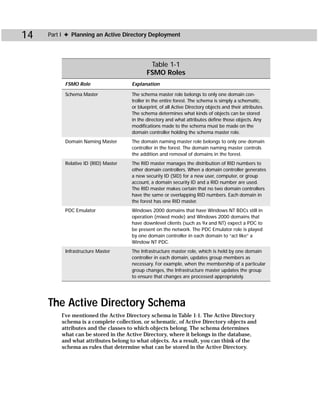
  • 458.
    444 Appendixes Figure C-15: Repadmin.exe repadmin command arguments [/u:[domain]user /pw:{password|*}] Table C-14 Repadmin.exe Command-line Reference Commands and Arguments Explanation /u:[domain]user Specifies an optional user (from an optional domain) as the administrator. If the user name and password are not specified, Repadmin uses the credentials of the currently logged-on user. /pw:{password|*} Specifies the password of the user specified by the /u: switch. If the user name and password are not specified, Repadmin uses the credentials of the currently logged-on user. /sync Naming_Context Destination_ Starts a replication event for the specified naming DSA Source_DSA_UUID [/force] context between the source and destination [/async][/full] [/addref] [/allsources] domain controllers. The source DSA UUID can be determined when viewing the replication partners with the repadmin /showreps command. /force Overrides the normal replication schedule. /async Starts the replication event, but Repadmin does not wait for the replication event to complete.
  • 459.
    Appendix C ✦Additional Administrative Tools 445 Commands and Arguments Explanation /full Forces a full replication of all objects from the destination DSA. /syncall Destination_DSA [Naming_ Repadmin does not wait for the replication event Context] [Flags]/kcc [DSA] [/async] / to complete. async /bind [DSA] Binds the Directory System Agent (DSA). /propcheck Naming_ Checks USN of DSA. Context Originating_DSA_ Invocation_ID Originating_ USN [DSA_from_which_to_ enumerate_host_DSAs] /getchanges Naming_Context Checks for DSA naming context changes. [Source_DSA] [/cookie:file] /showreps [Naming_Context] Displays the replication partners (RepsFrom and [DSA [Source_DSA_UUID]] RepsTo) for each naming context that is held on [/verbose] [/unreplicated] [/nocache] the specified domain controller. The output also indicates whether or not the domain controller is also a Global Catalog server. /showvector Naming_Context [DSA] For a specified naming context, shows the up-to- [/nocache] date information. /showmeta Object_DN [DSA] Displays the replication metadata for any object [/nocache] stored in Active Directory such as attribute ID, version number, originating and local Update Sequence Number (USN), and originating DSA’s GUID and date/time stamp. /showtime [Windows_2000_ With no arguments, this command displays the Directory_Service_Time_Value] current system time in both the directory service format and string format. /showmsg Win32_error_number Takes as an argument the Win32 error number and displays the Win32 error text. /showism [Transport_DN] [/verbose] Must be executed locally. /showsig [DSA] DSA signature. /showconn [DSA] [{Container_DN | DSA connection. DSA_UUID}] /showcert [DSA] DSA connection /showctx [DSA] [/nocache] DSA connection. /queue [DSA] DSA connection. /failcache [DSA] DSA connection.
  • 460.
    446 Appendixes Replmon.exe Replication Monitor is a graphical interface tool that enables you to examine Active Directory replication among domain controllers and domains and to perform a number of administrative actions, such as force replication between domain con- trollers, generate a status report about replication, trigger the KCC, and view intra- site replication topology. Replication Monitor is an MMC snap-in and functions like all other MMC snap-ins. Figure C-16 shows you Replication Monitor. Cross- You can learn more about using Replication Monitor in Chapter 13. Reference Figure C-16: Replication Monitor Sdcheck.exe Sdcheck.exe is a command-line tool that checks the security descriptor for any object in the Active Directory. Remember that the security descriptor contains the ACLs that determine permissions for that object. Figure C-17 shows you the Sdcheck tool, and Table C-15 gives you the command-line syntax.
  • 461.
    Appendix C ✦Additional Administrative Tools 447 Figure C-17: Sdcheck.exe sdcheck Server Object [-dumpSD] [-dumpAll] [-debug] [[-domain: DomainName] -user: UserName -password: Password] [/?] Table C-15 Sdcheck.exe Command-line Reference Parameters Explanation Server Specifies the name of the domain controller on which to perform the query. You can provide either the DNS or UPN name. Object Specifies the name of the object on which you want to determine the ACL entries. The name can be the logon name, DN, or UPN. -dumpSD Displays only the security descriptor for the selected object. -dumpALL Displays the security descriptor for the selected object along with all security descriptors inherited from parent containers. -debug Displays internal debugging information for Sdcheck.exe. -domain: DomainName Specifies the domain name of UserName in either DNS or NetBIOS format. -user: UserName Specifies the name of a user other than the current one, in the form of either the logon name or user principal name. -password: Password Specifies the name of UserName. Used to specify credentials other than the current user’s name. /? Displays syntax on the command line.
  • 462.
    448 Appendixes Summary Aside from the primary Active Directory tools installed during an Active Directory implementation, the Windows 2000 Resource Kit and the AdminPak tools provide you with several administrative tools that are beneficial in your Active Directory deployment and troubleshooting. Use this appendix to reference the tools and appropriate command-line syntax. ✦ ✦ ✦
  • 463.
    PDC and BDC Upgrade D A P P E N D I X ✦ ✦ ✦ ✦ Reference In This Appendix Upgrading a PDC or BDC to Windows 2000 A s I have said throughout this book, the odds are quite good that you are implementing the Active Directory as an upgrade to an existing NT network. During your planning Upgrading a PDC or BDC to Active Directory process, you have to make a lot of decisions about what you will do with existing domains and how you will consolidate ✦ ✦ ✦ ✦ some or most of your NT domains into the new Active Directory networking model. With that said, you will be doing a lot of NT Server upgrades to Windows 2000. In domains that you choose to keep, or at least choose to maintain the user accounts, you will need to upgrade your primary domain controller (PDC) first to establish the domain and retain your user accounts. Then, you can upgrade your backup domain controllers (BDCs) so they become sup- porting domain controllers in the Active Directory environment. This appendix is designed to be a handy installation reference tool for upgrading Windows NT PDCs and BDCs to Windows 2000. Before you upgrade to Windows 2000, you should check your PDC and BDC hardware to ensure that all hardware is compatible with Windows 2000. You should also perform a full backup of your data — just in case things do not go well during the installation.
  • 464.
    450 Appendixes Upgrading a PDC or BDC to Windows 2000 For the most part, Windows 2000 and Active Directory upgrades are easy to per- form and trouble free. The following steps show how to upgrade a PDC or BDC to Windows 2000 Server: 1. Insert the Windows 2000 Server installation CD-ROM into the PDC’s or BDC’s CD-ROM drive. 2. A message appears telling you that your operating system is running an older version of Windows and asking you if you would like to upgrade, as shown in Figure D-1. Click the Yes button. Figure D-1: Click Yes to start the upgrade. 3. The Welcome to Windows Setup Wizard appears. You are presented with two radio buttons with which you can choose either to upgrade to Windows 2000 or to install a new copy. Since you want setup to retain all of your settings and accounts, select the upgrade radio button and then click the Next radio button, shown in Figure D-2. 4. Read the licensing agreement that appears and then click the “I accept this agreement” radio button. You must accept the licensing agreement for setup to continue. Now, click the Next button, shown in Figure D-3. 5. The product key window appears, shown in Figure D-4. Enter the product key found on the back of your Windows 2000 CD case and then click Next. 6. Setup checks your system and reports any compatibility problems, as shown in Figure D-5. Click Next to continue. 7. Setup copies files from your CD for the installation and then automatically restarts your computer. 8. After the computer restart, the text-based portion of setup begins. Setup loads files necessary for the Windows 2000 installation. This process takes several minutes to perform. At this point, no input is needed from you for several minutes (half an hour or longer).
  • 465.
    Appendix D ✦PDC and BDC Upgrade Reference 451 Figure D-2: Select the Upgrade option. Figure D-3: Click the “I accept this agreement” radio button.
  • 466.
    452 Appendixes Figure D-4: Enter your product ID number. Figure D-5: Examine your system report.
  • 467.
    Appendix D ✦PDC and BDC Upgrade Reference 453 9. Setup restarts your computer, and you see the Windows 2000 Server splash screen for the first time. Setup continues with hardware detection. During this time, your screen may flicker, and hardware detection may take several min- utes to perform. 10. Once hardware detection is complete, Windows 2000 installs and configures networking components. No input is required from you. 11. Setup continues by installing components, which also takes several minutes. 12. Finally, setup installs Start Menu items, registers components, saves settings, and removes temporary files used during installation. Once installation is complete, setup restarts your computer. 13. Windows 2000 Server boots for the first time. Upgrading a PDC or BDC to Active Directory Before the first boot is complete, the Active Directory Installation Wizard appears so you can complete the upgrade of the PDC or BDC to a domain controller. The following steps show you the upgrade options to select for the PDC: 1. Welcome Screen — The welcome screen tells you that the upgrade process must install the Active Directory in order to be complete. Click Next to continue. 2. Appropriate Forest — A window, shown in Figure D-6, with two radio button options appears. You can either install the domain controller for a new domain or for an existing Active Directory domain. If you are upgrading an NT domain, you may already have a forest in place from previously upgrading other NT domains, so you will need to make decisions here about what you will do. The remainder of these steps assumes you are creating a new forest. Click the “Create a new domain tree” radio button and then click the Next button. 3. Forest Option — You see two radio button options in the next window, as shown in Figure D-7. You have the option either to create a new forest of trees or to join your new tree to an existing forest. This step-by-step process assumes you do not currently have other Active Directory forests, so choose the “Create a new forest of domain trees” radio button. Then click the Next button. 4. Root Domain Name — The domain name window appears, shown in Figure D-8. Enter the desired DNS name of your Active Directory root in this window. Throughout the rest of the book, my example root domain is tritondev.com, a fictitious company. Type the name into the box and click the Next button. 5. Database and Log File Storage — You see a window with default storage loca- tions for the Active Directory database and the log files, which is C:WINNT NTDS by default. You can change this default location by using the browse button. Make any desired changes and click Next, as shown in Figure D-9.
  • 468.
    454 Appendixes Figure D-6: Select the appropriate forest option. Figure D-7: Click the new forest button.
  • 469.
    Appendix D ✦PDC and BDC Upgrade Reference 455 Figure D-8: Enter the root domain name. Figure D-9: Adjust database and log file locations and click Next.
  • 470.
    456 Appendixes Tip Microsoft recommends that you store the database and log files on a hard disk separate from your boot volume for maximum performance. 6. SYSVOL Folder Storage — You must decide on a storage location for the SYSVOL folder, which is C:WINNTSYSVOL by default. All Windows 2000 servers have a SYSVOL folder, but domain controllers’ SYSVOL folders contain Active Directory information. As with database and log files, you may want to store the SYSVOL on a different disk or volume, but it must be formatted with Windows 2000 NTFS. Make your selection and click Next. 7. DNS Server — If you did not configure DNS on another Windows 2000 Server, then a message appears telling you that a DNS server could not be contacted. If a DNS Server could be contacted, the Active Directory Wizard would query the DNS Server to make certain that it supports dynamic updates. By clicking OK to the message, you tell Windows 2000 to install and configure DNS automatically with the Active Directory on this domain controller. Click OK to continue. 8. Automatic DNS — You can either let the Active Directory automatically set up DNS or install it yourself. Select the Yes button to allow the Active Directory to configure DNS and then click Next. 9. Permissions Window — You have two options. You can choose to use either per- missions compatible with Windows NT Server or permissions compatible with Windows 2000 Servers in Windows 2000 domains only. If you use Windows NT permissions, you are using weaker permissions than those offered in Windows 2000. Specifically, in Windows NT, anonymous users can read domain informa- tion if anonymous logon is allowed. If your upgrade to Windows 2000 will take time, use the NT permissions options. If you are upgrading all at once and you have no intention of using NT Servers in the future, choose the Windows 2000 permissions radio button. Make your selection and click the Next button. 10. Restore Mode — The Active Directory contains a Restore Mode option that allows you to restore Active Directory data when a domain controller failure occurs. The use of Restore Mode is password protected as a security measure. The Restore Mode window asks you to enter a Restore Mode password and confirm the password. You will need this password if you ever have to use Restore Mode. Enter a password, confirm it, and then click the Next button. 11. Summary — A summary window appears. Review your selections and use the Back button if you need to change anything. If the information is correct, click the Next button. 12. Configuration — Setup begins configuring the Active Directory, as you see in Chapter 6, Figure 6-17. Configuration may take several minutes. Once the instal- lation is complete, you are prompted to reboot the server. Once the reboot takes place, the installation is complete, and your former member server is now an Active Directory domain controller for the root domain.
  • 471.
    Appendix D ✦PDC and BDC Upgrade Reference 457 The process of upgrading a BDC to a domain controller is simple. When the Active Directory Wizard appears after the server installation, choose to become an addi- tional domain controller for an existing domain. The remaining options in the wizard are very similar to the previous steps, and you can see a complete walk-through in Chapter 7. Summary In this appendix, you explored a PDC/BDC upgrade reference so that primary domain controllers and backup domain controllers in Windows NT can be upgraded to the Active Directory. Upgrading your existing domains does not have to be a difficult task, but like all upgrades, make certain you have backed up your data, you have an upgrade plan in place, and you can recover from the upgrade should you experience problems along the way. ✦ ✦ ✦
  • 473.
    Windows 2000 Deployment E A P P E N D I X ✦ ✦ ✦ ✦ Strategies In This Appendix Using Remote Installation Service I Using Setup f you’ve read the title of this appendix, you might think, Manager “Why talk about deployment in an Active Directory book?” It is important to remember that Microsoft views the Active Using System Directory as a total network solution, and in your Windows Preparation 2000 network, you will often use tools and strategies that are not directly related to the Active Directory. However, as the ✦ ✦ ✦ ✦ old saying goes, “all roads lead home.” This appendix is designed to give you helpful information and appropriate steps for using the Windows 2000 tools that can help you deploy both server and client software on your network. As a part of the Active Directory’s network manage- ment, deploying Windows 2000 is major component of that management strategy. When networks were smaller, deployment did not receive the attention that it does today. IT professionals could handle the deployment of both servers and clients by physically running setup on the desired computers. That solution, com- monly called the “Sneaker Net,” is not very practical in dis- tributed networks today where different locations within the same company or organization may contain thousands and thousands of computers. IT professionals need tools to help them deploy computers automatically and centrally from one location. Windows 2000 Server provides some helpful tools for you; some of them are great, some need to mature a little, but this appendix will help you get your feet on solid ground with these technologies.
  • 474.
    460 Appendixes Remote Installation Service Remote Installation Service (RIS) is a Windows 2000 Server service that enables you to install Windows 2000 Professional automatically over the network. RIS functions like an unattended installation (which you can learn more about later in this chap- ter), but RIS is designed to be a total solution — especially a total, hands-off solution. RIS functions by storing the Windows 2000 Professional setup files on the RIS server and then deploying those setup files to clients over the network. The RIS server can also hold a complete drive image of a Windows 2000 Professional computer, includ- ing all settings and applications, and deploy that image to network clients. This fea- ture enables you to configure a single Windows 2000 computer and roll out that standardized installation to all clients. I must note here that RIS is not perfect, and I believe it still needs a little maturing. First, you can use RIS only to install Windows 2000 Professional to clients. Second, RIS works only with certain types of network cards, which you can learn about later in this section. Nevertheless, RIS is a great technology and one you should become familiar with. If your network needs and current hardware meet the requirements, RIS can save you a lot of time and aggravation as you deploy Windows 2000 Profes- sional. The following sections show you how to set up and use RIS on your network. Installing the RIS server RIS is not installed by default on a Windows 2000 server. Before installing RIS, you need to check out a few installation requirements to make certain that the Windows 2000 server has the requirements to become a RIS server. First, the typi- cal Windows 2000 server hardware requirements apply, so if your server can run Windows 2000, it can run RIS. However, in order to function as a RIS server, the Windows 2000 server needs a second drive. This means that the Windows 2000 Professional setup files cannot be stored on the RIS server’s boot volume or the volume containing the operating system. So, in a perfect world, RIS is best installed on a server that has a second disk that can be used to store RIS images. A single RIS image typically requires about 500MB of disk space, which includes any applications. You may choose to use several different images depending on your network deployment needs, and if you do, then you’ll need quite a bit more room. Any volume or disk you choose to use must be formatted with NTFS. Tip RIS uses Single Instance Store (SIS) technology to reduce the server storage space by storing files only one time among images. However, even with SIS, plan on need- ing several gigabytes of storage space if you have several images that are quite dif- ferent from each other. The final RIS requirement is, as you might guess, the Active Directory. Your RIS server must be connected to the network so that it can access the Active Directory. Also, your network must use DNS and DHCP in order to use RIS.
  • 475.
    Appendix E ✦Windows 2000 Deployment Strategies 461 So, if you meet those requirements, your next step is to turn your Windows 2000 server into a RIS server. The following steps walk you through the installation of RIS: 1. In Windows 2000 Server, choose Start ➪ Settings ➪ Control Panel. 2. Double-click Add/Remove Programs and then click the Add/Remove Windows Components button. 3. In the Windows Components window, select the Remote Installation Services check box, shown in Figure E-1, and then click the Next button. Figure E-1: Select Remote Installation Services in Windows Components window. 4. The RIS components are installed on the system. 5. Click Finish and reboot your computer. Authorizing a RIS server Once the installation has taken place and you have rebooted the RIS server, the RIS server must be authorized by the Active Directory to function on the network. If you have installed DHCP, you know that in Windows 2000, the DHCP server must be authorized by the Active Directory to participate on the network. This process pre- vents unauthorized, or rogue, DHCP servers from issuing bad IP addresses to clients on the network.
  • 476.
    462 Appendixes For a RIS server, the same security holds true. The RIS server must be authorized before it can be used. However, to authorize a RIS server, you indirectly use the Active Directory by authorizing the RIS server on a DHCP server. If you installed RIS on a DHCP server, then authorization takes place automatically and you don’t have to worry about manually performing the authorization. If not, then you need to authorize the RIS server with a DHCP server. Just follow these steps: 1. On a DHCP server, choose Start ➪ Programs ➪ Administrative Tools ➪ DHCP. 2. Choose the Action menu and then choose Manage Authorized servers. 3. In the window that appears, select the desired server and then click the Authorize button, shown in Figure E-2. Figure E-2: Click the Authorize button. 4. In the dialog box that appears, enter the IP address of the RIS server. 5. The RIS server is authorized, and the IP address now appears in the “Author- ized DHCP servers” list window. Click Close and then close DHCP Manager. RIS server setup Now that your server has the RIS setup files and has been authorized by DHCP, you finally get to set up the RIS server. As you can probably guess, Windows 2000 gives you a wizard to walk you through the setup process. Keep in mind that this wizard is going to configure your drive or volume for RIS storage, so make certain you have a drive ready for that purpose. Also, setup will configure a default Win- dows 2000 Professional image, so you will need a Windows 2000 Professional CD-ROM or access to the installation source files on the network in order to complete the setup. The following steps walk you through the wizard: 1. Click Start ➪ Run and then type risetup in the dialog box. Click OK. 2. The Remote Installation Services Setup Wizard appears. Note that the wizard will need an active DHCP and DHS server on the network. Click Next.
  • 477.
    Appendix E ✦Windows 2000 Deployment Strategies 463 3. The Remote Installation Folder Location window appears. Enter the location where you want to store the RIS installation folder, which cannot be your system drive (boot partition/volume). The drive must be formatted with Windows 2000’s version of NTFS. Use the Browse button to change the drive as necessary, but do keep the default name of “RemoteInstall,” shown in Figure E-3. Click Next. Figure E-3: Select a storage location. 4. The Initial Settings window appears next. By default, the server does not begin responding to clients until you configure it to do so once setup is complete. This prevents the RIS server from servicing a client before you have the image(s) configured as desired. If you want the RIS server to begin responding immediately, just check the check box. You can also use this box to tell the RIS server not to respond to any unknown client computers, as shown in Figure E-4. Make your selection (if any) and click Next. 5. Next, setup wants to know the location of the Windows 2000 Professional installation files, which can be your CD-ROM drive, a network location, or even another location on your computer. Enter the location or use the Browse button and then click Next. 6. Enter a folder name for the image. By default, this name is win2000.pro. You can use a different name, but it should be one that is as descriptive as pos- sible (especially if you plan on using several different images). Click Next. 7. Enter a friendly description of the image and insert additional help text as desired, as shown in Figure E-5. Then click Next.
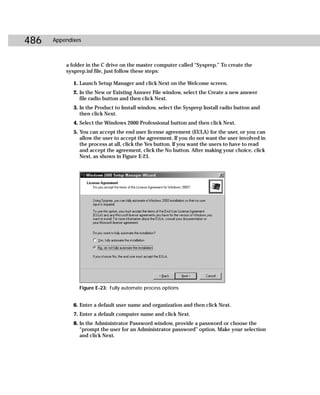
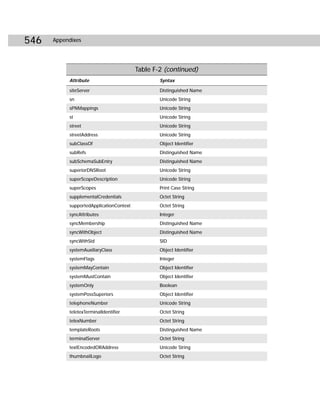
  • 478.
    464 Appendixes Figure E-4: Initial Settings options Figure E-5: Insert a friendly name and help text.
  • 479.
    Appendix E ✦Windows 2000 Deployment Strategies 465 8. A Review Settings window appears. Check your selections and then click Next. The RIS server begins copying the files, as shown in Figure E-6. Click the Done button when setup completes. Figure E-6: RIS setup Image Descriptions Depending on the requirements of your environment, you may need several different images. For example, the marketing department may need a specific image that automati- cally installs a number of applications used by its employees. Likewise, the accounting department may need a completely different configuration. Keep in mind that you can store as many images for which you have storage space, and SIS helps keep those storage sizes to a minimum. With several images, you should use image titles and help texts that are as descriptive as possible. This action helps other IT professionals determine which image should be used for a particular need. You will find help text that describes the application or configuration features of an image to be very useful.
  • 480.
    466 Appendixes RIS clients In order to begin a Windows 2000 Professional client installation automatically, a client computer must be able to contact the RIS server so that installation can begin. This contact is one area where RIS falls short at the moment because clients must meet some very restrictive requirements in order to communicate with the RIS server, and those requirements leave many network client computers out of the RIS picture. If you are purchasing new client hardware, you can use these require- ments to make certain the hardware supports RIS. However, if you are using exist- ing hardware, you’ll find that many of your client computers cannot use RIS without upgrading their network adapter card (which may not be too practical in a wide deployment scenario). There are two different ways client computers can contact the RIS server. First, any computer that has a Preboot Execution (PXE) ROM network adapter card can con- tact the RIS server. With a PXE ROM, a client computer can be started, and the PXE ROM will display a message asking if you want to start the computer from the net- work. After choosing to do so, the PXE ROM will obtain an IP address from the DHCP server, and then it will contact the DNS server to locate the RIS server. Once the RIS server is found, then RIS can begin the installation of the desired Windows 2000 Professional image. Before beginning the installation, the RIS server contacts the Active Directory using Boot Information Negotiation Layer (BINL) to see if the client is a “known” client in the Active Directory, which is a computer client that has a computer object in the Active Directory, and if installation can occur. If the client is a known client, then RIS begins the installation. All of this occurs without any input from an administrator. Note Personal computers that conform to the PC98 specification have the PXE capability. This is all great, of course, but what happens if your client computers do not support PXE? In this case, Windows 2000 includes a RIS PXE boot emulator disk creator. This feature enables you to create a boot disk to boot nonPXE clients so they can contact the RIS server using the boot disk. However, things are not as simple as they seem. The boot disk works only on clients that have certain network adapters installed. Not just any network adapter will do, and all of the network adapters supported are PCI, leaving out most laptop computers. There’s hope that more network adapter cards will be supported in the not too distant future, but right now only the following net- work adapters are supported: ✦ 3Com 3c900B-Combo ✦ 3Com 3c900B-FL ✦ 3Com 3c900B-TPC
  • 481.
    Appendix E ✦Windows 2000 Deployment Strategies 467 ✦ 3Com 3c900B-TPO ✦ 3Com 3c900-Combo ✦ 3Com 3c900-TPO ✦ 3Com 3c905B-Combo ✦ 3Com 3c905B-FX ✦ 3Com 3c905B-TX ✦ 3Com 3c905C-TX ✦ 3Com 3c905-T4 ✦ 3Com 3c905-TX ✦ AMD PCnet Adapters ✦ Compaq NetFlex 100 ✦ Compaq NetFlex 110 ✦ Compaq NetFlex 3 ✦ DEC DE450 ✦ DEC DE500 ✦ HP DeskDirect 10/100 TX ✦ Intel Pro 10+ ✦ Intel Pro 100+ ✦ Intel Pro 100B ✦ SMC 8432 ✦ SMC 9332 ✦ SMC 9432 So, if the network adapter card in the client computer is not PXE compliant or if one of these network adapter cards is not installed, you’re simply out of luck (unless you want to start installing new network adapter cards). If, however, you do use one of the supported network adapter cards, then you can make the PXE boot disk. Just follow these steps: 1. On the RIS server, right-click My Computer and choose Explore. 2. Locate the volume that contains the RIS folder and then navigate to the RemoteinstallAdminI386 directory. You see a utility called RBFG.EXE, as shown in Figure E-7.
  • 482.
    468 Appendixes Figure E-7: RBFG.EXE 3. Double-click the RBFG.EXE icon. A Boot Disk Generator window appears, as shown in Figure E-8. You can click the Adapter List button to view the sup- ported adapters. Figure E-8: Boot Disk Generator 4. Insert a blank, formatted floppy disk into the A drive and then click the Create Disk button on the Boot Disk Generator window. 5. The disk is created. Click No when asked if you want to create another disk. Then click Close. Assigning permission to create computer objects Before a client computer can use RIS to install Windows 2000 Professional, a com- puter object must be created in the Active Directory. Remember that this object
  • 483.
    Appendix E ✦Windows 2000 Deployment Strategies 469 creation is necessary because the RIS server will check for this object to determine if the client is a “known” computer. You don’t want just anyone to be able to create computer objects, so you need to establish the permission for particular users or groups. In order to enable users or IT professionals the ability to create computer accounts, you use the Delegation of Control Wizard in the Active Directory. When you use the Delegation of Control Wizard, you assign the right to “Create Computer Objects.” To assign this permis- sion to users or groups, you must be a member of the Domain Admins group for the domain where the users or groups will be installing Windows 2000 Professional. Follow these steps to assign the Create Computer Objects permission: 1. On a domain controller, log on with an enterprise admin account. 2. Click Start ➪ Programs ➪ Administrative Tools ➪ Active Directory Users and Computers. 3. Right-click the desired domain and choose Delegate Control from the menu that appears. 4. Click the Next button on the Welcome screen. 5. In the Users or Groups screen, click the Add button. 6. In the Users, Groups, and Computers dialog box that appears, select the desired user or group and then click the Add button. Repeat this process to add other users or groups. Click OK when you’re done and then click Next. 7. In the Tasks to Delegate screen, shown in Figure E-9, select the Join a Computer to the Domain check box and then click Next. Figure E-9: Tasks to Delegate window
  • 484.
    470 Appendixes 8. Click Finish. The desired users or groups now have the right to create com- puter objects in the Active Directory. Enabling the RIS server During RIS server setup, you had the option to enable the server to begin respond- ing to clients immediately. If you didn’t choose to enable this option, you need to do so now so that the RIS server can begin servicing clients. If at any time in the future you want to stop the RIS server from servicing clients, you can also easily disable the server. Both of the actions are performed using the Active Directory Users and Computers console. In Active Directory Users and Computers, open the folder or OU that holds the RIS server’s computer account. Right-click the server icon and choose Properties. You see a Remote Install tab on the properties sheets, shown in Figure E-10. Figure E-10: Remote Install tab Notice on the Remote Install tab that you can enable the RIS server by simply check- ing the “Respond to client computers requesting service” check box as well as “Do not respond to unknown computers.” Keep in mind that if you select the second check box, the RIS server will check the Active Directory to see if the client com- puter is known or not.
  • 485.
    Appendix E ✦Windows 2000 Deployment Strategies 471 You also see a Verify Server button on this tab as well. The Verify Server option opens a wizard that checks the integrity of the RIS server and resolves any prob- lems, if they exist. If you click the Show Clients button, you see a list of RIS clients who have accessed the RIS server for installation. If you are just starting to use RIS, there will, of course, be no listing here, but for future reference, this is an easy place to examine clients. The Advanced Settings button opens advanced setting features, shown in Figure E-11. Figure E-11: RIS advanced settings On the New Clients tab, you can determine how client computer names are gener- ated. By default, the user name is used to generate the client computer name, but this may not be your best option. You can use the drop-down menu and select a dif- ferent naming scheme, such as first initial, last name, and NP plus MAC, or you can click the Customize button and select a custom name generating setting. In the second part of the window, you can determine where the client computer account is created, such as in the default directory service location, in the same location as that of the user setting up the client computer, or in a specific location in the Active Directory.
  • 486.
    472 Appendixes The Images tab, shown in Figure E-12, provides a list of your current images and enables you to manage them using the Add, Remove, or Properties buttons. Figure E-12: Images tab You can use this tab to create new answer files for images in order to automate the setup process completely. The Tools, Object, and Security tabs provide standard interfaces for RIS server management. RIS and Group Policy It is important to remember that RIS is not an island, and other client management tools, such as Group Policy, apply as well. You can actually manage some RIS setup options within Group Policy by opening the Group Policy console for the desired GPO (at the site, domain, or OU level). Under User Configuration, expand Windows Settings and double-click on the Remote Installation Service icon. You then see the policy for the Remote Installation Service. Beyond this basic option, do keep in mind that Group Policy is applied to RIS clients, just as it would be to any other clients for any GPOs configured for the site, domain, and OU in which the new computer object resides.
  • 487.
    Appendix E ✦Windows 2000 Deployment Strategies 473 Working with RIS images RIS supports two different types of images — CD-based and Remote Installation Preparation Wizard (RIPrep) images. The basic difference is that the CD-based image is copied from the Windows 2000 Professional installation CD-ROM. You can create multiple CD-based images and assign different answer files to them for particular installation needs. RIPrep images copy an installed Windows 2000 Professional computer’s hard drive and store the image on the server. This feature enables you to make an exact copy of a computer that configured as desired and has desired applications installed. RIS can then copy this drive to another com- puter so your computers have an exact configuration and applications already installed. The following two sections explore both of these options in more detail. Creating new CD-based images When you installed RIS, a CD-based image was created. This is a default Windows 2000 Professional image. You can create additional CD-based images by accessing the Image tab of the RIS server properties as described in the previous section. You might ask, “Why would I want additional CD-based images?” In reality, when you create additional CD-based images, you are creating different answer files for the same image. For example, suppose you have a marketing group and an administra- tive group. The marketing group needs different setup options configured when Windows 2000 Professional is installed than the administrative group does. The solution to this dilemma is to create different answer files for each group in order to meet the installation needs. You learn how to create answer files later in this chap- ter, but for now, you simply need to know that you can apply different answer files to the same CD-based image. However, you can also create a new CD-based image as well. This feature is particu- larly useful if you need to make different language versions of Windows 2000 Profes- sional available and will be useful in the future with different client releases of Windows that support RIS. To assign a different answer file to an image, just follow these steps: 1. In Active Directory Users and Computers, access the RIS server icon. 2. Right-click the icon and choose Properties. 3. Click the Remote Install tab and then click the Advanced Settings button. 4. Select the Images tab. 5. Click the Add button. A window appears, as shown in Figure E-13, that allows you to associate a new answer file with an existing image or to create a new image.
  • 488.
    474 Appendixes Figure E-13: Associate an answer file or create a new image. Note If you are not running the Active Directory Users and Computers console on the RIS server, the option to create a new image will not appear. Install the AdminPak found on the Windows 2000 Server installation CD-ROM to use the Active Directory Users and Computers console on the RIS server. 6. If you choose to install a new CD-based image, just follow the wizard. If you choose to associate a new answer file, you can choose to use one of the RIS sample answer files, an answer file on another RIS server, or an answer file you have created in an alternate location. Tip Answer files used with RIS must end in a .sif extension. Typical unattended.txt answer files will not work. 7. Depending on the selection you made, specify the answer file that you want to use and then specify which image you want to associate with the answer file. 8. Enter the friendly description and help text. 9. Review your settings and then click Finish. Creating RIPrep images As mentioned, RIPrep enables you to configure a particular Windows 2000 Profes- sional computer, install desired applications, and then copy the computer’s hard drive. This copy can then be imaged to RIS clients. As you can imagine, this option is quite powerful because you can install thousands of identical computers, com- plete with desired settings and applications, automatically.
  • 489.
    Appendix E ✦Windows 2000 Deployment Strategies 475 RIPrep is a lot like Sysprep, which you can learn about later in this appendix. RIPrep, however, is easier to work with because client computers do not have to have the exact same hardware configuration in order to receive a RIPrep image. However, as you can imagine, problems can occur when trying to use RIPrep with very different client computers. Ideally, all of the computers should be the same in terms of hard- ware, or at least very similar. It is also important to note that you cannot have all RIPrep images. You must keep at least one CD-based image of Windows 2000 Professional so that a driver can be extracted if necessary. The point is simply not to delete all CD-based images if you plan on using only RIPrep images. To create a RIPrep image, first install and configure the Windows 2000 Professional computer as desired. This includes all settings and applications. Once you have completed the installation, you should spend some time testing the new computer to make certain the configuration is what is needed — after all, this is the image that will copied to the new target clients. Tip When installing the master computer, make sure you install Windows 2000 Profes- sional in the C drive. RIPrep will copy only the contents of the C drive. To create a RIPrep image, follow these steps: 1. On the Windows 2000 Professional master computer log on with a domain administrator account. Access the RIS server by mapping to or using My Network Places to browse. 2. The RIS server has a share called REMINST. Navigate to REMINSTAdmin I386. You see the RIPrep icon, shown in Figure E-14. Figure E-14: RIPrep icon 3. Double-click the RIPrep icon and then click Next on the Welcome screen. 4. In the Server Name window, enter the RIS server name to which the master computer will copy the image and then click Next.
  • 490.
    476 Appendixes 5. In the Folder Name window, type the name of a folder you want to use to store the image. If the folder does not exist, it will be created. Enter the folder name and then click Next. 6. Enter a friendly description and any help text for the image and then click Next. 7. A “Programs or Services are Running” window appears. Any running applica- tions and/or services are listed in the window, shown in Figure E-15. Close these applications and services and then click Next. Figure E-15: Close Programs window 8. A review settings window appears. Double-check your settings and then click Next. 9. A window appears telling you that the image will be prepared and replicated to the server, and then the workstation will shut down. Once the workstation reboots, mini-setup will run. Click Next to begin the image copy. 10. Once the files are copied and the workstation reboots, then a mini-setup pro- gram runs that appears as though Windows 2000 Professional is reinstalling. RIPrep takes out the user-specific settings and the computer’s SID, so when the computer reboots, mini-setup allows you to reenter the necessary infor- mation, such as user name, organization, time zone, and so forth. Mini-setup does not have to go through hardware detection and all that — it simply needs user setting information, so the process does not take much time.
  • 491.
    Appendix E ✦Windows 2000 Deployment Strategies 477 Prestaging client computers Client computers can be prestaged, which simply means you configure a computer account for them and determine which RIS server will service which client. Prestaged computers are referred to as “managed” computers in the Active Directory, and this feature helps you control load balancing between RIS servers. Prestaging is quite easy — just follow these steps: 1. On a Windows 2000 domain controller, open Active Directory Users and Computers. 2. Right-click the OU or container that will contain the new client computer object and then point to New and select Computer. 3. In the New Object — Computer window, enter a desired name for the new computer object. 4. Click the “This is a managed computer” check box, as shown in Figure E-16. Enter the Globally Unique Identifier (GUID), which is found in the computer’s BIOS or on the computer case. Figure E-16: Enter the computer’s GUID. 5. In the next window, select “any RIS server” or specify the RIS server you want the computer to use.
  • 492.
    478 Appendixes Tip Once you have prestaged client computers, you also need to set permissions for the users or groups that will access the RIS client accounts in order to run the installation. These users and groups need to have read, write, reset password, and change password permissions for the computer object. Just right-click the com- puter object and choose Properties. Then select the Security tab to configure the permissions. Running a RIS installation Now that you have learned how to set up RIS and create both CD-based and RIPrep images, your final step is simply to run installations for your client computers. For PXE clients, just turn on the computer and choose the “boot from network” option that appears. For other clients that have a supported network adapter card, use the PXE boot disk to access the RIS server. Either way, you will be prompted to press F12 once the RIS server is contacted so that installation can begin. Follow these steps: 1. Start the client computer and press y to boot from the network. Then, press F12 to begin the installation. 2. A Welcome message appears, telling you that you need a valid logon name and password to install RIS. When prompted, enter a valid user name and password. 3. Depending on how Group Policy is configured, options may appear (such as automatic, custom, and so on). 4. The Operating System Choice screen appears. Select the appropriate image. A caution window appears telling you the client computer’s hard disk will be formatted. 5. The summary window appears, and then the installation of Windows 2000 Server begins. If an answer file is in use, no further interaction is required. Windows 2000 Setup Manager If you read the previous section, and if you have any experience deploying Windows clients, you have most likely heard of an answer file. An answer file is a simple file that answers the questions normally posed to the user during setup. This feature removes the need for a person to physically sit at the machine during installation and enables the automation of installation. As you can see, an answer file can be very helpful in mass deployment scenarios. Answer files are not new, but Windows 2000 includes a wizard called Setup Manager designed to easily help you create answer files. Setup Manager is very easy to use, and the following sections will show you how.
  • 493.
    Appendix E ✦Windows 2000 Deployment Strategies 479 Installing Setup Manager Setup Manager is not installed by default with a Windows 2000 installation, but it is found, along with some other tools, in Deploy.cab on your Windows 2000 Server installation CD-ROM. To install Setup Manager, you need to create a folder where the cabinet files can be extracted. You might simply want to create a “Deployment” folder for this purpose. Once you have created a folder, just follow these steps: 1. Insert your Windows 2000 Server installation CD-ROM into your CD-ROM drive and then choose the Browse This CD option from the menu that appears. 2. Open the Support folder and then open the Tools folder. 3. Right-click Deploy.cab and click Explore. The files in Deploy.cab appear in an Explorer window, shown in Figure E-17. Figure E-17: Deploy.cab 4. Choose the Edit menu and then choose Select All. Right-click on the content and choose Extract. A browse for folder window appears. Select the folder where you want the items extracted and click OK. 5. The items are extracted and placed in the destination folder. The deployment tools are now ready to use, as shown in Figure E-18.
  • 494.
    480 Appendixes Figure E-18: Deployment tools Using Setup Manager Once Setup Manager is installed, you can then use Setup Manager to create answer files as they are needed. The following steps walk you through the Setup Manager Wizard and discuss the options available. 1. Locate the folder where you extracted Deploy.cab. 2. Double-click setupmgr. 3. The Setup Manager Wizard begins. Click Next on the Welcome Screen. 4. The New or Existing Answer File window appears. You have three radio but- ton options, shown in Figure E-19: • Create a new answer file — This option creates a new answer file by leading you through the wizard to answer setup questions. • Create an answer file that duplicates this computer’s configuration — This option allows the wizard to create an answer file that copies your computer configuration. • Modify an existing answer file — This option allows you to open an existing answer file and make changes to it.
  • 495.
    Appendix E ✦Windows 2000 Deployment Strategies 481 Figure E-19: Answer file options 5. The Product to Install window appears, shown in Figure E-20. You have the option of selecting Windows 2000 Unattended Installation, Sysprep Install, or Remote Installation Services. Select Windows 2000 Unattended Installation and then click Next. Figure E-20: Windows 2000 Unattended Installation option
  • 496.
    482 Appendixes 6. Select the platform the answer file installs. You can choose either Windows 2000 Professional or Server. Make your selection and then click Next. 7. The User Interaction Level window appears, shown in Figure E-21. In this win- dow, you select the amount of interaction the user or administrator must per- form during the installation. You have the following options: • Provide defaults — The answer file provides the default setup answers, and the user has to accept the defaults or make changes. • Fully automated — The user has no interaction with setup. All of the answers are provided in the answer file, and the user cannot intervene and make changes. • Hide pages — Typical setup pages, where the user ordinarily provides information, are hidden if they are answered in the answer file. Those pages that are not answered appear to the user to answer. This feature allows you to automate some portions of setup but collect specific infor- mation from the user as necessary. • Read only — In Read-only mode, the pages are presented to the user, but the user cannot make any changes to the pages. • GUI attended — The GUI attended option automates only the text- based portion of setup. The graphical phase of setup functions like a normal install where the user enters setup information. Make your selection by clicking the appropriate radio button and then click Next. Figure E-21: Choose an installation mode.
  • 497.
    Appendix E ✦Windows 2000 Deployment Strategies 483 8. Enter the default name and organization and then click Next. 9. Depending on whether you selected the Server or Professional option, the next several windows ask you the same questions you would see during a Server or Professional installation. Answer the questions as desired, keeping in mind these will be the default answers provided during installation. 10. Once you have responded to the answer file questions, Setup Manager needs to know whether you will create a distribution folder for the setup files or whether you will use the CD to run the installs. Typically, you will want to use a distribu- tion folder for the over-the-network installations. This option keeps all of your files, drivers, and other setup information in one location. If you want to create the folder, click the Yes radio button. If you do not want to create the folder, click No. Then click Next. 11. The Distribution Folder window, shown in Figure E-22, allows you to either create a new distribution folder or modify an existing one. By default, new distribution folders are named win2000dist and shared with the same name. Make your selection and then click Next. Figure E-22: Create a distribution folder. 12. The Additional Mass Storage Drivers window appears. You can use the Browse button to select the driver files for any mass storage devices that may exist on your computers. If you do not have any additional devices to select or once you have selected the drivers, simply click Next.
  • 498.
    484 Appendixes 13. The Hardware Abstraction Layer window appears. You can use this window to replace the default HAL with one of your choice by using the Browse button. Make desired changes or simply click Next. 14. The Additional Commands window appears. This window allows you to enter additional commands to run scripts at the end of unattended setup. You can run any command that does not require you to be logged on. Click Next. 15. The OEM Branding window appears. This window allows you to add OEM branding, such as logos or custom background bitmaps, to setup. Use the Browse button to select the desired bitmap files if necessary and then click Next. 16. The Additional Files or Folders window appears. Use this window to copy files and folders after install. This feature is useful to copy documents, drivers, and other data to the computer you are installing. Select the desired folder loca- tion and then use the Add Files and Remove Files buttons to manage the list. Click Next. 17. The Answer File Name window appears. By default, the file is called unattended.txt, but you can change it if desired. Click Next. 18. Next, specify the location of the installation files. You can choose to copy the files either from the CD-ROM or from a specified location. Make your selection and then click Next. The files are copied to the distribution folder. 19. Setup Manager completes. Click Finish. System Preparation Tool System Preparation (Sysprep.exe) is an additional deployment tool found in the Deploy.cab folder. Sysprep is designed to help produce drive images. At first glance, this option may not seem any different than RIPrep images, and in fact, the two are quite similar. However, Sysprep is designed for mass installations and is often used by original equipment manufacturers (OEMs) to mass-produce drive installations. The Sysprep tool copies a complete drive image and then runs a mini-setup routine where user specific information is gathered from the user. This information replaces the Sysprep generic user information and assigns the computer an SID. The end result is a copy of the same machine with individual user data. A common example of Sysprep technology is a typical home PC. Most users pur- chase a desired PC from a computer store. When they turn on the PC, a mini-setup routine runs that gathers user information, assigns an SID, and makes the PC all their own. The reality is that each machine sold has exactly the same drive data, but the mini-setup routine customizes the computer to the desires of the user.
  • 499.
    Appendix E ✦Windows 2000 Deployment Strategies 485 Sysprep.exe isn’t a Microsoft idea, and there are many third-party programs that pro- vide similar drive copy functions. The problem with Sysprep is that it can be used only to copy Windows 2000 Professional and Server computers (but not domain con- trollers). Also, Windows 2000 does not include the ability to physically duplicate a computer’s disk — it just includes the software to prepare a disk for duplication. You must use a third-party imaging utility to actually copy the computer hard disk. System Preparation does just as it sounds — it prepares the system for drive imaging. Before using Sysprep, you should spend a considerable amount of time preparing the master computer. The master computer is the computer whose hard drive will be copied. Since an exact copy of this hard drive is distributed to all other machines, it is critical that you configure the system as desired and correctly install desired application and system components. The following list provides some guidelines on what you should and should not do when configuring your system: ✦ Install only applications that are necessary. ✦ Do not map any network drives or create network places. ✦ Do not configure Internet connections or Internet Explorer favorites. ✦ Be sure to configure any desired desktop and system settings. ✦ Do not install printers or other peripherals. ✦ Remember, anything you do on the master computer will be copied and installed on the duplicated drives. Also, Sysprep is a little more stubborn about computer hardware than RIS. The client computers need to have essentially the same basic system components as the master computer. Some of the specific components you should examine are in the following list: ✦ The master and target computers must use identical mass storage controllers. ✦ Hard disk sizes on the master and target should be the same. ✦ The master and target must use the same hardware abstraction layer (HAL). ✦ Standard hardware should be close to the same. It doesn’t have to be identi- cal, but you should have drivers available if it is not identical. Remember, the idea behind Sysprep is to create clones of the same machine. By keeping the computers physically the same, you greatly reduce the possibility of problems. Once your master computer is ready to go, you will most likely want to create a sysprep.inf file, which is essentially an answer file that enables you to automate the mini-setup portion of installation. Create the sysprep.inf file and then create
  • 500.
    486 Appendixes a folder in the C drive on the master computer called “Sysprep.” To create the sysprep.inf file, just follow these steps: 1. Launch Setup Manager and click Next on the Welcome screen. 2. In the New or Existing Answer File window, select the Create a new answer file radio button and then click Next. 3. In the Product to Install window, select the Sysprep Install radio button and then click Next. 4. Select the Windows 2000 Professional button and then click Next. 5. You can accept the end user license agreement (EULA) for the user, or you can allow the user to accept the agreement. If you do not want the user involved in the process at all, click the Yes button. If you want the users to have to read and accept the agreement, click the No button. After making your choice, click Next, as shown in Figure E-23. Figure E-23: Fully automate process options 6. Enter a default user name and organization and then click Next. 7. Enter a default computer name and click Next. 8. In the Administrator Password window, provide a password or choose the “prompt the user for an Administrator password” option. Make your selection and click Next.
  • 501.
    Appendix E ✦Windows 2000 Deployment Strategies 487 9. In Display Settings window, use the drop-down menu to select the desired dis- play settings or simply accept the Windows default settings by clicking Next. 10. In the Network Settings window, select either the typical settings radio button or the custom settings radio button and then click Next. If you select custom settings, you will be prompted to select the networking components you want to install. 11. In the Workgroup or Domain window, select either a workgroup or domain the computer will join. You can also specify a computer account and automati- cally create a user account for the user by selecting the check box and enter- ing the information, as shown in Figure E-24. Figure E-24: Join workgroup or domain. 12. In the Time Zone window, specify a time zone if desired by using the drop- down menu. Click Next. 13. In the Additional Settings window, you can choose to edit additional Windows settings or not. If you choose to edit additional settings, other windows appear asking to configure various Windows components. Make your selection and click Next. 14. The Sysprep Folder window appears, shown in Figure E-25. This window allows you to create a Sysprep folder where the system can store your Sysprep files. You should choose to create this folder. Click Yes and then click Next.
  • 502.
    488 Appendixes Figure E-25: Sysprep Folder window 15. In the Additional Commands window, you can specify additional commands or scripts that should run at the end of setup. Make any desired selections and click Next. 16. In the OEM Branding window, make any desired OEM bitmap selections and then click Next. 17. In the Additional Files and folders window, select any desired files or folders you would like to be copied. Click Next. 18. The OEM Duplicator String window appears. This window allows you to enter Sysprep information that will be written to the computer’s registry. This allows you to track the Sysprep installation version or installation as desired. Enter information you desire and then click Next. 19. Provide an answer file name. By default, this file is named “sysprep.inf.” The file must be stored in C:Sysprep of the master computer, or it will not be read. Click Next. 20. Click Finish. If you do not create a sysprep.inf file, you still need to do a little work on the master computer so that Sysprep.exe can use it. First, you still need to create a folder named Sysprep in drive C on the master computer. Once this is done, locate your Deploy.cab folder and copy setupcl.exe and sysprep.exe to the C:Sysprep folder. Sysprep needs these files to operate and assumes they will be located in C:Sysprep.
  • 503.
    Appendix E ✦Windows 2000 Deployment Strategies 489 In order to run Sysprep on the master computer, simply access the command prompt, type cd sysprep, and press Enter. Then type sysprep and press enter. This action opens the Sysprep folder and then begins the Sysprep utility. There are some command-line options you can learn about by typing sysprep /? and pressing Enter. Follow additional instructions that may appear. Once Sysprep has run, you can then use a third-party drive imaging software to duplicate the disk. Summary In this appendix, you explored the deployment features of Windows 2000. Because deployment can be a rather intensive proposition, Windows 2000 includes tools to help you prepare and complete deployment in a way that saves administrative time and frustration. Working in conjunction with the Active Directory, Remote Installation Service can be used to easily and effectively roll out Windows 2000 Professional, and you can use Setup Manager to create appropriate answer files needed for unattended installations. Likewise, Sysprep can also be used to prepare master computers for drive duplication, although the actual drive duplication must be performed by a third-party utility. ✦ ✦ ✦
  • 505.
    Schema Class andAttribute F A P P E N D I X ✦ ✦ ✦ ✦ Reference In This Appendix Schema classes and related attributes T Default schema he Active Directory is built using a schema, or schematic, attributes that defines the objects that can be stored in the Active Directory and the attributes that define those objects. In this ✦ ✦ ✦ ✦ appendix, you find a table listing all of the schema classes and the attributes that belong to each class. Then, you find a list of all default schema attributes. Cross- You can learn more about the Active Directory Schema in Reference Chapter 14. Schema Classes and Related Attributes Table F-1 is a reference table that lists every default schema class, the type of class, and all mandatory and optional attri- butes for each class. Use this table as a handy reference tool.
  • 506.
    492 Appendixes Table F-1 Schema Classes and Related Attributes Class Class Type Mandatory & Optional Attributes ACSPolicy Structural aCSAggregateTokenRatePerUser aCSDirection aCSIdentityName aCSMaxAggregatePeakRatePerUser aCSMaxDurationPerFlow aCSMaximumSDUSize aCSMaxPeakBandwidthPerFlow aCSMaxTokenBucketPerFlow aCSMaxTokenRatePerFlow aCSMinimumDelayVariation aCSMinimumLatency aCSMinimumPolicedSize aCSPermissionsBits aCSServiceType aCSTimeOfDay aCSTotalNoOfFlows aCSResourceLimits Structural aCSAllocableRSVPBandwidth aCSMaxPeakBandwidth aCSMaxPeakBandwithdPerFlow aCSMaxTokenRatePerFlow aCSServiceType aCSSubnet Structural aCSAllocableRSVPBandwidth aCSCacheTimeout aCSDSBMDeadTime aCSDSBMPriority aCSDSBMRefresh aCSEnableACSService aCSEnableRSVPAccounting aCSEnableRSVPMessageLoggin aCSEventLogLevel aCSMaxDurationPerFlow aCSMaxNoOfAccountFiles aCSMaxNoOfLogFiles aCSMaxPeakBandwidth aCSMaxPeakBandwidthPerFlow aCSMaxSizeOfRSVPAccountFile aCSMaxSizeOfRSVPLogFile aCSMaxTokenRateFlow aCSNonReservedMaxSDUSize aCSNonRerservedMinPolicedSize aCSNonReservedPeakRate aCSNonReservedTokenSize
  • 507.
    Appendix F ✦Schema Class and Attribute Reference 493 Class Class Type Mandatory & Optional Attributes aCSNonReservedTxLimit aCSNonReservedTxSize aCSRSVPAccountFilesLocation aCSRSVPLogFilesLocation aCSServerList addressBookContainer Structural displayName purportedSearch addressTemplate Structural displayName addressSyntax addressType perMsgDialogDisplayTable perRecipDialogDisplayTable proxyGenerationEnabled applicationEntity Structural cn presentationAddress l o ou SeeAlso SupportedApplicationContext applicationProcess Structural cn l ou seeAlso applicationSettings Abstract applicationName notificationList applicationSiteSettings Abstract applicationName notificationList attributeSchema Structural attributeID attributeSyntax cn isSingleValued IDAPDisplayName oMSyntax schemaDGUID attributeSecurityGUID classDisplayName extendedCharsAllowed isDefunct isEphemeral isMemberOfPartialAttributeSet linkID Continued
  • 508.
    494 Appendixes Table F-1 (continued) Class Class Type Mandatory & Optional Attributes attributeSchema Structural mAPIID oMObjectClass rangeLower rangeUpper schemaFlagsEx searchFlags systemOnly builtinDomain Structural {none} categoryRegistration Structural categoryId localeID localizedDescription managedBy certificationAuthority Structural authorityRevocationList cACertifcate certifcateRevocationList cn cACertifcateDN cAConnect cAUsages cAWEBURL certificateTemplates cRLObject crossCertificatePair currentParentCA deltaRevocationList dNSHostName domainID domainPolicyObject enrollmentProviders parentCA parentCACertificateChain pendingCACertificates pendingParentCA previousCACertificates previousParentCA searchGuides signatureAlgorithms supportedApplicationContext teletexTerminalIdentifier
  • 509.
    Appendix F ✦Schema Class and Attribute Reference 495 Class Class Type Mandatory & Optional Attributes classRegistration Structural cOMCLSID cOMInterfaceID cOMOtherProgId cOMProgID cOMTreatAsClassId implementedCategories managedBy requiredCategories classSchema Structural cn defaultObjectCategory governsID objectClassCategory schemaIDGUID subClassOf auxiliaryClass classDisplayName defaultHidingValue defaultSecurityDescriptor isDefunct IDAPDisplayName mayContain mustContain possSuperiors rDNAttID schemaFlagsEx systemAuxiliaryClass systemMayContain systemMustContain systemOnly systemPossSuperiors classStore Structural appSchemaVersion lastUpdateSequence nextLevelStore versionNumber comConnectionPoint Structural cn marshalledInterface moniker monikerDisplayName Continued
  • 510.
    496 Appendixes Table F-1 (continued) Class Class Type Mandatory & Optional Attributes computer Structural catalogs cn defaultLocalPolicyObject dNSHostName localPolicyFlags location machineRole managedBy netbootGUID netbootinitialization netbootMachineFilePath netbootMirrorDataFile netbootSIFFile networkAddress operatingSystem operatingSystemHotfix operatingSystemServicePack operatingSystemVersion physicalLocationObject rIDSetReferences siteGUID volumeCount configuration Structural cn connectionPoint Abstract cn keywords managedBy contact Structural cn notes container Structural cn defaultClassStore schemaVersion controlAccessRight Structural appliesTo localizationDisplayId rightsGuid validAccesses country Abstract c co searchGuide
  • 511.
    Appendix F ✦Schema Class and Attribute Reference 497 Class Class Type Mandatory & Optional Attributes cRLDistirbutionPoint Structural cn authorityRevocationList certificateAuthorityObject certificateRevocationList cRLPartitionedRevocationList deltaRevocationList crossRef Structural cn dnsRoot nCName Enabled nETBIOSName rootTrust superiorDNSROOT trustParent crossRefContainer Structural uPNSuffixes device Abstract cn I o ou owner seeAlso serialNumber dfsConfiguration Structural {none} dHCPClass Structural dhcpFlags dhcpIdentification dhcpType dhcpUniqueKey dhcpClasses dhcpMask dhcpMaxKey dhcpObjDescription dhcpObjName dhcpOptions dhcpProperties dhcpRanges dhcpReservations dhcpServers dhcpSites dhcpState dhcpSubnets dhcpUpdateTime mscopeld Continued
  • 512.
    498 Appendixes Table F-1 (continued) Class Class Type Mandatory & Optional Attributes dHCPClass Structural networkAddress optionDescription optionsLocation superScopeDescription superScopes displaySpecifier Structural adminContexMenu adminPropertyPages attributeDisplayNames classDisplayName contextMenu createDialog createWizardExt creationWizard iconPath queryFilter scopeFlags shellContextMenu shellPropertyPages treatAsLeaf displayTemplate Structural cn addressEntryDisplayTable addressEntryDisplayTableMSDOS helpData16 helpDate32 helpFileName originalDisplayTable originalDisplayTableMSDOS dMD Structural cn dmdName prefixMap schemaInfo schemaUpdate dnsNode Structural dc dNSProperty dnsRecord dNSTombstoned dnsZone Structural dc dnsAllowDynamic dnsAllowXFR dnsNotifySecondaries dnsProperty dnsSecureSecondaries managedBy
  • 513.
    Appendix F ✦Schema Class and Attribute Reference 499 Class Class Type Mandatory & Optional Attributes domain Abstract dc domainDNS Structural managedBy domainPolicy Structural authenticationOptions defaultLocalPolicyObject domainCAs domainPolicyReference domainWidePolicy eFSPolicy forceLogoff ipsecPolicyReference lockoutDuration lockOutObservationWindow lockoutThreshold managedBy maxPwdAge maxRenewAge maxTicketAge minPwdAge minPwdLength minTicketAge proxyLifetime publicKeyPolicy pwdHistoryLength pwdProperties qualityOfService dSA Structural knowledgeInformation dSUISetting Structural dSUIAdminMaximum dSUIAdminNotification dSUIShellMaximum fileLinkTracking Structural {none} fileLinkTrackingEntry Structural {none} foreignSecurityPrincipal Structural objectSid foreignIdentifier fTDfs Structural pKT pKTGuid remoterServerName group Structural groupType adminCount controlAccessRights desktopProfile groupAttributes Continued
  • 514.
    500 Appendixes Table F-1 (continued) Class Class Type Mandatory & Optional Attributes group Structural groupMemebershipSAM mail managedBy member nonSecurityMember nTGroupMembers operatorCount primaryGroupToken groupOfNames Abstract cn member businessCategory o ou owner seeAlso groupPolicyContainer Structural flags gPCFileSysPath gPCFunctionalityVersion gPCMachineExtensionNames gPCUserExtensionNames versionNumber indexServerCatalog Structural creator friendlyNames indexedScopes queryPoint uNCName infrastructureUpdate Structural dnReferenceUpdate intellimirrorGroup Structural {none} intellimirrorSCP Structural netbootAllowNewClients netbootAnswerOnlyValidClients netbootAnswerRequests netbootCurrentClientCount netbootIntelMirrorOSes netbootLimitClients netbootLocallyInstalledOSes netbootMachineFilePath netbootMaxClients netbootNewMachineNamingPolicy netbootNewMachineOU netbootServer netbootTools
  • 515.
    Appendix F ✦Schema Class and Attribute Reference 501 Class Class Type Mandatory & Optional Attributes interSiteTransport Structural transportAddressAttribute transportDLLName options repInterval interSiteTransportContainer Structural {none} ipsecBase Abstract ipsecData ipsecDataType ipsecID ipsecName ipsecOwnersReference ipsecFilter Structural {none} ipsecISAKMPPolicy Structural {none} ipsecNegotiationPolicy Structural iPSECNegotiationPolicyAction iPSECNegotiationPolicyType ipsecNFA Structural ipsecFilterReference ipsecNegotiationPolicyReference ipsecPolicy Structural ipsecISAKMPRefernce ipsecNFAReference leaf Abstract {none} licensingSiteSettings Structural siteServer linkTrackObjectMoveTa Structural {none} linkTrackOMTEntry Structural birthLocation currentLocation oMTGuid oMTIndxGuid timeRefresh linkTrackVolEntry Structural currMachineId linkTrackSecret objectCount seqNotification timeRefresh timeVolChange volTableChange volTabledxGUID linkTrackVolumeTable Structural {none} Continued
  • 516.
    502 Appendixes Table F-1 (continued) Class Class Type Mandatory & Optional Attributes locality Structural I searchGuide seeAlso st street lostAndFound Structural moveTreeState mailRecipient Auxiliary cn garbageCollPeriod info legacyExchangeDN showInAddressBook telephoneNumber textEncodedORAddress userCert userCertificate userSMIMECertificate meeting Structural meetingName meetingAdvertiseScope meetingApplication meetingBandwidth meetingBlob meetingContactInfo meetingDescription meetingEndTime meetingID meetingIP meetingIsEncrypted meetingKeyword meetingLanguage meetingLocation meetingMaxParticipants meetingOriginator meetingOwner meetingProtocol meetingRating meetingRecurrence meetingScope meetingStartTime meetingType meetingURL
  • 517.
    Appendix F ✦Schema Class and Attribute Reference 503 Class Class Type Mandatory & Optional Attributes msExchConfigurationContainer Structural addressBookRoots globalAddressList templateRoots mSMQConfiguration Structural mSMQComputerType mSMQComputerTypeEx mSMQDependentClientServices mSMQDsServices mSMQEncryptKey mSMQForeign mSMQInRoutingServers mSMQJournalQuota mSMQOSType mSMQOutRoutingServers mSMQOwnerID mSMQQuota mSMQRoutingServices mSMQServiceType mSMQSignKey mSMQSites mSMQEnterpriseSettings Structural mSMQCSPName mSMQInterval1 mSMQInterval2 mSMQLongLived mSMQNameStyle mSMQVersion mSMQMigratedUser Structural mSMQDigests mSMQDigestsMig mSMQSignCertificates mSMQSignCertificatesMig mSMQUserSid objectSid mSMQQueue Structural mSMQAuthenticate mSMQBasePriority mSMQJournal mSMQLabel mSMQLabelEx mSMQOwnerID mSMQPrivacyLevel mSMQQueueJournalQuota mSMQQueueNameExt mSMQQueueQuota mSMQQueueType mSMQTransactional Continued
  • 518.
    504 Appendixes Table F-1 (continued) Class Class Type Mandatory & Optional Attributes mSMQSettings Structural mSMQDependentClientService mSMQDsService mSMQMigrated mSMQNt4Flags mSMQOwnerID mSMQQMID mSMQRoutingService mSMQServices mSMQSiteName mSMQSiteNameEx mSMQSiteLink Structural mSMQCost mSMQSite1 mSMQSite2 mSMQSiteGates mSMQSiteGatesMig mS-SQL-OLAPCube Structural mS-SQL-Contact mS-SQL-Description mS-SQL-InformationURL mS-SQL-Keywords mS-SQL-LastUpdatedDate mS-SQL-Name mS-SQL-PublicationURL mS-SQL-Size mS-SQL-Status mS-SQL-OLAPDatabase Structural mS-SQL-Applications mS-SQL-ConnectionURL mS-SQL-Contact mS-SQL-Description mS-SQL-InformationURL mS-SQL-Keywords mS-SQL-LastBackupDate mS-SQL-LastUpdatedDate mS-SQL-Name mS-SQL-PublicationURL mS-SQL-Size mS-SQL-Status mS-SQL-Type mS-SQL-OLAPServer Structural mS-SQL-Build mS-SQL-Contact mS-SQL-InformationURL mS-SQL-Keywords mS-SQL-Language mS-SQL-Name
  • 519.
    Appendix F ✦Schema Class and Attribute Reference 505 Class Class Type Mandatory & Optional Attributes mS-SQL-PublicationURL mS-SQL-RegisteredOwner mS-SQL-ServiceAccount mS-SQL-Status mS-SQL-Version mS-SQL-SQLDatabase Structural mS-SQL-Alias mS-SQL-Applications mS-SQL-Contact mS-SQL-CreationDate mS-SQL-Description mS-SQL-InformationURL mS-SQL-Keywords mS-SQL-LastBackupDate mS-SQL-LastDiagnosticDate mS-SQL-Name mS-SQL-Size mS-SQL-Status mS-SQL-SQLPublication Structural mS-SQL-AllowAnonymousSub... mS-SQL-AllowImmediateUpda... mS-SQL-AllowKnownPullSub... mS-SQL-AllowQueuedUpdating... mS-SQL-AllowSnapshotFileFT... mS-SQL-Database mS-SQL-Description mS-SQL-Name mS-SQL-Publisher mS-SQL-Status mS-SQL-ThirdParty mS-SQL-Type mS-SQL-SQLRepository Structural mS-SQL-Build mS-SQL-Contact mS-SQL-Description mS-SQL-InformationDirectory mS-SQL-Name mS-SQL-Status mS-SQL-Version mS-SQL-SQLServer Structural mS-SQL-AppleTalk mS-SQL-Build mS-SQL-CharacterSet mS-SQL-Clustered mS-SQL-Contact mS-SQL-GPSHeight mS-SQL-GPSLatitude Continued
  • 520.
    506 Appendixes Table F-1 (continued) Class Class Type Mandatory & Optional Attributes mS-SQL-SQLServer Structural mS-SQL-GPSLongitude mS-SQL-InformationURL mS-SQL-Keywords mS-SQL-LastUpdatedDate mS-SQL-Location mS-SQL-Memory mS-SQL-MultiProtocol mS-SQL-Name mS-SQL-NamedPipe mS-SQL-RegisteredOwner mS-SQL-ServiceAccount mS-SQL-SortOrder mS-SQL-SPX mS-SQL-Status mS-SQL-TCPIP mS-SQL-UnicodeSortOrder mS-SQL-Vines nTDSConnection Structural enabledConnection fromServer options generatedConnection mS-DS-ReplicatesNCReason schedule transportType nTDSDSA Structural dMDLocation fRSRootPath hasMasterNCs hasPartialReplicaNCs invocationId lastBackupRestorationTime managedBy networkAddress options queryPolicyObject retiredRepIDSASignatures serverReference nTDSService Structural gSHeuristics garbageCollPeriod repITopologyStayOfExecution sPNMappings tombstoneLifetime
  • 521.
    Appendix F ✦Schema Class and Attribute Reference 507 Class Class Type Mandatory & Optional Attributes nTDSSiteSettings Structural interSiteTopologyFailover interSiteTopologyGenerator interSiteTopologyRenew managedBy options queryPolicyObject schedule nTFRSMember Structural frsComputerReference fRSControlDataCreation fRSControlInboundBacklog fRSControlOutboundBacklog fRSExtensions fRSFlags fRSPartnerAuthLevel fRSRootSecurity fRSServiceCommand fRSUpdateTimeout serverReference nTFRSReplicaSet Structural fRSDirectoryFilter fRSDSPoll fRSExtensions fRSFileFilter fRSFlags fRSLevelLimit fRSPartnerAuthLevel fRSPrimaryMember fRSReplicaSetGUID fRSReplicaSetType fRSRootSecurity fRSServiceCommand fRSVersionGUID managedBy schedule nTFRSSettings Structural fRSExtensions managedBy nTFRSSubscriber Structural fRSRootPath fRSStagingPath fRSExtensions fRSFaultCondition fRSFlags fRSMemberReference fRSServiceCommand fRSServiceCommandStatus Continued
  • 522.
    508 Appendixes Table F-1 (continued) Class Class Type Mandatory & Optional Attributes nTFRSSubscriber Structural fRSTimeLastCommand fRSTimeLastConfigChange fRSUpdateTimeout schedule nTFRSSubscriptions Structural fRSExtensions fRSVersion fRSWorkingPath organization Structural o businessCategory destinationIndicator facsimileTelephoneNumber internationalISDNNumber I physicalDeliveryOfficeName postalAddress postalCode postOfficeBox preferredDeliveryMethod registeredAddress searchGuide seeAlso st street telephoneNumber teletexTerminalIdentifier telexNumber userPassword x121Address organizationalPerson Abstract assistant c co comment company countryCode department destinationIndicator division employeeID facsimileTelephoneNumber generationQualifier givenName homePhone homePostalAddress
  • 523.
    Appendix F ✦Schema Class and Attribute Reference 509 Class Class Type Mandatory & Optional Attributes initials internationalISDNNumber ipPhone I mail manager mhsORAddress middleName mobile o otherFacsimileTelephoneNumber otherHomePhone otherIpPhone otherMailbox otherMobile otherPager otherTelephone ou pager personalTitle physicalDeliveryOfficeName postalAddress postalCode postalOfficeBox preferredDeliveryMethod primaryInternationalISDNNumber primaryTelexNumber registeredAddress st street streetAddress teletexTerminalIdentifier telexNumber thumbnailLogo thumbnailPhoto title x121Address organizationalRole Structural cn destinationIndicator facsimileTelephoneNumber internationalISDNNumber I ou physicalDeliveryOfficeName postalAddress Continued
  • 524.
    510 Appendixes Table F-1 (continued) Class Class Type Mandatory & Optional Attributes organizationalRole Structural postalCode postOfficeBox preferredDeliveryMethod registeredAddress roleOccupant seeAlso st street telephoneNumber teletexTerminalIdentifier telexNumber x121Address organizationalUnit Structural ou businessCategory c co countryCode defaultGroup desktopProfile destinationIndicator facsimileTelephoneNumber gPLink gPOptions internationalISDNNumber I managedBy physicalDeliveryOfficeName postalAddress postalCode postOfficeBox preferredDeliveryMethod registeredAddress searchGuide seeAlso st street telephoneNumber teletexTerminalIdentifier telexNumber thumbnailLogo uPNSuffixes userPassword x121Address
  • 525.
    Appendix F ✦Schema Class and Attribute Reference 511 Class Class Type Mandatory & Optional Attributes packageRegistration Structural canUpgradeScript categories cOMClassID cOMInterfaceID cOMProgID cOMTypeLibId fileExtPriority iconPath installUiLevel lastUpdateSequence localeID machineArchitecture managedBy msiFileList msiScript msiScriptName msiScriptPath msiScriptSize packageFlags packageName packageType productCode setupCommand upgradeProductCode vendor versionNumberHi versionNumberLo person Abstract cn seeAlso sn telephoneNumber userPassword physicalLocation Structural managedBy pKICertificateTemplate Structural displayName flags pKICriticalExtensions pKIDefaultCSPs pKIDefaultKeySpec pKIEnrollmontAccess pKIExpirationPeriod pKIExtendedKeyUsage pKIKeyUsage pKIMaxIssuingDepth pKIOverlapPeriod Continued
  • 526.
    512 Appendixes Table F-1 (continued) Class Class Type Mandatory & Optional Attributes pKIEnrollmentService Structural cACertificate cACertificateDN certificateTemplates dNSHostName enrollmentProviders signatureAlgorithms printQueue Structural printerName serverName shortServerName uNCName versionNumber assettNumber bytesPerMinute defaultPriority driverName driverVersion location operatingSystem operatingSystemHotfix operatingSystemServicePack operatingSystemVersion physicalLocationObject portName printAttributes printBinNames printCollate printColor printDuplexSupported printEndTime printFormName printKeepPrintedJobs printLanguage printMACAddress printMaxCopies printMaxResolutionSupported printMaxXExtent printMaxYExtent printMediaReady printMediaSupported printMemory printMinXExtent printMinYExtent printNetworkAddress printNotify
  • 527.
    Appendix F ✦Schema Class and Attribute Reference 513 Class Class Type Mandatory & Optional Attributes printNumberUp printOrientationsSupported printOwner printPagesPerMinute printRate printRateUnit printSeparatorFile printShareNae printSpooling printStaplingSupported printStartTime printStatus priority queryPolicy Structural IDAPAdminLimits IDAPIPDenyList remoteMailRecipient Structural managedBy remoteSource remoteSourceType remoteStorageServicePo Structural remoteStorageGUID residentialPerson Structural businessCategory destinationIndicator facsimileTelephoneNumber internationalISDNNumber I ou physicalDeliveryOfficeName postalAddress postalCode postOfficeBox preferredDeliveryMethod registeredAddress st street teletexTerminalIdentifier telexNumber title x121Address rIDManager Structural rIDAvailablePool rIDSet Structural rIDAllocationPool rIDNextRID rIDPReviousAllocationPool rIDUsedPool Continued
  • 528.
    514 Appendixes Table F-1 (continued) Class Class Type Mandatory & Optional Attributes rpcContainer Structural nameServiceFlags rpcEntry Abstract {none} rpcGroup Structural rpcNsGroup rpcNsObjectID rpcProfile Structural {none} rpcProfileElement Structural rpcNsInterfaceID rpcNsPriority rpcNsAnnotation rpcNsProfileEntry rpcServer Structural rpcNsCodeset rpcNsEntryFlags rpcNsObjectID rpcServerElement Structural rpcNsBindings rpcNsInterfaceID rpcNsTransferSyntax rRASAdministrationConn Structural msRRASAttribute rRASAdministrationDictio Structural msRRASVendorAttributeEntry samDomain Auxiliary auditingPolicy builtinCreationTime builtinModifiedCount cACertificate controlAccessRights creationTime defaultLocalPolicyObject description desktopProfile domainPolicyObject eFSPolicy gPLink gPOptions lockoutDuration lockoutObservationWindow lockoutThreshold ISACreationTime ISAModifiedCount maxPwdAge minPwdAge minPwdLength modifiedCountAtLastProm nETBIOSName
  • 529.
    Appendix F ✦Schema Class and Attribute Reference 515 Class Class Type Mandatory & Optional Attributes nextRid nTmixedDomain pekKeyChangeInterval pekList privateKey pwdHistoryLength pwdProperties replicaSource rIDManagerReference treename samDomainBase Auxiliary creationTime domainReplica forceLogoff lockoutDuration lockoutObservationWindow lockoutThreshold maxPwdAge minPwdAge minPwdLength modifiedCount modifiedCountAtLastProm nextRid nTSecurityDescriptor objectSid oEMInformation pwdHistoryLength pwdProperties revision serverRole serverState uASCompat samServer Structural {none} secret Structural currentValue lastSetTime priorSetTime priorValue securityObject Abstract cn securityPrincipal Auxiliary objectSid sAMAccountName accountNameHistory altSecurityIdentities nTSecurityDescriptor rid Continued
  • 530.
    516 Appendixes Table F-1 (continued) Class Class Type Mandatory & Optional Attributes securityPrincipal Auxiliary sAMAccountType securityIdentifier sIDHistory supplementalCredentials tokenGroups tokenGroupsGlobalAndUniversal tokenGroupsNoGCAcceptable server Structural bridgeheadTransportList dNSHostName mailAddress managedBy serialNumber serverReference serversContainer Structural {none} serviceAdministrationPoint Structural {none} serviceClass Structural displayName serviceClassID serviceClassInfo serviceConnectionPoint Structural serviceBindingInformation serviceClassName serviceDNSName serviceDNSNameType serviceInstance Structural displayName serviceClassID serviceInstanceVersion winsockAddresses site Structural gPLink gPOptions location managedBy mSMQInterval1 mSMQInterval2 mSMQNt4Stub mSMQSiteForeign mSMQSiteID notificationList siteLink Structural siteList cost options replInterval schedule
  • 531.
    Appendix F ✦Schema Class and Attribute Reference 517 Class Class Type Mandatory & Optional Attributes siteLinkBridge Structural siteLinkList sitesContainer Structural {none} storage Structural iconPath moniker monikerDisplayName subnet Structural location physicalLocationObject siteObject subnetContainer Structural {none} subSchema Structural attributeTypes dITContentRules extendedAttributeInfo extendedClassInfo modifyTimeStamp objectClasses top Abstract instanceType nTSecurityDescriptor objectCategory objectClass adminDescription adminDisplayName allowedAttributes allowedAttributesEffective allowedChildClasses allowedChildClassesEffective bridgeheadServerListBL canonicalName cn createTimeStamp description directReports displayName displayNamePrintable distinguishedName dSASignature dSCorePropagationData extensionName flags fromEntry frsComputerReferenceBL frsMemberReferenceBL fSMORoleOwner isCriticalSystemObject Continued
  • 532.
    518 Appendixes Table F-1 (continued) Class Class Type Mandatory & Optional Attributes top Abstract isDeleted isPrivilegeHolder lastKnownParent managedObjects masteredBy memberOf modifyTimeStamp mS-DS-ConsistencyChildCount mS-DS-ConsistencyGuid name netbootSCPBL nonSecurityMemberBL objectGUID objectVersion otherWellKnownObjects partialAttributeDeletionList partialAttibuteSet possibleInferiors proxiedObjectName proxyAddresses queryPolicyBL replPropertyMetaData replUpToDateVector repsFrom repsTo revision sDRightsEffective serverReferenceBL showInAdvancedViewOnly siteObjectBL subRefs subSchemaSubEntry systemFlags url uSNChanged uSNCreated uSNDSALastObjRemoved uSNIntersite uSNLastObjRem uSNSource wbemPath wellKnownObjects whenChanged whenCreated wWWHomePage
  • 533.
    Appendix F ✦Schema Class and Attribute Reference 519 Class Class Type Mandatory & Optional Attributes trustedDomain Structural additionalTrustedServiceNames domainCrossRef domainIdentifier flatName intialAuthIncoming intialAuthOutgoing securityIdentifier trustAttributes trustAuthIncoming trustAuthOutgoing trustDirection trustPartner trustPosixOffset trustType typeLibrary Structural cOMClassID cOMInterfaceID cOMUniqueLIBID user Structural accountExpires aCSPolicyName adminCount badPasswordTime badPwdCount codePage controlAccessRights dBCSPwd defaultClassStore desktopProfile dynamicLDAPServer groupMembershipSAM groupPriority groupsToIgnore homeDirectory homeDrive lastLogoff lastLogon ImPwdHistory localeID lockoutTime logonCount logonHours logonWorkstation maxStorage mS-DS-CreatorSID mSMQDigests Continued
  • 534.
    520 Appendixes Table F-1 (continued) Class Class Type Mandatory & Optional Attributes user Structural mSMQDigestsMig mSMQSignCertificates mSMQSignCertificatesMig msNPAllowDialin msNPCallingStationID msNPSavedCallingStationID msRADIUSCallbackNumber msRADIUSFramedIPAddress msRADIUSFramedRoute msRADIUSServiceType msRASSavedCallbackNumber msRASSavedFramedIPAddress msRASSavedFramedRoute networkAddress ntPwdHistory operatorCount otherLoginWorkstations preferredOU primaryGroupID profilePath pwdLastSet scriptPath servicePrincipalName terminalServer unicodePwd userAccountControl userCertificate userParameters userPrincipalName userSharedFolder userSharedFolderOther userWorkstations volume Structural uNCName contentIndexingAllowed lastContentIndexed Default Attribute Reference In Table F-2, you’ll find every default attribute in the Active Directory schema that ships from Microsoft. I’ve also included the syntax type for each attribute. Use this table as a quick and easy reference tool.
  • 535.
    Appendix F ✦Schema Class and Attribute Reference 521 Table F-2 Default Attribute Reference Attribute Syntax accountExpires Large Integer accountNameHistory Unicode String aCSAggregateTokenRatePerUser Large Integer aCSAllocableRSVPBandwidth Large Integer aCSCacheTimeout Integer aCSDirection Integer aCSDSBMDeadTime Integer aCSDSBMPriority Integer aCSDSBMRefresh Integer aCSEnableACSService Boolean aCSEnableRSVPAccounting Boolean aCSEnableRSVPMessageLogging Boolean aCSEventLogLevel Integer aCSIdentityName Unicode String aCSMaxAggregatePeakRatePerUser Large Integer aCSMaxDurationPerFlow Integer aCSMaximumSDUSize Large Integer aCSMaxNoOfAccountFiles Integer aCSMaxNoOfLogFiles Integer aCSMaxPeakBandwidth Large Integer aCSMaxPeakBandwidthPerFlow Large Integer aCXMaxSizeOfRSVPAccountFile Integer aCSMaxSizeOfRSVPLogFile Integer aCSMaxTokenBucketPerFlow Large Integer aCSMaxTokenRatePerFlow Large Integer aCSMinimumDelayVariation Large Integer aCSMinimumLatency Large Integer aCSMinimumPolicedSize Large Integer aCSNonReservedMaxSDUSize Large Integer Continued
  • 536.
    522 Appendixes Table F-2 (continued) Attribute Syntax aCSNonReservedMinPolicedSize Large Integer aCSNonReservedPeakRate Large Integer aCSNonReservedTokenSize Large Integer aCSNonReservedTxLimit Large Integer aCSNonReservedTxSize Large Integer aCSPermissionBits Large Integer aCSPolicyName Unicode String aCSPriority Integer aCSRSVPAccountFilesLocation Unicode String aCSRSVPLogFilesLocation Unicode String aCSServerList Unicode String aCSServiceType Integer aCSTimeOfDay Unicode String aCSTotalNoOfFlows Integer additionalTrustedServiceNames Unicode String addressBookRoots Distinguished Name addressEntryDisplayTable Octet String addressEntryDisplayTableMSDOS Octet String addressSyntax Octet String addressType Case Insensitive String adminContextMenu Unicode String adminCount Integer adminDescription Unicode String adminDisplayName Unicode String adminPropertyPages Unicode String allowedAttributes Object Identifier allowedAttributesEffective Object Identifier allowedChildClasses Object Identifier allowedChildClassesEffective Object Identifier altSecurityIdentities Unicode String aNR Unicode String
  • 537.
    Appendix F ✦Schema Class and Attribute Reference 523 Attribute Syntax applicationName Unicode String appliesTo Unicode String appSchemaVersion Integer assetNumber Unicode String assistant Distinguished Name assocNTAccount Octet String attributeDisplayNames Unicode String attributeID Object Identifier attributeSecurityGUID Octet String attributeSyntax Object Identifier attributeTypes Unicode String auditingPolicy Octet String authenticationOptions Integer authorityRevocationList Octet String auxiliaryClass Object Identifier badPasswordTime Large Integer badPwdCount Integer birthLocation Octet String bridgeheadServerListBL Distinguished Name bridgeheadTransportList Distinguished Name builtinCreationTime Large Integer builtinModifiedCount Large Integer businessCategory Unicode String bytesPerMinute Integer c Unicode String cACertificate Octet String cACertificateDN Unicode String cAConnect Unicode String canonicalName Unicode String canUpgradeScript Unicode String catalogs Unicode String Continued
  • 538.
    524 Appendixes Table F-2 (continued) Attribute Syntax categories Unicode String categoryID Octet String cAUsages Unicode String cAWEBURL Unicode String certificateRevocationList Distinguished Name certificateRevocationList Octet String certificateTemplates Unicode String classDisplayName Unicode String cn Unicode String co Unicode String codePage Integer cOMClassID Unicode String cOMCLSID Unicode String cOMInterfaceID Unicode String comment Unicode String cOMOtherProgId Unicode String company Unicode String cOMProgID Unicode String cOMTreatAsCLassId Unicode String cOMTypelibId Unicode String cOMUniqueLIBID Unicode String contextIndexingAllowed Boolean contextMenu Unicode String controlAccessRights Octet String cost Integer countryCode Integer createDialog Unicode String createTimeStamp Generalized Time createWizardExt Unicode String creationTime Large Integer creationWizrd Unicode String
  • 539.
    Appendix F ✦Schema Class and Attribute Reference 525 Attribute Syntax creator Unicode String cRLObject Distinguished Name cRLPartitionedRevocationList Octet String crossCertificatePair Octet String currentLocation Octet String currentParentCA DistinguishedName currentValue Octet String currentMachineId Octet String dBCSPwd Octet String dc Unicode String defaultClassStore Distinguished Name defaultGroup Distinguished Name defaultHidingValue Boolean defaultLocalPolicyObject Distinguished Name defaultObjectCategory Distinguished Name defaultPriority Integer defaultSecurityDescriptor Unicode String deltaRevocationList Octet String department Unicode String description Unicode String desktopProfile Unicode String destinationIndicator Print Case String dhcpClasses Octet String dhcpFlags Large Integer dhcpIdentification Unicode String dhcpMask Print Case String dhcpMaxKey Large Integer dhcpObjDescription Unicode String dhcpObjName Unicode String dhcpOptions Octet String dhcpProperties Octet String Continued
  • 540.
    526 Appendixes Table F-2 (continued) Attribute Syntax dhcpRanges Print Case String dhcpReservations Print Case String dhcpServers Print Case String dhcpSites Print Case String dhcpState Print Case String dhcpSubnets Print Case String dhcpType Integer dhcpUniqueKey Large Integer dhcpUpdateTime Large Integer directReports Distinguished Name displayName Unicode String displayNamePrintable Print Case String distinguishedName Distinguished Name dITContentRules Unicode String division Unicode String dMDLocation Distinguished Name dmdName Unicode String dNReferenceUpdate Distinguished Name dnsAllowDynamic Boolean dnsAllowXFR Boolean dNSHostName Unicode String dnsNotifySecondaries Integer dNSProperty Octet String dnsRecord Octet String dnsRoot Unicode String dnsSecureSecondaries Integer dNSTombstoned Boolean domainCAs Distinguished Name domainCrossRef Distinguished Name domainID Distinguished Name domainIdentifier Integer
  • 541.
    Appendix F ✦Schema Class and Attribute Reference 527 Attribute Syntax domainPolicyObject Distinguished Name domainPolicyReference Distinguished Name domainReplica Unicode String domainWidePolicy Octet String driverName Unicode String driverVersion Integer dSASignature Octet String dSCorePropagationData Generalized Time dSHeuristics Unicode String dSUIAdminMaximum Integer dSUIAdminNotication Unicode String dSUIShellMaximum Integer dynamicLDAPServer Distinguished Name eFSPolicy Octet String employeeID Unicode String employeeNumber Unicode String employeeType Unicode String enabled Boolean enabledConnection Boolean enrollmentProviders Unicode String extendedAttributeInfo Unicode String extendedCharsAllowed Boolean extendedClassInfo Unicode String extensionName Unicode String facximileTelephoneNumber Unicode String fileExtPriority Unicode String flags Integer flatName Unicode String forceLogoff Large Integer foreignIdentifier Octet String friendlyNames Unicode String Continued
  • 542.
    528 Appendixes Table F-2 (continued) Attribute Syntax fromEntry Boolean fromServer Distinguished Name fRSComputerReference Distinguished Name fRSComputerReferenceBL Distinguished Name fRSControlDataCreation Unicode String fRSControlInboundBacklog Unicode String fRSControlOutboundBacklog Unicode String fRSDirectoryFilter Unicode String fRSDSPoll Integer fRSExtensions Octet String fRSFaultCondition Unicode String fRSFileFilter Unicode String fRSFlags Integer fRSLevelLimit Integer fRSMemberReference Distinguished Name fRSMemberReferenceBL Distinguished Name fRSPartnerAuthLevel Integer fRSPrimaryMember Distinguished Name fRSReplicaSetGUID Octet String fRSReplicaSetType Integer fRSRootPath Unicode String fRSRootSecurity NT Security Descriptor fRSServiceCommand Unicode String fRSServiceCommandStatus Unicode String fRSStagingPath Unicode String fRSTimeLastCommand UTC Coded Time fRSTimeLastConfigChange UTC Coded Time fRSUpdateTimeout Integer fRSVersion Unicode String fRSVersionGUID Octet String fRSWorkingPath Unicode String
  • 543.
    Appendix F ✦Schema Class and Attribute Reference 529 Attribute Syntax fSMORoleOwner Distinguished Name garbageCollPeriod Integer generatedConnection Boolean generationQualifier Unicode String givenName Unicode String globalAddressList Distinguished Name governsID Object Identifier gPCFileSysPath Unicode String gPCFunctionalityVersion Integer gPCMachineExtensionNames Unicode String gPCUserExtensionNames Unicode String gPLink Unicode String gPOptions Integer groupAttributes Integer groupMembershipSAM Octet String groupPriority Unicode String groupsToIgnore Unicode String groupType Integer hasMasterNCs Distinguished Name hasPartialReplicaNCs Distinguished Name helpData16 Octet String helpData32 Octet String helpFileName Unicode String homeDirectory Unicode String homeDrive Unicode String homePhone Unicode String homePostalAddress Unicode String iconPath Unicode String implementedCategories Octet String indexedScopes Unicode String info Unicode String Continued
  • 544.
    530 Appendixes Table F-2 (continued) Attribute Syntax initialAuthIncoming Unicode String initialAuthOutgoing Unicode String initials Unicode String installUiLevel Integer instanceType Integer internationalISDNNumber Numerical String interSiteTopologyFailover Integer intersiteTopologyGenerator Distinguished Name interSiteTopologyRenew Integer invocationId Octet String ipPhone Unicode String ipsecData Octet String ipsecDataType Integer ipsecFilterReference Distinguished Name ipsecID Unicode String ipsecISAKMPReference Distinguished Name ipsecName Unicode String iPSECNegotiationPolicyAction Unicode String iPSECNegotiationPolicyReference Distinguished Name iPSECNegotiationPolicyType Unicode String ipsecNFAReference Distinguished Name ipsecOwnersReference Distinguished Name ipsecPolicyReference Distinguished Name isCriticalSystemObject Boolean isDefunct Boolean isDeleted Boolean isEphemeral Boolean isMemberOfPartialAttributeSet Boolean isPrivilegeHolder Distinguished Name isSingleValued Boolean keywords Unicode String
  • 545.
    Appendix F ✦Schema Class and Attribute Reference 531 Attribute Syntax knowledgeInformation Case Insensitive String I Unicode String lastBackupRestorationTime Large Integer lastContentIndexed Large Integer lastKnownparent Distinguished Name lastLogoff Large Integer lastLogon Large Integer lastSetTime Large Integer lastUpdateSequence Unicode String LDAPAdminLimits Unicode String LDAPDisplayName Unicode String LDAPIPDenyList Octet String legacyExchangeDN Case Insensitive String linkID Integer linkTrackSecret Octet String lmPwdHistory Octet String localeID Integer localizationDisplayId Integer localizedDescription Unicode String localPolicyFlags Integer localPolicyReference Distinguished Name location Unicode String lockoutDuration Large Integer lockoutObservationWindow Large Integer lockoutThreshold Integer lockoutTime Large Integer logonCount Integer logonHours Octet String logonWorkstation Octet String LSACreationTime Large Integer LSAModifiedCount Large Integer Continued
  • 546.
    532 Appendixes Table F-2 (continued) Attribute Syntax machineArchitecture Enumeration machinePasswordChangeInterval Large Integer machineRole Enumeration machineWidePolicy Octet String mail Unicode String mailAddress Unicode String managedBy Distinguished Name managedObjects Distinguished Name manager Distinguished Name mAPIID Integer marshalledInterface Octet String masteredBy Distinguished Name maxPwdAge Large Integer maxRenewAge Large Integer maxStorage Large Integer maxTicketAge Large Integer mayContain Object Identifier meetingAdvertiseScope Unicode String meetingApplication Unicode String meetingBandwidth Integer meetingBlob Octet String meetingContactInfo Unicode String meetingDescription Unicode String meetingEndTime UTC Coded Time meetingID Unicode String meetingIP Unicode String meetingIsEncrypted Unicode String meetingKeyword Unicode String meetingLanguage Unicode String meetingLocation Unicode String meetingMaxParticipants Integer
  • 547.
    Appendix F ✦Schema Class and Attribute Reference 533 Attribute Syntax meetingName Unicode String meetingOriginator Unicode String meetingOwner Unicode String meetingProtocol Unicode String meetingRating Unicode String meetingRecurrence Unicode String meetingScope Unicode String meetingStartTime UTC Coded Time meetingType Unicode String meetingURL Unicode String member Distinguished Name memberOf Distinguished Name mhsORAddress Unicode String middleName Unicode String minPwdAge Large Integer minPwdLength Integer minTicketAge Large Integer mobile Unicode String modifiedCount Large Integer modifiedCountAtLastProm Large Integer modifyTimeStamp Generalized Time moniker Octet String monikerDisplayName Unicode String moveTreeState Octet String mscopeId Prince Case String mS-DS-ConsistencyChildCount Integer mS-DS-ConsistencyGuid Octet String mS-DS-CreatorSID SID mS-DS-MachineAccountQuota Integer mS-DS-ReplicatesNCReason DN Binary msiFileList Unicode String Continued
  • 548.
    534 Appendixes Table F-2 (continued) Attribute Syntax msiScript Octet String msiScriptName Unicode String msiScriptPath Unicode String msiScriptSize Integer mSMQAuthenticate Boolean mSMQBasePriority Integer mSMQComputerType Case Insensitive String mSMQComputeTypeEx Unicode String mSMQCost Integer mSMQCSPName Case Insensitive String mSMQDependentClientService Boolean mSMQDependentClientServices Boolean mSMQDigests Octet String mSMQDigestsMig Octet String mSMQDsService Boolean mSMQDsService Boolean mSMQEncryptKey Octet String mSMQForeign Boolean mSMQInRoutingServers Distinguished Name mSMQInterval1 Integer mSMQInterval2 Integer mSMQJournal Boolean mSMQJournalQuota Integer mSMQLabel Case Insensitive String mSMQLabelEx Unicode String mSMQLongLived Integer mSMQMigrated Boolean mSMQNameStyle Boolean mSMQNt4Flags Integer mSMQNt4Stub Integer mSMQOSType Integer
  • 549.
    Appendix F ✦Schema Class and Attribute Reference 535 Attribute Syntax mSMQOutRoutingServers Distinguished Name mSMQOwnerID Octet String mSMQPrevSiteGates Distinguished Name mSMQPrivacyLevel Enumeration mSMQQMID Octet String mSMQQueueJournalQuota Integer mSMQQueueNameExt Unicode String mSMQQueueQuota Integer mSMQQueueType Octet String mSMQQuota Integer mSMQRoutingService Boolean mSMQRoutingServices Boolean mSMQServices Integer mSMQServiceType Integer mSMQSignCertificates Octet String mSMQSignCertificatesMig Octet String mSMQSignKey Octet String mSMQSite1 Distinguished Name mSMQSite2 Distinguished Name mSmQSiteForeign Boolean mSMQSiteGates Distinguished Name mSMQSiteGatesMig Distinguished Name mSMQSiteID Octet String mSMQSiteName Case Insensitive String mSmQSiteNameEx Unicode String mSMQSites Octet String mSMQTransactional Boolean mSMQUserSid Octet String mSMQVersion Integer msNPAllowDialin Boolean msNPCalledStationID IA5-String Continued
  • 550.
    536 Appendixes Table F-2 (continued) Attribute Syntax msNPCallingStationID IA5-String msNPSavedCallingStationID IA5-String msRADIUSCallbackNumber IA5-String msRADIUSFramedIPAddress Integer msRADIUSFramedRoute IA5-String msRADIUSServiceType Integer msRASSavedCallbackNumber IA5-String msRASSavedFramedIPAddress Integer msRASSavedFramedRoute IA5-String msRRASAttribute Unicode String msRRASVendorAttributeEntry Unicode String mS-SQL-Alias Unicode String mS-SQL-AllowAnonymousSubscription Boolean mS-SQL-AllowImmediateUpdatingSu... Boolean mS-SQL-AllowKnownPullSubcription Boolean mS-SQL-AllowQueuedUpdatingSubs... Boolean mS-SQL-AllowSnapshotFilesFTPDow... Boolean mS-SQL-AppleTalk Unicode String mS-SQL-Applications Unicode String mS-SQL-Build Integer mS-SQL-CharacterSet Integer mS-SQL-Clustered Boolean mS-SQL-ConnectionURL Unicode String mS-SQL-Contact Unicode String mS-SQL-CreationDate Unicode String mS-SQL-Database Unicode String mS-SQL-Description Unicode String mS-SQL-GPSHeight Unicode String mS-SQL-GPSLatitude Unicode String mS-SQL-GPSLongitude Unicode String mS-SQL-InformationDirectory Boolean
  • 551.
    Appendix F ✦Schema Class and Attribute Reference 537 Attribute Syntax mS-SQL-InformationURL Unicode String mS-SQL-Keywords Unicode String mS-SQL-Language Unicode String mS-SQL-LastBackupDate Unicode String mS-SQL-LastDiagnosticDate Unicode String mS-SQL-LastUpdatedDate Unicode String mS-SQL-Location Unicode String mS-SQL-Memory Large Integer mS-SQL-MultiProtocol Unicode String mS-SQL-Name Unicode String mS-SQL-NamedPipe Unicode String mS-SQL-PublicationURL Unicode String mS-SQL-Publisher Unicode String mS-SQL-RegisteredOwner Unicode String mS-SQL-ServiceAccount Unicode String mS-SQL-Size Large Integer mS-SQL-SortOrder Unicode String mS-SQL-SPX Unicode String mS-SQL-Status Large Integer mS-SQL-TCPIP Unicode String mS-SQL-ThirdParty Boolean mS-SQL-Type Unicode String mS-SQL-UnicodeSortOrder Integer mS-SQL-Version Unicode String mS-SQL-Vines Unicode String mustContain Object Identifier name Unicode String nameServiceFlags Integer nCName Distinguished Name nETBIOSName Unicode String netbootAllowNewClients Boolean Continued
  • 552.
    538 Appendixes Table F-2 (continued) Attribute Syntax netbootAnswerOnlyValidClients Boolean netbootAnswerRequests Boolean netbootCurrentClientCount Integer netbootGUID Octet String netbootInitialization Unicode String netbootIntelliMirrorOSes Unicode String netbootLimitClients Boolean netbootLocallyInstalledOSes Unicode String netbootMachineFilePath Unicode String netbootMaxClients Integer netbootMirrorDataFile Unicode String netbootNewMachineNamingPolicy Unicode String netbootNewMachineOU Distinguished Name netbootSCPBL Distinguished Name netbootServer Distinguished Name netbootSIFFile Unicode String netbootTools Unicode String networkAddress Case Insensitive String nextLevelStore Distinguished Name nextRid Integer nonSecurityMember Distinguished Name nonSecurityMemberBL Distinguished Name notes Unicode String notificationList Distinguished Name nTGroupMembers Octet String nTMixedDomain Integer ntPwdHistory Octet String nTSecurityDescriptor NT Security Descriptor o Unicode String objectCategory Distinguished Name objectClass Object Identifier
  • 553.
    Appendix F ✦Schema Class and Attribute Reference 539 Attribute Syntax objectClassCategory Enumeration objectClasses Unicode String objectCount Integer objectGUID Octet String objectSid SID objectVersion Integer oEMInformation Unicode String oMObjectClass Octet String oMSnytax Integer oMTGuid Octet String oMTIndxGuid Octet String operatingSystem Unicode String operatingSystemHotfix Unicode String operatingSystemServicePack Unicode String operatingSystemVersion Unicode String operatorCount Integer optionDescription Unicode String options Integer optionsLocation Print Case String originalDisplayTable Octet String originalDisplayTableMSDOS Octet String otherFacximileTelephoneNumber Unicode String otherHomePhone Unicode String otherIpPhone Unicode String otherLoginWorkstations Unicode String otherMailbox Unicode String otherMobile Unicode String otherPager Unicode String otherTelephone Unicode String otherWellKnownObjects DN Binary ou Unicode String Continued
  • 554.
    540 Appendixes Table F-2 (continued) Attribute Syntax owner Distinguished Name packageFlags Integer packageName Unicode String packageType Integer pager Unicode String parentCA Distinguished Name parentCACertificateChain Octet String parentGUID Octet String partialAttributeDeletionList Octet String partialAttributeSet Octet String pekKeyChangeInterval Large Integer pekList Octet String pendingCACertificates Octet String pendingParentCA Distinguished Name perMsgDialogDisplayTable Octet String perRecipDialogDisplayTable Octet String peronalTitle Unicode String physicalDeliveryOfficeName Unicode String physicalLocationObject Distinguished Name pKICriticalExtensions Unicode String pKIDefaultCSPs Unicode String pKIDefaultKeySpec Integer pKIEnrollmentAccess NT Security Descriptor pKIExpirationPeriod Octet String pKIExtendedKeyUsage Unicode String pKIKeyUsage Octet String pKIMaxIssuingDepth Integer pKIOverlapPeriod Octet String pKT Octet String pKTGuid Octet String policyReplicationFlags Integer
  • 555.
    Appendix F ✦Schema Class and Attribute Reference 541 Attribute Syntax portName Unicode String possibleInferiors Object Identifier possSuperiors Object Identifier postalAddress Unicode String postalCode Unicode String postOfficeBox Unicode String preferredDeliveryMethod Enumeration preferredOU Distinguished Name prefixMap Octet String presentationAddress Address previousCACertificates Octet String previousParentCA Distinguished Name primaryGroupID Integer primaryGroupToken Integer primaryInternationalISDNNumber Unicode String primaryTelexNumber Unicode String printAttributes Integer printBinNames Unicode String printCollate Boolean printColor Boolean printDuplexSupported Boolean printEndTime Integer printerName Unicode String printFormName Unicode String printKeepPrintedJobs Boolean printLanguage Unicode String printMACAddress Unicode String printMaxCopies Integer printMaxResolutionSupported Integer printMaxXExtent Integer printMaxYExtent Integer Continued
  • 556.
    542 Appendixes Table F-2 (continued) Attribute Syntax printMediaReady Unicode String printMediaSupported Unicode String printMemory Integer printMinXExtent Integer printMinYExtent Integer printNetworkAddress Unicode String printNotify Unicode String printNumberUp Integer printOrientationsSupported Unicode String printOwner Unicode String printPagesPerMinute Integer printRate Integer printRateUnit Unicode String printSeparatorFile Unicode String printShareName Unicode String printSpooling Unicode String printStaplingSupported Boolean printStartTime Integer printStatus Unicode String priority Integer priorSetTime Large Integer priorValue Octet String privateKey Octet String privilegeAttributes Integer privilegeDisplayName Unicode String privilegeHolder Distinguished Name privilegeValue Large Integer productCode Octet String profilePath Unicode String proxiedObjectName DN Binary proxyAddresses Unicode String
  • 557.
    Appendix F ✦Schema Class and Attribute Reference 543 Attribute Syntax proxyGenerationEnabled Boolean proxyLifetime Large Integer publicKeyPolicy Octet String purportedSearch Unicode String pwdHistoryLength Integer pwdLastSet Large Integer pwdProperties Integer qualityOfService Integer queryFilter Unicode String queryPoint Unicode String queryPolicyBL Distinguished Name queryPolicyObject Distinguish Name rangeLower Integer rangeUpper Integer rDNAttID Object Identifier registeredAddress Octet String remoteServerName Unicode String remoteSource Unicode String remoteSourceType Integer remoteStorageGUID Unicode String replicaSource Unicode String replInterval Integer replPropertyMetaData Octet String replTopologyStayOfExecution Integer replUpToDateVector Octet String repsFrom Replica Link repsTo Replica Link requiredCategories Octet String retiredRepIDSASignatures Octet String revision Integer rid Integer Continued
  • 558.
    544 Appendixes Table F-2 (continued) Attribute Syntax rIDAllocationPool Large Integer rIDAvailablePool Large Integer rIDManagerReference Distinguished Name rIDNextRID Integer rIDPreviousAllocationPool Large Integer rIDSetReferences Distinguished Name rIDUsedPool Large Integer rightsGuid Unicode String roleOccupant Distinguished Name rootTrust Distinguished Name rpcNsAnnotation Unicode String rpcNsBindings Unicode String rpcNsCodeset Unicode String rpcNsEntryFlags Integer rpcNsGroup Unicode String rpcNsInterfaceID Unicode String rpcNsObjectID Unicode String rpcNsPriority Integer rpcNsProfileEntry Unicode String rpcNsTransfersyntax Unicode String sAMAccountName Unicode String sAMAccountType Integer schedule Octet String schemaFlagsEx Integer schemaIDGUID Octet String schemaInfo Octet String schemaUpdate Generalized Time schemaVersion Integer scopeFlags Integer scriptPath Unicode String sDRightsEffective Integer
  • 559.
    Appendix F ✦Schema Class and Attribute Reference 545 Attribute Syntax searchFlags Enumeration searchGuide Octet String securityIdentifier SID seeAlso Distinguished Name seqNotification Integer serialNumber Print Case String serverName Unicode String serverReference Distinguished Name serverReferenceBL Distinguished Name serverRole Integer serverState Integer servicebindingInformation Unicode String serviceClassID Octet String serviceClassInfo Octet String serviceClassName Unicode String serviceDNSName Unicode String serviceDNSNameType Unicode String serviceInstanceVersion Octet String servicePrincipalName Unicode String setupCommand Unicode String shellContextMenu Unicode String shellPropertyPages Unicode String shortServerName Unicode String showInAddressBook Distinguished Name showInAdvancedViewOnly Boolean sIDHistory SID signatureAlgorithms Unicode String siteGuid Octet String siteLinkList Distinguished Name siteList Distinguished Name siteObject Distinguished Name Continued
  • 560.
    546 Appendixes Table F-2 (continued) Attribute Syntax siteServer Distinguished Name sn Unicode String sPNMappings Unicode String st Unicode String street Unicode String streetAddress Unicode String subClassOf Object Identifier subRefs Distinguished Name subSchemaSubEntry Distinguished Name superiorDNSRoot Unicode String superScopeDescription Unicode String superScopes Print Case String supplementalCredentials Octet String supportedApplicationContext Octet String syncAttributes Integer syncMembership Distinguished Name syncWithObject Distinguished Name syncWithSid SID systemAuxiliaryClass Object Identifier systemFlags Integer systemMayContain Object Identifier systemMustContain Object Identifier systemOnly Boolean systemPossSuperiors Object Identifier telephoneNumber Unicode String teletexTerminalIdentifier Octet String telexNumber Octet String templateRoots Distinguished Name terminalServer Octet String textEncodedORAddress Unicode String thumbnailLogo Octet String
  • 561.
    Appendix F ✦Schema Class and Attribute Reference 547 Attribute Syntax thumbnailPhoto Octet String timeRefresh Large Integer timeVolChange Large Integer title Unicode String tokenGroups SID tokenGroupsGlobalAndUniversal SID tokenGroupsNOGCAcceptable SID tombstoneLifetime Integer transportAddressAttribute Object Identifier transportDLLName Unicode String transportType Distinguished Name treatAsLeaf Boolean treeName Unicode String trustAttributes Integer trustAuthIncoming Octet String trustAuthOutgoing Octet String trustDirection Integer trustParent Distinguished Name trustPartner Unicode String trustPosixOffset Integer trustType Integer uASCompat Integer uNCName Unicode String unicodePwd Octet String upgradeProductCode Octect String uPNSuffixes Unicode String url Unicode String userAccountControl Integer userCert Octet String userCertificate Octet String userParameters Unicode String Continued
  • 562.
    548 Appendixes Table F-2 (continued) Attribute Syntax userPassword Octet String userPrincipalName Unicode String userSharedFolder Unicode String userSMIMECertificate Octet String userWorkstations Unicode String uSNChanged Large Integer uSNCreated Large Integer uSNDSALastObjRemoved Large Integer USNIntersite Integer uSNLastObjRem Large Integer uSNSource Large Integer validAccesses Integer vendor Unicode String versionNumber Integer versionNumberHi Integer versionNumberLo Integer volTableGUID Octet String volTabledxGUID Octet String volumeCount Integer wbemPath Unicode String wellKnownObjects DN Binary whenChanged Generalized Time whenCreated Generalized Time winsockAddresses Octet String wWWHomePage Unicode String x121Address Numerical String ✦ ✦ ✦
  • 563.
    IDG Books Worldwide,Inc. End-User License Agreement READ THIS. You should carefully read these terms and conditions before opening the software packet(s) included with this book (“Book”). This is a license agreement (“Agreement”) between you and IDG Books Worldwide, Inc. (“IDGB”). By opening the accompanying software packet(s), you acknowledge that you have read and accept the following terms and conditions. If you do not agree and do not want to be bound by such terms and conditions, promptly return the Book and the unopened software packet(s) to the place you obtained them for a full refund. 1. License Grant. IDGB grants to you (either an individual or entity) a nonexclu- sive license to use one copy of the enclosed software program(s) (collectively, the “Software”) solely for your own personal or business purposes on a single computer (whether a standard computer or a workstation component of a multiuser network). The Software is in use on a computer when it is loaded into temporary memory (RAM) or installed into permanent memory (hard disk, CD-ROM, or other storage device). IDGB reserves all rights not expressly granted herein. 2. Ownership. IDGB is the owner of all right, title, and interest, including copy- right, in and to the compilation of the Software recorded on the disk(s) or CD-ROM (“Software Media”). Copyright to the individual programs recorded on the Software Media is owned by the author or other authorized copyright owner of each program. Ownership of the Software and all proprietary rights relating thereto remain with IDGB and its licensers. 3. Restrictions On Use and Transfer. (a) You may only (i) make one copy of the Software for backup or archival purposes, or (ii) transfer the Software to a single hard disk, provided that you keep the original for backup or archival purposes. You may not (i) rent or lease the Software, (ii) copy or reproduce the Software through a LAN or other network system or through any computer sub- scriber system or bulletin-board system, or (iii) modify, adapt, or create derivative works based on the Software. (b) You may not reverse engineer, decompile, or disassemble the Software. You may transfer the Software and user documentation on a permanent basis, provided that the transferee agrees to accept the terms and condi- tions of this Agreement and you retain no copies. If the Software is an update or has been updated, any transfer must include the most recent update and all prior versions. 4. Restrictions on Use of Individual Programs. You must follow the individual requirements and restrictions detailed for each individual program in Appendix A of this Book. These limitations are also contained in the individual license
  • 564.
    agreements recorded onthe Software Media. These limitations may include a requirement that after using the program for a specified period of time, the user must pay a registration fee or discontinue use. By opening the Software packet(s), you will be agreeing to abide by the licenses and restrictions for these individual programs that are detailed in Appendix A and on the Software Media. None of the material on this Software Media or listed in this Book may ever be redistributed, in original or modified form, for commercial purposes. 5. Limited Warranty. (a) IDGB warrants that the Software and Software Media are free from defects in materials and workmanship under normal use for a period of sixty (60) days from the date of purchase of this Book. If IDGB receives notification within the warranty period of defects in materials or workmanship, IDGB will replace the defective Software Media. (b) IDGB AND THE AUTHOR OF THE BOOK DISCLAIM ALL OTHER WAR- RANTIES, EXPRESS OR IMPLIED, INCLUDING WITHOUT LIMITATION IMPLIED WARRANTIES OF MERCHANTABILITY AND FITNESS FOR A PARTICULAR PURPOSE, WITH RESPECT TO THE SOFTWARE, THE PROGRAMS, THE SOURCE CODE CONTAINED THEREIN, AND/OR THE TECHNIQUES DESCRIBED IN THIS BOOK. IDGB DOES NOT WARRANT THAT THE FUNCTIONS CONTAINED IN THE SOFTWARE WILL MEET YOUR REQUIREMENTS OR THAT THE OPERATION OF THE SOFTWARE WILL BE ERROR FREE. (c) This limited warranty gives you specific legal rights, and you may have other rights that vary from jurisdiction to jurisdiction. 6. Remedies. (a) IDGB’s entire liability and your exclusive remedy for defects in materials and workmanship shall be limited to replacement of the Software Media, which may be returned to IDGB with a copy of your receipt at the follow- ing address: Software Media Fulfillment Department, Attn.: Active Directory Bible, IDG Books Worldwide, Inc., 10475 Crosspoint Blvd., Indianapolis, IN 46256, or call 1-800-762-2974. Please allow three to four weeks for delivery. This Limited Warranty is void if failure of the Software Media has resulted from accident, abuse, or misapplication. Any replacement Software Media will be warranted for the remainder of the original warranty period or thirty (30) days, whichever is longer. (b) In no event shall IDGB or the author be liable for any damages whatsoever (including without limitation damages for loss of business profits, business interruption, loss of business information, or any other pecuniary loss) arising from the use of or inability to use the Book or the Software, even if IDGB has been advised of the possibility of such damages.
  • 565.
    (c) Because somejurisdictions do not allow the exclusion or limitation of liability for consequential or incidental damages, the above limitation or exclusion may not apply to you. 7. U.S. Government Restricted Rights. Use, duplication, or disclosure of the Software by the U.S. Government is subject to restrictions stated in paragraph (c)(1)(ii) of the Rights in Technical Data and Computer Software clause of DFARS 252.227-7013, and in subparagraphs (a) through (d) of the Commercial Computer — Restricted Rights clause at FAR 52.227-19, and in similar clauses in the NASA FAR supplement, when applicable. 8. General. This Agreement constitutes the entire understanding of the parties and revokes and supersedes all prior agreements, oral or written, between them and may not be modified or amended except in a writing signed by both parties hereto that specifically refers to this Agreement. This Agreement shall take precedence over any other documents that may be in conflict herewith. If any one or more provisions contained in this Agreement are held by any court or tribunal to be invalid, illegal, or otherwise unenforceable, each and every other provision shall remain in full force and effect.