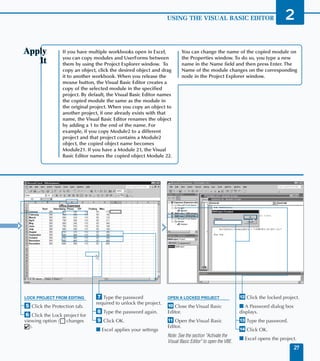
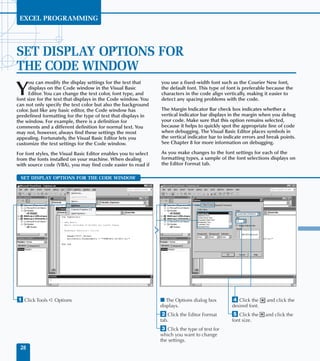
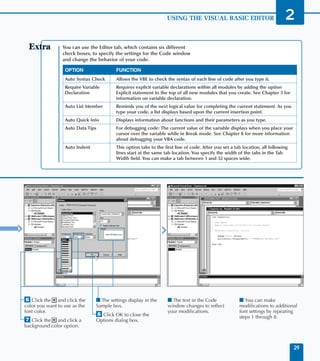
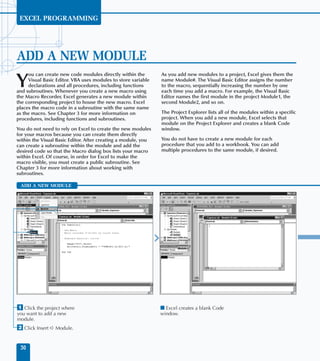
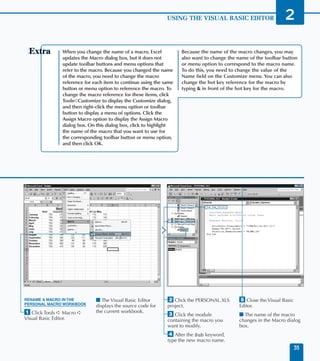
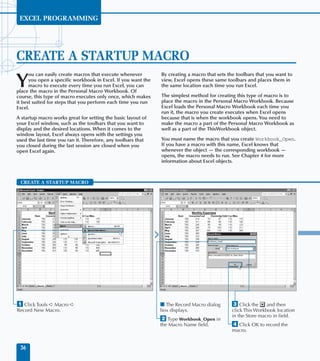
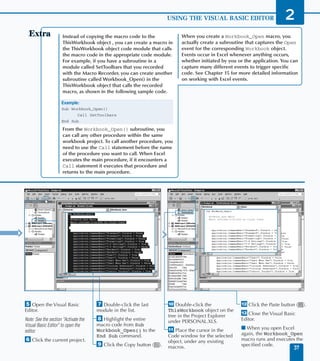
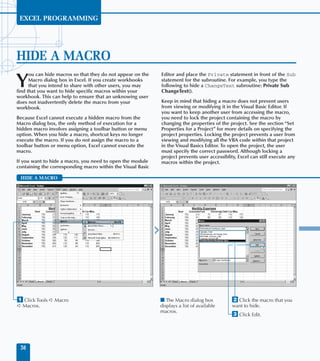
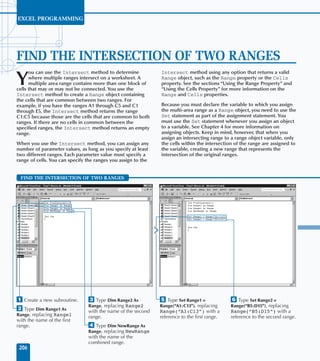
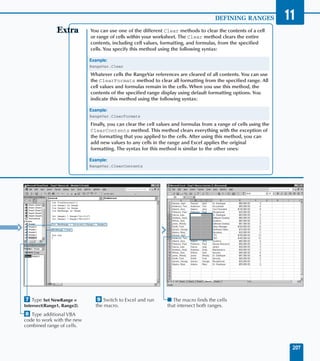
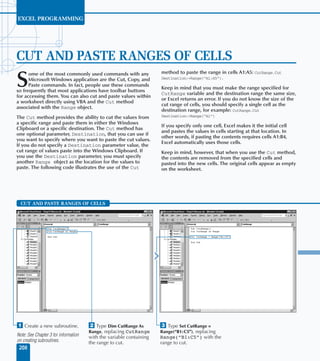
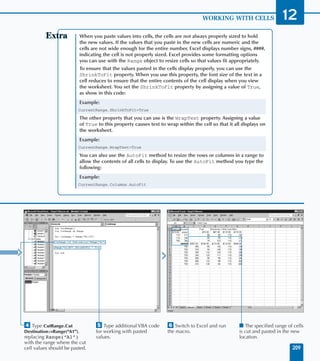
Excel Programming
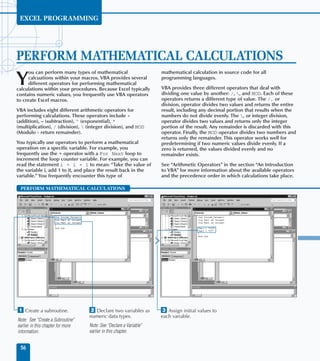
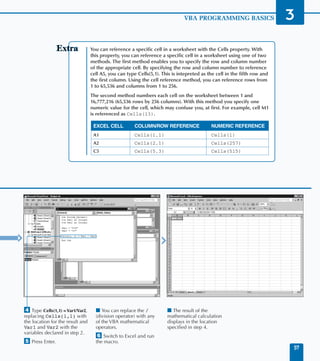
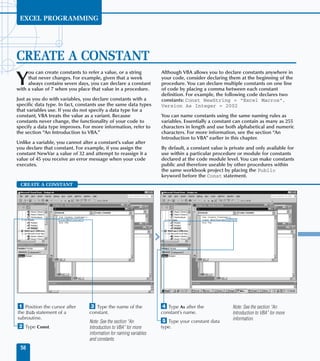
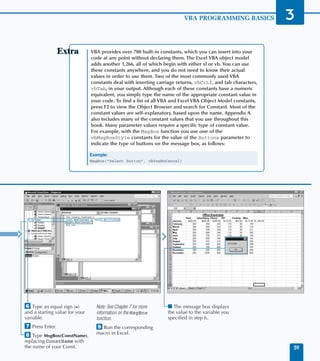
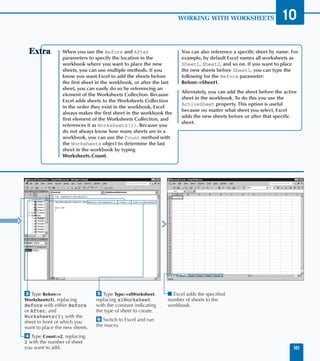
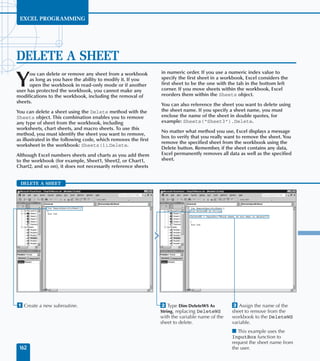
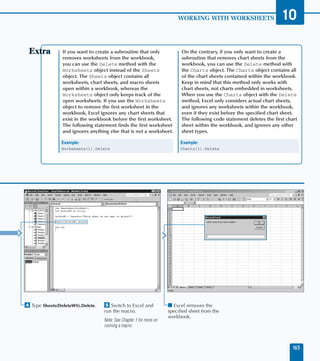
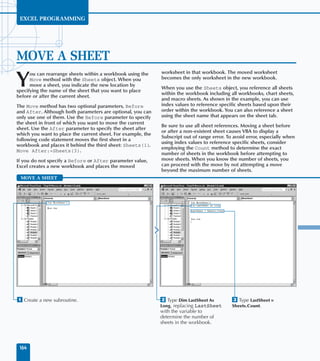
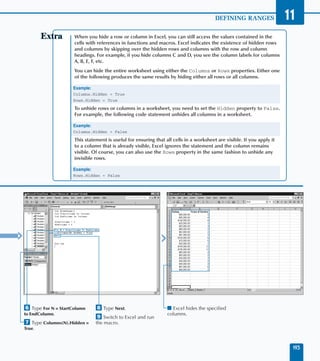
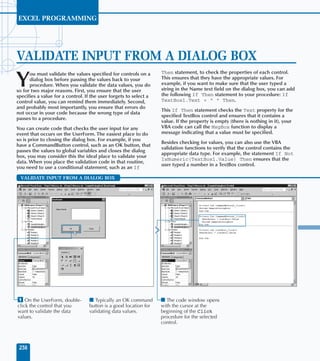
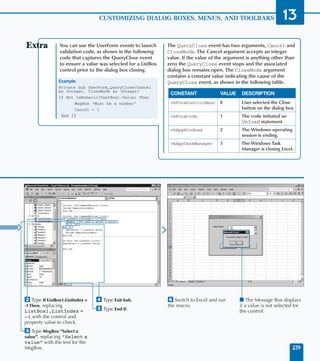
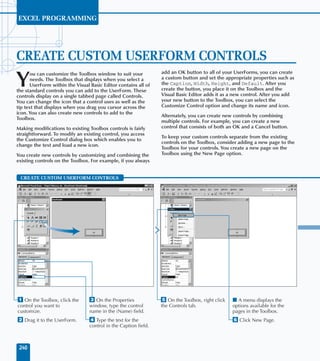
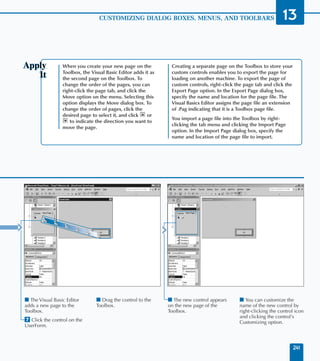
                                   Your visual blueprint for
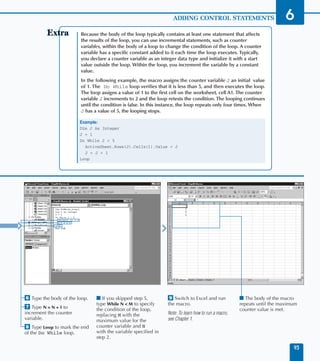
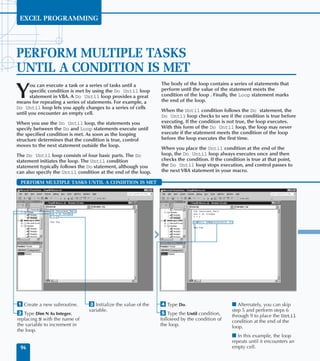
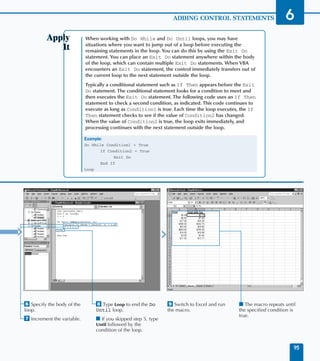
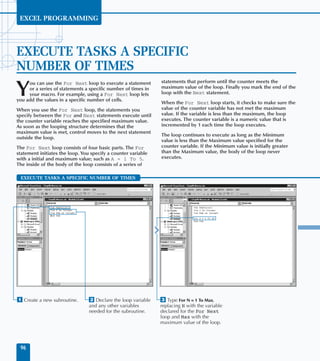
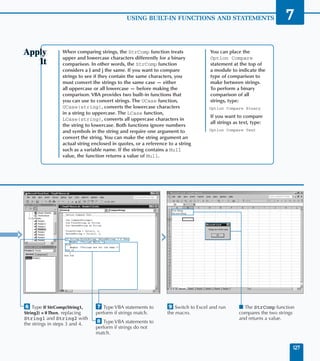
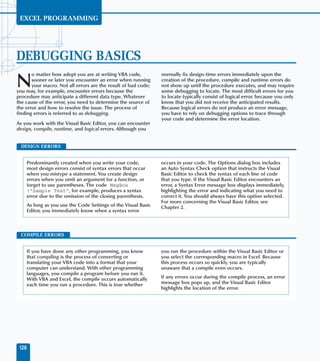
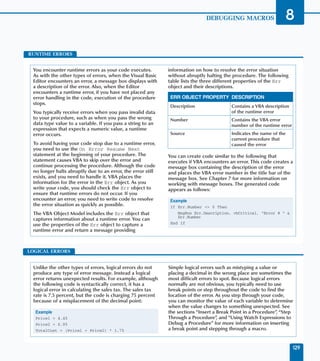
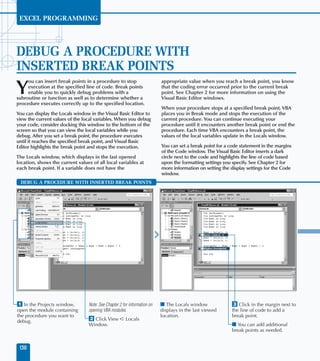
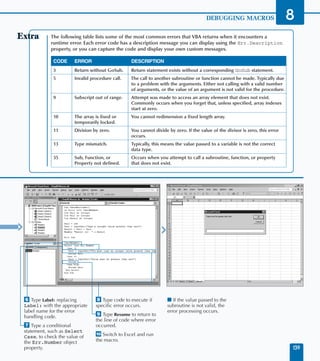
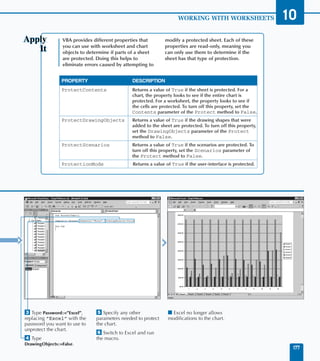
                               creating interactive spreadsheets
                                       by Jinjer Simon


                                                              TM


                                                      From
                                                                       ®


                                                        &


Best-Selling Books • Digital Downloads • e-Books • Answer Networks • e-Newsletters • Branded Web Sites • e-Learning
                               New York, NY • Cleveland, OH • Indianapolis, IN
Excel Programming: Your visual blueprint for
creating interactive spreadsheets                                                      Trademark Acknowledgments
Published by                                                                           Hungry Minds, the Hungry Minds logo, Visual, the Visual
Hungry Minds, Inc.                                                                     logo, Read Less - Learn More and related trade dress are
909 Third Avenue
New York, NY 10022                                                                     registered trademarks or trademarks of Hungry Minds, Inc.,
www.hungryminds.com                                                                    in the United States and/or other countries and may not be
Copyright © 2002 Hungry Minds, Inc.                                                    used without written permission. The maranGraphics logo
Certain design and illustrations are copyright © 1992-2002 maranGraphics, Inc.,        is a registered trademark or trademark of maranGraphics,
used with maranGraphics’ permission. All rights reserved. No part of this book,        Inc. All other trademarks are the property of their
including interior design, cover design, and icons, may be reproduced or               respective owners. Hungry Minds, Inc. and maranGraphics,
transmitted in any form, by any means (electronic, photocopying, recording, or
otherwise) without the prior written permission of the publisher.                      Inc. are not associated with any product or vendor
maranGraphics, Inc.
                                                                                       mentioned in this book.
5755 Coopers Avenue
Mississauga, Ontario, Canada                                                           FOR PURPOSES OF ILLUSTRATING THE CONCEPTS
L4Z 1R9                                                                                AND TECHNIQUES DESCRIBED IN THIS BOOK, THE
Library of Congress Control Number: 2001092900                                         AUTHOR HAS CREATED VARIOUS NAMES, COMPANY
ISBN: 0-7645-3646-X                                                                    NAMES, MAILING, E-MAIL AND INTERNET
Printed in the United States of America                                                ADDRESSES, PHONE AND FAX NUMBERS AND SIMILAR
10 9 8 7 6 5 4 3 2 1                                                                   INFORMATION, ALL OF WHICH ARE FICTITIOUS. ANY
1V/QX/RR/QR/IN                                                                         RESEMBLANCE OF THESE FICTITIOUS NAMES,
Distributed in the United States by Hungry Minds, Inc.                                 ADDRESSES, PHONE AND FAX NUMBERS AND SIMILAR
Distributed by CDG Books Canada Inc. for Canada; by Transworld Publishers              INFORMATION TO ANY ACTUAL PERSON, COMPANY
Limited in the United Kingdom; by IDG Norge Books for Norway; by IDG Sweden            AND/OR ORGANIZATION IS UNINTENTIONAL AND
Books for Sweden; by IDG Books Australia Publishing Corporation Pty. Ltd. for          PURELY COINCIDENTAL.
Australia and New Zealand; by TransQuest Publishers Pte Ltd. for Singapore,
Malaysia, Thailand, Indonesia, and Hong Kong; by Gotop Information Inc. for
Taiwan; by ICG Muse, Inc. for Japan; by Intersoft for South Africa; by Eyrolles for    Permissions
France; by International Thomson Publishing for Germany, Austria and
Switzerland; by Distribuidora Cuspide for Argentina; by LR International for Brazil;   maranGraphics
by Galileo Libros for Chile; by Ediciones ZETA S.C.R. Ltda. for Peru; by WS
Computer Publishing Corporation, Inc., for the Philippines; by Contemporanea de        Certain text and illustrations by maranGraphics, Inc., used
Ediciones for Venezuela; by Express Computer Distributors for the Caribbean and        with maranGraphics’ permission.
West Indies; by Micronesia Media Distributor, Inc. for Micronesia; by Chips
Computadoras S.A. de C.V. for Mexico; by Editorial Norma de Panama S.A. for            Microsoft
Panama; by American Bookshops for Finland.
                                                                                       ©2002 Microsoft Corporation. All rights reserved.
For U.S. corporate orders, please call maranGraphics at 800-469-6616 or fax
905-890-9434.
For general information on Hungry Minds’ products and services please contact our
Customer Care Department within the U.S. at 800-762-2974, outside the U.S. at
317-572-3993 or fax 317-572-4002.
For sales inquiries and reseller information, including discounts, premium and bulk
quantity sales, and foreign-language translations, please contact our Customer Care
Department at 800-434-3422, fax 317-572-4002, or write to Hungry Minds, Inc.,
Attn: Customer Care Department, 10475 Crosspoint Boulevard, Indianapolis, IN
46256.
For information on licensing foreign or domestic rights, please contact our Sub-
Rights Customer Care Department at 212-884-5000.
For information on using Hungry Minds’ products and services in the classroom or
for ordering examination copies, please contact our Educational Sales Department
at 800-434-2086 or fax 317-572-4005.
For press review copies, author interviews, or other publicity information, please
contact our Public Relations department at 317-572-3168 or fax 317-572-4168.
For authorization to photocopy items for corporate, personal, or educational use,                                 is a trademark of
please contact Copyright Clearance Center, 222 Rosewood Drive, Danvers, MA
01923, or fax 978-750-4470.                                                                                       Hungry Minds, Inc.
Screen shots displayed in this book are based on pre-released software and are
subject to change.

 LIMIT OF LIABILITY/DISCLAIMER OF WARRANTY: THE PUBLISHER AND AUTHOR HAVE USED
 THEIR BEST EFFORTS IN PREPARING THIS BOOK. THE PUBLISHER AND AUTHOR MAKE NO
 REPRESENTATIONS OR WARRANTIES WITH RESPECT TO THE ACCURACY OR COMPLETENESS
 OF THE CONTENTS OF THIS BOOK AND SPECIFICALLY DISCLAIM ANY IMPLIED WARRANTIES               U.S. Corporate Sales           U.S. Trade Sales
 OF MERCHANTABILITY OR FITNESS FOR A PARTICULAR PURPOSE. THERE ARE NO
 WARRANTIES WHICH EXTEND BEYOND THE DESCRIPTIONS CONTAINED IN THIS
 PARAGRAPH. NO WARRANTY MAY BE CREATED OR EXTENDED BY SALES REPRESENTATIVES
                                                                                             Contact maranGraphics          Contact Hungry Minds
 OR WRITTEN SALES MATERIALS. THE ACCURACY AND COMPLETENESS OF THE                            at (800) 469-6616 or           at (800) 434-3422
 INFORMATION PROVIDED HEREIN AND THE OPINIONS STATED HEREIN ARE NOT
 GUARANTEED OR WARRANTED TO PRODUCE ANY PARTICULAR RESULTS, AND THE ADVICE
                                                                                             fax (905) 890-9434.            or (317) 572-4002.
 AND STRATEGIES CONTAINED HEREIN MAY NOT BE SUITABLE FOR EVERY INDIVIDUAL.
 NEITHER THE PUBLISHER NOR AUTHOR SHALL BE LIABLE FOR ANY LOSS OF PROFIT OR ANY
 OTHER COMMERCIAL DAMAGES, INCLUDING BUT NOT LIMITED TO SPECIAL, INCIDENTAL,
 CONSEQUENTIAL, OR OTHER DAMAGES.
Excel Programming
        Your visual blueprint for
    creating interactive spreadsheets
maranGraphics is a family-run business
                                  located near Toronto, Canada.


At maranGraphics, we believe in producing great             rebuild every screen shot to provide the best clarity
computer books — one book at a time.                        possible, making our screen shots the most precise and
                                                            easiest to read in the industry. We strive for perfection,
maranGraphics has been producing high-technology            and believe that the time spent handcrafting each
products for over 25 years, which enables us to offer the   element results in the best computer books money can
computer book community a unique communication              buy.
process.
                                                            Thank you for purchasing this book. We hope you
Our computer books use an integrated communication          enjoy it!
process, which is very different from the approach used
in other computer books. Each spread is, in essence, a      Sincerely,
flow chart — the text and screen shots are totally
incorporated into the layout of the spread. Introductory    Robert Maran
text and helpful tips complete the learning experience.     President
maranGraphics’ approach encourages the left and right       maranGraphics
sides of the brain to work together — resulting in faster
orientation and greater memory retention.                   Rob@maran.com
Above all, we are very proud of the handcrafted nature      www.maran.com
of our books. Our carefully-chosen writers are experts
in their fields, and spend countless hours researching      www.hungryminds.com/visual
and organizing the content for each topic. Our artists
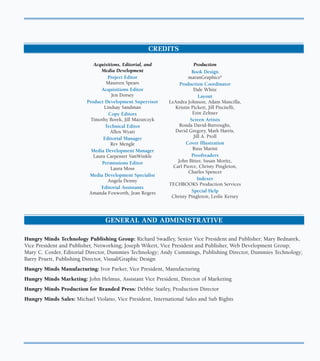
CREDITS

                             Acquisitions, Editorial, and               Production
                                Media Development                      Book Design
                                    Project Editor                   maranGraphics®
                                   Maureen Spears                Production Coordinator
                                Acquisitions Editor                     Dale White
                                     Jen Dorsey                            Layout
                          Product Development Supervisor    LeAndra Johnson, Adam Mancilla,
                                  Lindsay Sandman              Kristin Pickett, Jill Piscitelli,
                                    Copy Editors                       Erin Zeltner
                            Timothy Borek, Jill Mazurczyk             Screen Artists
                                  Technical Editor               Ronda David-Burroughs,
                                     Allen Wyatt               David Gregory, Mark Harris,
                                 Editorial Manager                      Jill A. Proll
                                     Rev Mengle                     Cover Illustration
                            Media Development Manager                  Russ Marini
                             Laura Carpenter VanWinkle                 Proofreaders
                                 Permissions Editor             John Bitter, Susan Moritz,
                                     Laura Moss               Carl Pierce, Christy Pingleton,
                                                                     Charles Spencer
                           Media Development Specialist
                                    Angela Denny                          Indexer
                                                            TECHBOOKS Production Services
                                Editorial Assistants
                           Amanda Foxworth, Jean Rogers                Special Help
                                                             Christy Pingleton, Leslie Kersey


                                  GENERAL AND ADMINISTRATIVE

Hungry Minds Technology Publishing Group: Richard Swadley, Senior Vice President and Publisher; Mary Bednarek,
Vice President and Publisher, Networking; Joseph Wikert, Vice President and Publisher, Web Development Group;
Mary C. Corder, Editorial Director, Dummies Technology; Andy Cummings, Publishing Director, Dummies Technology;
Barry Pruett, Publishing Director, Visual/Graphic Design
Hungry Minds Manufacturing: Ivor Parker, Vice President, Manufacturing
Hungry Minds Marketing: John Helmus, Assistant Vice President, Director of Marketing
Hungry Minds Production for Branded Press: Debbie Stailey, Production Director
Hungry Minds Sales: Michael Violano, Vice President, International Sales and Sub Rights
ABOUT THE AUTHOR
Jinjer Simon has been actively involved in the computer industry for the past 17 years. Her involvement
in the industry has included programming, providing software technical support, training end-users,
developing written and online user documentation, creating software tutorials, and developing Web
sites. She is the author of several computer books, including Windows CE For Dummies and Windows CE
2 For Dummies.
Jinjer and her husband live in Coppell, Texas with their two children. She currently works as a
consultant for MillenniSoft, Inc., providing Web site development and online documentation
development.
AUTHOR’S ACKNOWLEDGMENTS
As an author, it is always exciting to finish the last chapter and send it to the publisher. At that point my
work ends and many other individuals take on the responsibility of making sure the book actually
makes it to the shelf. Because there are so many individuals involved, I am always concerned about
overlooking someone. Therefore, before I thank specific individuals I would like to acknowledge the
efforts of everyone at Hungry Minds who had a hand in completing the production of this book.
I really enjoyed working with the Hungry Minds team. Jen Dorsey, my acquisitions editor, did a great job
of getting this project up and going, and dealing with all the little issues along the way. My project
editor, Maureen Spears, was great to deal with. She was very patient as I learned how to develop using
the visual blueprint style. Working along with her on the copy editing were Tim Borek and Jill
Mazurczyk, who both did a great job making sure I said everything correctly. Along with them, Leslie
Kersey and Amanda Foxworth helped make the process run smoothly. My technical editor, Allen Wyatt
did a fantastic job of making sure the content is technically accurate.
I also want to acknowledge the efforts of the graphics and production staff who tied everything together.
I want to acknowledge my agents, Neil Salkind and David Rogelberg at Studio B, for helping me get this
project. Finally, I want to thank my husband, Richard, and children, Alex and Ashley, for their patience
while I completed this project.
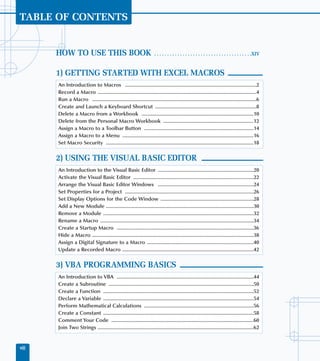
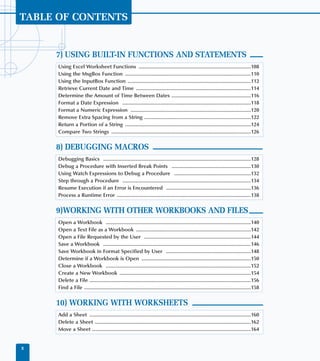
TABLE OF CONTENTS


       HOW TO USE THIS BOOK                                           . . . . . . . . . . . . . . . . . . . . . . . . . . . . . . . . . . . . . .XIV


       1) GETTING STARTED WITH EXCEL MACROS
       An Introduction to Macros ................................................................................................2
       Record a Macro ....................................................................................................................4
       Run a Macro ........................................................................................................................6
       Create and Launch a Keyboard Shortcut ..........................................................................8
       Delete a Macro from a Workbook ..................................................................................10
       Delete from the Personal Macro Workbook ..................................................................12
       Assign a Macro to a Toolbar Button ................................................................................14
       Assign a Macro to a Menu ................................................................................................16
       Set Macro Security ............................................................................................................18


       2) USING THE VISUAL BASIC EDITOR
       An Introduction to the Visual Basic Editor ......................................................................20
       Activate the Visual Basic Editor ........................................................................................22
       Arrange the Visual Basic Editor Windows ......................................................................24
       Set Properties for a Project ..............................................................................................26
       Set Display Options for the Code Window ....................................................................28
       Add a New Module ............................................................................................................30
       Remove a Module ..............................................................................................................32
       Rename a Macro ................................................................................................................34
       Create a Startup Macro ....................................................................................................36
       Hide a Macro ......................................................................................................................38
       Assign a Digital Signature to a Macro ..............................................................................40
       Update a Recorded Macro ................................................................................................42


       3) VBA PROGRAMMING BASICS
       An Introduction to VBA ....................................................................................................44
       Create a Subroutine ..........................................................................................................50
       Create a Function ..............................................................................................................52
       Declare a Variable ..............................................................................................................54
       Perform Mathematical Calculations ................................................................................56
       Create a Constant ..............................................................................................................58
       Comment Your Code ........................................................................................................60
       Join Two Strings ..................................................................................................................62


viii
EXCEL PROGRAMMING:
                                                                                                     Your visual blueprint for
                                                                                                 creating interactive spreadsheets


4) WORKING WITH THE EXCEL OBJECT MODEL
An Introduction to the Excel Object Model ..................................................................64
Using the Object Browser ................................................................................................66
Create an Object Variable ................................................................................................68
Change the Properties of an Object ................................................................................70
Compare Object Variables ................................................................................................72
Using an Object Method ..................................................................................................74
Display a Built-in Dialog Box ............................................................................................76


5) USING VARIABLES AND ARRAYS
Assign Values to Variables ................................................................................................78
Using Global Variables ......................................................................................................80
Declare an Array ................................................................................................................82
Declare a Multidimensional Array ....................................................................................84
Convert a List into an Array ..............................................................................................86
Redimension an Array ......................................................................................................88
Create a User-Defined Data Type ....................................................................................90


6) ADDING CONTROL STATEMENTS
Execute a Task While a Condition is True ......................................................................92
Perform Multiple Tasks Until a Condition is Met ..........................................................94
Execute Tasks a Specific Number of Times ....................................................................96
Using the For Each Next Loop ..........................................................................................98
Conditionally Execute a Group of Statements ............................................................100
Execute a Statement Based Upon the Value ................................................................102
Jump to a Specific Location in a Macro ........................................................................104
Conditionally Call a Subroutine ....................................................................................106


                                                                                                                                      ix
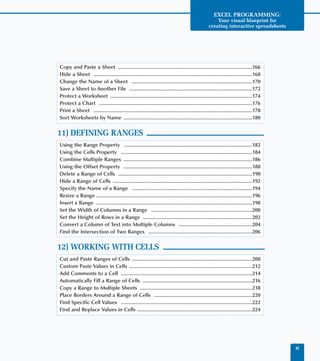
TABLE OF CONTENTS


     7) USING BUILT-IN FUNCTIONS AND STATEMENTS
      Using Excel Worksheet Functions ..................................................................................108
      Using the MsgBox Function ............................................................................................110
      Using the InputBox Function ..........................................................................................112
      Retrieve Current Date and Time ....................................................................................114
      Determine the Amount of Time Between Dates ..........................................................116
      Format a Date Expression ..............................................................................................118
      Format a Numeric Expression ........................................................................................120
      Remove Extra Spacing from a String ..............................................................................122
      Return a Portion of a String ............................................................................................124
      Compare Two Strings ......................................................................................................126


     8) DEBUGGING MACROS
      Debugging Basics ............................................................................................................128
      Debug a Procedure with Inserted Break Points ..........................................................130
      Using Watch Expressions to Debug a Procedure ........................................................132
      Step through a Procedure ..............................................................................................134
      Resume Execution if an Error is Encountered ..............................................................136
      Process a Runtime Error ..................................................................................................138


     9)WORKING WITH OTHER WORKBOOKS AND FILES
      Open a Workbook ..........................................................................................................140
      Open a Text File as a Workbook ....................................................................................142
      Open a File Requested by the User ..............................................................................144
      Save a Workbook ............................................................................................................146
      Save Workbook in Format Specified by User ..............................................................148
      Determine if a Workbook is Open ................................................................................150
      Close a Workbook ..........................................................................................................152
      Create a New Workbook ................................................................................................154
      Delete a File ......................................................................................................................156
      Find a File ..........................................................................................................................158


     10) WORKING WITH WORKSHEETS
      Add a Sheet ......................................................................................................................160
      Delete a Sheet ..................................................................................................................162
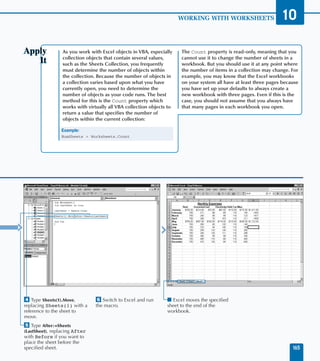
      Move a Sheet ....................................................................................................................164


x
EXCEL PROGRAMMING:
                                                                                                      Your visual blueprint for
                                                                                                  creating interactive spreadsheets


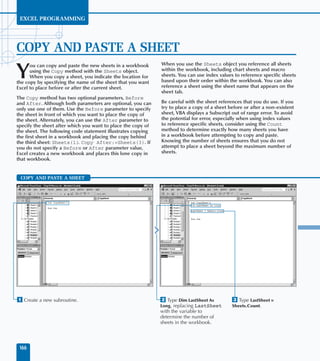
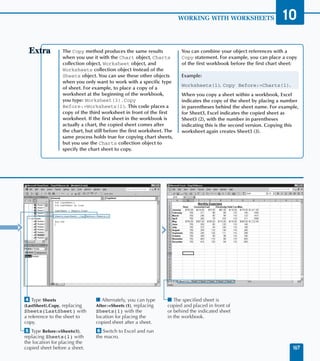
Copy and Paste a Sheet ..................................................................................................166
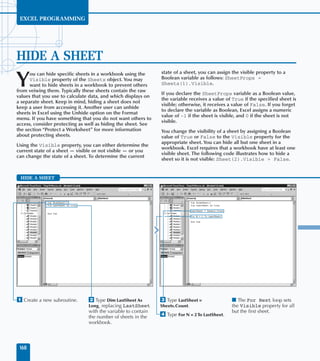
Hide a Sheet ....................................................................................................................168
Change the Name of a Sheet ........................................................................................170
Save a Sheet to Another File ..........................................................................................172
Protect a Worksheet ........................................................................................................174
Protect a Chart ................................................................................................................176
Print a Sheet ....................................................................................................................178
Sort Worksheets by Name ..............................................................................................180


11) DEFINING RANGES
Using the Range Property ..............................................................................................182
Using the Cells Property ................................................................................................184
Combine Multiple Ranges ..............................................................................................186
Using the Offset Property ..............................................................................................188
Delete a Range of Cells ..................................................................................................190
Hide a Range of Cells ......................................................................................................192
Specify the Name of a Range ........................................................................................194
Resize a Range ..................................................................................................................196
Insert a Range ..................................................................................................................198
Set the Width of Columns in a Range ..........................................................................200
Set the Height of Rows in a Range ................................................................................202
Convert a Column of Text into Multiple Columns ......................................................204
Find the Intersection of Two Ranges ............................................................................206


12) WORKING WITH CELLS
Cut and Paste Ranges of Cells ........................................................................................208
Custom Paste Values in Cells ..........................................................................................212
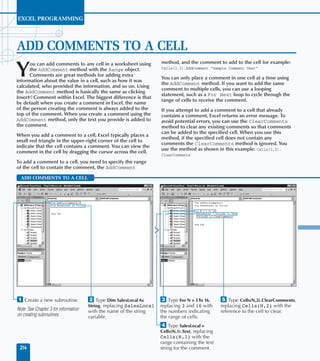
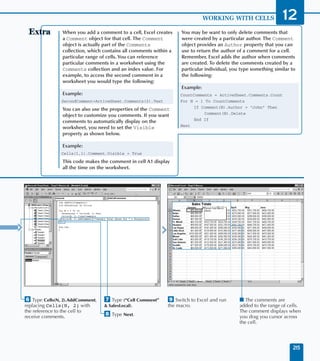
Add Comments to a Cell ................................................................................................214
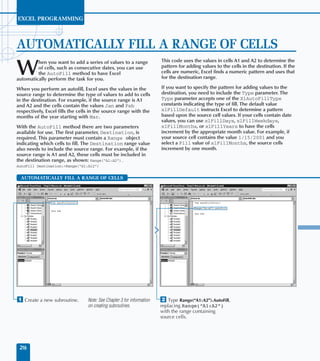
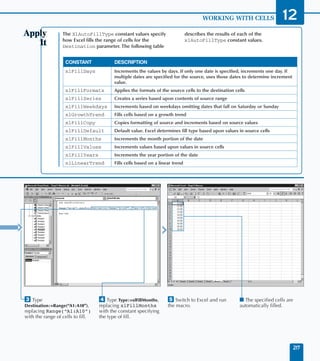
Automatically Fill a Range of Cells ................................................................................216
Copy a Range to Multiple Sheets ..................................................................................218
Place Borders Around a Range of Cells ........................................................................220
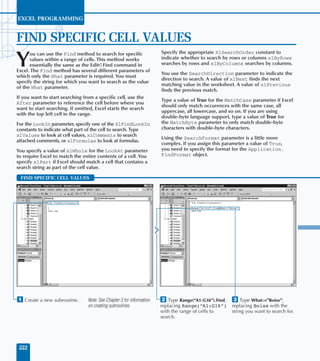
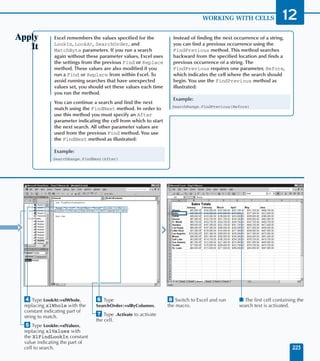
Find Specific Cell Values ................................................................................................222
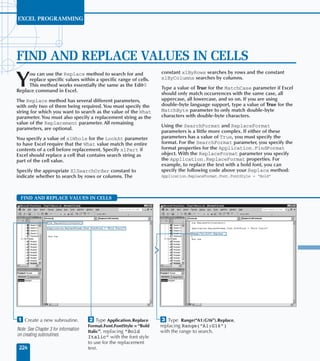
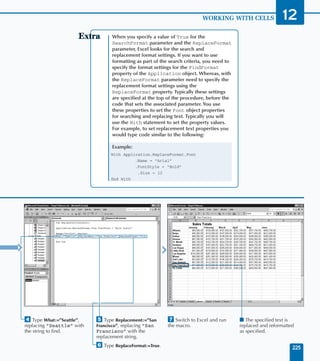
Find and Replace Values in Cells ....................................................................................224


                                                                                                                                        xi
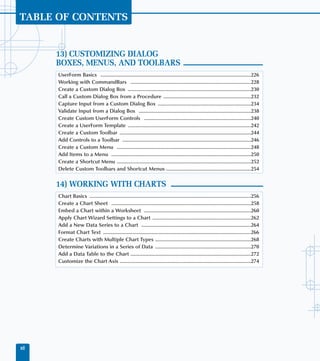
TABLE OF CONTENTS


      13) CUSTOMIZING DIALOG
      BOXES, MENUS, AND TOOLBARS
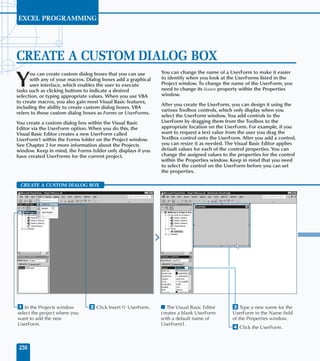
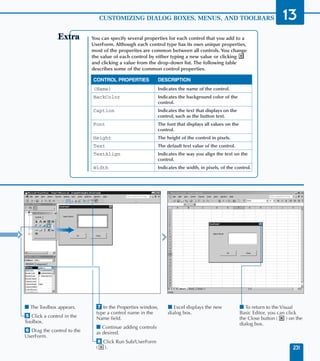
      UserForm Basics ..............................................................................................................226
      Working with CommandBars ........................................................................................228
      Create a Custom Dialog Box ..........................................................................................230
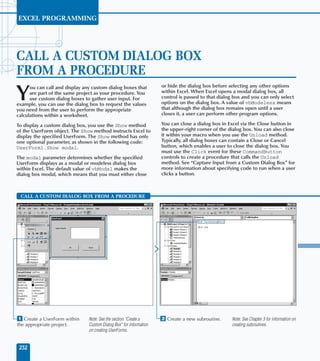
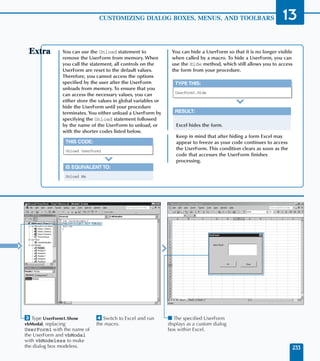
      Call a Custom Dialog Box from a Procedure ................................................................232
      Capture Input from a Custom Dialog Box ....................................................................234
      Validate Input from a Dialog Box ..................................................................................238
      Create Custom UserForm Controls ..............................................................................240
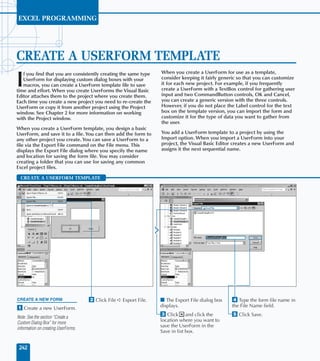
      Create a UserForm Template ..........................................................................................242
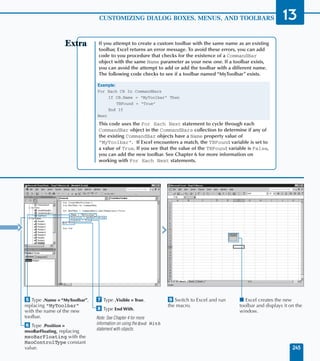
      Create a Custom Toolbar ................................................................................................244
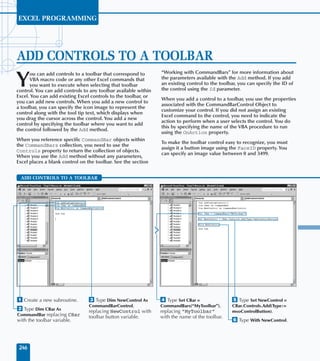
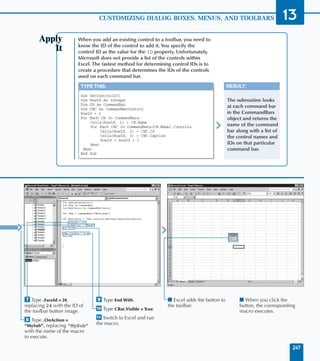
      Add Controls to a Toolbar ..............................................................................................246
      Create a Custom Menu ..................................................................................................248
      Add Items to a Menu ......................................................................................................250
      Create a Shortcut Menu ..................................................................................................252
      Delete Custom Toolbars and Shortcut Menus ..............................................................254


      14) WORKING WITH CHARTS
      Chart Basics ......................................................................................................................256
      Create a Chart Sheet ......................................................................................................258
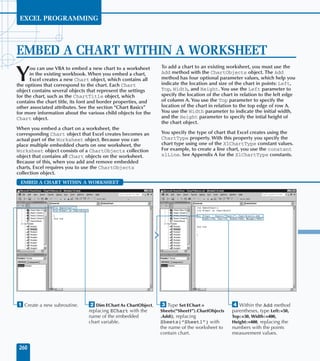
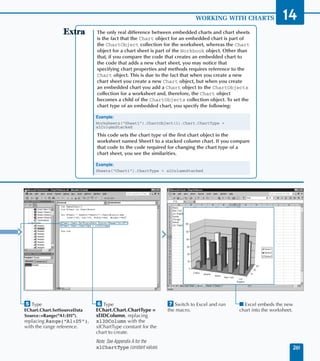
      Embed a Chart within a Worksheet ..............................................................................260
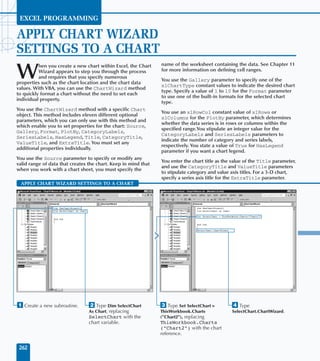
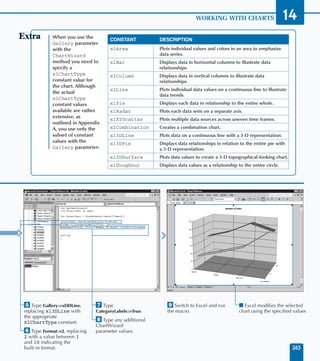
      Apply Chart Wizard Settings to a Chart ........................................................................262
      Add a New Data Series to a Chart ................................................................................264
      Format Chart Text ............................................................................................................266
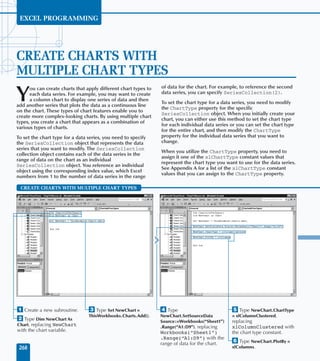
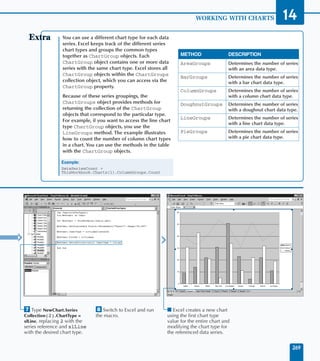
      Create Charts with Multiple Chart Types ......................................................................268
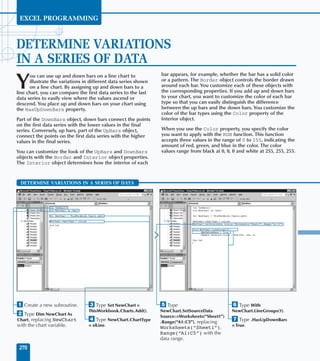
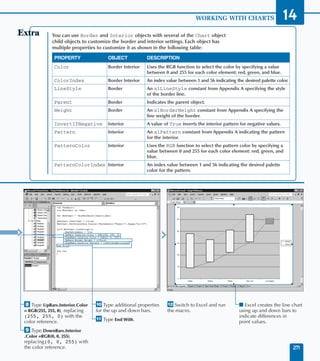
      Determine Variations in a Series of Data ......................................................................270
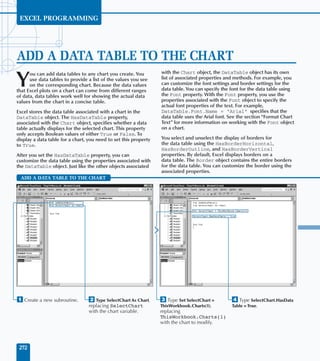
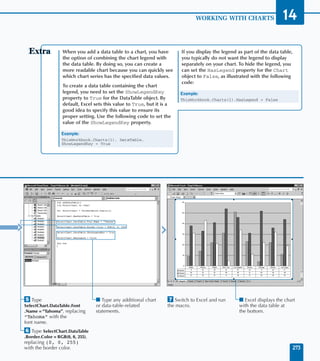
      Add a Data Table to the Chart ........................................................................................272
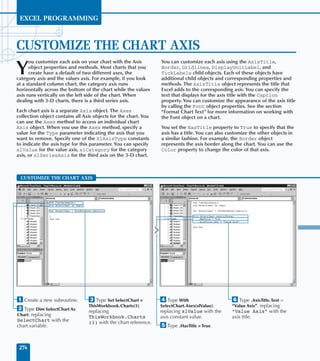
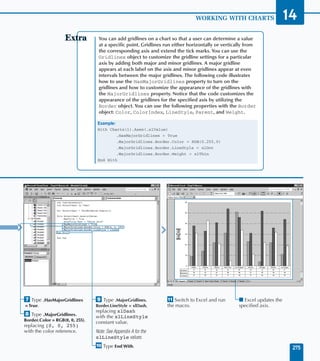
      Customize the Chart Axis ................................................................................................274


xii
EXCEL PROGRAMMING:
                                                                                              Your visual blueprint for
                                                                                          creating interactive spreadsheets


15)AUTOMATING PROCEDURES WITH EXCEL EVENTS
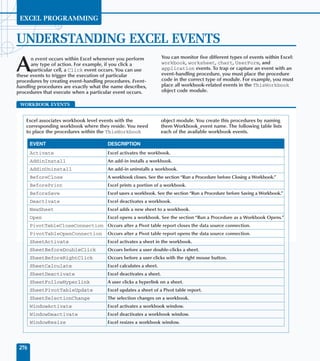
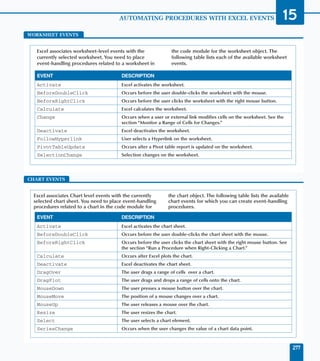
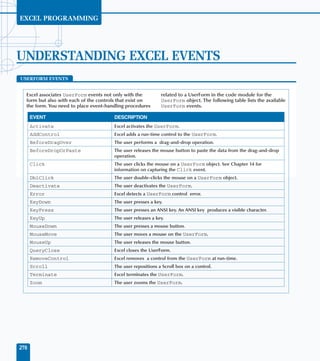
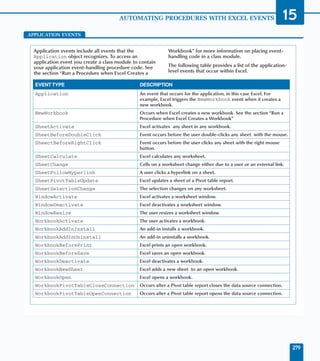
Understanding Excel Events ............................................................................................276
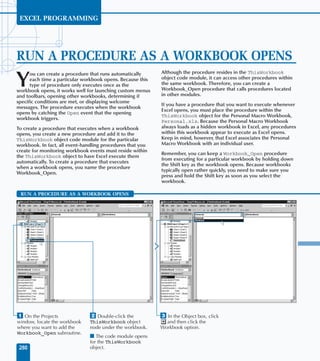
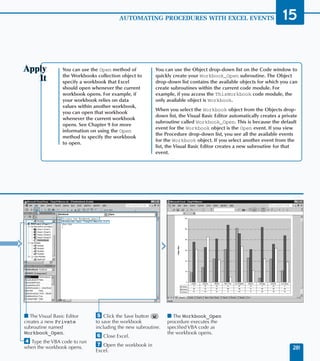
Run a Procedure as a Workbook Opens ......................................................................280
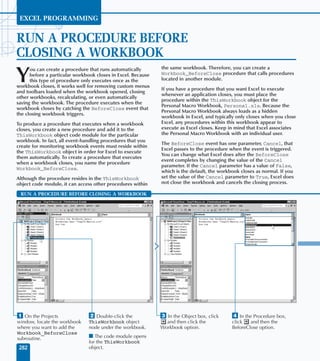
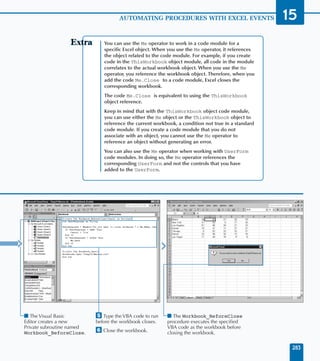
Run a Procedure Before Closing a Workbook ..............................................................282
Run a Procedure Before Saving a Workbook ..............................................................284
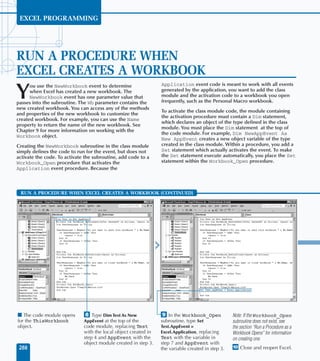
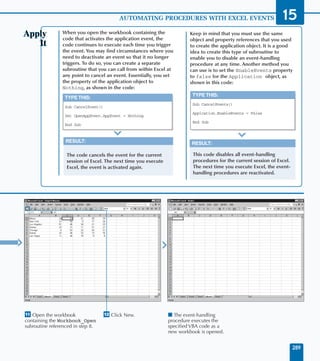
Run a Procedure When Excel Creates a Workbook ....................................................286
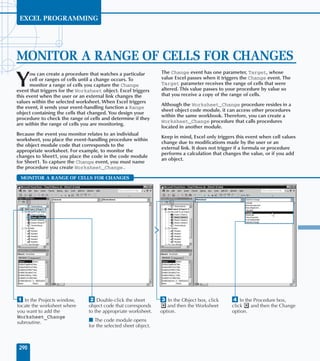
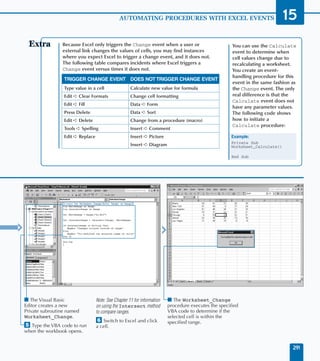
Monitor a Range of Cells for Changes ..........................................................................290
Execute a Procedure at a Specific Time ........................................................................292
Execute a Procedure When You Press Keys ..................................................................294
Run a Procedure When Right-Clicking a Chart ............................................................296


APPENDIX A: VBA QUICK REFERENCE
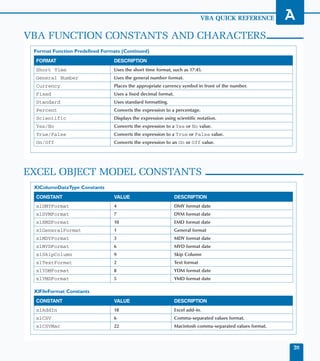
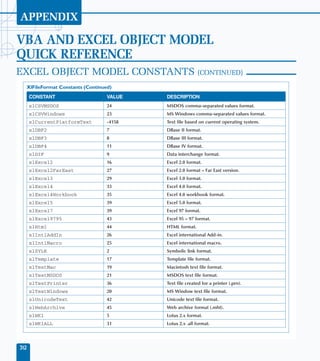
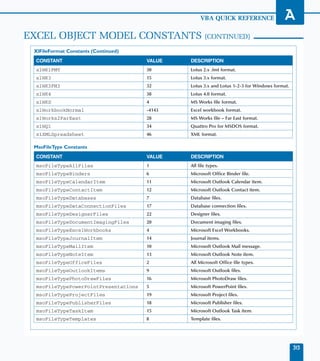
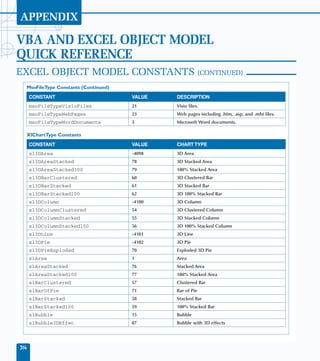
VBA and Excel Object Model Quick Reference ............................................................298


APPENDIX B: ABOUT THE CD-ROM
What’s on the CD-ROM ..................................................................................................322
Using the E-Version of the Book......................................................................................324
Hungry Minds, Inc. End-User License Agreement ........................................................326


                                                                                                                              xiii
HOW TO USE THIS BOOK


Excel Programming: Your visual blueprint for creating         Courier Font
interactive spreadsheets uses simple, straightforward
                                                              Indicates the use of Visual Basic for Applications (VBA)
examples to teach you how to create powerful and
                                                              code such as tags or attributes, scripting language code
dynamic programs.
                                                              such as statements, operators, or functions, and Excel
To get the most out of this book, you should read each        Object Model code such as objects, methods, or
chapter in order, from beginning to end. Each chapter         properties.
introduces new ideas and builds on the knowledge
learned in previous chapters. When you become familiar
with Excel Programming: Your visual blueprint for creating    Bold
interactive spreadsheets, you can use this book as an
informative desktop reference.                                Indicates information that you must type.


Who This Book Is For                                          Italics
If you are interested in writing macros for Microsoft Excel   Indicates a new term.
using Visual Basic for Applications (VBA), Excel
Programming: Your visual blueprint for creating interactive
spreadsheets is the book for you.
This book takes you through the basics of using the Visual
Basic Editor that comes with Microsoft Office, and
familiarizes you with the essentials of Visual Basic for      An Apply It section usually contains a segment of code
Applications programming. The book also covers the Excel      that takes the lesson you just learned one step further.
Object Model, and illustrates how to use the various          Apply It sections offer inside information and pointers that
objects, properties, and methods to create macros.            you can use to enhance the functionality of your code.
Although this book requires no prior experience with
programming, a familiarity with the Microsoft Windows
operating system installed on your computer and
Microsoft Excel is an asset.                                  An Extra section provides additional information about the
                                                              task you just accomplished. Extra sections often contain
                                                              interesting tips and useful tricks to make working with
What You Need To Use This Book                                Excel macros easier and more efficient.
To perform the tasks in this book, you need a computer        Please note that the majority of the tasks in this book
with Microsoft Windows 98, ME, NT 4.0, 2000, or XP            require that you start by creating a new subroutine and
installed, as well as Microsoft Excel 2000 or 2002. You do    finish by running a macro. Because this book covers
not require any special development tools, because all the    creating a new subroute and running a macro in Chapters
tools are part of Excel.                                      3 and 1, respectively, and because the tasks have limited
                                                              space to restate cross-references to these topics, only the
                                                              first task of every chapter contains cross-references to
The Conventions In This Book                                  these chapters. The rest of the tasks in each chapter
A number of typographic and layout styles have been used      assume that the read knows the location of these
throughout Excel Macros: Your visual blueprint for creating   operations.
interactive spreadsheets to distinguish different types of
information.


xiv
EXCEL PROGRAMMING:
                                                                                   Your visual blueprint for
                                                                               building interactive spreadsheets


The Organization Of This Book                                  Chapter 13, “Customizing Dialog Boxes, Menus, and
                                                               Toolbars,” shows you how to create a graphical interface
Excel Programming: Your visual blueprint for creating
                                                               for your macros by creating custom dialog boxes, adding
interactive spreadsheets contains 15 chapters and two
                                                               new toolbars, and creating new menus and menu items.
appendixes.
                                                               Chapter 14, “Working with Charts,” shows you how to
The first chapter, “Getting Started with Excel Macros,”
                                                               create and modify charts from within your macro.
shows you how work with macros in Excel, how to record a
simple macro, how to assign macros to a menu or toolbar        Chapter 15, “Automating Procedures with Excel Events,”
button, how to launch a macro, and how to remove a             shows you how to capture both user- and system-created
macro from a workbook.                                         events and use those events to trigger various procedures.
                                                               You also learn how to execute a procedure at a specific
Chapter 2, “Using the Visual Basic Editor,” shows you how
                                                               time, or how to determine when a specific key sequence is
to navigate and work with the Visual Basic Editor that
                                                               pressed.
comes with Microsoft Office applications. This chapter
shows you how to set up your Visual Basic Editor window        The first appendix contains a reference section. After you
to quickly create and modify code modules.                     become familiar with the contents of this book, you can
                                                               use the references to obtain at-a-glance information for
Chapter 3, “VBA Programming Basics,” introduces you to
                                                               the VBA statements, functions, and constants used by VBA
the essentials of Visual Basic for Applications (VBA). This
                                                               functions and Excel Object Model properties and
chapter also covers some VBA programming fundamentals
                                                               methods.
that enable you to use the material in the following
chapters to create your own Excel macros.
The fourth chapter, “Working with the Excel Object             What’s on the CD-ROM
Model,” shows you how to work with the Excel Object            The CD-ROM included in this book contains the sample
Model to access the various elements that make up the          macro code from each of the two-page lessons in Chapters
Excel application. This chapter provides a basis for the       5 through 15. This saves you from having to type the code
information covered in the remainder of the book,              and helps you quickly get started creating VBA code. The
specifically Chapters 9 through 12.                            CD-ROM also contains several shareware and evaluation
Chapters 5 through 7 build on the VBA programming              versions of programs that you can use to work with Excel
language by showing you how to work with variables and         Programming: Your visual blueprint for creating interactive
create arrays. You also learn how to use the various control   spreadsheets. An e-version of the book and all the URLs
statements to determine which code is executed within          mentioned in the book are also available on the disc.
your macros. You create pop-up dialog boxes using the
MsgBox and InputBox functions.
Chapter 8, “Debugging Macros,” shows you how to the use
the various features of the Visual Basic Editor to find
programming and logical errors within your VBA code.
Chapters 9 through 12 illustrate how you can use the
Workbook, Worksheet, and Range objects to create
custom macros. You also learn how to use the
corresponding properties and methods associated with
these objects.


                                                                                                                      xv
EXCEL PROGRAMMING


AN INTRODUCTION TO MACROS
                                                                  using the Visual Basic Editor. Although many macro users

U
       sing macros enables you to repeat tasks much more
       efficiently than tediously performing each step over       rarely venture past the Macro Recorder, this book shows
       and over. A macro is a set of instructions that you        you how to harness the power of Visual Basic for
use to automate a task. For example, if you want to take          Applications, or VBA, to create more complex macros. No
each column of numbers, convert them to currency, and             matter how simple or complex a macro, you write them all
then add them together, you can create a simple macro to          using VBA.
perform this task. The typical Excel user has a series of tasks
                                                                  Macros are a term common to the spreadsheet world. All
that they perform frequently. By creating a macro to
                                                                  spreadsheet packages on the market provide the ability to
perform those tasks, you only require a simple keystroke to
                                                                  create macros to automate tasks, and Excel is no exception.
repeat the tasks.
                                                                  Although all Microsoft Office products provide the ability to
You can create macros to perform a task as simple as              create macros, they are best suited for Microsoft Excel.
adding two numbers, or as complex as creating a whole
                                                                  As an Excel user, you may have a series of tasks that you
user interface within Excel. To do so, you can employ one,
                                                                  perform frequently. By creating a macro to perform
or a combination, of two different methods: You can use
                                                                  complex or repetitive tasks, you can save time by pressing a
the Macro Recorder, or you can manually write a macro
                                                                  simple keystroke each time you want to perform the tasks.


  MACRO HISTORY

      Macro and Lotus 1-2-3                                       VBA Macros
      Macros originated with Lotus 1-2-3 in a fashion similar     The addition of Visual Basic for Applications (VBA)
      to the Macro Recorder you find in Excel today. The          macros increased the popularity of Excel within the
      Lotus macros recorded the keystrokes and enabled you        spreadsheet world. Essentially a subset of the popular
      to play them later.                                         Visual Basic language, VBA is familiar to many
                                                                  developers.
      XLM Macro Sheets
                                                                  Also, VBA brings a much more powerful macro
      Microsoft first entered the macro world with XLM            development platform to Excel than the macro
      macro sheets. XLM macro sheets are just sheets of           development environment in other spreadsheet
      functions that Excel evaluates in the sequence they         packages.
      exist within the selected macro. Although this macro
      language was powerful, it was difficult to use. Although    Excel Macros
      Excel still supports XLM macro sheets for compatibility
      with early versions of Excel, it does not provide the       Although Microsoft did not originate the concept of
      ability to record an XLM macro.                             macros and spreadsheets, they have definitely built
                                                                  upon it. The combination of the Macro Recorder and
                                                                  VBA makes macro creation a powerful feature of Excel.


  2
GETTING STARTED WITH EXCEL MACROS                              1

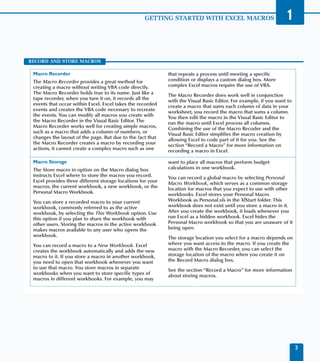
RECORD AND STORE MACROS

 Macro Recorder                                              that repeats a process until meeting a specific
 The Macro Recorder provides a great method for              condition or displays a custom dialog box. More
 creating a macro without writing VBA code directly.         complex Excel macros require the use of VBA.
 The Macro Recorder holds true to its name. Just like a      The Macro Recorder does work well in conjunction
 tape recorder, when you turn it on, it records all the      with the Visual Basic Editor. For example, if you want to
 events that occur within Excel. Excel takes the recorded    create a macro that sums each column of data in your
 events and creates the VBA code necessary to recreate       worksheet, you record the macro that sums a column.
 the events. You can modify all macros you create with       You then edit the macro in the Visual Basic Editor to
 the Macro Recorder in the Visual Basic Editor. The          run the macro until Excel process all columns.
 Macro Recorder works well for creating simple macros,       Combining the use of the Macro Recoder and the
 such as a macro that adds a column of numbers, or           Visual Basic Editor simplifies the macro creation by
 changes the layout of the page. But due to the fact that    allowing Excel to code part of it for you. See the
 the Macro Recorder creates a macro by recording your        section “Record a Macro” for more information on
 actions, it cannot create a complex macro such as one       recording a macro in Excel.

 Macro Storage                                               want to place all macros that perform budget
 The Store macro in option on the Macro dialog box           calculations in one workbook.
 instructs Excel where to store the macros you record.       You can record a global macro by selecting Personal
 Excel provides three different storage locations for your   Macro Workbook, which serves as a common storage
 macros: the current workbook, a new workbook, or the        location for macros that you expect to use with other
 Personal Macro Workbook.                                    workbooks. Excel stores your Personal Macro
 You can store a recorded macro to your current              Workbook as Personal.xls in the XlStart folder. This
 workbook, commonly referred to as the active                workbook does not exist until you store a macro in it.
 workbook, by selecting the This Workbook option. Use        After you create the workbook, it loads whenever you
 this option if you plan to share the workbook with          run Excel as a hidden workbook. Excel hides the
 other users. Storing the macros in the active workbook      Personal Macro workbook so that you are unaware of it
 makes macros available to any user who opens the            being open.
 workbook.                                                   The storage location you select for a macro depends on
 You can record a macro to a New Workbook. Excel             where you want access to the macro. If you create the
 creates the workbook automatically and adds the new         macro with the Macro Recorder, you can select the
 macro to it. If you store a macro in another workbook,      storage location of the macro when you create it on
 you need to open that workbook whenever you want            the Record Macro dialog box.
 to use that macro. You store macros in separate             See the section “Record a Macro” for more information
 workbooks when you want to store specific types of          about storing macros.
 macros in different workbooks. For example, you may


                                                                                                                         3
EXCEL PROGRAMMING


RECORD A MACRO
                                                               Excel creates the macro with either relative or absolute

Y
      ou can use macros to automate a series of steps. The
      easiest method for creating a macro involves using the   reference to the cell where you apply it. You can specify
      Macro Recorder option, which captures everything         the cell reference by selecting the Relative Reference
you do and saves it in a macro module with the name you        button on the Stop Recording toolbar. If you select Relative
specify. After you create the macro, you can run the macro     Reference, the macro uses relative references, meaning that
again, modify it, or delete it.                                it performs the macro based upon the location of the cell.
                                                               For example, you can have a macro add the values in the
Because the Macro Recorder records every action you            first four cells of a worksheet and place the total sum in a
perform when you use it, consider planning your steps          cell you select. With absolute positioning, however, the
before creating the macro. Because each macro action takes     macro records in absolute mode and remembers the
time to record, when you plan out the macro steps, the         specific cells you use to record the macro. For example, the
macro runs faster and more effectively. When you name a        macro remembers always to add the same cells, such as A1
macro, use a name that starts with a letter and has no         through A5, and place the total sum in cell A6. You can
spaces in it; you can, however, use the underscore character   toggle between relative and absolute referencing while
to separate words.                                             recording your macro via the Reference button.


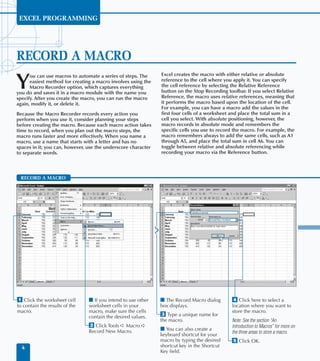
 RECORD A MACRO


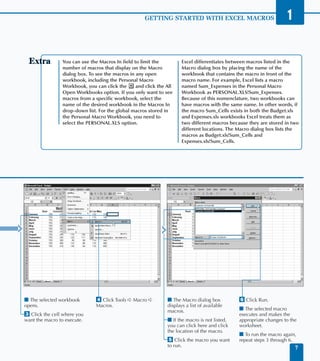
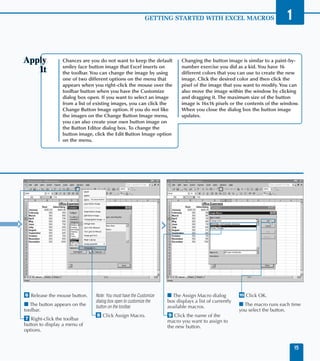
⁄ Click the worksheet cell      I If you intend to use other   I The Record Macro dialog      › Click here to select a
to contain the results of the   worksheet cells in your        box displays.                  location where you want to
macro.                          macro, make sure the cells                                    store the macro.
                                contain the desired values.    ‹ Type a unique name for
                                                               the macro.                     Note: See the section “An
                                ¤ Click Tools ➪ Macro ➪                                       Introduction to Macros” for more on
                                Record New Macro.              I You can also create a
                                                               keyboard shortcut for your     the three areas to store a macro.
                                                               macro by typing the desired    ˇ Click OK.
  4                                                            shortcut key in the Shortcut
                                                               Key field.
GETTING STARTED WITH EXCEL MACROS             1
                                         When you create a new macro, you have the option
                                         of assigning it to a keyboard shortcut by typing the
                                         shortcut in the Keyboard Shortcut box on the Record
                                         Macro dialog box. When you do this, the macro runs
                                         when you press the Ctrl key and the specified
                                         lowercase key simultaneously. If you specify an
                                         uppercase letter for the key, you can run the macro by
                                         pressing Ctrl+Shift+the specified key. Unfortunately,
                                         Excel does not stop you from creating shortcuts that
                                         override other predefined Excel shortcut keys. If you
                                         specify a shortcut key combination that matches a
                                         Microsoft Excel shortcut, your new shortcut overwrites
                                         it; each time you press the shortcut keys, your macro —
                                         not the Microsoft key combination — runs. For
                                         example, the Save command shortcut is Ctrl+s. If you
                                         create a macro with a shortcut key of s, your macro
                                         runs instead of the Save command when you press
                                         Ctrl+s. Excel does use many of the available shortcut
                                         keys, so you are bound to overwrite one. Keep in
                                         mind that if you use an Excel shortcut, you do not
                                         want to create a macro shortcut that overwrites it.


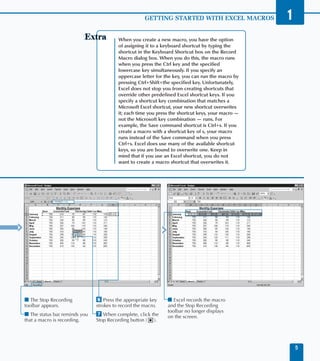
I The Stop Recording           Á Press the appropriate key     I Excel records the macro
toolbar appears.               strokes to record the macro.    and the Stop Recording
                                                               toolbar no longer displays
I The status bar reminds you   ‡ When complete, click the      on the screen.
that a macro is recording.     Stop Recording button (    ).


                                                                                                       5
EXCEL PROGRAMMING


RUN A MACRO
                                                                When you create a macro, Excel stores it in one of three

E
     xcel allows you to run macros in a worksheet that
     exists either in the current workbook or in any other      locations, the current workbook, a new workbook, or the
     Excel workbook. However, you can only run a macro          Personal Macro Workbook. Excel opens the Personal Macro
from any other workbook as long as you have the                 Workbook as a hidden file each time you run Excel, and
corresponding workbook open within Excel. When you run          makes all macros you store there available to run with any
a macro, Excel re-creates the recorded steps that you           workbook. If you store a macro in a separate workbook,
performed to create it, or it runs the VBA code that you        you must open the workbook containing the macro in
created in the Visual Basic Editor. See the section “Record a   Excel. You can learn more about creating a macro in the
Macro” to learn how to record a macro and Chapter 3 for         section “Record a Macro.”
more information on the Visual Basic Editor.
                                                                To run a macro from another workbook, you must have a
You select macros to run from the Macro dialog box, which       macro from a signed source, or you must set your macro
lists all currently available macros. Available simply means    security to either Medium or Low. The default macro
that Excel can locate the macro in an open workbook.            security level, High, requires that all macros from other
Because Excel only knows about macros in open                   sources be signed. Setting your macro security to Medium
workbooks, you must open the workbook containing the            or Low lets you run unsigned macros. See section “Set
macro you want to run.                                          Macro Security” for more information about macro security.


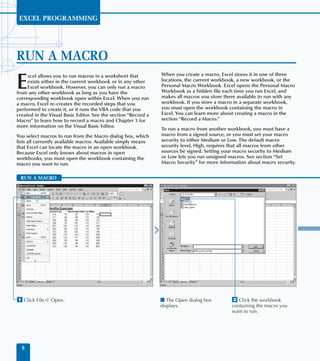
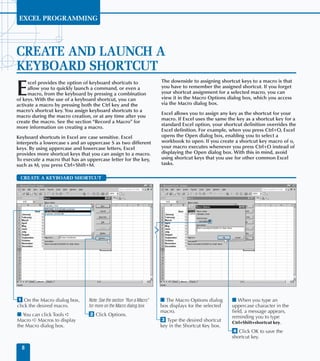
 RUN A MACRO


⁄ Click File ➪ Open.                                            I The Open dialog box         ¤ Click the workbook
                                                                displays.                     containing the macro you
                                                                                              want to run.


  6
GETTING STARTED WITH EXCEL MACROS                                1

                 You can use the Macros In field to limit the          Excel differentiates between macros listed in the
                 number of macros that display on the Macro            Macro dialog box by placing the name of the
                 dialog box. To see the macros in any open             workbook that contains the macro in front of the
                 workbook, including the Personal Macro                macro name. For example, Excel lists a macro
                 Workbook, you can click the      and click the All    named Sum_Expenses in the Personal Macro
                 Open Workbooks option. If you only want to see        Workbook as PERSONAL.XLS!Sum_Expenses.
                 macros from a specific workbook, select the           Because of this nomenclature, two workbooks can
                 name of the desired workbook in the Macros In         have macros with the same name. In other words, if
                 drop-down list. For the global macros stored in       the macro Sum_Cells exists in both the Budget.xls
                 the Personal Macro Workbook, you need to              and Expenses.xls workbooks Excel treats them as
                 select the PERSONAL.XLS option.                       two different macros because they are stored in two
                                                                       different locations. The Macro dialog box lists the
                                                                       macros as Budget.xls!Sum_Cells and
                                                                       Expenses.xls!Sum_Cells.


I The selected workbook         › Click Tools ➪ Macro ➪         I The Macro dialog box          Á Click Run.
opens.                          Macros.                         displays a list of available
                                                                macros.                         I The selected macro
‹ Click the cell where you                                                                      executes and makes the
want the macro to execute.                                      I If the macro is not listed,   appropriate changes to the
                                                                you can click here and click    worksheet.
                                                                the location of the macro.
                                                                                                I To run the macro again,
                                                                ˇ Click the macro you want      repeat steps 3 through 6.
                                                                to run.                                                     7
EXCEL PROGRAMMING


CREATE AND LAUNCH A
KEYBOARD SHORTCUT
                                                                      The downside to assigning shortcut keys to a macro is that

E
     xcel provides the option of keyboard shortcuts to
     allow you to quickly launch a command, or even a                 you have to remember the assigned shortcut. If you forget
     macro, from the keyboard by pressing a combination               your shortcut assignment for a selected macro, you can
of keys. With the use of a keyboard shortcut, you can                 view it in the Macro Options dialog box, which you access
activate a macro by pressing both the Ctrl key and the                via the Macro dialog box.
macro’s shortcut key. You assign keyboard shortcuts to a
                                                                      Excel allows you to assign any key as the shortcut for your
macro during the macro creation, or at any time after you
                                                                      macro. If Excel uses the same the key as a shortcut key for a
create the macro. See the section “Record a Macro” for
                                                                      standard Excel option, your shortcut definition overrides the
more information on creating a macro.
                                                                      Excel definition. For example, when you press Ctrl+O, Excel
Keyboard shortcuts in Excel are case sensitive. Excel                 opens the Open dialog box, enabling you to select a
interprets a lowercase s and an uppercase S as two different          workbook to open. If you create a shortcut key macro of o,
keys. By using uppercase and lowercase letters, Excel                 your macro executes whenever you press Ctrl+O instead of
provides more shortcut keys that you can assign to a macro.           displaying the Open dialog box. With this in mind, avoid
To execute a macro that has an uppercase letter for the key,          using shortcut keys that you use for other common Excel
such as M, you press Ctrl+Shift+M.                                    tasks.

 CREATE A KEYBOARD SHORTCUT


                                                                                             T


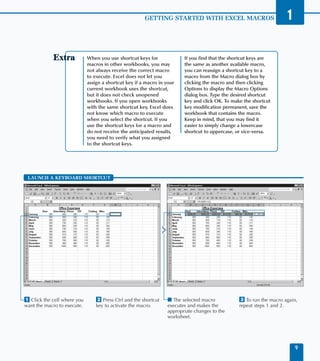
⁄ On the Macro dialog box,      Note: See the section “Run a Macro”   I The Macro Options dialog      I When you type an
click the desired macro.        for more on the Macro dialog box.     box displays for the selected   uppercase character in the
                                                                      macro.                          field, a message appears,
I You can click Tools ➪         ¤ Click Options.                                                      reminding you to type
Macro ➪ Macros to display                                             ‹ Type the desired shortcut     Ctrl+Shift+shortcut key.
the Macro dialog box.                                                 key in the Shortcut Key box.
                                                                                                      › Click OK to save the
                                                                                                      shortcut key.

  8
GETTING STARTED WITH EXCEL MACROS                               1

                             When you use shortcut keys for             If you find that the shortcut keys are
                             macros in other workbooks, you may         the same as another available macro,
                             not always receive the correct macro       you can reassign a shortcut key to a
                             to execute. Excel does not let you         macro from the Macro dialog box by
                             assign a shortcut key if a macro in your   clicking the macro and then clicking
                             current workbook uses the shortcut,        Options to display the Macro Options
                             but it does not check unopened             dialog box. Type the desired shortcut
                             workbooks. If you open workbooks           key and click OK. To make the shortcut
                             with the same shortcut key, Excel does     key modification permanent, save the
                             not know which macro to execute            workbook that contains the macro.
                             when you select the shortcut. If you       Keep in mind, that you may find it
                             use the shortcut keys for a macro and      easier to simply change a lowercase
                             do not receive the anticipated results,    shortcut to uppercase, or vice-versa.
                             you need to verify what you assigned
                             to the shortcut keys.


 LAUNCH A KEYBOARD SHORTCUT


                                                                                        T


⁄ Click the cell where you       ¤ Press Ctrl and the shortcut   I The selected macro           ‹ To run the macro again,
want the macro to execute.       key to activate the macro.      executes and makes the         repeat steps 1 and 2.
                                                                 appropriate changes to the
                                                                 worksheet.


                                                                                                                            9
EXCEL PROGRAMMING


DELETE A MACRO FROM A WORKBOOK
                                                                the workbook. You cannot see hidden workbooks when

Y
        ou can remove macros from any workbook to reduce
        your list of available macros. Similar to cleaning a    you view the available workbooks in a folder. A good
        closet, you want to eliminate the stuff you no longer   example of a hidden workbook is the Personal Macro
need.                                                           Workbook, which loads automatically when you run Excel.

When you delete a macro, Excel removes the actual macro         To delete a macro that you store in the Personal Macro
without affecting any changes previously applied to the         Workbook, you need to perform different steps. See the
workbook with that macro. For example, if you use the           section “Delete From the Personal Macro Workbook” for
macro to sum a series of cells, the sum remains the same        more information on working with the Personal Macro
when you delete the macro. Excel immediately applies the        Workbook or any other hidden workbook.
macro changes to the worksheet and then no longer relies
                                                                Remember that you cannot undo the deletion process. If you
on it to maintain any future changes you make.
                                                                delete the wrong macro, you can only restore it by recording
To delete a macro, you must open the workbook containing        it again. If you do not want to recreate an unintentionally
the macro because you can only see macros within open           deleted macro, try closing the workbook without saving it
workbooks in Excel.                                             and then reopen the workbook. This eliminates any changes
                                                                made since your last save, and restores any deleted macros.
You use the steps in this section to store your macro in        Of course, you lose any other changes you made to the
unhidden workbooks. If you can open the workbook with           workbook if you close without saving.
the Open command on the File menu, Excel does not hide

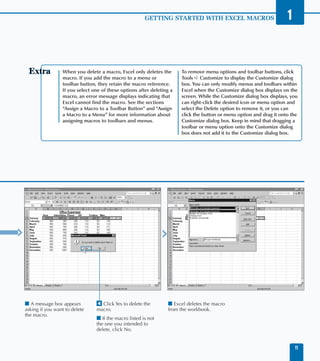
 DELETE A MACRO FROM A WORKBOOK


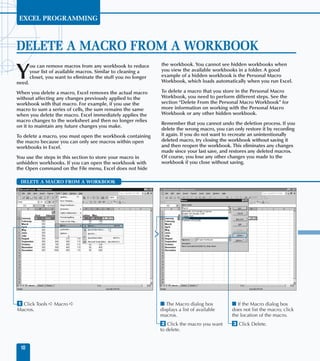
                                                                             Macro1


                                                                                         T


⁄ Click Tools ➪ Macro ➪                                         I The Macro dialog box         I If the Macro dialog box
Macros.                                                         displays a list of available   does not list the macro, click
                                                                macros.                        the location of the macro.
                                                                ¤ Click the macro you want     ‹ Click Delete.
                                                                to delete.


 10
GETTING STARTED WITH EXCEL MACROS                              1


                 When you delete a macro, Excel only deletes the       To remove menu options and toolbar buttons, click
                 macro. If you add the macro to a menu or              Tools ➪ Customize to display the Customize dialog
                 toolbar button, they retain the macro reference.      box. You can only modify menus and toolbars within
                 If you select one of these options after deleting a   Excel when the Customize dialog box displays on the
                 macro, an error message displays indicating that      screen. While the Customize dialog box displays, you
                 Excel cannot find the macro. See the sections         can right-click the desired icon or menu option and
                 “Assign a Macro to a Toolbar Button” and “Assign      select the Delete option to remove it, or you can
                 a Macro to a Menu” for more information about         click the button or menu option and drag it onto the
                 assigning macros to toolbars and menus.               Customize dialog box. Keep in mind that dragging a
                                                                       toolbar or menu option onto the Customize dialog
                                                                       box does not add it to the Customize dialog box.


                                                                                      T


I A message box appears         › Click Yes to delete the        I Excel deletes the macro
asking if you want to delete    macro.                           from the workbook.
the macro.
                                I If the macro listed is not
                                the one you intended to
                                delete, click No.


                                                                                                                          11
EXCEL PROGRAMMING


DELETE FROM THE PERSONAL
MACRO WORKBOOK
                                                                 command.” By default, Excel does not allow you to delete

Y
      ou can delete macros that you no longer use from the
      Personal Macro Workbook. The Personal Macro                macros out of hidden workbooks. Because Excel hides the
      Workbook stores macros that you want to make               Personal Macro Workbook, you cannot delete the macros in
available to all workbooks. Excel creates the Personal Macro     it without first unhiding the workbook using the Excel
Workbook when you store your first macro in it. After Excel      Unhide command.
creates the Personal Macro Workbook, the workbook opens
                                                                 After you delete the macro from the workbook, make sure
as a hidden file whenever you run Excel. You can only tell
                                                                 that you hide the workbook again. If you do not hide the
that a hidden file exists by viewing the Macro dialog box,
                                                                 Personal Macro Workbook again, the workbook appears as an
where Excel lists the macros used by the Personal Macro
                                                                 open workbook. Because you only use this workbook for
Workbook.
                                                                 storing globally used macros, you do not want to make other
Excel stores the Personal Macro Workbook as a file named         types of modifications to it. By hiding it, you keep it out of the
Personal.xls with a typical path of C:documents and settings   way and eliminate the possibility of having unwanted changes
user_nameApplication DataMicrosoftExcelXLSTART folder.       made to it.

If you try to delete a macro out of the Personal Macro           You can also use the Visual Basic Editor to remove macros
Workbook from the Macro dialog box, Excel displays a             from the Personal Macro Workbook. See Chapter 2 for
message box with the message, “Cannot edit a macro in a          more information about removing macros using the Visual
hidden workbook. Unhide the workbook using the Unhide            Basic Editor.

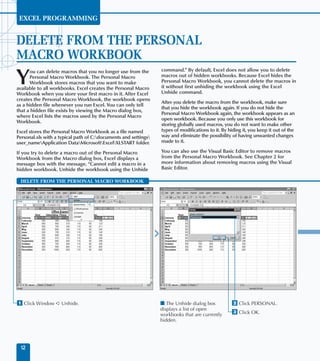
 DELETE FROM THE PERSONAL MACRO WORKBOOK


                                                                               PERSONAL


                                                                                          T


⁄ Click Window ➪ Unhide.                                         I The Unhide dialog box           ¤ Click PERSONAL.
                                                                 displays a list of open
                                                                 workbooks that are currently      ‹ Click OK.
                                                                 hidden.


  12
GETTING STARTED WITH EXCEL MACROS                           1

                                Typically, you do not share the Personal Macro Workbook with other users.
                                Excel creates a different Personal Macro Workbook for each username on a
                                machine. If you have multiple users on your computer with different
                                usernames, Excel creates a different Personal Macro Workbook for each
                                user. You can share a Personal Macro Workbook between different users,
                                even on the same computer, by copying the workbook. You can use the
                                Windows Explorer and copy the workbook from one user to another if you
                                want to make the macros in that workbook available to other users. To do
                                so, make sure you copy the PERSONAL.XLS file to the C:documents and
                                settingsuser_nameApplication DataMicrosoftExcelXLSTART folder from
                                the user workbook you want to share to each user’s corresponding folder.
                                Keep in mind, you can only have one PERSONAL.XLS file for each user. If a
                                user already has a Personal Macro Workbook, you can overwrite it with the
                                new one. Of course, if you overwrite an existing Personal Macro Workbook,
                                Excel no longer makes any macros you store in the workbook available. To
                                eliminate potential problems you should rename the existing workbook so
                                that a user can still access it if necessary.


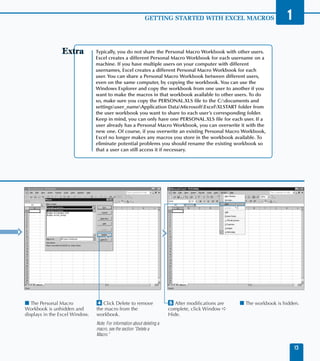
                                                                                      PERSONAL


I The Personal Macro            › Click Delete to remove                 ˇ After modifications are   I The workbook is hidden.
Workbook is unhidden and        the macro from the                       complete, click Window ➪
displays in the Excel Window.   workbook.                                Hide.
                                Note: For information about deleting a
                                macro, see the section “Delete a
                                Macro.”

                                                                                                                             13
EXCEL PROGRAMMING


ASSIGN A MACRO TO A TOOLBAR BUTTON
                                                                Macro Workbook stores commonly used macros, and opens

Y
      ou can assign any macro to an Excel toolbar. Excel
      uses toolbars to provide quick access to commonly         as a hidden file each time you run Excel. Excel always keeps
      used commands. You can make macros more                   the Personal Macro Workbook open and, therefore, makes
accessible by creating a button on a toolbar to execute a       any macros you have in the Workbook always available for
macro. By doing this, you also do not have to remember the      use by other workbooks that you open. For more on macro
shortcut key that launches the macro. If you create a macro     storage, see the section “An Introduction to Macros.”
toolbar button, each time you want to run the macro, you
                                                                You can add buttons to any of the existing Excel toolbars, or
simply Click the appropriate button.
                                                                you can create new toolbars for your buttons. By creating a
When you add a button to a toolbar, it remains on that          separate toolbar for your macros you keep your custom
toolbar for all the workbooks you open in Excel. In other       macros together in one location and you avoid ruining
words, even if the active workbook does not have access to      existing toolbars. You can select the toolbars to display in
the macro because you closed the corresponding                  Excel on the Customize dialog box. Of course, you need to
workbook, the Toolbar button still displays. For that reason,   display a toolbar in Excel before you can add buttons to it.
you should assign a macro that exists in your Personal          You also display the Customize dialog box to add buttons to
Macro Workbook to a toolbar button to make the macro            toolbars.
available from all workbooks. Remember that the Personal

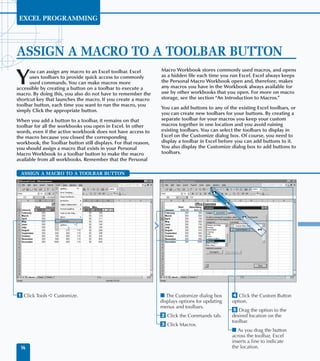
 ASSIGN A MACRO TO A TOOLBAR BUTTON


                                                                                     Macros


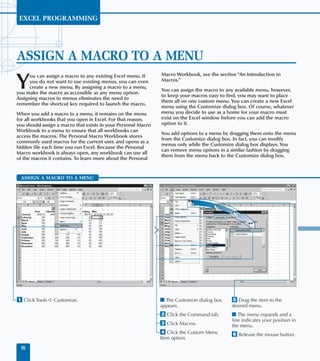
⁄ Click Tools ➪ Customize.                                      I The Customize dialog box      › Click the Custom Button
                                                                displays options for updating   option.
                                                                menus and toolbars.
                                                                                                ˇ Drag the option to the
                                                                ¤ Click the Commands tab.       desired location on the
                                                                                                toolbar.
                                                                ‹ Click Macros.
                                                                                                I As you drag the button
                                                                                                across the toolbar, Excel
                                                                                                inserts a line to indicate
  14                                                                                            the location.
GETTING STARTED WITH EXCEL MACROS                                    1

                 Chances are you do not want to keep the default          Changing the button image is similar to a paint-by-
                 smiley face button image that Excel inserts on           number exercise you did as a kid. You have 16
                 the toolbar. You can change the image by using           different colors that you can use to create the new
                 one of two different options on the menu that            image. Click the desired color and then click the
                 appears when you right-click the mouse over the          pixel of the image that you want to modify. You can
                 toolbar button when you have the Customize               also move the image within the window by clicking
                 dialog box open. If you want to select an image          and dragging it. The maximum size of the button
                 from a list of existing images, you can click the        image is 16x16 pixels or the contents of the window.
                 Change Button Image option. If you do not like           When you close the dialog box the button image
                 the images on the Change Button Image menu,              updates.
                 you can also create your own button image on
                 the Button Editor dialog box. To change the
                 button image, click the Edit Button Image option
                 on the menu.


Á Release the mouse button.    Note: You must have the Customize   I The Assign Macro dialog          ‚ Click OK.
                               dialog box open to customize the    box displays a list of currently
I The button appears on the    button on the toolbar.              available macros.                  I The macro runs each time
toolbar.                                                                                              you select the button.
                               ° Click Assign Macro.               · Click the name of the
‡ Right-click the toolbar                                          macro you want to assign to
button to display a menu of                                        the new button.
options.


                                                                                                                                   15
EXCEL PROGRAMMING


ASSIGN A MACRO TO A MENU
                                                               Macro Workbook, see the section “An Introduction to

Y
      ou can assign a macro to any existing Excel menu. If
      you do not want to use existing menus, you can even      Macros.”
      create a new menu. By assigning a macro to a menu,
                                                               You can assign the macro to any available menu, however,
you make the macro as accessible as any menu option.
                                                               to keep your macros easy to find, you may want to place
Assigning macros to menus eliminates the need to
                                                               them all on one custom menu. You can create a new Excel
remember the shortcut key required to launch the macro.
                                                               menu using the Customize dialog box. Of course, whatever
When you add a macro to a menu, it remains on the menu         menu you decide to use as a home for your macro must
for all workbooks that you open in Excel. For that reason,     exist on the Excel window before you can add the macro
you should assign a macro that exists in your Personal Macro   option to it.
Workbook to a menu to ensure that all workbooks can
                                                               You add options to a menu by dragging them onto the menu
access the macros. The Personal Macro Workbook stores
                                                               from the Customize dialog box. In fact, you can modify
commonly used macros for the current user, and opens as a
                                                               menus only while the Customize dialog box displays. You
hidden file each time you run Excel. Because the Personal
                                                               can remove menu options in a similar fashion by dragging
Macro workbook is always open, any workbook can use all
                                                               them from the menu back to the Customize dialog box.
of the macros it contains. To learn more about the Personal


 ASSIGN A MACRO TO A MENU


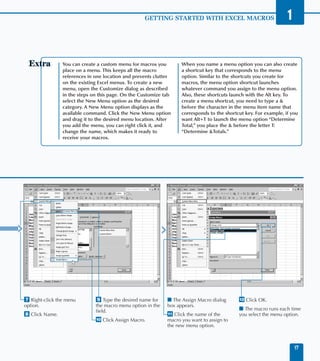
⁄ Click Tools ➪ Customize.                                     I The Customize dialog box    ˇ Drag the item to the
                                                               appears.                      desired menu.
                                                               ¤ Click the Command tab.      I The menu expands and a
                                                                                             line indicates your position in
                                                               ‹ Click Macros.               the menu.
                                                               › Click the Custom Menu       Á Release the mouse button.
                                                               Item option.
  16
GETTING STARTED WITH EXCEL MACROS                               1

                You can create a custom menu for macros you        When you name a menu option you can also create
                place on a menu. This keeps all the macro          a shortcut key that corresponds to the menu
                references in one location and prevents clutter    option. Similar to the shortcuts you create for
                on the existing Excel menus. To create a new       macros, the menu option shortcut launches
                menu, open the Customize dialog as described       whatever command you assign to the menu option.
                in the steps on this page. On the Customize tab    Also, these shortcuts launch with the Alt key. To
                select the New Menu option as the desired          create a menu shortcut, you need to type a &
                category. A New Menu option displays as the        before the character in the menu item name that
                available command. Click the New Menu option       corresponds to the shortcut key. For example, if you
                and drag it to the desired menu location. After    want Alt+T to launch the menu option “Determine
                you add the menu, you can right click it, and      Total,” you place the & before the letter T:
                change the name, which makes it ready to           “Determine &Totals.”
                receive your macros.


                                                                                Change Font


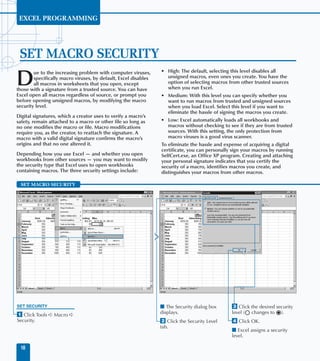
‡ Right-click the menu        · Type the desired name for    I The Assign Macro dialog        ± Click OK.
option.                       the macro menu option in the   box appears.
                              field.                                                          I The macro runs each time
° Click Name.                                                — Click the name of the          you select the menu option.
                              ‚ Click Assign Macro.          macro you want to assign to
                                                             the new menu option.


                                                                                                                       17
EXCEL PROGRAMMING


 SET MACRO SECURITY
                                                                 • High: The default, selecting this level disables all

D
        ue to the increasing problem with computer viruses,
        specifically macro viruses, by default, Excel disables     unsigned macros, even ones you create. You have the
        all macros in worksheets that you open, except             option of selecting macros from other trusted sources
those with a signature from a trusted source. You can have         when you run Excel.
Excel open all macros regardless of source, or prompt you        • Medium: With this level you can specify whether you
before opening unsigned macros, by modifying the macro             want to run macros from trusted and unsigned sources
security level.                                                    when you load Excel. Select this level if you want to
                                                                   eliminate the hassle of signing the macros you create.
Digital signatures, which a creator uses to verify a macro’s
safety, remain attached to a macro or other file so long as      • Low: Excel automatically loads all workbooks and
no one modifies the macro or file. Macro modifications             macros without checking to see if they are from trusted
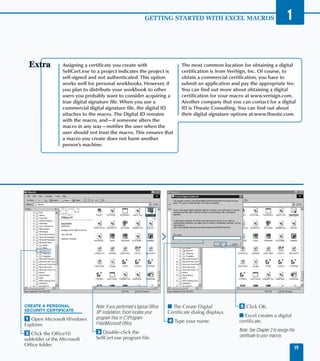
require you, as the creator, to reattach the signature. A          sources. With this setting, the only protection from
macro with a valid digital signature confirms the macro’s          macro viruses is a good virus scanner.
origins and that no one altered it.                              To eliminate the hassle and expense of acquiring a digital
                                                                 certificate, you can personally sign your macros by running
Depending how you use Excel — and whether you open               SelfCert.exe, an Office XP program. Creating and attaching
workbooks from other sources — you may want to modify            your personal signature indicates that you certify the
the security type that Excel uses to open workbooks              security of a macro, identifies macros you create, and
containing macros. The three security settings include:          distinguishes your macros from other macros.

 SET MACRO SECURITY


SET SECURITY                                                     I The Security dialog box      ‹ Click the desired security
                                                                 displays.                      level („ changes to ´).
⁄ Click Tools ➪ Macro ➪
Security.                                                        ¤ Click the Security Level     › Click OK.
                                                                 tab.
                                                                                                I Excel assigns a security
                                                                                                level.

  18
GETTING STARTED WITH EXCEL MACROS                                      1

                 Assigning a certificate you create with                        The most common location for obtaining a digital
                 SelfCert.exe to a project indicates the project is             certification is from VeriSign, Inc. Of course, to
                 self-signed and not authenticated. This option                 obtain a commercial certification, you have to
                 works well for personal workbooks. However, if                 submit an application and pay the appropriate fee.
                 you plan to distribute your workbook to other                  You can find out more about obtaining a digital
                 users you probably want to consider acquiring a                certification for your macro at www.verisign.com.
                 true digital signature file. When you use a                    Another company that you can contact for a digital
                 commercial digital signature file, the digital ID              ID is Thwate Consulting. You can find out about
                 attaches to the macro. The Digital ID remains                  their digital signature options at:www.thwate.com.
                 with the macro, and—if someone alters the
                 macro in any way—notifies the user when the
                 user should not trust the macro. This ensures that
                 a macro you create does not harm another
                 person’s machine.


                                                               SELFCERT


CREATE A PERSONAL               Note: If you performed a typical Office   I The Create Digital           ˇ Click OK.
SECURITY CERTIFICATE            XP installation, Excel locates your       Certificate dialog displays.
                                program files in C:Program                                              I Excel creates a digital
⁄ Open Microsoft Windows                                                  › Type your name.              certificate.
Explorer.                       FilesMicrosoft Office.
                                ‹ Double-click the                                                       Note: See Chapter 2 to assign the
¤ Click the Office10                                                                                     certificate to your macros.
subfolder of the Microsoft      SelfCert.exe program file.
Office folder.
                                                                                                                                             19
EXCEL PROGRAMMING


AN INTRODUCTION TO THE
VISUAL BASIC EDITOR
                                                                                  project information. The Visual Basic Editor remembers the

Y
      ou write Visual Basic Applications, or VBA code,
      required to create complex macros, using the Visual                         window locations you set up each time you open it. By
      Basic Editor (VBE), acessible via all Microsoft Office                      default, not all windows display when you initially open the
applications, including Excel. Arranged in a series of                            Visual Basic Editor, but you can select the windows you
windows, which you can move around with your mouse to                             want to view from the View menu.
obtain the desired development layout, the VBE contains

 VIEW OF THE VISUAL BASIC EDITOR


                                                                 OBJECT LIST BOX
                                                                 Lists objects associated
                                                                 with the selected project.
   PROJECT EXPLORER                                                                                               PROCEDURE LIST BOX
   WINDOW                                                                                                         Lists the procedures
                                Microsoft Visual Basic - PERSONAL.XLS

   Displays the list of the                                                                                       associated with the
   open projects and                                                                                              selected object.
                                                         PERSONAL.XLS - Module1 (Code)
   corresponding modules,
   objects, and forms, using
   nodes to represent each
   item type.                                                                                                     CODE WINDOW
                                                                                                                  Displays the VBA source
                                                                                                                  code in the selected module.


  PROPERTIES
  WINDOW
                                                                                                                  IMMEDIATE WINDOW
  Displays properties for the
  currently selected object.                                                                                      Provides immediate results
                                                                                                                  for statements typed in
                                                                                                                  the window.

                                     LOCALS WINDOW                                        WATCHES WINDOW
                                     Shows values of local                                Shows the set watches
                                     variables during debugging.                          during debugging.


 20
USING THE VISUAL BASIC EDITOR                          2
NODES OF THE VBE PROJECT WINDOW

  The Project Explorer window, or Project window,              for each workbook that opens in Excel. Because the
  resembles the treelike structure used by the Windows         Personal Macro Workbook also opens when you run
  Explorer folders pane. The Visual Basic Editor refers to     Excel, you see it listed as one of the open projects in the
  each entry in the Projects window as a node. The top         Project Explorer. Each project has three nodes
  nodes, which display in bold, represent the Excel VBA        containing project elements:
  projects currently open. Excel opens a new VBA project

  Microsoft Excel Objects                                      Forms
  This folder contains a node for each sheet within the        This folder node displays only if you create custom
  selected workbook. Each sheet node represents either a       forms for the specific project. If so, Excel creates a node
  worksheet or a chart sheet. When you double-click a          for each form in the selected project. Forms are also
  particular node, the corresponding code module opens.        refered to as UserForms or custom dialog boxes. You
  You can place independent procedures within a specific       can create custom forms or dialog boxes that resemble
  sheet module, but typically, these procedures are placed     the dialog boxes used throughout Excel. Macros use
  in the standard modules. You can place code that             these forms to enable the user to interact with the
  triggers upon the occurence of a specific event, such as     macro. See Chapter 13 for more information about
  opening a workbook, in the ThisWorkbook node.                creating custom forms.

  Modules
  The Project Explorer lists a node for each module within     corresponding workbook. You can add other modules
  the project. Modules contain general procedures, either      within the Visual Basic Editor, as outlined later in this
  functions or subroutines. Excel creates a new module         chapter. Not all modules contain macros that are visible
  for a project each time you add a new macro to the           within Excel. You can create hidden procedures that are
                                                               called by other functions and subroutines.


PROPERTIES WINDOW


  The Properties window displays the properties for the        To change the properties for an object, you simply click
  selected object. If you select a module in the Project       the property and make the desired changes. Some
  Explorer, the only properties you see in the Properties      property fields, such as Name, require you to type a
  window is the module name. If you select a specific sheet,   value. Other fields have drop-down lists where you can
  however, you can view and modify properties for a sheet      select the appropriate value. If you find that you cannot
  such as whether page breaks display.                         change its property, it is probably read-only and you
                                                               cannot modify it.


VBE AND INTELLISENSE TECHNOLOGY


  To make adding VBA code easier, the Visual Basic Editor      from which to select. You can select from this list by
  uses Microsoft’s IntelliSense technology, which helps        clicking the selection with the mouse. Any property or
  you find the properties and methods for the objects you      method that you select appears in your code in the
  use in your macro scripts. As you type the name of an        Code window.
  object, a list of available properties and objects display


                                                                                                                             21
EXCEL PROGRAMMING


ACTIVATE THE VISUAL BASIC EDITOR
                                                                     in the Code window. When you select the Visual Basic Editor

Y
      ou can only run the Visual Basic Editor from a
      Microsoft Office application. The Visual Basic Editor          directly, however, the Project Explorer highlights the name of
      provides the ability to create and modify Excel macros         the current project, which is the name of the workbook
using Visual Basic for Applications, or VBA. You can activate        open in Excel. You can select a specific module in a project
the Visual Basic Editor by editing a macro that you recorded         by double-clicking the module node in the Project Explorer.
with the Macro Recorder, or you can open the editor                  To learn more about nodes and the structure of the Project
directly from the Tools menu via the Visual Basic Editor             Explorer, see the section, “An Introduction to the Visual Basic
option. Whether you create a macro using the Macro                   Editor.”
Recorder or in the Visual Basic Editor, you write all source
                                                                     Keep in mind that if the Personal Macro Workbook,
code using VBA. Of course, with the Macro Recorder, Excel
                                                                     Personal.xls, contains macros, the project for the
takes the key strokes that you record and converts them all
                                                                     Personal.xls project always opens when you access the
to VBA.
                                                                     Visual Basic Editor. Although the Personal Macro Workbook
When you open the Visual Basic Editor, the Project Explorer,         is hidden within Excel, in the Visual Basic Editor you can
if displayed, indicates your location within the project. If you     view and modify all macros in the Personal Macro
open an existing macro from the Macro dialog box within              Workbook.
Excel, the Project Explorer highlights the corresponding
                                                                     See Chapter 3 for more information on using Visual Basic
module in the tree and the VBA code for the macro appears
                                                                     for Applications (VBA).
 ACTIVATE THE VISUAL BASIC EDITOR


                       Macro


                                  Visual Basic Editor


                                                           Alt=F11   (Name)


OPEN THE VBE USING THE MENU                                          I The Visual Basic Editor
                                                                     displays with the window
⁄ Click Tools ➪ Macro ➪                                              layout you last used.
Visual Basic Editor.


 22
USING THE VISUAL BASIC EDITOR                                2
            To make the
                                                     SHORTCUT KEY         DESCRIPTION
            Visual Basic
            Editor easier to                         F7                   Switches to the Code window for the selected object (node) in the
            navigate,                                                     Project Explorer. If the Code window for that object is not open, it
            Microsoft                                                     opens and displays on top of any other code windows.
            provides different                       F4                   Switches to the Property window and displays the properties for
            shortcut keys.                                                the selected object. If the Property window is not open, the Visual
            These shortcuts                                               Basic Editor opens it in the location where you last viewed it.
            work when the                            Ctrl+R               Switches to the Project Explorer. If the Project Explorer window is
            Visual Basic                                                  not open, the Visual Basic Editor opens it in the location where you
            Editor window                                                 last viewed it.
            has focus. A                             Alt+F11              Toggles between the Visual Basic Editor and Excel. This shortcut is
            window has focus                                              useful when you step through a macro. See Chapter 8 for more
            when it is the                                                information on stepping through a macro to debug it.
            selected window.
                                                     F1                   Displays online help on the item selected in the Code window.
            For example, you
            can only type text                       Shift+F2             Displays a definition of the selected function or subroutine in the
            in the selected                                               Code window.
            window.


                  PERSONAL.XLS!Calculate_Expenses

                  PERSONAL.XLS!Calculate_Expenses


                                                                                     (Name)


OPEN THE VBE FROM THE                               ¤ Click to highlight the        I The Visual Basic Editor          I The module containing the
MACRO DIALOG BOX                                    macro you want to modify.       displays the code for the          macro is highlighted in the
                                                                                    selected macro in the Code         Properties window.
⁄ Open the Macro dialog                             ‹ Select Edit.                  window.
box by clicking Tools ➪
Macro ➪ Macros.


                                                                                                                                                 23
EXCEL PROGRAMMING


ARRANGE THE VISUAL BASIC
EDITOR WINDOWS
      he Visual Basic Editor contains several different           window from the menu, it displays in the location where

T     windows that you use when developing macros.
      Although Microsoft provides a basic window setup,
like most development environments, you can customize
                                                                  you last placed it. In other words, if you placed the Project
                                                                  Explorer window in the upper-left corner during your last
                                                                  session, that window reopens in that same location.
this setup by rearranging, resizing, removing, and adding
windows. The most commonly used windows are the                   You can move windows using the standard drag-and-drop
Project Explorer, the Properties window, and the Code             features inherent to Microsoft Windows. You can also resize
window. You may also find the Immediate window useful             the windows via the edges of the window.
for quickly testing a statement before adding it to your
code. You can only access some windows, such as the               You can also attach windows to specific locations of the
Toolbar and UserForm windows, from specific locations,            Visual Basic Editor by using the docking feature. When you
such as when you create a userform.                               dock a window, it becomes part of another window
                                                                  attached at the specified location. Keep in mind that
You can select which windows display and the locations            docking a window does not mean that the window always
where they display. The View menu lists the available Visual      displays in the Visual Basic Editor. If you set a window to
Basic Editor windows. For example, you can only view the          dock, Excel docks in the location you specified each time it
Toolbox from a UserForm window. When you select a                 displays. You can only dock the windows on the top,
                                                                  bottom, left edge or right edge of the Visual Basic Editor.
  ARRANGE THE VISUAL BASIC EDITOR WINDOWS


         Immediate Window Ctrl+G


(Name)                                                            (Name)


SELECT THE DISPLAYED               ¤ Click the menu option for    I The selected window           I You can click and drag the
WINDOWS                            the window to display within   displays in the last            window to a new location.
⁄ Click View.                      the Visual Basic Editor.       viewed location.
                                                                                                  I You can close a window
I The View menu lists the                                                                         by clicking the Close
available windows for the                                                                         button ( ).
selected window.

  24
USING THE VISUAL BASIC EDITOR                        2
               The number of windows you can open within the         If you have a large high-resolution monitor, you
               Visual Basic Editor depends on the resolution of      may want to consider sizing the Visual Basic Editor
               your monitor. The higher your monitor resolution,     and Excel windows so that you can see both
               the more viewing space you have available. When       simultaneously. You can accomplish this by sizing
               writing code for your macro, you typically need to    the Excel window to fit on the top half of the
               have only the Properties window, the Project          screen and then sizing the Visual Basic Editor for
               Explorer window, and the corresponding code           the bottom half. This set up works well for
               module window open.                                   stepping through the execution of the macro to
                                                                     see the results, as described in Chapter 8,
                                                                     “Debugging Macros.”
                                                                     If you cannot fit both applications on your
                                                                     monitor effectively, you can switch between the
                                                                     two by using the Alt+F11 shortcut.
                                                                     You can move windows around in the Visual Basic
                                                                     Editor with the same techniques you use with all
                                                                     Microsoft Windows programs. To move a window,
                                                                     click the title bar and drag it to the desired
                                                                     location. To resize a window, click a corner of the
                                                                     window and drag it to the desired size.


                       Options


DOCK INDIVIDUAL WINDOWS          ‹ Click the windows you      ˇ Dock the window by             I Excel moves the window
                                 want to dock (   changes     clicking and dragging it to an   to its new location. You
⁄ Click Tools ➪ Options.         to ).                        edge.                            cannot place other windows
I The Options dialog box                                                                       on top of a docked window.
displays.                        › Click OK to close the
                                 Options dialog box.
¤ Click the Docking tab.

                                                                                                                       25
EXCEL PROGRAMMING


SET PROPERTIES FOR A PROJECT
     ou can set the properties, such as the project name          you have several different workbooks open simultaneously.

Y    and the lock status of a project, for each project that
     you view in the Visual Basic Editor. When you lock a
project, the project is password protected so that only
                                                                  For example, you can change the project name to match
                                                                  the name of the corresponding workbook.

people who know the password can view and modify the              If you plan to distribute your workbook to other users, you
contents of the project. You set both the project name and        may want to consider password protecting your projects. If
password information in the Project Properties dialog box.        a project is password protected, the user must specify the
                                                                  password in order to view or modify any portion of the
Excel considers each open workbook a project when you             project. This step can help protect macro code that you do
access the Visual Basic Editor. By default, the Visual Basic      not want others to view or modify. Password protecting the
Editor gives each project the name of VBA Project                 project does not affect the way the corresponding
(WorkbookName), but you can customize the name of the             workbook behaves within Excel, but it effectively keeps
project, if desired, within the Visual Basic Editor. Doing this   others from viewing your macro source.
can help distinguish between different projects, especially if


 SET PROPERTIES FOR A PROJECT


                           VBAProject Properties. . .

                                                                                                   VBAProject
   VBAProject (PERSONAL.
                                                                           VBAProject (PERSONAL.


                                                                  (Name)


CHANGE A PROJECT NAME                                             I The Project Properties                      › Click OK.
                                                                  dialog box displays.
⁄ Click Tools ➪ VBAProject                                                                                      I The project name changes
Properties.                                                       ¤ Click the General tab.                      within the Project Explorer
                                                                                                                window.
                                                                  ‹ Type the desired name for
                                                                  the project.


 26
USING THE VISUAL BASIC EDITOR                               2

                   If you have multiple workbooks open in Excel,              You can change the name of the copied module on
                   you can copy modules and UserForms between                 the Properties window. To do so, you type a new
                   them by using the Project Explorer window. To              name in the Name field and then press Enter. The
                   copy an object, click the desired object and drag          Name of the module changes on the corresponding
                   it to another workbook. When you release the               node in the Project Explorer window.
                   mouse button, the Visual Basic Editor creates a
                   copy of the selected module in the specified
                   project. By default, the Visual Basic Editor names
                   the copied module the same as the module in
                   the original project. When you copy an object to
                   another project, if one already exists with that
                   name, the Visual Basic Editor renames the object
                   by adding a 1 to the end of the name. For
                   example, if you copy Module2 to a different
                   project and that project contains a Module2
                   object, the copied object name becomes
                   Module21. If you have a Module 21, the Visual
                   Basic Editor names the copied object Module 22.


(Name)                                                              (Name)


LOCK PROJECT FROM EDITING         ‡ Type the password               OPEN A LOCKED PROJECT                   ± Click the locked project.
                                  required to unlock the project.
ˇ Click the Protection tab.                                         ‚ Close the Visual Basic                I A Password dialog box
                                  ° Type the password again.        Editor.                                 displays.
Á Click the Lock project for
viewing option (    changes       · Click OK.                       — Open the Visual Basic                 ¡ Type the password.
to ).                                                               Editor.
                                  I Excel applies your settings                                             ™ Click OK.
                                                                    Note: See the section "Activate the
                                                                                                            I Excel opens the project.
                                                                    Visual Basic Editor" to open the VBE.
                                                                                                                                      27
EXCEL PROGRAMMING


SET DISPLAY OPTIONS FOR
THE CODE WINDOW
      ou can modify the display settings for the text that       you use a fixed-width font such as the Courier New font,

Y     displays on the Code window in the Visual Basic
      Editor. You can change the text color, font type, and
font size for the text that displays in the Code window. You
                                                                 the default font. This type of font is preferable because the
                                                                 characters in the code align vertically, making it easier to
                                                                 detect any spacing problems with the code.
can not only specify the text color but also the background
color. Just like any basic editor, the Code window has           The Margin Indicator Bar check box indicates whether a
predefined formatting for the type of text that displays in      vertical indicator bar displays in the margin when you debug
the window. For example, there is a definition for               your code. Make sure that this option remains selected,
comments and a different definition for normal text. You         because it helps to quickly spot the appropriate line of code
may not, however, always find these settings the most            when debugging. The Visual Basic Editor places symbols in
appealing. Fortunately, the Visual Basic Editor lets you         the vertical indicator bar to indicate errors and break points.
customize the text settings for the Code window.                 See Chapter 8 for more information on debugging.

For font styles, the Visual Basic Editor enables you to select   As you make changes to the font settings for each of the
from the fonts installed on your machine. When dealing           formatting types, a sample of the font selections displays on
with source code (VBA), you may find code easier to read if      the Editor Format tab.

  SET DISPLAY OPTIONS FOR THE CODE WINDOW


                         Options. . .


                                                                                  Normal Text


(Name)                                                           (Name)


⁄ Click Tools ➪ Options                                          I The Options dialog box         › Click the     and click the
                                                                 displays.                        desired font.
                                                                 ¤ Click the Editor Format        ˇ Click the     and click the
                                                                 tab.                             font size.
                                                                 ‹ Click the type of text for
                                                                 which you want to change
                                                                 the settings.
  28
USING THE VISUAL BASIC EDITOR                               2
                 You can use the Editor tab, which contains six different
                 check boxes, to specify the settings for the Code window
                 and change the behavior of your code.

                   OPTION                 FUNCTION
                   Auto Syntax Check      Allows the VBE to check the syntax of each line of code after you type it.
                   Require Variable       Requires explicit variable declarations within all modules by adding the option
                   Declaration            Explicit statement to the top of all new modules that you create. See Chapter 3 for
                                          information on variable declaration.
                   Auto List Member       Reminds you of the next logical value for completing the current statement. As you
                                          type your code, a list displays based upon the current insertion point.
                   Auto Quick Info        Displays information about functions and their parameters as you type.
                   Auto Data Tips         For debugging code: The current value of the variable displays when you place your
                                          cursor over the variable while in Break mode. See Chapter 8 for more information
                                          about debugging your VBA code.
                   Auto Indent            This option tabs to the first line of code. After you set a tab location, all following
                                          lines start at the same tab location. You specify the width of the tabs in the Tab
                                          Width field. You can make a tab between 1 and 32 spaces wide.


                 Normal Text


                 Auto


(Name)


Á Click the    and click the     I The settings display in the      I The text in the Code              I You can make
color you want to use as the     Sample box.                        window changes to reflect           modifications to additional
font color.                                                         your modifications.                 font settings by repeating
                                 ° Click OK to close the                                                steps 1 through 8.
‡ Click the   and click a        Options dialog box.
background color option.


                                                                                                                                    29
EXCEL PROGRAMMING


ADD A NEW MODULE
     ou can create new code modules directly within the        As you add new modules to a project, Excel gives them the

Y    Visual Basic Editor. VBA uses modules to store variable
     declarations and all procedures, including functions
and subroutines. Whenever you create a new macro using
                                                               name Module#. The Visual Basic Editor assigns the number
                                                               to the macro, sequentially increasing the number by one
                                                               each time you add a macro. For example, the Visual Basic
the Macro Recorder, Excel generates a new module within        Editor names the first module in the project Module1, the
the corresponding project to house the new macro. Excel        second Module2, and so on.
places the macro code in a subroutine with the same name
as the macro. See Chapter 3 for more information on            The Project Explorer lists all of the modules within a specific
procedures, including functions and subroutines.               project. When you add a new module, Excel selects that
                                                               module on the Project Explorer and creates a blank Code
You do not need to rely on Excel to create the new modules     window.
for your macros because you can create them directly
within the Visual Basic Editor. After creating a module, you   You do not have to create a new module for each
can create a subroutine within the module and add the          procedure that you add to a workbook. You can add
desired code so that the Macro dialog box lists your macro     multiple procedures to the same module, if desired.
within Excel. Of course, in order for Excel to make the
macro visible, you must create a public subroutine. See
Chapter 3 for more information about working with
subroutines.

  ADD A NEW MODULE


                    Module


         Module 1


                                                                        Module 2


(Name)


                                                               (Name)


⁄ Click the project where                                      I Excel creates a blank Code
you want to add a new                                          window.
module.
¤ Click Insert ➪ Module.


  30
USING THE VISUAL BASIC EDITOR                           2
                                              You can easily change the name of a module
                                              within the Visual Basic Editor. When you create a
                                              new module, the Visual Basic Editor automatically
                                              names the module Module# with the number
                                              sequentially following the last module you
                                              created. For example: Module1, Module2, etc.. If
                                              you have a project with several different modules,
                                              it becomes difficult to distinguish one module
                                              from another without reviewing the source code.
                                              You can name modules so they are easier to
                                              distinguish. You do so by assigning the name of
                                              the main subroutine of function in the module as
                                              the module name. This allows you to quickly
                                              determine which module contains the desired
                                              macro. The name of the macro changes on the
                                              Properties window. To change the name, simply
                                              change the value in the Name field on the
                                              Properties window for the module that you have
                                              selected in the Project Explorer. As soon as you
                                              press Enter, the name of the module changes on
                                              the corresponding node on the Project Explorer
                                              window.


                                                                                         Display Message


(Name)


‹ Type Sub NewSubroutine              › Type the code for               ‡ Display the Macro                I The Macro dialog box lists
replacing NewSubroutine               your macro.                       dialog box.                        all existing macros including
with the name of the new                                                                                   the one created within the
subroutine.                           ˇ Type End Sub.                   I The Macro dialog box             Visual Basic Editor.
                                                                        displays when you click Tools
Note: See Chapter 3 for information   Á Click the View Microsoft        ➪ Macro ➪ Macros.
                                      Excel button (   ) to switch to
on creating subroutines.
                                      Excel.
                                                                                                                                    31
EXCEL PROGRAMMING


REMOVE A MODULE
     ou can remove modules from the Visual Basic Editor       you can reload it again, either in the same project or a

Y    rather quickly. As you work within the Visual Basic
     Editor, you may find that you have modules that you
want to remove from a selected project. Typically, you
                                                              different project. If you do not export the module to a file
                                                              before deleting it, you cannot restore it later. Even if you
                                                              do not intend to use the module again, to make sure that
delete modules that contain subroutines and functions that    you do not cause problems with other procedures or
you no longer need for your project.                          subroutines in the project, again, you should save the
                                                              module to a file before deleting it. After you ensure that
When you remove a module that contains code for a macro       everything works, you can delete the exported file. When
used within Excel, remember that you can no longer access     you export the module to a file, the Visual Basic Editor saves
the macro. Also, if you remove a module that contains code    this module in a .bas file that you can import back into a
referenced by a procedure in another module, including an     project again at any time.
Excel macro, an error message displays when you run the
code in the other module. To avoid error messages, you        When you delete macros within Excel, Excel removes the
may want to consider saving the module to another file        corresponding VBA subroutine code. If the only code
before you delete it.                                         contained in the VBA module is the Excel macro, Excel
                                                              removes the entire module.
When you remove a module, the Visual Basic Editor
provides the opportunity to export the module to a file so

  REMOVE A MODULE


     Remove Module2 . . .


           Module2


(Name)                                                        (Name)


⁄ In the Project Explorer,      ¤ Click File ➪ Remove         I The Visual Basic Editor       I If you click No, the Visual
click to highlight the module   ModuleName where Module       displays a message to verify    Basic Editor removes the
that you want to remove.        Name is the name of the       the delete selection.           module permanently.
                                selected module.
I If the Project Explorer is                                  ‹ Click Yes to save the
not displayed, you can          I The Remove command          module to a file.
summon it by clicking           always contains the name of
View ➪ Project Explorer.        the selected module.

  32
USING THE VISUAL BASIC EDITOR                            2
                 When you export a copy of a module to a file,           You do not need to delete a module to save it as a
                 you can import it into any workbook. You can            file. If you want to share your code with other Excel
                 insert exported modules that Excel creates              macro developers, you can simply export the
                 during the delete process into a project at any         module to a file that you can distribute. To export
                 time by clicking File ➪ Import File. You do not         a macro you again select the module containing
                 have to import the module back into the original        the macro and then click File ➪ Import File.
                 project; you can insert it into any project. On
                 the Import File dialog box, you highlight the
                 appropriate module file to import and click
                 Open. All VBA module files have the extension
                 .bas. When you import a module file, the Visual
                 Basic Editor tries to assign it the same name as
                 the original module. If a module already exists
                 with that name, the Visual Basic Editor adds 1 to
                 the end of the module name. Therefore, if you
                 named the original module Module1 and a
                 Module1 exists in the project, Excel names the
                 imported module Module11.


(Name)                                                          (Name)


› Select the folder in which    ˇ Type a name for the           I The Visual Basic Editor
you want to save the            module code in the File         removes the module from the
module code.                    name field.                     project.
                                Á Click Save.


                                                                                                                            33
EXCEL PROGRAMMING


RENAME A MACRO
     ou can very easily rename a macro that you created                  Excel uses to run the macro. From Excel you can accomplish

Y    either with the Macro Recorder or in the Visual Basic
     Editor. Doing so, however, does require accessing the
actual macro code within the Visual Basic Editor.
                                                                         this for nonhidden workbooks via Edit on the Macro dialog
                                                                         box to display the corresponding subroutine.

                                                                         You can also rename a macro in the Personal Macro
When you create a macro in Excel using the Macro                         Workbook within the Visual Basic Editor. Because Excel
Recorder, Excel automatically writes the code for the macro              opens the Personal Macro Workbook as a hidden file, the
in Visual Basic for Applications (VBA). When you create a                steps to rename the macro are slightly different from a
macro using the Macro Recorder, the only way that you can                regular macro. Essentially, the difference centers on how
make changes to the macro code, or the macro name, is by                 you access the macro code. Excel does not allow you to edit
modifying the VBA code for the macro using the Visual                    a macro in the Personal Macro Workbook from the Macro
Basic Editor.                                                            dialog box. To modify a macro in the Personal Macro
                                                                         Workbook you must access the Visual Basic Editor directly
To rename the desired macro, you need to open the Visual                 and then make modifications to the corresponding module
Basic Editor and change the name of the subroutine that                  in the Personal.xls project.


 RENAME A MACRO


                 Calculate Total


                                                                         (Name)


RENAME A MACRO VIA THE             Note: See Chapter 1 for information   I The Visual Basic Editor        › Close the Visual Basic
MACRO DIALOG BOX                                                         displays the source code for     Editor.
                                   on opening the Macro dialog box.
⁄ In the Macro dialog box,         ¤ Click Edit.
                                                                         the selected macro.
                                                                                                          I The name of the macro
click the macro you want to                                              ‹ After the Sub keyword,         changes in the Macro dialog
rename.                                                                  type the new macro name.         box.
                                                                         Note: See Chapter 3 for more
                                                                         information about subroutines.
 34
USING THE VISUAL BASIC EDITOR                         2

                  When you change the name of a macro, Excel               Because the name of the macro changes, you may
                  updates the Macro dialog box, but it does not            also want to change the name of the toolbar button
                  update toolbar buttons and menu options that             or menu option to correspond to the macro name.
                  refer to the macro. Because you changed the name         To do this, you need to change the value of the
                  of the macro, you need to change the macro               Name field on the Customize menu. You can also
                  reference for each item to continue using the same       change the hot key reference for the macro by
                  button or menu option to reference the macro. To         typing & in front of the hot key for the macro.
                  change the macro reference for these items, click
                  Tools➪Customize to display the Customize dialog,
                  and then right-click the menu option or toolbar
                  button to display a menu of options. Click the
                  Assign Macro option to display the Assign Macro
                  dialog box. On this dialog box, click to highlight
                  the name of the macro that you want to use for
                  the corresponding toolbar button or menu option,
                  and then click OK.


                       Macro


                                Visual Basic Editor   Alt+F11


                                                                  (Name)


RENAME A MACRO IN THE            I The Visual Basic Editor       ¤ Click the PERSONAL.XLS          ˇ Close the Visual Basic
PERSONAL MACRO WORKBOOK          displays the source code for    project.                          Editor.
⁄ Click Tools ➪ Macro ➪          the current workbook.
                                                                 ‹ Click the module                I The name of the macro
Visual Basic Editor.                                             containing the macro you          changes in the Macro dialog
                                                                 want to modify.                   box.
                                                                 › After the Sub keyword,
                                                                 type the new macro name.
                                                                                                                              35
EXCEL PROGRAMMING


CREATE A STARTUP MACRO
      ou can easily create macros that execute whenever        By creating a macro that sets the toolbars that you want to

Y     you open a specific workbook in Excel. If you want the
      macro to execute every time you run Excel, you can
place the macro in the Personal Macro Workbook. Of
                                                               view, Excel opens these same toolbars and places them in
                                                               the same location each time you run Excel.

course, this type of macro executes only once, which makes     The simplest method for creating this type of macro is to
it best suited for steps that you perform each time you run    place the macro in the Personal Macro Workbook. Because
Excel.                                                         Excel loads the Personal Macro Workbook each time you
                                                               run it, the macro you create executes when Excel opens
A startup macro works great for setting the basic layout of    because that is when the workbook opens. You need to
your Excel window, such as the toolbars that you want to       make the macro a part of the Personal Macro Workbook as
display and the desired locations. When it comes to the        well as a part of the ThisWorkbook object.
window layout, Excel always opens with the settings you
used the last time you ran it. Therefore, any toolbars that    You must name the macro that you create Workbook_Open.
you closed during the last session are closed when you         If you have a macro with this name, Excel knows that
open Excel again.                                              whenever the object — the corresponding workbook —
                                                               opens, the macro needs to run. See Chapter 4 for more
                                                               information about Excel objects.


 CREATE A STARTUP MACRO


                   Macro

                                Record New Macro . . .


⁄ Click Tools ➪ Macro ➪                                        I The Record Macro dialog      ‹ Click the     and then
Record New Macro.                                              box displays.                  click This Workbook location
                                                                                              in the Store macro in field.
                                                               ¤ Type Workbook_Open in
                                                               the Macro Name field.          › Click OK to record the
                                                                                              macro.


 36
USING THE VISUAL BASIC EDITOR                          2
                      Instead of copying the macro code to the                When you create a Workbook_Open macro, you
                      ThisWorkbook object , you can create a macro in         actually create a subroutine that captures the Open
                      the ThisWorkbook object code module that calls          event for the corresponding Workbook object.
                      the macro code in the appropriate code module.          Events occur in Excel whenever anything occurs,
                      For example, if you have a subroutine in a              whether initiated by you or the application. You can
                      module called SetToolbars that you recorded             capture many different events to trigger specific
                      with the Macro Recorder, you can create another         code. See Chapter 15 for more detailed information
                      subroutine called Workbook_Open() in the                on working with Excel events.
                      ThisWorkbook object that calls the recorded
                      macro, as shown in the following sample code.

                     Example:
                     Sub Workbook_Open()
                            Call SetToolbars
                     End Sub

                      From the Workbook_Open() subroutine, you
                      can call any other procedure within the same
                      workbook project. To call another procedure, you
                      need to use the Call statement before the name
                      of the procedure you want to call. When Excel
                      executes the main procedure, if it encounters a
                      Call statement it executes that procedure and
                      returns to the main procedure.


(Name)                                                               (Name)


ˇ Open the Visual Basic               ‡ Double-click the last        ‚ Double-click the                 ± Click the Paste button ( ).
Editor.                               module in the list.            ThisWorkbook object on the
                                                                     tree in the Project Explorer       ¡ Close the Visual Basic
Note: See the section "Activate the   ° Highlight the entire         under PERSONAL.XLS.                Editor.
Visual Basic Editor" to open the      macro code from Sub
                                      Workbook_Open() to the         — Place the cursor in the          I When you open Excel
editor.                                                                                                 again, the Workbook_Open
                                      End Sub command.               Code window for the selected
Á Click the current project.                                         object, under any existing         macro runs and executes the
                                      · Click the Copy button ( ).   macros.                            specified code.
                                                                                                                                37
EXCEL PROGRAMMING


HIDE A MACRO
      ou can hide macros so that they do not appear on the   Editor and place the Private statement in front of the Sub

Y     Macro dialog box in Excel. If you create workbooks
      that you intend to share with other users, you may
find that you want to hide specific macros within your
                                                             statement for the subroutine. For example, you type the
                                                             following to hide a ChangeText subroutine: Private Sub
                                                             ChangeText().
workbook. This can help to ensure that an unknowing user
does not inadvertently delete the macro from your            Keep in mind that hiding a macro does not prevent users
workbook.                                                    from viewing or modifying it in the Visual Basic Editor. If
                                                             you want to keep another user from accessing the macro,
Because Excel cannot execute a hidden macro from the         you need to lock the project containing the macro by
Macro dialog box, the only method of execution for a         changing the properties of the project. See the section “Set
hidden macro involves assigning a toolbar button or menu     Properties for a Project” for more details on specifying the
option. When you hide a macro, shortcut keys no longer       project properties. Locking the project prevents a user from
execute the macro. If you do not assign the macro to a       viewing and modifying all the VBA code within that project
toolbar button or menu option, Excel cannot execute the      in the Visual Basics Editor. To open the project, the user
macro.                                                       must specify the correct password. Although locking a
                                                             project prevents user accessiblity, Excel can still execute any
If you want to hide a macro, you need to open the module     macros within the project.
containing the corresponding macro within the Visual Basic

 HIDE A MACRO


                   Macro       Macros . . .   Alt+F8


                                                                                 ThisWorkbook.Workbook Open


⁄ Click Tools ➪ Macro                                        I The Macro dialog box                           ¤ Click the macro that you
➪ Macros.                                                    displays a list of available                     want to hide.
                                                             macros.
                                                                                                              ‹ Click Edit.


 38
USING THE VISUAL BASIC EDITOR                            2

                 You should hide macros that are called by other      To make a hidden macro visible again, you need to
                 macros if you do not want the macros to execute      access the module containing the corresponding
                 alone from the Macro dialog box. For example, if     subroutine within the Visual Basic Editor and delete
                 you have a macro named ChangeCells that calls        the Private statement in front of the Sub
                 another macro named AddCellValues, you can           statement. Because you cannot access a hidden
                 hide the AddCellValues macro so that a user          macro from the Macro dialog box, the only way to
                 cannot select that macro from the Macro dialog       access the Visual Basic Editor is to click Tools ➪
                 box. When you mark a procedure as private by         Macro ➪ Visual Basic Editor.
                 placing the Private statement in front of the
                 Sub statement for the subroutine, you can only
                 access the subroutine within the same code
                 module. In other words, you must place the
                 subroutine that corresponds to the macro calling
                 the hidden macro within the same code module
                 as the hidden macro. See the sections “Create a
                 Subroutine” and “Create a Function” for more
                 information on using the Private statement.


                                                                                 Calculate_Total
                                                                                 Calculate_Total


(Name)


I The Visual Basic Editor      › Type Private before the       Á Open the Macro dialog             I The macro no longer
opens and displays the         Sub statement.                  box.                                displays on the Macro dialog
module containing the macro                                                                        box.
you selected.                  ˇ Close the Visual Basic
                               Editor.


                                                                                                                           39
EXCEL PROGRAMMING


ASSIGN A DIGITAL SIGNATURE TO A MACRO
    ou can assign a digital signature to any of your macros.               No matter how you acquire a digital signature, it does not

Y   You attach signatures to code in a macro, or file, to
    signify that the code is valid and that no one has
modified it since you applied the signature.
                                                                           do you any good until you attach it to a macro. Attaching a
                                                                           digital signature is similar to sealing an envelope: If it arrives
                                                                           sealed, no one has tampered with the contents. Keep in
                                                                           mind that the digital signature stays attached to the macro
You can create two types of digital signatures: certified                  only until someone modifies it. Excel even removes the
digital signatures and personal digital signatures. You                    digital signature if you modify the VBA code. Therefore, if
acquire certified digital signatures from commercial                       you make any modifications at all to the macro code, you
agencies, such as VeriSign, Inc. The signatures of choice                  need to re-attach the digital signature.
when you distribute your code to other users, commercial
agencies require you to pay a fee to obtain them. You can                  If you are not sure whether you have modified a macro
also create your own personal digital signature, but Excel                 since attaching the digital signature, you can check to see if
does not consider this type of signature certified. Personal               the signature is attached in the Digital Signature dialog box.
digital signatures work well for indicating that no one has                If a digital signature is attached, the name of the signature
altered the macro since you assigned the signature, but they               displays in the Certificate Name field.
do not certify it like the ones you acquire from a
commercial agency. For more on creating a personal digital
signature, see Chapter 1.


   ASSIGN A DIGITAL SIGNATURE TO A MACRO


                          Digital Signature . . .


(Name)


                                                                                                                       Choose


⁄ Click the module that                        I The macro code displays   I The Digital Signature           ‹ Click Choose.
contains the macro you want                    in the Code window.         dialog box indicates whether
to sign.                                                                   you have a digital signature
                                               ¤ Click Tools ➪ Digital     certificate currently assigned
                                               Signature.                  to the selected macro.


   40
USING THE VISUAL BASIC EDITOR                           2
                                      When a worksheet containing a signed macro loads, you
                                      can specify that you want to always trust macros from
                                      that source by clicking the Always trust macros from this
                                      source option ( changes to ). If you select this
                                      option, Excel saves the name of the trusted source in the
                                      Trusted Sources tab of the Security dialog box. You can
                                      view the list of your current trusted sources by clicking
                                      Tools➪Macro➪Security to display the Security dialog
                                      box and then select the Trusted Sources tab.
                                      If at any time you no longer want to trust macros from
                                      a source listed on the Trusted Sources tab, you simply
                                      highlight the name of the source and click Remove. If
                                      you remove the source from the list, the next time you
                                      open a workbook with that source Excel prompts you
                                      to see if you want to open macros from that source.
                                      Also on the Trusted Source tab you have two other
                                      options. To have Excel also warn you before opening
                                      installed add-ins and templates, remove the check mark
                                      for the Trust all installed add-ins and templates check
                                      box. To allow Excel to access all macros with your
                                      project without warning you, select Trust access to
                                      Visual Basic Project.


(Name)


I The Select Certificate        ˇ Click OK.                     ‡ Close the workbook in           I Depending upon the type
dialog box displays a list of                                   Excel.                            of certificate loaded, you
available digital signature     Á Click OK in the Digital                                         see a message indicating
certificates.                   Signature dialog box to save    ° Reopen the workbook             that Excel is loading a
                                the settings.                   containing the macro.             signed macro.
› Click the desired
certificate.
                                                                                                                               41
EXCEL PROGRAMMING


UPDATE A RECORDED MACRO
      ou can update macro code at any time by adding or         For example, if you create a macro to sum a column of

Y     removing VBA code. Of course, after you record a
      macro, you can record over the top of it to replace it,
but you cannot modify it directly within Excel. The only
                                                                values but forget to change the formatting of the column to
                                                                Currency, you can record a second macro in Excel that
                                                                formats the column and then add that source to the first
method you can use to actually modify the macro code is to      macro. After you do this, you open the Visual Basic Editor
change the corresponding subroutine within the Visual           and copy the formatting code of the second macro and
Basic Editor. If you do not know how to read and write VBA      paste it into the subroutine for the first macro. Keep in
code required for the step you want to add to the macro,        mind, however, that when you copy the code, you only
this can become quite an undertaking.                           want to copy the portion of the subroutine between the
                                                                Sub and the End Sub statements.
Typically, modifying a macro, even one you create with the
Macro Recorder, requires manually specifying the new VBA        When you copy the code from the new macro into the old
code you want to add to the macro. A quick and dirty            macro, you should delete the new macro. You can find out
method for updating a macro involves recording another          more about deleting macros in Chapter 1.
macro containing the steps you want to add to the first one,
and then using Copy and Paste buttons within the Visual
Basic Editor to add the new steps to the old macro.


 UPDATE A RECORDED MACRO


      Format Currency


                                                                (Name)


⁄ On the Macro dialog box,      I To open the Macro dialog      I The Visual Basic Editor       › Continue pressing the Shift
click to the macro that         box click Tools ➪ Macro ➪       displays the code for the       key and click the end of the
contains the source you want    Macros.                         selected macro.                 source to copy.
to add to the original macro.
                                ¤ Click Edit.                   ‹ Press the Shift key and       I Excel highlights the code
                                                                click the start of the source   between the Sub and
                                                                you want to copy.               End Sub statements.
                                                                                                ˇ Click the Copy button ( ).
 42
USING THE VISUAL BASIC EDITOR                          2
                            When you view the VBA code for your           Example:
                            macro, you may notice that a single           Private Sub add()
                            quote (‘) precedes several lines. Called      ‘
                            comment lines, programmers use these          ‘ add Macro
                            lines to provide information about the        ‘ Macro recorded 5/19/2001 by
                            code such as what the code does,                 Jinjer Simon
                            when it was created, or even who              ‘
                            coded it. When you use the Macro              ‘ Keyboard Shortcut: Ctrl+d
                            Recorder to create a macro, by default        ‘
                            Excel adds several comment lines.                  ActiveCell.FormulaR1C1 =
                                                                             “=SUM(RC[-6]:RC[-1])”
                            These comment lines always indicate
                            the name of the macro, the creation           End Sub
                            date, and the programmer. If the
                            programmer creates a keyboard
                            shortcut for the macro, the comments
                            contain this information as well.
                            Making modifications to the comment
                            lines does not affect the macro
                            execution. In fact, Excel ignores any
                            line of text or code preceded by a
                            single quote when the macro executes.


                                                                             Format Currency


(Name)


Á In the Project Explorer          I You may need to insert a          ‚ In the Macro dialog box,        ± Close the Macro dialog
click the module that              blank line.                         click the second-to-last macro.   box.
contains the code for the
macro you want to update.          ° Click the Paste button ( ).       — Click Delete to remove          I When you run the macro,
                                                                       the macro.                        Excel executes the original
‡ Place the cursor between         · Close the Visual Basic                                              and copied code.
the last line of code and the      Editor.
End Sub command.

                                                                                                                                  43
EXCEL PROGRAMMING

AN INTRODUCTION TO VBA
                                                                   development, VBA is actually much more powerful than just

Y
      ou use the Visual Basic for Applications (VBA)
      programming language to create all macros within             a macro language.
      Excel. Although most people use VBA for macro

UNDERSTAND THE VB/VBA RELATIONSHIP

     A member of the Visual Basic (VB) family, VBA sits            consider VBA an interpreted language because as it
     between Visual Basic and VBScript as far as overall           runs, the environment in which it runs interprets the
     functionality. Amazingly enough, VBA actually provides        code to determine what to do next.
     a large portion of the language elements that VB uses,        Microsoft Office XP provides VBA in all its applications.
     including forms, controls, objects, modules, and data-        Many non-Microsoft applications also use VBA, as the
     access technologies. The code for the three languages         platform for developing code that interfaces with the
     resemble each other so much that you may find it              object model for the specific application. By interfacing
     difficult to differentiate between VB, VBA, and VBScript      with the application object model, VBA can manipulate
     when looking at a line of code.                               different objects directly, such as changing the value in
     One of the big differences between VB and VBA                 a cell within Excel. You interface with the particular
     programs is the fact that VBA code runs within the host       application object mode by writing macros, but you
     environment, which means that VBA code for Excel              can also use VBA to develop applications that interface
     runs within Excel. Also, VBA code is interpreted as it        with the corresponding Microsoft application. Each
     runs, which means that each line converts to machine          Microsoft Office XP application has its own object
     code prior to execution. VB code, on the other hand,          model for interfacing with the program functionality.
     compiles into an executable file that runs independent        See Chapter 4 for more on the Excel object model.
     of any other applications. Therefore, programmers


COMPARING VBA TO OTHER MACRO LANGUAGES


     To call VBA a macro language, severely limits your            Because VBA replaced XLM, the original macro language
     understanding of its overall capability. VBA actually has     of Excel, developers commonly refer to it as a macro
     many features lacking in other macro languages.               language. Although the book uses VBA only to work
     Historically strong in their ability to capture a series of   with Excel macro concepts, you should know that you
     keystrokes to repeat simple tasks, many macro                 have the option of using it for application development.
     languages types of macros lack the capability of              Such application development, however, is limited to the
     creating conditional statements or conditionally              Microsoft Office program environment, in which VBA
     repeating a series of steps.                                  runs.


UNDERSTANDING VBA TERMINOLOGY

     The remaining chapters in this book deal with the             to a macro. To perform the tasks, you need to grasp the
     basics of the VBA language in respect to Excel macros         common VBA terminology that this book utilizes.
     and how you can use VBA to add complex functionality

     User-Defined                                                   Example:
     You create user-defined data types as a combination of          Type BookReview
     standard VBA data types.                                             Title as String
                                                                          Pages as Byte
     You can review Chapter 5 to learn about the process of               ReviewDate as Date
     creating a User-Defined data type for your macros.              End Type


44
VBA PROGRAMMING BASICS                       3
UNDERSTANDING VBA TERMINOLOGY (CONTINUED)

  Data Types                                                 Numeric
  A Data Type refers to how VBA stores data in memory.       VBA provides several different numeric data types,
  VBA provides an assortment of built-in data types that     depending upon the type of numeric value you want to
  you can use to handle your macro data, along with          save.
  user-defined data types that you create.
                                                             VBA provides three different integer data types. Integers
  In VBA, you do not specify the type of data you store in   are numeric values that do not include a decimal portion
  a variable when you declare it. You can enable VBA to      of the value. VBA uses three different types of floating-
  automatically determine the data type, but this can        point data. The one you select depends upon the size of
  slow down your code for large macros.                      the numeric values you want to store in the variable. The
                                                             following table lists VBA floating-point values:
  The size of a data type refers to the number of bytes it
  takes to store it. A byte is a group of bits, with a bit    DATA TYPE     BYTES        RANGE OF VALUES
  being the smallest storage unit and having a binary
  value or either 1 or 0. Realizing the number of bytes       Single        4            -3.402823E38 to -1.401298E-45
  you require to store a data type can help you use                                      for negative values
  memory more efficiently. Keep storage issues in mind                                   1.401298E-45 to 3.40283E38
  when you create complex macros.                                                        for positive values
  The following table lists the various data types for VBA    Double        8            -1.79769313486232E308 to -
  integers.                                                                              4.94065645841247E-324
                                                                                         for negative values
   DATA TYPE     BYTES RANGE OF VALUES
                                                                                         4.94065645841247E-324 to
   Byte          1        0 to 255                                                       1.79769313486232E308 for
   Integer       2        -32,768 to 32,767                                              positive values

   Long          4        -2,147,483,648 to 2,147,483,647     Currency                   8-922,337,203,685,477.5808 to
                                                                                         922,337,203,685,477.5807


  Object                                                     Boolean
  You use the Object data type to define a variable as       You use a Boolean data type to store a value of True or
  one of the objects that are part of the Excel Object       False. A Boolean data type takes two bytes of data
  Model. These data types are 4 bytes in size.               storage. Programmers use Boolean data when working
                                                             with logical data. VBA predefines the keywords True
  Excel provides an abundance of objects, including the      and False as Boolean values. To assign them to a
  Workbook, Window, Chart, and PivotTable. You can           variable, you simply specify the value BoolValue =
  assign each of the objects that the Excel Object Model     True.
  provides as a data type.
  For example:                                               You should not use quotes when assigning a Boolean
  Dim chrt as Chart                                          value. When you place quotes around the word True,
  Dim sheet1 as Worksheet                                    VBA treats the variable as a string instead of a Boolean
                                                             value.
  For more information on objects, see Chapter 4.

  Date                                                       The Date data type is an 8-byte values that stores as a
  The Date data type provides the ability to store dates     decimal numbers. Because Dates are numeric,
  and times so that you can use them in calculations.        calculations can use them.
  VBA accepts a date range from January 1, 100 to            When you specify dates and times in VBA, you enclose
  December 31, 9999. Unfortunately, the date range           them in pound signs instead of the quotation marks
  within Excel is much smaller — January 1, 1900 to          used by strings.
  December 31, 9999. If you place a date value in an         Const StartDate As Date = #6/12/2001#
  Excel worksheet that is outside this date, Excel
  produces an error message.


                                                                                                                         45
EXCEL PROGRAMMING


AN INTRODUCTION TO VBA
UNDERSTANDING VBA TERMINOLOGY (CONTINUED)


     String                                                       To declare a fixed-length string, you need to specify
     You can use a string data type to store a sequence of        the string length as part of the definition. When you
     characters. A string can contain any combination of          declare a string length, the string is always that size,
     letters, numbers, punctuation marks, and spaces. In          even if you assign a smaller string to it. For example,
     order for VBA to recognize the start and stop of your        you declare a string of 25 characters as follows:
                                                                  Dim FixedString As String * 25
     string you must enclose it in quotes, for example:
     SampleString = "This is a sample"                            Variable-length strings have no length specified:
                                                                  Dim VarString As String
     You can declare strings in one of two different types:
     variable length and fixed length. As the names state,
     you declare fixed-length strings with a maximum
     number of characters, and variable-length strings with
     as many as 2 billion characters.

     Variant
     Variant data type is the default data type used by VBA.      VBA to determine the data type, variants work best
     Because a variant can contain any type of data, VBA          when you use them for values that you cannot type
     treats all variables you do not assign a data type as        with the standard VBA data types. The following table
     variants. But because of the processing required by          lists VBA variant data types:

     DATA TYPE         BYTES                    RANGE OF VALUES
     Decimal           14                       +/-79,228,162,514,264,337,593,543,950,335 with no decimal point or +/-
                                                7.9228162514264337593543950335 with 28 places to the right of the decimal
     Variant           16                       -1.79769313486232E308 to -4.94065645841247E-324 (with numbers) for
                                                negative values, 4.94065645841247E-324 to 1.79769313486232E308 for
                                                positive values
     Variant           22 + string length       0 to 2,000,000,000 (with characters)


VARIABLES


     Variables are essentially user-defined storage spaces.       #, $, %, ., and ! — as long as the first character is
     You can declare a variable to contain a specific type of     alphabetic. You cannot use spaces as part of the name.
     data value.
                                                                  VBA is not case sensitve. You can make the names
     This chapter describes the process of declaring a            upper- or lowercase characters, or any combination.
     variable to use within a macro. Chapter 5 provides
     additional information about dealing with variables.         You should make variable names descriptive so you
                                                                  can easily determine what the variable contains. For
     You can make variable names almost anything                  example, Cell_Total indicates that the variable
     including any combination of alphabetic characters,          contains the total of adding cells. Keep in mind that the
     numbers, and some punctuation characters — such as           name cannot exceed 254 characters.


46
VBA PROGRAMMING BASICS                            3
PROCEDURES

 A procedure is simply a block of code that performs         from Excel as macros, the only way a macro uses a
 specific actions. Typically, when using VBA with Excel      function is when it is called by a subroutine.
 macros, you perform the actions with or on Excel
 objects.                                                    To use functions with your macros, a subroutine must
                                                             call the functions. See “Create a Subroutine” for more
 VBA provides essentially two types of VBA procedures:       information on working with subroutines.
 Functions and Subroutines. The only real difference
 between the two types of procedures is that a function      You can make procedure names almost anything, as
 returns a value.                                            long as they do not resemble a worksheet cell
                                                             references. For example, VBA cannot accept a
 If, up to this point, you have created all of your VBA      subroutine named A3 because it resembles a cell
 code with the Macro Recorder, you have probably seen        reference. You can create procedure names using the
 only subrountines. Because you cannot call functions        same rules as those discussed in the Variables section.


ARRAYS


 An array is a group of variables with the same name         each array element has a corresponding array. For
 and data type. For example, if you have a list of the 50    example, with the aforemention States array, you can
 U.S. states, you can place the state names in an array      have a corresponding list of cities in each state. If a
 called States. You refer to each value in an array as an    user selects Texas, a list of the cities in Texas becomes
 element. You access elements of the array using an          available.
 index number that corresponds to their position in the      States(43,5) = “Dallas”
 array.
                                                             VBA allows for up to 60 dimensions in an array, but
 Using an array reduces the number of variables              most developers rarely use more than 2 or 3
 required in your code because you only have to              dimensions.
 declare one variable to manage all of your data values.
 Otherwise, storing our 50 states could require              You can declare arrays either as fixed-length, where
 declaring and managing 50 different variables.              you specify the number of elements, or as dynamic
 Dim States(50)
                                                             with an unknown number of elements.
                                                             Dim States()
 States(43) = “Texas”

 You refer to an array with one list of data as a one-       Chapter 5 provides several examples for working with
 dimensional array. VBA provides the ability to declare      arrays in your VBA code.
 multidimensional arrays. With a multidimensional array,


CONSTANTS


 Constants, as the name implies, represent specific          changes. For example, suppose that you have the
 values that do not change within your code. You             following constant declaration:
 declare constants using the Const statement.                Const SalesTax As String = “.075”
 Const MyName As String = “Jinjer”
                                                             If your state raises the sales tax, you simply have to
 As with variables, if you do not specify the data type      modify the constant value — .075 in the example—
 for the constant, Excel treats the constant as a variant.   and not each calculation. Using constants helps to
                                                             eliminate potentials errors that can arise from
 Using constants enables you to have only one place in       mistyping a value.
 the code to modify if the value of the constant


                                                                                                                         47
EXCEL PROGRAMMING


AN INTRODUCTION TO VBA
OPERATORS


     VBA provides several different operators that you can        comparison, and logical. You should find most of these
     use in your code. You can group these operators into         operators quite familiar.
     four general categories: arithmetic, concatenation,

     Arithmetic Operators
     VBA accepts seven different arithmetic operators.            evaluates the contents of the parentheses first, still
     When a statement contains multiple arithmetic                using the precedence order. In the following statement,
     operators, VBA uses precedence order to determine            Val2 is added to Val3, and the sum is multiplied by Val1.
     how to evaluate the statement. For example, VBA              Value = Va1 * (Val2 + Val3)
     always calculates exponents first. The only exeception
     to the precedence order are parentheses. When                The following table lists arithmetic Operator
     parentheses separate portions of a statement, VBA            Precedence Order:


       OPERATOR              PRECEDENCE            PURPOSE
       ^                     1                     Raises the number before the operator to the power of the exponent.
                                                   For example, 2^3 = 8
       -                     2                     Denotes a negative value.
       *                     3                     Multiplies to numerical values.
       /                     3                     Divides two numerical values and returns the entire result, including
                                                   any decimal places. For example, 5 / 2 = 2.5.
                            3                     Divides two numerical values and returns the integer portion of the
                                                   result. For example, 5  2 = 2.
       Mod                   4                     Divide two numerical values and returns the remainder. For example,
                                                   5 MOD 2 = 1.
       +                     5                     Adds two numerical expressions.
       -                     5                     Finds the difference between two numerical expressions by subtracting
                                                   the second expression from the first.


     Concatenation Operator
     You can use the concatenation operator & to join             use the + operator for concatenating strings, but for
     together two or more strings. For example, ap & ple          consistency you should always use & operator with
     creates a new string apple. VBA also enables you to          strings.


48
VBA PROGRAMMING BASICS                               3
OPERATORS (CONTINUED)


  Comparison Operators                                           The following table lists comparison operators:
  You use comparison operators between two
                                                                  OPERATOR           PURPOSE
  expressions to determine if the expressions are equal,
  greater than, or less than each other.                          =                  Determines if expressions are equal.
  VBA uses these operators to compare numerical or                >                  Determines if first expression is greater
  string values. If comparison operators compare a                                   than second expression.
  numerical and string value, Excel always evaluates the          <                  Determines if first expression is less
  numeric expression as less than the string expression.                             than the second expression.
  If you compare two string expressions, Excel looks at           <>                 Determines if expressions are not equal.
  the characters in the string and not the string length to
  determine which string is longer. For example, if you           >=                 Determines if first expression is greater
  compare abcd with cd, Excel considers cd to be                                     than or equal to second expression.
  greater because the letter c comes after a. This is true        <=                 Determines if first expression is less
  even though it has fewer characters.                                               than or equal to second expression.


  Logical Operators                                              With this expression, the If statement can execute
  Logical operators evaluate expressions and return a            only if both expressions are true.
  logical value of True or False. For example, you can           VBA supports six different logical expressions.
  use a logical operator to compare two comparison
  expressions.                                                   The following table lists Logical Operators:
  If val1 > 10 And val2 = 5 Then


   OPERATOR                   PURPOSE
   Not                        Negates the value of the expression. If the expression is True the operator causes it to be
                              false, or vice versa.
   And                        Performs a logical conjunction of two expressions. If they are both True, the result is True.
                              If either of the expressions is False the result is False. If either expression is Null the
                              result is Null.
   Or                         Performs a logical disjunction of two expressions. If the value of either expression is True,
                              the result is True; otherwise, the result is False. Just like the And operator, if either
                              expression is Null, the result is also Null.
   Xor                        Performs a logical exclusions (exclusive or) on two expressions. The result is the converse of
                              the Eqv operator. If both expressions are True or if both are False the result is False. If
                              one expression is True and the other is False the result is True.
   Eqv                        Performs a logical equivalence on two expressions. If both expressions are True or if both
                              are False, the result is True; otherwise the result is False.
   Imp                        Performs a logical implication on two expressions. If both expressions are True or if both are
                              False, the result is True. If the first is True and the second is False, the result is False,
                              but if the first is False and the second is True the result is True.


                                                                                                                                 49
EXCEL PROGRAMMING


CREATE A SUBROUTINE
                                                               placing Private before the Sub statement, for example:

Y
      ou can easily create a subroutine within the Visual
      Basic Editor that executes a series of VBA commands.     Private Sub SampleSub(). Typically, other subroutines
      Each macro that runs in Excel is actually just a         within the same module call private subroutines. A
subroutine that contains blocks of VBA code. That said, a      subroutine is called using the Call statement: Call
single subroutine can call other subroutines and functions,    SampleSub(). Excel considers any subroutines that do not
creating a macro that is much more complex than just a         have the Private keyword to be public. That being said,
simple subroutine.                                             the use of the Public keyword is really unnecessary
                                                               because a subroutine with no keyword is the same as one
VBA provides essentially two different types of subroutines:   with the Public keyword.
private and public. When you create a macro with the
Macro Recorder, the subroutine it creates is public, meaning   VBA does allow a subroutine to be called without the Call
that all procedures, including the Macro dialog box, can       statement. Even though VBA does not require it, you should
access and see it. Conversely, only other procedures within    always use the Call statement to remind you that another
the same module can access a private subroutine. Excel         procedure is being called. Using the Call statement makes
hides all Private subroutines from the Macro dialog box and    your code much more readable because another user can
you cannot activate them with key combinations. You            quickly look at the code and see that another subroutine is
should mark subroutines as private if you do not want them     being called.
accessible as macros. You mark a subroutine as private by


 CREATE A SUBROUTINE


      Modules


                                                               (Name)


⁄ In the Project window,        ¤ Click Insert ➪ Module.       I Excel creates a blank Code   Note: See the section “An
click the project where you                                    window.                        Introduction to VBA” for information
want to add a new module.                                                                     about naming subroutines.
                                                               ‹ Type Sub.
                                                               › Type the name of your        ˇ Type () after the name of
                                                                                              the subroutine.
                                                               subroutine.
 50                                                                                           Á Press Enter.
VBA PROGRAMMING BASICS                  3
                 You may have situations where you want to pass parameters to subroutines. A parameter is
                 essentially a variable that receives an argument from the statement that you use to call the
                 subroutine. Just like standard variables, you want to specify the data type for the subroutine
                 parameters to avoid converting them into variants.
                 In the example, the Call statement calls the AddValues subroutine and passes in the values
                 contained in the Value1 and Value2 variables. You can call a subroutine that has parameters
                 from the Macro dialog box. Other procedures typically call subroutines with arguments.

                Example:
                Sub AddValues (Val1 As Integer, Val2 As Integer)
                   Dim Total As Integer
                   Total = Val1 + Val2
                   MsgBox (Total)
                End Sub

                 Because you cannot call the subroutine as a macro from Excel, you must create a separate
                 subroutine that calls the AddValues subroutine. Within this subroutine you need to specify
                 the values for the Value1 and Value2 parameters that pass to the AddValues subroutine.

                Example:
                Sub TotalValues
                  Dim Value1 As Integer
                  Dim Value2 As Integer
                  Value1 = 5
                  Value2 = 7
                  Call AddValues (Value1, Value2)
                End Sub


                                                                        Change Value


(Name)


I The Visual Basic Editor        ° Switch to Excel and            I The new subroutine
inserts the End Sub command      open the Macro dialog.           appears as a macro along
when you press Enter.                                             with the other available
                                 Note: To open the Macro dialog   macros.
‡ Type the Macro code.           box, see Chapter 1.


                                                                                                                  51
EXCEL PROGRAMMING


CREATE A FUNCTION
                                                                function is marked as private by placing Private before

Y
      ou can create functions to return a value to the
      procedure that calls them. Unlike subroutines, you        the Function statement as in the example: Private
      cannot call functions directly from the Macro dialog      Function SampleFunc(Param) As Integer. Excel
box. When working with macros, only a subroutine can call       considers any functions that do not have the Private
a function. Like subroutines, functions consist of blocks of    keyword to be public. That being said, using the Public
VBA code grouped together to perform a common task or           keyword is redundant because a function with no keyword
series of tasks.                                                is the same as one with the Public keyword.

At first glance the value of a function may appear somewhat     Other functions and subroutines within the same module
limiting. But unlike a subroutine, which does not return a      typically call private functions. Because functions return a
value, a function always returns a value making them ideal      value, they are typically called as part of an expression. For
for performing calculations. For example, you can create a      example, you can assign the value returned by a function to
function that always calculates the sales tax for an item and   a variable: FunctionValue = SampleFunc(Param).
returns that amount.                                            This line of code exists in a subroutine that calls the
                                                                function. When Excel encounters this code, the function
There are essentially two different types of functions:         executes using the value of the Param parameter and the
private and public. All modules within the workbook can         result of the function is placed in the FunctionValue
access a public function. However, only other procedures        variable.
within the same module can access a private function. A
   CREATE A FUNCTION


         Module4


(Name)                                                          (Name)


⁄ In the Project window,         ¤ Click Insert ➪ Module.       I The Visual Basic Editor       › Type the name of your
click to highlight the project                                  creates a blank Code            function.
where you want to add a new                                     window.
module.                                                                                         Note: See the section “An
                                                                ‹ Type Function.                Introduction to VBA” to learn about
                                                                                                naming functions.


  52
VBA PROGRAMMING BASICS                  3
                               You can create VBA functions that you can use within Excel
                               directly to create formulas. When you create a public function
                               in the Visual Basic Editor, it appears in the Insert Function
                               dialog box that displays when you click Insert ➪ Function
                               within Excel. The VBE places the functions that you create
                               under the User Defined category on the Insert Function
                               dialog box. You can use these VBA functions directly in your
                               worksheet to create formulas in the same fashion that you use
                               the built-in functions that come standard with Excel. Keep in
                               mind that the VBA functions you create are available only on
                               the Insert Function dialog box when the corresponding
                               workbook containing the function is open within Excel.
                               Therefore, if you create a specific function that you want to
                               use with all your workbooks, you must add the function to the
                               Personal Macro Workbook, Personal.xls, to ensure that it
                               is always available from within Excel. The Personal Macro
                               Workbook always opens with Excel, so any macros and
                               functions it contains are always available. See Chapter 1 for
                               more information on the Personal Macro Workbook.


(Name)                                                           (Name)


ˇ In parentheses, type the   ‡ Type the data type to be          I The Visual Basic Editor   · Type FunctionName =
names of the function        returned by the function.           inserts the End Function    FunctionVar replace
parameters.                                                      command when you press      FunctionName with
                             Note: See the section “An           Enter.                      the function name and
Á Type As.                   Introduction to VBA” for more                                   FunctionVar with the
                             information about VBA data types.                               value of function.
                             ° Press Enter.                                                  I The function is created.
                                                                                                                      53
EXCEL PROGRAMMING


DECLARE A VARIABLE
                                                                 You can set the Require Variable Declaration option in the

Y
      ou can use variable declaration to make your VBA
      code run much more efficiently. By definition, variable    Visual Basic Editor to ensure that variables are always
      declaration means that you specify the data type of        declared for all created procedures. If you select this
the variable when you declare the variable. In other words,      option, the Visual Basic Editor places the Option
if you intend for the variable to contain only integer values,   Explicit statement at the top of each created module.
you declare an integer variable.                                 You can select the Require Variable Declaration check box
                                                                 on the Editor dialog within the Visual Basic Editor.
Unlike some programming languages, VBA lets you use
variables that have not been declared. However, if you           Even if the variable is declared, you should also type it as
misspell a variable within your code, VBA may treat the          part of the declaration. VBA treats all variables without a
misspelled variable as a totally different variable. For         data type as variants. A variant is VBA’s all-purpose data
example, if you use the variable MthRent throughout your         type because it can essentially contain any type of data. In
code and inadvertantly type it as MnthRent, VBA sees it as       fact, the same variable can contain an integer value at one
a new variable and assumes that MthRent and MnthRent             point and a string value at another location within the same
are two different variables. To ensure that variables are        module. Because VBA is forced to interogate the value in
always properly declared, use the Option Explicit                the variant variables to determine the type of data, your
statement as the first statement in a module before your         code becomes less efficient when you do not specify the
type any procedure code.                                         data type.

  DECLARE A VARIABLE


(Name)                                                           (Name)


⁄ Type Option Explicit at the    ‹ Type Dim.                     ˇ Type As after the variable   Note: See the section “An
top of the module.                                               name.                          Introduction to VBA” for more on
                                 › Type the name of the                                         Variable names and Data types.
¤ Position the cursor after      variable.                       Á Type your variable data
the Sub statement.                                               type.


 54
VBA PROGRAMMING BASICS                       3
                  You can quickly specify a variable’s data type by using the     You can shorten your VBA code by
                  VBA type declaration characters within the declaration          declaring variables using one Dim
                  statement. Using this method is basically a shortcut for        statement. In other words, you declare
                  typing the variable.                                            multiple variables on one line by typing
                 Example:
                                                                                  Dim followed by each variable and the
                 Dim NewVar%
                                                                                  appropriate data type.

                  Excel provides six different characters that you can use to     Example:
                  specify the data type for a variable. In the sample             Dim Int1 As Integer, Int2 As Integer,
                  declaration, which declares a variable containing integer       Int3 As Integer
                  values, the type declaration statement replaces the As          Although VBA allows you to lump a
                  datatype portion of the declaration statement.                  group of variables together using one
                                                                                  Dim statement and one data type, it
                   CHARACTER                    DATA TYPE
                                                                                  does not assign the data type you would
                   %                            Integer                           expect. For example, you typically
                   &                            Long                              declare all three variables as integer.
                   !                            Single                            Example:
                   #                            Double                            Dim Int1, Int2, Int3 As Integer

                   @                            Currency                          In reality, VBA only assigns an integer
                   $                            String                            data type to Int3. VBA assigns the other
                                                                                  variables a data type of variant.


(Name)


‡ Press Enter.                   ‚ Type MsgBox(VarName),          — Switch to Excel and run      I The message box displays
                                 replacing VarName with the       the corresponding macro.       the value to the variable you
° Type your variable name.       name of your variable.                                          specified in step 8.
· Type an equal sign (=)         I The MsgBox function
and a starting value for your    displays a dialog box.
variable.


                                                                                                                          55
EXCEL PROGRAMMING


PERFORM MATHEMATICAL CALCULATIONS
      ou can perform many types of mathematical                     mathematical calculation in source code for all

Y     calcuations within your macros. VBA provides several
      different operators for performing mathematical
calculations within your procedures. Because Excel typically
                                                                    programming languages.

                                                                    VBA provides three different operators that deal with
contains numeric values, you frequently use VBA operators           dividing one value by another: /, , and MOD. Each of these
to create Excel macros.                                             operators returns a different type of value. The /, or
                                                                    division, operator divides two values and returns the entire
VBA includes eight different arithmetic operators for               result, including any decimal portion that results when the
performing calculations. These operators include +                  numbers do not divide evenly. The , or integer division,
(addition), – (subtraction), ^ (exponential), *                     operator divides two values and returns only the integer
(multiplication), / (division),  (integer division), and MOD       portion of the result. Any remainder is discarded with this
(Modulo - return remainder).                                        operator. Finally, the MOD operator divides two numbers and
                                                                    returns only the remainder. This operator works well for
You typically use operators to perform a mathematical               predetermining if two numeric values divide evenly. If a
operation on a specific variable. For example, you                  zero is returned, the values divided evenly and no
frequently use the + operator with a For Next loop to               remainder exists.
increment the loop counter variable. For example, you can
read the statement i = i + 1 to mean: “Take the value of            See “Arithmetic Operators” in the section “An Introduction
the variable i, add 1 to it, and place the result back in the       to VBA” for more information about the available operators
variable.” You frequently encounter this type of                    and the precedence order in which calculations take place.

  PERFORM MATHEMATICAL CALCULATIONS


(Name)                                                              (Name)


⁄ Create a subroutine.             ¤ Declare two variables as       ‹ Assign initial values to
                                   numeric data types.              each variable.
Note: See “Create a Subroutine”
earlier in this chapter for more   Note: See “Declare a Variable”
information.                       earlier in this chapter.


 56
VBA PROGRAMMING BASICS                      3
                                  You can reference a specific cell in a worksheet with the Cells property. With
                                  this property, you can reference a specific cell in a worksheet using one of two
                                  methods. The first method enables you to specify the row and column number
                                  of the appropriate cell. By specifying the row and column number to reference
                                  cell A5, you can type Cells(5,1). This is intepreted as the cell in the fifth row and
                                  the first column. Using the cell reference method, you can reference rows from
                                  1 to 65,536 and columns from 1 to 256.
                                  The second method numbers each cell on the worksheet between 1 and
                                  16,777,216 (65,536 rows by 256 columns). With this method you specify one
                                  numeric value for the cell, which may confuse you, at first. For example, cell M1
                                  is referenced as Cells(13).

                                   EXCEL CELL          COLUMN/ROW REFERENCE                 NUMERIC REFERENCE
                                   A1                  Cells(1,1)                           Cells(1)
                                   A2                  Cells(2,1)                           Cells(257)
                                   C5                  Cells(5,3)                           Cells(515)


(Name)


› Type Cells(1,1) = Var1/Var2,      I You can replace the /           I The result of the
replacing Cells(1,1) with           (division operator) with any      mathematical calculation
the location for the result and     of the VBA mathematical           displays in the location
Var1 and Var2 with the              operators.                        specified in step 4.
variables declared in step 2.
                                    Á Switch to Excel and run
ˇ Press Enter.                      the macro.
                                                                                                                          57
EXCEL PROGRAMMING


CREATE A CONSTANT
     ou can create constants to refer a value, or a string          Although VBA allows you to declare constants anywhere in

Y    that never changes. For example, given that a week
     always contains seven days, you can declare a constant
with a value of 7 when you place that value in a procedure.
                                                                    your code, consider declaring them at the beginning of the
                                                                    procedure. You can declare multiple constants on one line
                                                                    of code by placing a comma between each constant
                                                                    definition. For example, the following code declares two
Just as you do with variables, you declare constants with a         constants: Const NewString = “Excel Macros”,
specific data type. In fact, constants use the same data types      Version As Integer = 2002
that variables use. If you do not specify a data type for a
constant, VBA treats the value as a variant. Because                You can name constants using the same naming rules as
constants never change, the functionality of your code to           variables. Essentially a constant can contain as many as 255
specify a data type improves. For more information, refer to        characters in length and use both alphabetical and numeric
the section “An Introduction to VBA.”                               characters. For more information, see the section “An
                                                                    Introduction to VBA” earlier in this chapter.
Unlike a variable, you cannot alter a constant’s value after
you declare that constant. For example, if you assign the           By default, a constant value is private and only available for
constant NewVar a value of 32 and attempt to reassign it a          use within a particular procedure or module for constants
value of 45 you receive an error message when your code             declared at the code module level. You can make constants
executes.                                                           public and therefore useable by other procedures within
                                                                    the same workbook project by placing the Public
                                                                    keyword before the Const statement.
  CREATE A CONSTANT


(Name)                                                              (Name)


⁄ Position the cursor after      ‹ Type the name of the             › Type As after the              Note: See the section “An
the Sub statement of a           constant.                          constant’s name.                 Introduction to VBA” for more
subroutine.                                                                                          information.
                                 Note: See the section “An          ˇ Type your constant data
¤ Type Const.                    Introduction to VBA” for more      type.
                                 information for naming variables
                                 and constants.
 58
VBA PROGRAMMING BASICS              3

                                VBA provides over 700 built-in constants, which you can insert into your
                                code at any point without declaring them. The Excel VBA object model
                                adds another 1,266, all of which begin with either xl or vb. You can use
                                these constants anywhere, and you do not need to know their actual
                                values in order to use them. Two of the most commonly used VBA
                                constants deal with inserting carriage returns, vbCrLf, and tab characters,
                                vbTab, in your output. Although each of these constants have a numeric
                                equivalent, you simply type the name of the appropriate constant value in
                                your code. To find a list of all VBA and Excel VBA Object Model constants,
                                press F2 to view the Object Browser and search for Constant. Most of the
                                constant values are self-explanatory, based upon the name. Appendix A
                                also includes many of the constant values that you use throughout this
                                book. Many parameter values require a specific type of constant value.
                                For example, with the MsgBox function you use one of the
                                vbMsgBoxStyle constants for the value of the Buttons parameter to
                                indicate the type of buttons on the message box, as follows:

                                Example:
                                MsgBox(“Select button”, vbYesNoCancel)


(Name)


Á Type an equal sign (=)          Note: See Chapter 7 for more    I The message box displays
and a starting value for your     information on the MsgBox       the value to the variable you
variable.                         function.                       specified in step 6.
‡ Press Enter.                    · Run the corresponding
                                  macro in Excel.
° Type MsgBox(ConstName),
replacing ConstName with
the name of your Const.                                                                                       59
EXCEL PROGRAMMING


COMMENT YOUR CODE
                                                              does. For example, a comment like “sums the values” does

Y
      ou can provide your reader an explanation of how
      you intend your code to function by commenting          not provide any information about the code other than
      your code. A comment adds descriptive text to your      stating that the code adds some values together. A better
code that provides the reader some sense of the               comment is “Sums the values in cells A1 and A2 and places
functionality of the referenced code.                         the result in cell A3” because it describes the actual process.

Whenever a subroutine or function executes VBA ignores        You can add comments as entire lines of text or place them
comment lines, so you can and should use them liberally. It   at the end of a line of code. To indicate a comment, type an
may seem monotonous to describe your code today,              apostrophe at the beginning of the comment line. VBA
because you already know what it does. However,               ignores all text from the apostrophe to the end of the line.
comments help you quickly determine code functionality,
                                                              The only time that VBA does not treat an apostrophe as a
especially a few months from now when you come back to
                                                              comment is when you type the apostrophe within
work with the code again. Of course, comments only help if
                                                              quotation marks as part of a string of text. For example,
they provide enough information to describe the code. A
                                                              VBA does not treat the following statement as a comment:
reader should be able to read the comments only, without
                                                              Book = “Jinjer’s Book”.
studying the code, and get a good sense of what the code


  COMMENT YOUR CODE


         Module3


(Name)                                                        (Name)


⁄ In the Project window,       I The selected module code     ¤ Place the cursor at the        ‹ Press Enter.
double-click to select the     displays in a Code window.     end of the procedure
module that contains the                                      declaration line.                I Excel inserts a blank line.
procedure you want to
document.


 60
VBA PROGRAMMING BASICS                        3
                                       You can use comments for testing your code. If you
                                       have a line of code that is not functioning properly,
                                       you can comment it out and run your macro without
                                       it. This process eliminates the need to delete the line
                                       of code, and you can reactivate the commenting by
                                       simply removing the apostrophe at the beginning of
                                       the line. The following code comments the
                                       Selection.NumberFormat statement out so that
                                       the cell formatting remains unchanged when the
                                       macro runs.

                                      Example:
                                      Sub Sum_Values
                                          ActiveCell.FormulaR1C1 = “=SUM(RC[-6]:RC[-1])”
                                          Range(“B3:H3”).Select
                                          Range(“H3”).Activate
                                      ‘    Selection.NumberFormat = “$#,##0.00”
                                      End Sub


(Name)                                                         (Name)


› Type an apostrophe (’) at   ˇ Type comments                  Á Place the cursor at end of      ° Type a description for the
the beginning of the line.    describing the selected          a variable declaration.           selected variable.
                              procedure.
                                                               ‡ Type an apostrophe (’).         I When you run the selected
                              I Start each comment line                                          procedure, VBA ignores the
                              with an apostrophe.                                                comment lines.


                                                                                                                          61
EXCEL PROGRAMMING


JOIN TWO STRINGS
                                                                does not extend the size of a fixed-length string to store a

Y
      ou can join the contents of two string variables —
      actually multiple strings — together to create one        larger string. If two joined strings form a string larger than
      string. You commonly refer to the process of joining      the space allows, VBA truncates the string to fit the alloted
strings together as concatenation.                              space. For example, if you name a string variable Name with
                                                                a fixed-length of ten characters, and you specify Name =
The only real limitation to joining strings together is the     “Hungry “ & “Minds”, the Name variable contains string
potential of exceeding the declared or maximum length of        Hungry Min. VBA truncates the remaining two characters,
the string variable receiving the joined string. When you       ds, because the string variable can only hold ten characters.
declare a fixed-length string variable using the Dim            Keep in mind that VBA also treats spaces that you add to
statement, you also typically specify that string’s maximum     the strings as characters.
length. A combined set of strings can contain a maximum of
65,535 characters. Variable-length string variables, on the     Although the concatenation operator (&) joins strings
other hand, can hold up to 2 billion characters, and you do     together, VBA also allows you to use the + (addition)
not have to specify their length.                               operator to combine strings. Using the concatenation
                                                                operator to show a distinction between a string
Each character in a string takes 1 byte of storage plus         concatenation and an arithmetic addition statement
additional storage for the string header. When you declare      adheres to better coding standards.
a string, you specify the size for a fixed-length string. VBA

  JOIN TWO STRINGS


(Name)                                                          (Name)


⁄ Create a subroutine.            I You can repeat step 4       ˇ Type TestString1 = “Excel”,   I Repeat step 6 for the
                                  to create a second string     replacing TestString1           second variable.
¤ Press Enter.                    variable.                     with the variable in step 4
‹ Type Dim TestString1            › Type Dim TestString3
                                                                and “Excel” with the string
As String * 10, replacing                                       value.
                                  As String * 20, replacing
TestString1 with the first        TestString3 with the
string variable and 10 with       variable to contain the
the string length.                concatenated string and
 62                               20 with the string length.
VBA PROGRAMMING BASICS                           3
                  To ensure that a string has       If you check the length of a fixed-length variable, it always returns the
                  desired length, you can           declared string length, even if the number of characters saved in the string
                  use the Len function to           is less than the declared length, as illustrated in the following examples.
                  determine the number of
                  characters in the string.       Example
                  Based upon the value            Dim StringTest1 As String * 15
                  returned by the built-in        StringTest1 = “SampleString”
                  VBA function, you               Len(StringTest1)
                  determine whether you             In the above, the StringTest1 string variable has a fixed-length of 15
                  can concatenate the               no matter what you add to the variable. When you add the string
                  strings without VBA               “SampleString” to the variable — even though the string only has
                  truncating them. For              12 character — the Len function returns a value of 15.
                  example, if each string
                  you want to join is ten         Example
                  characters in length, you       Dim StringTest2 As String
                  must make the variable          StringTest2 = “SampleString”
                  that receives the               Len(StringTest2)
                  concatenated string at            The StringTest2 string variable has a variable length. When you add
                  least 20 characters in            the string “SampleString” to the variable, the length of the variable
                  length, or VBA truncates          adjusts to fit the string. Because the length of the string is 12 characters,
                  the string.                       the Len function returns a value of 12.


(Name)


Á Type TestString3 =              ‡ Type Cells(1,1) =                I The value of the first cell
TestString1 & TestString2         TestString3, replacing             becomes the concatenated
replacing TestString3             TestString3 with the               string created in step 7.
with the variable to contain      variable containing the
the concatenated string           concatenated string.
and TestString1 and
TestString2 with                  ° Run the corresponding
the string variables.             macro in Excel.

                                                                                                                                    63
EXCEL PROGRAMMING


AN INTRODUCTION TO THE EXCEL
OBJECT MODEL
       esigned around the ability to access and manipulate       With such an enormous number of objects, properties, and

D      objects, VBA has access to an Object Model in each
       Microsoft Office product, including Excel, that
enables you to interact with each application. Using the
                                                                 methods, you may find remembering them all is virtually
                                                                 impossible. Luckily, the Visual Basic Editor provides the
                                                                 Object Browser, with which you can quickly locate and
Object Model, you can access everything from the entire          determine the corresponding properties and methods
application to an individual cell in a worksheet.                available for an object. You can learn how to use the Object
                                                                 Browser by performing the tasks in this chapter.
Objects represent the individual pieces of each application.
Every object has specific properties and methods associated
with it. You use properties and methods to capture events
and changes that occur with the selected object.

 EXCEL OBJECTS

      The Excel Object Model provides nearly 200 different       Model, you typically need to reference the parent
      objects and more than 5,000 corresponding properties       object with a child object. For example, to access the
      and methods for use in your VBA code. Each object          second worksheet in the current workbook you type
      represents an element of the Excel application. For        ThisWorkbook.Worksheets(2).
      example, the Application object refers to the entire
      Excel application, but a Worksheet object refers to an     The Object Model groups common objects into
      individual worksheet.                                      collections. For example, the Workbook object
                                                                 identifies an individual workbook, but the Workbooks
      Most objects have child objects. A child object is an      collection refers to all open workbooks.
      object that is part of a larger object. For example, a
      Worksheet object is a child object to a Workbook           Although the list of available objects is rather extensive,
      object because worksheets are part of a workbook. All      you use only about six frequently: Application,
      objects in the Excel Object Model are the children of at   Workbook, Worksheet, Chart, Range, and
      least one other object, except the Application             Dialog. Because you use these objects extensively
      object. All objects are under the Application object       when you work with Excel Macros, it is a good idea to
      either as children or children of another Application      familiarize yourself with these objects, which the
      object. Because of this hierarchy within the Object        remainder of this book covers.

      Application Object                                         ActiveCell property, do not use of the
      The Application object represents the entire Excel         Application object in the statement. Both of these
      program. All other objects are children of the             statements are valid:
      Application object on the Excel Object Model.
                                                                  Example:
      The Application object has several different                Application.ActiveCell
      properties and methods. Those that return the most          ActiveCell
      common user-interface values, such as the

      Workbook Object                                            return a Workbooks collection, which contains all of
      The Workbook object represents an individual               the Workbook objects for the workbooks that you
      workbook that you have open in Excel. You can use the      currently have open in Excel. See Chapter 9 for more
      Workbooks property of the Application object to            information about dealing with the Workbook object.


 64
EXCEL OBJECTS (CONTINUED)
                                                  WORKING WITH THE EXCEL OBJECT MODEL                                 4
   Worksheet Object                                            return a Worksheets collection that contains all of the
   The Worksheet object represents an individual               Worksheet objects for worksheets available in a
   worksheet that you have open in Excel. You can use the      particular workbook. See Chapter 10 for more
   Worksheets property of the Workbook object to               information about working with the Worksheet object.


   Chart Object                                                Dialog Object
   The Chart object represents an individual Excel chart.      The Dialog object references each of the built-in
   You can use this object to create and reference charts      dialog boxes available in Excel. Excel stores these dialog
   that you embed in individual worksheets or that reside      boxes in the Dialogs collection. You can use the
   in chart sheets. See Chapter 13 for more information        constant value associated with each Excel dialog box
   about working with charts.                                  object to view the dialog. You can view individual
                                                               dialog boxes by using the Show method.
   Range Object
                                                               The names for each of the dialog boxes begin with
   The Range object enables you to reference an                xlDialog followed by a unique value that references
   individual cell or range of cells. Range objects are        the appropriate dialog box. For example, xlSaveAs
   returned by several different properties and methods,       references the Save As dialog box in Excel.
   including the Range property.
                                                               This object refers only to existing Excel dialog boxes. It
    Example:                                                   does not refer to any new dialog boxes that you may
    Range(“B3”)                                                create. For information about creating dialog boxes,
   See Chapter 11 for more information about dealing           see Chapter 12.
   with the Range object.


CEXCEL PROPERTIES

   Each object in the Excel Object Model has corresponding     the Hidden property to hide or unhide an
   properties. Use of these properties enables you to view     object.
   or change the characteristics of the object. For example,
   you can use the Value property to change the value of a     To specify a property for an object, combine the
   range in a Range collection.                                object name with the property name, as follows:

   You can also use properties to change an aspect             Example:
   of behavior for an object. For example, you use              Range.Value = 45


 EXCEL METHODS

   Each object in the Excel Object Model corresponds to        To specify a method for an object, combine the object
   certain methods. You can use the available methods to       name with the method name, as in the following example:
   perform actions on or for the selected object. For
   example, you can use the Copy method to copy the            Example:
   worksheet specified by the Worksheet object and place        Worksheets(1).Copy After:=Worksheets(3)
   it in another location in the corresponding workbook.


 OBJECT COLLECTIONS

   The Excel Object Model allows for multiple objects of the   where an index value is used to reference the desired
   same type, such as multiple open Worksheet objects in       value in the collection. The following code accesses the
   a workbook. To make these objects more accessible,          second worksheet in the Worksheets collection:
   Excel groups them together in an object collection. For
   example, each Workbook object contains a Worksheets          Example:
   collection. You access a collection similar to an array      Worksheets(2)
                                                                                                                            65
EXCEL PROGRAMMING


USING THE OBJECT BROWSER
    liminating the need to remember required syntax, the           information by selecting the All Libraries option, or you can

E   Object Browser enables you to quickly search for an
    object, property, or method that matches a desired
keyword. For example, to add a new worksheet when you
                                                                   select an individual object library.

                                                                   The Excel object library contains all of the objects, methods,
do not remember the appropriate method, you can use the            and properties in the Excel Object Model. These are the
search option on the Object Browser to find all objects that       objects discussed throughout this book.
deal with the Add method.
                                                                   Select the MSForms object library to view objects that you
The Object Browser refers to each object as a class and lists      can use to create custom dialog boxes for your macros.
them within the Classes list box. The Object Browser lists all
properties and methods associated with an object selected          The Office object library contains objects that are common
in the Classes list box within the Members list box. You view      to all Microsoft Office products.
the associated properties and methods of an object by              Select the Stdole object library to find objects that you can
selecting the object. The Members list box also shows              use for OLE automation.
which VBA functions you can use to return the selected
object.                                                            The VBA object library contains specific Visual Basic for
                                                                   Applications objects.
The Object Browser has six different object libraries, which
you can use to view object information: Excel, MSForms,            Each open workbook and the corresponding modules are
Office, Stdole, VBA, and VBA project. You can view all             listed as available objects under VBAProject.
 USING THE OBJECT BROWSER


                         SONAL.XLS - Module 1 (Code)


OPEN THE OBJECT BROWSER                   ¤ Click View ➪ Object    SEARCH THE OBJECT BROWSER       ‹ Click      to display a list of
                                          Browser.                                                 available libraries.
⁄ Open the Code window                                             I The Object Browser dialog
for the desired module.                   I Alternately, you can   box displays.                   › Click the desired library.
                                          press F2.
Note: See Chapter 2 for more
information on working with
modules.
 66
WORKING WITH THE EXCEL OBJECT MODEL                                     4

                   Besides maintaining a list of all objects with their       You can quickly find more information about an
                   corresponding properties and methods, the                  object, property, or method selected on the Object
                   Object Browser keeps track of the constant                 Browser window by pressing F1. When you press F1,
                   values assigned to object properties. It also              the Microsoft Visual Basic Online Help displays help
                   keeps track of parameter values for various                for the item selected on the Object Browser window.
                   object methods and VBA functions. For example,
                   the ChartType property enables you to specify
                   the type for a chart. You need to use one of the
                   XlChartType constant values as the value for
                   this property. For example, ThisWorkbook.
                   Chart.Type = xlPie creates a pie chart. The
                   ChartType property accepts only one of these
                   constant values. You can view the list of available
                   XlChartType constants within the Object
                   Browser by typing ChartType in the Search Text
                   field and clicking the Search button ( ). If you
                   select the XlChartType value in the Classes list
                   box, you see all of the chart type constant values
                   within the Members list box.


                                                                                        Object Browser


                   workbook                                                             workbook


(Name)                                                               (Name)


ˇ Type the search string in       Á Click the Search                I The Search Results                 I The corresponding
the field under the libraries.    button (   ).                     window displays the objects          properties and methods
                                                                    that match the specified text.       display in the Members of
                                                                                                         window.
                                                                    ‡ Select the desired search
                                                                    results.


                                                                                                                                 67
EXCEL PROGRAMMING


 CREATE AN OBJECT VARIABLE
       ou can simplify your VBA code by creating object                          For example, the statement Dim ObjectVar As

 Y     variables. Creating object variables enables you to
       reference a specific object within your code. Although
 you do not need to use an object variable, VBA enables you
                                                                                 Worksheet creates an object variable named ObjectVar
                                                                                 that is a Worksheet object. You can create object variables
                                                                                 for each of the objects in the Excel Object Model.
 to reference objects directly by typing the complete object
 reference each time you want to work with an object; not                        After you create an object variable, you assign a specific
 only is this method more cumbersome, but it also makes                          object reference to th variable. You assign an object to a
 you code run more slowly. Using object variables, on the                        variable in basically the same fashion as with standard
 other hand, greatly simplifies your code because object                         variables. The difference is that the Set statement must
 variables are typically shorter than complete object                            precede the assignment statement. The following statement
 references. Also, VBA code typically runs faster when you                       sets the value of ObjectVar to point to Sheet1 in the
 use object variables in your code.                                              workbook: Set ObjectVar =
                                                                                 ActiveWorkbook.Worksheets(“Sheet1”). Also, when
 You declare object variables in much the same fashion as a                      you assign an object to a variable, you are only assigning a
 standard variable. You use the Dim statement to declare the                     reference to the object to the variable and not the actual
 variable and the As statement to identify the variable as an                    object value. In other words, in the sample line of code,
 object variable. The data type for the variable is the                          ObjectVar simply points to Sheet1 within the active
 corresponding object type.                                                      workbook.
     CREATE AN OBJECT VARIABLE


                   Objects.xls - Module 3 (Code)                                                Objects.xls - Module 3 (Code)


(Name)                                                                         (Name)


⁄ Click to place      after the                    ¤ Type Dim VarName As       › Type Set VarName =                             ˇ Press Enter.
Sub statement.                                     ObjectType, replacing       ExcelObject, replacing
                                                   VarName with the name of    VarName with the variable
                                                   the object variable and     name and ExcelObject
                                                   ObjectType with the Excel   with the object assigned to
                                                   object type.                the variable.
                                                   ‹ Press Enter.
     68
WORKING WITH THE EXCEL OBJECT MODEL                           4

                If you want to refer to the currently selected                     When you create object variables you are
                worksheet in a workbook, you can do so by                          essentially just creating object pointers. Unlike a
                using the ActiveSheet property. You use this                       standard variable that is the name of a memory
                property in place of an object reference to a                      location containing the variable’s value, an object
                specific worksheet, such as Worksheets(1),                         variable actually points to the memory location that
                which refers to the first worksheet in a                           stores a pointer to the object. For example, in the
                workbook. Using the ActiveSheet property,                          following code ObjVar stores the pointer to cell B2
                you can reference whichever worksheet is active                    in the worksheet.
                at the time your procedure executes. For
                example, SheetName = ActiveSheet.Name                              Example:
                assigns the name of the currently active                           Dim ObjVar As Range
                worksheet to the SheetName variable.                               Set ObjVar = ActiveSheet.Cells(2, 2)

                The ActiveSheet property refers to any type of
                sheet within a workbook. Therefore, if the
                currently selected sheet is actually a Chart sheet,
                the ActiveSheet property returns a reference
                to the appropriate chart sheet. See Chapter 10
                for more information on working with
                worksheets.


                 Objects.xls - Module 3 (Code)


(Name)


Á Type MsgBox(VarName),                          ‡ Switch to Excel and run   I The message box displays
replacing VarName with the                       the corresponding macro.    the contents of the object
variable created in step 2.                                                  variable.


                                                                                                                                     69
EXCEL PROGRAMMING


CHANGE THE PROPERTIES OF AN OBJECT
      ou can change the value of an object, its appearance,                       object variable each time you change a font attribute. To set

Y     and so on, by modifying the properties associated with
      an object. When working with objects, you do not
change the object directly; instead, you make changes to
                                                                                  the font to bold, you type CellFont.Bold = True. Then, if you
                                                                                  want to set the font size, you again reference the Font
                                                                                  object by typing CellFont.Font.Size = 12.
the object by altering the values of the properties
associated with the object. For example, when working with                        Even with the use of an object variable, you must repeat the
a cell on a worksheet, you use the Value property to                              object variable name each time you change a font setting,
change the value of the cell. If you change to the font style,                    making the code complex. You can simplify this type of
however, you modify the properties for the Font object,                           code with the With statement. Instead of typing the object
such as the Bold, Italic, Underline, and Size                                     variable reference, you simply type With CellFont followed
properties.                                                                       by each property statement. For example, to underline
                                                                                  values in the cell you type .Underline = True. When you
When you make several property changes to the same                                complete you list of property settings, you type End With to
object, doing so typically requires repeating the name of                         mark the end of the With statement.
the object each time. Even if you have assigned the object
to an object variable, you must repeat the variable name.                         The With statement enables you to specify statements that
For example, if you use the statement Set CellFont =                              refer to the same object. You need only to specify the
ActiveSheet.Cells(1,1).Font as the object variable                                object name with the With statement to apply all
for the Font object, you still need to reference the Font                         statements to that object.


  CHANGE THE PROPERTY OF AN OBJECT


                  Objects.xls - Module 4 (Code)                                                         Objects.xls - Module 4 (Code)


(Name)                                                                            (Name)


⁄ Type Dim FirstCell As                           ¤ Type Set FirstCell =          Note: See the section “Create an                      › Press Enter.
Range, replacing FirstCell                        ActiveSheet.Cells(1,1),         Object Variable” for more
with the variable to be used                      replacing FirstCell with        information.
as the Range object.                              the variable in step 1 and
                                                  ActiveSheet.Cells(1,1)          ‹ Type With FirstCell,
                                                  with the appropriate range of   replacing FirstCell with
                                                  cells.                          the variable created in step 1.

  70
WORKING WITH THE EXCEL OBJECT MODEL                              4

                    Some objects, such as the Font                        COLOR        RED VALUE         GREEN VALUE    BLUE VALUE
                    object, provide a Color property
                    that determines the color of the                      Black        0                 0              0
                    object. The RGB function works                        Blue         0                 0              255
                    well for specifying the font color.
                                                                          Cyan         0                 255            255
                    When you use this function, you
                    select the desired color by                           Green        0                 255            0
                    indicating the amount of red,                         Magenta      255               0              255
                    green, and blue in the color. You
                                                                          Red          255               0              0
                    specify the color values with an
                    integer value between 0 and 255.                      White        255               255            255
                    For example, you type (0,0,0) for                     Yellow       255               255            0
                    the color black.


                 Objects.xls - Module 4 (Code)


(Name)


ˇ Change the object’s                            I You can type .Font.Color =       ‡ Switch to Excel and run   I The content of the first cell
properties.                                      RGB(X, Y, Z), replacing X, Y,      the macro.                  is changed to specified value
                                                 and Z with RGB values.                                         and the specified font and
I You can type a cell value.                                                                                    border attributes are applied.
                                                 I You can type code to
I You can type Font.X = True,                    specify a desired line style
replacing X with Bold,                           constant.
Italic or Underline.
                                                 Á Type End With.
                                                                                                                                           71
EXCEL PROGRAMMING


COMPARE OBJECT VARIABLES
     ou can use object comparison to determine if two                                When comparing objects, instead of the = operator, you use

Y    object variables reference the same object. Unlike
     standard variables, which actually contain values that
you can compare, the object variable does not contain the
                                                                                     the Is operator. For example, you write an If Then
                                                                                     statement to compare two variables as follows: If
                                                                                     ObjVal1 Is ObjVal2 Then. This statement looks at the
object, but references it. That being the case, when you                             object referenced by ObjVal1 and checks if it is the same
compare two object variables, you are really checking if                             as the object referenced by ObjVal2.
they point to the same object. For example, you may want
to check if the currently active workbook is the first                               Besides comparing the values of two different operators,
workbook. You accomplish this using object comparison.                               you can also use the Is operator to determine if an object
                                                                                     variable has an assigned value. To do this, the Is operator
When you compare standard variables, you use the =                                   checks if the variable has a value of Nothing, as shown in
(equals sign) operator to determine if they are the same. For                        the following example: If ObjVal1 Is Nothing Then.
example, If Value1 = Value2 Then compares two                                        When you use this type of comparison, the comparison
standard variables. See Chapter 3 for more information on                            statement returns a value of True if the object variable
working with standard variables.                                                     does not point to an object. If the object variable references
                                                                                     a specific object, the comparison statement returns a value
                                                                                     of False.
  COMPARE OBJECT VARIABLES


                     Objects.xls - Module 2 (Code)                                                     Objects.xls - Module 2 (Code)


(Name)                                                                               (Name)


⁄ Create a new subroutine.                           ‹ Type Dim WSRef2 As            ˇ Assign each variable
                                                     Worksheet, replacing WSRef2     object to point to the same
Note: See Chapter 3 for information                  with the variable name and      object using the Set
on creating subroutines.                             Worksheet with the object       command.
¤ Type Dim WSRef1 As                                 type.
Worksheet, replacing                                 › Type Dim Result As
WSRef1 with the variable                             Boolean, replacing Result
name and Worksheet with                              with the comparison variable.
the object type.
  72
WORKING WITH THE EXCEL OBJECT MODEL                              4

                 You can also use the Is operator with the                         You use the Nothing keyword to free an object
                 Nothing keyword to ensure that an object                          variable. By doing so, you free up the memory
                 variable points to a valid object. To do this, you                required to store the object pointer in the object
                 compare the value of the object variable to the                   variable. When an object has no variable references
                 Nothing keyword with an If Then statement,                        pointing to it, VBA destroys it. Therefore, if you have
                 as shown in this example. If the If Then                          multiple object variables pointing to the object, you
                 statement returns a value of True, the object                     need to set each one of them to Nothing, as
                 variable does not contain a reference to a valid                  shown in this example:
                 variable.
                                                                                   Example:
                Example:                                                           Set objvar = Nothing
                If objvar Is Nothing Then
                   MsgBox ("Variable does not point to a
                   valid object")
                End If


                 Objects.xls - Module 2 (Code)


(Name)


Á Type Result = ObjVar1 Is                       ‡ Type MsgBox (Result),     I The message box displays
ObjVar2, replacing ObjVar1                       replacing Result with the   a value of True if the objects
and ObjVar2 with the object                      variable in step 4.         point to the same location.
variables.
                                                 ° Switch to Excel and run
                                                 the macro.


                                                                                                                                       73
EXCEL PROGRAMMING


USING AN OBJECT METHOD
     ou typically use Excel Object methods to modify to                       Worksheet(“Sheet2”).Copy

Y    objects. For example, you use a Delete method with
     a Range object to remove the values within a specific
range of cells. You typically create actions using the
                                                                              Before:=Worksheet(“Sheet1”). In this example, the
                                                                              code copies the specified worksheet, Sheet2 and places a
                                                                              copy of it before Sheet1 in the current workbook.
methods associated with a particular object.
                                                                              Most methods require different arguments which specify
The Excel Object Model contains nearly 200 different                          how to modify the corresponding object. When you use a
objects, and provides several different methods that                          method that has arguments, typically at least one of the
correspond to each of the objects that you use to perform                     arguments is required, but the other arguments can be
an action either to or on behalf of the corresponding                         optional. In the example, the Copy method requires that
object. For example, you can use the Copy method to copy                      you use either the Before or After argument value to
a Worksheet object and place the copy in another location                     specify the location for placing the copied worksheet. In
within the same Workbook object.                                              this situation, although both arguments are optional, you
                                                                              must specify at least one of the two arguments. You use
You use methods with Excel objects in much the same                           the Before argument to specify the sheet in front of which
fashion as properties. To use an object method, you specify                   you want to place the copied worksheet, or the After
the appropriate object followed by a period and then the                      argument to specify behind which sheet you want to place
method you want to use. If the selected method has any                        the copied worksheet. See Chapter 10 for more information
arguments, you place these after the method:                                  about copying Excel worksheets.


  USING AN OBJECT METHOD


                   Objects.xls - Module 5 (Code)                                                 Objects.xls - Module 5 (Code)


(Name)                                                                        (Name)


⁄ Create a new subroutine.                    ¤ Type Dim WSNum As             ‹ Type WSNum =                                I The Count property
                                              Integer, replacing WSNum with   Worksheets.Count, replacing                   returns the number of
                                              the variable to store           WSNum with the variable in                    worksheets in the Worksheet
                                              worksheet count.                step 2.                                       collection.


  74
WORKING WITH THE EXCEL OBJECT MODEL                         4
                  VBA enables you to use named arguments with                    If you use named arguments, you specify the name
                  procedures (functions and subroutines),                        of the arguments you want to use followed by a
                  properties, and methods. With a named                          colon and equals sign (:=) and finally the value.
                  argument, the name of the parameter passes
                  along with the argument value. Named                          Example:
                  arguments are most useful when calling a                      Worksheets(1).Protect Password:=”Excel”,
                                                                                AllowSorting:=True
                  procedure that has optional arguments. With a
                  procedure that has optional arguments, if you do               You can place named arguments in any order, and
                  not indicate the argument, a comma (,) indicates               you do not have to specify a value for every
                  a placeholder for the argument. For example, the               argument. This means, that even though the
                  Protect method that protects charts,                           Password parameter comes before the
                  worksheets, and workbooks has 16 different                     AllowSorting parameter in the list of
                  optional arguments when used to protect a                      parameters for the Protect method, you can
                  worksheet. Typically, calling this property                    specify them in any order.
                  requires a placeholder for each argument to
                  specify a value for the last parameter, as shown
                  in the example.

                  Example:
                  Worksheets(1).Protect(, , , , , , , , , , , ,
                  , , , True)


                    Objects.xls - Module 5 (Code)


(Name)


› Type ActiveSheet.Move                        ˇ Switch to Excel and run   I Excel moves the currently
After:=Worksheets(WSNum),                      the macro.                  selected worksheet per your
replacing WSNum with the                                                   specifications.
variable in step 2.
I Alternately, you can type
Before instead of After.


                                                                                                                                   75
EXCEL PROGRAMMING


DISPLAY A BUILT-IN DIALOG BOX
     ou can display all of the dialog boxes available in Excel   Although you can open a specific dialog box, you cannot

Y    in your macros by using VBA. By displaying a particular
     dialog box, you can incorporate that Excel
functionality directly into your procedure. The Excel Object
                                                                 access the values that a user specifies on the dialog box.
                                                                 You can only determine what the user selects by looking at
                                                                 the results after the user dismisses the dialog box. You can,
Model contains a Dialog object for each of the Excel             however, use the arguments available with the dialog box to
dialog boxes. These objects are part of the Dialogs              indicate how the dialog box opens. For example, the
collection.                                                      Properties dialog box (xlDialogProperties) has the
                                                                 following arguments: title, subject, author,
You can access each of the Excel dialog box objects by           keywords, and comments. You can specify custom values
specifying the corresponding constant value. The constant        for these arguments when you open the dialog box.
value for each dialog box begins with xlDialog followed
by the name for the dialog. For example, the constant for        Excel provides more than 200 different dialog boxes, and
the Excel Save As dialog box is xlDialogSaveAs.                  the Excel Object Model provides a constant value to access
                                                                 each one. You can find a complete list of the dialog box
You can use the Show method only when working with the           constants in the online help that comes with the Visual
Dialogs collection. This method essentially displays the         Basic Editor. Another good method for viewing the dialog
dialog box that you specified.                                   box constants is using the Object Browser and searching for
                                                                 the XlBuiltinDialog constants. See the section “Using
                                                                 the Object Browser” for more information.
  DISPLAY A BUILT-IN DIALOG BOX


                     Objects.xls - Module 6 (Code)                                     Objects.xls - Module 6 (Code)


(Name)                                                           (Name)


⁄ Type Sub Open_DialogBox(). I The End Sub statement             ‹ Type Application.Dialogs
                                             appears.            (xlDialogProperties), replacing
¤ Press Enter.                                                   xlDialogProperties
                                                                 with the constant for the
                                                                 desired dialog box.


  76
WORKING WITH THE EXCEL OBJECT MODEL                                   4
                                   You can capture the results of a button pressed on a displayed
                                   dialog box by assigning the Show property statement to a
                                   variable. The value of this variable is True if the user clicks
                                   OK, and False if the user clicks Cancel in the dialog box.
                                   Excel has over 240 different dialog boxes that display
                                   throughout its application. You can display any of these dialog
                                   boxes using the appropriate constant. The following table lists
                                   a few of the most commonly used Excel dialog boxes:

                                    CONSTANT                    DISPLAYS
                                    xlDialogFIleDelete          The Delete dialog box, where you select files to remove.
                                    xlDialogInsert              The Insert dialog box for adding additional cells to a worksheet.
                                    xlDialogNew                 The New Document task pane.
                                    xlDialogOpen                The Open dialog box.
                                    xlDialogPrint               The Print dialog box.
                                    xlDialogSaveAs              The Save As dialog box.


                                                                                              Expenses


          Objects.xls - Module 6 (Code)


(Name)


› Type .Show “Expenses”,                   ˇ Switch to Excel and run       I The Properties dialog box
“2000 Expenses”                            the Open_DialogBox()            displays with the specified
replacing “Expenses” and                   macro.                          argument in the appropriate
“2000 Expenses” with the                                                   fields on the dialog box.
arguments associated with
the selected dialog box.


                                                                                                                                    77
EXCEL PROGRAMMING

ASSIGN VALUES TO VARIABLES
                                                                      such as 45.67, VBA truncates the decimal portion of the

Y
      ou can assign values to variables at any point within a
      procedure after declaring the variable using the Dim            value and retains the integer value. See Chapter 3 for more
      statement. VBA uses variables as storage locations for          information on data types.
data values. By using a variable you can change the value of
                                                                      When working with values that you type in a worksheet or
an expression by simply assigning a different value to the
                                                                      dialog box, you need to check them before assigning them to
variable. Most programmers commonly initialize, or assign
                                                                      variables to ensure that they are the proper data type. You
an initial value, immediately after declaring the variable, but
                                                                      can use the IsNumeric function to check the value before
you can change the value of the variable at any location in
                                                                      assigning it to a variable to ensure that a cell contains a
the code as long as the variable is valid.
                                                                      numeric value. The IsNumeric function looks at the
You assign a value to a variable that matches the data type           specified value and returns a Boolean value of True for
specified for the variable. In other words, if you declare the        numeric values.
variable as an integer value, you can only assign integer
                                                                      The Variant data type works well in situations where the
values to the variable. If you attempt to assign a value other
                                                                      returned value is a different data type than the variable
than an integer to the variable, such as a string of text, you
                                                                      needs. When you use a Variant data type, VBA accepts any
receive an error message when you run the macro.
                                                                      type of data value in the variable. Because VBA code runs
If you assign a string value to a variable declared as an             more efficiently when you declare an actual data type, such
integer, Excel returns a “Type Mismatch” error when you               as Integer, or Long, you should limit your use of the Variant
run the macro. If you assign the variable a decimal value,            data type.


  ASSIGN VALUES TO VARIABLES


⁄ Create a new subroutine.            ¤ Declare variables using       › Type If IsNumeric(Value)            ˇ Assign the value to the
                                      the Dim statement.              Then, replacing Value with            variable.
Note: See Chapter 3 for information                                   the assigned variable.
on creating subroutines.              ‹ Initialize the variables to                                         Á Type End If to end the If
                                      zero.                           Note: See Chapter 6 for information   Then statement.
                                                                      on using the If Then statement.
                                                                                                            ‡ Repeat steps 5 through 7
                                                                                                            for each value.


  78
USING VARIABLES AND ARRAYS                      5
                VBA provides different functions for checking a            Typically you combine these VBA functions with
                value to make sure that it is the desired data type.       an If Then statement that performs an action if
                You should check the data type of a value before           the value is the appropriate data type. See
                assigning it to a variable or performing any type of       Chapter 6 for more information on using If
                operation. These functions ensure that no error            Then statements. For example, the following code
                messages occur if the wrong data type passes to a          only executes if the value of the NumVal variable
                variable. Each of these functions return a Boolean         is a number.
                value of True or False, indicating whether the
                                                                           If IsNumeric(NumVal) Then
                value is the specified type.
                                                                               Total = Total + NumVal
                  FUNCTION       DESCRIPTION                               End If

                  IsArray        Checks to see if the specified value
                                 is an array.
                  IsDate         Checks to see if the specified value
                                 is a date.
                  IsNull         Checks to see if the specified value
                                 is Null.
                  IsNumeric      Checks to see if the specified value
                                 is numeric.
                  IsObject       Checks to see if the specified value
                                 is an object.


° Type Cells(3, 1) = Var1 +     I Excel assigns the sum of           I If both values are numbers,
Var2 replacing (3, 1) with      the variables to the cell. If        Excel places the sum in the
the cell location, Var1 with    either cell is not numeric,          cell. Otherwise, Excel uses
the first variable and Var2     you can use a value of 0             the value zero for the cells
with the second variable.       in the equation.                     that do not contain a number.
                                · Switch to Excel and run
                                the macro.
                                Note: To learn how to run a macro,
                                see Chapter 1.                                                                             79
EXCEL PROGRAMMING


USING GLOBAL VARIABLES
                                                                       makes them available globally, or to all modules within the

Y
      ou can declare global variables that all modules in a
      project can access. When you talk about where you                corresponding procedure. You declare these variables using
      can use a variable, you refer to the scope of the                the Public keyword.
variable. When creating Excel macros in VBA, you can use
                                                                       Keep in mind that you can use the Dim keyword at the
variables on three different levels: procedure level, private
                                                                       module level to declare variables. When you use the Dim
module level, and public module level. Of these three
                                                                       keyword at the module level, it has the same effect as the
variable types, the private module level and public level are
                                                                       Private keyword and creates a private module-level
two different types of global variables.
                                                                       variable. Because the Dim keyword is more confusing than
Available only to other procedures within the same module,             using Public and Private keywords, you typically avoid it
you declare private module-level variables at the top of the           with module-level variables.
module with the use of the Private keyword. In other words,
                                                                       Keep in mind, you declare procedure-level variables within
they are global within the module, but not available to other
                                                                       a specific subroutine or function using a Dim statement.
modules in the procedure. If the module only contains one
                                                                       Because you can use them only within the procedure, you
procedure, declaring a private module-level variable is the
                                                                       typically refer to the variable as a local variable. Because a
same as a procedure-level variable.
                                                                       local variable is only valid within that procedure, other
You declare the other type of global variable, public                  procedures can have variables with the same name, and you
module-level variables, at the top of a module, which                  have no conflict.

 USING GLOBAL VARIABLES


⁄ At the top of a module,         Note: For more information on data   ¤ Create a new subroutine.      › Create another subroutine
type Public PubVar As DataType,   types, see Chapter 3.                                                in the same module.
replacing PubVar with the                                              I You can type Private in
variable and DataType with                                             front of the subroutine so it   ˇ Set the value of the
the variable’s data type.                                              does not appear on the          variable to be the current
                                                                       macro list.                     value plus a value.
                                                                       ‹ Set the value of the
                                                                       PubVar variable.
 80
USING VARIABLES AND ARRAYS                        5
                  VBA enables subroutines and functions to call          When one subroutine calls other functions and
                  other subroutines and functions. When you call         subroutines, you typically hide those functions and
                  another function or subroutine, control passes         subroutines so that you cannot seperately call them.
                  from the current procedure to the procedure that       All subroutines that you do not hide display on the
                  is called. Upon completion of that procedure,          Macro dialog box for the corresponding workbook.
                  control returns to the next line of code in the        To hide a subroutine or function, place the word
                  original procedure. You call a procedure using the     Private before the procedure declaration
                  Call statement before the procedure name.              statement.

                 Example:                                                Example:
                 Sub Main_Proc()                                         Private Sub New_Sub()
                    Dim LocalVar As Integer                              End Sub
                    LocalVar=1
                    Call New_Proc
                    LocalVar = LocalVar + 1
                 End Sub

                  In this example, the Main_Proc subroutine
                  executes and creates a variable called LocalVar.
                  The New_Proc subroutine is called. When that
                  subroutine completes, control returns to the
                  Main_Proc subroutine and LocalVar is
                  incremented by one. While the New_Proc
                  subroutine has control, the LocalVar variable is
                  not available.


Á Create a third subroutine.      · Use the MsgBox function        I The message box displays
                                  to display the contents of the   the contents of the PubVar
‡ Type Call Sub1, replacing       PubVar variable.                 variable after being passed
Sub1 with the first subroutine.                                    between each subroutine.
                                  Note: See Chapter 7 for more
° Type Call Sub2, replacing       information on using the Msg
Sub2 with the second              function.
subroutine.
                                  ‚ Switch to Excel and run
                                  the macro.                                                                               81
EXCEL PROGRAMMING


DECLARE AN ARRAY
                                                                     When declaring an array, you can also specify its size,

Y
      ou can declare an array a group of the same type of
      data values. You declare an array in the same fashion          where size is the number of elements in the array, as in the
      as you declare any other variable. Just like other             example: Dim Students(1 To 50) As String. An
variables, you declare arrays as either local or global              element is an individual data value in the array, such as a
variable arrays. You specify the scope of an array with either       student name. You specify the size of the array by placing
the Dim, Private, or Public statements. See the section              the value in parentheses after the name of the array. In the
“Using Global Variables” for more information about setting          example, the Students array has a size of 50 elements with
the scope of a variable.                                             the lower bound of the array of 1 and the upper bound of
                                                                     the array of 50.
You declare arrays to store a group of related data. The
array stores data with the same data type; for example,              You refer to each value you add to an array as an array
integers, strings, and so on. Use of arrays greatly simplifies       element. You access elements of the array with an index
your code because you only declare one variable to store             value, which represents the desired element of the array. To
several values. For example, you can declare an array to             access the second element of the Students array, the index
store a list of students in a class. Instead of creating a           value is 2, as in Students(2), for example.
separate variable for each student, such as student1,
student2, and so on, you can create one array that contains
all student names.


 DECLARE AN ARRAY


⁄ Create a new subroutine.           Note: For more information on   ‹ Initialize the values for            I Each array element is
                                     Data Types see Chapter 3.       the array elements.                    specified by an index value
¤ Type Dim NewArray(1 To N) As                                                                              in parentheses.
DataType, replacing NewArray                                         Note: See the section “Assign Values
with the name of the new array,                                      to Variables” for more information
N with the upper bound of the                                        on initializing variables.
array, and DataType with the
data type of the array elements.

 82
USING VARIABLES AND ARRAYS         5
                                   When you specify the size of an array, you indicate the upper and
                                   lower bounds of the array, or the first and last index value. In the
                                   example, Dim NewArray(1 To 45), the statement creates an
                                   array with 45 elements with the lower bound of the array of 1
                                   and the upper bound of 45. If desired, you can omit the lower
                                   bound value when you declare an array, as in the example Dim
                                   NewArray(45). When you do not specify the lower bound of
                                   the array, VBA assigns a lower bound value of 0. Therefore, the
                                   specified array, NewArray, actually has 46 elements starting with
                                   the first element at 0 and the final element at 45.
                                   If you want to give all the arrays you declare a lower bound
                                   value of 1, you do so by placing the following statement before
                                   any procedures in your module: Option Base 1. With this
                                   statement, you only have to specify the upper bound of the array.
                                   You can specify any number as the lower bounds for the arrays
                                   within the module. Keep the lower bounds in mind when
                                   declaring the array.


› Use the Cells property to      Note: For more information on the   I Excel places the values in
assign the values of the array   Cells property see Chapter 11.      the array in the specified cells.
to cells in the spreadsheet.
                                 ˇ Switch to Excel and run
                                 the macro.


                                                                                                          83
EXCEL PROGRAMMING


DECLARE A MULTIDIMENSIONAL ARRAY
                                                                dimension to the two-dimensional array to make it

Y
      ou can declare a multidimensional array to store
      related values within one array. VBA allows you to        resemble a cube. Accessing an element of the array now
      create arrays with up to 60 dimensions, although          requires three index values, as in the example:
dealing with arrays that have more than two or three            MultiArray(2,4,2).
dimensions can become rather confusing.
                                                                As with other variables, you use the Dim statement to
Multidimensional arrays provide the ability to store related    declare procedure-level arrays, the Private statement for
values in one location, such as the test score for each         arrays available to other procedures within the module and
student in the class. The first dimension of the array may      finally the Public statement for arrays that are accessible
contain the student’s name, and the second dimension may        to the entire project.
contain the student’s score.
                                                                When you declare a multidimensional array, you need to
To help you envision a somewhat overwhelming                    indicate the size of each dimension in the array. You do
multidimensional array, try thinking of a two-dimensional       not have to make the dimensions of the array, as in the
array as a worksheet, with rows and columns. You access         example: Dim MultiArray (1 To 4, 1 To 5, 1
each element of the array by specifying two different index     To 3). In this example, the array contains four elements
values. For example, MultiArray(2,4) accesses the value         in the first dimension, five in the second, and three in
whose first dimension index is 2 and whose second               the third.
dimension is 4.
                                                                See Chapter 3 for more information on VBA data types.
As you add a third dimension to an array it gains depth.
Using the worksheet example, you can add a third

  DECLARE A MULTIDIMENSIONAL ARRAY


⁄ Create a new subroutine.    ¤ Type Dim ArrayName(1 To N,     ‹ Type Dim CellRange As       I Set the range of cells for the
                              1 To M) As DataType, replacing   Range.                        Range object.
                              ArrayName with the name
                              of the array, N and M with       › Type Set CellRange =        ˇ Type ArrayName(1,1) = Value
                              the upper bounds of each         Range(Cells(1,1), Cells       replacing ArrayName(1,1)
                              dimension, and DataType          (3,3)) replacing              with the array element
                              with the data type of the        Range(Cells(1,1),             reference and Value with
                              array elements.                  Cells (3,3)) with             the value of the first element
  84                                                           the range of cells.           of the array.
USING VARIABLES AND ARRAYS                         5

                You can assign the contents of an array to a series of cells in a    When you declare a multidimensional
                worksheet by using the Value property of the Range object.           array, all elements of the array have
                When you create a Range object, you can specify the cells that       the same data type. If you plan to use
                you want to include in the range by using the Set statement.         the array to store different types of
                As the macro runs, any values that you assign to the Range           values, such as strings and numeric
                object are placed in the corresponding cells in your worksheet.      values, you must store all values as
                                                                                     variants.
                Example:
                Dim CellRange As Range                                               Example:
                Set CellRange = Range(Cells(1,1), Cells(3,3))                        Dim MultiArray (1 To 4, 1 To 5, 1
                                                                                     To 3) As Variant
                CellRange.Value = MultiArray

                The Set statement assigns the range of cells to the specified
                Range object. You specify the range using the Cells property
                to determine the starting and ending cells for the desired range.
                After you specify the desired range, you assign the contents of
                an array to the cells in the range using the Value property.


Á Assign values to the          I The contents of the array      I The values in the array
remaining array elements.       are assigned to the cells in     appear in cells in the
                                the Range object.                worksheet.
‡ Type
CellRange.Value=ArrayName,      ° Switch to Excel and run
replacing ArrayName with        the new macro.
the name of the array
containing the values.
                                                                                                                          85
EXCEL PROGRAMMING


CONVERT A LIST INTO AN ARRAY
                                                                  For Next loops work best for adding values either from a

B
      y converting a list of common values to an array, you
      can access the individual values quickly using one          series of cells or when you can increment values equally.
      variable. You can convert a list of values to an array      When you have a specific list of values to add to an array,
using a variety of different methods. You assign values           you can also use the Array function, which enables you to
to arrays by referencing the index values of each element.        add a list of values to an array. The function adds values to
Arrays use index values to identify each of their elements.       the array starting at the lower bounds of the array, the first
For example, if an array has 10 elements with a lower             element, and then adds consecutively. For example, the
bounds of 1, the third element in the array has an index          following code adds the values “One”, “Two”, “Three” to the
value of 3. In order to assign a value to an array you need to    SampleArray: SampleArray = Array(“One”, “Two”,
specify the index values that correspond to the appropriate       “Three”).
array element. For example, this code assigns a value of 45
                                                                  You can produce the same results when you specify each
to the third array element: SampleArray(3) = 45.
                                                                  element individually, for example, when you assign a value
With large arrays, assigning values to each element of the        to the first element of the array: SampleArray(1) =
array using the above statement can become rather                 “One”.
cumbersome. After all, the purpose of using an array is to
                                                                  The biggest disadvantage of the Array function is that you
simplify your code by storing all related values in one
                                                                  can only use it with a Variant data type variable. In other
variable, instead of a series of different variables. For Next
                                                                  words, you cannot declare the variable to which you assign
loops work well for adding a series of values to an array.
                                                                  the list of values as an array.
You simply declare a For Next loop to cycle through the
entire array. See Chapter 6 for more information about
working with For Next loops.
 CONVERT A LIST TO AN ARRAY


⁄ Create a new subroutine.       ¤ Type Dim ArrayVar As           ‹ Type ArrayVar =
                                 Variant, replacing ArrayVar      Array(Value1, Value2,
                                 with the name of the variable    Value3), replacing
                                 to receive the list of values.   Value1, Value2, and
                                                                  Value3 with the values
 86                                                               to assign to the array.
USING VARIABLES AND ARRAYS        5
                                 The Array function works well when you specify a number of
                                 items to place in the array. Although all elements you add to
                                 the array are variants, you can have a mixture of different data
                                 types. For example, you can add both strings and numeric
                                 values to the same variable using the Array function.
                                 Because you create dynamic arrays with the Array function,
                                 you can use the Redim statement to change the size of the
                                 array after you create it. You can also use the Array function
                                 again within the same procedure to reassign the values in the
                                 array. See the section “Redimension an Array” for more
                                 information on resizing an array.
                                 The Option Base statement does not change the lower
                                 bounds for arrays you create with the Array function. All
                                 arrays have a lower bounds index value of 0. Therefore, if you
                                 add three items to the array using the Array function, the
                                 upper bounds value is 2. The following code adds three values
                                 to TestArray with the first element having an index value of 0.

                                Example:
                                TestArray = Array(“One”, “Two”, “Three”)
                                MsgBox(TestArray(2))

                                 The message box displays a value of Three because the first
                                 element of the array has an index value of 0.


› Type MsgBox(ArrayVar(N)),   Note: See Chapter 7 for more      I The message box shows
replacing ArrayVar with the   information on using the MsgBox   the array element specified in
name of the variable and N    function.                         step 4.
with the index of the array
element.                      ˇ Switch to Excel and run
                              the macro.                                                            87
EXCEL PROGRAMMING


REDIMENSION AN ARRAY
                                                                 declared as a dynamic array with an unknown number of

Y
      ou can change the size of an array by redimensioning
      it using the ReDim statement. You can change the size      elements. The array is redimensioned to contain 15
      of a dynamic array at any time within a procedure.         elements using the ReDim statement.

VBA lets you declare two different types of arrays, fixed-size   VBA does not enable you to redimension a fixed-size array.
and dynamic arrays. When you declare a fixed-size array,         If you attempt to change the size of a fixed-size array, you
you specify the number of elements in the array. For             receive an “Array already dimensioned” error message. If
example, the following code statement creates a fixed array      the array was initially declared as a dynamic array, however,
with 15 elements: Dim NewArray(15) As Integer.                   you can use the ReDim statement multiple times within a
                                                                 procedure to change the size of an array.
If you do not know how large to make the array when you
declare it, you can use a dynamic array. A dynamic array         Each time you redimension an array, you destroy the
does not have a size until you use the ReDim statement           existing elements in that array. If you want to preserve the
within your procedure to change the array size. You can use      existing values in the array, use the Preserve statement.
the Dim statement, without a size to create the array, as in     For example, the statement ReDim Preserve
the example: Dim NewArray() As Integer.                          NewArray(10) instructs VBA to resize the array to 10
                                                                 elements and maintain any existing values. If the array has
When you are ready, you can use the ReDim statement to           five values, those values remain the first five values in the
size the array so you can add values. For example, in the        resized array. If the array has 15 values, the first ten values
code ReDim NewArray(1 To 15), the array is initially             in the array are maintained.

 REDIMENSION AN ARRAY


⁄ Create a new subroutine.       ¤ Type Dim ArrayName()          ‹ Type ReDim ArrayName(N),        ˇ Use the MsgBox function
                                 As DataType, replacing          replacing N with the upper        to view an element of the
                                 ArrayName with the name         bounds of the array.              array.
                                 of the array variable and
                                 DataType with the type of       › Specify the values for each     Note: See Chapter 7 for more
                                 values the array will store.    element of the array.             information on using the Msg
                                                                                                   function.
 88
USING VARIABLES AND ARRAYS   5
                                         Because you may not always know the size of the
                                         array, VBA provides functions for determining an
                                         array’s upper and lower bounds. When working
                                         with dynamic arrays ,you frequently need to
                                         know the upper and lower bounds of the array
                                         to correctly code your procedure. To find the
                                         upper and lower bounds of an array, VBA
                                         provides the UBound and LBound functions. The
                                         sample code finds the lower and upper bounds
                                         and assigns them to variables.

                                     Example:
                                     UpperBound = UBound(EmployeeArray)
                                     LowerBound = LBound(EmployeeArray)

                                         Each of these functions returns a Long data type
                                         indicating the upper or lower bounds of the
                                         specified array. If the array is multidimensional,
                                         you need to specify the dimension for which you
                                         want the bounds.

                                     Example:
                                     UpperBounds = UBound(MultiArray, 2)


Á Type ReDim Preserve       ‡ Use the MsgBox function         I The message boxes display
ArrayName(M), replacing M   to view the same element of       the values from the array.
with the new upper bounds   the array.
for the array.
                            ° Switch to Excel and run
                            the macro.
                                                                                              89
EXCEL PROGRAMMING

CREATE A USER-DEFINED DATA TYPE
                                                                After you create the data type, you can declare variables

Y
      ou can create user-defined data types to deal with
      specific types of data. User-defined data types           that use the specified data type. You typically use user-
      resemble multidimensional arrays in that you can          defined data types as the data type for an array. For
store related values using one variable name. However,          example, to create an array of the ItemInfo data type, you
because you construct it from other data types, you can         type: Dim NewItems(10) As ItemInfo
create a user-defined data type containing multiple data
                                                                To assign values to a user-defined array, you not only
types, while all elements in the array must contain the same
                                                                specify the array element, but you also indicate the
data type.
                                                                component you want to change. For example, this code
You declare user-defined data types at the top of your          changes the value of the first component in the array:
module in the same location as your public and private          NewItems(1).ItemDescription = “15” Monitor”
module variables. You specify a user-defined data type with
                                                                Similiarly, you can copy the entire contents of one element
the Type and End Type statements. The Type statement
                                                                to another by simply referring to the array element. The
indicates the start of the user-defined data type definition,
                                                                following code copies ItemDescription and ItemPrice
and the End Type statement specifies the end. After the
                                                                of the first element of the array to the third array element:
Type statement, you indicate the name of the new data
                                                                NewItems(3) = NewItems(1)
type; for example, Type ItemInfo creates a data type
called ItemInfo. To create a user-defined data type to
store an item price and description you can specify a user-
defined data type with two components.


 CREATE A USER-DEFINED DATA TYPE


⁄ Create a new module.           ‹ Declare the data type        ˇ Create a new subroutine.       I Typically you create an
                                 components.                                                     array using the new data
¤ Type Type DataType                                            Á Type Dim NewArray(N) As        type.
replacing DataType with          › Type End Type.               DataType, replacing NewArray
the name of the user-defined                                    with the name of the array, N
data type.                                                      with the number of elements,
                                                                and DataType with the user-
                                                                defined data type name you
 90                                                             used in step 2.
USING VARIABLES AND ARRAYS                      5
                  As you develop macros using VBA, the
                                                                       PREFIX                     DATA TYPE
                  complexity of your code may make it difficult
                  to keep track of different variables. To simplify    b                          Boolean
                  the process, many developers use a standard          c or cur                   Currency
                  naming convention where the variable name
                                                                       dt                         Date/Time
                  reflect the variable type. To use this type of
                  naming convention, you preface each variable         d                          Double
                  name with a standard lowercase prefix that           i or int                   Integer
                  identifies the data type of the variable. For
                                                                       l or lng                   Long
                  example, you can identify an integer variable by
                  prefixing it with i, to create the variable name     obj                        Object
                  iNumVisits. Using the integer prefix makes it        s or sng                   Single
                  clear at any location in the code that the
                                                                       str                        String
                  variable holds an integer value. This naming
                  convention is useful if you share your macro         u                          User-defined
                  code with other people. The following table          v or var                   Variant
                  lists the standard variable-naming conventions
                  for Visual Basic and VBA.


‡ Specify the values for        I You can specify a              ° Copy the contents of one       I The user-defined data type
each element of the array.      component value by typing        array element to another array   is created.
                                NewArray(N).ComponentName.       element.


                                                                                                                          91
EXCEL PROGRAMMING


EXECUTE A TASK WHILE
A CONDITION IS TRUE
                                                                       condition statement following the Do statement, or at the

Y
      ou can execute a task or a series of tasks as long as a
      specific condition is true by using the Do While loop            end of the loop. The body of the loop contains a series of
      statement in VBA. A Do While loop provides a great               statements to perform as long as the condition is true. Finally,
means for repeating a series of statements. For example, a             the Loop statement marks the end of the loop.
Do While loop lets you apply changes to a series of cells
                                                                       When you locate the While condition following the Do
as long as the cells contain a numeric value.
                                                                       statement, the Do Loop verifies that the condition is true
When you use the Do While loop, the statements                         before executing. If the condition is not true, the loop does
specified between the Do and Loop statements execute as                not execute. With this form of the Do Loop, the loop may
long as the condition is true. As soon as the looping                  never execute.
structure determines that the condition is no longer true,
                                                                       When you locate the While condition at the end of the
control moves to the next statement outside the loop.
                                                                       loop, the Do Loop always executes once and then checks
The Do While loop consists of four basic parts. The Do                 the condition. If the condition evaluates false at that point,
statement initiates the loop. You can locate the While                 the Do Loop stops execution, and control passes to the next
                                                                       VBA statement in your macro.
  EXECUTE A TASK WHILE A CONDITION IS TRUE


⁄ Create a new subroutine.            ‹ Initialize the value of the   › Type Do.                       I Alternately, you can skip
                                      counter variable.                                                step 5 and perform steps 6
Note: See Chapter 3 for information                                   ˇ Type While N < M,              through 8 to place the While
on creating subroutines.                                              replacing M with the             condition at the end of the
                                                                      maximum value for the            loop.
¤ Type Dim N As Integer,                                              counter variable and N with
replacing N with the name of                                          the variable specified in
the variable to use as the                                            step 2.
counter for your loop.
  92
ADDING CONTROL STATEMENTS                             6
                        Because the body of the loop typically contains at least one statement that affects
                        the results of the loop, you can use incremental statements, such as counter
                        variables, within the body of a loop to change the condition of the loop. A counter
                        variable has a specific constant added to it each time the loop executes. Typically,
                        you declare a counter variable as an integer data type and initialize it with a start
                        value outside the loop. Within the loop, you increment the variable by a constant
                        value.
                        In the following example, the macro assigns the counter variable J an initial value
                        of 1. The Do While loop verifies that it is less than 5, and then executes the loop.
                        The loop assigns a value of 1 to the first cell on the worksheet, cell A1. The counter
                        variable J increments to 2 and the loop retests the condition. The looping continues
                        until the condition is false. In this instance, the loop repeats only four times. When
                        J has a value of 5, the looping stops.

                        Example:
                        Dim J As Integer
                        J = 1
                        Do While J < 5
                          ActiveSheet.Rows(J).Cells(1).Value = J
                          J = J + 1
                        Loop


Á Type the body of the loop.   I If you skipped step 5,         · Switch to Excel and run            I The body of the macro
                               type While N < M to specify      the macro.                           repeats until the maximum
‡ Type N = N + 1 to            the condition of the loop,                                            counter value is met.
increment the counter          replacing M with the             Note: To learn how to run a macro,
variable.                      maximum value for the            see Chapter 1.
° Type Loop to mark the end    counter variable and N
of the Do While loop.          with the variable specified in
                               step 2.

                                                                                                                            93
EXCEL PROGRAMMING


PERFORM MULTIPLE TASKS
UNTIL A CONDITION IS MET
                                                                The body of the loop contains a series of statements that

Y
       ou can execute a task or a series of tasks until a
       specific condition is met by using the Do Until loop     perform until the value of the statement meets the
       statement in VBA. A Do Until loop provides a great       condition of the loop . Finally, the Loop statement marks
means for repeating a series of statements. For example, a      the end of the loop.
Do Until loop lets you apply changes to a series of cells
                                                                When the Until condition follows the Do statement, the
until you encounter an empty cell.
                                                                Do Until loop checks to see if the condition is true before
When you use the Do Until loop, the statements you              executing. If the condition is not true, the loop executes.
specify between the Do and Loop statements execute until        With this form of the Do Until loop, the loop may never
the specified condition is met. As soon as the looping          execute if the statement meets the condition of the loop
structure determines that the condition is true, control        before the loop executes the first time.
moves to the next statement outside the loop.
                                                                When you place the Until condition at the end of the
The Do Until loop consists of four basic parts. The Do          loop, the Do Until loop always executes once and then
statement initiates the loop. The Until condition               checks the condition. If the condition is true at that point,
statement typically follows the Do statement, although you      the Do Until loop stops execution, and control passes to
can also specify the Until condition at the end of the loop.    the next VBA statement in your macro.

 PERFORM MULTIPLE TASKS UNTIL A CONDITION IS MET


⁄ Create a new subroutine.      ‹ Initialize the value of the   › Type Do.                      I Alternately, you can skip
                                variable.                                                       step 5 and perform steps 6
¤ Type Dim N As Integer,                                        ˇ Type the Until condition,     through 9 to place the Until
replacing N with the name of                                    followed by the condition of    condition at the end of the
the variable to increment in                                    the loop.                       loop.
the loop.
                                                                                                I In this example, the loop
                                                                                                repeats until it encounters an
 94                                                                                             empty cell.
ADDING CONTROL STATEMENTS                         6
                            When working with Do While and Do Until loops, you may have
                            situations where you want to jump out of a loop before executing the
                            remaining statements in the loop. You can do this by using the Exit Do
                            statement. You can place an Exit Do statement anywhere within the body
                            of the loop, which can contain multiple Exit Do statements. When VBA
                            encounters an Exit Do statement, the control immediately transfers out of
                            the current loop to the next statement outside the loop.
                            Typically a conditional statement such as If Then appears before the Exit
                            Do statement. The conditional statement looks for a condition to meet and
                            then executes the Exit Do statement. The following code uses an If Then
                            statement to check a second condition, as indicated. This code continues to
                            execute as long as Condition1 is true. Each time the loop executes, the If
                            Then statement checks to see if the value of Condition2 has changed.
                            When the value of Condition2 is true, the loop exits immediately, and
                            processing continues with the next statement outside the loop.

                            Example:
                            Do While Condition1 = True
                                   If Condition2 = True
                                        Exit Do
                                   End If
                            Loop


Á Specify the body of the        ° Type Loop to end the Do       · Switch to Excel and run     I The macro repeats until
loop.                            Until loop.                     the macro.                    the specified condition is
                                                                                               true.
‡ Increment the variable.        I If you skipped step 5, type
                                 Until followed by the
                                 condition of the loop.


                                                                                                                            95
EXCEL PROGRAMMING


EXECUTE TASKS A SPECIFIC
NUMBER OF TIMES
                                                               statements that perform until the counter meets the

Y
     ou can use the For Next loop to execute a statement
     or a series of statements a specific number of times in   maximum value of the loop. Finally you mark the end of the
     your macro. For example, using a For Next loop lets       loop with the Next statement.
you add the values in a specific number of cells.
                                                               When the For Next loop starts, it checks to make sure the
When you use the For Next loop, the statements you             value of the counter variable has not met the maximum
specify between the For and Next statements execute until      value. If the variable is less than the maximum, the loop
the counter variable reaches the specified maximum value.      executes. The counter variable is a numeric value that is
As soon as the looping structure determines that the           incremented by 1 each time the loop executes.
maximum value is met, control moves to the next statement
                                                               The loop continues to execute as long as the Minimum
outside the loop.
                                                               value is less than the Maximum value specified for the
The For Next loop consists of four basic parts. The For        counter variable. If the Minimum value is initially greater
statement initiates the loop. You specify a counter variable   than the Maximum value, the body of the loop never
with a initial and maximum value; such as A = 1 To 5.          executes.
The inside of the body of the loop consists of a series of

 EXECUTE TASKS A SPECIFIC NUMBER OF TIMES


⁄ Create a new subroutine.       ¤ Declare the loop variable   ‹ Type For N = 1 To Max,
                                 and any other variables       replacing N with the variable
                                 needed for the subroutine.    declared for the For Next
                                                               loop and Max with the
                                                               maximum value of the loop.


 96
ADDING CONTROL STATEMENTS                         6
                                You can specify a different value to increment the Counter
                                variable. By default, the Counter variable for the For Next loop
                                increments by one each time the loop executes. If you want to
                                increment or decrement the Counter variable by a different
                                numeric value, you can use the Step statement and specify the
                                increment value. If you specify a positive value, the Counter
                                variable increments by that value each time the loop cycles. If
                                you specify a negative value, the Counter variable decrements by
                                that value each time the loop cycles. In the following example,
                                the For loop starts with an initial counter variable J of 2 and a
                                maximum value of 20. Each time the loop cycles, the counter
                                variable increments by 2. The TotalVal variable increments by
                                the value of the loop. The loop executes ten times. When the
                                initial and maximum values of the counter are equal, the loop
                                executes a final time before it passes control to the next
                                statement outside the loop.

                               Example:
                               For J = 2 To 20 Step 2
                                    TotalVal = TotalVal + J
                               Next


› Type the VBA statements     Á Type any additional code     ‡ Switch to Excel and run       I The macro executes the
for the body of the loop.     needed for your subroutine.    the associated macro.           contents of the For Next
                                                                                             loop the specified number of
ˇ Type Next to indicate the                                                                  times.
end of the loop.


                                                                                                                     97
EXCEL PROGRAMMING


USING THE FOR EACH NEXT LOOP
     ou can use the For Each Next loop to repeat a               The Element In Group statement consists of two parts:

Y    series of statements for each element in an array or
     each object in a collection. When you use the For
Each Next loop, the statements you specify between the
                                                                 Element represents a variable of the same data type as the
                                                                 items in the array or collection, and Group names the array
                                                                 or collection. For example, if you want to loop through the
For and Next statements execute for each element in the          elements of an array you can have the statement For Each
specified array or collection. As soon as the looping            Student In StudentNames.
structure finds the last element, control moves to the next
statement outside the loop.                                      The For Each loop continues to execute as long as the
                                                                 specified group contains values. The Element variable
The For Each Next loop consists of four basic parts. The         contains a copy of a group element each time the loop
For Each statement initiates the loop. The statement             executes, not a reference to the element in the array.
Element In Group follows the For Next statement.                 Therefore, changing the Element variable does not modify
                                                                 the array. For example, when dealing with an array of
The body of the loop contains a series of statements to          student names, Excel copies the name of the student in the
perform for each element. Finally, the Next statement            array element to the value specified as the Element.
marks the end of the loop.                                       Because of that, changing the value of the Student
                                                                 variable does not modify the contents of the array.


 USING THE FOR EACH NEXT LOOP


⁄ Create a new subroutine.       › Type Dim Element as           Á Type a For Next loop to     Note: For more information on
                                 Variant, replacing Element      add values to the array.      creating For Next loops, see the
¤ Type a Dim statement to        with the variable for the For                                 section "Execute Tasks a Specific
declare an array, N.             Each loop.                                                    Number of Times."
‹ Type a Dim statement to        ˇ Declare any additional
declare the count variable for   variables needed by the
the For Next loop.               subroutine.

 98
ADDING CONTROL STATEMENTS                     6
                         You commonly nest loops to populate a multidimensional array. When you
                         nest loops, you place one loop completely inside another loop. To work
                         with a multidimensional array, you create a separate loop for each
                         dimension of the array. The following code uses two nested For Next
                         loops to access elements of the array. Notice that the inside loop, with the L
                         counter variable, completely cycles each time the loop with K runs once.
                         Each Next statement has a variable following it. This code works well when
                         you nest loops because you can determine which loop ends. Remember,
                         you must exit the inside loop before you can exit outside loops.

                         TYPE THIS:                                         RESULT:
                         Sub Build_Array()
                         Dim NewArray(1 To 3, 1 To 3) As Integer
                                                                            The code creates a two-dimensional
                         Dim K As Integer                                   array with values as outlined in the
                         Dim L As Integer                                   following table:
                         For K = 1 To 3
                                For L = 1 To 3                                           2          3      4
                         NewArray (K, L) = K+L
                                Next L                                                   3          4      5
                          Next K
                         End Sub                                                         4          5      6


‡ Type For Each Element in       · Type Next to close the         I The For Each loop
Group, replacing Element         loop.                            executes for each element in
with the variant variable                                         the specified array.
declared and Group with the      ‚ Type any additional
name of the array.               statements for the subroutine.

° Type the VBA code to           — Switch to Excel and run
execute as the body of the       the macro.
loop.
                                                                                                                   99
EXCEL PROGRAMMING


CONDITIONALLY EXECUTE
A GROUP OF STATEMENTS
                                                                 condition is false, your macro ignores the statements. The

Y
      ou can conditionally execute a group of statements by
      using the If Then conditional statement. The If            If Then statement also enables you to specify a group of
      Then conditional statement checks to see if a specific     statements to execute only if the condition is false, by using
condition is true and, if so, executes all statements between    the Else statement.
the Then keyword and the End If statement. For
                                                                 You can nest If Then statements together to check
example, you can use the If Then statement to make sure
                                                                 multiple conditions. Nesting the statements together means
variables contain a numeric value before summing.
                                                                 that you place one If Then statement inside of another.
The If Then conditional statement always consists of             For example, you can check the value of a cell to make sure
three different parts. The If keyword always initiates the       it is numeric and that it contains a number greater than 0.
If Then conditional statement. A condition always                You can accomplish this with nested If Then statements.
follows, such as A = 5, followed by the keyword Then. The
                                                                 With nested If Then statements, the first If Then
body contains the statements to execute if the specified
                                                                 statement must be True, or your macro never sees the
condition is true. Finally, the End If statement indicates
                                                                 condition specified by the second If Then statement.
the end of the conditional statement.

The statements you specify between the If Then and End
If statements only execute if the condition is true. If the


  CONDITIONALLY EXECUTE A GROUP OF STATEMENTS


⁄ Create a new subroutine.      ¤ Type If Condition Then,       ‹ Type the statements to         ˇ Type the statements to
                                replacing Condition with        execute if condition is true.    execute if the condition
                                the statement to check.                                          is false.
                                                                › Type Else.

 100
ADDING CONTROL STATEMENTS                          6

                 Although VBA does not require you to                If you have an If Then statement
                 indent your code, you can use indentation           that consists of only one body
                 to improve readability. Indenting enables           statement, you can combine the If
                 you to more easily look at the layout of the        Then statement with the body
                 code without reading each line. When                statement and eliminate the End
                 dealing with conditional statements, such           If statement.
                 as If Then statements and looping
                 statements, most programmers typically               TYPE THIS:
                 indent the code within these statements
                                                                      If Sum <10 Then Sum = Sum + 1
                 for readability. The following example               'This is equivalent to typing the following:
                 shows how you can indent the code body               If Sum < 10 Then
                 of a For Next loop to let people easily                 Sum = Sum + 1
                                                                      End If
                 locate the loop’s beginning and end. The
                 example also indents the If Then
                 statement body code to show its location.
                                                                       RESULT:
                 Example:
                 For I = 1 To 5                                        The code adds 1 to the sum as long as the
                       If J < 10 Then                                  sum is less than 10.
                           J = J + 1
                       End If
                 Next


Á Type End If.                 ‡ Switch to Excel and run        I The If Then statement
                               the associated macro.            checks the condition and
                                                                executes the appropriate
                                                                statements based upon the
                                                                results.
                                                                                                                     101
EXCEL PROGRAMMING


EXECUTE A STATEMENT BASED
UPON THE VALUE
                                                               the expression you want to check. For example, if you

Y
      ou can create code to execute a specific block of
      code based upon the value of a statement using the       determine the value of the UserVal variable, your initial
      Select Case statement. The Select Case                   statement is Select Case UserVal. Each Case
statement is similar to specifying multiple If Then            statement indicates a value for the expression. For example,
statements to check the value of the same expression. The      Case 4 determines if UserVal = 4 is True. Under each
Select Case statement works well if you have different         Case statement are statements to execute if the expression
conditions to execute based upon the value of a variable,      equals the specified value. Finally, the End Select
such as determining in which state a user lives in order to    statement specifies the end of the Select Case
calculate sales tax. For example, if you want to execute a     statement.
different statement depending upon which value a user
                                                               When the Select Case statement finds a match to the
selects, you can either use multiple If Then statements to
                                                               value of the expression, the corresponding statements
check the value of the response, or you can use one
                                                               execute and exits the Select Case statement. You can
Select Case statement.
                                                               also add a Case Else statement that tells the statement to
The Select Case statement is best suited for situations        run if none of the other Case statements are valid. For
where you need to check one expression for several             example, you can add a Case Else statement that
different values. The Select Case statement consists of        executes if the value of UserVal is not one of the Case
four different parts. The Select Case statement includes       statement values.


 EXECUTE A SPECIFIC STATEMENT BASED UPON THE VALUE


⁄ Create a new subroutine.      I You can type a loop to       › Type Select Case             ˇ Type Case Value1,
                                pass values to subroutine.     Expression, replacing          replacing Value1 with the
¤ Declare any variables                                        Expression with the            first value to check for the
needed for the subroutine.      I In this example, Do          expression to check for        specified expression.
                                While Not                      values.
‹ Initialize variables.         (IsEmpty(Cells(R,2)))                                         Á Type the code statements
                                loops through values in                                       to execute if expression
                                column B as long as they are                                  equals specified value.
 102                            not empty.
ADDING CONTROL STATEMENTS                               6
                    With the Select Case statement, you can            TYPE THIS:
                    specify comparison statements, a range             Select Case NumStudents
                    of values, or check for multiple values.           Case Is <10
                                                                       MsgBox(“Not enough students enrolled”)
                                                                       End Select


           TYPE THIS:                                                   RESULT:

           Select Case NumSales                                         The Select Case statement displays the message
           Case 1 To 5                                                  box if the value of NumStudents is less than 10.
           Commission = Total * .05
           Case 6 To 15
           Commission = Total * .1
           End Select
                                                                        TYPE THIS:
                                                                        Select Case State
           RESULT:                                                      Case “TX”, “CA”
                                                                        Total = Total * 1.085
            The Select Case statement checks the value of               End Select
            NumSales to see whether it falls into one of the two
            specified ranges to calculate the commission rate.
                                                                        RESULT:

                                                                         If the value of State equals TX or CA the total is
                                                                         calculated using 8.5% for the sales tax.


‡ Repeat steps 5 and 6 for        · Type the code statements        — Switch to Excel and run        I The macro checks the
each expected value of the        to execute for all other values   the associated macro.            values of the specified
expression.                       of the expression.                                                 expression.
° Type Case Else.                 ‚ Type End Select.


                                                                                                                               103
EXCEL PROGRAMMING


JUMP TO A SPECIFIC LOCATION IN A MACRO
                                                              The GoTo command actually consists of two pieces: The

Y
       ou can jump to a named location within your macro
       using the GoTo command. In order to use a GoTo         GoTo statement and the name of the source label, which
       statement, you need to have a label within your        follows the statement. You can place the label anywhere in
procedure that the GoTo statement can reference. The label    the code of your procedure. Excel often references the
is just a text string followed by a colon. The GoTo command   labeled area of code as a subprocedure.
references that label and passes control from the current
                                                              The GoTo command can only jump to subprocedures
location in the procedure to the labeled section.
                                                              within the same procedure. It cannot reference a
GoTo commands date back to the days when you                  subprocedure you place outside the current procedure,
performed programming on mainframe computers and              even if they both are in the same module. For example, if
each line of code had a specific line number. The GoTo        you have the code GoTo ChangeValue, somewhere else
command jumped directly to the specified line of code.        within the same procedure you need to have a
Now, you only use GoTo commands in situations where           ChangeValue statement. When Excel encounters the GoTo
you cannot obtain the desired results using other             ChangeValue statement, it jumps from that location to the
conditional statements and loopings structures. Although      statements that follow the ChangeValue statement.
you frequently use the command for trapping errors in VBA,
                                                              You can add multiple GoTo commands to the same
the hardcore programming community considers using the
                                                              procedure. Each GoTo command can jump to the same
GoTo command too frequently bad programming. See
                                                              labeled command, or to separate commands.
Chapter 8 for more information on debugging your
macro code.


 JUMP TO A SPECIFIC LOCATION IN A MACRO


⁄ Create a new subroutine.      ¤ Type the code that          ‹ Type GoTo Label,             › Type additional code for
                                determines when the GoTo      replacing Label with the       procedure.
                                statement is needed.          name of the subprocedure to
                                                              which you want to jump.

 104
ADDING CONTROL STATEMENTS                     6
                             You place labels within the code of a procedure to mark the subprocedure code.
                             Other than signalling to the GoTo statement the location of the code to run, Excel
                             ignores the label. Labeling the code does not change how it executes. Code
                             within a loop or conditional statement executes only when a condition is met.
                             Labeled code executes when the GoTo statement jumps to it, or when control
                             passes to that area of the code.
                             If you have multiple areas of labeled code you may not want it all to execute. To
                             avoid execution of code that follows a labeled section, you can either use another
                             GoTo statement or an Exit Sub statement to terminate the current subroutine.
                             The following example uses the Exit Sub command before the label
                             subprocedure to avoid execution of the T =50 statement. If the GoTo command
                             jumps to the IncreaseValue labeled subprocedure, the T = T * 5 statement
                             does not execute.

                             Example:
                             Sub TestGoTo()
                             Dim T As Integer
                             T = Cells(1,1)
                             If T < 5 Then GoTo IncreaseValue
                             T = T * 5
                             Exit Sub
                             IncreaseValue:
                             T = 50
                             End Sub


ˇ Type Label followed by a        ‡ Type Exit Sub to exit        I The appropriate GoTo
colon (:); replacing Label        procedure after running        statement executes.
with the name you typed in        statements.
step 3.
                                  ° Switch to Excel and run
Á Type statements to              the macro.
execute when label is called.                                                                                     105
EXCEL PROGRAMMING


CONDITIONALLY CALL A SUBROUTINE
                                                                When VBA encounters an Exit Sub statement, it stops

Y
      ou can conditionally move out of any location in a
      subroutine to run another subroutine or function. You     processing of the subroutine, and does not process any VBA
      can accomplish this by using a conditional VBA            statements that follow the statement. Remember to place
statement, such as an If Then statement, and combining it       the Exit Sub statement directly after the Call statement
with a procedure call statement. When you combine the           to ensure that VBA immediately exits the subroutine after
Call statement with a conditional statement, the other          control returns from the other procedure.
procedure is only called if the condition is met.
                                                                Keep in mind, you can only use the Call statement to call
When you use this type of structure, the If Then                another subroutine or function within the same project.
statement checks the specified condition. If the value of the   VBA does not provide a method for calling subroutines and
condition is true, the control passes to the specified          functions that exist in other projects. To access functions
subroutine or function. After the subroutine completes          and subroutines that exist in other projects, you must copy
processing, control returns to the next line of code in the     the modules that contain them and insert the copies in your
original subroutine. If you do not want to continue             current project. You can copy a module using the Project
processing the first subroutine after calling the second, you   Explorer window. See Chapter 2 for more information
need to use an Exit Sub statement at that point to exit the     about working with the Project Explorer window.
subroutine without running any other statements.


 CONDITIONALLY CALL A SUBROUTINE


⁄ Create a new subroutine.      ‹ Type code required to         › Type If Condition Then,      Á Type Exit Sub.
                                determine when to jump to       replacing Condition with
¤ Declare and initialize any    another macro.                  the condition to check.        ‡ Type any additional VBA
variables for the subroutine.                                                                  commands required for
                                                                ˇ Type Call NewProc(),         subroutine.
                                                                replacing NewProc() with
                                                                the name of the procedure to
                                                                call.

 106
ADDING CONTROL STATEMENTS                       6

               You can place an entire If Then statement on         Although using the Call keyword eliminates any
               one line in VBA to create cleaner code. When         potential confusion by indicating that an outside
               you do this, VBA does not require the End If         function or subroutine is being called, you do not
               statement. You can only use one line for an If       need to specify the Call keyword when you call
               Then statement if you only have one statement        another procedure, subroutine or function. When
               to execute when the condition is true. For           you use the Call keyword, you must enclose any
               example, you can type the following code in just     arguments passed in parentheses. Conversely, if
               one line:                                            you call a procedure without the Call statement,
                                                                    you must omit the parentheses around the
               THIS CODE                                            argument list.
               If A>B Then
                  MsgBox(“A is larger”)                            THIS CODE
               End If                                              Call NewProc(Var1, Var2).
               IS EQUIVALENT TO                                    IS EQUIVALENT TO
               If A > B Then MsgBox(“A is larger”)                 NewProc Var1, Var2.


° Create another new         · Type code to run when         I When condition is met,
subroutine.                  the subroutine is called.       the If Then statement calls
                                                             the other subroutine.
                             ‚ Switch to Excel and run
                             the macro.


                                                                                                                     107
EXCEL PROGRAMMING


USING EXCEL WORKSHEET FUNCTIONS
                                                                      WorksheetFunction property and precede the name

Y
      ou can add almost all of the Excel worksheet
      functions to your VBA code. VBA provides a very                 of the function with the statement: Application.
      limited number of built-in functions. By using the              WorksheetFunction. The function follows with any
various functions available within Excel, you can add                 arguments required by the function enclosed in
functionality that is not available with the existing VBA             parentheses. For example, the code Application.
functions. For example, Excel provides several different              WorksheetFunction.Max(Num1, Num2, Num3,
financial functions that you can use within your macros.              Num4), uses the Max Excel worksheet function to compare
                                                                      the values in four different variables to determine which
To place an Excel worksheet function in your VBA                      variable contains the largest value. See Chapter 4 for more
subroutine or function, you use the WorksheetFunction                 information on the Excel Object Model.
property along with the name of the function.
                                                                      You cannot call Excel worksheet functions that have
One of the properties available for the Application object,           equivalent VBA functions. For example, both VBA and Excel
the WorksheetFunction property is part of the Excel                   have functions called Cos that return a numeric value that
Object Model that VBA uses to access features of Excel.               represents the cosine of an angle. If you try to use the Excel
The Application object refers to the actual Excel program.            worksheet function Cos in your VBA procedure you receive
The WorksheetFunction object stores all of the Excel                  an error message stating “Object doesn’t support this
Worksheet functions. To access one of the functions in                property or method.” This message displays indicating that
the WorksheetFunction object, you use the                             Excel does not recognize the function call.

  USING EXCEL WORKSHEET FUNCTIONS


⁄ Create a new subroutine.            ¤ Type Dim WSVar As             › Initialize values of         ˇ Type WSVar =
                                      Datatype, replacing WSVar       variables.                     Application.WorksheetFunction
Note: See Chapter 3 for information   with a variable to contain                                     replacing WSVar with the
on creating subroutines.              results of the function call                                   name of the variable.
                                      and Datatype with the
                                      data type.
                                      ‹ Declare any additional
                                      variables for the subroutine.
 108
USING BUILT-IN FUNCTIONS AND STATEMENTS                                     7
                              You can use the built-in Excel functions to add functionality to your
                              Excel macros. VBA provides a limited number of built-in functions for
                              use within the subroutines and functions you create. Because of this,
                              it is not unusual to use the Excel worksheet functions within your VBA
                              procedures. On the other hand, Excel provides an enormous number
                              of functions for doing everything from performing statistical
                              calculations to manipulating text. Even if you are an avid Excel user,
                              you may find the sheer number of functions that Excel provides
                              somewhat intimidating.
                              The Object Browser lists the functions that are part of the
                              WorksheetFunction object. You can use these Excel worksheet
                              functions within your VBA function or subroutine. You can view this
                              list using WorksheetFunction as the search criteria. See Chapter 4 for
                              more information on the Object Browser.
                              If you do not know the purpose of a particular Excel function, you can
                              view the Insert Function dialog box in Excel, which displays when you
                              click Insert➪Function. The Insert Function dialog box lists all of the
                              available Excel functions. When you click a function, a short
                              description of the function appears under the function list.


Á Type                        I As you type the argument        ° Switch to Excel and run         I The Excel worksheet
.FunctionName(arguments),     list, Microsoft IntelliType       the macro.                        function returns the
replacing FunctionName        displays a list of required                                         appropriate results.
with the Excel function and   arguments for the function.       Note: See Chapter 1 for more on
corresponding arguments                                         running a macro.
within the parentheses.       ‡ Type additional code
                              required to display the results
                              of the Excel function.

                                                                                                                          109
EXCEL PROGRAMMING


USING THE MSGBOX FUNCTION
      ou can use the MsgBox function to display pop-up          and enclose it in quotes or use a variable. You can combine

Y     message boxes when a VBA procedure executes. The
      MsgBox function does two things: It displays a dialog
box to provide information to the user and it returns a value
                                                                values by using the concatenation operator (&), as in the
                                                                example: MsgBox(“Total Sum: “ & TotalSum)

that indicates the response from the user. You capture the      The optional Buttons argument enables you to specify a
user response by assigning the results of the MsgBox            constant value indicating the buttons and icons to display
function to a variable. For example, the code                   on the message box. If you do not specify a button
UserResponse = MsgBox(“Do you want to                           constant, the MsgBox function uses the default vbOKOnly
continue?”) assigns a value between 1 and 7 indicating          that displays only the OK button.
the user response to the UserResponse variable. For
example, if the user clicks OK, the MsgBox function returns     The optional Title argument contains the text that
a constant value of vbOK or 1.                                  displays on the title bar of the message box. If you omit this
                                                                argument, Excel displays a default value of Microsoft
The MsgBox function has five different arguments: Prompt,       Excel.
Buttons, Title, Helpfile, and Context. All but the first
argument are optional.                                          The final two optional arguments are available for adding
                                                                help to the message box. The Helpfile argument specifies
The Prompt argument indicates the value that displays in        the name of the help file and the Context argument
the message box. You can make this argument a text string       specifies the context ID of the help topic to display.


 USING THE MSGBOX FUNCTION


⁄ Create a new subroutine.      ¤ Type Dim MsgVar As            › Type MsgVar =                  I You can type + to separate
                                Integer, replacing MsgVar       MsgBox(“Text Prompt”, buttons,   multiple button constant
                                with the variable to receive    “Text Title”), replacing “Text   values.
                                the MsgBox return value.        Prompt” with the prompt
                                                                for the message box, buttons
                                ‹ Declare other variables       with the button constant, and
                                needed for the subroutine.      “Text Title” with the title
 110                                                            for the message box.
USING BUILT-IN FUNCTIONS AND STATEMENTS                                   7

                  You can use twenty different          The MsgBox function returns an integer value between 1 and 7, that
                  constant values as the                indicates which button the user selects. You can determine this
                  Buttons value for the MsgBox          selected button with the value that the MsgBox function returns,
                  function. You can use these           either by looking at the integer value, or by using the constant value
                  values separately, or combine         that represents the button. The following table shows the integer
                  them by adding an addition            values returned by the MsgBox function and the equivalent constant
                  sign (+) between each constant        value.
                  value. For example, the
                  following code creates a               MSGBOX RETURN VALUE           CONSTANT       DESCRIPTION
                  message box containing Yes,            1                             vbOK           OK button pressed
                  No, and Cancel buttons as well
                  as the Warning Query icon. For         2                             vbCancel       Cancel button pressed
                  a list of the constants that you       3                             vbAbort        Abort button pressed
                  can use for the Buttons                4                             vbRetry        Retry button pressed
                  argument, refer to Appendix A.
                                                         5                             vbIgnore       Ignore button pressed
                  Example:                               6                             vbYes          Yes button pressed
                  MsgBox(“Select button”,
                  vbYesNoCancel + vbQuestion)            7                             vbNo           No button pressed


ˇ Type a conditional             Á Type additional code for        ‡ Switch to Excel and run       I The message box displays
statement to test the value      subroutine.                       the macro.                      and the macro processes the
returned from the MsgBox                                                                           value of the button pressed.
function.                        I You can type & to join
                                 the text string with a variable
I In this example, the If        value.
Then statement determines
if a value of 6 or 7 returns.
                                                                                                                              111
EXCEL PROGRAMMING


USING THE INPUTBOX FUNCTION
     ou can use the InputBox function to prompt for              displays a default value of Microsoft Excel. The

Y    specific user input during the execution of a
     procedure. The InputBox function displays a dialog
box requesting specific input and returns the user response.
                                                                 optional Default argument specifies the default value to
                                                                 display in the text box on the dialog box.

You capture the user response by assigning the results of        You specify the display position of the dialog box using the
the InputBox function to a variable.                             optional arguments xPos and yPos. If you omit them, the
                                                                 dialog box displays in the center of the screen. These
The InputBox has seven different arguments, but only the         arguments use units of measurement called twips. One twip
first is required: Prompt, Title, Default, xPos, yPos,           equals 1⁄ 20 of a point or 1⁄ 1,440 of an inch. The xPos argument
Helpfile, and Context.                                           indicates the distance from the left side of the screen to the
                                                                 left side of the dialog box. The yPos indicates the position
The Prompt argument indicates the user prompt on the             from the top of the screen to the top of the dialog box.
dialog box. You can make this argument either a text string
enclosed in quotes, or a variable. You can combine values        You use the final two optional arguments for adding help
using the concatenation operator (&), as in this example,        capability to the dialog box. The Helpfile argument
UR = InputBox(“Sum:” & TSum).                                    specifies the name of the help file and the Context
                                                                 argument specifies the context ID of the help topic to
The optional Title argument contains the text that               display. If you specify one argument, you must specify both.
displays on the title bar of the dialog box. If omitted, Excel

 USING THE INPUTBOX FUNCTION


⁄ Create a new subroutine.         ‹ Declare and initialize      › Type the initial VBA code.     ˇ Type UserInput =
                                   any other variables for the                                    InputBox(“Text Prompt”)
¤ Type Dim UserInput As            subroutine.                   I The example uses a Do          replacing “TextPrompt”
Variant, replacing UserInput                                     While loop to request values     with the text to display on
with the variable to receive                                     from a user until Done is        the Input Box.
value from the InputBox                                          typed.
function.                                                                                         I You can type & to join
                                                                                                  the text string with a variable
 112                                                                                              value.
USING BUILT-IN FUNCTIONS AND STATEMENTS                       7
                                 You can use named arguments to simplify your function calls. When
                                 you work with built-in VBA functions, you see that many of the
                                 functions have optional arguments. For example, although the
                                 InputBox has seven different arguments, only the first one is
                                 required. If you want to include any additional arguments, you need
                                 to specify the argument values in order, leaving a placeholder for any
                                 you do not want to use.

                                 Example:
                                 UserInput = InputBox(“Type a value”,     , “test”)

                                 Instead of specifying a placeholder for each value, VBA enables you
                                 to use named arguments with the built-in procedures. With a named
                                 argument, you specify the name of the argument along with the
                                 corresponding value. To specify a named argument, you type the
                                 name of the argument followed by a colon, an equals sign, and the
                                 value of that particular argument. You can place named arguments in
                                 any order, and you do not have to specify a value for every
                                 argument.

                                 Example:
                                 UserInput = InputBox(prompt:=“Type a value.”, default:=“5”)


Á Type additional code to     ‡ Switch to Excel and run      I The InputBox function
process the value returned    the associated macro.          requests specific input from
from the InputBox function.                                  the user.


                                                                                                          113
EXCEL PROGRAMMING


RETRIEVE CURRENT DATE AND TIME
                                                               When working with dates, you can avoid displaying a date

V
      BA gives you the ability to retrieve the current date
      and time information from your system using some of      outside of a range by remembering the date range that
      its built-in functions. VBA includes several date-       Excel accepts. VBA accommodates a much larger date range
related built-in functions that you can add to subroutines     than Excel by accepting dates between January 1, 100, and
and functions that you create. You use these functions to      December 31, 9999. Excel for Windows, however, only
return a system date or time, perform date calculations, set   accepts dates between January 1, 1990, and December 31,
a date, and even time a specific process.                      9999. If you happen to use Excel on a Macintosh, the date
                                                               range is even smaller with the acceptable dates being
If you want to include the current date and time               January 1, 1904, to December 31, 9999. Hopefully none of
information, you can select from three different functions.    these date limits pose any issues for you as you work with
The Date function returns the current system date, the         dates in the macros your create. If you need to display dates
Time function returns the current system time, and the Now     outside the range, you can do so by placing the date in a
function returns both the date and time.                       string variable.

VBA formats the date and time information to match your        You can assign the results of the Date or Time function to
system’s short date format. You can modify the date and        another variable, a worksheet cell, or another function, such
time settings via the Start menu.                              as the MsgBox function, as in this example:
                                                               MsgBox(“Current Date and Time: “ & Now()).

 RETRIEVE CURRENT DATE


⁄ Create a new subroutine.      ¤ Type MsgBox (“Current        I The current system date       I You can modify the date
                                date: ” & Date).               displays in the message box.    setting by clicking Start ➪
                                                                                               Settings ➪ Control Panel ➪
                                ‹ Switch to Excel and run                                      Regional Options.
                                the macro.


 114
USING BUILT-IN FUNCTIONS AND STATEMENTS                                 7

                   VBA uses the same serial number system for            Excel uses the Western calendar to determine the
                   dates and times as Excel, which stores each date      number of days in each month and which month
                   as a numeric value. You can express each date         is the first month of the year. Using this calendar,
                   and time as a sequential number starting at 0. You    the first month of the year, January, has 31 days
                   can express the date portion of the number as         and the second month has 28 days with the
                   the integer portion of the number and the time        exception of years divisible by 4, which have 29
                   portion of the date as a decimal value between 0      days. All other months have 31 or 30 days. One
                   and 0.99999999 representing times from 0:00:00        exception to the leap year rule, century years must
                   (12:00 Midnight) to 23:59:99 (11:59:99 PM).           be divisible by 400 to be a leap year; therefore
                   Because Excel stores dates and times as numeric       2000 is a leap year, but 3000 is not.
                   values, you can easily manipulate them by adding
                   and subtracting them.


 RETRIEVE CURRENT TIME


⁄ Create a new subroutine.        ‹ Switch to Excel and run       I The current system time        I You can modify the time
                                  the macro.                      displays in the first cell.      setting by clicking Start ➪
¤ Type Cells(1, 1) = “Current                                                                      Settings ➪ Control Panel ➪
Time: ” & Time() replacing                                                                         Regional Options.
Cells(1, 1) with the
location for the time and
“Current Time” with
the text string to display.

                                                                                                                            115
EXCEL PROGRAMMING


DETERMINE THE AMOUNT
OF TIME BETWEEN DATES
                                                                   You can utilize the optional Firstdayofweek argument if

Y
     ou can determine the amount of time between two
     different dates by using the DateDiff function. With          you want to use a day other than Sunday as the first day of
     this function you can return almost any time interval         the week. To specify a constant value for this argument, you
between the specified date values, such as months, days,           simply include vb before the appropriate day of the week.
hours, minutes, or even seconds.                                   For example, to use Monday as the first day of the week,
                                                                   you specify vbMonday as the value of the argument. See
The DateDiff function has five different arguments of              Appendix A for Firstdayofweek constant values.
which the first three are required: Interval, Date1,
Date2, Firstdayofweek, and Firstweekofyear.                        Finally, you can use the optional Firstweekofyear
                                                                   argument to indicate what you want to treat as the first
You can use the Interval argument to express, in units of          week of the year. If you omit this argument, VBA considers
time, the difference between the two dates. There are ten          the first week that contains the date January 1 as the first
different values that you can specify for this argument.           week of the year, even if it falls on Saturday. For example, If
                                                                   you want to have the first week containing at least four days
The Date1 and Date2 arguments specify the two dates you            of January, you specify a value of vbFirstFourDays. See
want to compare. You can use a date string, the value              Appendix A for Firstweekofyear constant values.
returned by a function, or the contents of a cell, as long as it
is a valid date. To ensure the date is valid, consider using the
IsDate function to check the date.
 DETERMINE THE AMOUNT OF TIME BETWEEN DATES


⁄ Create a new subroutine.        ‹ Type Dim Date2 As Variant,     ˇ Type initial VBA code.         ‡ Type Date2 = datevalue2,
                                  replacing Date2 with the                                          replacing Date2 with the
¤ Type Dim Date1 As Variant,      variable for the second date.    Á Type Date1 = datevalue1,       variable in step 3 and
replacing Date1 with the                                           replacing Date1 with the         datevalue2 with the
variable for the first date.      › Declare and initialize         variable in step 2 and           second date.
                                  other variables for the          datevalue1 with the
                                  subroutine.                      first date.


 116
USING BUILT-IN FUNCTIONS AND STATEMENTS                                      7
                   You can use one of ten different constant values to specify the
                   Interval argument and the type of date interval to return.

                    INTERVAL          VALUE            DESCRIPTION
                    yyyy             year              Only compares the year portion of both dates. 12/31/1999 and 1/1/2000
                                                       return a value of 1 year.
                    q                Quarter           Divides year into four quarters and returns number of quarters between
                                                       dates.
                    m                Month             Only compares the month portion of both dates. 12/31/1999 and 1/1/2000
                                                       return a value of 1 month.
                    y                Day of Year       Same results as using d.
                    d                Day               Number of days between two dates.
                    w                Weekday           Determines the day of the week of the first date, for instance, Wednesday,
                                                       and then counts the number of Wednesdays between the dates.
                    ww               Week              Relies on the value specified as the firstdayofweek argument to
                                                       determine the number of weeks between two dates.
                    h                Hour              If a time is not specified, uses midnight or 00:00:00.
                    n                Minute            Number of minutes between two times.
                    s                Second            Number of seconds between two times.


° To verify that both dates        · Type Diff = DateDiff(interval,   — Switch to Excel and run          I The DateDiff function
are valid, type If IsDate(Date1)   Date1, Date2), replacing Diff      the associated macro.              compares the specified date
And IsDate(Date2) Then             with the variable to receive                                          and returns an interval value.
replacing Date1 and Date2          the results of the function
with the date variables.           and Date1 and Date2
                                   with the date variables.
                                   ‚ Type the remaining
                                   VBA code.
                                                                                                                                    117
EXCEL PROGRAMMING


FORMAT A DATE EXPRESSION
                                                                type the following code using the Cells property to

Y
      ou can custom format an expression using a specific
      date or time with the FormatDateTime function.            reference that cell: FormatDateTime(Cells(1,1)).
      Doing so returns a Variant data type value with the
                                                                The NamedFormat argument specifies the formatting of the
specified formatting. See Chapter 3 for more information
                                                                expression. You can use one of the predefined formatting
on data types.
                                                                constants. If you omit the NamedFormat argument the
The FormatDateTime function uses two different                  FormatDateTime function uses the vbGeneralDate
arguments, of which only the first argument is required:        constant as the default value. The vbGeneral constant
Date, and NamedFormat. The Date argument identifies             instructs Excel to format the date expression with the
the date expression that you want to format and accepts         system date settings and formats the time portion with the
cell references, variable references, string expressions, or    system long time settings.
numeric values. If you reference a cell, the cell must have
                                                                Windows maintains your default date and time settings on
default formatting. In other words, the cell must have
                                                                the Regional Options dialog box, which you can access
Default, and not Date, or some other formatting value,
                                                                through the Start menu. When you use a constant with the
when you view the formatting.
                                                                NamedFormat argument, you specify the combination of
You can reference a cell using any of the cell range            these settings that you want for formatting your date and
reference options discussed in Chapter 11. For example, if      time values. By changing the values on this dialog box, you
the date you want to format is located in cell A1 you can       affect how the dates and times display when you use the
                                                                FormatDateTime function.

 FORMAT A DATE EXPRESSION


⁄ Create a new subroutine.        ¤ Type the Dim statement      ‹ Type DateVar = DateExp,       I The example assigns
                                  to define variables for the   replacing DateVar with          date values from the
                                  subroutine.                   the variable to hold the        corresponding worksheet.
                                                                date expression specified
                                                                by DateExp.


 118
USING BUILT-IN FUNCTIONS AND STATEMENTS                                 7
               You can specify the formatting of
                                                     CONSTANT             VALUE         DESCRIPTION
               the specified date and time with
               NamedFormat argument. If              vbGeneralDate        0             Default value if
               omitted, Excel uses the                                                  NamedFormat argument is
               vbGeneralDate constant. When                                             omitted. Displays the date
                                                                                        using the system short date
               you use the NamedFormat
                                                                                        format and the time using the
               argument, you can pass it either
                                                                                        system long time format.
               the constant value or the numeric
               value that corresponds to the         vbLongDate           1             Displays the date using the
               constant, as outlined in the                                             system long date format.
               following table. Keep in mind, the    vbShortDate          2             Displays the date using the
               actual formats used as a result of                                       system short date format.
               specifying these constant values      vbLongTime           3             Displays the time using the
               are based upon the system date                                           system time format.
               and time settings on the Regional
                                                     vbShortTime          4             Displays the time using a 24-
               Options dialog box. You display                                          hour clock format commonly
               the Regional Options dialog box                                          referred to as Military time.
               by clicking Start➪Settings➪                                              For example, 6:00 p.m.
               Control➪Regional Options. You                                            formats as 18:00.
               can then select the corresponding
               tab, either Date or Time.


› Type DateVar2 =                ˇ Type the remaining VBA   Á Switch to Excel and run         I The macro runs and
FormatDateTime(DateVar,          code.                      the associated macro.             reformats each of the
vbformat), replacing                                                                          specified date expressions.
DateVar2 with the result and
vbformat with the constant
that indicates desired format.

                                                                                                                        119
EXCEL PROGRAMMING


FORMAT A NUMERIC EXPRESSION
                                                                 UseParensForNegativeNumbers argument

Y
      ou can custom format a numeric expression so that it
      displays with specific formatting by using either the      specifies whether to place parentheses around negative
      FormatNumber, FormatCurrency, or                           numbers. Finally, the GroupDigits argument determines
FormatPercentage functions. These functions all take a           how Excel groups numbers to make them more readable.
numeric value and return a formatted number based                For example, with this argument, you express fifty thousand
upon the values you specify for each argument. The               as 50,000.
FormatNumber function returns a formatted number,
                                                                 The last three arguments, IncludeLeadingDigit,
whereas the FormatCurrency function returns a
                                                                 UseParensForNegativeNumbers, and GroupDigits, all
number that begins with a currency symbol, and the
                                                                 use the same three constant values. Use vbTrue as the
FormatPercentage function returns a number followed
                                                                 value of the argument to perform the corresponding
by a percentage sign.
                                                                 formatting. Use vbFalse if you do not want that type of
Each of these functions have the same five arguments with        formatting. If you do not specify a value, or specify
the first being required: Expression,                            vbUseDefault, the function utilizes the corresponding
NumDigitsAfterDecimal, IncludeLeadingDigit,                      value from your computer’s regional settings.
UseParensForNegativeNumbers, and GroupDigits.
                                                                 Windows stores all default settings for you system on the
Expression, the first argument, specifies the numeric            Regional Options dialog box. You can modify these settings
value to format. The NumDigitsAfterDecimal argument              at anytime, but modifications affect all Windows
indicates the number of decimal places to display on the         applications. You can view and modify your regional settings
right side of the decimal. The IncludeLeadingDigit               by selecting them via the Regional Options dialog box. To
argument determines whether a zero displays before the           access this dialog box, see the section “Format a Date
decimal for numbers between -1 and 1. The                        Expression.”

 FORMAT A NUMERIC EXPRESSION


⁄ Create a new subroutine.      ¤ Type Dim NumberVar As          ‹ Type NumberVar =
                                Variant, replacing NumberVar     FormatNumber(123, 2,
                                with a variable for use with a   vbUseDefault, vbUseDefault,
                                number format function.          vbTrue), replacing the first
                                                                 two arguments with the
                                                                 number to convert and
 120                                                             number of decimal places.
USING BUILT-IN FUNCTIONS AND STATEMENTS                                         7
                 If you want to further customize the way a number displays,
                 you use the Format function. You can create your own
                 number formats by combining specific characters along with
                 symbols that represent the numbers, for example:
                 Format(NumVal, “##.##”)

                  NUMERIC CHARACTERS                 DISPLAYS
                  0                                  A numeric digit or a zero if the number does not have a digit in that place.
                                                     Use this character to ensure that a digit appears in a specific place. For
                                                     example, 0000 always displays a four-digit number. If there are fewer digits,
                                                     a zero displays for the non-specified digits.
                  #                                  A numeric digit if the number has a digit in that place. If there is no digit, a
                                                     value does not display in that place.
                  .                                  Decimal point placeholder.
                  %                                  An expression as a percentage by multiplying by 100 and adding a
                                                     percent sign.
                  ,                                  Thousands separator.
                  E-, E+, e-, e+                     Numeric expression in scientific format. The number of digits on the right
                                                     side of the symbol indicates the number of digits in the exponent.
                   or “ “                           The character that follows that backslash or enclosed in quotes. For
                                                     example, to place a plus sign (+) in the number string you would type + in
                                                     the desired location.


› Type the remaining VBA           ˇ Switch to Excel and run        I The macro runs and
code to work with the              the associated macro.            reformats the number using
formatted number.                                                   the specified formatting
                                                                    function.


                                                                                                                                    121
EXCEL PROGRAMMING


REMOVE EXTRA SPACING FROM A STRING
                                                                When you call any one of these functions, the function

Y
      ou can remove excess spaces from the front or the
      end of a specific string using one of the built-in trim   returns a Null value if the value of the string expression
      functions in VBA. Extra spacing at the beginning or       passed to the function is Null.
end of strings can affect the way the string displays. You
                                                                Each function returns a Variant data type with a subtype
have three different functions for trimming excess spacing.
                                                                of String. See Chapter 3 for more information on data
The RTrim function removes the excess spacing at the end
                                                                types in VBA. If you want the function to return a String
of the string. The LTrim function removes the excess
                                                                data type value, you need to place the String type
spacing at the beginning of the string. If you want to
                                                                declaration symbol, a dollar sign, at the end of the function.
remove the extra spaces from both ends of a string
                                                                When you use the dollar sign at the end of the function to
simultaneously, you can use the Trim function.
                                                                return a String value, make sure the variable to which you
Each function requires just one argument: the string            assign the results is declared as a string.
containing the excess spacing. Typically, you pass the string
                                                                None of these functions remove excess spacing within a
to the function as the value of a variable or the contents of
                                                                string. For example, Trim(“ This                is a
a cell in a worksheet. For example, LTrim(LongString)
                                                                sample string          “) removes the spacing only before
trims the excess spacing at the beginning of a string.
                                                                the word This and after string. The extra spacing within
                                                                the string remains untouched.


 REMOVE EXTRA SPACING FROM A STRING


⁄ Create a new subroutine.       ‹ Declare other variables      › Assign the string
                                 needed for the subroutine.     expression to StringVar.
¤ Type Dim StringVar As
String, replacing StringVar
with the variable containing
the string.
 122
USING BUILT-IN FUNCTIONS AND STATEMENTS                 7
                                         Many of the built-in functions in VBA return a Variant
                                         data type value. Good for simplifying code because their
                                         data types can handle any type of data, Variants still are
                                         not as efficient as Strings, which require less memory to
                                         store than Variants. For this reason, you can modify most
                                         of the built-in VBA functions that return a Variant to return
                                         a String data type by simply adding a dollar sign symbol
                                         ($) to the end of the function name. You can use the dollar
                                         sign with the following functions:

                                          CHR               CHRB                 CURDIR
                                          Date              Dir                  Error
                                          Input             InputB               Lcase
                                          Left              LeftB                Ltrim
                                          Mid               MidB                 Oct
                                          Right             RightB               Rtrim
                                          Space             Str                  String
                                          Time              Trim                 UCase


ˇ Type Result =                  Á Type additional VBA             I The Trim function
Trim$(StringVar), replacing      code.                             removes the excess spaces at
StringVar with the variable                                        the beginning and end of the
to receive the trimmed string.   ‡ Switch to Excel and run         string.
                                 the associated macro.


                                                                                                         123
EXCEL PROGRAMMING


RETURN A PORTION OF A STRING
                                                                     The third built-in function for returning a portion of a string

I
    nstead of an entire string, you can use the built-in
    functions available in VBA to return only a portion of a         is the Mid function. This function works well for retrieving
    string. These functions work well when you only want a           characters from the center of a string. When you use this
smaller portion of a string. You can use three different             function you indicate the first character with which to start
functions to return a portion of a string. The Left function         and how many characters to return. There are three
returns the specified number of characters starting at the           different arguments for the Mid function: Mid(string,
left side, or beginning, of the string. The Right function           start, length).
returns the specified number of characters starting at the
                                                                     Similiar to the Left and Right functions, the Mid function
right side, or end of the string. Each of these functions have
                                                                     string argument specifies the string to use with the
the same two required arguments: Left(string,
                                                                     function. The start argument indicates the position of the
length) and Right(string, length).
                                                                     first character in the string to return. The length argument
The string argument specifies the string from which you              is the only optional argument with the Mid function. If you
want to return the specified number of characters. You can           omit the length argument, the function returns the
make the argument an actual string enclosed in quotes, a             remaining portion of the string. Otherwise, the length
variable that contains a string, or a cell reference. The            argument indicates the number of characters to return.
length argument indicates the number of characters to
return from the string.

 RETURN A PORTION OF A STRING


USING THE LEFT/RIGHT             ‹ Type StringVar = “String”         I To return characters from      ˇ Switch to Excel and run
FUNCTION                         replacing “String” with the         the right side of the string,    the associated macro.
⁄ Create a new subroutine.       string to assign to the variable.   you can replace Left with
                                                                                                      I The function returns the
                                                                     Right.
¤ Type Dim StringVar As          › Type Result = Left(StringVar,                                      shortened string.
String, replacing StringVar      #), replacing Result with the
with the string variable.        shortened string and # with
                                 the number of characters.

 124
USING BUILT-IN FUNCTIONS AND STATEMENTS                                7
                               With the Mid, Right, and Left functions, you do not always know the length of
                               the strings and may need to check the string length to determine the number of
                               characters to return before calling one of these functions. You can determine the
                               length of a string with the Len function: Len(string), which uses only one
                               argument, string, to identify the string to check. You can make the string
                               argument an actual string, or the name of a varaible that contains a string. You
                               can use a conditional statement along with the Len function to determine the
                               number of characters to return from a string. The If Then statement in the
                               following example checks to see if the length of the string is longer than ten
                               characters. If so, the Right function returns a portion of the string.

                            Example:
                            Dim NewStr As String
                            Dim NewStr2 As String
                            Dim CharNum As Integer
                            Dim NewLength As Integer
                            NewStr = “This is a Sample String”
                            CharNum = Len(NewStr)
                            If CharNum > 10 Then
                                  NewStr2 = Right(NewStr, CharNum – 10)
                            End If


USING THE MID FUNCTION              › Type IB = InputBox ("Text")      Á Switch to Excel and run    I The Mid function returns
                                    replacing IB with the variable     the associated macro.        the specified number of
⁄ Create a new subroutine.          in step 2, and "Text" with                                      characters from the string.
¤ Type Dim IB As String,            the input box text.
replacing IB with the string
variable.                           ˇ Type Cells(1, 1) = Mid(IB, MS,
                                    NC) replacing Cells(1, 1)
‹ Declare additional                with the result's location, MS
variables for the subroutine.       with the start number and NC
                                    with the number of characters.                                                          125
EXCEL PROGRAMMING


COMPARE TWO STRINGS
                                                                  indicates that you want to compare the strings based upon

Y
       ou can compare two strings to see if they are alike
       using the built-in StrComp function in VBA. When           the ANSI character code for each character in the string. On
       you compare two strings, the StrComp function              an ANSI character chart, lowercase letters have a larger
returns a value indicating whether the strings are the same.      value than uppercase characters.
If the strings are different, the function returns a value that
                                                                  Use the vbTextCompare constant if you want to compare
shows which string is larger.
                                                                  strings based upon the actual text, regardless of the case.
The StrComp function has three different arguments, of            With this comparison, the StrComp function sees an M and
which the first two arguments are required: string1,              m as the same character.
string2, and compare. The string1 and string2
                                                                  You can use the vbUseCompareOption to indicate that
arguments indicate the strings to compare. You can use a
                                                                  you want to use the type of comparison specified by the
string enclosed in quotes, a string variable, or a reference to
                                                                  Option Compare statement. If the statement does not
a cell containing a string as the argument value.
                                                                  exist, a binary comparison is performed.
An optional constant value, the compare argument,
                                                                  The StrComp function returns a value of 0 if the strings are
determines how the function compares the strings. If you
                                                                  the same. If the first string is larger, it returns 1. If the
omit the argument, the function uses a binary comparison
                                                                  second string is larger, the function returns -1. If either
of the strings, or the comparsion specified by the Option
                                                                  string is Null, the function returns Null.
Compare statement. The vbBinaryCompare constant

 COMPARE TWO STRINGS


⁄ Type Option Compare Text        ‹ Type Dim String1 As String    ˇ Assign values to String1
at the top of the module.         replacing String1 with the      and String2.
                                  first string to compare.
¤ Create a new subroutine.
                                  › Type Dim String2 As String
                                  replacing String2 with the
                                  second string to compare.
 126
USING BUILT-IN FUNCTIONS AND STATEMENTS                                7

                  When comparing strings, the StrComp function treats               You can place the
                  upper and lowercase characters differently for a binary           Option Compare
                  comparison. In other words, the StrComp function                  statement at the top of
                  considers a J and j the same. If you want to compare              a module to indicate the
                  strings to see if they contain the same characters, you           type of comparison to
                  must convert the strings to the same case — either                make between strings.
                  all uppercase or all lowercase — before making the                To perform a binary
                  comparison. VBA provides two built-in functions that              comparison of all
                  you can use to convert strings. The UCase function,               strings, type:
                  UCase(string), converts the lowercase characters                 Option Compare Binary
                  in a string to uppercase. The LCase function,
                                                                                    If you want to compare
                  LCase(string), converts all uppercase characters in
                                                                                    all strings as text, type:
                  the string to lowercase. Both functions ignore numbers
                  and symbols in the string and require one argument to            Option Compare Text
                  convert the string. You can make the string argument an
                  actual string enclosed in quotes, or a reference to a string
                  such as a variable name. If the string contains a Null
                  value, the function returns a value of Null.


Á Type If StrComp(String1,       ‡ Type VBA statements to         · Switch to Excel and run       I The StrComp function
String2) = 0 Then, replacing     perform if strings match.        the macro.                      compares the two strings
String1 and String2 with                                                                          and returns a value.
the strings in steps 3 and 4.    ° Type VBA statements to
                                 perform if strings do not
                                 match.


                                                                                                                             127
EXCEL PROGRAMMING


DEBUGGING BASICS
       o matter how adept you are at writing VBA code,          normally fix design-time errors immediately upon the

N      sooner or later you encounter an error when running
       your macro. Not all errors are the result of bad code;
you may, for example, encounter errors because the
                                                                creation of the procedure, compile and runtime errors do
                                                                not show up until the procedure executes, and may require
                                                                some debugging to locate. The most difficult errors for you
procedure may anticipate a different data type. Whatever        to locate typically consist of logical error, because you only
the cause of the error, you need to determine the source of     know that you did not receive the anticipated results.
the error and how to resolve the issue. The process of          Because logical errors do not produce an error message,
finding errors is referred to as debugging.                     you have to rely on debugging options to trace through
                                                                your code and determine the error location.
As you work with the Visual Basic Editor, you can encounter
design, compile, runtime, and logical errors. Although you


  DESIGN ERRORS


    Predominantly created when you write your code,             occurs in your code. The Options dialog box includes
    most design errors consist of syntax errors that occur      an Auto Syntax Check option that instructs the Visual
    when you mistype a statement. You create design             Basic Editor to check the syntax of each line of code
    errors when you omit an argument for a function, or         that you type. If the Visual Basic Editor encounters an
    forget to use parentheses. The code MsgBox                  error, a Syntax Error message box displays immediately,
    (“Sample Text”, for example, produces a syntax              highlighting the error and indicating what you need to
    error due to the omission of the closing parenthesis.       correct it. You should always have this option selected.
                                                                For more concerning the Visual Basic Editor, see
    As long as you use the Code Settings of the Visual Basic    Chapter 2.
    Editor, you immediately know when a syntax error


  COMPILE ERRORS


    If you have done any other programming, you know            you run the procedure within the Visual Basic Editor or
    that compiling is the process of converting or              you select the corresponding macro in Excel. Because
    translating your VBA code into a format that your           this process occurs so quickly, you are typically
    computer can understand. With other programming             unaware that a compile even occurs.
    languages, you compile a program before you run it.
    With VBA and Excel, the compile occurs automatically        If any errors occur during the compile process, an error
    each time you run a procedure. This is true whether         message box pops up, and the Visual Basic Editor
                                                                highlights the location of the error.


 128
DEBUGGING MACROS                    8

RUNTIME ERRORS


 You encounter runtime errors as your code executes.         information on how to resolve the error situation
 As with the other types of errors, when the Visual Basic    without abruptly halting the procedure. The following
 Editor encounters an error, a message box displays with     table lists the three different properties of the Err
 a description of the error. Also, when the Editor           object and their descriptions.
 encounters a runtime error, if you have not placed any
 error handling in the code, execution of the procedure      ERR OBJECT PROPERTY DESCRIPTION
 stops.
                                                             Description                 Contains a VBA description
 You typically receive errors when you pass invalid data                                 of the runtime error
 to your procedure, such as when you pass the wrong          Number                      Contains the VBA error
 data type value to a variable. If you pass a string to an                               number of the runtime error
 expression that expects a numeric value, a runtime
 error occurs.                                               Source                      Indicates the name of the
                                                                                         current procedure that
 To avoid having your code stop due to a runtime error,                                  caused the error
 you need to use the On Error Resume Next
 statement at the beginning of your procedure. The           You can create code similar to the following that
 statement causes VBA to skip over the error and             executes if VBA encounters an error. This code creates a
 continue processing the procedure. Although the code        message box containing the description of the error
 no longer halts abruptly due to an error, the error still   and places the VBA error number in the title bar of the
 exists, and you need to handle it. VBA places the           message box. See Chapter 7 for more information on
 information for the error in the Err object. As you         working with message boxes. The generated code
 write your code, you should check the Err object to         appears as follows:
 ensure that runtime errors do not occur. If you
 encounter an error, you need to write code to resolve       Example
 the error situation as quickly as possible.                 If Err.Number <> 0 Then
 The VBA Object Model includes the Err object that              MsgBox Err.Description, vbCritical, “Error # “ &
                                                                Err.Number
 captures information about a runtime error. You can
 use the properties of the Err object to capture a           End If
 runtime error and return a message providing


LOGICAL ERRORS


 Unlike the other types of errors, logical errors do not     Simple logical errors such as mistyping a value or
 produce any type of error message. Instead a logical        placing a decimal in the wrong place are sometimes the
 error returns unexpected results. For example, although     most difficult errors to spot. Because logical errors
 the following code is syntactically correct, it has a       normally are not obvious, you typically need to use
 logical error in calculating the sales tax. The sales tax   break points or step throughout the code to find the
 rate is 7.5 percent, but the code is charging 75 percent    location of the error. As you step through your code,
 because of a misplacement of the decimal point:             you can monitor the value of each variable to determine
                                                             when the value changes to something unexpected. See
  Example                                                    the sections “Insert a Break Point in a Procedure”, “Step
  Price1 = 4.45                                              Through a Procedure”, and “Using Watch Expressions to
  Price2 = 6.95                                              Debug a Procedure” for more information on inserting
  TotalCost = (Price1 + Price2) * 1.75                       a break point and stepping through a macro.


                                                                                                                        129
EXCEL PROGRAMMING


DEBUG A PROCEDURE WITH
INSERTED BREAK POINTS
     ou can insert break points in a procedure to stop                     appropriate value when you reach a break point, you know

Y    execution at the specified line of code. Break points
     enable you to quickly debug problems with a
subroutine or function as well as to determine whether a
                                                                           that the coding error occurred prior to the current break
                                                                           point. See Chapter 2 for more information on using the
                                                                           Visual Basic Editor windows.
procedure executes correctly up to the specified location.
                                                                           When your procedure stops at a specified break point, VBA
You can display the Locals window in the Visual Basic Editor to            places you in Break mode and stops the execution of the
view the current values of the local variables. When you debug             current procedure. You can continue executing your
your code, consider docking this window to the bottom of the               procedure until it encounters another break point or end the
screen so that you can view the local variables while you                  procedure. Each time VBA encounters a break point, the
debug. After you set a break point, the procedure executes                 values of the local variables update in the Locals window.
until it reaches the specified break point, and Visual Basic
Editor highlights the break point and stops the execution.                 You can set a break point for a code statement in the margins
                                                                           of the Code window. The Visual Basic Editor inserts a dark
The Locals window, which displays in the last opened                       circle next to the code and highlights the line of code based
location, shows the current values of all local variables at               upon the formatting settings you specify. See Chapter 2 for
each break point. If a variable does not have the                          more information on setting the display settings for the Code
                                                                           window.
 DEBUG A PROCEDURE WITH INSERTED BREAK POINTS


                                                                                               Num2 = Cells (2, 1)


                                                                                               MSgBox (AverageVal)


⁄ In the Projects window,         Note: See Chapter 2 for information on   I The Locals window                       ‹ Click in the margin next to
open the module containing        opening VBA modules.                     displays in the last viewed               the line of code to add a
the procedure you want to                                                  location.                                 break point.
debug.                            ¤ Click View ➪ Locals
                                  Window.                                                                            I You can add additional
                                                                                                                     break points as needed.


 130
DEBUGGING MACROS                             8

                  Visual Basic Editor has three different modes in     You can clear a break point from your code by
                  which it operates. In the Design mode, you can       simply clicking it with the mouse. You should
                  create new VBA procedures. You activate the Run      remember to clear all break points after you
                  mode, and thus execute the currently selected        complete debugging your code.
                  procedure, by clicking the Run Sub/UserForm
                  button ( ), or by pressing F5.
                  VBE places you in the Break mode whenever the
                  execution of a procedure stops due to a break
                  point, a Stop statement in the code, a Watch
                  statement, or when it encounters an error during
                  execution. Whatever the cause of the break in
                  execution, the Visual Basic Editor highlights the
                  line of code that caused the error. To remind you
                  that the Editor is in Break mode, the word break
                  appears in the caption of the title bar at the top
                  of the window. To exit out of Break mode, click
                  the Reset button ( ).


                    Num2 = Cells (2, 1)


                    MSgBox (AverageVal)                                              MSgBox (AverageVal)


› Click the Run                                                  I The values of the locally               ˇ Click Run Sub/UserForm
Sub/UserForm button (         ).                                 declared variables display in             to continue execution of
                                                                 the Locals window.                        procedure to the next break
                                                                                                           point.
                                                                                                           I Click the Reset button
                                                                                                           ( ) to stop execution of the
                                                                                                           procedure.
                                                                                                                                      131
EXCEL PROGRAMMING


USING WATCH EXPRESSIONS
TO DEBUG A PROCEDURE
     ou can use watches to monitor the value of specific                  You set a watch expression using the Add Watch dialog box,

Y    expressions or variables as you step through the VBA
     code in a procedure. VBA code watches work well for
debugging code to determine why a variable or expression
                                                                          where you specify the expression that you want to watch in
                                                                          the Expression field. Typically the expression you specify
                                                                          checks for the value of a variable to meet specific criteria,
does not return the anticipated value. Programmers                        as in the example n > 8.
commonly refer to this type of error as a logical error.
When you set watches, the Visual Basic Editor displays each               After you specify the expression to watch, you must select
watch along with the value of the specified expression or                 an option to specify the type of watch to perform. When
variable in the Watches window.                                           you select the Watch Expression option, the value of the
                                                                          expression displays in the Watches window as the
The Watches window, which displays in the same location                   procedure executes. The value of the expression is always a
as you last viewed it, lists the active watches along with the            Boolean value of true or false to indicate whether the
current value of the expression or variable being watched. If             expression is true. The Break When Value is True option
the selected procedure is not running or is in break mode,                instructs VBA to break execution of the procedure as soon
the expression has a value of <Out of context>. See                       as the condition is true, whereas the Break When Value
Chapter 2 for more information on displaying windows in                   Changes option breaks the execution of the procedure as
the Visual Basic Editor.                                                  soon as the value of the expression changes from true to
                                                                          false, or vice versa.

 USING WATCH EXPRESSIONS TO DEBUG A PROCEDURE


⁄ In the Projects window,        Note: See Chapter 2 for information on   I The Watches window            ‹ Click Debug ➪ Add
open the module containing       opening VBA modules.                     displays in the last viewed     Watch.
the procedure you want to                                                 location.
debug.                           ¤ Click View ➪ Watch
                                 Window.


 132
DEBUGGING MACROS                     8

                  Instead of specifying an expression to watch        When dealing with a specific code expression, such
                  using the Add Watch dialog box, you can set         as X > 5, the value on the Quick Watch dialog box
                  watches on expressions within your code or on       is either true or false, indicating whether the
                  the values of variables using the Quick Watch       expression is valid. For example, if the current value
                  dialog box. The Quick Watch option works well       of X is 6, the expression has a value of true
                  for checking the value of a particular expression   because 6 is greater than 5.
                  or variable while in Break mode.
                  To use the Quick Watch option to check the
                  value of a variable, click next to the variable
                  name and then press Shift+F9 to display the
                  Quick Watch dialog box. The Quick Watch dialog
                  box displays the selected expression and
                  indicates the value of the expression at the
                  current break point. If you want to continue to
                  monitor the variable value, click Add to add the
                  watch to the Watches window.


I The Add Watch dialog box       ˇ Click an option for the       I The Watches window lists     ‡ Click     .
displays.                        desired type of watch („        each watch.
                                 changes to ´).                                                 I The value of the watch
› Type the expression to                                                                        expression displays in the
watch in the Expression field.   Á Click OK to close the                                        Watches window.
                                 dialog box.

                                                                                                                         133
EXCEL PROGRAMMING


STEP THROUGH A PROCEDURE
      ou can debug your procedure by stepping through the         displays prior to selecting the option to step through the

Y     execution of the code one line at a time. Stepping
      through the code in this fashion is commonly referred
to as tracing. Unlike break points, which execute the code
                                                                  code. See Chapter 2 for more information about using the
                                                                  Locals window.

until a break is encountered, tracing literally executes a line   When you step into the current procedure, the Visual Basic
and waits for you to indicate that you want to execute the        Editor selects the first line of code in the procedure, the
next line of code. This method of debugging works well for        Sub or Function statement. Continue stepping through
locating logical errors in your code.                             the code using the Step Into option. As you select the
                                                                  option, the Visual Basic Editor highlights the next line of
When you step through your code, you can also use                 code to execute. The Locals window updates the values of
watches to monitor the value of different expressions.            the local variables each time there is a value change. Finally,
A watch is an expression for which you monitor the value.         the Watches window monitors the values of any watch
As you step through the procedure, the values of the              expressions created for the procedure.
watches update. You can quickly see at what point in the
procedure your watches are valid. See the section “Using          As you step through a procedure, if a code statement calls
Watch Expressions to Debug a Procedure” for more                  another procedure, the Visual Basic Editor also steps
information on creating a watch.                                  through the called procedure. After that procedure
                                                                  executes, the control returns to the original procedure.
As the code executes, the values of each local variable
display in the Locals window. Make sure the Locals window

  STEP THROUGH A PROCEDURE


⁄ In the Projects window,                ¤ Click View ➪ Watch     I The Watches and Locals         › Click Debug ➪ Step Into.
open the module containing               Window.                  windows display in the last
the procedure you want to                                         viewed location.
debug.                                   ‹ Click View ➪ Locals
                                         Window.
Note: See Chapter 2 for information on
opening VBA modules.

 134
DEBUGGING MACROS                    8

                  You step into procedures by pressing F8 or by         Even if you decide to step through the called
                  clicking Debug ➪ Step Into . You can continue         procedure, you still have the option of stepping out
                  walking through an entire procedure using the         of it at any time. To step out of a called procedure,
                  Step Into command. If your procedure contains         click Debug ➪ Step Out or press Ctrl+Shift+F8.
                  calls to other procedures, you can step through       When you select this option, the remainder of the
                  those procedures by using the Step Into               called procedure executes and then control returns
                  command. If you do not want to step through           to the original procedure. Whenever control returns
                  those procedures, you can step over them              from a called procedure, the control passes to the
                  and continue processing the current one. To           next line of code after the procedure that called the
                  step over the highlighted procedure, click            outside procedure.
                  Debug ➪ Step Over or press Shift+F8. Doing
                  this instructs the Visual Basic Editor to execute
                  the entire called procedure without stopping
                  and to return control to the next line in the
                  original procedure.


I The first line of code in the   Á Continue pressing F8 to       I As you step through the
procedure is highlighted.         step through the entire         code, local variable values
                                  procedure.                      display in the Locals window
ˇ Press F8 to move to                                             and any watches set display
execute that code and move                                        in the Watches window.
to the next line.


                                                                                                                          135
EXCEL PROGRAMMING


RESUME EXECUTION IF AN
ERROR IS ENCOUNTERED
      ou can instruct VBA to continue execution of a                     If you want to execute specific code when an error is

Y     procedure when it encounters an error using the On
      Error Resume Next statement. With this statement,
VBA skips any runtime errors that occur during the
                                                                         encountered, you can modify the On Error statement to
                                                                         be On Error GoTo Label. With this statement, control
                                                                         jumps to a labeled section of code within the procedure
execution of the procedure and execution continues with                  whenever an error condition is encountered. Typically this
the next line of code. By doing this, the procedure                      code is placed at the end of the procedure. You may want
continues executing and an error message does not                        to place an Exit Sub prior to the labeled section to keep
inadvertently display on the screen. Keep in mind, that                  the procedure from executing the code within the label if
although the error message no longer displays, an error still            an error is not encountered.
exists in the code and therefore the procedure typically
does not produce the appropriate results.                                For example, you can use ErrCode: as a label for the code
                                                                         to run if an error is encountered. Notice that the code label
You should consider placing the On Error Resume Next                     contains a colon. If you add the Resume Next statement at
statement at the top of all procedures you develop,                      the end of the code, control returns to the next line of code
especially procedures that you use in macros that you                    in the procedure after the location that produced the
intend to distribute to another user. The statement ensures              runtime error. Although the runtime error appears to have
that the macro does not stop abruptly due to an error                    been ignored, it is not. The information about the runtime
encountered in the code. If you adequately code to trap                  error is placed in the Err object.
any potential errors, you can inform the user anytime
conditions exist that would cause an error.
  RESUME EXECUTION IF AN ERROR IS ENCOUNTERED


⁄ Create a new subroutine.               ¤ Type On Error GoTo Label,     ‹ Type the VBA code for the     I The Exit Sub statement
                                         replacing Label with the        procedure.                      causes the procedure to exit
Note: See Chapter 3 for information on   label for the code to execute                                   without running the error
creating subroutines.                    when an error occurs.           › Type Exit Sub at the end of   code.
                                                                         the main procedure code.

 136
DEBUGGING MACROS                  8

                  You can actually use three different forms of the    The Resume Next statement returns control to the
                  Resume statement within your code: Resume,           next line of code after the line that produced the
                  Resume Next, and Resume Label. You                   error, thus continuing execution without that line of
                  typically place each of these statements at the      code. This option enables you to complete the
                  end of the error-handling portion of your code       procedure, but typically does not produce the
                  to indicate how to return to the main portion of     anticipated results due to the skipped code.
                  the code.
                                                                       The third form of the Resume statement, the
                  You should use the Resume statement, which           Resume Label statement, transfers control to
                  returns to the line of code that originally caused   another labeled area of code.
                  the runtime error, with caution. If the line of
                  code executes and produces another error, the
                  error-handing code calls again. Use this
                  statement only when you are sure that you
                  corrected the condition that caused the error.
                  For example, if you instruct the user to enter a
                  valid value in a cell, you can resume execution so
                  that the value is verified again.


ˇ Type Label:, replacing         ‡ Type Resume Next.             I If a runtime error is
Label: with the appropriate                                      encountered, the appropriate
label name for the error-        ° Switch to Excel and run       VBA code executes.
handling code.                   the macro.

Á Type the VBA code to
execute if an error occurs.                                                                                              137
EXCEL PROGRAMMING


PROCESS A RUNTIME ERROR
      ou can use the error code that VBA captures from a                  property has a value greater than zero, an error occurred.

Y     runtime error to make corrections so that the
      procedure executes correctly. Whenever VBA
encounters an error during the execution of a procedure, it
                                                                          You can quickly check to see if an error exists by checking
                                                                          the Number property of the Err object with an If Then
                                                                          statement as in the following code: If Err.Number >0
places the error information, which includes the error code               Then
and description, in the Err object. You can use this
information to process the error and often correct the error              The real power of using the Number property comes from
situation.                                                                the ability to execute different code based upon the error
                                                                          message code return by the runtime error. You can design
To ensure that you capture the error without halting the                  your error processing code to react differently depending
execution of your code, place the On Error Resume                         upon the specific runtime error encountered. For example,
Next statement immediately after the Sub statement for                    if the Err.Number property has a value of 13, the value
your subroutine. This statement instructs VBA to capture                  passed to a variable is not the correct data type; for
the error and continue processing.                                        example, you may have specified a string for a variable that
                                                                          required an integer value. If you write code that examines
The Err.Number property contains the error code if a                      the runtime error, you can prompt for the correct data type.
runtime error occurs. The error codes for runtime messages
are between 1 and 65,535. Essentially, if the Number

  PROCESS A RUNTIME ERROR


⁄ Create a new subroutine.               ¤ Type On Error GoTo Label,      ‹ Use the Dim statement to            › Type VBA code for
                                         replacing Label with the         declare subroutine values.            subroutine.
Note: See Chapter 3 for information on   label for the code to execute.
creating subroutines.                                                     Note: See Chapter 3 for more          ˇ Type Exit Sub at the end of
                                                                          information on declaring variables.   the code.


 138
DEBUGGING MACROS                        8
            The following table lists some of the most common errors that VBA returns when it encounters a
            runtime error. Each error code has a description message you can display using the Err.Description
            property, or you can capture the code and display your own custom messages.

             CODE      ERROR                      DESCRIPTION
             3         Return without GoSub.      Return statement exists without a corresponding GoSub statement.
             5         Invalid procedure call.    The call to another subroutine or function cannot be made. Typically due
                                                  to a problem with the arguments. Either not calling with a valid number
                                                  of arguments, or the value of an argument is not valid for the procedure.
             9         Subscript out of range.    Attempt was made to access an array element that does not exist.
                                                  Commonly occurs when you forget that, unless specified, array indexes
                                                  start at zero.
             10        The array is fixed or      You cannot redimension a fixed length array.
                       temporarily locked.
             11        Division by zero.          You cannot divide by zero. If the value of the divisor is zero, this error
                                                  occurs.
             13        Type mismatch.             Typically, this means the value passed to a variable is not the correct
                                                  data type.
             35        Sub, Function, or          Occurs when you attempt to call a subroutine, function, or property
                       Property not defined.      that does not exist.


Á Type Label: replacing          ° Type code to execute if          I If the value passed to the
Label: with the appropriate      specific error occurs.             subroutine is not valid, the
label name for the error                                            error processing occurs.
handling code.                   · Type Resume to return to
                                 the line of code where error
‡ Type a conditional             occurred.
statement, such as Select
Case, to check the value of      ‚ Switch to Excel and run
the Err.Number object            the macro.
property.                                                                                                                      139
EXCEL PROGRAMMING


OPEN A WORKBOOK
     ou can create a procedure to open a workbook in        You can specify a value of True for the ReadOnly

Y    Excel using the Open method of the Workbooks
     collection. Each time you open another workbook,
Excel adds that workbook to the Workbooks collection.
                                                            parameter to open the workbook as read-only. A False
                                                            value opens the workbook as editable.

Similar to using the Open command on the File menu,         You can use the Password parameter to require users to
opening another workbook using the Open method makes        enter a password to open a workbook. If you omit the
the workbook active.                                        password, and the workbook requires one, Excel prompts
                                                            the user for a password before opening the file. Similar to
Sixteen different parameters determine how Excel opens a    the Password parameter, WriteResPassword requires
workbook. Of these parameters, Excel requires only          users to enter a password to write in a workbook.
FileName. In addition, you only need to use the
FileName, ReadOnly, Password, WriteResPassword,             If you originally save a workbook with the Read-Only
IgnoreReadOnlyRecommended, and AddToMRU                     Recommended option selected, each time the
parameters to open an Excel workbook. In addition, Excel    workbook opens, Excel prompts you to open it as
requires several arguments when you open a text file. For   read-only. If you want to open the workbook without
more on opening text files, see the section “Open a Text    the prompt, you can specify a value of True for the
File as a Workbook.”                                        IgnoreReadOnlyRecommended parameter.

The FileName argument indicates the name of the             Finally, you specify a value of True for the AddToMRU
workbook to open. You specify the workbook name             parameter if you want Excel to add a workbook to the
for a workbook located in the same folder as the current    recently used files list.
workbook. For a workbook in another folder, you
specify the workbook path as part of the file name:
Workbooks.Open(“C:WorkbooksBudget.xls”).

  OPEN A WORKBOOK


⁄ Create a new subroutine.                                  ¤ Type Workbooks.Open.
Note: See Chapter 3 for information on
creating subroutines.
 140
WORKING WITH OTHER WORKBOOKS AND FILES                                               9
                You can use several other parameters with the Open
                method if you want to open text files in Excel.

                 PARAMETER                   DESCRIPTION
                 UpdateLinks                 Specifies how to handle links within the workbook. Type 0 for no updates, 1 to
                                             update external references, and 2 to update remote references. A value of 3
                                             updates external and remote references.
                 Format                      Indicates the delimiter character in the text file to separate data into cells in a
                                             worksheet.
                                             Value   Delimiter                                   Value   Delimiter
                                             1       Tabs                                        4       Semicolons
                                             2       Commas                                      5       Nothing
                                             3       Spaces                                      6       Delimiter parameter value
                 Origin                      Indicates original platform of text files and has three constant values.
                                             xlMacintosh, xlWindows, and xlMSDOS. If omitted, Excel uses the current
                                             operating system.
                 Delimiter                   Specifies a delimiter character when the Format parameter has a value of 6.
                 Editable                    Type True to view an Excel Add-in or to edit an Excel template.
                 Notify                      Use True to add a file that cannot be opened as Read/Write to the notification list.
                 Converter                   Index of a file converter to use when opening a file.
                 Local                       Use True to save file using the language being used by Excel. False saves the
                                             file using the language used by VBA.
                 CorruptLoad                 Indicates method used to retry a corrupt load of a file. xlNormalLoad,
                                             xlRepairFile, and xl<Extra>ctData are the three options.
                 OpenConflictDocument        True opens the local conflict document.


‹ Type                         I You can type a comma            › Switch to Excel and run               I The specified workbook
FileName:=”WorkbookName”,      and a space and then type         the macro.                              opens as the active workbook.
replacing WorkbookName         optional parameters that you
with the name and path of      want to include with the          Note: See Chapter 1 to run a macro.
the workbook to open.          Open method.                                                                                          141
EXCEL PROGRAMMING


OPEN A TEXT FILE AS A WORKBOOK
      ou can open a text file within Excel using the            Because the list of parameters is so extensive with the

Y     OpenText method of the Workbooks collection.
      When you use this method, Excel opens the text file as
a single worksheet within a new workbook. The file remains
                                                                OpenText method, you should use named parameters
                                                                with the method to eliminate the need to specify all
                                                                parameters. With named parameters, you can indicate
a text file, but you can modify it using Excel as the editor.   the name of each parameter along with the associated
                                                                value, for example: Workbooks.OpenText
You can specify how the text file opens using the               FileName:=”C:Excel FilesSample.txt”,
parameters associated with the OpenText method. The list        DataType:+ xlDelimited, Tab:=True.
of parameters for this method is pretty extensive, but only
the FileName parameter is actually required to specify the      This code opens the text file using the tab character as the
name of the text file to open.                                  delimiter. The delimiter is the character that indicates a
                                                                separation of data. In this file, the tab indicates that the
When you use the FileName parameter, you typically want         data following the tab should be placed in the next cell. As
the name to include the complete path of the file to ensure     illustrated, the OpenText method has parameters for the
that Excel locates the file. If you place the workbook          standard delimiter characters. If you know the delimiter for
activating the macro in a different location than the text      the text file, you can specify the delimiter character to
file, Excel cannot locate it.                                   ensure that the text file opens correctly.


 OPEN A TEXT FILE AS A WORKBOOK


⁄ Create a new subroutine.                                      ¤ Type Workbooks.OpenText.


 142
WORKING WITH OTHER WORKBOOKS AND FILES                                         9
                  You can use the following parameters with the OpenText method to open a text file as a workbook.

                   PARAMETERS                  DESCRIPTION
                   FileName                    Name and location of the text file.
                   Origin                      Use xlMacintosh, xlWindows, or xlIMSDOS to indicate the original file
                                               platform.
                   StartRow                    First row to use from the text file.
                   DataType                    The type of data in the text file, either xlFixedWidth or xlDelimited.
                   TextQualifier               The character that identifies text. Use xlTextQualifiedDoubleQuote,
                                               xlTextQualifierNone, or xlTextQualifierSingleQuote.
                   ConsecutiveDelimiter Type True to treat consecutive delimiters as one.
                   Tab, Semicolon, Comma,      Type True if the character is the delimiter.
                   Space
                   Other, OtherChar            Type True for Other if you specify a different delimiter for OtherChar.
                   FieldInfo                   Column number followed by a XlColumnDataType constant (see Appendix
                                               A for constants).
                   TextVisualLayout            Visual layout of the text.
                   DecimalSeparator,           Characters indicating decimal and thousands location.
                   ThousandsSeparator
                   TrailingMinusNumbers Character that indicates minus numbers.
                   Local                       True saves the file in the Excel language. False saves the file in the VBA language.


‹ Type FileName:=”TextFile”,    I You can type a comma            I The specified text file opens
replacing TextFile with         and a space and then type         in a workbook format.
the name of the text file.      optional parameters that you
                                want to include with the
› Type Tab:=True, followed      OpenText method.
by a comma.
                                Á Switch to Excel and run
ˇ Type Thousands                the macro.                                                                                      143
Separator:=”,”.
EXCEL PROGRAMMING


OPEN A FILE REQUESTED BY THE USER
   nstead of specifying the file to open in your code, you      For example, “XML Files (*.xml)” specifies that Excel

I  can retrieve the name of the file by prompting the user
   with an Open dialog box. To display an Open dialog box
from an Excel macro, you use the GetOpenFilename
                                                                should only open XML files. You can specify multiple file
                                                                types as long as you separate each one by a comma.

method.                                                         You can use the FilterIndex parameter to indicate the
                                                                default file filtering option. Your choice of parameter
When you use this method, the file selected in the Open         depends on what you selected for the FileFilter
dialog box does not open when the user clicks OK. The           parameter. You specify a filter value between 1 and the
dialog box passes the name of the file selected back to the     number of filters you selected. If you omit this parameter,
variable that receives the statement assignment. If you want    VBA uses the first filter specified as the default value.
to open the selected file, you need to use the Open
property.                                                       Use the Title parameter to customize the name of the
                                                                dialog box. For example, if you want the dialog box to open
The GetOpenFilename includes several optional                   a text file, you can change the title of the dialog box to
parameters that you can specify to customize the Open           “Open Text File”.
dialog box. You can use the FileFilter parameter to
allow the user to specify the type of files to open from the    If you want to select and open multiple files at once, specify
dialog box. You specify the file type by listing a value in     a value of True for the MultiSelect parameter.
the Files of Type drop-down box of the Open dialog box.


 OPEN A FILE REQUESTED BY THE USER


⁄ Create a new subroutine.       ¤ Type Dim UserFile As         ‹ Type UserFile = Application.   ˇ Type Title:=”Dialog box
                                 Variant, replacing UserFile    GetOpenFilename().               text” within the parentheses,
                                 with the variable to receive                                    replacing Dialog box
                                 name of file to open.          › Type FileFilter:=”Text Files   text with the text for
                                                                (*.txt), *.txt” within the       header of the dialog box.
                                                                parentheses to specify type of
                                                                file to open.                    I You can specify additional
 144                                                                                             parameter values.
WORKING WITH OTHER WORKBOOKS AND FILES                                         9

                     The FileFilter parameter enables you to
                                                                             FILE TYPE                   DESCRIPTION
                     indicate the type of files users can select in the
                     Open dialog box. If you omit this parameter, by         *.txt, *.prn, *.csv         Text files
                     default, VBA lists all file type that Excel can open.   *.xls, *.xlm, *.xl, *.xlc   Microsoft Excel files
                     You limit the file types by specifying the
                                                                             *.htm                       Web pages
                     appropriate file types as values for the parameter.
                     To use this parameter, you need to include two          *.xml                       XML files
                     different strings for each file type. First indicate    *.odc, *.udl, *.dsn         Data sources
                     the text description of the filter followed by the
                                                                             *.mdb, *.mde                Access databases
                     MS-DOS wildcard file specification. For example:
                     “Text Files (*.text) is the first part of the           *.wk?                       Lotus files
                     filter string. The second part, *.txt, is the MS-       *.wks                       Microsoft Works 2.0 Files
                     DOS wildcard that the dialog box uses to
                                                                             *.dbf                       dBase files
                     determine what types to display. You can specify
                     any string for the filter description, but you must
                     include the appropriate MS-DOS wildcard values.
                     The table lists common file types Excel can open.


Á Type Workbooks.OpenText            ‡ Switch to Excel and run         I The Text Files dialog
Filename:=UserFile to open           the macro.                        box requests the workbook
the file selected in the Open                                          to open.
dialog box.
Note: See “Open a Text File as a
Workbook” for more information on
using the OpenText method.                                                                                                           145
EXCEL PROGRAMMING


SAVE A WORKBOOK
     ou can save the currently selected Excel workbook      during the execution of the macro, the active workbook

Y    using either the Save or Save As methods of the
     Workbook object. Excel has a different workbook
object for each workbook you open. You can reference a
                                                            becomes the new workbook.

                                                            To specify how Excel saves the workbook, you need to use
specific workbook object by name, if you know the name.     the SaveAs method which has several different parameters
For example, the code Workbooks(“Sample.                    to customize the way the workbook saves: FileName,
xls”).Save saves the Sample.xls workbook.                   FileFormat, Password, WriteResPassword,
                                                            ReadOnlyRecommended, CreateBackup, AccessMode,
If you do not know the name of the workbook you want to     ConflictResolution, AddToMru, and Local.
save, you make the workbook the active workbook in Excel,
and use the ActiveWorkbook property to save the             Use the FileName parameter to specify the filename and
workbook. For example, the code ActiveWorkbook.Save         location where you want to save the workbook. If you omit
saves whichever workbook is currently active in Excel.      this parameter value, Excel uses the filename of the
                                                            workbook as the value for the FileName parameter.
If the workbook you want to save contains the macro
currently running, you can use the ThisWorkbook             You can use the FileFormat parameter to specify the file
property: ThisWorkbook.Save. Typically this is the same     format for the saved workbook. You can save the workbook
as the active workbook, but if you open a new workbook      using any of the file formats Excel supports by listing one of
                                                            the XlFileFormat constant values. See Appendix A for a
                                                            list of the XlFileFormat constant values.
 SAVE A WORKBOOK


⁄ Create a new subroutine.                                  ¤ Type Workbooks(1).SaveAs.,    I You can also use the Save
                                                            replacing Workbooks(1)          method by typing
                                                            with the workbook that you      Workbooks(1).Save and
                                                            want to save.                   skipping the other steps.


 146
WORKING WITH OTHER WORKBOOKS AND FILES                                          9
               The SaveAs method has several optional parameters that determine how the file saves.
               Remember to use the named parameter option to specify parameter values for the method.
                SAVEAS PARAMETER            DESCRIPTION
                FileName                    Indicates the name and location to save the file.
                FileFormat                  Contains an XlFileFormat constant that indicates the format to save file.
                                            See Appendix A for the XlFileFormat constant values.
                Password                    Contains up to a 15-character password required to open file.
                WriteResPassword            Contains the password for write-restricting the file.
                ReadOnlyRecommended         Type True to display a message that recommends the file be opened as read-only.
                CreateBackup                Type True to create backup file.
                AccessMode                  Contains a constant value of xlExclusive, xlNoChange, or xlShared
                                            indicating access mode.
                ConflictResolution          Contains a constant indicating how to resolve conflicts. A value of
                                            xlUserResolution displays a Conflict Resolution box,
                                            xlLocalSessionChanges accepts local user’s changes, or
                                            xlOtherSessionChanges accepts changes from other users.
                AddToMru                    Type True to add workbook to a list of recently used files.
                Local                       Type True to save files in the Excel language and False to save files in the
                                            VBA language.


‹ Type FileName:=             › Type FileFormat:=             Á Switch to Excel and run             I Excel saves the workbook
”NameofFile”, replacing       xlWorkbookNormal, replacing     the macro.                            file using the specified name
NameofFile with the name      xlWorkbookNormal with                                                 and format.
and path to save the file.    the xlFileFormat
                              constant.
                              ˇ Type AddToMru:=True.
                              I You can specify additional
                              parameter values.                                                                              147
EXCEL PROGRAMMING


SAVE WORKBOOK IN FORMAT
SPECIFIED BY USER
      ou can request the name, location, and format for saving   You use the FileFilter parameter to allow only certain

Y     a workbook file from the user of your macro with the
      GetSaveAsFilename method. Using this method
displays the Save As dialog box into which the user entered
                                                                 file formats for saving the workbook file. If you omit this
                                                                 parameter, Excel lists all formats available. If you include this
                                                                 parameter, you need two different string parts. The first, a
information for saving the file. The dialog box does not save    text description of the file format, displays in the Save as
the workbook file; instead, Excel returns the user specified     type drop-down list box . The second indicates the MS-
information to the variable assigned to the statement. To        DOS wildcard statement for the file type.
save the file, you use the SaveAs method. See the section
“Save a Workbook” for more information. The                      You use the FilterIndex parameter to indicate the
GetSaveAsFilename includes several optional parameters           default file filtering option which depends on the options
for customizing the appearance of the Save As dialog box:        you specify for the FileFilter parameter. You specify a
InitialFilename, FileFilter, FilterIndex, and                    filter value listed between 1 and the number of filters. If you
Title.                                                           omit this parameter, VBA uses the first filter specified as the
                                                                 default value. You use the Title parameter to customize
You use the InitialFilename parameter to suggest a               the name of the dialog box.
different name, other than the active workbook default, in
the File name field.

 SAVE WORKBOOK IN FORMAT SPECIFIED BY USER


⁄ Create a new subroutine.       ‹ Type UserFile =               › Type FileFilter:=“Excel          ˇ Type Title:=“Dialog box
                                 Application.GetSaveAs           Workbooks (*.xls), replacing       text” within the parentheses,
¤ Type Dim UserFile As           Filename().                     *.xls within the parentheses       replacing “Dialog box
Variant, replacing UserFile                                      with the type of file to save.     text” with the text for
with the variable to receive                                                                        header of the dialog box.
name for saving file.                                            I To save only the Excel
                                                                 Workbooks, you can type            I You can specify additional
                                                                 ”Excel Workbook (*.xls), *.xls”.   parameter values.
 148
WORKING WITH OTHER WORKBOOKS AND FILES                              9

                 Instead of saving an individual workbook, you          Instead of saving the workbooks into a workspace,
                 can save the entire workspace. You can use             you can save each open workbook, using the Save
                 workspaces, which have a .xlw extension, if you        method of the Application object and combining
                 have multiple workbooks that you need to open          it with a looping statement. The example code
                 simultaneously. If you save them as a workspace,       cycles through all currently open workbooks and
                 you simply need to open that workspace and all         saves them one by one. If you have not previously
                 workbooks in the workspace.                            saved a workbook, Excel prompts you via the
                                                                        Save As dialog box for a file name and location.
                 To save a workspace, you use the SaveWorkspace
                 method from the Application object. The                Example:
                 Filename parameter, the required and only              For Each wb in Application.Workbooks
                 parameter, which you must specify for this                  wb.Save
                 method, contains the filename and location             Next
                 where Excel stores, the workspace file. For
                 example, if you type Application.
                 SaveWorkspace “NewWorkspace” Excel saves
                 the current workspace, which includes all open
                 files, with the specified name.


Á Type ThisWorkbook.SaveAs       Note: See the section “Save a    I The Save As dialog box
Filename:=UserFile to save the   Workbook” for more information   requests the information for
current workbook with the        on using the SaveAs method.      saving the workbook.
specified filename and path.
                                 ‡ Switch to Excel and run
                                 the macro.


                                                                                                                      149
EXCEL PROGRAMMING


DETERMINE IF A WORKBOOK IS OPEN
     ou can determine if a workbook is currently open by        In order to locate the workbook, you look at each

Y    viewing the Workbooks Collection, which contains all
     of the currently open workbooks in Excel. As a new
workbook opens, it becomes a workbook object and Excel
                                                                workbook within the Workbooks Collection to determine if
                                                                any of them is the workbook of interest. The For Each
                                                                Next looping statement enables you to cycle through the
adds it to the Workbooks collection. Excel stores               list of workbooks and determine if the list contains the
workbooks in the collection sequentially with the first         desired workbook. See Chapter 6 for more information
workbook opened being the first workbook in the                 about using a For Each Next looping statement.
collection. If you know the order in which a workbook was
opened, you can access it using the associated index value.     Within the looping structure you need to compare the
                                                                name of each workbook with the name of the desired
The code MyWorkbook = Workbook(1).Name uses the                 workbook. For this type of VBA statement, you use an If
Name property to return the name of the first workbook in       Then statement, which enables you to check the value and
the collection to the MyWorkbook variable. The Name             execute a series of statements if the specified condition is
property, a read-only property, enables you to return the       True. See Chapter 6 for more information about using the
name of a workbook but prohibits you from changing the          If Then statement.
workbooks name. To change the name of the workbook,
see the section “Save a Workbook.”

 DETERMINE IF A WORKBOOK IS OPEN


⁄ Create a new subroutine.      ‹ Type Dim wbOpen As            ˇ Type wbOpen = False.          ‡ Type For Each wb In
                                Boolean, replacing wbOpen                                       Application.Workbooks.
¤ Type Dim wb As                with the variable to track if   Á Type wbFilename =
Workbook, replacing wb with     file is open.                   “Budget.xls”, replacing         ° Type If wb.Name =
the workbook variable.                                          wbFilename with the             wbFilename Then.
                                › Type Dim wbFilename As        workbook variable and
                                String, replacing               “Budget.xls” with the           · Type wbOpen = True.
                                wbFilename with the string      name of the workbook to
                                containing the name of the      open.
 150                            workbook to open.
WORKING WITH OTHER WORKBOOKS AND FILES                                  9

                 If a workbook is open, you can activate it using     When you use Application.Workbooks to return the
                 the Activate method of the Workbook object.          collection of open workbooks, it returns all
                 When you activate the workbook, it becomes the       workbooks, including those that are hidden, but it
                 currently selected workbook in Excel. The            does not return any open add-ins. In order to return
                 Activate method has no parameters. You can           a specific add-in you need to reference the add-in
                 use it by specifying the workbook to activate        by name. For example, the code Workbooks
                 followed by the method, for example:                 (“OpenAddin.xla”).Open opens the specified
                                                                      add-in file. Remember, just like workbooks, if you do
                 Example:                                             not specify the path, Excel looks for the workbook in
                 SelectedWorkbook.Activate.                           the current folder. To avoid any problems caused by
                 If, when you activate a particular workbook, you     Excel not locating the specified file, use the
                 have the workbook open in multiple windows,          complete path statement as part of the name. See
                 the activate statement activates the first window    Chapter 15 for more information on Add-ins.
                 that contains the specified workbook. For
                 example, the code Workbooks(“budget.
                 xls”).Activate activates the first window
                 which has the window title budget.xls.


‚ Type additional statements    ± Type If wbOpen = False        I The macro checks to see if
to perform if the workbook is   Then.                           the workbook is open. If not,
open.                                                           the workbook is opened.
                                ¡ Type statements to perform
— Type Next.                    if the workbook is not open.
                                ™ Switch to Excel and run
                                the macro.


                                                                                                                        151
EXCEL PROGRAMMING


CLOSE A WORKBOOK
     ou can close a particular workbook from your macro       You can use the SaveChanges parameter to save changes

Y    using the Close method and including a reference to
     the Workbook object that contains the workbook you
want to close. The Workbooks collection contains all of the
                                                              to a workbook as it closes. If you specify a parameter value
                                                              of True, the workbook saves as it closes; with a value of
                                                              False, however, the workbook closes without Excel saving
currently open workbooks as individual workbook objects.      it, and you lose any changes you made to the workbook.
The Workbooks collection adds the Workbook objects
sequentially in the order you opened them. You reference a    You can specify a filename and path if you utilize the
workbook with an index value, the name of the workbook,       FileName parameter to save the workbook. Keep in mind,
the ActiveWorkbook property, or the ThisWorkbook              if you specify a value of False for the SaveChanges
property.                                                     parameter, Excel ignores the FileName parameter because
                                                              the file is never saved. Excel only saves the workbook if you
When you use the ActiveWorkbook or ThisWorkbook               have made changes to it.
property with the Close method the current workbook
running the macro closes. If you have code after the Close    If you set up the workbook to route, you can use the
statement, Excel may ignore it.                               RouteWorkbook parameter to route the workbook to the
                                                              next recipient on the routing list. Specify a value of True to
There are three different optional parameters that you can    route the workbook or a value of False if you do not want
use with the Close method: SaveChanges, Filename,             to have the workbook sent to the next recipient.
and RouteWorkbook.

 CLOSE A WORKBOOK


⁄ Create a new subroutine.                                    ¤ Type Workbooks
                                                              (“workbook.xls”).Close,
                                                              replacing workbook.xls
                                                              with the name of the
                                                              workbook to close.


 152
WORKING WITH OTHER WORKBOOKS AND FILES                                9

               Using the Close method you can specify that        Before closing Excel, the Quit method first closes
               you want to close all workbooks you have open      the open workbooks. If any of the workbooks
               in Excel. If the SaveChanges parameter does        contain current changes, Excel you to save the
               not have a value specified, Excel checks each      changes. If you do not want to save modified
               workbook to ensure that you have saved it since    worksheets, and you want to avoid the dialog box
               its last modification. If a workbook contains      asking you to save changes, you can use the
               modifications, Excel prompts you to save the       DisplayAlerts property. This property
               workbook.                                          determines whether the alert message displays
                                                                  when Excel closes workbooks, or performe any
               When you close all workbooks, the workbooks
                                                                  other tasks.
               all close but the application, Excel, remains
               running. If you want the Excel application to     Example:
               close, you can use the Quit method with the       Application.DisplayAlerts = False
               Application object: Application.Quit.


‹ Type SaveChange:=True.     I If desired, specify          I The specified workbook file
                             additional parameter values.   is closed. If changes have
                                                            been made, the workbook is
                             › Switch to Excel and run      saved.
                             the macro.


                                                                                                                       153
EXCEL PROGRAMMING


CREATE A NEW WORKBOOK
                                                            The xlWBATemplate has four different constant values

Y
      ou can create a new Excel workbook using the Add
      method of the Workbooks Collection. When you          that you can use to create a new workbook containing one
      create a new workbook, Excel creates a new            sheet of the type specified with the constant value. Use
Workbook object and adds it to the Workbooks                xlWBATWorksheet to create a workbook containing one
Collection. The Add method has one optional                 worksheet. If you want a workbook containing a chart,
parameter that you can use as shown in the following        specify a constant value of xlWBATChart. To create an
code: Workbooks.Add(Template).                              Excel 4.0 macro sheet, use xlWBATExcel4MacroSheet.
                                                            Use xlWBATExcel4IntMacroSheet to create an
You can combine the Template parameter with the Add         international macro sheet.
method to specify how Excel creates the workbook. You can
use another workbook as the template for the new            When you use the Add method, without specifying a
workbook or one of the four xlWBATemplate constant          template, Excel creates a new workbook with the name
values.                                                     Book1.xls. If a workbook already exists with that name,
                                                            Excel assigns a name of Book2.xls. You can customize the
When you use a workbook as the template, Excel copies all   workbook with the different properties of the Workbook
elements of the specified worksheet into the new            object, such as the Title property, to specify the title for
workbook including all macros, text, and any settings. Be   the workbook. You can change the name of the new
sure to specify the complete path of the workbook so that   workbook using the SaveAs method. See the section “Save
Excel can locate the file when the macro runs.              a Workbook” for more information on the SaveAs method.


 CREATE A NEW WORKBOOK


⁄ Create a new subroutine.                                  ¤ Type Dim NewWB As            ‹ Type Set NewWB =
                                                            Workbook, replacing NewWB      Workbooks.Add(“filename.
                                                            with the name of the           xls”), replacing
                                                            workbook variable.             filename.xls with the
                                                                                           name of the workbook to use
 154                                                                                       as the template.
WORKING WITH OTHER WORKBOOKS AND FILES                                          9
                 The Workbook object has several properties to view and
                 modify the properties of a particular workbook. The
                 following properties are available for a Workbook object.

                   PROPERTY                    DESCRIPTION
                   ActiveSheet                 Read-only string indicating the name of the active sheet in the workbook.
                   FileFormat                  Read-only value indicating the format of the workbook. Returns an
                                               XlFileFormat constant, see Appendix A.
                   FullName                    Read-only string indicating the name and complete path of the workbook.
                   HasPassword                 Read-only Boolean value indicating whether the workbook is password protected.
                   Name                        Read-only string indicating the name of the workbook.
                   Password                    Returns or sets the password string for the open workbook.
                   Path                        Read-only value that returns the complete Excel application path.
                   ProtectStructure            Read-only Boolean value indicating whether the order of the sheets in the workbook
                                               are protected. If value is True, you cannot move, delete, or add workbooks.
                   ReadOnly                    Read-only Boolean value indicating whether workbook was opened read-only.
                   ReadOnlyRecommended         Read-only Boolean value indicating whether the workbook was saved as read-only.
                   Saved                       Contains a Boolean value to indicate whether changes have been made since
                                               workbook was modified.
                   Title                       Indicates the title that displays in the Excel title bar for the worksheet.


› Type NewWB.Title = “2001      ˇ Type NewWB.SaveAs              I Excel creates a new
Budget”, replacing 2001         “NewFilename.xls”, replacing     workbook using the specified
Budget with the text for the    NewFilename.xls with the         template file and saves the
workbook title bar.             new name for the workbook.       workbook with the specified
                                                                 name.
                                Á Switch to Excel and run
                                the macro.                                                                                   155
EXCEL PROGRAMMING


DELETE A FILE
     BA provides the ability to delete a workbook, or any         supported by VBA to specify multiple characters. You can

V    other file using the Kill statement. You can use this
     statement to delete any file, as long as the user has
permission to delete it. The following code illustrates the
                                                                  use an asterisk (*) to represent multiple characters or a
                                                                  question mark symbol (?) to specify a single character. For
                                                                  example, you can remove the entire contents of a folder
use of the Kill statement: Kill(pathname).                        using the *.* specification. For example, the statement Kill
                                                                  (“c:Excel Files*.*”) matches the string to the files
The Kill statement requires one argument, the pathname.           within the folder. Because *.* matches all filenames, Excel
The pathname argument is a string referencing the files that      removes all files within the folder. If you only want to
you want to delete. To assure that Excel locates the files, the   remove the Excel workbooks within the folder, you use *.xls.
pathname argument must include not only the filename but
also the folder and drive specification. If you do not specify    Keep in mind that you cannot delete files that are open. If
the path, Excel looks for the specified files within the          you attempt to do so, a Permission Denied error appears
current directory. Make sure you enclose the path                 and tells you that you cannot delete the file. You also
statement within quotes.                                          cannot delete files that have a read-only property. If you
                                                                  attempt to delete a read-only file, Excel displays a Path/File
You can specify the name of a single file by typing the           access error message.
complete filename, including the extension. You can also
remove multiple files at once using the wildcard symbols

 DELETE A FILE


⁄ Create a new subroutine.                                        ¤ Type Dim DeleteWb As           ‹ Type additional VBA Code
                                                                  String, replacing DeleteWB       to determine the name of the
                                                                  with the name of the             file(s) to delete.
                                                                  workbook variable.


 156
WORKING WITH OTHER WORKBOOKS AND FILES                                   9

                You can only use the Kill statement to remove        When working with folders, you may need to know
                files; it does not remove folders. To delete a       the current path in order to determine which folder
                folder you can use the RmDir statement. The          to remove, or whether the folder exists. You can
                only argument for the RmDir statement—the            determine the current folder using the CurDir
                path argument — is not required. If you attempt      function. The CurDir function returns a string
                to omit the argument, VBA tries to delete the        containing the path for the current folder. Typically,
                current folder. The path argument consists of a      you can assign the value returned by the function to
                string containing the path specifying the folder     a variable, as shown in the code CurrentFolder
                location to remove. For example, the code
                RmDir(“c:Excel Files”) removes the                 Example:
                folder on the specified path. The RmDir             = CurDir.
                statement only removes folders; it does not
                remove any files. If the folder you are deleting
                contains any files, an error message displays
                warning you that Excel cannot remove the folder.


› Type Kill(DeleteWb).         ˇ Switch to Excel and run       I Excel removes the
                               the macro.                      specified files from your
                                                               computer.


                                                                                                                         157
EXCEL PROGRAMMING


FIND A FILE
      ou can use VBA to create a procedure to find specific       You stipulate the location where Excel starts the search with

Y     files on your computer. By creating this type of
      procedure, you can ensure that a specific file exists
before attempting to reference it. This type of coding is
                                                                  the .LookIn property. You can use the
                                                                  SearchSubFolders property to indicate whether you
                                                                  want Excel to look in the subfolders of the location
useful for avoiding errrors because it verifies that a file       specified by the .LookIn property.
exists, as well as the file’s exact location.
                                                                  If Excel locates your file, VBA returns a FoundFile object
In order to search for a file on your system, you use the         containing the matching filenames. You reference the
FileSearch object. This object essentially opens the Excel        individual filenames in the FoundFile object using an
Open dialog box and attempts to locate the file based upon        index value. VBA adds the filenames to the FoundFile
specified methods and property values. The .Filename              object in the order that Excel locates them. You can
property indicates the name of the file for which you want        determine the number of file names in the FoundFile
to search. You can search for one, or a series of files using a   object using the Count method. Using a For Next looping
wildcard character. You use an asterisk (*) to represent          statement enables you to cycle through all of the matches
multiple characters or a question mark symbol (?) to              that Excel finds using your search criteria. For example, you
specify a single character. For example, you can find all text    can write your code to open each file that matches the
files with the *.txt specification.                               specified criteria.

 FIND A FILE


⁄ Create a new subroutine.       › Type .NewSearch.               Á Type .LookIn = “C:”,         I If you do not want to
                                                                  replacing C: with the path     search subfolders, you can
¤ Type Dim PathInfo As           ˇ Type .FileName =               to search.                      specify a value of False for
String, replacing PathInfo       “Book.xls”, replacing                                            SearchSubFolders.
with the file location           Book.xls with the name           ‡ Type .SearchSubFolders =
variable.                        of the file(s) to locate.        True.                           ° Type If .Execute() > 0 Then.
‹ Type With                                                                                       · Type For i = 1 To
Application.FileSearch.                                                                           .FoundFiles.Count.

 158
WORKING WITH OTHER WORKBOOKS AND FILES                                         9
                You can use different optional properties with the FileSearch object to search
                for specific file on a system. The following table lists the most useful properties.

                 FILESEARCH PROPERTY               DESCRIPTION
                 FileName                          Indicates the name of the file to locate during the file search. This value can
                                                   be a specific filename or contain the wildcard symbols * and ?.
                 FileType                          A MsoFileType constant value indicating the type of files to look for during
                                                   the file search. See Appendix A for the available MsoFileType constant values.
                 FoundFiles                        Returns a FoundFiles object containing the names of the file matches.
                 LastModified                      A MsoLastModified constant value indicating the amount of time since file
                                                   was last modified. See Appendix A for the MsoLastModified constant
                                                   values.
                 LookIn                            Indicates the folder to search.
                 MatchTextExactly                  Boolean value used with TextOrProperty property to indicate if only files
                                                   containing specified text should be returned.
                 SearchSubFolders                  Boolean value indicating whether the subfolders of the folder specified by
                                                   the .LookIn property should also be searched.
                 TextOrProperty                    A string that sets the word or phrase to search for in the body of the file or
                                                   the file’s properties. The string can include the * and ? wildcard symbols.


‚ Type PathInfo =                 ± Type Next i.                    I If Excel finds the specified
FoundFiles(i).                                                      file it is opened.
                                  ¡ Type Workbooks.Open
— Type additional VBA code        Filename:=PathInfo.
to execute for each file match.
                                  ™ Switch to Excel and run
                                  the macro.


                                                                                                                                     159
EXCEL PROGRAMMING


ADD A SHEET
                                                             Excel references sheets within a Worksheets Collection

Y
      ou can add a new sheet to a workbook using the Add
      method with the Sheets object. You use this method     based on the order of the sheets within the workbook from
      to add any type of sheet to a workbook, worksheet,     right to left, with the worksheet on the left being the first
chart sheet, or macro sheet.                                 sheet with an index of Worksheet(1).

The Add method has four optional parameters that specify     You can add any number of sheets to a workbook at one
where in the workbook to place the sheet, the number         time using the Count parameter. If you do not specify a
of sheets to add, and the type of sheet to create:           value for the Count parameter, Excel adds only one sheet
ThisWorkbook.Sheets.Add(Before, After, Count,                to the workbook.
Type).
                                                             By default the Add method creates an Excel worksheet
You use the Before parameter, the parameter Excel applies    when it is called. You can also use this method to create
when you do not specify any parameters, to place the sheet   chart or macro sheets. You specify the type of sheet you
before the currently active sheet in the workbook. You use   want to create using one of the four XLSheetType
the After parameter to place a worksheet after the active    constant values. If you specify xlWorksheet, Excel adds
sheet. You reference a sheet either by the sheet name or     a new worksheet. Use xlChart to create a new chart.
using the Worksheets Collection with an index value, as in   If you want to create a macro sheet you can use
the example: ThisWorkbook.Sheets.Add                         xlExcel4MacroSheet. Use xlExcel4IntMacroSheet
Before:=Worksheets(1).                                       to create an international macro sheet.

  ADD A SHEET


⁄ Create a new subroutine.                                   ¤ Type ThisWorkbook.Sheets.Add.
Note: See Chapter 3 for information on
creating subroutines.


 160
WORKING WITH WORKSHEETS                      10

                 When you use the Before and After                    You can also reference a specific sheet by name. For
                 parameters to specify the location in the            example, by default Excel names all worksheets as
                 workbook where you want to place the new             Sheet1, Sheet2, and so on. If you want to place
                 sheets, you can use multiple methods. If you         the new sheets before Sheet1, you can type the
                 know you want Excel to add the sheets before         following for the Before parameter:
                 the first sheet in the workbook, or after the last   Before:=Sheet1.
                 sheet, you can easily do so by referencing an
                                                                      Alternately, you can add the sheet before the active
                 element of the Worksheets Collection. Because
                                                                      sheet in the workbook. To do this you use the
                 Excel adds sheets to the Worksheets Collection
                                                                      ActiveSheet property. This option is useful
                 in the order they exist in the workbook, Excel
                                                                      because no matter what sheet you select, Excel
                 always makes the first sheet in the workbook the
                                                                      adds the new sheets before or after that specific
                 first element of the Worksheets Collection, and
                                                                      sheet.
                 references it as Worksheets(1). Because you
                 do not always know how many sheets are in a
                 workbook, you can use the Count method with
                 the Worksheets object to determine the last
                 sheet in the workbook by typing
                 Worksheets.Count.


‹ Type Before:=                 ˇ Type Type:=xlWorksheet,       I Excel adds the specified
Worksheets(1), replacing        replacing xlWorksheet           number of sheets to the
Before with either Before       with the constant indicating    workbook.
or After, and                   the type of sheet to create.
Worksheets(1) with the
sheet in front of which you     Á Switch to Excel and run
want to place the new sheets.   the macro.

› Type Count:=2, replacing
2 with the number of sheet
you want to add.                                                                                                        161
EXCEL PROGRAMMING


DELETE A SHEET
                                                                in numeric order. If you use a numeric index value to

Y
      ou can delete or remove any sheet from a workbook
      as long as you have the ability to modify it. If you      specify the first sheet in a workbook, Excel considers the
      open the workbook in read-only mode or if another         first sheet to be the one with the tab in the bottom left
user has protected the workbook, you cannot make any            corner. If you move sheets within the workbook, Excel
modifications to the workbook, including the removal of         reorders them within the Sheets object.
sheets.
                                                                You can also reference the sheet you want to delete using
You can delete a sheet using the Delete method with the         the sheet name. If you specify a sheet name, you must
Sheets object. This combination enables you to remove           enclose the name of the sheet in double quotes, for
any type of sheet from the workbook, including                  example: Sheets(“Sheet3”).Delete.
worksheets, chart sheets, and macro sheets. To use this
                                                                No matter what method you use, Excel displays a message
method, you must identify the sheet you want to remove,
                                                                box to verify that you really want to remove the sheet. You
as illustrated in the following code, which removes the first
                                                                remove the specified sheet from the workbook using the
worksheet in the workbook: Sheets(1). Delete.
                                                                Delete button. Remember, if the sheet contains any data,
Although Excel numbers sheets and charts as you add them        Excel permanently removes all data as well as the specified
to the workbook (for example, Sheet1, Sheet2, or Chart1,        sheet.
Chart2, and so on), it does not necessarily reference sheets


 DELETE A SHEET


⁄ Create a new subroutine.                                      ¤ Type Dim DeleteWS As          ‹ Assign the name of the
                                                                String, replacing DeleteWS      sheet to remove from the
                                                                with the variable name of the   workbook to the DeleteWS
                                                                sheet to delete.                variable.
                                                                                                I This example uses the
                                                                                                InputBox function to
                                                                                                request the sheet name from
 162                                                                                            the user.
WORKING WITH WORKSHEETS                        10

                If you want to create a subroutine that only              On the contrary, if you only want to create a
                removes worksheets from the workbook,                     subroutine that removes chart sheets from the
                you can use the Delete method with the                    workbook, you can use the Delete method with
                Worksheets object instead of the Sheets                   the Charts object. The Charts object contains all
                object. The Sheets object contains all                    of the chart sheets contained within the workbook.
                worksheets, chart sheets, and macro sheets                Keep in mind that this method only works with
                open within a workbook, whereas the                       chart sheets, not charts embedded in worksheets.
                Worksheets object only keeps track of the                 When you use the Charts object with the Delete
                open worksheets. If you use the Worksheets                method, Excel only considers actual chart sheets,
                object to remove the first worksheet in the               and ignores any worksheets within the workbook,
                workbook, Excel ignores any chart sheets that             even if they exist before the specified chart sheet.
                exist in the workbook before the first worksheet.         The following code statement deletes the first chart
                The following statement finds the first worksheet         sheet within the workbook, and ignores any other
                and ignores anything else that is not a worksheet.        sheet types.

               Example:                                                  Example:
               Worksheets(1).Delete                                      Charts(1).Delete


› Type Sheets(DeleteWS).Delete.   ˇ Switch to Excel and             I Excel removes the
                                  run the macro.                    specified sheet from the
                                                                    workbook.
                                  Note: See Chapter 1 for more on
                                  running a macro.


                                                                                                                            163
EXCEL PROGRAMMING


MOVE A SHEET
                                                              worksheet in that workbook. The moved worksheet

Y
      ou can rearrange sheets within a workbook using the
      Move method with the Sheets object. When you            becomes the only worksheet in the new workbook.
      move a sheet, you indicate the new location by
                                                              When you use the Sheets object, you reference all sheets
specifying the name of the sheet that you want to place
                                                              within the workbook including all workbooks, chart sheets,
before or after the current sheet.
                                                              and macro sheets. As shown in the example, you can use
The Move method has two optional parameters, Before           index values to reference specific sheets based upon their
and After. Although both parameters are optional, you can     order within the workbook. You can also reference a sheet
only use one of them. Use the Before parameter to specify     using the sheet name that appears on the sheet tab.
the sheet in front of which you want to move the current
                                                              Be sure to use all sheet references. Moving a sheet before
sheet. Use the After parameter to specify the sheet after
                                                              or after a non-existent sheet causes VBA to display a
which you want to place the current sheet. For example, the
                                                              Subscript out of range error. To avoid error, especially when
following code statement moves the first sheet in a
                                                              using index values to reference specific sheets, consider
workbook and places it behind the third sheet: Sheets(1).
                                                              employing the Count method to determine the exact
Move After:=Sheets(3).
                                                              number of sheets in the workbook before attempting to
If you do not specify a Before or After parameter value,      move sheets. When you know the number of sheets, you
Excel creates a new workbook and places the moved             can proceed with the move by not attempting a move
                                                              beyond the maximum number of sheets.
 MOVE A SHEET


⁄ Create a new subroutine.                                    ¤ Type Dim LastSheet As         ‹ Type LastSheet =
                                                              Long, replacing LastSheet       Sheets.Count.
                                                              with the variable to
                                                              determine the number of
                                                              sheets in the workbook.


 164
WORKING WITH WORKSHEETS                      10

                 As you work with Excel objects in VBA, especially    The Count property is read-only, meaning that you
                 collection objects that contain several values,      cannot use it to change the number of sheets in a
                 such as the Sheets Collection, you frequently        workbook. But you should use it at any point where
                 must determine the number of objects within          the number of items in a collection may change. For
                 the collection. Because the number of objects in     example, you may know that the Excel workbooks
                 a collection varies based upon what you have         on your system all have at least three pages because
                 currently open, you need to determine the            you have set up your defaults to always create a
                 number of objects as your code runs. The best        new workbook with three pages. Even if this is the
                 method for this is the Count property which          case, you should not assume that you always have
                 works with virtually all VBA collection objects to   that many pages in each workbook you open.
                 return a value that specifies the number of
                 objects within the current collection:

                Example:
                NumSheets = Worksheets.Count


› Type Sheets(1).Move,          Á Switch to Excel and run       I Excel moves the specified
replacing Sheets(1) with a      the macro.                      sheet to the end of the
reference to the sheet to                                       workbook.
move.
ˇ Type After:=Sheets
(LastSheet), replacing After
with Before if you want to
place the sheet before the
specified sheet.                                                                                                       165
EXCEL PROGRAMMING


COPY AND PASTE A SHEET
                                                              When you use the Sheets object you reference all sheets

Y
      ou can copy and paste the new sheets in a workbook
      using the Copy method with the Sheets object.           within the workbook, including chart sheets and macro
      When you copy a sheet, you indicate the location for    sheets. You can use index values to reference specific sheets
the copy by specifying the name of the sheet that you want    based upon their order within the workbook. You can also
Excel to place before or after the current sheet.             reference a sheet using the sheet name that appears on the
                                                              sheet tab.
The Copy method has two optional parameters, Before
and After. Although both parameters are optional, you can     Be careful with the sheet references that you do use. If you
only use one of them. Use the Before parameter to specify     try to place a copy of a sheet before or after a non-existent
the sheet in front of which you want to place the copy of     sheet, VBA displays a Subscript out of range error. To avoid
the sheet. Alternately, you can use the After parameter to    the potential for error, especially when using index values
specify the sheet after which you want to place the copy of   to reference specific sheets, consider using the Count
the sheet. The following code statement illustrates copying   method to determine exactly how many sheets you have
the first sheet in a workbook and placing the copy behind     in a workbook before attempting to copy and paste.
the third sheet: Sheets(1). Copy After:=Sheets(3). If         Knowing the number of sheets ensures that you do not
you do not specify a Before or After parameter value,         attempt to place a sheet beyond the maximum number of
Excel creates a new workbook and places this lone copy in     sheets.
that workbook.


 COPY AND PASTE A SHEET


⁄ Create a new subroutine.                                    ¤ Type Dim LastSheet As         ‹ Type LastSheet =
                                                              Long, replacing LastSheet       Sheets.Count.
                                                              with the variable to
                                                              determine the number of
                                                              sheets in the workbook.


 166
WORKING WITH WORKSHEETS                     10
                 The Copy method produces the same results              You can combine your object references with a
                 when you use it with the Chart object, Charts          Copy statement. For example, you can place a copy
                 collection object, Worksheet object, and               of the first workbook before the first chart sheet:
                 Worksheets collection object instead of the
                 Sheets object. You can use these other objects         Example:
                 when you only want to work with a specific type
                                                                        Worksheets(1). Copy Before:=Charts(1).
                 of sheet. For example, to place a copy of a
                 worksheet at the beginning of the workbook,            When you copy a sheet within a workbook, Excel
                 you type: Worksheet(3).Copy                            indicates the copy of the sheet by placing a number
                 Before:=Worksheets(1). This code places a              in parentheses behind the sheet name. For example,
                 copy of the third worksheet in front of the first      for Sheet3, Excel indicates the copied sheet as
                 worksheet. If the first sheet in the workbook is       Sheet3 (2), with the number in parentheses
                 actually a chart, the copied sheet comes after         indicating this is the second version. Copying this
                 the chart, but still before the first worksheet. The   worksheet again creates Sheet3 (3).
                 same process holds true for copying chart sheets,
                 but you use the Charts collection object to
                 specify the chart sheet to copy.


› Type Sheets                   I Alternately, you can type       I The specified sheet is
(LastSheet).Copy, replacing     After:=Sheets (1), replacing      copied and placed in front of
Sheets(LastSheet) with          Sheets(1) with the                or behind the indicated sheet
a reference to the sheet to     location for placing the          in the workbook.
copy.                           copied sheet after a sheet.
ˇ Type Before:=Sheets(1),       Á Switch to Excel and run
replacing Sheets(1) with        the macro.
the location for placing the
copied sheet before a sheet.                                                                                             167
EXCEL PROGRAMMING


HIDE A SHEET
                                                               state of a sheet, you can assign the visible property to a

Y
      ou can hide specific sheets in a workbook using the
      Visible property of the Sheets object. You may           Boolean variable as follows: SheetProps =
      want to hide sheets in a workbook to prevent others      Sheets(1).Visible.
from veiwing them. Typically these sheets contain the raw
                                                               If you declare the SheetProps variable as a Boolean value,
values that you use to calculate data, and which displays on
                                                               the variable receives a value of True if the specified sheet is
a separate sheet. Keep in mind, hiding a sheet does not
                                                               visible; otherwise, it receives a value of False. If you forget
keep a user from accessing it. Another user can unhide
                                                               to declare the variable as Boolean, Excel assigns a numeric
sheets in Excel using the Unhide option on the Format
                                                               value of -1 if the sheet is visible, and 0 if the sheet is not
menu. If you have something that you do not want others to
                                                               visible.
access, consider protecting as well as hiding the sheet. See
the section “Protect a Worksheet” for more information         You change the visibility of a sheet by assigning a Boolean
about protecting sheets.                                       value of True or False to the Visible property for the
                                                               appropriate sheet. You can hide all but one sheet in a
Using the Visible property, you can either determine the
                                                               workbook. Excel requires that a workbook have at least one
current state of a sheet — visible or not visible — or you
                                                               visible sheet. The following code illustrates how to hide a
can change the state of a sheet. To determine the current
                                                               sheet so it is not visible: Sheet(2).Visible = False.


 HIDE A SHEET


⁄ Create a new subroutine.      ¤ Type Dim LastSheet As        ‹ Type LastSheet =               I The For Next loop sets
                                Long, replacing LastSheet      Sheets.Count.                    the Visible property for all
                                with the variable to contain                                    but the first sheet.
                                the number of sheets in the    › Type For N = 2 To LastSheet.
                                workbook.


 168
WORKING WITH WORKSHEETS                        10

                 Keep in mind that you cannot hide every                Sheets that you hide are still accessible to the user
                 worksheet in a workbook. If you attempt to do          from within Excel. You can see which sheets are
                 so, Excel displays a Run-time error indicating that    hidden in a workbook by selecting Format ➪ Sheet
                 it is unable to set the Visible property of the        ➪ Unhide. The Unhide dialog box lists all of the
                 Worksheet class. This message essentially              sheets that are currently hidden. To unhide a sheet,
                 means that you cannot hide all worksheets. To          you need to click the appropriate sheet and then
                 avoid receiving that message, make sure you            click OK. This process is equivalent to setting the
                 leave one worksheet visible. To ensure that            Visible property for a sheet to True.
                 another user does not hide the worksheet that
                 you want to keep visible, consider using the
                 Visible property. This property checks that a
                 sheet is visible before changing the visiblity of
                 the other worksheets.


ˇ Type Sheets(N).Visible =      Á Switch to Excel and run        I Excel hides all but the first
False.                          the macro.                       sheet in the workbook.


                                                                                                                           169
EXCEL PROGRAMMING


CHANGE THE NAME OF A SHEET
                                                               code illustrates how to change the name of the sheet to

Y
      ou can change the name of a sheet within a
      workbook using the Name property of the Sheets           Budget2000: Sheets(1).Name = “Budget2000”.
      object. By default Excel names all worksheets Sheet#     Remember when assigning a string value, you must enclose
replacing # with the order in which you added the sheet to     the string in parentheses. You can also assign a string as the
the workbook. For example, a typical workbook contains         value of a variable.
three worksheets, Sheet1, Sheet2, and Sheet3. If you add an
                                                               The other function of the Name property is to provide the
additional worksheet, by default Excel names the sheet
                                                               name of a specific sheet. For example, you can check that
Sheet4. Excel uses the name Chart# for chart sheets. Again,
                                                               a sheet has the appropriate name. To determine the name
Excel assigns chart sheets numbers based upon the order in
                                                               of a sheet, you assign the string that the Name property
which you add them with the first chart sheet being Chart1.
                                                               returns to a variable, for example: StringName =
The other two types of sheets, macro sheets and dialog
                                                               Sheets(3).Name.
sheets, also have the same naming conventions. Excel
names the first macro sheet you add to a workbook as           After assigning the value to a variable, you perform any of
Macro1 and the first dialog sheet as Dialog1.                  the typical string functions. For example, you can compare
                                                               it to another string, or just display it using the MsgBox
You can change the name of a sheet in a workbook by
                                                               function. See Chapter 7 for more information on working
assigning a new string value to the Name property of the
                                                               with the MsgBox function.
corresponding Sheet object. For example, the following

 CHANGE THE NAME OF A SHEET


⁄ Create a new subroutine.     ¤ Type Dim SheetName As         ‹ Type SheetName =                › Type ActiveSheet.Name =
                               String, replacing SheetName     InputBox(“Input Box Text”),       SheetName.
                                with the variable to contain   replacing Input Box Text
                                the new sheet name.            with the text to display on the
                                                               Input Box.


 170
WORKING WITH WORKSHEETS                    10
                You can manually change the name of a sheet          You can also use the Name property in conjunction
                within Excel by clicking Format ➪ Sheet ➪            with the Parent property to determine the name
                Rename. Excel highlights the sheet name tab.         of the workbook that contains the current sheet.
                Click the tab and type the new name. After you       You can use this Name property function to ensure
                modify the name, click elsewhere on the sheet        that you are in the appropriate workbook before
                and Excel updates the sheet name.                    executing the contents of a macro. You determine
                                                                     the name of the corresponding workbook using
                Because users can easily modify the name of a
                                                                     the code CurrentWB = ActiveSheet.Parent.
                worksheet within Excel, be careful when
                                                                     Name.
                referencing sheet names with your macros. If you
                attempt to reference the name of a sheet that
                has a changed name, Excel returns an error
                message.
                No matter what its name, Excel still keeps track
                of the sheets based upon the order in which they
                exist within the Sheet Collection. If you use the
                Project Explorer to view the list of sheets in the
                workbook, you see listings of Sheet1, Sheet2, and
                so on, with the corresponding sheet name in
                parentheses.


ˇ Switch to Excel and run      Á Type the desired sheet        I The name of the active
the macro.                     name in the input box.          sheet changes to the name
                                                               specified by the user.
                               ‡ Click OK.


                                                                                                                    171
EXCEL PROGRAMMING


SAVE A SHEET TO ANOTHER FILE
     ou can save a specific sheet in your workbook with          You use the FileFormat parameter to specify the file

Y    the SaveAs method. You can use this property with
     a Sheets Collection object, which enables you
to save any sheet. You can also use the property with a
                                                                 format for saving the sheet to a file. You save the sheet
                                                                 to any of the file formats supported by Excel with one of
                                                                 the xlFileFormat constant values. See Appendix A for a
specific Worksheet or Chart object to indicate a specific        list of the xlFileFormat constant values. If you do not
workbook or chart that you want to save.                         specify a FileFormat parameter value, Excel uses the
                                                                 default value. The default value consists of the last specified
With the SaveAs method, you have eight different optional        file format you used to save a sheet as well as the version of
parameters that specify how Excel saves the sheet:               Excel you use for new files. For example, to save a sheet to a
FileName, FileFormat, Password,                                  Text file, you use the xlTextMSDOS XLFileFormat
WriteResPassword, ReadOnlyRecommended,                           constant value.
CreateBackup, AddToMru, and Local.
                                                                 With the Password parameter you can specify up to a
You use the FileName parameter to specify the file name          15-character password for opening the file. You use the
and location where you want to save the selected sheet. If       WriteResPassword parameter to restrict the file to open
you omit this parameter value, Excel utilizes the filename of    as read-only without the password. The other parameters
the corresponding workbook as the value for the                  accept Boolean values of either True or False.
FileName parameter. If you do not specify a path as part of
the filename, Excel saves the file containing the sheet in the
current folder.


 SAVE A SHEET TO ANOTHER FILE


⁄ Create a new subroutine.                                       ¤ Type ActiveSheet.SaveAs,
                                                                 replacing ActiveSheet
                                                                 with a reference to the sheet
                                                                 you want to save.


 172
WORKING WITH WORKSHEETS                    10

                 The FileFormat parameter accepts any of the         As specified, the Password and
                 XlFileFormat constant values, as outlined in        WriteResPassword parameters provide
                 Appendix A. The list of available file formats is   two different types of protection for the new
                 rather extensive. Typically, you save the           workbook. The Password parameter protects the
                 worksheet in another workbook by specifying         workbook from being opened. In other words,
                 the xlWorkbookNormal constant. This constant        you must specify the correct value for the
                 creates a new workbook based upon the default       Password parameter to open the workbook
                 workbook format for the current version of          containing the sheet. You can employ the
                 Excel. If you need to save the workbook in a        WriteResPassword parameter with or without
                 format to be used by an earlier version of Excel,   the Password parameter to indicate the password
                 you need to specify the appropriate format          that must be specified to modify the workbook. If
                 parameter. For example, xlExcel5 saves the          the user types a password that does not match the
                 workbook in a format that can be opened by          one specified by the WriteResPassword
                 Excel 5.0 or later.                                 parameter, the workbook opens as read-only and
                                                                     the user cannot modify it.


‹ Type FileName:=              › Type FileFormat:=xlHtml,      I The current sheet is saved
”NameofFile”, replacing        replacing xlHtml with the       in the specified format.
NameofFile with the name       format in which you want to
and path to save the file.     save the file.
                               ˇ Switch to Excel and run
                               the macro.

                                                                                                                     173
EXCEL PROGRAMMING


PROTECT A WORKSHEET
                                                              string, but remember it is case-sensitive. In other words,

Y
      ou can use the Protect method to password protect
      a worksheet so that other users cannot modify it. You   Excel interprets “Password” and “PASSWORD” differently.
      can allow certain types of modifications, such as
                                                              All other parameters of the Protect method accept only
inserting rows, by specifying the appropriate parameter
                                                              True and False values. You use the DrawingObjects
value for the Protect method.
                                                              parameter to protect any shapes you add to your worksheet.
The Protect method has several different optional             The default value is False. By default, Excel protects the
parameters that enable you to customize the type of           locked cells and scenarios if a worksheet is protected. To
protection that you assign to the workbook. Most of these     remove the protection of locked cells, specify a value of
parameters accept only True or False to indicate whether      False for the Contents parameter. To unprotect scenarios,
that type of protection is active for the workbook. The       specify a value of False for the Scenarios parameter. If
parameters include: Password, DrawingObjects,                 you do not use the UserInterfaceOnly parameter, Excel
Contents, Scenarios, UserInterfaceOnly,                       applies the protection to macros and the user interface
AllowFormattingCells, AllowFormattingColumns,                 options for the worksheet. If you only want the user
AllowFormattingRows, AllowInsertingColumns,                   interface protected, specify a value of True for the
AllowInsertingRows, AllowInsertingHyperlinks,                 UserInterfaceOnly parameter.
AllowDeletingColumns, AllowDeletingRows,
                                                              The other parameters all have default values of False. If
AllowSorting, AllowFiltering, and
                                                              you want to allow any of those options when you protect
AllowUsingPivotTables.
                                                              the worksheet, change the value of the corresponding
Although optional, you need to specify the Password           parameter to True.
parameter to really protect the worksheet. You can use any

 PROTECT A WORKSHEET


⁄ Create a new subroutine.                                    ¤ Type Worksheets
                                                              (1).Protect, replacing
                                                              Worksheets(1) with a
                                                              reference to the worksheet
                                                              to protect.
 174
WORKING WITH WORKSHEETS     10
                                After you protect a worksheet, a user must use
                                the appropriate password to make modifications to it. A
                                user specifies the password in Excel by clicking Tools ➪
                                Protection ➪ Unprotect Sheet and typing the appropriate
                                password for the sheet in the dialog box that appears.
                                When the user types the appropriate password, the
                                worksheet remains unprotected and the user can make any
                                necessary modifications.
                                You can unprotect the worksheet from within a procedure
                                with the Unprotect method. You use this method with
                                any sheet or workbook that you want to protect. If you use
                                this method with an unprotected worksheet, Excel ignores
                                it and the worksheet remains unaffected.
                                The only parameter required for the Unprotect method
                                is the Password parameter. You must use this parameter
                                as a string to represent the password of the worksheet
                                you want to unprotect. Remember that the password is
                                case-sensitive and must match the current password of the
                                worksheet. For example, ActiveWorkbook.Unprotect
                                Password:=”Excel” unprotects the active worksheet by
                                passing it the correct password.
                                Remember to keep track of the passwords that you have
                                assigned to worksheets. If you lose a password, you cannot
                                access the password-protected document.


‹ Type Password:=”Excel”,     ˇ Specify any other           I Excel no longer allows
replacing “Excel” with the    parameters you need to        modifications to the
password you want to use to   protect the worksheet.        worksheet.
unprotect the worksheet.
                              Á Switch to Excel and run
› Type                        the macro.
AllowFormattingCells:=True.                                                                   175
EXCEL PROGRAMMING


PROTECT A CHART
                                                                  All other parameters of the Protect method accept only

Y
       ou can protect a chart so that a user cannot modify it
       using the Protect method. When you protect a chart         True and False values. You use the DrawingObjects
       you typically password protect it to eliminate the         parameter to protect any shapes you add to your chart with
ability to modify it.                                             the drawing options in Excel. The default value of this
                                                                  parameter is False. By default, Excel protects the entire
The Protect method uses different optional parameters             chart and scenarios if you protect a chart. To remove the
that enable you to customize the type of protection that          protection, specify a value of False for the Contents
you assign to the chart. All but one of these parameters          parameter. To unprotect scenarios, specify a value of False
accept only True or False to indicate whether or not that         for the Scenarios parameter. If you do not use the
type of protection is active for the workbook. The following      UserInterfaceOnly parameter, Excel applies the
code illustrates use of the Protect method with a chart:          protection to macros and the user interface options for the
Charts(1). Protect(Password, DrawingObjects,                      chart. If you only want to protect the user interface, specify
Contents, Scenarios, UserInterfaceOnly).                          a value of True for the UserInterfaceOnly parameter.

Although optional, to effectively protect the chart, you need     You can unprotect a chart using the Unprotect method
to specify the password. You can use any string, but              with the corresponding password for the chart.
remember that it is case-sensitive. This means that Excel
treats uppercase and lowercase letters as different characters.
In other words, Excel interprets Password and PASSWORD
differently, even though they are the same word.

 PROTECT A CHART


⁄ Create a new subroutine.                                        ¤ Type Charts(1).Protect,
                                                                  replacing Charts(1) with a
                                                                  reference to the chart to
                                                                  protect.


 176
WORKING WITH WORKSHEETS                  10
                VBA provides different properties that       modify a protected sheet. Each of these
                you can use with worksheet and chart         properties are read-only, meaning you
                objects to determine if parts of a sheet     can only use them to determine if the
                are protected. Doing this helps to           sheet has that type of protection.
                eliminate errors caused by attempting to


                PROPERTY                      DESCRIPTION
                ProtectContents               Returns a value of True if the sheet is protected. For a
                                              chart, the property looks to see if the entire chart is
                                              protected. For a worksheet, the property looks to see if
                                              the cells are protected. To turn off this property, set the
                                              Contents parameter of the Protect method to False.
                ProtectDrawingObjects         Returns a value of True if the drawing shapes that were
                                              added to the sheet are protected. To turn off this property,
                                              set the DrawingObjects parameter of the Protect
                                              method to False.
                ProtectScenarios              Returns a value of True if the scenarios are protected. To
                                              turn off this property, set the Scenarios parameter of
                                              the Protect method to False.
                ProtectionMode                Returns a value of True if the user-interface is protected.


‹ Type Password:=”Excel”,     ˇ Specify any other              I Excel no longer allows
replacing “Excel” with the    parameters needed to protect     modifications to the chart.
password you want to use to   the chart.
unprotect the chart.
                              Á Switch to Excel and run
› Type                        the macro.
DrawingObjects:=False.
                                                                                                              177
EXCEL PROGRAMMING


PRINT A SHEET
                                                                 number. You can specify a value of True for the Collate

Y
       ou can create a procedure to print the contents of a
       sheet using the PrintOut method. Not only do you          parameter to have Excel collate the copies.
       have the ability to specify what to print, you can also
                                                                 If you want the Excel preview window to show the contents
specify the number of copies to print or the method to
                                                                 of the print selection, set the value of the Preview
print the contents of a sheet to a file. The PrintOut
                                                                 parameter to True. Keep in mind that the Print button on
method has several different properties available for
                                                                 the Print Preview screen actually prints the copy and that
specifying how Excel prints the sheet: From, To, Copies,
                                                                 the Close button cancels the print.
Preview, ActivePrinter, PrintToFile, Collate, and
PrToFileName.                                                    You can specify the printer Excel uses with the
                                                                 ActivePrinter parameter. To set a default printer,
You use the From and To parameters to indicate the range
                                                                 you can specify the name of the printer for this parameter.
of pages within the specified sheet to print. You indicate the
page number of the first page to print as the value of the       You can also send the printout to a file instead of a
From parameter and the page number of the last page as           printer by setting the PrintToFile parameter to True
the value of the To parameter. If you omit these                 and specifying the name of the file to which you want to
parameters, Excel prints the entire sheet.                       send the printout. If you do not specify a filename, Excel
                                                                 prompts you for one when your procedure runs.
By default, Excel prints one copy of the sheet. For multiple
copies, use the Copies parameter to indicate the desired

 PRINT A SHEET


⁄ Create a new subroutine.                                       ¤ Type ActiveSheet.
                                                                 PageSetup.PrintArea =
                                                                 “$A$2:$H$9”, replacing
                                                                 “$A$2:$H$9” with the
                                                                 range of cells to print.


 178
WORKING WITH WORKSHEETS                      10
                                   Instead of setting the range, you can set a print area for a
                                   worksheet with the PrintArea property. You use this
                                   property with the PageSetup object, a child object of the
                                   Worksheets collection object. You assign a range of cells as
                                   the print area, for example: ActiveSheet.PageSetup.
                                   PrintArea = “$A$2:$G$8”. This code sets the range of
                                   cells in the print area to A2-G8. Even if cells outside that
                                   range contain data, Excel does not print them. The dollar
                                   signs in front of the row and column references indicates
                                   that you use absolute references to the cells you want to add
                                   to the range. See Chapter 11 for more information about
                                   absolute cell references.
                                   When you use the PrintArea property to set the range of
                                   cells to print, you can omit the From and To parameters with
                                   the PrintOut method. If you want to clear the print area,
                                   you need to use the PrintArea property again and assign it
                                   a value of False or an empty string. Both of the following
                                   lines of code clear the print area:

                                  Example:
                                  ActiveSheet.PageSetup.PrintArea = False
                                  ActiveSheet.PageSetup.PrintArea = “ “


‹ Type ActiveSheet.PrintOut.    Note: You need to specify the name of   I The Print Preview screen   I Alternately, you can click
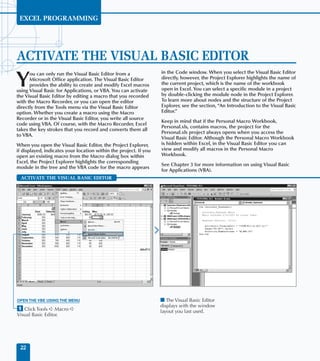
                                a printer that is defined on your       displays.                    Close to cancel the print.
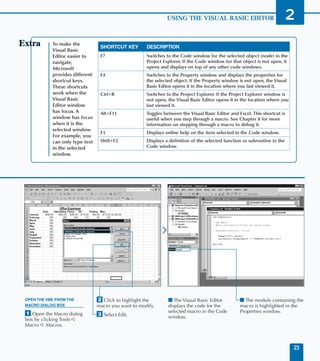
› Type Preview:= True.          system.
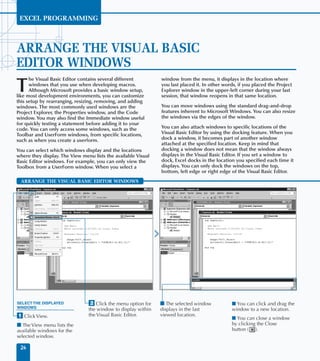
                                                                        ‡ Click Print to print the   I Excel prints the cells.
ˇ Type ActivePrinter:= "HP      I Specify any additional                specified cells.
DeskJet 894Cxi", replacing HP   optional parameter values for
DeskJet 894Cxi with the         the Print method.
name of the printer to use.
                                Á Switch to Excel and run
                                the macro.                                                                                       179
EXCEL PROGRAMMING


SORT WORKSHEETS BY NAME
      ou can use VBA to sort the order of the worksheets in     When you know the number of sheets in a workbook, you

Y     a workbook based upon the worksheet name. When
      you first create a new workbook with three
worksheets, Excel lists the sheets in order: Sheet1, Sheet2,
                                                                need to use For Next looping to cycle through the sheets
                                                                so Excel can compare the names and move a sheet when
                                                                one name is greater than another. You can accomplish this
and Sheet3. But as you add additional sheets the order of       with nested looping, which is the process of placing one
the sheets can change dramatically. For example, if your        looping statement within another looping statement. The
active sheet is Sheet2 and you instruct Excel to add a new      inside loop executes completely and control returns to the
sheet, Excel adds it before Sheet2. If your workbook            outside loop. See Chapter 6 for more information on using
contains three worksheets, Excel adds the new sheet and         For Next looping statements.
names it Sheet4 making the order of your sheets Sheet1,
Sheet4, Sheet2, Sheet3. Or course, you can easily resolve       Within the second For Next loop you can use an If
this by manually renaming or moving the sheets within the       Then statement to compare the name of a sheet to the
workbook.                                                       currently smallest sheet name. If that name is smaller, it
                                                                becomes the new smallest name. Remember, Excel does an
Alternately, you can create a subroutine that sorts the         alphabetical comparison when you deal with strings.
worksheets so that Excel lists them in alphabetical order. To   Therefore, “apple” is smaller than “bat” even though the
do this, you must first determine the number of sheets          word apple has more characters.
within the workbook using the Count property.

 SORT WORKSHEETS BY NAME


⁄ Create a new subroutine.       ‹ Type Dim SheetCount As       › Type SheetCount =           Á Type SheetName =
                                 Integer, replacing             Sheets.Count.                 Sheets(N).Name.
¤ Type Dim SheetName As          SheetCount with the
String, replacing SheetName      variable to store number of    ˇ Type For N = 1 To           ‡ Type For M = N To
with the variable for storing    sheets.                        SheetCount.                   SheetCount.
the smallest sheet name.


 180
WORKING WITH WORKSHEETS                       10
                 In step 12 of the task example, Excel determines
                 the sheet with the smallest name in the inside         TYPE THIS:
                 loop and places that sheet before the current
                                                                        If Sheets(SheetName) <> Sheets(N) Then
                 sheet. Although this code works correctly, it is
                                                                           Sheets(SheetName). Move Before:=Sheets(N)
                 not the most effective method of sorting a larger
                                                                        End If
                 list of items. The code attempts to move the
                 sheet without first checking to see if the sheet
                 the smallest is the same sheet as the current
                 sheet. Therefore, if the sheets are identical, Excel   RESULT:
                 still attempts to move them. To make the
                 execution of the code more efficient you can add       This code checks that the sheet you are moving
                 a conditional If Then statement that compares          and the sheet before which you intend to move
                 the two statements, as long as they are not the        it are not the same sheet. If the sheets are the
                 same sheet, and then performs the move. By             same, Excel ignores the move statement and
                 adding this statement, the code runs more              continues on with the looping statements.
                 effectively because it determines that no move is
                 required if the sheet is already in the correct
                 order.


° Type If Sheets(M).Name <      — Type Next.                      I The sheets are sorted
SheetName Then.                                                   alphabetically within the
                                ± Type                            workbook.
· Type SheetName =              Sheets(SheetName).Move
Sheets(M).Name.                 Before:=Sheets(N).

‚ Type End If.                  ¡ Switch to Excel and run
                                the macro.

                                                                                                                           181
EXCEL PROGRAMMING


USING THE RANGE PROPERTY
                                                                      Range object, you reference the upper left corner of the

Y
      ou can use the Range property to define a range of
      cells within a worksheet. When you define a range,              desired range with the Cell1 parameter and the lower-
      you create a Range object which you can make a                  right corner of the range with the Cell2 parameter. For
single cell, an entire column, a row, or a selection of               example, to specify a range of cells between A1 and E15 you
multiple cells. Typically when working with the contents of           use the code: Range(“A1”, “E15”).
a worksheet, you need to define a range in order to make
                                                                      The other form of the Range property requires the use of a
any modifications to it.
                                                                      Name parameter. This required parameter indicates a range
You can use the Range property with an Application,                   using the A1-style reference. You use a colon between two
Worksheet, or Range object. Therefore, the statements                 cells to specify a range. For example, Range(“A3:F5”)
Application.Range and ActiveSheet.Range return                        specifies the range of cells from A3 to F5. You can specify
the same results. If you use the Range property without an            the union between two ranges by placing a comma
object, Excel assumes that the object you reference is the            between the range definitions. You can also specify the
ActiveSheet.                                                          location where two ranges intersect by leaving a space
                                                                      between the two range definitions. For example,
There are two different syntaxes that you can use with the            Range(“A3:F3 D2:G5”) specifies a range where the
Range property. The first version requires two different              range of cells A3 to F3 intersect with the range of cells D2
parameters, Cell1 and Cell2. With this form of the                    to G5.

 USING THE RANGE PROPERTY


USING THE RANGE PROPERTY              ¤ Type Range(“A1”,              ‹ Switch to Excel and run            I The specified range of cells
WITH CELL REFERENCES                  “B3”).Select, replacing A1      the macro.                           is selected.
⁄ Create a new subroutine.            and B3 with the upper-right
                                                                      Note: To learn how to run a macro,
                                      and lower-left corners of the
Note: See Chapter 3 for information   selection.                      see Chapter 1.
on creating subroutines.
                                      I Alternately, you can
                                      place a space or a colon (:)
                                      between the ranges to specify
 182                                  an intersection or union.
DEFINING RANGES                  11

                You can use the Select method with a                      You can also use the Activate method to
                Range object to highlight a cell or range of              highlight a cell or range of cells. With the Activate
                cells on a worksheet. For example, to select              method, the first cell referenced in the range is the
                the range of cells from A3 to B6, you type                active cell, but all of the other cells in the range are
                Range(“A3:A6”).Select.                                    highlighted to indicate that they are also selected.
                                                                          For example, in the code Range(“B4:C6”).
                When you use the Select method with a
                                                                          Activate, Excel marks B4 as the active cell and
                Range object, the active cell becomes the
                                                                          highlights the remaining cells. Keep in mind, when
                first cell in the specified range. If you specify
                                                                          you use the Select method, the first cell in the
                individual cells with the Select method, the
                                                                          range is also marked as the active cell. This makes
                active cell is the first cell specified. For example,
                                                                          the two methods totally interchangeable when
                Range(“A3, A1, A5”).Select selects cell
                                                                          dealing with ranges.
                A3 as the active cell.


USING THE RANGE PROPERTY        ¤ Type Range(“A3: C7,              I The specified range of cells
WITH NAMES                      E1:F3”).Select, replacing          is selected.
⁄ Create a new subroutine.      A3:C7 with the first range
                                of cells and E1:F3 with a
                                second range of cells.
                                ‹ Switch to Excel and run
                                the macro.

                                                                                                                               183
EXCEL PROGRAMMING


USING THE CELLS PROPERTY
       ou can use the Cells property to reference specific       return a Range object containing all cells in the active

Y      cells in a worksheet, allowing you to make changes to
       the values or properties of the cells, such as the font
settings. The Excel Object Model does not contain a Cells
                                                                 worksheet.

                                                                 If you use the Cells property with the optional
object, so in order to reference specific cells you use either   parameters, you can reference a specific cell within the
the Cells property or the Range property, each of which          worksheet. The first parameter, row, contains an integer
actually returns a Range object with the specified cells. See    value between 1 and 65536 indicating the row index. The
the section “Using the Range Property” for more                  second parameter, column, contains an integer value
information on the Range property. One big difference in         between 1 and 256 indicating the column index. For
the two properties is that the Cells property, when you          example, using this method to reference cell B5, you assign
use it with its two parameters, returns only a single cell,      a value of 5 for the row parameter and a value of 2 for the
whereas you typically use the Range property to return a         column parameter, as shown in this code: Cells(5,2).
series of cells.
                                                                 One big advantage of using the Cells property instead of
You can use the Cells property with the Application,             the Range property is that you can utilize variables to easily
Range, and Worksheet objects. When you use it with               change the integer values. For example, you can use a
the Application and Worksheet objects, you return                variable to represent either the row or column, as shown in
the same result. For example, you can type Cells,                this code: Cells(N,1) = 5, which sets the value of the
Application.Cells, or ActiveSheet.Cells to                       cell in column A and the row specified by N to 5.

 USING THE CELLS PROPERTY


⁄ Create a new subroutine.                                       ¤ Type For N = 1 To 10,         ‹ Type Cells(N, 1) = N,
                                                                 replacing 10 with the           replacing N with the value
                                                                 number of cells to modify.      to assign to each cell.


 184
DEFINING RANGES                  11
                   You can use the Font object to specify the font attributes for specify objects within Excel.
                   Typically you use it to modify the attributes of a cell or a range of cells. The Font object
                   has several properties that allow you to view or modify the attributes of the specified
                   object. The following table lists the common properties you can use with the Font object.


                    FONT PROPERTY        DESCRIPTION
                    Bold                 A Boolean value indicating whether the font for the object is bold.
                    Color                Indicates the color of the font. Use the RGB function to set the font color.
                    FontStyle            Indicates the font style. For example, to set both a bold and underline font style you
                                         specify Font.FontStyle = “Bold Underline”
                    Italic               A Boolean value indicating whether the font for the object is italics.
                    Shadow               A Boolean value indicating whether the font is a shadow font.
                    Size                 Indicates the size of the font.
                    Strikethrough        A Boolean value indicating whether a strikethrough font is used. A strikethough font
                                         draws a horrizontal line through each character in the font.
                    Subscript            A Boolean value indicating whether the font is subscript.
                    Superscript          A Boolean value indicating whether the font is superscript.
                    Underline            A Boolean value indicating whether the font is underlined.


› Type Cells(N, 1).Font.Bold      ˇ Type Next.                      I The value and font
= True, replacing Bold with                                         attributes of the specified
the font attribute to assign to   Á Switch to Excel and run         cells are changed.
the cells.                        the macro.

I You can use any properties,
methods, or child objects of
the Range object to customize
the selected range of cells.                                                                                                      185
EXCEL PROGRAMMING


COMBINE MULTIPLE RANGES
                                                                Property” for more information on the Range and Cells

Y
       ou can use the Union method to create a muliple
       area range. A multiple area range contains more than     properties.
       one block of cells, which may not be connected. For
                                                                For example, the code Set RangeVar = Union
example, you use the Union method to create a Range
                                                                (Range(“A1:A3”), Range(“A5:A15”) uses the Union
object containng the cells A1 through B5 and D1 through
                                                                method to combine two Range objects created with the
E5. Although these two groups of cells are separated within
                                                                Range property and assigns the result to a Range variable.
the worksheet, using the Union method you can create one
                                                                With this sample code, the new range contains the cells A1
range that references only those cells.
                                                                through A3 and A5 through 15. When you view this range,
When you use the Range property in conjunction with the         you see that cell A4 is not selected as part of the range.
Union method, you can assign any number of parameter
                                                                Because you must declare the variable to which you assign
values, as long as you specify at least two different ranges.
                                                                the multi-area range as a Range object, you need to use the
Each parameter value must specify a range of cells. You can
                                                                Set statement as part of the assignment statement. You
specify the ranges that you assign to the Union method
                                                                must use the Set statement whenever you assign an object
using any option that returns a valid Range object, such as
                                                                to a variable. See Chapter 4 for more information on
the Range property or the Cells property. See the
                                                                assigning objects.
sections “Using the Range Property” and “Using the Cells


 COMBINE MULTIPLE RANGES


⁄ Create a new subroutine.       ‹ Type Dim Range2 As           ˇ Declare any additional        ‡ Type Set Range2 = Cells(5,5),
                                 Range, replacing Range2        variables needed for the        replacing Cells(5,5) with a
¤ Type Dim Range1 As             with the name of the second    subroutine.                     reference to the second range.
Range, replacing Range1          range.
with the name of the first                                      Á Type Set Range1 =
range.                           › Type Dim NewRange As         Range(“A1:B3”), replacing
                                 Range, replacing NewRange      Range(“A1:B3”) with a
                                 with the name of the           reference to the first range.
                                 combined range.
 186
DEFINING RANGES       11
                         When you use the Union method, you combine multiple ranges to create
                         one multi-range, or Area Collection. You can reference the entire range
                         selection using the Selection property. This property returns the
                         selected object. You can combine the Selection property with the
                         Areas property to return an Areas collection representing all of the
                         areas selected after performing a union.
                         The Areas Collection actually contains a collection of the specific areas,
                         or blocks of cells, within a specific selection. Each individual member of
                         the Area Collection is actually a Range object representing a contiguous
                         block of cells with one Range object for each block of cells.
                         You cannot apply some VBA operations to ranges that contain multiple
                         areas. Therefore, you may need to determine the number of areas within
                         a specific range. In order to do this, you can use the Count property. The
                         Count property counts the number of areas within the range, if a value
                         greater than 1 is returned, you know there is more than one area selected.
                         The following example uses the Count property to determine the
                         number of areas within the selected range.

                         Example:
                         AreasInNewRange = Selection.Areas.Count.


° Type Set NewRange =     · Type additional VBA            I Excel highlights the
Union(Range1, Range2).    code to work with the new        combined range of cells.
                          combined range of cells.
                          ‚ Switch to Excel and run
                          the macro.


                                                                                                       187
EXCEL PROGRAMMING


USING THE OFFSET PROPERTY
     he Offset property provides another method for               Use the ColumnOffset parameter to specify the number

T    specifying a range of cells. Using the Offset property
     you can define a range that is a specific offset from
another range with the offset being the distance, in rows
                                                                  of columns to offset the range from the current selection. A
                                                                  positive number offsets the range to the right. A negative
                                                                  number offsets the range to the left. The default value for
and columns, between the new range and the existing               both parameters is 0.
range selection.
                                                                  If you only assign a value to one of the parameters, Excel
You use two different parameters with the Offset                  gives the other parameter a value of 0. For example, if you
property. Although both are optional, you specify at least        specify a value of 5 for the RowOffset and omit the
one of the values or the current selection is returned. Use       ColumnOffset parameter value, the property returns the
the RowOffset parameter to indicate the number of rows            range that is five rows from the current range selection.
to offset the range from the current selection. A positive
number offsets the range downward. A negative value               If you specify a value outside the valid number of rows and
offsets the range upward. The offset values are based upon        columns in a worksheet — for example, if you specify -1
the the upper left cell in the selected range. For example, if    and the current cell is A1 — Excel returns an error. The
the active range is cells A1 through B4, the offset values are    acceptable range for columns is 1 to 256 and the acceptable
based upon the number of rows and columns from cell A1.           range for rows is 1 to 65536.


 USING THE OFFSET PROPERTY


⁄ Create a new subroutine.         ‹ Type Dim NewRange As         › Type Set FirstRange =
                                   Range, replacing NewRange      Range(“A1:B4”), replacing
¤ Type Dim FirstRange As           with the new range variable.   Range(“A1:B4”) with
Range, replacing FirstRange                                       the current range.
with the current range variable.


 188
DEFINING RANGES   11
                            Besides referencing specific blocks of cells to create Range objects,
                            you can specify a Row or Column as a Range object with the Rows
                            and Columns properties. If you specify an entire column as a range
                            selection, Excel creates a Range object containing the specified
                            column. For example, the following code selects Column B and the
                            selected column:
                            SelectedColumn = Columns(2).

                            You can use the Rows property to specify a row you want to use as
                            a Range object. With this property, Excel selects the entire row as
                            the Range object:
                            SelectedRow = Rows(3).

                            You can also use each of these properties separately to refer to the
                            entire group of columns or the entire group of rows within the
                            worksheet. For example, the following code refers to the current
                            columns:
                            Set ColRange = Columns.

                            You can use the Rows and Columns properties to determine a
                            specific column or row within a range. For example, if you have a
                            range of cells from B5 to G10, using the Rows parameter you can
                            select the first row within the specified range. You can accomplish
                            this by specifying the desired row, as shown in this code.
                            Set RngObj = Range(“B5:G10”)
                            RngObj.Rows(1).Select


ˇ Type Set NewRange =       Á Type additional VBA code       I Excel highlights the newly
FirstRange.Offset(3, 3),    for processing the new range.    created range with the Offset
replacing 3,3 with the                                       property on the worksheet.
offset for the new range.   ‡ Switch to Excel and run
                            the macro.


                                                                                                     189
EXCEL PROGRAMMING


DELETE A RANGE OF CELLS
                                                                  you assign it one of the XLDeleteShiftDirection

Y
       ou can remove a specific range of cells from a
       worksheet using the Delete method. When you                constant values. The first value, xlShiftToLeft, tells Excel
       delete a range of cells, Excel completely removes the      how to shift values to the left to fill the gap created by the
specified cells and adjusts the remaining values within the       deletion. The xlShiftUp constant value indicates that
worksheet to fill in the gap left by the deletion. For            Excel should shift the values up from below the deletion
example, if you remove an entire column of values, such as        to fill the gap.
column B, Excel shifts the values in column C left and they
                                                                  Keep in mind that Excel ignores the Shift parameter value
become the new column B values. All remaining column
                                                                  if it is not a valid shift direction for the deleted range. For
values shift left. Conversly, if you delete a row, Excel shifts
                                                                  example, the code Column(2).Delete Shift:=xlShiftUp
all values in the rows below up one row.
                                                                  deletes a specific column, but Excel still shifts the cells left;
Excel easily determines how to shift the cells when you           because you removed the entire column there are no cells
remove entire rows and columns, but if you just remove a          to shift up. Although these instances may occur
block of cells, you must specify how the remaining values         occasionally, for best results, remember to specify how to
fill to ensure you get the anticipated results. You can specify   shift the cells, so that when Excel has a choice, your cells
how Excel shifts the cells using the Shift parameter with         shift in the appropriate direction.
the Delete method. When you use the Shift parameter,


 DELETE A RANGE OF CELLS


⁄ Create a new subroutine.        ¤ Type Dim RangeDelete          ‹ Type Set RangeDelete =
                                  As Range, replacing             Range(“A1:B4”), replacing
                                  RangeDelete with the            Range(“A1:B4”) with
                                  name of the range to delete.    the range to delete.


 190
DEFINING RANGES   11
                               If you protect a worksheet, you cannot remove or add cells.
                               To eliminate any errors that may occur from trying to remove a
                               range from a protected worksheet, you can use the AllowEdit
                               property to determine if you can modify the range. The
                               AllowEdit property returns a Boolean value of True if you can
                               modify the specified range. In the example code, you can use the
                               AllowEdit property to check the range to make sure you can
                               modify a range before you call the Delete method.

                              Example:
                              If  RangeDelete.AllowEdit Then
                                   RangeDelete.Delete Shift:=xlShiftUp
                              End If

                               Excel checks the AllowEdit property for the specified Range
                               object. Using the If Then statement ensures that the code only
                               attempts to delete the specified range of cells if you can modify
                               the range. Otherwise, Excel ignores the Delete statement.
                               You protect worksheets using the Protect method. The type of
                               protection you apply is based upon the parameters you use with
                               the Protect method. See Chapter 9 for more information on
                               using the Protect method to protect a specific worksheet.


› Type RangeDelete.Delete     ˇ Switch to Excel and run      I Excel removes the specified
Shift:=xlShiftUp, replacing   the macro.                     range of cells and adjusts the
xlShiftUp with the constant                                  remaining cells accordingly.
indicating how to shift the
remaining cell values.


                                                                                                       191
EXCEL PROGRAMMING


HIDE A RANGE OF CELLS
                                                                 assigning a value of True to the Hidden property for the

Y
      ou can hide a specific range of cells using the Hidden
      property with the Range object that you want to            specified range. Keep in mind that when you hide a range
      hide. You can use the Hidden property to either            of cells, Excel either sets the width of the columns or the
change the range of cells that you want to hide or to            height of the rows to zero making it appear that it is not
determine if the range is visible or hidden. You commonly        visible.
hide portions of a worksheet that contain values that you
                                                                 You can later verify that the range of cells is still hidden by
do not want others to see when they access your
                                                                 checking the Hidden property. For example, if you hid
worksheet. For example, you may have a worksheet that
                                                                 column A, you can check to ensure the column is still
contains the formulas and the values you use to calculate
                                                                 hidden by typing HiddenRange = Range1.Hidden. If
the displayed data. By hiding the cells that contain the
                                                                 you declare the HiddenRange variable as a Boolean value,
original data, you eliminate a user’s ability to view the data
                                                                 the variable receives a value of True if the specified range
you want to keep invisible.
                                                                 is hidden; otherwise, it receives a value of False. If you
In order to use the Hidden property to hide a range of           forget to declare the variable as Boolean, Excel assigns a
cells, the range of cells you want to hide must consist of       numeric value of -1 if the range is hidden and 0 if the range
an entire row or column. You make a range hidden by              is visible.


 HIDE A RANGE OF CELLS


⁄ Create a new subroutine.      ‹ Type Dim EndColumn As          › Type StartColumn = 1,          ˇ Type EndColumn = 2,
                                Integer, replacing EndColumn     replacing 1 with the first       replacing 2 with the last
¤ Type Dim StartColumn          with the name of the last        column number.                   column number.
As Integer, replacing           column to hide.
StartColumn with the
name of the first column
to hide.
 192
DEFINING RANGES                 11
                     When you hide a row or column in Excel, you can still access the values contained in the
                     cells with references in functions and macros. Excel indicates the existence of hidden rows
                     and columns by skipping over the hidden rows and columns with the row and column
                     headings. For example, if you hide columns C and D, you see the column labels for columns
                     A, B, E, F, etc.
                     You can hide the entire worksheet using either the Columns or Rows properties. Either one
                     of the following produces the same results by hiding either all rows or all columns.

                    Example:
                    Columns.Hidden = True
                    Rows.Hidden = True

                     To unhide rows or columns in a worksheet, you need to set the Hidden property to False.
                     For example, the following code statement unhides all columns in a worksheet.

                    Example:
                    Columns.Hidden = False

                     This statement is useful for ensuring that all cells in a worksheet are visible. If you apply it
                     to a column that is already visible, Excel ignores the statement and the column remains
                     visible. Of course, you can also use the Rows property in the same fashion to unhide any
                     invisible rows.

                    Example:
                    Rows.Hidden = False


Á Type For N = StartColumn     ° Type Next.                      I Excel hides the specified
to EndColumn.                                                    columns.
                               · Switch to Excel and run
‡ Type Columns(N).Hidden =     the macro.
True.


                                                                                                                         193
EXCEL PROGRAMMING


SPECIFY THE NAME OF A RANGE
                                                               Column C in the active worksheet. After you assign the

Y
       ou can use the Name property to assign a specific
       name to a range of cells. Excel uses names to           name to the range, you can view it in Excel by highlighting
       reference specific ranges of cells on a worksheet. By   the corresponding range, in this case Column C, to see the
specifying a named range you no longer have to know the        name appear in the Name box on the Formula Bar.
location of the cells that contain the desired values; you
                                                               You can determine the name of a specific range by
simply need to find the cells with the appropriate range
                                                               assigning it to a string variable. For example, the code
name. For example, if cell B3 contains the sales tax rate,
                                                               RangeName = Columns(3).Name assigns the name of
instead of remembering the appropriate cell reference, you
                                                               Column C to the RangeName variable.
can simply assign the name “Tax_Rate” to the cell. This
allows you to reference the cell by name when you want to      After you assign a range name to a specific range, you can
use it.                                                        use the range name to access the range of cells at any point.
                                                               The advantage of using a range name is that you do not
You can use the Name property to either assign a name to a
                                                               need to set the range within your current procedure. When
range of cells or to determine what the name is for the
                                                               you assign a range name to a worksheet, it remains there
range. To assign a name to a range you need to specify the
                                                               until you remove it.
appropriate name. For example, the code Columns(3).
Name = “May_Sales” assigns the name May_Sales to


 SPECIFY THE NAME OF A RANGE


⁄ Create a new subroutine.                                     ¤ Type Columns(3).Name =
                                                               “Salary”, replacing Columns(3)
                                                               with the range to name and
                                                               “Salary” with the name
                                                               for the range.


 194
DEFINING RANGES   11
                                 You can create named ranges within Excel by highlighting the
                                 selected range and clicking Insert➪Name➪Define to display the
                                 Define Name dialog box. Type the appropriate range name in the
                                 Names in workbook field and click Add. The list box on the dialog
                                 box contains a list of all named ranges within the current
                                 workbook.
                                 You can see which cells are part of a specific named range by
                                 highlighting the range within the list box and viewing the
                                 corresponding range displayed in the Refers To field. Keep in
                                 mind that Excel does allow you to assign multiple names to the
                                 same range.
                                 If you no longer want to make the named range available within
                                 your workbook, you can highlight the range name and click Delete.
                                 Keep in mind that if you delete a named range, any macro that
                                 references the named range no longer works correctly.
                                 Another method for creating a named range in Excel is to highlight
                                 the range and then click the Name box. The Name box lists a
                                 reference to the first cell in the range. To assign a name to the
                                 range, type the desired range name in the Name box.


‹ Type Range(“Salary”).Select,    › Switch to Excel and run     I Excel highlights the named
replacing “Salary” with the       the macro.                    range and the Name box on
name of the range.                                              the Formula bar contains the
                                                                range name.


                                                                                                         195
EXCEL PROGRAMMING


RESIZE A RANGE
                                                                value. The range is adjusted based upon that cell creating a

Y
       ou can change the size of a range using the Resize
       property. Typically you resize a range because it does   new range of cells from B1 to C2.
       not contain the desired number of cells. When you
                                                                You need to know how many rows and columns currently
resize a range, you change the number of rows and columns
                                                                exist in a range in order to determine how to resize it. If
in a range. You can change the size by specifying either
                                                                you are dealing with a range that you defined elsewhere,
more or fewer rows or columns.
                                                                such as a named range, you can use the Count property to
The Resize property has two optional parameters of              determine the number of rows and columns within the
which you need to use at least one. If you do not use either    range, as shown in the following code: NumberofRows =
parameter, Excel returns the original range. The first          Range(“Named_Range”).Rows.Count The Count
parameter, RowSize, indicates the number of rows in the         property counts the number of rows in the named range
new range. The second parameter, ColumnSize, indicates          “Named_Range” and assigns that value to the
the number of columns in the new range.                         NumberofRows variable. You can use the same type of
                                                                syntax with the Columns property to determine the
When you resize the range, the upper-left corner of the         number of columns in the range. When you know the size
original range remains the same. For example, if the original   of the range, you can use the Resize property to modify
range is B1 through C4 and you resize the range to contain      the number of rows and columns.
only 2 rows and 2 columns, B1 remains as the upper-left cell

 RESIZE A RANGE


⁄ Create a new subroutine.      ‹ Type Dim NumColumns           › Type NumRows = Range         ˇ Type NumColumns = Range
                                As Integer, replacing           (“EmpInfo”).Rows.Count,        (“EmpInfo”).Columns.Count,
¤ Type Dim NumRows As           NumColumns with the             replacing “EmpInfo”            replacing “EmpInfo” with
Integer, replacing NumRows      variable for the number         with the range to count.       the range to count.
with the variable for the       of columns in the range.
number of rows in the range.


 196
DEFINING RANGES                 11
                                 Besides determining the number of rows and columns within a range you may
                                 also need to know the exact row or column where the range begins. You can
                                 accomplish this by using either the Row property for rows or the Column
                                 property for columns. You can determine the number of the first row in a range
                                 with the following code:

                             Example:
                             FirstRowNum = CurrentRange.Row

                                 This code assigns the integer value representing the first row in the specified
                                 range to the FirstRowNum variable. You can also determine the first column in
                                 the range using the Column property as shown in this code:

                             Example:
                             FirstColNum = CurrentRange.Column

                                 When you know what the first row and column are in the range, you can create
                                 the first cell in the range using the Cells property, as shown in this code:

                             Example:
                             Cells(FirstRowNum, FirstColNum)

                                 This statement takes the values returned by the Row and Column properties
                                 and determines the first cell. Typically this cell is also the active cell, if you have
                                 just selected the range.


Á Type an If Then                   ° Type NumColumns =                ‚ Switch to Excel and run          I The newly sized range is
statement to determine if the       NumColumns + 5, replacing +        the macro.                         selected.
range contains the appropriate      with – to subtract and 5 with
number of rows and columns.         the number to which you want
                                    to change the column number.
‡ Type NumRows = NumRows
+ 5, replacing + with – to          · Type Range(“EmpInfo”).
subtract and 5 with the             Resize(RowSize:=NumRows,
number to which you want            ColumnSize:=NumColumns)
to change the row number.           .Select.                                                                                     197
EXCEL PROGRAMMING


INSERT A RANGE
      ou can insert a range of cells into a worksheet using     XLInsertShiftDirection constant values, to make sure

Y     the Insert method. When you insert a range of
      cells into a worksheet, Excel adjusts the values in the
existing cells by moving them either down or to the right to
                                                                the cells shift correctly. Use the xlShiftToRight constant
                                                                value to have Excel shift the cell values right when you
                                                                insert a new range of cells. Use the xlShiftDown constant
allow you to insert into the specified location. For example,   value to shift existing cell values down.
if you insert a new row of cells in row 3, Excel shifts the
existing values in row 3 down to row 4. Excel shifts all        The CopyOrigin parameter accepts only values of True
remaining values within the worksheet down. If you add a        or False and indicates whether to insert a copy of the last
new column, Excel shifts all existing values right.             range of values you placed in the clipboard. You can add
                                                                cells to the clipboard either using the Copy and Cut
It is fairly obvious how the cell values in the worksheet       methods or the Copy and Cut options directly in Excel. If
should shift when you add an entire row or column;              the value of the parameter is True, Excel only adds the
but, when you insert a smaller block of cells you must          portion of the copied range that fits the insert range. For
instruct Excel how to shift the cells. You use two optional     example, if you copy cells A5:B10 and then insert cells
parameters with the Insert method. You use the Shift            A1:B2, Excel only inserts the values in cells A5:B6 as the
parameter, and assign it one of the                             new range values.


 INSERT A RANGE


⁄ Create a new subroutine.                                      ¤ Type Range(“A3:B4”).Copy,        Note: See Chapter 10 for information
                                                                replacing Range(“A3:B4”)           on using the Copy method.
                                                                with the range of cells to copy.


 198
DEFINING RANGES       11
                                You can also use the Insert method to add a specific value to a cell. In
                                order to insert a value in a cell you need to use the Insert method with
                                the Characters object. You can insert a string of characters at the
                                beginning of the characters in a cell, or at any location within the cell.
                                For example, to insert the string “New String” in cell B1 and replace the
                                contents you type the following code:

                                Example:
                                Range(“B1”).Characters.Insert(“New String”)

                                If you want to place the new string within the existing string of
                                characters, you must indicate the character location to place the new
                                string, and the number of characters to replace at that location. For
                                example, if you have the string “Excel 2000 Worksheet” you can replace
                                the “2000” in the string with “2002” using the Insert method. The
                                following code illustrates how to replace the portion of the string when
                                the string is located in cell A1:

                                Example:
                                Range(“A1”).Characters(7,4).Insert(“2002”)

                                The Characters object has two parameters, Start and Length. The
                                Start parameter indicates the number of the character to start the
                                insert, in this case character 7. The Length parameter indicates the
                                number of characters to replace in the string.


‹ Type Range(“A1:B2”).Insert, ˇ Type CopyOrigin:=True.          I Excel copies the specified
replacing Range(“A1:B2”)                                        range of cells and inserts a
with the range where you      Á Switch to Excel and run         copy as a new range in the
want to add cells.              the macro.                      worksheet.
› Type Shift:=xlShiftDown,
replacing xlShiftDown with
the constant value indicating
how cells should shift.
                                                                                                              199
EXCEL PROGRAMMING


SET THE WIDTH OF COLUMNS IN A RANGE
                                                                  with a proportional font. When you use a monospaced font,

Y
       ou can customize the width of a column using the
       ColumnWidth property. With this property, you              such as Courier, the width is an actual measurement of the
       specify how wide the specific column displays when         number of characters that fit in the column because, with
you view the worksheet containing the column in Excel. By         this font, all characters require the same amount of space.
default, Excel assigns a width of 8.43 characters to each         Keep in mind, numeric digits 0 through 9 are all the same
column. Excel bases this width size upon the number of            width regardless of whether you use a proportional or
zeros it can place in the cell using the default font style,      monospaced font.
which is the Normal font style. Excel bases this
                                                                  You can use the ColumnWidth property to determine the
measurement upon the number of zeros, not characters,
                                                                  width of the columns in a range. If all columns in the range
that it can place within the cell and still have them visible.
                                                                  have the same width, the width is returned as the number
Because most fonts that you use within Excel are
                                                                  of characters that can display in each column. If the
proportional fonts, the spacing varies based upon each
                                                                  columns within the selected range do not have the same
character. For example, you can always fit more of the letter
                                                                  width, a value of Null is returned.
“I” in a cell than you can of the letter “M” when working


 SET THE WIDTH OF COLUMNS IN A RANGE


⁄ Create a new subroutine.       ‹ Type Dim NumColumns            › Type Set NewRange =           ˇ Type NumColumns =
                                 As Integer, replacing            Range(“B1:D21”), replacing      NewRange.Columns.Count.
¤ Type Dim NewRange As           NumColumns with the name         Range(“B1:D21”) with
Range, replacing NewRange        of the variable containing the   the range of cells.
with the name of the range       number of columns.
of cells.


 200
DEFINING RANGES   11
                                   You can also use the Width property to determine the
                                   width of a particular column. Be aware that the Width
                                   property returns the measurement of the column width in
                                   points, unlike the ColumnWidth property, which returns
                                   characters. You typically use a point to reference font sizes,
                                   with 1 point equivalent to 1⁄72 of an inch. For example, the
                                   default font size that Excel uses is typically 10 point.
                                   The Width property is read-only, meaning that you can
                                   only use it to return the width of a column, and not to
                                   modify the width. You can return the Width property of a
                                   column by assigning the value to a variable, as shown in
                                   the following code:

                                  Example:
                                  ColWidth = Column(4).Width

                                   Because the only method for changing the width of the
                                   column is the ColumnWidth property, which uses the
                                   number of characters that fit in a column and not
                                   a point value, you may not use the Width property as
                                   frequently as the ColumnWidth property. The Width
                                   property is valuable if you need to compare the column
                                   width to the row height, because Excel does store the row
                                   height as a point value.


Á Type For I = 1 To            ‡ Type NewRange.Columns          I Excel resizes the columns
NumColumns.                    (I).ColumnWidth = 15,            in the specified range to the
                               replacing 15 with the            new width.
Note: See Chapter 6 for more   desired column width.
information on using the For
Next looping statement.        ° Type Next.
                               · Switch to Excel and run
                               the macro.
                                                                                                         201
EXCEL PROGRAMMING


SET THE HEIGHT OF ROWS IN A RANGE
     ou can modify the height of rows within a range using        object. For example, to change the height of row 2 to 25,

Y    the RowHeight property. When you use this property,
     you specify how high the specific row displays when
you view the worksheet containing the row in Excel. By
                                                                  you use the code: Rows(2).RowHeight=25. Keep in
                                                                  mind, when you use the Rows property without referencing
                                                                  the corresponding Range object, Excel automatically uses
default, Excel assigns a height of 12.75 points to each row. A    the current active sheet.
point is a measurement Excel uses with font sizes, with each
point being approximately 1⁄72 of an inch. You measure a font     If the row height you specify is not high enough to display
based upon the height of a capital character, such as W, to       the entire size of the font, the text appears cut off in the
determine the point size. Because the default font size in        row when you view it in Excel.
Excel is 10 point, typically the default row size of 12.75
points is adequate for displaying text in cells. Of course, if    You can use the RowHeight property to determine the
you specify a larger font size, or if you want the text to wrap   height of the rows in a range. If all rows in the range have
within the cell, you need to specify a larger row size using      the same height, the height is returned as the number of
the RowHeight property.                                           points. If the rows within the selected range do not have
                                                                  the same height, a value of Null is returned.
You can set the height of the row by assigning a numeric
value to the RowHeight property for the corresponding

 SET THE HEIGHT OF ROWS IN A RANGE


⁄ Create a new subroutine.       ‹ Type Dim NumRows As            ˇ Type Set NewRange =          Á Type NumRows =
                                 Integer, replacing NumRows       Range(“A1:C14”), replacing     NewRange. Rows.Count.
¤ Type Dim NewRange As           with the name of the variable    Range(“A1:C14”) with
Range, replacing NewRange        containing the number            the range of cells.            ‡ Type AverageHeight =
with the name of the range       of rows.                                                        NewRange.Height / NumRows.
of cells.
                                 › Type Dim AverageHeight
                                 As Long, replacing
                                 AverageHeight with the
                                 variable to contain average
 202                             row height.
DEFINING RANGES                11
                    You can use the Height property to determine the total height of a specific range. Excel returns the
                    height of the range as a point value. The Height property is read-only and you cannot modify it. You
                    can return the height by assigning the value to a variable, as shown in this code:


                    TYPE THIS:                                  RESULT:

                    HeightofRange = NewRange.Height
                                                                The code assigns the total height of the rows
                                                                specified by the NewRange object to the
                                                                HeightofRange variable. As in the steps, you
                                                                can take the value returned to the
                                                                HeightofRange variable and divide it by the
                                                                number of rows in the range to create an
                                                                average height for each row.

                    The Range object provides two properties that you can use to determine the distance of a range from
                    the top corner of a worksheet, cell A1. Each property returns a point measurement indicating the
                    corresponding distance. The Left property measures the distance from the left edge of column A to
                    the left edge of the specified range. The Top property measures the distance from the top edge of row
                    1 to the top edge of the specified range.


° Type For N = 1 To               · Type NewRange.Rows(N)          — Switch to Excel and run      I Excel resizes the rows in
NumRows.                          .RowHeight = AverageHeight.      the macro.                     the specified range to be the
                                                                                                  same height.
Note: See Chapter 6 for more      ‚ Type Next.
information on using the For
Next looping statement.


                                                                                                                           203
EXCEL PROGRAMMING

CONVERT A COLUMN OF TEXT
INTO MULTIPLE COLUMNS
      ou can break a column of text into multiple columns     Use the TextQualifier constants of

Y     using the TextToColumns method. For example, if
      you have a list that contains both the first and last
names in one column, you use TextToColumns to break
                                                              xlTextQualifierDoubleQuote,
                                                              xlTextQualifierNone, or
                                                              xlTextQualifierSingleQuote to indicate the text
that list into two different columns.                         qualifier character.

You use the TextToColumns with the Range object               The delimiter is a character that indicates a separation
containing the columns to parse into multiple columns.        between strings, such as a comma or space. Specify a value
This method provides several different optional parameters    of True for the ConsecutiveDelimiter parameter to
to specify how to separate the text, including                have consecutive delimiters treated as one. For the Tab,
Destination, DataType, TextQualifier,                         Semicolon, Comma, Space, and Other parameters specify
ConsecutiveDelimiter, Tab, Semicolon, Comma,                  a value of True for the delimiter you use in the selected
Space, Other, OtherChar, FieldInfo,                           range. If you specify Other as the delimiter, you must type
DecimalSeparator, ThousandsSeparator, and                     a value for the OtherChar parameter indicating the
TrailingMinusNumbers.                                         delimiter character.

You use the Destination parameter to specify the range        The FileInfo parameter contains information for parsing
where you want to place the results. If the destination       individual columns in the range with the first element being
Range object contains more than one cell, Excel uses the      the column number and the second one of the
top left cell in the range as the initial cell. For the       XlColumnDataType constants discussed in Appendix A.
DataType parameter, specify a constant value of
xlDelimited to break the text based upon a delimiter          Specify the character used to separate decimals as the
value. Use xlFixedWidth if the text is a fixed width.         DecimalSeparator parameter and the thousands
                                                              separator as the ThousandsSeparator parameter value.
 CONVERT A COLUMN OF TEXT INTO MULTIPLE COLUMNS


⁄ Create a new subroutine.      ¤ Type Dim RangeVar As        ‹ Type Set RangeVar =
                                Range, replacing RangeVar     Columns(1), replacing
                                with the name of the range    Columns(1) with the
                                variable.                     range containing values
                                                              to separate.
 204
DEFINING RANGES                  11
                                   Excel provides the Parse method that you can use to
                                   separate data values in one column into multiple columns.
                                   The method works well when you have string data that is all
                                   the same length, such as phone numbers. With the Parse
                                   method, you specify how the strings in each cell should
                                   break and Excel applies that format to each cell.
                                   There are two optional parameters for the Parse method.
                                   The first parameter, ParseLine, is a string containing left
                                   and right brackets indicating where the cells should split.
                                   For example, [xxxx] [xxxx] breaks each string so that the first
                                   four characters are placed in the first column and the
                                   second four characters are placed in the second column.
                                   Any characters outside those characters are ignored and not
                                   moved to a new column. If the string is “Alphabetical”,
                                   with this ParseLine parameter, Excel places the first four
                                   characters Alph in the first column and the second four
                                   characters, abet in the second column. The remaining
                                   characters in the string, ical, are ignored because they are
                                   not specified as part of the ParseLine value.
                                   The second parameter, Destination, specifies the range
                                   where the parsed data is placed. If you specify a range of
                                   more than one cell, Excel uses the upper left corner of the
                                   range as the first cell.


› Type                         Á Type                          ° Switch to Excel and run         I Excel breaks the contents
RangeVar.TextToColumns.        DataType:=xlDelimited.          the macro.                        of the specified column into
                                                                                                 two separate columns.
ˇ Type Destination             ‡ Type Comma:=True.
:=Range(“B1”), replacing
Range(“B1”) with the
location to place the cells.                                                                                             205
EXCEL PROGRAMMING


FIND THE INTERSECTION OF TWO RANGES
      ou can use the Intersect method to determine             Intersect method using any option that returns a valid

Y     where multiple ranges intersect on a worksheet. A
      multiple area range contains more than one block of
cells that may or may not be connected. You use the
                                                               Range object, such as the Range property or the Cells
                                                               property. See the sections “Using the Range Property” and
                                                               “Using the Cells Property” for more information on the
Intersect method to create a Range object containing           Range and Cells properties.
the cells that are common between two ranges. For
example, if you have the ranges A1 through C5 and C1           Because you must declare the variable to which you assign
through E5, the Intersect method returns the range             the multi-area range as a Range object, you need to use the
C1:C5 because those are the cells that are common to both      Set statement as part of the assignment statement. You
ranges. If there are no cells in common between the            must use the Set statement whenever you assign an object
specified ranges, the Intersect method returns an empty        to a variable. See Chapter 4 for more information on
range.                                                         assigning objects. Keep in mind, however, that when you
                                                               assign an intersecting range to a range object variable, only
When you use the Intersect method, you can assign any          the cells within the intersection of the range are assigned to
number of parameter values, as long as you specify at least    the variable, creating a new range that represents the
two different ranges. Each parameter value must specify a      intersection of the original ranges.
range of cells. You can specify the ranges you assign to the


 FIND THE INTERSECTION OF TWO RANGES


⁄ Create a new subroutine.      ‹ Type Dim Range2 As           ˇ Type Set Range1 =             Á Type Set Range2 =
                                Range, replacing Range2        Range(“A1:C13”), replacing      Range(“B5:D15”), replacing
¤ Type Dim Range1 As            with the name of the second    Range(“A1:C13”) with a          Range(“B5:D15”) with a
Range, replacing Range1         range.                         reference to the first range.   reference to the second range.
with the name of the first
range.                          › Type Dim NewRange As
                                Range, replacing NewRange
                                with the name of the
                                combined range.
 206
DEFINING RANGES             11
                             You can use one of the different Clear methods to clear the contents of a cell
                             or range of cells within your worksheet. The Clear method clears the entire
                             contents, including cell values, formatting, and formulas, from the specified
                             cells. You specify this method using the following syntax:

                             Example:
                             RangeVar.Clear

                             Whatever cells the RangeVar references are cleared of all contents. You can use
                             the ClearFormats method to clear all formatting from the specified range. All
                             cell values and formulas remain in the cells. When you use this method, the
                             contents of the specified range display using default formatting options. You
                             indicate this method using the following syntax:

                             Example:
                             RangeVar.ClearFormats

                             Finally, you can clear the cell values and formulas from a range of cells using the
                             ClearContents method. This method clears everything with the exception of
                             the formatting that you applied to the cells. After using this method, you can
                             add new values to any cells in the range and Excel applies the original
                             formatting. The syntax for this method is similar to the other ones:

                             Example:
                             RangeVar.ClearContents


‡ Type Set NewRange =          · Switch to Excel and run        I The macro finds the cells
Intersect(Range1, Range2).     the macro.                       that intersect both ranges.
° Type additional VBA
code to work with the new
combined range of cells.


                                                                                                                    207
EXCEL PROGRAMMING


CUT AND PASTE RANGES OF CELLS
                                                                     method to paste the range in cells A1:A5: CutRange.Cut

S
      ome of the most commonly used commands with any
      Microsoft Windows application are the Cut, Copy, and           Destination:=Range(“A1:A5”).
      Paste commands. In fact, people use these commands
                                                                     Keep in mind that you must make the range specified for
so frequently that most applications have toolbar buttons
                                                                     CutRange variable and the destination range the same size,
for accessing them. You can also cut and paste values within
                                                                     or Excel returns an error. If you do not know the size of the
a worksheet directly using VBA and the Cut method
                                                                     cut range of cells, you should specify a single cell as the
associated with the Range object.
                                                                     destination range, for example: CutRange.Cut
The Cut method provides the ability to cut the values from           Destination:=Range(“A1”)
a specific range and paste them in either the Windows
                                                                     If you specify only one cell, Excel makes it the initial cell
Clipboard or a specific destination. The Cut method has
                                                                     and pastes the values in cells starting at that location. In
one optional parameter, Destination, that you can use if
                                                                     other words, if pasting the contents requires cells A1:B4,
you want to specify where you want to paste the cut values.
                                                                     Excel automatically uses those cells.
If you do not specify a Destination parameter value, the
cut range of values paste into the Windows Clipboard. If             Keep in mind, however, that when you use the Cut method,
you use the Destination parameter, you must specify                  the contents are removed from the specified cells and
another Range object as the location for the values to               pasted into the new cells. The original cells appear as empty
paste. The following code illustrates the use of the Cut             on the worksheet.


  CUT AND PASTE RANGES OF CELLS


⁄ Create a new subroutine.            ¤ Type Dim CutRange As         ‹ Type Set CutRange =
                                      Range, replacing CutRange      Range(“B1:C5”), replacing
Note: See Chapter 3 for information   with the variable containing   Range(“B1:C5”) with the
on creating subroutines.              the range to cut.              range to cut.
 208
WORKING WITH CELLS                   12
                            When you paste values into cells, the cells are not always properly sized to hold
                            the new values. If the values that you paste in the new cells are numeric and the
                            cells are not wide enough for the entire number, Excel displays number signs, ####,
                            indicating the cell is not properly sized. Excel provides some formatting options
                            you can use with the Range object to resize cells so that values fit appropriately.
                            To ensure that the values pasted in the cells display properly, you can use the
                            ShrinkToFit property. When you use this property, the font size of the text in a
                            cell reduces to ensure that the entire contents of the cell display when you view
                            the worksheet. You set the ShrinkToFit property by assigning a value of True,
                            as show in this code:
                            Example:
                         CurrentRange.ShrinkToFit=True

                            The other property that you can use is the WrapText property. Assigning a value
                            of True to this property causes text to wrap within the cell so that it all displays on
                            the worksheet.
                            Example:
                         CurrentRange.WrapText=True

                            You can also use the AutoFit method to resize the rows or columns in a range to
                            allow the contents of all cells to display. To use the AutoFit method you type the
                            following:
                            Example:
                         CurrentRange.Columns.AutoFit


› Type CutRange.Cut                ˇ Type additional VBA code        Á Switch to Excel and run        I The specified range of cells
Destination:=Range(“A1”),          for working with pasted           the macro.                       is cut and pasted in the new
replacing Range(“A1”)              values.                                                            location.
with the range where the cut
cell values should be pasted.                                                                                                 209
EXCEL PROGRAMMING


COPY AND PASTE RANGES OF CELLS
                                                                     to paste the range in cells A1:A5: CopyRange.Copy

Y
      ou can copy and paste cell ranges within a worksheet
      using the Copy method. The Copy method is                      Destination:=Range(“A1:A5”)
      essentially the same as the Copy and Paste commands
                                                                     Keep in mind that the range specified from the CutRange
within Excel, except that in Excel you are required to use
                                                                     variable and the destination range must be the same size, or
two commands; that is, you first copy the desired range and
                                                                     Excel returns an error.
move to the appropriate location, and then select the Paste
command.                                                             If you do not know the size of the copied range of cells, you
                                                                     can specify a single cell as the destination range: CopyRange.
The Copy method associated with the Range object
                                                                     Copy Destination:=Range(“A1”)
provides the ability to copy the values from a specific range
and paste the values either in the Windows Clipboard or a            If you specify only one cell, Excel uses the specified cell as
specific destination. The Copy method has one optional               the initial cell and pastes the values in cells starting at that
parameter, Destination, that you can use if you want to              location. In other words, if pasting the contents requires
specify where the copied values should be pasted. If you do          cells A1:B4, Excel automatically uses those cells.
not specify a Destination parameter value, the copied
range of values is pasted in the Windows Clipboard. If you           When you use the Copy method, the contents remain in the
use the Destination parameter, you must specify another              original cells, and a copy of those values is pasted in the
Range object as the location for the values to be pasted.            new cells.
The following code illustrates the use of the Copy method


  COPY AND PASTE A RANGE OF CELLS


⁄ Create a new subroutine.            ¤ Type Dim CopyRange As        ‹ Type Set CopyRange =
                                      Range, replacing CopyRange     Range(“E1:F5”), replacing
Note: See Chapter 3 for information   with the variable containing   Range(“E1:F5”) with the
on creating subroutines.              the range to copy.             range to copy.


 210
WORKING WITH CELLS                  12
                 You can customize the background color of a
                 cell by using the ColorIndex property with            INDEX                COLOR
                 the Interior object. The Interior object is a         1                    Black
                 child-object of the Range object. You set the
                                                                       2                    White
                 cell background color by assigning a color index
                 value to the ColorIndex property. For example,        3                    Red
                 the index value of 5 makes the cells associated       4                    Green
                 with the range display with a blue background.        5                    Blue
                Columns(1).Interior.ColorIndex = 5
                                                                       6                    Yellow
                 You can assign an index value of 1 to 56 to the
                                                                       7                    Fuchsia
                 ColorIndex parameter, although there are only
                 16 different colors available, as outlined in the     8                    Light Blue
                 table.                                                9                    Brown
                                                                       10                   Forest Green
                                                                       11                   Navy Blue
                                                                       12                   Yellow-Brown
                                                                       13                   Maroon
                                                                       14                   Blue-Green
                                                                       15                   Light Gray
                                                                       16                   Gray


› Type CopyRange.Copy           ˇ Type additional VBA code      Á Switch to Excel and run      I The specified range of cells
Destination:=Range(“A1:B5”),    for working with pasted         the macro.                     is copied and pasted in the
replacing Range(“A1:B5”)        values.                                                        new location.
with the range where the
copied cell values should
be pasted.
                                                                                                                        211
EXCEL PROGRAMMING


CUSTOM PASTE VALUES IN CELLS
                                                                   The Paste parameter indicates how you want to paste the

Y
      ou can customize how values paste into a
      worksheet from the Windows Clipboard by using                information into the new range. By default, Excel uses the
      the PasteSpecial method. You can use the                     xlPasteAll constant value for this parameter, which
PasteSpecial method with values that have been added               pastes the entire contents of the copied or cut cells into the
to the Windows Clipboard using the Cut or Copy methods,            new range.
or even values placed there directly from Excel. With the
                                                                   The Operation parameter enables you to perform a
PasteSpecial method, you can customize how the cell
                                                                   mathematical operation, such as adding the current value of
contents are pasted into the new range by only pasting
                                                                   a cell to the pasted value. The default constant value used
the cell formats or even by adding the cell values to the
                                                                   by Excel is xlPasteSpecialOperationNone, which
contents of the cells from where you are pasting. The
                                                                   does not perform any mathematical operatons.
PasteSpecial method is essentially the same as using
Edit➪PasteSpecial in Excel.                                        Set the SkipBlanks parameter to True to ignore blank
                                                                   cells in the clipboard and avoid having them pasted into the
Typically when you use the Cut or Copy method, you
                                                                   new cells. If selected, existing values remain in cells that
indicate where to place the cell values and Excel places the
                                                                   would have received blank values.
values in that location instead of in the clipboard. If you
plan to use the PasteSpecial method with a Cut or                  If you want to transpose the data values from rows to
Copy method, you should not use the Destination                    columns or vice versa, specify a value of True for the
parameter with either method.                                      Transpose parameter.
The PasteSpecial method has four different optional
parameters: Paste, Operation, SkipBlanks, and
Transpose.


  CUSTOM PASTE VALUES IN CELLS


⁄ Create a new subroutine.            ¤ Type For N = 2 To 6,       ‹ Type Range(Cells(3,N),Cells(16,N)).Copy,
                                      replacing 2 and 6 with the   replacing Cells(3,N),Cells(16,N)
Note: See Chapter 3 for information   numbers corresponding to     with the range to copy.
on creating subroutines.              the columns to add.


 212
WORKING WITH CELLS                       12
                  The Paste parameter requires one of the            described in the following table.
                  XlPasteType constant values that are

                    XLPASTETYPE CONSTANT                        DESCRIPTION
                    xlPasteAll                                  Default value. Pastes the entire contents of the cells.
                    xlPasteAllExceptBorders                     Pastes everything but border settings.
                    xlPasteColumnWidths                         Only sets the column widths to match.
                    xlPasteComments                             Only pastes the cell comments.
                    xlPasteFormats                              Only sets the cell formatting options.
                    xlPasteFormulas                             Only pastes the formulas.
                    xlPasteFormulasAndNumberFormats             Pastes the formulas and number formats.
                    xlPasteValidation                           Sets the cell validation.
                    xlPasteValues                               Only pastes the cell values.
                    xlPasteValuesAndNumberFormats               Pastes the cell values and number formats.

                  The Operation parameter requires one of the        xlPasteSpecialOperationMultiply,
                  following xlPasteSpecialOperation                  xlPasteSpecialOperationNone, or
                  constant values:                                   xlPasteSpecialOperationSubtract.
                  xlPasteSpecialOperationAdd,
                  xlPasteSpecialOperationDivide,


› Type Range(Cells(3, N + 1),     ˇ Type Operation:=xlPaste   ‡ Switch to Excel and run            I The specified range of cells
Cells(16, N + 1)).PasteSpecial,   SpecialOperationAdd.        the macro.                           is copied and added to the
replacing Cells(3, N +                                                                             new range of cells.
1), Cells(16, N + 1)              Á Type Next.
with the range where the
copied cell values should
be pasted.                                                                                                                  213
EXCEL PROGRAMMING


ADD COMMENTS TO A CELL
                                                                     method, and the comment to add to the cell for example:

Y
      ou can add comments to any cell in a worksheet using
      the AddComment method with the Range object.                   Cells(3,3).AddComment “Sample Comment Text”
      Comments are great methods for adding extra
                                                                     You can only place a comment in one cell at a time using
information about the value in a cell, such as how it was
                                                                     the AddComment method. If you want to add the same
calculated, who provided the information, and so on. Using
                                                                     comment to multiple cells, you can use a looping
the AddComment method is basically the same as clicking
                                                                     statement, such as a For Next loop to cycle through the
Insert➪Comment within Excel. The biggest difference is that
                                                                     range of cells to receive the comment.
by default when you create a comment in Excel, the name
of the person creating the comment is always added to the            If you attempt to add a comment to a cell that already
top of the comment. When you create a comment using the              contains a comment, Excel returns an error message. To
AddComment method, only the text you provide is added to             avoid potential errors, you can use the ClearComments
the comment.                                                         method to clear any existing comments so that comments
                                                                     can be added to the specified cell. When you use this
When you add a comment to a cell, Excel typically places a
                                                                     method, if the specified cell does not contain any
small red triangle in the upper-right corner of the cell to
                                                                     comments the ClearComments method is ignored. You
indicate that the cell contains a comment. You can view the
                                                                     use the method as shown in this example: Cells(3,3).
comment in the cell by dragging the cursor across the cell.
                                                                     ClearComments
To add a comment to a cell, you need to specify the range
of the cell to contain the comment, the AddComment

  ADD COMMENTS TO A CELL


⁄ Create a new subroutine.            ¤ Type Dim SalesLocal As       ‹ Type For N = 3 To 16,      ˇ Type Cells(N,2).ClearComments,
                                      String, replacing SalesLocal   replacing 3 and 16 with      replacing Cells(N,2) with the
Note: See Chapter 3 for information   with the name of the string    the numbers indicating       reference to the cell to clear.
on creating subroutines.              variable.                      the range of cells.
                                                                     › Type SalesLocal =
                                                                     Cells(N,1).Text, replacing
                                                                     Cells(N,1) with the
                                                                     range containing the text
 214                                                                 string for the comment.
WORKING WITH CELLS                 12
                When you add a comment to a cell, Excel creates    You may be want to only delete comments that
                a Comment object for that cell. The Comment        were created by a particular author. The Comment
                object is actually part of the Comments            object provides an Author property that you can
                collection, which contains all comments within a   use to return the author of a comment for a cell.
                particular range of cells. You can reference       Remember, Excel adds the author when comments
                particular comments in a worksheet using the       are created. To delete the comments created by a
                Comments collection and an index value. For        particular individual, you type something similar to
                example, to access the second comment in a         the following:
                worksheet you would type the following:
                                                                   Example:
                Example:                                           CountComments = ActiveSheet.Comments.Count
               SecondComment=ActiveSheet.Comments(2).Text          For N = 1 To CountComments
                                                                         If Comment(N).Author = “John” Then
                You can also use the properties of the Comment
                                                                             Comment(N).Delete
                object to customize you comments. If you want
                                                                         End If
                comments to automatically display on the
                                                                   Next
                worksheet, you need to set the Visible
                property as shown below.

                Example:
               Cells(1,1).Comment.Visible = True

                This code makes the comment in cell A1 display
                all the time on the worksheet.


Á Type Cells(N, 2).AddComment,    ‡ Type (“Cell Comment”      · Switch to Excel and run      I The comments are
replacing Cells(N, 2) with        & SalesLocal).              the macro.                     added to the range of cells.
the reference to the cell to                                                                 The comment displays when
receive comments.                 ° Type Next.                                               you drag you cursor across
                                                                                             the cell.


                                                                                                                     215
EXCEL PROGRAMMING


AUTOMATICALLY FILL A RANGE OF CELLS
                                                                        This code uses the values in cells A1 and A2 to determine the

W
         hen you want to add a series of values to a range
         of cells, such as consecutive dates, you can use               pattern for adding values to the cells in the destination. If the
         the AutoFill method to have Excel                              cells are numeric, Excel finds a numeric pattern and uses that
automatically perform the task for you.                                 for the destination range.

When you perform an autofill, Excel uses the values in the              If you want to specify the pattern for adding values to the
source range to determine the type of values to add to cells            destination, you need to include the Type parameter. The
in the destination. For example, if the source range is A1              Type parameter accepts one of the XlAutoFillType
and A2 and the cells contain the values Jan and Feb                     constants indicating the type of fill. The default value
respectively, Excel fills the cells in the source range with the        xlFillDefault instructs Excel to determine a pattern
months of the year starting with Mar.                                   based upon the source cell values. If your cells contain date
                                                                        values, you can use xlFillDays, xlFillWeekdays,
With the AutoFill method there are two parameters                       xlFillMonths, or xlFillYears to have the cells
available for use. The first parameter, Destination, is                 increment by the appropriate month value. For example, if
required. This parameter must contain a Range object                    your source cell contains the value 1/15/2001 and you
indicating which cells to fill. The Destination range value             select a Fill value of xlFillMonths, the source cells
also needs to include the source range. For example, if the             increment by one month.
source range is A1 and A2, these cells must be included in
the destination range, as shown: Range(“A1:A2”).
AutoFill Destination:=Range(“A1:A12”)

  AUTOMATICALLY FILL A RANGE OF CELLS


⁄ Create a new subroutine.        Note: See Chapter 3 for information   ¤ Type Range(“A1:A2”).AutoFill,
                                  on creating subroutines.              replacing Range(“A1:A2”)
                                                                        with the range containing
                                                                        source cells.


 216
WORKING WITH CELLS                       12
                  The XlAutoFillType constant values specify                    describes the results of each of the
                  how Excel fills the range of cells for the                    xlAutoFillType constant values.
                  Destination parameter. The following table


                   CONSTANT               DESCRIPTION
                   xlFillDays             Increments the values by days. If only one date is specified, increments one day. If
                                          multiple dates are specified for the source, uses those dates to determine increment
                                          value.
                   xlFillFormats          Applies the formats of the source cells to the destination cells
                   xlFillSeries           Creates a series based upon contents of source range
                   xlFillWeekdays         Increments based on weekdays omitting dates that fall on Saturday or Sunday
                   xlGrowthTrend          Fills cells based on a growth trend
                   xlFillCopy             Copies formatting of source and increments based on source values
                   xlFillDefault          Default value. Excel determines fill type based upon values in source cells
                   xlFillMonths           Increments the month portion of the date
                   xlFillValues           Increments values based upon values in source cells
                   xlFillYears            Increments the year portion of the date
                   xlLinearTrend          Fills cells based on a linear trend


‹ Type                             › Type Type:=xlFillMonths,        ˇ Switch to Excel and run           I The specified cells are
Destination:=Range(“A1:A10”),      replacing xlFillMonths            the macro.                          automatically filled.
replacing Range(“A1:A10”)          with the constant specifying
with the range of cells to fill.   the type of fill.


                                                                                                                                     217
EXCEL PROGRAMMING


COPY A RANGE TO MULTIPLE SHEETS
                                                                       other worksheets. You can specify the range of cells using

Y
       ou can copy a range of cells and place it in the
       same location on multiple sheets with the                       any valid range statement. See Chapter 11 for more
       FillAcrossSheets method. When you use this                      information on specifying ranges.
method, Excel copies the specified cells to each worksheet
                                                                       The second parameter, Fill, is optional. You can use this
you specify. You can copy everything in the range of cells,
                                                                       parameter to indicate how the range should copy. The Fill
just the values in the cells, or only the formatting.
                                                                       parameter accepts any one of the three XlFillWith
When you use this method, you call it by indicating the                constant values. If you do not specify a Fill parameter
range of worksheets where Excel should copy the cells                  value, Excel uses the default value of xlFillWithAll
followed by the FillAcrossSheets method. The range                     which instructs Excel to copy the entire contents of the
of worksheets must exist within the current workbook. Also,            range of cells, including the formatting. If you only want to
you must specify all of the worksheets at once, such as the            copy the cell values use the xlFillWithContents
Worksheets collection object to copy to all worksheets in              constant value. This constant value instructs Excel to copy
the workbook. If you specify individual sheets within the              everything but the cell formatting. On the other hand, if you
workbook, the worksheet containing the range must be                   only want to copy the formatting of the range of cells,
part of the range. The method includes two different                   specify the constant value of xlFillWithFormats. When
parameters, Range and Fill, as illustrated in the following            you do this, Excel ignores the entire contents of the cell and
line of code: Worksheets.FillAcrossSheets(Range, Fill)                 only copies and applies the formatting.

The first parameter, Range, is required. The Range
parameter must specify the range of cells to copy to the


  COPY A RANGE TO MULTIPLE SHEETS


⁄ Create a new subroutine.            ¤ Type Dim WS As Variant,        ‹ Type WS = Array(“Sheet1”, “Sheet3”,
                                      replacing WS with the variable   “Sheet5”), replacing “Sheet1”,
Note: See Chapter 3 for information   to contain worksheet range.      “Sheet3”, “Sheet5” with
on creating subroutines.                                               the worksheets to receive the
                                                                       cell values.


 218
WORKING WITH CELLS                  12
                                    You can fill a range of cells in a specific direction within a worksheet
                                    using one of the Fill methods. For example, you may want to fill
                                    across a worksheet with the first value in the left corner of the range.
                                    VBA offers four Range object methods for filling in a specific
                                    direction: FillUp, FillDown, FillRight, and FillLeft.
                                    You can use the FillUp method to fill a range of cells with the
                                    value specified in the last cell of the range. For example, if you have
                                    the range A1:A10 and apply the FillUp method, as illlustrated, the
                                    value in cell A10 copies and pastes in cells A1:A9.

                                    Example:
                                   Range(“A1:A10”).FillUp

                                    The FillDown method works just opposite of the FillUp method.
                                    This method takes the value in the top of the range and copies it to
                                    all other cells.
                                    You can use the FillRight method to fill across rows. If you use
                                    this method with the range A1:G1, Excel takes the value in cell E1
                                    and pastes it into cells B1 through G1. The FillLeft method works
                                    the opposite of the FillRight method. This method takes the
                                    value in the last cell on the right, and copies it to all cells in the
                                    remaining portion of the range.


› Type Sheets(WS).Fill        Á Type Type:=xlFill             ‡ Switch to Excel and run         I The cell values are copied
AcrossSheets.                 WithContents, replacing         the macro.                        to each worksheet in the
                              xlFillWithContents                                                specified range.
ˇ Type Worksheets(“Sheet”).   with the constant value
Range(“A1:G1”), replacing     indicating how to copy
Worksheets(“Sheet”).          values.
Range(“A1:G1”) with the
range containing the values
to copy.                                                                                                                   219
EXCEL PROGRAMMING


PLACE BORDERS AROUND A RANGE OF CELLS
                                                                       You can use the Weight parameter to specify the width of

Y
       ou can use border around cells on your worksheet to
       make specific information stand out. For example,               the line to border the range of cells. You can specify any
       when a worksheet contains a row of cells that totals            one of the XlBorderWeight constant values. If you do not
the values in the other cells of the worksheet, the total row          specify a Weight parameter value, Excel uses a default
is typically highlighted in some fashion to make it more               value of xlThin, which draws a thin line around the range
noticeable. One common method is to place a border                     of cells.
around those cells.
                                                                       Use the ColorIndex parameter to specify the border color
You can add borders to a range of cells using the                      as an index value to the current color palette specified as a
BorderAround method. When you apply a border to a                      value between 1 and 64 or as one of the XlColorIndex
range of cells, the border outlines the entire range of cells,         constant values. Specify xlColorIndexAutomatic to use
not each individual cell. When you use this method, it                 the automatic default line color. You can specify a value of
provides different optional parameters that enable you to set          xlColorIndexNone to not use the current color palette.
the Color, LineStyle, and Weight properties for the
                                                                       If you want to specify an RGB color value for the border,
Borders collection object associated with the range of cells.
                                                                       use the Color parameter and assign it an RGB color with
Use the LineStyle parameter to specify the line style for              the RGB function. The RGB color value ensures that you
the border around a range. You can specify any one of the              have the same color, regardless of the loaded color palette.
XlLineStyle constant values. Excel uses the default value              With the RGB function, you need to specify three values
of xlContinuous to draw a continuous line around the                   from 0 to 255 indicating the red, green, and blue
range of cells, if you do not specify a LineStyle                      component values.
parameter value.
 PLACE BORDERS AROUND A RANGE OF CELLS


⁄ Create a new subroutine.       Note: See Chapter 3 for information   ¤ Type Range(“A2:G2”).BorderAround,
                                 on creating subroutines.              replacing Range(“A2:G2”) with the
                                                                       cells where the border should be placed.


 220
WORKING WITH CELLS                   12
                 You use the XlLineStyle
                                                         CONSTANT                 DESCRIPTION
                 constant values, outlined in the
                 table, to specify the type of line      xlContinuous             Default value. Draws a
                 to draw as the border for the                                    continuous line around the range
                 range of cells.                                                  of cells.
                                                         xlDash                   Draws a dashed line around the
                 You use the XlBorderWeight                                       range of cells.
                 constant values, xlHairline,
                 xlMedium, xlThick, and                  xlDashDot                Draws a broken line using the
                                                                                  pattern dash and then dot.
                 xlThin, to specify the width of
                 the line used to draw the               xlDashDotDot             Draws a broken line using the
                 border for the range of cells.                                   pattern dash, dash, and dot.
                 The type of line drawn is based         xlDot                    Draws a dotted line around the
                 upon the XlLineStyle                                             range of cells.
                 parameter value.                        xlDouble                 Draws a double continuous line
                                                                                  around the range of cells.
                                                         xlLineStyleNone          Does not modify the line style.
                                                         xlSlantDashDot           Draws a broken line in a dash
                                                                                  dot pattern using a slanted line.


‹ Type LineStyle:=xlDouble,     › Type Color:=RGB(250, 120,       Á Switch to Excel and run       I Excel draws a border
replacing xlDouble with         220), replacing 250, 120, 220     the macro.                      around the specified cells.
the XlLineStyle constant        with the Red, Green, and
for the desired line style.     Blue values for the desired
                                line color.
                                ˇ Type Weight:=xlThick,
                                replacing xlThick with the
                                appropriate XlBorderWeight
                                constant.                                                                                  221
EXCEL PROGRAMMING


FIND SPECIFIC CELL VALUES
                                                                       Specify the appropriate XlSearchOrder constant to

Y
      ou can use the Find method to search for specific
      values within a range of cells. This method works                indicate whether to search by rows or columns xlByRows
      essentially the same as the Edit➪Find command in                 searches by rows and xlByColumns searches by columns.
Excel. The Find method has several different parameters of
                                                                       You use the SearchDirection parameter to indicate the
which only the What parameter is required. You must
                                                                       direction to search. A value of xlNext finds the next
specify the string for which you want to search as the value
                                                                       matching value in the worksheet. A value of xlPrevious
of the What parameter.
                                                                       finds the previous match.
If you want to start searching from a specific cell, use the
                                                                       Type a value of True for the MatchCase parameter if Excel
After parameter to reference the cell before where you
                                                                       should only match occurences with the same case, all
want to start searching. If omitted, Excel starts the search
                                                                       uppercase, all lowercase, and so on. If you are using
with the top left cell in the range.
                                                                       double-byte language support, type a value of True for
For the LookIn parameter, specify one of the XlFindLookIn              the MatchByte parameter to only match double-byte
constants to indicate what part of the cell to search. Type            characters with double-byte characters.
xlValues to look at cell values, xlComments to search
                                                                       Using the SearchFormat parameter is a little more
attached comments, or xlFormulas to look at formulas.
                                                                       complex. If you assign this parameter a value of True,
You specify a value of xlWhole for the LookAt parameter                you need to specify the format for the Application.
to require Excel to match the entire contents of a cell. You           FindFormat object.
specify xlPart if Excel should match a cell that contains a
search string as part of the cell value.

 FIND SPECIFIC CELL VALUES


⁄ Create a new subroutine.       Note: See Chapter 3 for information   ¤ Type Range(“A1:G16”).Find,   ‹ Type What:=”Boise”,
                                 on creating subroutines.              replacing Range(“A1:G16”)      replacing Boise with the
                                                                       with the range of cells to     string you want to search for.
                                                                       search.


 222
WORKING WITH CELLS                    12
             Excel remembers the values specified for the          Instead of finding the next occurrence of a string,
             LookIn, LookAt, SearchOrder, and                      you can find a previous occurrence using the
             MatchByte parameters. If you run a search             FindPrevious method. This method searches
             again without these parameter values, Excel uses      backward from the specified location and finds a
             the settings from the previous Find or Replace        previous occurrence of a string. The
             method. These values are also modified if you         FindPrevious requires one parameter, Before,
             run a Find or Replace from within Excel. To           which indicates the cell where the search should
             avoid running searches that have unexpected           begin. You use the FindPrevious method as
             values set, you should set these values each time     illustrated:
             you run the method.
                                                                   Example:
             You can continue a search and find the next
                                                                  SearchRange.FindPrevious(Before)
             match using the FindNext method. In order to
             use this method you must specify an After
             parameter indicating the cell from which to start
             the next search. All other parameter values are
             used from the previous Find method. You use
             the FindNext method as illustrated:

             Example:
            SearchRange.FindNext(After)


› Type LookAt:=xlWhole,        Á Type                            ° Switch to Excel and run       I The first cell containing the
replacing xlWhole with the     SearchOrder:=xlByColumns.         the macro.                      search text is activated.
constant indicating part of
string to match.               ‡ Type .Activate to activate
                               the cell.
ˇ Type LookIn:=xlValues,
replacing xlValues with
the XlFindLookIn constant
value indicating the part of
cell to search.                                                                                                              223
EXCEL PROGRAMMING


FIND AND REPLACE VALUES IN CELLS
                                                                      constant xlByRows searches by rows and the constant

Y
     ou can use the Replace method to search for and
     replace specific values within a specific range of cells.        xlByColumns searches by columns.
     This method works essentially the same as the Edit➪
                                                                      Type a value of True for the MatchCase parameter if Excel
Replace command in Excel.
                                                                      should only match occurrences with the same case, all
The Replace method has several different parameters,                  uppercase, all lowercase, and so on. If you are using
with only two of them being required. You must specify the            double-byte language support, type a value of True for the
string for which you want to search as the value of the What          MatchByte parameter to only match double-byte
parameter. You must also specify a replacement string as the          characters with double-byte characters.
value of the Replacement parameter. All remaining
                                                                      Using the SearchFormat and ReplaceFormat
parameters, are optional.
                                                                      parameters is a little more complex. If either of these
You specify a value of xlWhole for the LookAt parameter               parameters has a value of True, you must specify the
to have Excel require that the What value match the entire            format. For the SearchFormat parameter, you specify the
contents of a cell before replacement. Specify xlPart if              format properties for the Application.FindFormat
Excel should replace a cell that contains search string as            object. With the ReplaceFormat parameter you specify
part of the cell value.                                               the Application.ReplaceFormat properties. For
                                                                      example, to replace the text with a bold font, you can
Specify the appropriate XlSearchOrder constant to                     specify the following code above your Replace method:
indicate whether to search by rows or columns. The                    Application.ReplaceFormat.Font.FontStyle = “Bold”


  FIND AND REPLACE VALUES IN CELLS


⁄ Create a new subroutine.            ¤ Type Application.Replace      ‹ Type   Range(“A1:G16”).Replace,
                                      Format.Font.FontStyle = “Bold   replacing Range(“A1:G16”)
Note: See Chapter 3 for information   Italic”, replacing “Bold        with the range to search.
on creating subroutines.              Italic” with the font style
                                      to use for the replacement
 224                                  text.
WORKING WITH CELLS                   12
                                 When you specify a value of True for the
                                 SearchFormat parameter and the ReplaceFormat
                                 parameter, Excel looks for the search and
                                 replacement format settings. If you want to use
                                 formatting as part of the search criteria, you need to
                                 specify the format settings for the FindFormat
                                 property of the Application object. Whereas, with
                                 the ReplaceFormat parameter need to specify the
                                 replacement format settings using the
                                 ReplaceFormat property. Typically these settings
                                 are specified at the top of the procedure, before the
                                 code that sets the associated parameter. You use
                                 these properties to set the Font object properties
                                 for searching and replacing text. Typically you will
                                 use the With statement to set the property values.
                                 For example, to set replacement text properties you
                                 would type code similar to the following:

                                 Example:
                                 With Application.ReplaceFormat.Font
                                           .Name = “Arial”
                                           .FontStyle = “Bold”
                                            .Size = 12
                                 End With


› Type What:=”Seattle”,    ˇ Type Replacement:=”San       ‡ Switch to Excel and run       I The specified text is
replacing “Seattle” with   Francisco”, replacing “San     the macro.                      replaced and reformatted
the string to find.        Francisco” with the                                            as specified.
                           replacement string.
                           Á Type ReplaceFormat:=True.                                                              225
EXCEL PROGRAMMING


USERFORM BASICS
                                                                    frequently interact with the Open dialog box in Excel to

Y
      ou can use dialog boxes to request specific
      information from users by providing them an interface         select a file to open. VBA provides two standard dialog
      with your VBA code. Every Microsoft Windows                   boxes: MsgBox and InputBox. See Chapter 7 for more
application utilizes dialog boxes to gather information from        information on working with these functions.
the user, and Excel is no exception. As an example, you
 PARTS OF THE VISUAL BASIC EDITOR TOOLBOX


    The Visual Basic Editor provides the option of creating         UserForms within the Visual Basic Editor. When you
    custom dialog boxes that you can use with your Excel            create a UserForm, you design it using the various
    macros. These custom dialog boxes are referred to as            controls available on the Toolbox.


              ARROW BUTTON        LABEL BUTTON         TEXTBOX BUTTON        COMBOBOX BUTTON       LISTBOX BUTTON


             CHECKBOX BUTTON                                                                        FRAME BUTTON


              OPTION BUTTON                                                                        COMMAND BUTTON


              TOGGLE BUTTON                                                                        TABSTRIP BUTTON


            MULTIPAGE BUTTON      SCROLLBAR BUTTON            SPINBUTTON        IMAGE BUTTON       REFEDIT BUTTON


 226
CUSTOMIZING DIALOG BOXES, MENUS, AND TOOLBARS                                   13
VISUAL BASIC EDITOR TOOLBOX


  The Visual Basic Editor Toolbox only displays when you      The Toolbox contains several different standard
  select a UserForm in the Visual Basic Editor. The           controls that you can add to a userform. You can also
  toolbox contains all of the controls that you can add to    create custom controls and add them to the Toolbox.
  your custom UserForm. See the section “Create a             See the section “Create Custom Controls” for more
  Custom Dialog Box” for more information about               information on adding custom controls.
  adding Toolbox controls.

  Label                                                       CommandButton
  For adding text to a UserForm. Not designed to interact     The user clicks this to perform a specific option. When
  with the UserForm, you add labels for informational         you create a CommandButton control, you specify the
  purposes only.                                              text that displays on the button as part of the control
                                                              properties.
  TextBox
  Enables the user to type text.                              MultiPage
                                                              To create tabbed dialog boxes, which enable the user
  ComboBox                                                    to switch between pages of options on the dialog box.
  Enables a user to either click an item from the list or     By default, when you add the MultiPage control to
  type the appropriate value.                                 your UserForm it only creates two pages. You can add
  ListBox                                                     additional pages by right-clicking one of the Page tabs
                                                              and selecting the New Page option.
  For presenting a list of items from which a user can
  select a desired item.                                      ScrollBar

  CheckBox                                                    Enables the user to scroll through information not on
                                                              the screen, or to indicate a position on a scale, such as
  Enables the user to select or unselect options. Typically   for providing a rating level.
  a CheckBox control returns a value of True if it is
  selected and False if it is not selected.                   SpinButton

  OptionButton                                                Enables a user to specify a value by clicking one of the
                                                              arrow buttons to increment or decrement the value.
  Enables the user to select from a list of items. You have   Use with either a TextBox control or a Label control
  two controls in a group so that when you select one         that displays the current value of the SpinButton
  control, the other controls are unselected.                 control.
  ToggleButton                                                Image
  Enables you to create a button that looks either            Use the Image control to add a graphic to the UserForm.
  pressed or unpressed, with the pressed state returning      Excel stores the graphic within the worksheet, so if you
  a value of True, and the unpressed state returning a        distribute the worksheet, Excel includes the graphic. You
  False value.                                                can assign the graphic any of the following file formats:
                                                              .bmp, .cur, .gif, .ico, .jpg, .wmf.
  Frame
  For display purposes. Acts as a container for grouping      RefEdit
  controls.                                                   Consisting of a text field and a button, this enables the
                                                              user to select a range of cells from a worksheet. When
  TabStrip                                                    the user clicks a button, the corresponding dialog box
  Enables you to create a multipage area for a section of     minimizes so the user can drag the cursor across the
  your UserForm.                                              worksheet to select the desired range of cells.


                                                                                                                          227
EXCEL PROGRAMMING


WORKING WITH COMMANDBARS
                                                                 CommandBars collection. This collection also contains any

B
      y using toolbars and shortcut menus, you can provide
      quick access to commonly used commands. Excel has          new custom toolbars and menus you create. Due to their
      more than 50 different built-in toolbars and about 60      central location, you can easily make modifications to
different shortcut menus, all of which are part of the           existing menus and toolbars, or add new ones as needed.

 UNDERSTANDING THE COMMANDBARS COLLECTION


    The CommandBars collection is part of the Application        Excel determines which type of command bar a
    object, the main object that contains all Excel-related      particular object contains by the value of the Type
    objects.                                                     property. Excel has three types of command bar
                                                                 objects, as described in the following table.
    Each individual toolbar or menu is a separate
    CommandBar object. You can reference these objects            TYPE              INTEGER     CONSTANT
    either by an index value or by the object name. For
    example, the code CommandBars(“Standard”)                     Toolbar           0           msoBarTypeNormal
    references the Standard toolbar. See Appendix A for a         Menu Bar          1           msoBarTypeMenuBar
    list of the built-in toolbars and shortcut menus in Excel.
                                                                  ShortCut Menu     2           msoBarTypePopUp


 EXISTING MENUS AND TOOLBARS


    You can modify menus and toolbars either manually            Controls property. You add a new option to a toolbar
    from Excel or you can create subroutines to modify           or menu using the Add method.
    these CommandBar objects. In Excel, you make
    modifications to toolbars and menus via the Customize        When you call the Add method with the Controls
    command on the Tools menu. From the Customize                object, you can apply the optional parameters of the
    menu you can add and remove both menu and toolbar            method to specify the type of control to add. The
    options. See Chapter 1 for more information about            following table describes each of the parameters you
    adding macro references to toolbars and menus.               can call with the Add method to create a new control.
                                                                 After you add the control, you reference the
    You can also write a procedure that modifies a               CommandBarControl properties to set the specific
    particular menu or toolbar by adding or removing             properties for the individual control. See the sections
    options. Each option on a toolbar or menu is a               “Add Controls to a Toolbar” and “Add Items to a
    CommandBarControl object associated with the                 Menu” for more information on adding options to
    corresponding CommandBar object. You reference the           toolbars and menus.
    CommandBarControls collection using the


 228
CUSTOMIZING DIALOG BOXES, MENUS, AND TOOLBARS                                            13
EXISTING MENUS AND TOOLBARS (CONTINUED)


   PARAMETER         DESCRIPTION
   Type              An msoControlType constant value indicating the type of control to add. The five constant
                     values include: msoControlButton for a standard button, msoControlEdit for an edit box,
                     msoControlComboBox for a combo box, msoControlDropdown for a drop-down list, and
                     msoControlPopup for another pop-up list of controls or a menu pop-up.
   Id                An integer value specifying the built-in control to add to the command bar. If you omit this
                     parameter, or specify a value of 1, Excel adds a blank control.
   Parameter         Built-in controls use this parameter to pass information to Excel for running the command.
   Before            An integer value specifying the position for the new control. You place the control before the specify
                     control position. If you omit this parameter, Excel adds the control at the end of the command bar.
   Temporary         Contains a Boolean value indicating whether the control is temporary. If the value of this parameter
                     is True, the control is removed when Excel closes.


NEW MENUS AND TOOLBARS


  You can create new menus and toolbars as a means of          When you utilize the Add method, Excel creates a new
  customizing Excel. To create a new menu or toolbar           blank CommandBar. You can also use any of the optional
  from a procedure, you must add a new CommandBar              parameters associated with the Add method to specify
  object to the CommandBars collection. You accomplish         the settings for the command bar as you create it. The
  this with the Add method associated with the                 following table describes each of the four parameters
  CommandBars collection with the code:                        that you can call with the Add method. See the sections
  CommandBars.Add.                                             “Create a Custom Toolbar” and “Create a Custom Menu”
                                                               for more information on creating toolbars and menus.

  PARAMETER                DESCRIPTION
  Name                     Indicates the assigned name of the new command bar. If you omit this parameter, Excel
                           assigns a default name of Custom 1 to the command bar. The number Excel associates with
                           the name increments as you add more command bars.
  Position                 Determines the position and type of the command bar. You can specify any one of the
                           MsoBarPosition constant values. Use msoBarLeft, msoBarTop, msoBarRight, or
                           msoBarBottom to dock the toolbar at a specific location on the screen. Use
                           msoBarFloating to create a floating toolbar or msoBarPopup to create a shortcut menu.
  MenuBar                  Contains a Boolean value, which indicates whether to replace the currently active menu bar
                           with the new command bar. Typically the default value of False works best for this
                           parameter. Specify a value of True to replace the active menu bar.
  Temporary                Contains a Boolean value, which indicates whether the command bar is temporary. If the
                           value of this parameter is True, Excel removes the toolbar when Excel closes.


                                                                                                                              229
EXCEL PROGRAMMING


CREATE A CUSTOM DIALOG BOX
                                                              You can change the name of a UserForm to make it easier

Y
      ou can create custom dialog boxes that you can use
      with any of your macros. Dialog boxes add a graphical   to identify when you look at the UserForms listed in the
      user interface, which enables the user to execute       Project window. To change the name of the UserForm, you
tasks such as clicking buttons to indicate a desired          need to change its Name property within the Properties
selection, or typing appropriate values. When you use VBA     window.
to create macros, you also gain most Visual Basic features,
                                                              After you create the UserForm, you can design it using the
including the ability to create custom dialog boxes. VBA
                                                              various Toolbox controls, which only display when you
refers to these custom dialog boxes as Forms or UserForms.
                                                              select the UserForm window. You add controls to the
You create a custom dialog box within the Visual Basic        UserForm by dragging them from the Toolbox to the
Editor via the UserForm option. When you do this, the         appropriate location on the UserForm. For example, if you
Visual Basic Editor creates a new UserForm called             want to request a text value from the user you drag the
UserForm1 within the Forms folder on the Project window.      TextBox control onto the UserForm. After you add a control,
See Chapter 2 for more information about the Projects         you can resize it as needed. The Visual Basic Editor applies
window. Keep in mind, the Forms folder only displays if you   default values for each of the control properties. You can
have created UserForms for the current project.               change the assigned values to the properties for the control
                                                              within the Properties window. Keep in mind that you need
                                                              to select the control on the UserForm before you can set
                                                              the properties.

 CREATE A CUSTOM DIALOG BOX


   VBAProject (


⁄ In the Projects window        ¤ Click Insert ➪ UserForm.    I The Visual Basic Editor      ‹ Type a new name for the
select the project where you                                  creates a blank UserForm       UserForm in the Name field
want to add the new                                           with a default name of         of the Properties window.
UserForm.                                                     UserForm1.
                                                                                             › Click the UserForm.


 230
CUSTOMIZING DIALOG BOXES, MENUS, AND TOOLBARS                                           13
                            You can specify several properties for each control that you add to a
                            UserForm. Although each control type has its own unique properties,
                            most of the properites are common between all controls. You change
                            the value of each control by either typing a new value or clicking
                            and clicking a value from the drop-down list. The following table
                            describes some of the common control properties.

                            CONTROL PROPERTIES             DESCRIPTION
                            (Name)                         Indicates the name of the control.
                            BackColor                      Indicates the background color of the
                                                           control.
                            Caption                        Indicates the text that displays on the
                                                           control, such as the button text.
                            Font                           The font that displays all values on the
                                                           control.
                            Height                         The height of the control in pixels.
                            Text                           The default text value of the control.
                            TextAlign                      Indicates the way you align the text on the
                                                           control.
                            Width                          Indicates the width, in pixels, of the control.


(Name)


I The Toolbox appears.        ‡ In the Properties window,       I Excel displays the new              I To return to the Visual
                              type a control name in the        dialog box.                           Basic Editor, you can click
ˇ Click a control in the      Name field.                                                             the Close button (    ) on the
Toolbox.                                                                                              dialog box.
                              I Continue adding controls
Á Drag the control to the     as desired.
UserForm.
                              ° Click Run Sub/UserForm
                              (    ).                                                                                             231
EXCEL PROGRAMMING


CALL A CUSTOM DIALOG BOX
FROM A PROCEDURE
                                                                     or hide the dialog box before selecting any other options

Y
      ou can call and display any custom dialog boxes that
      are part of the same project as your procedure. You            within Excel. When Excel opens a modal dialog box, all
      use custom dialog boxes to gather user input. For              control is passed to that dialog box and you can only select
example, you can use the dialog box to request the values            options on the dialog box. A value of vbModeless means
you need from the user to perform the appropriate                    that although the dialog box remains open until a user
calculations within a worksheet.                                     closes it, a user can perform other program options.

To display a custom dialog box, you use the Show method              You can close a dialog box in Excel via the Close button in
of the UserForm object. The Show method instructs Excel to           the upper-right corner of the dialog box. You can also close
display the specified UserForm. The Show method has only             it within your macro when you use the Unload method.
one optional parameter, as shown in the following code:              Typically, all dialog boxes can contain a Close or Cancel
UserForm1.Show modal.                                                button, which enables a user to close the dialog box. You
                                                                     must use the Click event for these CommandButton
The modal parameter determines whether the specified                 controls to create a procedure that calls the Unload
UserForm displays as a modal or modeless dialog box                  method. See “Capture Input from a Custom Dialog Box” for
within Excel. The default value of vbModal makes the                 more information about specifying code to run when a user
dialog box modal, which means that you must either close             clicks a button.


 CALL A CUSTOM DIALOG BOX FROM A PROCEDURE


⁄ Create a UserForm within      Note: See the section “Create a      ¤ Create a new subroutine.      Note: See Chapter 3 for information on
the appropriate project.        Custom Dialog Box” for information                                   creating subroutines.
                                on creating UserForms.


 232
CUSTOMIZING DIALOG BOXES, MENUS, AND TOOLBARS                                      13

               You can use the Unload statement to               You can hide a UserForm so that it is no longer visible
               remove the UserForm from memory. When             when called by a macro. To hide a UserForm, you can
               you call the statement, all controls on the       use the Hide method, which still allows you to access
               UserForm are reset to the default values.         the form from your procedure.
               Therefore, you cannot access the options
               specified by the user after the UserForm            TYPE THIS:
               unloads from memory. To ensure that you
                                                                   UserForm1.Hide
               can access the necessary values, you can
               either store the values in global variables or
               hide the UserForm until your procedure
               terminates. You either unload a UserForm by         RESULT:
               specifying the Unload statement followed
               by the name of the UserForm to unload, or           Excel hides the form.
               with the shorter codes listed below.
                                                                   Keep in mind that after hiding a form Excel may
                THIS CODE:                                         appear to freeze as your code continues to access
                Unload UserForm1
                                                                   the UserForm. This condition clears as soon as the
                                                                   code that accesses the UserForm finishes
                                                                   processing.
                IS EQUIVALENT TO:
                Unload Me


‹ Type UserForm1.Show         › Switch to Excel and run         I The specified UserForm
vbModal, replacing            the macro.                        displays as a custom dialog
UserForm1 with the name of                                      box within Excel.
the UserForm and vbModal
with vbModeless to make
the dialog box modeless.                                                                                                233
EXCEL PROGRAMMING


CAPTURE INPUT FROM A
CUSTOM DIALOG BOX
                                                                    To make code interact with the UserForm, you need to

Y
      ou typically use dialog boxes in Excel to gather input
      from the user. The input you capture from a user can          create procedures that execute when specific events occur.
      be anything from determining which button was
                                                                    Each UserForm you create has two elements: the graphical
pressed to actual values typed by a user. You can capture
                                                                    layout window and a code window. The graphical layout
the user input from the dialog box so you can return the
                                                                    window is the location where you add controls that display
appropriate responses by using the UserForm events. For
                                                                    on the dialog box. See the section “Create a Custom Dialog
example, when the user clicks an OK CommandButton
                                                                    Box” for more information on designing custom dialog
control you use a CommandButton_Click subroutine to
                                                                    boxes. Each UserForm also has a code window that contains
indicate what steps to perform.
                                                                    all UserForm-specific code and that you use to create the
Excel considers every user interaction that occurs on a             event procedures for each control. You can create event
dialog box, such as scrolling through a list of items, selecting    code for a specific control on the code window by double-
an OK button, or typing text in a text box, as an event. Each       clicking the control. By default, the Visual Basic Editor
UserForm control has several different events that you can          creates a Click event for the control when you click it. If a
capture. The most common event that occurs is the Click             Click event already exists, the Visual Basic Editor simply
event. This event occurs each time a user clicks a control.         displays the code window.


  CAPTURE INPUT FROM A CUSTOM DIALOG BOX


                                                                    Caption


⁄ Create a UserForm within           ¤ On the Toolbox, click the    › Click the CommandButton      I The text on the
the appropriate project.             ListBox control icon (   ).    control icon (   ).            CommandButton changes to
                                                                                                   reflect the value of the
Note: See the section “Create a      ‹ Drag      to the UserForm.   ˇ Drag     to the UserForm.    caption property.
Custom Dialog Box” for information
on creating UserForms.                                              Á In the Properties window,    ‡ Double-click the
                                                                    type “OK” as the Caption       CommandButton object.
                                                                    property value for the
 234                                                                CommandButton control.
CUSTOMIZING DIALOG BOXES, MENUS, AND TOOLBARS                                   13
                       The Click event occurs when the user clicks a control or a value in a control with
                       the mouse button. For most controls you can write a procedure to handle the Click
                       event, the most commonly captured event for dialog boxes, by simply placing the
                       event name after the control name. All event-handling procedures require that you
                       place an underscore character between the control name and the event name.

                      Example:
                      Sub CommandButton1_Click()

                       If you need to capture the Click event to determine the page or tab selected with a
                       MultiPage or TabStrip control, the procedure also includes an index parameter
                       value that specifies the index to the page or tab.

                      Example:
                      Sub MultiPage1_Click(1)

                       With the MultiPage and TabStrip controls, you need to create a separate
                       procedure to handle the selection of each page or tab by using the corresponding
                       index value.
                       Besides actually clicking a control with the mouse, a Click event also occurs when
                       you press Enter and a control has focus, when you press the accelerator key that
                       corresponds to the control, or when you press Spacebar and a CommandButton has
                       focus.


I The code window for the     I Excel creates a subroutine   ° Type UserSelection:=         · Type Unload
UserForm displays.            called CommandButton1          ListBox1.Value, replacing      SampleDialogBox, replacing
                              _Click() on the code           UserSelection with the         SampleDialogBox with the
                              window.                        name of the global variable    name of the UserForm.
                                                             used to capture user input.
                                                                                                             CONTINUED

                                                                                                                     235
EXCEL PROGRAMMING


CAPTURE INPUT FROM A
CUSTOM DIALOG BOX
                                                                        user responses to global variables that can pass into other

Y
      ou create code to monitor events caused by controls
      to determine when specific code should execute. Each              procedures. For example, you typically call a UserForm from
      control has its own specific events that you can                  another procedure to capture user responses and then pass
capture, and the Visual Basic Editor keeps track of those for           the values back to the main procedure.
you. You can quickly create an event procedure on the code
                                                                        You must declare public variables at the top of your
window by selecting the appropriate control name in the
                                                                        module, before any procedure code, using the Public
Object list box and then selecting the corresponding event
                                                                        statement. Doing so enables you to declare variables that all
from the Procedure list box. When you select an event, the
                                                                        procedures within a project can access. See Chapter 3 for
Visual Basic Editor creates a procedure with the name of the
                                                                        more information on declaring variables.
control followed by the event name.
                                                                        You can also use the With statement to shorten the code
All control values on a UserForm are only active as long as
                                                                        required to set properties for an object. See Chapter 4 for
you have the dialog box open. If you close the dialog box
                                                                        more information on using the With statement.
prior to saving user input values, you lose the user input. To
avoid any potential problems with lost data, consider saving

  CAPTURE INPUT FROM A CUSTOM DIALOG BOX (CONTINUED)


‚ Create a new module.                   — Type Public UserSelection    ¡ Type With                     ™ Type .AddItem “January”,
                                         As String, replacing           UserForm1.ListBox1, replacing   replacing “January” with
Note: See Chapter 2 for information on   UserSelection with the         UserForm1 and ListBox1          the value to add to the
creating modules.                        name of the global variable.   with the names of the           ListBox control.
                                                                        UserForm and ListBox
                                         ± Create a new subroutine.     controls, respectively.         £ Repeat step 5 for each
                                                                                                        item to place in the control.
                                                                                                        ¢ Type End With.
 236
CUSTOMIZING DIALOG BOXES, MENUS, AND TOOLBARS                                             13

                     You capture control events to determine when to execute
                     specific code. The following list identifies the most common
                     events that occur with the various controls placed on
                     UserForms. Not all events are available for each control. On
                     the code window, check the Procedure list box to see the
                     events associated with the selected control.

                      CONTROL EVENTS                            OCCURRENCE
                      BeforeDragOver                            User is drag-and-dropping data onto a control.
                      BeforeUpdate                              Before data on a control is changed.
                      Change                                    When the Value property of the control changes.
                      Click                                     When user clicks the control with the mouse button.
                      DblClick                                  When the user clicks twice with the mouse on the control.
                      Enter                                     Before a control receives focus.
                      KeyDown                                   When the user presses a key.
                      MouseDown                                 When the user presses the mouse button.


∞ Type SampleDialogBox,            ¶ Switch to Excel and run             I The dialog box displays the
replacing SampleDialogBox          the macro.                            list of values specified by the
with the name of the UserForm.                                           subroutine.
                                   Note: See Chapter 1 to run a macro.
§ Type additional VBA code
to process the user selection
value returned by the global
variable.

                                                                                                                             237
EXCEL PROGRAMMING


VALIDATE INPUT FROM A DIALOG BOX
                                                                   Then statement, to check the properties of each control.

Y
      ou must validate the values specified for controls on a
      dialog box before passing the values back to your            This ensures that they have the appropriate values. For
      procedure. When you validate the data values, you do         example, if you want to make sure that the user typed a
so for two major reasons. First, you ensure that the user          string in the Name text field on the dialog box, you can add
specifies a value for a control. If the user forgets to select a   the following If Then statement to your procedure: If
control value, you can remind them immediately. Second,            TextBox1.Text = “ “ Then.
and probably most importantly, you ensure that errors do
                                                                   This If Then statement checks the Text property for the
not occur in your code because the wrong type of data
                                                                   specified TextBox control and ensures that it contains a
passes to a procedure.
                                                                   value. If the property is empty (there is nothing in it), your
You can create code that checks the user input for any             VBA code can call the MsgBox function to display a
event that occurs on the UserForm. The easiest place to do         message indicating that a value must be specified.
so is prior to closing the dialog box. For example, if you
                                                                   Besides checking for values, you can also use the VBA
have a CommandButton control, such as an OK button, that
                                                                   validation functions to verify that the control contains the
passes the values to global variables and closes the dialog
                                                                   appropriate data type. For example, the statement If Not
box, you may consider this the ideal place to validate your
                                                                   IsNumeric(TextBox1.Value) Then ensures that the
data. When you place the validation code in that routine,
                                                                   user typed a number in a TextBox control.
you need to use a conditional statement, such as an If

 VALIDATE INPUT FROM A DIALOG BOX


⁄ On the UserForm, double-        I Typically an OK command        I The code window opens
click the control that you        button is a good location for    with the cursor at the
want to validate the data         validating data values.          beginning of the Click
values.                                                            procedure for the selected
                                                                   control.


 238
CUSTOMIZING DIALOG BOXES, MENUS, AND TOOLBARS                                      13
                You can use the UserForm events to launch      The QueryClose event has two arguments, Cancel and
                validation code, as shown in the following     CloseMode. The Cancel argument accepts an integer
                code that captures the QueryClose event        value. If the value of the argument is anything other than
                to ensure a value was selected for a ListBox   zero the QueryClose event stops and the associated
                control prior to the dialog box closing.       dialog box remains open. The CloseMode argument
                                                               contains a constant value indicating the cause of the
                Example:                                       QueryClose event, as shown in the following table.
                Private Sub UserForm_QueryClose(Cancel
                As Integer, CloseMode As Integer)
                                                                CONSTANT              VALUE     DESCRIPTION
                If Not IsNumeric(TextBox1.Value) Then
                       MsgBox “Must be a number”                vbFormControlMenu     0         User selected the Close
                       Cancel = 1                                                               button on the dialog box.
                 End If                                         vbFormCode            1         The code initiated an
                                                                                                Unload statement.
                                                                vbAppWindows          2         The Windows operating
                                                                                                session is ending.
                                                                vbAppTaskManager      3         The Windows Task
                                                                                                Manager is closing Excel.


¤ Type If ListBox1.ListIndex =   › Type Exit Sub.              Á Switch to Excel and run       I The Message Box displays
-1 Then, replacing                                             the macro.                      if a value is not selected for
ListBox1.ListIndex =             ˇ Type End If.                                                the control.
-1 with the control and
property value to check.
‹ Type MsgBox “Select a
value”, replacing “Select a
value” with the text for the
MsgBox.                                                                                                                  239
EXCEL PROGRAMMING


CREATE CUSTOM USERFORM CONTROLS
                                                                 add an OK button to all of your UserForms, you can create

Y
      ou can customize the Toolbox window to suit your
      needs. The Toolbox that displays when you select a         a custom button and set the appropriate properties such as
      UserForm within the Visual Basic Editor contains all of    the Caption, Width, Height, and Default. After you
the standard controls you can add to the UserForm. These         create the button, you place it on the Toolbox and the
controls display on a single tabbed page called Controls.        Visual Basic Editor adds it as a new control. After you add
You can change the icon that a control uses as well as the       your new button to the Toolbox, you can select the
tip text that displays when you drag you cursor across the       Customize Control option and change its name and icon.
icon. You can also create new controls to add to the
                                                                 Alternately, you can create new controls by combining
Toolbox.
                                                                 multiple controls. For example, you can create a new
Making modifications to existing Toolbox controls is fairly      control that consists of both an OK and a Cancel button.
straightforward. To modify an existing control, you access
                                                                 To keep your custom controls separate from the existing
the Customize Control dialog box which enables you to
                                                                 controls on the Toolbox, consider adding a new page to the
change the text and load a new icon.
                                                                 Toolbox for your controls. You create a new page on the
You create new controls by customizing and combining the         Toolbox using the New Page option.
existing controls on the Toolbox. For example, if you always


 CREATE CUSTOM USERFORM CONTROLS


Caption


⁄ On the Toolbox, click the      ‹ On the Properties             ˇ On the Toolbox, right click   I A menu displays the
control you want to              window, type the control        the Controls tab.               options available for the
customize.                       name in the (Name) field.                                       pages in the Toolbox.
¤ Drag it to the UserForm.       › Type the text for the                                         Á Click New Page.
                                 control in the Caption field.


 240
CUSTOMIZING DIALOG BOXES, MENUS, AND TOOLBARS                                   13

                 When you create your new page on the           Creating a separate page on the Toolbox to store your
                 Toolbox, the Visual Basic Editor adds it as    custom controls enables you to export the page for
                 the second page on the Toolbox. To             loading on another machine. To export the page of
                 change the order of the pages, you can         custom controls, right-click the page tab and click the
                 right-click the page tab, and click the        Export Page option. In the Export Page dialog box,
                 Move option on the menu. Selecting this        specify the name and location for the page file. The
                 option displays the Move dialog box. To        Visual Basics Editor assigns the page file an extension
                 change the order of pages, click the           of .Pag indicating that it is a Toolbox page file.
                 desired page to select it, and click    or
                                                                You import a page file into the Toolbox by right-
                    to indicate the direction you want to
                                                                clicking the tab menu and clicking the Import Page
                 move the page.
                                                                option. In the Import Page dialog box, specify the
                                                                name and location of the page file to import.


I The Visual Basic Editor       I Drag the control to the      I The new control appears      I You can customize the
adds a new page to the          Toolbox.                       on the new page of the         name of the new control by
Toolbox.                                                       Toolbox.                       right-clicking the control icon
                                                                                              and clicking the control's
‡ Click the control on the                                                                    Customizing option.
UserForm.


                                                                                                                          241
EXCEL PROGRAMMING


CREATE A USERFORM TEMPLATE
                                                                   When you create a UserForm for use as a template,

I
   f you find that you are consistently creating the same type
   UserForm for displaying custom dialog boxes with your           consider keeping it fairly generic so that you can customize
   macros, you can create a UserForm template file to save         it for each new project. For example, if you frequently
time and effort. When you create UserForms the Visual Basic        create a UserForm with a TextBox control for gathering user
Editor attaches them to the project where you create them.         input and two CommandButton controls, OK and Cancel,
Each time you create a new project you need to re-create the       you can create a generic version with the three controls.
UserForm or copy it from another project using the Project         However, if you do not place the Label control for the text
window. See Chapter 2 for more information on working              box on the template version, you can import the form and
with the Project window.                                           customize it for the type of data you want to gather from
                                                                   the user.
When you create a UserForm template, you design a basic
UserForm, and save it to a file. You can then add the form to      You add a UserForm template to a project by using the
any other project you create. You can save a UserForm to a         Import option. When you import a UserForm into your
file via the Export File command on the File menu. This            project, the Visual Basic Editor creates a new UserForm and
displays the Export File dialog where you specify the name         assigns it the next sequential name.
and location for saving the form file. You may consider
creating a folder that you can use for saving any common
Excel project files.

  CREATE A USERFORM TEMPLATE


                                                                                       SampleDialogBox2


CREATE A NEW FORM                    ¤ Click File ➪ Export File.   I The Export File dialog box           › Type the form file name in
                                                                   displays.                              the File Name field.
⁄ Create a new UserForm.
Note: See the section “Create a
                                                                   ‹ Click      and click the             ˇ Click Save.
                                                                   location where you want to
Custom Dialog Box” for more
                                                                   save the UserForm in the
information on creating UserForms.
                                                                   Save in list box.


 242
CUSTOMIZING DIALOG BOXES, MENUS, AND TOOLBARS                                            13
                                   You can specify the order that Excel uses to move between
                                   controls on the UserForm by setting the controls’ tab order on
                                   the UserForm. The tab order indicates the order in which the
                                   Visual Basic Editor selects the controls when a user presses the
                                   Tab key. By default, the tab order is the order in which you
                                   added the control to the UserForm.
                                   Each control has two properties that deal with the tab order.
                                   The first property, TabStop, determines whether focus stops on
                                   the control when the user presses the Tab key. If you set the
                                   property to False for the control, tabbing through controls on
                                   the dialog box skips over the control.
                                   The other property, TabIndex, specifies a value between 0 and
                                   the number of controls indicating the tab order for the control.
                                   You can set the tab order for the entire list of the controls on
                                   the form via the Tab Order dialog box. This dialog box displays
                                   when you right-click the UserForm and click the Tab Order
                                   option. You can change the order of the controls by clicking a
                                   control and then clicking    or .


                                                                              SampleDialogBox2.frm


IMPORT A USERFORM             ¤ Click File ➪ Import File.     I The Import File dialog box           › Click Open.
TEMPLATE                                                      displays.
                                                                                                     I The Visual Basic Editor
⁄ In the Project window,                                      ‹ Click the file containing            adds the selected UserForm
click the project where you                                   the UserForm.                          to the current project.
want to add the UserForm.


                                                                                                                             243
EXCEL PROGRAMMING


CREATE A CUSTOM TOOLBAR
                                                                    of True for the MenuBar parameter. If you only want the

Y
      ou can design a VBA procedure to create new
      toolbars within Excel where you can place links to the        toolbar to display after running the associated procedure,
      custom macros you create. You create a new toolbar            set the value of the Temporary parameter to True. If you
by adding a new CommandBar object to the CommandBars                create a temporary toolbar it is deleted when you close
object collection. Excel comes with approximately 30                Excel. To lauch the toolbar again, you need to rerun the
different built-in toolbars, to which you can add controls.         associated procedure. See the section “Working with
By creating new toolbars to house your custom toolbar               CommandBars” for more information about the Add
options, you do not affect the layout of the standard               method properties.
toolbars.
                                                                    Adding a new toolbar with the Add method creates a new
You can create a new toolbar by using the Add method                blank toolbar that is not visible in Excel. To make it visible,
associated with the CommandBars collection. Although the            you set the Visible property associated with the toolbar
Add method has four different parameters, they are all              to True. In fact, you can use this property at any time to
optional. You should specify a name for the new toolbar             switch between having a visible and invisible toolbar.
using the Name parameter. Also, indicate the location where
                                                                    After you create the toolbar, you need to use the various
you want to place the toolbar in the window using the
                                                                    properties associated with the CommandBar object to
Position parameter values. If you want the CommandBar
                                                                    customize the location, protection, size, and visibilty.
you create to replace the current menu bar, specify a value

 CREATE A CUSTOM TOOLBAR


⁄ Create a new subroutine.               ¤ Type Dim NewTBar As      ‹ Type Set NewTBar =              › Type With NewTBar.
                                         CommandBar, replacing      CommandBars.Add
Note: See Chapter 3 for information on   NewTBar with the name of   (Temporary:=True).
creating subroutines.                    the toolbar you want to
                                         create.


 244
CUSTOMIZING DIALOG BOXES, MENUS, AND TOOLBARS                                      13
                               If you attempt to create a custom toolbar with the same name as an existing
                               toolbar, Excel returns an error message. To avoid these errors, you can add
                               code to you procedure that checks for the existence of a CommandBar
                               object with the same Name parameter as your new one. If a toolbar exists,
                               you can avoid the attempt to add or add the toolbar with a different name.
                               The following code checks to see if a toolbar named “MyToolbar” exists.

                              Example:
                              For Each CB In CommandBars
                                   If CB.Name = “MyToolbar” Then
                                      TBFound = “True”
                                   End If
                              Next

                               This code uses the For Each Next statement to cycle through each
                               CommandBar object in the CommandBars collection to determine if any of
                               the existing CommandBar objects have a Name property value of
                               “MyToolbar”. If Excel encounters a match, the TBFound variable is set to
                               a value of True. If you see that the value of the TBFound variable is False,
                               you can add the new toolbar. See Chapter 6 for more information on
                               working with For Each Next statements.


ˇ Type .Name = “MyToolbar”,   ‡ Type .Visible = True.             · Switch to Excel and run   I Excel creates the new
replacing “MyToolbar”                                             the macro.                  toolbar and displays it on the
with the name of the new      ° Type End With.                                                window.
toolbar.                      Note: See Chapter 4 for more
Á Type .Position =            information on using the End With
msoBarFloating, replacing     statement with objects.
msoBarFloating with the
MsoControlType constant
value.                                                                                                                  245
EXCEL PROGRAMMING


ADD CONTROLS TO A TOOLBAR
                                                                “Working with CommandBars” for more information about

Y
      ou can add controls to a toolbar that correspond to
      VBA macro code or any other Excel commands that           the parameters available with the Add method. If you add
      you want to execute when selecting that toolbar           an existing control to the toolbar, you can specify the ID of
control. You can add controls to any toolbar available within   the control using the Id parameter.
Excel. You can add existing Excel controls to the toolbar, or
                                                                When you add a control to a toolbar, you use the properties
you can add new controls. When you add a new control to
                                                                associated with the CommandBarControl Object to
a toolbar, you can specify the icon image to represent the
                                                                customize your control. If you did not assign an existing
control along with the tool tip text, which displays when
                                                                Excel command to the control, you need to indicate the
you drag the cursor across the control. You add a new
                                                                action to perform when a user selects the control. You do
control by specifying the toolbar where you want to add
                                                                this by specifying the name of the VBA procedure to run
the control followed by the Add method.
                                                                using the OnAction property.
When you reference specific CommandBar objects within
                                                                To make the toolbar control easy to recognize, you must
the CommandBars collection, you need to use the
                                                                assign it a button image using the FaceID property. You
Controls property to return the collection of objects.
                                                                can specify an image value between 0 and 3499.
When you use the Add method without any parameters,
Excel places a blank control on the toolbar. See the section


 ADD CONTROLS TO A TOOLBAR


⁄ Create a new subroutine.      ‹ Type Dim NewControl As        › Type Set CBar =               ˇ Type Set NewControl =
                                CommandBarControl,              CommandBars(“MyToolbar”),       CBar.Controls.Add(Type:=
¤ Type Dim CBar As              replacing NewControl with       replacing “MyToolbar”           msoControlButton).
CommandBar replacing CBar       toolbar button variable.        with the name of the toolbar.
with the toolbar variable.                                                                      Á Type With NewControl.


 246
CUSTOMIZING DIALOG BOXES, MENUS, AND TOOLBARS                                         13
                        When you add an existing control to a toolbar, you need to
                        know the ID of the control to add it. You specify the
                        control ID as the value for the ID property. Unfortunately,
                        Microsoft does not provide a list of the controls within
                        Excel. The fastest method for determining control IDs is to
                        create a procedure that determines the IDs of the controls
                        used on each command bar.

                         TYPE THIS:                                                         RESULT:
                         Sub GetControlID()
                         Dim RowId As Integer                                               The subroutine looks
                         Dim CB As CommandBar
                         Dim CBC As CommandBarControl
                                                                                            at each command bar
                         RowId = 1                                                          in the CommandBars
                         For Each CB In CommandBars                                         object and returns the
                             Cells(RowId, 1) = CB.Name
                             For Each CBC In CommandBars(CB.Name).Controls                  name of the command
                                  Cells(RowId, 2) = CBC.ID                                  bar along with a list of
                                  Cells(RowId, 3) = CBC.Caption                             the control names and
                                  RowId = RowId + 1
                             Next                                                           IDs on that particular
                          Next                                                              command bar.
                         End Sub


‡ Type .FaceId = 24,            · Type End With.               I Excel adds the button to        I When you click the
replacing 24 with the ID of                                    the toolbar.                      button, the corresponding
the toolbar button image.       ‚ Type CBar.Visible = True.                                      macro executes.
° Type .OnAction =              — Switch to Excel and run
“MySub”, replacing “MySub”
                                the macro.
with the name of the macro
to execute.

                                                                                                                        247
EXCEL PROGRAMMING


CREATE A CUSTOM MENU
                                                               indicate where on the menu bar to place the new menu.

E
     xcel enables you to add custom menus to house links
     to VBA macros or other commonly used Excel                You do this by specifying the index value of the menu in
     commands. You can design a VBA procedure to create        front of which you want to place the new menu.
new menus that display within Excel. Typically you place
                                                               After you create the menu, you can set several different
most menus on the active menu bar. The active menu bar in
                                                               properties for the menu. The most commonly set property
Excel is the first object in the CommandBars collection. All
                                                               is the Caption property. The Caption property contains
menus you add become CommandBarControls on the
                                                               the display value for the menu on the menu bar. If you look
active menu bar.
                                                               at Excel menus, you see that most of them have a shortcut
You can create a new Excel menu with the Add method            key that displays the menu when you click Alt and the key
associated with the CommandBarControls collection.             simultaneously. Excel identifies the shortcut key on a menu
Although the Add method has five different parameters —        by underlining the appropriate character in the menu name.
Type, Id, Parameter, Before, and Temporary — they              You can specify the shortcut key as part of the Caption
are all optional. When creating a new menu, you only need      property value by placing the & in front of the appropriate
to use the Type and Before parameters. You must specify        character.
a value of msoControlPopup for the Type parameter to
create a new menu. You use the Before parameter to


 CREATE A CUSTOM MENU


⁄ Create a new subroutine.      ‹ Type Dim ExcelMenu As        ˇ Type For Each ExcelMenu In   Á Type Count = Count + 1.
                                CommandBarControl,             CommandBars(1).Controls.
¤ Type Dim NewMenu As           replacing ExcelMenu with                                      ‡ Type Next.
CommandBarControl,              the variable used to cycle
replacing NewMenu with the      through the menus.
variable for the new menu.
                                › Type Dim Count As Integer,
                                replacing Count with the
                                variable that counts menus.
 248
CUSTOMIZING DIALOG BOXES, MENUS, AND TOOLBARS                                   13

               When adding new menus to the active menu bar using the
                                                                                  MENU             ID
               Before parameter, you need to specify an index value of an
               existing menu. If you do not specify a value for the Before        File             30002
               parameter, Excel adds the new menu to the end of the active        Edit             30003
               menu bar. The sample code for this section uses the For Each
                                                                                  View             30004
               looping statement to count the number of menus on the active
               menu bar and then places the new menu before the last menu.        Insert           30005

               Another way to specify an index value involves using the           Format           30006
               FindControl method to locate the desired menu and then             Tools            30007
               using the index value to specify where to place the new menu.      Data             30011
               With this method, you specify the ID setting for the menu. The
               example locates the Insert menu, which has an ID of 30005. The     Chart            30022
               table lists the Excel built-in menus ID values.                    Window           30009
                                                                                  Help             30010
               Example:
               MenuIndex = CommandBars(1).FindControl(id:=30005).Index


° Type Set NewMenu =         ‚ Type                         ± Switch to Excel and run      I Excel creates the new
CommandBars(1).              before:=CommandBars(1).        the macro.                     menu.
Controls.Add _.              Controls(Count).Index).

· Type                       — Type NewMenu.Caption =
(Type:=msoControlPopup.      “&Macros“, replacing
                             “&Macros” with the
                             name for the menu.

                                                                                                                     249
EXCEL PROGRAMMING


ADD ITEMS TO A MENU
                                                               the OnAction properties. The Caption property contains

Y
      ou can place macros and other Excel commands that
      you use frequently on menus. You can place               the display value for the menu item. You can also set the
      additional menu items to both existing and custom        shortcut key that executes the menu item when you press
menus by adding a new CommandButtonControl object.             the Alt key and the shortcut key simultaneously. Excel
Because the menu to which you add the menu item is also a      identifies the shortcut key on a menu by underlining the
CommandButtonControl object, the difference between            appropriate character in the menu item name. You can
the two controls is the value of the Type parameter. The       specify the shortcut key as part of the Caption property
menu has a Type parameter value of msoControlPopup,            value by placing the & in front of the appropriate character.
and the menu item has a value of msoControlButton. See
                                                               The OnAction property specifies the macro to execute
the section “Create a Custom Menu” for more information
                                                               when a user clicks a menu item. To specify a macro, place
on creating menus.
                                                               the macro name in quotes. Remember that if you do not
You create a menu item using the Add method associated         have the workbook containing the macro open when you
with the CommandBarControls collection. When you call          click the menu item, Excel cannot find the specified macro.
the Add method, the only parameter you need to use is the      To avoid this situation, consider placing the macro in the
Type parameter with a value of msoControlButton.               Personal Macro Workbook. See Chapter 1 for more
                                                               information on the Personal Macro Workbook.
You can set several different properties with the menu item.
The main properties you need to set are the Caption and


 ADD ITEMS TO A MENU


⁄ Create a new subroutine.      ‹ Type Dim NewMenuItem         › Type Set UseMenu =            ˇ Type Set NewMenuItem =
                                As CommandBarControl,          CommandBars(1).                 UseMenu.Controls.Add(Type:
¤ Type Dim UseMenu As           replacing NewMenuItem          Controls(“Macros”), replacing   =msoControlButton).
CommandBarControl,              with the menu item variable.   “Macros” with the name of
replacing UseMenu with the                                     the menu.
menu variable.
 250
CUSTOMIZING DIALOG BOXES, MENUS, AND TOOLBARS                                      13

                You can create submenus
                                                 TYPE THIS:
                on a menu to organize
                commands. For example,           Sub CreateSubMenu()
                you can create a Macro           Dim MainMenu As CommandBarControl
                                                 Dim SubMenu As CommandBarControl
                menu to group common             Dim SubMenuItem As CommandBarControl
                macros together. You create      Set MainMenu = CommandBars(1).Controls(“Macros”)
                                                 Set SubMenu = MainMenu.Controls.Add(Type:=msoControlPopup)
                submenus by adding a new         SubMenu.Caption = “&Budget”
                CommandBarControl                Set SubMenuItem = SubMenu.Controls.Add(Type:=msoControlButton)
                object with the type             With SubMenuItem
                                                           .Caption = “Sum Expenses”
                msoControlPopup to the                     .OnAction = “SumExp”
                main menu. You can then          End With
                add new menu items to the        End Sub
                submenu using code similar
                to that dealing with the
                                                 RESULT:
                SubMenuItem object.

                                                 The code determines the menu where you want to place the
                                                 submenu and assigns it to a CommandBarControl object.
                                                 Next, the subroutine creates the submenu and sets the value
                                                 of the Caption property.


Á Type With NewMenuItem.      ° Type .OnAction =              ‚ Switch to Excel and run       I Excel adds the menu item
                              “MySub”, replacing “MySub”      the macro.                      to the specified menu.
‡ Type .Caption = “Message    with the name of the macro
&Box”, replacing “Message     to execute.
&Box” with the caption for
the menu item.                · Type End With.
                                                                                                                       251
EXCEL PROGRAMMING


CREATE A SHORTCUT MENU
                                                               optional. You specify a name for the new shortcut menu

Y
      ou can create a shortcut menu that displays when a
      user performs a specific action that contains            using the Name parameter. You assign a value of
      commands related to VBA macro and Excel                  msoBarPopup to the Position parameter to create a
commands. A shortcut menu is a pop-up menu that displays       pop-up menu. If you only want the toolbar to display after
when you right-click a particular location within Excel. You   running the associated procedure, use the Temporary
can create new shortcut menus or modify existing Excel         parameter.
shortcut menus, and you perform all shortcut menu
                                                               See the section “Working with CommandBars” for more
creation and modification within the Visual Basic Editor.
                                                               information about the Add method properties.
A shortcut menu is similar to a toolbar in that both are
                                                               After creating the shortcut menu, you need to add menu
actually CommandBar objects, but each has different
                                                               items. To do this, you create a menu item by using the Add
controls. Typically a toolbar only contains icons whereas a
                                                               method associated with the CommandBarControls
shortcut menu can contain a combination of text
                                                               collection. With the Add method, you use the Type
descriptions and icons.
                                                               parameter with a value of msoControlButton.
You can create a new shortcut menu by using the Add
                                                               See the section “Add Items to a Menu” for more
method associated with the CommandBars collection.
                                                               information about adding items to a menu and setting the
Although the Add method has four different parameters —
                                                               menu item properties.
Name, Position, MenuBar, and Temporary — they are all

 CREATE A SHORTCUT MENU


⁄ Create a new subroutine.       ‹ Type Dim SItem1 As          ˇ Type Set SC =                Á Type Set SItem1 =
                                 CommandBarControl,            CommandBars.Add                SC.Controls.Add(Type:=
¤ Type Dim SC As                 replacing SItem1 with the     (Name:=”TestBar”,              msoControlButton).
CommandBar, replacing SC         first menu item variable.     Position:=msoBarPopup),
with the menu variable.                                        replacing “TestBar” with       ‡ Type With SItem1.
                                 › Type Dim SItem2 As          the name for the shortcut
                                 CommandBarControl,            menu.
                                 replacing SItem2 with the
 252                             second menu item variable.
CUSTOMIZING DIALOG BOXES, MENUS, AND TOOLBARS                                      13

                After you create the shortcut menu,        TYPE THIS:
                you need to specify the code that tells
                Excel when to display it. Typically        Private Sub Worksheet_BeforeRightClick(ByVal Target As Range,
                Excel displays shortcut menus when a       Cancel As Boolean)
                particular event takes place, such as          If Not Intersect(Target, Range(“a1:a10”)) Is Nothing Then
                right-clicking a cell in a worksheet.                  CommandBars(“Shortcut”).ShowPopup
                Although you can use any of the Excel          End If
                                                           End Sub
                events to trigger the display of a
                shortcut menu, Excel requires you to
                place the code either in the
                ThisWorkbook Object code module            RESULT:
                or in a specific worksheet module.
                See Chapter 15 for more information        The subroutine uses the Intersect method to determine if
                on working with Excel events.              the clicked cell is part of the target range of A1:A10. If you
                                                           click a cell in the target range, the TestBar shortcut menu
                The code lauches the shortcut menu if
                                                           displays.
                you click a cell in the range of A1:A10:


° Type .Caption = “Bold        ‚ Type End With.                 — Switch to Excel and run       I The shortcut menu
Range”, replacing “Bold                                         the macro.                      displays for the appropriate
Range” with the menu item      I Repeat steps 6 through 10                                      event.
caption.                       for each menu item.

· Type .OnAction =
“BoldRange”, replacing
“BoldRange” with the name
of the macro to launch.                                                                                                  253
EXCEL PROGRAMMING


DELETE CUSTOM TOOLBARS
AND SHORTCUT MENUS
You can delete any of the custom toolbar or shortcut menus     You remove a custom CommandBar object using the
you no longer need to keep them current. Because all           Delete method associated with the object. To use this
toolbars and shortcut menus are CommandBar objects, to         method, you simply indicate the CommandBar object to
delete one, you need to remove the associated object. Excel    delete followed by the Delete method. For example, to
does not allow you to delete the built-in CommandBar           delete a toolbar named TestBar you would type
objects. When you delete a custom CommandBar object,           CommandBar(“TestBar”).Delete.
you can no longer access it within Excel. If you want to use
the toolbar or shortcut menu again, you need to run the        Excel returns an error if you attempt to remove a built-in
corresponding macro to re-create it.                           toolbar or menu. You can make sure a menu or toolbar is
                                                               custom by looking at the value of the BuiltIn property for
One of the most important reasons for deleting a               the CommandBar control. If the BuiltIn property has a
CommandBar object is to allow you to reload it. You            value of True, the associated CommandBar control is one
generally reload when you make changes to the                  of the standard ones that comes with Excel, and you cannot
CommandBar object and want to reflect these changes in         delete it.
the currently loaded CommandBar object. Excel does not
allow you to load a CommandBar object with the same            You can create a procedure that removes all of the custom
name as an existing object. Therefore, if you decide to        toolbars and shortcut menus you have created by checking
modify a menu or toolbar you need to delete the existing       the value of the BuiltIn property. All custom menus and
version to load the new one.                                   toolbars have a BuiltIn property value of False.


 DELETE CUSTOM TOOLBARS AND SHORTCUT MENUS


⁄ Create a new subroutine.      ¤ Type Dim CBar As             ‹ Type For Each CBar in       › Type If CBar.BuiltIn = False
                                CommandBar, replacing          CommandBars.                  Then.
                                CBar with the command bar
                                variable.
 254
CUSTOMIZING DIALOG BOXES, MENUS, AND TOOLBARS                                 13

                 You can also modify toolbars and menus
                                                                CONSTANT                     DESCRIPTION
                 from within Excel by clicking Tools➪
                 Customize. To prevent a user from              msoBarNoChangeDock           Cannot change docking
                 modifying a menu or toolbar within Excel,                                   of command bar.
                 you can set the msoBarProtection               msoBarNoChangeVisible        Cannot change
                 constant value for the Protection                                           Visible property.
                 property. The example shows code that
                                                                msoBarNoCustomize            Cannot add or remove
                 protects a toolbar so that a user cannot add                                buttons.
                 or remove buttons. You can specify the
                 constant values using the table.               msoBarNoHorizontalDock       Cannot dock on left or
                                                                                             right side of window.
                 Example:                                       msoBarNoMove                 Cannot move command
                 CommandBars(“MacroToolbar”).Protection =                                    bar object.
                 msoBarNoCustomize
                                                                msoBarNoProtection           Removes all protection.
                                                                msoBarNoResize               Cannot resize command
                                                                                             bar object.
                                                                msoBarNoVerticalDock         Cannot dock on top or
                                                                                             bottom of window.


ˇ Type CBar.Delete.             ‡ Type Next.                    I Excel removes all custom
                                                                toolbars.
Á Type End If.                  ° Switch to Excel and run
                                the macro.

                                                                                                                       255
EXCEL PROGRAMMING


CHART BASICS
                                                                 Excel maintains all charts as Chart objects within the Excel

Y
      ou can use Excel charts to create a graphical
      representation of data within a workbook and to            Object Model. Although seemingly straight forward, you
      illustrate specific relationships between the selected     may find working with the Chart object initially
data values. Excel provides several different types of charts,   overwhelming both due to the number of other objects it
and you can customize the attributes of each chart type for      contains, and because your interaction with it largely
your data.                                                       depends on the type of chart or worksheet you have.

 CHART SHEETS


    Chart sheets are actually separate sheets within the         Each Chart object has several different child objects
    Workbook. As you add chart sheets to a workbook, a           that represent the various elements of the chart. For
    separate page tab displays at the bottom of the Excel        example, the ChartTitle object represents the title
    window, similar to the Sheet tabs. By default, Excel         for the chart. You can change the text displayed, font
    names each chart sheet Chart1, Chart2, and so on. But,       used, font characteristics (bold, italics, and so on),
    just like a worksheet, you can change the name of the        border, and color of the chart title by using the
    Chart Sheet.                                                 different properties, methods, and child objects
                                                                 associated with the ChartTitle object.
    Excel stores all chart sheets as Chart objects, which
    are children of the corresponding Workbook object.


 EMBEDDED CHARTS


    When you place a chart on a worksheet you create an          becomes a child to a Worksheet object. Actually the
    embedded chart. By having the chart embedded on the          Worksheet object contains a ChartObject
    worksheet you can easily view the chart and worksheet        collection object, which contains all Chart objects
    data simultaneously. Also, by using embedded charts,         within the single worksheet.
    you can place multiple charts on one worksheet.
    Because the embedded chart resides on a worksheet,           Although at first glance an embedded chart appears
    you must access that particular worksheet to modify a        more complex because of the extra objects involved,
    chart. Remember, each sheet in a workbook is a               when you access the chart object on the Worksheet, it
    separate object, such as a Worksheet object or Chart         contains the same child objects, properties, and
    object. However, because an embedded chart resides           methods as a Chart sheet. For example, you use the
    entirely within a particular worksheet, the chart            Legend object to make modifications to the legend for
                                                                 the embedded chart.


 CHART OBJECT CHILDREN OBJECTS


    The complexity of the Chart object stems from the fact       methods necessary for making modifications to the
    that it contains so many child objects, which represent      object, and some even have their own child objects.
    the different components that make up the chart. Each        The following table describes each of the child objects
    of these objects have their own properties and               for the Chart object.

 256
WORKING WITH CHARTS                    14


CHART OBJECT CHILDREN OBJECTS (CONTINUED)


   OBJECT                              DESCRIPTION
   Axes Collection                     Collection of the Axis objects including AxisTitle, Border, Gridlines, and
                                       TickLabels objects.
   ChartArea                           Chart area including the Border, Font, and Interior objects.
   ChartGroups Collection              Collection of ChartGroup objects representing each group of data on the chart.
   ChartObjects Collection             Collection of the Chart objects on the sheet.
   ChartTitle                          Represents the chart title. Includes Border, Characters, Font, and Interior
                                       objects.
   Corners                             Represents the corners of a 3-D chart.
   DataTable                           Represents the chart data table. Includes a Border object.
   Floor                               Represents the floor of a 3-D chart. Includes Border and Interior objects.
   Hyperlinks Collection               Contains one Hyperlink object for each hyperlink in the range of data.
   Legend                              Represents the legend of the chart. Includes Font, Border, Interior, and
                                       LegendEntries objects.
   OLEObjects Collection               Collection of OLEObjects in the sheet. Includes Border and Interior objects.
   PageSetup                           Contains the page setup information including margin settings, paper size, and so on.
   SeriesCollection Collection         Contains Series objects representing the data in the chart. Includes Border,
                                       Points, and Interior objects.
   Shapes Collection                   Collection of the shapes within the chart.
   Tab                                 Represents a tab on a chart.
   Walls                               Represents the walls of a 3-D chart. Includes Border and Interior objects.


CHART TYPES


  If you look at the Chart Type dialog box within Excel,         select the chart type by specifying an xlChartType
  you can see that Excel offers an enormous number of            constant value for the ChartType property. The actual
  different charts. Although Excel has 14 standard types         list of available chart types is rather extensive because
  of charts, each chart type has at least two different sub-     it includes all of the chart sub-types. See Appendix A
  types that you can select. Excel provides additional           for the available xlChartType constant values.
  customized charts on the Custom Types page. You


                                                                                                                               257
EXCEL PROGRAMMING


CREATE A CHART SHEET
                                                                  To create a separate chart sheet, you use the Add method

Y
      ou can use VBA to add a new chart sheet to your
      workbook. When you create a chart, VBA creates a            with the Charts object. With this method, you can use
      new Chart object, which contains all the chart              three different parameter values to specify the location of
options that correspond to the chart. Each Chart object           the chart sheet and the number of sheets to add. You use
contains several objects that represent the settings for the      the Before parameter to specify the sheet before which
chart. For example, the ChartTitle object contains the            you want to place the new chart sheet. For example, to
chart title as well as its font and border properties, and        place the new chart sheet at the beginning of the
other associated attributes. See the section “Chart Basics”       workbook, you type a value of Sheets(1). You use the
for more information concerning the various child objects         After parameter to indicate the sheet after which you
for the Chart object.                                             want to place the new sheet. If you want to create multiple
                                                                  chart sheets, you can use the Count parameter to indicate
Because you have the option of either creating a new chart        the number of sheets to add.
sheet or embedding a chart in a worksheet, you may find
the creation of a Chart object a little confusing. When           When you create the new chart, you use the various
creating a new chart sheet, you use the Chart object              properties, methods, and a child object of the Chart object
directly, whereas with an embedded chart, you use a               to specify the type of chart, chart title, fonts used, and so on.
ChartObjects object. See the section “Embed a Chart
within a Worksheet” for more information on creating
embedded charts.

  CREATE A CHART SHEET


⁄ Create a new subroutine.            ¤ Type Dim NewChart As      ‹ Type Set NewChart =             › Type NewChart.Name =
                                      Chart, replacing NewChart   ThisWorkbook.Charts.Add().        “New Chart Sheet”, replacing
Note: See Chapter 3 for information   with the name of the                                          “New Chart Sheet” with
on creating subroutines.              chart variable.                                               the name for the chart.


 258
WORKING WITH CHARTS                    14
                               With any chart, you must specify the chart’s range of data. No matter
                               what other information you specify for a chart you create, if you omit the
                               data source information your chart appears blank. You use the
                               SetSourceData method to specify the data source for your chart. The
                               SetSourceData method has two different parameters, as illustrated in
                               the following code:
                               NewChart.SetSourceData(Source, Range)

                               You must use the Source parameter to specify the actual data range for
                               the chart. The Source parameter can reference any valid data range. See
                               Chapter 11 for more on defining a range of values. Remember when
                               working with a chart sheet that you also need to indicate the name of the
                               worksheet containing the data as part of the range reference. For
                               example, the following code references the range of cells contained in
                               Sheet1 in the same workbook.

                               Example:
                               NewChart.SetSourceData(Source:=Worksheets(“Sheet1”).Range(“A1:B15”)

                               With the SetSourceData method, you can use the PlotBy parameter,
                               which requires that you specify one of the xlRowCol constant values to
                               instruct Excel how to plot the data in the specified range. A value of
                               xlColumns instructs Excel to plot the data by columns. Use the value
                               xlRows to have Excel plot the values by rows.


ˇ Type NewChart.ChartType      Á Type                           ‡ Switch to Excel and run         I Excel creates a new chart
= xlColumnClustered,           NewChart.SetSourceData           the macro.                        sheet with the specified range
replacing                      Source:=Worksheets(“Sheet1”)                                       of data graphed.
xlColumnClustered with         .Range(‘‘A1:A5”), replacing      Note: See Chapter 1 for more on
the new chart type.            Worksheets(“Sheet1”).            running a macro.
                               Range(“A1:A5”) with the
Note: See Appendix A for the   range of values for the chart.
xlChartType constant values.
                                                                                                                           259
EXCEL PROGRAMMING


EMBED A CHART WITHIN A WORKSHEET
                                                                To add a chart to an existing worksheet, you must use the

Y
      ou can use VBA to embed a new chart to a worksheet
      in the existing workbook. When you embed a chart,         Add method with the ChartObjects object. The Add
      Excel creates a new Chart object, which contains all      method has four optional parameter values, which help you
the options that correspond to the chart. Each Chart            indicate the location and size of the chart in points: Left,
object contains several objects that represent the settings     Top, Width, and Height. You use the Left parameter to
for the chart, such as the ChartTitle object, which             specify the location of the chart in relation to the left edge
contains the chart title, its font and border properties, and   of column A. You use the Top parameter to specify the
other associated attributes. See the section “Chart Basics”     location of the chart in relation to the top edge of row A.
for more information about the various child objects for the    You use the Width parameter to indicate the initial width,
Chart object.                                                   and the Height parameter to specify the intial height of
                                                                the chart object.
When you embed a chart on a worksheet, the
corresponding Chart object that Excel creates becomes an        You specify the type of chart that Excel creates using the
actual part of the Worksheet object. Because you can            ChartType property. With this property you specify the
place multiple embedded charts on one worksheet, the            chart type using one of the XlChartType constant values.
Worksheet object consists of a ChartObjects collection          For example, to create a line chart, you use the constant
object that contains all Chart objects on the worksheet.        xlLine. See Appendix A for the XlChartType constants.
Because of this, when you add and remove embedded
charts, Excel requires you to use the ChartObjects
collection object.
 EMBED A CHART WITHIN A WORKSHEET


⁄ Create a new subroutine.      ¤ Dim EChart As ChartObject,    ‹ Type Set EChart =             › Within the Add method
                                replacing EChart with the       Sheets(“Sheet1”).ChartObjects   parentheses, type Left:=50,
                                name of the embedded            .Add(), replacing               Top:=30, Width:=400,
                                chart variable.                 Sheets(“Sheet1”) with           Height:=400, replacing the
                                                                the name of the worksheet to    numbers with the points
                                                                contain chart.                  measurement values.

 260
WORKING WITH CHARTS                   14
                             The only real difference between embedded charts and chart sheets
                             is the fact that the Chart object for an embedded chart is part of
                             the ChartObject collection for the worksheet, whereas the Chart
                             object for a chart sheet is part of the Workbook object. Other than
                             that, if you compare the code that creates an embedded chart to
                             the code that adds a new chart sheet, you may notice that
                             specifying chart properties and methods requires reference to the
                             Chart object. This is due to the fact that when you create a new
                             chart sheet you create a new Chart object, but when you create
                             an embedded chart you add a Chart object to the ChartObjects
                             collection for a worksheet and, therefore, the Chart object
                             becomes a child of the ChartObjects collection object. To set the
                             chart type of an embedded chart, you specify the following:

                             Example:
                             Worksheets(“Sheet1”).ChartObject(1).Chart.ChartType =
                             xlColumnStacked

                             This code sets the chart type of the first chart object in the
                             worksheet named Sheet1 to a stacked column chart. If you compare
                             that code to the code required for changing the chart type of a
                             chart sheet, you see the similarities.

                             Example:
                             Sheets(“Chart1”).ChartType = xlColumnStacked


ˇ Type                       Á Type                         ‡ Switch to Excel and run      I Excel embeds the new
EChart.Chart.SetSourceData   EChart.Chart.ChartType =       the macro.                     chart into the worksheet.
Source:=Range(“A1:D5”),      xl3DColumn, replacing
replacing Range(“A1:D5”),    xl3DColumn with the
with the range reference.    xlChartType constant for the
                             chart to create.
                             Note: See Appendix A for the
                             xlChartType constant values.                                                              261
EXCEL PROGRAMMING

APPLY CHART WIZARD
SETTINGS TO A CHART
                                                                name of the worksheet containing the data. See Chapter 11

W
          hen you create a new chart within Excel, the Chart
          Wizard appears to step you through the process        for more information on defining cell ranges.
          and requires that you specify numerous
                                                                You use the Gallery parameter to specify one of the
properties such as the chart location and the chart data
                                                                xlChartType constant values to indicate the desired chart
values. With VBA, you can use the ChartWizard method
                                                                type. Specify a value of 1 to 10 for the Format parameter
to quickly format a chart without the need to set each
                                                                to use one of the built-in formats for the selected chart
individual property.
                                                                type.
You use the ChartWizard method with a specific Chart
                                                                You use an xlRowCol constant value of xlRows or
object. This method includes eleven different optional
                                                                xlColumns for the PlotBy parameter, which determines
parameters, which you can only use with this method and
                                                                whether the data series is in rows or columns within the
which enable you to set properties for the chart: Source,
                                                                specified range.You stipulate an integer value for the
Gallery, Format, PlotBy, CategoryLabels,
                                                                CategoryLabels and SeriesLabels parameters to
SeriesLabels, HasLegend, Title, CategoryTitle,
                                                                indicate the number of category and series labels,
ValueTitle, and ExtraTitle. You must set any
                                                                respectively. You state a value of True for HasLegend
additional properties individually.
                                                                parameter if you want a chart legend.
You use the Source parameter to specify or modify any
                                                                You enter the chart title as the value of the Title parameter,
valid range of data that creates the chart. Keep in mind that
                                                                and use the CategoryTitle and ValueTitle parameters
when you work with a chart sheet, you must specify the
                                                                to stipulate category and value axis titles. For a 3-D chart,
                                                                specify a series axis title for the ExtraTitle parameter.
 APPLY CHART WIZARD SETTINGS TO A CHART


⁄ Create a new subroutine.       ¤ Type Dim SelectChart         ‹ Type Set SelectChart =        › Type
                                 As Chart, replacing            ThisWorkbook.Charts             SelectChart.ChartWizard.
                                 SelectChart with the           ("Chart2"), replacing
                                 chart variable.                ThisWorkbook.Charts
                                                                ("Chart2") with the chart
                                                                reference.

 262
WORKING WITH CHARTS                          14
            When you use the
                                    CONSTANT          DESCRIPTION
            Gallery parameter
            with the                xlArea            Plots individual values and colors in an area to emphasize
            ChartWizard                               data series.
            method you need to      xlBar             Displays data in horizontal columns to illustrate data
            specify a                                 relationships.
            xlChartType             xlColumn          Displays data in vertical columns to illustrate data
            constant value for                        relationships.
            the chart. Although
                                    xlLine            Plots individual data values on a continuous line to illustrate
            the actual
                                                      data trends.
            xlChartType
            constant values         xlPie             Displays each data in relationship to the entire whole.
            available are rather    xlRadar           Plots each data seris on a separate axis.
            extensive, as
                                    xlXYScatter       Plots multiple data sources across uneven time frames.
            outlined in Appendix
            A, you use only the     xlCombination     Creates a combination chart.
            subset of constant      xl3DLine          Plots data on a continuous line with a 3-D representation.
            values with the         xl3DPie           Displays data relationships in relation to the entire pie with
            Gallery parameter:                        a 3-D representation.
                                    xl3DSurface       Plots data values to create a 3-D topographical-looking chart.
                                    xlDoughnut        Displays data values as a relationship to the entire circle.


ˇ Type Gallery:=xl3DLine,     ‡ Type                     · Switch to Excel and run           I Excel modifies the selected
replacing xl3DLine with       CategoryLabels:=True.      the macro.                          chart using the specified values
the appropriate
XlChartType constant.         ° Type any additional
                              ChartWizard
Á Type Format:=2, replacing   parameter values.
2 with a value between 1
and 10 indicating the
built-in format.                                                                                                        263
EXCEL PROGRAMMING


ADD A NEW DATA SERIES TO A CHART
                                                                   SeriesCollection object, you can use five different

A
       fter you create a chart, you can redefine the range of
       data Excel uses to display values on the chart by           parameters: Source, Rowcol, SeriesLabels,
       adding a new data series. A data series consists of a       CategoryLabels, and Replace. You must specify a
group of data values, which Excel displays on the chart. For       Source parameter to indicate the data series to add to the
example, if you have a bar chart showing the monthly sales         chart. Remember, you only need to specify the range for the
in Dallas for each month the year, you can add another data        new data series; if the range you specify includes the
series which contained the sales in Miami for the year.            existing range, Excel duplicates those values on the chart.

To define a new data series to add to the existing range of        Use the Rowcol parameter to indicate whether the new
data, you create a new Series object and add it to the             values are in rows or columns by specifying a constant of
SeriesCollection collection object with the Add                    xlColumns or xlRows. Setting the SeriesLabels and
method. The SeriesCollection collection object                     CategoryLabels parameters indicates that the first row
represents all data series Excel plots on a specific chart, with   or column contains the corresponding labels. If you specify
each data series representing a new Series object.                 a value of True for the CategoryLabels parameter and
                                                                   the Replace parameter, Excel replaces the current category
To add a new data series to the chart, you use the Add             labels with the labels from the new range.
method. When you use the Add method with a


 ADD A NEW DATA SERIES TO A CHART


⁄ Create a new subroutine.        ¤ Type Dim UseChart As           ‹ Type Set UseChart =
                                  Chart, replacing UseChart        ThisWorkbook.Charts(1),
                                  with the Chart variable.         replacing
                                                                   ThisWorkbook.Charts
                                                                   (1) with the chart reference.

 264
WORKING WITH CHARTS                    14
            After you specify the range of data for a chart, you can   You can remove a series for a chart using
            extend the values used of particular data series. When     the Delete method. To remove a data
            you extend a data series, you add additional data          series from a chart, you need to use the
            values to the end of a particular data series. You can     index value of the series you want to
            extend an existing data series collection using the        remove, as illustrated in the following
            Extend method with the SeriesCollection object.            code, which removes the second data
            The Extend method provides three different                 series:
            parameters for extending the data series. The Source
            parameter indicates the source of the data values to       Example:
            add to the existing data series. You can use the           SelectChart2.SeriesCollection(2).Delete
            Rowcol parameter to stipulate whether the new
            values are in rows or columns. You specify the value
            for this parameter with either the xlRow or xlColumn
            parameter. If the new range contains category labels in
            the first row, specify True for the CategoryLabels
            parameter. The following code illustrates how to
            extend a data series:

           Example:
           SelectChart2.SeriesCollection.Extend
           Source:=Worksheets(“Sheet1”).Range(“A10:D13”)


› Type                                                          ˇ Switch to Excel and run     I Excel adds the specified
UseChart.SeriesCollection.                                      the macro.                    data series to the chart.
Add Source:=Worksheets
(“Sheet1”).Range(“D1:D7”),
replacing Worksheets
(“Sheet1”).Range
(“D1:D7”) with the range
to add to the chart.                                                                                                      265
EXCEL PROGRAMMING


FORMAT CHART TEXT
                                                                Excel enables you to format the text that displays on the

A
        s with all elements of a chart, you can customize the
        text that displays on the chart by changing the font    chart. When you use the Font object properties with the
        attributes. When Excel adds text to a chart either as   ChartTitle object, you modify the look of the chart title.
the chart title, axis labels, or even data labels, it applies   To change the text that Excel displays as the legend text, use
default formatting to the specified text. For example,          the Font object properties with the Legend object. You
typically the text for a chart title is formatted using the     can set the font attributes for the entire chart using the
default font, normally Arial, and bold with a font size of 12   Font object with the ChartArea object. For example, if
point. You can customize the text of the ChartTitle             you want to change the font for the entire chart, you apply
object, and all other objects on the chart using the Font       the Font object properties to the ChartArea object.
object.
                                                                When you work with the ChartArea object, you can set the
The Font object enables you to set the font attributes for      font settings for the entire chart and then use the individual
all text values. You use the properties associated with the     objects to customize various portions of the chart. The
Font object to set the font attributes you want to modify.      following objects enable you to set the Font object:
By setting the font attributes, you ensure that the             ChartTitle, DataTable, Legend, Characters,
appearance of the text on the chart is uniform.                 AxisTitle, DataLabel, and TickLabels.


 FORMAT CHART TEXT


⁄ Create a new subroutine.       ‹ Type Set SelectChart =       › Type With SelectChart.        ˇ Type .ChartArea.Font.Name
                                 ThisWorkbook.Charts(1),                                        = “Tahoma”, replacing
¤ Type Dim SelectChart As        replacing ThisWorkbook.        Note: See Chapter 4 for more    “Tahoma” with the name of
Chart, replacing                 Charts(1) with the chart to    information on using the With   the font to use for the chart.
SelectChart with the             format.                        statement.
name of the chart variable.                                                                     Á Type .ChartArea.Font.Color
                                                                                                = RGB(0, 0, 255), replacing
                                                                                                (0, 0, 255) with the RGB
                                                                                                color values.
 266
WORKING WITH CHARTS                  14

                  You may not always want to apply the same font settings to        TYPE THIS:
                  the entire chart object. For example, you may want to
                  underline the first character in the chart title. To format       ThisWorkbook.Charts(1).ChartTitle.
                  specific characters with the text of an object, the               Characters(1,2).Font.Underline = True
                  AxisTitle, ChartTitle, and DataLabel objects enable
                  you to use the Characters object. When you utilize this
                  object, you specify the character within the text string          RESULT:
                  where formatting should start as well as the number of
                  characters to format. For example, to format the first
                                                                                    Excel underlines the first and second
                  character in the chart title that you want to underline, you
                                                                                    characters in the chart title, but all
                  type code similar to the sample coding. Notice that the
                                                                                    remaining characters maintain their
                  Characters object includes two parameter values. The first
                                                                                    original font settings. If you already
                  parameter value, in example 1, indicates the character in
                                                                                    set the BOLD property of the
                  the text string where Excel first applies the formatting. The
                                                                                    ChartTitle object, the first two
                  second parameter value indicates the number of characters
                                                                                    characters are not bold and
                  to which Excel applies formatting.
                                                                                    underlined.


‡ Type With .ChartTitle.Font.     ‚ Type End With.                ± Switch to Excel and run       I Excel applies the specified
                                                                  the macro.                      text formatting to the chart.
° Type .Size = “14” replacing     — Type End With.
“14” with the font size for the
chart title.
· Specify additional Font
property values.

                                                                                                                             267
EXCEL PROGRAMMING


CREATE CHARTS WITH
MULTIPLE CHART TYPES
                                                                 of data for the chart. For example, to reference the second

Y
      ou can create charts that apply different chart types to
      each data series. For example, you may want to create      data series, you can specify SeriesCollection(2).
      a column chart to display one series of data and then
                                                                 To set the chart type for a data series, you need to modify
add another series that plots the data as a continuous line
                                                                 the ChartType property for the specific
on the chart. These types of chart features enable you to
                                                                 SeriesCollection object. When you initially create your
create more complex-looking charts. By using multiple chart
                                                                 chart, you can either use this method to set the chart type
types, you create a chart that appears as a combination of
                                                                 for each individual data series or you can set the chart type
various types of charts.
                                                                 for the entire chart, and then modify the ChartType
To set the chart type for a data series, you need to specify     property for the individual data series that you want to
the SeriesCollection object that represents the data             change.
series that you want to modify. The SeriesCollection
                                                                 When you utilize the ChartType property, you need to
collection object contains each of the data series in the
                                                                 assign it one of the xlChartType constant values that
range of data on the chart as an individual
                                                                 represent the chart type you want to use for the data series.
SeriesCollection object. You reference an individual
                                                                 See Appendix A for a list of the xlChartType constant
object using the corresponding index value, which Excel
                                                                 values that you can assign to the ChartType property.
numbers from 1 to the number of data series in the range

 CREATE CHARTS WITH MULTIPLE CHART TYPES


⁄ Create a new subroutine.       ‹ Type Set NewChart =           › Type                          ˇ Type NewChart.ChartType
                                 ThisWorkbooks.Charts.Add().     NewChart.SetSourceData          = xlColumnClustered,
¤ Type Dim NewChart As                                           Source:=Workbooks(“Sheet1”)     replacing
Chart, replacing NewChart                                        .Range(“A1:D9”), replacing      xlColumnClustered with
with the chart variable.                                         Workbooks(“Sheet1”)             the chart type constant.
                                                                 .Range(“A1:D9”) with the
                                                                 range of data for the chart.    Á Type NewChart.PlotBy =
 268                                                                                             xlColumns.
WORKING WITH CHARTS                       14
                  You can use a different chart type for each data
                  series. Excel keeps track of the different series
                  chart types and groups the common types
                  together as ChartGroup objects. Each                  METHOD                  DESCRIPTION
                  ChartGroup object contains one or more data           AreaGroups              Determines the number of series
                  series with the same chart type. Excel stores all                             with an area data type.
                  ChartGroup objects within the ChartGroups
                                                                        BarGroups               Determines the number of series
                  collection object, which you can access via the                               with a bar chart data type.
                  ChartGroup property.
                                                                        ColumnGroups            Determines the number of series
                  Because of these series groupings, the                                        with a column chart data type.
                  ChartGroups object provides methods for               DoughnutGroups          Determines the number of series
                  returning the collection of the ChartGroup                                    with a doughnut chart data type.
                  objects that correspond to the particular type.
                                                                        LineGroups              Determines the number of series
                  For example, if you want to access the line chart
                                                                                                with a line chart data type.
                  type ChartGroup objects, you use the
                  LineGroups method. The example illustrates            PieGroups               Determines the number of series
                  how to count the number of column chart types                                 with a pie chart data type.
                  in a chart. You can use the methods in the table
                  with the ChartGroup objects.

                  Example:
                  DataSeriesCount =
                  ThisWorkbook.Charts(1).ColumnGroups.Count


‡ Type NewChart.Series           ° Switch to Excel and run        I Excel creates a new chart
Collection(2).ChartType =        the macro.                       using the first chart type
xlLine, replacing 2 with the                                      value for the entire chart and
series reference and xlLine                                       modifying the chart type for
with the desired chart type.                                      the referenced data series.


                                                                                                                             269
EXCEL PROGRAMMING


DETERMINE VARIATIONS
IN A SERIES OF DATA
                                                                 bar appears, for example, whether the bar has a solid color

Y
      ou can use up and down bars on a line chart to
      illustrate the variations in different data series shown   or a pattern. The Border object controls the border drawn
      on a line chart. By assigning up and down bars to a        around each bar. You customize each of these objects with
line chart, you can compare the first data series to the last    the corresponding properties. If you add up and down bars
data series to easily view where the values ascend or            to your chart, you want to customize the color of each bar
descend. You place up and down bars on your chart using          type so that you can easily distinguish the difference
the HasUpDownBars property.                                      between the up bars and the down bars. You customize the
                                                                 color of the bar types using the Color property of the
Part of the DownBars object, down bars connect the points        Interior object.
on the first data series with the lower values in the final
series. Conversely, up bars, part of the UpBars object,          When you use the Color property, you specify the color
connect the points on the first data series with the higher      you want to apply with the RGB function. This function
values in the final series.                                      accepts three values in the range of 0 to 255, indicating the
                                                                 amount of red, green, and blue in the color. The color
You can customize the look of the UpBars and DownBars            values range from black at 0, 0, 0 and white at 255, 255, 255.
objects with the Border and Interior object properties.
The Interior object determines how the interior of each


 DETERMINE VARIATIONS IN A SERIES OF DATA


⁄ Create a new subroutine.        ‹ Type Set NewChart =          ˇ Type                          Á Type With
                                  ThisWorkbook.Charts.Add().     NewChart.SetSourceData          NewChart.LineGroups(1).
¤ Type Dim NewChart As                                           Source:=Worksheets(“Sheet1”)
Chart, replacing NewChart         › Type NewChart.ChartType      .Range(“A1:C5”), replacing      ‡ Type .HasUpDownBars
with the chart variable.          = xlLine.                      Worksheets(“Sheet1”).           = True.
                                                                 Range(“A1:C5”) with the
                                                                 data range.
 270
WORKING WITH CHARTS                          14
            You can use Border and Interior objects with several of the Chart object
            child objects to customize the border and interior settings. Each object has
            multiple properties to customize it as shown in the following table:

             PROPERTY                OBJECT            DESCRIPTION
             Color                   Border Interior   Uses the RGB function to select the color by specifying a value
                                                       between 0 and 255 for each color element: red, green, and blue.
             ColorIndex              Border Interior   An index value between 1 and 56 indicating the desired palette color.
             LineStyle               Border            An xlLineStyle constant from Appendix A specifying the style
                                                       of the border line.
             Parent                  Border            Indicates the parent object.
             Weight                  Border            An xlBorderWeight constant from Appendix A specifying the
                                                       line weight of the border.
             InvertIfNegative        Interior          A value of True inverts the interior pattern for negative values.
             Pattern                 Interior          An xlPattern constant from Appendix A indicating the pattern
                                                       for the interior.
             PatternColor            Interior          Uses the RGB function to select the pattern color by specifying a
                                                       value between 0 and 255 for each color element: red, green, and
                                                       blue.
             PatternColorIndex Interior                An index value between 1 and 56 indicating the desired palette
                                                       color for the pattern.


° Type UpBars.Interior.Color    ‚ Type additional properties     ± Switch to Excel and run         I Excel creates the line chart
= RGB(255, 255, 0), replacing   for the up and down bars.        the macro.                        using up and down bars to
(255, 255, 0) with the                                                                             indicate differences in
color reference.                — Type End With.                                                   point values.
· Type DownBars.Interior
.Color =RGB(0, 0, 255),
replacing(0, 0, 255) with
the color reference.                                                                                                           271
EXCEL PROGRAMMING


ADD A DATA TABLE TO THE CHART
                                                                  with the Chart object, the DataTable object has its own

Y
      ou can add data tables to any chart you create. You
      use data tables to provide a list of the values you see     list of associated properties and methods. For example, you
      on the corresponding chart. Because the data values         can customize the font settings and border settings for the
that Excel plots on a chart can come from different ranges        data table. You can specify the font for the data table using
of data, data tables work well for showing the actual data        the Font property. With the Font property, you use the
values from the chart in a concise table.                         properties associated with the Font object to specify the
                                                                  actual font properties of the text. For example,
Excel stores the data table associated with a chart in the        DataTable.Font.Name = “Arial” specifies that the
DataTable object. The HasDataTable property,                      data table uses the Arial font. See the section “Format Chart
associated with the Chart object, specifies whether a data        Text” for more information on working with the Font object
table actually displays for the selected chart. This property     on a chart.
only accepts Boolean values of either True or False. To
display a data table for a chart, you need to set this property   You select and unselect the display of borders for
to True.                                                          the data table using the HasBorderHorizontal,
                                                                  HasBorderOutline, and HasBorderVertical
After you set the HasDataTable property, you can                  properties. By default, Excel displays borders on a
customize the data table using the properties associated with     data table. The Border object contains the entire borders
the DataTable object. Just like the other objects associated      for the data table. You can customize the border using the
                                                                  associated properties.
 ADD A DATA TABLE TO THE CHART


⁄ Create a new subroutine.       ¤ Type SelectChart As Chart,     ‹ Type Set SelectChart =        › Type SelectChart.HasData
                                 replacing SelectChart            ThisWorkbook.Charts(1),         Table = True.
                                 with the chart variable.         replacing
                                                                  ThisWorkbook.Charts(1)
                                                                  with the chart to modify.


 272
WORKING WITH CHARTS                     14

                  When you add a data table to a chart, you have         If you display the legend as part of the data table,
                  the option of combining the chart legend with          you typically do not want the legend to display
                  the data table. By doing so, you can create a          separately on your chart. To hide the legend, you
                  more readable chart because you can quickly see        can set the HasLegend property for the Chart
                  which chart series has the specified data values.      object to False, as illustrated with the following
                                                                         code:
                  To create a data table containing the chart
                  legend, you need to set the ShowLegendKey             Example:
                  property to True for the DataTable object. By         ThisWorkbook.Charts(1).HasLegend = False
                  default, Excel sets this value to True, but it is a
                  good idea to specify this value to ensure its
                  proper setting. Use the following code to set the
                  value of the ShowLegendKey property.

                 Example:
                 ThisWorkbook.Charts(1). DataTable.
                 ShowLegendKey = True


ˇ Type                            I Type any additional chart      ‡ Switch to Excel and run       I Excel displays the chart
SelectChart.DataTable.Font        or data-table-related            the macro.                      with the data table at
.Name = “Tahoma”, replacing       statements.                                                      the bottom.
“Tahoma” with the
font name.
Á Type SelectChart.DataTable
.Border.Color = RGB(0, 0, 255),
replacing (0, 0, 255)
with the border color.                                                                                                      273
EXCEL PROGRAMMING


CUSTOMIZE THE CHART AXIS
      ou customize each axis on your chart with the Axis         You can customize each axis using the AxisTitle,

Y     object properties and methods. Most charts that you
      create have a default of two different axes, the
category axis and the values axis. For example, if you look
                                                                 Border, Gridlines, DisplayUnitLabel, and
                                                                 TickLabels child objects. Each of these objects have
                                                                 additional child objects and corresponding properties and
at a standard column chart, the category axis runs               methods. The AxisTitle object represents the title that
horizontally across the bottom of the chart while the values     Excel adds to the corresponding axis. You can specify the
axis runs vertically on the left side of the chart. When         text that displays for the axis title with the Caption
dealing with 3-D charts, there is a third series axis.           property. You can customize the appearance of the axis title
                                                                 by calling the Font object properties. See the section
Each chart axis is a separate Axis object. The Axes              “Format Chart Text” for more information on working with
collection object contains all Axis objects for the chart. You   the Font object on a chart.
can use the Axes method to access an individual chart
Axis object. When you use the Axes method, specify a             You set the HasTitle property to True to specify that the
value for the Type parameter indicating the axis that you        axis has a title. You can also customize the other objects in
want to remove. Specify one of the XlAxisType constants          a similar fashion. For example, the Border object
to indicate the axis type for this parameter. You can specify    represents the axis border along the chart. You can use the
xlValue for the value axis, xlCategory for the category          Color property to change the color of that axis.
axis, or xlSeriesAxis for the third axis on the 3-D chart.


 CUSTOMIZE THE CHART AXIS


⁄ Create a new subroutine.       ‹ Type Set SelectChart =        › Type With                     Á Type .AxisTitle.Text =
                                 ThisWorkbook.Charts(1),         SelectChart.Axes(xlValue),      “Value Axis”, replacing
¤ Type Dim SelectChart As        replacing                       replacing xlValue with the      “Value Axis” with the
Chart, replacing                 ThisWorkbook.Charts             axis constant value.            axis title.
SelectChart with the             (1) with the chart reference.
chart variable.                                                  ˇ Type .HasTitle = True.


 274
WORKING WITH CHARTS                        14
                                  You can add gridlines on a chart so that a user can determine a value
                                  at a specific point. Gridlines run either horizontally or vertically from
                                  the corresponding axis and extend the tick marks. You can use the
                                  Gridlines object to customize the gridline settings for a particular
                                  axis by adding both major and minor gridlines. A major gridline
                                  appears at each label on the axis and minor gridlines appear at even
                                  intervals between the major gridlines. The following code illustrates
                                  how to use the HasMajorGridlines property to turn on the
                                  gridlines and how to customize the appearance of the gridlines with
                                  the MajorGridlines property. Notice that the code customizes the
                                  appearance of the gridlines for the specified axis by utilizing the
                                  Border object. You can use the following properties with the Border
                                  object: Color, ColorIndex, LineStyle, Parent, and Weight.

                                  Example:
                                  With Charts(1).Axes(.xlValue)
                                          .HasMajorGridlines = True
                                          .MajorGridlines.Border.Color = RGB(0.255,0)
                                          .MajorGridlines.Border.LineStyle = xlDot
                                          .MajorGridlines.Border.Weight = xlThin
                                  End With


‡ Type .HasMajorGridlines        · Type .MajorGridlines.         — Switch to Excel and run         I Excel updates the
= True.                          Border.LineStyle = xlDash,      the macro.                        specified axis.
                                 replacing xlDash
° Type .MajorGridlines.          with the xlLineStyle
Border.Color = RGB(0, 0, 255),   constant value.
replacing (0, 0, 255)
with the color reference.        Note: See Appendix A for the
                                 xlLineStyle values.
                                 ‚ Type End With.                                                                         275
EXCEL PROGRAMMING


UNDERSTANDING EXCEL EVENTS
                                                                     You can monitor five different types of events within Excel:

A
      n event occurs within Excel whenever you perform
      any type of action. For example, if you click a                workbook, worksheet, chart, UserForm, and
      particular cell, a Click event occurs. You can use             application events. To trap or capture an event with an
these events to trigger the execution of particular                  event-handling procedure, you must place the procedure
procedures by creating event-handling procedures. Event-             code in the correct type of module. For example, you must
handling procedures are exactly what the name describes,             place all workbook-related events in the ThisWorkbook
procedures that execute when a particular event occurs.              object code module.

 WORKBOOK EVENTS


    Excel associates workbook level events with the                  object module. You create this procedures by naming
    corresponding workbook where they reside. You need               them Workbook_event name. The following table lists
    to place the procedures within the ThisWorkbook                  each of the available workbook events.

       EVENT                            DESCRIPTION
       Activate                         Excel activates the workbook.
       AddinInstall                     An add-in installs a workbook.
       AddinUninstall                   An add-in uninstalls a workbook.
       BeforeClose                      A workbook closes. See the section “Run a Procedure before Closing a Workbook.”
       BeforePrint                      Excel prints a portion of a workbook.
       BeforeSave                       Excel saves a workbook. See the section “Run a Procedure before Saving a Workbook.”
       Deactivate                       Excel deactivates a workbook.
       NewSheet                         Excel adds a new sheet to a workbook.
       Open                             Excel opens a workbook. See the section “Run a Procedure as a Workbook Opens.”
       PivotTableCloseConnection Occurs after a Pivot table report closes the data source connection.
       PivotTableOpenConnection         Occurs after a Pivot table report opens the data source connection.
       SheetActivate                    Excel activates a sheet in the workbook.
       SheetBeforeDoubleClick           Occurs before a user double-clicks a sheet.
       SheetBeforeRightClick            Occurs before a user clicks with the right mouse button.
       SheetCalculate                   Excel calculates a sheet.
       SheetDeactivate                  Excel deactivates a sheet.
       SheetFollowHyperlink             A user clicks a hyperlink on a sheet.
       SheetPivotTableUpdate            Excel updates a sheet of a Pivot table report.
       SheetSelectionChange             The selection changes on a workbook.
       WindowActivate                   Excel activates a workbook window.
       WindowDeactivate                 Excel deactivates a workbook window.
       WindowResize                     Excel resizes a workbook window.


 276
AUTOMATING PROCEDURES WITH EXCEL EVENTS                                       15
WORKSHEET EVENTS


  Excel associates worksheet-level events with the             the code module for the worksheet object. The
  currently selected worksheet. You need to place              following table lists each of the available worksheet
  event-handling procedures related to a worksheet in          events.

   EVENT                               DESCRIPTION
   Activate                            Excel activates the worksheet.
   BeforeDoubleClick                   Occurs before the user double-clicks the worksheet with the mouse.
   BeforeRightClick                    Occurs before the user clicks the worksheet with the right mouse button.
   Calculate                           Excel calculates the worksheet.
   Change                              Occurs when a user or external link modifies cells on the worksheet. See the
                                       section “Monitor a Range of Cells for Changes.”
   Deactivate                          Excel deactivates the worksheet.
   FollowHyperlink                     User selects a Hyperlink on the worksheet.
   PivotTableUpdate                    Occurs after a Pivot table report is updated on the worksheet.
   SelectionChange                     Selection changes on the worksheet.


CHART EVENTS


 Excel associates Chart level events with the currently       the chart object. The following table lists the available
 selected chart sheet. You need to place event-handling       chart events for which you can create event-handling
 procedures related to a chart in the code module for         procedures.

   EVENT                               DESCRIPTION
   Activate                            Excel activates the chart sheet.
   BeforeDoubleClick                   Occurs before the user double-clicks the chart sheet with the mouse.
   BeforeRightClick                    Occurs before the user clicks the chart sheet with the right mouse button. See
                                       the section “Run a Procedure when Right-Clicking a Chart.”
   Calculate                           Occurs after Excel plots the chart.
   Deactivate                          Excel deactivates the chart sheet.
   DragOver                            The user drags a range of cells over a chart.
   DragPlot                            The user drags and drops a range of cells onto the chart.
   MouseDown                           The user presses a mouse button over the chart.
   MouseMove                           The position of a mouse changes over a chart.
   MouseUp                             The user releases a mouse over the chart.
   Resize                              The user resizes the chart.
   Select                              The user selects a chart element.
   SeriesChange                        Occurs when the user changes the value of a chart data point.


                                                                                                                          277
EXCEL PROGRAMMING


UNDERSTANDING EXCEL EVENTS
USERFORM EVENTS


  Excel associates UserForm events not only with the         related to a UserForm in the code module for the
  form but also with each of the controls that exist on      UserForm object. The following table lists the available
  the form. You need to place event-handling procedures      UserForm events.

      EVENT                            DESCRIPTION
      Activate                         Excel activates the UserForm.
      AddControl                       Excel adds a run-time control to the UserForm.
      BeforeDragOver                   The user performs a drag-and-drop operation.
      BeforeDropOrPaste                The user releases the mouse button to paste the data from the drag-and-drop
                                       operation.
      Click                            The user clicks the mouse on a UserForm object. See Chapter 14 for
                                       information on capturing the Click event.
      DblClick                         The user double-clicks the mouse on a UserForm object.
      Deactivate                       The user deactivates the UserForm.
      Error                            Excel detects a UserForm control error.
      KeyDown                          The user presses a key.
      KeyPress                         The user presses an ANSI key. An ANSI key produces a visible character.
      KeyUp                            The user releases a key.
      MouseDown                        The user presses a mouse button.
      MouseMove                        The user moves a mouse on the UserForm.
      MouseUp                          The user releases the mouse button.
      QueryClose                       Excel closes the UserForm.
      RemoveControl                    Excel removes a control from the UserForm at run-time.
      Scroll                           The user repositions a Scroll box on a control.
      Terminate                        Excel terminates the UserForm.
      Zoom                             The user zooms the UserForm.


278
AUTOMATING PROCEDURES WITH EXCEL EVENTS                                         15
APPLICATION EVENTS


  Application events include all events that the             Workbook” for more information on placing event-
  Application object recognizes. To access an                handling code in a class module.
  application event you create a class module to contain
  your application event-handling procedure code. See        The following table provides a list of the application-
  the section “Run a Procedure when Excel Creates a          level events that occur within Excel.

  EVENT TYPE                                    DESCRIPTION
  Application                                   An event that occurs for the application, in this case Excel. For
                                                example, Excel triggers the NewWorkbook event when it creates a
                                                new workbook.
  NewWorkbook                                   Occurs when Excel creates a new workbook. See the section “Run a
                                                Procedure when Excel Creates a Workbook”
  SheetActivate                                 Excel activates any sheet in any workbook.
  SheetBeforeDoubleClick                        Event occurs before the user double-clicks any sheet with the mouse.
  SheectBeforeRightClick                        Event occurs before the user clicks any sheet with the right mouse
                                                button.
  SheetCalculate                                Excel calculates any worksheet.
  SheetChange                                   Cells on a worksheet change either due to a user or an external link.
  SheetFollowHyperlink                          A user clicks a hyperlink on a sheet.
  SheetPivotTableUpdate                         Excel updates a sheet of a Pivot table report.
  SheetSelectionChange                          The selection changes on any worksheet.
  WindowActivate                                Excel activates a worksheet window.
  WindowDeactivate                              Excel deactivates a worksheet window.
  WindowResize                                  The user resizes a worksheet window.
  WorkbookActivate                              The user activates a workbook.
  WorkbookAddInInstall                          An add-in installs a workbook.
  WorkbookAddInUninstall                        An add-in uninstalls a workbook.
  WorkbookBeforePrint                           Excel prints an open workbook.
  WorkbookBeforeSave                            Excel saves an open workbook.
  WorkbookDeactivate                            Excel deactivates a workbook.
  WorkbookNewSheet                              Excel adds a new sheet to an open workbook.
  WorkbookOpen                                  Excel opens a workbook.
  WorkbookPivotTableCloseConnection             Occurs after a Pivot table report closes the data source connection.
  WorkbookPivotTableOpenConnection              Occurs after a Pivot table report opens the data source connection.


                                                                                                                        279
EXCEL PROGRAMMING


RUN A PROCEDURE AS A WORKBOOK OPENS
                                                            Although the procedure resides in the ThisWorkbook

Y
      ou can create a procedure that runs automatically
      each time a particular workbook opens. Because this   object code module, it can access other procedures within
      type of procedure only executes once as the           the same workbook. Therefore, you can create a
workbook opens, it works well for launching custom menus    Workbook_Open procedure that calls procedures located
and toolbars, opening other workbooks, determining if       in other modules.
specific conditions are met, or displaying welcome
                                                            If you have a procedure that you want to execute whenever
messages. The procedure executes when the workbook
                                                            Excel opens, you must place the procedure within the
opens by catching the Open event that the opening
                                                            ThisWorkbook object for the Personal Macro Workbook,
workbook triggers.
                                                            Personal.xls. Because the Personal Macro Workbook
To create a procedure that executes when a workbook         always loads as a hidden workbook in Excel, any procedures
opens, you create a new procedure and add it to the         within this workbook appear to execute as Excel opens.
ThisWorkbook object code module for the particular          Keep in mind, however, that Excel associates the Personal
workbook. In fact, all event-handling procedures that you   Macro Workbook with an individual user.
create for monitoring workbook events must reside within
                                                            Remember, you can keep a Workbook_Open procedure
the ThisWorkbook object to have Excel execute them
                                                            from executing for a particular workbook by holding down
automatically. To create a procedure that executes
                                                            the Shift key as the workbook opens. Because workbooks
when a workbook opens, you name the procedure
                                                            typically open rather quickly, you need to make sure you
Workbook_Open.
                                                            press and hold the Shift key as soon as you select the
                                                            workbook.

 RUN A PROCEDURE AS A WORKBOOK OPENS


                                                                           Workbook


       ThisWorkbook


⁄ On the Projects               ¤ Double-click the          ‹ In the Object box, click
window, locate the workbook     ThisWorkbook object           and then click the
where you want to add the       node under the workbook.    Workbook option.
Workbook_Open subroutine.
                                I The code module opens
                                for the ThisWorkbook
 280                            object.
AUTOMATING PROCEDURES WITH EXCEL EVENTS                                    15


                 You can use the Open method of          You can use the Object drop-down list on the Code window to
                 the Workbooks collection object to      quickly create your Workbook_Open subroutine. The Object
                 specify a workbook that Excel           drop-down list contains the available objects for which you can
                 should open whenever the current        create subroutines within the current code module. For
                 workbook opens. For example, if         example, if you access the ThisWorkbook code module, the
                 your workbook relies on data            only available object is Workbook.
                 values within another workbook,
                                                         When you select the Workbook object from the Objects drop-
                 you can open that workbook
                                                         down list, the Visual Basic Editor automatically creates a private
                 whenever the current workbook
                                                         subroutine called Workbook_Open. This is because the default
                 opens. See Chapter 9 for more
                                                         event for the Workbook object is the Open event. If you view
                 information on using the Open
                                                         the Procedure drop-down list, you see all the available events
                 method to specify the workbook
                                                         for the Workbook object. If you select another event from the
                 to open.
                                                         list, the Visual Basic Editor creates a new subroutine for that
                                                         event.


I The Visual Basic Editor      ˇ Click the Save button ( )     I The Workbook_Open
creates a new Private          to save the workbook            procedure executes the
subroutine named               including the new subroutine.   specified VBA code as
Workbook_Open.                                                 the workbook opens.
                               Á Close Excel.
› Type the VBA code to run
when the workbook opens.       ‡ Open the workbook in                                                                    281
                               Excel.
EXCEL PROGRAMMING


RUN A PROCEDURE BEFORE
CLOSING A WORKBOOK
                                                              the same workbook. Therefore, you can create a

Y
      ou can create a procedure that runs automatically
      before a particular workbook closes in Excel. Because   Workbook_BeforeClose procedure that calls procedures
      this type of procedure only executes once as the        located in another module.
workbook closes, it works well for removing custom menus
                                                              If you have a procedure that you want Excel to execute
and toolbars loaded when the workbook opened, closing
                                                              whenever an application closes, you must place the
other workbooks, recalculating, or even automatically
                                                              procedure within the ThisWorkbook object for the
saving the workbook. The procedure executes when the
                                                              Personal Macro Workbook, Personal.xls. Because the
workbook closes by catching the BeforeClose event that
                                                              Personal Macro Workbook always loads as a hidden
the closing workbook triggers.
                                                              workbook in Excel, and typically only closes when you close
To produce a procedure that executes when a workbook          Excel, any procedures within this workbook appear to
closes, you create a new procedure and add it to the          execute as Excel closes. Keep in mind that Excel associates
ThisWorkbook object code module for the particular            the Personal Macro Workbook with an individual user.
workbook. In fact, all event-handling procedures that you
                                                              The BeforeClose event has one parameter, Cancel, that
create for monitoring workbook events must reside within
                                                              Excel passes to the procedure when the event is triggered.
the ThisWorkbook object in order for Excel to execute
                                                              You can change what Excel does after the BeforeClose
them automatically. To create a procedure that executes
                                                              event completes by changing the value of the Cancel
when a workbook closes, you name the procedure
                                                              parameter. If the Cancel parameter has a value of False,
Workbook_BeforeClose.
                                                              which is the default, the workbook closes as normal. If you
Although the procedure resides in the ThisWorkbook            set the value of the Cancel parameter to True, Excel does
object code module, it can access other procedures within     not close the workbook and cancels the closing process.

 RUN A PROCEDURE BEFORE CLOSING A WORKBOOK


                                                                                                   BeforeClose


       ThisWorkbook


⁄ On the Projects               ¤ Double-click the            ‹ In the Object box, click     › In the Procedure box,
window, locate the workbook     ThisWorkbook object             and then click the           click   and then the
where you want to add the       node under the workbook.      Workbook option.               BeforeClose option.
Workbook_BeforeClose
subroutine.                     I The code module opens
                                for the ThisWorkbook
 282                            object.
AUTOMATING PROCEDURES WITH EXCEL EVENTS                       15
                              You can use the Me operator to work in a code module for a
                              specific Excel object. When you use the Me operator, it references
                              the object related to the code module. For example, if you create
                              code in the ThisWorkbook object module, all code in the module
                              correlates to the actual workbook object. When you use the Me
                              operator, you reference the workbook object. Therefore, when you
                              add the code Me.Close to a code module, Excel closes the
                              corresponding workbook.
                              The code Me.Close is equivalent to using the ThisWorkbook
                              object reference.
                              Keep in mind that with the ThisWorkbook object code module,
                              you can use either the Me object or the ThisWorkbook object to
                              reference the current workbook, a condition not true in a standard
                              code module. If you create a code module that you do not
                              associate with an object, you cannot use the Me operator to
                              reference an object without generating an error.
                              You can also use the Me operator when working with UserForm
                              code modules. In doing so, the Me operator references the
                              corresponding UserForm and not the controls that you have
                              added to the UserForm.


I The Visual Basic         ˇ Type the VBA code to run    I The Workbook_BeforeClose
Editor creates a new       before the workbook closes.   procedure executes the specified
Private subroutine named                                 VBA code as the workbook before
Workbook_BeforeClose.      Á Close the workbook.         closing the workbook.


                                                                                                    283
EXCEL PROGRAMMING


RUN A PROCEDURE BEFORE
SAVING A WORKBOOK
                                                               Although the procedure resides in the ThisWorkbook

Y
      ou can create a procedure that runs automatically
      before Excel saves a particular workbook. By creating    object code module, it can access other procedures within
      this type of procedure, you can customize the method     the same workbook. Therefore, you can create a
you use to save the workbook. For example, you may always      Workbook_BeforeSave procedure that calls procedures
want to display the Save As dialog box whenever the user       located in another code module within the same workbook.
selects the Save or SaveAs option in Excel. This procedure
                                                               The BeforeSave event has two parameters that Excel
executes whenever you select the Save or the SaveAs
                                                               passes to your procedure when the event triggers. The
options within Excel for the corresponding workbook.
                                                               SaveUI parameter indicates whether the Save As dialog
To create a procedure that executes before saving a            box displays during the Save command. Set the value of the
workbook, you create a new procedure using the                 SaveUI parameter to True to always display the Save As
BeforeSave event and add it to the ThisWorkbook                dialog box. If the Cancel parameter has a value of False,
object code module for the particular workbook. In fact, all   Excel saves the workbook. If you set the value of the
event-handling procedures that you create for monitoring       Cancel parameter to True, Excel does not save the
workbook events must reside within the ThisWorkbook            workbook. Within the Workbook_BeforeSave procedure
object to have Excel execute them automatically. To create a   you can change the value of the Cancel parameter to
procedure that executes before Excel saves the workbook,       specify whether the workbook actually saves.
you name the procedure Workbook_BeforeSave.

 RUN A PROCEDURE BEFORE SAVING A WORKBOOK


                                                                                                   BeforeSave


       ThisWorkbook


⁄ On the Projects               ¤ Double-click the             ‹ In the Object box, click    › In the Procedure box,
window, locate the workbook     ThisWorkbook object               and then the Workbook      click   and then the
where you want to add the       node under the workbook.       option.                       BeforeSave option.
Workbook_BeforeSave
subroutine.                     I The code module opens
                                for the ThisWorkbook
                                object.
 284
AUTOMATING PROCEDURES WITH EXCEL EVENTS                                 15
                           When working with VBA, you use the ByVal keyword to specify that only the
                           value of a variable passes to a procedure. VBA uses the ByVal keyword with some
                           parameters. For example, the Workbook_BeforeSave subroutine includes a
                           SaveAsUI parameter that passes into the subroutine by value only as indicated
                           with the ByVal keyword. Using the ByVal keyword, the value of the parameter
                           passes into the procedure that uses the SaveAsUI variable. If you change the
                           value, it does not affect the actual variable. To better explain this, consider the
                           following example, where the message box displays a value of 10 because the
                           value of TestVal passes in the Test2 subroutine by value. In other words,
                           instead of using the variable TestVal, the Test2 subroutine uses a copy of the
                           original TestVal variable. Any changes you make within the Test2 subroutine
                           do not pass back to the original subroutine, Test1.

                           Example:
                           Sub Test1()
                                Dim TestVal As Integer
                                TestVal = 12
                                Call Test2(TestVal)
                                MsgBox TestVal
                           End Sub

                           Sub Test2(ByVal TestVal)
                                TestVal = TestVal +1
                           End Sub


I The Visual Basic             ˇ Type the VBA code to run     ‡ Click Save.            I The Workbook_BeforeSave
Editor creates a new           before Excel saves the                                  procedure executes the specified VBA
Private subroutine named       workbook.                                               code before saving the workbook.
Workbook_BeforeSave.
                               Á Switch to Excel.

                                                                                                                      285
EXCEL PROGRAMMING


RUN A PROCEDURE WHEN
EXCEL CREATES A WORKBOOK
                                                              Because you must activate the event-handling code for an

Y
      ou can use the NewWorkbook application event to
      create a procedure that executes whenever Excel opens   application object, you need to place the code module you
      a new workbook. When you use an application event,      create in a commonly used workbook. Because Excel does
you capture the events that the application — in this case,   not recognize your application event code until the
Excel — creates. The NewWorkbook event triggers whenever      workbook containing the code opens, consider adding the
Excel creates a new workbook. Because the event comes         code to the Personal.xls workbook. Because that
from the application and not an individual object such as a   workbook opens whenever you run Excel, the application
workbook, or chart, you may find the process a little more    event code activates as the workbook opens. See Chapter 1
complex than capturing other object events.                   for more information about the Personal Macro workbook.

When working with application events, you first create a      Within the class module you define an event custom object
class module. Excel only makes code within a code module      using the WithEvents keyword. The WithEvents
available to other modules within the same project or         keyword instructs Excel to notify you whenever the
workbook. Because you create a procedure dealing with an      Application object triggers a NewWorkbook event. You
application event, you want all open projects to access the   use the Public statement because you want all open
code; therefore, you need to use a class module.              projects to access this object variable. See Chapter 5 for
                                                              more information on using the Public keyword.

 RUN A PROCEDURE WHEN EXCEL CREATES A WORKBOOK


⁄ In the Project window,        I You must open this          I Excel creates a blank class   › Type Public WithEvents
click to highlight a workbook   workbook to activate the      module.                         AppEvent As Application,
you open frequently.            event code.                                                   replacing AppEvent with
                                                              ‹ Type a name for the code      the name of the application
                                ¤ Click Insert ➪ Class        module in the (Name) field of   event object.
                                Module.                       the Properties window.


 286
AUTOMATING PROCEDURES WITH EXCEL EVENTS                                 15
                            When you specify the public Application object using the
                            WithEvents keyword, the Visual Basic Editor creates a new object
                            and adds it to the Object drop-down list. When you select this
                            object, the Procedure box contains a list of all corresponding
                            application events. To create a new event procedure, you select the
                            object from the Object drop-down list and the appropriate event
                            from the Procedure drop-down list. When you do this, the Visual
                            Basic Editor creates the new subroutine with the appropriate
                            arguments. For example, if your object is AppEvent and you select
                            the WindowActivate event, the Editor adds the following code to
                            the class module:

                            Example:
                            Private Sub AppEvent_WindowActivate(ByVal Wb As Workbook, ByVal
                            Wn As Window)

                            End Sub

                            You can use the Object Browser to find out more about a particular
                            event by pressing F2. Type the event you want to know about and
                            click the Search icon ( ). The Object Browser displays a list of the
                            matching items. Excel indicates the Events with a small lightning bolt
                            icon ( ). If you click an event, the event syntax displays at the
                            bottom of the Object Browser window.


               AppEvent


I The class module name   ˇ In the Object list, click     I Excel creates a Private        ‡ In the Projects
changes to the name you   and then the option you         AppEvent_NewWorkbook             window, double-click the
specify in step 3.        named in step 3.                subroutine where AppEvent        ThisWorkbook object for
                                                          is the name of the application   the open workbook.
                                                          object you created in step 4.
                                                          Á Type the VBA code to                         CONTINUED
                                                          execute when a new
                                                          workbook opens.                                        287
EXCEL PROGRAMMING


RUN A PROCEDURE WHEN
EXCEL CREATES A WORKBOOK
                                                                 Application event code is meant to work with all events

Y
      ou use the NewWorkbook event to determine
      when Excel has created a new workbook. The                 generated by the application, you want to add the class
      NewWorkbook event has one parameter value that             module and the activation code to a workbook you open
passes into the subroutine. The Wb parameter contains the        frequently, such as the Personal Macro workbook.
new created workbook. You can access any of the methods
                                                                 To activate the class module code, the module containing
and properties of the new workbook to customize the
                                                                 the activation procedure must contain a Dim statement,
created workbook. For example, you can use the Name
                                                                 which declares an object of the type defined in the class
property to return the name of the new workbook. See
                                                                 module. You must place the Dim statement at the top of
Chapter 9 for more information on working with the
                                                                 the code module. For example, Dim NewAppEvent As
Workbook object.
                                                                 New AppEvent creates a new object variable of the type
Creating the NewWorkbook subroutine in the class module          created in the class module. Within a procedure, you add a
simply defines the code to run for the event, but does not       Set statement which actually activates the event. To make
activate the code. To activate the subroutine, add code to a     the Set statement execute automatically, you place the Set
Workbook_Open procedure that activates the                       statement within the Workbook_Open procedure.
Application event procedure. Because the


 RUN A PROCEDURE WHEN EXCEL CREATES A WORKBOOK (CONTINUED)


I The code module opens       ° Type Dim Test As New             · In the Workbook_Open            Note: If the Workbook_Open
for the ThisWorkbook          AppEvent at the top of the         subroutine, type Set              subroutine does not exist, see
object.                       code module, replacing Test        Test.AppEvent =                   the section “Run a Procedure as a
                              with the local object created in   Excel.Application, replacing      Workbook Opens” for information
                              step 4 and AppEvent with the       Test with the variable in         on creating one.
                              object module created in step 3.   step 7 and AppEvent with
 288                                                             the variable created in step 3.   ‚ Close and reopen Excel.
AUTOMATING PROCEDURES WITH EXCEL EVENTS                                 15
                When you open the workbook containing the                Keep in mind that you must use the same
                code that activates the application event, the           object and property references that you used
                code continues to execute each time you trigger          to create the application object. It is a good
                the event. You may find circumstances where you          idea to create this type of subroutine to
                need to deactivate an event so that it no longer         enable you to disable an event-handling
                triggers. To do so, you can create a separate            procedure at any time. Another method you
                subroutine that you can call from within Excel at        can use is to set the EnableEvents property
                any point to cancel an event. Essentially, you set       to false for the Application object, as
                the property of the application object to                shown in this code:
                Nothing, as shown in the code:
                                                                          TYPE THIS:
                 TYPE THIS:
                                                                          Sub CancelEvents()
                 Sub CancelEvent()
                                                                          Applcation.EnableEvents = False
                 Set OpenAppEvent.AppEvent = Nothing
                                                                          End Sub
                 End Sub


                  RESULT:                                                 RESULT:

                  The code cancels the event for the current              This code disables all event-handling
                  session of Excel. The next time you execute             procedures for the current session of Excel.
                  Excel, the event is activated again.                    The next time you execute Excel, the event-
                                                                          handling procedures are reactivated.


— Open the workbook                  ± Click New.               I The event-handling
containing the Workbook_Open                                    procedure executes the
subroutine referenced in step 8.                                specified VBA code as a
                                                                new workbook is opened.


                                                                                                                         289
EXCEL PROGRAMMING


MONITOR A RANGE OF CELLS FOR CHANGES
                                                                 The Change event has one parameter, Target, whose

Y
      ou can create a procedure that watches a particular
      cell or ranges of cells until a change occurs. To          value Excel passes when it triggers the Change event. The
      monitor a range of cells you capture the Change            Target parameter receives the range of cells that were
event that triggers for the Worksheet object. Excel triggers     altered. This value passes to your procedure by value so
this event when the user or an external link changes the         that you receive a copy of the range of cells.
values within the selected worksheet. When Excel triggers
                                                                 Although the Worksheet_Change procedure resides in a
the event, it sends your event-handling function a Range
                                                                 sheet object code module, it can access other procedures
object containing the cells that changed. You design your
                                                                 within the same workbook. Therefore, you can create a
procedure to check the range of cells and determine if they
                                                                 Worksheet_Change procedure that calls procedures
are within the range of cells you are monitoring.
                                                                 located in another module.
Because the event you monitor relates to an individual
                                                                 Keep in mind, Excel only triggers this event when cell values
worksheet, you place the event-handling procedure within
                                                                 change due to modifications made by the user or an
the object module code that corresponds to the
                                                                 external link. It does not trigger if a formula or procedure
appropriate worksheet. For example, to monitor the
                                                                 performs a calculation that changes the value, or if you add
changes to Sheet1, you place the code in the code module
                                                                 an object.
for Sheet1. To capture the Change event, you must name
the procedure you create Worksheet_Change.

 MONITOR A RANGE OF CELLS FOR CHANGES


                                                                                                       Change

       Sheet1 (Sheet1)


⁄ In the Projects window,       ¤ Double-click the sheet         ‹ In the Object box, click      › In the Procedure box,
locate the worksheet where      object code that corresponds        and then the Worksheet       click   and then the Change
you want to add the             to the appropriate worksheet.    option.                         option.
Worksheet_Change
subroutine.                     I The code module opens
                                for the selected sheet object.


 290
AUTOMATING PROCEDURES WITH EXCEL EVENTS                                       15
                 Because Excel only triggers the Change event when a user or                          You can use the Calculate
                 external link changes the values of cells, you may find instances                    event to determine when
                 where you expect Excel to trigger a change event, and it does not.                   cell values change due to
                 The following table compares incidents where Excel triggers a                        recalculating a worksheet.
                 Change event versus times it does not.                                               You create an event-
                                                                                                      handling procedure for this
                 TRIGGER CHANGE EVENT DOES NOT TRIGGER CHANGE EVENT
                                                                                                      event in the same fashion as
                 Type value in a cell                Calculate new value for formula                  the Change event. The only
                 Edit ➪ Clear Formats                Change cell formatting                           real difference is that the
                                                                                                      Calculate event does not
                 Edit ➪ Fill                         Data ➪ Form
                                                                                                      have any parameter values.
                 Press Delete                        Data ➪ Sort                                      The following code shows
                 Edit ➪ Delete                       Change from a procedure (macro)                  how to initiate a
                                                                                                      Calculate procedure:
                 Tools ➪ Spelling                    Insert ➪ Comment
                 Edit ➪ Replace                      Insert ➪ Picture                                Example:
                                                                                                     Private Sub
                                                     Insert ➪ Diagram                                Worksheet_Calculate()

                                                                                                     End Sub


I The Visual Basic                Note: See Chapter 11 for information   I The Worksheet_Change
Editor creates a new              on using the Intersect method          procedure executes the specified
Private subroutine named          to compare ranges.                     VBA code to determine if the
Worksheet_Change.                                                        selected cell is within the
                                  Á Switch to Excel and click            specified range.
ˇ Type the VBA code to run        a cell.
when the workbook opens.


                                                                                                                                291
EXCEL PROGRAMMING


EXECUTE A PROCEDURE AT A SPECIFIC TIME
                                                              Use the optional LatestTime parameter to indicate the

Y
      ou can create a procedure that executes at a specific
      time by capturing the OnTime event. For example,        latest time when the procedure can run. If the procedure
      you can set a reminder message that pops up at a        has not run by the time specified by this parameter, it does
specific time while editing a workbook.                       not run. The other optional parameter, Schedule, has a
                                                              default value of True to schedule the OnTime procedure to
Unlike most other events, the OnTime event is not             run again at the specified time or False to clear a
associated with a specific object. You, therefore, must       previously set procedure.
access this event using the OnTime method that is
associated with the Application object.                       Because the OnTime event is not associated with a specific
                                                              object, you can place your procedure containing the
There are four different parameters you use with the          method for accessing the event in any code module. Of
OnTime method, with only the first two being required:        course, if you must place the OnTime method procedure in
EarliestTime, Procedure, LatestTime, and                      a standard code window, you need to run the
Schedule. You use the EarliestTime parameter to               corresponding macro before the OnTime event code
specify the time when the procedure executes. You express     activates. You can also consider placing the OnTime method
the time using the Excel time-numbering system. You must      within the Workbook_Open procedure so that it loads the
use the Procedure parameter to indicate the name of the       event code as the workbook opens. See the section “Run a
procedure to execute at the specified time. Remember to       Procedure as a Workbook Opens” for more information.
enclose the procedure name in quotes.

 EXECUTE A PROCEDURE AT A SPECIFIC TIME


       ThisWorkbook


⁄ In the Projects                I The code module opens      ¤ In the Workbook_Open          Note: See the section “Run
window, double-click the         for the ThisWorkbook         procedure, type                 a Procedure as a Workbook
ThisWorkbook object.             object.                      Application.OnTime Now +        Opens” for information on the
                                                              Timevalue(“00:01:00”),          Workbook_Open procedure.
                                                              “ShowWelcome”, replacing
                                                              Now + TimeValue
                                                              (“000:01:00”) with a
                                                              valid time expression and
                                                              “ShowWelcome” with the
 292                                                          procedure to run.
AUTOMATING PROCEDURES WITH EXCEL EVENTS                                15

                     The EarliestTime and LatestTime parameters             Another useful VBA time function is the Now
                     expect time values based on Excel’s time numbering     function, which returns the current date and
                     system, which stores all times as decimal values       time. When you use the Now function in
                     ranging from 0.0 to 0.99999999. For example, Excel     combination with a TimeValue function, you
                     stores 12:00 noon as 0.5 and 6:00 PM as 0.75.          can specify a time within a specific amount of
                     Because dealing with fractional times becomes a        time from the current time. For example, to have
                     little mind-boggling, VBA provides the TimeValue       an event take place in 30 minutes, you express
                     function, which you can use to convert a standard      the time as follows:
                     time into the decimal equivalent required by the
                     two parameters. To use this function, you simply       Example:
                     place the time you want to convert within quotes.      Now + TimeValue(“00:30:00”)
                     For example, TimeValue(“5:45 PM”) converts             Notice that you use the addition sign (+) to join
                     5:45 PM to the appropriate decimal value.              the numeric values returned by the two
                     You can use any valid time string with the             functions.
                     TimeValue function.


‹ Create a new subroutine             › Type the VBA code to run   Á Open the workbook in      I The Workbook_Open
with the same name as the             when the subroutine          Excel.                      subroutine activates the OnTime
procedure specified in step 2.        executes.                                                method and the specified
                                                                                               procedure executes at the
Note: See Chapter 3 for information   ˇ Close Excel.                                           appropriate time.
on creating subroutines.


                                                                                                                           293
EXCEL PROGRAMMING


EXECUTE A PROCEDURE
WHEN YOU PRESS KEYS
                                                                 by simply typing the character for the key. You specify non-

Y
      ou can create a procedure that executes when you
      press a specific key or combination of keys. For           standard keys, such as Delete and Insert, by placing the key
      example, you can change the built key combination of       name in brackets, such as {DELETE} or {INSERT}.
Ctrl+S for saving a workbook to display your own custom
                                                                 You must use the Procedure parameter to indicate the
pop-up dialog box. To do this, you capture the OnKey
                                                                 name of the procedure to execute at the specified time.
event. If you specify a key combination that Excel already
                                                                 Remember to enclose the procedure name in quotes.
uses, your new definition overrides the Excel combination.
                                                                 Because the OnKey event is not associated with a specific
Unlike most other events, the OnKey event is not associated
                                                                 object, you can place your procedure containing the
with a specific object. For this reason, you access this event
                                                                 method for accessing the event in any code module. Keep
you using the OnKey method that is associated with the
                                                                 in mind that if you place the OnKey method procedure in a
Application object.
                                                                 standard code window, you need to run the corresponding
The OnKey method has two different parameters. You use           macro before the OnKey event code activates. You can
the Key parameter to specify the key combination, which          place the OnKey method within the Workbook_Open
you express as a string consisting of the combined keys you      procedure so that it loads as the workbook opens. See a
capture. You represent standard keys, such as a and 5,           section “Run a Procedure as a Workbook Opens” for more
                                                                 information.

 EXECUTE A PROCEDURE WHEN YOU PRESS KEYS


       ThisWorkbook


⁄ In the Projects                I The code module opens         ¤ In the Workbook_Open          Note: See the section “Run
window, double-click the         for the ThisWorkbook            procedure, type                 a Procedure as a Workbook
ThisWorkbook object code.        object.                         Application.OnKey “^s“,         Opens” for information on the
                                                                 “CustomSave”, replacing         Workbook_Open procedure.
                                                                 “^s” with a valid key
                                                                 combination string and
 294                                                             “CustomSave” with the
                                                                 procedure to run.
AUTOMATING PROCEDURES WITH EXCEL EVENTS                                   15
                      When specifying keys that do not display a character,             To use one of these special characters in
                      such as Delete or Down Arrow, you stipulate the name              your key combination, enclose the
                      of the key within braces, such as {Delete} or {Down}.             character in braces. For example, to
                      For some specific keys, Excel provides special characters         specify a procedure to execute when you
                      to represent the key when you combine them with                   press the precent sign you type the
                      other characters:                                                 following code.

                        CHARACTER          REPRESENTS
                                                                                         TYPE THIS:
                        +                  SHIFT
                                                                                         Application.OnKey “{%}”, “ExecutePercent”
                        ^                  CTRL
                        %                  ALT
                        ~                  ENTER
                                                                                         RESULT:
                      If you want to       TYPE THIS:                                     Whenever the % key is pressed on the
                      assign a                                                            keyboard the ExecutePercent
                                           Application.OnKey “+^{LEFT}”
                      particular key                                                      procedure executes.
                      combination
                      back to its          RESULT:
                      original meaning     The custom key combination
                      in Excel, you        assignment is removed and
                      omit the             Excel executes the default
                                           command for that key
                      Procedure
                                           combination, if one exists.
                      parameter:


‹ Create a new subroutine             › Type the VBA code to run         Á Open the workbook in        I The Workbook_Open
with the same name as the             when the subroutine                Excel.                        subroutine activates the OnKey
procedure specified in step 2.        executes.                                                        method and the specified
                                                                         ‡ Press the custom key        procedure executes when you
Note: See Chapter 3 for information   ˇ Close Excel.                     combination.                  press the key combination.
on creating subroutines.
                                                                                                                                    295
EXCEL PROGRAMMING


RUN A PROCEDURE WHEN
RIGHT-CLICKING A CHART
                                                                 Chart_BeforeRightClick procedure that calls

Y
      ou can create a procedure that runs automatically
      each time a user right-clicks on a particular chart with   procedures located in another module. The procedures you
      the mouse. To create this type of procedure, you need      create only execute for the chart in whose code module
to capture the BeforeRightClick event associated with            you place them. If you want to have the procedure execute
the appropriate Chart object.                                    for multiple charts, you copy the procedure to each
                                                                 module.
To create a procedure that executes when a user right-clicks
a chart, you create a new procedure and add it to the            The BeforeRightClick event has one parameter,
object code module for the particular chart. In fact, all        Cancel, that passes to the event when it triggers. If the
event-handling procedures that you create for monitoring         Cancel parameter has the default value of False, the
chart events must reside within the appropriate chart object     right-click event procedure performs after your procedure
code module to have Excel execute them automatically. To         executes. If you set the value of the Cancel parameter to
create a procedure that executes when right-clicking a           True, Excel does not perform the default procedure.
chart, you name the procedure Chart_BeforeRightClick.
                                                                 Keep in mind, Excel does not perform the
Although the procedure resides in a chart object                 BeforeRightClick event if the mouse pointer is
code module, it can access other procedures within               over a shape, a toolbar, or a menu bar. See Chapter 14
the same workbook. Therefore, you can create a                   for more information about working with charts.


 RUN A PROCEDURE WHEN RIGHT-CLICKING A CHART


                                                                                                      BeforeRightClick


       Chart1 (Chart1)


⁄ In the Projects window,         I The code module opens        ¤ In the Object box, click      ‹ In the Procedure box,
double-click the chart object     for the chart object.             and then the Chart option.   click   and then the
node for the chart where                                                                         BeforeRightClick
you want to place the                                                                            option.
Chart_BeforeRightClick
subroutine.
 296
AUTOMATING PROCEDURES WITH EXCEL EVENTS                               15
                Instead of capturing a right-mouse click on the entire chart, you
                may want to capture a double-click on an individual chart
                element. For example, you can execute a procedure when the
                user double-clicks the Chart Area by typing the following code:

                 TYPE THIS:
                 Private Sub Chart_BeforeDoubleClick(ByVal ElementID As Long, ByVal Arg1 As Long, ByVal
                 Arg2 As Long, Cancel As Boolean)
                         If ElementID = xlChartArea Then
                             Call ShowChartData
                         End If
                 End Sub


                     RESULT:
                     This code checks the value of the ElementID parameter to determine what element of the chart was
                     selected.

                You can use the following constants to represent the chart element you want to capture.
                xlAxis, xlAxisTitle, xlChartArea, xlChartTitle, xlCorners, xlDataLabel,
                xlDisplayUnitLabel, xlDownBars, xlDropLines, xlErrorBars, xlFloor, xlHiLoLines,
                xlLegend, xlLegendEntry, xlMajorGridlines, xlMinorGridlines, xlNothing,
                xlPivotChartDropZone, xlPivotChartFieldButton, xlPlotArea, xlRadarAxisLabels,
                xlSeries, xlSeriesLines, xlShape, xlTrendline, xlUpBars, xlWalls


I The Visual Basic                 › Type the VBA code to      Á Right-click the       I The Chart_BeforeRightClick
Editor creates a new               run when the user right-    chart.                  procedure executes the specified VBA
Private subroutine named           clicks the chart.                                   code.
Chart_BeforeRightClick.
                                   ˇ Switch to Excel.

                                                                                                                     297
APPENDIX
VBA AND EXCEL OBJECT MODEL
QUICK REFERENCE
VBA STATEMENTS QUICK REFERENCE
      Legend:
      Plain courier text = required             [] = optional                                | = or
      Italics = user-defined                    . . . = list of items

      File and Folder Handling
      STATEMENT                                    DESCRIPTION
      ChDir path                                   Changes to the specified folder location.
      ChDrive drive                                Changes to the specified drive.
      Close [filenumber]                           Closes a file opened using the Open statement.
      FileCopy source, destination                 Copies a file from the source to the specified destination.
      Kill pathname                                Deletes files from a disk. Use wildcards * for multiple characters and ? for
                                                   single characters.
      Lock [#]filenumber[, recordrange]            Locks all or a portion of an open file to prevent access by other processes.
      Open pathname For mode                       Opens the specified file to allow input/output operations.
      [Access access] [lock] As
      [#]filenumber [Len=reclength]
      MkDir path                                   Creates a new directory or folder.
      Print #filenumber[, outputlist]              Writes display-formatted data sequentially to a file.
      Put [#]filenumber, [recnumber,] varname      Writes data contained in a variable to a disk file.
      Reset                                        Closes all files opened using the Open statement.
      RmDir path                                   Removes the specified folder.
      SetAttr pathname, attributes                 Sets the attribute information for the specified file.
      Unlock [#]filenumber[, recordrange]          Unlocks a file to allow access by other processes.
      Width #filenumber, width                     Assigns the output line width for a file opened using the Open statement.
      Write #filenumber[, outputlist]              Writes data to a sequential text file.

      Interaction
      STATEMENT                                                  DESCRIPTION
      AppActivate title[, wait]                                  Activates an application window.
      DeleteSetting appname, section[, key]                      Deletes a section or key setting from an application’s entry in
      the Windows Registry.
      SaveSetting appname, section, key, setting                 Saves an application entry in the application’s entry in the
                                                                 Windows Registry.
      SendKeys string[, wait]                                    Sends one or more keystrokes to the active window as if they
                                                                 were typed on the keyboard.

298
VBA QUICK REFERENCE                        A
VBA STATEMENTS QUICK REFERENCE                                          (CONTINUED)

 Program Flow
 STATEMENT                                                DESCRIPTION
 [Public | Private] Declare Sub name Lib “libname”        Declares a reference to an external DLL library
 [Alias “aliasname”] [([arglist])]                        function.
 Do [{While | Until} condition]                           Repeats a block of statements while or until a
  [statements]                                            condition is true. The condition is checked at the
 Loop                                                     beginning of the loop.
 Do                                                       Repeats a block of statements while or until a
  [statements]                                            condition is true. Because the condition is
 Loop [{While | Until} condition]                         checked at the end of the loop, the block of
                                                          statements always executes at least once.
 Exit Do | For | Function | Property | Sub                Exits the specified Do Loop, For Next,
                                                          Function, Sub, or Property code.
 For Each element In group                                Repeats a block of statements for each element
 [statements]                                             in an array or collection.
 Next [element]
 For counter = start To end [Step step]                   Repeats a section of code the specified number
   [statements]                                           of times.
 Next [counter]
 [Public | Private | Friend] [Static] Function name       Defines a procedure that returns a value.
 [(arglist)] [As type]
 [statements]
 [name = expression]
 End Function
 If condition Then                                        Conditionally executes a block of statements
 [statements]                                             based upon the value of an expression.

 [ElseIf condition-n Then
 [elseifstatements] . . .

 [Else
 [elsestatements]]

 End If
 [Public | Private | Friend] [Static] Property Get name   Declares the name and arguments procedure
     [(arglist)] [As type]
 [statements]
 [name = expression]
 End Property
 [Public | Private | Friend] [Static] Property Let name   Declares the name and arguments of a
     ([arglist,] value)                                   procedure that assigns a value to a property.
 [statements]
 End Property
 [Public | Private | Friend] [Static] Property Set name   Declares the name and arguments of a
     ([arglist,] reference)                               procedure that sets a reference to an object.
 [statements]
 End Property

                                                                                                               299
APPENDIX

VBA AND EXCEL OBJECT MODEL
QUICK REFERENCE
VBA STATEMENTS QUICK REFERENCE                                                       (CONTINUED)

  Program Flow (Continued)
      STATEMENT                                                      DESCRIPTION
      Select Case testexpression                                     Executes one block out of a series of statement
      [Case expressionlist-n                                         blocks depending upon the value of an expression.
        [statements-n]] . . .
      [Case Else
       [elsestatements]]
      End Select
      [Private | Public | Friend] [Static] Sub name [(arglist)]      Declares the name, arguments, and code that
      [statements]                                                   form a Sub procedure.
      End Sub
      While condition                                                Executes a block of statements as long as the
       [statements]                                                  specified condition is true.
      Wend
      With object                                                    Executes a block of statements on a single object
       [statements]                                                  or on a user-defined data type.
      End With
  Variable Declaration
      STATEMENT                                                      DESCRIPTION
      [Public | Private] Const constname [As type] = expression      Declares a constant value.
      Dim [WithEvents] varname[([subscripts])] [As [New] type]       Declares variables and allocates the appropriate
                                                                     storage space.
      Friend [WithEvents] varname[([subscripts])] [As [New] type]    Declares a procedure or variable to only have
                                                                     scope in the project where it is defined.
      Option Compare {Binary | Text | Database}                      Specifies the default comparison method to use
                                                                     when comparing strings.
      Option Explicit                                                Forces declaration of all variables within the
                                                                     module.
      Option Private                                                 Indicates that all code within the entire module is
                                                                     Private. This option is used by default. You can
                                                                     overwrite the effects of this option by declaring a
                                                                     specific procedure Public.
      Private [WithEvents] varname[([subscripts])] [As [New] type]   Declares variables and procedures to only have
                                                                     scope within the current module.
      Public [WithEvents] varname[([subscripts])] [As [New] type]    Declares variables and procedures to have scope
                                                                     within the entire project.


300
VBA QUICK REFERENCE                   A
VBA STATEMENTS QUICK REFERENCE                                                             (CONTINUED)

 Variable Declaration (Continued)
  STATEMENT                                                                 DESCRIPTION
  ReDim [Preserve] varname(subscripts) [As type]                            Changes the dimensions of a dynamic array.
  [Private | Public] Type varname                                           Defines a custom data type.
  elementname [([subscripts])] As type
  [elementname [([subscripts])] As type]
  ...
  End Type


VBA FUNCTION QUICK REFERENCE
 Legend:
 Plain courier text = required             . . . = list of items
 Italics = user-defined                    | = or
 [] = optional
 Array Functions
  FUNCTION                                 DESCRIPTION                                                       RETURNS
  Array(arg1,arg2, arg3, . . .)            Creates a variant array containing the specified elements.        Variant
  LBound(arrayname[, dimension])           Returns the smallest subscript for the specified array.           Long
  UBound(arrayname[, dimension])           Returns the largest subscript for the specified array.            Long

 Data Type Conversion Functions
  FUNCTION                                 DESCRIPTION                                                       RETURNS
  Asc(string)                              Returns the character code of the first letter in a string.       Integer
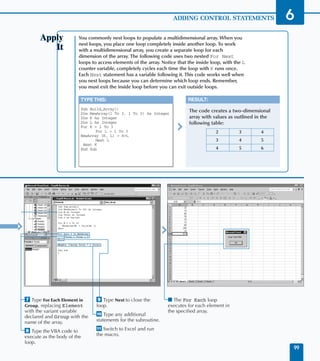
  CBool(expression)                        Converts an expression to Boolean data type                       Boolean
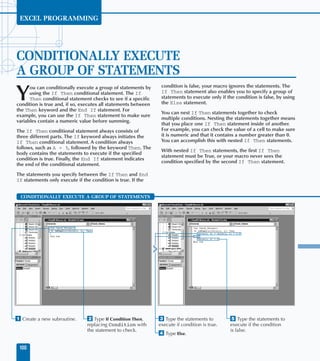
                                           (True or False).
  CByte(expression)                        Converts an expression to Byte data type.                         Byte
  CCur(expression)                         Converts an expression to Currency data type.                     Currency
  CDate(expression)                        Converts an expression to a Date data type.                       Date
  CDbl(expression)                         Converts an expression to Double data type.                       Double
  CDec(expression)                         Converts an expression to a decimal value.                        Variant
                                                                                                             (Decimal)
  Chr(charactercode)                       Converts the character code to the corresponding character.       Variant
                                           Chr(9) returns a tab, Chr(34) returns quotation marks, etc.
  CInt(expression)                         Converts an expression to an Integer data type; rounding          Integer
                                           any fractional parts.


                                                                                                                         301
APPENDIX

VBA AND EXCEL OBJECT MODEL
QUICK REFERENCE
VBA FUNCTION QUICK REFERENCE                                                   (CONTINUED)

      Data Type Conversion Functions (Continued)
      FUNCTION                                DESCRIPTION                                               RETURNS
      CLng(expression)                        Converts an expression to the Long data type.             Long
      CSng(expression)                        Converts an expression to the Single data type.           Single
      CStr(expression)                        Returns a string containing the specified expression.     String
      CVar(expression)                        Converts any data type to a Variant data type. All        Variant
                                              numeric values are treated as Double data types and
                                              string expressions are treated as String data types.
      Format(expression[, format[,            Formats the expression using either predefined or         Variant
      firstdayofweek[,                        user-defined formats.
      firstweekofyear]]])
      FormatCurrency(Expression[,             Formats the expression as a currency value using the      Currency
         NumDigitsAfterDecimal                system-defined currency symbol.
         [, IncludeLeadingDigit
         [,UseParensForNegativeNumbers
         [, GroupDigits]]]])
      FormatDateTime(Date[, NamedFormat])     Formats an expression as a date and time.                 Date
      FormatNumber (Expression                Formats the expression as a number.                       Mixed
         [, NumDigitsAfterDecimal
         [, IncludeLeadingDigit
         [, UseParensForNegativeNumbers
         [, GroupDigits]]]])
      FormatPercent (Expression               Returns the expression formatted as a percentage with a   String
         [,NumDigitsAfterDecimal              trailing % character.
         [,IncludeLeadingDigit
         [,UseParensForNegativeNumbers
         [,GroupDigits]]]])
      Hex(number)                             Converts a number to a hexadecimal value. Rounds          String
                                              numbers to nearest whole number before converting.
      Oct(number)                             Converts a number to an octal value. Rounds numbers to    Variant
                                              nearest whole number before converting.                   (String)
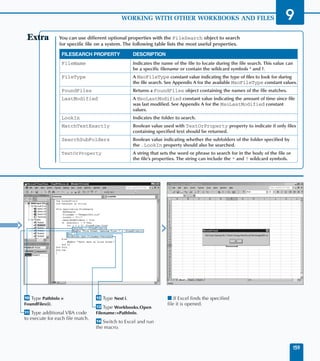
      Str(number)                             Converts a number to a string using the Variant .         Variant
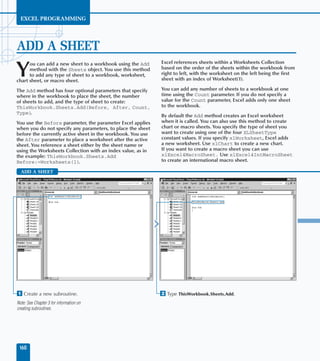
                                              data type                                                 (String)
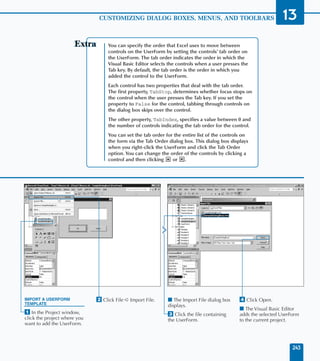
      Val(string)                             Returns the numeric portion of a string formatted as a    Mixed
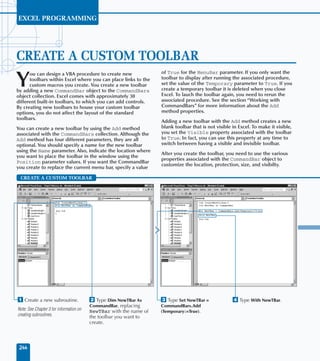
                                              number of the appropriate data type.


302
VBA QUICK REFERENCE            A
VBA FUNCTION QUICK REFERENCE                                                  (CONTINUED)

 Date and Time Functions
  FUNCTION                            DESCRIPTION                                                  RETURNS
  Date                                Returns the current system date.                             Date
  DateAdd(interval, number, date)     Returns a date that is the specified interval of time from   Date
                                      the original date.
  DateDiff(interval, date1, date2[,   Determines the time interval between two dates.              Long
     firstdayofweek[,
     firstweekofyear]])
  DatePart(interval, date[,           Returns the specified part of a date.                        Integer
     firstdayofweek[,
     firstweekofyear]])
  DateSerial(year, month, day)        Converts the specified date to a serial number.              Date
  DateValue(date)                     Converts a string to a date.                                 Date
  Day(date)                           Returns a whole number between 1 and 31 representing         Integer
                                      the day of the month.
  Hour(time)                          Returns a whole number between 0 and 23 representing         Integer
                                      the hour of the day.
  Minute(time)                        Returns a whole number between 0 and 59 representing         Integer
                                      the minute of the hour.
  Month(date)                         Returns a whole number between 1 and 12 representing         Integer
                                      the month of the year.
  Now                                 Returns the current system date and time.                    Date
  Second(time)                        Returns a whole number between 0 and 59 representing         Integer
                                      the second of the minute.
  Time                                Returns the current system time.                             Date
  Timer                               Indicates the number of seconds that have elapsed since      Single
                                      midnight
  TimeSerial(hour, minute, second)    Creates a time using the specified hour, minute,             Date
                                      and second values.
  TimeValue(time)                     Converts a time to the serial number used to store time.     Date
  WeekDay(date, [firstdayofweek])     Returns a whole number representing the first day            Integer
                                      of the week.
  Year(date)                          Returns a whole number representing the year portion         Integer
                                      of a date.


                                                                                                             303
APPENDIX

VBA AND EXCEL OBJECT MODEL
QUICK REFERENCE
VBA FUNCTION QUICK REFERENCE                                                           (CONTINUED)

  File and Folder Handling Functions
      FUNCTION                                      DESCRIPTION                                                  RETURNS
      CurDir(drive)                                 Returns the current path.                                    String
      Dir[(pathname[, attributes])]                 Returns the name of the file, directory, or folder that      String
                                                    matches the specified pattern.
      EOF(filenumber)                               Returns -1 when the end of a file has been reached.          Integer
      FileAttr(filenumber, returntype)              Indicates the file mode used for files opened with the       Long
                                                    Open statement.
      FileDateTime(pathname)                        Indicates the date and time when a file was last modified.   Date
      FileLen(pathname)                             Indicates the length of a file in bytes.                     Long
      FreeFile(rangenumber)                         Returns the next file number available for use by the        Integer
                                                    Open statement.
      GetAttr(pathname)                             Returns a whole number representing the attributes           Integer
                                                    of a file, directory, or folder.
      Input (number, [#]filenumber)                 Returns a string containing the indicated number of          String
                                                    characters from the specified file.
      Loc(filenumber)                               Indicates the current read/write position in an open file.   Long
      LOF(filenumber)                               Returns the size in bytes of a file opened using the Long
                                                    Open statement.
      Seek(filenumber)                              Specifies the current read/write position with a file        Long
                                                    opened with the Open statement.

  Financial Functions
      FUNCTION                                      DESCRIPTION                                                  RETURNS
      DDB(cost, salvage, life, period[, factor])    Specifies the depreciation value for an                      Double
                                                    asset during a specific time frame.
      FV(rate, nper, pmt[, pv[, type]])             Determines the future value of an annuity                    Double
                                                    based on periodic fixed payments.
      IPmt(rate, per, nper, pv[, fv[, type]])       Determines the interest payment on an                        Double
                                                    annuity for a specific period of time.
      IRR(values(), [, guess])                      Determines the internal rate of returns for                  Double
                                                    a series of cash flows.
      MIRR(values(), finance_rate, reinvest_rate)   Returns the modified interest rate of                        Double
                                                    returns for a series of periodic cash flows.


304
VBA QUICK REFERENCE                A
VBA FUNCTION QUICK REFERENCE                                                     (CONTINUED)

 Financial Functions (Continued)
 FUNCTION                                     DESCRIPTION                                                 RETURNS
 NPer(rate, pmt, pv[, fv[, type]])            Returns the number of periods for                           Double
                                              an annuity.
 NPV(rate, values())                          Returns the net present value of                            Double
                                              an investment.
 Pmt(rate, nper, pv[, fv[, type]])            Returns the payment amount for                              Double
                                              an annuity based on fixed payments.
 PPmt(rate, per, nper, pv[, fv[, type]])      Returns the principal payment amount                        Double
                                              for an annuity.
 PV(rate, nper, pmt[, fv[, type]])            Returns the present value of an annuity.                    Double
 Rate(nper, pmt, pv[, fv[, type[, guess]]])   Returns the interest rate per period for                    Double
                                              an annuity.
 SLN(cost, salvage, life)                     Determines the straight-line depreciation                   Double
                                              of an asset for a single period.
 SYD(cost, salvage, life, period)             Determines the sum-of-years’ digits                         Double
                                              depreciation of an asset for a
                                              specified period.

 Information Functions
 FUNCTION                                     DESCRIPTION                                                 RETURNS
 CVErr(errornumber)                           Returns a user-defined error number.                        Variant
 Error[(errornumber)]                         Returns the error message for the specified error number.   String
 IsArray(varname)                             Indicates whether a variable contains an array.             Boolean
 IsDate(expression)                           Indicates whether an expression contains a date.            Boolean
 IsEmpty(expression)                          Indicates whether a variable has been initialized.          Boolean
 IsError(expression)                          Indicates whether an expression is an error value.          Boolean
 IsMissing(argname)                           Indicates whether an optional argument was passed to        Boolean
                                              a procedure.
 IsNull(expression)                           Indicates whether an expression contains no valid data.     Boolean
 IsNumeric(expression)                        Indicates whether an expression is a number.                Boolean
 IsObject(identifier)                         Indicates whether a variable references an object.          Boolean
 TypeName(varname)                            Specifies the variable type.                                String
 VarType(varname)                             Specifies the subtype of a variable.                        Integer


                                                                                                                    305
APPENDIX

VBA AND EXCEL OBJECT MODEL
QUICK REFERENCE
VBA FUNCTION QUICK REFERENCE                                                (CONTINUED)

  Interaction Functions
      FUNCTION                           DESCRIPTION                                                  RETURNS
      Choose(index, choice-1,            Selects and returns a value from a list of arguments.        Mixed
         [choice-2, ...])
      DoEvents()                         Yields execution so the operating system can process         Integer
                                         other events.
      Iif(expr, truepart, falsepart)     Evaluates the expression and returns either the              Mixed
                                         truepart or falsepart parameter value.
      InputBox(prompt[, title]           Displays a dialog box prompting the user for input.          String
         [, default] [, xpos]
         [, ypos] [, helpfile,
         context])
      GetAllSettings(appname, section)   Returns a list of key settings and their values from the     Variant
                                         Windows Registry.
      GetObject([pathname][, class])     Returns a reference to an object provided by an              Variant
                                         ActiveX Component.
      GetSetting(appname, section,       Returns a key setting value from an application’s entry      Variant
      key[, default])                    in the Windows registry.
      MsgBox(prompt[, buttons]           Displays a message box and returns a value representing      Integer
         [, title] [, helpfile,          the button pressed by the user.
         context])
      Partition(number, start, stop,     Indicates where a number occurs within a series of ranges.   String
         interval)
      QBColor(color)                     Returns the RGB color code for the specified color.          Long
      Switch(expr-1, value-1[, expr-2,   Evaluates a list of expressions and returns a value          Variant
         value-2 ...])                   associated with the first True expression.
      RGB(red, green, blue)              Returns a number representing the RGB color value.           Long

  Mathematical Functions
      FUNCTION                           DESCRIPTION                                                  RETURNS
      Abs(number)                        Returns the absolute value of a number.                      Mixed
      Atn(number)                        Returns the arctangent of a number.                          Double
      Cos(number)                        Returns the cosine of an angle.                              Double


306
VBA QUICK REFERENCE                   A
VBA FUNCTION QUICK REFERENCE                                                   (CONTINUED)

 Mathematical Functions (Continued)
 FUNCTION                                 DESCRIPTION                                                   RETURNS
 Exp(number)                              Returns the base of the natural logarithms raised to          Double
                                          a power.
 Fix(number)                              Returns the integer portion of a number. With negative        Integer
                                          values, returns first negative value greater than or
                                          equal to number.
 Int(number)                              Returns the integer portion of a number. With negative        Integer
                                          values, returns the first negative number less than or
                                          equal to the number.
 Log(number)                              Returns the natural logarithm of a number.                    Double
 Round(expression [, numdecimalplaces])   Rounds a number to the specified number of                    Mixed
                                          decimal places.
 Rnd[(number)]                            Returns a random number between 0 and 1.                      Single
 Sgn(number)                              Returns 1 for a number greater than 0, 0 for a value of 0,    Integer
                                          and -1 number less than zero.
 Sin(number)                              Specifies the sine of an angle.                               Double
 Sqr(number)                              Specifies the square root of a number.                        Double
 Tan(number)                              Specifies the tangent of an angle.                            Double

 String Manipulation Functions
 FUNCTION                                 DESCRIPTION                                                   RETURNS
 nStr([start, ]string1,                   Specifies the position of one string within another string.   Long
    string2[, compare])
 InStrRev(stringcheck,                    Specifies the position of one string within another           Long
    stringmatch[, start[,                 starting at the end of the string.
    compare]])
 LCase(string)                            Converts a string to lowercase.                               String
 Left(string, length)                     Returns the specified number of characters from the           String
                                          left side of a string.
 Len(string | varname)                    Determines the number of characters in a string.              Long
 LTrim(string)                            Trims spaces from the left side of a string.                  String
 Mid(string, start[, length])             Returns the specified number of characters from the           String
                                          center of a string.
 Right(string, length)                    Returns the specified number of characters from the           String
                                          right side of a string.
 RTrim(string)                            Trims spaces from the right side of a string.                 String
 Space(number)                            Creates a string with the specified number of spaces.         String


                                                                                                                  307
APPENDIX
VBA AND EXCEL OBJECT MODEL
QUICK REFERENCE
VBA FUNCTION QUICK REFERENCE                                                     (CONTINUED)

  String Manipulation Functions (Continued)
      FUNCTION                                DESCRIPTION                                                   RETURNS
      ISpc(n)                                 Positions output when printing to a file.                     String
      Str(number)                             Returns a string representation of a number.                  String
      StrComp(string1,                        Returns a value indicating the result of a
        string2[, compare])                   string comparison.                                            Integer
      StrConv(string, conversion, LCID)       Converts a string to the specified format.                    String
      String(number, character)               Creates a string by repeating a character                     String
                                              the specified number of times.
      Tab[(n)]                                Positions output when printing to a file.                     String
      Trim(string)                            Trims spaces from left and right of a string.                 String
      UCase(string)                           Converts a string to uppercase.                               String


VBA FUNCTION CONSTANTS AND CHARACTERS
  vbMsgBoxStyle Constants (MsgBox Function)
      CONSTANT                            VALUE                          DESCRIPTION
      vbAbortRetryIgnore                  2                              Displays Abort, Retry, and Ignore buttons.
      vbApplicationModal                  0                              Creates application modal message box.
      vbCritical                          16                             Displays Critical Message icon.
      vbDefaultButton1                    0                              Makes first button default.
      vbDefaultButton2                    256                            Makes second button default.
      vbDefaultButton3                    512                            Makes third button default.
      vbDefaultButton4                    768                            Makes fourth button default.
      vbExclamation                       48                             Displays Warning Message icon.
      vbInformation                       64                             Displays Information Message icon.
      vbMsgBoxHelpButton                  16384                          Adds a Help button.


308
VBA QUICK REFERENCE                        A
VBA FUNCTION CONSTANTS AND CHARACTERS
 vbMsgBoxStyle Constants (MsgBox Function) (Continued)
 CONSTANT                              VALUE             DESCRIPTION
 vbMsgBoxRight                         524288            Right aligns text in the box.
 vbMsgBoxRtlReading                    1048576           Used only with Hebrew and Arabic systems for
                                                         right-to-left reading.
 vbMsgBoxSetForeground                 65536             Makes message box the foreground window.
 vbOKCancel                            1                 Displays OK and Cancel buttons.
 vbOKOnly                              0                 Displays only the OK button.
 vbQuestion                            32                Displays Warning Query icon.
 vbRetryCancel                         5                 Displays Retry and Cancel buttons.
 vbSystemModal                         4096              Creates a system modal message box.
 vbYesNo                               4                 Displays Yes and No buttons.
 vbYesNoCancel                         3                 Displays Yes, No, and Cancel buttons.

 vbDayOfWeek Constants
 CONSTANT                              VALUE             DESCRIPTION
 vbUseSystemDayofWeek                  0                 Uses the system defined first day of week
 vbSunday                              1                 Sunday (default)
 vbMonday                              2                 Monday
 vbTuesday                             3                 Tuesday
 vbWednesday                           4                 Wednesday
 vbThursday                            5                 Thursday
 vbFriday                              6                 Friday
 vbSaturday                            7                 Saturday

 vbFirstWeekOfYear Constants
 CONSTANT                              VALUE             DESCRIPTION
 vbUseSystem                           0                 Uses system defined first week of year.
 vbFirstJan1                           1                 Starts with week in which January 1 occurs
                                                         (default).
 vbFirstFourDays                       2                 Starts with the first week that has at least four
                                                         days in the new year.
 vbFirstFullWeek                       3                 Starts with first full week of the year.


                                                                                                             309
APPENDIX

VBA AND EXCEL OBJECT MODEL
QUICK REFERENCE
VBA FUNCTION CONSTANTS AND CHARACTERS
  Format Function Characters
      DATE/TIME CHARACTERS             DISPLAYS
      d                                Day with no leading zero.
      ddd                              Three-letter abbreviation of day (Sun. – Sat.).
      dddd                             Full day name (Sunday).
      ddddd                            Complete date using short date format.
      dddddd                           Complete date using long date format.
      w                                Day of week as number (1 for Sunday).
      ww                               Week of year as number.
      m                                Month with no leading zero.
      mmm                              Three letter abbreviation of month (Jan.-Dec.).
      mmmm                             Complete month name.
      q                                Quarter of year.
      y                                Day of year as number.
      yy                               Year as 2-digit number.
      yyyy                             Year as 4-digit number.
      h                                Hour with no leading zero.
      n                                Minutes with no leading zero.
      s                                Seconds with no leading zero.
      ttttt                            Complete time using system time format.
      c                                Date as dddddd and time as ttttt.

  Format Function Predefined Formats
      FORMAT                           DESCRIPTION
      General Date                     Uses general date format.
      Long Date                        Uses system-defined long date, such as Tuesday, August 7, 2001.
      Medium Date                      Uses the medium date format, such as 07-Aug-01.
      Short Date                       Uses system-defined short date, such as 8/7/2001.
      Long Time                        Uses system-defined long time, such as 5:45:30 P.M.
      Medium Time                      Uses the medium time format, such as 05:45 P.M.


310
VBA QUICK REFERENCE          A
VBA FUNCTION CONSTANTS AND CHARACTERS
 Format Function Predefined Formats (Continued)
 FORMAT                         DESCRIPTION
 Short Time                     Uses the short time format, such as 17:45.
 General Number                 Uses the general number format.
 Currency                       Places the appropriate currency symbol in front of the number.
 Fixed                          Uses a fixed decimal format.
 Standard                       Uses standard formatting.
 Percent                        Converts the expression to a percentage.
 Scientific                     Displays the expression using scientific notation.
 Yes/No                         Converts the expression to a Yes or No value.
 True/False                     Converts the expression to a True or False value.
 On/Off                         Converts the expression to an On or Off value.


EXCEL OBJECT MODEL CONSTANTS
 XlColumnDataType Constants
 CONSTANT                       VALUE                          DESCRIPTION
 xlDMYFormat                    4                              DMY format date
 xlDYMFormat                    7                              DYM format date
 xlEMDFormat                    10                             EMD format date
 xlGeneralFormat                1                              General format
 xlMDYFormat                    3                              MDY format date
 xlMYDFormat                    6                              MYD format date
 xlSkipColumn                   9                              Skip Column
 xlTextFormat                   2                              Text format
 xlYDMFormat                    8                              YDM format date
 xlYMDFormat                    5                              YMD format date

 XlFileFormat Constants
 CONSTANT                       VALUE                          DESCRIPTION
 xlAddIn                        18                             Excel add-in.
 xlCSV                          6                              Comma-separated values format.
 xlCSVMac                       22                             Macintosh comma-separated values format.


                                                                                                          311
APPENDIX

VBA AND EXCEL OBJECT MODEL
QUICK REFERENCE
EXCEL OBJECT MODEL CONSTANTS                              (CONTINUED)

  XlFileFormat Constants (Continued)
      CONSTANT                    VALUE   DESCRIPTION
      xlCSVMSDOS                  24      MSDOS comma-separated values format.
      xlCSVWindows                23      MS Windows comma-separated values format.
      xlCurrentPlatformText       -4158   Text file based on current operating system.
      xlDBF2                      7       DBase II format.
      xlDBF3                      8       DBase III format.
      xlDBF4                      11      DBase IV format.
      xlDIF                       9       Data interchange format.
      xlExcel2                    16      Excel 2.0 format.
      xlExcel2FarEast             27      Excel 2.0 format – Far East version.
      xlExcel3                    29      Excel 3.0 format.
      xlExcel4                    33      Excel 4.0 format.
      xlExcel4Workbook            35      Excel 4.0 workbook format.
      xlExcel5                    39      Excel 5.0 format.
      xlExcel7                    39      Excel 97 format.
      xlExcel9795                 43      Excel 95 – 97 format.
      xlHtml                      44      HTML format.
      xlIntlAddIn                 26      Excel international Add-in.
      xlIntlMacro                 25      Excel international macro.
      xlSYLK                      2       Symbolic link format.
      xlTemplate                  17      Template file format.
      xlTextMac                   19      Macintosh text file format.
      xlTextMSDOS                 21      MSDOS text file format.
      xlTextPrinter               36      Text file created for a printer (.prn).
      xlTextWindows               20      MS Window text file format.
      xlUnicodeText               42      Unicode text file format.
      xlWebArchive                45      Web archive format (.mht).
      xlWK1                       5       Lotus 2.x format.
      xlWK1ALL                    31      Lotus 2.x .all format.


312
VBA QUICK REFERENCE                   A
EXCEL OBJECT MODEL CONSTANTS                         (CONTINUED)

 XlFileFormat Constants (Continued)
 CONSTANT                             VALUE   DESCRIPTION
 xlWK1FMT                             30      Lotus 2.x .fmt format.
 xlWK3                                15      Lotus 3.x format.
 xlWK3FM3                             32      Lotus 3.x and Lotus 1-2-3 for Windows format.
 xlWK4                                38      Lotus 4.0 format.
 xlWKS                                4       MS Works file format.
 xlWorkbookNormal                     -4143   Excel workbook format.
 xlWorks2FarEast                      28      MS Works file – Far East format.
 xlWQ1                                34      Quattro Pro for MSDOS format.
 xlXMLSpreadsheet                     46      XML format.

 MsoFileType Constants
 CONSTANT                             VALUE   DESCRIPTION
 msoFileTypeAllFiles                  1       All file types.
 msoFileTypeBinders                   6       Microsoft Office Binder file.
 msoFileTypeCalendarItem              11      Microsoft Outlook Calendar item.
 msoFileTypeContactItem               12      Microsoft Outlook Contact item.
 msoFileTypeDatabases                 7       Database files.
 msoFileTypeDataConnectionFiles       17      Database connection files.
 msoFileTypeDesignerFiles             22      Designer files.
 msoFileTypeDocumentImagingFiles      20      Document imaging files.
 msoFileTypeExcelWorkbooks            4       Microsoft Excel Workbooks.
 msoFileTypeJournalItem               14      Journal items.
 msoFileTypeMailItem                  10      Microsoft Outlook Mail message.
 msoFileTypeNoteItem                  13      Microsoft Outlook Note item.
 msoFileTypeOfficeFiles               2       All Microsoft Office file types.
 msoFileTypeOutlookItems              9       Microsoft Outlook files.
 msoFileTypePhotoDrawFiles            16      Microsoft PhotoDraw files.
 msoFileTypePowerPointPresentations   5       Microsoft PowerPoint files.
 msoFileTypeProjectFiles              19      Microsoft Project files.
 msoFileTypePublisherFiles            18      Microsoft Publisher files.
 msoFileTypeTaskItem                  15      Microsoft Outlook Task item.
 msoFileTypeTemplates                 8       Template files.


                                                                                              313
APPENDIX

VBA AND EXCEL OBJECT MODEL
QUICK REFERENCE
EXCEL OBJECT MODEL CONSTANTS                                   (CONTINUED)

      MsoFileType Constants (Continued)
      CONSTANT                            VALUE   DESCRIPTION
      msoFileTypeVisioFiles               21      Visio files.
      msoFileTypeWebPages                 23      Web pages including .htm, .asp, and .mht files.
      msoFileTypeWordDocuments            3       Microsoft Word documents.

      XlChartType Constants
      CONSTANT                            VALUE   CHART TYPE
      xl3DArea                            -4098   3D Area
      xl3DAreaStacked                     78      3D Stacked Area
      xl3DAreaStacked100                  79      100% Stacked Area
      xl3DBarClustered                    60      3D Clustered Bar
      xl3DBarStacked                      61      3D Stacked Bar
      xl3DBarStacked100                   62      3D 100% Stacked Bar
      xl3DColumn                          -4100   3D Column
      xl3DColumnClustered                 54      3D Clustered Column
      xl3DColumnStacked                   55      3D Stacked Column
      xl3DColumnStacked100                56      3D 100% Stacked Column
      xl3DLine                            -4101   3D Line
      xl3DPie                             -4102   3D Pie
      xl3DPieExploded                     70      Exploded 3D Pie
      xlArea                              1       Area
      xlAreaStacked                       76      Stacked Area
      xlAreaStacked100                    77      100% Stacked Area
      xlBarClustered                      57      Clustered Bar
      xlBarOfPie                          71      Bar of Pie
      xlBarStacked                        58      Stacked Bar
      xlBarStacked100                     59      100% Stacked Bar
      xlBubble                            15      Bubble
      xlBubble3DEffec                     87      Bubble with 3D effects


314
VBA QUICK REFERENCE     A
EXCEL OBJECT MODEL CONSTANTS                              (CONTINUED)

 XlChartType Constants (Continued)
 CONSTANT                            VALUE   CHART TYPE
 xlColumnClustered                   51      Clustered Column
 xlColumnStacked                     52      Stacked Column
 xlColumnStacked100                  53      100% Stacked Column
 xlConeBarClustered                  102     Clustered Cone Bar
 xlConeBarStacked                    103     Stacked Cone Bar
 xlConeBarStacked100                 104     100% Stacked Cone Bar
 xlConeCol                           105     3D Cone Column
 xlConeColClustered                  99      Clustered Cone Column
 xlConeColStacked                    100     Stacked Cone Column
 xlConeColStacked100                 101     100% Stacked Cone Column
 xlCylinderBarClustered              95      Clustered Cylinder Bar
 xlCylinderBarStacked                96      Stacked Cylinder Bar
 xlCylinderBarStacked100             97      100% Stacked Cylinder Bar
 xlCylinderCol                       98      3D Cylinder Column
 xlCylinderColClustered              92      Clustered Cone Column
 xlCylinderColStacked                93      Stacked Cone Column
 xlCylinderColStacked100             94      100% Stacked Cylinder Column
 xlDoughnut                          -4120   Doughnut
 xlDoughnutExploded                  80      Exploded Doughnut
 xlLine                              4       Line
 xlLineMarkers                       65      Line with Markers
 xlLineMarkersStacked                66      Stacked Line with Markers
 xlLineMarkersStacked100             67      100% Stacked Line with Markers
 xlLineStacked                       63      Stacked Line
 xlLineStacked100                    64      100% Stacked Line
 xlPie                               5       Pie
 xlPieExploded                       69      Exploded Pie
 xlPieOfPie                          68      Pie of Pie
 xlPyramidBarClustered               109     Clustered Pyramid Bar
 xlPyramidBarStacked                 110     Stacked Pyramid Bar
 xlPyramidBarStacked100              111     100% Stacked Pyramid Bar
 xlPyramidCol                        112     3D Pyramid Column
 xlPyramidColClustered               106     Clustered Pyramid Column


                                                                              315
APPENDIX

VBA AND EXCEL OBJECT MODEL
QUICK REFERENCE
EXCEL OBJECT MODEL CONSTANTS                             (CONTINUED)

  XlChartType Constants (Continued)
      CONSTANT                        VALUE   CHART TYPE
      xlPyramidColStacked             107     Stacked Pyramid Column
      xlPyramidColStacked100          108     100% Stacked Pyramid Column
      xlRadar                         -4151   Radar
      xlRadarFilled                   82      Filled Radar
      xlRadarMarkers                  81      Radar with Data Markers
      xlStockHLC                      88      High-Low-Close
      xlStockOHLC                     89      Open-High-Low-Close
      xlStockVHLC                     90      Volume-High-Low-Close
      xlStockVOHLC                    91      Volume-Open-High-Low-Close
      xlSurface                       83      3D Surface
      xlSurfaceTopView                85      Top View Surface
      xlSurfaceTopViewWireframe       86      Top View wireframe Surface
      xlSurfaceWireframe              84      3D Surface wireframe
      xlXYScatter                     -4169   Scatter
      xlXYScatterLines                74      Scatter with Lines.
      xlXYScatterLinesNoMarkers       75      Scatter with Lines and No Data Markers
      xlXYScatterSmooth               72      Scatter with Smoothed Lines
      xlXYScatterSmoothNoMarkers      73      Scatter with Smoothed Lines and No Data Markers

  XlLineStyle Constants
      CONSTANT                        VALUE   DESCRIPTION
      xlContinuous                    1       Continuous solid line.
      xlDash                          -4155   Dashed line.
      xlDashDot                       4       Line with the pattern dash dot.
      xlDashDotDot                    5       Line with the pattern dash dot dot.
      xlDot                           -4118   Dotted line.
      xlDouble                        -4119   Double solid line.
      xlSlantDashDot                  13      Slanted line with the pattern dash dot.
      xlineStyleNone                  -4142   No line.


316
VBA QUICK REFERENCE         A
EXCEL OBJECT MODEL CONSTANTS             (CONTINUED)

 XlBorderWeight Constants
 CONSTANT                   VALUE   DESCRIPTION
 xlHairline                 1       Creates a very thin line.
 xlMedium                   -4138   Creates a medium width line.
 xlThick                    4       Creates a thick line.
 xlThin                     2       Creates a thin line.

 XlPattern Constants
 CONSTANT                   VALUE   DESCRIPTION
 xlPatternAutomatic         -4105   System default.
 xlPatternChecker           9       Checkered pattern.
 xlPatternCrissCross        16      Criss-cross pattern.
 xlPatternDown              -4121   Downward pattern.
 xlPatternGray16            17      16% gray pattern.
 xlPatternGray25            -4124   25% gray pattern.
 xlPatternGray50            -4125   50% gray pattern.
 xlPatternGray75            -4126   75% gray pattern.
 xlPatternGray8             18      8% gray pattern.
 xlPatternGrid              15      Grid pattern.
 xlPatternHorizontal        -4128   Horizontal pattern.
 xlPatternLightHorizontal   11      Light horizontal pattern.
 xlPatternLightVertical     12      Light vertical pattern.
 xlPatternLightDown         13      Light downward pattern.
 xlPatternLightUp           14      Light upward pattern.
 xlPatternNone              -4142   No pattern.
 xlPatternSemiGray75        10      75% semi-gray pattern.
 xlPatternSolid             1       Solid color, no pattern.
 xlPatternUp                -4162   Upward pattern.
 xlPatternVertical          -4166   Vertical pattern.


                                                                   317
APPENDIX

VBA AND EXCEL OBJECT MODEL
QUICK REFERENCE
EXCEL BUILT-IN MENUS AND TOOLBARS
  Excel CommandBars
      CONSTANT        NAME                    TYPE
      1               Worksheet Menu Bar      Menu Bar
      2               Chart Menu Bar          Menu Bar
      3               Standard                Toolbar
      4               Formatting              Toolbar
      5               PivotTable              Toolbar
      6               Chart                   Toolbar
      7               Reviewing               Toolbar
      8               Forms                   Toolbar
      9               Stop Recording          Toolbar
      10              External Data           Toolbar
      11              Formula Auditing        Toolbar
      12              Full Screen             Toolbar
      13              Circular Reference      Toolbar
      14              Visual Basic            Toolbar
      15              Web                     Toolbar
      16              Control Toolbox         Toolbar
      17              Exit Design Mode        Toolbar
      18              Refresh                 Toolbar
      19              Watch Window            Toolbar
      20              PivotTable Field List   Toolbar
      21              Borders                 Toolbar
      22              Protection              Toolbar
      23              Text To Speech          Toolbar
      24              Drawing                 Toolbar
      25              Query and Pivot         Shortcut Menu
      26              PivotChart Menu         Shortcut Menu
      27              Workbook tabs           Shortcut Menu
      28              Cell                    Shortcut Menu


318
VBA QUICK REFERENCE     A
EXCEL BUILT-IN MENUS AND TOOLBARS                                  (CONTINUED)

 Excel CommandBars (Continued)
  CONSTANT                       NAME                               TYPE
  29                             Column                             Shortcut Menu
  30                             Row                                Shortcut Menu
  31                             Cell                               Shortcut Menu
  32                             Column                             Shortcut Menu
  33                             Row                                Shortcut Menu
  34                             Ply                                Shortcut Menu
  35                             XLM Cell                           Shortcut Menu
  36                             Document                           Shortcut Menu
  37                             Desktop                            Shortcut Menu
  38                             Nondefault Drag and Drop           Shortcut Menu
  39                             AutoFill                           Shortcut Menu
  40                             Button                             Shortcut Menu
  41                             Dialog                             Shortcut Menu
  42                             Series                             Shortcut Menu
  43                             Plot Area                          Shortcut Menu
  44                             Floor and Walls                    Shortcut Menu
  45                             Trendline                          Shortcut Menu
  46                             Chart                              Shortcut Menu
  47                             Format Data Series                 Shortcut Menu
  48                             Format Axis                        Shortcut Menu
  49                             Format Legend Entry                Shortcut Menu
  50                             Formula Bar                        Shortcut Menu
  51                             PivotTable Context Menu            Shortcut Menu
  52                             Query                              Shortcut Menu
  53                             Query Layout                       Shortcut Menu
  54                             AutoCalculate                      Shortcut Menu
  55                             Object/Plot                        Shortcut Menu
  56                             Title Bar (Charting)               Shortcut Menu
  57                             Layout                             Shortcut Menu
  58                             Pivot Chart Popup                  Shortcut Menu
  59                             Phonetic Information               Shortcut Menu
  60                             Auto Sum                           Shortcut Menu
  61                             Paste Special Dropdown             Shortcut Menu


                                                                                    319
APPENDIX

VBA AND EXCEL OBJECT MODEL
QUICK REFERENCE
EXCEL BUILT-IN MENUS AND TOOLBARS                       (CONTINUED)

  Excel CommandBars (Continued)
      CONSTANT                    NAME                   TYPE
      62                          Find Format            Shortcut Menu
      63                          Replace Format         Shortcut Menu
      64                          WordArt                Toolbar
      65                          Picture                Toolbar
      66                          Shadow Settings        Toolbar
      67                          3-D Settings           Toolbar
      68                          Drawing Canvas         Toolbar
      69                          Organization Chart     Toolbar
      70                          Diagram                Toolbar
      71                          Borders                Toolbar
      72                          Borders                Toolbar
      73                          Draw Border            Toolbar
      74                          Chart Type             Toolbar
      75                          Pattern                Toolbar
      76                          Font Color             Toolbar
      77                          Fill Color             Toolbar
      78                          Line Color             Toolbar
      79                          Order                  Toolbar
      80                          Nudge                  Toolbar
      81                          Align or Distribute    Toolbar
      82                          Rotate or Flip         Toolbar
      83                          Lines                  Toolbar
      84                          Connectors             Toolbar
      85                          AutoShapes             Toolbar
      86                          Callouts               Toolbar
      87                          Flowchart              Toolbar
      88                          Block Arrows           Toolbar


320
VBA QUICK REFERENCE     A
EXCEL BUILT-IN MENUS AND TOOLBARS                                  (CONTINUED)

 Excel CommandBars (Continued)
  CONSTANT                       NAME                               TYPE
  89                             Stars & Banners                    Toolbar
  90                             Basic Shapes                       Toolbar
  91                             Insert Shape                       Toolbar
  92                             Shapes                             Shortcut Menu
  93                             Inactive Chart                     Shortcut Menu
  94                             Excel Control                      Shortcut Menu
  95                             Curve                              Shortcut Menu
  96                             Curve Node                         Shortcut Menu
  97                             Curve Segment                      Shortcut Menu
  98                             Pictures Context Menu              Shortcut Menu
  99                             OLE Object                         Shortcut Menu
  100                            ActiveX Control                    Shortcut Menu
  101                            WordArt Context Menu               Shortcut Menu
  102                            Rotate Mode                        Shortcut Menu
  103                            Connector                          Shortcut Menu
  104                            Script Anchor Popup                Shortcut Menu
  105                            Canvas Popup                       Shortcut Menu
  106                            Organization Chart Popup           Shortcut Menu
  107                            Diagram                            Shortcut Menu
  108                            Layout                             Shortcut Menu
  109                            Select                             Shortcut Menu
  110                            Task Pane                          Toolbar
  111                            Add Command                        Shortcut Menu
  112                            Built-in Menus                     Shortcut Menu
  113                            System                             Shortcut Menu
  114                            Clipboard                          Toolbar
  115                            Envelope                           Toolbar
  116                            Online Meeting                     Toolbar


                                                                                    321
EXCEL PROGRAMMING


WHAT’S ON THE CD-ROM
      he CD-ROM included in this book contains               installing different versions of the same program,

T     many useful files and programs. Before installing
      any of the programs on the disc, make sure that
a newer version of the program is not already
                                                             contact the program’s manufacturer. For the latest and
                                                             greatest information, please refer to the ReadMe file
                                                             located at the root of the CD-ROM.
installed on your computer. For information on


SYSTEM REQUIREMENTS                                          ACROBAT VERSION
To use the contents of the CD-ROM, your computer must        The CD-ROM contains an e-version of this book that you
be equipped with the following hardware and software:        can view and search using Adobe Acrobat Reader. You
                                                             cannot print the pages or copy text from the Acrobat files.
• A PC with a Pentium III or faster processor                An evaluation version of Adobe Acrobat Reader is also
                                                             included on the disc.
• Microsoft Windows 95, 98, 2000, NT 4.0, or
  Windows XP
                                                             INSTALLING AND USING THE SOFTWARE
• Microsoft Excel 2000 or 2002
                                                             For your convenience, the software titles appearing on the
• At least 128MB of total RAM installed on your              CD-ROM are listed alphabetically.
  computer
• A double-speed (8x) or faster CD-ROM drive
                                                             Acrobat Reader
• A monitor capable of displaying at least 256 colors        Freeware. Acrobat Reader lets you view the online version of
  or grayscale                                               this book. For more information on using Adobe Acrobat
                                                             Reader, see the section “Using the E-Version of This Book.”
• A network card
                                                             From Adobe Systems, www.adobe.com.

AUTHOR’S SOURCE CODE
These files contain all the sample code from the book. You   Barcode Add-in for Office
can browse these files directly from the CD-ROM, or you      Demo. Barcode Add-in from IDAutomation.com Inc.
can copy them to your hard drive and use them as the basis   provides the ability to print the following types of barcodes
for your own projects. To find the files on the CD-ROM,      from Excel: Code 39, UPC, EAN, UCC-128, Code 128,
open the D:Samples folder. To copy the files to your hard   POSTNET, PLANET, Codabar, Booklan, interleaved 2 of 5,
drive, just run the installation program D:Samples.EXE.     no-interleaved 2 of 5, and Code11. You can find more
The files will be placed on your hard drive at               information at www.idautomation.com/activex/.com.
C:ProgramFilesExcelProgVB. You will need
Microsoft Excel installed on the machine to run the sample
macros.


 322
ABOUT THE CD-ROM                B


Code Crafter 2000                                                TROUBLESHOOTING
30-day trial. Code Crafter 2000 from Code Craft Corporation      We tried our best to compile programs that work on most
provides a collection of utility functions that can be used to   computers with the minimum system requirements. Your
create and maintain VBA code. You can find more                  computer, however, may differ, and some programs may not
information at www.codecrafter.com.                              work properly for some reason.

                                                                 The two most likely problems are that you do not have
MsgBuilder                                                       enough memory (RAM) for the programs you want to use,
Freeware. MsgBuilder from TraderCat Ltd. is a development        or you have other programs running that are affecting the
tool that enables you to create properly formatted VBA           installation or running of a program. If you receive error
MsgBox statements and functions. You can find more               messages like Not enough memory or Setup cannot
information at www.tradercat.com.                                continue, try one or more of these methods and then try
                                                                 using the software again:

VBAcodePrint Add-In                                              • Turn off any antivirus software.
Shareware. VBAcodePrint from StarPrint2000 provides the          • Close all running programs.
ability to print VBA source code using user-defined colors
and fonts. You can customize page margins, line spacing,         • In Windows, close the CD-ROM interface and run
print quality, paper orientation, scaling, and more. You can       demos or installations directly from Windows
find more information at www.jn-software.com.                      Explorer.
                                                                 • Have your local computer store add more RAM to
VBCode Cutter                                                      your computer.
Shareware. VBCode Cutter from Progressive Data Solutions
is a VBA code Library & Development tool that enables you        If you still have trouble installing the items from the
to store VBA code snippets that you can drag and drop into       CD-ROM, please call the Hungry Minds Customer Service
a module. You can find more information at                       phone number: 800-762-2974 (outside the U.S.:
www.pdsolutions.com.au.                                          317-572-3994). You can also contact Hungry Minds Customer
                                                                 Service by e-mail at techsupdum@hungryminds.com.


                                                                                                                        323
EXCEL PROGRAMMING


USING THE E-VERSION OF THE BOOK
      ou can view Excel Programming: Your visual         program is provided on the disc. Acrobat Reader allows you

Y     blueprint for creating interactive spreadsheets
      on your screen using the CD-ROM included at
the back of this book. The CD-ROM allows you to
                                                         to view Portable Document Format (PDF) files, which can
                                                         display books and magazines on your screen exactly as
                                                         they appear in printed form.
search the contents of each chapter of the book for a    To view the contents of the book using Acrobat Reader,
specific word or phrase. The CD-ROM also provides a      display the contents of the disc. Double-click the PDFs
convenient way of keeping the book handy while           folder to display the contents of the folder. In the window
traveling.                                               that appears, double-click the icon for the chapter of the
                                                         book you want to review.
You must install Adobe Acrobat Reader on your computer
before you can view the book on the CD-ROM. This


 USING THE E-VERSION OF THE BOOK


                                                                                         +


FLIP THROUGH PAGES                   First page          ZOOM IN                             ¤ Click the area of the
⁄ Click one of these                 Previous page       ⁄ Click       to magnify            page you want to magnify.
options to flip through                                  an area of the page.                I Click one of these
the pages of a section.              Next page
                                                                                             options to display the page
                                     Last page                                               at 100% magnification (      )
                                                                                             or to fit the entire page
                                                                                             inside the window (       ).


 324
ABOUT THE CD-ROM              B

                   To install Acrobat Reader, insert the CD-ROM             Acrobat Reader is a popular and useful program.
                   into a drive. In the screen that appears, click          There are many files available on the Web that are
                   Software. Click Acrobat Reader and then                  designed to be viewed using Acrobat Reader. Look
                   click Install at the bottom of the screen. Then          for files with the .pdf extension. For more
                   follow the instructions on your screen to                information about Acrobat Reader, visit the
                   install the program.                                     Web site at www.adobe.com/products/
                                                                            acrobat/readermain.html.
                   You can make searching the book more
                   convenient by copying the PDF files to your
                   own computer. Display the contents of the
                   CD-ROM and then copy the PDFs folder
                   from the CD to your hard drive. This allows
                   you to easily access the contents of the book
                   at any time.


FIND TEXT                          ¤ Type the text you               I The first instance of              I Repeat steps 1
⁄ Click        to search           want to find.                     the text is highlighted.             and 3 to find the next
for text in the section.                                                                                  instance of the text.
                                   ‹ Click Find to start
I The Find dialog box              the search.
appears.


                                                                                                                             325
EXCEL PROGRAMMING


HUNGRY MINDS, INC. END-USER                                the original for backup or archival purposes. You may
LICENSE AGREEMENT                                          not (i) rent or lease the Software, (ii) copy or
                                                           reproduce the Software through a LAN or other
READ THIS. You should carefully read these terms
                                                           network system or through any computer subscriber
and conditions before opening the software packet(s)
                                                           system or bulletin-board system, or (iii) modify, adapt,
included with Excel Programming: Your visual
                                                           or create derivative works based on the Software.
blueprint for creating interactive spreadsheets. This is
a license agreement (Agreement) between you and            (b) You may not reverse engineer, decompile, or
Hungry Minds, Inc. (HMI). By opening the                   disassemble the Software. You may transfer the
accompanying software packet(s), you acknowledge           Software and user documentation on a permanent
that you have read and accept the following terms and      basis, provided that the transferee agrees to accept
conditions. If you do not agree and do not want to be      the terms and conditions of this Agreement and you
bound by such terms and conditions, promptly return        retain no copies. If the Software is an update or has
the Book and the unopened software packet(s) to the        been updated, any transfer must include the most
place you obtained them for a full refund.                 recent update and all prior versions.
1. License Grant. HMI grants to you (either an             4. Restrictions on Use of Individual Programs. You
individual or entity) a nonexclusive license to use one    must follow the individual requirements and
copy of the enclosed software program(s) (collectively,    restrictions detailed for each individual program in
the “Software”) solely for your own personal or            Appendix B of this Book. These limitations are also
business purposes on a single computer (whether a          contained in the individual license agreements
standard computer or a workstation component of a          recorded on the Software Media. These limitations
multi-user network). The Software is in use on a           may include a requirement that after using the
computer when it is loaded into temporary memory           program for a specified period of time, the user must
(RAM) or installed into permanent memory (hard disk,       pay a registration fee or discontinue use. By opening
CD-ROM, or other storage device). HMI reserves all         the Software packet(s), you will be agreeing to abide
rights not expressly granted herein.                       by the licenses and restrictions for these individual
                                                           programs that are detailed in Appendix B and on the
2. Ownership. HMI is the owner of all right, title,
                                                           Software Media. None of the material on this Software
and interest, including copyright, in and to the
                                                           Media or listed in this Book may ever be redistributed,
compilation of the Software recorded on the disk(s) or
                                                           in original or modified form, for commercial purposes.
CD-ROM (“Software Media”). Copyright to the
individual programs recorded on the Software Media         5. Limited Warranty.
is owned by the author, or other authorized copyright
owner of each program. Ownership of the Software           (a) HMI warrants that the Software and Software
and all proprietary rights relating thereto remain with    Media are free from defects in materials and
HMI and its licensers.                                     workmanship under normal use for a period of
                                                           sixty (60) days from the date of purchase of this
3. Restrictions On Use and Transfer.                       Book. If HMI receives notification within the warranty
                                                           period of defects in materials or workmanship, HMI
(a) You may only (i) make one copy of the Software
                                                           will replace the defective Software Media.
for backup or archival purposes, or (ii) transfer the
Software to a single hard disk, provided that you keep


326
ABOUT THE CD-ROM                 B

(b) HMI AND THE AUTHOR OF THE BOOK                         (c) Because some jurisdictions do not allow the
DISCLAIM ALL OTHER WARRANTIES, EXPRESS OR                  exclusion or limitation of liability for consequential or
IMPLIED, INCLUDING WITHOUT LIMITATION                      incidental damages, the above limitation or exclusion
IMPLIED WARRANTIES OF MERCHANTABILITY AND                  may not apply to you.
FITNESS FOR A PARTICULAR PURPOSE, WITH
RESPECT TO THE SOFTWARE, THE PROGRAMS, THE                 7. U.S. Government Restricted Rights. Use,
SOURCE CODE CONTAINED THEREIN, AND/OR THE                  duplication, or disclosure of the Software for or on
TECHNIQUES DESCRIBED IN THIS BOOK. HMI DOES                behalf of the United States of America, its agencies
NOT WARRANT THAT THE FUNCTIONS CONTAINED                   and/or instrumentalities (the “U.S. Government”) is
IN THE SOFTWARE WILL MEET YOUR                             subject to restrictions as stated in paragraph (c)(1)(ii)
REQUIREMENTS OR THAT THE OPERATION OF THE                  of the Rights in Technical Data and Computer
SOFTWARE WILL BE ERROR FREE.                               Software clause of DFARS 252.227-7013, or
                                                           subparagraphs (c) (1) and (2) of the Commercial
(c) This limited warranty gives you specific legal         Computer Software - Restricted Rights clause at FAR
rights, and you may have other rights that vary from       52.227-19, and in similar clauses in the NASA FAR
jurisdiction to jurisdiction.                              supplement, as applicable.
6. Remedies.                                               8. General. This Agreement constitutes the entire
                                                           understanding of the parties and revokes and
(a) HMI’s entire liability and your exclusive remedy       supersedes all prior agreements, oral or written,
for defects in materials and workmanship shall be          between them and may not be modified or amended
limited to replacement of the Software Media, which        except in a writing signed by both parties hereto that
may be returned to HMI with a copy of your receipt at      specifically refers to this Agreement. This Agreement
the following address: Software Media Fulfillment          shall take precedence over any other documents that
Department, Attn.: Excel Programming: Your visual          may be in conflict herewith. If any one or more
blueprint for creating interactive spreadsheets, Hungry    provisions contained in this Agreement are held by
Minds, Inc., 10475 Crosspoint Blvd., Indianapolis, IN      any court or tribunal to be invalid, illegal, or otherwise
46256, or call 1-800-762-2974. Please allow four to six    unenforceable, each and every other provision shall
weeks for delivery. This Limited Warranty is void if       remain in full force and effect.
failure of the Software Media has resulted from
accident, abuse, or misapplication. Any replacement
Software Media will be warranted for the remainder
of the original warranty period or thirty (30) days,
whichever is longer.

(b) In no event shall HMI or the author be liable for
any damages whatsoever (including without limitation
damages for loss of business profits, business
interruption, loss of business information, or any other
pecuniary loss) arising from the use of or inability to
use the Book or the Software, even if HMI has been
advised of the possibility of such damages.


                                                                                                                 327
INDEX

Symbols                                        ActivePrinter parameter, 178              arrays, 47
                                               ActiveSheet property, 69, 155, 161           check if a specified value is, 79
‘ (single quote) before comment lines in       ActiveWorkbook property, 146, 152            convert lists to, 86–87
   VBA code, 43
                                               Add method                                   declare, 82–85
‘ (apostrophe), 60, 61
                                                   to add controls, 246                     redimension, 88–89
- (subtraction) operator, 48, 56
                                                   with the ChartObjects object, 260        specify the size of, 82, 83
&
                                                   with the Charts object, 258              user-defined data types in, 90–91
    before shortcut key characters in
    menu options, 17, 248, 249, 250                with the ChartObjects collection,     As statement, 68
                                                      229, 244–245                       Assign Macro dialog box, 15, 17, 35
    specify the data type for a variable, 55
                                                   with a Controls object, 228           asterisk (*) wildcard, 156, 158
& (concatenation) operator, 48, 62,
   110, 111                                        create new menus, 248                 Author property, 215
!, data type for a variable, 55                    with a SeriesCollection object,       Auto Data Tips option, 29
                                                      264                                Auto Indent option, 29
#, data type for a variable, 55
                                                   with the Sheets object, 160           Auto List Member option, 29
####, 209
                                                   of the Workbooks collection, 154      Auto Quick Info option, 29
$, data type for a variable, 55
                                               Add Watch dialog box, 132, 133            Auto Syntax Check option, 29, 128
$ (String type declaration symbol),
   122, 123                                    AddComment method, 214–215                AutoFill method, 216–217
% (ALT) character, 295                         addition (+) operator, 56, 62             AutoFit method, 209
%, data type for a variable, 55                AddToMRU parameter, 140, 147              available macros, 6
* (asterisk) wildcard, 156, 158                After parameter                           Axes collection object, 274
* (multiplication) operator, 48, 56                with the Add method, 160, 161         Axes method, 274
/ (division) operator, 48, 56                      with the Copy method, 166
? (question mark symbol) wildcard, 156,            with Find, 222, 223                   B
   158                                             with the Move method, 164
                                               AllowEdit property, 191                   BackColor control property, 231
@, data type for a variable, 55
                                               alphabetical order, sort worksheets in,   background color for cells, 211
 (integer division) operator, 48, 56
                                                 180–181                                 Barcode Add-in for Office, 322
^ (CTRL) character, 295
                                               Alt key, menu option shortcuts, 17        BarGroups method, 269
^ (exponential) operator, 48, 56
                                               Alt+F11 shortcut key, 23, 25              .bas file, save modules in, 32, 33
_ (underscore) character in event-
   handling procedures, 235                    Always trust macros from this source      Before parameter
~ (ENTER) character, 295                         option, 41                                 with the Add method, 160, 161
+ (addition) operator, 48, 56, 62              And operator, 49                             with the Copy method, 166
+ (SHIFT) character, 295                       ANSI character code, 126                     with the Move method, 164
<Out of context> value, 132                    apostrophe (‘), 60, 61                       specify an index value, 249
= (equals sign) operator, 72                   application events, 279, 286, 287         BeforeClose event, 282
                                               Application object, 64                    BeforeDragOver event, 237
A                                              Area Collection, 187                      BeforeRightClick event, 296–297
                                               area ranges, 186–187                      BeforeSave event, 284, 285
absolute references for macros, 4              AreaGroups method, 269                    BeforeUpdate event, 237
Access databases, 145                          arguments, 74                             bits, 45
AccessMode parameter, 147                      arithmetic operators, 48, 56              Bold property, 185
Acrobat Reader, 322, 325                       “Array already dimensioned” error         Boolean data type, 45
Activate method, 151, 183                        message, 88                             Border objects for bars, 270
active menu bar, 248                           Array function, 86, 87                    BorderAround method, 220–221
active workbook, 3                             array functions, 301                      borders around a range of cells, 220–221
ActiveCell property, 64                        array is fixed or temporarily locked      braces {} around on-display characters,
                                                 error, 139                                295


328
EXCEL PROGRAMMING:
                                                                                          Your visual blueprint for
                                                                                      Creating Interactive Spreadsheets


Break mode, 130, 131                           insert a range of, 198–199              ClearFormats method, 207
break points, 129, 130–131                     monitor a range for changes, 290–291    Click event, 232, 234, 235, 237, 276
Break When Value Changes option, 132           place borders around a range of,        Close method, 152–153
Break When Value is True option, 132               220–221                             CloseMode argument, 239
built-in constants, 59                         reference specific, 57                  Code Crafter 2000, 323
built-in data types, 45                     Cells property, 57, 83, 184–185            code modules, 30–31. See also modules
built-in dialog boxes, 65, 76–77            certified digital signatures, 40           Code Settings, 128
built-in Excel functions, 108–109           Change Button Image menu, 15               code watches. See watches
built-in VBA functions, 123                 Change event, 237, 290–291                 code window for a UserForm, 234
BuiltIn property, 254                       Characters object, 199                     Code window in the Visual Basic Editor,
Button Editor dialog box, 15                chart elements, constants for, 297           20, 23, 24, 28–29, 30
button images, 15                           chart events, 277                          Collate parameter with the
buttons, 14–15, 77                          chart legend, 273. See also legend           PrintOut method, 178
Buttons argument, 110, 111                  Chart object, 65, 167                      collections, 64, 65
Byte data type, 45                          chart sheets, 256                          Color property, 71, 185
ByVal keyword, 285                             compared to embedded charts, 261        ColorIndex parameter, 220
                                               create, 160, 258–259                    ColorIndex property, 211
C                                              name, 170                               colors for fonts, 71
                                               remove from workbooks, 162              column of text, convert into multiple
Calculate event, 291                                                                     columns, 204–205
                                            chart types, 257, 268–269
Call keyword, 107                                                                      ColumnGroups method, 269
                                            Chart Wizard, 262–263
Call statement, 37, 50, 106–107                                                        ColumnOffset parameter, 188
                                            ChartArea object, 266
Cancel argument of QueryClose, 239                                                     columns
                                            Chart_BeforeRightClick
Caption control property, 231, 248, 250       procedure, 296–297                          set the width of, 200–201
Case Else statement, 102, 103               ChartGroup objects, 269                       specify as Range objects, 189
case sensitivity of keyboard shortcuts, 8   charts, 256–257                            ComboBox control, 226, 227
Case statements, 102                           add data tables to, 272–273             command bars, IDs of controls used
category axis, 274                             add new series to, 264–265                on, 247
CategoryLabels parameter, 262                  create with multiple chart types,       Command tab, 14, 16–17
CategoryTitle parameter, 262                      268–269                              CommandBars, 228–229, 318–321
CD-ROM with this book, 322–323                 customize axes on, 274–275              CommandButton control, 226, 227, 234
cell reference method, 57                      embed within worksheets, 260–261        CommandButton_Click subroutine,
Cell1 parameter, 182                           format text in, 266–267                   234, 235
Cell2 parameter, 182                           guidelines on, 275                      CommandButtonControl objects, 250
cells                                          protect, 176–177                        comment lines in macros, 43
   add comments to, 214–215                 Charts object, Delete method               comments, 60
   background color for, 211                  with, 163                                   add to cells, 214–215
   copy and paste ranges of, 210–211        ChartType property, 260, 268                  in VBA code, 60–61
   custom paste values in, 212–213          ChartWizard method, 262–263                compare argument for StrComp, 126
   cut and paste ranges of, 208–209         CheckBox control, 226, 227                 comparison operators, 49
   define a range of, 182–183               child objects, 64, 256–257                 compile errors, 128
   delete a range of, 190–191               Classes list box, 66                       compiled language, 44
   fill ranges of, 216–217                  Clear method, 207                          concatenation operator (&), 48, 62,
   find and replace values in, 224–225      ClearComments method, 214                    110, 111
   find specific values of, 222–223         ClearContents method, 207                  ConflictResolution parameter, 147
   hide a range of, 192–193                                                            ConsecutiveDelimiter
                                                                                          parameter, 143


                                                                                                                          329
INDEX

Const statement, 47, 58                     data type conversion functions, 301–302     dialog box constants, 76
constant values, 67, 76                     data types, 45                              dialog boxes
constants                                      for constants, 58                           call from procedures, 232–233
   Excel Object Model, 311–317                 user-defined, 44, 90–91                     capture input from custom, 234–237
   in VBA, 47, 58–59                           in variable names, 91                       create custom, 230–231
Contents parameter, 174                     data values, storage locations for, 78         display built-in, 76–77
Context argument, 110, 112                  DataTable object, 272                          name, 65
control events, capture of, 237             DataType parameter, 143                        validation of input from, 238–239
control IDs, 247                            date and time functions, 303                Dialog objects, 65, 76
control properties for UserForms, 231       Date argument, 118                          dialog sheets, 170
controls, 227, 246–247                      Date data type, 45                          Dialogs collection, 65, 76
Controls property, reference specific       date expressions, 118–119                   digital certification, 19
  CommandBar objects, 246                   Date function, 114                          digital signatures, 18, 19
Converter parameter with the Open           date range in Excel, 45                        assign to macros, 40–41
  method, 141                               DateDiff function, 116–117                     types of, 40
copied modules, 27                          dates                                       Dim keyword, 80
Copies parameter, 178                          check if a specified value is, 79        Dim statement, 55, 68, 84, 288
Copy button, 42                                determine the amount of time             DisplayAlerts property, 153
Copy method, 65, 74, 166, 167, 210–211            between, 116–117                      division by zero error, 139
CopyOrigin parameter, 198                      retrieve the current, 114, 115           division (/) operator, 48, 56
CorruptLoad parameter, 141                  dBase files, 145                            Do Until loop, 94–95
Count method, 158, 161, 164, 166            DblClick event, 237                         Do While loops, 92–93, 95
Count parameter, 160                        debug, basics of, 128–129                   docking feature, 24, 25
Count property, 74, 165, 180, 187, 196      Decimal data type, 46                       Double data type, 45, 55
counter variables, 93, 96, 97               DecimalSeparator parameter,                 DoughnutGroups method, 269
Courier New font, 28                          143, 204                                  down bars, 270
Create Digital Certificate dialog box, 19   declaration of variables, 54–55             DrawingObjects parameter, 174, 176
CreateBackup parameter, 147                 Default argument with InputBox,             dynamic arrays, 47, 88
Ctrl+R shortcut key, 23                       112
                                            Define Name dialog box, 195
Ctrl+Shift+F8, 135
                                            Delete button in the Macro dialog box, 10
                                                                                        E
CurDir function, 157
Currency data type, 45, 55                  Delete dialog box, 77                       EarliestTime parameter, 292, 293
current date and time, 114–115              Delete method                               Edit Button Image option, 15
custom dialog boxes, 21, 230–231,              with the Charts object, 163              Editable parameter, 141
  234–237                                      with the CommandBar object,              Editor Format tab, 28
Custom Menu Item option, 16                       254–255                               Editor tab, 29
custom menus, 17, 248–249                      with a Range object, 74                  Element In Group statement, 98
custom toolbars, 244–245, 254–255              remove a data series, 265                elements, 47, 234
Customize Control dialog box, 240              remove a range of cells, 190–191         Else statement, 100
Customize dialog box, 11, 14, 16–17, 35        with the Sheets object, 162–163          embedded charts, 256, 261
Cut method, 208–209                            with the Worksheets object, 163          End If statement, 100, 101
                                            delimiter character, 141, 142, 143, 204     End Select statement, 102, 103
D                                           Delimiter parameter, 141                    End Sub command, 51
                                            Description property of the Err             End Type statement, 90
data series, 264–265, 270–271                 object, 129                               Enter event, 237
data sources, 145, 259                      design errors, 128                          Eqv operator, 49
data tables for charts, 272–273             Design mode, 131                            Err object, 129, 136, 138


330
EXCEL PROGRAMMING:
                                                                                      Your visual blueprint for
                                                                                  Creating Interactive Spreadsheets


Err.Description property, 139              FileFormat property, 155                format function predefined formats,
Err.Number property, 138                   FileName parameter                        310–311
error codes for runtime messages, 138        with the Close method, 152            Format parameter, 141, 262
errors, types of, 128–129                    with the OpenText method, 142, 143    FormatCurrency function, 120
event-handling procedures, 235, 276, 289     with the Save As method, 146, 147,    FormatDateTime function, 118–119
events, 234, 276, 287                              172                             FormatNumber function, 120
e-version of this book, 322, 324–325           with SaveWorkspace, 149             FormatPercentage function, 120
Excel                                      Filename property, 158, 159             Forms. See UserForms
   built-in menus and toolbars, 318–321    files, 144–145, 156–157, 158–159        Forms folder node, 21
   ChartObjects, 318–321                   FileSearch object, 158–159              FoundFile object, 158
   date range in, 45, 114                  FileType property, 159                  FoundFiles property, 159
   dialog boxes in, 77                     Fill methods, 219                       Frame control, 226, 227
   time numbering system, 293              Fill parameter, 218                     From parameter, 178
   toggle with Visual Basic Editor, 23     FillAcrossSheets method, 218–219        FullName property, 155
Excel object library, 66                   FilterFilter parameter, 148             function calls, simplify with named
Excel Object Model, 64–65, 74, 108,        FilterIndex parameter, 144, 148           arguments, 113
  311–317                                  financial functions, 304–305            functions, 46, 52–53
Excel window, 25, 36                       Find method, 222–223                       call subroutines and functions, 81
execution, 136–137                         FindControl method, 249                    constants and characters list for VBA,
Exit Do statement, 95                      FindFormat property, 225                      308–311
Exit Sub command, 105                      FindPrevious method, 223                   hide, 81
Exit Sub statement, 106, 136               Firstdayofweek argument, 116               quick reference of VBA, 301–308
exponential (^) operator, 48, 56           Firstdayofyear argument, 116
Export File dialog box, 242                fixed-length arrays, 47
                                                                                   G
Export Page dialog box, 241                fixed-length string variables, 62       Gallery parameter, 262, 263
Expression argument, 120                   fixed-length strings, 46                GetOpenFilename method, 144–145
expressions, functions as part of, 52      fixed-length variables, 63              GetSaveAsFilename method, 148–149
Extend method, 265                         fixed-size arrays, 88                   global macros, 3, 7
extra spaces, remove from a string,        fixed-width fonts, 28                   global variables, 80–81
  122–123                                  focus, 23                               GoTo commands in macros, 104–105
ExtraTitle parameter, 262                  folder handling functions, 304          graphical layout window, 234
                                           folder handling statements, 298         gridlines, 275
F                                          folders, 157                            GroupDigits argument, 120
F1 key, 23, 67 See also Shortcut Keys      font attributes for charts, 266
F2 key, 66 See also Shortcut Keys          font color, 71                          H
F4 key, 23 See also Shortcut Keys          Font control property, 231              HasDataTable property, 272
F7 key, 23 See also Shortcut Keys          Font object, 185                        HasLegend parameter, 262
F8 key, 135 See also Shortcut Keys         Font object properties, 266             HasLegend property, 273
FaceID property, 246, 247                  Font property, 272, 273                 HasPassword property, 155
FieldInfo parameter, 143                   font styles, 28                         HasUpDownBars property, 270
file handling functions, 304               FontStyle property, 185                 Height property, 203, 231
file handling statements, 298              For Each Next loop, 98–99, 150          Help argument, 110
file types for the Open dialog box,        For Each Next statement, 245            Helpfile argument, 112
   144, 145                                For Next loops, 86, 96–97, 180          hidden files, 12
FileFilter parameter, 144, 145             For statement, 96                       hidden macros, 38–39
FileFormat parameter, 146, 147,            Format function, 121                    Hidden property, 65, 192–193
   172, 173


                                                                                                                        331
INDEX

hidden workbooks, 10                         Is operator, 72                           locked cells, 174
Hide method, 233                             IsArray function, 79                      locked projects, 27, 38
High security setting, 18                    IsDate function, 79, 116                  logical errors, 129, 132
hot key reference, 35                        IsNull function, 79                       logical operators, 49
                                             IsNumeric function, 78, 79                Long data type, 45, 55
I                                            IsObject function, 79                     LookAt parameter, 222, 223, 224
ID property for controls, 247                Italic property, 185                      LookIn parameter, 222, 223
ID settings for menus, 249                   items, add to menus, 250–251              LookIn property, 158, 159
If Then statement, 100–101                                                             Lotus 1-2-3, macros in, 2
   in alphabetical sorting, 181              J                                         Lotus files, 145
   check the status of a control, 238        join strings together, 62–63              Low security setting, 18
   combine functions with, 79                jump to a specific location in a macro,   lower bound of an array, 83, 89
   combine with a procedure call                104–105                                lowercase characters, convert to
      statement, 106–107                                                                 uppercase, 127
   place on one line, 107                    K                                         LTrim function, 122
IgnoreReadOnlyRecommended
  parameter with the Open method, 140
                                             key combinations, special characters
                                               in, 295
                                                                                       M
Image control, 226, 227                      Key parameter, 294                        Macro dialog box, 31, 38, 39
images on buttons, 15                        keyboard shortcuts, 4, 5, 8–9               call subroutines with parameters, 51
Immediate window, 20, 24                     KeyDown event, 237                          display available macros, 7, 8, 10
Imp operator, 49                             Kill statement, 156–157                     open, 42
Import File dialog box, 33, 243                                                          open the Visual Basic Editor from, 23
Import Page dialog box, 241                  L                                           rename macros via, 34
IncludeLeadingDigit argument, 120                                                      macro languages, 44
                                             Label control, 226, 227
indentation of VBA code, 101                                                           Macro menu, 251
                                             labeled code, 105
index values of array elements, 86                                                     Macro Options dialog box, 8
                                             labels, 104
information functions, 305                                                             Macro Recorder, 2, 3, 4
                                             LastModified property, 159
InitialFilename parameter, 148                                                         macro references, 35
                                             LatestTime parameter, 292, 293
input, validate from a dialog box, 238–239                                             macro sheets, 160, 162, 170
                                             LBound function, 89
InputBox function, 112–113                                                             macro toolbar buttons, 14
                                             LCase function, 127
Insert dialog box, 77                                                                  macro viruses, 18
                                             leap years, 115
Insert Function dialog box, 53, 109                                                    macros, 2, 4–5, 7
                                             Left function, 124, 125
Insert method, 198–199                                                                   assign digital signatures to, 40–41
                                             Left property of the Range object, 203
Integer data type, 45, 55                                                                assign to menus, 16–17
                                             legend. See chart legend
integer division () operator, 48, 56                                                    assign to toolbar buttons, 14–15
                                             legend text, 266
IntelliSense technology, 21                                                              built-in Excel functions in, 108–109
                                             Len function, 63
interaction functions, 306                                                               create a custom menu for, 17
                                             length argument, 124
interaction statements, 298                                                              create startup, 36–37
                                             levels for variables, 80
Interior object, 211                                                                     delete, 10–11, 12–13
                                             LineGroups method, 269
international macro sheet, 160                                                           hide, 38–39
                                             lines of code, comment out, 61
interpreted language, 44                                                                 jump to a specific location in, 104–105
                                             LineStyle parameter, 220
Intersect method for ranges,                                                             locations for the storage of, 6
   206–207, 253                              ListBox control, 226, 227, 234
                                             lists, convert to arrays, 86–87             perform mathematical calculations
intersection of two ranges, 182                                                             within, 56
Interval argument, 116, 117                  Local parameter, 141, 143, 147              rename, 34–35
Invalid procedure call error, 139            Local window, 20, 130
                                                                                         run, 6–7
                                             Lock project for viewing option, 27


332
EXCEL PROGRAMMING:
                                                                                             Your visual blueprint for
                                                                                         Creating Interactive Spreadsheets


  select, 6                                  MsgBox function, 55, 110–111, 308–309        numeric characters in the Format
  set security for, 18–19                    MsgBuilder, 323                                function, 121
  trust from a particular source, 41         MsoFileType constants, 313–314               numeric data types, 45
  update recorded, 42–43                     multidimensional arrays, 47, 84–85, 99       numeric expressions, 120–121
Macros In Field, 7                           MultiPage control, 226, 227, 235             numeric values, 57, 79
major gridlines, 275                         multiple area ranges, 186–187
Margin Indicator Bar check box, 28           multiplication (*) operator, 48, 56          O
MatchByte parameter, 222, 223                MultiSelect parameter, 144                   Object Browser, 64, 66–67, 287
MatchCase parameter, 222, 224                                                             object collections. See collections
MatchTextExactly property, 159               N                                            object comparison, 72
mathematical calculations, 56–57             Name box for ranges, 195                     Object data type, 45
mathematical functions, 306–307              Name field in the Customize menu, 35         “Object doesn’t support this property or
Me operator, 283                             Name parameter with the Range                  method” error message, 108
Medium security setting, 18                    property, 182                              object libraries, 66
Members list box in the Object Browser, 66   Name property                                Object list box, 20, 287
menu items, 252                                 assign a specific name to a range of      object methods, 74–75
menus                                               cells, 194–195                        Object Model, 64. See also Excel Object
  add items to, 250–251                         in conjunction with the Parent              Model
  assign macros to, 16–17                           property, 171                         object variables, 68–69, 72–73
  built-in to Excel, 318–321                    of the Sheets object, 170–171             objects, 21, 64, 65, 70–71, 72, 79
  create, 229, 248–249                          for a UserForm, 230                       Office object library, 66
  IDs for, 249                                  with a workbook, 150                      Offset property, 188–189
  modifications to, 11, 228–229                 of the Workbook object, 155               On Error Resume Next statement,
methods, 65, 74                              named arguments, 75, 113                       129, 136–137, 138
Microsoft Excel Objects folder, 21           named parameters, 142                        OnAction property, 246, 247, 250
Microsoft Works 2.0 files, 145               named ranges, 194, 195                       one-dimensional array, 47
Mid function, 124, 125                       NamedFormat argument, 118, 119               OnKey event, 294–295
MOD operator, 48, 56                         names. See also project names                OnTime event, 292–293
modal parameter, 232                            for modules in Visual Basic Editor, 31    Open dialog box, 6, 77, 144–145
modules. See also code modules               naming convention for variables, 91          Open event, 280
  change the name of copied, 27              nested If Then statements, 100               Open method, 140–141, 281
  create within the Visual Basic Editor,     nested looping, 180                          Open property, 144
     30–31                                   New Document task pane, 77                   open workbooks, 150–151
  export to a file, 32, 33                   New Menu option, 17                          OpenConflictDocument
  insert exported into any project, 33       NewWorkbook application event,                  parameter, 141
  name in the Visual Basic Editor, 30, 31      286–288                                    Open_DialogBox() macro, 77
  for projects, 21                           Next statement, 96, 98                       OpenText method, 142–143
  remove from the Visual Basic Editor,       nodes, 21                                    Operation parameter with
     32–33                                   Not operator, 49                               PasteSpecial, 212
  select in projects, 22                     Nothing keyword, 73                          operators, 48–49
monitor resolution, 25                       Notify parameter, 141                        Option Base 1 statement, 83
monospaced font, 200                         Now function, 114, 293                       Option Compare statement, 126, 127
MouseDown event, 237                         Null, 79                                     Option Explicit statement, 54
Move dialog box, 241                         number formats, 121                          optional arguments, call procedures
                                             Number property, 129, 138                      with, 75
Move method, 164
                                             NumDigitsAfterDecimal                        OptionButton control, 226, 227
MS-DOS wildcard file specifications, 145
                                               argument, 120                              Options dialog box, 28–29
MSForms object library, 66


                                                                                                                             333
INDEX

Or operator, 49                             pound signs, specify dates and times, 45      Properties dialog box, 76, 77
Origin parameter, 141, 143                  precedence order for arithmetic               Properties window, 20, 21, 23, 24, 27
                                              operators, 48                               proportional fonts, 200
P                                           predefined Excel shortcut keys, override, 5   Protect method, 75, 174–177
                                            Preserve statement, 88                        ProtectContents property, 177
.Pag extension, 241
                                            Preview parameter, 178                        ProtectDrawingObjects
PageSetup object, 179
                                            print area, specify for a worksheet, 179          property, 177
parameters, 51
                                            Print dialog box, 77                          Protection property, 255
Parent property, 171
                                            PrintArea property, 179                       Protection tab, 27
parentheses, effect on precedence
  order, 48                                 PrintOut method, 178                          ProtectMode property, 177
Parse method, 205                           PrintToFile parameter, 178                    ProtectScenarios property, 177
Password parameter                          private functions, 52                         ProtectStructure property, 155
   with the Open method, 140                Private keyword, 50, 52, 80, 81               public constants, 58
   with the Protect method, 174             private module level, 80                      public functions, 52
   with the Save As method, 147,            Private statement, 38, 39                     Public keyword, 50, 52, 80
      172, 173                              private subroutines, 50                       public module level, 80
   with the Unprotect method, 175           procedure level, 80                           public subroutines, 50
Password property, 155                      Procedure list box, 20
password protected projects, 26–27          Procedure parameter, 292, 294                 Q
password protection of worksheets,          procedure-level arrays, 84                    QueryClose event, 239
  174–175                                   procedures, 46                                question mark symbol (?) wildcard,
passwords, case-sensitivity of, 174, 176       call, 37, 75, 232–233                        156, 158
Paste button, 37, 43                           debug, 130–131, 132–133                    Quick Watch dialog box, 133
Paste parameter, 212                           execute, 292–293, 294–295                  Quit method, 153
PasteSpecial method, 212–213                   name, 46                                   quotes, enclosing strings, 46
Path/File access error message, 156            run, 280, 282–283, 284–285, 286–289
Path property of the Workbook                  step over, 135                             R
  object, 155                                  step through, 134–135
pathname argument for the Kill                                                            Range objects, 65, 85, 182, 206
                                            program flow statements, 299–300              range of cells, 182–183, 190–191,
  statement, 156
                                            Project Explorer, 21, 22, 23, 30, 32            192–193, 290–291
Permission Denied error, 156
                                            Project Explorer window, 20, 21, 24, 27       Range parameter, 218
personal digital signatures, 40
                                            project names, 26                             Range property, 182–183, 184
Personal Macro Workbook, 3, 6, 12–13
                                            Project Properties dialog box, 26–27          ranges
   add functions to, 53
                                            Project window. See Project Explorer             copy to multiple sheets, 218–219
   availability of, 14, 16                    window
   place startup macros in, 36                                                               find the intersection of, 206–207
                                            projects, 21                                     first row or column or, 197
   rename macros in, 34, 35                    insert exported modules into, 33
   view and modify macros in, 22                                                             insert into a worksheet, 198–199
                                               lock, 26, 27, 38                              resize, 196–197
personal security certificate, create, 19      open locked, 27
personal signature, 18                                                                       specify the name of, 194–195
                                               set properties for, 26–27                  ReadOnly parameter, 140
Personal.xls file, 3, 12                    Prompt argument
Personal.xls project, 34, 35                                                              ReadOnly property, 155
                                               with InputBox, 112                         Read-Only Recommended option, 140
PieGroups method, 269                          with the MsgBox function, 110
PlotBy parameter, 259, 262                                                                ReadOnlyRecommended parameter, 147
                                            properties                                    ReadOnlyRecommended property, 155
points, 201, 202                               change for objects, 21, 70–71
pop-up message boxes, 110–111                                                             Record Macro dialog box, 4
                                               of objects in the Excel Object Model, 65   recorded macros, 42–43
                                               set for projects, 26–27


334
EXCEL PROGRAMMING:
                                                                                                Your visual blueprint for
                                                                                            Creating Interactive Spreadsheets


Redim statement, 87, 88–89                    Select Case statement, 102–103                 Single data type, 45, 55
RefEdit control, 226, 227                     Select Certificate dialog box, 41              single quote (‘) before comment lines in
Regional Options dialog box, 118, 120         Select method with a Range object,                VBA code, 43
relative references for macros, 4                182, 183                                    Size property with the Font object, 185
Remove command, 32                            Selection property, 187                        SkipBlanks parameter, 212
Rename command, 171                           SelfCert.exe, 18, 19                           software on the CD-ROM with this
Replace method, 224–225                       serial number system for dates and                book, 322–323
ReplaceFormat parameter, 224, 225                times, 115                                  source code on the CD-ROM with this
                                              series axis, 274                                  book, 322
Replacement parameter, 224
                                              Series object, 264                             Source parameter, 259, 262
Require Variable Declaration option, 29, 54
                                              SeriesCollection object, 268                   Source property of the Err object, 129
Reset button, exit out of Break mode, 131
                                              SeriesLabels parameter, 262                    spaces, remove extra from a string,
Resize property, 196–197                                                                        122–123
resolution, 25                                Set statement, 85, 186, 187, 206, 207
                                              SetSourceData method, 259                      special characters in key combinations, 295
Resume statement, 137                                                                        SpinButton control, 226, 227
Return without GoSub error, 139               Shadow property, 185
                                              sheet nodes, 21                                standard variables. See variables
RGB function, 71, 220, 270                                                                   start argument for the Mid function, 124
Right function, 124, 125                      SheetProps variable, 168
                                              sheets. See also chart sheets; macro           StartRow parameter, 143
RmDir statement, 157                                                                         startup macros, 36–37
                                              sheets; worksheets
RouteWorkbook parameter, 152                                                                 statements, 100–101, 102–103, 298–301
                                                  add to workbooks, 160–161
RowHeight property, 202–203                                                                  Stdole object library, 66
                                                  change the name of, 170–171
RowOffset parameter, 188                                                                     Step Into command, 135
                                                  copy and paste within workbooks,
rows, 189, 202–203                                   166–167                                 Step Out command, 135
RTrim function, 122                               copy ranges to multiple, 218–219           Step Over command, 135
run a macro, 6–7                                  delete from workbooks, 162–163             step through code, 134
Run mode, 131                                     hide in workbooks, 168–169                 Stop Recording toolbar, 5
Run Sub/User button, 131                          keep at least one visible, 168, 169        Store macro in option, 3
runtime errors, 129, 138–139                      move within workbooks, 164–165             StrComp function, 126–127
                                                  print, 178–179                             Strikethrough property, 185
S                                                 save to another file, 172–173              string argument, 124
Save As dialog box, 77, 148–149                   specify with multiple methods, 161         String data type, 46, 55
Save As method, 146, 172                          unhide, 168, 169                           string manipulation functions, 307–308
Save method, 146, 149                         Sheets object, 166–171                         String value, 122, 123
SaveChanges parameter, 152, 153               Shift key, keep a Workbook_Open                string variables, join the contents of two,
Saved property, 155                              procedure from execution, 280                  62–63
SaveUI parameter, 284, 285                    Shift parameter, 190–191, 198                  string1 and string2 arguments, 126
SaveWorkspace method, 149                     Shift+F2 shortcut key, 23                      strings, 46
Scenarios parameter, 174                      Shift+F8, 135                                      compare two, 126–127
Schedule parameter, 292                       Shift+F9, 133                                      convert to the same case, 127
scope of a variable, 80                       Shortcut key field, 4                              determine the length of, 125
ScrollBar control, 226, 227                   shortcut keys, 9, 17, 23, 66, 67, 135, 248,        determine the number of characters
Search Results window, 67                        249, 250                                           in, 63
SearchDirection parameter, 222                shortcut menus, 252–253, 254–255                   join together, 62–63
SearchFormat parameter, 222, 224, 225         Show method, 65, 76, 232–233                       return a portion of, 124–125
SearchSubFolders property, 158                Show property statement, 77                    Sub, Function, or Property not defined
                                              ShowLegendKey property, 273                       error, 139
security, set for macros, 18–19
                                              ShrinkToFit property, 209                      submenus, 251
Security dialog box, 18, 41
                                              signatures. See digital signatures


                                                                                                                                  335
INDEX

subroutines, 30, 46                           time                                        Unload statement, 232, 233
   call conditionally, 106–107                   execute procedures at a specific,        Unprotect method, 175, 176
   call functions, 52                               292–293                               unsigned macros, 6
   call subroutines and functions, 81            retrieve the current, 114, 115           Until condition statement, 94
   create to execute VBA commands,            Title argument, 110, 112                    up bars, 270
      50–51                                   Title parameter, 144, 262                   UpdateLinks parameter, 141
   hide, 81                                   Title property, 154, 155                    upper bound, 83, 89
   pass parameters to, 51                     To parameter with the PrintOut              uppercase characters, convert to
   types of, 50                                 method, 178                                 lowercase, 127
Subscript out of range error, 139, 164, 166   ToggleButton control, 226, 227              UseParensForNegativeNumbers
Subscript property, 185                       toolbar buttons, 14–15                        argument, 120
subtraction (-) operator, 48, 56              toolbars, 14                                user input, prompt for specific, 112–113
Superscript property, 185                        add controls to, 246–247                 user responses, save to global
syntax errors, 128                               built-in to Excel, 318–321                 variables, 236
                                                 create, 229, 244–245                     user-defined data types, 44, 90–91
T                                                delete custom, 254–255                   UserForm Controls, 240–241
                                                 modify, 11                               UserForm events, 234, 278
Tab Order dialog box, 243                                                                 UserForm template file, 242, 243
                                              Toolbox, 226–227
tab order of controls on a UserForm, 243                                                  UserForms, 21, 226–227, 230
                                              Tools menu, 22
TabIndex property, 243                                                                    UserInterfaceOnly parameter,
                                              Top property of the Range object, 203
TabStop property, 243                                                                       174, 176
                                              TrailingMinusNumbers
TabStrip control, 226, 227                      parameter, 143
TabStrip control, 235                         Transpose parameter, 212                    V
Target parameter, 290                         Trim function, 122–123                      validation of dialog box input, 238–239
tasks, 2, 92–93, 94–95, 96–97                 troubleshoot software from this book, 323   Value property of the Range object, 85
Template parameter, 154                       Trust all installed add-ins and templates   values axis, 274
temporary toolbar, 244                           check box, 41                            values for variables, 78–79
text, 126, 266–267                            Trusted Sources tab, 41                     ValueTitle parameter, 262
Text control property, 231                    twips, 112                                  variable declaration statements, 300–301
text descriptions of filters, 145             type declaration characters, 55             variable declarations, 54
text files, 141, 142–143, 145                 Type mismatch error, 78, 139                variable-length string variables, 62
text settings for the Code window, 28         Type statement, 90                          variable-length strings, 46
TextAlign control property, 231
                                                                                          variables, 47
TextBox control, 226, 227                     U                                              assign values to, 78–79
TextOrProperty property, 159
                                              UBound function, 89                            compare standard, 72
TextQualifier parameter, 143
                                              UCase function, 127                            declare, 54–55
TextToColumns method, 204–205
                                              Underline property, 185                        name, 47
TextVisualLayout parameter, 143
                                              underscore character (_) in event-             specify the data type for, 55
ThisWorkbook node, 21                           handling procedures, 235                     standard naming convention for, 91
ThisWorkbook object, 37, 276, 280,            unhidden workbooks, 10
  282, 284                                                                                Variant data type, 46, 78
                                              unhide, 193                                 variants, 46, 54
ThisWorkbook property, 146, 152
                                              Unhide dialog box, 12–13, 169               variations in a series of data, 270–271
ThousandsSeparator parameter,
  143, 204                                    Unhide option, 168                          VB (Visual Basic), 44
Thwate Consulting, 19                         union between two ranges, 182               VBA code, 34, 43, 101, 108
                                              Union method, 186–187                       VBA code watches. See watches
                                                                                          VBA commands, 50–51


336
EXCEL PROGRAMMING:
                                                                                             Your visual blueprint for
                                                                                         Creating Interactive Spreadsheets


VBA object library, 66                        Wb parameter with the NewWorkbook              protect, 174–175
VBA object model, 59                            event, 288                                   refer to the currently selected, 69
VBA projects, 21                              Web pages, 145                                 reference specific cells in, 57, 184–185
VBA (Visual Basic for Applications), 2, 22,   Weight parameter, 220                          remove from workbooks, 162
   44–49                                      What parameter, 222, 224                       sort by name, 180–181
    case sensitivity of, 47                   While condition statement, 92               Worksheets collection, 65
    compare to other macro languages, 44      Width property, 201, 231                    Worksheets object, 163
    compared to VB, 44                        wildcards, 156, 158                         Worksheets property, 65
    date range accepted by, 114               windows, 23, 24–25                          workspace, save the entire, 149
    function constants and characters list,   Windows Clipboard, 208, 210                 WrapText property, 209
       308–311                                With statement, 70                          WriteResPassword parameter, 140,
    function quick reference, 301–308         WithEvents keyword, 286, 287                  147, 172, 173
    indentation of code, 101                  workbook events, 276
    statements quick reference, 298–301       Workbook object, 64, 154, 155               X
VBAcodePrint Add-In, 323                      Workbook_BeforeClose procedure,             x1AutoFillType constant values, 217
VBAProject object library, 66                   282–283
                                                                                          X1BorderWeight constants, 317
VBCode Cutter, 323                            Workbook_BeforeSave procedure,
                                                284–285                                   x1ChartType constant values, 263
vbCrLf constant, 59
                                              Workbook_Open macro, 36, 37                 X1ChartType constants, 314–316
vbDayOfWeek constants, 309
                                              Workbook_Open procedure, 280–281,           X1ColumnDataType constants, 311
VBE. See Visual Basic Editor (VBE)
                                                288–289, 292, 293                         X1FileFormat constant values, 146,
vbFirstWeekOfYear constants, 309                                                              311–313
vbMsgBoxStyle constants, 308–309              workbooks
                                                 activation of, 151                       X1LineStyle constant values, 221, 316
VBScript, 44                                                                              X1PasteType constant values, 213
vbTab constant, 59                               add sheets to, 160–161
                                                 change the name of sheets within,        X1Pattern constants, 317
VeriSign, Inc., 19, 40                                                                    XML, 2, 44
                                                    170–171
vertical indicator bar, 28                                                                XML files, 145
                                                 close, 10, 152–153
View menu, 24                                                                             Xor operator, 49
                                                 copy and paste sheets within, 166–167
View Microsoft Excel button, 31                                                           xPos argument, 112
                                                 create new, 154–155
viruses. See macro viruses
                                                 delete macros from, 10–11
Visible property, 168–169, 244, 245
                                                 delete sheets from, 162–163              Y
Visual Basic. See VB (Visual Basic)
                                                 determine if open, 150–151               yPos argument, 112
Visual Basic Editor (VBE), 2, 3, 20
                                                 hide sheets in, 168–169
    activate, 22–23
                                                 move sheets within, 164–165
    arrange the windows in, 24–25
                                                 open, 140–141
    modes of operation, 131
                                                 open text files as, 142–143
    open, 22–23
                                                 save, 146–147, 148–149
    remove modules from, 32–33
                                                 store macros in, 3
    toggling with Excel, 23
                                              Workbooks collection, 64, 140, 150, 152
    Toolbox, 226–227
                                              Workbooks property, 64
Visual Basic for Applications. See VBA
   (Visual Basic for Applications)            worksheet events, 277
                                              worksheet functions, 108–109
W                                             Worksheet object, 64, 65, 167, 290–291
                                              worksheets. See also sheets
watch expressions, 132–133
                                                 embed charts within, 260–261
watches, 132, 134
                                                 hide entire, 193
Watches window, 20, 132, 133
                                                 name, 170


                                                                                                                               337
Excel Vba Programming

Excel Vba Programming

  • 1.
    Excel Programming Your visual blueprint for creating interactive spreadsheets by Jinjer Simon TM From ® & Best-Selling Books • Digital Downloads • e-Books • Answer Networks • e-Newsletters • Branded Web Sites • e-Learning New York, NY • Cleveland, OH • Indianapolis, IN
  • 2.
    Excel Programming: Yourvisual blueprint for creating interactive spreadsheets Trademark Acknowledgments Published by Hungry Minds, the Hungry Minds logo, Visual, the Visual Hungry Minds, Inc. logo, Read Less - Learn More and related trade dress are 909 Third Avenue New York, NY 10022 registered trademarks or trademarks of Hungry Minds, Inc., www.hungryminds.com in the United States and/or other countries and may not be Copyright © 2002 Hungry Minds, Inc. used without written permission. The maranGraphics logo Certain design and illustrations are copyright © 1992-2002 maranGraphics, Inc., is a registered trademark or trademark of maranGraphics, used with maranGraphics’ permission. All rights reserved. No part of this book, Inc. All other trademarks are the property of their including interior design, cover design, and icons, may be reproduced or respective owners. Hungry Minds, Inc. and maranGraphics, transmitted in any form, by any means (electronic, photocopying, recording, or otherwise) without the prior written permission of the publisher. Inc. are not associated with any product or vendor maranGraphics, Inc. mentioned in this book. 5755 Coopers Avenue Mississauga, Ontario, Canada FOR PURPOSES OF ILLUSTRATING THE CONCEPTS L4Z 1R9 AND TECHNIQUES DESCRIBED IN THIS BOOK, THE Library of Congress Control Number: 2001092900 AUTHOR HAS CREATED VARIOUS NAMES, COMPANY ISBN: 0-7645-3646-X NAMES, MAILING, E-MAIL AND INTERNET Printed in the United States of America ADDRESSES, PHONE AND FAX NUMBERS AND SIMILAR 10 9 8 7 6 5 4 3 2 1 INFORMATION, ALL OF WHICH ARE FICTITIOUS. ANY 1V/QX/RR/QR/IN RESEMBLANCE OF THESE FICTITIOUS NAMES, Distributed in the United States by Hungry Minds, Inc. ADDRESSES, PHONE AND FAX NUMBERS AND SIMILAR Distributed by CDG Books Canada Inc. for Canada; by Transworld Publishers INFORMATION TO ANY ACTUAL PERSON, COMPANY Limited in the United Kingdom; by IDG Norge Books for Norway; by IDG Sweden AND/OR ORGANIZATION IS UNINTENTIONAL AND Books for Sweden; by IDG Books Australia Publishing Corporation Pty. Ltd. for PURELY COINCIDENTAL. Australia and New Zealand; by TransQuest Publishers Pte Ltd. for Singapore, Malaysia, Thailand, Indonesia, and Hong Kong; by Gotop Information Inc. for Taiwan; by ICG Muse, Inc. for Japan; by Intersoft for South Africa; by Eyrolles for Permissions France; by International Thomson Publishing for Germany, Austria and Switzerland; by Distribuidora Cuspide for Argentina; by LR International for Brazil; maranGraphics by Galileo Libros for Chile; by Ediciones ZETA S.C.R. Ltda. for Peru; by WS Computer Publishing Corporation, Inc., for the Philippines; by Contemporanea de Certain text and illustrations by maranGraphics, Inc., used Ediciones for Venezuela; by Express Computer Distributors for the Caribbean and with maranGraphics’ permission. West Indies; by Micronesia Media Distributor, Inc. for Micronesia; by Chips Computadoras S.A. de C.V. for Mexico; by Editorial Norma de Panama S.A. for Microsoft Panama; by American Bookshops for Finland. ©2002 Microsoft Corporation. All rights reserved. For U.S. corporate orders, please call maranGraphics at 800-469-6616 or fax 905-890-9434. For general information on Hungry Minds’ products and services please contact our Customer Care Department within the U.S. at 800-762-2974, outside the U.S. at 317-572-3993 or fax 317-572-4002. For sales inquiries and reseller information, including discounts, premium and bulk quantity sales, and foreign-language translations, please contact our Customer Care Department at 800-434-3422, fax 317-572-4002, or write to Hungry Minds, Inc., Attn: Customer Care Department, 10475 Crosspoint Boulevard, Indianapolis, IN 46256. For information on licensing foreign or domestic rights, please contact our Sub- Rights Customer Care Department at 212-884-5000. For information on using Hungry Minds’ products and services in the classroom or for ordering examination copies, please contact our Educational Sales Department at 800-434-2086 or fax 317-572-4005. For press review copies, author interviews, or other publicity information, please contact our Public Relations department at 317-572-3168 or fax 317-572-4168. For authorization to photocopy items for corporate, personal, or educational use, is a trademark of please contact Copyright Clearance Center, 222 Rosewood Drive, Danvers, MA 01923, or fax 978-750-4470. Hungry Minds, Inc. Screen shots displayed in this book are based on pre-released software and are subject to change. LIMIT OF LIABILITY/DISCLAIMER OF WARRANTY: THE PUBLISHER AND AUTHOR HAVE USED THEIR BEST EFFORTS IN PREPARING THIS BOOK. THE PUBLISHER AND AUTHOR MAKE NO REPRESENTATIONS OR WARRANTIES WITH RESPECT TO THE ACCURACY OR COMPLETENESS OF THE CONTENTS OF THIS BOOK AND SPECIFICALLY DISCLAIM ANY IMPLIED WARRANTIES U.S. Corporate Sales U.S. Trade Sales OF MERCHANTABILITY OR FITNESS FOR A PARTICULAR PURPOSE. THERE ARE NO WARRANTIES WHICH EXTEND BEYOND THE DESCRIPTIONS CONTAINED IN THIS PARAGRAPH. NO WARRANTY MAY BE CREATED OR EXTENDED BY SALES REPRESENTATIVES Contact maranGraphics Contact Hungry Minds OR WRITTEN SALES MATERIALS. THE ACCURACY AND COMPLETENESS OF THE at (800) 469-6616 or at (800) 434-3422 INFORMATION PROVIDED HEREIN AND THE OPINIONS STATED HEREIN ARE NOT GUARANTEED OR WARRANTED TO PRODUCE ANY PARTICULAR RESULTS, AND THE ADVICE fax (905) 890-9434. or (317) 572-4002. AND STRATEGIES CONTAINED HEREIN MAY NOT BE SUITABLE FOR EVERY INDIVIDUAL. NEITHER THE PUBLISHER NOR AUTHOR SHALL BE LIABLE FOR ANY LOSS OF PROFIT OR ANY OTHER COMMERCIAL DAMAGES, INCLUDING BUT NOT LIMITED TO SPECIAL, INCIDENTAL, CONSEQUENTIAL, OR OTHER DAMAGES.
  • 3.
    Excel Programming Your visual blueprint for creating interactive spreadsheets
  • 4.
    maranGraphics is afamily-run business located near Toronto, Canada. At maranGraphics, we believe in producing great rebuild every screen shot to provide the best clarity computer books — one book at a time. possible, making our screen shots the most precise and easiest to read in the industry. We strive for perfection, maranGraphics has been producing high-technology and believe that the time spent handcrafting each products for over 25 years, which enables us to offer the element results in the best computer books money can computer book community a unique communication buy. process. Thank you for purchasing this book. We hope you Our computer books use an integrated communication enjoy it! process, which is very different from the approach used in other computer books. Each spread is, in essence, a Sincerely, flow chart — the text and screen shots are totally incorporated into the layout of the spread. Introductory Robert Maran text and helpful tips complete the learning experience. President maranGraphics’ approach encourages the left and right maranGraphics sides of the brain to work together — resulting in faster orientation and greater memory retention. Rob@maran.com Above all, we are very proud of the handcrafted nature www.maran.com of our books. Our carefully-chosen writers are experts in their fields, and spend countless hours researching www.hungryminds.com/visual and organizing the content for each topic. Our artists
  • 5.
    CREDITS Acquisitions, Editorial, and Production Media Development Book Design Project Editor maranGraphics® Maureen Spears Production Coordinator Acquisitions Editor Dale White Jen Dorsey Layout Product Development Supervisor LeAndra Johnson, Adam Mancilla, Lindsay Sandman Kristin Pickett, Jill Piscitelli, Copy Editors Erin Zeltner Timothy Borek, Jill Mazurczyk Screen Artists Technical Editor Ronda David-Burroughs, Allen Wyatt David Gregory, Mark Harris, Editorial Manager Jill A. Proll Rev Mengle Cover Illustration Media Development Manager Russ Marini Laura Carpenter VanWinkle Proofreaders Permissions Editor John Bitter, Susan Moritz, Laura Moss Carl Pierce, Christy Pingleton, Charles Spencer Media Development Specialist Angela Denny Indexer TECHBOOKS Production Services Editorial Assistants Amanda Foxworth, Jean Rogers Special Help Christy Pingleton, Leslie Kersey GENERAL AND ADMINISTRATIVE Hungry Minds Technology Publishing Group: Richard Swadley, Senior Vice President and Publisher; Mary Bednarek, Vice President and Publisher, Networking; Joseph Wikert, Vice President and Publisher, Web Development Group; Mary C. Corder, Editorial Director, Dummies Technology; Andy Cummings, Publishing Director, Dummies Technology; Barry Pruett, Publishing Director, Visual/Graphic Design Hungry Minds Manufacturing: Ivor Parker, Vice President, Manufacturing Hungry Minds Marketing: John Helmus, Assistant Vice President, Director of Marketing Hungry Minds Production for Branded Press: Debbie Stailey, Production Director Hungry Minds Sales: Michael Violano, Vice President, International Sales and Sub Rights
  • 6.
    ABOUT THE AUTHOR JinjerSimon has been actively involved in the computer industry for the past 17 years. Her involvement in the industry has included programming, providing software technical support, training end-users, developing written and online user documentation, creating software tutorials, and developing Web sites. She is the author of several computer books, including Windows CE For Dummies and Windows CE 2 For Dummies. Jinjer and her husband live in Coppell, Texas with their two children. She currently works as a consultant for MillenniSoft, Inc., providing Web site development and online documentation development.
  • 7.
    AUTHOR’S ACKNOWLEDGMENTS As anauthor, it is always exciting to finish the last chapter and send it to the publisher. At that point my work ends and many other individuals take on the responsibility of making sure the book actually makes it to the shelf. Because there are so many individuals involved, I am always concerned about overlooking someone. Therefore, before I thank specific individuals I would like to acknowledge the efforts of everyone at Hungry Minds who had a hand in completing the production of this book. I really enjoyed working with the Hungry Minds team. Jen Dorsey, my acquisitions editor, did a great job of getting this project up and going, and dealing with all the little issues along the way. My project editor, Maureen Spears, was great to deal with. She was very patient as I learned how to develop using the visual blueprint style. Working along with her on the copy editing were Tim Borek and Jill Mazurczyk, who both did a great job making sure I said everything correctly. Along with them, Leslie Kersey and Amanda Foxworth helped make the process run smoothly. My technical editor, Allen Wyatt did a fantastic job of making sure the content is technically accurate. I also want to acknowledge the efforts of the graphics and production staff who tied everything together. I want to acknowledge my agents, Neil Salkind and David Rogelberg at Studio B, for helping me get this project. Finally, I want to thank my husband, Richard, and children, Alex and Ashley, for their patience while I completed this project.
  • 8.
    TABLE OF CONTENTS HOW TO USE THIS BOOK . . . . . . . . . . . . . . . . . . . . . . . . . . . . . . . . . . . . . .XIV 1) GETTING STARTED WITH EXCEL MACROS An Introduction to Macros ................................................................................................2 Record a Macro ....................................................................................................................4 Run a Macro ........................................................................................................................6 Create and Launch a Keyboard Shortcut ..........................................................................8 Delete a Macro from a Workbook ..................................................................................10 Delete from the Personal Macro Workbook ..................................................................12 Assign a Macro to a Toolbar Button ................................................................................14 Assign a Macro to a Menu ................................................................................................16 Set Macro Security ............................................................................................................18 2) USING THE VISUAL BASIC EDITOR An Introduction to the Visual Basic Editor ......................................................................20 Activate the Visual Basic Editor ........................................................................................22 Arrange the Visual Basic Editor Windows ......................................................................24 Set Properties for a Project ..............................................................................................26 Set Display Options for the Code Window ....................................................................28 Add a New Module ............................................................................................................30 Remove a Module ..............................................................................................................32 Rename a Macro ................................................................................................................34 Create a Startup Macro ....................................................................................................36 Hide a Macro ......................................................................................................................38 Assign a Digital Signature to a Macro ..............................................................................40 Update a Recorded Macro ................................................................................................42 3) VBA PROGRAMMING BASICS An Introduction to VBA ....................................................................................................44 Create a Subroutine ..........................................................................................................50 Create a Function ..............................................................................................................52 Declare a Variable ..............................................................................................................54 Perform Mathematical Calculations ................................................................................56 Create a Constant ..............................................................................................................58 Comment Your Code ........................................................................................................60 Join Two Strings ..................................................................................................................62 viii
  • 9.
    EXCEL PROGRAMMING: Your visual blueprint for creating interactive spreadsheets 4) WORKING WITH THE EXCEL OBJECT MODEL An Introduction to the Excel Object Model ..................................................................64 Using the Object Browser ................................................................................................66 Create an Object Variable ................................................................................................68 Change the Properties of an Object ................................................................................70 Compare Object Variables ................................................................................................72 Using an Object Method ..................................................................................................74 Display a Built-in Dialog Box ............................................................................................76 5) USING VARIABLES AND ARRAYS Assign Values to Variables ................................................................................................78 Using Global Variables ......................................................................................................80 Declare an Array ................................................................................................................82 Declare a Multidimensional Array ....................................................................................84 Convert a List into an Array ..............................................................................................86 Redimension an Array ......................................................................................................88 Create a User-Defined Data Type ....................................................................................90 6) ADDING CONTROL STATEMENTS Execute a Task While a Condition is True ......................................................................92 Perform Multiple Tasks Until a Condition is Met ..........................................................94 Execute Tasks a Specific Number of Times ....................................................................96 Using the For Each Next Loop ..........................................................................................98 Conditionally Execute a Group of Statements ............................................................100 Execute a Statement Based Upon the Value ................................................................102 Jump to a Specific Location in a Macro ........................................................................104 Conditionally Call a Subroutine ....................................................................................106 ix
  • 10.
    TABLE OF CONTENTS 7) USING BUILT-IN FUNCTIONS AND STATEMENTS Using Excel Worksheet Functions ..................................................................................108 Using the MsgBox Function ............................................................................................110 Using the InputBox Function ..........................................................................................112 Retrieve Current Date and Time ....................................................................................114 Determine the Amount of Time Between Dates ..........................................................116 Format a Date Expression ..............................................................................................118 Format a Numeric Expression ........................................................................................120 Remove Extra Spacing from a String ..............................................................................122 Return a Portion of a String ............................................................................................124 Compare Two Strings ......................................................................................................126 8) DEBUGGING MACROS Debugging Basics ............................................................................................................128 Debug a Procedure with Inserted Break Points ..........................................................130 Using Watch Expressions to Debug a Procedure ........................................................132 Step through a Procedure ..............................................................................................134 Resume Execution if an Error is Encountered ..............................................................136 Process a Runtime Error ..................................................................................................138 9)WORKING WITH OTHER WORKBOOKS AND FILES Open a Workbook ..........................................................................................................140 Open a Text File as a Workbook ....................................................................................142 Open a File Requested by the User ..............................................................................144 Save a Workbook ............................................................................................................146 Save Workbook in Format Specified by User ..............................................................148 Determine if a Workbook is Open ................................................................................150 Close a Workbook ..........................................................................................................152 Create a New Workbook ................................................................................................154 Delete a File ......................................................................................................................156 Find a File ..........................................................................................................................158 10) WORKING WITH WORKSHEETS Add a Sheet ......................................................................................................................160 Delete a Sheet ..................................................................................................................162 Move a Sheet ....................................................................................................................164 x
  • 11.
    EXCEL PROGRAMMING: Your visual blueprint for creating interactive spreadsheets Copy and Paste a Sheet ..................................................................................................166 Hide a Sheet ....................................................................................................................168 Change the Name of a Sheet ........................................................................................170 Save a Sheet to Another File ..........................................................................................172 Protect a Worksheet ........................................................................................................174 Protect a Chart ................................................................................................................176 Print a Sheet ....................................................................................................................178 Sort Worksheets by Name ..............................................................................................180 11) DEFINING RANGES Using the Range Property ..............................................................................................182 Using the Cells Property ................................................................................................184 Combine Multiple Ranges ..............................................................................................186 Using the Offset Property ..............................................................................................188 Delete a Range of Cells ..................................................................................................190 Hide a Range of Cells ......................................................................................................192 Specify the Name of a Range ........................................................................................194 Resize a Range ..................................................................................................................196 Insert a Range ..................................................................................................................198 Set the Width of Columns in a Range ..........................................................................200 Set the Height of Rows in a Range ................................................................................202 Convert a Column of Text into Multiple Columns ......................................................204 Find the Intersection of Two Ranges ............................................................................206 12) WORKING WITH CELLS Cut and Paste Ranges of Cells ........................................................................................208 Custom Paste Values in Cells ..........................................................................................212 Add Comments to a Cell ................................................................................................214 Automatically Fill a Range of Cells ................................................................................216 Copy a Range to Multiple Sheets ..................................................................................218 Place Borders Around a Range of Cells ........................................................................220 Find Specific Cell Values ................................................................................................222 Find and Replace Values in Cells ....................................................................................224 xi
  • 12.
    TABLE OF CONTENTS 13) CUSTOMIZING DIALOG BOXES, MENUS, AND TOOLBARS UserForm Basics ..............................................................................................................226 Working with CommandBars ........................................................................................228 Create a Custom Dialog Box ..........................................................................................230 Call a Custom Dialog Box from a Procedure ................................................................232 Capture Input from a Custom Dialog Box ....................................................................234 Validate Input from a Dialog Box ..................................................................................238 Create Custom UserForm Controls ..............................................................................240 Create a UserForm Template ..........................................................................................242 Create a Custom Toolbar ................................................................................................244 Add Controls to a Toolbar ..............................................................................................246 Create a Custom Menu ..................................................................................................248 Add Items to a Menu ......................................................................................................250 Create a Shortcut Menu ..................................................................................................252 Delete Custom Toolbars and Shortcut Menus ..............................................................254 14) WORKING WITH CHARTS Chart Basics ......................................................................................................................256 Create a Chart Sheet ......................................................................................................258 Embed a Chart within a Worksheet ..............................................................................260 Apply Chart Wizard Settings to a Chart ........................................................................262 Add a New Data Series to a Chart ................................................................................264 Format Chart Text ............................................................................................................266 Create Charts with Multiple Chart Types ......................................................................268 Determine Variations in a Series of Data ......................................................................270 Add a Data Table to the Chart ........................................................................................272 Customize the Chart Axis ................................................................................................274 xii
  • 13.
    EXCEL PROGRAMMING: Your visual blueprint for creating interactive spreadsheets 15)AUTOMATING PROCEDURES WITH EXCEL EVENTS Understanding Excel Events ............................................................................................276 Run a Procedure as a Workbook Opens ......................................................................280 Run a Procedure Before Closing a Workbook ..............................................................282 Run a Procedure Before Saving a Workbook ..............................................................284 Run a Procedure When Excel Creates a Workbook ....................................................286 Monitor a Range of Cells for Changes ..........................................................................290 Execute a Procedure at a Specific Time ........................................................................292 Execute a Procedure When You Press Keys ..................................................................294 Run a Procedure When Right-Clicking a Chart ............................................................296 APPENDIX A: VBA QUICK REFERENCE VBA and Excel Object Model Quick Reference ............................................................298 APPENDIX B: ABOUT THE CD-ROM What’s on the CD-ROM ..................................................................................................322 Using the E-Version of the Book......................................................................................324 Hungry Minds, Inc. End-User License Agreement ........................................................326 xiii
  • 14.
    HOW TO USETHIS BOOK Excel Programming: Your visual blueprint for creating Courier Font interactive spreadsheets uses simple, straightforward Indicates the use of Visual Basic for Applications (VBA) examples to teach you how to create powerful and code such as tags or attributes, scripting language code dynamic programs. such as statements, operators, or functions, and Excel To get the most out of this book, you should read each Object Model code such as objects, methods, or chapter in order, from beginning to end. Each chapter properties. introduces new ideas and builds on the knowledge learned in previous chapters. When you become familiar with Excel Programming: Your visual blueprint for creating Bold interactive spreadsheets, you can use this book as an informative desktop reference. Indicates information that you must type. Who This Book Is For Italics If you are interested in writing macros for Microsoft Excel Indicates a new term. using Visual Basic for Applications (VBA), Excel Programming: Your visual blueprint for creating interactive spreadsheets is the book for you. This book takes you through the basics of using the Visual Basic Editor that comes with Microsoft Office, and familiarizes you with the essentials of Visual Basic for An Apply It section usually contains a segment of code Applications programming. The book also covers the Excel that takes the lesson you just learned one step further. Object Model, and illustrates how to use the various Apply It sections offer inside information and pointers that objects, properties, and methods to create macros. you can use to enhance the functionality of your code. Although this book requires no prior experience with programming, a familiarity with the Microsoft Windows operating system installed on your computer and Microsoft Excel is an asset. An Extra section provides additional information about the task you just accomplished. Extra sections often contain interesting tips and useful tricks to make working with What You Need To Use This Book Excel macros easier and more efficient. To perform the tasks in this book, you need a computer Please note that the majority of the tasks in this book with Microsoft Windows 98, ME, NT 4.0, 2000, or XP require that you start by creating a new subroutine and installed, as well as Microsoft Excel 2000 or 2002. You do finish by running a macro. Because this book covers not require any special development tools, because all the creating a new subroute and running a macro in Chapters tools are part of Excel. 3 and 1, respectively, and because the tasks have limited space to restate cross-references to these topics, only the first task of every chapter contains cross-references to The Conventions In This Book these chapters. The rest of the tasks in each chapter A number of typographic and layout styles have been used assume that the read knows the location of these throughout Excel Macros: Your visual blueprint for creating operations. interactive spreadsheets to distinguish different types of information. xiv
  • 15.
    EXCEL PROGRAMMING: Your visual blueprint for building interactive spreadsheets The Organization Of This Book Chapter 13, “Customizing Dialog Boxes, Menus, and Toolbars,” shows you how to create a graphical interface Excel Programming: Your visual blueprint for creating for your macros by creating custom dialog boxes, adding interactive spreadsheets contains 15 chapters and two new toolbars, and creating new menus and menu items. appendixes. Chapter 14, “Working with Charts,” shows you how to The first chapter, “Getting Started with Excel Macros,” create and modify charts from within your macro. shows you how work with macros in Excel, how to record a simple macro, how to assign macros to a menu or toolbar Chapter 15, “Automating Procedures with Excel Events,” button, how to launch a macro, and how to remove a shows you how to capture both user- and system-created macro from a workbook. events and use those events to trigger various procedures. You also learn how to execute a procedure at a specific Chapter 2, “Using the Visual Basic Editor,” shows you how time, or how to determine when a specific key sequence is to navigate and work with the Visual Basic Editor that pressed. comes with Microsoft Office applications. This chapter shows you how to set up your Visual Basic Editor window The first appendix contains a reference section. After you to quickly create and modify code modules. become familiar with the contents of this book, you can use the references to obtain at-a-glance information for Chapter 3, “VBA Programming Basics,” introduces you to the VBA statements, functions, and constants used by VBA the essentials of Visual Basic for Applications (VBA). This functions and Excel Object Model properties and chapter also covers some VBA programming fundamentals methods. that enable you to use the material in the following chapters to create your own Excel macros. The fourth chapter, “Working with the Excel Object What’s on the CD-ROM Model,” shows you how to work with the Excel Object The CD-ROM included in this book contains the sample Model to access the various elements that make up the macro code from each of the two-page lessons in Chapters Excel application. This chapter provides a basis for the 5 through 15. This saves you from having to type the code information covered in the remainder of the book, and helps you quickly get started creating VBA code. The specifically Chapters 9 through 12. CD-ROM also contains several shareware and evaluation Chapters 5 through 7 build on the VBA programming versions of programs that you can use to work with Excel language by showing you how to work with variables and Programming: Your visual blueprint for creating interactive create arrays. You also learn how to use the various control spreadsheets. An e-version of the book and all the URLs statements to determine which code is executed within mentioned in the book are also available on the disc. your macros. You create pop-up dialog boxes using the MsgBox and InputBox functions. Chapter 8, “Debugging Macros,” shows you how to the use the various features of the Visual Basic Editor to find programming and logical errors within your VBA code. Chapters 9 through 12 illustrate how you can use the Workbook, Worksheet, and Range objects to create custom macros. You also learn how to use the corresponding properties and methods associated with these objects. xv
  • 16.
    EXCEL PROGRAMMING AN INTRODUCTIONTO MACROS using the Visual Basic Editor. Although many macro users U sing macros enables you to repeat tasks much more efficiently than tediously performing each step over rarely venture past the Macro Recorder, this book shows and over. A macro is a set of instructions that you you how to harness the power of Visual Basic for use to automate a task. For example, if you want to take Applications, or VBA, to create more complex macros. No each column of numbers, convert them to currency, and matter how simple or complex a macro, you write them all then add them together, you can create a simple macro to using VBA. perform this task. The typical Excel user has a series of tasks Macros are a term common to the spreadsheet world. All that they perform frequently. By creating a macro to spreadsheet packages on the market provide the ability to perform those tasks, you only require a simple keystroke to create macros to automate tasks, and Excel is no exception. repeat the tasks. Although all Microsoft Office products provide the ability to You can create macros to perform a task as simple as create macros, they are best suited for Microsoft Excel. adding two numbers, or as complex as creating a whole As an Excel user, you may have a series of tasks that you user interface within Excel. To do so, you can employ one, perform frequently. By creating a macro to perform or a combination, of two different methods: You can use complex or repetitive tasks, you can save time by pressing a the Macro Recorder, or you can manually write a macro simple keystroke each time you want to perform the tasks. MACRO HISTORY Macro and Lotus 1-2-3 VBA Macros Macros originated with Lotus 1-2-3 in a fashion similar The addition of Visual Basic for Applications (VBA) to the Macro Recorder you find in Excel today. The macros increased the popularity of Excel within the Lotus macros recorded the keystrokes and enabled you spreadsheet world. Essentially a subset of the popular to play them later. Visual Basic language, VBA is familiar to many developers. XLM Macro Sheets Also, VBA brings a much more powerful macro Microsoft first entered the macro world with XLM development platform to Excel than the macro macro sheets. XLM macro sheets are just sheets of development environment in other spreadsheet functions that Excel evaluates in the sequence they packages. exist within the selected macro. Although this macro language was powerful, it was difficult to use. Although Excel Macros Excel still supports XLM macro sheets for compatibility with early versions of Excel, it does not provide the Although Microsoft did not originate the concept of ability to record an XLM macro. macros and spreadsheets, they have definitely built upon it. The combination of the Macro Recorder and VBA makes macro creation a powerful feature of Excel. 2
  • 17.
    GETTING STARTED WITHEXCEL MACROS 1 RECORD AND STORE MACROS Macro Recorder that repeats a process until meeting a specific The Macro Recorder provides a great method for condition or displays a custom dialog box. More creating a macro without writing VBA code directly. complex Excel macros require the use of VBA. The Macro Recorder holds true to its name. Just like a The Macro Recorder does work well in conjunction tape recorder, when you turn it on, it records all the with the Visual Basic Editor. For example, if you want to events that occur within Excel. Excel takes the recorded create a macro that sums each column of data in your events and creates the VBA code necessary to recreate worksheet, you record the macro that sums a column. the events. You can modify all macros you create with You then edit the macro in the Visual Basic Editor to the Macro Recorder in the Visual Basic Editor. The run the macro until Excel process all columns. Macro Recorder works well for creating simple macros, Combining the use of the Macro Recoder and the such as a macro that adds a column of numbers, or Visual Basic Editor simplifies the macro creation by changes the layout of the page. But due to the fact that allowing Excel to code part of it for you. See the the Macro Recorder creates a macro by recording your section “Record a Macro” for more information on actions, it cannot create a complex macro such as one recording a macro in Excel. Macro Storage want to place all macros that perform budget The Store macro in option on the Macro dialog box calculations in one workbook. instructs Excel where to store the macros you record. You can record a global macro by selecting Personal Excel provides three different storage locations for your Macro Workbook, which serves as a common storage macros: the current workbook, a new workbook, or the location for macros that you expect to use with other Personal Macro Workbook. workbooks. Excel stores your Personal Macro You can store a recorded macro to your current Workbook as Personal.xls in the XlStart folder. This workbook, commonly referred to as the active workbook does not exist until you store a macro in it. workbook, by selecting the This Workbook option. Use After you create the workbook, it loads whenever you this option if you plan to share the workbook with run Excel as a hidden workbook. Excel hides the other users. Storing the macros in the active workbook Personal Macro workbook so that you are unaware of it makes macros available to any user who opens the being open. workbook. The storage location you select for a macro depends on You can record a macro to a New Workbook. Excel where you want access to the macro. If you create the creates the workbook automatically and adds the new macro with the Macro Recorder, you can select the macro to it. If you store a macro in another workbook, storage location of the macro when you create it on you need to open that workbook whenever you want the Record Macro dialog box. to use that macro. You store macros in separate See the section “Record a Macro” for more information workbooks when you want to store specific types of about storing macros. macros in different workbooks. For example, you may 3
  • 18.
    EXCEL PROGRAMMING RECORD AMACRO Excel creates the macro with either relative or absolute Y ou can use macros to automate a series of steps. The easiest method for creating a macro involves using the reference to the cell where you apply it. You can specify Macro Recorder option, which captures everything the cell reference by selecting the Relative Reference you do and saves it in a macro module with the name you button on the Stop Recording toolbar. If you select Relative specify. After you create the macro, you can run the macro Reference, the macro uses relative references, meaning that again, modify it, or delete it. it performs the macro based upon the location of the cell. For example, you can have a macro add the values in the Because the Macro Recorder records every action you first four cells of a worksheet and place the total sum in a perform when you use it, consider planning your steps cell you select. With absolute positioning, however, the before creating the macro. Because each macro action takes macro records in absolute mode and remembers the time to record, when you plan out the macro steps, the specific cells you use to record the macro. For example, the macro runs faster and more effectively. When you name a macro remembers always to add the same cells, such as A1 macro, use a name that starts with a letter and has no through A5, and place the total sum in cell A6. You can spaces in it; you can, however, use the underscore character toggle between relative and absolute referencing while to separate words. recording your macro via the Reference button. RECORD A MACRO ⁄ Click the worksheet cell I If you intend to use other I The Record Macro dialog › Click here to select a to contain the results of the worksheet cells in your box displays. location where you want to macro. macro, make sure the cells store the macro. contain the desired values. ‹ Type a unique name for the macro. Note: See the section “An ¤ Click Tools ➪ Macro ➪ Introduction to Macros” for more on Record New Macro. I You can also create a keyboard shortcut for your the three areas to store a macro. macro by typing the desired ˇ Click OK. 4 shortcut key in the Shortcut Key field.
  • 19.
    GETTING STARTED WITHEXCEL MACROS 1 When you create a new macro, you have the option of assigning it to a keyboard shortcut by typing the shortcut in the Keyboard Shortcut box on the Record Macro dialog box. When you do this, the macro runs when you press the Ctrl key and the specified lowercase key simultaneously. If you specify an uppercase letter for the key, you can run the macro by pressing Ctrl+Shift+the specified key. Unfortunately, Excel does not stop you from creating shortcuts that override other predefined Excel shortcut keys. If you specify a shortcut key combination that matches a Microsoft Excel shortcut, your new shortcut overwrites it; each time you press the shortcut keys, your macro — not the Microsoft key combination — runs. For example, the Save command shortcut is Ctrl+s. If you create a macro with a shortcut key of s, your macro runs instead of the Save command when you press Ctrl+s. Excel does use many of the available shortcut keys, so you are bound to overwrite one. Keep in mind that if you use an Excel shortcut, you do not want to create a macro shortcut that overwrites it. I The Stop Recording Á Press the appropriate key I Excel records the macro toolbar appears. strokes to record the macro. and the Stop Recording toolbar no longer displays I The status bar reminds you ‡ When complete, click the on the screen. that a macro is recording. Stop Recording button ( ). 5
  • 20.
    EXCEL PROGRAMMING RUN AMACRO When you create a macro, Excel stores it in one of three E xcel allows you to run macros in a worksheet that exists either in the current workbook or in any other locations, the current workbook, a new workbook, or the Excel workbook. However, you can only run a macro Personal Macro Workbook. Excel opens the Personal Macro from any other workbook as long as you have the Workbook as a hidden file each time you run Excel, and corresponding workbook open within Excel. When you run makes all macros you store there available to run with any a macro, Excel re-creates the recorded steps that you workbook. If you store a macro in a separate workbook, performed to create it, or it runs the VBA code that you you must open the workbook containing the macro in created in the Visual Basic Editor. See the section “Record a Excel. You can learn more about creating a macro in the Macro” to learn how to record a macro and Chapter 3 for section “Record a Macro.” more information on the Visual Basic Editor. To run a macro from another workbook, you must have a You select macros to run from the Macro dialog box, which macro from a signed source, or you must set your macro lists all currently available macros. Available simply means security to either Medium or Low. The default macro that Excel can locate the macro in an open workbook. security level, High, requires that all macros from other Because Excel only knows about macros in open sources be signed. Setting your macro security to Medium workbooks, you must open the workbook containing the or Low lets you run unsigned macros. See section “Set macro you want to run. Macro Security” for more information about macro security. RUN A MACRO ⁄ Click File ➪ Open. I The Open dialog box ¤ Click the workbook displays. containing the macro you want to run. 6
  • 21.
    GETTING STARTED WITHEXCEL MACROS 1 You can use the Macros In field to limit the Excel differentiates between macros listed in the number of macros that display on the Macro Macro dialog box by placing the name of the dialog box. To see the macros in any open workbook that contains the macro in front of the workbook, including the Personal Macro macro name. For example, Excel lists a macro Workbook, you can click the and click the All named Sum_Expenses in the Personal Macro Open Workbooks option. If you only want to see Workbook as PERSONAL.XLS!Sum_Expenses. macros from a specific workbook, select the Because of this nomenclature, two workbooks can name of the desired workbook in the Macros In have macros with the same name. In other words, if drop-down list. For the global macros stored in the macro Sum_Cells exists in both the Budget.xls the Personal Macro Workbook, you need to and Expenses.xls workbooks Excel treats them as select the PERSONAL.XLS option. two different macros because they are stored in two different locations. The Macro dialog box lists the macros as Budget.xls!Sum_Cells and Expenses.xls!Sum_Cells. I The selected workbook › Click Tools ➪ Macro ➪ I The Macro dialog box Á Click Run. opens. Macros. displays a list of available macros. I The selected macro ‹ Click the cell where you executes and makes the want the macro to execute. I If the macro is not listed, appropriate changes to the you can click here and click worksheet. the location of the macro. I To run the macro again, ˇ Click the macro you want repeat steps 3 through 6. to run. 7
  • 22.
    EXCEL PROGRAMMING CREATE ANDLAUNCH A KEYBOARD SHORTCUT The downside to assigning shortcut keys to a macro is that E xcel provides the option of keyboard shortcuts to allow you to quickly launch a command, or even a you have to remember the assigned shortcut. If you forget macro, from the keyboard by pressing a combination your shortcut assignment for a selected macro, you can of keys. With the use of a keyboard shortcut, you can view it in the Macro Options dialog box, which you access activate a macro by pressing both the Ctrl key and the via the Macro dialog box. macro’s shortcut key. You assign keyboard shortcuts to a Excel allows you to assign any key as the shortcut for your macro during the macro creation, or at any time after you macro. If Excel uses the same the key as a shortcut key for a create the macro. See the section “Record a Macro” for standard Excel option, your shortcut definition overrides the more information on creating a macro. Excel definition. For example, when you press Ctrl+O, Excel Keyboard shortcuts in Excel are case sensitive. Excel opens the Open dialog box, enabling you to select a interprets a lowercase s and an uppercase S as two different workbook to open. If you create a shortcut key macro of o, keys. By using uppercase and lowercase letters, Excel your macro executes whenever you press Ctrl+O instead of provides more shortcut keys that you can assign to a macro. displaying the Open dialog box. With this in mind, avoid To execute a macro that has an uppercase letter for the key, using shortcut keys that you use for other common Excel such as M, you press Ctrl+Shift+M. tasks. CREATE A KEYBOARD SHORTCUT T ⁄ On the Macro dialog box, Note: See the section “Run a Macro” I The Macro Options dialog I When you type an click the desired macro. for more on the Macro dialog box. box displays for the selected uppercase character in the macro. field, a message appears, I You can click Tools ➪ ¤ Click Options. reminding you to type Macro ➪ Macros to display ‹ Type the desired shortcut Ctrl+Shift+shortcut key. the Macro dialog box. key in the Shortcut Key box. › Click OK to save the shortcut key. 8
  • 23.
    GETTING STARTED WITHEXCEL MACROS 1 When you use shortcut keys for If you find that the shortcut keys are macros in other workbooks, you may the same as another available macro, not always receive the correct macro you can reassign a shortcut key to a to execute. Excel does not let you macro from the Macro dialog box by assign a shortcut key if a macro in your clicking the macro and then clicking current workbook uses the shortcut, Options to display the Macro Options but it does not check unopened dialog box. Type the desired shortcut workbooks. If you open workbooks key and click OK. To make the shortcut with the same shortcut key, Excel does key modification permanent, save the not know which macro to execute workbook that contains the macro. when you select the shortcut. If you Keep in mind, that you may find it use the shortcut keys for a macro and easier to simply change a lowercase do not receive the anticipated results, shortcut to uppercase, or vice-versa. you need to verify what you assigned to the shortcut keys. LAUNCH A KEYBOARD SHORTCUT T ⁄ Click the cell where you ¤ Press Ctrl and the shortcut I The selected macro ‹ To run the macro again, want the macro to execute. key to activate the macro. executes and makes the repeat steps 1 and 2. appropriate changes to the worksheet. 9
  • 24.
    EXCEL PROGRAMMING DELETE AMACRO FROM A WORKBOOK the workbook. You cannot see hidden workbooks when Y ou can remove macros from any workbook to reduce your list of available macros. Similar to cleaning a you view the available workbooks in a folder. A good closet, you want to eliminate the stuff you no longer example of a hidden workbook is the Personal Macro need. Workbook, which loads automatically when you run Excel. When you delete a macro, Excel removes the actual macro To delete a macro that you store in the Personal Macro without affecting any changes previously applied to the Workbook, you need to perform different steps. See the workbook with that macro. For example, if you use the section “Delete From the Personal Macro Workbook” for macro to sum a series of cells, the sum remains the same more information on working with the Personal Macro when you delete the macro. Excel immediately applies the Workbook or any other hidden workbook. macro changes to the worksheet and then no longer relies Remember that you cannot undo the deletion process. If you on it to maintain any future changes you make. delete the wrong macro, you can only restore it by recording To delete a macro, you must open the workbook containing it again. If you do not want to recreate an unintentionally the macro because you can only see macros within open deleted macro, try closing the workbook without saving it workbooks in Excel. and then reopen the workbook. This eliminates any changes made since your last save, and restores any deleted macros. You use the steps in this section to store your macro in Of course, you lose any other changes you made to the unhidden workbooks. If you can open the workbook with workbook if you close without saving. the Open command on the File menu, Excel does not hide DELETE A MACRO FROM A WORKBOOK Macro1 T ⁄ Click Tools ➪ Macro ➪ I The Macro dialog box I If the Macro dialog box Macros. displays a list of available does not list the macro, click macros. the location of the macro. ¤ Click the macro you want ‹ Click Delete. to delete. 10
  • 25.
    GETTING STARTED WITHEXCEL MACROS 1 When you delete a macro, Excel only deletes the To remove menu options and toolbar buttons, click macro. If you add the macro to a menu or Tools ➪ Customize to display the Customize dialog toolbar button, they retain the macro reference. box. You can only modify menus and toolbars within If you select one of these options after deleting a Excel when the Customize dialog box displays on the macro, an error message displays indicating that screen. While the Customize dialog box displays, you Excel cannot find the macro. See the sections can right-click the desired icon or menu option and “Assign a Macro to a Toolbar Button” and “Assign select the Delete option to remove it, or you can a Macro to a Menu” for more information about click the button or menu option and drag it onto the assigning macros to toolbars and menus. Customize dialog box. Keep in mind that dragging a toolbar or menu option onto the Customize dialog box does not add it to the Customize dialog box. T I A message box appears › Click Yes to delete the I Excel deletes the macro asking if you want to delete macro. from the workbook. the macro. I If the macro listed is not the one you intended to delete, click No. 11
  • 26.
    EXCEL PROGRAMMING DELETE FROMTHE PERSONAL MACRO WORKBOOK command.” By default, Excel does not allow you to delete Y ou can delete macros that you no longer use from the Personal Macro Workbook. The Personal Macro macros out of hidden workbooks. Because Excel hides the Workbook stores macros that you want to make Personal Macro Workbook, you cannot delete the macros in available to all workbooks. Excel creates the Personal Macro it without first unhiding the workbook using the Excel Workbook when you store your first macro in it. After Excel Unhide command. creates the Personal Macro Workbook, the workbook opens After you delete the macro from the workbook, make sure as a hidden file whenever you run Excel. You can only tell that you hide the workbook again. If you do not hide the that a hidden file exists by viewing the Macro dialog box, Personal Macro Workbook again, the workbook appears as an where Excel lists the macros used by the Personal Macro open workbook. Because you only use this workbook for Workbook. storing globally used macros, you do not want to make other Excel stores the Personal Macro Workbook as a file named types of modifications to it. By hiding it, you keep it out of the Personal.xls with a typical path of C:documents and settings way and eliminate the possibility of having unwanted changes user_nameApplication DataMicrosoftExcelXLSTART folder. made to it. If you try to delete a macro out of the Personal Macro You can also use the Visual Basic Editor to remove macros Workbook from the Macro dialog box, Excel displays a from the Personal Macro Workbook. See Chapter 2 for message box with the message, “Cannot edit a macro in a more information about removing macros using the Visual hidden workbook. Unhide the workbook using the Unhide Basic Editor. DELETE FROM THE PERSONAL MACRO WORKBOOK PERSONAL T ⁄ Click Window ➪ Unhide. I The Unhide dialog box ¤ Click PERSONAL. displays a list of open workbooks that are currently ‹ Click OK. hidden. 12
  • 27.
    GETTING STARTED WITHEXCEL MACROS 1 Typically, you do not share the Personal Macro Workbook with other users. Excel creates a different Personal Macro Workbook for each username on a machine. If you have multiple users on your computer with different usernames, Excel creates a different Personal Macro Workbook for each user. You can share a Personal Macro Workbook between different users, even on the same computer, by copying the workbook. You can use the Windows Explorer and copy the workbook from one user to another if you want to make the macros in that workbook available to other users. To do so, make sure you copy the PERSONAL.XLS file to the C:documents and settingsuser_nameApplication DataMicrosoftExcelXLSTART folder from the user workbook you want to share to each user’s corresponding folder. Keep in mind, you can only have one PERSONAL.XLS file for each user. If a user already has a Personal Macro Workbook, you can overwrite it with the new one. Of course, if you overwrite an existing Personal Macro Workbook, Excel no longer makes any macros you store in the workbook available. To eliminate potential problems you should rename the existing workbook so that a user can still access it if necessary. PERSONAL I The Personal Macro › Click Delete to remove ˇ After modifications are I The workbook is hidden. Workbook is unhidden and the macro from the complete, click Window ➪ displays in the Excel Window. workbook. Hide. Note: For information about deleting a macro, see the section “Delete a Macro.” 13
  • 28.
    EXCEL PROGRAMMING ASSIGN AMACRO TO A TOOLBAR BUTTON Macro Workbook stores commonly used macros, and opens Y ou can assign any macro to an Excel toolbar. Excel uses toolbars to provide quick access to commonly as a hidden file each time you run Excel. Excel always keeps used commands. You can make macros more the Personal Macro Workbook open and, therefore, makes accessible by creating a button on a toolbar to execute a any macros you have in the Workbook always available for macro. By doing this, you also do not have to remember the use by other workbooks that you open. For more on macro shortcut key that launches the macro. If you create a macro storage, see the section “An Introduction to Macros.” toolbar button, each time you want to run the macro, you You can add buttons to any of the existing Excel toolbars, or simply Click the appropriate button. you can create new toolbars for your buttons. By creating a When you add a button to a toolbar, it remains on that separate toolbar for your macros you keep your custom toolbar for all the workbooks you open in Excel. In other macros together in one location and you avoid ruining words, even if the active workbook does not have access to existing toolbars. You can select the toolbars to display in the macro because you closed the corresponding Excel on the Customize dialog box. Of course, you need to workbook, the Toolbar button still displays. For that reason, display a toolbar in Excel before you can add buttons to it. you should assign a macro that exists in your Personal You also display the Customize dialog box to add buttons to Macro Workbook to a toolbar button to make the macro toolbars. available from all workbooks. Remember that the Personal ASSIGN A MACRO TO A TOOLBAR BUTTON Macros ⁄ Click Tools ➪ Customize. I The Customize dialog box › Click the Custom Button displays options for updating option. menus and toolbars. ˇ Drag the option to the ¤ Click the Commands tab. desired location on the toolbar. ‹ Click Macros. I As you drag the button across the toolbar, Excel inserts a line to indicate 14 the location.
  • 29.
    GETTING STARTED WITHEXCEL MACROS 1 Chances are you do not want to keep the default Changing the button image is similar to a paint-by- smiley face button image that Excel inserts on number exercise you did as a kid. You have 16 the toolbar. You can change the image by using different colors that you can use to create the new one of two different options on the menu that image. Click the desired color and then click the appears when you right-click the mouse over the pixel of the image that you want to modify. You can toolbar button when you have the Customize also move the image within the window by clicking dialog box open. If you want to select an image and dragging it. The maximum size of the button from a list of existing images, you can click the image is 16x16 pixels or the contents of the window. Change Button Image option. If you do not like When you close the dialog box the button image the images on the Change Button Image menu, updates. you can also create your own button image on the Button Editor dialog box. To change the button image, click the Edit Button Image option on the menu. Á Release the mouse button. Note: You must have the Customize I The Assign Macro dialog ‚ Click OK. dialog box open to customize the box displays a list of currently I The button appears on the button on the toolbar. available macros. I The macro runs each time toolbar. you select the button. ° Click Assign Macro. · Click the name of the ‡ Right-click the toolbar macro you want to assign to button to display a menu of the new button. options. 15
  • 30.
    EXCEL PROGRAMMING ASSIGN AMACRO TO A MENU Macro Workbook, see the section “An Introduction to Y ou can assign a macro to any existing Excel menu. If you do not want to use existing menus, you can even Macros.” create a new menu. By assigning a macro to a menu, You can assign the macro to any available menu, however, you make the macro as accessible as any menu option. to keep your macros easy to find, you may want to place Assigning macros to menus eliminates the need to them all on one custom menu. You can create a new Excel remember the shortcut key required to launch the macro. menu using the Customize dialog box. Of course, whatever When you add a macro to a menu, it remains on the menu menu you decide to use as a home for your macro must for all workbooks that you open in Excel. For that reason, exist on the Excel window before you can add the macro you should assign a macro that exists in your Personal Macro option to it. Workbook to a menu to ensure that all workbooks can You add options to a menu by dragging them onto the menu access the macros. The Personal Macro Workbook stores from the Customize dialog box. In fact, you can modify commonly used macros for the current user, and opens as a menus only while the Customize dialog box displays. You hidden file each time you run Excel. Because the Personal can remove menu options in a similar fashion by dragging Macro workbook is always open, any workbook can use all them from the menu back to the Customize dialog box. of the macros it contains. To learn more about the Personal ASSIGN A MACRO TO A MENU ⁄ Click Tools ➪ Customize. I The Customize dialog box ˇ Drag the item to the appears. desired menu. ¤ Click the Command tab. I The menu expands and a line indicates your position in ‹ Click Macros. the menu. › Click the Custom Menu Á Release the mouse button. Item option. 16
  • 31.
    GETTING STARTED WITHEXCEL MACROS 1 You can create a custom menu for macros you When you name a menu option you can also create place on a menu. This keeps all the macro a shortcut key that corresponds to the menu references in one location and prevents clutter option. Similar to the shortcuts you create for on the existing Excel menus. To create a new macros, the menu option shortcut launches menu, open the Customize dialog as described whatever command you assign to the menu option. in the steps on this page. On the Customize tab Also, these shortcuts launch with the Alt key. To select the New Menu option as the desired create a menu shortcut, you need to type a & category. A New Menu option displays as the before the character in the menu item name that available command. Click the New Menu option corresponds to the shortcut key. For example, if you and drag it to the desired menu location. After want Alt+T to launch the menu option “Determine you add the menu, you can right click it, and Total,” you place the & before the letter T: change the name, which makes it ready to “Determine &Totals.” receive your macros. Change Font ‡ Right-click the menu · Type the desired name for I The Assign Macro dialog ± Click OK. option. the macro menu option in the box appears. field. I The macro runs each time ° Click Name. — Click the name of the you select the menu option. ‚ Click Assign Macro. macro you want to assign to the new menu option. 17
  • 32.
    EXCEL PROGRAMMING SETMACRO SECURITY • High: The default, selecting this level disables all D ue to the increasing problem with computer viruses, specifically macro viruses, by default, Excel disables unsigned macros, even ones you create. You have the all macros in worksheets that you open, except option of selecting macros from other trusted sources those with a signature from a trusted source. You can have when you run Excel. Excel open all macros regardless of source, or prompt you • Medium: With this level you can specify whether you before opening unsigned macros, by modifying the macro want to run macros from trusted and unsigned sources security level. when you load Excel. Select this level if you want to eliminate the hassle of signing the macros you create. Digital signatures, which a creator uses to verify a macro’s safety, remain attached to a macro or other file so long as • Low: Excel automatically loads all workbooks and no one modifies the macro or file. Macro modifications macros without checking to see if they are from trusted require you, as the creator, to reattach the signature. A sources. With this setting, the only protection from macro with a valid digital signature confirms the macro’s macro viruses is a good virus scanner. origins and that no one altered it. To eliminate the hassle and expense of acquiring a digital certificate, you can personally sign your macros by running Depending how you use Excel — and whether you open SelfCert.exe, an Office XP program. Creating and attaching workbooks from other sources — you may want to modify your personal signature indicates that you certify the the security type that Excel uses to open workbooks security of a macro, identifies macros you create, and containing macros. The three security settings include: distinguishes your macros from other macros. SET MACRO SECURITY SET SECURITY I The Security dialog box ‹ Click the desired security displays. level („ changes to ´). ⁄ Click Tools ➪ Macro ➪ Security. ¤ Click the Security Level › Click OK. tab. I Excel assigns a security level. 18
  • 33.
    GETTING STARTED WITHEXCEL MACROS 1 Assigning a certificate you create with The most common location for obtaining a digital SelfCert.exe to a project indicates the project is certification is from VeriSign, Inc. Of course, to self-signed and not authenticated. This option obtain a commercial certification, you have to works well for personal workbooks. However, if submit an application and pay the appropriate fee. you plan to distribute your workbook to other You can find out more about obtaining a digital users you probably want to consider acquiring a certification for your macro at www.verisign.com. true digital signature file. When you use a Another company that you can contact for a digital commercial digital signature file, the digital ID ID is Thwate Consulting. You can find out about attaches to the macro. The Digital ID remains their digital signature options at:www.thwate.com. with the macro, and—if someone alters the macro in any way—notifies the user when the user should not trust the macro. This ensures that a macro you create does not harm another person’s machine. SELFCERT CREATE A PERSONAL Note: If you performed a typical Office I The Create Digital ˇ Click OK. SECURITY CERTIFICATE XP installation, Excel locates your Certificate dialog displays. program files in C:Program I Excel creates a digital ⁄ Open Microsoft Windows › Type your name. certificate. Explorer. FilesMicrosoft Office. ‹ Double-click the Note: See Chapter 2 to assign the ¤ Click the Office10 certificate to your macros. subfolder of the Microsoft SelfCert.exe program file. Office folder. 19
  • 34.
    EXCEL PROGRAMMING AN INTRODUCTIONTO THE VISUAL BASIC EDITOR project information. The Visual Basic Editor remembers the Y ou write Visual Basic Applications, or VBA code, required to create complex macros, using the Visual window locations you set up each time you open it. By Basic Editor (VBE), acessible via all Microsoft Office default, not all windows display when you initially open the applications, including Excel. Arranged in a series of Visual Basic Editor, but you can select the windows you windows, which you can move around with your mouse to want to view from the View menu. obtain the desired development layout, the VBE contains VIEW OF THE VISUAL BASIC EDITOR OBJECT LIST BOX Lists objects associated with the selected project. PROJECT EXPLORER PROCEDURE LIST BOX WINDOW Lists the procedures Microsoft Visual Basic - PERSONAL.XLS Displays the list of the associated with the open projects and selected object. PERSONAL.XLS - Module1 (Code) corresponding modules, objects, and forms, using nodes to represent each item type. CODE WINDOW Displays the VBA source code in the selected module. PROPERTIES WINDOW IMMEDIATE WINDOW Displays properties for the currently selected object. Provides immediate results for statements typed in the window. LOCALS WINDOW WATCHES WINDOW Shows values of local Shows the set watches variables during debugging. during debugging. 20
  • 35.
    USING THE VISUALBASIC EDITOR 2 NODES OF THE VBE PROJECT WINDOW The Project Explorer window, or Project window, for each workbook that opens in Excel. Because the resembles the treelike structure used by the Windows Personal Macro Workbook also opens when you run Explorer folders pane. The Visual Basic Editor refers to Excel, you see it listed as one of the open projects in the each entry in the Projects window as a node. The top Project Explorer. Each project has three nodes nodes, which display in bold, represent the Excel VBA containing project elements: projects currently open. Excel opens a new VBA project Microsoft Excel Objects Forms This folder contains a node for each sheet within the This folder node displays only if you create custom selected workbook. Each sheet node represents either a forms for the specific project. If so, Excel creates a node worksheet or a chart sheet. When you double-click a for each form in the selected project. Forms are also particular node, the corresponding code module opens. refered to as UserForms or custom dialog boxes. You You can place independent procedures within a specific can create custom forms or dialog boxes that resemble sheet module, but typically, these procedures are placed the dialog boxes used throughout Excel. Macros use in the standard modules. You can place code that these forms to enable the user to interact with the triggers upon the occurence of a specific event, such as macro. See Chapter 13 for more information about opening a workbook, in the ThisWorkbook node. creating custom forms. Modules The Project Explorer lists a node for each module within corresponding workbook. You can add other modules the project. Modules contain general procedures, either within the Visual Basic Editor, as outlined later in this functions or subroutines. Excel creates a new module chapter. Not all modules contain macros that are visible for a project each time you add a new macro to the within Excel. You can create hidden procedures that are called by other functions and subroutines. PROPERTIES WINDOW The Properties window displays the properties for the To change the properties for an object, you simply click selected object. If you select a module in the Project the property and make the desired changes. Some Explorer, the only properties you see in the Properties property fields, such as Name, require you to type a window is the module name. If you select a specific sheet, value. Other fields have drop-down lists where you can however, you can view and modify properties for a sheet select the appropriate value. If you find that you cannot such as whether page breaks display. change its property, it is probably read-only and you cannot modify it. VBE AND INTELLISENSE TECHNOLOGY To make adding VBA code easier, the Visual Basic Editor from which to select. You can select from this list by uses Microsoft’s IntelliSense technology, which helps clicking the selection with the mouse. Any property or you find the properties and methods for the objects you method that you select appears in your code in the use in your macro scripts. As you type the name of an Code window. object, a list of available properties and objects display 21
  • 36.
    EXCEL PROGRAMMING ACTIVATE THEVISUAL BASIC EDITOR in the Code window. When you select the Visual Basic Editor Y ou can only run the Visual Basic Editor from a Microsoft Office application. The Visual Basic Editor directly, however, the Project Explorer highlights the name of provides the ability to create and modify Excel macros the current project, which is the name of the workbook using Visual Basic for Applications, or VBA. You can activate open in Excel. You can select a specific module in a project the Visual Basic Editor by editing a macro that you recorded by double-clicking the module node in the Project Explorer. with the Macro Recorder, or you can open the editor To learn more about nodes and the structure of the Project directly from the Tools menu via the Visual Basic Editor Explorer, see the section, “An Introduction to the Visual Basic option. Whether you create a macro using the Macro Editor.” Recorder or in the Visual Basic Editor, you write all source Keep in mind that if the Personal Macro Workbook, code using VBA. Of course, with the Macro Recorder, Excel Personal.xls, contains macros, the project for the takes the key strokes that you record and converts them all Personal.xls project always opens when you access the to VBA. Visual Basic Editor. Although the Personal Macro Workbook When you open the Visual Basic Editor, the Project Explorer, is hidden within Excel, in the Visual Basic Editor you can if displayed, indicates your location within the project. If you view and modify all macros in the Personal Macro open an existing macro from the Macro dialog box within Workbook. Excel, the Project Explorer highlights the corresponding See Chapter 3 for more information on using Visual Basic module in the tree and the VBA code for the macro appears for Applications (VBA). ACTIVATE THE VISUAL BASIC EDITOR Macro Visual Basic Editor Alt=F11 (Name) OPEN THE VBE USING THE MENU I The Visual Basic Editor displays with the window ⁄ Click Tools ➪ Macro ➪ layout you last used. Visual Basic Editor. 22
  • 37.
    USING THE VISUALBASIC EDITOR 2 To make the SHORTCUT KEY DESCRIPTION Visual Basic Editor easier to F7 Switches to the Code window for the selected object (node) in the navigate, Project Explorer. If the Code window for that object is not open, it Microsoft opens and displays on top of any other code windows. provides different F4 Switches to the Property window and displays the properties for shortcut keys. the selected object. If the Property window is not open, the Visual These shortcuts Basic Editor opens it in the location where you last viewed it. work when the Ctrl+R Switches to the Project Explorer. If the Project Explorer window is Visual Basic not open, the Visual Basic Editor opens it in the location where you Editor window last viewed it. has focus. A Alt+F11 Toggles between the Visual Basic Editor and Excel. This shortcut is window has focus useful when you step through a macro. See Chapter 8 for more when it is the information on stepping through a macro to debug it. selected window. F1 Displays online help on the item selected in the Code window. For example, you can only type text Shift+F2 Displays a definition of the selected function or subroutine in the in the selected Code window. window. PERSONAL.XLS!Calculate_Expenses PERSONAL.XLS!Calculate_Expenses (Name) OPEN THE VBE FROM THE ¤ Click to highlight the I The Visual Basic Editor I The module containing the MACRO DIALOG BOX macro you want to modify. displays the code for the macro is highlighted in the selected macro in the Code Properties window. ⁄ Open the Macro dialog ‹ Select Edit. window. box by clicking Tools ➪ Macro ➪ Macros. 23
  • 38.
    EXCEL PROGRAMMING ARRANGE THEVISUAL BASIC EDITOR WINDOWS he Visual Basic Editor contains several different window from the menu, it displays in the location where T windows that you use when developing macros. Although Microsoft provides a basic window setup, like most development environments, you can customize you last placed it. In other words, if you placed the Project Explorer window in the upper-left corner during your last session, that window reopens in that same location. this setup by rearranging, resizing, removing, and adding windows. The most commonly used windows are the You can move windows using the standard drag-and-drop Project Explorer, the Properties window, and the Code features inherent to Microsoft Windows. You can also resize window. You may also find the Immediate window useful the windows via the edges of the window. for quickly testing a statement before adding it to your code. You can only access some windows, such as the You can also attach windows to specific locations of the Toolbar and UserForm windows, from specific locations, Visual Basic Editor by using the docking feature. When you such as when you create a userform. dock a window, it becomes part of another window attached at the specified location. Keep in mind that You can select which windows display and the locations docking a window does not mean that the window always where they display. The View menu lists the available Visual displays in the Visual Basic Editor. If you set a window to Basic Editor windows. For example, you can only view the dock, Excel docks in the location you specified each time it Toolbox from a UserForm window. When you select a displays. You can only dock the windows on the top, bottom, left edge or right edge of the Visual Basic Editor. ARRANGE THE VISUAL BASIC EDITOR WINDOWS Immediate Window Ctrl+G (Name) (Name) SELECT THE DISPLAYED ¤ Click the menu option for I The selected window I You can click and drag the WINDOWS the window to display within displays in the last window to a new location. ⁄ Click View. the Visual Basic Editor. viewed location. I You can close a window I The View menu lists the by clicking the Close available windows for the button ( ). selected window. 24
  • 39.
    USING THE VISUALBASIC EDITOR 2 The number of windows you can open within the If you have a large high-resolution monitor, you Visual Basic Editor depends on the resolution of may want to consider sizing the Visual Basic Editor your monitor. The higher your monitor resolution, and Excel windows so that you can see both the more viewing space you have available. When simultaneously. You can accomplish this by sizing writing code for your macro, you typically need to the Excel window to fit on the top half of the have only the Properties window, the Project screen and then sizing the Visual Basic Editor for Explorer window, and the corresponding code the bottom half. This set up works well for module window open. stepping through the execution of the macro to see the results, as described in Chapter 8, “Debugging Macros.” If you cannot fit both applications on your monitor effectively, you can switch between the two by using the Alt+F11 shortcut. You can move windows around in the Visual Basic Editor with the same techniques you use with all Microsoft Windows programs. To move a window, click the title bar and drag it to the desired location. To resize a window, click a corner of the window and drag it to the desired size. Options DOCK INDIVIDUAL WINDOWS ‹ Click the windows you ˇ Dock the window by I Excel moves the window want to dock ( changes clicking and dragging it to an to its new location. You ⁄ Click Tools ➪ Options. to ). edge. cannot place other windows I The Options dialog box on top of a docked window. displays. › Click OK to close the Options dialog box. ¤ Click the Docking tab. 25
  • 40.
    EXCEL PROGRAMMING SET PROPERTIESFOR A PROJECT ou can set the properties, such as the project name you have several different workbooks open simultaneously. Y and the lock status of a project, for each project that you view in the Visual Basic Editor. When you lock a project, the project is password protected so that only For example, you can change the project name to match the name of the corresponding workbook. people who know the password can view and modify the If you plan to distribute your workbook to other users, you contents of the project. You set both the project name and may want to consider password protecting your projects. If password information in the Project Properties dialog box. a project is password protected, the user must specify the password in order to view or modify any portion of the Excel considers each open workbook a project when you project. This step can help protect macro code that you do access the Visual Basic Editor. By default, the Visual Basic not want others to view or modify. Password protecting the Editor gives each project the name of VBA Project project does not affect the way the corresponding (WorkbookName), but you can customize the name of the workbook behaves within Excel, but it effectively keeps project, if desired, within the Visual Basic Editor. Doing this others from viewing your macro source. can help distinguish between different projects, especially if SET PROPERTIES FOR A PROJECT VBAProject Properties. . . VBAProject VBAProject (PERSONAL. VBAProject (PERSONAL. (Name) CHANGE A PROJECT NAME I The Project Properties › Click OK. dialog box displays. ⁄ Click Tools ➪ VBAProject I The project name changes Properties. ¤ Click the General tab. within the Project Explorer window. ‹ Type the desired name for the project. 26
  • 41.
    USING THE VISUALBASIC EDITOR 2 If you have multiple workbooks open in Excel, You can change the name of the copied module on you can copy modules and UserForms between the Properties window. To do so, you type a new them by using the Project Explorer window. To name in the Name field and then press Enter. The copy an object, click the desired object and drag Name of the module changes on the corresponding it to another workbook. When you release the node in the Project Explorer window. mouse button, the Visual Basic Editor creates a copy of the selected module in the specified project. By default, the Visual Basic Editor names the copied module the same as the module in the original project. When you copy an object to another project, if one already exists with that name, the Visual Basic Editor renames the object by adding a 1 to the end of the name. For example, if you copy Module2 to a different project and that project contains a Module2 object, the copied object name becomes Module21. If you have a Module 21, the Visual Basic Editor names the copied object Module 22. (Name) (Name) LOCK PROJECT FROM EDITING ‡ Type the password OPEN A LOCKED PROJECT ± Click the locked project. required to unlock the project. ˇ Click the Protection tab. ‚ Close the Visual Basic I A Password dialog box ° Type the password again. Editor. displays. Á Click the Lock project for viewing option ( changes · Click OK. — Open the Visual Basic ¡ Type the password. to ). Editor. I Excel applies your settings ™ Click OK. Note: See the section "Activate the I Excel opens the project. Visual Basic Editor" to open the VBE. 27
  • 42.
    EXCEL PROGRAMMING SET DISPLAYOPTIONS FOR THE CODE WINDOW ou can modify the display settings for the text that you use a fixed-width font such as the Courier New font, Y displays on the Code window in the Visual Basic Editor. You can change the text color, font type, and font size for the text that displays in the Code window. You the default font. This type of font is preferable because the characters in the code align vertically, making it easier to detect any spacing problems with the code. can not only specify the text color but also the background color. Just like any basic editor, the Code window has The Margin Indicator Bar check box indicates whether a predefined formatting for the type of text that displays in vertical indicator bar displays in the margin when you debug the window. For example, there is a definition for your code. Make sure that this option remains selected, comments and a different definition for normal text. You because it helps to quickly spot the appropriate line of code may not, however, always find these settings the most when debugging. The Visual Basic Editor places symbols in appealing. Fortunately, the Visual Basic Editor lets you the vertical indicator bar to indicate errors and break points. customize the text settings for the Code window. See Chapter 8 for more information on debugging. For font styles, the Visual Basic Editor enables you to select As you make changes to the font settings for each of the from the fonts installed on your machine. When dealing formatting types, a sample of the font selections displays on with source code (VBA), you may find code easier to read if the Editor Format tab. SET DISPLAY OPTIONS FOR THE CODE WINDOW Options. . . Normal Text (Name) (Name) ⁄ Click Tools ➪ Options I The Options dialog box › Click the and click the displays. desired font. ¤ Click the Editor Format ˇ Click the and click the tab. font size. ‹ Click the type of text for which you want to change the settings. 28
  • 43.
    USING THE VISUALBASIC EDITOR 2 You can use the Editor tab, which contains six different check boxes, to specify the settings for the Code window and change the behavior of your code. OPTION FUNCTION Auto Syntax Check Allows the VBE to check the syntax of each line of code after you type it. Require Variable Requires explicit variable declarations within all modules by adding the option Declaration Explicit statement to the top of all new modules that you create. See Chapter 3 for information on variable declaration. Auto List Member Reminds you of the next logical value for completing the current statement. As you type your code, a list displays based upon the current insertion point. Auto Quick Info Displays information about functions and their parameters as you type. Auto Data Tips For debugging code: The current value of the variable displays when you place your cursor over the variable while in Break mode. See Chapter 8 for more information about debugging your VBA code. Auto Indent This option tabs to the first line of code. After you set a tab location, all following lines start at the same tab location. You specify the width of the tabs in the Tab Width field. You can make a tab between 1 and 32 spaces wide. Normal Text Auto (Name) Á Click the and click the I The settings display in the I The text in the Code I You can make color you want to use as the Sample box. window changes to reflect modifications to additional font color. your modifications. font settings by repeating ° Click OK to close the steps 1 through 8. ‡ Click the and click a Options dialog box. background color option. 29
  • 44.
    EXCEL PROGRAMMING ADD ANEW MODULE ou can create new code modules directly within the As you add new modules to a project, Excel gives them the Y Visual Basic Editor. VBA uses modules to store variable declarations and all procedures, including functions and subroutines. Whenever you create a new macro using name Module#. The Visual Basic Editor assigns the number to the macro, sequentially increasing the number by one each time you add a macro. For example, the Visual Basic the Macro Recorder, Excel generates a new module within Editor names the first module in the project Module1, the the corresponding project to house the new macro. Excel second Module2, and so on. places the macro code in a subroutine with the same name as the macro. See Chapter 3 for more information on The Project Explorer lists all of the modules within a specific procedures, including functions and subroutines. project. When you add a new module, Excel selects that module on the Project Explorer and creates a blank Code You do not need to rely on Excel to create the new modules window. for your macros because you can create them directly within the Visual Basic Editor. After creating a module, you You do not have to create a new module for each can create a subroutine within the module and add the procedure that you add to a workbook. You can add desired code so that the Macro dialog box lists your macro multiple procedures to the same module, if desired. within Excel. Of course, in order for Excel to make the macro visible, you must create a public subroutine. See Chapter 3 for more information about working with subroutines. ADD A NEW MODULE Module Module 1 Module 2 (Name) (Name) ⁄ Click the project where I Excel creates a blank Code you want to add a new window. module. ¤ Click Insert ➪ Module. 30
  • 45.
    USING THE VISUALBASIC EDITOR 2 You can easily change the name of a module within the Visual Basic Editor. When you create a new module, the Visual Basic Editor automatically names the module Module# with the number sequentially following the last module you created. For example: Module1, Module2, etc.. If you have a project with several different modules, it becomes difficult to distinguish one module from another without reviewing the source code. You can name modules so they are easier to distinguish. You do so by assigning the name of the main subroutine of function in the module as the module name. This allows you to quickly determine which module contains the desired macro. The name of the macro changes on the Properties window. To change the name, simply change the value in the Name field on the Properties window for the module that you have selected in the Project Explorer. As soon as you press Enter, the name of the module changes on the corresponding node on the Project Explorer window. Display Message (Name) ‹ Type Sub NewSubroutine › Type the code for ‡ Display the Macro I The Macro dialog box lists replacing NewSubroutine your macro. dialog box. all existing macros including with the name of the new the one created within the subroutine. ˇ Type End Sub. I The Macro dialog box Visual Basic Editor. displays when you click Tools Note: See Chapter 3 for information Á Click the View Microsoft ➪ Macro ➪ Macros. Excel button ( ) to switch to on creating subroutines. Excel. 31
  • 46.
    EXCEL PROGRAMMING REMOVE AMODULE ou can remove modules from the Visual Basic Editor you can reload it again, either in the same project or a Y rather quickly. As you work within the Visual Basic Editor, you may find that you have modules that you want to remove from a selected project. Typically, you different project. If you do not export the module to a file before deleting it, you cannot restore it later. Even if you do not intend to use the module again, to make sure that delete modules that contain subroutines and functions that you do not cause problems with other procedures or you no longer need for your project. subroutines in the project, again, you should save the module to a file before deleting it. After you ensure that When you remove a module that contains code for a macro everything works, you can delete the exported file. When used within Excel, remember that you can no longer access you export the module to a file, the Visual Basic Editor saves the macro. Also, if you remove a module that contains code this module in a .bas file that you can import back into a referenced by a procedure in another module, including an project again at any time. Excel macro, an error message displays when you run the code in the other module. To avoid error messages, you When you delete macros within Excel, Excel removes the may want to consider saving the module to another file corresponding VBA subroutine code. If the only code before you delete it. contained in the VBA module is the Excel macro, Excel removes the entire module. When you remove a module, the Visual Basic Editor provides the opportunity to export the module to a file so REMOVE A MODULE Remove Module2 . . . Module2 (Name) (Name) ⁄ In the Project Explorer, ¤ Click File ➪ Remove I The Visual Basic Editor I If you click No, the Visual click to highlight the module ModuleName where Module displays a message to verify Basic Editor removes the that you want to remove. Name is the name of the the delete selection. module permanently. selected module. I If the Project Explorer is ‹ Click Yes to save the not displayed, you can I The Remove command module to a file. summon it by clicking always contains the name of View ➪ Project Explorer. the selected module. 32
  • 47.
    USING THE VISUALBASIC EDITOR 2 When you export a copy of a module to a file, You do not need to delete a module to save it as a you can import it into any workbook. You can file. If you want to share your code with other Excel insert exported modules that Excel creates macro developers, you can simply export the during the delete process into a project at any module to a file that you can distribute. To export time by clicking File ➪ Import File. You do not a macro you again select the module containing have to import the module back into the original the macro and then click File ➪ Import File. project; you can insert it into any project. On the Import File dialog box, you highlight the appropriate module file to import and click Open. All VBA module files have the extension .bas. When you import a module file, the Visual Basic Editor tries to assign it the same name as the original module. If a module already exists with that name, the Visual Basic Editor adds 1 to the end of the module name. Therefore, if you named the original module Module1 and a Module1 exists in the project, Excel names the imported module Module11. (Name) (Name) › Select the folder in which ˇ Type a name for the I The Visual Basic Editor you want to save the module code in the File removes the module from the module code. name field. project. Á Click Save. 33
  • 48.
    EXCEL PROGRAMMING RENAME AMACRO ou can very easily rename a macro that you created Excel uses to run the macro. From Excel you can accomplish Y either with the Macro Recorder or in the Visual Basic Editor. Doing so, however, does require accessing the actual macro code within the Visual Basic Editor. this for nonhidden workbooks via Edit on the Macro dialog box to display the corresponding subroutine. You can also rename a macro in the Personal Macro When you create a macro in Excel using the Macro Workbook within the Visual Basic Editor. Because Excel Recorder, Excel automatically writes the code for the macro opens the Personal Macro Workbook as a hidden file, the in Visual Basic for Applications (VBA). When you create a steps to rename the macro are slightly different from a macro using the Macro Recorder, the only way that you can regular macro. Essentially, the difference centers on how make changes to the macro code, or the macro name, is by you access the macro code. Excel does not allow you to edit modifying the VBA code for the macro using the Visual a macro in the Personal Macro Workbook from the Macro Basic Editor. dialog box. To modify a macro in the Personal Macro Workbook you must access the Visual Basic Editor directly To rename the desired macro, you need to open the Visual and then make modifications to the corresponding module Basic Editor and change the name of the subroutine that in the Personal.xls project. RENAME A MACRO Calculate Total (Name) RENAME A MACRO VIA THE Note: See Chapter 1 for information I The Visual Basic Editor › Close the Visual Basic MACRO DIALOG BOX displays the source code for Editor. on opening the Macro dialog box. ⁄ In the Macro dialog box, ¤ Click Edit. the selected macro. I The name of the macro click the macro you want to ‹ After the Sub keyword, changes in the Macro dialog rename. type the new macro name. box. Note: See Chapter 3 for more information about subroutines. 34
  • 49.
    USING THE VISUALBASIC EDITOR 2 When you change the name of a macro, Excel Because the name of the macro changes, you may updates the Macro dialog box, but it does not also want to change the name of the toolbar button update toolbar buttons and menu options that or menu option to correspond to the macro name. refer to the macro. Because you changed the name To do this, you need to change the value of the of the macro, you need to change the macro Name field on the Customize menu. You can also reference for each item to continue using the same change the hot key reference for the macro by button or menu option to reference the macro. To typing & in front of the hot key for the macro. change the macro reference for these items, click Tools➪Customize to display the Customize dialog, and then right-click the menu option or toolbar button to display a menu of options. Click the Assign Macro option to display the Assign Macro dialog box. On this dialog box, click to highlight the name of the macro that you want to use for the corresponding toolbar button or menu option, and then click OK. Macro Visual Basic Editor Alt+F11 (Name) RENAME A MACRO IN THE I The Visual Basic Editor ¤ Click the PERSONAL.XLS ˇ Close the Visual Basic PERSONAL MACRO WORKBOOK displays the source code for project. Editor. ⁄ Click Tools ➪ Macro ➪ the current workbook. ‹ Click the module I The name of the macro Visual Basic Editor. containing the macro you changes in the Macro dialog want to modify. box. › After the Sub keyword, type the new macro name. 35
  • 50.
    EXCEL PROGRAMMING CREATE ASTARTUP MACRO ou can easily create macros that execute whenever By creating a macro that sets the toolbars that you want to Y you open a specific workbook in Excel. If you want the macro to execute every time you run Excel, you can place the macro in the Personal Macro Workbook. Of view, Excel opens these same toolbars and places them in the same location each time you run Excel. course, this type of macro executes only once, which makes The simplest method for creating this type of macro is to it best suited for steps that you perform each time you run place the macro in the Personal Macro Workbook. Because Excel. Excel loads the Personal Macro Workbook each time you run it, the macro you create executes when Excel opens A startup macro works great for setting the basic layout of because that is when the workbook opens. You need to your Excel window, such as the toolbars that you want to make the macro a part of the Personal Macro Workbook as display and the desired locations. When it comes to the well as a part of the ThisWorkbook object. window layout, Excel always opens with the settings you used the last time you ran it. Therefore, any toolbars that You must name the macro that you create Workbook_Open. you closed during the last session are closed when you If you have a macro with this name, Excel knows that open Excel again. whenever the object — the corresponding workbook — opens, the macro needs to run. See Chapter 4 for more information about Excel objects. CREATE A STARTUP MACRO Macro Record New Macro . . . ⁄ Click Tools ➪ Macro ➪ I The Record Macro dialog ‹ Click the and then Record New Macro. box displays. click This Workbook location in the Store macro in field. ¤ Type Workbook_Open in the Macro Name field. › Click OK to record the macro. 36
  • 51.
    USING THE VISUALBASIC EDITOR 2 Instead of copying the macro code to the When you create a Workbook_Open macro, you ThisWorkbook object , you can create a macro in actually create a subroutine that captures the Open the ThisWorkbook object code module that calls event for the corresponding Workbook object. the macro code in the appropriate code module. Events occur in Excel whenever anything occurs, For example, if you have a subroutine in a whether initiated by you or the application. You can module called SetToolbars that you recorded capture many different events to trigger specific with the Macro Recorder, you can create another code. See Chapter 15 for more detailed information subroutine called Workbook_Open() in the on working with Excel events. ThisWorkbook object that calls the recorded macro, as shown in the following sample code. Example: Sub Workbook_Open() Call SetToolbars End Sub From the Workbook_Open() subroutine, you can call any other procedure within the same workbook project. To call another procedure, you need to use the Call statement before the name of the procedure you want to call. When Excel executes the main procedure, if it encounters a Call statement it executes that procedure and returns to the main procedure. (Name) (Name) ˇ Open the Visual Basic ‡ Double-click the last ‚ Double-click the ± Click the Paste button ( ). Editor. module in the list. ThisWorkbook object on the tree in the Project Explorer ¡ Close the Visual Basic Note: See the section "Activate the ° Highlight the entire under PERSONAL.XLS. Editor. Visual Basic Editor" to open the macro code from Sub Workbook_Open() to the — Place the cursor in the I When you open Excel editor. again, the Workbook_Open End Sub command. Code window for the selected Á Click the current project. object, under any existing macro runs and executes the · Click the Copy button ( ). macros. specified code. 37
  • 52.
    EXCEL PROGRAMMING HIDE AMACRO ou can hide macros so that they do not appear on the Editor and place the Private statement in front of the Sub Y Macro dialog box in Excel. If you create workbooks that you intend to share with other users, you may find that you want to hide specific macros within your statement for the subroutine. For example, you type the following to hide a ChangeText subroutine: Private Sub ChangeText(). workbook. This can help to ensure that an unknowing user does not inadvertently delete the macro from your Keep in mind that hiding a macro does not prevent users workbook. from viewing or modifying it in the Visual Basic Editor. If you want to keep another user from accessing the macro, Because Excel cannot execute a hidden macro from the you need to lock the project containing the macro by Macro dialog box, the only method of execution for a changing the properties of the project. See the section “Set hidden macro involves assigning a toolbar button or menu Properties for a Project” for more details on specifying the option. When you hide a macro, shortcut keys no longer project properties. Locking the project prevents a user from execute the macro. If you do not assign the macro to a viewing and modifying all the VBA code within that project toolbar button or menu option, Excel cannot execute the in the Visual Basics Editor. To open the project, the user macro. must specify the correct password. Although locking a project prevents user accessiblity, Excel can still execute any If you want to hide a macro, you need to open the module macros within the project. containing the corresponding macro within the Visual Basic HIDE A MACRO Macro Macros . . . Alt+F8 ThisWorkbook.Workbook Open ⁄ Click Tools ➪ Macro I The Macro dialog box ¤ Click the macro that you ➪ Macros. displays a list of available want to hide. macros. ‹ Click Edit. 38
  • 53.
    USING THE VISUALBASIC EDITOR 2 You should hide macros that are called by other To make a hidden macro visible again, you need to macros if you do not want the macros to execute access the module containing the corresponding alone from the Macro dialog box. For example, if subroutine within the Visual Basic Editor and delete you have a macro named ChangeCells that calls the Private statement in front of the Sub another macro named AddCellValues, you can statement. Because you cannot access a hidden hide the AddCellValues macro so that a user macro from the Macro dialog box, the only way to cannot select that macro from the Macro dialog access the Visual Basic Editor is to click Tools ➪ box. When you mark a procedure as private by Macro ➪ Visual Basic Editor. placing the Private statement in front of the Sub statement for the subroutine, you can only access the subroutine within the same code module. In other words, you must place the subroutine that corresponds to the macro calling the hidden macro within the same code module as the hidden macro. See the sections “Create a Subroutine” and “Create a Function” for more information on using the Private statement. Calculate_Total Calculate_Total (Name) I The Visual Basic Editor › Type Private before the Á Open the Macro dialog I The macro no longer opens and displays the Sub statement. box. displays on the Macro dialog module containing the macro box. you selected. ˇ Close the Visual Basic Editor. 39
  • 54.
    EXCEL PROGRAMMING ASSIGN ADIGITAL SIGNATURE TO A MACRO ou can assign a digital signature to any of your macros. No matter how you acquire a digital signature, it does not Y You attach signatures to code in a macro, or file, to signify that the code is valid and that no one has modified it since you applied the signature. do you any good until you attach it to a macro. Attaching a digital signature is similar to sealing an envelope: If it arrives sealed, no one has tampered with the contents. Keep in mind that the digital signature stays attached to the macro You can create two types of digital signatures: certified only until someone modifies it. Excel even removes the digital signatures and personal digital signatures. You digital signature if you modify the VBA code. Therefore, if acquire certified digital signatures from commercial you make any modifications at all to the macro code, you agencies, such as VeriSign, Inc. The signatures of choice need to re-attach the digital signature. when you distribute your code to other users, commercial agencies require you to pay a fee to obtain them. You can If you are not sure whether you have modified a macro also create your own personal digital signature, but Excel since attaching the digital signature, you can check to see if does not consider this type of signature certified. Personal the signature is attached in the Digital Signature dialog box. digital signatures work well for indicating that no one has If a digital signature is attached, the name of the signature altered the macro since you assigned the signature, but they displays in the Certificate Name field. do not certify it like the ones you acquire from a commercial agency. For more on creating a personal digital signature, see Chapter 1. ASSIGN A DIGITAL SIGNATURE TO A MACRO Digital Signature . . . (Name) Choose ⁄ Click the module that I The macro code displays I The Digital Signature ‹ Click Choose. contains the macro you want in the Code window. dialog box indicates whether to sign. you have a digital signature ¤ Click Tools ➪ Digital certificate currently assigned Signature. to the selected macro. 40
  • 55.
    USING THE VISUALBASIC EDITOR 2 When a worksheet containing a signed macro loads, you can specify that you want to always trust macros from that source by clicking the Always trust macros from this source option ( changes to ). If you select this option, Excel saves the name of the trusted source in the Trusted Sources tab of the Security dialog box. You can view the list of your current trusted sources by clicking Tools➪Macro➪Security to display the Security dialog box and then select the Trusted Sources tab. If at any time you no longer want to trust macros from a source listed on the Trusted Sources tab, you simply highlight the name of the source and click Remove. If you remove the source from the list, the next time you open a workbook with that source Excel prompts you to see if you want to open macros from that source. Also on the Trusted Source tab you have two other options. To have Excel also warn you before opening installed add-ins and templates, remove the check mark for the Trust all installed add-ins and templates check box. To allow Excel to access all macros with your project without warning you, select Trust access to Visual Basic Project. (Name) I The Select Certificate ˇ Click OK. ‡ Close the workbook in I Depending upon the type dialog box displays a list of Excel. of certificate loaded, you available digital signature Á Click OK in the Digital see a message indicating certificates. Signature dialog box to save ° Reopen the workbook that Excel is loading a the settings. containing the macro. signed macro. › Click the desired certificate. 41
  • 56.
    EXCEL PROGRAMMING UPDATE ARECORDED MACRO ou can update macro code at any time by adding or For example, if you create a macro to sum a column of Y removing VBA code. Of course, after you record a macro, you can record over the top of it to replace it, but you cannot modify it directly within Excel. The only values but forget to change the formatting of the column to Currency, you can record a second macro in Excel that formats the column and then add that source to the first method you can use to actually modify the macro code is to macro. After you do this, you open the Visual Basic Editor change the corresponding subroutine within the Visual and copy the formatting code of the second macro and Basic Editor. If you do not know how to read and write VBA paste it into the subroutine for the first macro. Keep in code required for the step you want to add to the macro, mind, however, that when you copy the code, you only this can become quite an undertaking. want to copy the portion of the subroutine between the Sub and the End Sub statements. Typically, modifying a macro, even one you create with the Macro Recorder, requires manually specifying the new VBA When you copy the code from the new macro into the old code you want to add to the macro. A quick and dirty macro, you should delete the new macro. You can find out method for updating a macro involves recording another more about deleting macros in Chapter 1. macro containing the steps you want to add to the first one, and then using Copy and Paste buttons within the Visual Basic Editor to add the new steps to the old macro. UPDATE A RECORDED MACRO Format Currency (Name) ⁄ On the Macro dialog box, I To open the Macro dialog I The Visual Basic Editor › Continue pressing the Shift click to the macro that box click Tools ➪ Macro ➪ displays the code for the key and click the end of the contains the source you want Macros. selected macro. source to copy. to add to the original macro. ¤ Click Edit. ‹ Press the Shift key and I Excel highlights the code click the start of the source between the Sub and you want to copy. End Sub statements. ˇ Click the Copy button ( ). 42
  • 57.
    USING THE VISUALBASIC EDITOR 2 When you view the VBA code for your Example: macro, you may notice that a single Private Sub add() quote (‘) precedes several lines. Called ‘ comment lines, programmers use these ‘ add Macro lines to provide information about the ‘ Macro recorded 5/19/2001 by code such as what the code does, Jinjer Simon when it was created, or even who ‘ coded it. When you use the Macro ‘ Keyboard Shortcut: Ctrl+d Recorder to create a macro, by default ‘ Excel adds several comment lines. ActiveCell.FormulaR1C1 = “=SUM(RC[-6]:RC[-1])” These comment lines always indicate the name of the macro, the creation End Sub date, and the programmer. If the programmer creates a keyboard shortcut for the macro, the comments contain this information as well. Making modifications to the comment lines does not affect the macro execution. In fact, Excel ignores any line of text or code preceded by a single quote when the macro executes. Format Currency (Name) Á In the Project Explorer I You may need to insert a ‚ In the Macro dialog box, ± Close the Macro dialog click the module that blank line. click the second-to-last macro. box. contains the code for the macro you want to update. ° Click the Paste button ( ). — Click Delete to remove I When you run the macro, the macro. Excel executes the original ‡ Place the cursor between · Close the Visual Basic and copied code. the last line of code and the Editor. End Sub command. 43
  • 58.
    EXCEL PROGRAMMING AN INTRODUCTIONTO VBA development, VBA is actually much more powerful than just Y ou use the Visual Basic for Applications (VBA) programming language to create all macros within a macro language. Excel. Although most people use VBA for macro UNDERSTAND THE VB/VBA RELATIONSHIP A member of the Visual Basic (VB) family, VBA sits consider VBA an interpreted language because as it between Visual Basic and VBScript as far as overall runs, the environment in which it runs interprets the functionality. Amazingly enough, VBA actually provides code to determine what to do next. a large portion of the language elements that VB uses, Microsoft Office XP provides VBA in all its applications. including forms, controls, objects, modules, and data- Many non-Microsoft applications also use VBA, as the access technologies. The code for the three languages platform for developing code that interfaces with the resemble each other so much that you may find it object model for the specific application. By interfacing difficult to differentiate between VB, VBA, and VBScript with the application object model, VBA can manipulate when looking at a line of code. different objects directly, such as changing the value in One of the big differences between VB and VBA a cell within Excel. You interface with the particular programs is the fact that VBA code runs within the host application object mode by writing macros, but you environment, which means that VBA code for Excel can also use VBA to develop applications that interface runs within Excel. Also, VBA code is interpreted as it with the corresponding Microsoft application. Each runs, which means that each line converts to machine Microsoft Office XP application has its own object code prior to execution. VB code, on the other hand, model for interfacing with the program functionality. compiles into an executable file that runs independent See Chapter 4 for more on the Excel object model. of any other applications. Therefore, programmers COMPARING VBA TO OTHER MACRO LANGUAGES To call VBA a macro language, severely limits your Because VBA replaced XLM, the original macro language understanding of its overall capability. VBA actually has of Excel, developers commonly refer to it as a macro many features lacking in other macro languages. language. Although the book uses VBA only to work Historically strong in their ability to capture a series of with Excel macro concepts, you should know that you keystrokes to repeat simple tasks, many macro have the option of using it for application development. languages types of macros lack the capability of Such application development, however, is limited to the creating conditional statements or conditionally Microsoft Office program environment, in which VBA repeating a series of steps. runs. UNDERSTANDING VBA TERMINOLOGY The remaining chapters in this book deal with the to a macro. To perform the tasks, you need to grasp the basics of the VBA language in respect to Excel macros common VBA terminology that this book utilizes. and how you can use VBA to add complex functionality User-Defined Example: You create user-defined data types as a combination of Type BookReview standard VBA data types. Title as String Pages as Byte You can review Chapter 5 to learn about the process of ReviewDate as Date creating a User-Defined data type for your macros. End Type 44
  • 59.
    VBA PROGRAMMING BASICS 3 UNDERSTANDING VBA TERMINOLOGY (CONTINUED) Data Types Numeric A Data Type refers to how VBA stores data in memory. VBA provides several different numeric data types, VBA provides an assortment of built-in data types that depending upon the type of numeric value you want to you can use to handle your macro data, along with save. user-defined data types that you create. VBA provides three different integer data types. Integers In VBA, you do not specify the type of data you store in are numeric values that do not include a decimal portion a variable when you declare it. You can enable VBA to of the value. VBA uses three different types of floating- automatically determine the data type, but this can point data. The one you select depends upon the size of slow down your code for large macros. the numeric values you want to store in the variable. The following table lists VBA floating-point values: The size of a data type refers to the number of bytes it takes to store it. A byte is a group of bits, with a bit DATA TYPE BYTES RANGE OF VALUES being the smallest storage unit and having a binary value or either 1 or 0. Realizing the number of bytes Single 4 -3.402823E38 to -1.401298E-45 you require to store a data type can help you use for negative values memory more efficiently. Keep storage issues in mind 1.401298E-45 to 3.40283E38 when you create complex macros. for positive values The following table lists the various data types for VBA Double 8 -1.79769313486232E308 to - integers. 4.94065645841247E-324 for negative values DATA TYPE BYTES RANGE OF VALUES 4.94065645841247E-324 to Byte 1 0 to 255 1.79769313486232E308 for Integer 2 -32,768 to 32,767 positive values Long 4 -2,147,483,648 to 2,147,483,647 Currency 8-922,337,203,685,477.5808 to 922,337,203,685,477.5807 Object Boolean You use the Object data type to define a variable as You use a Boolean data type to store a value of True or one of the objects that are part of the Excel Object False. A Boolean data type takes two bytes of data Model. These data types are 4 bytes in size. storage. Programmers use Boolean data when working with logical data. VBA predefines the keywords True Excel provides an abundance of objects, including the and False as Boolean values. To assign them to a Workbook, Window, Chart, and PivotTable. You can variable, you simply specify the value BoolValue = assign each of the objects that the Excel Object Model True. provides as a data type. For example: You should not use quotes when assigning a Boolean Dim chrt as Chart value. When you place quotes around the word True, Dim sheet1 as Worksheet VBA treats the variable as a string instead of a Boolean value. For more information on objects, see Chapter 4. Date The Date data type is an 8-byte values that stores as a The Date data type provides the ability to store dates decimal numbers. Because Dates are numeric, and times so that you can use them in calculations. calculations can use them. VBA accepts a date range from January 1, 100 to When you specify dates and times in VBA, you enclose December 31, 9999. Unfortunately, the date range them in pound signs instead of the quotation marks within Excel is much smaller — January 1, 1900 to used by strings. December 31, 9999. If you place a date value in an Const StartDate As Date = #6/12/2001# Excel worksheet that is outside this date, Excel produces an error message. 45
  • 60.
    EXCEL PROGRAMMING AN INTRODUCTIONTO VBA UNDERSTANDING VBA TERMINOLOGY (CONTINUED) String To declare a fixed-length string, you need to specify You can use a string data type to store a sequence of the string length as part of the definition. When you characters. A string can contain any combination of declare a string length, the string is always that size, letters, numbers, punctuation marks, and spaces. In even if you assign a smaller string to it. For example, order for VBA to recognize the start and stop of your you declare a string of 25 characters as follows: Dim FixedString As String * 25 string you must enclose it in quotes, for example: SampleString = "This is a sample" Variable-length strings have no length specified: Dim VarString As String You can declare strings in one of two different types: variable length and fixed length. As the names state, you declare fixed-length strings with a maximum number of characters, and variable-length strings with as many as 2 billion characters. Variant Variant data type is the default data type used by VBA. VBA to determine the data type, variants work best Because a variant can contain any type of data, VBA when you use them for values that you cannot type treats all variables you do not assign a data type as with the standard VBA data types. The following table variants. But because of the processing required by lists VBA variant data types: DATA TYPE BYTES RANGE OF VALUES Decimal 14 +/-79,228,162,514,264,337,593,543,950,335 with no decimal point or +/- 7.9228162514264337593543950335 with 28 places to the right of the decimal Variant 16 -1.79769313486232E308 to -4.94065645841247E-324 (with numbers) for negative values, 4.94065645841247E-324 to 1.79769313486232E308 for positive values Variant 22 + string length 0 to 2,000,000,000 (with characters) VARIABLES Variables are essentially user-defined storage spaces. #, $, %, ., and ! — as long as the first character is You can declare a variable to contain a specific type of alphabetic. You cannot use spaces as part of the name. data value. VBA is not case sensitve. You can make the names This chapter describes the process of declaring a upper- or lowercase characters, or any combination. variable to use within a macro. Chapter 5 provides additional information about dealing with variables. You should make variable names descriptive so you can easily determine what the variable contains. For You can make variable names almost anything example, Cell_Total indicates that the variable including any combination of alphabetic characters, contains the total of adding cells. Keep in mind that the numbers, and some punctuation characters — such as name cannot exceed 254 characters. 46
  • 61.
    VBA PROGRAMMING BASICS 3 PROCEDURES A procedure is simply a block of code that performs from Excel as macros, the only way a macro uses a specific actions. Typically, when using VBA with Excel function is when it is called by a subroutine. macros, you perform the actions with or on Excel objects. To use functions with your macros, a subroutine must call the functions. See “Create a Subroutine” for more VBA provides essentially two types of VBA procedures: information on working with subroutines. Functions and Subroutines. The only real difference between the two types of procedures is that a function You can make procedure names almost anything, as returns a value. long as they do not resemble a worksheet cell references. For example, VBA cannot accept a If, up to this point, you have created all of your VBA subroutine named A3 because it resembles a cell code with the Macro Recorder, you have probably seen reference. You can create procedure names using the only subrountines. Because you cannot call functions same rules as those discussed in the Variables section. ARRAYS An array is a group of variables with the same name each array element has a corresponding array. For and data type. For example, if you have a list of the 50 example, with the aforemention States array, you can U.S. states, you can place the state names in an array have a corresponding list of cities in each state. If a called States. You refer to each value in an array as an user selects Texas, a list of the cities in Texas becomes element. You access elements of the array using an available. index number that corresponds to their position in the States(43,5) = “Dallas” array. VBA allows for up to 60 dimensions in an array, but Using an array reduces the number of variables most developers rarely use more than 2 or 3 required in your code because you only have to dimensions. declare one variable to manage all of your data values. Otherwise, storing our 50 states could require You can declare arrays either as fixed-length, where declaring and managing 50 different variables. you specify the number of elements, or as dynamic Dim States(50) with an unknown number of elements. Dim States() States(43) = “Texas” You refer to an array with one list of data as a one- Chapter 5 provides several examples for working with dimensional array. VBA provides the ability to declare arrays in your VBA code. multidimensional arrays. With a multidimensional array, CONSTANTS Constants, as the name implies, represent specific changes. For example, suppose that you have the values that do not change within your code. You following constant declaration: declare constants using the Const statement. Const SalesTax As String = “.075” Const MyName As String = “Jinjer” If your state raises the sales tax, you simply have to As with variables, if you do not specify the data type modify the constant value — .075 in the example— for the constant, Excel treats the constant as a variant. and not each calculation. Using constants helps to eliminate potentials errors that can arise from Using constants enables you to have only one place in mistyping a value. the code to modify if the value of the constant 47
  • 62.
    EXCEL PROGRAMMING AN INTRODUCTIONTO VBA OPERATORS VBA provides several different operators that you can comparison, and logical. You should find most of these use in your code. You can group these operators into operators quite familiar. four general categories: arithmetic, concatenation, Arithmetic Operators VBA accepts seven different arithmetic operators. evaluates the contents of the parentheses first, still When a statement contains multiple arithmetic using the precedence order. In the following statement, operators, VBA uses precedence order to determine Val2 is added to Val3, and the sum is multiplied by Val1. how to evaluate the statement. For example, VBA Value = Va1 * (Val2 + Val3) always calculates exponents first. The only exeception to the precedence order are parentheses. When The following table lists arithmetic Operator parentheses separate portions of a statement, VBA Precedence Order: OPERATOR PRECEDENCE PURPOSE ^ 1 Raises the number before the operator to the power of the exponent. For example, 2^3 = 8 - 2 Denotes a negative value. * 3 Multiplies to numerical values. / 3 Divides two numerical values and returns the entire result, including any decimal places. For example, 5 / 2 = 2.5. 3 Divides two numerical values and returns the integer portion of the result. For example, 5 2 = 2. Mod 4 Divide two numerical values and returns the remainder. For example, 5 MOD 2 = 1. + 5 Adds two numerical expressions. - 5 Finds the difference between two numerical expressions by subtracting the second expression from the first. Concatenation Operator You can use the concatenation operator & to join use the + operator for concatenating strings, but for together two or more strings. For example, ap & ple consistency you should always use & operator with creates a new string apple. VBA also enables you to strings. 48
  • 63.
    VBA PROGRAMMING BASICS 3 OPERATORS (CONTINUED) Comparison Operators The following table lists comparison operators: You use comparison operators between two OPERATOR PURPOSE expressions to determine if the expressions are equal, greater than, or less than each other. = Determines if expressions are equal. VBA uses these operators to compare numerical or > Determines if first expression is greater string values. If comparison operators compare a than second expression. numerical and string value, Excel always evaluates the < Determines if first expression is less numeric expression as less than the string expression. than the second expression. If you compare two string expressions, Excel looks at <> Determines if expressions are not equal. the characters in the string and not the string length to determine which string is longer. For example, if you >= Determines if first expression is greater compare abcd with cd, Excel considers cd to be than or equal to second expression. greater because the letter c comes after a. This is true <= Determines if first expression is less even though it has fewer characters. than or equal to second expression. Logical Operators With this expression, the If statement can execute Logical operators evaluate expressions and return a only if both expressions are true. logical value of True or False. For example, you can VBA supports six different logical expressions. use a logical operator to compare two comparison expressions. The following table lists Logical Operators: If val1 > 10 And val2 = 5 Then OPERATOR PURPOSE Not Negates the value of the expression. If the expression is True the operator causes it to be false, or vice versa. And Performs a logical conjunction of two expressions. If they are both True, the result is True. If either of the expressions is False the result is False. If either expression is Null the result is Null. Or Performs a logical disjunction of two expressions. If the value of either expression is True, the result is True; otherwise, the result is False. Just like the And operator, if either expression is Null, the result is also Null. Xor Performs a logical exclusions (exclusive or) on two expressions. The result is the converse of the Eqv operator. If both expressions are True or if both are False the result is False. If one expression is True and the other is False the result is True. Eqv Performs a logical equivalence on two expressions. If both expressions are True or if both are False, the result is True; otherwise the result is False. Imp Performs a logical implication on two expressions. If both expressions are True or if both are False, the result is True. If the first is True and the second is False, the result is False, but if the first is False and the second is True the result is True. 49
  • 64.
    EXCEL PROGRAMMING CREATE ASUBROUTINE placing Private before the Sub statement, for example: Y ou can easily create a subroutine within the Visual Basic Editor that executes a series of VBA commands. Private Sub SampleSub(). Typically, other subroutines Each macro that runs in Excel is actually just a within the same module call private subroutines. A subroutine that contains blocks of VBA code. That said, a subroutine is called using the Call statement: Call single subroutine can call other subroutines and functions, SampleSub(). Excel considers any subroutines that do not creating a macro that is much more complex than just a have the Private keyword to be public. That being said, simple subroutine. the use of the Public keyword is really unnecessary because a subroutine with no keyword is the same as one VBA provides essentially two different types of subroutines: with the Public keyword. private and public. When you create a macro with the Macro Recorder, the subroutine it creates is public, meaning VBA does allow a subroutine to be called without the Call that all procedures, including the Macro dialog box, can statement. Even though VBA does not require it, you should access and see it. Conversely, only other procedures within always use the Call statement to remind you that another the same module can access a private subroutine. Excel procedure is being called. Using the Call statement makes hides all Private subroutines from the Macro dialog box and your code much more readable because another user can you cannot activate them with key combinations. You quickly look at the code and see that another subroutine is should mark subroutines as private if you do not want them being called. accessible as macros. You mark a subroutine as private by CREATE A SUBROUTINE Modules (Name) ⁄ In the Project window, ¤ Click Insert ➪ Module. I Excel creates a blank Code Note: See the section “An click the project where you window. Introduction to VBA” for information want to add a new module. about naming subroutines. ‹ Type Sub. › Type the name of your ˇ Type () after the name of the subroutine. subroutine. 50 Á Press Enter.
  • 65.
    VBA PROGRAMMING BASICS 3 You may have situations where you want to pass parameters to subroutines. A parameter is essentially a variable that receives an argument from the statement that you use to call the subroutine. Just like standard variables, you want to specify the data type for the subroutine parameters to avoid converting them into variants. In the example, the Call statement calls the AddValues subroutine and passes in the values contained in the Value1 and Value2 variables. You can call a subroutine that has parameters from the Macro dialog box. Other procedures typically call subroutines with arguments. Example: Sub AddValues (Val1 As Integer, Val2 As Integer) Dim Total As Integer Total = Val1 + Val2 MsgBox (Total) End Sub Because you cannot call the subroutine as a macro from Excel, you must create a separate subroutine that calls the AddValues subroutine. Within this subroutine you need to specify the values for the Value1 and Value2 parameters that pass to the AddValues subroutine. Example: Sub TotalValues Dim Value1 As Integer Dim Value2 As Integer Value1 = 5 Value2 = 7 Call AddValues (Value1, Value2) End Sub Change Value (Name) I The Visual Basic Editor ° Switch to Excel and I The new subroutine inserts the End Sub command open the Macro dialog. appears as a macro along when you press Enter. with the other available Note: To open the Macro dialog macros. ‡ Type the Macro code. box, see Chapter 1. 51
  • 66.
    EXCEL PROGRAMMING CREATE AFUNCTION function is marked as private by placing Private before Y ou can create functions to return a value to the procedure that calls them. Unlike subroutines, you the Function statement as in the example: Private cannot call functions directly from the Macro dialog Function SampleFunc(Param) As Integer. Excel box. When working with macros, only a subroutine can call considers any functions that do not have the Private a function. Like subroutines, functions consist of blocks of keyword to be public. That being said, using the Public VBA code grouped together to perform a common task or keyword is redundant because a function with no keyword series of tasks. is the same as one with the Public keyword. At first glance the value of a function may appear somewhat Other functions and subroutines within the same module limiting. But unlike a subroutine, which does not return a typically call private functions. Because functions return a value, a function always returns a value making them ideal value, they are typically called as part of an expression. For for performing calculations. For example, you can create a example, you can assign the value returned by a function to function that always calculates the sales tax for an item and a variable: FunctionValue = SampleFunc(Param). returns that amount. This line of code exists in a subroutine that calls the function. When Excel encounters this code, the function There are essentially two different types of functions: executes using the value of the Param parameter and the private and public. All modules within the workbook can result of the function is placed in the FunctionValue access a public function. However, only other procedures variable. within the same module can access a private function. A CREATE A FUNCTION Module4 (Name) (Name) ⁄ In the Project window, ¤ Click Insert ➪ Module. I The Visual Basic Editor › Type the name of your click to highlight the project creates a blank Code function. where you want to add a new window. module. Note: See the section “An ‹ Type Function. Introduction to VBA” to learn about naming functions. 52
  • 67.
    VBA PROGRAMMING BASICS 3 You can create VBA functions that you can use within Excel directly to create formulas. When you create a public function in the Visual Basic Editor, it appears in the Insert Function dialog box that displays when you click Insert ➪ Function within Excel. The VBE places the functions that you create under the User Defined category on the Insert Function dialog box. You can use these VBA functions directly in your worksheet to create formulas in the same fashion that you use the built-in functions that come standard with Excel. Keep in mind that the VBA functions you create are available only on the Insert Function dialog box when the corresponding workbook containing the function is open within Excel. Therefore, if you create a specific function that you want to use with all your workbooks, you must add the function to the Personal Macro Workbook, Personal.xls, to ensure that it is always available from within Excel. The Personal Macro Workbook always opens with Excel, so any macros and functions it contains are always available. See Chapter 1 for more information on the Personal Macro Workbook. (Name) (Name) ˇ In parentheses, type the ‡ Type the data type to be I The Visual Basic Editor · Type FunctionName = names of the function returned by the function. inserts the End Function FunctionVar replace parameters. command when you press FunctionName with Note: See the section “An Enter. the function name and Á Type As. Introduction to VBA” for more FunctionVar with the information about VBA data types. value of function. ° Press Enter. I The function is created. 53
  • 68.
    EXCEL PROGRAMMING DECLARE AVARIABLE You can set the Require Variable Declaration option in the Y ou can use variable declaration to make your VBA code run much more efficiently. By definition, variable Visual Basic Editor to ensure that variables are always declaration means that you specify the data type of declared for all created procedures. If you select this the variable when you declare the variable. In other words, option, the Visual Basic Editor places the Option if you intend for the variable to contain only integer values, Explicit statement at the top of each created module. you declare an integer variable. You can select the Require Variable Declaration check box on the Editor dialog within the Visual Basic Editor. Unlike some programming languages, VBA lets you use variables that have not been declared. However, if you Even if the variable is declared, you should also type it as misspell a variable within your code, VBA may treat the part of the declaration. VBA treats all variables without a misspelled variable as a totally different variable. For data type as variants. A variant is VBA’s all-purpose data example, if you use the variable MthRent throughout your type because it can essentially contain any type of data. In code and inadvertantly type it as MnthRent, VBA sees it as fact, the same variable can contain an integer value at one a new variable and assumes that MthRent and MnthRent point and a string value at another location within the same are two different variables. To ensure that variables are module. Because VBA is forced to interogate the value in always properly declared, use the Option Explicit the variant variables to determine the type of data, your statement as the first statement in a module before your code becomes less efficient when you do not specify the type any procedure code. data type. DECLARE A VARIABLE (Name) (Name) ⁄ Type Option Explicit at the ‹ Type Dim. ˇ Type As after the variable Note: See the section “An top of the module. name. Introduction to VBA” for more on › Type the name of the Variable names and Data types. ¤ Position the cursor after variable. Á Type your variable data the Sub statement. type. 54
  • 69.
    VBA PROGRAMMING BASICS 3 You can quickly specify a variable’s data type by using the You can shorten your VBA code by VBA type declaration characters within the declaration declaring variables using one Dim statement. Using this method is basically a shortcut for statement. In other words, you declare typing the variable. multiple variables on one line by typing Example: Dim followed by each variable and the Dim NewVar% appropriate data type. Excel provides six different characters that you can use to Example: specify the data type for a variable. In the sample Dim Int1 As Integer, Int2 As Integer, declaration, which declares a variable containing integer Int3 As Integer values, the type declaration statement replaces the As Although VBA allows you to lump a datatype portion of the declaration statement. group of variables together using one Dim statement and one data type, it CHARACTER DATA TYPE does not assign the data type you would % Integer expect. For example, you typically & Long declare all three variables as integer. ! Single Example: # Double Dim Int1, Int2, Int3 As Integer @ Currency In reality, VBA only assigns an integer $ String data type to Int3. VBA assigns the other variables a data type of variant. (Name) ‡ Press Enter. ‚ Type MsgBox(VarName), — Switch to Excel and run I The message box displays replacing VarName with the the corresponding macro. the value to the variable you ° Type your variable name. name of your variable. specified in step 8. · Type an equal sign (=) I The MsgBox function and a starting value for your displays a dialog box. variable. 55
  • 70.
    EXCEL PROGRAMMING PERFORM MATHEMATICALCALCULATIONS ou can perform many types of mathematical mathematical calculation in source code for all Y calcuations within your macros. VBA provides several different operators for performing mathematical calculations within your procedures. Because Excel typically programming languages. VBA provides three different operators that deal with contains numeric values, you frequently use VBA operators dividing one value by another: /, , and MOD. Each of these to create Excel macros. operators returns a different type of value. The /, or division, operator divides two values and returns the entire VBA includes eight different arithmetic operators for result, including any decimal portion that results when the performing calculations. These operators include + numbers do not divide evenly. The , or integer division, (addition), – (subtraction), ^ (exponential), * operator divides two values and returns only the integer (multiplication), / (division), (integer division), and MOD portion of the result. Any remainder is discarded with this (Modulo - return remainder). operator. Finally, the MOD operator divides two numbers and returns only the remainder. This operator works well for You typically use operators to perform a mathematical predetermining if two numeric values divide evenly. If a operation on a specific variable. For example, you zero is returned, the values divided evenly and no frequently use the + operator with a For Next loop to remainder exists. increment the loop counter variable. For example, you can read the statement i = i + 1 to mean: “Take the value of See “Arithmetic Operators” in the section “An Introduction the variable i, add 1 to it, and place the result back in the to VBA” for more information about the available operators variable.” You frequently encounter this type of and the precedence order in which calculations take place. PERFORM MATHEMATICAL CALCULATIONS (Name) (Name) ⁄ Create a subroutine. ¤ Declare two variables as ‹ Assign initial values to numeric data types. each variable. Note: See “Create a Subroutine” earlier in this chapter for more Note: See “Declare a Variable” information. earlier in this chapter. 56
  • 71.
    VBA PROGRAMMING BASICS 3 You can reference a specific cell in a worksheet with the Cells property. With this property, you can reference a specific cell in a worksheet using one of two methods. The first method enables you to specify the row and column number of the appropriate cell. By specifying the row and column number to reference cell A5, you can type Cells(5,1). This is intepreted as the cell in the fifth row and the first column. Using the cell reference method, you can reference rows from 1 to 65,536 and columns from 1 to 256. The second method numbers each cell on the worksheet between 1 and 16,777,216 (65,536 rows by 256 columns). With this method you specify one numeric value for the cell, which may confuse you, at first. For example, cell M1 is referenced as Cells(13). EXCEL CELL COLUMN/ROW REFERENCE NUMERIC REFERENCE A1 Cells(1,1) Cells(1) A2 Cells(2,1) Cells(257) C5 Cells(5,3) Cells(515) (Name) › Type Cells(1,1) = Var1/Var2, I You can replace the / I The result of the replacing Cells(1,1) with (division operator) with any mathematical calculation the location for the result and of the VBA mathematical displays in the location Var1 and Var2 with the operators. specified in step 4. variables declared in step 2. Á Switch to Excel and run ˇ Press Enter. the macro. 57
  • 72.
    EXCEL PROGRAMMING CREATE ACONSTANT ou can create constants to refer a value, or a string Although VBA allows you to declare constants anywhere in Y that never changes. For example, given that a week always contains seven days, you can declare a constant with a value of 7 when you place that value in a procedure. your code, consider declaring them at the beginning of the procedure. You can declare multiple constants on one line of code by placing a comma between each constant definition. For example, the following code declares two Just as you do with variables, you declare constants with a constants: Const NewString = “Excel Macros”, specific data type. In fact, constants use the same data types Version As Integer = 2002 that variables use. If you do not specify a data type for a constant, VBA treats the value as a variant. Because You can name constants using the same naming rules as constants never change, the functionality of your code to variables. Essentially a constant can contain as many as 255 specify a data type improves. For more information, refer to characters in length and use both alphabetical and numeric the section “An Introduction to VBA.” characters. For more information, see the section “An Introduction to VBA” earlier in this chapter. Unlike a variable, you cannot alter a constant’s value after you declare that constant. For example, if you assign the By default, a constant value is private and only available for constant NewVar a value of 32 and attempt to reassign it a use within a particular procedure or module for constants value of 45 you receive an error message when your code declared at the code module level. You can make constants executes. public and therefore useable by other procedures within the same workbook project by placing the Public keyword before the Const statement. CREATE A CONSTANT (Name) (Name) ⁄ Position the cursor after ‹ Type the name of the › Type As after the Note: See the section “An the Sub statement of a constant. constant’s name. Introduction to VBA” for more subroutine. information. Note: See the section “An ˇ Type your constant data ¤ Type Const. Introduction to VBA” for more type. information for naming variables and constants. 58
  • 73.
    VBA PROGRAMMING BASICS 3 VBA provides over 700 built-in constants, which you can insert into your code at any point without declaring them. The Excel VBA object model adds another 1,266, all of which begin with either xl or vb. You can use these constants anywhere, and you do not need to know their actual values in order to use them. Two of the most commonly used VBA constants deal with inserting carriage returns, vbCrLf, and tab characters, vbTab, in your output. Although each of these constants have a numeric equivalent, you simply type the name of the appropriate constant value in your code. To find a list of all VBA and Excel VBA Object Model constants, press F2 to view the Object Browser and search for Constant. Most of the constant values are self-explanatory, based upon the name. Appendix A also includes many of the constant values that you use throughout this book. Many parameter values require a specific type of constant value. For example, with the MsgBox function you use one of the vbMsgBoxStyle constants for the value of the Buttons parameter to indicate the type of buttons on the message box, as follows: Example: MsgBox(“Select button”, vbYesNoCancel) (Name) Á Type an equal sign (=) Note: See Chapter 7 for more I The message box displays and a starting value for your information on the MsgBox the value to the variable you variable. function. specified in step 6. ‡ Press Enter. · Run the corresponding macro in Excel. ° Type MsgBox(ConstName), replacing ConstName with the name of your Const. 59
  • 74.
    EXCEL PROGRAMMING COMMENT YOURCODE does. For example, a comment like “sums the values” does Y ou can provide your reader an explanation of how you intend your code to function by commenting not provide any information about the code other than your code. A comment adds descriptive text to your stating that the code adds some values together. A better code that provides the reader some sense of the comment is “Sums the values in cells A1 and A2 and places functionality of the referenced code. the result in cell A3” because it describes the actual process. Whenever a subroutine or function executes VBA ignores You can add comments as entire lines of text or place them comment lines, so you can and should use them liberally. It at the end of a line of code. To indicate a comment, type an may seem monotonous to describe your code today, apostrophe at the beginning of the comment line. VBA because you already know what it does. However, ignores all text from the apostrophe to the end of the line. comments help you quickly determine code functionality, The only time that VBA does not treat an apostrophe as a especially a few months from now when you come back to comment is when you type the apostrophe within work with the code again. Of course, comments only help if quotation marks as part of a string of text. For example, they provide enough information to describe the code. A VBA does not treat the following statement as a comment: reader should be able to read the comments only, without Book = “Jinjer’s Book”. studying the code, and get a good sense of what the code COMMENT YOUR CODE Module3 (Name) (Name) ⁄ In the Project window, I The selected module code ¤ Place the cursor at the ‹ Press Enter. double-click to select the displays in a Code window. end of the procedure module that contains the declaration line. I Excel inserts a blank line. procedure you want to document. 60
  • 75.
    VBA PROGRAMMING BASICS 3 You can use comments for testing your code. If you have a line of code that is not functioning properly, you can comment it out and run your macro without it. This process eliminates the need to delete the line of code, and you can reactivate the commenting by simply removing the apostrophe at the beginning of the line. The following code comments the Selection.NumberFormat statement out so that the cell formatting remains unchanged when the macro runs. Example: Sub Sum_Values ActiveCell.FormulaR1C1 = “=SUM(RC[-6]:RC[-1])” Range(“B3:H3”).Select Range(“H3”).Activate ‘ Selection.NumberFormat = “$#,##0.00” End Sub (Name) (Name) › Type an apostrophe (’) at ˇ Type comments Á Place the cursor at end of ° Type a description for the the beginning of the line. describing the selected a variable declaration. selected variable. procedure. ‡ Type an apostrophe (’). I When you run the selected I Start each comment line procedure, VBA ignores the with an apostrophe. comment lines. 61
  • 76.
    EXCEL PROGRAMMING JOIN TWOSTRINGS does not extend the size of a fixed-length string to store a Y ou can join the contents of two string variables — actually multiple strings — together to create one larger string. If two joined strings form a string larger than string. You commonly refer to the process of joining the space allows, VBA truncates the string to fit the alloted strings together as concatenation. space. For example, if you name a string variable Name with a fixed-length of ten characters, and you specify Name = The only real limitation to joining strings together is the “Hungry “ & “Minds”, the Name variable contains string potential of exceeding the declared or maximum length of Hungry Min. VBA truncates the remaining two characters, the string variable receiving the joined string. When you ds, because the string variable can only hold ten characters. declare a fixed-length string variable using the Dim Keep in mind that VBA also treats spaces that you add to statement, you also typically specify that string’s maximum the strings as characters. length. A combined set of strings can contain a maximum of 65,535 characters. Variable-length string variables, on the Although the concatenation operator (&) joins strings other hand, can hold up to 2 billion characters, and you do together, VBA also allows you to use the + (addition) not have to specify their length. operator to combine strings. Using the concatenation operator to show a distinction between a string Each character in a string takes 1 byte of storage plus concatenation and an arithmetic addition statement additional storage for the string header. When you declare adheres to better coding standards. a string, you specify the size for a fixed-length string. VBA JOIN TWO STRINGS (Name) (Name) ⁄ Create a subroutine. I You can repeat step 4 ˇ Type TestString1 = “Excel”, I Repeat step 6 for the to create a second string replacing TestString1 second variable. ¤ Press Enter. variable. with the variable in step 4 ‹ Type Dim TestString1 › Type Dim TestString3 and “Excel” with the string As String * 10, replacing value. As String * 20, replacing TestString1 with the first TestString3 with the string variable and 10 with variable to contain the the string length. concatenated string and 62 20 with the string length.
  • 77.
    VBA PROGRAMMING BASICS 3 To ensure that a string has If you check the length of a fixed-length variable, it always returns the desired length, you can declared string length, even if the number of characters saved in the string use the Len function to is less than the declared length, as illustrated in the following examples. determine the number of characters in the string. Example Based upon the value Dim StringTest1 As String * 15 returned by the built-in StringTest1 = “SampleString” VBA function, you Len(StringTest1) determine whether you In the above, the StringTest1 string variable has a fixed-length of 15 can concatenate the no matter what you add to the variable. When you add the string strings without VBA “SampleString” to the variable — even though the string only has truncating them. For 12 character — the Len function returns a value of 15. example, if each string you want to join is ten Example characters in length, you Dim StringTest2 As String must make the variable StringTest2 = “SampleString” that receives the Len(StringTest2) concatenated string at The StringTest2 string variable has a variable length. When you add least 20 characters in the string “SampleString” to the variable, the length of the variable length, or VBA truncates adjusts to fit the string. Because the length of the string is 12 characters, the string. the Len function returns a value of 12. (Name) Á Type TestString3 = ‡ Type Cells(1,1) = I The value of the first cell TestString1 & TestString2 TestString3, replacing becomes the concatenated replacing TestString3 TestString3 with the string created in step 7. with the variable to contain variable containing the the concatenated string concatenated string. and TestString1 and TestString2 with ° Run the corresponding the string variables. macro in Excel. 63
  • 78.
    EXCEL PROGRAMMING AN INTRODUCTIONTO THE EXCEL OBJECT MODEL esigned around the ability to access and manipulate With such an enormous number of objects, properties, and D objects, VBA has access to an Object Model in each Microsoft Office product, including Excel, that enables you to interact with each application. Using the methods, you may find remembering them all is virtually impossible. Luckily, the Visual Basic Editor provides the Object Browser, with which you can quickly locate and Object Model, you can access everything from the entire determine the corresponding properties and methods application to an individual cell in a worksheet. available for an object. You can learn how to use the Object Browser by performing the tasks in this chapter. Objects represent the individual pieces of each application. Every object has specific properties and methods associated with it. You use properties and methods to capture events and changes that occur with the selected object. EXCEL OBJECTS The Excel Object Model provides nearly 200 different Model, you typically need to reference the parent objects and more than 5,000 corresponding properties object with a child object. For example, to access the and methods for use in your VBA code. Each object second worksheet in the current workbook you type represents an element of the Excel application. For ThisWorkbook.Worksheets(2). example, the Application object refers to the entire Excel application, but a Worksheet object refers to an The Object Model groups common objects into individual worksheet. collections. For example, the Workbook object identifies an individual workbook, but the Workbooks Most objects have child objects. A child object is an collection refers to all open workbooks. object that is part of a larger object. For example, a Worksheet object is a child object to a Workbook Although the list of available objects is rather extensive, object because worksheets are part of a workbook. All you use only about six frequently: Application, objects in the Excel Object Model are the children of at Workbook, Worksheet, Chart, Range, and least one other object, except the Application Dialog. Because you use these objects extensively object. All objects are under the Application object when you work with Excel Macros, it is a good idea to either as children or children of another Application familiarize yourself with these objects, which the object. Because of this hierarchy within the Object remainder of this book covers. Application Object ActiveCell property, do not use of the The Application object represents the entire Excel Application object in the statement. Both of these program. All other objects are children of the statements are valid: Application object on the Excel Object Model. Example: The Application object has several different Application.ActiveCell properties and methods. Those that return the most ActiveCell common user-interface values, such as the Workbook Object return a Workbooks collection, which contains all of The Workbook object represents an individual the Workbook objects for the workbooks that you workbook that you have open in Excel. You can use the currently have open in Excel. See Chapter 9 for more Workbooks property of the Application object to information about dealing with the Workbook object. 64
  • 79.
    EXCEL OBJECTS (CONTINUED) WORKING WITH THE EXCEL OBJECT MODEL 4 Worksheet Object return a Worksheets collection that contains all of the The Worksheet object represents an individual Worksheet objects for worksheets available in a worksheet that you have open in Excel. You can use the particular workbook. See Chapter 10 for more Worksheets property of the Workbook object to information about working with the Worksheet object. Chart Object Dialog Object The Chart object represents an individual Excel chart. The Dialog object references each of the built-in You can use this object to create and reference charts dialog boxes available in Excel. Excel stores these dialog that you embed in individual worksheets or that reside boxes in the Dialogs collection. You can use the in chart sheets. See Chapter 13 for more information constant value associated with each Excel dialog box about working with charts. object to view the dialog. You can view individual dialog boxes by using the Show method. Range Object The names for each of the dialog boxes begin with The Range object enables you to reference an xlDialog followed by a unique value that references individual cell or range of cells. Range objects are the appropriate dialog box. For example, xlSaveAs returned by several different properties and methods, references the Save As dialog box in Excel. including the Range property. This object refers only to existing Excel dialog boxes. It Example: does not refer to any new dialog boxes that you may Range(“B3”) create. For information about creating dialog boxes, See Chapter 11 for more information about dealing see Chapter 12. with the Range object. CEXCEL PROPERTIES Each object in the Excel Object Model has corresponding the Hidden property to hide or unhide an properties. Use of these properties enables you to view object. or change the characteristics of the object. For example, you can use the Value property to change the value of a To specify a property for an object, combine the range in a Range collection. object name with the property name, as follows: You can also use properties to change an aspect Example: of behavior for an object. For example, you use Range.Value = 45 EXCEL METHODS Each object in the Excel Object Model corresponds to To specify a method for an object, combine the object certain methods. You can use the available methods to name with the method name, as in the following example: perform actions on or for the selected object. For example, you can use the Copy method to copy the Example: worksheet specified by the Worksheet object and place Worksheets(1).Copy After:=Worksheets(3) it in another location in the corresponding workbook. OBJECT COLLECTIONS The Excel Object Model allows for multiple objects of the where an index value is used to reference the desired same type, such as multiple open Worksheet objects in value in the collection. The following code accesses the a workbook. To make these objects more accessible, second worksheet in the Worksheets collection: Excel groups them together in an object collection. For example, each Workbook object contains a Worksheets Example: collection. You access a collection similar to an array Worksheets(2) 65
  • 80.
    EXCEL PROGRAMMING USING THEOBJECT BROWSER liminating the need to remember required syntax, the information by selecting the All Libraries option, or you can E Object Browser enables you to quickly search for an object, property, or method that matches a desired keyword. For example, to add a new worksheet when you select an individual object library. The Excel object library contains all of the objects, methods, do not remember the appropriate method, you can use the and properties in the Excel Object Model. These are the search option on the Object Browser to find all objects that objects discussed throughout this book. deal with the Add method. Select the MSForms object library to view objects that you The Object Browser refers to each object as a class and lists can use to create custom dialog boxes for your macros. them within the Classes list box. The Object Browser lists all properties and methods associated with an object selected The Office object library contains objects that are common in the Classes list box within the Members list box. You view to all Microsoft Office products. the associated properties and methods of an object by Select the Stdole object library to find objects that you can selecting the object. The Members list box also shows use for OLE automation. which VBA functions you can use to return the selected object. The VBA object library contains specific Visual Basic for Applications objects. The Object Browser has six different object libraries, which you can use to view object information: Excel, MSForms, Each open workbook and the corresponding modules are Office, Stdole, VBA, and VBA project. You can view all listed as available objects under VBAProject. USING THE OBJECT BROWSER SONAL.XLS - Module 1 (Code) OPEN THE OBJECT BROWSER ¤ Click View ➪ Object SEARCH THE OBJECT BROWSER ‹ Click to display a list of Browser. available libraries. ⁄ Open the Code window I The Object Browser dialog for the desired module. I Alternately, you can box displays. › Click the desired library. press F2. Note: See Chapter 2 for more information on working with modules. 66
  • 81.
    WORKING WITH THEEXCEL OBJECT MODEL 4 Besides maintaining a list of all objects with their You can quickly find more information about an corresponding properties and methods, the object, property, or method selected on the Object Object Browser keeps track of the constant Browser window by pressing F1. When you press F1, values assigned to object properties. It also the Microsoft Visual Basic Online Help displays help keeps track of parameter values for various for the item selected on the Object Browser window. object methods and VBA functions. For example, the ChartType property enables you to specify the type for a chart. You need to use one of the XlChartType constant values as the value for this property. For example, ThisWorkbook. Chart.Type = xlPie creates a pie chart. The ChartType property accepts only one of these constant values. You can view the list of available XlChartType constants within the Object Browser by typing ChartType in the Search Text field and clicking the Search button ( ). If you select the XlChartType value in the Classes list box, you see all of the chart type constant values within the Members list box. Object Browser workbook workbook (Name) (Name) ˇ Type the search string in Á Click the Search I The Search Results I The corresponding the field under the libraries. button ( ). window displays the objects properties and methods that match the specified text. display in the Members of window. ‡ Select the desired search results. 67
  • 82.
    EXCEL PROGRAMMING CREATEAN OBJECT VARIABLE ou can simplify your VBA code by creating object For example, the statement Dim ObjectVar As Y variables. Creating object variables enables you to reference a specific object within your code. Although you do not need to use an object variable, VBA enables you Worksheet creates an object variable named ObjectVar that is a Worksheet object. You can create object variables for each of the objects in the Excel Object Model. to reference objects directly by typing the complete object reference each time you want to work with an object; not After you create an object variable, you assign a specific only is this method more cumbersome, but it also makes object reference to th variable. You assign an object to a you code run more slowly. Using object variables, on the variable in basically the same fashion as with standard other hand, greatly simplifies your code because object variables. The difference is that the Set statement must variables are typically shorter than complete object precede the assignment statement. The following statement references. Also, VBA code typically runs faster when you sets the value of ObjectVar to point to Sheet1 in the use object variables in your code. workbook: Set ObjectVar = ActiveWorkbook.Worksheets(“Sheet1”). Also, when You declare object variables in much the same fashion as a you assign an object to a variable, you are only assigning a standard variable. You use the Dim statement to declare the reference to the object to the variable and not the actual variable and the As statement to identify the variable as an object value. In other words, in the sample line of code, object variable. The data type for the variable is the ObjectVar simply points to Sheet1 within the active corresponding object type. workbook. CREATE AN OBJECT VARIABLE Objects.xls - Module 3 (Code) Objects.xls - Module 3 (Code) (Name) (Name) ⁄ Click to place after the ¤ Type Dim VarName As › Type Set VarName = ˇ Press Enter. Sub statement. ObjectType, replacing ExcelObject, replacing VarName with the name of VarName with the variable the object variable and name and ExcelObject ObjectType with the Excel with the object assigned to object type. the variable. ‹ Press Enter. 68
  • 83.
    WORKING WITH THEEXCEL OBJECT MODEL 4 If you want to refer to the currently selected When you create object variables you are worksheet in a workbook, you can do so by essentially just creating object pointers. Unlike a using the ActiveSheet property. You use this standard variable that is the name of a memory property in place of an object reference to a location containing the variable’s value, an object specific worksheet, such as Worksheets(1), variable actually points to the memory location that which refers to the first worksheet in a stores a pointer to the object. For example, in the workbook. Using the ActiveSheet property, following code ObjVar stores the pointer to cell B2 you can reference whichever worksheet is active in the worksheet. at the time your procedure executes. For example, SheetName = ActiveSheet.Name Example: assigns the name of the currently active Dim ObjVar As Range worksheet to the SheetName variable. Set ObjVar = ActiveSheet.Cells(2, 2) The ActiveSheet property refers to any type of sheet within a workbook. Therefore, if the currently selected sheet is actually a Chart sheet, the ActiveSheet property returns a reference to the appropriate chart sheet. See Chapter 10 for more information on working with worksheets. Objects.xls - Module 3 (Code) (Name) Á Type MsgBox(VarName), ‡ Switch to Excel and run I The message box displays replacing VarName with the the corresponding macro. the contents of the object variable created in step 2. variable. 69
  • 84.
    EXCEL PROGRAMMING CHANGE THEPROPERTIES OF AN OBJECT ou can change the value of an object, its appearance, object variable each time you change a font attribute. To set Y and so on, by modifying the properties associated with an object. When working with objects, you do not change the object directly; instead, you make changes to the font to bold, you type CellFont.Bold = True. Then, if you want to set the font size, you again reference the Font object by typing CellFont.Font.Size = 12. the object by altering the values of the properties associated with the object. For example, when working with Even with the use of an object variable, you must repeat the a cell on a worksheet, you use the Value property to object variable name each time you change a font setting, change the value of the cell. If you change to the font style, making the code complex. You can simplify this type of however, you modify the properties for the Font object, code with the With statement. Instead of typing the object such as the Bold, Italic, Underline, and Size variable reference, you simply type With CellFont followed properties. by each property statement. For example, to underline values in the cell you type .Underline = True. When you When you make several property changes to the same complete you list of property settings, you type End With to object, doing so typically requires repeating the name of mark the end of the With statement. the object each time. Even if you have assigned the object to an object variable, you must repeat the variable name. The With statement enables you to specify statements that For example, if you use the statement Set CellFont = refer to the same object. You need only to specify the ActiveSheet.Cells(1,1).Font as the object variable object name with the With statement to apply all for the Font object, you still need to reference the Font statements to that object. CHANGE THE PROPERTY OF AN OBJECT Objects.xls - Module 4 (Code) Objects.xls - Module 4 (Code) (Name) (Name) ⁄ Type Dim FirstCell As ¤ Type Set FirstCell = Note: See the section “Create an › Press Enter. Range, replacing FirstCell ActiveSheet.Cells(1,1), Object Variable” for more with the variable to be used replacing FirstCell with information. as the Range object. the variable in step 1 and ActiveSheet.Cells(1,1) ‹ Type With FirstCell, with the appropriate range of replacing FirstCell with cells. the variable created in step 1. 70
  • 85.
    WORKING WITH THEEXCEL OBJECT MODEL 4 Some objects, such as the Font COLOR RED VALUE GREEN VALUE BLUE VALUE object, provide a Color property that determines the color of the Black 0 0 0 object. The RGB function works Blue 0 0 255 well for specifying the font color. Cyan 0 255 255 When you use this function, you select the desired color by Green 0 255 0 indicating the amount of red, Magenta 255 0 255 green, and blue in the color. You Red 255 0 0 specify the color values with an integer value between 0 and 255. White 255 255 255 For example, you type (0,0,0) for Yellow 255 255 0 the color black. Objects.xls - Module 4 (Code) (Name) ˇ Change the object’s I You can type .Font.Color = ‡ Switch to Excel and run I The content of the first cell properties. RGB(X, Y, Z), replacing X, Y, the macro. is changed to specified value and Z with RGB values. and the specified font and I You can type a cell value. border attributes are applied. I You can type code to I You can type Font.X = True, specify a desired line style replacing X with Bold, constant. Italic or Underline. Á Type End With. 71
  • 86.
    EXCEL PROGRAMMING COMPARE OBJECTVARIABLES ou can use object comparison to determine if two When comparing objects, instead of the = operator, you use Y object variables reference the same object. Unlike standard variables, which actually contain values that you can compare, the object variable does not contain the the Is operator. For example, you write an If Then statement to compare two variables as follows: If ObjVal1 Is ObjVal2 Then. This statement looks at the object, but references it. That being the case, when you object referenced by ObjVal1 and checks if it is the same compare two object variables, you are really checking if as the object referenced by ObjVal2. they point to the same object. For example, you may want to check if the currently active workbook is the first Besides comparing the values of two different operators, workbook. You accomplish this using object comparison. you can also use the Is operator to determine if an object variable has an assigned value. To do this, the Is operator When you compare standard variables, you use the = checks if the variable has a value of Nothing, as shown in (equals sign) operator to determine if they are the same. For the following example: If ObjVal1 Is Nothing Then. example, If Value1 = Value2 Then compares two When you use this type of comparison, the comparison standard variables. See Chapter 3 for more information on statement returns a value of True if the object variable working with standard variables. does not point to an object. If the object variable references a specific object, the comparison statement returns a value of False. COMPARE OBJECT VARIABLES Objects.xls - Module 2 (Code) Objects.xls - Module 2 (Code) (Name) (Name) ⁄ Create a new subroutine. ‹ Type Dim WSRef2 As ˇ Assign each variable Worksheet, replacing WSRef2 object to point to the same Note: See Chapter 3 for information with the variable name and object using the Set on creating subroutines. Worksheet with the object command. ¤ Type Dim WSRef1 As type. Worksheet, replacing › Type Dim Result As WSRef1 with the variable Boolean, replacing Result name and Worksheet with with the comparison variable. the object type. 72
  • 87.
    WORKING WITH THEEXCEL OBJECT MODEL 4 You can also use the Is operator with the You use the Nothing keyword to free an object Nothing keyword to ensure that an object variable. By doing so, you free up the memory variable points to a valid object. To do this, you required to store the object pointer in the object compare the value of the object variable to the variable. When an object has no variable references Nothing keyword with an If Then statement, pointing to it, VBA destroys it. Therefore, if you have as shown in this example. If the If Then multiple object variables pointing to the object, you statement returns a value of True, the object need to set each one of them to Nothing, as variable does not contain a reference to a valid shown in this example: variable. Example: Example: Set objvar = Nothing If objvar Is Nothing Then MsgBox ("Variable does not point to a valid object") End If Objects.xls - Module 2 (Code) (Name) Á Type Result = ObjVar1 Is ‡ Type MsgBox (Result), I The message box displays ObjVar2, replacing ObjVar1 replacing Result with the a value of True if the objects and ObjVar2 with the object variable in step 4. point to the same location. variables. ° Switch to Excel and run the macro. 73
  • 88.
    EXCEL PROGRAMMING USING ANOBJECT METHOD ou typically use Excel Object methods to modify to Worksheet(“Sheet2”).Copy Y objects. For example, you use a Delete method with a Range object to remove the values within a specific range of cells. You typically create actions using the Before:=Worksheet(“Sheet1”). In this example, the code copies the specified worksheet, Sheet2 and places a copy of it before Sheet1 in the current workbook. methods associated with a particular object. Most methods require different arguments which specify The Excel Object Model contains nearly 200 different how to modify the corresponding object. When you use a objects, and provides several different methods that method that has arguments, typically at least one of the correspond to each of the objects that you use to perform arguments is required, but the other arguments can be an action either to or on behalf of the corresponding optional. In the example, the Copy method requires that object. For example, you can use the Copy method to copy you use either the Before or After argument value to a Worksheet object and place the copy in another location specify the location for placing the copied worksheet. In within the same Workbook object. this situation, although both arguments are optional, you must specify at least one of the two arguments. You use You use methods with Excel objects in much the same the Before argument to specify the sheet in front of which fashion as properties. To use an object method, you specify you want to place the copied worksheet, or the After the appropriate object followed by a period and then the argument to specify behind which sheet you want to place method you want to use. If the selected method has any the copied worksheet. See Chapter 10 for more information arguments, you place these after the method: about copying Excel worksheets. USING AN OBJECT METHOD Objects.xls - Module 5 (Code) Objects.xls - Module 5 (Code) (Name) (Name) ⁄ Create a new subroutine. ¤ Type Dim WSNum As ‹ Type WSNum = I The Count property Integer, replacing WSNum with Worksheets.Count, replacing returns the number of the variable to store WSNum with the variable in worksheets in the Worksheet worksheet count. step 2. collection. 74
  • 89.
    WORKING WITH THEEXCEL OBJECT MODEL 4 VBA enables you to use named arguments with If you use named arguments, you specify the name procedures (functions and subroutines), of the arguments you want to use followed by a properties, and methods. With a named colon and equals sign (:=) and finally the value. argument, the name of the parameter passes along with the argument value. Named Example: arguments are most useful when calling a Worksheets(1).Protect Password:=”Excel”, AllowSorting:=True procedure that has optional arguments. With a procedure that has optional arguments, if you do You can place named arguments in any order, and not indicate the argument, a comma (,) indicates you do not have to specify a value for every a placeholder for the argument. For example, the argument. This means, that even though the Protect method that protects charts, Password parameter comes before the worksheets, and workbooks has 16 different AllowSorting parameter in the list of optional arguments when used to protect a parameters for the Protect method, you can worksheet. Typically, calling this property specify them in any order. requires a placeholder for each argument to specify a value for the last parameter, as shown in the example. Example: Worksheets(1).Protect(, , , , , , , , , , , , , , , True) Objects.xls - Module 5 (Code) (Name) › Type ActiveSheet.Move ˇ Switch to Excel and run I Excel moves the currently After:=Worksheets(WSNum), the macro. selected worksheet per your replacing WSNum with the specifications. variable in step 2. I Alternately, you can type Before instead of After. 75
  • 90.
    EXCEL PROGRAMMING DISPLAY ABUILT-IN DIALOG BOX ou can display all of the dialog boxes available in Excel Although you can open a specific dialog box, you cannot Y in your macros by using VBA. By displaying a particular dialog box, you can incorporate that Excel functionality directly into your procedure. The Excel Object access the values that a user specifies on the dialog box. You can only determine what the user selects by looking at the results after the user dismisses the dialog box. You can, Model contains a Dialog object for each of the Excel however, use the arguments available with the dialog box to dialog boxes. These objects are part of the Dialogs indicate how the dialog box opens. For example, the collection. Properties dialog box (xlDialogProperties) has the following arguments: title, subject, author, You can access each of the Excel dialog box objects by keywords, and comments. You can specify custom values specifying the corresponding constant value. The constant for these arguments when you open the dialog box. value for each dialog box begins with xlDialog followed by the name for the dialog. For example, the constant for Excel provides more than 200 different dialog boxes, and the Excel Save As dialog box is xlDialogSaveAs. the Excel Object Model provides a constant value to access each one. You can find a complete list of the dialog box You can use the Show method only when working with the constants in the online help that comes with the Visual Dialogs collection. This method essentially displays the Basic Editor. Another good method for viewing the dialog dialog box that you specified. box constants is using the Object Browser and searching for the XlBuiltinDialog constants. See the section “Using the Object Browser” for more information. DISPLAY A BUILT-IN DIALOG BOX Objects.xls - Module 6 (Code) Objects.xls - Module 6 (Code) (Name) (Name) ⁄ Type Sub Open_DialogBox(). I The End Sub statement ‹ Type Application.Dialogs appears. (xlDialogProperties), replacing ¤ Press Enter. xlDialogProperties with the constant for the desired dialog box. 76
  • 91.
    WORKING WITH THEEXCEL OBJECT MODEL 4 You can capture the results of a button pressed on a displayed dialog box by assigning the Show property statement to a variable. The value of this variable is True if the user clicks OK, and False if the user clicks Cancel in the dialog box. Excel has over 240 different dialog boxes that display throughout its application. You can display any of these dialog boxes using the appropriate constant. The following table lists a few of the most commonly used Excel dialog boxes: CONSTANT DISPLAYS xlDialogFIleDelete The Delete dialog box, where you select files to remove. xlDialogInsert The Insert dialog box for adding additional cells to a worksheet. xlDialogNew The New Document task pane. xlDialogOpen The Open dialog box. xlDialogPrint The Print dialog box. xlDialogSaveAs The Save As dialog box. Expenses Objects.xls - Module 6 (Code) (Name) › Type .Show “Expenses”, ˇ Switch to Excel and run I The Properties dialog box “2000 Expenses” the Open_DialogBox() displays with the specified replacing “Expenses” and macro. argument in the appropriate “2000 Expenses” with the fields on the dialog box. arguments associated with the selected dialog box. 77
  • 92.
    EXCEL PROGRAMMING ASSIGN VALUESTO VARIABLES such as 45.67, VBA truncates the decimal portion of the Y ou can assign values to variables at any point within a procedure after declaring the variable using the Dim value and retains the integer value. See Chapter 3 for more statement. VBA uses variables as storage locations for information on data types. data values. By using a variable you can change the value of When working with values that you type in a worksheet or an expression by simply assigning a different value to the dialog box, you need to check them before assigning them to variable. Most programmers commonly initialize, or assign variables to ensure that they are the proper data type. You an initial value, immediately after declaring the variable, but can use the IsNumeric function to check the value before you can change the value of the variable at any location in assigning it to a variable to ensure that a cell contains a the code as long as the variable is valid. numeric value. The IsNumeric function looks at the You assign a value to a variable that matches the data type specified value and returns a Boolean value of True for specified for the variable. In other words, if you declare the numeric values. variable as an integer value, you can only assign integer The Variant data type works well in situations where the values to the variable. If you attempt to assign a value other returned value is a different data type than the variable than an integer to the variable, such as a string of text, you needs. When you use a Variant data type, VBA accepts any receive an error message when you run the macro. type of data value in the variable. Because VBA code runs If you assign a string value to a variable declared as an more efficiently when you declare an actual data type, such integer, Excel returns a “Type Mismatch” error when you as Integer, or Long, you should limit your use of the Variant run the macro. If you assign the variable a decimal value, data type. ASSIGN VALUES TO VARIABLES ⁄ Create a new subroutine. ¤ Declare variables using › Type If IsNumeric(Value) ˇ Assign the value to the the Dim statement. Then, replacing Value with variable. Note: See Chapter 3 for information the assigned variable. on creating subroutines. ‹ Initialize the variables to Á Type End If to end the If zero. Note: See Chapter 6 for information Then statement. on using the If Then statement. ‡ Repeat steps 5 through 7 for each value. 78
  • 93.
    USING VARIABLES ANDARRAYS 5 VBA provides different functions for checking a Typically you combine these VBA functions with value to make sure that it is the desired data type. an If Then statement that performs an action if You should check the data type of a value before the value is the appropriate data type. See assigning it to a variable or performing any type of Chapter 6 for more information on using If operation. These functions ensure that no error Then statements. For example, the following code messages occur if the wrong data type passes to a only executes if the value of the NumVal variable variable. Each of these functions return a Boolean is a number. value of True or False, indicating whether the If IsNumeric(NumVal) Then value is the specified type. Total = Total + NumVal FUNCTION DESCRIPTION End If IsArray Checks to see if the specified value is an array. IsDate Checks to see if the specified value is a date. IsNull Checks to see if the specified value is Null. IsNumeric Checks to see if the specified value is numeric. IsObject Checks to see if the specified value is an object. ° Type Cells(3, 1) = Var1 + I Excel assigns the sum of I If both values are numbers, Var2 replacing (3, 1) with the variables to the cell. If Excel places the sum in the the cell location, Var1 with either cell is not numeric, cell. Otherwise, Excel uses the first variable and Var2 you can use a value of 0 the value zero for the cells with the second variable. in the equation. that do not contain a number. · Switch to Excel and run the macro. Note: To learn how to run a macro, see Chapter 1. 79
  • 94.
    EXCEL PROGRAMMING USING GLOBALVARIABLES makes them available globally, or to all modules within the Y ou can declare global variables that all modules in a project can access. When you talk about where you corresponding procedure. You declare these variables using can use a variable, you refer to the scope of the the Public keyword. variable. When creating Excel macros in VBA, you can use Keep in mind that you can use the Dim keyword at the variables on three different levels: procedure level, private module level to declare variables. When you use the Dim module level, and public module level. Of these three keyword at the module level, it has the same effect as the variable types, the private module level and public level are Private keyword and creates a private module-level two different types of global variables. variable. Because the Dim keyword is more confusing than Available only to other procedures within the same module, using Public and Private keywords, you typically avoid it you declare private module-level variables at the top of the with module-level variables. module with the use of the Private keyword. In other words, Keep in mind, you declare procedure-level variables within they are global within the module, but not available to other a specific subroutine or function using a Dim statement. modules in the procedure. If the module only contains one Because you can use them only within the procedure, you procedure, declaring a private module-level variable is the typically refer to the variable as a local variable. Because a same as a procedure-level variable. local variable is only valid within that procedure, other You declare the other type of global variable, public procedures can have variables with the same name, and you module-level variables, at the top of a module, which have no conflict. USING GLOBAL VARIABLES ⁄ At the top of a module, Note: For more information on data ¤ Create a new subroutine. › Create another subroutine type Public PubVar As DataType, types, see Chapter 3. in the same module. replacing PubVar with the I You can type Private in variable and DataType with front of the subroutine so it ˇ Set the value of the the variable’s data type. does not appear on the variable to be the current macro list. value plus a value. ‹ Set the value of the PubVar variable. 80
  • 95.
    USING VARIABLES ANDARRAYS 5 VBA enables subroutines and functions to call When one subroutine calls other functions and other subroutines and functions. When you call subroutines, you typically hide those functions and another function or subroutine, control passes subroutines so that you cannot seperately call them. from the current procedure to the procedure that All subroutines that you do not hide display on the is called. Upon completion of that procedure, Macro dialog box for the corresponding workbook. control returns to the next line of code in the To hide a subroutine or function, place the word original procedure. You call a procedure using the Private before the procedure declaration Call statement before the procedure name. statement. Example: Example: Sub Main_Proc() Private Sub New_Sub() Dim LocalVar As Integer End Sub LocalVar=1 Call New_Proc LocalVar = LocalVar + 1 End Sub In this example, the Main_Proc subroutine executes and creates a variable called LocalVar. The New_Proc subroutine is called. When that subroutine completes, control returns to the Main_Proc subroutine and LocalVar is incremented by one. While the New_Proc subroutine has control, the LocalVar variable is not available. Á Create a third subroutine. · Use the MsgBox function I The message box displays to display the contents of the the contents of the PubVar ‡ Type Call Sub1, replacing PubVar variable. variable after being passed Sub1 with the first subroutine. between each subroutine. Note: See Chapter 7 for more ° Type Call Sub2, replacing information on using the Msg Sub2 with the second function. subroutine. ‚ Switch to Excel and run the macro. 81
  • 96.
    EXCEL PROGRAMMING DECLARE ANARRAY When declaring an array, you can also specify its size, Y ou can declare an array a group of the same type of data values. You declare an array in the same fashion where size is the number of elements in the array, as in the as you declare any other variable. Just like other example: Dim Students(1 To 50) As String. An variables, you declare arrays as either local or global element is an individual data value in the array, such as a variable arrays. You specify the scope of an array with either student name. You specify the size of the array by placing the Dim, Private, or Public statements. See the section the value in parentheses after the name of the array. In the “Using Global Variables” for more information about setting example, the Students array has a size of 50 elements with the scope of a variable. the lower bound of the array of 1 and the upper bound of the array of 50. You declare arrays to store a group of related data. The array stores data with the same data type; for example, You refer to each value you add to an array as an array integers, strings, and so on. Use of arrays greatly simplifies element. You access elements of the array with an index your code because you only declare one variable to store value, which represents the desired element of the array. To several values. For example, you can declare an array to access the second element of the Students array, the index store a list of students in a class. Instead of creating a value is 2, as in Students(2), for example. separate variable for each student, such as student1, student2, and so on, you can create one array that contains all student names. DECLARE AN ARRAY ⁄ Create a new subroutine. Note: For more information on ‹ Initialize the values for I Each array element is Data Types see Chapter 3. the array elements. specified by an index value ¤ Type Dim NewArray(1 To N) As in parentheses. DataType, replacing NewArray Note: See the section “Assign Values with the name of the new array, to Variables” for more information N with the upper bound of the on initializing variables. array, and DataType with the data type of the array elements. 82
  • 97.
    USING VARIABLES ANDARRAYS 5 When you specify the size of an array, you indicate the upper and lower bounds of the array, or the first and last index value. In the example, Dim NewArray(1 To 45), the statement creates an array with 45 elements with the lower bound of the array of 1 and the upper bound of 45. If desired, you can omit the lower bound value when you declare an array, as in the example Dim NewArray(45). When you do not specify the lower bound of the array, VBA assigns a lower bound value of 0. Therefore, the specified array, NewArray, actually has 46 elements starting with the first element at 0 and the final element at 45. If you want to give all the arrays you declare a lower bound value of 1, you do so by placing the following statement before any procedures in your module: Option Base 1. With this statement, you only have to specify the upper bound of the array. You can specify any number as the lower bounds for the arrays within the module. Keep the lower bounds in mind when declaring the array. › Use the Cells property to Note: For more information on the I Excel places the values in assign the values of the array Cells property see Chapter 11. the array in the specified cells. to cells in the spreadsheet. ˇ Switch to Excel and run the macro. 83
  • 98.
    EXCEL PROGRAMMING DECLARE AMULTIDIMENSIONAL ARRAY dimension to the two-dimensional array to make it Y ou can declare a multidimensional array to store related values within one array. VBA allows you to resemble a cube. Accessing an element of the array now create arrays with up to 60 dimensions, although requires three index values, as in the example: dealing with arrays that have more than two or three MultiArray(2,4,2). dimensions can become rather confusing. As with other variables, you use the Dim statement to Multidimensional arrays provide the ability to store related declare procedure-level arrays, the Private statement for values in one location, such as the test score for each arrays available to other procedures within the module and student in the class. The first dimension of the array may finally the Public statement for arrays that are accessible contain the student’s name, and the second dimension may to the entire project. contain the student’s score. When you declare a multidimensional array, you need to To help you envision a somewhat overwhelming indicate the size of each dimension in the array. You do multidimensional array, try thinking of a two-dimensional not have to make the dimensions of the array, as in the array as a worksheet, with rows and columns. You access example: Dim MultiArray (1 To 4, 1 To 5, 1 each element of the array by specifying two different index To 3). In this example, the array contains four elements values. For example, MultiArray(2,4) accesses the value in the first dimension, five in the second, and three in whose first dimension index is 2 and whose second the third. dimension is 4. See Chapter 3 for more information on VBA data types. As you add a third dimension to an array it gains depth. Using the worksheet example, you can add a third DECLARE A MULTIDIMENSIONAL ARRAY ⁄ Create a new subroutine. ¤ Type Dim ArrayName(1 To N, ‹ Type Dim CellRange As I Set the range of cells for the 1 To M) As DataType, replacing Range. Range object. ArrayName with the name of the array, N and M with › Type Set CellRange = ˇ Type ArrayName(1,1) = Value the upper bounds of each Range(Cells(1,1), Cells replacing ArrayName(1,1) dimension, and DataType (3,3)) replacing with the array element with the data type of the Range(Cells(1,1), reference and Value with array elements. Cells (3,3)) with the value of the first element 84 the range of cells. of the array.
  • 99.
    USING VARIABLES ANDARRAYS 5 You can assign the contents of an array to a series of cells in a When you declare a multidimensional worksheet by using the Value property of the Range object. array, all elements of the array have When you create a Range object, you can specify the cells that the same data type. If you plan to use you want to include in the range by using the Set statement. the array to store different types of As the macro runs, any values that you assign to the Range values, such as strings and numeric object are placed in the corresponding cells in your worksheet. values, you must store all values as variants. Example: Dim CellRange As Range Example: Set CellRange = Range(Cells(1,1), Cells(3,3)) Dim MultiArray (1 To 4, 1 To 5, 1 To 3) As Variant CellRange.Value = MultiArray The Set statement assigns the range of cells to the specified Range object. You specify the range using the Cells property to determine the starting and ending cells for the desired range. After you specify the desired range, you assign the contents of an array to the cells in the range using the Value property. Á Assign values to the I The contents of the array I The values in the array remaining array elements. are assigned to the cells in appear in cells in the the Range object. worksheet. ‡ Type CellRange.Value=ArrayName, ° Switch to Excel and run replacing ArrayName with the new macro. the name of the array containing the values. 85
  • 100.
    EXCEL PROGRAMMING CONVERT ALIST INTO AN ARRAY For Next loops work best for adding values either from a B y converting a list of common values to an array, you can access the individual values quickly using one series of cells or when you can increment values equally. variable. You can convert a list of values to an array When you have a specific list of values to add to an array, using a variety of different methods. You assign values you can also use the Array function, which enables you to to arrays by referencing the index values of each element. add a list of values to an array. The function adds values to Arrays use index values to identify each of their elements. the array starting at the lower bounds of the array, the first For example, if an array has 10 elements with a lower element, and then adds consecutively. For example, the bounds of 1, the third element in the array has an index following code adds the values “One”, “Two”, “Three” to the value of 3. In order to assign a value to an array you need to SampleArray: SampleArray = Array(“One”, “Two”, specify the index values that correspond to the appropriate “Three”). array element. For example, this code assigns a value of 45 You can produce the same results when you specify each to the third array element: SampleArray(3) = 45. element individually, for example, when you assign a value With large arrays, assigning values to each element of the to the first element of the array: SampleArray(1) = array using the above statement can become rather “One”. cumbersome. After all, the purpose of using an array is to The biggest disadvantage of the Array function is that you simplify your code by storing all related values in one can only use it with a Variant data type variable. In other variable, instead of a series of different variables. For Next words, you cannot declare the variable to which you assign loops work well for adding a series of values to an array. the list of values as an array. You simply declare a For Next loop to cycle through the entire array. See Chapter 6 for more information about working with For Next loops. CONVERT A LIST TO AN ARRAY ⁄ Create a new subroutine. ¤ Type Dim ArrayVar As ‹ Type ArrayVar = Variant, replacing ArrayVar Array(Value1, Value2, with the name of the variable Value3), replacing to receive the list of values. Value1, Value2, and Value3 with the values 86 to assign to the array.
  • 101.
    USING VARIABLES ANDARRAYS 5 The Array function works well when you specify a number of items to place in the array. Although all elements you add to the array are variants, you can have a mixture of different data types. For example, you can add both strings and numeric values to the same variable using the Array function. Because you create dynamic arrays with the Array function, you can use the Redim statement to change the size of the array after you create it. You can also use the Array function again within the same procedure to reassign the values in the array. See the section “Redimension an Array” for more information on resizing an array. The Option Base statement does not change the lower bounds for arrays you create with the Array function. All arrays have a lower bounds index value of 0. Therefore, if you add three items to the array using the Array function, the upper bounds value is 2. The following code adds three values to TestArray with the first element having an index value of 0. Example: TestArray = Array(“One”, “Two”, “Three”) MsgBox(TestArray(2)) The message box displays a value of Three because the first element of the array has an index value of 0. › Type MsgBox(ArrayVar(N)), Note: See Chapter 7 for more I The message box shows replacing ArrayVar with the information on using the MsgBox the array element specified in name of the variable and N function. step 4. with the index of the array element. ˇ Switch to Excel and run the macro. 87
  • 102.
    EXCEL PROGRAMMING REDIMENSION ANARRAY declared as a dynamic array with an unknown number of Y ou can change the size of an array by redimensioning it using the ReDim statement. You can change the size elements. The array is redimensioned to contain 15 of a dynamic array at any time within a procedure. elements using the ReDim statement. VBA lets you declare two different types of arrays, fixed-size VBA does not enable you to redimension a fixed-size array. and dynamic arrays. When you declare a fixed-size array, If you attempt to change the size of a fixed-size array, you you specify the number of elements in the array. For receive an “Array already dimensioned” error message. If example, the following code statement creates a fixed array the array was initially declared as a dynamic array, however, with 15 elements: Dim NewArray(15) As Integer. you can use the ReDim statement multiple times within a procedure to change the size of an array. If you do not know how large to make the array when you declare it, you can use a dynamic array. A dynamic array Each time you redimension an array, you destroy the does not have a size until you use the ReDim statement existing elements in that array. If you want to preserve the within your procedure to change the array size. You can use existing values in the array, use the Preserve statement. the Dim statement, without a size to create the array, as in For example, the statement ReDim Preserve the example: Dim NewArray() As Integer. NewArray(10) instructs VBA to resize the array to 10 elements and maintain any existing values. If the array has When you are ready, you can use the ReDim statement to five values, those values remain the first five values in the size the array so you can add values. For example, in the resized array. If the array has 15 values, the first ten values code ReDim NewArray(1 To 15), the array is initially in the array are maintained. REDIMENSION AN ARRAY ⁄ Create a new subroutine. ¤ Type Dim ArrayName() ‹ Type ReDim ArrayName(N), ˇ Use the MsgBox function As DataType, replacing replacing N with the upper to view an element of the ArrayName with the name bounds of the array. array. of the array variable and DataType with the type of › Specify the values for each Note: See Chapter 7 for more values the array will store. element of the array. information on using the Msg function. 88
  • 103.
    USING VARIABLES ANDARRAYS 5 Because you may not always know the size of the array, VBA provides functions for determining an array’s upper and lower bounds. When working with dynamic arrays ,you frequently need to know the upper and lower bounds of the array to correctly code your procedure. To find the upper and lower bounds of an array, VBA provides the UBound and LBound functions. The sample code finds the lower and upper bounds and assigns them to variables. Example: UpperBound = UBound(EmployeeArray) LowerBound = LBound(EmployeeArray) Each of these functions returns a Long data type indicating the upper or lower bounds of the specified array. If the array is multidimensional, you need to specify the dimension for which you want the bounds. Example: UpperBounds = UBound(MultiArray, 2) Á Type ReDim Preserve ‡ Use the MsgBox function I The message boxes display ArrayName(M), replacing M to view the same element of the values from the array. with the new upper bounds the array. for the array. ° Switch to Excel and run the macro. 89
  • 104.
    EXCEL PROGRAMMING CREATE AUSER-DEFINED DATA TYPE After you create the data type, you can declare variables Y ou can create user-defined data types to deal with specific types of data. User-defined data types that use the specified data type. You typically use user- resemble multidimensional arrays in that you can defined data types as the data type for an array. For store related values using one variable name. However, example, to create an array of the ItemInfo data type, you because you construct it from other data types, you can type: Dim NewItems(10) As ItemInfo create a user-defined data type containing multiple data To assign values to a user-defined array, you not only types, while all elements in the array must contain the same specify the array element, but you also indicate the data type. component you want to change. For example, this code You declare user-defined data types at the top of your changes the value of the first component in the array: module in the same location as your public and private NewItems(1).ItemDescription = “15” Monitor” module variables. You specify a user-defined data type with Similiarly, you can copy the entire contents of one element the Type and End Type statements. The Type statement to another by simply referring to the array element. The indicates the start of the user-defined data type definition, following code copies ItemDescription and ItemPrice and the End Type statement specifies the end. After the of the first element of the array to the third array element: Type statement, you indicate the name of the new data NewItems(3) = NewItems(1) type; for example, Type ItemInfo creates a data type called ItemInfo. To create a user-defined data type to store an item price and description you can specify a user- defined data type with two components. CREATE A USER-DEFINED DATA TYPE ⁄ Create a new module. ‹ Declare the data type ˇ Create a new subroutine. I Typically you create an components. array using the new data ¤ Type Type DataType Á Type Dim NewArray(N) As type. replacing DataType with › Type End Type. DataType, replacing NewArray the name of the user-defined with the name of the array, N data type. with the number of elements, and DataType with the user- defined data type name you 90 used in step 2.
  • 105.
    USING VARIABLES ANDARRAYS 5 As you develop macros using VBA, the PREFIX DATA TYPE complexity of your code may make it difficult to keep track of different variables. To simplify b Boolean the process, many developers use a standard c or cur Currency naming convention where the variable name dt Date/Time reflect the variable type. To use this type of naming convention, you preface each variable d Double name with a standard lowercase prefix that i or int Integer identifies the data type of the variable. For l or lng Long example, you can identify an integer variable by prefixing it with i, to create the variable name obj Object iNumVisits. Using the integer prefix makes it s or sng Single clear at any location in the code that the str String variable holds an integer value. This naming convention is useful if you share your macro u User-defined code with other people. The following table v or var Variant lists the standard variable-naming conventions for Visual Basic and VBA. ‡ Specify the values for I You can specify a ° Copy the contents of one I The user-defined data type each element of the array. component value by typing array element to another array is created. NewArray(N).ComponentName. element. 91
  • 106.
    EXCEL PROGRAMMING EXECUTE ATASK WHILE A CONDITION IS TRUE condition statement following the Do statement, or at the Y ou can execute a task or a series of tasks as long as a specific condition is true by using the Do While loop end of the loop. The body of the loop contains a series of statement in VBA. A Do While loop provides a great statements to perform as long as the condition is true. Finally, means for repeating a series of statements. For example, a the Loop statement marks the end of the loop. Do While loop lets you apply changes to a series of cells When you locate the While condition following the Do as long as the cells contain a numeric value. statement, the Do Loop verifies that the condition is true When you use the Do While loop, the statements before executing. If the condition is not true, the loop does specified between the Do and Loop statements execute as not execute. With this form of the Do Loop, the loop may long as the condition is true. As soon as the looping never execute. structure determines that the condition is no longer true, When you locate the While condition at the end of the control moves to the next statement outside the loop. loop, the Do Loop always executes once and then checks The Do While loop consists of four basic parts. The Do the condition. If the condition evaluates false at that point, statement initiates the loop. You can locate the While the Do Loop stops execution, and control passes to the next VBA statement in your macro. EXECUTE A TASK WHILE A CONDITION IS TRUE ⁄ Create a new subroutine. ‹ Initialize the value of the › Type Do. I Alternately, you can skip counter variable. step 5 and perform steps 6 Note: See Chapter 3 for information ˇ Type While N < M, through 8 to place the While on creating subroutines. replacing M with the condition at the end of the maximum value for the loop. ¤ Type Dim N As Integer, counter variable and N with replacing N with the name of the variable specified in the variable to use as the step 2. counter for your loop. 92
  • 107.
    ADDING CONTROL STATEMENTS 6 Because the body of the loop typically contains at least one statement that affects the results of the loop, you can use incremental statements, such as counter variables, within the body of a loop to change the condition of the loop. A counter variable has a specific constant added to it each time the loop executes. Typically, you declare a counter variable as an integer data type and initialize it with a start value outside the loop. Within the loop, you increment the variable by a constant value. In the following example, the macro assigns the counter variable J an initial value of 1. The Do While loop verifies that it is less than 5, and then executes the loop. The loop assigns a value of 1 to the first cell on the worksheet, cell A1. The counter variable J increments to 2 and the loop retests the condition. The looping continues until the condition is false. In this instance, the loop repeats only four times. When J has a value of 5, the looping stops. Example: Dim J As Integer J = 1 Do While J < 5 ActiveSheet.Rows(J).Cells(1).Value = J J = J + 1 Loop Á Type the body of the loop. I If you skipped step 5, · Switch to Excel and run I The body of the macro type While N < M to specify the macro. repeats until the maximum ‡ Type N = N + 1 to the condition of the loop, counter value is met. increment the counter replacing M with the Note: To learn how to run a macro, variable. maximum value for the see Chapter 1. ° Type Loop to mark the end counter variable and N of the Do While loop. with the variable specified in step 2. 93
  • 108.
    EXCEL PROGRAMMING PERFORM MULTIPLETASKS UNTIL A CONDITION IS MET The body of the loop contains a series of statements that Y ou can execute a task or a series of tasks until a specific condition is met by using the Do Until loop perform until the value of the statement meets the statement in VBA. A Do Until loop provides a great condition of the loop . Finally, the Loop statement marks means for repeating a series of statements. For example, a the end of the loop. Do Until loop lets you apply changes to a series of cells When the Until condition follows the Do statement, the until you encounter an empty cell. Do Until loop checks to see if the condition is true before When you use the Do Until loop, the statements you executing. If the condition is not true, the loop executes. specify between the Do and Loop statements execute until With this form of the Do Until loop, the loop may never the specified condition is met. As soon as the looping execute if the statement meets the condition of the loop structure determines that the condition is true, control before the loop executes the first time. moves to the next statement outside the loop. When you place the Until condition at the end of the The Do Until loop consists of four basic parts. The Do loop, the Do Until loop always executes once and then statement initiates the loop. The Until condition checks the condition. If the condition is true at that point, statement typically follows the Do statement, although you the Do Until loop stops execution, and control passes to can also specify the Until condition at the end of the loop. the next VBA statement in your macro. PERFORM MULTIPLE TASKS UNTIL A CONDITION IS MET ⁄ Create a new subroutine. ‹ Initialize the value of the › Type Do. I Alternately, you can skip variable. step 5 and perform steps 6 ¤ Type Dim N As Integer, ˇ Type the Until condition, through 9 to place the Until replacing N with the name of followed by the condition of condition at the end of the the variable to increment in the loop. loop. the loop. I In this example, the loop repeats until it encounters an 94 empty cell.
  • 109.
    ADDING CONTROL STATEMENTS 6 When working with Do While and Do Until loops, you may have situations where you want to jump out of a loop before executing the remaining statements in the loop. You can do this by using the Exit Do statement. You can place an Exit Do statement anywhere within the body of the loop, which can contain multiple Exit Do statements. When VBA encounters an Exit Do statement, the control immediately transfers out of the current loop to the next statement outside the loop. Typically a conditional statement such as If Then appears before the Exit Do statement. The conditional statement looks for a condition to meet and then executes the Exit Do statement. The following code uses an If Then statement to check a second condition, as indicated. This code continues to execute as long as Condition1 is true. Each time the loop executes, the If Then statement checks to see if the value of Condition2 has changed. When the value of Condition2 is true, the loop exits immediately, and processing continues with the next statement outside the loop. Example: Do While Condition1 = True If Condition2 = True Exit Do End If Loop Á Specify the body of the ° Type Loop to end the Do · Switch to Excel and run I The macro repeats until loop. Until loop. the macro. the specified condition is true. ‡ Increment the variable. I If you skipped step 5, type Until followed by the condition of the loop. 95
  • 110.
    EXCEL PROGRAMMING EXECUTE TASKSA SPECIFIC NUMBER OF TIMES statements that perform until the counter meets the Y ou can use the For Next loop to execute a statement or a series of statements a specific number of times in maximum value of the loop. Finally you mark the end of the your macro. For example, using a For Next loop lets loop with the Next statement. you add the values in a specific number of cells. When the For Next loop starts, it checks to make sure the When you use the For Next loop, the statements you value of the counter variable has not met the maximum specify between the For and Next statements execute until value. If the variable is less than the maximum, the loop the counter variable reaches the specified maximum value. executes. The counter variable is a numeric value that is As soon as the looping structure determines that the incremented by 1 each time the loop executes. maximum value is met, control moves to the next statement The loop continues to execute as long as the Minimum outside the loop. value is less than the Maximum value specified for the The For Next loop consists of four basic parts. The For counter variable. If the Minimum value is initially greater statement initiates the loop. You specify a counter variable than the Maximum value, the body of the loop never with a initial and maximum value; such as A = 1 To 5. executes. The inside of the body of the loop consists of a series of EXECUTE TASKS A SPECIFIC NUMBER OF TIMES ⁄ Create a new subroutine. ¤ Declare the loop variable ‹ Type For N = 1 To Max, and any other variables replacing N with the variable needed for the subroutine. declared for the For Next loop and Max with the maximum value of the loop. 96
  • 111.
    ADDING CONTROL STATEMENTS 6 You can specify a different value to increment the Counter variable. By default, the Counter variable for the For Next loop increments by one each time the loop executes. If you want to increment or decrement the Counter variable by a different numeric value, you can use the Step statement and specify the increment value. If you specify a positive value, the Counter variable increments by that value each time the loop cycles. If you specify a negative value, the Counter variable decrements by that value each time the loop cycles. In the following example, the For loop starts with an initial counter variable J of 2 and a maximum value of 20. Each time the loop cycles, the counter variable increments by 2. The TotalVal variable increments by the value of the loop. The loop executes ten times. When the initial and maximum values of the counter are equal, the loop executes a final time before it passes control to the next statement outside the loop. Example: For J = 2 To 20 Step 2 TotalVal = TotalVal + J Next › Type the VBA statements Á Type any additional code ‡ Switch to Excel and run I The macro executes the for the body of the loop. needed for your subroutine. the associated macro. contents of the For Next loop the specified number of ˇ Type Next to indicate the times. end of the loop. 97
  • 112.
    EXCEL PROGRAMMING USING THEFOR EACH NEXT LOOP ou can use the For Each Next loop to repeat a The Element In Group statement consists of two parts: Y series of statements for each element in an array or each object in a collection. When you use the For Each Next loop, the statements you specify between the Element represents a variable of the same data type as the items in the array or collection, and Group names the array or collection. For example, if you want to loop through the For and Next statements execute for each element in the elements of an array you can have the statement For Each specified array or collection. As soon as the looping Student In StudentNames. structure finds the last element, control moves to the next statement outside the loop. The For Each loop continues to execute as long as the specified group contains values. The Element variable The For Each Next loop consists of four basic parts. The contains a copy of a group element each time the loop For Each statement initiates the loop. The statement executes, not a reference to the element in the array. Element In Group follows the For Next statement. Therefore, changing the Element variable does not modify the array. For example, when dealing with an array of The body of the loop contains a series of statements to student names, Excel copies the name of the student in the perform for each element. Finally, the Next statement array element to the value specified as the Element. marks the end of the loop. Because of that, changing the value of the Student variable does not modify the contents of the array. USING THE FOR EACH NEXT LOOP ⁄ Create a new subroutine. › Type Dim Element as Á Type a For Next loop to Note: For more information on Variant, replacing Element add values to the array. creating For Next loops, see the ¤ Type a Dim statement to with the variable for the For section "Execute Tasks a Specific declare an array, N. Each loop. Number of Times." ‹ Type a Dim statement to ˇ Declare any additional declare the count variable for variables needed by the the For Next loop. subroutine. 98
  • 113.
    ADDING CONTROL STATEMENTS 6 You commonly nest loops to populate a multidimensional array. When you nest loops, you place one loop completely inside another loop. To work with a multidimensional array, you create a separate loop for each dimension of the array. The following code uses two nested For Next loops to access elements of the array. Notice that the inside loop, with the L counter variable, completely cycles each time the loop with K runs once. Each Next statement has a variable following it. This code works well when you nest loops because you can determine which loop ends. Remember, you must exit the inside loop before you can exit outside loops. TYPE THIS: RESULT: Sub Build_Array() Dim NewArray(1 To 3, 1 To 3) As Integer The code creates a two-dimensional Dim K As Integer array with values as outlined in the Dim L As Integer following table: For K = 1 To 3 For L = 1 To 3 2 3 4 NewArray (K, L) = K+L Next L 3 4 5 Next K End Sub 4 5 6 ‡ Type For Each Element in · Type Next to close the I The For Each loop Group, replacing Element loop. executes for each element in with the variant variable the specified array. declared and Group with the ‚ Type any additional name of the array. statements for the subroutine. ° Type the VBA code to — Switch to Excel and run execute as the body of the the macro. loop. 99
  • 114.
    EXCEL PROGRAMMING CONDITIONALLY EXECUTE AGROUP OF STATEMENTS condition is false, your macro ignores the statements. The Y ou can conditionally execute a group of statements by using the If Then conditional statement. The If If Then statement also enables you to specify a group of Then conditional statement checks to see if a specific statements to execute only if the condition is false, by using condition is true and, if so, executes all statements between the Else statement. the Then keyword and the End If statement. For You can nest If Then statements together to check example, you can use the If Then statement to make sure multiple conditions. Nesting the statements together means variables contain a numeric value before summing. that you place one If Then statement inside of another. The If Then conditional statement always consists of For example, you can check the value of a cell to make sure three different parts. The If keyword always initiates the it is numeric and that it contains a number greater than 0. If Then conditional statement. A condition always You can accomplish this with nested If Then statements. follows, such as A = 5, followed by the keyword Then. The With nested If Then statements, the first If Then body contains the statements to execute if the specified statement must be True, or your macro never sees the condition is true. Finally, the End If statement indicates condition specified by the second If Then statement. the end of the conditional statement. The statements you specify between the If Then and End If statements only execute if the condition is true. If the CONDITIONALLY EXECUTE A GROUP OF STATEMENTS ⁄ Create a new subroutine. ¤ Type If Condition Then, ‹ Type the statements to ˇ Type the statements to replacing Condition with execute if condition is true. execute if the condition the statement to check. is false. › Type Else. 100
  • 115.
    ADDING CONTROL STATEMENTS 6 Although VBA does not require you to If you have an If Then statement indent your code, you can use indentation that consists of only one body to improve readability. Indenting enables statement, you can combine the If you to more easily look at the layout of the Then statement with the body code without reading each line. When statement and eliminate the End dealing with conditional statements, such If statement. as If Then statements and looping statements, most programmers typically TYPE THIS: indent the code within these statements If Sum <10 Then Sum = Sum + 1 for readability. The following example 'This is equivalent to typing the following: shows how you can indent the code body If Sum < 10 Then of a For Next loop to let people easily Sum = Sum + 1 End If locate the loop’s beginning and end. The example also indents the If Then statement body code to show its location. RESULT: Example: For I = 1 To 5 The code adds 1 to the sum as long as the If J < 10 Then sum is less than 10. J = J + 1 End If Next Á Type End If. ‡ Switch to Excel and run I The If Then statement the associated macro. checks the condition and executes the appropriate statements based upon the results. 101
  • 116.
    EXCEL PROGRAMMING EXECUTE ASTATEMENT BASED UPON THE VALUE the expression you want to check. For example, if you Y ou can create code to execute a specific block of code based upon the value of a statement using the determine the value of the UserVal variable, your initial Select Case statement. The Select Case statement is Select Case UserVal. Each Case statement is similar to specifying multiple If Then statement indicates a value for the expression. For example, statements to check the value of the same expression. The Case 4 determines if UserVal = 4 is True. Under each Select Case statement works well if you have different Case statement are statements to execute if the expression conditions to execute based upon the value of a variable, equals the specified value. Finally, the End Select such as determining in which state a user lives in order to statement specifies the end of the Select Case calculate sales tax. For example, if you want to execute a statement. different statement depending upon which value a user When the Select Case statement finds a match to the selects, you can either use multiple If Then statements to value of the expression, the corresponding statements check the value of the response, or you can use one execute and exits the Select Case statement. You can Select Case statement. also add a Case Else statement that tells the statement to The Select Case statement is best suited for situations run if none of the other Case statements are valid. For where you need to check one expression for several example, you can add a Case Else statement that different values. The Select Case statement consists of executes if the value of UserVal is not one of the Case four different parts. The Select Case statement includes statement values. EXECUTE A SPECIFIC STATEMENT BASED UPON THE VALUE ⁄ Create a new subroutine. I You can type a loop to › Type Select Case ˇ Type Case Value1, pass values to subroutine. Expression, replacing replacing Value1 with the ¤ Declare any variables Expression with the first value to check for the needed for the subroutine. I In this example, Do expression to check for specified expression. While Not values. ‹ Initialize variables. (IsEmpty(Cells(R,2))) Á Type the code statements loops through values in to execute if expression column B as long as they are equals specified value. 102 not empty.
  • 117.
    ADDING CONTROL STATEMENTS 6 With the Select Case statement, you can TYPE THIS: specify comparison statements, a range Select Case NumStudents of values, or check for multiple values. Case Is <10 MsgBox(“Not enough students enrolled”) End Select TYPE THIS: RESULT: Select Case NumSales The Select Case statement displays the message Case 1 To 5 box if the value of NumStudents is less than 10. Commission = Total * .05 Case 6 To 15 Commission = Total * .1 End Select TYPE THIS: Select Case State RESULT: Case “TX”, “CA” Total = Total * 1.085 The Select Case statement checks the value of End Select NumSales to see whether it falls into one of the two specified ranges to calculate the commission rate. RESULT: If the value of State equals TX or CA the total is calculated using 8.5% for the sales tax. ‡ Repeat steps 5 and 6 for · Type the code statements — Switch to Excel and run I The macro checks the each expected value of the to execute for all other values the associated macro. values of the specified expression. of the expression. expression. ° Type Case Else. ‚ Type End Select. 103
  • 118.
    EXCEL PROGRAMMING JUMP TOA SPECIFIC LOCATION IN A MACRO The GoTo command actually consists of two pieces: The Y ou can jump to a named location within your macro using the GoTo command. In order to use a GoTo GoTo statement and the name of the source label, which statement, you need to have a label within your follows the statement. You can place the label anywhere in procedure that the GoTo statement can reference. The label the code of your procedure. Excel often references the is just a text string followed by a colon. The GoTo command labeled area of code as a subprocedure. references that label and passes control from the current The GoTo command can only jump to subprocedures location in the procedure to the labeled section. within the same procedure. It cannot reference a GoTo commands date back to the days when you subprocedure you place outside the current procedure, performed programming on mainframe computers and even if they both are in the same module. For example, if each line of code had a specific line number. The GoTo you have the code GoTo ChangeValue, somewhere else command jumped directly to the specified line of code. within the same procedure you need to have a Now, you only use GoTo commands in situations where ChangeValue statement. When Excel encounters the GoTo you cannot obtain the desired results using other ChangeValue statement, it jumps from that location to the conditional statements and loopings structures. Although statements that follow the ChangeValue statement. you frequently use the command for trapping errors in VBA, You can add multiple GoTo commands to the same the hardcore programming community considers using the procedure. Each GoTo command can jump to the same GoTo command too frequently bad programming. See labeled command, or to separate commands. Chapter 8 for more information on debugging your macro code. JUMP TO A SPECIFIC LOCATION IN A MACRO ⁄ Create a new subroutine. ¤ Type the code that ‹ Type GoTo Label, › Type additional code for determines when the GoTo replacing Label with the procedure. statement is needed. name of the subprocedure to which you want to jump. 104
  • 119.
    ADDING CONTROL STATEMENTS 6 You place labels within the code of a procedure to mark the subprocedure code. Other than signalling to the GoTo statement the location of the code to run, Excel ignores the label. Labeling the code does not change how it executes. Code within a loop or conditional statement executes only when a condition is met. Labeled code executes when the GoTo statement jumps to it, or when control passes to that area of the code. If you have multiple areas of labeled code you may not want it all to execute. To avoid execution of code that follows a labeled section, you can either use another GoTo statement or an Exit Sub statement to terminate the current subroutine. The following example uses the Exit Sub command before the label subprocedure to avoid execution of the T =50 statement. If the GoTo command jumps to the IncreaseValue labeled subprocedure, the T = T * 5 statement does not execute. Example: Sub TestGoTo() Dim T As Integer T = Cells(1,1) If T < 5 Then GoTo IncreaseValue T = T * 5 Exit Sub IncreaseValue: T = 50 End Sub ˇ Type Label followed by a ‡ Type Exit Sub to exit I The appropriate GoTo colon (:); replacing Label procedure after running statement executes. with the name you typed in statements. step 3. ° Switch to Excel and run Á Type statements to the macro. execute when label is called. 105
  • 120.
    EXCEL PROGRAMMING CONDITIONALLY CALLA SUBROUTINE When VBA encounters an Exit Sub statement, it stops Y ou can conditionally move out of any location in a subroutine to run another subroutine or function. You processing of the subroutine, and does not process any VBA can accomplish this by using a conditional VBA statements that follow the statement. Remember to place statement, such as an If Then statement, and combining it the Exit Sub statement directly after the Call statement with a procedure call statement. When you combine the to ensure that VBA immediately exits the subroutine after Call statement with a conditional statement, the other control returns from the other procedure. procedure is only called if the condition is met. Keep in mind, you can only use the Call statement to call When you use this type of structure, the If Then another subroutine or function within the same project. statement checks the specified condition. If the value of the VBA does not provide a method for calling subroutines and condition is true, the control passes to the specified functions that exist in other projects. To access functions subroutine or function. After the subroutine completes and subroutines that exist in other projects, you must copy processing, control returns to the next line of code in the the modules that contain them and insert the copies in your original subroutine. If you do not want to continue current project. You can copy a module using the Project processing the first subroutine after calling the second, you Explorer window. See Chapter 2 for more information need to use an Exit Sub statement at that point to exit the about working with the Project Explorer window. subroutine without running any other statements. CONDITIONALLY CALL A SUBROUTINE ⁄ Create a new subroutine. ‹ Type code required to › Type If Condition Then, Á Type Exit Sub. determine when to jump to replacing Condition with ¤ Declare and initialize any another macro. the condition to check. ‡ Type any additional VBA variables for the subroutine. commands required for ˇ Type Call NewProc(), subroutine. replacing NewProc() with the name of the procedure to call. 106
  • 121.
    ADDING CONTROL STATEMENTS 6 You can place an entire If Then statement on Although using the Call keyword eliminates any one line in VBA to create cleaner code. When potential confusion by indicating that an outside you do this, VBA does not require the End If function or subroutine is being called, you do not statement. You can only use one line for an If need to specify the Call keyword when you call Then statement if you only have one statement another procedure, subroutine or function. When to execute when the condition is true. For you use the Call keyword, you must enclose any example, you can type the following code in just arguments passed in parentheses. Conversely, if one line: you call a procedure without the Call statement, you must omit the parentheses around the THIS CODE argument list. If A>B Then MsgBox(“A is larger”) THIS CODE End If Call NewProc(Var1, Var2). IS EQUIVALENT TO IS EQUIVALENT TO If A > B Then MsgBox(“A is larger”) NewProc Var1, Var2. ° Create another new · Type code to run when I When condition is met, subroutine. the subroutine is called. the If Then statement calls the other subroutine. ‚ Switch to Excel and run the macro. 107
  • 122.
    EXCEL PROGRAMMING USING EXCELWORKSHEET FUNCTIONS WorksheetFunction property and precede the name Y ou can add almost all of the Excel worksheet functions to your VBA code. VBA provides a very of the function with the statement: Application. limited number of built-in functions. By using the WorksheetFunction. The function follows with any various functions available within Excel, you can add arguments required by the function enclosed in functionality that is not available with the existing VBA parentheses. For example, the code Application. functions. For example, Excel provides several different WorksheetFunction.Max(Num1, Num2, Num3, financial functions that you can use within your macros. Num4), uses the Max Excel worksheet function to compare the values in four different variables to determine which To place an Excel worksheet function in your VBA variable contains the largest value. See Chapter 4 for more subroutine or function, you use the WorksheetFunction information on the Excel Object Model. property along with the name of the function. You cannot call Excel worksheet functions that have One of the properties available for the Application object, equivalent VBA functions. For example, both VBA and Excel the WorksheetFunction property is part of the Excel have functions called Cos that return a numeric value that Object Model that VBA uses to access features of Excel. represents the cosine of an angle. If you try to use the Excel The Application object refers to the actual Excel program. worksheet function Cos in your VBA procedure you receive The WorksheetFunction object stores all of the Excel an error message stating “Object doesn’t support this Worksheet functions. To access one of the functions in property or method.” This message displays indicating that the WorksheetFunction object, you use the Excel does not recognize the function call. USING EXCEL WORKSHEET FUNCTIONS ⁄ Create a new subroutine. ¤ Type Dim WSVar As › Initialize values of ˇ Type WSVar = Datatype, replacing WSVar variables. Application.WorksheetFunction Note: See Chapter 3 for information with a variable to contain replacing WSVar with the on creating subroutines. results of the function call name of the variable. and Datatype with the data type. ‹ Declare any additional variables for the subroutine. 108
  • 123.
    USING BUILT-IN FUNCTIONSAND STATEMENTS 7 You can use the built-in Excel functions to add functionality to your Excel macros. VBA provides a limited number of built-in functions for use within the subroutines and functions you create. Because of this, it is not unusual to use the Excel worksheet functions within your VBA procedures. On the other hand, Excel provides an enormous number of functions for doing everything from performing statistical calculations to manipulating text. Even if you are an avid Excel user, you may find the sheer number of functions that Excel provides somewhat intimidating. The Object Browser lists the functions that are part of the WorksheetFunction object. You can use these Excel worksheet functions within your VBA function or subroutine. You can view this list using WorksheetFunction as the search criteria. See Chapter 4 for more information on the Object Browser. If you do not know the purpose of a particular Excel function, you can view the Insert Function dialog box in Excel, which displays when you click Insert➪Function. The Insert Function dialog box lists all of the available Excel functions. When you click a function, a short description of the function appears under the function list. Á Type I As you type the argument ° Switch to Excel and run I The Excel worksheet .FunctionName(arguments), list, Microsoft IntelliType the macro. function returns the replacing FunctionName displays a list of required appropriate results. with the Excel function and arguments for the function. Note: See Chapter 1 for more on corresponding arguments running a macro. within the parentheses. ‡ Type additional code required to display the results of the Excel function. 109
  • 124.
    EXCEL PROGRAMMING USING THEMSGBOX FUNCTION ou can use the MsgBox function to display pop-up and enclose it in quotes or use a variable. You can combine Y message boxes when a VBA procedure executes. The MsgBox function does two things: It displays a dialog box to provide information to the user and it returns a value values by using the concatenation operator (&), as in the example: MsgBox(“Total Sum: “ & TotalSum) that indicates the response from the user. You capture the The optional Buttons argument enables you to specify a user response by assigning the results of the MsgBox constant value indicating the buttons and icons to display function to a variable. For example, the code on the message box. If you do not specify a button UserResponse = MsgBox(“Do you want to constant, the MsgBox function uses the default vbOKOnly continue?”) assigns a value between 1 and 7 indicating that displays only the OK button. the user response to the UserResponse variable. For example, if the user clicks OK, the MsgBox function returns The optional Title argument contains the text that a constant value of vbOK or 1. displays on the title bar of the message box. If you omit this argument, Excel displays a default value of Microsoft The MsgBox function has five different arguments: Prompt, Excel. Buttons, Title, Helpfile, and Context. All but the first argument are optional. The final two optional arguments are available for adding help to the message box. The Helpfile argument specifies The Prompt argument indicates the value that displays in the name of the help file and the Context argument the message box. You can make this argument a text string specifies the context ID of the help topic to display. USING THE MSGBOX FUNCTION ⁄ Create a new subroutine. ¤ Type Dim MsgVar As › Type MsgVar = I You can type + to separate Integer, replacing MsgVar MsgBox(“Text Prompt”, buttons, multiple button constant with the variable to receive “Text Title”), replacing “Text values. the MsgBox return value. Prompt” with the prompt for the message box, buttons ‹ Declare other variables with the button constant, and needed for the subroutine. “Text Title” with the title 110 for the message box.
  • 125.
    USING BUILT-IN FUNCTIONSAND STATEMENTS 7 You can use twenty different The MsgBox function returns an integer value between 1 and 7, that constant values as the indicates which button the user selects. You can determine this Buttons value for the MsgBox selected button with the value that the MsgBox function returns, function. You can use these either by looking at the integer value, or by using the constant value values separately, or combine that represents the button. The following table shows the integer them by adding an addition values returned by the MsgBox function and the equivalent constant sign (+) between each constant value. value. For example, the following code creates a MSGBOX RETURN VALUE CONSTANT DESCRIPTION message box containing Yes, 1 vbOK OK button pressed No, and Cancel buttons as well as the Warning Query icon. For 2 vbCancel Cancel button pressed a list of the constants that you 3 vbAbort Abort button pressed can use for the Buttons 4 vbRetry Retry button pressed argument, refer to Appendix A. 5 vbIgnore Ignore button pressed Example: 6 vbYes Yes button pressed MsgBox(“Select button”, vbYesNoCancel + vbQuestion) 7 vbNo No button pressed ˇ Type a conditional Á Type additional code for ‡ Switch to Excel and run I The message box displays statement to test the value subroutine. the macro. and the macro processes the returned from the MsgBox value of the button pressed. function. I You can type & to join the text string with a variable I In this example, the If value. Then statement determines if a value of 6 or 7 returns. 111
  • 126.
    EXCEL PROGRAMMING USING THEINPUTBOX FUNCTION ou can use the InputBox function to prompt for displays a default value of Microsoft Excel. The Y specific user input during the execution of a procedure. The InputBox function displays a dialog box requesting specific input and returns the user response. optional Default argument specifies the default value to display in the text box on the dialog box. You capture the user response by assigning the results of You specify the display position of the dialog box using the the InputBox function to a variable. optional arguments xPos and yPos. If you omit them, the dialog box displays in the center of the screen. These The InputBox has seven different arguments, but only the arguments use units of measurement called twips. One twip first is required: Prompt, Title, Default, xPos, yPos, equals 1⁄ 20 of a point or 1⁄ 1,440 of an inch. The xPos argument Helpfile, and Context. indicates the distance from the left side of the screen to the left side of the dialog box. The yPos indicates the position The Prompt argument indicates the user prompt on the from the top of the screen to the top of the dialog box. dialog box. You can make this argument either a text string enclosed in quotes, or a variable. You can combine values You use the final two optional arguments for adding help using the concatenation operator (&), as in this example, capability to the dialog box. The Helpfile argument UR = InputBox(“Sum:” & TSum). specifies the name of the help file and the Context argument specifies the context ID of the help topic to The optional Title argument contains the text that display. If you specify one argument, you must specify both. displays on the title bar of the dialog box. If omitted, Excel USING THE INPUTBOX FUNCTION ⁄ Create a new subroutine. ‹ Declare and initialize › Type the initial VBA code. ˇ Type UserInput = any other variables for the InputBox(“Text Prompt”) ¤ Type Dim UserInput As subroutine. I The example uses a Do replacing “TextPrompt” Variant, replacing UserInput While loop to request values with the text to display on with the variable to receive from a user until Done is the Input Box. value from the InputBox typed. function. I You can type & to join the text string with a variable 112 value.
  • 127.
    USING BUILT-IN FUNCTIONSAND STATEMENTS 7 You can use named arguments to simplify your function calls. When you work with built-in VBA functions, you see that many of the functions have optional arguments. For example, although the InputBox has seven different arguments, only the first one is required. If you want to include any additional arguments, you need to specify the argument values in order, leaving a placeholder for any you do not want to use. Example: UserInput = InputBox(“Type a value”, , “test”) Instead of specifying a placeholder for each value, VBA enables you to use named arguments with the built-in procedures. With a named argument, you specify the name of the argument along with the corresponding value. To specify a named argument, you type the name of the argument followed by a colon, an equals sign, and the value of that particular argument. You can place named arguments in any order, and you do not have to specify a value for every argument. Example: UserInput = InputBox(prompt:=“Type a value.”, default:=“5”) Á Type additional code to ‡ Switch to Excel and run I The InputBox function process the value returned the associated macro. requests specific input from from the InputBox function. the user. 113
  • 128.
    EXCEL PROGRAMMING RETRIEVE CURRENTDATE AND TIME When working with dates, you can avoid displaying a date V BA gives you the ability to retrieve the current date and time information from your system using some of outside of a range by remembering the date range that its built-in functions. VBA includes several date- Excel accepts. VBA accommodates a much larger date range related built-in functions that you can add to subroutines than Excel by accepting dates between January 1, 100, and and functions that you create. You use these functions to December 31, 9999. Excel for Windows, however, only return a system date or time, perform date calculations, set accepts dates between January 1, 1990, and December 31, a date, and even time a specific process. 9999. If you happen to use Excel on a Macintosh, the date range is even smaller with the acceptable dates being If you want to include the current date and time January 1, 1904, to December 31, 9999. Hopefully none of information, you can select from three different functions. these date limits pose any issues for you as you work with The Date function returns the current system date, the dates in the macros your create. If you need to display dates Time function returns the current system time, and the Now outside the range, you can do so by placing the date in a function returns both the date and time. string variable. VBA formats the date and time information to match your You can assign the results of the Date or Time function to system’s short date format. You can modify the date and another variable, a worksheet cell, or another function, such time settings via the Start menu. as the MsgBox function, as in this example: MsgBox(“Current Date and Time: “ & Now()). RETRIEVE CURRENT DATE ⁄ Create a new subroutine. ¤ Type MsgBox (“Current I The current system date I You can modify the date date: ” & Date). displays in the message box. setting by clicking Start ➪ Settings ➪ Control Panel ➪ ‹ Switch to Excel and run Regional Options. the macro. 114
  • 129.
    USING BUILT-IN FUNCTIONSAND STATEMENTS 7 VBA uses the same serial number system for Excel uses the Western calendar to determine the dates and times as Excel, which stores each date number of days in each month and which month as a numeric value. You can express each date is the first month of the year. Using this calendar, and time as a sequential number starting at 0. You the first month of the year, January, has 31 days can express the date portion of the number as and the second month has 28 days with the the integer portion of the number and the time exception of years divisible by 4, which have 29 portion of the date as a decimal value between 0 days. All other months have 31 or 30 days. One and 0.99999999 representing times from 0:00:00 exception to the leap year rule, century years must (12:00 Midnight) to 23:59:99 (11:59:99 PM). be divisible by 400 to be a leap year; therefore Because Excel stores dates and times as numeric 2000 is a leap year, but 3000 is not. values, you can easily manipulate them by adding and subtracting them. RETRIEVE CURRENT TIME ⁄ Create a new subroutine. ‹ Switch to Excel and run I The current system time I You can modify the time the macro. displays in the first cell. setting by clicking Start ➪ ¤ Type Cells(1, 1) = “Current Settings ➪ Control Panel ➪ Time: ” & Time() replacing Regional Options. Cells(1, 1) with the location for the time and “Current Time” with the text string to display. 115
  • 130.
    EXCEL PROGRAMMING DETERMINE THEAMOUNT OF TIME BETWEEN DATES You can utilize the optional Firstdayofweek argument if Y ou can determine the amount of time between two different dates by using the DateDiff function. With you want to use a day other than Sunday as the first day of this function you can return almost any time interval the week. To specify a constant value for this argument, you between the specified date values, such as months, days, simply include vb before the appropriate day of the week. hours, minutes, or even seconds. For example, to use Monday as the first day of the week, you specify vbMonday as the value of the argument. See The DateDiff function has five different arguments of Appendix A for Firstdayofweek constant values. which the first three are required: Interval, Date1, Date2, Firstdayofweek, and Firstweekofyear. Finally, you can use the optional Firstweekofyear argument to indicate what you want to treat as the first You can use the Interval argument to express, in units of week of the year. If you omit this argument, VBA considers time, the difference between the two dates. There are ten the first week that contains the date January 1 as the first different values that you can specify for this argument. week of the year, even if it falls on Saturday. For example, If you want to have the first week containing at least four days The Date1 and Date2 arguments specify the two dates you of January, you specify a value of vbFirstFourDays. See want to compare. You can use a date string, the value Appendix A for Firstweekofyear constant values. returned by a function, or the contents of a cell, as long as it is a valid date. To ensure the date is valid, consider using the IsDate function to check the date. DETERMINE THE AMOUNT OF TIME BETWEEN DATES ⁄ Create a new subroutine. ‹ Type Dim Date2 As Variant, ˇ Type initial VBA code. ‡ Type Date2 = datevalue2, replacing Date2 with the replacing Date2 with the ¤ Type Dim Date1 As Variant, variable for the second date. Á Type Date1 = datevalue1, variable in step 3 and replacing Date1 with the replacing Date1 with the datevalue2 with the variable for the first date. › Declare and initialize variable in step 2 and second date. other variables for the datevalue1 with the subroutine. first date. 116
  • 131.
    USING BUILT-IN FUNCTIONSAND STATEMENTS 7 You can use one of ten different constant values to specify the Interval argument and the type of date interval to return. INTERVAL VALUE DESCRIPTION yyyy year Only compares the year portion of both dates. 12/31/1999 and 1/1/2000 return a value of 1 year. q Quarter Divides year into four quarters and returns number of quarters between dates. m Month Only compares the month portion of both dates. 12/31/1999 and 1/1/2000 return a value of 1 month. y Day of Year Same results as using d. d Day Number of days between two dates. w Weekday Determines the day of the week of the first date, for instance, Wednesday, and then counts the number of Wednesdays between the dates. ww Week Relies on the value specified as the firstdayofweek argument to determine the number of weeks between two dates. h Hour If a time is not specified, uses midnight or 00:00:00. n Minute Number of minutes between two times. s Second Number of seconds between two times. ° To verify that both dates · Type Diff = DateDiff(interval, — Switch to Excel and run I The DateDiff function are valid, type If IsDate(Date1) Date1, Date2), replacing Diff the associated macro. compares the specified date And IsDate(Date2) Then with the variable to receive and returns an interval value. replacing Date1 and Date2 the results of the function with the date variables. and Date1 and Date2 with the date variables. ‚ Type the remaining VBA code. 117
  • 132.
    EXCEL PROGRAMMING FORMAT ADATE EXPRESSION type the following code using the Cells property to Y ou can custom format an expression using a specific date or time with the FormatDateTime function. reference that cell: FormatDateTime(Cells(1,1)). Doing so returns a Variant data type value with the The NamedFormat argument specifies the formatting of the specified formatting. See Chapter 3 for more information expression. You can use one of the predefined formatting on data types. constants. If you omit the NamedFormat argument the The FormatDateTime function uses two different FormatDateTime function uses the vbGeneralDate arguments, of which only the first argument is required: constant as the default value. The vbGeneral constant Date, and NamedFormat. The Date argument identifies instructs Excel to format the date expression with the the date expression that you want to format and accepts system date settings and formats the time portion with the cell references, variable references, string expressions, or system long time settings. numeric values. If you reference a cell, the cell must have Windows maintains your default date and time settings on default formatting. In other words, the cell must have the Regional Options dialog box, which you can access Default, and not Date, or some other formatting value, through the Start menu. When you use a constant with the when you view the formatting. NamedFormat argument, you specify the combination of You can reference a cell using any of the cell range these settings that you want for formatting your date and reference options discussed in Chapter 11. For example, if time values. By changing the values on this dialog box, you the date you want to format is located in cell A1 you can affect how the dates and times display when you use the FormatDateTime function. FORMAT A DATE EXPRESSION ⁄ Create a new subroutine. ¤ Type the Dim statement ‹ Type DateVar = DateExp, I The example assigns to define variables for the replacing DateVar with date values from the subroutine. the variable to hold the corresponding worksheet. date expression specified by DateExp. 118
  • 133.
    USING BUILT-IN FUNCTIONSAND STATEMENTS 7 You can specify the formatting of CONSTANT VALUE DESCRIPTION the specified date and time with NamedFormat argument. If vbGeneralDate 0 Default value if omitted, Excel uses the NamedFormat argument is vbGeneralDate constant. When omitted. Displays the date using the system short date you use the NamedFormat format and the time using the argument, you can pass it either system long time format. the constant value or the numeric value that corresponds to the vbLongDate 1 Displays the date using the constant, as outlined in the system long date format. following table. Keep in mind, the vbShortDate 2 Displays the date using the actual formats used as a result of system short date format. specifying these constant values vbLongTime 3 Displays the time using the are based upon the system date system time format. and time settings on the Regional vbShortTime 4 Displays the time using a 24- Options dialog box. You display hour clock format commonly the Regional Options dialog box referred to as Military time. by clicking Start➪Settings➪ For example, 6:00 p.m. Control➪Regional Options. You formats as 18:00. can then select the corresponding tab, either Date or Time. › Type DateVar2 = ˇ Type the remaining VBA Á Switch to Excel and run I The macro runs and FormatDateTime(DateVar, code. the associated macro. reformats each of the vbformat), replacing specified date expressions. DateVar2 with the result and vbformat with the constant that indicates desired format. 119
  • 134.
    EXCEL PROGRAMMING FORMAT ANUMERIC EXPRESSION UseParensForNegativeNumbers argument Y ou can custom format a numeric expression so that it displays with specific formatting by using either the specifies whether to place parentheses around negative FormatNumber, FormatCurrency, or numbers. Finally, the GroupDigits argument determines FormatPercentage functions. These functions all take a how Excel groups numbers to make them more readable. numeric value and return a formatted number based For example, with this argument, you express fifty thousand upon the values you specify for each argument. The as 50,000. FormatNumber function returns a formatted number, The last three arguments, IncludeLeadingDigit, whereas the FormatCurrency function returns a UseParensForNegativeNumbers, and GroupDigits, all number that begins with a currency symbol, and the use the same three constant values. Use vbTrue as the FormatPercentage function returns a number followed value of the argument to perform the corresponding by a percentage sign. formatting. Use vbFalse if you do not want that type of Each of these functions have the same five arguments with formatting. If you do not specify a value, or specify the first being required: Expression, vbUseDefault, the function utilizes the corresponding NumDigitsAfterDecimal, IncludeLeadingDigit, value from your computer’s regional settings. UseParensForNegativeNumbers, and GroupDigits. Windows stores all default settings for you system on the Expression, the first argument, specifies the numeric Regional Options dialog box. You can modify these settings value to format. The NumDigitsAfterDecimal argument at anytime, but modifications affect all Windows indicates the number of decimal places to display on the applications. You can view and modify your regional settings right side of the decimal. The IncludeLeadingDigit by selecting them via the Regional Options dialog box. To argument determines whether a zero displays before the access this dialog box, see the section “Format a Date decimal for numbers between -1 and 1. The Expression.” FORMAT A NUMERIC EXPRESSION ⁄ Create a new subroutine. ¤ Type Dim NumberVar As ‹ Type NumberVar = Variant, replacing NumberVar FormatNumber(123, 2, with a variable for use with a vbUseDefault, vbUseDefault, number format function. vbTrue), replacing the first two arguments with the number to convert and 120 number of decimal places.
  • 135.
    USING BUILT-IN FUNCTIONSAND STATEMENTS 7 If you want to further customize the way a number displays, you use the Format function. You can create your own number formats by combining specific characters along with symbols that represent the numbers, for example: Format(NumVal, “##.##”) NUMERIC CHARACTERS DISPLAYS 0 A numeric digit or a zero if the number does not have a digit in that place. Use this character to ensure that a digit appears in a specific place. For example, 0000 always displays a four-digit number. If there are fewer digits, a zero displays for the non-specified digits. # A numeric digit if the number has a digit in that place. If there is no digit, a value does not display in that place. . Decimal point placeholder. % An expression as a percentage by multiplying by 100 and adding a percent sign. , Thousands separator. E-, E+, e-, e+ Numeric expression in scientific format. The number of digits on the right side of the symbol indicates the number of digits in the exponent. or “ “ The character that follows that backslash or enclosed in quotes. For example, to place a plus sign (+) in the number string you would type + in the desired location. › Type the remaining VBA ˇ Switch to Excel and run I The macro runs and code to work with the the associated macro. reformats the number using formatted number. the specified formatting function. 121
  • 136.
    EXCEL PROGRAMMING REMOVE EXTRASPACING FROM A STRING When you call any one of these functions, the function Y ou can remove excess spaces from the front or the end of a specific string using one of the built-in trim returns a Null value if the value of the string expression functions in VBA. Extra spacing at the beginning or passed to the function is Null. end of strings can affect the way the string displays. You Each function returns a Variant data type with a subtype have three different functions for trimming excess spacing. of String. See Chapter 3 for more information on data The RTrim function removes the excess spacing at the end types in VBA. If you want the function to return a String of the string. The LTrim function removes the excess data type value, you need to place the String type spacing at the beginning of the string. If you want to declaration symbol, a dollar sign, at the end of the function. remove the extra spaces from both ends of a string When you use the dollar sign at the end of the function to simultaneously, you can use the Trim function. return a String value, make sure the variable to which you Each function requires just one argument: the string assign the results is declared as a string. containing the excess spacing. Typically, you pass the string None of these functions remove excess spacing within a to the function as the value of a variable or the contents of string. For example, Trim(“ This is a a cell in a worksheet. For example, LTrim(LongString) sample string “) removes the spacing only before trims the excess spacing at the beginning of a string. the word This and after string. The extra spacing within the string remains untouched. REMOVE EXTRA SPACING FROM A STRING ⁄ Create a new subroutine. ‹ Declare other variables › Assign the string needed for the subroutine. expression to StringVar. ¤ Type Dim StringVar As String, replacing StringVar with the variable containing the string. 122
  • 137.
    USING BUILT-IN FUNCTIONSAND STATEMENTS 7 Many of the built-in functions in VBA return a Variant data type value. Good for simplifying code because their data types can handle any type of data, Variants still are not as efficient as Strings, which require less memory to store than Variants. For this reason, you can modify most of the built-in VBA functions that return a Variant to return a String data type by simply adding a dollar sign symbol ($) to the end of the function name. You can use the dollar sign with the following functions: CHR CHRB CURDIR Date Dir Error Input InputB Lcase Left LeftB Ltrim Mid MidB Oct Right RightB Rtrim Space Str String Time Trim UCase ˇ Type Result = Á Type additional VBA I The Trim function Trim$(StringVar), replacing code. removes the excess spaces at StringVar with the variable the beginning and end of the to receive the trimmed string. ‡ Switch to Excel and run string. the associated macro. 123
  • 138.
    EXCEL PROGRAMMING RETURN APORTION OF A STRING The third built-in function for returning a portion of a string I nstead of an entire string, you can use the built-in functions available in VBA to return only a portion of a is the Mid function. This function works well for retrieving string. These functions work well when you only want a characters from the center of a string. When you use this smaller portion of a string. You can use three different function you indicate the first character with which to start functions to return a portion of a string. The Left function and how many characters to return. There are three returns the specified number of characters starting at the different arguments for the Mid function: Mid(string, left side, or beginning, of the string. The Right function start, length). returns the specified number of characters starting at the Similiar to the Left and Right functions, the Mid function right side, or end of the string. Each of these functions have string argument specifies the string to use with the the same two required arguments: Left(string, function. The start argument indicates the position of the length) and Right(string, length). first character in the string to return. The length argument The string argument specifies the string from which you is the only optional argument with the Mid function. If you want to return the specified number of characters. You can omit the length argument, the function returns the make the argument an actual string enclosed in quotes, a remaining portion of the string. Otherwise, the length variable that contains a string, or a cell reference. The argument indicates the number of characters to return. length argument indicates the number of characters to return from the string. RETURN A PORTION OF A STRING USING THE LEFT/RIGHT ‹ Type StringVar = “String” I To return characters from ˇ Switch to Excel and run FUNCTION replacing “String” with the the right side of the string, the associated macro. ⁄ Create a new subroutine. string to assign to the variable. you can replace Left with I The function returns the Right. ¤ Type Dim StringVar As › Type Result = Left(StringVar, shortened string. String, replacing StringVar #), replacing Result with the with the string variable. shortened string and # with the number of characters. 124
  • 139.
    USING BUILT-IN FUNCTIONSAND STATEMENTS 7 With the Mid, Right, and Left functions, you do not always know the length of the strings and may need to check the string length to determine the number of characters to return before calling one of these functions. You can determine the length of a string with the Len function: Len(string), which uses only one argument, string, to identify the string to check. You can make the string argument an actual string, or the name of a varaible that contains a string. You can use a conditional statement along with the Len function to determine the number of characters to return from a string. The If Then statement in the following example checks to see if the length of the string is longer than ten characters. If so, the Right function returns a portion of the string. Example: Dim NewStr As String Dim NewStr2 As String Dim CharNum As Integer Dim NewLength As Integer NewStr = “This is a Sample String” CharNum = Len(NewStr) If CharNum > 10 Then NewStr2 = Right(NewStr, CharNum – 10) End If USING THE MID FUNCTION › Type IB = InputBox ("Text") Á Switch to Excel and run I The Mid function returns replacing IB with the variable the associated macro. the specified number of ⁄ Create a new subroutine. in step 2, and "Text" with characters from the string. ¤ Type Dim IB As String, the input box text. replacing IB with the string variable. ˇ Type Cells(1, 1) = Mid(IB, MS, NC) replacing Cells(1, 1) ‹ Declare additional with the result's location, MS variables for the subroutine. with the start number and NC with the number of characters. 125
  • 140.
    EXCEL PROGRAMMING COMPARE TWOSTRINGS indicates that you want to compare the strings based upon Y ou can compare two strings to see if they are alike using the built-in StrComp function in VBA. When the ANSI character code for each character in the string. On you compare two strings, the StrComp function an ANSI character chart, lowercase letters have a larger returns a value indicating whether the strings are the same. value than uppercase characters. If the strings are different, the function returns a value that Use the vbTextCompare constant if you want to compare shows which string is larger. strings based upon the actual text, regardless of the case. The StrComp function has three different arguments, of With this comparison, the StrComp function sees an M and which the first two arguments are required: string1, m as the same character. string2, and compare. The string1 and string2 You can use the vbUseCompareOption to indicate that arguments indicate the strings to compare. You can use a you want to use the type of comparison specified by the string enclosed in quotes, a string variable, or a reference to Option Compare statement. If the statement does not a cell containing a string as the argument value. exist, a binary comparison is performed. An optional constant value, the compare argument, The StrComp function returns a value of 0 if the strings are determines how the function compares the strings. If you the same. If the first string is larger, it returns 1. If the omit the argument, the function uses a binary comparison second string is larger, the function returns -1. If either of the strings, or the comparsion specified by the Option string is Null, the function returns Null. Compare statement. The vbBinaryCompare constant COMPARE TWO STRINGS ⁄ Type Option Compare Text ‹ Type Dim String1 As String ˇ Assign values to String1 at the top of the module. replacing String1 with the and String2. first string to compare. ¤ Create a new subroutine. › Type Dim String2 As String replacing String2 with the second string to compare. 126
  • 141.
    USING BUILT-IN FUNCTIONSAND STATEMENTS 7 When comparing strings, the StrComp function treats You can place the upper and lowercase characters differently for a binary Option Compare comparison. In other words, the StrComp function statement at the top of considers a J and j the same. If you want to compare a module to indicate the strings to see if they contain the same characters, you type of comparison to must convert the strings to the same case — either make between strings. all uppercase or all lowercase — before making the To perform a binary comparison. VBA provides two built-in functions that comparison of all you can use to convert strings. The UCase function, strings, type: UCase(string), converts the lowercase characters Option Compare Binary in a string to uppercase. The LCase function, If you want to compare LCase(string), converts all uppercase characters in all strings as text, type: the string to lowercase. Both functions ignore numbers and symbols in the string and require one argument to Option Compare Text convert the string. You can make the string argument an actual string enclosed in quotes, or a reference to a string such as a variable name. If the string contains a Null value, the function returns a value of Null. Á Type If StrComp(String1, ‡ Type VBA statements to · Switch to Excel and run I The StrComp function String2) = 0 Then, replacing perform if strings match. the macro. compares the two strings String1 and String2 with and returns a value. the strings in steps 3 and 4. ° Type VBA statements to perform if strings do not match. 127
  • 142.
    EXCEL PROGRAMMING DEBUGGING BASICS o matter how adept you are at writing VBA code, normally fix design-time errors immediately upon the N sooner or later you encounter an error when running your macro. Not all errors are the result of bad code; you may, for example, encounter errors because the creation of the procedure, compile and runtime errors do not show up until the procedure executes, and may require some debugging to locate. The most difficult errors for you procedure may anticipate a different data type. Whatever to locate typically consist of logical error, because you only the cause of the error, you need to determine the source of know that you did not receive the anticipated results. the error and how to resolve the issue. The process of Because logical errors do not produce an error message, finding errors is referred to as debugging. you have to rely on debugging options to trace through your code and determine the error location. As you work with the Visual Basic Editor, you can encounter design, compile, runtime, and logical errors. Although you DESIGN ERRORS Predominantly created when you write your code, occurs in your code. The Options dialog box includes most design errors consist of syntax errors that occur an Auto Syntax Check option that instructs the Visual when you mistype a statement. You create design Basic Editor to check the syntax of each line of code errors when you omit an argument for a function, or that you type. If the Visual Basic Editor encounters an forget to use parentheses. The code MsgBox error, a Syntax Error message box displays immediately, (“Sample Text”, for example, produces a syntax highlighting the error and indicating what you need to error due to the omission of the closing parenthesis. correct it. You should always have this option selected. For more concerning the Visual Basic Editor, see As long as you use the Code Settings of the Visual Basic Chapter 2. Editor, you immediately know when a syntax error COMPILE ERRORS If you have done any other programming, you know you run the procedure within the Visual Basic Editor or that compiling is the process of converting or you select the corresponding macro in Excel. Because translating your VBA code into a format that your this process occurs so quickly, you are typically computer can understand. With other programming unaware that a compile even occurs. languages, you compile a program before you run it. With VBA and Excel, the compile occurs automatically If any errors occur during the compile process, an error each time you run a procedure. This is true whether message box pops up, and the Visual Basic Editor highlights the location of the error. 128
  • 143.
    DEBUGGING MACROS 8 RUNTIME ERRORS You encounter runtime errors as your code executes. information on how to resolve the error situation As with the other types of errors, when the Visual Basic without abruptly halting the procedure. The following Editor encounters an error, a message box displays with table lists the three different properties of the Err a description of the error. Also, when the Editor object and their descriptions. encounters a runtime error, if you have not placed any error handling in the code, execution of the procedure ERR OBJECT PROPERTY DESCRIPTION stops. Description Contains a VBA description You typically receive errors when you pass invalid data of the runtime error to your procedure, such as when you pass the wrong Number Contains the VBA error data type value to a variable. If you pass a string to an number of the runtime error expression that expects a numeric value, a runtime error occurs. Source Indicates the name of the current procedure that To avoid having your code stop due to a runtime error, caused the error you need to use the On Error Resume Next statement at the beginning of your procedure. The You can create code similar to the following that statement causes VBA to skip over the error and executes if VBA encounters an error. This code creates a continue processing the procedure. Although the code message box containing the description of the error no longer halts abruptly due to an error, the error still and places the VBA error number in the title bar of the exists, and you need to handle it. VBA places the message box. See Chapter 7 for more information on information for the error in the Err object. As you working with message boxes. The generated code write your code, you should check the Err object to appears as follows: ensure that runtime errors do not occur. If you encounter an error, you need to write code to resolve Example the error situation as quickly as possible. If Err.Number <> 0 Then The VBA Object Model includes the Err object that MsgBox Err.Description, vbCritical, “Error # “ & Err.Number captures information about a runtime error. You can use the properties of the Err object to capture a End If runtime error and return a message providing LOGICAL ERRORS Unlike the other types of errors, logical errors do not Simple logical errors such as mistyping a value or produce any type of error message. Instead a logical placing a decimal in the wrong place are sometimes the error returns unexpected results. For example, although most difficult errors to spot. Because logical errors the following code is syntactically correct, it has a normally are not obvious, you typically need to use logical error in calculating the sales tax. The sales tax break points or step throughout the code to find the rate is 7.5 percent, but the code is charging 75 percent location of the error. As you step through your code, because of a misplacement of the decimal point: you can monitor the value of each variable to determine when the value changes to something unexpected. See Example the sections “Insert a Break Point in a Procedure”, “Step Price1 = 4.45 Through a Procedure”, and “Using Watch Expressions to Price2 = 6.95 Debug a Procedure” for more information on inserting TotalCost = (Price1 + Price2) * 1.75 a break point and stepping through a macro. 129
  • 144.
    EXCEL PROGRAMMING DEBUG APROCEDURE WITH INSERTED BREAK POINTS ou can insert break points in a procedure to stop appropriate value when you reach a break point, you know Y execution at the specified line of code. Break points enable you to quickly debug problems with a subroutine or function as well as to determine whether a that the coding error occurred prior to the current break point. See Chapter 2 for more information on using the Visual Basic Editor windows. procedure executes correctly up to the specified location. When your procedure stops at a specified break point, VBA You can display the Locals window in the Visual Basic Editor to places you in Break mode and stops the execution of the view the current values of the local variables. When you debug current procedure. You can continue executing your your code, consider docking this window to the bottom of the procedure until it encounters another break point or end the screen so that you can view the local variables while you procedure. Each time VBA encounters a break point, the debug. After you set a break point, the procedure executes values of the local variables update in the Locals window. until it reaches the specified break point, and Visual Basic Editor highlights the break point and stops the execution. You can set a break point for a code statement in the margins of the Code window. The Visual Basic Editor inserts a dark The Locals window, which displays in the last opened circle next to the code and highlights the line of code based location, shows the current values of all local variables at upon the formatting settings you specify. See Chapter 2 for each break point. If a variable does not have the more information on setting the display settings for the Code window. DEBUG A PROCEDURE WITH INSERTED BREAK POINTS Num2 = Cells (2, 1) MSgBox (AverageVal) ⁄ In the Projects window, Note: See Chapter 2 for information on I The Locals window ‹ Click in the margin next to open the module containing opening VBA modules. displays in the last viewed the line of code to add a the procedure you want to location. break point. debug. ¤ Click View ➪ Locals Window. I You can add additional break points as needed. 130
  • 145.
    DEBUGGING MACROS 8 Visual Basic Editor has three different modes in You can clear a break point from your code by which it operates. In the Design mode, you can simply clicking it with the mouse. You should create new VBA procedures. You activate the Run remember to clear all break points after you mode, and thus execute the currently selected complete debugging your code. procedure, by clicking the Run Sub/UserForm button ( ), or by pressing F5. VBE places you in the Break mode whenever the execution of a procedure stops due to a break point, a Stop statement in the code, a Watch statement, or when it encounters an error during execution. Whatever the cause of the break in execution, the Visual Basic Editor highlights the line of code that caused the error. To remind you that the Editor is in Break mode, the word break appears in the caption of the title bar at the top of the window. To exit out of Break mode, click the Reset button ( ). Num2 = Cells (2, 1) MSgBox (AverageVal) MSgBox (AverageVal) › Click the Run I The values of the locally ˇ Click Run Sub/UserForm Sub/UserForm button ( ). declared variables display in to continue execution of the Locals window. procedure to the next break point. I Click the Reset button ( ) to stop execution of the procedure. 131
  • 146.
    EXCEL PROGRAMMING USING WATCHEXPRESSIONS TO DEBUG A PROCEDURE ou can use watches to monitor the value of specific You set a watch expression using the Add Watch dialog box, Y expressions or variables as you step through the VBA code in a procedure. VBA code watches work well for debugging code to determine why a variable or expression where you specify the expression that you want to watch in the Expression field. Typically the expression you specify checks for the value of a variable to meet specific criteria, does not return the anticipated value. Programmers as in the example n > 8. commonly refer to this type of error as a logical error. When you set watches, the Visual Basic Editor displays each After you specify the expression to watch, you must select watch along with the value of the specified expression or an option to specify the type of watch to perform. When variable in the Watches window. you select the Watch Expression option, the value of the expression displays in the Watches window as the The Watches window, which displays in the same location procedure executes. The value of the expression is always a as you last viewed it, lists the active watches along with the Boolean value of true or false to indicate whether the current value of the expression or variable being watched. If expression is true. The Break When Value is True option the selected procedure is not running or is in break mode, instructs VBA to break execution of the procedure as soon the expression has a value of <Out of context>. See as the condition is true, whereas the Break When Value Chapter 2 for more information on displaying windows in Changes option breaks the execution of the procedure as the Visual Basic Editor. soon as the value of the expression changes from true to false, or vice versa. USING WATCH EXPRESSIONS TO DEBUG A PROCEDURE ⁄ In the Projects window, Note: See Chapter 2 for information on I The Watches window ‹ Click Debug ➪ Add open the module containing opening VBA modules. displays in the last viewed Watch. the procedure you want to location. debug. ¤ Click View ➪ Watch Window. 132
  • 147.
    DEBUGGING MACROS 8 Instead of specifying an expression to watch When dealing with a specific code expression, such using the Add Watch dialog box, you can set as X > 5, the value on the Quick Watch dialog box watches on expressions within your code or on is either true or false, indicating whether the the values of variables using the Quick Watch expression is valid. For example, if the current value dialog box. The Quick Watch option works well of X is 6, the expression has a value of true for checking the value of a particular expression because 6 is greater than 5. or variable while in Break mode. To use the Quick Watch option to check the value of a variable, click next to the variable name and then press Shift+F9 to display the Quick Watch dialog box. The Quick Watch dialog box displays the selected expression and indicates the value of the expression at the current break point. If you want to continue to monitor the variable value, click Add to add the watch to the Watches window. I The Add Watch dialog box ˇ Click an option for the I The Watches window lists ‡ Click . displays. desired type of watch („ each watch. changes to ´). I The value of the watch › Type the expression to expression displays in the watch in the Expression field. Á Click OK to close the Watches window. dialog box. 133
  • 148.
    EXCEL PROGRAMMING STEP THROUGHA PROCEDURE ou can debug your procedure by stepping through the displays prior to selecting the option to step through the Y execution of the code one line at a time. Stepping through the code in this fashion is commonly referred to as tracing. Unlike break points, which execute the code code. See Chapter 2 for more information about using the Locals window. until a break is encountered, tracing literally executes a line When you step into the current procedure, the Visual Basic and waits for you to indicate that you want to execute the Editor selects the first line of code in the procedure, the next line of code. This method of debugging works well for Sub or Function statement. Continue stepping through locating logical errors in your code. the code using the Step Into option. As you select the option, the Visual Basic Editor highlights the next line of When you step through your code, you can also use code to execute. The Locals window updates the values of watches to monitor the value of different expressions. the local variables each time there is a value change. Finally, A watch is an expression for which you monitor the value. the Watches window monitors the values of any watch As you step through the procedure, the values of the expressions created for the procedure. watches update. You can quickly see at what point in the procedure your watches are valid. See the section “Using As you step through a procedure, if a code statement calls Watch Expressions to Debug a Procedure” for more another procedure, the Visual Basic Editor also steps information on creating a watch. through the called procedure. After that procedure executes, the control returns to the original procedure. As the code executes, the values of each local variable display in the Locals window. Make sure the Locals window STEP THROUGH A PROCEDURE ⁄ In the Projects window, ¤ Click View ➪ Watch I The Watches and Locals › Click Debug ➪ Step Into. open the module containing Window. windows display in the last the procedure you want to viewed location. debug. ‹ Click View ➪ Locals Window. Note: See Chapter 2 for information on opening VBA modules. 134
  • 149.
    DEBUGGING MACROS 8 You step into procedures by pressing F8 or by Even if you decide to step through the called clicking Debug ➪ Step Into . You can continue procedure, you still have the option of stepping out walking through an entire procedure using the of it at any time. To step out of a called procedure, Step Into command. If your procedure contains click Debug ➪ Step Out or press Ctrl+Shift+F8. calls to other procedures, you can step through When you select this option, the remainder of the those procedures by using the Step Into called procedure executes and then control returns command. If you do not want to step through to the original procedure. Whenever control returns those procedures, you can step over them from a called procedure, the control passes to the and continue processing the current one. To next line of code after the procedure that called the step over the highlighted procedure, click outside procedure. Debug ➪ Step Over or press Shift+F8. Doing this instructs the Visual Basic Editor to execute the entire called procedure without stopping and to return control to the next line in the original procedure. I The first line of code in the Á Continue pressing F8 to I As you step through the procedure is highlighted. step through the entire code, local variable values procedure. display in the Locals window ˇ Press F8 to move to and any watches set display execute that code and move in the Watches window. to the next line. 135
  • 150.
    EXCEL PROGRAMMING RESUME EXECUTIONIF AN ERROR IS ENCOUNTERED ou can instruct VBA to continue execution of a If you want to execute specific code when an error is Y procedure when it encounters an error using the On Error Resume Next statement. With this statement, VBA skips any runtime errors that occur during the encountered, you can modify the On Error statement to be On Error GoTo Label. With this statement, control jumps to a labeled section of code within the procedure execution of the procedure and execution continues with whenever an error condition is encountered. Typically this the next line of code. By doing this, the procedure code is placed at the end of the procedure. You may want continues executing and an error message does not to place an Exit Sub prior to the labeled section to keep inadvertently display on the screen. Keep in mind, that the procedure from executing the code within the label if although the error message no longer displays, an error still an error is not encountered. exists in the code and therefore the procedure typically does not produce the appropriate results. For example, you can use ErrCode: as a label for the code to run if an error is encountered. Notice that the code label You should consider placing the On Error Resume Next contains a colon. If you add the Resume Next statement at statement at the top of all procedures you develop, the end of the code, control returns to the next line of code especially procedures that you use in macros that you in the procedure after the location that produced the intend to distribute to another user. The statement ensures runtime error. Although the runtime error appears to have that the macro does not stop abruptly due to an error been ignored, it is not. The information about the runtime encountered in the code. If you adequately code to trap error is placed in the Err object. any potential errors, you can inform the user anytime conditions exist that would cause an error. RESUME EXECUTION IF AN ERROR IS ENCOUNTERED ⁄ Create a new subroutine. ¤ Type On Error GoTo Label, ‹ Type the VBA code for the I The Exit Sub statement replacing Label with the procedure. causes the procedure to exit Note: See Chapter 3 for information on label for the code to execute without running the error creating subroutines. when an error occurs. › Type Exit Sub at the end of code. the main procedure code. 136
  • 151.
    DEBUGGING MACROS 8 You can actually use three different forms of the The Resume Next statement returns control to the Resume statement within your code: Resume, next line of code after the line that produced the Resume Next, and Resume Label. You error, thus continuing execution without that line of typically place each of these statements at the code. This option enables you to complete the end of the error-handling portion of your code procedure, but typically does not produce the to indicate how to return to the main portion of anticipated results due to the skipped code. the code. The third form of the Resume statement, the You should use the Resume statement, which Resume Label statement, transfers control to returns to the line of code that originally caused another labeled area of code. the runtime error, with caution. If the line of code executes and produces another error, the error-handing code calls again. Use this statement only when you are sure that you corrected the condition that caused the error. For example, if you instruct the user to enter a valid value in a cell, you can resume execution so that the value is verified again. ˇ Type Label:, replacing ‡ Type Resume Next. I If a runtime error is Label: with the appropriate encountered, the appropriate label name for the error- ° Switch to Excel and run VBA code executes. handling code. the macro. Á Type the VBA code to execute if an error occurs. 137
  • 152.
    EXCEL PROGRAMMING PROCESS ARUNTIME ERROR ou can use the error code that VBA captures from a property has a value greater than zero, an error occurred. Y runtime error to make corrections so that the procedure executes correctly. Whenever VBA encounters an error during the execution of a procedure, it You can quickly check to see if an error exists by checking the Number property of the Err object with an If Then statement as in the following code: If Err.Number >0 places the error information, which includes the error code Then and description, in the Err object. You can use this information to process the error and often correct the error The real power of using the Number property comes from situation. the ability to execute different code based upon the error message code return by the runtime error. You can design To ensure that you capture the error without halting the your error processing code to react differently depending execution of your code, place the On Error Resume upon the specific runtime error encountered. For example, Next statement immediately after the Sub statement for if the Err.Number property has a value of 13, the value your subroutine. This statement instructs VBA to capture passed to a variable is not the correct data type; for the error and continue processing. example, you may have specified a string for a variable that required an integer value. If you write code that examines The Err.Number property contains the error code if a the runtime error, you can prompt for the correct data type. runtime error occurs. The error codes for runtime messages are between 1 and 65,535. Essentially, if the Number PROCESS A RUNTIME ERROR ⁄ Create a new subroutine. ¤ Type On Error GoTo Label, ‹ Use the Dim statement to › Type VBA code for replacing Label with the declare subroutine values. subroutine. Note: See Chapter 3 for information on label for the code to execute. creating subroutines. Note: See Chapter 3 for more ˇ Type Exit Sub at the end of information on declaring variables. the code. 138
  • 153.
    DEBUGGING MACROS 8 The following table lists some of the most common errors that VBA returns when it encounters a runtime error. Each error code has a description message you can display using the Err.Description property, or you can capture the code and display your own custom messages. CODE ERROR DESCRIPTION 3 Return without GoSub. Return statement exists without a corresponding GoSub statement. 5 Invalid procedure call. The call to another subroutine or function cannot be made. Typically due to a problem with the arguments. Either not calling with a valid number of arguments, or the value of an argument is not valid for the procedure. 9 Subscript out of range. Attempt was made to access an array element that does not exist. Commonly occurs when you forget that, unless specified, array indexes start at zero. 10 The array is fixed or You cannot redimension a fixed length array. temporarily locked. 11 Division by zero. You cannot divide by zero. If the value of the divisor is zero, this error occurs. 13 Type mismatch. Typically, this means the value passed to a variable is not the correct data type. 35 Sub, Function, or Occurs when you attempt to call a subroutine, function, or property Property not defined. that does not exist. Á Type Label: replacing ° Type code to execute if I If the value passed to the Label: with the appropriate specific error occurs. subroutine is not valid, the label name for the error error processing occurs. handling code. · Type Resume to return to the line of code where error ‡ Type a conditional occurred. statement, such as Select Case, to check the value of ‚ Switch to Excel and run the Err.Number object the macro. property. 139
  • 154.
    EXCEL PROGRAMMING OPEN AWORKBOOK ou can create a procedure to open a workbook in You can specify a value of True for the ReadOnly Y Excel using the Open method of the Workbooks collection. Each time you open another workbook, Excel adds that workbook to the Workbooks collection. parameter to open the workbook as read-only. A False value opens the workbook as editable. Similar to using the Open command on the File menu, You can use the Password parameter to require users to opening another workbook using the Open method makes enter a password to open a workbook. If you omit the the workbook active. password, and the workbook requires one, Excel prompts the user for a password before opening the file. Similar to Sixteen different parameters determine how Excel opens a the Password parameter, WriteResPassword requires workbook. Of these parameters, Excel requires only users to enter a password to write in a workbook. FileName. In addition, you only need to use the FileName, ReadOnly, Password, WriteResPassword, If you originally save a workbook with the Read-Only IgnoreReadOnlyRecommended, and AddToMRU Recommended option selected, each time the parameters to open an Excel workbook. In addition, Excel workbook opens, Excel prompts you to open it as requires several arguments when you open a text file. For read-only. If you want to open the workbook without more on opening text files, see the section “Open a Text the prompt, you can specify a value of True for the File as a Workbook.” IgnoreReadOnlyRecommended parameter. The FileName argument indicates the name of the Finally, you specify a value of True for the AddToMRU workbook to open. You specify the workbook name parameter if you want Excel to add a workbook to the for a workbook located in the same folder as the current recently used files list. workbook. For a workbook in another folder, you specify the workbook path as part of the file name: Workbooks.Open(“C:WorkbooksBudget.xls”). OPEN A WORKBOOK ⁄ Create a new subroutine. ¤ Type Workbooks.Open. Note: See Chapter 3 for information on creating subroutines. 140
  • 155.
    WORKING WITH OTHERWORKBOOKS AND FILES 9 You can use several other parameters with the Open method if you want to open text files in Excel. PARAMETER DESCRIPTION UpdateLinks Specifies how to handle links within the workbook. Type 0 for no updates, 1 to update external references, and 2 to update remote references. A value of 3 updates external and remote references. Format Indicates the delimiter character in the text file to separate data into cells in a worksheet. Value Delimiter Value Delimiter 1 Tabs 4 Semicolons 2 Commas 5 Nothing 3 Spaces 6 Delimiter parameter value Origin Indicates original platform of text files and has three constant values. xlMacintosh, xlWindows, and xlMSDOS. If omitted, Excel uses the current operating system. Delimiter Specifies a delimiter character when the Format parameter has a value of 6. Editable Type True to view an Excel Add-in or to edit an Excel template. Notify Use True to add a file that cannot be opened as Read/Write to the notification list. Converter Index of a file converter to use when opening a file. Local Use True to save file using the language being used by Excel. False saves the file using the language used by VBA. CorruptLoad Indicates method used to retry a corrupt load of a file. xlNormalLoad, xlRepairFile, and xl<Extra>ctData are the three options. OpenConflictDocument True opens the local conflict document. ‹ Type I You can type a comma › Switch to Excel and run I The specified workbook FileName:=”WorkbookName”, and a space and then type the macro. opens as the active workbook. replacing WorkbookName optional parameters that you with the name and path of want to include with the Note: See Chapter 1 to run a macro. the workbook to open. Open method. 141
  • 156.
    EXCEL PROGRAMMING OPEN ATEXT FILE AS A WORKBOOK ou can open a text file within Excel using the Because the list of parameters is so extensive with the Y OpenText method of the Workbooks collection. When you use this method, Excel opens the text file as a single worksheet within a new workbook. The file remains OpenText method, you should use named parameters with the method to eliminate the need to specify all parameters. With named parameters, you can indicate a text file, but you can modify it using Excel as the editor. the name of each parameter along with the associated value, for example: Workbooks.OpenText You can specify how the text file opens using the FileName:=”C:Excel FilesSample.txt”, parameters associated with the OpenText method. The list DataType:+ xlDelimited, Tab:=True. of parameters for this method is pretty extensive, but only the FileName parameter is actually required to specify the This code opens the text file using the tab character as the name of the text file to open. delimiter. The delimiter is the character that indicates a separation of data. In this file, the tab indicates that the When you use the FileName parameter, you typically want data following the tab should be placed in the next cell. As the name to include the complete path of the file to ensure illustrated, the OpenText method has parameters for the that Excel locates the file. If you place the workbook standard delimiter characters. If you know the delimiter for activating the macro in a different location than the text the text file, you can specify the delimiter character to file, Excel cannot locate it. ensure that the text file opens correctly. OPEN A TEXT FILE AS A WORKBOOK ⁄ Create a new subroutine. ¤ Type Workbooks.OpenText. 142
  • 157.
    WORKING WITH OTHERWORKBOOKS AND FILES 9 You can use the following parameters with the OpenText method to open a text file as a workbook. PARAMETERS DESCRIPTION FileName Name and location of the text file. Origin Use xlMacintosh, xlWindows, or xlIMSDOS to indicate the original file platform. StartRow First row to use from the text file. DataType The type of data in the text file, either xlFixedWidth or xlDelimited. TextQualifier The character that identifies text. Use xlTextQualifiedDoubleQuote, xlTextQualifierNone, or xlTextQualifierSingleQuote. ConsecutiveDelimiter Type True to treat consecutive delimiters as one. Tab, Semicolon, Comma, Type True if the character is the delimiter. Space Other, OtherChar Type True for Other if you specify a different delimiter for OtherChar. FieldInfo Column number followed by a XlColumnDataType constant (see Appendix A for constants). TextVisualLayout Visual layout of the text. DecimalSeparator, Characters indicating decimal and thousands location. ThousandsSeparator TrailingMinusNumbers Character that indicates minus numbers. Local True saves the file in the Excel language. False saves the file in the VBA language. ‹ Type FileName:=”TextFile”, I You can type a comma I The specified text file opens replacing TextFile with and a space and then type in a workbook format. the name of the text file. optional parameters that you want to include with the › Type Tab:=True, followed OpenText method. by a comma. Á Switch to Excel and run ˇ Type Thousands the macro. 143 Separator:=”,”.
  • 158.
    EXCEL PROGRAMMING OPEN AFILE REQUESTED BY THE USER nstead of specifying the file to open in your code, you For example, “XML Files (*.xml)” specifies that Excel I can retrieve the name of the file by prompting the user with an Open dialog box. To display an Open dialog box from an Excel macro, you use the GetOpenFilename should only open XML files. You can specify multiple file types as long as you separate each one by a comma. method. You can use the FilterIndex parameter to indicate the default file filtering option. Your choice of parameter When you use this method, the file selected in the Open depends on what you selected for the FileFilter dialog box does not open when the user clicks OK. The parameter. You specify a filter value between 1 and the dialog box passes the name of the file selected back to the number of filters you selected. If you omit this parameter, variable that receives the statement assignment. If you want VBA uses the first filter specified as the default value. to open the selected file, you need to use the Open property. Use the Title parameter to customize the name of the dialog box. For example, if you want the dialog box to open The GetOpenFilename includes several optional a text file, you can change the title of the dialog box to parameters that you can specify to customize the Open “Open Text File”. dialog box. You can use the FileFilter parameter to allow the user to specify the type of files to open from the If you want to select and open multiple files at once, specify dialog box. You specify the file type by listing a value in a value of True for the MultiSelect parameter. the Files of Type drop-down box of the Open dialog box. OPEN A FILE REQUESTED BY THE USER ⁄ Create a new subroutine. ¤ Type Dim UserFile As ‹ Type UserFile = Application. ˇ Type Title:=”Dialog box Variant, replacing UserFile GetOpenFilename(). text” within the parentheses, with the variable to receive replacing Dialog box name of file to open. › Type FileFilter:=”Text Files text with the text for (*.txt), *.txt” within the header of the dialog box. parentheses to specify type of file to open. I You can specify additional 144 parameter values.
  • 159.
    WORKING WITH OTHERWORKBOOKS AND FILES 9 The FileFilter parameter enables you to FILE TYPE DESCRIPTION indicate the type of files users can select in the Open dialog box. If you omit this parameter, by *.txt, *.prn, *.csv Text files default, VBA lists all file type that Excel can open. *.xls, *.xlm, *.xl, *.xlc Microsoft Excel files You limit the file types by specifying the *.htm Web pages appropriate file types as values for the parameter. To use this parameter, you need to include two *.xml XML files different strings for each file type. First indicate *.odc, *.udl, *.dsn Data sources the text description of the filter followed by the *.mdb, *.mde Access databases MS-DOS wildcard file specification. For example: “Text Files (*.text) is the first part of the *.wk? Lotus files filter string. The second part, *.txt, is the MS- *.wks Microsoft Works 2.0 Files DOS wildcard that the dialog box uses to *.dbf dBase files determine what types to display. You can specify any string for the filter description, but you must include the appropriate MS-DOS wildcard values. The table lists common file types Excel can open. Á Type Workbooks.OpenText ‡ Switch to Excel and run I The Text Files dialog Filename:=UserFile to open the macro. box requests the workbook the file selected in the Open to open. dialog box. Note: See “Open a Text File as a Workbook” for more information on using the OpenText method. 145
  • 160.
    EXCEL PROGRAMMING SAVE AWORKBOOK ou can save the currently selected Excel workbook during the execution of the macro, the active workbook Y using either the Save or Save As methods of the Workbook object. Excel has a different workbook object for each workbook you open. You can reference a becomes the new workbook. To specify how Excel saves the workbook, you need to use specific workbook object by name, if you know the name. the SaveAs method which has several different parameters For example, the code Workbooks(“Sample. to customize the way the workbook saves: FileName, xls”).Save saves the Sample.xls workbook. FileFormat, Password, WriteResPassword, ReadOnlyRecommended, CreateBackup, AccessMode, If you do not know the name of the workbook you want to ConflictResolution, AddToMru, and Local. save, you make the workbook the active workbook in Excel, and use the ActiveWorkbook property to save the Use the FileName parameter to specify the filename and workbook. For example, the code ActiveWorkbook.Save location where you want to save the workbook. If you omit saves whichever workbook is currently active in Excel. this parameter value, Excel uses the filename of the workbook as the value for the FileName parameter. If the workbook you want to save contains the macro currently running, you can use the ThisWorkbook You can use the FileFormat parameter to specify the file property: ThisWorkbook.Save. Typically this is the same format for the saved workbook. You can save the workbook as the active workbook, but if you open a new workbook using any of the file formats Excel supports by listing one of the XlFileFormat constant values. See Appendix A for a list of the XlFileFormat constant values. SAVE A WORKBOOK ⁄ Create a new subroutine. ¤ Type Workbooks(1).SaveAs., I You can also use the Save replacing Workbooks(1) method by typing with the workbook that you Workbooks(1).Save and want to save. skipping the other steps. 146
  • 161.
    WORKING WITH OTHERWORKBOOKS AND FILES 9 The SaveAs method has several optional parameters that determine how the file saves. Remember to use the named parameter option to specify parameter values for the method. SAVEAS PARAMETER DESCRIPTION FileName Indicates the name and location to save the file. FileFormat Contains an XlFileFormat constant that indicates the format to save file. See Appendix A for the XlFileFormat constant values. Password Contains up to a 15-character password required to open file. WriteResPassword Contains the password for write-restricting the file. ReadOnlyRecommended Type True to display a message that recommends the file be opened as read-only. CreateBackup Type True to create backup file. AccessMode Contains a constant value of xlExclusive, xlNoChange, or xlShared indicating access mode. ConflictResolution Contains a constant indicating how to resolve conflicts. A value of xlUserResolution displays a Conflict Resolution box, xlLocalSessionChanges accepts local user’s changes, or xlOtherSessionChanges accepts changes from other users. AddToMru Type True to add workbook to a list of recently used files. Local Type True to save files in the Excel language and False to save files in the VBA language. ‹ Type FileName:= › Type FileFormat:= Á Switch to Excel and run I Excel saves the workbook ”NameofFile”, replacing xlWorkbookNormal, replacing the macro. file using the specified name NameofFile with the name xlWorkbookNormal with and format. and path to save the file. the xlFileFormat constant. ˇ Type AddToMru:=True. I You can specify additional parameter values. 147
  • 162.
    EXCEL PROGRAMMING SAVE WORKBOOKIN FORMAT SPECIFIED BY USER ou can request the name, location, and format for saving You use the FileFilter parameter to allow only certain Y a workbook file from the user of your macro with the GetSaveAsFilename method. Using this method displays the Save As dialog box into which the user entered file formats for saving the workbook file. If you omit this parameter, Excel lists all formats available. If you include this parameter, you need two different string parts. The first, a information for saving the file. The dialog box does not save text description of the file format, displays in the Save as the workbook file; instead, Excel returns the user specified type drop-down list box . The second indicates the MS- information to the variable assigned to the statement. To DOS wildcard statement for the file type. save the file, you use the SaveAs method. See the section “Save a Workbook” for more information. The You use the FilterIndex parameter to indicate the GetSaveAsFilename includes several optional parameters default file filtering option which depends on the options for customizing the appearance of the Save As dialog box: you specify for the FileFilter parameter. You specify a InitialFilename, FileFilter, FilterIndex, and filter value listed between 1 and the number of filters. If you Title. omit this parameter, VBA uses the first filter specified as the default value. You use the Title parameter to customize You use the InitialFilename parameter to suggest a the name of the dialog box. different name, other than the active workbook default, in the File name field. SAVE WORKBOOK IN FORMAT SPECIFIED BY USER ⁄ Create a new subroutine. ‹ Type UserFile = › Type FileFilter:=“Excel ˇ Type Title:=“Dialog box Application.GetSaveAs Workbooks (*.xls), replacing text” within the parentheses, ¤ Type Dim UserFile As Filename(). *.xls within the parentheses replacing “Dialog box Variant, replacing UserFile with the type of file to save. text” with the text for with the variable to receive header of the dialog box. name for saving file. I To save only the Excel Workbooks, you can type I You can specify additional ”Excel Workbook (*.xls), *.xls”. parameter values. 148
  • 163.
    WORKING WITH OTHERWORKBOOKS AND FILES 9 Instead of saving an individual workbook, you Instead of saving the workbooks into a workspace, can save the entire workspace. You can use you can save each open workbook, using the Save workspaces, which have a .xlw extension, if you method of the Application object and combining have multiple workbooks that you need to open it with a looping statement. The example code simultaneously. If you save them as a workspace, cycles through all currently open workbooks and you simply need to open that workspace and all saves them one by one. If you have not previously workbooks in the workspace. saved a workbook, Excel prompts you via the Save As dialog box for a file name and location. To save a workspace, you use the SaveWorkspace method from the Application object. The Example: Filename parameter, the required and only For Each wb in Application.Workbooks parameter, which you must specify for this wb.Save method, contains the filename and location Next where Excel stores, the workspace file. For example, if you type Application. SaveWorkspace “NewWorkspace” Excel saves the current workspace, which includes all open files, with the specified name. Á Type ThisWorkbook.SaveAs Note: See the section “Save a I The Save As dialog box Filename:=UserFile to save the Workbook” for more information requests the information for current workbook with the on using the SaveAs method. saving the workbook. specified filename and path. ‡ Switch to Excel and run the macro. 149
  • 164.
    EXCEL PROGRAMMING DETERMINE IFA WORKBOOK IS OPEN ou can determine if a workbook is currently open by In order to locate the workbook, you look at each Y viewing the Workbooks Collection, which contains all of the currently open workbooks in Excel. As a new workbook opens, it becomes a workbook object and Excel workbook within the Workbooks Collection to determine if any of them is the workbook of interest. The For Each Next looping statement enables you to cycle through the adds it to the Workbooks collection. Excel stores list of workbooks and determine if the list contains the workbooks in the collection sequentially with the first desired workbook. See Chapter 6 for more information workbook opened being the first workbook in the about using a For Each Next looping statement. collection. If you know the order in which a workbook was opened, you can access it using the associated index value. Within the looping structure you need to compare the name of each workbook with the name of the desired The code MyWorkbook = Workbook(1).Name uses the workbook. For this type of VBA statement, you use an If Name property to return the name of the first workbook in Then statement, which enables you to check the value and the collection to the MyWorkbook variable. The Name execute a series of statements if the specified condition is property, a read-only property, enables you to return the True. See Chapter 6 for more information about using the name of a workbook but prohibits you from changing the If Then statement. workbooks name. To change the name of the workbook, see the section “Save a Workbook.” DETERMINE IF A WORKBOOK IS OPEN ⁄ Create a new subroutine. ‹ Type Dim wbOpen As ˇ Type wbOpen = False. ‡ Type For Each wb In Boolean, replacing wbOpen Application.Workbooks. ¤ Type Dim wb As with the variable to track if Á Type wbFilename = Workbook, replacing wb with file is open. “Budget.xls”, replacing ° Type If wb.Name = the workbook variable. wbFilename with the wbFilename Then. › Type Dim wbFilename As workbook variable and String, replacing “Budget.xls” with the · Type wbOpen = True. wbFilename with the string name of the workbook to containing the name of the open. 150 workbook to open.
  • 165.
    WORKING WITH OTHERWORKBOOKS AND FILES 9 If a workbook is open, you can activate it using When you use Application.Workbooks to return the the Activate method of the Workbook object. collection of open workbooks, it returns all When you activate the workbook, it becomes the workbooks, including those that are hidden, but it currently selected workbook in Excel. The does not return any open add-ins. In order to return Activate method has no parameters. You can a specific add-in you need to reference the add-in use it by specifying the workbook to activate by name. For example, the code Workbooks followed by the method, for example: (“OpenAddin.xla”).Open opens the specified add-in file. Remember, just like workbooks, if you do Example: not specify the path, Excel looks for the workbook in SelectedWorkbook.Activate. the current folder. To avoid any problems caused by If, when you activate a particular workbook, you Excel not locating the specified file, use the have the workbook open in multiple windows, complete path statement as part of the name. See the activate statement activates the first window Chapter 15 for more information on Add-ins. that contains the specified workbook. For example, the code Workbooks(“budget. xls”).Activate activates the first window which has the window title budget.xls. ‚ Type additional statements ± Type If wbOpen = False I The macro checks to see if to perform if the workbook is Then. the workbook is open. If not, open. the workbook is opened. ¡ Type statements to perform — Type Next. if the workbook is not open. ™ Switch to Excel and run the macro. 151
  • 166.
    EXCEL PROGRAMMING CLOSE AWORKBOOK ou can close a particular workbook from your macro You can use the SaveChanges parameter to save changes Y using the Close method and including a reference to the Workbook object that contains the workbook you want to close. The Workbooks collection contains all of the to a workbook as it closes. If you specify a parameter value of True, the workbook saves as it closes; with a value of False, however, the workbook closes without Excel saving currently open workbooks as individual workbook objects. it, and you lose any changes you made to the workbook. The Workbooks collection adds the Workbook objects sequentially in the order you opened them. You reference a You can specify a filename and path if you utilize the workbook with an index value, the name of the workbook, FileName parameter to save the workbook. Keep in mind, the ActiveWorkbook property, or the ThisWorkbook if you specify a value of False for the SaveChanges property. parameter, Excel ignores the FileName parameter because the file is never saved. Excel only saves the workbook if you When you use the ActiveWorkbook or ThisWorkbook have made changes to it. property with the Close method the current workbook running the macro closes. If you have code after the Close If you set up the workbook to route, you can use the statement, Excel may ignore it. RouteWorkbook parameter to route the workbook to the next recipient on the routing list. Specify a value of True to There are three different optional parameters that you can route the workbook or a value of False if you do not want use with the Close method: SaveChanges, Filename, to have the workbook sent to the next recipient. and RouteWorkbook. CLOSE A WORKBOOK ⁄ Create a new subroutine. ¤ Type Workbooks (“workbook.xls”).Close, replacing workbook.xls with the name of the workbook to close. 152
  • 167.
    WORKING WITH OTHERWORKBOOKS AND FILES 9 Using the Close method you can specify that Before closing Excel, the Quit method first closes you want to close all workbooks you have open the open workbooks. If any of the workbooks in Excel. If the SaveChanges parameter does contain current changes, Excel you to save the not have a value specified, Excel checks each changes. If you do not want to save modified workbook to ensure that you have saved it since worksheets, and you want to avoid the dialog box its last modification. If a workbook contains asking you to save changes, you can use the modifications, Excel prompts you to save the DisplayAlerts property. This property workbook. determines whether the alert message displays when Excel closes workbooks, or performe any When you close all workbooks, the workbooks other tasks. all close but the application, Excel, remains running. If you want the Excel application to Example: close, you can use the Quit method with the Application.DisplayAlerts = False Application object: Application.Quit. ‹ Type SaveChange:=True. I If desired, specify I The specified workbook file additional parameter values. is closed. If changes have been made, the workbook is › Switch to Excel and run saved. the macro. 153
  • 168.
    EXCEL PROGRAMMING CREATE ANEW WORKBOOK The xlWBATemplate has four different constant values Y ou can create a new Excel workbook using the Add method of the Workbooks Collection. When you that you can use to create a new workbook containing one create a new workbook, Excel creates a new sheet of the type specified with the constant value. Use Workbook object and adds it to the Workbooks xlWBATWorksheet to create a workbook containing one Collection. The Add method has one optional worksheet. If you want a workbook containing a chart, parameter that you can use as shown in the following specify a constant value of xlWBATChart. To create an code: Workbooks.Add(Template). Excel 4.0 macro sheet, use xlWBATExcel4MacroSheet. Use xlWBATExcel4IntMacroSheet to create an You can combine the Template parameter with the Add international macro sheet. method to specify how Excel creates the workbook. You can use another workbook as the template for the new When you use the Add method, without specifying a workbook or one of the four xlWBATemplate constant template, Excel creates a new workbook with the name values. Book1.xls. If a workbook already exists with that name, Excel assigns a name of Book2.xls. You can customize the When you use a workbook as the template, Excel copies all workbook with the different properties of the Workbook elements of the specified worksheet into the new object, such as the Title property, to specify the title for workbook including all macros, text, and any settings. Be the workbook. You can change the name of the new sure to specify the complete path of the workbook so that workbook using the SaveAs method. See the section “Save Excel can locate the file when the macro runs. a Workbook” for more information on the SaveAs method. CREATE A NEW WORKBOOK ⁄ Create a new subroutine. ¤ Type Dim NewWB As ‹ Type Set NewWB = Workbook, replacing NewWB Workbooks.Add(“filename. with the name of the xls”), replacing workbook variable. filename.xls with the name of the workbook to use 154 as the template.
  • 169.
    WORKING WITH OTHERWORKBOOKS AND FILES 9 The Workbook object has several properties to view and modify the properties of a particular workbook. The following properties are available for a Workbook object. PROPERTY DESCRIPTION ActiveSheet Read-only string indicating the name of the active sheet in the workbook. FileFormat Read-only value indicating the format of the workbook. Returns an XlFileFormat constant, see Appendix A. FullName Read-only string indicating the name and complete path of the workbook. HasPassword Read-only Boolean value indicating whether the workbook is password protected. Name Read-only string indicating the name of the workbook. Password Returns or sets the password string for the open workbook. Path Read-only value that returns the complete Excel application path. ProtectStructure Read-only Boolean value indicating whether the order of the sheets in the workbook are protected. If value is True, you cannot move, delete, or add workbooks. ReadOnly Read-only Boolean value indicating whether workbook was opened read-only. ReadOnlyRecommended Read-only Boolean value indicating whether the workbook was saved as read-only. Saved Contains a Boolean value to indicate whether changes have been made since workbook was modified. Title Indicates the title that displays in the Excel title bar for the worksheet. › Type NewWB.Title = “2001 ˇ Type NewWB.SaveAs I Excel creates a new Budget”, replacing 2001 “NewFilename.xls”, replacing workbook using the specified Budget with the text for the NewFilename.xls with the template file and saves the workbook title bar. new name for the workbook. workbook with the specified name. Á Switch to Excel and run the macro. 155
  • 170.
    EXCEL PROGRAMMING DELETE AFILE BA provides the ability to delete a workbook, or any supported by VBA to specify multiple characters. You can V other file using the Kill statement. You can use this statement to delete any file, as long as the user has permission to delete it. The following code illustrates the use an asterisk (*) to represent multiple characters or a question mark symbol (?) to specify a single character. For example, you can remove the entire contents of a folder use of the Kill statement: Kill(pathname). using the *.* specification. For example, the statement Kill (“c:Excel Files*.*”) matches the string to the files The Kill statement requires one argument, the pathname. within the folder. Because *.* matches all filenames, Excel The pathname argument is a string referencing the files that removes all files within the folder. If you only want to you want to delete. To assure that Excel locates the files, the remove the Excel workbooks within the folder, you use *.xls. pathname argument must include not only the filename but also the folder and drive specification. If you do not specify Keep in mind that you cannot delete files that are open. If the path, Excel looks for the specified files within the you attempt to do so, a Permission Denied error appears current directory. Make sure you enclose the path and tells you that you cannot delete the file. You also statement within quotes. cannot delete files that have a read-only property. If you attempt to delete a read-only file, Excel displays a Path/File You can specify the name of a single file by typing the access error message. complete filename, including the extension. You can also remove multiple files at once using the wildcard symbols DELETE A FILE ⁄ Create a new subroutine. ¤ Type Dim DeleteWb As ‹ Type additional VBA Code String, replacing DeleteWB to determine the name of the with the name of the file(s) to delete. workbook variable. 156
  • 171.
    WORKING WITH OTHERWORKBOOKS AND FILES 9 You can only use the Kill statement to remove When working with folders, you may need to know files; it does not remove folders. To delete a the current path in order to determine which folder folder you can use the RmDir statement. The to remove, or whether the folder exists. You can only argument for the RmDir statement—the determine the current folder using the CurDir path argument — is not required. If you attempt function. The CurDir function returns a string to omit the argument, VBA tries to delete the containing the path for the current folder. Typically, current folder. The path argument consists of a you can assign the value returned by the function to string containing the path specifying the folder a variable, as shown in the code CurrentFolder location to remove. For example, the code RmDir(“c:Excel Files”) removes the Example: folder on the specified path. The RmDir = CurDir. statement only removes folders; it does not remove any files. If the folder you are deleting contains any files, an error message displays warning you that Excel cannot remove the folder. › Type Kill(DeleteWb). ˇ Switch to Excel and run I Excel removes the the macro. specified files from your computer. 157
  • 172.
    EXCEL PROGRAMMING FIND AFILE ou can use VBA to create a procedure to find specific You stipulate the location where Excel starts the search with Y files on your computer. By creating this type of procedure, you can ensure that a specific file exists before attempting to reference it. This type of coding is the .LookIn property. You can use the SearchSubFolders property to indicate whether you want Excel to look in the subfolders of the location useful for avoiding errrors because it verifies that a file specified by the .LookIn property. exists, as well as the file’s exact location. If Excel locates your file, VBA returns a FoundFile object In order to search for a file on your system, you use the containing the matching filenames. You reference the FileSearch object. This object essentially opens the Excel individual filenames in the FoundFile object using an Open dialog box and attempts to locate the file based upon index value. VBA adds the filenames to the FoundFile specified methods and property values. The .Filename object in the order that Excel locates them. You can property indicates the name of the file for which you want determine the number of file names in the FoundFile to search. You can search for one, or a series of files using a object using the Count method. Using a For Next looping wildcard character. You use an asterisk (*) to represent statement enables you to cycle through all of the matches multiple characters or a question mark symbol (?) to that Excel finds using your search criteria. For example, you specify a single character. For example, you can find all text can write your code to open each file that matches the files with the *.txt specification. specified criteria. FIND A FILE ⁄ Create a new subroutine. › Type .NewSearch. Á Type .LookIn = “C:”, I If you do not want to replacing C: with the path search subfolders, you can ¤ Type Dim PathInfo As ˇ Type .FileName = to search. specify a value of False for String, replacing PathInfo “Book.xls”, replacing SearchSubFolders. with the file location Book.xls with the name ‡ Type .SearchSubFolders = variable. of the file(s) to locate. True. ° Type If .Execute() > 0 Then. ‹ Type With · Type For i = 1 To Application.FileSearch. .FoundFiles.Count. 158
  • 173.
    WORKING WITH OTHERWORKBOOKS AND FILES 9 You can use different optional properties with the FileSearch object to search for specific file on a system. The following table lists the most useful properties. FILESEARCH PROPERTY DESCRIPTION FileName Indicates the name of the file to locate during the file search. This value can be a specific filename or contain the wildcard symbols * and ?. FileType A MsoFileType constant value indicating the type of files to look for during the file search. See Appendix A for the available MsoFileType constant values. FoundFiles Returns a FoundFiles object containing the names of the file matches. LastModified A MsoLastModified constant value indicating the amount of time since file was last modified. See Appendix A for the MsoLastModified constant values. LookIn Indicates the folder to search. MatchTextExactly Boolean value used with TextOrProperty property to indicate if only files containing specified text should be returned. SearchSubFolders Boolean value indicating whether the subfolders of the folder specified by the .LookIn property should also be searched. TextOrProperty A string that sets the word or phrase to search for in the body of the file or the file’s properties. The string can include the * and ? wildcard symbols. ‚ Type PathInfo = ± Type Next i. I If Excel finds the specified FoundFiles(i). file it is opened. ¡ Type Workbooks.Open — Type additional VBA code Filename:=PathInfo. to execute for each file match. ™ Switch to Excel and run the macro. 159
  • 174.
    EXCEL PROGRAMMING ADD ASHEET Excel references sheets within a Worksheets Collection Y ou can add a new sheet to a workbook using the Add method with the Sheets object. You use this method based on the order of the sheets within the workbook from to add any type of sheet to a workbook, worksheet, right to left, with the worksheet on the left being the first chart sheet, or macro sheet. sheet with an index of Worksheet(1). The Add method has four optional parameters that specify You can add any number of sheets to a workbook at one where in the workbook to place the sheet, the number time using the Count parameter. If you do not specify a of sheets to add, and the type of sheet to create: value for the Count parameter, Excel adds only one sheet ThisWorkbook.Sheets.Add(Before, After, Count, to the workbook. Type). By default the Add method creates an Excel worksheet You use the Before parameter, the parameter Excel applies when it is called. You can also use this method to create when you do not specify any parameters, to place the sheet chart or macro sheets. You specify the type of sheet you before the currently active sheet in the workbook. You use want to create using one of the four XLSheetType the After parameter to place a worksheet after the active constant values. If you specify xlWorksheet, Excel adds sheet. You reference a sheet either by the sheet name or a new worksheet. Use xlChart to create a new chart. using the Worksheets Collection with an index value, as in If you want to create a macro sheet you can use the example: ThisWorkbook.Sheets.Add xlExcel4MacroSheet. Use xlExcel4IntMacroSheet Before:=Worksheets(1). to create an international macro sheet. ADD A SHEET ⁄ Create a new subroutine. ¤ Type ThisWorkbook.Sheets.Add. Note: See Chapter 3 for information on creating subroutines. 160
  • 175.
    WORKING WITH WORKSHEETS 10 When you use the Before and After You can also reference a specific sheet by name. For parameters to specify the location in the example, by default Excel names all worksheets as workbook where you want to place the new Sheet1, Sheet2, and so on. If you want to place sheets, you can use multiple methods. If you the new sheets before Sheet1, you can type the know you want Excel to add the sheets before following for the Before parameter: the first sheet in the workbook, or after the last Before:=Sheet1. sheet, you can easily do so by referencing an Alternately, you can add the sheet before the active element of the Worksheets Collection. Because sheet in the workbook. To do this you use the Excel adds sheets to the Worksheets Collection ActiveSheet property. This option is useful in the order they exist in the workbook, Excel because no matter what sheet you select, Excel always makes the first sheet in the workbook the adds the new sheets before or after that specific first element of the Worksheets Collection, and sheet. references it as Worksheets(1). Because you do not always know how many sheets are in a workbook, you can use the Count method with the Worksheets object to determine the last sheet in the workbook by typing Worksheets.Count. ‹ Type Before:= ˇ Type Type:=xlWorksheet, I Excel adds the specified Worksheets(1), replacing replacing xlWorksheet number of sheets to the Before with either Before with the constant indicating workbook. or After, and the type of sheet to create. Worksheets(1) with the sheet in front of which you Á Switch to Excel and run want to place the new sheets. the macro. › Type Count:=2, replacing 2 with the number of sheet you want to add. 161
  • 176.
    EXCEL PROGRAMMING DELETE ASHEET in numeric order. If you use a numeric index value to Y ou can delete or remove any sheet from a workbook as long as you have the ability to modify it. If you specify the first sheet in a workbook, Excel considers the open the workbook in read-only mode or if another first sheet to be the one with the tab in the bottom left user has protected the workbook, you cannot make any corner. If you move sheets within the workbook, Excel modifications to the workbook, including the removal of reorders them within the Sheets object. sheets. You can also reference the sheet you want to delete using You can delete a sheet using the Delete method with the the sheet name. If you specify a sheet name, you must Sheets object. This combination enables you to remove enclose the name of the sheet in double quotes, for any type of sheet from the workbook, including example: Sheets(“Sheet3”).Delete. worksheets, chart sheets, and macro sheets. To use this No matter what method you use, Excel displays a message method, you must identify the sheet you want to remove, box to verify that you really want to remove the sheet. You as illustrated in the following code, which removes the first remove the specified sheet from the workbook using the worksheet in the workbook: Sheets(1). Delete. Delete button. Remember, if the sheet contains any data, Although Excel numbers sheets and charts as you add them Excel permanently removes all data as well as the specified to the workbook (for example, Sheet1, Sheet2, or Chart1, sheet. Chart2, and so on), it does not necessarily reference sheets DELETE A SHEET ⁄ Create a new subroutine. ¤ Type Dim DeleteWS As ‹ Assign the name of the String, replacing DeleteWS sheet to remove from the with the variable name of the workbook to the DeleteWS sheet to delete. variable. I This example uses the InputBox function to request the sheet name from 162 the user.
  • 177.
    WORKING WITH WORKSHEETS 10 If you want to create a subroutine that only On the contrary, if you only want to create a removes worksheets from the workbook, subroutine that removes chart sheets from the you can use the Delete method with the workbook, you can use the Delete method with Worksheets object instead of the Sheets the Charts object. The Charts object contains all object. The Sheets object contains all of the chart sheets contained within the workbook. worksheets, chart sheets, and macro sheets Keep in mind that this method only works with open within a workbook, whereas the chart sheets, not charts embedded in worksheets. Worksheets object only keeps track of the When you use the Charts object with the Delete open worksheets. If you use the Worksheets method, Excel only considers actual chart sheets, object to remove the first worksheet in the and ignores any worksheets within the workbook, workbook, Excel ignores any chart sheets that even if they exist before the specified chart sheet. exist in the workbook before the first worksheet. The following code statement deletes the first chart The following statement finds the first worksheet sheet within the workbook, and ignores any other and ignores anything else that is not a worksheet. sheet types. Example: Example: Worksheets(1).Delete Charts(1).Delete › Type Sheets(DeleteWS).Delete. ˇ Switch to Excel and I Excel removes the run the macro. specified sheet from the workbook. Note: See Chapter 1 for more on running a macro. 163
  • 178.
    EXCEL PROGRAMMING MOVE ASHEET worksheet in that workbook. The moved worksheet Y ou can rearrange sheets within a workbook using the Move method with the Sheets object. When you becomes the only worksheet in the new workbook. move a sheet, you indicate the new location by When you use the Sheets object, you reference all sheets specifying the name of the sheet that you want to place within the workbook including all workbooks, chart sheets, before or after the current sheet. and macro sheets. As shown in the example, you can use The Move method has two optional parameters, Before index values to reference specific sheets based upon their and After. Although both parameters are optional, you can order within the workbook. You can also reference a sheet only use one of them. Use the Before parameter to specify using the sheet name that appears on the sheet tab. the sheet in front of which you want to move the current Be sure to use all sheet references. Moving a sheet before sheet. Use the After parameter to specify the sheet after or after a non-existent sheet causes VBA to display a which you want to place the current sheet. For example, the Subscript out of range error. To avoid error, especially when following code statement moves the first sheet in a using index values to reference specific sheets, consider workbook and places it behind the third sheet: Sheets(1). employing the Count method to determine the exact Move After:=Sheets(3). number of sheets in the workbook before attempting to If you do not specify a Before or After parameter value, move sheets. When you know the number of sheets, you Excel creates a new workbook and places the moved can proceed with the move by not attempting a move beyond the maximum number of sheets. MOVE A SHEET ⁄ Create a new subroutine. ¤ Type Dim LastSheet As ‹ Type LastSheet = Long, replacing LastSheet Sheets.Count. with the variable to determine the number of sheets in the workbook. 164
  • 179.
    WORKING WITH WORKSHEETS 10 As you work with Excel objects in VBA, especially The Count property is read-only, meaning that you collection objects that contain several values, cannot use it to change the number of sheets in a such as the Sheets Collection, you frequently workbook. But you should use it at any point where must determine the number of objects within the number of items in a collection may change. For the collection. Because the number of objects in example, you may know that the Excel workbooks a collection varies based upon what you have on your system all have at least three pages because currently open, you need to determine the you have set up your defaults to always create a number of objects as your code runs. The best new workbook with three pages. Even if this is the method for this is the Count property which case, you should not assume that you always have works with virtually all VBA collection objects to that many pages in each workbook you open. return a value that specifies the number of objects within the current collection: Example: NumSheets = Worksheets.Count › Type Sheets(1).Move, Á Switch to Excel and run I Excel moves the specified replacing Sheets(1) with a the macro. sheet to the end of the reference to the sheet to workbook. move. ˇ Type After:=Sheets (LastSheet), replacing After with Before if you want to place the sheet before the specified sheet. 165
  • 180.
    EXCEL PROGRAMMING COPY ANDPASTE A SHEET When you use the Sheets object you reference all sheets Y ou can copy and paste the new sheets in a workbook using the Copy method with the Sheets object. within the workbook, including chart sheets and macro When you copy a sheet, you indicate the location for sheets. You can use index values to reference specific sheets the copy by specifying the name of the sheet that you want based upon their order within the workbook. You can also Excel to place before or after the current sheet. reference a sheet using the sheet name that appears on the sheet tab. The Copy method has two optional parameters, Before and After. Although both parameters are optional, you can Be careful with the sheet references that you do use. If you only use one of them. Use the Before parameter to specify try to place a copy of a sheet before or after a non-existent the sheet in front of which you want to place the copy of sheet, VBA displays a Subscript out of range error. To avoid the sheet. Alternately, you can use the After parameter to the potential for error, especially when using index values specify the sheet after which you want to place the copy of to reference specific sheets, consider using the Count the sheet. The following code statement illustrates copying method to determine exactly how many sheets you have the first sheet in a workbook and placing the copy behind in a workbook before attempting to copy and paste. the third sheet: Sheets(1). Copy After:=Sheets(3). If Knowing the number of sheets ensures that you do not you do not specify a Before or After parameter value, attempt to place a sheet beyond the maximum number of Excel creates a new workbook and places this lone copy in sheets. that workbook. COPY AND PASTE A SHEET ⁄ Create a new subroutine. ¤ Type Dim LastSheet As ‹ Type LastSheet = Long, replacing LastSheet Sheets.Count. with the variable to determine the number of sheets in the workbook. 166
  • 181.
    WORKING WITH WORKSHEETS 10 The Copy method produces the same results You can combine your object references with a when you use it with the Chart object, Charts Copy statement. For example, you can place a copy collection object, Worksheet object, and of the first workbook before the first chart sheet: Worksheets collection object instead of the Sheets object. You can use these other objects Example: when you only want to work with a specific type Worksheets(1). Copy Before:=Charts(1). of sheet. For example, to place a copy of a worksheet at the beginning of the workbook, When you copy a sheet within a workbook, Excel you type: Worksheet(3).Copy indicates the copy of the sheet by placing a number Before:=Worksheets(1). This code places a in parentheses behind the sheet name. For example, copy of the third worksheet in front of the first for Sheet3, Excel indicates the copied sheet as worksheet. If the first sheet in the workbook is Sheet3 (2), with the number in parentheses actually a chart, the copied sheet comes after indicating this is the second version. Copying this the chart, but still before the first worksheet. The worksheet again creates Sheet3 (3). same process holds true for copying chart sheets, but you use the Charts collection object to specify the chart sheet to copy. › Type Sheets I Alternately, you can type I The specified sheet is (LastSheet).Copy, replacing After:=Sheets (1), replacing copied and placed in front of Sheets(LastSheet) with Sheets(1) with the or behind the indicated sheet a reference to the sheet to location for placing the in the workbook. copy. copied sheet after a sheet. ˇ Type Before:=Sheets(1), Á Switch to Excel and run replacing Sheets(1) with the macro. the location for placing the copied sheet before a sheet. 167
  • 182.
    EXCEL PROGRAMMING HIDE ASHEET state of a sheet, you can assign the visible property to a Y ou can hide specific sheets in a workbook using the Visible property of the Sheets object. You may Boolean variable as follows: SheetProps = want to hide sheets in a workbook to prevent others Sheets(1).Visible. from veiwing them. Typically these sheets contain the raw If you declare the SheetProps variable as a Boolean value, values that you use to calculate data, and which displays on the variable receives a value of True if the specified sheet is a separate sheet. Keep in mind, hiding a sheet does not visible; otherwise, it receives a value of False. If you forget keep a user from accessing it. Another user can unhide to declare the variable as Boolean, Excel assigns a numeric sheets in Excel using the Unhide option on the Format value of -1 if the sheet is visible, and 0 if the sheet is not menu. If you have something that you do not want others to visible. access, consider protecting as well as hiding the sheet. See the section “Protect a Worksheet” for more information You change the visibility of a sheet by assigning a Boolean about protecting sheets. value of True or False to the Visible property for the appropriate sheet. You can hide all but one sheet in a Using the Visible property, you can either determine the workbook. Excel requires that a workbook have at least one current state of a sheet — visible or not visible — or you visible sheet. The following code illustrates how to hide a can change the state of a sheet. To determine the current sheet so it is not visible: Sheet(2).Visible = False. HIDE A SHEET ⁄ Create a new subroutine. ¤ Type Dim LastSheet As ‹ Type LastSheet = I The For Next loop sets Long, replacing LastSheet Sheets.Count. the Visible property for all with the variable to contain but the first sheet. the number of sheets in the › Type For N = 2 To LastSheet. workbook. 168
  • 183.
    WORKING WITH WORKSHEETS 10 Keep in mind that you cannot hide every Sheets that you hide are still accessible to the user worksheet in a workbook. If you attempt to do from within Excel. You can see which sheets are so, Excel displays a Run-time error indicating that hidden in a workbook by selecting Format ➪ Sheet it is unable to set the Visible property of the ➪ Unhide. The Unhide dialog box lists all of the Worksheet class. This message essentially sheets that are currently hidden. To unhide a sheet, means that you cannot hide all worksheets. To you need to click the appropriate sheet and then avoid receiving that message, make sure you click OK. This process is equivalent to setting the leave one worksheet visible. To ensure that Visible property for a sheet to True. another user does not hide the worksheet that you want to keep visible, consider using the Visible property. This property checks that a sheet is visible before changing the visiblity of the other worksheets. ˇ Type Sheets(N).Visible = Á Switch to Excel and run I Excel hides all but the first False. the macro. sheet in the workbook. 169
  • 184.
    EXCEL PROGRAMMING CHANGE THENAME OF A SHEET code illustrates how to change the name of the sheet to Y ou can change the name of a sheet within a workbook using the Name property of the Sheets Budget2000: Sheets(1).Name = “Budget2000”. object. By default Excel names all worksheets Sheet# Remember when assigning a string value, you must enclose replacing # with the order in which you added the sheet to the string in parentheses. You can also assign a string as the the workbook. For example, a typical workbook contains value of a variable. three worksheets, Sheet1, Sheet2, and Sheet3. If you add an The other function of the Name property is to provide the additional worksheet, by default Excel names the sheet name of a specific sheet. For example, you can check that Sheet4. Excel uses the name Chart# for chart sheets. Again, a sheet has the appropriate name. To determine the name Excel assigns chart sheets numbers based upon the order in of a sheet, you assign the string that the Name property which you add them with the first chart sheet being Chart1. returns to a variable, for example: StringName = The other two types of sheets, macro sheets and dialog Sheets(3).Name. sheets, also have the same naming conventions. Excel names the first macro sheet you add to a workbook as After assigning the value to a variable, you perform any of Macro1 and the first dialog sheet as Dialog1. the typical string functions. For example, you can compare it to another string, or just display it using the MsgBox You can change the name of a sheet in a workbook by function. See Chapter 7 for more information on working assigning a new string value to the Name property of the with the MsgBox function. corresponding Sheet object. For example, the following CHANGE THE NAME OF A SHEET ⁄ Create a new subroutine. ¤ Type Dim SheetName As ‹ Type SheetName = › Type ActiveSheet.Name = String, replacing SheetName InputBox(“Input Box Text”), SheetName. with the variable to contain replacing Input Box Text the new sheet name. with the text to display on the Input Box. 170
  • 185.
    WORKING WITH WORKSHEETS 10 You can manually change the name of a sheet You can also use the Name property in conjunction within Excel by clicking Format ➪ Sheet ➪ with the Parent property to determine the name Rename. Excel highlights the sheet name tab. of the workbook that contains the current sheet. Click the tab and type the new name. After you You can use this Name property function to ensure modify the name, click elsewhere on the sheet that you are in the appropriate workbook before and Excel updates the sheet name. executing the contents of a macro. You determine the name of the corresponding workbook using Because users can easily modify the name of a the code CurrentWB = ActiveSheet.Parent. worksheet within Excel, be careful when Name. referencing sheet names with your macros. If you attempt to reference the name of a sheet that has a changed name, Excel returns an error message. No matter what its name, Excel still keeps track of the sheets based upon the order in which they exist within the Sheet Collection. If you use the Project Explorer to view the list of sheets in the workbook, you see listings of Sheet1, Sheet2, and so on, with the corresponding sheet name in parentheses. ˇ Switch to Excel and run Á Type the desired sheet I The name of the active the macro. name in the input box. sheet changes to the name specified by the user. ‡ Click OK. 171
  • 186.
    EXCEL PROGRAMMING SAVE ASHEET TO ANOTHER FILE ou can save a specific sheet in your workbook with You use the FileFormat parameter to specify the file Y the SaveAs method. You can use this property with a Sheets Collection object, which enables you to save any sheet. You can also use the property with a format for saving the sheet to a file. You save the sheet to any of the file formats supported by Excel with one of the xlFileFormat constant values. See Appendix A for a specific Worksheet or Chart object to indicate a specific list of the xlFileFormat constant values. If you do not workbook or chart that you want to save. specify a FileFormat parameter value, Excel uses the default value. The default value consists of the last specified With the SaveAs method, you have eight different optional file format you used to save a sheet as well as the version of parameters that specify how Excel saves the sheet: Excel you use for new files. For example, to save a sheet to a FileName, FileFormat, Password, Text file, you use the xlTextMSDOS XLFileFormat WriteResPassword, ReadOnlyRecommended, constant value. CreateBackup, AddToMru, and Local. With the Password parameter you can specify up to a You use the FileName parameter to specify the file name 15-character password for opening the file. You use the and location where you want to save the selected sheet. If WriteResPassword parameter to restrict the file to open you omit this parameter value, Excel utilizes the filename of as read-only without the password. The other parameters the corresponding workbook as the value for the accept Boolean values of either True or False. FileName parameter. If you do not specify a path as part of the filename, Excel saves the file containing the sheet in the current folder. SAVE A SHEET TO ANOTHER FILE ⁄ Create a new subroutine. ¤ Type ActiveSheet.SaveAs, replacing ActiveSheet with a reference to the sheet you want to save. 172
  • 187.
    WORKING WITH WORKSHEETS 10 The FileFormat parameter accepts any of the As specified, the Password and XlFileFormat constant values, as outlined in WriteResPassword parameters provide Appendix A. The list of available file formats is two different types of protection for the new rather extensive. Typically, you save the workbook. The Password parameter protects the worksheet in another workbook by specifying workbook from being opened. In other words, the xlWorkbookNormal constant. This constant you must specify the correct value for the creates a new workbook based upon the default Password parameter to open the workbook workbook format for the current version of containing the sheet. You can employ the Excel. If you need to save the workbook in a WriteResPassword parameter with or without format to be used by an earlier version of Excel, the Password parameter to indicate the password you need to specify the appropriate format that must be specified to modify the workbook. If parameter. For example, xlExcel5 saves the the user types a password that does not match the workbook in a format that can be opened by one specified by the WriteResPassword Excel 5.0 or later. parameter, the workbook opens as read-only and the user cannot modify it. ‹ Type FileName:= › Type FileFormat:=xlHtml, I The current sheet is saved ”NameofFile”, replacing replacing xlHtml with the in the specified format. NameofFile with the name format in which you want to and path to save the file. save the file. ˇ Switch to Excel and run the macro. 173
  • 188.
    EXCEL PROGRAMMING PROTECT AWORKSHEET string, but remember it is case-sensitive. In other words, Y ou can use the Protect method to password protect a worksheet so that other users cannot modify it. You Excel interprets “Password” and “PASSWORD” differently. can allow certain types of modifications, such as All other parameters of the Protect method accept only inserting rows, by specifying the appropriate parameter True and False values. You use the DrawingObjects value for the Protect method. parameter to protect any shapes you add to your worksheet. The Protect method has several different optional The default value is False. By default, Excel protects the parameters that enable you to customize the type of locked cells and scenarios if a worksheet is protected. To protection that you assign to the workbook. Most of these remove the protection of locked cells, specify a value of parameters accept only True or False to indicate whether False for the Contents parameter. To unprotect scenarios, that type of protection is active for the workbook. The specify a value of False for the Scenarios parameter. If parameters include: Password, DrawingObjects, you do not use the UserInterfaceOnly parameter, Excel Contents, Scenarios, UserInterfaceOnly, applies the protection to macros and the user interface AllowFormattingCells, AllowFormattingColumns, options for the worksheet. If you only want the user AllowFormattingRows, AllowInsertingColumns, interface protected, specify a value of True for the AllowInsertingRows, AllowInsertingHyperlinks, UserInterfaceOnly parameter. AllowDeletingColumns, AllowDeletingRows, The other parameters all have default values of False. If AllowSorting, AllowFiltering, and you want to allow any of those options when you protect AllowUsingPivotTables. the worksheet, change the value of the corresponding Although optional, you need to specify the Password parameter to True. parameter to really protect the worksheet. You can use any PROTECT A WORKSHEET ⁄ Create a new subroutine. ¤ Type Worksheets (1).Protect, replacing Worksheets(1) with a reference to the worksheet to protect. 174
  • 189.
    WORKING WITH WORKSHEETS 10 After you protect a worksheet, a user must use the appropriate password to make modifications to it. A user specifies the password in Excel by clicking Tools ➪ Protection ➪ Unprotect Sheet and typing the appropriate password for the sheet in the dialog box that appears. When the user types the appropriate password, the worksheet remains unprotected and the user can make any necessary modifications. You can unprotect the worksheet from within a procedure with the Unprotect method. You use this method with any sheet or workbook that you want to protect. If you use this method with an unprotected worksheet, Excel ignores it and the worksheet remains unaffected. The only parameter required for the Unprotect method is the Password parameter. You must use this parameter as a string to represent the password of the worksheet you want to unprotect. Remember that the password is case-sensitive and must match the current password of the worksheet. For example, ActiveWorkbook.Unprotect Password:=”Excel” unprotects the active worksheet by passing it the correct password. Remember to keep track of the passwords that you have assigned to worksheets. If you lose a password, you cannot access the password-protected document. ‹ Type Password:=”Excel”, ˇ Specify any other I Excel no longer allows replacing “Excel” with the parameters you need to modifications to the password you want to use to protect the worksheet. worksheet. unprotect the worksheet. Á Switch to Excel and run › Type the macro. AllowFormattingCells:=True. 175
  • 190.
    EXCEL PROGRAMMING PROTECT ACHART All other parameters of the Protect method accept only Y ou can protect a chart so that a user cannot modify it using the Protect method. When you protect a chart True and False values. You use the DrawingObjects you typically password protect it to eliminate the parameter to protect any shapes you add to your chart with ability to modify it. the drawing options in Excel. The default value of this parameter is False. By default, Excel protects the entire The Protect method uses different optional parameters chart and scenarios if you protect a chart. To remove the that enable you to customize the type of protection that protection, specify a value of False for the Contents you assign to the chart. All but one of these parameters parameter. To unprotect scenarios, specify a value of False accept only True or False to indicate whether or not that for the Scenarios parameter. If you do not use the type of protection is active for the workbook. The following UserInterfaceOnly parameter, Excel applies the code illustrates use of the Protect method with a chart: protection to macros and the user interface options for the Charts(1). Protect(Password, DrawingObjects, chart. If you only want to protect the user interface, specify Contents, Scenarios, UserInterfaceOnly). a value of True for the UserInterfaceOnly parameter. Although optional, to effectively protect the chart, you need You can unprotect a chart using the Unprotect method to specify the password. You can use any string, but with the corresponding password for the chart. remember that it is case-sensitive. This means that Excel treats uppercase and lowercase letters as different characters. In other words, Excel interprets Password and PASSWORD differently, even though they are the same word. PROTECT A CHART ⁄ Create a new subroutine. ¤ Type Charts(1).Protect, replacing Charts(1) with a reference to the chart to protect. 176
  • 191.
    WORKING WITH WORKSHEETS 10 VBA provides different properties that modify a protected sheet. Each of these you can use with worksheet and chart properties are read-only, meaning you objects to determine if parts of a sheet can only use them to determine if the are protected. Doing this helps to sheet has that type of protection. eliminate errors caused by attempting to PROPERTY DESCRIPTION ProtectContents Returns a value of True if the sheet is protected. For a chart, the property looks to see if the entire chart is protected. For a worksheet, the property looks to see if the cells are protected. To turn off this property, set the Contents parameter of the Protect method to False. ProtectDrawingObjects Returns a value of True if the drawing shapes that were added to the sheet are protected. To turn off this property, set the DrawingObjects parameter of the Protect method to False. ProtectScenarios Returns a value of True if the scenarios are protected. To turn off this property, set the Scenarios parameter of the Protect method to False. ProtectionMode Returns a value of True if the user-interface is protected. ‹ Type Password:=”Excel”, ˇ Specify any other I Excel no longer allows replacing “Excel” with the parameters needed to protect modifications to the chart. password you want to use to the chart. unprotect the chart. Á Switch to Excel and run › Type the macro. DrawingObjects:=False. 177
  • 192.
    EXCEL PROGRAMMING PRINT ASHEET number. You can specify a value of True for the Collate Y ou can create a procedure to print the contents of a sheet using the PrintOut method. Not only do you parameter to have Excel collate the copies. have the ability to specify what to print, you can also If you want the Excel preview window to show the contents specify the number of copies to print or the method to of the print selection, set the value of the Preview print the contents of a sheet to a file. The PrintOut parameter to True. Keep in mind that the Print button on method has several different properties available for the Print Preview screen actually prints the copy and that specifying how Excel prints the sheet: From, To, Copies, the Close button cancels the print. Preview, ActivePrinter, PrintToFile, Collate, and PrToFileName. You can specify the printer Excel uses with the ActivePrinter parameter. To set a default printer, You use the From and To parameters to indicate the range you can specify the name of the printer for this parameter. of pages within the specified sheet to print. You indicate the page number of the first page to print as the value of the You can also send the printout to a file instead of a From parameter and the page number of the last page as printer by setting the PrintToFile parameter to True the value of the To parameter. If you omit these and specifying the name of the file to which you want to parameters, Excel prints the entire sheet. send the printout. If you do not specify a filename, Excel prompts you for one when your procedure runs. By default, Excel prints one copy of the sheet. For multiple copies, use the Copies parameter to indicate the desired PRINT A SHEET ⁄ Create a new subroutine. ¤ Type ActiveSheet. PageSetup.PrintArea = “$A$2:$H$9”, replacing “$A$2:$H$9” with the range of cells to print. 178
  • 193.
    WORKING WITH WORKSHEETS 10 Instead of setting the range, you can set a print area for a worksheet with the PrintArea property. You use this property with the PageSetup object, a child object of the Worksheets collection object. You assign a range of cells as the print area, for example: ActiveSheet.PageSetup. PrintArea = “$A$2:$G$8”. This code sets the range of cells in the print area to A2-G8. Even if cells outside that range contain data, Excel does not print them. The dollar signs in front of the row and column references indicates that you use absolute references to the cells you want to add to the range. See Chapter 11 for more information about absolute cell references. When you use the PrintArea property to set the range of cells to print, you can omit the From and To parameters with the PrintOut method. If you want to clear the print area, you need to use the PrintArea property again and assign it a value of False or an empty string. Both of the following lines of code clear the print area: Example: ActiveSheet.PageSetup.PrintArea = False ActiveSheet.PageSetup.PrintArea = “ “ ‹ Type ActiveSheet.PrintOut. Note: You need to specify the name of I The Print Preview screen I Alternately, you can click a printer that is defined on your displays. Close to cancel the print. › Type Preview:= True. system. ‡ Click Print to print the I Excel prints the cells. ˇ Type ActivePrinter:= "HP I Specify any additional specified cells. DeskJet 894Cxi", replacing HP optional parameter values for DeskJet 894Cxi with the the Print method. name of the printer to use. Á Switch to Excel and run the macro. 179
  • 194.
    EXCEL PROGRAMMING SORT WORKSHEETSBY NAME ou can use VBA to sort the order of the worksheets in When you know the number of sheets in a workbook, you Y a workbook based upon the worksheet name. When you first create a new workbook with three worksheets, Excel lists the sheets in order: Sheet1, Sheet2, need to use For Next looping to cycle through the sheets so Excel can compare the names and move a sheet when one name is greater than another. You can accomplish this and Sheet3. But as you add additional sheets the order of with nested looping, which is the process of placing one the sheets can change dramatically. For example, if your looping statement within another looping statement. The active sheet is Sheet2 and you instruct Excel to add a new inside loop executes completely and control returns to the sheet, Excel adds it before Sheet2. If your workbook outside loop. See Chapter 6 for more information on using contains three worksheets, Excel adds the new sheet and For Next looping statements. names it Sheet4 making the order of your sheets Sheet1, Sheet4, Sheet2, Sheet3. Or course, you can easily resolve Within the second For Next loop you can use an If this by manually renaming or moving the sheets within the Then statement to compare the name of a sheet to the workbook. currently smallest sheet name. If that name is smaller, it becomes the new smallest name. Remember, Excel does an Alternately, you can create a subroutine that sorts the alphabetical comparison when you deal with strings. worksheets so that Excel lists them in alphabetical order. To Therefore, “apple” is smaller than “bat” even though the do this, you must first determine the number of sheets word apple has more characters. within the workbook using the Count property. SORT WORKSHEETS BY NAME ⁄ Create a new subroutine. ‹ Type Dim SheetCount As › Type SheetCount = Á Type SheetName = Integer, replacing Sheets.Count. Sheets(N).Name. ¤ Type Dim SheetName As SheetCount with the String, replacing SheetName variable to store number of ˇ Type For N = 1 To ‡ Type For M = N To with the variable for storing sheets. SheetCount. SheetCount. the smallest sheet name. 180
  • 195.
    WORKING WITH WORKSHEETS 10 In step 12 of the task example, Excel determines the sheet with the smallest name in the inside TYPE THIS: loop and places that sheet before the current If Sheets(SheetName) <> Sheets(N) Then sheet. Although this code works correctly, it is Sheets(SheetName). Move Before:=Sheets(N) not the most effective method of sorting a larger End If list of items. The code attempts to move the sheet without first checking to see if the sheet the smallest is the same sheet as the current sheet. Therefore, if the sheets are identical, Excel RESULT: still attempts to move them. To make the execution of the code more efficient you can add This code checks that the sheet you are moving a conditional If Then statement that compares and the sheet before which you intend to move the two statements, as long as they are not the it are not the same sheet. If the sheets are the same sheet, and then performs the move. By same, Excel ignores the move statement and adding this statement, the code runs more continues on with the looping statements. effectively because it determines that no move is required if the sheet is already in the correct order. ° Type If Sheets(M).Name < — Type Next. I The sheets are sorted SheetName Then. alphabetically within the ± Type workbook. · Type SheetName = Sheets(SheetName).Move Sheets(M).Name. Before:=Sheets(N). ‚ Type End If. ¡ Switch to Excel and run the macro. 181
  • 196.
    EXCEL PROGRAMMING USING THERANGE PROPERTY Range object, you reference the upper left corner of the Y ou can use the Range property to define a range of cells within a worksheet. When you define a range, desired range with the Cell1 parameter and the lower- you create a Range object which you can make a right corner of the range with the Cell2 parameter. For single cell, an entire column, a row, or a selection of example, to specify a range of cells between A1 and E15 you multiple cells. Typically when working with the contents of use the code: Range(“A1”, “E15”). a worksheet, you need to define a range in order to make The other form of the Range property requires the use of a any modifications to it. Name parameter. This required parameter indicates a range You can use the Range property with an Application, using the A1-style reference. You use a colon between two Worksheet, or Range object. Therefore, the statements cells to specify a range. For example, Range(“A3:F5”) Application.Range and ActiveSheet.Range return specifies the range of cells from A3 to F5. You can specify the same results. If you use the Range property without an the union between two ranges by placing a comma object, Excel assumes that the object you reference is the between the range definitions. You can also specify the ActiveSheet. location where two ranges intersect by leaving a space between the two range definitions. For example, There are two different syntaxes that you can use with the Range(“A3:F3 D2:G5”) specifies a range where the Range property. The first version requires two different range of cells A3 to F3 intersect with the range of cells D2 parameters, Cell1 and Cell2. With this form of the to G5. USING THE RANGE PROPERTY USING THE RANGE PROPERTY ¤ Type Range(“A1”, ‹ Switch to Excel and run I The specified range of cells WITH CELL REFERENCES “B3”).Select, replacing A1 the macro. is selected. ⁄ Create a new subroutine. and B3 with the upper-right Note: To learn how to run a macro, and lower-left corners of the Note: See Chapter 3 for information selection. see Chapter 1. on creating subroutines. I Alternately, you can place a space or a colon (:) between the ranges to specify 182 an intersection or union.
  • 197.
    DEFINING RANGES 11 You can use the Select method with a You can also use the Activate method to Range object to highlight a cell or range of highlight a cell or range of cells. With the Activate cells on a worksheet. For example, to select method, the first cell referenced in the range is the the range of cells from A3 to B6, you type active cell, but all of the other cells in the range are Range(“A3:A6”).Select. highlighted to indicate that they are also selected. For example, in the code Range(“B4:C6”). When you use the Select method with a Activate, Excel marks B4 as the active cell and Range object, the active cell becomes the highlights the remaining cells. Keep in mind, when first cell in the specified range. If you specify you use the Select method, the first cell in the individual cells with the Select method, the range is also marked as the active cell. This makes active cell is the first cell specified. For example, the two methods totally interchangeable when Range(“A3, A1, A5”).Select selects cell dealing with ranges. A3 as the active cell. USING THE RANGE PROPERTY ¤ Type Range(“A3: C7, I The specified range of cells WITH NAMES E1:F3”).Select, replacing is selected. ⁄ Create a new subroutine. A3:C7 with the first range of cells and E1:F3 with a second range of cells. ‹ Switch to Excel and run the macro. 183
  • 198.
    EXCEL PROGRAMMING USING THECELLS PROPERTY ou can use the Cells property to reference specific return a Range object containing all cells in the active Y cells in a worksheet, allowing you to make changes to the values or properties of the cells, such as the font settings. The Excel Object Model does not contain a Cells worksheet. If you use the Cells property with the optional object, so in order to reference specific cells you use either parameters, you can reference a specific cell within the the Cells property or the Range property, each of which worksheet. The first parameter, row, contains an integer actually returns a Range object with the specified cells. See value between 1 and 65536 indicating the row index. The the section “Using the Range Property” for more second parameter, column, contains an integer value information on the Range property. One big difference in between 1 and 256 indicating the column index. For the two properties is that the Cells property, when you example, using this method to reference cell B5, you assign use it with its two parameters, returns only a single cell, a value of 5 for the row parameter and a value of 2 for the whereas you typically use the Range property to return a column parameter, as shown in this code: Cells(5,2). series of cells. One big advantage of using the Cells property instead of You can use the Cells property with the Application, the Range property is that you can utilize variables to easily Range, and Worksheet objects. When you use it with change the integer values. For example, you can use a the Application and Worksheet objects, you return variable to represent either the row or column, as shown in the same result. For example, you can type Cells, this code: Cells(N,1) = 5, which sets the value of the Application.Cells, or ActiveSheet.Cells to cell in column A and the row specified by N to 5. USING THE CELLS PROPERTY ⁄ Create a new subroutine. ¤ Type For N = 1 To 10, ‹ Type Cells(N, 1) = N, replacing 10 with the replacing N with the value number of cells to modify. to assign to each cell. 184
  • 199.
    DEFINING RANGES 11 You can use the Font object to specify the font attributes for specify objects within Excel. Typically you use it to modify the attributes of a cell or a range of cells. The Font object has several properties that allow you to view or modify the attributes of the specified object. The following table lists the common properties you can use with the Font object. FONT PROPERTY DESCRIPTION Bold A Boolean value indicating whether the font for the object is bold. Color Indicates the color of the font. Use the RGB function to set the font color. FontStyle Indicates the font style. For example, to set both a bold and underline font style you specify Font.FontStyle = “Bold Underline” Italic A Boolean value indicating whether the font for the object is italics. Shadow A Boolean value indicating whether the font is a shadow font. Size Indicates the size of the font. Strikethrough A Boolean value indicating whether a strikethrough font is used. A strikethough font draws a horrizontal line through each character in the font. Subscript A Boolean value indicating whether the font is subscript. Superscript A Boolean value indicating whether the font is superscript. Underline A Boolean value indicating whether the font is underlined. › Type Cells(N, 1).Font.Bold ˇ Type Next. I The value and font = True, replacing Bold with attributes of the specified the font attribute to assign to Á Switch to Excel and run cells are changed. the cells. the macro. I You can use any properties, methods, or child objects of the Range object to customize the selected range of cells. 185
  • 200.
    EXCEL PROGRAMMING COMBINE MULTIPLERANGES Property” for more information on the Range and Cells Y ou can use the Union method to create a muliple area range. A multiple area range contains more than properties. one block of cells, which may not be connected. For For example, the code Set RangeVar = Union example, you use the Union method to create a Range (Range(“A1:A3”), Range(“A5:A15”) uses the Union object containng the cells A1 through B5 and D1 through method to combine two Range objects created with the E5. Although these two groups of cells are separated within Range property and assigns the result to a Range variable. the worksheet, using the Union method you can create one With this sample code, the new range contains the cells A1 range that references only those cells. through A3 and A5 through 15. When you view this range, When you use the Range property in conjunction with the you see that cell A4 is not selected as part of the range. Union method, you can assign any number of parameter Because you must declare the variable to which you assign values, as long as you specify at least two different ranges. the multi-area range as a Range object, you need to use the Each parameter value must specify a range of cells. You can Set statement as part of the assignment statement. You specify the ranges that you assign to the Union method must use the Set statement whenever you assign an object using any option that returns a valid Range object, such as to a variable. See Chapter 4 for more information on the Range property or the Cells property. See the assigning objects. sections “Using the Range Property” and “Using the Cells COMBINE MULTIPLE RANGES ⁄ Create a new subroutine. ‹ Type Dim Range2 As ˇ Declare any additional ‡ Type Set Range2 = Cells(5,5), Range, replacing Range2 variables needed for the replacing Cells(5,5) with a ¤ Type Dim Range1 As with the name of the second subroutine. reference to the second range. Range, replacing Range1 range. with the name of the first Á Type Set Range1 = range. › Type Dim NewRange As Range(“A1:B3”), replacing Range, replacing NewRange Range(“A1:B3”) with a with the name of the reference to the first range. combined range. 186
  • 201.
    DEFINING RANGES 11 When you use the Union method, you combine multiple ranges to create one multi-range, or Area Collection. You can reference the entire range selection using the Selection property. This property returns the selected object. You can combine the Selection property with the Areas property to return an Areas collection representing all of the areas selected after performing a union. The Areas Collection actually contains a collection of the specific areas, or blocks of cells, within a specific selection. Each individual member of the Area Collection is actually a Range object representing a contiguous block of cells with one Range object for each block of cells. You cannot apply some VBA operations to ranges that contain multiple areas. Therefore, you may need to determine the number of areas within a specific range. In order to do this, you can use the Count property. The Count property counts the number of areas within the range, if a value greater than 1 is returned, you know there is more than one area selected. The following example uses the Count property to determine the number of areas within the selected range. Example: AreasInNewRange = Selection.Areas.Count. ° Type Set NewRange = · Type additional VBA I Excel highlights the Union(Range1, Range2). code to work with the new combined range of cells. combined range of cells. ‚ Switch to Excel and run the macro. 187
  • 202.
    EXCEL PROGRAMMING USING THEOFFSET PROPERTY he Offset property provides another method for Use the ColumnOffset parameter to specify the number T specifying a range of cells. Using the Offset property you can define a range that is a specific offset from another range with the offset being the distance, in rows of columns to offset the range from the current selection. A positive number offsets the range to the right. A negative number offsets the range to the left. The default value for and columns, between the new range and the existing both parameters is 0. range selection. If you only assign a value to one of the parameters, Excel You use two different parameters with the Offset gives the other parameter a value of 0. For example, if you property. Although both are optional, you specify at least specify a value of 5 for the RowOffset and omit the one of the values or the current selection is returned. Use ColumnOffset parameter value, the property returns the the RowOffset parameter to indicate the number of rows range that is five rows from the current range selection. to offset the range from the current selection. A positive number offsets the range downward. A negative value If you specify a value outside the valid number of rows and offsets the range upward. The offset values are based upon columns in a worksheet — for example, if you specify -1 the the upper left cell in the selected range. For example, if and the current cell is A1 — Excel returns an error. The the active range is cells A1 through B4, the offset values are acceptable range for columns is 1 to 256 and the acceptable based upon the number of rows and columns from cell A1. range for rows is 1 to 65536. USING THE OFFSET PROPERTY ⁄ Create a new subroutine. ‹ Type Dim NewRange As › Type Set FirstRange = Range, replacing NewRange Range(“A1:B4”), replacing ¤ Type Dim FirstRange As with the new range variable. Range(“A1:B4”) with Range, replacing FirstRange the current range. with the current range variable. 188
  • 203.
    DEFINING RANGES 11 Besides referencing specific blocks of cells to create Range objects, you can specify a Row or Column as a Range object with the Rows and Columns properties. If you specify an entire column as a range selection, Excel creates a Range object containing the specified column. For example, the following code selects Column B and the selected column: SelectedColumn = Columns(2). You can use the Rows property to specify a row you want to use as a Range object. With this property, Excel selects the entire row as the Range object: SelectedRow = Rows(3). You can also use each of these properties separately to refer to the entire group of columns or the entire group of rows within the worksheet. For example, the following code refers to the current columns: Set ColRange = Columns. You can use the Rows and Columns properties to determine a specific column or row within a range. For example, if you have a range of cells from B5 to G10, using the Rows parameter you can select the first row within the specified range. You can accomplish this by specifying the desired row, as shown in this code. Set RngObj = Range(“B5:G10”) RngObj.Rows(1).Select ˇ Type Set NewRange = Á Type additional VBA code I Excel highlights the newly FirstRange.Offset(3, 3), for processing the new range. created range with the Offset replacing 3,3 with the property on the worksheet. offset for the new range. ‡ Switch to Excel and run the macro. 189
  • 204.
    EXCEL PROGRAMMING DELETE ARANGE OF CELLS you assign it one of the XLDeleteShiftDirection Y ou can remove a specific range of cells from a worksheet using the Delete method. When you constant values. The first value, xlShiftToLeft, tells Excel delete a range of cells, Excel completely removes the how to shift values to the left to fill the gap created by the specified cells and adjusts the remaining values within the deletion. The xlShiftUp constant value indicates that worksheet to fill in the gap left by the deletion. For Excel should shift the values up from below the deletion example, if you remove an entire column of values, such as to fill the gap. column B, Excel shifts the values in column C left and they Keep in mind that Excel ignores the Shift parameter value become the new column B values. All remaining column if it is not a valid shift direction for the deleted range. For values shift left. Conversly, if you delete a row, Excel shifts example, the code Column(2).Delete Shift:=xlShiftUp all values in the rows below up one row. deletes a specific column, but Excel still shifts the cells left; Excel easily determines how to shift the cells when you because you removed the entire column there are no cells remove entire rows and columns, but if you just remove a to shift up. Although these instances may occur block of cells, you must specify how the remaining values occasionally, for best results, remember to specify how to fill to ensure you get the anticipated results. You can specify shift the cells, so that when Excel has a choice, your cells how Excel shifts the cells using the Shift parameter with shift in the appropriate direction. the Delete method. When you use the Shift parameter, DELETE A RANGE OF CELLS ⁄ Create a new subroutine. ¤ Type Dim RangeDelete ‹ Type Set RangeDelete = As Range, replacing Range(“A1:B4”), replacing RangeDelete with the Range(“A1:B4”) with name of the range to delete. the range to delete. 190
  • 205.
    DEFINING RANGES 11 If you protect a worksheet, you cannot remove or add cells. To eliminate any errors that may occur from trying to remove a range from a protected worksheet, you can use the AllowEdit property to determine if you can modify the range. The AllowEdit property returns a Boolean value of True if you can modify the specified range. In the example code, you can use the AllowEdit property to check the range to make sure you can modify a range before you call the Delete method. Example: If RangeDelete.AllowEdit Then RangeDelete.Delete Shift:=xlShiftUp End If Excel checks the AllowEdit property for the specified Range object. Using the If Then statement ensures that the code only attempts to delete the specified range of cells if you can modify the range. Otherwise, Excel ignores the Delete statement. You protect worksheets using the Protect method. The type of protection you apply is based upon the parameters you use with the Protect method. See Chapter 9 for more information on using the Protect method to protect a specific worksheet. › Type RangeDelete.Delete ˇ Switch to Excel and run I Excel removes the specified Shift:=xlShiftUp, replacing the macro. range of cells and adjusts the xlShiftUp with the constant remaining cells accordingly. indicating how to shift the remaining cell values. 191
  • 206.
    EXCEL PROGRAMMING HIDE ARANGE OF CELLS assigning a value of True to the Hidden property for the Y ou can hide a specific range of cells using the Hidden property with the Range object that you want to specified range. Keep in mind that when you hide a range hide. You can use the Hidden property to either of cells, Excel either sets the width of the columns or the change the range of cells that you want to hide or to height of the rows to zero making it appear that it is not determine if the range is visible or hidden. You commonly visible. hide portions of a worksheet that contain values that you You can later verify that the range of cells is still hidden by do not want others to see when they access your checking the Hidden property. For example, if you hid worksheet. For example, you may have a worksheet that column A, you can check to ensure the column is still contains the formulas and the values you use to calculate hidden by typing HiddenRange = Range1.Hidden. If the displayed data. By hiding the cells that contain the you declare the HiddenRange variable as a Boolean value, original data, you eliminate a user’s ability to view the data the variable receives a value of True if the specified range you want to keep invisible. is hidden; otherwise, it receives a value of False. If you In order to use the Hidden property to hide a range of forget to declare the variable as Boolean, Excel assigns a cells, the range of cells you want to hide must consist of numeric value of -1 if the range is hidden and 0 if the range an entire row or column. You make a range hidden by is visible. HIDE A RANGE OF CELLS ⁄ Create a new subroutine. ‹ Type Dim EndColumn As › Type StartColumn = 1, ˇ Type EndColumn = 2, Integer, replacing EndColumn replacing 1 with the first replacing 2 with the last ¤ Type Dim StartColumn with the name of the last column number. column number. As Integer, replacing column to hide. StartColumn with the name of the first column to hide. 192
  • 207.
    DEFINING RANGES 11 When you hide a row or column in Excel, you can still access the values contained in the cells with references in functions and macros. Excel indicates the existence of hidden rows and columns by skipping over the hidden rows and columns with the row and column headings. For example, if you hide columns C and D, you see the column labels for columns A, B, E, F, etc. You can hide the entire worksheet using either the Columns or Rows properties. Either one of the following produces the same results by hiding either all rows or all columns. Example: Columns.Hidden = True Rows.Hidden = True To unhide rows or columns in a worksheet, you need to set the Hidden property to False. For example, the following code statement unhides all columns in a worksheet. Example: Columns.Hidden = False This statement is useful for ensuring that all cells in a worksheet are visible. If you apply it to a column that is already visible, Excel ignores the statement and the column remains visible. Of course, you can also use the Rows property in the same fashion to unhide any invisible rows. Example: Rows.Hidden = False Á Type For N = StartColumn ° Type Next. I Excel hides the specified to EndColumn. columns. · Switch to Excel and run ‡ Type Columns(N).Hidden = the macro. True. 193
  • 208.
    EXCEL PROGRAMMING SPECIFY THENAME OF A RANGE Column C in the active worksheet. After you assign the Y ou can use the Name property to assign a specific name to a range of cells. Excel uses names to name to the range, you can view it in Excel by highlighting reference specific ranges of cells on a worksheet. By the corresponding range, in this case Column C, to see the specifying a named range you no longer have to know the name appear in the Name box on the Formula Bar. location of the cells that contain the desired values; you You can determine the name of a specific range by simply need to find the cells with the appropriate range assigning it to a string variable. For example, the code name. For example, if cell B3 contains the sales tax rate, RangeName = Columns(3).Name assigns the name of instead of remembering the appropriate cell reference, you Column C to the RangeName variable. can simply assign the name “Tax_Rate” to the cell. This allows you to reference the cell by name when you want to After you assign a range name to a specific range, you can use it. use the range name to access the range of cells at any point. The advantage of using a range name is that you do not You can use the Name property to either assign a name to a need to set the range within your current procedure. When range of cells or to determine what the name is for the you assign a range name to a worksheet, it remains there range. To assign a name to a range you need to specify the until you remove it. appropriate name. For example, the code Columns(3). Name = “May_Sales” assigns the name May_Sales to SPECIFY THE NAME OF A RANGE ⁄ Create a new subroutine. ¤ Type Columns(3).Name = “Salary”, replacing Columns(3) with the range to name and “Salary” with the name for the range. 194
  • 209.
    DEFINING RANGES 11 You can create named ranges within Excel by highlighting the selected range and clicking Insert➪Name➪Define to display the Define Name dialog box. Type the appropriate range name in the Names in workbook field and click Add. The list box on the dialog box contains a list of all named ranges within the current workbook. You can see which cells are part of a specific named range by highlighting the range within the list box and viewing the corresponding range displayed in the Refers To field. Keep in mind that Excel does allow you to assign multiple names to the same range. If you no longer want to make the named range available within your workbook, you can highlight the range name and click Delete. Keep in mind that if you delete a named range, any macro that references the named range no longer works correctly. Another method for creating a named range in Excel is to highlight the range and then click the Name box. The Name box lists a reference to the first cell in the range. To assign a name to the range, type the desired range name in the Name box. ‹ Type Range(“Salary”).Select, › Switch to Excel and run I Excel highlights the named replacing “Salary” with the the macro. range and the Name box on name of the range. the Formula bar contains the range name. 195
  • 210.
    EXCEL PROGRAMMING RESIZE ARANGE value. The range is adjusted based upon that cell creating a Y ou can change the size of a range using the Resize property. Typically you resize a range because it does new range of cells from B1 to C2. not contain the desired number of cells. When you You need to know how many rows and columns currently resize a range, you change the number of rows and columns exist in a range in order to determine how to resize it. If in a range. You can change the size by specifying either you are dealing with a range that you defined elsewhere, more or fewer rows or columns. such as a named range, you can use the Count property to The Resize property has two optional parameters of determine the number of rows and columns within the which you need to use at least one. If you do not use either range, as shown in the following code: NumberofRows = parameter, Excel returns the original range. The first Range(“Named_Range”).Rows.Count The Count parameter, RowSize, indicates the number of rows in the property counts the number of rows in the named range new range. The second parameter, ColumnSize, indicates “Named_Range” and assigns that value to the the number of columns in the new range. NumberofRows variable. You can use the same type of syntax with the Columns property to determine the When you resize the range, the upper-left corner of the number of columns in the range. When you know the size original range remains the same. For example, if the original of the range, you can use the Resize property to modify range is B1 through C4 and you resize the range to contain the number of rows and columns. only 2 rows and 2 columns, B1 remains as the upper-left cell RESIZE A RANGE ⁄ Create a new subroutine. ‹ Type Dim NumColumns › Type NumRows = Range ˇ Type NumColumns = Range As Integer, replacing (“EmpInfo”).Rows.Count, (“EmpInfo”).Columns.Count, ¤ Type Dim NumRows As NumColumns with the replacing “EmpInfo” replacing “EmpInfo” with Integer, replacing NumRows variable for the number with the range to count. the range to count. with the variable for the of columns in the range. number of rows in the range. 196
  • 211.
    DEFINING RANGES 11 Besides determining the number of rows and columns within a range you may also need to know the exact row or column where the range begins. You can accomplish this by using either the Row property for rows or the Column property for columns. You can determine the number of the first row in a range with the following code: Example: FirstRowNum = CurrentRange.Row This code assigns the integer value representing the first row in the specified range to the FirstRowNum variable. You can also determine the first column in the range using the Column property as shown in this code: Example: FirstColNum = CurrentRange.Column When you know what the first row and column are in the range, you can create the first cell in the range using the Cells property, as shown in this code: Example: Cells(FirstRowNum, FirstColNum) This statement takes the values returned by the Row and Column properties and determines the first cell. Typically this cell is also the active cell, if you have just selected the range. Á Type an If Then ° Type NumColumns = ‚ Switch to Excel and run I The newly sized range is statement to determine if the NumColumns + 5, replacing + the macro. selected. range contains the appropriate with – to subtract and 5 with number of rows and columns. the number to which you want to change the column number. ‡ Type NumRows = NumRows + 5, replacing + with – to · Type Range(“EmpInfo”). subtract and 5 with the Resize(RowSize:=NumRows, number to which you want ColumnSize:=NumColumns) to change the row number. .Select. 197
  • 212.
    EXCEL PROGRAMMING INSERT ARANGE ou can insert a range of cells into a worksheet using XLInsertShiftDirection constant values, to make sure Y the Insert method. When you insert a range of cells into a worksheet, Excel adjusts the values in the existing cells by moving them either down or to the right to the cells shift correctly. Use the xlShiftToRight constant value to have Excel shift the cell values right when you insert a new range of cells. Use the xlShiftDown constant allow you to insert into the specified location. For example, value to shift existing cell values down. if you insert a new row of cells in row 3, Excel shifts the existing values in row 3 down to row 4. Excel shifts all The CopyOrigin parameter accepts only values of True remaining values within the worksheet down. If you add a or False and indicates whether to insert a copy of the last new column, Excel shifts all existing values right. range of values you placed in the clipboard. You can add cells to the clipboard either using the Copy and Cut It is fairly obvious how the cell values in the worksheet methods or the Copy and Cut options directly in Excel. If should shift when you add an entire row or column; the value of the parameter is True, Excel only adds the but, when you insert a smaller block of cells you must portion of the copied range that fits the insert range. For instruct Excel how to shift the cells. You use two optional example, if you copy cells A5:B10 and then insert cells parameters with the Insert method. You use the Shift A1:B2, Excel only inserts the values in cells A5:B6 as the parameter, and assign it one of the new range values. INSERT A RANGE ⁄ Create a new subroutine. ¤ Type Range(“A3:B4”).Copy, Note: See Chapter 10 for information replacing Range(“A3:B4”) on using the Copy method. with the range of cells to copy. 198
  • 213.
    DEFINING RANGES 11 You can also use the Insert method to add a specific value to a cell. In order to insert a value in a cell you need to use the Insert method with the Characters object. You can insert a string of characters at the beginning of the characters in a cell, or at any location within the cell. For example, to insert the string “New String” in cell B1 and replace the contents you type the following code: Example: Range(“B1”).Characters.Insert(“New String”) If you want to place the new string within the existing string of characters, you must indicate the character location to place the new string, and the number of characters to replace at that location. For example, if you have the string “Excel 2000 Worksheet” you can replace the “2000” in the string with “2002” using the Insert method. The following code illustrates how to replace the portion of the string when the string is located in cell A1: Example: Range(“A1”).Characters(7,4).Insert(“2002”) The Characters object has two parameters, Start and Length. The Start parameter indicates the number of the character to start the insert, in this case character 7. The Length parameter indicates the number of characters to replace in the string. ‹ Type Range(“A1:B2”).Insert, ˇ Type CopyOrigin:=True. I Excel copies the specified replacing Range(“A1:B2”) range of cells and inserts a with the range where you Á Switch to Excel and run copy as a new range in the want to add cells. the macro. worksheet. › Type Shift:=xlShiftDown, replacing xlShiftDown with the constant value indicating how cells should shift. 199
  • 214.
    EXCEL PROGRAMMING SET THEWIDTH OF COLUMNS IN A RANGE with a proportional font. When you use a monospaced font, Y ou can customize the width of a column using the ColumnWidth property. With this property, you such as Courier, the width is an actual measurement of the specify how wide the specific column displays when number of characters that fit in the column because, with you view the worksheet containing the column in Excel. By this font, all characters require the same amount of space. default, Excel assigns a width of 8.43 characters to each Keep in mind, numeric digits 0 through 9 are all the same column. Excel bases this width size upon the number of width regardless of whether you use a proportional or zeros it can place in the cell using the default font style, monospaced font. which is the Normal font style. Excel bases this You can use the ColumnWidth property to determine the measurement upon the number of zeros, not characters, width of the columns in a range. If all columns in the range that it can place within the cell and still have them visible. have the same width, the width is returned as the number Because most fonts that you use within Excel are of characters that can display in each column. If the proportional fonts, the spacing varies based upon each columns within the selected range do not have the same character. For example, you can always fit more of the letter width, a value of Null is returned. “I” in a cell than you can of the letter “M” when working SET THE WIDTH OF COLUMNS IN A RANGE ⁄ Create a new subroutine. ‹ Type Dim NumColumns › Type Set NewRange = ˇ Type NumColumns = As Integer, replacing Range(“B1:D21”), replacing NewRange.Columns.Count. ¤ Type Dim NewRange As NumColumns with the name Range(“B1:D21”) with Range, replacing NewRange of the variable containing the the range of cells. with the name of the range number of columns. of cells. 200
  • 215.
    DEFINING RANGES 11 You can also use the Width property to determine the width of a particular column. Be aware that the Width property returns the measurement of the column width in points, unlike the ColumnWidth property, which returns characters. You typically use a point to reference font sizes, with 1 point equivalent to 1⁄72 of an inch. For example, the default font size that Excel uses is typically 10 point. The Width property is read-only, meaning that you can only use it to return the width of a column, and not to modify the width. You can return the Width property of a column by assigning the value to a variable, as shown in the following code: Example: ColWidth = Column(4).Width Because the only method for changing the width of the column is the ColumnWidth property, which uses the number of characters that fit in a column and not a point value, you may not use the Width property as frequently as the ColumnWidth property. The Width property is valuable if you need to compare the column width to the row height, because Excel does store the row height as a point value. Á Type For I = 1 To ‡ Type NewRange.Columns I Excel resizes the columns NumColumns. (I).ColumnWidth = 15, in the specified range to the replacing 15 with the new width. Note: See Chapter 6 for more desired column width. information on using the For Next looping statement. ° Type Next. · Switch to Excel and run the macro. 201
  • 216.
    EXCEL PROGRAMMING SET THEHEIGHT OF ROWS IN A RANGE ou can modify the height of rows within a range using object. For example, to change the height of row 2 to 25, Y the RowHeight property. When you use this property, you specify how high the specific row displays when you view the worksheet containing the row in Excel. By you use the code: Rows(2).RowHeight=25. Keep in mind, when you use the Rows property without referencing the corresponding Range object, Excel automatically uses default, Excel assigns a height of 12.75 points to each row. A the current active sheet. point is a measurement Excel uses with font sizes, with each point being approximately 1⁄72 of an inch. You measure a font If the row height you specify is not high enough to display based upon the height of a capital character, such as W, to the entire size of the font, the text appears cut off in the determine the point size. Because the default font size in row when you view it in Excel. Excel is 10 point, typically the default row size of 12.75 points is adequate for displaying text in cells. Of course, if You can use the RowHeight property to determine the you specify a larger font size, or if you want the text to wrap height of the rows in a range. If all rows in the range have within the cell, you need to specify a larger row size using the same height, the height is returned as the number of the RowHeight property. points. If the rows within the selected range do not have the same height, a value of Null is returned. You can set the height of the row by assigning a numeric value to the RowHeight property for the corresponding SET THE HEIGHT OF ROWS IN A RANGE ⁄ Create a new subroutine. ‹ Type Dim NumRows As ˇ Type Set NewRange = Á Type NumRows = Integer, replacing NumRows Range(“A1:C14”), replacing NewRange. Rows.Count. ¤ Type Dim NewRange As with the name of the variable Range(“A1:C14”) with Range, replacing NewRange containing the number the range of cells. ‡ Type AverageHeight = with the name of the range of rows. NewRange.Height / NumRows. of cells. › Type Dim AverageHeight As Long, replacing AverageHeight with the variable to contain average 202 row height.
  • 217.
    DEFINING RANGES 11 You can use the Height property to determine the total height of a specific range. Excel returns the height of the range as a point value. The Height property is read-only and you cannot modify it. You can return the height by assigning the value to a variable, as shown in this code: TYPE THIS: RESULT: HeightofRange = NewRange.Height The code assigns the total height of the rows specified by the NewRange object to the HeightofRange variable. As in the steps, you can take the value returned to the HeightofRange variable and divide it by the number of rows in the range to create an average height for each row. The Range object provides two properties that you can use to determine the distance of a range from the top corner of a worksheet, cell A1. Each property returns a point measurement indicating the corresponding distance. The Left property measures the distance from the left edge of column A to the left edge of the specified range. The Top property measures the distance from the top edge of row 1 to the top edge of the specified range. ° Type For N = 1 To · Type NewRange.Rows(N) — Switch to Excel and run I Excel resizes the rows in NumRows. .RowHeight = AverageHeight. the macro. the specified range to be the same height. Note: See Chapter 6 for more ‚ Type Next. information on using the For Next looping statement. 203
  • 218.
    EXCEL PROGRAMMING CONVERT ACOLUMN OF TEXT INTO MULTIPLE COLUMNS ou can break a column of text into multiple columns Use the TextQualifier constants of Y using the TextToColumns method. For example, if you have a list that contains both the first and last names in one column, you use TextToColumns to break xlTextQualifierDoubleQuote, xlTextQualifierNone, or xlTextQualifierSingleQuote to indicate the text that list into two different columns. qualifier character. You use the TextToColumns with the Range object The delimiter is a character that indicates a separation containing the columns to parse into multiple columns. between strings, such as a comma or space. Specify a value This method provides several different optional parameters of True for the ConsecutiveDelimiter parameter to to specify how to separate the text, including have consecutive delimiters treated as one. For the Tab, Destination, DataType, TextQualifier, Semicolon, Comma, Space, and Other parameters specify ConsecutiveDelimiter, Tab, Semicolon, Comma, a value of True for the delimiter you use in the selected Space, Other, OtherChar, FieldInfo, range. If you specify Other as the delimiter, you must type DecimalSeparator, ThousandsSeparator, and a value for the OtherChar parameter indicating the TrailingMinusNumbers. delimiter character. You use the Destination parameter to specify the range The FileInfo parameter contains information for parsing where you want to place the results. If the destination individual columns in the range with the first element being Range object contains more than one cell, Excel uses the the column number and the second one of the top left cell in the range as the initial cell. For the XlColumnDataType constants discussed in Appendix A. DataType parameter, specify a constant value of xlDelimited to break the text based upon a delimiter Specify the character used to separate decimals as the value. Use xlFixedWidth if the text is a fixed width. DecimalSeparator parameter and the thousands separator as the ThousandsSeparator parameter value. CONVERT A COLUMN OF TEXT INTO MULTIPLE COLUMNS ⁄ Create a new subroutine. ¤ Type Dim RangeVar As ‹ Type Set RangeVar = Range, replacing RangeVar Columns(1), replacing with the name of the range Columns(1) with the variable. range containing values to separate. 204
  • 219.
    DEFINING RANGES 11 Excel provides the Parse method that you can use to separate data values in one column into multiple columns. The method works well when you have string data that is all the same length, such as phone numbers. With the Parse method, you specify how the strings in each cell should break and Excel applies that format to each cell. There are two optional parameters for the Parse method. The first parameter, ParseLine, is a string containing left and right brackets indicating where the cells should split. For example, [xxxx] [xxxx] breaks each string so that the first four characters are placed in the first column and the second four characters are placed in the second column. Any characters outside those characters are ignored and not moved to a new column. If the string is “Alphabetical”, with this ParseLine parameter, Excel places the first four characters Alph in the first column and the second four characters, abet in the second column. The remaining characters in the string, ical, are ignored because they are not specified as part of the ParseLine value. The second parameter, Destination, specifies the range where the parsed data is placed. If you specify a range of more than one cell, Excel uses the upper left corner of the range as the first cell. › Type Á Type ° Switch to Excel and run I Excel breaks the contents RangeVar.TextToColumns. DataType:=xlDelimited. the macro. of the specified column into two separate columns. ˇ Type Destination ‡ Type Comma:=True. :=Range(“B1”), replacing Range(“B1”) with the location to place the cells. 205
  • 220.
    EXCEL PROGRAMMING FIND THEINTERSECTION OF TWO RANGES ou can use the Intersect method to determine Intersect method using any option that returns a valid Y where multiple ranges intersect on a worksheet. A multiple area range contains more than one block of cells that may or may not be connected. You use the Range object, such as the Range property or the Cells property. See the sections “Using the Range Property” and “Using the Cells Property” for more information on the Intersect method to create a Range object containing Range and Cells properties. the cells that are common between two ranges. For example, if you have the ranges A1 through C5 and C1 Because you must declare the variable to which you assign through E5, the Intersect method returns the range the multi-area range as a Range object, you need to use the C1:C5 because those are the cells that are common to both Set statement as part of the assignment statement. You ranges. If there are no cells in common between the must use the Set statement whenever you assign an object specified ranges, the Intersect method returns an empty to a variable. See Chapter 4 for more information on range. assigning objects. Keep in mind, however, that when you assign an intersecting range to a range object variable, only When you use the Intersect method, you can assign any the cells within the intersection of the range are assigned to number of parameter values, as long as you specify at least the variable, creating a new range that represents the two different ranges. Each parameter value must specify a intersection of the original ranges. range of cells. You can specify the ranges you assign to the FIND THE INTERSECTION OF TWO RANGES ⁄ Create a new subroutine. ‹ Type Dim Range2 As ˇ Type Set Range1 = Á Type Set Range2 = Range, replacing Range2 Range(“A1:C13”), replacing Range(“B5:D15”), replacing ¤ Type Dim Range1 As with the name of the second Range(“A1:C13”) with a Range(“B5:D15”) with a Range, replacing Range1 range. reference to the first range. reference to the second range. with the name of the first range. › Type Dim NewRange As Range, replacing NewRange with the name of the combined range. 206
  • 221.
    DEFINING RANGES 11 You can use one of the different Clear methods to clear the contents of a cell or range of cells within your worksheet. The Clear method clears the entire contents, including cell values, formatting, and formulas, from the specified cells. You specify this method using the following syntax: Example: RangeVar.Clear Whatever cells the RangeVar references are cleared of all contents. You can use the ClearFormats method to clear all formatting from the specified range. All cell values and formulas remain in the cells. When you use this method, the contents of the specified range display using default formatting options. You indicate this method using the following syntax: Example: RangeVar.ClearFormats Finally, you can clear the cell values and formulas from a range of cells using the ClearContents method. This method clears everything with the exception of the formatting that you applied to the cells. After using this method, you can add new values to any cells in the range and Excel applies the original formatting. The syntax for this method is similar to the other ones: Example: RangeVar.ClearContents ‡ Type Set NewRange = · Switch to Excel and run I The macro finds the cells Intersect(Range1, Range2). the macro. that intersect both ranges. ° Type additional VBA code to work with the new combined range of cells. 207
  • 222.
    EXCEL PROGRAMMING CUT ANDPASTE RANGES OF CELLS method to paste the range in cells A1:A5: CutRange.Cut S ome of the most commonly used commands with any Microsoft Windows application are the Cut, Copy, and Destination:=Range(“A1:A5”). Paste commands. In fact, people use these commands Keep in mind that you must make the range specified for so frequently that most applications have toolbar buttons CutRange variable and the destination range the same size, for accessing them. You can also cut and paste values within or Excel returns an error. If you do not know the size of the a worksheet directly using VBA and the Cut method cut range of cells, you should specify a single cell as the associated with the Range object. destination range, for example: CutRange.Cut The Cut method provides the ability to cut the values from Destination:=Range(“A1”) a specific range and paste them in either the Windows If you specify only one cell, Excel makes it the initial cell Clipboard or a specific destination. The Cut method has and pastes the values in cells starting at that location. In one optional parameter, Destination, that you can use if other words, if pasting the contents requires cells A1:B4, you want to specify where you want to paste the cut values. Excel automatically uses those cells. If you do not specify a Destination parameter value, the cut range of values paste into the Windows Clipboard. If Keep in mind, however, that when you use the Cut method, you use the Destination parameter, you must specify the contents are removed from the specified cells and another Range object as the location for the values to pasted into the new cells. The original cells appear as empty paste. The following code illustrates the use of the Cut on the worksheet. CUT AND PASTE RANGES OF CELLS ⁄ Create a new subroutine. ¤ Type Dim CutRange As ‹ Type Set CutRange = Range, replacing CutRange Range(“B1:C5”), replacing Note: See Chapter 3 for information with the variable containing Range(“B1:C5”) with the on creating subroutines. the range to cut. range to cut. 208
  • 223.
    WORKING WITH CELLS 12 When you paste values into cells, the cells are not always properly sized to hold the new values. If the values that you paste in the new cells are numeric and the cells are not wide enough for the entire number, Excel displays number signs, ####, indicating the cell is not properly sized. Excel provides some formatting options you can use with the Range object to resize cells so that values fit appropriately. To ensure that the values pasted in the cells display properly, you can use the ShrinkToFit property. When you use this property, the font size of the text in a cell reduces to ensure that the entire contents of the cell display when you view the worksheet. You set the ShrinkToFit property by assigning a value of True, as show in this code: Example: CurrentRange.ShrinkToFit=True The other property that you can use is the WrapText property. Assigning a value of True to this property causes text to wrap within the cell so that it all displays on the worksheet. Example: CurrentRange.WrapText=True You can also use the AutoFit method to resize the rows or columns in a range to allow the contents of all cells to display. To use the AutoFit method you type the following: Example: CurrentRange.Columns.AutoFit › Type CutRange.Cut ˇ Type additional VBA code Á Switch to Excel and run I The specified range of cells Destination:=Range(“A1”), for working with pasted the macro. is cut and pasted in the new replacing Range(“A1”) values. location. with the range where the cut cell values should be pasted. 209
  • 224.
    EXCEL PROGRAMMING COPY ANDPASTE RANGES OF CELLS to paste the range in cells A1:A5: CopyRange.Copy Y ou can copy and paste cell ranges within a worksheet using the Copy method. The Copy method is Destination:=Range(“A1:A5”) essentially the same as the Copy and Paste commands Keep in mind that the range specified from the CutRange within Excel, except that in Excel you are required to use variable and the destination range must be the same size, or two commands; that is, you first copy the desired range and Excel returns an error. move to the appropriate location, and then select the Paste command. If you do not know the size of the copied range of cells, you can specify a single cell as the destination range: CopyRange. The Copy method associated with the Range object Copy Destination:=Range(“A1”) provides the ability to copy the values from a specific range and paste the values either in the Windows Clipboard or a If you specify only one cell, Excel uses the specified cell as specific destination. The Copy method has one optional the initial cell and pastes the values in cells starting at that parameter, Destination, that you can use if you want to location. In other words, if pasting the contents requires specify where the copied values should be pasted. If you do cells A1:B4, Excel automatically uses those cells. not specify a Destination parameter value, the copied range of values is pasted in the Windows Clipboard. If you When you use the Copy method, the contents remain in the use the Destination parameter, you must specify another original cells, and a copy of those values is pasted in the Range object as the location for the values to be pasted. new cells. The following code illustrates the use of the Copy method COPY AND PASTE A RANGE OF CELLS ⁄ Create a new subroutine. ¤ Type Dim CopyRange As ‹ Type Set CopyRange = Range, replacing CopyRange Range(“E1:F5”), replacing Note: See Chapter 3 for information with the variable containing Range(“E1:F5”) with the on creating subroutines. the range to copy. range to copy. 210
  • 225.
    WORKING WITH CELLS 12 You can customize the background color of a cell by using the ColorIndex property with INDEX COLOR the Interior object. The Interior object is a 1 Black child-object of the Range object. You set the 2 White cell background color by assigning a color index value to the ColorIndex property. For example, 3 Red the index value of 5 makes the cells associated 4 Green with the range display with a blue background. 5 Blue Columns(1).Interior.ColorIndex = 5 6 Yellow You can assign an index value of 1 to 56 to the 7 Fuchsia ColorIndex parameter, although there are only 16 different colors available, as outlined in the 8 Light Blue table. 9 Brown 10 Forest Green 11 Navy Blue 12 Yellow-Brown 13 Maroon 14 Blue-Green 15 Light Gray 16 Gray › Type CopyRange.Copy ˇ Type additional VBA code Á Switch to Excel and run I The specified range of cells Destination:=Range(“A1:B5”), for working with pasted the macro. is copied and pasted in the replacing Range(“A1:B5”) values. new location. with the range where the copied cell values should be pasted. 211
  • 226.
    EXCEL PROGRAMMING CUSTOM PASTEVALUES IN CELLS The Paste parameter indicates how you want to paste the Y ou can customize how values paste into a worksheet from the Windows Clipboard by using information into the new range. By default, Excel uses the the PasteSpecial method. You can use the xlPasteAll constant value for this parameter, which PasteSpecial method with values that have been added pastes the entire contents of the copied or cut cells into the to the Windows Clipboard using the Cut or Copy methods, new range. or even values placed there directly from Excel. With the The Operation parameter enables you to perform a PasteSpecial method, you can customize how the cell mathematical operation, such as adding the current value of contents are pasted into the new range by only pasting a cell to the pasted value. The default constant value used the cell formats or even by adding the cell values to the by Excel is xlPasteSpecialOperationNone, which contents of the cells from where you are pasting. The does not perform any mathematical operatons. PasteSpecial method is essentially the same as using Edit➪PasteSpecial in Excel. Set the SkipBlanks parameter to True to ignore blank cells in the clipboard and avoid having them pasted into the Typically when you use the Cut or Copy method, you new cells. If selected, existing values remain in cells that indicate where to place the cell values and Excel places the would have received blank values. values in that location instead of in the clipboard. If you plan to use the PasteSpecial method with a Cut or If you want to transpose the data values from rows to Copy method, you should not use the Destination columns or vice versa, specify a value of True for the parameter with either method. Transpose parameter. The PasteSpecial method has four different optional parameters: Paste, Operation, SkipBlanks, and Transpose. CUSTOM PASTE VALUES IN CELLS ⁄ Create a new subroutine. ¤ Type For N = 2 To 6, ‹ Type Range(Cells(3,N),Cells(16,N)).Copy, replacing 2 and 6 with the replacing Cells(3,N),Cells(16,N) Note: See Chapter 3 for information numbers corresponding to with the range to copy. on creating subroutines. the columns to add. 212
  • 227.
    WORKING WITH CELLS 12 The Paste parameter requires one of the described in the following table. XlPasteType constant values that are XLPASTETYPE CONSTANT DESCRIPTION xlPasteAll Default value. Pastes the entire contents of the cells. xlPasteAllExceptBorders Pastes everything but border settings. xlPasteColumnWidths Only sets the column widths to match. xlPasteComments Only pastes the cell comments. xlPasteFormats Only sets the cell formatting options. xlPasteFormulas Only pastes the formulas. xlPasteFormulasAndNumberFormats Pastes the formulas and number formats. xlPasteValidation Sets the cell validation. xlPasteValues Only pastes the cell values. xlPasteValuesAndNumberFormats Pastes the cell values and number formats. The Operation parameter requires one of the xlPasteSpecialOperationMultiply, following xlPasteSpecialOperation xlPasteSpecialOperationNone, or constant values: xlPasteSpecialOperationSubtract. xlPasteSpecialOperationAdd, xlPasteSpecialOperationDivide, › Type Range(Cells(3, N + 1), ˇ Type Operation:=xlPaste ‡ Switch to Excel and run I The specified range of cells Cells(16, N + 1)).PasteSpecial, SpecialOperationAdd. the macro. is copied and added to the replacing Cells(3, N + new range of cells. 1), Cells(16, N + 1) Á Type Next. with the range where the copied cell values should be pasted. 213
  • 228.
    EXCEL PROGRAMMING ADD COMMENTSTO A CELL method, and the comment to add to the cell for example: Y ou can add comments to any cell in a worksheet using the AddComment method with the Range object. Cells(3,3).AddComment “Sample Comment Text” Comments are great methods for adding extra You can only place a comment in one cell at a time using information about the value in a cell, such as how it was the AddComment method. If you want to add the same calculated, who provided the information, and so on. Using comment to multiple cells, you can use a looping the AddComment method is basically the same as clicking statement, such as a For Next loop to cycle through the Insert➪Comment within Excel. The biggest difference is that range of cells to receive the comment. by default when you create a comment in Excel, the name of the person creating the comment is always added to the If you attempt to add a comment to a cell that already top of the comment. When you create a comment using the contains a comment, Excel returns an error message. To AddComment method, only the text you provide is added to avoid potential errors, you can use the ClearComments the comment. method to clear any existing comments so that comments can be added to the specified cell. When you use this When you add a comment to a cell, Excel typically places a method, if the specified cell does not contain any small red triangle in the upper-right corner of the cell to comments the ClearComments method is ignored. You indicate that the cell contains a comment. You can view the use the method as shown in this example: Cells(3,3). comment in the cell by dragging the cursor across the cell. ClearComments To add a comment to a cell, you need to specify the range of the cell to contain the comment, the AddComment ADD COMMENTS TO A CELL ⁄ Create a new subroutine. ¤ Type Dim SalesLocal As ‹ Type For N = 3 To 16, ˇ Type Cells(N,2).ClearComments, String, replacing SalesLocal replacing 3 and 16 with replacing Cells(N,2) with the Note: See Chapter 3 for information with the name of the string the numbers indicating reference to the cell to clear. on creating subroutines. variable. the range of cells. › Type SalesLocal = Cells(N,1).Text, replacing Cells(N,1) with the range containing the text 214 string for the comment.
  • 229.
    WORKING WITH CELLS 12 When you add a comment to a cell, Excel creates You may be want to only delete comments that a Comment object for that cell. The Comment were created by a particular author. The Comment object is actually part of the Comments object provides an Author property that you can collection, which contains all comments within a use to return the author of a comment for a cell. particular range of cells. You can reference Remember, Excel adds the author when comments particular comments in a worksheet using the are created. To delete the comments created by a Comments collection and an index value. For particular individual, you type something similar to example, to access the second comment in a the following: worksheet you would type the following: Example: Example: CountComments = ActiveSheet.Comments.Count SecondComment=ActiveSheet.Comments(2).Text For N = 1 To CountComments If Comment(N).Author = “John” Then You can also use the properties of the Comment Comment(N).Delete object to customize you comments. If you want End If comments to automatically display on the Next worksheet, you need to set the Visible property as shown below. Example: Cells(1,1).Comment.Visible = True This code makes the comment in cell A1 display all the time on the worksheet. Á Type Cells(N, 2).AddComment, ‡ Type (“Cell Comment” · Switch to Excel and run I The comments are replacing Cells(N, 2) with & SalesLocal). the macro. added to the range of cells. the reference to the cell to The comment displays when receive comments. ° Type Next. you drag you cursor across the cell. 215
  • 230.
    EXCEL PROGRAMMING AUTOMATICALLY FILLA RANGE OF CELLS This code uses the values in cells A1 and A2 to determine the W hen you want to add a series of values to a range of cells, such as consecutive dates, you can use pattern for adding values to the cells in the destination. If the the AutoFill method to have Excel cells are numeric, Excel finds a numeric pattern and uses that automatically perform the task for you. for the destination range. When you perform an autofill, Excel uses the values in the If you want to specify the pattern for adding values to the source range to determine the type of values to add to cells destination, you need to include the Type parameter. The in the destination. For example, if the source range is A1 Type parameter accepts one of the XlAutoFillType and A2 and the cells contain the values Jan and Feb constants indicating the type of fill. The default value respectively, Excel fills the cells in the source range with the xlFillDefault instructs Excel to determine a pattern months of the year starting with Mar. based upon the source cell values. If your cells contain date values, you can use xlFillDays, xlFillWeekdays, With the AutoFill method there are two parameters xlFillMonths, or xlFillYears to have the cells available for use. The first parameter, Destination, is increment by the appropriate month value. For example, if required. This parameter must contain a Range object your source cell contains the value 1/15/2001 and you indicating which cells to fill. The Destination range value select a Fill value of xlFillMonths, the source cells also needs to include the source range. For example, if the increment by one month. source range is A1 and A2, these cells must be included in the destination range, as shown: Range(“A1:A2”). AutoFill Destination:=Range(“A1:A12”) AUTOMATICALLY FILL A RANGE OF CELLS ⁄ Create a new subroutine. Note: See Chapter 3 for information ¤ Type Range(“A1:A2”).AutoFill, on creating subroutines. replacing Range(“A1:A2”) with the range containing source cells. 216
  • 231.
    WORKING WITH CELLS 12 The XlAutoFillType constant values specify describes the results of each of the how Excel fills the range of cells for the xlAutoFillType constant values. Destination parameter. The following table CONSTANT DESCRIPTION xlFillDays Increments the values by days. If only one date is specified, increments one day. If multiple dates are specified for the source, uses those dates to determine increment value. xlFillFormats Applies the formats of the source cells to the destination cells xlFillSeries Creates a series based upon contents of source range xlFillWeekdays Increments based on weekdays omitting dates that fall on Saturday or Sunday xlGrowthTrend Fills cells based on a growth trend xlFillCopy Copies formatting of source and increments based on source values xlFillDefault Default value. Excel determines fill type based upon values in source cells xlFillMonths Increments the month portion of the date xlFillValues Increments values based upon values in source cells xlFillYears Increments the year portion of the date xlLinearTrend Fills cells based on a linear trend ‹ Type › Type Type:=xlFillMonths, ˇ Switch to Excel and run I The specified cells are Destination:=Range(“A1:A10”), replacing xlFillMonths the macro. automatically filled. replacing Range(“A1:A10”) with the constant specifying with the range of cells to fill. the type of fill. 217
  • 232.
    EXCEL PROGRAMMING COPY ARANGE TO MULTIPLE SHEETS other worksheets. You can specify the range of cells using Y ou can copy a range of cells and place it in the same location on multiple sheets with the any valid range statement. See Chapter 11 for more FillAcrossSheets method. When you use this information on specifying ranges. method, Excel copies the specified cells to each worksheet The second parameter, Fill, is optional. You can use this you specify. You can copy everything in the range of cells, parameter to indicate how the range should copy. The Fill just the values in the cells, or only the formatting. parameter accepts any one of the three XlFillWith When you use this method, you call it by indicating the constant values. If you do not specify a Fill parameter range of worksheets where Excel should copy the cells value, Excel uses the default value of xlFillWithAll followed by the FillAcrossSheets method. The range which instructs Excel to copy the entire contents of the of worksheets must exist within the current workbook. Also, range of cells, including the formatting. If you only want to you must specify all of the worksheets at once, such as the copy the cell values use the xlFillWithContents Worksheets collection object to copy to all worksheets in constant value. This constant value instructs Excel to copy the workbook. If you specify individual sheets within the everything but the cell formatting. On the other hand, if you workbook, the worksheet containing the range must be only want to copy the formatting of the range of cells, part of the range. The method includes two different specify the constant value of xlFillWithFormats. When parameters, Range and Fill, as illustrated in the following you do this, Excel ignores the entire contents of the cell and line of code: Worksheets.FillAcrossSheets(Range, Fill) only copies and applies the formatting. The first parameter, Range, is required. The Range parameter must specify the range of cells to copy to the COPY A RANGE TO MULTIPLE SHEETS ⁄ Create a new subroutine. ¤ Type Dim WS As Variant, ‹ Type WS = Array(“Sheet1”, “Sheet3”, replacing WS with the variable “Sheet5”), replacing “Sheet1”, Note: See Chapter 3 for information to contain worksheet range. “Sheet3”, “Sheet5” with on creating subroutines. the worksheets to receive the cell values. 218
  • 233.
    WORKING WITH CELLS 12 You can fill a range of cells in a specific direction within a worksheet using one of the Fill methods. For example, you may want to fill across a worksheet with the first value in the left corner of the range. VBA offers four Range object methods for filling in a specific direction: FillUp, FillDown, FillRight, and FillLeft. You can use the FillUp method to fill a range of cells with the value specified in the last cell of the range. For example, if you have the range A1:A10 and apply the FillUp method, as illlustrated, the value in cell A10 copies and pastes in cells A1:A9. Example: Range(“A1:A10”).FillUp The FillDown method works just opposite of the FillUp method. This method takes the value in the top of the range and copies it to all other cells. You can use the FillRight method to fill across rows. If you use this method with the range A1:G1, Excel takes the value in cell E1 and pastes it into cells B1 through G1. The FillLeft method works the opposite of the FillRight method. This method takes the value in the last cell on the right, and copies it to all cells in the remaining portion of the range. › Type Sheets(WS).Fill Á Type Type:=xlFill ‡ Switch to Excel and run I The cell values are copied AcrossSheets. WithContents, replacing the macro. to each worksheet in the xlFillWithContents specified range. ˇ Type Worksheets(“Sheet”). with the constant value Range(“A1:G1”), replacing indicating how to copy Worksheets(“Sheet”). values. Range(“A1:G1”) with the range containing the values to copy. 219
  • 234.
    EXCEL PROGRAMMING PLACE BORDERSAROUND A RANGE OF CELLS You can use the Weight parameter to specify the width of Y ou can use border around cells on your worksheet to make specific information stand out. For example, the line to border the range of cells. You can specify any when a worksheet contains a row of cells that totals one of the XlBorderWeight constant values. If you do not the values in the other cells of the worksheet, the total row specify a Weight parameter value, Excel uses a default is typically highlighted in some fashion to make it more value of xlThin, which draws a thin line around the range noticeable. One common method is to place a border of cells. around those cells. Use the ColorIndex parameter to specify the border color You can add borders to a range of cells using the as an index value to the current color palette specified as a BorderAround method. When you apply a border to a value between 1 and 64 or as one of the XlColorIndex range of cells, the border outlines the entire range of cells, constant values. Specify xlColorIndexAutomatic to use not each individual cell. When you use this method, it the automatic default line color. You can specify a value of provides different optional parameters that enable you to set xlColorIndexNone to not use the current color palette. the Color, LineStyle, and Weight properties for the If you want to specify an RGB color value for the border, Borders collection object associated with the range of cells. use the Color parameter and assign it an RGB color with Use the LineStyle parameter to specify the line style for the RGB function. The RGB color value ensures that you the border around a range. You can specify any one of the have the same color, regardless of the loaded color palette. XlLineStyle constant values. Excel uses the default value With the RGB function, you need to specify three values of xlContinuous to draw a continuous line around the from 0 to 255 indicating the red, green, and blue range of cells, if you do not specify a LineStyle component values. parameter value. PLACE BORDERS AROUND A RANGE OF CELLS ⁄ Create a new subroutine. Note: See Chapter 3 for information ¤ Type Range(“A2:G2”).BorderAround, on creating subroutines. replacing Range(“A2:G2”) with the cells where the border should be placed. 220
  • 235.
    WORKING WITH CELLS 12 You use the XlLineStyle CONSTANT DESCRIPTION constant values, outlined in the table, to specify the type of line xlContinuous Default value. Draws a to draw as the border for the continuous line around the range range of cells. of cells. xlDash Draws a dashed line around the You use the XlBorderWeight range of cells. constant values, xlHairline, xlMedium, xlThick, and xlDashDot Draws a broken line using the pattern dash and then dot. xlThin, to specify the width of the line used to draw the xlDashDotDot Draws a broken line using the border for the range of cells. pattern dash, dash, and dot. The type of line drawn is based xlDot Draws a dotted line around the upon the XlLineStyle range of cells. parameter value. xlDouble Draws a double continuous line around the range of cells. xlLineStyleNone Does not modify the line style. xlSlantDashDot Draws a broken line in a dash dot pattern using a slanted line. ‹ Type LineStyle:=xlDouble, › Type Color:=RGB(250, 120, Á Switch to Excel and run I Excel draws a border replacing xlDouble with 220), replacing 250, 120, 220 the macro. around the specified cells. the XlLineStyle constant with the Red, Green, and for the desired line style. Blue values for the desired line color. ˇ Type Weight:=xlThick, replacing xlThick with the appropriate XlBorderWeight constant. 221
  • 236.
    EXCEL PROGRAMMING FIND SPECIFICCELL VALUES Specify the appropriate XlSearchOrder constant to Y ou can use the Find method to search for specific values within a range of cells. This method works indicate whether to search by rows or columns xlByRows essentially the same as the Edit➪Find command in searches by rows and xlByColumns searches by columns. Excel. The Find method has several different parameters of You use the SearchDirection parameter to indicate the which only the What parameter is required. You must direction to search. A value of xlNext finds the next specify the string for which you want to search as the value matching value in the worksheet. A value of xlPrevious of the What parameter. finds the previous match. If you want to start searching from a specific cell, use the Type a value of True for the MatchCase parameter if Excel After parameter to reference the cell before where you should only match occurences with the same case, all want to start searching. If omitted, Excel starts the search uppercase, all lowercase, and so on. If you are using with the top left cell in the range. double-byte language support, type a value of True for For the LookIn parameter, specify one of the XlFindLookIn the MatchByte parameter to only match double-byte constants to indicate what part of the cell to search. Type characters with double-byte characters. xlValues to look at cell values, xlComments to search Using the SearchFormat parameter is a little more attached comments, or xlFormulas to look at formulas. complex. If you assign this parameter a value of True, You specify a value of xlWhole for the LookAt parameter you need to specify the format for the Application. to require Excel to match the entire contents of a cell. You FindFormat object. specify xlPart if Excel should match a cell that contains a search string as part of the cell value. FIND SPECIFIC CELL VALUES ⁄ Create a new subroutine. Note: See Chapter 3 for information ¤ Type Range(“A1:G16”).Find, ‹ Type What:=”Boise”, on creating subroutines. replacing Range(“A1:G16”) replacing Boise with the with the range of cells to string you want to search for. search. 222
  • 237.
    WORKING WITH CELLS 12 Excel remembers the values specified for the Instead of finding the next occurrence of a string, LookIn, LookAt, SearchOrder, and you can find a previous occurrence using the MatchByte parameters. If you run a search FindPrevious method. This method searches again without these parameter values, Excel uses backward from the specified location and finds a the settings from the previous Find or Replace previous occurrence of a string. The method. These values are also modified if you FindPrevious requires one parameter, Before, run a Find or Replace from within Excel. To which indicates the cell where the search should avoid running searches that have unexpected begin. You use the FindPrevious method as values set, you should set these values each time illustrated: you run the method. Example: You can continue a search and find the next SearchRange.FindPrevious(Before) match using the FindNext method. In order to use this method you must specify an After parameter indicating the cell from which to start the next search. All other parameter values are used from the previous Find method. You use the FindNext method as illustrated: Example: SearchRange.FindNext(After) › Type LookAt:=xlWhole, Á Type ° Switch to Excel and run I The first cell containing the replacing xlWhole with the SearchOrder:=xlByColumns. the macro. search text is activated. constant indicating part of string to match. ‡ Type .Activate to activate the cell. ˇ Type LookIn:=xlValues, replacing xlValues with the XlFindLookIn constant value indicating the part of cell to search. 223
  • 238.
    EXCEL PROGRAMMING FIND ANDREPLACE VALUES IN CELLS constant xlByRows searches by rows and the constant Y ou can use the Replace method to search for and replace specific values within a specific range of cells. xlByColumns searches by columns. This method works essentially the same as the Edit➪ Type a value of True for the MatchCase parameter if Excel Replace command in Excel. should only match occurrences with the same case, all The Replace method has several different parameters, uppercase, all lowercase, and so on. If you are using with only two of them being required. You must specify the double-byte language support, type a value of True for the string for which you want to search as the value of the What MatchByte parameter to only match double-byte parameter. You must also specify a replacement string as the characters with double-byte characters. value of the Replacement parameter. All remaining Using the SearchFormat and ReplaceFormat parameters, are optional. parameters is a little more complex. If either of these You specify a value of xlWhole for the LookAt parameter parameters has a value of True, you must specify the to have Excel require that the What value match the entire format. For the SearchFormat parameter, you specify the contents of a cell before replacement. Specify xlPart if format properties for the Application.FindFormat Excel should replace a cell that contains search string as object. With the ReplaceFormat parameter you specify part of the cell value. the Application.ReplaceFormat properties. For example, to replace the text with a bold font, you can Specify the appropriate XlSearchOrder constant to specify the following code above your Replace method: indicate whether to search by rows or columns. The Application.ReplaceFormat.Font.FontStyle = “Bold” FIND AND REPLACE VALUES IN CELLS ⁄ Create a new subroutine. ¤ Type Application.Replace ‹ Type Range(“A1:G16”).Replace, Format.Font.FontStyle = “Bold replacing Range(“A1:G16”) Note: See Chapter 3 for information Italic”, replacing “Bold with the range to search. on creating subroutines. Italic” with the font style to use for the replacement 224 text.
  • 239.
    WORKING WITH CELLS 12 When you specify a value of True for the SearchFormat parameter and the ReplaceFormat parameter, Excel looks for the search and replacement format settings. If you want to use formatting as part of the search criteria, you need to specify the format settings for the FindFormat property of the Application object. Whereas, with the ReplaceFormat parameter need to specify the replacement format settings using the ReplaceFormat property. Typically these settings are specified at the top of the procedure, before the code that sets the associated parameter. You use these properties to set the Font object properties for searching and replacing text. Typically you will use the With statement to set the property values. For example, to set replacement text properties you would type code similar to the following: Example: With Application.ReplaceFormat.Font .Name = “Arial” .FontStyle = “Bold” .Size = 12 End With › Type What:=”Seattle”, ˇ Type Replacement:=”San ‡ Switch to Excel and run I The specified text is replacing “Seattle” with Francisco”, replacing “San the macro. replaced and reformatted the string to find. Francisco” with the as specified. replacement string. Á Type ReplaceFormat:=True. 225
  • 240.
    EXCEL PROGRAMMING USERFORM BASICS frequently interact with the Open dialog box in Excel to Y ou can use dialog boxes to request specific information from users by providing them an interface select a file to open. VBA provides two standard dialog with your VBA code. Every Microsoft Windows boxes: MsgBox and InputBox. See Chapter 7 for more application utilizes dialog boxes to gather information from information on working with these functions. the user, and Excel is no exception. As an example, you PARTS OF THE VISUAL BASIC EDITOR TOOLBOX The Visual Basic Editor provides the option of creating UserForms within the Visual Basic Editor. When you custom dialog boxes that you can use with your Excel create a UserForm, you design it using the various macros. These custom dialog boxes are referred to as controls available on the Toolbox. ARROW BUTTON LABEL BUTTON TEXTBOX BUTTON COMBOBOX BUTTON LISTBOX BUTTON CHECKBOX BUTTON FRAME BUTTON OPTION BUTTON COMMAND BUTTON TOGGLE BUTTON TABSTRIP BUTTON MULTIPAGE BUTTON SCROLLBAR BUTTON SPINBUTTON IMAGE BUTTON REFEDIT BUTTON 226
  • 241.
    CUSTOMIZING DIALOG BOXES,MENUS, AND TOOLBARS 13 VISUAL BASIC EDITOR TOOLBOX The Visual Basic Editor Toolbox only displays when you The Toolbox contains several different standard select a UserForm in the Visual Basic Editor. The controls that you can add to a userform. You can also toolbox contains all of the controls that you can add to create custom controls and add them to the Toolbox. your custom UserForm. See the section “Create a See the section “Create Custom Controls” for more Custom Dialog Box” for more information about information on adding custom controls. adding Toolbox controls. Label CommandButton For adding text to a UserForm. Not designed to interact The user clicks this to perform a specific option. When with the UserForm, you add labels for informational you create a CommandButton control, you specify the purposes only. text that displays on the button as part of the control properties. TextBox Enables the user to type text. MultiPage To create tabbed dialog boxes, which enable the user ComboBox to switch between pages of options on the dialog box. Enables a user to either click an item from the list or By default, when you add the MultiPage control to type the appropriate value. your UserForm it only creates two pages. You can add ListBox additional pages by right-clicking one of the Page tabs and selecting the New Page option. For presenting a list of items from which a user can select a desired item. ScrollBar CheckBox Enables the user to scroll through information not on the screen, or to indicate a position on a scale, such as Enables the user to select or unselect options. Typically for providing a rating level. a CheckBox control returns a value of True if it is selected and False if it is not selected. SpinButton OptionButton Enables a user to specify a value by clicking one of the arrow buttons to increment or decrement the value. Enables the user to select from a list of items. You have Use with either a TextBox control or a Label control two controls in a group so that when you select one that displays the current value of the SpinButton control, the other controls are unselected. control. ToggleButton Image Enables you to create a button that looks either Use the Image control to add a graphic to the UserForm. pressed or unpressed, with the pressed state returning Excel stores the graphic within the worksheet, so if you a value of True, and the unpressed state returning a distribute the worksheet, Excel includes the graphic. You False value. can assign the graphic any of the following file formats: .bmp, .cur, .gif, .ico, .jpg, .wmf. Frame For display purposes. Acts as a container for grouping RefEdit controls. Consisting of a text field and a button, this enables the user to select a range of cells from a worksheet. When TabStrip the user clicks a button, the corresponding dialog box Enables you to create a multipage area for a section of minimizes so the user can drag the cursor across the your UserForm. worksheet to select the desired range of cells. 227
  • 242.
    EXCEL PROGRAMMING WORKING WITHCOMMANDBARS CommandBars collection. This collection also contains any B y using toolbars and shortcut menus, you can provide quick access to commonly used commands. Excel has new custom toolbars and menus you create. Due to their more than 50 different built-in toolbars and about 60 central location, you can easily make modifications to different shortcut menus, all of which are part of the existing menus and toolbars, or add new ones as needed. UNDERSTANDING THE COMMANDBARS COLLECTION The CommandBars collection is part of the Application Excel determines which type of command bar a object, the main object that contains all Excel-related particular object contains by the value of the Type objects. property. Excel has three types of command bar objects, as described in the following table. Each individual toolbar or menu is a separate CommandBar object. You can reference these objects TYPE INTEGER CONSTANT either by an index value or by the object name. For example, the code CommandBars(“Standard”) Toolbar 0 msoBarTypeNormal references the Standard toolbar. See Appendix A for a Menu Bar 1 msoBarTypeMenuBar list of the built-in toolbars and shortcut menus in Excel. ShortCut Menu 2 msoBarTypePopUp EXISTING MENUS AND TOOLBARS You can modify menus and toolbars either manually Controls property. You add a new option to a toolbar from Excel or you can create subroutines to modify or menu using the Add method. these CommandBar objects. In Excel, you make modifications to toolbars and menus via the Customize When you call the Add method with the Controls command on the Tools menu. From the Customize object, you can apply the optional parameters of the menu you can add and remove both menu and toolbar method to specify the type of control to add. The options. See Chapter 1 for more information about following table describes each of the parameters you adding macro references to toolbars and menus. can call with the Add method to create a new control. After you add the control, you reference the You can also write a procedure that modifies a CommandBarControl properties to set the specific particular menu or toolbar by adding or removing properties for the individual control. See the sections options. Each option on a toolbar or menu is a “Add Controls to a Toolbar” and “Add Items to a CommandBarControl object associated with the Menu” for more information on adding options to corresponding CommandBar object. You reference the toolbars and menus. CommandBarControls collection using the 228
  • 243.
    CUSTOMIZING DIALOG BOXES,MENUS, AND TOOLBARS 13 EXISTING MENUS AND TOOLBARS (CONTINUED) PARAMETER DESCRIPTION Type An msoControlType constant value indicating the type of control to add. The five constant values include: msoControlButton for a standard button, msoControlEdit for an edit box, msoControlComboBox for a combo box, msoControlDropdown for a drop-down list, and msoControlPopup for another pop-up list of controls or a menu pop-up. Id An integer value specifying the built-in control to add to the command bar. If you omit this parameter, or specify a value of 1, Excel adds a blank control. Parameter Built-in controls use this parameter to pass information to Excel for running the command. Before An integer value specifying the position for the new control. You place the control before the specify control position. If you omit this parameter, Excel adds the control at the end of the command bar. Temporary Contains a Boolean value indicating whether the control is temporary. If the value of this parameter is True, the control is removed when Excel closes. NEW MENUS AND TOOLBARS You can create new menus and toolbars as a means of When you utilize the Add method, Excel creates a new customizing Excel. To create a new menu or toolbar blank CommandBar. You can also use any of the optional from a procedure, you must add a new CommandBar parameters associated with the Add method to specify object to the CommandBars collection. You accomplish the settings for the command bar as you create it. The this with the Add method associated with the following table describes each of the four parameters CommandBars collection with the code: that you can call with the Add method. See the sections CommandBars.Add. “Create a Custom Toolbar” and “Create a Custom Menu” for more information on creating toolbars and menus. PARAMETER DESCRIPTION Name Indicates the assigned name of the new command bar. If you omit this parameter, Excel assigns a default name of Custom 1 to the command bar. The number Excel associates with the name increments as you add more command bars. Position Determines the position and type of the command bar. You can specify any one of the MsoBarPosition constant values. Use msoBarLeft, msoBarTop, msoBarRight, or msoBarBottom to dock the toolbar at a specific location on the screen. Use msoBarFloating to create a floating toolbar or msoBarPopup to create a shortcut menu. MenuBar Contains a Boolean value, which indicates whether to replace the currently active menu bar with the new command bar. Typically the default value of False works best for this parameter. Specify a value of True to replace the active menu bar. Temporary Contains a Boolean value, which indicates whether the command bar is temporary. If the value of this parameter is True, Excel removes the toolbar when Excel closes. 229
  • 244.
    EXCEL PROGRAMMING CREATE ACUSTOM DIALOG BOX You can change the name of a UserForm to make it easier Y ou can create custom dialog boxes that you can use with any of your macros. Dialog boxes add a graphical to identify when you look at the UserForms listed in the user interface, which enables the user to execute Project window. To change the name of the UserForm, you tasks such as clicking buttons to indicate a desired need to change its Name property within the Properties selection, or typing appropriate values. When you use VBA window. to create macros, you also gain most Visual Basic features, After you create the UserForm, you can design it using the including the ability to create custom dialog boxes. VBA various Toolbox controls, which only display when you refers to these custom dialog boxes as Forms or UserForms. select the UserForm window. You add controls to the You create a custom dialog box within the Visual Basic UserForm by dragging them from the Toolbox to the Editor via the UserForm option. When you do this, the appropriate location on the UserForm. For example, if you Visual Basic Editor creates a new UserForm called want to request a text value from the user you drag the UserForm1 within the Forms folder on the Project window. TextBox control onto the UserForm. After you add a control, See Chapter 2 for more information about the Projects you can resize it as needed. The Visual Basic Editor applies window. Keep in mind, the Forms folder only displays if you default values for each of the control properties. You can have created UserForms for the current project. change the assigned values to the properties for the control within the Properties window. Keep in mind that you need to select the control on the UserForm before you can set the properties. CREATE A CUSTOM DIALOG BOX VBAProject ( ⁄ In the Projects window ¤ Click Insert ➪ UserForm. I The Visual Basic Editor ‹ Type a new name for the select the project where you creates a blank UserForm UserForm in the Name field want to add the new with a default name of of the Properties window. UserForm. UserForm1. › Click the UserForm. 230
  • 245.
    CUSTOMIZING DIALOG BOXES,MENUS, AND TOOLBARS 13 You can specify several properties for each control that you add to a UserForm. Although each control type has its own unique properties, most of the properites are common between all controls. You change the value of each control by either typing a new value or clicking and clicking a value from the drop-down list. The following table describes some of the common control properties. CONTROL PROPERTIES DESCRIPTION (Name) Indicates the name of the control. BackColor Indicates the background color of the control. Caption Indicates the text that displays on the control, such as the button text. Font The font that displays all values on the control. Height The height of the control in pixels. Text The default text value of the control. TextAlign Indicates the way you align the text on the control. Width Indicates the width, in pixels, of the control. (Name) I The Toolbox appears. ‡ In the Properties window, I Excel displays the new I To return to the Visual type a control name in the dialog box. Basic Editor, you can click ˇ Click a control in the Name field. the Close button ( ) on the Toolbox. dialog box. I Continue adding controls Á Drag the control to the as desired. UserForm. ° Click Run Sub/UserForm ( ). 231
  • 246.
    EXCEL PROGRAMMING CALL ACUSTOM DIALOG BOX FROM A PROCEDURE or hide the dialog box before selecting any other options Y ou can call and display any custom dialog boxes that are part of the same project as your procedure. You within Excel. When Excel opens a modal dialog box, all use custom dialog boxes to gather user input. For control is passed to that dialog box and you can only select example, you can use the dialog box to request the values options on the dialog box. A value of vbModeless means you need from the user to perform the appropriate that although the dialog box remains open until a user calculations within a worksheet. closes it, a user can perform other program options. To display a custom dialog box, you use the Show method You can close a dialog box in Excel via the Close button in of the UserForm object. The Show method instructs Excel to the upper-right corner of the dialog box. You can also close display the specified UserForm. The Show method has only it within your macro when you use the Unload method. one optional parameter, as shown in the following code: Typically, all dialog boxes can contain a Close or Cancel UserForm1.Show modal. button, which enables a user to close the dialog box. You must use the Click event for these CommandButton The modal parameter determines whether the specified controls to create a procedure that calls the Unload UserForm displays as a modal or modeless dialog box method. See “Capture Input from a Custom Dialog Box” for within Excel. The default value of vbModal makes the more information about specifying code to run when a user dialog box modal, which means that you must either close clicks a button. CALL A CUSTOM DIALOG BOX FROM A PROCEDURE ⁄ Create a UserForm within Note: See the section “Create a ¤ Create a new subroutine. Note: See Chapter 3 for information on the appropriate project. Custom Dialog Box” for information creating subroutines. on creating UserForms. 232
  • 247.
    CUSTOMIZING DIALOG BOXES,MENUS, AND TOOLBARS 13 You can use the Unload statement to You can hide a UserForm so that it is no longer visible remove the UserForm from memory. When when called by a macro. To hide a UserForm, you can you call the statement, all controls on the use the Hide method, which still allows you to access UserForm are reset to the default values. the form from your procedure. Therefore, you cannot access the options specified by the user after the UserForm TYPE THIS: unloads from memory. To ensure that you UserForm1.Hide can access the necessary values, you can either store the values in global variables or hide the UserForm until your procedure terminates. You either unload a UserForm by RESULT: specifying the Unload statement followed by the name of the UserForm to unload, or Excel hides the form. with the shorter codes listed below. Keep in mind that after hiding a form Excel may THIS CODE: appear to freeze as your code continues to access Unload UserForm1 the UserForm. This condition clears as soon as the code that accesses the UserForm finishes processing. IS EQUIVALENT TO: Unload Me ‹ Type UserForm1.Show › Switch to Excel and run I The specified UserForm vbModal, replacing the macro. displays as a custom dialog UserForm1 with the name of box within Excel. the UserForm and vbModal with vbModeless to make the dialog box modeless. 233
  • 248.
    EXCEL PROGRAMMING CAPTURE INPUTFROM A CUSTOM DIALOG BOX To make code interact with the UserForm, you need to Y ou typically use dialog boxes in Excel to gather input from the user. The input you capture from a user can create procedures that execute when specific events occur. be anything from determining which button was Each UserForm you create has two elements: the graphical pressed to actual values typed by a user. You can capture layout window and a code window. The graphical layout the user input from the dialog box so you can return the window is the location where you add controls that display appropriate responses by using the UserForm events. For on the dialog box. See the section “Create a Custom Dialog example, when the user clicks an OK CommandButton Box” for more information on designing custom dialog control you use a CommandButton_Click subroutine to boxes. Each UserForm also has a code window that contains indicate what steps to perform. all UserForm-specific code and that you use to create the Excel considers every user interaction that occurs on a event procedures for each control. You can create event dialog box, such as scrolling through a list of items, selecting code for a specific control on the code window by double- an OK button, or typing text in a text box, as an event. Each clicking the control. By default, the Visual Basic Editor UserForm control has several different events that you can creates a Click event for the control when you click it. If a capture. The most common event that occurs is the Click Click event already exists, the Visual Basic Editor simply event. This event occurs each time a user clicks a control. displays the code window. CAPTURE INPUT FROM A CUSTOM DIALOG BOX Caption ⁄ Create a UserForm within ¤ On the Toolbox, click the › Click the CommandButton I The text on the the appropriate project. ListBox control icon ( ). control icon ( ). CommandButton changes to reflect the value of the Note: See the section “Create a ‹ Drag to the UserForm. ˇ Drag to the UserForm. caption property. Custom Dialog Box” for information on creating UserForms. Á In the Properties window, ‡ Double-click the type “OK” as the Caption CommandButton object. property value for the 234 CommandButton control.
  • 249.
    CUSTOMIZING DIALOG BOXES,MENUS, AND TOOLBARS 13 The Click event occurs when the user clicks a control or a value in a control with the mouse button. For most controls you can write a procedure to handle the Click event, the most commonly captured event for dialog boxes, by simply placing the event name after the control name. All event-handling procedures require that you place an underscore character between the control name and the event name. Example: Sub CommandButton1_Click() If you need to capture the Click event to determine the page or tab selected with a MultiPage or TabStrip control, the procedure also includes an index parameter value that specifies the index to the page or tab. Example: Sub MultiPage1_Click(1) With the MultiPage and TabStrip controls, you need to create a separate procedure to handle the selection of each page or tab by using the corresponding index value. Besides actually clicking a control with the mouse, a Click event also occurs when you press Enter and a control has focus, when you press the accelerator key that corresponds to the control, or when you press Spacebar and a CommandButton has focus. I The code window for the I Excel creates a subroutine ° Type UserSelection:= · Type Unload UserForm displays. called CommandButton1 ListBox1.Value, replacing SampleDialogBox, replacing _Click() on the code UserSelection with the SampleDialogBox with the window. name of the global variable name of the UserForm. used to capture user input. CONTINUED 235
  • 250.
    EXCEL PROGRAMMING CAPTURE INPUTFROM A CUSTOM DIALOG BOX user responses to global variables that can pass into other Y ou create code to monitor events caused by controls to determine when specific code should execute. Each procedures. For example, you typically call a UserForm from control has its own specific events that you can another procedure to capture user responses and then pass capture, and the Visual Basic Editor keeps track of those for the values back to the main procedure. you. You can quickly create an event procedure on the code You must declare public variables at the top of your window by selecting the appropriate control name in the module, before any procedure code, using the Public Object list box and then selecting the corresponding event statement. Doing so enables you to declare variables that all from the Procedure list box. When you select an event, the procedures within a project can access. See Chapter 3 for Visual Basic Editor creates a procedure with the name of the more information on declaring variables. control followed by the event name. You can also use the With statement to shorten the code All control values on a UserForm are only active as long as required to set properties for an object. See Chapter 4 for you have the dialog box open. If you close the dialog box more information on using the With statement. prior to saving user input values, you lose the user input. To avoid any potential problems with lost data, consider saving CAPTURE INPUT FROM A CUSTOM DIALOG BOX (CONTINUED) ‚ Create a new module. — Type Public UserSelection ¡ Type With ™ Type .AddItem “January”, As String, replacing UserForm1.ListBox1, replacing replacing “January” with Note: See Chapter 2 for information on UserSelection with the UserForm1 and ListBox1 the value to add to the creating modules. name of the global variable. with the names of the ListBox control. UserForm and ListBox ± Create a new subroutine. controls, respectively. £ Repeat step 5 for each item to place in the control. ¢ Type End With. 236
  • 251.
    CUSTOMIZING DIALOG BOXES,MENUS, AND TOOLBARS 13 You capture control events to determine when to execute specific code. The following list identifies the most common events that occur with the various controls placed on UserForms. Not all events are available for each control. On the code window, check the Procedure list box to see the events associated with the selected control. CONTROL EVENTS OCCURRENCE BeforeDragOver User is drag-and-dropping data onto a control. BeforeUpdate Before data on a control is changed. Change When the Value property of the control changes. Click When user clicks the control with the mouse button. DblClick When the user clicks twice with the mouse on the control. Enter Before a control receives focus. KeyDown When the user presses a key. MouseDown When the user presses the mouse button. ∞ Type SampleDialogBox, ¶ Switch to Excel and run I The dialog box displays the replacing SampleDialogBox the macro. list of values specified by the with the name of the UserForm. subroutine. Note: See Chapter 1 to run a macro. § Type additional VBA code to process the user selection value returned by the global variable. 237
  • 252.
    EXCEL PROGRAMMING VALIDATE INPUTFROM A DIALOG BOX Then statement, to check the properties of each control. Y ou must validate the values specified for controls on a dialog box before passing the values back to your This ensures that they have the appropriate values. For procedure. When you validate the data values, you do example, if you want to make sure that the user typed a so for two major reasons. First, you ensure that the user string in the Name text field on the dialog box, you can add specifies a value for a control. If the user forgets to select a the following If Then statement to your procedure: If control value, you can remind them immediately. Second, TextBox1.Text = “ “ Then. and probably most importantly, you ensure that errors do This If Then statement checks the Text property for the not occur in your code because the wrong type of data specified TextBox control and ensures that it contains a passes to a procedure. value. If the property is empty (there is nothing in it), your You can create code that checks the user input for any VBA code can call the MsgBox function to display a event that occurs on the UserForm. The easiest place to do message indicating that a value must be specified. so is prior to closing the dialog box. For example, if you Besides checking for values, you can also use the VBA have a CommandButton control, such as an OK button, that validation functions to verify that the control contains the passes the values to global variables and closes the dialog appropriate data type. For example, the statement If Not box, you may consider this the ideal place to validate your IsNumeric(TextBox1.Value) Then ensures that the data. When you place the validation code in that routine, user typed a number in a TextBox control. you need to use a conditional statement, such as an If VALIDATE INPUT FROM A DIALOG BOX ⁄ On the UserForm, double- I Typically an OK command I The code window opens click the control that you button is a good location for with the cursor at the want to validate the data validating data values. beginning of the Click values. procedure for the selected control. 238
  • 253.
    CUSTOMIZING DIALOG BOXES,MENUS, AND TOOLBARS 13 You can use the UserForm events to launch The QueryClose event has two arguments, Cancel and validation code, as shown in the following CloseMode. The Cancel argument accepts an integer code that captures the QueryClose event value. If the value of the argument is anything other than to ensure a value was selected for a ListBox zero the QueryClose event stops and the associated control prior to the dialog box closing. dialog box remains open. The CloseMode argument contains a constant value indicating the cause of the Example: QueryClose event, as shown in the following table. Private Sub UserForm_QueryClose(Cancel As Integer, CloseMode As Integer) CONSTANT VALUE DESCRIPTION If Not IsNumeric(TextBox1.Value) Then MsgBox “Must be a number” vbFormControlMenu 0 User selected the Close Cancel = 1 button on the dialog box. End If vbFormCode 1 The code initiated an Unload statement. vbAppWindows 2 The Windows operating session is ending. vbAppTaskManager 3 The Windows Task Manager is closing Excel. ¤ Type If ListBox1.ListIndex = › Type Exit Sub. Á Switch to Excel and run I The Message Box displays -1 Then, replacing the macro. if a value is not selected for ListBox1.ListIndex = ˇ Type End If. the control. -1 with the control and property value to check. ‹ Type MsgBox “Select a value”, replacing “Select a value” with the text for the MsgBox. 239
  • 254.
    EXCEL PROGRAMMING CREATE CUSTOMUSERFORM CONTROLS add an OK button to all of your UserForms, you can create Y ou can customize the Toolbox window to suit your needs. The Toolbox that displays when you select a a custom button and set the appropriate properties such as UserForm within the Visual Basic Editor contains all of the Caption, Width, Height, and Default. After you the standard controls you can add to the UserForm. These create the button, you place it on the Toolbox and the controls display on a single tabbed page called Controls. Visual Basic Editor adds it as a new control. After you add You can change the icon that a control uses as well as the your new button to the Toolbox, you can select the tip text that displays when you drag you cursor across the Customize Control option and change its name and icon. icon. You can also create new controls to add to the Alternately, you can create new controls by combining Toolbox. multiple controls. For example, you can create a new Making modifications to existing Toolbox controls is fairly control that consists of both an OK and a Cancel button. straightforward. To modify an existing control, you access To keep your custom controls separate from the existing the Customize Control dialog box which enables you to controls on the Toolbox, consider adding a new page to the change the text and load a new icon. Toolbox for your controls. You create a new page on the You create new controls by customizing and combining the Toolbox using the New Page option. existing controls on the Toolbox. For example, if you always CREATE CUSTOM USERFORM CONTROLS Caption ⁄ On the Toolbox, click the ‹ On the Properties ˇ On the Toolbox, right click I A menu displays the control you want to window, type the control the Controls tab. options available for the customize. name in the (Name) field. pages in the Toolbox. ¤ Drag it to the UserForm. › Type the text for the Á Click New Page. control in the Caption field. 240
  • 255.
    CUSTOMIZING DIALOG BOXES,MENUS, AND TOOLBARS 13 When you create your new page on the Creating a separate page on the Toolbox to store your Toolbox, the Visual Basic Editor adds it as custom controls enables you to export the page for the second page on the Toolbox. To loading on another machine. To export the page of change the order of the pages, you can custom controls, right-click the page tab and click the right-click the page tab, and click the Export Page option. In the Export Page dialog box, Move option on the menu. Selecting this specify the name and location for the page file. The option displays the Move dialog box. To Visual Basics Editor assigns the page file an extension change the order of pages, click the of .Pag indicating that it is a Toolbox page file. desired page to select it, and click or You import a page file into the Toolbox by right- to indicate the direction you want to clicking the tab menu and clicking the Import Page move the page. option. In the Import Page dialog box, specify the name and location of the page file to import. I The Visual Basic Editor I Drag the control to the I The new control appears I You can customize the adds a new page to the Toolbox. on the new page of the name of the new control by Toolbox. Toolbox. right-clicking the control icon and clicking the control's ‡ Click the control on the Customizing option. UserForm. 241
  • 256.
    EXCEL PROGRAMMING CREATE AUSERFORM TEMPLATE When you create a UserForm for use as a template, I f you find that you are consistently creating the same type UserForm for displaying custom dialog boxes with your consider keeping it fairly generic so that you can customize macros, you can create a UserForm template file to save it for each new project. For example, if you frequently time and effort. When you create UserForms the Visual Basic create a UserForm with a TextBox control for gathering user Editor attaches them to the project where you create them. input and two CommandButton controls, OK and Cancel, Each time you create a new project you need to re-create the you can create a generic version with the three controls. UserForm or copy it from another project using the Project However, if you do not place the Label control for the text window. See Chapter 2 for more information on working box on the template version, you can import the form and with the Project window. customize it for the type of data you want to gather from the user. When you create a UserForm template, you design a basic UserForm, and save it to a file. You can then add the form to You add a UserForm template to a project by using the any other project you create. You can save a UserForm to a Import option. When you import a UserForm into your file via the Export File command on the File menu. This project, the Visual Basic Editor creates a new UserForm and displays the Export File dialog where you specify the name assigns it the next sequential name. and location for saving the form file. You may consider creating a folder that you can use for saving any common Excel project files. CREATE A USERFORM TEMPLATE SampleDialogBox2 CREATE A NEW FORM ¤ Click File ➪ Export File. I The Export File dialog box › Type the form file name in displays. the File Name field. ⁄ Create a new UserForm. Note: See the section “Create a ‹ Click and click the ˇ Click Save. location where you want to Custom Dialog Box” for more save the UserForm in the information on creating UserForms. Save in list box. 242
  • 257.
    CUSTOMIZING DIALOG BOXES,MENUS, AND TOOLBARS 13 You can specify the order that Excel uses to move between controls on the UserForm by setting the controls’ tab order on the UserForm. The tab order indicates the order in which the Visual Basic Editor selects the controls when a user presses the Tab key. By default, the tab order is the order in which you added the control to the UserForm. Each control has two properties that deal with the tab order. The first property, TabStop, determines whether focus stops on the control when the user presses the Tab key. If you set the property to False for the control, tabbing through controls on the dialog box skips over the control. The other property, TabIndex, specifies a value between 0 and the number of controls indicating the tab order for the control. You can set the tab order for the entire list of the controls on the form via the Tab Order dialog box. This dialog box displays when you right-click the UserForm and click the Tab Order option. You can change the order of the controls by clicking a control and then clicking or . SampleDialogBox2.frm IMPORT A USERFORM ¤ Click File ➪ Import File. I The Import File dialog box › Click Open. TEMPLATE displays. I The Visual Basic Editor ⁄ In the Project window, ‹ Click the file containing adds the selected UserForm click the project where you the UserForm. to the current project. want to add the UserForm. 243
  • 258.
    EXCEL PROGRAMMING CREATE ACUSTOM TOOLBAR of True for the MenuBar parameter. If you only want the Y ou can design a VBA procedure to create new toolbars within Excel where you can place links to the toolbar to display after running the associated procedure, custom macros you create. You create a new toolbar set the value of the Temporary parameter to True. If you by adding a new CommandBar object to the CommandBars create a temporary toolbar it is deleted when you close object collection. Excel comes with approximately 30 Excel. To lauch the toolbar again, you need to rerun the different built-in toolbars, to which you can add controls. associated procedure. See the section “Working with By creating new toolbars to house your custom toolbar CommandBars” for more information about the Add options, you do not affect the layout of the standard method properties. toolbars. Adding a new toolbar with the Add method creates a new You can create a new toolbar by using the Add method blank toolbar that is not visible in Excel. To make it visible, associated with the CommandBars collection. Although the you set the Visible property associated with the toolbar Add method has four different parameters, they are all to True. In fact, you can use this property at any time to optional. You should specify a name for the new toolbar switch between having a visible and invisible toolbar. using the Name parameter. Also, indicate the location where After you create the toolbar, you need to use the various you want to place the toolbar in the window using the properties associated with the CommandBar object to Position parameter values. If you want the CommandBar customize the location, protection, size, and visibilty. you create to replace the current menu bar, specify a value CREATE A CUSTOM TOOLBAR ⁄ Create a new subroutine. ¤ Type Dim NewTBar As ‹ Type Set NewTBar = › Type With NewTBar. CommandBar, replacing CommandBars.Add Note: See Chapter 3 for information on NewTBar with the name of (Temporary:=True). creating subroutines. the toolbar you want to create. 244
  • 259.
    CUSTOMIZING DIALOG BOXES,MENUS, AND TOOLBARS 13 If you attempt to create a custom toolbar with the same name as an existing toolbar, Excel returns an error message. To avoid these errors, you can add code to you procedure that checks for the existence of a CommandBar object with the same Name parameter as your new one. If a toolbar exists, you can avoid the attempt to add or add the toolbar with a different name. The following code checks to see if a toolbar named “MyToolbar” exists. Example: For Each CB In CommandBars If CB.Name = “MyToolbar” Then TBFound = “True” End If Next This code uses the For Each Next statement to cycle through each CommandBar object in the CommandBars collection to determine if any of the existing CommandBar objects have a Name property value of “MyToolbar”. If Excel encounters a match, the TBFound variable is set to a value of True. If you see that the value of the TBFound variable is False, you can add the new toolbar. See Chapter 6 for more information on working with For Each Next statements. ˇ Type .Name = “MyToolbar”, ‡ Type .Visible = True. · Switch to Excel and run I Excel creates the new replacing “MyToolbar” the macro. toolbar and displays it on the with the name of the new ° Type End With. window. toolbar. Note: See Chapter 4 for more Á Type .Position = information on using the End With msoBarFloating, replacing statement with objects. msoBarFloating with the MsoControlType constant value. 245
  • 260.
    EXCEL PROGRAMMING ADD CONTROLSTO A TOOLBAR “Working with CommandBars” for more information about Y ou can add controls to a toolbar that correspond to VBA macro code or any other Excel commands that the parameters available with the Add method. If you add you want to execute when selecting that toolbar an existing control to the toolbar, you can specify the ID of control. You can add controls to any toolbar available within the control using the Id parameter. Excel. You can add existing Excel controls to the toolbar, or When you add a control to a toolbar, you use the properties you can add new controls. When you add a new control to associated with the CommandBarControl Object to a toolbar, you can specify the icon image to represent the customize your control. If you did not assign an existing control along with the tool tip text, which displays when Excel command to the control, you need to indicate the you drag the cursor across the control. You add a new action to perform when a user selects the control. You do control by specifying the toolbar where you want to add this by specifying the name of the VBA procedure to run the control followed by the Add method. using the OnAction property. When you reference specific CommandBar objects within To make the toolbar control easy to recognize, you must the CommandBars collection, you need to use the assign it a button image using the FaceID property. You Controls property to return the collection of objects. can specify an image value between 0 and 3499. When you use the Add method without any parameters, Excel places a blank control on the toolbar. See the section ADD CONTROLS TO A TOOLBAR ⁄ Create a new subroutine. ‹ Type Dim NewControl As › Type Set CBar = ˇ Type Set NewControl = CommandBarControl, CommandBars(“MyToolbar”), CBar.Controls.Add(Type:= ¤ Type Dim CBar As replacing NewControl with replacing “MyToolbar” msoControlButton). CommandBar replacing CBar toolbar button variable. with the name of the toolbar. with the toolbar variable. Á Type With NewControl. 246
  • 261.
    CUSTOMIZING DIALOG BOXES,MENUS, AND TOOLBARS 13 When you add an existing control to a toolbar, you need to know the ID of the control to add it. You specify the control ID as the value for the ID property. Unfortunately, Microsoft does not provide a list of the controls within Excel. The fastest method for determining control IDs is to create a procedure that determines the IDs of the controls used on each command bar. TYPE THIS: RESULT: Sub GetControlID() Dim RowId As Integer The subroutine looks Dim CB As CommandBar Dim CBC As CommandBarControl at each command bar RowId = 1 in the CommandBars For Each CB In CommandBars object and returns the Cells(RowId, 1) = CB.Name For Each CBC In CommandBars(CB.Name).Controls name of the command Cells(RowId, 2) = CBC.ID bar along with a list of Cells(RowId, 3) = CBC.Caption the control names and RowId = RowId + 1 Next IDs on that particular Next command bar. End Sub ‡ Type .FaceId = 24, · Type End With. I Excel adds the button to I When you click the replacing 24 with the ID of the toolbar. button, the corresponding the toolbar button image. ‚ Type CBar.Visible = True. macro executes. ° Type .OnAction = — Switch to Excel and run “MySub”, replacing “MySub” the macro. with the name of the macro to execute. 247
  • 262.
    EXCEL PROGRAMMING CREATE ACUSTOM MENU indicate where on the menu bar to place the new menu. E xcel enables you to add custom menus to house links to VBA macros or other commonly used Excel You do this by specifying the index value of the menu in commands. You can design a VBA procedure to create front of which you want to place the new menu. new menus that display within Excel. Typically you place After you create the menu, you can set several different most menus on the active menu bar. The active menu bar in properties for the menu. The most commonly set property Excel is the first object in the CommandBars collection. All is the Caption property. The Caption property contains menus you add become CommandBarControls on the the display value for the menu on the menu bar. If you look active menu bar. at Excel menus, you see that most of them have a shortcut You can create a new Excel menu with the Add method key that displays the menu when you click Alt and the key associated with the CommandBarControls collection. simultaneously. Excel identifies the shortcut key on a menu Although the Add method has five different parameters — by underlining the appropriate character in the menu name. Type, Id, Parameter, Before, and Temporary — they You can specify the shortcut key as part of the Caption are all optional. When creating a new menu, you only need property value by placing the & in front of the appropriate to use the Type and Before parameters. You must specify character. a value of msoControlPopup for the Type parameter to create a new menu. You use the Before parameter to CREATE A CUSTOM MENU ⁄ Create a new subroutine. ‹ Type Dim ExcelMenu As ˇ Type For Each ExcelMenu In Á Type Count = Count + 1. CommandBarControl, CommandBars(1).Controls. ¤ Type Dim NewMenu As replacing ExcelMenu with ‡ Type Next. CommandBarControl, the variable used to cycle replacing NewMenu with the through the menus. variable for the new menu. › Type Dim Count As Integer, replacing Count with the variable that counts menus. 248
  • 263.
    CUSTOMIZING DIALOG BOXES,MENUS, AND TOOLBARS 13 When adding new menus to the active menu bar using the MENU ID Before parameter, you need to specify an index value of an existing menu. If you do not specify a value for the Before File 30002 parameter, Excel adds the new menu to the end of the active Edit 30003 menu bar. The sample code for this section uses the For Each View 30004 looping statement to count the number of menus on the active menu bar and then places the new menu before the last menu. Insert 30005 Another way to specify an index value involves using the Format 30006 FindControl method to locate the desired menu and then Tools 30007 using the index value to specify where to place the new menu. Data 30011 With this method, you specify the ID setting for the menu. The example locates the Insert menu, which has an ID of 30005. The Chart 30022 table lists the Excel built-in menus ID values. Window 30009 Help 30010 Example: MenuIndex = CommandBars(1).FindControl(id:=30005).Index ° Type Set NewMenu = ‚ Type ± Switch to Excel and run I Excel creates the new CommandBars(1). before:=CommandBars(1). the macro. menu. Controls.Add _. Controls(Count).Index). · Type — Type NewMenu.Caption = (Type:=msoControlPopup. “&Macros“, replacing “&Macros” with the name for the menu. 249
  • 264.
    EXCEL PROGRAMMING ADD ITEMSTO A MENU the OnAction properties. The Caption property contains Y ou can place macros and other Excel commands that you use frequently on menus. You can place the display value for the menu item. You can also set the additional menu items to both existing and custom shortcut key that executes the menu item when you press menus by adding a new CommandButtonControl object. the Alt key and the shortcut key simultaneously. Excel Because the menu to which you add the menu item is also a identifies the shortcut key on a menu by underlining the CommandButtonControl object, the difference between appropriate character in the menu item name. You can the two controls is the value of the Type parameter. The specify the shortcut key as part of the Caption property menu has a Type parameter value of msoControlPopup, value by placing the & in front of the appropriate character. and the menu item has a value of msoControlButton. See The OnAction property specifies the macro to execute the section “Create a Custom Menu” for more information when a user clicks a menu item. To specify a macro, place on creating menus. the macro name in quotes. Remember that if you do not You create a menu item using the Add method associated have the workbook containing the macro open when you with the CommandBarControls collection. When you call click the menu item, Excel cannot find the specified macro. the Add method, the only parameter you need to use is the To avoid this situation, consider placing the macro in the Type parameter with a value of msoControlButton. Personal Macro Workbook. See Chapter 1 for more information on the Personal Macro Workbook. You can set several different properties with the menu item. The main properties you need to set are the Caption and ADD ITEMS TO A MENU ⁄ Create a new subroutine. ‹ Type Dim NewMenuItem › Type Set UseMenu = ˇ Type Set NewMenuItem = As CommandBarControl, CommandBars(1). UseMenu.Controls.Add(Type: ¤ Type Dim UseMenu As replacing NewMenuItem Controls(“Macros”), replacing =msoControlButton). CommandBarControl, with the menu item variable. “Macros” with the name of replacing UseMenu with the the menu. menu variable. 250
  • 265.
    CUSTOMIZING DIALOG BOXES,MENUS, AND TOOLBARS 13 You can create submenus TYPE THIS: on a menu to organize commands. For example, Sub CreateSubMenu() you can create a Macro Dim MainMenu As CommandBarControl Dim SubMenu As CommandBarControl menu to group common Dim SubMenuItem As CommandBarControl macros together. You create Set MainMenu = CommandBars(1).Controls(“Macros”) Set SubMenu = MainMenu.Controls.Add(Type:=msoControlPopup) submenus by adding a new SubMenu.Caption = “&Budget” CommandBarControl Set SubMenuItem = SubMenu.Controls.Add(Type:=msoControlButton) object with the type With SubMenuItem .Caption = “Sum Expenses” msoControlPopup to the .OnAction = “SumExp” main menu. You can then End With add new menu items to the End Sub submenu using code similar to that dealing with the RESULT: SubMenuItem object. The code determines the menu where you want to place the submenu and assigns it to a CommandBarControl object. Next, the subroutine creates the submenu and sets the value of the Caption property. Á Type With NewMenuItem. ° Type .OnAction = ‚ Switch to Excel and run I Excel adds the menu item “MySub”, replacing “MySub” the macro. to the specified menu. ‡ Type .Caption = “Message with the name of the macro &Box”, replacing “Message to execute. &Box” with the caption for the menu item. · Type End With. 251
  • 266.
    EXCEL PROGRAMMING CREATE ASHORTCUT MENU optional. You specify a name for the new shortcut menu Y ou can create a shortcut menu that displays when a user performs a specific action that contains using the Name parameter. You assign a value of commands related to VBA macro and Excel msoBarPopup to the Position parameter to create a commands. A shortcut menu is a pop-up menu that displays pop-up menu. If you only want the toolbar to display after when you right-click a particular location within Excel. You running the associated procedure, use the Temporary can create new shortcut menus or modify existing Excel parameter. shortcut menus, and you perform all shortcut menu See the section “Working with CommandBars” for more creation and modification within the Visual Basic Editor. information about the Add method properties. A shortcut menu is similar to a toolbar in that both are After creating the shortcut menu, you need to add menu actually CommandBar objects, but each has different items. To do this, you create a menu item by using the Add controls. Typically a toolbar only contains icons whereas a method associated with the CommandBarControls shortcut menu can contain a combination of text collection. With the Add method, you use the Type descriptions and icons. parameter with a value of msoControlButton. You can create a new shortcut menu by using the Add See the section “Add Items to a Menu” for more method associated with the CommandBars collection. information about adding items to a menu and setting the Although the Add method has four different parameters — menu item properties. Name, Position, MenuBar, and Temporary — they are all CREATE A SHORTCUT MENU ⁄ Create a new subroutine. ‹ Type Dim SItem1 As ˇ Type Set SC = Á Type Set SItem1 = CommandBarControl, CommandBars.Add SC.Controls.Add(Type:= ¤ Type Dim SC As replacing SItem1 with the (Name:=”TestBar”, msoControlButton). CommandBar, replacing SC first menu item variable. Position:=msoBarPopup), with the menu variable. replacing “TestBar” with ‡ Type With SItem1. › Type Dim SItem2 As the name for the shortcut CommandBarControl, menu. replacing SItem2 with the 252 second menu item variable.
  • 267.
    CUSTOMIZING DIALOG BOXES,MENUS, AND TOOLBARS 13 After you create the shortcut menu, TYPE THIS: you need to specify the code that tells Excel when to display it. Typically Private Sub Worksheet_BeforeRightClick(ByVal Target As Range, Excel displays shortcut menus when a Cancel As Boolean) particular event takes place, such as If Not Intersect(Target, Range(“a1:a10”)) Is Nothing Then right-clicking a cell in a worksheet. CommandBars(“Shortcut”).ShowPopup Although you can use any of the Excel End If End Sub events to trigger the display of a shortcut menu, Excel requires you to place the code either in the ThisWorkbook Object code module RESULT: or in a specific worksheet module. See Chapter 15 for more information The subroutine uses the Intersect method to determine if on working with Excel events. the clicked cell is part of the target range of A1:A10. If you click a cell in the target range, the TestBar shortcut menu The code lauches the shortcut menu if displays. you click a cell in the range of A1:A10: ° Type .Caption = “Bold ‚ Type End With. — Switch to Excel and run I The shortcut menu Range”, replacing “Bold the macro. displays for the appropriate Range” with the menu item I Repeat steps 6 through 10 event. caption. for each menu item. · Type .OnAction = “BoldRange”, replacing “BoldRange” with the name of the macro to launch. 253
  • 268.
    EXCEL PROGRAMMING DELETE CUSTOMTOOLBARS AND SHORTCUT MENUS You can delete any of the custom toolbar or shortcut menus You remove a custom CommandBar object using the you no longer need to keep them current. Because all Delete method associated with the object. To use this toolbars and shortcut menus are CommandBar objects, to method, you simply indicate the CommandBar object to delete one, you need to remove the associated object. Excel delete followed by the Delete method. For example, to does not allow you to delete the built-in CommandBar delete a toolbar named TestBar you would type objects. When you delete a custom CommandBar object, CommandBar(“TestBar”).Delete. you can no longer access it within Excel. If you want to use the toolbar or shortcut menu again, you need to run the Excel returns an error if you attempt to remove a built-in corresponding macro to re-create it. toolbar or menu. You can make sure a menu or toolbar is custom by looking at the value of the BuiltIn property for One of the most important reasons for deleting a the CommandBar control. If the BuiltIn property has a CommandBar object is to allow you to reload it. You value of True, the associated CommandBar control is one generally reload when you make changes to the of the standard ones that comes with Excel, and you cannot CommandBar object and want to reflect these changes in delete it. the currently loaded CommandBar object. Excel does not allow you to load a CommandBar object with the same You can create a procedure that removes all of the custom name as an existing object. Therefore, if you decide to toolbars and shortcut menus you have created by checking modify a menu or toolbar you need to delete the existing the value of the BuiltIn property. All custom menus and version to load the new one. toolbars have a BuiltIn property value of False. DELETE CUSTOM TOOLBARS AND SHORTCUT MENUS ⁄ Create a new subroutine. ¤ Type Dim CBar As ‹ Type For Each CBar in › Type If CBar.BuiltIn = False CommandBar, replacing CommandBars. Then. CBar with the command bar variable. 254
  • 269.
    CUSTOMIZING DIALOG BOXES,MENUS, AND TOOLBARS 13 You can also modify toolbars and menus CONSTANT DESCRIPTION from within Excel by clicking Tools➪ Customize. To prevent a user from msoBarNoChangeDock Cannot change docking modifying a menu or toolbar within Excel, of command bar. you can set the msoBarProtection msoBarNoChangeVisible Cannot change constant value for the Protection Visible property. property. The example shows code that msoBarNoCustomize Cannot add or remove protects a toolbar so that a user cannot add buttons. or remove buttons. You can specify the constant values using the table. msoBarNoHorizontalDock Cannot dock on left or right side of window. Example: msoBarNoMove Cannot move command CommandBars(“MacroToolbar”).Protection = bar object. msoBarNoCustomize msoBarNoProtection Removes all protection. msoBarNoResize Cannot resize command bar object. msoBarNoVerticalDock Cannot dock on top or bottom of window. ˇ Type CBar.Delete. ‡ Type Next. I Excel removes all custom toolbars. Á Type End If. ° Switch to Excel and run the macro. 255
  • 270.
    EXCEL PROGRAMMING CHART BASICS Excel maintains all charts as Chart objects within the Excel Y ou can use Excel charts to create a graphical representation of data within a workbook and to Object Model. Although seemingly straight forward, you illustrate specific relationships between the selected may find working with the Chart object initially data values. Excel provides several different types of charts, overwhelming both due to the number of other objects it and you can customize the attributes of each chart type for contains, and because your interaction with it largely your data. depends on the type of chart or worksheet you have. CHART SHEETS Chart sheets are actually separate sheets within the Each Chart object has several different child objects Workbook. As you add chart sheets to a workbook, a that represent the various elements of the chart. For separate page tab displays at the bottom of the Excel example, the ChartTitle object represents the title window, similar to the Sheet tabs. By default, Excel for the chart. You can change the text displayed, font names each chart sheet Chart1, Chart2, and so on. But, used, font characteristics (bold, italics, and so on), just like a worksheet, you can change the name of the border, and color of the chart title by using the Chart Sheet. different properties, methods, and child objects associated with the ChartTitle object. Excel stores all chart sheets as Chart objects, which are children of the corresponding Workbook object. EMBEDDED CHARTS When you place a chart on a worksheet you create an becomes a child to a Worksheet object. Actually the embedded chart. By having the chart embedded on the Worksheet object contains a ChartObject worksheet you can easily view the chart and worksheet collection object, which contains all Chart objects data simultaneously. Also, by using embedded charts, within the single worksheet. you can place multiple charts on one worksheet. Because the embedded chart resides on a worksheet, Although at first glance an embedded chart appears you must access that particular worksheet to modify a more complex because of the extra objects involved, chart. Remember, each sheet in a workbook is a when you access the chart object on the Worksheet, it separate object, such as a Worksheet object or Chart contains the same child objects, properties, and object. However, because an embedded chart resides methods as a Chart sheet. For example, you use the entirely within a particular worksheet, the chart Legend object to make modifications to the legend for the embedded chart. CHART OBJECT CHILDREN OBJECTS The complexity of the Chart object stems from the fact methods necessary for making modifications to the that it contains so many child objects, which represent object, and some even have their own child objects. the different components that make up the chart. Each The following table describes each of the child objects of these objects have their own properties and for the Chart object. 256
  • 271.
    WORKING WITH CHARTS 14 CHART OBJECT CHILDREN OBJECTS (CONTINUED) OBJECT DESCRIPTION Axes Collection Collection of the Axis objects including AxisTitle, Border, Gridlines, and TickLabels objects. ChartArea Chart area including the Border, Font, and Interior objects. ChartGroups Collection Collection of ChartGroup objects representing each group of data on the chart. ChartObjects Collection Collection of the Chart objects on the sheet. ChartTitle Represents the chart title. Includes Border, Characters, Font, and Interior objects. Corners Represents the corners of a 3-D chart. DataTable Represents the chart data table. Includes a Border object. Floor Represents the floor of a 3-D chart. Includes Border and Interior objects. Hyperlinks Collection Contains one Hyperlink object for each hyperlink in the range of data. Legend Represents the legend of the chart. Includes Font, Border, Interior, and LegendEntries objects. OLEObjects Collection Collection of OLEObjects in the sheet. Includes Border and Interior objects. PageSetup Contains the page setup information including margin settings, paper size, and so on. SeriesCollection Collection Contains Series objects representing the data in the chart. Includes Border, Points, and Interior objects. Shapes Collection Collection of the shapes within the chart. Tab Represents a tab on a chart. Walls Represents the walls of a 3-D chart. Includes Border and Interior objects. CHART TYPES If you look at the Chart Type dialog box within Excel, select the chart type by specifying an xlChartType you can see that Excel offers an enormous number of constant value for the ChartType property. The actual different charts. Although Excel has 14 standard types list of available chart types is rather extensive because of charts, each chart type has at least two different sub- it includes all of the chart sub-types. See Appendix A types that you can select. Excel provides additional for the available xlChartType constant values. customized charts on the Custom Types page. You 257
  • 272.
    EXCEL PROGRAMMING CREATE ACHART SHEET To create a separate chart sheet, you use the Add method Y ou can use VBA to add a new chart sheet to your workbook. When you create a chart, VBA creates a with the Charts object. With this method, you can use new Chart object, which contains all the chart three different parameter values to specify the location of options that correspond to the chart. Each Chart object the chart sheet and the number of sheets to add. You use contains several objects that represent the settings for the the Before parameter to specify the sheet before which chart. For example, the ChartTitle object contains the you want to place the new chart sheet. For example, to chart title as well as its font and border properties, and place the new chart sheet at the beginning of the other associated attributes. See the section “Chart Basics” workbook, you type a value of Sheets(1). You use the for more information concerning the various child objects After parameter to indicate the sheet after which you for the Chart object. want to place the new sheet. If you want to create multiple chart sheets, you can use the Count parameter to indicate Because you have the option of either creating a new chart the number of sheets to add. sheet or embedding a chart in a worksheet, you may find the creation of a Chart object a little confusing. When When you create the new chart, you use the various creating a new chart sheet, you use the Chart object properties, methods, and a child object of the Chart object directly, whereas with an embedded chart, you use a to specify the type of chart, chart title, fonts used, and so on. ChartObjects object. See the section “Embed a Chart within a Worksheet” for more information on creating embedded charts. CREATE A CHART SHEET ⁄ Create a new subroutine. ¤ Type Dim NewChart As ‹ Type Set NewChart = › Type NewChart.Name = Chart, replacing NewChart ThisWorkbook.Charts.Add(). “New Chart Sheet”, replacing Note: See Chapter 3 for information with the name of the “New Chart Sheet” with on creating subroutines. chart variable. the name for the chart. 258
  • 273.
    WORKING WITH CHARTS 14 With any chart, you must specify the chart’s range of data. No matter what other information you specify for a chart you create, if you omit the data source information your chart appears blank. You use the SetSourceData method to specify the data source for your chart. The SetSourceData method has two different parameters, as illustrated in the following code: NewChart.SetSourceData(Source, Range) You must use the Source parameter to specify the actual data range for the chart. The Source parameter can reference any valid data range. See Chapter 11 for more on defining a range of values. Remember when working with a chart sheet that you also need to indicate the name of the worksheet containing the data as part of the range reference. For example, the following code references the range of cells contained in Sheet1 in the same workbook. Example: NewChart.SetSourceData(Source:=Worksheets(“Sheet1”).Range(“A1:B15”) With the SetSourceData method, you can use the PlotBy parameter, which requires that you specify one of the xlRowCol constant values to instruct Excel how to plot the data in the specified range. A value of xlColumns instructs Excel to plot the data by columns. Use the value xlRows to have Excel plot the values by rows. ˇ Type NewChart.ChartType Á Type ‡ Switch to Excel and run I Excel creates a new chart = xlColumnClustered, NewChart.SetSourceData the macro. sheet with the specified range replacing Source:=Worksheets(“Sheet1”) of data graphed. xlColumnClustered with .Range(‘‘A1:A5”), replacing Note: See Chapter 1 for more on the new chart type. Worksheets(“Sheet1”). running a macro. Range(“A1:A5”) with the Note: See Appendix A for the range of values for the chart. xlChartType constant values. 259
  • 274.
    EXCEL PROGRAMMING EMBED ACHART WITHIN A WORKSHEET To add a chart to an existing worksheet, you must use the Y ou can use VBA to embed a new chart to a worksheet in the existing workbook. When you embed a chart, Add method with the ChartObjects object. The Add Excel creates a new Chart object, which contains all method has four optional parameter values, which help you the options that correspond to the chart. Each Chart indicate the location and size of the chart in points: Left, object contains several objects that represent the settings Top, Width, and Height. You use the Left parameter to for the chart, such as the ChartTitle object, which specify the location of the chart in relation to the left edge contains the chart title, its font and border properties, and of column A. You use the Top parameter to specify the other associated attributes. See the section “Chart Basics” location of the chart in relation to the top edge of row A. for more information about the various child objects for the You use the Width parameter to indicate the initial width, Chart object. and the Height parameter to specify the intial height of the chart object. When you embed a chart on a worksheet, the corresponding Chart object that Excel creates becomes an You specify the type of chart that Excel creates using the actual part of the Worksheet object. Because you can ChartType property. With this property you specify the place multiple embedded charts on one worksheet, the chart type using one of the XlChartType constant values. Worksheet object consists of a ChartObjects collection For example, to create a line chart, you use the constant object that contains all Chart objects on the worksheet. xlLine. See Appendix A for the XlChartType constants. Because of this, when you add and remove embedded charts, Excel requires you to use the ChartObjects collection object. EMBED A CHART WITHIN A WORKSHEET ⁄ Create a new subroutine. ¤ Dim EChart As ChartObject, ‹ Type Set EChart = › Within the Add method replacing EChart with the Sheets(“Sheet1”).ChartObjects parentheses, type Left:=50, name of the embedded .Add(), replacing Top:=30, Width:=400, chart variable. Sheets(“Sheet1”) with Height:=400, replacing the the name of the worksheet to numbers with the points contain chart. measurement values. 260
  • 275.
    WORKING WITH CHARTS 14 The only real difference between embedded charts and chart sheets is the fact that the Chart object for an embedded chart is part of the ChartObject collection for the worksheet, whereas the Chart object for a chart sheet is part of the Workbook object. Other than that, if you compare the code that creates an embedded chart to the code that adds a new chart sheet, you may notice that specifying chart properties and methods requires reference to the Chart object. This is due to the fact that when you create a new chart sheet you create a new Chart object, but when you create an embedded chart you add a Chart object to the ChartObjects collection for a worksheet and, therefore, the Chart object becomes a child of the ChartObjects collection object. To set the chart type of an embedded chart, you specify the following: Example: Worksheets(“Sheet1”).ChartObject(1).Chart.ChartType = xlColumnStacked This code sets the chart type of the first chart object in the worksheet named Sheet1 to a stacked column chart. If you compare that code to the code required for changing the chart type of a chart sheet, you see the similarities. Example: Sheets(“Chart1”).ChartType = xlColumnStacked ˇ Type Á Type ‡ Switch to Excel and run I Excel embeds the new EChart.Chart.SetSourceData EChart.Chart.ChartType = the macro. chart into the worksheet. Source:=Range(“A1:D5”), xl3DColumn, replacing replacing Range(“A1:D5”), xl3DColumn with the with the range reference. xlChartType constant for the chart to create. Note: See Appendix A for the xlChartType constant values. 261
  • 276.
    EXCEL PROGRAMMING APPLY CHARTWIZARD SETTINGS TO A CHART name of the worksheet containing the data. See Chapter 11 W hen you create a new chart within Excel, the Chart Wizard appears to step you through the process for more information on defining cell ranges. and requires that you specify numerous You use the Gallery parameter to specify one of the properties such as the chart location and the chart data xlChartType constant values to indicate the desired chart values. With VBA, you can use the ChartWizard method type. Specify a value of 1 to 10 for the Format parameter to quickly format a chart without the need to set each to use one of the built-in formats for the selected chart individual property. type. You use the ChartWizard method with a specific Chart You use an xlRowCol constant value of xlRows or object. This method includes eleven different optional xlColumns for the PlotBy parameter, which determines parameters, which you can only use with this method and whether the data series is in rows or columns within the which enable you to set properties for the chart: Source, specified range.You stipulate an integer value for the Gallery, Format, PlotBy, CategoryLabels, CategoryLabels and SeriesLabels parameters to SeriesLabels, HasLegend, Title, CategoryTitle, indicate the number of category and series labels, ValueTitle, and ExtraTitle. You must set any respectively. You state a value of True for HasLegend additional properties individually. parameter if you want a chart legend. You use the Source parameter to specify or modify any You enter the chart title as the value of the Title parameter, valid range of data that creates the chart. Keep in mind that and use the CategoryTitle and ValueTitle parameters when you work with a chart sheet, you must specify the to stipulate category and value axis titles. For a 3-D chart, specify a series axis title for the ExtraTitle parameter. APPLY CHART WIZARD SETTINGS TO A CHART ⁄ Create a new subroutine. ¤ Type Dim SelectChart ‹ Type Set SelectChart = › Type As Chart, replacing ThisWorkbook.Charts SelectChart.ChartWizard. SelectChart with the ("Chart2"), replacing chart variable. ThisWorkbook.Charts ("Chart2") with the chart reference. 262
  • 277.
    WORKING WITH CHARTS 14 When you use the CONSTANT DESCRIPTION Gallery parameter with the xlArea Plots individual values and colors in an area to emphasize ChartWizard data series. method you need to xlBar Displays data in horizontal columns to illustrate data specify a relationships. xlChartType xlColumn Displays data in vertical columns to illustrate data constant value for relationships. the chart. Although xlLine Plots individual data values on a continuous line to illustrate the actual data trends. xlChartType constant values xlPie Displays each data in relationship to the entire whole. available are rather xlRadar Plots each data seris on a separate axis. extensive, as xlXYScatter Plots multiple data sources across uneven time frames. outlined in Appendix A, you use only the xlCombination Creates a combination chart. subset of constant xl3DLine Plots data on a continuous line with a 3-D representation. values with the xl3DPie Displays data relationships in relation to the entire pie with Gallery parameter: a 3-D representation. xl3DSurface Plots data values to create a 3-D topographical-looking chart. xlDoughnut Displays data values as a relationship to the entire circle. ˇ Type Gallery:=xl3DLine, ‡ Type · Switch to Excel and run I Excel modifies the selected replacing xl3DLine with CategoryLabels:=True. the macro. chart using the specified values the appropriate XlChartType constant. ° Type any additional ChartWizard Á Type Format:=2, replacing parameter values. 2 with a value between 1 and 10 indicating the built-in format. 263
  • 278.
    EXCEL PROGRAMMING ADD ANEW DATA SERIES TO A CHART SeriesCollection object, you can use five different A fter you create a chart, you can redefine the range of data Excel uses to display values on the chart by parameters: Source, Rowcol, SeriesLabels, adding a new data series. A data series consists of a CategoryLabels, and Replace. You must specify a group of data values, which Excel displays on the chart. For Source parameter to indicate the data series to add to the example, if you have a bar chart showing the monthly sales chart. Remember, you only need to specify the range for the in Dallas for each month the year, you can add another data new data series; if the range you specify includes the series which contained the sales in Miami for the year. existing range, Excel duplicates those values on the chart. To define a new data series to add to the existing range of Use the Rowcol parameter to indicate whether the new data, you create a new Series object and add it to the values are in rows or columns by specifying a constant of SeriesCollection collection object with the Add xlColumns or xlRows. Setting the SeriesLabels and method. The SeriesCollection collection object CategoryLabels parameters indicates that the first row represents all data series Excel plots on a specific chart, with or column contains the corresponding labels. If you specify each data series representing a new Series object. a value of True for the CategoryLabels parameter and the Replace parameter, Excel replaces the current category To add a new data series to the chart, you use the Add labels with the labels from the new range. method. When you use the Add method with a ADD A NEW DATA SERIES TO A CHART ⁄ Create a new subroutine. ¤ Type Dim UseChart As ‹ Type Set UseChart = Chart, replacing UseChart ThisWorkbook.Charts(1), with the Chart variable. replacing ThisWorkbook.Charts (1) with the chart reference. 264
  • 279.
    WORKING WITH CHARTS 14 After you specify the range of data for a chart, you can You can remove a series for a chart using extend the values used of particular data series. When the Delete method. To remove a data you extend a data series, you add additional data series from a chart, you need to use the values to the end of a particular data series. You can index value of the series you want to extend an existing data series collection using the remove, as illustrated in the following Extend method with the SeriesCollection object. code, which removes the second data The Extend method provides three different series: parameters for extending the data series. The Source parameter indicates the source of the data values to Example: add to the existing data series. You can use the SelectChart2.SeriesCollection(2).Delete Rowcol parameter to stipulate whether the new values are in rows or columns. You specify the value for this parameter with either the xlRow or xlColumn parameter. If the new range contains category labels in the first row, specify True for the CategoryLabels parameter. The following code illustrates how to extend a data series: Example: SelectChart2.SeriesCollection.Extend Source:=Worksheets(“Sheet1”).Range(“A10:D13”) › Type ˇ Switch to Excel and run I Excel adds the specified UseChart.SeriesCollection. the macro. data series to the chart. Add Source:=Worksheets (“Sheet1”).Range(“D1:D7”), replacing Worksheets (“Sheet1”).Range (“D1:D7”) with the range to add to the chart. 265
  • 280.
    EXCEL PROGRAMMING FORMAT CHARTTEXT Excel enables you to format the text that displays on the A s with all elements of a chart, you can customize the text that displays on the chart by changing the font chart. When you use the Font object properties with the attributes. When Excel adds text to a chart either as ChartTitle object, you modify the look of the chart title. the chart title, axis labels, or even data labels, it applies To change the text that Excel displays as the legend text, use default formatting to the specified text. For example, the Font object properties with the Legend object. You typically the text for a chart title is formatted using the can set the font attributes for the entire chart using the default font, normally Arial, and bold with a font size of 12 Font object with the ChartArea object. For example, if point. You can customize the text of the ChartTitle you want to change the font for the entire chart, you apply object, and all other objects on the chart using the Font the Font object properties to the ChartArea object. object. When you work with the ChartArea object, you can set the The Font object enables you to set the font attributes for font settings for the entire chart and then use the individual all text values. You use the properties associated with the objects to customize various portions of the chart. The Font object to set the font attributes you want to modify. following objects enable you to set the Font object: By setting the font attributes, you ensure that the ChartTitle, DataTable, Legend, Characters, appearance of the text on the chart is uniform. AxisTitle, DataLabel, and TickLabels. FORMAT CHART TEXT ⁄ Create a new subroutine. ‹ Type Set SelectChart = › Type With SelectChart. ˇ Type .ChartArea.Font.Name ThisWorkbook.Charts(1), = “Tahoma”, replacing ¤ Type Dim SelectChart As replacing ThisWorkbook. Note: See Chapter 4 for more “Tahoma” with the name of Chart, replacing Charts(1) with the chart to information on using the With the font to use for the chart. SelectChart with the format. statement. name of the chart variable. Á Type .ChartArea.Font.Color = RGB(0, 0, 255), replacing (0, 0, 255) with the RGB color values. 266
  • 281.
    WORKING WITH CHARTS 14 You may not always want to apply the same font settings to TYPE THIS: the entire chart object. For example, you may want to underline the first character in the chart title. To format ThisWorkbook.Charts(1).ChartTitle. specific characters with the text of an object, the Characters(1,2).Font.Underline = True AxisTitle, ChartTitle, and DataLabel objects enable you to use the Characters object. When you utilize this object, you specify the character within the text string RESULT: where formatting should start as well as the number of characters to format. For example, to format the first Excel underlines the first and second character in the chart title that you want to underline, you characters in the chart title, but all type code similar to the sample coding. Notice that the remaining characters maintain their Characters object includes two parameter values. The first original font settings. If you already parameter value, in example 1, indicates the character in set the BOLD property of the the text string where Excel first applies the formatting. The ChartTitle object, the first two second parameter value indicates the number of characters characters are not bold and to which Excel applies formatting. underlined. ‡ Type With .ChartTitle.Font. ‚ Type End With. ± Switch to Excel and run I Excel applies the specified the macro. text formatting to the chart. ° Type .Size = “14” replacing — Type End With. “14” with the font size for the chart title. · Specify additional Font property values. 267
  • 282.
    EXCEL PROGRAMMING CREATE CHARTSWITH MULTIPLE CHART TYPES of data for the chart. For example, to reference the second Y ou can create charts that apply different chart types to each data series. For example, you may want to create data series, you can specify SeriesCollection(2). a column chart to display one series of data and then To set the chart type for a data series, you need to modify add another series that plots the data as a continuous line the ChartType property for the specific on the chart. These types of chart features enable you to SeriesCollection object. When you initially create your create more complex-looking charts. By using multiple chart chart, you can either use this method to set the chart type types, you create a chart that appears as a combination of for each individual data series or you can set the chart type various types of charts. for the entire chart, and then modify the ChartType To set the chart type for a data series, you need to specify property for the individual data series that you want to the SeriesCollection object that represents the data change. series that you want to modify. The SeriesCollection When you utilize the ChartType property, you need to collection object contains each of the data series in the assign it one of the xlChartType constant values that range of data on the chart as an individual represent the chart type you want to use for the data series. SeriesCollection object. You reference an individual See Appendix A for a list of the xlChartType constant object using the corresponding index value, which Excel values that you can assign to the ChartType property. numbers from 1 to the number of data series in the range CREATE CHARTS WITH MULTIPLE CHART TYPES ⁄ Create a new subroutine. ‹ Type Set NewChart = › Type ˇ Type NewChart.ChartType ThisWorkbooks.Charts.Add(). NewChart.SetSourceData = xlColumnClustered, ¤ Type Dim NewChart As Source:=Workbooks(“Sheet1”) replacing Chart, replacing NewChart .Range(“A1:D9”), replacing xlColumnClustered with with the chart variable. Workbooks(“Sheet1”) the chart type constant. .Range(“A1:D9”) with the range of data for the chart. Á Type NewChart.PlotBy = 268 xlColumns.
  • 283.
    WORKING WITH CHARTS 14 You can use a different chart type for each data series. Excel keeps track of the different series chart types and groups the common types together as ChartGroup objects. Each METHOD DESCRIPTION ChartGroup object contains one or more data AreaGroups Determines the number of series series with the same chart type. Excel stores all with an area data type. ChartGroup objects within the ChartGroups BarGroups Determines the number of series collection object, which you can access via the with a bar chart data type. ChartGroup property. ColumnGroups Determines the number of series Because of these series groupings, the with a column chart data type. ChartGroups object provides methods for DoughnutGroups Determines the number of series returning the collection of the ChartGroup with a doughnut chart data type. objects that correspond to the particular type. LineGroups Determines the number of series For example, if you want to access the line chart with a line chart data type. type ChartGroup objects, you use the LineGroups method. The example illustrates PieGroups Determines the number of series how to count the number of column chart types with a pie chart data type. in a chart. You can use the methods in the table with the ChartGroup objects. Example: DataSeriesCount = ThisWorkbook.Charts(1).ColumnGroups.Count ‡ Type NewChart.Series ° Switch to Excel and run I Excel creates a new chart Collection(2).ChartType = the macro. using the first chart type xlLine, replacing 2 with the value for the entire chart and series reference and xlLine modifying the chart type for with the desired chart type. the referenced data series. 269
  • 284.
    EXCEL PROGRAMMING DETERMINE VARIATIONS INA SERIES OF DATA bar appears, for example, whether the bar has a solid color Y ou can use up and down bars on a line chart to illustrate the variations in different data series shown or a pattern. The Border object controls the border drawn on a line chart. By assigning up and down bars to a around each bar. You customize each of these objects with line chart, you can compare the first data series to the last the corresponding properties. If you add up and down bars data series to easily view where the values ascend or to your chart, you want to customize the color of each bar descend. You place up and down bars on your chart using type so that you can easily distinguish the difference the HasUpDownBars property. between the up bars and the down bars. You customize the color of the bar types using the Color property of the Part of the DownBars object, down bars connect the points Interior object. on the first data series with the lower values in the final series. Conversely, up bars, part of the UpBars object, When you use the Color property, you specify the color connect the points on the first data series with the higher you want to apply with the RGB function. This function values in the final series. accepts three values in the range of 0 to 255, indicating the amount of red, green, and blue in the color. The color You can customize the look of the UpBars and DownBars values range from black at 0, 0, 0 and white at 255, 255, 255. objects with the Border and Interior object properties. The Interior object determines how the interior of each DETERMINE VARIATIONS IN A SERIES OF DATA ⁄ Create a new subroutine. ‹ Type Set NewChart = ˇ Type Á Type With ThisWorkbook.Charts.Add(). NewChart.SetSourceData NewChart.LineGroups(1). ¤ Type Dim NewChart As Source:=Worksheets(“Sheet1”) Chart, replacing NewChart › Type NewChart.ChartType .Range(“A1:C5”), replacing ‡ Type .HasUpDownBars with the chart variable. = xlLine. Worksheets(“Sheet1”). = True. Range(“A1:C5”) with the data range. 270
  • 285.
    WORKING WITH CHARTS 14 You can use Border and Interior objects with several of the Chart object child objects to customize the border and interior settings. Each object has multiple properties to customize it as shown in the following table: PROPERTY OBJECT DESCRIPTION Color Border Interior Uses the RGB function to select the color by specifying a value between 0 and 255 for each color element: red, green, and blue. ColorIndex Border Interior An index value between 1 and 56 indicating the desired palette color. LineStyle Border An xlLineStyle constant from Appendix A specifying the style of the border line. Parent Border Indicates the parent object. Weight Border An xlBorderWeight constant from Appendix A specifying the line weight of the border. InvertIfNegative Interior A value of True inverts the interior pattern for negative values. Pattern Interior An xlPattern constant from Appendix A indicating the pattern for the interior. PatternColor Interior Uses the RGB function to select the pattern color by specifying a value between 0 and 255 for each color element: red, green, and blue. PatternColorIndex Interior An index value between 1 and 56 indicating the desired palette color for the pattern. ° Type UpBars.Interior.Color ‚ Type additional properties ± Switch to Excel and run I Excel creates the line chart = RGB(255, 255, 0), replacing for the up and down bars. the macro. using up and down bars to (255, 255, 0) with the indicate differences in color reference. — Type End With. point values. · Type DownBars.Interior .Color =RGB(0, 0, 255), replacing(0, 0, 255) with the color reference. 271
  • 286.
    EXCEL PROGRAMMING ADD ADATA TABLE TO THE CHART with the Chart object, the DataTable object has its own Y ou can add data tables to any chart you create. You use data tables to provide a list of the values you see list of associated properties and methods. For example, you on the corresponding chart. Because the data values can customize the font settings and border settings for the that Excel plots on a chart can come from different ranges data table. You can specify the font for the data table using of data, data tables work well for showing the actual data the Font property. With the Font property, you use the values from the chart in a concise table. properties associated with the Font object to specify the actual font properties of the text. For example, Excel stores the data table associated with a chart in the DataTable.Font.Name = “Arial” specifies that the DataTable object. The HasDataTable property, data table uses the Arial font. See the section “Format Chart associated with the Chart object, specifies whether a data Text” for more information on working with the Font object table actually displays for the selected chart. This property on a chart. only accepts Boolean values of either True or False. To display a data table for a chart, you need to set this property You select and unselect the display of borders for to True. the data table using the HasBorderHorizontal, HasBorderOutline, and HasBorderVertical After you set the HasDataTable property, you can properties. By default, Excel displays borders on a customize the data table using the properties associated with data table. The Border object contains the entire borders the DataTable object. Just like the other objects associated for the data table. You can customize the border using the associated properties. ADD A DATA TABLE TO THE CHART ⁄ Create a new subroutine. ¤ Type SelectChart As Chart, ‹ Type Set SelectChart = › Type SelectChart.HasData replacing SelectChart ThisWorkbook.Charts(1), Table = True. with the chart variable. replacing ThisWorkbook.Charts(1) with the chart to modify. 272
  • 287.
    WORKING WITH CHARTS 14 When you add a data table to a chart, you have If you display the legend as part of the data table, the option of combining the chart legend with you typically do not want the legend to display the data table. By doing so, you can create a separately on your chart. To hide the legend, you more readable chart because you can quickly see can set the HasLegend property for the Chart which chart series has the specified data values. object to False, as illustrated with the following code: To create a data table containing the chart legend, you need to set the ShowLegendKey Example: property to True for the DataTable object. By ThisWorkbook.Charts(1).HasLegend = False default, Excel sets this value to True, but it is a good idea to specify this value to ensure its proper setting. Use the following code to set the value of the ShowLegendKey property. Example: ThisWorkbook.Charts(1). DataTable. ShowLegendKey = True ˇ Type I Type any additional chart ‡ Switch to Excel and run I Excel displays the chart SelectChart.DataTable.Font or data-table-related the macro. with the data table at .Name = “Tahoma”, replacing statements. the bottom. “Tahoma” with the font name. Á Type SelectChart.DataTable .Border.Color = RGB(0, 0, 255), replacing (0, 0, 255) with the border color. 273
  • 288.
    EXCEL PROGRAMMING CUSTOMIZE THECHART AXIS ou customize each axis on your chart with the Axis You can customize each axis using the AxisTitle, Y object properties and methods. Most charts that you create have a default of two different axes, the category axis and the values axis. For example, if you look Border, Gridlines, DisplayUnitLabel, and TickLabels child objects. Each of these objects have additional child objects and corresponding properties and at a standard column chart, the category axis runs methods. The AxisTitle object represents the title that horizontally across the bottom of the chart while the values Excel adds to the corresponding axis. You can specify the axis runs vertically on the left side of the chart. When text that displays for the axis title with the Caption dealing with 3-D charts, there is a third series axis. property. You can customize the appearance of the axis title by calling the Font object properties. See the section Each chart axis is a separate Axis object. The Axes “Format Chart Text” for more information on working with collection object contains all Axis objects for the chart. You the Font object on a chart. can use the Axes method to access an individual chart Axis object. When you use the Axes method, specify a You set the HasTitle property to True to specify that the value for the Type parameter indicating the axis that you axis has a title. You can also customize the other objects in want to remove. Specify one of the XlAxisType constants a similar fashion. For example, the Border object to indicate the axis type for this parameter. You can specify represents the axis border along the chart. You can use the xlValue for the value axis, xlCategory for the category Color property to change the color of that axis. axis, or xlSeriesAxis for the third axis on the 3-D chart. CUSTOMIZE THE CHART AXIS ⁄ Create a new subroutine. ‹ Type Set SelectChart = › Type With Á Type .AxisTitle.Text = ThisWorkbook.Charts(1), SelectChart.Axes(xlValue), “Value Axis”, replacing ¤ Type Dim SelectChart As replacing replacing xlValue with the “Value Axis” with the Chart, replacing ThisWorkbook.Charts axis constant value. axis title. SelectChart with the (1) with the chart reference. chart variable. ˇ Type .HasTitle = True. 274
  • 289.
    WORKING WITH CHARTS 14 You can add gridlines on a chart so that a user can determine a value at a specific point. Gridlines run either horizontally or vertically from the corresponding axis and extend the tick marks. You can use the Gridlines object to customize the gridline settings for a particular axis by adding both major and minor gridlines. A major gridline appears at each label on the axis and minor gridlines appear at even intervals between the major gridlines. The following code illustrates how to use the HasMajorGridlines property to turn on the gridlines and how to customize the appearance of the gridlines with the MajorGridlines property. Notice that the code customizes the appearance of the gridlines for the specified axis by utilizing the Border object. You can use the following properties with the Border object: Color, ColorIndex, LineStyle, Parent, and Weight. Example: With Charts(1).Axes(.xlValue) .HasMajorGridlines = True .MajorGridlines.Border.Color = RGB(0.255,0) .MajorGridlines.Border.LineStyle = xlDot .MajorGridlines.Border.Weight = xlThin End With ‡ Type .HasMajorGridlines · Type .MajorGridlines. — Switch to Excel and run I Excel updates the = True. Border.LineStyle = xlDash, the macro. specified axis. replacing xlDash ° Type .MajorGridlines. with the xlLineStyle Border.Color = RGB(0, 0, 255), constant value. replacing (0, 0, 255) with the color reference. Note: See Appendix A for the xlLineStyle values. ‚ Type End With. 275
  • 290.
    EXCEL PROGRAMMING UNDERSTANDING EXCELEVENTS You can monitor five different types of events within Excel: A n event occurs within Excel whenever you perform any type of action. For example, if you click a workbook, worksheet, chart, UserForm, and particular cell, a Click event occurs. You can use application events. To trap or capture an event with an these events to trigger the execution of particular event-handling procedure, you must place the procedure procedures by creating event-handling procedures. Event- code in the correct type of module. For example, you must handling procedures are exactly what the name describes, place all workbook-related events in the ThisWorkbook procedures that execute when a particular event occurs. object code module. WORKBOOK EVENTS Excel associates workbook level events with the object module. You create this procedures by naming corresponding workbook where they reside. You need them Workbook_event name. The following table lists to place the procedures within the ThisWorkbook each of the available workbook events. EVENT DESCRIPTION Activate Excel activates the workbook. AddinInstall An add-in installs a workbook. AddinUninstall An add-in uninstalls a workbook. BeforeClose A workbook closes. See the section “Run a Procedure before Closing a Workbook.” BeforePrint Excel prints a portion of a workbook. BeforeSave Excel saves a workbook. See the section “Run a Procedure before Saving a Workbook.” Deactivate Excel deactivates a workbook. NewSheet Excel adds a new sheet to a workbook. Open Excel opens a workbook. See the section “Run a Procedure as a Workbook Opens.” PivotTableCloseConnection Occurs after a Pivot table report closes the data source connection. PivotTableOpenConnection Occurs after a Pivot table report opens the data source connection. SheetActivate Excel activates a sheet in the workbook. SheetBeforeDoubleClick Occurs before a user double-clicks a sheet. SheetBeforeRightClick Occurs before a user clicks with the right mouse button. SheetCalculate Excel calculates a sheet. SheetDeactivate Excel deactivates a sheet. SheetFollowHyperlink A user clicks a hyperlink on a sheet. SheetPivotTableUpdate Excel updates a sheet of a Pivot table report. SheetSelectionChange The selection changes on a workbook. WindowActivate Excel activates a workbook window. WindowDeactivate Excel deactivates a workbook window. WindowResize Excel resizes a workbook window. 276
  • 291.
    AUTOMATING PROCEDURES WITHEXCEL EVENTS 15 WORKSHEET EVENTS Excel associates worksheet-level events with the the code module for the worksheet object. The currently selected worksheet. You need to place following table lists each of the available worksheet event-handling procedures related to a worksheet in events. EVENT DESCRIPTION Activate Excel activates the worksheet. BeforeDoubleClick Occurs before the user double-clicks the worksheet with the mouse. BeforeRightClick Occurs before the user clicks the worksheet with the right mouse button. Calculate Excel calculates the worksheet. Change Occurs when a user or external link modifies cells on the worksheet. See the section “Monitor a Range of Cells for Changes.” Deactivate Excel deactivates the worksheet. FollowHyperlink User selects a Hyperlink on the worksheet. PivotTableUpdate Occurs after a Pivot table report is updated on the worksheet. SelectionChange Selection changes on the worksheet. CHART EVENTS Excel associates Chart level events with the currently the chart object. The following table lists the available selected chart sheet. You need to place event-handling chart events for which you can create event-handling procedures related to a chart in the code module for procedures. EVENT DESCRIPTION Activate Excel activates the chart sheet. BeforeDoubleClick Occurs before the user double-clicks the chart sheet with the mouse. BeforeRightClick Occurs before the user clicks the chart sheet with the right mouse button. See the section “Run a Procedure when Right-Clicking a Chart.” Calculate Occurs after Excel plots the chart. Deactivate Excel deactivates the chart sheet. DragOver The user drags a range of cells over a chart. DragPlot The user drags and drops a range of cells onto the chart. MouseDown The user presses a mouse button over the chart. MouseMove The position of a mouse changes over a chart. MouseUp The user releases a mouse over the chart. Resize The user resizes the chart. Select The user selects a chart element. SeriesChange Occurs when the user changes the value of a chart data point. 277
  • 292.
    EXCEL PROGRAMMING UNDERSTANDING EXCELEVENTS USERFORM EVENTS Excel associates UserForm events not only with the related to a UserForm in the code module for the form but also with each of the controls that exist on UserForm object. The following table lists the available the form. You need to place event-handling procedures UserForm events. EVENT DESCRIPTION Activate Excel activates the UserForm. AddControl Excel adds a run-time control to the UserForm. BeforeDragOver The user performs a drag-and-drop operation. BeforeDropOrPaste The user releases the mouse button to paste the data from the drag-and-drop operation. Click The user clicks the mouse on a UserForm object. See Chapter 14 for information on capturing the Click event. DblClick The user double-clicks the mouse on a UserForm object. Deactivate The user deactivates the UserForm. Error Excel detects a UserForm control error. KeyDown The user presses a key. KeyPress The user presses an ANSI key. An ANSI key produces a visible character. KeyUp The user releases a key. MouseDown The user presses a mouse button. MouseMove The user moves a mouse on the UserForm. MouseUp The user releases the mouse button. QueryClose Excel closes the UserForm. RemoveControl Excel removes a control from the UserForm at run-time. Scroll The user repositions a Scroll box on a control. Terminate Excel terminates the UserForm. Zoom The user zooms the UserForm. 278
  • 293.
    AUTOMATING PROCEDURES WITHEXCEL EVENTS 15 APPLICATION EVENTS Application events include all events that the Workbook” for more information on placing event- Application object recognizes. To access an handling code in a class module. application event you create a class module to contain your application event-handling procedure code. See The following table provides a list of the application- the section “Run a Procedure when Excel Creates a level events that occur within Excel. EVENT TYPE DESCRIPTION Application An event that occurs for the application, in this case Excel. For example, Excel triggers the NewWorkbook event when it creates a new workbook. NewWorkbook Occurs when Excel creates a new workbook. See the section “Run a Procedure when Excel Creates a Workbook” SheetActivate Excel activates any sheet in any workbook. SheetBeforeDoubleClick Event occurs before the user double-clicks any sheet with the mouse. SheectBeforeRightClick Event occurs before the user clicks any sheet with the right mouse button. SheetCalculate Excel calculates any worksheet. SheetChange Cells on a worksheet change either due to a user or an external link. SheetFollowHyperlink A user clicks a hyperlink on a sheet. SheetPivotTableUpdate Excel updates a sheet of a Pivot table report. SheetSelectionChange The selection changes on any worksheet. WindowActivate Excel activates a worksheet window. WindowDeactivate Excel deactivates a worksheet window. WindowResize The user resizes a worksheet window. WorkbookActivate The user activates a workbook. WorkbookAddInInstall An add-in installs a workbook. WorkbookAddInUninstall An add-in uninstalls a workbook. WorkbookBeforePrint Excel prints an open workbook. WorkbookBeforeSave Excel saves an open workbook. WorkbookDeactivate Excel deactivates a workbook. WorkbookNewSheet Excel adds a new sheet to an open workbook. WorkbookOpen Excel opens a workbook. WorkbookPivotTableCloseConnection Occurs after a Pivot table report closes the data source connection. WorkbookPivotTableOpenConnection Occurs after a Pivot table report opens the data source connection. 279
  • 294.
    EXCEL PROGRAMMING RUN APROCEDURE AS A WORKBOOK OPENS Although the procedure resides in the ThisWorkbook Y ou can create a procedure that runs automatically each time a particular workbook opens. Because this object code module, it can access other procedures within type of procedure only executes once as the the same workbook. Therefore, you can create a workbook opens, it works well for launching custom menus Workbook_Open procedure that calls procedures located and toolbars, opening other workbooks, determining if in other modules. specific conditions are met, or displaying welcome If you have a procedure that you want to execute whenever messages. The procedure executes when the workbook Excel opens, you must place the procedure within the opens by catching the Open event that the opening ThisWorkbook object for the Personal Macro Workbook, workbook triggers. Personal.xls. Because the Personal Macro Workbook To create a procedure that executes when a workbook always loads as a hidden workbook in Excel, any procedures opens, you create a new procedure and add it to the within this workbook appear to execute as Excel opens. ThisWorkbook object code module for the particular Keep in mind, however, that Excel associates the Personal workbook. In fact, all event-handling procedures that you Macro Workbook with an individual user. create for monitoring workbook events must reside within Remember, you can keep a Workbook_Open procedure the ThisWorkbook object to have Excel execute them from executing for a particular workbook by holding down automatically. To create a procedure that executes the Shift key as the workbook opens. Because workbooks when a workbook opens, you name the procedure typically open rather quickly, you need to make sure you Workbook_Open. press and hold the Shift key as soon as you select the workbook. RUN A PROCEDURE AS A WORKBOOK OPENS Workbook ThisWorkbook ⁄ On the Projects ¤ Double-click the ‹ In the Object box, click window, locate the workbook ThisWorkbook object and then click the where you want to add the node under the workbook. Workbook option. Workbook_Open subroutine. I The code module opens for the ThisWorkbook 280 object.
  • 295.
    AUTOMATING PROCEDURES WITHEXCEL EVENTS 15 You can use the Open method of You can use the Object drop-down list on the Code window to the Workbooks collection object to quickly create your Workbook_Open subroutine. The Object specify a workbook that Excel drop-down list contains the available objects for which you can should open whenever the current create subroutines within the current code module. For workbook opens. For example, if example, if you access the ThisWorkbook code module, the your workbook relies on data only available object is Workbook. values within another workbook, When you select the Workbook object from the Objects drop- you can open that workbook down list, the Visual Basic Editor automatically creates a private whenever the current workbook subroutine called Workbook_Open. This is because the default opens. See Chapter 9 for more event for the Workbook object is the Open event. If you view information on using the Open the Procedure drop-down list, you see all the available events method to specify the workbook for the Workbook object. If you select another event from the to open. list, the Visual Basic Editor creates a new subroutine for that event. I The Visual Basic Editor ˇ Click the Save button ( ) I The Workbook_Open creates a new Private to save the workbook procedure executes the subroutine named including the new subroutine. specified VBA code as Workbook_Open. the workbook opens. Á Close Excel. › Type the VBA code to run when the workbook opens. ‡ Open the workbook in 281 Excel.
  • 296.
    EXCEL PROGRAMMING RUN APROCEDURE BEFORE CLOSING A WORKBOOK the same workbook. Therefore, you can create a Y ou can create a procedure that runs automatically before a particular workbook closes in Excel. Because Workbook_BeforeClose procedure that calls procedures this type of procedure only executes once as the located in another module. workbook closes, it works well for removing custom menus If you have a procedure that you want Excel to execute and toolbars loaded when the workbook opened, closing whenever an application closes, you must place the other workbooks, recalculating, or even automatically procedure within the ThisWorkbook object for the saving the workbook. The procedure executes when the Personal Macro Workbook, Personal.xls. Because the workbook closes by catching the BeforeClose event that Personal Macro Workbook always loads as a hidden the closing workbook triggers. workbook in Excel, and typically only closes when you close To produce a procedure that executes when a workbook Excel, any procedures within this workbook appear to closes, you create a new procedure and add it to the execute as Excel closes. Keep in mind that Excel associates ThisWorkbook object code module for the particular the Personal Macro Workbook with an individual user. workbook. In fact, all event-handling procedures that you The BeforeClose event has one parameter, Cancel, that create for monitoring workbook events must reside within Excel passes to the procedure when the event is triggered. the ThisWorkbook object in order for Excel to execute You can change what Excel does after the BeforeClose them automatically. To create a procedure that executes event completes by changing the value of the Cancel when a workbook closes, you name the procedure parameter. If the Cancel parameter has a value of False, Workbook_BeforeClose. which is the default, the workbook closes as normal. If you Although the procedure resides in the ThisWorkbook set the value of the Cancel parameter to True, Excel does object code module, it can access other procedures within not close the workbook and cancels the closing process. RUN A PROCEDURE BEFORE CLOSING A WORKBOOK BeforeClose ThisWorkbook ⁄ On the Projects ¤ Double-click the ‹ In the Object box, click › In the Procedure box, window, locate the workbook ThisWorkbook object and then click the click and then the where you want to add the node under the workbook. Workbook option. BeforeClose option. Workbook_BeforeClose subroutine. I The code module opens for the ThisWorkbook 282 object.
  • 297.
    AUTOMATING PROCEDURES WITHEXCEL EVENTS 15 You can use the Me operator to work in a code module for a specific Excel object. When you use the Me operator, it references the object related to the code module. For example, if you create code in the ThisWorkbook object module, all code in the module correlates to the actual workbook object. When you use the Me operator, you reference the workbook object. Therefore, when you add the code Me.Close to a code module, Excel closes the corresponding workbook. The code Me.Close is equivalent to using the ThisWorkbook object reference. Keep in mind that with the ThisWorkbook object code module, you can use either the Me object or the ThisWorkbook object to reference the current workbook, a condition not true in a standard code module. If you create a code module that you do not associate with an object, you cannot use the Me operator to reference an object without generating an error. You can also use the Me operator when working with UserForm code modules. In doing so, the Me operator references the corresponding UserForm and not the controls that you have added to the UserForm. I The Visual Basic ˇ Type the VBA code to run I The Workbook_BeforeClose Editor creates a new before the workbook closes. procedure executes the specified Private subroutine named VBA code as the workbook before Workbook_BeforeClose. Á Close the workbook. closing the workbook. 283
  • 298.
    EXCEL PROGRAMMING RUN APROCEDURE BEFORE SAVING A WORKBOOK Although the procedure resides in the ThisWorkbook Y ou can create a procedure that runs automatically before Excel saves a particular workbook. By creating object code module, it can access other procedures within this type of procedure, you can customize the method the same workbook. Therefore, you can create a you use to save the workbook. For example, you may always Workbook_BeforeSave procedure that calls procedures want to display the Save As dialog box whenever the user located in another code module within the same workbook. selects the Save or SaveAs option in Excel. This procedure The BeforeSave event has two parameters that Excel executes whenever you select the Save or the SaveAs passes to your procedure when the event triggers. The options within Excel for the corresponding workbook. SaveUI parameter indicates whether the Save As dialog To create a procedure that executes before saving a box displays during the Save command. Set the value of the workbook, you create a new procedure using the SaveUI parameter to True to always display the Save As BeforeSave event and add it to the ThisWorkbook dialog box. If the Cancel parameter has a value of False, object code module for the particular workbook. In fact, all Excel saves the workbook. If you set the value of the event-handling procedures that you create for monitoring Cancel parameter to True, Excel does not save the workbook events must reside within the ThisWorkbook workbook. Within the Workbook_BeforeSave procedure object to have Excel execute them automatically. To create a you can change the value of the Cancel parameter to procedure that executes before Excel saves the workbook, specify whether the workbook actually saves. you name the procedure Workbook_BeforeSave. RUN A PROCEDURE BEFORE SAVING A WORKBOOK BeforeSave ThisWorkbook ⁄ On the Projects ¤ Double-click the ‹ In the Object box, click › In the Procedure box, window, locate the workbook ThisWorkbook object and then the Workbook click and then the where you want to add the node under the workbook. option. BeforeSave option. Workbook_BeforeSave subroutine. I The code module opens for the ThisWorkbook object. 284
  • 299.
    AUTOMATING PROCEDURES WITHEXCEL EVENTS 15 When working with VBA, you use the ByVal keyword to specify that only the value of a variable passes to a procedure. VBA uses the ByVal keyword with some parameters. For example, the Workbook_BeforeSave subroutine includes a SaveAsUI parameter that passes into the subroutine by value only as indicated with the ByVal keyword. Using the ByVal keyword, the value of the parameter passes into the procedure that uses the SaveAsUI variable. If you change the value, it does not affect the actual variable. To better explain this, consider the following example, where the message box displays a value of 10 because the value of TestVal passes in the Test2 subroutine by value. In other words, instead of using the variable TestVal, the Test2 subroutine uses a copy of the original TestVal variable. Any changes you make within the Test2 subroutine do not pass back to the original subroutine, Test1. Example: Sub Test1() Dim TestVal As Integer TestVal = 12 Call Test2(TestVal) MsgBox TestVal End Sub Sub Test2(ByVal TestVal) TestVal = TestVal +1 End Sub I The Visual Basic ˇ Type the VBA code to run ‡ Click Save. I The Workbook_BeforeSave Editor creates a new before Excel saves the procedure executes the specified VBA Private subroutine named workbook. code before saving the workbook. Workbook_BeforeSave. Á Switch to Excel. 285
  • 300.
    EXCEL PROGRAMMING RUN APROCEDURE WHEN EXCEL CREATES A WORKBOOK Because you must activate the event-handling code for an Y ou can use the NewWorkbook application event to create a procedure that executes whenever Excel opens application object, you need to place the code module you a new workbook. When you use an application event, create in a commonly used workbook. Because Excel does you capture the events that the application — in this case, not recognize your application event code until the Excel — creates. The NewWorkbook event triggers whenever workbook containing the code opens, consider adding the Excel creates a new workbook. Because the event comes code to the Personal.xls workbook. Because that from the application and not an individual object such as a workbook opens whenever you run Excel, the application workbook, or chart, you may find the process a little more event code activates as the workbook opens. See Chapter 1 complex than capturing other object events. for more information about the Personal Macro workbook. When working with application events, you first create a Within the class module you define an event custom object class module. Excel only makes code within a code module using the WithEvents keyword. The WithEvents available to other modules within the same project or keyword instructs Excel to notify you whenever the workbook. Because you create a procedure dealing with an Application object triggers a NewWorkbook event. You application event, you want all open projects to access the use the Public statement because you want all open code; therefore, you need to use a class module. projects to access this object variable. See Chapter 5 for more information on using the Public keyword. RUN A PROCEDURE WHEN EXCEL CREATES A WORKBOOK ⁄ In the Project window, I You must open this I Excel creates a blank class › Type Public WithEvents click to highlight a workbook workbook to activate the module. AppEvent As Application, you open frequently. event code. replacing AppEvent with ‹ Type a name for the code the name of the application ¤ Click Insert ➪ Class module in the (Name) field of event object. Module. the Properties window. 286
  • 301.
    AUTOMATING PROCEDURES WITHEXCEL EVENTS 15 When you specify the public Application object using the WithEvents keyword, the Visual Basic Editor creates a new object and adds it to the Object drop-down list. When you select this object, the Procedure box contains a list of all corresponding application events. To create a new event procedure, you select the object from the Object drop-down list and the appropriate event from the Procedure drop-down list. When you do this, the Visual Basic Editor creates the new subroutine with the appropriate arguments. For example, if your object is AppEvent and you select the WindowActivate event, the Editor adds the following code to the class module: Example: Private Sub AppEvent_WindowActivate(ByVal Wb As Workbook, ByVal Wn As Window) End Sub You can use the Object Browser to find out more about a particular event by pressing F2. Type the event you want to know about and click the Search icon ( ). The Object Browser displays a list of the matching items. Excel indicates the Events with a small lightning bolt icon ( ). If you click an event, the event syntax displays at the bottom of the Object Browser window. AppEvent I The class module name ˇ In the Object list, click I Excel creates a Private ‡ In the Projects changes to the name you and then the option you AppEvent_NewWorkbook window, double-click the specify in step 3. named in step 3. subroutine where AppEvent ThisWorkbook object for is the name of the application the open workbook. object you created in step 4. Á Type the VBA code to CONTINUED execute when a new workbook opens. 287
  • 302.
    EXCEL PROGRAMMING RUN APROCEDURE WHEN EXCEL CREATES A WORKBOOK Application event code is meant to work with all events Y ou use the NewWorkbook event to determine when Excel has created a new workbook. The generated by the application, you want to add the class NewWorkbook event has one parameter value that module and the activation code to a workbook you open passes into the subroutine. The Wb parameter contains the frequently, such as the Personal Macro workbook. new created workbook. You can access any of the methods To activate the class module code, the module containing and properties of the new workbook to customize the the activation procedure must contain a Dim statement, created workbook. For example, you can use the Name which declares an object of the type defined in the class property to return the name of the new workbook. See module. You must place the Dim statement at the top of Chapter 9 for more information on working with the the code module. For example, Dim NewAppEvent As Workbook object. New AppEvent creates a new object variable of the type Creating the NewWorkbook subroutine in the class module created in the class module. Within a procedure, you add a simply defines the code to run for the event, but does not Set statement which actually activates the event. To make activate the code. To activate the subroutine, add code to a the Set statement execute automatically, you place the Set Workbook_Open procedure that activates the statement within the Workbook_Open procedure. Application event procedure. Because the RUN A PROCEDURE WHEN EXCEL CREATES A WORKBOOK (CONTINUED) I The code module opens ° Type Dim Test As New · In the Workbook_Open Note: If the Workbook_Open for the ThisWorkbook AppEvent at the top of the subroutine, type Set subroutine does not exist, see object. code module, replacing Test Test.AppEvent = the section “Run a Procedure as a with the local object created in Excel.Application, replacing Workbook Opens” for information step 4 and AppEvent with the Test with the variable in on creating one. object module created in step 3. step 7 and AppEvent with 288 the variable created in step 3. ‚ Close and reopen Excel.
  • 303.
    AUTOMATING PROCEDURES WITHEXCEL EVENTS 15 When you open the workbook containing the Keep in mind that you must use the same code that activates the application event, the object and property references that you used code continues to execute each time you trigger to create the application object. It is a good the event. You may find circumstances where you idea to create this type of subroutine to need to deactivate an event so that it no longer enable you to disable an event-handling triggers. To do so, you can create a separate procedure at any time. Another method you subroutine that you can call from within Excel at can use is to set the EnableEvents property any point to cancel an event. Essentially, you set to false for the Application object, as the property of the application object to shown in this code: Nothing, as shown in the code: TYPE THIS: TYPE THIS: Sub CancelEvents() Sub CancelEvent() Applcation.EnableEvents = False Set OpenAppEvent.AppEvent = Nothing End Sub End Sub RESULT: RESULT: The code cancels the event for the current This code disables all event-handling session of Excel. The next time you execute procedures for the current session of Excel. Excel, the event is activated again. The next time you execute Excel, the event- handling procedures are reactivated. — Open the workbook ± Click New. I The event-handling containing the Workbook_Open procedure executes the subroutine referenced in step 8. specified VBA code as a new workbook is opened. 289
  • 304.
    EXCEL PROGRAMMING MONITOR ARANGE OF CELLS FOR CHANGES The Change event has one parameter, Target, whose Y ou can create a procedure that watches a particular cell or ranges of cells until a change occurs. To value Excel passes when it triggers the Change event. The monitor a range of cells you capture the Change Target parameter receives the range of cells that were event that triggers for the Worksheet object. Excel triggers altered. This value passes to your procedure by value so this event when the user or an external link changes the that you receive a copy of the range of cells. values within the selected worksheet. When Excel triggers Although the Worksheet_Change procedure resides in a the event, it sends your event-handling function a Range sheet object code module, it can access other procedures object containing the cells that changed. You design your within the same workbook. Therefore, you can create a procedure to check the range of cells and determine if they Worksheet_Change procedure that calls procedures are within the range of cells you are monitoring. located in another module. Because the event you monitor relates to an individual Keep in mind, Excel only triggers this event when cell values worksheet, you place the event-handling procedure within change due to modifications made by the user or an the object module code that corresponds to the external link. It does not trigger if a formula or procedure appropriate worksheet. For example, to monitor the performs a calculation that changes the value, or if you add changes to Sheet1, you place the code in the code module an object. for Sheet1. To capture the Change event, you must name the procedure you create Worksheet_Change. MONITOR A RANGE OF CELLS FOR CHANGES Change Sheet1 (Sheet1) ⁄ In the Projects window, ¤ Double-click the sheet ‹ In the Object box, click › In the Procedure box, locate the worksheet where object code that corresponds and then the Worksheet click and then the Change you want to add the to the appropriate worksheet. option. option. Worksheet_Change subroutine. I The code module opens for the selected sheet object. 290
  • 305.
    AUTOMATING PROCEDURES WITHEXCEL EVENTS 15 Because Excel only triggers the Change event when a user or You can use the Calculate external link changes the values of cells, you may find instances event to determine when where you expect Excel to trigger a change event, and it does not. cell values change due to The following table compares incidents where Excel triggers a recalculating a worksheet. Change event versus times it does not. You create an event- handling procedure for this TRIGGER CHANGE EVENT DOES NOT TRIGGER CHANGE EVENT event in the same fashion as Type value in a cell Calculate new value for formula the Change event. The only Edit ➪ Clear Formats Change cell formatting real difference is that the Calculate event does not Edit ➪ Fill Data ➪ Form have any parameter values. Press Delete Data ➪ Sort The following code shows Edit ➪ Delete Change from a procedure (macro) how to initiate a Calculate procedure: Tools ➪ Spelling Insert ➪ Comment Edit ➪ Replace Insert ➪ Picture Example: Private Sub Insert ➪ Diagram Worksheet_Calculate() End Sub I The Visual Basic Note: See Chapter 11 for information I The Worksheet_Change Editor creates a new on using the Intersect method procedure executes the specified Private subroutine named to compare ranges. VBA code to determine if the Worksheet_Change. selected cell is within the Á Switch to Excel and click specified range. ˇ Type the VBA code to run a cell. when the workbook opens. 291
  • 306.
    EXCEL PROGRAMMING EXECUTE APROCEDURE AT A SPECIFIC TIME Use the optional LatestTime parameter to indicate the Y ou can create a procedure that executes at a specific time by capturing the OnTime event. For example, latest time when the procedure can run. If the procedure you can set a reminder message that pops up at a has not run by the time specified by this parameter, it does specific time while editing a workbook. not run. The other optional parameter, Schedule, has a default value of True to schedule the OnTime procedure to Unlike most other events, the OnTime event is not run again at the specified time or False to clear a associated with a specific object. You, therefore, must previously set procedure. access this event using the OnTime method that is associated with the Application object. Because the OnTime event is not associated with a specific object, you can place your procedure containing the There are four different parameters you use with the method for accessing the event in any code module. Of OnTime method, with only the first two being required: course, if you must place the OnTime method procedure in EarliestTime, Procedure, LatestTime, and a standard code window, you need to run the Schedule. You use the EarliestTime parameter to corresponding macro before the OnTime event code specify the time when the procedure executes. You express activates. You can also consider placing the OnTime method the time using the Excel time-numbering system. You must within the Workbook_Open procedure so that it loads the use the Procedure parameter to indicate the name of the event code as the workbook opens. See the section “Run a procedure to execute at the specified time. Remember to Procedure as a Workbook Opens” for more information. enclose the procedure name in quotes. EXECUTE A PROCEDURE AT A SPECIFIC TIME ThisWorkbook ⁄ In the Projects I The code module opens ¤ In the Workbook_Open Note: See the section “Run window, double-click the for the ThisWorkbook procedure, type a Procedure as a Workbook ThisWorkbook object. object. Application.OnTime Now + Opens” for information on the Timevalue(“00:01:00”), Workbook_Open procedure. “ShowWelcome”, replacing Now + TimeValue (“000:01:00”) with a valid time expression and “ShowWelcome” with the 292 procedure to run.
  • 307.
    AUTOMATING PROCEDURES WITHEXCEL EVENTS 15 The EarliestTime and LatestTime parameters Another useful VBA time function is the Now expect time values based on Excel’s time numbering function, which returns the current date and system, which stores all times as decimal values time. When you use the Now function in ranging from 0.0 to 0.99999999. For example, Excel combination with a TimeValue function, you stores 12:00 noon as 0.5 and 6:00 PM as 0.75. can specify a time within a specific amount of Because dealing with fractional times becomes a time from the current time. For example, to have little mind-boggling, VBA provides the TimeValue an event take place in 30 minutes, you express function, which you can use to convert a standard the time as follows: time into the decimal equivalent required by the two parameters. To use this function, you simply Example: place the time you want to convert within quotes. Now + TimeValue(“00:30:00”) For example, TimeValue(“5:45 PM”) converts Notice that you use the addition sign (+) to join 5:45 PM to the appropriate decimal value. the numeric values returned by the two You can use any valid time string with the functions. TimeValue function. ‹ Create a new subroutine › Type the VBA code to run Á Open the workbook in I The Workbook_Open with the same name as the when the subroutine Excel. subroutine activates the OnTime procedure specified in step 2. executes. method and the specified procedure executes at the Note: See Chapter 3 for information ˇ Close Excel. appropriate time. on creating subroutines. 293
  • 308.
    EXCEL PROGRAMMING EXECUTE APROCEDURE WHEN YOU PRESS KEYS by simply typing the character for the key. You specify non- Y ou can create a procedure that executes when you press a specific key or combination of keys. For standard keys, such as Delete and Insert, by placing the key example, you can change the built key combination of name in brackets, such as {DELETE} or {INSERT}. Ctrl+S for saving a workbook to display your own custom You must use the Procedure parameter to indicate the pop-up dialog box. To do this, you capture the OnKey name of the procedure to execute at the specified time. event. If you specify a key combination that Excel already Remember to enclose the procedure name in quotes. uses, your new definition overrides the Excel combination. Because the OnKey event is not associated with a specific Unlike most other events, the OnKey event is not associated object, you can place your procedure containing the with a specific object. For this reason, you access this event method for accessing the event in any code module. Keep you using the OnKey method that is associated with the in mind that if you place the OnKey method procedure in a Application object. standard code window, you need to run the corresponding The OnKey method has two different parameters. You use macro before the OnKey event code activates. You can the Key parameter to specify the key combination, which place the OnKey method within the Workbook_Open you express as a string consisting of the combined keys you procedure so that it loads as the workbook opens. See a capture. You represent standard keys, such as a and 5, section “Run a Procedure as a Workbook Opens” for more information. EXECUTE A PROCEDURE WHEN YOU PRESS KEYS ThisWorkbook ⁄ In the Projects I The code module opens ¤ In the Workbook_Open Note: See the section “Run window, double-click the for the ThisWorkbook procedure, type a Procedure as a Workbook ThisWorkbook object code. object. Application.OnKey “^s“, Opens” for information on the “CustomSave”, replacing Workbook_Open procedure. “^s” with a valid key combination string and 294 “CustomSave” with the procedure to run.
  • 309.
    AUTOMATING PROCEDURES WITHEXCEL EVENTS 15 When specifying keys that do not display a character, To use one of these special characters in such as Delete or Down Arrow, you stipulate the name your key combination, enclose the of the key within braces, such as {Delete} or {Down}. character in braces. For example, to For some specific keys, Excel provides special characters specify a procedure to execute when you to represent the key when you combine them with press the precent sign you type the other characters: following code. CHARACTER REPRESENTS TYPE THIS: + SHIFT Application.OnKey “{%}”, “ExecutePercent” ^ CTRL % ALT ~ ENTER RESULT: If you want to TYPE THIS: Whenever the % key is pressed on the assign a keyboard the ExecutePercent Application.OnKey “+^{LEFT}” particular key procedure executes. combination back to its RESULT: original meaning The custom key combination in Excel, you assignment is removed and omit the Excel executes the default command for that key Procedure combination, if one exists. parameter: ‹ Create a new subroutine › Type the VBA code to run Á Open the workbook in I The Workbook_Open with the same name as the when the subroutine Excel. subroutine activates the OnKey procedure specified in step 2. executes. method and the specified ‡ Press the custom key procedure executes when you Note: See Chapter 3 for information ˇ Close Excel. combination. press the key combination. on creating subroutines. 295
  • 310.
    EXCEL PROGRAMMING RUN APROCEDURE WHEN RIGHT-CLICKING A CHART Chart_BeforeRightClick procedure that calls Y ou can create a procedure that runs automatically each time a user right-clicks on a particular chart with procedures located in another module. The procedures you the mouse. To create this type of procedure, you need create only execute for the chart in whose code module to capture the BeforeRightClick event associated with you place them. If you want to have the procedure execute the appropriate Chart object. for multiple charts, you copy the procedure to each module. To create a procedure that executes when a user right-clicks a chart, you create a new procedure and add it to the The BeforeRightClick event has one parameter, object code module for the particular chart. In fact, all Cancel, that passes to the event when it triggers. If the event-handling procedures that you create for monitoring Cancel parameter has the default value of False, the chart events must reside within the appropriate chart object right-click event procedure performs after your procedure code module to have Excel execute them automatically. To executes. If you set the value of the Cancel parameter to create a procedure that executes when right-clicking a True, Excel does not perform the default procedure. chart, you name the procedure Chart_BeforeRightClick. Keep in mind, Excel does not perform the Although the procedure resides in a chart object BeforeRightClick event if the mouse pointer is code module, it can access other procedures within over a shape, a toolbar, or a menu bar. See Chapter 14 the same workbook. Therefore, you can create a for more information about working with charts. RUN A PROCEDURE WHEN RIGHT-CLICKING A CHART BeforeRightClick Chart1 (Chart1) ⁄ In the Projects window, I The code module opens ¤ In the Object box, click ‹ In the Procedure box, double-click the chart object for the chart object. and then the Chart option. click and then the node for the chart where BeforeRightClick you want to place the option. Chart_BeforeRightClick subroutine. 296
  • 311.
    AUTOMATING PROCEDURES WITHEXCEL EVENTS 15 Instead of capturing a right-mouse click on the entire chart, you may want to capture a double-click on an individual chart element. For example, you can execute a procedure when the user double-clicks the Chart Area by typing the following code: TYPE THIS: Private Sub Chart_BeforeDoubleClick(ByVal ElementID As Long, ByVal Arg1 As Long, ByVal Arg2 As Long, Cancel As Boolean) If ElementID = xlChartArea Then Call ShowChartData End If End Sub RESULT: This code checks the value of the ElementID parameter to determine what element of the chart was selected. You can use the following constants to represent the chart element you want to capture. xlAxis, xlAxisTitle, xlChartArea, xlChartTitle, xlCorners, xlDataLabel, xlDisplayUnitLabel, xlDownBars, xlDropLines, xlErrorBars, xlFloor, xlHiLoLines, xlLegend, xlLegendEntry, xlMajorGridlines, xlMinorGridlines, xlNothing, xlPivotChartDropZone, xlPivotChartFieldButton, xlPlotArea, xlRadarAxisLabels, xlSeries, xlSeriesLines, xlShape, xlTrendline, xlUpBars, xlWalls I The Visual Basic › Type the VBA code to Á Right-click the I The Chart_BeforeRightClick Editor creates a new run when the user right- chart. procedure executes the specified VBA Private subroutine named clicks the chart. code. Chart_BeforeRightClick. ˇ Switch to Excel. 297
  • 312.
    APPENDIX VBA AND EXCELOBJECT MODEL QUICK REFERENCE VBA STATEMENTS QUICK REFERENCE Legend: Plain courier text = required [] = optional | = or Italics = user-defined . . . = list of items File and Folder Handling STATEMENT DESCRIPTION ChDir path Changes to the specified folder location. ChDrive drive Changes to the specified drive. Close [filenumber] Closes a file opened using the Open statement. FileCopy source, destination Copies a file from the source to the specified destination. Kill pathname Deletes files from a disk. Use wildcards * for multiple characters and ? for single characters. Lock [#]filenumber[, recordrange] Locks all or a portion of an open file to prevent access by other processes. Open pathname For mode Opens the specified file to allow input/output operations. [Access access] [lock] As [#]filenumber [Len=reclength] MkDir path Creates a new directory or folder. Print #filenumber[, outputlist] Writes display-formatted data sequentially to a file. Put [#]filenumber, [recnumber,] varname Writes data contained in a variable to a disk file. Reset Closes all files opened using the Open statement. RmDir path Removes the specified folder. SetAttr pathname, attributes Sets the attribute information for the specified file. Unlock [#]filenumber[, recordrange] Unlocks a file to allow access by other processes. Width #filenumber, width Assigns the output line width for a file opened using the Open statement. Write #filenumber[, outputlist] Writes data to a sequential text file. Interaction STATEMENT DESCRIPTION AppActivate title[, wait] Activates an application window. DeleteSetting appname, section[, key] Deletes a section or key setting from an application’s entry in the Windows Registry. SaveSetting appname, section, key, setting Saves an application entry in the application’s entry in the Windows Registry. SendKeys string[, wait] Sends one or more keystrokes to the active window as if they were typed on the keyboard. 298
  • 313.
    VBA QUICK REFERENCE A VBA STATEMENTS QUICK REFERENCE (CONTINUED) Program Flow STATEMENT DESCRIPTION [Public | Private] Declare Sub name Lib “libname” Declares a reference to an external DLL library [Alias “aliasname”] [([arglist])] function. Do [{While | Until} condition] Repeats a block of statements while or until a [statements] condition is true. The condition is checked at the Loop beginning of the loop. Do Repeats a block of statements while or until a [statements] condition is true. Because the condition is Loop [{While | Until} condition] checked at the end of the loop, the block of statements always executes at least once. Exit Do | For | Function | Property | Sub Exits the specified Do Loop, For Next, Function, Sub, or Property code. For Each element In group Repeats a block of statements for each element [statements] in an array or collection. Next [element] For counter = start To end [Step step] Repeats a section of code the specified number [statements] of times. Next [counter] [Public | Private | Friend] [Static] Function name Defines a procedure that returns a value. [(arglist)] [As type] [statements] [name = expression] End Function If condition Then Conditionally executes a block of statements [statements] based upon the value of an expression. [ElseIf condition-n Then [elseifstatements] . . . [Else [elsestatements]] End If [Public | Private | Friend] [Static] Property Get name Declares the name and arguments procedure [(arglist)] [As type] [statements] [name = expression] End Property [Public | Private | Friend] [Static] Property Let name Declares the name and arguments of a ([arglist,] value) procedure that assigns a value to a property. [statements] End Property [Public | Private | Friend] [Static] Property Set name Declares the name and arguments of a ([arglist,] reference) procedure that sets a reference to an object. [statements] End Property 299
  • 314.
    APPENDIX VBA AND EXCELOBJECT MODEL QUICK REFERENCE VBA STATEMENTS QUICK REFERENCE (CONTINUED) Program Flow (Continued) STATEMENT DESCRIPTION Select Case testexpression Executes one block out of a series of statement [Case expressionlist-n blocks depending upon the value of an expression. [statements-n]] . . . [Case Else [elsestatements]] End Select [Private | Public | Friend] [Static] Sub name [(arglist)] Declares the name, arguments, and code that [statements] form a Sub procedure. End Sub While condition Executes a block of statements as long as the [statements] specified condition is true. Wend With object Executes a block of statements on a single object [statements] or on a user-defined data type. End With Variable Declaration STATEMENT DESCRIPTION [Public | Private] Const constname [As type] = expression Declares a constant value. Dim [WithEvents] varname[([subscripts])] [As [New] type] Declares variables and allocates the appropriate storage space. Friend [WithEvents] varname[([subscripts])] [As [New] type] Declares a procedure or variable to only have scope in the project where it is defined. Option Compare {Binary | Text | Database} Specifies the default comparison method to use when comparing strings. Option Explicit Forces declaration of all variables within the module. Option Private Indicates that all code within the entire module is Private. This option is used by default. You can overwrite the effects of this option by declaring a specific procedure Public. Private [WithEvents] varname[([subscripts])] [As [New] type] Declares variables and procedures to only have scope within the current module. Public [WithEvents] varname[([subscripts])] [As [New] type] Declares variables and procedures to have scope within the entire project. 300
  • 315.
    VBA QUICK REFERENCE A VBA STATEMENTS QUICK REFERENCE (CONTINUED) Variable Declaration (Continued) STATEMENT DESCRIPTION ReDim [Preserve] varname(subscripts) [As type] Changes the dimensions of a dynamic array. [Private | Public] Type varname Defines a custom data type. elementname [([subscripts])] As type [elementname [([subscripts])] As type] ... End Type VBA FUNCTION QUICK REFERENCE Legend: Plain courier text = required . . . = list of items Italics = user-defined | = or [] = optional Array Functions FUNCTION DESCRIPTION RETURNS Array(arg1,arg2, arg3, . . .) Creates a variant array containing the specified elements. Variant LBound(arrayname[, dimension]) Returns the smallest subscript for the specified array. Long UBound(arrayname[, dimension]) Returns the largest subscript for the specified array. Long Data Type Conversion Functions FUNCTION DESCRIPTION RETURNS Asc(string) Returns the character code of the first letter in a string. Integer CBool(expression) Converts an expression to Boolean data type Boolean (True or False). CByte(expression) Converts an expression to Byte data type. Byte CCur(expression) Converts an expression to Currency data type. Currency CDate(expression) Converts an expression to a Date data type. Date CDbl(expression) Converts an expression to Double data type. Double CDec(expression) Converts an expression to a decimal value. Variant (Decimal) Chr(charactercode) Converts the character code to the corresponding character. Variant Chr(9) returns a tab, Chr(34) returns quotation marks, etc. CInt(expression) Converts an expression to an Integer data type; rounding Integer any fractional parts. 301
  • 316.
    APPENDIX VBA AND EXCELOBJECT MODEL QUICK REFERENCE VBA FUNCTION QUICK REFERENCE (CONTINUED) Data Type Conversion Functions (Continued) FUNCTION DESCRIPTION RETURNS CLng(expression) Converts an expression to the Long data type. Long CSng(expression) Converts an expression to the Single data type. Single CStr(expression) Returns a string containing the specified expression. String CVar(expression) Converts any data type to a Variant data type. All Variant numeric values are treated as Double data types and string expressions are treated as String data types. Format(expression[, format[, Formats the expression using either predefined or Variant firstdayofweek[, user-defined formats. firstweekofyear]]]) FormatCurrency(Expression[, Formats the expression as a currency value using the Currency NumDigitsAfterDecimal system-defined currency symbol. [, IncludeLeadingDigit [,UseParensForNegativeNumbers [, GroupDigits]]]]) FormatDateTime(Date[, NamedFormat]) Formats an expression as a date and time. Date FormatNumber (Expression Formats the expression as a number. Mixed [, NumDigitsAfterDecimal [, IncludeLeadingDigit [, UseParensForNegativeNumbers [, GroupDigits]]]]) FormatPercent (Expression Returns the expression formatted as a percentage with a String [,NumDigitsAfterDecimal trailing % character. [,IncludeLeadingDigit [,UseParensForNegativeNumbers [,GroupDigits]]]]) Hex(number) Converts a number to a hexadecimal value. Rounds String numbers to nearest whole number before converting. Oct(number) Converts a number to an octal value. Rounds numbers to Variant nearest whole number before converting. (String) Str(number) Converts a number to a string using the Variant . Variant data type (String) Val(string) Returns the numeric portion of a string formatted as a Mixed number of the appropriate data type. 302
  • 317.
    VBA QUICK REFERENCE A VBA FUNCTION QUICK REFERENCE (CONTINUED) Date and Time Functions FUNCTION DESCRIPTION RETURNS Date Returns the current system date. Date DateAdd(interval, number, date) Returns a date that is the specified interval of time from Date the original date. DateDiff(interval, date1, date2[, Determines the time interval between two dates. Long firstdayofweek[, firstweekofyear]]) DatePart(interval, date[, Returns the specified part of a date. Integer firstdayofweek[, firstweekofyear]]) DateSerial(year, month, day) Converts the specified date to a serial number. Date DateValue(date) Converts a string to a date. Date Day(date) Returns a whole number between 1 and 31 representing Integer the day of the month. Hour(time) Returns a whole number between 0 and 23 representing Integer the hour of the day. Minute(time) Returns a whole number between 0 and 59 representing Integer the minute of the hour. Month(date) Returns a whole number between 1 and 12 representing Integer the month of the year. Now Returns the current system date and time. Date Second(time) Returns a whole number between 0 and 59 representing Integer the second of the minute. Time Returns the current system time. Date Timer Indicates the number of seconds that have elapsed since Single midnight TimeSerial(hour, minute, second) Creates a time using the specified hour, minute, Date and second values. TimeValue(time) Converts a time to the serial number used to store time. Date WeekDay(date, [firstdayofweek]) Returns a whole number representing the first day Integer of the week. Year(date) Returns a whole number representing the year portion Integer of a date. 303
  • 318.
    APPENDIX VBA AND EXCELOBJECT MODEL QUICK REFERENCE VBA FUNCTION QUICK REFERENCE (CONTINUED) File and Folder Handling Functions FUNCTION DESCRIPTION RETURNS CurDir(drive) Returns the current path. String Dir[(pathname[, attributes])] Returns the name of the file, directory, or folder that String matches the specified pattern. EOF(filenumber) Returns -1 when the end of a file has been reached. Integer FileAttr(filenumber, returntype) Indicates the file mode used for files opened with the Long Open statement. FileDateTime(pathname) Indicates the date and time when a file was last modified. Date FileLen(pathname) Indicates the length of a file in bytes. Long FreeFile(rangenumber) Returns the next file number available for use by the Integer Open statement. GetAttr(pathname) Returns a whole number representing the attributes Integer of a file, directory, or folder. Input (number, [#]filenumber) Returns a string containing the indicated number of String characters from the specified file. Loc(filenumber) Indicates the current read/write position in an open file. Long LOF(filenumber) Returns the size in bytes of a file opened using the Long Open statement. Seek(filenumber) Specifies the current read/write position with a file Long opened with the Open statement. Financial Functions FUNCTION DESCRIPTION RETURNS DDB(cost, salvage, life, period[, factor]) Specifies the depreciation value for an Double asset during a specific time frame. FV(rate, nper, pmt[, pv[, type]]) Determines the future value of an annuity Double based on periodic fixed payments. IPmt(rate, per, nper, pv[, fv[, type]]) Determines the interest payment on an Double annuity for a specific period of time. IRR(values(), [, guess]) Determines the internal rate of returns for Double a series of cash flows. MIRR(values(), finance_rate, reinvest_rate) Returns the modified interest rate of Double returns for a series of periodic cash flows. 304
  • 319.
    VBA QUICK REFERENCE A VBA FUNCTION QUICK REFERENCE (CONTINUED) Financial Functions (Continued) FUNCTION DESCRIPTION RETURNS NPer(rate, pmt, pv[, fv[, type]]) Returns the number of periods for Double an annuity. NPV(rate, values()) Returns the net present value of Double an investment. Pmt(rate, nper, pv[, fv[, type]]) Returns the payment amount for Double an annuity based on fixed payments. PPmt(rate, per, nper, pv[, fv[, type]]) Returns the principal payment amount Double for an annuity. PV(rate, nper, pmt[, fv[, type]]) Returns the present value of an annuity. Double Rate(nper, pmt, pv[, fv[, type[, guess]]]) Returns the interest rate per period for Double an annuity. SLN(cost, salvage, life) Determines the straight-line depreciation Double of an asset for a single period. SYD(cost, salvage, life, period) Determines the sum-of-years’ digits Double depreciation of an asset for a specified period. Information Functions FUNCTION DESCRIPTION RETURNS CVErr(errornumber) Returns a user-defined error number. Variant Error[(errornumber)] Returns the error message for the specified error number. String IsArray(varname) Indicates whether a variable contains an array. Boolean IsDate(expression) Indicates whether an expression contains a date. Boolean IsEmpty(expression) Indicates whether a variable has been initialized. Boolean IsError(expression) Indicates whether an expression is an error value. Boolean IsMissing(argname) Indicates whether an optional argument was passed to Boolean a procedure. IsNull(expression) Indicates whether an expression contains no valid data. Boolean IsNumeric(expression) Indicates whether an expression is a number. Boolean IsObject(identifier) Indicates whether a variable references an object. Boolean TypeName(varname) Specifies the variable type. String VarType(varname) Specifies the subtype of a variable. Integer 305
  • 320.
    APPENDIX VBA AND EXCELOBJECT MODEL QUICK REFERENCE VBA FUNCTION QUICK REFERENCE (CONTINUED) Interaction Functions FUNCTION DESCRIPTION RETURNS Choose(index, choice-1, Selects and returns a value from a list of arguments. Mixed [choice-2, ...]) DoEvents() Yields execution so the operating system can process Integer other events. Iif(expr, truepart, falsepart) Evaluates the expression and returns either the Mixed truepart or falsepart parameter value. InputBox(prompt[, title] Displays a dialog box prompting the user for input. String [, default] [, xpos] [, ypos] [, helpfile, context]) GetAllSettings(appname, section) Returns a list of key settings and their values from the Variant Windows Registry. GetObject([pathname][, class]) Returns a reference to an object provided by an Variant ActiveX Component. GetSetting(appname, section, Returns a key setting value from an application’s entry Variant key[, default]) in the Windows registry. MsgBox(prompt[, buttons] Displays a message box and returns a value representing Integer [, title] [, helpfile, the button pressed by the user. context]) Partition(number, start, stop, Indicates where a number occurs within a series of ranges. String interval) QBColor(color) Returns the RGB color code for the specified color. Long Switch(expr-1, value-1[, expr-2, Evaluates a list of expressions and returns a value Variant value-2 ...]) associated with the first True expression. RGB(red, green, blue) Returns a number representing the RGB color value. Long Mathematical Functions FUNCTION DESCRIPTION RETURNS Abs(number) Returns the absolute value of a number. Mixed Atn(number) Returns the arctangent of a number. Double Cos(number) Returns the cosine of an angle. Double 306
  • 321.
    VBA QUICK REFERENCE A VBA FUNCTION QUICK REFERENCE (CONTINUED) Mathematical Functions (Continued) FUNCTION DESCRIPTION RETURNS Exp(number) Returns the base of the natural logarithms raised to Double a power. Fix(number) Returns the integer portion of a number. With negative Integer values, returns first negative value greater than or equal to number. Int(number) Returns the integer portion of a number. With negative Integer values, returns the first negative number less than or equal to the number. Log(number) Returns the natural logarithm of a number. Double Round(expression [, numdecimalplaces]) Rounds a number to the specified number of Mixed decimal places. Rnd[(number)] Returns a random number between 0 and 1. Single Sgn(number) Returns 1 for a number greater than 0, 0 for a value of 0, Integer and -1 number less than zero. Sin(number) Specifies the sine of an angle. Double Sqr(number) Specifies the square root of a number. Double Tan(number) Specifies the tangent of an angle. Double String Manipulation Functions FUNCTION DESCRIPTION RETURNS nStr([start, ]string1, Specifies the position of one string within another string. Long string2[, compare]) InStrRev(stringcheck, Specifies the position of one string within another Long stringmatch[, start[, starting at the end of the string. compare]]) LCase(string) Converts a string to lowercase. String Left(string, length) Returns the specified number of characters from the String left side of a string. Len(string | varname) Determines the number of characters in a string. Long LTrim(string) Trims spaces from the left side of a string. String Mid(string, start[, length]) Returns the specified number of characters from the String center of a string. Right(string, length) Returns the specified number of characters from the String right side of a string. RTrim(string) Trims spaces from the right side of a string. String Space(number) Creates a string with the specified number of spaces. String 307
  • 322.
    APPENDIX VBA AND EXCELOBJECT MODEL QUICK REFERENCE VBA FUNCTION QUICK REFERENCE (CONTINUED) String Manipulation Functions (Continued) FUNCTION DESCRIPTION RETURNS ISpc(n) Positions output when printing to a file. String Str(number) Returns a string representation of a number. String StrComp(string1, Returns a value indicating the result of a string2[, compare]) string comparison. Integer StrConv(string, conversion, LCID) Converts a string to the specified format. String String(number, character) Creates a string by repeating a character String the specified number of times. Tab[(n)] Positions output when printing to a file. String Trim(string) Trims spaces from left and right of a string. String UCase(string) Converts a string to uppercase. String VBA FUNCTION CONSTANTS AND CHARACTERS vbMsgBoxStyle Constants (MsgBox Function) CONSTANT VALUE DESCRIPTION vbAbortRetryIgnore 2 Displays Abort, Retry, and Ignore buttons. vbApplicationModal 0 Creates application modal message box. vbCritical 16 Displays Critical Message icon. vbDefaultButton1 0 Makes first button default. vbDefaultButton2 256 Makes second button default. vbDefaultButton3 512 Makes third button default. vbDefaultButton4 768 Makes fourth button default. vbExclamation 48 Displays Warning Message icon. vbInformation 64 Displays Information Message icon. vbMsgBoxHelpButton 16384 Adds a Help button. 308
  • 323.
    VBA QUICK REFERENCE A VBA FUNCTION CONSTANTS AND CHARACTERS vbMsgBoxStyle Constants (MsgBox Function) (Continued) CONSTANT VALUE DESCRIPTION vbMsgBoxRight 524288 Right aligns text in the box. vbMsgBoxRtlReading 1048576 Used only with Hebrew and Arabic systems for right-to-left reading. vbMsgBoxSetForeground 65536 Makes message box the foreground window. vbOKCancel 1 Displays OK and Cancel buttons. vbOKOnly 0 Displays only the OK button. vbQuestion 32 Displays Warning Query icon. vbRetryCancel 5 Displays Retry and Cancel buttons. vbSystemModal 4096 Creates a system modal message box. vbYesNo 4 Displays Yes and No buttons. vbYesNoCancel 3 Displays Yes, No, and Cancel buttons. vbDayOfWeek Constants CONSTANT VALUE DESCRIPTION vbUseSystemDayofWeek 0 Uses the system defined first day of week vbSunday 1 Sunday (default) vbMonday 2 Monday vbTuesday 3 Tuesday vbWednesday 4 Wednesday vbThursday 5 Thursday vbFriday 6 Friday vbSaturday 7 Saturday vbFirstWeekOfYear Constants CONSTANT VALUE DESCRIPTION vbUseSystem 0 Uses system defined first week of year. vbFirstJan1 1 Starts with week in which January 1 occurs (default). vbFirstFourDays 2 Starts with the first week that has at least four days in the new year. vbFirstFullWeek 3 Starts with first full week of the year. 309
  • 324.
    APPENDIX VBA AND EXCELOBJECT MODEL QUICK REFERENCE VBA FUNCTION CONSTANTS AND CHARACTERS Format Function Characters DATE/TIME CHARACTERS DISPLAYS d Day with no leading zero. ddd Three-letter abbreviation of day (Sun. – Sat.). dddd Full day name (Sunday). ddddd Complete date using short date format. dddddd Complete date using long date format. w Day of week as number (1 for Sunday). ww Week of year as number. m Month with no leading zero. mmm Three letter abbreviation of month (Jan.-Dec.). mmmm Complete month name. q Quarter of year. y Day of year as number. yy Year as 2-digit number. yyyy Year as 4-digit number. h Hour with no leading zero. n Minutes with no leading zero. s Seconds with no leading zero. ttttt Complete time using system time format. c Date as dddddd and time as ttttt. Format Function Predefined Formats FORMAT DESCRIPTION General Date Uses general date format. Long Date Uses system-defined long date, such as Tuesday, August 7, 2001. Medium Date Uses the medium date format, such as 07-Aug-01. Short Date Uses system-defined short date, such as 8/7/2001. Long Time Uses system-defined long time, such as 5:45:30 P.M. Medium Time Uses the medium time format, such as 05:45 P.M. 310
  • 325.
    VBA QUICK REFERENCE A VBA FUNCTION CONSTANTS AND CHARACTERS Format Function Predefined Formats (Continued) FORMAT DESCRIPTION Short Time Uses the short time format, such as 17:45. General Number Uses the general number format. Currency Places the appropriate currency symbol in front of the number. Fixed Uses a fixed decimal format. Standard Uses standard formatting. Percent Converts the expression to a percentage. Scientific Displays the expression using scientific notation. Yes/No Converts the expression to a Yes or No value. True/False Converts the expression to a True or False value. On/Off Converts the expression to an On or Off value. EXCEL OBJECT MODEL CONSTANTS XlColumnDataType Constants CONSTANT VALUE DESCRIPTION xlDMYFormat 4 DMY format date xlDYMFormat 7 DYM format date xlEMDFormat 10 EMD format date xlGeneralFormat 1 General format xlMDYFormat 3 MDY format date xlMYDFormat 6 MYD format date xlSkipColumn 9 Skip Column xlTextFormat 2 Text format xlYDMFormat 8 YDM format date xlYMDFormat 5 YMD format date XlFileFormat Constants CONSTANT VALUE DESCRIPTION xlAddIn 18 Excel add-in. xlCSV 6 Comma-separated values format. xlCSVMac 22 Macintosh comma-separated values format. 311
  • 326.
    APPENDIX VBA AND EXCELOBJECT MODEL QUICK REFERENCE EXCEL OBJECT MODEL CONSTANTS (CONTINUED) XlFileFormat Constants (Continued) CONSTANT VALUE DESCRIPTION xlCSVMSDOS 24 MSDOS comma-separated values format. xlCSVWindows 23 MS Windows comma-separated values format. xlCurrentPlatformText -4158 Text file based on current operating system. xlDBF2 7 DBase II format. xlDBF3 8 DBase III format. xlDBF4 11 DBase IV format. xlDIF 9 Data interchange format. xlExcel2 16 Excel 2.0 format. xlExcel2FarEast 27 Excel 2.0 format – Far East version. xlExcel3 29 Excel 3.0 format. xlExcel4 33 Excel 4.0 format. xlExcel4Workbook 35 Excel 4.0 workbook format. xlExcel5 39 Excel 5.0 format. xlExcel7 39 Excel 97 format. xlExcel9795 43 Excel 95 – 97 format. xlHtml 44 HTML format. xlIntlAddIn 26 Excel international Add-in. xlIntlMacro 25 Excel international macro. xlSYLK 2 Symbolic link format. xlTemplate 17 Template file format. xlTextMac 19 Macintosh text file format. xlTextMSDOS 21 MSDOS text file format. xlTextPrinter 36 Text file created for a printer (.prn). xlTextWindows 20 MS Window text file format. xlUnicodeText 42 Unicode text file format. xlWebArchive 45 Web archive format (.mht). xlWK1 5 Lotus 2.x format. xlWK1ALL 31 Lotus 2.x .all format. 312
  • 327.
    VBA QUICK REFERENCE A EXCEL OBJECT MODEL CONSTANTS (CONTINUED) XlFileFormat Constants (Continued) CONSTANT VALUE DESCRIPTION xlWK1FMT 30 Lotus 2.x .fmt format. xlWK3 15 Lotus 3.x format. xlWK3FM3 32 Lotus 3.x and Lotus 1-2-3 for Windows format. xlWK4 38 Lotus 4.0 format. xlWKS 4 MS Works file format. xlWorkbookNormal -4143 Excel workbook format. xlWorks2FarEast 28 MS Works file – Far East format. xlWQ1 34 Quattro Pro for MSDOS format. xlXMLSpreadsheet 46 XML format. MsoFileType Constants CONSTANT VALUE DESCRIPTION msoFileTypeAllFiles 1 All file types. msoFileTypeBinders 6 Microsoft Office Binder file. msoFileTypeCalendarItem 11 Microsoft Outlook Calendar item. msoFileTypeContactItem 12 Microsoft Outlook Contact item. msoFileTypeDatabases 7 Database files. msoFileTypeDataConnectionFiles 17 Database connection files. msoFileTypeDesignerFiles 22 Designer files. msoFileTypeDocumentImagingFiles 20 Document imaging files. msoFileTypeExcelWorkbooks 4 Microsoft Excel Workbooks. msoFileTypeJournalItem 14 Journal items. msoFileTypeMailItem 10 Microsoft Outlook Mail message. msoFileTypeNoteItem 13 Microsoft Outlook Note item. msoFileTypeOfficeFiles 2 All Microsoft Office file types. msoFileTypeOutlookItems 9 Microsoft Outlook files. msoFileTypePhotoDrawFiles 16 Microsoft PhotoDraw files. msoFileTypePowerPointPresentations 5 Microsoft PowerPoint files. msoFileTypeProjectFiles 19 Microsoft Project files. msoFileTypePublisherFiles 18 Microsoft Publisher files. msoFileTypeTaskItem 15 Microsoft Outlook Task item. msoFileTypeTemplates 8 Template files. 313
  • 328.
    APPENDIX VBA AND EXCELOBJECT MODEL QUICK REFERENCE EXCEL OBJECT MODEL CONSTANTS (CONTINUED) MsoFileType Constants (Continued) CONSTANT VALUE DESCRIPTION msoFileTypeVisioFiles 21 Visio files. msoFileTypeWebPages 23 Web pages including .htm, .asp, and .mht files. msoFileTypeWordDocuments 3 Microsoft Word documents. XlChartType Constants CONSTANT VALUE CHART TYPE xl3DArea -4098 3D Area xl3DAreaStacked 78 3D Stacked Area xl3DAreaStacked100 79 100% Stacked Area xl3DBarClustered 60 3D Clustered Bar xl3DBarStacked 61 3D Stacked Bar xl3DBarStacked100 62 3D 100% Stacked Bar xl3DColumn -4100 3D Column xl3DColumnClustered 54 3D Clustered Column xl3DColumnStacked 55 3D Stacked Column xl3DColumnStacked100 56 3D 100% Stacked Column xl3DLine -4101 3D Line xl3DPie -4102 3D Pie xl3DPieExploded 70 Exploded 3D Pie xlArea 1 Area xlAreaStacked 76 Stacked Area xlAreaStacked100 77 100% Stacked Area xlBarClustered 57 Clustered Bar xlBarOfPie 71 Bar of Pie xlBarStacked 58 Stacked Bar xlBarStacked100 59 100% Stacked Bar xlBubble 15 Bubble xlBubble3DEffec 87 Bubble with 3D effects 314
  • 329.
    VBA QUICK REFERENCE A EXCEL OBJECT MODEL CONSTANTS (CONTINUED) XlChartType Constants (Continued) CONSTANT VALUE CHART TYPE xlColumnClustered 51 Clustered Column xlColumnStacked 52 Stacked Column xlColumnStacked100 53 100% Stacked Column xlConeBarClustered 102 Clustered Cone Bar xlConeBarStacked 103 Stacked Cone Bar xlConeBarStacked100 104 100% Stacked Cone Bar xlConeCol 105 3D Cone Column xlConeColClustered 99 Clustered Cone Column xlConeColStacked 100 Stacked Cone Column xlConeColStacked100 101 100% Stacked Cone Column xlCylinderBarClustered 95 Clustered Cylinder Bar xlCylinderBarStacked 96 Stacked Cylinder Bar xlCylinderBarStacked100 97 100% Stacked Cylinder Bar xlCylinderCol 98 3D Cylinder Column xlCylinderColClustered 92 Clustered Cone Column xlCylinderColStacked 93 Stacked Cone Column xlCylinderColStacked100 94 100% Stacked Cylinder Column xlDoughnut -4120 Doughnut xlDoughnutExploded 80 Exploded Doughnut xlLine 4 Line xlLineMarkers 65 Line with Markers xlLineMarkersStacked 66 Stacked Line with Markers xlLineMarkersStacked100 67 100% Stacked Line with Markers xlLineStacked 63 Stacked Line xlLineStacked100 64 100% Stacked Line xlPie 5 Pie xlPieExploded 69 Exploded Pie xlPieOfPie 68 Pie of Pie xlPyramidBarClustered 109 Clustered Pyramid Bar xlPyramidBarStacked 110 Stacked Pyramid Bar xlPyramidBarStacked100 111 100% Stacked Pyramid Bar xlPyramidCol 112 3D Pyramid Column xlPyramidColClustered 106 Clustered Pyramid Column 315
  • 330.
    APPENDIX VBA AND EXCELOBJECT MODEL QUICK REFERENCE EXCEL OBJECT MODEL CONSTANTS (CONTINUED) XlChartType Constants (Continued) CONSTANT VALUE CHART TYPE xlPyramidColStacked 107 Stacked Pyramid Column xlPyramidColStacked100 108 100% Stacked Pyramid Column xlRadar -4151 Radar xlRadarFilled 82 Filled Radar xlRadarMarkers 81 Radar with Data Markers xlStockHLC 88 High-Low-Close xlStockOHLC 89 Open-High-Low-Close xlStockVHLC 90 Volume-High-Low-Close xlStockVOHLC 91 Volume-Open-High-Low-Close xlSurface 83 3D Surface xlSurfaceTopView 85 Top View Surface xlSurfaceTopViewWireframe 86 Top View wireframe Surface xlSurfaceWireframe 84 3D Surface wireframe xlXYScatter -4169 Scatter xlXYScatterLines 74 Scatter with Lines. xlXYScatterLinesNoMarkers 75 Scatter with Lines and No Data Markers xlXYScatterSmooth 72 Scatter with Smoothed Lines xlXYScatterSmoothNoMarkers 73 Scatter with Smoothed Lines and No Data Markers XlLineStyle Constants CONSTANT VALUE DESCRIPTION xlContinuous 1 Continuous solid line. xlDash -4155 Dashed line. xlDashDot 4 Line with the pattern dash dot. xlDashDotDot 5 Line with the pattern dash dot dot. xlDot -4118 Dotted line. xlDouble -4119 Double solid line. xlSlantDashDot 13 Slanted line with the pattern dash dot. xlineStyleNone -4142 No line. 316
  • 331.
    VBA QUICK REFERENCE A EXCEL OBJECT MODEL CONSTANTS (CONTINUED) XlBorderWeight Constants CONSTANT VALUE DESCRIPTION xlHairline 1 Creates a very thin line. xlMedium -4138 Creates a medium width line. xlThick 4 Creates a thick line. xlThin 2 Creates a thin line. XlPattern Constants CONSTANT VALUE DESCRIPTION xlPatternAutomatic -4105 System default. xlPatternChecker 9 Checkered pattern. xlPatternCrissCross 16 Criss-cross pattern. xlPatternDown -4121 Downward pattern. xlPatternGray16 17 16% gray pattern. xlPatternGray25 -4124 25% gray pattern. xlPatternGray50 -4125 50% gray pattern. xlPatternGray75 -4126 75% gray pattern. xlPatternGray8 18 8% gray pattern. xlPatternGrid 15 Grid pattern. xlPatternHorizontal -4128 Horizontal pattern. xlPatternLightHorizontal 11 Light horizontal pattern. xlPatternLightVertical 12 Light vertical pattern. xlPatternLightDown 13 Light downward pattern. xlPatternLightUp 14 Light upward pattern. xlPatternNone -4142 No pattern. xlPatternSemiGray75 10 75% semi-gray pattern. xlPatternSolid 1 Solid color, no pattern. xlPatternUp -4162 Upward pattern. xlPatternVertical -4166 Vertical pattern. 317
  • 332.
    APPENDIX VBA AND EXCELOBJECT MODEL QUICK REFERENCE EXCEL BUILT-IN MENUS AND TOOLBARS Excel CommandBars CONSTANT NAME TYPE 1 Worksheet Menu Bar Menu Bar 2 Chart Menu Bar Menu Bar 3 Standard Toolbar 4 Formatting Toolbar 5 PivotTable Toolbar 6 Chart Toolbar 7 Reviewing Toolbar 8 Forms Toolbar 9 Stop Recording Toolbar 10 External Data Toolbar 11 Formula Auditing Toolbar 12 Full Screen Toolbar 13 Circular Reference Toolbar 14 Visual Basic Toolbar 15 Web Toolbar 16 Control Toolbox Toolbar 17 Exit Design Mode Toolbar 18 Refresh Toolbar 19 Watch Window Toolbar 20 PivotTable Field List Toolbar 21 Borders Toolbar 22 Protection Toolbar 23 Text To Speech Toolbar 24 Drawing Toolbar 25 Query and Pivot Shortcut Menu 26 PivotChart Menu Shortcut Menu 27 Workbook tabs Shortcut Menu 28 Cell Shortcut Menu 318
  • 333.
    VBA QUICK REFERENCE A EXCEL BUILT-IN MENUS AND TOOLBARS (CONTINUED) Excel CommandBars (Continued) CONSTANT NAME TYPE 29 Column Shortcut Menu 30 Row Shortcut Menu 31 Cell Shortcut Menu 32 Column Shortcut Menu 33 Row Shortcut Menu 34 Ply Shortcut Menu 35 XLM Cell Shortcut Menu 36 Document Shortcut Menu 37 Desktop Shortcut Menu 38 Nondefault Drag and Drop Shortcut Menu 39 AutoFill Shortcut Menu 40 Button Shortcut Menu 41 Dialog Shortcut Menu 42 Series Shortcut Menu 43 Plot Area Shortcut Menu 44 Floor and Walls Shortcut Menu 45 Trendline Shortcut Menu 46 Chart Shortcut Menu 47 Format Data Series Shortcut Menu 48 Format Axis Shortcut Menu 49 Format Legend Entry Shortcut Menu 50 Formula Bar Shortcut Menu 51 PivotTable Context Menu Shortcut Menu 52 Query Shortcut Menu 53 Query Layout Shortcut Menu 54 AutoCalculate Shortcut Menu 55 Object/Plot Shortcut Menu 56 Title Bar (Charting) Shortcut Menu 57 Layout Shortcut Menu 58 Pivot Chart Popup Shortcut Menu 59 Phonetic Information Shortcut Menu 60 Auto Sum Shortcut Menu 61 Paste Special Dropdown Shortcut Menu 319
  • 334.
    APPENDIX VBA AND EXCELOBJECT MODEL QUICK REFERENCE EXCEL BUILT-IN MENUS AND TOOLBARS (CONTINUED) Excel CommandBars (Continued) CONSTANT NAME TYPE 62 Find Format Shortcut Menu 63 Replace Format Shortcut Menu 64 WordArt Toolbar 65 Picture Toolbar 66 Shadow Settings Toolbar 67 3-D Settings Toolbar 68 Drawing Canvas Toolbar 69 Organization Chart Toolbar 70 Diagram Toolbar 71 Borders Toolbar 72 Borders Toolbar 73 Draw Border Toolbar 74 Chart Type Toolbar 75 Pattern Toolbar 76 Font Color Toolbar 77 Fill Color Toolbar 78 Line Color Toolbar 79 Order Toolbar 80 Nudge Toolbar 81 Align or Distribute Toolbar 82 Rotate or Flip Toolbar 83 Lines Toolbar 84 Connectors Toolbar 85 AutoShapes Toolbar 86 Callouts Toolbar 87 Flowchart Toolbar 88 Block Arrows Toolbar 320
  • 335.
    VBA QUICK REFERENCE A EXCEL BUILT-IN MENUS AND TOOLBARS (CONTINUED) Excel CommandBars (Continued) CONSTANT NAME TYPE 89 Stars & Banners Toolbar 90 Basic Shapes Toolbar 91 Insert Shape Toolbar 92 Shapes Shortcut Menu 93 Inactive Chart Shortcut Menu 94 Excel Control Shortcut Menu 95 Curve Shortcut Menu 96 Curve Node Shortcut Menu 97 Curve Segment Shortcut Menu 98 Pictures Context Menu Shortcut Menu 99 OLE Object Shortcut Menu 100 ActiveX Control Shortcut Menu 101 WordArt Context Menu Shortcut Menu 102 Rotate Mode Shortcut Menu 103 Connector Shortcut Menu 104 Script Anchor Popup Shortcut Menu 105 Canvas Popup Shortcut Menu 106 Organization Chart Popup Shortcut Menu 107 Diagram Shortcut Menu 108 Layout Shortcut Menu 109 Select Shortcut Menu 110 Task Pane Toolbar 111 Add Command Shortcut Menu 112 Built-in Menus Shortcut Menu 113 System Shortcut Menu 114 Clipboard Toolbar 115 Envelope Toolbar 116 Online Meeting Toolbar 321
  • 336.
    EXCEL PROGRAMMING WHAT’S ONTHE CD-ROM he CD-ROM included in this book contains installing different versions of the same program, T many useful files and programs. Before installing any of the programs on the disc, make sure that a newer version of the program is not already contact the program’s manufacturer. For the latest and greatest information, please refer to the ReadMe file located at the root of the CD-ROM. installed on your computer. For information on SYSTEM REQUIREMENTS ACROBAT VERSION To use the contents of the CD-ROM, your computer must The CD-ROM contains an e-version of this book that you be equipped with the following hardware and software: can view and search using Adobe Acrobat Reader. You cannot print the pages or copy text from the Acrobat files. • A PC with a Pentium III or faster processor An evaluation version of Adobe Acrobat Reader is also included on the disc. • Microsoft Windows 95, 98, 2000, NT 4.0, or Windows XP INSTALLING AND USING THE SOFTWARE • Microsoft Excel 2000 or 2002 For your convenience, the software titles appearing on the • At least 128MB of total RAM installed on your CD-ROM are listed alphabetically. computer • A double-speed (8x) or faster CD-ROM drive Acrobat Reader • A monitor capable of displaying at least 256 colors Freeware. Acrobat Reader lets you view the online version of or grayscale this book. For more information on using Adobe Acrobat Reader, see the section “Using the E-Version of This Book.” • A network card From Adobe Systems, www.adobe.com. AUTHOR’S SOURCE CODE These files contain all the sample code from the book. You Barcode Add-in for Office can browse these files directly from the CD-ROM, or you Demo. Barcode Add-in from IDAutomation.com Inc. can copy them to your hard drive and use them as the basis provides the ability to print the following types of barcodes for your own projects. To find the files on the CD-ROM, from Excel: Code 39, UPC, EAN, UCC-128, Code 128, open the D:Samples folder. To copy the files to your hard POSTNET, PLANET, Codabar, Booklan, interleaved 2 of 5, drive, just run the installation program D:Samples.EXE. no-interleaved 2 of 5, and Code11. You can find more The files will be placed on your hard drive at information at www.idautomation.com/activex/.com. C:ProgramFilesExcelProgVB. You will need Microsoft Excel installed on the machine to run the sample macros. 322
  • 337.
    ABOUT THE CD-ROM B Code Crafter 2000 TROUBLESHOOTING 30-day trial. Code Crafter 2000 from Code Craft Corporation We tried our best to compile programs that work on most provides a collection of utility functions that can be used to computers with the minimum system requirements. Your create and maintain VBA code. You can find more computer, however, may differ, and some programs may not information at www.codecrafter.com. work properly for some reason. The two most likely problems are that you do not have MsgBuilder enough memory (RAM) for the programs you want to use, Freeware. MsgBuilder from TraderCat Ltd. is a development or you have other programs running that are affecting the tool that enables you to create properly formatted VBA installation or running of a program. If you receive error MsgBox statements and functions. You can find more messages like Not enough memory or Setup cannot information at www.tradercat.com. continue, try one or more of these methods and then try using the software again: VBAcodePrint Add-In • Turn off any antivirus software. Shareware. VBAcodePrint from StarPrint2000 provides the • Close all running programs. ability to print VBA source code using user-defined colors and fonts. You can customize page margins, line spacing, • In Windows, close the CD-ROM interface and run print quality, paper orientation, scaling, and more. You can demos or installations directly from Windows find more information at www.jn-software.com. Explorer. • Have your local computer store add more RAM to VBCode Cutter your computer. Shareware. VBCode Cutter from Progressive Data Solutions is a VBA code Library & Development tool that enables you If you still have trouble installing the items from the to store VBA code snippets that you can drag and drop into CD-ROM, please call the Hungry Minds Customer Service a module. You can find more information at phone number: 800-762-2974 (outside the U.S.: www.pdsolutions.com.au. 317-572-3994). You can also contact Hungry Minds Customer Service by e-mail at techsupdum@hungryminds.com. 323
  • 338.
    EXCEL PROGRAMMING USING THEE-VERSION OF THE BOOK ou can view Excel Programming: Your visual program is provided on the disc. Acrobat Reader allows you Y blueprint for creating interactive spreadsheets on your screen using the CD-ROM included at the back of this book. The CD-ROM allows you to to view Portable Document Format (PDF) files, which can display books and magazines on your screen exactly as they appear in printed form. search the contents of each chapter of the book for a To view the contents of the book using Acrobat Reader, specific word or phrase. The CD-ROM also provides a display the contents of the disc. Double-click the PDFs convenient way of keeping the book handy while folder to display the contents of the folder. In the window traveling. that appears, double-click the icon for the chapter of the book you want to review. You must install Adobe Acrobat Reader on your computer before you can view the book on the CD-ROM. This USING THE E-VERSION OF THE BOOK + FLIP THROUGH PAGES First page ZOOM IN ¤ Click the area of the ⁄ Click one of these Previous page ⁄ Click to magnify page you want to magnify. options to flip through an area of the page. I Click one of these the pages of a section. Next page options to display the page Last page at 100% magnification ( ) or to fit the entire page inside the window ( ). 324
  • 339.
    ABOUT THE CD-ROM B To install Acrobat Reader, insert the CD-ROM Acrobat Reader is a popular and useful program. into a drive. In the screen that appears, click There are many files available on the Web that are Software. Click Acrobat Reader and then designed to be viewed using Acrobat Reader. Look click Install at the bottom of the screen. Then for files with the .pdf extension. For more follow the instructions on your screen to information about Acrobat Reader, visit the install the program. Web site at www.adobe.com/products/ acrobat/readermain.html. You can make searching the book more convenient by copying the PDF files to your own computer. Display the contents of the CD-ROM and then copy the PDFs folder from the CD to your hard drive. This allows you to easily access the contents of the book at any time. FIND TEXT ¤ Type the text you I The first instance of I Repeat steps 1 ⁄ Click to search want to find. the text is highlighted. and 3 to find the next for text in the section. instance of the text. ‹ Click Find to start I The Find dialog box the search. appears. 325
  • 340.
    EXCEL PROGRAMMING HUNGRY MINDS,INC. END-USER the original for backup or archival purposes. You may LICENSE AGREEMENT not (i) rent or lease the Software, (ii) copy or reproduce the Software through a LAN or other READ THIS. You should carefully read these terms network system or through any computer subscriber and conditions before opening the software packet(s) system or bulletin-board system, or (iii) modify, adapt, included with Excel Programming: Your visual or create derivative works based on the Software. blueprint for creating interactive spreadsheets. This is a license agreement (Agreement) between you and (b) You may not reverse engineer, decompile, or Hungry Minds, Inc. (HMI). By opening the disassemble the Software. You may transfer the accompanying software packet(s), you acknowledge Software and user documentation on a permanent that you have read and accept the following terms and basis, provided that the transferee agrees to accept conditions. If you do not agree and do not want to be the terms and conditions of this Agreement and you bound by such terms and conditions, promptly return retain no copies. If the Software is an update or has the Book and the unopened software packet(s) to the been updated, any transfer must include the most place you obtained them for a full refund. recent update and all prior versions. 1. License Grant. HMI grants to you (either an 4. Restrictions on Use of Individual Programs. You individual or entity) a nonexclusive license to use one must follow the individual requirements and copy of the enclosed software program(s) (collectively, restrictions detailed for each individual program in the “Software”) solely for your own personal or Appendix B of this Book. These limitations are also business purposes on a single computer (whether a contained in the individual license agreements standard computer or a workstation component of a recorded on the Software Media. These limitations multi-user network). The Software is in use on a may include a requirement that after using the computer when it is loaded into temporary memory program for a specified period of time, the user must (RAM) or installed into permanent memory (hard disk, pay a registration fee or discontinue use. By opening CD-ROM, or other storage device). HMI reserves all the Software packet(s), you will be agreeing to abide rights not expressly granted herein. by the licenses and restrictions for these individual programs that are detailed in Appendix B and on the 2. Ownership. HMI is the owner of all right, title, Software Media. None of the material on this Software and interest, including copyright, in and to the Media or listed in this Book may ever be redistributed, compilation of the Software recorded on the disk(s) or in original or modified form, for commercial purposes. CD-ROM (“Software Media”). Copyright to the individual programs recorded on the Software Media 5. Limited Warranty. is owned by the author, or other authorized copyright owner of each program. Ownership of the Software (a) HMI warrants that the Software and Software and all proprietary rights relating thereto remain with Media are free from defects in materials and HMI and its licensers. workmanship under normal use for a period of sixty (60) days from the date of purchase of this 3. Restrictions On Use and Transfer. Book. If HMI receives notification within the warranty period of defects in materials or workmanship, HMI (a) You may only (i) make one copy of the Software will replace the defective Software Media. for backup or archival purposes, or (ii) transfer the Software to a single hard disk, provided that you keep 326
  • 341.
    ABOUT THE CD-ROM B (b) HMI AND THE AUTHOR OF THE BOOK (c) Because some jurisdictions do not allow the DISCLAIM ALL OTHER WARRANTIES, EXPRESS OR exclusion or limitation of liability for consequential or IMPLIED, INCLUDING WITHOUT LIMITATION incidental damages, the above limitation or exclusion IMPLIED WARRANTIES OF MERCHANTABILITY AND may not apply to you. FITNESS FOR A PARTICULAR PURPOSE, WITH RESPECT TO THE SOFTWARE, THE PROGRAMS, THE 7. U.S. Government Restricted Rights. Use, SOURCE CODE CONTAINED THEREIN, AND/OR THE duplication, or disclosure of the Software for or on TECHNIQUES DESCRIBED IN THIS BOOK. HMI DOES behalf of the United States of America, its agencies NOT WARRANT THAT THE FUNCTIONS CONTAINED and/or instrumentalities (the “U.S. Government”) is IN THE SOFTWARE WILL MEET YOUR subject to restrictions as stated in paragraph (c)(1)(ii) REQUIREMENTS OR THAT THE OPERATION OF THE of the Rights in Technical Data and Computer SOFTWARE WILL BE ERROR FREE. Software clause of DFARS 252.227-7013, or subparagraphs (c) (1) and (2) of the Commercial (c) This limited warranty gives you specific legal Computer Software - Restricted Rights clause at FAR rights, and you may have other rights that vary from 52.227-19, and in similar clauses in the NASA FAR jurisdiction to jurisdiction. supplement, as applicable. 6. Remedies. 8. General. This Agreement constitutes the entire understanding of the parties and revokes and (a) HMI’s entire liability and your exclusive remedy supersedes all prior agreements, oral or written, for defects in materials and workmanship shall be between them and may not be modified or amended limited to replacement of the Software Media, which except in a writing signed by both parties hereto that may be returned to HMI with a copy of your receipt at specifically refers to this Agreement. This Agreement the following address: Software Media Fulfillment shall take precedence over any other documents that Department, Attn.: Excel Programming: Your visual may be in conflict herewith. If any one or more blueprint for creating interactive spreadsheets, Hungry provisions contained in this Agreement are held by Minds, Inc., 10475 Crosspoint Blvd., Indianapolis, IN any court or tribunal to be invalid, illegal, or otherwise 46256, or call 1-800-762-2974. Please allow four to six unenforceable, each and every other provision shall weeks for delivery. This Limited Warranty is void if remain in full force and effect. failure of the Software Media has resulted from accident, abuse, or misapplication. Any replacement Software Media will be warranted for the remainder of the original warranty period or thirty (30) days, whichever is longer. (b) In no event shall HMI or the author be liable for any damages whatsoever (including without limitation damages for loss of business profits, business interruption, loss of business information, or any other pecuniary loss) arising from the use of or inability to use the Book or the Software, even if HMI has been advised of the possibility of such damages. 327
  • 342.
    INDEX Symbols ActivePrinter parameter, 178 arrays, 47 ActiveSheet property, 69, 155, 161 check if a specified value is, 79 ‘ (single quote) before comment lines in ActiveWorkbook property, 146, 152 convert lists to, 86–87 VBA code, 43 Add method declare, 82–85 ‘ (apostrophe), 60, 61 to add controls, 246 redimension, 88–89 - (subtraction) operator, 48, 56 with the ChartObjects object, 260 specify the size of, 82, 83 & with the Charts object, 258 user-defined data types in, 90–91 before shortcut key characters in menu options, 17, 248, 249, 250 with the ChartObjects collection, As statement, 68 229, 244–245 Assign Macro dialog box, 15, 17, 35 specify the data type for a variable, 55 with a Controls object, 228 asterisk (*) wildcard, 156, 158 & (concatenation) operator, 48, 62, 110, 111 create new menus, 248 Author property, 215 !, data type for a variable, 55 with a SeriesCollection object, Auto Data Tips option, 29 264 Auto Indent option, 29 #, data type for a variable, 55 with the Sheets object, 160 Auto List Member option, 29 ####, 209 of the Workbooks collection, 154 Auto Quick Info option, 29 $, data type for a variable, 55 Add Watch dialog box, 132, 133 Auto Syntax Check option, 29, 128 $ (String type declaration symbol), 122, 123 AddComment method, 214–215 AutoFill method, 216–217 % (ALT) character, 295 addition (+) operator, 56, 62 AutoFit method, 209 %, data type for a variable, 55 AddToMRU parameter, 140, 147 available macros, 6 * (asterisk) wildcard, 156, 158 After parameter Axes collection object, 274 * (multiplication) operator, 48, 56 with the Add method, 160, 161 Axes method, 274 / (division) operator, 48, 56 with the Copy method, 166 ? (question mark symbol) wildcard, 156, with Find, 222, 223 B 158 with the Move method, 164 AllowEdit property, 191 BackColor control property, 231 @, data type for a variable, 55 alphabetical order, sort worksheets in, background color for cells, 211 (integer division) operator, 48, 56 180–181 Barcode Add-in for Office, 322 ^ (CTRL) character, 295 Alt key, menu option shortcuts, 17 BarGroups method, 269 ^ (exponential) operator, 48, 56 Alt+F11 shortcut key, 23, 25 .bas file, save modules in, 32, 33 _ (underscore) character in event- handling procedures, 235 Always trust macros from this source Before parameter ~ (ENTER) character, 295 option, 41 with the Add method, 160, 161 + (addition) operator, 48, 56, 62 And operator, 49 with the Copy method, 166 + (SHIFT) character, 295 ANSI character code, 126 with the Move method, 164 <Out of context> value, 132 apostrophe (‘), 60, 61 specify an index value, 249 = (equals sign) operator, 72 application events, 279, 286, 287 BeforeClose event, 282 Application object, 64 BeforeDragOver event, 237 A Area Collection, 187 BeforeRightClick event, 296–297 area ranges, 186–187 BeforeSave event, 284, 285 absolute references for macros, 4 AreaGroups method, 269 BeforeUpdate event, 237 Access databases, 145 arguments, 74 bits, 45 AccessMode parameter, 147 arithmetic operators, 48, 56 Bold property, 185 Acrobat Reader, 322, 325 “Array already dimensioned” error Boolean data type, 45 Activate method, 151, 183 message, 88 Border objects for bars, 270 active menu bar, 248 Array function, 86, 87 BorderAround method, 220–221 active workbook, 3 array functions, 301 borders around a range of cells, 220–221 ActiveCell property, 64 array is fixed or temporarily locked braces {} around on-display characters, error, 139 295 328
  • 343.
    EXCEL PROGRAMMING: Your visual blueprint for Creating Interactive Spreadsheets Break mode, 130, 131 insert a range of, 198–199 ClearFormats method, 207 break points, 129, 130–131 monitor a range for changes, 290–291 Click event, 232, 234, 235, 237, 276 Break When Value Changes option, 132 place borders around a range of, Close method, 152–153 Break When Value is True option, 132 220–221 CloseMode argument, 239 built-in constants, 59 reference specific, 57 Code Crafter 2000, 323 built-in data types, 45 Cells property, 57, 83, 184–185 code modules, 30–31. See also modules built-in dialog boxes, 65, 76–77 certified digital signatures, 40 Code Settings, 128 built-in Excel functions, 108–109 Change Button Image menu, 15 code watches. See watches built-in VBA functions, 123 Change event, 237, 290–291 code window for a UserForm, 234 BuiltIn property, 254 Characters object, 199 Code window in the Visual Basic Editor, Button Editor dialog box, 15 chart elements, constants for, 297 20, 23, 24, 28–29, 30 button images, 15 chart events, 277 Collate parameter with the buttons, 14–15, 77 chart legend, 273. See also legend PrintOut method, 178 Buttons argument, 110, 111 Chart object, 65, 167 collections, 64, 65 Byte data type, 45 chart sheets, 256 Color property, 71, 185 ByVal keyword, 285 compared to embedded charts, 261 ColorIndex parameter, 220 create, 160, 258–259 ColorIndex property, 211 C name, 170 colors for fonts, 71 remove from workbooks, 162 column of text, convert into multiple Calculate event, 291 columns, 204–205 chart types, 257, 268–269 Call keyword, 107 ColumnGroups method, 269 Chart Wizard, 262–263 Call statement, 37, 50, 106–107 ColumnOffset parameter, 188 ChartArea object, 266 Cancel argument of QueryClose, 239 columns Chart_BeforeRightClick Caption control property, 231, 248, 250 procedure, 296–297 set the width of, 200–201 Case Else statement, 102, 103 ChartGroup objects, 269 specify as Range objects, 189 case sensitivity of keyboard shortcuts, 8 charts, 256–257 ComboBox control, 226, 227 Case statements, 102 add data tables to, 272–273 command bars, IDs of controls used category axis, 274 add new series to, 264–265 on, 247 CategoryLabels parameter, 262 create with multiple chart types, Command tab, 14, 16–17 CategoryTitle parameter, 262 268–269 CommandBars, 228–229, 318–321 CD-ROM with this book, 322–323 customize axes on, 274–275 CommandButton control, 226, 227, 234 cell reference method, 57 embed within worksheets, 260–261 CommandButton_Click subroutine, Cell1 parameter, 182 format text in, 266–267 234, 235 Cell2 parameter, 182 guidelines on, 275 CommandButtonControl objects, 250 cells protect, 176–177 comment lines in macros, 43 add comments to, 214–215 Charts object, Delete method comments, 60 background color for, 211 with, 163 add to cells, 214–215 copy and paste ranges of, 210–211 ChartType property, 260, 268 in VBA code, 60–61 custom paste values in, 212–213 ChartWizard method, 262–263 compare argument for StrComp, 126 cut and paste ranges of, 208–209 CheckBox control, 226, 227 comparison operators, 49 define a range of, 182–183 child objects, 64, 256–257 compile errors, 128 delete a range of, 190–191 Classes list box, 66 compiled language, 44 fill ranges of, 216–217 Clear method, 207 concatenation operator (&), 48, 62, find and replace values in, 224–225 ClearComments method, 214 110, 111 find specific values of, 222–223 ClearContents method, 207 ConflictResolution parameter, 147 hide a range of, 192–193 ConsecutiveDelimiter parameter, 143 329
  • 344.
    INDEX Const statement, 47,58 data type conversion functions, 301–302 dialog box constants, 76 constant values, 67, 76 data types, 45 dialog boxes constants for constants, 58 call from procedures, 232–233 Excel Object Model, 311–317 user-defined, 44, 90–91 capture input from custom, 234–237 in VBA, 47, 58–59 in variable names, 91 create custom, 230–231 Contents parameter, 174 data values, storage locations for, 78 display built-in, 76–77 Context argument, 110, 112 DataTable object, 272 name, 65 control events, capture of, 237 DataType parameter, 143 validation of input from, 238–239 control IDs, 247 date and time functions, 303 Dialog objects, 65, 76 control properties for UserForms, 231 Date argument, 118 dialog sheets, 170 controls, 227, 246–247 Date data type, 45 Dialogs collection, 65, 76 Controls property, reference specific date expressions, 118–119 digital certification, 19 CommandBar objects, 246 Date function, 114 digital signatures, 18, 19 Converter parameter with the Open date range in Excel, 45 assign to macros, 40–41 method, 141 DateDiff function, 116–117 types of, 40 copied modules, 27 dates Dim keyword, 80 Copies parameter, 178 check if a specified value is, 79 Dim statement, 55, 68, 84, 288 Copy button, 42 determine the amount of time DisplayAlerts property, 153 Copy method, 65, 74, 166, 167, 210–211 between, 116–117 division by zero error, 139 CopyOrigin parameter, 198 retrieve the current, 114, 115 division (/) operator, 48, 56 CorruptLoad parameter, 141 dBase files, 145 Do Until loop, 94–95 Count method, 158, 161, 164, 166 DblClick event, 237 Do While loops, 92–93, 95 Count parameter, 160 debug, basics of, 128–129 docking feature, 24, 25 Count property, 74, 165, 180, 187, 196 Decimal data type, 46 Double data type, 45, 55 counter variables, 93, 96, 97 DecimalSeparator parameter, DoughnutGroups method, 269 Courier New font, 28 143, 204 down bars, 270 Create Digital Certificate dialog box, 19 declaration of variables, 54–55 DrawingObjects parameter, 174, 176 CreateBackup parameter, 147 Default argument with InputBox, dynamic arrays, 47, 88 Ctrl+R shortcut key, 23 112 Define Name dialog box, 195 Ctrl+Shift+F8, 135 Delete button in the Macro dialog box, 10 E CurDir function, 157 Currency data type, 45, 55 Delete dialog box, 77 EarliestTime parameter, 292, 293 current date and time, 114–115 Delete method Edit Button Image option, 15 custom dialog boxes, 21, 230–231, with the Charts object, 163 Editable parameter, 141 234–237 with the CommandBar object, Editor Format tab, 28 Custom Menu Item option, 16 254–255 Editor tab, 29 custom menus, 17, 248–249 with a Range object, 74 Element In Group statement, 98 custom toolbars, 244–245, 254–255 remove a data series, 265 elements, 47, 234 Customize Control dialog box, 240 remove a range of cells, 190–191 Else statement, 100 Customize dialog box, 11, 14, 16–17, 35 with the Sheets object, 162–163 embedded charts, 256, 261 Cut method, 208–209 with the Worksheets object, 163 End If statement, 100, 101 delimiter character, 141, 142, 143, 204 End Select statement, 102, 103 D Delimiter parameter, 141 End Sub command, 51 Description property of the Err End Type statement, 90 data series, 264–265, 270–271 object, 129 Enter event, 237 data sources, 145, 259 design errors, 128 Eqv operator, 49 data tables for charts, 272–273 Design mode, 131 Err object, 129, 136, 138 330
  • 345.
    EXCEL PROGRAMMING: Your visual blueprint for Creating Interactive Spreadsheets Err.Description property, 139 FileFormat property, 155 format function predefined formats, Err.Number property, 138 FileName parameter 310–311 error codes for runtime messages, 138 with the Close method, 152 Format parameter, 141, 262 errors, types of, 128–129 with the OpenText method, 142, 143 FormatCurrency function, 120 event-handling procedures, 235, 276, 289 with the Save As method, 146, 147, FormatDateTime function, 118–119 events, 234, 276, 287 172 FormatNumber function, 120 e-version of this book, 322, 324–325 with SaveWorkspace, 149 FormatPercentage function, 120 Excel Filename property, 158, 159 Forms. See UserForms built-in menus and toolbars, 318–321 files, 144–145, 156–157, 158–159 Forms folder node, 21 ChartObjects, 318–321 FileSearch object, 158–159 FoundFile object, 158 date range in, 45, 114 FileType property, 159 FoundFiles property, 159 dialog boxes in, 77 Fill methods, 219 Frame control, 226, 227 time numbering system, 293 Fill parameter, 218 From parameter, 178 toggle with Visual Basic Editor, 23 FillAcrossSheets method, 218–219 FullName property, 155 Excel object library, 66 FilterFilter parameter, 148 function calls, simplify with named Excel Object Model, 64–65, 74, 108, FilterIndex parameter, 144, 148 arguments, 113 311–317 financial functions, 304–305 functions, 46, 52–53 Excel window, 25, 36 Find method, 222–223 call subroutines and functions, 81 execution, 136–137 FindControl method, 249 constants and characters list for VBA, Exit Do statement, 95 FindFormat property, 225 308–311 Exit Sub command, 105 FindPrevious method, 223 hide, 81 Exit Sub statement, 106, 136 Firstdayofweek argument, 116 quick reference of VBA, 301–308 exponential (^) operator, 48, 56 Firstdayofyear argument, 116 Export File dialog box, 242 fixed-length arrays, 47 G Export Page dialog box, 241 fixed-length string variables, 62 Gallery parameter, 262, 263 Expression argument, 120 fixed-length strings, 46 GetOpenFilename method, 144–145 expressions, functions as part of, 52 fixed-length variables, 63 GetSaveAsFilename method, 148–149 Extend method, 265 fixed-size arrays, 88 global macros, 3, 7 extra spaces, remove from a string, fixed-width fonts, 28 global variables, 80–81 122–123 focus, 23 GoTo commands in macros, 104–105 ExtraTitle parameter, 262 folder handling functions, 304 graphical layout window, 234 folder handling statements, 298 gridlines, 275 F folders, 157 GroupDigits argument, 120 F1 key, 23, 67 See also Shortcut Keys font attributes for charts, 266 F2 key, 66 See also Shortcut Keys font color, 71 H F4 key, 23 See also Shortcut Keys Font control property, 231 HasDataTable property, 272 F7 key, 23 See also Shortcut Keys Font object, 185 HasLegend parameter, 262 F8 key, 135 See also Shortcut Keys Font object properties, 266 HasLegend property, 273 FaceID property, 246, 247 Font property, 272, 273 HasPassword property, 155 FieldInfo parameter, 143 font styles, 28 HasUpDownBars property, 270 file handling functions, 304 FontStyle property, 185 Height property, 203, 231 file handling statements, 298 For Each Next loop, 98–99, 150 Help argument, 110 file types for the Open dialog box, For Each Next statement, 245 Helpfile argument, 112 144, 145 For Next loops, 86, 96–97, 180 hidden files, 12 FileFilter parameter, 144, 145 For statement, 96 hidden macros, 38–39 FileFormat parameter, 146, 147, Format function, 121 Hidden property, 65, 192–193 172, 173 331
  • 346.
    INDEX hidden workbooks, 10 Is operator, 72 locked cells, 174 Hide method, 233 IsArray function, 79 locked projects, 27, 38 High security setting, 18 IsDate function, 79, 116 logical errors, 129, 132 hot key reference, 35 IsNull function, 79 logical operators, 49 IsNumeric function, 78, 79 Long data type, 45, 55 I IsObject function, 79 LookAt parameter, 222, 223, 224 ID property for controls, 247 Italic property, 185 LookIn parameter, 222, 223 ID settings for menus, 249 items, add to menus, 250–251 LookIn property, 158, 159 If Then statement, 100–101 Lotus 1-2-3, macros in, 2 in alphabetical sorting, 181 J Lotus files, 145 check the status of a control, 238 join strings together, 62–63 Low security setting, 18 combine functions with, 79 jump to a specific location in a macro, lower bound of an array, 83, 89 combine with a procedure call 104–105 lowercase characters, convert to statement, 106–107 uppercase, 127 place on one line, 107 K LTrim function, 122 IgnoreReadOnlyRecommended parameter with the Open method, 140 key combinations, special characters in, 295 M Image control, 226, 227 Key parameter, 294 Macro dialog box, 31, 38, 39 images on buttons, 15 keyboard shortcuts, 4, 5, 8–9 call subroutines with parameters, 51 Immediate window, 20, 24 KeyDown event, 237 display available macros, 7, 8, 10 Imp operator, 49 Kill statement, 156–157 open, 42 Import File dialog box, 33, 243 open the Visual Basic Editor from, 23 Import Page dialog box, 241 L rename macros via, 34 IncludeLeadingDigit argument, 120 macro languages, 44 Label control, 226, 227 indentation of VBA code, 101 Macro menu, 251 labeled code, 105 index values of array elements, 86 Macro Options dialog box, 8 labels, 104 information functions, 305 Macro Recorder, 2, 3, 4 LastModified property, 159 InitialFilename parameter, 148 macro references, 35 LatestTime parameter, 292, 293 input, validate from a dialog box, 238–239 macro sheets, 160, 162, 170 LBound function, 89 InputBox function, 112–113 macro toolbar buttons, 14 LCase function, 127 Insert dialog box, 77 macro viruses, 18 leap years, 115 Insert Function dialog box, 53, 109 macros, 2, 4–5, 7 Left function, 124, 125 Insert method, 198–199 assign digital signatures to, 40–41 Left property of the Range object, 203 Integer data type, 45, 55 assign to menus, 16–17 legend. See chart legend integer division () operator, 48, 56 assign to toolbar buttons, 14–15 legend text, 266 IntelliSense technology, 21 built-in Excel functions in, 108–109 Len function, 63 interaction functions, 306 create a custom menu for, 17 length argument, 124 interaction statements, 298 create startup, 36–37 levels for variables, 80 Interior object, 211 delete, 10–11, 12–13 LineGroups method, 269 international macro sheet, 160 hide, 38–39 lines of code, comment out, 61 interpreted language, 44 jump to a specific location in, 104–105 LineStyle parameter, 220 Intersect method for ranges, locations for the storage of, 6 206–207, 253 ListBox control, 226, 227, 234 lists, convert to arrays, 86–87 perform mathematical calculations intersection of two ranges, 182 within, 56 Interval argument, 116, 117 Local parameter, 141, 143, 147 rename, 34–35 Invalid procedure call error, 139 Local window, 20, 130 run, 6–7 Lock project for viewing option, 27 332
  • 347.
    EXCEL PROGRAMMING: Your visual blueprint for Creating Interactive Spreadsheets select, 6 MsgBox function, 55, 110–111, 308–309 numeric characters in the Format set security for, 18–19 MsgBuilder, 323 function, 121 trust from a particular source, 41 MsoFileType constants, 313–314 numeric data types, 45 update recorded, 42–43 multidimensional arrays, 47, 84–85, 99 numeric expressions, 120–121 Macros In Field, 7 MultiPage control, 226, 227, 235 numeric values, 57, 79 major gridlines, 275 multiple area ranges, 186–187 Margin Indicator Bar check box, 28 multiplication (*) operator, 48, 56 O MatchByte parameter, 222, 223 MultiSelect parameter, 144 Object Browser, 64, 66–67, 287 MatchCase parameter, 222, 224 object collections. See collections MatchTextExactly property, 159 N object comparison, 72 mathematical calculations, 56–57 Name box for ranges, 195 Object data type, 45 mathematical functions, 306–307 Name field in the Customize menu, 35 “Object doesn’t support this property or Me operator, 283 Name parameter with the Range method” error message, 108 Medium security setting, 18 property, 182 object libraries, 66 Members list box in the Object Browser, 66 Name property Object list box, 20, 287 menu items, 252 assign a specific name to a range of object methods, 74–75 menus cells, 194–195 Object Model, 64. See also Excel Object add items to, 250–251 in conjunction with the Parent Model assign macros to, 16–17 property, 171 object variables, 68–69, 72–73 built-in to Excel, 318–321 of the Sheets object, 170–171 objects, 21, 64, 65, 70–71, 72, 79 create, 229, 248–249 for a UserForm, 230 Office object library, 66 IDs for, 249 with a workbook, 150 Offset property, 188–189 modifications to, 11, 228–229 of the Workbook object, 155 On Error Resume Next statement, methods, 65, 74 named arguments, 75, 113 129, 136–137, 138 Microsoft Excel Objects folder, 21 named parameters, 142 OnAction property, 246, 247, 250 Microsoft Works 2.0 files, 145 named ranges, 194, 195 one-dimensional array, 47 Mid function, 124, 125 NamedFormat argument, 118, 119 OnKey event, 294–295 MOD operator, 48, 56 names. See also project names OnTime event, 292–293 modal parameter, 232 for modules in Visual Basic Editor, 31 Open dialog box, 6, 77, 144–145 modules. See also code modules naming convention for variables, 91 Open event, 280 change the name of copied, 27 nested If Then statements, 100 Open method, 140–141, 281 create within the Visual Basic Editor, nested looping, 180 Open property, 144 30–31 New Document task pane, 77 open workbooks, 150–151 export to a file, 32, 33 New Menu option, 17 OpenConflictDocument insert exported into any project, 33 NewWorkbook application event, parameter, 141 name in the Visual Basic Editor, 30, 31 286–288 Open_DialogBox() macro, 77 for projects, 21 Next statement, 96, 98 OpenText method, 142–143 remove from the Visual Basic Editor, nodes, 21 Operation parameter with 32–33 Not operator, 49 PasteSpecial, 212 select in projects, 22 Nothing keyword, 73 operators, 48–49 monitor resolution, 25 Notify parameter, 141 Option Base 1 statement, 83 monospaced font, 200 Now function, 114, 293 Option Compare statement, 126, 127 MouseDown event, 237 Null, 79 Option Explicit statement, 54 Move dialog box, 241 number formats, 121 optional arguments, call procedures Number property, 129, 138 with, 75 Move method, 164 NumDigitsAfterDecimal OptionButton control, 226, 227 MS-DOS wildcard file specifications, 145 argument, 120 Options dialog box, 28–29 MSForms object library, 66 333
  • 348.
    INDEX Or operator, 49 pound signs, specify dates and times, 45 Properties dialog box, 76, 77 Origin parameter, 141, 143 precedence order for arithmetic Properties window, 20, 21, 23, 24, 27 operators, 48 proportional fonts, 200 P predefined Excel shortcut keys, override, 5 Protect method, 75, 174–177 Preserve statement, 88 ProtectContents property, 177 .Pag extension, 241 Preview parameter, 178 ProtectDrawingObjects PageSetup object, 179 print area, specify for a worksheet, 179 property, 177 parameters, 51 Print dialog box, 77 Protection property, 255 Parent property, 171 PrintArea property, 179 Protection tab, 27 parentheses, effect on precedence order, 48 PrintOut method, 178 ProtectMode property, 177 Parse method, 205 PrintToFile parameter, 178 ProtectScenarios property, 177 Password parameter private functions, 52 ProtectStructure property, 155 with the Open method, 140 Private keyword, 50, 52, 80, 81 public constants, 58 with the Protect method, 174 private module level, 80 public functions, 52 with the Save As method, 147, Private statement, 38, 39 Public keyword, 50, 52, 80 172, 173 private subroutines, 50 public module level, 80 with the Unprotect method, 175 procedure level, 80 public subroutines, 50 Password property, 155 Procedure list box, 20 password protected projects, 26–27 Procedure parameter, 292, 294 Q password protection of worksheets, procedure-level arrays, 84 QueryClose event, 239 174–175 procedures, 46 question mark symbol (?) wildcard, passwords, case-sensitivity of, 174, 176 call, 37, 75, 232–233 156, 158 Paste button, 37, 43 debug, 130–131, 132–133 Quick Watch dialog box, 133 Paste parameter, 212 execute, 292–293, 294–295 Quit method, 153 PasteSpecial method, 212–213 name, 46 quotes, enclosing strings, 46 Path/File access error message, 156 run, 280, 282–283, 284–285, 286–289 Path property of the Workbook step over, 135 R object, 155 step through, 134–135 pathname argument for the Kill Range objects, 65, 85, 182, 206 program flow statements, 299–300 range of cells, 182–183, 190–191, statement, 156 Project Explorer, 21, 22, 23, 30, 32 192–193, 290–291 Permission Denied error, 156 Project Explorer window, 20, 21, 24, 27 Range parameter, 218 personal digital signatures, 40 project names, 26 Range property, 182–183, 184 Personal Macro Workbook, 3, 6, 12–13 Project Properties dialog box, 26–27 ranges add functions to, 53 Project window. See Project Explorer copy to multiple sheets, 218–219 availability of, 14, 16 window place startup macros in, 36 find the intersection of, 206–207 projects, 21 first row or column or, 197 rename macros in, 34, 35 insert exported modules into, 33 view and modify macros in, 22 insert into a worksheet, 198–199 lock, 26, 27, 38 resize, 196–197 personal security certificate, create, 19 open locked, 27 personal signature, 18 specify the name of, 194–195 set properties for, 26–27 ReadOnly parameter, 140 Personal.xls file, 3, 12 Prompt argument Personal.xls project, 34, 35 ReadOnly property, 155 with InputBox, 112 Read-Only Recommended option, 140 PieGroups method, 269 with the MsgBox function, 110 PlotBy parameter, 259, 262 ReadOnlyRecommended parameter, 147 properties ReadOnlyRecommended property, 155 points, 201, 202 change for objects, 21, 70–71 pop-up message boxes, 110–111 Record Macro dialog box, 4 of objects in the Excel Object Model, 65 recorded macros, 42–43 set for projects, 26–27 334
  • 349.
    EXCEL PROGRAMMING: Your visual blueprint for Creating Interactive Spreadsheets Redim statement, 87, 88–89 Select Case statement, 102–103 Single data type, 45, 55 RefEdit control, 226, 227 Select Certificate dialog box, 41 single quote (‘) before comment lines in Regional Options dialog box, 118, 120 Select method with a Range object, VBA code, 43 relative references for macros, 4 182, 183 Size property with the Font object, 185 Remove command, 32 Selection property, 187 SkipBlanks parameter, 212 Rename command, 171 SelfCert.exe, 18, 19 software on the CD-ROM with this Replace method, 224–225 serial number system for dates and book, 322–323 ReplaceFormat parameter, 224, 225 times, 115 source code on the CD-ROM with this series axis, 274 book, 322 Replacement parameter, 224 Series object, 264 Source parameter, 259, 262 Require Variable Declaration option, 29, 54 SeriesCollection object, 268 Source property of the Err object, 129 Reset button, exit out of Break mode, 131 SeriesLabels parameter, 262 spaces, remove extra from a string, Resize property, 196–197 122–123 resolution, 25 Set statement, 85, 186, 187, 206, 207 SetSourceData method, 259 special characters in key combinations, 295 Resume statement, 137 SpinButton control, 226, 227 Return without GoSub error, 139 Shadow property, 185 sheet nodes, 21 standard variables. See variables RGB function, 71, 220, 270 start argument for the Mid function, 124 Right function, 124, 125 SheetProps variable, 168 sheets. See also chart sheets; macro StartRow parameter, 143 RmDir statement, 157 startup macros, 36–37 sheets; worksheets RouteWorkbook parameter, 152 statements, 100–101, 102–103, 298–301 add to workbooks, 160–161 RowHeight property, 202–203 Stdole object library, 66 change the name of, 170–171 RowOffset parameter, 188 Step Into command, 135 copy and paste within workbooks, rows, 189, 202–203 166–167 Step Out command, 135 RTrim function, 122 copy ranges to multiple, 218–219 Step Over command, 135 run a macro, 6–7 delete from workbooks, 162–163 step through code, 134 Run mode, 131 hide in workbooks, 168–169 Stop Recording toolbar, 5 Run Sub/User button, 131 keep at least one visible, 168, 169 Store macro in option, 3 runtime errors, 129, 138–139 move within workbooks, 164–165 StrComp function, 126–127 print, 178–179 Strikethrough property, 185 S save to another file, 172–173 string argument, 124 Save As dialog box, 77, 148–149 specify with multiple methods, 161 String data type, 46, 55 Save As method, 146, 172 unhide, 168, 169 string manipulation functions, 307–308 Save method, 146, 149 Sheets object, 166–171 String value, 122, 123 SaveChanges parameter, 152, 153 Shift key, keep a Workbook_Open string variables, join the contents of two, Saved property, 155 procedure from execution, 280 62–63 SaveUI parameter, 284, 285 Shift parameter, 190–191, 198 string1 and string2 arguments, 126 SaveWorkspace method, 149 Shift+F2 shortcut key, 23 strings, 46 Scenarios parameter, 174 Shift+F8, 135 compare two, 126–127 Schedule parameter, 292 Shift+F9, 133 convert to the same case, 127 scope of a variable, 80 Shortcut key field, 4 determine the length of, 125 ScrollBar control, 226, 227 shortcut keys, 9, 17, 23, 66, 67, 135, 248, determine the number of characters Search Results window, 67 249, 250 in, 63 SearchDirection parameter, 222 shortcut menus, 252–253, 254–255 join together, 62–63 SearchFormat parameter, 222, 224, 225 Show method, 65, 76, 232–233 return a portion of, 124–125 SearchSubFolders property, 158 Show property statement, 77 Sub, Function, or Property not defined ShowLegendKey property, 273 error, 139 security, set for macros, 18–19 ShrinkToFit property, 209 submenus, 251 Security dialog box, 18, 41 signatures. See digital signatures 335
  • 350.
    INDEX subroutines, 30, 46 time Unload statement, 232, 233 call conditionally, 106–107 execute procedures at a specific, Unprotect method, 175, 176 call functions, 52 292–293 unsigned macros, 6 call subroutines and functions, 81 retrieve the current, 114, 115 Until condition statement, 94 create to execute VBA commands, Title argument, 110, 112 up bars, 270 50–51 Title parameter, 144, 262 UpdateLinks parameter, 141 hide, 81 Title property, 154, 155 upper bound, 83, 89 pass parameters to, 51 To parameter with the PrintOut uppercase characters, convert to types of, 50 method, 178 lowercase, 127 Subscript out of range error, 139, 164, 166 ToggleButton control, 226, 227 UseParensForNegativeNumbers Subscript property, 185 toolbar buttons, 14–15 argument, 120 subtraction (-) operator, 48, 56 toolbars, 14 user input, prompt for specific, 112–113 Superscript property, 185 add controls to, 246–247 user responses, save to global syntax errors, 128 built-in to Excel, 318–321 variables, 236 create, 229, 244–245 user-defined data types, 44, 90–91 T delete custom, 254–255 UserForm Controls, 240–241 modify, 11 UserForm events, 234, 278 Tab Order dialog box, 243 UserForm template file, 242, 243 Toolbox, 226–227 tab order of controls on a UserForm, 243 UserForms, 21, 226–227, 230 Tools menu, 22 TabIndex property, 243 UserInterfaceOnly parameter, Top property of the Range object, 203 TabStop property, 243 174, 176 TrailingMinusNumbers TabStrip control, 226, 227 parameter, 143 TabStrip control, 235 Transpose parameter, 212 V Target parameter, 290 Trim function, 122–123 validation of dialog box input, 238–239 tasks, 2, 92–93, 94–95, 96–97 troubleshoot software from this book, 323 Value property of the Range object, 85 Template parameter, 154 Trust all installed add-ins and templates values axis, 274 temporary toolbar, 244 check box, 41 values for variables, 78–79 text, 126, 266–267 Trusted Sources tab, 41 ValueTitle parameter, 262 Text control property, 231 twips, 112 variable declaration statements, 300–301 text descriptions of filters, 145 type declaration characters, 55 variable declarations, 54 text files, 141, 142–143, 145 Type mismatch error, 78, 139 variable-length string variables, 62 text settings for the Code window, 28 Type statement, 90 variable-length strings, 46 TextAlign control property, 231 variables, 47 TextBox control, 226, 227 U assign values to, 78–79 TextOrProperty property, 159 UBound function, 89 compare standard, 72 TextQualifier parameter, 143 UCase function, 127 declare, 54–55 TextToColumns method, 204–205 Underline property, 185 name, 47 TextVisualLayout parameter, 143 underscore character (_) in event- specify the data type for, 55 ThisWorkbook node, 21 handling procedures, 235 standard naming convention for, 91 ThisWorkbook object, 37, 276, 280, unhidden workbooks, 10 282, 284 Variant data type, 46, 78 unhide, 193 variants, 46, 54 ThisWorkbook property, 146, 152 Unhide dialog box, 12–13, 169 variations in a series of data, 270–271 ThousandsSeparator parameter, 143, 204 Unhide option, 168 VB (Visual Basic), 44 Thwate Consulting, 19 union between two ranges, 182 VBA code, 34, 43, 101, 108 Union method, 186–187 VBA code watches. See watches VBA commands, 50–51 336
  • 351.
    EXCEL PROGRAMMING: Your visual blueprint for Creating Interactive Spreadsheets VBA object library, 66 Wb parameter with the NewWorkbook protect, 174–175 VBA object model, 59 event, 288 refer to the currently selected, 69 VBA projects, 21 Web pages, 145 reference specific cells in, 57, 184–185 VBA (Visual Basic for Applications), 2, 22, Weight parameter, 220 remove from workbooks, 162 44–49 What parameter, 222, 224 sort by name, 180–181 case sensitivity of, 47 While condition statement, 92 Worksheets collection, 65 compare to other macro languages, 44 Width property, 201, 231 Worksheets object, 163 compared to VB, 44 wildcards, 156, 158 Worksheets property, 65 date range accepted by, 114 windows, 23, 24–25 workspace, save the entire, 149 function constants and characters list, Windows Clipboard, 208, 210 WrapText property, 209 308–311 With statement, 70 WriteResPassword parameter, 140, function quick reference, 301–308 WithEvents keyword, 286, 287 147, 172, 173 indentation of code, 101 workbook events, 276 statements quick reference, 298–301 Workbook object, 64, 154, 155 X VBAcodePrint Add-In, 323 Workbook_BeforeClose procedure, x1AutoFillType constant values, 217 VBAProject object library, 66 282–283 X1BorderWeight constants, 317 VBCode Cutter, 323 Workbook_BeforeSave procedure, 284–285 x1ChartType constant values, 263 vbCrLf constant, 59 Workbook_Open macro, 36, 37 X1ChartType constants, 314–316 vbDayOfWeek constants, 309 Workbook_Open procedure, 280–281, X1ColumnDataType constants, 311 VBE. See Visual Basic Editor (VBE) 288–289, 292, 293 X1FileFormat constant values, 146, vbFirstWeekOfYear constants, 309 311–313 vbMsgBoxStyle constants, 308–309 workbooks activation of, 151 X1LineStyle constant values, 221, 316 VBScript, 44 X1PasteType constant values, 213 vbTab constant, 59 add sheets to, 160–161 change the name of sheets within, X1Pattern constants, 317 VeriSign, Inc., 19, 40 XML, 2, 44 170–171 vertical indicator bar, 28 XML files, 145 close, 10, 152–153 View menu, 24 Xor operator, 49 copy and paste sheets within, 166–167 View Microsoft Excel button, 31 xPos argument, 112 create new, 154–155 viruses. See macro viruses delete macros from, 10–11 Visible property, 168–169, 244, 245 delete sheets from, 162–163 Y Visual Basic. See VB (Visual Basic) determine if open, 150–151 yPos argument, 112 Visual Basic Editor (VBE), 2, 3, 20 hide sheets in, 168–169 activate, 22–23 move sheets within, 164–165 arrange the windows in, 24–25 open, 140–141 modes of operation, 131 open text files as, 142–143 open, 22–23 save, 146–147, 148–149 remove modules from, 32–33 store macros in, 3 toggling with Excel, 23 Workbooks collection, 64, 140, 150, 152 Toolbox, 226–227 Workbooks property, 64 Visual Basic for Applications. See VBA (Visual Basic for Applications) worksheet events, 277 worksheet functions, 108–109 W Worksheet object, 64, 65, 167, 290–291 worksheets. See also sheets watch expressions, 132–133 embed charts within, 260–261 watches, 132, 134 hide entire, 193 Watches window, 20, 132, 133 name, 170 337