Web Development Technologies:
HTML and CSS
1
HTML
⚫Hypertext Markup Language
⚫Describes structure of a web page
⚫Contains elements
⚫Elements describe how to render content
⚫Elements are enclosed in Tags
⚫T
ags surround and describe content
⚫Start tag – Text in angle brackets (i.e. <body>)
⚫End tag – Text with leading slash in angle brackets (i.e.
</body>)
3
A brief history of
HTML
(c) Paul Fodor (CS Stony Brook)
⚫In 1989, Tim Berners-Lee wrote a memo proposing
an Internet-based hypertext system
⚫Berners-Lee specified HTML and wrote the browser and server
software in late 1990 and released it in 1991 (it had 18
elements/tags)
⚫HTML 2.0 was published as RFC 1866 in
1995 https://tools.ietf.org/html/rfc1866
⚫A Request for Comments (RFC) is a publication from the
Internet Society (ISOC)
⚫The Internet Society (ISOC) is an American nonprofit
organization founded in 1992 to provide leadership in
Internet- related standards, education, access, and policy.
A brief history of
HTML
(c) Paul Fodor (CS Stony Brook)
⚫ HTML 3.2 was published as a W3C Recommendation in January 1997
⚫The World Wide Web Consortium (W3C) is the international
standards organization for the World Wide Web, founded in 1994
by Tim Berners-Lee after he left the European Organization for
Nuclear Research (CERN).
⚫ It was founded at the Massachusetts Institute of Technology Laboratory for
Computer Science (MIT/LCS) with support from the European Commission
and the Defense Advanced Research Projects Agency (DARPA)
⚫ HTML 4.0 was published as a W3C Recommendation in December
1997
⚫ HTML 4.01 was published in 2001
⚫ HTML 5 was published as a W3C Recommendation in 2014
A brief history of
HTML
(c) Paul Fodor (CS Stony Brook)
⚫XHTML is a separate language that began as a reformulation
of HTML 4.01 using XML 1.0.
⚫XHTML 1.0 was published as a W3C Recommendation on January
26, 2000
⚫It is no longer being developed as a separate standard.
HTML 5
(c) Paul Fodor (CS Stony Brook)
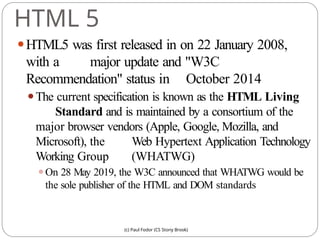
⚫HTML5 was first released in on 22 January 2008,
with a major update and "W3C
Recommendation" status in October 2014
⚫The current specification is known as the HTML Living
Standard and is maintained by a consortium of the
major browser vendors (Apple, Google, Mozilla, and
Microsoft), the Web Hypertext Application Technology
Working Group (WHATWG)
⚫On 28 May 2019, the W3C announced that WHATWG would be
the sole publisher of the HTML and DOM standards
HTML – Simple HTML web
page
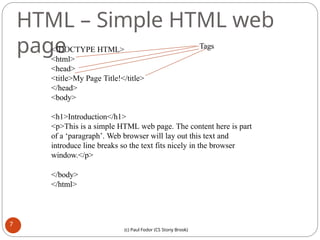
<!DOCTYPE HTML>
<html>
<head>
<title>My Page Title!</title>
</head>
<body>
<h1>Introduction</h1>
<p>This is a simple HTML web page. The content here is part
of a ‘paragraph’. Web browser will lay out this text and
introduce line breaks so the text fits nicely in the browser
window.</p>
</body>
</html>
Tags
7
(c) Paul Fodor (CS Stony Brook)
HTML – Basic
Tags
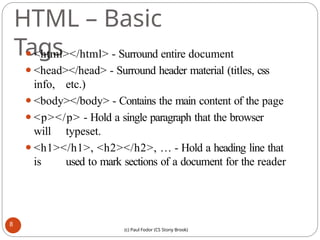
⚫<html></html> - Surround entire document
⚫<head></head> - Surround header material (titles, css
info, etc.)
⚫<body></body> - Contains the main content of the page
⚫<p></p> - Hold a single paragraph that the browser
will typeset.
⚫<h1></h1>, <h2></h2>, … - Hold a heading line that
is used to mark sections of a document for the reader
8
(c) Paul Fodor (CS Stony Brook)
HTML – More basic tags
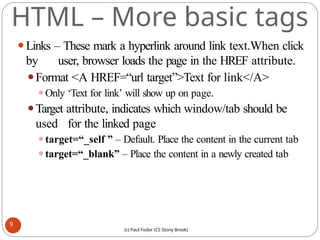
⚫Links – These mark a hyperlink around link text.When click
by user, browser loads the page in the HREF attribute.
⚫Format <A HREF=“url target”>Text for link</A>
⚫Only ‘Text for link’ will show up on page.
⚫Target attribute, indicates which window/tab should be
used for the linked page
⚫target=“_self ” – Default. Place the content in the current tab
⚫target=“_blank” – Place the content in a newly created tab
9
(c) Paul Fodor (CS Stony Brook)
HTML – More basic tags
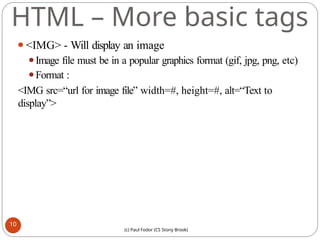
⚫<IMG> - Will display an image
⚫Image file must be in a popular graphics format (gif, jpg, png, etc)
⚫Format :
<IMG src=“url for image file” width=#, height=#, alt=“Text to
display”>
10
(c) Paul Fodor (CS Stony Brook)
HTML – More on
Links
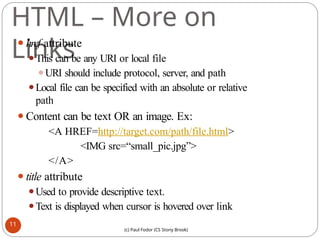
⚫href attribute
⚫This can be any URI or local file
⚫URI should include protocol, server, and path
⚫Local file can be specified with an absolute or relative
path
⚫Content can be text OR an image. Ex:
<A HREF=http://target.com/path/file.html>
<IMG src=“small_pic.jpg”>
</A>
⚫title attribute
⚫Used to provide descriptive text.
⚫Text is displayed when cursor is hovered over link
11
(c) Paul Fodor (CS Stony Brook)
HTML – More on
Links
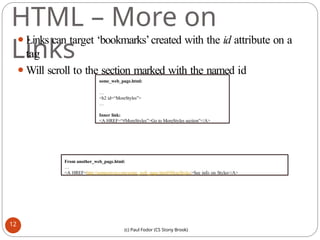
⚫Links can target ‘bookmarks’created with the id attribute on a
tag
⚫Will scroll to the section marked with the named id
some_web_page.html:
…
<h2 id=“MoreStyles”>
…
Inner link:
<A HREF=“#MoreStyles”>Go to MoreStyles section”</A>
From another_web_page.html:
…
<A HREF=http://someserver.com/some_web_page.html#MoreStyles>See info on Styles</A>
12
(c) Paul Fodor (CS Stony Brook)
HTML -
Lists
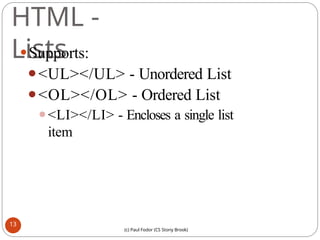
⚫Supports:
⚫<UL></UL> - Unordered List
⚫<OL></OL> - Ordered List
⚫<LI></LI> - Encloses a single list
item
13
(c) Paul Fodor (CS Stony Brook)
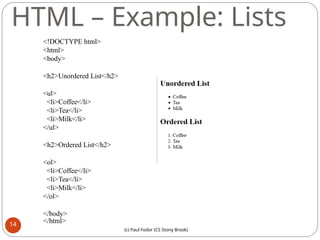
HTML – Example: Lists
<!DOCTYPE html>
<html>
<body>
<h2>Unordered List</h2>
<ul>
<li>Coffee</li>
<li>Tea</li>
<li>Milk</li>
</ul>
<h2>Ordered List</h2>
<ol>
<li>Coffee</li>
<li>Tea</li>
<li>Milk</li>
</ol>
</body>
</html>
14
(c) Paul Fodor (CS Stony Brook)
HTML – Adding styles to
lists
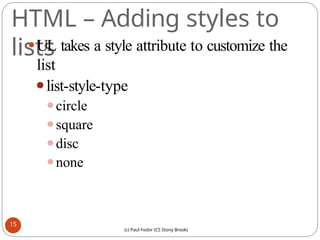
⚫UL takes a style attribute to customize the
list
⚫list-style-type
⚫circle
⚫square
⚫disc
⚫none
15
(c) Paul Fodor (CS Stony Brook)
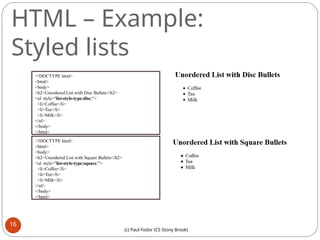
HTML – Example:
Styled lists
<!DOCTYPE html>
<html>
<body>
<h2>Unordered List with Disc Bullets</h2>
<ul style="list-style-type:disc;">
<li>Coffee</li>
<li>Tea</li>
<li>Milk</li>
</ul>
</body>
</html>
<!DOCTYPE html>
<html>
<body>
<h2>Unordered List with Square Bullets</h2>
<ul style="list-style-type:square;">
<li>Coffee</li>
<li>Tea</li>
<li>Milk</li>
</ul>
</body>
</html>
16
(c) Paul Fodor (CS Stony Brook)
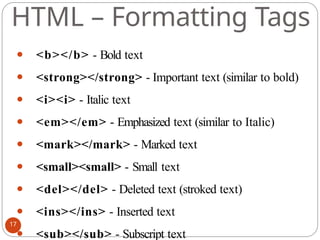
HTML – Formatting Tags
⚫ <b></b> - Bold text
⚫ <strong></strong> - Important text (similar to bold)
⚫ <i><i> - Italic text
⚫ <em></em> - Emphasized text (similar to Italic)
⚫ <mark></mark> - Marked text
⚫ <small><small> - Small text
⚫ <del></del> - Deleted text (stroked text)
⚫ <ins></ins> - Inserted text
⚫ <sub></sub> - Subscript text
17
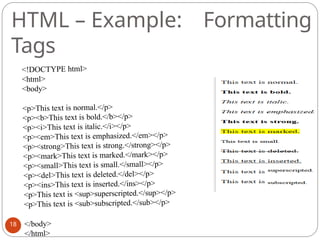
HTML – Example: Formatting
Tags
<!DOCTYPE html>
<html>
<body>
<p>This text is normal.</p>
<p><b>This text is bold.</b></p>
<p><i>This text is italic.</i></p>
<p><em>This text is emphasized.</em></p>
<p><strong>This text is strong.</strong></p>
<p><mark>This text is marked.</mark></p>
<p><small>This text is small.</small></p>
<p><del>This text is deleted.</del></p>
<p><ins>This text is inserted.</ins></p>
<p>This text is <sup>superscripted.</sup></p>
<p>This text is <sub>subscripted.</sub></p>
</body>
</html>
18
HTML - Comments
⚫Comments are contained in ‘<!-- --
>
⚫Example:
<!– This is a comment and does not
affect rendering of the page at all -->
19
HTML - Styles
⚫ Style information can be included in tags with the ‘style=‘ attribute
⚫ Format : <tag style=“attr1:value1; attr2:value2”> text text text
</tag>
⚫attr1 and attr2 are style property names
⚫value1 and value2 are values to attach to the properties
⚫ Most common style attributes:
⚫background-color for background color
⚫color for text colors
⚫font-family for text fonts
⚫font-size for text sizes
⚫text-align for text alignment
<p style=“background-color:red; color=black”>Paragraph text. </p>
⚫ Using CSS (Cascading Style Sheets) is actually much easier and less
error prone
20
(c) Paul Fodor (CS Stony Brook)
HTML – Tables
⚫HTML Supports creating tables
⚫Tags:
⚫<table></table> - Encloses the entire contents of
the table
⚫<tr></tr> - These bracket a ‘row’ of data cells
⚫<th></th> - These tags support a row used specifically
for column headings
⚫<td></td> - These tags go around data for a specific
cell
⚫<caption> - This defines a table caption
21
(c) Paul Fodor (CS Stony Brook)
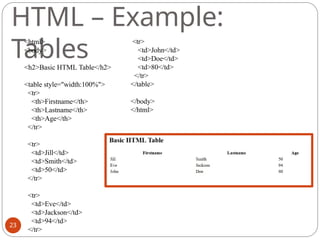
HTML – Example:
Tables
<html>
<body>
<h2>Basic HTML Table</h2>
<table style="width:100%">
<tr>
<th>Firstname</th>
<th>Lastname</th>
<th>Age</th>
</tr>
<tr>
<td>Jill</td>
<td>Smith</td>
<td>50</td>
</tr>
<tr>
<td>Eve</td>
<td>Jackson</td>
<td>94</td>
</tr>
<tr>
<td>John</td>
<td>Doe</td>
<td>80</td>
</tr>
</table>
</body>
</html>
23
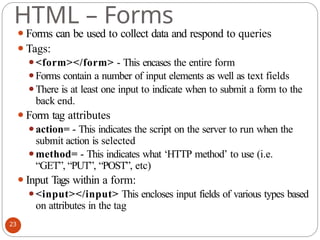
HTML – Forms
⚫Forms can be used to collect data and respond to queries
⚫Tags:
⚫<form></form> - This encases the entire form
⚫Forms contain a number of input elements as well as text fields
⚫There is at least one input to indicate when to submit a form to the
back end.
⚫Form tag attributes
⚫action= - This indicates the script on the server to run when the
submit action is selected
⚫method= - This indicates what ‘HTTP method’ to use (i.e.
“GET”, “PUT”, “POST”, etc)
⚫Input Tags within a form:
⚫<input></input> This encloses input fields of various types based
on attributes in the tag
23
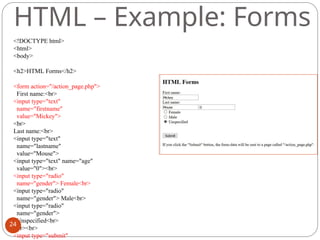
HTML – Example: Forms
<!DOCTYPE html>
<html>
<body>
<h2>HTML Forms</h2>
<form action="/action_page.php">
First name:<br>
<input type="text"
name="firstname"
value="Mickey">
<br>
Last name:<br>
<input type="text"
name="lastname"
value="Mouse">
<input type="text" name="age"
value="0"><br>
<input type="radio"
name="gender"> Female<br>
<input type="radio"
name="gender"> Male<br>
<input type="radio"
name="gender">
Unspecified<br>
<br><br>
<input type="submit"
24
HTML – Miscellaneous Tags
⚫<pre></pre> - Pre-formatted text Browser
will render content as it is written in the html
file.
⚫<br> - Add a line break here.There is no </br>
⚫<hr> - Add a ‘horizontal rule’ (horizontal line).
There is no </hr>
25
CSS
⚫CSS = Cascading Style Sheets
⚫Greatly simplifies styling HTML
⚫Easy to keep consistent styling
⚫Instructions are written as a rule-set
27
A brief history of CSS
⚫CSS was first proposed by Håkon Wium Lie on October 10,
1994, and W3C CSS Recommendation (CSS1) was
released in 1996.
⚫CSS level 2 specification was developed by the W3C
and published as a recommendation in May 1998.
⚫CSS2.1 as finally published as a W3C Recommendation on
7 June 2011.
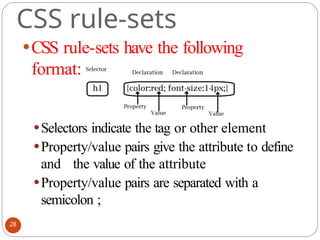
CSS rule-sets
⚫CSS rule-sets have the following
format:
⚫Selectors indicate the tag or other element
⚫Property/value pairs give the attribute to define
and the value of the attribute
⚫Property/value pairs are separated with a
semicolon ;
28
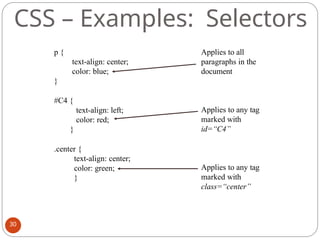
CSS - Selectors
⚫Selectors can be
⚫A tag name (i.e. <p>) – This will apply to
all tags of that type in the document
⚫An id (<h2 id=“foo”>) – The style will
apply to ANY tag with the named id.
⚫A class (<p class=“LargeRed”>) The style
will
apply to ANY element with the named
class)
29
(c) Paul Fodor (CS Stony Brook)
CSS – Examples: Selectors
p {
text-align: center;
color: blue;
}
#C4 {
text-align: left;
color: red;
}
.center {
text-align: center;
color: green;
}
Applies to all
paragraphs in the
document
Applies to any tag
marked with
id=“C4”
Applies to any tag
marked with
class=“center”
30
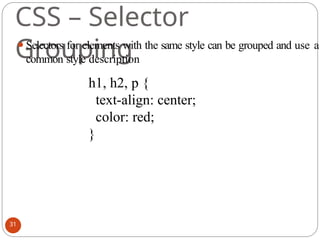
CSS – Selector
Grouping
⚫Selectors for elements with the same style can be grouped and use a
common style description
h1, h2, p {
text-align: center;
color: red;
}
31
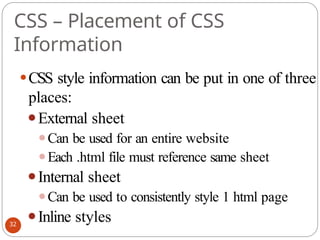
CSS – Placement of CSS
Information
⚫CSS style information can be put in one of three
places:
⚫External sheet
⚫Can be used for an entire website
⚫Each .html file must reference same sheet
⚫Internal sheet
⚫Can be used to consistently style 1 html page
⚫Inline styles
32
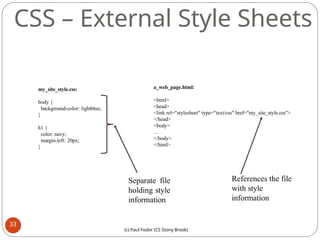
CSS – External Style Sheets
my_site_style.css:
body {
background-color: lightblue;
}
h1 {
color: navy;
margin-left: 20px;
}
a_web_page.html:
<html>
<head>
<link rel="stylesheet" type="text/css" href="my_site_style.css">
</head>
<body>
…
</body>
</html>
References the file
with style
information
Separate file
holding style
information
33
(c) Paul Fodor (CS Stony Brook)
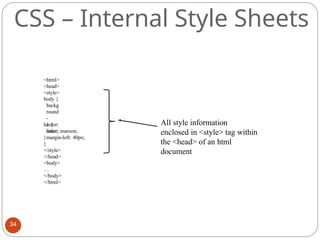
<html>
<head>
<style>
body {
backg
round
-
color:
linen;
}
h1 {
color: maroon;
margin-left: 40px;
}
</style>
</head>
<body>
…
</body>
</html>
All style information
enclosed in <style> tag within
the <head> of an html
document
CSS – Internal Style Sheets
34
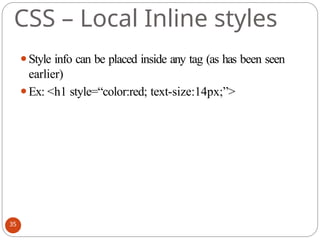
⚫Style info can be placed inside any tag (as has been seen
earlier)
⚫Ex: <h1 style=“color:red; text-size:14px;”>
CSS – Local Inline styles
35
CSS – Cascading Order
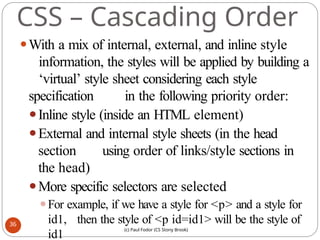
⚫With a mix of internal, external, and inline style
information, the styles will be applied by building a
‘virtual’ style sheet considering each style
specification in the following priority order:
⚫Inline style (inside an HTML element)
⚫External and internal style sheets (in the head
section using order of links/style sections in
the head)
⚫More specific selectors are selected
⚫For example, if we have a style for <p> and a style for
id1, then the style of <p id=id1> will be the style of
id1
36
(c) Paul Fodor (CS Stony Brook)
CSS – Style Attributes
⚫Colors
⚫Backgrounds
⚫Borders
⚫Margins
⚫Padding
⚫Height/Width
37
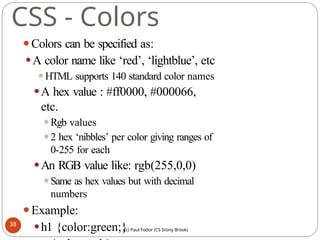
CSS - Colors
⚫Colors can be specified as:
⚫A color name like ‘red’, ‘lightblue’, etc
⚫HTML supports 140 standard color names
⚫A hex value : #ff0000, #000066,
etc.
⚫Rgb values
⚫2 hex ‘nibbles’ per color giving ranges of
0-255 for each
⚫An RGB value like: rgb(255,0,0)
⚫Same as hex values but with decimal
numbers
⚫Example:
⚫h1 {color:green;}
38
(c) Paul Fodor (CS Stony Brook)
CSS – Backgrounds
⚫Elements can have different
backgrounds
⚫Colors
⚫Images
39
(c) Paul Fodor (CS Stony Brook)
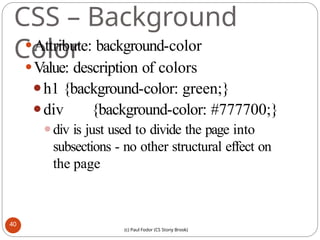
CSS – Background
Color
⚫Attribute: background-color
⚫Value: description of colors
⚫h1 {background-color: green;}
⚫div {background-color: #777700;}
⚫div is just used to divide the page into
subsections - no other structural effect on
the page
40
(c) Paul Fodor (CS Stony Brook)
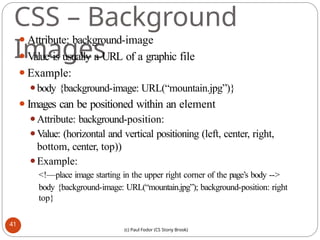
CSS – Background
Images
⚫Attribute: background-image
⚫Value is usually a URL of a graphic file
⚫Example:
⚫body {background-image: URL(“mountain.jpg”)}
⚫Images can be positioned within an element
⚫Attribute: background-position:
⚫Value: (horizontal and vertical positioning (left, center, right,
bottom, center, top))
⚫Example:
<!—place image starting in the upper right corner of the page’s body -->
body {background-image: URL(“mountain.jpg”); background-position: right
top}
41
(c) Paul Fodor (CS Stony Brook)
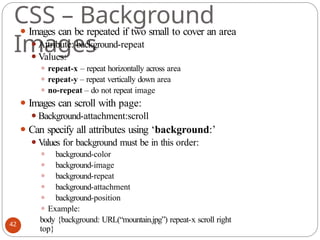
CSS – Background
Images
⚫ Images can be repeated if two small to cover an area
⚫Attribute: background-repeat
⚫Values:
⚫ repeat-x – repeat horizontally across area
⚫ repeat-y – repeat vertically down area
⚫ no-repeat – do not repeat image
⚫ Images can scroll with page:
⚫Background-attachment:scroll
⚫ Can specify all attributes using ‘background:’
⚫Values for background must be in this order:
⚫ background-color
⚫ background-image
⚫ background-repeat
⚫ background-attachment
⚫ background-position
⚫ Example:
body {background: URL(“mountain.jpg”) repeat-x scroll right
top}
42
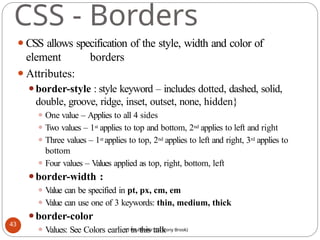
CSS - Borders
⚫CSS allows specification of the style, width and color of
element borders
⚫Attributes:
⚫border-style : style keyword – includes dotted, dashed, solid,
double, groove, ridge, inset, outset, none, hidden}
⚫ One value – Applies to all 4 sides
⚫ Two values – 1st applies to top and bottom, 2nd applies to left and right
⚫ Three values – 1st applies to top, 2nd applies to left and right, 3rd applies to
bottom
⚫ Four values – V
alues applied as top, right, bottom, left
⚫border-width :
⚫ V
alue can be specified in pt, px, cm, em
⚫ V
alue can use one of 3 keywords: thin, medium, thick
⚫border-color
⚫ Values: See Colors earlier in this talk
43
(c) Paul Fodor (CS Stony Brook)
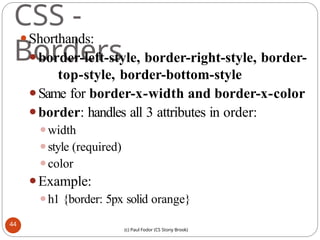
CSS -
Borders
⚫Shorthands:
⚫border-left-style, border-right-style, border-
top-style, border-bottom-style
⚫Same for border-x-width and border-x-color
⚫border: handles all 3 attributes in order:
⚫width
⚫style (required)
⚫color
⚫Example:
⚫h1 {border: 5px solid orange}
44
(c) Paul Fodor (CS Stony Brook)
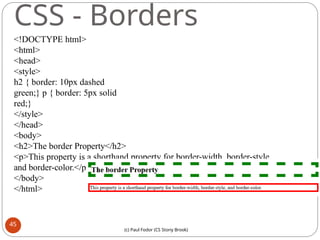
CSS - Borders
<!DOCTYPE html>
<html>
<head>
<style>
h2 { border: 10px dashed
green;} p { border: 5px solid
red;}
</style>
</head>
<body>
<h2>The border Property</h2>
<p>This property is a shorthand property for border-width, border-style,
and border-color.</p>
</body>
</html>
45
(c) Paul Fodor (CS Stony Brook)
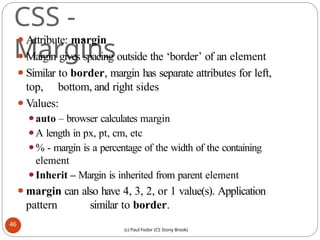
CSS -
Margins
⚫Attribute: margin
⚫Margin gives spacing outside the ‘border’ of an element
⚫Similar to border, margin has separate attributes for left,
top, bottom, and right sides
⚫Values:
⚫auto – browser calculates margin
⚫A length in px, pt, cm, etc
⚫% - margin is a percentage of the width of the containing
element
⚫Inherit – Margin is inherited from parent element
⚫margin can also have 4, 3, 2, or 1 value(s). Application
pattern similar to border.
46
(c) Paul Fodor (CS Stony Brook)
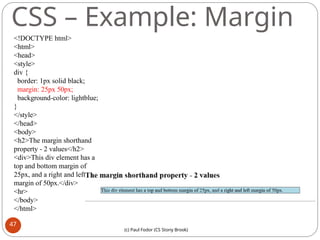
CSS – Example: Margin
<!DOCTYPE html>
<html>
<head>
<style>
div {
border: 1px solid black;
margin: 25px 50px;
background-color: lightblue;
}
</style>
</head>
<body>
<h2>The margin shorthand
property - 2 values</h2>
<div>This div element has a
top and bottom margin of
25px, and a right and left
margin of 50px.</div>
<hr>
</body>
</html>
47
(c) Paul Fodor (CS Stony Brook)
CSS -
Padding
⚫Padding generates space around an element but
within its border
⚫Attributes: padding, padding-left, padding-top,
padding- bottom, padding-right
⚫Values:
⚫Length – A length value in pt, px, cm, em, etc
⚫% - A percentage of the width of the element
⚫inherit – The padding is inherited from
parent element
48
(c) Paul Fodor (CS Stony Brook)
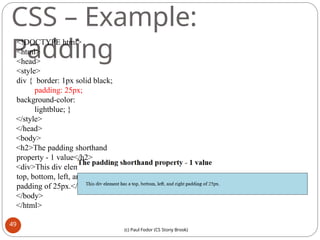
CSS – Example:
Padding
<!DOCTYPE html>
<html>
<head>
<style>
div { border: 1px solid black;
padding: 25px;
background-color:
lightblue; }
</style>
</head>
<body>
<h2>The padding shorthand
property - 1 value</h2>
<div>This div element has a
top, bottom, left, and right
padding of 25px.</div>
</body>
</html>
49
(c) Paul Fodor (CS Stony Brook)
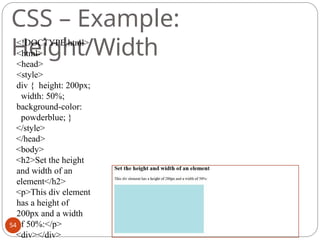
CSS – Height/Width
⚫These attributes give the height and width of
an element
⚫Default value is auto which lets the
browser figure out the best size
⚫Values can be specified as:
⚫A length – in pt, px, cm, etc.
⚫A percentage of the containing block
50
(c) Paul Fodor (CS Stony Brook)
CSS – Example:
Height/Width
<!DOCTYPE html>
<html>
<head>
<style>
div { height: 200px;
width: 50%;
background-color:
powderblue; }
</style>
</head>
<body>
<h2>Set the height
and width of an
element</h2>
<p>This div element
has a height of
200px and a width
of 50%:</p>
<div></div>
54
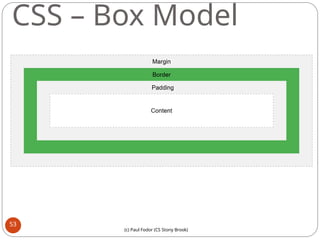
CSS – The Box Model
⚫CSS Box Model refers to the layout of an
element including margin, borders, padding,
and content
⚫Content: The content of the element
⚫Padding: area around the content and within
the border. Padding is transparent
⚫Border: A border that surrounds the element
and padding
⚫Margin: Area outside the border. Margin
is transparent.
52
(c) Paul Fodor (CS Stony Brook)
CSS – Box Model
53
(c) Paul Fodor (CS Stony Brook)
CSS – Example: Box
Model
<!DOCTYPE html>
<html>
<head>
<style>
div { background-color: lightgrey;
width: 300px;
border: 15px solid green;
padding: 50px;
margin: 20px; }
</style>
</head>
<body>
<h2>Demonstrating the
Box Model</h2>
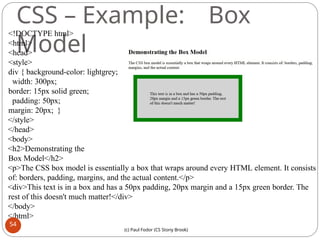
<p>The CSS box model is essentially a box that wraps around every HTML element. It consists
of: borders, padding, margins, and the actual content.</p>
<div>This text is in a box and has a 50px padding, 20px margin and a 15px green border. The
rest of this doesn't much matter!</div>
</body>
</html>
54
(c) Paul Fodor (CS Stony Brook)
CSS – Styles for
Links
⚫Links can be styled using any CSS attributes (color, background-
color, text-decoration, font-family, font-size, background, etc)
⚫Links can have different styling based on their ‘state’. 4 states are:
⚫:link – An unvisited link
⚫:visited – A link that has been visited
⚫:hover – A link when the cursor os hovering over it
⚫:active – A link when the left mouse button is depressed over it
⚫Ordering is important! If all 4 states have styles
⚫hover must be after link and visited
⚫active must follow hover
55
(c) Paul Fodor (CS Stony Brook)
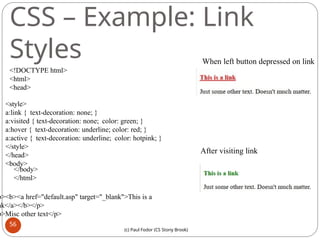
CSS – Example: Link
Styles
<!DOCTYPE html>
<html>
<head>
<style>
a:link { text-decoration: none; }
a:visited { text-decoration: none; color: green; }
a:hover { text-decoration: underline; color: red; }
a:active { text-decoration: underline; color: hotpink; }
</style>
</head>
<body>
p><b><a href="default.asp" target="_blank">This is a
nk</a></b></p>
p>Misc other text</p>
</body>
</html>
When left button depressed on link
After visiting link
56
(c) Paul Fodor (CS Stony Brook)
CSS – Styles for Lists
⚫Unordered list: list-style-type
⚫Circle
⚫Square
⚫Disc
⚫Ordered list: list-style-type
⚫Upper-roman
⚫Lower-roman
⚫Upper-alpha
⚫Lower-alpha
⚫Other: https://www.w3schools.com/cssref/pr_list-style-
type.asp
57
(c) Paul Fodor (CS Stony Brook)
CSS – Styles for Lists
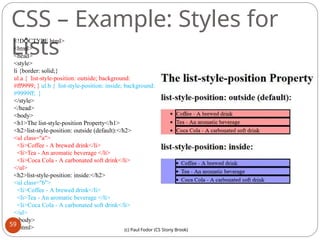
⚫Attribute: list-style-position (shorthand attribute: list-
style)
⚫Inside – bullet or marker is pulled in with text
(so inside border)
⚫Outside – bullet or marker is left outside
element’s
border (out-hanging)
58
CSS – Example: Styles for
Lists
<!DOCTYPE html>
<html>
<head>
<style>
li {border: solid;}
ul.a { list-style-position: outside; background:
#ff9999; } ul.b { list-style-position: inside; background:
#9999ff; }
</style>
</head>
<body>
<h1>The list-style-position Property</h1>
<h2>list-style-position: outside (default):</h2>
<ul class="a">
<li>Coffee - A brewed drink</li>
<li>Tea - An aromatic beverage </li>
<li>Coca Cola - A carbonated soft drink</li>
</ul>
<h2>list-style-position: inside:</h2>
<ul class="b">
<li>Coffee - A brewed drink</li>
<li>Tea - An aromatic beverage </li>
<li>Coca Cola - A carbonated soft drink</li>
</ul>
</body>
</html>
59
(c) Paul Fodor (CS Stony Brook)
CSS – Styles for Tables
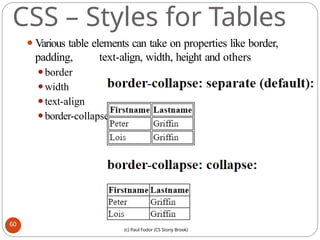
⚫Various table elements can take on properties like border,
padding, text-align, width, height and others
⚫border
⚫width
⚫text-align
⚫border-collapse
60
(c) Paul Fodor (CS Stony Brook)
CSS – Example: Table Styling
<!DOCTYPE html>
<html>
<head>
<style>
table, td, th {
border: 1px
solid black;
}
table {
border-collapse: collapse;
width: 100%;
}
th {
text-align: center;
}
</style>
</head>
<body>
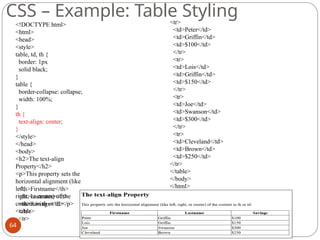
<h2>The text-align
Property</h2>
<p>This property sets the
horizontal alignment (like
left,
right, or center) of the
content in th or td:</p>
<table>
<tr>
<th>Firstname</th>
<th>Lastname</th>
<th>Savings</th>
</tr>
<tr>
<td>Peter</td>
<td>Griffin</td>
<td>$100</td>
</tr>
<tr>
<td>Lois</td>
<td>Griffin</td>
<td>$150</td>
</tr>
<tr>
<td>Joe</td>
<td>Swanson</td>
<td>$300</td>
</tr>
<tr>
<td>Cleveland</td>
<td>Brown</td>
<td>$250</td>
</tr>
</table>
</body>
</html>
64
(c) Paul Fodor (CS Stony Brook)
Summar
y
⚫HTML – Hyper Text Markup Language
⚫ Used to describe most web page content
⚫ Static – no ‘execution’ semantics
⚫C// – Cascading Style Sheets
⚫ Help customize look and feel of web pages
⚫ Numerous ways to address elements and groups
of elements
⚫ Varied properties to produce rich styling
⚫Next
Lecture:
⚫JavaScript
65

L03-HTML_CSS Web design and Development.pptx

  • 1.
  • 2.
    HTML ⚫Hypertext Markup Language ⚫Describesstructure of a web page ⚫Contains elements ⚫Elements describe how to render content ⚫Elements are enclosed in Tags ⚫T ags surround and describe content ⚫Start tag – Text in angle brackets (i.e. <body>) ⚫End tag – Text with leading slash in angle brackets (i.e. </body>) 3
  • 3.
    A brief historyof HTML (c) Paul Fodor (CS Stony Brook) ⚫In 1989, Tim Berners-Lee wrote a memo proposing an Internet-based hypertext system ⚫Berners-Lee specified HTML and wrote the browser and server software in late 1990 and released it in 1991 (it had 18 elements/tags) ⚫HTML 2.0 was published as RFC 1866 in 1995 https://tools.ietf.org/html/rfc1866 ⚫A Request for Comments (RFC) is a publication from the Internet Society (ISOC) ⚫The Internet Society (ISOC) is an American nonprofit organization founded in 1992 to provide leadership in Internet- related standards, education, access, and policy.
  • 4.
    A brief historyof HTML (c) Paul Fodor (CS Stony Brook) ⚫ HTML 3.2 was published as a W3C Recommendation in January 1997 ⚫The World Wide Web Consortium (W3C) is the international standards organization for the World Wide Web, founded in 1994 by Tim Berners-Lee after he left the European Organization for Nuclear Research (CERN). ⚫ It was founded at the Massachusetts Institute of Technology Laboratory for Computer Science (MIT/LCS) with support from the European Commission and the Defense Advanced Research Projects Agency (DARPA) ⚫ HTML 4.0 was published as a W3C Recommendation in December 1997 ⚫ HTML 4.01 was published in 2001 ⚫ HTML 5 was published as a W3C Recommendation in 2014
  • 5.
    A brief historyof HTML (c) Paul Fodor (CS Stony Brook) ⚫XHTML is a separate language that began as a reformulation of HTML 4.01 using XML 1.0. ⚫XHTML 1.0 was published as a W3C Recommendation on January 26, 2000 ⚫It is no longer being developed as a separate standard.
  • 6.
    HTML 5 (c) PaulFodor (CS Stony Brook) ⚫HTML5 was first released in on 22 January 2008, with a major update and "W3C Recommendation" status in October 2014 ⚫The current specification is known as the HTML Living Standard and is maintained by a consortium of the major browser vendors (Apple, Google, Mozilla, and Microsoft), the Web Hypertext Application Technology Working Group (WHATWG) ⚫On 28 May 2019, the W3C announced that WHATWG would be the sole publisher of the HTML and DOM standards
  • 7.
    HTML – SimpleHTML web page <!DOCTYPE HTML> <html> <head> <title>My Page Title!</title> </head> <body> <h1>Introduction</h1> <p>This is a simple HTML web page. The content here is part of a ‘paragraph’. Web browser will lay out this text and introduce line breaks so the text fits nicely in the browser window.</p> </body> </html> Tags 7 (c) Paul Fodor (CS Stony Brook)
  • 8.
    HTML – Basic Tags ⚫<html></html>- Surround entire document ⚫<head></head> - Surround header material (titles, css info, etc.) ⚫<body></body> - Contains the main content of the page ⚫<p></p> - Hold a single paragraph that the browser will typeset. ⚫<h1></h1>, <h2></h2>, … - Hold a heading line that is used to mark sections of a document for the reader 8 (c) Paul Fodor (CS Stony Brook)
  • 9.
    HTML – Morebasic tags ⚫Links – These mark a hyperlink around link text.When click by user, browser loads the page in the HREF attribute. ⚫Format <A HREF=“url target”>Text for link</A> ⚫Only ‘Text for link’ will show up on page. ⚫Target attribute, indicates which window/tab should be used for the linked page ⚫target=“_self ” – Default. Place the content in the current tab ⚫target=“_blank” – Place the content in a newly created tab 9 (c) Paul Fodor (CS Stony Brook)
  • 10.
    HTML – Morebasic tags ⚫<IMG> - Will display an image ⚫Image file must be in a popular graphics format (gif, jpg, png, etc) ⚫Format : <IMG src=“url for image file” width=#, height=#, alt=“Text to display”> 10 (c) Paul Fodor (CS Stony Brook)
  • 11.
    HTML – Moreon Links ⚫href attribute ⚫This can be any URI or local file ⚫URI should include protocol, server, and path ⚫Local file can be specified with an absolute or relative path ⚫Content can be text OR an image. Ex: <A HREF=http://target.com/path/file.html> <IMG src=“small_pic.jpg”> </A> ⚫title attribute ⚫Used to provide descriptive text. ⚫Text is displayed when cursor is hovered over link 11 (c) Paul Fodor (CS Stony Brook)
  • 12.
    HTML – Moreon Links ⚫Links can target ‘bookmarks’created with the id attribute on a tag ⚫Will scroll to the section marked with the named id some_web_page.html: … <h2 id=“MoreStyles”> … Inner link: <A HREF=“#MoreStyles”>Go to MoreStyles section”</A> From another_web_page.html: … <A HREF=http://someserver.com/some_web_page.html#MoreStyles>See info on Styles</A> 12 (c) Paul Fodor (CS Stony Brook)
  • 13.
    HTML - Lists ⚫Supports: ⚫<UL></UL> -Unordered List ⚫<OL></OL> - Ordered List ⚫<LI></LI> - Encloses a single list item 13 (c) Paul Fodor (CS Stony Brook)
  • 14.
    HTML – Example:Lists <!DOCTYPE html> <html> <body> <h2>Unordered List</h2> <ul> <li>Coffee</li> <li>Tea</li> <li>Milk</li> </ul> <h2>Ordered List</h2> <ol> <li>Coffee</li> <li>Tea</li> <li>Milk</li> </ol> </body> </html> 14 (c) Paul Fodor (CS Stony Brook)
  • 15.
    HTML – Addingstyles to lists ⚫UL takes a style attribute to customize the list ⚫list-style-type ⚫circle ⚫square ⚫disc ⚫none 15 (c) Paul Fodor (CS Stony Brook)
  • 16.
    HTML – Example: Styledlists <!DOCTYPE html> <html> <body> <h2>Unordered List with Disc Bullets</h2> <ul style="list-style-type:disc;"> <li>Coffee</li> <li>Tea</li> <li>Milk</li> </ul> </body> </html> <!DOCTYPE html> <html> <body> <h2>Unordered List with Square Bullets</h2> <ul style="list-style-type:square;"> <li>Coffee</li> <li>Tea</li> <li>Milk</li> </ul> </body> </html> 16 (c) Paul Fodor (CS Stony Brook)
  • 17.
    HTML – FormattingTags ⚫ <b></b> - Bold text ⚫ <strong></strong> - Important text (similar to bold) ⚫ <i><i> - Italic text ⚫ <em></em> - Emphasized text (similar to Italic) ⚫ <mark></mark> - Marked text ⚫ <small><small> - Small text ⚫ <del></del> - Deleted text (stroked text) ⚫ <ins></ins> - Inserted text ⚫ <sub></sub> - Subscript text 17
  • 18.
    HTML – Example:Formatting Tags <!DOCTYPE html> <html> <body> <p>This text is normal.</p> <p><b>This text is bold.</b></p> <p><i>This text is italic.</i></p> <p><em>This text is emphasized.</em></p> <p><strong>This text is strong.</strong></p> <p><mark>This text is marked.</mark></p> <p><small>This text is small.</small></p> <p><del>This text is deleted.</del></p> <p><ins>This text is inserted.</ins></p> <p>This text is <sup>superscripted.</sup></p> <p>This text is <sub>subscripted.</sub></p> </body> </html> 18
  • 19.
    HTML - Comments ⚫Commentsare contained in ‘<!-- -- > ⚫Example: <!– This is a comment and does not affect rendering of the page at all --> 19
  • 20.
    HTML - Styles ⚫Style information can be included in tags with the ‘style=‘ attribute ⚫ Format : <tag style=“attr1:value1; attr2:value2”> text text text </tag> ⚫attr1 and attr2 are style property names ⚫value1 and value2 are values to attach to the properties ⚫ Most common style attributes: ⚫background-color for background color ⚫color for text colors ⚫font-family for text fonts ⚫font-size for text sizes ⚫text-align for text alignment <p style=“background-color:red; color=black”>Paragraph text. </p> ⚫ Using CSS (Cascading Style Sheets) is actually much easier and less error prone 20 (c) Paul Fodor (CS Stony Brook)
  • 21.
    HTML – Tables ⚫HTMLSupports creating tables ⚫Tags: ⚫<table></table> - Encloses the entire contents of the table ⚫<tr></tr> - These bracket a ‘row’ of data cells ⚫<th></th> - These tags support a row used specifically for column headings ⚫<td></td> - These tags go around data for a specific cell ⚫<caption> - This defines a table caption 21 (c) Paul Fodor (CS Stony Brook)
  • 22.
    HTML – Example: Tables <html> <body> <h2>BasicHTML Table</h2> <table style="width:100%"> <tr> <th>Firstname</th> <th>Lastname</th> <th>Age</th> </tr> <tr> <td>Jill</td> <td>Smith</td> <td>50</td> </tr> <tr> <td>Eve</td> <td>Jackson</td> <td>94</td> </tr> <tr> <td>John</td> <td>Doe</td> <td>80</td> </tr> </table> </body> </html> 23
  • 23.
    HTML – Forms ⚫Formscan be used to collect data and respond to queries ⚫Tags: ⚫<form></form> - This encases the entire form ⚫Forms contain a number of input elements as well as text fields ⚫There is at least one input to indicate when to submit a form to the back end. ⚫Form tag attributes ⚫action= - This indicates the script on the server to run when the submit action is selected ⚫method= - This indicates what ‘HTTP method’ to use (i.e. “GET”, “PUT”, “POST”, etc) ⚫Input Tags within a form: ⚫<input></input> This encloses input fields of various types based on attributes in the tag 23
  • 24.
    HTML – Example:Forms <!DOCTYPE html> <html> <body> <h2>HTML Forms</h2> <form action="/action_page.php"> First name:<br> <input type="text" name="firstname" value="Mickey"> <br> Last name:<br> <input type="text" name="lastname" value="Mouse"> <input type="text" name="age" value="0"><br> <input type="radio" name="gender"> Female<br> <input type="radio" name="gender"> Male<br> <input type="radio" name="gender"> Unspecified<br> <br><br> <input type="submit" 24
  • 25.
    HTML – MiscellaneousTags ⚫<pre></pre> - Pre-formatted text Browser will render content as it is written in the html file. ⚫<br> - Add a line break here.There is no </br> ⚫<hr> - Add a ‘horizontal rule’ (horizontal line). There is no </hr> 25
  • 26.
    CSS ⚫CSS = CascadingStyle Sheets ⚫Greatly simplifies styling HTML ⚫Easy to keep consistent styling ⚫Instructions are written as a rule-set 27
  • 27.
    A brief historyof CSS ⚫CSS was first proposed by Håkon Wium Lie on October 10, 1994, and W3C CSS Recommendation (CSS1) was released in 1996. ⚫CSS level 2 specification was developed by the W3C and published as a recommendation in May 1998. ⚫CSS2.1 as finally published as a W3C Recommendation on 7 June 2011.
  • 28.
    CSS rule-sets ⚫CSS rule-setshave the following format: ⚫Selectors indicate the tag or other element ⚫Property/value pairs give the attribute to define and the value of the attribute ⚫Property/value pairs are separated with a semicolon ; 28
  • 29.
    CSS - Selectors ⚫Selectorscan be ⚫A tag name (i.e. <p>) – This will apply to all tags of that type in the document ⚫An id (<h2 id=“foo”>) – The style will apply to ANY tag with the named id. ⚫A class (<p class=“LargeRed”>) The style will apply to ANY element with the named class) 29 (c) Paul Fodor (CS Stony Brook)
  • 30.
    CSS – Examples:Selectors p { text-align: center; color: blue; } #C4 { text-align: left; color: red; } .center { text-align: center; color: green; } Applies to all paragraphs in the document Applies to any tag marked with id=“C4” Applies to any tag marked with class=“center” 30
  • 31.
    CSS – Selector Grouping ⚫Selectorsfor elements with the same style can be grouped and use a common style description h1, h2, p { text-align: center; color: red; } 31
  • 32.
    CSS – Placementof CSS Information ⚫CSS style information can be put in one of three places: ⚫External sheet ⚫Can be used for an entire website ⚫Each .html file must reference same sheet ⚫Internal sheet ⚫Can be used to consistently style 1 html page ⚫Inline styles 32
  • 33.
    CSS – ExternalStyle Sheets my_site_style.css: body { background-color: lightblue; } h1 { color: navy; margin-left: 20px; } a_web_page.html: <html> <head> <link rel="stylesheet" type="text/css" href="my_site_style.css"> </head> <body> … </body> </html> References the file with style information Separate file holding style information 33 (c) Paul Fodor (CS Stony Brook)
  • 34.
    <html> <head> <style> body { backg round - color: linen; } h1 { color:maroon; margin-left: 40px; } </style> </head> <body> … </body> </html> All style information enclosed in <style> tag within the <head> of an html document CSS – Internal Style Sheets 34
  • 35.
    ⚫Style info canbe placed inside any tag (as has been seen earlier) ⚫Ex: <h1 style=“color:red; text-size:14px;”> CSS – Local Inline styles 35
  • 36.
    CSS – CascadingOrder ⚫With a mix of internal, external, and inline style information, the styles will be applied by building a ‘virtual’ style sheet considering each style specification in the following priority order: ⚫Inline style (inside an HTML element) ⚫External and internal style sheets (in the head section using order of links/style sections in the head) ⚫More specific selectors are selected ⚫For example, if we have a style for <p> and a style for id1, then the style of <p id=id1> will be the style of id1 36 (c) Paul Fodor (CS Stony Brook)
  • 37.
    CSS – StyleAttributes ⚫Colors ⚫Backgrounds ⚫Borders ⚫Margins ⚫Padding ⚫Height/Width 37
  • 38.
    CSS - Colors ⚫Colorscan be specified as: ⚫A color name like ‘red’, ‘lightblue’, etc ⚫HTML supports 140 standard color names ⚫A hex value : #ff0000, #000066, etc. ⚫Rgb values ⚫2 hex ‘nibbles’ per color giving ranges of 0-255 for each ⚫An RGB value like: rgb(255,0,0) ⚫Same as hex values but with decimal numbers ⚫Example: ⚫h1 {color:green;} 38 (c) Paul Fodor (CS Stony Brook)
  • 39.
    CSS – Backgrounds ⚫Elementscan have different backgrounds ⚫Colors ⚫Images 39 (c) Paul Fodor (CS Stony Brook)
  • 40.
    CSS – Background Color ⚫Attribute:background-color ⚫Value: description of colors ⚫h1 {background-color: green;} ⚫div {background-color: #777700;} ⚫div is just used to divide the page into subsections - no other structural effect on the page 40 (c) Paul Fodor (CS Stony Brook)
  • 41.
    CSS – Background Images ⚫Attribute:background-image ⚫Value is usually a URL of a graphic file ⚫Example: ⚫body {background-image: URL(“mountain.jpg”)} ⚫Images can be positioned within an element ⚫Attribute: background-position: ⚫Value: (horizontal and vertical positioning (left, center, right, bottom, center, top)) ⚫Example: <!—place image starting in the upper right corner of the page’s body --> body {background-image: URL(“mountain.jpg”); background-position: right top} 41 (c) Paul Fodor (CS Stony Brook)
  • 42.
    CSS – Background Images ⚫Images can be repeated if two small to cover an area ⚫Attribute: background-repeat ⚫Values: ⚫ repeat-x – repeat horizontally across area ⚫ repeat-y – repeat vertically down area ⚫ no-repeat – do not repeat image ⚫ Images can scroll with page: ⚫Background-attachment:scroll ⚫ Can specify all attributes using ‘background:’ ⚫Values for background must be in this order: ⚫ background-color ⚫ background-image ⚫ background-repeat ⚫ background-attachment ⚫ background-position ⚫ Example: body {background: URL(“mountain.jpg”) repeat-x scroll right top} 42
  • 43.
    CSS - Borders ⚫CSSallows specification of the style, width and color of element borders ⚫Attributes: ⚫border-style : style keyword – includes dotted, dashed, solid, double, groove, ridge, inset, outset, none, hidden} ⚫ One value – Applies to all 4 sides ⚫ Two values – 1st applies to top and bottom, 2nd applies to left and right ⚫ Three values – 1st applies to top, 2nd applies to left and right, 3rd applies to bottom ⚫ Four values – V alues applied as top, right, bottom, left ⚫border-width : ⚫ V alue can be specified in pt, px, cm, em ⚫ V alue can use one of 3 keywords: thin, medium, thick ⚫border-color ⚫ Values: See Colors earlier in this talk 43 (c) Paul Fodor (CS Stony Brook)
  • 44.
    CSS - Borders ⚫Shorthands: ⚫border-left-style, border-right-style,border- top-style, border-bottom-style ⚫Same for border-x-width and border-x-color ⚫border: handles all 3 attributes in order: ⚫width ⚫style (required) ⚫color ⚫Example: ⚫h1 {border: 5px solid orange} 44 (c) Paul Fodor (CS Stony Brook)
  • 45.
    CSS - Borders <!DOCTYPEhtml> <html> <head> <style> h2 { border: 10px dashed green;} p { border: 5px solid red;} </style> </head> <body> <h2>The border Property</h2> <p>This property is a shorthand property for border-width, border-style, and border-color.</p> </body> </html> 45 (c) Paul Fodor (CS Stony Brook)
  • 46.
    CSS - Margins ⚫Attribute: margin ⚫Margingives spacing outside the ‘border’ of an element ⚫Similar to border, margin has separate attributes for left, top, bottom, and right sides ⚫Values: ⚫auto – browser calculates margin ⚫A length in px, pt, cm, etc ⚫% - margin is a percentage of the width of the containing element ⚫Inherit – Margin is inherited from parent element ⚫margin can also have 4, 3, 2, or 1 value(s). Application pattern similar to border. 46 (c) Paul Fodor (CS Stony Brook)
  • 47.
    CSS – Example:Margin <!DOCTYPE html> <html> <head> <style> div { border: 1px solid black; margin: 25px 50px; background-color: lightblue; } </style> </head> <body> <h2>The margin shorthand property - 2 values</h2> <div>This div element has a top and bottom margin of 25px, and a right and left margin of 50px.</div> <hr> </body> </html> 47 (c) Paul Fodor (CS Stony Brook)
  • 48.
    CSS - Padding ⚫Padding generatesspace around an element but within its border ⚫Attributes: padding, padding-left, padding-top, padding- bottom, padding-right ⚫Values: ⚫Length – A length value in pt, px, cm, em, etc ⚫% - A percentage of the width of the element ⚫inherit – The padding is inherited from parent element 48 (c) Paul Fodor (CS Stony Brook)
  • 49.
    CSS – Example: Padding <!DOCTYPEhtml> <html> <head> <style> div { border: 1px solid black; padding: 25px; background-color: lightblue; } </style> </head> <body> <h2>The padding shorthand property - 1 value</h2> <div>This div element has a top, bottom, left, and right padding of 25px.</div> </body> </html> 49 (c) Paul Fodor (CS Stony Brook)
  • 50.
    CSS – Height/Width ⚫Theseattributes give the height and width of an element ⚫Default value is auto which lets the browser figure out the best size ⚫Values can be specified as: ⚫A length – in pt, px, cm, etc. ⚫A percentage of the containing block 50 (c) Paul Fodor (CS Stony Brook)
  • 51.
    (c) Paul Fodor(CS Stony Brook) CSS – Example: Height/Width <!DOCTYPE html> <html> <head> <style> div { height: 200px; width: 50%; background-color: powderblue; } </style> </head> <body> <h2>Set the height and width of an element</h2> <p>This div element has a height of 200px and a width of 50%:</p> <div></div> 54
  • 52.
    CSS – TheBox Model ⚫CSS Box Model refers to the layout of an element including margin, borders, padding, and content ⚫Content: The content of the element ⚫Padding: area around the content and within the border. Padding is transparent ⚫Border: A border that surrounds the element and padding ⚫Margin: Area outside the border. Margin is transparent. 52 (c) Paul Fodor (CS Stony Brook)
  • 53.
    CSS – BoxModel 53 (c) Paul Fodor (CS Stony Brook)
  • 54.
    CSS – Example:Box Model <!DOCTYPE html> <html> <head> <style> div { background-color: lightgrey; width: 300px; border: 15px solid green; padding: 50px; margin: 20px; } </style> </head> <body> <h2>Demonstrating the Box Model</h2> <p>The CSS box model is essentially a box that wraps around every HTML element. It consists of: borders, padding, margins, and the actual content.</p> <div>This text is in a box and has a 50px padding, 20px margin and a 15px green border. The rest of this doesn't much matter!</div> </body> </html> 54 (c) Paul Fodor (CS Stony Brook)
  • 55.
    CSS – Stylesfor Links ⚫Links can be styled using any CSS attributes (color, background- color, text-decoration, font-family, font-size, background, etc) ⚫Links can have different styling based on their ‘state’. 4 states are: ⚫:link – An unvisited link ⚫:visited – A link that has been visited ⚫:hover – A link when the cursor os hovering over it ⚫:active – A link when the left mouse button is depressed over it ⚫Ordering is important! If all 4 states have styles ⚫hover must be after link and visited ⚫active must follow hover 55 (c) Paul Fodor (CS Stony Brook)
  • 56.
    CSS – Example:Link Styles <!DOCTYPE html> <html> <head> <style> a:link { text-decoration: none; } a:visited { text-decoration: none; color: green; } a:hover { text-decoration: underline; color: red; } a:active { text-decoration: underline; color: hotpink; } </style> </head> <body> p><b><a href="default.asp" target="_blank">This is a nk</a></b></p> p>Misc other text</p> </body> </html> When left button depressed on link After visiting link 56 (c) Paul Fodor (CS Stony Brook)
  • 57.
    CSS – Stylesfor Lists ⚫Unordered list: list-style-type ⚫Circle ⚫Square ⚫Disc ⚫Ordered list: list-style-type ⚫Upper-roman ⚫Lower-roman ⚫Upper-alpha ⚫Lower-alpha ⚫Other: https://www.w3schools.com/cssref/pr_list-style- type.asp 57 (c) Paul Fodor (CS Stony Brook)
  • 58.
    CSS – Stylesfor Lists ⚫Attribute: list-style-position (shorthand attribute: list- style) ⚫Inside – bullet or marker is pulled in with text (so inside border) ⚫Outside – bullet or marker is left outside element’s border (out-hanging) 58
  • 59.
    CSS – Example:Styles for Lists <!DOCTYPE html> <html> <head> <style> li {border: solid;} ul.a { list-style-position: outside; background: #ff9999; } ul.b { list-style-position: inside; background: #9999ff; } </style> </head> <body> <h1>The list-style-position Property</h1> <h2>list-style-position: outside (default):</h2> <ul class="a"> <li>Coffee - A brewed drink</li> <li>Tea - An aromatic beverage </li> <li>Coca Cola - A carbonated soft drink</li> </ul> <h2>list-style-position: inside:</h2> <ul class="b"> <li>Coffee - A brewed drink</li> <li>Tea - An aromatic beverage </li> <li>Coca Cola - A carbonated soft drink</li> </ul> </body> </html> 59 (c) Paul Fodor (CS Stony Brook)
  • 60.
    CSS – Stylesfor Tables ⚫Various table elements can take on properties like border, padding, text-align, width, height and others ⚫border ⚫width ⚫text-align ⚫border-collapse 60 (c) Paul Fodor (CS Stony Brook)
  • 61.
    (c) Paul Fodor(CS Stony Brook) CSS – Example: Table Styling <!DOCTYPE html> <html> <head> <style> table, td, th { border: 1px solid black; } table { border-collapse: collapse; width: 100%; } th { text-align: center; } </style> </head> <body> <h2>The text-align Property</h2> <p>This property sets the horizontal alignment (like left, right, or center) of the content in th or td:</p> <table> <tr> <th>Firstname</th> <th>Lastname</th> <th>Savings</th> </tr> <tr> <td>Peter</td> <td>Griffin</td> <td>$100</td> </tr> <tr> <td>Lois</td> <td>Griffin</td> <td>$150</td> </tr> <tr> <td>Joe</td> <td>Swanson</td> <td>$300</td> </tr> <tr> <td>Cleveland</td> <td>Brown</td> <td>$250</td> </tr> </table> </body> </html> 64
  • 62.
    (c) Paul Fodor(CS Stony Brook) Summar y ⚫HTML – Hyper Text Markup Language ⚫ Used to describe most web page content ⚫ Static – no ‘execution’ semantics ⚫C// – Cascading Style Sheets ⚫ Help customize look and feel of web pages ⚫ Numerous ways to address elements and groups of elements ⚫ Varied properties to produce rich styling ⚫Next Lecture: ⚫JavaScript 65