SWT - The Standard Widget Toolkit


The graphical sub-system of the Eclipse platform is made up of two
components: SWT, the Standard Widget Toolkit; and JFace, an
architecture independent modeling layer. This module describes how to
use SWT in views and editors and how different resources must be
managed.


Redistribution and other use of this material requires written permission from The RCP Company.

L0001 - 2010-11-27
Eclipse User Interface Layers
                                       Eclipse RCP


                                                                        Preferences


                                                                                                   Commands
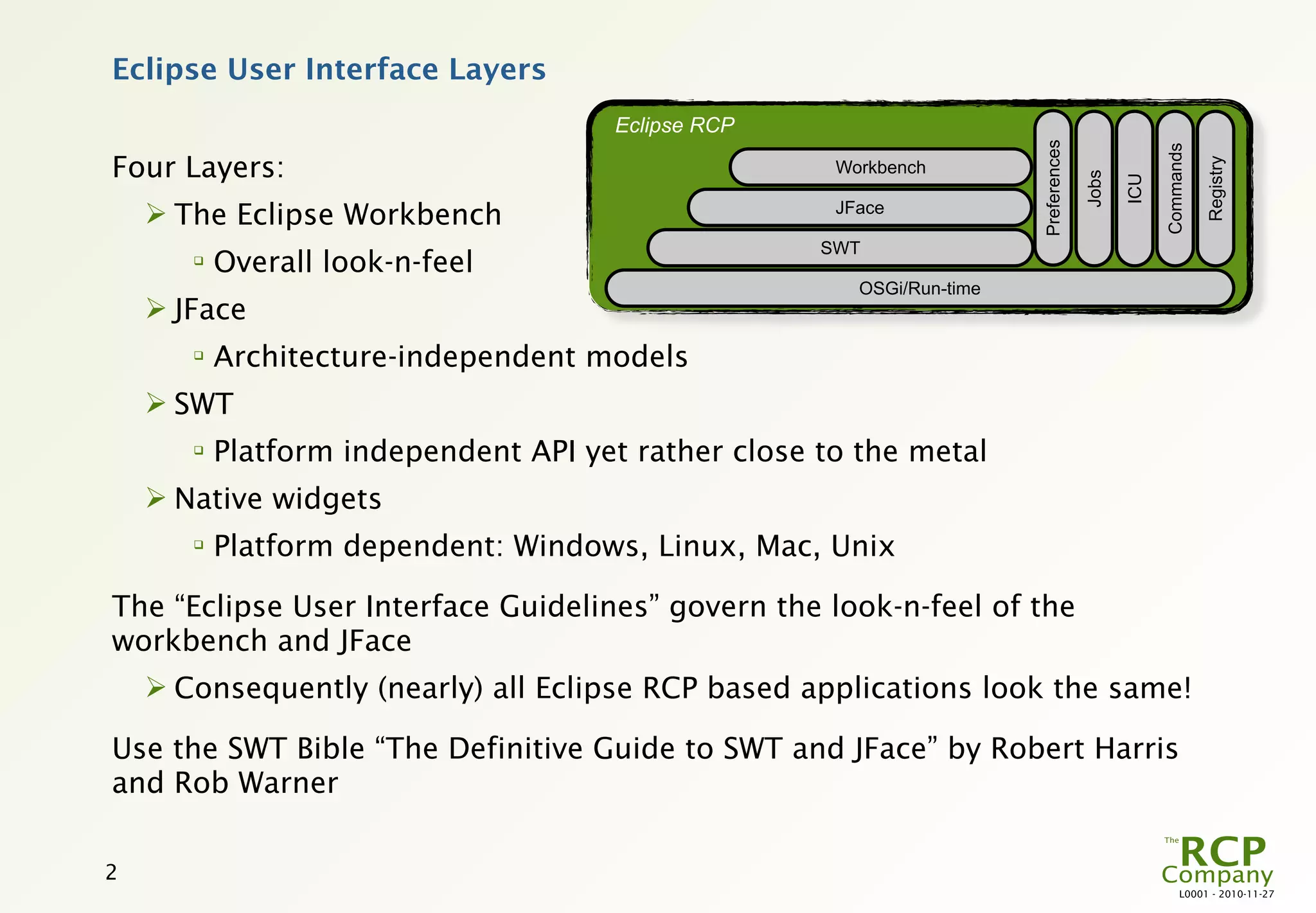
Four Layers:


                                                                                                              Registry
                                                      Workbench


                                                                                      Jobs

                                                                                             ICU
     The Eclipse Workbench                           JFace

                                                     SWT
       
           Overall look-n-feel
                                                        OSGi/Run-time
     JFace
       
           Architecture-independent models
     SWT
       
           Platform independent API yet rather close to the metal
     Native widgets
       
           Platform dependent: Windows, Linux, Mac, Unix

The “Eclipse User Interface Guidelines” govern the look-n-feel of the
workbench and JFace
     Consequently (nearly) all Eclipse RCP based applications look the same!

Use the SWT Bible “The Definitive Guide to SWT and JFace” by Robert Harris
and Rob Warner

2
                                                                                                        L0001 - 2010-11-27
SWT and the Native Widgets


SWT is short for ”The Standard Widget Toolkit”

SWT is a sub-project of the Eclipse project

SWT has a common API on all target platforms – the implementation is
different
      Base plug-in org.eclipse.swt contains only MANIFEST.MF plus some
       configuration files
      A set of platform specific fragments implements all of SWT–
       org.eclipse.swt.win32.win32.x86 for 32-bit Windows on x86 (not Vista
       look-n-feel)

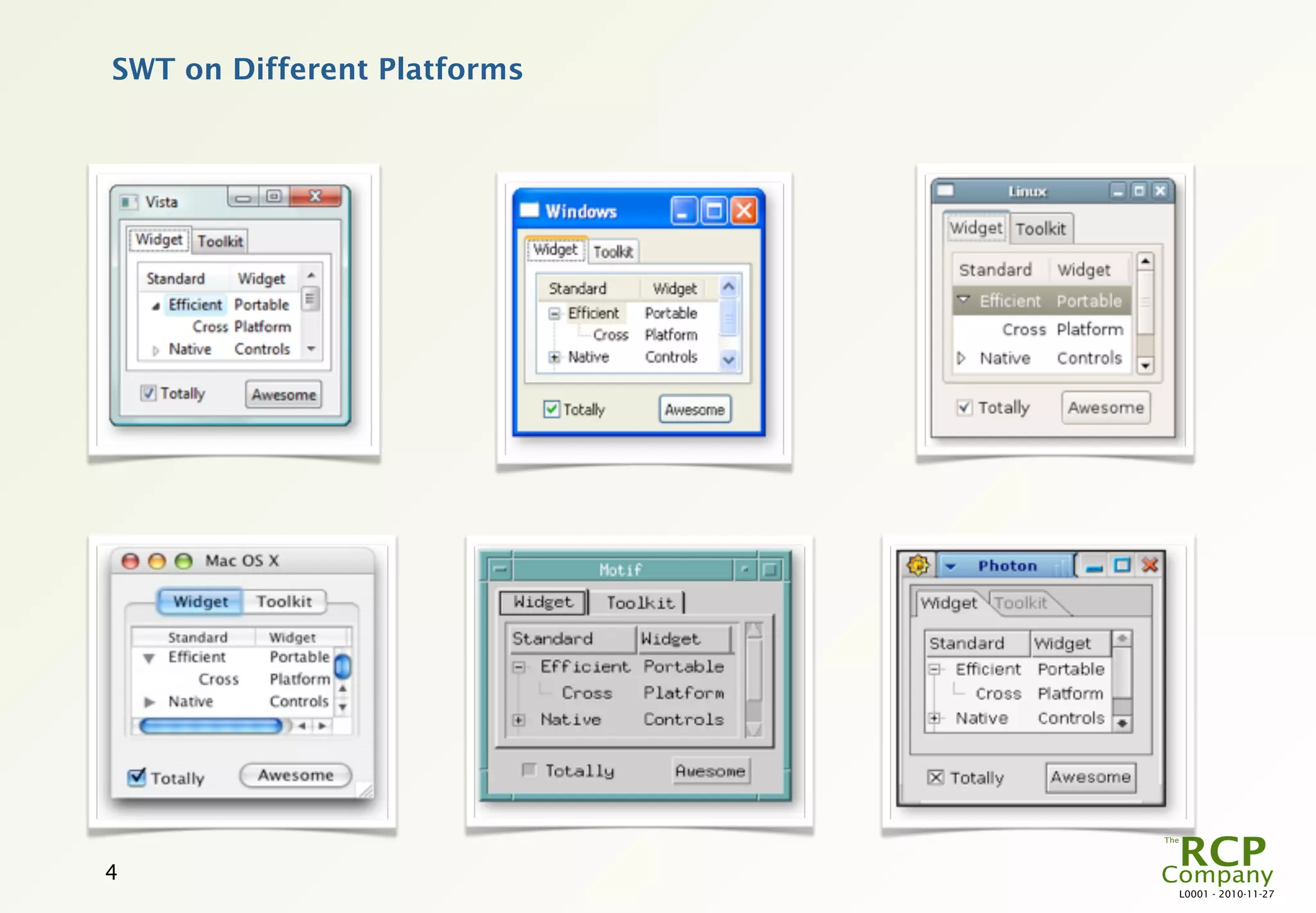
    SWT is a thin layer on top of the native widgets
      Windows, Mac, Motif, GTK and more

SWT can easily be used stand-alone


3
                                                                              L0001 - 2010-11-27
SWT on Different Platforms


4
                             L0001 - 2010-11-27
Working with SWT


SWT API is not as regular as Swing

The SWT site contains a large repository of “SWT Snippets” that demonstrate
most of the abilities of SWT


To find leaks with graphical resources use sleak plug-in


It is possible to integrate SWT and Swing to a very large degree
     But expect problems with shortcuts and focus management


5
                                                                         L0001 - 2010-11-27
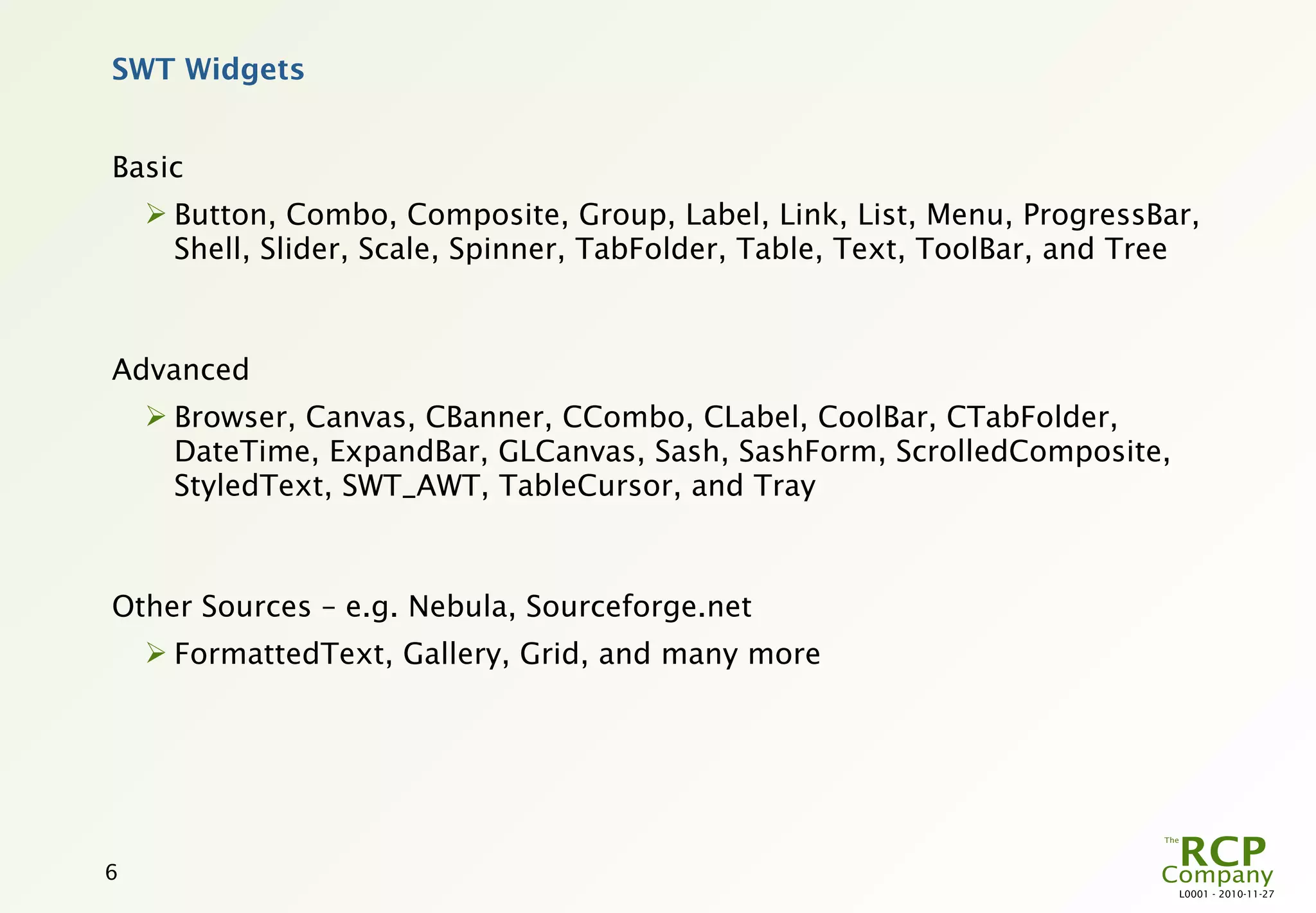
SWT Widgets


Basic
     Button, Combo, Composite, Group, Label, Link, List, Menu, ProgressBar,
      Shell, Slider, Scale, Spinner, TabFolder, Table, Text, ToolBar, and Tree


Advanced
     Browser, Canvas, CBanner, CCombo, CLabel, CoolBar, CTabFolder,
      DateTime, ExpandBar, GLCanvas, Sash, SashForm, ScrolledComposite,
      StyledText, SWT_AWT, TableCursor, and Tray


Other Sources – e.g. Nebula, Sourceforge.net
     FormattedText, Gallery, Grid, and many more


6
                                                                            L0001 - 2010-11-27
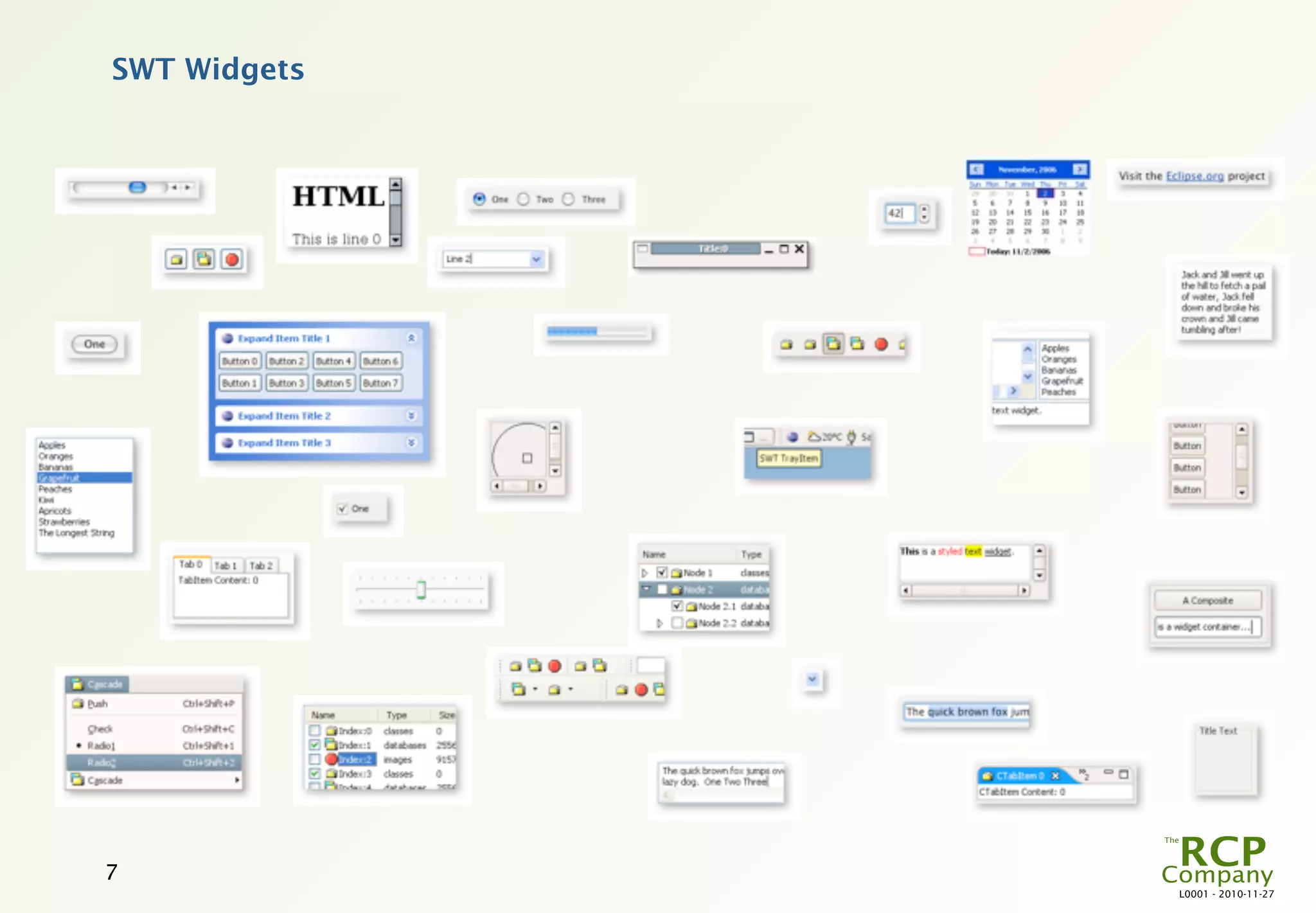
SWT Widgets


7
              L0001 - 2010-11-27
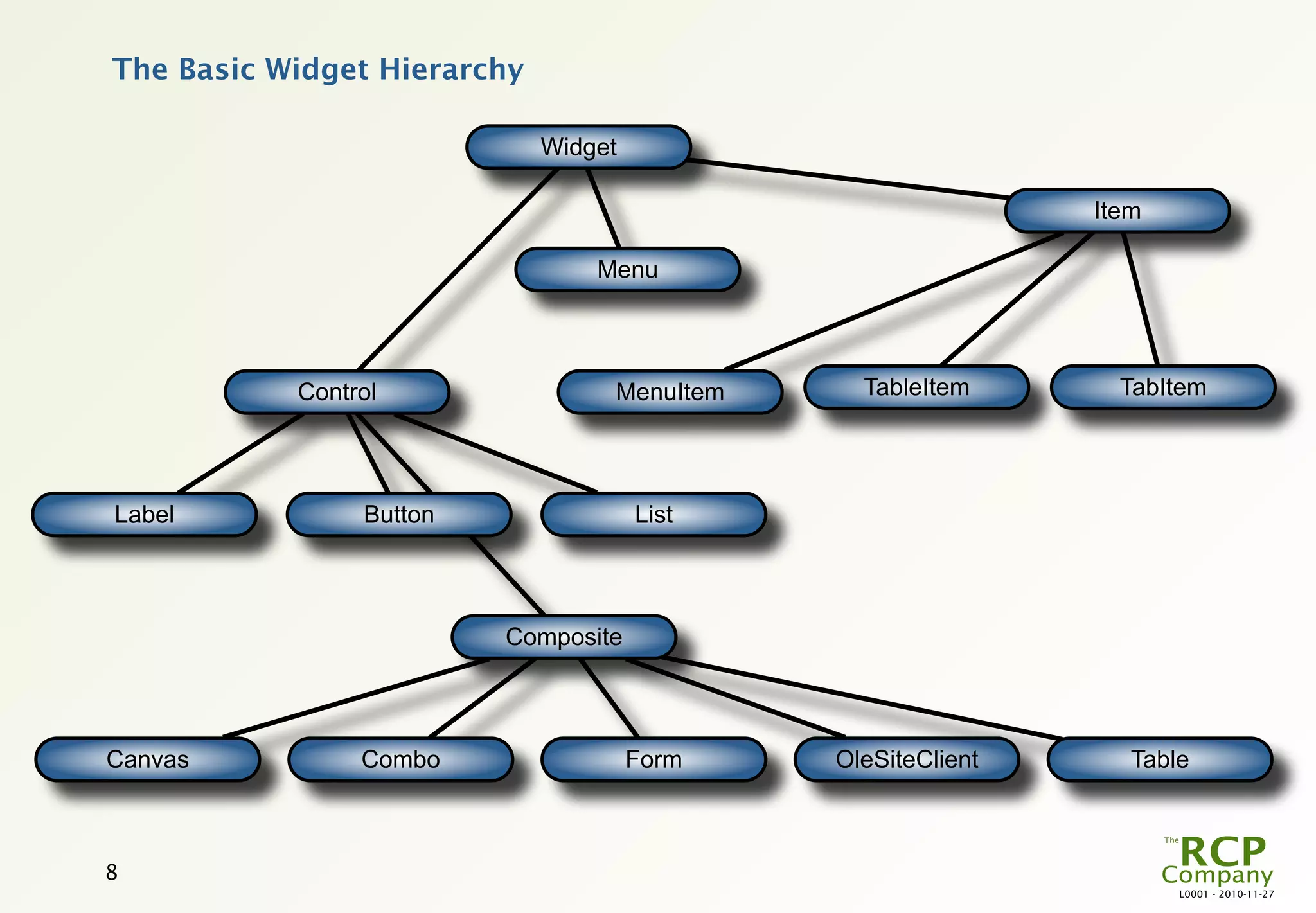
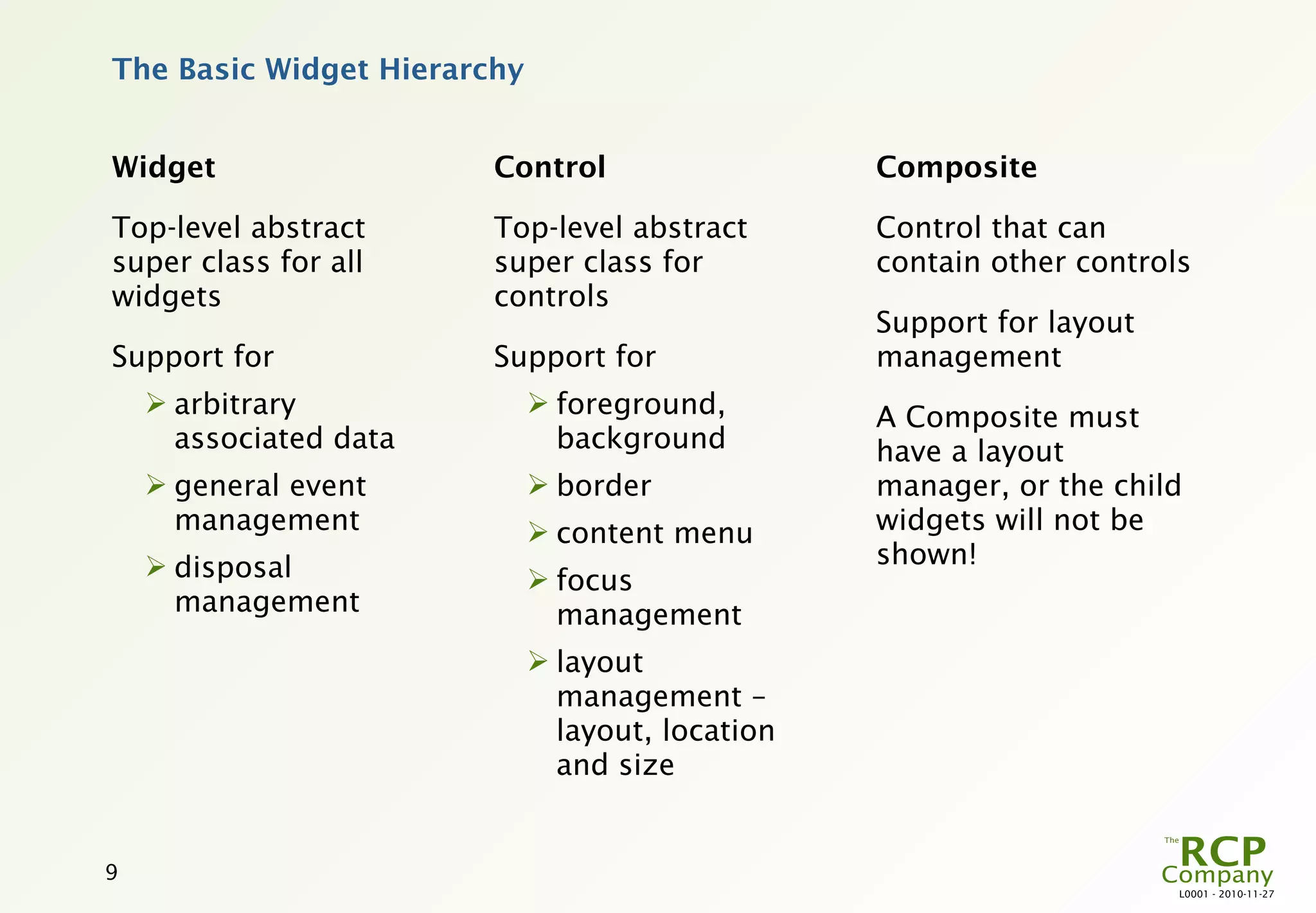
The Basic Widget Hierarchy

                             Widget

                                                             Item

                                 Menu


           Control                MenuItem     TableItem       TabItem


Label           Button                List


                         Composite


Canvas          Combo                 Form   OleSiteClient      Table


8
                                                                    L0001 - 2010-11-27
The Basic Widget Hierarchy


Widget                  Control                   Composite

Top-level abstract      Top-level abstract        Control that can
super class for all     super class for           contain other controls
widgets                 controls
                                                  Support for layout
Support for             Support for               management
     arbitrary               foreground,        A Composite must
      associated data          background         have a layout
     general event           border             manager, or the child
      management              content menu       widgets will not be
     disposal                                    shown!
                              focus
      management               management
                              layout
                               management –
                               layout, location
                               and size


9
                                                                       L0001 - 2010-11-27
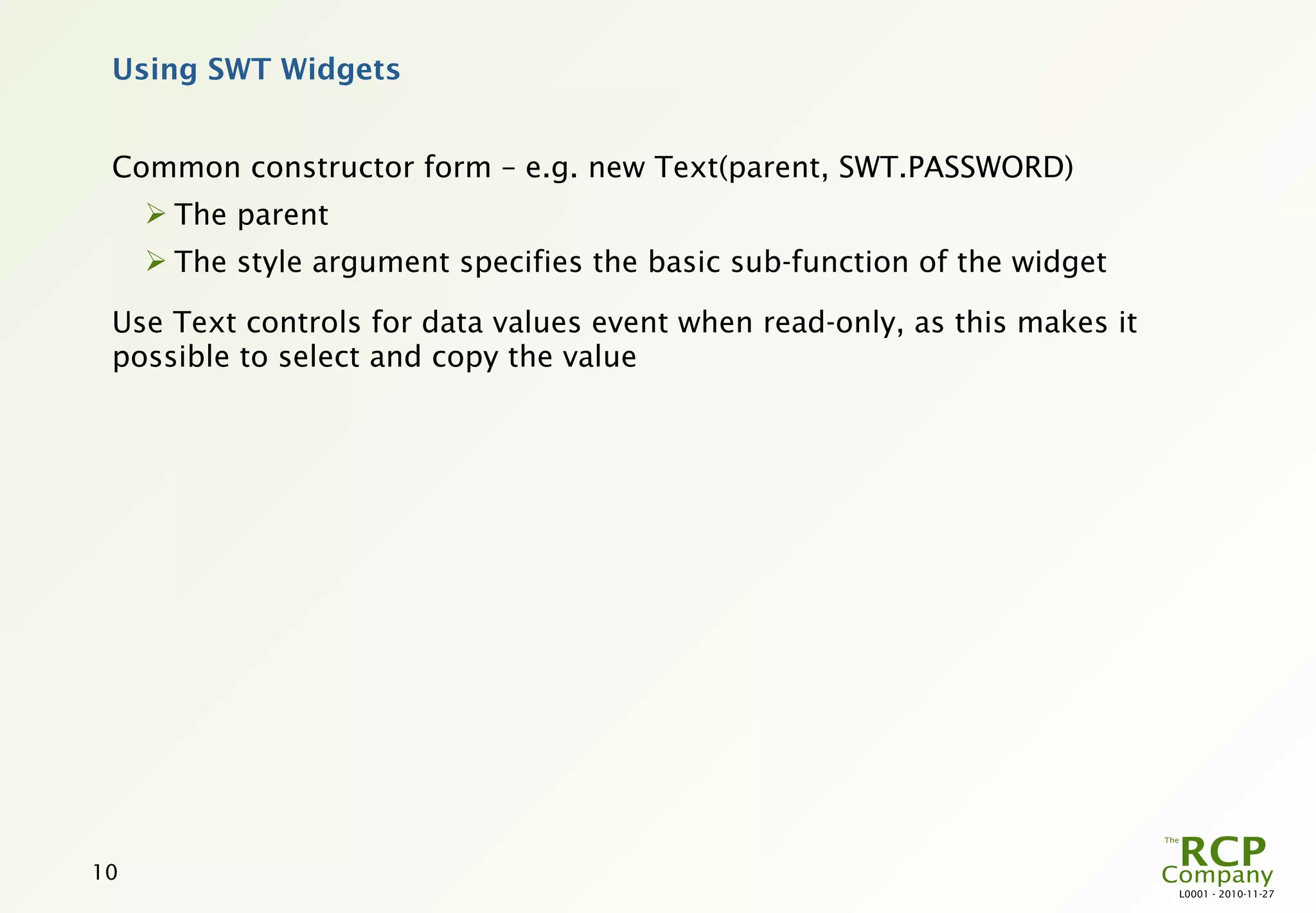
Using SWT Widgets


 Common constructor form – e.g. new Text(parent, SWT.PASSWORD)
      The parent
      The style argument specifies the basic sub-function of the widget

 Use Text controls for data values event when read-only, as this makes it
 possible to select and copy the value


10
                                                                            L0001 - 2010-11-27
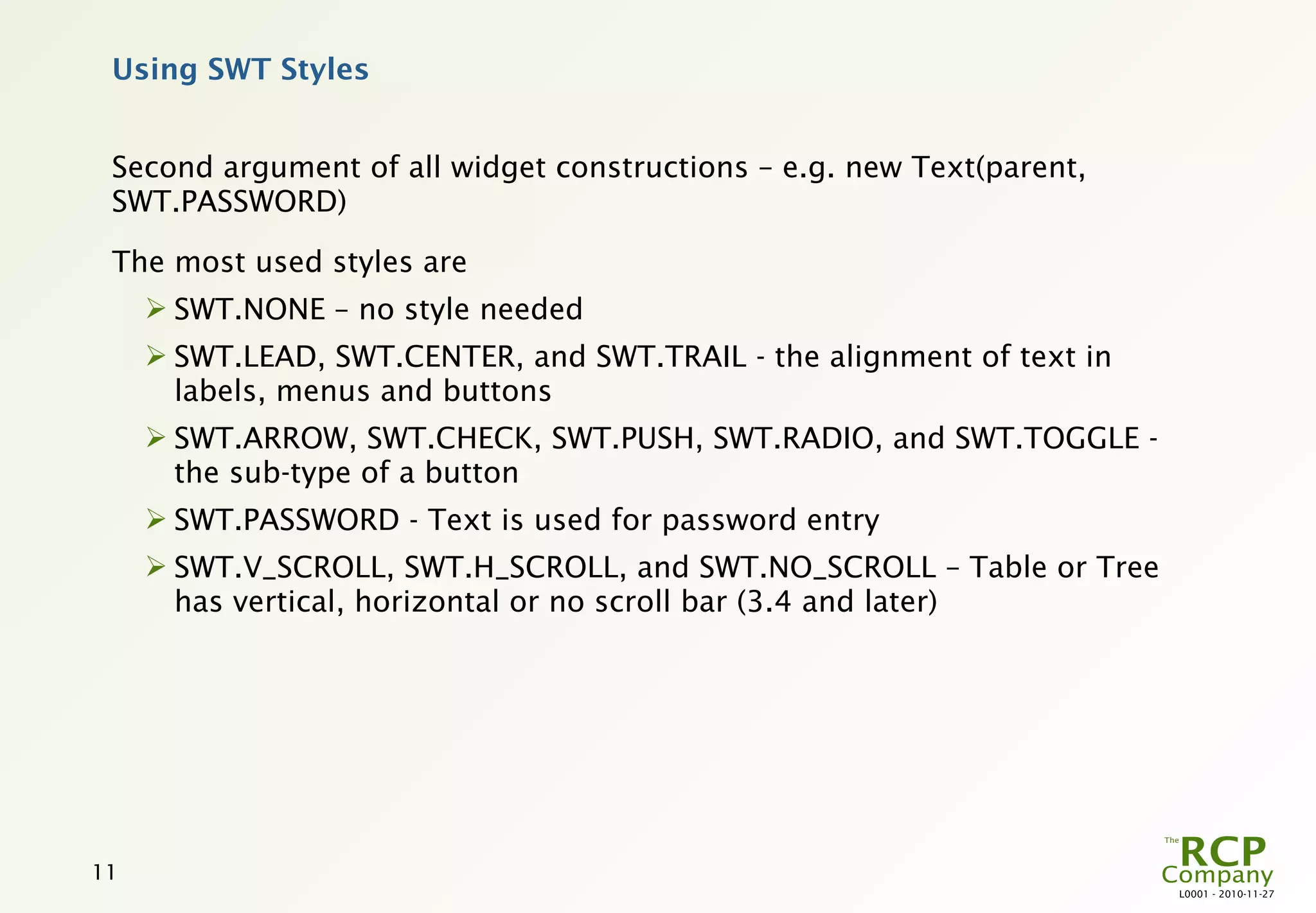
Using SWT Styles


 Second argument of all widget constructions – e.g. new Text(parent,
 SWT.PASSWORD)

 The most used styles are
      SWT.NONE – no style needed
      SWT.LEAD, SWT.CENTER, and SWT.TRAIL - the alignment of text in
       labels, menus and buttons
      SWT.ARROW, SWT.CHECK, SWT.PUSH, SWT.RADIO, and SWT.TOGGLE -
       the sub-type of a button
      SWT.PASSWORD - Text is used for password entry
      SWT.V_SCROLL, SWT.H_SCROLL, and SWT.NO_SCROLL – Table or Tree
       has vertical, horizontal or no scroll bar (3.4 and later)


11
                                                                        L0001 - 2010-11-27
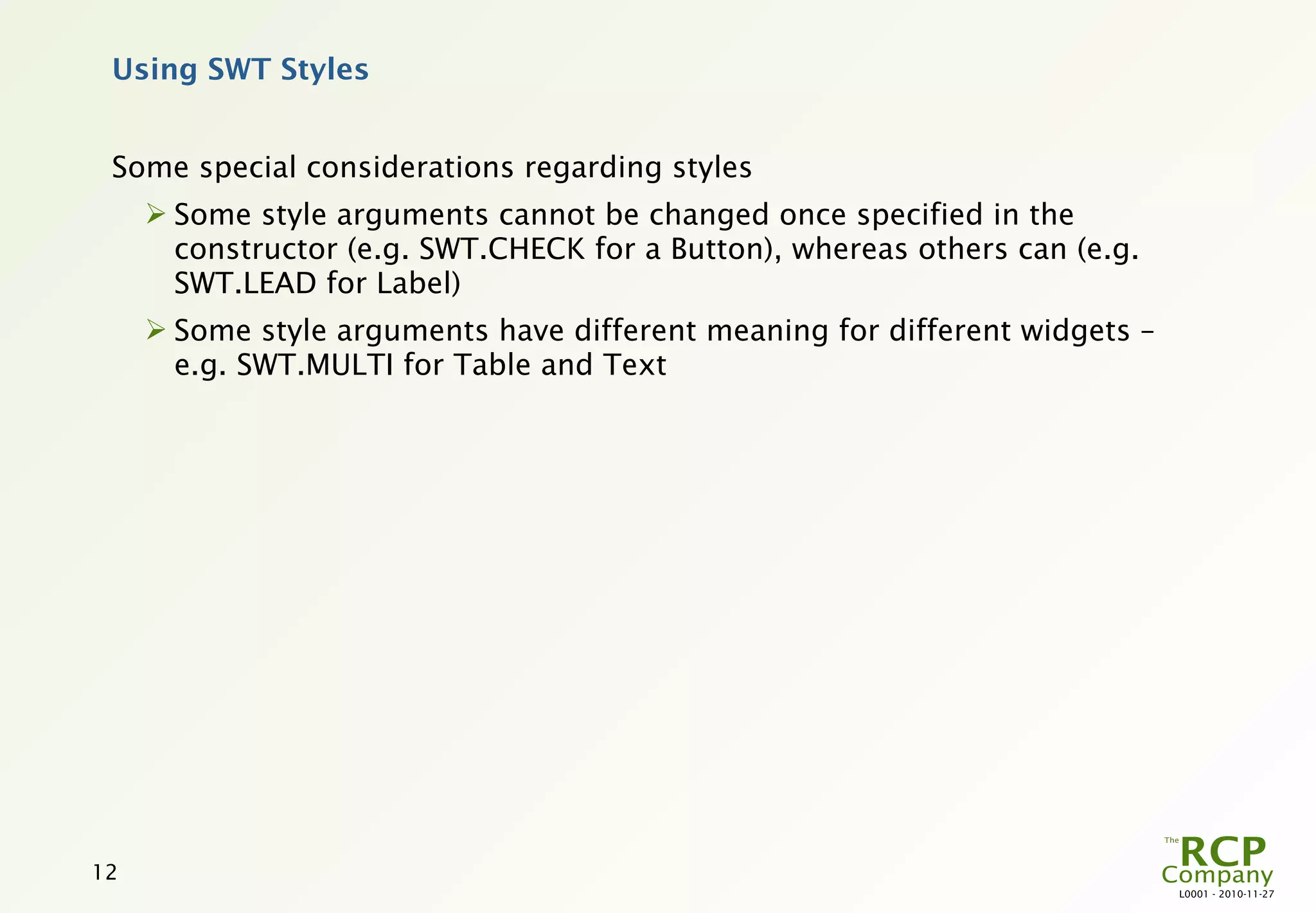
Using SWT Styles


 Some special considerations regarding styles
      Some style arguments cannot be changed once specified in the
       constructor (e.g. SWT.CHECK for a Button), whereas others can (e.g.
       SWT.LEAD for Label)
      Some style arguments have different meaning for different widgets –
       e.g. SWT.MULTI for Table and Text


12
                                                                             L0001 - 2010-11-27
Managing Composites (Composite)


 Children are added to a composite during the construction of the children
      new Text(composite, SWT.BORDER)

 Children are retrieved using
      comp.getChildren()

 Children are removed using
      child.dispose()

 Children can be moved in the parent using
      child.moveAbove(otherChild)
      child.moveBelow(otherChild)

 When a composite is changed, remember to re-layout
      comp.layout()

 Setting the background of children of a composite:
      comp.setBackgroundMode(SWT.INHERIT_DEFAULT)

13
                                                                             L0001 - 2010-11-27
SWT Layout Managers


  The positioning and sizing of controls in a Composite (and subclasses) is
  performed using layout managers

  SWT includes a rather complete set of standard layout managers
      FillLayout and RowLayout: layout is a single row or column
      GridLayout: layout in a grid with size constraints
      FormLayout: layout in canvas with size and edge-to-edge constraints
      Most GUI designer can handle these

  A new layout manager can be created fairly easily
      computeSize: computes the “natural” size of the Composite
      layout: lays out the controls of the Composite

public abstract class Layout {
    protected abstract Point computeSize(Composite composite, int wHint, int hHint, boolean flushCache);
    protected abstract void layout(Composite composite, boolean flushCache);
}


14
                                                                                                     L0001 - 2010-11-27
Using the Grid Layout (GridLayout)


 Grid Layout is the most used layout manager in Eclipse

 It works by adding the child widgets to the cells in a grid
      Widgets are added in sequence

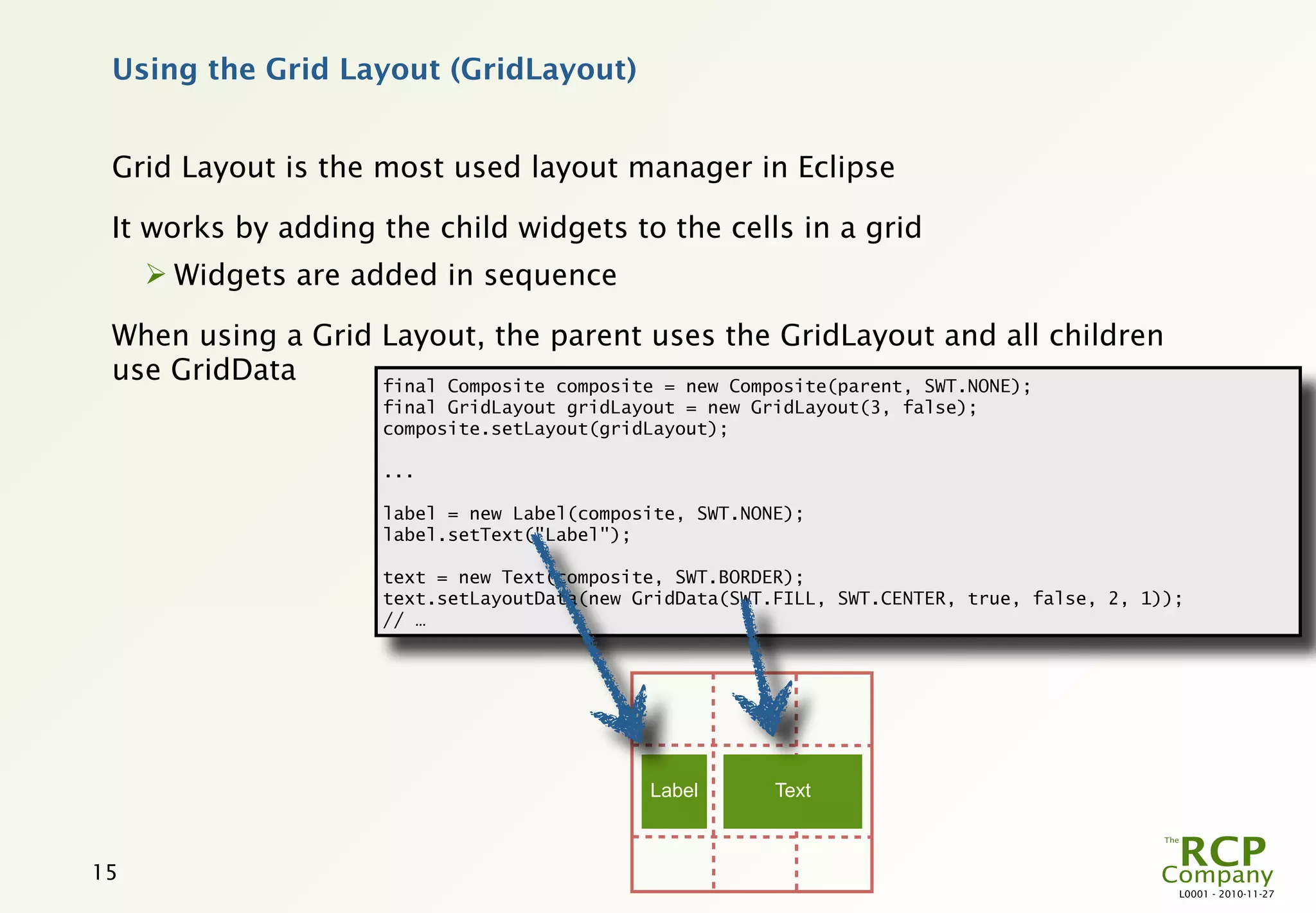
 When using a Grid Layout, the parent uses the GridLayout and all children
 use GridData      final Composite composite = new Composite(parent, SWT.NONE);
                     final GridLayout gridLayout = new GridLayout(3, false);
                     composite.setLayout(gridLayout);

                     ...

                     label = new Label(composite, SWT.NONE);
                     label.setText("Label");

                     text = new Text(composite, SWT.BORDER);
                     text.setLayoutData(new GridData(SWT.FILL, SWT.CENTER, true, false, 2, 1));
                     // …


                                             Label       Text


15
                                                                                              L0001 - 2010-11-27
Using the Grid Layout (GridLayout)


 The GridLayout class has two arguments
      numColumns – the number of columns in the grid (defaults to 1)
      makeColumnsEqualWidth – whether all columns in the grid have equal
       width (defaults to false)


16
                                                                            L0001 - 2010-11-27
Using the Grid Data (GridData)


GridData specifies how a child widget is laid out in the parent grid

A GridData holds the following primary information
   Grab Excess Space (horizontal and vertical) – describes whether the grid
    column or row should expand to grab any excess space (defaults to no
    grab)
   Span (horizontal and vertical) – describes the number of cells the
    widget should span (defaults to 1,1)
   Alignment (horizontal and vertical) – placement of widget within the
    cells – one of SWT.BEGINNING, SWT.CENTER, SWT.END or SWT.FILL
    (defaults to BEGINNING, BEGINNING)
   A GridData also contains information about indentation, minimum size
    and size hints

Don’t use the two-argument constructor!


  17
                                                                               L0001 - 2010-11-27
Using the Grid Data (GridData)


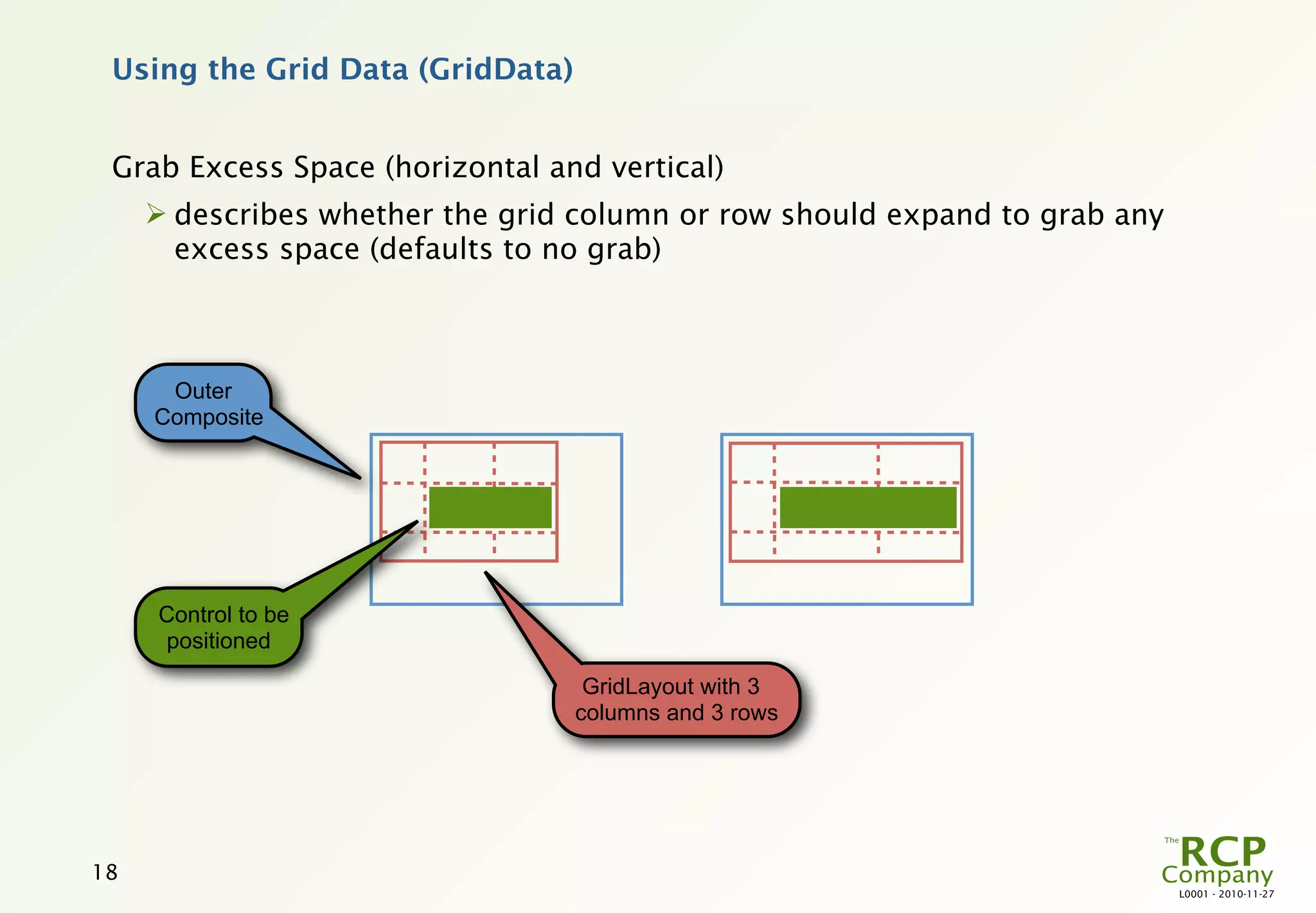
 Grab Excess Space (horizontal and vertical)
      describes whether the grid column or row should expand to grab any
       excess space (defaults to no grab)


      Outer
     Composite


     Control to be
     positioned

                                   GridLayout with 3
                                  columns and 3 rows


18
                                                                            L0001 - 2010-11-27
Using the Grid Data (GridData)


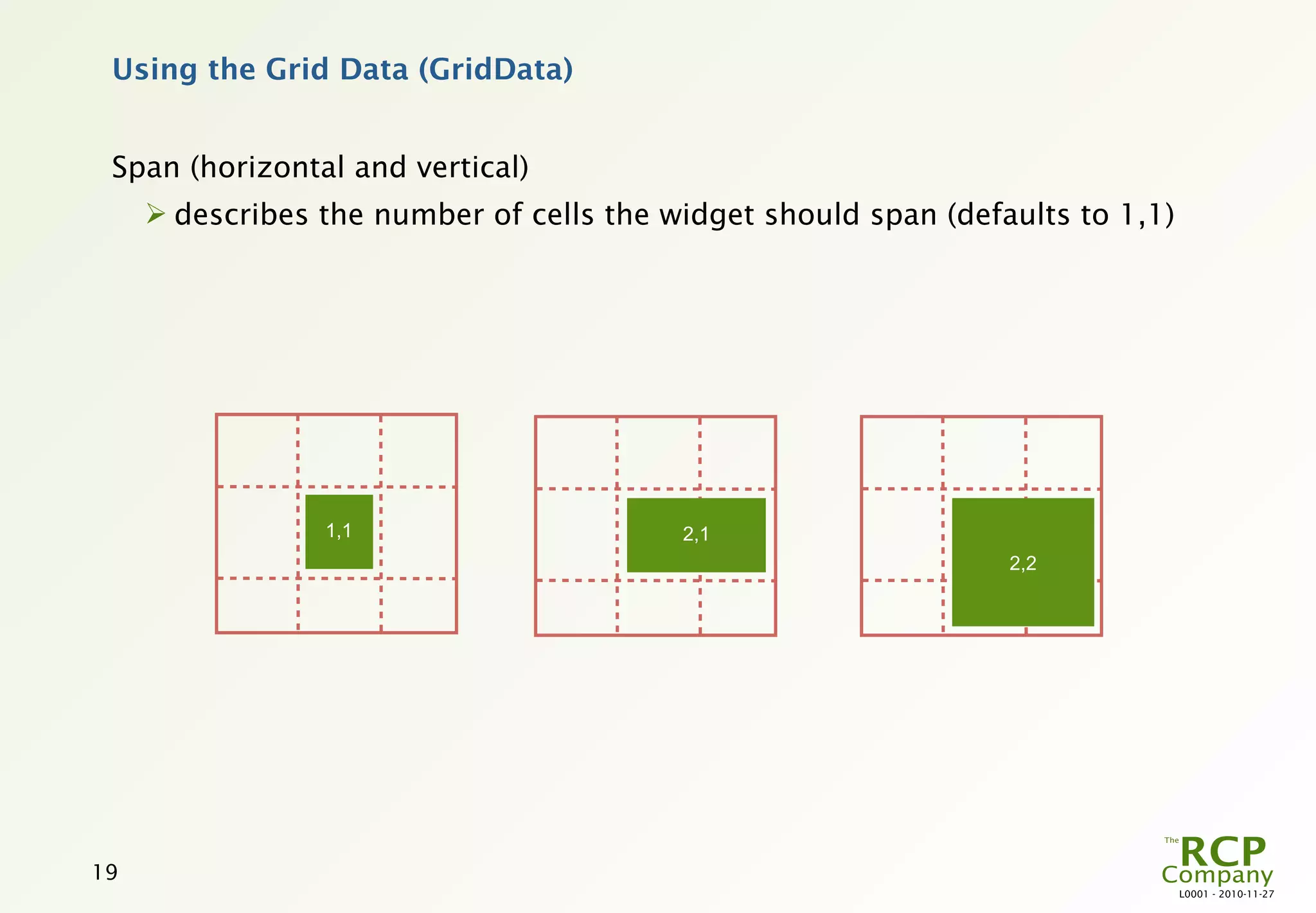
 Span (horizontal and vertical)
      describes the number of cells the widget should span (defaults to 1,1)


                 1,1                      2,1
                                                                 2,2


19
                                                                                L0001 - 2010-11-27
Using the Grid Data (GridData)


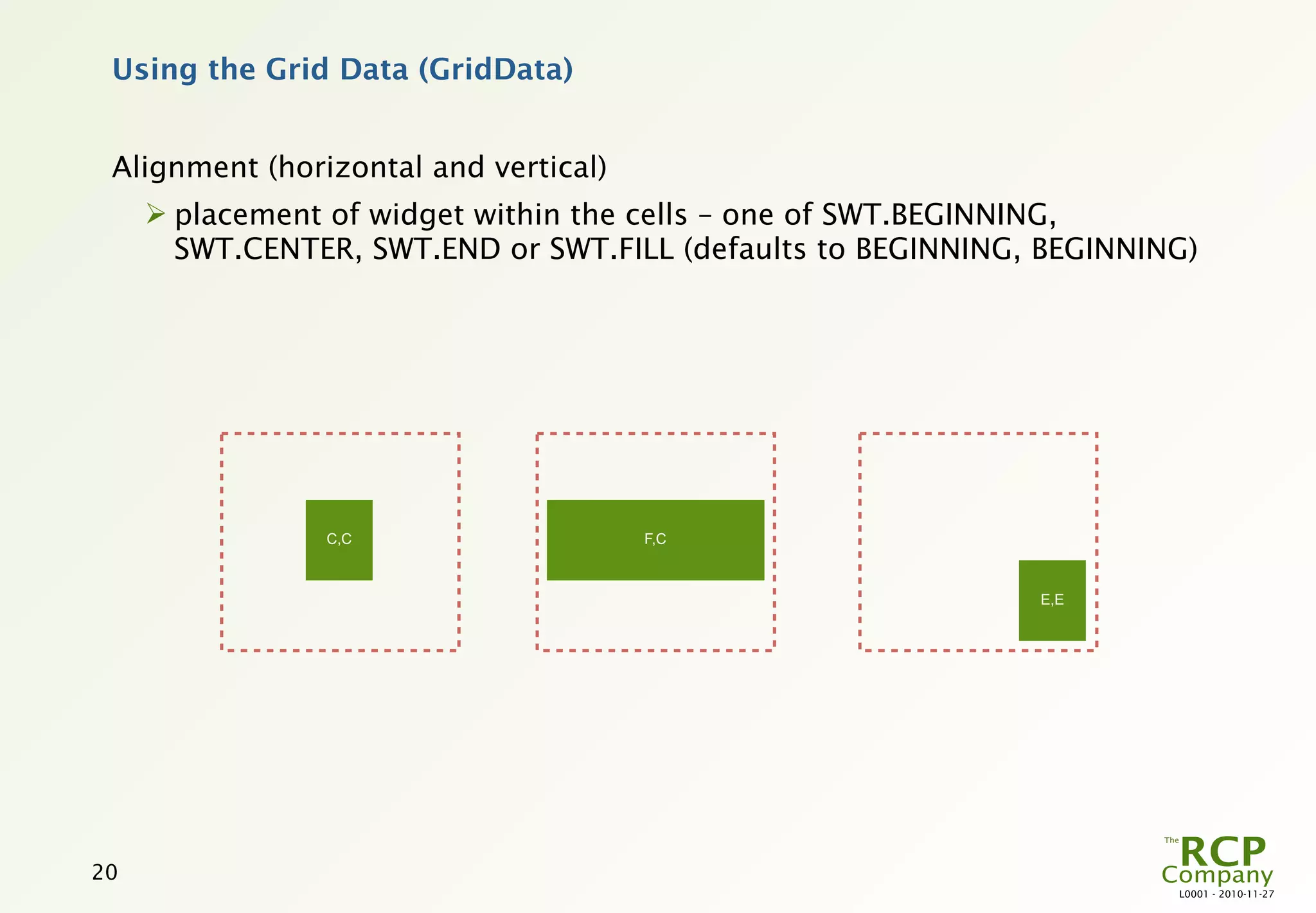
 Alignment (horizontal and vertical)
      placement of widget within the cells – one of SWT.BEGINNING,
       SWT.CENTER, SWT.END or SWT.FILL (defaults to BEGINNING, BEGINNING)


                C,C                    F,C


                                                              E,E


20
                                                                       L0001 - 2010-11-27
Layout Managers for Tables and Trees


 Tables and Trees have a layout how columns are sized
      TableLayout
        
            Will only resize the columns the first time!
        
            Applied to the Table or Tree
      TableColumnLayout
        
            Applied to the Composite of the Table or Tree
      Column constraints saved as layout.setColumnData(column, constraint)

 Both layout managers are based on the same column constraint objects:
      ColumnPixelData – makes a column a specific width in pixels
      ColumnWeightData – makes a column a specific percentage of the
       summed width


21
                                                                         L0001 - 2010-11-27
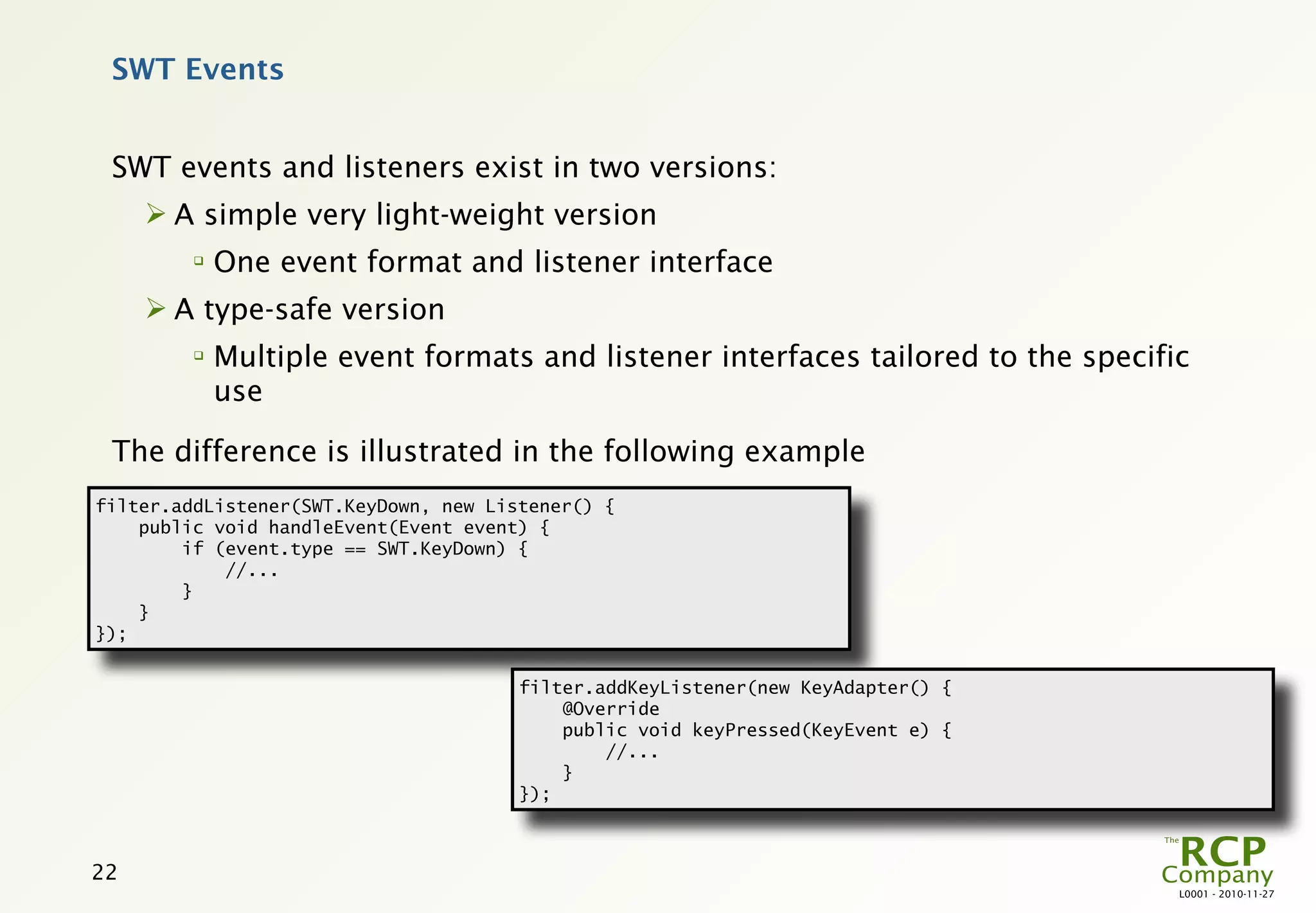
SWT Events


 SWT events and listeners exist in two versions:
      A simple very light-weight version
         
             One event format and listener interface
      A type-safe version
         
             Multiple event formats and listener interfaces tailored to the specific
             use

 The difference is illustrated in the following example
filter.addListener(SWT.KeyDown, new Listener() {
    public void handleEvent(Event event) {
        if (event.type == SWT.KeyDown) {
            //...
        }
    }
});


                                       filter.addKeyListener(new KeyAdapter() {
                                           @Override
                                           public void keyPressed(KeyEvent e) {
                                               //...
                                           }
                                       });


22
                                                                                   L0001 - 2010-11-27
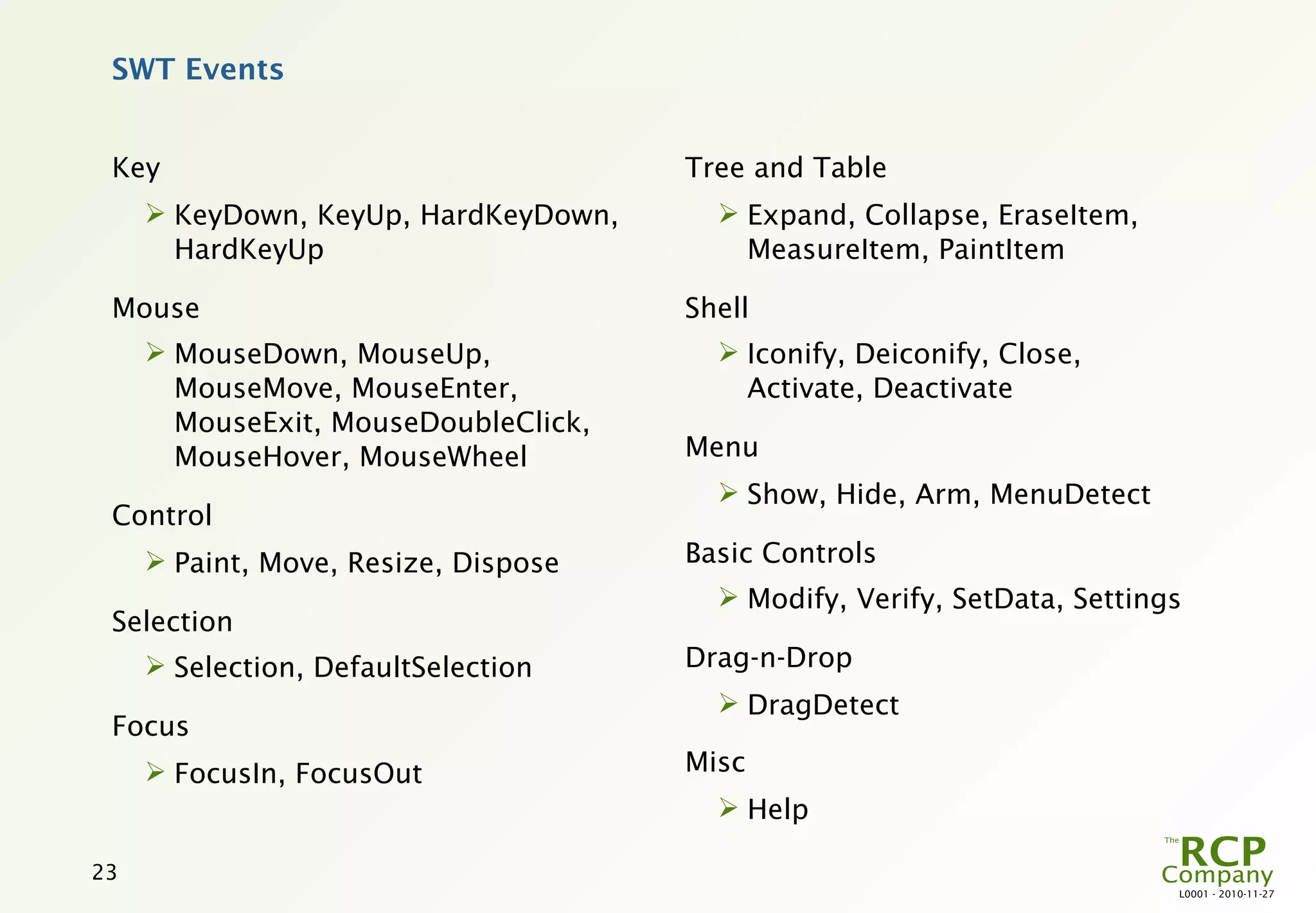
SWT Events


 Key                                  Tree and Table
      KeyDown, KeyUp, HardKeyDown,      Expand, Collapse, EraseItem,
       HardKeyUp                          MeasureItem, PaintItem

 Mouse                                Shell
      MouseDown, MouseUp,               Iconify, Deiconify, Close,
       MouseMove, MouseEnter,             Activate, Deactivate
       MouseExit, MouseDoubleClick,
       MouseHover, MouseWheel         Menu
                                         Show, Hide, Arm, MenuDetect
 Control
      Paint, Move, Resize, Dispose   Basic Controls
                                         Modify, Verify, SetData, Settings
 Selection
      Selection, DefaultSelection    Drag-n-Drop
                                         DragDetect
 Focus
      FocusIn, FocusOut              Misc
                                         Help

23
                                                                          L0001 - 2010-11-27
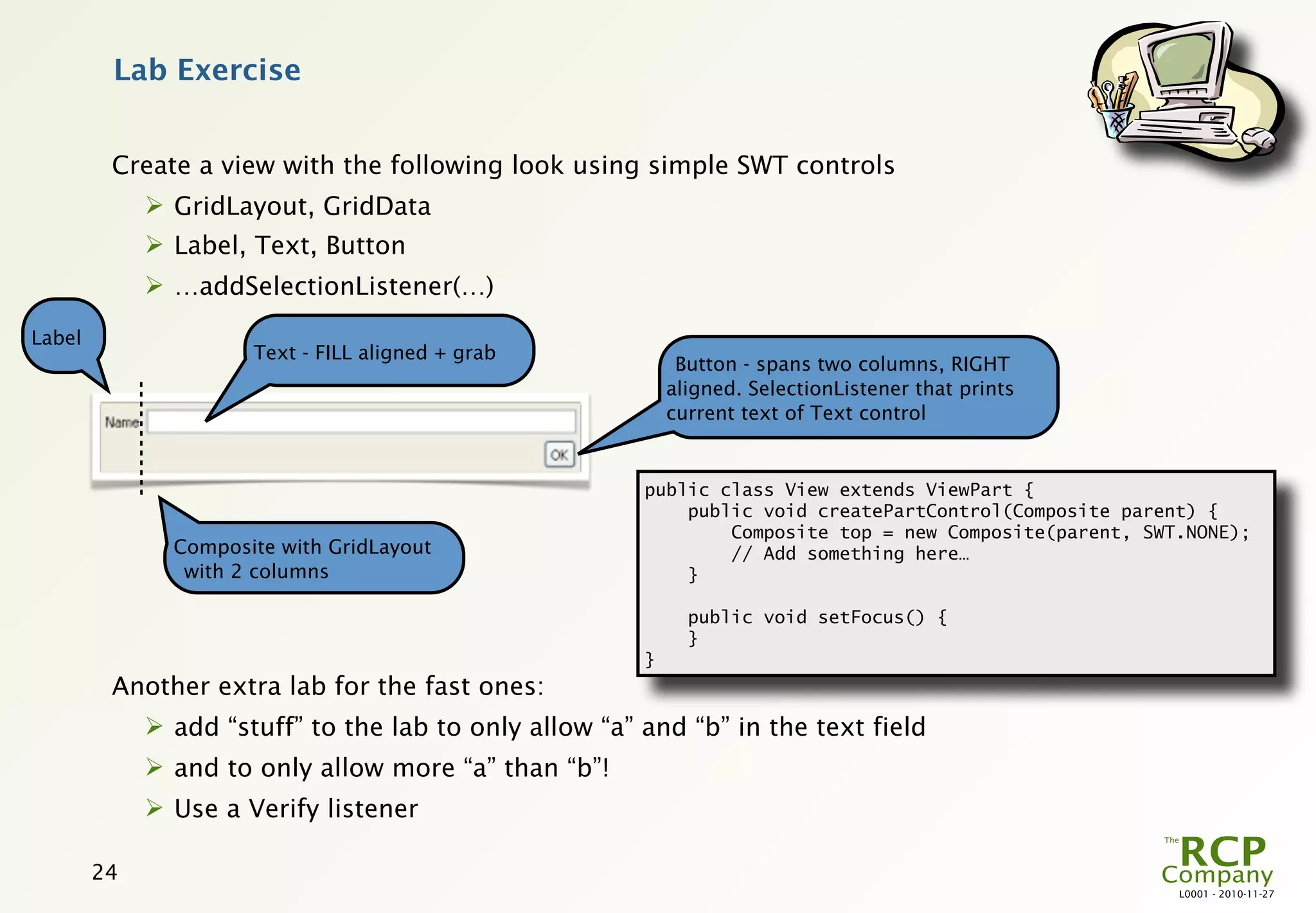
Lab Exercise


         Create a view with the following look using simple SWT controls
              GridLayout, GridData
              Label, Text, Button
              …addSelectionListener(…)

Label
                      Text - FILL aligned + grab
                                                             Button - spans two columns, RIGHT
                                                            aligned. SelectionListener that prints
                                                            current text of Text control


                                                        public class View extends ViewPart {
                                                            public void createPartControl(Composite parent) {
                                                                Composite top = new Composite(parent, SWT.NONE);
               Composite with GridLayout                        // Add something here…
                with 2 columns                              }

                                                              public void setFocus() {
                                                              }
                                                        }
         Another extra lab for the fast ones:
              add “stuff” to the lab to only allow “a” and “b” in the text field
              and to only allow more “a” than “b”!
              Use a Verify listener

        24
                                                                                                         L0001 - 2010-11-27
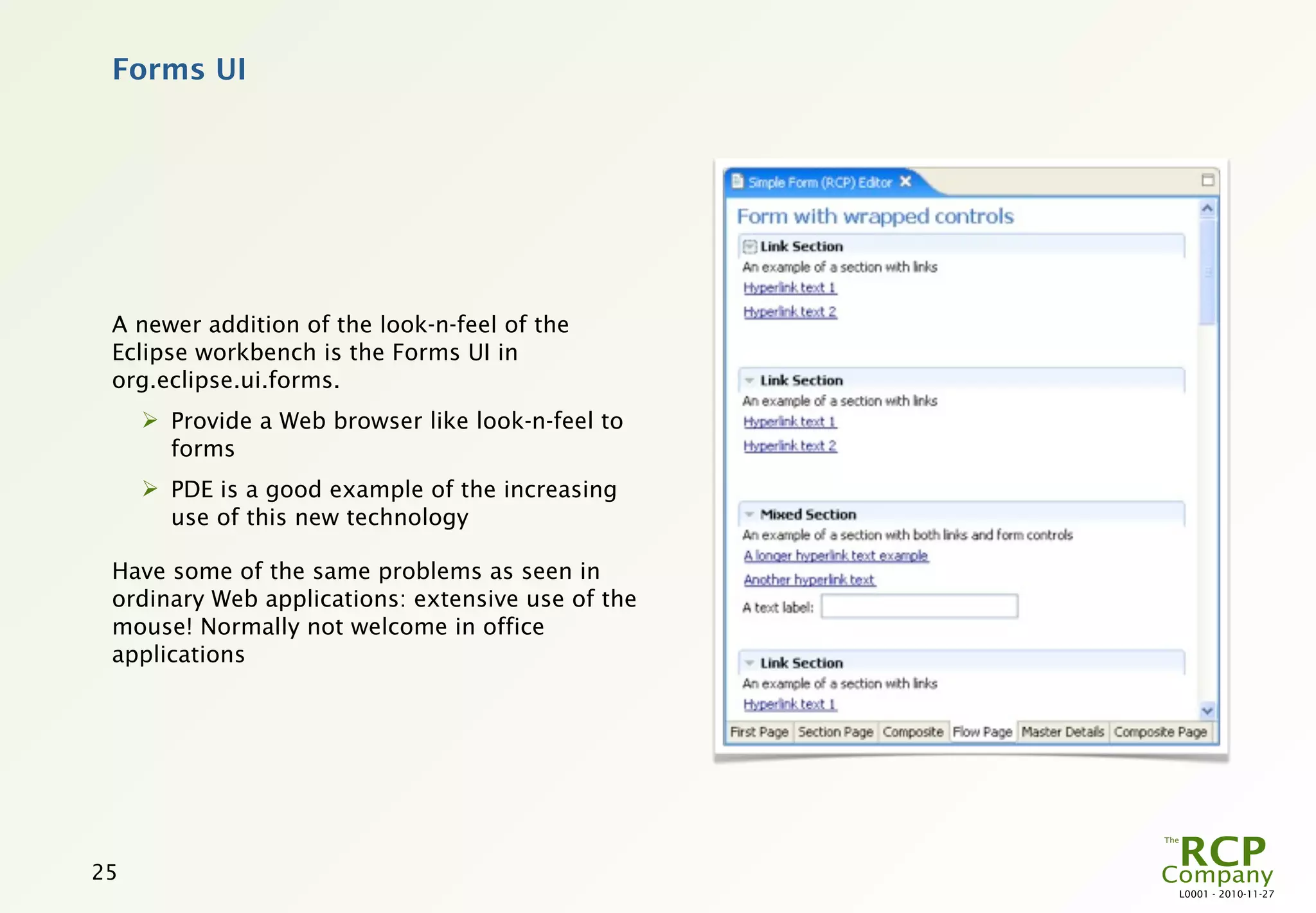
Forms UI


 A newer addition of the look-n-feel of the
 Eclipse workbench is the Forms UI in
 org.eclipse.ui.forms.
      Provide a Web browser like look-n-feel to
       forms
      PDE is a good example of the increasing
       use of this new technology

 Have some of the same problems as seen in
 ordinary Web applications: extensive use of the
 mouse! Normally not welcome in office
 applications


25
                                                   L0001 - 2010-11-27
More Information


 “Eclipse User Interface Guidelines: Version 2.1”
      http://www.eclipse.org/resources/resource.php?id=162
       
           The Look-n-Feel guidelines for Eclipse – heavily influenced by the corresponding
           Microsoft Windows Look-n-Feel guidelines
 SWT home
      http://www.eclipse.org/swt/
 SWT versus Swing
      http://www.developer.com/java/other/article.php/2179061
 “Using SwingRCP (instead of SWT) in RCP”
      http://www.eclipsezone.com/eclipse/forums/t104467.rhtml
       
           A discussion of different ways to integrate Eclipse RCP and Swing
 “The Definitive Guide to SWT and JFace” by Robert Harris and Rob Warner (ISBN:
 978-1590593257)
      As it says – “The Definitive Guide…” – and needed due to the pure javadoc of SWT
 “SWT Snippet” Repository
      http://www.eclipse.org/swt/snippets/
       
           A large repository of sample code for most uses of SWT!

26
                                                                                              L0001 - 2010-11-27
More Information


 “Plug a Swing-based development tool into Eclipse”
      http://www-128.ibm.com/developerworks/opensource/library/osswing/
 “Eclipse Forms: Rich UI for the Rich Client”
      http://www.eclipse.org/resources/resource.php?id=140
 “Custom Drawing Table and Tree Items”
      http://www.eclipse.org/resources/resource.php?id=122
 “Using Images in the Eclipse UI”
      http://www.eclipse.org/resources/resource.php?id=236
 “Rich clients with the SWT and JFace”
      http://www.javaworld.com/javaworld/jw-04-2004/jw-0426- swtjface.html?page=2
 “SWT: The Standard Widget Toolkit”
      http://www.eclipse.org/resources/resource.php?id=241

 “Understanding Layouts in SWT”
      http://www.eclipse.org/resources/resource.php?id=242
       
           A good overview of the different basic layouts in Eclipse.

27
                                                                                L0001 - 2010-11-27
More Information


 “Drag and Drop in the Eclipse UI”
      http://www.eclipse.org/resources/resource.php?id=202

 “Adding Drag and Drop to an SWT Application”
      http://www.eclipse.org/resources/resource.php?id=200

 “Eclipse Data Binding Test Drive” (webinar)
      http://www.eclipse.org/resources/resource.php?id=299

 “Swing/SWT Integration”
      http://www.eclipse.org/resources/resource.php?id=381

 “Eclipse Forms: Rich UI for the Rich Client”
      http://www.eclipse.org/articles/Article-Forms/article.html
       
           The Forms UI explained with some good examples


28
                                                                    L0001 - 2010-11-27

L0018 - SWT - The Standard Widget Toolkit

  • 1.
    SWT - TheStandard Widget Toolkit The graphical sub-system of the Eclipse platform is made up of two components: SWT, the Standard Widget Toolkit; and JFace, an architecture independent modeling layer. This module describes how to use SWT in views and editors and how different resources must be managed. Redistribution and other use of this material requires written permission from The RCP Company. L0001 - 2010-11-27
  • 2.
    Eclipse User InterfaceLayers Eclipse RCP Preferences Commands Four Layers: Registry Workbench Jobs ICU  The Eclipse Workbench JFace SWT  Overall look-n-feel OSGi/Run-time  JFace  Architecture-independent models  SWT  Platform independent API yet rather close to the metal  Native widgets  Platform dependent: Windows, Linux, Mac, Unix The “Eclipse User Interface Guidelines” govern the look-n-feel of the workbench and JFace  Consequently (nearly) all Eclipse RCP based applications look the same! Use the SWT Bible “The Definitive Guide to SWT and JFace” by Robert Harris and Rob Warner 2 L0001 - 2010-11-27
  • 3.
    SWT and theNative Widgets SWT is short for ”The Standard Widget Toolkit” SWT is a sub-project of the Eclipse project SWT has a common API on all target platforms – the implementation is different  Base plug-in org.eclipse.swt contains only MANIFEST.MF plus some configuration files  A set of platform specific fragments implements all of SWT– org.eclipse.swt.win32.win32.x86 for 32-bit Windows on x86 (not Vista look-n-feel) SWT is a thin layer on top of the native widgets  Windows, Mac, Motif, GTK and more SWT can easily be used stand-alone 3 L0001 - 2010-11-27
  • 4.
    SWT on DifferentPlatforms 4 L0001 - 2010-11-27
  • 5.
    Working with SWT SWTAPI is not as regular as Swing The SWT site contains a large repository of “SWT Snippets” that demonstrate most of the abilities of SWT To find leaks with graphical resources use sleak plug-in It is possible to integrate SWT and Swing to a very large degree  But expect problems with shortcuts and focus management 5 L0001 - 2010-11-27
  • 6.
    SWT Widgets Basic  Button, Combo, Composite, Group, Label, Link, List, Menu, ProgressBar, Shell, Slider, Scale, Spinner, TabFolder, Table, Text, ToolBar, and Tree Advanced  Browser, Canvas, CBanner, CCombo, CLabel, CoolBar, CTabFolder, DateTime, ExpandBar, GLCanvas, Sash, SashForm, ScrolledComposite, StyledText, SWT_AWT, TableCursor, and Tray Other Sources – e.g. Nebula, Sourceforge.net  FormattedText, Gallery, Grid, and many more 6 L0001 - 2010-11-27
  • 7.
    SWT Widgets 7 L0001 - 2010-11-27
  • 8.
    The Basic WidgetHierarchy Widget Item Menu Control MenuItem TableItem TabItem Label Button List Composite Canvas Combo Form OleSiteClient Table 8 L0001 - 2010-11-27
  • 9.
    The Basic WidgetHierarchy Widget Control Composite Top-level abstract Top-level abstract Control that can super class for all super class for contain other controls widgets controls Support for layout Support for Support for management  arbitrary  foreground, A Composite must associated data background have a layout  general event  border manager, or the child management  content menu widgets will not be  disposal shown!  focus management management  layout management – layout, location and size 9 L0001 - 2010-11-27
  • 10.
    Using SWT Widgets Common constructor form – e.g. new Text(parent, SWT.PASSWORD)  The parent  The style argument specifies the basic sub-function of the widget Use Text controls for data values event when read-only, as this makes it possible to select and copy the value 10 L0001 - 2010-11-27
  • 11.
    Using SWT Styles Second argument of all widget constructions – e.g. new Text(parent, SWT.PASSWORD) The most used styles are  SWT.NONE – no style needed  SWT.LEAD, SWT.CENTER, and SWT.TRAIL - the alignment of text in labels, menus and buttons  SWT.ARROW, SWT.CHECK, SWT.PUSH, SWT.RADIO, and SWT.TOGGLE - the sub-type of a button  SWT.PASSWORD - Text is used for password entry  SWT.V_SCROLL, SWT.H_SCROLL, and SWT.NO_SCROLL – Table or Tree has vertical, horizontal or no scroll bar (3.4 and later) 11 L0001 - 2010-11-27
  • 12.
    Using SWT Styles Some special considerations regarding styles  Some style arguments cannot be changed once specified in the constructor (e.g. SWT.CHECK for a Button), whereas others can (e.g. SWT.LEAD for Label)  Some style arguments have different meaning for different widgets – e.g. SWT.MULTI for Table and Text 12 L0001 - 2010-11-27
  • 13.
    Managing Composites (Composite) Children are added to a composite during the construction of the children  new Text(composite, SWT.BORDER) Children are retrieved using  comp.getChildren() Children are removed using  child.dispose() Children can be moved in the parent using  child.moveAbove(otherChild)  child.moveBelow(otherChild) When a composite is changed, remember to re-layout  comp.layout() Setting the background of children of a composite:  comp.setBackgroundMode(SWT.INHERIT_DEFAULT) 13 L0001 - 2010-11-27
  • 14.
    SWT Layout Managers The positioning and sizing of controls in a Composite (and subclasses) is performed using layout managers SWT includes a rather complete set of standard layout managers  FillLayout and RowLayout: layout is a single row or column  GridLayout: layout in a grid with size constraints  FormLayout: layout in canvas with size and edge-to-edge constraints  Most GUI designer can handle these A new layout manager can be created fairly easily  computeSize: computes the “natural” size of the Composite  layout: lays out the controls of the Composite public abstract class Layout { protected abstract Point computeSize(Composite composite, int wHint, int hHint, boolean flushCache); protected abstract void layout(Composite composite, boolean flushCache); } 14 L0001 - 2010-11-27
  • 15.
    Using the GridLayout (GridLayout) Grid Layout is the most used layout manager in Eclipse It works by adding the child widgets to the cells in a grid  Widgets are added in sequence When using a Grid Layout, the parent uses the GridLayout and all children use GridData final Composite composite = new Composite(parent, SWT.NONE); final GridLayout gridLayout = new GridLayout(3, false); composite.setLayout(gridLayout); ... label = new Label(composite, SWT.NONE); label.setText("Label"); text = new Text(composite, SWT.BORDER); text.setLayoutData(new GridData(SWT.FILL, SWT.CENTER, true, false, 2, 1)); // … Label Text 15 L0001 - 2010-11-27
  • 16.
    Using the GridLayout (GridLayout) The GridLayout class has two arguments  numColumns – the number of columns in the grid (defaults to 1)  makeColumnsEqualWidth – whether all columns in the grid have equal width (defaults to false) 16 L0001 - 2010-11-27
  • 17.
    Using the GridData (GridData) GridData specifies how a child widget is laid out in the parent grid A GridData holds the following primary information  Grab Excess Space (horizontal and vertical) – describes whether the grid column or row should expand to grab any excess space (defaults to no grab)  Span (horizontal and vertical) – describes the number of cells the widget should span (defaults to 1,1)  Alignment (horizontal and vertical) – placement of widget within the cells – one of SWT.BEGINNING, SWT.CENTER, SWT.END or SWT.FILL (defaults to BEGINNING, BEGINNING)  A GridData also contains information about indentation, minimum size and size hints Don’t use the two-argument constructor! 17 L0001 - 2010-11-27
  • 18.
    Using the GridData (GridData) Grab Excess Space (horizontal and vertical)  describes whether the grid column or row should expand to grab any excess space (defaults to no grab) Outer Composite Control to be positioned GridLayout with 3 columns and 3 rows 18 L0001 - 2010-11-27
  • 19.
    Using the GridData (GridData) Span (horizontal and vertical)  describes the number of cells the widget should span (defaults to 1,1) 1,1 2,1 2,2 19 L0001 - 2010-11-27
  • 20.
    Using the GridData (GridData) Alignment (horizontal and vertical)  placement of widget within the cells – one of SWT.BEGINNING, SWT.CENTER, SWT.END or SWT.FILL (defaults to BEGINNING, BEGINNING) C,C F,C E,E 20 L0001 - 2010-11-27
  • 21.
    Layout Managers forTables and Trees Tables and Trees have a layout how columns are sized  TableLayout  Will only resize the columns the first time!  Applied to the Table or Tree  TableColumnLayout  Applied to the Composite of the Table or Tree  Column constraints saved as layout.setColumnData(column, constraint) Both layout managers are based on the same column constraint objects:  ColumnPixelData – makes a column a specific width in pixels  ColumnWeightData – makes a column a specific percentage of the summed width 21 L0001 - 2010-11-27
  • 22.
    SWT Events SWTevents and listeners exist in two versions:  A simple very light-weight version  One event format and listener interface  A type-safe version  Multiple event formats and listener interfaces tailored to the specific use The difference is illustrated in the following example filter.addListener(SWT.KeyDown, new Listener() { public void handleEvent(Event event) { if (event.type == SWT.KeyDown) { //... } } }); filter.addKeyListener(new KeyAdapter() { @Override public void keyPressed(KeyEvent e) { //... } }); 22 L0001 - 2010-11-27
  • 23.
    SWT Events Key Tree and Table  KeyDown, KeyUp, HardKeyDown,  Expand, Collapse, EraseItem, HardKeyUp MeasureItem, PaintItem Mouse Shell  MouseDown, MouseUp,  Iconify, Deiconify, Close, MouseMove, MouseEnter, Activate, Deactivate MouseExit, MouseDoubleClick, MouseHover, MouseWheel Menu  Show, Hide, Arm, MenuDetect Control  Paint, Move, Resize, Dispose Basic Controls  Modify, Verify, SetData, Settings Selection  Selection, DefaultSelection Drag-n-Drop  DragDetect Focus  FocusIn, FocusOut Misc  Help 23 L0001 - 2010-11-27
  • 24.
    Lab Exercise Create a view with the following look using simple SWT controls  GridLayout, GridData  Label, Text, Button  …addSelectionListener(…) Label Text - FILL aligned + grab Button - spans two columns, RIGHT aligned. SelectionListener that prints current text of Text control public class View extends ViewPart { public void createPartControl(Composite parent) { Composite top = new Composite(parent, SWT.NONE); Composite with GridLayout // Add something here… with 2 columns } public void setFocus() { } } Another extra lab for the fast ones:  add “stuff” to the lab to only allow “a” and “b” in the text field  and to only allow more “a” than “b”!  Use a Verify listener 24 L0001 - 2010-11-27
  • 25.
    Forms UI Anewer addition of the look-n-feel of the Eclipse workbench is the Forms UI in org.eclipse.ui.forms.  Provide a Web browser like look-n-feel to forms  PDE is a good example of the increasing use of this new technology Have some of the same problems as seen in ordinary Web applications: extensive use of the mouse! Normally not welcome in office applications 25 L0001 - 2010-11-27
  • 26.
    More Information “EclipseUser Interface Guidelines: Version 2.1”  http://www.eclipse.org/resources/resource.php?id=162  The Look-n-Feel guidelines for Eclipse – heavily influenced by the corresponding Microsoft Windows Look-n-Feel guidelines SWT home  http://www.eclipse.org/swt/ SWT versus Swing  http://www.developer.com/java/other/article.php/2179061 “Using SwingRCP (instead of SWT) in RCP”  http://www.eclipsezone.com/eclipse/forums/t104467.rhtml  A discussion of different ways to integrate Eclipse RCP and Swing “The Definitive Guide to SWT and JFace” by Robert Harris and Rob Warner (ISBN: 978-1590593257)  As it says – “The Definitive Guide…” – and needed due to the pure javadoc of SWT “SWT Snippet” Repository  http://www.eclipse.org/swt/snippets/  A large repository of sample code for most uses of SWT! 26 L0001 - 2010-11-27
  • 27.
    More Information “Pluga Swing-based development tool into Eclipse”  http://www-128.ibm.com/developerworks/opensource/library/osswing/ “Eclipse Forms: Rich UI for the Rich Client”  http://www.eclipse.org/resources/resource.php?id=140 “Custom Drawing Table and Tree Items”  http://www.eclipse.org/resources/resource.php?id=122 “Using Images in the Eclipse UI”  http://www.eclipse.org/resources/resource.php?id=236 “Rich clients with the SWT and JFace”  http://www.javaworld.com/javaworld/jw-04-2004/jw-0426- swtjface.html?page=2 “SWT: The Standard Widget Toolkit”  http://www.eclipse.org/resources/resource.php?id=241 “Understanding Layouts in SWT”  http://www.eclipse.org/resources/resource.php?id=242  A good overview of the different basic layouts in Eclipse. 27 L0001 - 2010-11-27
  • 28.
    More Information “Dragand Drop in the Eclipse UI”  http://www.eclipse.org/resources/resource.php?id=202 “Adding Drag and Drop to an SWT Application”  http://www.eclipse.org/resources/resource.php?id=200 “Eclipse Data Binding Test Drive” (webinar)  http://www.eclipse.org/resources/resource.php?id=299 “Swing/SWT Integration”  http://www.eclipse.org/resources/resource.php?id=381 “Eclipse Forms: Rich UI for the Rich Client”  http://www.eclipse.org/articles/Article-Forms/article.html  The Forms UI explained with some good examples 28 L0001 - 2010-11-27

Editor's Notes

  • #2 \n
  • #3 The look-n-feel of the native widgets and SWT is governed by the native look-n-feel guide. Eclipse adds some further rules on top of these in the form of “Eclipse User Interface Guidelines”.\nThe look-n-feel of an RCP application can be changed; this is described in the module “L0019 - Changing the Look-n-Feel”.\n
  • #4 The Standard Widget Toolkit (SWT) is a Java class library that allows you to create native user interfaces. It's designed to provide efficient, portable access to the underlying facilities of the operating system on which it's implemented. SWT uses native widgets wherever possible, giving an SWT program a native look and feel and a high level of integration with the desktop. In addition, SWT includes a rich set of controls such as tree, table, and tab folder\nThe SWT library actually exists in a number of editions – one for each target platform. In Eclipse there are a single generic SWT plug-in with very little functionality and a SWT fragment for each of the target platforms. The version of the SWT fragment that is part of the Eclipse IDE or RCP download is one of the major differences between the different platforms.\nThe Eclipse platform fully supports development of SWT stand-alone applications.\n
  • #5 SWT is just a thin layer on top of the native widgets. This is illustrated on this slide, where the same tiny SWT based application has been run on a number of platforms. As can be seen, the look-n-feel of the application follows the native look-n-feel exactly.\n
  • #6 Sleak is a simple tool that monitors the creation and disposing of SWT graphics resources. See here for more information: http://www.eclipse.org/swt/tools.php\nSee the article “Swing/SWT Integration” for a description of how to integrate SWT and Swing.\n
  • #7 There are quite a few alternative SWT widgets on the net – especially on Sourceforge.\n
  • #8 Images taken from the SWT homepage.\n
  • #9 \n
  • #10 \n
  • #11 \n
  • #12 The style arguments that are allowed for different widgets varygreatly. Also the meaning differs somewhat between widgets. For a complete description of the exact meaning of the different style arguments, the javadoc is not enough – instead refer to SWT Bible “The Definitive Guide to SWT and JFace” by Robert Harris and Rob Warner.\n
  • #13 The style arguments that are allowed for different widgets varygreatly. Also the meaning differs somewhat between widgets. For a complete description of the exact meaning of the different style arguments, the javadoc is not enough – instead refer to SWT Bible “The Definitive Guide to SWT and JFace” by Robert Harris and Rob Warner.\n
  • #14 \n
  • #15 The Swing layout manager GridBagLayout is very similar to SWTs GridLayout, as is Swing’s SpringLayout with SWTs FormLayout.\nEclipse IDE includes more than 50 special case layouts – e.g. for tab folders and the perspective switcher of the workbench window.\nIf you forget to add a layout manager to a Composite (or children) then the children will very likely not be shown at all as they will all have zero size!\n
  • #16 \n
  • #17 \n
  • #18 \n
  • #19 \n
  • #20 \n
  • #21 \n
  • #22 ColumnWeightData can also handle fixed size columns, so ColumnPixelData really is obsolete.\n
  • #23 The generic light-weight Listener interface is primarily used for low-level events such as MouseMove, whereas the type-safe version is used for just about everything else.\n
  • #24 \n
  • #25 Now it’s time for the lab.\n\nThe extra lab exercise with the form with multiple labels is taken from a puzzle by Eugene Kuleshov – see http://www.jroller.com/eu/entry/an_swt_puzzler.\n
  • #26 Covered in details in the module “L0002 – Using Eclipse Forms“. Also read more in “Eclipse Forms: Rich UI for the Rich Client”.\nUI Forms is an optional Rich Client plug-in based on SWT and JFace that provides the support for creating portable web-style user interfaces across all Eclipse UI categories. It provides a few carefully chosen custom widgets, layouts and support classes required to achieve the desired Web look. Being based on SWT, they are inherently portable across all the platforms where SWT is supported.\nUI Forms break the established expectations on which classes of widgets can be expected in Eclipse workbench UI categories (editors, views, wizards, dialogs). An Eclipse form can appear in any and all of them, expanding the possibilities of the UI developers to use the most appropriate concept for the task regardless of where they are.\nEclipse Forms add the following to make web-style user interfaces possible:\nA concept of a 'form' that is suitable for inclusion in the content areas such as views and editors \nA toolkit that manages colors, hyperlink groups and other aspects of a form, as well as serving as a factory for a number of SWT controls \nA new layout manager that lays out controls similar to the HTML table layout algorithm \nA set of custom controls designed to fit in the form (hyperlink, image hyperlink, scrollable composite, section) \nA multi-page editor where each page is a form (e.g. PDE manifest editors) \n \n
  • #27 \n
  • #28 \n
  • #29 \n