KNVI-PLDN LEZING
JE PERSOONLIJKE DATA
BEHEREN MET SOLID
PIETER VAN EVERDINGEN
(PLDN/OPENINC)
12-2-2020
#linkeddatanl #solid
SOCIAL LINKED BEER APP DEMO –
PIETER VAN EVERDINGEN (PLDN/OPENINC)
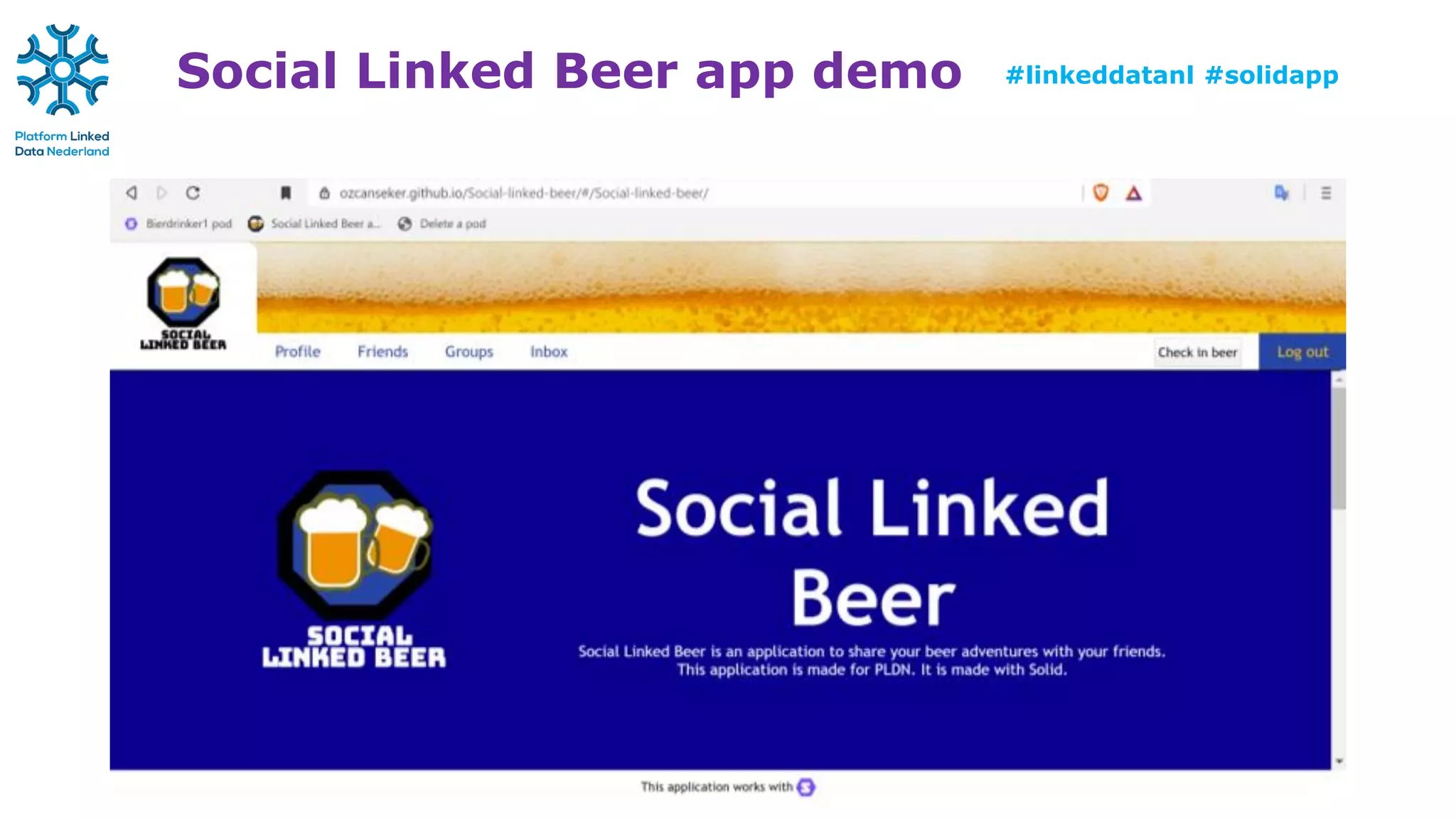
Social Linked Beer app demo #linkeddatanl #solidapp
Social Linked Beer demo pods
Test Pods we use for this ‘demo’:
• https://bierdrinker1.solid.community/profile/card#me
(check-ins, reviews, invites friends, creates new group, etc.)
• https://bierdrinker2.solid.community/profile/card#me
(check-ins, reviews, accepts friend and group invitations, etc.)
• https://bierdrinker3.solid.community/profile/card#me
(check-ins, reviews, accepts invitations, creates new group, etc.)
Social Linked Beer app
URL of the Social Linked Beer app:
• https://ozcanseker.github.io/Social-linked-beer
Source code & documentation of the app:
• https://github.com/ozcanseker/Social-linked-beer
We only need the URL to the app for the demo
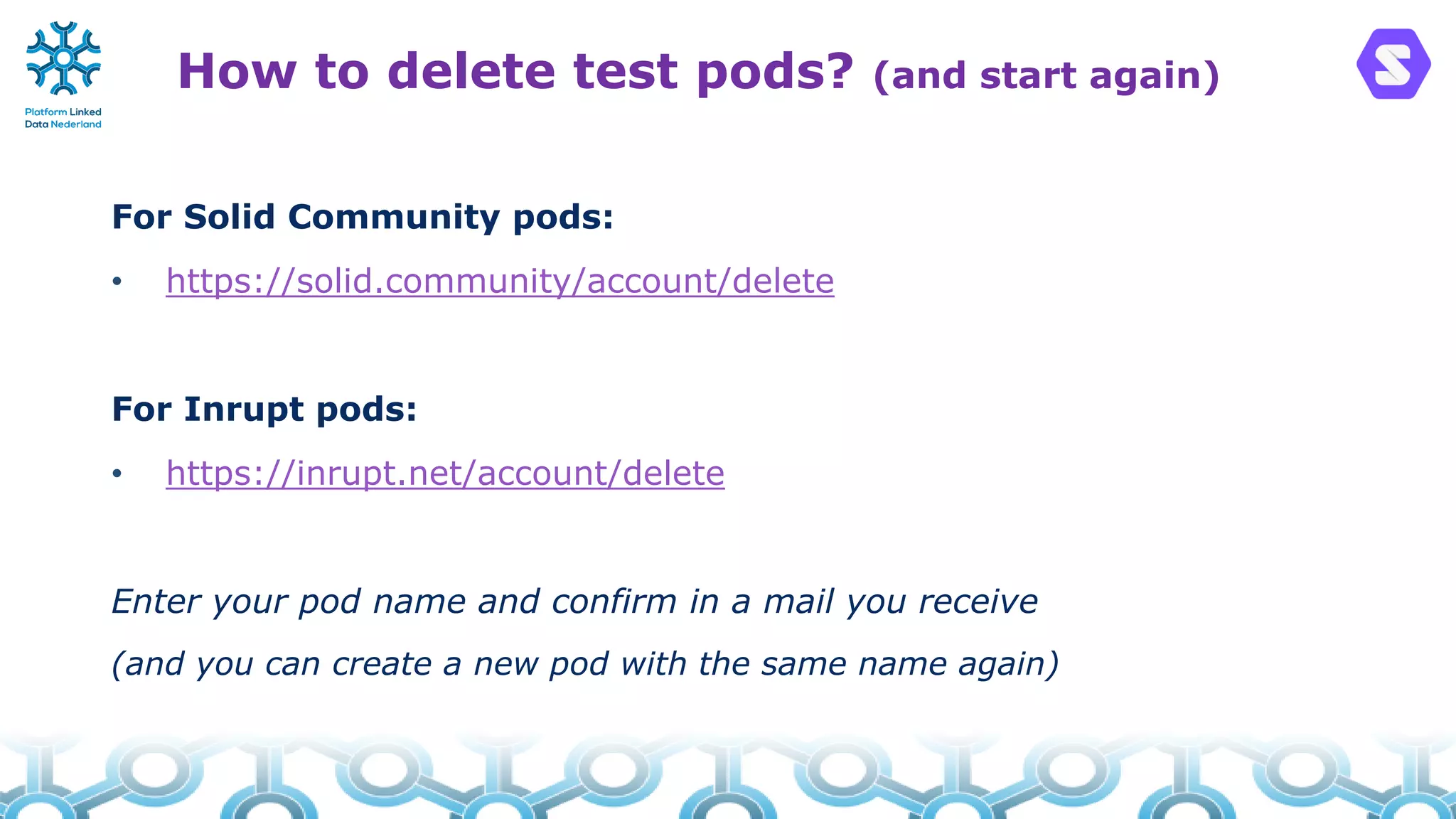
How to delete test pods? (and start again)
For Solid Community pods:
• https://solid.community/account/delete
For Inrupt pods:
• https://inrupt.net/account/delete
Enter your pod name and confirm in a mail you receive
(and you can create a new pod with the same name again)
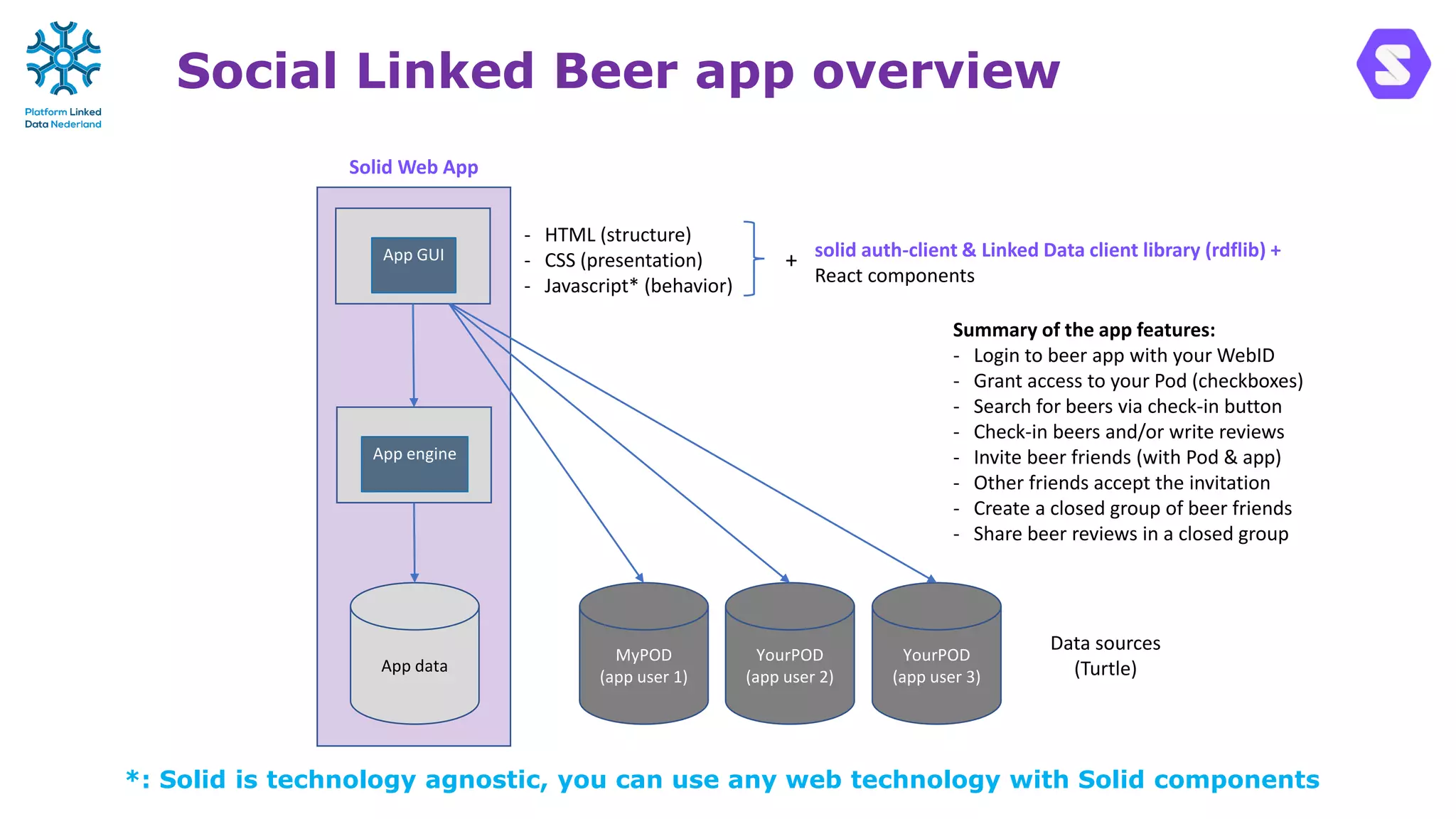
Social Linked Beer app overview
App GUI
App engine
App data
Data sources
(Turtle)
MyPOD
(app user 1)
YourPOD
(app user 2)
- HTML (structure)
- CSS (presentation)
- Javascript* (behavior)
solid auth-client & Linked Data client library (rdflib) +
React components
Solid Web App
Summary of the app features:
- Login to beer app with your WebID
- Grant access to your Pod (checkboxes)
- Search for beers via check-in button
- Check-in beers and/or write reviews
- Invite beer friends (with Pod & app)
- Other friends accept the invitation
- Create a closed group of beer friends
- Share beer reviews in a closed group
+
*: Solid is technology agnostic, you can use any web technology with Solid components
YourPOD
(app user 3)
Social Linked Beer app demo
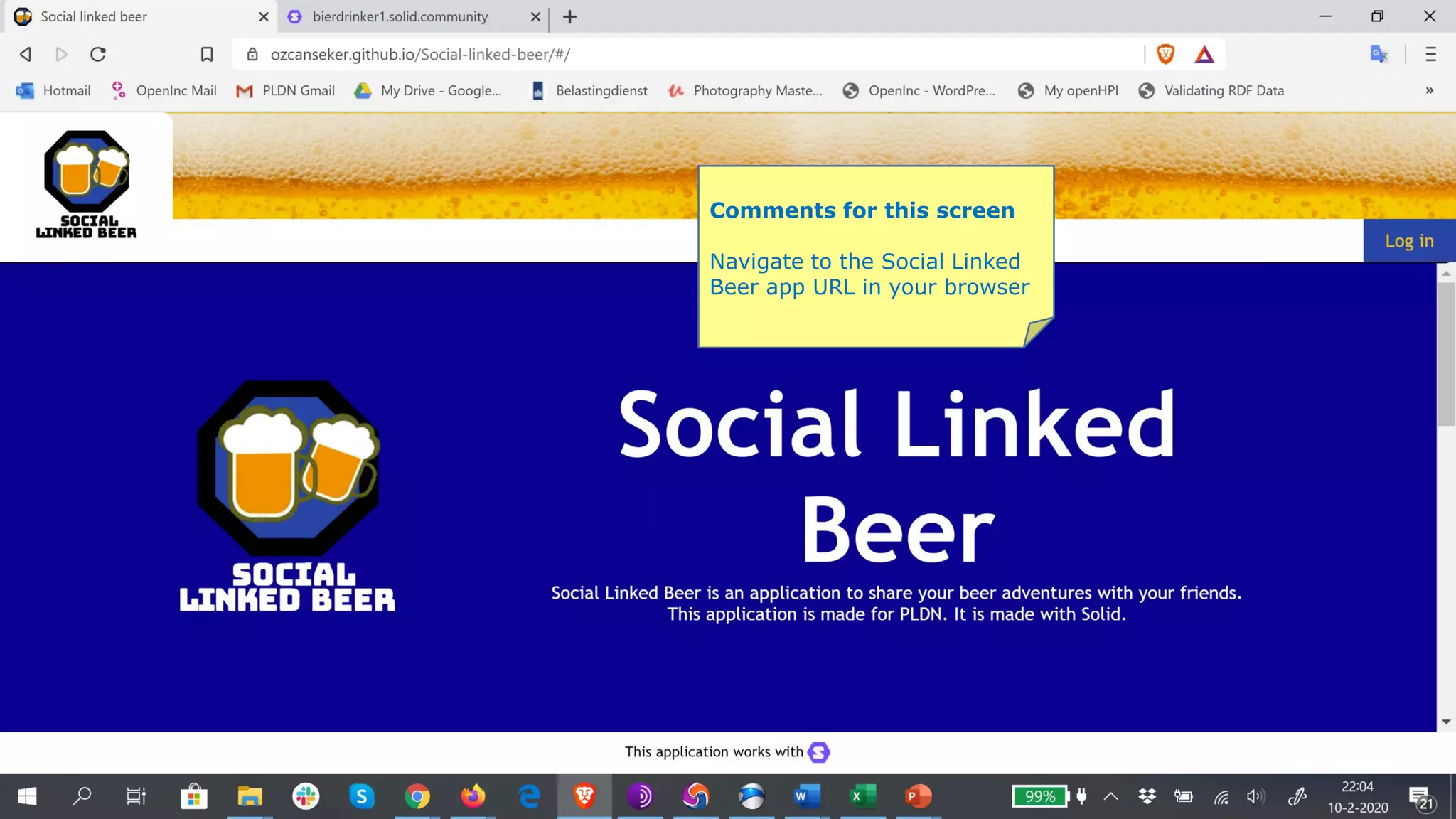
Comments for this screen
Navigate to the Social Linked
Beer app URL in your browser
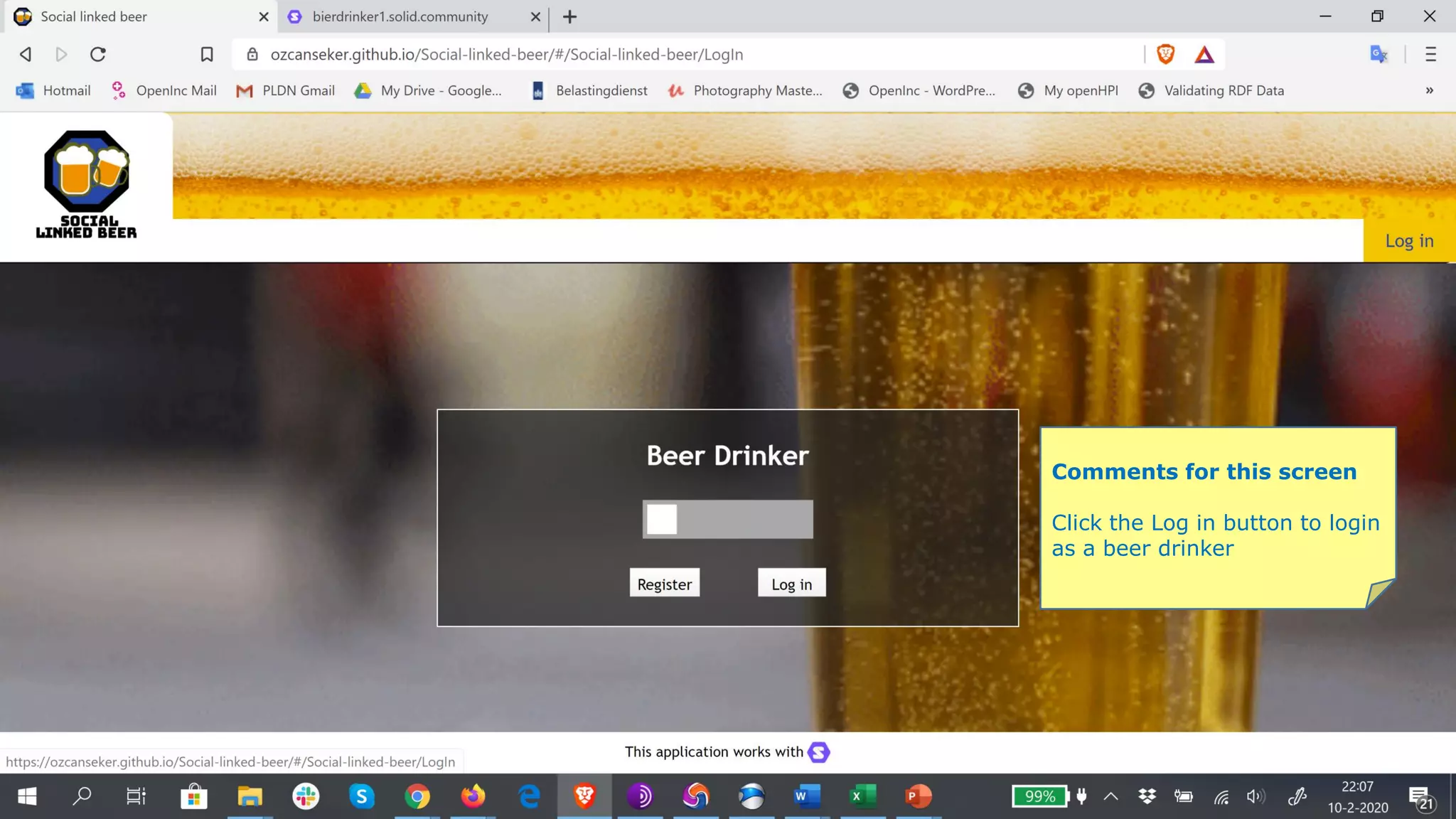
Comments for this screen
Click the Log in button to login
as a beer drinker
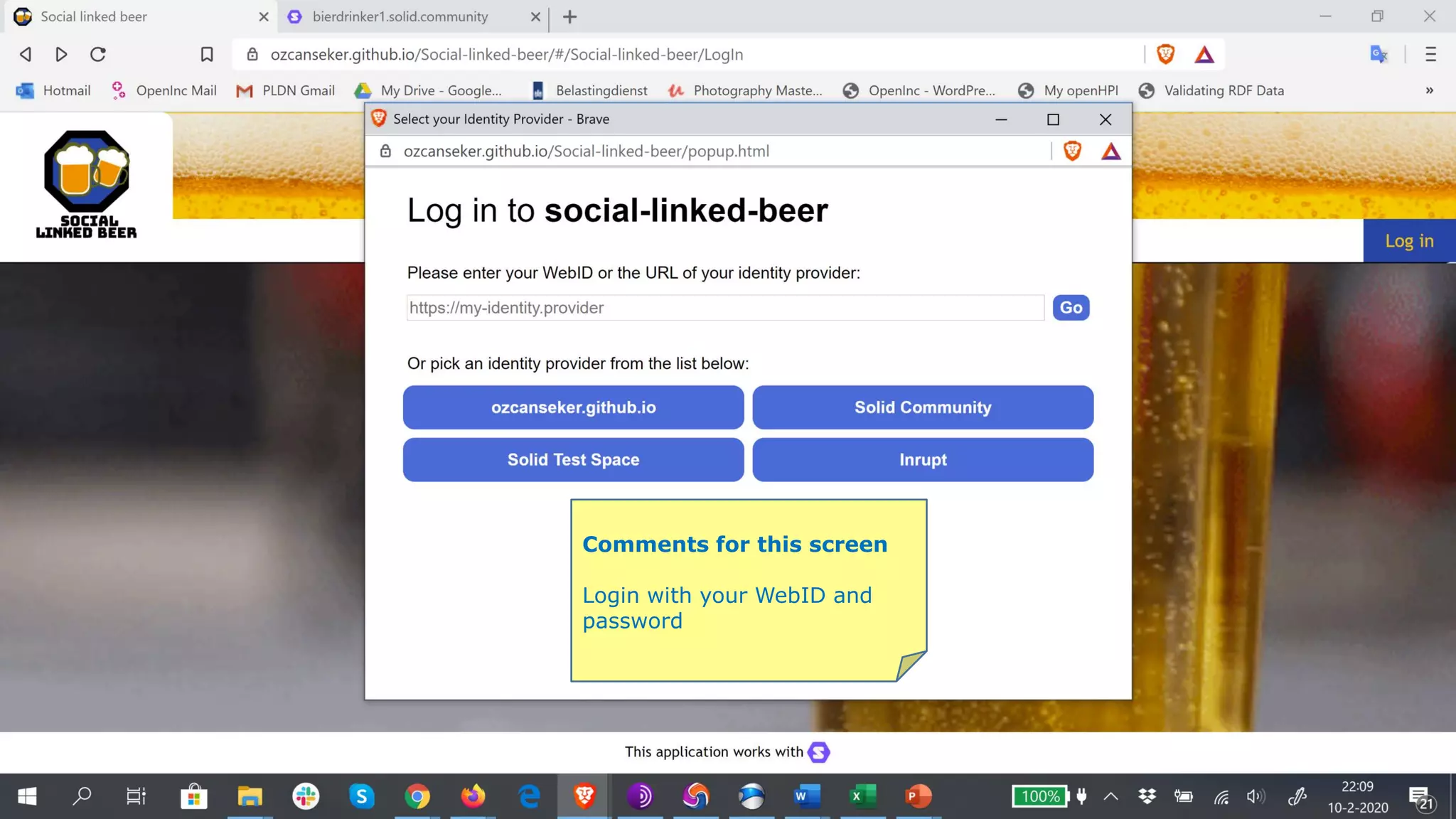
Comments for this screen
Login with your WebID and
password
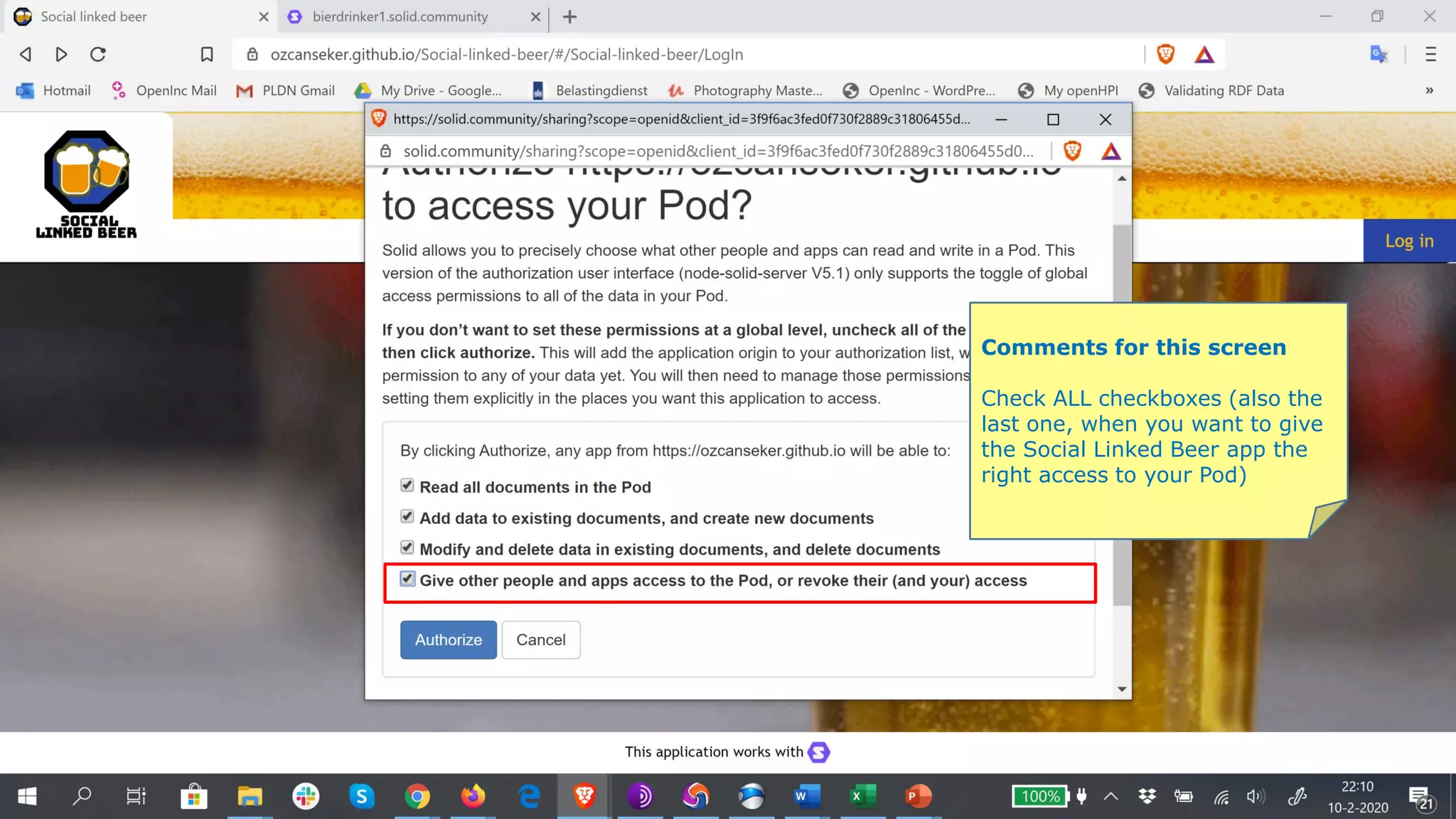
Comments for this screen
Check ALL checkboxes (also the
last one, when you want to give
the Social Linked Beer app the
right access to your Pod)
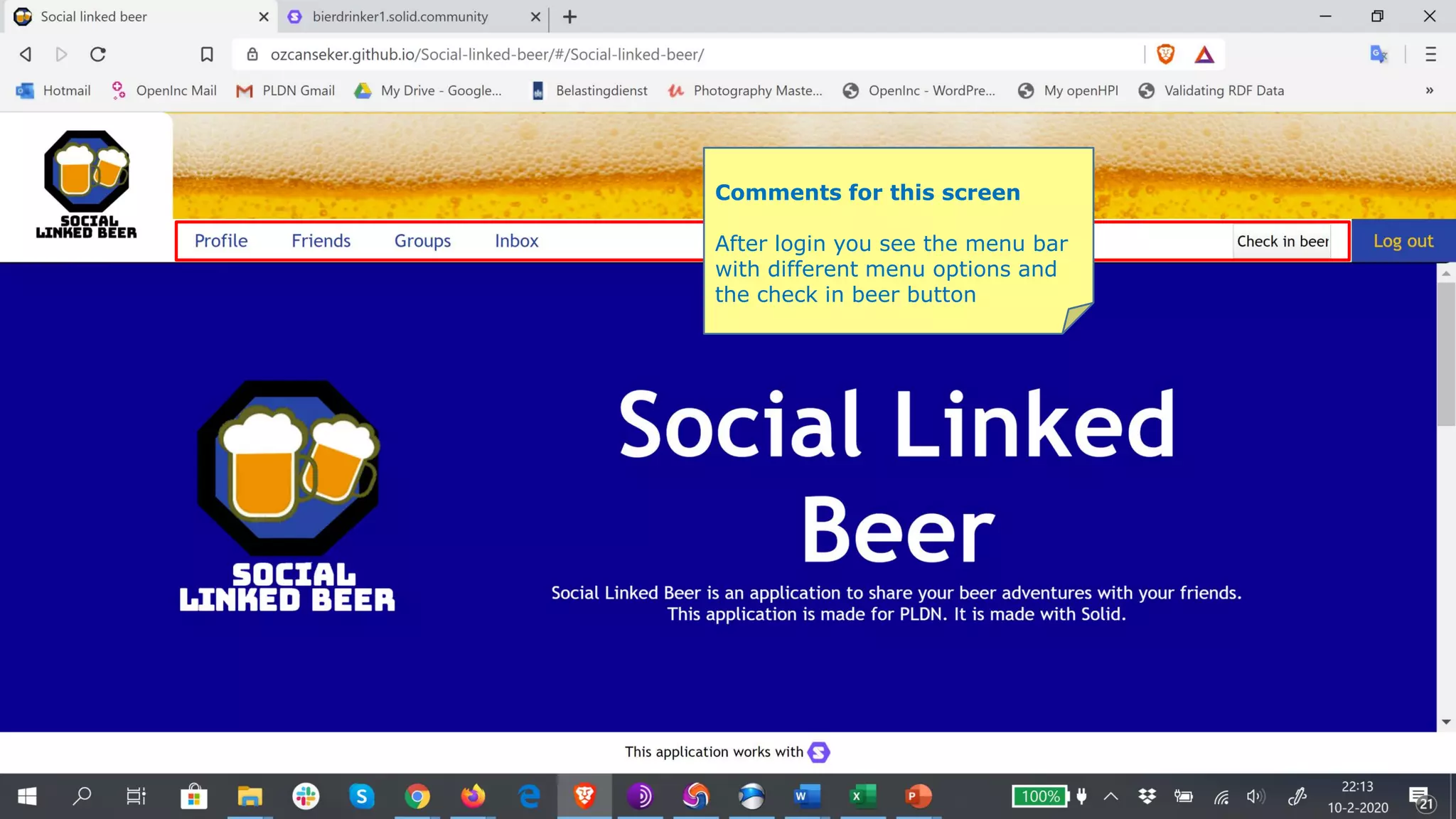
Comments for this screen
After login you see the menu bar
with different menu options and
the check in beer button
Comments for this screen
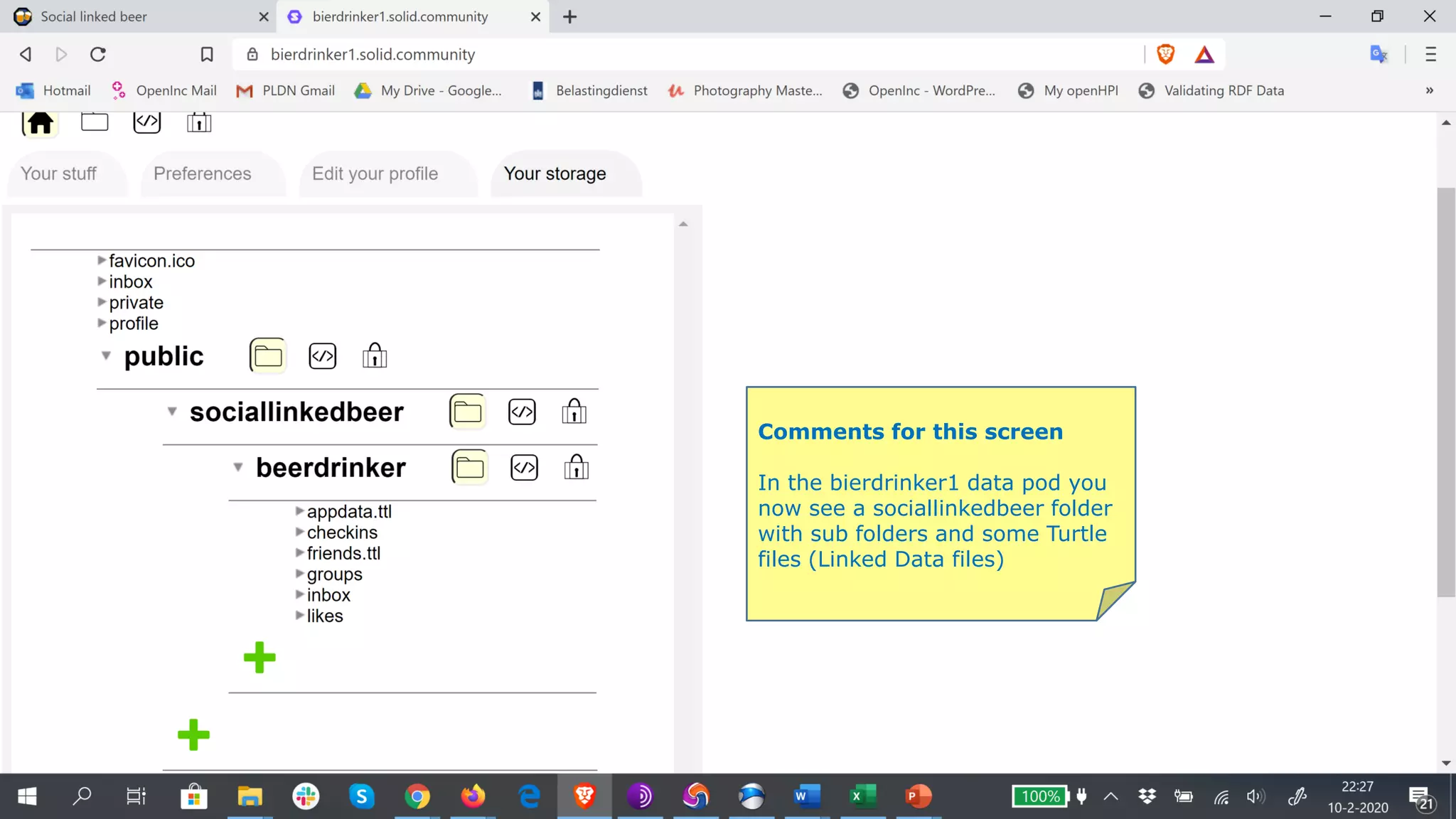
In the bierdrinker1 data pod you
now see a sociallinkedbeer folder
with sub folders and some Turtle
files (Linked Data files)
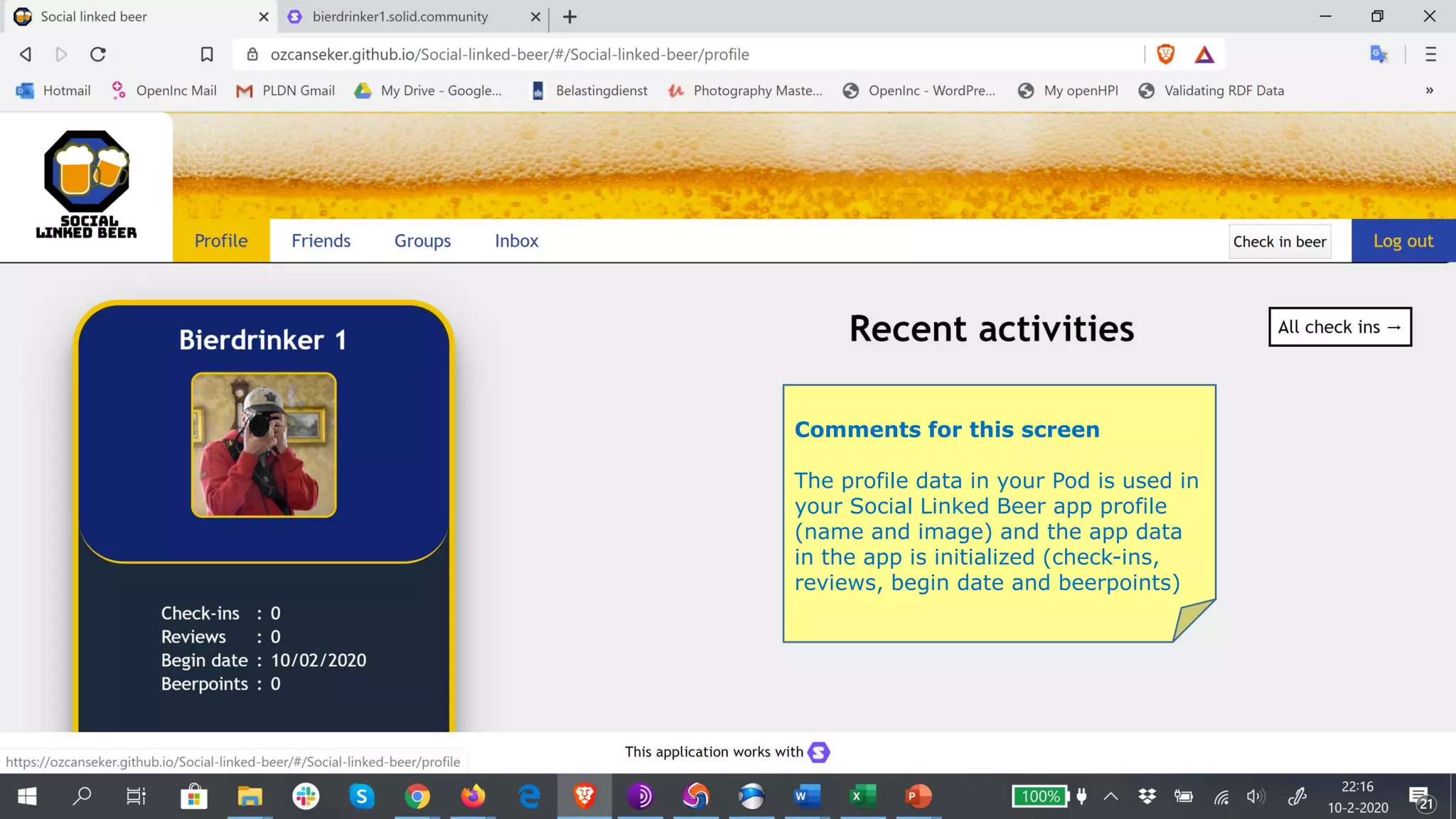
Comments for this screen
The profile data in your Pod is used in
your Social Linked Beer app profile
(name and image) and the app data
in the app is initialized (check-ins,
reviews, begin date and beerpoints)
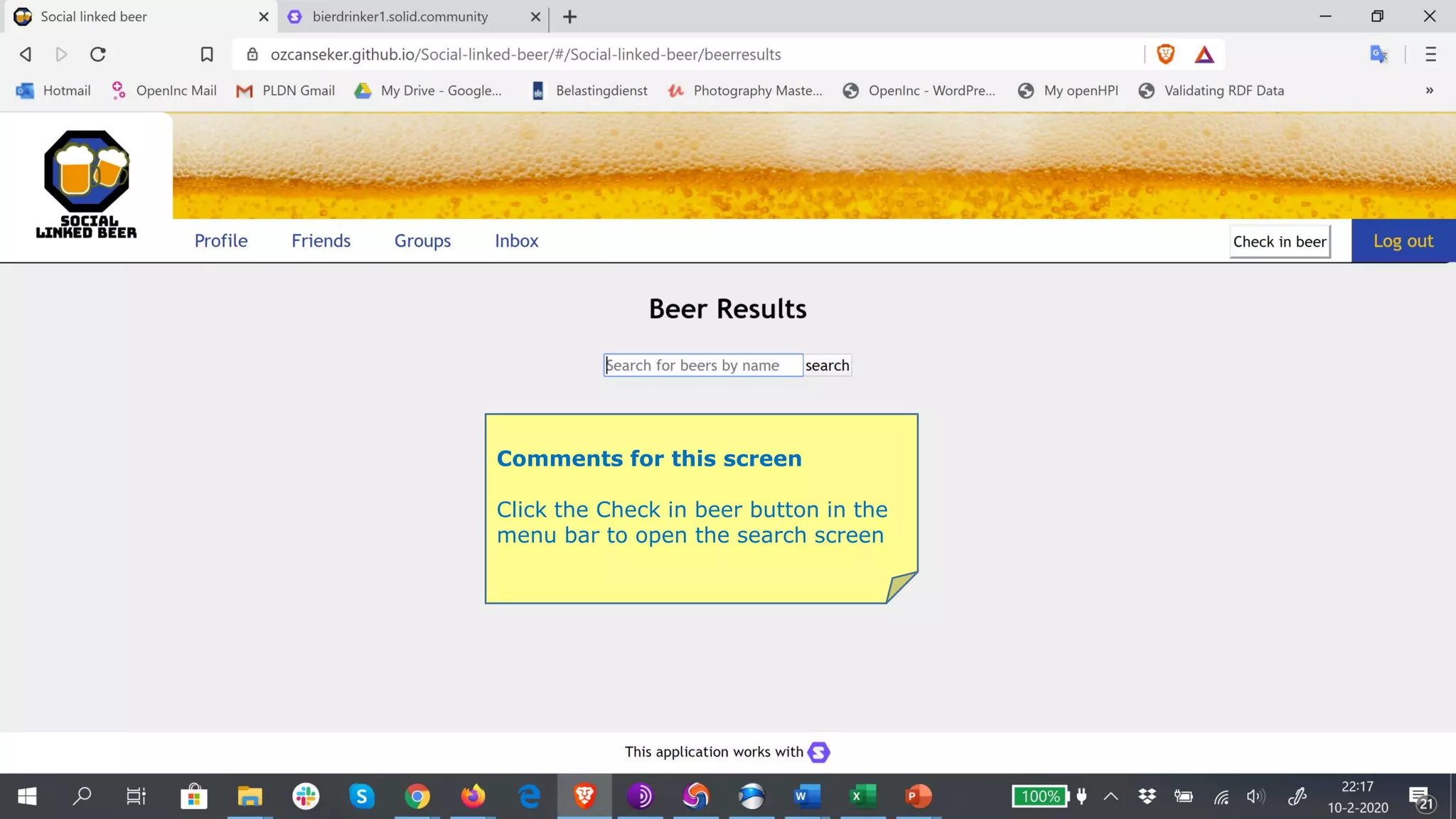
Comments for this screen
Click the Check in beer button in the
menu bar to open the search screen
Comments for this screen
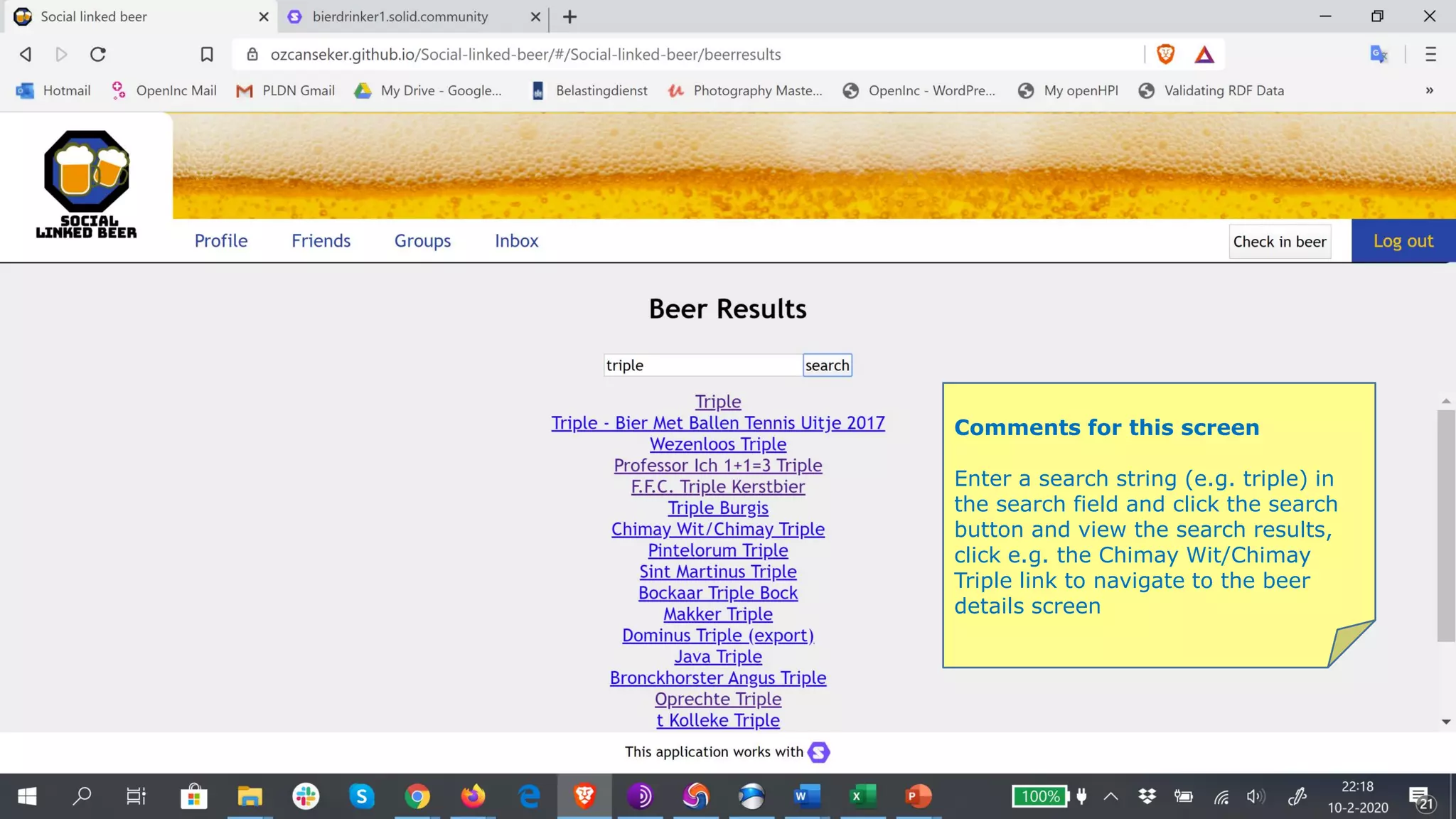
Enter a search string (e.g. triple) in
the search field and click the search
button and view the search results,
click e.g. the Chimay Wit/Chimay
Triple link to navigate to the beer
details screen
Comments for this screen
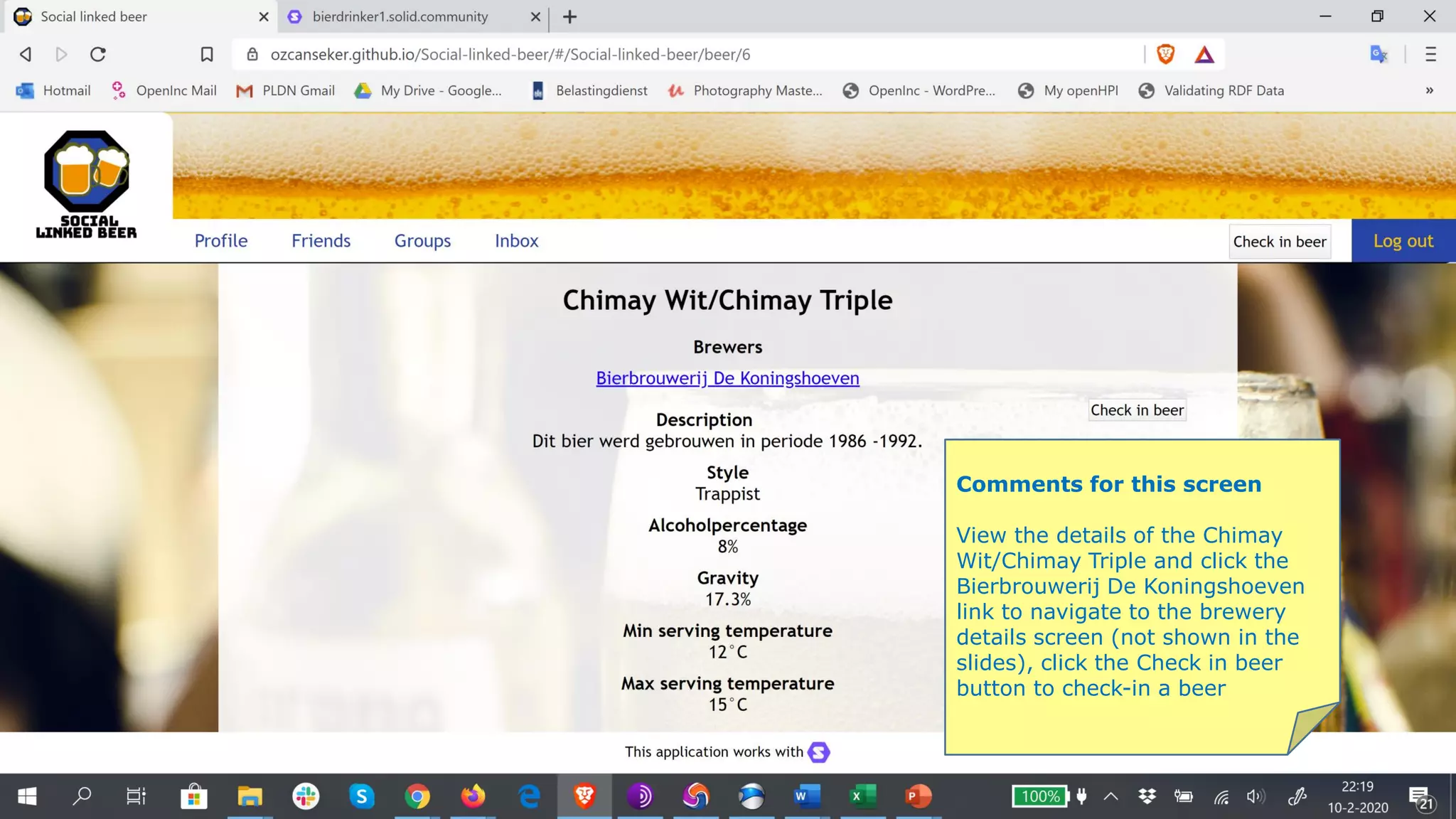
View the details of the Chimay
Wit/Chimay Triple and click the
Bierbrouwerij De Koningshoeven
link to navigate to the brewery
details screen (not shown in the
slides), click the Check in beer
button to check-in a beer
Comments for this screen
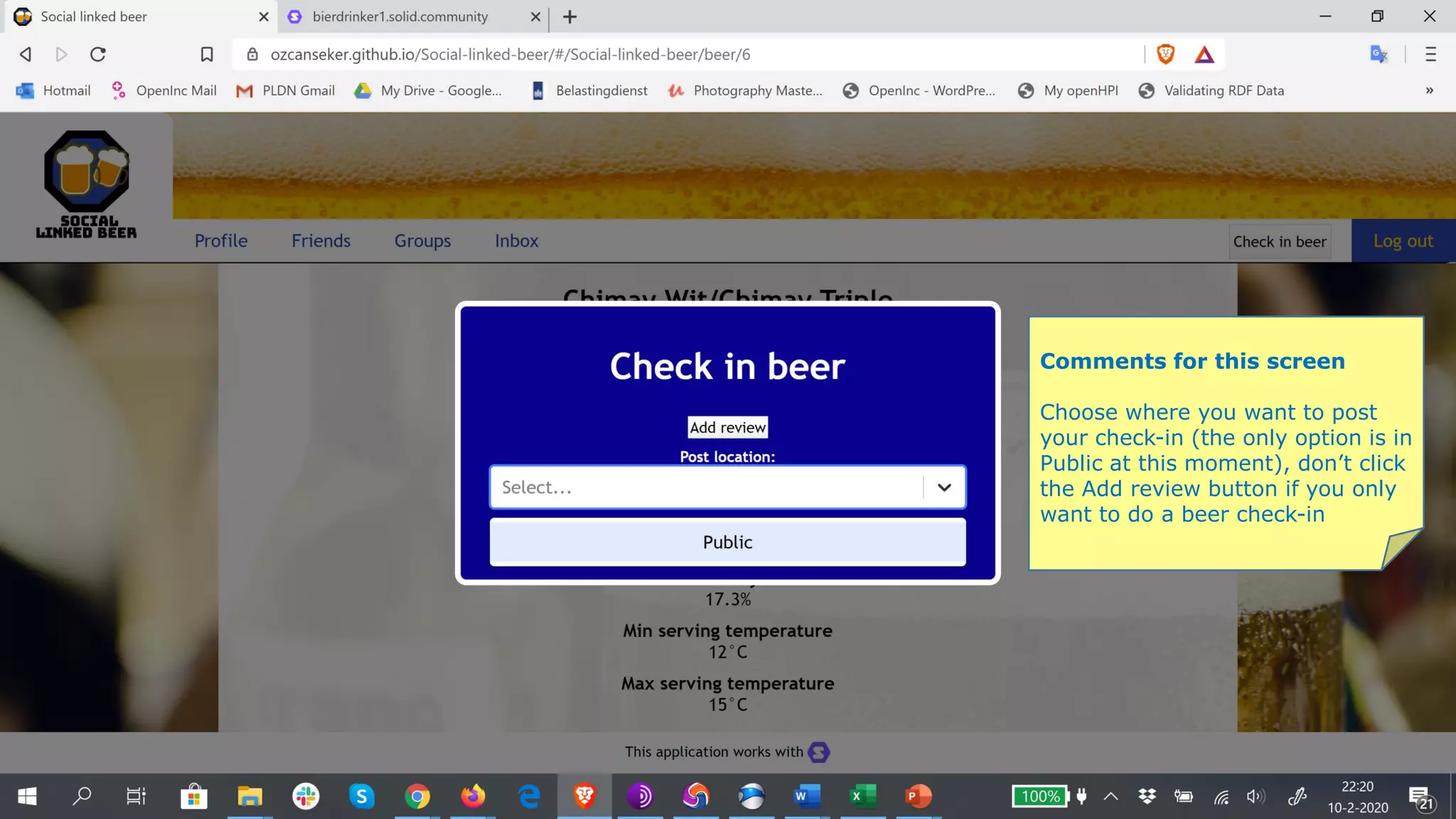
Choose where you want to post
your check-in (the only option is in
Public at this moment), don’t click
the Add review button if you only
want to do a beer check-in
Comments for this screen
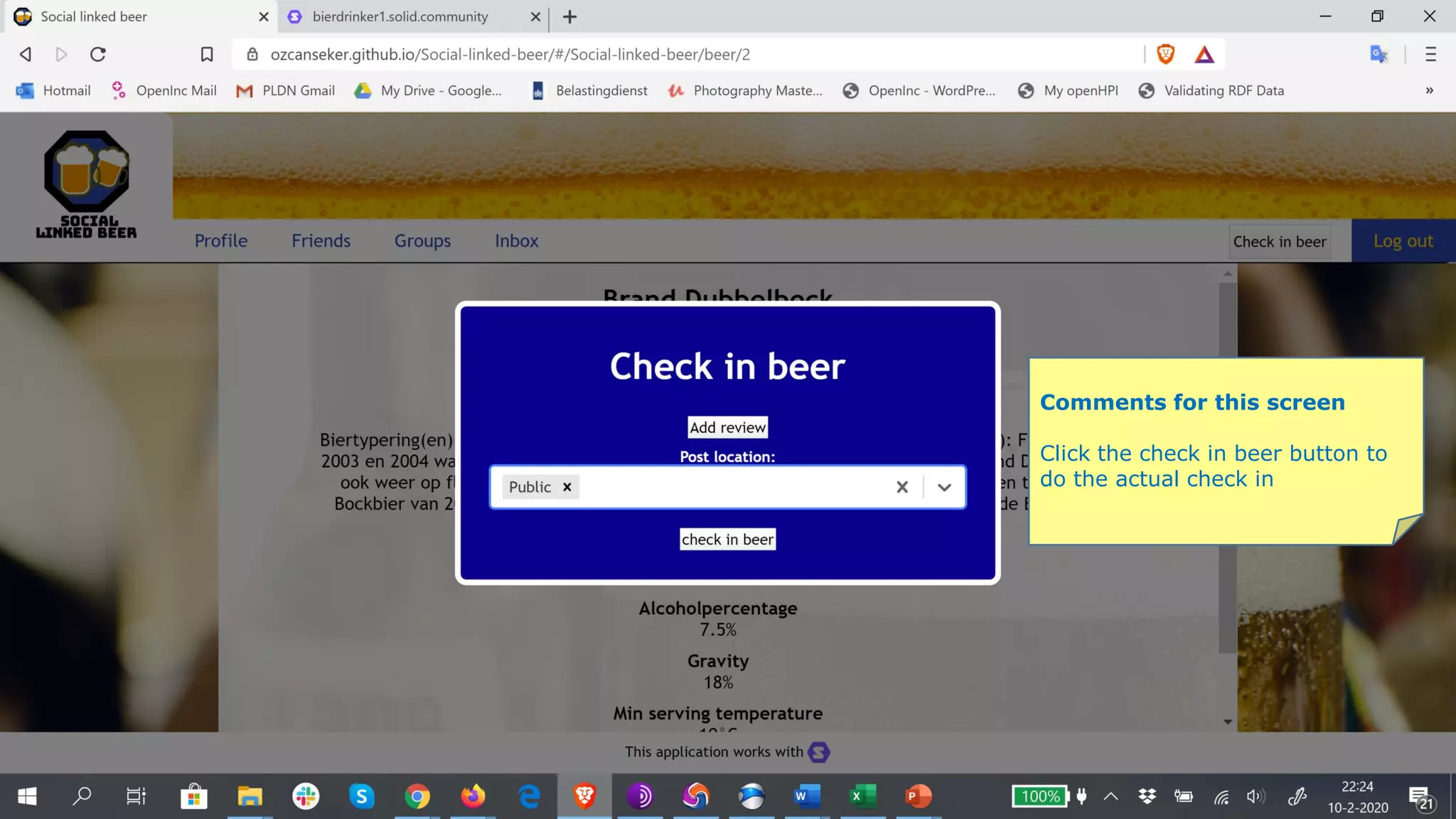
Click the check in beer button to
do the actual check in
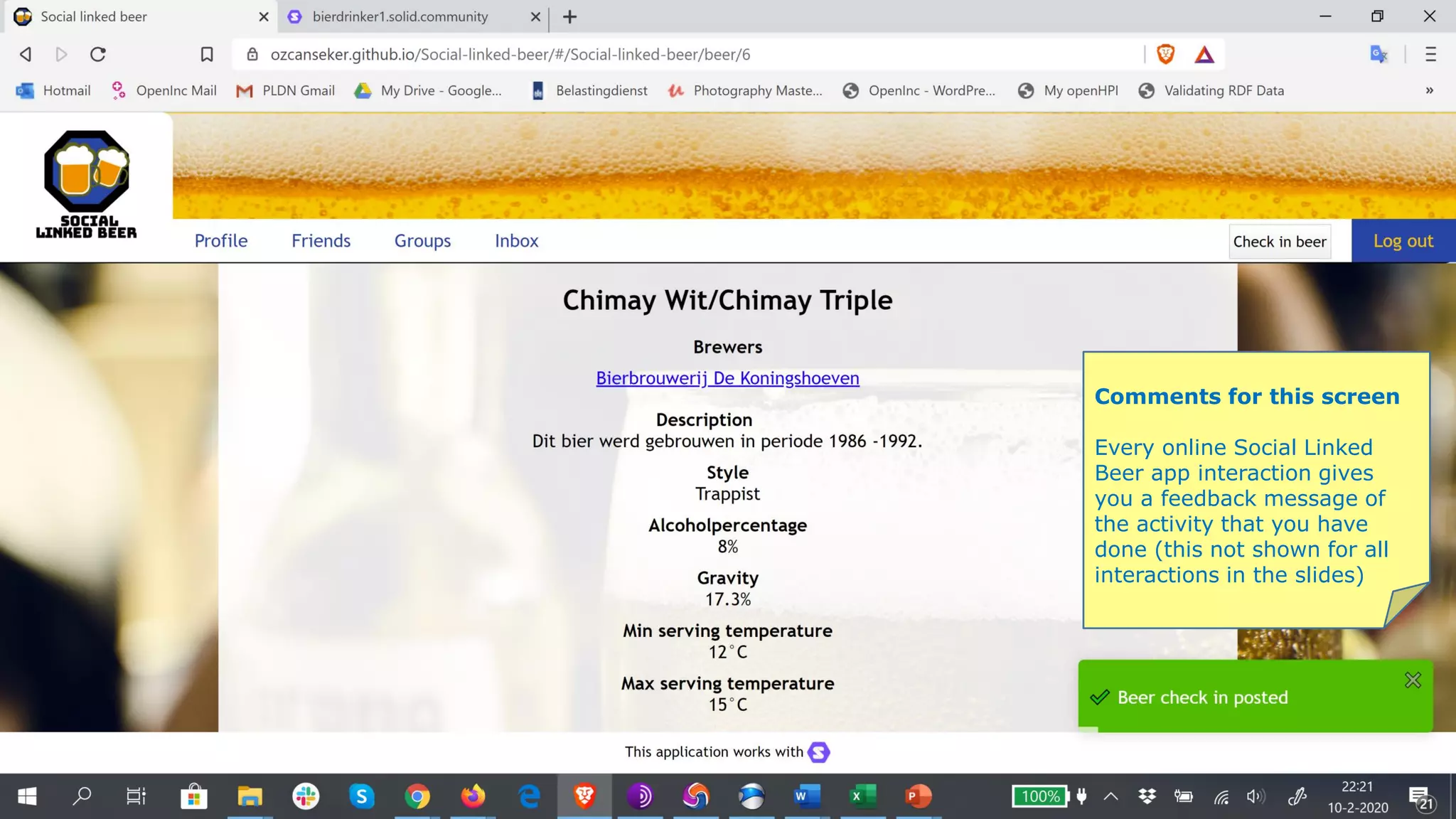
Comments for this screen
Every online Social Linked
Beer app interaction gives
you a feedback message of
the activity that you have
done (this not shown for all
interactions in the slides)
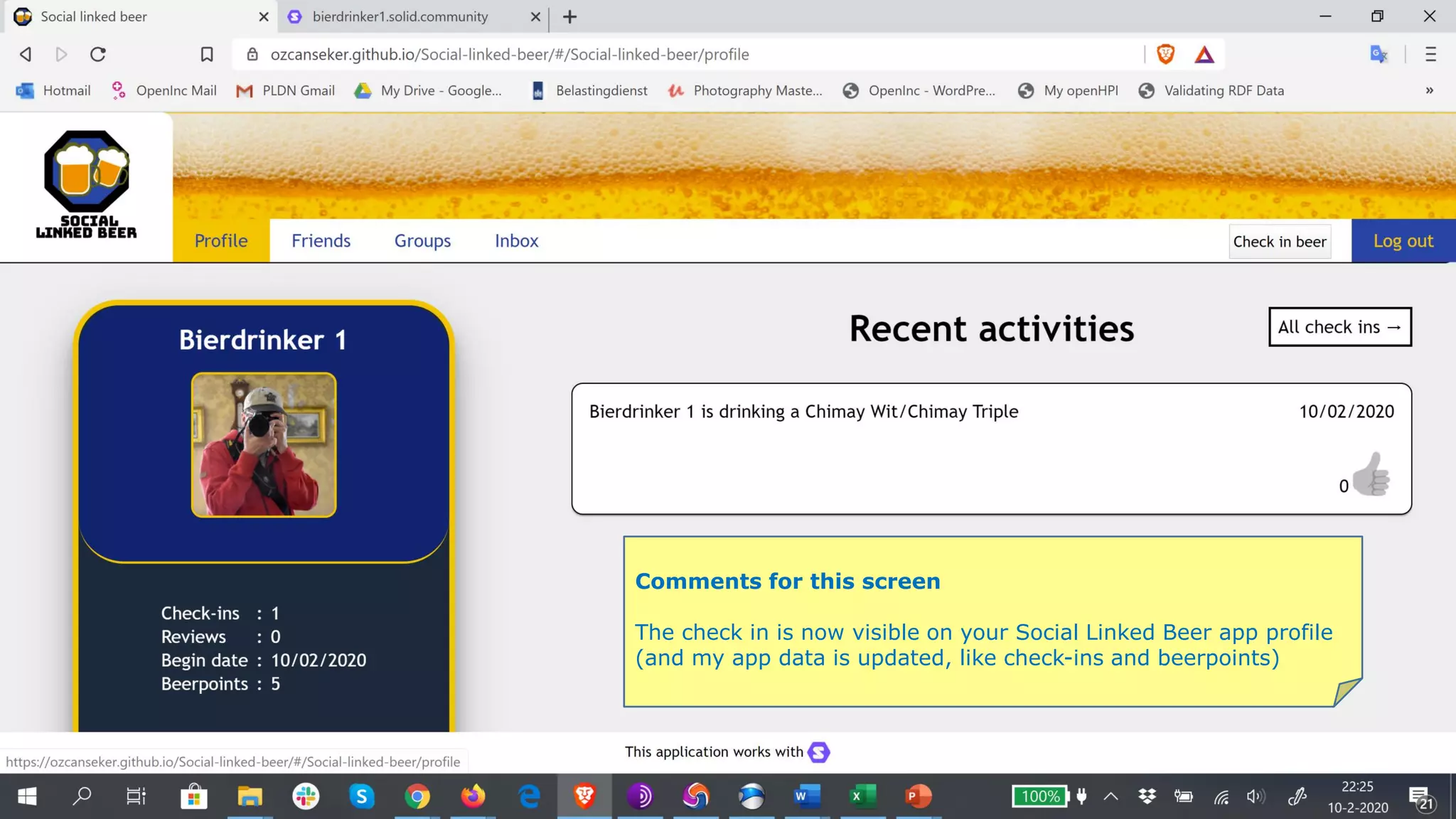
Comments for this screen
The check in is now visible on your Social Linked Beer app profile
(and my app data is updated, like check-ins and beerpoints)
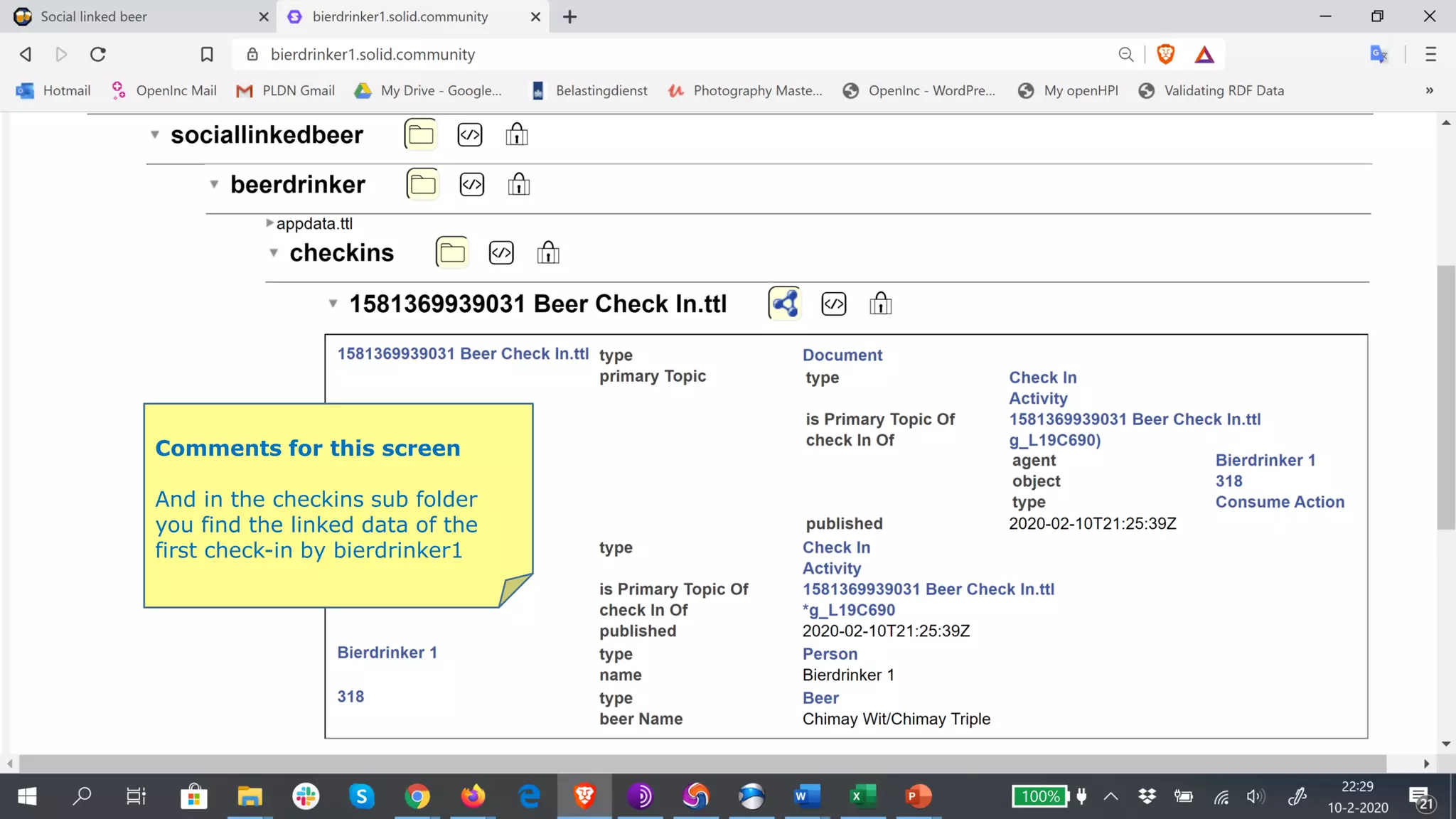
Comments for this screen
And in the checkins sub folder
you find the linked data of the
first check-in by bierdrinker1
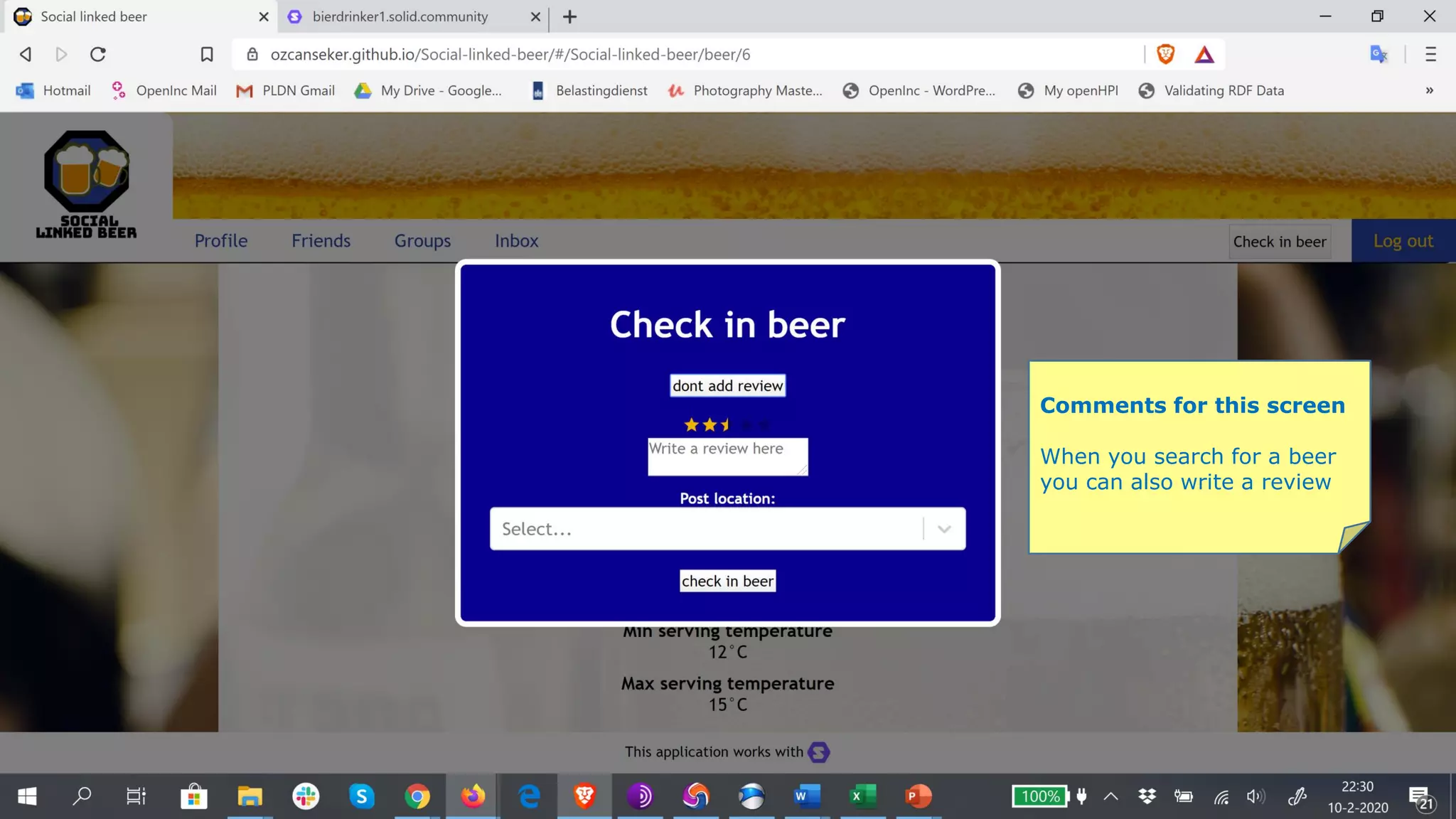
Comments for this screen
When you search for a beer
you can also write a review
Comments for this screen
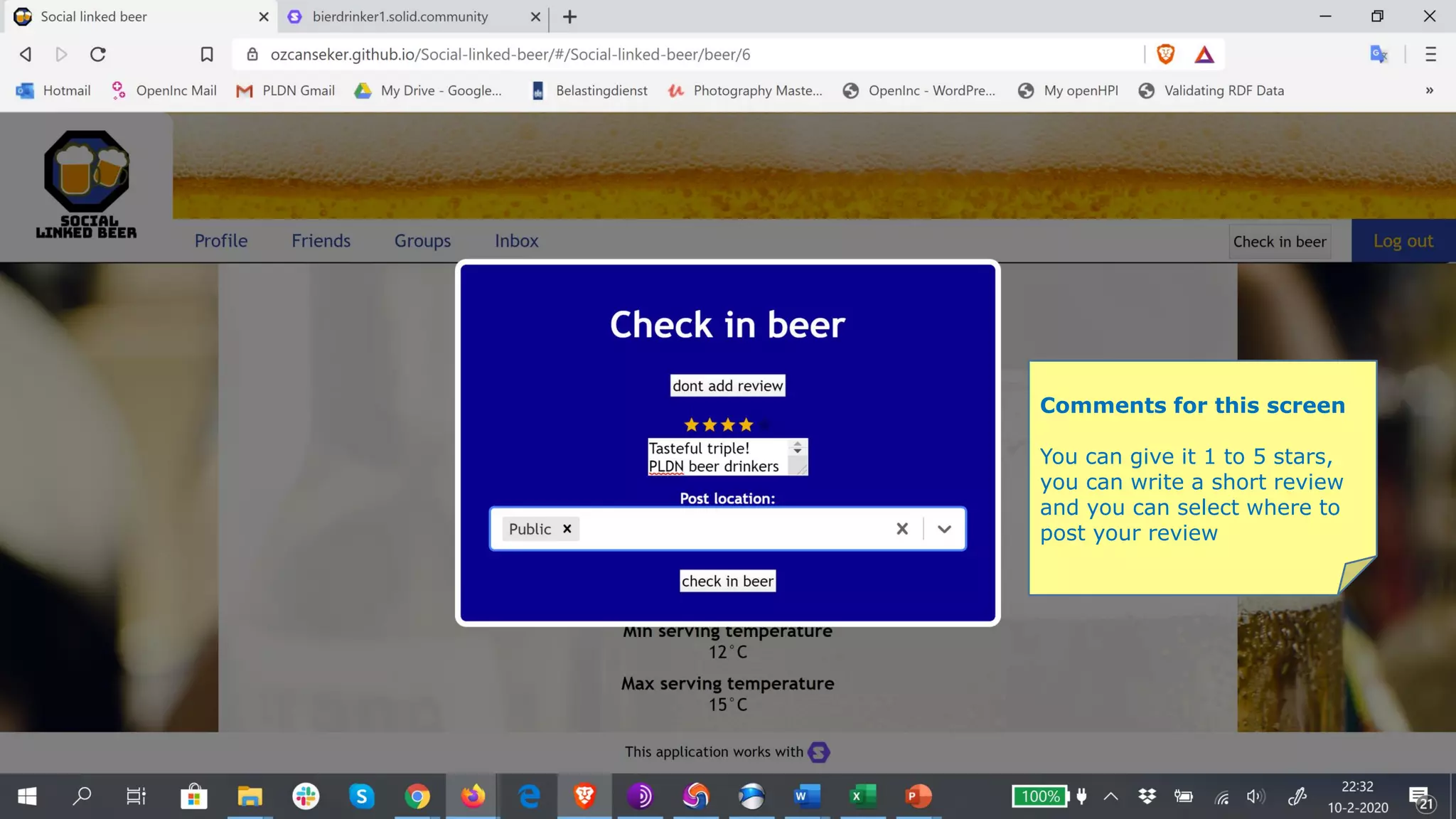
You can give it 1 to 5 stars,
you can write a short review
and you can select where to
post your review
Comments for this screen
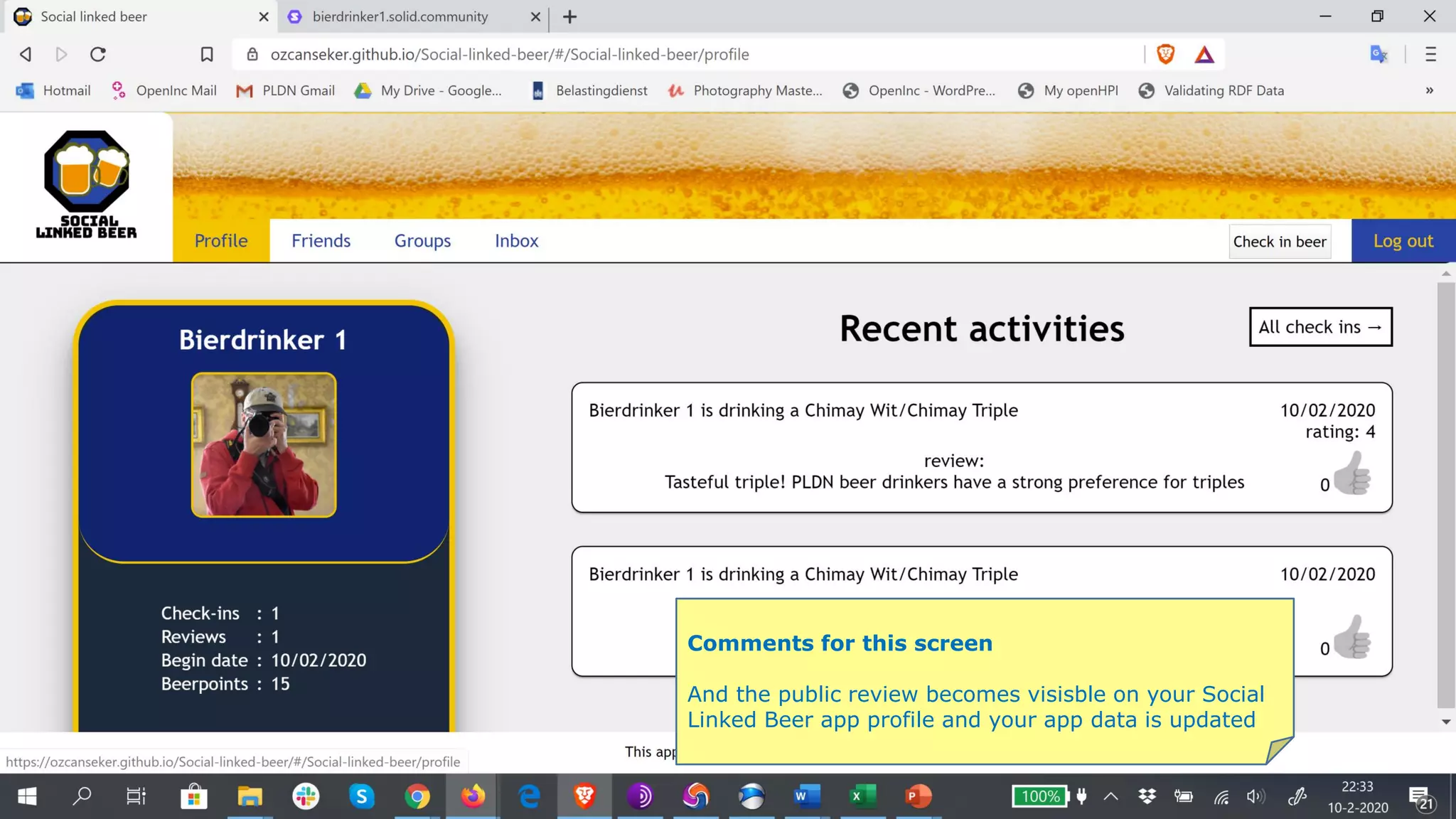
And the public review becomes visisble on your Social
Linked Beer app profile and your app data is updated
Comments for this screen
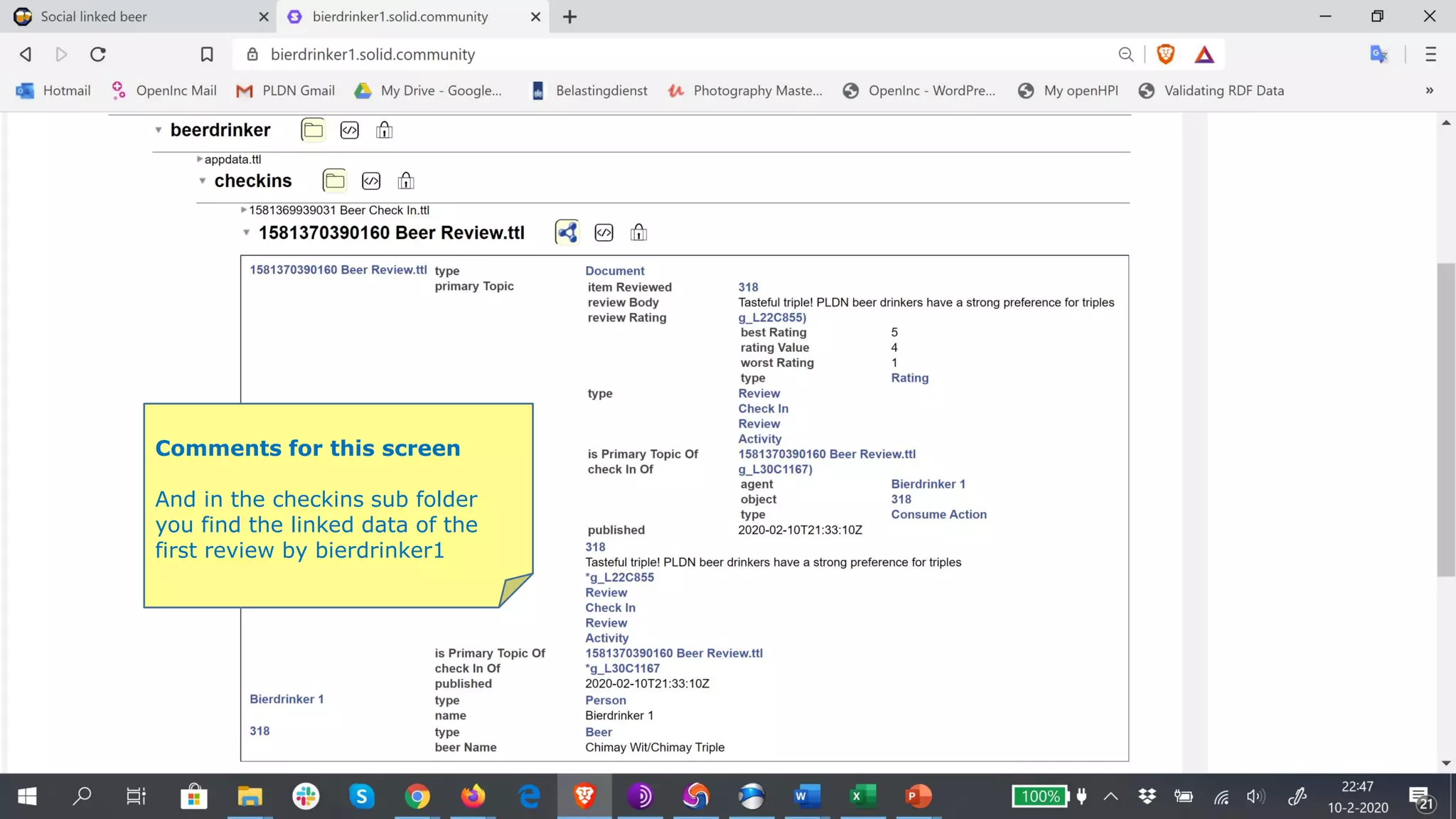
And in the checkins sub folder
you find the linked data of the
first review by bierdrinker1
Comments for this screen
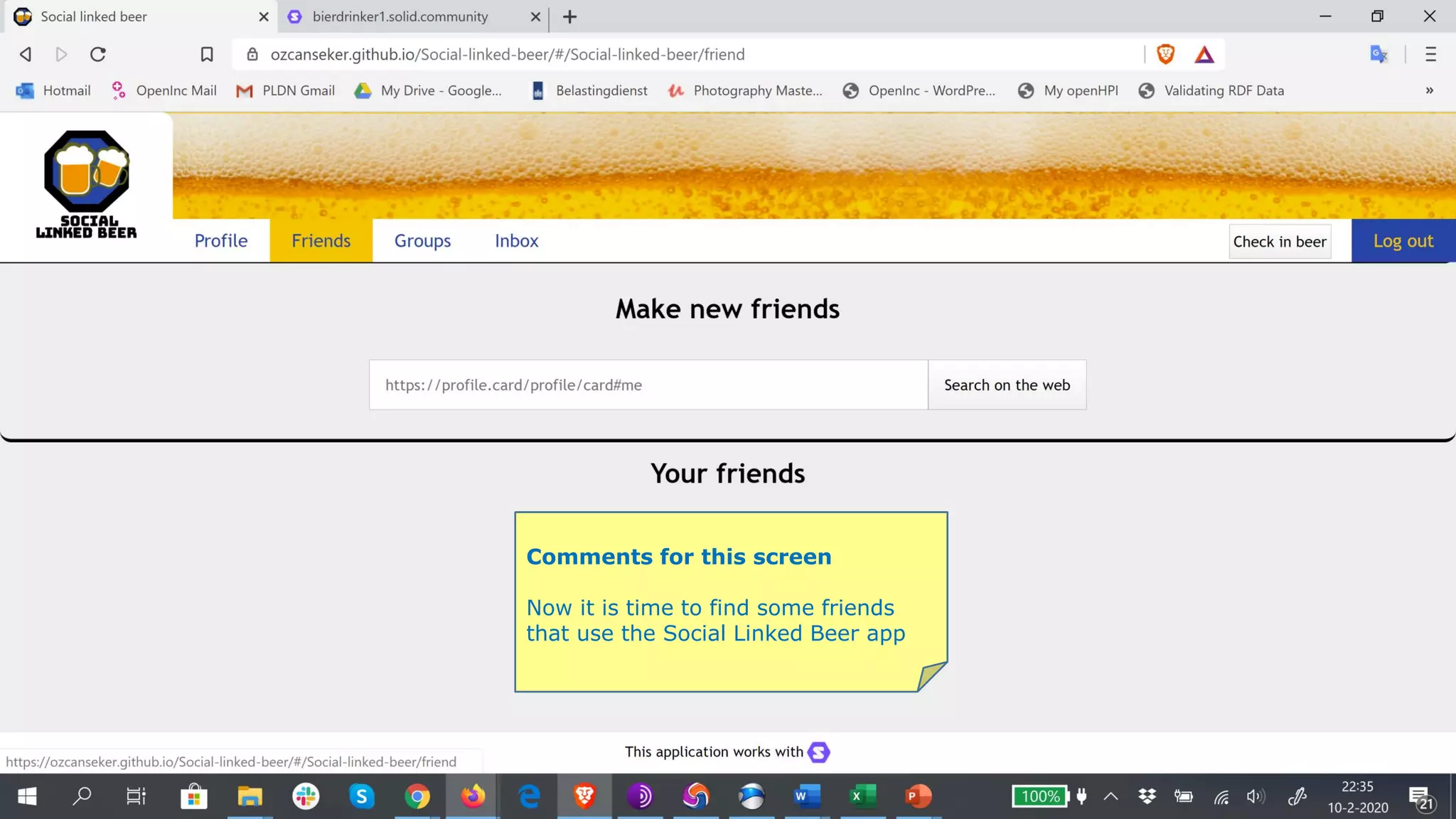
Now it is time to find some friends
that use the Social Linked Beer app
Comments for this screen
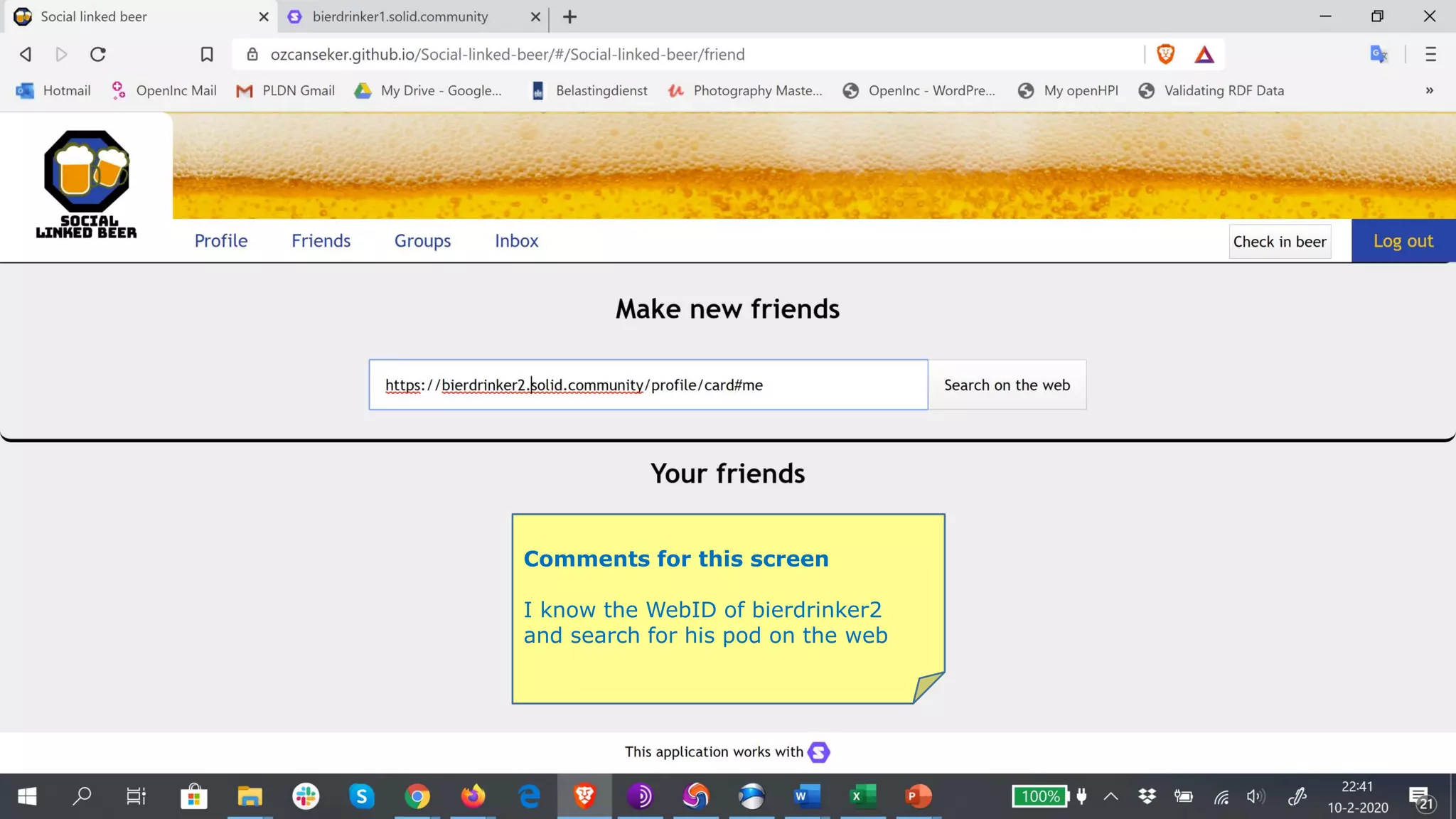
I know the WebID of bierdrinker2
and search for his pod on the web
Comments for this screen
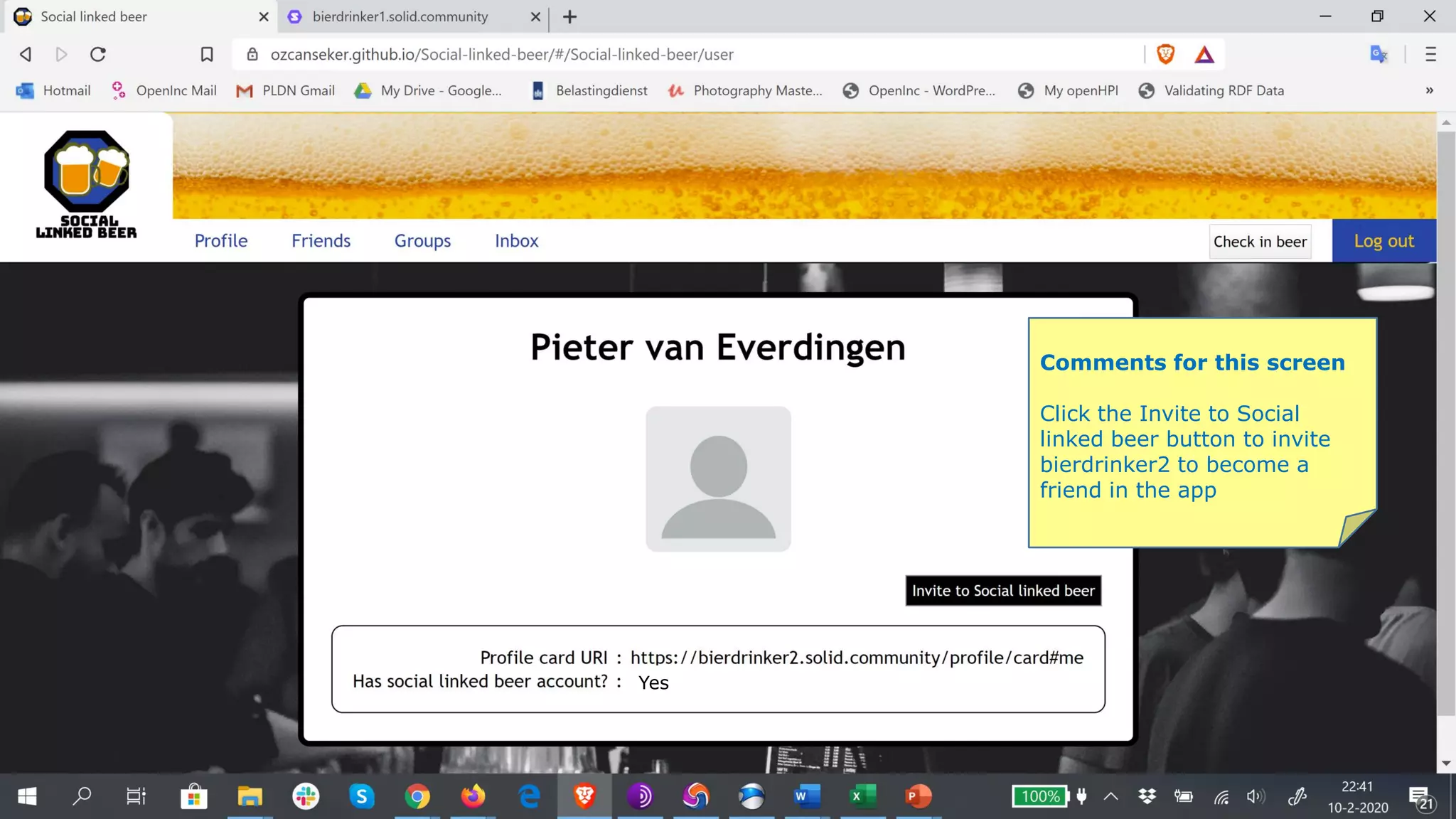
Click the Invite to Social
linked beer button to invite
bierdrinker2 to become a
friend in the app
Yes
Yes
Comments for this screen
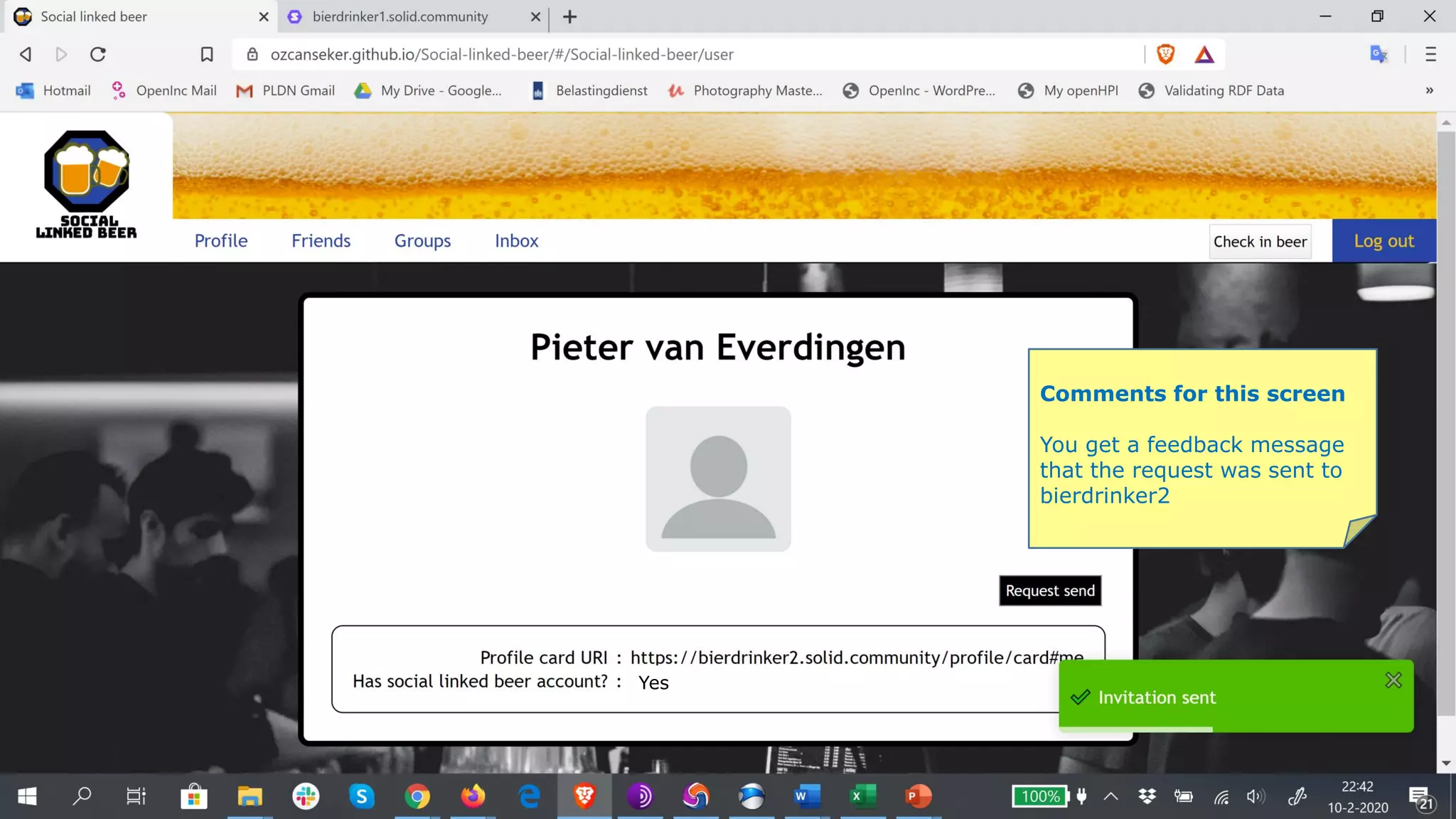
You get a feedback message
that the request was sent to
bierdrinker2
Comments for this screen
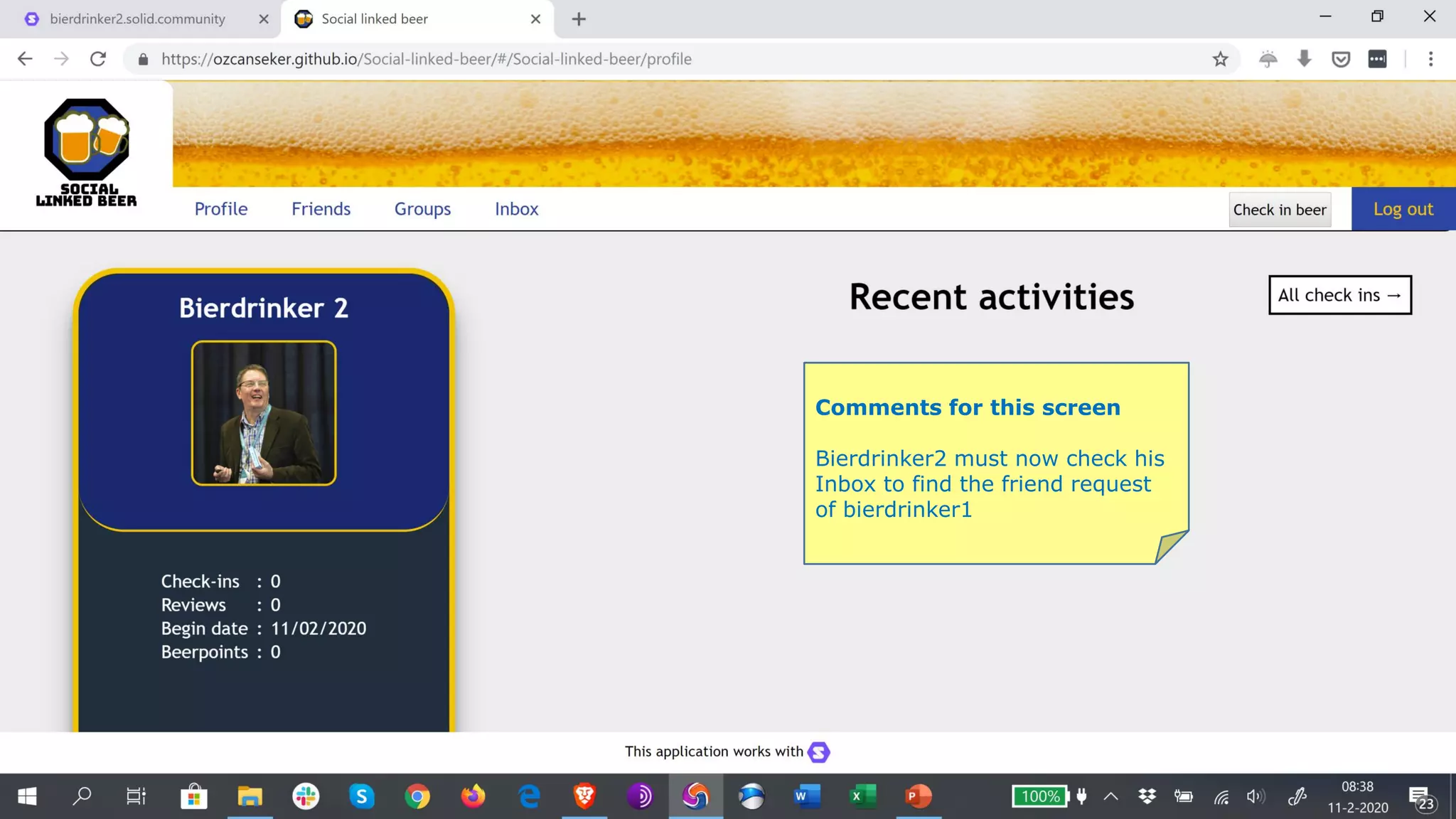
Bierdrinker2 must now check his
Inbox to find the friend request
of bierdrinker1
Comments for this screen
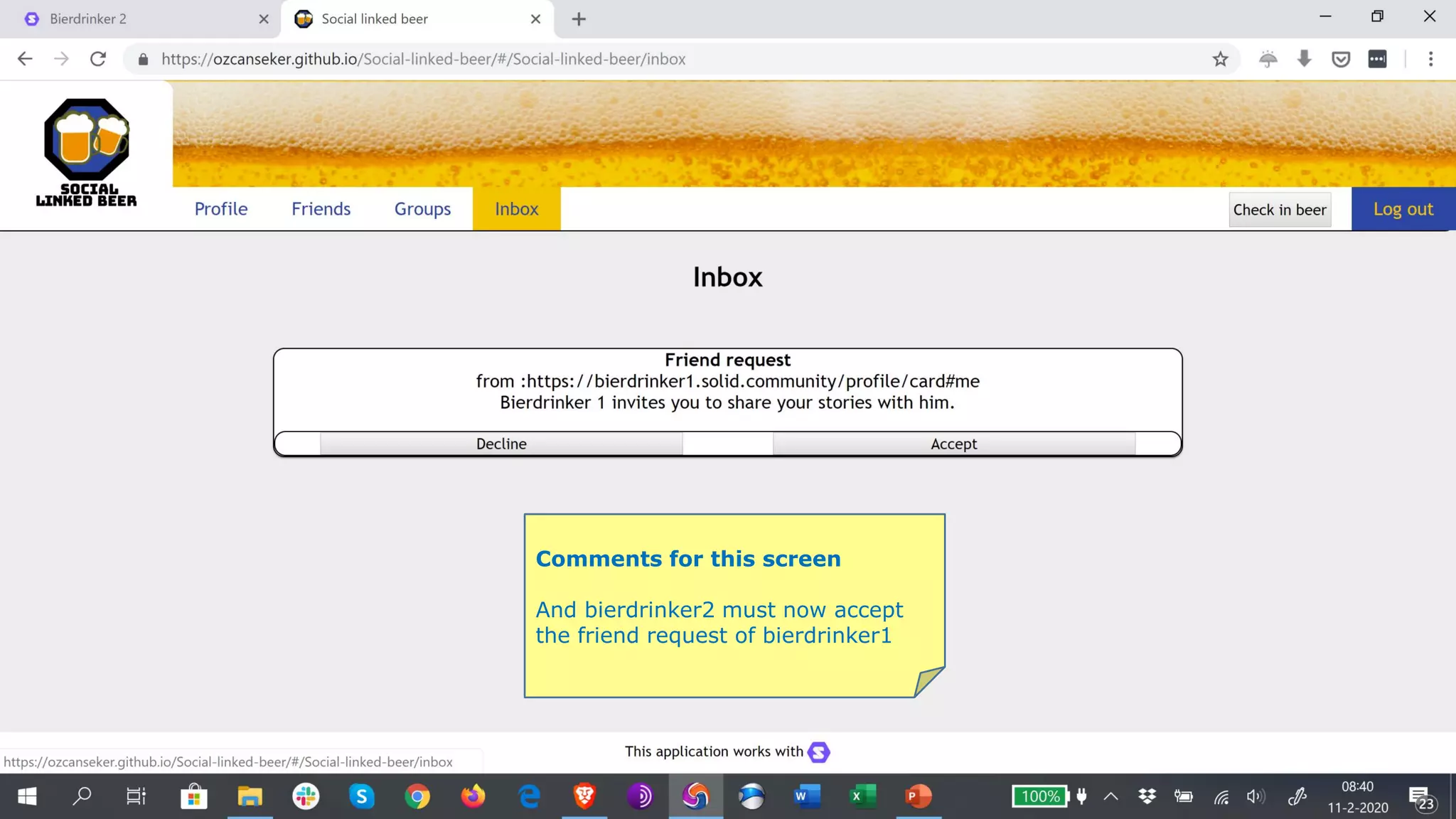
And bierdrinker2 must now accept
the friend request of bierdrinker1
Comments for this screen
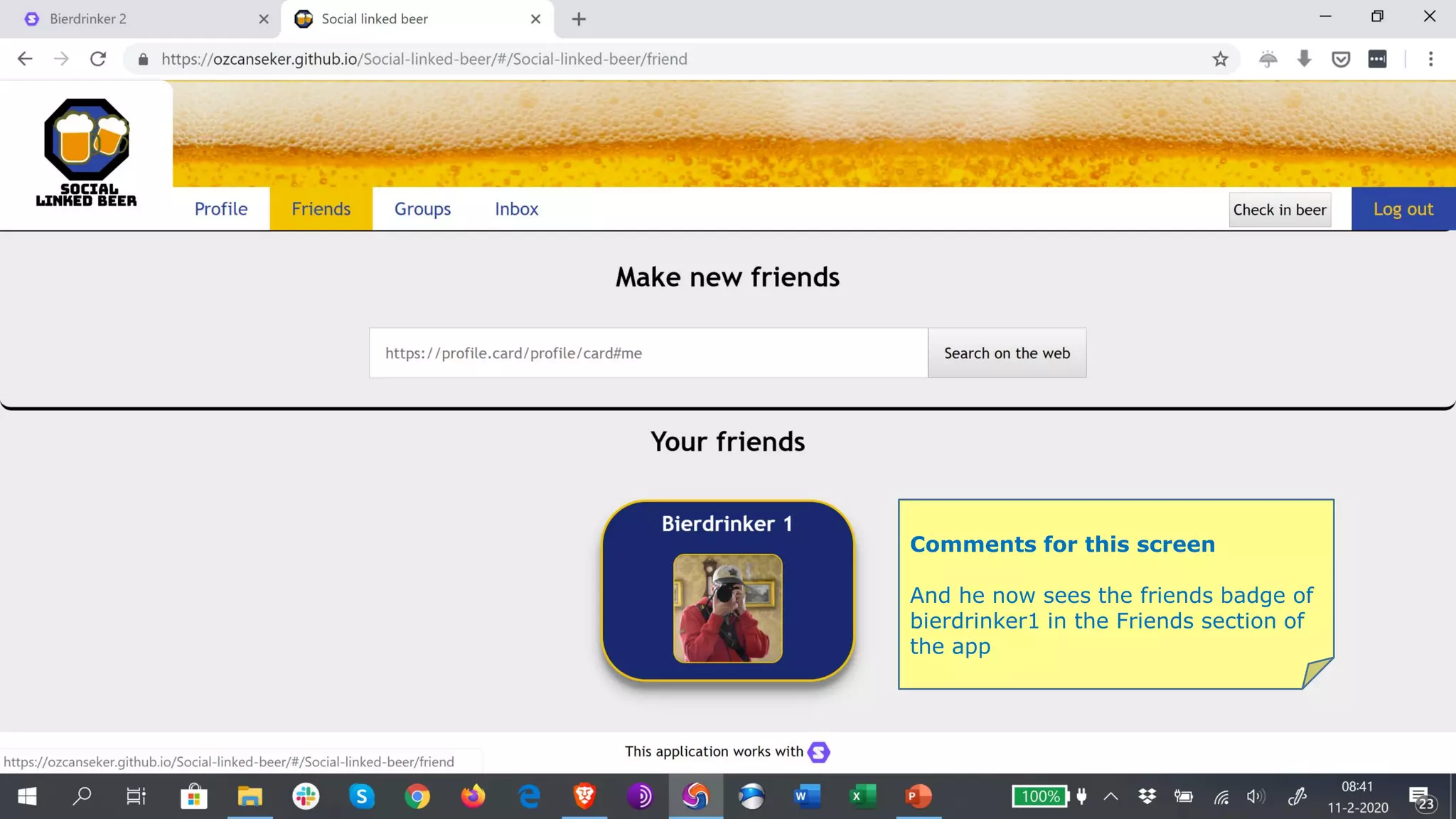
And he now sees the friends badge of
bierdrinker1 in the Friends section of
the app
Comments for this screen
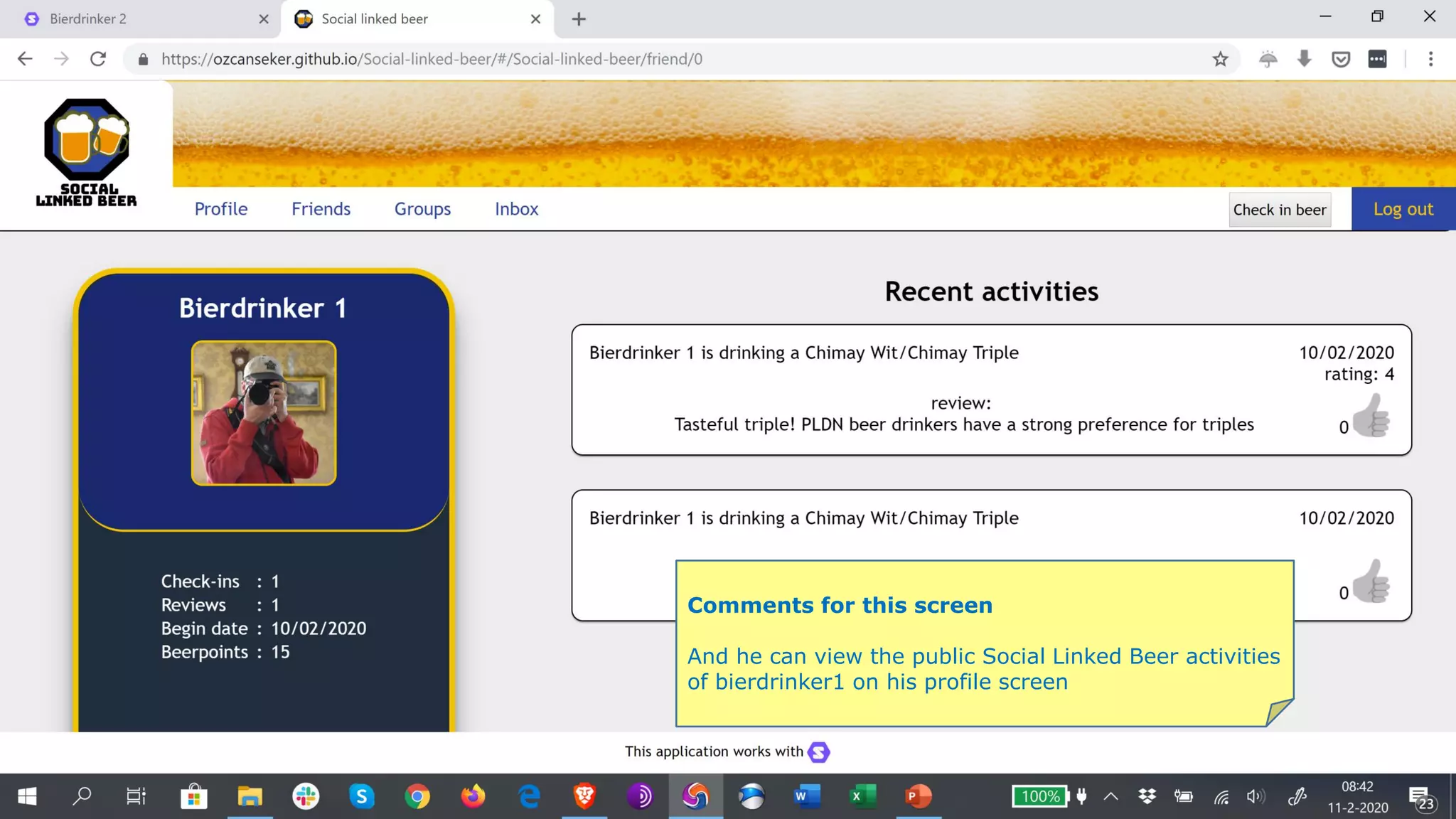
And he can view the public Social Linked Beer activities
of bierdrinker1 on his profile screen
Comments for this screen
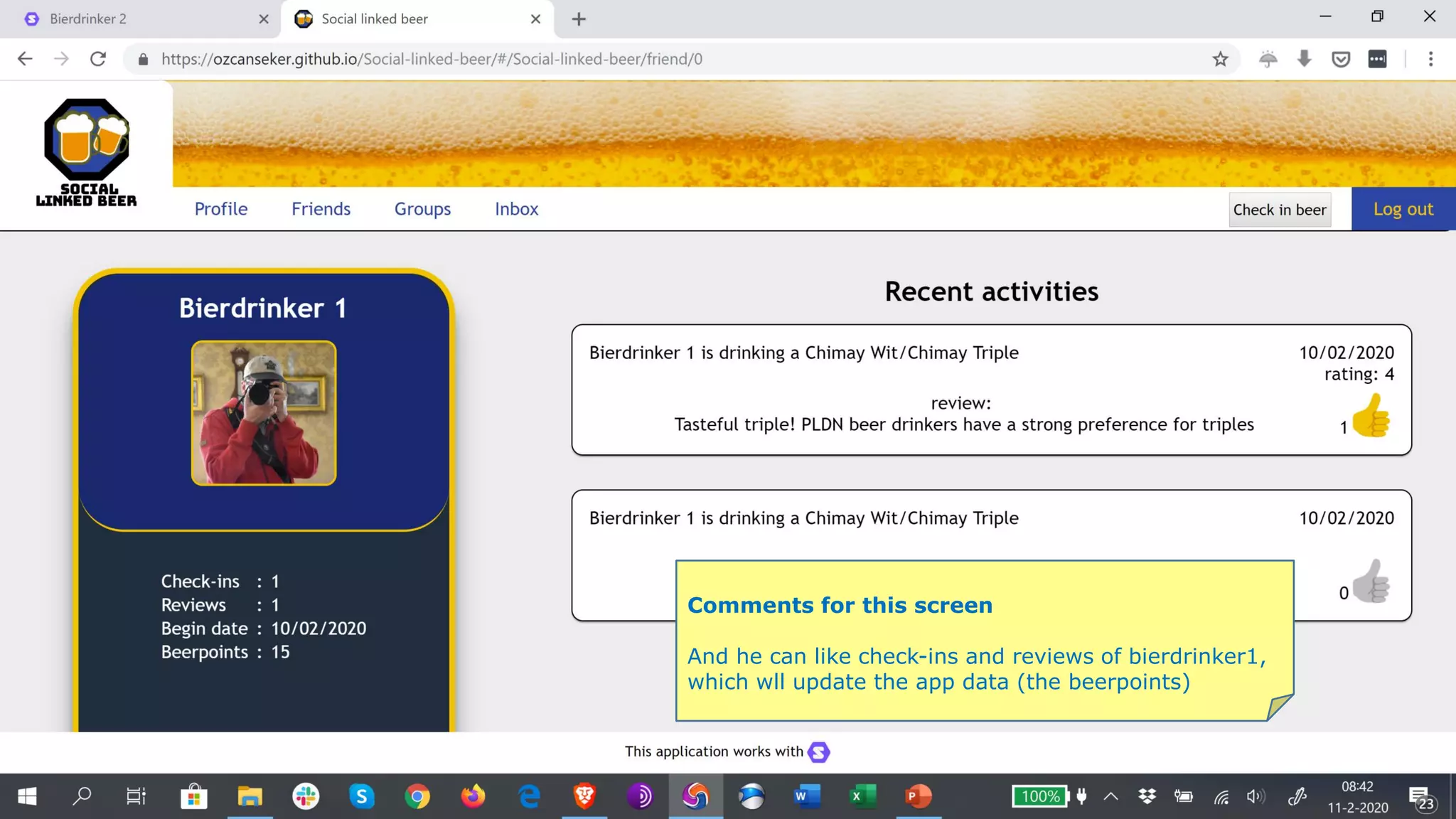
And he can like check-ins and reviews of bierdrinker1,
which wll update the app data (the beerpoints)
Comments for this screen
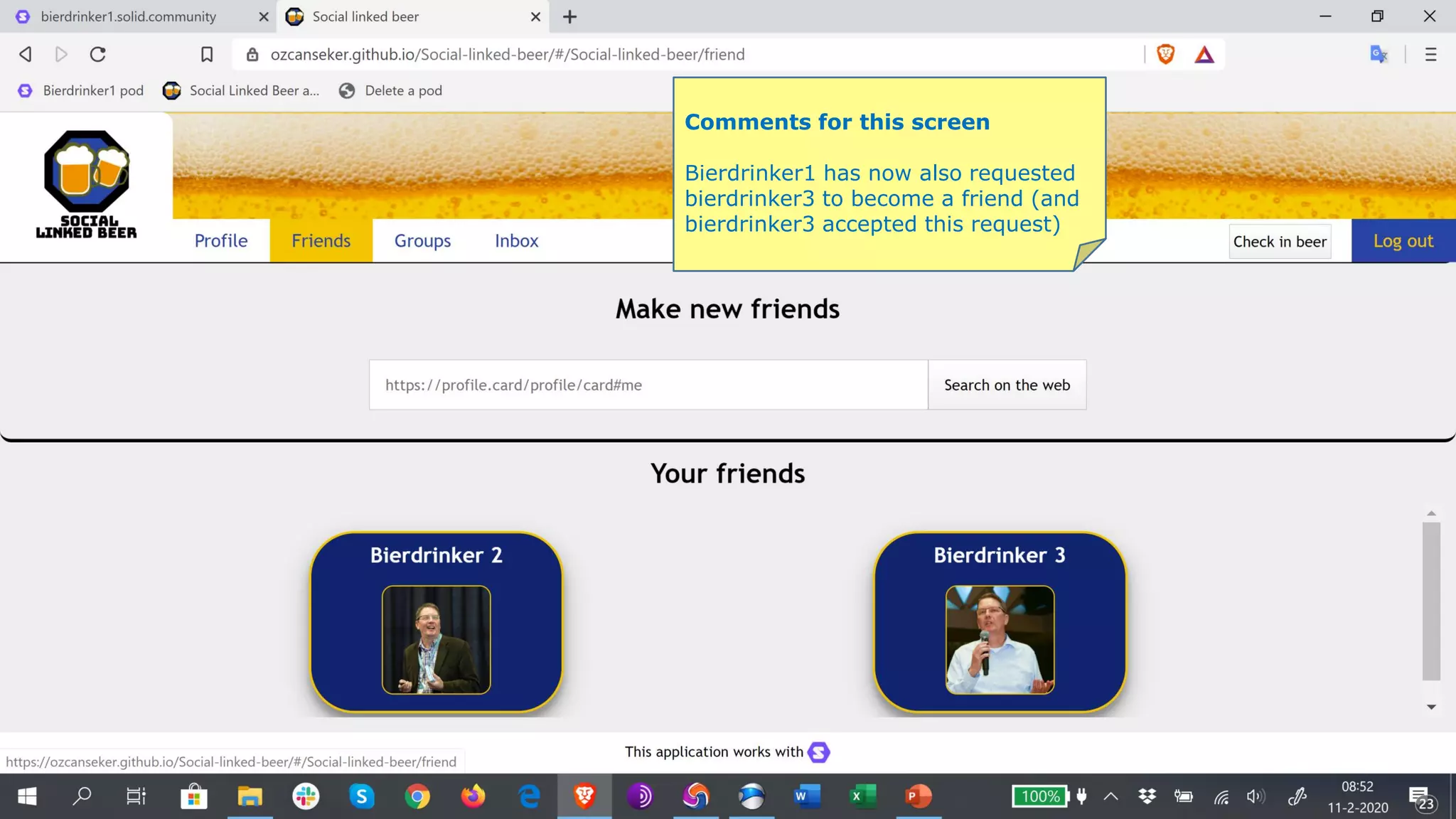
Bierdrinker1 has now also requested
bierdrinker3 to become a friend (and
bierdrinker3 accepted this request)
Comments for this screen
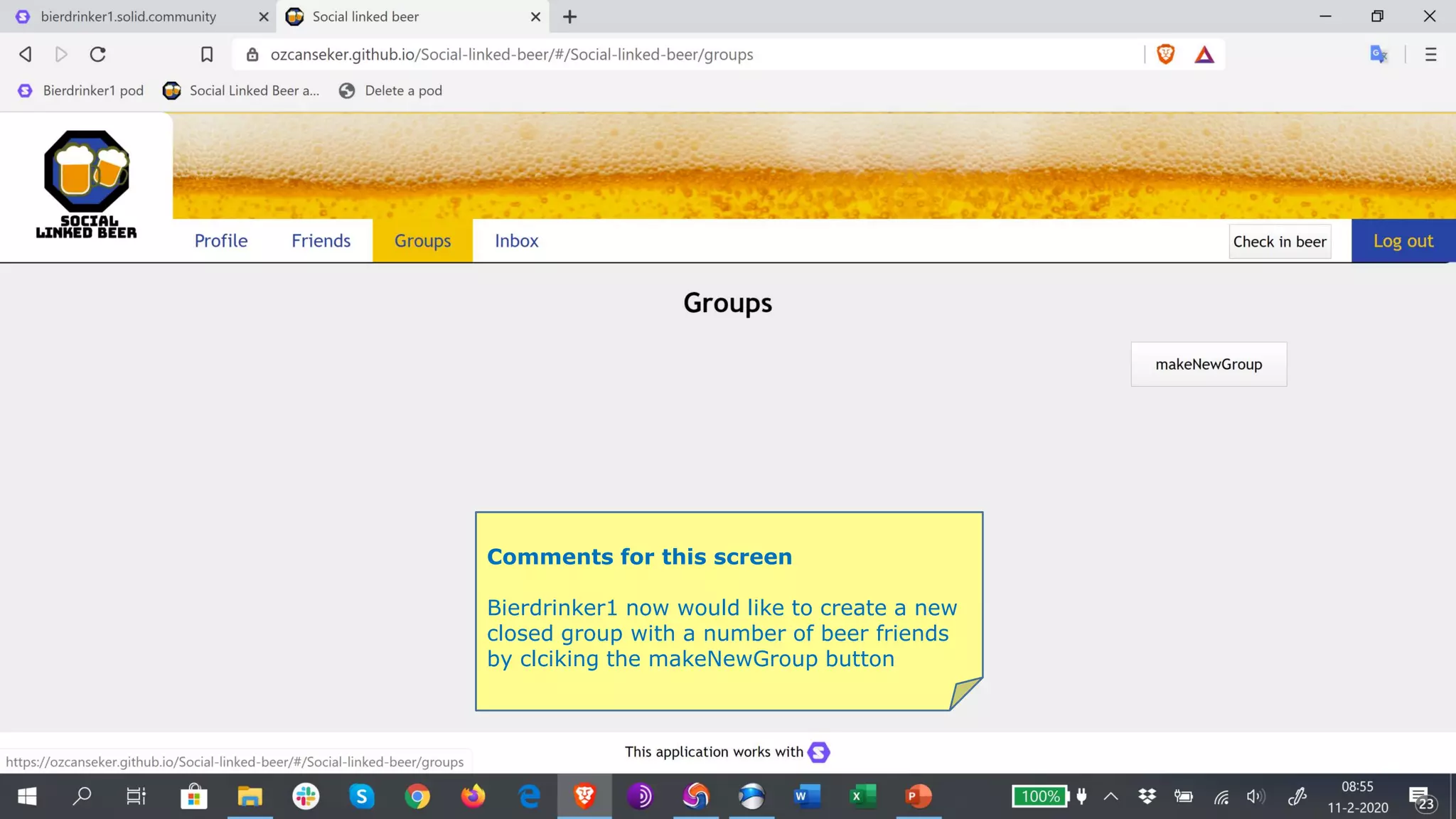
Bierdrinker1 now would like to create a new
closed group with a number of beer friends
by clciking the makeNewGroup button
Comments for this screen
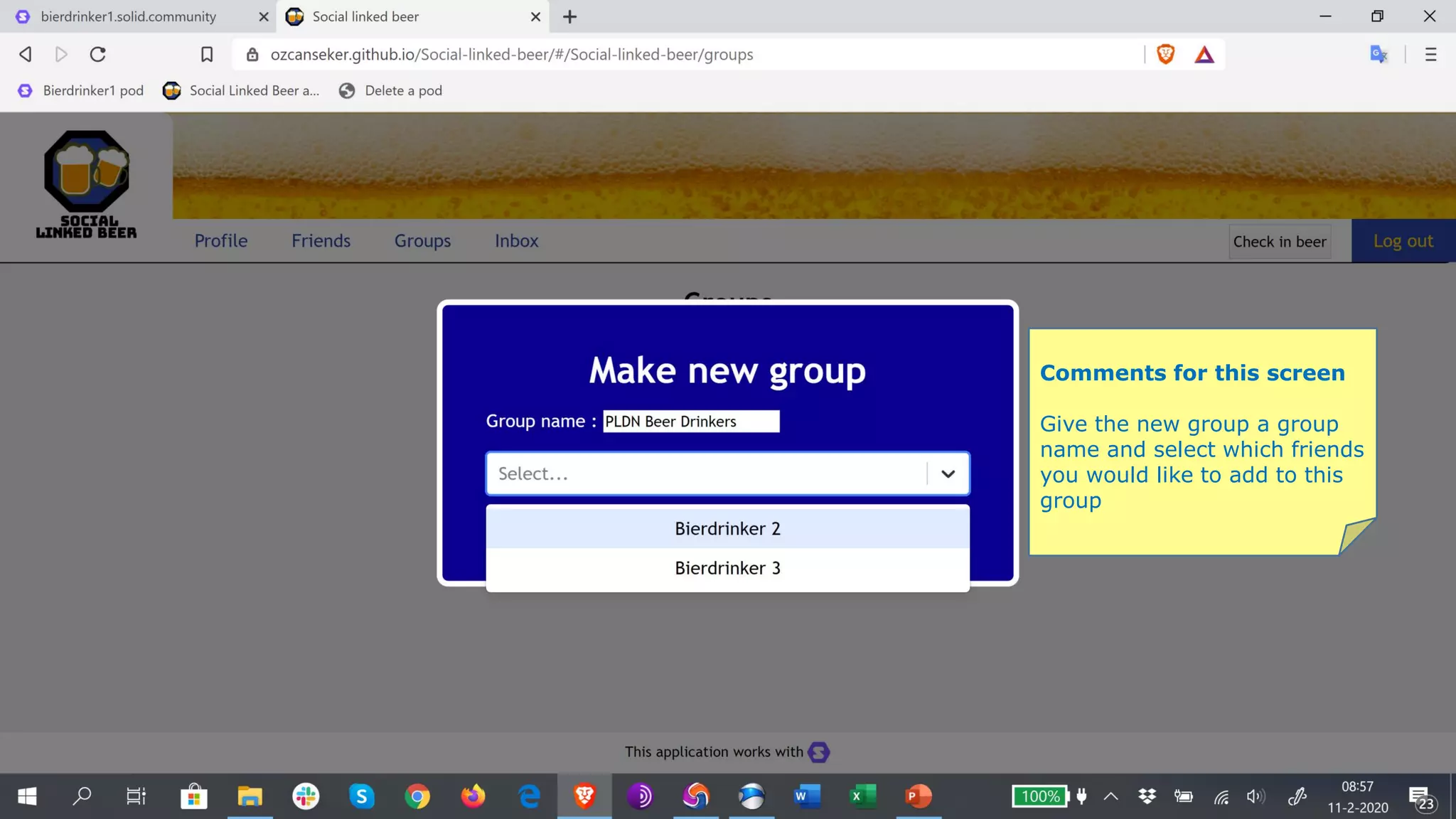
Give the new group a group
name and select which friends
you would like to add to this
group
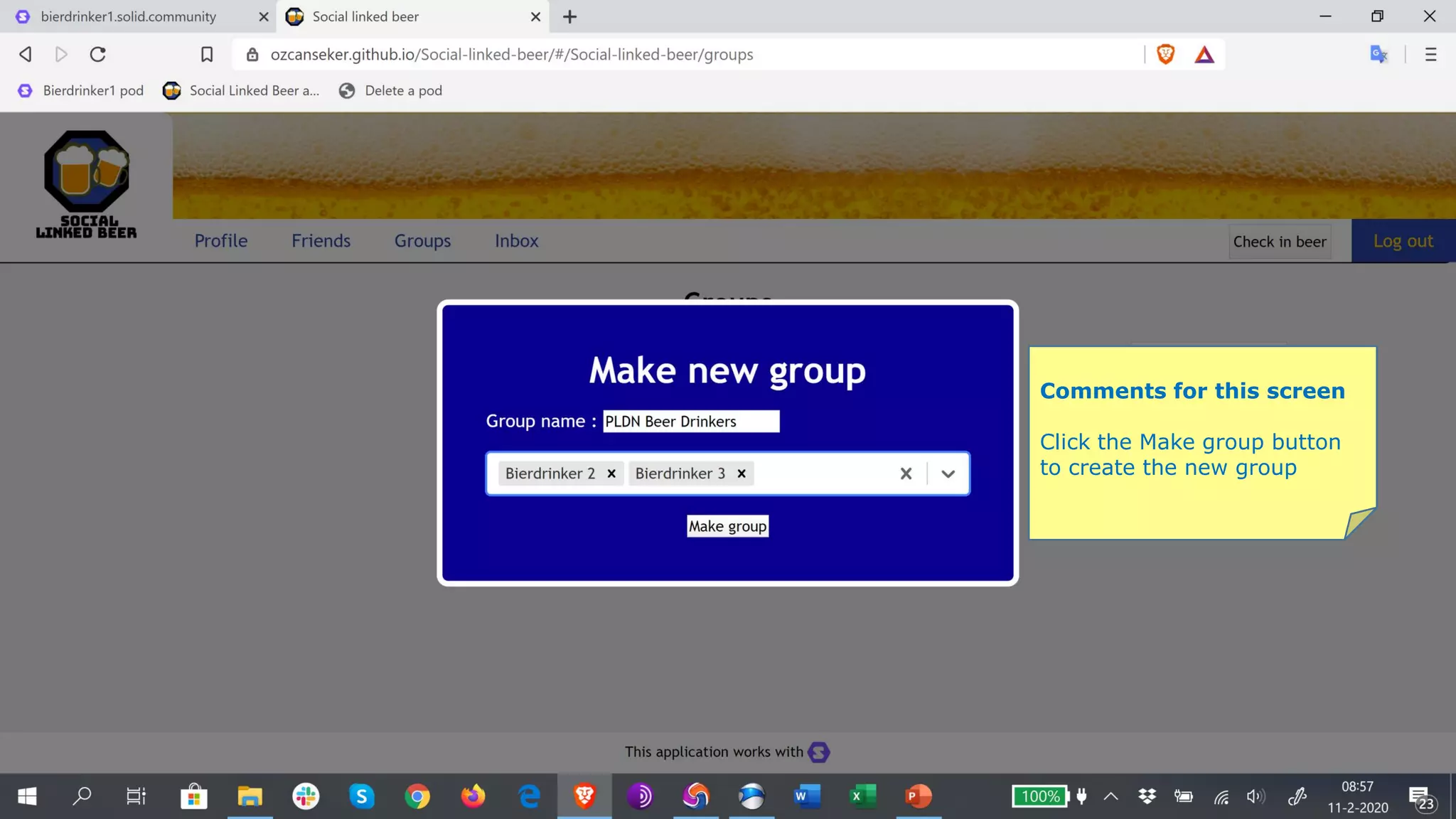
Comments for this screen
Click the Make group button
to create the new group
Comments for this screen
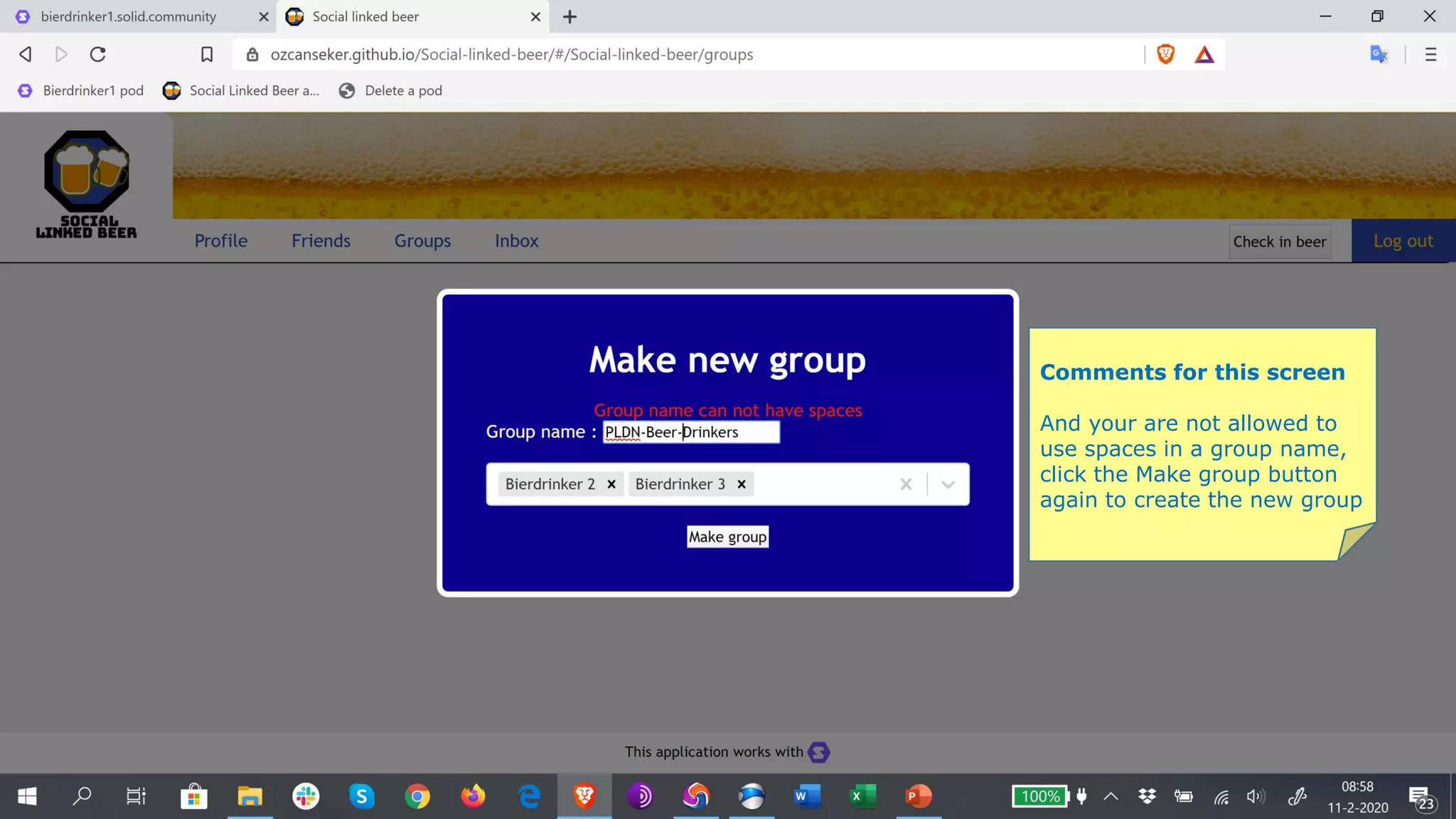
And your are not allowed to
use spaces in a group name,
click the Make group button
again to create the new group
Comments for this screen
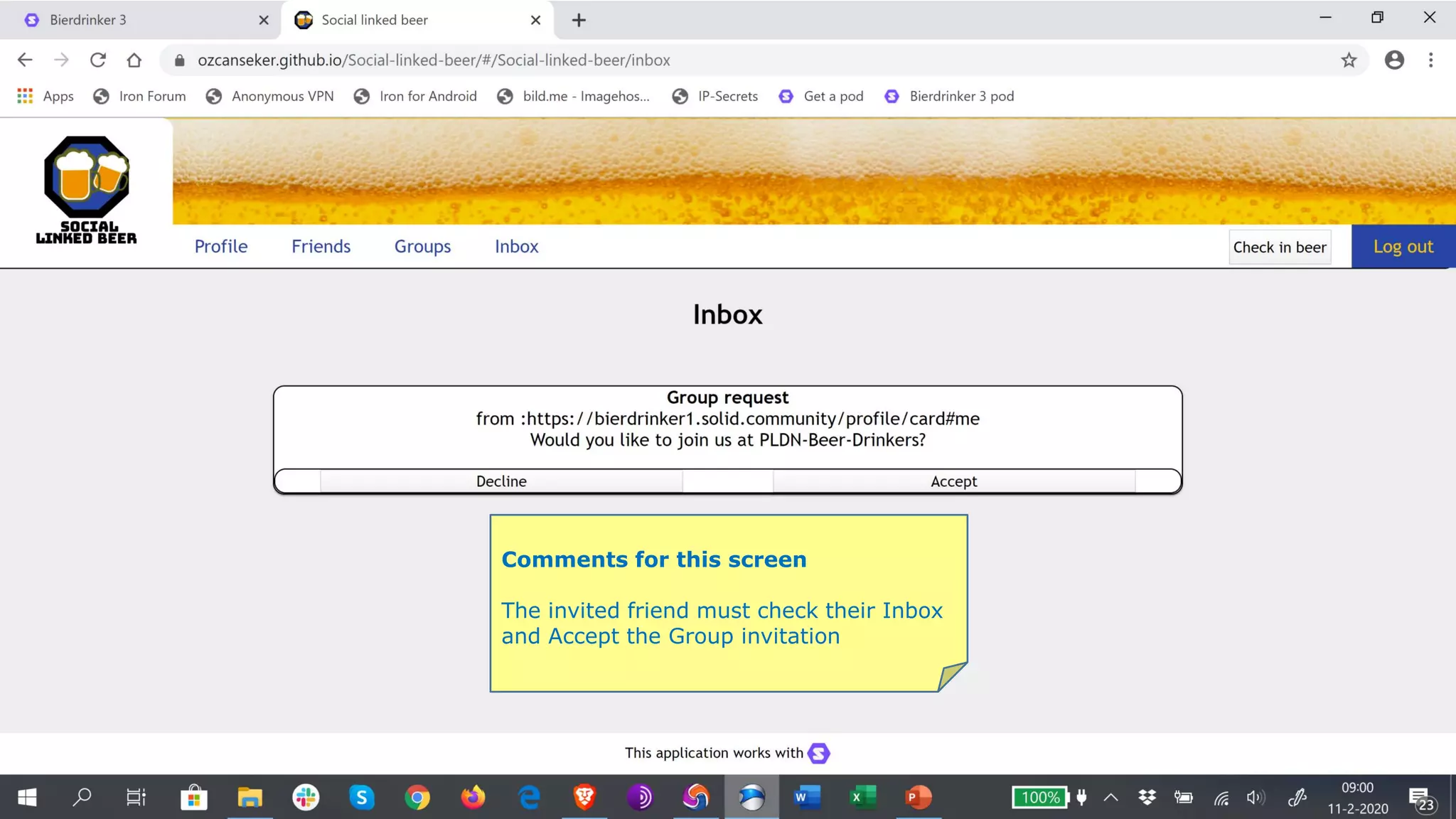
The invited friend must check their Inbox
and Accept the Group invitation
Comments for this screen
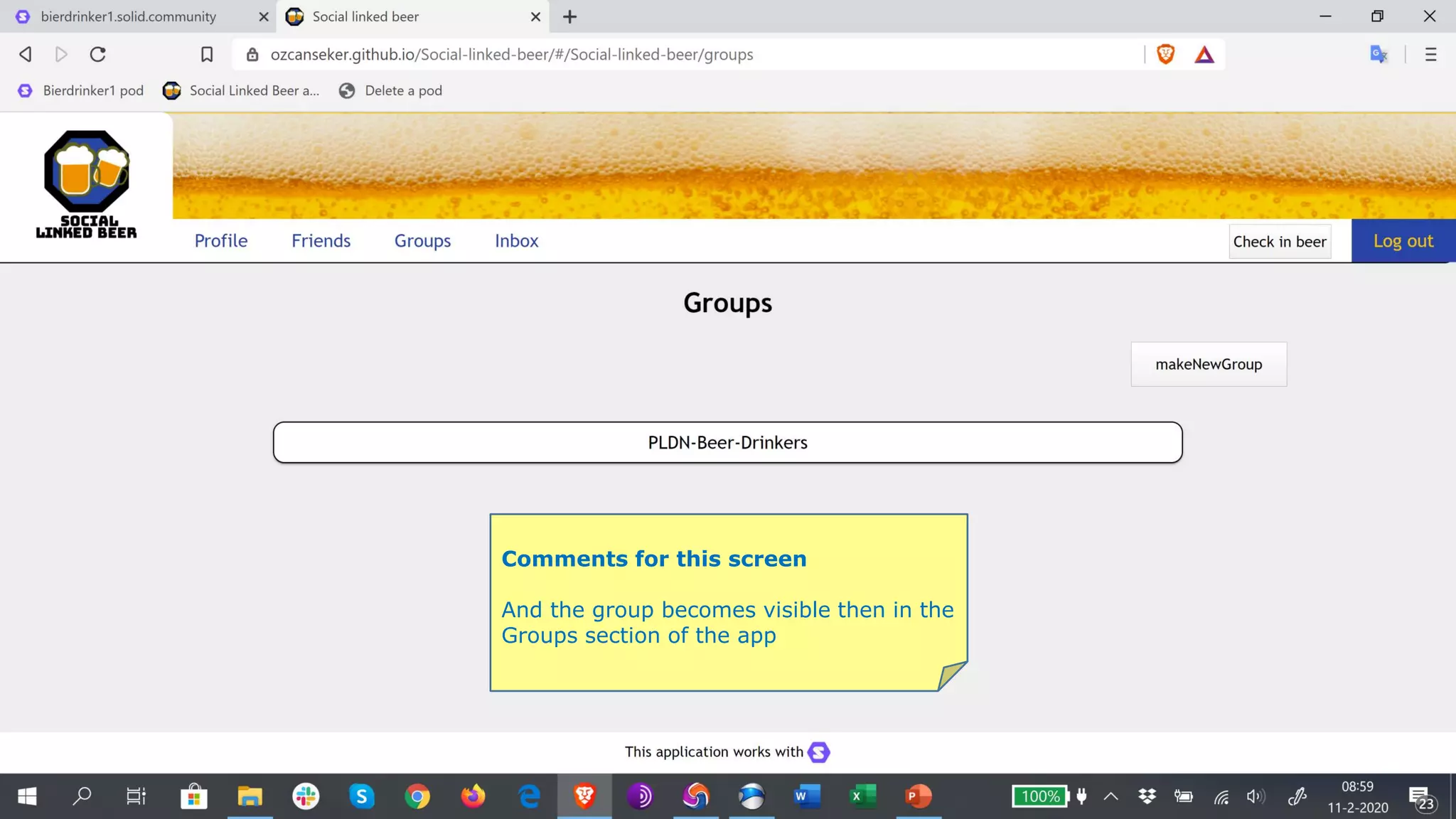
And the group becomes visible then in the
Groups section of the app
Comments for this screen
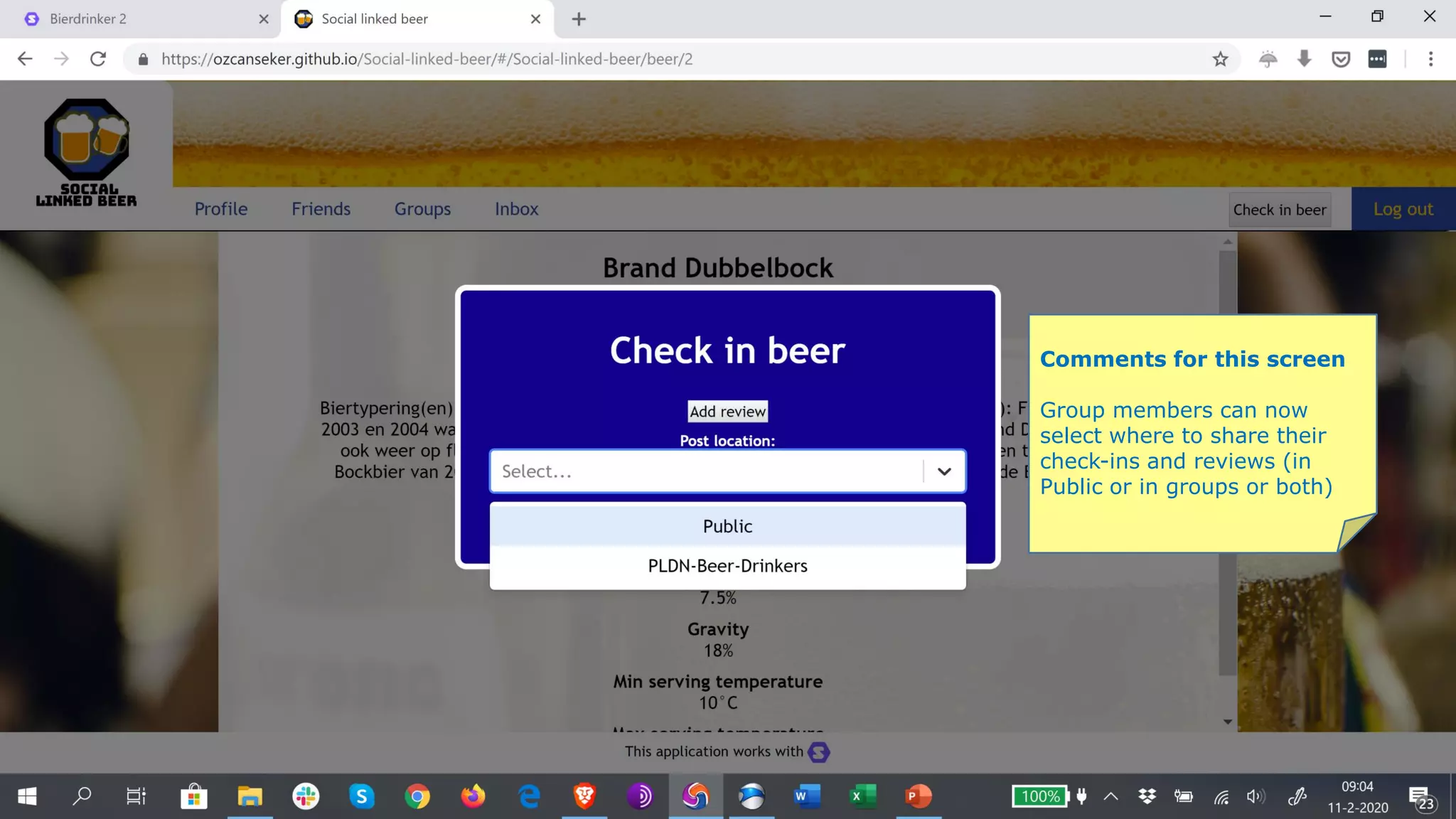
Group members can now
select where to share their
check-ins and reviews (in
Public or in groups or both)
Comments for this screen
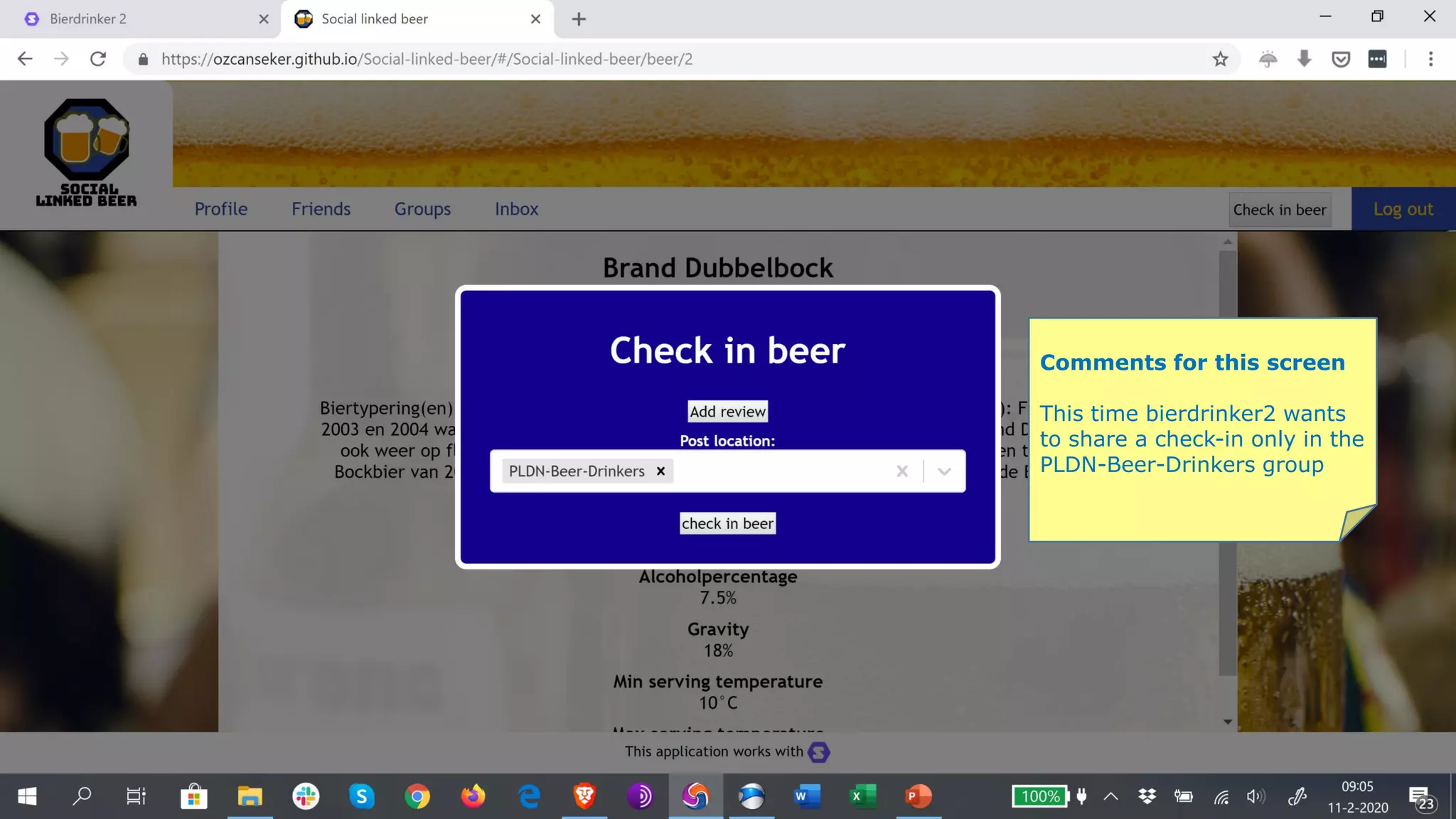
This time bierdrinker2 wants
to share a check-in only in the
PLDN-Beer-Drinkers group
Comments for this screen
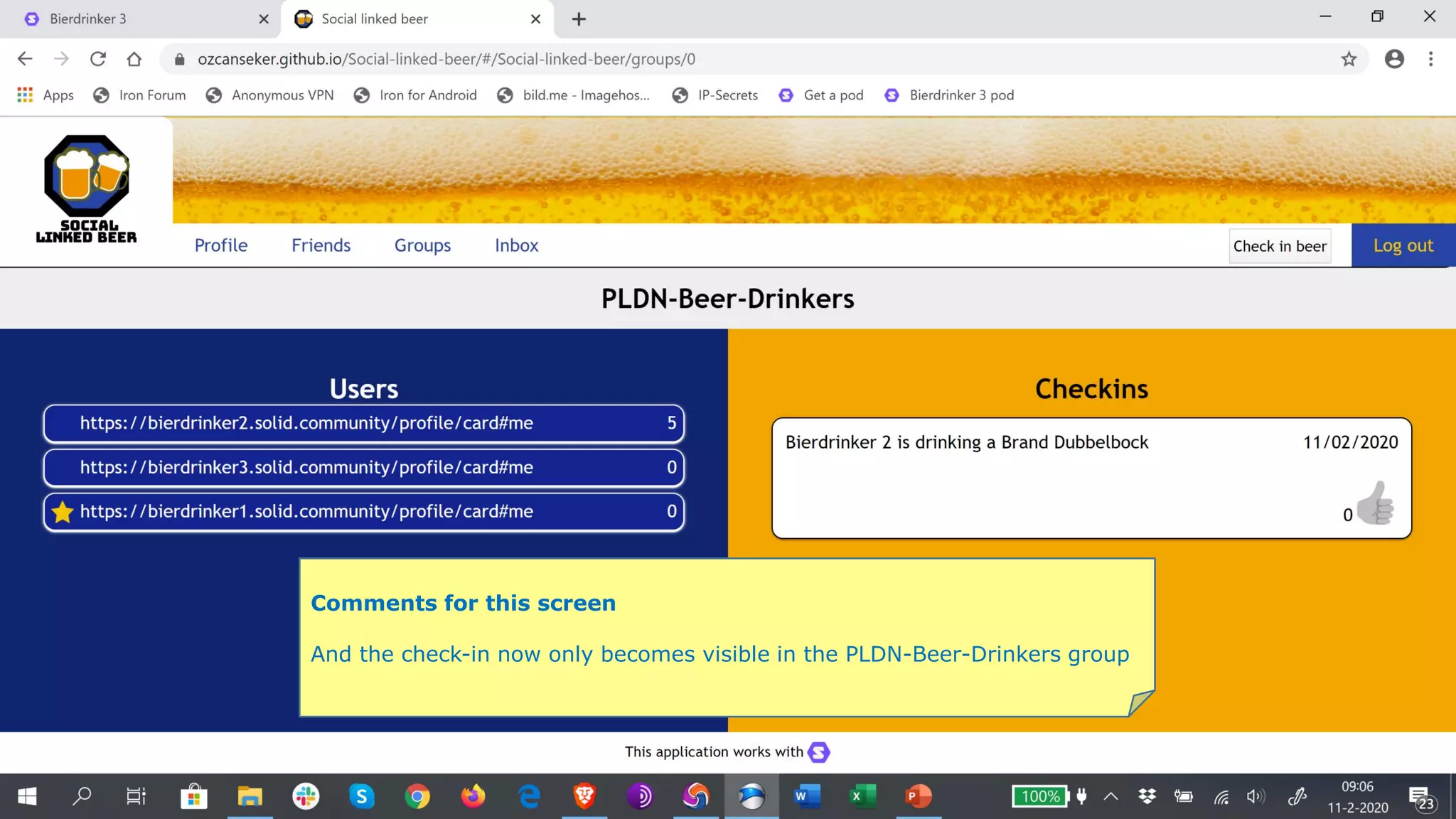
And the check-in now only becomes visible in the PLDN-Beer-Drinkers group
Comments for this screen
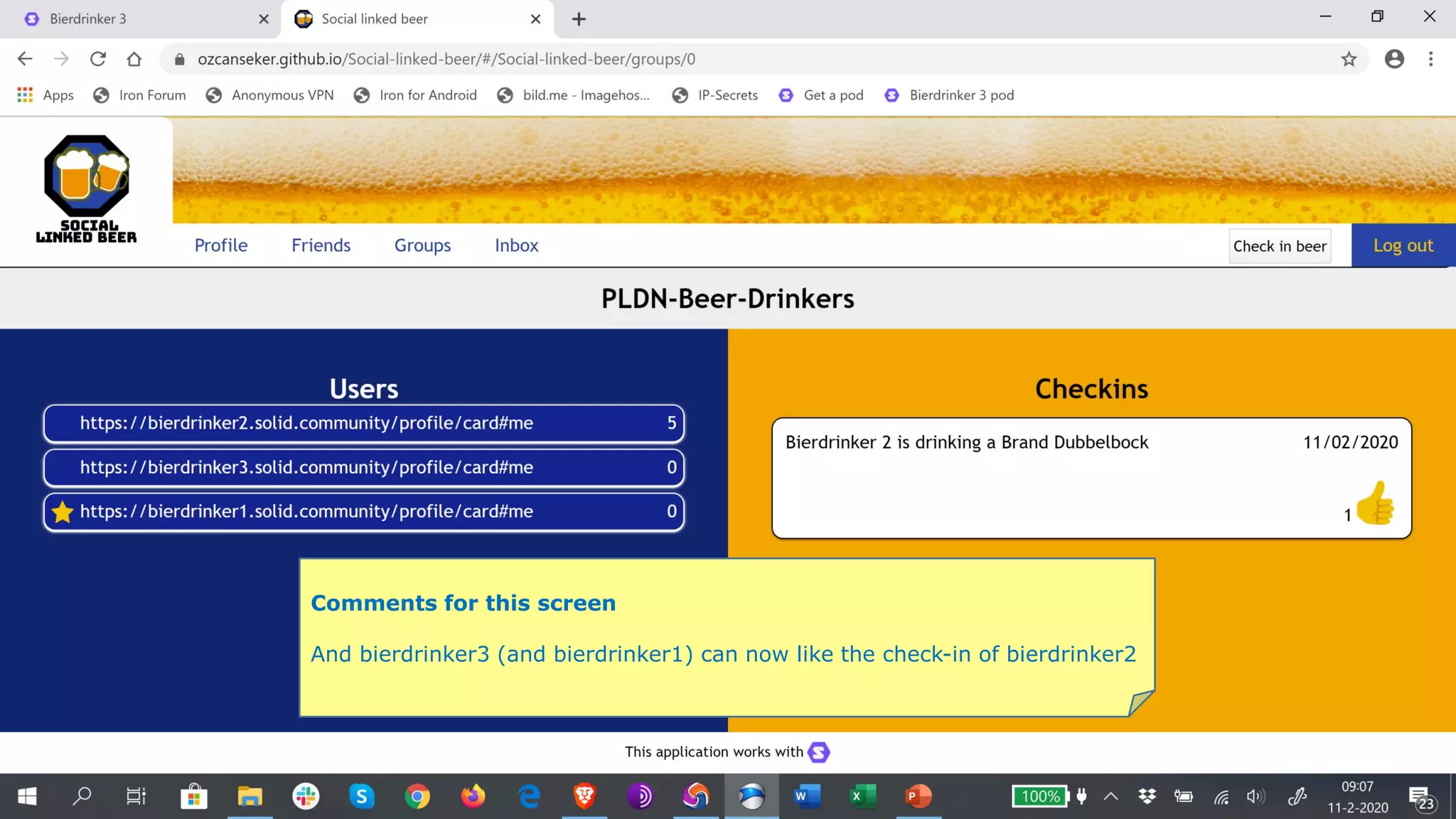
And bierdrinker3 (and bierdrinker1) can now like the check-in of bierdrinker2
Comments for this screen
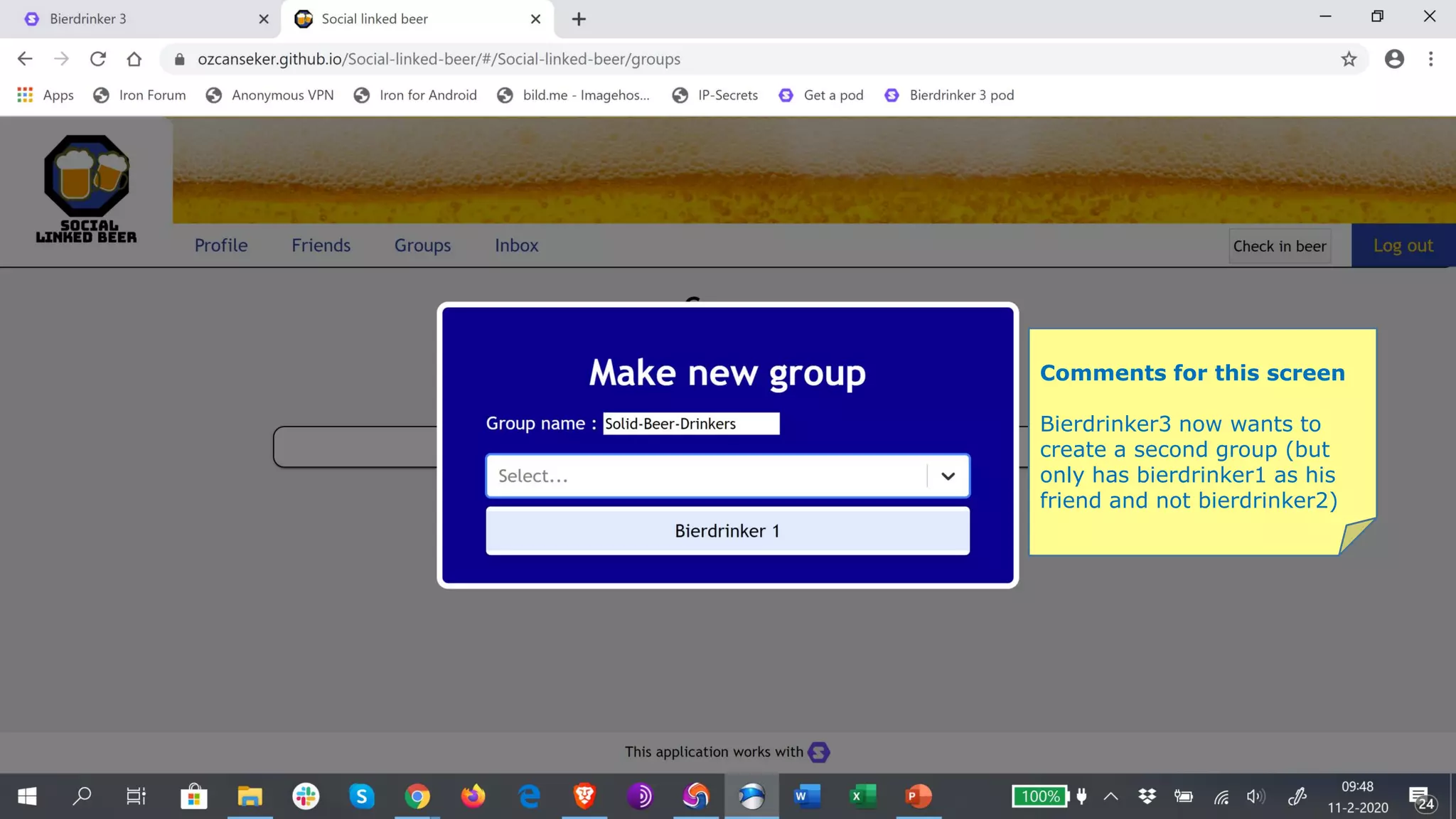
Bierdrinker3 now wants to
create a second group (but
only has bierdrinker1 as his
friend and not bierdrinker2)
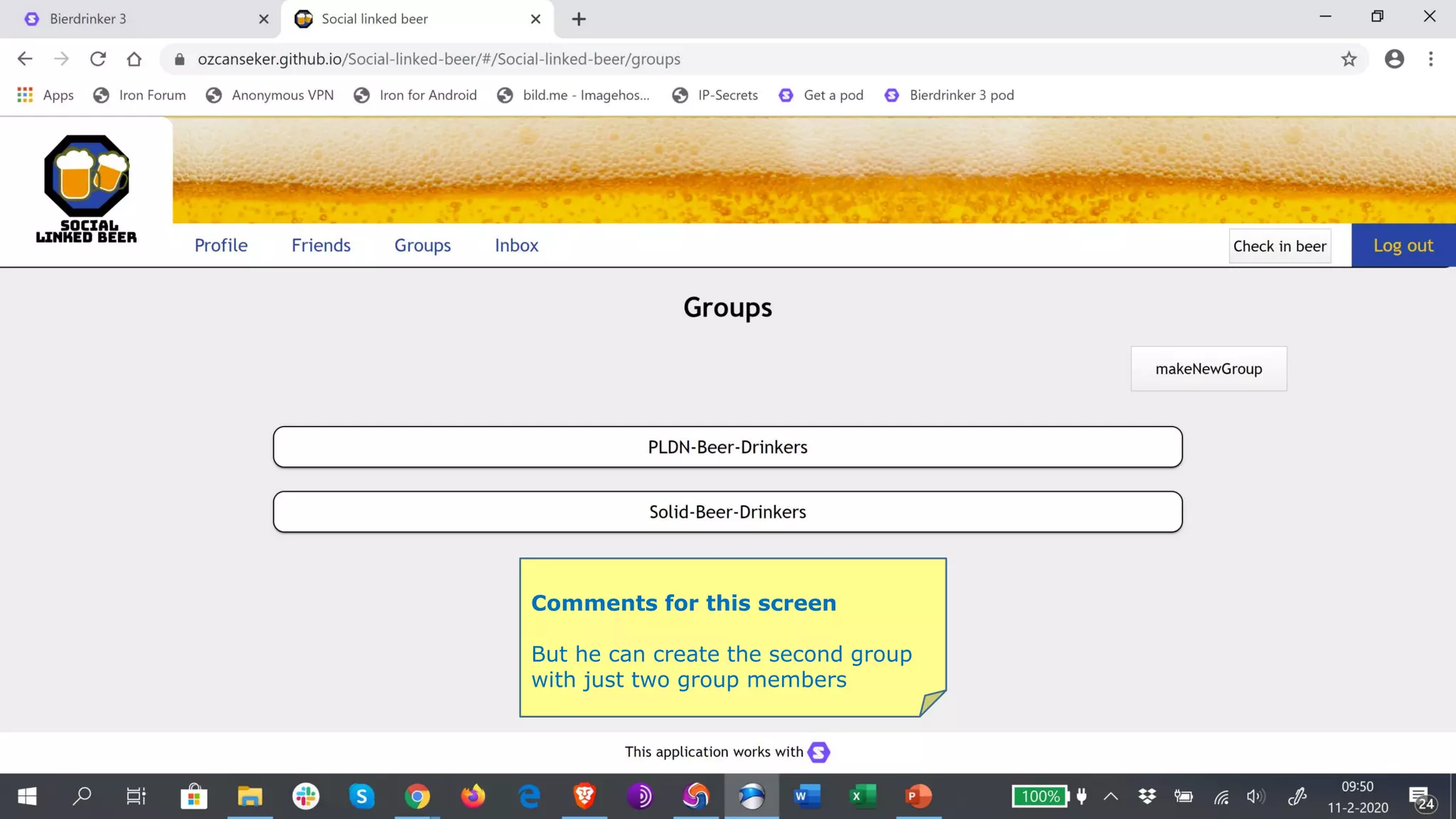
Comments for this screen
But he can create the second group
with just two group members
Comments for this screen
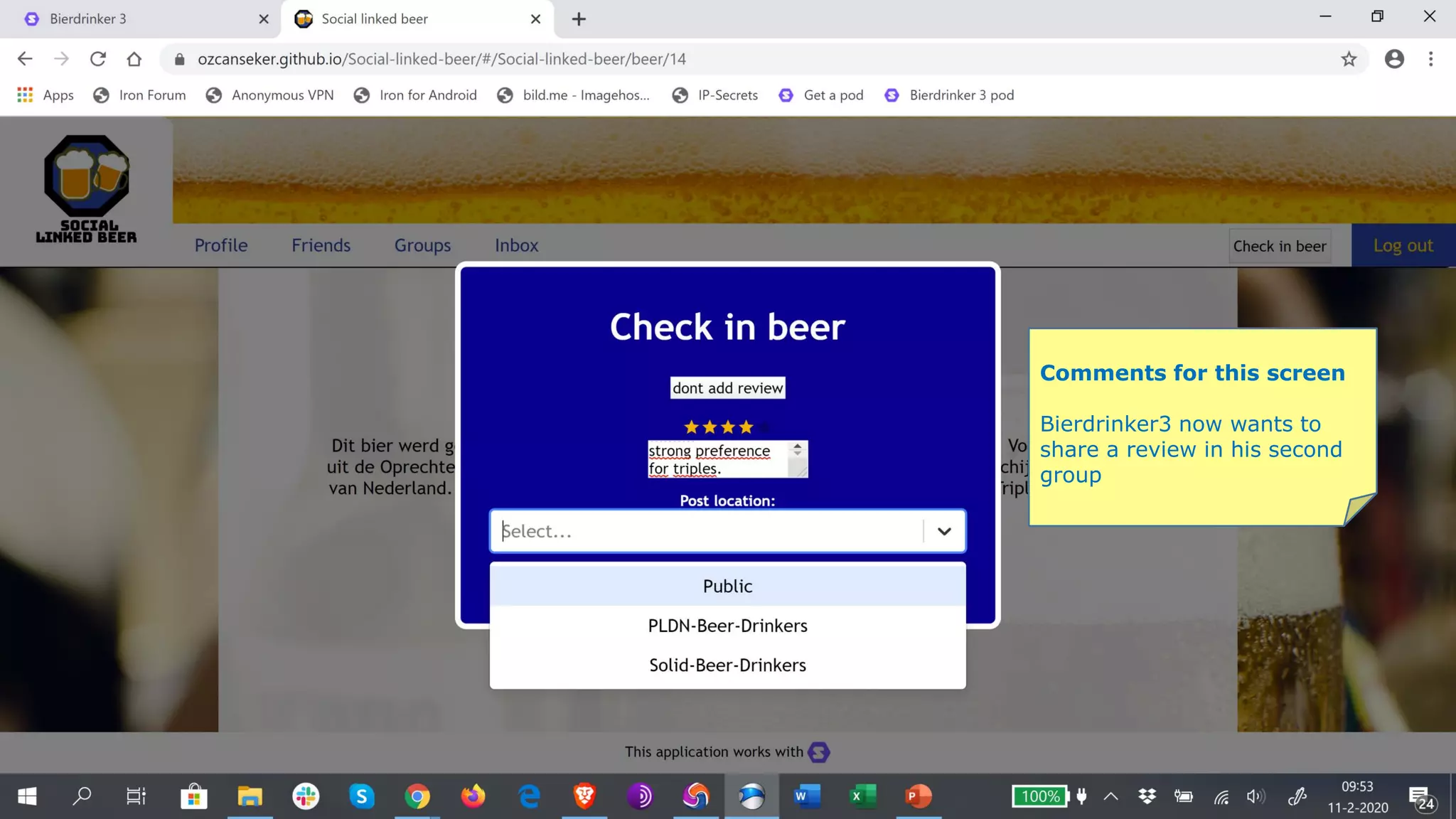
Bierdrinker3 now wants to
share a review in his second
group
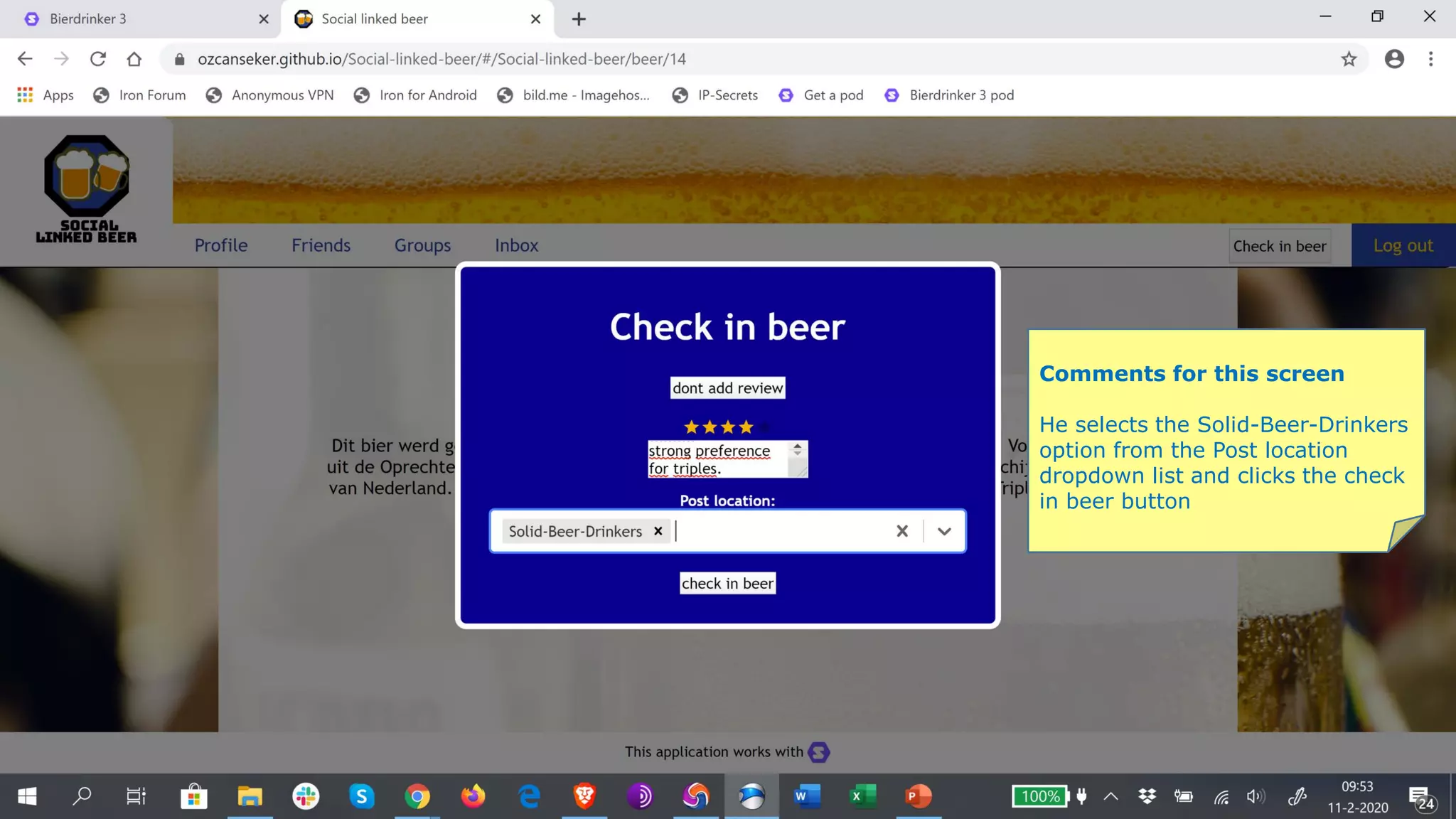
Comments for this screen
He selects the Solid-Beer-Drinkers
option from the Post location
dropdown list and clicks the check
in beer button
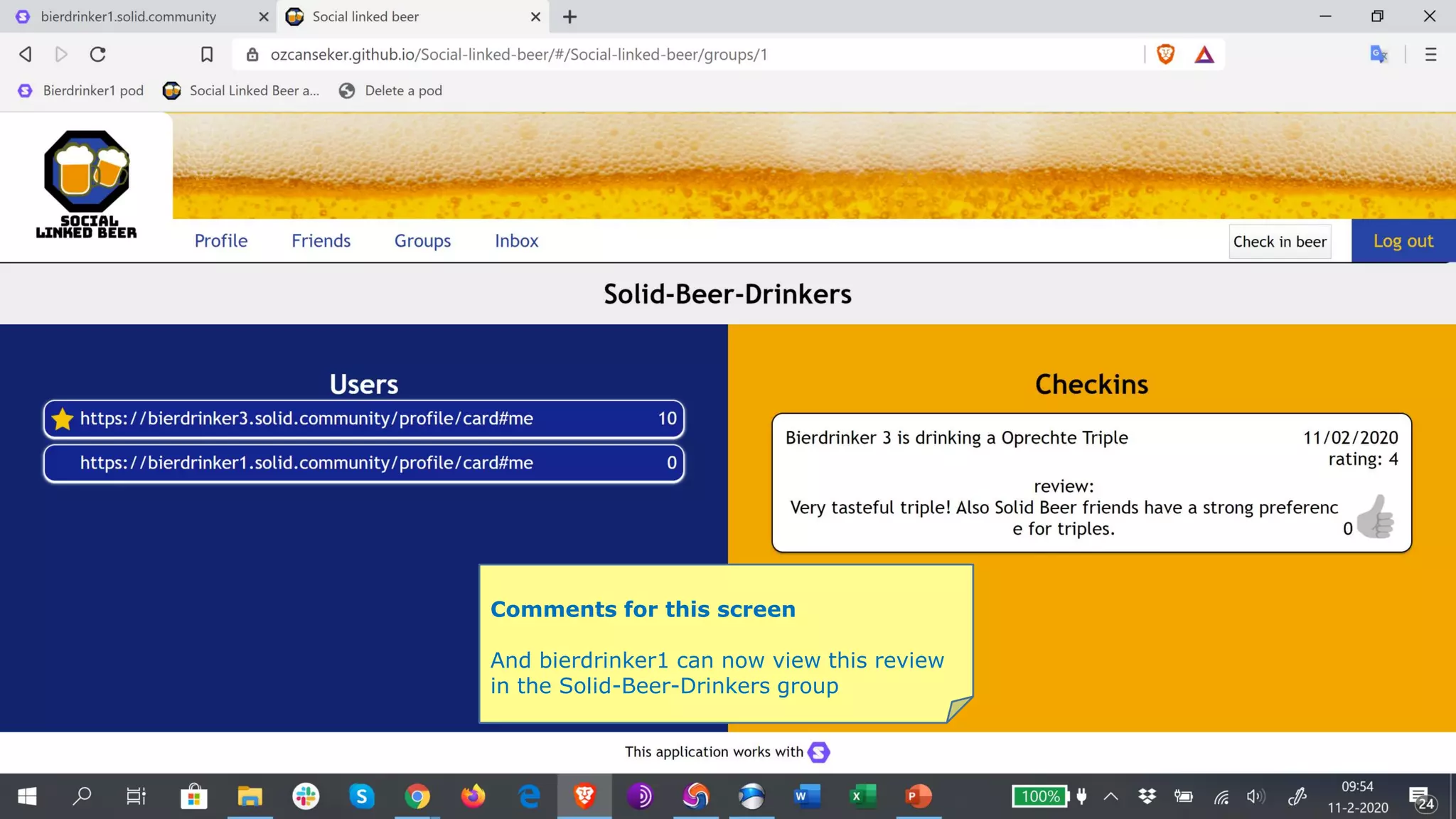
Comments for this screen
And bierdrinker1 can now view this review
in the Solid-Beer-Drinkers group
Comments for this screen
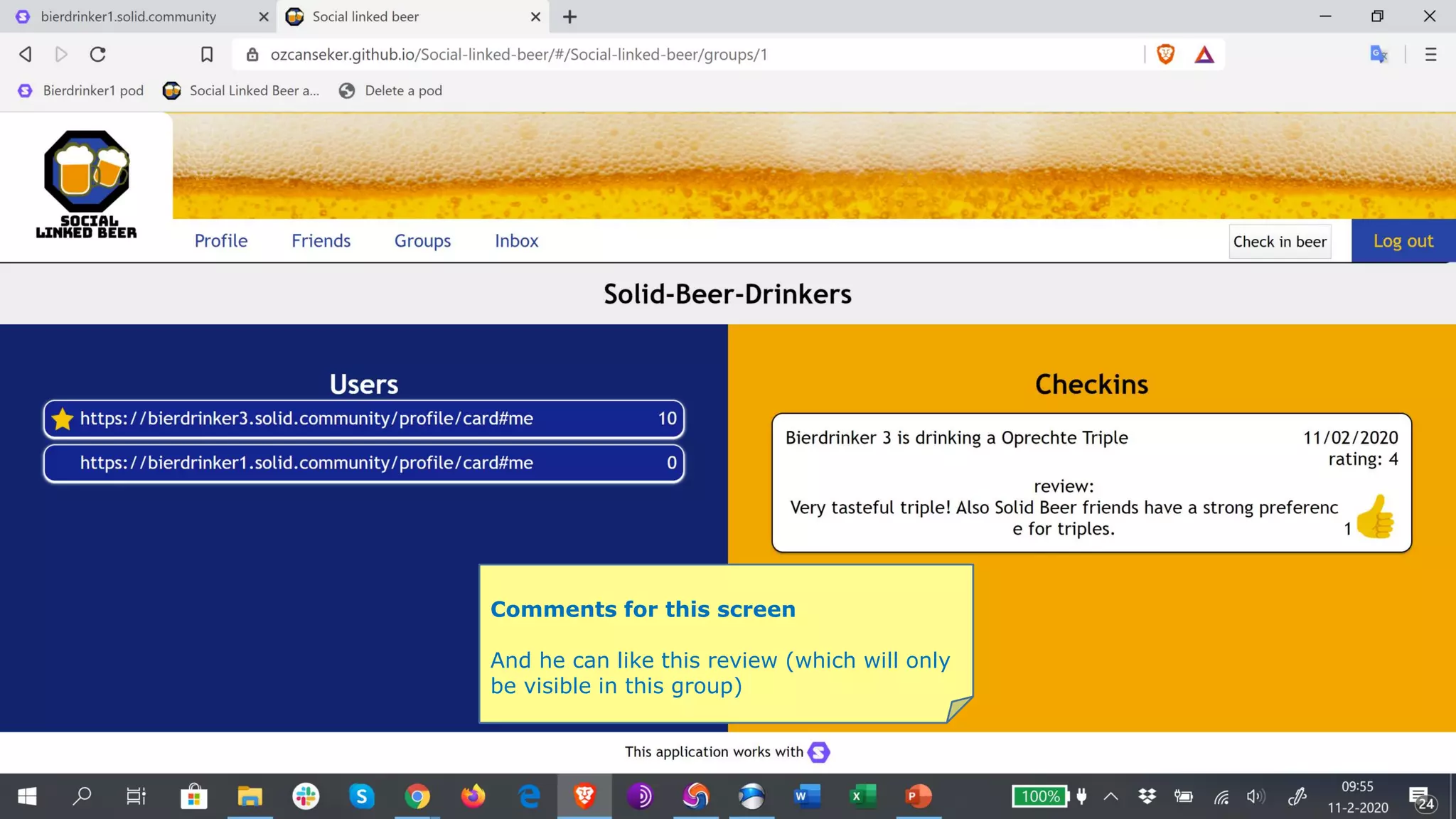
And he can like this review (which will only
be visible in this group)
Comments for this screen
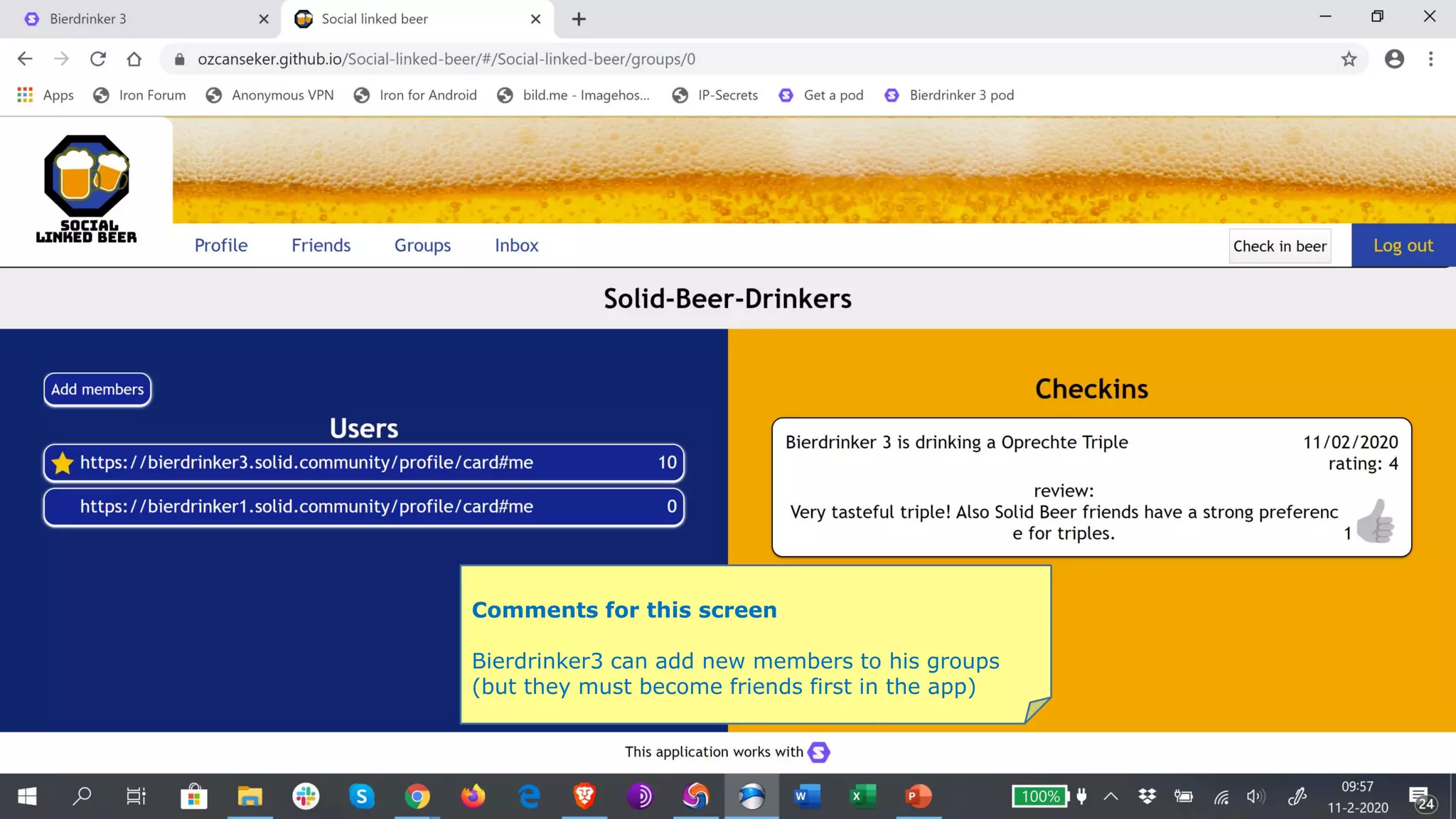
Bierdrinker3 can add new members to his groups
(but they must become friends first in the app)
Comments for this screen
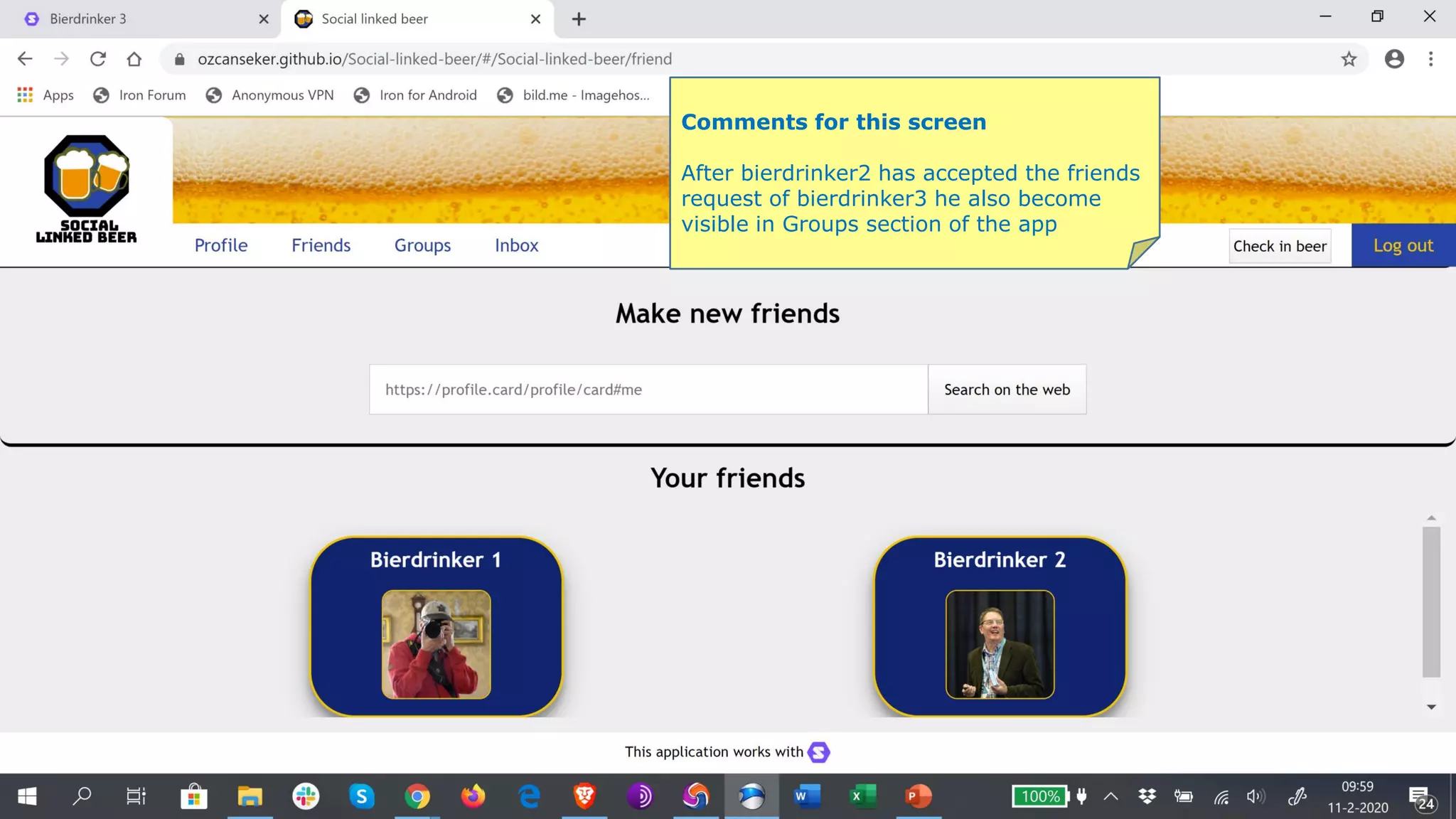
After bierdrinker2 has accepted the friends
request of bierdrinker3 he also become
visible in Groups section of the app
Comments for this screen
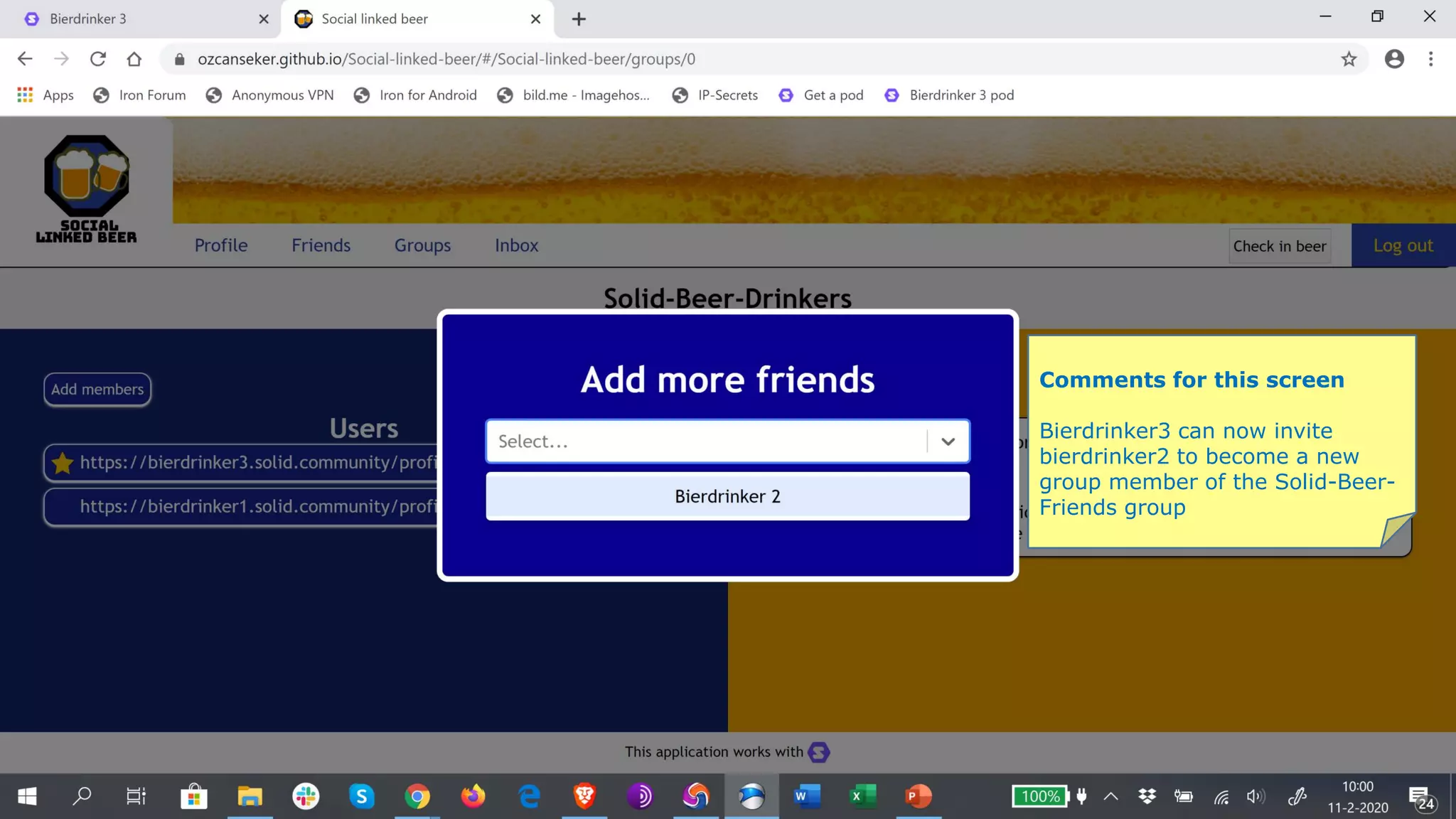
Bierdrinker3 can now invite
bierdrinker2 to become a new
group member of the Solid-Beer-
Friends group
Comments for this screen
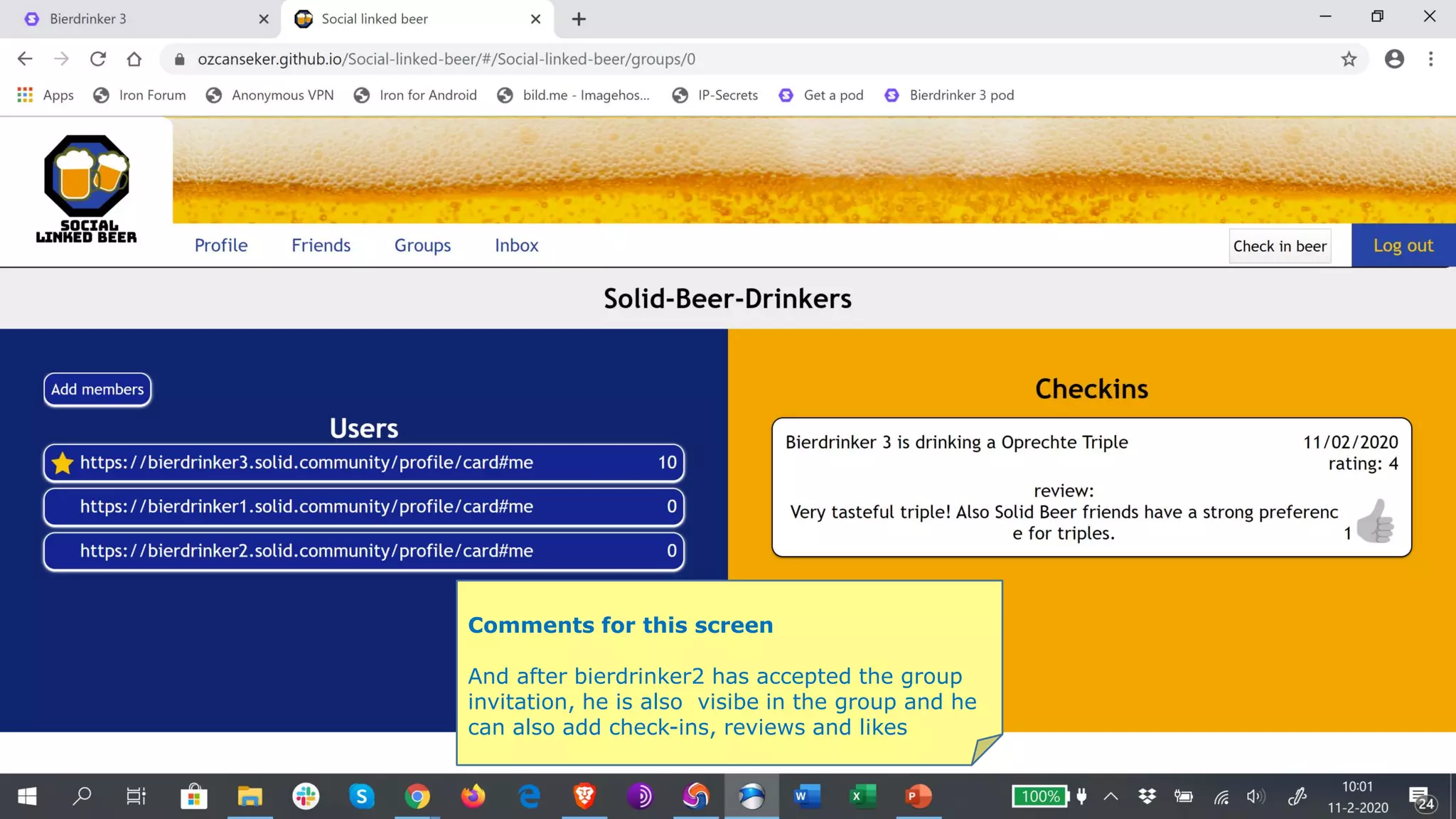
And after bierdrinker2 has accepted the group
invitation, he is also visibe in the group and he
can also add check-ins, reviews and likes
Comments for this screen
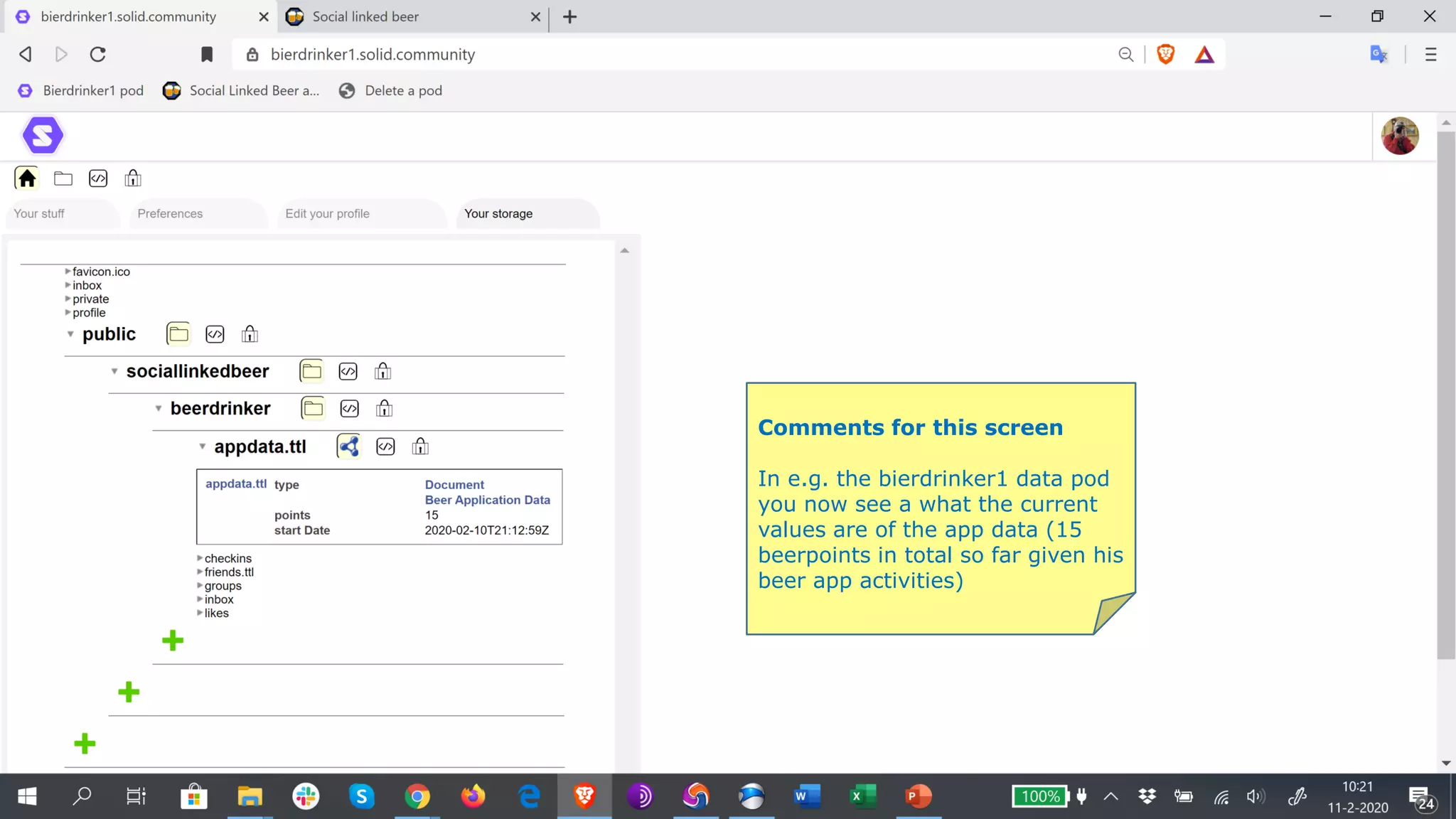
In e.g. the bierdrinker1 data pod
you now see a what the current
values are of the app data (15
beerpoints in total so far given his
beer app activities)
Comments for this screen
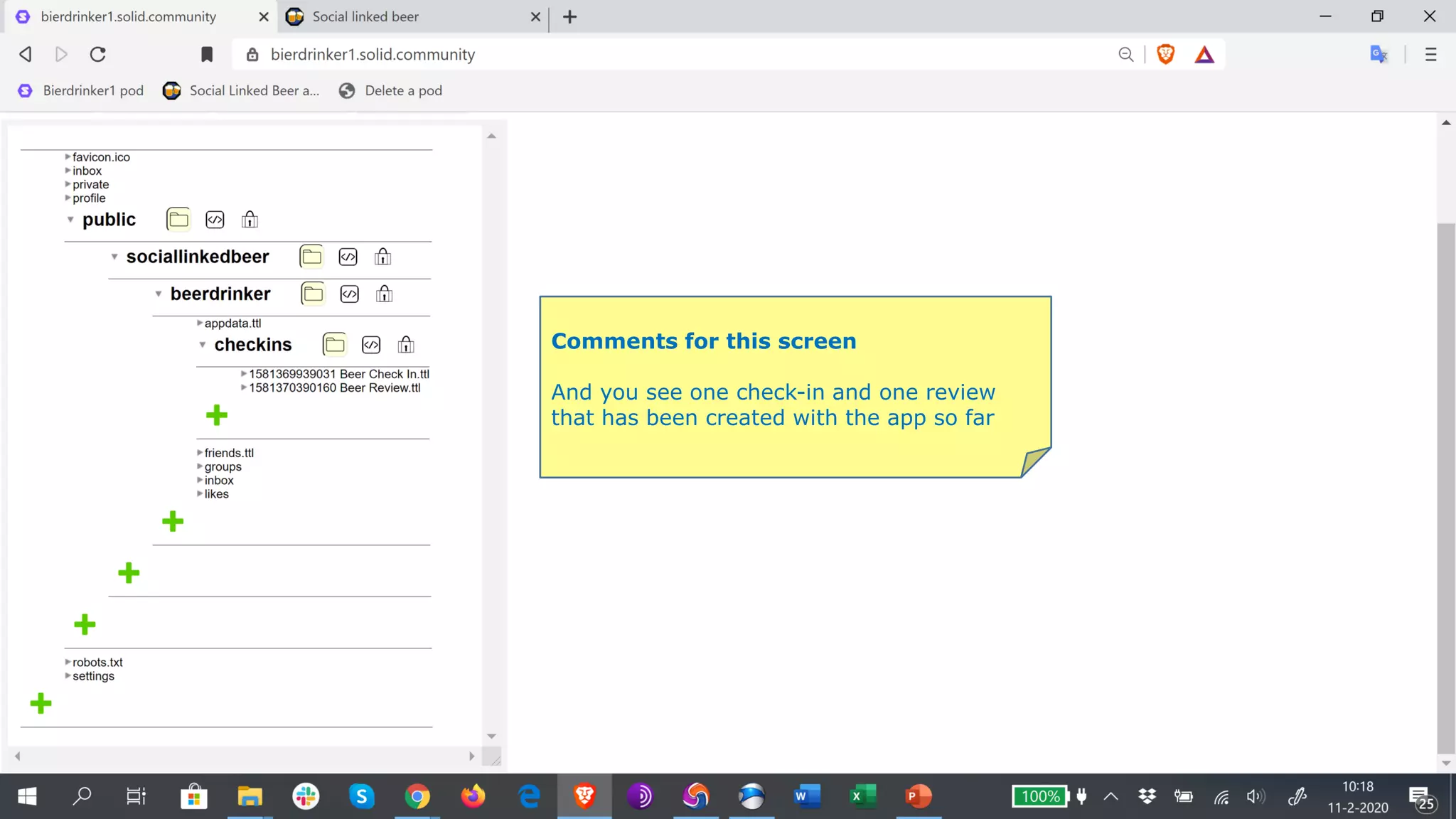
And you see one check-in and one review
that has been created with the app so far
Comments for this screen
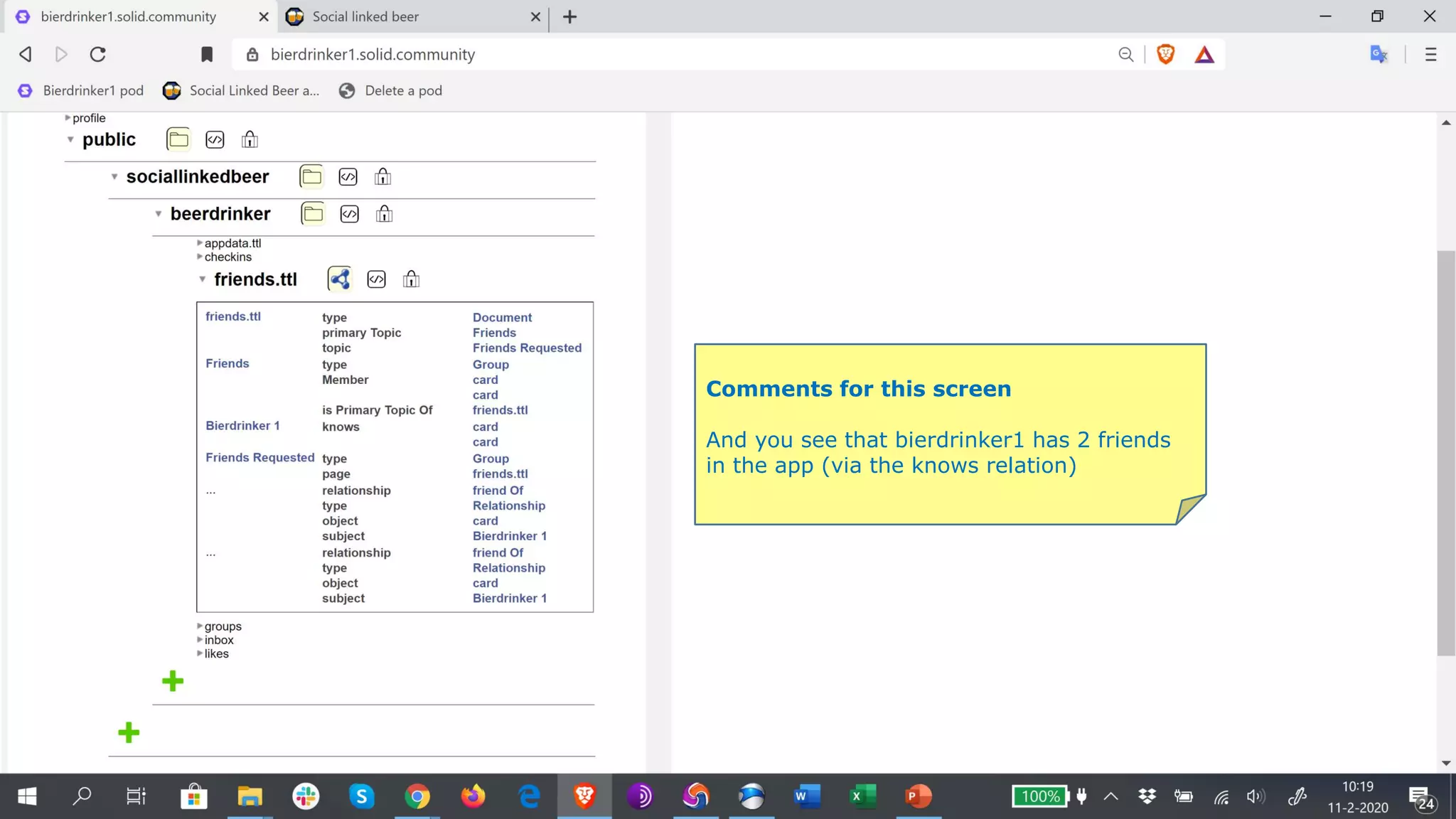
And you see that bierdrinker1 has 2 friends
in the app (via the knows relation)
Comments for this screen
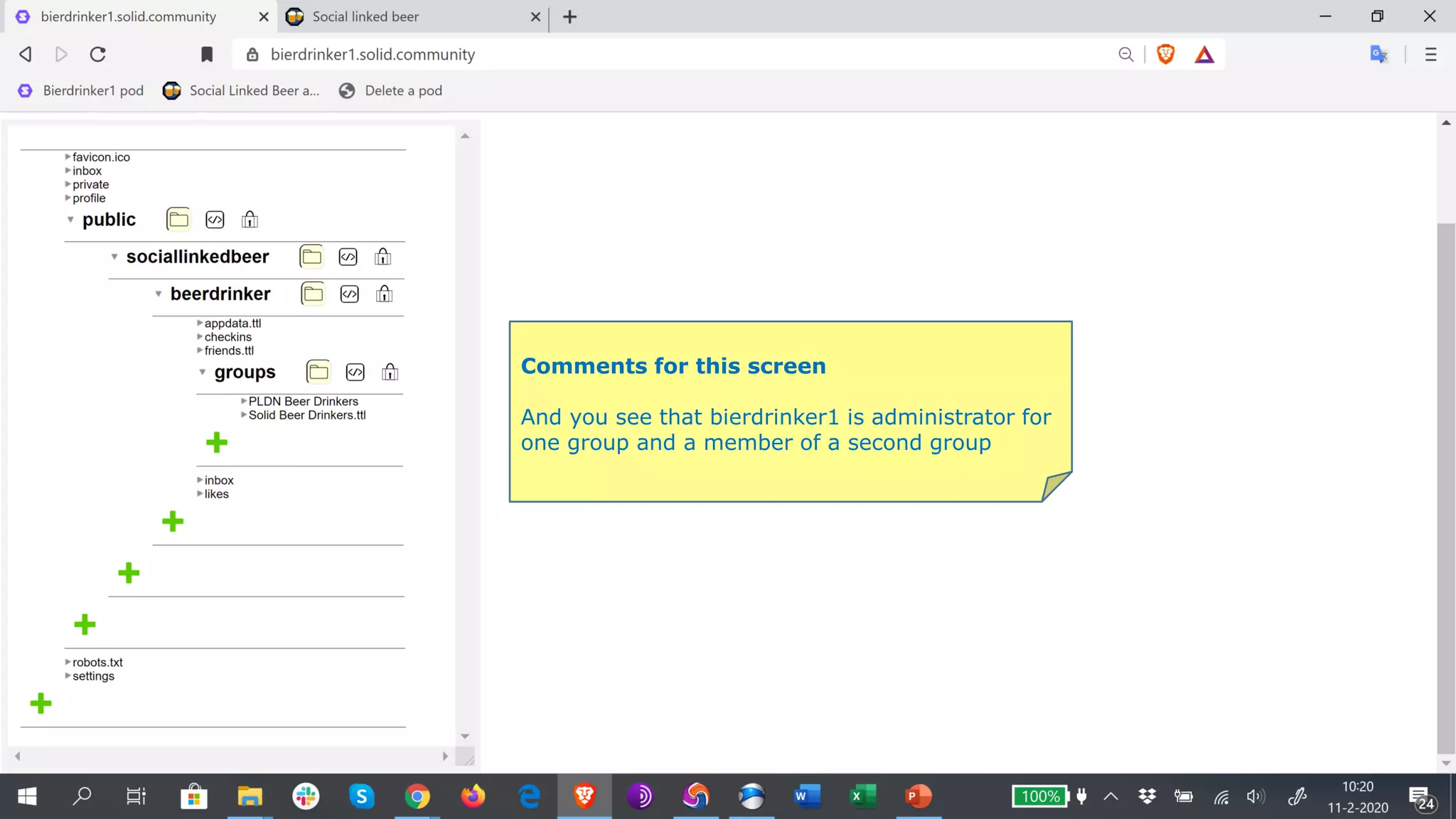
And you see that bierdrinker1 is administrator for
one group and a member of a second group
Comments for this screen
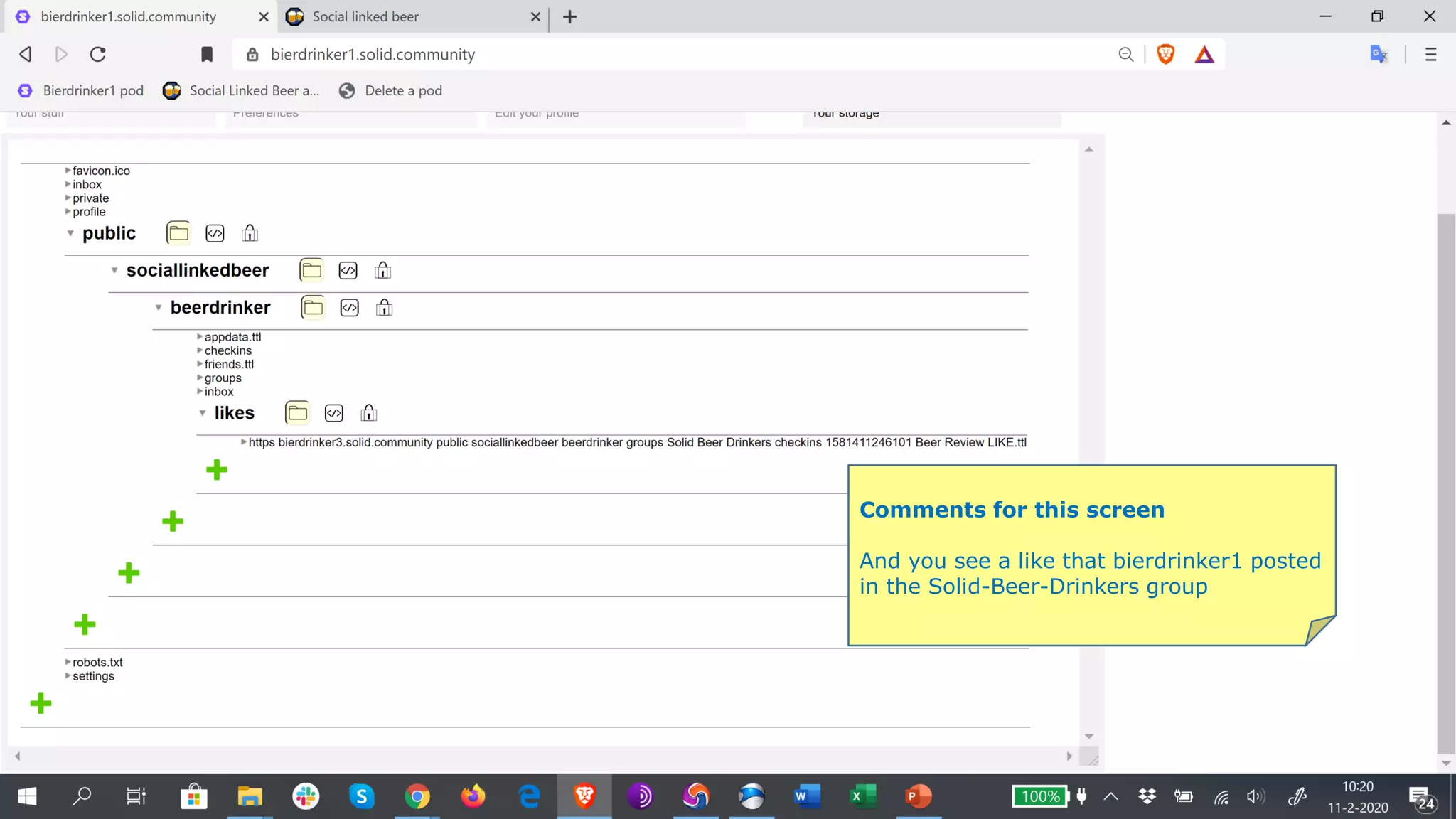
And you see a like that bierdrinker1 posted
in the Solid-Beer-Drinkers group
Comments for this screen
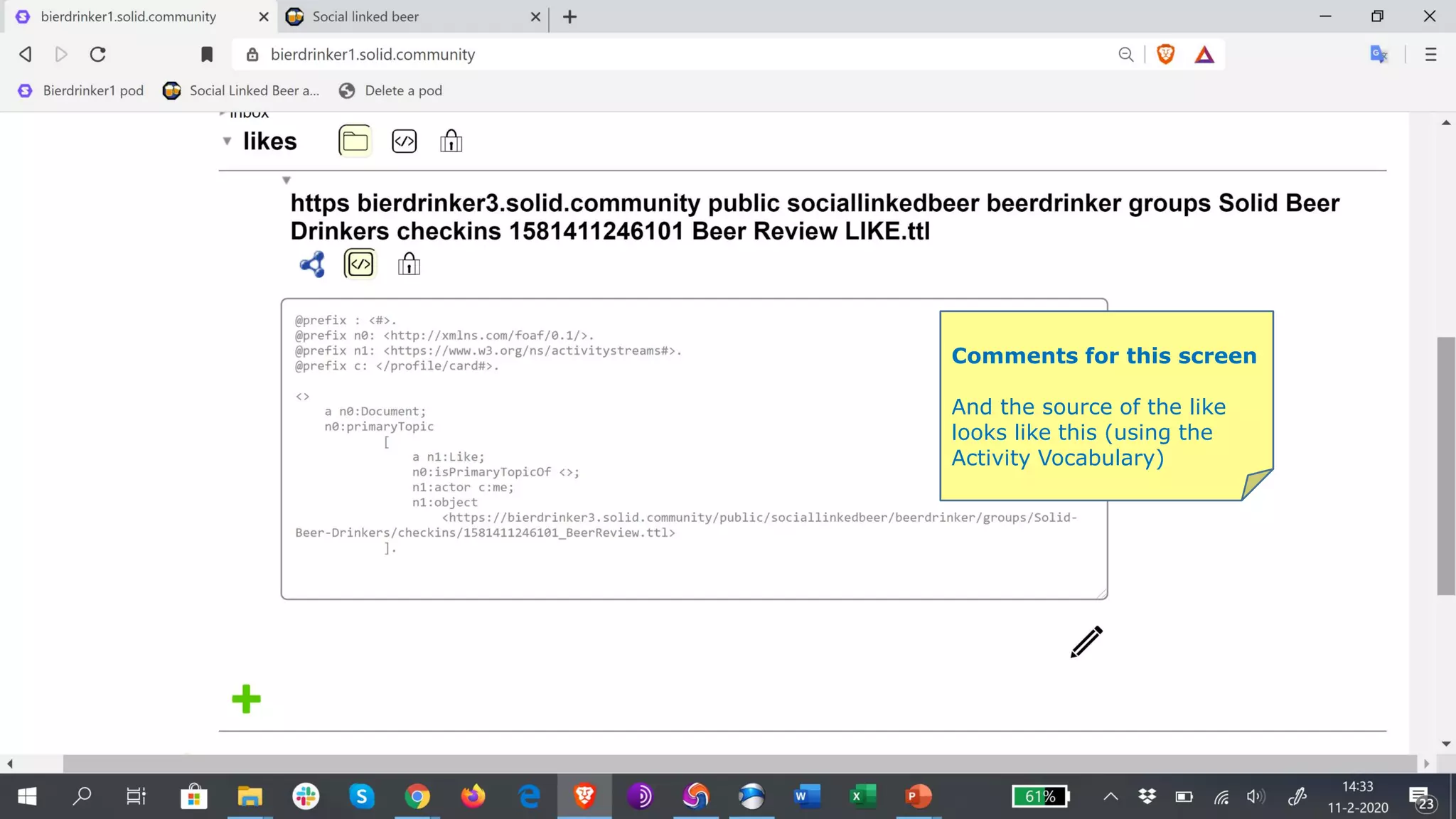
And the source of the like
looks like this (using the
Activity Vocabulary)
END OF DEMO
LESSONS LEARNED –
PIETER VAN EVERDINGEN (PLDN/OPENINC)
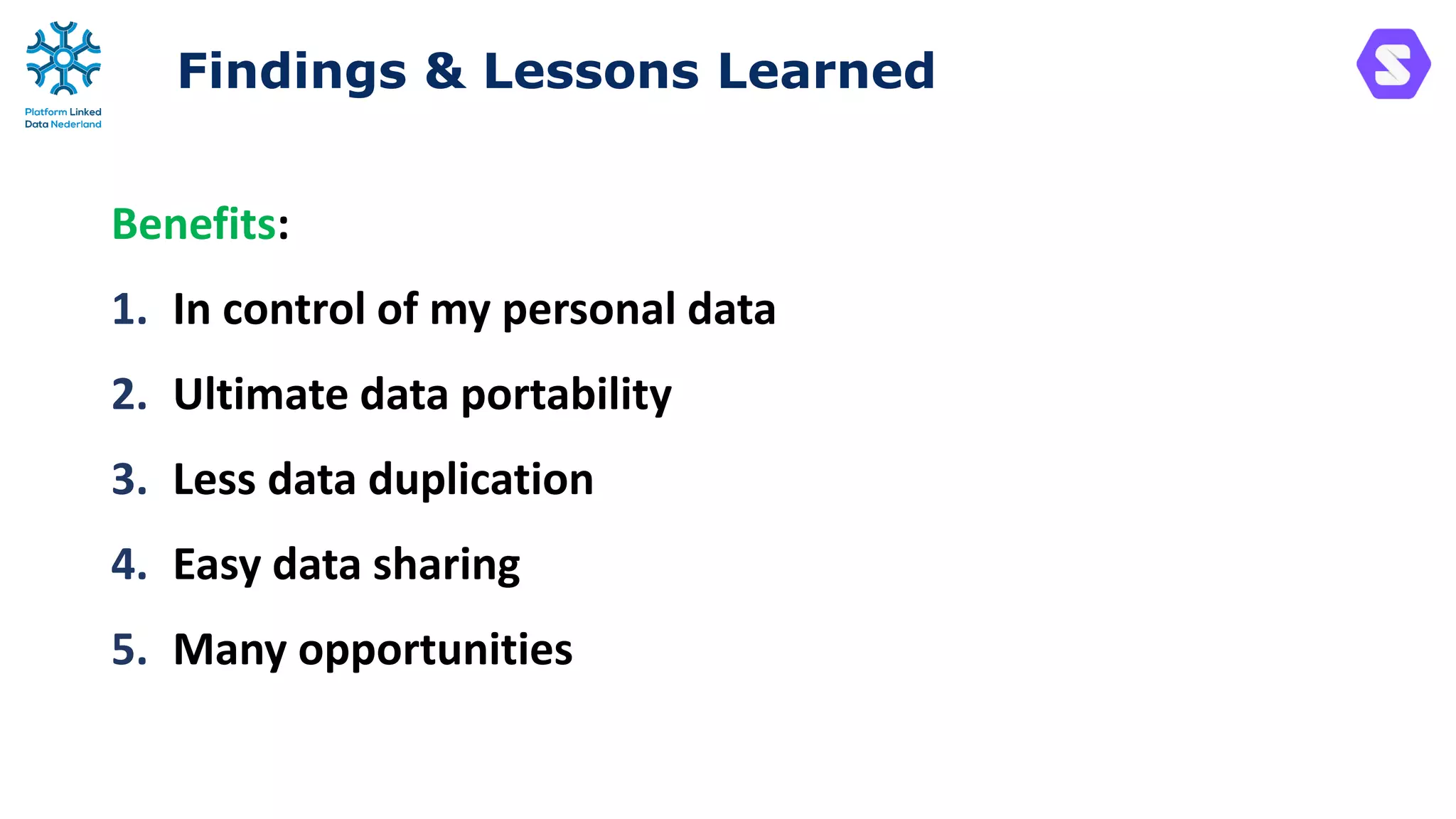
Findings & Lessons Learned
Benefits:
1. In control of my personal data
2. Ultimate data portability
3. Less data duplication
4. Easy data sharing
5. Many opportunities
Findings & Lessons Learned
Drawbacks (in February 2020):
1. Promising, but in development
2. User friendliness of data pods
3. Access mechanisms of data pods
4. Total concept often misunderstood
5. Lack of focus on priority use cases
Contact
Pieter van Everdingen
info@pldn.nl
Website
www.pldn.nl
LinkedIn-group LOD Nederland
www.linkedin.com/groups/466278
Twitter @linkeddatanl
hashtag #LinkedDataNL
Nieuwsbrief
www.pldn.nl/wiki/Nieuwsbrieven
PLDN communication channels

KNVI-PLDN Solid Lezing - Social Linked Beer App Demo

  • 1.
    KNVI-PLDN LEZING JE PERSOONLIJKEDATA BEHEREN MET SOLID PIETER VAN EVERDINGEN (PLDN/OPENINC) 12-2-2020 #linkeddatanl #solid
  • 2.
    SOCIAL LINKED BEERAPP DEMO – PIETER VAN EVERDINGEN (PLDN/OPENINC)
  • 3.
    Social Linked Beerapp demo #linkeddatanl #solidapp
  • 4.
    Social Linked Beerdemo pods Test Pods we use for this ‘demo’: • https://bierdrinker1.solid.community/profile/card#me (check-ins, reviews, invites friends, creates new group, etc.) • https://bierdrinker2.solid.community/profile/card#me (check-ins, reviews, accepts friend and group invitations, etc.) • https://bierdrinker3.solid.community/profile/card#me (check-ins, reviews, accepts invitations, creates new group, etc.)
  • 5.
    Social Linked Beerapp URL of the Social Linked Beer app: • https://ozcanseker.github.io/Social-linked-beer Source code & documentation of the app: • https://github.com/ozcanseker/Social-linked-beer We only need the URL to the app for the demo
  • 6.
    How to deletetest pods? (and start again) For Solid Community pods: • https://solid.community/account/delete For Inrupt pods: • https://inrupt.net/account/delete Enter your pod name and confirm in a mail you receive (and you can create a new pod with the same name again)
  • 7.
    Social Linked Beerapp overview App GUI App engine App data Data sources (Turtle) MyPOD (app user 1) YourPOD (app user 2) - HTML (structure) - CSS (presentation) - Javascript* (behavior) solid auth-client & Linked Data client library (rdflib) + React components Solid Web App Summary of the app features: - Login to beer app with your WebID - Grant access to your Pod (checkboxes) - Search for beers via check-in button - Check-in beers and/or write reviews - Invite beer friends (with Pod & app) - Other friends accept the invitation - Create a closed group of beer friends - Share beer reviews in a closed group + *: Solid is technology agnostic, you can use any web technology with Solid components YourPOD (app user 3)
  • 8.
  • 9.
    Comments for thisscreen Navigate to the Social Linked Beer app URL in your browser
  • 10.
    Comments for thisscreen Click the Log in button to login as a beer drinker
  • 11.
    Comments for thisscreen Login with your WebID and password
  • 12.
    Comments for thisscreen Check ALL checkboxes (also the last one, when you want to give the Social Linked Beer app the right access to your Pod)
  • 13.
    Comments for thisscreen After login you see the menu bar with different menu options and the check in beer button
  • 14.
    Comments for thisscreen In the bierdrinker1 data pod you now see a sociallinkedbeer folder with sub folders and some Turtle files (Linked Data files)
  • 15.
    Comments for thisscreen The profile data in your Pod is used in your Social Linked Beer app profile (name and image) and the app data in the app is initialized (check-ins, reviews, begin date and beerpoints)
  • 16.
    Comments for thisscreen Click the Check in beer button in the menu bar to open the search screen
  • 17.
    Comments for thisscreen Enter a search string (e.g. triple) in the search field and click the search button and view the search results, click e.g. the Chimay Wit/Chimay Triple link to navigate to the beer details screen
  • 18.
    Comments for thisscreen View the details of the Chimay Wit/Chimay Triple and click the Bierbrouwerij De Koningshoeven link to navigate to the brewery details screen (not shown in the slides), click the Check in beer button to check-in a beer
  • 19.
    Comments for thisscreen Choose where you want to post your check-in (the only option is in Public at this moment), don’t click the Add review button if you only want to do a beer check-in
  • 20.
    Comments for thisscreen Click the check in beer button to do the actual check in
  • 21.
    Comments for thisscreen Every online Social Linked Beer app interaction gives you a feedback message of the activity that you have done (this not shown for all interactions in the slides)
  • 22.
    Comments for thisscreen The check in is now visible on your Social Linked Beer app profile (and my app data is updated, like check-ins and beerpoints)
  • 23.
    Comments for thisscreen And in the checkins sub folder you find the linked data of the first check-in by bierdrinker1
  • 24.
    Comments for thisscreen When you search for a beer you can also write a review
  • 25.
    Comments for thisscreen You can give it 1 to 5 stars, you can write a short review and you can select where to post your review
  • 26.
    Comments for thisscreen And the public review becomes visisble on your Social Linked Beer app profile and your app data is updated
  • 27.
    Comments for thisscreen And in the checkins sub folder you find the linked data of the first review by bierdrinker1
  • 28.
    Comments for thisscreen Now it is time to find some friends that use the Social Linked Beer app
  • 29.
    Comments for thisscreen I know the WebID of bierdrinker2 and search for his pod on the web
  • 30.
    Comments for thisscreen Click the Invite to Social linked beer button to invite bierdrinker2 to become a friend in the app Yes
  • 31.
    Yes Comments for thisscreen You get a feedback message that the request was sent to bierdrinker2
  • 32.
    Comments for thisscreen Bierdrinker2 must now check his Inbox to find the friend request of bierdrinker1
  • 33.
    Comments for thisscreen And bierdrinker2 must now accept the friend request of bierdrinker1
  • 34.
    Comments for thisscreen And he now sees the friends badge of bierdrinker1 in the Friends section of the app
  • 35.
    Comments for thisscreen And he can view the public Social Linked Beer activities of bierdrinker1 on his profile screen
  • 36.
    Comments for thisscreen And he can like check-ins and reviews of bierdrinker1, which wll update the app data (the beerpoints)
  • 37.
    Comments for thisscreen Bierdrinker1 has now also requested bierdrinker3 to become a friend (and bierdrinker3 accepted this request)
  • 38.
    Comments for thisscreen Bierdrinker1 now would like to create a new closed group with a number of beer friends by clciking the makeNewGroup button
  • 39.
    Comments for thisscreen Give the new group a group name and select which friends you would like to add to this group
  • 40.
    Comments for thisscreen Click the Make group button to create the new group
  • 41.
    Comments for thisscreen And your are not allowed to use spaces in a group name, click the Make group button again to create the new group
  • 42.
    Comments for thisscreen The invited friend must check their Inbox and Accept the Group invitation
  • 43.
    Comments for thisscreen And the group becomes visible then in the Groups section of the app
  • 44.
    Comments for thisscreen Group members can now select where to share their check-ins and reviews (in Public or in groups or both)
  • 45.
    Comments for thisscreen This time bierdrinker2 wants to share a check-in only in the PLDN-Beer-Drinkers group
  • 46.
    Comments for thisscreen And the check-in now only becomes visible in the PLDN-Beer-Drinkers group
  • 47.
    Comments for thisscreen And bierdrinker3 (and bierdrinker1) can now like the check-in of bierdrinker2
  • 48.
    Comments for thisscreen Bierdrinker3 now wants to create a second group (but only has bierdrinker1 as his friend and not bierdrinker2)
  • 49.
    Comments for thisscreen But he can create the second group with just two group members
  • 50.
    Comments for thisscreen Bierdrinker3 now wants to share a review in his second group
  • 51.
    Comments for thisscreen He selects the Solid-Beer-Drinkers option from the Post location dropdown list and clicks the check in beer button
  • 52.
    Comments for thisscreen And bierdrinker1 can now view this review in the Solid-Beer-Drinkers group
  • 53.
    Comments for thisscreen And he can like this review (which will only be visible in this group)
  • 54.
    Comments for thisscreen Bierdrinker3 can add new members to his groups (but they must become friends first in the app)
  • 55.
    Comments for thisscreen After bierdrinker2 has accepted the friends request of bierdrinker3 he also become visible in Groups section of the app
  • 56.
    Comments for thisscreen Bierdrinker3 can now invite bierdrinker2 to become a new group member of the Solid-Beer- Friends group
  • 57.
    Comments for thisscreen And after bierdrinker2 has accepted the group invitation, he is also visibe in the group and he can also add check-ins, reviews and likes
  • 58.
    Comments for thisscreen In e.g. the bierdrinker1 data pod you now see a what the current values are of the app data (15 beerpoints in total so far given his beer app activities)
  • 59.
    Comments for thisscreen And you see one check-in and one review that has been created with the app so far
  • 60.
    Comments for thisscreen And you see that bierdrinker1 has 2 friends in the app (via the knows relation)
  • 61.
    Comments for thisscreen And you see that bierdrinker1 is administrator for one group and a member of a second group
  • 62.
    Comments for thisscreen And you see a like that bierdrinker1 posted in the Solid-Beer-Drinkers group
  • 63.
    Comments for thisscreen And the source of the like looks like this (using the Activity Vocabulary)
  • 64.
  • 65.
    LESSONS LEARNED – PIETERVAN EVERDINGEN (PLDN/OPENINC)
  • 66.
    Findings & LessonsLearned Benefits: 1. In control of my personal data 2. Ultimate data portability 3. Less data duplication 4. Easy data sharing 5. Many opportunities
  • 67.
    Findings & LessonsLearned Drawbacks (in February 2020): 1. Promising, but in development 2. User friendliness of data pods 3. Access mechanisms of data pods 4. Total concept often misunderstood 5. Lack of focus on priority use cases
  • 68.
    Contact Pieter van Everdingen info@pldn.nl Website www.pldn.nl LinkedIn-groupLOD Nederland www.linkedin.com/groups/466278 Twitter @linkeddatanl hashtag #LinkedDataNL Nieuwsbrief www.pldn.nl/wiki/Nieuwsbrieven PLDN communication channels