


Zero to JupyterHub
Scalable JupyterHub deployments for Education, Research,
Business Analytics & Unicorns
What does
“Scaleable”
mean?
Works well for large (several
thousand active users) & small
(10-50 users) installations
Doesn’t need constant human
operator intervention
Automatically scale cloud resources
(up and down) on demand
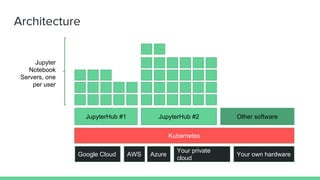
Google Cloud AWS Azure
Your private
cloud
Your own hardware
Kubernetes
JupyterHub #1 Other softwareJupyterHub #2
Jupyter
Notebook
Servers, one
per user
Architecture
Why Kubernetes?
Why not {{ your-favorite-cluster-orchestrator-here }}
Appropriate
level of
abstraction
Abstracts away most detail of
underlying cloud providers /
hardware
Declarative high level primitives that
allow you to be as high level or low
level as needed
Utilize features of underlying
hardware when you want (GPUs,
SSDs, etc) easily
Strong,
welcoming &
diverse
community
Not controlled by one single
commercial entity
Fast paced releases that
miraculously keep backwards
compatibility
Has (relatively) done well on
fostering a warm, welcoming
environment for contributors & users
Enough talk, let’s jump in!
Let’s launch ourselves a JupyterHub with z2jh!
Tutorial Goals
1. Set up your own JupyterHub on
Google Cloud (with free credits)
2. Understand resources allocated
for users (RAM, CPU, Disk)
3. Basic debugging for when
things go wrong
4. Tear everything down
Sign up for
Google Cloud
Free Trial
300$ of free credits!
Go to console.cloud.google.com
Click ‘Sign up for Free Trial’ button
Select ‘Individual’ account type,
follow instructions
Unfortunately you do need a credit
card, but it won’t be charged
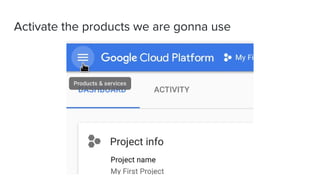
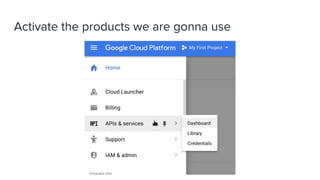
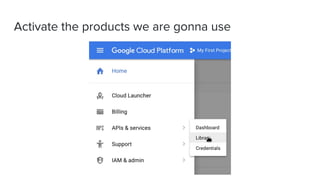
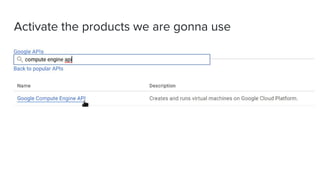
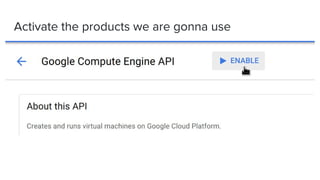
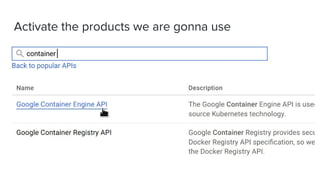
Activate the products we are gonna use
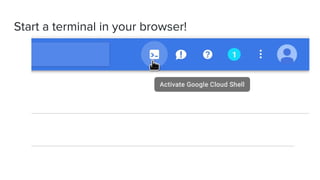
Start a terminal in your browser!
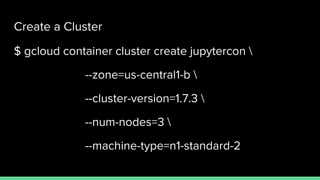
Create a Cluster
$ gcloud container cluster create jupytercon 
--zone=us-central1-b 
--cluster-version=1.7.3 
--num-nodes=3 
--machine-type=n1-standard-2
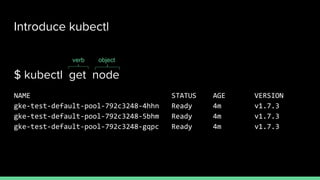
Introduce kubectl
$ kubectl get node
NAME STATUS AGE VERSION
gke-test-default-pool-792c3248-4hhn Ready 4m v1.7.3
gke-test-default-pool-792c3248-5bhm Ready 4m v1.7.3
gke-test-default-pool-792c3248-gqpc Ready 4m v1.7.3
verb object
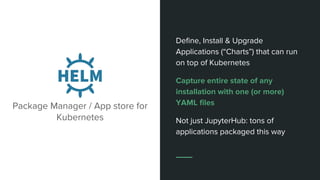
Define, Install & Upgrade
Applications (“Charts”) that can run
on top of Kubernetes
Capture entire state of any
installation with one (or more)
YAML files
Not just JupyterHub: tons of
applications packaged this way
Package Manager / App store for
Kubernetes
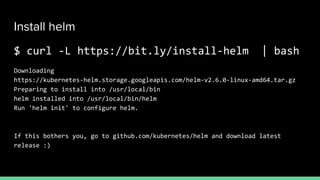
Install helm
$ curl -L https://bit.ly/install-helm | bash
Downloading
https://kubernetes-helm.storage.googleapis.com/helm-v2.6.0-linux-amd64.tar.gz
Preparing to install into /usr/local/bin
helm installed into /usr/local/bin/helm
Run 'helm init' to configure helm.
If this bothers you, go to github.com/kubernetes/helm and download latest
release :)
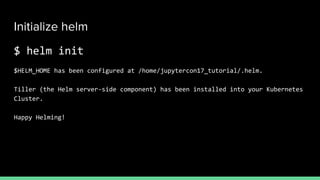
Initialize helm
$ helm init
$HELM_HOME has been configured at /home/jupytercon17_tutorial/.helm.
Tiller (the Helm server-side component) has been installed into your Kubernetes
Cluster.
Happy Helming!
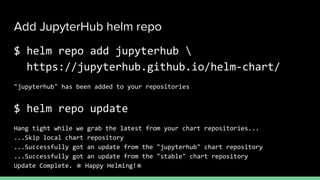
Add JupyterHub helm repo
$ helm repo add jupyterhub 
https://jupyterhub.github.io/helm-chart/
"jupyterhub" has been added to your repositories
$ helm repo update
Hang tight while we grab the latest from your chart repositories...
...Skip local chart repository
...Successfully got an update from the "jupyterhub" chart repository
...Successfully got an update from the "stable" chart repository
Update Complete. ⎈ Happy Helming!⎈
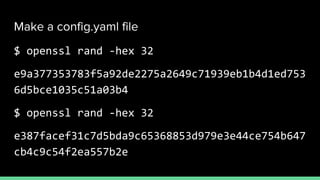
Make a config.yaml file
$ openssl rand -hex 32
e9a377353783f5a92de2275a2649c71939eb1b4d1ed753
6d5bce1035c51a03b4
$ openssl rand -hex 32
e387facef31c7d5bda9c65368853d979e3e44ce754b647
cb4c9c54f2ea557b2e
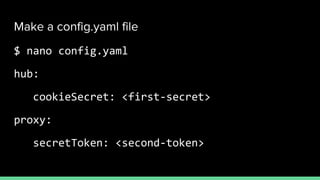
Make a config.yaml file
$ nano config.yaml
hub:
cookieSecret: <first-secret>
proxy:
secretToken: <second-token>
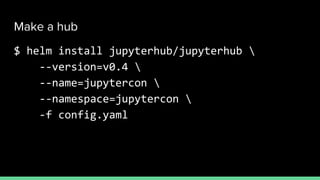
Make a hub
$ helm install jupyterhub/jupyterhub 
--version=v0.4 
--name=jupytercon 
--namespace=jupytercon 
-f config.yaml
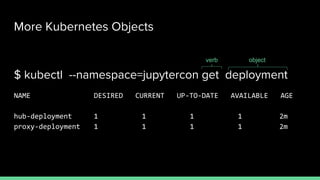
More Kubernetes Objects
$ kubectl --namespace=jupytercon get deployment
NAME DESIRED CURRENT UP-TO-DATE AVAILABLE AGE
hub-deployment 1 1 1 1 2m
proxy-deployment 1 1 1 1 2m
verb object
Live demos follow!
You can follow instructions from
https://zero-to-jupyterhub.readthedocs.io/en/latest/setup-ju
pyterhub.html#install-jupyterhub

JupyterHub + kubernetes

  • 1.
    Zero to JupyterHub ScalableJupyterHub deployments for Education, Research, Business Analytics & Unicorns
  • 2.
    What does “Scaleable” mean? Works wellfor large (several thousand active users) & small (10-50 users) installations Doesn’t need constant human operator intervention Automatically scale cloud resources (up and down) on demand
  • 3.
    Google Cloud AWSAzure Your private cloud Your own hardware Kubernetes JupyterHub #1 Other softwareJupyterHub #2 Jupyter Notebook Servers, one per user Architecture
  • 4.
    Why Kubernetes? Why not{{ your-favorite-cluster-orchestrator-here }}
  • 5.
    Appropriate level of abstraction Abstracts awaymost detail of underlying cloud providers / hardware Declarative high level primitives that allow you to be as high level or low level as needed Utilize features of underlying hardware when you want (GPUs, SSDs, etc) easily
  • 6.
    Strong, welcoming & diverse community Not controlledby one single commercial entity Fast paced releases that miraculously keep backwards compatibility Has (relatively) done well on fostering a warm, welcoming environment for contributors & users
  • 7.
    Enough talk, let’sjump in! Let’s launch ourselves a JupyterHub with z2jh!
  • 8.
    Tutorial Goals 1. Setup your own JupyterHub on Google Cloud (with free credits) 2. Understand resources allocated for users (RAM, CPU, Disk) 3. Basic debugging for when things go wrong 4. Tear everything down
  • 9.
    Sign up for GoogleCloud Free Trial 300$ of free credits! Go to console.cloud.google.com Click ‘Sign up for Free Trial’ button Select ‘Individual’ account type, follow instructions Unfortunately you do need a credit card, but it won’t be charged
  • 10.
    Activate the productswe are gonna use
  • 11.
    Activate the productswe are gonna use
  • 12.
    Activate the productswe are gonna use
  • 13.
    Activate the productswe are gonna use
  • 14.
    Activate the productswe are gonna use
  • 15.
    Activate the productswe are gonna use
  • 16.
    Start a terminalin your browser!
  • 17.
    Create a Cluster $gcloud container cluster create jupytercon --zone=us-central1-b --cluster-version=1.7.3 --num-nodes=3 --machine-type=n1-standard-2
  • 18.
    Introduce kubectl $ kubectlget node NAME STATUS AGE VERSION gke-test-default-pool-792c3248-4hhn Ready 4m v1.7.3 gke-test-default-pool-792c3248-5bhm Ready 4m v1.7.3 gke-test-default-pool-792c3248-gqpc Ready 4m v1.7.3 verb object
  • 19.
    Define, Install &Upgrade Applications (“Charts”) that can run on top of Kubernetes Capture entire state of any installation with one (or more) YAML files Not just JupyterHub: tons of applications packaged this way Package Manager / App store for Kubernetes
  • 20.
    Install helm $ curl-L https://bit.ly/install-helm | bash Downloading https://kubernetes-helm.storage.googleapis.com/helm-v2.6.0-linux-amd64.tar.gz Preparing to install into /usr/local/bin helm installed into /usr/local/bin/helm Run 'helm init' to configure helm. If this bothers you, go to github.com/kubernetes/helm and download latest release :)
  • 21.
    Initialize helm $ helminit $HELM_HOME has been configured at /home/jupytercon17_tutorial/.helm. Tiller (the Helm server-side component) has been installed into your Kubernetes Cluster. Happy Helming!
  • 22.
    Add JupyterHub helmrepo $ helm repo add jupyterhub https://jupyterhub.github.io/helm-chart/ "jupyterhub" has been added to your repositories $ helm repo update Hang tight while we grab the latest from your chart repositories... ...Skip local chart repository ...Successfully got an update from the "jupyterhub" chart repository ...Successfully got an update from the "stable" chart repository Update Complete. ⎈ Happy Helming!⎈
  • 23.
    Make a config.yamlfile $ openssl rand -hex 32 e9a377353783f5a92de2275a2649c71939eb1b4d1ed753 6d5bce1035c51a03b4 $ openssl rand -hex 32 e387facef31c7d5bda9c65368853d979e3e44ce754b647 cb4c9c54f2ea557b2e
  • 24.
    Make a config.yamlfile $ nano config.yaml hub: cookieSecret: <first-secret> proxy: secretToken: <second-token>
  • 25.
    Make a hub $helm install jupyterhub/jupyterhub --version=v0.4 --name=jupytercon --namespace=jupytercon -f config.yaml
  • 26.
    More Kubernetes Objects $kubectl --namespace=jupytercon get deployment NAME DESIRED CURRENT UP-TO-DATE AVAILABLE AGE hub-deployment 1 1 1 1 2m proxy-deployment 1 1 1 1 2m verb object
  • 27.
    Live demos follow! Youcan follow instructions from https://zero-to-jupyterhub.readthedocs.io/en/latest/setup-ju pyterhub.html#install-jupyterhub