



What is
JQuery?
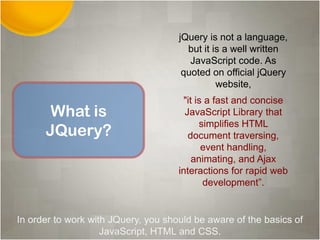
jQuery is not a language,
but it is a well written
JavaScript code. As
quoted on official jQuery
website,
"it is a fast and concise
JavaScript Library that
simplifies HTML
document traversing,
event handling,
animating, and Ajax
interactions for rapid web
development”.
In order to work with JQuery, you should be aware of the basics of
JavaScript, HTML and CSS.
Why Jquery?
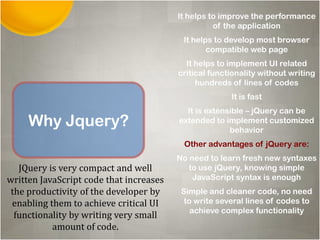
It helps to improve the performance
of the application
It helps to develop most browser
compatible web page
It helps to implement UI related
critical functionality without writing
hundreds of lines of codes
It is fast
It is extensible – jQuery can be
extended to implement customized
behavior
Other advantages of jQuery are:
No need to learn fresh new syntaxes
to use jQuery, knowing simple
JavaScript syntax is enough
Simple and cleaner code, no need
to write several lines of codes to
achieve complex functionality
JQuery is very compact and well
written JavaScript code that increases
the productivity of the developer by
enabling them to achieve critical UI
functionality by writing very small
amount of code.
How to use
JQuery?
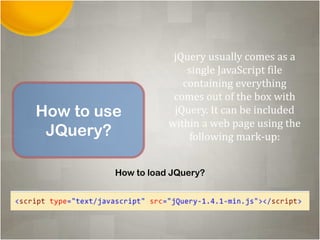
jQuery usually comes as a
single JavaScript file
containing everything
comes out of the box with
jQuery. It can be included
within a web page using the
following mark-up:
How to load JQuery?
How to execute JQuery code?
There are two ways you may want to execute jQuery codes.
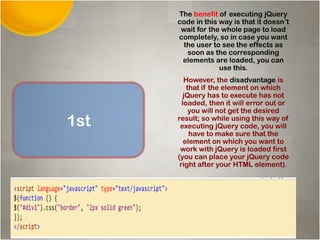
1st
The benefit of executing jQuery
code in this way is that it doesn’t
wait for the whole page to load
completely, so in case you want
the user to see the effects as
soon as the corresponding
elements are loaded, you can
use this.
However, the disadvantage is
that if the element on which
jQuery has to execute has not
loaded, then it will error out or
you will not get the desired
result; so while using this way of
executing jQuery code, you will
have to make sure that the
element on which you want to
work with jQuery is loaded first
(you can place your jQuery code
right after your HTML element).
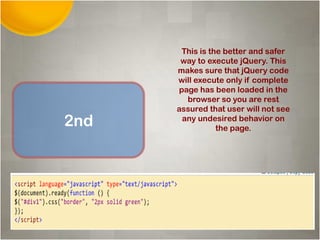
2nd
This is the better and safer
way to execute jQuery. This
makes sure that jQuery code
will execute only if complete
page has been loaded in the
browser so you are rest
assured that user will not see
any undesired behavior on
the page.
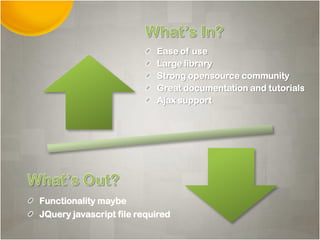
Ease of use
Large library
Strong opensource community
Great documentation and tutorials
Ajax support
Functionality maybe
JQuery javascript file required
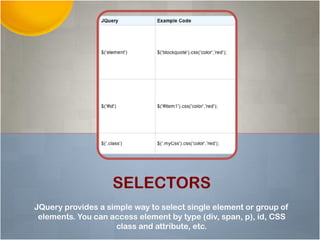
JQuery provides a simple way to select single element or group of
elements. You can access element by type (div, span, p), id, CSS
class and attribute, etc.
SELECTORS
SLIDING EFFECT
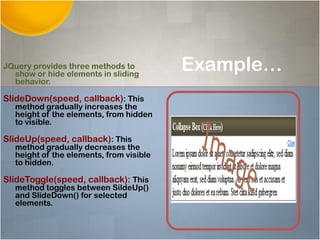
Example…JQuery provides three methods to
show or hide elements in sliding
behavior.
SlideDown(speed, callback): This
method gradually increases the
height of the elements, from hidden
to visible.
SlideUp(speed, callback): This
method gradually decreases the
height of the elements, from visible
to hidden.
SlideToggle(speed, callback): This
method toggles between SildeUp()
and SlideDown() for selected
elements.
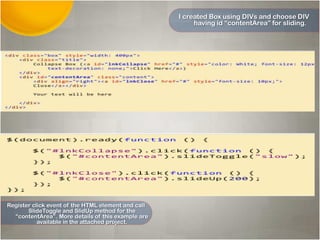
I created Box using DIVs and choose DIV
having id “contentArea” for sliding.
Register click event of the HTML element and call
SlideToggle and SlidUp method for the
“contentArea”. More details of this example are
available in the attached project.
Fade Effect
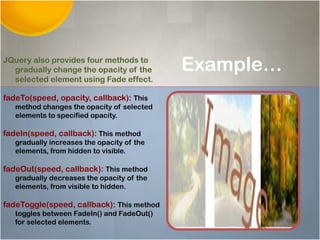
Example…JQuery also provides four methods to
gradually change the opacity of the
selected element using Fade effect.
fadeTo(speed, opacity, callback): This
method changes the opacity of selected
elements to specified opacity.
fadeIn(speed, callback): This method
gradually increases the opacity of the
elements, from hidden to visible.
fadeOut(speed, callback): This method
gradually decreases the opacity of the
elements, from visible to hidden.
fadeToggle(speed, callback): This method
toggles between FadeIn() and FadeOut()
for selected elements.
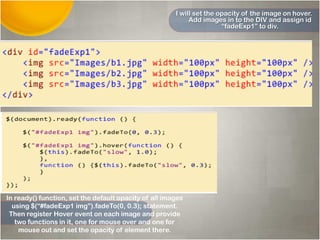
I will set the opacity of the image on hover.
Add images in to the DIV and assign id
“fadeExp1” to div.
In ready() function, set the default opacity of all images
using $(“#fadeExp1 img”).fadeTo(0, 0.3); statement.
Then register Hover event on each image and provide
two functions in it, one for mouse over and one for
mouse out and set the opacity of element there.
Animation Effect
Example…
JQuery also provides an easy way to
animate element. the syntax of
animate method is .animate(
properties, [duration], [easing],
[complete]).
properties: A map of CSS
properties, which changes
during animation
duration: String or number
to determine the duration of
the animation
easing: The name of easing
function to use for the
transition
complete: A function to call
on the complete of
animation
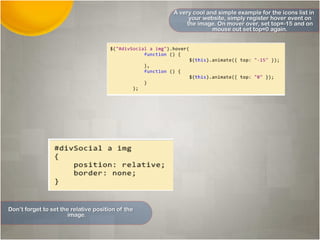
A very cool and simple example for the icons list in
your website, simply register hover event on
the image. On mover over, set top=-15 and on
mouse out set top=0 again.
Don’t forget to set the relative position of the
image.
F
I
n
Mr. Ardee Aram
Moiselle Sarah C. Roxas
CPE 406
PROFESSIONAL ELECTIVE 1

JQUERY TUTORIALS

  • 3.
    What is JQuery? jQuery isnot a language, but it is a well written JavaScript code. As quoted on official jQuery website, "it is a fast and concise JavaScript Library that simplifies HTML document traversing, event handling, animating, and Ajax interactions for rapid web development”. In order to work with JQuery, you should be aware of the basics of JavaScript, HTML and CSS.
  • 4.
    Why Jquery? It helpsto improve the performance of the application It helps to develop most browser compatible web page It helps to implement UI related critical functionality without writing hundreds of lines of codes It is fast It is extensible – jQuery can be extended to implement customized behavior Other advantages of jQuery are: No need to learn fresh new syntaxes to use jQuery, knowing simple JavaScript syntax is enough Simple and cleaner code, no need to write several lines of codes to achieve complex functionality JQuery is very compact and well written JavaScript code that increases the productivity of the developer by enabling them to achieve critical UI functionality by writing very small amount of code.
  • 5.
    How to use JQuery? jQueryusually comes as a single JavaScript file containing everything comes out of the box with jQuery. It can be included within a web page using the following mark-up: How to load JQuery?
  • 6.
    How to executeJQuery code? There are two ways you may want to execute jQuery codes.
  • 7.
    1st The benefit ofexecuting jQuery code in this way is that it doesn’t wait for the whole page to load completely, so in case you want the user to see the effects as soon as the corresponding elements are loaded, you can use this. However, the disadvantage is that if the element on which jQuery has to execute has not loaded, then it will error out or you will not get the desired result; so while using this way of executing jQuery code, you will have to make sure that the element on which you want to work with jQuery is loaded first (you can place your jQuery code right after your HTML element).
  • 8.
    2nd This is thebetter and safer way to execute jQuery. This makes sure that jQuery code will execute only if complete page has been loaded in the browser so you are rest assured that user will not see any undesired behavior on the page.
  • 9.
    Ease of use Largelibrary Strong opensource community Great documentation and tutorials Ajax support Functionality maybe JQuery javascript file required
  • 10.
    JQuery provides asimple way to select single element or group of elements. You can access element by type (div, span, p), id, CSS class and attribute, etc. SELECTORS
  • 11.
  • 12.
    Example…JQuery provides threemethods to show or hide elements in sliding behavior. SlideDown(speed, callback): This method gradually increases the height of the elements, from hidden to visible. SlideUp(speed, callback): This method gradually decreases the height of the elements, from visible to hidden. SlideToggle(speed, callback): This method toggles between SildeUp() and SlideDown() for selected elements.
  • 13.
    I created Boxusing DIVs and choose DIV having id “contentArea” for sliding. Register click event of the HTML element and call SlideToggle and SlidUp method for the “contentArea”. More details of this example are available in the attached project.
  • 14.
  • 15.
    Example…JQuery also providesfour methods to gradually change the opacity of the selected element using Fade effect. fadeTo(speed, opacity, callback): This method changes the opacity of selected elements to specified opacity. fadeIn(speed, callback): This method gradually increases the opacity of the elements, from hidden to visible. fadeOut(speed, callback): This method gradually decreases the opacity of the elements, from visible to hidden. fadeToggle(speed, callback): This method toggles between FadeIn() and FadeOut() for selected elements.
  • 16.
    I will setthe opacity of the image on hover. Add images in to the DIV and assign id “fadeExp1” to div. In ready() function, set the default opacity of all images using $(“#fadeExp1 img”).fadeTo(0, 0.3); statement. Then register Hover event on each image and provide two functions in it, one for mouse over and one for mouse out and set the opacity of element there.
  • 17.
  • 18.
    Example… JQuery also providesan easy way to animate element. the syntax of animate method is .animate( properties, [duration], [easing], [complete]). properties: A map of CSS properties, which changes during animation duration: String or number to determine the duration of the animation easing: The name of easing function to use for the transition complete: A function to call on the complete of animation
  • 19.
    A very cooland simple example for the icons list in your website, simply register hover event on the image. On mover over, set top=-15 and on mouse out set top=0 again. Don’t forget to set the relative position of the image.
  • 20.
    F I n Mr. Ardee Aram MoiselleSarah C. Roxas CPE 406 PROFESSIONAL ELECTIVE 1

Editor's Notes

  • #2 Your introductory or title slide should convey the overall “feeling” and focus of your presentation. For instance, I typically present about small-business trends, new business ideas, growth opportunities or other positive trends. In this sample presentation, I’m talking about new business ideas, so I used a sun graphic in this slide template to convey a positive feeling. Personalize this slide template with your company’s logo. To add a logo to all slides, place it on the Slide Master. To access the Slide Master, on the Themes tab of the Ribbon, click Edit Master and then click Slide Master.Disclaimer: You understand that Microsoft does not endorse or control the content provided in the following presentation. Microsoft provides this content to you for informational purposes only; it is not intended to be relied upon as business or financial advice. Microsoft does not guarantee or otherwise warrant the accuracy or validity of this information and encourages you to consult with a business or financial professional as appropriate.RIEVA LESONSKY Founder and President, GrowBiz Media RievaLesonsky is founder and president of GrowBiz Media, a content and consulting company specializing in covering small businesses and entrepreneurship. A nationally known speaker and authority on entrepreneurship, Lesonsky has been covering America’s entrepreneurs for nearly 30 years. Before co-founding GrowBiz Media, Lesonsky was Editorial Director of Entrepreneur Magazine.
  • #3 I like to speak spontaneously, so I use PowerPoint as an outline to keep me on track. It’s best to keep your PowerPoint text brief, simply reinforcing key points you will talk about at more length. You can use this slide template to convey a series of steps or related points in a short format.
  • #10 A plain old bulleted list can get boring, so use graphics to liven it up. An image that conveys what you’re saying in visual format (like this diagram) can reinforce your ideas in the audience’s mind.
  • #11 I like to use an off-balance layout to keep things from getting too symmetrical. Customize this slide template graphics of your choice, including photos, clip art, your logo or illustrations. Good photos really help cement an idea in the audience’s mind. This slide is animated to display an appropriate image as you introduce each business type.
  • #13 I often use color and graphics to add excitement to a presentation. Just because it’s about business doesn’t mean it has to be staid—you need movement, energy and color, as in this slide template. Use this slide template to illustrate relationships or processes. In this slide, I used it to show how demographic trends create a new consumer group and what products that group purchases. You could also use it to illustrate your sales cycle or relationships among departments in your company.
  • #14 Insert a chart in this slide template to illustrate your topic visually, then use bullets or color to call out key findings or points from your chart in a brief format.
  • #15 This slide template can show steps, stages or how various elements or factors combine to make one key result or goal. For instance, you could show how various departments in your business work together to make the sale, how key customer groups will all purchase your product, or how different funding sources will provide the total you need. This slide template also makes an excellent concluding slide for your presentation, enabling you to graphically sum up your key points into one final whole.