Introduction
 JavaScript is the most popular programming language in the
world.
 JavaScript is the programming language of the Web.
 Was designed to add interactivity to HTML pages.
 All modern HTML pages are using JavaScript.
 One of scripting language.
 Supported by most the browsers
IE, Firefox, Chrome, Opera, Safari and Netscape Navigator.
Introduction
 Embedded directly in HTML pages.
 Java and JavaScript are two different languages.
 Java can stand on its own.
 JavaScript must be placed inside an HTML document to
function.
 JavaScript is Case-sensitive.
Purpose
 JavaScript Can Change HTML Content
 JavaScript Can Change HTML Attributes
 JavaScript Can Change HTML Styles (CSS)
 JavaScript Can Validate Data
 JavaScript Can display different pop-ups
Javascript in HTML
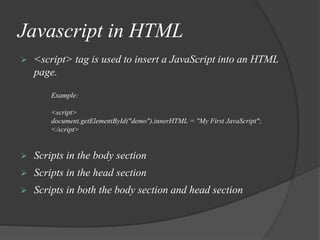
 <script> tag is used to insert a JavaScript into an HTML
page.
Example:
<script>
document.getElementById("demo").innerHTML = "My First JavaScript";
</script>
 Scripts in the body section
 Scripts in the head section
 Scripts in both the body section and head section
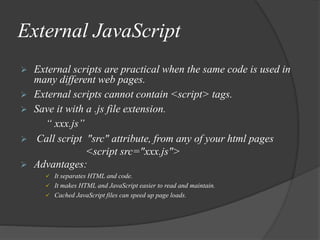
External JavaScript
 External scripts are practical when the same code is used in
many different web pages.
 External scripts cannot contain <script> tags.
 Save it with a .js file extension.
“ xxx.js”
 Call script "src" attribute, from any of your html pages
<script src="xxx.js">
 Advantages:
 It separates HTML and code.
 It makes HTML and JavaScript easier to read and maintain.
 Cached JavaScript files can speed up page loads.
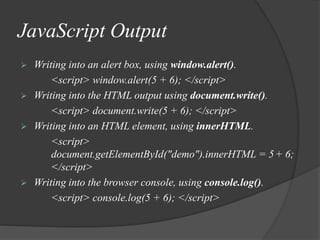
JavaScript Output
 Writing into an alert box, using window.alert().
<script> window.alert(5 + 6); </script>
 Writing into the HTML output using document.write().
<script> document.write(5 + 6); </script>
 Writing into an HTML element, using innerHTML.
<script>
document.getElementById("demo").innerHTML = 5+ 6;
</script>
 Writing into the browser console, using console.log().
<script> console.log(5 + 6); </script>
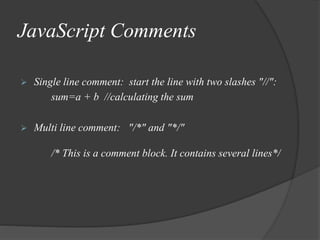
JavaScript Comments
 Single line comment: start the line with two slashes "//":
sum=a + b //calculating the sum
 Multi line comment: "/*" and "*/"
/* This is a comment block. It contains several lines*/
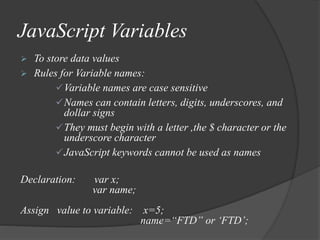
JavaScript Variables
 To store data values
 Rules for Variable names:
Variable names are case sensitive
Names can contain letters, digits, underscores, and
dollar signs
They must begin with a letter ,the $ character or the
underscore character
JavaScript keywords cannot be used as names
Declaration: var x;
var name;
Assign value to variable: x=5;
name=“FTD” or ‘FTD’;
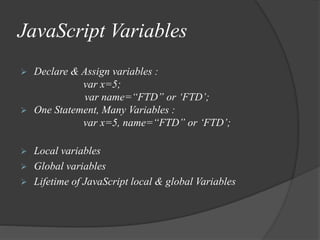
JavaScript Variables
 Declare & Assign variables :
var x=5;
var name=“FTD” or ‘FTD’;
 One Statement, Many Variables :
var x=5, name=“FTD” or ‘FTD’;
 Local variables
 Global variables
 Lifetime of JavaScript local & global Variables
JavaScript Data Types
 JavaScript variables can hold many data types.
 String, Number, Boolean, Array, Object and more.
 Used to be able to operate on variables.
 Examples:
var length = 16; // Number
var lastName = "Johnson"; // String
var cars = [“Skoda", "Volvo", "BMW"]; // Array
var x = {firstName:"John", lastName:"Doe"}; // Object
var z= true; //Boolean
JavaScript Data Types
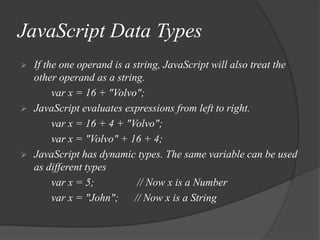
 If the one operand is a string, JavaScript will also treat the
other operand as a string.
var x = 16 + "Volvo";
 JavaScript evaluates expressions from left to right.
var x = 16 + 4 + "Volvo";
var x = "Volvo" + 16 + 4;
 JavaScript has dynamic types. The same variable can be used
as different types
var x = 5; // Now x is a Number
var x = "John"; // Now x is a String
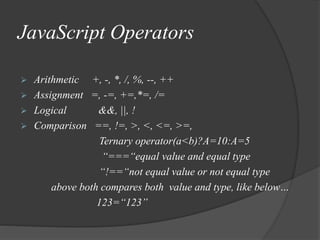
JavaScript Operators
 Arithmetic +, -, *, /, %, --, ++
 Assignment =, -=, +=,*=, /=
 Logical &&, ||, !
 Comparison ==, !=, >, <, <=, >=,
Ternary operator(a<b)?A=10:A=5
“===“equal value and equal type
“!==“not equal value or not equal type
above both compares both value and type, like below…
123=“123”
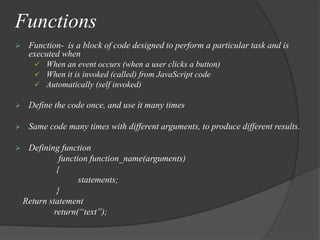
Functions
 Function- is a block of code designed to perform a particular task and is
executed when
 When an event occurs (when a user clicks a button)
 When it is invoked (called) from JavaScript code
 Automatically (self invoked)
 Define the code once, and use it many times
 Same code many times with different arguments, to produce different results.
 Defining function
function function_name(arguments)
{
statements;
}
Return statement
return(“text”);
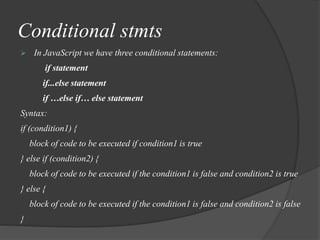
Conditional stmts
 In JavaScript we have three conditional statements:
if statement
if...else statement
if …else if… else statement
Syntax:
if (condition1) {
block of code to be executed if condition1 is true
} else if (condition2) {
block of code to be executed if the condition1 is false and condition2 is true
} else {
block of code to be executed if the condition1 is false and condition2 is false
}
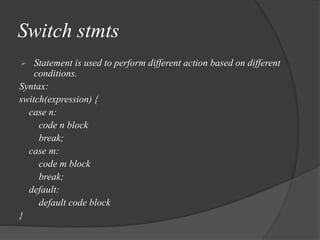
Switch stmts
 Statement is used to perform different action based on different
conditions.
Syntax:
switch(expression) {
case n:
code n block
break;
case m:
code m block
break;
default:
default code block
}
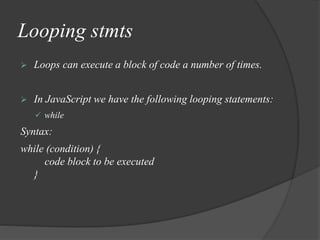
Looping stmts
 Loops can execute a block of code a number of times.
 In JavaScript we have the following looping statements:
 while
Syntax:
while (condition) {
code block to be executed
}
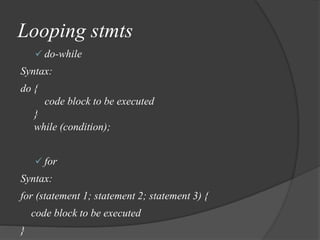
Looping stmts
 do-while
Syntax:
do {
code block to be executed
}
while (condition);
 for
Syntax:
for (statement 1; statement 2; statement 3) {
code block to be executed
}
Arrays
 Arrays are used to store multiple values in a single variable.
 Array creation :
1. var team=new Array();
team[0]=“FTD";
team[1]=“Mercury";
2. var team=new Array(“FTD",“Mercury");
3. var team=[“ftd",“Mercury“];
 Access an Array: we can access array elements by using name of
the array and index value.
 Array methods : length, sort and etc …
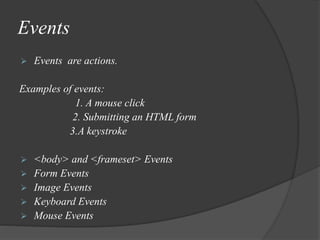
Events
 Events are actions.
Examples of events:
1. A mouse click
2. Submitting an HTML form
3.A keystroke
 <body> and <frameset> Events
 Form Events
 Image Events
 Keyboard Events
 Mouse Events
Methods
 Methods:
onLoad and onUnload
onFocus and onChange
onSubmit
onMouseOver
onclick
Popup Boxes
 We can create three kinds of popup boxes:
 Alert Box: information is displayed to the user.
Syntax: alert("sometext");
 Confirm box: user to verify or accept something.
Syntax: confirm("sometext")
 Prompt Box: user to input a value before entering a
page.
Syntax: prompt("sometext","defaultvalue")
Form validations
 JavaScript can be used to validate input data in HTML
forms before sending off the content to a server.
 verify Required Fields using JavaScript
 verify Email using JavaScript
References
 Java Script
 http://www.w3schools.com/JS/default.asp
 http://www.tutorialspoint.com/javascript/javascript_q
uick_guide.htm
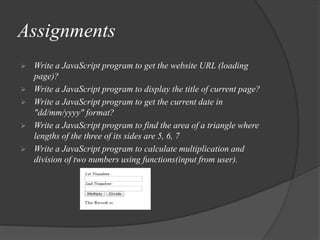
Assignments
 Write a JavaScript program to get the website URL (loading
page)?
 Write a JavaScript program to display the title of current page?
 Write a JavaScript program to get the current date in
"dd/mm/yyyy" format?
 Write a JavaScript program to find the area of a triangle where
lengths of the three of its sides are 5, 6, 7
 Write a JavaScript program to calculate multiplication and
division of two numbers using functions(input from user).
Assignments
Assignment #1: Add field validations for HTML assignment #1 (Create an Employee Information Page)
The following fields should be mandatory, appropriate error message should display if the field is left blank or entered with
invalid data.
• Name field : Accept only alphabets and Max 20 characters.
• DOB (DD/MM/YYYY)
• What do you do Section
• Team Members text area
• Mailing Address
• Permanent Address
• Email ID field
Submit button : On clicking the ‘Submit’ button
• Display message: “Thank you. Your details are submitted successfully”, if valid data is entered in all the fields
• Display field level error message for each field, if invalid data is entered or filed is left blank.
Clear button: On clicking the ‘Clear’ button
• Entered data should be cleared for all the fields.
Assignment #2: Add field validations for HTML assignment #2 (Create a webpage as below with
your information)
The following fields should be mandatory, appropriate error message should display if the field is left blank or entered
with invalid data.
• Name: Accept only alphabets and Max 40 characters.
• Email: Accept alphabet, special characters & numbers, characters should present before and after @ symbol,
end with .com/.org/.in
• Gender ( radio button)
• County( Drop down list)
• Get back to me via: Email , Phone, Personally ( Check boxes)
• Comments: Text area of a fixed size.
Submit button : On clicking the ‘Submit’ button
• Display message: “Thank you. Your details are submitted successfully”, if valid data is entered in all the fields
• Display field level error message for each field, if invalid data is entered or filed is left blank.

Javascript

  • 2.
    Introduction  JavaScript isthe most popular programming language in the world.  JavaScript is the programming language of the Web.  Was designed to add interactivity to HTML pages.  All modern HTML pages are using JavaScript.  One of scripting language.  Supported by most the browsers IE, Firefox, Chrome, Opera, Safari and Netscape Navigator.
  • 3.
    Introduction  Embedded directlyin HTML pages.  Java and JavaScript are two different languages.  Java can stand on its own.  JavaScript must be placed inside an HTML document to function.  JavaScript is Case-sensitive.
  • 4.
    Purpose  JavaScript CanChange HTML Content  JavaScript Can Change HTML Attributes  JavaScript Can Change HTML Styles (CSS)  JavaScript Can Validate Data  JavaScript Can display different pop-ups
  • 5.
    Javascript in HTML <script> tag is used to insert a JavaScript into an HTML page. Example: <script> document.getElementById("demo").innerHTML = "My First JavaScript"; </script>  Scripts in the body section  Scripts in the head section  Scripts in both the body section and head section
  • 6.
    External JavaScript  Externalscripts are practical when the same code is used in many different web pages.  External scripts cannot contain <script> tags.  Save it with a .js file extension. “ xxx.js”  Call script "src" attribute, from any of your html pages <script src="xxx.js">  Advantages:  It separates HTML and code.  It makes HTML and JavaScript easier to read and maintain.  Cached JavaScript files can speed up page loads.
  • 7.
    JavaScript Output  Writinginto an alert box, using window.alert(). <script> window.alert(5 + 6); </script>  Writing into the HTML output using document.write(). <script> document.write(5 + 6); </script>  Writing into an HTML element, using innerHTML. <script> document.getElementById("demo").innerHTML = 5+ 6; </script>  Writing into the browser console, using console.log(). <script> console.log(5 + 6); </script>
  • 8.
    JavaScript Comments  Singleline comment: start the line with two slashes "//": sum=a + b //calculating the sum  Multi line comment: "/*" and "*/" /* This is a comment block. It contains several lines*/
  • 9.
    JavaScript Variables  Tostore data values  Rules for Variable names: Variable names are case sensitive Names can contain letters, digits, underscores, and dollar signs They must begin with a letter ,the $ character or the underscore character JavaScript keywords cannot be used as names Declaration: var x; var name; Assign value to variable: x=5; name=“FTD” or ‘FTD’;
  • 10.
    JavaScript Variables  Declare& Assign variables : var x=5; var name=“FTD” or ‘FTD’;  One Statement, Many Variables : var x=5, name=“FTD” or ‘FTD’;  Local variables  Global variables  Lifetime of JavaScript local & global Variables
  • 11.
    JavaScript Data Types JavaScript variables can hold many data types.  String, Number, Boolean, Array, Object and more.  Used to be able to operate on variables.  Examples: var length = 16; // Number var lastName = "Johnson"; // String var cars = [“Skoda", "Volvo", "BMW"]; // Array var x = {firstName:"John", lastName:"Doe"}; // Object var z= true; //Boolean
  • 12.
    JavaScript Data Types If the one operand is a string, JavaScript will also treat the other operand as a string. var x = 16 + "Volvo";  JavaScript evaluates expressions from left to right. var x = 16 + 4 + "Volvo"; var x = "Volvo" + 16 + 4;  JavaScript has dynamic types. The same variable can be used as different types var x = 5; // Now x is a Number var x = "John"; // Now x is a String
  • 13.
    JavaScript Operators  Arithmetic+, -, *, /, %, --, ++  Assignment =, -=, +=,*=, /=  Logical &&, ||, !  Comparison ==, !=, >, <, <=, >=, Ternary operator(a<b)?A=10:A=5 “===“equal value and equal type “!==“not equal value or not equal type above both compares both value and type, like below… 123=“123”
  • 14.
    Functions  Function- isa block of code designed to perform a particular task and is executed when  When an event occurs (when a user clicks a button)  When it is invoked (called) from JavaScript code  Automatically (self invoked)  Define the code once, and use it many times  Same code many times with different arguments, to produce different results.  Defining function function function_name(arguments) { statements; } Return statement return(“text”);
  • 15.
    Conditional stmts  InJavaScript we have three conditional statements: if statement if...else statement if …else if… else statement Syntax: if (condition1) { block of code to be executed if condition1 is true } else if (condition2) { block of code to be executed if the condition1 is false and condition2 is true } else { block of code to be executed if the condition1 is false and condition2 is false }
  • 16.
    Switch stmts  Statementis used to perform different action based on different conditions. Syntax: switch(expression) { case n: code n block break; case m: code m block break; default: default code block }
  • 17.
    Looping stmts  Loopscan execute a block of code a number of times.  In JavaScript we have the following looping statements:  while Syntax: while (condition) { code block to be executed }
  • 18.
    Looping stmts  do-while Syntax: do{ code block to be executed } while (condition);  for Syntax: for (statement 1; statement 2; statement 3) { code block to be executed }
  • 19.
    Arrays  Arrays areused to store multiple values in a single variable.  Array creation : 1. var team=new Array(); team[0]=“FTD"; team[1]=“Mercury"; 2. var team=new Array(“FTD",“Mercury"); 3. var team=[“ftd",“Mercury“];  Access an Array: we can access array elements by using name of the array and index value.  Array methods : length, sort and etc …
  • 20.
    Events  Events areactions. Examples of events: 1. A mouse click 2. Submitting an HTML form 3.A keystroke  <body> and <frameset> Events  Form Events  Image Events  Keyboard Events  Mouse Events
  • 21.
    Methods  Methods: onLoad andonUnload onFocus and onChange onSubmit onMouseOver onclick
  • 22.
    Popup Boxes  Wecan create three kinds of popup boxes:  Alert Box: information is displayed to the user. Syntax: alert("sometext");  Confirm box: user to verify or accept something. Syntax: confirm("sometext")  Prompt Box: user to input a value before entering a page. Syntax: prompt("sometext","defaultvalue")
  • 23.
    Form validations  JavaScriptcan be used to validate input data in HTML forms before sending off the content to a server.  verify Required Fields using JavaScript  verify Email using JavaScript
  • 24.
    References  Java Script http://www.w3schools.com/JS/default.asp  http://www.tutorialspoint.com/javascript/javascript_q uick_guide.htm
  • 26.
    Assignments  Write aJavaScript program to get the website URL (loading page)?  Write a JavaScript program to display the title of current page?  Write a JavaScript program to get the current date in "dd/mm/yyyy" format?  Write a JavaScript program to find the area of a triangle where lengths of the three of its sides are 5, 6, 7  Write a JavaScript program to calculate multiplication and division of two numbers using functions(input from user).
  • 27.
    Assignments Assignment #1: Addfield validations for HTML assignment #1 (Create an Employee Information Page) The following fields should be mandatory, appropriate error message should display if the field is left blank or entered with invalid data. • Name field : Accept only alphabets and Max 20 characters. • DOB (DD/MM/YYYY) • What do you do Section • Team Members text area • Mailing Address • Permanent Address • Email ID field Submit button : On clicking the ‘Submit’ button • Display message: “Thank you. Your details are submitted successfully”, if valid data is entered in all the fields • Display field level error message for each field, if invalid data is entered or filed is left blank. Clear button: On clicking the ‘Clear’ button • Entered data should be cleared for all the fields.
  • 28.
    Assignment #2: Addfield validations for HTML assignment #2 (Create a webpage as below with your information) The following fields should be mandatory, appropriate error message should display if the field is left blank or entered with invalid data. • Name: Accept only alphabets and Max 40 characters. • Email: Accept alphabet, special characters & numbers, characters should present before and after @ symbol, end with .com/.org/.in • Gender ( radio button) • County( Drop down list) • Get back to me via: Email , Phone, Personally ( Check boxes) • Comments: Text area of a fixed size. Submit button : On clicking the ‘Submit’ button • Display message: “Thank you. Your details are submitted successfully”, if valid data is entered in all the fields • Display field level error message for each field, if invalid data is entered or filed is left blank.