<1> ♋ Bero
JOptionPane
Message, input,
and confirm dialogs
<2> ♋ Bero
 JOptionPane can be used to create different types of dialogs:
 Firstly…
import javax.swing.JOptionPane;
JOptionPane
Message dialog
Input dialog
Confirm dialog
<3> ♋ Bero
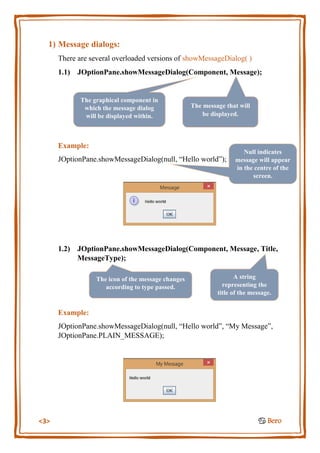
1) Message dialogs:
There are several overloaded versions of showMessageDialog( )
1.1) JOptionPane.showMessageDialog(Component, Message);
Example:
JOptionPane.showMessageDialog(null, “Hello world”);
1.2) JOptionPane.showMessageDialog(Component, Message, Title,
MessageType);
Example:
JOptionPane.showMessageDialog(null, “Hello world”, “My Message”,
JOptionPane.PLAIN_MESSAGE);
The graphical component in
which the message dialog
will be displayed within.
The message that will
be displayed.
Null indicates
message will appear
in the centre of the
screen.
A string
representing the
title of the message.
The icon of the message changes
according to type passed.
<4> ♋ Bero
 Message icon Types:
Example:
JOptionPane.showMessageDialog(null, “Hello world”, “My Message”,
JOptionPane.WARNING_MESSAGE);
The numeric value of the icon can be passed as a parameter as well.
Example:
JOptionPane.showMessageDialog(null, “Hello world”, “My Message”, 0);
<5> ♋ Bero
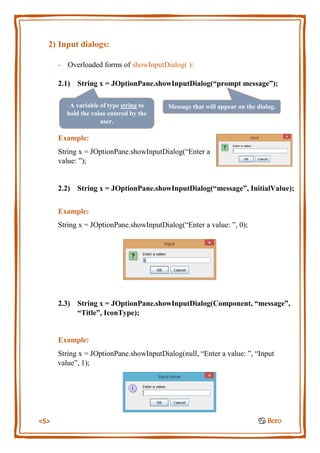
2) Input dialogs:
- Overloaded forms of showInputDialog( ):
2.1) String x = JOptionPane.showInputDialog(“prompt message”);
Example:
String x = JOptionPane.showInputDialog(“Enter a
value: ”);
2.2) String x = JOptionPane.showInputDialog(“message”, InitialValue);
Example:
String x = JOptionPane.showInputDialog(“Enter a value: ”, 0);
2.3) String x = JOptionPane.showInputDialog(Component, “message”,
“Title”, IconType);
Example:
String x = JOptionPane.showInputDialog(null, “Enter a value: ”, “Input
value”, 1);
A variable of type string to
hold the value entered by the
user.
Message that will appear on the dialog.
<6> ♋ Bero
3) Confirm dialogs:
- Overloaded forms of showConfirmDialog( ):
3.1) int y = JOptionPane.showConfirmDialog(Component, “Message”);
Example:
int y = JOptionPane.showConfirmDialog(null, “Are you sure?”);
3.2) int y = JOptionPane.showConfirmDialog(Component, “Message”,
“Title”, OptionType);
Example:
int y = JOptionPane.showConfirmDialog(null, “Are you sure?”,
“Confirm”, JOptionPane.YES_NO_OPTION);
Holds a value depending on the user’s
choice (yes (0), no (1), or cancel (2)).
 Buttons appearing on dialog:
- YES_NO_CANCEL_OPTION
- YES_NO_OPTION
- YES_OPTION

Java JOptionPane tutorial - Message, input, and confirm dialogs

  • 1.
    <1> ♋ Bero JOptionPane Message,input, and confirm dialogs
  • 2.
    <2> ♋ Bero JOptionPane can be used to create different types of dialogs:  Firstly… import javax.swing.JOptionPane; JOptionPane Message dialog Input dialog Confirm dialog
  • 3.
    <3> ♋ Bero 1)Message dialogs: There are several overloaded versions of showMessageDialog( ) 1.1) JOptionPane.showMessageDialog(Component, Message); Example: JOptionPane.showMessageDialog(null, “Hello world”); 1.2) JOptionPane.showMessageDialog(Component, Message, Title, MessageType); Example: JOptionPane.showMessageDialog(null, “Hello world”, “My Message”, JOptionPane.PLAIN_MESSAGE); The graphical component in which the message dialog will be displayed within. The message that will be displayed. Null indicates message will appear in the centre of the screen. A string representing the title of the message. The icon of the message changes according to type passed.
  • 4.
    <4> ♋ Bero Message icon Types: Example: JOptionPane.showMessageDialog(null, “Hello world”, “My Message”, JOptionPane.WARNING_MESSAGE); The numeric value of the icon can be passed as a parameter as well. Example: JOptionPane.showMessageDialog(null, “Hello world”, “My Message”, 0);
  • 5.
    <5> ♋ Bero 2)Input dialogs: - Overloaded forms of showInputDialog( ): 2.1) String x = JOptionPane.showInputDialog(“prompt message”); Example: String x = JOptionPane.showInputDialog(“Enter a value: ”); 2.2) String x = JOptionPane.showInputDialog(“message”, InitialValue); Example: String x = JOptionPane.showInputDialog(“Enter a value: ”, 0); 2.3) String x = JOptionPane.showInputDialog(Component, “message”, “Title”, IconType); Example: String x = JOptionPane.showInputDialog(null, “Enter a value: ”, “Input value”, 1); A variable of type string to hold the value entered by the user. Message that will appear on the dialog.
  • 6.
    <6> ♋ Bero 3)Confirm dialogs: - Overloaded forms of showConfirmDialog( ): 3.1) int y = JOptionPane.showConfirmDialog(Component, “Message”); Example: int y = JOptionPane.showConfirmDialog(null, “Are you sure?”); 3.2) int y = JOptionPane.showConfirmDialog(Component, “Message”, “Title”, OptionType); Example: int y = JOptionPane.showConfirmDialog(null, “Are you sure?”, “Confirm”, JOptionPane.YES_NO_OPTION); Holds a value depending on the user’s choice (yes (0), no (1), or cancel (2)).  Buttons appearing on dialog: - YES_NO_CANCEL_OPTION - YES_NO_OPTION - YES_OPTION