What is JDBC?
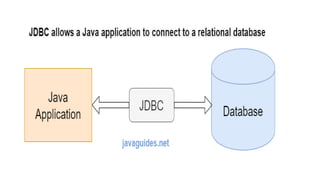
•Java Database Connectivity (JDBC) is an API that provides
industry-standard and database-independent connectivity
between Java applications and relational databases.
• JDBC allows Java applications to perform database
operations like querying, updating, and retrieving data from
relational databases, spreadsheets, and flat files.
4.
Key Classes andInterfaces
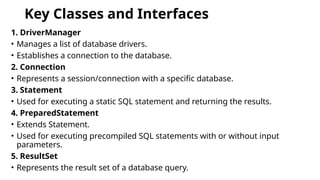
1. DriverManager
• Manages a list of database drivers.
• Establishes a connection to the database.
2. Connection
• Represents a session/connection with a specific database.
3. Statement
• Used for executing a static SQL statement and returning the results.
4. PreparedStatement
• Extends Statement.
• Used for executing precompiled SQL statements with or without input
parameters.
5. ResultSet
• Represents the result set of a database query.
5.
Steps for JDBCConnection and Executing Statements
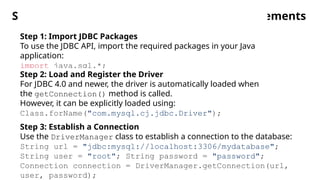
Step 1: Import JDBC Packages
To use the JDBC API, import the required packages in your Java
application:
import java.sql.*;
Step 2: Load and Register the Driver
For JDBC 4.0 and newer, the driver is automatically loaded when
the getConnection() method is called.
However, it can be explicitly loaded using:
Class.forName("com.mysql.cj.jdbc.Driver");
Step 3: Establish a Connection
Use the DriverManager class to establish a connection to the database:
String url = "jdbc:mysql://localhost:3306/mydatabase";
String user = "root"; String password = "password";
Connection connection = DriverManager.getConnection(url,
user, password);
6.
Steps for JDBCConnection and
Executing Statements
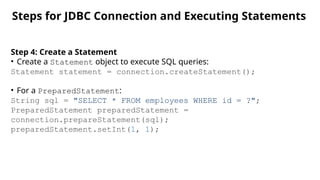
Step 4: Create a Statement
• Create a Statement object to execute SQL queries:
Statement statement = connection.createStatement();
• For a PreparedStatement:
String sql = "SELECT * FROM employees WHERE id = ?";
PreparedStatement preparedStatement =
connection.prepareStatement(sql);
preparedStatement.setInt(1, 1);
Steps for JDBC Connection and Executing Statements
7.
Steps for JDBCConnection and Executing Statements
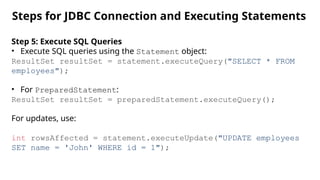
Step 5: Execute SQL Queries
• Execute SQL queries using the Statement object:
ResultSet resultSet = statement.executeQuery("SELECT * FROM
employees");
• For PreparedStatement:
ResultSet resultSet = preparedStatement.executeQuery();
For updates, use:
int rowsAffected = statement.executeUpdate("UPDATE employees
SET name = 'John' WHERE id = 1");
8.
Steps for JDBCConnection and Executing Statements
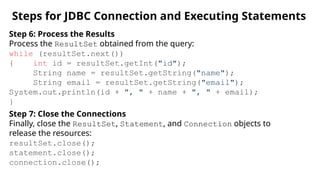
Step 6: Process the Results
Process the ResultSet obtained from the query:
while (resultSet.next())
{ int id = resultSet.getInt("id");
String name = resultSet.getString("name");
String email = resultSet.getString("email");
System.out.println(id + ", " + name + ", " + email);
}
Step 7: Close the Connections
Finally, close the ResultSet, Statement, and Connection objects to
release the resources:
resultSet.close();
statement.close();
connection.close();



![Jdbc[1]](https://cdn.slidesharecdn.com/ss_thumbnails/jdbc1-100429052525-phpapp02-thumbnail.jpg?width=640&height=640&fit=bounds)


