Introduction to
Version Control
Agenda
◎ Overview of Version Control
◎ Getting started with Git
◎ Basic Git daily commands
◎ Advanced Git commands
◎ Git-related files
◎ Resolve conflicts
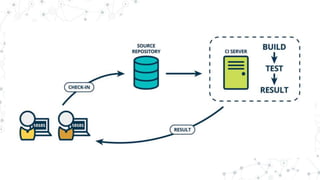
◎ Version Control and DevOps
◎ Productivity tools
2
1.
Overview of Version
Control
3
Version Control System
◎ A software that records changes made to a set of files
over time, allowing specific history to be recalled and
restored as necessary.
4
5
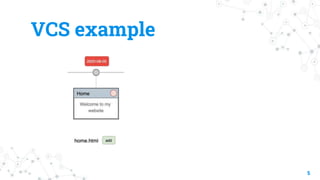
VCS example
6
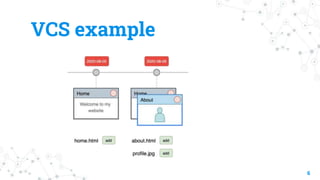
VCS example
7
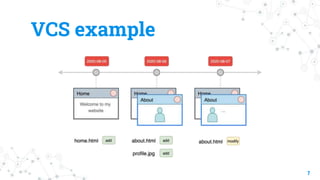
VCS example
1. 1
Use cases
8
Backups
◎ Accidentally delete the file without backups.
9
Backups
◎ Accidentally delete the file without backups.
◎ Version Control makes backups, we can recover.
10
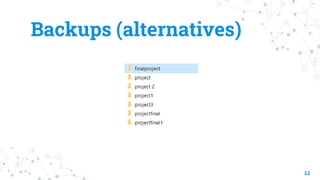
Backups (alternatives)
◎ Manually backup files with timestamp
◎ Online file hosting websites
11
Backups (alternatives)
12
History and Changes
◎ No clues what / why changes has been made.
13
History and Changes
◎ No clues what / why changes has been made.
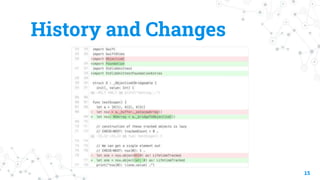
◎ Version Control keeps a history line-by-line with a
description.
14
History and Changes
15
Experiment
◎ In case of running some experiment, you need to
create a new project since it will affect the existing
main project.
16
Experiment
◎ In case of running some experiment, you need to
create a new project since it will affect the existing
main project.
◎ Version Control allows us to create experiment
sections.
17
Collaboration
◎ Unable to collaborate since the file belongs to one
person at a time.
18
Collaboration
◎ Unable to collaborate since the file belongs to one
person at a time.
◎ Version Controls allows us to work at the same file, at
the same time.
19
Version Control offers ...
◎ Backups
◎ History records
◎ Changes
◎ Experiment
◎ Collaboration
20
1. 2
Types of Version
Control System
21
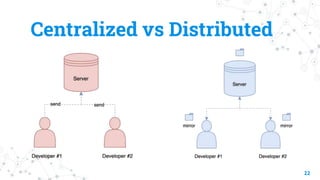
Centralized vs Distributed
22
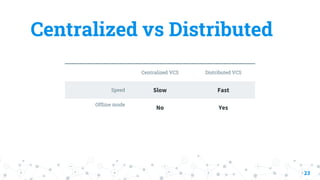
Centralized VCS Distributed VCS
Speed Slow Fast
Offline mode
No Yes
23
Centralized vs Distributed
2.
Getting started with
Git
24
Git gives you ...
◎ Distributed version control system
◎ Speed
◎ Free and Open-source
◎ Staging area
25
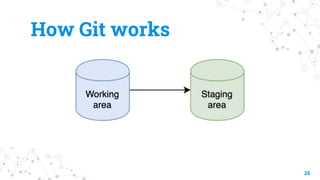
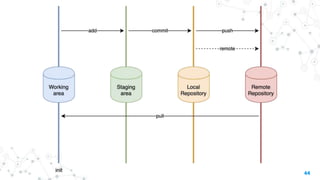
How Git works
26
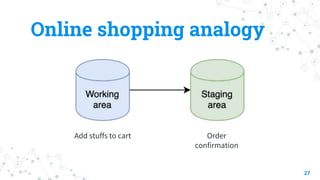
Online shopping analogy
27
Add stuffs to cart Order
confirmation
Git hosting providers
◎ GitHub
◎ GitLab
◎ Bitbucket
◎ Azure DevOps
28
3.
Basic Git daily
commands
29
Initializing
git init
30
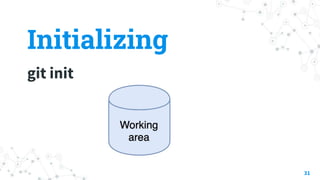
Create an empty Git repository.
Initializing
git init
31
Staging
git add <file>
32
Indicate which files and their states are to be included in
the next commit.
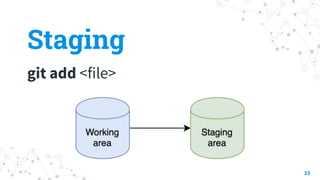
Staging
git add <file>
33
Status
git status
34
See the status of the repository.
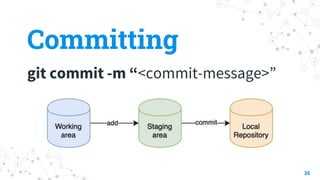
Committing
git commit -m “<commit-message>”
35
Place copies (snapshots) of working directory back into the
repository as a new version.
Committing
git commit -m “<commit-message>”
36
Syncing
git remote [add | set-url] <remote> <url>
37
Sync the local repository to the remote repository.
Syncing
git remote [add | set-url] <remote> <url>
38
Pushing
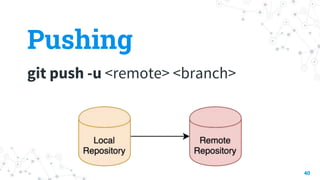
git push -u <remote> <branch>
39
Push changes up to a branch of a remote repository.
Pushing
git push -u <remote> <branch>
40
Pulling
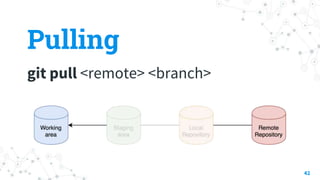
git pull <remote> <branch>
41
Pull changes from (a branch of) a remote repository.
Pulling
git pull <remote> <branch>
42
Cloning
git clone <remote-url>
43
Get your own local copy of an existing repository.
44
4.
Advanced Git
commands
45
4. 1
View history
46
Logging
git log <object>
47
Review the history of committed snapshots.
Difference
git diff <path> <path>
48
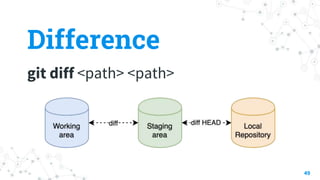
Explore differences between the workspace, the staging
area, and commits.
Difference
git diff <path> <path>
49
Tagging
git tag <tag-name>
50
Another way to track the history of a repository via certain
milestone commits.
4. 2
Recovery
51
Checkout
git checkout “<commit>”
52
Explore the state associated with a specific commit.
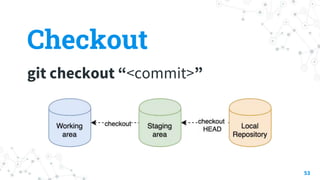
Checkout
git checkout “<commit>”
53
Reset
git reset [--soft | --hard] <commit>
54
Return to a previous state, effectively erasing subsequent
commits.
Reset
git reset [--soft | --hard] <commit>
55
Revert
git revert <commit>
56
Generate a new commit that reverses the changes
introduced by a commit.
4. 3
Branching
57
Branching
◎ Isolating environment from main development line
without impact.
◎ For example, developing new features without
affecting production-quality code.
◎ Encouraging experiment purposes.
58
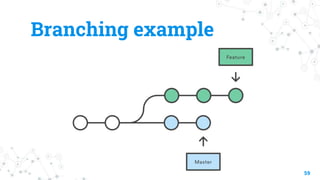
Branching example
59
Branching
git branch <branch-name>
60
Take edits in the project in a new direction to allow for
modifications that will not affect the main branch.
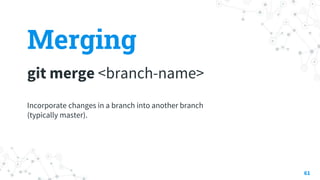
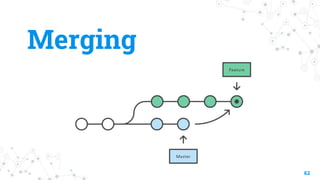
Merging
git merge <branch-name>
61
Incorporate changes in a branch into another branch
(typically master).
Merging
62
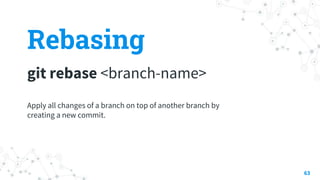
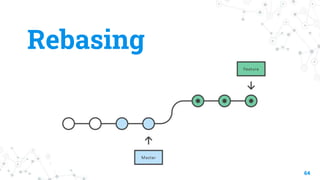
Rebasing
git rebase <branch-name>
63
Apply all changes of a branch on top of another branch by
creating a new commit.
Rebasing
64
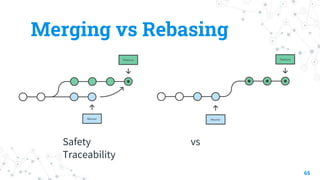
Merging vs Rebasing
Safety vs
Traceability
65
Stashing
git stash [pop | apply | list | clear]
66
Record the current state of the working directory and the
index, but want to go back to a clean working directory.
5.
Git-related files
67
.gitignore
68
Ignore files that we don't want to get staged and
committed.
.gitconfig
69
Git configuration file contains a number of variables that
affect the Git commands' behavior.
6.
Resolving conflicts
70
7.
Git and DevOps
71
73
8.
Productivity tools
74
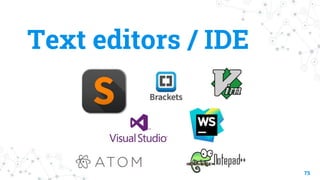
Text editors / IDE
75
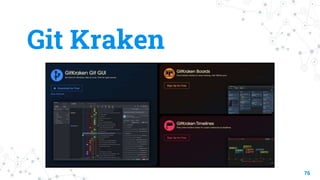
Git Kraken
76
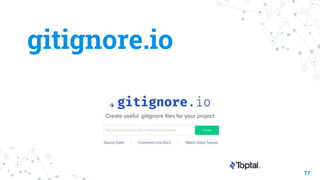
gitignore.io
77
Thanks!
Contact us:
Raksit Mantanacharu
raksit.mantanacharu1@exxonmobil.com
78

Introduction to Version Control

Editor's Notes

  • #6 https://www.educba.com/git-alternatives/
  • #7 https://www.educba.com/git-alternatives/
  • #8 https://www.educba.com/git-alternatives/
  • #13 https://medium.com/redefyn/why-git-and-github-165de17e7c9d
  • #60 https://www.atlassian.com/git/tutorials/merging-vs-rebasing
  • #63 https://www.atlassian.com/git/tutorials/merging-vs-rebasing
  • #65 https://www.atlassian.com/git/tutorials/merging-vs-rebasing
  • #66 https://www.atlassian.com/git/tutorials/merging-vs-rebasing
  • #74 https://medium.com/@pakin/git-%E0%B8%97%E0%B8%B3%E0%B9%84%E0%B8%A1-commit-message-%E0%B8%96%E0%B8%B6%E0%B8%87%E0%B8%AA%E0%B8%B3%E0%B8%84%E0%B8%B1%E0%B8%8D-accdf82cbd82