git 
KALANAMITH
VCS 
 Version control is a system that records changes to a file or set of 
files over time so that you can recall specific versions later.
Types of VCS 
 Local Version Control Systems 
 Centralized Version Control Systems 
 Distributed Version Control Systems
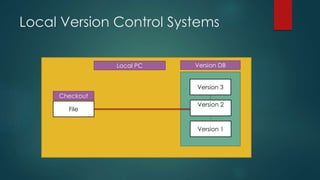
Local Version Control Systems 
File 
Version 3 
Version 2 
Version 1 
Checkout 
Local PC Version DB
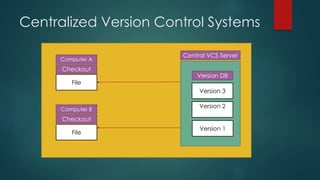
Centralized Version Control Systems 
Computer A 
File 
Central VCS Server 
Version 3 
Version 2 
Version 1 
Checkout 
Version DB 
Computer B 
Checkout 
File
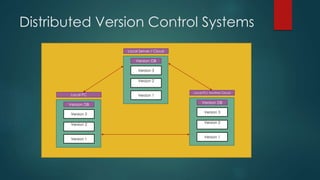
Distributed Version Control Systems 
Local Server / Cloud 
Version DB 
Version 3 
Version 2 
Version 1 
Local PC/ Another Cloud 
Version DB 
Version 3 
Version 2 
Version 1 
Local PC 
Version DB 
Version 3 
Version 2 
Version 1
git 
Linus Torvalds
Features 
 Speed 
 Simple design 
 Strong support for non-linear development (thousands of parallel 
branches) 
 Fully distributed 
 Able to handle large projects like the Linux kernel efficiently (speed 
and data size)
Getting Started 
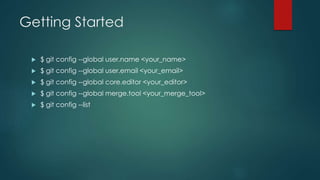
 $ git config --global user.name <your_name> 
 $ git config --global user.email <your_email> 
 $ git config --global core.editor <your_editor> 
 $ git config --global merge.tool <your_merge_tool> 
 $ git config --list
Getting Started 
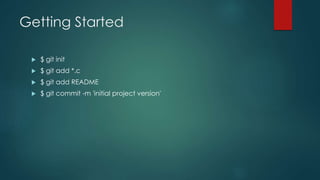
 $ git init 
 $ git add *.c 
 $ git add README 
 $ git commit -m 'initial project version'
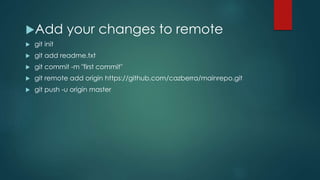
Add your changes to remote 
 git init 
 git add readme.txt 
 git commit -m "first commit" 
 git remote add origin https://github.com/cazberra/mainrepo.git 
 git push -u origin master
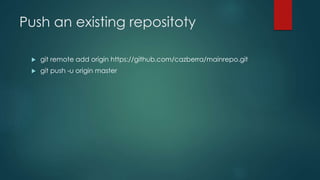
Push an existing repositoty 
 git remote add origin https://github.com/cazberra/mainrepo.git 
 git push -u origin master
Cloning an Existing Repository 
 git clone [url] 
 git clone https://github.com/cazberra/mainrepo.git
git clone and git remote 
 They're basically the same, except clone will setup additional remote tracking 
branches 
 Git clone sets up a new repository similar to the one you are cloning 
 Adds the remote repository from which you cloned as the remote with the 
name origin 
 Just doing the last part of setting up a remote is "adding a remote repository" 
and doing the whole thing and getting a new clone is cloning. Note that when 
you add a remote repository, you already have a repository. When you clone, 
you do not already have the repository. 
 A repository can have multiple remotes added to it via git remote add. Usually 
these are remote repositories of the same repo's clones on peers and servers 
with which you push and pull.
 $ git remote –v 
 git remote add [shortname] [url] 
 $ git remote add pb git://github.com/paulboone/ticgit.git 
 $ git fetch [remote-name]
Tags 
 Git has the ability to tag specific points in history as being important. 
 To list available tags 
 $ git tag 
 Search for tags 
 git tag -l 'v1.4.2.*‘ 
 Create a Tag 
 $ git tag -a v1.4 -m 'my version 1.4' 
 Light weight tag 
 git tag v1.4-lw
Pushing Tags 
 $ git push origin v1.5 
 git push origin --tags
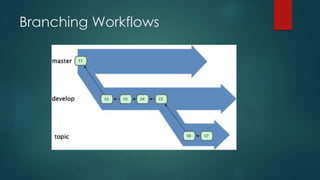
Branching 
 $ git branch <branch_name> 
 $ git checkout <branch_name> 
 Short Hand 
 $git checkout –b <branch_name> 
 Other useful commands 
 $ git branch –v 
 git branch –merged 
 git branch --no-merged
Branching Workflows
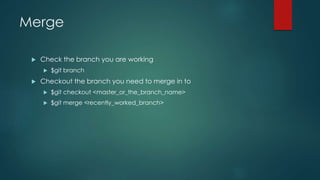
Merge 
 Check the branch you are working 
 $git branch 
 Checkout the branch you need to merge in to 
 $git checkout <master_or_the_branch_name> 
 $git merge <recently_worked_branch>
Remote Branches 
 $git push –u origin <remote_branch_name>
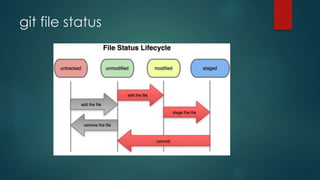
git file status
 $ git status 
 $ git add <file_name> 
 $git add –I 
 $git commit –m “Message” 
 $git commit –m “<task_id> <description>”
Do not do this! 
 $ git commit -a -m “not a best practice”
Removing Files 
 $ git rm <file_name> 
 Keep the file in your working tree but remove it from your staging 
area. In other words, you may want to keep the file on your hard 
drive but not have Git track it anymore. 
 $ git rm - -cached <file_name>
Viewing the Commit History 
 $ git log 
 -p, which shows the diff introduced in each commit. You can also 
use -2, which limits the output to only the last two entries 
 $ git log -p -2 
 $ git log --since=2.weeks 
 gitk
Undoing Things 
 $ git commit -m 'initial commit' 
 $ git add forgotten_file 
 $ git commit - -amend 
 $ git checkout <file_name>
How do you roll back (reset) a git 
repository to a particular commit? 
 git reset --hard <tag/branch/commit id> 
 git reset without the --hard option resets the commit history, but not 
the files. With the --hard option the files in working tree are also reset. 
 If you wish to commit that state, so remote repository also points to 
rolled back commit do: git push <reponame> -f 
 If nothing goes right try --force at the end of your git push command
Best Practices and Anti Patterns 
“bad practices in red” 
 GIT CHAMPIONS 
 Let Git Champions spread DVCS culture throughout your organization 
by starting with a small, experimental project, and eventually spreading 
to common code. 
 Try to bring everyone up to speed in one fell swoop. 
 CLI FIRST 
 Use the command line first — no tools 
 Use GUI and integrated tools first ‘to save time‘ (and learn nothing 
about DVCS)
 BLESSED REPOSITORY 
 Use Git with a shared but ‘blessed‘ repository 
 Allow developers to publish their repository in a many-to-many pull 
exchange fashion 
 CODE REVIEWS 
 Implement code reviews for distributed teams 
 Distributed development without code review
Self Study 
 Use git with Bitbucket 
 Use git with github 
 Use git with Open Shift 
 Use git with AppHarbour 
 ssh and git
Reference 
 http://git-scm.com/

Git

  • 1.
  • 2.
    VCS  Versioncontrol is a system that records changes to a file or set of files over time so that you can recall specific versions later.
  • 3.
    Types of VCS  Local Version Control Systems  Centralized Version Control Systems  Distributed Version Control Systems
  • 4.
    Local Version ControlSystems File Version 3 Version 2 Version 1 Checkout Local PC Version DB
  • 5.
    Centralized Version ControlSystems Computer A File Central VCS Server Version 3 Version 2 Version 1 Checkout Version DB Computer B Checkout File
  • 6.
    Distributed Version ControlSystems Local Server / Cloud Version DB Version 3 Version 2 Version 1 Local PC/ Another Cloud Version DB Version 3 Version 2 Version 1 Local PC Version DB Version 3 Version 2 Version 1
  • 7.
  • 8.
    Features  Speed  Simple design  Strong support for non-linear development (thousands of parallel branches)  Fully distributed  Able to handle large projects like the Linux kernel efficiently (speed and data size)
  • 9.
    Getting Started $ git config --global user.name <your_name>  $ git config --global user.email <your_email>  $ git config --global core.editor <your_editor>  $ git config --global merge.tool <your_merge_tool>  $ git config --list
  • 10.
    Getting Started $ git init  $ git add *.c  $ git add README  $ git commit -m 'initial project version'
  • 11.
    Add your changesto remote  git init  git add readme.txt  git commit -m "first commit"  git remote add origin https://github.com/cazberra/mainrepo.git  git push -u origin master
  • 12.
    Push an existingrepositoty  git remote add origin https://github.com/cazberra/mainrepo.git  git push -u origin master
  • 13.
    Cloning an ExistingRepository  git clone [url]  git clone https://github.com/cazberra/mainrepo.git
  • 14.
    git clone andgit remote  They're basically the same, except clone will setup additional remote tracking branches  Git clone sets up a new repository similar to the one you are cloning  Adds the remote repository from which you cloned as the remote with the name origin  Just doing the last part of setting up a remote is "adding a remote repository" and doing the whole thing and getting a new clone is cloning. Note that when you add a remote repository, you already have a repository. When you clone, you do not already have the repository.  A repository can have multiple remotes added to it via git remote add. Usually these are remote repositories of the same repo's clones on peers and servers with which you push and pull.
  • 15.
     $ gitremote –v  git remote add [shortname] [url]  $ git remote add pb git://github.com/paulboone/ticgit.git  $ git fetch [remote-name]
  • 16.
    Tags  Githas the ability to tag specific points in history as being important.  To list available tags  $ git tag  Search for tags  git tag -l 'v1.4.2.*‘  Create a Tag  $ git tag -a v1.4 -m 'my version 1.4'  Light weight tag  git tag v1.4-lw
  • 17.
    Pushing Tags $ git push origin v1.5  git push origin --tags
  • 18.
    Branching  $git branch <branch_name>  $ git checkout <branch_name>  Short Hand  $git checkout –b <branch_name>  Other useful commands  $ git branch –v  git branch –merged  git branch --no-merged
  • 19.
  • 20.
    Merge  Checkthe branch you are working  $git branch  Checkout the branch you need to merge in to  $git checkout <master_or_the_branch_name>  $git merge <recently_worked_branch>
  • 21.
    Remote Branches $git push –u origin <remote_branch_name>
  • 22.
  • 23.
     $ gitstatus  $ git add <file_name>  $git add –I  $git commit –m “Message”  $git commit –m “<task_id> <description>”
  • 24.
    Do not dothis!  $ git commit -a -m “not a best practice”
  • 25.
    Removing Files $ git rm <file_name>  Keep the file in your working tree but remove it from your staging area. In other words, you may want to keep the file on your hard drive but not have Git track it anymore.  $ git rm - -cached <file_name>
  • 26.
    Viewing the CommitHistory  $ git log  -p, which shows the diff introduced in each commit. You can also use -2, which limits the output to only the last two entries  $ git log -p -2  $ git log --since=2.weeks  gitk
  • 27.
    Undoing Things $ git commit -m 'initial commit'  $ git add forgotten_file  $ git commit - -amend  $ git checkout <file_name>
  • 28.
    How do youroll back (reset) a git repository to a particular commit?  git reset --hard <tag/branch/commit id>  git reset without the --hard option resets the commit history, but not the files. With the --hard option the files in working tree are also reset.  If you wish to commit that state, so remote repository also points to rolled back commit do: git push <reponame> -f  If nothing goes right try --force at the end of your git push command
  • 29.
    Best Practices andAnti Patterns “bad practices in red”  GIT CHAMPIONS  Let Git Champions spread DVCS culture throughout your organization by starting with a small, experimental project, and eventually spreading to common code.  Try to bring everyone up to speed in one fell swoop.  CLI FIRST  Use the command line first — no tools  Use GUI and integrated tools first ‘to save time‘ (and learn nothing about DVCS)
  • 30.
     BLESSED REPOSITORY  Use Git with a shared but ‘blessed‘ repository  Allow developers to publish their repository in a many-to-many pull exchange fashion  CODE REVIEWS  Implement code reviews for distributed teams  Distributed development without code review
  • 31.
    Self Study Use git with Bitbucket  Use git with github  Use git with Open Shift  Use git with AppHarbour  ssh and git
  • 32.