Download free for 30 days
Sign in
Upload
Language (EN)
Support
Business
Mobile
Social Media
Marketing
Technology
Art & Photos
Career
Design
Education
Presentations & Public Speaking
Government & Nonprofit
Healthcare
Internet
Law
Leadership & Management
Automotive
Engineering
Software
Recruiting & HR
Retail
Sales
Services
Science
Small Business & Entrepreneurship
Food
Environment
Economy & Finance
Data & Analytics
Investor Relations
Sports
Spiritual
News & Politics
Travel
Self Improvement
Real Estate
Entertainment & Humor
Health & Medicine
Devices & Hardware
Lifestyle
Change Language
Language
English
Español
Português
Français
Deutsche
Cancel
Save
EN
Uploaded by
dabydcatahanibmcom
PPTX, PDF
5 views
Installing Python in Visual Studio Code
Installing Python in Visual Studio Code
Software
◦
Read more
0
Save
Share
Embed
Embed presentation
Download
Download to read offline
1
/ 10
2
/ 10
3
/ 10
4
/ 10
5
/ 10
6
/ 10
7
/ 10
8
/ 10
9
/ 10
10
/ 10
More Related Content
PDF
Python Installation Guide (1).pdf
by
SudhirSubramanya2
PDF
Introduction to Python Unit -1 Part .pdf
by
VaibhavKumarSinghkal
PDF
Python Installation Guide (1).pdf
by
SudhirSubramanya2
PPTX
VSCode_Installation_Guideeeeeeeeeeeeeee.pptx
by
ravirajghodake98
PPTX
Introduction to Python and Basic Syntax.pptx
by
GevitaChinnaiah
PPTX
PyCourse - Self driving python course
by
Eran Shlomo
PDF
python-handbook.pdf
by
RaviKumar76265
PPT
python-ppt.ppt
by
MohammadSamiuddin10
Python Installation Guide (1).pdf
by
SudhirSubramanya2
Introduction to Python Unit -1 Part .pdf
by
VaibhavKumarSinghkal
Python Installation Guide (1).pdf
by
SudhirSubramanya2
VSCode_Installation_Guideeeeeeeeeeeeeee.pptx
by
ravirajghodake98
Introduction to Python and Basic Syntax.pptx
by
GevitaChinnaiah
PyCourse - Self driving python course
by
Eran Shlomo
python-handbook.pdf
by
RaviKumar76265
python-ppt.ppt
by
MohammadSamiuddin10
Similar to Installing Python in Visual Studio Code
PPT
python-ppt.ppt
by
MohammadSamiuddin10
PDF
Getting started with python
by
TechieHours
PPTX
L2 - Install Python.pptx
by
EloAOgardo
PPTX
Welcome to Python Programming.pptx
by
UmmeSalmaM1
PPTX
Python Installation for Installation .pptx
by
rhionaabuendo3
PDF
python programming chapter 1 for beginner level
by
VexoWetu
PPTX
Python Course
by
Sourabh Sahu
PPTX
Python presentation for engineering .pptx
by
artindua
PPTX
Session-1_Introduction to Python.pptx
by
WajidAliHashmi2
PDF
Fundamentals of python
by
BijuAugustian
PDF
The Python for beginners. This is an advance computer language.
by
sachin chaurasia
PPTX
Introduction to Python Programming language.pptx
by
BharathYusha1
DOCX
Python Notes for mca i year students osmania university.docx
by
Ramakrishna Reddy Bijjam
PPTX
Python programming fundamentals for class 12
by
SivagamiSubramanian5
DOCX
A Introduction Book of python For Beginners.docx
by
kumarrabinderkumar77
PDF
Python in a Nutshell, 4th Edition Alex Martelli
by
mcannkerri
PPTX
a9855c3532e13484ee6a39ba30218896d7c0d863-1676987272842.pptx
by
cigogag569
PPTX
Python tutorial for beginners - Tib academy
by
TIB Academy
PDF
Introduction to Python.pdf
by
Rahul Mogal
PDF
Introduction to python 3
by
Youhei Sakurai
python-ppt.ppt
by
MohammadSamiuddin10
Getting started with python
by
TechieHours
L2 - Install Python.pptx
by
EloAOgardo
Welcome to Python Programming.pptx
by
UmmeSalmaM1
Python Installation for Installation .pptx
by
rhionaabuendo3
python programming chapter 1 for beginner level
by
VexoWetu
Python Course
by
Sourabh Sahu
Python presentation for engineering .pptx
by
artindua
Session-1_Introduction to Python.pptx
by
WajidAliHashmi2
Fundamentals of python
by
BijuAugustian
The Python for beginners. This is an advance computer language.
by
sachin chaurasia
Introduction to Python Programming language.pptx
by
BharathYusha1
Python Notes for mca i year students osmania university.docx
by
Ramakrishna Reddy Bijjam
Python programming fundamentals for class 12
by
SivagamiSubramanian5
A Introduction Book of python For Beginners.docx
by
kumarrabinderkumar77
Python in a Nutshell, 4th Edition Alex Martelli
by
mcannkerri
a9855c3532e13484ee6a39ba30218896d7c0d863-1676987272842.pptx
by
cigogag569
Python tutorial for beginners - Tib academy
by
TIB Academy
Introduction to Python.pdf
by
Rahul Mogal
Introduction to python 3
by
Youhei Sakurai
More from dabydcatahanibmcom
PPTX
Week 2 - Arrays in Data Structure and Algorithm Subject
by
dabydcatahanibmcom
PPTX
Structures and Pointers in C Programming
by
dabydcatahanibmcom
PPTX
Abstract Data Types Presentation for Computer Science Students
by
dabydcatahanibmcom
PPTX
Spring Boot and Bean Configuration in Java Programming
by
dabydcatahanibmcom
PPTX
Simple Spring Application in Java Programming
by
dabydcatahanibmcom
PPTX
Introduction to Java Programming for CS Students
by
dabydcatahanibmcom
PPTX
Data Access with Spring in Java Programming
by
dabydcatahanibmcom
Week 2 - Arrays in Data Structure and Algorithm Subject
by
dabydcatahanibmcom
Structures and Pointers in C Programming
by
dabydcatahanibmcom
Abstract Data Types Presentation for Computer Science Students
by
dabydcatahanibmcom
Spring Boot and Bean Configuration in Java Programming
by
dabydcatahanibmcom
Simple Spring Application in Java Programming
by
dabydcatahanibmcom
Introduction to Java Programming for CS Students
by
dabydcatahanibmcom
Data Access with Spring in Java Programming
by
dabydcatahanibmcom
Recently uploaded
PPTX
Data Skills for Business Analysts: What You Need to Succeed
by
Scott W. Ambler
PPTX
40m_wAIred_DigitalPlatformRabobank_10022026.pptx
by
SimonedeGijt
PPTX
Chapter Two Logic and Language - Copy.pptx
by
GediyonBelay
PDF
Taxi App UIUX Design for Seamless Ride Booking
by
V3CUBE TECHNOLABS
PDF
The Ultimate Guide to Real Estate Tokenization Platforms
by
Daniel Smith
PDF
Ecommerce Website Development Services - Web Panel Solutions.pdf
by
WEB PANEL SOLUTIONS
PDF
Prompt Engineering vs Content Engineering vs RAG.pdf
by
Vineet Sharma
PDF
Doctor On Call App Development for Digital Healthcare.
by
V3CUBE TECHNOLABS
PDF
Lost Android Phone Recovery_ Steps That Work Fast.pdf
by
Isabella Reed
PPTX
Best Digital Marketing Company in Lucknow
by
digitallearning9277
PPTX
‘Analyzing Application Logs Using AI’ Webinar
by
Tier1 app
PDF
Jira, Powered by Enterprise-Grade Intelligence from NeoroTalks.pdf
by
Neoro Talks
PDF
openstack_operations_slides_version1.3_pp.pdf
by
ssuser47d511
PDF
Building Smarter AI: 16 RAG Approaches for Accuracy, Memory, and Reasoning Vi...
by
Vineet Sharma
PDF
Build Modern Applications with Amazon Aurora DSQL- AWS User Group Bonn 2026
by
Vadym Kazulkin
PDF
Versnel innovatie met GitHub Enterprise - Rick Smit GitHub
by
Delta-N
PPTX
How CFD Simulations Support Sustainable Data Center Design Optimization
by
Web Synergies
PDF
Ready, Set, REST! Introducing MySQL's Built-In REST Service
by
Miguel Araújo
PDF
eresource Xcel ERP for Maunfacturing - Best Manufacturing ERP for SME
by
eresource Infotech Pvt.Ltd
PDF
Ontwikkel sneller en veiliger met GitHub Copilot
by
Delta-N
Data Skills for Business Analysts: What You Need to Succeed
by
Scott W. Ambler
40m_wAIred_DigitalPlatformRabobank_10022026.pptx
by
SimonedeGijt
Chapter Two Logic and Language - Copy.pptx
by
GediyonBelay
Taxi App UIUX Design for Seamless Ride Booking
by
V3CUBE TECHNOLABS
The Ultimate Guide to Real Estate Tokenization Platforms
by
Daniel Smith
Ecommerce Website Development Services - Web Panel Solutions.pdf
by
WEB PANEL SOLUTIONS
Prompt Engineering vs Content Engineering vs RAG.pdf
by
Vineet Sharma
Doctor On Call App Development for Digital Healthcare.
by
V3CUBE TECHNOLABS
Lost Android Phone Recovery_ Steps That Work Fast.pdf
by
Isabella Reed
Best Digital Marketing Company in Lucknow
by
digitallearning9277
‘Analyzing Application Logs Using AI’ Webinar
by
Tier1 app
Jira, Powered by Enterprise-Grade Intelligence from NeoroTalks.pdf
by
Neoro Talks
openstack_operations_slides_version1.3_pp.pdf
by
ssuser47d511
Building Smarter AI: 16 RAG Approaches for Accuracy, Memory, and Reasoning Vi...
by
Vineet Sharma
Build Modern Applications with Amazon Aurora DSQL- AWS User Group Bonn 2026
by
Vadym Kazulkin
Versnel innovatie met GitHub Enterprise - Rick Smit GitHub
by
Delta-N
How CFD Simulations Support Sustainable Data Center Design Optimization
by
Web Synergies
Ready, Set, REST! Introducing MySQL's Built-In REST Service
by
Miguel Araújo
eresource Xcel ERP for Maunfacturing - Best Manufacturing ERP for SME
by
eresource Infotech Pvt.Ltd
Ontwikkel sneller en veiliger met GitHub Copilot
by
Delta-N
Installing Python in Visual Studio Code
1.
Installing Python in
Visual Studio Code A step-by-step beginner guide Prepared for students
2.
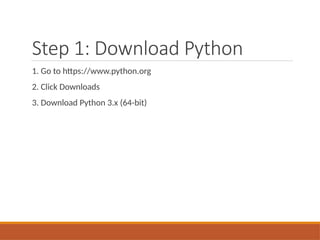
Step 1: Download
Python 1. Go to https://www.python.org 2. Click Downloads 3. Download Python 3.x (64-bit)
3.
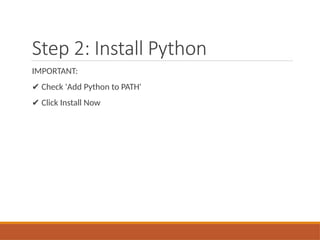
Step 2: Install
Python IMPORTANT: ✔ Check 'Add Python to PATH' ✔ Click Install Now
4.
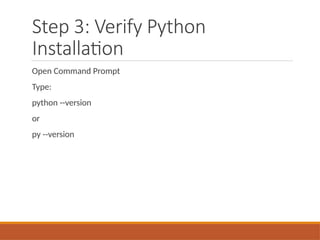
Step 3: Verify
Python Installation Open Command Prompt Type: python --version or py --version
5.
Step 4: Install
Visual Studio Code Go to https://code.visualstudio.com Download and install VS Code
6.
Step 5: Install
Python Extension Open VS Code Go to Extensions Search 'Python' Install Python by Microsoft
7.
Step 6: Select
Python Interpreter Press Ctrl + Shift + P Type: Python: Select Interpreter Choose Python 3.x
8.
Step 7: Test
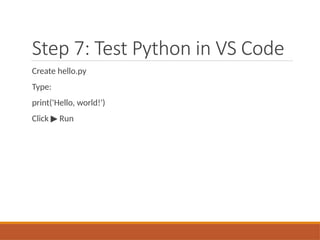
Python in VS Code Create hello.py Type: print('Hello, world!') Click Run ▶
9.
Common Errors &
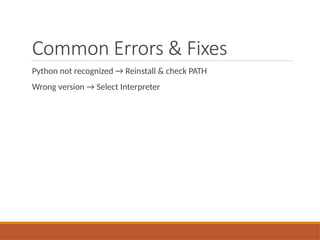
Fixes Python not recognized → Reinstall & check PATH Wrong version → Select Interpreter
10.
You Are Ready! Python
is now installed and running in VS Code
Download