INTRODUCTION
TO QUICKSIGHT
D ATA A N A LY T I C S A N D T E C H N O LO G Y T E A M
AGENDA
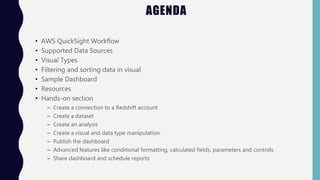
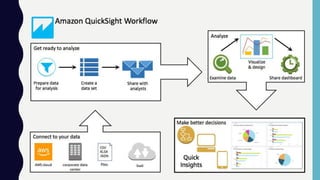
• AWS QuickSight Workflow
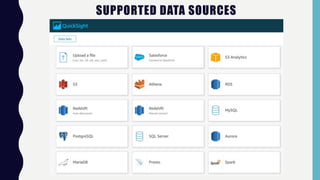
• Supported Data Sources
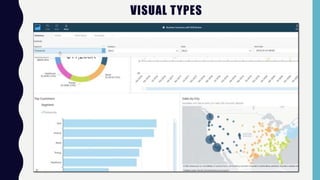
• Visual Types
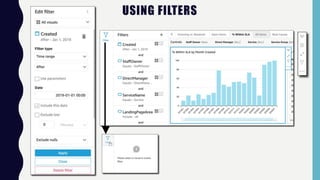
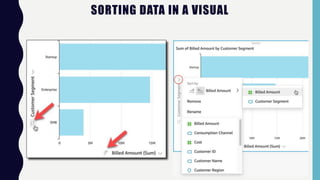
• Filtering and sorting data in visual
• Sample Dashboard
• Resources
• Hands-on section
– Create a connection to a Redshift account
– Create a dataset
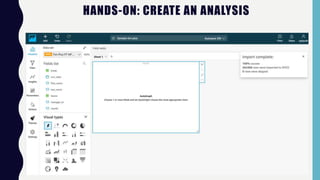
– Create an analysis
– Create a visual and data type manipulation
– Publish the dashboard
– Advanced features like conditional formatting, calculated fields, parameters and controls
– Share dashboard and schedule reports
SUPPORTED DATA SOURCES
VISUAL TYPES
USING FILTERS
SORTING DATA IN A VISUAL
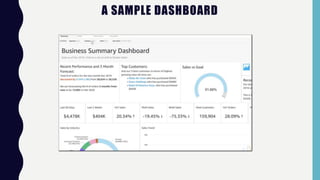
A SAMPLE DASHBOARD
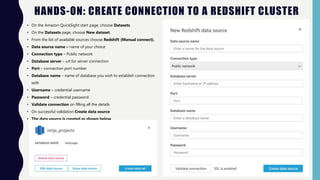
HANDS-ON: CREATE CONNECTION TO A REDSHIFT CLUSTER
• On the Amazon QuickSight start page, choose Datasets.
• On the Datasets page, choose New dataset.
• From the list of available sources choose Redshift (Manual connect).
• Data source name – name of your choice
• Connection type – Public network
• Database server – url for server connection
• Port – connection port number
• Database name – name of database you wish to establish connection
with
• Username – credential username
• Password – credential password
• Validate connection on filling all the details
• On successful validation Create data source
• The data source is created as shown below
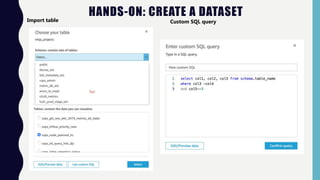
HANDS-ON: CREATE A DATASET
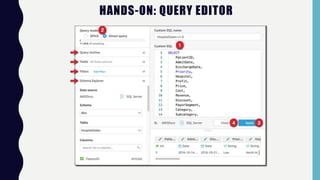
Import table Custom SQL query
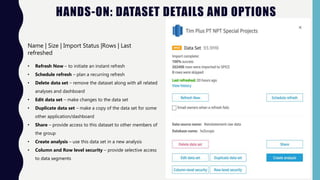
HANDS-ON: DATASET DETAILS AND OPTIONS
Name | Size | Import Status |Rows | Last
refreshed
• Refresh Now – to initiate an instant refresh
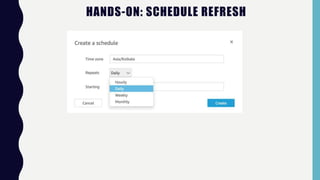
• Schedule refresh – plan a recurring refresh
• Delete data set – remove the dataset along with all related
analyses and dashboard
• Edit data set – make changes to the data set
• Duplicate data set – make a copy of the data set for some
other application/dashboard
• Share – provide access to this dataset to other members of
the group
• Create analysis – use this data set in a new analysis
• Column and Row level security – provide selective access
to data segments
HANDS-ON: SCHEDULE REFRESH
HANDS-ON: QUERY EDITOR
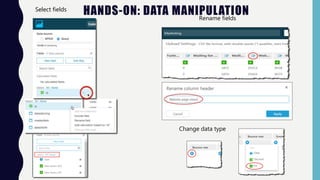
HANDS-ON: DATA MANIPULATION
Select fields
Rename fields
Change data type
HANDS-ON: CREATE AN ANALYSIS
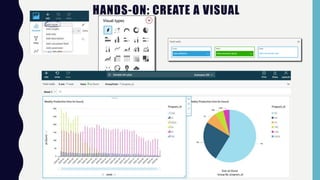
HANDS-ON: CREATE A VISUAL
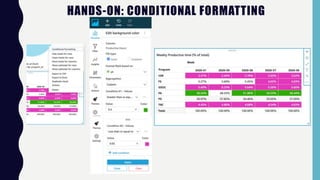
HANDS-ON: CONDITIONAL FORMATTING
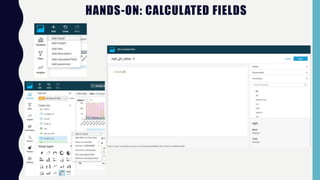
HANDS-ON: CALCULATED FIELDS
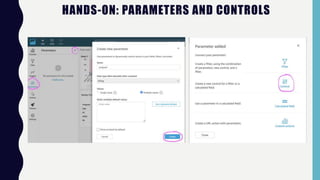
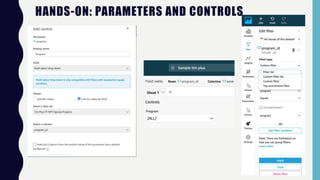
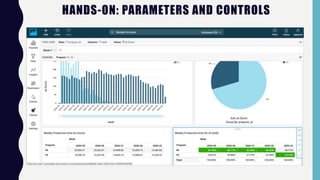
HANDS-ON: PARAMETERS AND CONTROLS
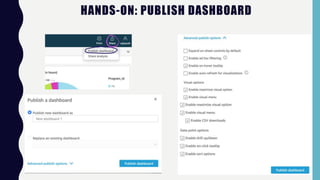
HANDS-ON: PUBLISH DASHBOARD
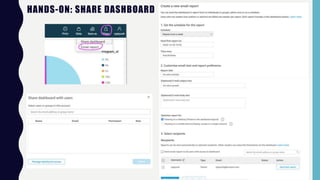
HANDS-ON: SHARE DASHBOARD
RESOURCES
• Home Page https://us-east-1.quicksight.aws.amazon.com/sn/start
• Documentation https://docs.aws.amazon.com/quicksight/index.html
• Slack group - #quicksight-users https://amzn-
operations.slack.com/archives/C017WCBENKG
• Sample dataset

Intro to QuickSight.pptx

  • 1.
    INTRODUCTION TO QUICKSIGHT D ATAA N A LY T I C S A N D T E C H N O LO G Y T E A M
  • 2.
    AGENDA • AWS QuickSightWorkflow • Supported Data Sources • Visual Types • Filtering and sorting data in visual • Sample Dashboard • Resources • Hands-on section – Create a connection to a Redshift account – Create a dataset – Create an analysis – Create a visual and data type manipulation – Publish the dashboard – Advanced features like conditional formatting, calculated fields, parameters and controls – Share dashboard and schedule reports
  • 4.
  • 5.
  • 6.
  • 7.
  • 8.
  • 9.
    HANDS-ON: CREATE CONNECTIONTO A REDSHIFT CLUSTER • On the Amazon QuickSight start page, choose Datasets. • On the Datasets page, choose New dataset. • From the list of available sources choose Redshift (Manual connect). • Data source name – name of your choice • Connection type – Public network • Database server – url for server connection • Port – connection port number • Database name – name of database you wish to establish connection with • Username – credential username • Password – credential password • Validate connection on filling all the details • On successful validation Create data source • The data source is created as shown below
  • 10.
    HANDS-ON: CREATE ADATASET Import table Custom SQL query
  • 11.
    HANDS-ON: DATASET DETAILSAND OPTIONS Name | Size | Import Status |Rows | Last refreshed • Refresh Now – to initiate an instant refresh • Schedule refresh – plan a recurring refresh • Delete data set – remove the dataset along with all related analyses and dashboard • Edit data set – make changes to the data set • Duplicate data set – make a copy of the data set for some other application/dashboard • Share – provide access to this dataset to other members of the group • Create analysis – use this data set in a new analysis • Column and Row level security – provide selective access to data segments
  • 12.
  • 13.
  • 14.
    HANDS-ON: DATA MANIPULATION Selectfields Rename fields Change data type
  • 15.
  • 16.
  • 17.
  • 18.
  • 19.
  • 20.
  • 21.
  • 22.
  • 23.
  • 24.
    RESOURCES • Home Pagehttps://us-east-1.quicksight.aws.amazon.com/sn/start • Documentation https://docs.aws.amazon.com/quicksight/index.html • Slack group - #quicksight-users https://amzn- operations.slack.com/archives/C017WCBENKG • Sample dataset