• Access
• Navigation
• Profiles
Basic Moodle for Teachers
About the Platform
1
Oxford School Panamá, 2015
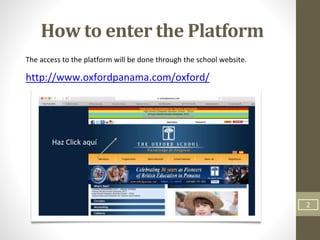
How to enter the Platform
The access to the platform will be done through the school website.
http://www.oxfordpanama.com/oxford/
Haz Click aquí
2
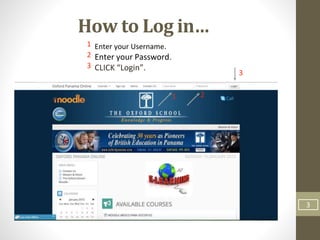
How to Log in…
Enter your Username.
Enter your Password.
CLICK “Login”.
1 2
3
1
2
3
3
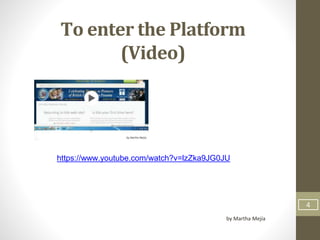
To enter the Platform
(Video)
by Martha Mejía
4
https://www.youtube.com/watch?v=lzZka9JG0JU
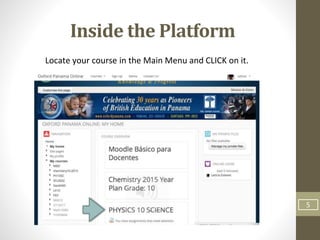
Inside the Platform
Locate your course in the Main Menu and CLICK on it.
5
Inside your Course
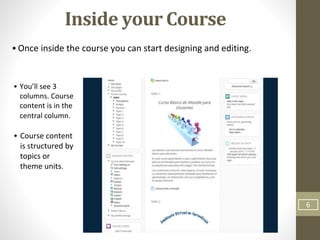
•Once inside the course you can start designing and editing.
• You’ll see 3
columns. Course
content is in the
central column.
• Course content
is structured by
topics or
theme units.
6
Inside your Course
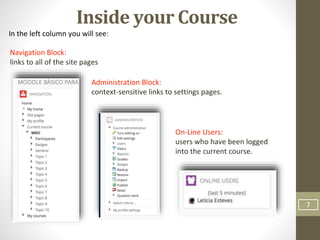
In the left column you will see:
Navigation Block:
links to all of the site pages
Administration Block:
context-sensitive links to settings pages.
On-Line Users:
users who have been logged
into the current course.
7
Inside your Course
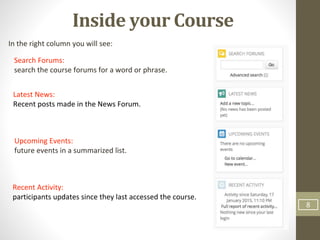
In the right column you will see:
Search Forums:
search the course forums for a word or phrase.
Latest News:
Recent posts made in the News Forum.
Upcoming Events:
future events in a summarized list.
Recent Activity:
participants updates since they last accessed the course.
8
Inside your Course
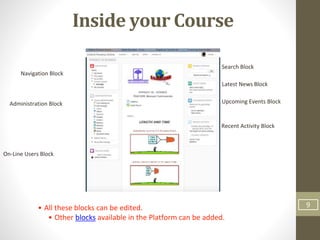
Navigation Block
Administration Block
On-Line Users Block
Search Block
Latest News Block
Upcoming Events Block
Recent Activity Block
• All these blocks can be edited.
• Other blocks available in the Platform can be added.
9
10
Profile Settings
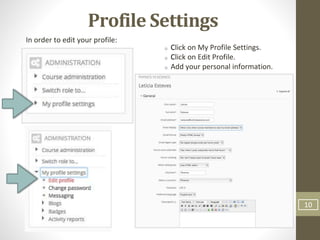
In order to edit your profile:
Click on My Profile Settings.
Click on Edit Profile.
Add your personal information.
11
Profile Settings
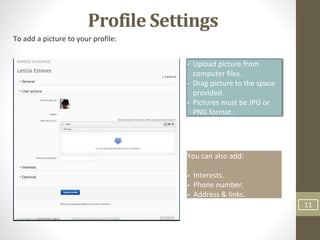
To add a picture to your profile:
Upload picture from
computer files.
Drag picture to the space
provided.
Pictures must be JPG or
PNG format.
You can also add:
Interests.
Phone number.
Address & links.
12
User Profile
(Video)
by Martha Mejía
http://youtu.be/-Ji8KXSPpAk

Ingreso moodle capa1_le_eng_links

  • 1.
    • Access • Navigation •Profiles Basic Moodle for Teachers About the Platform 1 Oxford School Panamá, 2015
  • 2.
    How to enterthe Platform The access to the platform will be done through the school website. http://www.oxfordpanama.com/oxford/ Haz Click aquí 2
  • 3.
    How to Login… Enter your Username. Enter your Password. CLICK “Login”. 1 2 3 1 2 3 3
  • 4.
    To enter thePlatform (Video) by Martha Mejía 4 https://www.youtube.com/watch?v=lzZka9JG0JU
  • 5.
    Inside the Platform Locateyour course in the Main Menu and CLICK on it. 5
  • 6.
    Inside your Course •Onceinside the course you can start designing and editing. • You’ll see 3 columns. Course content is in the central column. • Course content is structured by topics or theme units. 6
  • 7.
    Inside your Course Inthe left column you will see: Navigation Block: links to all of the site pages Administration Block: context-sensitive links to settings pages. On-Line Users: users who have been logged into the current course. 7
  • 8.
    Inside your Course Inthe right column you will see: Search Forums: search the course forums for a word or phrase. Latest News: Recent posts made in the News Forum. Upcoming Events: future events in a summarized list. Recent Activity: participants updates since they last accessed the course. 8
  • 9.
    Inside your Course NavigationBlock Administration Block On-Line Users Block Search Block Latest News Block Upcoming Events Block Recent Activity Block • All these blocks can be edited. • Other blocks available in the Platform can be added. 9
  • 10.
    10 Profile Settings In orderto edit your profile: Click on My Profile Settings. Click on Edit Profile. Add your personal information.
  • 11.
    11 Profile Settings To adda picture to your profile: Upload picture from computer files. Drag picture to the space provided. Pictures must be JPG or PNG format. You can also add: Interests. Phone number. Address & links.
  • 12.
    12 User Profile (Video) by MarthaMejía http://youtu.be/-Ji8KXSPpAk