Importing Bookmarks into Internet Explorer
Before you begin…You must have a copy of the Middle School student bookmarks saved on your laptop as an HTM file. Please check this before you go on…
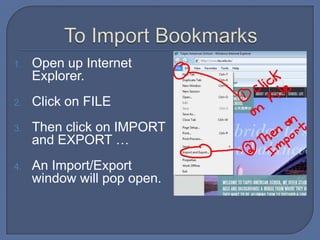
To Import BookmarksOpen up Internet Explorer.Click on FILE Then click on IMPORT and EXPORT …An Import/Export window will pop open.
Import/Export  WindowSelect “Import from a file”. Click next.Select “Favorites”. Click next.Click on BROWSE. A pop up window should appear. Browse until you find the htm file you already saved on your computer. Click OPEN. This extra window will now close.Click next on the Import/Export window.
Finishing it upThe next window asks you for a destination folder. Click on “Favorites”. Then click NEXT.Now click FINISH.The Import/Export window will close.
Check your FavoritesDid it work? Click on Favorites.Are there three new folders – Library SitesReferenceSchool LinksIf not, you may need to try the process again.

Importing bookmarks into internet explorer

  • 1.
    Importing Bookmarks intoInternet Explorer
  • 2.
    Before you begin…Youmust have a copy of the Middle School student bookmarks saved on your laptop as an HTM file. Please check this before you go on…
  • 3.
    To Import BookmarksOpenup Internet Explorer.Click on FILE Then click on IMPORT and EXPORT …An Import/Export window will pop open.
  • 4.
    Import/Export WindowSelect“Import from a file”. Click next.Select “Favorites”. Click next.Click on BROWSE. A pop up window should appear. Browse until you find the htm file you already saved on your computer. Click OPEN. This extra window will now close.Click next on the Import/Export window.
  • 5.
    Finishing it upThenext window asks you for a destination folder. Click on “Favorites”. Then click NEXT.Now click FINISH.The Import/Export window will close.
  • 6.
    Check your FavoritesDidit work? Click on Favorites.Are there three new folders – Library SitesReferenceSchool LinksIf not, you may need to try the process again.