i3
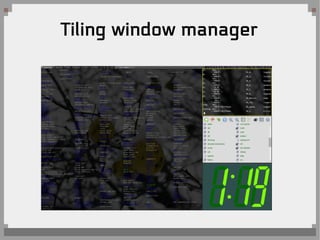
Tiling Window Manager
2015/04/13
Ying Reui Liang( KK )
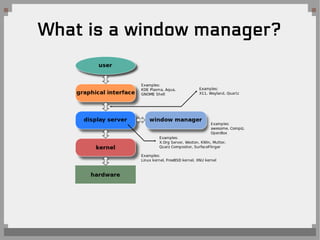
What is a window manager?
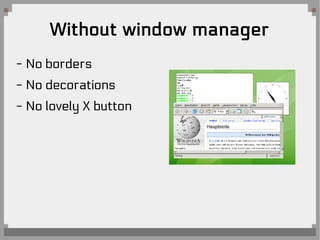
Without window manager
- No borders
- No decorations
- No lovely X button
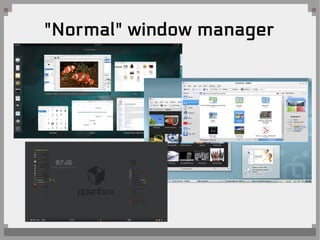
"Normal" window manager
Tiling window manager
Why tiling window manager?
- All windows are in their own tile
- Always uses entire screen
- Waste none of piece of space
- Control everything with keyboard
- Fun to configure your own environment
- Feel like you're a hacker in the movie
- Beautiful!
- Prevent people who tring to use your PC
Why not tiling window manager?
- You'll lose the magic to using other's
computer, or feel pain to do that
Time for i3
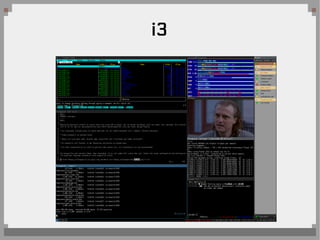
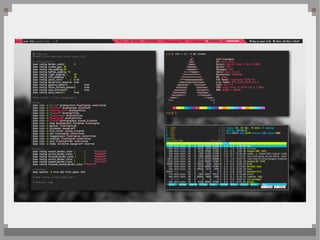
i3
Use i3 like a pro
Learn i3 from scratch
Install & try i3
- pacman, apt, yum, etc
- if you're using display manager, then choose
session as “i3” and done!
- if you prefer startx like me, modify ~/.xinitrc
to use i3
Caution!
Make sure you have the ability to edit
~/.i3/config, otherwise you gonna be stucked
cause the default i3 setting might not always
work for you
Controlling with mod key
Controlling with mod and shift key
Open & close applications
- mod + return: open terminal
- mod + d: open dmenu
- dmenu is an application launcher
- mod + shift + q: close a tile
- same as the X button
- that's all, simple right?
Focus to other tile
- mod + j: focus left
- mod + k: focus down
- mod + l: focus up
- mod + ;: focus right
- mod + space: toggle focus on floating tiles
- anyway, you can change it as you like
Tile structure
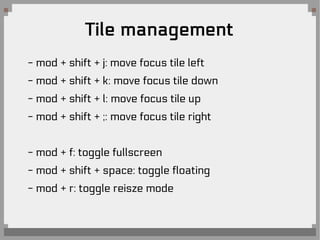
Tile management
- mod + shift + j: move focus tile left
- mod + shift + k: move focus tile down
- mod + shift + l: move focus tile up
- mod + shift + ;: move focus tile right
- mod + f: toggle fullscreen
- mod + shift + space: toggle floating
- mod + r: toggle reisze mode
Change workspace
- mod + 1: to workspace 1
- so on
- mod + n: to next workspace
- mod + p: to previous workspace
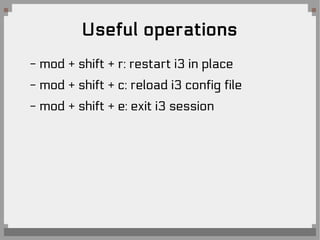
Useful operations
- mod + shift + r: restart i3 in place
- mod + shift + c: reload i3 config file
- mod + shift + e: exit i3 session
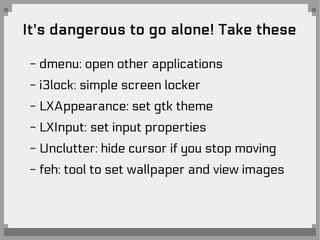
It's dangerous to go alone! Take these
- dmenu: open other applications
- i3lock: simple screen locker
- LXAppearance: set gtk theme
- LXInput: set input properties
- Unclutter: hide cursor if you stop moving
- feh: tool to set wallpaper and view images
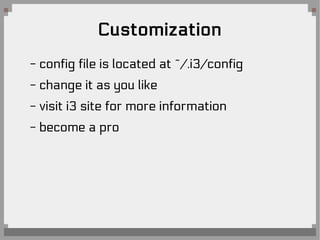
Customization
- config file is located at ~/.i3/config
- change it as you like
- visit i3 site for more information
- become a pro
Questions?
References
- https://en.wikipedia.org/wiki/File:Windowmanager_ohne.png
- https://www.gnome.org/
- http://openbox.org/wiki/File:Openbox_screenshot.jpg
- https://en.wikipedia.org/wiki/Tiling_window_manager#/media/File:Dwm-screenshot.png
- https://en.wikipedia.org/wiki/File:Schema_of_the_layers_of_the_graphical_user_interface.svg
- http://i3wm.org/screenshots/i3-5.png
- http://i3wm.org/docs/userguide.html

i3 tiling window manager

  • 1.
  • 2.
    What is awindow manager?
  • 3.
    Without window manager -No borders - No decorations - No lovely X button
  • 4.
  • 5.
  • 7.
    Why tiling windowmanager? - All windows are in their own tile - Always uses entire screen - Waste none of piece of space - Control everything with keyboard - Fun to configure your own environment - Feel like you're a hacker in the movie - Beautiful! - Prevent people who tring to use your PC
  • 8.
    Why not tilingwindow manager? - You'll lose the magic to using other's computer, or feel pain to do that
  • 9.
  • 10.
  • 12.
  • 16.
  • 17.
    Install & tryi3 - pacman, apt, yum, etc - if you're using display manager, then choose session as “i3” and done! - if you prefer startx like me, modify ~/.xinitrc to use i3
  • 18.
    Caution! Make sure youhave the ability to edit ~/.i3/config, otherwise you gonna be stucked cause the default i3 setting might not always work for you
  • 19.
  • 20.
    Controlling with modand shift key
  • 21.
    Open & closeapplications - mod + return: open terminal - mod + d: open dmenu - dmenu is an application launcher - mod + shift + q: close a tile - same as the X button - that's all, simple right?
  • 22.
    Focus to othertile - mod + j: focus left - mod + k: focus down - mod + l: focus up - mod + ;: focus right - mod + space: toggle focus on floating tiles - anyway, you can change it as you like
  • 23.
  • 24.
    Tile management - mod+ shift + j: move focus tile left - mod + shift + k: move focus tile down - mod + shift + l: move focus tile up - mod + shift + ;: move focus tile right - mod + f: toggle fullscreen - mod + shift + space: toggle floating - mod + r: toggle reisze mode
  • 25.
    Change workspace - mod+ 1: to workspace 1 - so on - mod + n: to next workspace - mod + p: to previous workspace
  • 26.
    Useful operations - mod+ shift + r: restart i3 in place - mod + shift + c: reload i3 config file - mod + shift + e: exit i3 session
  • 27.
    It's dangerous togo alone! Take these - dmenu: open other applications - i3lock: simple screen locker - LXAppearance: set gtk theme - LXInput: set input properties - Unclutter: hide cursor if you stop moving - feh: tool to set wallpaper and view images
  • 28.
    Customization - config fileis located at ~/.i3/config - change it as you like - visit i3 site for more information - become a pro
  • 29.
  • 30.
    References - https://en.wikipedia.org/wiki/File:Windowmanager_ohne.png - https://www.gnome.org/ -http://openbox.org/wiki/File:Openbox_screenshot.jpg - https://en.wikipedia.org/wiki/Tiling_window_manager#/media/File:Dwm-screenshot.png - https://en.wikipedia.org/wiki/File:Schema_of_the_layers_of_the_graphical_user_interface.svg - http://i3wm.org/screenshots/i3-5.png - http://i3wm.org/docs/userguide.html