

twitter: @Peter_iDiagram
Replace boring calendars
by a more creative one
See how you can
do it yourself…
Planning projects or presenting
timeline to your team?
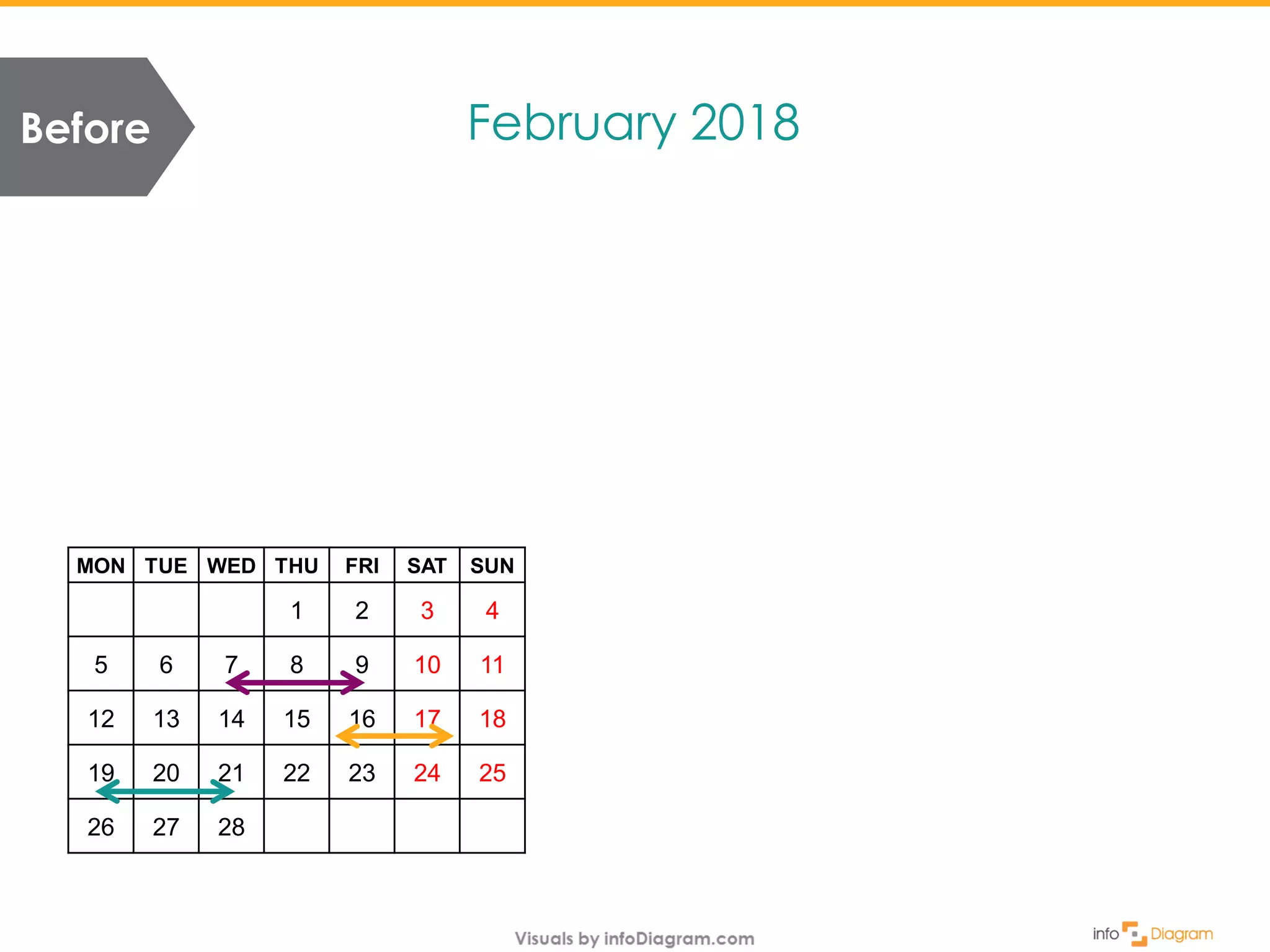
February 2018Before
MON TUE WED THU FRI SAT SUN
1 2 3 4
5 6 7 8 9 10 11
12 13 14 15 16 17 18
19 20 21 22 23 24 25
26 27 28
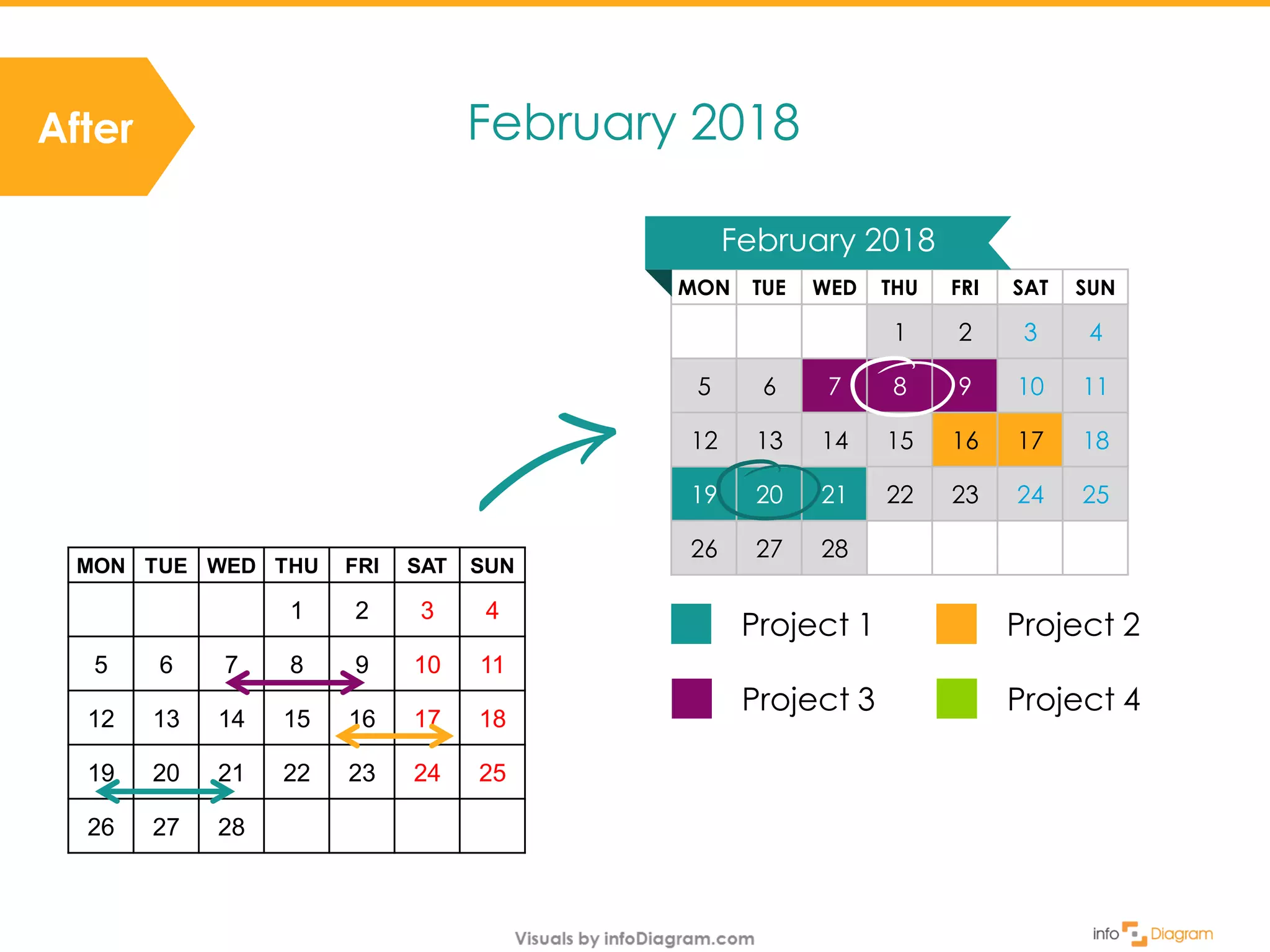
After February 2018
MON TUE WED THU FRI SAT SUN
1 2 3 4
5 6 7 8 9 10 11
12 13 14 15 16 17 18
19 20 21 22 23 24 25
26 27 28
February 2018
Project 1 Project 2
Project 3 Project 4
MON TUE WED THU FRI SAT SUN
1 2 3 4
5 6 7 8 9 10 11
12 13 14 15 16 17 18
19 20 21 22 23 24 25
26 27 28
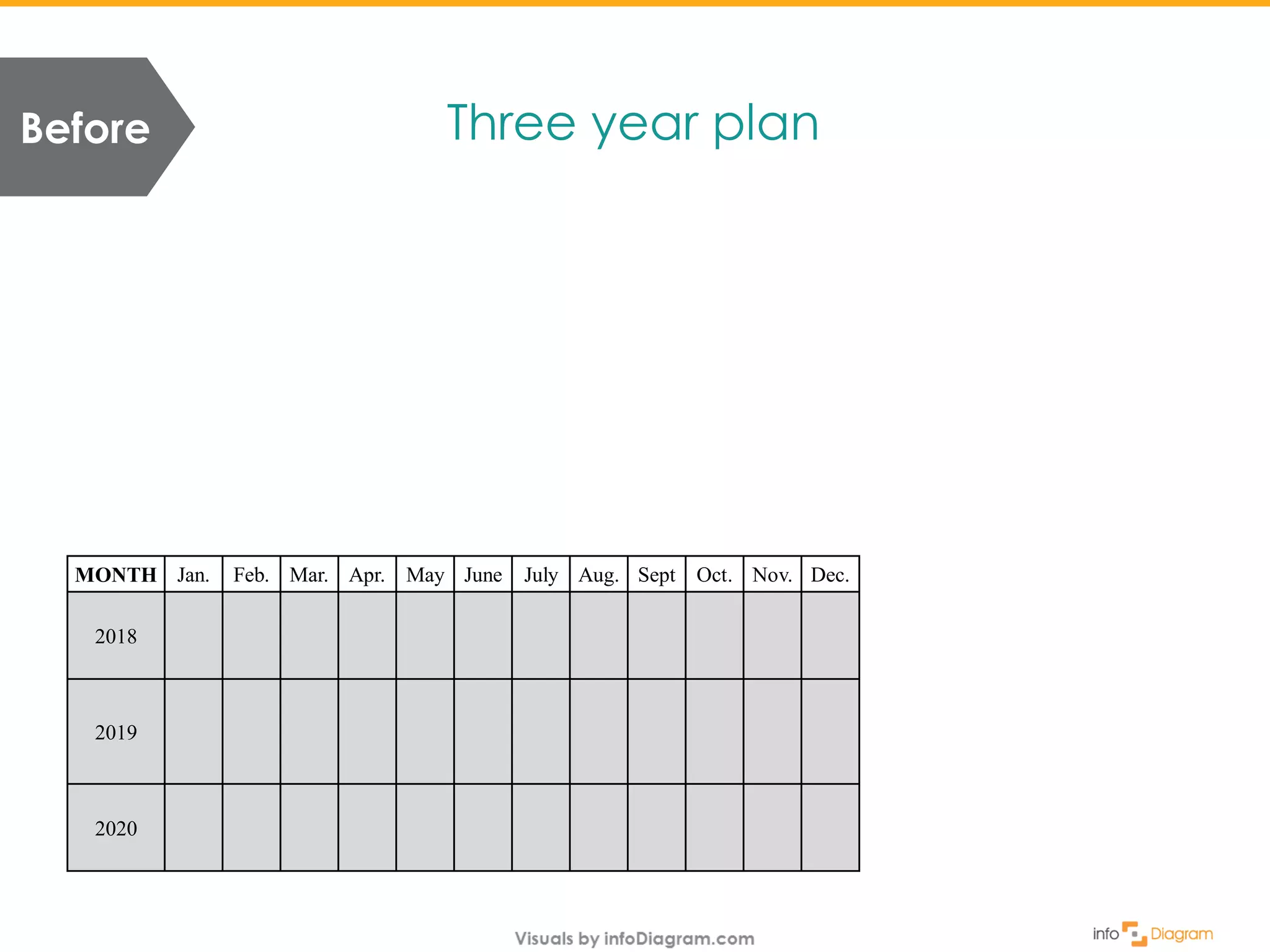
Before Three year plan
MONTH Jan. Feb. Mar. Apr. May June July Aug. Sept Oct. Nov. Dec.
2018
2019
2020
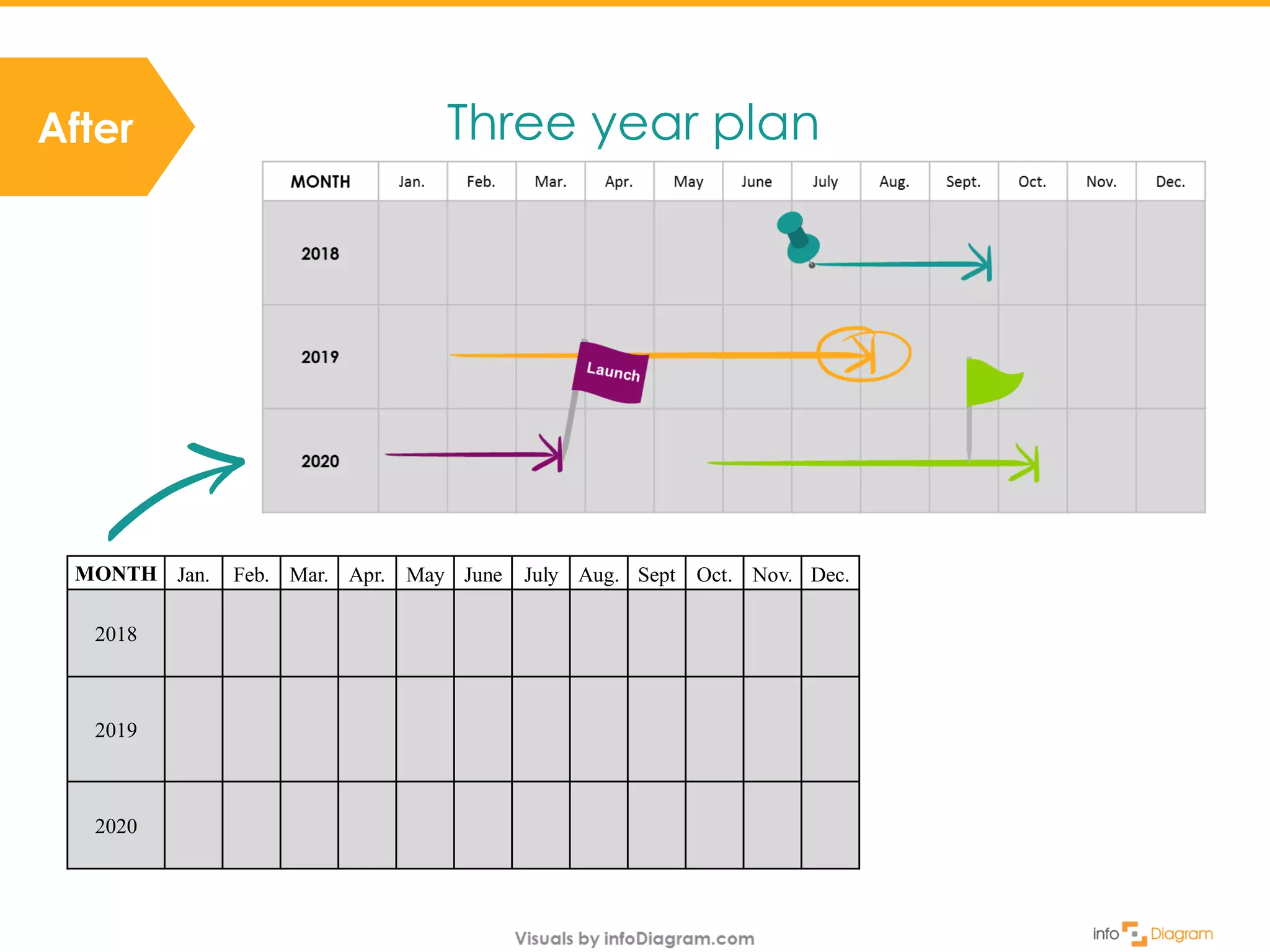
After Three year plan
MONTH Jan. Feb. Mar. Apr. May June July Aug. Sept Oct. Nov. Dec.
2018
2019
2020
Update default look of the calendar table
Creating project calendars
1
Example visuals from infoDiagram.com collection
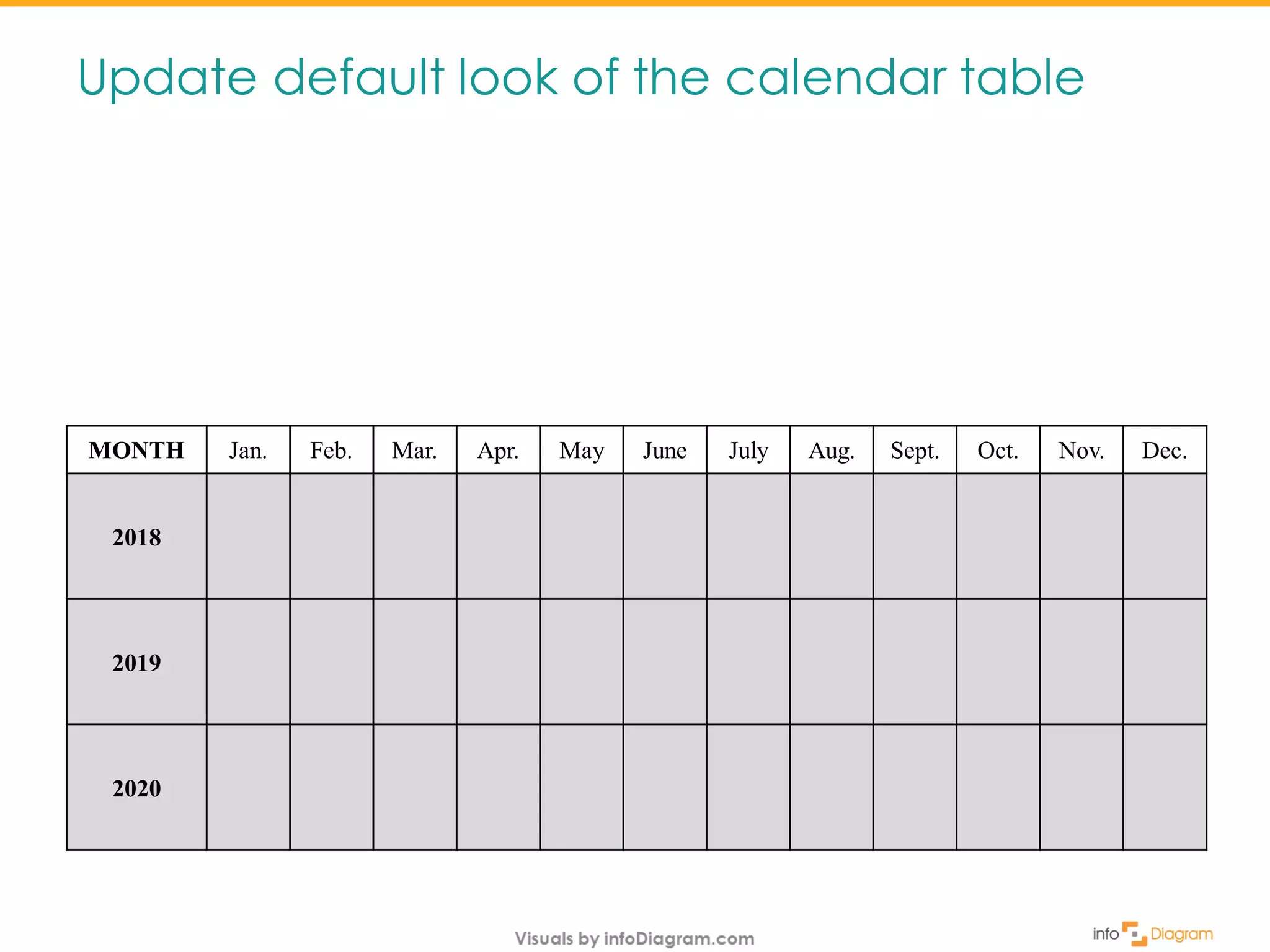
Update default look of the calendar table
MONTH Jan. Feb. Mar. Apr. May June July Aug. Sept. Oct. Nov. Dec.
2018
2019
2020
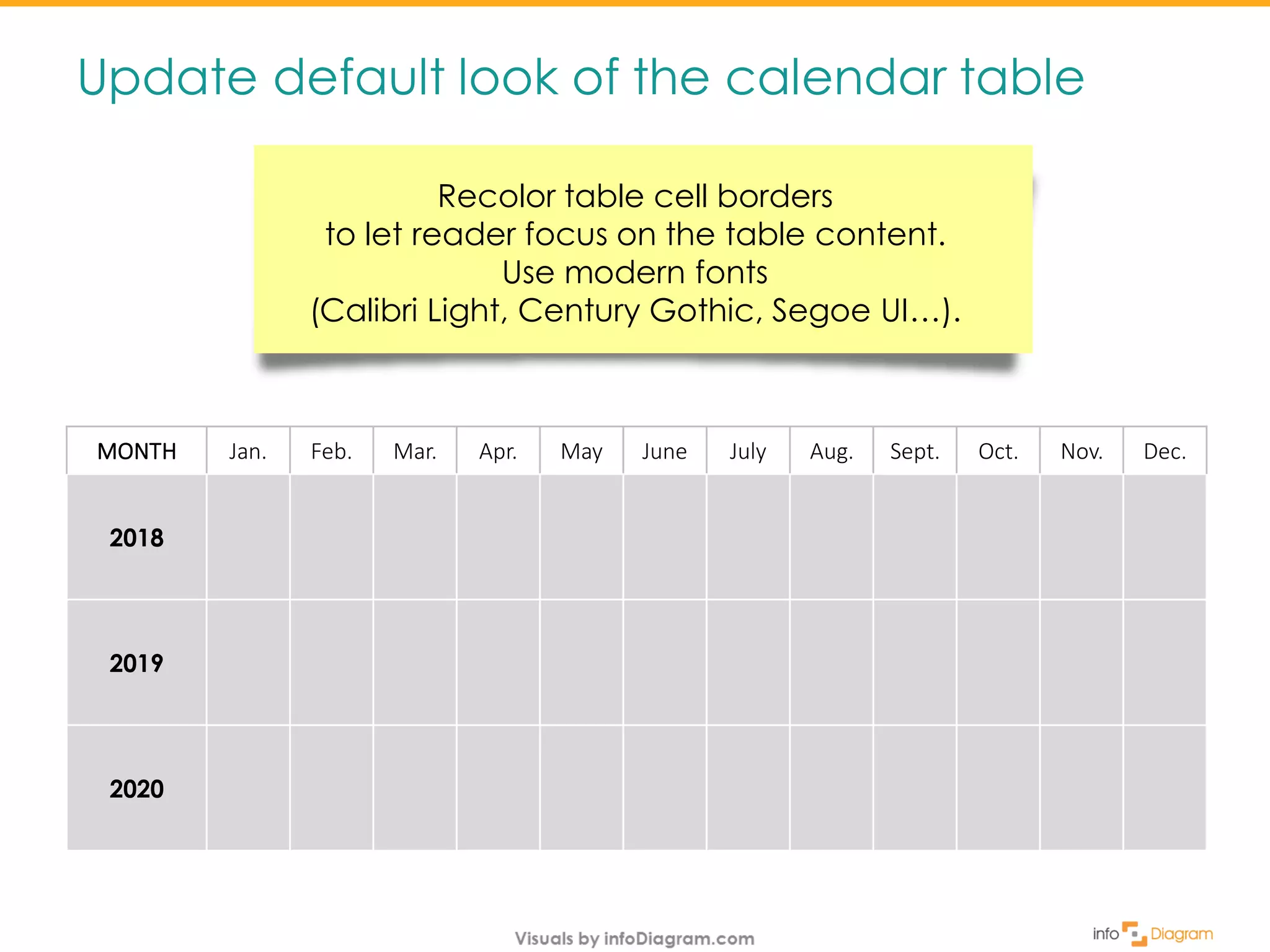
Update default look of the calendar table
MONTH Jan. Feb. Mar. Apr. May June July Aug. Sept. Oct. Nov. Dec.
2018
2019
2020
Recolor table cell borders
to let reader focus on the table content.
Use modern fonts
(Calibri Light, Century Gothic, Segoe UI…).
Specify the time frame for every project
2
Creating project timeline
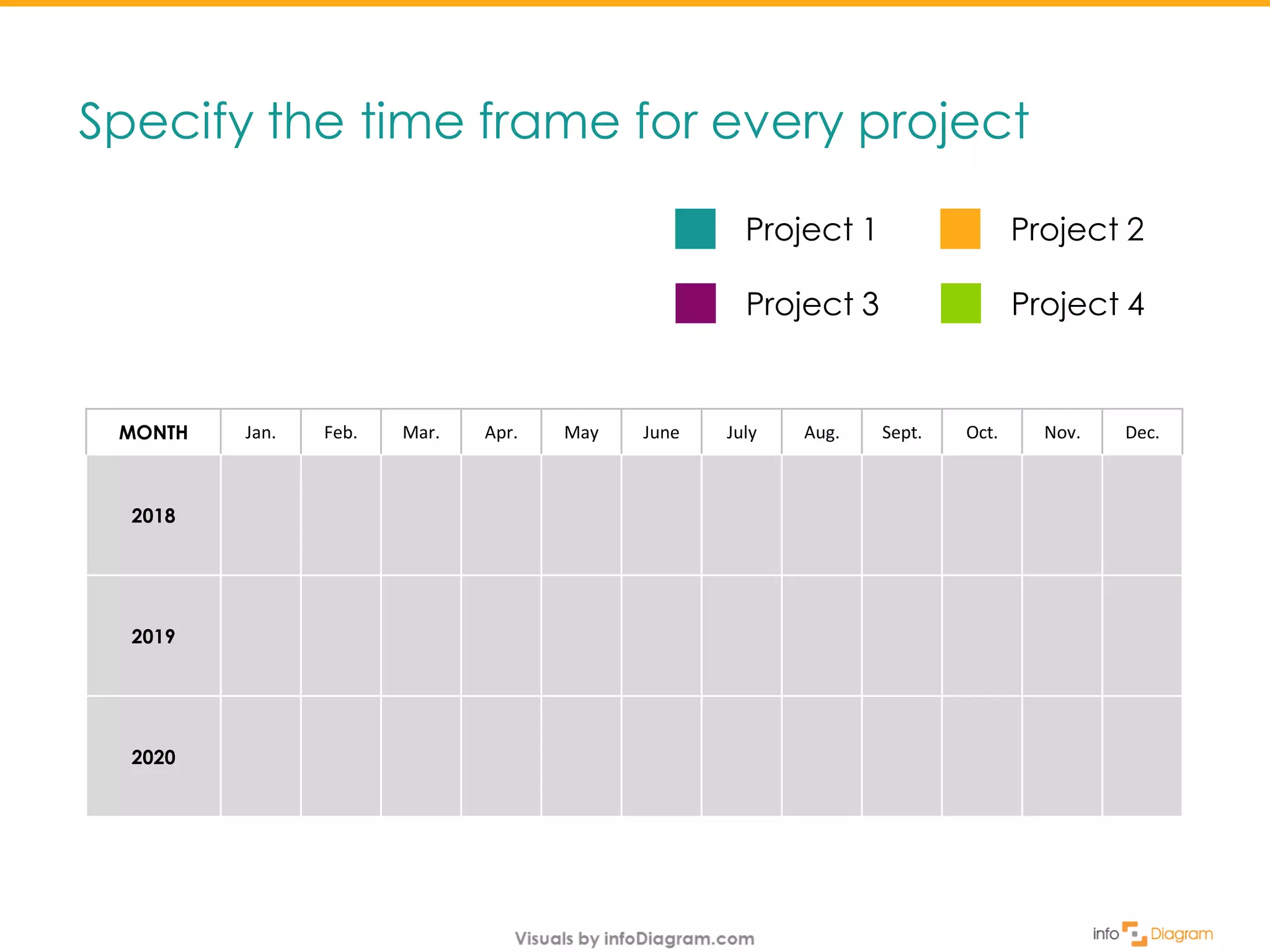
Specify the time frame for every project
MONTH Jan. Feb. Mar. Apr. May June July Aug. Sept. Oct. Nov. Dec.
2018
2019
2020
Project 1 Project 2
Project 3 Project 4
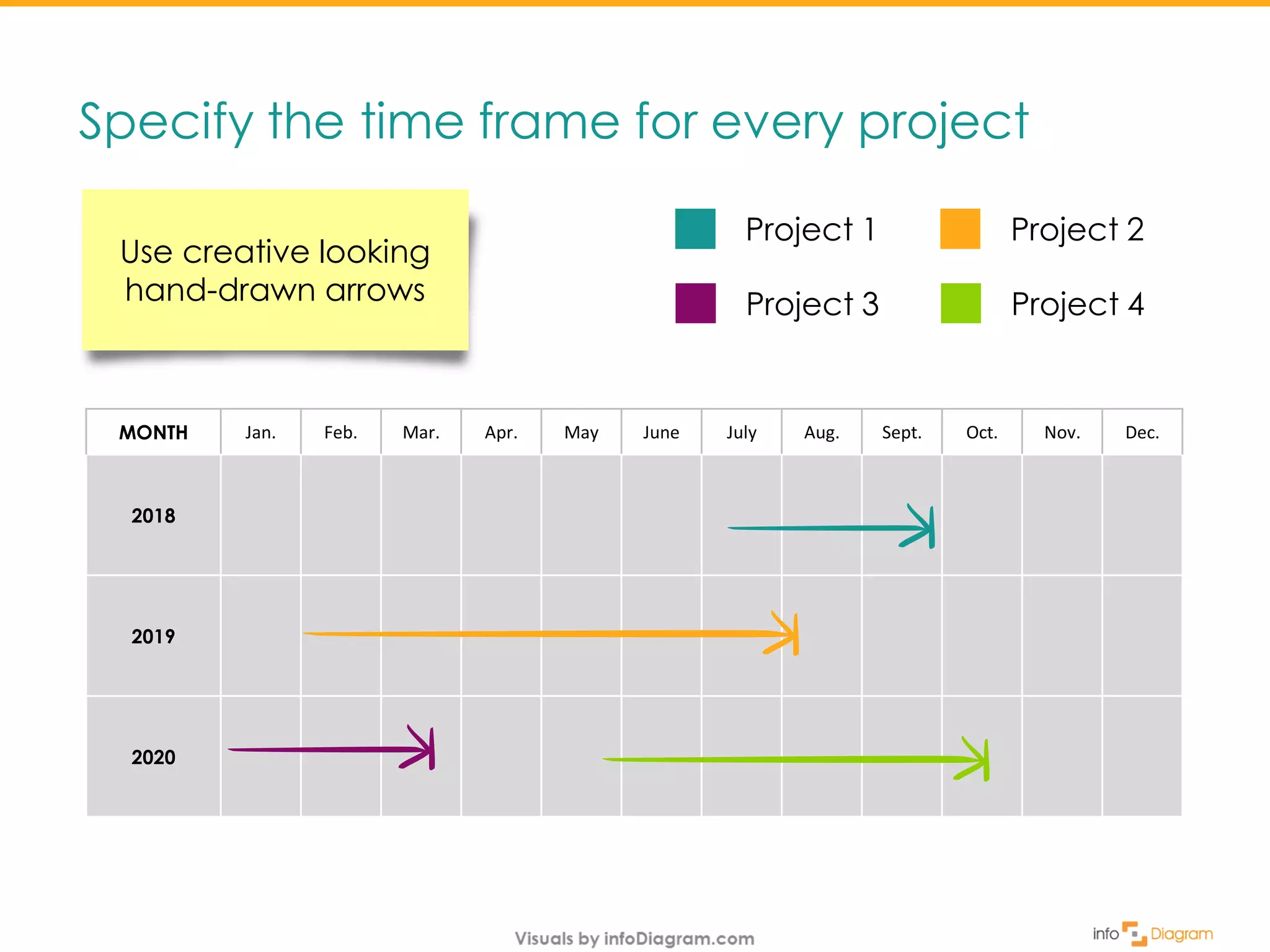
Specify the time frame for every project
Use creative looking
hand-drawn arrows
MONTH Jan. Feb. Mar. Apr. May June July Aug. Sept. Oct. Nov. Dec.
2018
2019
2020
Project 1 Project 2
Project 3 Project 4
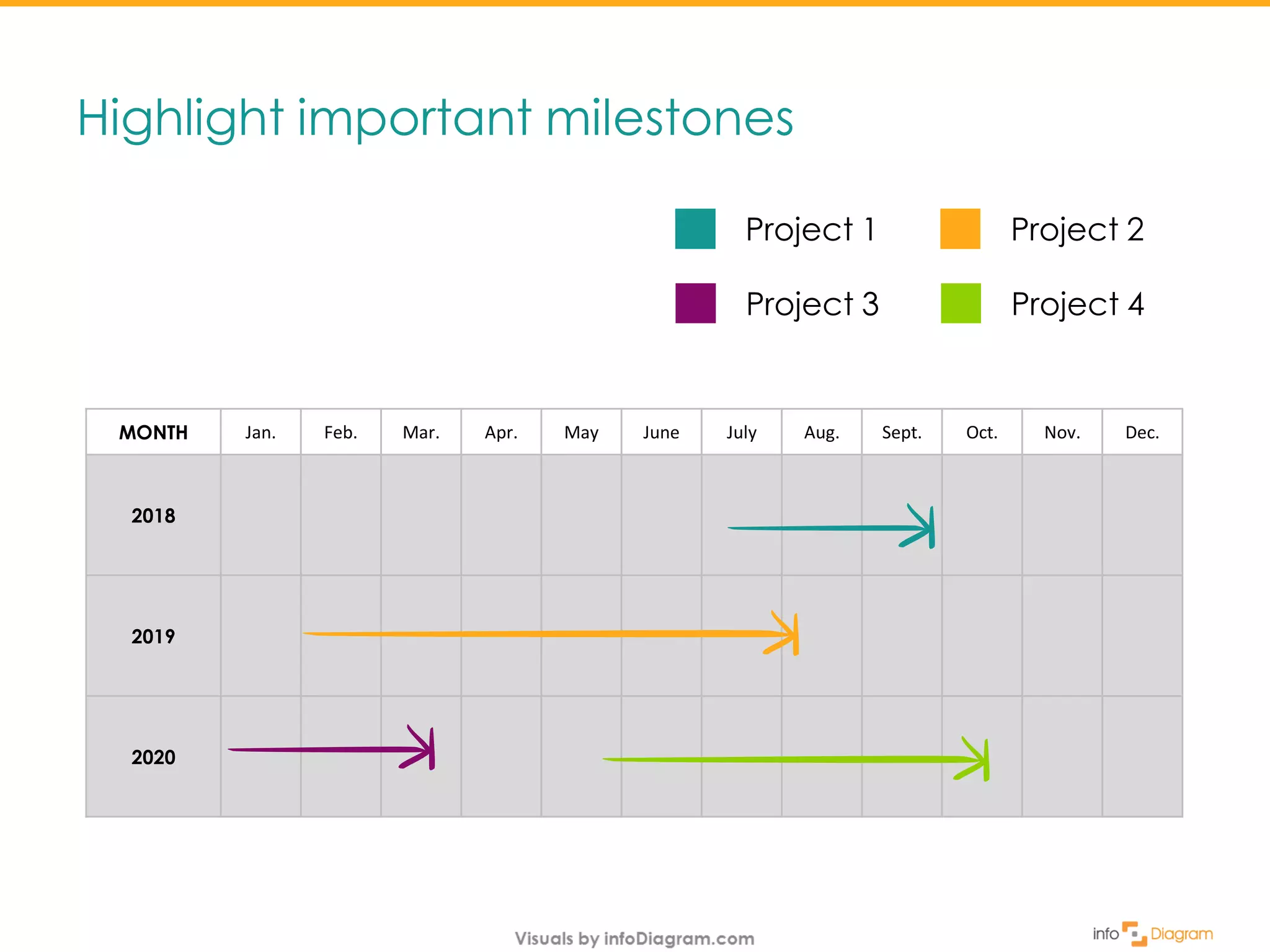
Highlight important milestones
3
Creating project timeline
Highlight important milestones
MONTH Jan. Feb. Mar. Apr. May June July Aug. Sept. Oct. Nov. Dec.
2018
2019
2020
Project 1 Project 2
Project 3 Project 4
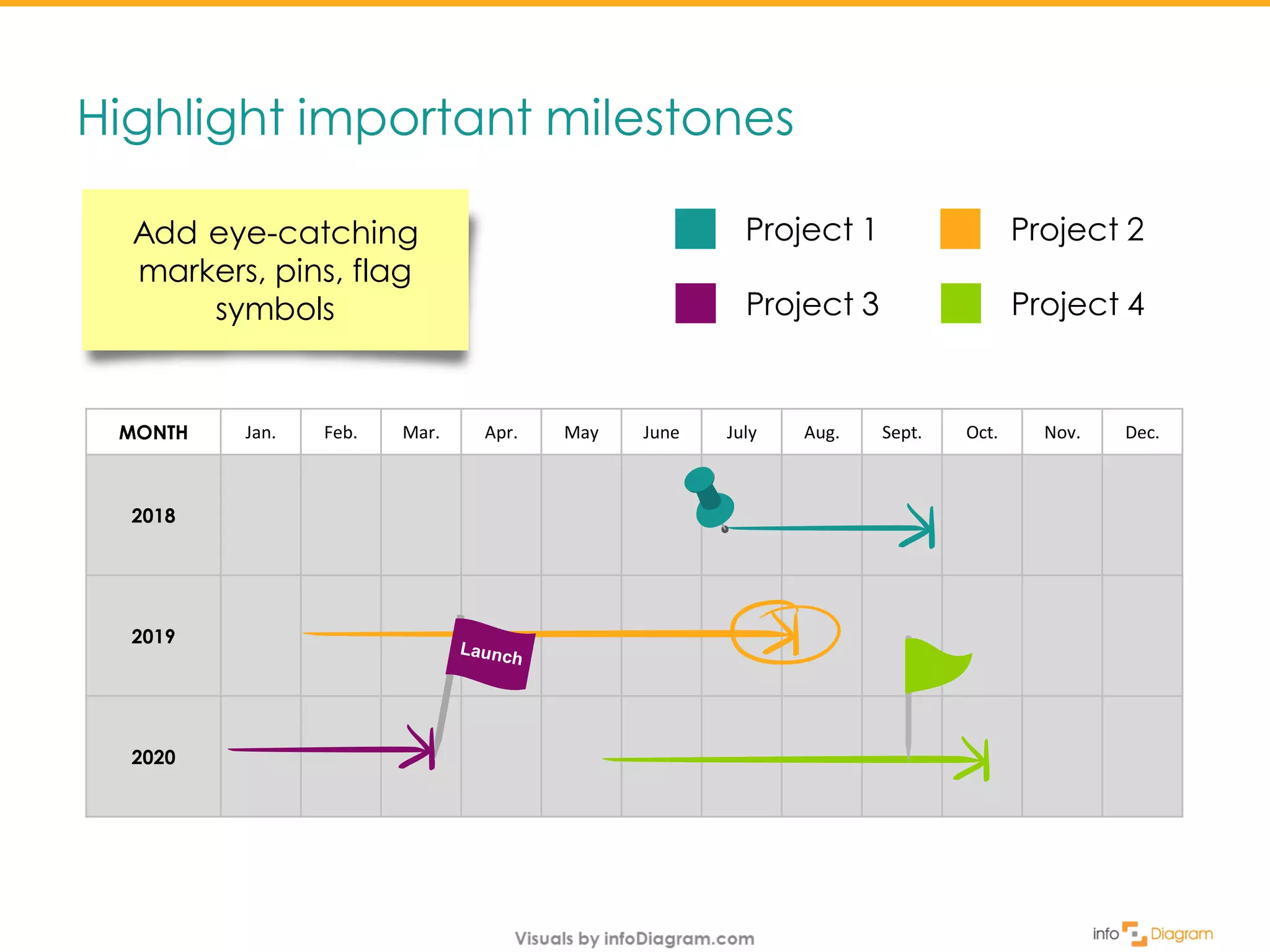
Highlight important milestones
Add eye-catching
markers, pins, flag
symbols
MONTH Jan. Feb. Mar. Apr. May June July Aug. Sept. Oct. Nov. Dec.
2018
2019
2020
Project 1 Project 2
Project 3 Project 4
Illustrate your timeline by status icons
Creating project timeline
4
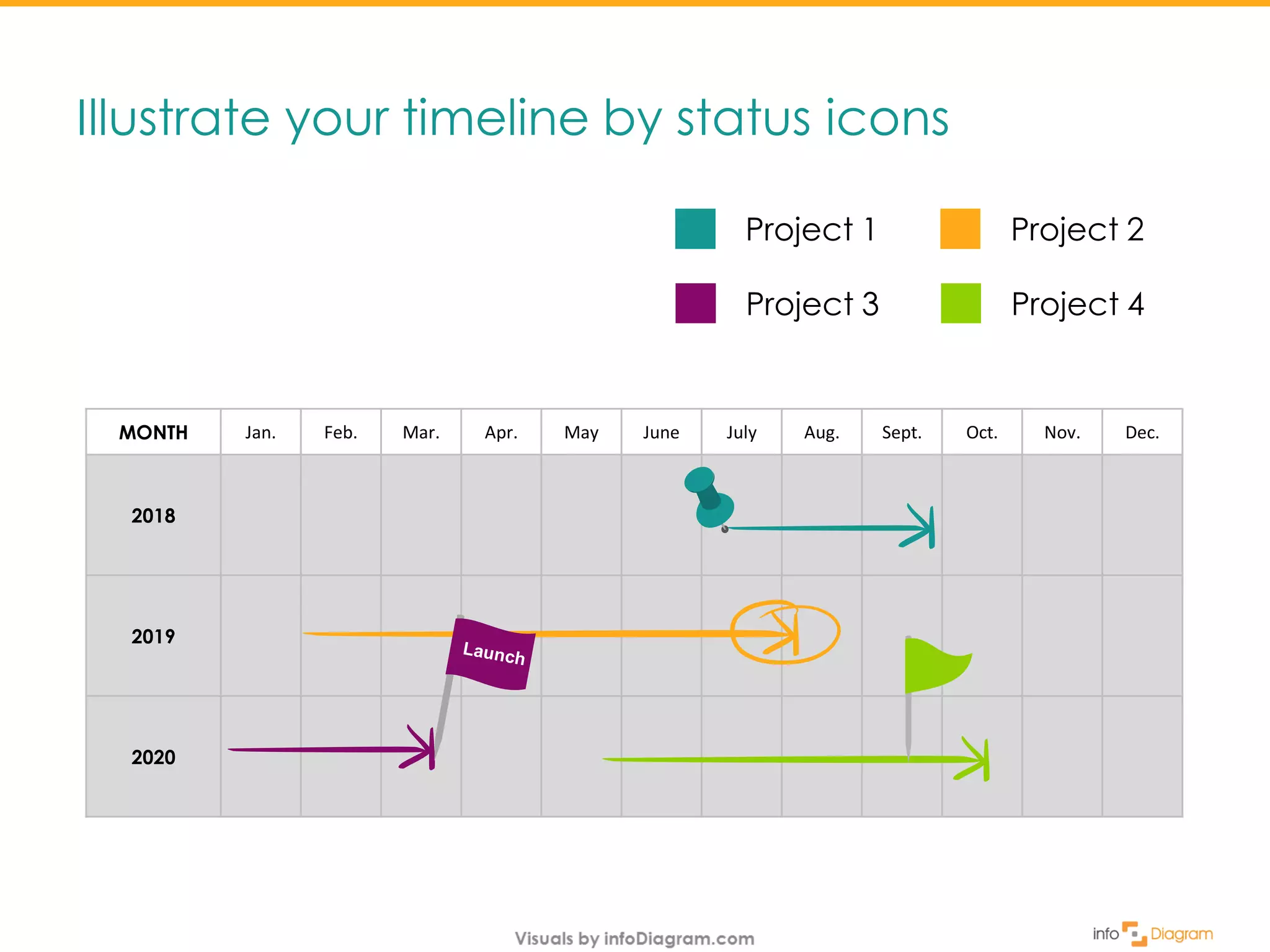
Illustrate your timeline by status icons
Project 1 Project 2
Project 3 Project 4
MONTH Jan. Feb. Mar. Apr. May June July Aug. Sept. Oct. Nov. Dec.
2018
2019
2020
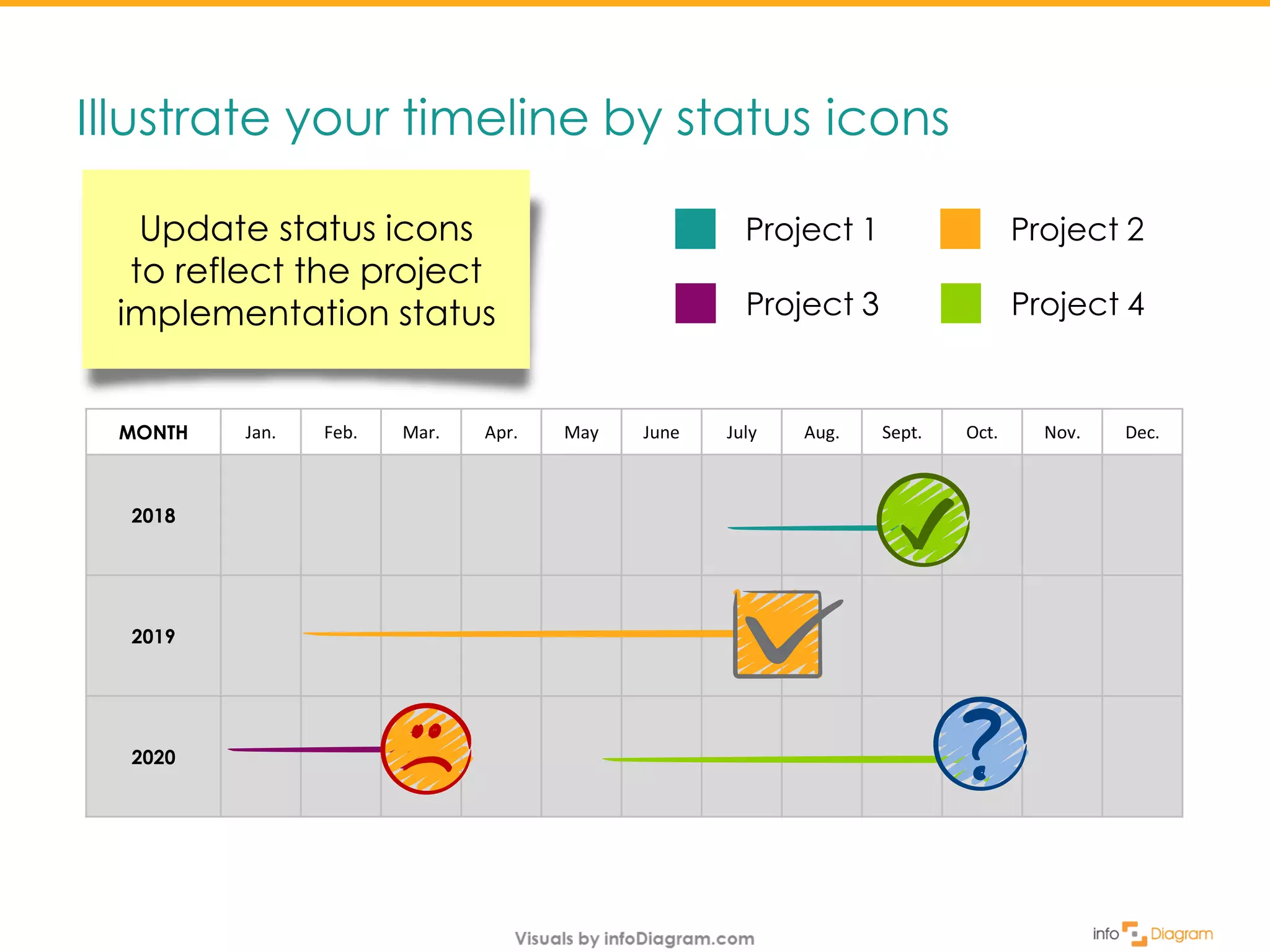
Illustrate your timeline by status icons
Update status icons
to reflect the project
implementation status
MONTH Jan. Feb. Mar. Apr. May June July Aug. Sept. Oct. Nov. Dec.
2018
2019
2020
Project 1 Project 2
Project 3 Project 4
Update default look of the
calendar table
Summary
Specify the time frame
Highlight important
milestones
Illustrate your timeline
by appropriate icons
1
2
3
4
See more Calendars presentation graphics
for inspiration
Get Calendar PPT Graphics
at infoDiagram.com
(click to open)
For more presentations,
hit FOLLOW on slideshare.net/infodiagramFollow
Get Calendar PPT Graphics
at infoDiagram.com
(click to open)

How to Design Project Calendar in 4 Steps

  • 1.
  • 2.
    Replace boring calendars bya more creative one See how you can do it yourself… Planning projects or presenting timeline to your team?
  • 3.
    February 2018Before MON TUEWED THU FRI SAT SUN 1 2 3 4 5 6 7 8 9 10 11 12 13 14 15 16 17 18 19 20 21 22 23 24 25 26 27 28
  • 4.
    After February 2018 MONTUE WED THU FRI SAT SUN 1 2 3 4 5 6 7 8 9 10 11 12 13 14 15 16 17 18 19 20 21 22 23 24 25 26 27 28 February 2018 Project 1 Project 2 Project 3 Project 4 MON TUE WED THU FRI SAT SUN 1 2 3 4 5 6 7 8 9 10 11 12 13 14 15 16 17 18 19 20 21 22 23 24 25 26 27 28
  • 5.
    Before Three yearplan MONTH Jan. Feb. Mar. Apr. May June July Aug. Sept Oct. Nov. Dec. 2018 2019 2020
  • 6.
    After Three yearplan MONTH Jan. Feb. Mar. Apr. May June July Aug. Sept Oct. Nov. Dec. 2018 2019 2020
  • 7.
    Update default lookof the calendar table Creating project calendars 1 Example visuals from infoDiagram.com collection
  • 8.
    Update default lookof the calendar table MONTH Jan. Feb. Mar. Apr. May June July Aug. Sept. Oct. Nov. Dec. 2018 2019 2020
  • 9.
    Update default lookof the calendar table MONTH Jan. Feb. Mar. Apr. May June July Aug. Sept. Oct. Nov. Dec. 2018 2019 2020 Recolor table cell borders to let reader focus on the table content. Use modern fonts (Calibri Light, Century Gothic, Segoe UI…).
  • 10.
    Specify the timeframe for every project 2 Creating project timeline
  • 11.
    Specify the timeframe for every project MONTH Jan. Feb. Mar. Apr. May June July Aug. Sept. Oct. Nov. Dec. 2018 2019 2020 Project 1 Project 2 Project 3 Project 4
  • 12.
    Specify the timeframe for every project Use creative looking hand-drawn arrows MONTH Jan. Feb. Mar. Apr. May June July Aug. Sept. Oct. Nov. Dec. 2018 2019 2020 Project 1 Project 2 Project 3 Project 4
  • 13.
  • 14.
    Highlight important milestones MONTHJan. Feb. Mar. Apr. May June July Aug. Sept. Oct. Nov. Dec. 2018 2019 2020 Project 1 Project 2 Project 3 Project 4
  • 15.
    Highlight important milestones Addeye-catching markers, pins, flag symbols MONTH Jan. Feb. Mar. Apr. May June July Aug. Sept. Oct. Nov. Dec. 2018 2019 2020 Project 1 Project 2 Project 3 Project 4
  • 16.
    Illustrate your timelineby status icons Creating project timeline 4
  • 17.
    Illustrate your timelineby status icons Project 1 Project 2 Project 3 Project 4 MONTH Jan. Feb. Mar. Apr. May June July Aug. Sept. Oct. Nov. Dec. 2018 2019 2020
  • 18.
    Illustrate your timelineby status icons Update status icons to reflect the project implementation status MONTH Jan. Feb. Mar. Apr. May June July Aug. Sept. Oct. Nov. Dec. 2018 2019 2020 Project 1 Project 2 Project 3 Project 4
  • 19.
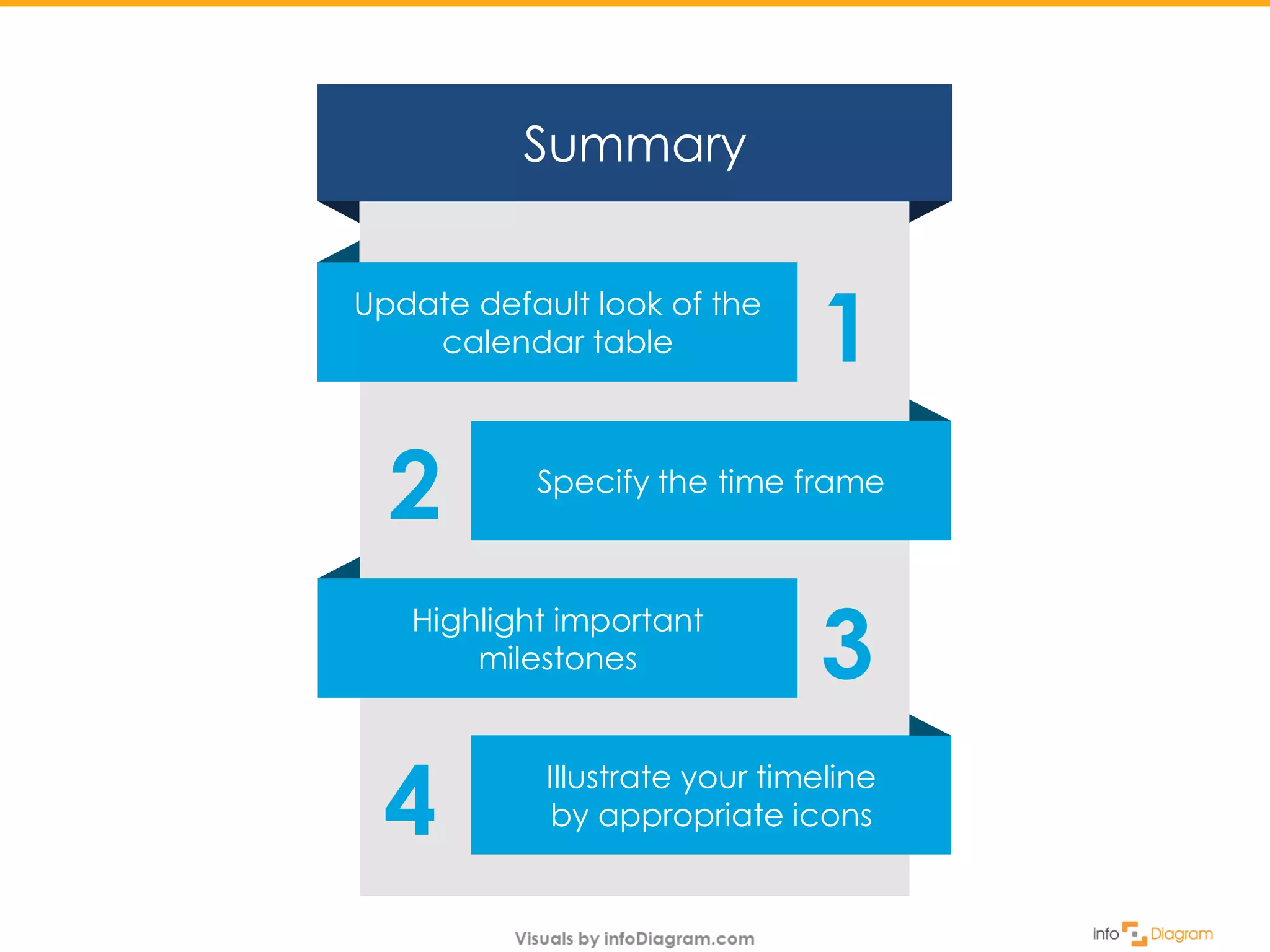
    Update default lookof the calendar table Summary Specify the time frame Highlight important milestones Illustrate your timeline by appropriate icons 1 2 3 4
  • 20.
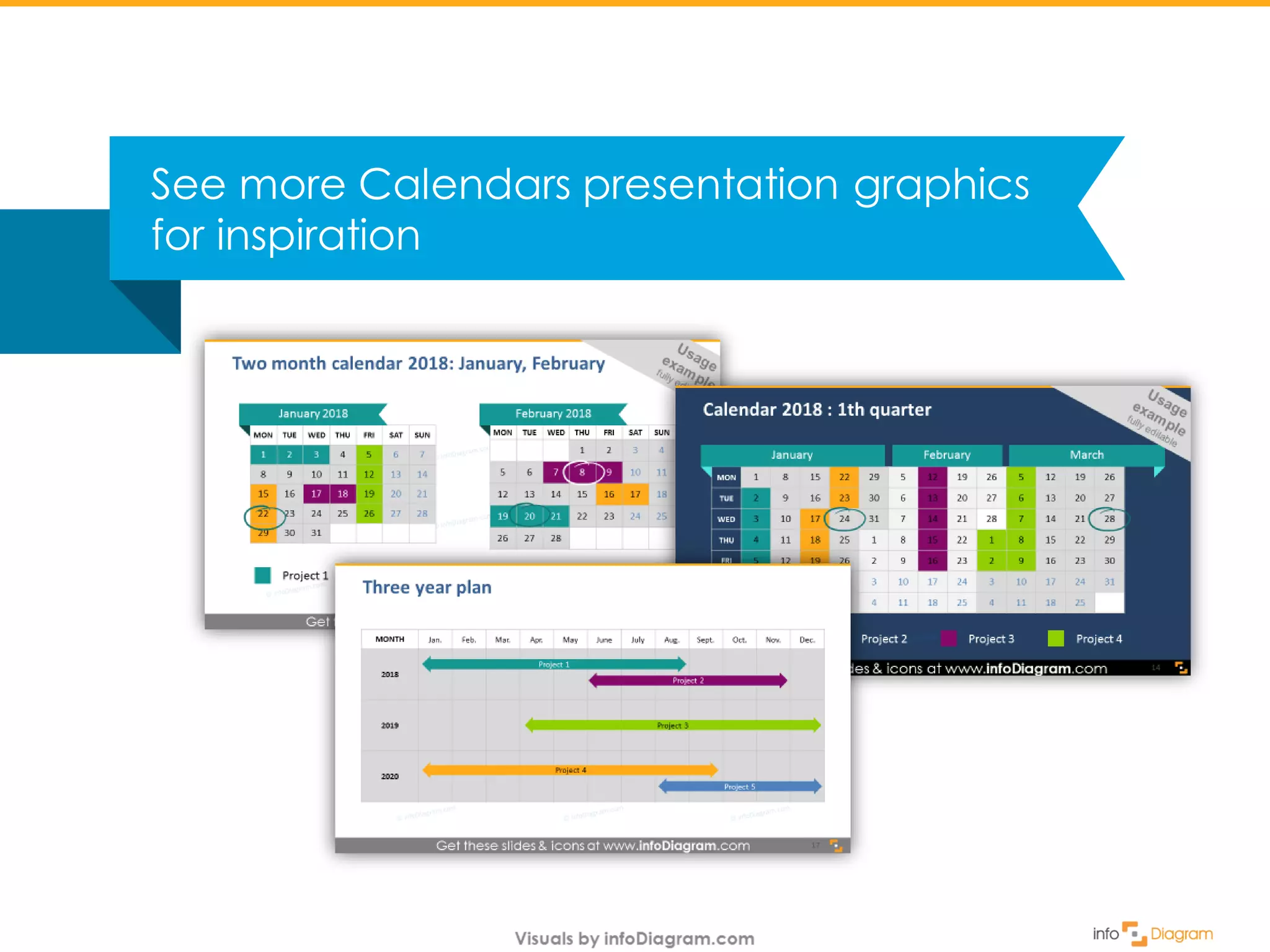
    See more Calendarspresentation graphics for inspiration
  • 21.
    Get Calendar PPTGraphics at infoDiagram.com (click to open)
  • 22.
    For more presentations, hitFOLLOW on slideshare.net/infodiagramFollow Get Calendar PPT Graphics at infoDiagram.com (click to open)