HOW TO DESIGN A
CUSTOM SLIDER
IN YOUR WIREFRAME
Tutorial – Advanced
Custom Slider
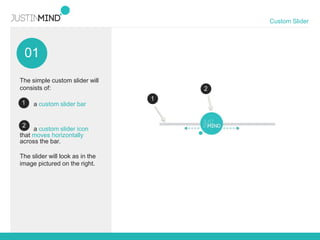
The simple custom slider will
consists of:
a custom slider bar
a custom slider icon
that moves horizontally
across the bar.
The slider will look as in the
image pictured on the right.
01
1
2
2
1
02
Custom Slider
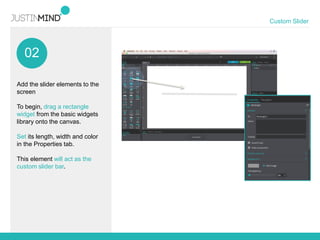
Add the slider elements to the
screen
To begin, drag a rectangle
widget from the basic widgets
library onto the canvas.
Set its length, width and color
in the Properties tab.
This element will act as the
custom slider bar.
03
Custom Slider
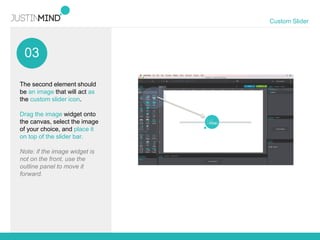
The second element should
be an image that will act as
the custom slider icon.
Drag the image widget onto
the canvas, select the image
of your choice, and place it
on top of the slider bar.
Note: if the image widget is
not on the front, use the
outline panel to move it
forward.
04
Custom Slider
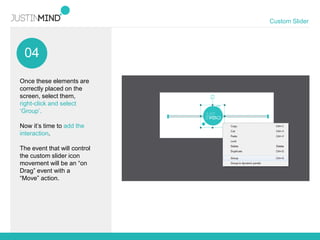
Once these elements are
correctly placed on the
screen, select them,
right-click and select
‘Group’.
Now it’s time to add the
interaction.
The event that will control
the custom slider icon
movement will be an “on
Drag” event with a
“Move” action.
05
Custom Slider
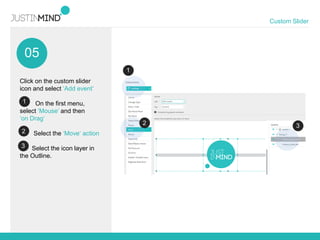
Click on the custom slider
icon and select ‘Add event‘
On the first menu,
select ‘Mouse’ and then
‘on Drag‘
Select the ‘Move‘ action
Select the icon layer in
the Outline.
2
3
1
1
2 3
06
Custom Slider
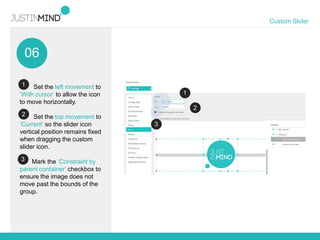
Set the left movement to
‘With cursor‘ to allow the icon
to move horizontally.
Set the top movement to
‘Current‘ so the slider icon
vertical position remains fixed
when dragging the custom
slider icon.
Mark the ‘Constraint by
parent container‘ checkbox to
ensure the image does not
move past the bounds of the
group.
2
3
2
3
1
1
Custom Slider
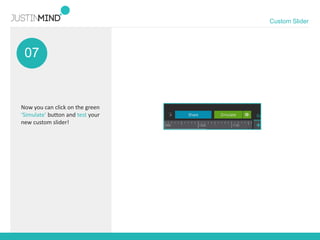
Now you can click on the
green ‘Simulate’ button and
test your new custom slider!
Justinmind Inc
225 Bush St. Fl. 12
San Francisco, CA 94104
jim.sales@justinmind.com
www.justinmind.com
DOWNLOAD NOW
TRY IT NOW FOR FREE!
Get the Justinmind editor and start prototyping

How to design a custom slider in your wireframe

  • 1.
    HOW TO DESIGNA CUSTOM SLIDER IN YOUR WIREFRAME Tutorial – Advanced
  • 2.
    Custom Slider The simplecustom slider will consists of: a custom slider bar a custom slider icon that moves horizontally across the bar. The slider will look as in the image pictured on the right. 01 1 2 2 1
  • 3.
    02 Custom Slider Add theslider elements to the screen To begin, drag a rectangle widget from the basic widgets library onto the canvas. Set its length, width and color in the Properties tab. This element will act as the custom slider bar.
  • 4.
    03 Custom Slider The secondelement should be an image that will act as the custom slider icon. Drag the image widget onto the canvas, select the image of your choice, and place it on top of the slider bar. Note: if the image widget is not on the front, use the outline panel to move it forward.
  • 5.
    04 Custom Slider Once theseelements are correctly placed on the screen, select them, right-click and select ‘Group’. Now it’s time to add the interaction. The event that will control the custom slider icon movement will be an “on Drag” event with a “Move” action.
  • 6.
    05 Custom Slider Click onthe custom slider icon and select ‘Add event‘ On the first menu, select ‘Mouse’ and then ‘on Drag‘ Select the ‘Move‘ action Select the icon layer in the Outline. 2 3 1 1 2 3
  • 7.
    06 Custom Slider Set theleft movement to ‘With cursor‘ to allow the icon to move horizontally. Set the top movement to ‘Current‘ so the slider icon vertical position remains fixed when dragging the custom slider icon. Mark the ‘Constraint by parent container‘ checkbox to ensure the image does not move past the bounds of the group. 2 3 2 3 1 1
  • 8.
    Custom Slider Now youcan click on the green ‘Simulate’ button and test your new custom slider!
  • 9.
    Justinmind Inc 225 BushSt. Fl. 12 San Francisco, CA 94104 jim.sales@justinmind.com www.justinmind.com DOWNLOAD NOW TRY IT NOW FOR FREE! Get the Justinmind editor and start prototyping