Last updated February 2016, p. 1
Creating Compound Objects
Compound objects are special types of container objects that group unordered sets
of repository objects that share some association that is stronger than grouping
them under a collection object, but do not necessarily require the ordered
presentation of a book object. The most obvious example of a compound object is
the front and back of a postcard, where the desire is to facilitate the discovery and
presentation of the postcard rather than only the front or only the back. Another
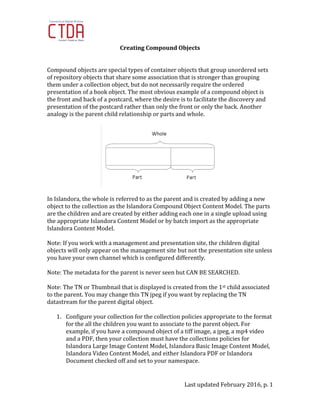
analogy is the parent child relationship or parts and whole.
In Islandora, the whole is referred to as the parent and is created by adding a new
object to the collection as the Islandora Compound Object Content Model. The parts
are the children and are created by either adding each one in a single upload using
the appropriate Islandora Content Model or by batch import as the appropriate
Islandora Content Model.
Note: If you work with a management and presentation site, the children digital
objects will only appear on the management site but not the presentation site unless
you have your own channel which is configured differently.
Note: The metadata for the parent is never seen but CAN BE SEARCHED.
Note: The TN or Thumbnail that is displayed is created from the 1st child associated
to the parent. You may change this TN jpeg if you want by replacing the TN
datastream for the parent digital object.
1. Configure your collection for the collection policies appropriate to the format
for the all the children you want to associate to the parent object. For
example, if you have a compound object of a tiff image, a jpeg, a mp4 video
and a PDF, then your collection must have the collections policies for
Islandora Large Image Content Model, Islandora Basic Image Content Model,
Islandora Video Content Model, and either Islandora PDF or Islandora
Document checked off and set to your namespace.
Last updated February 2016, p. 2
2. Ingest those digital assets that will be associated to the parent, called the
“child” objects. You can add one digital asset at a time or batch import assets.
3. Write down the PID of each of the children to be associated to the parent. You
might want to write down what each PID refers to so that you remember the
order you prefer when creating your compound object. For example, should
the verso of the postcard appear before the recto? Should the PDF appear
before the video? Etc.
4. Now all children have been ingested and you have the PIDS and what they
refer to written on a scrape piece of paper. You are ready to create the
parent.
5. Go to your collection. You don’t have to create your parent in the same
collection where the children are.
6. Click Manage
7. Click “Add an object to this collection”
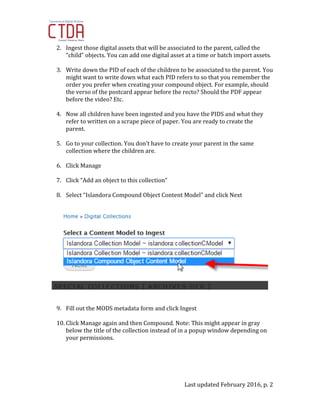
8. Select “Islandora Compound Object Content Model” and click Next
9. Fill out the MODS metadata form and click Ingest
10. Click Manage again and then Compound. Note: This might appear in gray
below the title of the collection instead of in a popup window depending on
your permissions.
Last updated February 2016, p. 3
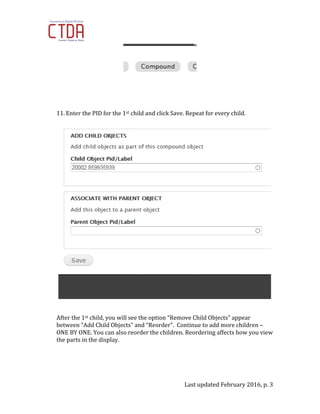
11. Enter the PID for the 1st child and click Save. Repeat for every child.
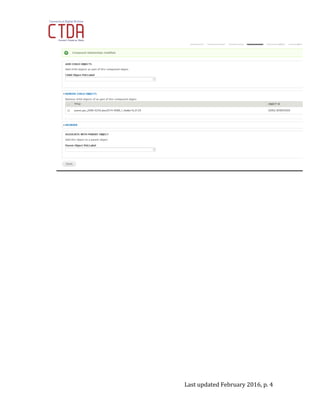
After the 1st child, you will see the option “Remove Child Objects” appear
between “Add Child Objects” and “Reorder”. Continue to add more children –
ONE BY ONE. You can also reorder the children. Reordering affects how you view
the parts in the display.
Last updated February 2016, p. 4

How to Add A Compound Object

  • 1.
    Last updated February2016, p. 1 Creating Compound Objects Compound objects are special types of container objects that group unordered sets of repository objects that share some association that is stronger than grouping them under a collection object, but do not necessarily require the ordered presentation of a book object. The most obvious example of a compound object is the front and back of a postcard, where the desire is to facilitate the discovery and presentation of the postcard rather than only the front or only the back. Another analogy is the parent child relationship or parts and whole. In Islandora, the whole is referred to as the parent and is created by adding a new object to the collection as the Islandora Compound Object Content Model. The parts are the children and are created by either adding each one in a single upload using the appropriate Islandora Content Model or by batch import as the appropriate Islandora Content Model. Note: If you work with a management and presentation site, the children digital objects will only appear on the management site but not the presentation site unless you have your own channel which is configured differently. Note: The metadata for the parent is never seen but CAN BE SEARCHED. Note: The TN or Thumbnail that is displayed is created from the 1st child associated to the parent. You may change this TN jpeg if you want by replacing the TN datastream for the parent digital object. 1. Configure your collection for the collection policies appropriate to the format for the all the children you want to associate to the parent object. For example, if you have a compound object of a tiff image, a jpeg, a mp4 video and a PDF, then your collection must have the collections policies for Islandora Large Image Content Model, Islandora Basic Image Content Model, Islandora Video Content Model, and either Islandora PDF or Islandora Document checked off and set to your namespace.
  • 2.
    Last updated February2016, p. 2 2. Ingest those digital assets that will be associated to the parent, called the “child” objects. You can add one digital asset at a time or batch import assets. 3. Write down the PID of each of the children to be associated to the parent. You might want to write down what each PID refers to so that you remember the order you prefer when creating your compound object. For example, should the verso of the postcard appear before the recto? Should the PDF appear before the video? Etc. 4. Now all children have been ingested and you have the PIDS and what they refer to written on a scrape piece of paper. You are ready to create the parent. 5. Go to your collection. You don’t have to create your parent in the same collection where the children are. 6. Click Manage 7. Click “Add an object to this collection” 8. Select “Islandora Compound Object Content Model” and click Next 9. Fill out the MODS metadata form and click Ingest 10. Click Manage again and then Compound. Note: This might appear in gray below the title of the collection instead of in a popup window depending on your permissions.
  • 3.
    Last updated February2016, p. 3 11. Enter the PID for the 1st child and click Save. Repeat for every child. After the 1st child, you will see the option “Remove Child Objects” appear between “Add Child Objects” and “Reorder”. Continue to add more children – ONE BY ONE. You can also reorder the children. Reordering affects how you view the parts in the display.
  • 4.