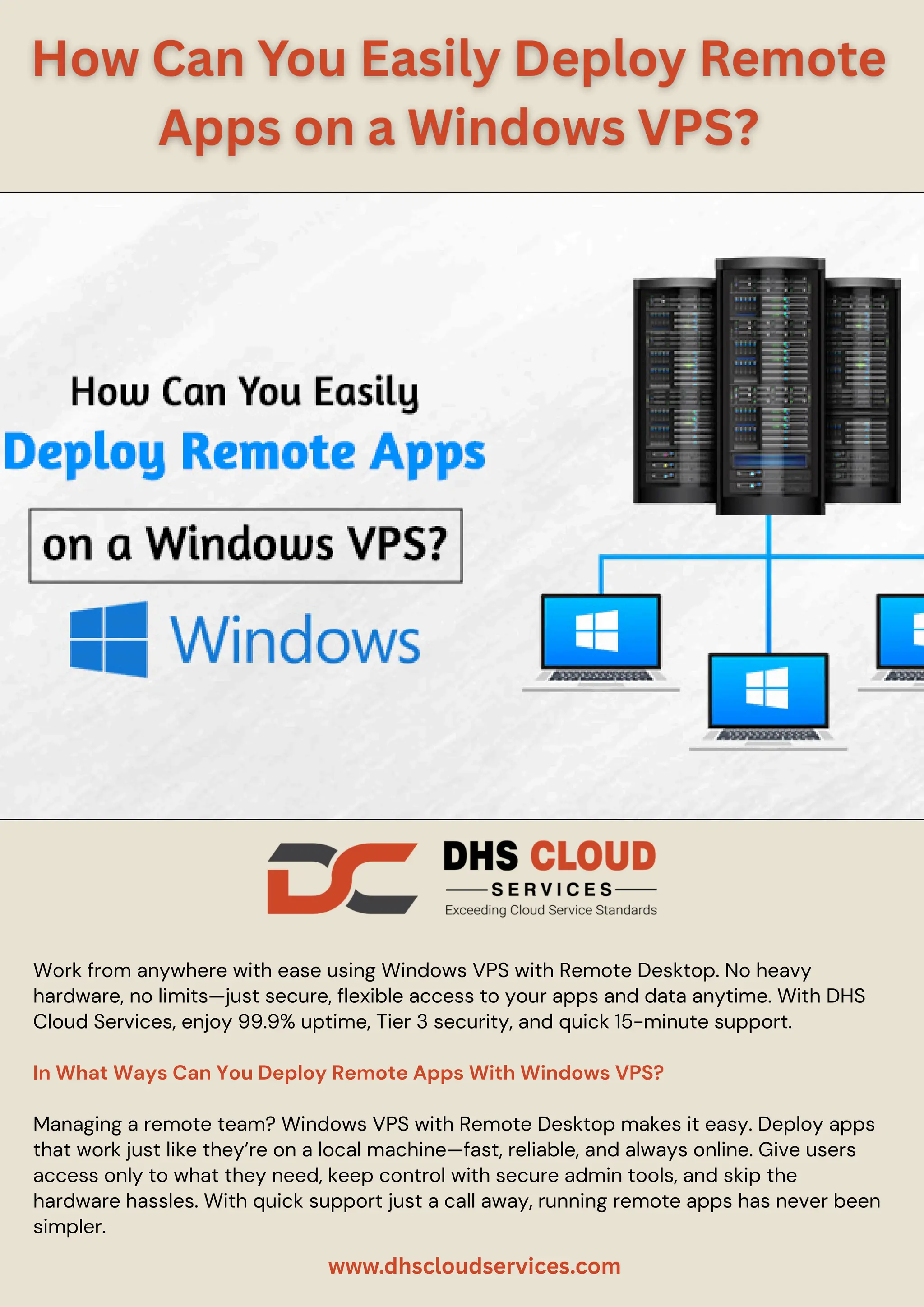
Work from anywhere with ease using Windows VPS with Remote Desktop. No heavy
hardware, no limits—just secure, flexible access to your apps and data anytime. With DHS
Cloud Services, enjoy 99.9% uptime, Tier 3 security, and quick 15-minute support.
In What Ways Can You Deploy Remote Apps With Windows VPS?
Managing a remote team? Windows VPS with Remote Desktop makes it easy. Deploy apps
that work just like they’re on a local machine—fast, reliable, and always online. Give users
access only to what they need, keep control with secure admin tools, and skip the
hardware hassles. With quick support just a call away, running remote apps has never been
simpler.
www.dhscloudservices.com
Prepare your Windows VPS
Getting started with Windows VPS and Remote Desktop is simple. First, set up a clean and
secure VPS with full admin access—think of it as your blank canvas. From there, you can
customize it for your team’s workflow, ensuring apps run smoothly, securely, and
productively from anywhere.
Install Remote Desktop Services Role
Think of setting up your VPS like stocking your workspace with the right tools. By installing
the Remote Desktop Services role, your server can handle multiple sessions and deliver
apps seamlessly—keeping everything fast, reliable, and ready for your team.
Publish Remote Apps
Wondering how to make your applications available through Windows VPS? Publishing
remote apps allows you to provide your team access to only the software they need,
without exposing the entire desktop environment. This targeted approach is perfect for
security and efficiency.
With Windows VPS with Remote Desktop, publishing apps is an easy process, letting your
users feel like they are running the apps locally, even though everything is hosted remotely.
It’s about making technology invisible so your team can focus on their work.
Configure user access and permissions
Managing who can see and use your apps on your virtual server hosting keeps your work
environment safe and organized. Assigning proper user permissions ensures everyone has
the right level of access without risking security. These platforms let IT teams tailor access
controls easily, giving peace of mind that sensitive data and applications are only available
to authorized users.
Secure your VPS
Protecting your Windows VPS with Remote Desktop is like locking up your digital
workspace. With tools like encryption and multi-factor authentication, you keep data safe,
apps reliable, and your business compliant.
Connect and Test
Once your VPS is ready, test the remote apps to be sure everything runs smoothly. This
final check ensures your team can access the right tools without glitches and enjoy a
seamless experience.
www.dhscloudservices.com
Monitor and Maintain
Keep your Windows VPS with Remote Desktop running smoothly with regular monitoring
and maintenance. By checking performance, security, and resources, you prevent
downtime and ensure apps stay fast and reliable—so you can focus on growing your
business.
Get Measurable Results with DHS Cloud Services’ Windows VPS Services
At DHS Cloud Services, we make remote app deployment on Windows VPS easy and
reliable. Enjoy 99.9% uptime, faster app access, and stronger security with multi-factor
authentication—so your team can work productively from anywhere.
Deploy Remote Apps Easily with DHS Cloud Services
In short, Windows VPS with Remote Desktop makes business operations easier by giving
secure, real-time access to essential tools from anywhere. With DHS Cloud Services, the
setup is simple, secure, and scalable—so you can focus on growth, not IT hassles.
www.dhscloudservices.com

How Can You Easily Deploy Remote Apps on a Windows VPS.pdf

  • 1.
    Work from anywherewith ease using Windows VPS with Remote Desktop. No heavy hardware, no limits—just secure, flexible access to your apps and data anytime. With DHS Cloud Services, enjoy 99.9% uptime, Tier 3 security, and quick 15-minute support. In What Ways Can You Deploy Remote Apps With Windows VPS? Managing a remote team? Windows VPS with Remote Desktop makes it easy. Deploy apps that work just like they’re on a local machine—fast, reliable, and always online. Give users access only to what they need, keep control with secure admin tools, and skip the hardware hassles. With quick support just a call away, running remote apps has never been simpler. www.dhscloudservices.com
  • 2.
    Prepare your WindowsVPS Getting started with Windows VPS and Remote Desktop is simple. First, set up a clean and secure VPS with full admin access—think of it as your blank canvas. From there, you can customize it for your team’s workflow, ensuring apps run smoothly, securely, and productively from anywhere. Install Remote Desktop Services Role Think of setting up your VPS like stocking your workspace with the right tools. By installing the Remote Desktop Services role, your server can handle multiple sessions and deliver apps seamlessly—keeping everything fast, reliable, and ready for your team. Publish Remote Apps Wondering how to make your applications available through Windows VPS? Publishing remote apps allows you to provide your team access to only the software they need, without exposing the entire desktop environment. This targeted approach is perfect for security and efficiency. With Windows VPS with Remote Desktop, publishing apps is an easy process, letting your users feel like they are running the apps locally, even though everything is hosted remotely. It’s about making technology invisible so your team can focus on their work. Configure user access and permissions Managing who can see and use your apps on your virtual server hosting keeps your work environment safe and organized. Assigning proper user permissions ensures everyone has the right level of access without risking security. These platforms let IT teams tailor access controls easily, giving peace of mind that sensitive data and applications are only available to authorized users. Secure your VPS Protecting your Windows VPS with Remote Desktop is like locking up your digital workspace. With tools like encryption and multi-factor authentication, you keep data safe, apps reliable, and your business compliant. Connect and Test Once your VPS is ready, test the remote apps to be sure everything runs smoothly. This final check ensures your team can access the right tools without glitches and enjoy a seamless experience. www.dhscloudservices.com
  • 3.
    Monitor and Maintain Keepyour Windows VPS with Remote Desktop running smoothly with regular monitoring and maintenance. By checking performance, security, and resources, you prevent downtime and ensure apps stay fast and reliable—so you can focus on growing your business. Get Measurable Results with DHS Cloud Services’ Windows VPS Services At DHS Cloud Services, we make remote app deployment on Windows VPS easy and reliable. Enjoy 99.9% uptime, faster app access, and stronger security with multi-factor authentication—so your team can work productively from anywhere. Deploy Remote Apps Easily with DHS Cloud Services In short, Windows VPS with Remote Desktop makes business operations easier by giving secure, real-time access to essential tools from anywhere. With DHS Cloud Services, the setup is simple, secure, and scalable—so you can focus on growth, not IT hassles. www.dhscloudservices.com