HelloWired - Theme Instructions.

Installation
In this document you will find all the necessary instructions on how to install, use and customize
your template to fit your store's needs.


What you will need before you start
  •   If your operating system doesnt already have it integrated, you will need a ZIP-tool to unzip your
      goods. We recommend WinRAR or WinZIP.


  •   To transfer your template over to your Magento installation you'll need an FTP-tool (or SCP if you're
      too cool for FTP). We recommend FileZilla or SmartFTP.


  •   And last, some basic computer knowledge is always good to have, although installing our templates is
      far from brain-science.


General Installation instructions
  •   First, open up your ZIP-file and copy the whole "app, skin and media"- folders on the main root of your
      local magento server (you will need to merge these files).


  •   A message may popup and warn you that there are similar files already on your server. You will need
      to select overwrite to overwrite the same files. If not, don't worry, it will still work.


  •   This may take up to 5-10 minutes depending on your connection.


  •   Log in to your backend of your Magento Administration and go to "System" →"Design". Click "Add
      Design Change". In "Custom Design" select your theme from the drop down and click "Save".


  •   Disable the Cache in System → Cache Management).


  •   Select all options. Then either refresh or disable your cache. Refresh means it will refresh your cache,
      Disable will disable your cache. We recommend disabling your cache when installing your theme and
      re-enabling it after you are done installing.


  •   Ok, the template is active but your template includes more functionality which needs to be configured
      to make it work 100%.
Static Block

Static Blocks are extra HTML or Plain Text that can be integrated to your store. We set these up so
you can customize links, images or text included in our themes.


We are now going to install our static blocks for this theme, go to CMS → Static Blocks → Add New
Block.


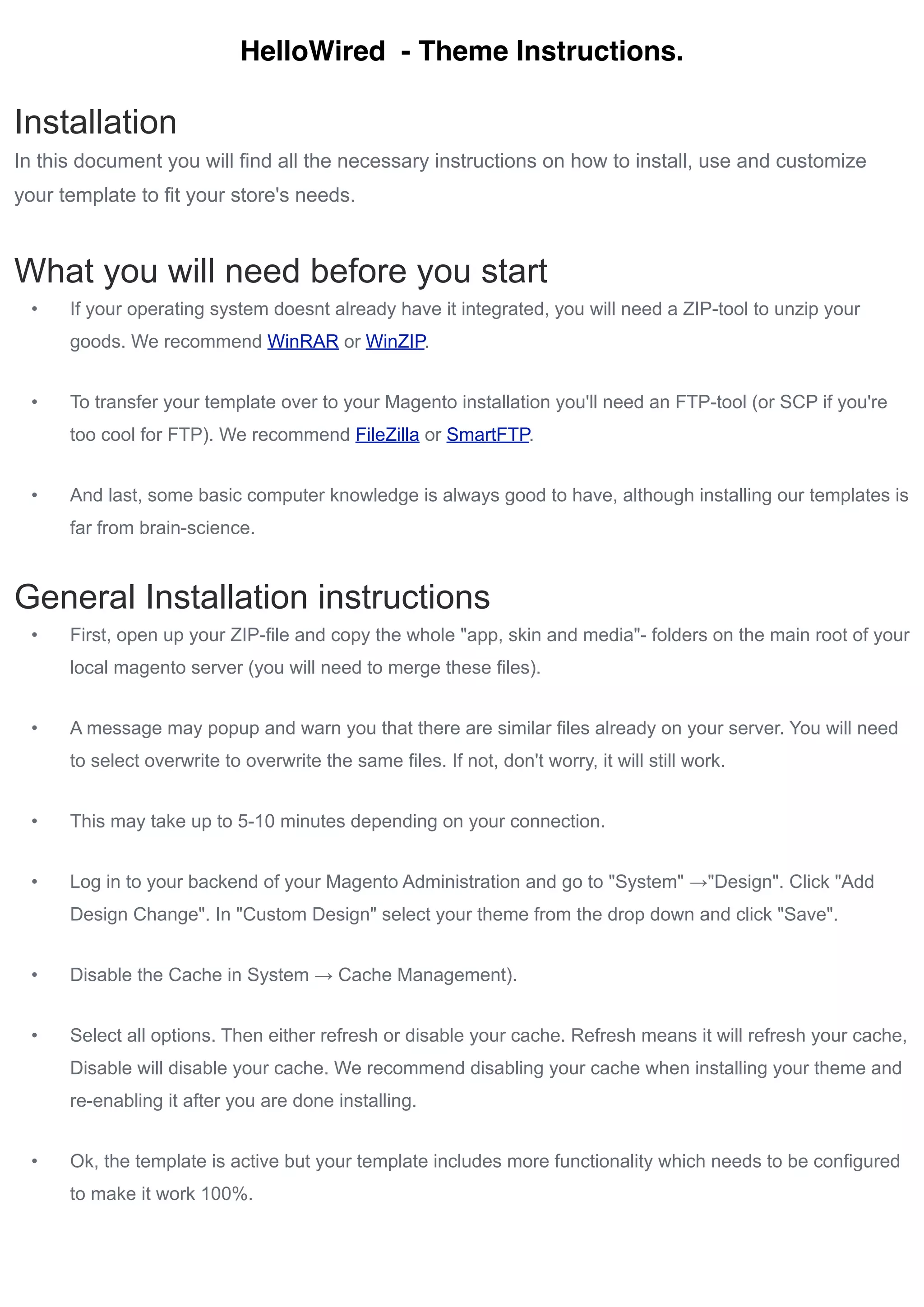
HelloSlide (Frontpage Slider)

 Block Title:    HelloSlide (this can be titled anything you like)

 Identifier:     helloslide (must be exactly like this, with no uppercase or spaces)

 Satus:          Enabled


Content:


  <div id="slider-wrapper">
    <div id="slider">
    <div class="panel"><img src="{{media url=helloslide/01.jpg}}"
  alt="Flowing Rock" /> <span class="comment">Aca va el comment</
  span></div>
    <div class="panel"><img src="{{media url=helloslide/02.jpg}}"
  alt="Other" /> <span class="comment">Aca va el otro comment</span></
  div>
    <div id="controls">&nbsp;</div>
    </div>
    </div>
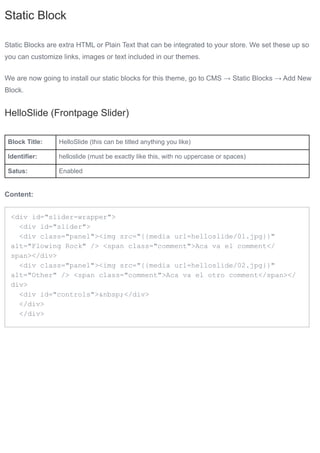
Top CMS Links


Block Title:   Top CMS Links (this can be titled anything you like)

Identifier:    toplinks (must be exactly like this, with no uppercase or spaces)

Satus:         Enabled


Content:

 <li><a href="#">Order Status</a></li>
 <li><a href="#">Customer Service</a></li>
 <li class="last"><a href="#">Find a store</a></li>


Footer Links


Block Title:   FooterLinks (this can be titled anything you like)

Identifier:    footerlinks (must be exactly like this, with no uppercase or spaces)

Satus:         Enabled


Content:

 <div class="footer-block first">
 <h6>Customer Service</h6>
 <ul>
 <li><a href="{{store url='about-magento-store'}}">About Us</a></li>
 <li><a href="{{store url='our-company'}}">Our company</a></li>
 <li><a href="{{store url='catalog/seo_sitemap/category'}}">Sitemap</
 a></li>
 </ul>

 </div>
 <div class="footer-block">
 <h6>Customer Info</h6>
 <ul>
 <li><a href="{{store url='contacts'}}">Contact Us</a></li>
 <li><a href="{{store url='price-matching'}}">Price matching</a></li>
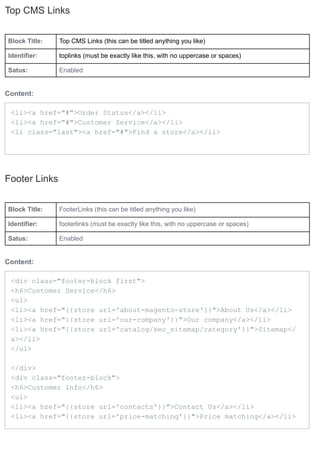
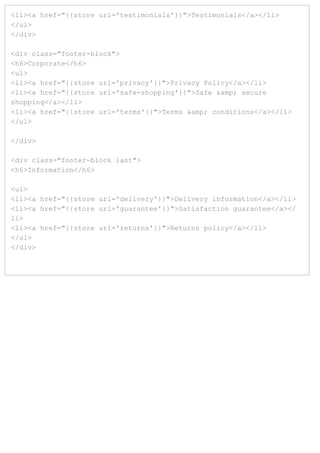
<li><a href="{{store url='testimonials'}}">Testimonials</a></li>
</ul>
</div>

<div class="footer-block">
<h6>Corporate</h6>
<ul>
<li><a href="{{store url='privacy'}}">Privacy Policy</a></li>
<li><a href="{{store url='safe-shopping'}}">Safe &amp; secure
shopping</a></li>
<li><a href="{{store url='terms'}}">Terms &amp; conditions</a></li>
</ul>

</div>

<div class="footer-block last">
<h6>Information</h6>

<ul>
<li><a href="{{store url='delivery'}}">Delivery information</a></li>
<li><a href="{{store url='guarantee'}}">Satisfaction guarantee</a></
li>
<li><a href="{{store url='returns'}}">Returns policy</a></li>
</ul>
</div>
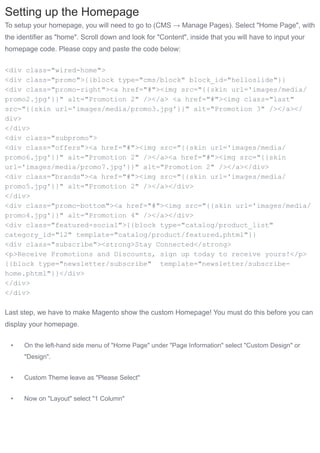
Setting up the Homepage
To setup your homepage, you will need to go to (CMS → Manage Pages). Select "Home Page", with
the identifier as "home". Scroll down and look for "Content", inside that you will have to input your
homepage code. Please copy and paste the code below:


<div class="wired-home">
<div class="promo">{{block type="cms/block" block_id="helloslide"}}
<div class="promo-right"><a href="#"><img src="{{skin url='images/media/
promo2.jpg'}}" alt="Promotion 2" /></a> <a href="#"><img class="last"
src="{{skin url='images/media/promo3.jpg'}}" alt="Promotion 3" /></a></
div>
</div>
<div class="subpromo">
<div class="offers"><a href="#"><img src="{{skin url='images/media/
promo6.jpg'}}" alt="Promotion 2" /></a><a href="#"><img src="{{skin
url='images/media/promo7.jpg'}}" alt="Promotion 2" /></a></div>
<div class="brands"><a href="#"><img src="{{skin url='images/media/
promo5.jpg'}}" alt="Promotion 2" /></a></div>
</div>
<div class="promo-bottom"><a href="#"><img src="{{skin url='images/media/
promo4.jpg'}}" alt="Promotion 4" /></a></div>
<div class="featured-social">{{block type="catalog/product_list"
category_id="12" template="catalog/product/featured.phtml"}}
<div class="subscribe"><strong>Stay Connected</strong>
<p>Receive Promotions and Discounts, sign up today to receive yours!</p>
{{block type="newsletter/subscribe" template="newsletter/subscribe-
home.phtml"}}</div>
</div>
</div>

Last step, we have to make Magento show the custom Homepage! You must do this before you can
display your homepage.


 •    On the left-hand side menu of "Home Page" under "Page Information" select "Custom Design" or
      "Design".


 •    Custom Theme leave as "Please Select"


 •    Now on "Layout" select "1 Column"
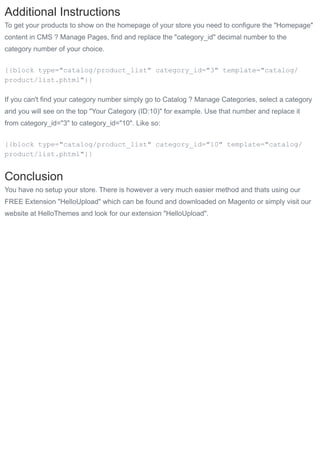
Additional Instructions
To get your products to show on the homepage of your store you need to configure the "Homepage"
content in CMS ? Manage Pages, find and replace the "category_id" decimal number to the
category number of your choice.


{{block type="catalog/product_list" category_id="3" template="catalog/
product/list.phtml"}}

If you can't find your category number simply go to Catalog ? Manage Categories, select a category
and you will see on the top "Your Category (ID:10)" for example. Use that number and replace it
from category_id="3" to category_id="10". Like so:


{{block type="catalog/product_list" category_id="10" template="catalog/
product/list.phtml"}}


Conclusion
You have no setup your store. There is however a very much easier method and thats using our
FREE Extension "HelloUpload" which can be found and downloaded on Magento or simply visit our
website at HelloThemes and look for our extension "HelloUpload".

hellowired_instructions

  • 1.
    HelloWired - ThemeInstructions. Installation In this document you will find all the necessary instructions on how to install, use and customize your template to fit your store's needs. What you will need before you start • If your operating system doesnt already have it integrated, you will need a ZIP-tool to unzip your goods. We recommend WinRAR or WinZIP. • To transfer your template over to your Magento installation you'll need an FTP-tool (or SCP if you're too cool for FTP). We recommend FileZilla or SmartFTP. • And last, some basic computer knowledge is always good to have, although installing our templates is far from brain-science. General Installation instructions • First, open up your ZIP-file and copy the whole "app, skin and media"- folders on the main root of your local magento server (you will need to merge these files). • A message may popup and warn you that there are similar files already on your server. You will need to select overwrite to overwrite the same files. If not, don't worry, it will still work. • This may take up to 5-10 minutes depending on your connection. • Log in to your backend of your Magento Administration and go to "System" →"Design". Click "Add Design Change". In "Custom Design" select your theme from the drop down and click "Save". • Disable the Cache in System → Cache Management). • Select all options. Then either refresh or disable your cache. Refresh means it will refresh your cache, Disable will disable your cache. We recommend disabling your cache when installing your theme and re-enabling it after you are done installing. • Ok, the template is active but your template includes more functionality which needs to be configured to make it work 100%.
  • 2.
    Static Block Static Blocksare extra HTML or Plain Text that can be integrated to your store. We set these up so you can customize links, images or text included in our themes. We are now going to install our static blocks for this theme, go to CMS → Static Blocks → Add New Block. HelloSlide (Frontpage Slider) Block Title: HelloSlide (this can be titled anything you like) Identifier: helloslide (must be exactly like this, with no uppercase or spaces) Satus: Enabled Content: <div id="slider-wrapper"> <div id="slider"> <div class="panel"><img src="{{media url=helloslide/01.jpg}}" alt="Flowing Rock" /> <span class="comment">Aca va el comment</ span></div> <div class="panel"><img src="{{media url=helloslide/02.jpg}}" alt="Other" /> <span class="comment">Aca va el otro comment</span></ div> <div id="controls">&nbsp;</div> </div> </div>
  • 3.
    Top CMS Links BlockTitle: Top CMS Links (this can be titled anything you like) Identifier: toplinks (must be exactly like this, with no uppercase or spaces) Satus: Enabled Content: <li><a href="#">Order Status</a></li> <li><a href="#">Customer Service</a></li> <li class="last"><a href="#">Find a store</a></li> Footer Links Block Title: FooterLinks (this can be titled anything you like) Identifier: footerlinks (must be exactly like this, with no uppercase or spaces) Satus: Enabled Content: <div class="footer-block first"> <h6>Customer Service</h6> <ul> <li><a href="{{store url='about-magento-store'}}">About Us</a></li> <li><a href="{{store url='our-company'}}">Our company</a></li> <li><a href="{{store url='catalog/seo_sitemap/category'}}">Sitemap</ a></li> </ul> </div> <div class="footer-block"> <h6>Customer Info</h6> <ul> <li><a href="{{store url='contacts'}}">Contact Us</a></li> <li><a href="{{store url='price-matching'}}">Price matching</a></li>
  • 4.
    <li><a href="{{store url='testimonials'}}">Testimonials</a></li> </ul> </div> <divclass="footer-block"> <h6>Corporate</h6> <ul> <li><a href="{{store url='privacy'}}">Privacy Policy</a></li> <li><a href="{{store url='safe-shopping'}}">Safe &amp; secure shopping</a></li> <li><a href="{{store url='terms'}}">Terms &amp; conditions</a></li> </ul> </div> <div class="footer-block last"> <h6>Information</h6> <ul> <li><a href="{{store url='delivery'}}">Delivery information</a></li> <li><a href="{{store url='guarantee'}}">Satisfaction guarantee</a></ li> <li><a href="{{store url='returns'}}">Returns policy</a></li> </ul> </div>
  • 5.
    Setting up theHomepage To setup your homepage, you will need to go to (CMS → Manage Pages). Select "Home Page", with the identifier as "home". Scroll down and look for "Content", inside that you will have to input your homepage code. Please copy and paste the code below: <div class="wired-home"> <div class="promo">{{block type="cms/block" block_id="helloslide"}} <div class="promo-right"><a href="#"><img src="{{skin url='images/media/ promo2.jpg'}}" alt="Promotion 2" /></a> <a href="#"><img class="last" src="{{skin url='images/media/promo3.jpg'}}" alt="Promotion 3" /></a></ div> </div> <div class="subpromo"> <div class="offers"><a href="#"><img src="{{skin url='images/media/ promo6.jpg'}}" alt="Promotion 2" /></a><a href="#"><img src="{{skin url='images/media/promo7.jpg'}}" alt="Promotion 2" /></a></div> <div class="brands"><a href="#"><img src="{{skin url='images/media/ promo5.jpg'}}" alt="Promotion 2" /></a></div> </div> <div class="promo-bottom"><a href="#"><img src="{{skin url='images/media/ promo4.jpg'}}" alt="Promotion 4" /></a></div> <div class="featured-social">{{block type="catalog/product_list" category_id="12" template="catalog/product/featured.phtml"}} <div class="subscribe"><strong>Stay Connected</strong> <p>Receive Promotions and Discounts, sign up today to receive yours!</p> {{block type="newsletter/subscribe" template="newsletter/subscribe- home.phtml"}}</div> </div> </div> Last step, we have to make Magento show the custom Homepage! You must do this before you can display your homepage. • On the left-hand side menu of "Home Page" under "Page Information" select "Custom Design" or "Design". • Custom Theme leave as "Please Select" • Now on "Layout" select "1 Column"
  • 6.
    Additional Instructions To getyour products to show on the homepage of your store you need to configure the "Homepage" content in CMS ? Manage Pages, find and replace the "category_id" decimal number to the category number of your choice. {{block type="catalog/product_list" category_id="3" template="catalog/ product/list.phtml"}} If you can't find your category number simply go to Catalog ? Manage Categories, select a category and you will see on the top "Your Category (ID:10)" for example. Use that number and replace it from category_id="3" to category_id="10". Like so: {{block type="catalog/product_list" category_id="10" template="catalog/ product/list.phtml"}} Conclusion You have no setup your store. There is however a very much easier method and thats using our FREE Extension "HelloUpload" which can be found and downloaded on Magento or simply visit our website at HelloThemes and look for our extension "HelloUpload".