IT211 Intro to Human
Computer Interaction
The Human Body and Device Design
Input Devices and Ergonomics
• Computer ergonomics addresses ways to optimize your computer
workstation to reduce the specific risks of computer vision syndrome,
neck and back pain, and carpal tunnel syndrome. It also reduces the
risk of other disorders affecting the muscles, spine, and joints.
WHAT ARE THE HEALTH RISKS OF WORKING AT
A COMPUTER FREQUENTLY?
• Working at a computer for prolonged periods can be harmful to your
overall health when you don’t monitor your working environment. An
unhealthy workstation set up can cause a range of injuries and health
issues, including dry eyes, neck, and backache. It some cases, it can
even lead to poor digestion, headaches, repetitive stress injury and
vision problems.
COMPUTER VISION SYNDROME
• Computer vision syndrome refers to a group of eye and vision-related
problems that result from prolonged computer use. Symptoms of
computer vision syndrome include the following:
DRY EYES
• Just like other digital devices, computers can cause dry eyes, as they
can affect the way we blink. According to the University of Iowa
Hospitals and Clinics, a person blinks up to 66 percent less frequently
while using a computer. If you are blinking less, tears on your eyes
have more time to evaporate, resulting in red and dry eyes. This can
even cause blurred vision in some cases.
EYESTRAIN
• Eyestrain can occur when we force our eyes to focus in an unhealthy,
unnatural position. For example, if our monitor is placed at an
awkward angle or too low, our eyes are forced to stay in an unnatural
position. These awkward postures strain the eye muscles and can
cause pain and aching.
BLURRED VISION
• Blurred vision is commonly caused by looking at a screen that is too
bright or sitting too close to a monitor. It can also be caused by
looking at a screen for long without adequate breaks.
HEADACHES
• Headaches are a common complaint from people who spend
prolonged periods sat at a computer. Headaches can occur due to
poor lighting in your workspace, glare on the screen, improper
computer brightness and color. Headaches can also be caused by eye
strain.
• Our eyes are more comfortable resting at a point that is further away
from the screen. When we look at a computer, our eye muscles have
to constantly readjust focus between the RPA and the front of the
screen. When there is a conflict between where our eyes want to
focus and where we force them to be focused can lead to strain and
the eyes become tired. This can often be the cause of our office
headache.
NECK AND BACK PAIN
• Workers often adopt to a certain position to see the screen better.
Straining your muscles to look at a computer is a common cause of
back and neck ache, as your body forced into an unnatural position.
This is particularly a problem when people find themselves looking
down to see their computer screen rather than adjusting the monitor
to match their eye level.
CARPAL TUNNEL SYNDROME
• Carpal tunnel is a condition that causes pain, numbness, and tingling
in the hand and arm. It causes when one of the major nerves to the
hand – the median nerve, is squeezed or compressed as it travels
through the wrist. This is commonly caused by the wrong mouse and
keyboard placement.
THE CORRECT MONITOR HEIGHT AND
PLACEMENT
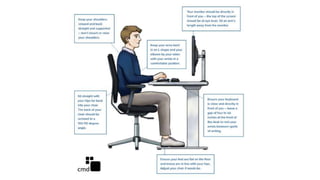
• Placing your computer monitor so it is not level with your
eyeline is a common cause of computer vision syndrome and
back and neck injury. To avoid health issues and screen glare,
position computer monitors and display screens so they are:
• level with your eyeline to prevent neck and back pain
• around an arm’s length away from your body to prevent computer
vision syndrome
REDUCE SCREEN GLARE
• To prevent headaches and computer vision syndrome, you should
ensure you adjust your monitor so that its brightness is approximately
equal to the area behind it. If you find yourself experiencing
computer vision frequently, it may be time to adjust your computer
screen brightness.
• If you still experience screen glare, you can cover your computer with
an anti-glare filter and wear anti-glare glasses.
THE CORRECT MOUSE PLACEMENT
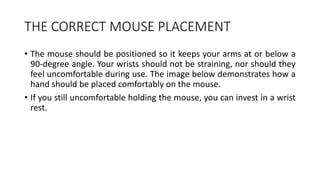
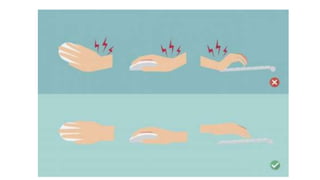
• The mouse should be positioned so it keeps your arms at or below a
90-degree angle. Your wrists should not be straining, nor should they
feel uncomfortable during use. The image below demonstrates how a
hand should be placed comfortably on the mouse.
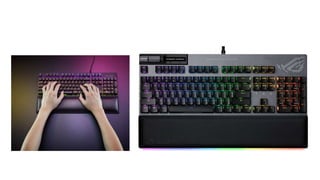
• If you still uncomfortable holding the mouse, you can invest in a wrist
rest.
AVOID WORKING IN YOUR BED OR ON THE
SOFA
• Not only can working away from a proper desk reduce your
motivation and productivity; it can also be a cause of back and neck
pain. When you are working in your bed or on the sofa, your neck is
not fully supported by an effective ergonomic office chair. Working
away from your desk also means your monitor or laptop is not
positioned so it meets your eye line, increasing the risk of injuries and
computer vision syndrome.
Common Computer Input Devices
• Keyboard
• Mouse
• Microphone
• Webcam
• Gamepad/Controller
• Graphic Tablet
• Scanner
• Touch screen
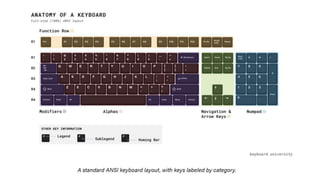
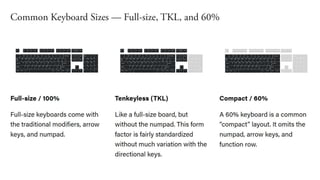
Keyboard
• Most common text input device
• Allows rapid entry of text by experienced users
• Keypress closes connection, causing a character code to be sent
• Usually connected by cable, but can be wireless
Keyboard Layout and Types of Keyboard
• QWERTY
• DVORAK
• COLEMAK
• AZERTY
• QWERTZ
• Mechanical
• Membrane
• Ergonomic
QWERTY
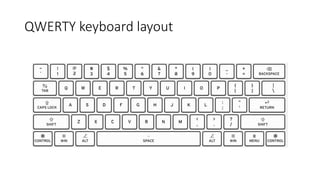
• The very first typing layout was invented by Christopher Latham
Sholes in the 1870s. The goal of this layout was designed to be slow
and inefficient so that the typewriters would not jam from typing too
fast on them. Sholes accomplished this by putting vowels and other
common letters far away from each other and by not placing many of
the most used letters on the home row. If you look at this list and
then look down at your keyboard you’ll see that the home row of the
QWERTY layout contains the letters A, S, D, F, J, K, L, and
colon/semicolon.
QWERTY keyboard layout
DVORAK
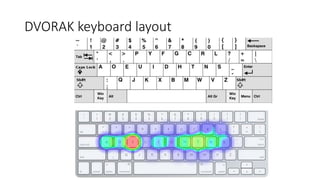
• In the 1930s the Dvorak layout was invented by Dr. August Dvorak. The goal
of the design was to be fast and efficient, so Dr. Dvorak placed the most
common consonants and vowels on the home row, except for the letter U.
• As you can see, the Dvorak layout also places the most used letters in the
English language, E and T on the longest fingers, the middle finger. You will
also find the most common punctuation just above the left hand’s home
row which has also been shown to have its advantages for typists who
adopt this keyboard layout.
• Because the Dvorak layout is not widely used, the sample size of typists to
use it is too small to make a true determination of the layout is intrinsically
faster than the QWERTY layout, but there is early evidence that shows that
it Dvorak (and Colemak) typists tend to be more accurate.
DVORAK keyboard layout
COLEMAK
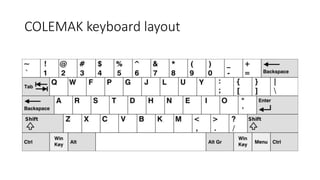
• One of the newest keyboard layouts, the Colemak layout invented by
Shai Coleman in 2006. It was designed to be an upgrade from the
Dvorak, where the O is replaced by, E is replaced with S, and U is
replaced with T from the right hand. The right hand on the Colemak
differs from Dvorak with the H being replaced with N, the T with E, N
with I, and S with O.
• With the Colemak layout the letter I makes its first appearance in the
home row, and you will have the punctuation keys in the same place
as a QWERTY keyboard except for the colon/semicolon key being
moved above the home row. If you are interested in making a switch
from QWERTY to a new layout, then Colemak may be easier simply
because there are fewer keys that are changed due to the same
period and comma keys.
COLEMAK keyboard layout
AZERTY
• A keyboard layout used in France, Belgium and neighboring countries.
A, Z, E, R, T and Y are the letters on the top left, alphabetic row.
AZERTY is similar to the QWERTY layout, except that Q and A are
swapped, Z and W are swapped and M is in the middle row instead of
the bottom one. Switching from QWERTY to AZERTY takes some
practice; however, it is easier than switching from QWERTY to Dvorak,
which is very difficult for experienced touch typists.
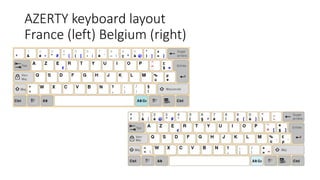
AZERTY keyboard layout
France (left) Belgium (right)
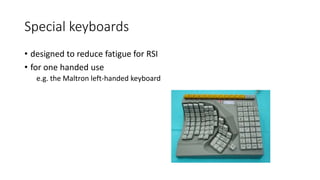
Special keyboards
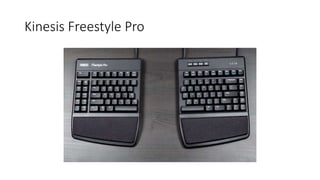
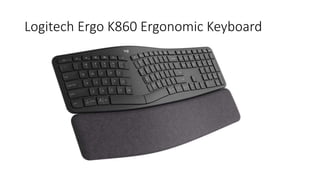
• designed to reduce fatigue for RSI
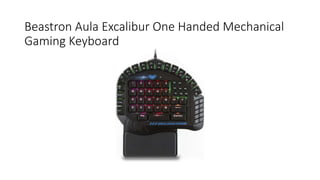
• for one handed use
e.g. the Maltron left-handed keyboard
Kinesis Freestyle Pro
Beastron Aula Excalibur One Handed Mechanical
Gaming Keyboard
Logitech Ergo K860 Ergonomic Keyboard
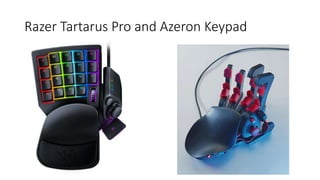
Razer Tartarus Pro and Azeron Keypad
Mouse
Types of mice
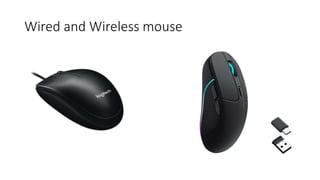
• Wired mouse
• Wireless mouse
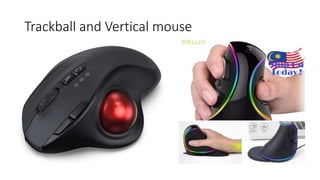
• Trackball mouse
• Vertical mouse
• Magic mouse
Wired and Wireless mouse
Trackball and Vertical mouse
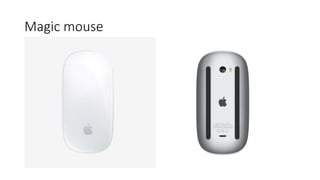
Magic mouse
Microphone
• It is used to convert sound waves into electric waves or input the
audio into computers. It captures audio by converting sound waves
into an electrical signal, which may be a digital or analog signal. This
process can be implemented by a computer or other digital audio
devices.
Types of Microphones
• Omnidirectional microphone
• Unidirectional microphone
• Close-talk microphone
• Bidirectional microphone
• Clip-on microphone
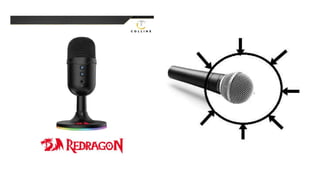
Omnidirectional microphone
• It is a type of microphone that is able to pick up sound from all sides
of the microphone, as it contains a circular polar plot. For example, if
a person speaks into the microphone from the left, right, front,
backside, it will record the signals equally from all sides. These
microphones are mainly used in studios to record more than one-
person voice or musical instruments. It is opposite to the
unidirectional microphones, which receive the sound from a
particular direction.
Unidirectional microphone
• It is a type of microphone that can pick up sound in one direction
only. Thus, it can record the voice when you speak in the correct
direction. This type of microphone is beneficial when a user wants to
record their voice during a podcast or voice-over. Its polar plot shows
that it receives maximum sound when the user speaks in front of it.
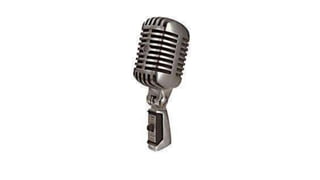
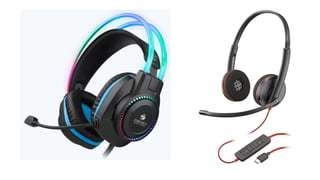
Close-talk microphone
• It is another type of microphone in which you have to keep your
mouth close to the microphone without making any noise or sound
that usually happens with other microphones. These microphones are
used with the phones, headset as well as voice-recognition software.
It provides excellent voice quality for fixed station applications.
Additionally, it includes a feature hum-bucking coil to reduce
unnecessary sound and increase quality for voice communications
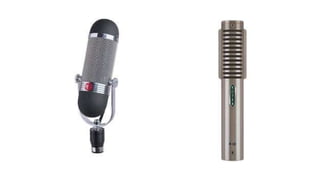
Bidirectional microphone
• It is also known as figure-of-eight microphones designed to pick up
the sound with high sensitivity from the front and backside of the
microphone. It is useful when interviewing a person as you would like
to get equally sound from the interviewer and interviewee.
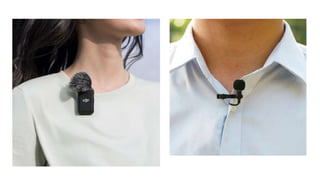
Clip-on microphone
• It is also called lavalier, lapel mic, body mic, neck mic, collar mic, or
personal mic. It is a small hands-free wireless mic that is used to allow
hands-free operations such as theatre, television, and public
speaking. These are mainly used by attaching to ties, collars, shirts, or
other clothing.
Webcam
Types of webcam
• Integrated
• Standalone
• Network / IP cameras
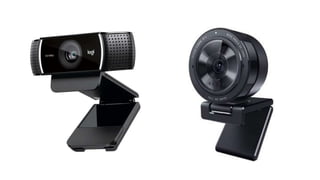
• Webcams with microphones
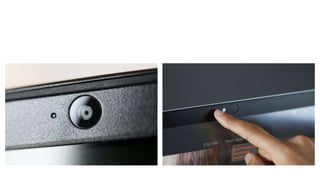
Integrated
• Many laptop computers, especially netbooks and other computers
designed for portability, include built-in webcams. Usually located at
the top of the screen, these cameras provide lower image quality
than top of the line devices, but can still manage video calls. Some
models include dual cameras: one for video calls and the other for
snapping still photos. Others offer a swivel mechanism for greater
convenience. Integrated cameras reduce your ability to choose your
webcam, but provide greater convenience and reduce clutter from
too many peripherals.
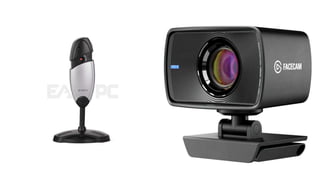
Standalone
• Standalone webcams predate most other types. Composed of a lens
unit and stand or clip, these cameras usually connect to the computer
via a USB cable. Older models may use serial port connectors or other
outdated methods of data transfer. Standalone webcams provide the
most control over your peripherals, allowing you to pick a high-quality
camera and microphone or headset to suit your needs. They result in
more desktop clutter, however.
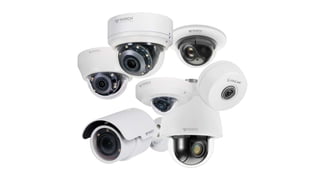
Network / IP cameras
• Network cameras work much like conventional webcams, but transmit their
data via wireless or Ethernet connections. Often used for closed-circuit
security television, network cameras also work well in high-end
videoconferencing setups where an ordinary webcam performs poorly. These
cameras cost significantly more than most webcams and require a network
connection to work properly.
Webcams with microphones
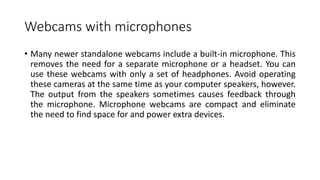
• Many newer standalone webcams include a built-in microphone. This
removes the need for a separate microphone or a headset. You can
use these webcams with only a set of headphones. Avoid operating
these cameras at the same time as your computer speakers, however.
The output from the speakers sometimes causes feedback through
the microphone. Microphone webcams are compact and eliminate
the need to find space for and power extra devices.
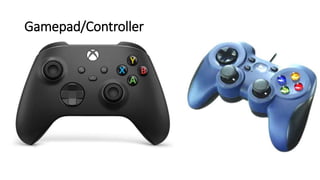
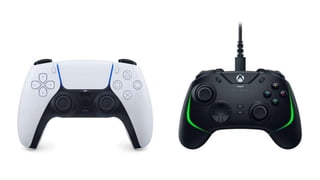
Gamepad/Controller
Graphic Tablet
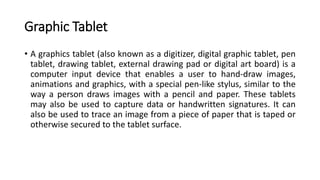
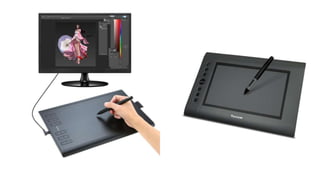
• A graphics tablet (also known as a digitizer, digital graphic tablet, pen
tablet, drawing tablet, external drawing pad or digital art board) is a
computer input device that enables a user to hand-draw images,
animations and graphics, with a special pen-like stylus, similar to the
way a person draws images with a pencil and paper. These tablets
may also be used to capture data or handwritten signatures. It can
also be used to trace an image from a piece of paper that is taped or
otherwise secured to the tablet surface.
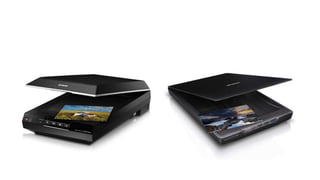
Scanner
• A scanner is a device that captures images from photographic prints,
posters, magazine pages, and similar sources for computer editing
and display. Scanners work by converting the image on the document
into digital information that can be stored on a computer through
optical character recognition (OCR)
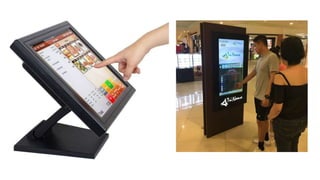
Touch screen
• A touch screen is a computer display screen that is sensitive to human
touch, allowing a user to interact with the computer by touching
pictures or words on the screen.
• Touch screens today are frequently used for information kiosks,
automated teller machines (ATMs), airline e-ticket terminals, and
customer self-service stations in retail stores, libraries, and fast food
restaurants. Touch screens are certainly the most common means of
input into mobile phones. The learning curve can initially seem
daunting, but many people overcome it to become quite proficient.
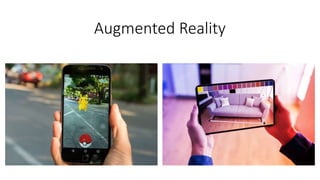
Augmented Reality
• Augmented reality (AR) is the integration of digital information with
the user’s environment in real time. Unlike virtual reality (VR), which
creates a totally artificial environment, AR users experience a real-
world environment with generated perceptual information overlaid
on top of it.
• AR is used to either visually change natural environments in some
way or to provide additional information to users. The primary benefit
of AR is that it manages to blend digital and three-dimensional (3D)
components with an individual’s perception of the real world.
Augmented Reality
Virtual Reality
• Virtual Reality (VR) is the use of computer technology to create a
simulated environment.
• Virtual Reality’s most immediately-recognizable component is the
head-mounted display (HMD). Human beings are visual creatures,
and display technology is often the single biggest difference between
immersive Virtual Reality systems and traditional user interfaces.
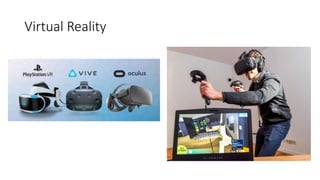
• Major players in Virtual Reality include HTC Vive, Oculus Rift and
PlayStation VR (PSVR)
Virtual Reality

hci-lec-3-computer.pptx

  • 1.
    IT211 Intro toHuman Computer Interaction The Human Body and Device Design
  • 2.
    Input Devices andErgonomics • Computer ergonomics addresses ways to optimize your computer workstation to reduce the specific risks of computer vision syndrome, neck and back pain, and carpal tunnel syndrome. It also reduces the risk of other disorders affecting the muscles, spine, and joints.
  • 4.
    WHAT ARE THEHEALTH RISKS OF WORKING AT A COMPUTER FREQUENTLY? • Working at a computer for prolonged periods can be harmful to your overall health when you don’t monitor your working environment. An unhealthy workstation set up can cause a range of injuries and health issues, including dry eyes, neck, and backache. It some cases, it can even lead to poor digestion, headaches, repetitive stress injury and vision problems.
  • 5.
    COMPUTER VISION SYNDROME •Computer vision syndrome refers to a group of eye and vision-related problems that result from prolonged computer use. Symptoms of computer vision syndrome include the following:
  • 6.
    DRY EYES • Justlike other digital devices, computers can cause dry eyes, as they can affect the way we blink. According to the University of Iowa Hospitals and Clinics, a person blinks up to 66 percent less frequently while using a computer. If you are blinking less, tears on your eyes have more time to evaporate, resulting in red and dry eyes. This can even cause blurred vision in some cases.
  • 7.
    EYESTRAIN • Eyestrain canoccur when we force our eyes to focus in an unhealthy, unnatural position. For example, if our monitor is placed at an awkward angle or too low, our eyes are forced to stay in an unnatural position. These awkward postures strain the eye muscles and can cause pain and aching.
  • 8.
    BLURRED VISION • Blurredvision is commonly caused by looking at a screen that is too bright or sitting too close to a monitor. It can also be caused by looking at a screen for long without adequate breaks.
  • 9.
    HEADACHES • Headaches area common complaint from people who spend prolonged periods sat at a computer. Headaches can occur due to poor lighting in your workspace, glare on the screen, improper computer brightness and color. Headaches can also be caused by eye strain. • Our eyes are more comfortable resting at a point that is further away from the screen. When we look at a computer, our eye muscles have to constantly readjust focus between the RPA and the front of the screen. When there is a conflict between where our eyes want to focus and where we force them to be focused can lead to strain and the eyes become tired. This can often be the cause of our office headache.
  • 10.
    NECK AND BACKPAIN • Workers often adopt to a certain position to see the screen better. Straining your muscles to look at a computer is a common cause of back and neck ache, as your body forced into an unnatural position. This is particularly a problem when people find themselves looking down to see their computer screen rather than adjusting the monitor to match their eye level.
  • 11.
    CARPAL TUNNEL SYNDROME •Carpal tunnel is a condition that causes pain, numbness, and tingling in the hand and arm. It causes when one of the major nerves to the hand – the median nerve, is squeezed or compressed as it travels through the wrist. This is commonly caused by the wrong mouse and keyboard placement.
  • 12.
    THE CORRECT MONITORHEIGHT AND PLACEMENT • Placing your computer monitor so it is not level with your eyeline is a common cause of computer vision syndrome and back and neck injury. To avoid health issues and screen glare, position computer monitors and display screens so they are: • level with your eyeline to prevent neck and back pain • around an arm’s length away from your body to prevent computer vision syndrome
  • 14.
    REDUCE SCREEN GLARE •To prevent headaches and computer vision syndrome, you should ensure you adjust your monitor so that its brightness is approximately equal to the area behind it. If you find yourself experiencing computer vision frequently, it may be time to adjust your computer screen brightness. • If you still experience screen glare, you can cover your computer with an anti-glare filter and wear anti-glare glasses.
  • 15.
    THE CORRECT MOUSEPLACEMENT • The mouse should be positioned so it keeps your arms at or below a 90-degree angle. Your wrists should not be straining, nor should they feel uncomfortable during use. The image below demonstrates how a hand should be placed comfortably on the mouse. • If you still uncomfortable holding the mouse, you can invest in a wrist rest.
  • 18.
    AVOID WORKING INYOUR BED OR ON THE SOFA • Not only can working away from a proper desk reduce your motivation and productivity; it can also be a cause of back and neck pain. When you are working in your bed or on the sofa, your neck is not fully supported by an effective ergonomic office chair. Working away from your desk also means your monitor or laptop is not positioned so it meets your eye line, increasing the risk of injuries and computer vision syndrome.
  • 19.
    Common Computer InputDevices • Keyboard • Mouse • Microphone • Webcam • Gamepad/Controller • Graphic Tablet • Scanner • Touch screen
  • 20.
    Keyboard • Most commontext input device • Allows rapid entry of text by experienced users • Keypress closes connection, causing a character code to be sent • Usually connected by cable, but can be wireless
  • 23.
    Keyboard Layout andTypes of Keyboard • QWERTY • DVORAK • COLEMAK • AZERTY • QWERTZ • Mechanical • Membrane • Ergonomic
  • 24.
    QWERTY • The veryfirst typing layout was invented by Christopher Latham Sholes in the 1870s. The goal of this layout was designed to be slow and inefficient so that the typewriters would not jam from typing too fast on them. Sholes accomplished this by putting vowels and other common letters far away from each other and by not placing many of the most used letters on the home row. If you look at this list and then look down at your keyboard you’ll see that the home row of the QWERTY layout contains the letters A, S, D, F, J, K, L, and colon/semicolon.
  • 25.
  • 26.
    DVORAK • In the1930s the Dvorak layout was invented by Dr. August Dvorak. The goal of the design was to be fast and efficient, so Dr. Dvorak placed the most common consonants and vowels on the home row, except for the letter U. • As you can see, the Dvorak layout also places the most used letters in the English language, E and T on the longest fingers, the middle finger. You will also find the most common punctuation just above the left hand’s home row which has also been shown to have its advantages for typists who adopt this keyboard layout. • Because the Dvorak layout is not widely used, the sample size of typists to use it is too small to make a true determination of the layout is intrinsically faster than the QWERTY layout, but there is early evidence that shows that it Dvorak (and Colemak) typists tend to be more accurate.
  • 27.
  • 28.
    COLEMAK • One ofthe newest keyboard layouts, the Colemak layout invented by Shai Coleman in 2006. It was designed to be an upgrade from the Dvorak, where the O is replaced by, E is replaced with S, and U is replaced with T from the right hand. The right hand on the Colemak differs from Dvorak with the H being replaced with N, the T with E, N with I, and S with O.
  • 29.
    • With theColemak layout the letter I makes its first appearance in the home row, and you will have the punctuation keys in the same place as a QWERTY keyboard except for the colon/semicolon key being moved above the home row. If you are interested in making a switch from QWERTY to a new layout, then Colemak may be easier simply because there are fewer keys that are changed due to the same period and comma keys.
  • 30.
  • 31.
    AZERTY • A keyboardlayout used in France, Belgium and neighboring countries. A, Z, E, R, T and Y are the letters on the top left, alphabetic row. AZERTY is similar to the QWERTY layout, except that Q and A are swapped, Z and W are swapped and M is in the middle row instead of the bottom one. Switching from QWERTY to AZERTY takes some practice; however, it is easier than switching from QWERTY to Dvorak, which is very difficult for experienced touch typists.
  • 32.
    AZERTY keyboard layout France(left) Belgium (right)
  • 33.
    Special keyboards • designedto reduce fatigue for RSI • for one handed use e.g. the Maltron left-handed keyboard
  • 34.
  • 35.
    Beastron Aula ExcaliburOne Handed Mechanical Gaming Keyboard
  • 36.
    Logitech Ergo K860Ergonomic Keyboard
  • 37.
    Razer Tartarus Proand Azeron Keypad
  • 38.
    Mouse Types of mice •Wired mouse • Wireless mouse • Trackball mouse • Vertical mouse • Magic mouse
  • 39.
  • 40.
  • 41.
  • 42.
    Microphone • It isused to convert sound waves into electric waves or input the audio into computers. It captures audio by converting sound waves into an electrical signal, which may be a digital or analog signal. This process can be implemented by a computer or other digital audio devices.
  • 43.
    Types of Microphones •Omnidirectional microphone • Unidirectional microphone • Close-talk microphone • Bidirectional microphone • Clip-on microphone
  • 44.
    Omnidirectional microphone • Itis a type of microphone that is able to pick up sound from all sides of the microphone, as it contains a circular polar plot. For example, if a person speaks into the microphone from the left, right, front, backside, it will record the signals equally from all sides. These microphones are mainly used in studios to record more than one- person voice or musical instruments. It is opposite to the unidirectional microphones, which receive the sound from a particular direction.
  • 46.
    Unidirectional microphone • Itis a type of microphone that can pick up sound in one direction only. Thus, it can record the voice when you speak in the correct direction. This type of microphone is beneficial when a user wants to record their voice during a podcast or voice-over. Its polar plot shows that it receives maximum sound when the user speaks in front of it.
  • 48.
    Close-talk microphone • Itis another type of microphone in which you have to keep your mouth close to the microphone without making any noise or sound that usually happens with other microphones. These microphones are used with the phones, headset as well as voice-recognition software. It provides excellent voice quality for fixed station applications. Additionally, it includes a feature hum-bucking coil to reduce unnecessary sound and increase quality for voice communications
  • 50.
    Bidirectional microphone • Itis also known as figure-of-eight microphones designed to pick up the sound with high sensitivity from the front and backside of the microphone. It is useful when interviewing a person as you would like to get equally sound from the interviewer and interviewee.
  • 52.
    Clip-on microphone • Itis also called lavalier, lapel mic, body mic, neck mic, collar mic, or personal mic. It is a small hands-free wireless mic that is used to allow hands-free operations such as theatre, television, and public speaking. These are mainly used by attaching to ties, collars, shirts, or other clothing.
  • 54.
    Webcam Types of webcam •Integrated • Standalone • Network / IP cameras • Webcams with microphones
  • 55.
    Integrated • Many laptopcomputers, especially netbooks and other computers designed for portability, include built-in webcams. Usually located at the top of the screen, these cameras provide lower image quality than top of the line devices, but can still manage video calls. Some models include dual cameras: one for video calls and the other for snapping still photos. Others offer a swivel mechanism for greater convenience. Integrated cameras reduce your ability to choose your webcam, but provide greater convenience and reduce clutter from too many peripherals.
  • 57.
    Standalone • Standalone webcamspredate most other types. Composed of a lens unit and stand or clip, these cameras usually connect to the computer via a USB cable. Older models may use serial port connectors or other outdated methods of data transfer. Standalone webcams provide the most control over your peripherals, allowing you to pick a high-quality camera and microphone or headset to suit your needs. They result in more desktop clutter, however.
  • 59.
    Network / IPcameras • Network cameras work much like conventional webcams, but transmit their data via wireless or Ethernet connections. Often used for closed-circuit security television, network cameras also work well in high-end videoconferencing setups where an ordinary webcam performs poorly. These cameras cost significantly more than most webcams and require a network connection to work properly.
  • 61.
    Webcams with microphones •Many newer standalone webcams include a built-in microphone. This removes the need for a separate microphone or a headset. You can use these webcams with only a set of headphones. Avoid operating these cameras at the same time as your computer speakers, however. The output from the speakers sometimes causes feedback through the microphone. Microphone webcams are compact and eliminate the need to find space for and power extra devices.
  • 63.
  • 65.
    Graphic Tablet • Agraphics tablet (also known as a digitizer, digital graphic tablet, pen tablet, drawing tablet, external drawing pad or digital art board) is a computer input device that enables a user to hand-draw images, animations and graphics, with a special pen-like stylus, similar to the way a person draws images with a pencil and paper. These tablets may also be used to capture data or handwritten signatures. It can also be used to trace an image from a piece of paper that is taped or otherwise secured to the tablet surface.
  • 67.
    Scanner • A scanneris a device that captures images from photographic prints, posters, magazine pages, and similar sources for computer editing and display. Scanners work by converting the image on the document into digital information that can be stored on a computer through optical character recognition (OCR)
  • 69.
    Touch screen • Atouch screen is a computer display screen that is sensitive to human touch, allowing a user to interact with the computer by touching pictures or words on the screen. • Touch screens today are frequently used for information kiosks, automated teller machines (ATMs), airline e-ticket terminals, and customer self-service stations in retail stores, libraries, and fast food restaurants. Touch screens are certainly the most common means of input into mobile phones. The learning curve can initially seem daunting, but many people overcome it to become quite proficient.
  • 71.
    Augmented Reality • Augmentedreality (AR) is the integration of digital information with the user’s environment in real time. Unlike virtual reality (VR), which creates a totally artificial environment, AR users experience a real- world environment with generated perceptual information overlaid on top of it. • AR is used to either visually change natural environments in some way or to provide additional information to users. The primary benefit of AR is that it manages to blend digital and three-dimensional (3D) components with an individual’s perception of the real world.
  • 72.
  • 73.
    Virtual Reality • VirtualReality (VR) is the use of computer technology to create a simulated environment. • Virtual Reality’s most immediately-recognizable component is the head-mounted display (HMD). Human beings are visual creatures, and display technology is often the single biggest difference between immersive Virtual Reality systems and traditional user interfaces. • Major players in Virtual Reality include HTC Vive, Oculus Rift and PlayStation VR (PSVR)
  • 74.