COMPUTER
HARDWARE
Fresh install the operating system windows 10
 HARDWARE
The physical parts or tangible components of computer is also known as Hardware.
For example: case, central processing unit, random access memory, monitor, mouse,
keyboard, computer data storage, graphics card, sound card, speakers and
motherboard.
 SOFTWARE
A set of instructions is also known as Software.
For example: Photoshop, Tally..
 OPERATING SYSTEM
An operating system is system software that manages computer hardware and
software resources.
For example: Windows, Linux, and Android
COMPUTER ASSEMBLING PARTS
1. Processor (CPU)
2. Computer Case
3. Optical Drive (CD/DVD)
4. Memory (RAM)
5. Power Supply (SMPS)
6. SATA Cables
7. Motherboard
8. Processor Fan
9. Case Fan
10. Hard Drive
11. Case drive screws
12. IO Shield, Standoff Screw
13. Monitor
14. Keyboard
15. Mouse
11
5 6
9
12
4 7 10
1
3
2
8
15
13 14
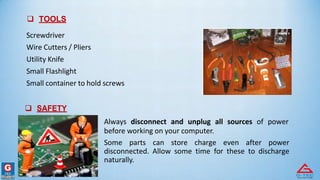
 TOOLS
Screwdriver
Wire Cutters / Pliers
Utility Knife
Small Flashlight
Small container to hold screws
 SAFETY
Always disconnect and unplug all sources of power
before working on your computer.
Some parts can store charge even after power
disconnected. Allow some time for these to discharge
naturally.
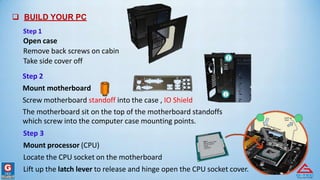
 BUILD YOUR PC
Step 1
Open case
Remove back screws on cabin
Take side cover off
Step 2
Mount motherboard
Screw motherboard standoff into the case , IO Shield
The motherboard sit on the top of the motherboard standoffs
which screw into the computer case mounting points.
Step 3
Mount processor (CPU)
Locate the CPU socket on the motherboard
Lift up the latch lever to release and hinge open the CPU socket cover.
 BUILD YOUR PC
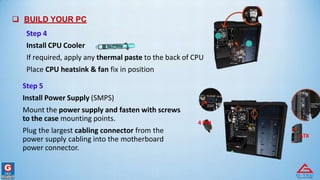
Step 4
Install CPU Cooler
If required, apply any thermal paste to the back of CPU
Place CPU heatsink & fan fix in position
Step 5
Install Power Supply (SMPS)
Mount the power supply and fasten with screws
to the case mounting points.
Plug the largest cabling connector from the
power supply cabling into the motherboard
power connector.
4 PIN
ATX
 BUILD YOUR PC
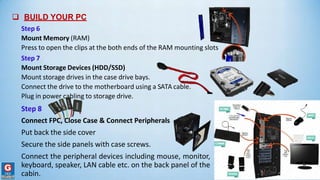
Step 6
Mount Memory (RAM)
Press to open the clips at the both ends of the RAM mounting slots
Step 7
Mount Storage Devices (HDD/SSD)
Mount storage drives in the case drive bays.
Connect the drive to the motherboard using a SATA cable.
Plug in power cabling to storage drive.
Step 8
Connect FPC, Close Case & Connect Peripherals
Put back the side cover
Secure the side panels with case screws.
Connect the peripheral devices including mouse, monitor,
keyboard, speaker, LAN cable etc. on the back panel of the
cabin.
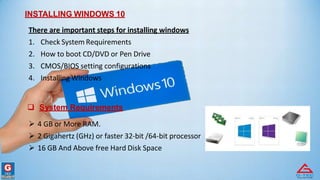
INSTALLING WINDOWS 10
There are important steps for installing windows
1. Check System Requirements
2. How to boot CD/DVD or Pen Drive
3. CMOS/BIOS setting configurations
4. Installing Windows
 System Requirements
 4 GB or More RAM.
 2 Gigahertz (GHz) or faster 32-bit /64-bit processor
 16 GB And Above free Hard Disk Space
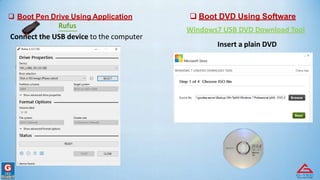
 Boot Pen Drive Using Application  Boot DVD Using Software
Rufus
Windows7 USB DVD Download Tool
Connect the USB device to the computer
Insert a plain DVD
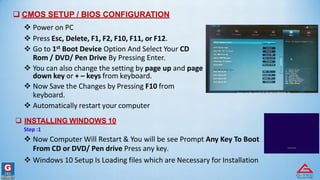
 CMOS SETUP / BIOS CONFIGURATION
 Power on PC
 Press Esc, Delete, F1, F2, F10, F11, or F12.
 Go to 1st Boot Device Option And Select Your CD
Rom / DVD/ Pen Drive By Pressing Enter.
 You can also change the setting by page up and page
down key or + – keys from keyboard.
 Now Save the Changes by Pressing F10 from
keyboard.
 Automatically restart your computer
 INSTALLING WINDOWS 10
Step :1
 Now Computer Will Restart & You will be see Prompt Any Key To Boot
From CD or DVD/ Pen drive Press any key.
 Windows 10 Setup Is Loading files which are Necessary for Installation
 INSTALLING WINDOWS 10
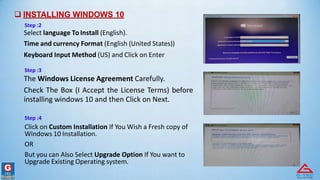
Step :2
Select language To Install (English).
Time and currency Format (English (United States))
Keyboard Input Method (US) and Click on Enter
Step :3
The Windows License Agreement Carefully.
Check The Box (I Accept the License Terms) before
installing windows 10 and then Click on Next.
Step :4
Click on Custom Installation If You Wish a Fresh copy of
Windows 10 Installation.
OR
But you can Also Select Upgrade Option If You want to
Upgrade Existing Operating system.
 INSTALLING WINDOWS 10
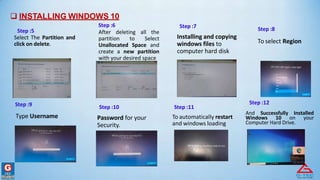
Step :6 Step :7 Step :8
Step :5
Select The Partition and
click on delete.
After deleting all the
partition to Select
Unallocated Space and
create a new partition
with your desired space
Installing and copying
windows files to
computer hard disk
To select Region
Step :9 Step :10 Step :11
Step :12
Type Username Password for your
Security.
To automatically restart
and windows loading
And Successfully Installed
Windows 10 on your
Computer Hard Drive.

Hardware.docx

  • 1.
    COMPUTER HARDWARE Fresh install theoperating system windows 10
  • 2.
     HARDWARE The physicalparts or tangible components of computer is also known as Hardware. For example: case, central processing unit, random access memory, monitor, mouse, keyboard, computer data storage, graphics card, sound card, speakers and motherboard.  SOFTWARE A set of instructions is also known as Software. For example: Photoshop, Tally..  OPERATING SYSTEM An operating system is system software that manages computer hardware and software resources. For example: Windows, Linux, and Android
  • 3.
    COMPUTER ASSEMBLING PARTS 1.Processor (CPU) 2. Computer Case 3. Optical Drive (CD/DVD) 4. Memory (RAM) 5. Power Supply (SMPS) 6. SATA Cables 7. Motherboard 8. Processor Fan 9. Case Fan 10. Hard Drive 11. Case drive screws 12. IO Shield, Standoff Screw 13. Monitor 14. Keyboard 15. Mouse 11 5 6 9 12 4 7 10 1 3 2 8 15 13 14
  • 4.
     TOOLS Screwdriver Wire Cutters/ Pliers Utility Knife Small Flashlight Small container to hold screws  SAFETY Always disconnect and unplug all sources of power before working on your computer. Some parts can store charge even after power disconnected. Allow some time for these to discharge naturally.
  • 5.
     BUILD YOURPC Step 1 Open case Remove back screws on cabin Take side cover off Step 2 Mount motherboard Screw motherboard standoff into the case , IO Shield The motherboard sit on the top of the motherboard standoffs which screw into the computer case mounting points. Step 3 Mount processor (CPU) Locate the CPU socket on the motherboard Lift up the latch lever to release and hinge open the CPU socket cover.
  • 6.
     BUILD YOURPC Step 4 Install CPU Cooler If required, apply any thermal paste to the back of CPU Place CPU heatsink & fan fix in position Step 5 Install Power Supply (SMPS) Mount the power supply and fasten with screws to the case mounting points. Plug the largest cabling connector from the power supply cabling into the motherboard power connector. 4 PIN ATX
  • 7.
     BUILD YOURPC Step 6 Mount Memory (RAM) Press to open the clips at the both ends of the RAM mounting slots Step 7 Mount Storage Devices (HDD/SSD) Mount storage drives in the case drive bays. Connect the drive to the motherboard using a SATA cable. Plug in power cabling to storage drive. Step 8 Connect FPC, Close Case & Connect Peripherals Put back the side cover Secure the side panels with case screws. Connect the peripheral devices including mouse, monitor, keyboard, speaker, LAN cable etc. on the back panel of the cabin.
  • 8.
    INSTALLING WINDOWS 10 Thereare important steps for installing windows 1. Check System Requirements 2. How to boot CD/DVD or Pen Drive 3. CMOS/BIOS setting configurations 4. Installing Windows  System Requirements  4 GB or More RAM.  2 Gigahertz (GHz) or faster 32-bit /64-bit processor  16 GB And Above free Hard Disk Space
  • 9.
     Boot PenDrive Using Application  Boot DVD Using Software Rufus Windows7 USB DVD Download Tool Connect the USB device to the computer Insert a plain DVD
  • 10.
     CMOS SETUP/ BIOS CONFIGURATION  Power on PC  Press Esc, Delete, F1, F2, F10, F11, or F12.  Go to 1st Boot Device Option And Select Your CD Rom / DVD/ Pen Drive By Pressing Enter.  You can also change the setting by page up and page down key or + – keys from keyboard.  Now Save the Changes by Pressing F10 from keyboard.  Automatically restart your computer  INSTALLING WINDOWS 10 Step :1  Now Computer Will Restart & You will be see Prompt Any Key To Boot From CD or DVD/ Pen drive Press any key.  Windows 10 Setup Is Loading files which are Necessary for Installation
  • 11.
     INSTALLING WINDOWS10 Step :2 Select language To Install (English). Time and currency Format (English (United States)) Keyboard Input Method (US) and Click on Enter Step :3 The Windows License Agreement Carefully. Check The Box (I Accept the License Terms) before installing windows 10 and then Click on Next. Step :4 Click on Custom Installation If You Wish a Fresh copy of Windows 10 Installation. OR But you can Also Select Upgrade Option If You want to Upgrade Existing Operating system.
  • 12.
     INSTALLING WINDOWS10 Step :6 Step :7 Step :8 Step :5 Select The Partition and click on delete. After deleting all the partition to Select Unallocated Space and create a new partition with your desired space Installing and copying windows files to computer hard disk To select Region Step :9 Step :10 Step :11 Step :12 Type Username Password for your Security. To automatically restart and windows loading And Successfully Installed Windows 10 on your Computer Hard Drive.