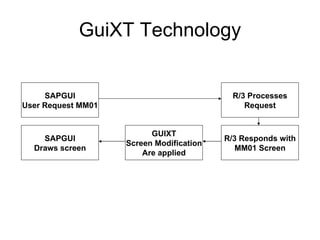
GuiXT Technology SAPGUI User Request MM01 R/3 Processes Request R/3 Responds with MM01 Screen GUIXT Screen Modification Are applied SAPGUI Draws screen
Steps to finish a project VA01 – Order Entry
1. Design screens What to display How to display
What to display User involved Kaizen Balance simplicity and coverage
VA01 Screen Design
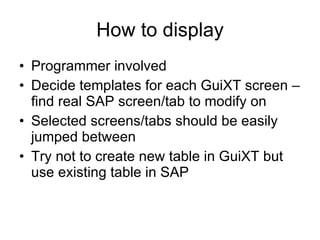
How to display Programmer involved Decide templates for each GuiXT screen – find real SAP screen/tab to modify on Selected screens/tabs should be easily jumped between Try not to create new table in GuiXT but use existing table in SAP
Screen Mapping – Initial screen
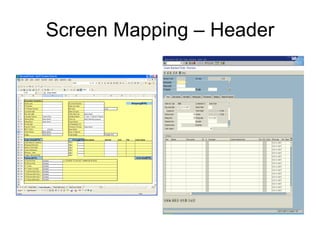
Screen Mapping – Header
Screen Mapping – Items
Screen Mapping – Item detail
2. Develop scripts 2 different types of GuiXT scripts GuiXT script, display all SAP/GuiXT components on the template screen Input script, process GuiXT components and run SAP screens
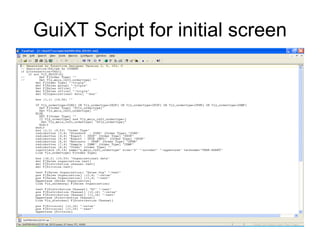
GuiXT Script for initial screen
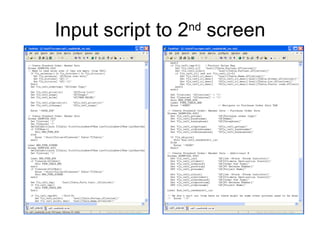
Input script to 2 nd  screen
3. Improve performance Use function code to go to a screen. tab or menu might be hidden/displayed by different order type or item, like ‘billing plan’ shows for some order type only Use most efficient path to read all screens/tabs There are many ways to get to the same screen, choose the fastest one. Bypass unnecessary screens and tabs Accessing a screen/tab would use some time, bypass those screen/tab you don’t need to read/write.  Error handling on all modified screens Unless all modified fields in the screen are 100% free form, always have error handling when leaving a screen.
We learned Screen should be independent, can be run by itself Screen could be brought in from different Tcode Variable on the screen should be refreshed when the screen is loaded Add error handling for all ‘Enter …’ screens with user input Error happens when screen didn’t go as designed

Gui Xt Presentation for SAP

  • 1.
    GuiXT Technology SAPGUIUser Request MM01 R/3 Processes Request R/3 Responds with MM01 Screen GUIXT Screen Modification Are applied SAPGUI Draws screen
  • 2.
    Steps to finisha project VA01 – Order Entry
  • 3.
    1. Design screensWhat to display How to display
  • 4.
    What to displayUser involved Kaizen Balance simplicity and coverage
  • 5.
  • 6.
    How to displayProgrammer involved Decide templates for each GuiXT screen – find real SAP screen/tab to modify on Selected screens/tabs should be easily jumped between Try not to create new table in GuiXT but use existing table in SAP
  • 7.
    Screen Mapping –Initial screen
  • 8.
  • 9.
  • 10.
    Screen Mapping –Item detail
  • 11.
    2. Develop scripts2 different types of GuiXT scripts GuiXT script, display all SAP/GuiXT components on the template screen Input script, process GuiXT components and run SAP screens
  • 12.
    GuiXT Script forinitial screen
  • 13.
    Input script to2 nd screen
  • 14.
    3. Improve performanceUse function code to go to a screen. tab or menu might be hidden/displayed by different order type or item, like ‘billing plan’ shows for some order type only Use most efficient path to read all screens/tabs There are many ways to get to the same screen, choose the fastest one. Bypass unnecessary screens and tabs Accessing a screen/tab would use some time, bypass those screen/tab you don’t need to read/write. Error handling on all modified screens Unless all modified fields in the screen are 100% free form, always have error handling when leaving a screen.
  • 15.
    We learned Screenshould be independent, can be run by itself Screen could be brought in from different Tcode Variable on the screen should be refreshed when the screen is loaded Add error handling for all ‘Enter …’ screens with user input Error happens when screen didn’t go as designed