GT-C6112
user manual
Instructional icons

                          using this                           Before you start, familiarise yourself with the icons
                                                               you will see in this manual:


                            manual                                      Warning—situations that could cause
                                                                        injury to yourself or others
        This user manual has been specially designed to
     guide you through the functions and features of your               Caution—situations that could cause
                     mobile phone. To get started quickly,              damage to your phone or other equipment
                 refer to “introducing your mobile phone,”
         “assembling and preparing your mobile phone,”                  Note—notes, usage tips, or additional
                                and “using basic functions.”            information

                                                                        Refer to—pages with related information;
                                                                        for example: p.12 (represents “see page
                                                                        12”)


ii
Copyright information
→       Followed by—the order of options or
        menus you must select to perform a step;   Rights to all technologies and products that
        for example: In Menu mode, select          comprise this phone are the property of their
        Messages → Create message                  respective owners:
        (represents Messages, followed by Create   • Bluetooth® is a registered trademark of the


                                                                                                         using this manual
        message)                                     Bluetooth SIG, Inc. worldwide.
                                                     Bluetooth QD ID: B015813
[   ]   Square brackets—phone keys; for            • Java™ is a trademark of Sun Microsystems, Inc.
        example: [    ] (represents the Power/     • Windows Media Player® is a registered trademark
        Menu exit key)                               of Microsoft Corporation.

< >     Angled brackets—softkeys that control
        different functions at each screen; for
        example: <OK> (represents the OK
        softkey)


                                                                                                   iii
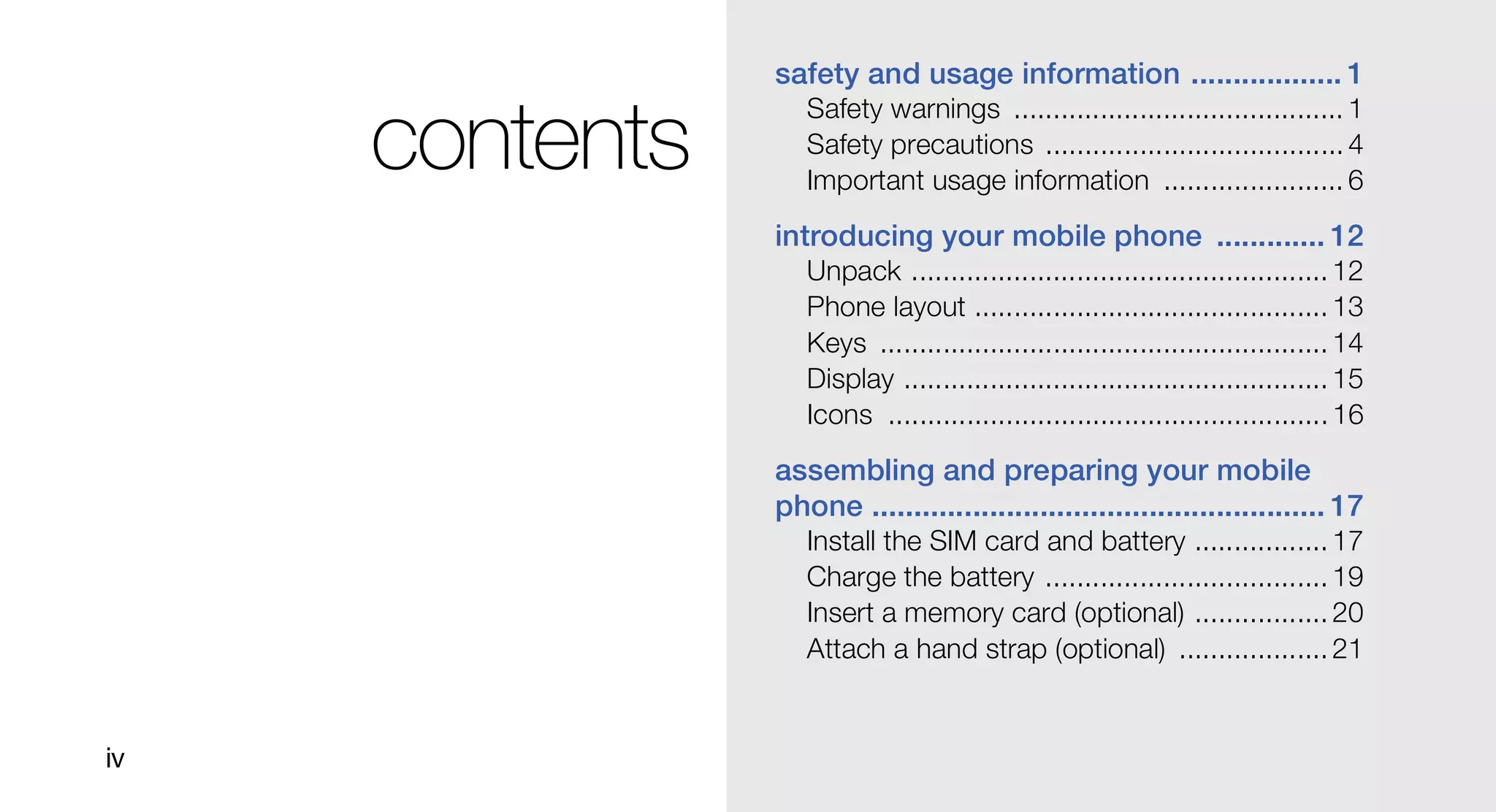
safety and usage information .................. 1
                   Safety warnings .......................................... 1
     contents      Safety precautions ...................................... 4
                   Important usage information ....................... 6
                introducing your mobile phone ............. 12
                   Unpack ..................................................... 12
                   Phone layout ............................................. 13
                   Keys ......................................................... 14
                   Display ...................................................... 15
                   Icons ........................................................ 16

                assembling and preparing your mobile
                phone ...................................................... 17
                   Install the SIM card and battery ................. 17
                   Charge the battery .................................... 19
                   Insert a memory card (optional) ................. 20
                   Attach a hand strap (optional) ................... 21


iv
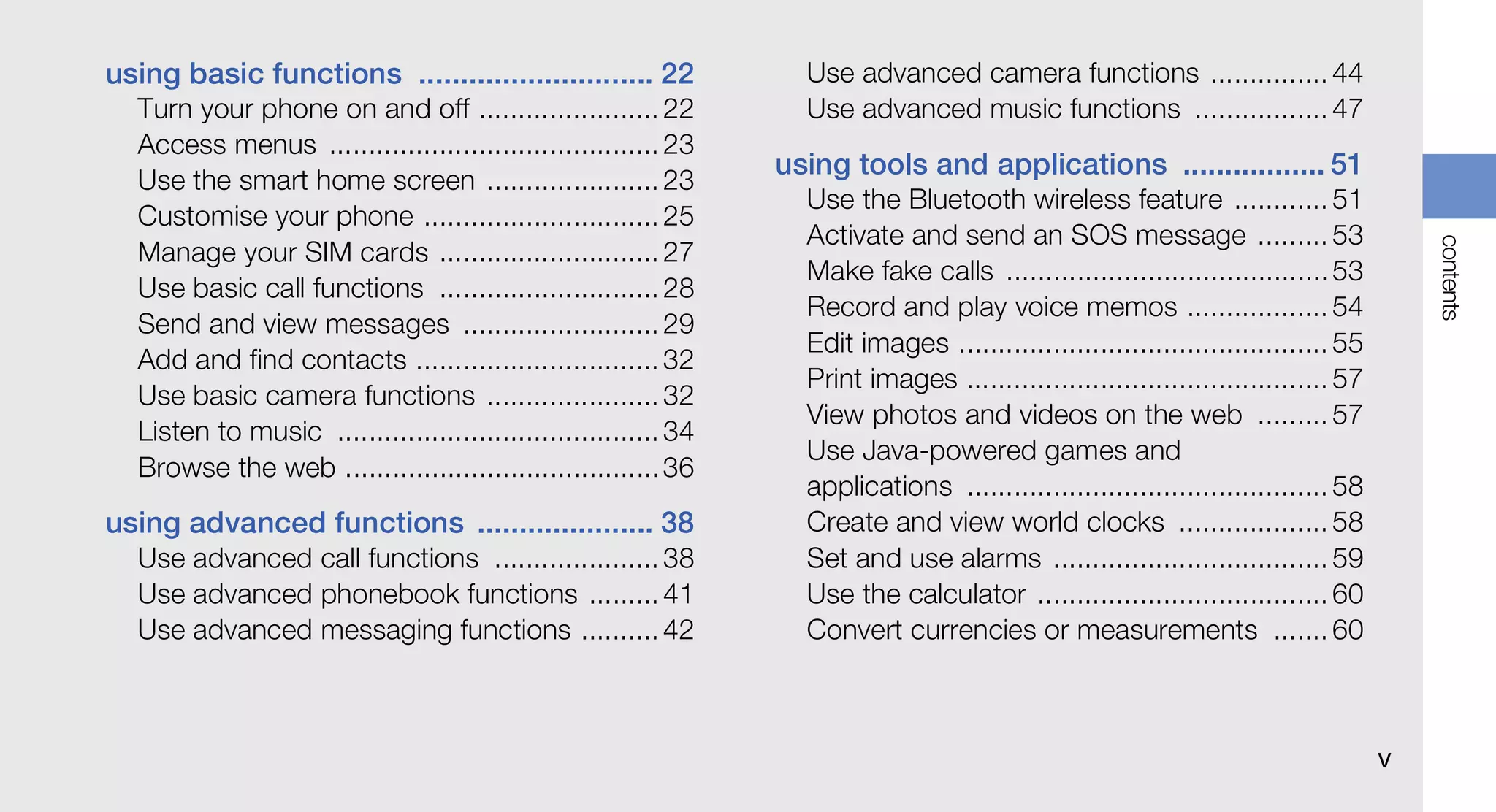
using basic functions ............................ 22              Use advanced camera functions ............... 44
  Turn your phone on and off ....................... 22            Use advanced music functions ................. 47
  Access menus .......................................... 23
                                                                 using tools and applications ................. 51
  Use the smart home screen ...................... 23
                                                                   Use the Bluetooth wireless feature ............ 51
  Customise your phone .............................. 25
                                                                   Activate and send an SOS message ......... 53


                                                                                                                                        contents
  Manage your SIM cards ............................ 27
                                                                   Make fake calls ......................................... 53
  Use basic call functions ............................ 28
                                                                   Record and play voice memos .................. 54
  Send and view messages ......................... 29
                                                                   Edit images ............................................... 55
  Add and find contacts ............................... 32
                                                                   Print images .............................................. 57
  Use basic camera functions ...................... 32
                                                                   View photos and videos on the web ......... 57
  Listen to music ......................................... 34
                                                                   Use Java-powered games and
  Browse the web ........................................ 36
                                                                   applications .............................................. 58
using advanced functions ..................... 38                  Create and view world clocks ................... 58
  Use advanced call functions ..................... 38             Set and use alarms ................................... 59
  Use advanced phonebook functions ......... 41                    Use the calculator ..................................... 60
  Use advanced messaging functions .......... 42                   Convert currencies or measurements ....... 60


                                                                                                                                    v
Set a countdown timer .............................. 60
                Use the stopwatch .................................... 61
                Create a new task ..................................... 61
                Create a text memo .................................. 61
                Manage your calendar .............................. 61
contents


                Back up your data .................................... 62
           troubleshooting ........................................ a
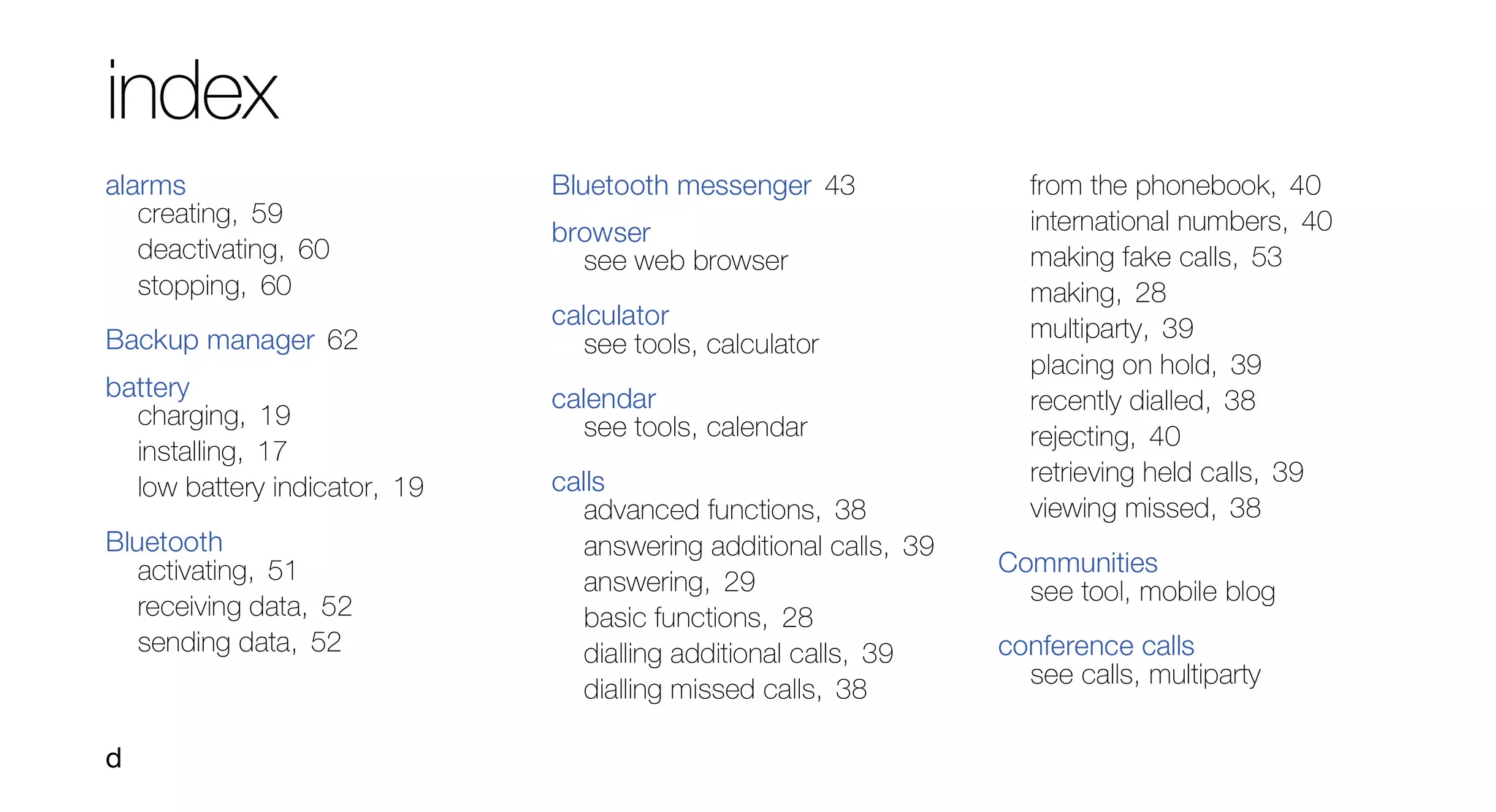
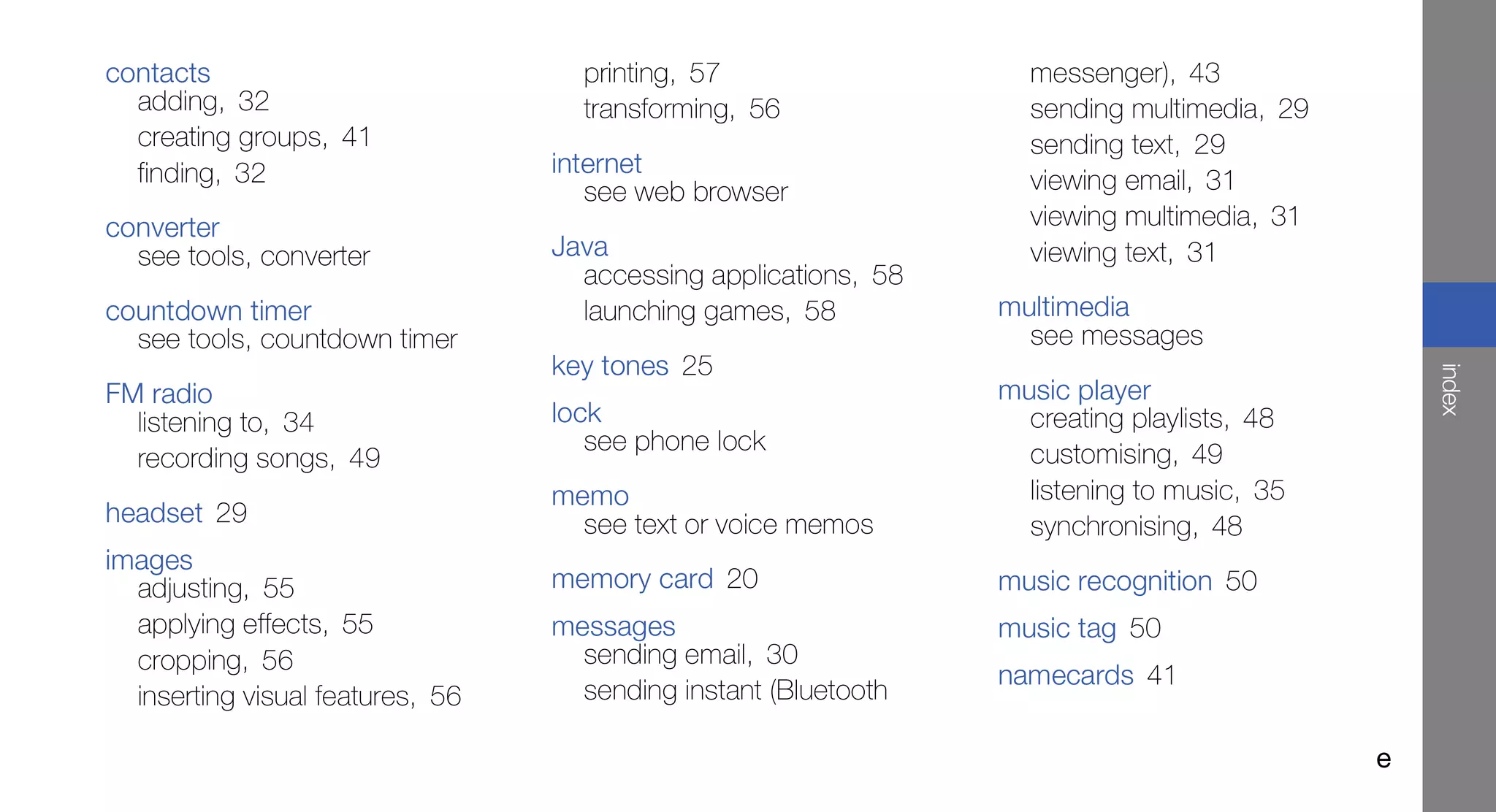
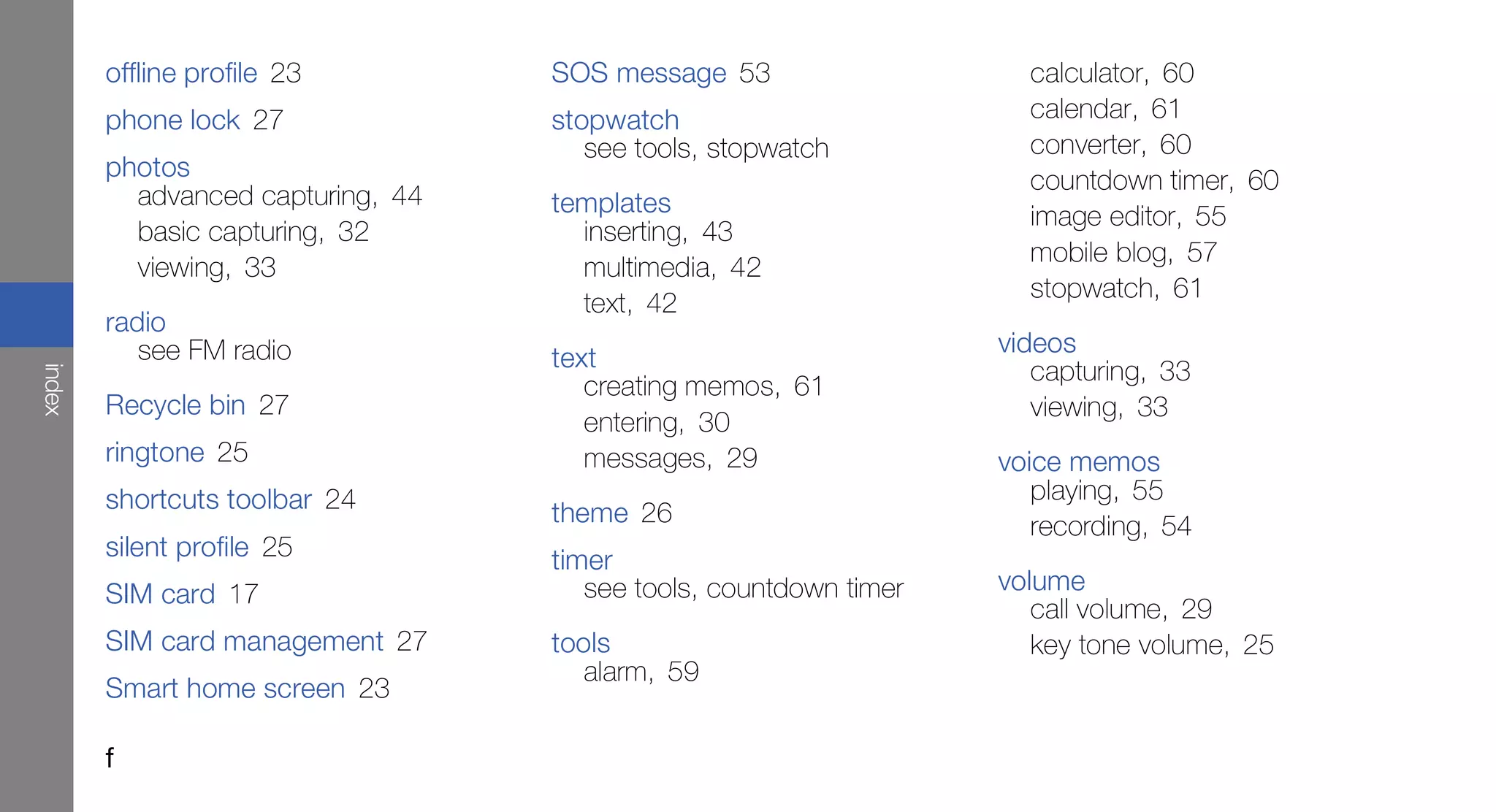
           index ......................................................... d


           vi
Safety warnings
           safety and                             Keep your phone away from small
               usage                              children and pets
                                                  Keep your phone and all accessories out of the

          information                             reach of small children or animals. Small parts may
                                                  cause choking or serious injury if swallowed.

                                                  Protect your hearing
Comply with the following precautions to avoid
dangerous or illegal situations and ensure peak             Excessive exposure to sound at high
          performance of your mobile phone.                 volumes can cause hearing damage.
                                                            Always turn the volume down before
                                                            plugging the earphones into an audio
                                                            source and use only the minimum volume
                                                            setting necessary to hear your
                                                            conversation or music.


                                                                                                        1
Install mobile phones and equipment                     • Never place batteries or phones on or in heating
                               with caution                                              devices, such as microwave ovens, stoves, or
                                                                                         radiators. Batteries may explode when
                               Ensure that any mobile phones or related equipment        overheated.
                               installed in your vehicle are securely mounted. Avoid
                               placing your phone and accessories near or in an air    • Never crush or puncture the battery. Avoid
                                                                                         exposing the battery to high external pressure,
safety and usage information


                               bag deployment area. Improperly installed wireless
                               equipment can cause serious injury when air bags          which can lead to an internal short circuit and
                               inflate rapidly.                                          overheating.

                               Handle and dispose of batteries and                     Avoid interference with pacemakers
                               chargers with care                                      Maintain a minimum of 15 cm (6 inches) between
                                                                                       mobile phones and pacemakers to avoid potential
                               • Use only Samsung-approved batteries and
                                                                                       interference, as recommended by manufacturers
                                 chargers specifically designed for your phone.
                                                                                       and the independent research group, Wireless
                                 Incompatible batteries and chargers can cause
                                                                                       Technology Research. If you have any reason to
                                 serious injuries or damage to your phone.
                                                                                       suspect that your phone is interfering with a
                               • Never dispose of batteries or phones in a fire.       pacemaker or other medical device, turn off the
                                 Follow all local regulations when disposing of        phone immediately and contact the manufacturer of
                                 used batteries or phones.                             the pacemaker or medical device for guidance.


                               2
Turn off the phone in potentially                         Do not use the phone if the screen is
explosive environments                                    cracked or broken
Do not use your phone at refuelling points (service       Broken glass or acrylic could cause injury to your
stations) or near fuels or chemicals. Turn off your       hand and face. Bring the phone to a Samsung
phone whenever directed by warning signs or               service centre to replace the screen. Damage


                                                                                                                   safety and usage information
instructions. Your phone could cause explosions or        caused by careless handling will void your
fire in and around fuel or chemical storage and           manufacturer’s warranty.
transfer areas or blasting areas. Do not store or carry
flammable liquids, gases, or explosive materials in
the same compartment as the phone, its parts, or
accessories.

Reduce the risk of repetitive motion
injuries
While using your phone, hold the phone with a
relaxed grip, press the keys lightly, use special
features that reduce the number of keys you have to
press (such as templates and predictive text), and
take frequent breaks.

                                                                                                               3
Turn off the phone near medical
                                      Safety precautions                                equipment
                                                                                        Your phone can interfere with medical equipment in
                               Drive safely at all times                                hospitals or health care facilities. Follow all
                               Avoid using your phone while driving and obey all        regulations, posted warnings, and directions from
safety and usage information


                               regulations that restrict the use of mobile phones       medical personnel.
                               while driving. Use hands-free accessories to
                               increase your safety when possible.                      Turn off the phone or disable the
                                                                                        wireless functions when in an aircraft
                               Follow all safety warnings and                           Your phone can cause interference with aircraft
                               regulations                                              equipment. Follow all airline regulations and turn off
                               Comply with any regulations that restrict the use of a   your phone or switch to a mode that disables the
                               mobile phone in a certain area.                          wireless functions when directed by airline
                                                                                        personnel.
                               Use only Samsung-approved
                               accessories
                               Using incompatible accessories may damage your
                               phone or cause injury.

                               4
Protect batteries and chargers from                   Handle your phone carefully and
damage                                                sensibly
• Avoid exposing batteries to very cold or very hot   • Do not disassemble your phone due to a risk of
  temperatures (below 0° C/32° F or above 45° C/        electric shock.
  113° F). Extreme temperatures can reduce the        • Do not allow your phone to get wet—liquids can


                                                                                                              safety and usage information
  charging capacity and life of your batteries.         cause serious damage and will change the colour
• Prevent batteries from contacting metal objects,      of the label that indicates water damage inside the
  as this can create a connection between the +         phone. Do not handle your phone with wet
  and - terminals of your batteries and lead to         hands. Water damage to your phone can void
  temporary or permanent battery damage.                your manufacturer's warranty.
• Never use a damaged charger or battery.             • Avoid using or storing your phone in dusty, dirty
                                                        areas to prevent damage to moving parts.
                                                      • Your phone is a complex electronic device—
                                                        protect it from impacts and rough handling to
                                                        avoid serious damage.
                                                      • Do not paint your phone, as paint can clog
                                                        moving parts and prevent proper operation.


                                                                                                          5
• If your phone has a camera flash or light, avoid          Important usage information
                                 using it close to the eyes of children or animals.
                               • Your phone may be damaged by exposure to
                                 magnetic fields. Do not use carrying cases or
                                                                                      Use your phone in the normal position
                                 accessories with magnetic closures or allow your     Avoid contact with your phone’s internal antenna.
                                 phone to come in contact with magnetic fields for
safety and usage information


                                 extended periods of time.                            Allow only qualified personnel to service
                                                                                      your phone
                               Avoid interference with other electronic               Allowing unqualified personnel to service your phone
                               devices                                                may result in damage to your phone and will void
                               Your phone emits radio frequency (RF) signals that     your warranty.
                               may interfere with unshielded or improperly shielded
                               electronic equipment, such as pacemakers, hearing      Ensure maximum battery and charger
                               aids, medical devices, and other electronic devices    life
                               in homes or vehicles. Consult the manufacturers of     • Avoid charging batteries for more than a week, as
                               your electronic devices to solve any interference        overcharging may shorten battery life.
                               problems you experience.
                                                                                      • Over time, unused batteries will discharge and
                                                                                        must be recharged before use.


                               6
• Disconnect chargers from power sources when              Ensure access to emergency services
  not in use.                                              Emergency calls from your phone may not be
• Use batteries only for their intended purpose.           possible in some areas or circumstances. Before
                                                           travelling in remote or undeveloped areas, plan an
Handle SIM cards and memory cards                          alternate method of contacting emergency services
with care


                                                                                                                 safety and usage information
                                                           personnel.
• Do not remove a card while the phone is
  transferring or accessing information, as this           Specific Absorption Rate (SAR)
  could result in loss of data and/or damage to the        certification information
  card or phone.                                           Your phone conforms to European Union (EU)
• Protect cards from strong shocks, static                 standards that limit human exposure to radio
  electricity, and electrical noise from other devices.    frequency (RF) energy emitted by radio and
• Frequent writing and erasing will shorten the life       telecommunications equipment. These standards
  span of memory cards.                                    prevent the sale of mobile phones that exceed a
                                                           maximum exposure level (known as the Specific
• Do not touch gold-coloured contacts or terminals
                                                           Absorption Rate, or SAR) of 2.0 W/kg.
  with your fingers or metal objects. If dirty, wipe the
  card with a soft cloth.


                                                                                                             7
During testing, the maximum SAR recorded for this      Correct disposal of this product
                               model was 0.447 W/kg. In normal use, the actual        (Waste Electrical & Electronic Equipment)
                               SAR is likely to be much lower, as the phone has
                               been designed to emit only the RF energy necessary              (Applicable in the European Union and
                               to transmit a signal to the nearest base station. By            other European countries with separate
                               automatically emitting lower levels when possible,              collection systems)
safety and usage information


                               your phone reduces your overall exposure to RF                    This marking on the product, accessories
                               energy.                                                           or literature indicates that the product and
                               The Declaration of Conformity at the back of this      its electronic accessories (e.g. charger, headset,
                               manual demonstrates your phone’s compliance with       USB cable) should not be disposed of with other
                               the European Radio & Terminal Telecommunications       household waste at the end of their working life. To
                               Equipment (R&TTE) directive. For more information      prevent possible harm to the environment or human
                               about the SAR and related EU standards, visit the      health from uncontrolled waste disposal, please
                               Samsung mobile phone website.                          separate these items from other types of waste and
                                                                                      recycle them responsibly to promote the sustainable
                                                                                      reuse of material resources.


                               8
Household users should contact either the retailer      Correct disposal of batteries in this
where they purchased this product, or their local       product
government office, for details of where and how they
can take these items for environmentally safe                      (Applicable in the European Union and
recycling.                                                         other European countries with separate
                                                                   battery return systems)


                                                                                                                safety and usage information
Business users should contact their supplier and
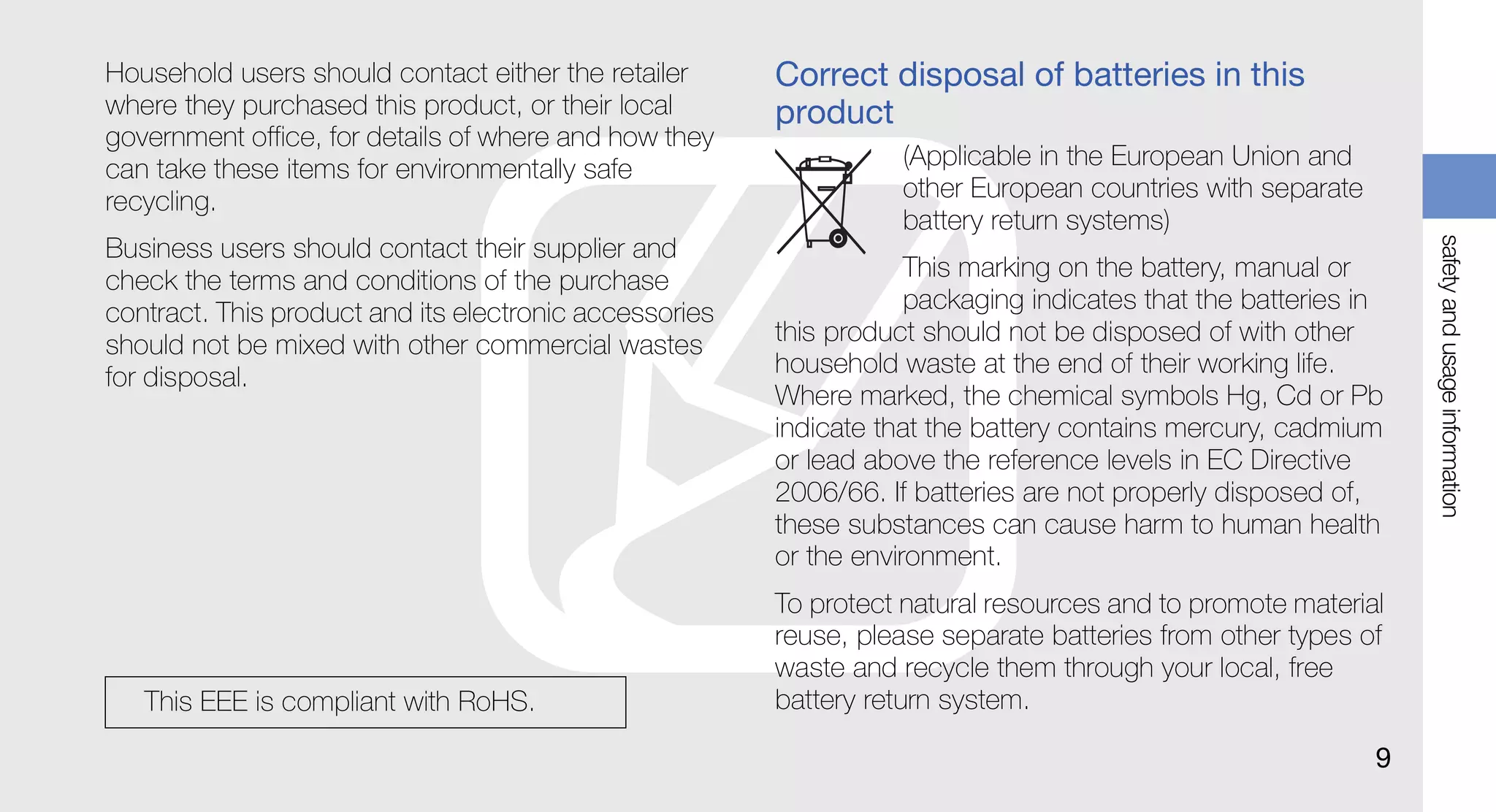
check the terms and conditions of the purchase                      This marking on the battery, manual or
contract. This product and its electronic accessories               packaging indicates that the batteries in
should not be mixed with other commercial wastes        this product should not be disposed of with other
for disposal.                                           household waste at the end of their working life.
                                                        Where marked, the chemical symbols Hg, Cd or Pb
                                                        indicate that the battery contains mercury, cadmium
                                                        or lead above the reference levels in EC Directive
                                                        2006/66. If batteries are not properly disposed of,
                                                        these substances can cause harm to human health
                                                        or the environment.
                                                        To protect natural resources and to promote material
                                                        reuse, please separate batteries from other types of
                                                        waste and recycle them through your local, free
   This EEE is compliant with RoHS.                     battery return system.

                                                                                                            9
Disclaimer                                               SAMSUNG EXPRESSLY DISCLAIMS ANY IMPLIED
                               Some content and services accessible through this        WARRANTIES, INCLUDING BUT NOT LIMITED TO,
                               device belong to third parties and are protected by      WARRANTIES OF MERCHANTABILITY OR FITNESS
                               copyright, patent, trademark and/or other intellectual   FOR A PARTICULAR PURPOSE. SAMSUNG DOES
                               property laws. Such content and services are             NOT GUARANTEE THE ACCURACY, VALIDITY,
                                                                                        TIMELINESS, LEGALITY, OR COMPLETENESS OF
safety and usage information


                               provided solely for your personal noncommercial
                               use. You may not use any content or services in a        ANY CONTENT OR SERVICE MADE AVAILABLE
                               manner that has not been authorised by the content       THROUGH THIS DEVICE AND UNDER NO
                               owner or service provider. Without limiting the          CIRCUMSTANCES, INCLUDING NEGLIGENCE,
                               foregoing, unless expressly authorised by the            SHALL SAMSUNG BE LIABLE, WHETHER IN
                               applicable content owner or service provider, you        CONTRACT OR TORT, FOR ANY DIRECT,
                               may not modify, copy, republish, upload, post,           INDIRECT, INCIDENTAL, SPECIAL OR
                               transmit, translate, sell, create derivative works,      CONSEQUENTIAL DAMAGES, ATTORNEY FEES,
                               exploit, or distribute in any manner or medium any       EXPENSES, OR ANY OTHER DAMAGES ARISING
                               content or services displayed through this device.       OUT OF, OR IN CONNECTION WITH, ANY
                                                                                        INFORMATION CONTAINED IN, OR AS A RESULT
                               “THIRD PARTY CONTENT AND SERVICES ARE                    OF THE USE OF ANY CONTENT OR SERVICE BY
                               PROVIDED "AS IS." SAMSUNG DOES NOT                       YOU OR ANY THIRD PARTY, EVEN IF ADVISED OF
                               WARRANT CONTENT OR SERVICES SO                           THE POSSIBILITY OF SUCH DAMAGES."
                               PROVIDED, EITHER EXPRESSLY OR IMPLIEDLY,
                               FOR ANY PURPOSE.
                               10
Third party services may be terminated or interrupted
at any time, and Samsung makes no representation
or warranty that any content or service will remain
available for any period of time. Content and
services are transmitted by third parties by means of
networks and transmission facilities over which


                                                              safety and usage information
Samsung has no control. Without limiting the
generality of this disclaimer, Samsung expressly
disclaims any responsibility or liability for any
interruption or suspension of any content or service
made available through this device.
Samsung is neither responsible nor liable for
customer service related to the content and
services. Any question or request for service relating
to the content or services should be made directly to
the respective content and service providers.


                                                         11
Unpack

introducing your                                           Check your product box for the following items:
                                                           •   Mobile phone

   mobile phone                                            •
                                                           •
                                                               Battery
                                                               Travel adapter (charger)
                                                           •   User manual
     In this section, learn about your mobile phone’s
                       layout, keys, display, and icons.          • The items supplied with your phone may vary
                                                                    depending on the software and accessories
                                                                    available in your region or offered by your
                                                                    service provider. You can obtain additional
                                                                    accessories from your local Samsung dealer.
                                                                  • The supplied accessories perform best for
                                                                    your phone.


12
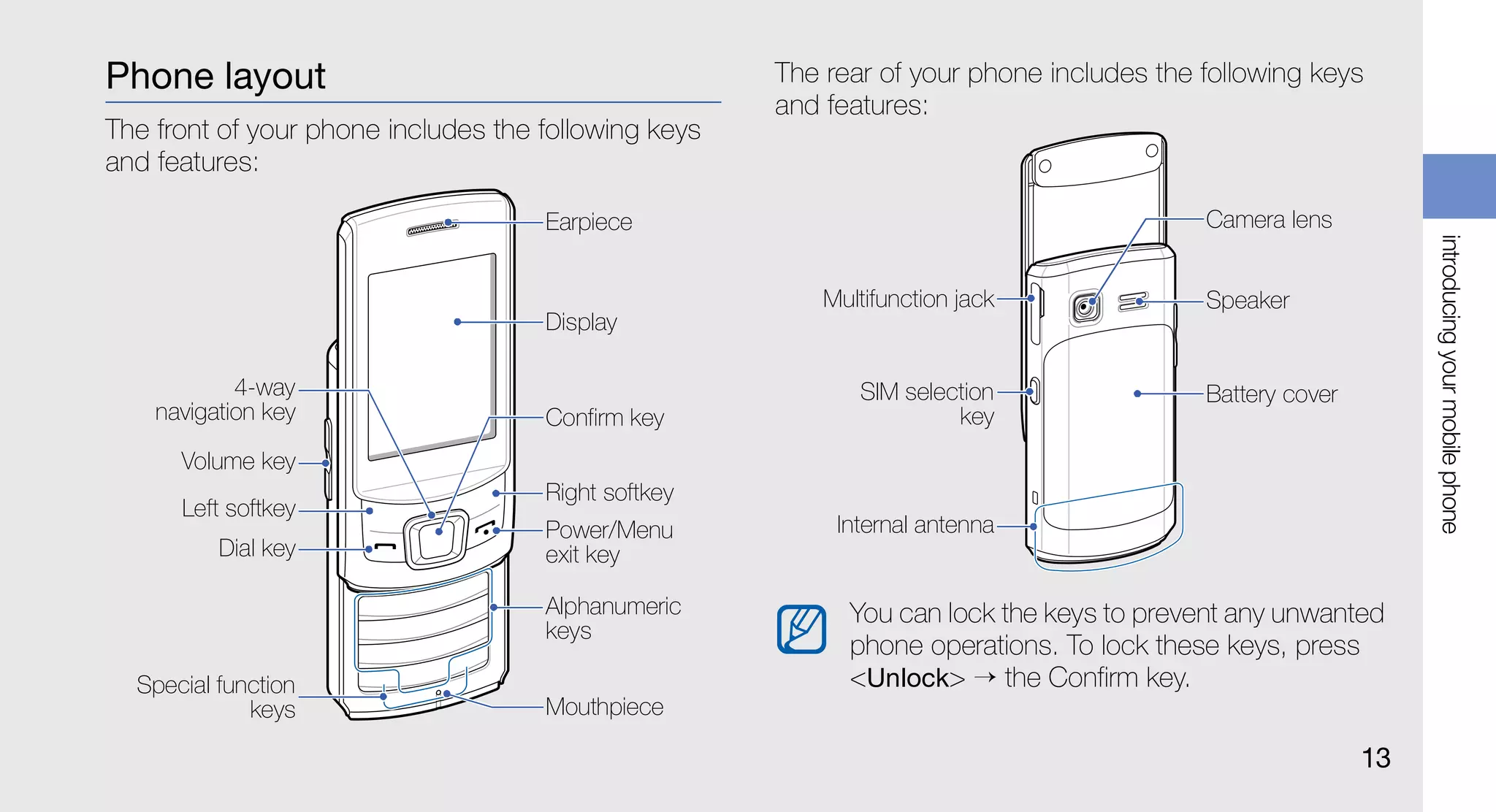
Phone layout                                          The rear of your phone includes the following keys
                                                      and features:
The front of your phone includes the following keys
and features:

                                     Earpiece                                             Camera lens


                                                                                                               introducing your mobile phone
                                                          Multifunction jack              Speaker
                                     Display

            4-way                                            SIM selection                Battery cover
    navigation key                   Confirm key                      key
      Volume key
                                     Right softkey
      Left softkey
                                     Power/Menu            Internal antenna
          Dial key                   exit key

                                     Alphanumeric           You can lock the keys to prevent any unwanted
                                     keys
                                                            phone operations. To lock these keys, press
  Special function                                          <Unlock> → the Confirm key.
             keys                    Mouthpiece

                                                                                                          13
Keys                                                       Key               Function
                                                                                                             Make or answer a call; In Idle
                                 Key                Function                                     Dial        mode, retrieve recently dialled,
                                                    Perform actions indicated at the                         missed, or received numbers
                                       Softkeys
                                                    bottom of the display                                    Turn the phone on and off (press
introducing your mobile phone


                                                    In Idle mode, access user-defined            Power/      and hold); End a call; In Menu
                                       4-way        menus (depending on your service             Menu exit   mode, cancel input and return to
                                       navigation   provider, pre-defined menus may                          Idle mode
                                                    differ); Scroll through menu options                     Enter numbers, letters and special
                                                    In Idle mode, launch the web                             characters; In Idle mode, press
                                                                                                 Alpha-
                                                    browser or access Menu mode                              and hold [1] to access voice mails
                                                    (depending on your service
                                                                                                 numeric     and [0] to enter an international call
                                       Confirm      provider or region, the key may                          prefix
                                                    perform differently); Select the
                                                    highlighted menu option or confirm
                                                    input


                                14
Key               Function                              Display
                  Enter special characters or perform   Your phone’s display consists of three areas:
                  special functions; In Idle mode,
      Special     press and hold [ ] for the silent                            Icon line
      function    profile; In Idle mode, press and                             Displays various icons
                  hold [ ] to enter a pause between


                                                                                                                    introducing your mobile phone
                  numbers                                                      Text and graphic area
                                                                               Displays messages,
                                                                               instructions, and information
      Volume      Adjust the phone’s volume                                    you enter

                  Switch between SIM cards when                                Softkey line
                  you make calls or send messages;                             Displays the current actions
      SIM         In Idle mode, switch between SIM                             assigned to each softkey
      selection   cards; Access the SIM card
                  management menu (press and
                  hold)


                                                                                                               15
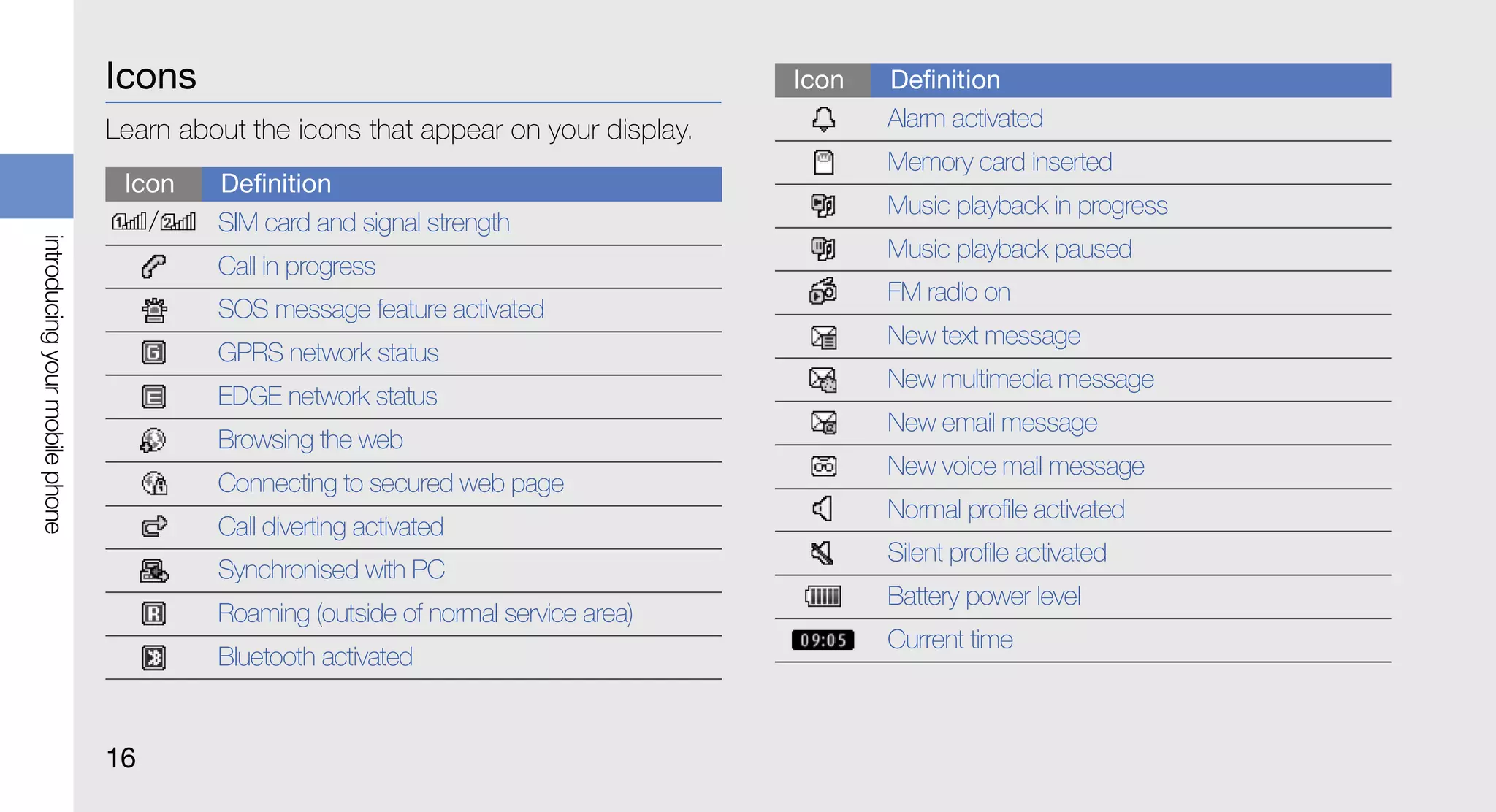
Icons                                                Icon   Definition
                                Learn about the icons that appear on your display.          Alarm activated
                                                                                            Memory card inserted
                                 Icon    Definition
                                                                                            Music playback in progress
                                     /   SIM card and signal strength
introducing your mobile phone


                                                                                            Music playback paused
                                         Call in progress
                                                                                            FM radio on
                                         SOS message feature activated
                                                                                            New text message
                                         GPRS network status
                                                                                            New multimedia message
                                         EDGE network status
                                                                                            New email message
                                         Browsing the web
                                                                                            New voice mail message
                                         Connecting to secured web page
                                                                                            Normal profile activated
                                         Call diverting activated
                                                                                            Silent profile activated
                                         Synchronised with PC
                                                                                            Battery power level
                                         Roaming (outside of normal service area)
                                                                                            Current time
                                         Bluetooth activated


                                16
Install the SIM card and battery

assembling and                                      When you subscribe to a cellular service, you will
                                                    receive a Subscriber Identity Module (SIM) card, with
                                                    subscription details, such as your personal
 preparing your                                     identification number (PIN) and optional services.
                                                    To install the SIM card and battery,

  mobile phone                                      1. Remove the battery cover.


 Get started by assembling and setting up your
                  mobile phone for its first use.


                                                          If the phone is on, press and hold [   ] to turn
                                                          it off.


                                                                                                       17
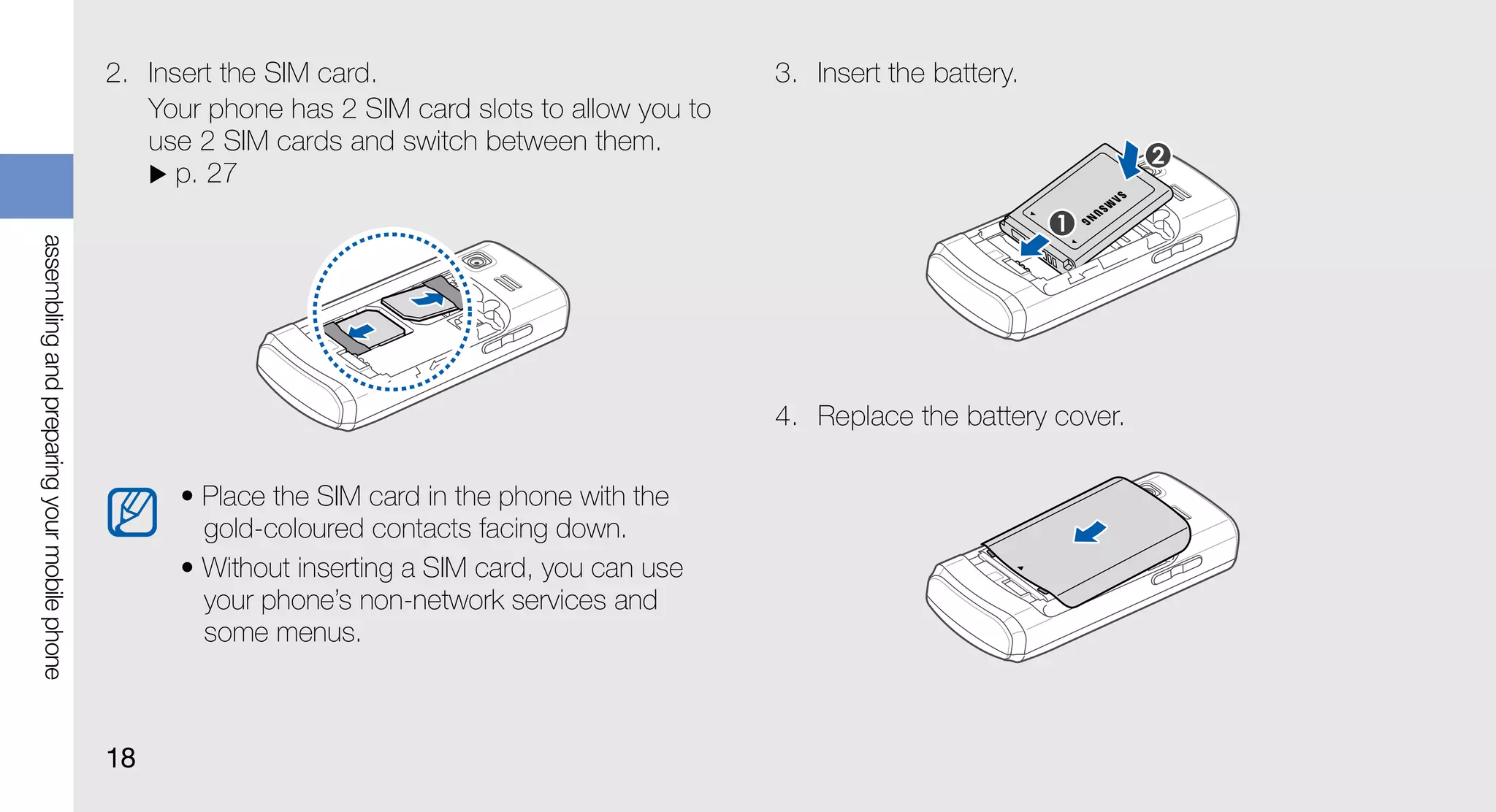
2. Insert the SIM card.                              3. Insert the battery.
                                                Your phone has 2 SIM card slots to allow you to
                                                use 2 SIM cards and switch between them.
                                                   p. 27
assembling and preparing your mobile phone


                                                                                                  4. Replace the battery cover.

                                                   • Place the SIM card in the phone with the
                                                     gold-coloured contacts facing down.
                                                   • Without inserting a SIM card, you can use
                                                     your phone’s non-network services and
                                                     some menus.


                                             18
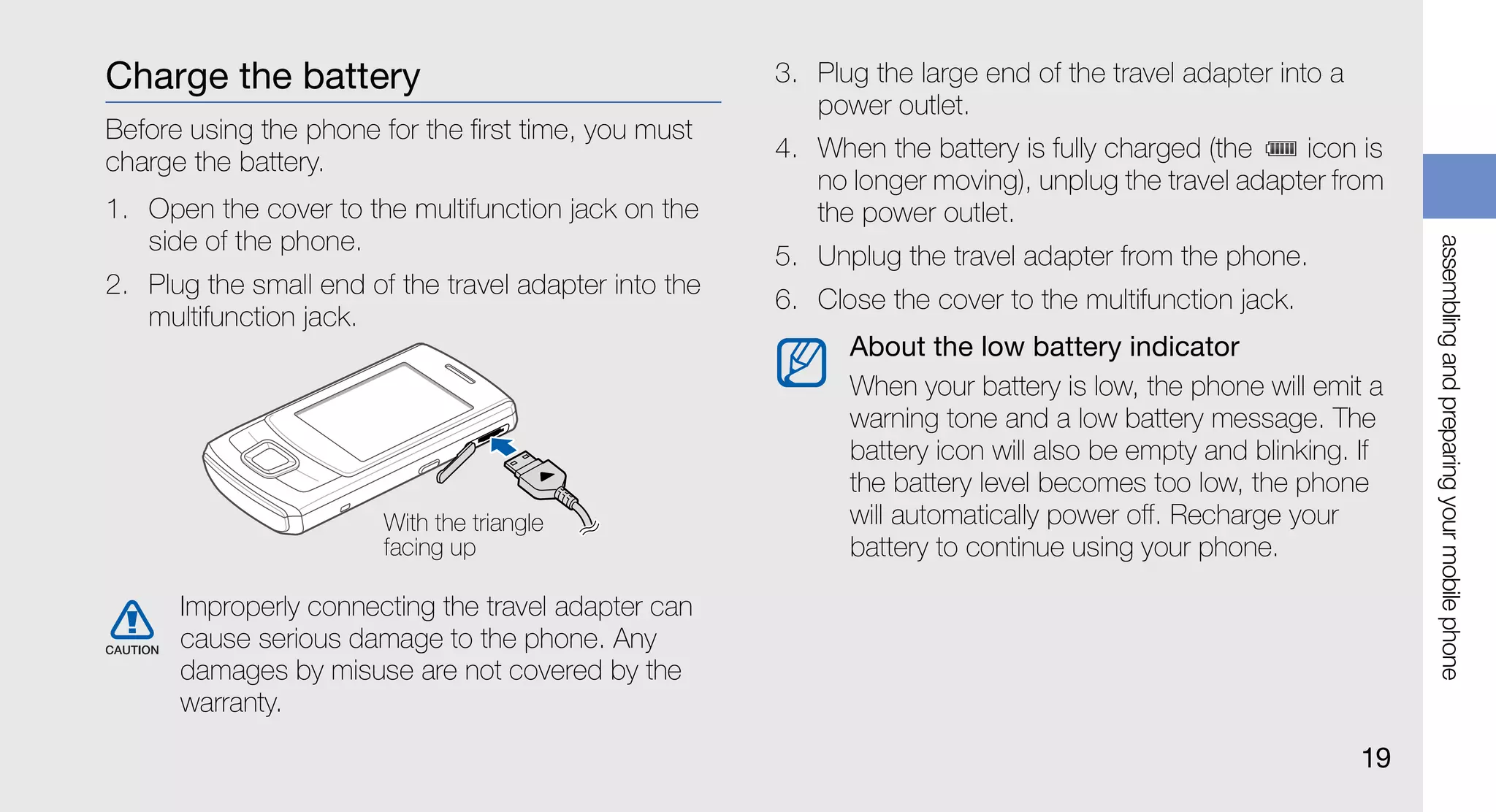
Charge the battery                                     3. Plug the large end of the travel adapter into a
                                                          power outlet.
Before using the phone for the first time, you must
charge the battery.                                    4. When the battery is fully charged (the    icon is
                                                          no longer moving), unplug the travel adapter from
1. Open the cover to the multifunction jack on the        the power outlet.
   side of the phone.


                                                                                                                 assembling and preparing your mobile phone
                                                       5. Unplug the travel adapter from the phone.
2. Plug the small end of the travel adapter into the
                                                       6. Close the cover to the multifunction jack.
   multifunction jack.
                                                             About the low battery indicator
                                                             When your battery is low, the phone will emit a
                                                             warning tone and a low battery message. The
                                                             battery icon will also be empty and blinking. If
                                                             the battery level becomes too low, the phone
                        With the triangle                    will automatically power off. Recharge your
                        facing up                            battery to continue using your phone.

      Improperly connecting the travel adapter can
      cause serious damage to the phone. Any
      damages by misuse are not covered by the
      warranty.
                                                                                                            19
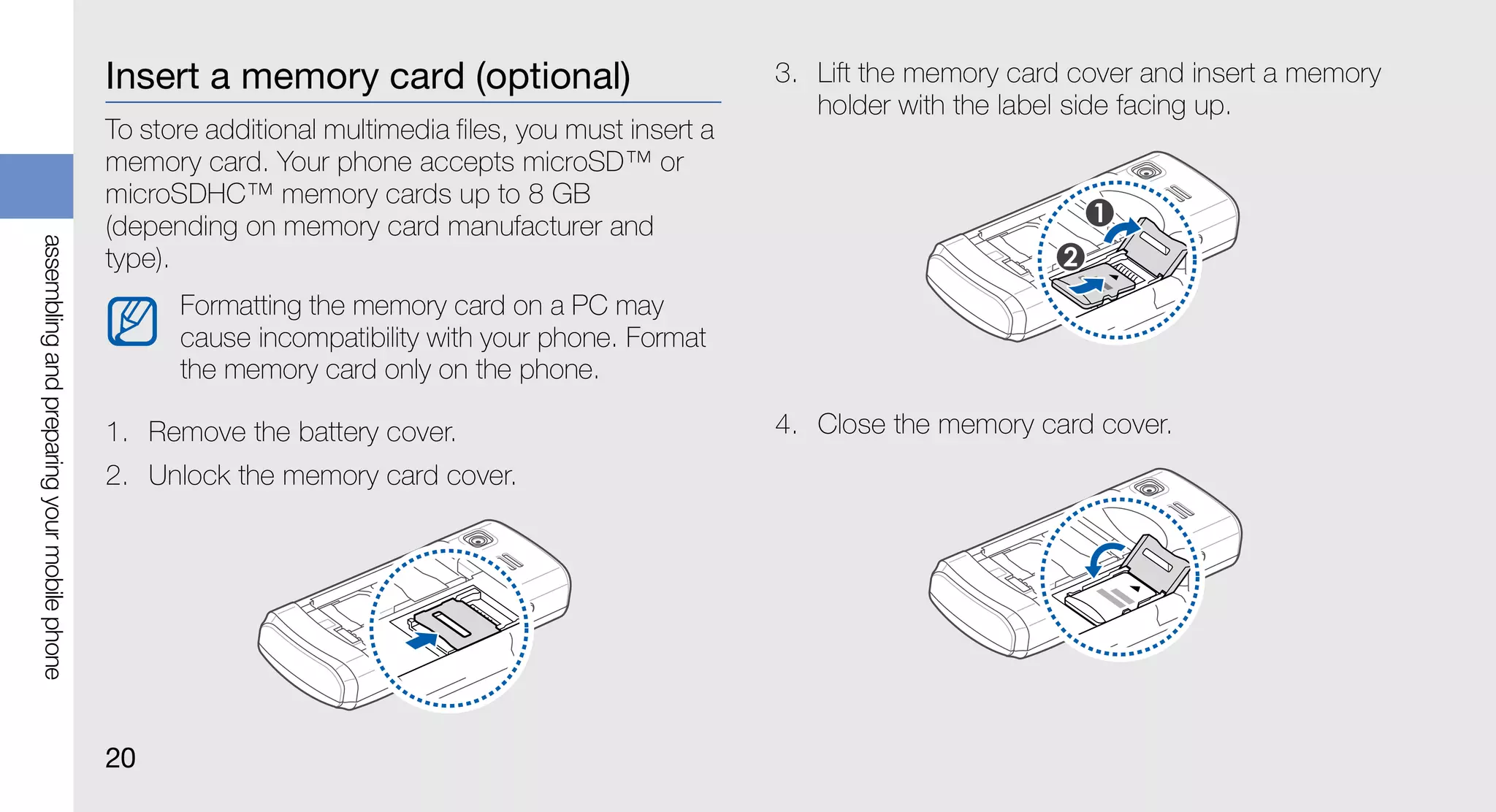
Insert a memory card (optional)                           3. Lift the memory card cover and insert a memory
                                                                                                          holder with the label side facing up.
                                             To store additional multimedia files, you must insert a
                                             memory card. Your phone accepts microSD™ or
                                             microSDHC™ memory cards up to 8 GB
                                             (depending on memory card manufacturer and
assembling and preparing your mobile phone


                                             type).
                                                   Formatting the memory card on a PC may
                                                   cause incompatibility with your phone. Format
                                                   the memory card only on the phone.

                                             1. Remove the battery cover.                              4. Close the memory card cover.
                                             2. Unlock the memory card cover.


                                             20
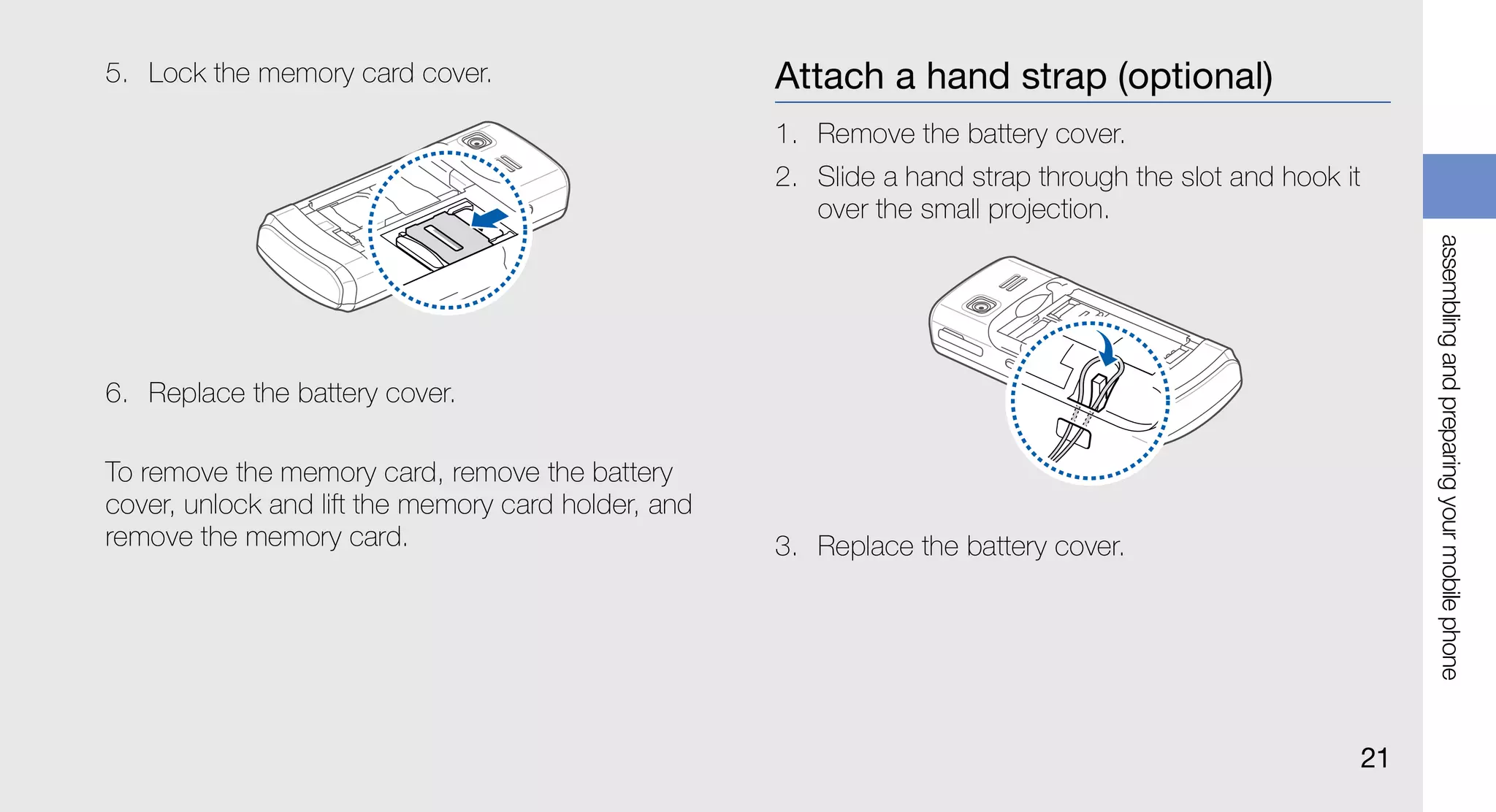
5. Lock the memory card cover.                       Attach a hand strap (optional)
                                                     1. Remove the battery cover.
                                                     2. Slide a hand strap through the slot and hook it
                                                        over the small projection.


                                                                                                               assembling and preparing your mobile phone
6. Replace the battery cover.

To remove the memory card, remove the battery
cover, unlock and lift the memory card holder, and
remove the memory card.                              3. Replace the battery cover.


                                                                                                          21
Turn your phone on and off

             using basic                             To turn your phone on,
                                                     1. Press and hold [      ].

               functions                             2. Enter your PIN and press <OK> (if necessary).
                                                     3. Press <OK>.
                                                     4. Press <Next> to assign a name and an icon for
 Learn how to perform basic operations and use the
                                                        the SIM card.
               main features of your mobile phone.
                                                     5. Assign a name to the SIM card 1 and press
                                                        <Next>.
                                                     6. Assign an icon to the SIM card 1 and press
                                                        <Next>.
                                                     7. Repeat steps 4-6 to assign a name and icon to
                                                        the SIM card 2.
                                                     8. Press <Next> → <OK>.
                                                     To turn your phone off, repeat step 1 above.


22
Switch to the offline profile                                  You may need to press the Confirm key to
                                                               access Menu mode depending on your region
By switching to the offline profile, you can use your
                                                               or service provider. When you are using the
phone’s non-network services in areas where
                                                               smart home screen, you cannot use the
wireless devices are prohibited, such as aeroplanes
                                                               Confirm key to access Menu mode.
and hospitals.
To switch to the offline profile, in Menu mode, select   2. Use the Navigation key to scroll to a menu or
Settings → Sound profiles → Offline.                        option.


                                                                                                                 using basic functions
      Follow all posted warnings and directions from     3. Press <Select>, <OK>, or the Confirm key to
      official personnel when in areas where wireless       confirm the highlighted option.
      devices are prohibited.                            4. Press <Back> to move up one level; Press [       ]
                                                            to return to Idle mode.
Access menus
To access your phone’s menus,                            Use the smart home screen
1. In Idle mode, press <Menu> to access Menu             The screen allows you to access your favourite
   mode.                                                 applications and contacts and view upcoming
                                                         events or tasks. You can customise the smart home
                                                         screen to fit your preferences and needs.


                                                                                                            23
Customise the smart home screen                        • Shortcuts toolbar: access your favourite
                                                                                 applications. You can customise the shortcuts
                        1. In Menu mode, select Settings → Display →
                                                                                 toolbar as needed. Customise the shortcuts
                           Smart home.
                                                                                 toolbar
                        2. Scroll to Smart idle.                               • My buddies: access contacts that are saved in
                        3. Press <Edit>.                                         the favourite number list ( p. 41). Once you
                        4. Select the items to display on the smart home         select a contact, you can dial the number or send
                                                                                 a message or email.
using basic functions


                           screen.
                                                                               • PIMs ticker: access upcoming calendar events
                        5. Press <Options> → <Save> → <Set>.
                                                                                 and tasks.
                              You can change the idle screen to another        • Dual clock: view your home clock and a world
                              style. In Menu mode, select Settings →             clock. p. 59
                              Display → Smart home and scroll left or right
                                                                               • Single clock: view the current time and date.
                              to a style you want.

                        Access the smart home idle items                       Customise the shortcuts toolbar
                                                                               1. In Menu mode, select Settings → Display →
                        Press the Navigation key to scroll through the items
                                                                                  Smart home.
                        on the smart home screen and press the Confirm
                        key to select an item. The following items are         2. Scroll to Smart idle (if necessary).
                        available:                                             3. Press <Edit>.
                        24
4. Scroll to Shortcuts toolbar and press           Switch to or from the silent profile
   <Options> → Edit shortcuts.
                                                   In Idle mode, press and hold [ ] to silence or
5. Select a menu to change or an empty location    unsilence your phone.
   and select Edit.
6. Select the menus you want.                      Set the phone profile
   Press <Options> → Open to select submenus       To change the ringtone of the current profile,
   (if necessary).
                                                   1. In Menu mode, select Settings → Sound


                                                                                                                  using basic functions
7. Press <Save>, or press <Options> → Save.           profiles.
                                                   2. Scroll to the profile you are using.
Customise your phone
                                                          If you are using the silent, offline, or meeting
Get more from your phone by customising it to             profile, you are not allowed to change the
match your preferences.                                   ringtone.

Adjust the volume of the key tones                 3. Press <Edit>.
In Idle mode, press the Volume key up or down to   4. Scroll left or right to a SIM card (if necessary).
adjust the key tone volume.                        5. Select Voice call ringtone.
                                                   6. Select a ringtone category → a ringtone.
                                                   To switch to another profile, select it from the list.
                                                                                                             25
To create a phone profile,                      3. Select a SIM card (if necessary).
                        1. In Menu mode, select Settings → Sound        To create and apply a theme,
                           profiles.                                    1. In Menu mode, select Settings → Display →
                        2. Scroll to a user profile and press <Edit>.      Theme → Create.
                        3. Customise the sound settings as desired.     2. Customise the theme as desired by following the
                                                                           screen.
                        Select a wallpaper (Idle mode)
using basic functions


                                                                        3. When you have finished, enter a name for the
                        1. In Menu mode, select Settings → Display →       theme and press <Save>.
                           Wallpaper.                                   4. Press <Yes> to apply the theme.
                        2. Select a SIM card (if necessary).                  If you select the same colour for the entire
                        3. Select an image.                                   theme, you may not be able to recognise the
                                                                              display.
                        Select a theme for the display
                                                                        Set menu shortcuts
                        To select a theme,
                                                                        1. In Menu mode, select Settings → Phone →
                        1. In Menu mode, select Settings → Display →       Shortcuts.
                           Theme.
                                                                        2. Select a key to use as a shortcut.
                        2. Scroll to a theme and press <Set>.
                        26
3. Select a menu to assign to the shortcut key.        Use Recycle bin
      When you are using the smart home screen,        With Recycle bin, the data you deleted, such as
      the Navigation keys do not work as shortcuts.    messages, contacts, and tasks, will be sent to the
                                                       recycle bin instead of being deleted permanently.
Lock your phone                                        You can later restore the data or empty your recycle
1. In Menu mode, select Settings → Security →          bin to permanently delete.
   Phone → Phone lock.                                 To access the recycle bin, in Menu mode, select


                                                                                                              using basic functions
2. Enter a new 4- to 8-digit password and press        Settings → Recycle bin.
   <OK>.
3. Enter the new password again and press <OK>.        Manage your SIM cards
      • The first time you access a menu that          Your phone supports the Dual SIM mode, enabling
        requires a password, you will be prompted to   you to use two SIM cards at the same time without
        create and confirm a password.                 changing them. Learn to select a default SIM card
      • Samsung is not responsible for any loss of     and set the SIM cards settings.
        passwords or private information or other
        damages caused by illegal software.            Select a default SIM card
                                                       1. In Idle mode, press and hold [ ].
                                                       2. Select Network.
                                                                                                         27
3. Scroll down to Default network and press         3. Select Card name and change the name for the
                           <Change> → <Yes>.                                   SIM card and press the Confirm key.
                           Your phone will automatically reboot.            4. Select Icon and change the icon for the SIM
                                                                               card and press the Confirm key.
                        Switch the SIM cards automatically
                        1. In Menu mode, select Settings → SIM cards        Use basic call functions
                           management → SIM auto switch.
                                                                            Learn to make or answer calls and use basic call
using basic functions


                        2. Press <Change>.                                  functions.
                        3. Select a SIM card.
                        4. Specify the schedule that the SIM card will be   Make a call
                           active and press <Save>.                         1. In Idle mode, enter an area code and a phone
                                                                               number.
                        Change the names and icons of the SIM               2. Press [    ] to dial the number.
                        cards
                                                                            3. To end the call, press [   ].
                        1. In Menu mode, select Settings → SIM cards
                           management → Register card.
                        2. Select a SIM card.


                        28
Answer a call                                           Use the headset
1. When a call comes in, press [     ].                 By plugging the supplied headset into the
2. To end the call, press [   ].                        multifunction jack, you can make and answer calls:
                                                        • To redial the last call, press and hold the headset
Adjust the volume                                         button.
To adjust the volume during a call, press the Volume    • To answer a call, press the headset button.
key up or down.


                                                                                                                using basic functions
                                                        • To end a call, press and hold the headset button.

Use the speakerphone feature                            Send and view messages
1. During a call, press the Confirm key to activate
   the speaker.                                         Learn to send and view text (SMS), multimedia
                                                        (MMS), and email messages.
2. To switch back to the earpiece, press the
   Confirm key again.                                   Send a text or multimedia message
      In noisy environments, you may have difficulty    1. In Menu mode, select Messages → Create
      hearing the calls while using the speakerphone       message.
      feature. For better performance, use the normal
      phone mode.                                       2. Enter a recipient number and scroll down.


                                                                                                          29
3. Enter your message text. p. 30                    5. Press <Options> → Attach items and attach a
                           For sending as a text message, skip to step 5.       file (if necessary).
                           For attaching multimedia, continue with step 4.   6. Press the Confirm key to send the message.
                        4. Press <Options> → Add multimedia and add
                           an item.                                          Enter text
                        5. Press the Confirm key to send the message.        When entering text, you can change the text input
                                                                             mode:
using basic functions


                        Send an email                                        • Press and hold [ ] to switch between T9 and
                        1. In Menu mode, select Messages → Create              ABC modes. Depending on your country, you
                           email.                                              may be able to access an input mode for your
                                                                               specific language.
                        2. Enter a subject and scroll up.
                                                                             • Press [ ] to change case or switch to Number
                        3. Enter an email address and scroll down to the       mode.
                           message field.
                                                                             • Press [ ] to switch to Symbol mode.
                        4. Enter your email text.
                                                                             • Press and hold [ ] to select an input mode or
                                                                               change the input language.


                        30
Enter text in one of the following modes:                   View text or multimedia messages
 Mode       Function                                        1. In Menu mode, select Messages → Inbox.
            Press an appropriate alphanumeric key until     2. Select a text or multimedia message.
 ABC        the character you want appears on the
            display.                                        View an email
            1. Press the appropriate alphanumeric           1. In Menu mode, select Messages → Email
               keys to enter an entire word.                   inbox.


                                                                                                                  using basic functions
            2. When the word displays correctly, press
 T9                                                         2. Select an email account.
               [0] to insert a space. If the correct word
               does not display, select an alternate        3. Press Download.
               word from the list that appears.
                                                            4. Select an email or a header.
            Press an appropriate alphanumeric key to
 Number
            enter a number.
                                                            5. If you selected a header, press <Options> →
                                                               Retrieve to view the body of the email.
            Press an appropriate alphanumeric key to
 Symbol
            enter a symbol.


                                                                                                             31
Add and find contacts                                    3. Select the contact’s name from the search list.

                        Learn the basics of using the phonebook feature.               Once you have found a contact, you can:
                                                                                       • call the contact by pressing [    ]
                        Add a new contact                                              • edit the contact information by pressing the
                                                                                         Confirm key
                        1. In Idle mode, enter a phone number and press
                           <Options>.
                                                                                 Use basic camera functions
using basic functions


                        2. Select Add to Phonebook → a memory location
                           (phone, SIM 1, or SIM 2) → Create contact.            Learn the basics to capture and view photos and
                        3. Select a number type (if necessary).                  videos.
                        4. Enter contact information.                            Capture photos
                        5. Press <Options> → Save or press the Confirm
                                                                                 1. In Menu mode, select Camera to turn on the
                           key to add the contact to memory.
                                                                                    camera.
                        Find a contact                                           2. Aim the lens at the subject and make any
                                                                                    adjustments.
                        1. In Menu mode, select Phonebook.
                                                                                    • To change the preview screen, press the
                        2. Enter the first few letters of the name you want to         Navigation key up ( ).
                           find.                                                    • To adjust the brightness, press the Navigation
                                                                                       key left or right ( or ).
                        32
• To change the time delay, press the              • To change the preview screen, press the
     Navigation key down ( ).                           Navigation key up ( ).
   • To zoom in or out, press the Volume key.         • To adjust the brightness, press the Navigation
3. Press the Confirm key to take a photo.               key left or right ( or ).
    The photo is saved automatically.                 • To change the time delay, press the
                                                        Navigation key down ( ).
After capturing photos, press <View> to view
                                                      • To zoom in or out, press the Volume key.
photos.


                                                                                                           using basic functions
                                                   4. Press the Confirm key to start recording.
View photos                                        5. Press <Stop> to stop recording.
In Menu mode, select My files → Images → a photo       The video is saved automatically.
file.                                              After capturing videos, press <View> to view videos.

Capture videos                                     View videos
1. In Menu mode, select Camera to turn on the      Use one of the following methods to view videos:
   camera.
                                                   • In Menu mode, select My files → Videos → a
2. Press [1] to switch to Recording mode.            video file.
3. Aim the lens at the subject and make any        • In Menu mode, select Applications → Video
   adjustments.                                      player → a video file.

                                                                                                      33
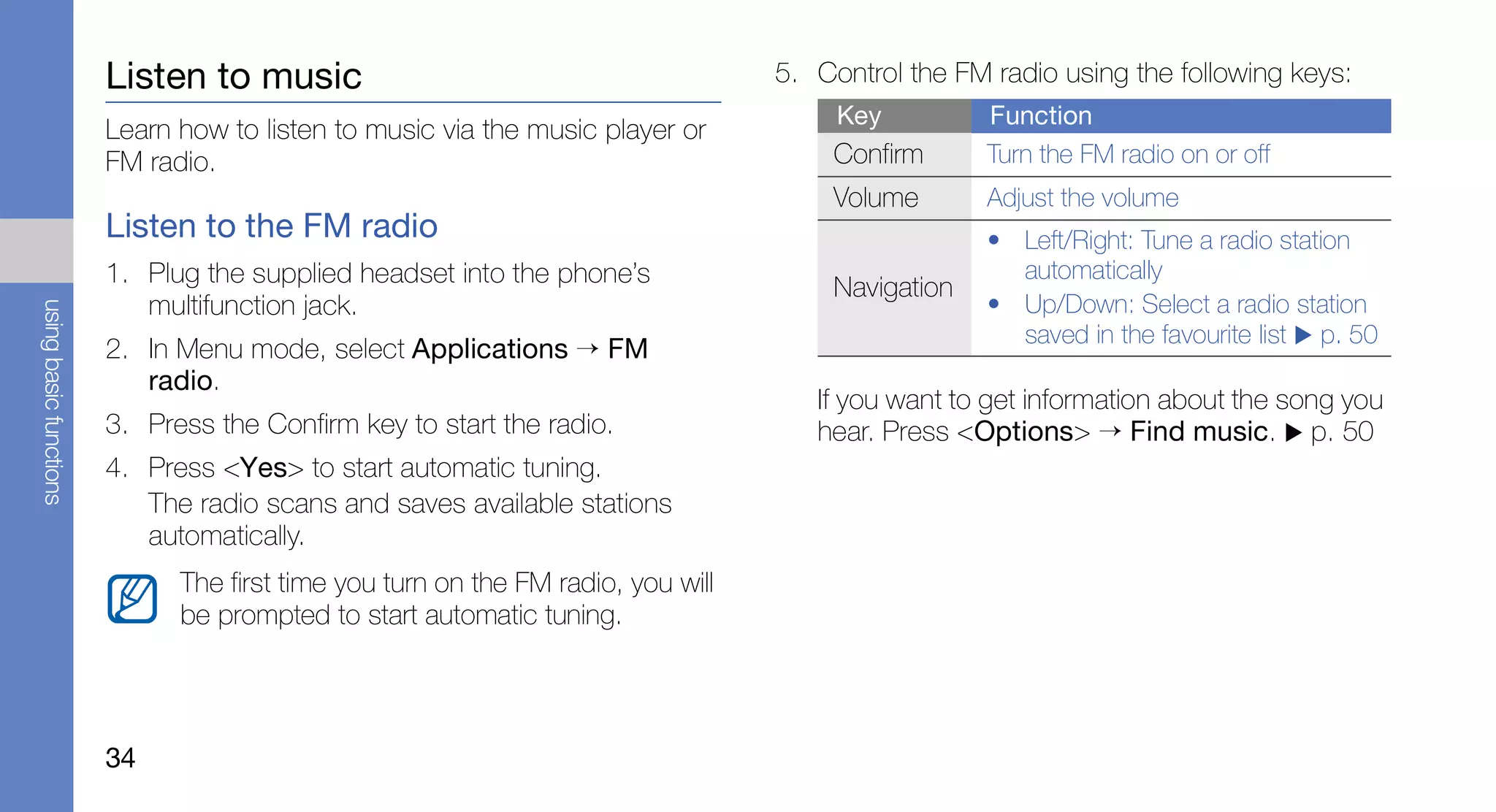
Listen to music                                           5. Control the FM radio using the following keys:
                                                                                       Key          Function
                        Learn how to listen to music via the music player or
                        FM radio.                                                     Confirm       Turn the FM radio on or off
                                                                                      Volume        Adjust the volume
                        Listen to the FM radio                                                      • Left/Right: Tune a radio station
                        1. Plug the supplied headset into the phone’s                                 automatically
                                                                                      Navigation
                           multifunction jack.                                                      • Up/Down: Select a radio station
using basic functions


                                                                                                      saved in the favourite list p. 50
                        2. In Menu mode, select Applications → FM
                           radio.
                                                                                     If you want to get information about the song you
                        3. Press the Confirm key to start the radio.                 hear. Press <Options> → Find music. p. 50
                        4. Press <Yes> to start automatic tuning.
                           The radio scans and saves available stations
                           automatically.
                              The first time you turn on the FM radio, you will
                              be prompted to start automatic tuning.


                        34
Listen to music files                                 3. Control playback using the following keys:
Start by transferring files to your phone or memory        Key          Function
card:                                                     Confirm       Pause or resume playback
• Download from the wireless web. p. 36                   Volume        Adjust the volume
• Download from a PC with the optional Samsung                          • Left: Restart playback; Skip
   PC Studio. p. 47                                                       backward (press within 3
                                                                          seconds); Scan backward in a file


                                                                                                              using basic functions
• Receive via Bluetooth. p. 52
                                                                          (press and hold)
• Copy to your memory card. p. 47                         Navigation    • Right: Skip forward; Scan forward
• Synchronise with Windows Media Player 11.                               in a file (press and hold)
      p. 47                                                             • Up: Open the playlist
After transferring music files to your phone or                         • Down: Stop playback
memory card,                                              [1]           Rate the current track
1. In Menu mode, select Music → Library.                  [2]           Change the sound effect
2. Select a music category → a music file.                [3]           Activate Shuffle mode
                                                          [4]           Change the repeat mode
                                                          [5]           Select a skin type


                                                                                                        35
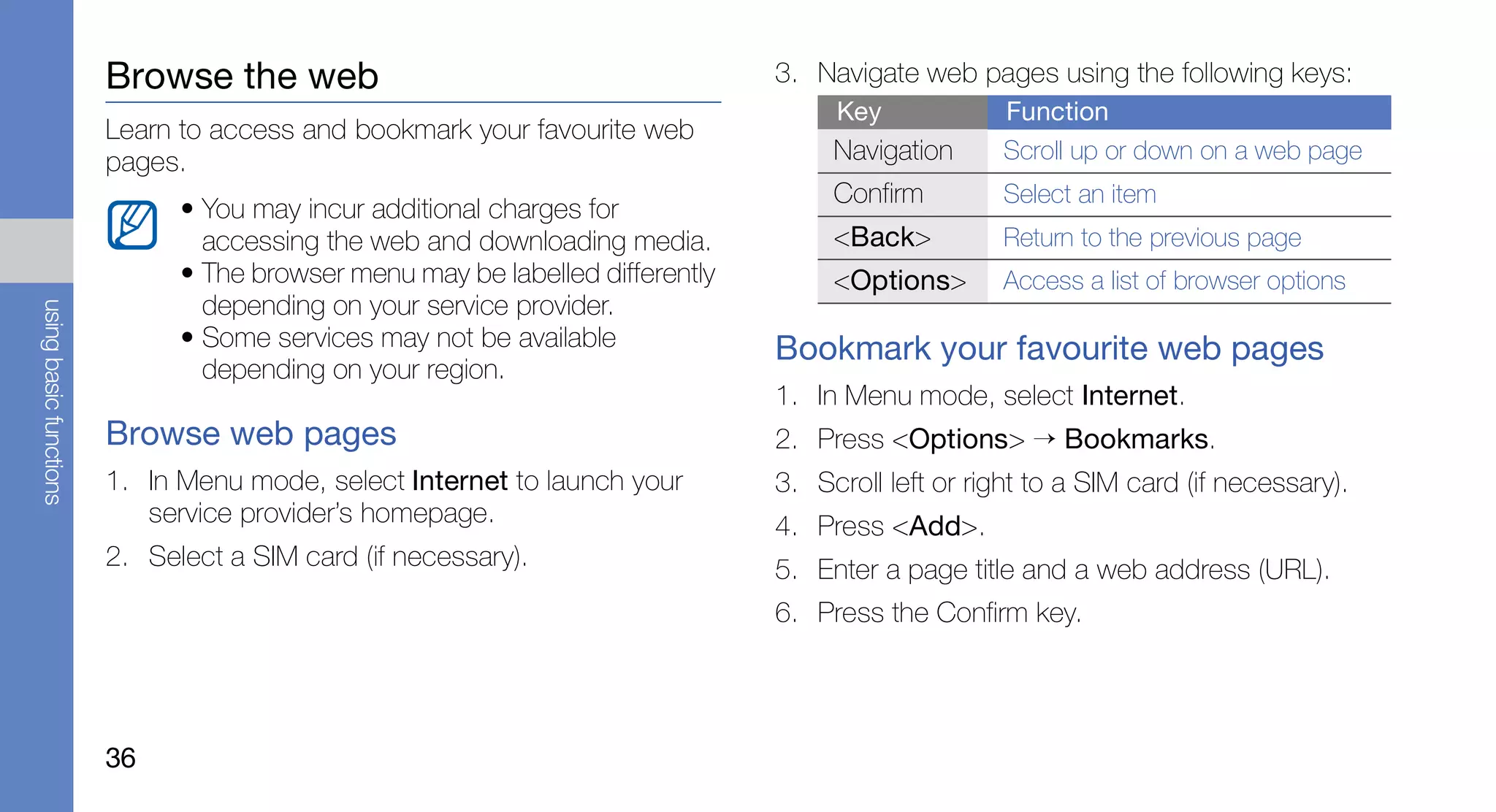
Browse the web                                         3. Navigate web pages using the following keys:
                                                                                    Key             Function
                        Learn to access and bookmark your favourite web
                        pages.                                                      Navigation      Scroll up or down on a web page
                                                                                    Confirm         Select an item
                              • You may incur additional charges for
                                accessing the web and downloading media.            <Back>          Return to the previous page
                              • The browser menu may be labelled differently        <Options>       Access a list of browser options
                                depending on your service provider.
using basic functions


                              • Some services may not be available             Bookmark your favourite web pages
                                depending on your region.
                                                                               1. In Menu mode, select Internet.
                        Browse web pages                                       2. Press <Options> → Bookmarks.
                        1. In Menu mode, select Internet to launch your        3. Scroll left or right to a SIM card (if necessary).
                           service provider’s homepage.                        4. Press <Add>.
                        2. Select a SIM card (if necessary).                   5. Enter a page title and a web address (URL).
                                                                               6. Press the Confirm key.


                        36
Download contents from the web
1. In Menu mode, select Downloads.
2. Scroll left or right to a SIM card (if necessary).
3. Select a menu according to the content type to
   download.
4. Search for a ringtone, picture, games, or videos


                                                             using basic functions
   and download it to the phone.


                                                        37
Use advanced call functions

using advanced                                         Learn about your phone’s additional calling
                                                       capabilities.


       functions                                       View and dial missed calls
                                                       Your phone will display calls you have missed on the
                                                       display. To dial the number of a missed call,
Learn how to perform advanced operations and use
           additional features of your mobile phone.   1. Press <Open>.
                                                       2. Scroll to the missed call you want to dial.
                                                       3. Press [    ] to dial.

                                                       Call a recently dialled number
                                                       1. In Idle mode, press [    ] to display a list of
                                                          recent numbers.
                                                       2. Scroll to the number you want and press [         ] to
                                                          dial.


38
Hold a call or retrieve a held call                         Answer a second call
Press <Hold> to place a call on hold or press               If your network supports this function, you can
<Retrieve> to retrieve a held call.                         answer a second incoming call:
                                                            1. Press [     ] to answer the second call.
Dial a second call                                             The first call is automatically placed on hold.
If your network supports this function, you can dial
                                                            2. Press <Swap> to switch between the calls.
another number during a call:


                                                                                                                       using advanced functions
1. Press <Hold> to place the first call on hold.            Make a multiparty call (conference call)
2. Enter the second number to dial and press [         ].   1. Call the first party you want to add to the
3. Press <Swap> to switch between the two calls.               multiparty call.
4. To end the call on hold, press <Options> → End           2. While connected to the first party, call the
   → Held call.                                                second party.
                                                               The first party is automatically placed on hold.
5. To end the current call, press [    ].
                                                            3. When connected to the second party, press
                                                               <Options> → Conference call.


                                                                                                                  39
4. Repeat steps 2 and 3 to add more parties (if       Reject a call
                              necessary).
                                                                                 To reject an incoming call, press [   ]. The caller will
                           5. To end the multiparty call, press [   ].           hear a busy tone.

                           Call an international number                          To reject calls from certain numbers automatically,
                                                                                 use the auto rejection. To activate the auto rejection
                           1. In Idle mode, press and hold [0] to insert the +   and set up the reject list,
                              character.
                                                                                 1. In Menu mode, select Settings → Call → All
using advanced functions


                           2. Enter the complete number you want to dial            calls → Auto reject.
                              (country code, area code, and phone number),
                              and then press [    ] to dial.                     2. Select Activation → On (if necessary).
                                                                                 3. Select Reject list.
                           Call a contact from the phonebook                     4. Press <Options> → Create.
                           You can call numbers directly from the phonebook      5. Enter a number to reject.
                           using stored contacts. p. 32
                                                                                 6. Select Match criteria → an option (if necessary).
                           1. In Menu mode, select Phonebook.
                                                                                 7. Press <Save> or the Confirm key.
                           2. Scroll to the number you want to dial and press
                                                                                 8. To add more numbers, repeat steps 4-6 above.
                              [   ] to dial.


                           40
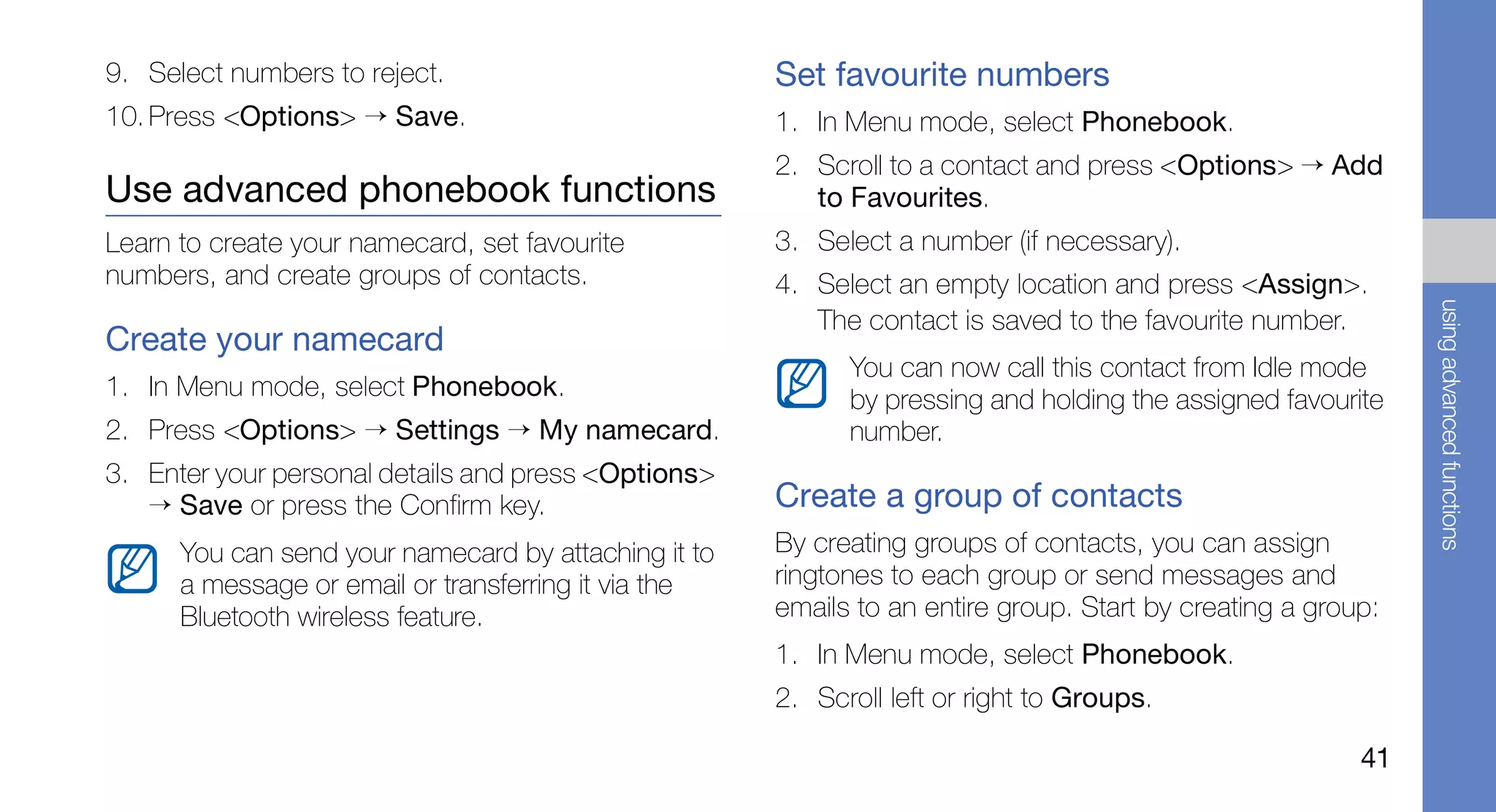
9. Select numbers to reject.                          Set favourite numbers
10. Press <Options> → Save.                           1. In Menu mode, select Phonebook.
                                                      2. Scroll to a contact and press <Options> → Add
Use advanced phonebook functions                         to Favourites.
Learn to create your namecard, set favourite          3. Select a number (if necessary).
numbers, and create groups of contacts.               4. Select an empty location and press <Assign>.


                                                                                                              using advanced functions
                                                         The contact is saved to the favourite number.
Create your namecard
                                                            You can now call this contact from Idle mode
1. In Menu mode, select Phonebook.                          by pressing and holding the assigned favourite
2. Press <Options> → Settings → My namecard.                number.
3. Enter your personal details and press <Options>
   → Save or press the Confirm key.                   Create a group of contacts
      You can send your namecard by attaching it to   By creating groups of contacts, you can assign
      a message or email or transferring it via the   ringtones to each group or send messages and
      Bluetooth wireless feature.                     emails to an entire group. Start by creating a group:
                                                      1. In Menu mode, select Phonebook.
                                                      2. Scroll left or right to Groups.

                                                                                                         41
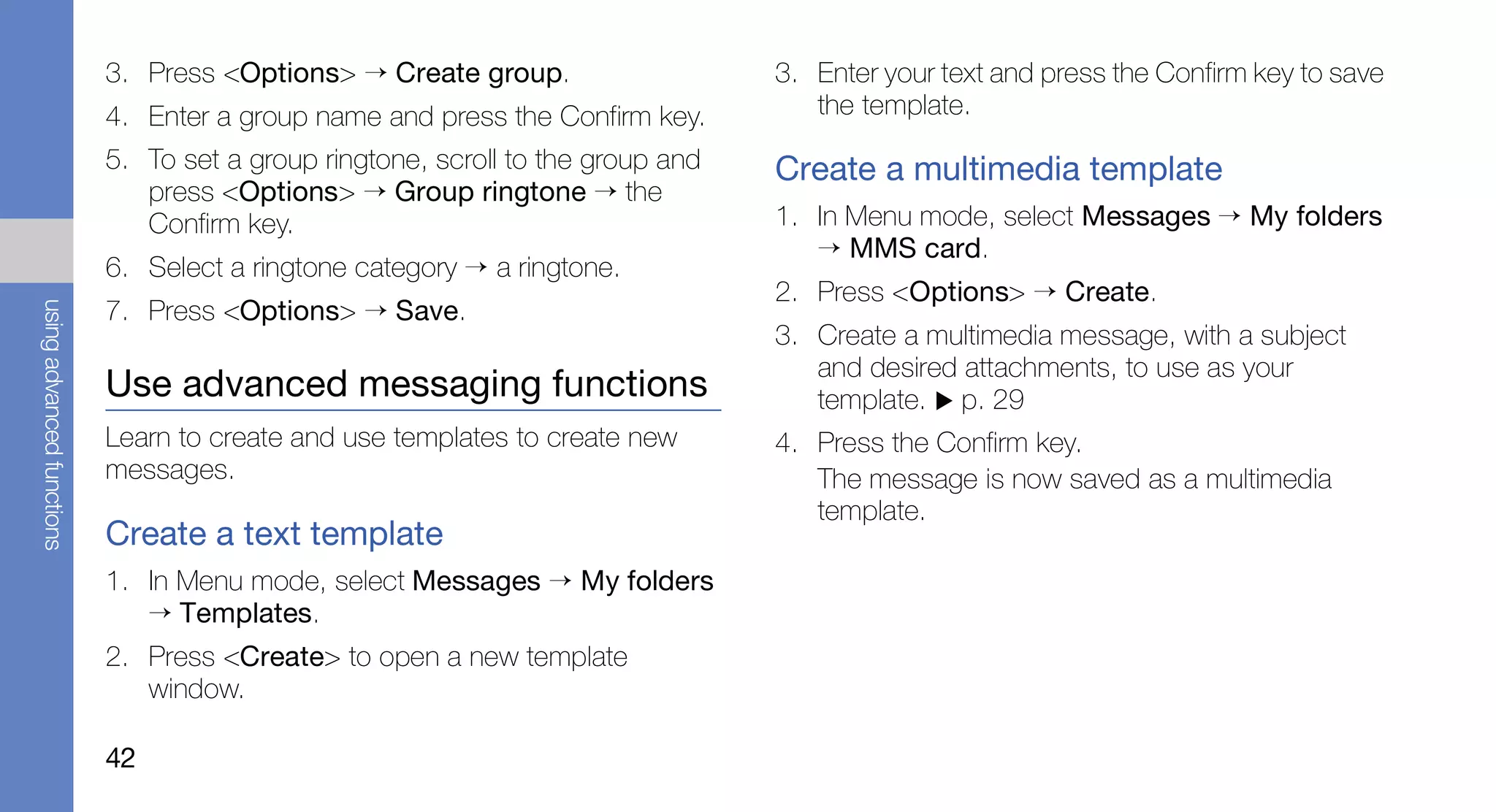
3. Press <Options> → Create group.                    3. Enter your text and press the Confirm key to save
                           4. Enter a group name and press the Confirm key.         the template.
                           5. To set a group ringtone, scroll to the group and   Create a multimedia template
                              press <Options> → Group ringtone → the
                              Confirm key.                                       1. In Menu mode, select Messages → My folders
                                                                                    → MMS card.
                           6. Select a ringtone category → a ringtone.
                                                                                 2. Press <Options> → Create.
                           7. Press <Options> → Save.
using advanced functions


                                                                                 3. Create a multimedia message, with a subject
                                                                                    and desired attachments, to use as your
                           Use advanced messaging functions                         template. p. 29
                           Learn to create and use templates to create new       4. Press the Confirm key.
                           messages.                                                The message is now saved as a multimedia
                                                                                    template.
                           Create a text template
                           1. In Menu mode, select Messages → My folders
                              → Templates.
                           2. Press <Create> to open a new template
                              window.

                           42
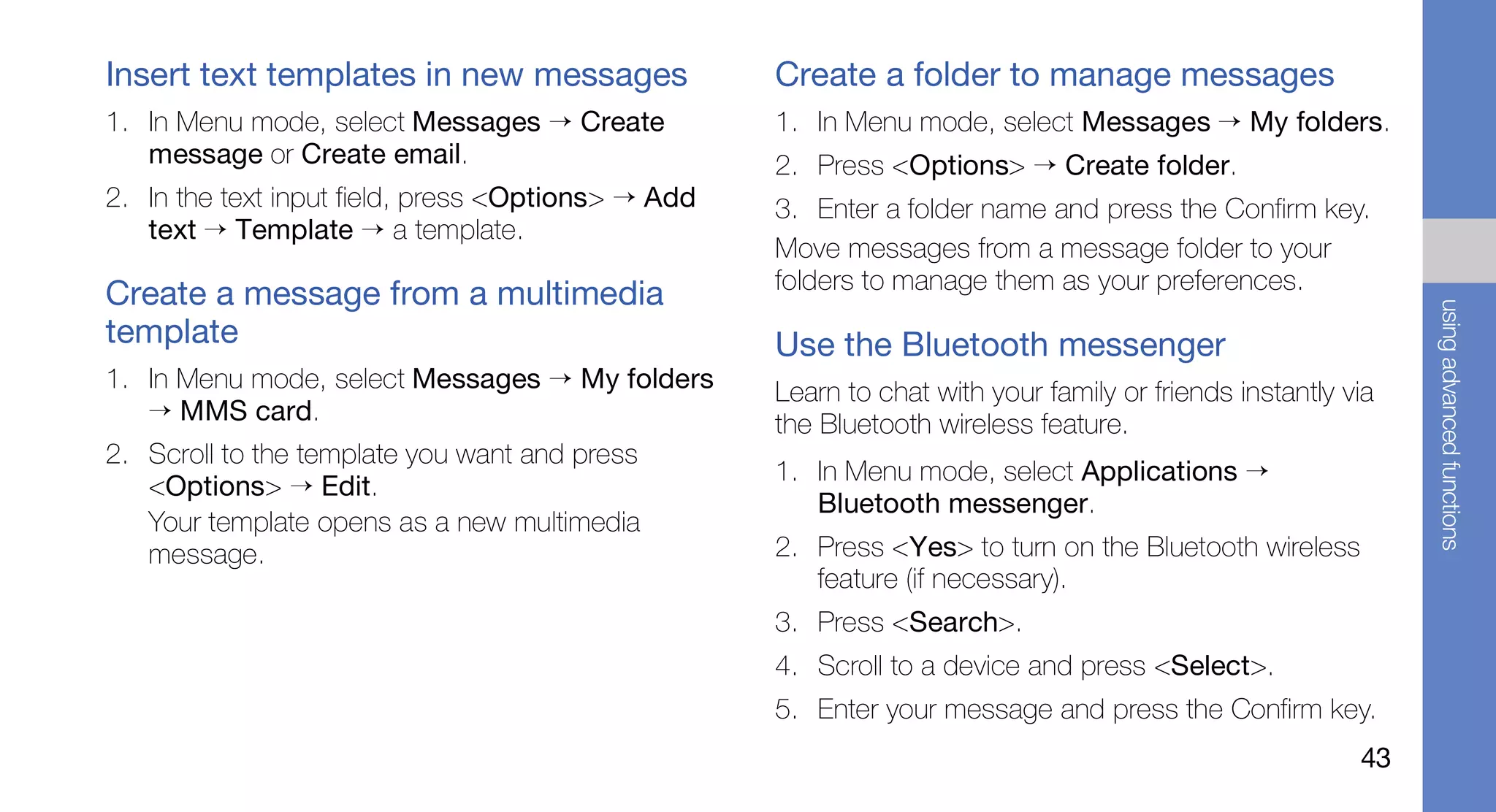
Insert text templates in new messages               Create a folder to manage messages
1. In Menu mode, select Messages → Create           1. In Menu mode, select Messages → My folders.
   message or Create email.                         2. Press <Options> → Create folder.
2. In the text input field, press <Options> → Add   3. Enter a folder name and press the Confirm key.
   text → Template → a template.
                                                    Move messages from a message folder to your
                                                    folders to manage them as your preferences.
Create a message from a multimedia


                                                                                                              using advanced functions
template                                            Use the Bluetooth messenger
1. In Menu mode, select Messages → My folders       Learn to chat with your family or friends instantly via
   → MMS card.                                      the Bluetooth wireless feature.
2. Scroll to the template you want and press
                                                    1. In Menu mode, select Applications →
   <Options> → Edit.
                                                       Bluetooth messenger.
   Your template opens as a new multimedia
   message.                                         2. Press <Yes> to turn on the Bluetooth wireless
                                                       feature (if necessary).
                                                    3. Press <Search>.
                                                    4. Scroll to a device and press <Select>.
                                                    5. Enter your message and press the Confirm key.
                                                                                                         43
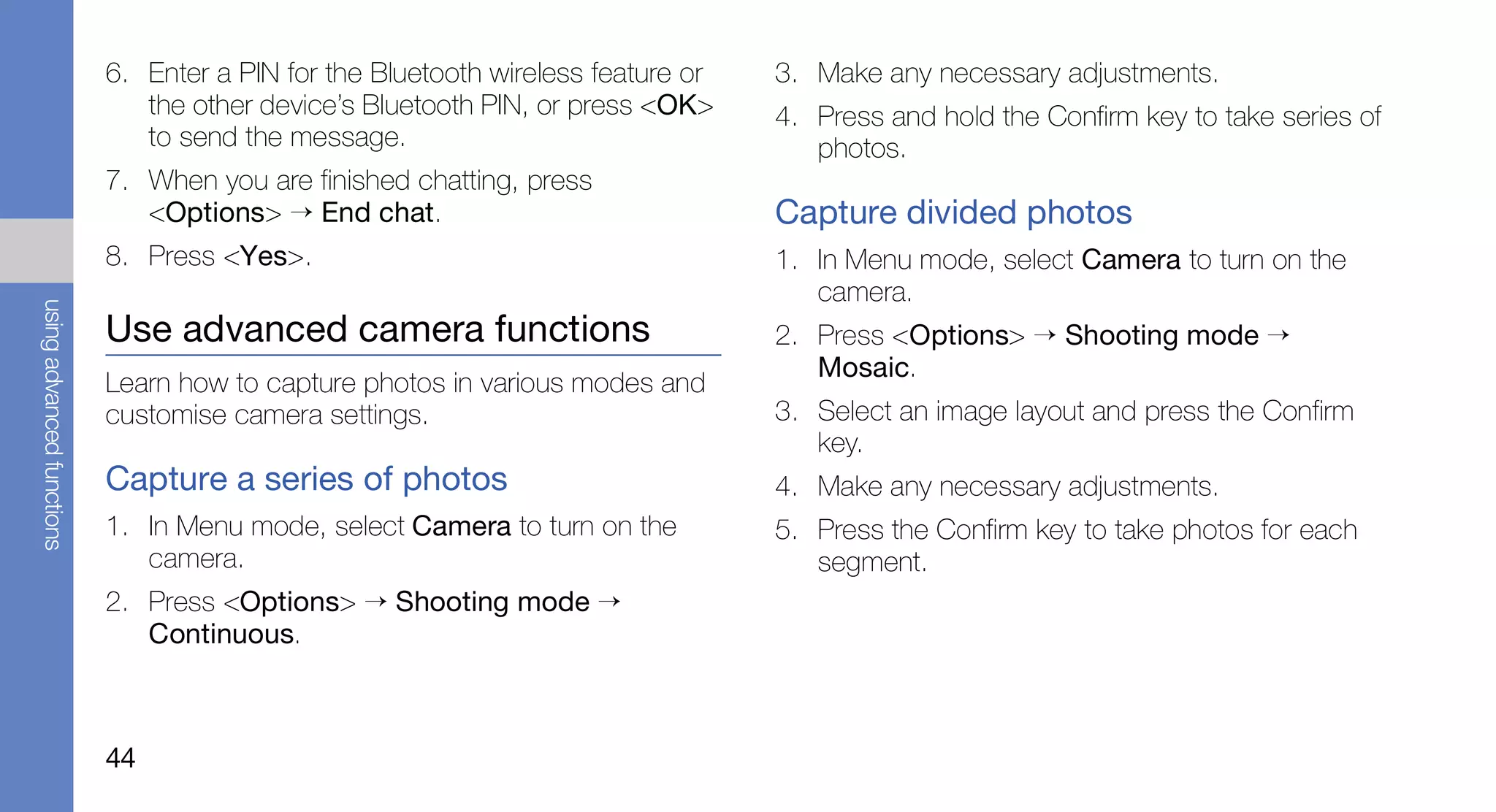
6. Enter a PIN for the Bluetooth wireless feature or   3. Make any necessary adjustments.
                              the other device’s Bluetooth PIN, or press <OK>     4. Press and hold the Confirm key to take series of
                              to send the message.                                   photos.
                           7. When you are finished chatting, press
                              <Options> → End chat.                               Capture divided photos
                           8. Press <Yes>.                                        1. In Menu mode, select Camera to turn on the
                                                                                     camera.
using advanced functions


                           Use advanced camera functions                          2. Press <Options> → Shooting mode →
                                                                                     Mosaic.
                           Learn how to capture photos in various modes and
                           customise camera settings.                             3. Select an image layout and press the Confirm
                                                                                     key.
                           Capture a series of photos                             4. Make any necessary adjustments.
                           1. In Menu mode, select Camera to turn on the          5. Press the Confirm key to take photos for each
                              camera.                                                segment.
                           2. Press <Options> → Shooting mode →
                              Continuous.


                           44
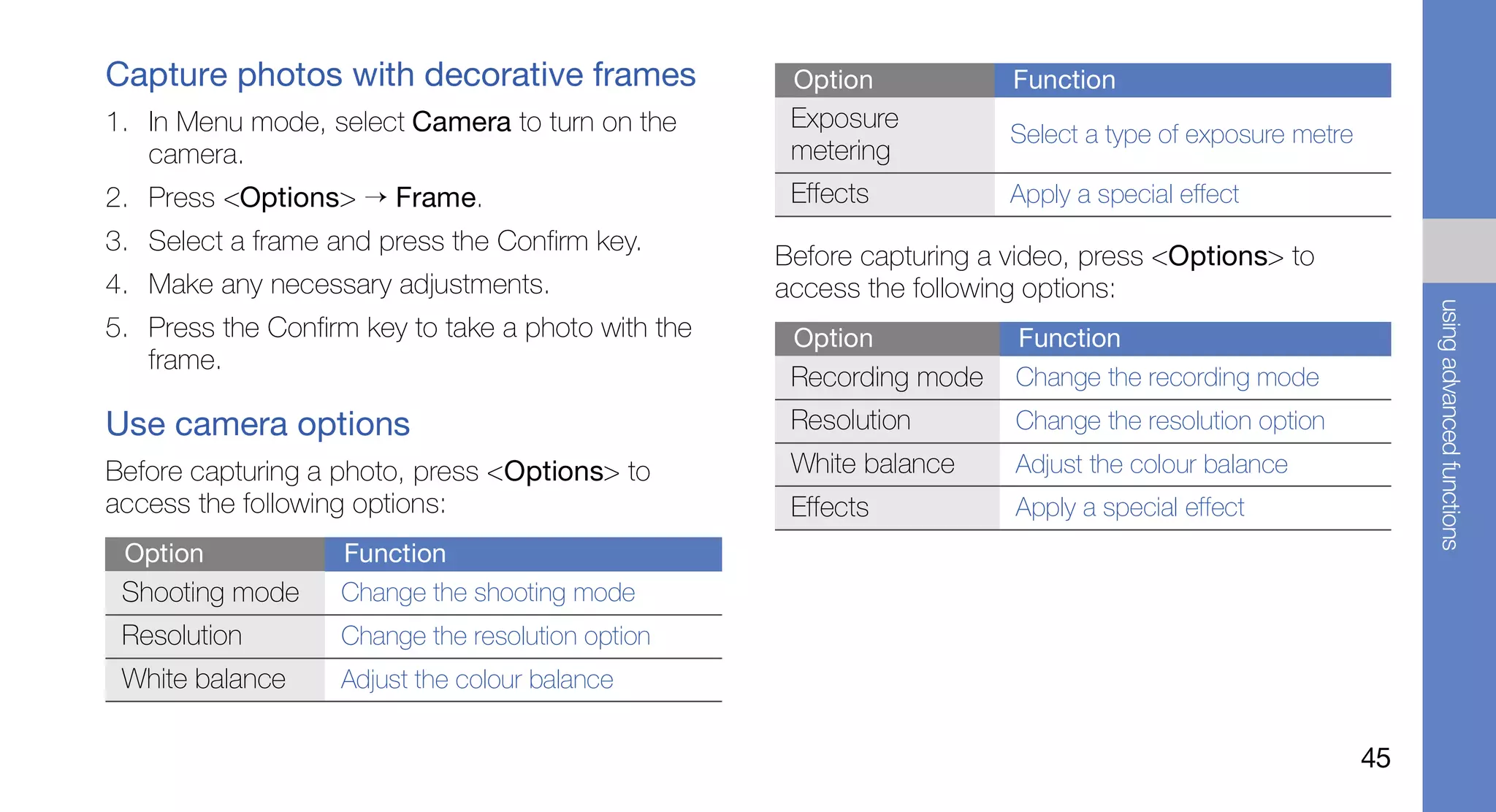
Capture photos with decorative frames                Option            Function
1. In Menu mode, select Camera to turn on the        Exposure
                                                                       Select a type of exposure metre
   camera.                                           metering
2. Press <Options> → Frame.                          Effects           Apply a special effect
3. Select a frame and press the Confirm key.
                                                    Before capturing a video, press <Options> to
4. Make any necessary adjustments.                  access the following options:


                                                                                                              using advanced functions
5. Press the Confirm key to take a photo with the    Option            Function
   frame.
                                                     Recording mode    Change the recording mode
Use camera options                                   Resolution        Change the resolution option
Before capturing a photo, press <Options> to         White balance     Adjust the colour balance
access the following options:                        Effects           Apply a special effect
 Option            Function
 Shooting mode     Change the shooting mode
 Resolution        Change the resolution option
 White balance     Adjust the colour balance


                                                                                                         45
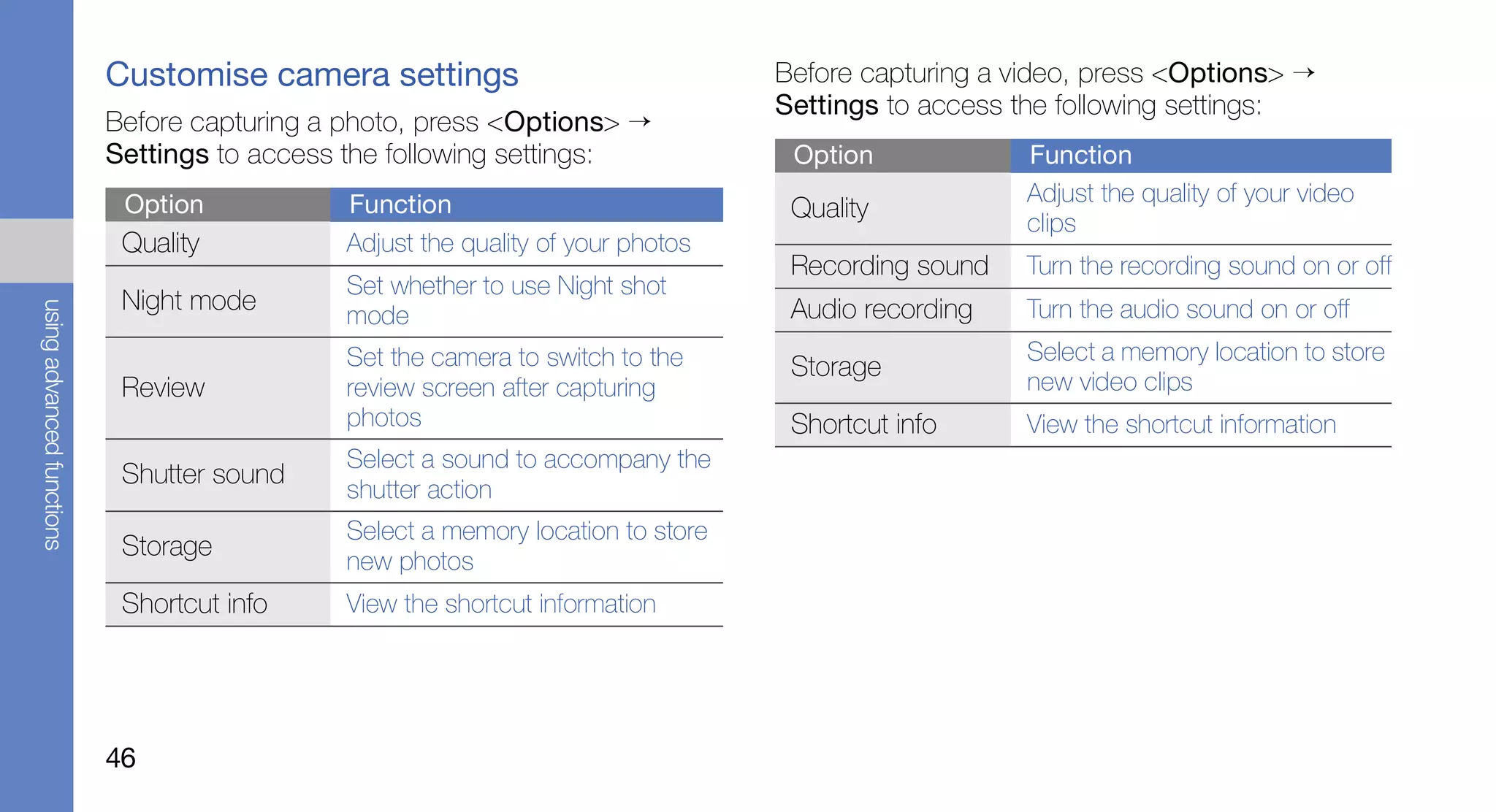
Customise camera settings                             Before capturing a video, press <Options> →
                                                                                 Settings to access the following settings:
                           Before capturing a photo, press <Options> →
                           Settings to access the following settings:             Option             Function
                            Option           Function                                                Adjust the quality of your video
                                                                                  Quality
                                                                                                     clips
                            Quality          Adjust the quality of your photos
                                                                                  Recording sound    Turn the recording sound on or off
                                             Set whether to use Night shot
                            Night mode                                            Audio recording
using advanced functions


                                             mode                                                    Turn the audio sound on or off
                                             Set the camera to switch to the                         Select a memory location to store
                                                                                  Storage
                            Review           review screen after capturing                           new video clips
                                             photos                               Shortcut info      View the shortcut information
                                             Select a sound to accompany the
                            Shutter sound
                                             shutter action
                                             Select a memory location to store
                            Storage
                                             new photos
                            Shortcut info    View the shortcut information


                           46
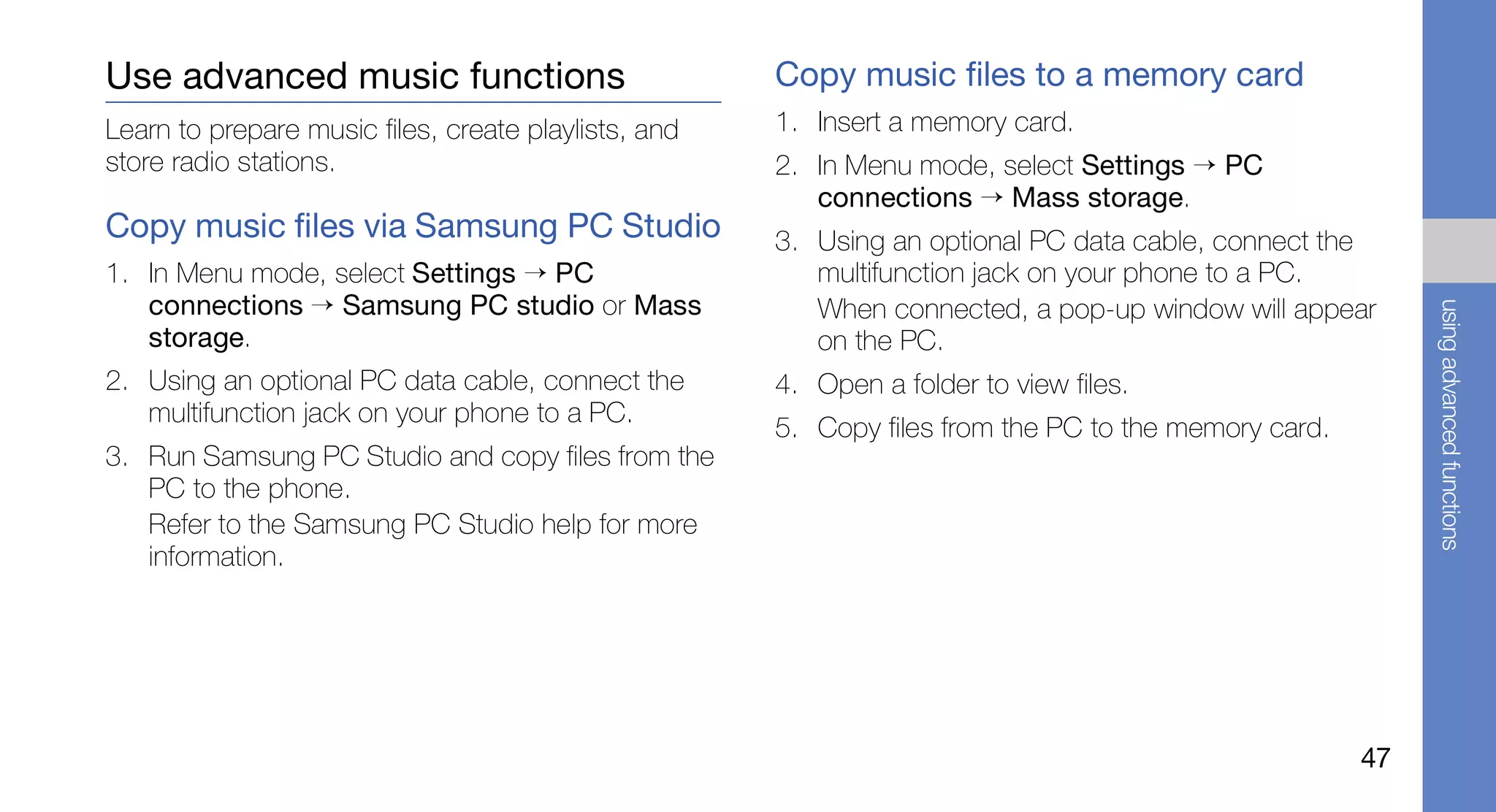
Use advanced music functions                          Copy music files to a memory card
Learn to prepare music files, create playlists, and   1. Insert a memory card.
store radio stations.                                 2. In Menu mode, select Settings → PC
                                                         connections → Mass storage.
Copy music files via Samsung PC Studio                3. Using an optional PC data cable, connect the
1. In Menu mode, select Settings → PC                    multifunction jack on your phone to a PC.
   connections → Samsung PC studio or Mass               When connected, a pop-up window will appear


                                                                                                           using advanced functions
   storage.                                              on the PC.
2. Using an optional PC data cable, connect the       4. Open a folder to view files.
   multifunction jack on your phone to a PC.
                                                      5. Copy files from the PC to the memory card.
3. Run Samsung PC Studio and copy files from the
   PC to the phone.
   Refer to the Samsung PC Studio help for more
   information.


                                                                                                      47
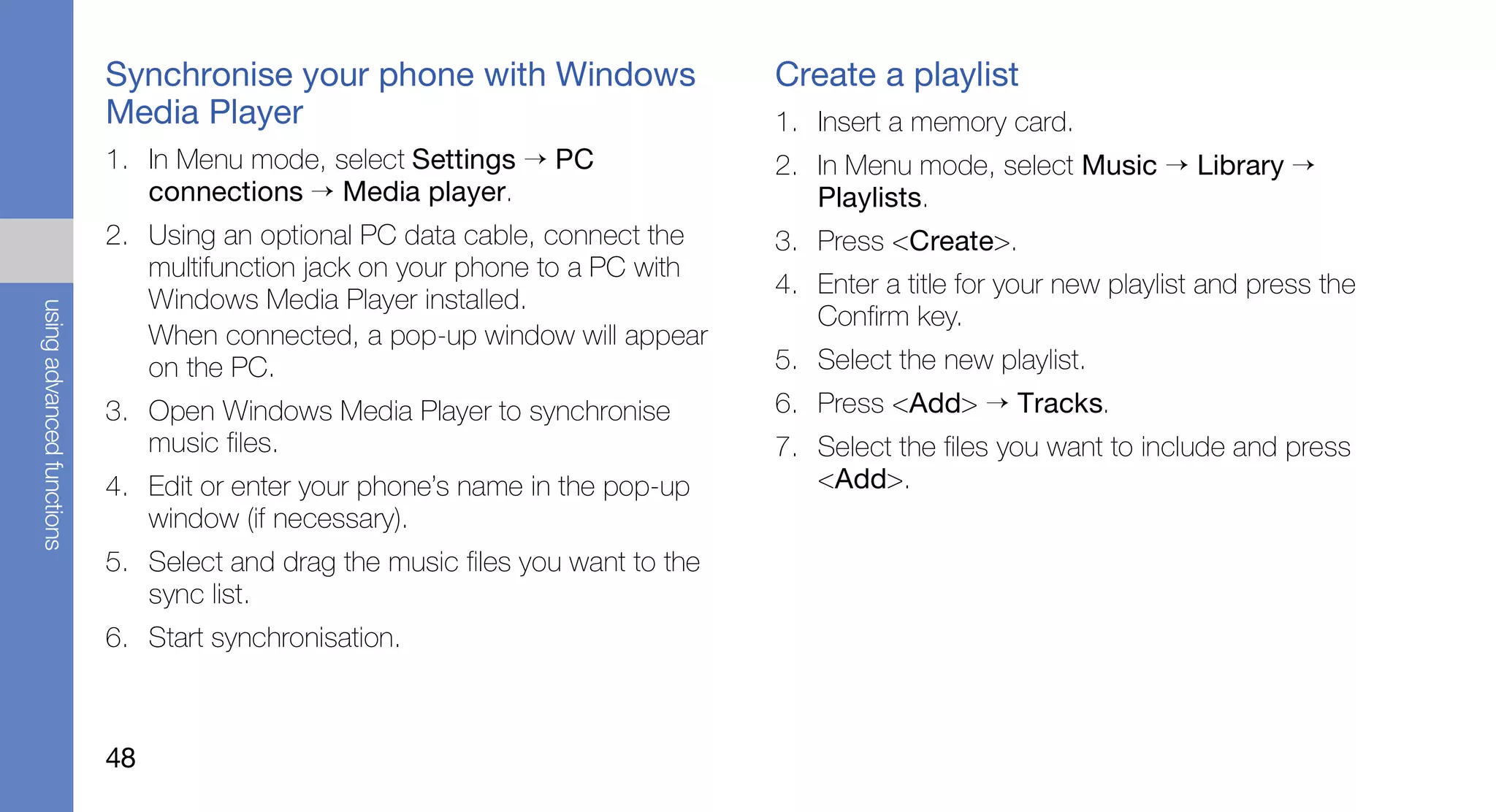
Synchronise your phone with Windows                  Create a playlist
                           Media Player                                         1. Insert a memory card.
                           1. In Menu mode, select Settings → PC                2. In Menu mode, select Music → Library →
                              connections → Media player.                          Playlists.
                           2. Using an optional PC data cable, connect the      3. Press <Create>.
                              multifunction jack on your phone to a PC with
                                                                                4. Enter a title for your new playlist and press the
                              Windows Media Player installed.
using advanced functions


                                                                                   Confirm key.
                              When connected, a pop-up window will appear
                              on the PC.                                        5. Select the new playlist.
                           3. Open Windows Media Player to synchronise          6. Press <Add> → Tracks.
                              music files.                                      7. Select the files you want to include and press
                           4. Edit or enter your phone’s name in the pop-up        <Add>.
                              window (if necessary).
                           5. Select and drag the music files you want to the
                              sync list.
                           6. Start synchronisation.


                           48
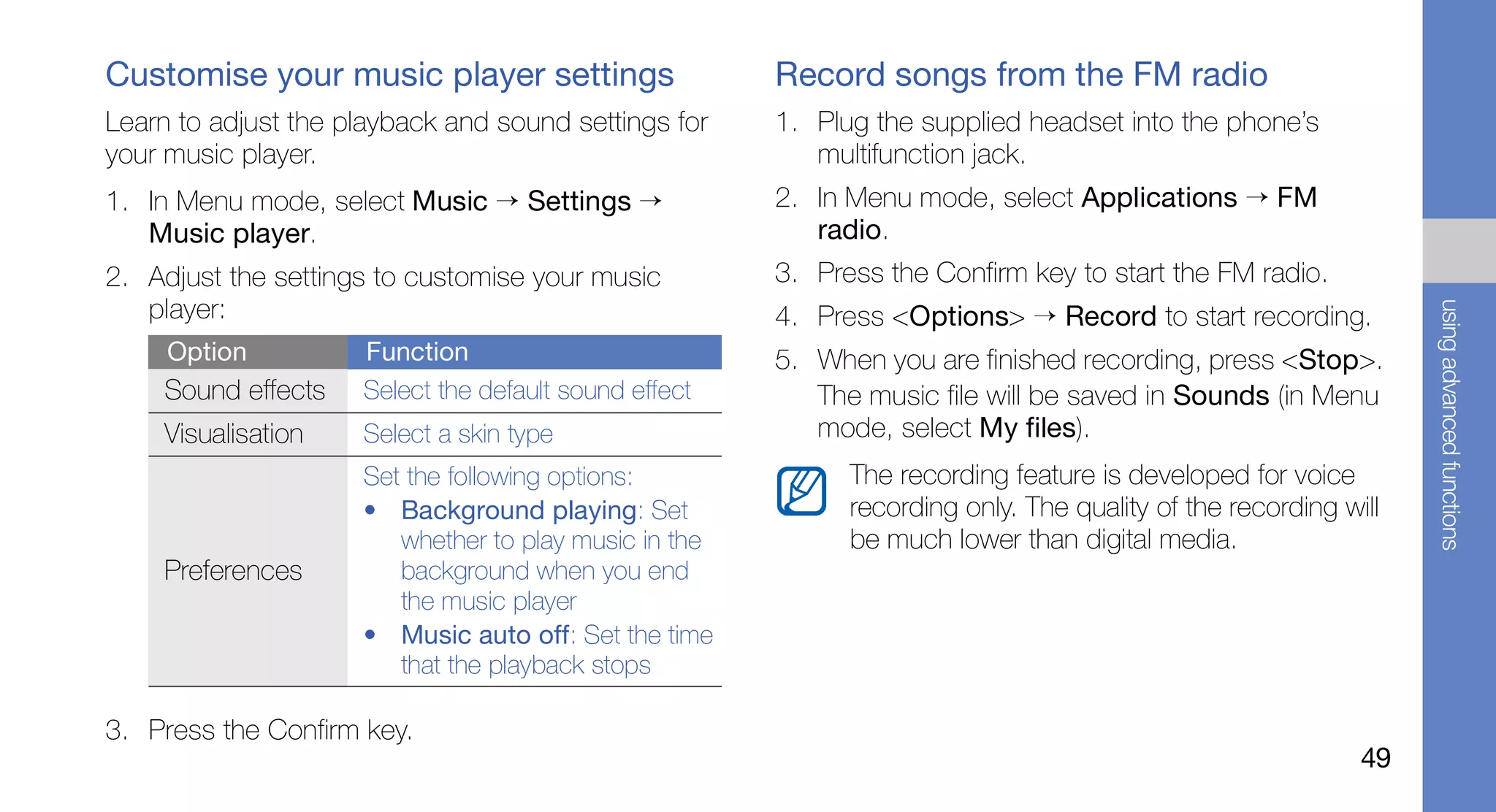
Customise your music player settings                   Record songs from the FM radio
Learn to adjust the playback and sound settings for    1. Plug the supplied headset into the phone’s
your music player.                                        multifunction jack.
1. In Menu mode, select Music → Settings →             2. In Menu mode, select Applications → FM
   Music player.                                          radio.
2. Adjust the settings to customise your music         3. Press the Confirm key to start the FM radio.
   player:


                                                                                                                 using advanced functions
                                                       4. Press <Options> → Record to start recording.
     Option          Function                          5. When you are finished recording, press <Stop>.
    Sound effects    Select the default sound effect      The music file will be saved in Sounds (in Menu
    Visualisation    Select a skin type                   mode, select My files).
                     Set the following options:              The recording feature is developed for voice
                     • Background playing: Set               recording only. The quality of the recording will
                        whether to play music in the         be much lower than digital media.
    Preferences         background when you end
                        the music player
                     • Music auto off: Set the time
                        that the playback stops

3. Press the Confirm key.
                                                                                                            49
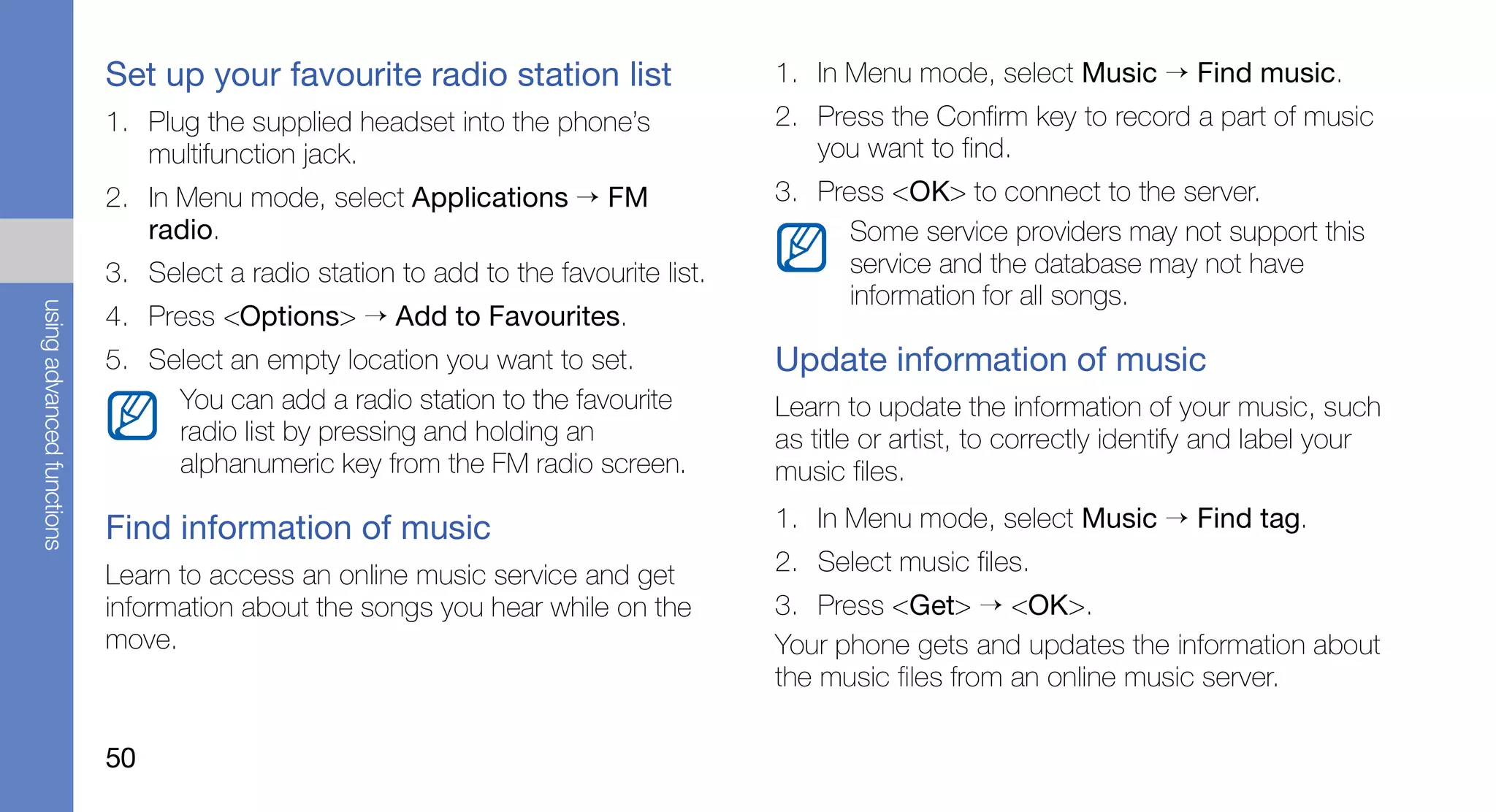
Set up your favourite radio station list                  1. In Menu mode, select Music → Find music.
                           1. Plug the supplied headset into the phone’s             2. Press the Confirm key to record a part of music
                              multifunction jack.                                       you want to find.
                           2. In Menu mode, select Applications → FM                 3. Press <OK> to connect to the server.
                              radio.                                                       Some service providers may not support this
                           3. Select a radio station to add to the favourite list.         service and the database may not have
                                                                                           information for all songs.
using advanced functions


                           4. Press <Options> → Add to Favourites.
                           5. Select an empty location you want to set.              Update information of music
                                You can add a radio station to the favourite         Learn to update the information of your music, such
                                radio list by pressing and holding an                as title or artist, to correctly identify and label your
                                alphanumeric key from the FM radio screen.           music files.

                           Find information of music                                 1. In Menu mode, select Music → Find tag.

                           Learn to access an online music service and get           2. Select music files.
                           information about the songs you hear while on the         3. Press <Get> → <OK>.
                           move.                                                     Your phone gets and updates the information about
                                                                                     the music files from an online music server.

                           50
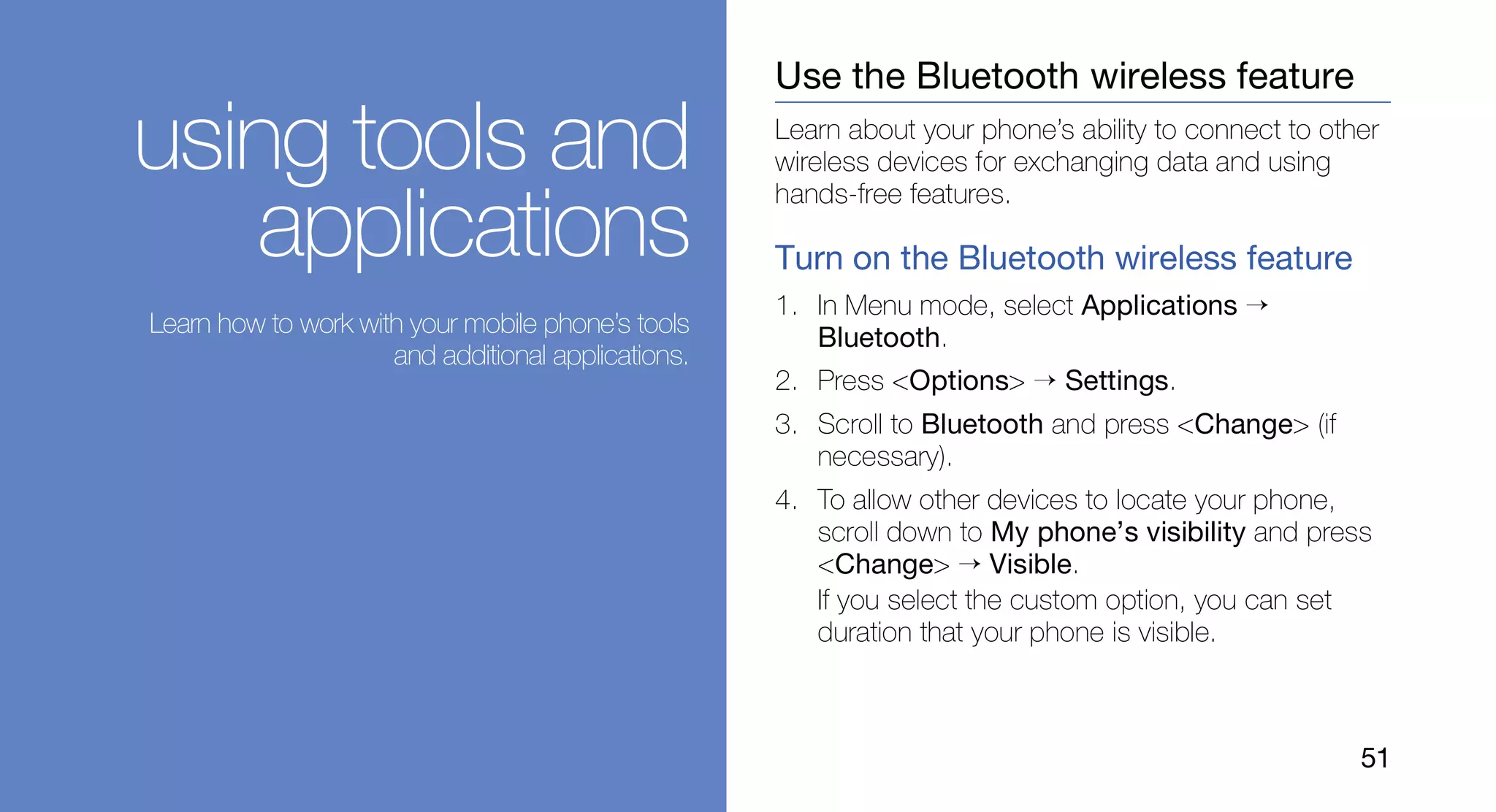
Use the Bluetooth wireless feature

using tools and                                     Learn about your phone’s ability to connect to other
                                                    wireless devices for exchanging data and using
                                                    hands-free features.
   applications                                     Turn on the Bluetooth wireless feature
                                                    1. In Menu mode, select Applications →
Learn how to work with your mobile phone’s tools
                                                       Bluetooth.
                     and additional applications.
                                                    2. Press <Options> → Settings.
                                                    3. Scroll to Bluetooth and press <Change> (if
                                                       necessary).
                                                    4. To allow other devices to locate your phone,
                                                       scroll down to My phone’s visibility and press
                                                       <Change> → Visible.
                                                       If you select the custom option, you can set
                                                       duration that your phone is visible.


                                                                                                      51
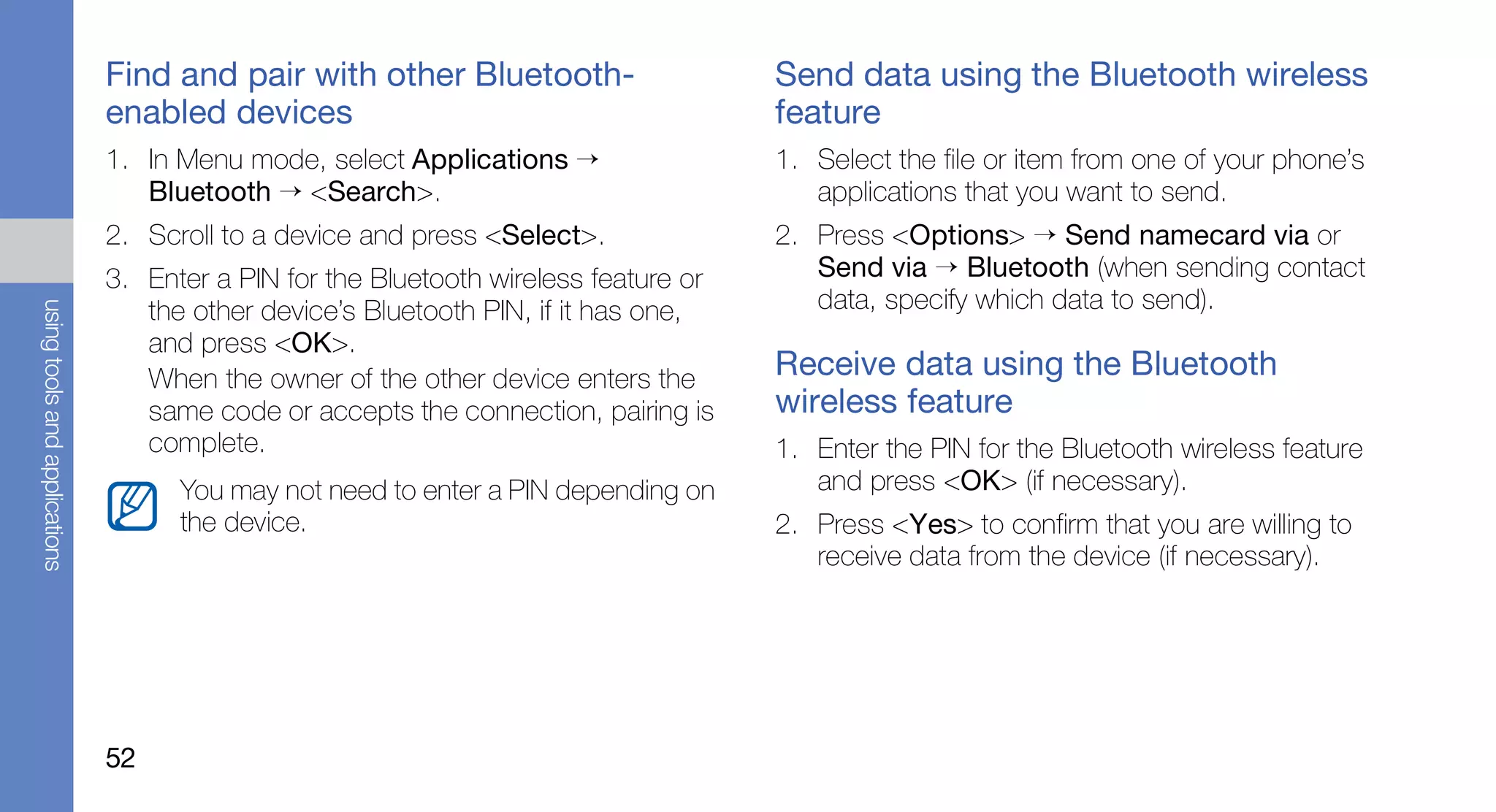
Find and pair with other Bluetooth-                    Send data using the Bluetooth wireless
                               enabled devices                                        feature
                               1. In Menu mode, select Applications →                 1. Select the file or item from one of your phone’s
                                  Bluetooth → <Search>.                                  applications that you want to send.
                               2. Scroll to a device and press <Select>.              2. Press <Options> → Send namecard via or
                               3. Enter a PIN for the Bluetooth wireless feature or      Send via → Bluetooth (when sending contact
                                                                                         data, specify which data to send).
using tools and applications


                                  the other device’s Bluetooth PIN, if it has one,
                                  and press <OK>.
                                  When the owner of the other device enters the       Receive data using the Bluetooth
                                  same code or accepts the connection, pairing is     wireless feature
                                  complete.                                           1. Enter the PIN for the Bluetooth wireless feature
                                     You may not need to enter a PIN depending on        and press <OK> (if necessary).
                                     the device.                                      2. Press <Yes> to confirm that you are willing to
                                                                                         receive data from the device (if necessary).


                               52
Activate and send an SOS message                     8. Press the Confirm key to save the recipients.

When you have an emergency, you can send an          9. Scroll down and press the Confirm key.
SOS message asking for help.                         10. Select the number of times to repeat the SOS
                                                         message.
      This feature may be unavailable depending on
      your region or service provider.               11. Press <Back> → <Yes>.
                                                     To send an SOS message, the keys must be
1. In Menu mode, select Messages → Settings →        locked. Press the Volume key four times.


                                                                                                             using tools and applications
   SOS messages → Sending options.                         Once you send an SOS message, all phone
2. Select Sending SOS → On.                                functions will be suspended until you press
3. Scroll down and press the Confirm key to open           [   ].
   the recipient list.
4. Press <Options> → Phonebook to open your          Make fake calls
   contact list.                                     You can simulate an incoming call when you want to
5. Scroll to a contact and press the Confirm key.    get out of meetings or unwanted conversations. You
                                                     can also make it appear as if you are talking on the
6. Select a number (if necessary).
                                                     phone by playing back a recorded voice.
7. Press <Options> → Add.


                                                                                                        53
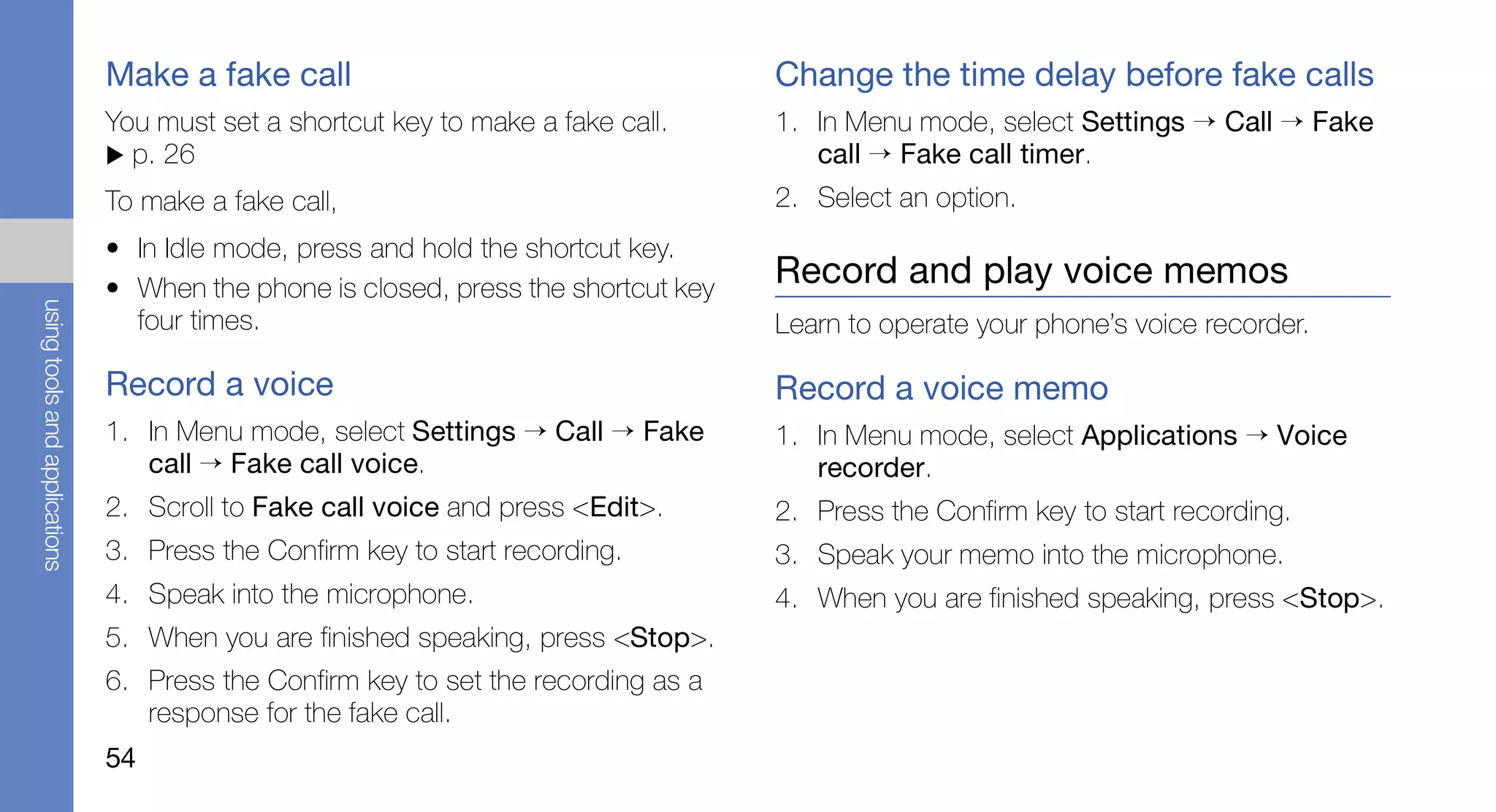
Make a fake call                                     Change the time delay before fake calls
                               You must set a shortcut key to make a fake call.     1. In Menu mode, select Settings → Call → Fake
                                 p. 26                                                 call → Fake call timer.
                               To make a fake call,                                 2. Select an option.
                               • In Idle mode, press and hold the shortcut key.
                               • When the phone is closed, press the shortcut key
                                                                                    Record and play voice memos
using tools and applications


                                 four times.                                        Learn to operate your phone’s voice recorder.

                               Record a voice                                       Record a voice memo
                               1. In Menu mode, select Settings → Call → Fake       1. In Menu mode, select Applications → Voice
                                  call → Fake call voice.                              recorder.
                               2. Scroll to Fake call voice and press <Edit>.       2. Press the Confirm key to start recording.
                               3. Press the Confirm key to start recording.         3. Speak your memo into the microphone.
                               4. Speak into the microphone.                        4. When you are finished speaking, press <Stop>.
                               5. When you are finished speaking, press <Stop>.
                               6. Press the Confirm key to set the recording as a
                                  response for the fake call.
                               54
Play a voice memo                                            To apply a blur effect to a specific area of an
                                                             image, move or resize the rectangle and press
1. From the voice recorder screen, press
                                                             the Confirm key.
   <Options> → Go to My voice clips.
                                                          5. When you are finished, press <Options> →
2. Select a file.
                                                             Save as.
                                                          6. Enter a new file name for the image and press
Edit images                                                  the Confirm key.


                                                                                                                  using tools and applications
Learn to edit images and apply fun effects.
                                                          Adjust an image
Apply effects to images                                   1. Open an image to be edited, Refer to steps 1-2
1. In Menu mode, select Applications → Image                 in “Apply effects to images.”
   editor.                                                2. Press the Confirm key → an adjustment option
2. Select an image.                                          (brightness, contrast, or colour).
3. Press the Confirm key → an effect option (filter,         To adjust the image automatically, select Auto
   warp, or partial blur).                                   level.
4. Scroll left or right to a variation of the effect to
   apply and press <Apply>. For some effects,
   adjust the level.

                                                                                                             55
3. Adjust the image as desired and press <Apply>.     Crop an image
                               4. Save the edited image with a new file name.        1. Open an image to be edited. Refer to steps 1-2
                                  Refer to steps 5-6 in “Apply effects to images.”      in “Apply effects to images.”
                                                                                     2. Press the Confirm key → Crop.
                               Transform an image
                                                                                     3. Move the rectangle over the area you want to
                               1. Open an image to be edited. Refer to steps 1-2        crop and press the Confirm key.
                                  in “Apply effects to images.”
                                                                                        To resize or reshape the rectangle, press
using tools and applications


                               2. Press the Confirm key → Resize, Rotate, or            <Options> → Resize or Shape.
                                  Flip.
                                                                                     4. Save the edited image with a new file name.
                               3. Rotate or flip the image as desired and press         Refer to steps 5-6 in “Apply effects to images.”
                                  <Apply>.
                                  To resize, select a size and press <Yes>.          Insert a visual feature
                               4. Save the edited image with a new file name.        1. Open an image to be edited. Refer to steps 1-2
                                  Refer to steps 5-6 in “Apply effects to images.”      in “Apply effects to images.”
                                                                                     2. Press the Confirm key → a visual feature (frame,
                                                                                        clip art, emoticon, image, or text).
                                                                                     3. Select a visual feature, or enter text and press
                                                                                        <Save>.
                               56
4. Move, resize, or rotate the visual feature or text   4. Press <Options> → Print via → USB.
   and press the Confirm key.                           5. Set print options and print the image.
5. Save the edited image with a new file name.          To print an image using the Bluetooth wireless
   Refer to steps 5-6 in “Apply effects to images.”     feature,
                                                        1. Open an image.     p. 33
Print images
                                                        2. Press <Options> → Print via → Bluetooth.
Learn to print your images with a USB connection or


                                                                                                              using tools and applications
                                                        3. Select a Bluetooth-enabled printer and pair with
the Bluetooth wireless feature.
                                                           the printer. p. 52
To print an image using a USB connection,               4. Set print options and print the image.
1. In Menu mode, select Settings → PC
   connections → Printer                                View photos and videos on the web
2. Connect the multifunction jack on your phone to
                                                        Learn to access photo sharing websites and blogs
   a compatible printer.
                                                        and view photos and videos.
3. Open an image.      p. 33
                                                              Communities may be unavailable depending
                                                              on your region or service provider.
                                                        1. In Menu mode, select Communities.
                                                        2. Select a destination you want to view.
                                                                                                         57
3. Select a SIM card (if necessary).                  Launch applications
                               4. Enter the user ID and password of the              1. In Menu mode, select Applications → Games
                                  destination (if necessary).                           and more → an application.
                                                                                     2. Press <Options> to access a list of various
                               Use Java-powered games and                               options and settings for your application.
                               applications
                                                                                     Create and view world clocks
using tools and applications


                               Learn to use games and applications powered by
                               award-winning Java technology.                        Learn to view the time in another region and set
                                                                                     world clocks to appear on your display.
                               Play games
                               1. In Menu mode, select Applications → Games          Create a world clock
                                  and more.                                          1. In Menu mode, select Organiser → World
                               2. Select a game from the list and follow the on-        clock.
                                  screen instructions.                               2. Press <Add>.
                                     Available games may vary, depending on your     3. Scroll left or right to a time zone and press
                                     service provider or region. Game controls and      <Add>.
                                     options may vary.

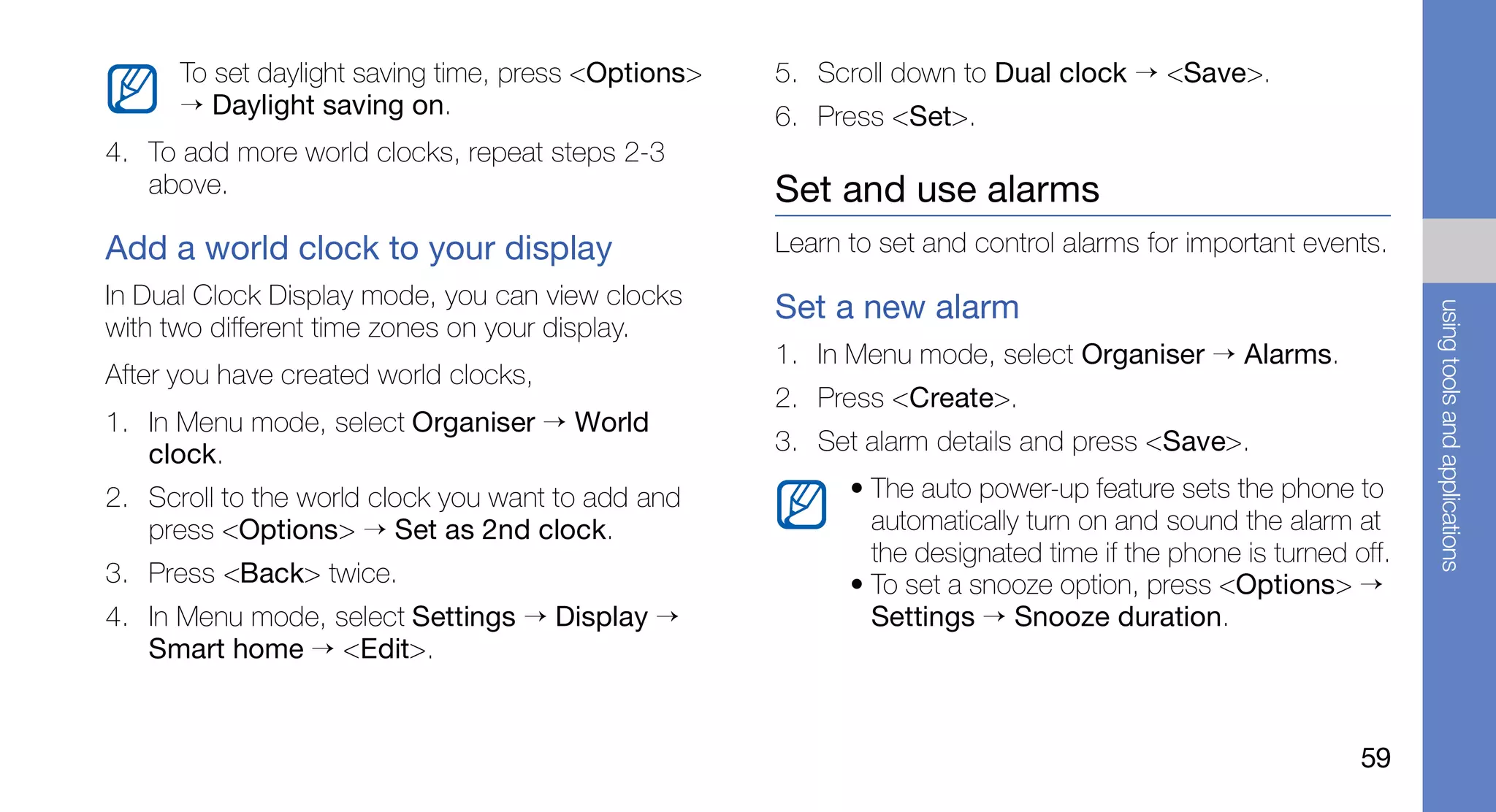
                               58
To set daylight saving time, press <Options>   5. Scroll down to Dual clock → <Save>.
      → Daylight saving on.                          6. Press <Set>.
4. To add more world clocks, repeat steps 2-3
   above.                                            Set and use alarms
Add a world clock to your display                    Learn to set and control alarms for important events.
In Dual Clock Display mode, you can view clocks      Set a new alarm


                                                                                                               using tools and applications
with two different time zones on your display.
                                                     1. In Menu mode, select Organiser → Alarms.
After you have created world clocks,
                                                     2. Press <Create>.
1. In Menu mode, select Organiser → World
   clock.                                            3. Set alarm details and press <Save>.
2. Scroll to the world clock you want to add and           • The auto power-up feature sets the phone to
   press <Options> → Set as 2nd clock.                       automatically turn on and sound the alarm at
                                                             the designated time if the phone is turned off.
3. Press <Back> twice.                                     • To set a snooze option, press <Options> →
4. In Menu mode, select Settings → Display →                 Settings → Snooze duration.
   Smart home → <Edit>.


                                                                                                         59
Stop an alarm                                        Convert currencies or
                               When the alarm sounds,                               measurements
                               • Press <Confirm> or the Confirm key to stop the     1. In Menu mode, select Organiser → Convertor
                                 alarm without snooze.                                 → a conversion type.
                               • Press <Confirm> or the Confirm key to stop the     2. Enter the currencies measurements and units in
                                 alarm with snooze or press <Snooze> to silence        the appropriate fields.
                                 the alarm for the snooze period.
using tools and applications


                               Deactivate an alarm                                  Set a countdown timer
                               1. In Menu mode, select Organiser → Alarms.          1. In Menu mode, select Applications → Timer.
                               2. Select the alarm you want to deactivate.          2. Enter the length of time to count down and press
                               3. Scroll up and press <Change> → <Save>.               <Start>.
                                                                                    3. Press [   ] → <Yes> to set the timer to run in
                               Use the calculator                                      the background.
                                                                                    4. When the timer expires, press <OK> to stop the
                               1. In Menu mode, select Organiser → Calculator.         alert.
                               2. Use the keys that corresponds to the calculator
                                  display to perform basic mathematical
                                  operations.
                               60
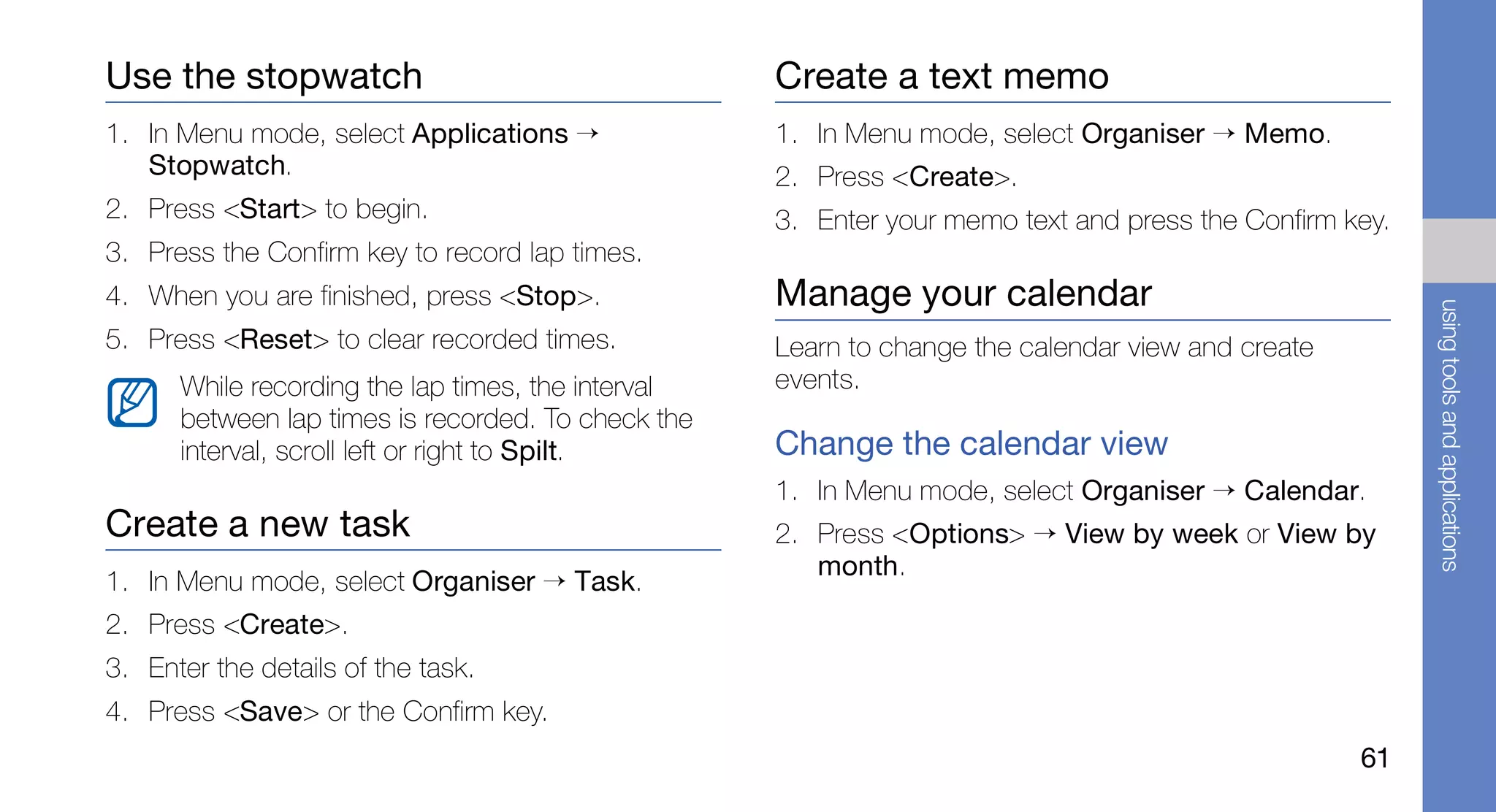
Use the stopwatch                                   Create a text memo
1. In Menu mode, select Applications →              1. In Menu mode, select Organiser → Memo.
   Stopwatch.                                       2. Press <Create>.
2. Press <Start> to begin.                          3. Enter your memo text and press the Confirm key.
3. Press the Confirm key to record lap times.
4. When you are finished, press <Stop>.             Manage your calendar


                                                                                                         using tools and applications
5. Press <Reset> to clear recorded times.           Learn to change the calendar view and create
      While recording the lap times, the interval   events.
      between lap times is recorded. To check the
      interval, scroll left or right to Spilt.      Change the calendar view
                                                    1. In Menu mode, select Organiser → Calendar.
Create a new task                                   2. Press <Options> → View by week or View by
                                                       month.
1. In Menu mode, select Organiser → Task.
2. Press <Create>.
3. Enter the details of the task.
4. Press <Save> or the Confirm key.
                                                                                                   61
Create an event                                  Back up your data
                               1. In Menu mode, select Organiser → Calendar.    Use Backup manager to back up your data, such as
                               2. Press <Options> → Create → an event type.     messages, contacts, and tasks to your memory
                                                                                card or My files. If necessary, you can restore them
                               3. Enter the details of the event as required.
                                                                                to your phone or PC.
                               4. Press <Save> or the Confirm key.
                                                                                To back up your data,
using tools and applications


                               View events                                      1. In Menu mode, select Settings → Backup
                               1. In Menu mode, select Organiser → Calendar.       manager.
                               2. Select a date on the calendar.                2. Scroll left or right to a memory location → a
                                                                                   folder.
                               3. Select an event to view its details.
                                                                                3. Press the Confirm key and select an item
                                                                                   category.
                                                                                4. Enter the backup folder name and press the
                                                                                   Confirm key.


                               62
troubleshooting
If you are having trouble with your mobile phone, try these troubleshooting procedures before contacting a service
professional.

When you turn on your phone or while you are                 Code         Try this to solve the problem:
using the phone, it prompts you to enter one of                           Your SIM card is blocked, usually as a
the following codes:                                                      result of entering your PIN incorrectly
                                                             PUK
 Code         Try this to solve the problem:                              several times. You must enter the PUK
                                                                          supplied by your service provider.
              When the phone lock feature is enabled,
 Password     you must enter the password you set for                     When you access a menu requiring the
              the phone.                                                  PIN2, you must enter the PIN2 supplied
                                                             PIN2
                                                                          with the SIM card. For details, contact
              When using the phone for the first time or
                                                                          your service provider.
              when the PIN requirement is enabled, you
 PIN          must enter the PIN supplied with the SIM
              card. You can disable this feature by using
              the PIN lock menu.


                                                                                                                    a
The phone prompts you to insert the SIM card.            Another caller cannot reach you.
                  Ensure that the SIM card is installed correctly.         • Ensure that your phone is turned on.
                  Your phone displays “No networks found” or               • Ensure that you have accessed the right cellular
                  “Network error.”                                           network.
                                                                           • Ensure that you have not set call barring for the
                  • When you are in areas with weak signals or poor
                                                                             phone number.
                    reception, you may lose reception. Move to
                    another area and try again.                            Another caller cannot hear you speaking.
                  • You cannot access some options without a               • Ensure that you are not covering the built-in
troubleshooting


                    subscription. Contact your service provider for          microphone.
                    more details.
                                                                           • Ensure that the microphone is close to your
                  You enter a number, but the call is not dialled.           mouth.
                  • Ensure that you have pressed the Dial key: [      ].   • If using a headset, ensure that it is properly
                                                                             connected.
                  • Ensure that you have accessed the right cellular
                    network.                                               The phone beeps and the battery icon flashes.
                  • Ensure that you have not set call barring for the      Your battery is low. Recharge or replace the battery to
                    phone number.                                          continue using the phone.


                  b
The audio quality of the call is poor.              The battery does not charge properly or
                                                    sometimes the phone turns itself off.
• Ensure that you are not blocking the phone’s
  internal antenna.                                 • The battery terminals may be dirty. Wipe both
• When you are in areas with weak signals or poor     gold-colored contacts with a clean, soft cloth and
  reception, you may lose reception. Move to          try charging the battery again.
  another area and try again.                       • If the battery will no longer charge completely,
                                                      dispose of the old battery properly and replace it
You select a contact to call, but the call is not
                                                      with a new battery.
dialled.
                                                    Your phone is hot to the touch.


                                                                                                             troubleshooting
• Ensure that the correct number is stored in the
  contact list.                                     When you use applications that require more power,
• Re-enter and save the number, if necessary.       your phone may heat up.
                                                    This is normal and should not affect your phone’s
                                                    lifespan or performance.


                                                                                                         c
index
alarms                        Bluetooth messenger 43                from the phonebook, 40
   creating, 59                                                     international numbers, 40
                              browser
   deactivating, 60             see web browser                     making fake calls, 53
   stopping, 60                                                     making, 28
                              calculator                            multiparty, 39
Backup manager 62                see tools, calculator
                                                                    placing on hold, 39
battery                       calendar                              recently dialled, 38
  charging, 19                   see tools, calendar                rejecting, 40
  installing, 17
                              calls                                 retrieving held calls, 39
  low battery indicator, 19
                                 advanced functions, 38             viewing missed, 38
Bluetooth                        answering additional calls, 39
   activating, 51                                                 Communities
                                 answering, 29                      see tool, mobile blog
   receiving data, 52            basic functions, 28
   sending data, 52              dialling additional calls, 39    conference calls
                                                                    see calls, multiparty
                                 dialling missed calls, 38

d
contacts                            printing, 57                   messenger), 43
  adding, 32                        transforming, 56               sending multimedia, 29
  creating groups, 41                                              sending text, 29
  finding, 32                     internet
                                     see web browser               viewing email, 31
converter                                                          viewing multimedia, 31
  see tools, converter            Java                             viewing text, 31
                                    accessing applications, 58
countdown timer                     launching games, 58          multimedia
  see tools, countdown timer                                       see messages
                                  key tones 25


                                                                                                index
FM radio                                                         music player
  listening to, 34                lock                             creating playlists, 48
                                     see phone lock                customising, 49
  recording songs, 49
                                  memo                             listening to music, 35
headset 29                          see text or voice memos        synchronising, 48
images
  adjusting, 55                   memory card 20                 music recognition 50
  applying effects, 55            messages                       music tag 50
  cropping, 56                      sending email, 30
                                                                 namecards 41
  inserting visual features, 56     sending instant (Bluetooth

                                                                                            e
offline profile 23         SOS message 53                    calculator, 60
        phone lock 27              stopwatch                         calendar, 61
                                      see tools, stopwatch           converter, 60
        photos                                                       countdown timer, 60
          advanced capturing, 44   templates                         image editor, 55
          basic capturing, 32        inserting, 43
                                                                     mobile blog, 57
          viewing, 33                multimedia, 42
                                                                     stopwatch, 61
                                     text, 42
        radio
           see FM radio                                            videos
                                   text                               capturing, 33
index


                                      creating memos, 61
        Recycle bin 27                                                viewing, 33
                                      entering, 30
        ringtone 25                   messages, 29                 voice memos
        shortcuts toolbar 24                                          playing, 55
                                   theme 26                           recording, 54
        silent profile 25          timer
        SIM card 17                   see tools, countdown timer   volume
                                                                      call volume, 29
        SIM card management 27     tools                              key tone volume, 25
                                      alarm, 59
        Smart home screen 23

        f
wallpaper 26
web browser
  adding bookmarks, 36
  downloading contents, 37
  launching homepage, 36
Windows Media Player 48
world clock
  creating, 58


                                 index
  setting dual display, 59


                             g
Declaration of Conformity (R&TTE)                                     The conformity assessment procedure referred to in Article 10 and
                                                                            detailed in Annex[IV] of Directive 1999/5/EC has been followed with the
                                                                            involvement of the following Notified Body(ies):
We,               Samsung Electronics
                                                                               BABT, Forsyth House,
declare under our sole responsibility that the product                         Chruchfield Road,
                                                                               Walton-on-Thames,
                                                                               Surrey, KT12 2TD, UK*
          GSM Mobile Phone : GT-C6112                                          Idenditication mark: 0168

to which this declaration relates, is in conformity with the following      The technical documentation kept at :
standards and/or other normative documents.
                                                                               Samsung Electronics QA Lab.
    SAFETY       EN 60950- 1 : 2001 +A11:2004
                                                                            which will be made available upon request.
    EMC          EN 301 489- 01 V1.6.1 (09-2005)                            (Representative in the EU)
                 EN 301 489- 07 V1.3.1 (11-2005)
                 EN 301 489- 17 V1.2.1 (08-2002)                               Samsung Electronics Euro QA Lab.
                                                                               Blackbushe Business Park, Saxony Way,
    SAR          EN 50360 : 2001                                               Yateley, Hampshire, GU46 6GG, UK*
                 EN 62209-1 : 2006                                             2009.10.19                         Yong-Sang Park / S. Manager
    RADIO        EN 301 511 V9.0.2 (03-2003)                                   (place and date of issue)      (name and signature of authorised person)
                 EN 300 328 V1.7.1 (10-2006)
                                                                            * It is not the address of Samsung Service Centre. For the address or the
We hereby declare that [all essential radio test suites have been carried     phone number of Samsung Service Centre, see the warranty card or contact
out and that] the above named product is in conformity to all the             the retailer where you purchased your phone.
essential requirements of Directive 1999/5/EC.
Some of the contents in this manual may differ from your phone depending on the software of the phone or your
service provider.


                                                                                                   Printed in Korea
World Wide Web                                                                           Code No.:GH68-25261A
http://www.samsungmobile.com                                                       English (EU). 11/2009. Rev. 1.1

Gt C6112 Um Open Eng Rev 1 1 091117

  • 1.
  • 2.
    Instructional icons using this Before you start, familiarise yourself with the icons you will see in this manual: manual Warning—situations that could cause injury to yourself or others This user manual has been specially designed to guide you through the functions and features of your Caution—situations that could cause mobile phone. To get started quickly, damage to your phone or other equipment refer to “introducing your mobile phone,” “assembling and preparing your mobile phone,” Note—notes, usage tips, or additional and “using basic functions.” information Refer to—pages with related information; for example: p.12 (represents “see page 12”) ii
  • 3.
    Copyright information → Followed by—the order of options or menus you must select to perform a step; Rights to all technologies and products that for example: In Menu mode, select comprise this phone are the property of their Messages → Create message respective owners: (represents Messages, followed by Create • Bluetooth® is a registered trademark of the using this manual message) Bluetooth SIG, Inc. worldwide. Bluetooth QD ID: B015813 [ ] Square brackets—phone keys; for • Java™ is a trademark of Sun Microsystems, Inc. example: [ ] (represents the Power/ • Windows Media Player® is a registered trademark Menu exit key) of Microsoft Corporation. < > Angled brackets—softkeys that control different functions at each screen; for example: <OK> (represents the OK softkey) iii
  • 4.
    safety and usageinformation .................. 1 Safety warnings .......................................... 1 contents Safety precautions ...................................... 4 Important usage information ....................... 6 introducing your mobile phone ............. 12 Unpack ..................................................... 12 Phone layout ............................................. 13 Keys ......................................................... 14 Display ...................................................... 15 Icons ........................................................ 16 assembling and preparing your mobile phone ...................................................... 17 Install the SIM card and battery ................. 17 Charge the battery .................................... 19 Insert a memory card (optional) ................. 20 Attach a hand strap (optional) ................... 21 iv
  • 5.
    using basic functions............................ 22 Use advanced camera functions ............... 44 Turn your phone on and off ....................... 22 Use advanced music functions ................. 47 Access menus .......................................... 23 using tools and applications ................. 51 Use the smart home screen ...................... 23 Use the Bluetooth wireless feature ............ 51 Customise your phone .............................. 25 Activate and send an SOS message ......... 53 contents Manage your SIM cards ............................ 27 Make fake calls ......................................... 53 Use basic call functions ............................ 28 Record and play voice memos .................. 54 Send and view messages ......................... 29 Edit images ............................................... 55 Add and find contacts ............................... 32 Print images .............................................. 57 Use basic camera functions ...................... 32 View photos and videos on the web ......... 57 Listen to music ......................................... 34 Use Java-powered games and Browse the web ........................................ 36 applications .............................................. 58 using advanced functions ..................... 38 Create and view world clocks ................... 58 Use advanced call functions ..................... 38 Set and use alarms ................................... 59 Use advanced phonebook functions ......... 41 Use the calculator ..................................... 60 Use advanced messaging functions .......... 42 Convert currencies or measurements ....... 60 v
  • 6.
    Set a countdowntimer .............................. 60 Use the stopwatch .................................... 61 Create a new task ..................................... 61 Create a text memo .................................. 61 Manage your calendar .............................. 61 contents Back up your data .................................... 62 troubleshooting ........................................ a index ......................................................... d vi
  • 7.
    Safety warnings safety and Keep your phone away from small usage children and pets Keep your phone and all accessories out of the information reach of small children or animals. Small parts may cause choking or serious injury if swallowed. Protect your hearing Comply with the following precautions to avoid dangerous or illegal situations and ensure peak Excessive exposure to sound at high performance of your mobile phone. volumes can cause hearing damage. Always turn the volume down before plugging the earphones into an audio source and use only the minimum volume setting necessary to hear your conversation or music. 1
  • 8.
    Install mobile phonesand equipment • Never place batteries or phones on or in heating with caution devices, such as microwave ovens, stoves, or radiators. Batteries may explode when Ensure that any mobile phones or related equipment overheated. installed in your vehicle are securely mounted. Avoid placing your phone and accessories near or in an air • Never crush or puncture the battery. Avoid exposing the battery to high external pressure, safety and usage information bag deployment area. Improperly installed wireless equipment can cause serious injury when air bags which can lead to an internal short circuit and inflate rapidly. overheating. Handle and dispose of batteries and Avoid interference with pacemakers chargers with care Maintain a minimum of 15 cm (6 inches) between mobile phones and pacemakers to avoid potential • Use only Samsung-approved batteries and interference, as recommended by manufacturers chargers specifically designed for your phone. and the independent research group, Wireless Incompatible batteries and chargers can cause Technology Research. If you have any reason to serious injuries or damage to your phone. suspect that your phone is interfering with a • Never dispose of batteries or phones in a fire. pacemaker or other medical device, turn off the Follow all local regulations when disposing of phone immediately and contact the manufacturer of used batteries or phones. the pacemaker or medical device for guidance. 2
  • 9.
    Turn off thephone in potentially Do not use the phone if the screen is explosive environments cracked or broken Do not use your phone at refuelling points (service Broken glass or acrylic could cause injury to your stations) or near fuels or chemicals. Turn off your hand and face. Bring the phone to a Samsung phone whenever directed by warning signs or service centre to replace the screen. Damage safety and usage information instructions. Your phone could cause explosions or caused by careless handling will void your fire in and around fuel or chemical storage and manufacturer’s warranty. transfer areas or blasting areas. Do not store or carry flammable liquids, gases, or explosive materials in the same compartment as the phone, its parts, or accessories. Reduce the risk of repetitive motion injuries While using your phone, hold the phone with a relaxed grip, press the keys lightly, use special features that reduce the number of keys you have to press (such as templates and predictive text), and take frequent breaks. 3
  • 10.
    Turn off thephone near medical Safety precautions equipment Your phone can interfere with medical equipment in Drive safely at all times hospitals or health care facilities. Follow all Avoid using your phone while driving and obey all regulations, posted warnings, and directions from safety and usage information regulations that restrict the use of mobile phones medical personnel. while driving. Use hands-free accessories to increase your safety when possible. Turn off the phone or disable the wireless functions when in an aircraft Follow all safety warnings and Your phone can cause interference with aircraft regulations equipment. Follow all airline regulations and turn off Comply with any regulations that restrict the use of a your phone or switch to a mode that disables the mobile phone in a certain area. wireless functions when directed by airline personnel. Use only Samsung-approved accessories Using incompatible accessories may damage your phone or cause injury. 4
  • 11.
    Protect batteries andchargers from Handle your phone carefully and damage sensibly • Avoid exposing batteries to very cold or very hot • Do not disassemble your phone due to a risk of temperatures (below 0° C/32° F or above 45° C/ electric shock. 113° F). Extreme temperatures can reduce the • Do not allow your phone to get wet—liquids can safety and usage information charging capacity and life of your batteries. cause serious damage and will change the colour • Prevent batteries from contacting metal objects, of the label that indicates water damage inside the as this can create a connection between the + phone. Do not handle your phone with wet and - terminals of your batteries and lead to hands. Water damage to your phone can void temporary or permanent battery damage. your manufacturer's warranty. • Never use a damaged charger or battery. • Avoid using or storing your phone in dusty, dirty areas to prevent damage to moving parts. • Your phone is a complex electronic device— protect it from impacts and rough handling to avoid serious damage. • Do not paint your phone, as paint can clog moving parts and prevent proper operation. 5
  • 12.
    • If yourphone has a camera flash or light, avoid Important usage information using it close to the eyes of children or animals. • Your phone may be damaged by exposure to magnetic fields. Do not use carrying cases or Use your phone in the normal position accessories with magnetic closures or allow your Avoid contact with your phone’s internal antenna. phone to come in contact with magnetic fields for safety and usage information extended periods of time. Allow only qualified personnel to service your phone Avoid interference with other electronic Allowing unqualified personnel to service your phone devices may result in damage to your phone and will void Your phone emits radio frequency (RF) signals that your warranty. may interfere with unshielded or improperly shielded electronic equipment, such as pacemakers, hearing Ensure maximum battery and charger aids, medical devices, and other electronic devices life in homes or vehicles. Consult the manufacturers of • Avoid charging batteries for more than a week, as your electronic devices to solve any interference overcharging may shorten battery life. problems you experience. • Over time, unused batteries will discharge and must be recharged before use. 6
  • 13.
    • Disconnect chargersfrom power sources when Ensure access to emergency services not in use. Emergency calls from your phone may not be • Use batteries only for their intended purpose. possible in some areas or circumstances. Before travelling in remote or undeveloped areas, plan an Handle SIM cards and memory cards alternate method of contacting emergency services with care safety and usage information personnel. • Do not remove a card while the phone is transferring or accessing information, as this Specific Absorption Rate (SAR) could result in loss of data and/or damage to the certification information card or phone. Your phone conforms to European Union (EU) • Protect cards from strong shocks, static standards that limit human exposure to radio electricity, and electrical noise from other devices. frequency (RF) energy emitted by radio and • Frequent writing and erasing will shorten the life telecommunications equipment. These standards span of memory cards. prevent the sale of mobile phones that exceed a maximum exposure level (known as the Specific • Do not touch gold-coloured contacts or terminals Absorption Rate, or SAR) of 2.0 W/kg. with your fingers or metal objects. If dirty, wipe the card with a soft cloth. 7
  • 14.
    During testing, themaximum SAR recorded for this Correct disposal of this product model was 0.447 W/kg. In normal use, the actual (Waste Electrical & Electronic Equipment) SAR is likely to be much lower, as the phone has been designed to emit only the RF energy necessary (Applicable in the European Union and to transmit a signal to the nearest base station. By other European countries with separate automatically emitting lower levels when possible, collection systems) safety and usage information your phone reduces your overall exposure to RF This marking on the product, accessories energy. or literature indicates that the product and The Declaration of Conformity at the back of this its electronic accessories (e.g. charger, headset, manual demonstrates your phone’s compliance with USB cable) should not be disposed of with other the European Radio & Terminal Telecommunications household waste at the end of their working life. To Equipment (R&TTE) directive. For more information prevent possible harm to the environment or human about the SAR and related EU standards, visit the health from uncontrolled waste disposal, please Samsung mobile phone website. separate these items from other types of waste and recycle them responsibly to promote the sustainable reuse of material resources. 8
  • 15.
    Household users shouldcontact either the retailer Correct disposal of batteries in this where they purchased this product, or their local product government office, for details of where and how they can take these items for environmentally safe (Applicable in the European Union and recycling. other European countries with separate battery return systems) safety and usage information Business users should contact their supplier and check the terms and conditions of the purchase This marking on the battery, manual or contract. This product and its electronic accessories packaging indicates that the batteries in should not be mixed with other commercial wastes this product should not be disposed of with other for disposal. household waste at the end of their working life. Where marked, the chemical symbols Hg, Cd or Pb indicate that the battery contains mercury, cadmium or lead above the reference levels in EC Directive 2006/66. If batteries are not properly disposed of, these substances can cause harm to human health or the environment. To protect natural resources and to promote material reuse, please separate batteries from other types of waste and recycle them through your local, free This EEE is compliant with RoHS. battery return system. 9
  • 16.
    Disclaimer SAMSUNG EXPRESSLY DISCLAIMS ANY IMPLIED Some content and services accessible through this WARRANTIES, INCLUDING BUT NOT LIMITED TO, device belong to third parties and are protected by WARRANTIES OF MERCHANTABILITY OR FITNESS copyright, patent, trademark and/or other intellectual FOR A PARTICULAR PURPOSE. SAMSUNG DOES property laws. Such content and services are NOT GUARANTEE THE ACCURACY, VALIDITY, TIMELINESS, LEGALITY, OR COMPLETENESS OF safety and usage information provided solely for your personal noncommercial use. You may not use any content or services in a ANY CONTENT OR SERVICE MADE AVAILABLE manner that has not been authorised by the content THROUGH THIS DEVICE AND UNDER NO owner or service provider. Without limiting the CIRCUMSTANCES, INCLUDING NEGLIGENCE, foregoing, unless expressly authorised by the SHALL SAMSUNG BE LIABLE, WHETHER IN applicable content owner or service provider, you CONTRACT OR TORT, FOR ANY DIRECT, may not modify, copy, republish, upload, post, INDIRECT, INCIDENTAL, SPECIAL OR transmit, translate, sell, create derivative works, CONSEQUENTIAL DAMAGES, ATTORNEY FEES, exploit, or distribute in any manner or medium any EXPENSES, OR ANY OTHER DAMAGES ARISING content or services displayed through this device. OUT OF, OR IN CONNECTION WITH, ANY INFORMATION CONTAINED IN, OR AS A RESULT “THIRD PARTY CONTENT AND SERVICES ARE OF THE USE OF ANY CONTENT OR SERVICE BY PROVIDED "AS IS." SAMSUNG DOES NOT YOU OR ANY THIRD PARTY, EVEN IF ADVISED OF WARRANT CONTENT OR SERVICES SO THE POSSIBILITY OF SUCH DAMAGES." PROVIDED, EITHER EXPRESSLY OR IMPLIEDLY, FOR ANY PURPOSE. 10
  • 17.
    Third party servicesmay be terminated or interrupted at any time, and Samsung makes no representation or warranty that any content or service will remain available for any period of time. Content and services are transmitted by third parties by means of networks and transmission facilities over which safety and usage information Samsung has no control. Without limiting the generality of this disclaimer, Samsung expressly disclaims any responsibility or liability for any interruption or suspension of any content or service made available through this device. Samsung is neither responsible nor liable for customer service related to the content and services. Any question or request for service relating to the content or services should be made directly to the respective content and service providers. 11
  • 18.
    Unpack introducing your Check your product box for the following items: • Mobile phone mobile phone • • Battery Travel adapter (charger) • User manual In this section, learn about your mobile phone’s layout, keys, display, and icons. • The items supplied with your phone may vary depending on the software and accessories available in your region or offered by your service provider. You can obtain additional accessories from your local Samsung dealer. • The supplied accessories perform best for your phone. 12
  • 19.
    Phone layout The rear of your phone includes the following keys and features: The front of your phone includes the following keys and features: Earpiece Camera lens introducing your mobile phone Multifunction jack Speaker Display 4-way SIM selection Battery cover navigation key Confirm key key Volume key Right softkey Left softkey Power/Menu Internal antenna Dial key exit key Alphanumeric You can lock the keys to prevent any unwanted keys phone operations. To lock these keys, press Special function <Unlock> → the Confirm key. keys Mouthpiece 13
  • 20.
    Keys Key Function Make or answer a call; In Idle Key Function Dial mode, retrieve recently dialled, Perform actions indicated at the missed, or received numbers Softkeys bottom of the display Turn the phone on and off (press introducing your mobile phone In Idle mode, access user-defined Power/ and hold); End a call; In Menu 4-way menus (depending on your service Menu exit mode, cancel input and return to navigation provider, pre-defined menus may Idle mode differ); Scroll through menu options Enter numbers, letters and special In Idle mode, launch the web characters; In Idle mode, press Alpha- browser or access Menu mode and hold [1] to access voice mails (depending on your service numeric and [0] to enter an international call Confirm provider or region, the key may prefix perform differently); Select the highlighted menu option or confirm input 14
  • 21.
    Key Function Display Enter special characters or perform Your phone’s display consists of three areas: special functions; In Idle mode, Special press and hold [ ] for the silent Icon line function profile; In Idle mode, press and Displays various icons hold [ ] to enter a pause between introducing your mobile phone numbers Text and graphic area Displays messages, instructions, and information Volume Adjust the phone’s volume you enter Switch between SIM cards when Softkey line you make calls or send messages; Displays the current actions SIM In Idle mode, switch between SIM assigned to each softkey selection cards; Access the SIM card management menu (press and hold) 15
  • 22.
    Icons Icon Definition Learn about the icons that appear on your display. Alarm activated Memory card inserted Icon Definition Music playback in progress / SIM card and signal strength introducing your mobile phone Music playback paused Call in progress FM radio on SOS message feature activated New text message GPRS network status New multimedia message EDGE network status New email message Browsing the web New voice mail message Connecting to secured web page Normal profile activated Call diverting activated Silent profile activated Synchronised with PC Battery power level Roaming (outside of normal service area) Current time Bluetooth activated 16
  • 23.
    Install the SIMcard and battery assembling and When you subscribe to a cellular service, you will receive a Subscriber Identity Module (SIM) card, with subscription details, such as your personal preparing your identification number (PIN) and optional services. To install the SIM card and battery, mobile phone 1. Remove the battery cover. Get started by assembling and setting up your mobile phone for its first use. If the phone is on, press and hold [ ] to turn it off. 17
  • 24.
    2. Insert theSIM card. 3. Insert the battery. Your phone has 2 SIM card slots to allow you to use 2 SIM cards and switch between them. p. 27 assembling and preparing your mobile phone 4. Replace the battery cover. • Place the SIM card in the phone with the gold-coloured contacts facing down. • Without inserting a SIM card, you can use your phone’s non-network services and some menus. 18
  • 25.
    Charge the battery 3. Plug the large end of the travel adapter into a power outlet. Before using the phone for the first time, you must charge the battery. 4. When the battery is fully charged (the icon is no longer moving), unplug the travel adapter from 1. Open the cover to the multifunction jack on the the power outlet. side of the phone. assembling and preparing your mobile phone 5. Unplug the travel adapter from the phone. 2. Plug the small end of the travel adapter into the 6. Close the cover to the multifunction jack. multifunction jack. About the low battery indicator When your battery is low, the phone will emit a warning tone and a low battery message. The battery icon will also be empty and blinking. If the battery level becomes too low, the phone With the triangle will automatically power off. Recharge your facing up battery to continue using your phone. Improperly connecting the travel adapter can cause serious damage to the phone. Any damages by misuse are not covered by the warranty. 19
  • 26.
    Insert a memorycard (optional) 3. Lift the memory card cover and insert a memory holder with the label side facing up. To store additional multimedia files, you must insert a memory card. Your phone accepts microSD™ or microSDHC™ memory cards up to 8 GB (depending on memory card manufacturer and assembling and preparing your mobile phone type). Formatting the memory card on a PC may cause incompatibility with your phone. Format the memory card only on the phone. 1. Remove the battery cover. 4. Close the memory card cover. 2. Unlock the memory card cover. 20
  • 27.
    5. Lock thememory card cover. Attach a hand strap (optional) 1. Remove the battery cover. 2. Slide a hand strap through the slot and hook it over the small projection. assembling and preparing your mobile phone 6. Replace the battery cover. To remove the memory card, remove the battery cover, unlock and lift the memory card holder, and remove the memory card. 3. Replace the battery cover. 21
  • 28.
    Turn your phoneon and off using basic To turn your phone on, 1. Press and hold [ ]. functions 2. Enter your PIN and press <OK> (if necessary). 3. Press <OK>. 4. Press <Next> to assign a name and an icon for Learn how to perform basic operations and use the the SIM card. main features of your mobile phone. 5. Assign a name to the SIM card 1 and press <Next>. 6. Assign an icon to the SIM card 1 and press <Next>. 7. Repeat steps 4-6 to assign a name and icon to the SIM card 2. 8. Press <Next> → <OK>. To turn your phone off, repeat step 1 above. 22
  • 29.
    Switch to theoffline profile You may need to press the Confirm key to access Menu mode depending on your region By switching to the offline profile, you can use your or service provider. When you are using the phone’s non-network services in areas where smart home screen, you cannot use the wireless devices are prohibited, such as aeroplanes Confirm key to access Menu mode. and hospitals. To switch to the offline profile, in Menu mode, select 2. Use the Navigation key to scroll to a menu or Settings → Sound profiles → Offline. option. using basic functions Follow all posted warnings and directions from 3. Press <Select>, <OK>, or the Confirm key to official personnel when in areas where wireless confirm the highlighted option. devices are prohibited. 4. Press <Back> to move up one level; Press [ ] to return to Idle mode. Access menus To access your phone’s menus, Use the smart home screen 1. In Idle mode, press <Menu> to access Menu The screen allows you to access your favourite mode. applications and contacts and view upcoming events or tasks. You can customise the smart home screen to fit your preferences and needs. 23
  • 30.
    Customise the smarthome screen • Shortcuts toolbar: access your favourite applications. You can customise the shortcuts 1. In Menu mode, select Settings → Display → toolbar as needed. Customise the shortcuts Smart home. toolbar 2. Scroll to Smart idle. • My buddies: access contacts that are saved in 3. Press <Edit>. the favourite number list ( p. 41). Once you 4. Select the items to display on the smart home select a contact, you can dial the number or send a message or email. using basic functions screen. • PIMs ticker: access upcoming calendar events 5. Press <Options> → <Save> → <Set>. and tasks. You can change the idle screen to another • Dual clock: view your home clock and a world style. In Menu mode, select Settings → clock. p. 59 Display → Smart home and scroll left or right • Single clock: view the current time and date. to a style you want. Access the smart home idle items Customise the shortcuts toolbar 1. In Menu mode, select Settings → Display → Press the Navigation key to scroll through the items Smart home. on the smart home screen and press the Confirm key to select an item. The following items are 2. Scroll to Smart idle (if necessary). available: 3. Press <Edit>. 24
  • 31.
    4. Scroll toShortcuts toolbar and press Switch to or from the silent profile <Options> → Edit shortcuts. In Idle mode, press and hold [ ] to silence or 5. Select a menu to change or an empty location unsilence your phone. and select Edit. 6. Select the menus you want. Set the phone profile Press <Options> → Open to select submenus To change the ringtone of the current profile, (if necessary). 1. In Menu mode, select Settings → Sound using basic functions 7. Press <Save>, or press <Options> → Save. profiles. 2. Scroll to the profile you are using. Customise your phone If you are using the silent, offline, or meeting Get more from your phone by customising it to profile, you are not allowed to change the match your preferences. ringtone. Adjust the volume of the key tones 3. Press <Edit>. In Idle mode, press the Volume key up or down to 4. Scroll left or right to a SIM card (if necessary). adjust the key tone volume. 5. Select Voice call ringtone. 6. Select a ringtone category → a ringtone. To switch to another profile, select it from the list. 25
  • 32.
    To create aphone profile, 3. Select a SIM card (if necessary). 1. In Menu mode, select Settings → Sound To create and apply a theme, profiles. 1. In Menu mode, select Settings → Display → 2. Scroll to a user profile and press <Edit>. Theme → Create. 3. Customise the sound settings as desired. 2. Customise the theme as desired by following the screen. Select a wallpaper (Idle mode) using basic functions 3. When you have finished, enter a name for the 1. In Menu mode, select Settings → Display → theme and press <Save>. Wallpaper. 4. Press <Yes> to apply the theme. 2. Select a SIM card (if necessary). If you select the same colour for the entire 3. Select an image. theme, you may not be able to recognise the display. Select a theme for the display Set menu shortcuts To select a theme, 1. In Menu mode, select Settings → Phone → 1. In Menu mode, select Settings → Display → Shortcuts. Theme. 2. Select a key to use as a shortcut. 2. Scroll to a theme and press <Set>. 26
  • 33.
    3. Select amenu to assign to the shortcut key. Use Recycle bin When you are using the smart home screen, With Recycle bin, the data you deleted, such as the Navigation keys do not work as shortcuts. messages, contacts, and tasks, will be sent to the recycle bin instead of being deleted permanently. Lock your phone You can later restore the data or empty your recycle 1. In Menu mode, select Settings → Security → bin to permanently delete. Phone → Phone lock. To access the recycle bin, in Menu mode, select using basic functions 2. Enter a new 4- to 8-digit password and press Settings → Recycle bin. <OK>. 3. Enter the new password again and press <OK>. Manage your SIM cards • The first time you access a menu that Your phone supports the Dual SIM mode, enabling requires a password, you will be prompted to you to use two SIM cards at the same time without create and confirm a password. changing them. Learn to select a default SIM card • Samsung is not responsible for any loss of and set the SIM cards settings. passwords or private information or other damages caused by illegal software. Select a default SIM card 1. In Idle mode, press and hold [ ]. 2. Select Network. 27
  • 34.
    3. Scroll downto Default network and press 3. Select Card name and change the name for the <Change> → <Yes>. SIM card and press the Confirm key. Your phone will automatically reboot. 4. Select Icon and change the icon for the SIM card and press the Confirm key. Switch the SIM cards automatically 1. In Menu mode, select Settings → SIM cards Use basic call functions management → SIM auto switch. Learn to make or answer calls and use basic call using basic functions 2. Press <Change>. functions. 3. Select a SIM card. 4. Specify the schedule that the SIM card will be Make a call active and press <Save>. 1. In Idle mode, enter an area code and a phone number. Change the names and icons of the SIM 2. Press [ ] to dial the number. cards 3. To end the call, press [ ]. 1. In Menu mode, select Settings → SIM cards management → Register card. 2. Select a SIM card. 28
  • 35.
    Answer a call Use the headset 1. When a call comes in, press [ ]. By plugging the supplied headset into the 2. To end the call, press [ ]. multifunction jack, you can make and answer calls: • To redial the last call, press and hold the headset Adjust the volume button. To adjust the volume during a call, press the Volume • To answer a call, press the headset button. key up or down. using basic functions • To end a call, press and hold the headset button. Use the speakerphone feature Send and view messages 1. During a call, press the Confirm key to activate the speaker. Learn to send and view text (SMS), multimedia (MMS), and email messages. 2. To switch back to the earpiece, press the Confirm key again. Send a text or multimedia message In noisy environments, you may have difficulty 1. In Menu mode, select Messages → Create hearing the calls while using the speakerphone message. feature. For better performance, use the normal phone mode. 2. Enter a recipient number and scroll down. 29
  • 36.
    3. Enter yourmessage text. p. 30 5. Press <Options> → Attach items and attach a For sending as a text message, skip to step 5. file (if necessary). For attaching multimedia, continue with step 4. 6. Press the Confirm key to send the message. 4. Press <Options> → Add multimedia and add an item. Enter text 5. Press the Confirm key to send the message. When entering text, you can change the text input mode: using basic functions Send an email • Press and hold [ ] to switch between T9 and 1. In Menu mode, select Messages → Create ABC modes. Depending on your country, you email. may be able to access an input mode for your specific language. 2. Enter a subject and scroll up. • Press [ ] to change case or switch to Number 3. Enter an email address and scroll down to the mode. message field. • Press [ ] to switch to Symbol mode. 4. Enter your email text. • Press and hold [ ] to select an input mode or change the input language. 30
  • 37.
    Enter text inone of the following modes: View text or multimedia messages Mode Function 1. In Menu mode, select Messages → Inbox. Press an appropriate alphanumeric key until 2. Select a text or multimedia message. ABC the character you want appears on the display. View an email 1. Press the appropriate alphanumeric 1. In Menu mode, select Messages → Email keys to enter an entire word. inbox. using basic functions 2. When the word displays correctly, press T9 2. Select an email account. [0] to insert a space. If the correct word does not display, select an alternate 3. Press Download. word from the list that appears. 4. Select an email or a header. Press an appropriate alphanumeric key to Number enter a number. 5. If you selected a header, press <Options> → Retrieve to view the body of the email. Press an appropriate alphanumeric key to Symbol enter a symbol. 31
  • 38.
    Add and findcontacts 3. Select the contact’s name from the search list. Learn the basics of using the phonebook feature. Once you have found a contact, you can: • call the contact by pressing [ ] Add a new contact • edit the contact information by pressing the Confirm key 1. In Idle mode, enter a phone number and press <Options>. Use basic camera functions using basic functions 2. Select Add to Phonebook → a memory location (phone, SIM 1, or SIM 2) → Create contact. Learn the basics to capture and view photos and 3. Select a number type (if necessary). videos. 4. Enter contact information. Capture photos 5. Press <Options> → Save or press the Confirm 1. In Menu mode, select Camera to turn on the key to add the contact to memory. camera. Find a contact 2. Aim the lens at the subject and make any adjustments. 1. In Menu mode, select Phonebook. • To change the preview screen, press the 2. Enter the first few letters of the name you want to Navigation key up ( ). find. • To adjust the brightness, press the Navigation key left or right ( or ). 32
  • 39.
    • To changethe time delay, press the • To change the preview screen, press the Navigation key down ( ). Navigation key up ( ). • To zoom in or out, press the Volume key. • To adjust the brightness, press the Navigation 3. Press the Confirm key to take a photo. key left or right ( or ). The photo is saved automatically. • To change the time delay, press the Navigation key down ( ). After capturing photos, press <View> to view • To zoom in or out, press the Volume key. photos. using basic functions 4. Press the Confirm key to start recording. View photos 5. Press <Stop> to stop recording. In Menu mode, select My files → Images → a photo The video is saved automatically. file. After capturing videos, press <View> to view videos. Capture videos View videos 1. In Menu mode, select Camera to turn on the Use one of the following methods to view videos: camera. • In Menu mode, select My files → Videos → a 2. Press [1] to switch to Recording mode. video file. 3. Aim the lens at the subject and make any • In Menu mode, select Applications → Video adjustments. player → a video file. 33
  • 40.
    Listen to music 5. Control the FM radio using the following keys: Key Function Learn how to listen to music via the music player or FM radio. Confirm Turn the FM radio on or off Volume Adjust the volume Listen to the FM radio • Left/Right: Tune a radio station 1. Plug the supplied headset into the phone’s automatically Navigation multifunction jack. • Up/Down: Select a radio station using basic functions saved in the favourite list p. 50 2. In Menu mode, select Applications → FM radio. If you want to get information about the song you 3. Press the Confirm key to start the radio. hear. Press <Options> → Find music. p. 50 4. Press <Yes> to start automatic tuning. The radio scans and saves available stations automatically. The first time you turn on the FM radio, you will be prompted to start automatic tuning. 34
  • 41.
    Listen to musicfiles 3. Control playback using the following keys: Start by transferring files to your phone or memory Key Function card: Confirm Pause or resume playback • Download from the wireless web. p. 36 Volume Adjust the volume • Download from a PC with the optional Samsung • Left: Restart playback; Skip PC Studio. p. 47 backward (press within 3 seconds); Scan backward in a file using basic functions • Receive via Bluetooth. p. 52 (press and hold) • Copy to your memory card. p. 47 Navigation • Right: Skip forward; Scan forward • Synchronise with Windows Media Player 11. in a file (press and hold) p. 47 • Up: Open the playlist After transferring music files to your phone or • Down: Stop playback memory card, [1] Rate the current track 1. In Menu mode, select Music → Library. [2] Change the sound effect 2. Select a music category → a music file. [3] Activate Shuffle mode [4] Change the repeat mode [5] Select a skin type 35
  • 42.
    Browse the web 3. Navigate web pages using the following keys: Key Function Learn to access and bookmark your favourite web pages. Navigation Scroll up or down on a web page Confirm Select an item • You may incur additional charges for accessing the web and downloading media. <Back> Return to the previous page • The browser menu may be labelled differently <Options> Access a list of browser options depending on your service provider. using basic functions • Some services may not be available Bookmark your favourite web pages depending on your region. 1. In Menu mode, select Internet. Browse web pages 2. Press <Options> → Bookmarks. 1. In Menu mode, select Internet to launch your 3. Scroll left or right to a SIM card (if necessary). service provider’s homepage. 4. Press <Add>. 2. Select a SIM card (if necessary). 5. Enter a page title and a web address (URL). 6. Press the Confirm key. 36
  • 43.
    Download contents fromthe web 1. In Menu mode, select Downloads. 2. Scroll left or right to a SIM card (if necessary). 3. Select a menu according to the content type to download. 4. Search for a ringtone, picture, games, or videos using basic functions and download it to the phone. 37
  • 44.
    Use advanced callfunctions using advanced Learn about your phone’s additional calling capabilities. functions View and dial missed calls Your phone will display calls you have missed on the display. To dial the number of a missed call, Learn how to perform advanced operations and use additional features of your mobile phone. 1. Press <Open>. 2. Scroll to the missed call you want to dial. 3. Press [ ] to dial. Call a recently dialled number 1. In Idle mode, press [ ] to display a list of recent numbers. 2. Scroll to the number you want and press [ ] to dial. 38
  • 45.
    Hold a callor retrieve a held call Answer a second call Press <Hold> to place a call on hold or press If your network supports this function, you can <Retrieve> to retrieve a held call. answer a second incoming call: 1. Press [ ] to answer the second call. Dial a second call The first call is automatically placed on hold. If your network supports this function, you can dial 2. Press <Swap> to switch between the calls. another number during a call: using advanced functions 1. Press <Hold> to place the first call on hold. Make a multiparty call (conference call) 2. Enter the second number to dial and press [ ]. 1. Call the first party you want to add to the 3. Press <Swap> to switch between the two calls. multiparty call. 4. To end the call on hold, press <Options> → End 2. While connected to the first party, call the → Held call. second party. The first party is automatically placed on hold. 5. To end the current call, press [ ]. 3. When connected to the second party, press <Options> → Conference call. 39
  • 46.
    4. Repeat steps2 and 3 to add more parties (if Reject a call necessary). To reject an incoming call, press [ ]. The caller will 5. To end the multiparty call, press [ ]. hear a busy tone. Call an international number To reject calls from certain numbers automatically, use the auto rejection. To activate the auto rejection 1. In Idle mode, press and hold [0] to insert the + and set up the reject list, character. 1. In Menu mode, select Settings → Call → All using advanced functions 2. Enter the complete number you want to dial calls → Auto reject. (country code, area code, and phone number), and then press [ ] to dial. 2. Select Activation → On (if necessary). 3. Select Reject list. Call a contact from the phonebook 4. Press <Options> → Create. You can call numbers directly from the phonebook 5. Enter a number to reject. using stored contacts. p. 32 6. Select Match criteria → an option (if necessary). 1. In Menu mode, select Phonebook. 7. Press <Save> or the Confirm key. 2. Scroll to the number you want to dial and press 8. To add more numbers, repeat steps 4-6 above. [ ] to dial. 40
  • 47.
    9. Select numbersto reject. Set favourite numbers 10. Press <Options> → Save. 1. In Menu mode, select Phonebook. 2. Scroll to a contact and press <Options> → Add Use advanced phonebook functions to Favourites. Learn to create your namecard, set favourite 3. Select a number (if necessary). numbers, and create groups of contacts. 4. Select an empty location and press <Assign>. using advanced functions The contact is saved to the favourite number. Create your namecard You can now call this contact from Idle mode 1. In Menu mode, select Phonebook. by pressing and holding the assigned favourite 2. Press <Options> → Settings → My namecard. number. 3. Enter your personal details and press <Options> → Save or press the Confirm key. Create a group of contacts You can send your namecard by attaching it to By creating groups of contacts, you can assign a message or email or transferring it via the ringtones to each group or send messages and Bluetooth wireless feature. emails to an entire group. Start by creating a group: 1. In Menu mode, select Phonebook. 2. Scroll left or right to Groups. 41
  • 48.
    3. Press <Options>→ Create group. 3. Enter your text and press the Confirm key to save 4. Enter a group name and press the Confirm key. the template. 5. To set a group ringtone, scroll to the group and Create a multimedia template press <Options> → Group ringtone → the Confirm key. 1. In Menu mode, select Messages → My folders → MMS card. 6. Select a ringtone category → a ringtone. 2. Press <Options> → Create. 7. Press <Options> → Save. using advanced functions 3. Create a multimedia message, with a subject and desired attachments, to use as your Use advanced messaging functions template. p. 29 Learn to create and use templates to create new 4. Press the Confirm key. messages. The message is now saved as a multimedia template. Create a text template 1. In Menu mode, select Messages → My folders → Templates. 2. Press <Create> to open a new template window. 42
  • 49.
    Insert text templatesin new messages Create a folder to manage messages 1. In Menu mode, select Messages → Create 1. In Menu mode, select Messages → My folders. message or Create email. 2. Press <Options> → Create folder. 2. In the text input field, press <Options> → Add 3. Enter a folder name and press the Confirm key. text → Template → a template. Move messages from a message folder to your folders to manage them as your preferences. Create a message from a multimedia using advanced functions template Use the Bluetooth messenger 1. In Menu mode, select Messages → My folders Learn to chat with your family or friends instantly via → MMS card. the Bluetooth wireless feature. 2. Scroll to the template you want and press 1. In Menu mode, select Applications → <Options> → Edit. Bluetooth messenger. Your template opens as a new multimedia message. 2. Press <Yes> to turn on the Bluetooth wireless feature (if necessary). 3. Press <Search>. 4. Scroll to a device and press <Select>. 5. Enter your message and press the Confirm key. 43
  • 50.
    6. Enter aPIN for the Bluetooth wireless feature or 3. Make any necessary adjustments. the other device’s Bluetooth PIN, or press <OK> 4. Press and hold the Confirm key to take series of to send the message. photos. 7. When you are finished chatting, press <Options> → End chat. Capture divided photos 8. Press <Yes>. 1. In Menu mode, select Camera to turn on the camera. using advanced functions Use advanced camera functions 2. Press <Options> → Shooting mode → Mosaic. Learn how to capture photos in various modes and customise camera settings. 3. Select an image layout and press the Confirm key. Capture a series of photos 4. Make any necessary adjustments. 1. In Menu mode, select Camera to turn on the 5. Press the Confirm key to take photos for each camera. segment. 2. Press <Options> → Shooting mode → Continuous. 44
  • 51.
    Capture photos withdecorative frames Option Function 1. In Menu mode, select Camera to turn on the Exposure Select a type of exposure metre camera. metering 2. Press <Options> → Frame. Effects Apply a special effect 3. Select a frame and press the Confirm key. Before capturing a video, press <Options> to 4. Make any necessary adjustments. access the following options: using advanced functions 5. Press the Confirm key to take a photo with the Option Function frame. Recording mode Change the recording mode Use camera options Resolution Change the resolution option Before capturing a photo, press <Options> to White balance Adjust the colour balance access the following options: Effects Apply a special effect Option Function Shooting mode Change the shooting mode Resolution Change the resolution option White balance Adjust the colour balance 45
  • 52.
    Customise camera settings Before capturing a video, press <Options> → Settings to access the following settings: Before capturing a photo, press <Options> → Settings to access the following settings: Option Function Option Function Adjust the quality of your video Quality clips Quality Adjust the quality of your photos Recording sound Turn the recording sound on or off Set whether to use Night shot Night mode Audio recording using advanced functions mode Turn the audio sound on or off Set the camera to switch to the Select a memory location to store Storage Review review screen after capturing new video clips photos Shortcut info View the shortcut information Select a sound to accompany the Shutter sound shutter action Select a memory location to store Storage new photos Shortcut info View the shortcut information 46
  • 53.
    Use advanced musicfunctions Copy music files to a memory card Learn to prepare music files, create playlists, and 1. Insert a memory card. store radio stations. 2. In Menu mode, select Settings → PC connections → Mass storage. Copy music files via Samsung PC Studio 3. Using an optional PC data cable, connect the 1. In Menu mode, select Settings → PC multifunction jack on your phone to a PC. connections → Samsung PC studio or Mass When connected, a pop-up window will appear using advanced functions storage. on the PC. 2. Using an optional PC data cable, connect the 4. Open a folder to view files. multifunction jack on your phone to a PC. 5. Copy files from the PC to the memory card. 3. Run Samsung PC Studio and copy files from the PC to the phone. Refer to the Samsung PC Studio help for more information. 47
  • 54.
    Synchronise your phonewith Windows Create a playlist Media Player 1. Insert a memory card. 1. In Menu mode, select Settings → PC 2. In Menu mode, select Music → Library → connections → Media player. Playlists. 2. Using an optional PC data cable, connect the 3. Press <Create>. multifunction jack on your phone to a PC with 4. Enter a title for your new playlist and press the Windows Media Player installed. using advanced functions Confirm key. When connected, a pop-up window will appear on the PC. 5. Select the new playlist. 3. Open Windows Media Player to synchronise 6. Press <Add> → Tracks. music files. 7. Select the files you want to include and press 4. Edit or enter your phone’s name in the pop-up <Add>. window (if necessary). 5. Select and drag the music files you want to the sync list. 6. Start synchronisation. 48
  • 55.
    Customise your musicplayer settings Record songs from the FM radio Learn to adjust the playback and sound settings for 1. Plug the supplied headset into the phone’s your music player. multifunction jack. 1. In Menu mode, select Music → Settings → 2. In Menu mode, select Applications → FM Music player. radio. 2. Adjust the settings to customise your music 3. Press the Confirm key to start the FM radio. player: using advanced functions 4. Press <Options> → Record to start recording. Option Function 5. When you are finished recording, press <Stop>. Sound effects Select the default sound effect The music file will be saved in Sounds (in Menu Visualisation Select a skin type mode, select My files). Set the following options: The recording feature is developed for voice • Background playing: Set recording only. The quality of the recording will whether to play music in the be much lower than digital media. Preferences background when you end the music player • Music auto off: Set the time that the playback stops 3. Press the Confirm key. 49
  • 56.
    Set up yourfavourite radio station list 1. In Menu mode, select Music → Find music. 1. Plug the supplied headset into the phone’s 2. Press the Confirm key to record a part of music multifunction jack. you want to find. 2. In Menu mode, select Applications → FM 3. Press <OK> to connect to the server. radio. Some service providers may not support this 3. Select a radio station to add to the favourite list. service and the database may not have information for all songs. using advanced functions 4. Press <Options> → Add to Favourites. 5. Select an empty location you want to set. Update information of music You can add a radio station to the favourite Learn to update the information of your music, such radio list by pressing and holding an as title or artist, to correctly identify and label your alphanumeric key from the FM radio screen. music files. Find information of music 1. In Menu mode, select Music → Find tag. Learn to access an online music service and get 2. Select music files. information about the songs you hear while on the 3. Press <Get> → <OK>. move. Your phone gets and updates the information about the music files from an online music server. 50
  • 57.
    Use the Bluetoothwireless feature using tools and Learn about your phone’s ability to connect to other wireless devices for exchanging data and using hands-free features. applications Turn on the Bluetooth wireless feature 1. In Menu mode, select Applications → Learn how to work with your mobile phone’s tools Bluetooth. and additional applications. 2. Press <Options> → Settings. 3. Scroll to Bluetooth and press <Change> (if necessary). 4. To allow other devices to locate your phone, scroll down to My phone’s visibility and press <Change> → Visible. If you select the custom option, you can set duration that your phone is visible. 51
  • 58.
    Find and pairwith other Bluetooth- Send data using the Bluetooth wireless enabled devices feature 1. In Menu mode, select Applications → 1. Select the file or item from one of your phone’s Bluetooth → <Search>. applications that you want to send. 2. Scroll to a device and press <Select>. 2. Press <Options> → Send namecard via or 3. Enter a PIN for the Bluetooth wireless feature or Send via → Bluetooth (when sending contact data, specify which data to send). using tools and applications the other device’s Bluetooth PIN, if it has one, and press <OK>. When the owner of the other device enters the Receive data using the Bluetooth same code or accepts the connection, pairing is wireless feature complete. 1. Enter the PIN for the Bluetooth wireless feature You may not need to enter a PIN depending on and press <OK> (if necessary). the device. 2. Press <Yes> to confirm that you are willing to receive data from the device (if necessary). 52
  • 59.
    Activate and sendan SOS message 8. Press the Confirm key to save the recipients. When you have an emergency, you can send an 9. Scroll down and press the Confirm key. SOS message asking for help. 10. Select the number of times to repeat the SOS message. This feature may be unavailable depending on your region or service provider. 11. Press <Back> → <Yes>. To send an SOS message, the keys must be 1. In Menu mode, select Messages → Settings → locked. Press the Volume key four times. using tools and applications SOS messages → Sending options. Once you send an SOS message, all phone 2. Select Sending SOS → On. functions will be suspended until you press 3. Scroll down and press the Confirm key to open [ ]. the recipient list. 4. Press <Options> → Phonebook to open your Make fake calls contact list. You can simulate an incoming call when you want to 5. Scroll to a contact and press the Confirm key. get out of meetings or unwanted conversations. You can also make it appear as if you are talking on the 6. Select a number (if necessary). phone by playing back a recorded voice. 7. Press <Options> → Add. 53
  • 60.
    Make a fakecall Change the time delay before fake calls You must set a shortcut key to make a fake call. 1. In Menu mode, select Settings → Call → Fake p. 26 call → Fake call timer. To make a fake call, 2. Select an option. • In Idle mode, press and hold the shortcut key. • When the phone is closed, press the shortcut key Record and play voice memos using tools and applications four times. Learn to operate your phone’s voice recorder. Record a voice Record a voice memo 1. In Menu mode, select Settings → Call → Fake 1. In Menu mode, select Applications → Voice call → Fake call voice. recorder. 2. Scroll to Fake call voice and press <Edit>. 2. Press the Confirm key to start recording. 3. Press the Confirm key to start recording. 3. Speak your memo into the microphone. 4. Speak into the microphone. 4. When you are finished speaking, press <Stop>. 5. When you are finished speaking, press <Stop>. 6. Press the Confirm key to set the recording as a response for the fake call. 54
  • 61.
    Play a voicememo To apply a blur effect to a specific area of an image, move or resize the rectangle and press 1. From the voice recorder screen, press the Confirm key. <Options> → Go to My voice clips. 5. When you are finished, press <Options> → 2. Select a file. Save as. 6. Enter a new file name for the image and press Edit images the Confirm key. using tools and applications Learn to edit images and apply fun effects. Adjust an image Apply effects to images 1. Open an image to be edited, Refer to steps 1-2 1. In Menu mode, select Applications → Image in “Apply effects to images.” editor. 2. Press the Confirm key → an adjustment option 2. Select an image. (brightness, contrast, or colour). 3. Press the Confirm key → an effect option (filter, To adjust the image automatically, select Auto warp, or partial blur). level. 4. Scroll left or right to a variation of the effect to apply and press <Apply>. For some effects, adjust the level. 55
  • 62.
    3. Adjust theimage as desired and press <Apply>. Crop an image 4. Save the edited image with a new file name. 1. Open an image to be edited. Refer to steps 1-2 Refer to steps 5-6 in “Apply effects to images.” in “Apply effects to images.” 2. Press the Confirm key → Crop. Transform an image 3. Move the rectangle over the area you want to 1. Open an image to be edited. Refer to steps 1-2 crop and press the Confirm key. in “Apply effects to images.” To resize or reshape the rectangle, press using tools and applications 2. Press the Confirm key → Resize, Rotate, or <Options> → Resize or Shape. Flip. 4. Save the edited image with a new file name. 3. Rotate or flip the image as desired and press Refer to steps 5-6 in “Apply effects to images.” <Apply>. To resize, select a size and press <Yes>. Insert a visual feature 4. Save the edited image with a new file name. 1. Open an image to be edited. Refer to steps 1-2 Refer to steps 5-6 in “Apply effects to images.” in “Apply effects to images.” 2. Press the Confirm key → a visual feature (frame, clip art, emoticon, image, or text). 3. Select a visual feature, or enter text and press <Save>. 56
  • 63.
    4. Move, resize,or rotate the visual feature or text 4. Press <Options> → Print via → USB. and press the Confirm key. 5. Set print options and print the image. 5. Save the edited image with a new file name. To print an image using the Bluetooth wireless Refer to steps 5-6 in “Apply effects to images.” feature, 1. Open an image. p. 33 Print images 2. Press <Options> → Print via → Bluetooth. Learn to print your images with a USB connection or using tools and applications 3. Select a Bluetooth-enabled printer and pair with the Bluetooth wireless feature. the printer. p. 52 To print an image using a USB connection, 4. Set print options and print the image. 1. In Menu mode, select Settings → PC connections → Printer View photos and videos on the web 2. Connect the multifunction jack on your phone to Learn to access photo sharing websites and blogs a compatible printer. and view photos and videos. 3. Open an image. p. 33 Communities may be unavailable depending on your region or service provider. 1. In Menu mode, select Communities. 2. Select a destination you want to view. 57
  • 64.
    3. Select aSIM card (if necessary). Launch applications 4. Enter the user ID and password of the 1. In Menu mode, select Applications → Games destination (if necessary). and more → an application. 2. Press <Options> to access a list of various Use Java-powered games and options and settings for your application. applications Create and view world clocks using tools and applications Learn to use games and applications powered by award-winning Java technology. Learn to view the time in another region and set world clocks to appear on your display. Play games 1. In Menu mode, select Applications → Games Create a world clock and more. 1. In Menu mode, select Organiser → World 2. Select a game from the list and follow the on- clock. screen instructions. 2. Press <Add>. Available games may vary, depending on your 3. Scroll left or right to a time zone and press service provider or region. Game controls and <Add>. options may vary. 58
  • 65.
    To set daylightsaving time, press <Options> 5. Scroll down to Dual clock → <Save>. → Daylight saving on. 6. Press <Set>. 4. To add more world clocks, repeat steps 2-3 above. Set and use alarms Add a world clock to your display Learn to set and control alarms for important events. In Dual Clock Display mode, you can view clocks Set a new alarm using tools and applications with two different time zones on your display. 1. In Menu mode, select Organiser → Alarms. After you have created world clocks, 2. Press <Create>. 1. In Menu mode, select Organiser → World clock. 3. Set alarm details and press <Save>. 2. Scroll to the world clock you want to add and • The auto power-up feature sets the phone to press <Options> → Set as 2nd clock. automatically turn on and sound the alarm at the designated time if the phone is turned off. 3. Press <Back> twice. • To set a snooze option, press <Options> → 4. In Menu mode, select Settings → Display → Settings → Snooze duration. Smart home → <Edit>. 59
  • 66.
    Stop an alarm Convert currencies or When the alarm sounds, measurements • Press <Confirm> or the Confirm key to stop the 1. In Menu mode, select Organiser → Convertor alarm without snooze. → a conversion type. • Press <Confirm> or the Confirm key to stop the 2. Enter the currencies measurements and units in alarm with snooze or press <Snooze> to silence the appropriate fields. the alarm for the snooze period. using tools and applications Deactivate an alarm Set a countdown timer 1. In Menu mode, select Organiser → Alarms. 1. In Menu mode, select Applications → Timer. 2. Select the alarm you want to deactivate. 2. Enter the length of time to count down and press 3. Scroll up and press <Change> → <Save>. <Start>. 3. Press [ ] → <Yes> to set the timer to run in Use the calculator the background. 4. When the timer expires, press <OK> to stop the 1. In Menu mode, select Organiser → Calculator. alert. 2. Use the keys that corresponds to the calculator display to perform basic mathematical operations. 60
  • 67.
    Use the stopwatch Create a text memo 1. In Menu mode, select Applications → 1. In Menu mode, select Organiser → Memo. Stopwatch. 2. Press <Create>. 2. Press <Start> to begin. 3. Enter your memo text and press the Confirm key. 3. Press the Confirm key to record lap times. 4. When you are finished, press <Stop>. Manage your calendar using tools and applications 5. Press <Reset> to clear recorded times. Learn to change the calendar view and create While recording the lap times, the interval events. between lap times is recorded. To check the interval, scroll left or right to Spilt. Change the calendar view 1. In Menu mode, select Organiser → Calendar. Create a new task 2. Press <Options> → View by week or View by month. 1. In Menu mode, select Organiser → Task. 2. Press <Create>. 3. Enter the details of the task. 4. Press <Save> or the Confirm key. 61
  • 68.
    Create an event Back up your data 1. In Menu mode, select Organiser → Calendar. Use Backup manager to back up your data, such as 2. Press <Options> → Create → an event type. messages, contacts, and tasks to your memory card or My files. If necessary, you can restore them 3. Enter the details of the event as required. to your phone or PC. 4. Press <Save> or the Confirm key. To back up your data, using tools and applications View events 1. In Menu mode, select Settings → Backup 1. In Menu mode, select Organiser → Calendar. manager. 2. Select a date on the calendar. 2. Scroll left or right to a memory location → a folder. 3. Select an event to view its details. 3. Press the Confirm key and select an item category. 4. Enter the backup folder name and press the Confirm key. 62
  • 69.
    troubleshooting If you arehaving trouble with your mobile phone, try these troubleshooting procedures before contacting a service professional. When you turn on your phone or while you are Code Try this to solve the problem: using the phone, it prompts you to enter one of Your SIM card is blocked, usually as a the following codes: result of entering your PIN incorrectly PUK Code Try this to solve the problem: several times. You must enter the PUK supplied by your service provider. When the phone lock feature is enabled, Password you must enter the password you set for When you access a menu requiring the the phone. PIN2, you must enter the PIN2 supplied PIN2 with the SIM card. For details, contact When using the phone for the first time or your service provider. when the PIN requirement is enabled, you PIN must enter the PIN supplied with the SIM card. You can disable this feature by using the PIN lock menu. a
  • 70.
    The phone promptsyou to insert the SIM card. Another caller cannot reach you. Ensure that the SIM card is installed correctly. • Ensure that your phone is turned on. Your phone displays “No networks found” or • Ensure that you have accessed the right cellular “Network error.” network. • Ensure that you have not set call barring for the • When you are in areas with weak signals or poor phone number. reception, you may lose reception. Move to another area and try again. Another caller cannot hear you speaking. • You cannot access some options without a • Ensure that you are not covering the built-in troubleshooting subscription. Contact your service provider for microphone. more details. • Ensure that the microphone is close to your You enter a number, but the call is not dialled. mouth. • Ensure that you have pressed the Dial key: [ ]. • If using a headset, ensure that it is properly connected. • Ensure that you have accessed the right cellular network. The phone beeps and the battery icon flashes. • Ensure that you have not set call barring for the Your battery is low. Recharge or replace the battery to phone number. continue using the phone. b
  • 71.
    The audio qualityof the call is poor. The battery does not charge properly or sometimes the phone turns itself off. • Ensure that you are not blocking the phone’s internal antenna. • The battery terminals may be dirty. Wipe both • When you are in areas with weak signals or poor gold-colored contacts with a clean, soft cloth and reception, you may lose reception. Move to try charging the battery again. another area and try again. • If the battery will no longer charge completely, dispose of the old battery properly and replace it You select a contact to call, but the call is not with a new battery. dialled. Your phone is hot to the touch. troubleshooting • Ensure that the correct number is stored in the contact list. When you use applications that require more power, • Re-enter and save the number, if necessary. your phone may heat up. This is normal and should not affect your phone’s lifespan or performance. c
  • 72.
    index alarms Bluetooth messenger 43 from the phonebook, 40 creating, 59 international numbers, 40 browser deactivating, 60 see web browser making fake calls, 53 stopping, 60 making, 28 calculator multiparty, 39 Backup manager 62 see tools, calculator placing on hold, 39 battery calendar recently dialled, 38 charging, 19 see tools, calendar rejecting, 40 installing, 17 calls retrieving held calls, 39 low battery indicator, 19 advanced functions, 38 viewing missed, 38 Bluetooth answering additional calls, 39 activating, 51 Communities answering, 29 see tool, mobile blog receiving data, 52 basic functions, 28 sending data, 52 dialling additional calls, 39 conference calls see calls, multiparty dialling missed calls, 38 d
  • 73.
    contacts printing, 57 messenger), 43 adding, 32 transforming, 56 sending multimedia, 29 creating groups, 41 sending text, 29 finding, 32 internet see web browser viewing email, 31 converter viewing multimedia, 31 see tools, converter Java viewing text, 31 accessing applications, 58 countdown timer launching games, 58 multimedia see tools, countdown timer see messages key tones 25 index FM radio music player listening to, 34 lock creating playlists, 48 see phone lock customising, 49 recording songs, 49 memo listening to music, 35 headset 29 see text or voice memos synchronising, 48 images adjusting, 55 memory card 20 music recognition 50 applying effects, 55 messages music tag 50 cropping, 56 sending email, 30 namecards 41 inserting visual features, 56 sending instant (Bluetooth e
  • 74.
    offline profile 23 SOS message 53 calculator, 60 phone lock 27 stopwatch calendar, 61 see tools, stopwatch converter, 60 photos countdown timer, 60 advanced capturing, 44 templates image editor, 55 basic capturing, 32 inserting, 43 mobile blog, 57 viewing, 33 multimedia, 42 stopwatch, 61 text, 42 radio see FM radio videos text capturing, 33 index creating memos, 61 Recycle bin 27 viewing, 33 entering, 30 ringtone 25 messages, 29 voice memos shortcuts toolbar 24 playing, 55 theme 26 recording, 54 silent profile 25 timer SIM card 17 see tools, countdown timer volume call volume, 29 SIM card management 27 tools key tone volume, 25 alarm, 59 Smart home screen 23 f
  • 75.
    wallpaper 26 web browser adding bookmarks, 36 downloading contents, 37 launching homepage, 36 Windows Media Player 48 world clock creating, 58 index setting dual display, 59 g
  • 77.
    Declaration of Conformity(R&TTE) The conformity assessment procedure referred to in Article 10 and detailed in Annex[IV] of Directive 1999/5/EC has been followed with the involvement of the following Notified Body(ies): We, Samsung Electronics BABT, Forsyth House, declare under our sole responsibility that the product Chruchfield Road, Walton-on-Thames, Surrey, KT12 2TD, UK* GSM Mobile Phone : GT-C6112 Idenditication mark: 0168 to which this declaration relates, is in conformity with the following The technical documentation kept at : standards and/or other normative documents. Samsung Electronics QA Lab. SAFETY EN 60950- 1 : 2001 +A11:2004 which will be made available upon request. EMC EN 301 489- 01 V1.6.1 (09-2005) (Representative in the EU) EN 301 489- 07 V1.3.1 (11-2005) EN 301 489- 17 V1.2.1 (08-2002) Samsung Electronics Euro QA Lab. Blackbushe Business Park, Saxony Way, SAR EN 50360 : 2001 Yateley, Hampshire, GU46 6GG, UK* EN 62209-1 : 2006 2009.10.19 Yong-Sang Park / S. Manager RADIO EN 301 511 V9.0.2 (03-2003) (place and date of issue) (name and signature of authorised person) EN 300 328 V1.7.1 (10-2006) * It is not the address of Samsung Service Centre. For the address or the We hereby declare that [all essential radio test suites have been carried phone number of Samsung Service Centre, see the warranty card or contact out and that] the above named product is in conformity to all the the retailer where you purchased your phone. essential requirements of Directive 1999/5/EC.
  • 78.
    Some of thecontents in this manual may differ from your phone depending on the software of the phone or your service provider. Printed in Korea World Wide Web Code No.:GH68-25261A http://www.samsungmobile.com English (EU). 11/2009. Rev. 1.1