How To: Add a News Release
Visit
www.GrapevineChamber.org
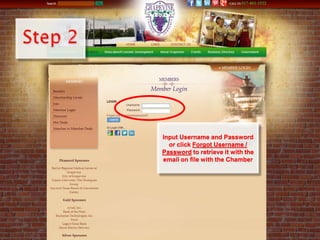
and click on Member Login
Input Username and Password
or click Forgot Username /
Password to retrieve it with the
email on file with the Chamber
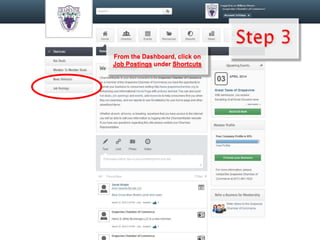
From the Dashboard, click on
Job Postings under Shortcuts
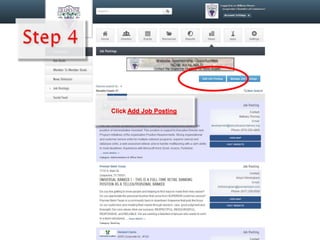
Click Add Job Posting
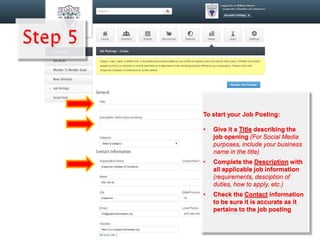
To start your Job Posting:
• Give it a Title describing the
job opening (For Social Media
purposes, include your business
name in the title)
• Complete the Description with
all applicable job information
(requirements, desciption of
duties, how to apply, etc.)
• Check the Contact information
to be sure it is accurate as it
pertains to the job posting
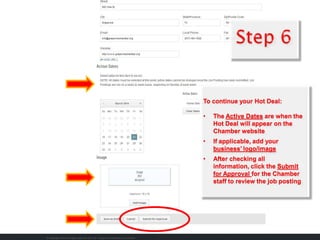
To continue your Hot Deal:
• The Active Dates are when the
Hot Deal will appear on the
Chamber website
• If applicable, add your
business’ logo/image
• After checking all
information, click the Submit
for Approval for the Chamber
staff to review the job posting

Grapevine Chamber Online 101 - Add a Job Posting

  • 1.
    How To: Adda News Release
  • 2.
  • 3.
    Input Username andPassword or click Forgot Username / Password to retrieve it with the email on file with the Chamber
  • 4.
    From the Dashboard,click on Job Postings under Shortcuts
  • 5.
  • 6.
    To start yourJob Posting: • Give it a Title describing the job opening (For Social Media purposes, include your business name in the title) • Complete the Description with all applicable job information (requirements, desciption of duties, how to apply, etc.) • Check the Contact information to be sure it is accurate as it pertains to the job posting
  • 7.
    To continue yourHot Deal: • The Active Dates are when the Hot Deal will appear on the Chamber website • If applicable, add your business’ logo/image • After checking all information, click the Submit for Approval for the Chamber staff to review the job posting