How To: Add an Event
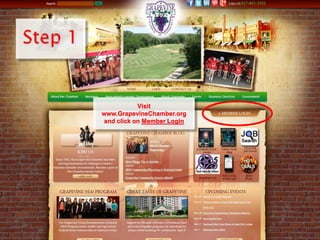
Visit
www.GrapevineChamber.org
and click on Member Login
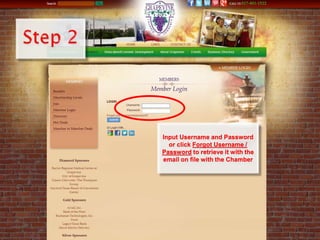
Input Username and Password
or click Forgot Username /
Password to retrieve it with the
email on file with the Chamber
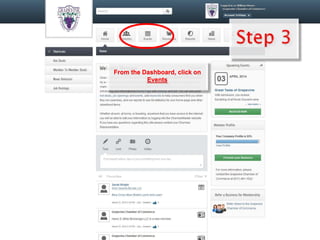
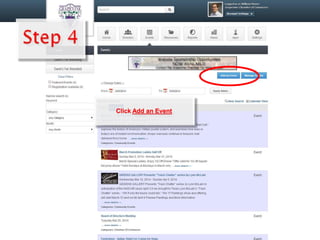
From the Dashboard, click on
Events
Click Add an Event
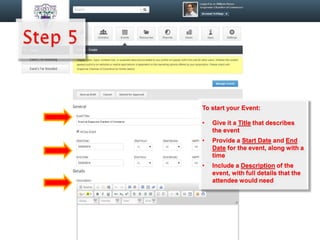
To start your Event:
• Give it a Title that describes
the event
• Provide a Start Date and End
Date for the event, along with a
time
• Include a Description of the
event, with full details that the
attendee would need
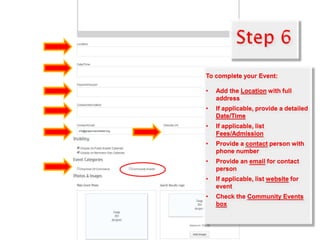
To complete your Event:
• Add the Location with full
address
• If applicable, provide a detailed
Date/Time
• If applicable, list
Fees/Admission
• Provide a contact person with
phone number
• Provide an email for contact
person
• If applicable, list website for
event
• Check the Community Events
box
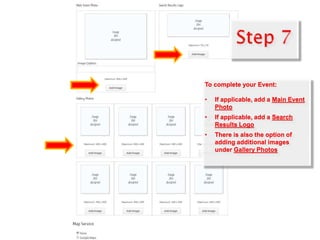
To complete your Event:
• If applicable, add a Main Event
Photo
• If applicable, add a Search
Results Logo
• There is also the option of
adding additional images
under Gallery Photos
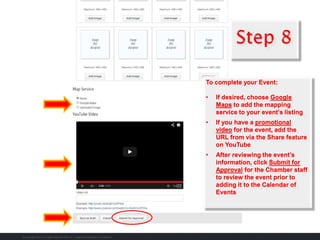
To complete your Event:
• If desired, choose Google
Maps to add the mapping
service to your event’s listing
• If you have a promotional
video for the event, add the
URL from via the Share feature
on YouTube
• After reviewing the event’s
information, click Submit for
Approval for the Chamber staff
to review the event prior to
adding it to the Calendar of
Events

Grapevine Chamber Online 101 - Add an Event

  • 1.
    How To: Addan Event
  • 2.
  • 3.
    Input Username andPassword or click Forgot Username / Password to retrieve it with the email on file with the Chamber
  • 4.
    From the Dashboard,click on Events
  • 5.
  • 6.
    To start yourEvent: • Give it a Title that describes the event • Provide a Start Date and End Date for the event, along with a time • Include a Description of the event, with full details that the attendee would need
  • 7.
    To complete yourEvent: • Add the Location with full address • If applicable, provide a detailed Date/Time • If applicable, list Fees/Admission • Provide a contact person with phone number • Provide an email for contact person • If applicable, list website for event • Check the Community Events box
  • 8.
    To complete yourEvent: • If applicable, add a Main Event Photo • If applicable, add a Search Results Logo • There is also the option of adding additional images under Gallery Photos
  • 9.
    To complete yourEvent: • If desired, choose Google Maps to add the mapping service to your event’s listing • If you have a promotional video for the event, add the URL from via the Share feature on YouTube • After reviewing the event’s information, click Submit for Approval for the Chamber staff to review the event prior to adding it to the Calendar of Events