automation++
FTP – Access Control
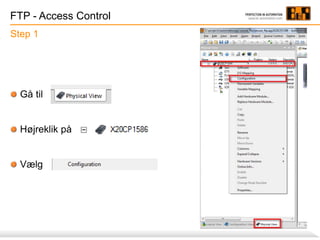
FTP - Access Control
Gå til
Højreklik på
Vælg
Step 1
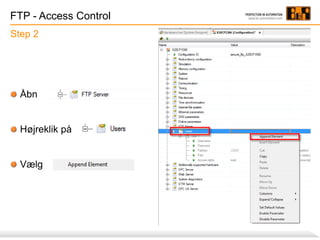
FTP - Access Control
Åbn
Højreklik på
Vælg
Step 2
FTP - Access Control
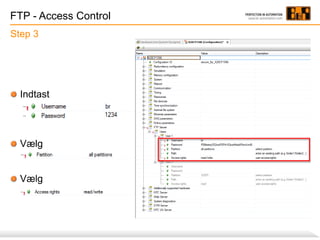
Indtast
Vælg
Vælg
Step 3
FTP - Access Control
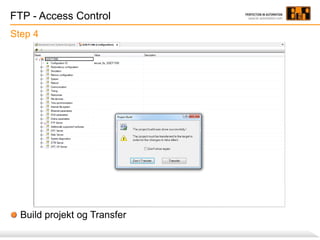
Build projekt og Transfer
Step 4
FTP - Access Control
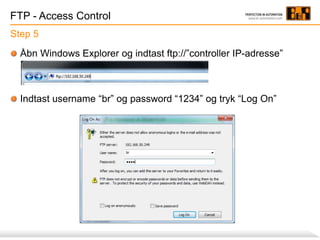
Step 5
Åbn Windows Explorer og indtast ftp://”controller IP-adresse”
Indtast username “br” og password “1234” og tryk “Log On”
FTP - Access Control
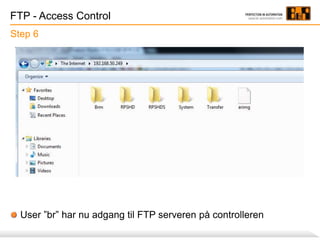
User ”br” har nu adgang til FTP serveren på controlleren
Step 6
FTP - Access Control
Minimumskrav
Automation Studio >= version 4.1
Automation runtime >= A4.08
FTP - Access Control
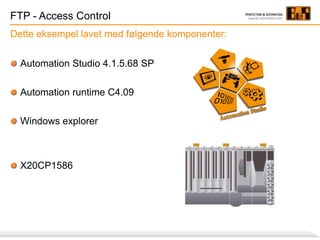
Dette eksempel lavet med følgende komponenter:
Automation Studio 4.1.5.68 SP
Automation runtime C4.09
Windows explorer
X20CP1586
automation++
YOUR GLOBAL PARTNER FOR
AUTOMATION EXCELLENCE

FTP access control

  • 1.
  • 2.
    FTP - AccessControl Gå til Højreklik på Vælg Step 1
  • 3.
    FTP - AccessControl Åbn Højreklik på Vælg Step 2
  • 4.
    FTP - AccessControl Indtast Vælg Vælg Step 3
  • 5.
    FTP - AccessControl Build projekt og Transfer Step 4
  • 6.
    FTP - AccessControl Step 5 Åbn Windows Explorer og indtast ftp://”controller IP-adresse” Indtast username “br” og password “1234” og tryk “Log On”
  • 7.
    FTP - AccessControl User ”br” har nu adgang til FTP serveren på controlleren Step 6
  • 8.
    FTP - AccessControl Minimumskrav Automation Studio >= version 4.1 Automation runtime >= A4.08
  • 9.
    FTP - AccessControl Dette eksempel lavet med følgende komponenter: Automation Studio 4.1.5.68 SP Automation runtime C4.09 Windows explorer X20CP1586
  • 10.
    automation++ YOUR GLOBAL PARTNERFOR AUTOMATION EXCELLENCE