Q3       UPDATE
          Firefox on Win8 - UX Design

FIREFOX UX SEP 2012
A BROWSER THAT FEELS


#1 #2 #3
NATIVE     FIREFOXY    FLUID
#1
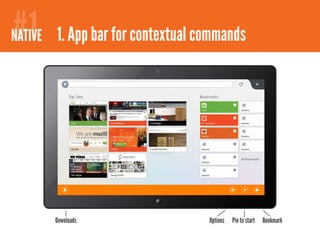
NATIVE 1. App bar for contextual commands


       Downloads                  Options   Pin to start   Bookmark
#1
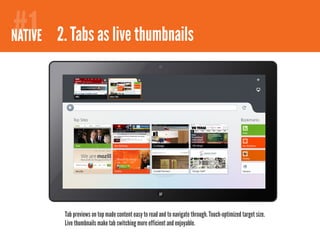
NATIVE 2. Tabs as live thumbnails


         Tab previews on top made content easy to read and to navigate through. Touch-optimized target size.
         Live thumbnails make tab switching more efficient and enjoyable.
#1
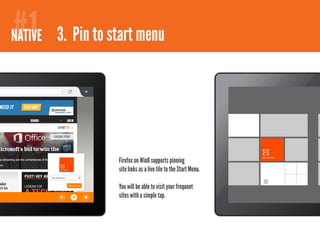
NATIVE 3. Pin to start menu


                  Firefox on Win8 supports pinning
                  site links as a live tile to the Start Menu.

                  You will be able to visit your frequent
                  sites with a simple tap.
#1
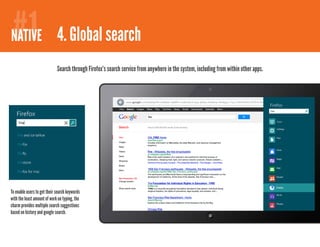
NATIVE 4. Global search
                             Search through Firefox’s search service from anywhere in the system, including from within other apps.


To enable users to get their search keywords
with the least amount of work on typing, the
charm provides multiple search suggestions
based on history and google search.
#2
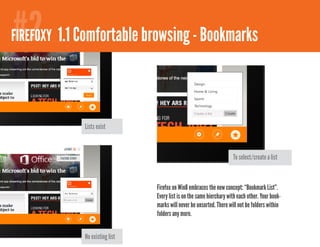
FIREFOXY 1.1 Comfortable browsing - Bookmarks


             Lists exist


                                                                      To select/create a list


                                Firefox on Win8 embraces the new concept: “Bookmark List”.
                                Every list is on the same hierchary with each other. Your book-
                                marks will never be unsorted. There will not be folders within
                                folders any more.


             No existing list
#2
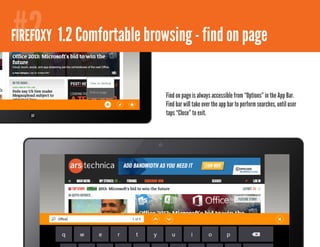
FIREFOXY 2.1 Comfortable browsing - bookmarks
         1.2                        find on page

                             Find on page is always accessible from “Options” in the App Bar.
                             Find bar will take over the app bar to perform searches, until user
                             taps “Close” to exit.
#2
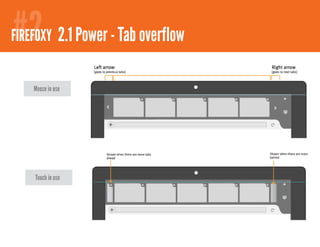
FIREFOXY 2.1 Comfortableoverflow - bookmarks
             Power - Tab browsing

    Mouse in use


    Touch in use
#2
FIREFOXY 2.1 Comfortable browsing - bookmarks
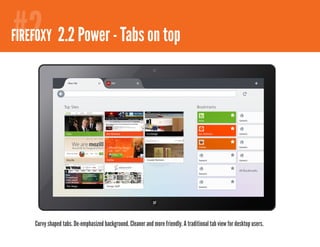
         2.2 Power - Tabs on top


    Curvy shaped tabs. De-emphasized background. Cleaner and more friendly. A traditional tab view for desktop users.
#2
FIREFOXY 2.1 Comfortable browsing - bookmarks
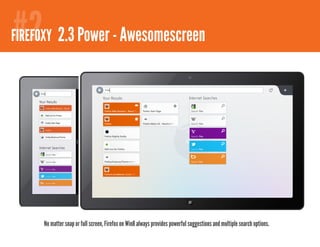
         2.3 Power - Awesomescreen


     No matter snap or full screen, Firefox on Win8 always provides powerful suggestions and multiple search options.
#3
#2
FIREFOXY 2.1 Comfortable browsing - bookmarks
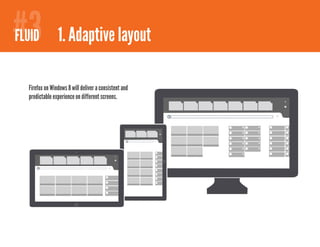
 FLUID 1. Adaptive layout


   Firefox on Windows 8 will deliver a consistent and
   predictable experience on different screens.
#3
#2
FIREFOXY 2.1Direct Manipulation - bookmarks
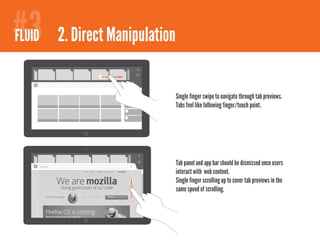
 FLUID 2. Comfortable browsing


                            Single finger swipe to navigate through tab previews.
                            Tabs feel like following finger/touch point.


    mozilla.org
                            Tab panel and app bar should be dismissed once users
                            interact with web content.
                            Single finger scrolling up to cover tab previews in the
                            same speed of scrolling.
#3
#2
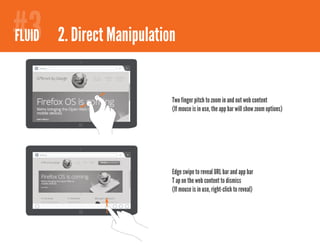
FIREFOXY 2.1Direct Manipulation - bookmarks
 FLUID 2. Comfortable browsing
    mozilla.org


                           Two finger pitch to zoom in and out web content
                           (If mouse is in use, the app bar will show zoom options)


    mozilla.org


                           Edge swipe to reveal URL bar and app bar
                           T ap on the web content to dismiss
                           (If mouse is in use, right-click to reveal)
#3
#2
FIREFOXY 2.1Apply animations
 FLUID 3. Comfortable browsing - bookmarks

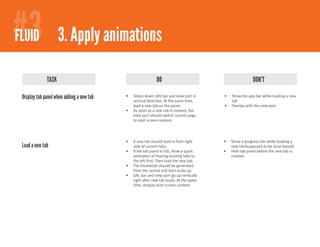
              TASK                                           DO                                           DON’T

 Display tab panel when adding a new tab   •	   Slides down URL bar and view port in     •	   Show the app bar while loading a new
                                                vertical direction. At the same time,         tab
                                                load a new tab on the panel.             •	   Overlay with the view port
                                           •	   As soon as a new tab is created, the
                                                view port should switch current page
                                                to start screen content.


                                           •	   A new tab should load in from right      •	   Show a progress bar while loading a
 Load a new tab                                 side of current tabs.                         new tab(supposed to be local-based)
                                           •	   If the tab panel is full, show a quick   •	   Hide tab panel before the new tab is
                                                animation of moving existing tabs to          created
                                                the left first. Then load the new tab.
                                           •	   The thumbnail should be generated
                                                from the central and then scale up.
                                           •	   URL bar and view port go up vertically
                                                right after new tab loads. At the same
                                                time, display start screen content.
#3
#2
FIREFOXY 2.1Apply animations
 FLUID 3. Comfortable browsing - bookmarks

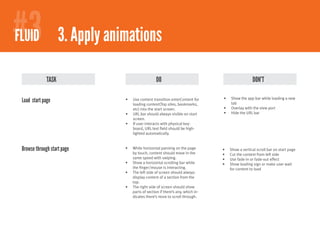
              TASK                               DO                                              DON’T

                                                                               •	   Show the app bar while loading a new
 Load start page             •	   Use content transition enterContent for
                                                                                    tab
                                  loading content(Top sites, bookmarks,
                                  etc) into the start screen.                  •	   Overlay with the view port
                             •	   URL bar should always visible on start       •	   Hide the URL bar
                                  screen.
                             •	   If user interacts with physical key-
                                  board, URL text field should be high-
                                  lighted automatically.


 Browse through start page   •	   While horizontal panning on the page         •	   Show a vertical scroll bar on start page
                                  by touch, content should move in the         •	   Cut the content from left side
                                  same speed with swiping.                     •	   Use fade-in or fade-out effect
                             •	   Show a horizontal scrolling bar while        •	   Show loading sign or make user wait
                                  the finger/mouse is interacting.                  for content to load
                             •	   The left side of screen should always  
                                  display content of a section from the
                                  top.
                             •	   The right side of screen should show
                                  parts of section if there’s any, which in-
                                  dicates there’s more to scroll through.
#3
#2
FIREFOXY 2.1Apply animations
 FLUID 3. Comfortable browsing - bookmarks

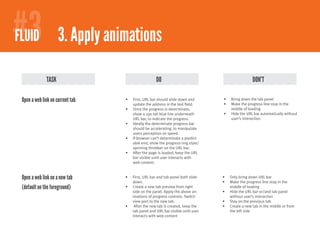
              TASK                                   DO                                             DON’T

 Open a web link on current tab   •	   First, URL bar should slide down and       •	   Bring down the tab panel
                                       update the address in the text field.      •	   Make the progress line stop in the
                                  •	   Once the progress is determinate,               middle of loading
                                       show a 2px tall blue line underneath       •	   Hide the URL bar automatically without
                                       URL bar, to indicate the progress.              user’s interaction
                                  •	   Ideally the determinate progress bar
                                       should be accelerating, to manipulate
                                       users perception on speed.
                                  •	   If browser can’t determinate a predict-
                                       able end, show the progress ring style/
                                       spinning throbber on the URL bar.
                                  •	   After the page is loaded, keep the URL
                                       bar visible until user interacts with
                                       web content.


 Open a web link on a new tab     •	   First, URL bar and tab panel both slide    •	   Only bring down URL bar
                                       down.                                      •	   Make the progress line stop in the
 (default on the foreground)      •	   Create a new tab preview from right             middle of loading
                                       side on the panel. Apply the above an-     •	   Hide the URL bar or/and tab panel
                                       imations of progress controls. Switch           without user’s interaction
                                       view port to the new tab.                  •	   Stay on the previous tab
                                  •	    After the new tab is created, keep the    •	   Create a new tab in the middle or from
                                       tab panel and URL bar visible until user        the left side
                                       interacts with web content

Firefox on Win8 - Q3 Update

  • 1.
    Q3 UPDATE Firefox on Win8 - UX Design FIREFOX UX SEP 2012
  • 2.
    A BROWSER THATFEELS #1 #2 #3 NATIVE FIREFOXY FLUID
  • 3.
    #1 NATIVE 1. Appbar for contextual commands Downloads Options Pin to start Bookmark
  • 4.
    #1 NATIVE 2. Tabsas live thumbnails Tab previews on top made content easy to read and to navigate through. Touch-optimized target size. Live thumbnails make tab switching more efficient and enjoyable.
  • 5.
    #1 NATIVE 3. Pinto start menu Firefox on Win8 supports pinning site links as a live tile to the Start Menu. You will be able to visit your frequent sites with a simple tap.
  • 6.
    #1 NATIVE 4. Globalsearch Search through Firefox’s search service from anywhere in the system, including from within other apps. To enable users to get their search keywords with the least amount of work on typing, the charm provides multiple search suggestions based on history and google search.
  • 7.
    #2 FIREFOXY 1.1 Comfortablebrowsing - Bookmarks Lists exist To select/create a list Firefox on Win8 embraces the new concept: “Bookmark List”. Every list is on the same hierchary with each other. Your book- marks will never be unsorted. There will not be folders within folders any more. No existing list
  • 8.
    #2 FIREFOXY 2.1 Comfortablebrowsing - bookmarks 1.2 find on page Find on page is always accessible from “Options” in the App Bar. Find bar will take over the app bar to perform searches, until user taps “Close” to exit.
  • 9.
    #2 FIREFOXY 2.1 Comfortableoverflow- bookmarks Power - Tab browsing Mouse in use Touch in use
  • 10.
    #2 FIREFOXY 2.1 Comfortablebrowsing - bookmarks 2.2 Power - Tabs on top Curvy shaped tabs. De-emphasized background. Cleaner and more friendly. A traditional tab view for desktop users.
  • 11.
    #2 FIREFOXY 2.1 Comfortablebrowsing - bookmarks 2.3 Power - Awesomescreen No matter snap or full screen, Firefox on Win8 always provides powerful suggestions and multiple search options.
  • 12.
    #3 #2 FIREFOXY 2.1 Comfortablebrowsing - bookmarks FLUID 1. Adaptive layout Firefox on Windows 8 will deliver a consistent and predictable experience on different screens.
  • 13.
    #3 #2 FIREFOXY 2.1Direct Manipulation- bookmarks FLUID 2. Comfortable browsing Single finger swipe to navigate through tab previews. Tabs feel like following finger/touch point. mozilla.org Tab panel and app bar should be dismissed once users interact with web content. Single finger scrolling up to cover tab previews in the same speed of scrolling.
  • 14.
    #3 #2 FIREFOXY 2.1Direct Manipulation- bookmarks FLUID 2. Comfortable browsing mozilla.org Two finger pitch to zoom in and out web content (If mouse is in use, the app bar will show zoom options) mozilla.org Edge swipe to reveal URL bar and app bar T ap on the web content to dismiss (If mouse is in use, right-click to reveal)
  • 15.
    #3 #2 FIREFOXY 2.1Apply animations FLUID 3. Comfortable browsing - bookmarks TASK DO DON’T Display tab panel when adding a new tab • Slides down URL bar and view port in • Show the app bar while loading a new vertical direction. At the same time, tab load a new tab on the panel. • Overlay with the view port • As soon as a new tab is created, the view port should switch current page to start screen content. • A new tab should load in from right • Show a progress bar while loading a Load a new tab side of current tabs. new tab(supposed to be local-based) • If the tab panel is full, show a quick • Hide tab panel before the new tab is animation of moving existing tabs to created the left first. Then load the new tab. • The thumbnail should be generated from the central and then scale up. • URL bar and view port go up vertically right after new tab loads. At the same time, display start screen content.
  • 16.
    #3 #2 FIREFOXY 2.1Apply animations FLUID 3. Comfortable browsing - bookmarks TASK DO DON’T • Show the app bar while loading a new Load start page • Use content transition enterContent for tab loading content(Top sites, bookmarks, etc) into the start screen. • Overlay with the view port • URL bar should always visible on start • Hide the URL bar screen. • If user interacts with physical key- board, URL text field should be high- lighted automatically. Browse through start page • While horizontal panning on the page • Show a vertical scroll bar on start page by touch, content should move in the • Cut the content from left side same speed with swiping. • Use fade-in or fade-out effect • Show a horizontal scrolling bar while • Show loading sign or make user wait the finger/mouse is interacting. for content to load • The left side of screen should always display content of a section from the top. • The right side of screen should show parts of section if there’s any, which in- dicates there’s more to scroll through.
  • 17.
    #3 #2 FIREFOXY 2.1Apply animations FLUID 3. Comfortable browsing - bookmarks TASK DO DON’T Open a web link on current tab • First, URL bar should slide down and • Bring down the tab panel update the address in the text field. • Make the progress line stop in the • Once the progress is determinate, middle of loading show a 2px tall blue line underneath • Hide the URL bar automatically without URL bar, to indicate the progress. user’s interaction • Ideally the determinate progress bar should be accelerating, to manipulate users perception on speed. • If browser can’t determinate a predict- able end, show the progress ring style/ spinning throbber on the URL bar. • After the page is loaded, keep the URL bar visible until user interacts with web content. Open a web link on a new tab • First, URL bar and tab panel both slide • Only bring down URL bar down. • Make the progress line stop in the (default on the foreground) • Create a new tab preview from right middle of loading side on the panel. Apply the above an- • Hide the URL bar or/and tab panel imations of progress controls. Switch without user’s interaction view port to the new tab. • Stay on the previous tab • After the new tab is created, keep the • Create a new tab in the middle or from tab panel and URL bar visible until user the left side interacts with web content