

















































































ECS with VPC
DevJelly( )
1
github.com/kyunooh
facebook: hyunmook.k.choi
(fargate) ??
..
•
•
•
•
•
•
ECS
• Auto Scailing .

• .

• .

• .

• EC2 .

• Hip ( !)
• 

• “ DevOps ??” .. 

• ..

• .

• , 

• ..
Elastic Container
Service
, 

Docker Container
Docker ?
Docker 

.
ECS
ECS?
ECS


Auto Scaling
Flexible
Deploy
Deploy
“ ” .
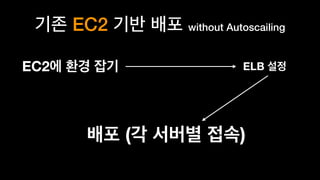
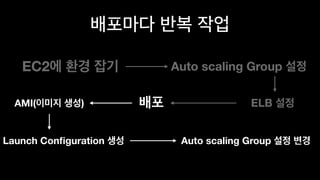
EC2 without Autoscailing
EC2 ELB
( )
80
??
??
??
( )
Auto Scaling
EC2
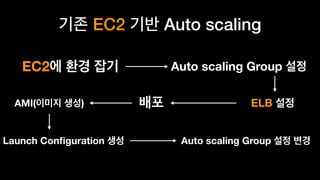
EC2 Auto scaling
EC2
ELB
Auto scaling Group
AMI( )
Launch Configuration Auto scaling Group
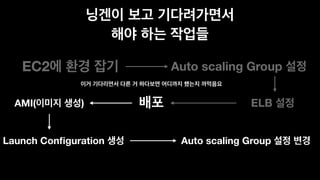
EC2
ELB
Auto scaling Group
AMI( )
Launch Configuration Auto scaling Group


EC2
ELB
Auto scaling Group
AMI( )
Launch Configuration Auto scaling Group


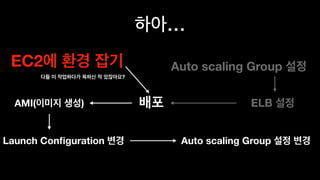
..
…
EC2
ELB
Auto scaling Group
AMI( )
Launch Configuration Auto scaling Group
?


??
, 


2011 

Elastic Beanstalk( EB)


EC2, Auto scaling, ELB
!


!
!


EC2, Auto scaling, ELB
!


EC2, Auto scaling, ELB
!
.ebextesions
.ebextesions
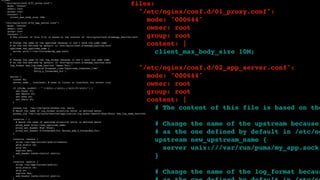
files:
"/etc/nginx/conf.d/01_proxy.conf":
mode: "000644"
owner: root
group: root
content: |
client_max_body_size 10M;
"/etc/nginx/conf.d/02_app_server.conf":
mode: "000644"
owner: root
group: root
content: |
# The content of this file is based on the content of /etc/nginx/conf.d/webapp_healthd.conf
# Change the name of the upstream because it can't have the same name
# as the one defined by default in /etc/nginx/conf.d/webapp_healthd.conf
upstream new_upstream_name {
server unix:///var/run/puma/my_app.sock;
}
# Change the name of the log_format because it can't have the same name
# as the one defined by default in /etc/nginx/conf.d/webapp_healthd.conf
log_format new_log_name_healthd '$msec"$uri"'
'$status"$request_time"$upstream_response_time"'
'$http_x_forwarded_for';
server {
listen 80;
server_name _ localhost; # need to listen to localhost for worker tier
if ($time_iso8601 ~ "^(d{4})-(d{2})-(d{2})T(d{2})") {
set $year $1;
set $month $2;
set $day $3;
set $hour $4;
}
access_log /var/log/nginx/access.log main;
# Match the name of log_format directive which is defined above
access_log /var/log/nginx/healthd/application.log.$year-$month-$day-$hour new_log_name_healthd;
location / {
# Match the name of upstream directive which is defined above
proxy_pass http://new_upstream_name;
proxy_set_header Host $host;
proxy_set_header X-Forwarded-For $proxy_add_x_forwarded_for;
}
location /assets {
alias /var/app/current/public/assets;
gzip_static on;
gzip on;
expires max;
add_header Cache-Control public;
}
location /public {
alias /var/app/current/public;
gzip_static on;
gzip on;
expires max;
add_header Cache-Control public;
}
files:
"/etc/nginx/conf.d/01_proxy.conf":
mode: "000644"
owner: root
group: root
content: |
client_max_body_size 10M;
"/etc/nginx/conf.d/02_app_server.conf":
mode: "000644"
owner: root
group: root
content: |
# The content of this file is based on the content of /etc/nginx/conf.d/webapp_healthd.conf
# Change the name of the upstream because it can't have the same name
# as the one defined by default in /etc/nginx/conf.d/webapp_healthd.conf
upstream new_upstream_name {
server unix:///var/run/puma/my_app.sock;
}
# Change the name of the log_format because it can't have the same name
# as the one defined by default in /etc/nginx/conf.d/webapp_healthd.conf
log_format new_log_name_healthd '$msec"$uri"'
'$status"$request_time"$upstream_response_time"'
'$http_x_forwarded_for';
server {
listen 80;
server_name _ localhost; # need to listen to localhost for worker tier
if ($time_iso8601 ~ "^(d{4})-(d{2})-(d{2})T(d{2})") {
set $year $1;
set $month $2;
set $day $3;
set $hour $4;
}
access_log /var/log/nginx/access.log main;
# Match the name of log_format directive which is defined above
access_log /var/log/nginx/healthd/application.log.$year-$month-$day-$hour new_log_name_healthd;
location / {
# Match the name of upstream directive which is defined above
proxy_pass http://new_upstream_name;
proxy_set_header Host $host;
proxy_set_header X-Forwarded-For $proxy_add_x_forwarded_for;
}
location /assets {
alias /var/app/current/public/assets;
gzip_static on;
gzip on;
expires max;
add_header Cache-Control public;
}
location /public {
alias /var/app/current/public;
gzip_static on;
gzip on;
expires max;
add_header Cache-Control public;
}
files:
"/etc/nginx/conf.d/01_proxy.conf":
mode: "000644"
owner: root
group: root
content: |
client_max_body_size 10M;
"/etc/nginx/conf.d/02_app_server.conf":
mode: "000644"
owner: root
group: root
content: |
# The content of this file is based on the
# Change the name of the upstream because
# as the one defined by default in /etc/ng
upstream new_upstream_name {
server unix:///var/run/puma/my_app.sock;
}
# Change the name of the log_format becaus
?
!


?
3.7
.
? 

6 ?
.
.
??
EB
Docker !!
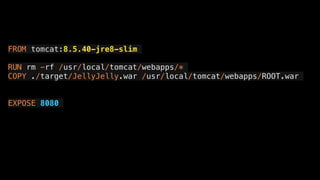
Dockerfile 

FROM tomcat:8.5.40-jre8-slim
RUN rm -rf /usr/local/tomcat/webapps/*
COPY ./target/JellyJelly.war /usr/local/tomcat/webapps/ROOT.war
EXPOSE 8080
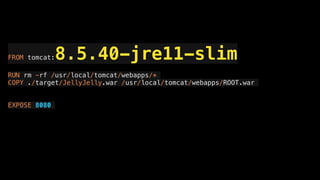
FROM tomcat:8.5.40-jre11-slim
RUN rm -rf /usr/local/tomcat/webapps/*
COPY ./target/JellyJelly.war /usr/local/tomcat/webapps/ROOT.war
EXPOSE 8080


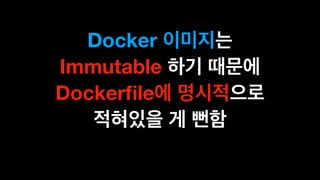
Docker
Immutable
Dockerfile
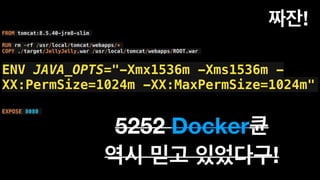
FROM tomcat:8.5.40-jre8-slim
RUN rm -rf /usr/local/tomcat/webapps/*
COPY ./target/JellyJelly.war /usr/local/tomcat/webapps/ROOT.war
ENV JAVA_OPTS="-Xmx1536m -Xms1536m -
XX:PermSize=1024m -XX:MaxPermSize=1024m"
EXPOSE 8080
!
5252 Docker
!


Docker
AWS .
EB Docker
?
– god
“ 

”
EB !! !!
.
! ! .
EB
(ELB, Auto Scaliing )
EC2
Flexible
ECS
Fargate
EC2
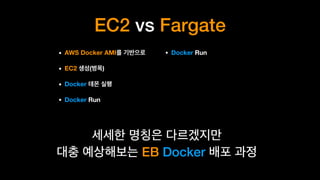
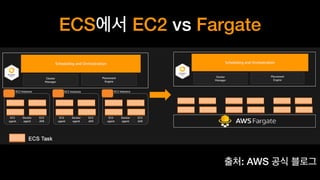
EC2 vs Fargate
• AWS Docker AMI
• EC2 ( )
• Docker
• Docker Run
• Docker Run


EB Docker
ECS EC2 vs Fargate
: AWS
ECS
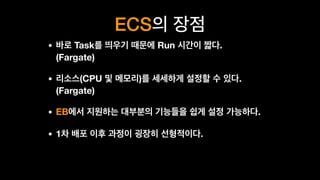
• Task Run .
(Fargate)
• (CPU ) .
(Fargate)
• EB .
• 1 .


ECS
AWS
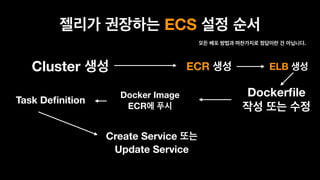
ECS
Cluster ECR
Dockerfile 
Docker Image 

ECR
Task Definition
ELB
.
Create Service 

Update Service
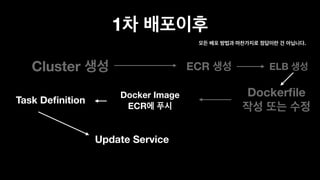
1
Cluster ECR
Dockerfile 
Docker Image 

ECR
Task Definition
ELB
.


Update Service


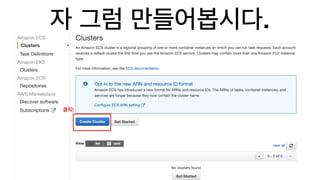
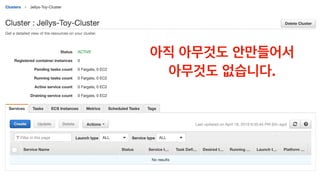
ECS Cluster


.
!
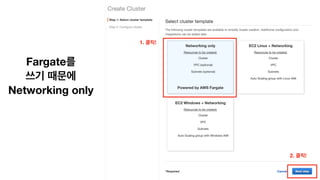
Fargate


Networking only
1. !
2. !
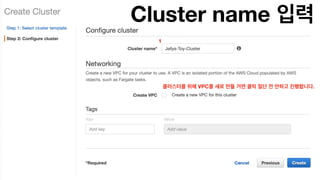
Cluster name
1
VPC .
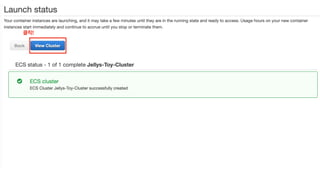
!


.
Elastic Container
Repository (ECR)
AWS Docker Hub
,
AWS Docker Hub
!
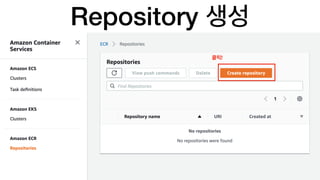
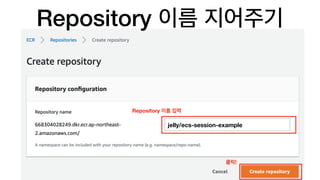
Repository
Repository
Repository
!
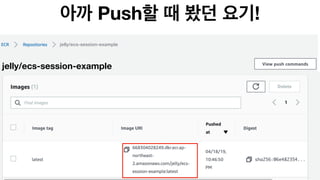
jelly/ecs-session-example
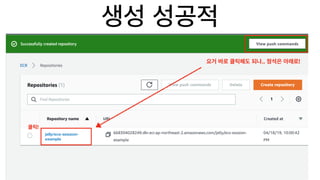
!
.. !
jelly/ecs-session-
example


.
https://github.com/kyunooh/ecs-session-example
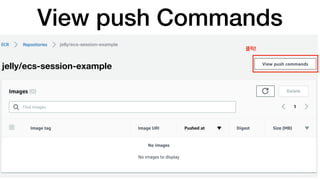
View push Commands
!
jelly/ecs-session-example


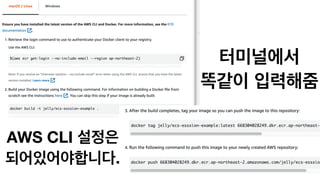
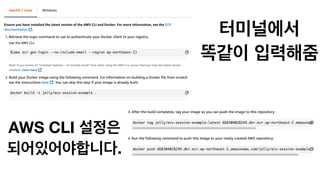
AWS CLI
.
Unable to locate credentials.
You can configure credentials
by running "aws configure".
‘aws configure’ .
!

https://docs.aws.amazon.com/ko_kr/cli/latest/userguide/cli-chap-configure.html


AWS CLI
.
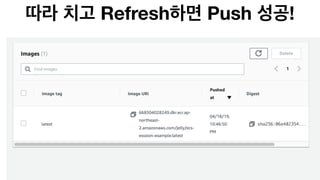
Refresh Push !
Task Definition 

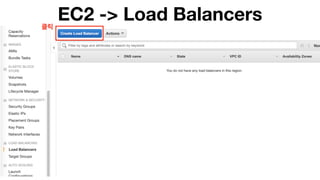
ELB
EC2 -> Load Balancers
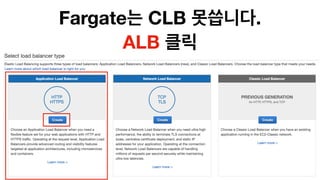
Fargate CLB .
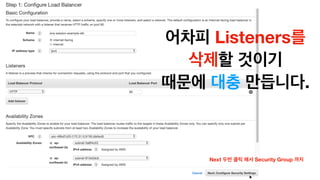
ALB
Listeners 


.
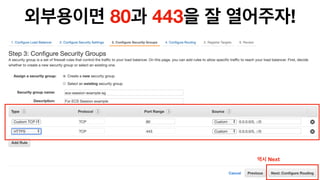
Next Security Group
80 443 !
Next
Target Group 

.
Next
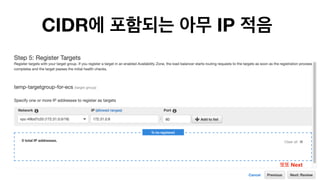
IP
CIDR IP
Next
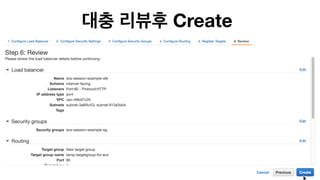
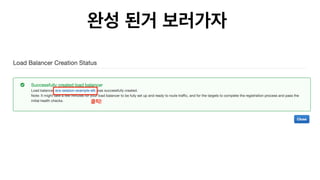
Create
!
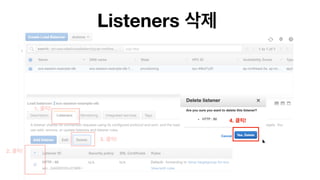
Listeners
1. !
2. !
3. !
Listeners
1. !
2. !
3. !
4. !
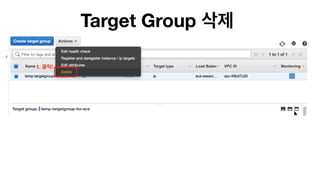
Target Group
1. !
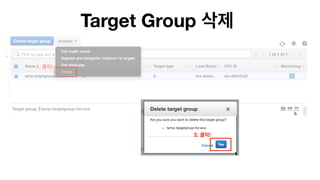
Target Group
1. !
2. !


???
(empty)
ALB .
Task Defnition
Task Definition
.
,

!
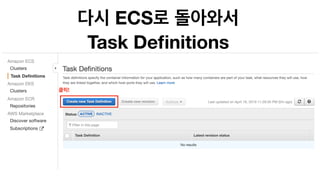
ECS 

Task Definitions
!
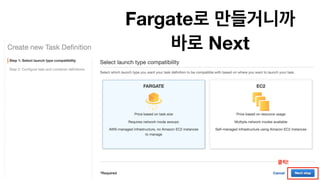
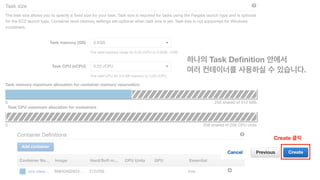
Fargate 

Next
!
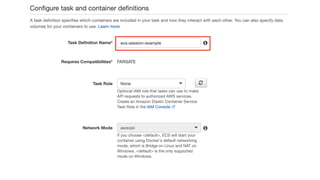
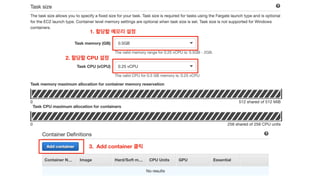
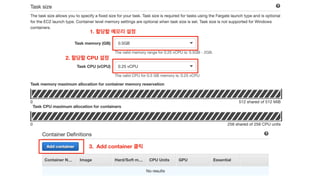
1.
2. CPU
3. Add container
ECR 

Image URI
jelly/ecs-session-example
Push !Push !
1.
2. CPU
3. Add container
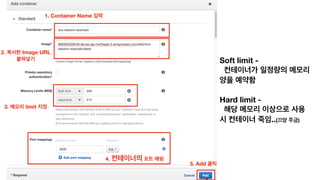
1. Container Name
2. Image URL 

Soft limit -
Hard limit -
..( )
4.
3. limit
5. Add
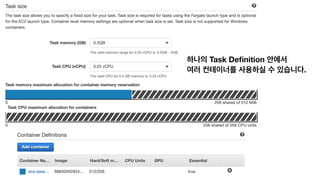
Task Definition 

.
Task Definition 

.
Create
Volumes 


Task Defnition 

Service , 

Task .
Task
Service T.O.P
Task 

Task Definition 

.
.
Service 

Task 

.
Service
.

(ELB, Auto Scaling )
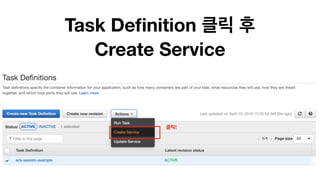
Task Definition 

Create Service
!
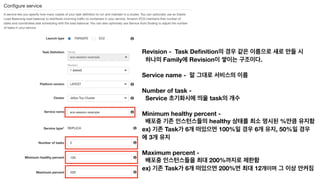
Revision - Task Definition
Family Revision .

Service name -


Number of task -
Service task 


Minimum healthy percent -
healthy %
ex) Task 6 100% 6 , 50%
3


Maximum percent -
200%
ex) Task 6 200% 12
z
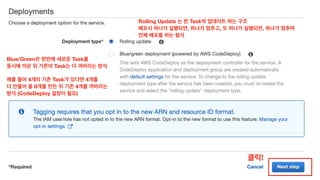
Rolling Update Task 

, , , 

Blue/Green Task 

Task


4 Task 4
8 4
(CodeDeploy )
!
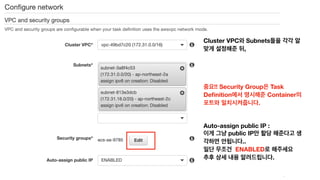
Cluster VPC Subnets
,
!! Security Group Task
Definition Container
.
Auto-assign public IP :
public IP
.. 

ENABLED 

.
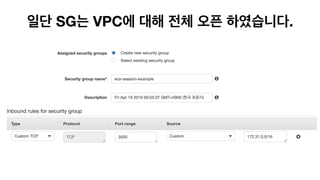
SG VPC .
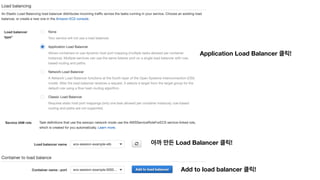
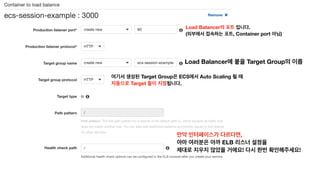
Application Load Balancer !
Load Balancer !
Add to load balancer !
Load Balancer .

( , Container port )
Load Balancer Target Group
Target Group ECS Auto Scaling
Target .
, 

ELB 

! !
Service discovery , 


( ..)
Next step


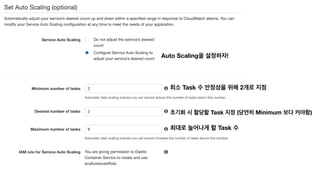
Auto Scaling
Auto Scaling !
Task 2
Task ( Minimum )
Task
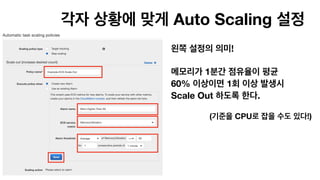
Auto Scaling
!


1
60% 1
Scale Out .
( CPU !)
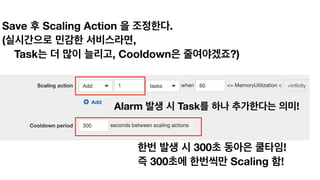
Save Scaling Action .
( , 

Task , Cooldown ?)
Alarm Task !
300 !
300 Scaling !
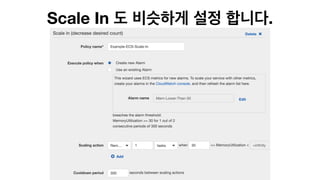
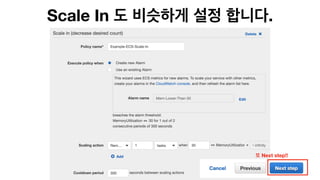
Scale In .
Scale In .
Next step!!
>= > -
<=
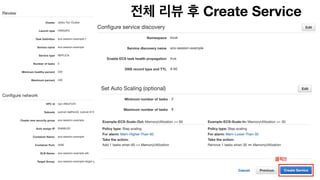
Create Service
!!
>=


!
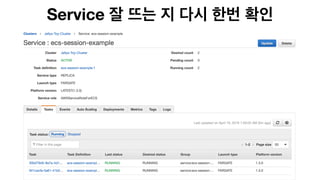
Service
ELB 

DNS !
!!


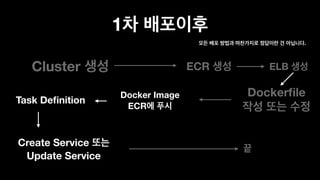
1
Cluster ECR
Dockerfile 
Docker Image 

ECR
Task Definition
ELB
.
Create Service 

Update Service
?
https://github.com/kyunooh/ecs-session-example
$ sh deploy.sh
https://github.com/kyunooh/ecs-session-example


!
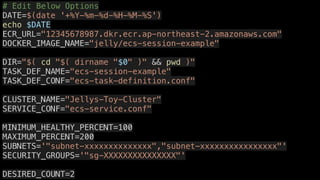
# Edit Below Options
DATE=$(date '+%Y-%m-%d-%H-%M-%S')
echo $DATE
ECR_URL="12345678987.dkr.ecr.ap-northeast-2.amazonaws.com"
DOCKER_IMAGE_NAME="jelly/ecs-session-example"
DIR="$( cd "$( dirname "$0" )" && pwd )"
TASK_DEF_NAME="ecs-session-example"
TASK_DEF_CONF="ecs-task-definition.conf"
CLUSTER_NAME="Jellys-Toy-Cluster"
SERVICE_CONF="ecs-service.conf"
MINIMUM_HEALTHY_PERCENT=100
MAXIMUM_PERCENT=200
SUBNETS='"subnet-xxxxxxxxxxxxxx","subnet-xxxxxxxxxxxxxxxx"'
SECURITY_GROUPS='"sg-XXXXXXXXXXXXXXX"'
DESIRED_COUNT=2
{
"cluster": "CLUSTER_NAME",
"service": "TASK_DEF_NAME",
"desiredCount": DESIRED_COUNT,
"taskDefinition": "TASK_DEF_NAME",
"deploymentConfiguration": {
"maximumPercent": MAXIMUM_PERCENT,
"minimumHealthyPercent": MINIMUM_HEALTHY_PERCENT
},
"networkConfiguration": {
"awsvpcConfiguration": {
"subnets": [
SUBNETS
],
"securityGroups": [
SECURITY_GROUPS
],
"assignPublicIp": "DISABLED"
}
},
"forceNewDeployment": false,
"healthCheckGracePeriodSeconds": 0
}
{
"executionRoleArn": "arn:aws:iam::*******************
"containerDefinitions": [
{
"logConfiguration": {
"logDriver": "awslogs",
"options": {
"awslogs-group": "/ecs/TASK_DEF_NAME",
"awslogs-region": "ap-northeast-2",
"awslogs-stream-prefix": "ecs"
}
},
"portMappings": [
{
"hostPort": 3000,
"protocol": "tcp",
"containerPort": 3000
}
],
"cpu": 0,
"environment": [],
"mountPoints": [],
"memory": 512,
"memoryReservation": 512,
"volumesFrom": [],
"image": "DOCKER_IMAGE_NAME",
"name": "TASK_DEF_NAME"
}
],
"placementConstraints": [],
"memory": "512",
"family": "TASK_DEF_NAME",
"requiresCompatibilities": [
"FARGATE"
],
"networkMode": "awsvpc",
"cpu": "256",
"volumes": []
}
“Works on my machine”
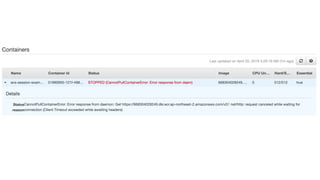
Trouble Shooting
Auto Assign Public Ip
DISABLED 

?
–
“ ”
IP
ENI
Public IP (ENI)

Private IP (ENI)
Public IP (ENI)

Private IP (ENI)
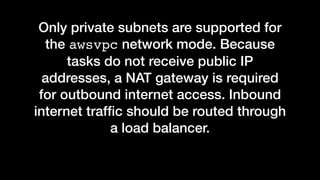
Only private subnets are supported for
the awsvpc network mode. Because
tasks do not receive public IP
addresses, a NAT gateway is required
for outbound internet access. Inbound
internet traffic should be routed through
a load balancer.
If you are using Fargate tasks, a public
IP address needs to be assigned to the
task's elastic network interface,. The
network interface must have a route to
the internet or a NAT gateway that can
route requests to the internet, for the
task to pull container images.


ECR


VPC
2 !
…

Fargate 를 이용한 ECS with VPC 1부