Excel Project 2 – MS Excel
Summer 2018
Use the project description HERE to complete this activity. For
a review of the complete rubric used in grading
this exercise, click on the Assignments tab, then on the title
Excel Project #2. Click on Show Rubrics if the
rubric is not already displayed.
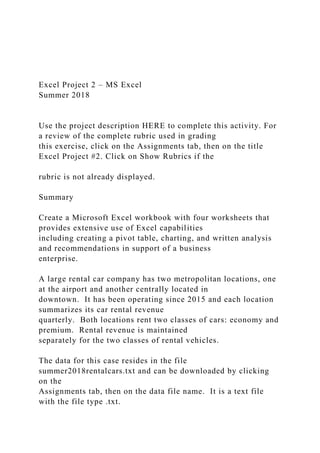
Summary
Create a Microsoft Excel workbook with four worksheets that
provides extensive use of Excel capabilities
including creating a pivot table, charting, and written analysis
and recommendations in support of a business
enterprise.
A large rental car company has two metropolitan locations, one
at the airport and another centrally located in
downtown. It has been operating since 2015 and each location
summarizes its car rental revenue
quarterly. Both locations rent two classes of cars: economy and
premium. Rental revenue is maintained
separately for the two classes of rental vehicles.
The data for this case resides in the file
summer2018rentalcars.txt and can be downloaded by clicking
on the
Assignments tab, then on the data file name. It is a text file
with the file type .txt.
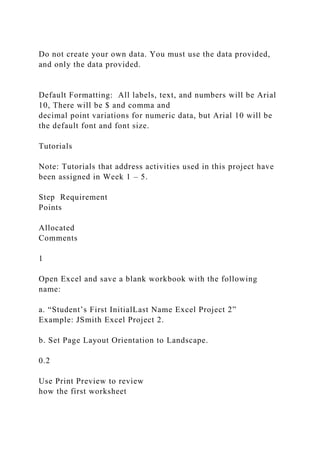
Do not create your own data. You must use the data provided,
and only the data provided.
Default Formatting: All labels, text, and numbers will be Arial
10, There will be $ and comma and
decimal point variations for numeric data, but Arial 10 will be
the default font and font size.
Tutorials
Note: Tutorials that address activities used in this project have
been assigned in Week 1 – 5.
Step Requirement
Points
Allocated
Comments
1
Open Excel and save a blank workbook with the following
name:
a. “Student’s First InitialLast Name Excel Project 2”
Example: JSmith Excel Project 2.
b. Set Page Layout Orientation to Landscape.
0.2
Use Print Preview to review
how the first worksheet
would print.
2 Change the name of the worksheet to Analysis by. 0.1
3
In the Analysis by worksheet:
a. Beginning in Row 1, enter the four labels in column
A (one label per row) in the following order:
Name:, Class/Section:, Project:, Date Due:
b. Place a blank row between each label. Please note
the colon : after each label.
c. Align the labels to the right side in the cells
It may be necessary to adjust the column width so the four
labels are clearly visible.
0.3
Format for text in column
A:
• Arial 10 point
• Normal font
• Right-align all four
labels in the cells
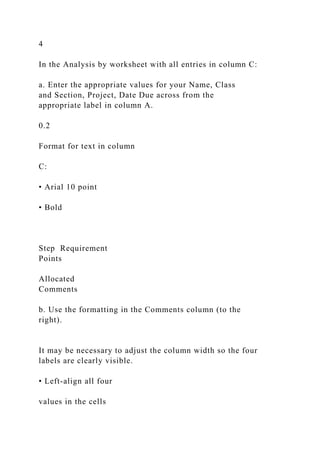
4
In the Analysis by worksheet with all entries in column C:
a. Enter the appropriate values for your Name, Class
and Section, Project, Date Due across from the
appropriate label in column A.
0.2
Format for text in column
C:
• Arial 10 point
• Bold
Step Requirement
Points
Allocated
Comments
b. Use the formatting in the Comments column (to the
right).
It may be necessary to adjust the column width so the four
labels are clearly visible.
• Left-align all four
values in the cells
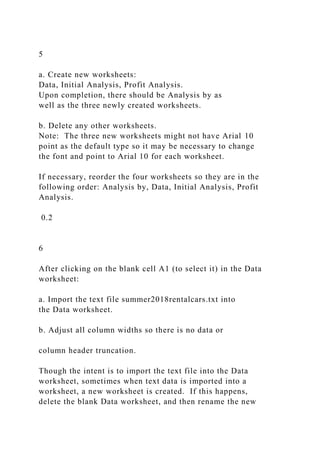
5
a. Create new worksheets:
Data, Initial Analysis, Profit Analysis.
Upon completion, there should be Analysis by as
well as the three newly created worksheets.
b. Delete any other worksheets.
Note: The three new worksheets might not have Arial 10
point as the default type so it may be necessary to change
the font and point to Arial 10 for each worksheet.
If necessary, reorder the four worksheets so they are in the
following order: Analysis by, Data, Initial Analysis, Profit
Analysis.
0.2
6
After clicking on the blank cell A1 (to select it) in the Data
worksheet:
a. Import the text file summer2018rentalcars.txt into
the Data worksheet.
b. Adjust all column widths so there is no data or
column header truncation.
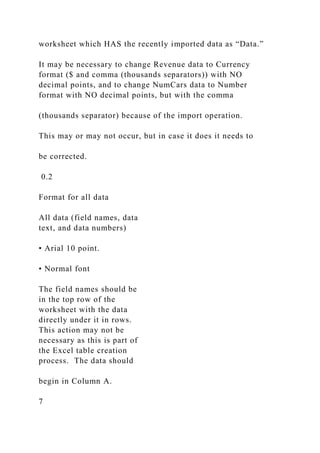
Though the intent is to import the text file into the Data
worksheet, sometimes when text data is imported into a
worksheet, a new worksheet is created. If this happens,
delete the blank Data worksheet, and then rename the new
worksheet which HAS the recently imported data as “Data.”
It may be necessary to change Revenue data to Currency
format ($ and comma (thousands separators)) with NO
decimal points, and to change NumCars data to Number
format with NO decimal points, but with the comma
(thousands separator) because of the import operation.
This may or may not occur, but in case it does it needs to
be corrected.
0.2
Format for all data
All data (field names, data
text, and data numbers)
• Arial 10 point.
• Normal font
The field names should be
in the top row of the
worksheet with the data
directly under it in rows.
This action may not be
necessary as this is part of
the Excel table creation
process. The data should
begin in Column A.
7
In the Data worksheet:
a. Create an Excel table with the recently imported
data.
b. Pick a style with the styles group to format the table
(choose a style that shows banded rows, i.e., rows
that alternate between 2 colors).
c. The style should highlight the field names in the first
row. These are your table headers.
d. Ensure NO blank cells are part of the specified data
range.
e. Ensure that Header Row and Banded Rows are
selected in the Table Style Options Group Box. Do
NOT check the Total Row.
0.5
Some adjustment may be
necessary to column widths
to ensure all field names
and all data are readable
(not truncated or
obscured).
Step Requirement
Points
Allocated
Comments
8
In the Data worksheet:
a. Sort the entire table by Year (ascending)
b. Delete all 2017 data. There should be one row for
titles and thirty-two rows of data after the 2017 data
is deleted.
c. There should be no column or data truncation.
0.3
9
Copy the entire table on the Data worksheet (column
headings and data) to the Initial Analysis worksheet.
a. Ensure that all field names as well as the data is
readable
b. Ensure that Revenue data is in Currency format ($
and comma (thousands separators)) with NO
decimal points, and NumCars data is in Number
format with NO decimal points, but with the comma
(thousands separator).
c. The upper left hand corner of the table should be in
cell A1 of the Initial Analysis worksheet
0.3
Format
for all data, text and labels
and numerical content:
• Arial 10
• Normal font.
10
In the Initial Analysis worksheet, using the table just
copied there:
a. Create a Pivot Table.
b. Adjust column widths if necessary to eliminate title
and data truncation.
c. Locate the top edge of the Pivot Table in at the top
edge of Row 1 and a few columns to the right of the
data
In the Pivot Table:
d. Display the total revenue for Economy as well as
Premium class cars.
e. Display the total revenue for both Airport and
Downtown locations.
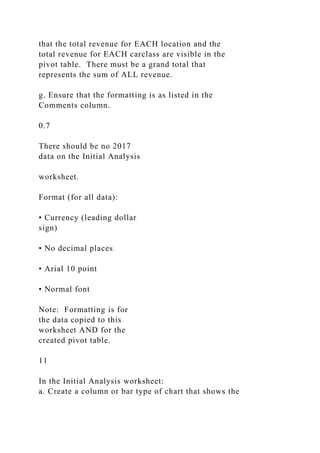
f. Row and column calculations (sum) are required so
that the total revenue for EACH location and the
total revenue for EACH carclass are visible in the
pivot table. There must be a grand total that
represents the sum of ALL revenue.
g. Ensure that the formatting is as listed in the
Comments column.
0.7
There should be no 2017
data on the Initial Analysis
worksheet.
Format (for all data):
• Currency (leading dollar
sign)
• No decimal places
• Arial 10 point
• Normal font
Note: Formatting is for
the data copied to this
worksheet AND for the
created pivot table.
11
In the Initial Analysis worksheet:
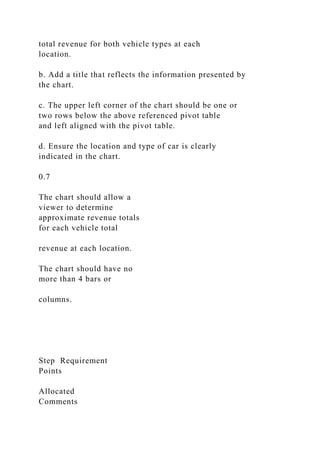
a. Create a column or bar type of chart that shows the
total revenue for both vehicle types at each
location.
b. Add a title that reflects the information presented by
the chart.
c. The upper left corner of the chart should be one or
two rows below the above referenced pivot table
and left aligned with the pivot table.
d. Ensure the location and type of car is clearly
indicated in the chart.
0.7
The chart should allow a
viewer to determine
approximate revenue totals
for each vehicle total
revenue at each location.
The chart should have no
more than 4 bars or
columns.
Step Requirement
Points
Allocated
Comments
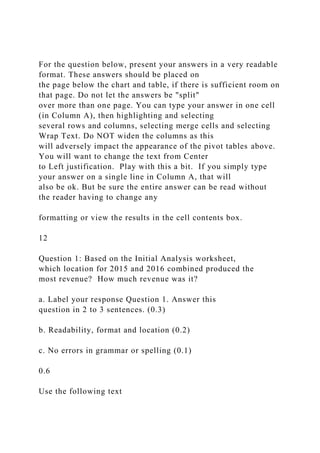
For the question below, present your answers in a very readable
format. These answers should be placed on
the page below the chart and table, if there is sufficient room on
that page. Do not let the answers be "split"
over more than one page. You can type your answer in one cell
(in Column A), then highlighting and selecting
several rows and columns, selecting merge cells and selecting
Wrap Text. Do NOT widen the columns as this
will adversely impact the appearance of the pivot tables above.
You will want to change the text from Center
to Left justification. Play with this a bit. If you simply type
your answer on a single line in Column A, that will
also be ok. But be sure the entire answer can be read without
the reader having to change any
formatting or view the results in the cell contents box.
12
Question 1: Based on the Initial Analysis worksheet,
which location for 2015 and 2016 combined produced the
most revenue? How much revenue was it?
a. Label your response Question 1. Answer this
question in 2 to 3 sentences. (0.3)
b. Readability, format and location (0.2)
c. No errors in grammar or spelling (0.1)
0.6
Use the following text
format:
• Arial 10 point
• Normal/Black
• Left-align text in the cell
13
Copy the entire table (column headings and data) from the
Data worksheet to the Profit Analysis worksheet.
a. In the Profit Analysis worksheet the field names
should be in Row 1 and the Year column should be
in column A.
b. Ensure that Revenue data is in Currency format ($
and comma (thousands separators)) with NO
decimal points, and NumCars data is in Number
format with NO decimal points, but with the comma
(thousands separator).
Some column adjustments may be necessary to ensure the
field names as well as the data is all readable.
0.2
Format
for all data, text and labels
and numerical content:
• Arial 10
• Normal font.
14
In the Profit Analysis worksheet:
In the column to the immediate right of NumCars label,
a. Create a label called Overhead.
b. Adjust the newly created column width, if
necessary.
0.2
Format:
• Arial 10 point
• Normal font
15
Overhead costs include maintenance, cleaning, and
administrative expenses associated with a car rental. The
Overhead for one rental transaction is $50 for an economy
car and $75 for a premium car. This Overhead cost
includes maintenance, cleaning, and administrative costs
for each car rental.
a. With this information, in the Profit Analysis
worksheet, in the first cell under the Overhead
label, calculate the overhead that corresponds to
the number of cars rented (NumCars) using an "IF"
statement as part of the formula.
b. For clarification, use the "IF" statement to determine
whether to use $50 or $75 times the NumCars so
that the Overhead value represents the total
Overhead costs for the Number of Cars (NumCars)
rented in a given row.
1.0
No credit if an IF
statement is NOT used.
Format:
• Currency with no
decimal points.
• Arial 10 point
• Normal/Black
• Right-align values
in the cell
Step Requirement
Points
Allocated
Comments
No credit if an IF statement is NOT used.
16
In the Profit Analysis worksheet:
a. Copy the overhead formula to all the cells below in
the Overhead column. Adjust the column width if
necessary for legibility.
b. Ensure overhead data format is Currency ($ and
using comma as thousands separators) with NO
decimal points.
Note: Each row in the new column must have the same
general appearance (color, shading) as the other cells to its
left in that same column.
0.2
No credit if an IF
statement is NOT used.
Format:
• Currency with no
decimal points.
• Arial 10 point
• Normal/Black
• Right-align values in the
cell
17
In the Profit Analysis worksheet:
In the next column to the right of the Overhead label,
a. Create a label called Profit.
0.1
Format:
• Arial 10 point
18
In the Profit Analysis worksheet, profit represents the
difference between Revenue and Overhead (Revenue –
(minus) Overhead) for the data IN the same row as the
profit data shown. Profit is for all cars rented during the
quarter.
In the first cell below the label Profit:
a. Calculate the profit,
b. Then copy the formula for all cells in that column (if
necessary).
c. Adjust the column width if necessary for legibility.
Note: If you are clicking on cells to construct a formula, you
may see [@Revenue]-[@Overhead in the cell editor, a
result of using an Excel table. One can create a formula by
typing the cell location instead of clicking on a particular
cell. In Excel, there are often many different ways to
accomplish the same task. Double-checking the
calculation with a hand-held calculator can identify possible
errors.
Note: Each row in the new column must have the same
general appearance (color, shading) as the other cells to its
left in that same column.
0.3
Format:
• Currency ($ and
comma as thousands
separators) with no
decimal points.
• Arial 10 point
• Normal/Black
• Right-align values in the
cell
19
In the Profit Analysis worksheet, in the next column to the
right of the label Profit,
a. Create a label called Profit per Car.
b. Adjust the column width if necessary for legibility.
0.2
Format:
• Arial 10 point
• Normal font
20
In the Profit Analysis worksheet, in the next cell down
under the Profit per Car label:
a. Calculate the profit per car rented. Profit per Car
reflects the data in that particular row.
0.3
Format:
• Currency ($) with TWO
decimal points.
• Arial 10 point
• Normal
Step Requirement
Points
Allocated
Comments
b. Copy the formula to all cells below. Double-
checking the calculation with a hand-held calculator
can identify possible errors.
c. Adjust the column width if necessary for legibility.
Note: Each row in the new column must have the same
general appearance (color, shading) as the other cells to its
left in that same column.
• Right-align values in the
cell
21
In the Profit Analysis worksheet:
a. Create a Pivot Table
b. Display the total profit for Economy as well as
Premium class cars.
c. Display the total profit for Airport as well as the
Downtown location.
d. Row and column calculations (sum) are required so
that the total profit for EACH location and the total
profit for EACH carclass are visible in the pivot
table. There must be a grand total (sum) that
represents the sum of ALL profit.
e. Position the upper left corner of the Pivot Table in
Row 1 two columns to the right of the table in the
Profit Analysis worksheet. Adjust column widths
to avoid data and label truncation.
f. Use format as defined in the Comments .
Locate the top edge of the Pivot Table in at the top edge of
Row 1 and a few columns to the right of the data.
1.0
Format for entire Pivot
Table:
• Text: Arial 10 point
• Normal font
• Data: Currency ($) no
decimal places)
22
In the Profit Analysis worksheet:
a. Create a Pivot Table.
b. Display the average profit per car for Economy as
well as Premium class cars.
c. Display the average profit per car for EACH
location.
d. Display the average profit per car for ALL cars.
(Comparable to a grand “total” but is average profit
per car).
e. Position the upper left corner to align with the pivot
table above and two rows below the pivot table
above.
f. The positioning of the column and row categories
should match those of the above pivot table.
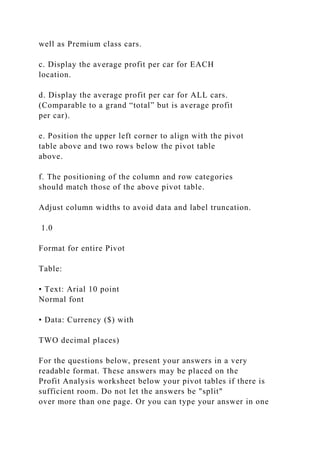
Adjust column widths to avoid data and label truncation.
1.0
Format for entire Pivot
Table:
• Text: Arial 10 point
Normal font
• Data: Currency ($) with
TWO decimal places)
For the questions below, present your answers in a very
readable format. These answers may be placed on the
Profit Analysis worksheet below your pivot tables if there is
sufficient room. Do not let the answers be "split"
over more than one page. Or you can type your answer in one
cell (in Column A), then highlighting and
selecting several rows and columns, selecting merge cells and
selecting Wrap Text. Do NOT widen the columns
as this will adversely impact the appearance of the pivot tables
above. You will want to change the text from
Center to Left justification. Play with this a bit. If you simply
type your answer on a single line in Column A, that
Step Requirement
Points
Allocated
Comments
will also be ok. But be sure the entire answer can be read
without the reader having to change any
formatting.
23
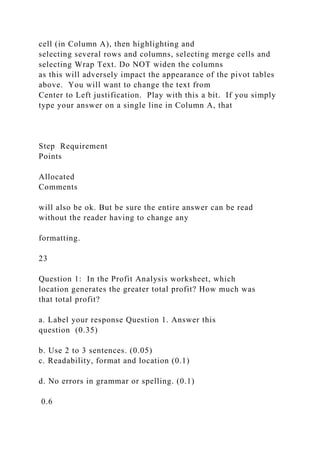
Question 1: In the Profit Analysis worksheet, which
location generates the greater total profit? How much was
that total profit?
a. Label your response Question 1. Answer this
question (0.35)
b. Use 2 to 3 sentences. (0.05)
c. Readability, format and location (0.1)
d. No errors in grammar or spelling. (0.1)
0.6
Format:
• Arial 10 point
• Normal
• Left-align text in the cell
24
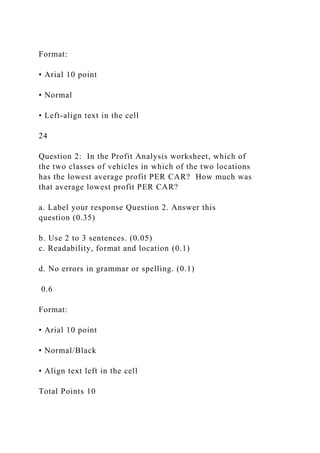
Question 2: In the Profit Analysis worksheet, which of
the two classes of vehicles in which of the two locations
has the lowest average profit PER CAR? How much was
that average lowest profit PER CAR?
a. Label your response Question 2. Answer this
question (0.35)
b. Use 2 to 3 sentences. (0.05)
c. Readability, format and location (0.1)
d. No errors in grammar or spelling. (0.1)
0.6
Format:
• Arial 10 point
• Normal/Black
• Align text left in the cell
Total Points 10
Excel Project 2 – MS Excel Summer 2018 Use the project.docx

Excel Project 2 – MS Excel Summer 2018 Use the project.docx

  • 1.
    Excel Project 2– MS Excel Summer 2018 Use the project description HERE to complete this activity. For a review of the complete rubric used in grading this exercise, click on the Assignments tab, then on the title Excel Project #2. Click on Show Rubrics if the rubric is not already displayed. Summary Create a Microsoft Excel workbook with four worksheets that provides extensive use of Excel capabilities including creating a pivot table, charting, and written analysis and recommendations in support of a business enterprise. A large rental car company has two metropolitan locations, one at the airport and another centrally located in downtown. It has been operating since 2015 and each location summarizes its car rental revenue quarterly. Both locations rent two classes of cars: economy and premium. Rental revenue is maintained separately for the two classes of rental vehicles. The data for this case resides in the file summer2018rentalcars.txt and can be downloaded by clicking on the Assignments tab, then on the data file name. It is a text file with the file type .txt.
  • 2.
    Do not createyour own data. You must use the data provided, and only the data provided. Default Formatting: All labels, text, and numbers will be Arial 10, There will be $ and comma and decimal point variations for numeric data, but Arial 10 will be the default font and font size. Tutorials Note: Tutorials that address activities used in this project have been assigned in Week 1 – 5. Step Requirement Points Allocated Comments 1 Open Excel and save a blank workbook with the following name: a. “Student’s First InitialLast Name Excel Project 2” Example: JSmith Excel Project 2. b. Set Page Layout Orientation to Landscape. 0.2 Use Print Preview to review how the first worksheet
  • 3.
    would print. 2 Changethe name of the worksheet to Analysis by. 0.1 3 In the Analysis by worksheet: a. Beginning in Row 1, enter the four labels in column A (one label per row) in the following order: Name:, Class/Section:, Project:, Date Due: b. Place a blank row between each label. Please note the colon : after each label. c. Align the labels to the right side in the cells It may be necessary to adjust the column width so the four labels are clearly visible. 0.3 Format for text in column A: • Arial 10 point • Normal font • Right-align all four labels in the cells
  • 4.
    4 In the Analysisby worksheet with all entries in column C: a. Enter the appropriate values for your Name, Class and Section, Project, Date Due across from the appropriate label in column A. 0.2 Format for text in column C: • Arial 10 point • Bold Step Requirement Points Allocated Comments b. Use the formatting in the Comments column (to the right). It may be necessary to adjust the column width so the four labels are clearly visible. • Left-align all four values in the cells
  • 5.
    5 a. Create newworksheets: Data, Initial Analysis, Profit Analysis. Upon completion, there should be Analysis by as well as the three newly created worksheets. b. Delete any other worksheets. Note: The three new worksheets might not have Arial 10 point as the default type so it may be necessary to change the font and point to Arial 10 for each worksheet. If necessary, reorder the four worksheets so they are in the following order: Analysis by, Data, Initial Analysis, Profit Analysis. 0.2 6 After clicking on the blank cell A1 (to select it) in the Data worksheet: a. Import the text file summer2018rentalcars.txt into the Data worksheet. b. Adjust all column widths so there is no data or column header truncation. Though the intent is to import the text file into the Data worksheet, sometimes when text data is imported into a worksheet, a new worksheet is created. If this happens, delete the blank Data worksheet, and then rename the new
  • 6.
    worksheet which HASthe recently imported data as “Data.” It may be necessary to change Revenue data to Currency format ($ and comma (thousands separators)) with NO decimal points, and to change NumCars data to Number format with NO decimal points, but with the comma (thousands separator) because of the import operation. This may or may not occur, but in case it does it needs to be corrected. 0.2 Format for all data All data (field names, data text, and data numbers) • Arial 10 point. • Normal font The field names should be in the top row of the worksheet with the data directly under it in rows. This action may not be necessary as this is part of the Excel table creation process. The data should begin in Column A. 7
  • 7.
    In the Dataworksheet: a. Create an Excel table with the recently imported data. b. Pick a style with the styles group to format the table (choose a style that shows banded rows, i.e., rows that alternate between 2 colors). c. The style should highlight the field names in the first row. These are your table headers. d. Ensure NO blank cells are part of the specified data range. e. Ensure that Header Row and Banded Rows are selected in the Table Style Options Group Box. Do NOT check the Total Row. 0.5 Some adjustment may be necessary to column widths to ensure all field names and all data are readable (not truncated or obscured). Step Requirement Points
  • 8.
    Allocated Comments 8 In the Dataworksheet: a. Sort the entire table by Year (ascending) b. Delete all 2017 data. There should be one row for titles and thirty-two rows of data after the 2017 data is deleted. c. There should be no column or data truncation. 0.3 9 Copy the entire table on the Data worksheet (column headings and data) to the Initial Analysis worksheet. a. Ensure that all field names as well as the data is readable b. Ensure that Revenue data is in Currency format ($ and comma (thousands separators)) with NO decimal points, and NumCars data is in Number format with NO decimal points, but with the comma (thousands separator). c. The upper left hand corner of the table should be in cell A1 of the Initial Analysis worksheet 0.3
  • 9.
    Format for all data,text and labels and numerical content: • Arial 10 • Normal font. 10 In the Initial Analysis worksheet, using the table just copied there: a. Create a Pivot Table. b. Adjust column widths if necessary to eliminate title and data truncation. c. Locate the top edge of the Pivot Table in at the top edge of Row 1 and a few columns to the right of the data In the Pivot Table: d. Display the total revenue for Economy as well as Premium class cars. e. Display the total revenue for both Airport and Downtown locations. f. Row and column calculations (sum) are required so
  • 10.
    that the totalrevenue for EACH location and the total revenue for EACH carclass are visible in the pivot table. There must be a grand total that represents the sum of ALL revenue. g. Ensure that the formatting is as listed in the Comments column. 0.7 There should be no 2017 data on the Initial Analysis worksheet. Format (for all data): • Currency (leading dollar sign) • No decimal places • Arial 10 point • Normal font Note: Formatting is for the data copied to this worksheet AND for the created pivot table. 11 In the Initial Analysis worksheet: a. Create a column or bar type of chart that shows the
  • 11.
    total revenue forboth vehicle types at each location. b. Add a title that reflects the information presented by the chart. c. The upper left corner of the chart should be one or two rows below the above referenced pivot table and left aligned with the pivot table. d. Ensure the location and type of car is clearly indicated in the chart. 0.7 The chart should allow a viewer to determine approximate revenue totals for each vehicle total revenue at each location. The chart should have no more than 4 bars or columns. Step Requirement Points Allocated Comments
  • 12.
    For the questionbelow, present your answers in a very readable format. These answers should be placed on the page below the chart and table, if there is sufficient room on that page. Do not let the answers be "split" over more than one page. You can type your answer in one cell (in Column A), then highlighting and selecting several rows and columns, selecting merge cells and selecting Wrap Text. Do NOT widen the columns as this will adversely impact the appearance of the pivot tables above. You will want to change the text from Center to Left justification. Play with this a bit. If you simply type your answer on a single line in Column A, that will also be ok. But be sure the entire answer can be read without the reader having to change any formatting or view the results in the cell contents box. 12 Question 1: Based on the Initial Analysis worksheet, which location for 2015 and 2016 combined produced the most revenue? How much revenue was it? a. Label your response Question 1. Answer this question in 2 to 3 sentences. (0.3) b. Readability, format and location (0.2) c. No errors in grammar or spelling (0.1) 0.6 Use the following text
  • 13.
    format: • Arial 10point • Normal/Black • Left-align text in the cell 13 Copy the entire table (column headings and data) from the Data worksheet to the Profit Analysis worksheet. a. In the Profit Analysis worksheet the field names should be in Row 1 and the Year column should be in column A. b. Ensure that Revenue data is in Currency format ($ and comma (thousands separators)) with NO decimal points, and NumCars data is in Number format with NO decimal points, but with the comma (thousands separator). Some column adjustments may be necessary to ensure the field names as well as the data is all readable. 0.2 Format for all data, text and labels and numerical content:
  • 14.
    • Arial 10 •Normal font. 14 In the Profit Analysis worksheet: In the column to the immediate right of NumCars label, a. Create a label called Overhead. b. Adjust the newly created column width, if necessary. 0.2 Format: • Arial 10 point • Normal font 15 Overhead costs include maintenance, cleaning, and administrative expenses associated with a car rental. The Overhead for one rental transaction is $50 for an economy car and $75 for a premium car. This Overhead cost includes maintenance, cleaning, and administrative costs for each car rental. a. With this information, in the Profit Analysis worksheet, in the first cell under the Overhead label, calculate the overhead that corresponds to the number of cars rented (NumCars) using an "IF"
  • 15.
    statement as partof the formula. b. For clarification, use the "IF" statement to determine whether to use $50 or $75 times the NumCars so that the Overhead value represents the total Overhead costs for the Number of Cars (NumCars) rented in a given row. 1.0 No credit if an IF statement is NOT used. Format: • Currency with no decimal points. • Arial 10 point • Normal/Black • Right-align values in the cell Step Requirement Points Allocated Comments No credit if an IF statement is NOT used.
  • 16.
    16 In the ProfitAnalysis worksheet: a. Copy the overhead formula to all the cells below in the Overhead column. Adjust the column width if necessary for legibility. b. Ensure overhead data format is Currency ($ and using comma as thousands separators) with NO decimal points. Note: Each row in the new column must have the same general appearance (color, shading) as the other cells to its left in that same column. 0.2 No credit if an IF statement is NOT used. Format: • Currency with no decimal points. • Arial 10 point • Normal/Black • Right-align values in the cell
  • 17.
    17 In the ProfitAnalysis worksheet: In the next column to the right of the Overhead label, a. Create a label called Profit. 0.1 Format: • Arial 10 point 18 In the Profit Analysis worksheet, profit represents the difference between Revenue and Overhead (Revenue – (minus) Overhead) for the data IN the same row as the profit data shown. Profit is for all cars rented during the quarter. In the first cell below the label Profit: a. Calculate the profit, b. Then copy the formula for all cells in that column (if necessary). c. Adjust the column width if necessary for legibility.
  • 18.
    Note: If youare clicking on cells to construct a formula, you may see [@Revenue]-[@Overhead in the cell editor, a result of using an Excel table. One can create a formula by typing the cell location instead of clicking on a particular cell. In Excel, there are often many different ways to accomplish the same task. Double-checking the calculation with a hand-held calculator can identify possible errors. Note: Each row in the new column must have the same general appearance (color, shading) as the other cells to its left in that same column. 0.3 Format: • Currency ($ and comma as thousands separators) with no decimal points. • Arial 10 point • Normal/Black • Right-align values in the cell 19
  • 19.
    In the ProfitAnalysis worksheet, in the next column to the right of the label Profit, a. Create a label called Profit per Car. b. Adjust the column width if necessary for legibility. 0.2 Format: • Arial 10 point • Normal font 20 In the Profit Analysis worksheet, in the next cell down under the Profit per Car label: a. Calculate the profit per car rented. Profit per Car reflects the data in that particular row. 0.3 Format: • Currency ($) with TWO decimal points. • Arial 10 point • Normal
  • 20.
    Step Requirement Points Allocated Comments b. Copythe formula to all cells below. Double- checking the calculation with a hand-held calculator can identify possible errors. c. Adjust the column width if necessary for legibility. Note: Each row in the new column must have the same general appearance (color, shading) as the other cells to its left in that same column. • Right-align values in the cell 21 In the Profit Analysis worksheet: a. Create a Pivot Table b. Display the total profit for Economy as well as Premium class cars. c. Display the total profit for Airport as well as the Downtown location. d. Row and column calculations (sum) are required so that the total profit for EACH location and the total
  • 21.
    profit for EACHcarclass are visible in the pivot table. There must be a grand total (sum) that represents the sum of ALL profit. e. Position the upper left corner of the Pivot Table in Row 1 two columns to the right of the table in the Profit Analysis worksheet. Adjust column widths to avoid data and label truncation. f. Use format as defined in the Comments . Locate the top edge of the Pivot Table in at the top edge of Row 1 and a few columns to the right of the data. 1.0 Format for entire Pivot Table: • Text: Arial 10 point • Normal font • Data: Currency ($) no decimal places) 22 In the Profit Analysis worksheet: a. Create a Pivot Table. b. Display the average profit per car for Economy as
  • 22.
    well as Premiumclass cars. c. Display the average profit per car for EACH location. d. Display the average profit per car for ALL cars. (Comparable to a grand “total” but is average profit per car). e. Position the upper left corner to align with the pivot table above and two rows below the pivot table above. f. The positioning of the column and row categories should match those of the above pivot table. Adjust column widths to avoid data and label truncation. 1.0 Format for entire Pivot Table: • Text: Arial 10 point Normal font • Data: Currency ($) with TWO decimal places) For the questions below, present your answers in a very readable format. These answers may be placed on the Profit Analysis worksheet below your pivot tables if there is sufficient room. Do not let the answers be "split" over more than one page. Or you can type your answer in one
  • 23.
    cell (in ColumnA), then highlighting and selecting several rows and columns, selecting merge cells and selecting Wrap Text. Do NOT widen the columns as this will adversely impact the appearance of the pivot tables above. You will want to change the text from Center to Left justification. Play with this a bit. If you simply type your answer on a single line in Column A, that Step Requirement Points Allocated Comments will also be ok. But be sure the entire answer can be read without the reader having to change any formatting. 23 Question 1: In the Profit Analysis worksheet, which location generates the greater total profit? How much was that total profit? a. Label your response Question 1. Answer this question (0.35) b. Use 2 to 3 sentences. (0.05) c. Readability, format and location (0.1) d. No errors in grammar or spelling. (0.1) 0.6
  • 24.
    Format: • Arial 10point • Normal • Left-align text in the cell 24 Question 2: In the Profit Analysis worksheet, which of the two classes of vehicles in which of the two locations has the lowest average profit PER CAR? How much was that average lowest profit PER CAR? a. Label your response Question 2. Answer this question (0.35) b. Use 2 to 3 sentences. (0.05) c. Readability, format and location (0.1) d. No errors in grammar or spelling. (0.1) 0.6 Format: • Arial 10 point • Normal/Black • Align text left in the cell Total Points 10